APOLLO
™
MS-WB670
Marine Entertainment System

© 2020 Garmin Ltd. or its subsidiaries
All rights reserved. Under the copyright laws, this manual may not be copied, in whole or in part, without the written consent of Garmin. Garmin reserves the right to change
or improve its products and to make changes in the content of this manual without obligation to notify any person or organization of such changes or improvements. Go to
www.garmin.com for current updates and supplemental information concerning the use of this product.
Garmin
®
, ANT
®
, Fusion
®
, and the Fusion logo are trademarks of Garmin Ltd. or its subsidiaries, registered in the USA and other countries. Apollo
™
and Fusion PartyBus
™
are
trademarks of Garmin Ltd. or its subsidiaries. These trademarks may not be used without the express permission of Garmin.
Apple
®
and AirPlay
®
are trademarks of Apple Inc., registered in the U.S. and other countries. App Store
SM
is a service mark of Apple Inc. Android
™
and Google Play
™
are trademarks of
Google Inc. BLUETOOTH
®
word mark and logos are owned by the Bluetooth SIG, Inc. and any use of such marks by Garmin is under license. NMEA
®
, NMEA 2000
®
, and the NMEA
2000 logo are registered trademarks of the National Marine Electronics Association. All rights reserved. SiriusXM
®
, SportsFlash
™
, TuneMix
™
, TuneStart
™
, and all related marks and
logos are trademarks of Sirius XM Radio Inc. All rights reserved. Other trademarks and trade names are those of their respective owners.
M/N: A03924
IC: 1792A-03924

Table of Contents
Getting Started................................. 1
Stereo Buttons and Status LEDs............ 1
Controls................................................... 2
Entering Text........................................ 4
Using the Dial to Select Items.............4
Stereo Screen.......................................... 4
Naming the Device.................................. 5
Setting the Home Zone........................... 5
Selecting a Source.................................. 5
Audio Control................................... 6
Adjusting the Volume..............................6
Muting all Connected Stereos............ 6
Adjusting the Subwoofer Level........... 6
Adjusting the Tone.................................. 6
Disabling the Loud Setting for a
Zone......................................................... 6
Adjusting the Gain for an Auxiliary
Device...................................................... 7
Speaker Zones.........................................7
DSP Settings............................................ 7
Configuring the DSP Settings............. 7
Automatic Volume Adjustment Based on
Speed....................................................... 8
Media Player Connection.................. 8
Bluetooth Device Playback............... 8
Connecting a Compatible Bluetooth
Device...................................................... 9
Bluetooth Range Information............. 9
Selecting a Different Bluetooth
Device...................................................... 9
Bluetooth Source Menu and Settings.. 10
Disabling Bluetooth Auto
Connection.........................................10
USB Device Playback...................... 11
USB Device Compatibility..................... 11
Connecting a USB Device................. 11
Controlling Music Playback on a USB
Flash Drive or Media Player.................. 12
Controlling Music Playback on a
Connected Android Device................... 12
Controlling Music Playback on a
Connected Apple Device.......................12
USB Source Settings............................. 12
Radio..............................................13
Setting the Tuner Region...................... 13
Changing the Radio Station.................. 13
Apple AirPlay..................................14
Connecting an Apple Device Using
AirPlay.................................................... 14
Setting an AirPlay Password................ 14
Connecting an Auxiliary Device.......14
Optical Audio Connection............... 14
SiriusXM Satellite Radio................. 15
Setting the Tuner Region for the
SiriusXM Source.................................... 15
Locating the SiriusXM Radio ID............15
Activating a SiriusXM Subscription..... 15
Selecting a Category............................. 15
Using Replay Mode............................... 16
Alerts...................................................... 16
Adding an Artist or Song Alert.......... 16
Adding Teams for Game Alerts........ 16
Adding Teams from a Live
Game.............................................. 16
Viewing Active Alerts........................ 16
Managing Alerts................................ 17
TuneMix™ Feature................................. 17
Starting and Stopping a TuneMix
Collection........................................... 17
Creating and Customizing a TuneMix
Collection........................................... 17
SportsFlash Feature.............................. 18
Adding Teams to Receive SportsFlash
Alerts.................................................. 18
Changing SportsFlash Team
Priority................................................ 18
Enabling the TuneStart™ Feature......... 18
Parental Controls.................................. 18
Unlocking the Parental Controls.......19
Locking Channels.............................. 19
Clearing All Locked Channels........... 19
Changing the Parental Control
Passcode........................................... 19
Table of Contents i

SiriusXM Troubleshooting.................... 20
Clearing SiriusXM Data..................... 20
DAB Playback................................. 21
Setting the Tuner Region...................... 21
Scanning for DAB Stations................... 21
Changing DAB Stations.....................21
Selecting a DAB Station from a
List...................................................... 21
Selecting a DAB Station from a
Category............................................. 21
Presets...........................................22
Saving a Station or Channel as a
Preset..................................................... 22
Selecting a Preset from a List.............. 22
Removing Presets................................. 22
Fusion PartyBus Networking...........22
Creating a Group................................... 23
Editing a Group...................................... 23
Leaving a Group.................................... 23
Grouped Stereo Functions.................... 23
Grouped Stereo Source
Considerations...................................... 24
Group Synchronization......................... 24
Enabling Group Synchronization...... 25
LED Lighting Control....................... 25
Turning LED Lights On and Off.............25
Turning on LED Light Effects................25
Starting an LED Light Scene................. 26
Setting LED Lights to React to Music.. 26
LED Light Control and Configuration
Using the ActiveCaptain App................26
Getting Started with the ActiveCaptain
App..................................................... 27
Initializing Connected LED Lights
Using the ActiveCaptain App............ 27
General Settings............................. 28
Speaker Zone Settings..........................28
Disabling the Internal Amplifier........ 28
Setting the Home Zone..................... 28
Synchronizing the Source and Zone
Volume Levels................................... 29
Adjusting the Power-On Volume
Limit................................................... 29
Maintaining Individual Zone Volume
Levels................................................. 29
Enabling Automatic Volume
Adjustment Based on Speed............ 29
Automatic Volume Control
Settings.......................................... 30
Disabling a Zone................................ 30
Setting a Zone Name........................ 31
Linking Zones.................................... 31
Enabling Volume Control of Zone 3 or
4 from a Connected Amplifier.......... 31
Adjusting the Subwoofer Filter......... 31
Adjusting Additional Audio Settings
for a Zone...........................................32
Source Settings..................................... 32
Network Settings...................................32
Setting the Stereo as a Wired DHCP
Server................................................. 33
Setting a Static IP Address............... 33
DHCP Settings................................... 33
Connecting the Stereo to a Garmin
Network..............................................34
Resetting Network Settings.............. 34
Update Options..................................... 35
Additional Stereo Control Options...35
Connecting to a Garmin Watch............ 35
Connecting to an ARX70 Remote
Control................................................... 36
Fusion Audio Wireless Remote Control
App......................................................... 36
Fusion Stereo Network Connection and
Control................................................... 36
NMEA 2000 Information....................... 36
Appendix........................................ 37
Registering Your Fusion Device........... 37
Cleaning the Device.............................. 37
Software Updates................................. 37
Updating the Software Using a USB
Flash Drive......................................... 37
Downloading a Software Update
Manually......................................... 38
Downloading a Software Update
using the Garmin Express App..... 38
ii Table of Contents

Updating the Software from a
Prepared USB Flash Drive............. 39
Updating the Software Using the
Fusion Audio App.............................. 40
Network Update Options...................41
Updating the Software as Part of a
Garmin Network Update................41
Updating the Software Using a USB
Flash Drive and a Connected Garmin
Chartplotter.................................... 41
Troubleshooting.................................... 41
The stereo does not respond to key
presses...............................................41
My Bluetooth audio is interrupted by
short breaks....................................... 42
The stereo does not display all song
information from my Bluetooth
source................................................ 42
Network Troubleshooting................. 42
Network Status Icons.................... 42
The stereo keeps locking up when
connected to an Apple device.......... 42
The stereo is not finding my
connected Apple device....................43
My Apple AirPlay audio is interrupted
by short breaks.................................. 43
The stereo does not receive DAB
stations.............................................. 43
Specifications........................................44
Stereo Dimension Drawings................. 45
Side Dimensions................................45
Top Dimensions................................ 45
Table of Contents iii

Getting Started
WARNING
See the Important Safety and Product Information guide in the product box for product warnings and other
important information.
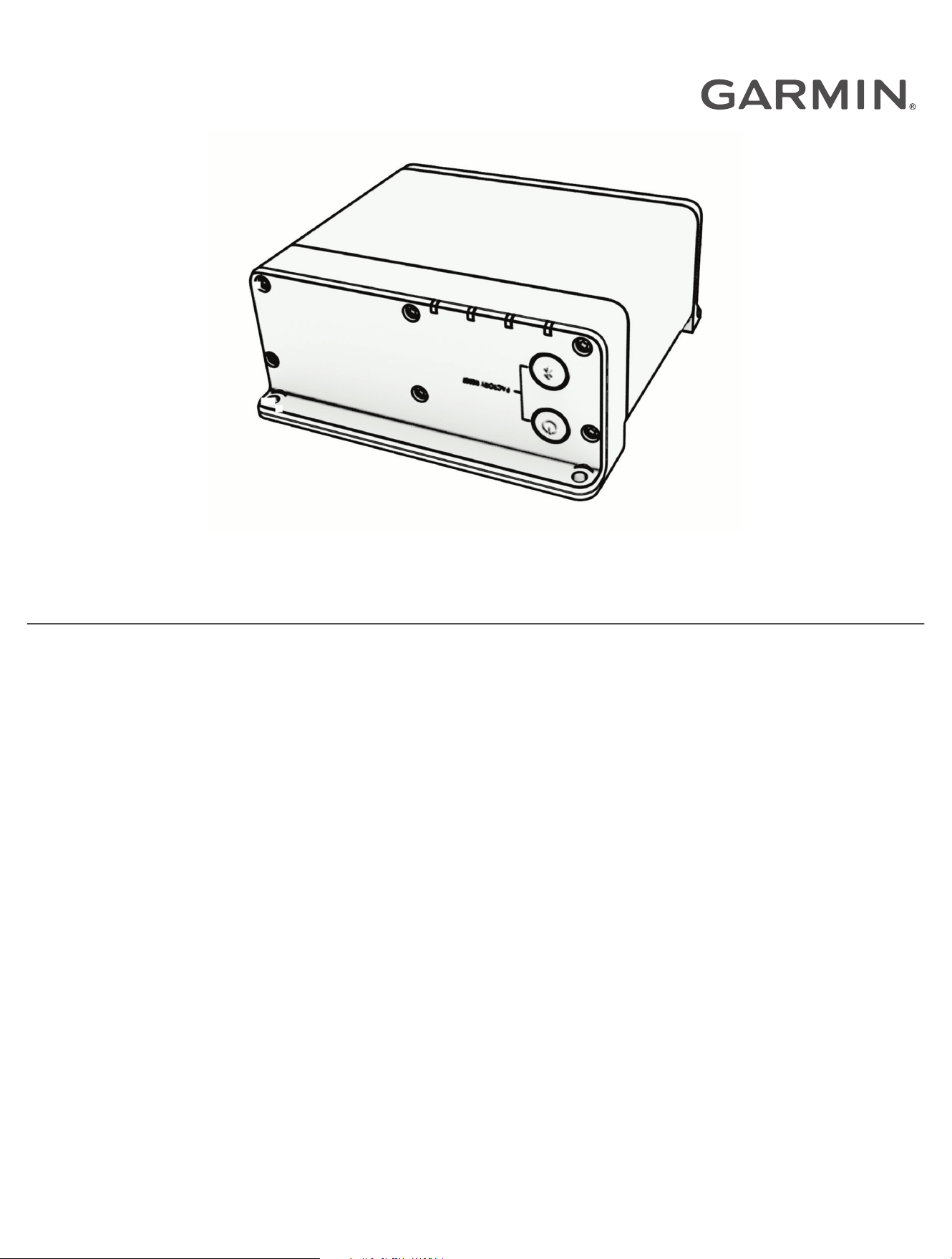
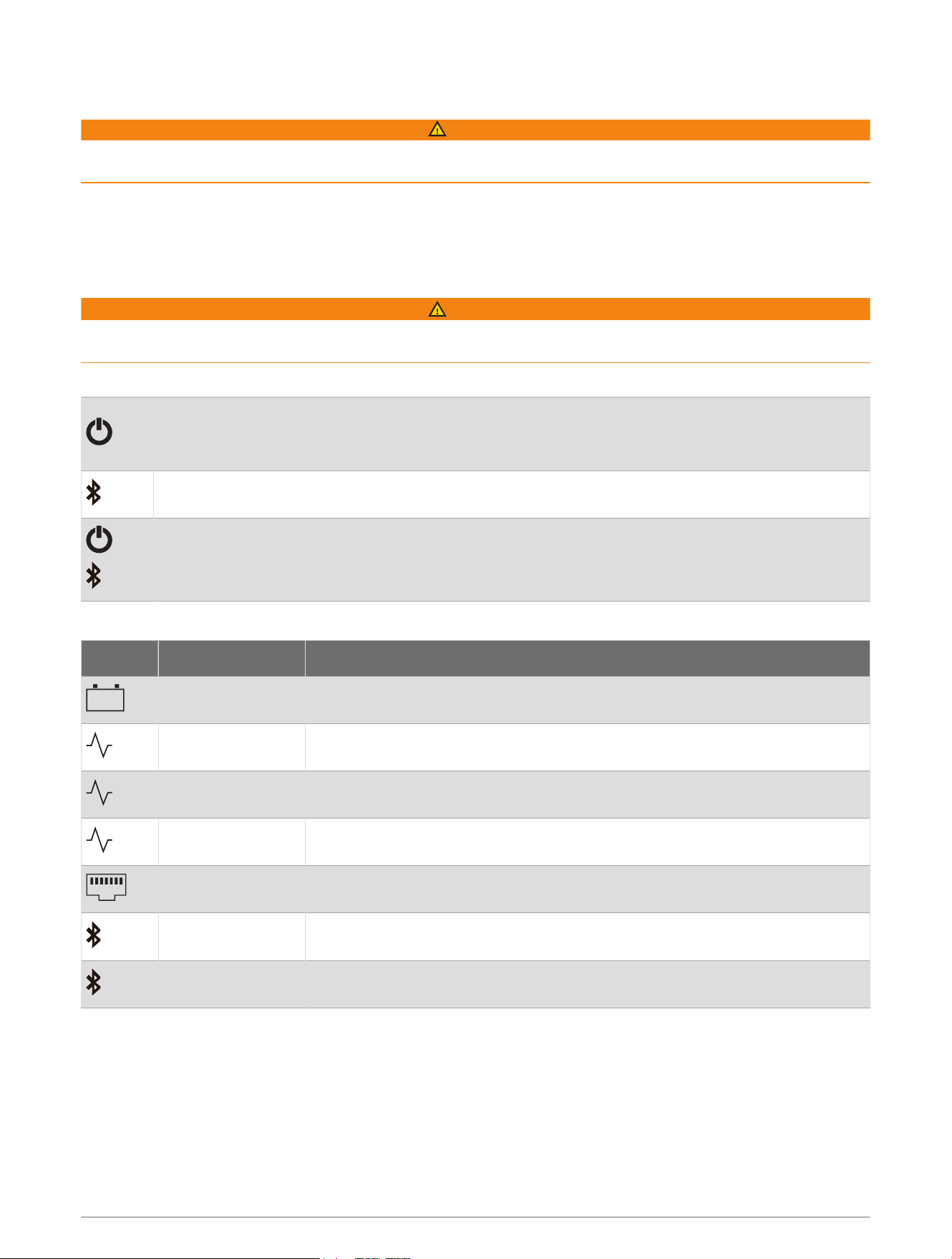
Stereo Buttons and Status LEDs
Because this device is designed to be installed in a location that may not be easily accessible, almost all
playback and device interaction is done through a network-connected remote control, stereo, or chartplotter. In
some instances, you may need to watch the LEDs or press the buttons on the device itself.
WARNING
Do not leave the helm unattended to interact with this device. Leaving the helm unattended or becoming
distracted by this device could lead to an accident resulting in serious personal injury or death.
Stereo Buttons
Press to turn on the stereo.
Press and hold for two seconds to turn off the stereo.
Press and hold for ten seconds to reset the stereo.
Press to make the stereo discoverable to BLUETOOTH
®
devices.
and
Press and hold both buttons together for ten seconds to revert the stereo to factory settings.
Status LEDs
Icon LED Activity LED Status
Solid The stereo is receiving power.
Blinking The stereo is turning on.
Solid The stereo is on and operating normally.
Off The stereo is off.
Blinking The stereo is communicating using Ethernet.
Blinking The stereo is discoverable to BLUETOOTH devices.
Solid The stereo is connected to a BLUETOOTH device.
Getting Started 1
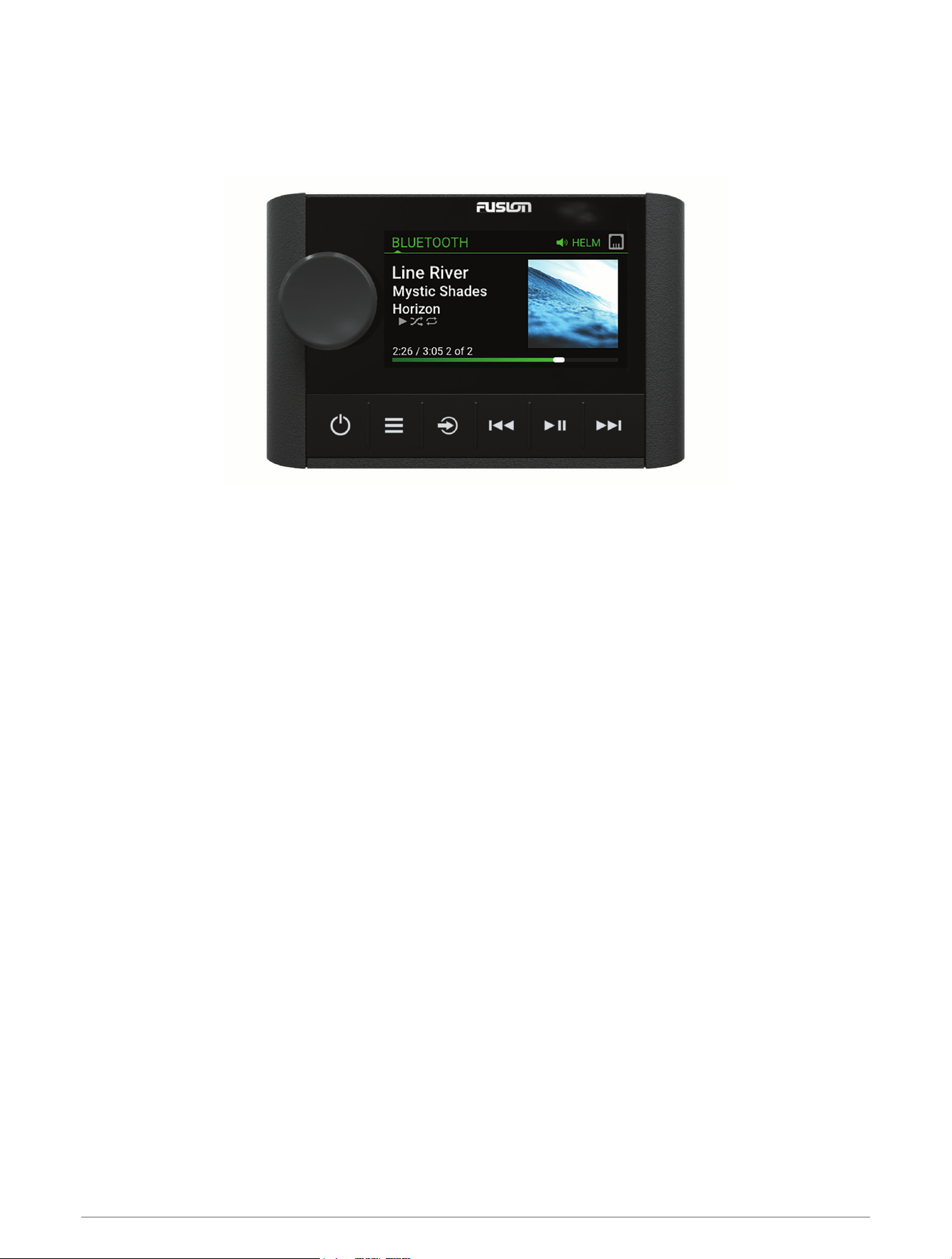
Controls
NOTE: These stereo controls are available when you use a connected remote control, such as a Fusion
®
ERX400. If you control the stereo using a chartplotter, an NRX remote control, or another stereo on the network,
you should see the owner's manual for that device for more information.
2 Getting Started
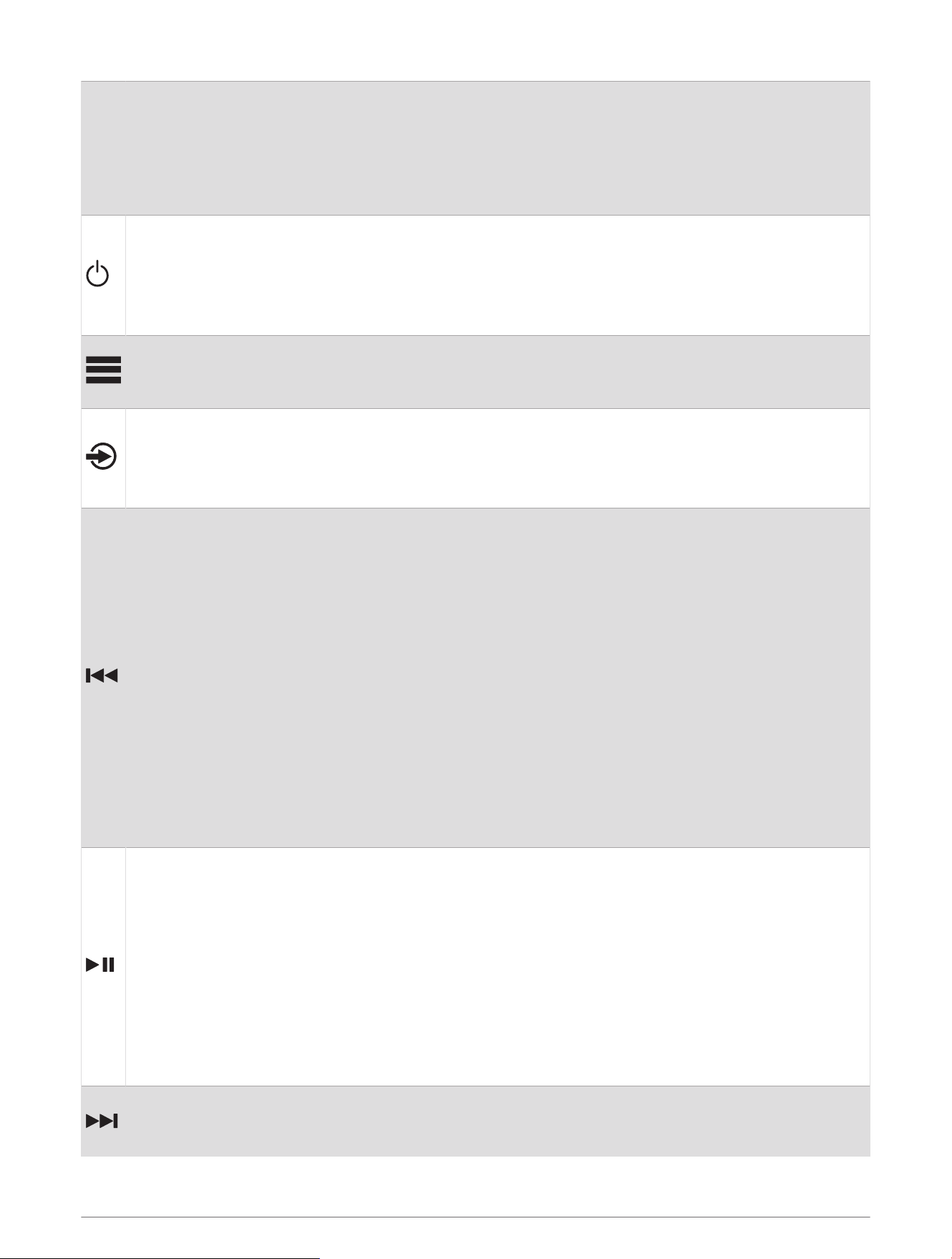
Dial
• Turn to adjust the volume.
• When adjusting the volume, press to switch between zones.
• Turn to move through the menus or adjust a setting.
• When in a menu, press to select the highlighted option.
• Press and hold to activate certain functions such as opening the radio presets or muting all connected
stereos from the mute screen (Muting all Connected Stereos, page6).
• Press to turn on the remote control.
• Press to mute and un-mute the audio.
• Press and hold to turn off the stereo or all stereos on the network.
• Press and hold for longer than 10 seconds to reset the remote control.
NOTE: The stereo turns on and off when you turn the connected remote control on or off.
• Press to open the menu.
• Press to return to the previous screen from the menu.
• Press and hold to exit the menu.
Press to select a source.
TIP: You can turn the dial to browse, and press the dial to select the source.
Press and hold to open the GROUPS menu when connected to a Fusion PartyBus
™
network (Fusion
PartyBus Networking, page22).
• Press to skip to the previous track, when using an applicable source.
• Press and hold to rewind the track when using an applicable source.
• AM/FM:
◦ Press to tune to the previous station or preset.
◦ Press and hold for faster tuning (manual mode only).
• AUX: Press to decrease the gain.
• SiriusXM source:
◦ In Live Mode, press to tune to the previous station or preset.
◦ In Live Mode, press and hold for faster tuning, in Manual mode only.
◦ In Replay Mode, press to skip to the previous track.
◦ In Replay Mode, press and hold to rewind the current track.
• DAB source:
◦ Press to return to the previous DAB station in the ensemble. When you reach the beginning of the
current ensemble, the stereo automatically changes to the last available station in the previous
ensemble.
◦ Press and hold to return to the previous DAB ensemble.
• BLUETOOTH or USB: Press to pause or resume the current track.
• AM/FM:
◦ Press to cycle through the tuning modes (auto, manual, and presets).
◦ Press and hold to save the current station as a preset.
• SiriusXM source:
◦ Press and hold to switch between Replay Mode and Live Mode.
◦ In Live Mode, press to cycle through the tuning modes (Manual, Category, and Preset).
◦ In Replay Mode, press to pause and play.
• DAB:
◦ Press to switch between manual tuning mode and presets.
◦ Press and hold to scan for DAB stations.
• Press to skip to the next track, when using an applicable source.
• Press and hold to fast-forward the track when using an applicable source.
• AM/FM:
Getting Started 3
◦ Press to tune to the next station or preset.
◦ Press and hold for faster tuning (manual mode only).
• AUX: Press to increase the gain.
• SiriusXM source:
◦ In Live Mode, press to tune to the next station or preset.
◦ In Live Mode, press and hold for faster tuning, in Manual mode only.
◦ In Replay Mode, press to skip to the next track, if applicable.
◦ In Replay Mode, press and hold to fast-forward the current track, if applicable.
• DAB source:
◦ Press to advance to the next DAB station in the ensemble. When you reach the end of the current
ensemble, the stereo automatically changes to the first available station in the next ensemble.
◦ Press and hold to advance to the next DAB ensemble.
Entering Text
1 In a field that allows you to enter text, select to erase the existing characters.
2 If necessary, select or to use numerals, symbols, or lower-case letters when available.
3 Turn the dial to choose a character, and press the dial to select it.
4 Select to save the new text.
Using the Dial to Select Items
You can use the dial to highlight and select items on the screen.
• Turn the dial to highlight an item on the screen.
• Press the dial to select the highlighted option.
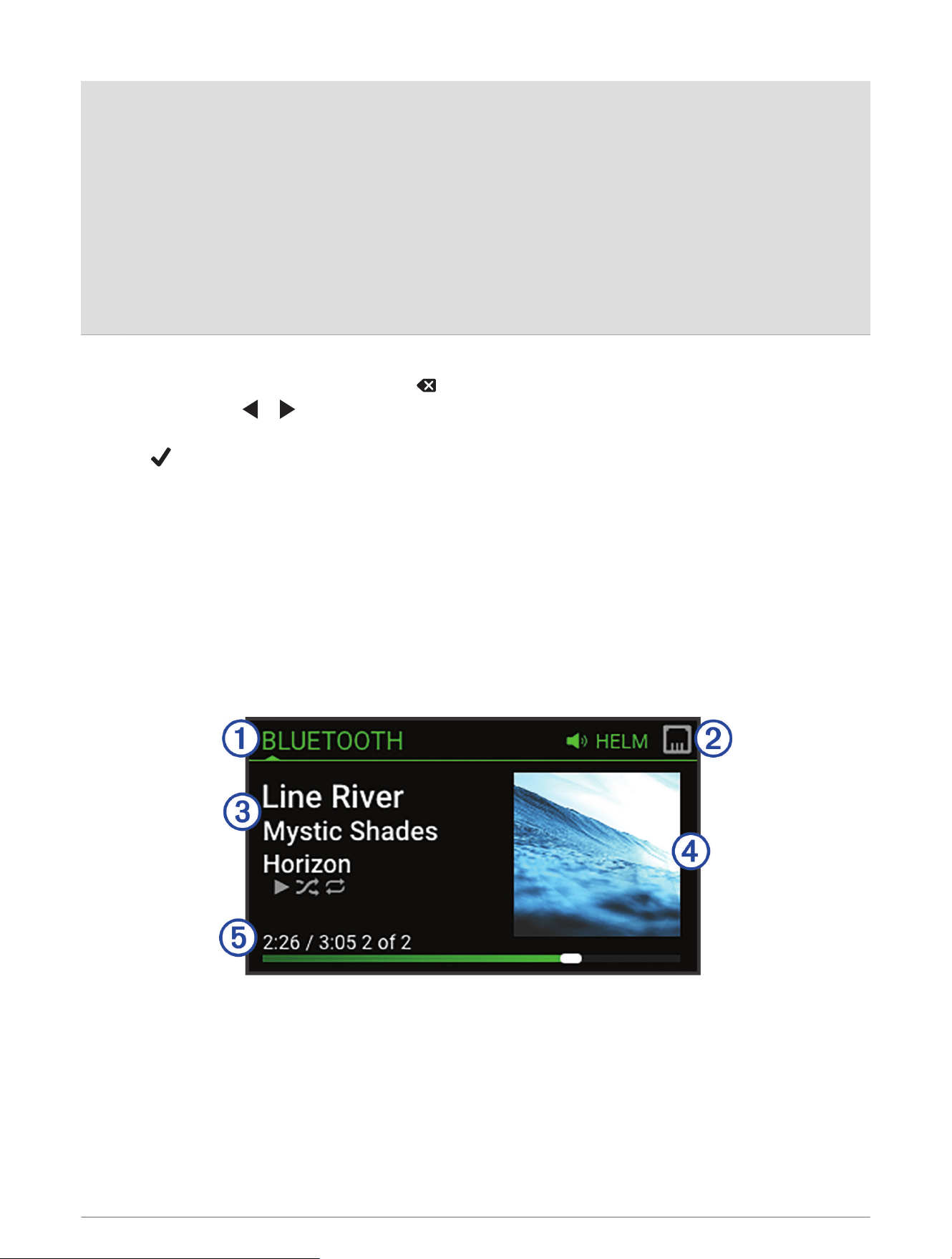
Stereo Screen
The information displayed on the screen varies depending on the source selected. This example shows a track
playing on a device connected using Bluetooth
®
wireless technology.
NOTE: The screen shown is from a connected remote control, such as an Apollo ERX400. If you are using your
chartplotter to control the stereo, see your chartplotter's owner's manual for more information.
4 Getting Started
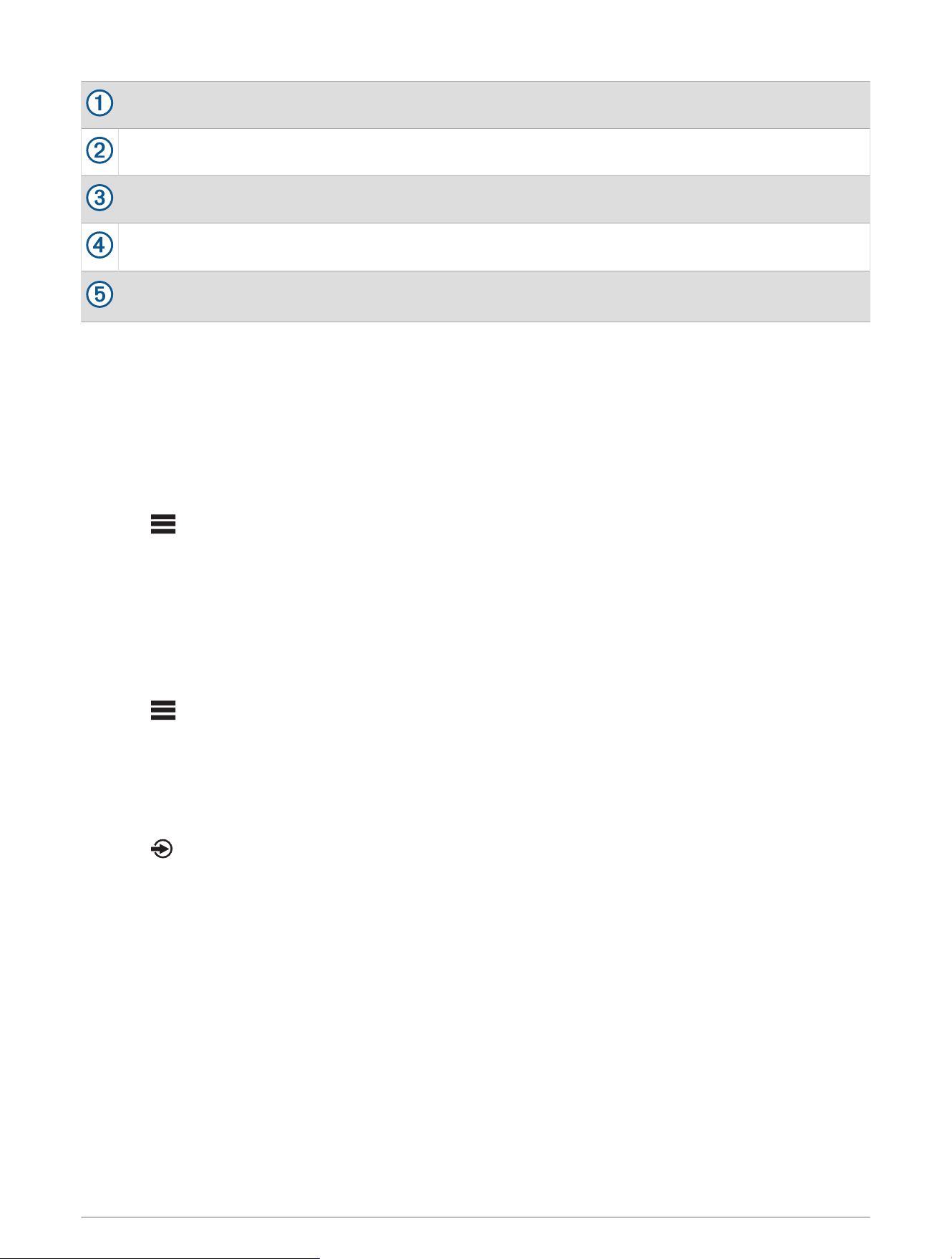
Source name
Active zone and status icons (Network Status Icons, page42)
Track details (if available)
Album art (if available from a compatible source)
Elapsed time, track duration, and the current track number out of the total number of tracks in the playlist
(if available)
Naming the Device
You should provide a unique name for this device so you can easily identify it when viewing devices on the
Fusion PartyBus network.
NOTE: You should provide unique names for all of the devices and zones on the network to avoid confusion
when grouping, controlling, and setting up stereos and zones. You should also turn off zones that are not in use
(Speaker Zone Settings, page28).
For further customization, you can provide unique names for the sources on each stereo and turn off unused
sources (General Settings, page28).
1 Select > SETTINGS.
2 Select the device to rename.
3 Select DEVICE NAME, and select an option:
• Select a pre-defined name from the list.
• Select CUSTOM NAME, and enter a unique name for the device.
Setting the Home Zone
The home zone is the speaker zone that you adjust by default when you turn the dial on the remote control.
1 Select > SETTINGS.
2 Select the name of the remote control you plan to use with this stereo.
3 Select ASSIGN HOME ZONE.
4 Select a zone.
Selecting a Source
1 Select .
2 Turn the dial to highlight a source.
NOTE: If the device is part of a group, continue turning the dial to access the sources on other devices in the
group (Fusion PartyBus Networking, page22).
If a source cannot be shared with the group, it will appear gray and you cannot select it.
3 Press the dial to select the source.
Getting Started 5

Audio Control
Adjusting the Volume
Using this remote control, you can control the volume of any zone on any stereo connected to the Fusion
PartyBus network.
1 Turn the dial to adjust the volume for the home zone on the stereo.
2 If necessary, press the dial to switch between zones.
NOTE: If this stereo is part of a group, you can adjust the volume of all stereos in the group or individual
zones on each stereo (Fusion PartyBus Networking, page22).
Muting all Connected Stereos
You can quickly mute the audio from this stereo or from all stereos connected to the Fusion PartyBus network
(Fusion PartyBus Networking, page22).
1 From any source, press .
The mute symbol appears and audio from this stereo is silenced.
NOTE: If the stereo is part of a group, the audio from all grouped stereos is silenced.
2 Press and hold the dial to select MUTE SYSTEM.
Audio from all connected stereos is silenced.
3 Press and hold the dial to select UNMUTE SYSTEM.
Audio is restored to all connected stereos.
Adjusting the Subwoofer Level
You can adjust the subwoofer level for each zone.
1 Press the dial, and select a zone with a connected subwoofer.
2 Press and hold the dial.
The SUB LEVEL adjustment for the zone appears.
3 Adjust the subwoofer level and press the dial to set it.
Adjusting the Tone
1 Select > AUDIO.
2 Select the zone to adjust.
3 Press the dial to select a tone.
4 Adjust the tone level and press the dial to set it.
Disabling the Loud Setting for a Zone
The LOUD setting maintains frequency response at low volumes and increases perceived loudness at high
volumes. This setting is enabled by default in all zones.
1 Select > AUDIO.
2 Select a zone to adjust.
3 Select LOUD to clear the check box.
6 Audio Control

Adjusting the Gain for an Auxiliary Device
You can adjust the gain for a connected auxiliary device to achieve a volume level similar to that of other media
sources. You can adjust the gain in 1dB increments. You can also adjust the gain for digital sources using an
optical audio connection.
1 Select an auxiliary source.
2 Select an option:
• To increase the gain, select .
• To decrease the gain, select .
NOTE: To achieve the best audio quality when using a portable media player with headphone output, it may
be necessary to adjust the volume control on the media player, instead of adjusting the gain.
Speaker Zones
You can group speakers in one area into a speaker zone. This enables you to control the audio level of the
zones individually. For example, you could make the audio quieter in the cabin and louder on deck.
You can set the balance, volume limit, tone, subwoofer frequency, and name for each zone, and configure other
zone-specific settings (Speaker Zone Settings, page28).
NOTE: Subwoofer frequency is not adjustable when managed by DSP.
DSP Settings
This stereo features digital signal processing (DSP). You can select pre-configured DSP settings for Fusion
speakers and amplifiers to optimize audio reproduction in their installed locations.
All DSP settings are configured using the Fusion Audio remote control app (Fusion Audio Wireless Remote
Control App, page36).
Configuring the DSP Settings
You must download and install the Fusion Audio remote control app on your compatible Apple
®
or Android
™
device before you can configure the DSP settings (Fusion Audio Wireless Remote Control App, page36).
You can configure the DSP settings to optimize the sound on each zone with the installed speakers, amplifiers,
and environment.
1 From the settings menu on your Apple or Android device, connect to the stereo using Bluetooth technology
or connect to the same wireless network as the stereo.
NOTE: If you have a compatible Apple device, you can use a Lightning
™
to USB sync cable (sold separately)
connected to the USB port on the stereo and to your Apple device to configure the DSP settings using the
Fusion Audio app.
2 Open the Fusion Audio remote control app on your compatible Apple or Android device.
3 If necessary, select the stereo you want to configure.
4 Select .
5 If necessary, select the MUSIC tab.
6 Select a zone.
7 Select DSP SETTINGS.
8 Configure the DSP settings as needed, depending on the models of Fusion speakers and amplifiers
connected to the zone.
9 Select SEND DSP SETTINGS.
NOTE: DSP settings or updates for the zone are not applied on the stereo until you select the button to send
the settings.
10 Repeat these steps for each zone.
Audio Control 7
Automatic Volume Adjustment Based on Speed
If your stereo is connected to a NMEA 2000
®
network with a device that provides speed information such as an
engine, chartplotter, GPS antenna, water speed sensor, or wind speed sensor, you can set the stereo to adjust
the volume automatically based on the selected speed source (Enabling Automatic Volume Adjustment Based
on Speed, page29).
For example, if a chartplotter with an internal GPS antenna or a stand-alone GPS antenna is on the same NMEA
2000 network as the stereo and you set the SPEED SOURCE to SPEED OVER GROUND, the volume increases as
your speed increases.
NOTE: When the volume increases to adjust for speed, the actual volume output changes, but the volume-level
indicator bar and number stays the same.
For more information about connecting the stereo to a NMEA 2000 network, see the installation instructions for
your stereo.
Media Player Connection
WARNING
Minimize interaction with the media player display while operating the vessel, because doing so can cause
distraction that could lead to an accident resulting in serious personal injury or death.
NOTICE
Always disconnect your media player from the stereo when not in use and do not leave it in your vessel. This
can help reduce the risk of theft and damage from extreme temperatures.
The stereo accepts a variety of media players, including smartphones and other mobile devices. If it is
supported by your compatible media player, you can connect it to the stereo using a Bluetooth wireless
connection.If it is supported by your compatible media player, you can connect it using a cable with a USB A
connector to the USB port on the stereo. The stereo can play media from a compatible Apple device connected
to the same network using the AirPlay
®
feature.
Bluetooth Device Playback
You can pair the stereo to up to eight Bluetooth media devices.
You can control the playback using the controls on a connected remote control, chartplotter, or stereo on all
Bluetooth devices, and on some devices you can browse the music collection from the menu on the remote
control, chartplotter, or stereo.
On Bluetooth devices that do not support media browsing, you should select the song or playlist on the media
device.
The availability of song information such as song title, artist name, track duration, and album art depends on the
capability of the media player and music application.
8 Media Player Connection

Connecting a Compatible Bluetooth Device
You can play media from a compatible Bluetooth device using the Bluetooth wireless connection.
You can control the music playback with the media app on a Bluetooth device or using the Fusion Audio remote
control app (Fusion Audio Wireless Remote Control App, page36).
1 Select the BLUETOOTH source.
2 Select > BLUETOOTH > CONNECTIONS > DISCOVERABLE to make the stereo visible to your compatible
Bluetooth device.
TIP: You can also press the button on the stereo to make it discoverable.
3 Enable Bluetooth on your compatible Bluetooth device.
4 Bring the compatible Bluetooth device within 10m (33ft.) of the stereo.
5 On your compatible Bluetooth device, search for Bluetooth devices.
6 On your compatible Bluetooth device, select the stereo from the list of detected devices.
NOTE: The stereo appears in the Bluetooth device list as the device name (the default name is MS-WB670
unless it was changed in the settings).
7 On your compatible Bluetooth device, follow the on-screen instructions to pair and connect to the discovered
stereo.
When pairing, your compatible Bluetooth device may ask you to confirm a code on the stereo. The stereo
does not display a code, but it does connect correctly when you confirm the message on the Bluetooth
device.
8 If your compatible Bluetooth device does not immediately connect to the stereo, repeat steps 1 through 7.
NOTE: If another Bluetooth device is already playing music on the stereo, connecting a new device will not
interrupt playback. You must select the newly-added device if you want to use it instead (Selecting a Different
Bluetooth Device, page9).
The DISCOVERABLE setting is disabled automatically after two minutes.
NOTE: On some Bluetooth devices, adjusting the volume on the device affects the volume level on the stereo.
Bluetooth Range Information
The stereo and Bluetooth wireless devices have a range of 10 m (33 ft.). For optimal performance, the Bluetooth
wireless device should also have a clear line of sight to the stereo.
Selecting a Different Bluetooth Device
When you have more than one Bluetooth device paired to the stereo, you can select a different device when
needed. You can pair the stereo with up to eight Bluetooth devices.
1 With the BLUETOOTH source selected, select > BLUETOOTH > CONNECTIONS > PAIRED DEVICES.
2 Select a Bluetooth device.
Bluetooth Device Playback 9

Bluetooth Source Menu and Settings
With the BLUETOOTH source selected, select > BLUETOOTH.
NOTE: The options in this menu vary based on the connected device.
CONNECTIONS > DISCOVERABLE: Allows the stereo to be visible to Bluetooth devices. You can turn off this
setting to prevent possible interruption to audio after pairing a Bluetooth device to the stereo.
CONNECTIONS > PAIRED DEVICES: Shows a list of Bluetooth devices paired with the stereo. You can select a
device in the list to connect it to the stereo if it is in range.
CONNECTIONS > REMOVE DEVICE: Removes the Bluetooth device from the stereo. To listen to audio from this
Bluetooth device again, you must pair the device again.
NOTE: You should also remove the stereo from the list of paired devices on your Bluetooth device to avoid
connection issues when pairing the device again.
REPEAT: Sets the repeat mode for the current selection (Apple devices only). You can repeat the current
selection by selecting the REPEAT ONE option. You can repeat all items in the selection by selecting the
REPEAT ALL option.
SHUFFLE: Shuffles the tracks in the folder, album, or playlist (Apple devices only).
PLAYLIST: Displays the playlists on the device (Apple devices only).
ARTISTS: Displays the artists on the device (Apple devices only).
ALBUMS: Displays the albums on the device (Apple devices only).
GENRES: Displays the genres of music on the device (Apple devices only).
SONGS: Displays the songs on the device (Apple devices only).
APPLE MUSIC RADIO: Displays the Apple Music Radio stations on the device (Apple devices only).
Disabling Bluetooth Auto Connection
By default, the stereo automatically reconnects to the last connected Bluetooth device when you turn it on. You
can disable this setting.
1 Select > SETTINGS.
2 Select the name of the stereo.
3 Select SOURCE > BLUETOOTH > AUTO CONNECT.
When the AUTO CONNECT checkbox is clear, the stereo will not attempt to automatically reconnect to a
Bluetooth device. When this feature is disabled, you must select a Bluetooth device manually to connect it
(Selecting a Different Bluetooth Device, page9).
10 Bluetooth Device Playback

USB Device Playback
You can connect various USB media players, USB flash drives, and smartphones to the stereo. How you access
the USB source depends on the type of connected media player or smartphone.
Media Player Source Selections
Android device MTP
Apple device iPod
USB flash drive USB
MP3 media player (as a mass-storage device)
USB
NOTE: If your MP3 media player does not support
mass-storage when connected using USB, you must
connect it to the stereo as an auxiliary device
(Connecting an Auxiliary Device, page14).
You can control the playback using the stereo controls on all USB devices, and on some devices you can browse
the music collection from the menu on the stereo. On USB devices that do not support media browsing, you
should select the song or playlist on the media device.
The availability of song information such as song title, artist name, and track duration depends on the capability
of the media player and music application.
USB Device Compatibility
You can use a USB flash drive or the USB cable included with your media player to connect a media player or
mobile device to the USB port.
The stereo is compatible with iAP2 Apple devices.
The stereo is compatible with Android devices that support MTP mode.
The stereo is compatible with media players and other USB mass storage devices, including USB flash drives.
Music on USB drives must meet these conditions:
• The music files must be formatted as MP3, AAC (.m4a), or FLAC, files.
• If you connect a portable hard drive, you must connect it to an external power source. The USB port on this
stereo cannot provide power for a portable hard drive.
• The USB mass storage device must be formatted using one of the following systems:
◦ Microsoft
®
: NTFS, VFAT, FAT
1
, MSDOS
◦ Apple: HFS, HFSPLUS
◦ Linux: EXT2, EXT3, EX4
Connecting a USB Device
You can connect a USB device to the USB port on the stereo.
1 Locate the USB port on the back of the stereo.
2 Connect the USB device to the USB port.
1
FAT includes most types of FAT file systems except exFAT.
USB Device Playback 11

Controlling Music Playback on a USB Flash Drive or Media Player
1 Connect a compatible USB flash drive or media player to the stereo.
2 Select the USB source.
3 Select > USB.
4 Select the name of the USB device.
5 Browse the music files on the device and begin playback.
You can use the remote control, chartplotter, or stereo controls to select, play, pause, and skip tracks.
TIP: If the USB media player has a screen and controls, you can use the controls on the USB media player to
control playback.
Controlling Music Playback on a Connected Android Device
You can connect an Android device to the stereo using a USB cable to play media files stored on the Android
device. To play media from an app on the Android device, you should connect the device using Bluetooth
technology instead (Bluetooth Device Playback, page8).
1 Connect a compatible Android device to the stereo using an appropriate USB cable.
2 If necessary, enable USB file transfer or MTP on your Android device.
See the documentation available for your Android device for more information.
3 Select the MTP source on the stereo.
4 Select > MTP.
5 Browse the music files on the Android device and begin playback.
You can use the stereo controls to select, play, pause, and skip tracks.
Controlling Music Playback on a Connected Apple Device
1 Connect a compatible iAP2 Apple device to the stereo using USB.
2 Select the iPod source on the stereo.
3 Launch a music application on the connected Apple device, and begin playback.
You can use the music application on the Apple device or you can use the stereo controls to browse the music
library and to select, play, pause, and skip tracks.
USB Source Settings
With a USB device connected and a USB source selected, select the USB source type by pressing , then
select the appropriate device.
NOTE: You can browse the files on the device using this menu. The options in this menu vary based on the
connected device.
REPEAT: For a USB or MTP source, select to start playing the tracks in the list from the beginning after the last
track has played.
For an iPod source, select REPEAT ONE to repeat the current track, or select REPEAT ALL to start playing the
tracks in the folder, album, or playlist from the beginning after the last track has played.
SHUFFLE: For a USB or MTP source, select to randomly play the tracks in the list.
For an iPod source, select to randomly play the tracks in the folder, album, or playlist.
12 USB Device Playback

Radio
To listen to AM or FM radio, you must have a suitable marine AM/FM antenna properly connected to the stereo
and be within range of a broadcasting station. For instructions on connecting an AM/FM antenna, see the
stereo installation instructions.
To listen to SiriusXM
®
radio, you must have the appropriate equipment and subscriptions (SiriusXM Satellite
Radio, page15). For instructions on connecting a SiriusXM Connect Vehicle Tuner, see the stereo installation
instructions.
To listen to DAB stations, you must have the appropriate equipment (DAB Playback, page21). For instructions
on connecting a DAB adapter and antenna, see the installation instructions provided with your adapter and
antenna.
Setting the Tuner Region
You must select the region you are in to receive AM and FM stations properly.
If you are connected to a compatible SiriusXM tuner and antenna, and have a subscription (USA only), you must
select the region you are in to receive SiriusXM stations properly.
NOTE: SiriusXM service is not available in all regions.
You must select the region you are in to receive DAB stations properly.
NOTE: You must connect a compatible DAB module and antenna (not included), to receive DAB stations.
DAB stations are not available in all regions.
1 Select > SETTINGS.
2 Select the name of the stereo.
3 Select TUNER REGION.
4 Select the region you are in.
Changing the Radio Station
1 Select an applicable source, such as FM.
2 Select repeatedly to move through the tuning modes, and select an option:
• Select AUTO to scan and stop on the next available station.
• Select MANUAL to select a station manually.
• Select PRESET to select a saved station preset.
3 Select or to tune to the station.
When in MANUAL tuning mode, you can hold or to quickly advance through the stations.
Radio 13

Apple AirPlay
Connecting an Apple Device Using AirPlay
1 From the settings menu on your Apple device, connect to the same wireless network as your compatible
Fusion stereo.
NOTE: You can connect some Apple devices to the network using a wired Ethernet connection, if applicable.
Go to the Apple website for more information.
2 On your Apple device, open the music app you want to stream to the stereo.
3 From the music app or program, select or , and select the name of the stereo.
4 If necessary, start playing music on the app.
The stereo changes to the AirPlay source automatically and plays audio from your Apple device.
NOTE: If your Apple device is using AirPlay 2 software, you can connect to multiple stereos on the same
network.
NOTE: You cannot stream the AirPlay source to other stereos on the network using the Fusion PartyBus
network (Fusion PartyBus Networking, page22). Using AirPlay 2 software, you can play content on multiple
stereos on the network, but the stereos must not be grouped.
NOTE: On some AirPlay devices, adjusting the volume on the device affects the volume level on the stereo.
Setting an AirPlay Password
You can set a password that a user must enter when connecting to the stereo using the AirPlay feature.
1 Select > SETTINGS.
2 Select the name of the stereo.
3 Select SOURCE > AirPlay > AirPlay PASSWORD.
4 Enter a password.
NOTE: The AirPlay password is case-sensitive.
When connecting to this stereo using the AirPlay feature, the user must enter the password on their Apple
device.
Connecting an Auxiliary Device
You can connect various auxiliary devices to the stereo. These devices have either RCA connectors, a line
output, or a headphone output jack.
1 Locate the auxiliary connectors on the wiring harness.
2 If necessary, connect an RCA-to-3.5mm adapter cable to the auxiliary device.
3 Connect the auxiliary device to the AUX IN RCA connectors on the wiring harness.
4 Select the Aux source.
Optical Audio Connection
You can connect devices with an optical audio output to the stereo using an optical audio cable. Televisions,
DVD players, CD players, and other devices may supply digital optical audio output.
This stereo supports PCM audio only. You may have to change the settings on your device to output PCM audio.
NOTE: Because streaming audio over the Fusion PartyBus network introduces a slight delay, streaming content
from a television or DVD player may not be ideal. You can disable Optical as a streaming source in the settings
or disable the GROUP feature, if needed (Source Settings, page32).
14 Apple AirPlay

SiriusXM Satellite Radio
Only SiriusXM brings you more of what you love to listen to, all in one place. Get over 140 channels,
including commercial-free music plus the best sports, news, talk, comedy and entertainment. Welcome to the
world of satellite radio. A SiriusXM Vehicle Tuner and subscription are required. For more information, go to
www.siriusxm.com.
Setting the Tuner Region for the SiriusXM Source
You must set the stereo to use the USA tuner region before you can listen to SiriusXM Satellite Radio.
1 Select > SETTINGS.
2 Select the name of the stereo.
3 Select TUNER REGION > USA.
Locating the SiriusXM Radio ID
You must have the radio ID of your SiriusXM Connect Tuner before you can activate your SiriusXM subscription.
You can locate the SiriusXM Radio ID on the back of the SiriusXM Connect Tuner or its packaging, or by tuning
your stereo to channel 0.
With the SiriusXM source selected, select > SiriusXM > CHANNELS > ALL CHANNELS > 000 RADIO ID.
The SiriusXM Radio ID does not include the letters I, O, S, or F.
Activating a SiriusXM Subscription
1 With the SiriusXM source selected, tune to channel 1.
You should be able to hear the preview channel. If not, check the SiriusXM Connect Tuner and antenna
installation and connections, and try again.
2 Tune to channel 0 to locate the Radio ID.
3 Contact SiriusXM listener care by phone at (866) 635-2349 or go to www.siriusxm.com/activatenow to
subscribe in the United States. Contact SiriusXM by phone at (877) 438-9677 or go to www.siriusxm.ca
/activatexm to subscribe in Canada.
4 Provide the Radio ID.
The activation process usually takes 10 to 15 minutes, but can take up to an hour. For the SiriusXM Connect
Tuner to receive the activation message, it must be turned on and receiving the SiriusXM signal.
5 If the service is not activated within the hour, go to http://care.siriusxm.com/refresh or contact SiriusXM
Listener Care by phone at 1-866-635-2349.
Selecting a Category
You can control which categories of channels are available when using the CATEGORY tuning method.
1 With the SiriusXM source selected, select > SiriusXM > CATEGORY.
2 Select a category.
SiriusXM Satellite Radio 15
Using Replay Mode
You can use Replay Mode to control playback of a SiriusXM broadcast.
NOTE: The device enables Replay Mode automatically when playing saved preset channels.
1 If necessary, hold to enable Replay Mode.
A progress bar appears at the bottom of the screen.
2 Select an option:
• Press to pause and resume playback.
• Press or to skip backward or forward in increments.
NOTE: If you fast-forward or skip forward to the end of the progress bar, the stereo exits Replay Mode
automatically.
• Hold or to rewind or fast-forward the track.
• Hold to exit Replay Mode.
Alerts
WARNING
Minimize interaction with the stereo or media player while operating the vessel, because doing so can cause
distraction which could lead to an accident causing serious personal injury or death.
NOTE: The Artist, Song, and Game Alerts feature is compatible with the SXV300 tuner (sold separately). Other
tuners are compatible, but may limit the features. Review the user manual supplied with your SiriusXM tuner to
learn about features available with your tuner module.
Adding an Artist or Song Alert
You can set alerts for artists and songs so that when a particular song or a song from a particular artist begins
to play on any music channel, you can quickly tune to that channel.
1 While a particular song or a song from a particular artist is playing, select > SiriusXM > ADD ALERT >
SAVE ARTIST/SONG.
2 Select the song or the artist.
Adding Teams for Game Alerts
You can set alerts for sports teams so that when a game featuring a saved team begins to play on any sports
channel, you can quickly tune to that channel.
NOTE: A Game Alert is different than a SportsFlash
™
alert. A Game Alert lets you know when a game begins,
while a SportsFlash alert lets you know when an exciting play occurs during a game.
1 Select > SiriusXM > ADD ALERT > GAME ALERT TEAMS.
2 Select a sports league.
3 Select a team to fill the check box and add a Game Alert.
4 Repeat steps 2 and 3 for each team you want to add to the list of Game Alerts.
Adding Teams from a Live Game
While listening to a game, you can quickly add a team playing to your list of Game Alert teams.
1 While listening to a game on a channel, select > SiriusXM > ADD ALERT > SAVE TEAM.
A list of teams playing in the current game appears.
2 Select the team or teams to add to your list of Game Alert teams.
Viewing Active Alerts
You can review active Artist, Song, and Game Alerts.
1 Select > SiriusXM > ACTIVE ALERTS.
2 Select a category.
16 SiriusXM Satellite Radio

Managing Alerts
You can manage your saved alerts to select which ones you want to receive. You can delete saved alerts you do
not want.
1 Select > SiriusXM > SXM SETTINGS > ALERT MANAGEMENT.
2 Select an option:
• To enable saved alerts for songs only, artists only, or games only, select ENABLE BY TYPES, and select a
type.
• To enable saved alerts for specific artists only, select ENABLE ARTISTS, and select the artists.
• To enable saved alerts for specific songs only, select ENABLE SONGS, and select the songs.
• To enable saved game alerts for specific teams, select ENABLE TEAMS, and select the teams.
• To delete all saved alerts for songs, artists, or teams, select DELETE BY TYPES, and select a type.
• To delete saved alerts for specific artists, select DELETE ARTISTS, and select the artists.
• To delete saved alerts for specific songs, select DELETE SONGS, and select the songs.
• To delete saved alerts for specific teams, select DELETE TEAMS, and select the teams.
TuneMix
™
Feature
NOTE: The TuneMix feature is compatible with the SXV300 tuner (sold separately). Other tuners are compatible,
but may limit the features. Review the user manual supplied with your SiriusXM tuner to learn about features
available with your tuner module.
Starting and Stopping a TuneMix Collection
Before you can start playing a TuneMix collection, you must create one (Creating and Customizing a TuneMix
Collection, page17).
The TuneMix feature enables you to mix your favorite music channels to create a custom listening experience.
1 Select > SiriusXM > TUNEMIX.
2 Select a TuneMix collection.
The stereo begins playing the TuneMix collection.
3 To stop playing a TuneMix collection, select > CHANNELS, and select a channel.
The stereo stops playing the TuneMix collection and begins playing the selected channel.
Creating and Customizing a TuneMix Collection
You can create up to 10 unique TuneMix collections on the stereo.
NOTE: A TuneMix collection must include at least two of your favorite SiriusXM music channels.
1 Select > SiriusXM > SXM SETTINGS > TUNEMIX SETUP.
2 Select a TuneMix collection.
3 Select a channel to fill the check box and add it to the TuneMix collection.
4 After you are finished customizing the TuneMix collection, select .
5 Repeat steps 2 through 4 for each TuneMix collection you want to customize.
SiriusXM Satellite Radio 17

SportsFlash Feature
WARNING
Minimize interaction with the stereo or media player while operating the vessel, because doing so can cause
distraction which could lead to an accident causing serious personal injury or death.
The SportsFlash feature alerts you to key plays from your favorite teams during a live game. When an exciting
play happens, a SportsFlash alert appears, and you can tune to the broadcast and hear the play. When the
SportsFlash alert ends, you can choose to return to the previous channel, or remain tuned to the game.
NOTE: To receive SportsFlash alerts, your subscription package must include play-by-play sports channels for
the sports leagues you want to include in the alerts.
You can enable, disable, or delete SportsFlash alerts that you have added (Managing Alerts, page17).
NOTE: A SportsFlash is different than a Game Alert. A SportsFlash alert lets you know when an exciting play
occurs during a game, while a Game Alert lets you know when a game begins.
NOTE: The SportsFlash feature is compatible with the SXV300 tuner (sold separately). Other tuners are
compatible but may limit the features. Review the user manual supplied with your SiriusXM tuner to learn
about features available with your tuner module.
Adding Teams to Receive SportsFlash Alerts
1 Select > SiriusXM > SPORTSFLASH > TEAM SELECT.
2 Select a sports league.
3 Select a team to fill the check box and add a SportsFlash alert.
4 Repeat steps 2 and 3 for each team you want to add to the list of SportsFlash alerts.
Changing SportsFlash Team Priority
If more than one team for which you have set up SportsFlash alerts are playing at the same time, you can adjust
the team priority to hear SportsFlash alerts from your preferred team first.
1 Select > SiriusXM > SPORTSFLASH > TEAM PRIORITIES.
A list of your selected SportsFlash teams appears, in order of priority.
2 Select a team to move it up one priority level in the list.
3 Repeat the previous step with each team you want to reorder until the priority list is ordered the way you
prefer.
Enabling the TuneStart
™
Feature
When you enable the TuneStart feature and tune to a preset channel, the stereo starts the current song from the
beginning of the song instead of starting it from the point it is at in the live broadcast.
NOTE: The TuneStart feature is available when tuning to preset channels only. The TuneStart feature is
compatible with the SXV300 tuner (sold separately). Other tuners are compatible but may limit the features.
Review the user manual supplied with your SiriusXM tuner to learn about features available with your tuner
module.
If necessary, select > SiriusXM > SXM SETTINGS > TUNESTART.
When the TuneStart feature starts a song from the beginning, a progress bar appears and you can control the
track using the same controls as Replay Mode (Using Replay Mode, page16).
Parental Controls
The parental control feature allows you to limit access to any SiriusXM channels, including those with mature
content. When the parental control feature is enabled, you must enter a passcode to tune to the locked
channels. You can also change the 4-digit passcode.
18 SiriusXM Satellite Radio

Unlocking the Parental Controls
You can unlock the parental controls to access locked channels.
1 With the SiriusXM source selected, select > SiriusXM > PARENTAL.
2 Select UNLOCK.
3 Enter the passcode.
TIP: The default passcode is 0000.
The parental controls remain unlocked until you turn off the vehicle or until you lock them again.
Locking Channels
1 With the SiriusXM source selected, select > SiriusXM > PARENTAL.
2 Select the UNLOCK check box.
3 Enter the passcode.
TIP: The default passcode is 0000.
4 Select LOCK/UNLOCK.
A list of available channels appears.
5 Select one or more channels to lock, and select .
6 Clear the UNLOCK check box to lock the parental controls.
You cannot access the locked channels while the parental controls are locked. You must unlock the parental
controls to tune the locked channels.
Clearing All Locked Channels
1 With the SiriusXM source selected, select > SiriusXM > PARENTAL > UNLOCK.
2 Enter the passcode.
3 Select > SiriusXM > PARENTAL > CLEAR ALL LOCKED.
Changing the Parental Control Passcode
1 With the SiriusXM source selected, select > SiriusXM > PARENTAL > UNLOCK.
2 Enter the passcode.
3 Select > SiriusXM > PARENTAL > CHANGE PIN.
4 Follow the on-screen instructions.
SiriusXM Satellite Radio 19
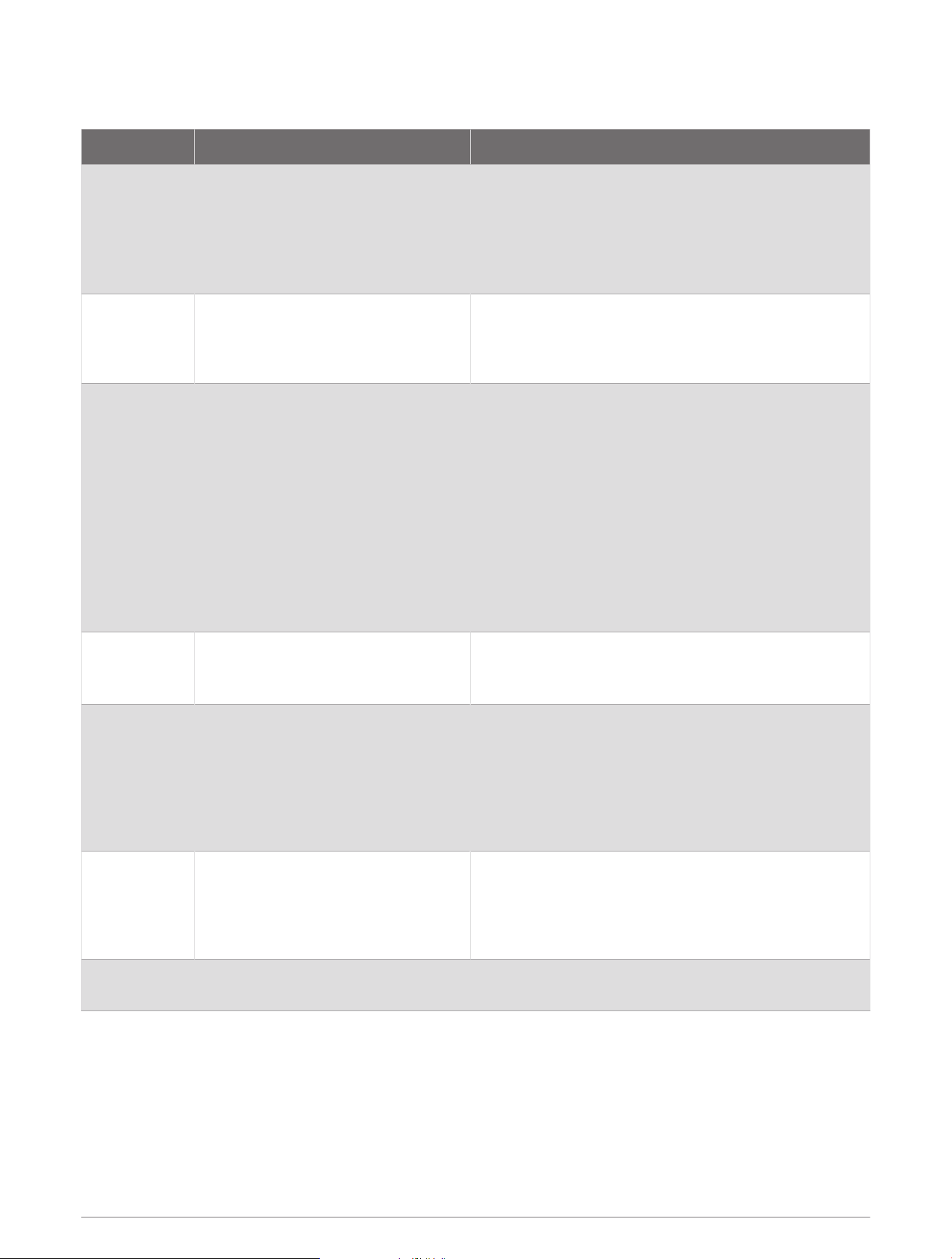
SiriusXM Troubleshooting
Advisory Description Resolutions
Check
Antenna
The radio has detected a fault
with the SiriusXM antenna. The
antenna cable may be disconnected
or damaged.
• Verify the antenna cable is connected to the
SiriusXM Connect Vehicle Tuner.
• Inspect the antenna cable for damage and kinks.
Replace the antenna if the cable is damaged.
SiriusXM products are available at your local car
audio retailer, or at www.shop.siriusxm.com.
Check Tuner
The stereo is having difficulty
communicating with the SiriusXM
Connect Vehicle Tuner. The tuner
may be disconnected or damaged.
Verify the SiriusXM Connect Vehicle Tuner cable is
connected securely to the stereo.
No Signal
The SiriusXM Connect Vehicle Tuner
is having difficulty receiving the
SiriusXM satellite signal.
• Verify the SiriusXM antenna is outdoors with a clear
view of the sky.
• Verify the SiriusXM antenna is mounted securely.
• Remove obstructions above or next to the SiriusXM
antenna.
• Inspect the cable antenna for damage and kinks.
Replace the antenna if the cable is damaged.
SiriusXM products are available at your local car
audio retailer or at www.shop.siriusxm.com.
• Consult the SiriusXM Connect Vehicle Tuner installa
tion instructions for more information on antenna
installation.
Subscription
Updated
The radio has detected a change in
your SiriusXM subscription status.
• Select any button to clear the message.
• Go to www.siriusxm.com or call 866-635-2349 with
questions about your subscription.
Channel Not
Available
The channel you requested is not
a valid SiriusXM channel, or the
channel that you were listening to
is no longer available. You may see
this message briefly the first time
you connect a new SiriusXM Connect
Vehicle Tuner.
Go to www.siriusxm.com for more information about
the SiriusXM channel lineup.
Channel Not
Subscribed
The channel you requested is not
included in your SiriusXM subscrip
tion package, or the channel you were
listening to is no longer included in
your SiriusXM subscription package.
Go to www.siriusxm.com or call 866-635-2349 for
more information about your subscription package or
to subscribe to the channel.
Channel
Locked
The channel you requested is locked
by the parental control feature.
Refer to the parental control section in the owner's
manual to unlock channels.
Clearing SiriusXM Data
You can clear all entered SiriusXM user information, such as favorite teams and alerts.
Use the FACTORY RESET option in the settings menu to reset the stereo (Update Options, page35).
NOTE: The factory reset setting resets all data in the stereo, including AM and FM presets, zone settings, etc.
in addition to clearing all SiriusXM user information.
20 SiriusXM Satellite Radio

DAB Playback
When you connect the MS-DAB100A module and antenna to the Apollo WB670 stereo, you can tune in to and
play DAB stations. For instructions on connecting the DAB adapter and antenna, see the installation instructions
provided with your adapter and antenna.
DAB broadcasts are not available in all regions. When the stereo is not set to a compatible region, the DAB
source is not available.
See the troubleshooting section if you cannot access the DAB source or if DAB stations are not playing properly.
(The stereo does not receive DAB stations, page43)
Setting the Tuner Region
You must select the region you are in to receive DAB stations properly.
1 Select > SETTINGS.
2 Select the name of the stereo.
3 Select TUNER REGION.
4 Select the region you are in.
Scanning for DAB Stations
Before you can scan for DAB stations, you must connect a compatible DAB module and antenna (not included)
to the stereo.
NOTE: Because DAB signals are broadcast in select countries only, you must set the tuner region to a location
where DAB signals are broadcast.
1 Select the DAB source.
2 Hold to scan for available DAB stations.
When scanning is complete, the first available station in the first ensemble found begins playing.
NOTE: After the first scan is complete, you can hold again to re-scan for DAB stations. When the re-scan
is complete, the system starts playing the first station in the ensemble you were listening to when you
started the re-scan.
Changing DAB Stations
1 Select the DAB source.
2 If necessary, hold to scan for local DAB stations.
3 Select or to change the station.
When you reach the end of the current ensemble, the stereo automatically changes to the first available
station in the next ensemble.
TIP: You can hold or to change the ensemble.
Selecting a DAB Station from a List
1 Select the DAB source.
2 If necessary, hold to scan for local DAB stations.
3 Select > DAB > BROWSE > STATIONS.
4 Select a station from the list.
Selecting a DAB Station from a Category
1 Select the DAB source.
2 If necessary, hold to scan for local DAB stations.
3 Select > DAB > BROWSE > CATEGORIES.
4 Select a category from the list.
5 Select a station from the list.
DAB Playback 21

Presets
You can save your favorite AM stations and FM stations as presets for easy access.
You can save your favorite SiriusXM channels if the stereo is connected to an optional SiriusXM tuner and
antenna.
You can save your favorite DAB stations if the stereo is connected to the proper DAB equipment and set to the
correct tuner region. (DAB Playback, page21)
Saving a Station or Channel as a Preset
1 With an applicable source selected, tune the stereo to a station or a channel.
2 Press and hold the dial, and select .
TIP: For the AM, FM, or SiriusXM source, you can press and hold to save the current station or channel as
a preset.
TIP: You can also select , the name of the source, and PRESETS > SAVE CURRENT to save the current
station or channel as a preset.
Selecting a Preset from a List
1 With an applicable source selected, press and hold the dial.
TIP: You can also select , the name of the source, and PRESETS > VIEW PRESETS to view the list of
presets.
2 Select a preset.
Removing Presets
1 With an applicable source selected, press and hold the dial.
2 Select .
3 Select each preset station or channel you want to remove.
4 When you are finished removing presets, select .
TIP: You can also select , the name of the source, and PRESETS > REMOVE PRESETS or REMOVE ALL
PRESETS to remove preset stations or channels.
5 Press the dial to exit the screen.
Fusion PartyBus Networking
The Fusion PartyBus networking feature allows you to connect multiple compatible stereos together on a
network, using a combination of wired or wireless connections.
NOTE: When you connect a Fusion stereo to Garmin BlueNet
™
network or a Garmin
®
Marine Network, you are
limited to using only Garmin and Fusion devices. You may not be able to use third-party routers, storage devices,
or other network products with this stereo directly.
TIP: When the stereo is connected to a Garmin BlueNet network or a Garmin Marine Network, you can connect
a mobile device to a wireless access point on a connected Garmin chartplotter and use the Fusion Audio app to
control the stereo.
You can group a compatible stereo, such as the Apollo RA770 stereo, with other compatible stereos connected
to the Fusion PartyBus network. Grouped stereos can share available sources and control media playback on all
of the stereos in the group, which allows for a synchronized audio experience across the vessel. You can quickly
create, edit, and break up groups as needed from any compatible stereo or remote control on the network.
You can use compatible stereos and remote controls, whether they are grouped or not, to adjust the volume of
the available speaker zones for any stereo on the network.
You should refer to the installation instructions provided with your stereo when constructing the Fusion
PartyBus network.
22 Presets

Creating a Group
Before you can create a group, you must connect multiple compatible stereos to the Fusion PartyBus network.
See the installation instructions provided with your stereo for information about installing and configuring the
network.
NOTE: There are some limitations and other considerations when using stereos in groups. See Grouped Stereo
Source Considerations, page24for more information.
1 Select > GROUPS.
TIP: You can hold from any screen to open the GROUPS menu.
2 Select the name of the stereo you want to be the primary stereo in the group.
3 Select the stereos you want to add to the group.
4 Select DONE.
From the source screen, you can select a source from any stereo in the group except a zone stereo, such as
the Apollo SRX400 stereo or any sources that are disabled for use on the Fusion PartyBus network (General
Settings, page28).
Editing a Group
1 Select > GROUPS.
2 Select the group.
3 Select the stereos you want to add to or remove from the group.
4 Select DONE.
Leaving a Group
You can leave the Fusion PartyBus group to play local sources on the stereo.
1 Select > GROUPS.
2 Select the group you want to leave.
3 Select the stereos you want to remove from the group.
4 Select DONE.
Grouped Stereo Functions
After you create a group of stereos, additional functions and options are available to all stereos in the group.
• After you create a group, all of the stereos in the group share the same synchronized display.
• You can select a source from any stereo in the group, with a few limitations (Grouped Stereo Source
Considerations, page24), and the source will play simultaneously on all stereos in the group (Selecting a
Source, page5).
• You can control playback (such as pausing and skipping tracks) on any stereo in the group, and it will affect
all stereos in the group.
• You can adjust the volume for any zone on any stereo in the group.
TIP: When adjusting the volume, you can select ALL to adjust the volume of all the stereos in the group at the
same time.
Fusion PartyBus Networking 23

Grouped Stereo Source Considerations
When selecting sources to play over the network, you should observe these considerations.
• A zone stereo, such as the Apollo SRX400, can create or join a group to control and play sources from other
stereos, but it cannot share its sources with the group.
• You cannot share an AirPlay source with grouped stereos. Using AirPlay 2 software, you can play content
on multiple stereos on the network, but the stereos must not be grouped (Connecting an Apple Device Using
AirPlay, page14).
• You can disable sharing on most sources by changing the GROUP ENABLED setting for the source. When
disabled, the source cannot be selected from a grouped stereo (General Settings, page28).
• When audio sources are streamed over a data network, there is a slight delay in the synchronized audio that
may be noticeable if you are also using an external audio source.
◦ If you have a television with an Optical Out connection to a stereo and you continue to use the television
speakers, there will be a delay between the audio from the television speakers and the optical audio
streamed on the grouped stereos.
◦ If you synchronize a radio station and tune that same radio station on a non-networked stereo, there will be
a delay between the audio from the non-networked stereo and the audio from the radio station streamed
on the grouped stereos.
◦ You can remove this delay by changing the GROUP ENABLED setting for the source, but the source cannot
be shared with grouped stereos (General Settings, page28).
NOTE: You cannot change the settings when a stereo is part of a group. You must remove the stereo from the
group before you can change any settings.
Group Synchronization
By default, groups you create are not maintained when you turn off stereos in the group. If you turn off a single
stereo added to the group, it leaves the group. If you turn off the primary stereo in the group, the group is
dissolved. You can enable group synchronization to preserve group membership for a stereo after turning it off.
Group synchronization behaves differently based on how you turn the stereos off and on.
• If you turn a synchronized stereo off and on by using either the power button on the stereo or a physical
switch on the ignition wire (the red wire), all of the synchronized stereos in the group turn off and on together.
This applies to all of the synchronized stereos in the group, whether or not a stereo is the primary stereo in
the group.
NOTE: Selecting ALL OFF from the power menu on a stereo turns off all stereos on the network, even if they
are not in a group or have group synchronization enabled.
• If you turn a synchronized stereo off and on using a physical switch on the power wire (the yellow wire), the
other synchronized stereos in the group behave differently:
◦ If the synchronized stereo is the primary stereo in the group and you turn it off using a physical switch on
the power wire, the other synchronized stereos in the group remain on, but leave the group. When you turn
the primary stereo back on again, the other synchronized stereos rejoin the group.
◦ If the synchronized stereo is not the primary stereo in the group and you turn it off and on using a physical
switch on the power wire, all of the other synchronized stereos in the group remain on and grouped, and
the stereo rejoins the group when you turn it on again.
24 Fusion PartyBus Networking
Enabling Group Synchronization
You must remove the stereo from an existing group before you can enable the GROUP SYNC setting. You
cannot update settings when a stereo is part of a group.
You must enable this setting on each stereo that you want to retain group settings after a power cycle.
1 Select > SETTINGS.
2 Select the name of the stereo.
3 Select POWER OPTIONS > GROUP SYNC.
The stereo retains group settings after a power cycle.
4 Repeat for additional stereos as needed.
NOTE: You must enable GROUP SYNC on all networked stereos for synchronization to work properly.
LED Lighting Control
If you installed a Garmin Spectra
™
lighting controller, you can use the stereo to activate and change limited
features on connected LED lights. You can quickly turn LED lights on and off, select preprogrammed lighting
effects, activate saved scenes, and use AUDIO SYNCto configure lights to change color and brightness to music
played on the stereo. If needed, more advanced control and configuration of the lights can be performed using
the ActiveCaptain
®
app or using a compatible chartplotter on the same NMEA 2000 network and marine network
as the lighting controller and the stereo. See the owner's manual for the chartplotter for complete instructions.
WARNING
Setting some LED light effects or setting the LED lights to react to music may result in lights flashing at various
intervals. Consult your physician if you have epilepsy or are sensitive to bright or flashing lights.
NOTICE
Before you can control any connected lights using the stereo, you must first initialize the lights using a
compatible chartplotter on the same NMEA 2000 network as the lighting controller and the stereo. See the
installation instructions for the Garmin Spectra lighting controller or the owner's manual for the chartplotter for
initialization instructions. If you do not have a compatible chartplotter connected, you can also initialize the
lights using the ActiveCaptain app on a mobile device.
Using certain LED colors on your vessel, such as red and green, may violate the laws, regulations, and standards
related to the use and/or operation of marine navigation lights. It is the user's responsibility to comply with any
such applicable laws, regulations, and standards. Garmin is not responsible for any fines, penalties, citations, or
damages that may be incurred due to any such lack of compliance.
Turning LED Lights On and Off
1 Select > LED CONTROL.
2 Select LIGHTS and select the lights or group of lights you want to turn on or off.
3 Select ON to turn on the lights.
4 Select ON again to turn off the lights.
Turning on LED Light Effects
WARNING
Selecting some LED light effects may result in lights flashing at various intervals. Consult your physician if you
have epilepsy or are sensitive to bright or flashing lights.
The Garmin Spectra lighting controller has a selection of preprogrammed lighting effects that you can turn on
using the stereo.
1 Select > LED CONTROL.
2 Select LIGHTS and select the lights or group of lights you want to use a lighting effect.
3 Select EFFECTS and select one of the preprogrammed lighting effects to start it on the connected lights.
LED Lighting Control 25
Starting an LED Light Scene
NOTICE
Before you can start an LED light scene using the stereo, you must use a connected chartplotter to create at
least one scene. See the owner's manual for the chartplotter for complete instructions.
1 Select > LED CONTROL > SCENES.
A list of previously-created scenes is shown.
2 Select a scene to start.
Setting LED Lights to React to Music
WARNING
Setting LED lights to react to music may result in lights flashing at various intervals. Consult your physician if
you have epilepsy or are sensitive to bright or flashing lights.
NOTICE
Before you can set connected LED lights to react to music playing on the stereo, you must use a connected
chartplotter to associate a light or group of lights with an audio zone on this stereo. See the chartplotter owner's
manual for complete instructions.
1 Select > LED CONTROL.
2 Select LIGHTS, and select the lights or group of lights you want react to music.
3 Select AUDIO SYNC, and select an option:
• If you want the lights to react to the intensity of the music playing, select COLOR BLEND.
• If you want the lights to react to the bass and treble frequencies of the music playing, AUDIO SPECTRUM.
You must use a connected chartplotter if you want to change the colors used by this feature. See the
chartplotter owner's manual for complete instructions.
LED Light Control and Configuration Using the ActiveCaptain App
You can connect your mobile device to a wireless router or wireless access point on the same network as
the stereo. When connected to the stereo in this manner, you can use the ActiveCaptain app to configure and
control lights connected to a Garmin Spectra LED control module. If the stereo and LED control module are
connected to the same NMEA 2000 network as a compatible chartplotter, you should connect the ActiveCaptain
app to the chartplotter instead of the stereo so you can use the full features included in the app in addition to
the lighting controls. See the owner's manual for the chartplotter for instructions.
NOTE: Before you can connect your mobile device to the stereo, you must connect the stereo to a wireless
router using an Ethernet cable.
26 LED Lighting Control

Getting Started with the ActiveCaptain App
You can connect your mobile device to a wireless router or wireless access point on the same network as the
stereo using the ActiveCaptain app. The app provides a quick and easy way for you to configure and interact
with the lights connected to a Garmin Spectra LED control module.
1 If necessary, connect the stereo to a network with a wireless router or wireless access point using an
Ethernet cable.
2 From the application store on your mobile device, install and open the ActiveCaptain
app.
TIP: You can scan this QR code using your mobile device to download the app.
3 Log into the ActiveCaptain app using your Garmin account.
4 Bring the mobile device within 32m (105ft.) of the wireless router or wireless access
point.
5 In the ActiveCaptain app, select Connect.
6 Select the SSID of the wireless router or wireless access point and provide the password, if necessary.
The app connects to the wireless network and returns to the main screen.
After the app connects to the wireless router or wireless access point correctly, an option for Lighting is shown
on the Boat Apps tab.
Initializing Connected LED Lights Using the ActiveCaptain App
Before you can interact with any connected LED lights using the stereo, you must first initialize the lights by
providing information about the type of light source supported by the connected LEDs.
1 If necessary, open the ActiveCaptain app and connect it to the wireless router or wireless access point.
2 In the ActiveCaptain app, select Settings > Lighting.
A list of connected LED control modules is shown.
3 Select an LED control module with connected LED lights that you want to initialize and select Lights.
A list of all available lights is shown. Any light indicated with a yellow circle must be initialized before it's
available for use by the system.
4 Select a connected LED light from the list.
5 Select Light Types and select the type of LEDs connected:
• RGB: The connected dimmable LEDs support a full range of colors.
• RGBW: The connected dimmable LEDs support a full range of colors and high quality white light.
• CRGBW: The connected dimmable LEDs support a full range of colors and multiple temperature white
light.
• Single Channel: The dimmable LEDs support one dedicated color.
TIP: You can select Identify to illuminate the selected light to help identify and test the selected LED type.
6 Repeat this procedure for all connected lights until all of the intended LED lights are initialized.
LED Lighting Control 27

General Settings
NOTE: When the stereo is in a group, you cannot change the settings on that stereo.
Select > SETTINGS, and select the name of the stereo.
NOTE: When a check box is filled, the option is on. When the check box is clear, the option is off.
DEVICE NAME: Sets a name for this device.
TUNER REGION: Sets the region used by the FM and AM sources.
This setting is also needed to configure DAB and SiriusXM sources.
TELEMUTE: Sets the behavior of the stereo when it detects a signal on the TELEMUTE wire in the wiring
harness. This is commonly used to change to the Aux source when you hold the button on a Fusion handheld
microphone. You can also choose to either mute the audio or change to the Aux source when connected
to a hands-free mobile phone kit. See yourFusion handheld microphone or hands-free mobile phone kit
instructions for more information.
NOTE: This setting does not affect a phone connected to the stereo using Bluetooth technology.
POWER OPTIONS: Adjusts the power settings, such as the GROUP SYNC.
SEARCHING: Enables Fusion Alpha Search Technology (FAST), which allows you to quickly search for tracks by
letter or number. You can select a number to enable the FAST menu if your music device contains more than
the selected number of items.
ZONE: Enables you to configure the speaker zones (Speaker Zone Settings, page28).
SOURCE: Allows you to enable, disable, and name the sources and groups on the stereo (Source Settings,
page32).
NETWORK: Enables you to configure the Fusion PartyBus network settings (Network Settings, page32).
UPDATE: Updates the stereo or connected devices using the appropriate update file on a connected USB flash
drive (Update Options, page35).
NOTE: It is not necessary to use this menu if you are updating the software using the Fusion Audio app on a
mobile device instead of using an update file loaded onto a USB flash drive (Updating the Software Using the
Fusion Audio App, page40).
UPDATE > FACTORY RESET: Restores all settings to the factory default values.
ABOUT: Shows the software version information for the stereo and connected accessories.
Speaker Zone Settings
Disabling the Internal Amplifier
If you do not connect speakers directly to zones 1 and 2, you can disable the internal amplifier to reduce power
consumption.
1 Select > SETTINGS.
2 Select the name of the stereo.
3 Select ZONE.
4 Select INTERNAL AMP ON to clear the check box.
Setting the Home Zone
The home zone is the speaker zone that you adjust by default when you turn the dial on the remote control.
1 Select > SETTINGS.
2 Select the name of the remote control you plan to use with this stereo.
3 Select ASSIGN HOME ZONE.
4 Select a zone.
28 General Settings

Synchronizing the Source and Zone Volume Levels
You can synchronize the volume levels on one or all zones with some source devices, such as a Bluetooth or
AirPlay source.
1 Select > SETTINGS.
2 Select the name of the stereo.
3 Select ZONE > PHONE VOLUME SYNC.
4 Select a zone or ALL.
When you adjust the volume on the connected source, the volume on the selected zone is also adjusted.
Adjusting the Power-On Volume Limit
By default, when you turn on the stereo, the system automatically reduces the volume to level 12 if it was louder
than that when you turned it off. You can adjust this limit if you want to retain a louder volume or limit to a lower
volume when you turn on the stereo.
NOTE: This setting affects all zones on the stereo.
1 Select > SETTINGS.
2 Select the name of the stereo.
3 Select ZONE > POWER ON VOLUME LIMIT.
4 Adjust the volume limit.
Maintaining Individual Zone Volume Levels
If you adjust the volume levels of individual zones so that some zones are louder than others, the individual
zone volume settings are all affected when you adjust the volume for ALL zones. By default, if you adjust the
volume for ALL to 00, this sets of the volume levels for all zones to 00 and resets all individual zone volume
adjustments. You can enable the KEEP VOLUME RATIOS option to retain individual zone volume adjustments
when you adjust the volume for ALL to 00.
NOTE: This setting applies to volume adjustments on the stereo or a connected Apollo ERX400 remote control
only. If you adjust the volume on the stereo using a connected chartplotter or NRX remote control, the volume
levels will still be reset.
TIP: For the best results when enabling this setting, you should set the power-on volume limit to 24 (Adjusting
the Power-On Volume Limit, page29).
1 Select > SETTINGS.
2 Select the name of the remote control.
3 Select KEEP VOLUME RATIOS.
Enabling Automatic Volume Adjustment Based on Speed
1 Select > SETTINGS.
2 Select the name of the stereo.
3 Select ZONE > SPEED VS VOLUME > ENABLED
4 If needed, update the settings to select the speed source (Automatic Volume Control Settings, page30).
General Settings 29

Automatic Volume Control Settings
Select > SETTINGS, select the name of the stereo, then select ZONE > SPEED VS VOLUME.
ENABLED: Enables the automatic volume control feature.
SPEED SOURCE: Sets the source that the stereo uses to determine the speed (Speed Source Information,
page30).
MAX/MIN SPEED: Sets the expected maximum and minimum speed range for the selected SPEED SOURCE.
The MIN setting indicates the speed at which the volume plays at the level you set by turning the dial. The
MAX setting indicates the speed at which the volume plays at the highest level set in the VOLUME INCREASE
setting.
TIP: You should start by setting these values at the speeds you typically expect from your engine or sensor
and adjust them as needed.
VOLUME INCREASE: Sets the total volume increase for each zone when the selected SPEED SOURCE reaches
the set maximum speed set in the MAX/MIN SPEED setting. The higher you set this level, the louder the
volume will be as you approach the set maximum speed.
NOTE: When the volume increases to adjust for speed, the actual volume output changes but the volume-
level indicator bar and number stays the same.
CUSTOM UNITS: Changes the measurement unit used to indicate the vessel or wind speed.
Speed Source Information
Select > SETTINGS, select the name of the stereo, then select ZONE > SPEED VS VOLUME > SPEED
SOURCE.
ENGINE SPEED: Uses the RPM reading provided by a supported NMEA 2000 engine. The volume increases as
the engine RPM increases from the set MIN speed to the set MAX speed. If multiple supported engines are
connected, the stereo uses the average RPM reading from all engines.
SPEED OVER GROUND: Uses the speed over ground (SOG) reading provided by a supported NMEA 2000 GPS
antenna or chartplotter with an internal GPS antenna. The volume increases as the SOG increases from the
set MIN speed to the set MAX speed.
SPEED THROUGH WATER: Uses the speed through water (STW) reading provided by a supported NMEA 2000
water-speed sensor. The volume increases as the STW increases from the set MIN speed to the set MAX
speed.
WIND SPEED: Uses the wind speed reading provided by a supported NMEA 2000 wind-speed sensor. The
volume increases as the wind speed increases from the set MIN speed to the set MAX speed.
Disabling a Zone
You can disable an unused zone and remove it from the audio level pages. When a zone is disabled, you cannot
change any of the settings for that zone. You cannot disable zone 1.
1 Select > SETTINGS.
2 Select the name of the stereo.
3 Select ZONE.
4 Select a zone.
5 Select ZONE ENABLED to clear the check box.
30 General Settings

Setting a Zone Name
You can set a name for a speaker zone to make it easier to identify.
1 Select > SETTINGS.
2 Select the name of the stereo.
3 Select ZONE.
4 Select a zone.
5 Select ZONE NAME, and select an option:
• Select a pre-defined name from the list.
• Select CUSTOM NAME, and enter a unique name for the zone.
Linking Zones
You can link zones 1 and 2 to keep the volume levels synchronized. Adjusting the volume of either of the linked
zones affects both zones.
1 Select > SETTINGS.
2 Select the name of the stereo.
3 Select ZONE > ZONE 2 > LINK TO ZONE 1.
NOTE: After zones 1 and 2 are linked, you cannot adjust the volume of each zone individually.
Enabling Volume Control of Zone 3 or 4 from a Connected Amplifier
By default the volume of zones 3 and 4 are controlled by the stereo. You can control the volume of these zones
using the connected amplifier instead.
1 Select > SETTINGS.
2 Select the name of the stereo.
3 Select ZONE.
4 Select zone 3 or zone 4.
5 Select VOLUME CONTROL to clear the check box.
The audio signal from the zone is provided to the amplifier as a fixed-line-level output at maximum volume.
Adjusting the Subwoofer Filter
You can use the subwoofer filter setting to control the subwoofer cutoff frequency for each zone, which can
enhance the blend of the sound produced by the speakers and the subwoofer. Audio signals above the selected
frequency are not passed to the subwoofer.
NOTE: If a DSP setting has been applied to the zone using the Fusion Audio app, this setting cannot be changed
on the stereo.
1 Select > SETTINGS.
2 Select the name of the stereo.
3 Select ZONE.
4 Select a zone.
5 Select SUB. FREQ..
6 Select a frequency.
General Settings 31

Adjusting Additional Audio Settings for a Zone
1 Select > SETTINGS.
2 Select the name of the stereo.
3 Select ZONE.
4 Select a zone.
5 Select one or more options:
• To limit the maximum volume output of this zone, select VOLUME LIMIT, and adjust the level.
• To adjust the right and left speaker balance of this zone, select BALANCE, and adjust the balance.
• To reduce the power output to the external amplifier associated with this zone, select EXT. AMP GAIN,
and adjust the gain level.
• To reduce the power output to the internal amplifier associated with this zone, select INT. AMP GAIN, and
adjust the gain level.
NOTE: This setting is available only for zones associated with an internal amplifier, typically zones 1 and
2.
• To change the output of this zone from stereo to mono, select MONO.
NOTE: The mono setting is useful if a listening position is closer to one speaker than the other and
predominantly hear only that channel. The mono setting combines both channels in each speaker in the
zone.
Source Settings
Select > SETTINGS, select the name of the stereo, select SOURCE, and select the name of the source you
want to configure.
NOTE: This menu contains system-wide source settings. Most sources also have source-specific settings. See
the sections of this manual for each source for more information about source-specific settings.
Not all options are available for every source on the stereo.
SOURCE ENABLED: Enables and disables the source on this stereo. You may want to disable sources that will
never be used on the stereo so they no longer appear on the source-selection screen.
GROUP ENABLED: Enables and disables the sharing of the source when connected to other stereos in a group
(Fusion PartyBus Networking, page22). You may want to disable sharing for some sources, such as AM,
because streaming over the Fusion PartyBus network introduces a small audio lag that is not desirable in
some situations.
SOURCE NAME: Changes the name of the source as it appears on this stereo. This also affects how the source
appears to other stereos in a group.
Network Settings
NOTE: If a Garmin chartplotter is detected on the network, the stereo automatically switches to GARMIN
MARINE NETWORK mode, and all other network settings are disabled.
Select > SETTINGS, select the name of the stereo, then select NETWORK.
DHCP CLIENT: Sets the device as a DHCP client. This is the default setting for all devices that are not
configured to be a DHCP server.
STATIC IP: Allows you to set a static IP address for the device (Setting a Static IP Address, page33).
DETAILS: Shows information about the network configuration.
ADVANCED: Allows you to configure the DHCP server and reset all network settings for this stereo to the factory
default values.
SAVE: Allows you to save changes to the network settings.
32 General Settings

Setting the Stereo as a Wired DHCP Server
If you connected more than two network devices together directly or using a network switch or wireless access
point and did not install a router, you should configure only one Fusion PartyBus stereo to be a DHCP server.
NOTE: Although the Fusion PartyBus devices can communicate with each other without a DHCP server on the
network, the devices take longer to connect to each other when you first turn them on. It is highly recommended
to have a properly-configured DHCP server on the network for the best results.
NOTE: If your vessel has a mix of Garmin Marine Network and Garmin BlueNet networks connected through a
Garmin BlueNet bridge, all stereos must be connected to the Garmin BlueNet network.
1 Select > SETTINGS.
2 Select the name of the stereo.
3 Select NETWORK > STATIC IP > SAVE.
You must set the stereo to use a static IP address before you can set it as a wired DHCP server.
4 Select ADVANCED > DHCP SERVER > DHCP ENABLED > SAVE.
You can configure the IP address range of the DHCP server (DHCP Settings, page33).
Setting a Static IP Address
If the stereo is configured as a static IP, it is automatically assigned the IP address of 192.168.0.1. You can
change this IP address.
If the stereo is a DHCP client on the network and you do not want the DHCP server to automatically assign an IP
address to the stereo, you can set a static IP address.
NOTE: Every device on the network must have a unique IP address. If you select a static IP address that is the
same as another IP address on the network, the devices will not work properly.
1 Select > SETTINGS.
2 Select the name of the stereo.
3 Select NETWORK > STATIC IP.
4 Select an option:
• To set the IP address, select IP, and enter the IP address.
• To set the subnet mask, select MASK, and enter the subnet mask.
NOTE: The subnet mask must match all other devices on the network to work properly. A typical subnet
mask is 255.255.255.0.
• To set the default gateway IP address, select GATEWAY, and enter the gateway IP address.
NOTE: The default gateway is typically set as the IP address of the DHCP server on the network.
5 Select SAVE.
DHCP Settings
Select > SETTINGS, then select NETWORK > ADVANCED > DHCP SERVER.
DHCP ENABLED: Sets the device as the DHCP server on the network.
START IP: Sets the first IP address in the IP-address range of the DHCP server.
END IP: Sets the final IP address in the IP-address range of the DHCP server.
General Settings 33

Connecting the Stereo to a Garmin Network
NOTE: When you connect the stereo to a Garmin BlueNet network or a Garmin Marine Network , you are limited
to using only Garmin and Fusion devices. You will not be able to use third-party routers or other network
products with this stereo directly.
You can connect this stereo to a Garmin BlueNet network or a Garmin Marine Network in order to view and
control the stereo using a compatible Garmin chartplotter.
NOTE: If a Garmin chartplotter is detected on the network, the stereo automatically switches to GARMIN
MARINE NETWORK mode, and all other network settings are disabled.
This stereo is compatible with both Garmin BlueNet devices and Garmin Marine Network devices. For more
information about Garmin BlueNet technology, including best practices for constructing a network including
both Garmin BlueNet devices and Garmin Marine Network devices, go to garmin.com/manuals/bluenet.
NOTE: If your vessel has a mix of Garmin Marine Network and Garmin BlueNet networks connected through a
Garmin BlueNet bridge, all stereos must be connected to the Garmin BlueNet network.
TIP: When the stereo is connected to a Garmin network, you can connect a mobile device to a wireless access
point on a connected Garmin chartplotter and use the Fusion Audio app to control the stereo.
1 Determine the best device on the Garmin BlueNet network or the Garmin Marine Network to which you
should connect the stereo.
2 Select an option:
• To connect the stereo to a Garmin BlueNet device, use a Garmin BlueNet network to RJ45 adapter cable
(sold separately - 010-12531-02).
• To connect the stereo to a Garmin Marine Network device, use Garmin Marine Network to Fusion cables
(010-12531-20) .
Resetting Network Settings
You can reset all network settings for this stereo to the factory default values.
1 Select > SETTINGS.
2 Select the name of the stereo.
3 Select NETWORK > ADVANCED > RESET > YES.
34 General Settings

Update Options
NOTICE
Do not turn off the device or disconnect the power during a software update. Turning off the power during a
software update may cause the device to become unresponsive.
NOTE:
• You can update the device software using an update file loaded onto USB flash drive. You can prepare the
USB flash drive by manually downloading the software update files , or you can prepare the USB drive using
the Garmin Express
™
app. (Updating the Software Using a USB Flash Drive, page37).
• If the stereo is connected to a wireless network, you can update the software using the Fusion Audio app on
a mobile device instead of using an update file loaded onto a USB flash drive (Updating the Software Using
the Fusion Audio App, page40).
• If the stereo is on software version 6.20 or later and connected to a compatible Garmin chartplotter, you can
update the stereo through an ActiveCaptain or a Garmin Express network update (Network Update Options,
page41). If the stereo software version is earlier than 6.20, you must first update using a USB flash drive
before you can update it using a compatible Garmin chartplotter.
• The device may restart a few times when updating. This is normal.
• You can program only newer versions of software on the device.
Select > SETTINGS > UPDATE.
UPDATE DEVICES: Updates the stereo using a valid software update file on a connected USB flash drive
(Updating the Software Using a USB Flash Drive, page37).
ACCESSORIES > NRX REMOTE: Updates an optional NRX remote connected to the NMEA 2000 port or NMEA
2000 network.
ACCESSORIES > ERX REMOTE: Updates an optional Apollo ERX400 remote connected to the ETHERNET port or
the Fusion PartyBus network using a valid software update file on a connected USB flash drive (Updating the
Software Using a USB Flash Drive, page37).
ACCESSORIES > DAB MODULE: Updates an optional DAB module connected to the SIRIUS XM port.
SAVE GARMIN DEVICES: Saves connected device information to a connected USB flash drive. This information
is required by the Garmin Express program when preparing the USB flash drive with the proper software
update files.
FACTORY RESET: Resets default settings.
Additional Stereo Control Options
Connecting to a Garmin Watch
For more information about the watch, see the watch manual at garmin.com/manuals.
1 Following the instructions in the watch manual, install the Fusion Audio app from the Connect IQ
™
store onto
the watch.
2 On the stereo, select the BLUETOOTH source.
3 Select > BLUETOOTH > CONNECTIONS > DISCOVERABLE.
The stereo remains discoverable for two minutes.
4 Bring the watch within 3m (10ft.) of the stereo.
NOTE: Stay 10m (33ft.) away from other ANT
®
devices while pairing.
5 Open the Fusion Audio app on the watch.
The first time you open the app on the watch, the watch automatically pairs with and connects to the stereo.
If you need to pair to another stereo, in the Fusion Audio app, select Settings > Pair new.
6 Control the audio playback using the Fusion Audio app on the watch.
After the devices are paired, they connect automatically when they are turned on, within range, and the app is
open on the watch.
Additional Stereo Control Options 35

Connecting to an ARX70 Remote Control
1 On the stereo, select the BLUETOOTH source.
2 Select > BLUETOOTH > CONNECTIONS > DISCOVERABLE.
TIP: You can also press the button on the stereo to make it discoverable.
3 Bring the ARX70 remote control within 10m (33ft.) of the stereo.
NOTE: Stay 10m (33ft.) away from other ANT devices while pairing.
4 On the ARX70 remote control, press and hold until the status LED starts alternating green and red.
The remote control searches for the stereo. When the remote control pairs successfully, the status LED turns
on green briefly and then turns off.
If the remote control cannot find the stereo, the status LED turns on red briefly and then turns off.
Fusion Audio Wireless Remote Control App
You can use the Fusion Audio remote control app on your compatible Apple or Android device to adjust the
stereo volume, change the source, control playback, select and manage radio presets, and adjust some stereo
settings.You can use the app to set up and configure DSP profiles on the stereo.You can use the app to update
the stereo software.
The app communicates with the stereo using a wireless connection to the mobile device. You must connect
your compatible device to the stereo using Bluetooth technology to use the app.
If the stereo is connected to a network with a Wi‑Fi
®
access point, the app can communicate with the stereo
using the network for greater range than a Bluetooth connection.
NOTE: You cannot update the stereo software using a Bluetooth connection. You must connect the app using a
Wi‑Fi connection to update the stereo software wirelessly.
You can connect an Apple device to the stereo using a USB cable to update the stereo software.
For information about the Fusion Audio remote control app for compatible Apple or Android devices, go to the
Apple App Store
SM
or the Google Play
™
store.
Fusion Stereo Network Connection and Control
When connected using a supported networking method, you can fully control compatible Fusion entertainment
systems on compatible multi-function displays installed at the helm, flybridge, or navigation station of the
vessel. This provides integrated entertainment control and a less cluttered console.
The connected multi-function display becomes the portal on which you can control all audio on the vessel, no
matter where on the vessel the connected stereo is installed. The compatible Fusion stereo can be installed out
of sight if space is an issue and users need to access the stereo only to replace removable media.
This device can communicate with a compatible multi-function display using existing industry-standard network
connections including Ethernet and Wi‑Fi wireless technology.
NOTE: Garmin multi-function displays must be connected via Ethernet.
This device can communicate with a compatible multi-function display using existing industry-standard NMEA
2000 networks.
NMEA 2000 Information
NMEA 2000 is the most popular marine standard for data communication within vessels. It has become the
standard for sending navigation and engine management data within vessels. Fusion introduces an industry-
first product by incorporating NMEA 2000 functionality in its audio remote control devices. This enables the
user to monitor a series of NMEA
®
sentences available over the NMEA 2000 network on a connected remote
control.
36 Additional Stereo Control Options

Appendix
Registering Your Fusion Device
Help us better support you by completing our online registration today.
• Go to garmin.com/account/register.
• Keep the original sales receipt, or a photocopy, in a safe place.
Cleaning the Device
1 Dampen a soft, clean, lint-free cloth with fresh water.
2 Gently wipe the device.
Software Updates
For best results, you should update the software in all Fusion devices regularly. Some features, such as the
Fusion PartyBus group functionality may not work properly unless all connected stereos are using the same
software version.
If the device is connected to a Fusion PartyBus network with a Wi‑Fi router, you can also update the software
using the Fusion Audio remote control app on your compatible Apple or Android device.
You can update the software using a USB flash drive. You can prepare a suitable USB flash drive by manually
downloading and loading the update files, or you can use the Garmin Express app.
If the stereo is connected to the same network as a compatible Garmin chartplotter, you can update the stereo
as part of a full network device update through the chartplotter (Network Update Options, page41).
Updating the Software Using a USB Flash Drive
You can update the device software using a USB flash drive.
NOTICE
Do not turn off the device or disconnect the power during a software update. Turning off the power during a
software update may cause the device to become unresponsive.
NOTE:
• You cannot update the software using a USB flash drive formatted using the NTFS file system. If you
encounter problems updating the device, format the USB flash drive using FAT32 and try the update process
again.
• The device may restart a few times while updating the software. This is expected behavior.
• You can program only newer versions of software on the device.
NOTE: If the stereo you want to update is in a group, you must remove it from the group (Leaving a Group,
page23).
1 Select an option to prepare the USB flash drive for updating the stereo software:
• Download the software update manually and load it onto the USB flash drive (Downloading a Software
Update Manually, page38).
• Prepare the USB flash drive using the Garmin Express app (Downloading a Software Update using the
Garmin Express App, page38).
2 After you prepare the USB flash drive with the software-update files, select an option to update the stereo:
• Insert the USB flash drive into the stereo and use the stereo interface to proceed with the update
(Updating the Software from a Prepared USB Flash Drive, page39).
• Insert the USB flash drive into the stereo and use the interface on a connected chartplotter to proceed
with the update (Updating the Software Using a USB Flash Drive and a Connected Garmin Chartplotter,
page41).
Appendix 37

Downloading a Software Update Manually
You can download the proper update file for your stereo from the Garmin website and manually prepare a USB
flash drive to update the stereo.
1 Go to the page for your stereo or stereo accessories on support.garmin.com, and download the update file.
2 Insert a properly-formatted USB flash drive of sufficient size into your computer.
3 Extract the contents of the .zip file to the root of a USB flash drive.
The contents of the software update are contained in a folder named Garmin.
4 Eject or safely remove the USB flash drive from the computer.
Install the update on the stereo (Updating the Software from a Prepared USB Flash Drive, page39).
Downloading a Software Update using the Garmin Express App
You should use a blank USB flash drive for updates. The update process erases the content and reformats the
USB flash drive.
1 Turn on the stereo.
2 Insert the USB flash drive into the USB port on the stereo.
3 Select > SETTINGS, select the name of the stereo, then select UPDATE > SAVE GARMIN DEVICES.
The stereo writes a small file on the USB flash drive that is used by the Garmin Express app to identify the
stereo and connected devices and download the appropriate update file.
4 After about ten seconds or more, remove the USB flash drive from the stereo.
5 If necessary, install the Garmin Express app on your computer (Installing the Garmin Express App on a
Computer, page38).
6 Open the Garmin Express app on your computer.
7 Insert the USB flash drive into the computer.
8 If available, select your vessel and device or select the option to add a device by reading the USB flash drive.
9 If updates are available, select Software Updates > Continue.
10 Read and agree to the terms.
11 Select the drive letter for the USB flash drive.
12 Review the reformat warning, and select OK.
13 Wait while the software update is copied to the USB flash drive.
NOTE: Copying the update file onto the USB flash drive may take from a few minutes up to a few hours.
14 When the process is complete, close the Garmin Express app.
15 Eject or safely remove the USB flash drive from the computer.
Install the update on the stereo (Updating the Software from a Prepared USB Flash Drive, page39).
Installing the Garmin Express App on a Computer
You can install the Garmin Express app on a Windows
®
or Mac
®
computer.
1 Go to garmin.com/express.
2 Select Download for Windows or Download for Mac.
3 Follow the on-screen instructions.
38 Appendix
Updating the Software from a Prepared USB Flash Drive
Before you update the software, you must load the software update files onto a suitable USB flash drive either
manually (Downloading a Software Update Manually, page38) or by using the Garmin Express app (Downloading
a Software Update using the Garmin Express App, page38).
NOTICE
Do not turn off the stereo or disconnect the power during a software update. Turning off the power during a
software update may cause the stereo to become unresponsive.
NOTE: The stereo may restart a few times while updating the software. This is expected behavior.
1 Turn on the stereo.
2 After the stereo boots fully, insert the USB flash drive into the USB port.
NOTE: In order for the update prompt to appear automatically, you must allow the device to fully boot before
inserting the USB flash drive.
3 If you are prompted to update the software automatically, select Install Now to start the update and skip the
next step.
4 If the update prompt does not appear automatically, select an option:
• To update the stereo software, select > SETTINGS, select the name of the stereo, then select UPDATE
> UPDATE DEVICES.
• To update accessories connected to the stereo, select > SETTINGS, select the name of the stereo,
then select UPDATE > ACCESSORIES and select the name of the accessory you want to update.
NOTICE
To ensure all accessories are updated properly, you should update the stereo software first, then update the
accessories.
The LED flashes four times and repeats while the software update is in progress.
5 Wait several minutes while the update process completes.
6 Leave the USB flash drive in place while the stereo restarts automatically.
7 After the stereo fully boots after restarting, remove the USB flash drive.
NOTE: If the USB flash drive is removed before the device restarts fully, the update is not complete.
Appendix 39

Updating the Software Using the Fusion Audio App
You must connect the Fusion Audio app to Fusion PartyBus network using a wireless router or wireless access
point to transfer a software update to the stereo. You cannot update the software using a Bluetooth connection.
If you have a compatible Apple device, you can use a Lightning to USB sync cable (sold separately) connected
to the USB port on the stereo and to your Apple device to update the stereo software through the Fusion Audio
app.
NOTE: If the stereo you want to update is in a group, you must remove it from the group (Leaving a Group,
page23).
If the stereo is connected to a Fusion PartyBus network with a wireless router or wireless access point, you can
update the stereo software using the Fusion Audio app, available for compatible Apple or Android on the Apple
App Store or the Google Play store.
NOTICE
Do not turn off the device or disconnect the power during a software update. Turning off the power during a
software update may cause the device to become unresponsive.
NOTE:
• The device may restart a few times while updating the software. This is expected behavior.
• You can program only newer versions of software on the device.
1 If necessary, connect your mobile device to the stereo using one of these methods:
• Connect your device to the stereo using a Bluetooth connection.
NOTE: You can use a Bluetooth connection to access the stereo and allow the app to download an update,
but you must switch to a Wi‑Fi connection to transfer the update to the stereo.
• Connect your device to a wireless router or wireless access point on the same Fusion PartyBus network
as the stereo.
• If you have a compatible Apple device, you can use a Lightning to USB sync cable (sold separately) to
connect your device to the USB port on the stereo.
2 Open the Fusion Audio app, and verify that you can see the stereo in the app.
3 If the Fusion PartyBus network is not connected to the internet, disconnect the mobile device from the
wireless router or access point and connect it to a Wi‑Fi network with internet access or to the wireless
mobile data connection from your carrier.
NOTE: You must connect your mobile device to the internet in order to download the necessary software
update files.
4 In the Fusion Audio app, select > GENERAL > Software Update.
5 Select the Online Software Update.
The app downloads the software update file.
6 If necessary, after the app finishes downloading the update file, reconnect the mobile device to a wireless
router or access point on the Fusion PartyBus network.
NOTE: If you have an If you have an Apple device, you can use a Lightning to USB sync cable (sold
separately) to connect your device to the stereo instead of using a wireless connection.
7 If necessary, in the Fusion Audio app, reconnect to the stereo.
8 If necessary, select > GENERAL > Software Updates > Online Software Update.
The app transfers the software update to the stereo over the Wi‑Fi network, the stereo updates the software,
and then it restarts.
The LED flashes four times and repeats while the software update is in progress.
40 Appendix

Network Update Options
When connected to the same Garmin BlueNet network or Garmin Marine Network as a compatible Garmin
chartplotter, you can update your compatible Fusion stereos and accessories from the chartplotter.
You can perform a Garmin network update which updates all of the of Garmin and Fusion devices connected to
the network.
In some cases, you may not be able to interact directly with the stereo screen to initiate a software update,
or you may have a hideaway stereo that you control using a connected Garmin chartplotter. You can initiate a
software update for the stereo or stereo accessories on a USB storage device connected to the stereo using
the interface on a connected Garmin chartplotter. You can use this method to update your stereo or stereo
accessories if it is connected to a Garmin chartplotter using a Garmin network connection or a NMEA 2000
network (Updating the Software Using a USB Flash Drive and a Connected Garmin Chartplotter, page41).
Updating the Software as Part of a Garmin Network Update
If the stereo is connected to the same Garmin BlueNet network or Garmin Marine Network as a compatible
Garmin chartplotter, you can perform a network update on the chartplotter which updates all of the connected
Garmin and Fusion devices.
1 Go to garmin.com/manuals and locate the latest version of the owner's manual for your connected
chartplotter.
2 Follow the directions in the chartplotter owner's manual for performing a network update.
The software is updated on all of your connected devices, including the stereo.
Updating the Software Using a USB Flash Drive and a Connected Garmin Chartplotter
Before you update the software, you must load the software update files onto a suitable USB flash drive either
manually (Downloading a Software Update Manually, page38) or by using the Garmin Express app (Downloading
a Software Update using the Garmin Express App, page38).
NOTICE
Do not turn off the stereo or disconnect the power during a software update. Turning off the power during a
software update may cause the stereo to become unresponsive.
NOTE: The stereo may restart a few times while updating the software. This is expected behavior.
1 Insert the USB flash drive into the USB port on the stereo.
2 From a chartplotter connected to the same network as the stereo, select Vessel > Media > Options >
Installation
3 Select the stereo name.
4 Select an option:
• To update the stereo software, select Update Software > Update Stereo > OK.
• To update accessories connected to the stereo, select Update Software > ACCESSORIES and select the
name of the accessory you want to update.
NOTICE
To ensure all accessories are updated properly, you should update the stereo software first, then update the
accessories.
5 Wait several minutes while the update process completes.
6 When prompted, leave the USB flash drive in place, and restart the stereo.
7 Remove the USB flash drive.
NOTE: If the USB flash drive is removed before the device restarts fully, the update is not complete.
Troubleshooting
The stereo does not respond to key presses
• Hold until the stereo turns off, and turn it on again to reset the stereo.
• Disconnect power to the stereo for two minutes to reset the stereo.
Appendix 41
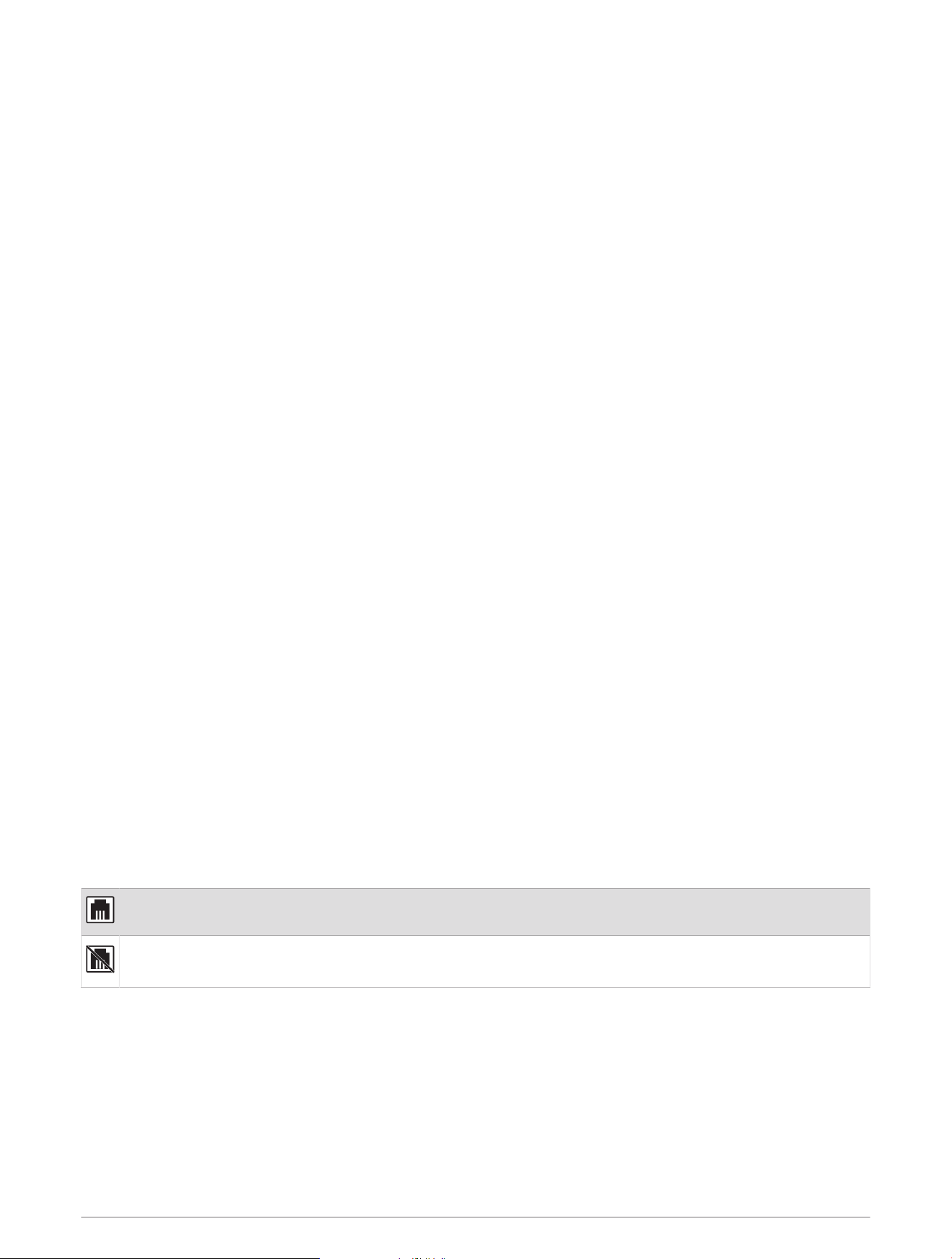
My Bluetooth audio is interrupted by short breaks
• Ensure the media player is not covered or obstructed.
Bluetooth technology performs best with line-of-sight operation.
• Bring the media player within 10m (33ft.) of the stereo.
• Turn off the DISCOVERABLE setting after pairing a Bluetooth device to the stereo.
The stereo does not display all song information from my Bluetooth source
The availability of song information such as song title, artist name, track duration, and album cover artwork
depends on the capability of the media player and music application.
Network Troubleshooting
If you cannot see or connect to Fusion PartyBus devices on the network, perform these steps.
• Verify that all Fusion PartyBus devices, network switches, routers, and wireless access points are connected
to the network and turned on.
• Verify that wireless Fusion PartyBus devices are connected to a wireless router or wireless access point on
the network.
NOTE: Wired connections are more reliable than wireless connections. If possible, you should connect
devices to the network using an Ethernet cable.
• Verify that only one device, either a stereo or a router, is configured as a DHCP server.
• Change the channel on your router or wireless access point to test for and correct interference.
You may experience wireless interference if there are many nearby wireless access points.
• Disconnect Bluetooth devices to test for and correct interference.
Connecting a Bluetooth device to a stereo configured as a wireless access point or client may reduce
wireless performance.
• If you are experiencing trouble connecting, make sure your router supports 2.4GHz band connections.
When connecting to a wireless router, this device is compatible with only 2.4GHz band connections, and
cannot connect to a 5GHz band.
• If you configured static IP addresses, verify that every device has a unique IP address, that the first three sets
of numbers in the IP addresses match, and that the subnet masks on every device are identical.
• If you have made configuration changes that might be causing networking issues, reset all network settings
to the factory default values.
Network Status Icons
A network-status icon is shown on some screens of the device. You can refer to this table to understand the
appearance of the icon and help diagnose issues with the Fusion PartyBus network.
You can also observe the network status LED on the stereo for further information when troubleshooting (Stereo
Buttons and Status LEDs, page1).
The device is connected correctly to a network.
The device cannot detect the network. An Ethernet cable may not be connected or there may be other
problems with the network.
The stereo keeps locking up when connected to an Apple device
• Press and hold the power button to reset the stereo.
• Reset the Apple device. Go to www.apple.com for more information.
• Make sure you have the latest version of iTunes
®
and the latest operating software on your Apple device.
42 Appendix

The stereo is not finding my connected Apple device
• Make sure your Apple device supports Interface Accessory Protocol 2 (iAP2). This stereo is not compatible
with iAP1 devices.
• Make sure you have the latest version of iTunes and the latest operating software on your Apple device.
• Make sure you have the latest version of the Fusion Audio application on your Apple device.
• Reset the Apple device.
Go to apple.com for more information.
• Contact your Fusion dealer or go to support.garmin.com.
My Apple AirPlay audio is interrupted by short breaks
• Make sure the Apple device is not covered or obstructed.
• Make sure the Apple device has a good connection to the same Wi‑Fi network as the stereo.
• Make sure the Apple device is not connected to the stereo using Bluetooth technology and Wi‑Fi.
Using both a Bluetooth and a Wi‑Fi connection may cause playback interruptions.
The stereo does not receive DAB stations
NOTE: The Apollo WB670 stereo does not include a built-in DAB module and requires a compatible DAB module
and antenna.
• Make sure the stereo is set to a tuner region where DAB stations are broadcast (Setting the Tuner Region,
page21).
• Make sure that you have connected a compatible DAB module and antenna, and that the connections are
secure.
• Make sure you are physically located in a region where DAB stations are broadcast.
• For additional information, go to support.garmin.com and contact Product Support.
Appendix 43
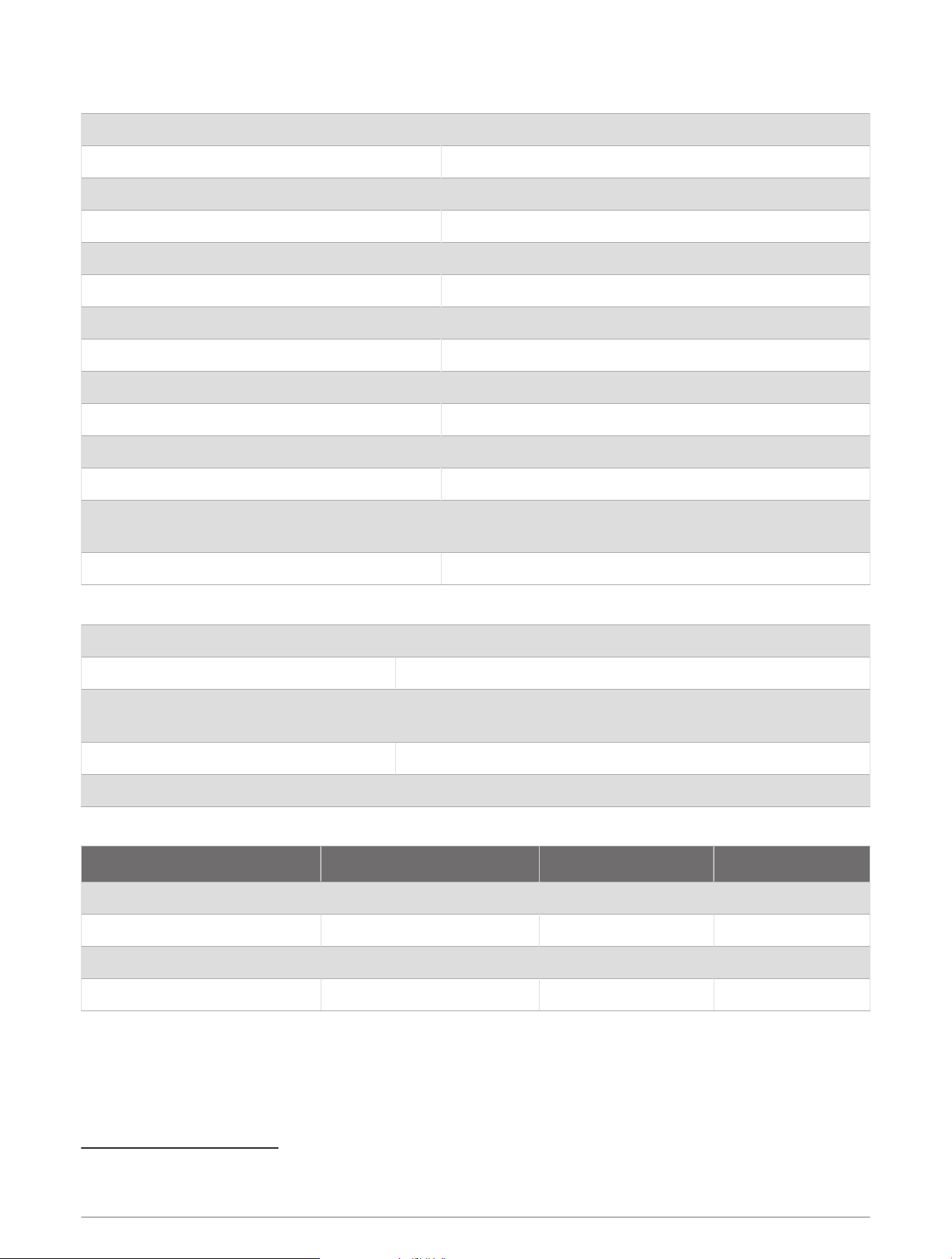
Specifications
Weight 475g (16.75oz.)
Water rating IEC 60529 IPX2
2
Operating temperature range From 0 to 50°C (from 32 to 122°F)
Storage temperature range From -20 to 70°C (from -4 to 158°F)
Input voltage From 10.8 to 16Vdc
Current (max.) 15A
Current (muted) Less than 700mA
Current (off) Less than 100mA
Fuse 15A mini blade-type
NMEA 2000 LEN @ 9Vdc 1 (50mA)
Bluetooth wireless range Up to 10m (30ft.)
ANT wireless range Up to 3m (10ft.)
Wireless frequencies/protocols
Bluetooth 2.4GHz @ 12dBm nominal
ANT 2.4GHz @ 7dBm nominal
Compass-safe distance 15cm (6in.)
On-board, Class D amplifier
Output music power per channel 4 x 70W max. 2ohm
Total output peak power 280W max.
Output power per channel
4 x 43WRMS at 14.4Vdc input, 2ohm, 10%THD
3
4 x 26W RMS at 14.4Vdc input, 4ohm, 10%THD
3
Line output level (max.) 5.5V (peak to peak)
Aux input level (typical) 1 VRMS
Tuner frequencies
Tuner Europe and Australasia USA Japan
FM radio frequency range 87.5 to 108MHz 87.5 to 107.9MHz 76 to 95MHz
FM frequency step 50kHz 200kHz 50kHz
AM radio frequency range 522 to 1620kHz 530 to 1710kHz 522 to 1620kHz
AM frequency step 9kHz 10kHz 9kHz
2
Vertically dripping water shall have no harmful effect when the enclosure is tilted at an angle of 15° from its normal position.
3
The stereo may limit the output power to prevent the amplifier from overheating, and to maintain the audio dynamics.
44 Appendix
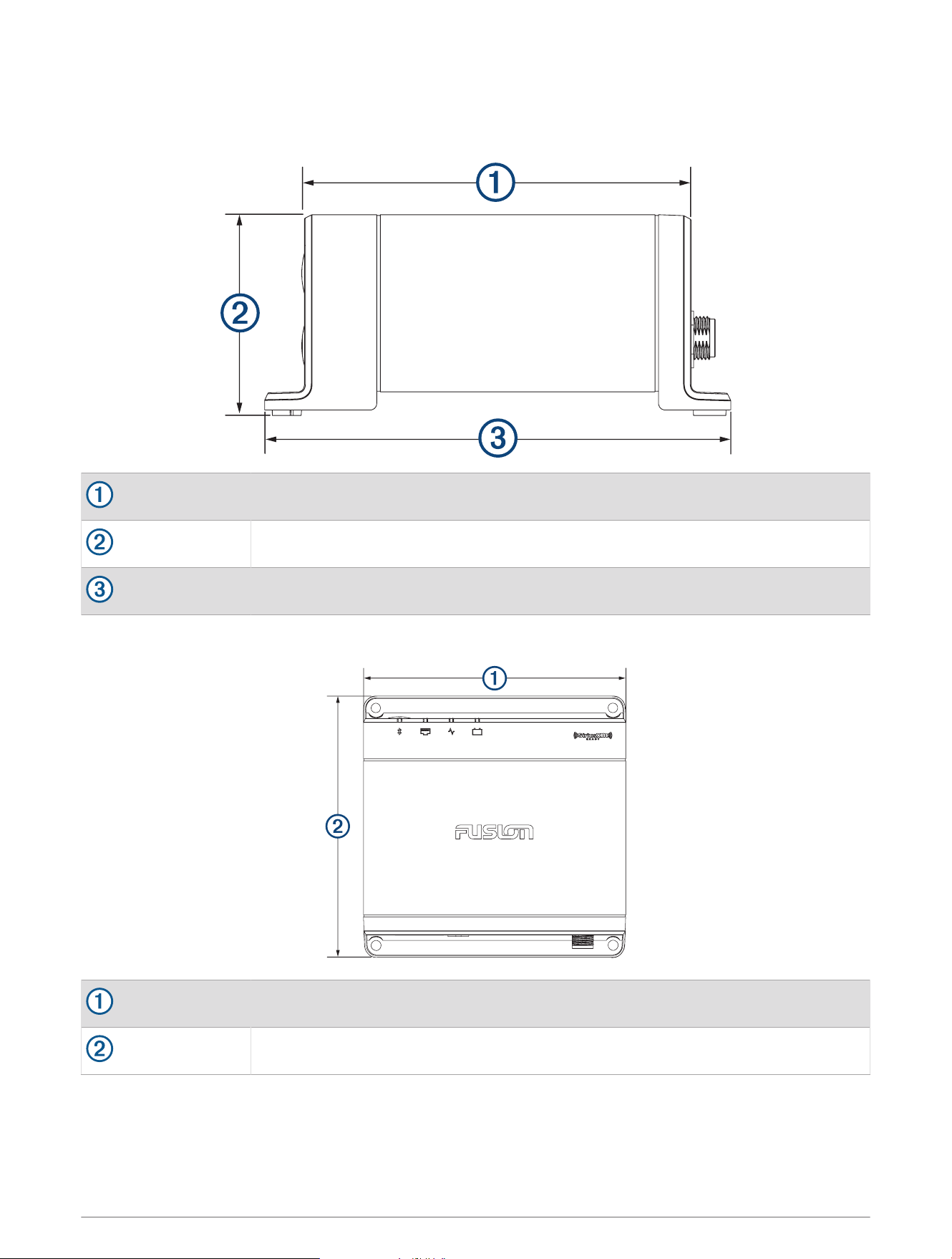
Stereo Dimension Drawings
Side Dimensions
107mm (4.21in.)
55mm (2.17in.)
130mm (5.10in.)
Top Dimensions
130mm (5.10in.)
130mm (5.10in.)
Appendix 45

support.garmin.com
GUID-53FC9B2D-25AD-45AB-A2A1-50C08CBD5001
v7
September 2024