

© 1995-1996 Martin Professional A/S
Roboscan Pro 1220
operator’s manual
Part# 510061

© 1995-1996 Martin Professional A/S, Denmark.
All ri
g
hts reserved. No part of this manual may be
reproduced, in any form or by any means, without
permission in writin
g
from Martin Professional A/S,
Denmark.
Printed in Denmark.
Revision #961029-PS. P/N 510061.

Roboscan Pro 1220 - operator’s manual 3
© 1995-1996 Martin Professional A/S
section 1
INTRODUCTION
The Roboscan Pro 1220 features . . . . . . . . . . . . . . . . . . . . . . . . . . . . . . . . . . 5
About this Manual . . . . . . . . . . . . . . . . . . . . . . . . . . . . . . . . . . . . . . . . . . . . . . 7
section 2
INSTALLING THE PRO 1220
Installing the Lamp . . . . . . . . . . . . . . . . . . . . . . . . . . . . . . . . . . . . . . . . . . . . . . 8
Fitting the Mains Plug. . . . . . . . . . . . . . . . . . . . . . . . . . . . . . . . . . . . . . . . . . . 10
Checking the Voltage and Frequency Setting . . . . . . . . . . . . . . . . . . . . . . . . 10
Fitting the Mounting Bracket. . . . . . . . . . . . . . . . . . . . . . . . . . . . . . . . . . . . . . 11
Removing the Transport Fixture from the Pan/tilt Assembly . . . . . . . . . . . . . 11
section 3
OPERATING VIA A
LIGHTING CONTROLLER
Connecting the Data Link. . . . . . . . . . . . . . . . . . . . . . . . . . . . . . . . . . . . . . . . 12
Addressing the Pro 1220 . . . . . . . . . . . . . . . . . . . . . . . . . . . . . . . . . . . . . . . . 13
Controlling . . . . . . . . . . . . . . . . . . . . . . . . . . . . . . . . . . . . . . . . . . . . . . . . . . . 14
section 4
REMOTELY CONTROLLABLE
FUNCTIONS
. . . . . . . . . . . . . . . . . . . . . . . . . . . . . . . . . . . . . . . . . . . . . . . . . . . . . . . . . . . . 15
section 5
THE PRO 1220 CONTROL MODULE
dAdr - DMX 512 Address . . . . . . . . . . . . . . . . . . . . . . . . . . . . . . . . . . . . . . . . 18
Adr - Martin Link Address. . . . . . . . . . . . . . . . . . . . . . . . . . . . . . . . . . . . . . . . 18
PSEt - Protocol Setup . . . . . . . . . . . . . . . . . . . . . . . . . . . . . . . . . . . . . . . . . . 19
SPEC - Special Functions . . . . . . . . . . . . . . . . . . . . . . . . . . . . . . . . . . . . . . . 19
Po H - Total Power-On Time (Fixture) . . . . . . . . . . . . . . . . . . . . . . . . . . . . . . 21
LA H - Total Lamp-On Time . . . . . . . . . . . . . . . . . . . . . . . . . . . . . . . . . . . . . . 21
r Po - Resetable Power-On Time . . . . . . . . . . . . . . . . . . . . . . . . . . . . . . . . . . 21
r LA - Resetable Lamp-On Time . . . . . . . . . . . . . . . . . . . . . . . . . . . . . . . . . . 21
Error and Information Messages . . . . . . . . . . . . . . . . . . . . . . . . . . . . . . . . . . 21

4 Roboscan Pro 1220 - operator’s manual
section 6
HARDWARE SETTINGS AND
ADJUSTMENTS
Removing and Replacing Modules . . . . . . . . . . . . . . . . . . . . . . . . . . . . . . . . 23
Voltage and Frequency Setting. . . . . . . . . . . . . . . . . . . . . . . . . . . . . . . . . . . 24
Lamp Replacement and Adjustment . . . . . . . . . . . . . . . . . . . . . . . . . . . . . . . 25
Adjusting the Pan/Tilt Stops . . . . . . . . . . . . . . . . . . . . . . . . . . . . . . . . . . . . . 27
Adjusting the Pan/Tilt Dampers. . . . . . . . . . . . . . . . . . . . . . . . . . . . . . . . . . . 28
Regenerating Malfunctioning Lamps. . . . . . . . . . . . . . . . . . . . . . . . . . . . . . . 29
section 7
MAINTENANCE
. . . . . . . . . . . . . . . . . . . . . . . . . . . . . . . . . . . . . . . . . . . . . . . . . . . . . . . . . . . 30
appendix a
DMX PROTOCOL
. . . . . . . . . . . . . . . . . . . . . . . . . . . . . . . . . . . . . . . . . . . . . . . . . . . . . . . . . . . 31
appendix b
SPECIAL SEQUENCES
. . . . . . . . . . . . . . . . . . . . . . . . . . . . . . . . . . . . . . . . . . . . . . . . . . . . . . . . . . . 36
appendix c
TECHNICAL SPECIFICATIONS
. . . . . . . . . . . . . . . . . . . . . . . . . . . . . . . . . . . . . . . . . . . . . . . . . . . . . . . . . . . 39

Roboscan Pro 1220 - operator’s manual 5
© 1995-1996 Martin Professional A/S
section 1
INTRODUCTION
Congratulations on your choice of the
Roboscan Pro 1220
, designed and manufactured by Martin
Professional. The Roboscan Pro 1220 is a high performance, intelligent lighting projector meeting
the demands of tomorrow's lighting designers. The rugged construction combined with the use of
high quality components ensures that your Roboscan Pro 1220 will perform reliably for many years
to come.
The Roboscan Pro 1220 features
LIGHT SOURCE
• 1200 Watt HMI or MSR lamp depending on model.
• Remote ON / OFF via controller.
MOVEMENT
• Smooth and accurate movement at all speeds.
• 176 degree pan in 0.028 degree steps (6,240 positions).
• 85 degree tilt in 0.056 degree steps (1,504 positions).
• 8 and 16-bit tracking available via DMX 512.
• Straight diagonal movements via vector protocol.
COLOR WHEELS
• Two separate and overlapping color wheels each with 9 dichroic colors plus white (only one
wheel on Pro 1220 XR).
• Dual-direction, continuous rotation on both wheels.
• Micro-stepping resolution (12,800 steps/360
°
).
• Color mixing/splitting.
• Hot and cold Color Temperature Correction (CTC) on second color wheel (Pro 1220 CMYR
and RPR only).
CMY - INFINITE COLOR MIXING SYSTEM (PRO 1220 CMYR)
• Infinite color selection via CMY color mixing system.
• Instant color change or smooth color fades.
GOBO WHEELS
• 4 rotating and indexable gobos, plus open.
• 9 fixed gobos plus open, with smooth gobo scrolling.
• Micro-stepping resolution (12,800 steps/360
°
).

6 Roboscan Pro 1220 - operator’s manual
• Fixed and rotating gobos can be combined.
DIMMER / SHUTTER
• High-speed shutter (2 to 16 Hz) for instant black-out and fast strobe.
• 0 to 100% smooth dimming with micro-stepping resolution.
FOCUS
• Motorized focus with precision coated optics.
IRIS
• Motorized iris for different beam diameters.
EFFECT WHEEL (PRO 1220 CMYR / XR)
• 3 and 5 facet prism for multiplying images.
• Frost filter for soft-edged images.
• Hot Color Temperature Correction (Pro 1220 XR only).
ROTATING PRISMS (PRO 1220 RPR)
• 3 rotating and indexable prisms, plus one free position for an optional rotating prism.
MECHANICAL CONSTRUCTION
• Modular design for ease of servicing and flexibility.
• Cover with snap-lock and safety wire provides instant access to serviceable parts.
• Adjustable mounting bracket.
• Four carrying handles.
• The modular design enables future upgrades.
CONTROL, SETTING AND MONITORING
• Can be controlled by DMX 512 or Martin RS-485.
• Simple digital addressing via control module with 4-digit display.
• Simple setting for pan/tilt invert and swap.
• Digital read-out of lamp and fixture usage.
COOLING AND SECURITY.
• Efficient fan cooling.
• Fan speed can be reduced via controller when silent performance is required.
• Overheating protection.
• Access, safety cut-off.
• Power Factor Correction for low current consumption.
Roboscan Pro 1220 - operator’s manual 7
© 1995-1996 Martin Professional A/S
About this Manual
This user's manual covers Pro 1220 CMYR / XR fixtures fitted with the following software:
Device Version(s) Part#
Pro 1220
CMYR
CPU A Section 2.0 219806
CPU B Section 2.0 219806
CPU Control Module 3.3 , 3.4 219810
EPROM A Section 2.6 , 2.7 , 2.8 219025
EPROM B Section 2.6 , 2.7 219026
Pro 1220
XR
CPU A Section 2.0 219806
CPU Control Module 3.3 , 3.4 219812
EPROM A Section 1.4 , 1.5 , 1.6 219030
Pro 1220
RPR
CPU A Section 2.0 219806
CPU B Section 2.0 219806
CPU Control Module 1.1 219814
EPROM A Section 1.0 219027
EPROM B Section 1.1 219028

8 Roboscan Pro 1220 - operator’s manual
section 2
INSTALLING THE PRO 1220
The Roboscan Pro 1220 is delivered fully prepared from the factory so only a few basic procedures
are necessary, and you will be ready to operate your new lighting equipment.
Your Roboscan Pro 1220 package comes complete with the following items:
• Roboscan Pro 1220 CMYR / Pro 1220 XR / Pro 1220 RPR.
• Mounting bracket including fittings.
• 5 metres XLR-XLR cable for control.
• User's manual.
• 15 metres power multi-cable (Pro 1220 Studio Version only).
WARNING!
Before attempting any of the following you must ensure that the fixture is dis-
connected from the mains supply.
Installing the Lamp
Pro 1220 HMI fixtures uses the double ended HMI 1200 lamp from Osram and Pro 1220 MSR fix-
tures the single ended MSR 1200 from Philips. Please follow the procedure below in order to install
the lamp in a safe and proper way.
HMI 1200 LAMP
1.
Place the Pro 1220 on a table so that the mirror is up.
2.
Locate the snap-lock on the fan-end of the fixture and press the small section on the left hand
side of this lock, thus releasing the main cover. Now, slide the whole main-cover approxi-
mately 3 cm towards the mirror and then remove it upwards, being careful not to damage the
mirror while revealing the inside of the fixture.
3.
Locate the lamp module at the fan-end of the fixture and release the two finger screws which
secure the module to the chassis.
4.
Pull the module straight out of the fixture being careful as you lift and then place it on a sur-
face with the bright side of the reflector upwards.
5.
Hold the lamp with a clean cloth, avoiding touching the glass envelope with your fingers, and

Roboscan Pro 1220 - operator’s manual 9
© 1995-1996 Martin Professional A/S
carefully insert it into the lamp socket.
6. Again, without touching the glass envelope with your fingers, turn the lamp around its centre-
axis until the small nipple on the bulb is straight up and thus facing the chassis plate when the
lamp module is replaced in the fixture. Then tighten the finger nuts on the lamp, thus securing
it to the holder.
7. Carefully clean the lamp using the cleaning cloth provided with the lamp.
8. Replace the lamp module and tighten the two finger screws.
9. Replace the main-cover by locating it back onto the fixture and then slide it towards the fan-
end of the fixture. It is necessary to replace the cover in this way as there are some securing
points along the side of the case which have to slide into one another to secure the cover cor-
rectly. When the cover is in place, simply press the large section of the lock until it clicks and
latches into position.
MSR 1200 LAMP
1. Place the Pro 1220 on a table so that the mirror is up.
2. Locate the snap-lock on the fan-end of the fixture and press the small section on the left hand
side of this lock, thus releasing the main cover. Now, slide the whole main-cover approxi-
mately 3 cm towards the mirror and then remove it upwards, being careful not to damage the
mirror while revealing the inside of the fixture.
3. Locate the lamp holder assembly at the fan end of the fixture and turn the two finger screws a
quarter turn counter clockwise, thus releasing the assembly from the reflector and lens-mod-
ules.
4. Withdraw the lamp socket assembly.
5. Hold the lamp in a clean cloth or by the ceramic base, avoiding touching the glass envelope
with your fingers, and then press it firmly into the lamp socket.
6. Carefully clean the lamp using the cleaning cloth provided with the lamp.
7. Replace the lamp holder assembly and tighten the two finger screws.
8. Replace the main-cover by locating it back onto the fixture and then slide it towards the fan-
end of the fixture. It's necessary to replace the cover in this way as there are some securing
points along the side of the case which have to slide into one another to secure the cover cor-
rectly. When the cover is in place, simply press the large section of the lock until it clicks and
latches into position.
NOTE:
The lamp position has already been adjusted at the factory, however, re-adjustment may be
necessary to optimize the light output and the color uniformity from the CMY (Cyan, Magenta,
Yellow) system in the Pro 1220 CMYR. Please refer to section 6 - 'HARDWARE SETTINGS
AND ADJUSTMENTS'.
10 Roboscan Pro 1220 - operator’s manual
Fitting the Mains Plug
The Roboscan Pro 1220 is delivered from the factory without a plug on the mains cable. You will
have to fit a suitable plug (one that fits your local mains outlet) before you can connect the fixture
to the mains. The double insulated mains cable contains three wires.
1.
Connect the BROWN wire to the LIVE pin.
2.
Connect the BLUE wire to the NEUTRAL pin.
3.
Connect the YELLOW/GREEN wire to the EARTH pin.
NOTE: If you have purchased a Pro 1220 Studio Version (Pro 1220 CMYRST / Pro 1220 XRST)
you will find the mains cable attached to the remote ballast box. Use the supplied power multi-cable
to connect the ballast box to the Pro 1220 fixture.
Checking the Voltage and Frequency Setting
It is vital that the voltage and frequency setting on your Pro 1220 matches your local power supply.
If this is not the case, you will have to rewire the fixture as described in the section called 'HARD-
WARE SETTINGS AND ADJUSTMENT'. To check whether the factory setting is correct or not,
please do as follows:
1.
Locate on the front of the fixture the serial number label onto which the factory setting for volt-
age and frequency is printed.
2.
Now, check the factory setting against your local mains voltage, using the following table.
3.
Then, check the factory setting against you local mains frequency. If you have a Pro 1220 Stu-
dio Version you will find the frequency setting on the serial number label located on the remote
ballast box.
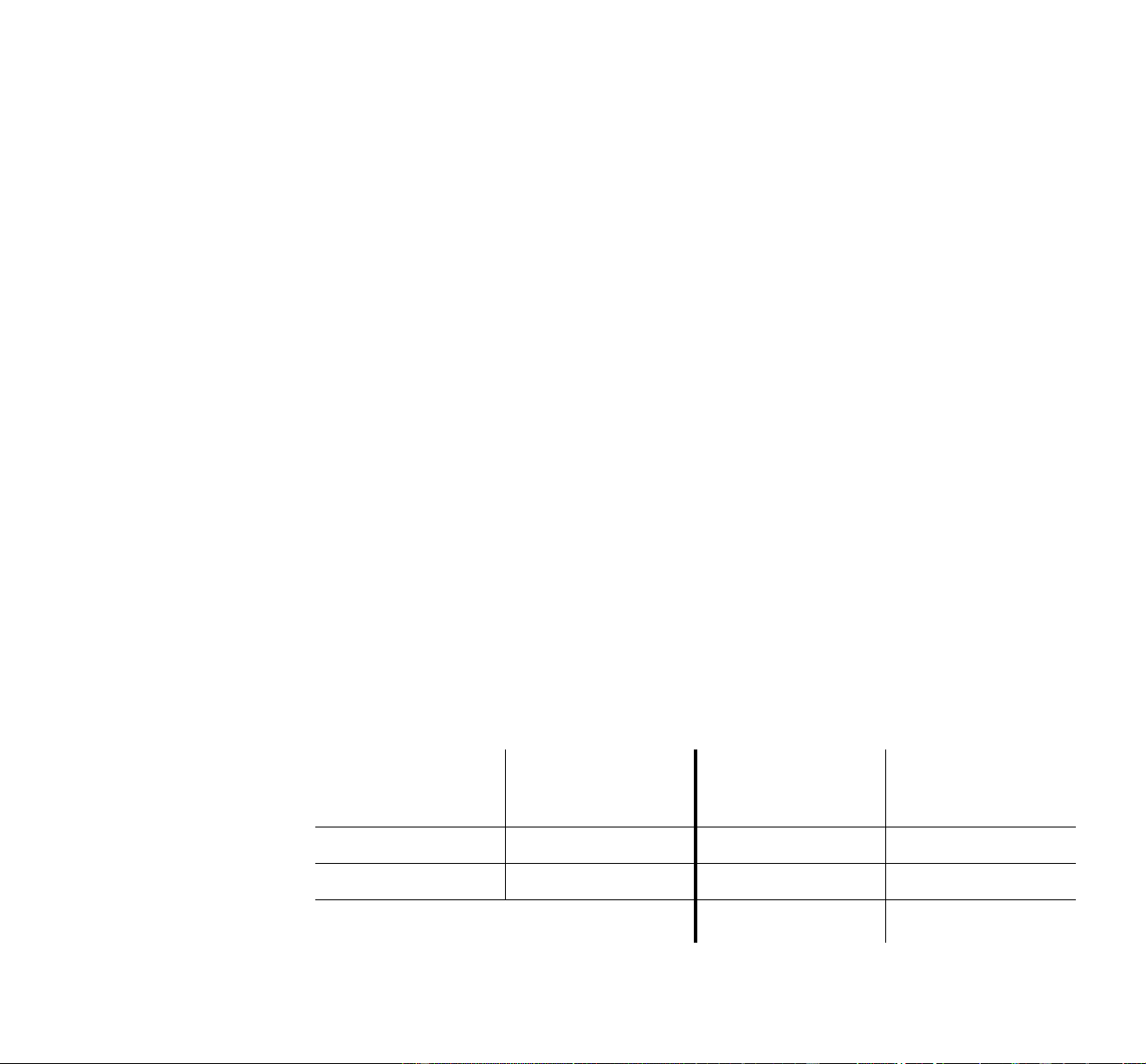
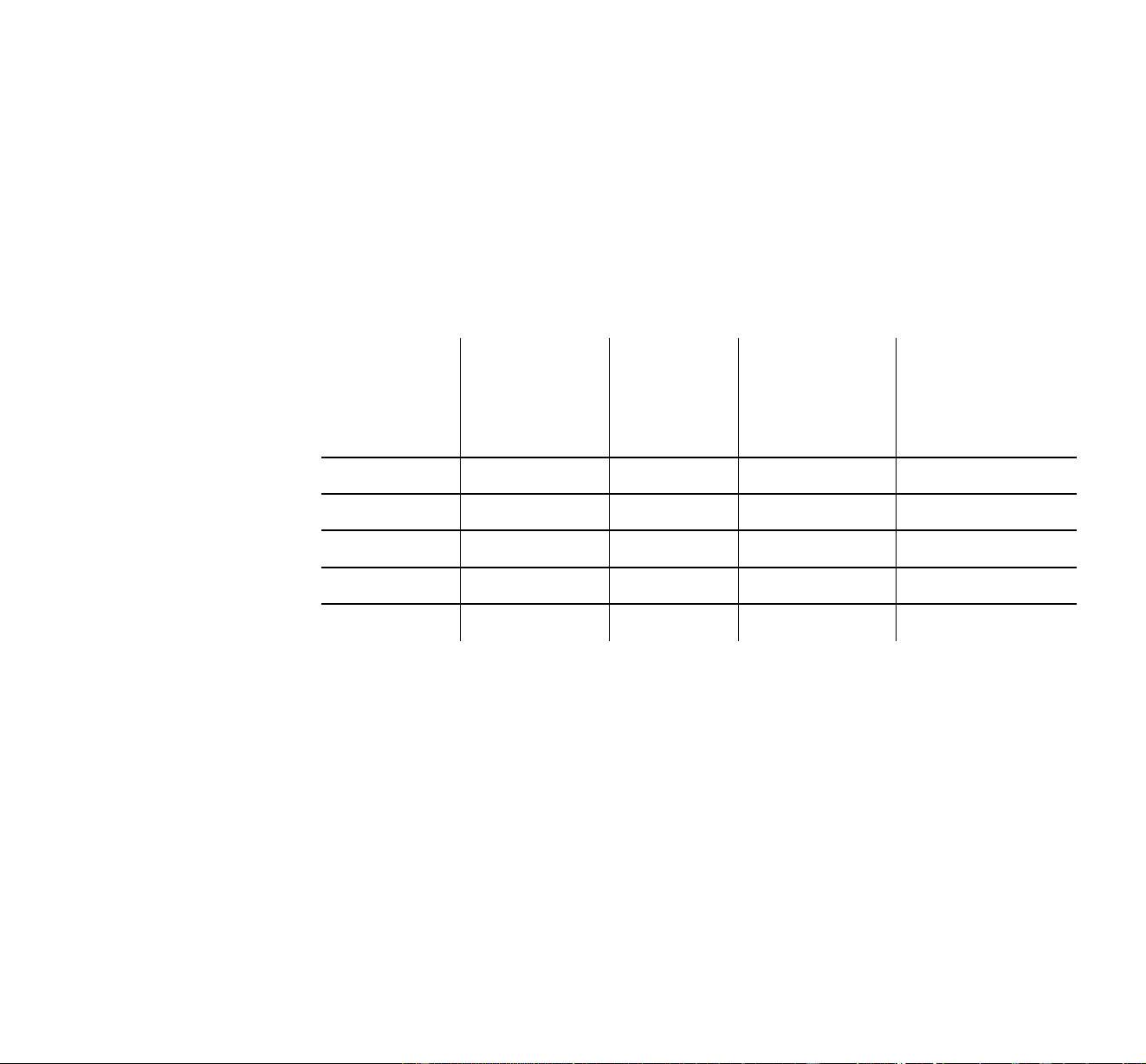
Correct
Voltage Setting Local Mains Voltage
Correct
Voltage Setting Local Mains Voltage
100 V 95 - 110 V 210 V 200 - 220 V
120 V 110 - 130 V 230 V 220 - 240 V
250 V 240 - 260 V

Roboscan Pro 1220 - operator’s manual 11
© 1995-1996 Martin Professional A/S
Fitting the Mounting Bracket
The mounting bracket is already fitted onto the Pro 1220, however, you will have to secure it before
rigging the fixture.
1.
Locate the four studs that come out through the bracket on the sides of the Pro 1220.
2.
Secure the bracket by first fitting the four metal washers and then the four lever handles that
came with the Pro 1220.
Removing the Transport Fixture from the Pan/tilt Assembly
In order to protect the mirror and stepper motors from becoming damaged during shipment they
have been secured by two black plastic straps.
1.
First, carefully remove the surface protection foil and warning notice from the mirror.
2.
Then, remove the black plastic straps.

12 Roboscan Pro 1220 - operator’s manual
section 3
OPERATING VIA A
LIGHTING CONTROLLER
All effects in the Roboscan Pro 1220 are fully DMX 512 and Martin RS-485 implemented, i.e you
can use any DMX board or the Martin 3032 controller to operate it. All control data are transmitted
from the controller’s output, via XLR data link cables, to the data input on the Roboscan Pro 1220
(that is the 3 pin XLR male on the front). The data output (3 pin XLR female) on the Roboscan Pro
1220 allows the serial data link to be continued to further fixtures, and this way up to 16 Roboscans
Pro 1220s can be connected on the same data link.
Connecting the Data Link
You should follow this instruction carefully in order to make a proper serial data link:
1.
Connect the data output on your lighting controller to the data input on the Roboscan Pro
1220. If you are using a Martin lighting controller then use the XLR-XLR / DSUB-XLR cable
supplied with the controller. Otherwise, use a cable that fits your DMX lighting controller and
the Roboscan Pro 1220. This would normally be a cable that adapts from 5 pin XLR to 3 pin
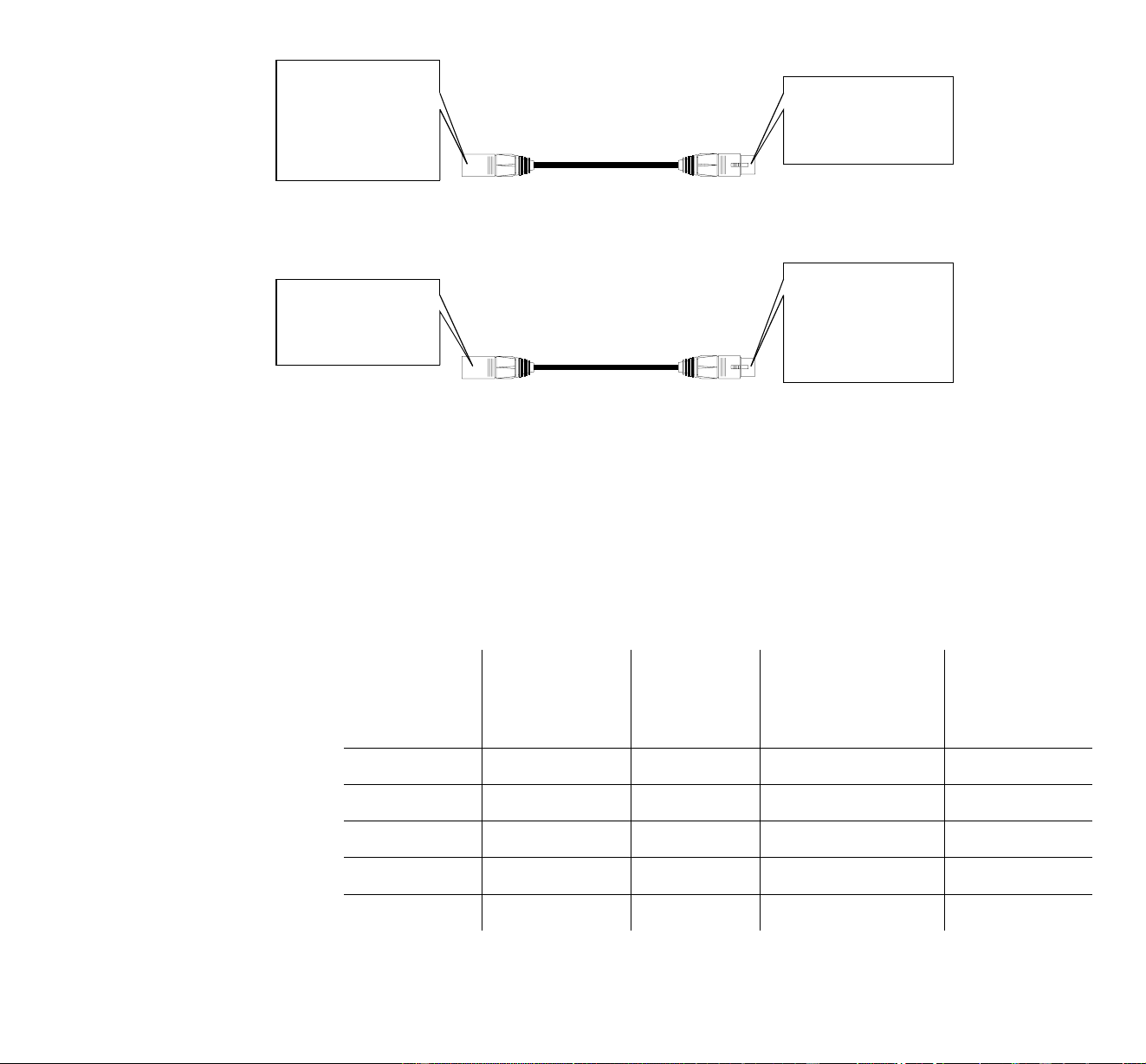
XLR and reverses the (+) and (-) signal wires. The following figure shows the proper connec-
tions in such a cable (P/N 309162). Please note that the (+) and (-) signal wires swap from the
DMX output to the input on the Roboscan Pro 1220.
2.
If you are using one Roboscan Pro 1220 only, then insert a XLR terminating plug into the
unused data output socket on the Pro 1220. If a Martin lighting controller is being used then
insert the termination plug that came with the controller (120 Ohm XLR-male). Otherwise, use
a termination plug as specified by the DMX controller's manual.
3.
If you are using more than one lighting fixture with the controller then connect the data output
on each fixture to the data input on the following fixture using XLR-XLR cables. The order, in
which you connect the fixtures, is not important and has no influence on the channels as far as
the controller is concerned - use an order which gives the easiest and shortest cable routing.
To ensure proper transmission on the data link it is
very important
to insert the XLR terminat-
ing plug in the last fixture in the link.
NOTE: It is possible to insert other DMX fixtures in the link with 5 pin XLR in and out. In that
case you will need a cable that adapts from the 3 pin female output on the Martin fixture to the 5 pin
input on the following DMX fixture. The cable should reverse the (+) and (-) signal wires This
cable is shown in number two of the following figures (P/N 309163).
Roboscan Pro 1220 - operator’s manual 13
© 1995-1996 Martin Professional A/S
The above figure shows the cable to connect from 5-pin DMX output to 3-pin input on Martin fix-
ture (P/N 309162).
The above figure shows the cable to connect from 3-pin output on Martin fixture to 5-pin DMX
input (P/N 309163).
Addressing the Pro 1220
If you are using a DMX controller to operate the Pro 1220 you will first have to decide which DMX
protocol you will use since this will influence on the number of DMX channels the Pro 1220
requires for operation. The following table shows the four different DMX protocols available. Pro-
tocol# 0 is only for use with a Martin controller.
3 pin XLR female:
Pin 1 = GND (screen)
Pin 2 = si
g
nal (+)
Pin 3 = si
g
nal (-)
5 pin XLR male:
Pin 1 = GND (screen)
Pin 2 = si
g
nal (-)
Pin 3 = si
g
nal (+)
Pin 4 = N/C
Pin 5 = N/C
5 pin XLR female:
Pin 1 = GND (screen)
Pin 2 = si
g
nal (-)
Pin 3 = si
g
nal (+)
Pin 4 = N/C
Pin 5 = N/C
3 pin XLR male:
Pin 1 = GND (screen)
Pin 2 = si
g
nal (+)
Pin 3 = si
g
nal (-)
Protocol # Protocol Type
Pan/Tilt
Resolution
Channel
Requirements
CMYR / XR / RPR
Control
Principle
0 Martin RS-485 16 bit 2 / 2 / 2 Vector
1
(
DMX default)
DMX 512 8 bit 15 / 11 / 13 Trackin
g
2 DMX 512 16 bit 17 / 13 / 15 Trackin
g
3 DMX 512 8 bit 17 / 13 / 15 Vector/Trackin
g
4 DMX 512 16 bit 19 / 15 / 17 Vector/Trackin
g

14 Roboscan Pro 1220 - operator’s manual
The control module on the front end of the Pro 1220 allows you to set the DMX protocol and assign
the fixture address, which is defined as the first channel from which the Pro 1220 will respond to
the controller. If you select a protocol that requires 15 channels and you set the address to channel
10, the Pro 1220 will be using channel 10 to 24 for control. You must address the Pro 1220 fixtures
according to your controller configuration, or vice versa, ensuring that you do not have any overlap-
ping channels, thus enabling you to operate each Pro 1220 independently from any other fixture on
the link. If two, or more, Pro 1220 fixtures are addressed similarly, they will also respond similarly.
Follow this procedure for each of the Pro 1220 fixtures on the link:
1. Switch on the Pro 1220 and wait until the fixture 'reset' has finished.
2. Press [enter] once in order to access the main-menu and browse through the menu, using the
arrow keys, until the display shows 'PSEt'. Now, press the arrow keys until the correct protocol
number is displayed and press [enter] to confirm.
3. Browse through the menu again, using the arrow keys, until the display shows 'dAdr' or 'Adr'.
Depending on whether you want to assign the fixture a DMX or Martin address, confirm by
pressing [enter] at 'dAdr' or 'Adr'.
4. Use the up and down arrows to select the desired fixture address and confirm by pressing
[store].
Controlling
After having addressed all fixtures on the link, you may now start operating these via your lighting
controller.
NOTE: After switching on, the Pro 1220s will automatically detect whether a Martin RS-485 or
DMX 512 controller is connected. To ensure correct protocol auto-detection it is recommended that
the controller is switched on before the Pro 1220s.
If you are using a Martin controller please refer to the manual for that controller for further instruc-
tions. If you are using a DMX controller then please refer to the DMX protocol listed in appendix a.
All remotely controllable functions are briefly described in the section 4 - 'REMOTELY CON-
TROLLABLE FUNCTIONS'.
NOTE: The Pro 1220 is fitted with a remotely operated relay, allowing you to turn the lamp on and
off from your controller without affecting the rest of the fixture. Therefore, after switching on the
Pro 1220 the lamp will remain off until you send the 'Lamp Power ON' command from the control-
ler. Please read the paragraph called 'LAMP' in section 5 - 'REMOTELY CONTROLLABLE
FUNCTIONS'. If you attempt to switch on the lamp within 8 minutes after having switched it off,
the Pro 1220 will store this 'Lamp Power ON' command, and ignite the lamp when the 8 minute
period has expired.

Roboscan Pro 1220 - operator’s manual 15
© 1995-1996 Martin Professional A/S
section 4
REMOTELY CONTROLLABLE
FUNCTIONS
This section briefly describes the various Pro 1220 functions that can be remotely controlled via the
serial data input on the fixture.
LAMP
The Pro 1220 uses a 1200 Watt discharge lamp - the HMI 1200 from Osram or the MSR 1200 from
Philips. Both lamps provide a high light output throughout their rated lamp lives of 750 hours. The
color temperature is 5600 K for the MSR and 6000 K for the HMI.
A high-power relay inside the Pro 1220 allows you to turn the lamp on and off via your controller
and without affecting the rest of the fixture. It is important to note that after switching on the Pro
1220, the lamp will remain off until you send the '
Lamp Power On
' command from the controller.
Due to the surge of current that is used when starting the lamp, it is recommended that you program
a 'Lamp Power On' sequence that will turn on the lamps one at a time with an interval in between
each start of approximately 5 seconds.
It is also important to note that both lamps are
cold restrike
types, meaning that they have to be
'cold' before re-striking is possible. For this reason, you will have to wait 8 minutes after having
turned off the lamp before you can turn it back on again. If you attempt to switch on the lamp within
8 minutes after having switched it off, the Pro 1220 will store the 'Lamp Power On' information,
and ignite the lamp when the 8 minute period has expired. The message 'Hot' will appear on the
control module display at the front end of the Pro 1220. If using a DMX controller to power off the
lamp you will have to send the value for a least 5 seconds.
NOTE:
To avoid accidentally switching off the lamp, the 'Lamp Off' feature is not supported by
DMX unless you enable it on the control module. Please read the section 5 - 'THE PRO 1220 CON-
TROL MODULE'.
MOVEMENT
The pan/tilt mirror on the Pro 1220 allows you to move the beam to any desired position within the
range of 176 by 85 degrees and the micro-stepping control of the motors ensures smooth and accu-
rate movement at all speeds. 6240 positions on pan and 1504 positions on tilt can be reached when
using either a Martin controller or 16-bit pan/tilt tracking on DMX. Selecting the B/O speed option
will blackout the fixture whilst moving the mirror.

16 Roboscan Pro 1220 - operator’s manual
COLOR WHEELS (PRO 1220 CMYR AND RPR ONLY)
The Pro 1220 CMYR has two separate and overlapping color wheels each with 10 color positions -
9 of these with dichroic colors and the last one open. Both 'hot' and 'cold' CTCs (Color Temperature
Correctors) are available on color wheel 2 and so is a special filter that only allows U.V. light to
pass. The wheel can be positioned between two adjacent colors, thus splitting the beam into these
colors. The micro-stepping control ensures a smooth scroll at any speed and selecting the B/O
speed option will blackout the fixture whilst scrolling at the highest speed. It is also possible to
scroll the color wheel continuously forwards and backwards at different speeds. Continuous color
scroll also ensures that the Pro 1220 chooses the shortest route when changing from one color to
another.
COLOR WHEEL (PRO 1220 XR ONLY)
The Pro 1220 XR has one color wheel with 10 color positions - 9 of these with dichroic colors and
the last one open. The wheel can be positioned between two adjacent colors, thus splitting the beam
into these colors. The micro-stepping control ensures a smooth scroll at any speed and selecting the
B/O speed option will blackout the fixture whilst scrolling at the highest speed. It is also possible to
scroll the color wheel continuously forwards and backwards at different speeds. Continuous color
scroll also ensures that the Pro 1220 chooses the shortest route when changing from one color to
another.
Note that a 'hot' CTC (Color Temperature Corrector) is available on the Prism wheel.
CMY SYSTEM (PRO 1220 CMYR ONLY)
The Pro 1220 CMYR is also fitted with a special color mixing system that allows you to create an
almost infinite number of colors. Instant color change is achieved by selecting fast speed. Using a
slower speed will provide a smooth color fade into the color selected. Please note that correct lamp
adjustment is very important for optimum color uniformity across the beam.
ROTATING GOBOS
Four rotating gobos plus one open are available and each of the gobos can be rotated in both direc-
tions. The gobos are optically indexed which allows you to position them at any desired orientation.
The B/O speed option blackouts the fixture whilst changing gobo and orientation.
FIXED GOBOS
In addition to the four rotating gobos, the Pro 1220 offers a second gobo wheel with 9 fixed gobos
plus one open. These gobos can be combined with the rotating gobos, thus creating interacting gobo
patterns. The wheel can be positioned between two adjacent gobos, thus splitting the beam between
these gobos. Selecting the B/O speed option will blackout the fixture whilst scrolling at the highest
speed.

Roboscan Pro 1220 - operator’s manual 17
© 1995-1996 Martin Professional A/S
DIMMER / SHUTTER
High resolution, 0 to 100% smooth dimming is provided by the combined dimmer/shutter system.
Use high speed dimming if you wish to open or close the dimmer instantly. It is also possible to
strobe at different frequencies (1.6 to 15.6 Hz).
FOCUS
The Pro 1220 uses a motorized focus system which allows remote focusing at any time.
IRIS
The beam angle can be reduced from 18.5
°
down to 2.5
°
using the iris.
PRISM AND FROST
A separate effects wheel on the Pro 1220 allows you to insert a frost filter or multiplying prisms.
The frost filter will make a soft-edge image and the prisms will multiply the beam/image by 3 or 5
times depending on the prism selected. In addition the Pro 1220 XR offers a 'hot' CTC decreasing
the color temperature from 5600K to 3400K.
On the Pro 1220 RPR the prisms can be rotated in both directions at a wide range of speeds. It is
also possible to program an exact orientation of the prisms, as with the rotating gobos.
FAN
The Pro 1220 is efficiently cooled by means of axial fans. The speed on the two large fans at the
rear end of the fixture can be reduced from the controller if very quiet performance is required.
Low
fan speed reduces the cooling of the fixture and should only be used when necessary and if the
ambient temperature is 23
°
C or lower
. If the temperature inside the fixture exceeds a certain
level (the cut-off threshold), a built-in thermostat automatically powers off the lamp. This situation,
which should be avoided, may occur if the fixture is operated with low fan speed over a long period
of time in high temperature surroundings.
NOTE:
To avoid accidentally switching the fan to low speed, the 'Fan Low' feature is not supported
unless you enable it on the control module. Please read section 5 - 'THE PRO 1220 CONTROL
MODULE'. Sending a 'fan low' command to the Pro 1220, without having enabled the 'Fan Low'
feature, will result in the Pro 1220 automatically switching from low to high fan speed after 3 min-
utes. After another 3 minutes the fan will resume low speed operation. This high/low cycle will
continue until a 'High Fan Speed' command is send to the fixture.
18 Roboscan Pro 1220 - operator’s manual
section 5
THE PRO 1220 CONTROL MODULE
The control module on the front end of the Pro 1220 offers several features. You can easily set the
fixture address, read the number of lamp hours, enable special soft-features etc. The main-menu is
accessed by pressing the menu key - press [enter]. The display will then show one option at a time.
Use the arrow keys to browse through the different options in the main-menu (Dadr, Adr, PSEt,
SPEC, Po H, LA H, R Po and R LA) and press [enter] if you wish to select one of them. The func-
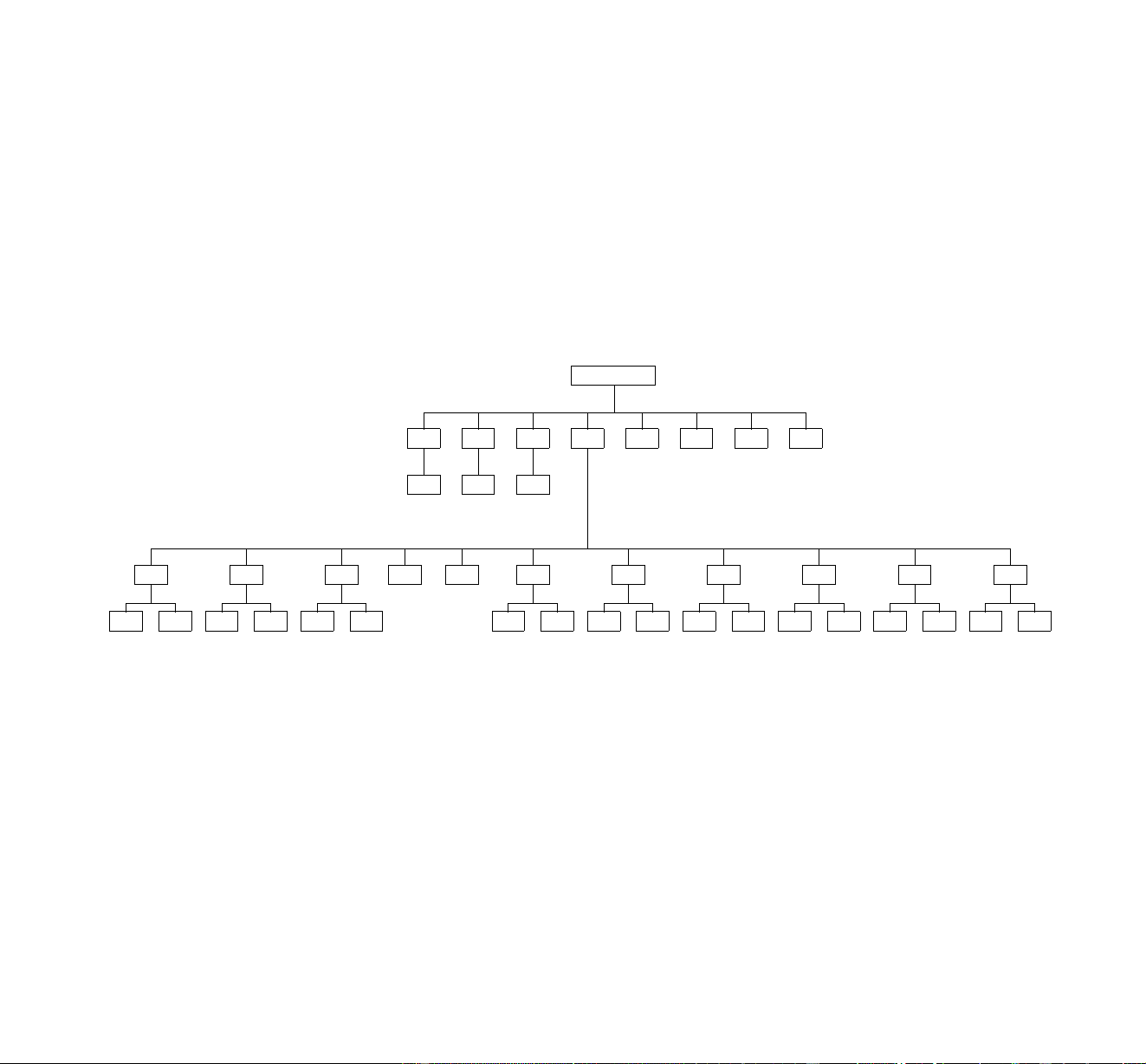
tions provided are described in the following paragraphs and the function hierarchy is shown
below.
dAdr - DMX 512 Address
Use the arrow keys to select the fixture address when using a DMX controller and press [enter] to
confirm or [menu] to cancel. Either way you will return to the main menu.
Adr - Martin Link Address
Use the arrow keys to select the fixture address when using a Martin controller and press [enter] to
confirm or [menu] to cancel. Either way you will return to the main menu.
rES
on OFF
dISP
on OFF
Auto
on OFF
LoFF
on OFF
FAnL
St 1 St99
SP 1
St 1 St99
SP16dnLd
SUAP n SU
PAtI
Inv nInv
tILt
Inv nInv
PAn
SPEC Po H LA H r Po r LA
0-4
PSEt
1-31
Adr
1-512
dAdr
Fixture Address
...............
Roboscan Pro 1220 - operator’s manual 19
© 1995-1996 Martin Professional A/S
PSEt - Protocol Setup
After switching on a Pro 1220, it will automatically detect whether Martin or DMX signals are
received and use the appropriate
protocol type
. The PSEt (protocol set-up) function allows you to
switch protocol and/or protocol type afterwards. Use the arrow keys to select the desired protocol
and press [enter] to confirm or [menu] to cancel. Either way you will return to the main menu.
The protocol set-up function is also used to set the default DMX protocol, which is the protocol that
is automatically selected if DMX signals are received right after having switched on the fixture.
The following table shows the protocols available:
SPEC - Special Functions
Selecting this function presents you with a menu of special functions. As in the main-menu, you
can browse through the options and select the one displayed by pressing [enter].
dISP
Use the arrow keys to toggle between on and off. Select 'on' by pressing [enter] if you wish the dis-
play to blackout 2 minutes after the last pressing of any of the keys in order to avoid audience dis-
traction. Otherwise, select 'off'. The blackout function will not affect the appearance of error and
information messages.
Auto
This option can be used to disable the protocol auto-detect function when switching on the fixture.
Protocol # Protocol Type
Pan/Tilt
Resolution
Channel
Requirements
CMYR / XR /
RPR Control Principle
0 Martin RS-485 16 bit 2 / 2 / 2 Vector
1 (
DMX default)
DMX 512 8 bit 15 / 11 / 13 Tracking
2 DMX 512 16 bit 17 / 13 / 15 Tracking
3 DMX 512 8 bit 17 / 13 / 15 Vector/Tracking
4 DMX 512 16 bit 19 / 15 / 17 Vector/Tracking

20 Roboscan Pro 1220 - operator’s manual
Use the arrow keys to toggle between on and off. Select 'on', by pressing [enter], if wish the proto-
col auto-detect function to be enabled after switching on the fixture, and 'off' if you wish to disable
the feature.
PAn
This function allows you to invert the pan movement (DMX Protocol only). Use the arrow keys to
toggle between Inu for inverted pan and nInu for non inverted and press [enter] to confirm or
[menu] to cancel. Either way you will return to the SPEC-menu.
tiLt
This function allows you to invert the tilt movement (DMX Protocol only). Use the arrow keys to
toggle between Inu for inverted tilt and nInu for non inverted and press [enter] to confirm or
[menu] to cancel. Either way you will return to the SPEC-menu.
Using the Martin 3032 Controller the Pan and Tilt swap can be enabled from the link configuration
page.
PAtI
This function allows you to swap the pan and tilt channels in DMX. Use the arrow keys to toggle
between SUAP for swapped protocols and n SU for non swapped and press [enter] to confirm or
[menu] to cancel. Either way you will return to the SPEC-menu.
dnLd
For factory programming only - do not use.
rES
Pressing enter on this option resets the receiver CPU and enables the auto-detect function.
LoFF
This option allows you to enable/disable the 'Lamp Off' function via DMX. Use the arrow keys to
toggle between 'on' and 'off' and select 'on' by pressing [enter] if you wish to enable this feature, and
'off' if you wish to disable the feature.
FAnL
This option allows you to enable/disable the 'Fan Low' function. Use the arrow keys to toggle
between 'on' and 'off' and select 'on' by pressing [enter] if you wish to enable this feature and 'off' if
you wish to disable the feature.
NOTE:
On the Roboscan Pro 1220 ST models, it is not possible to reduce the speed of the tangen-
tal fan located at the rear end of the fixture.

Roboscan Pro 1220 - operator’s manual 21
© 1995-1996 Martin Professional A/S
SP 1 to SP16
Up to 16 special service and adjustment sequences are available. These are mainly used for servic-
ing purposes. After selecting a sequence, use the arrow keys to step through the sequence. Press
[menu] twice to return to the SPEC-menu. Please consult appendix b for table of the sequences
Po H - Total Power-On Time (Fixture)
This option allows you to read the total number of hours that the Pro 1220 fixture has been powered
on.
LA H - Total Lamp-On Time
This option allows you to read the total number of hours that the lamp has been powered on.
r Po - Resetable Power-On Time
Selecting this option gives you the number of hours that the Pro 1220 fixture has been powered on.
It is possible to reset this counter by keeping the
arrow up
key pressed for approx. 5 seconds.
r LA - Resetable Lamp-On Time
Selecting this option shows you the number of hours that the lamp has been powered on in the fix-
ture. It is possible to reset this counter by keeping the
arrow up
key pressed for approx. 5 seconds.
For example, reset this counter whenever the lamp is being replaced, thus keeping easy control of
the lamp hours.
Error and Information Messages
The following error messages may appear on the display:
LErr
The lamp error message appears if the lamp doesn't ignite within 2 minutes after having received
the 'Lamp Power On' instruction from the controller. 'Lamp Error' will not affect the performance of
the Pro 1220 once the lamp has been successfully ignited.
ErAb (Pro 1220 CMYR and RPR only)
The 'A/B-Module Error' indicates that there is no communication between the serial data receiver
module and the A and B-Section electronic-modules.

22 Roboscan Pro 1220 - operator’s manual
ErrA
The 'A-Module Error' indicates that there is no communication between the serial data receiver
module and the A-Section electronics-module.
Errb (Pro 1220 CMYR only)
The 'B-Module Error' indicates that there is no communication between the serial data receiver
module and the B-Section electronics-module.
ShEr
'Short Error' appears if the Pro 1220 "detects" that the lamp is on but no 'Lamp On' command has
been sent. This can occur if the lamp relay has stuck in the on position or the lamp-power feedback
circuit has failed.
The following information messages may appear on the display:
Hot
This message appears if you attempt re-strike the lamp within 8 minutes after having switched it
off. The Pro 1220 will then store the 'Lamp Power On' instruction and ignite the lamp when the 8
minute period has expired.
Auto / address and PASS
After having switched on the Pro 1220 it will default into protocol auto-detection mode which is
indicated on the display which will switch between 'Auto' and the channel number on the previ-
ously used fixture address. The message 'PASS' will appear for about half a second when the proto-
col type (Martin or DMX) has been detected and communication between the electronics-modules
verified.

Roboscan Pro 1220 - operator’s manual 23
© 1995-1996 Martin Professional A/S
section 6
HARDWARE SETTINGS AND
ADJUSTMENTS
The Roboscan Pro 1220 comes fully prepared from the factory, however, lamp adjustment and
some pre-setting may be necessary before you can operate the fixture properly. You may also need
to readjust some of the mechanical parts after extensive use. The procedures for doing this are care-
fully described in this chapter.
IMPORTANT!
We recommend that you read the following information carefully before
attempting to make any alterations whatsoever. If you do not feel completely
confident in making these adjustments you should consult your Martin dealer
for assistance.
Removing and Replacing Modules
The Roboscan Pro 1220 has been designed with ease of servicing and maintenance in mind and is
constructed in a totally modular fashion. If there is a problem in any particular section, or you want
to put in your own custom gobos or you need to clean parts of the fixture, it is a simple operation to
remove and replace any module.
WARNING!
Before attempting any of the following you must ensure that the fixture is dis-
connected from the mains supply.
REMOVING A MODULE
1.
Remove the main-cover from the fixture as described in the section called 'INSTALLING THE
PRO 1220'.
2.
Locate the module that you wish to remove from the fixture. You will see that there are PCB
connectors connecting the module to a wiring loom, remove these connectors taking care to
note the location and direction of each one.
3.
On each side of every module there is a finger screw. Unscrew these two screws and carefully
pull the module straight out of the fixture.

24 Roboscan Pro 1220 - operator’s manual
REPLACING A MODULE
To replace the module simply reverse the steps above being careful when you replace the module to
ensure that it is straight and locates properly: There are two pins on the bottom of the module which
have to locate into holes in the inner casing before you are able to re-tighten the finger screws.
Voltage and Frequency Setting
Five voltage and two frequency settings can be selected in any combination on the Pro 1220. To
ensure safe and proper operation, it is vital that those settings match your local power supply. The
following table lists the correct voltage settings according to your mains supply. The frequency set-
ting is straight forward, since you will either have 50 or 60 Hz - nothing in between.
WARNING!
Before attempting any of the following you must ensure that the fixture is dis-
connected from the mains supply.
PRO 1220 CMYR / XR / RPR:
1.
Locate on the front end of the Pro 1220 the Philips screw that secures the small cover over the
voltage and frequency terminals.
2.
Connect the Brown wire labelled 'V' to the correct voltage terminal (see the following table).
3.
Connect the Brown wire labelled 'F' to the correct frequency terminal.
4.
Replace and secure the small cover again.
PRO 1220 CMYR
ST
/ XR
ST
/ RPR
ST
(STUDIO VERSIONS WITH REMOTE BALLAST)
1.
Locate on the front end of the Pro 1220 the Philips screw that secures the small cover over the
voltage terminals.
2.
Connect the Brown wire labelled 'V' to the correct voltage terminal (see the following table).
3.
Replace and secure the small cover again.
4.
Locate the top-cover on the remote ballast box and remove this. It is secured in either end
with two self-tapping bolts.
5.
You will now see the ballast with a white screw-terminal on the side. Connect the brown wire
labelled 'F' to the correct frequency terminal.
6.
Replace and secure the cover again.
Roboscan Pro 1220 - operator’s manual 25
© 1995-1996 Martin Professional A/S
Lamp Replacement and Adjustment
To reduce the risk of the lamp shattering it is strongly recommended that the lamp is replaced when
the rated average life has been exceeded by 25%. Since the rated average life for both the MSR
1200 and HHI 1200 lamp is 750 hours, they should be replaced before 900 to 950 hours of use. The
procedure for installing the lamp is described in section 2 - 'INSTALLING THE PRO 1220'.
The position of the lamp-holder may need to be re-adjusted to ensure optimum performance when
the Pro 1220 is installed in its permanent site. Though the Pro 1220 has some built-in sequences for
adjustment purposes (appendix b), it is suggested that you use a controller so you can focus the
beam on the required distance. The adjustment procedure is as follows:
WARNING!
Whilst adjusting the position of the lamp you will be exposed to extreme heat
and intense light. A minor risk of lamp explosion is also present and therefore
caution should be taken by covering skin and by wearing eye and face protec-
tion. Since the cooling of the lamp is reduced during this adjustment, you
should minimize the time used.
Before you start adjusting the lamp, you will have to remove the main-cover from the fixture as
described in section 2 - 'INSTALLING THE ROBOSCAN PRO 1220'. Once you have removed the
cover, you will see a black access cut-out switch positioned on the dimmer module. This switch
serves to cut out the lamp if, for any reason, the main-cover is removed. Before powering on the
fixture, and whilst adjusting the lamp position, this switch needs to be held down continuously.
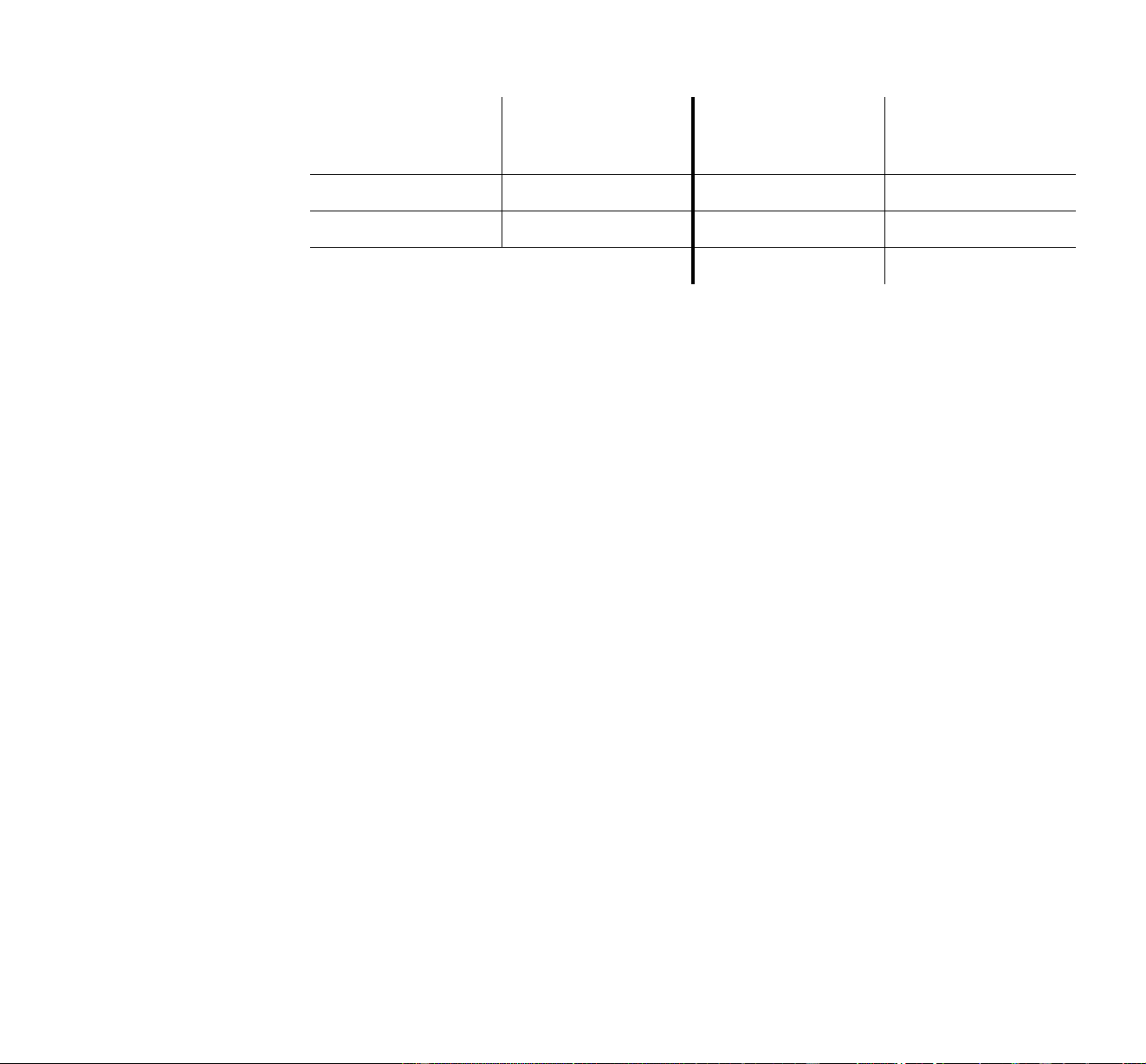
Correct Voltage
Setting Local Mains Voltage
Correct Voltage
Setting Local Mains Voltage
100 V 95 - 110 V 210 V 200 - 220 V
120 V 110 - 130 V 230 V 230 - 240 V
250 V 240 - 260 V

26 Roboscan Pro 1220 - operator’s manual
HMI 1200 LAMP
1.
Locate the 3 adjustment screws on the back of the lamp module and turn all three of them as
much counter clockwise as possible.
2.
Turn only one of the two nearest screws clockwise until the centre axis of the HMI 1200 lamp
is parallel to the reflector plate.
3.
Switch on the Pro 1220 and wait until 'reset' has finished.
4.
Using the controller, power on the lamp and open the dimmer.
5.
Still using the controller, move the mirror so that the image is projected onto a flat surface and
adjust to a sharp focus.
6.
Centre the hot-spot (the brightest part of the image) by turning the three adjustment screws
one at a time.
7.
To optimize the brightness turn all three adjustment screws a quarter turn clockwise and then
check to see if the result has improved. Repeat this step until there is no more improvement of
the light output ensuring that the hot-spot remains centred.
8.
If you have a Pro 1220 CMYR model, then insert the Cyan, Magenta and Yellow color flags to
approximately 75% and make slight adjustments to the screws until the Pro 1220 provides an
almost uniform color projection across the entire image. The color should only vary slightly
and white edges on the image should be reduced to a minimum.
9.
Finally, re-assemble the fixture.
MSR 1200 LAMP
1.
Locate the 4 Philips screws on the top of the lamp holder assembly, and release these slightly,
allowing the lamp to move forwards, backwards and sideways.
2.
Switch on the Pro 1220 and wait until 'reset' has finished.
3.
Using the controller, power on the lamp and open the dimmer.
4.
Still using the controller, move the mirror so that the image is projected onto a flat surface and
adjust to a sharp focus.
5.
Centre the hot-spot (the brightest part of the image) by carefully moving the lamp sideways.
6.
Optimize the brightness by moving the lamp forwards or backwards.
7.
If you have a Pro 1220 CMYR model, then insert the Cyan, Magenta and Yellow color flags to
approximately 75% and make slight adjustments forwards, backwards and sideways until the
Pro 1220 provides an almost uniform color projection across the entire image. The color
should only vary slightly and white edges on the image should be reduced to a minimum.
8.
Tighten the four Philips screws, being careful not to move the lamp out of its new position.
9.
Finally, re-assemble the fixture.
Roboscan Pro 1220 - operator’s manual 27
© 1995-1996 Martin Professional A/S
Adjusting the Pan/Tilt Stops
Re-adjusting the mechanical stop on the Roboscan Pro 1220-mirror adaptor is required if the pan or
tilt motor intermittently loses steps or leaves the mirror incorrectly positioned after a 'reset' is per-
formed. This error can occur when the recoil of the mechanical reset bounces the mirror and bracket
a whole pan or tilt motor step. These adjustments require that your are familiar with the service
sequences provided by the control module on the front end of the Pro 1220. If not then please read
section 5 - 'THE PRO 1220 CONTROL MODULE'.
First switch on the Pro 1220, wait until the reset has finished and then select the service sequence
named 'SP 6' for Pan/Tilt adjustments.
PAN-MOTOR ADJUSTMENT
1.
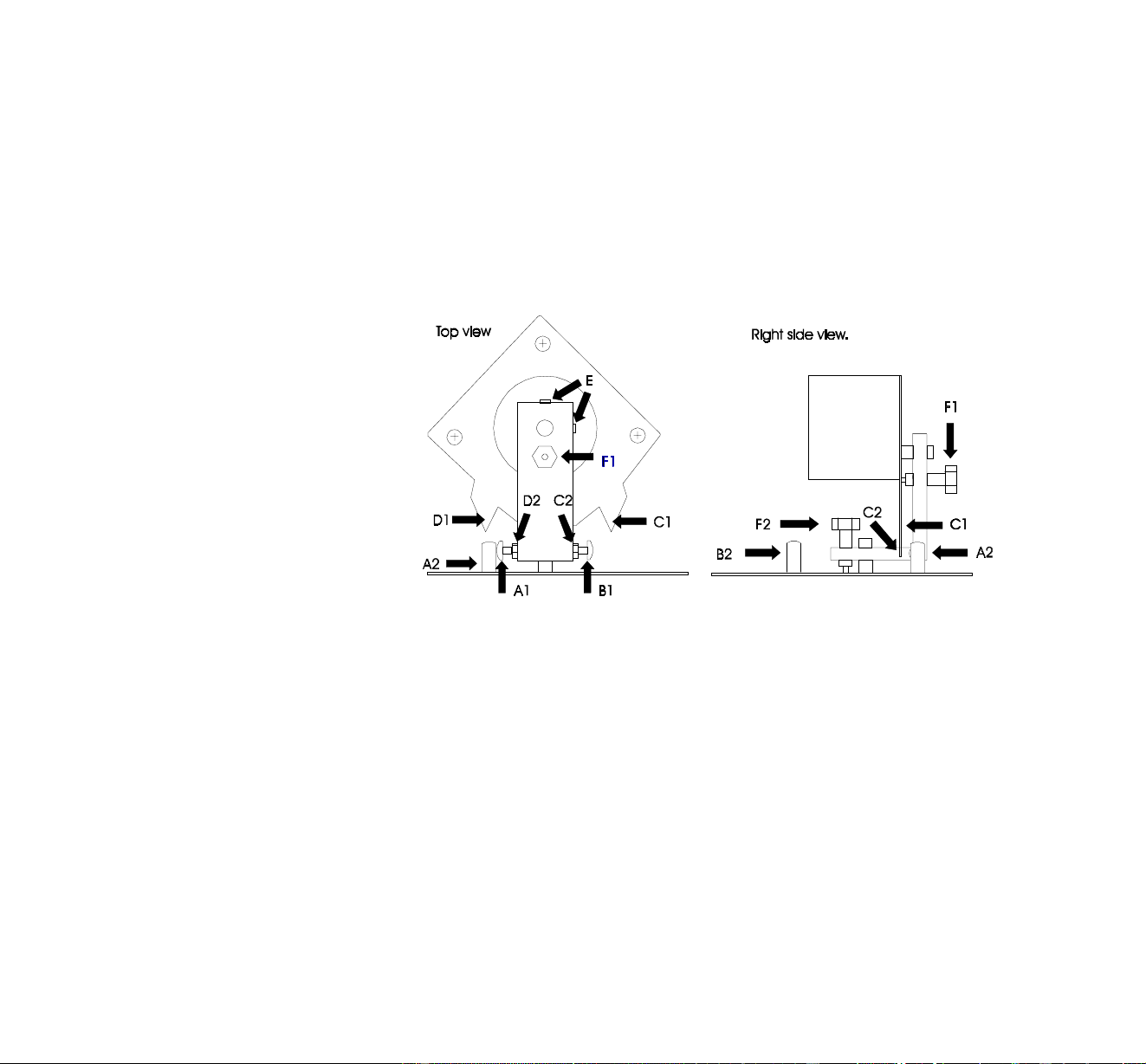
Select 'St 2' (step 2) so that the screw (A1) in the above figure is positioned at the upper
mechanical-stop (A2).
2.
Release the lock-nut on the adjusting screw (A1).
3.
Turn the screw (A1) clockwise about 1/2 - 1 turn, thereby increasing the distance between the
head of the screw and the mechanical Stop (A2).
4.
Tighten the lock-nut on screw (A1).

28 Roboscan Pro 1220 - operator’s manual
5. Reset the Roboscan Pro 1220 a number of times to check the accuracy of the new reset posi-
tion.
6. Again, select the service sequence named 'SP 6' and toggle between 'St 2' and 'St 3' whilst
checking that adjustment screw (B1) does NOT touch the mechanical stop (B2) during these
steps. If it does then adjust screw (B1) accordingly.
TILT-MOTOR ADJUSTMENT
1. Select 'St 4' (step 4) so that the top mechanical-stop (C1) in the previous figure is positioned
at the edge of the mirror bracket (C2).
2. Loosen the two allen-screws (E) holding the motor shaft while ensuring that the motor does
not slide vertically from its current position.
3. Carefully turn the motor and mirror clockwise (ensure that the motor shaft does NOT turn.)
until there is a distance of about 1/2 to 1 mm between the edge of the mirror bracket (C2) and
the top mechanical Stop (C1).
4. Tighten the allen-screws.
5. Toggle between 'St 4' and 'St 5', thus moving the mirror between the extreme tilt positions,
check that bottom mechanical-stop (D1) does NOT touch the edge of the mirror bracket (D2)
during these steps. If it does then re-adjust as described making the distance between (C2)
and (C1) even smaller.
Adjusting the Pan/Tilt Dampers
Re-adjustment of the Pan or Tilt dampers is necessary if the end Stop adjustments have caused
either of the motors to slide along its axis.
1. Loosen the dampers marked (F1) and (F2) in the previous figure, until the spring-loaded plas-
tic pin is not touching the motor.
2. Select, via the control module, service sequence 'SP11'.
3. Toggle between 'St 1' and 'St 2' in the sequence, thus moving the mirror slowly between the
extreme left and right. Whilst the mirror is moving watch the beam movement to ensure that it
is smooth. Tighten the pan damper (F2) until the smoothness of the mirror movement is
affected and it becomes more 'twitchy'. At this point you should turn the dampers slightly back
so that you restore the full smoothness of mirror movement.
4. Similarly, toggle between 'St 3' and 'St 4', thus moving the mirror slowly between the extreme
tilt positions and adjust the tilt damper (F1) in the same way you adjusted the pan damper.
NOTE: If the dampers are set to a position that is too loose you will find that the mirror will lose
steps when running at higher speeds.

Roboscan Pro 1220 - operator’s manual 29
© 1995-1996 Martin Professional A/S
If the dampers are set to a position that is too tight you will find that it will affect the smoothness of
the mirror movement at the lower movement speeds.
Regenerating Malfunctioning Lamps
Discharge lamps, like the HMI 1200 and MSR 1200, may refuse to strike if the mains voltage
applied to the fixture is too low. Instead, the lamp will burn with a faint blue arc and after a period
of time the lamp will become black on the inside. When this happens the lamp will refuse to start at
normal voltage. However, in this situation it is possible to regenerate the lamp and so continue its
expected life. To do this you should follow the instructions below:
WARNING!
Before attempting any of the following you must ensure that the fixture is dis-
connected from the mains supply.
1.
Locate the Philips screw that secures the small cover over the voltage and frequency termi-
nals on the front end.
2.
Locate the Brown wire labelled 'V'. If this wire is connected to the 120V terminal then move it
to the 100V terminal. If the Brown wire is connected to the 230V or the 250V terminal then
move it to the 210V terminal.
3.
Switch on power to the fixture. If the lamp starts let it burn at this voltage for approximately 5
minutes and then switch off again.
4.
The lamp should now be clear on the inside and ready to re-use at the normal voltage. Discon-
nect the fixture from the mains and re-connect the Brown wire to the correct terminal as it was
before.
5.
Secure the cover over the voltage terminals before operating the fixture as normal.
If the lamp refuses to start after this procedure of if you prefer not to undertake it yourself, please
contact your local Martin Dealer and he will regenerate the lamp in a special fixture for you.

30 Roboscan Pro 1220 - operator’s manual
section 7
MAINTENANCE
To ensure optimum and uninterrupted performance from the Pro 1220 it is important to keep it
clean at all times. Dusty lenses will reduce the brightness and blocked fans may cause overheating,
thus causing the thermostat to cut off the lamp intermittently. Thanks to the modular construction of
the Pro 1220, maintenance can be done easily and does not require any special tools. Simply
remove the module(s), that you wish to clean, as described in the previous section.
CLEANING THE OPTICAL PATH
You should be very careful when cleaning the color filters, lenses and the reflector. The colored
surface on the filters is achieved by means of special coatings and even small scratches may be vis-
ible. Use only a clean, soft and lint-free cloth like the ones used for cleaning camera lenses. You
may need to wet the cloth in a passive glass cleaning liquid if the filters or lenses are greasy. It may
also be necessary to clean the gobos and the iris and special care should be taken not to damage
these fragile items.
CLEANING THE FANS
To ensure proper cooling of the fixture it is important that the fans are free from dust. Clean the fans
if the air flow seams to be reduced.
CLEANING THE OPTICAL SENSORS
Optical sensors have been placed on the color and the rotating gobo modules. Clean those sensors
of dust to ensure reliable and accurate indexing.
Roboscan Pro 1220 - operator’s manual 31
© 1995-1996 Martin Professional A/S
appendix a
DMX PROTOCOL
DMX Channel Offset
DMX
Value Effect
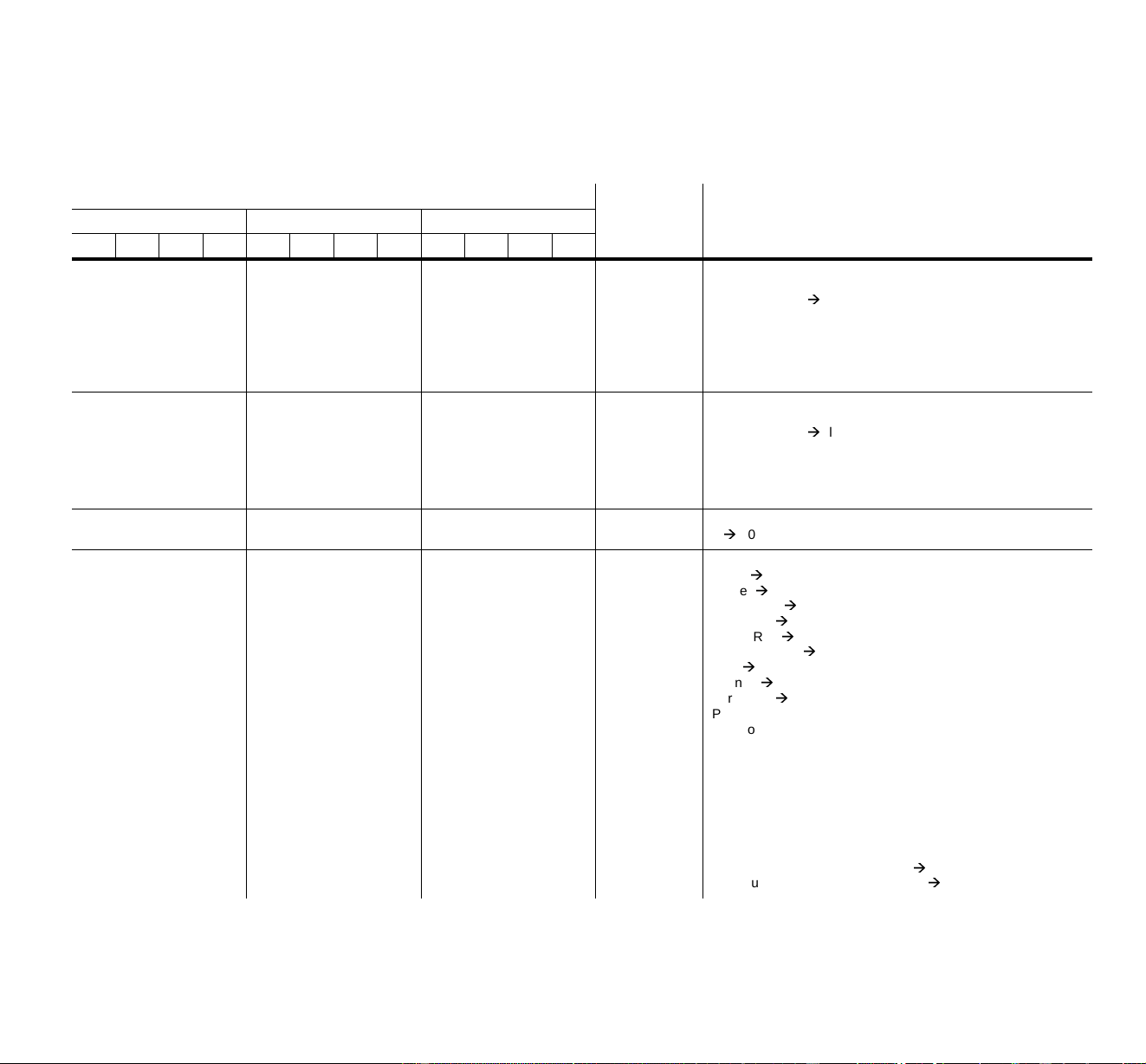
Pro 1220 CMYR - mode Pro 1220 XR - mode Pro 1220 RPR - mode
1 2 3 4 1 2 3 4 1 2 3 4
0
NOTE!
Only with
LoFF = on
0
NOTE!
Only with
LoFF = on
0
NOTE!
Only with
LoFF = on
0 - 49
50 - 177
178 - 199
200 - 243
244 - 247
248 - 251
252 - 255
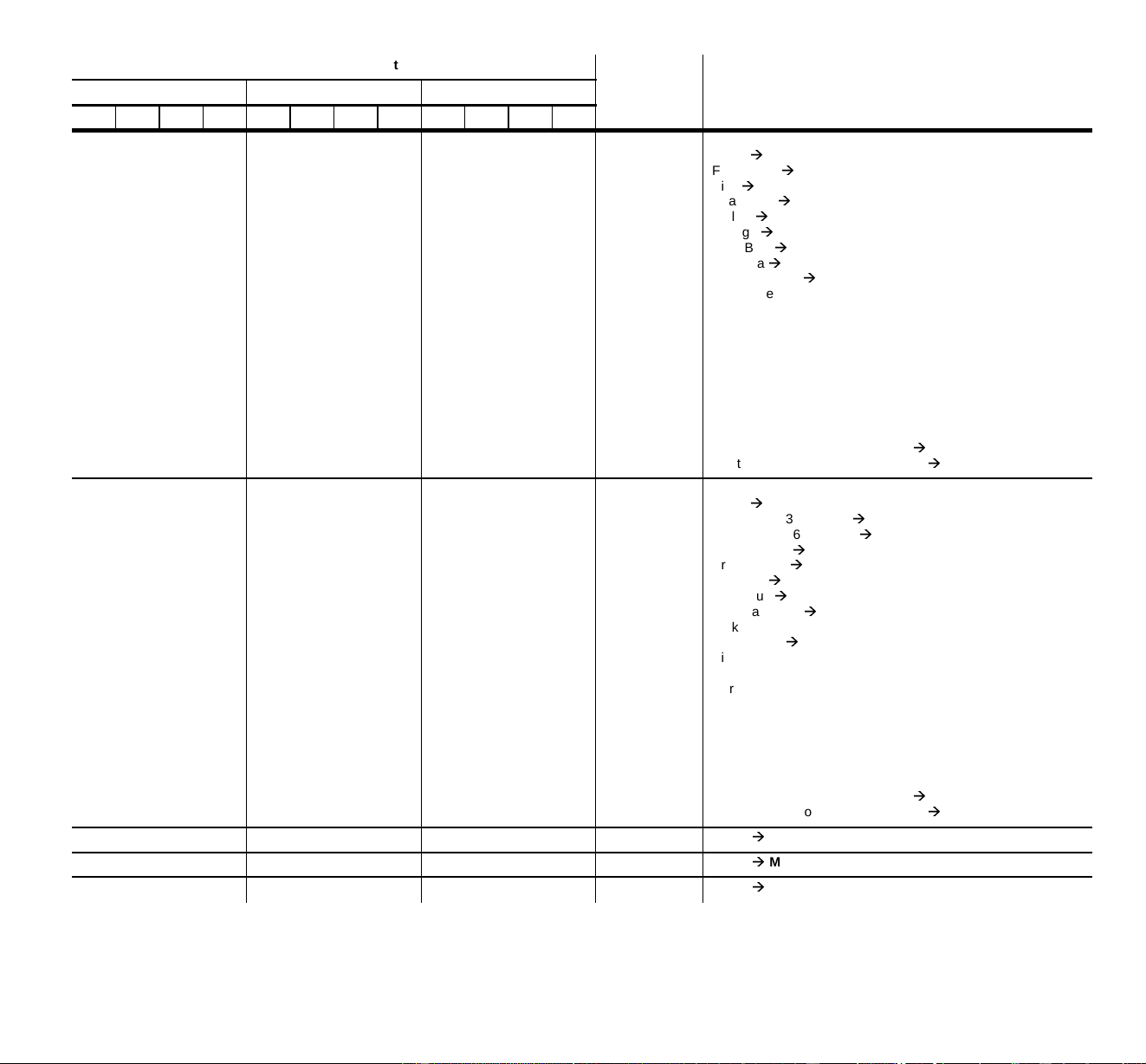
Strobe, Fan Speed, Reset, Lamp On/Off
No Function
Strobe On Fast
Slow
No Function
Fan Low
Lamp Off (T > 5 seconds)
Reset
Lamp On
0
NOTE!
Only with
LoFF = oFF
0
NOTE!
Only with
LoFF = oFF
0
NOTE!
Only with
LoFF = oFF
0 - 49
50 - 177
178 - 199
200 - 247
248 - 251
252 - 255
Strobe, Fan Speed, Reset, Lamp On
No Function
Strobe On Fast
Slow
No Function
Fan Low
Reset
Lamp On
1 1 1
0 - 255
Intensity
0
100%
2 - 2
0 -
10 -
20 -
30 -
40 -
50 -
60 -
70 -
80 -
90 - 97
98 - 105
106 - 113
114 - 121
122 - 129
130 - 137
138 - 145
146 - 153
154 - 161
162 - 208
209 - 255
Color 1 (Pro 1220 CMYR / RPR)
White
Amber
Fern Green
Light Blue
Flame Red
Primary Green
Blue
Orange
Turquoise
Purple
Turquoise
Orange
Blue
Primary Greens
Flame Red
Light Blue
Fern Green
Amber
Continuous Color Scroll CW (fast
slow)
Continuous Color Scroll CCW (slow
fast)
32 Roboscan Pro 1220 - operator’s manual
-2-
0 -
10 -
20 -
30 -
40 -
50 -
60 -
70 -
80 -
90 - 97
98 - 105
106 - 113
114 - 121
122 - 129
130 - 137
138 - 145
146 - 153
154 - 161
162 - 208
209 - 255
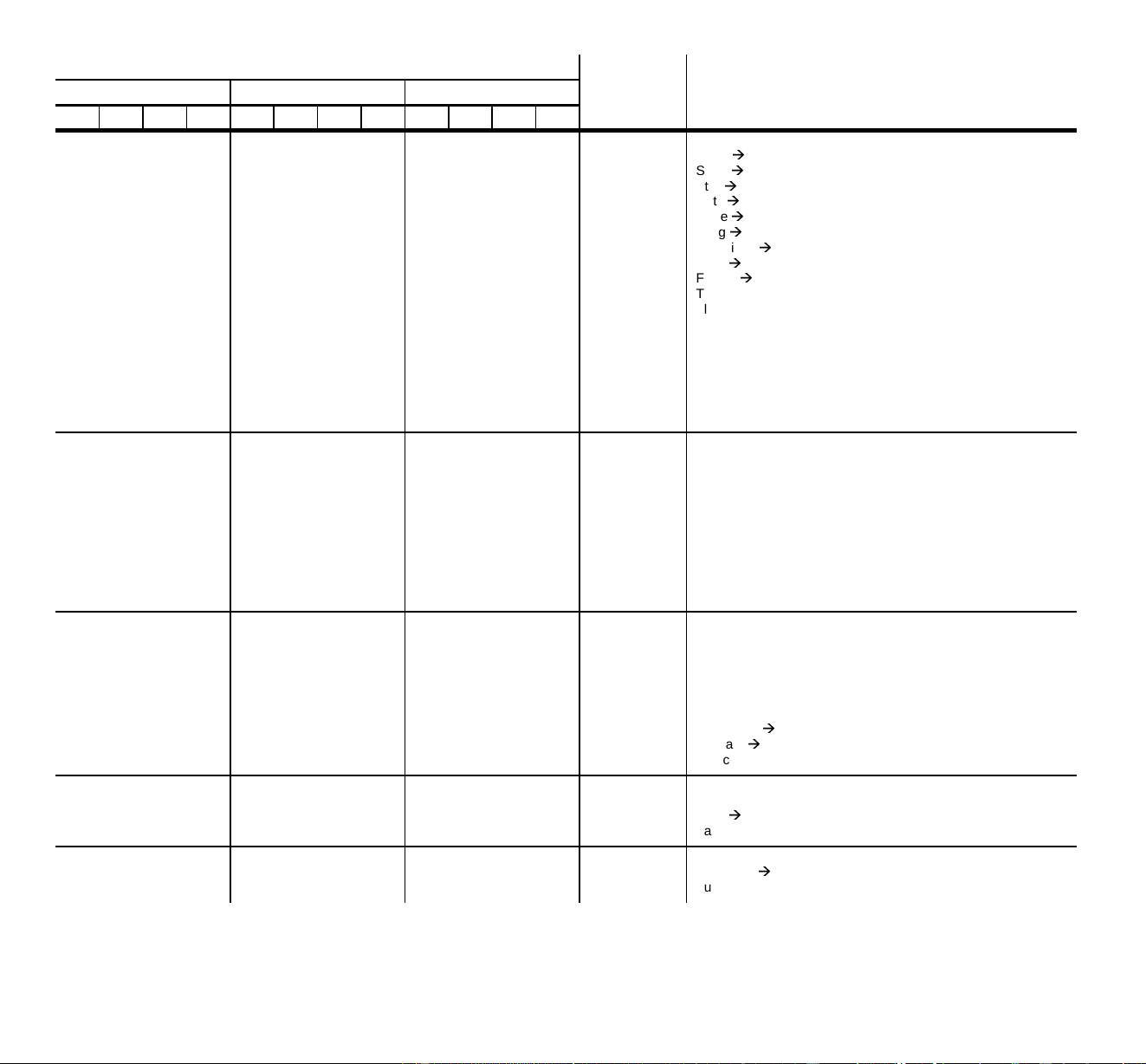
Color 1 (Pro 1220 XR)
White
Flame Red
Pink
Cyan Blue
Yellow
Orange
Dark Blue
Magenta
Primary Green
Dark Lavender
Primary Green
Magenta
Dark Blue
Orange
Yellow
Cyan Blue
Pink
Flame Red
Continuous Color Scroll CW (fast
slow)
Continuous Color Scroll CCW (slow
fast)
3-3
0 -
10 -
20 -
30 -
40 -
50 -
60 -
70 -
80 -
90 - 97
98 - 105
106 - 113
114 - 121
122 - 129
130 - 137
138 - 145
146 - 153
154 - 161
162 - 208
209 - 255
Color 2 (Pro 1220 CMYR / RPR)
White
CTC 5500 - 3400 (Hot)
CTC 3500 - 5600 (Cold)
Dark Orange
Primary Red
UV Pass
Dark Blue
Dark Lavender
Pink
Light Green
Pink
Dark Lavender
Dark Blue
UV Pass
Primary Red
Dark Orange
CTC 3500-5600 K (Cold)
CTC 5500-3400 K (Hot)
Continuous Color Scroll CW (fast
slow)
Continuous Color Scroll CCW (slow
fast)
4--0 - 255White
Cyan
5--0 - 255White
Magenta
66-0 - 255White
Yellow
DMX Channel Offset
DMX
Value Effect
Pro 1220 CMYR - mode Pro 1220 XR - mode Pro 1220 RPR - mode
123412341234
Roboscan Pro 1220 - operator’s manual 33
© 1995-1996 Martin Professional A/S
734
0 -
20 -
40 -
60 -
80 -
100 -
120 -
140 -
160 -
180 - 188
189 - 196
197 - 204
205 - 212
213 - 220
221 - 228
229 - 236
237 - 244
245 - 255
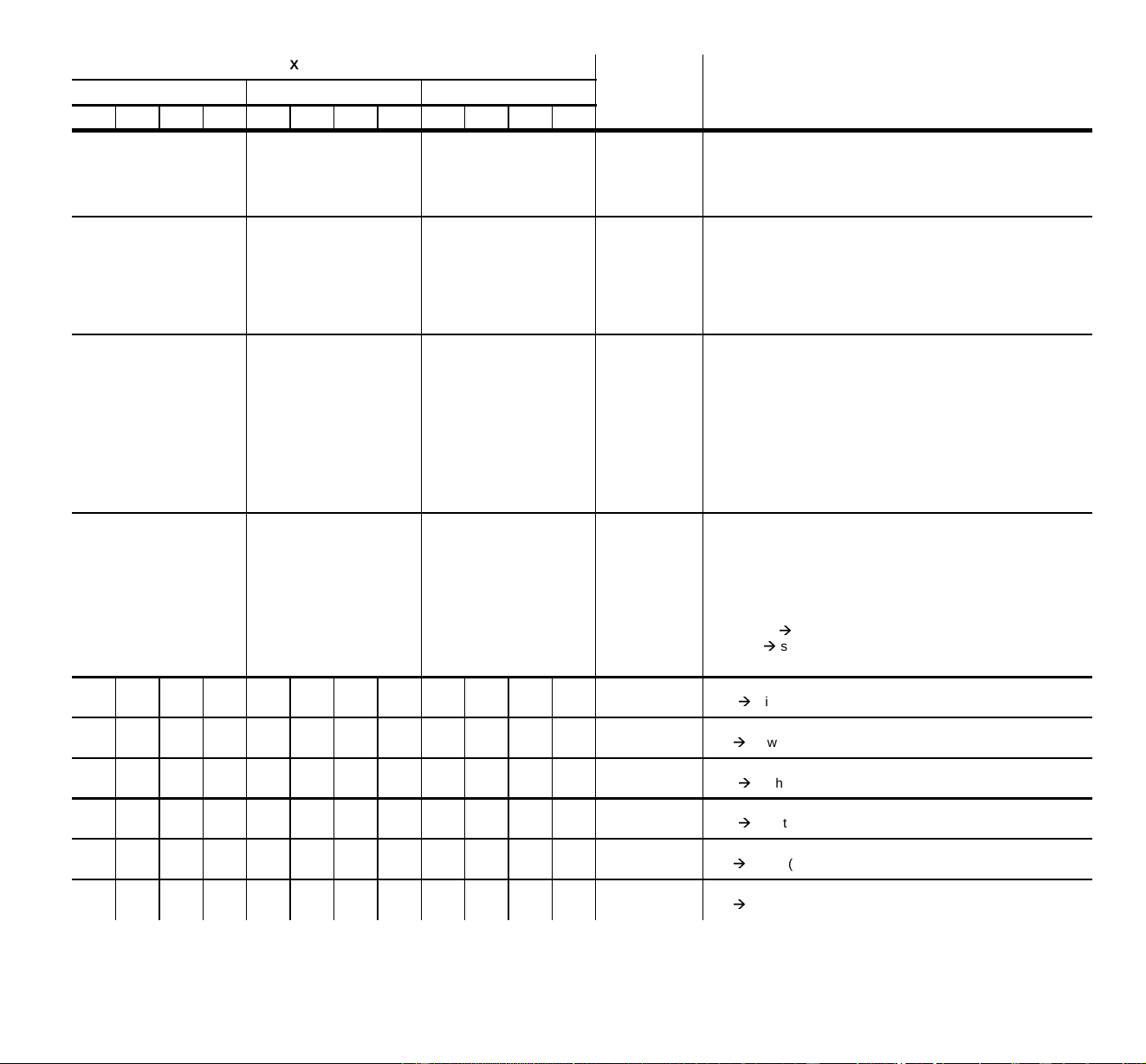
Gobo1
Open
Stars
Star
Dots
Cone
Pling
Dot-Circle
Bells
Flower
Turbine
Flower
Bells
Dot-Cone
Pling
Cone
Dots
Star
Stars
8
NOTE!
Orientation and conti-
nous rotation parameters
are programmed on chan-
nel 9
4
NOTE!
Orientation and conti-
nous rotation parameters
are programmed on chan-
nel 5
5
NOTE!
Orientation and conti-
nous rotation parameters
are programmed on chan-
nel 6
0 - 24
25 - 49
50 - 74
75 - 99
100 - 125
126 - 157
158 - 189
190 - 221
222 - 255
Rotating Gobo selection
Open Gobo - no Rotation
Gobo 1 - Indexed
Gobo 2 - Indexed
Gobo 3 - Indexed
Gobo 4 - Indexed
Gobo 4 - Continous rotation
Gobo 3 - Continous rotation
Gobo 2 - Continous rotation
Gobo 1 - Continous rotation
9
NOTE!
The Pro 1220 will re-index
the gobo before moving
the gobo to the
programmed
orientation.
5
NOTE!
The Pro 1220 will re-index
the gobo before moving
the gobo to the
programmed
orientation.
6
NOTE!
The Pro 1220 will re-index
the gobo before moving
the gobo to the
programmed
orientation.
0 - 126
127
128 - 255
0
1 - 127
128 - 254
255
Rotating Gobo Orientation
Orientation CW
Default (Index)
Orientation CCW
Continuous Rotation
Static
CCW slow
fast
CW fast
slow
Static
10 6 7
0 - 9
10 - 177
178 - 255
Focus
Default
Near
Far Focus
Far Focus
11 7 8 0 - 157
158 - 255
Iris
Full Open
Full Close
Full Close
DMX Channel Offset
DMX
Value Effect
Pro 1220 CMYR - mode Pro 1220 XR - mode Pro 1220 RPR - mode
123412341234
34 Roboscan Pro 1220 - operator’s manual
12 - -
0 - 49
50 - 99
100 - 149
150 - 255
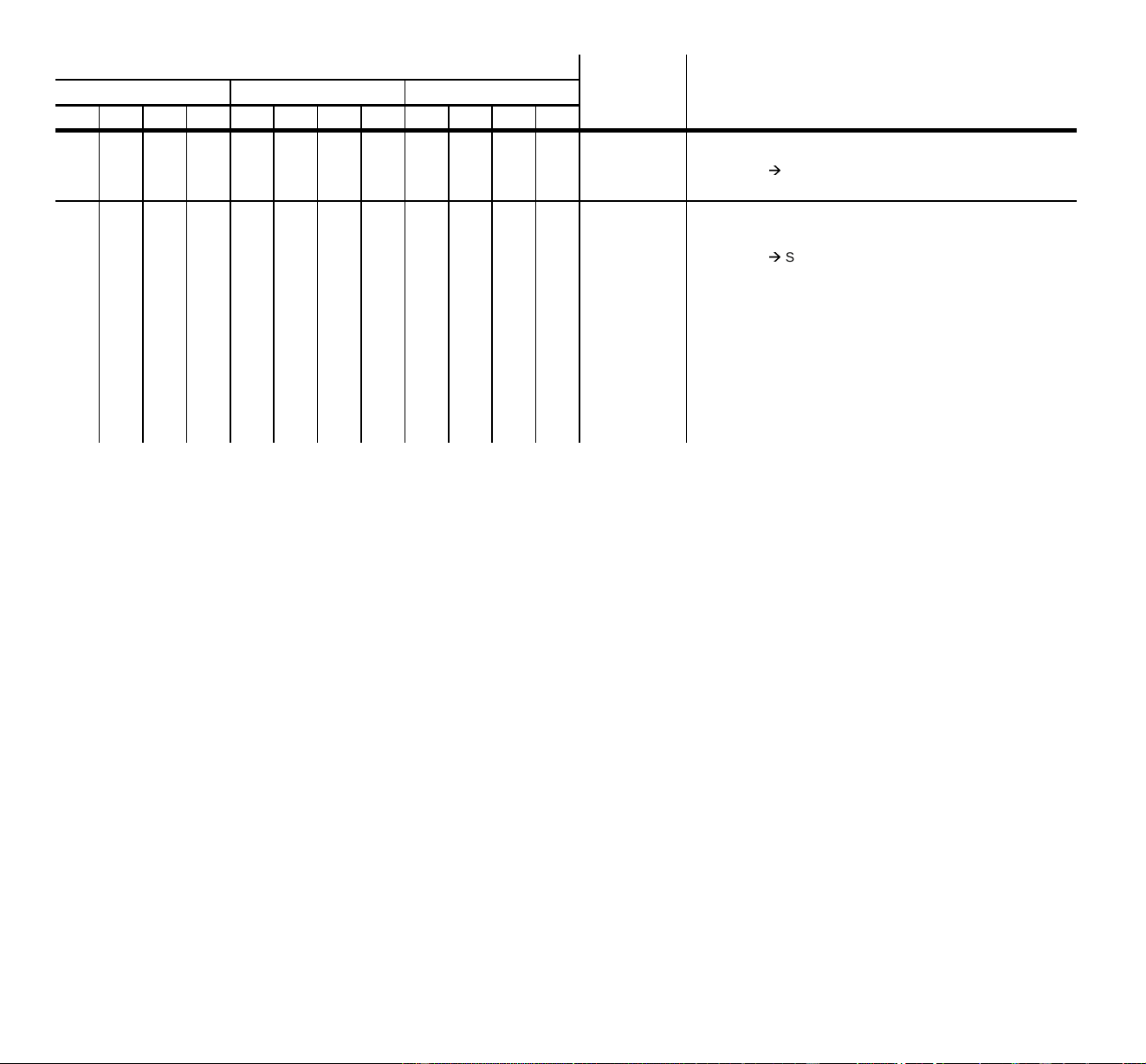
Prisms, Frost (Pro 1220 CMYR)
Open
3-Facet
frost
5-Facet
-8-
0 - 42
43 - 84
85 - 127
128 - 170
171 - 212
213 - 255
Prisms, Frost (Pro 1220 XR)
Open
CTC 5500 - 3400 K (Hot)
Frost
3-Facet
Open
5-Facet
--
9
NOTE!
Orientation and conti-
nous rotation parameters
are programmed on chan-
nel 10
0 - 24
25 - 49
50 - 74
75 99
100 - 125
126 - 157
158 - 189
190 - 221
222 - 255
Rotting Prisms Selection (Pro 1220 RPR)
Open Prism - no Rotation
Prism 1 - indexed
Prism 2 - indexed
Prism 3 - indexed
Prism 4 - indexed
Prism 4 - Continous rotation
Prism 3 - Continous rotation
Prism 2 - Continous rotation
Prism 1 - Continous rotation
--
10
NOTE!
The Pro 1220 will re-index
the prism before moving
the gobo to the
programmed
orientation.
0 - 126
127
128 - 255
0
1 - 127
128 - 254
255
Rotating Prism Orientation
Orientation CW
Default (Index)
Orientation CCW
Continuous Rotation
Static
CCW slow
fast
CW fast
slow
Static
13-13-9-9-11-11-
0 - 255
Pan
Left
Right (127 = Neutral)
14-14-10-10-12-12-
0 - 255
Tilt
Up
Down (127 = Neutral)
-13-13-9-9-11-11
0 - 255
Pan MSB
Left
Right (127 = Neutral)
-14-14-10-10-12-12
0 - 255
Pan LSB
Left
Right
-15-15-11-11-13-13
0 - 255
Tilt MSB
Up
Down (127 = Neutral)
-16-16-12-12-14-14
0 - 255
Tilt LSB
Up
Down
DMX Channel Offset
DMX
Value Effect
Pro 1220 CMYR - mode Pro 1220 XR - mode Pro 1220 RPR - mode
123412341234
Roboscan Pro 1220 - operator’s manual 35
© 1995-1996 Martin Professional A/S
- - 15 17 - - 11 13 - - 13 15
0
1 - 251
252 - 255
Speed: Pan, Tilt
Tracking
Speed Fast
Slow
Blackout while moving
- - 16 18 - - 12 14 - - 14 16
0
1 - 251
252 - 255
0
1 - 251
252 - 255
0 - 251
252 - 255
Speed:
Dimmer, Cyan, Magenta, Yellow, Iris, Focus
Tracking
Speed Fast
Slow
Fast Speed
Speed: Color1, Color2, Gobo1, Prism
Tracking
Speed Fast -> Slow
Blackout while moving
Speed:
Rotating Gobo Change, Prism Change
Shutter open while moving
Blackout while moving
DMX Channel Offset
DMX
Value Effect
Pro 1220 CMYR - mode Pro 1220 XR - mode Pro 1220 RPR - mode
123412341234

36 Roboscan Pro 1220 - operator’s manual
appendix b
SPECIAL SEQUENCES
Sequence Scene Description
SP 1 RESET ALL
SP 2
LAMP/OPTO ADJUST (Lamp On) - PRO 1220 CMYR and RPR ONLY
St 1 All White
St 2 Color 1 Opto Adjust - Feedback on Color 2
St 3 Color 2 Opto Adjust - Feedback on Color 1
SP 2
LAMP/OPTO ADJUST (Lamp On) - PRO 1220 XR ONLY
St 1 All White
St 2 Color 1 Opto Adjust - Feedback on Gobo 1
SP 3
CMY/DIMMER ADJUST (Lamp On) - PRO 1220 CMYR ONLY
St 1 All Open
St 2 Magenta to adjust position - Requires adjustment tool
St 3 Cyan to adjust position - Requires adjustment tool
St 4 Yellow to adjust position - Requires adjustment tool
St 5 Dimmer to adjust position - Requires adjustment tool
St 6 Magenta Close
St 7 Cyan Close
St 8 Yellow Close
St 9 Dimmer Close
SP 3
DIMMER ADJUST (Lamp On) - PRO 1220 XR and RPR ONLY
St 1 Dimmer Open
St 2 Dimmer to adjust position - Requires adjustment tool
St 3 Dimmer Close
SP 4
GOBO ADJUST (Lamp On)
St 1 All Open
St 2 Gobo 1, Last Gobo
St 3 Rotating Gobo, Last Gobo
SP 5
FOCUS ADJUST (Lamp On)
St 1 Focus Front Stop
St 2 Focus Back Stop
Roboscan Pro 1220 - operator’s manual 37
© 1995-1996 Martin Professional A/S
SP 6
PAN/TILT ADJUST (Lamp On)
St 1 Neutral
St 2 Pan Right
St 3 Pan Left
St 4 Tilt Up
St 5 Tilt Down
St 6 Right Up
St 7 Left Up
St 8 Left Down
St 9 Right Down
SP 7
EFFECT WHEEL ADJUST (Lamp On) - PRO 1220 CMYR ONLY
St 1 Open
St 2 3-Facet Prism
St 3 Frost
St 4 5-Facet Prism
SP 7
EFFECT WHEEL ADJUST (Lamp On) - PRO 1220 XR ONLY
St 1 Open
St 2 CTC
St 3 Frost
St 4 3-Facet
St 5 Open
St 6 5-Facet
SP 8
IRIS ADJUST (Lamp On)
St 1 Iris Open
St 2 Iris Closed
SP 9
LAMP ADJUST (Lamp On) - PRO 1220 CMYR ONLY
St 1 Cyan, Magenta and Yellow Open
St 2 Magenta = 153, Cyan and Yellow Open
St 3 Cyan = 153, Magenta and Yellow Open
St 4 Yellow = 153, Magenta and Cyan Open
St 5 Cyan, Magenta and Yellow = 153
Sequence Scene Description
38 Roboscan Pro 1220 - operator’s manual
SP10
LOCATING ROTATING GOBO INDEX (Lamp On)
St 1 Open Gobo Selected
St 2 Selecting Gobo 1 and Indexing
St 3 Selecting Gobo 2 and Indexing
St 4 Selecting Gobo 3 and Indexing
St 5 Selecting Gobo 4 and Indexing
SP11
PAN/TILT DAMPER ADJUST - SLOW SPEED MOVEMENTS (Lamp On)
St 1 Pan Left, Tilt Neutral
St 2 Pan Right, Tilt Neutral
St 3 Pan Neutral, Tilt Up
St 4 Pan Neutral, Tilt Down
SP12
PRISM ADJUST (Lamp On) - PRO 1220 RPR ONLY
St 1 Open Position (first)
St 2 Prism 4
SP13
LOCATING ROTATING PRISM INDEX (Lamp On) - PRO 1220 RPR ONLY
St 1 Open Gobo Selected
St 2 Selecting Prism 1 and Indexing
St 3 Selecting Prism 2 and Indexing
St 4 Selecting Prism 3 and Indexing
St 5 Selecting Prism 4 and Indexing
SP16
LAMP ON/OFF CHECK
St 1 Shows whether the lamp is ON or OFF
Sequence Scene Description

Roboscan Pro 1220 - operator’s manual 39
© 1995-1996 Martin Professional A/S
appendix c
TECHNICAL SPECIFICATIONS
Roboscan Pro 1220 CMYR / XR / RPR
Dimensions
Length
Width (without bracket and handles)
Width (with bracket and handles)
Height (without bracket)
1107 mm (43.6")
316 mm (12.4")
462 mm (18.2")
285 mm (11.2")
Weight
CMYR/XR/RPR models
Weight
CMYR
ST
/XR
ST
/RPR
ST
models
53 kg (117 lb) / 51 Kg (112 lb)
47 kg (103 lb) / 45 Kg (99 lb)
Fuse
20 AT (6.3 X 32 mm)
Power consumption
1550 W
AC Supply
100 / 120 / 210 / 230 / 250 V - 50 / 60 Hz
Lamp
(Type / Wattage / Color Temperature)
MSR 1200
HMI 1200
Philips MSR 1200 / 1200 W / 5600 K
Osram HMI 1200 / 1200 W / 6000 K
Beam angle
Pro 1220 CMYR / XR
Beam angle
Pro 1220 RPR
18.5°
12.5°