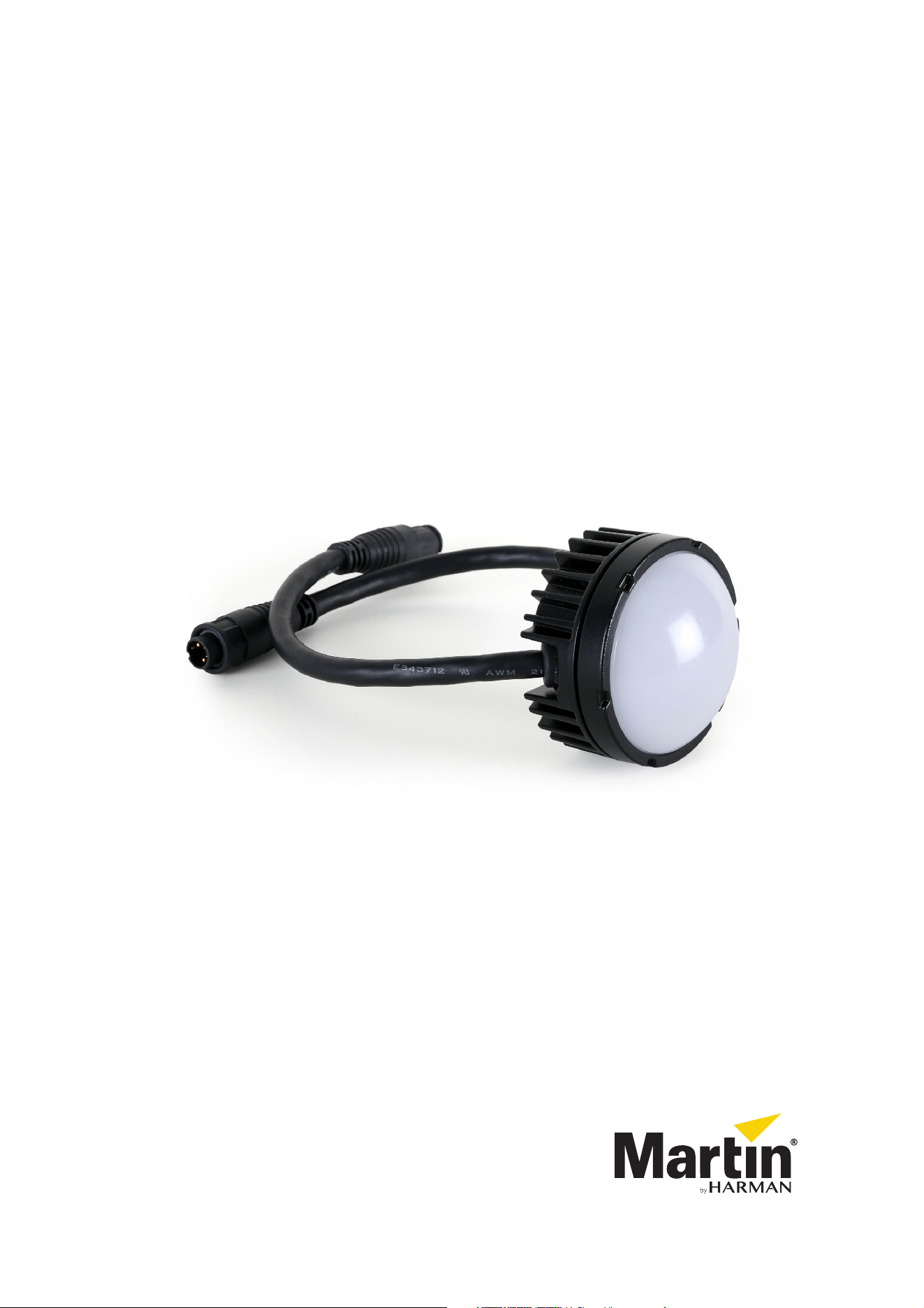
VDO Dotron™
User Manual
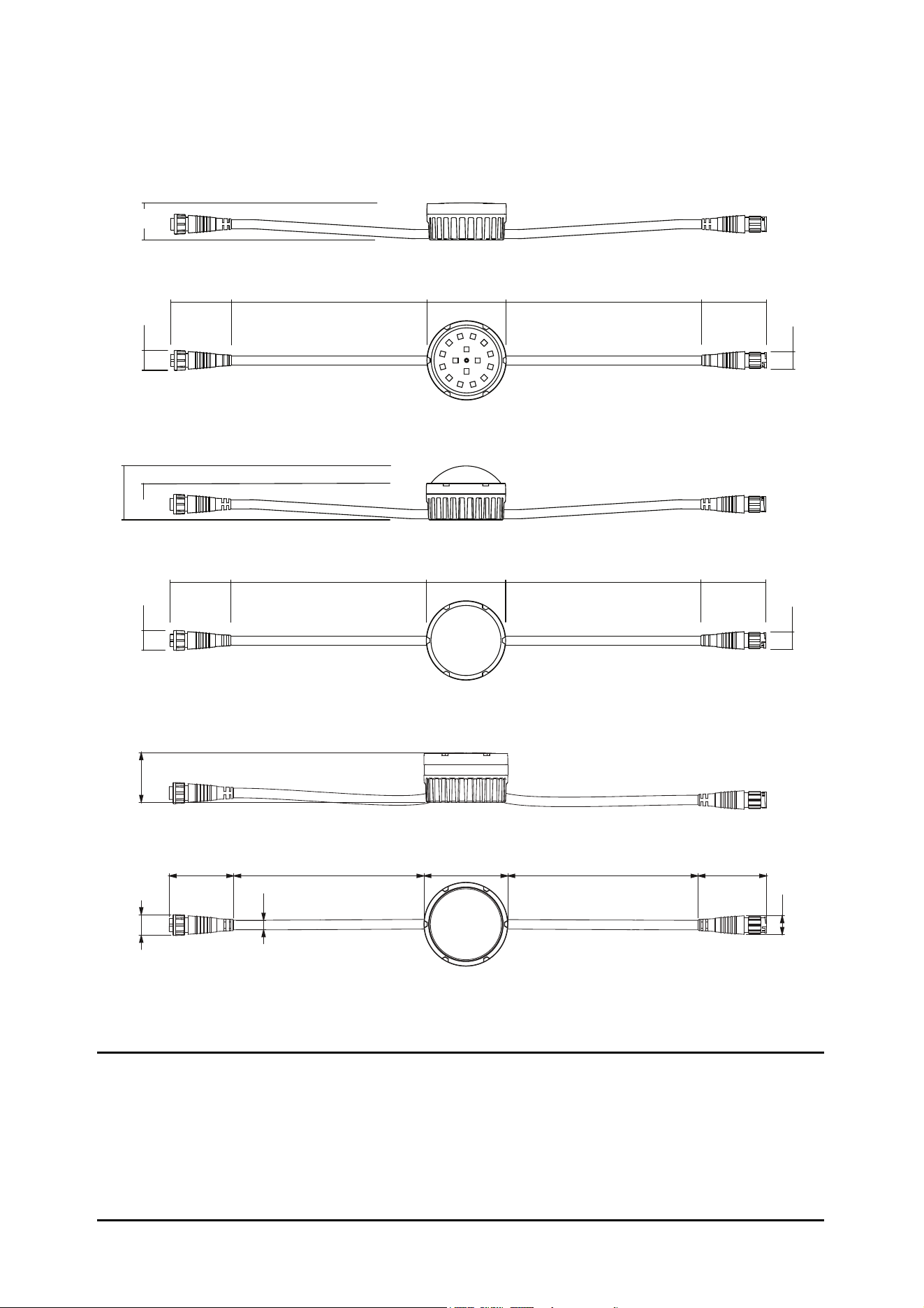
Dimensions
VDO Dotron, no diffuser / flat diffuser
All dimensions are in millimeters
VDO Dotron, diffuser dome front
33
49
55
Ø18
177 Ø72 177 55
Ø16
55
Ø18
177 Ø72 177 55
Ø16
Direct dot-to-dot connection allows up to 0.5 m (19.6 in.) pixel pitch
34
VDO Dotron, directional lens array front
55
Ø18
177 Ø72 177 55
Ø16
42
© 2015-2020 HARMAN PROFESSIONAL DENMARK ApS. All rights reserved. Features, specifications and appearance are subject
to change without notice. HARMAN PROFESSIONAL DENMARK ApS and all affiliated companies disclaim liability for any injury,
damage, direct or indirect loss, consequential or economic loss or any other loss occasioned by the use of, inability to use or reliance
on the information contained in this document. Martin is a registered trademark of HARMAN PROFESSIONAL DENMARK ApS
registered in the United States and/or other countries.
HARMAN PROFESSIONAL DENMARK ApS
, Olof Palmes Allé 44, 8200 Aarhus N, Denmark
HARMAN PROFESSIONAL SOLUTIONS U.S.
, 8500 Balboa Blvd., Northridge CA 91329, USA
www.martin.com
VDO Dotron User Manual, P/N 5080225 Rev. C
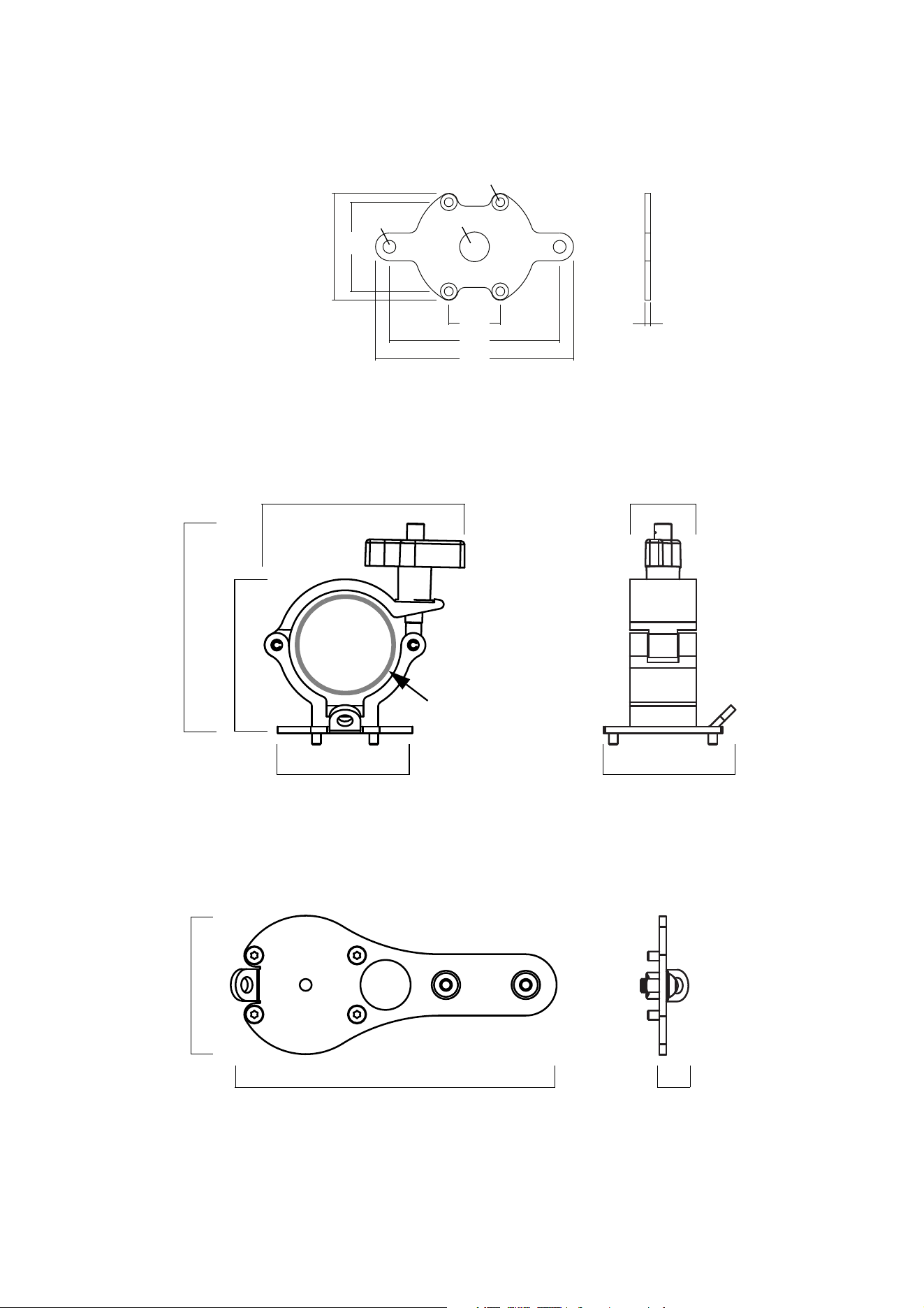
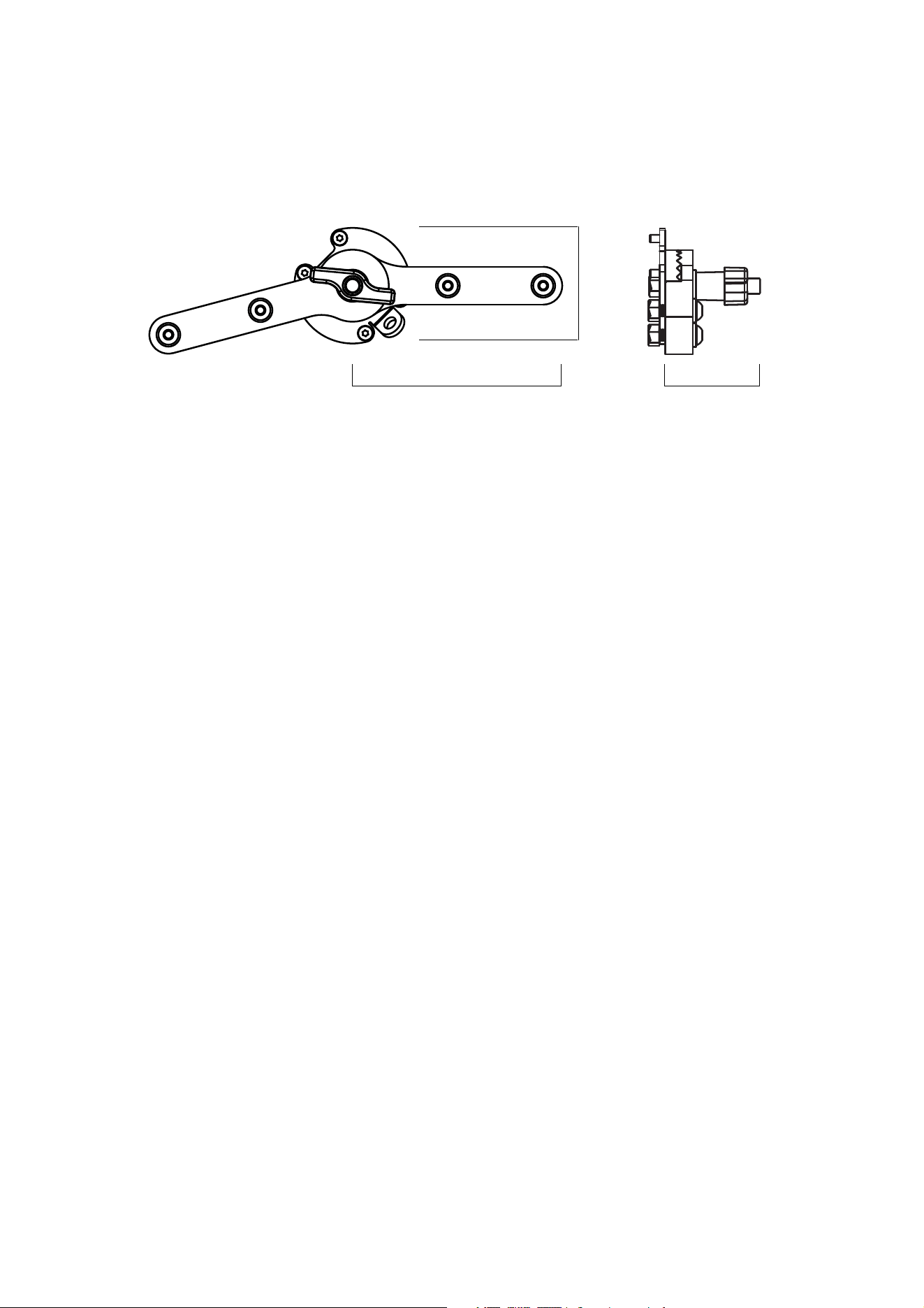
Dimensions
3
All dimensions are in millimeters
13
61
91
Tube external Ø 48-51
67
92
60
30
61
143
VDO Dotron to VDO Sceptron End Coupler
VDO Dotron Half-coupler Rigging Clamp
54 45
26
86
100
Ø6.5
Ø15
3
VDO Dotron Flange Bracket
Ø4.5
4
VDO Dotron User Manual
All dimensions are in millimeters
110
67
53
VDO Sceptron to VDO Dotron Pivot Coupler

Dimensions
5
Contents
Dimensions . . . . . . . . . . . . . . . . . . . . . . . . . . . . . . . . . . . . . . . . . . . . . . . . . . . . . . . . . . . . . . . . . . . . . . . . 2
Safety information . . . . . . . . . . . . . . . . . . . . . . . . . . . . . . . . . . . . . . . . . . . . . . . . . . . . . . . . . . . . . . . . . . 6
Introduction . . . . . . . . . . . . . . . . . . . . . . . . . . . . . . . . . . . . . . . . . . . . . . . . . . . . . . . . . . . . . . . . . . . . . . . . 9
Precautions to avoid damage . . . . . . . . . . . . . . . . . . . . . . . . . . . . . . . . . . . . . . . . . . . . . . . . . . . . . . . . 10
VDO Dotron overview . . . . . . . . . . . . . . . . . . . . . . . . . . . . . . . . . . . . . . . . . . . . . . . . . . . . . . . . . . . . . 11
Physical installation . . . . . . . . . . . . . . . . . . . . . . . . . . . . . . . . . . . . . . . . . . . . . . . . . . . . . . . . . . . . . . . 12
Avoiding damage . . . . . . . . . . . . . . . . . . . . . . . . . . . . . . . . . . . . . . . . . . . . . . . . . . . . . . . . . . . . . . . . . . 12
Mounting on a surface . . . . . . . . . . . . . . . . . . . . . . . . . . . . . . . . . . . . . . . . . . . . . . . . . . . . . . . . . . . . . . 13
Mounting on a rigging truss . . . . . . . . . . . . . . . . . . . . . . . . . . . . . . . . . . . . . . . . . . . . . . . . . . . . . . . . . . 14
Installing with other Martin creative video products . . . . . . . . . . . . . . . . . . . . . . . . . . . . . . . . . . . . . . . . 15
System installation . . . . . . . . . . . . . . . . . . . . . . . . . . . . . . . . . . . . . . . . . . . . . . . . . . . . . . . . . . . . . . . . 16
Installing a P3 system . . . . . . . . . . . . . . . . . . . . . . . . . . . . . . . . . . . . . . . . . . . . . . . . . . . . . . . . . . . . . . 16
Installing a DMX-controlled system . . . . . . . . . . . . . . . . . . . . . . . . . . . . . . . . . . . . . . . . . . . . . . . . . . . . 18
System setup . . . . . . . . . . . . . . . . . . . . . . . . . . . . . . . . . . . . . . . . . . . . . . . . . . . . . . . . . . . . . . . . . . . . . 25
Setting up for P3 display . . . . . . . . . . . . . . . . . . . . . . . . . . . . . . . . . . . . . . . . . . . . . . . . . . . . . . . . . . . . 25
Setting up for DMX control. . . . . . . . . . . . . . . . . . . . . . . . . . . . . . . . . . . . . . . . . . . . . . . . . . . . . . . . . . . 25
RDM . . . . . . . . . . . . . . . . . . . . . . . . . . . . . . . . . . . . . . . . . . . . . . . . . . . . . . . . . . . . . . . . . . . . . . . . . . . . . 26
Using the VDO Dotron. . . . . . . . . . . . . . . . . . . . . . . . . . . . . . . . . . . . . . . . . . . . . . . . . . . . . . . . . . . . . 27
Thermal regulation. . . . . . . . . . . . . . . . . . . . . . . . . . . . . . . . . . . . . . . . . . . . . . . . . . . . . . . . . . . . . . . . . 27
P3 display . . . . . . . . . . . . . . . . . . . . . . . . . . . . . . . . . . . . . . . . . . . . . . . . . . . . . . . . . . . . . . . . . . . . . . . 27
DMX control . . . . . . . . . . . . . . . . . . . . . . . . . . . . . . . . . . . . . . . . . . . . . . . . . . . . . . . . . . . . . . . . . . . . . . 27
Magnetic ‘control button’ . . . . . . . . . . . . . . . . . . . . . . . . . . . . . . . . . . . . . . . . . . . . . . . . . . . . . . . . . . . . 28
Service and maintenance. . . . . . . . . . . . . . . . . . . . . . . . . . . . . . . . . . . . . . . . . . . . . . . . . . . . . . . . . . 30
Installing optical accessories . . . . . . . . . . . . . . . . . . . . . . . . . . . . . . . . . . . . . . . . . . . . . . . . . . . . . . . . . 30
Cleaning. . . . . . . . . . . . . . . . . . . . . . . . . . . . . . . . . . . . . . . . . . . . . . . . . . . . . . . . . . . . . . . . . . . . . . . . . 30
LED performance. . . . . . . . . . . . . . . . . . . . . . . . . . . . . . . . . . . . . . . . . . . . . . . . . . . . . . . . . . . . . . . . . . 31
Installing new software . . . . . . . . . . . . . . . . . . . . . . . . . . . . . . . . . . . . . . . . . . . . . . . . . . . . . . . . . . . . . 31
Troubleshooting . . . . . . . . . . . . . . . . . . . . . . . . . . . . . . . . . . . . . . . . . . . . . . . . . . . . . . . . . . . . . . . . . . 32
DMX protocols . . . . . . . . . . . . . . . . . . . . . . . . . . . . . . . . . . . . . . . . . . . . . . . . . . . . . . . . . . . . . . . . . . . . 33
Direct DMX control. . . . . . . . . . . . . . . . . . . . . . . . . . . . . . . . . . . . . . . . . . . . . . . . . . . . . . . . . . . . . . . . . 33
Pre-programmed FX . . . . . . . . . . . . . . . . . . . . . . . . . . . . . . . . . . . . . . . . . . . . . . . . . . . . . . . . . . . . . . . 34
DMX via P3 System Controller . . . . . . . . . . . . . . . . . . . . . . . . . . . . . . . . . . . . . . . . . . . . . . . . . . . . . . . 36
Specifications . . . . . . . . . . . . . . . . . . . . . . . . . . . . . . . . . . . . . . . . . . . . . . . . . . . . . . . . . . . . . . . . . . . . . 38
6
VDO Dotron User Manual
Safety information
The following symbols are used to identify important safety information on the product and in this document:
Warning!
• Check the VDO Dotron Product Support / Tech Docs page on the Martin® website at
www.martin.com and make the sure that you have the latest user documentation for the product.
Martin user manual revisions are identified at the bottom of page 2.
• Read the latest revision of the user manual before installing, operating or servicing the Martin
VDO Dotron.
• Follow the safety precautions given in this user manual and in the manuals of all the devices you
connect to the product. Observe all warnings given in manuals and printed on devices. Make sure
that everyone who is involved in working on or using the product has read and understood these
safety precautions and warnings.
• Install, connect, operate and service devices only as described in this user manual and in
connected devices’ user documentation and only in accordance with local laws and regulations.
All Martin user documentation is supplied with devices and available for download from
www.martin.com.
• This product is not for household use. It presents risks of severe injury or death due to fire and
burn hazards, electric shock and falls. It must be installed by qualified technicians only.
• This product does not have user-serviceable parts. LEDs are not replaceable. Refer any operation
not described in this manual to Martin Global Service or a Martin authorized service agent.
If you have any questions about how to install, operate or service the fixture safely, please contact your
Martin distributor (see www.martin.com/distributors for details) or in the USA call 1-844-776-4899.
WARNING!
Read the safety precautions in this section before
installing, powering, operating or servicing this
product.
Warning!
Safety hazard.
Risk of severe
injury or
death.
Warning!
Hazardous
voltage. Risk
of severe or
lethal electric
shock.
Warning!
Fire hazard.
Warning!
Burn hazard.
Hot surface
with risk of
burns.
Warning!
Refer to user
manual.

Safety information
7
PROTECTION FROM ELECTRIC SHOCK
• Read and respect the directions given in the user documentation of all the devices that you intend to
connect to the VDO Dotron, particularly the instructions, warnings and limits that apply to:
- system layout,
- connections to other devices,
- specified cables,
- maximum cable lengths, and
- maximum number of devices that can be connected.
• Use only the cables specified in this manual and on the Martin website at www.martin.com to interconnect
devices in the installation. If the specified cables are not long enough for an intended cable run, consult
Martin for assistance in finding or creating a safe alternative solution.
• Provide a means of locking out AC mains power so that power to the installation can be shut down and
made impossible to reapply, even accidentally, during work on the installation.
• Shut down power to the installation during service and when it is not in use.
• Before applying power to the installation, check that all power distribution equipment and cables are in
perfect condition and rated for the current requirements of all connected devices.
• Isolate the installation from power immediately if any product, power cable or power plug is in any way
damaged, defective, or if it shows signs of overheating.
• Do not immerse the VDO Dotron in water. Do not allow water to collect around the VDO Dotron or
connectors.
• If you supply a chain of VDO Dotron dots with DC power from a generic 48 VDC external PSU and the
DC output used does not have constant overcurrent protection that limits current to 7.5 A, install an inline
fuseholder with a 7.5 A fuse on the circuit that you connect to that DC output.
• Do not allow the total number of dots in a linked chain of VDO Dotron dots to exceed the safe limits given
in the tables in the following section of this manual.
Safety limits for connecting devices
Do not exceed the maximum safety limits given below and in the following tables.
• The maximum permitted total length of a chain of VDO Dotron dots is 50 m (164 ft.). When you
calculate the total length of the chain, include the cable tails on dots (2 x 25 cm or 2 x 10 ins. per dot) plus
the lead-in cable (cable between the DC power source and the first VDO Dotron dot), plus all extension
cable added between dots.
• The maximum number of VDO Dotron dots that you can connect in one chain depends on the type of
device used as DC power source. Do not exceed the limits given in the following sections.
Martin P3 PowerPort 1500 safety limits
If you supply VDO Dotron dots with DC power from a Martin P3 PowerPort 1500:
• Do not connect more than one linked chain of VDO Dotron dots to one DC output on the P3
PowerPort 1500. Since the P3 PowerPort 1500 has four DC outputs, you can connect a maximum of four
chains of dots to one P3 PowerPort 1500.
• Do not connect more than 60 VDO Dotron dots maximum per DC output on the P3 PowerPort 1500.
Martin P3 PowerPort 1000 IP safety limits
If you supply VDO Dotron dots with DC power from a Martin P3 PowerPort 1000 IP:
• Do not connect more than one linked chain of VDO Dotron dots to one DC output on the P3
PowerPort 1000 IP. Since the P3 PowerPort 1000 IP has four DC outputs, you can connect a maximum of
four chains of dots to one P3 PowerPort 1000 IP.
• Do not connect more than 40 VDO Dotron dots maximum per DC output on the P3 PowerPort 1000.
Martin DMX PowerPort 375 safety limits
If you supply VDO Dotron dots with DC power from a Martin DMX PowerPort 375:
• Do not connect more than one linked chain of VDO Dotron dots to the DMX PowerPort 375’s hybrid DC
power and data output.
• Do not connect more than 60 VDO Dotron dots maximum to the DMX PowerPort 375’s hybrid DC power
and data output.
8
VDO Dotron User Manual
Martin IP66 PSU 240W safety limits
If you supply VDO Dotron dots with DC power from a Martin IP66 PSU 240W external power supply unit:
• Do not connect more than one linked chain of VDO Dotron dots to the DC power output of the Martin
IP66 PSU 240W.
• Do not connect more than 40 VDO Dotron dots maximum to the DC power output of the Martin IP66
PSU 240W.
Generic 48 VDC external PSU safety limits
If you supply a chain of VDO Dotron dots with DC power from a 48 VDC external PSU (power supply unit)
that is not manufactured by Martin, you must not exceed the maximum power rating of the output
from the PSU or 40 VDO Dotron dots, whichever limit you reach first. Follow these instructions:
• Allow a power consumption of 5 watts per dot. Calculate the total power consumption in watts of the dots
in each chain you plan to create. Do not create a chain that will exceed the maximum power rating of
the PSU output used to supply that chain with power. Each time the total power consumption in watts for
one chain reaches the PSU output’s maximum power rating, you must create a new chain of dots that is
connected to a new 48 VDC power output. For example, if the PSU output is rated 100 W, do not connect
more than 20 VDO Dotron dots to that output.
• Even if the maximum power rating of the PSU output is higher than 195 W, do not connect more than 40
VDO Dotron dots maximum per DC output of the 48 VDC external PSU.
• This means that, each time you reach (a) the maximum total length of 40 dots in one chain, or (b) 50 m
(164 ft.) total length of the chain, or (c) the PSU output’s maximum power rating – whichever you reach
first – you must create a new chain of dots that is connected to a new 48 VDC power output
PROTECTION FROM BURNS AND FIRE
• The VDO Dotron is cooled by convection. Provide free airflow and a minimum clearance of 10 mm (0.4
in.) around the product.
• Do not operate the VDO Dotron if the ambient temperature (Ta) exceeds 55° C (131° F).
• The surface of the product can become hot when in use. Take precautions to avoid accidental skin
contact.
• Do not modify the VDO Dotron in any way not described in this manual or install other than genuine
Martin parts. Use only accessories approved by Martin.
PROTECTION FROM INJURY
• Read carefully the chapter “Physical installation” on page 12 and respect the limits and instructions given
in that chapter.
• Ensure that the installation hardware and supporting surface or structure can hold at least 10 times the
weight of all the devices they support.
• Block access below the work area and work from a stable platform whenever installing, servicing or
moving the VDO Dotron.
• Make sure that all items are securely installed, taking into consideration all possible environmental
conditions including temperature variation and wind. Make sure that it is impossible for items to fall and
cause injury or damage.
• Use grade 8.8 (or equivalent strength) fasteners that are suitable for their purpose and for the installation
environment.
• Fasten VDO Dotron products to the supporting surface or structure with a minimum of two fasteners
(screws, bolts, etc.) per product.
• Either use self-locking nuts or use lock washers with standard nuts on all machine screws and bolts.

Introduction
9
Introduction
Thank you for selecting a product from the Martin® VDO Dotron™ family. These compact LED-based
display dots are designed to integrate into a Martin P3 video system, where they can display video from a
variety of sources. Each dot forms one pixel in the video display. As well as video, the VDO Dotron can be
controlled using a DMX lighting controller. Use of an RDM-compliant DMX controller also allows two-way
communication and remote management of VDO Dotron dots from the controller if you are not using a P3
system controller to set up and manage dots.
The VDO Dotron has an array of LEDs in a circular cast aluminum housing with a front cover that screws
onto the unit to give a rugged IP65-rated dot.
Dots are supplied with a Diffuser Dome mounted, but the domes can be removed and replaced by any of the
other optical accessories that can be ordered from Martin: Flat, Flat Smoked, Dome, Dome smoked and
Lens Array Narrow Fronts (see “Accessories” on page 39). For instructions for installing optical accessories,
see “Service and maintenance” on page 30.
A hybrid (combined power and data) cabling system allows VDO Dotron dots to be daisy-chained for easy
setup and minimal cabling.
The VDO Dotron system offers the following features:
• IP65-rated dots and connectors
• Fast, flexible mounting options
• Range of optical accessories that can be installed in seconds without tools
• Built-in FX with individual pixel control
• High-quality 16-bit per color image processing technology
• Pixel-level brightness and color calibration for optimal image quality
• P3 and DMX control with automatic protocol detection (Art-Net & sACN via P3 System Controller)
• Intuitive pixel mapping and addressing using a controller from the Martin P3 system controller range
• Single hybrid cable carrying both power and data
• External power and data processor from the Martin P3 PowerPort range and simple cabling system
• Black anodized finish
For detailed dimensions drawings in various file formats of all the products in the VDO Dotron family, please
see the VDO Dotron Tech Docs / Product Support pages on the Martin website at www.martin.com
Martin user documentation is supplied with products and available for download from www.martin.com,
where you can also find the latest specifications, firmware updates and support information for all Martin
products. Before you install or use the VDO Dotron, please check www.martin.com and make sure that you
have the latest user documentation for this product. Martin user documentation revisions are identified at
the bottom of page 2.

10
VDO Dotron User Manual
Precautions to avoid damage
Important! To obtain the best performance from the VDO Dotron and avoid causing damage that is not
covered by the product warranty, make sure that everyone who is involved in installing, working on or using
the VDO Dotron has read and understood the following information.
Cleaning
Excessive dirt buildup causes overheating and may lead to damage that is not covered by the product
warranty. Clean the product at regular intervals (see “Installing optical accessories” on page 30).
Operating temperature precautions
• Exposing the VDO Dotron to direct sunlight, or operating it in an ambient temperature that exceeds the
specified maximum of 55° C (131° F) that applies while showing average video content, may reduce the
lifetime of the product.
• When using a Martin P3 System Controller, a Thermal Throttling feature is available. This feature
gradually dims all the dots in the installation if one or more dots approaches maximum operating
temperature. If you do not activate Thermal Throttling, the VDO Dotron’s internal thermal protection will
shut down the dot if the dot exceeds maximum operating temperature. The dot will light again when its
temperature has fallen to a safe level. To avoid blackouts due to thermal shutdowns, we therefore
recommend that you activate Thermal Throttling.
• When using DMX control, VDO Dotron dots automatically begin to reduce their light output when the
ambient temperature reaches 45° C in order to control their internal temperature. Output is reduced
gradually as the ambient temperature rises above 45° C. Dots will still light at the maximum ambient
temperature of 55° C, but output will be considerably reduced. This feature avoids blackouts due to
protective thermal shutdowns.
Sealing unused connectors with blanking caps
Blanking caps for female BBD connectors can be ordered separately in sets of 10 (see “Connectors” on
page 40). Install blanking caps on all unused female BBD connectors to seal them against water and dirt,
otherwise short-circuits and damage may occur.
VDO Dotron overview
11
VDO Dotron overview
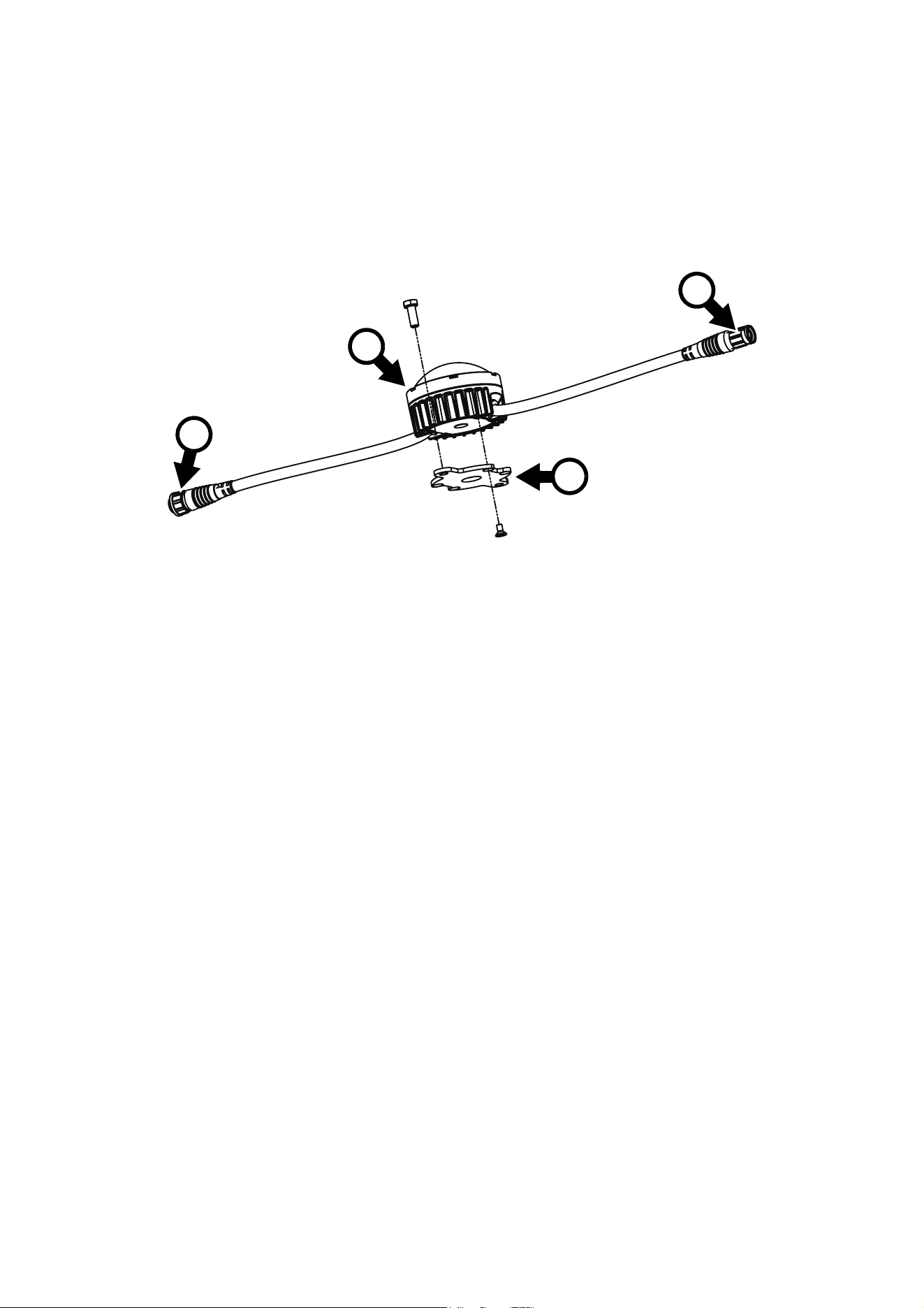
A
B
C
D
Figure 1: Overview
A - DC power + data male BBD-type input
connector
B - DC power + data female BBD-type output
(thru) connector
C - Dot
D - Flange Bracket (optional accessory)

12
VDO Dotron User Manual
Physical installation
Warning! Read “Safety information” on page 6 before installing the VDO Dotron and read all of this
‘Physical installation’ chapter before starting work.
You can install VDO Dotron dots on a surface or structure using one of four methods:
• You can mount dots on VDO Dotron Flange Brackets and then fasten the Flange Brackets to the surface
or structure.
• You can mount dots on VDO Dotron Half-Coupler Rigging Clamps and then fasten them to a rigging truss.
• You can mount dots on VDO Sceptron/Fatron End Couplers and fasten them to the end of VDO Sceptron
or VDO Fatron creative video dots from Martin.
• You can mount dots on VDO Sceptron/Fatron Pivot Couplers and fasten them between the ends of VDO
Sceptron or VDO Fatron creative video fixtures from Martin. The pivot couplers let you quickly lock the
VDO Sceptron or VDO Fatron fixtures at an angle.
The VDO Dotron can be installed in any orientation.
Allow free airflow around dots and at least 10 mm (0.4 in.) of clearance around the front surface.
The VDO Dotron is designed to withstand water projections such as rainfall and low-pressure water jets and
can be installed outdoors, but do not submerge it and do not install it in a location where water can build up
around the dot or under the base of the dot. If necessary, provide drainage at the installation location.
Avoiding damage
Avoid causing damage that is not covered by the product warranty by following these instructions carefully.
Keeping connections dry
Moisture on connectors can cause short circuits and damage to products. Check that all connectors are
perfectly dry before you connect them. Do not install the VDO Dotron during wet weather conditions or if
condensation is visible on any surfaces.
Avoiding shocks and stress
Do not expose the VDO Dotron to physical shocks (by dropping onto a hard surface, for example).
Do not apply pressure to or otherwise stress diffusers or lenses.
Do not stress cables (by bending them sharply, for example). Protect cables from sharp edges.
Physical installation
13
Mounting on a surface
Mounting on a surface using Flange Brackets
The Flange Bracket available from Martin as an optional accessory for the VDO Dotron (see “Accessories”
on page 39) is a mounting plate that is recommended for installing dots on a flat surface.
All fasteners must be suitable for the application and environment. Steel fasteners must be grade 8.8
strength minimum. Stainless steel fasteners must be grade 304 (A2) or better. In marine environments,
stainless steel fasteners must be grade 316 (A4) or better.
To install an VDO Dotron using a Flange Bracket:
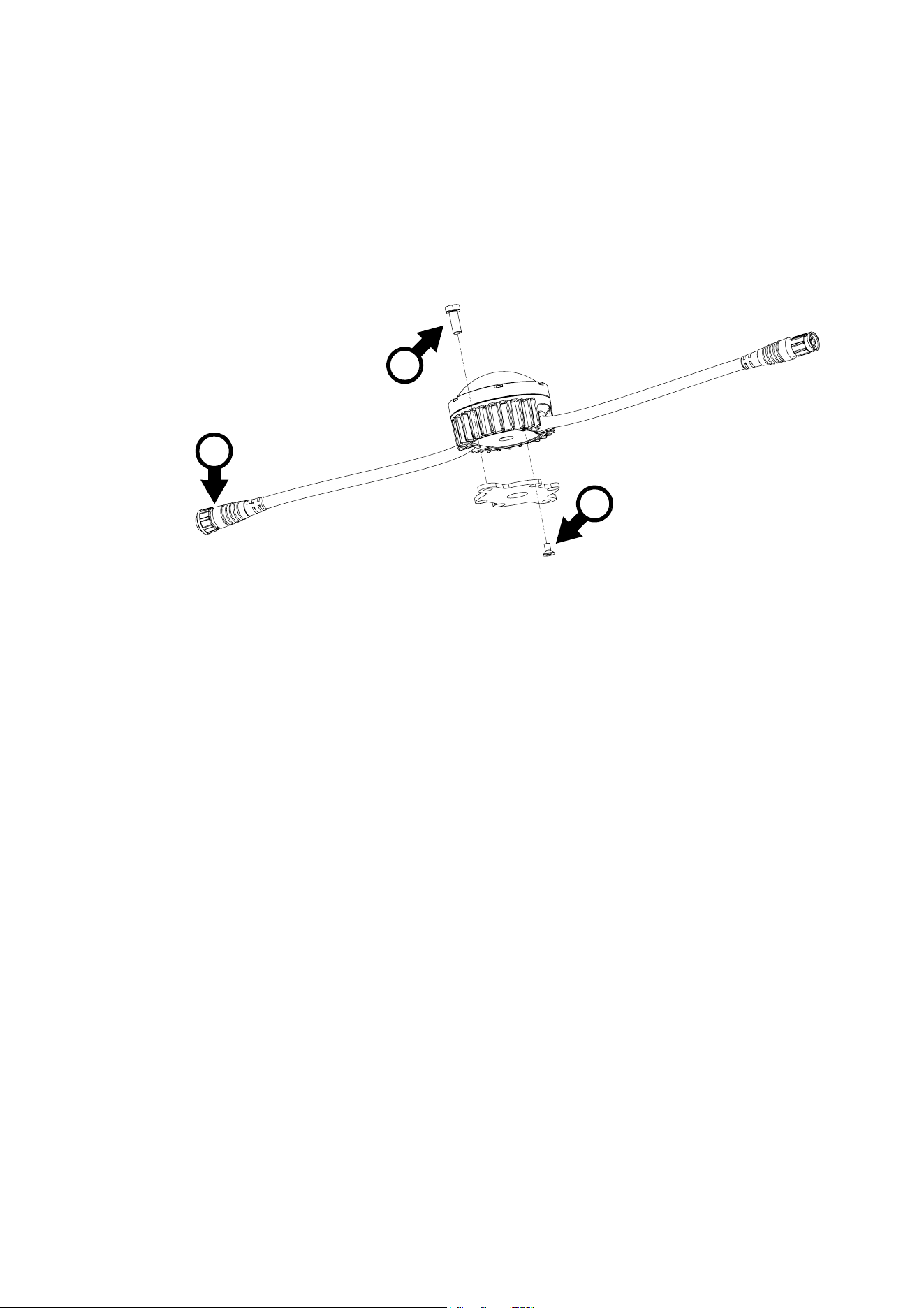
1. See Figure 2. Fasten the Flange Bracket to the base of the dot using the supplied M4 x 8 mm
countersunk Torx screws A supplied with the Flange Bracket. Use a torque driver to tighten the screws
to a torque of 2.5 Nm.
2. For each dot, obtain two grade 8.8 (or equivalent strength) M6 (or quarter-inch) fasteners (screws,
screwbolts, etc.) B and screw plugs. You can use M6 machine screws and self-locking nuts if you have
access to the back of the installation surface. Check that fasteners are suitable for the application and
have appropriate corrosion resistance.
3. With reference to the dimensions drawings at the beginning of this manual, prepare two holes with
centers 86 mm (3.4 in.) apart in the installation surface to accept two fasteners B passed through the
holes in the Flange Bracket. Use screw plugs if necessary to ensure a secure installation.
4. Fasten the VDO Dotron and Flange Bracket assembly securely to the surface using two fasteners B per
Flange Bracket.
5. Connect the dot’s input connector C to the output connector of the previous device on the link, either
directly or via a patch cable. Make sure that all connectors are correctly fastened together with locking
rings twisted to ensure a seal.
6. Check that the dot is held securely before you leave it.
Figure 2: Installing using a Flange Bracket
B
A
C
14
VDO Dotron User Manual
Installing directly on a surface
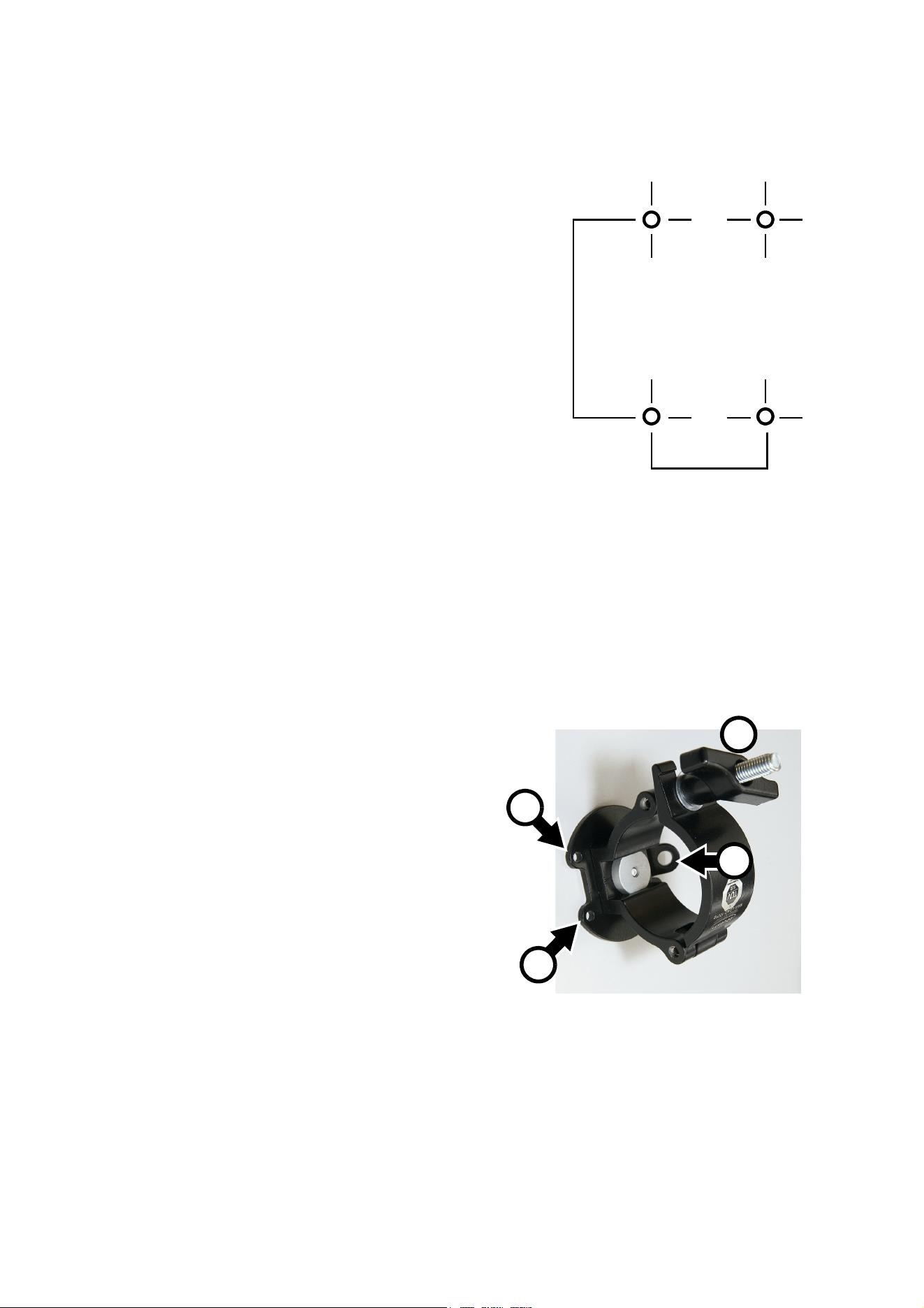
It is also possible to install the VDO Dotron directly on a flat surface if you have access to the back of the
surface.
To install an VDO Dotron on a surface:
1. See Figure 3 (dimensions are in millimeters).
Pre-drill the surface with four holes to accept
mounting screws.
2. Obtain four grade 8.8 (or equivalent strength) M4 x
8 mm machine screws or bolts for fastening into the
back of the dot.
3. Apply a small amount of Loctite to the threads of the
screws or bolts, then pass them through the surface
and fasten them into the back of the dot. Use a
torque driver to tighten to a torque of 2.5 Nm.
4. Connect the dot’s input connector to the output
connector of the previous device on the link, either
directly or via a patch cable. Make sure that all
connectors are correctly fastened together with
locking rings twisted to ensure a seal.
5. Check that the dot is held securely before you leave
it.
Mounting on a rigging truss
You can mount VDO Dotron dots on a rigging truss or similar bar with a diameter of 48 - 51 mm using the
VDO Dotron Half-coupler Rigging Clamp available from Martin (see “Accessories” on page 39).
To mount a VDO Dotron on a rigging truss:
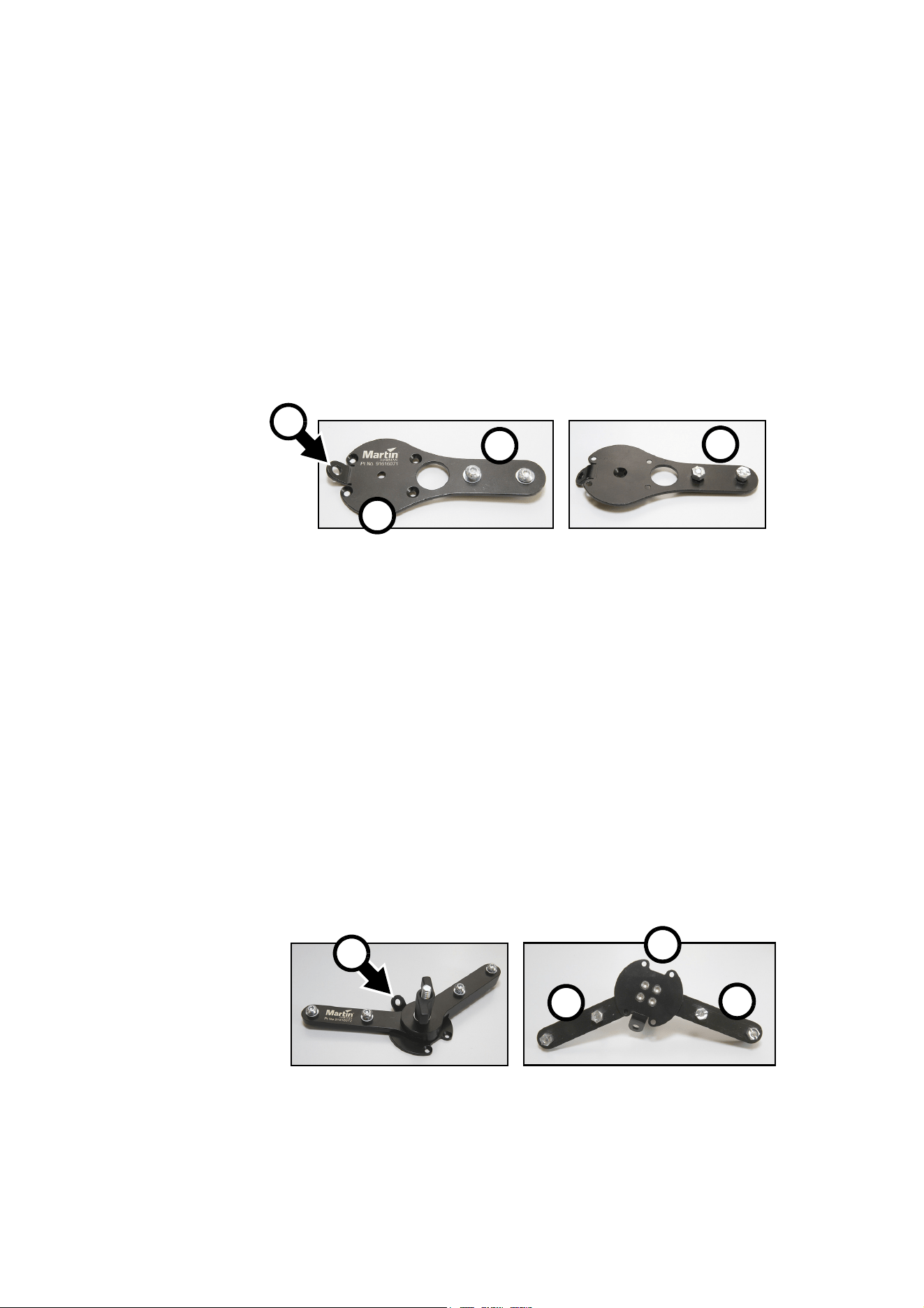
1. See Figure 5. Pass four grade 8.8 (or
equivalent strength) non-countersunk M4 x 8
mm machine screws or bolts through the four
holes A in a Dotron Half-Coupler Clamp and
fasten the screws or bolts into the back of the
dot. Use a torque driver to tighten to a torque
of 2.5 Nm.
2. Loosen handle B, open the clamp and pass it
around the chord of a rigging truss. Close the
clamp and fasten handle B. Make sure that
handle B is tight, but do not use tools: fasten
by hand only.
3. Attach a safety cable or similar secondary
attachment to attachment point C and to a
secure anchoring point so that the safety cable
will catch the VDO Dotron if the primary
attachments fail.
4. Connect the dot’s input connector to the output
connector of the previous device on the link,
either directly or via a patch cable. Make sure
that all connectors are correctly fastened
together with locking rings twisted to ensure a
seal.
5. Check that the dot is held securely before you leave it.
45
26
Figure 3: Dimensions for pre-drilling
holes
Ø 4.5
Figure 4: VDO Dotron Half-coupler Clamp
VDO Dotron Half-coupler Rigging
A
B
A
C
Clamp, P/N 91611802
Physical installation
15
Installing with other Martin creative video products
VDO Dotron dots can be fastened to other Martin creative video products using coupler brackets available
from Martin (see “Accessories” on page 39).
Fastening to the end of a VDO Sceptron or VDO Fatron
To fasten a VDO Dotron to the end of a VDO Sceptron or VDO Fatron fixture:
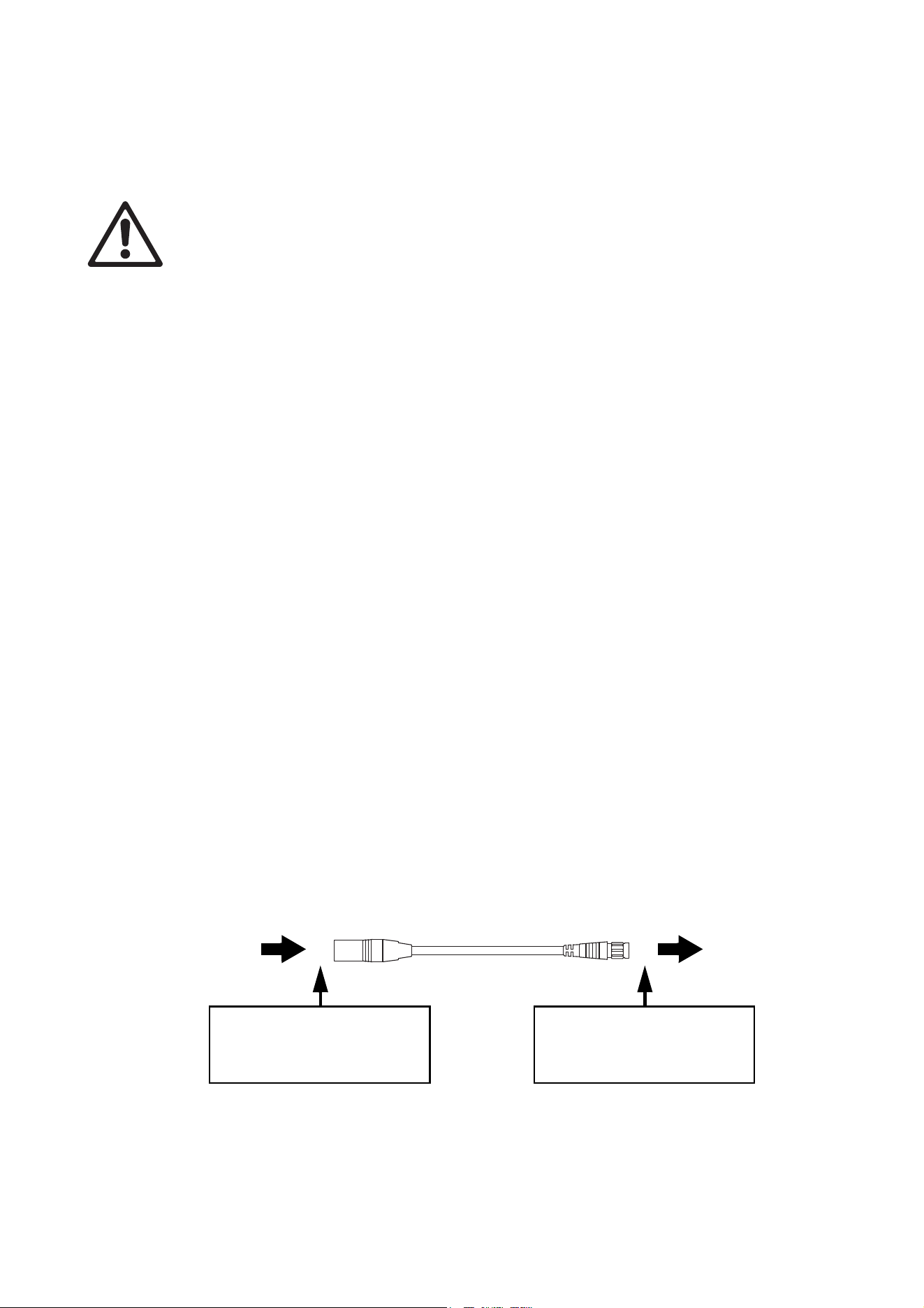
1. See Figure 5. Pass four grade 8.8 (or equivalent strength) M4 x 8 mm countersunk screws through the
four holes A in a Dotron to Sceptron End Coupler and fasten them into the back of the Dotron dot. Use a
torque driver to tighten to 2.5 Nm.
2. Slide the two nuts B into the channel in the back of a Martin Sceptron or Fatron fixture and tighten the
two Allen bolts C into the nuts B to fasten the coupler to the fixture.
3. Attach a safety cable or similar secondary attachment to attachment point D and to a secure anchoring
point so that the safety cable will catch the VDO Dotron dot if the primary attachments fail.
4. Connect the dot’s input connector to the output connector of the previous device on the link, either
directly or inserting a relay cable. Make sure that all connectors are correctly fastened together with
locking rings twisted to ensure a seal.
5. Check that the dot is held securely before you leave it.
Fastening between two VDO Sceptron or VDO Fatron fixtures
To fasten a VDO Dotron between the ends of two VDO Sceptron or VDO Fatron fixtures:
1. See Figure 6. Pass four grade 8.8 (or equivalent strength) M4 x 8 mm countersunk screws through the
four holes A in a Dotron-to-Sceptron Pivot Coupler and fasten them into the back of the Dotron dot. Use
a torque driver to tighten to 2.5 Nm.
2. Slide the nuts B into the channel in the back of a Martin Sceptron or Fatron fixture and tighten the two
Allen bolts C into the nuts B to fasten the coupler to the fixture.
3. Attach a safety cable or similar secondary attachment to attachment point C and to a secure anchoring
point so that the safety cable will catch the VDO Dotron dot if the primary attachments fail.
4. Connect the dot’s input connector to the output connector of the previous device on the link, either
directly or inserting a relay cable. Make sure that all connectors are correctly fastened together with
locking rings twisted to ensure a seal.
5. Check that the dot is held securely before you leave it.
Figure 5: VDO Dotron to Sceptron End Coupler
VDO Dotron to Sceptron End Coupler, P/N 91616071
D
A
B
C
Figure 6: VDO Dotron to Sceptron Pivot Coupler
VDO Dotron to Sceptron Pivot Coupler, P/N 91611793
C
A
B
B
16
VDO Dotron User Manual
System installation
Warning! Read “Safety information” on page 6 and “Precautions to avoid damage” on page 10
carefully before installing an VDO Dotron system.
Warning! Connect the VDO Dotron only to the devices and using only the Martin cables specified in
this manual.
Warning! Do not exceed the maximum numbers of devices that can be connected in chains and
maximum cable lengths specified in ”Protection from electric shock” starting on page 7 and in the
manuals of the other devices in the system.
Important! If using DMX, make sure that the DMX console and DC power source are at the same
earth (ground) potential, or the data signal may become saturated.
The VDO Dotron is designed to display either Martin P3 video or DMX-controlled lighting effects. It
automatically recognizes and responds to either a Martin P3 or a DMX data signal. The next sections
explain how to create an VDO Dotron installation to display P3 video data or DMX-controlled lighting effects.
Even when VDO Dotron dots are used in a P3-driven setup, you can still control them using DMX or Art-Net
fed into the P3 System Controller. See ”DMX via P3 System Controller” starting on page 36 for details.
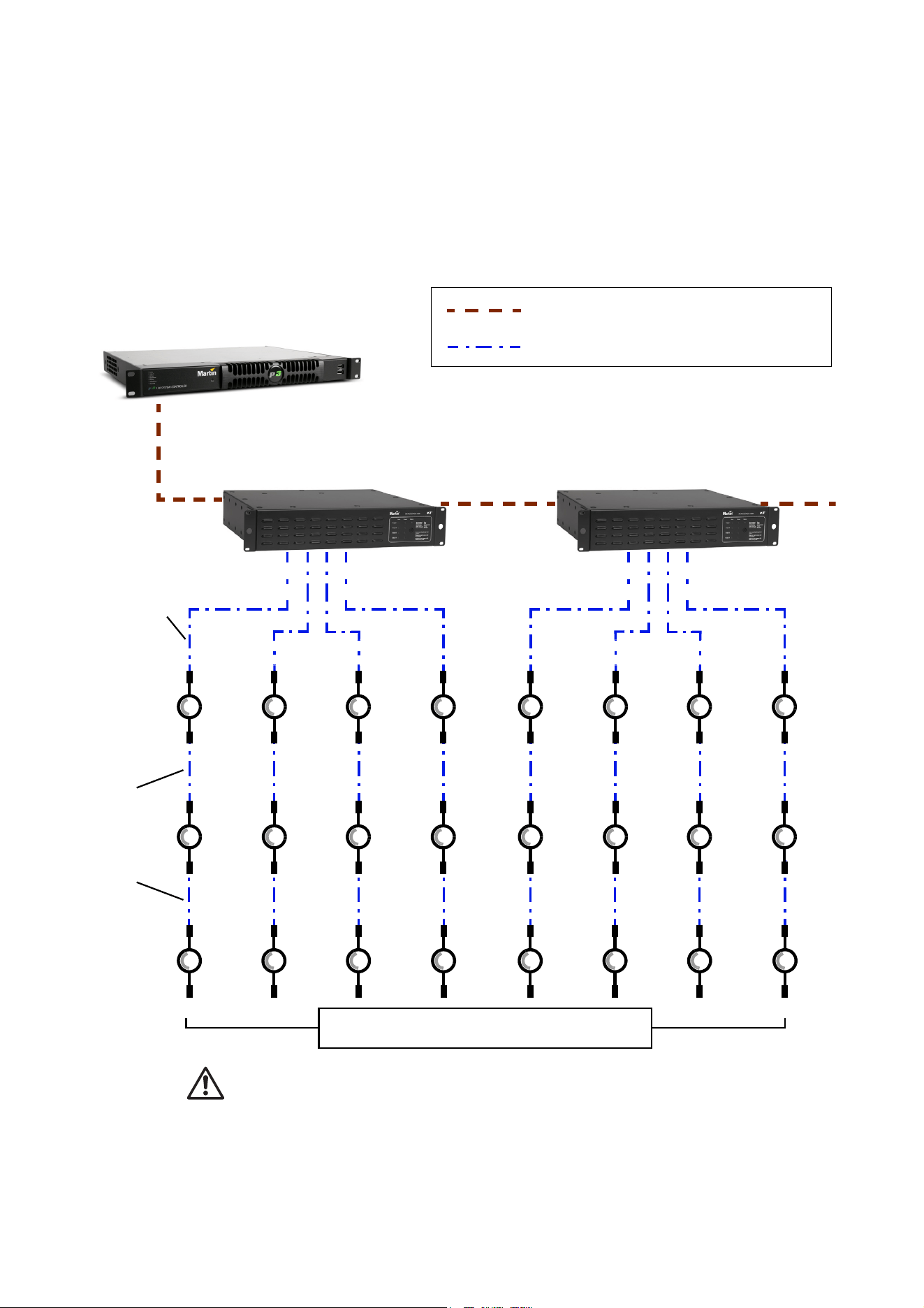
Installing a P3 system
See Figure 8 for an overview of the elements and layout of a Martin P3 video display system.
To install a system that displays P3 video on VDO Dotron dots, see the overview in Figure 8 and follow
these directions:
1. Make sure that no devices in the installation can be connected to AC mains power until all installation
work is complete.
2. Read “Safety information” on page 6 and “Precautions to avoid damage” on page 10.
3. Connect VDO Dotron dots together in chains either directly using the dots’ cable tails and BBD
connectors or by adding Martin hybrid cables with BBD connectors (see “Cables” on page 40).
Warning! Do not exceed the maximum number of dots per chain given in “Safety limits for connecting
devices” on page 7.
4. Install a blanking cap (see “Connectors” on page 40) on the output connector of the last dot on each
chain to protect from water, dirt etc.
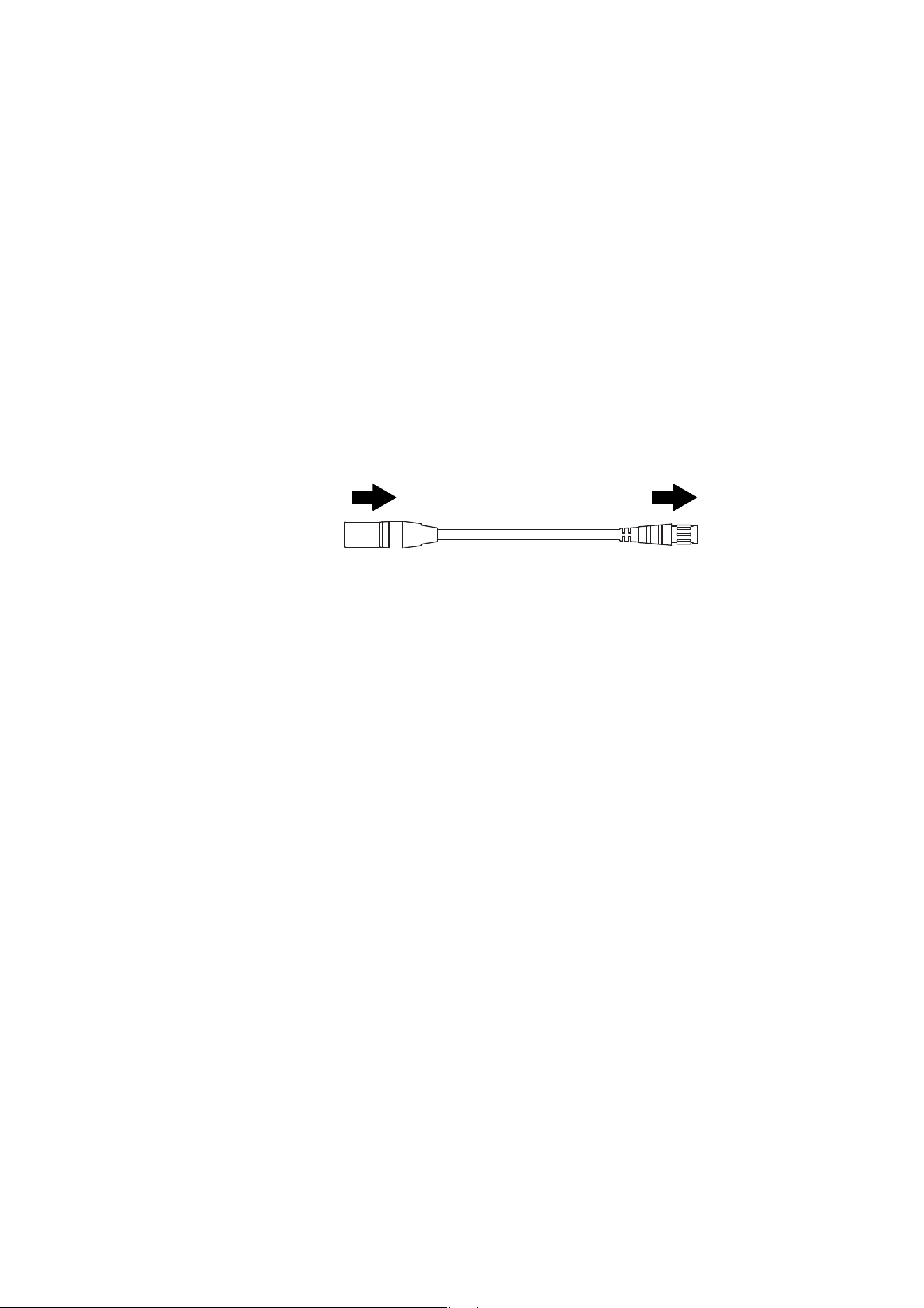
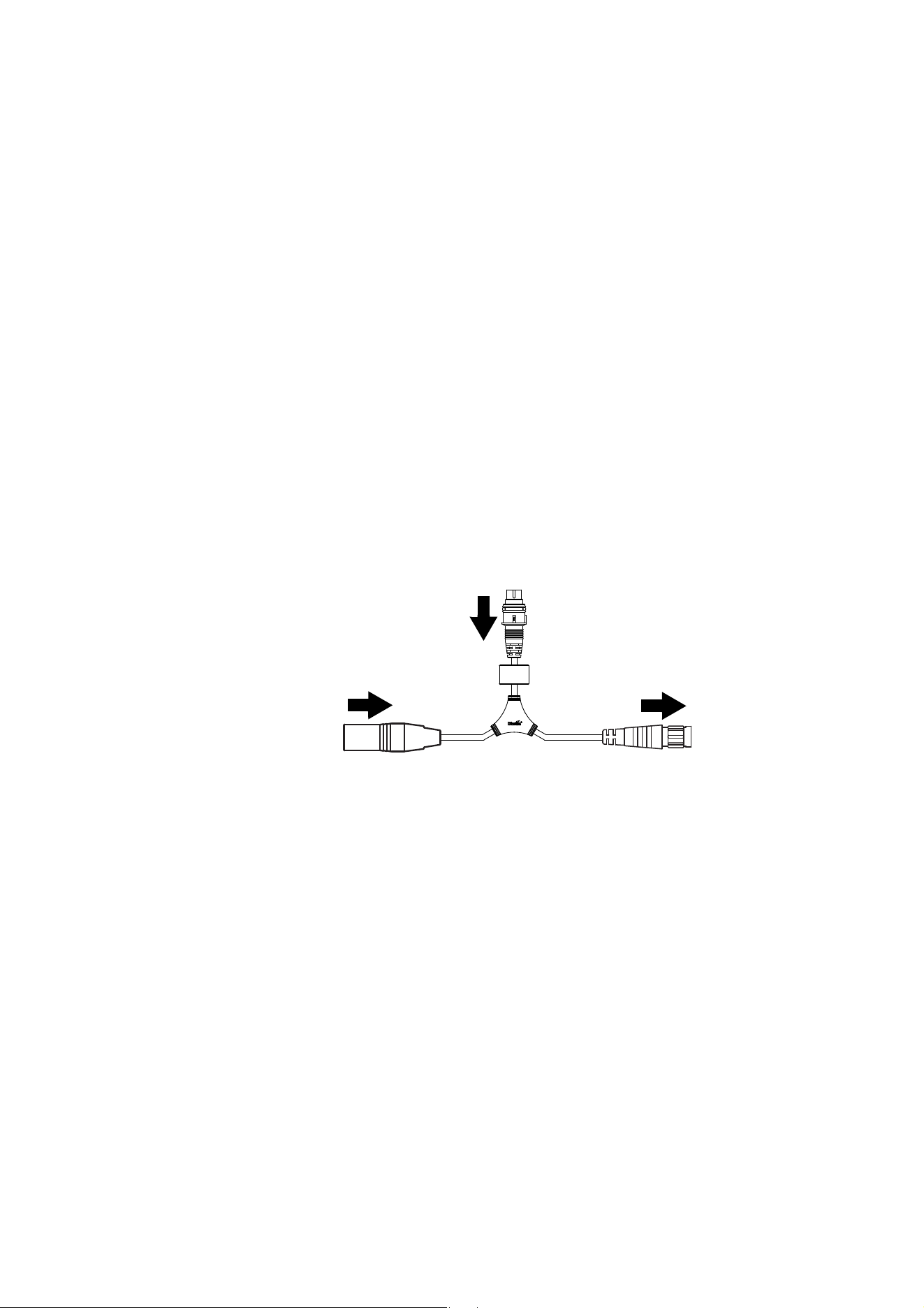
5. Connect each chain of VDO Dotron dots to one of the four 4-pin female XLR hybrid (48 VDC power + P3
data) outputs on a P3 PowerPort 1500 using a Martin hybrid 4-pin male XLR to BBD adapter cable, P/N
91616046 (see Figure 7). Alternatively, connect each chain of VDO Dotron dots to one of the 4 outputs
on a P3 PowerPort 1000 IP.
6. If necessary, add a BBD-to-BBD extension cable between the first dot and the P3 PowerPort. Suitable
extension cables are available from Martin in various lengths. See “Cables” on page 40.
7. Create a P3 video data link from a Martin P3 system controller such as the P3-50, P3-150, P3-300 or
P3-PC to the P3 PowerPort 1500 or P3 PowerPort 1000 IP (see the products’ user manuals for details).
Figure 7: Power and P3 video data input
4-pin male XLR Female BBD
4-pin XLR-to-BBD Input Cable, P/N 91616046
DC power and
data from P3
PowerPort 1500
DC power and
data to VDO
Dotron chain
Insert 4-pin XLR hybrid
extension cable here if
required
Insert 4-pin XLR hybrid
extension cable here if
necessary
Insert BBD-to-BBD hybrid
extension cable here if
necessary
System installation
17
8. It is possible to connect P3 PowerPort devices in daisy-chains in a P3 network, but if you are using
multiple P3 PowerPorts in a fixed installation we recommend that you distribute the P3 signal by
connecting an unmanaged Gigabit Ethernet switch to the P3 System Controller and then connecting
each P3 PowerPort directly to the switch. This eliminates the risk of one P3 PowerPort signal failing and
causing loss of signal to the P3 PowerPorts daisy-chained behind it.
9. Connect the P3 PowerPort to AC mains power at 100 - 240 V, 50/60 Hz as described in its user manual.
10. Connect the P3 system controller to AC mains power and power the controller on.
You can now configure the system at the P3 controller. See”System setup” on page 25.
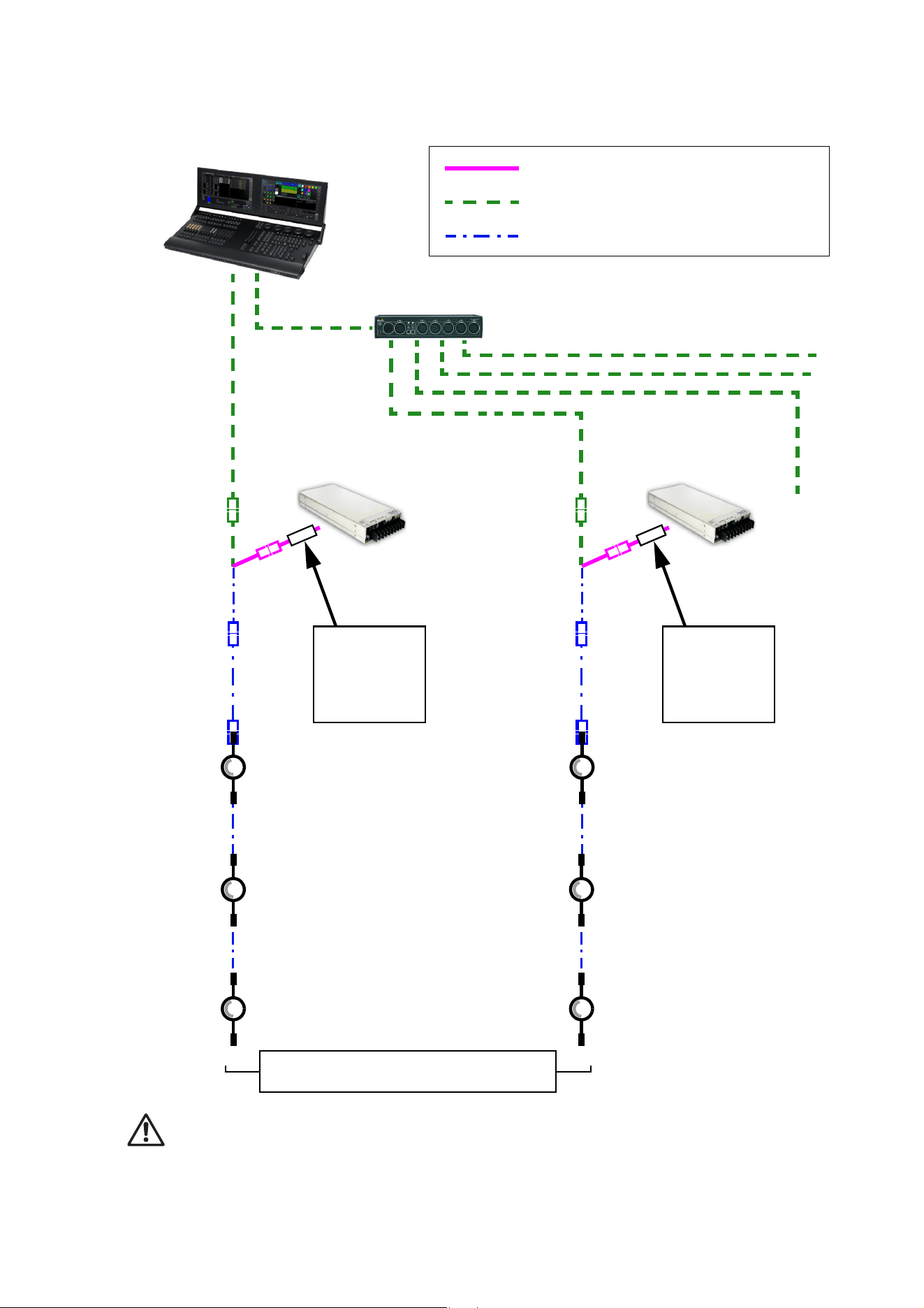
Max. 4 chains per
P3 PowerPort
P3 System Controller
P3 PowerPort P3 PowerPort
P3 video data link (Ethernet cable)
Hybrid (DC power and data) link
Figure 8: P3 system layout
4-pi
n X
LR
-to-B
B
D
input c
ab
le
BBD-to-BBD extension
cables (if needed)
See “Safety limits for connecting devices” on page 7 before creating a chain
Install blanking caps on all unused
female connectors at end of chains

18
VDO Dotron User Manual
Installing a DMX-controlled system
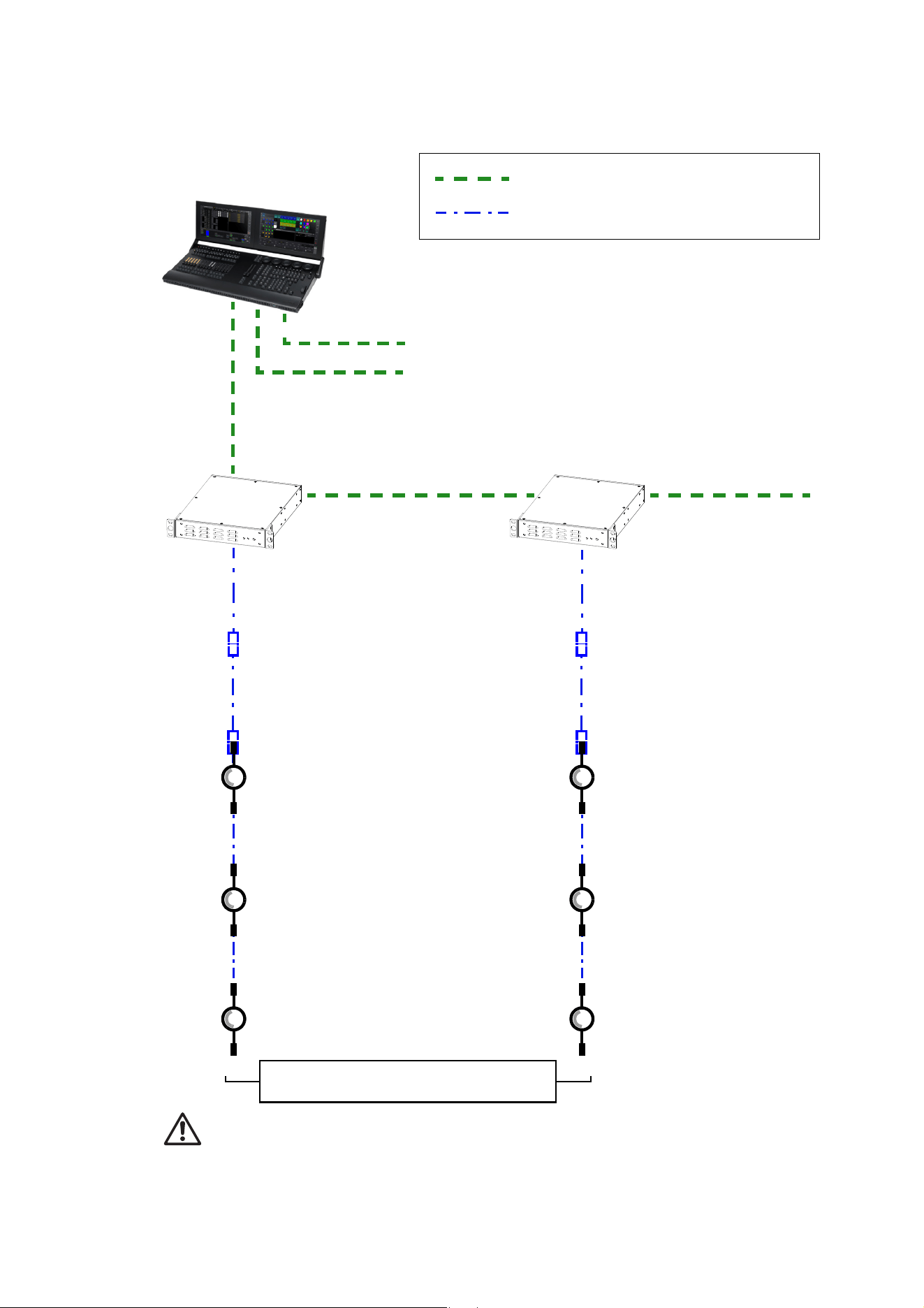
You can send DMX control data to VDO Dotron dots in two ways:
• You can send a DMX or Art-Net signal to a P3 System Controller. The controller will then relay the DMX
data to the VDO Dotron dots. If you intend to do this, see “Installing a P3 system” on page 16 for cabling
instructions and see “DMX via P3 System Controller” on page 36 for the available DMX modes.
• You can send a DMX control signal directly to VDO Dotron dots. If you intend to do this, follow the cabling
instructions in the section below and see “Direct DMX control” on page 33 for the available DMX modes.
In a DMX-controlled system, an RDM-compliant DMX lighting controller sends a DMX control data signal
over a DMX link to the installation, and then over the hybrid link to the VDO Dotron dots.
The DMX link requires DMX cable. It can be maximum 300 m (1000 ft.) in length and must run in one single
daisy-chain, but it can be extended or split into branches using an RDM-compliant amplifier/splitter such as
the Martin RDM 5.5 Splitter (P/N 90758150). Alternatively, you can run the DMX signal from the controller
over Ethernet cable using Art-Net protocol and convert it to a DMX-compliant signal with an Art-Net to DMX
converter.
If you would like assistance with creating a DMX link, your Martin supplier will be glad to advise.
The number of VDO Dotron dots that you can control on one DMX link is limited by the number of DMX
channels the dots will use and the 512 DMX channels available in one DMX universe at the DMX controller.
Each time you have used 512 channels, you must create a new DMX link that is connected to a new DMX
universe on the controller. Note that this limit applies to the DMX link. The maximum safety limits that apply
to the chain of dots and cable (see “Safety limits for connecting devices” on page 7) take priority and must
be respected in all cases.
If you need to take the DMX signal from the end of a chain of VDO Dotron dots, connect a DMX Lead-out
Cable (see “Cables” on page 40) to the output connector of the last dot on the chain. The Lead-Out Cable
has a 5-pin female XLR connector with standard DMX pinout (pin 1 = shield, pin 2 = data cold/negative, pin
3 = data hot/positive, pins 4 and 5 are not used) that lets you draw off the DMX signal.
DC Power options in DMX installations
You can use any of the following power supply units to provide DC power in a DMX-controlled VDO Dotron
installation:
• Martin DMX PowerPort 375
• Martin P3 PowerPort 1500
• Martin IP66 PSU 240W external power supply unit
• generic external PSU (the Mean Well SP-480 48, for example).
The hardware and cables required are slightly different depending on which type of PSU you use to supply
the installation with DC power. The three different types of installation are covered in the next three sections:
• If you are using a Martin DMX PowerPort 375, see “Installing a DMX system using the Martin DMX
PowerPort 375” on page 19.
• If you are using a Martin IP66 PSU 240W, see ”Installing a DMX system using the Martin IP66 PSU
240W” on page 21.
• If you are using a generic 48 VDC PSU, see ”Installing a DMX system using a generic external 48 VDC
PSU” on page 23.
System installation
19
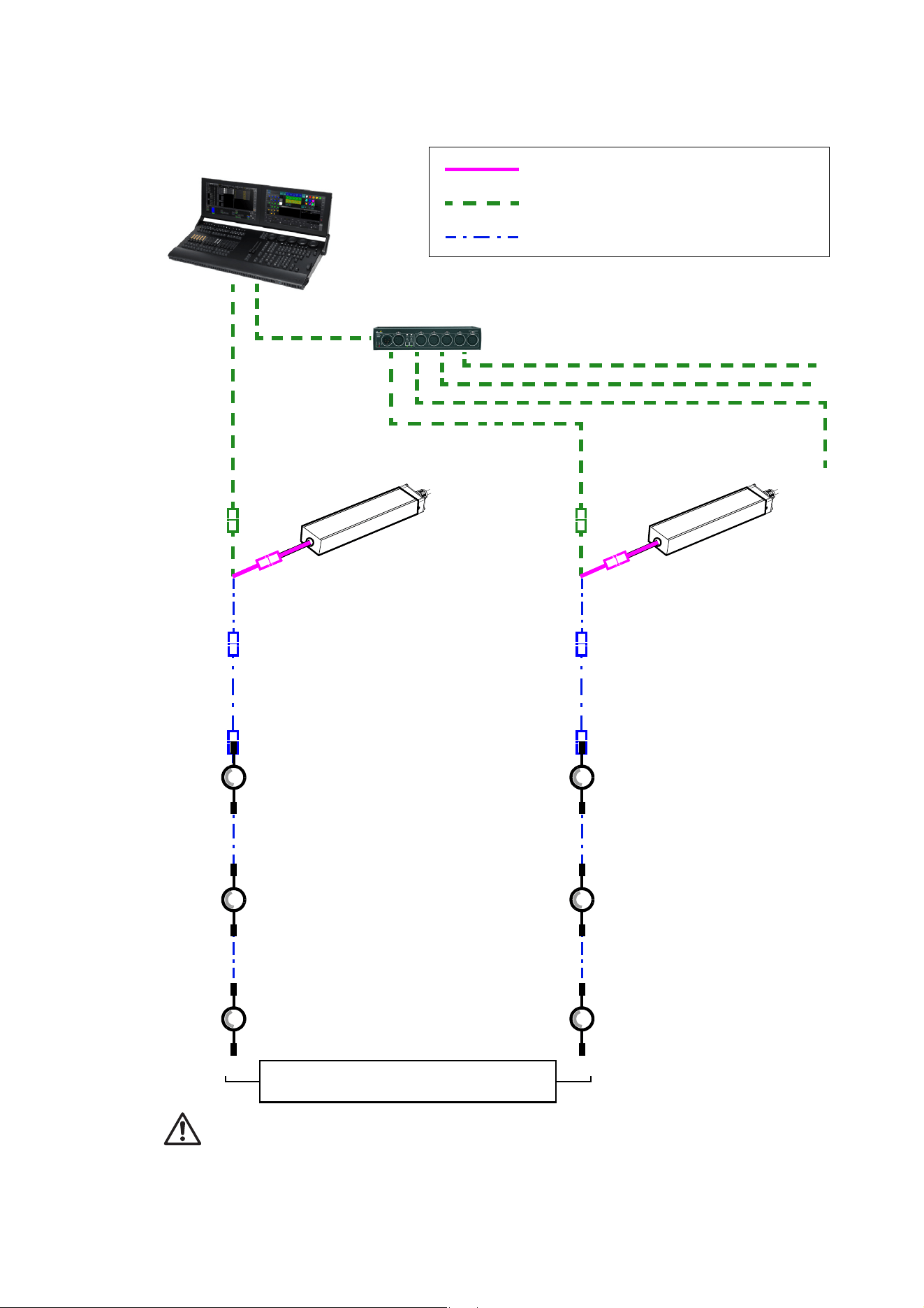
Installing a DMX system using the Martin DMX PowerPort 375
DMX/RDM Controller
Figure 9: DMX-controlled system using the Martin DMX PowerPort 375
BBD-to-BBD
extension cable
(if needed)
BBD-to-BBD
extension cable
(if needed)
See “Safety limits for connecting devices” on page 7 before creating a chain
Install blanking caps on all unused
female connectors at end of chains
BBD-to-BBD
extension cable
(if needed)
BBD-to-BBD
extension cable
(if needed)
BBD-to-BBD
extension cable
(if needed)
BBD-to-BBD
extension cable
(if needed)
DMX PowerPort 375DMX PowerPort 375
4-pin male XLR
to fem. BBD cable
4-pin male XLR
to fem. BBD cable
→ to additional DMX universes, if present
Daisy-chained DMX link (DMX cable)
Hybrid (DC power and data) link
20
VDO Dotron User Manual
To create a DMX-controlled installation that draws DC power from the Martin DMX PowerPort 375 external
power supply unit:
1. See Figure 9 on page 19 for an overview of this type of installation
2. Make sure that no devices in the installation can be connected to AC mains power until all installation
work is complete.
3. Read “Safety information” on page 6 and “Precautions to avoid damage” on page 10.
4. Connect VDO Dotron dots together in chains either directly using the dots’ cable tails and BBD
connectors or by adding Martin hybrid cables with BBD connectors (see “Power + data extension cables”
on page 40).
Warning! Do not exceed the maximum total length of fixtures and total cable length per chain given in
“Safety limits for connecting devices” on page 7.
5. Install a blanking cap (see “Connectors” on page 40) on the output connector of the last dot on each
chain to protect from water, dirt etc. There is no need to install DMX termination plugs, as dots have
integral DMX termination.
6. See Figure 10. Connect a Martin Power + Data Input Cable, 4-pin male XLR to female BBD (P/N
91616046) to the start of each chain.
7. Connect the 4-pin XLR connector on the cable to the hybrid (DC power and DMX data) output of a
Martin DMX PowerPort 375.
8. Connect the DMX controller to the DMX PowerPort 375 using standard DMX cable and a 5-pin male
XLR connector.
9. To extend the DMX link, connect the first DMX PowerPort 375 to the next DMX PowerPort 375 using
standard DMX cable with one male and one female 5-pin XLR connector. Continue adding DMX
PowerPort 375 devices to the link. You can connect up to a recommended maximum of 32 devices on
one DMX link, but if you want individual control of dots (or other fixtures or segments) on the link, bear in
mind that 512 channels are available per DMX universe. To use more than 512 channels you will need to
create a new DMX universe on a new DMX link.
10. Apply AC mains power to the DMX PowerPort 375 devices on the link.
11. Apply AC mains power to the DMX controller.
You can now configure the system. See ”System setup”on page 25.
Figure 10: Martin PowerPort 375 connection to a VDO Dotron chain
To VDO Dotron
chain
4-pin male XLR Female BBD
4-pin XLR to BBD Input Cable, 0.25 m, P/N 91616046
Combined DMX and
DC power from DMX
PowerPort 375
System installation
21
Installing a DMX system using the Martin IP66 PSU 240W
Hybrid
DMX/RDM Controller
48 VDC power
DMX link (DMX cable)
Hybrid (DC power and data) link
Figure 11: DMX-controlled system using the Martin IP66 PSU 240W
lead-in cable,
DMX/RDM Splitter (if used)
Martin IP66 PSU
Hybrid
lead-in cable,
Martin IP66 PSU
BBD-to-BBD
extension cable
(if needed)
BBD-to-BBD
extension cable
(if needed)
See “Safety limits for connecting devices” on page 7 before creating a chain
Install blanking caps on all unused
female connectors at end of chains
BBD-to-BBD
extension cable
(if needed)
BBD-to-BBD
extension cable
(if needed)
BBD-to-BBD
extension cable
(if needed)
BBD-to-BBD
extension cable
(if needed)
Martin IP66 PSU 240W Martin IP66 PSU 240W
240W 240W
22
VDO Dotron User Manual
To create a DMX-controlled installation that draws DC power from the Martin IP66 PSU 240W external
power supply unit:
1. See Figure 11 on page 21 for an overview of this type of installation
2. Make sure that no devices in the installation can be connected to AC mains power until all installation
work is complete.
3. Read “Safety information” on page 6 and “Precautions to avoid damage” on page 10.
4. Connect VDO Dotron dots together in chains either directly using the BBD connectors on the dots’ cable
tails or by adding Martin hybrid BBD-to-BBD extension cables (see “Cables” on page 40).
Warning! Do not exceed the maximum number of dots per chain given in “Martin IP66 PSU 240W safety
limits” on page 8.
5. Install a blanking cap (see “Connectors” on page 40) on the output connector of the last dot on each
chain to protect from water, dirt etc. There is no need to install DMX termination plugs, as dots have
integral DMX termination.
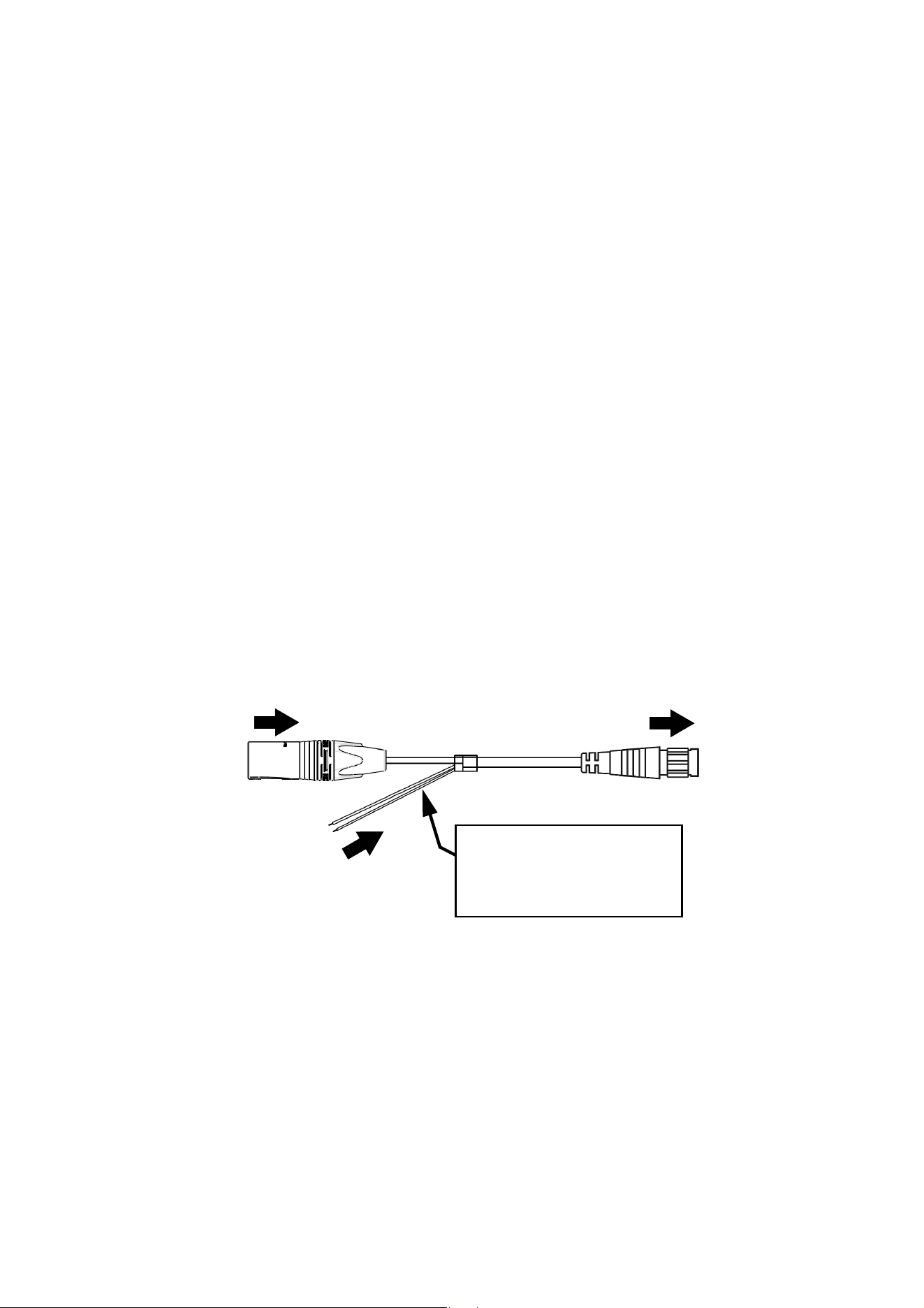
6. See Figure 12. Connect a Martin 5-pin XLR and Martin IP66 PSU to BBD adapter cable (P/N 91616050)
to the start of each chain.
• Connect the 5-pin male XLR connector on the adapter cable to a DMX link that carries a DMX signal
from an RDM-compliant DMX controller.
• Connect the male Martin IP66 PSU connector on the adapter cable to the DC output of a Martin IP66
PSU 240W external power supply unit.
• Connect the female BBD connector on the adapter cable to the male BBD connector at the start of the
chain of VDO Dotron dots.
7. Install a mains power cable on the Martin IP66 Power Supply Unit and connect it to AC mains power.
8. Apply AC mains power to the DMX controller.
You can now configure the system. See ”System setup”on page 25.
Figure 12: Martin IP66 PSU and DMX connections to an VDO Dotron chain
DC power input from
To VDO Dotron
chain
5-pin male XLR
Female BBD
XLR5+Martin IP66 PSU-to-BBD Input Cable, 0.25 m, P/N 91616050
Martin IP66 PSU
DMX from DMX/RDM
controller
Martin IP66 PSU
male connector
connector
System installation
23
Installing a DMX system using a generic external 48 VDC PSU
Hybrid DC
DMX/RDM Controller
48 VDC power
DMX link (DMX cable)
Hybrid (DC power and data) link
Figure 13: DMX-controlled system using a generic PSU
lead-in cable
DMX/RDM Splitter (if used)
Hybrid DC
lead-in cable
External PSU
Inline fuse
required if PSU
does not have
8 A overcurrent
protection
External PSU
Inline fuse
required if PSU
does not have
8 A overcurrent
protection
See “Safety limits for connecting devices” on page 7 before creating a chain. Do not exceed
PSU output rating.
BBD-to-BBD
extension cable
(if needed)
BBD-to-BBD
extension cable
(if needed)
Install blanking caps on all unused
female connectors at end of chains
BBD-to-BBD
extension cable
(if needed)
BBD-to-BBD
extension cable
(if needed)
BBD-to-BBD
extension cable
(if needed)
BBD-to-BBD
extension cable
(if needed)
24
VDO Dotron User Manual
Warning! If you decide to use any other external PSU than the Martin devices listed earlier in this section,
you must verify that the combination of equipment used is compliant with all applicable safety and
electromagnetic compatibility regulations.
To create a DMX-controlled installation that draws DC power from a generic PSU:
1. See Figure 13 on page 23 for an overview of this type of installation.
2. Make sure that no devices in the installation can be connected to AC mains power until all installation
work is complete.
3. Read ”Safety information” starting on page 6 and “Precautions to avoid damage” on page 10.
4. Connect VDO Dotron dots together in chains either directly using the BBD connectors on the dots’ cable
tails or by adding Martin BBD-to-BBD hybrid extension cables (see “Cables” on page 40).
Warning! Check the PSU’s DC output power rating in watts and the power consumption figures in watts for
VDO Dotron dots with reference to “Generic 48 VDC external PSU safety limits” on page 8. Do not create a
chain of VDO Dotron dots that will exceed the power rating of the DC output on the PSU.
5. Install a blanking cap (see “Connectors” on page 40) on the output connector of the last dot on each
chain to protect from water, dirt etc.
6. See Figure 14:
• If the PSU does not have constant overcurrent protection that will limit current to 8 A on the DC output
used, install an inline fuseholder with a 7.5 A fuse on the white (+ve) power wire of a Martin Power and
Data Adapter Cable, XLR5 + power - BBD, 0.25 m (P/N 91616048). You can use a 30 amp
automotive-type inline fuseholder with a 7.5 A blade fuse.
• Connect the 5-pin male XLR connector on the power and data adapter cable to a DMX link that carries
a DMX signal from an RDM-compliant DMX controller.
• Connect the power wires on the power and data adapter cable to a DC output on the PSU. Connect
the white wire to positive (+ve) and the black wire to negative (-ve).
• Connect the female BBD connector on the adapter cable to the male BBD connector at the start of the
chain of VDO Dotron dots.
7. Apply AC mains power to the external PSU.
8. Apply AC mains power to the DMX controller.
You can now configure the system. See ”System setup”on page 25.
Figure 14: Generic PSU and DMX connections to an VDO Dotron chain
DC power from
white to +ve, black to -ve
To VDO Dotron
Power + Data Input Cable, XLR5 + Power to BBD, 0.25 m, P/N 91616048
chain
5-pin male XLR
Female BBD
generic 48 VDC PSU
Insert 7.5 A or 8 A inline fuse
here if PSU does not have 8 A
overcurrent protection
DMX from DMX/RDM
controller

System setup
25
System setup
Warning! Read “Safety information” on page 6 and “Precautions to avoid damage” on page 10
before applying power to an VDO Dotron installation.
Setting up for P3 display
A Martin P3 system allows video to be displayed on an installation that consists of or includes VDO Dotron
dots. When a P3 controller is connected to the data link and the installation is powered on, you can set up all
the devices on the link from the P3 controller. See the P3 controller user manual for details.
When you are controlling VDO Dotron dots from a P3 System Controller, you can still also control them (and
even pixelmap them) using DMX or Art-Net by sending the DMX signal to the P3 System Controller. See
“DMX via P3 System Controller” on page 36 for details.
Setting up for DMX control
The section below explains DMX control and the DMX modes available when connecting the VDO Dotron
dots directly to a DMX controller (i.e. without routing the DMX signal via a P3 System Controller). More DMX
modes are available if you use a P3 System Controller and send DMX or Art-Net input to the P3 System
Controller. See “DMX via P3 System Controller” on page 36 for details.
A DMX system gives 0 - 100% variable intensity control. Varying the intensity of red, blue and green LEDs in
RGB products gives RGB color mixing.
You can set up and control an VDO Dotron installation over the data link using an RDM-compatible DMX
controller.
DMX control channels
DMX controllers send control data to devices over DMX control channels in DMX universes. One DMX
universe has 512 channels available. Multiple dots can share the same DMX channels if you want grouped
control and identical dot behavior.
The VDO Dotron can be controlled using two DMX modes (see under “DMX protocols” on page 33):
•In RGB Mode, each dot uses three DMX channels.
•In Basic Mode, each dot uses ten DMX channels.
Different modes can be mixed freely in an installation. For example, some VDO Dotron dots can be set to
RGB mode and others to Basic mode. All you need to do is set up dots, DMX addresses and DMX channel
allocation correctly.
DMX addresses
To prepare an installation for DMX control, you set it up using an RDM-compliant DMX controller so that
dots or pixels receive instructions from the controller on their own DMX channels. The DMX address (also
known as the control address or start channel) is the first of these channels. An VDO Dotron dot or pixel
uses more than one channel, so it uses the DMX address channel and the channels immediately above it.
For example, one VDO Dotron dot set to RGB mode and set to DMX address 1 will use DMX channels 1 - 3.
Channel 4 will be available for use as a DMX address for the next device.
Setting up via RDM
Using an RDM-compliant DMX controller lets you communicate with the VDO Dotron dots on the DMX data
link via RDM. You can retrieve data, set the DMX addresses of the dots and set their DMX mode, and you
can apply various setup options.
Note that if you use a P3 System Controller there is no need to use RDM to configure VDO Dotrons,
because you can carry out all setup, patching and addressing using the P3 System Controller's DMX &
Motion view.
26
VDO Dotron User Manual
RDM
Using an RDM-compliant DMX controller, you can communicate with the VDO Dotron dots on the DMX data
link via RDM. You can:
• Retrieve data from dots
• Set the DMX addresses of the dots and set their DMX mode
• Reset dots
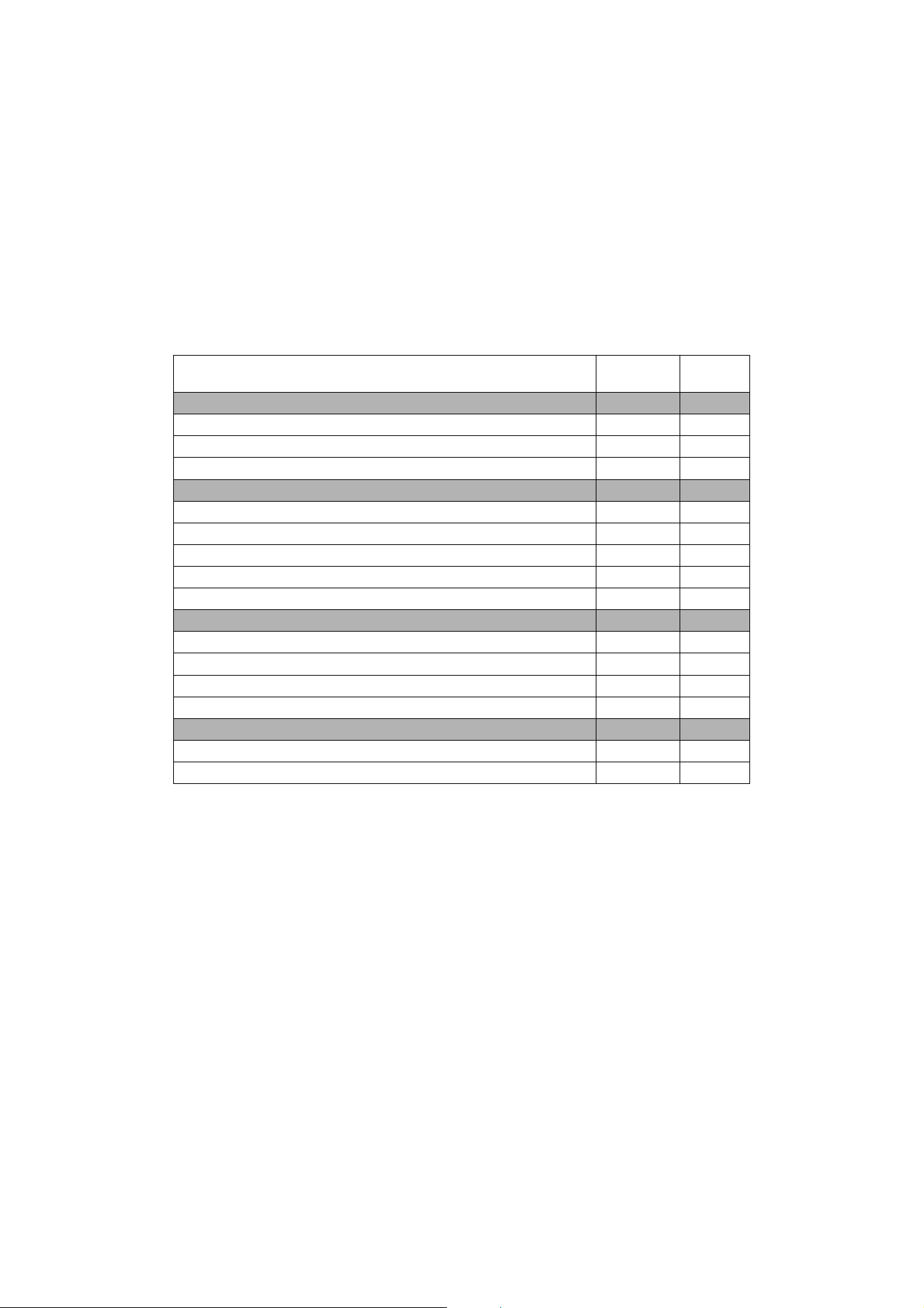
The VDO Dotron responds to the RDM parameter IDs listed in Table 1.
RDM parameter IDs
GET
allowed
SET
allowed
Category – Network Management
DISC_UNIQUE_BRANCH
DISC_MUTE
DISC_UN_MUTE
Category - Product Information
DEVICE_INFO
DEVICE_MODEL_DESCRIPTION
MANUFACTURER_LABEL
DEVICE_LABEL
SOFTWARE_VERSION_LABEL
Category - DMX512 Setup
DMX_PERSONALITY
DMX_PERSONALITY_DESCRIPTION
DMX_START_ADDRESS
SLOT_DESCRIPTION
Category - Control
IDENTIFY_DEVICE
RESET_DEVICE
Table 1: RDM communication with the VDO Dotron

Using the VDO Dotron
27
Using the VDO Dotron
Warning! Read “Safety information” on page 6 and “Precautions to avoid damage” on page 10 on
before applying power to the VDO Dotron.
Do not use the VDO Dotron if the ambient temperature exceeds 55° C (131° F) or falls below -20° C (-4° F).
Thermal regulation
The VDO Dotron dot has a protective thermal shutdown feature that blacks out the dot if it exceeds its
permitted maximum operating temperature.
To avoid unexpected blackouts due to thermal shutdowns but also avoid overheating that may damage the
product, the VDO Dotron offers various options for managing temperature:
• During P3 video operation, you can enable the thermal regulation feature available in the software of all
Martin P3 system controllers. When this feature is active, VDO Dotron dots begin to reduce their light
output when the ambient temperature reaches 45° C in order to control dot temperature. Output is
reduced gradually as the ambient temperature rises above 45° C. Dots will still light at the maximum
ambient temperature of 55° C, but output will be considerably reduced. This option avoids blackouts due
to protective thermal shutdowns.
• During P3 video operation, you can disable the P3 controller thermal regulation feature. If you choose to
do this, VDO Dotron dots will not reduce their light output when the ambient temperature reaches 45° C,
but if you drive dots hard when the ambient temperature approaches or exceeds 55° C, dots may black
out completely due to protective thermal shutdown.
• During DMX operation, the VDO Dotron dots begin to reduce their light output when the ambient
temperature reaches 45° C in order to control dot temperature. Output is reduced gradually as the
ambient temperature rises above 45° C. Dots will still light at the maximum ambient temperature of 55° C,
but output will be considerably reduced. This option avoids blackouts due to protective thermal
shutdowns.
P3 display
The VDO Dotron can display video from all common video sources. The video signal must be sent to a
Martin P3™ controller and then distributed to dots. The P3 controller lets you map, configure and control an
installation containing VDO Dotron dots (and other Martin P3 video display products if you have them). See
the P3 controller documentation for details.
DMX control
The VDO Dotron can display effects controlled by DMX.
Two DMX control options, each with its own DMX modes, are available. The following sections describe
these options.
DMX sent directly to dots
A DMX signal can be sent directly to VDO Dotron dots with no P3 System Controller used. In this case an
RDM-compatible controller is required so that you can address and configure the dots. See the DMX/RDM
controller documentation for details.
When sending DMX directly to dots, two DMX modes are available:
• RGB mode uses three DMX channels and gives RGB color mixing of all the pixels on a dot.
• Basic mode uses ten DMX channels and gives RGB color mixing, strobe effects and pre-programmed
dynamic effects.
See “Direct DMX control” on page 33 for full details of DMX control in this type of installation.
28
VDO Dotron User Manual
DMX/Art-Net/sACN sent to P3 System Controller and then relayed to dots
A DMX, Art-Net or sACN signal can be sent to a P3 System Controller or the P3-PC application and then
sent to VDO Dotron dots. In this case the P3 System Controller takes care of all configuration and
addressing of the dots. RDM is not required.
When sending DMX to dots via a P3 controller, five DMX modes are available:
•In P3 Intensity Mode the dot displays video and DMX only controls the intensity of the video shown on
the dot
•In P3 RGB Mode the dot displays video and DMX only controls the color of the video shown on the dot.
•In P3 Basic Mode the dot shows video and DMX only controls the intensity and the color of the video
shown on the dot.
•In P3 Hybrid Mode when the P3 Switch channel is set to above 50% the dot shows video and channels
4-6 control the color of the video shown on the dot. When the P3 Switch channel is set to below 50% the
dot is purely DMX-controlled, and channels 4 and above control the color of the dot.
•In P3 PixelMap Mode the dot is always purely DMX-controlled (it never shows video). Channels 1 and
above control the color of the dot.
See “DMX via P3 System Controller” on page 36 for full details of DMX control in this type of installation.
Magnetic ‘control button’
A magnetic sensor is embedded inside the VDO Dotron
behind the label on the back of the dot (see C in Figure 1
on page 11). The sensor acts as a control button. To
activate the sensor, swipe a magnet past the side of the
dot near where the input cable tail enters the dot.
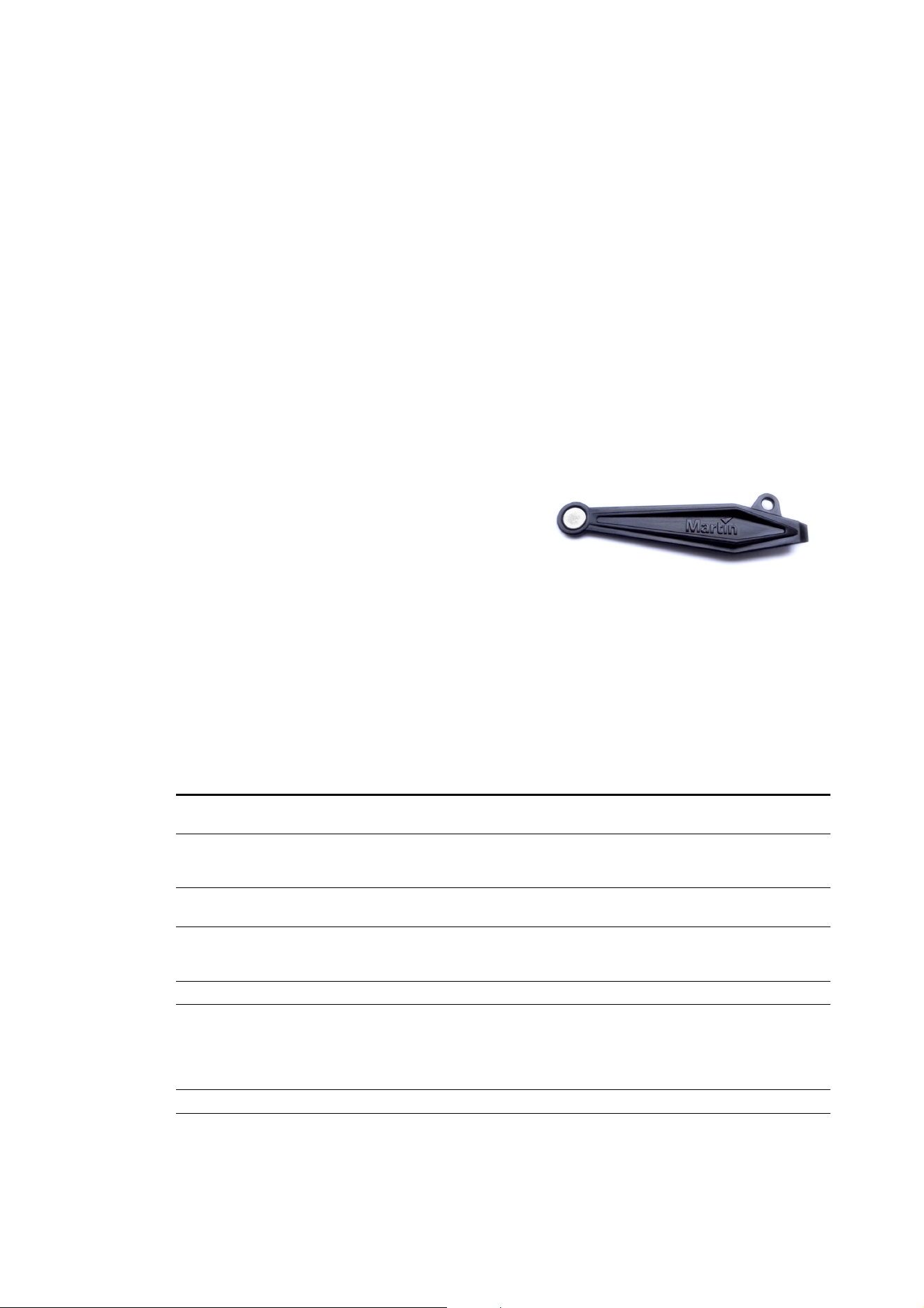
You may find it convenient to use the Martin Test Tool (see
“Accessories” on page 39), which contains a magnet.
Activating the magnetic sensor lets you display the
product’s status, test the LEDs and reset the VDO Dotron
as explained in the following table.
Status display
To display a VDO Dotron dot’s status, swipe the magnet over the sensor once. The LEDs on the dot will give
one of the indications listed in the tables below for a few seconds.
Color Output Indication Action required
Blue Constant
Busy (e.g. booting up or writing to
flash memory).
Wait a moment for normal operation
to be resumed.
Red Constant
Error. The VDO Dotron has
encountered a fatal error and can
not run.
Perform a factory reboot, followed by
a firmware upload if necessary.
Red Flashing No control source detected.
Connect a P3 system controller or
DMX controller to the network.
Green Flashing
Ready. VDO Dotron connected to P3
controller but not mapped onto the
canvas.
Set up the P3 controller to use the
VDO Dotron.
Green Constant Running normally in P3 mode. None.
Cyan Flashing
Ready. VDO Dotron in DMX mode
but not receiving valid DMX data
signal.
Send DMX data (if flashing cyan
continues although you are sending
data, check that DMX controller is
connected and configured with dot’s
DMX address).
Cyan Constant Running normally in DMX mode. None.
Table 2: Status information
Figure 15: Test Tool with magnet

Using the VDO Dotron
29
Testing, rebooting and returning to defaults
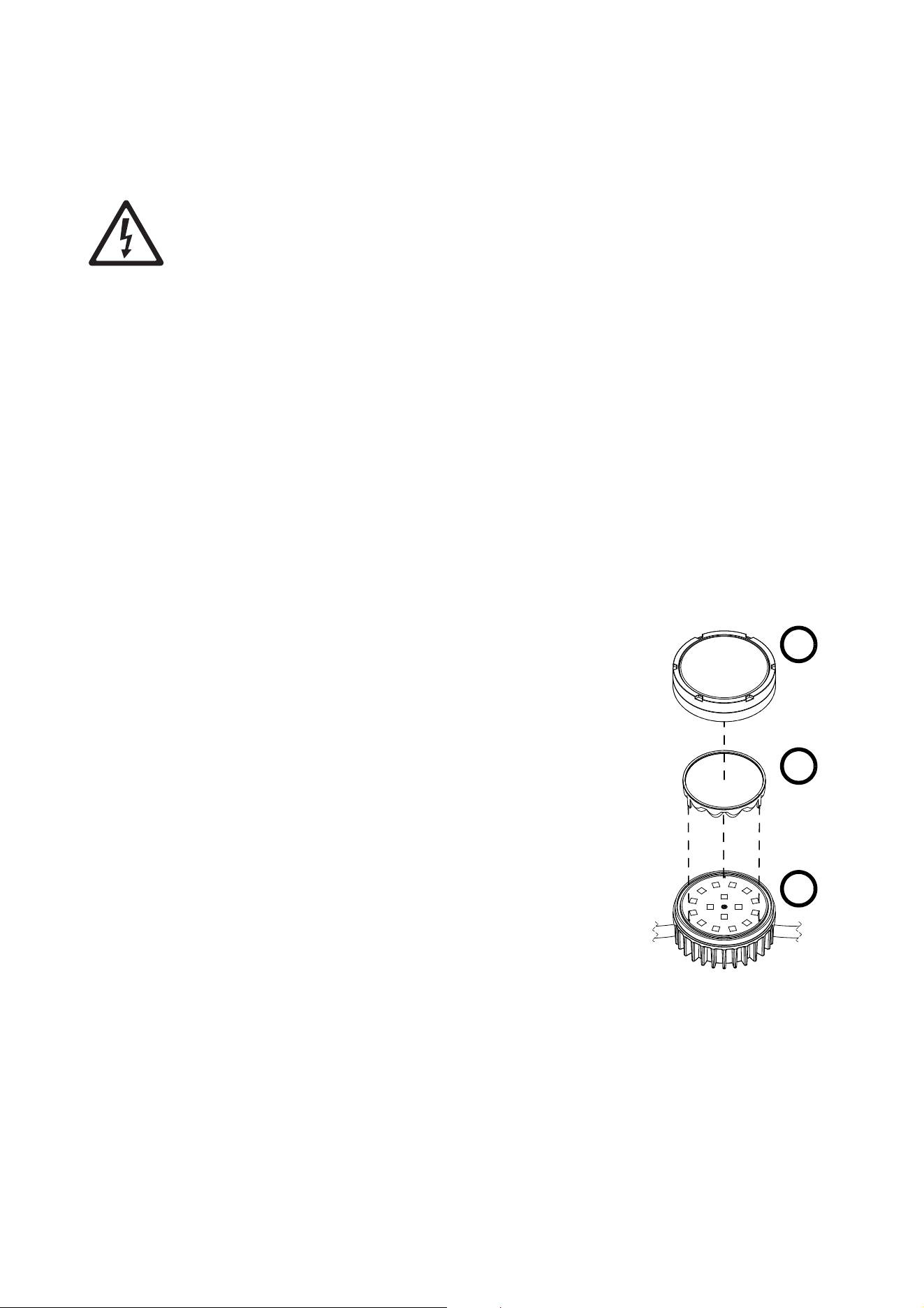
The table below lists the functions of the magnetic ‘control button’ on each VDO Dotron dot.
Test patterns are stored in onboard memory. This lets you test the LEDs without an external controller, but
test patterns can also be called up on P3 system controllers, the P3 PowerPort 1500 and the P3 PowerPort
1000 IP.
Action Function
Quick swipe The first swipe displays status as shown in Table 2 for a few seconds.
The next swipes display the following test patterns on the LEDs (each
swipe scrolls to the next pattern):
- Calibrated white
- Full red
- Full green
- Full blue
- Scrolling gradient
- Dimmed (20% raw white)
Hold magnet over
‘button’ until LEDs
light blue
Reboot the VDO Dotron.
Hold magnet over
‘button’ until LEDs
light white
Return the VDO Dotron to its default factory firmware.
Table 3: Magnetic ‘control button’ functions
30
VDO Dotron User Manual
Service and maintenance
Warning! Read “Safety information” on page 6 and “Precautions to avoid damage” on page 10
before carrying out service on the VDO Dotron.
Warning! Lock out AC mains power to the installation before servicing.
Warning! Refer any service operation not described in this manual to a qualified service technician.
Important! Excessive dirt buildup causes overheating and may damage the product. Damage
caused by inadequate cleaning is not covered by the product warranty.
The user will need to clean the VDO Dotron periodically. All other service operations on the VDO Dotron
must be carried out by Martin Professional or its approved service agents.
Installation, on-site service and maintenance can be provided worldwide by the Martin Professional Global
Service organization and its approved agents, giving owners access to Martin’s expertise and product
knowledge in a partnership that will ensure the highest level of performance throughout the product’s
lifetime. Please contact your Martin supplier for details.
Installing optical accessories
Installing one of the optical accessories available from Martin for the VDO Dotron takes a few seconds. No
tools are required.
Install optical accessories in dry conditions only.
To install an optical accessory:
1. If dots have been in use, allow them to cool.
2. Unscrew the VDO Dotron’s front cover and lift it off the dot.
3. Remove any existing accessory and install the new accessory. If
installing a Lens Array accessory, see below.
4. Screw the front cover back onto the dot. Make sure that the cover is
tight but do not use tools: use hand force only to tighten.
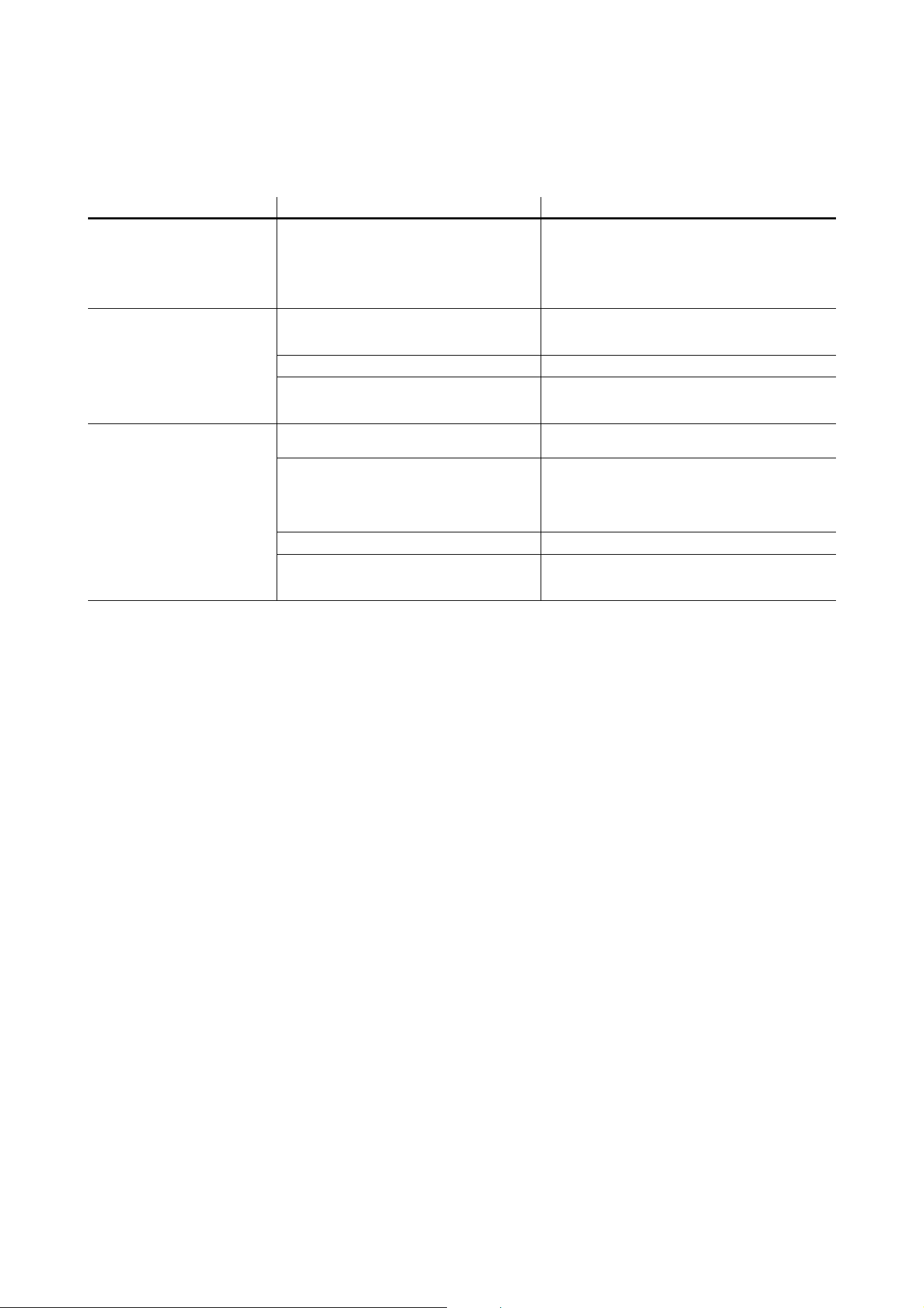
Installing a Lens Array Front
To install an Lens Array accessory:
1. If dots have been in use, allow them to cool.
2. Unscrew the VDO Dotron dot’s front cover A and lift it off the dot.
3. Remove any optical accessory that is already fitted over the LEDs.
4. See Figure 16. Note the position of the three locating posts in the
Lens Array C and the three corresponding locating lugs in the top of
the dot B. This will ensure that each lens in the array sits directly over
an LED in the dot. Place the Lens Array onto the dot with its flat side
facing upwards and rotate it so that each locating post in the Lens
Array fits around a lug in the top of the dot.
5. Without disturbing the position of the Lens Array, screw the front
cover back onto the dot. Make sure that the cover is tight but do not
use tools: use hand force only to tighten.
Cleaning
Cleaning schedules vary depending on the operating environment. It is therefore impossible to specify
precise cleaning intervals for the VDO Dotron. Environmental factors that may result in a need for frequent
cleaning include airborne dust and pollution.
Inspect products frequently to see whether cleaning is necessary. If in doubt, consult your Martin dealer
about a suitable maintenance schedule.
Figure 16: Installing a Lens
Array Front
A
B
C

Service and maintenance
31
To clean the product, use warm water and a soft brush or a low-pressure or medium-pressure water jet. Use
car shampoo to help remove dirt and grease. If possible, dry with a soft cloth to avoid streaking. Do not use
a stiff brush or scouring pad. Do not use solvents or abrasives.
LED performance
Martin use the best components available, but the characteristics of all LEDs change gradually over many
thousands of hours of use. Not all colors change at the same rate, and rates of change vary depending on
factors such as temperature and how intensively a particular color is used. Because of the changes, overall
light output and the exact hues obtained from specific color mixes in all LED-based products can be
expected to shift slightly over time.
To help you obtain consistent output despite these changes, Martin P3 software from version 4.1.0 contains
the P3 Fixture Adjuster tool. This feature lets you compensate for changes in LED characteristics and
restore initial output and color authenticity levels. Please contact Martin for more details.
Installing new software
It may be necessary to upload new software (i.e. device firmware) to the VDO Dotron if it appears to have a
software-related fault or if you want to update to a newer software version.
Software for Martin products is available from the Martin website. The VDO Dotron software can be installed
from the P3 System Controller over the P3 data link. You will need a Martin P3 PowerPort 1500 or a Martin
P3 PowerPort 1000 IP for this. See the P3 System Controller user manual for software installation
instructions.
32
VDO Dotron User Manual
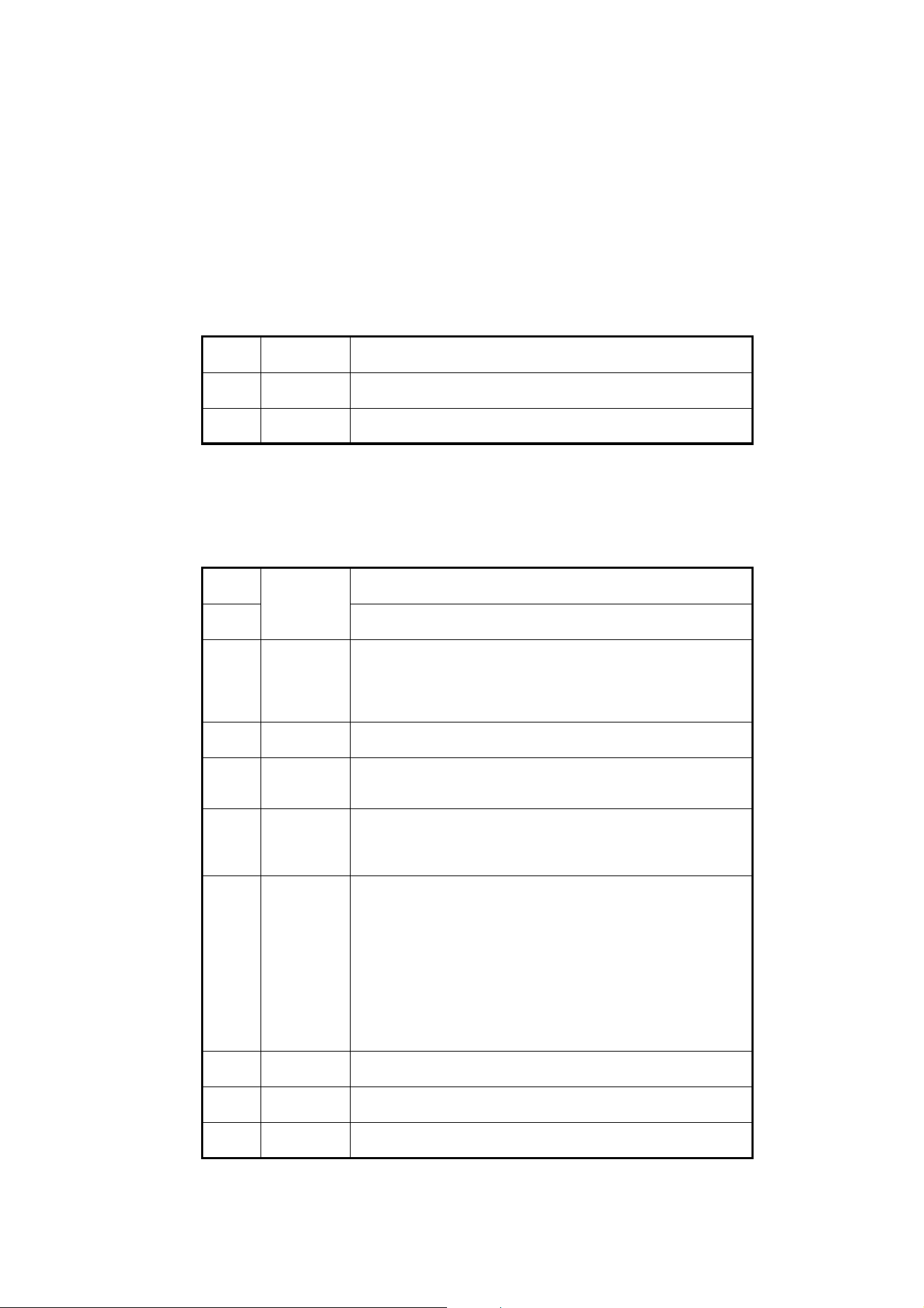
Troubleshooting
Problem Probable cause(s) Remedy
Control is lost and activating
magnetic ‘control button’ causes
VDO Dotron to show constant or
flashing red status indication.
Error has occurred.
Check that system is correctly connected, set up
and running.
Hold magnet over ‘control button’ until LEDs 1 - 4
turn blue, then move magnet away, to reboot VDO
Dotron.
Restart P3 or DMX controller.
Product seems completely
dead.
Product has gone into thermal protection
shutdown.
Check product temperature readouts on P3 system
controller. Reduce ambient temperature by
providing ventilation or fan cooling, for example.
No DC power to product. Check 48 VDC power supply and cables
Internal fault.
Disconnect from power. Do not attempt repairs
yourself. Contact Martin Service or an authorized
Martin service partner for assistance.
VDO Dotron does not display as
intended.
Fault in 48 VDC power transmission.
Inspect connections and cables. Correct poor
connections. Repair or replace damaged cables.
Fault in data transmission.
Inspect connections and cables. Correct poor
connections. Repair or replace damaged cables.
If using DMX, check that DMX console and DC
power supply unit are at same earth (ground)
potential.
Incorrect mapping or addressing of products. Check product address and controller settings.
Product in installation is defective and is
disturbing data transmission.
Substitute known good products one at a time until
normal operation is regained. Have faulty product
serviced by Martin Service.
Table 4: Troubleshooting
DMX protocols
33
DMX protocols
Direct DMX control
The following DMX Modes are available when sending a DMX signal directly to dots.
RGB Mode
Basic Mode
Channel DMX Value Function
1
0 - 255
Red
0 → 100%
2
0 - 255
Green
0 → 100%
3
0 - 255
Blue
0 → 100%
Table 5: DMX Protocol, RGB Mode
Channel DMX Value Function
1
0 - 65535
Dimmer fade (MSB)
8-bit coarse control, closed 0% → open 100%
2
Dimmer fade (LSB)
16-bit fine adjustment, closed → open
3
0 - 49
50 - 200
201 - 210
211 - 255
Strobe
No strobe
Strobe, slow → fast
No strobe
Random strobe, slow → fast
4
0 - 255
Strobe duration
0 → 1 second
5
0 - 7
8 - 255
FX selection
No FX: output controlled on RGB channels
FX selection (see “Pre-programmed FX” on page 34)
6
0 - 126
127 - 128
129 - 255
FX speed / modifier (depending on effect)
Fast → slow
Stop
Slow → fast
7
0
1
2
3 - 34
35
36
37 - 100
101 - 120
121 - 140
141 - 255
FX synchronization
No sync
Dot offset 10°
Dot offset 10°
...
Dot offset 350°
Synchronized
No function
Random start
Random duration
No function
8
0 - 255
Red
0 → 100%
9
0 - 255
Green
0 → 100%
10
0 - 255
Blue
0 → 100%
Table 6: DMX Protocol, Basic Mode

34
VDO Dotron User Manual
Pre-programmed FX
The range of FX listed in this table is available when controlling the fixture directly by DMX (no P3 System
Controller used). To use the pre-programmed FX:
• Select the FX in this table on channel 5 in Basic Mode or Pixel Mode.
• Set FX modification (in most cases this adjusts FX speed) on channel 6.
• Synchronize and set offsets between fixtures on channel 7.
Channel DMX Value Function
5
0
1
2
3
4
5
6
7
8
9
10
11
12
13
14
15
16
17 - 19
20
21
22
23
24
25
26
27
28
29
30
31
32 - 50
51
52
53
54
55
56
57
58
59
60
61
62
63 - 68
69
70
71
72
73
74
75
76
77
78
79 - 86
No FX
Intensity FX
Wave
Step
Pulse
Blackout strobe
2x strobe
3x strobe
4x strobe
Up, down flash
Up, flash, down, flash
Random levels
Pixel killer
Noise overlay
Random pixel buildup / breakdown
In / out wave
In / out step
In / out pulse
No function
Movie flicker
Electric arc
Atomic lightning
Thunderstorm
Sonar (1 pixel)
Sonar (2 pixels)
Sonar (3 pixels)
Sonar (6 pixels)
Sonar (9 pixels)
Pie slice chase
Random chase
Water drop
No function
Color FX
Rainbow wave
Rainbow step
Rainbow pulse
RGB wave
RGB step
RGB pulse
CMY wave
CMY step
CMY pulse
Random mix wave
Random mix step
Random mix pulse
No function
Solid
Spectrum shifter
RGB to white wave
RGB to white step
RGB to white pulse
RGB to white strobe
Normal to white wave
Normal to white step
Normal to white pulse
Normal to white strobe
No function
Table 7: Pre-programmed FX
DMX protocols
35
87
88
89
90 - 100
101
102
103
104
105
106
107
108
109
110
111
112-255
Normal to inverted color in / out wave
Normal to inverted color in / out step
Normal to inverted color in / out pulse
No function
Special FX
Police chase
Nightrider
Stars
Fiberoptic white
Fiberoptic mix
Plasma
Starfield
Colorwave
Noise
Snowflakes
Rain
No function
Channel DMX Value Function
Table 7: Pre-programmed FX
36
VDO Dotron User Manual
DMX via P3 System Controller
The following DMX Modes are available when sending a DMX signal to a P3 System Controller which then
relays the signal to dots.
P3 Intensity Mode
In P3 Intensity Mode:
• The dot displays video
• DMX only adjusts the intensity of the video.
P3 RGB Mode
In P3 RGB Mode:
• The dot displays video
• DMX only adjusts the color of the video.
P3 Basic Mode
In P3 Basic Mode:
• The dot displays video
• DMX only adjusts the intensity and color of the video.
Channel DMX Value Function
1
0 - 255
Intensity
0 → 100%
Table 8: DMX Protocol, P3 Intensity Mode
Channel DMX Value Function
1
0 - 255
Red
0 → 100%
2
0 - 255
Green
0 → 100%
3
0 - 255
Blue
0 → 100%
Table 9: DMX Protocol, P3 RGB Mode
Channel DMX Value Function
1
0 - 65535
Intensity (MSB)
8-bit coarse control, closed 0% → open 100%
2
Intensity (LSB)
16-bit fine adjustment, closed → open
3
0 - 255
Red
0 → 100%
4
0 - 255
Green
0 → 100%
5
0 - 255
Blue
0 → 100%
Table 10: DMX Protocol, P3 Basic Mode
DMX protocols
37
P3 Hybrid Mode
In P3 Hybrid Mode:
• When the P3 Switch channel (channel 3) is set to above 50% the dot displays video, and channels 4-6
adjust the color of the video on the dot.
• When the P3 Switch channel (channel 3) is set to below 50% the dot is controlled by DMX only, and
channels from 4 to 6 control the color of the dot.
P3 PixelMap Mode
In P3 PixelMap Mode, the dot is controlled by DMX only (it never shows video). Channels from 1 to 3 give
RGB color mixing.
Channel DMX Value Function
1
0 - 65535
Intensity (MSB)
8-bit coarse control, closed 0% → open 100%
2
Intensity (LSB)
16-bit fine adjustment, closed → open
3
0 - 127
128 - 255
P3 Switch
DMX Mode
Video Mode
RGB control
4
0 - 255
Red
0 → 100%
5
0 - 255
Green
0 → 100%
6
0 - 255
Blue
0 → 100%
Table 11: DMX Protocol, P3 Hybrid Mode
Channel DMX Value Function
1
0 - 255
Red
0 → 100%
2
0 - 255
Green
0 → 100%
3
0 - 255
Blue
0 → 100%
Table 12: DMX Protocol, P3 PixelMap Mode

38
VDO Dotron User Manual
Specifications
Physical
Diameter . . . . . . . . . . . . . . . . . . . . . . . . . . . . . . . . . . . . . . . . . . . . . . . . . . . . . . . . . . . . . . . .72 mm (2.9 in.)
Height . . . . . . . . . . . . . . . . . . . . . . . . . . . . . . . . . . . . . . . . . . . . . . . . . . . 34 mm (1.4 in.) not including front
Weight . . . . . . . . . . . . . . . . . . . . . . . . . . . . . . . . . . . . . . . . . . . . . . . . . . . . 0.3 kg per meter (0.7 lbs. per ft.)
Control and Programming
Control options. . . . . . . . . . . . . . . . . . . . . . Martin P3 System Controller (via Martin P3 PowerPort 1500 or
. . . . . . . . . . . . . . . . . . . . . . . . . . . . . P3 PowerPort 1000 IP) and/or DMX/RDM
Protocol detection . . . . . . . . . . . . . . . . . . . . . . . . . . . . . . . . . . . . . . . . . . . . . . . . . . . . . . . . . . . . . Automatic
Control modes, direct DMX control . . . . . . . . . . . . . . . . . . . . . . . . . . . . . . . . . . . . . . . . . . . . . . RGB, Basic
Control channels, direct DMX control . . . . . . . . . . . . . . . . . . . . . . . . . . . . . . . . . . . . . . . . . . . . . . . . . . 3/10
Control modes, DMX via P3. . . . . . . . . . . . . . P3 Intensity, P3 RGB, P3 Basic, P3 Hybrid and P3 PixelMap
Control channels, DMX via P3. . . . . . . . . . . . . . . . . . . . . . . . . . . . . . . . . . . . . . . . . . . . . . . . . . . . . 1/3/5/6/3
Setting and addressing . . . . . . . . . . . . . . . . . . . .Martin P3 System controller or RDM-compliant controller
Control resolution. . . . . . . . . . . . . . . . . . . . . . . . . . . . . . . . . 16-bit (P3) or 8-bit (DMX) control of each color
Calibration . . . . . . . . . . . . . . . . . . . . . . . . . . . . . . . . . . . . . . . . . . . . . . . . . .Color and intensity for each Dot
DMX compliance . . . . . . . . . . . . . . . . . . . . . . . . . . . . . . . . . . . . . . . . . . . . . . . . . . . . . . . USITT DMX512-A
RDM compliance . . . . . . . . . . . . . . . . . . . . . . . . . . . . . . . . . . . . . . . . . . . . . . . . . . . . . . . ANSI/ESTA E1.20
Firmware update . . . . . . . . . . . . . . . . . . . . . . . . . . . . . . . . . . . . . . . . . . . . Via Martin P3 System controller
Control/User Interface
Device status . . . . . . . . . . . . . . . . . . . . . . . . . . . . . . . . . . . . . . . . . . . . . . . . . . . Multi-color visual indication
Device test and reset . . . . . . . . . . . . . . . . . . . . . . . Magnetic pushbutton to call up dot status and reset dot
Optics
Minimum LED lifetime . . . . . . . . . . . . . . . . . . . . . . . . . . . . . . . . . 50 000 hours (to >70% luminous output)*
Color resolution . . . . . . . . . . . . . . . . . . . . . . . . . . . . . . . . . . . . . . . . . . . .16 bits per color (48 bits per pixel)
Options
No Front
Flat Diffuser
Flat Smoked Diffuser
Dome Diffuser
Dome Smoked Diffuser
Lens Array Narrow
Viewing angle
No front . . . . . . . . . . . . . . . . . . . . . . . . . . . . . . . . . . . . . . . . . . . . . . . . . . . . . . . . . . . . 103° x 103° (FWHM)
Dome front . . . . . . . . . . . . . . . . . . . . . . . . . . . . . . . . . . . . . . . . . . . . . . . . . . . . . . . . . . 125° x 125° (FWHM)
Lens Array Narrow . . . . . . . . . . . . . . . . . . . . . . . . . . . . . . . . . . . . . . . . . . . . . . . . . . . . . . 22° x 22° (FWHM)
*Figure obtained under manufacturer's test conditions
Photometric Data
Total output
No front . . . . . . . . . . . . . . . . . . . . . . . . . . . . . . . . . . . . . . . . . . . . . . . . . . . . . . . . . . . . . . . . . . . 100 lumens
Dome front . . . . . . . . . . . . . . . . . . . . . . . . . . . . . . . . . . . . . . . . . . . . . . . . . . . . . . . . . . . . . . . . . . 62 lumens
Lens Array front . . . . . . . . . . . . . . . . . . . . . . . . . . . . . . . . . . . . . . . . . . . . . . . . . . . . . . . . . . . . . . 72 lumens
For full photometric data, see the Martin website at www.martin.com
Video Processing
Brightness control
Gamma correction and control
Color temperature control
Color space control
Calibration processing
Synchronization
Specifications
39
Signal Protocol
Martin P3 system (via Martin P3 PowerPort) or DMX/RDM
Construction
Base. . . . . . . . . . . . . . . . . . . . . . . . . . . . . . . . . . . . . . . . . . . . . . . . . . . . . . . . . . . . . . . . . . . . Cast aluminum
Color . . . . . . . . . . . . . . . . . . . . . . . . . . . . . . . . . . . . . . . . . . . . . . . . . . . . . . . . . . . . . . . . . . . . . . . . . . Black
Protection rating. . . . . . . . . . . . . . . . . . . . . . . . . . . . . . . . . . . . . . . . . . . . . . . . . . . . . . . . . . . . . . . . . . . IP65
RoHS compliant
Installation
Orientation . . . . . . . . . . . . . . . . . . . . . . . . . . . . . . . . . . . . . . . . . . . . . . . . . . . . . . . . . . . . . . . . . . . . . . . .Any
Mounting options . . . . . . . . Direct surface mount, optional Martin Flange Bracket, Half-Coupler or Coupler
Connections
Power and data input . . . . . . . . . . . . . . . . . . . . . . . . . . . . . . . . . . . . . . . 6-pin custom BBD-type IP66-rated
Power and data thru. . . . . . . . . . . . . . . . . . . . . . . . . . . . . . . . . . . . . . . . 6-pin custom BBD type IP66-rated
Hot-plugging compatible
Electrical
Nominal input voltage . . . . . . . . . . . . . . . . . . . . . . . . . . . . . . . . . . . . . . . . . . . . . . . . . . . . . . 48 VDC +/- 4%
Power supply options. . . . . . . . . . . . . . . . . . . . . Martin P3 PowerPort 1500, Martin P3 PowerPort 1000 IP,
Martin IP66 PSU 240W, Martin DMX PowerPort 375
or generic 48 VDC PSU
Power Consumption
Typical total power consumption . . . . . . . . . . . . . . . . . . . . . . . . . . . . . . . . . . . 5 W at full intensity, full white
Allow for +/-10% variation in power consumption figures
Thermal
Cooling. . . . . . . . . . . . . . . . . . . . . . . . . . . . . . . . . . . . . . . . . . . . . . . . . . . . . . . . . . . . . . . . . . . . . Convection
Maximum ambient temperature (Ta max.) for typical video content. . . . . . . . . . . . . . . . . . . . 55° C (131° F)
Minimum ambient temperature (Ta min.) . . . . . . . . . . . . . . . . . . . . . . . . . . . . . . . . . . . . . . . . . -20° C (-4° F)
Max. total heat dissipation, calculated, +/- 10%. . . . . . . . . . . . . . . . . . . . . . . . . . . . . . . . . . . . . . 20 BTU/hr.
Approvals
EU safety . . . . . . . . . . . . . . . . . . . . . . . . . . . . . . .EN 60950-1, EN 60950-22
EU EMC . . . EN 55024, EN 55032 (Class A), EN 61000-3-2, EN 61000-3-3
US safety . . . . . . . . . . . . . . . . . . . . . . . . . . . . . . . UL 60950-1, UL 60950-22
US EMC . . . . . . . . . . . . . . . . . . . . . . . . . . . . . .CFR Title 47 Part 15 Class A
Canadian safety . . . . . . . . . . . . . . . . CSA C22.2 No. 60950-1, No. 60950-22
Canadian EMC . . . . . . . . . . . . . . . . . . . . . . . . . . . . . . . . . ICES-003 Class A
Australia/NZ . . . . . . . . . . . . . . . . . . . . . . . . . . . . . . . . . . . . . . . . . . . . . .RCM
Accessories
Magnetic Test Tool, set of 10 . . . . . . . . . . . . . . . . . . . . . . . . . . . . . . . . . . . . . . . . . . . . . . . . . P/N 91610139
Mounting hardware
VDO Dotron Flange Bracket, . . . . . . . . . . . . . . . . . . . . . . . . . . . . . . . . . . . . . . . . . . . . . . . . P/N 91611803
VDO Dotron Half-coupler Rigging Clamp . . . . . . . . . . . . . . . . . . . . . . . . . . . . . . . . . . . . . . . P/N 91611802
VDO Dotron to Sceptron Pivot Coupler . . . . . . . . . . . . . . . . . . . . . . . . . . . . . . . . . . . . . . . . . P/N 91616072
VDO Dotron to Sceptron End Coupler. . . . . . . . . . . . . . . . . . . . . . . . . . . . . . . . . . . . . . . . . . P/N 91616071
VDO Dotron MultiRig Bar, 1000 mm . . . . . . . . . . . . . . . . . . . . . . . . . . . . . . . . . . . . . . . . . . . P/N 91616100
Safety Cable, SWL 60 kg, BGV C1 / DGUV 17, black . . . . . . . . . . . . . . . . . . . . . . . . . . . . . . P/N 91604006
Safety Cable, SWL 60 kg, BGV C1 / DGUV 17, silver . . . . . . . . . . . . . . . . . . . . . . . . . . . . . . P/N 91604007
Optical Accessories
VDO Dotron Flat Diffuser. . . . . . . . . . . . . . . . . . . . . . . . . . . . . . . . . . . . . . . . . . . . . . . . . . . . P/N 91611804
VDO Dotron Flat Smoked Diffuser. . . . . . . . . . . . . . . . . . . . . . . . . . . . . . . . . . . . . . . . . . . . . P/N 91611805
VDO Dotron Dome Diffuser . . . . . . . . . . . . . . . . . . . . . . . . . . . . . . . . . . . . . . . . . . . . . . . . . . P/N 91611806
VDO Dotron Dome Smoked Diffuser . . . . . . . . . . . . . . . . . . . . . . . . . . . . . . . . . . . . . . . . . . . P/N 91611807
VDO Dotron Lens Array Narrow . . . . . . . . . . . . . . . . . . . . . . . . . . . . . . . . . . . . . . . . . . . . . . P/N 91611808

40
VDO Dotron User Manual
Cables
Power + data input cables
Power + Data Input Cable, 4-pin male XLR (for P3 PowerPort or DMX PowerPort 375)
to female BBD, 0.25 m (9.8 in.). . . . . . . . . . . . . . . . . . . . . . . . . . P/N 91616046
Power + Data Input Cable, 5-pin male XLR (for DMX) + wire tails (for PSU)
to female BBD, 0.25 m (9.8 in.). . . . . . . . . . . . . . . . . . . . . . . . . . P/N 91616048
Power + Data Input Cable, 5-pin male XLR (for DMX) + 4-pin male XLR (for
P3 PowerPort) to female BBD, 0.25m (9.8 in.) . . . . . . . . . . . . . . P/N 91616049
Power + Data Input Cable, 5-pin male XLR (for DMX) + male Tripix type (for
Martin IP66 PSU 240W) to female BBD, 0.25 m (9.8 in.) . . . . . . P/N 91616050
Power + data extension cables
Power + Data Extension Cable, Rental Type, BBD to BBD, 1 m (3.4 ft.) . . . . . . . . . . . . . . . . P/N 91616041
Power + Data Extension Cable, Rental Type, BBD to BBD, 2.5 m (8.2 ft.). . . . . . . . . . . . . . . P/N 91616024
Power + Data Extension Cable, Rental Type, BBD to BBD, 5 m (16.4 ft.) . . . . . . . . . . . . . . . P/N 91616042
Power + Data Extension Cable, Rental Type, BBD to BBD, 10 m (32.8 ft.) . . . . . . . . . . . . . . P/N 91616043
Power + Data Extension Cable, Rental Type, BBD to BBD, 25 m (82.1 ft.) . . . . . . . . . . . . . . P/N 91616044
Power + Data Extension Cable, Rental Type,
100 m (328 ft.) bulk without connectors . . . . . . . . . . . . . . . . . . . P/N 91616045
Power + data lead-out cables
Power + Data Output Cable, male BBD
to 4-pin female XLR, 0.25m (9.8 in.). . . . . . . . . . . . . . . . . . . . . . P/N 91616047
DMX Lead-out Cable, male BBD to 5-pin female XLR, 0.25 m (9.8 in.) . . . . . . . . . . . . . . . . P/N 91616051
Connectors
Power + Data Cable Connector, BBD, Male. . . . . . . . . . . . . . . . . . . . . . . . . . . . . . . . . . . . . . P/N 91611750
Power + Data Cable Connector, BBD, Female . . . . . . . . . . . . . . . . . . . . . . . . . . . . . . . . . . . P/N 91611751
Blanking Caps for sealing unused female BBD connectors, set of 10 . . . . . . . . . . . . . . . . . . P/N 91616052
Related Items
Martin® P3 PowerPort™ 1500. . . . . . . . . . . . . . . . . . . . . . . . . . . . . . . . . . . . . . . . . . . . . . . . P/N 90721040
Martin® P3 PowerPort™ 1000 IP, Rental Model . . . . . . . . . . . . . . . . . . . . . . . . . . . . . . . . . . P/N 90721070
Martin DMX PowerPort 375 . . . . . . . . . . . . . . . . . . . . . . . . . . . . . . . . . . . . . . . . . . . . . . . . . . P/N 90721094
Martin® IP66 PSU 240W external power supply unit (was Tripix Power IP66) . . . . . . . . . . . P/N 90760330
Martin® P3-050 System Controller . . . . . . . . . . . . . . . . . . . . . . . . . . . . . . . . . . . . . . . . . . . . P/N 90721090
Martin® P3-150 System Controller . . . . . . . . . . . . . . . . . . . . . . . . . . . . . . . . . . . . . . . . . . . . P/N 90721015
Martin® P3-300 System Controller . . . . . . . . . . . . . . . . . . . . . . . . . . . . . . . . . . . . . . . . . . . . P/N 90721060
Martin® P3-PC System Controller. . . . . . . . . . . . . . . . . . . . . . . . . . . . . . . . . . . . . . . . . . . . . P/N 90721030
Ordering Information
VDO Dotron™ dot in cardboard box . . . . . . . . . . . . . . . . . . . . . . . . . . . . . . . . . . . . . . . . . . . P/N 90357690
Flightcase for 24 x VDO Dotron™ dots . . . . . . . . . . . . . . . . . . . . . . . . . . . . . . . . . . . . . . . . . P/N 91515043
Flightcase Extender for 24 x VDO Dotron™ dots . . . . . . . . . . . . . . . . . . . . . . . . . . . . . . . . . P/N 91515044
Specifications subject to change without notice. For the latest product specifications, see www.martin.com

Specifications
41
Disposing of this product
Martin® products are supplied in compliance with Directive 2002/96/EC of the European Parliament and of the
Council of the European Union on WEEE (Waste Electrical and Electronic Equipment), as amended by Directive
2003/108/EC, where applicable.
Help preserve the environment! Ensure that this product is recycled at the end of its life. Your supplier can give
details of local arrangements for the disposal of Martin products.
FCC Compliance
This device complies with Part 15 of the FCC Rules. Operation is subject to the following two conditions: (1) This device may not
cause harmful interference, and (2) this device must accept any interference received, including interference that may cause
undesired operation.
Canadian Interference-Causing Equipment Regulations - Règlement sur le Matériel Brouilleur du Canada
This Class A digital apparatus meets all requirements of the Canadian Interference-Causing Equipment Regulations.
Cet appareil numérique de la classe A respecte toutes les exigences du Règlement sur le Matériel Brouilleur du Canada.
EU EMC
Warning! Class A ITE product. Operation of this equipment in a residential environment could cause radio interference.
Not for use in a computer room as defined in the Standard for the Protection of Information Technology Equipment, ANSI/NFPA 75.
Ne peut être utilisé dans une salle d'ordinateurs telle que définie dans la norme ANSI/NFPA 75 Standard for the Protection of
Information Technology Equipment.



www.martin.com