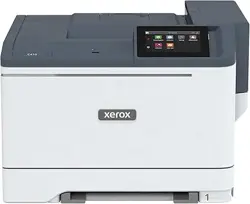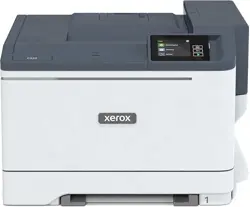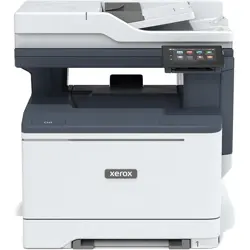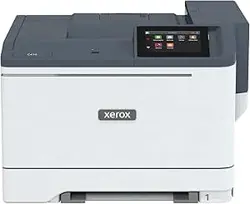

VERSION 1.0
JUNE 2023
702P08979
Xerox
®
C410 Color
Printer
User Guide

© 2023 Xerox Corporation. All rights reserved. Xerox
®
is a trademark of Xerox Corporation in the United States and/
or other countries.
Adobe
®
, Adobe PDF logo, Flash
®
, and PostScript
®
are trademarks or registered trademarks of Adobe Systems, Inc.
Apple
®
, Bonjour
®
, iPad
®
, iPhone
®
, iPod
®
, iPod touch
®
, AirPrint
®
and the AirPrint Logo
®
, Mac
®
, macOS
®
, and
Macintosh
®
are trademarks or registered trademarks of Apple Inc. in the U.S. and other countries.
Gmail
™
webmail service and Android
™
mobile technology platform are trademarks of Google, Inc.
PCL
®
is a registered trademark of Hewlett-Packard Corporation in the United States and/or other countries.
IBM
®
and AIX
®
are registered trademarks of International Business Machines Corporation in the United States and/
or other countries.
Microsoft
®
, Windows
®
, and Windows Server
®
are registered trademarks of Microsoft Corporation in the United
States and other countries.
Mopria is a trademark of the Mopria Alliance.
UNIX
®
is a trademark in the United States and other countries, licensed exclusively through X/ Open Company
Limited.
Linux
®
is a registered trademark of Linus Torvalds.
Wi-Fi CERTIFIED Wi-Fi Direct
®
is a trademark of the Wi-Fi Alliance.
BR38804

Xerox
®
C410 Color Printer User Guide 3
Contents
Safety .... .. .. .. . .. .. .. .. .. . .. .. .. .. .. . .. .. .. .. .. . .. .. .. .. .. .. . .. .. .. .. .. . .. .. .. .. .. . .. .. .. ..... .. .. .. ..... .. .. .. ..... .. .. .. ....... .. .. .. ..... .. .. .. . .. .9
Notices and Safety . .. .. .. . .. .. .. .. .. . .. .. .. .. .. . .. .. .. .. .. . .. .. .. .. .. . .. .. .. .. .. . .. .. .. ....... .. .. .. ..... .. .. .. ..... .. .. .. ..... .. .. .. ..... 10
Conventions .. .. .. .. .. . .. .. .. .. .. . .. .. .. .. .. .. . .. .. .. .. .. . .. .. .. .. .. . .. .. .. .. .. . .. .. .. .. .. . .. .. .. ....... .. .. ....... .. .. .. ..... .. .. .. ..... .. .. 11
Product Statements .. .. ....... .. .. .. ..... .. .. .. ..... .. .. .. ..... .. .. .. ..... .. .. .. . .. .. .. .. .. .. . .. .. .. .. .. . .. .. .. .. .. . .. .. .. .. .. . .. .. 11
Electrical Safety ... .. . .. .. .. .. .. . .. .. .. .. .. .. . .. .. .. ..... .. .. .. ..... .. .. .. ..... .. .. .. ..... .. .. .. ....... .. .. ....... .. .. .. . .. .. .. .. .. . .. .. .. .. 15
General Guidelines ... .. .. .. ..... .. .. .. ....... .. .. ....... .. .. .. ..... .. .. .. ... .. .. .. .. . .. .. .. .. .. . .. .. .. .. .. . .. .. .. .. .. .. . .. .. .. .. .. . . 15
Power Cord..... .. .. .. ..... .. .. .. ..... .. .. .. . .. .. .. .. .. . .. .. .. .. .. . .. .. .. .. .. . .. .. .. .. .. .. . .. .. .. .. .. . .. .. .. .. .. . .. .. .. .. .. . .. .. .. .. .. . 15
Emergency Power Off.. .. .. .. . .. .. .. .. .. . .. .. .. .. .. . .. .. .. .. .. . .. .. .. .. .. . .. .. .. .. .. .. . .. .. .. ..... .. .. .. ..... .. .. .. ..... .. .. .. ..... 16
Battery Safety..... .. .. .. ..... .. .. .. ..... .. .. .. ..... .. .. .. ....... .. .. .. . .. .. .. .. .. . .. .. .. .. .. . .. .. .. .. .. . .. .. .. .. .. . .. .. .. .. .. . .. .. .. . 16
Operational Safety . . .. .. .. .. .. . .. .. .. .. .. .. . .. .. .. .. .. . .. .. .. .. .. . .. .. .. .. .. . .. .. .. .. .. . .. .. .. ....... .. .. ....... .. .. .. ..... .. .. .. ..... .. .. 17
Operational Guidelines ... .. .. .. .. .. . .. .. .. .. .. . .. .. .. .. .. . .. .. .. .. .. . .. .. .. .. .. . .. .. .. .. .. .. . .. .. ....... .. .. .. ..... .. .. .. ..... .. .. 17
Printer Location .. .. .. ..... .. .. .. . .. .. .. .. .. .. . .. .. .. .. .. . .. .. .. .. .. . .. .. .. .. .. . .. .. .. .. .. . .. .. .. .. .. . .. .. .. .. .. .. . .. .. .. ..... .. .. .. ..17
Printer Supplies .. .. .. . .. .. .. .. .. . .. .. .. .. .. .. . .. .. .. .. .. . .. .. .. .. .. . .. .. .. .. .. . .. .. .. .. .. . .. .. .. ..... .. .. .. ....... .. .. .. ..... .. .. .. ..18
Consumable Information . .. .. .. ..... .. .. .. ..... .. .. .. ....... .. .. .. . .. .. .. .. .. . .. .. .. .. .. . .. .. .. .. .. . .. .. .. .. .. . .. .. .. .. .. . .. .. .. . 18
Maintenance Safety .. .. .. . .. .. .. .. .. . .. .. .. .. .. .. . .. .. ....... .. .. .. ..... .. .. .. ..... .. .. .. ..... .. .. .. ..... .. .. .. . .. .. .. .. .. .. . .. .. .. .. .. . . 19
Environmental, Health and Safety Contact Information.. .. .. . .. .. .. .. .. . .. .. .. .. .. . .. .. .. .. .. . .. .. .. .. .. .. . .. .. .. .. .. . .. .. .. .. 20
Product Symbols ... .. .. . .. .. .. ..... .. .. .. ..... .. .. .. ..... .. .. .. ....... .. .. .. ..... .. .. .. . .. .. .. .. .. . .. .. .. .. .. . .. .. .. .. .. . .. .. .. .. .. . .. .. .. . 21
Learn About the Printer .. .. .. .. .. .. . .. .. .. .. .. . .. .. .. .. .. . .. .. .. ..... .. .. .. ....... .. .. ....... .. .. .. ..... .. .. .. ..... .. .. .. ..... .. .. .. . .. .. .. .. .. . 25
Finding Information About the Printer.. .. .. .. . .. .. .. .. .. . .. .. .. .. .. .. . .. .. .. .. .. . .. .. .. .. .. . .. .. .. .. .. . .. .. .. .. .. . .. .. .. ..... .. .. .. . 26
Finding the Printer Serial Number. .. .. .. ....... .. .. ....... .. .. .. . .. .. .. .. .. . .. .. .. .. .. . .. .. .. .. .. . .. .. .. .. .. . .. .. .. .. .. .. . .. .. .. .. .. . . 28
Printer Configurations . .. .. .. .. .. . .. .. .. .. .. . .. .. .. ..... .. .. .. ....... .. .. .. ..... .. .. .. ..... .. .. .. ..... .. .. .. ..... .. .. .. . .. .. .. .. .. . .. .. .. . 29
Removing the Internal Packaging Materials. . .. .. .. ..... .. .. .. ....... .. .. ....... .. .. .. ..... .. .. .. ..... .. .. .. . .. .. .. .. .. . .. .. .. .. .. . 30
Using the Control Panel .. ..... .. .. .. ....... .. .. .. . .. .. .. .. .. . .. .. .. .. .. . .. .. .. .. .. . .. .. .. .. .. . .. .. .. .. .. . .. .. .. .. .. .. . .. .. .. .. .. . .. .. .. .. 32
Understanding the Status of the Indicator Light . .. .. .. .. .. . .. .. .. .. .. . .. .. .. .. .. . .. .. .. ..... .. .. .. ..... .. .. .. ....... .. .. ....... . 33
Selecting Paper ... .. .. .. . .. .. .. .. .. . .. .. .. .. .. . .. .. .. ..... .. .. .. ....... .. .. .. ..... .. .. .. ..... .. .. .. ..... .. .. .. . .. .. .. .. .. . .. .. .. .. .. . .. .. .. . 34
Paper Guidelines. .. .. . .. .. .. .. .. . .. .. .. .. .. .. . .. .. .. .. .. . .. .. .. .. .. . .. .. .. ..... .. .. .. ..... .. .. .. ..... .. .. .. ....... .. .. .. ..... .. .. .. . . 34
Paper Characteristics ... .. .. .. . .. .. .. .. .. . .. .. .. .. .. . .. .. .. ..... .. .. .. ..... .. .. .. ....... .. .. .. ..... .. .. .. ..... .. .. .. ..... .. .. .. . .. .. 34
Unacceptable Paper . .. ..... .. .. .. ..... .. .. .. ..... .. .. .. . .. .. .. .. .. .. . .. .. .. .. .. . .. .. .. .. .. . .. .. .. .. .. . .. .. .. .. .. . .. .. .. .. .. . .. .. .. . 35
Storing Paper . . .. .. .. .. .. . .. .. .. .. .. . .. .. .. .. .. . .. .. .. .. .. . .. .. .. ....... .. .. ....... .. .. .. ..... .. .. .. ..... .. .. .. ..... .. .. .. . .. .. .. .. .. . 35
Selecting Preprinted Forms and Letterhead. .. .. .. .. . .. .. .. .. .. . .. .. .. .. .. . .. .. .. .. .. .. . .. .. ....... .. .. .. ..... .. .. .. ..... .. .. 36
Supported Paper Sizes ... .. .. .. .. . .. .. .. .. .. . .. .. .. .. .. . .. .. .. .. .. .. . .. .. ....... .. .. .. ..... .. .. .. ..... .. .. .. ..... .. .. .. ..... .. .. .. . 36
Set up, Install, and Configure .. .. .. .. . .. .. .. .. .. . .. .. .. .. .. . .. .. .. .. .. .. . .. .. .. .. .. . .. .. .. .. .. . .. .. .. ..... .. .. .. ..... .. .. .. ....... .. .. ....... . 43
Selecting a Location for the Printer . .. .. ....... .. .. ....... .. .. .. ..... .. .. .. ..... .. .. .. . .. .. .. .. .. . .. .. .. .. .. . .. .. .. .. .. .. . .. .. .. .. .. . . 44
Attaching Cables. .. .. .. ..... .. .. .. ..... .. .. .. . .. .. .. .. .. . .. .. .. .. .. .. . .. .. .. .. .. . .. .. .. .. .. . .. .. .. .. .. . .. .. .. .. .. . .. .. .. .. .. .. . .. .. ....... . 46
Xerox
®
Easy Assist App . .. . .. .. .. .. .. . .. .. .. .. .. .. . .. .. .. .. .. . .. .. .. .. .. . .. .. .. ..... .. .. .. ..... .. .. .. ..... .. .. .. ....... .. .. .. ..... .. .. .. . . 47
Installing the Xerox
®
Easy Assist App. .. ..... .. .. .. ....... .. .. .. ..... .. .. .. ..... .. .. .. . .. .. .. .. .. . .. .. .. .. .. . .. .. .. .. .. . .. .. .. . 48
Connecting to the Xerox Easy Assist App for Installed Printers . .. .. ..... .. .. .. ..... .. .. .. ..... .. .. .. ....... .. .. ....... . 49
Adding Multiple Printers to the Xerox Easy Assist App .. .. .. . .. .. .. .. .. . .. .. .. .. .. .. . .. .. .. .. .. . .. .. .. .. .. . .. .. .. .. .. . .. .. 50
Setting up and Using the Home Screen Applications. .. .. .. . .. .. .. .. .. . .. .. .. .. .. .. . .. .. .. .. .. . .. .. .. ..... .. .. .. ..... .. .. .. ..... 51
Using the Home Screen .. .. .. .. .. .. . .. .. .. .. .. . .. .. .. ..... .. .. .. ..... .. .. .. ..... .. .. .. ....... .. .. ....... .. .. .. ..... .. .. .. . .. .. .. .. 51

4 Xerox
®
C410 Color Printer User Guide
Customizing the Home Screen . .. . .. .. .. .. .. . .. .. .. ..... .. .. .. ..... .. .. .. ..... .. .. .. ....... .. .. ....... .. .. .. ..... .. .. .. . .. .. .. .. 52
Using Display Customization .. .. .. . .. .. .. .. .. . .. .. .. .. .. .. . .. .. .. .. .. . .. .. .. .. .. . .. .. .. .. .. . .. .. .. .. .. . .. .. .. .. .. .. . .. .. ....... . 53
Setting up Device Quotas. .. .. .. . .. .. .. ..... .. .. .. ..... .. .. .. ....... .. .. ....... .. .. .. ..... .. .. .. . .. .. .. .. .. . .. .. .. .. .. . .. .. .. .. .. . 53
Managing Bookmarks.. ....... .. .. .. . .. .. .. .. .. . .. .. .. .. .. . .. .. .. .. .. . .. .. .. .. .. . .. .. .. .. .. .. . .. .. .. .. .. . .. .. .. .. .. . .. .. .. ..... .. .. 54
Managing Contacts ... ..... .. .. .. ..... .. .. .. . .. .. .. .. .. . .. .. .. .. .. .. . .. .. .. .. .. . .. .. .. .. .. . .. .. .. .. .. . .. .. .. .. .. . .. .. .. .. .. . .. .. .. . 55
Setting up and Using the Accessibility Features... . .. .. .. .. .. . .. .. .. .. .. . .. .. .. .. .. .. . .. .. .. .. .. . .. .. .. .. .. . .. .. .. .. .. . .. .. .. .. .. . 56
Activating Voice Guidance... . .. .. .. .. .. .. . .. .. .. .. .. . .. .. .. ..... .. .. .. ..... .. .. .. ..... .. .. .. ..... .. .. .. ....... .. .. .. . .. .. .. .. .. . . 56
Deactivating Voice Guidance .. .. .. ....... .. .. ....... .. .. .. . .. .. .. .. .. . .. .. .. .. .. . .. .. .. .. .. . .. .. .. .. .. . .. .. .. .. .. .. . .. .. .. .. .. . . 56
Navigating the Screen Using Gestures . .. .. .. .. .. . .. .. .. .. .. . .. .. .. ..... .. .. .. ..... .. .. .. ..... .. .. .. ....... .. .. .. ..... .. .. .. .. 56
Using the On-screen Keyboard . .. . .. .. .. ..... .. .. .. ..... .. .. .. ..... .. .. .. ..... .. .. .. ....... .. .. . .. .. .. .. .. .. . .. .. .. .. .. . .. .. .. .. 57
Enabling Magnification mode . ..... .. .. .. ..... .. .. .. . .. .. .. .. .. .. . .. .. .. .. .. . .. .. .. .. .. . .. .. .. .. .. . .. .. .. .. .. . .. .. .. .. .. . .. .. .. . 58
Loading Paper and Specialty Media . .. . .. .. .. .. .. . .. .. .. .. .. . .. .. .. .. .. . .. .. .. .. .. . .. .. .. .. .. .. . .. .. .. .. .. . .. .. .. ..... .. .. .. ..... .. .. 59
Setting the Paper Size and Type . . .. .. .. .. .. . .. .. .. .. .. . .. .. .. .. .. . .. .. .. .. .. . .. .. .. .. .. .. . .. .. .. .. .. . .. .. .. ..... .. .. .. ..... .. .. 59
Configuring Universal Paper Settings. .. . .. .. .. ..... .. .. .. ....... .. .. ....... .. .. .. ..... .. .. .. ..... .. .. .. . .. .. .. .. .. . .. .. .. .. .. . 59
Loading the Tray ... .. .. . .. .. .. ..... .. .. .. ..... .. .. .. ..... .. .. .. ....... .. .. ....... .. .. .. . .. .. .. .. .. . .. .. .. .. .. . .. .. .. .. .. . .. .. .. .. .. . 59
Loading the Manual Feeder .. .. . .. .. .. .. .. . .. .. .. .. .. . .. .. .. .. .. .. . .. .. .. .. .. . .. .. .. ..... .. .. .. ..... .. .. .. ..... .. .. .. ..... .. .. .. . 63
Loading the Multipurpose Feeder.. .. .. .. ..... .. .. .. ....... .. .. .. ..... .. .. .. ..... .. .. .. ..... .. .. .. . .. .. .. .. .. . .. .. .. .. .. . .. .. .. . 65
Linking trays . .. .. .. .. . .. .. .. .. .. . .. .. .. .. .. . .. .. .. .. .. . .. .. .. .. .. . .. .. .. .. .. . .. .. .. ....... .. .. .. ..... .. .. .. ..... .. .. .. ..... .. .. .. ..... 68
Installing and Updating Software, Drivers, and Firmware .. .. .. .. . .. .. .. .. .. . .. .. .. .. .. .. . .. .. .. .. .. . .. .. .. .. .. . .. .. .. .. .. . .. .. 69
Installing the Printer Software. .. .. ....... .. .. ....... .. .. .. ..... .. .. .. . .. .. .. .. .. . .. .. .. .. .. . .. .. .. .. .. . .. .. .. .. .. .. . .. .. .. .. .. . . 69
Adding Printers to a Computer .... .. .. .. ..... .. .. .. ..... .. .. .. ..... .. .. .. ..... .. .. .. . .. .. .. .. .. . .. .. .. .. .. .. . .. .. .. .. .. . .. .. .. .. 69
Updating Firmware. .. .. ....... .. .. .. ..... .. .. .. ... .. .. .. .. . .. .. .. .. .. . .. .. .. .. .. . .. .. .. .. .. .. . .. .. .. .. .. . .. .. .. .. .. . .. .. .. .. .. . .. .. 70
Exporting or Importing a Configuration File. .. .. . .. .. .. .. .. .. . .. .. ....... .. .. .. ..... .. .. .. ..... .. .. .. ..... .. .. .. ..... .. .. .. . 71
Adding Available Options in the Print Driver. .. .. . .. .. .. .. .. .. . .. .. .. .. .. . .. .. .. .. .. . .. .. .. .. .. . .. .. .. .. .. . .. .. .. ..... .. .. .. . 71
Installing Hardware Options .. .. .. .. .. . .. .. .. ..... .. .. .. ..... .. .. .. ....... .. .. ....... .. .. .. ..... .. .. .. . .. .. .. .. .. . .. .. .. .. .. . .. .. .. .. .. . 72
Installing Optional Trays. .. .. .. .. .. . .. .. .. .. .. . .. .. .. .. .. . .. .. .. .. .. . .. .. .. .. .. . .. .. .. .. .. .. . .. .. .. ..... .. .. .. ..... .. .. .. ..... .. .. .. ..... 73
Networking . .. .. .. . .. .. .. .. .. . .. .. .. ..... .. .. .. ....... .. .. ....... .. .. .. ..... .. .. .. ..... .. .. .. . .. .. .. .. .. . .. .. .. .. .. . .. .. .. .. .. .. . .. .. .. .. .. . . 74
Connecting the Printer to a Wi-Fi Network... . .. .. .. ..... .. .. .. ..... .. .. .. ....... .. .. .. ..... .. .. .. ..... .. .. .. . .. .. .. .. .. . .. .. 74
Connecting the Printer to a Wireless Network Using Wi-Fi Protected Setup (WPS) . . .. .. .. .. .. . .. .. .. .. .. . .. .. .. . 74
Configuring Wi–Fi Direct ... .. . .. .. .. .. .. .. . .. .. .. .. .. . .. .. .. ..... .. .. .. ..... .. .. .. ..... .. .. .. ..... .. .. .. ....... .. .. .. ..... .. .. .. . . 75
Connecting a Mobile Device to the Printer.... .. .. .. ..... .. .. .. ..... .. .. .. ....... .. .. .. . .. .. .. .. .. . .. .. .. .. .. . .. .. .. .. .. . .. .. 75
Connecting a Computer to the Printer ..... .. .. .. ..... .. .. .. ..... .. .. .. . .. .. .. .. .. . .. .. .. .. .. . .. .. .. .. .. .. . .. .. .. .. .. . .. .. .. .. 76
Deactivating the Wi-Fi Network... .. .. .. ..... .. .. .. . .. .. .. .. .. . .. .. .. .. .. . .. .. .. .. .. . .. .. .. .. .. . .. .. .. .. .. .. . .. .. .. .. .. . .. .. .. .. 76
Checking the Printer Connectivity .. .. .. . .. .. .. .. .. . .. .. .. .. .. . .. .. .. .. .. . .. .. .. .. .. . .. .. .. .. .. . .. .. .. .. .. .. . .. .. .. .. .. . .. .. .. .. 77
Secure the Printer. .. .. .. .. . .. .. .. ..... .. .. .. ..... .. .. .. ..... .. .. .. ..... .. .. .. ....... .. .. ....... .. .. .. . .. .. .. .. .. . .. .. .. .. .. . .. .. .. .. .. . .. .. .. .. .. . 79
Locating the Security Slot .. .. .. . .. .. .. .. .. . .. .. .. .. .. . .. .. .. .. .. .. . .. .. .. .. .. . .. .. .. .. .. . .. .. .. .. .. . .. .. .. .. .. . .. .. .. .. .. .. . .. .. ....... . 80
Erasing Printer Memory .. .. .. .. .. .. . .. .. .. .. .. . .. .. .. .. .. . .. .. .. .. .. . .. .. .. .. .. . .. .. .. .. .. .. . .. .. .. ..... .. .. .. ..... .. .. .. ..... .. .. .. ..... 81
Erasing Printer Storage Drive ...... .. .. .. ..... .. .. .. ..... .. .. .. ..... .. .. .. . .. .. .. .. .. . .. .. .. .. .. .. . .. .. .. .. .. . .. .. .. .. .. . .. .. .. .. .. . .. .. 82
Restoring Factory Default Settings .. .. .. .. .. .. . .. .. ....... .. .. .. ..... .. .. .. ..... .. .. .. ..... .. .. .. ..... .. .. .. . .. .. .. .. .. .. . .. .. .. .. .. . . 83
Print . .. .. .. .. . .. .. .. .. .. . .. .. .. .. .. .. . .. .. ....... .. .. .. ..... .. .. .. ..... .. .. .. ..... .. .. .. ..... .. .. .. ....... .. .. .. . .. .. .. .. .. . .. .. .. .. .. . .. .. .. .. .. . .. .. 85
Printing from a Computer .. . .. .. .. .. .. . .. .. .. .. .. . .. .. .. .. .. . .. .. .. .. .. .. . .. .. .. .. .. . .. .. .. ..... .. .. .. ..... .. .. .. ..... .. .. .. ..... .. .. .. . 86
Printing From a Mobile Device . .. . .. .. .. .. .. . .. .. .. .. .. . .. .. .. ..... .. .. .. ..... .. .. .. ....... .. .. .. ..... .. .. .. ..... .. .. .. . .. .. .. .. .. . .. .. 87
Printing from a Mobile Device Using Mopria
™
Print Service. .. .. .. . .. .. .. .. .. . .. .. .. ..... .. .. .. ....... .. .. .. ..... .. .. .. ..87
Printing from a Mobile Device using AirPrint
®
.. .. .. .. .. . .. .. .. .. .. . .. .. .. .. .. .. . .. .. .. .. .. . .. .. .. .. .. . .. .. .. .. .. . .. .. .. .. .. . 87
Contents

Xerox
®
C410 Color Printer User Guide 5
Printing from a Mobile Device using Wi-Fi Direct
®
.. .. .. .. .. . .. .. .. .. .. . .. .. .. .. .. . .. .. .. .. .. . .. .. .. .. .. . .. .. .. .. .. . .. .. .. . 87
Printing from a Flash Drive ... .. . .. .. .. .. .. . .. .. .. .. .. . .. .. .. .. .. .. . .. .. .. .. .. . .. .. .. .. .. . .. .. .. ..... .. .. .. ..... .. .. .. ....... .. .. ....... . 88
Supported Flash Drives and File Types . .. .. .. . .. .. .. .. .. . .. .. .. .. .. . .. .. .. .. .. . .. .. .. .. .. . .. .. .. .. .. . .. .. .. ....... .. .. .. ..... .. .. .. ..89
Flash Drives ... .. .. . .. .. .. ..... .. .. .. ..... .. .. .. ..... .. .. .. ....... .. .. .. ..... .. .. .. . .. .. .. .. .. . .. .. .. .. .. . .. .. .. .. .. . .. .. .. .. .. . .. .. .. . 89
File Types .. .. .. .. .. . .. .. .. .. .. . .. .. .. .. .. . .. .. .. .. .. . .. .. .. .. .. .. . .. .. .. ..... .. .. .. ..... .. .. .. ..... .. .. .. ..... .. .. .. ....... .. .. . .. .. .. . 89
Configuring Confidential Jobs (Secure Print) . .. .. .. . .. .. .. .. .. . .. .. .. .. .. . .. .. .. .. .. .. . .. .. .. .. .. . .. .. .. .. .. . .. .. .. ..... .. .. .. ..... 90
Printing Confidential and Other Held Jobs.. .. .. . .. .. .. .. .. . .. .. .. .. .. . .. .. .. .. .. . .. .. .. .. .. .. . .. .. .. .. .. . .. .. .. ..... .. .. .. ..... .. .. 91
For Windows Users.. .. .. . .. .. .. .. .. .. . .. .. .. .. .. . .. .. .. .. ... .. .. .. ..... .. .. .. ..... .. .. .. ....... .. .. ....... .. .. .. ..... .. .. .. . .. .. .. .. 91
For Macintosh Users.... .. .. .. ..... .. .. .. ..... .. .. .. ..... .. .. .. ....... .. .. . .. .. .. .. .. .. . .. .. .. .. .. . .. .. .. .. .. . .. .. .. .. .. . .. .. .. .. .. . 91
Printing a Font Sample List. .. .. ..... .. .. .. ....... .. .. ....... .. .. .. ..... .. .. .. ..... .. .. .. ..... .. .. .. . .. .. .. .. .. . .. .. .. .. .. .. . .. .. .. .. .. . . 92
Printing a Directory List ...... .. .. .. ..... .. .. .. . .. .. .. .. .. . .. .. .. .. .. . .. .. .. .. .. . .. .. .. .. .. .. . .. .. .. .. .. . .. .. .. .. .. . .. .. .. .. .. . .. .. .. .. .. . 93
Placing Separator Sheets Between Copies. .. . .. .. .. .. .. . .. .. .. .. .. .. . .. .. .. .. .. . .. .. .. .. .. . .. .. .. .. .. . .. .. .. .. .. . .. .. .. ..... .. .. .. . 94
Canceling a Print Job .. .. .. .. . .. .. .. .. .. . .. .. .. .. .. . .. .. .. .. .. . .. .. .. .. .. .. . .. .. .. .. .. . .. .. .. .. .. . .. .. .. ..... .. .. .. ..... .. .. .. ..... .. .. .. . 95
Adjusting Toner Darkness.. .. .. .. .. . .. .. .. .. .. . .. .. .. ..... .. .. .. ..... .. .. .. ..... .. .. .. ....... .. .. .. ..... .. .. .. . .. .. .. .. .. . .. .. .. .. .. . .. .. 96
Use Printer Menus .. . .. .. .. ....... .. .. ....... .. .. .. ..... .. .. .. ..... .. .. .. ..... .. .. .. ..... .. .. .. . .. .. .. .. .. .. . .. .. .. .. .. . .. .. .. .. .. . .. .. .. .. .. . .. .. 97
Menu Map . .. .. . .. .. .. .. .. .. . .. .. .. .. .. . .. .. .. .. .. . .. .. .. ..... .. .. .. ..... .. .. .. ..... .. .. .. ....... .. .. .. ..... .. .. .. . .. .. .. .. .. . .. .. .. .. .. . .. .. 98
Device. .. ..... .. .. .. ..... .. .. .. ..... .. .. .. ....... .. .. .. ..... .. .. .. . .. .. .. .. .. . .. .. .. .. .. . .. .. .. .. .. . .. .. .. .. .. . .. .. .. .. .. .. . .. .. .. .. .. . .. .. .. .. 99
Preferences. . .. .. .. .. .. . .. .. .. .. .. . .. .. .. .. .. .. . .. .. .. .. .. . .. .. .. .. .. . .. .. .. .. .. . .. .. .. .. .. . .. .. .. ..... .. .. .. ....... .. .. .. ..... .. .. .. ..99
Eco-Mode.... .. .. .. ..... .. .. .. . .. .. .. .. .. . .. .. .. .. .. . .. .. .. .. .. .. . .. .. .. .. .. . .. .. .. .. .. . .. .. .. .. .. . .. .. .. .. .. . .. .. .. .. .. ... .. .. ...... 100
Remote Operator Panel.. .. .. . .. .. .. ..... .. .. .. ..... .. .. .. ..... .. .. .. ..... .. .. .. ....... .. .. .. ..... .. .. .. . .. .. .. .. .. . .. .. .. .. .. . .. 101
Notifications.. ..... .. .. .. ..... .. .. .. ..... .. .. .. . .. .. .. .. .. . .. .. .. .. .. .. . .. .. .. .. .. . .. .. .. .. .. . .. .. .. .. .. . .. .. .. .. .. . .. .. .. .. .. . .. .. . 101
Power Management... ..... .. .. .. ..... .. .. .. . .. .. .. .. .. . .. .. .. .. .. .. . .. .. .. .. .. . .. .. .. .. .. . .. .. .. .. .. . .. .. .. .. .. . .. .. .. .. .. . .. .. . 103
Anonymous Data Collection .. .. .. .. .. . .. .. .. .. .. . .. .. .. .. .. . .. .. .. .. .. . .. .. .. .. .. .. . .. .. .. .. .. . .. .. .. .. .. . .. .. .. ..... .. .. .. ... 104
Accessibility . .. .. .. . .. .. .. .. .. . .. .. .. ..... .. .. .. ..... .. .. .. ....... .. .. .. ..... .. .. .. ..... .. .. .. ..... .. .. .. . .. .. .. .. .. . .. .. .. .. .. . .. .. . 105
Restore Factory Defaults . .. .. . .. .. .. .. .. .. . .. .. .. .. .. . .. .. .. .. .. . .. .. .. .. .. . .. .. .. .. .. . .. .. .. .. .. . .. .. .. ....... .. .. .. ..... .. .. .. 105
Maintenance .. . .. .. .. .. .. . .. .. .. .. .. .. . .. .. .. .. .. . .. .. .. .. .. . .. .. .. .. .. . .. .. .. .. .. . .. .. .. .. .. .. . .. .. ....... .. .. .. ..... .. .. .. ..... .. 106
Home Screen Customization. .. .. .. . .. .. .. .. .. . .. .. .. .. .. .. . .. .. .. .. .. . .. .. .. .. .. . .. .. .. .. .. . .. .. .. ..... .. .. .. ....... .. .. ...... 110
About this Printer. .. . .. .. ....... .. .. .. ..... .. .. .. ..... .. .. .. ..... .. .. .. ..... .. .. .. ....... .. .. .. . .. .. .. .. .. . .. .. .. .. .. . .. .. .. .. .. . .. 110
Print.... .. .. .. ..... .. .. .. ....... .. .. . .. .. .. .. .. .. . .. .. .. .. .. . .. .. .. .. .. . .. .. .. .. .. . .. .. .. .. .. . .. .. .. .. .. .. . .. .. .. .. .. . .. .. .. .. .. . .. .. .. ..... .. 112
Layout. .. .. .. ..... .. .. .. . .. .. .. .. .. . .. .. .. .. .. .. . .. .. .. .. .. . .. .. .. .. .. . .. .. .. .. .. . .. .. .. .. .. . .. .. .. .. .. . .. .. .. .. .. .. . .. .. .. ..... .. .. .. 112
Setup ... .. . .. .. .. .. .. .. . .. .. .. .. .. . .. .. .. .. .. . .. .. .. .. .. . .. .. .. .. ... .. .. .. ..... .. .. .. ....... .. .. .. ..... .. .. .. ..... .. .. .. ..... .. .. .. . .. 113
Quality .. .. .. . .. .. .. .. .. . .. .. .. .. .. . .. .. .. .. .. .. . .. .. ....... .. .. .. ..... .. .. .. ..... .. .. .. ..... .. .. .. ..... .. .. .. ....... .. .. .. . .. .. .. .. .. 115
Job Accounting ... .. .. .. . .. .. .. .. .. . .. .. .. .. .. . .. .. .. .. .. . .. .. .. .. .. .. . .. .. .. .. .. . .. .. .. .. .. . .. .. .. ..... .. .. .. ..... .. .. .. ..... .. .. . 116
PDF. . .. .. .. .. .. .. . .. .. .. .. .. . .. .. .. .. .. . .. .. .. ..... .. .. .. ..... .. .. .. ....... .. .. ....... .. .. .. ..... .. .. .. ..... .. .. .. . .. .. .. .. .. . .. .. .. .. . 118
PostScript .. .. .. .. .. . .. .. .. .. .. . .. .. .. .. .. . .. .. .. .. .. . .. .. .. .. .. .. . .. .. .. .. .. . .. .. .. .. .. . .. .. .. ..... .. .. .. ..... .. .. .. ....... .. .. ...... 118
PCL .. .. .. .. . .. .. .. .. .. .. . .. .. .. .. .. . .. .. .. .. .. . .. .. .. .. .. . .. .. .. .. .. . .. .. .. .. .. . .. .. .. .. .. .. . .. .. .. .. .. . .. .. .. ..... .. .. .. ..... .. .. .. ... 119
Image .. .. . .. .. .. .. .. .. . .. .. .. .. .. . .. .. .. .. .. . .. .. .. ..... .. .. .. ..... .. .. .. ..... .. .. .. ....... .. .. .. ..... .. .. .. . .. .. .. .. .. . .. .. .. .. .. . .. 121
Paper . .. .. ....... .. .. .. ..... .. .. .. ..... .. .. .. ..... .. .. .. ..... .. .. .. . .. .. .. .. .. .. . .. .. .. .. .. . .. .. .. .. .. . .. .. .. .. .. . .. .. .. .. .. . .. .. .. .. .. . .. .. . 122
Tray Configuration . . .. .. .. .. .. . .. .. .. .. .. . .. .. .. .. .. . .. .. .. .. .. . .. .. .. ..... .. .. .. ....... .. .. .. ..... .. .. .. ..... .. .. .. ..... .. .. .. . .. 122
Media Configuration . .. ....... .. .. .. ..... .. .. .. . .. .. .. .. .. . .. .. .. .. .. . .. .. .. .. .. . .. .. .. .. .. .. . .. .. .. .. .. . .. .. .. .. .. . .. .. .. .. .. . .. 122
USB Drive .. . .. .. .. .. .. . .. .. .. .. .. . .. .. .. .. .. .. . .. .. .. .. .. . .. .. .. .. .. . .. .. .. ..... .. .. .. ..... .. .. .. ....... .. .. ....... .. .. .. ..... .. .. .. ..... .. 124
Flash Drive Print .. .. ..... .. .. .. . .. .. .. .. .. . .. .. .. .. .. . .. .. .. .. .. . .. .. .. .. .. . .. .. .. .. .. .. . .. .. .. .. .. . .. .. .. .. .. . .. .. .. .. .. . .. .. .. ... 124
Network/Ports.. .. .. .. ....... .. .. ....... .. .. .. ..... .. .. .. ..... .. .. .. ..... .. .. .. ..... .. .. .. . .. .. .. .. .. .. . .. .. .. .. .. . .. .. .. .. .. . .. .. .. .. .. . .. 126
Network Overview... . .. .. .. .. .. . .. .. .. ....... .. .. ....... .. .. .. ..... .. .. .. ..... .. .. .. ..... .. .. .. ..... .. .. .. . .. .. .. .. .. .. . .. .. .. .. .. 126
Wireless .. .. .. .. ..... .. .. .. ..... .. .. .. ..... .. .. .. ..... .. .. .. ....... .. .. .. . .. .. .. .. .. . .. .. .. .. .. . .. .. .. .. .. . .. .. .. .. .. . .. .. .. .. .. . .. .. . 127
Contents

6 Xerox
®
C410 Color Printer User Guide
Wi-Fi Direct . .. . .. .. .. .. .. . .. .. .. .. .. . .. .. .. .. .. . .. .. .. .. .. . .. .. .. .. .. .. . .. .. ....... .. .. .. ..... .. .. .. ..... .. .. .. ..... .. .. .. ..... .. .. . 130
AirPrint . .. ....... .. .. .. ..... .. .. .. ..... .. .. .. ..... .. .. .. ..... .. .. .. . .. .. .. .. .. . .. .. .. .. .. .. . .. .. .. .. .. . .. .. .. .. .. . .. .. .. .. .. . .. .. .. .. . 130
Mobile Services Management ... .. . .. .. .. .. .. . .. .. .. .. .. .. . .. .. .. .. .. . .. .. .. .. .. . .. .. .. ..... .. .. .. ..... .. .. .. ....... .. .. ...... 131
Ethernet. ..... .. .. .. ..... .. .. .. . .. .. .. .. .. . .. .. .. .. .. . .. .. .. .. .. .. . .. .. .. .. .. . .. .. .. .. .. . .. .. .. .. .. . .. .. .. .. .. . .. .. .. ....... .. .. ...... 132
TCP/IP. .. .. .. . .. .. .. .. .. . .. .. .. .. .. . .. .. .. .. .. .. . .. .. .. .. .. . .. .. .. ..... .. .. .. ..... .. .. .. ..... .. .. .. ..... .. .. .. ....... .. .. .. . .. .. .. .. .. 133
SNMP. . .. .. .. .. .. . .. .. .. .. .. . .. .. .. .. .. .. . .. .. .. .. .. . .. .. .. .. .. . .. .. .. .. .. . .. .. .. .. .. . .. .. .. ....... .. .. ....... .. .. .. ..... .. .. .. ..... .. 135
IPSec... .. .. .. ..... .. .. .. . .. .. .. .. .. . .. .. .. .. .. .. . .. .. .. .. .. . .. .. .. .. .. . .. .. .. .. .. . .. .. .. .. .. . .. .. .. .. .. . .. .. .. ....... .. .. .. ..... .. .. .. 137
802.1x. .. . .. .. .. .. .. . .. .. .. ..... .. .. .. ..... .. .. .. ..... .. .. .. ....... .. .. .. ..... .. .. .. . .. .. .. .. .. . .. .. .. .. .. . .. .. .. .. .. . .. .. .. .. .. . .. .. . 138
LPD Configuration ... .. .. .. . .. .. .. .. .. . .. .. .. .. .. . .. .. .. .. .. .. . .. .. .. .. .. . .. .. .. .. .. . .. .. .. .. .. . .. .. .. .. .. . .. .. .. ....... .. .. ...... 139
HTTP/FTP Settings . .. .. .. .. . .. .. .. .. .. . .. .. .. .. .. . .. .. .. .. .. .. . .. .. .. .. .. . .. .. .. ..... .. .. .. ..... .. .. .. ..... .. .. .. ....... .. .. ...... 140
ThinPrint .. .. . .. .. .. .. .. . .. .. .. .. .. . .. .. .. .. .. .. . .. .. ....... .. .. .. ..... .. .. .. ..... .. .. .. ..... .. .. .. ..... .. .. .. . .. .. .. .. .. .. . .. .. .. .. .. 140
USB . .. .. .. ....... .. .. .. ..... .. .. .. ..... .. .. .. ..... .. .. .. ..... .. .. .. . .. .. .. .. .. . .. .. .. .. .. .. . .. .. .. .. .. . .. .. .. .. .. . .. .. .. .. .. . .. .. .. .. . 141
Restrict External Network Access. .. .. ..... .. .. .. . .. .. .. .. .. . .. .. .. .. .. . .. .. .. .. .. .. . .. .. .. .. .. . .. .. .. .. .. . .. .. .. .. .. . .. .. .. .. . 142
Universal Print..... .. .. .. ..... .. .. .. ..... .. .. .. ..... .. .. .. ....... .. .. .. . .. .. .. .. .. . .. .. .. .. .. . .. .. .. .. .. . .. .. .. .. .. . .. .. .. .. .. . .. .. . 142
Security . . .. .. .. .. .. . .. .. .. ..... .. .. .. ..... .. .. .. ....... .. .. ....... .. .. .. ..... .. .. .. ..... .. .. .. . .. .. .. .. .. . .. .. .. .. .. . .. .. .. .. .. .. . .. .. .. .. .. 145
Login Methods .. .. .. .. .. . .. .. .. .. .. . .. .. .. .. .. . .. .. .. .. .. . .. .. .. .. .. .. . .. .. .. .. .. . .. .. .. .. .. . .. .. .. ..... .. .. .. ..... .. .. .. ..... .. .. . 145
Certificate Management . .. .. .. .. .. . .. .. .. .. .. . .. .. .. .. .. . .. .. .. ..... .. .. .. ..... .. .. .. ....... .. .. ....... .. .. .. ..... .. .. .. . .. .. .. 149
Schedule USB Devices ... .. .. . .. .. .. .. .. . .. .. .. ..... .. .. .. ..... .. .. .. ..... .. .. .. ....... .. .. .. ..... .. .. .. . .. .. .. .. .. . .. .. .. .. .. . .. 150
Security Audit Log. .. ..... .. .. .. . .. .. .. .. .. .. . .. .. .. .. .. . .. .. .. .. .. . .. .. .. .. .. . .. .. .. .. .. . .. .. .. .. .. . .. .. .. .. .. .. . .. .. .. .. .. . .. .. .. 150
Login Restrictions.. .. .. .. . .. .. .. .. .. .. . .. .. .. .. .. . .. .. .. .. .. . .. .. .. ..... .. .. .. ..... .. .. .. ....... .. .. ....... .. .. .. ..... .. .. .. . .. .. .. 153
Confidential Print Setup . .. .. ..... .. .. .. ..... .. .. .. ..... .. .. .. ....... .. .. . .. .. .. .. .. .. . .. .. .. .. .. . .. .. .. .. .. . .. .. .. .. .. . .. .. .. .. . 153
Disk Encryption .. .. .. . .. .. .. ..... .. .. .. ....... .. .. ....... .. .. .. ..... .. .. .. ..... .. .. .. . .. .. .. .. .. . .. .. .. .. .. . .. .. .. .. .. .. . .. .. .. .. .. 154
Erase Temporary Data Files .. .. ..... .. .. .. ..... .. .. .. ....... .. .. .. ..... .. .. .. ..... .. .. .. . .. .. .. .. .. . .. .. .. .. .. . .. .. .. .. .. . .. .. . 154
Solutions LDAP Settings . .. .. .. .. . .. .. .. .. .. . .. .. .. .. .. . .. .. .. .. .. .. . .. .. .. .. .. . .. .. .. ..... .. .. .. ..... .. .. .. ..... .. .. .. ..... .. .. . 155
Miscellaneous . .. .. .. ..... .. .. .. ..... .. .. .. ..... .. .. .. ..... .. .. .. ....... .. .. . .. .. .. .. .. .. . .. .. .. .. .. . .. .. .. .. .. . .. .. .. .. .. . .. .. .. .. . 155
Reports... ....... .. .. .. ..... .. .. .. ..... .. .. .. . .. .. .. .. .. . .. .. .. .. .. . .. .. .. .. .. .. . .. .. .. .. .. . .. .. .. .. .. . .. .. .. .. .. . .. .. .. .. .. . .. .. .. ..... .. .. . 157
Menu Settings Page ... . .. .. .. .. .. . .. .. .. .. .. . .. .. .. .. .. . .. .. .. .. .. .. . .. .. .. .. .. . .. .. .. ..... .. .. .. ..... .. .. .. ..... .. .. .. ..... .. .. . 157
Device .... .. .. .. ..... .. .. .. . .. .. .. .. .. . .. .. .. .. .. . .. .. .. .. .. . .. .. .. .. .. .. . .. .. .. .. .. . .. .. .. .. .. . .. .. .. .. .. . .. .. .. .. ... .. .. .. ..... .. .. . 157
Print .. .. .. . .. .. .. .. .. . .. .. .. .. .. . .. .. .. .. .. . .. .. .. .. .. . .. .. .. .. .. .. . .. .. .. .. .. . .. .. .. ..... .. .. .. ..... .. .. .. ..... .. .. .. ....... .. .. ...... 157
Network.. .. .. .. . .. .. .. .. .. . .. .. .. .. .. . .. .. .. .. .. . .. .. .. .. .. . .. .. .. .. .. .. . .. .. .. .. .. . .. .. .. ..... .. .. .. ..... .. .. .. ..... .. .. .. ..... .. .. . 158
Supplies Plan . ..... .. .. .. ..... .. .. .. . .. .. .. .. .. . .. .. .. .. .. . .. .. .. .. .. .. . .. .. .. .. .. . .. .. .. .. .. . .. .. .. .. .. . .. .. .. .. .. . .. .. .. ....... .. .. ...... 159
Plan Activation.. .. .. . .. .. .. .. .. . .. .. .. ..... .. .. .. ..... .. .. .. ..... .. .. .. ..... .. .. .. ....... .. .. .. . .. .. .. .. .. . .. .. .. .. .. . .. .. .. .. .. . .. 159
Plan Conversion. .. .. ..... .. .. .. ..... .. .. .. ..... .. .. .. ..... .. .. .. ....... .. .. . .. .. .. .. .. .. . .. .. .. .. .. . .. .. .. .. .. . .. .. .. .. .. . .. .. .. .. . 159
Subscription Service .... .. .. .. . .. .. .. .. .. . .. .. .. .. .. . .. .. .. .. .. . .. .. .. .. .. . .. .. .. .. .. .. . .. .. .. .. .. . .. .. .. .. .. . .. .. .. ..... .. .. .. ... 159
Troubleshooting . .. .. . .. .. .. .. .. . .. .. .. .. .. .. . .. .. .. .. .. . .. .. .. .. .. . .. .. .. .. .. . .. .. .. .. .. . .. .. .. .. .. .. . .. .. ....... .. .. .. ..... .. .. .. ..... .. 160
Printing the Menu Settings Page . . .. .. .. .. .. .. . .. .. .. .. .. . .. .. .. .. .. . .. .. .. .. .. . .. .. .. .. .. . .. .. .. .. .. . .. .. .. ....... .. .. .. ..... .. .. .. 161
Maintenance. .. .. .. .. . .. .. .. ....... .. .. ....... .. .. .. ..... .. .. .. ..... .. .. .. ..... .. .. .. . .. .. .. .. .. . .. .. .. .. .. .. . .. .. .. .. .. . .. .. .. .. .. . .. .. .. .. .. . .. 163
Checking the Status of Parts and Supplies.. .. .. ..... .. .. .. ..... .. .. .. . .. .. .. .. .. . .. .. .. .. .. .. . .. .. .. .. .. . .. .. .. .. .. . .. .. .. .. .. . .. 164
Configuring Supply Notifications . .. .. .. . .. .. .. .. .. . .. .. .. .. .. . .. .. .. .. .. . .. .. .. .. .. . .. .. .. .. .. .. . .. .. .. .. .. . .. .. .. .. .. . .. .. .. ..... .. 165
Setting up E-mail Alerts ... .. .. .. . .. .. .. .. .. . .. .. .. .. .. . .. .. .. .. .. .. . .. .. .. .. .. . .. .. .. .. .. . .. .. .. .. .. . .. .. .. .. .. . .. .. .. ....... .. .. ...... 166
Viewing Reports ...... .. .. .. ..... .. .. .. ....... .. .. .. ..... .. .. .. . .. .. .. .. .. . .. .. .. .. .. . .. .. .. .. .. . .. .. .. .. .. . .. .. .. .. .. .. . .. .. .. .. .. . .. .. .. 167
Ordering Supplies ... . .. .. .. .. .. . .. .. .. .. .. .. . .. .. .. .. .. . .. .. .. .. .. . .. .. .. .. .. . .. .. .. .. .. . .. .. .. .. .. .. . .. .. ....... .. .. .. ..... .. .. .. ..... .. 168
Using Genuine Xerox Supplies .. .. .. .. . .. .. .. .. .. . .. .. .. .. .. . .. .. .. .. .. . .. .. .. ....... .. .. .. ..... .. .. .. ..... .. .. .. ..... .. .. .. ... 168
Replacing Supplies. .. .. . .. .. .. .. .. . .. .. .. .. .. . .. .. .. .. .. . .. .. .. .. .. .. . .. .. .. .. .. . .. .. .. .. .. . .. .. .. .. .. . .. .. .. ..... .. .. .. ....... .. .. ...... 169
Replacing a Toner Cartridge. ....... .. .. .. ..... .. .. .. ..... .. .. .. ..... .. .. .. . .. .. .. .. .. . .. .. .. .. .. . .. .. .. .. .. .. . .. .. .. .. .. . .. .. .. 169
Replacing the Waste Toner Bottle . .. .. .. .. .. . .. .. .. ....... .. .. .. ..... .. .. .. ..... .. .. .. ..... .. .. .. ..... .. .. .. . .. .. .. .. .. . .. .. . 170
Contents

Xerox
®
C410 Color Printer User Guide 7
Replacing the Imaging Kit ... .. .. .. ..... .. .. .. ..... .. .. .. ..... .. .. .. ..... .. .. .. . .. .. .. .. .. .. . .. .. .. .. .. . .. .. .. .. .. . .. .. .. .. .. . .. 171
Resetting the Supply Usage Counters .. .. .. .. .. .. . .. .. .. .. .. . .. .. .. .. .. . .. .. .. .. .. . .. .. .. .. .. . .. .. .. .. .. .. . .. .. .. .. .. . .. .. .. 175
Cleaning Printer Parts. .. .. .. .. . .. .. .. .. .. .. . .. .. .. .. .. . .. .. .. .. .. . .. .. .. .. .. . .. .. .. .. .. . .. .. .. .. .. .. . .. .. ....... .. .. .. ..... .. .. .. ..... .. 176
Cleaning the Printer . .. . .. .. .. .. .. . .. .. .. .. .. . .. .. .. .. .. . .. .. .. .. .. .. . .. .. .. .. .. . .. .. .. .. .. . .. .. .. .. .. . .. .. .. ..... .. .. .. ..... .. .. . 176
Cleaning the Touch Screen . .. .. . .. .. .. .. .. . .. .. .. .. .. . .. .. .. .. .. .. . .. .. .. .. .. . .. .. .. .. .. . .. .. .. .. .. . .. .. .. ..... .. .. .. ..... .. .. . 176
Cleaning the Feed Rolls. .. .. .. .. .. .. . .. .. .. .. .. . .. .. .. .. .. . .. .. .. ..... .. .. .. ..... .. .. .. ....... .. .. ....... .. .. .. ..... .. .. .. . .. .. .. 176
Saving Energy and Paper . .. .. .. .. .. . .. .. .. .. .. .. . .. .. .. .. .. . .. .. .. .. .. . .. .. .. .. .. . .. .. .. .. .. . .. .. .. .. .. . .. .. .. ....... .. .. .. ..... .. .. .. 178
Configuring Power Save Mode Settings. .. . .. .. .. ..... .. .. .. ..... .. .. .. ..... .. .. .. ....... .. .. ....... .. .. .. ..... .. .. .. . .. .. .. 178
Adjusting the Brightness of the Display . .. ....... .. .. .. ..... .. .. .. ..... .. .. .. ..... .. .. .. . .. .. .. .. .. . .. .. .. .. .. .. . .. .. .. .. .. 178
Conserving Supplies ..... .. .. .. ....... .. .. .. ..... .. .. .. ..... .. .. .. . .. .. .. .. .. . .. .. .. .. .. . .. .. .. .. .. . .. .. .. .. .. .. . .. .. .. .. .. . .. .. .. 178
Moving the Printer to Another Location .. .. .. . .. .. .. .. .. . .. .. .. .. .. .. . .. .. .. .. .. . .. .. .. .. .. . .. .. .. .. .. . .. .. .. .. .. . .. .. .. ..... .. .. . 179
Troubleshooting.. .. ..... .. .. .. ..... .. .. .. ..... .. .. .. ....... .. .. . .. .. .. .. .. .. . .. .. .. .. .. . .. .. .. .. .. . .. .. .. .. .. . .. .. .. .. .. . .. .. .. .. .. .. . .. .. .. .. .. 181
Print Quality Problems . .. .. .. . .. .. .. .. .. . .. .. .. .. .. . .. .. .. .. .. . .. .. .. .. .. .. . .. .. .. .. .. . .. .. .. .. .. . .. .. .. ..... .. .. .. ..... .. .. .. ..... .. .. . 182
Printing Problems ... .. .. .. . .. .. .. .. .. . .. .. .. ..... .. .. .. ..... .. .. .. ..... .. .. .. ..... .. .. .. ....... .. .. .. . .. .. .. .. .. . .. .. .. .. .. . .. .. .. .. .. . .. 183
Print Quality is Poor.. .. .. .. ..... .. .. .. ....... .. .. ....... .. .. .. ..... .. .. .. ..... .. .. .. . .. .. .. .. .. . .. .. .. .. .. . .. .. .. .. .. .. . .. .. .. .. .. 183
Print Jobs do not Print.. .. .. .. . .. .. .. .. .. . .. .. .. .. .. . .. .. .. .. .. . .. .. .. .. .. . .. .. .. .. .. .. . .. .. .. .. .. . .. .. .. .. .. . .. .. .. .. .. . .. .. .. ... 218
Slow Printing.... .. .. .. ..... .. .. .. ....... .. .. .. . .. .. .. .. .. . .. .. .. .. .. . .. .. .. .. .. . .. .. .. .. .. . .. .. .. .. .. . .. .. .. .. .. .. . .. .. .. .. .. . .. .. .. 219
Job Prints from the Wrong Tray or on the Wrong Paper.... .. .. . .. .. .. .. .. .. . .. .. .. .. .. . .. .. .. .. .. . .. .. .. .. .. . .. .. .. .. . 222
The Printer is not Responding . .. .. ....... .. .. .. . .. .. .. .. .. . .. .. .. .. .. . .. .. .. .. .. . .. .. .. .. .. . .. .. .. .. .. . .. .. .. .. .. .. . .. .. .. .. .. . .. .. .. 223
Network Connection Problems . .. . .. .. .. .. .. . .. .. .. .. .. . .. .. .. .. .. . .. .. .. .. .. . .. .. .. .. .. .. . .. .. .. .. .. . .. .. .. .. .. . .. .. .. ..... .. .. .. ... 225
Cannot open Embedded Web Server .. ..... .. .. .. ..... .. .. .. ..... .. .. .. ..... .. .. .. ....... .. .. . .. .. .. .. .. .. . .. .. .. .. .. . .. .. .. 225
Cannot Connect the Printer to the Wi-Fi Network. . .. .. .. .. .. . .. .. .. .. .. . .. .. .. .. .. .. . .. .. .. .. .. . .. .. .. .. .. . .. .. .. .. .. . .. 226
Issues with Supplies . .. .. .. . .. .. .. .. .. . .. .. .. .. .. .. . .. .. .. .. .. . .. .. .. .. .. . .. .. .. .. .. . .. .. .. .. .. . .. .. .. .. .. . .. .. .. .. .. .. . .. .. .. ..... .. .. .. 228
Replace Cartridge Printer Region Mismatch . .. .. . .. .. .. .. .. .. . .. .. .. .. .. . .. .. .. .. .. . .. .. .. .. .. . .. .. .. ..... .. .. .. ..... .. .. . 228
Non-Xerox Supplies .. .. .. .. . .. .. .. .. .. . .. .. .. .. .. . .. .. .. .. .. .. . .. .. .. .. .. . .. .. .. .. .. . .. .. .. .. .. . .. .. .. .. .. . .. .. .. .. .. .. . .. .. ...... 229
Clearing Jams. . .. .. .. .. .. .. . .. .. ....... .. .. .. ..... .. .. .. ..... .. .. .. ..... .. .. .. ..... .. .. .. . .. .. .. .. .. .. . .. .. .. .. .. . .. .. .. .. .. . .. .. .. .. .. . .. 230
Avoiding Jams.. .. ..... .. .. .. ..... .. .. .. . .. .. .. .. .. . .. .. .. .. .. .. . .. .. .. .. .. . .. .. .. .. .. . .. .. .. .. .. . .. .. .. .. .. . .. .. .. .. .. .. . .. .. ...... 230
Identifying Jam Locations .. .. .. . .. .. .. .. .. . .. .. .. .. .. . .. .. .. .. .. .. . .. .. .. .. .. . .. .. .. ..... .. .. .. ..... .. .. .. ..... .. .. .. ..... .. .. . 231
Paper Jam in the Standard Tray.. .. .. .. .. . .. .. .. .. .. . .. .. .. ....... .. .. ....... .. .. .. ..... .. .. .. ..... .. .. .. ..... .. .. .. ..... .. .. . 232
Paper Jam in the Standard Output Tray .. .. .. . .. .. .. .. .. . .. .. .. .. .. . .. .. .. .. .. .. . .. .. .. ..... .. .. .. ..... .. .. .. ..... .. .. .. ... 233
Paper Jam in the Manual Feeder .. .. ..... .. .. .. ..... .. .. .. . .. .. .. .. .. . .. .. .. .. .. .. . .. .. .. .. .. . .. .. .. .. .. . .. .. .. .. .. . .. .. .. .. . 234
Paper Jam in Door A .. .. .. ..... .. .. .. . .. .. .. .. .. . .. .. .. .. .. .. . .. .. .. .. .. . .. .. .. .. .. . .. .. .. .. .. . .. .. .. .. .. . .. .. .. .. .. .. . .. .. ...... 235
Paper Feed Problems.. .. .. . .. .. .. ..... .. .. .. ....... .. .. ....... .. .. .. ..... .. .. .. ..... .. .. .. . .. .. .. .. .. . .. .. .. .. .. . .. .. .. .. .. .. . .. .. .. .. .. 237
Envelope Seals when Printing.. ..... .. .. .. ..... .. .. .. ....... .. .. .. ..... .. .. .. ..... .. .. .. . .. .. .. .. .. . .. .. .. .. .. . .. .. .. .. .. . .. .. . 237
Collated Printing does not Work. ... .. .. .. ..... .. .. .. ....... .. .. .. ..... .. .. .. ..... .. .. .. . .. .. .. .. .. . .. .. .. .. .. . .. .. .. .. .. . .. .. . 238
Paper Frequently Jams. ....... .. .. .. ..... .. .. .. ..... .. .. .. ..... .. .. .. . .. .. .. .. .. . .. .. .. .. .. .. . .. .. .. .. .. . .. .. .. .. .. . .. .. .. .. .. . .. 239
Jammed Pages are not Reprinted . .. .. .. . .. .. .. .. .. . .. .. .. ....... .. .. ....... .. .. .. ..... .. .. .. ..... .. .. .. ..... .. .. .. ... .. .. .. . 240
Color Quality Problems .... .. .. .. . .. .. .. .. .. . .. .. .. .. .. . .. .. .. .. .. .. . .. .. .. .. .. . .. .. .. .. .. . .. .. .. .. .. . .. .. .. .. .. . .. .. .. ....... .. .. ...... 241
Modifying the Colors in Printed Output . .. .. .. . .. .. .. .. .. . .. .. .. .. .. . .. .. .. ....... .. .. .. ..... .. .. .. ..... .. .. .. ..... .. .. .. ... 241
FAQ About Color Printing... .. ....... .. .. .. ..... .. .. .. ..... .. .. .. . .. .. .. .. .. . .. .. .. .. .. . .. .. .. .. .. . .. .. .. .. .. .. . .. .. .. .. .. . .. .. .. 241
The Print Appears Tinted. ..... .. .. .. ....... .. .. . .. .. .. .. .. .. . .. .. .. .. .. . .. .. .. .. .. . .. .. .. .. .. . .. .. .. .. .. . .. .. .. .. .. .. . .. .. .. .. .. 243
Contacting Customer Support. ..... .. .. .. ....... .. .. . .. .. .. .. .. .. . .. .. .. .. .. . .. .. .. .. .. . .. .. .. .. .. . .. .. .. .. .. . .. .. .. .. .. .. . .. .. .. .. .. 244
Regulatory Information. . .. .. .. ..... .. .. .. ..... .. .. .. ..... .. .. .. ..... .. .. .. ....... .. .. . .. .. .. .. .. .. . .. .. .. .. .. . .. .. .. .. .. . .. .. .. .. .. . .. .. .. .. . 245
Contents

8 Xerox
®
C410 Color Printer User Guide
Basic Regulations .. . .. .. .. ..... .. .. .. ..... .. .. .. ..... .. .. .. ..... .. .. .. ....... .. .. . .. .. .. .. .. .. . .. .. .. .. .. . .. .. .. .. .. . .. .. .. .. .. . .. .. .. .. . 246
United States FCC Regulations .. .. . .. .. .. .. .. . .. .. .. ....... .. .. .. ..... .. .. .. ..... .. .. .. ..... .. .. .. ..... .. .. .. ....... .. .. . .. .. . 246
Regulatory Information for 2.4-GHz and 5-GHz Wireless Network Adapters . .. .. ..... .. .. .. ..... .. .. .. ..... .. .. . 246
Laser Notice .. .. .. .. .. . .. .. .. ..... .. .. .. ....... .. .. ....... .. .. .. ..... .. .. .. ..... .. .. .. . .. .. .. .. .. . .. .. .. .. .. . .. .. .. .. .. .. . .. .. .. .. .. 247
Canada... . .. .. .. .. .. .. . .. .. .. .. .. . .. .. .. .. .. . .. .. .. ..... .. .. .. ..... .. .. .. ..... .. .. .. ....... .. .. .. ..... .. .. .. . .. .. .. .. .. . .. .. .. .. .. . .. 247
European Union and European Economic Area Compliance. .. .. ..... .. .. .. ....... .. .. . .. .. .. .. .. .. . .. .. .. .. .. . .. .. .. 248
ENERGY STAR ..... .. .. .. . .. .. .. .. .. . .. .. .. .. .. . .. .. .. .. .. . .. .. .. .. .. .. . .. .. .. .. .. . .. .. .. .. .. . .. .. .. .. .. . .. .. .. ..... .. .. .. ..... .. .. . 249
Eurasian Economic Community Certification. .. . .. .. .. .. .. . .. .. .. .. .. . .. .. .. .. .. . .. .. .. .. .. . .. .. .. ....... .. .. .. ..... .. .. .. 251
Germany.. ... .. .. .. ..... .. .. .. ..... .. .. .. ....... .. .. ....... .. .. .. ..... .. .. .. . .. .. .. .. .. . .. .. .. .. .. . .. .. .. .. .. . .. .. .. .. .. .. . .. .. .. .. .. 251
Turkey RoHS Regulation .. .. .. . .. .. .. ....... .. .. ....... .. .. .. ..... .. .. .. ..... .. .. .. ..... .. .. .. . .. .. .. .. .. . .. .. .. .. .. .. . .. .. .. .. .. 252
Ukraine RoHS Compliance .. . .. .. .. .. .. . .. .. .. .. .. . .. .. .. .. .. . .. .. .. .. .. . .. .. .. .. .. .. . .. .. .. .. .. . .. .. .. ..... .. .. .. ..... .. .. .. ... 252
Safety Certification . .. .. .. .. .. . .. .. .. ..... .. .. .. ..... .. .. .. ..... .. .. .. ....... .. .. ....... .. .. .. . .. .. .. .. .. . .. .. .. .. .. . .. .. .. .. .. . .. .. .. .. . 253
Material Safety Data Sheets.... .. .. .. ..... .. .. .. ..... .. .. .. . .. .. .. .. .. .. . .. .. .. .. .. . .. .. .. .. .. . .. .. .. .. .. . .. .. .. .. .. . .. .. .. .. .. . .. .. . 254
Recycling and Disposal.... .. .. .. ..... .. .. .. ....... .. .. .. ..... .. .. .. ..... .. .. .. ..... .. .. .. . .. .. .. .. .. . .. .. .. .. .. . .. .. .. .. .. .. . .. .. .. .. .. . .. .. .. 255
All Countries. .. . .. .. .. .. .. .. . .. .. .. .. .. . .. .. .. .. .. . .. .. .. .. .. . .. .. .. .. .. . .. .. .. .. .. . .. .. .. .. .. .. . .. .. .. ..... .. .. .. ..... .. .. .. ..... .. .. .. ... 256
Battery Removal.. .. .. .. .. .. . .. .. .. ..... .. .. .. ..... .. .. .. ....... .. .. .. ..... .. .. .. ..... .. .. .. . .. .. .. .. .. . .. .. .. .. .. . .. .. .. .. .. . .. .. . 256
North America . .. .. .. ....... .. .. ....... .. .. .. . .. .. .. .. .. . .. .. .. .. .. . .. .. .. .. .. . .. .. .. .. .. . .. .. .. .. .. .. . .. .. .. .. .. . .. .. .. .. .. . .. .. .. .. ... .. 257
European Union.. .. .. .. . .. .. .. .. .. . .. .. .. .. .. . .. .. .. .. .. . .. .. .. .. .. .. . .. .. .. ..... .. .. .. ..... .. .. .. ..... .. .. .. ..... .. .. .. ....... .. .. ...... 258
Disposal Outside of the European Union. . .. .. .. .. .. . .. .. .. ..... .. .. .. ..... .. .. .. ....... .. .. ....... .. .. .. ..... .. .. .. . .. .. .. 258
Other Countries.. .. .. .. .. .. . .. .. ....... .. .. .. ..... .. .. .. ..... .. .. .. ..... .. .. .. ..... .. .. .. . .. .. .. .. .. .. . .. .. .. .. .. . .. .. .. .. .. . .. .. .. .. .. . .. 259
Contents

Xerox
®
C410 Color Printer User Guide 9
Safety
This chapter contains:
Notices and Safety .. .. ..... .. .. .. ..... .. .. .. . .. .. .. .. .. .. . .. .. .. .. .. . .. .. .. .. .. . .. .. .. .. .. . .. .. .. .. .. . .. .. .. .. .. . .. .. .. .. .. .. . .. .. .. ..... .. .. .. ..10
Conventions... .. .. .. ..... .. .. .. ..... .. .. .. . .. .. .. .. .. . .. .. .. .. .. . .. .. .. .. .. .. . .. .. .. .. .. . .. .. .. .. .. . .. .. .. .. .. . .. .. .. .. .. . .. .. .. ....... .. .. ....... . 11
Electrical Safety ..... .. .. .. ..... .. .. .. . .. .. .. .. .. . .. .. .. .. .. . .. .. .. .. .. . .. .. .. .. .. .. . .. .. .. .. .. . .. .. .. .. .. . .. .. .. .. .. . .. .. .. ..... .. .. .. ..... .. .. .. . 15
Operational Safety .. .. .. .. . .. .. .. .. .. . .. .. .. .. .. .. . .. .. .. .. .. . .. .. .. ..... .. .. .. ..... .. .. .. ..... .. .. .. ....... .. .. ....... .. .. .. . .. .. .. .. .. . .. .. .. .. 17
Maintenance Safety ...... .. .. .. ..... .. .. .. ..... .. .. .. ..... .. .. .. ..... .. .. .. . .. .. .. .. .. . .. .. .. .. .. .. . .. .. .. .. .. . .. .. .. .. .. . .. .. .. .. .. . .. .. .. .. .. . 19
Environmental, Health and Safety Contact Information ... .. .. .. ....... .. .. ....... .. .. .. . .. .. .. .. .. . .. .. .. .. .. . .. .. .. .. .. . .. .. .. .. .. . 20
Product Symbols . .. .. .. .. .. . .. .. .. .. .. . .. .. .. .. .. .. . .. .. .. .. .. . .. .. .. .. .. . .. .. .. .. .. . .. .. .. .. .. . .. .. .. ....... .. .. ....... .. .. .. ..... .. .. .. ..... .. .. 21
Your printer and the recommended supplies have been designed and tested to meet strict safety requirements.
Attention to the following information ensures the continued safe operation of your Xerox printer.

Notices and Safety
Read the following instructions carefully before operating your printer. Refer to these instructions to ensure the
continued safe operation of your printer.
Your Xerox
®
printer and supplies are designed and tested to meet strict safety requirements. These include safety
agency evaluation and certification, and compliance with electromagnetic regulations and established
environmental standards.
The safety and environment testing and performance of this product have been verified using Xerox
®
materials
only.
Note: Unauthorized alterations, which can include the addition of new functions or connection of external
devices, can affect the product certification. For more information, contact your Xerox representative.
10
Xerox
®
C410 Color Printer User Guide
Safety
Conventions
Note: A note identifies information that could help you.
WWaarrnniinngg:: A warning identifies something that could damage the product hardware or software.
CCaauuttiioonn:: A caution indicates a potentially hazardous situation that could injure you.
Different types of statements include:
CCAAUUTTIIOONN——PPOOTTEENNTTIIAALL IINNJJUURRYY:: Indicates a risk of injury.
CCAAUUTTIIOONN——SSHHOOCCKK HHAAZZAARRDD:: Indicates a risk of electrical shock.
CCAAUUTTIIOONN——HHOOTT SSUURRFFAACCEE:: Indicates a risk of burn if touched.
CCAAUUTTIIOONN——TTIIPPPPIINNGG HHAAZZAARRDD:: Indicates a crush hazard.
CCAAUUTTIIOONN——PPIINNCCHH HHAAZZAARRDD:: Indicates a risk of being caught between moving parts.
CCAAUUTTIIOONN——MMOOVVIINNGG PPAARRTTSS:: Indicates a risk of laceration or abrasion injuries from rotating parts.
PRODUCT STATEMENTS
CCAAUUTTIIOONN——PPOOTTEENNTTIIAALL IINNJJUURRYY:: To avoid the risk of fire or electrical shock, connect the power cord
to an appropriately rated and properly grounded electrical outlet that is near the product and easily
accessible.
CCAAUUTTIIOONN——PPOOTTEENNTTIIAALL IINNJJUURRYY:: To avoid the risk of fire or electrical shock, use only the power cord
provided with this product or the authorized replacement from the manufacturer.
CCAAUUTTIIOONN——PPOOTTEENNTTIIAALL IINNJJUURRYY:: Do not use this product with extension cords, multioutlet power
strips, multioutlet extenders, or UPS devices. The power capacity of these types of accessories can be
easily overloaded by a laser printer and may result in a risk of fire, property damage, or poor printer
performance.
CCAAUUTTIIOONN——PPOOTTEENNTTIIAALL IINNJJUURRYY:: Do not use this product with an inline surge protector. The use of a
surge protection device may result in a risk of fire, property damage, or poor printer performance.
Xerox
®
C410 Color Printer User Guide 11
Safety
CCAAUUTTIIOONN——PPOOTTEENNTTIIAALL IINNJJUURRYY:: To reduce the risk of fire, use only a 26 AWG or larger
telecommunications (RJ-11) cord when connecting this product to the public switched telephone network.
For users in Australia, the cord must be approved by the Australian Communications and Media Authority.
CCAAUUTTIIOONN——SSHHOOCCKK HHAAZZAARRDD:: To avoid the risk of electrical shock, do not place or use this product
near water or wet locations.
CCAAUUTTIIOONN——SSHHOOCCKK HHAAZZAARRDD:: To avoid the risk of electrical shock, do not set up this product or make
any electrical or cabling connections, such as the power cord, fax feature, or telephone, during a lightning
storm.
CCAAUUTTIIOONN——PPOOTTEENNTTIIAALL IINNJJUURRYY:: Do not cut, twist, bind, crush, or place heavy objects on the power
cord. Do not subject the power cord to abrasion or stress. Do not pinch the power cord between objects
such as furniture and walls. If any of these things happen, a risk of fire or electrical shock results. Inspect
the power cord regularly for signs of such problems. Remove the power cord from the electrical outlet
before inspecting it.
CCAAUUTTIIOONN——SSHHOOCCKK HHAAZZAARRDD:: To avoid the risk of electrical shock, make sure that all external
connections, such as Ethernet and telephone system connections, are properly installed in their marked
plug-in ports.
CCAAUUTTIIOONN——SSHHOOCCKK HHAAZZAARRDD:: To avoid the risk of electrical shock, if you are accessing the controller
board or installing optional hardware or memory devices sometime after setting up the printer, then turn
the printer off, and unplug the power cord from the electrical outlet before continuing. If you have any
other devices attached to the printer, then turn them off as well, and unplug any cables going into the
printer.
CCAAUUTTIIOONN——SSHHOOCCKK HHAAZZAARRDD:: To avoid the risk of electrical shock when cleaning the exterior of the
printer, unplug the power cord from the electrical outlet and disconnect all cables from the printer before
proceeding.
CCAAUUTTIIOONN——SSHHOOCCKK HHAAZZAARRDD:: To avoid the risk of electrical shock, do not use the fax feature during a
lightning storm.
CCAAUUTTIIOONN——PPOOTTEENNTTIIAALL IINNJJUURRYY:: If the printer weight is greater than 20 kg. (44 lb.), then it may
require two or more people to lift it safely.
12
Xerox
®
C410 Color Printer User Guide
Safety
CCAAUUTTIIOONN——PPOOTTEENNTTIIAALL IINNJJUURRYY:: When moving the printer, follow these guidelines to avoid personal
injury or printer damage:
• Make sure that all doors and trays are closed.
• Turn off the printer, and then unplug the power cord from the electrical outlet.
• Disconnect all cords and cables from the printer.
• If the printer has separate floor-standing optional trays or output options attached to it, then
disconnect them before moving the printer.
• If the printer has a caster base, then carefully roll it to the new location. Use caution when passing
over thresholds and breaks in flooring.
• If the printer does not have a caster base but is configured with optional trays or output options, then
remove the output options and lift the printer off the trays. Do not try to lift the printer and any
options at the same time.
• Always use the handholds on the printer to lift it.
• Any cart used to move the printer must have a surface able to support the full footprint of the printer.
• Any cart used to move the hardware options must have a surface able to support the dimensions of
the options.
• Keep the printer in an upright position.
• Avoid severe jarring movements.
• Make sure that your fingers are not under the printer when you set it down.
• Make sure that there is adequate clearance around the printer.
CCAAUUTTIIOONN——TTIIPPPPIINNGG HHAAZZAARRDD:: Installing one or more options on your printer or MFP may require a
caster base, furniture, or other feature to prevent instability causing possible injury. For more information
on supported configurations, contact the place where you purchased the printer.
CCAAUUTTIIOONN——TTIIPPPPIINNGG HHAAZZAARRDD:: To reduce the risk of equipment instability, load each tray separately.
Keep all other trays closed until needed.
CCAAUUTTIIOONN——HHOOTT SSUURRFFAACCEE:: The inside of the printer might be hot. To reduce the risk of injury from a
hot component, allow the surface to cool before touching it.
CCAAUUTTIIOONN——PPIINNCCHH HHAAZZAARRDD:: To avoid the risk of a pinch injury, use caution in areas marked with this
label. Pinch injuries may occur around moving parts, such as gears, doors, trays, and covers.
CCAAUUTTIIOONN——PPOOTTEENNTTIIAALL IINNJJUURRYY:: This product uses a laser. Use of controls or adjustments or
performance of procedures other than those specified in the User Guide can result in hazardous radiation
exposure.
Xerox
®
C410 Color Printer User Guide 13
Safety

CCAAUUTTIIOONN——PPOOTTEENNTTIIAALL IINNJJUURRYY:: The lithium battery in this product is not intended to be replaced.
There is a danger of explosion if a lithium battery is incorrectly replaced. Do not recharge, disassemble, or
incinerate a lithium battery. Discard used lithium batteries according to the manufacturer instructions and
local regulations.
This product is designed, tested, and approved to meet strict global safety standards with the use of specific
manufacturer components. The safety features of some parts may not always be obvious. The manufacturer is not
responsible for the use of other replacement parts.
Refer service or repairs, other than those described in the user documentation, to a service representative.
OOzzoonnee aanndd VVeennttiillaattiioonn IInnffoorrmmaattiioonn
Refer to Facts about ozone and Facts about ventilation at Health and Safety of Our Work Environment - Xerox.
SSAAVVEE TTHHEESSEE IINNSSTTRRUUCCTTIIOONNSS..
14
Xerox
®
C410 Color Printer User Guide
Safety
Electrical Safety
GENERAL GUIDELINES
CCaauuttiioonn::
• Do not push objects into slots or openings on the printer. Touching a voltage point or shorting out a
part could result in fire or electric shock.
• Do not remove the covers or guards that are fastened with screws unless you are installing optional
equipment and are instructed to do so. Power off the printer when performing these installations.
Disconnect the power cord when removing covers and guards for installing optional equipment. Except
for user-installable options, there are no parts that you can maintain or service behind these covers.
The following are hazards to your safety:
• The power cord is damaged or frayed.
• Liquid is spilled into the printer.
• The printer is exposed to water.
• The printer emits smoke, or the surface is unusually hot.
• The printer emits unusual noise or odors.
• The printer causes a circuit breaker, fuse, or other safety device to activate.
If any of these conditions occur, do the following:
1. Power off the printer immediately.
2. Disconnect the power cord from the electrical outlet.
3. Call an authorized service representative.
POWER CORD
Use the power cord supplied with your printer.
CCaauuttiioonn:: To avoid risk of fire or electrical shock, do not use extension cords, power strips, or power plugs.
• Plug the power cord directly into a properly grounded electrical outlet. Ensure that each end of the cord is
connected securely. If you do not know if an outlet is grounded, ask an electrician to check the outlet.
• Do not use a ground adapter plug to connect the printer to an electrical outlet that does not have a ground
connection terminal.
• Verify that the printer is plugged into an outlet that is providing the correct voltage and power. Review the
electrical specification of the printer with an electrician if necessary.
• Do not place the printer in an area where people can step on the power cord.
• Do not place objects on the power cord.
• Do not plug or unplug the power cord while the power switch is in the On position.
Xerox
®
C410 Color Printer User Guide 15
Safety
• If the power cord becomes frayed or worn, replace it.
• To avoid electrical shock and damage to the cord, grasp the plug when unplugging the power cord.
The power cord is attached to the printer as a plug-in device on the back of the printer. If it is necessary to
disconnect all electrical power from the printer, disconnect the power cord from the electrical outlet.
EMERGENCY POWER OFF
If any of the following conditions occur, power off the printer immediately and disconnect the power cord from the
electrical outlet. Contact an authorized Xerox service representative to correct the problem if:
• The equipment emits unusual odors or makes unusual noises.
• The power cable is damaged or frayed.
• A wall panel circuit breaker, fuse, or other safety device has been tripped.
• Liquid is spilled into the printer.
• The printer is exposed to water.
• Any part of the printer is damaged.
BATTERY SAFETY
One or more circuit boards in this printer contain a lithium battery. Do not attempt to repair or replace the lithium
battery. If there is a problem with the battery, contact an authorized service representative to correct the problem.
CCaauuttiioonn:: If the battery on a circuit board is installed incorrectly, there is a risk of explosion.
The lithium battery in this printer contains Perchlorate Material. For information about the special handling
procedures associated with Perchlorate Material, refer to https://dtsc.ca.gov/perchlorate/.
16
Xerox
®
C410 Color Printer User Guide
Safety
Operational Safety
Your printer and supplies were designed and tested to meet strict safety requirements. These include safety agency
examination, approval, and compliance with established environmental standards.
Your attention to the following safety guidelines helps to ensure the continued, safe operation of your printer.
OPERATIONAL GUIDELINES
• Do not remove any trays when the printer is printing.
• Do not open the doors when the printer is printing.
• Do not move the printer when it is printing.
• Keep hands, hair, neckties, and so on, away from the exit and feed rollers.
• Covers, which require tools for removal, protect the hazard areas within the printer. Do not remove the
protective covers.
• Do not override any electrical or mechanical interlock devices.
• Do not attempt to remove paper that is jammed deeply inside the printer. Switch off the printer promptly and
contact your local Xerox representative.
CCaauuttiioonn::
• The metallic surfaces in the fuser area are hot. Always use caution when removing paper jams from
this area and avoid touching any metallic surfaces.
• To avoid a tip hazard, do not push or move the device with all the paper trays extended.
PRINTER LOCATION
• Place the printer on a level, solid, non-vibrating surface with adequate strength to hold its weight. To find the
weight for your printer configuration, refer to Physical Specifications section of the User Guide.
• Do not block or cover the slots or openings on the printer. These openings are provided for ventilation and to
prevent overheating of the printer.
• Place the printer in an area where there is adequate space for operation and servicing.
• When installing an office printer in a hallway or similar restricted area, additional space requirements can apply.
Ensure that you comply with all workspace safety regulations, building codes, and fire codes for your area.
• Place the printer in a dust-free area.
• Do not store or operate the printer in an extremely hot, cold, or humid environment.
• Do not place the printer near a heat source.
• Do not place the printer in direct sunlight to avoid exposure to light-sensitive components.
• Do not place the printer where it is directly exposed to the cold air flow from an air conditioning system.
• Do not place the printer in locations susceptible to vibrations.
Xerox
®
C410 Color Printer User Guide 17
Safety
• For optimum performance, use the printer at the elevations specified in the Environmental Specifications section
of the User Guide.
PRINTER SUPPLIES
• Use the supplies designed for your printer. The use of unsuitable materials can cause poor performance and a
possible safety hazard.
• Follow all warnings and instructions marked on, or supplied with, the product, options, and supplies.
• Store all consumables in accordance with the instructions given on the package or container.
• Keep all consumables away from the reach of children.
• Never throw toner, toner cartridges, drum cartridges, or waste cartridges into an open flame.
CCaauuttiioonn:: When handling cartridges, for example toner and such, avoid skin or eye contact. Eye contact
can cause irritation and inflammation. Do not attempt to disassemble the cartridge, which can increase
the risk of skin or eye contact.
WWaarrnniinngg:: Use of non-Xerox supplies is not recommended. The Xerox Warranty, Service Agreement, and
Total Satisfaction Guarantee do not cover damage, malfunction, or degradation of performance caused by
use of non-Xerox supplies, or the use of Xerox supplies not specified for this printer. The Total Satisfaction
Guarantee is available in the United States and Canada. Coverage could vary outside these areas. Please
contact your Xerox representative for details.
CONSUMABLE INFORMATION
CCaauuttiioonn:: When handling cartridges such as ink/toner or fuser, avoid skin or eye contact. Eye contact can
cause irritation and inflammation. Do not attempt to disassemble the cartridge. This can increase the risk
of skin or eye contact.
• Store all consumables in accordance with the instructions given on the package or container.
• Keep all consumables away from the reach of children.
• Never throw dry ink/toner, print cartridges, or dry ink/toner containers into an open flame.
For information on Xerox
®
supplies recycling programs, go to www.xerox.com/recycling.
18
Xerox
®
C410 Color Printer User Guide
Safety
Maintenance Safety
Do not attempt any maintenance procedure that is not specifically described in the documentation supplied with
your printer.
• Clean with a dry lint-free cloth only.
• Use supplies and cleaning materials only as directed.
CCaauuttiioonn:: Do not use aerosol cleaners. Aerosol cleaners can cause explosions or fires when used on
electromechanical equipment.
• Do not remove the covers or guards that are fastened with screws. Customer service items are not located
behind these covers.
• In case of a Dry Ink or Toner Spill, use a broom or a wet cloth to wipe off spilled dry ink/toner. Sweep slowly to
minimize generation of dust during clean up. Avoid using a vacuum. If a vacuum must be used, the unit should
be designed for combustible dusts, with an explosion rated motor and non-conductive hose.
CCaauuttiioonn:: The metallic surfaces in the fuser area are hot. Use caution when removing paper jams
from this area and avoid touching any metallic surfaces.
• Do not burn any consumables or routine maintenance items. For information on Xerox
®
supplies recycling
programs, go to www.xerox.com/gwa.
Xerox
®
C410 Color Printer User Guide 19
Safety

Environmental, Health and Safety Contact Information
For more information on Environment, Health, and Safety in relation to this Xerox product and supplies, contact:
• United States and Canada, only: 1-800-ASK-XEROX (1-800-275-9376)
• Web address: Environmental Health & Sustainability - Xerox
For product safety information in the United States and Canada, go to www.xerox.com/environment.
20
Xerox
®
C410 Color Printer User Guide
Safety
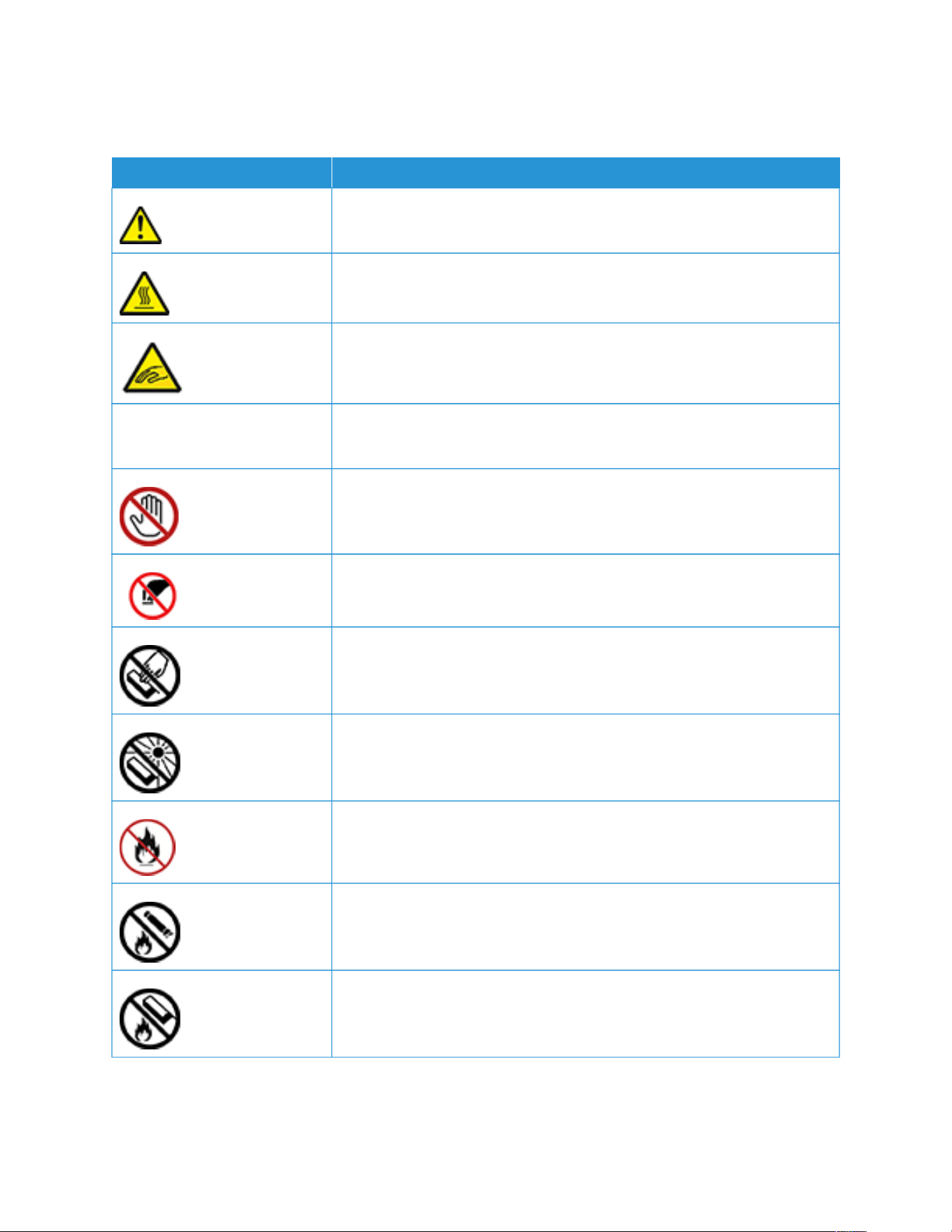
Product Symbols
SSYYMMBBOOLL DDEESSCCRRIIPPTTIIOONN
Caution:
Indicates a hazard that can result in serious injury or death if not avoided.
Hot Surface:
Hot surface on or in the printer. To avoid personal injury, use caution.
Warning:
Moving parts. To avoid personal injury, use caution.
[No symbol] Warning:
Indicates a mandatory action to take to avoid damage to the property.
Do not touch the part or area of the printer.
Do not touch this part of the printer.
Do not touch the part or area of the printer.
Do not expose the drum cartridges to direct sunlight.
Do not burn the item.
Do not burn the toner cartridges.
Do not burn the drum cartridges.
Xerox
®
C410 Color Printer User Guide 21
Safety
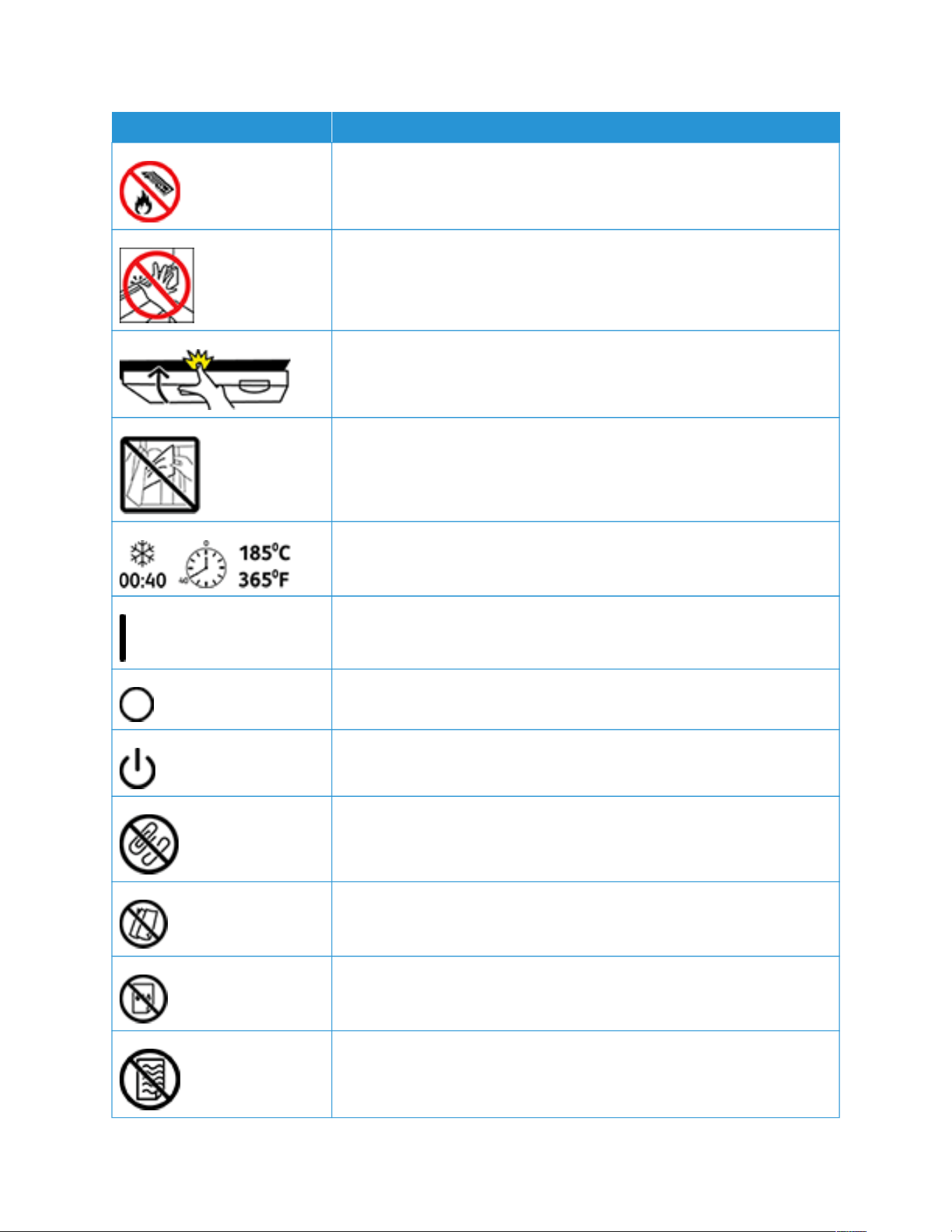
SSYYMMBBOOLL DDEESSCCRRIIPPTTIIOONN
Do not burn the toner waste cartridge.
Pinch Hazard:
To avoid personal injury, use caution in this area.
Pinch Hazard:
To avoid personal injury, use caution in this area.
Do not remove the paper forcefully.
Hot Surface:
Before handling, wait for the time indicated.
On
Off
Standby
Do not use paper attached with staples or any form of binding clip.
Do not use folded, creased, curled, or wrinkled paper.
Do not load or use inkjet paper.
Do not reload paper that is used or printed previously.
22
Xerox
®
C410 Color Printer User Guide
Safety
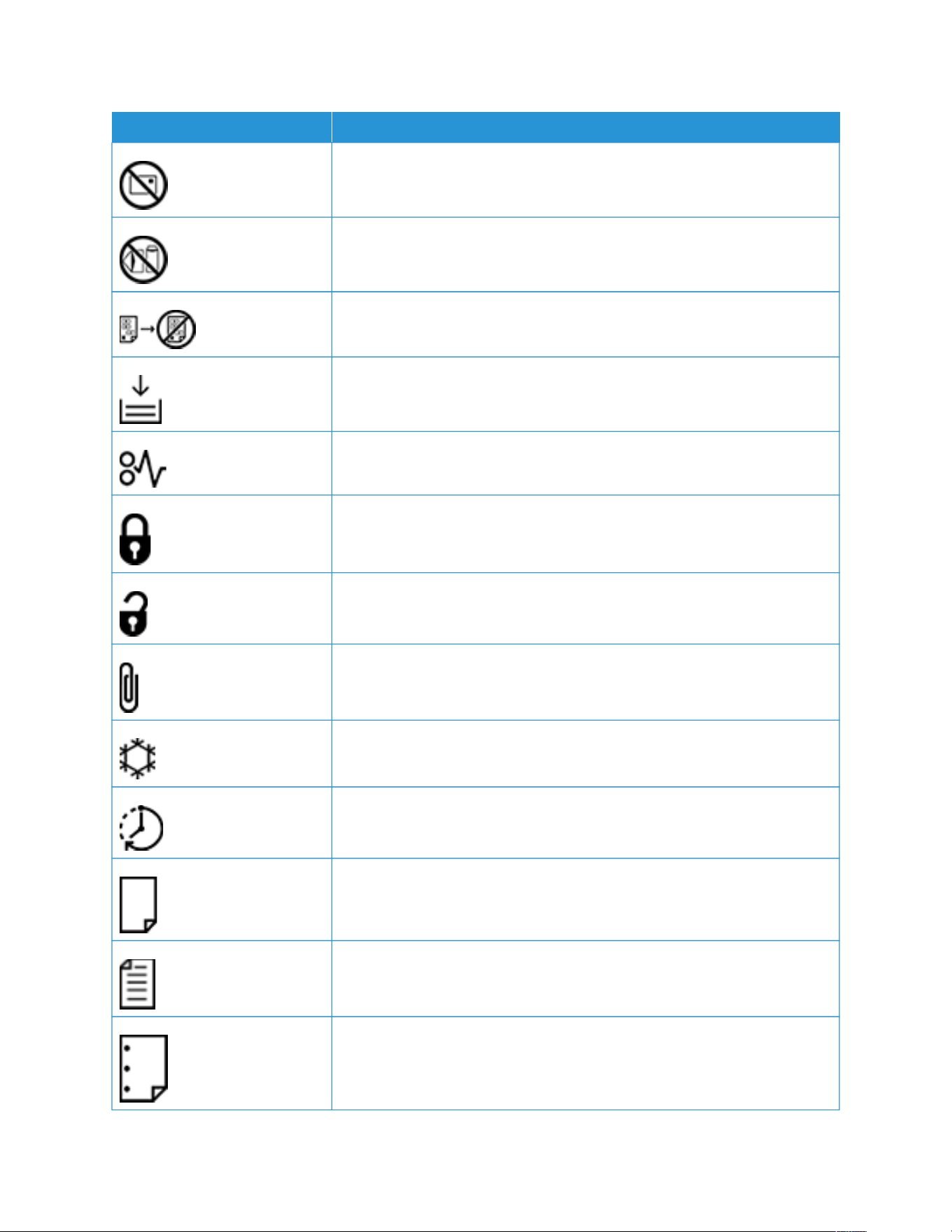
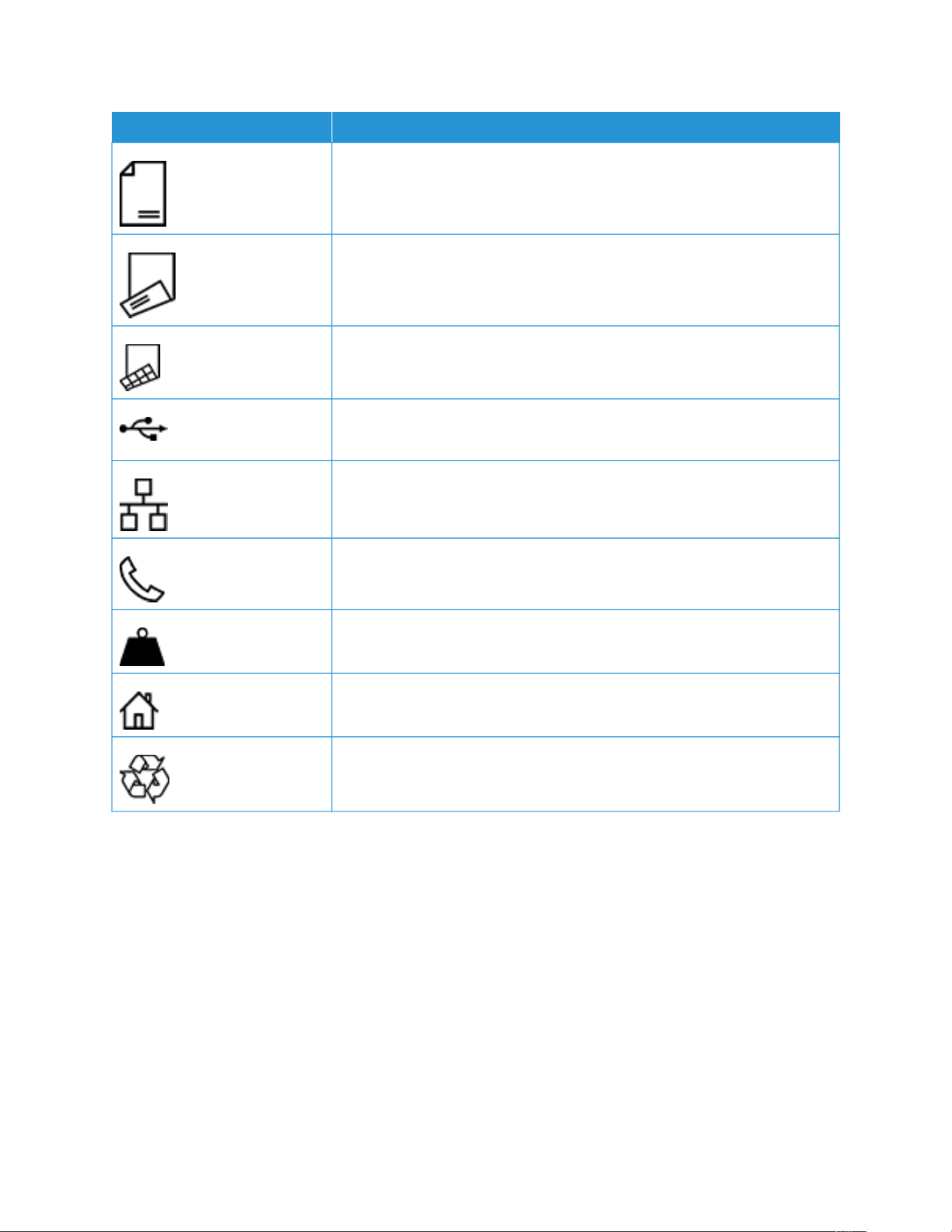

Xerox
®
C410 Color Printer User Guide 25
Learn About the Printer
This chapter contains:
Finding Information About the Printer . .. ..... .. .. .. ..... .. .. .. ....... .. .. .. ..... .. .. .. ..... .. .. .. . .. .. .. .. .. . .. .. .. .. .. . .. .. .. .. .. . .. .. .. . 26
Finding the Printer Serial Number. .. . .. .. .. .. .. . .. .. .. .. .. . .. .. .. .. .. .. . .. .. .. ..... .. .. .. ..... .. .. .. ..... .. .. .. ..... .. .. .. ....... .. .. . .. .. .. . 28
Printer Configurations . .. .. .. . .. .. .. .. .. . .. .. .. .. .. . .. .. .. .. .. . .. .. .. ....... .. .. .. ..... .. .. .. ..... .. .. .. ..... .. .. .. ..... .. .. .. ....... .. .. . .. .. .. . 29
Removing the Internal Packaging Materials ... .. .. . .. .. .. .. .. . .. .. .. .. .. .. . .. .. .. .. .. . .. .. .. .. .. . .. .. .. .. .. . .. .. .. .. .. . .. .. .. .. .. . .. .. .. . 30
Using the Control Panel. .. .. . .. .. .. ..... .. .. .. ..... .. .. .. ..... .. .. .. ....... .. .. .. ..... .. .. .. . .. .. .. .. .. . .. .. .. .. .. . .. .. .. .. .. . .. .. .. .. .. . .. .. .. . 32
Understanding the Status of the Indicator Light . .. .. . .. .. .. .. .. .. . .. .. .. .. .. . .. .. .. .. .. . .. .. .. .. .. . .. .. .. ..... .. .. .. ....... .. .. ....... . 33
Selecting Paper.. .. .. . .. .. .. .. .. .. . .. .. .. .. .. . .. .. .. .. .. . .. .. .. .. .. . .. .. .. .. .. . .. .. .. .. .. . .. .. .. ....... .. .. .. ..... .. .. .. ..... .. .. .. ..... .. .. .. ..... 34

Finding Information About the Printer
WWHHAATT AARREE YYOOUU LLOOOOKKIINNGG FFOORR??
FFIINNDD IITT HHEERREE
Initial setup instructions See the setup documentation that came with the
printer.
• Printer software
• Print driver
• Printer firmware
• Utility
Go to www.xerox.com, search for your printer model,
and then select the driver, firmware, or utility that you
need.
• Selecting and storing paper and specialty media
• Loading paper
• Configuring printer settings
• Viewing and printing documents and photos
• Configuring the printer on a network
• Caring for and maintaining the printer
• Troubleshooting and solving problems
Information Center: Go to www.xerox.com.
How-to videos: Go to www.xerox.com.
Touch Screen Guide: Go to www.xerox.com.
Setting up and configuring the accessibility features of
your printer
Go to www.xerox.com.
Help information for using the printer software Help for Microsoft Windows or Macintosh operating
systems:
Open a printer software program or application, and
then click HHeellpp.
Click HHeellpp to view context-sensitive information.
Note:
• Help is automatically installed with the
printer software.
• Depending on the operating system, the
printer software is either in the printer
program folder or on the desktop.
26
Xerox
®
C410 Color Printer User Guide
Learn About the Printer

WWHHAATT AARREE YYOOUU LLOOOOKKIINNGG FFOORR??
FFIINNDD IITT HHEERREE
• Documentation
• Live chat support
• E-mail support
• Voice support
Go to www.xerox.com.
Select your country or region, and then select your
product to view the appropriate support site.
Support contact information for your country or region
can be found on the website or on the printed
warranty that came with the printer.
Have the following information ready when you
contact customer support:
• Place and date of purchase
• Machine type and serial number
For more information, refer to Finding the Printer Serial
Number.
• Safety information
• Regulatory information
• Warranty information
• Environmental information
Warranty information varies by country or region:
• In the U.S.—See the Statement of Limited
Warranty included with the printer, or go to www.
xerox.com.
• In other countries and regions—See the printed
warranty that came with the printer
Product Information Guide—See the documentation
that came with the printer or go to www.xerox.com.
Xerox
®
C410 Color Printer User Guide 27
Learn About the Printer
Printer Configurations
CCAAUUTTIIOONN——TTIIPPPPIINNGG HHAAZZAARRDD:: Installing one or more options on your printer may require a caster
base, furniture, or other feature to prevent instability causing possible injury. For more information on
supported configurations, refer to Workplace and Digital Printing Solutions | Xerox.
CCAAUUTTIIOONN——TTIIPPPPIINNGG HHAAZZAARRDD:: To reduce the risk of equipment instability, load each tray separately.
Keep all other trays closed until needed.
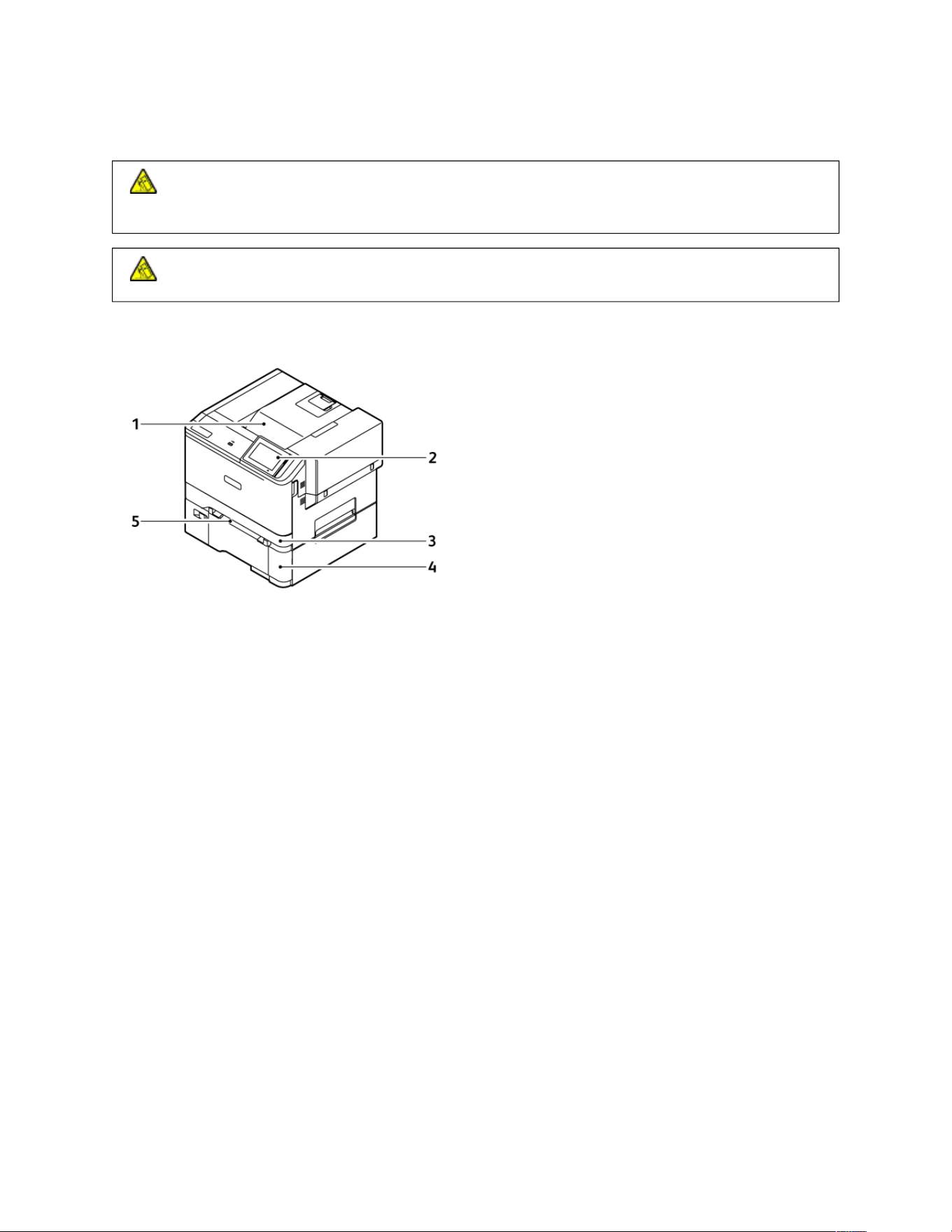
Depending on your printer model, you can configure your printer by adding an optional 550+100-sheet Tray and
two optional standard 550-sheet Trays.
1. Standard Output Tray
2. Control Panel
3. Tray 1, Standard 250-sheet Tray
4. Tray 2, Optional 550+100-sheet Tray
5. Manual Feeder
Xerox
®
C410 Color Printer User Guide 29
Learn About the Printer
Removing the Internal Packaging Materials
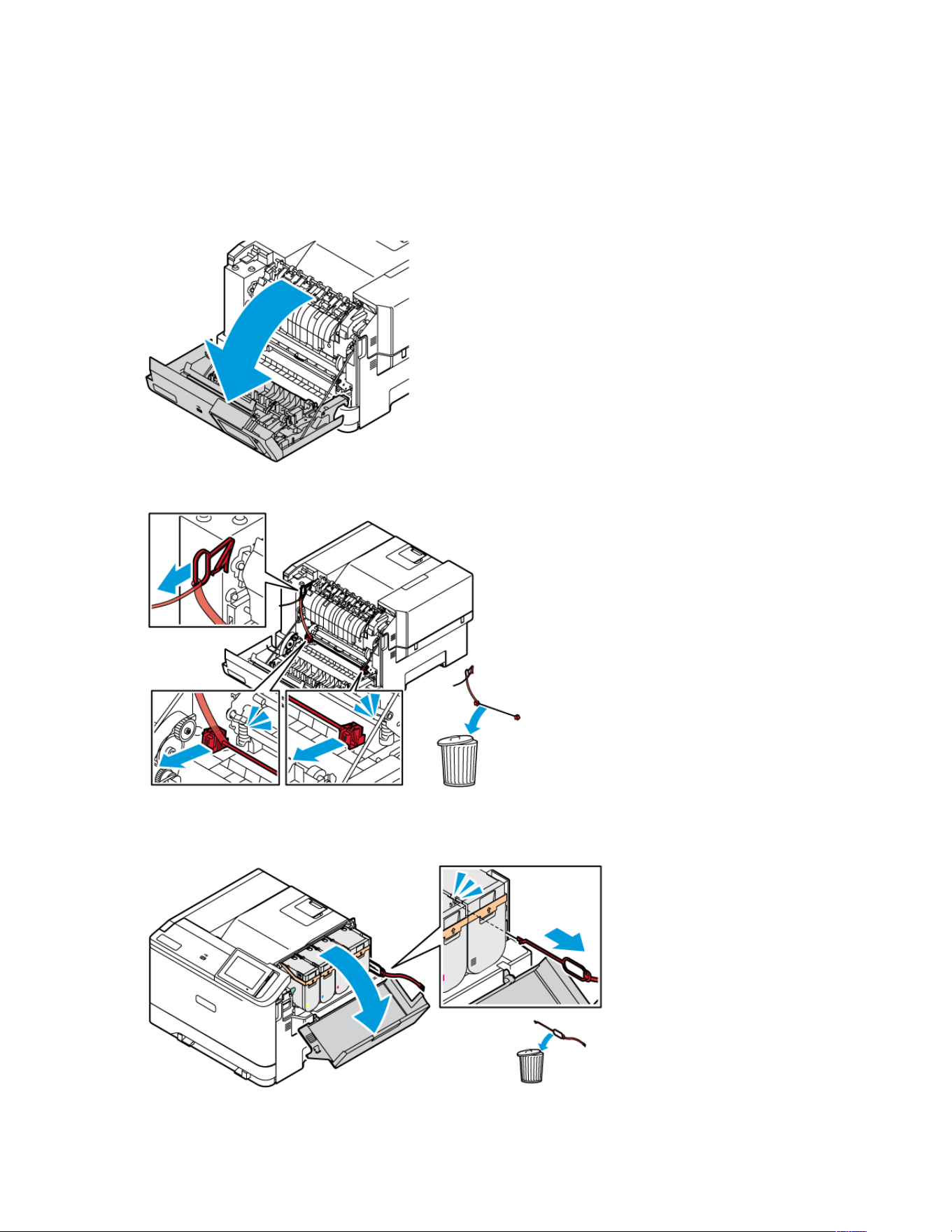
The printer comes with internal packing materials. Remove the packing materials and install the imaging unit and
the toner cartridge, correctly.
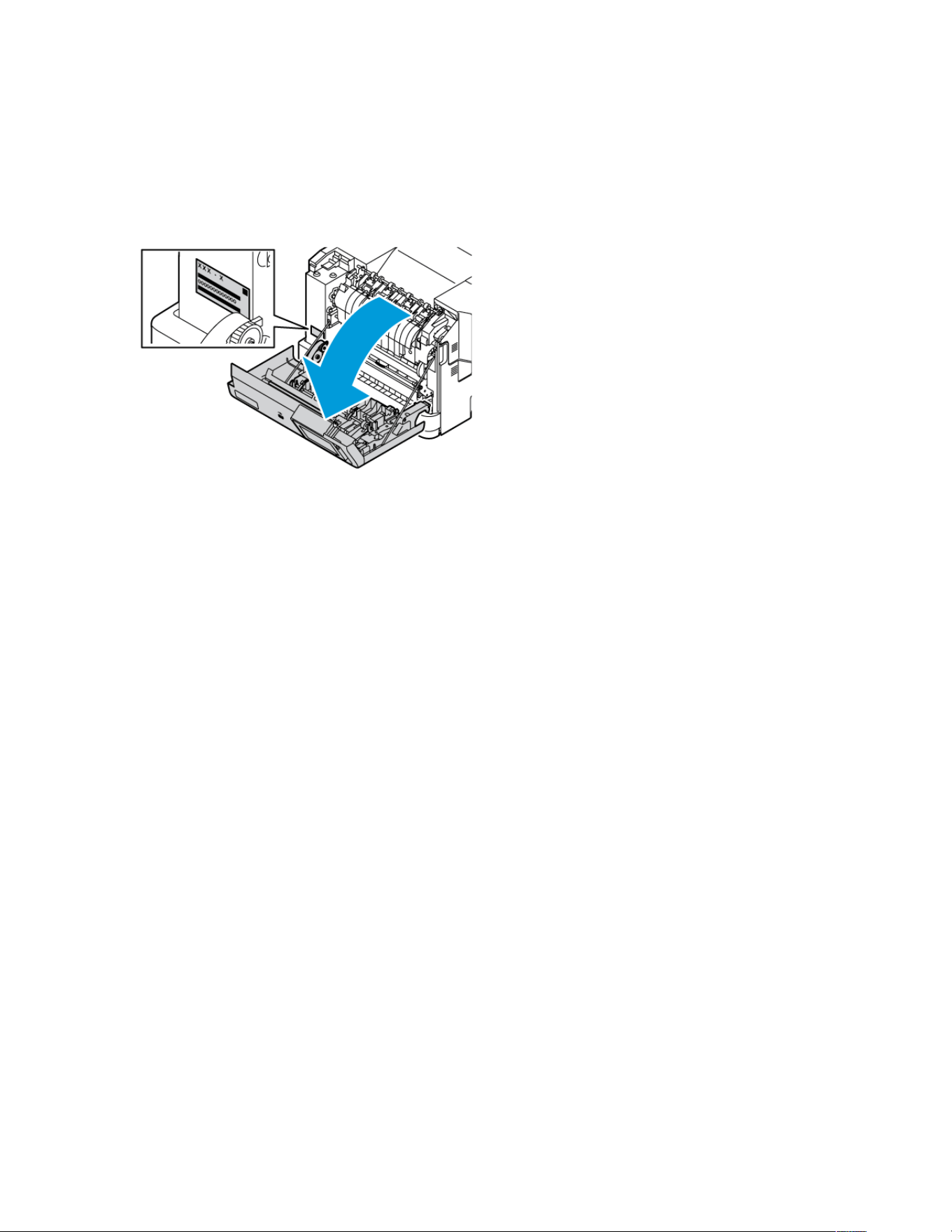
1. At the front of the printer, open Door A.
2. Remove the red plastic loops and clips.
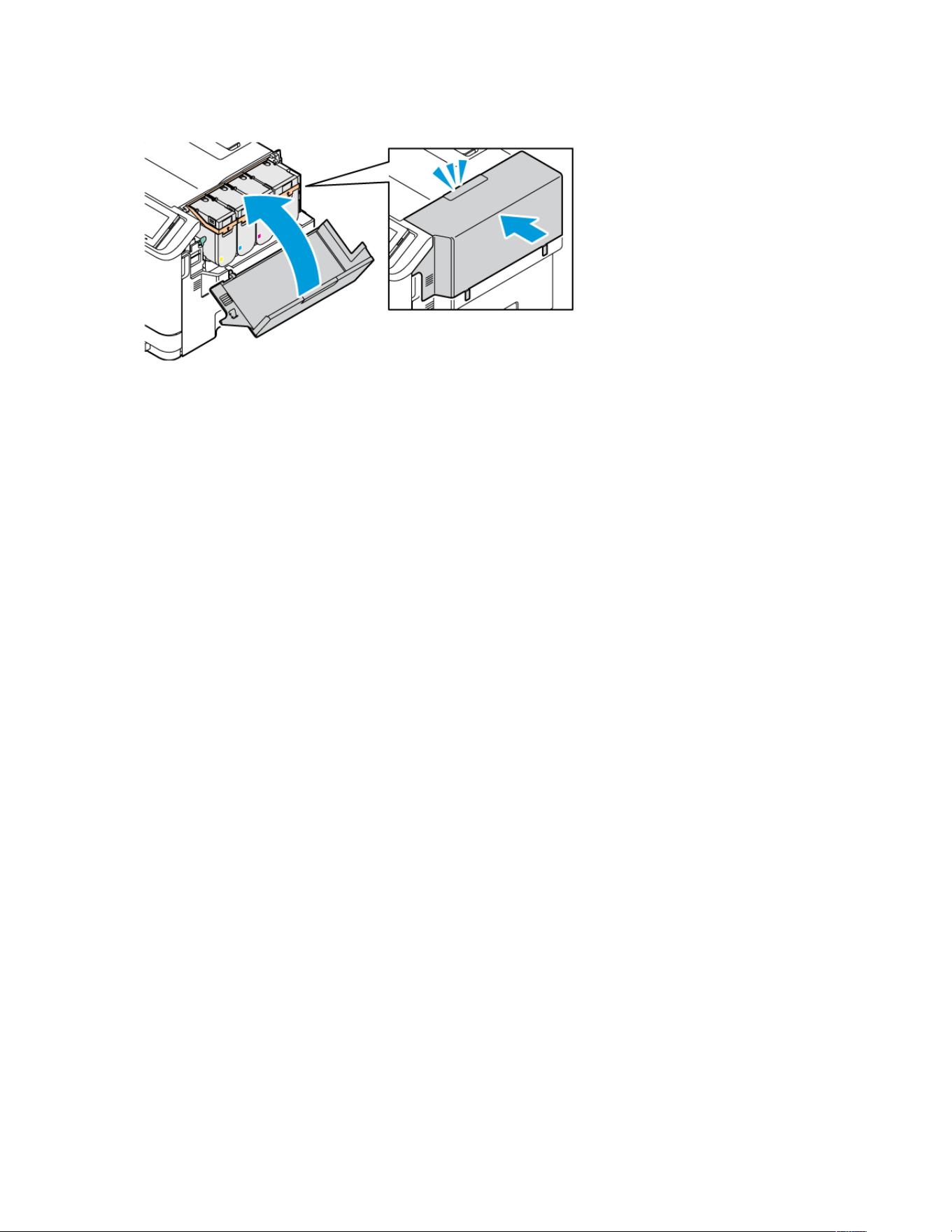
3. Close Door A.
4. At the right-side of the printer, open the Door B and remove the red plastic loop from the toner cartridge.
30 Xerox
®
C410 Color Printer User Guide
Learn About the Printer
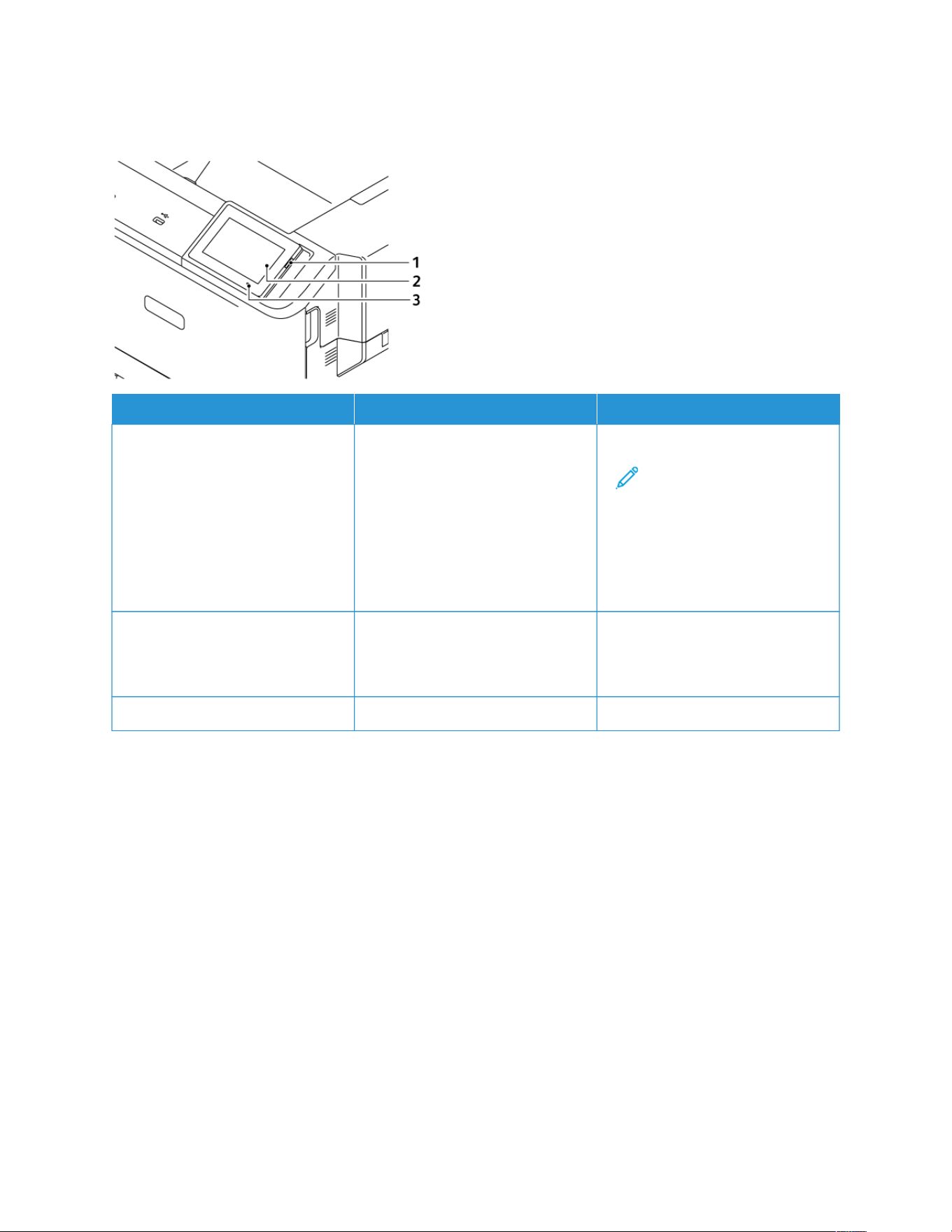
Using the Control Panel
CCOONNTTRROOLL PPAANNEELL PPAARRTT FFUUNNCCTTIIOONN
1 Power button Turn on or turn off the printer.
Note: To turn off the printer,
press and hold the power
button for five seconds.
Set the printer to Sleep mode.
Wake the printer from Sleep or
Hibernate mode.
2 Display View the printer messages and
supply status.
Set up and operate the printer.
3 Indicator light Check the status of the printer.
32
Xerox
®
C410 Color Printer User Guide
Learn About the Printer

Understanding the Status of the Indicator Light
IINNDDIICCAATTOORR LLIIGGHHTT PPRRIINNTTEERR SSTTAATTUUSS
Off The printer is off.
Solid Blue The printer is ready.
Blinking Blue The printer is printing or processing data.
Blinking Red The printer requires user intervention.
Solid Amber The printer is in Sleep Mode.
Blinking Amber The printer is in Deep Sleep or Hibernate Mode.
Xerox
®
C410 Color Printer User Guide 33
Learn About the Printer

Selecting Paper
PAPER GUIDELINES
Use the appropriate paper to prevent jams and help ensure trouble-free printing.
• Always use new, undamaged paper.
• Before loading paper, know the recommended printable side of the paper. This information is usually indicated
on the paper package.
• Do not use paper that has been cut or trimmed by hand.
• Do not mix paper sizes, types, or weights in the same tray. Mixing results in jams.
• Do not use coated papers unless they are specifically designed for electrophotographic printing.
For more information, refer to:
• Recommended Media List (United States): Recommended Media List - Xerox® Paper & Specialty Media.
• Recommended Media List (Europe): Recommended Printer Papers and Specialty Media - Xerox.
PAPER CHARACTERISTICS
The following paper characteristics affect print quality and reliability. Consider these factors before printing on
them.
Weight
Trays can feed paper of varying weights. Paper lighter than 60 g/m
2
(16 lb.) may not be stiff enough to feed
properly, and may cause jams. For more information, refer to Supported Paper Weights
Curl
Curl is the tendency for paper to curl at its edges. Excessive curl can cause paper feeding problems. Curl can occur
after the paper passes through the printer, where it is exposed to high temperatures. Storing paper unwrapped in
hot, humid, cold, or dry conditions can contribute to paper curling before printing and can cause feeding problems.
Smoothness
Paper smoothness directly affects print quality. If paper is too rough, toner cannot fuse to it properly. If paper is too
smooth, it can cause paper feeding or print quality issues. We recommend the use of paper with 50 Sheffield
points.
Moisture Content
The amount of moisture in paper affects both print quality and the printer ability to feed the paper correctly. Leave
paper in its original wrapper until you use it. Exposure of paper to moisture changes can degrade its performance.
Before printing, store paper in its original wrapper in the same environment as the printer for 24 to 48 hours. The
environment in which the paper is stored must be the same as the printer. Extend the time several days if the
34
Xerox
®
C410 Color Printer User Guide
Learn About the Printer

storage or transportation environment is very different from the printer environment. Thick paper may also require
a longer conditioning period.
Grain Direction
Grain refers to the alignment of the paper fibers in a sheet of paper. Grain is either grain long, running the length of
the paper, or grain short, running the width of the paper.
For recommended grain direction, refer to Supported Paper Weights.
Fiber Content
Most high-quality xerographic paper is made from 100 percent chemically treated pulped wood. This content
provides the paper with a high degree of stability, resulting in fewer paper feeding problems and better print
quality. Paper containing fibers such as cotton can negatively affect paper handling.
UNACCEPTABLE PAPER
The following paper types are not recommended for use with the printer:
• Chemically treated papers used to make copies without carbon paper, also known as carbonless papers,
carbonless copy paper (CCP), or no carbon required (NCR) paper
• Preprinted papers with chemicals that may contaminate the printer
• Preprinted papers that can be affected by the temperature in the printer fuser
• Preprinted papers that require a registration (the precise print location on the page) greater than ±2.3mm
(±0.09in.), such as optical character recognition (OCR) forms
In some cases, registration can be adjusted with a software application to successfully print on these forms.
• Coated papers (Erasable Bond), synthetic papers, thermal papers
• Rough-edged, rough or heavily textured surface papers, or curled papers
• Recycled papers that fail EN12281:2002 (European)
• Paper weighing less than 60 g/m
2
(16 lb.)
• Multiple-part forms or documents
STORING PAPER
Use these paper storage guidelines to help avoid jams and uneven print quality:
• Store paper in its original wrapper in the same environment as the printer for 24 to 48 hours before printing.
• Extend the time several days if the storage or transportation environment is very different from the printer
environment. Thick paper may also require a longer conditioning period.
• For best results, store paper where the temperature is 21°C (70°F) and the relative humidity is 40 percent.
• Most label manufacturers recommend printing in a temperature range of 18–24°C (65–75°F) with relative
humidity between 40 and 60 percent.
• Store paper in cartons, on a pallet or shelf, rather than on the floor.
Xerox
®
C410 Color Printer User Guide 35
Learn About the Printer

• Store individual packages on a flat surface.
• Do not store anything on top of individual paper packages.
• Take paper out of the carton or wrapper only when you are ready to load it in the printer. The carton and
wrapper help keep the paper clean, dry, and flat.
SELECTING PREPRINTED FORMS AND LETTERHEAD
• Use grain long paper.
• Use only forms and letterhead printed using an offset lithographic or engraved printing process.
• Avoid paper with rough or heavily textured surfaces.
• Use inks that are not affected by the resin in toner. Inks that are oxidation-set or oil-based generally meet these
requirements; latex inks might not.
• Print samples on preprinted forms and letterheads considered for use before buying large quantities. This action
determines whether the ink in the preprinted form or letterhead affects print quality.
• When in doubt, contact your paper supplier.
• When printing on letterhead, load the paper in the proper orientation for your printer.
For more information, refer to:
• Recommended Media List (United States): Recommended Media List - Xerox® Paper & Specialty Media.
• Recommended Media List (Europe): Recommended Printer Papers and Specialty Media - Xerox.
SUPPORTED PAPER SIZES
Note: Your printer model may have a 550+100-sheet tray as Tray 2, which consists of a 550-sheet tray and
an integrated 100-sheet multipurpose feeder. The 550-sheet tray of the 550+100-sheet tray supports the
same paper types as the 550-sheet tray. The integrated multipurpose feeder supports different paper sizes,
types, and weights.
Supported Paper Sizes
PPAAPPEERR SSIIZZEE
SSTTAANNDDAARRDD
225500––SSHHEEEETT
TTRRAAYY
OOPPTTIIOONNAALL
555500––SSHHEEEETT
TTRRAAYYSS
MMUULLTTIIPPUURR--
PPOOSSEE FFEEEEDDEERR
MMAANNUUAALL
FFEEEEDDEERR
TTWWOO--SSIIDDEEDD
PPRRIINNTTIINNGG
AA44
210 x 297 mm
(8.27 x 11.7 in.)
AA55
1
148 x 210 mm
(5.83 x 8.27 in.)
XX XX
AA55
2
210 x 148 mm
XX
36
Xerox
®
C410 Color Printer User Guide
Learn About the Printer
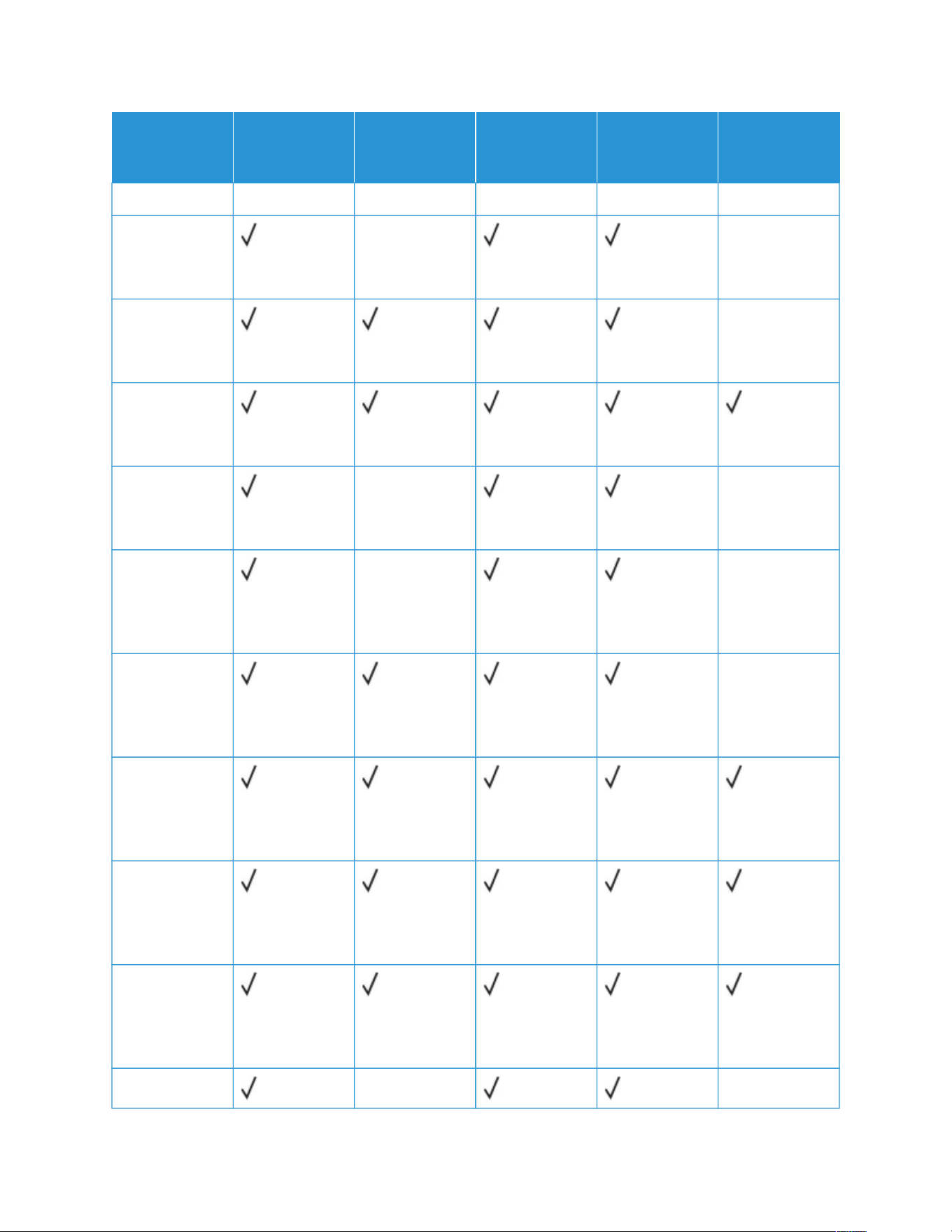
PPAAPPEERR SSIIZZEE
SSTTAANNDDAARRDD
225500––SSHHEEEETT
TTRRAAYY
OOPPTTIIOONNAALL
555500––SSHHEEEETT
TTRRAAYYSS
MMUULLTTIIPPUURR--
PPOOSSEE FFEEEEDDEERR
MMAANNUUAALL
FFEEEEDDEERR
TTWWOO--SSIIDDEEDD
PPRRIINNTTIINNGG
(8.27 x 5.83 in.)
AA66
105 x 148 mm
(4.13 x 5.83 in.)
XX XX
JJIISS BB55
182 x 257 mm
(7.17 x 10.1 in.)
XX
OOffiicciioo ((MMeexxiiccoo))
216 x 340 mm
(8.5 x 13.4 in.)
HHaaggaakkii
100 x 148 mm
(3.94 x 5.83 in.)
XX XX
SSttaatteemmeenntt
139.7 x 215.9
mm (5.5 x 8.5
in.)
XX XX
EExxeeccuuttiivvee
184.2 x 266.7
mm (7.25 x 10.5
in.)
XX
LLeetttteerr
215.9 x 279.4
mm (8.5 x 11
in.)
LLeeggaall
215.9 x 355.6
mm (8.5 x 14
in.)
FFoolliioo
215.9 x 330.2
mm (8.5 x 13
in.)
UUnniivveerrssaall
2, 3
XX XX
Xerox
®
C410 Color Printer User Guide 37
Learn About the Printer
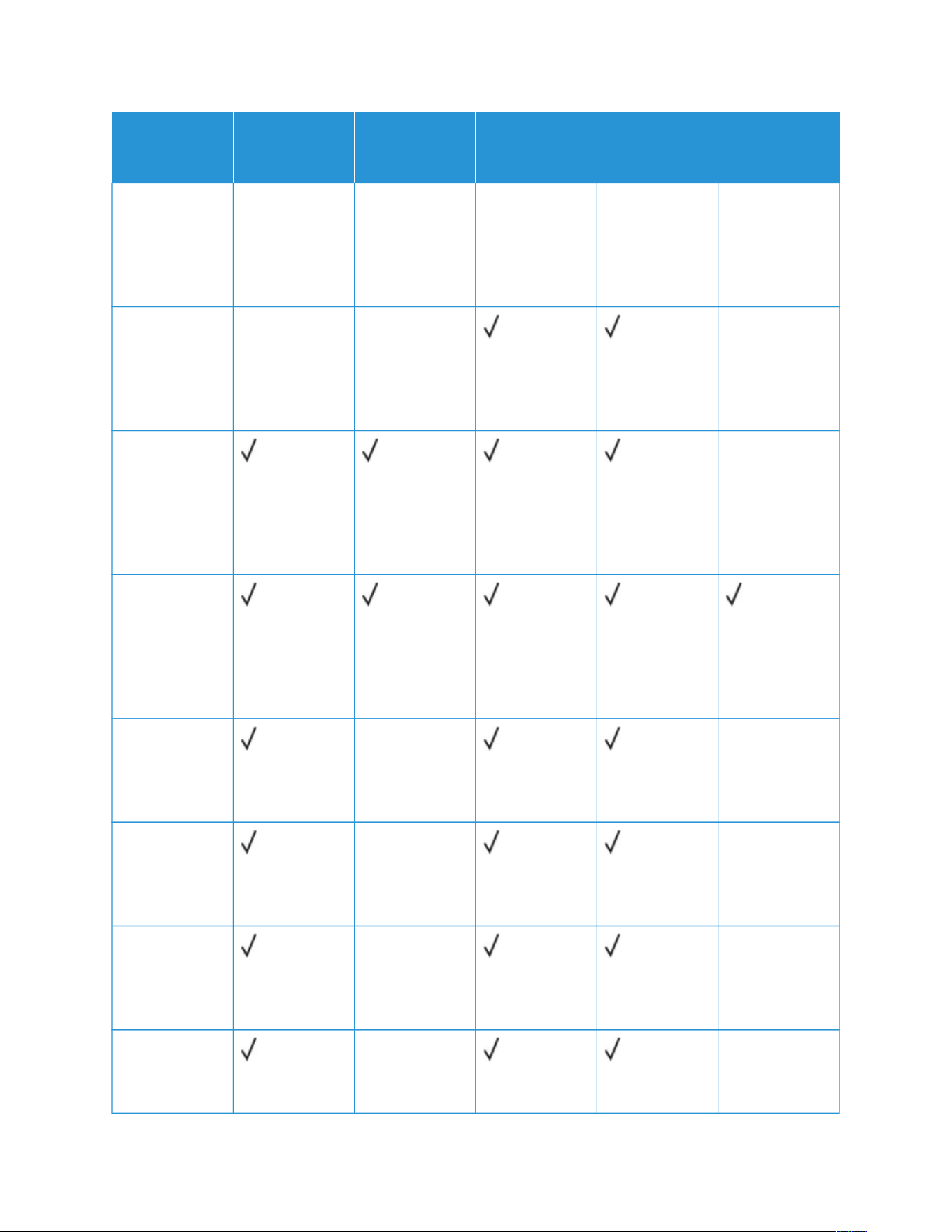
PPAAPPEERR SSIIZZEE
SSTTAANNDDAARRDD
225500––SSHHEEEETT
TTRRAAYY
OOPPTTIIOONNAALL
555500––SSHHEEEETT
TTRRAAYYSS
MMUULLTTIIPPUURR--
PPOOSSEE FFEEEEDDEERR
MMAANNUUAALL
FFEEEEDDEERR
TTWWOO--SSIIDDEEDD
PPRRIINNTTIINNGG
98.4 x 148–
215.9 x 355.6
mm (3.86 x
5.83–8.5 x 14
in.)
UUnniivveerrssaall
2, 3
76.2 x 127–
215.9 x 355.6
mm (3 x 5–8.5 x
14 in.)
XX XX
XX
UUnniivveerrssaall
2, 3
148 x 210–
215.9 x 355.6
mm (5.83 x
8.27–8.5 x 14
in.)
XX
UUnniivveerrssaall
2, 3
210 x 250–
215.9 x 355.6
mm (8.27 x
10.98 – 8.5 x 14
in.)
77
33//44
EEnnvveellooppee
98.4 x 190.5
mm (3.875 x 7.5
in.)
4
XX XX
99 EEnnvveellooppee
98.4 x 225.4
mm (3.875 x 8.9
in.)
4
XX XX
1100 EEnnvveellooppee
104.8 x 241.3
mm (4.12 x 9.5
in.)
4
XX XX
DDLL EEnnvveellooppee
110 x 220 mm
(4.33 x 8.66 in.)
4
XX XX
38
Xerox
®
C410 Color Printer User Guide
Learn About the Printer
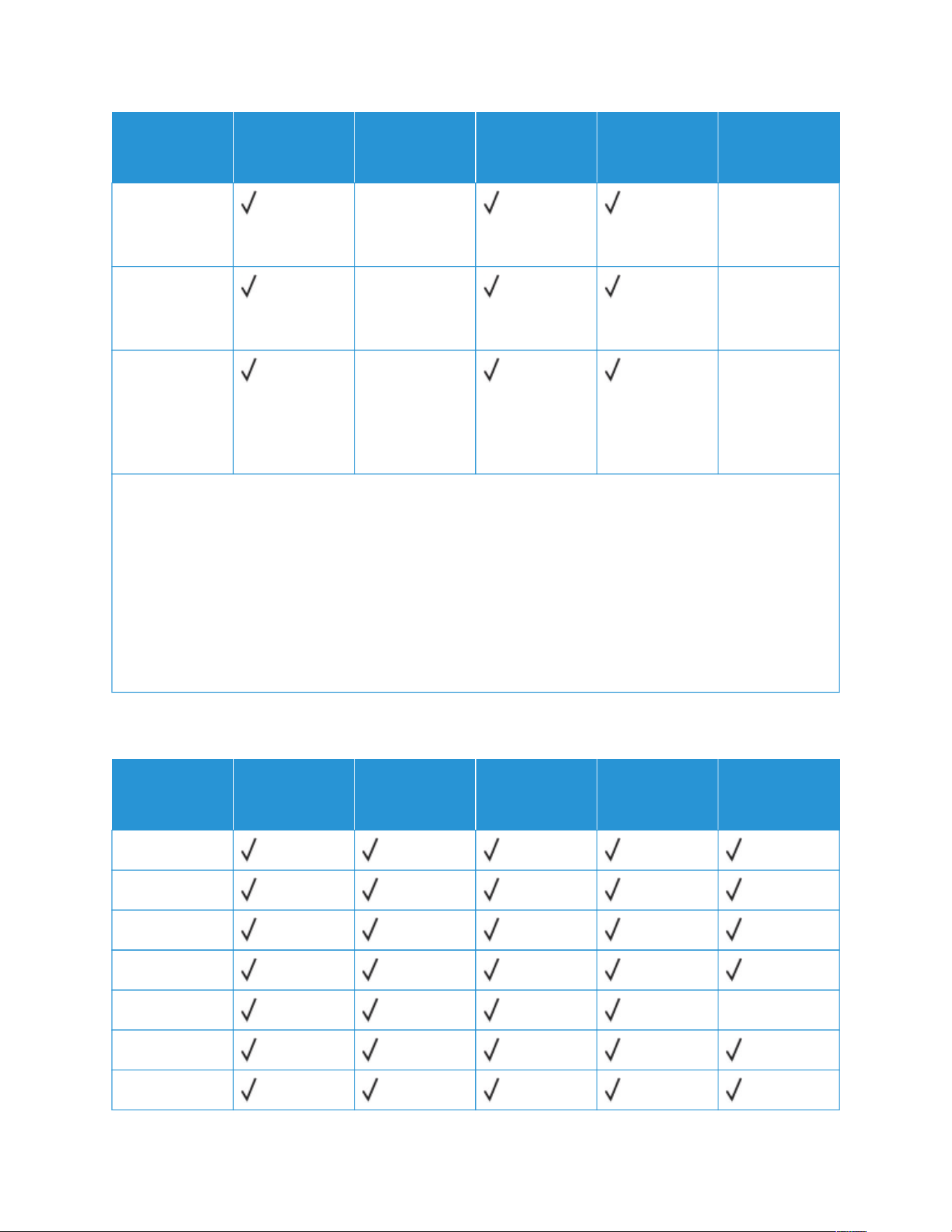
PPAAPPEERR SSIIZZEE
SSTTAANNDDAARRDD
225500––SSHHEEEETT
TTRRAAYY
OOPPTTIIOONNAALL
555500––SSHHEEEETT
TTRRAAYYSS
MMUULLTTIIPPUURR--
PPOOSSEE FFEEEEDDEERR
MMAANNUUAALL
FFEEEEDDEERR
TTWWOO--SSIIDDEEDD
PPRRIINNTTIINNGG
CC55 EEnnvveellooppee
162 x 229 mm
(6.38 x 9.01 in.)
4
XX XX
BB55 EEnnvveellooppee
176 x 250 mm
(6.93 x 9.84 in.)
4
XX XX
OOtthheerr EEnnvveellooppee
98.4 x 162–176
x 250 mm (3.87
x 6.38–6.93 x
9.84 in)
4
XX XX
1
Load this paper size into the standard tray, the manual feeder, and the multipurpose feeder with the long edge
entering the printer first.
2
Load this paper size into the optional trays with the short edge entering the printer first.
3
When Universal is selected, the page is formatted for 215.9 x 355.6 mm (8.5 x 14 in.) unless the size is specified
by the software application.
4
Load narrow paper with the short edge entering the printer first.
5
When Other Envelope is selected, the page is formatted for 215.9 x 355.6 mm (8.5 x 14 in.) unless the size is
specified by the software application.
Supported Paper Types
PPAAPPEERR TTYYPPEE
SSTTAANNDDAARRDD
225500––SSHHEEEETT
TTRRAAYY
OOPPTTIIOONNAALL
555500––SSHHEEEETT
TTRRAAYYSS
MMUULLTTIIPPUURR--
PPOOSSEE FFEEEEDDEERR
MMAANNUUAALL
FFEEEEDDEERR
TTWWOO--SSIIDDEEDD
PPRRIINNTTIINNGG
PPllaaiinn ppaappeerr
LLiigghhtt PPaappeerr
HHeeaavvyy PPaappeerr
LLeetttteerr hheeaadd
CCaarrdd ssttoocckk XX
RReeccyycclleedd
BBoonndd
Xerox
®
C410 Color Printer User Guide 39
Learn About the Printer
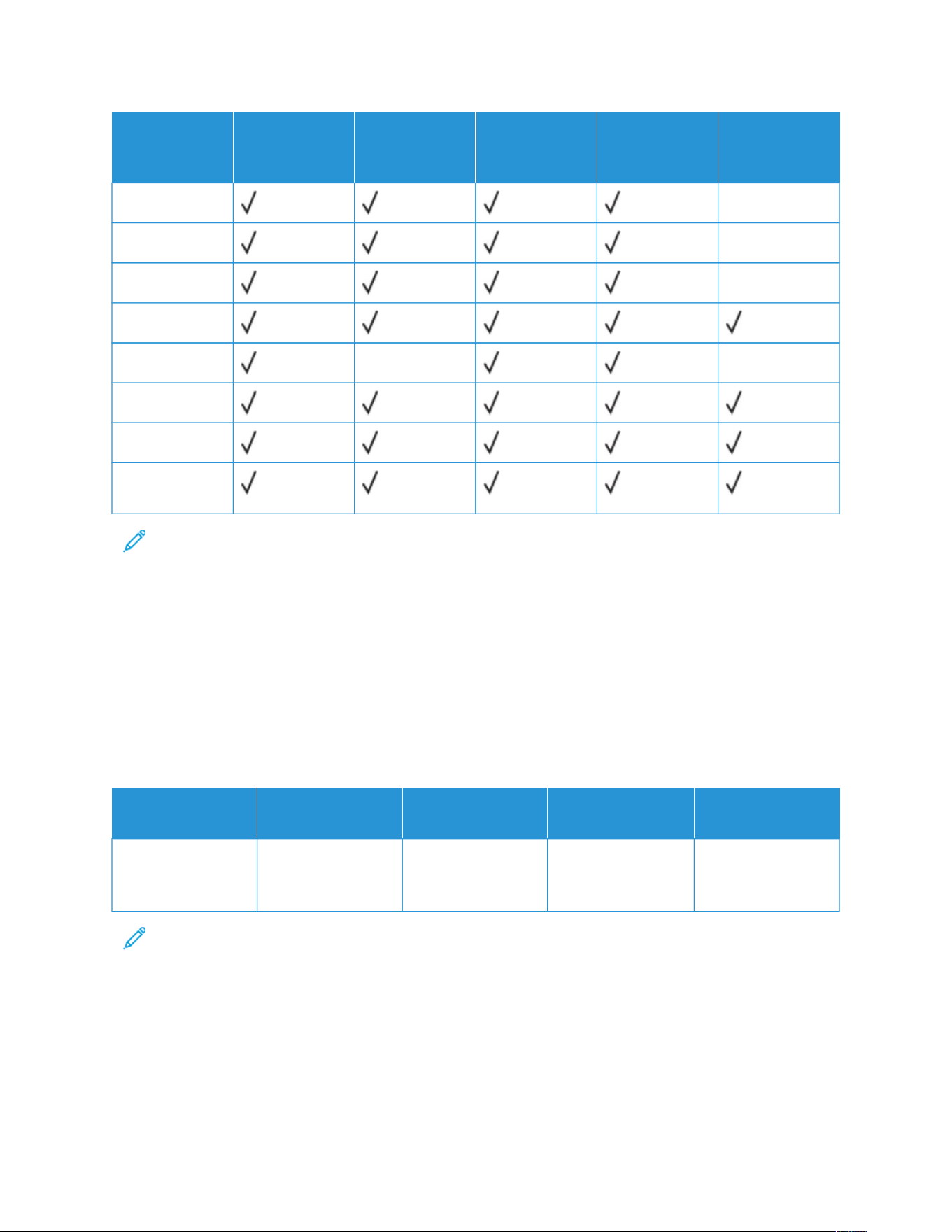
PPAAPPEERR TTYYPPEE
SSTTAANNDDAARRDD
225500––SSHHEEEETT
TTRRAAYY
OOPPTTIIOONNAALL
555500––SSHHEEEETT
TTRRAAYYSS
MMUULLTTIIPPUURR--
PPOOSSEE FFEEEEDDEERR
MMAANNUUAALL
FFEEEEDDEERR
TTWWOO--SSIIDDEEDD
PPRRIINNTTIINNGG
LLaabbeellss
XX
GGlloossssyy
XX
VViinnyyll LLaabbeellss
XX
PPrree--PPrriinntteedd
EEnnvveellooppeess XX XX
CCoolloorreedd PPaappeerr
RRoouugghh CCoottttoonn
CCuussttoomm TTyyppee
11––66
Note:
• Your printer model may have an optional 550+100-sheet tray, which consists of a 550-sheet tray and an
integrated 100-sheet multipurpose feeder. The 550-sheet tray of the optional 550+100-sheet tray
supports the same paper types as the standard 550-sheet tray. The integrated multipurpose feeder
supports different paper sizes, types, and weights.
• Labels, envelopes, and card stock always print at reduced speed
• Vinyl labels are supported for occasional use only and must be tested for acceptability. Some vinyl labels
may feed more reliably from the multipurpose feeder
Supported Paper Weights
SSTTAANNDDAARRDD 225500––
SSHHEEEETT TTRRAAYY
OOPPTTIIOONNAALL 555500––
SSHHEEEETT TTRRAAYYSS
MMUULLTTIIPPUURRPPOOSSEE
FFEEEEDDEERR MMAANNUUAALL FFEEEEDDEERR
TTWWOO--SSIIDDEEDD
PPRRIINNTTIINNGG
60–216 g/m
2
grain
long (16–80 lb
bond)
60–176 g/m
2
grain
long (16–80 lb
bond)
60–176 g/m
2
grain
long (16–80 lb
bond)
60–216 g/m
2
grain
long (16–80 lb
bond)
60–105 g/m
2
grain
long (16–80 lb
bond)
Note:
• Your printer model may have an optional 550+100-sheet tray, which consists of a 550-sheet tray and an
integrated 100-sheet multipurpose feeder. The 550-sheet tray of the optional 550+100-sheet tray
supports the same paper types as the standard 550-sheet tray. The integrated multipurpose feeder
supports different paper sizes, types, and weights.
• For 60 to 176 g/m
2
(16–47 lb bond) paper, grain long fibers are recommended.
40
Xerox
®
C410 Color Printer User Guide
Learn About the Printer



Xerox
®
C410 Color Printer User Guide 43
Set up, Install, and Configure
This chapter contains:
Selecting a Location for the Printer.. .. .. .. . .. .. .. .. .. . .. .. .. .. .. . .. .. .. .. .. .. . .. .. .. .. .. . .. .. .. ..... .. .. .. ..... .. .. .. ..... .. .. .. ..... .. .. .. . 44
Attaching Cables . .. . .. .. .. ....... .. .. ....... .. .. .. ..... .. .. .. ..... .. .. .. ..... .. .. .. . .. .. .. .. .. . .. .. .. .. .. .. . .. .. .. .. .. . .. .. .. .. .. . .. .. .. .. .. . .. .. 46
Xerox
®
Easy Assist App.. ..... .. .. .. ..... .. .. .. ..... .. .. .. ..... .. .. .. ....... .. .. .. . .. .. .. .. .. . .. .. .. .. .. . .. .. .. .. .. . .. .. .. .. .. . .. .. .. .. .. . .. .. .. . 47
Setting up and Using the Home Screen Applications ... .. . .. .. .. .. .. . .. .. .. .. .. . .. .. .. .. .. . .. .. .. .. .. . .. .. .. .. .. .. . .. .. .. ..... .. .. .. ..51
Setting up and Using the Accessibility Features .. .. .. ....... .. .. .. ..... .. .. .. ..... .. .. .. . .. .. .. .. .. . .. .. .. .. .. . .. .. .. .. .. .. . .. .. .. .. .. . . 56
Loading Paper and Specialty Media..... .. .. .. ....... .. .. ....... .. .. .. ..... .. .. .. ..... .. .. .. . .. .. .. .. .. . .. .. .. .. .. . .. .. .. .. .. .. . .. .. .. .. .. . . 59
Installing and Updating Software, Drivers, and Firmware . .. .. .. . .. .. .. .. .. . .. .. .. .. .. .. . .. .. .. .. .. . .. .. .. .. .. . .. .. .. .. .. . .. .. .. .. .. . 69
Installing Hardware Options. .. .. .. . .. .. .. .. .. .. . .. .. .. .. .. . .. .. .. .. .. . .. .. .. .. .. . .. .. .. ..... .. .. .. ....... .. .. ....... .. .. .. ..... .. .. .. ..... .. .. 72
Installing Optional Trays.. .. .. .. ..... .. .. .. . .. .. .. .. .. .. . .. .. .. .. .. . .. .. .. .. .. . .. .. .. .. .. . .. .. .. .. .. . .. .. .. .. .. . .. .. .. .. .. .. . .. .. .. .. .. . .. .. .. ..73
Networking .. .. . .. .. .. .. .. .. . .. .. .. .. .. . .. .. .. .. .. . .. .. .. .. .. . .. .. .. ..... .. .. .. ....... .. .. ....... .. .. .. ..... .. .. .. ..... .. .. .. . .. .. .. .. .. . .. .. .. .. .. . 74
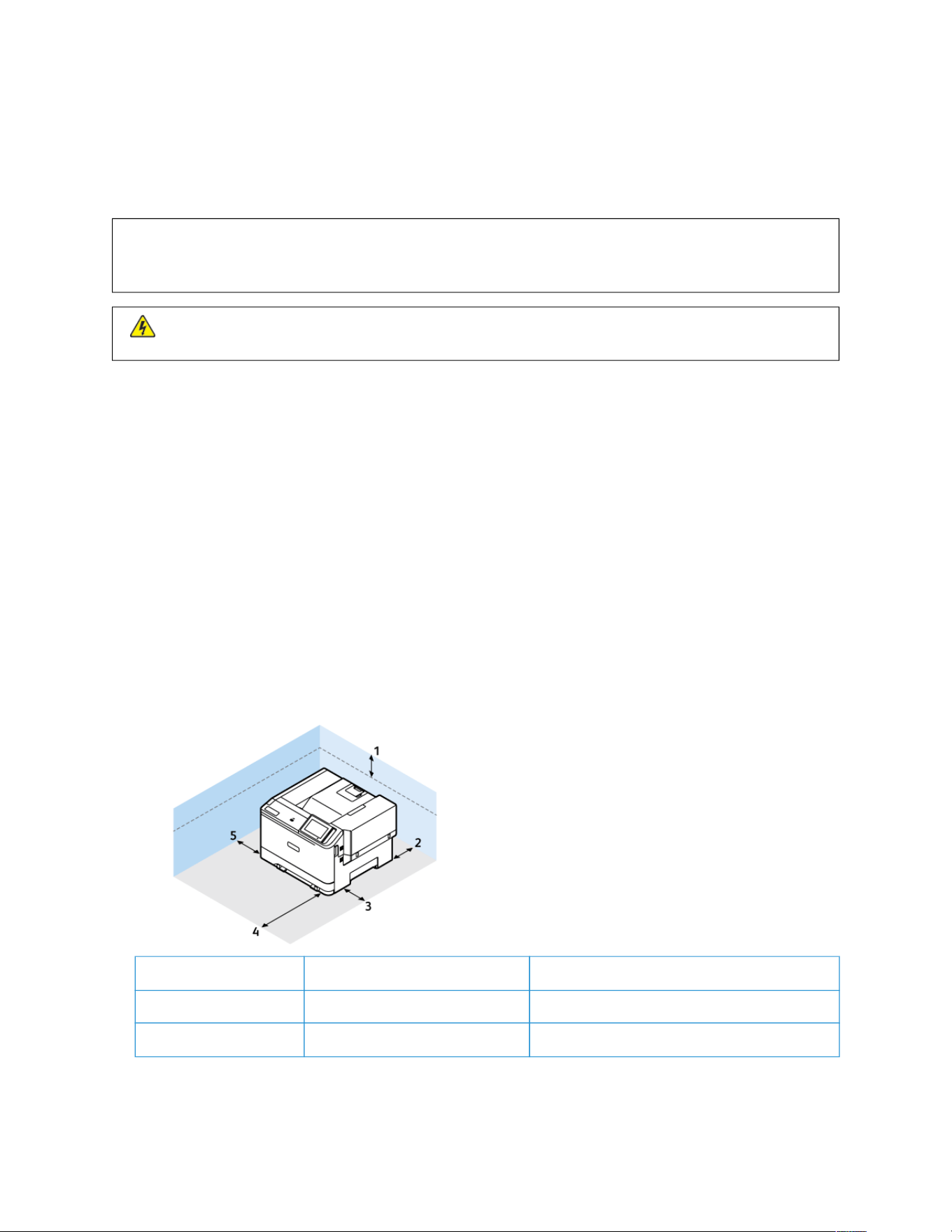
Selecting a Location for the Printer
• Leave enough room to open trays, covers, and doors and to install hardware options.
• Set up the printer near an electrical outlet.
CCAAUUTTIIOONN——PPOOTTEENNTTIIAALL IINNJJUURRYY:: To avoid the risk of fire or electrical shock, connect the power
cord to an appropriately rated and properly grounded electrical outlet that is near the product and
easily accessible.
CCAAUUTTIIOONN——SSHHOOCCKK HHAAZZAARRDD:: To avoid the risk of electrical shock, do not place or use this
product near water or wet locations.
• Make sure that airflow in the room meets the latest revision of the ASHRAE 62 standard or the CEN Technical
Committee 156 standard.
• Provide a flat, sturdy, and stable surface.
• Keep the printer:
– Clean, dry, and free of dust
– Away from stray staples and paper clips
– Away from the direct airflow of air conditioners, heaters, or ventilators
– Free from direct sunlight and humidity extremes
• Observe the recommended temperature and avoid fluctuations
Operating temperature: 10–32.2° C (50–90° F)
Storage temperature: 15.6–32.2° C (60–90° F)
• Allow the following recommended amount of space around the printer for proper ventilation:
11 Top 254 mm (10 in.)
22 Rear 102 mm (4 in.)
33 Right side 76 mm (3 in.)
44
Xerox
®
C410 Color Printer User Guide
Set up, Install, and Configure

44 Front 508 mm (20 in.)
Note: The minimum space needed
in front of the printer is 75 mm (3
in.)
55 Left side 76 mm (3 in.)
Note: Additional space is needed for right side 305 mm (12 in.) and front side 508 mm (20 in.) of the
printer for clearing jams and for toner and imaging unit replacements.
Xerox
®
C410 Color Printer User Guide 45
Set up, Install, and Configure
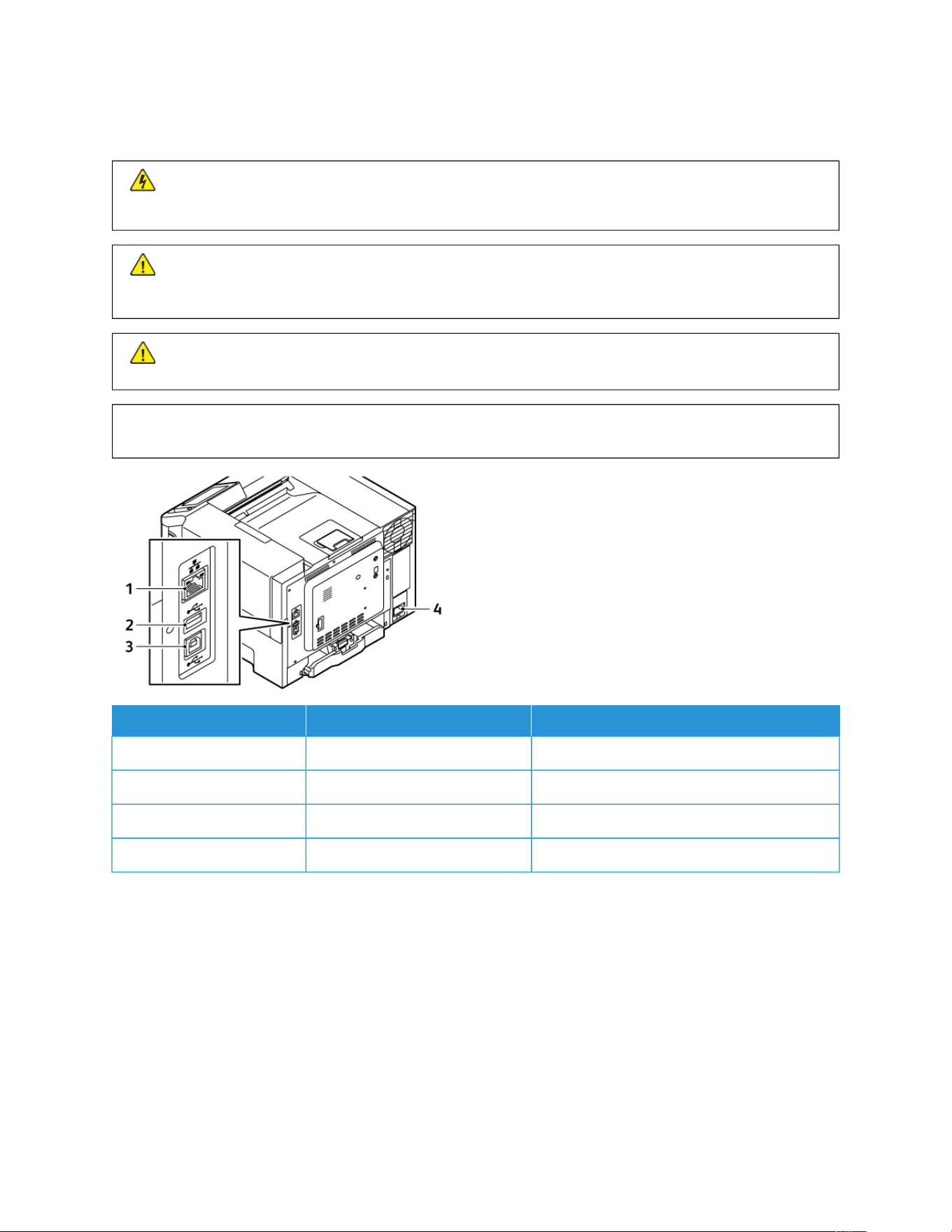
Attaching Cables
CCAAUUTTIIOONN——SSHHOOCCKK HHAAZZAARRDD:: To avoid the risk of electrical shock, do not set up this product or make
any electrical or cabling connections, such as the power cord, fax feature, or telephone, during a lightning
storm.
CCAAUUTTIIOONN——PPOOTTEENNTTIIAALL IINNJJUURRYY:: To avoid the risk of fire or electrical shock, connect the power cord
to an appropriately rated and properly grounded electrical outlet that is near the product and easily
accessible.
CCAAUUTTIIOONN——PPOOTTEENNTTIIAALL IINNJJUURRYY:: To avoid the risk of fire or electrical shock, use only the power cord
provided with this product or the manufacturer's authorized replacement.
WWaarrnniinngg——PPootteennttiiaall DDaammaaggee:: To avoid loss of data or printer malfunction, do not touch the USB
cable, any wireless network adapter, or the printer in the areas shown while actively printing.
PPRRIINNTTEERR PPOORRTT FFUUNNCCTTIIOONN
11 Ethernet port Connect the printer to a network.
22 USB port Attach a keyboard or any compatible option.
33 USB printer port Connect the printer to a computer.
44 Power cord socket Connect the printer to an electrical outlet.
46
Xerox
®
C410 Color Printer User Guide
Set up, Install, and Configure

Xerox
®
Easy Assist App
Xerox Easy Assist app allows you to access and configure the printer from your smartphone. To access the printer
from your smartphone, download and install the Xerox Easy Assist app on your mobile device. By installing the
Xerox Easy Assist app on your smartphone, you can setup your new printer easily, manage its configuration, view
alerts indicating supply requirements and order them, and get live troubleshooting support for your printer.
To install the Xerox Easy Assist app on your smartphone, you need to scan a QR Code or search the app in the Apple
App Store or Google Play Store. There are two types of XEA QR Codes:
• QQRR CCooddee ttoo aaccqquuiirree tthhee XXEEAA aapppp: This QR Code is for the initial installation of the app. To install the Xerox
Easy Assist app for the first time, you are required to scan this QR Code using your smartphone camera. You can
find this QR Code on the packaging box or the Installation Guide that comes with the printer.
• QQRR CCooddee ttoo ccoonnnneecctt tthhee mmoobbiillee ddeevviiccee ttoo tthhee pprriinntteerr: This QR Code is to setup a wireless network
connection between the smartphone and the printer. For example, connection to Wi-Fi Direct. For the printers
with touchscreen User Interface, you can find this QR Code at the control panel of the printer within the device
Install Wizard. The QR Code provides all key information to connect your smartphone and the printer without
manually entering any technical information. To connect to the printer, scan this QR Code within the Xerox Easy
Assist app. For more information, refer to Connecting to the Xerox Easy Assist App for Installed Printers.
Primary features of Xerox Easy Assist app are:
SSeett UUpp aa NNeeww PPrriinntteerr
If you have the QR Code or IP Address available, you can set up a new Xerox printer with the help of Xerox Easy
Assist app. On My Printers screen in the app, touch the ++ icon, then touch SSeett UUpp aa NNeeww PPrriinntteerr. Follow the
instructions from the app.
For more information, refer to Adding Multiple Printers to the Xerox Easy Assist App.
PPrriinntteerr SSttaattuuss
The status displays the printer information, such as readiness of the printer, toner level, and paper tray status for
each tray. You can order parts and supplies through the Xerox Easy Assist app. If the toner level appears to be
low, to order a new toner, select the TToonneerr icon, then touch RReeoorrddeerr.
AAlleerrttss
The Xerox Easy Assist app can notify you of any errors or problems in the printer. To view the error statement,
touch the BBeellll icon.
PPrriinntt
You can perform a print job through the Xerox Easy Assist app. In the app, select your printer, then touch PPrriinntt.
Select the document that you need to print from your mobile device, confirm the print settings, then touch
PPrriinntt.
DDeevviiccee SSeettttiinnggss
You can view and edit your printer settings from the DDeevviiccee SSeettttiinnggss tab. If you have not set up a password
during the initial setup, to view or edit existing printer settings, you need to set up the password.
SSuuppppoorrtt
You can request support and find solutions for printer-related problems through the Xerox Easy Assist app. In the
app, select your printer, then touch SSuuppppoorrtt. It connects you to Xerox’s Support Agent Live Chatbot.
Xerox
®
C410 Color Printer User Guide 47
Set up, Install, and Configure

SSeett UUpp CCoommppuutteerr
You can download Print and Scan Drivers for your printer through Xerox Easy Assist app. In the app, select your
printer, then touch SSeett UUpp CCoommppuutteerr. In the Email field, type your registered email address, then touch the ++
icon to add your email. To download and install the Print and Scan Drivers, the app sends a Quick Link to your
email address.
PPrriinntt TTeesstt PPaaggee
To confirm that all settings are correct, you can print a test page. In the app, select your printer, then touch
PPrriinntt TTeesstt PPaaggee.
RReemmoovvee aa PPrriinntteerr
You can remove a printer from the Xerox Easy Assist app. On your app, select a printer, then touch RReemmoovvee.
INSTALLING THE XEROX
®
EASY ASSIST APP
To install and use the Xerox Easy Assist app, do the following:
1. To watch a helpful video on how to unpack your printer, scan the QR Code from the packaging box or the
Installation Guide that came with your printer, using your smartphone camera.
Based on your smartphone, you are prompted to download the app from Apple App Store or Google Play Store.
Accept the End-User License Agreement (EULA), then follow the instructions that appear on the app.
2. For initial setup when the printer is powered on for the first time, the initial setup wizard appears. On the printer
control panel, do the following:
a. Select your LLaanngguuaaggee, then touch NNeexxtt.
The Xerox Easy Assist Mobile App screen appears.
b. To use your mobile device to set up and manage your printer, touch YYeess.
Get the App screen appears to confirm the type of your mobile device. Choose any one option:
• iiOOSS: To install the Xerox Easy Assist app for your iPhone, select this option.
• AAnnddrrooiidd: To install the Xerox Easy Assist app for your Android mobile device, select this option.
• II hhaavvee tthhee AApppp: If you have installed Xerox Easy Assist app on your mobile device already, select this
option.
3. If you have selected iOS or Android option, a screen appears to help you download the app. On the control
panel, touch SShhooww QQRR CCooddee option.
A screen appears with the QR Code. To install the app, scan the QR Code using your smartphone camera.
4. Download and install the Xerox Easy Assist app on your smartphone:
• For Android phones: Go to Google Play Store, then search for Xerox Easy Assist app.
• For iOS or iPhones: Go to Apple App Store, then search for Xerox Easy Assist app.
48
Xerox
®
C410 Color Printer User Guide
Set up, Install, and Configure

5. When you install the app for the first time on your smartphone, for End-User License Agreement (EULA), touch
II AAggrreeee.
Note: The Xerox Easy Assist App has instructions that help you to unpack the printer from its packaging box.
To watch a helpful video on how to unpack your printer, scan the QR Code on the packaging box or the
Installation Guide that came with your printer, using your smartphone camera. Accept the End-User License
Agreement (EULA), then follow the instructions that appear on the app.
6. Follow the instructions that appear on the app. To connect your smartphone with the printer, touch CCoonnnneecctt
TToo MMyy PPrriinntteerr.
7. On the printer control panel, to connect to the app, touch SShhooww QQRR CCooddee option. The second or Connect-QR
Code appears.
8. Scan the QR Code through the Xerox Easy Assist app. Follow the instructions that appear on the app.
When the connection is configured, your smartphone and the printer share the same Wireless network,
temporarily.
9. With the support of Xerox Easy Assist app, complete the general settings and register the printer on the
network.
General settings include Admin Password, Connectivity, Measurements, Date and Time, Sound, Power Saver
settings, and more.
Note: Ensure that your smartphone is connected to the same Wireless or wired network as the printer and
they can communicate after the setup is complete.
10. To complete the initial setup in the app, type the necessary information for your printer, then touch CCoommpplleettee
SSeettuupp.
The Welcome screen appears.
11. When the initial setup is complete, with the Xerox Easy Assist app, you can perform the following:
• Setting up a new printer
• Checking the printer status and order supplies
• Downloading Print and Scan Drivers
• Printing
• Getting troubleshooting support
• Removing a printer from the XEA app My Printers list
For Xerox Easy Assist app features, refer to Xerox
®
Easy Assist App.
CONNECTING TO THE XEROX EASY ASSIST APP FOR INSTALLED PRINTERS
To install and use the Xerox Easy Assist (XEA) app for a printer that is already installed and connected to your
network, you can find the QR Code on the control panel.
• CCoonnnneeccttiinngg tthhrroouugghh QQRR CCooddee::
1. Download the Xerox Easy Assist (XEA) app from Apple App Store or Google Play Store
2. Open the XEA app. Touch ++ or AAdddd from the top of the screen.
3. The Add Printer screen appears. From the Add Existing Printer section, touch QQRR CCooddee.
Xerox
®
C410 Color Printer User Guide 49
Set up, Install, and Configure

4. On the printer control panel, touch the status bar on top of the Home screen to access the Notification
Center.
5. From the Notification Center, touch the QR Code icon for CCoonnnneecctteedd ttoo NNeettwwoorrkk. A new window opens for
CCoonnnneecctt ttoo XXeerrooxx EEaassyy AAssssiisstt MMoobbiillee AApppp that displays the Connect QR Code.
6. Scan the QR Code using the XEA app. This adds your printer to My Printers list in the XEA app.
• CCoonnnneeccttiinngg tthhrroouugghh IIPP AAddddrreessss::
1. Download the Xerox Easy Assist (XEA) app from Apple App Store or Google Play Store.
2. Open the XEA app. Touch ++ or AAdddd from the top of the screen.
3. The Add Printer screen appears. From the Add Existing Printer section, touch IIPP AAddddrreessss.
4. On the printer control panel, refer to the IP Address in the status bar on top of the Home screen of the
printer.
5. Type the IP Address in the XEA app. This adds your printer to My Printers list in the XEA app.
ADDING MULTIPLE PRINTERS TO THE XEROX EASY ASSIST APP
If your printer is already set up on your network and the initial setup is complete, through the XEA app, you can
include additional printers directly to the list of My Printers. You can see the printer status, get print drivers, and get
Chatbot support. To add printers that are on the network, open the XEA app Home page in your smartphone. On
the My Printers screen, touch the ++ icon, then refer to the following options:
• SSeettttiinngg UUpp aa NNeeww PPrriinntteerr: To set up a new printer from your smartphone XEA app, on the Add Printer screen,
select SSeett UUpp aa NNeeww PPrriinntteerr. Follow the instructions that appear on the printer control panel and on your
mobile device.
• AAddddiinngg aann EExxiissttiinngg PPrriinntteerr: To add an existing printer that is already connected to the network, select any one
from these options:
– QQRR CCooddee: To scan the printer QR Code with the XEA app scanner, touch QQRR CCooddee. To find the QR Code of
the printer, refer to Connecting to the Xerox Easy Assist App for Installed Printers.
– IIPP AAddddrreessss: To connect to the printer by typing the IP Address manually, touch IIPP AAddddrreessss. Type the IP
Address of the printer, then touch OOKK. For more information, refer to Connecting to the Xerox Easy Assist
App for Installed Printers.
• FFiinnddiinngg tthhee NNeeaarrbbyy NNeettwwoorrkk PPrriinntteerrss: When your smartphone is connected to the same wireless or wired
network as the printer, to find nearby printers, select PPrriinntteerrss AArroouunndd MMee. The app looks for nearby printers on
the network:
– If the app finds the printer, you can select and add the printer directly.
– If the app is unable to find the printer you are looking for, then you can add the printer by typing its IP
address.
Note: If the printer and mobile device cannot communicate, ensure that they are on the same network.
50
Xerox
®
C410 Color Printer User Guide
Set up, Install, and Configure
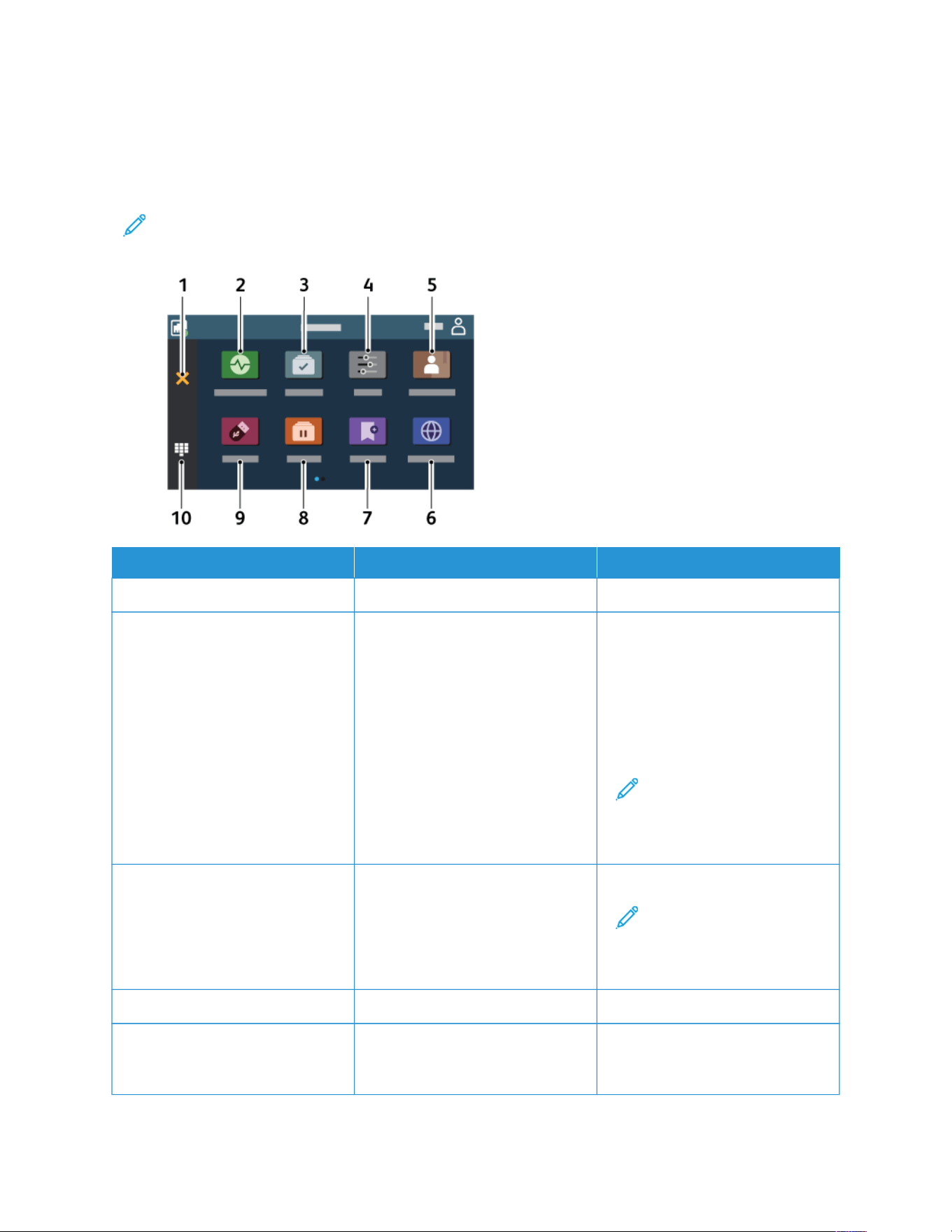
Setting up and Using the Home Screen Applications
USING THE HOME SCREEN
Note: Your home screen may vary depending on your home screen customization settings, administrative
setup, and active embedded solutions.
IICCOONN FFUUNNCCTTIIOONN
1 Stop or Cancel button Stop the current printer task.
2 Status/Supplies
• Show a warning or error
message whenever the printer
requires intervention to continue
processing.
• View more information on the
printer warning or message and
how to clear it.
Note: You can also access
this setting by touching the
top section of the home
screen.
3 Job Queue Show all the current print jobs.
Note: You can also access
this setting by touching the
top section of the home
screen.
4 Settings Access the printer menus.
5 Address Book Manage a contact list that other
applications on the printer can
access.
Xerox
®
C410 Color Printer User Guide 51
Set up, Install, and Configure

IICCOONN FFUUNNCCTTIIOONN
6 Change Language Change the language on the
display.
Note: Sometimes this option
is hidden from view. It is not
a default icon on the Control
Panel. You can customize the
home screen to view the
icon.
7 Bookmarks To print frequently accessed
documents that are stored in
servers or on the web.
Note: Sometimes this option
is hidden from view. It is not
a default icon on the Control
Panel. You can customize the
home screen to view the
icon.
8 Held Jobs Show the print jobs that are held in
the printer memory.
9 USB Drive Print photos and documents from a
flash drive.
10 On-screen keypad Enter numbers or symbols in an
input field.
CUSTOMIZING THE HOME SCREEN
1. Open a web browser, and then type the printer IP address in the address field.
• View the printer IP address on the printer home screen. The IP address appears as four sets of numbers
separated by periods, such as 123.123.123.123.
• If you are using a proxy server, then temporarily disable it to load the web page correctly.
2. Click SSeettttiinnggss >> DDeevviiccee >> HHoommee SSccrreeeenn CCuussttoommiizzaattiioonn.
3. Do one or more of the following:
• To add an icon to the home screen, click ++, select the app name, and then click AAdddd.
• To remove a home screen icon, select the app name, and then click RReemmoovvee.
• To customize an app name, select the app name, click EEddiitt, and then assign a name. Click SSaavvee.
• To restore the name of an app, select the app name, click EEddiitt, and then select SSaavvee.
• To add a space between apps, click ++, select BBLLAANNKK SSPPAACCEE, and then click AAdddd.
• To arrange the apps, drag the app names in the order that you want.
52
Xerox
®
C410 Color Printer User Guide
Set up, Install, and Configure

• To restore the default home screen, click RReessttoorree hhoommee ssccrreeeenn. Click RReessttoorree, and then click OOKK.
4. Apply the changes.
USING DISPLAY CUSTOMIZATION
Before using the application, make sure to enable and configure the screen saver, slide show, and wallpaper
settings. From the Embedded Web Server, click AAppppss >> DDiissppllaayy CCuussttoommiizzaattiioonn >> CCoonnffiigguurree.
Managing Screen Saver and Slide Show Images
1. From the Embedded Web Server, click AAppppss >> DDiissppllaayy CCuussttoommiizzaattiioonn >> CCoonnffiigguurree.
2. In the Screen Saver and Slide show Images section, add, edit, or delete an image.
• You can add up to 10 images.
• When enabled, the status icons appear on the screen saver only when there are errors, warnings, or
cloud-based notifications.
3. Apply the changes.
Changing the Wallpaper Image
1. From the home screen, touch CChhaannggee WWaallllppaappeerr.
2. Select an image to use.
3. Apply the changes.
Running a Slide Show from a Flash Drive
1. Insert a flash drive into the front USB port.
2. From the home screen, touch SSlliiddee sshhooww.
Note: You can remove the flash drive after the slide show starts, but the images are not stored in the printer.
If the slide show stops, then insert the flash drive again to view the images.
SETTING UP DEVICE QUOTAS
• This application is supported only in printers with the optional Productivity Kit.
• For information on how to configure the application settings, refer to Device Quotas Administrator Guide.
1. Open a web browser, and then type the printer IP address in the address field.
• View the printer IP address on the printer home screen. The IP address appears as four sets of numbers
separated by periods, such as 123.123.123.123.
• If you are using a proxy server, then temporarily disable it to load the web page correctly.
2. Click AAppppss >> DDeevviiccee QQuuoottaass >> CCoonnffiigguurree.
3. In the User Accounts section, add or edit a user, and then set the user quota.
4. Apply the changes.
Xerox
®
C410 Color Printer User Guide 53
Set up, Install, and Configure

MANAGING BOOKMARKS
Creating Bookmarks
Use bookmarks to print frequently accessed documents that are stored in servers or on the web.
1. Open a web browser, and then type the printer IP address in the address field.
• View the printer IP address on the printer home screen. The IP address appears as four sets of numbers
separated by periods, such as 123.123.123.123.
• If you are using a proxy server, then temporarily disable it to load the web page correctly.
2. Click BBooookkmmaarrkkss >> AAdddd BBooookkmmaarrkk, and then type a bookmark name.
3. Select an Address protocol type, and then do one of the following:
• For HTTP and HTTPS, type the URL that you want to bookmark.
• For HTTPS, make sure to use the host name instead of the IP address. For example, type myWebsite.com/
sample.pdf instead of typing 123.123.123.123/sample.pdf. Make sure that the host name also matches the
Common Name (CN) value in the server certificate. For more information on obtaining the CN value in the
server certificate, see the help information for your web browser.
• For FTP, type the FTP address. For example, myServer/myDirectory. Enter the FTP port. Port 21 is the default
port for sending commands.
• For SMB, type the network folder address. For example, myServer/myShare/myFile.pdf. Type the network
domain name.
• If necessary, select the Authentication type for FTP and SMB.
To limit access to the bookmark, enter a PIN.
Note: The application supports the following file types: PDF, JPEG, TIFF, and HTML-based web pages. Other
file types such as DOCX and XLXS are supported in some printer models.
4. Click SSaavvee.
Creating Folders
1. Open a web browser, and then type the printer IP address in the address field.
• View the printer IP address on the printer home screen. The IP address appears as four sets of numbers
separated by periods, such as 123.123.123.123.
• If you are using a proxy server, then temporarily disable it to load the web page correctly.
2. Click BBooookkmmaarrkkss >> AAdddd FFoollddeerr, and then type a folder name.
Note: To limit access to the folder, enter a PIN.
3. Click SSaavvee.
Note: You can create folders or bookmarks inside a folder. To create a bookmark, refer to Creating
Bookmarks.
54
Xerox
®
C410 Color Printer User Guide
Set up, Install, and Configure

MANAGING CONTACTS
1. From the home screen, touch AAddddrreessss BBooookk.
2. Do one or more of the following:
To add a contact, touch MMeennuu on top of the screen, and then touch CCrreeaattee CCoonnttaacctt. If necessary, specify a
login method to allow application access.
To delete a contact, touch MMeennuu on top of the screen, touch DDeelleettee CCoonnttaaccttss, and then select the contact.
To edit contact information, touch the contact name.
To create a group, touch MMeennuu on top of the screen, and then touch CCrreeaattee GGrroouupp. If necessary, specify a
login method to allow application access.
To delete a group, touch MMeennuu on top of the screen, touch DDeelleettee GGrroouuppss, and then select the group.
To edit a contact group, touch GGRROOUUPPSS, then select a group name. To select the action you want to make,
touch MMeennuu again.
3. Apply the changes.
Xerox
®
C410 Color Printer User Guide 55
Set up, Install, and Configure

Setting up and Using the Accessibility Features
ACTIVATING VOICE GUIDANCE
From the Home Screen
1. In one motion and using one finger, slowly swipe left then up on the display until you hear a voice message.
• For printer models without built-in speakers, use headphones to hear the message.
2. Using two fingers, touch OOKK.
• If the gesture does not work, then apply more pressure.
From the Keyboard
1. Press and hold the 55 key until you hear a voice message.
• For printer models without built-in speakers, use headphones to hear the message.
2. Press TTaabb to navigate the focus cursor to the OK button, and then press EEnntteerr.
• When Voice Guidance is activated, always use two fingers to select any item on the display.
• Voice Guidance has limited language support.
DEACTIVATING VOICE GUIDANCE
1. In one motion and using one finger, slowly swipe left then up on the display until you hear a voice message.
• For printer models without built-in speakers, use headphones to hear the message.
2. Using two fingers, do either of the following:
• Touch VVooiiccee GGuuiiddaannccee, then touch OOKK.
• Touch CCaanncceell.
If the gesture does not work, then apply more pressure.
3. You can also deactivate Voice Guidance by doing either of the following:
• Using two fingers, double tap the home screen.
• Press the power button to put the printer in Sleep or Hibernate mode.
NAVIGATING THE SCREEN USING GESTURES
Note: Most of the gestures are applicable only when Voice Guidance is activated.
Note: Enable Magnification to use the zoom and pan gestures.
Note: Use a physical keyboard to type characters and adjust certain settings.
56
Xerox
®
C410 Color Printer User Guide
Set up, Install, and Configure

GGEESSTTUURREE FFUUNNCCTTIIOONN
Swipe left then up using one finger Launch Accessibility mode. Use the same gesture to
exit Accessibility mode.
Note: This gesture is also applicable when the
printer is in normal mode.
Double-tap using one finger Select an option or item on the screen when the item is
on focus.
Tap using two fingers Select an option or item when the item is not on focus.
Double-tap the home icon using two fingers Deactivate the Accessibility mode.
Triple-tap using one finger Zoom in or zoom out text and images.
Swipe right or swipe down using one finger Move to the next item on the screen.
Swipe left or swipe up using one finger Move to the previous item on the screen.
Swipe up then down using one finger Move to the first item on the screen.
Pan Access parts of the zoomed image that are beyond the
limit of the screen.
Note: Use two fingers to drag a zoomed image.
Swipe up then right using one finger Increase the volume.
Note: This gesture is also applicable when the
printer is in normal mode.
Swipe down then right using one finger Decrease the volume.
Note: This gesture is also applicable when the
printer is in normal mode.
Swipe up then left using one finger Exit an application and return to the home screen.
Swipe down then left using one finger Go back to the previous setting.
USING THE ON-SCREEN KEYBOARD
When the on-screen keyboard appears, do one or more of the following:
• Touch a key to announce and type the character in the field.
• Drag a finger across different characters to announce and type the character in the field.
• Touch a text box using two fingers to announce the characters in the field.
• Touch BBaacckkssppaaccee to delete characters.
Xerox
®
C410 Color Printer User Guide 57
Set up, Install, and Configure

ENABLING MAGNIFICATION MODE
1. In one motion and using one finger, slowly swipe left then up on the display until you hear a voice message.
• For printer models without built-in speakers, use headphones to hear the message.
2. Using two fingers, do the following:
a. Touch MMaaggnniiffiiccaattiioonn mmooddee.
b. Touch OOKK.
If the gesture does not work, then apply more pressure.
For more information on navigating a magnified screen, refer to Navigating the Screen Using Gestures.
58
Xerox
®
C410 Color Printer User Guide
Set up, Install, and Configure
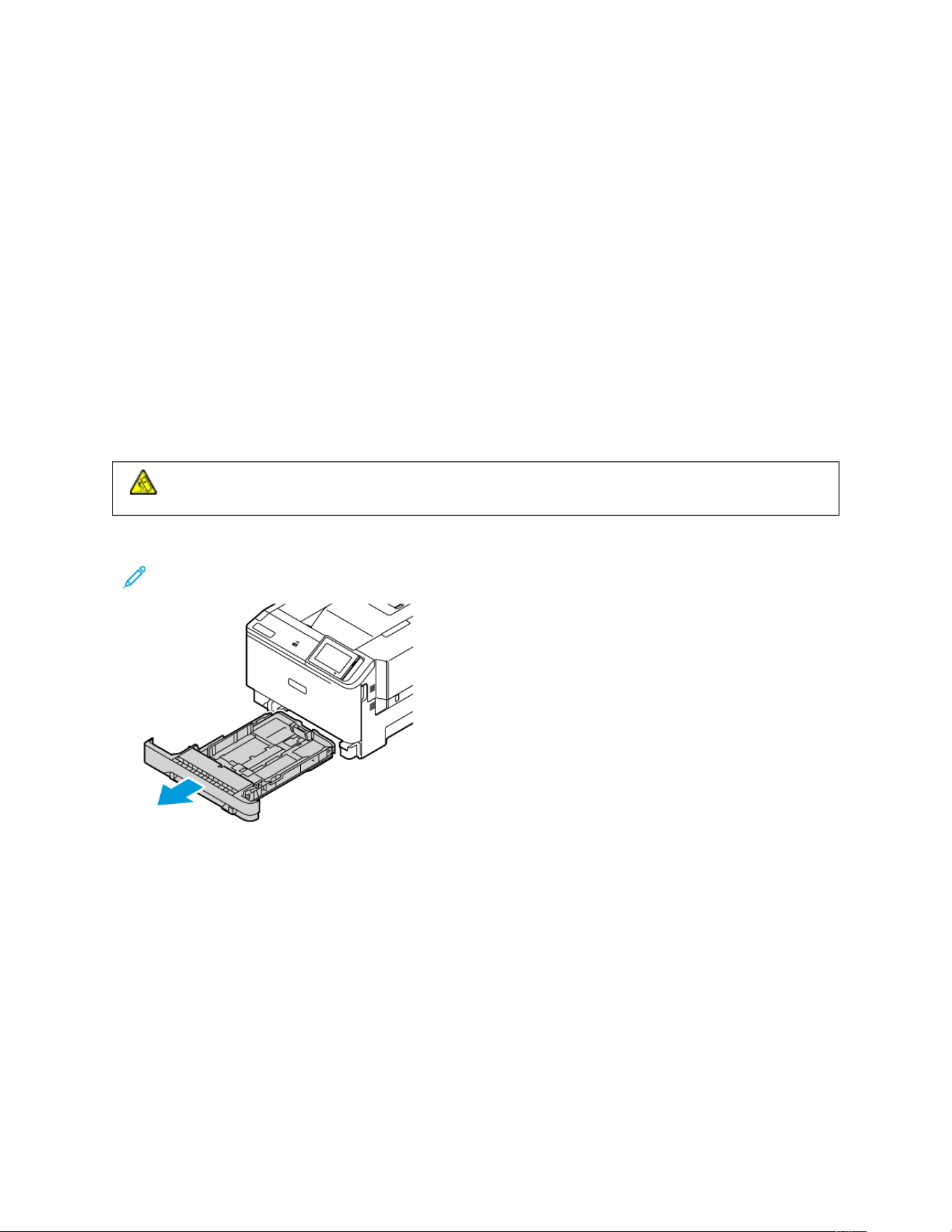
Loading Paper and Specialty Media
SETTING THE PAPER SIZE AND TYPE
1. From the home screen, touch SSeettttiinnggss >> PPaappeerr >> TTrraayy CCoonnffiigguurraattiioonn >> PPaappeerr SSiizzee//TTyyppee, then select a paper
source.
2. Set the paper size and type.
CONFIGURING UNIVERSAL PAPER SETTINGS
1. From the home screen, touch SSeettttiinnggss >> PPaappeerr >> MMeeddiiaa CCoonnffiigguurraattiioonn >> UUnniivveerrssaall SSeettuupp.
2. Configure the settings.
LOADING THE TRAY
CCAAUUTTIIOONN——TTIIPPPPIINNGG HHAAZZAARRDD:: To reduce the risk of equipment instability, keep the tray closed until
needed.
1. Remove the tray.
Note: To avoid paper jams, do not remove the tray while the printer is busy.
Xerox
®
C410 Color Printer User Guide 59
Set up, Install, and Configure
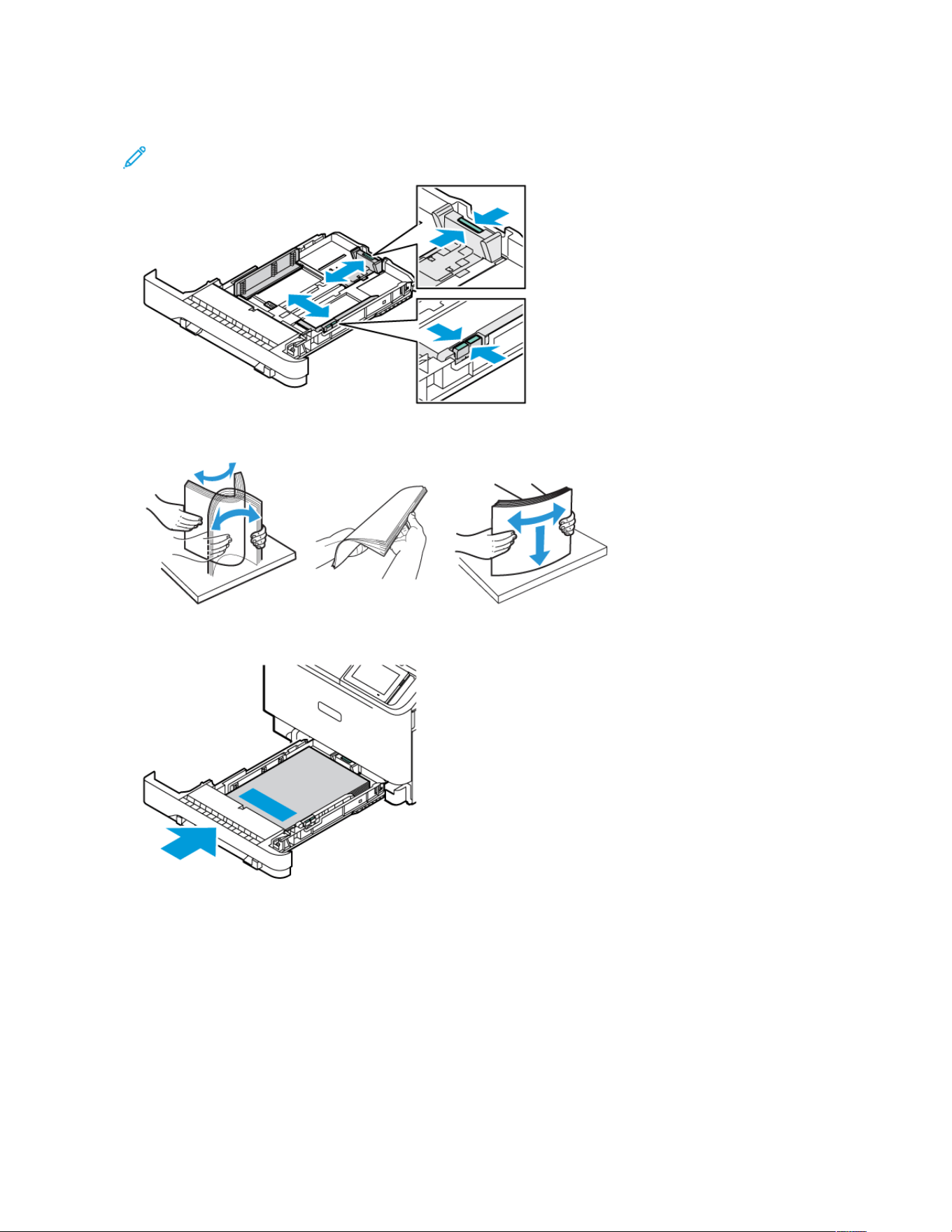
2. Adjust the guides to match the size of the paper that you are loading.
Note: Use the indicators on the bottom of the tray to position the guides.
3. Flex, fan, then align the paper edges before loading.
4. Load letterhead with the printable side face up and the top edge entering the printer last.
60 Xerox
®
C410 Color Printer User Guide
Set up, Install, and Configure
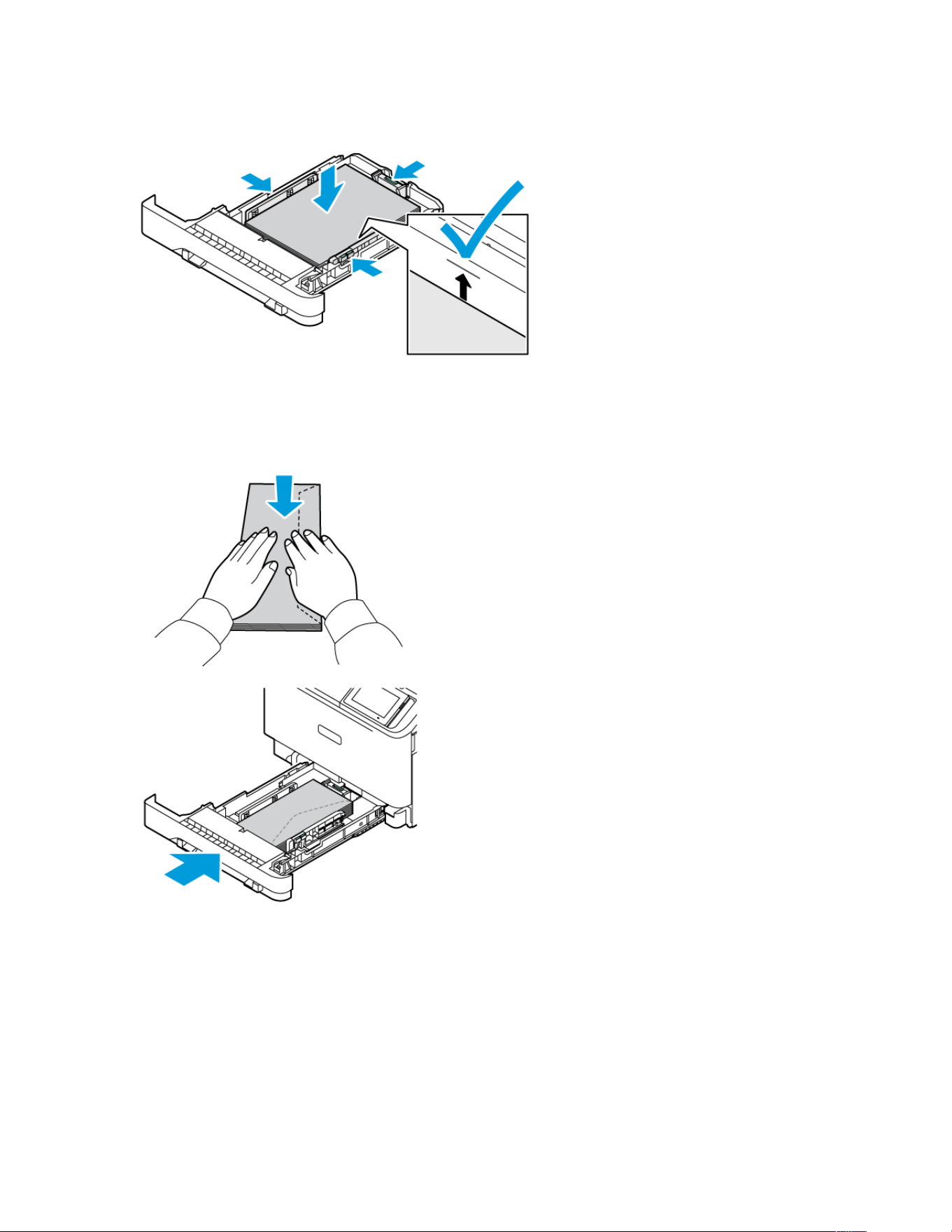
5. To avoid paper jams, make sure that the stack height is below the maximum paper fill indicator.
6. Insert the tray.
7. Load envelopes with the flap on a long edge and the flaps faced down and closed. Keep the flaps toward the
right. To avoid the jams, flatten the envelopes
Xerox
®
C410 Color Printer User Guide 61
Set up, Install, and Configure
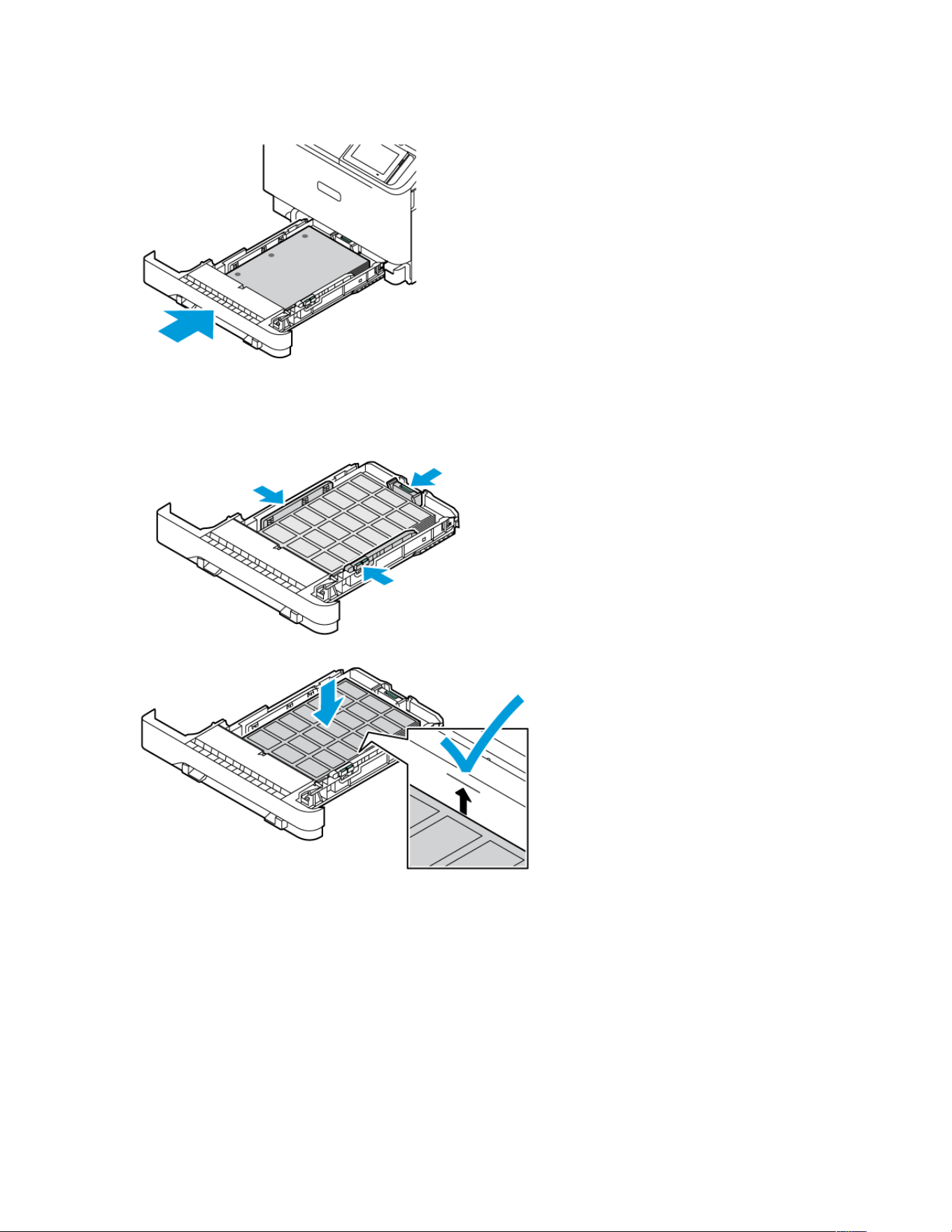
8. Load the paper in the tray with the hole punch on the left side of the tray.
9. Load the labels face up in the tray, then adjust the length and width of the paper guides to fit the labels. Make
sure that the stack height is below the maximum paper fill indicator.
10. Close the tray.
62
Xerox
®
C410 Color Printer User Guide
Set up, Install, and Configure
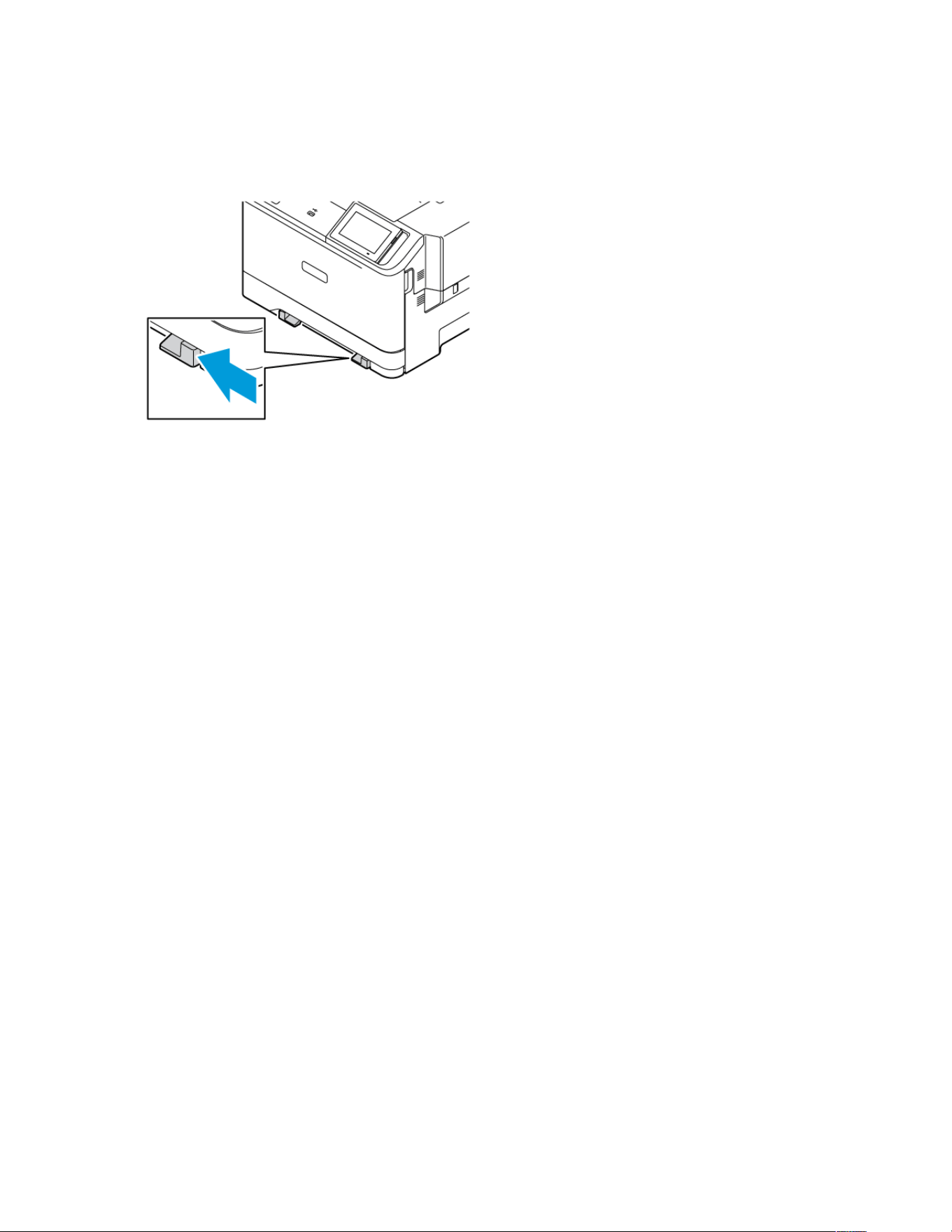
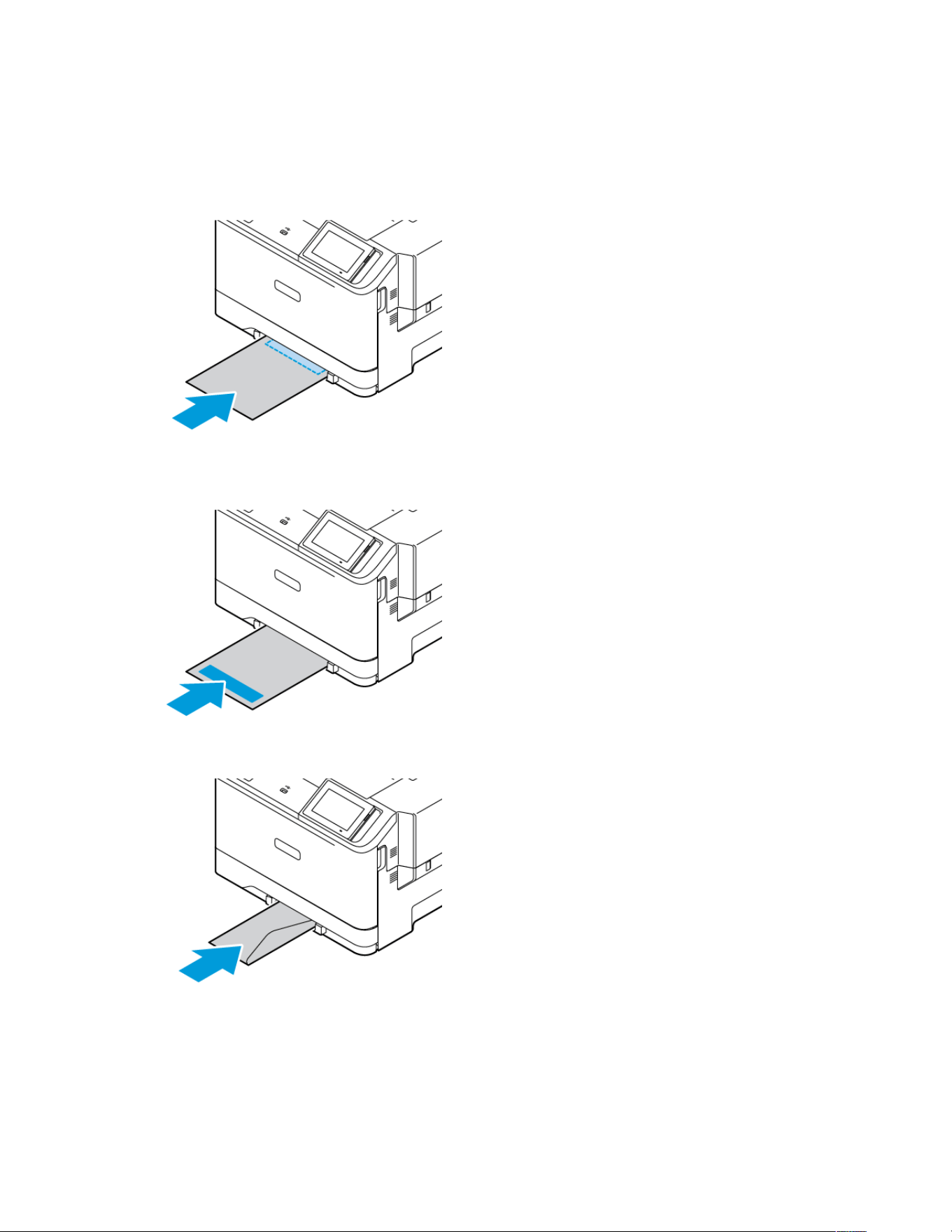
2. Load a sheet of paper with the printable side face-down.
Make sure that the paper is loaded straight to avoid skewed or crooked print.
• Load letterhead with the printable side facedown and the top edge entering the printer first for one-sided
printing.
• Load letterhead with the printable side face-up and the top edge entering the printer last for two-sided
printing.
• Load envelope with the flap side up and against the right side of the paper guide.
64 Xerox
®
C410 Color Printer User Guide
Set up, Install, and Configure
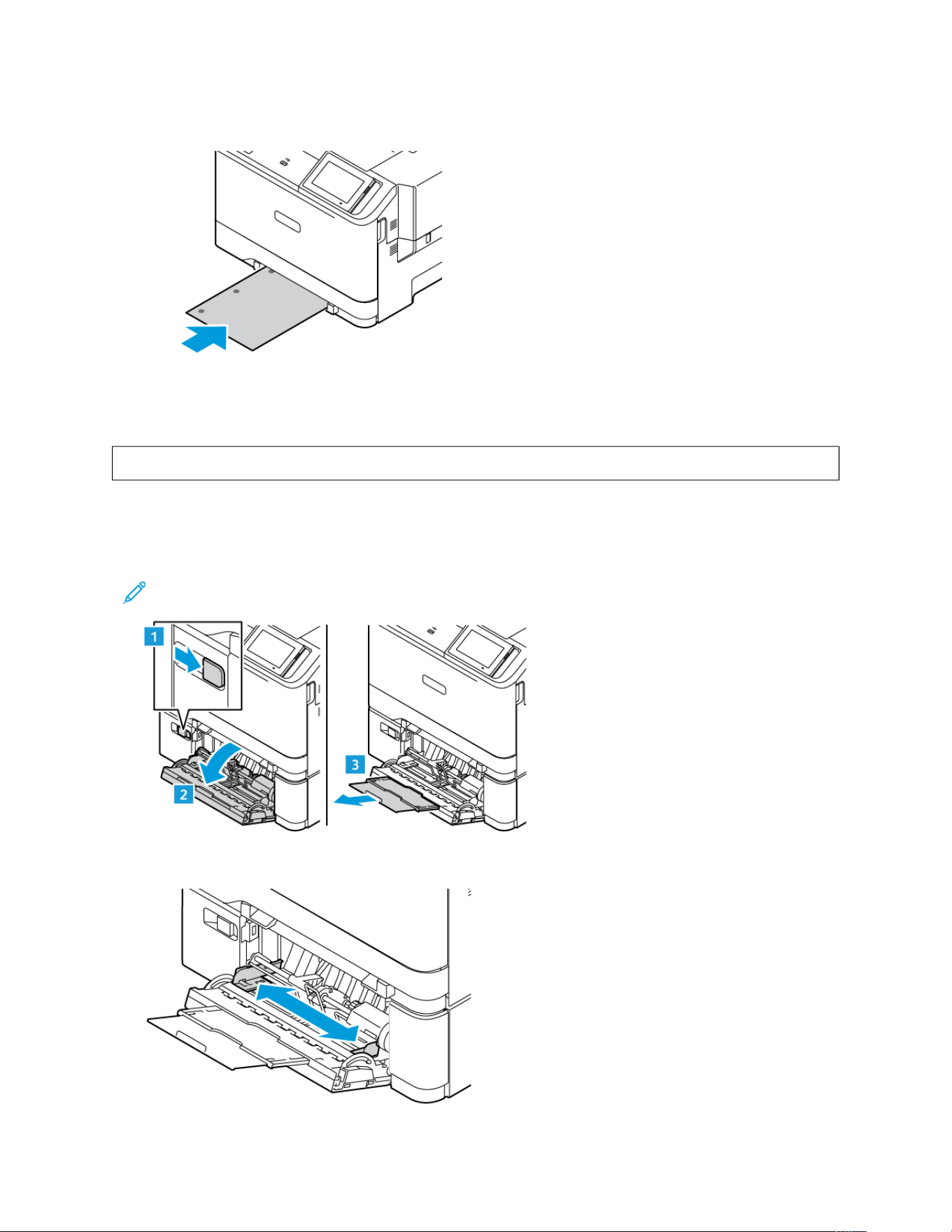
• Load the paper with the hole punch on the left side of the tray.
Load the paper in the tray with the hole punch on the left side of the tray.
3. Feed the paper until its leading edge gets pulled in.
WWaarrnniinngg:: To avoid paper jams, do not force paper into the manual feeder.
LOADING THE MULTIPURPOSE FEEDER
1. Open the multipurpose feeder.
Note: The multipurpose feeder is available only if the optional 550+100-sheet tray is installed.
2. Adjust the guide to match the size of the paper that you are loading.
Xerox
®
C410 Color Printer User Guide 65
Set up, Install, and Configure

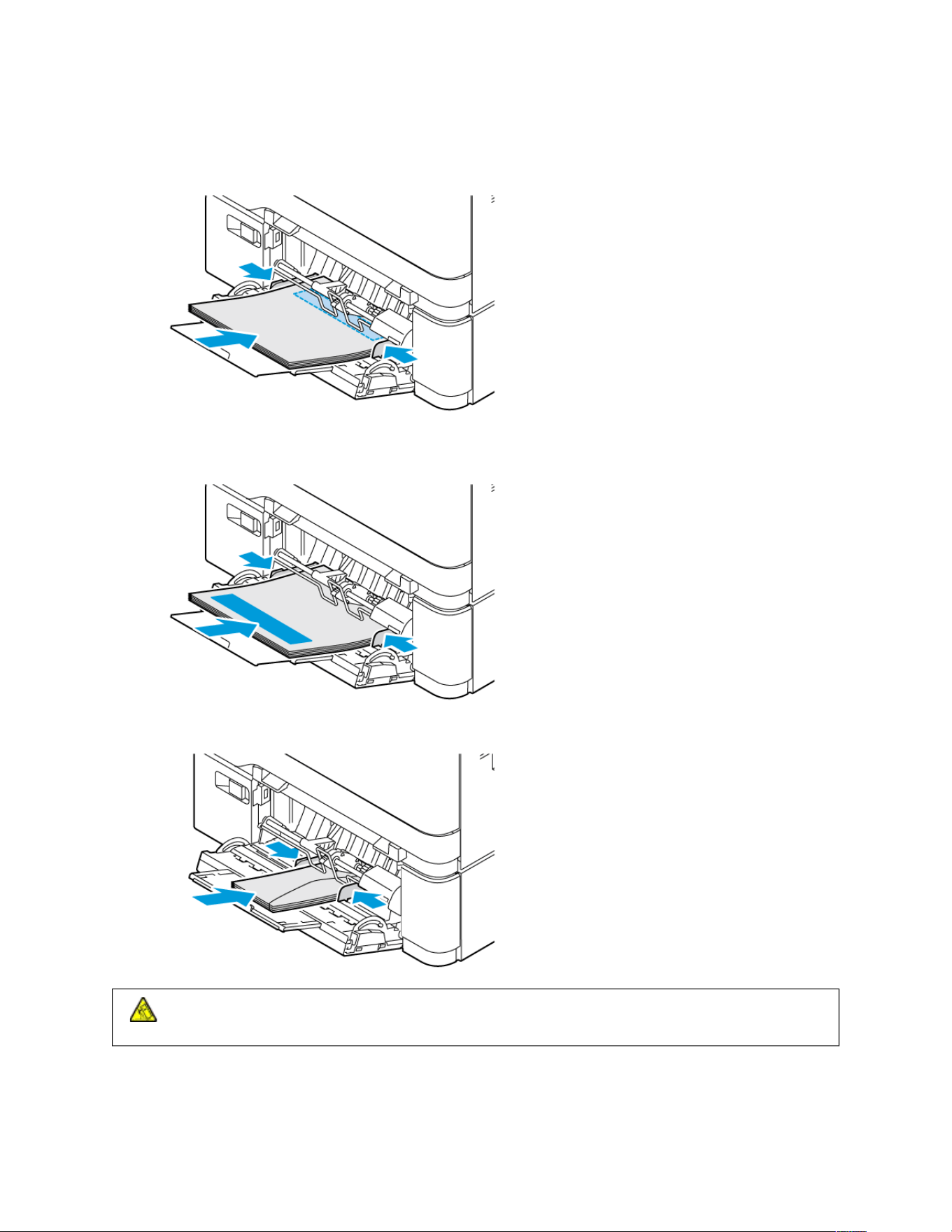
4. Load the paper.
• Load letterhead with the printable side face down and the top edge entering the printer first for one-sided
printing
• Load letterhead with the printable side face up and the top edge entering the printer last for two-sided
printing
• Load envelopes with the flap side up and against the right side of the paper guide
CCAAUUTTIIOONN——TTIIPPPPIINNGG HHAAZZAARRDD:: Do not use envelopes with stamps, clasps, snaps, windows, coated
linings, or self-stick adhesives.
• Load the paper in the tray with the hole punch on the left side of the tray.
Xerox
®
C410 Color Printer User Guide 67
Set up, Install, and Configure
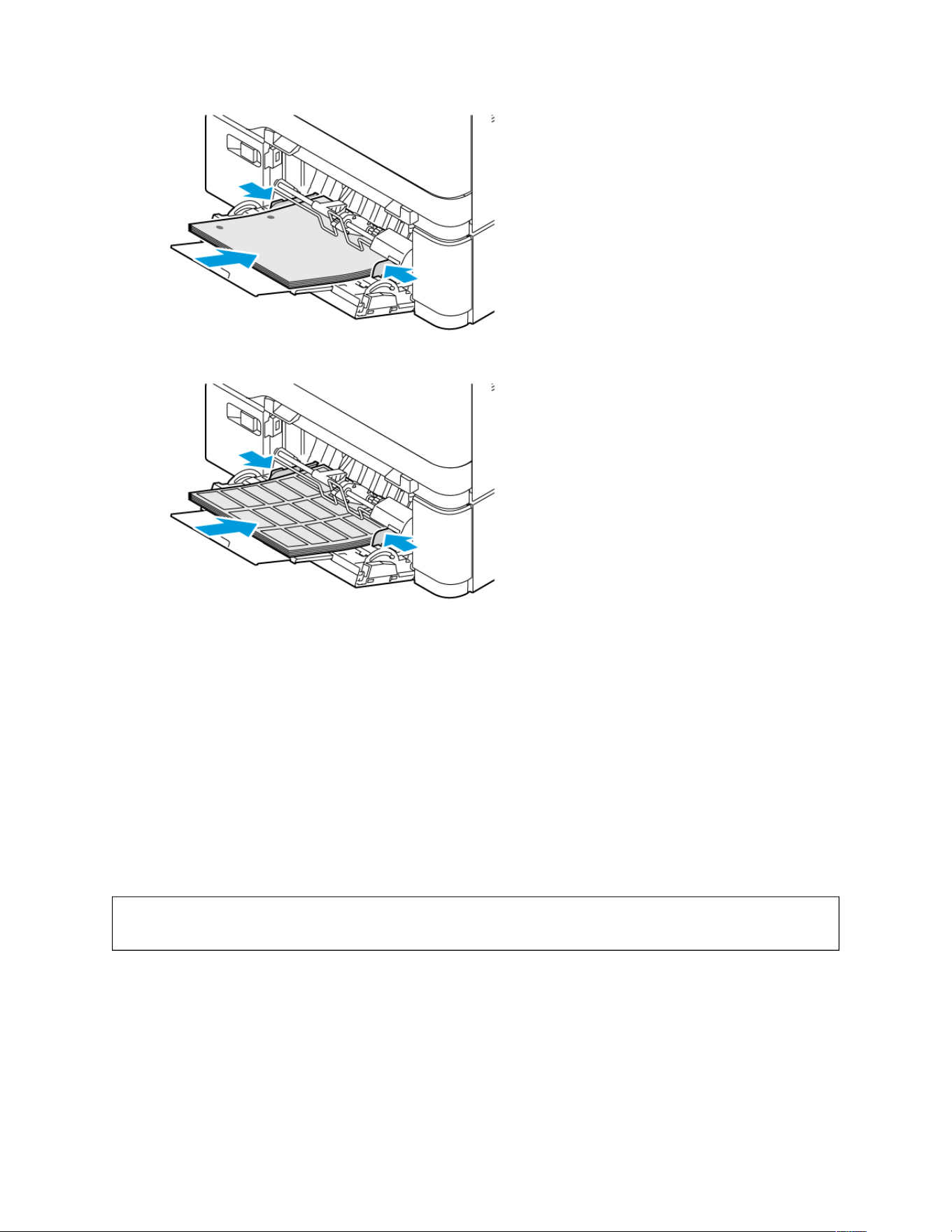
• Load the labels face up in the tray, then adjust the length and width of the paper guides to fit the labels.
5. From the Paper menu in the control panel, set the paper size and paper type to match the paper loaded in the
multipurpose feeder.
LINKING TRAYS
1. From the home screen, touch SSeettttiinnggss >> PPaappeerr >> TTrraayy CCoonnffiigguurraattiioonn select a paper source.
2. Set the same paper size and paper type for the trays that you are linking.
3. From the home screen, touch SSeettttiinnggss >> DDeevviiccee >> MMaaiinntteennaannccee >> CCoonnffiigguurraattiioonn MMeennuu >> TTrraayy
CCoonnffiigguurraattiioonn >> TTrraayy LLiinnkkiinngg.
4. Touch AAuuttoommaattiicc.
To unlink trays, make sure that no trays have the same paper size and paper type settings.
WWaarrnniinngg:: The temperature of the fuser varies according to the specified paper type. To avoid printing
issues, match the paper type setting in the printer with the paper loaded in the tray.
68
Xerox
®
C410 Color Printer User Guide
Set up, Install, and Configure

Installing and Updating Software, Drivers, and Firmware
INSTALLING THE PRINTER SOFTWARE
Note: The print driver is included in the software installer package.
Note: For Macintosh computers with mac OS version 10.7 or later, you do not need to install the driver to
print on an AirPrint-certified printer. If you want custom printing features, then download the print driver.
1. Obtain a copy of the software installer package.
• From the software CD that came with your printer.
• Go to www.xerox.com.
2. Run the installer, and then follow the instructions on the computer screen.
ADDING PRINTERS TO A COMPUTER
Before you begin, do one of the following:
• Connect the printer and the computer to the same network. For more information on connecting the printer to
a network, refer to Connecting the Printer to a Wi-Fi Network
• Connect the computer to the printer. For more information, refer to Connecting a Computer to the Printer.
• Connect the printer to the computer using a USB cable. For more information, refer to Attaching Cables.
Note: The USB cable is sold separately.
For Windows users
1. From a computer, install the print driver.
For more information, refer to Installing the Printer Software.
2. Open the printers folder, and then click AAdddd aa pprriinntteerr oorr ssccaannnneerr.
Xerox
®
C410 Color Printer User Guide 69
Set up, Install, and Configure

3. Depending on your printer connection, do one of the following:
• Select a printer from the list, and then click AAdddd ddeevviiccee.
• Click SShhooww WWii--FFii DDiirreecctt pprriinntteerrss, select a printer, and then click AAdddd ddeevviiccee.
• Click TThhee pprriinntteerr tthhaatt II wwaanntt iissnn’’tt lliisstteedd, and then from the Add Printer window, do the following:
• Select AAdddd aa pprriinntteerr uussiinngg aa TTCCPP//IIPP aaddddrreessss oorr hhoossttnnaammee, and then click NNeexxtt.
• In the “Hostname or IP address” field, type the printer IP address, and then click NNeexxtt.
• View the printer IP address on the printer home screen. The IP address appears as four sets of numbers
separated by periods, such as 123.123.123.123.
• If you are using a proxy server, then temporarily disable it to load the web page correctly.
• Select a print driver, and then click NNeexxtt.
• Select UUssee tthhee pprriinntt ddrriivveerr tthhaatt iiss ccuurrrreennttllyy iinnssttaalllleedd ((rreeccoommmmeennddeedd)), and then click NNeexxtt.
• Type a printer name, and then click NNeexxtt.
• Select a printer sharing option, and then click NNeexxtt.
• Click FFiinniisshh.
For Macintosh Users
1. From a computer, open PPrriinntteerrss && SSccaannnneerrss.
2. Click ++, and then select a printer.
3. From the Use menu, select a print driver.
To use the Macintosh print driver, select either AAiirrPPrriinntt or SSeeccuurree AAiirrPPrriinntt.
If you want custom printing features, then select the print driver. To install the driver, refer to Installing the
Printer Software.
4. Add the printer.
UPDATING FIRMWARE
To enhance printer performance and fix issues, update the printer firmware regularly.
For more information on updating the firmware, contact your customer service representative.
1. Open a web browser, then type the printer IP address in the address field.
• View the printer IP address on the printer home screen. The IP address appears as four sets of numbers
separated by periods, such as 123.123.123.123.
• If you are using a proxy server, then temporarily disable it to load the web page correctly.
2. Click SSeettttiinnggss >> DDeevviiccee >> SSooffttwwaarree UUppddaattee.
70
Xerox
®
C410 Color Printer User Guide
Set up, Install, and Configure

3. Choose one of the following:
• Click CChheecckk NNooww >> II aaggrreeee,, ssttaarrtt uuppddaattee.
• To upload the flash file, perform the following steps:
1. Browse to the flash file.
Note: Make sure that you have extracted the software.zip file.
2. Click UUppllooaadd >> SSttaarrtt.
EXPORTING OR IMPORTING A CONFIGURATION FILE
You can export the configuration settings of your printer into a text file, and then import the file to apply the
settings to other printers.
1. Open a Web browser, then type the printer IP address in the address field.
• View the printer IP address on the printer home screen. The IP address appears as four sets of numbers
separated by periods, such as 123.123.123.123.
• If you are using a proxy server, temporarily disable it to load the Web page correctly.
2. From the Embedded Web Server, click EExxppoorrtt CCoonnffiigguurraattiioonn or IImmppoorrtt CCoonnffiigguurraattiioonn.
3. Follow the instructions on the screen.
4. If the printer supports applications, then do the following:
a. Click AAppppss, select the application, then click CCoonnffiigguurree.
b. Click EExxppoorrtt or IImmppoorrtt.
ADDING AVAILABLE OPTIONS IN THE PRINT DRIVER
For Windows Users
1. Open the printers folder.
2. Select the printer you want to update, and then do either of the following:
• For Windows 7 or later, select MMaannaaggee, PPrriinntteerr pprrooppeerrttiieess, select either DDeevviiccee sseettttiinngg tab or
CCoonnffiigguurraattiioonn tab depending on the type of print driver.
• Review or change options.
3. Select OOKK to accept the options.
For Macintosh Users
1. From System Preferences in the Apple menu, navigate to your printer, and then select OOppttiioonnss && SSuupppplliieess.
2. Navigate to the list of hardware options, and then add any installed options.
3. Apply the changes.
Xerox
®
C410 Color Printer User Guide 71
Set up, Install, and Configure

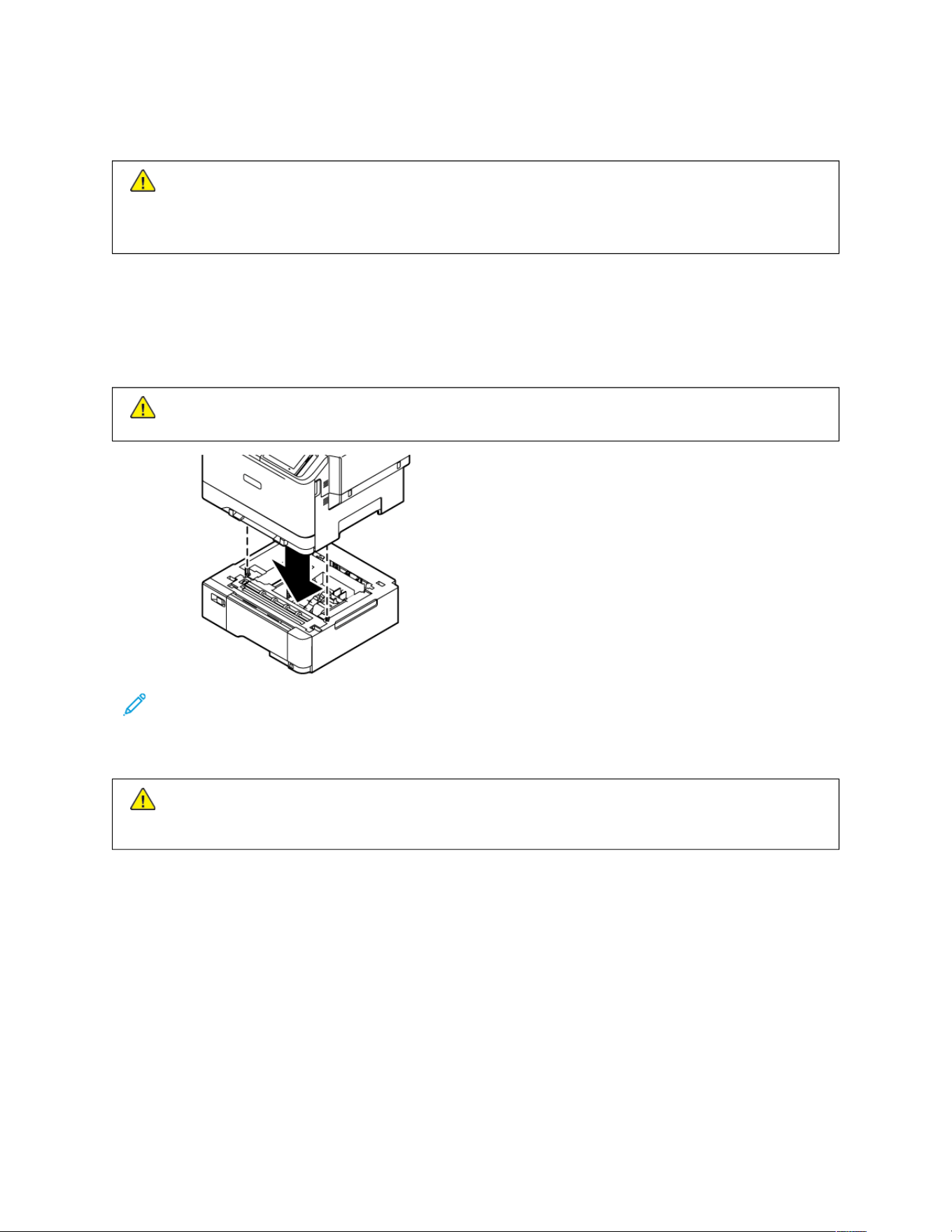
Installing Optional Trays
CCaauuttiioonn:: To avoid the risk of electrical shock, if you are accessing the controller board or installing
optional hardware or memory devices sometime after setting up the printer, then turn the printer off, and
unplug the power cord from the electrical outlet before continuing. If you have any other devices attached
to the printer, then turn them off as well, and unplug any cables going into the printer.
1. Turn off the printer.
2. Unplug the power cord from the electrical outlet, and then from the printer.
3. Unpack the optional tray, and then remove all packing material.
4. Align the printer with the optional tray, and then lower the printer into place.
CCAAUUTTIIOONN——PPOOTTEENNTTIIAALL IINNJJUURRYY:: If the printer weight is greater than 20kg (44lb), then it may
require two or more people to lift it safely.
Note: If you are installing any optional 550–Sheet Trays, place them below the Optional 550+100-Sheet
Tray.
5. Connect the power cord to the printer, and then to the electrical outlet.
CCAAUUTTIIOONN——PPOOTTEENNTTIIAALL IINNJJUURRYY:: To avoid the risk of fire or electrical shock, connect the power cord
to an appropriately rated and properly grounded electrical outlet that is near the product and easily
accessible.
6. Turn on the printer.
Add the tray in the print driver to make it available for print jobs. For more information, refer to Adding
Available Options in the Print Driver.
Xerox
®
C410 Color Printer User Guide 73
Set up, Install, and Configure

Networking
CONNECTING THE PRINTER TO A WI-FI NETWORK
Make sure that, Active Adapter is set to Auto. From the home screen, touch SSeettttiinnggss >> NNeettwwoorrkk//PPoorrttss >> NNeettwwoorrkk
OOvveerrvviieeww >> AAccttiivvee AAddaapptteerr.
Using the wireless setup wizard in the printer
Before using the wizard, make sure that the printer firmware is updated. For more information, see Updating
Firmware.
1. From the home screen, touch > SSeett uupp nnooww.
2. Select a Wi-Fi network, and then type the network password.
3. Touch DDoonnee.
Using the Settings Menu in the Printer
1. From the home screen, touch SSeettttiinnggss >> NNeettwwoorrkk//PPoorrttss >> WWiirreelleessss >> SSeettuupp OOnn PPrriinntteerr PPaanneell >> CChhoooossee
NNeettwwoorrkk.
2. Select a Wi-Fi network, then type the network password.
Note: For Wi-Fi-network-ready printer models, a prompt to set up the Wi-Fi network appears during initial
setup.
CONNECTING THE PRINTER TO A WIRELESS NETWORK USING WI-FI PROTECTED SETUP (WPS)
Before you begin, make sure that:
• The access point (wireless router) is WPS-certified or WPS-compatible. For more information, see the
documentation that came with your access point.
• A wireless network adapter is installed in your printer. For more information, see the instructions that came with
the adapter.
• Active Adapter is set to Auto. From the home screen, touch SSeettttiinnggss >> NNeettwwoorrkk//PPoorrttss >> NNeettwwoorrkk OOvveerrvviieeww >>
AAccttiivvee AAddaapptteerr.
Using the Push Button method
1. From the home screen, touch SSeettttiinnggss >> NNeettwwoorrkk//PPoorrttss >> WWiirreelleessss >> WWii--FFii PPrrootteecctteedd SSeettuupp >> SSttaarrtt PPuusshh
BBuuttttoonn MMeetthhoodd.
2. Follow the instructions on the display.
Using the personal identification number (PIN) method
1. From the home screen, touch SSeettttiinnggss >> NNeettwwoorrkk//PPoorrttss >> WWiirreelleessss >> WWii--FFii PPrrootteecctteedd SSeettuupp >> SSttaarrtt PPIINN
MMeetthhoodd.
74
Xerox
®
C410 Color Printer User Guide
Set up, Install, and Configure

2. Copy the eight-digit WPS PIN.
3. Open a web browser, and then type the IP address of your access point in the address field.
• To know the IP address, see the documentation that came with your access point.
• If you are using a proxy server, then temporarily disable it to load the web page correctly.
4. Access the WPS settings. For more information, see the documentation that came with your access point.
5. Enter the eight-digit PIN, and then save the changes.
CONFIGURING WI–FI DIRECT
Wi-Fi Direct is a Wi-Fi-based peer-to-peer technology that allows wireless devices to connect directly to a Wi-Fi
Direct-enabled printer without using an access point (wireless router).
1. From the home screen, touch SSeettttiinnggss >> NNeettwwoorrkk//PPoorrttss >> WWii--FFii DDiirreecctt.
2. Configure the settings.
• Enable Wi-Fi Direct: Enables the printer to broadcast its own Wi-Fi Direct network.
• Wi-Fi Direct Name: Assigns a name for the Wi-Fi Direct network.
• Wi-Fi Direct Password: Assigns the password for negotiating the wireless security when using the peer-to-
peer connection.
• Show Password on Setup Page: Shows the password on the Network Setup Page.
• Auto-Accept Push Button Requests: Lets the printer accept connection requests automatically.
Note: Accepting push-button requests automatically is not secured.
• By default, the Wi-Fi Direct network password is not visible on the printer display. To show the password,
enable the password peek icon. From the control panel, navigate to SSeettttiinnggss >> SSeeccuurriittyy >> MMiisscceellllaanneeoouuss >>
EEnnaabbllee PPaasssswwoorrdd//PPIINN RReevveeaall.
• To know the password of the Wi-Fi Direct network without showing it on the printer display, from the
control panel navigate to SSeettttiinnggss >> RReeppoorrttss >> NNeettwwoorrkk >> NNeettwwoorrkk SSeettuupp PPaaggee.
CONNECTING A MOBILE DEVICE TO THE PRINTER
Before connecting your mobile device, make sure that Wi-Fi Direct has been configured. For more information, refer
to Configuring Wi–Fi Direct.
Connecting Using Wi–Fi Direct for Android Mobile Devices
Note: These instructions apply only to Android mobile devices.
1. From the mobile device, go to the settings menu.
2. Enable WWii--FFii, and then tap WWii--FFii DDiirreecctt.
3. Select the printer Wi-Fi Direct name.
4. Confirm the connection on the printer control panel.
Xerox
®
C410 Color Printer User Guide 75
Set up, Install, and Configure

Connecting Using Wi–Fi Direct for iOS Mobile Devices
Note: These instructions apply only to iOS mobile devices.
1. From the mobile device, go to the settings menu.
2. Click the wireless icon, and then select the printer Wi-Fi Direct name.
The string DIRECT-xy, where x and y are two random characters is added before the Wi-Fi Direct name.
3. Type the Wi-Fi Direct password.
Switch your mobile device back to its previous network after disconnecting from the Wi-Fi Direct network.
Connecting Using Wi-Fi
1. From the mobile device, go to the settings menu.
2. Tap WWii--FFii, and then select the printer Wi-Fi Direct name.
Note: The string DIRECT-xy (where x and y are two random characters) is added before the Wi-Fi Direct
name.
3. Enter the Wi-Fi Direct password.
CONNECTING A COMPUTER TO THE PRINTER
Before connecting your computer, make sure that Wi-Fi Direct has been configured. For more information, refer to
Configuring Wi–Fi Direct.
For Windows Users
1. Open the printers folder and then click AAdddd aa pprriinntteerr oorr ssccaannnneerr.
2. Click SShhooww WWii--FFii DDiirreecctt pprriinntteerrss, and then select the printer Wi-Fi Direct name.
3. From the printer display, take note of the eight-digit PIN of the printer.
4. Enter the PIN on the computer.
If the print driver is not already installed, then Windows downloads the appropriate driver.
For Macintosh Users
1. Click the wireless icon, and then select the printer Wi-Fi Direct name.
The string DIRECT-xy (where x and y are two random characters) is added before the Wi-Fi Direct name.
2. Type the Wi-Fi Direct password.
Switch your computer back to its previous network after disconnecting from the Wi-Fi Direct network.
DEACTIVATING THE WI-FI NETWORK
1. From the home screen, touch SSeettttiinnggss >> NNeettwwoorrkk//PPoorrttss >> NNeettwwoorrkk OOvveerrvviieeww >> AAccttiivvee AAddaapptteerr >> SSttaannddaarrdd
NNeettwwoorrkk.
2. Follow the instructions on the display.
76
Xerox
®
C410 Color Printer User Guide
Set up, Install, and Configure

CHECKING THE PRINTER CONNECTIVITY
1. From the home screen, touch SSeettttiinnggss >> RReeppoorrttss >> NNeettwwoorrkk >> NNeettwwoorrkk SSeettuupp PPaaggee.
2. Check the first section of the page and confirm that the status is connected.
If the status is not connected, then the LAN drop may be inactive or the network cable may be unplugged or
malfunctioning. Contact your administrator for assistance.
Xerox
®
C410 Color Printer User Guide 77
Set up, Install, and Configure


Xerox
®
C410 Color Printer User Guide 79
Secure the Printer
This chapter contains:
Locating the Security Slot . .. .. . .. .. .. .. .. . .. .. .. ..... .. .. .. ..... .. .. .. ..... .. .. .. ..... .. .. .. ....... .. .. .. . .. .. .. .. .. . .. .. .. .. .. . .. .. .. .. .. . .. .. 80
Erasing Printer Memory . . .. .. .. ..... .. .. .. ..... .. .. .. ..... .. .. .. ..... .. .. .. ....... .. .. . .. .. .. .. .. .. . .. .. .. .. .. . .. .. .. .. .. . .. .. .. .. .. . .. .. .. .. .. . 81
Erasing Printer Storage Drive .. ..... .. .. .. ....... .. .. .. . .. .. .. .. .. . .. .. .. .. .. . .. .. .. .. .. . .. .. .. .. .. . .. .. .. .. .. . .. .. .. .. .. .. . .. .. .. .. .. . .. .. .. ..82
Restoring Factory Default Settings... .. .. .. ..... .. .. .. ..... .. .. .. ....... .. .. .. . .. .. .. .. .. . .. .. .. .. .. . .. .. .. .. .. . .. .. .. .. .. . .. .. .. .. .. . .. .. .. . 83
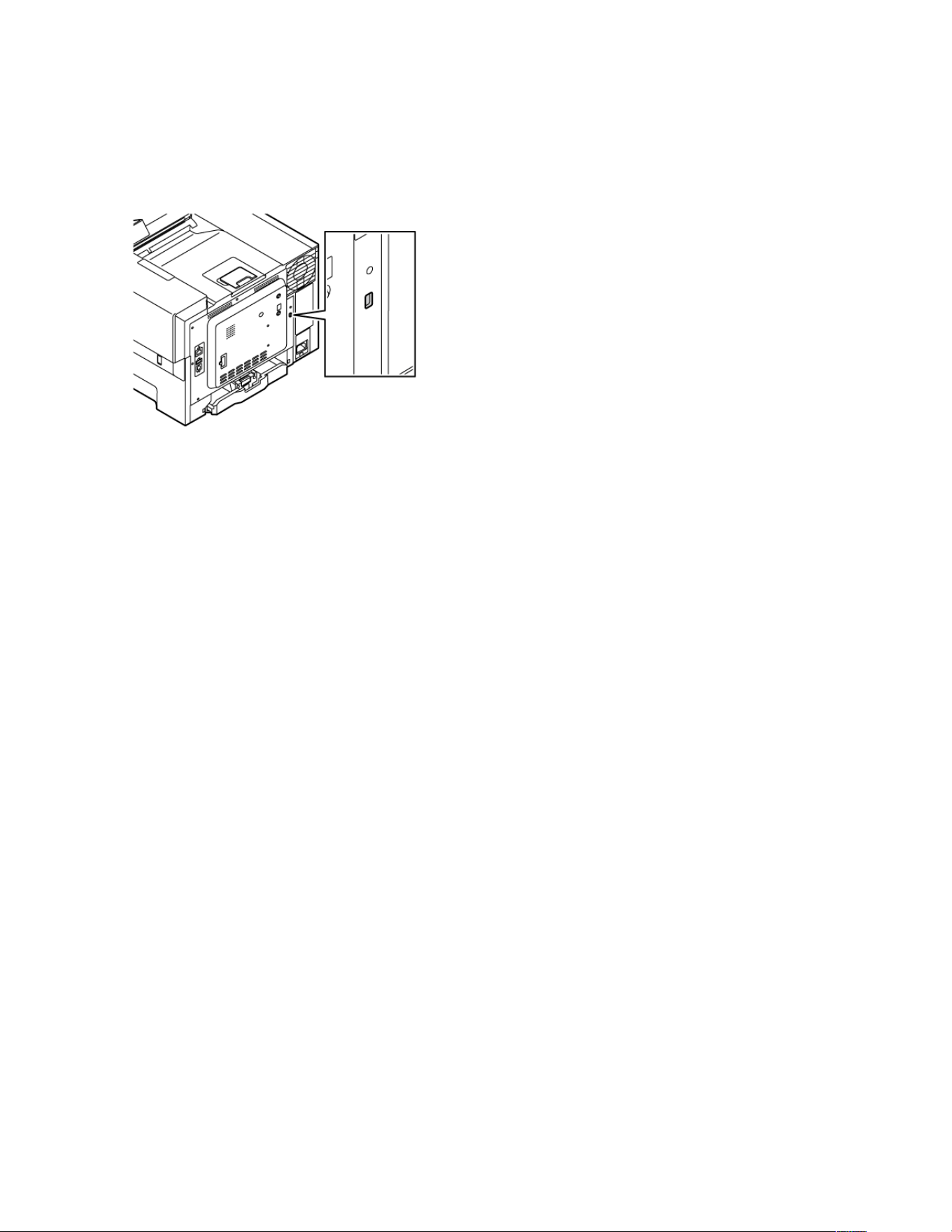

Erasing Printer Memory
To erase volatile memory or buffered data in your printer, turn off the printer.
To erase non-volatile memory or individual settings, device and network settings, security settings, and embedded
solutions, do the following:
1. From the home screen, touch SSeettttiinnggss >> DDeevviiccee >> MMaaiinntteennaannccee >> EErraassee PPrriinntteerr MMeemmoorryy.
2. Touch the SSaanniittiizzee aallll iinnffoorrmmaattiioonn oonn nnoonnvvoollaattiillee mmeemmoorryy check box, and then touch EErraassee.
3. Touch SSttaarrtt iinniittiiaall sseettuupp wwiizzaarrdd or LLeeaavvee pprriinntteerr oofffflliinnee, and then touch NNeexxtt.
4. Start the Operation.
Note: This process also destroys the encryption key that is used to protect user data. Destroying the
encryption key makes the data irrecoverable.
Xerox
®
C410 Color Printer User Guide 81
Secure the Printer

Erasing Printer Storage Drive
Note: This application is supported only in printers with the optional Productivity Kit.
1. From the home screen, touch SSeettttiinnggss >> DDeevviiccee >> MMaaiinntteennaannccee >> EErraassee HHaarrdd DDiisskk.
2. For hard disk, touch the SSaanniittiizzee aallll iinnffoorrmmaattiioonn oonn hhaarrdd ddiisskk check box, touch EERRAASSEE, and then select a
method to erase data.
Note: The process to sanitize the hard disk can take from several minutes to more than an hour, making the
printer unavailable for other tasks.
3. Start the operation.
82
Xerox
®
C410 Color Printer User Guide
Secure the Printer

Restoring Factory Default Settings
1. From the home screen, touch SSeettttiinnggss >> DDeevviiccee >> RReessttoorree FFaaccttoorryy DDeeffaauullttss.
2. Touch RReessttoorree SSeettttiinngg, select the settings that you want to restore.
3. Touch RReessttoorree.
4. Start the operation.
Xerox
®
C410 Color Printer User Guide 83
Secure the Printer


Xerox
®
C410 Color Printer User Guide 85
Print
This chapter contains:
Printing from a Computer .. . .. .. .. .. .. . .. .. .. .. .. . .. .. .. ..... .. .. .. ....... .. .. .. ..... .. .. .. ..... .. .. .. ..... .. .. .. ..... .. .. .. . .. .. .. .. .. . .. .. .. . 86
Printing From a Mobile Device..... .. .. .. . .. .. .. .. .. .. . .. .. .. .. .. . .. .. .. .. .. . .. .. .. .. .. . .. .. .. .. .. . .. .. .. .. .. . .. .. .. .. .. .. . .. .. .. .. .. . .. .. .. ..87
Printing from a Flash Drive.. .. ..... .. .. .. . .. .. .. .. .. . .. .. .. .. .. . .. .. .. .. .. . .. .. .. .. .. . .. .. .. .. .. .. . .. .. .. .. .. . .. .. .. .. .. . .. .. .. ..... .. .. .. ..... 88
Supported Flash Drives and File Types.. .. .. .. . .. .. .. .. .. . .. .. .. .. .. .. . .. .. .. ..... .. .. .. ..... .. .. .. ..... .. .. .. ..... .. .. .. ....... .. .. . .. .. .. . 89
Configuring Confidential Jobs (Secure Print)... . .. .. .. .. .. . .. .. .. ..... .. .. .. ..... .. .. .. ....... .. .. .. ..... .. .. .. ..... .. .. .. . .. .. .. .. .. . .. .. 90
Printing Confidential and Other Held Jobs . .. .. ..... .. .. .. ..... .. .. .. ....... .. .. ....... .. .. .. ..... .. .. .. . .. .. .. .. .. . .. .. .. .. .. . .. .. .. .. .. . 91
Printing a Font Sample List .. .. . .. .. .. .. .. . .. .. .. .. .. .. . .. .. .. .. .. . .. .. .. .. .. . .. .. .. .. ... .. .. .. ..... .. .. .. ..... .. .. .. ....... .. .. .. ..... .. .. .. .. 92
Printing a Directory List . .. .. .. .. . .. .. .. .. .. . .. .. .. .. .. .. . .. .. ....... .. .. .. ..... .. .. .. ..... .. .. .. ..... .. .. .. ..... .. .. .. . .. .. .. .. .. .. . .. .. .. .. .. . . 93
Placing Separator Sheets Between Copies. .. . .. .. .. .. .. . .. .. .. .. .. .. . .. .. .. .. .. . .. .. .. .. .. . .. .. .. ..... .. .. .. ..... .. .. .. ....... .. .. ....... . 94
Canceling a Print Job .. .. .. .. .. .. . .. .. .. .. .. . .. .. .. .. .. .. . .. .. .. .. .. . .. .. .. .. .. . .. .. .. .. .. . .. .. .. .. .. . .. .. .. ..... .. .. .. ....... .. .. .. ..... .. .. .. ..95
Adjusting Toner Darkness .. . .. .. .. .. .. . .. .. .. .. .. . .. .. .. .. .. . .. .. .. .. .. .. . .. .. .. .. .. . .. .. .. ..... .. .. .. ..... .. .. .. ..... .. .. .. ....... .. .. ....... . 96

Printing from a Computer
Note: For labels, card stock, and envelopes, set the paper size and type in the printer before printing the
document.
1. From the document that you are trying to print, open the Print dialog.
2. If necessary, adjust the settings.
3. Print the document.
86
Xerox
®
C410 Color Printer User Guide
Print

Printing From a Mobile Device
To print from a smartphone using Xerox
®
Easy Assist App, refer to Xerox
®
Easy Assist App.
PRINTING FROM A MOBILE DEVICE USING MOPRIA
™
PRINT SERVICE
Mopria Print Service is a mobile printing solution for mobile devices running on Android
™
version 5.0 or later. It
allows you to print directly to any Mopria-certified printer.
Note: Make sure that you download the Mopria Print Service application from the Google Play Store and
enable it in the mobile device.
1. From your Android mobile device, launch a compatible application or select a document from your file
manager.
2. Tap MMoorree OOppttiioonnss, then PPrriinntt.
3. Select a printer, then adjust the settings, if necessary.
4. Tap PPrriinntt.
PRINTING FROM A MOBILE DEVICE USING AIRPRINT
®
The AirPrint software feature is a mobile printing solution that allows you to print directly from Apple devices to an
AirPrint-certified printer.
Note:
• Make sure that the Apple device and the printer are connected to the same network. If the network has
multiple wireless hubs, then make sure that both devices are connected to the same subnet.
• This application is supported only in some Apple devices.
1. From your mobile device, select a document from your file manager or launch a compatible application.
2. Tap SShhaarree, then PPrriinntt.
3. Select a printer, then adjust the settings, if necessary.
4. Print the document.
PRINTING FROM A MOBILE DEVICE USING WI-FI DIRECT
®
Wi-Fi Direct is a printing service that lets you print to any Wi-Fi Direct-ready printer.
Note: Make sure that the mobile device is connected to the printer through Wi-Fi Direct. For more
information, see Connecting a Mobile Device to the Printer.
1. From your mobile device, launch a compatible application or select a document from your file manager.
2. Tap MMoorree OOppttiioonnss, then PPrriinntt.
3. Select a printer, then adjust the settings, if necessary.
4. Print the document.
Xerox
®
C410 Color Printer User Guide 87
Print
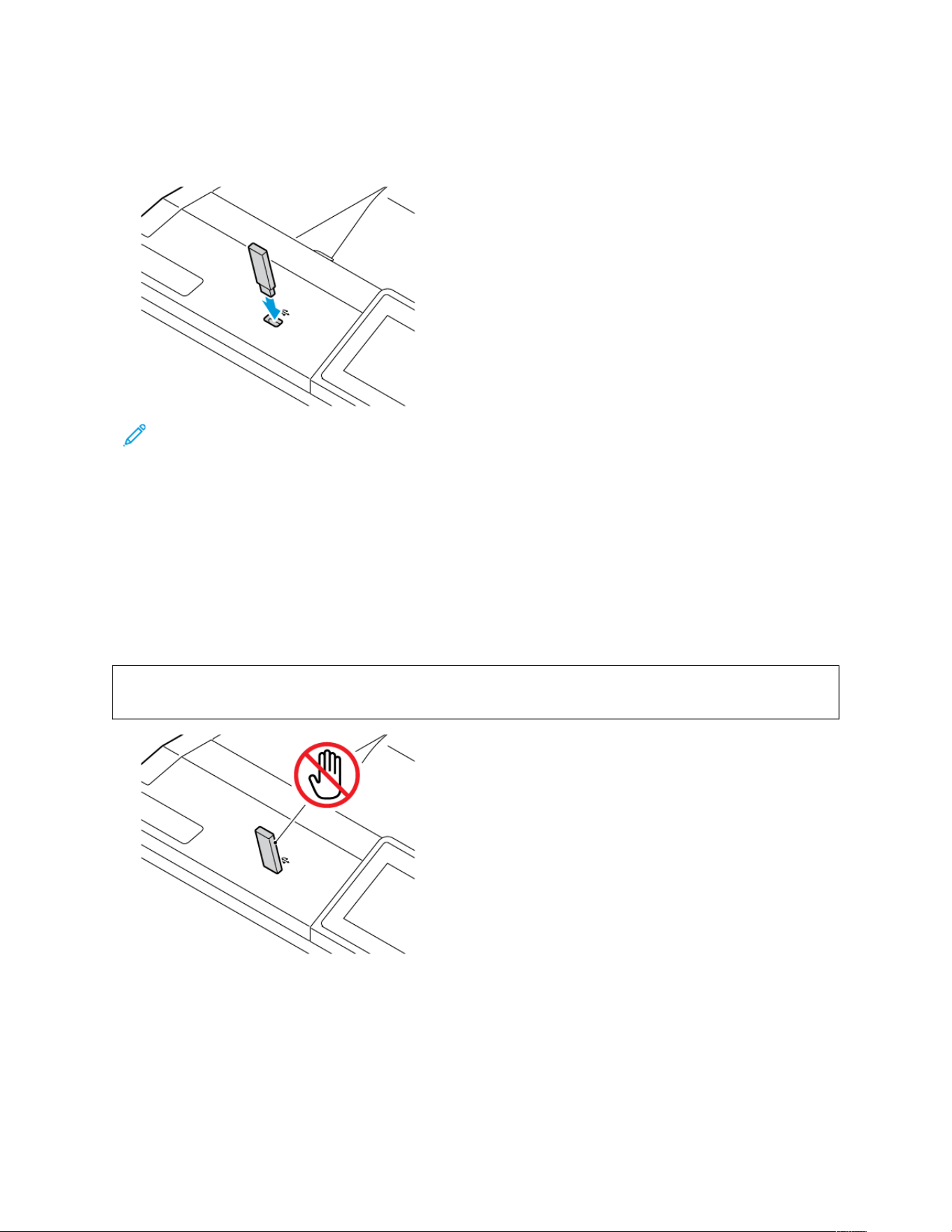
Printing from a Flash Drive
1. Insert the flash drive.
Note:
• If you insert the flash drive when an error message appears, then the printer ignores the flash drive.
• If you insert the flash drive while the printer is processing other print jobs, then Busy appears on the
display.
2. From the display, touch the document that you want to print.
If necessary, configure other print settings.
3. Print the document.
To print another document, touch UUSSBB DDrriivvee.
WWaarrnniinngg:: To avoid loss of data or printer malfunction, do not touch the flash drive or the printer in the
area shown while actively printing, reading, or writing from the memory device.
88 Xerox
®
C410 Color Printer User Guide
Print

Supported Flash Drives and File Types
FLASH DRIVES
• Lexar JumpDrive S70 (16GB and 32GB)
• SanDisk Cruzer Micro (16GB and 32GB)
• PNY Attache (16GB and 32GB)
Note:
• The printer supports high-speed flash drives with full-speed standard.
• Flash drives must support the File Allocation Table (FAT) system.
FILE TYPES
DDOOCCUUMMEENNTTSS IIMMAAGGEESS
• PDF (version 1.7 or earlier)
• Microsoft file formats (DOC, DOCX, XLS, XLSX, PPT,
PPTX)
• JPEG or JPG
• TIFF or TIF
• GIF
• BMP
• PNG
• PCX
• DCX
Xerox
®
C410 Color Printer User Guide 89
Print

Configuring Confidential Jobs (Secure Print)
1. From the home screen, touch SSeettttiinnggss >> SSeeccuurriittyy >> CCoonnffiiddeennttiiaall PPrriinntt SSeettuupp.
2. Configure the settings.
SSEETTTTIINNGG DDEESSCCRRIIPPTTIIOONN
Max Invalid PIN Set the limit for entering an invalid PIN.
Note: When the limit is reached, the print
jobs for that user name are deleted.
Confidential Job Expiration Set an individual expiration time for each held job
before it is automatically deleted from the printer
memory, hard disk.
Note: A held job is either Confidential,
Repeat, Reserve, or Verify.
Repeat Job Expiration Set the expiration time for print jobs that you want
to repeat.
Verify Job Expiration Set the expiration time for printing a copy of a job
for you to check its quality before printing the
remaining copies.
Reserve Job Expiration Set the expiration time for jobs that you want to
store in the printer for printing later.
Require All Jobs to be Held Set the printer to hold all print jobs.
Keep duplicate documents Set the printer to print all documents with the same
file name.
90
Xerox
®
C410 Color Printer User Guide
Print

Printing Confidential and Other Held Jobs
FOR WINDOWS USERS
UUssiinngg tthhee pprriinntt ddrriivveerr,, ddoo tthhee ffoolllloowwiinngg::
1. With a document open, click FFiillee >> PPrriinntt.
2. Select the printer, then click PPrriinntteerr PPrrooppeerrttiieess >> PPrriinnttiinngg OOppttiioonnss >> JJoobb TTyyppee.
3. Select the Print job type (Secure Print, Sample Set, Saved Job).
If you select SSeeccuurree PPrriinntt, enter a Passcode, then click OOKK. The PPrriinnttiinngg OOppttiioonnsswindow close.
4. Click PPrriinntt.
5. From the printer home screen, release the print job.
• For secure print jobs, touch HHeelldd jjoobbss, select your user name, CCoonnffiiddeennttiiaall, enter the PIN, select the print
job, configure the settings and PPrriinntt.
• For other print jobs, touch HHeelldd jjoobbss, select your user name, select the print job, configure the settings and
PPrriinntt.
FOR MACINTOSH USERS
Using AirPrint
1. With a document open, choose FFiillee >> PPrriinntt.
2. Select a printer, then from the drop-down menu following the Orientation menu, choose PPIINN PPrriinnttiinngg.
3. Enable PPrriinntt wwiitthh PPIINN, then enter a four-digit PIN.
4. Click PPrriinntt.
5. From the printer home screen, release the print job. Touch HHeelldd jjoobbss >> sseelleecctt yyoouurr ccoommppuutteerr nnaammee >>
CCoonnffiiddeennttiiaall >> eenntteerr tthhee PPIINN >> sseelleecctt tthhee pprriinntt jjoobb >> PPrriinntt.
Using the Print Driver
1. With a document open, choose FFiillee >> PPrriinntt.
2. Select a printer, then from the drop-down menu following the Orientation menu, choose PPrriinntt aanndd HHoolldd.
3. Choose CCoonnffiiddeennttiiaall PPrriinntt, then enter a four-digit PIN.
4. Click PPrriinntt.
5. From the printer home screen, release the print job. Touch HHeelldd jjoobbss >> sseelleecctt yyoouurr ccoommppuutteerr nnaammee >>
CCoonnffiiddeennttiiaall >> eenntteerr tthhee PPIINN >> sseelleecctt tthhee pprriinntt jjoobb >> PPrriinntt.
Xerox
®
C410 Color Printer User Guide 91
Print






Xerox
®
C410 Color Printer User Guide 97
Use Printer Menus
This chapter contains:
Menu Map.. .. . .. .. .. .. .. . .. .. .. .. .. . .. .. .. .. .. . .. .. .. .. .. .. . .. .. .. .. .. . .. .. .. .. .. . .. .. .. .. .. . .. .. .. ..... .. .. .. ..... .. .. .. ....... .. .. .. ..... .. .. .. ..98
Device .. .. .. ..... .. .. .. . .. .. .. .. .. .. . .. .. .. .. .. . .. .. .. .. .. . .. .. .. .. .. . .. .. .. .. .. . .. .. .. .. .. . .. .. .. .. .. .. . .. .. .. .. .. . .. .. .. ..... .. .. .. ..... .. .. .. ..... 99
Print . .. .. .. .. . .. .. .. .. .. . .. .. .. .. .. .. . .. .. ....... .. .. .. ..... .. .. .. ..... .. .. .. ..... .. .. .. ..... .. .. .. . .. .. .. .. .. .. . .. .. .. .. .. . .. .. .. .. .. . .. .. .. .. .. . .. 112
Paper.. .. .. .. . .. .. .. .. .. . .. .. .. .. .. .. . .. .. .. .. .. . .. .. .. .. .. . .. .. .. .. .. . .. .. .. .. .. . .. .. .. ..... .. .. .. ....... .. .. .. ..... .. .. .. ..... .. .. .. ..... .. .. .. . .. 122
USB Drive .. . .. .. .. .. .. . .. .. .. .. .. .. . .. .. .. .. .. . .. .. .. ..... .. .. .. ..... .. .. .. ..... .. .. .. ..... .. .. .. ....... .. .. .. . .. .. .. .. .. . .. .. .. .. .. . .. .. .. .. .. . .. 124
Network/Ports . .. .. .. .. .. .. . .. .. .. .. .. . .. .. .. .. .. . .. .. .. .. .. . .. .. .. .. .. . .. .. .. .. .. .. . .. .. .. .. .. . .. .. .. ..... .. .. .. ..... .. .. .. ..... .. .. .. ..... .. .. . 126
Security.. .. ..... .. .. .. ..... .. .. .. ..... .. .. .. . .. .. .. .. .. . .. .. .. .. .. . .. .. .. .. .. .. . .. .. .. .. .. . .. .. .. .. .. . .. .. .. .. .. . .. .. .. .. .. . .. .. .. ....... .. .. ...... 145
Reports .. .. .. .. .. .. . .. .. .. ..... .. .. .. ..... .. .. .. ....... .. .. .. ..... .. .. .. ..... .. .. .. . .. .. .. .. .. . .. .. .. .. .. . .. .. .. .. .. . .. .. .. .. .. .. . .. .. .. .. .. . .. .. .. 157
Supplies Plan.. .. .. .. . .. .. .. .. .. . .. .. .. .. .. . .. .. .. .. .. . .. .. .. .. .. . .. .. .. .. .. .. . .. .. .. ..... .. .. .. ..... .. .. .. ..... .. .. .. ..... .. .. .. ....... .. .. . .. .. . 159
Troubleshooting.. .. ..... .. .. .. ..... .. .. .. ..... .. .. .. ....... .. .. . .. .. .. .. .. .. . .. .. .. .. .. . .. .. .. .. .. . .. .. .. .. .. . .. .. .. .. .. . .. .. .. .. .. .. . .. .. .. .. .. 160
Printing the Menu Settings Page .. .. . .. .. .. .. .. . .. .. .. .. .. . .. .. .. .. .. .. . .. .. .. .. .. . .. .. .. .. .. . .. .. .. .. .. . .. .. .. ..... .. .. .. ....... .. .. ...... 161

Menu Map
DDeevviiccee
• Preferences
• Eco-Mode
• Remote Operator Panel
• Notifications
• Power Management
• Anonymous Data Collection
• Accessibility
• Restore Factory Defaults
• Maintenance
• Home Screen Customization
• About this Printer
PPrriinntt
• Layout
• Setup
• Quality
• Job Accounting
• PDF
• PostScript
• PCL
• Image
PPaappeerr
• Tray Configuration • Media Configuration
UUSSBB DDrriivvee Flash Drive Print
NNeettwwoorrkk//PPoorrttss
• Network Overview
• Wireless
• Wi-Fi Direct
• AirPrint
• Mobile Services Management
• Ethernet
• TCP/IP
• SNMP
• IPSec
• 802.1x
• LPD Configuration
• HTTP/FTP Settings
• ThinPrint
• USB
• Restrict External Network Access
• Universal Print
SSeeccuurriittyy
• Login Methods
• Certificate Management
• Schedule USB Devices
• Security Audit Log
• Login Restrictions
• Confidential Print Setup
• Disk Encryption
• Erase Temporary Data Files
• Solutions LDAP Settings
• Miscellaneous
RReeppoorrttss
• Menu Settings Page
• Device
• Print
• Network
SSuupppplliieess PPllaann
• Plan Activation
• Plan Conversion
• Subscription Service
Troubleshooting Print Quality Test Pages
98
Xerox
®
C410 Color Printer User Guide
Use Printer Menus

Device
Important: Some features are system administrator functions and the options are hidden from view. For
more information, refer to Embedded Web Server Administrator Guide at www.xerox.com/office/C410docs.
PREFERENCES
MMEENNUU IITTEEMM DDEESSCCRRIIPPTTIIOONN
DDiissppllaayy LLaanngguuaaggee
[List of languages]
Set the language of the text that appears on the
display.
CCoouunnttrryy//RReeggiioonn
[List of countries or regions]
Identify the country or region where the printer is
configured to operate.
RRuunn iinniittiiaall sseettuupp
• Off*
• On
Run the setup wizard.
KKeeyybbooaarrdd
Keyboard Type
[List of languages]
Select a language as a keyboard type.
Note: All the Keyboard Type values may not
appear or may require special hardware to
appear.
DDiissppllaayyeedd iinnffoorrmmaattiioonn
• Display Text 1 (IP Address*)
• Display Text 2 (Date/Time*)
• Custom Text 1
• Custom Text 2
Specify the information to appear on the home screen.
DDaattee aanndd TTiimmee
• Configure
– Current Date and Time
– Manually Set Date and Time
– Date Format (MM-DD-YYYY*)
– Time Format (12 hour A.M./P.M.*)
– Time Zone
– UTC (GMT) Offset
– DST Start
– DST End
– DST Offset
• Network Time Protocol
Configure the printer date and time and network time
protocol.
Note:
• MM-DD-YYYY is the U.S. factory default
setting. DD-MM-YYYY is the international
factory default setting.
• UTC (GMT) Offset, DST Start, DST End, and
DST Offset appear only when Time Zone is
set to (UTC+user) Custom.
• Key ID and Password appear only when
Enable Authentication is set to MD5 key.
Xerox
®
C410 Color Printer User Guide 99
Use Printer Menus

MMEENNUU IITTEEMM DDEESSCCRRIIPPTTIIOONN
– Enable NTP (On*)
– NTP Server
– Enable Authentication (None*)
– Key ID
– Password
PPaappeerr SSiizzeess
• U.S.*
• Metric
Specify the unit of measurement for paper sizes.
Note: The country or region selected in the
initial setup wizard determines the initial paper
size setting.
SSccrreeeenn BBrriigghhttnneessss
20–100% (100*)
Adjust the brightness of the display.
FFllaasshh DDrriivvee AAcccceessss
• Disabled
• Enabled*
Enable access to the flash drive.
SSccrreeeenn TTiimmeeoouutt
5–300 (60*)
Set the idle time in seconds before the display shows
the home screen, or before the printer logs out a user
account automatically.
Note: An asterisk (*) next to a value indicates the factory default setting.
ECO-MODE
MMEENNUU IITTEEMM DDEESSCCRRIIPPTTIIOONN
PPrriinntt
• Sides (1-Sided*)
• Pages per Side (Off*)
• Toner Darkness (4*)
• Color Saver (Off*)
Configure the print settings of the printer.
Note: An asterisk (*) next to a value indicates the factory default setting.
100
Xerox
®
C410 Color Printer User Guide
Use Printer Menus

REMOTE OPERATOR PANEL
MMEENNUU IITTEEMM DDEESSCCRRIIPPTTIIOONN
EExxtteerrnnaall VVNNCC CCoonnnneeccttiioonn
• Don’t Allow*
• Allow
Connect an external Virtual Network Computing (VNC)
client to the remote control panel.
AAuutthheennttiiccaattiioonn TTyyppee
• None*
• Standard Authentication
Set the authentication type when accessing the VNC
client server.
VVNNCC PPaasssswwoorrdd Specify the password to connect to the VNC client
server.
Note: This menu item appears only if
Authentication Type is set to Standard
Authentication.
Note: An asterisk (*) next to a value indicates the factory default setting.
NOTIFICATIONS
MMEENNUU IITTEEMM DDEESSCCRRIIPPTTIIOONN
SSuupppplliieess
• Show Supply Estimates
– Show estimates*
– Do not show estimates
• Custom Supply Notifications
Show the estimated status of the supplies.
EE--mmaaiill AAlleerrttss SSeettuupp
• E-mail Setup
– Primary SMTP Gateway
– Primary SMTP Gateway Port (25*)
– Secondary SMTP Gateway
– Secondary SMTP Gateway Port (25*)
– SMTP Timeout (30 seconds*)
– Reply Address
– Always use SMTP default Reply Address (Off*)
– Use SSL/TLS(Disabled*)
– Require Trusted Certificate (On*)
– SMTP Server Authentication (No
authentication required*)
Configure the e-mail settings of the printer.
Xerox
®
C410 Color Printer User Guide 101
Use Printer Menus

MMEENNUU IITTEEMM DDEESSCCRRIIPPTTIIOONN
– Device-Initiated E-mail (None*)
– User-Initiated E-mail (None*)
– Use Active Directory Device Credentials (Off*)
– Device Userid
– Device Password
– Kerberos 5 REALM
– NTLM Domain
– Disable "SMTP server not set up" error (Off*)
EErrrroorr PPrreevveennttiioonn
• Jam Assist
– Off
– On*
Set the printer to check for jammed paper
automatically.
EErrrroorr PPrreevveennttiioonn
• Auto Continue
– Off
– On* (5 seconds)
Let the printer continue processing or printing a job
automatically after clearing certain attendance
conditions.
EErrrroorr PPrreevveennttiioonn
• Auto Reboot
– Auto Reboot (Reboot always*)
Set the printer to restart when an error occurs.
EErrrroorr PPrreevveennttiioonn
• Auto Reboot
– Max Auto Reboots(20*)
Set the number of automatic reboots that the printer
can perform.
EErrrroorr PPrreevveennttiioonn
• Auto Reboot
– Auto Reboot Window (720*)
Set the number of seconds before the printer performs
an automatic reboot.
EErrrroorr PPrreevveennttiioonn
• Auto Reboot
– Auto Reboot Counter
Show a read-only information of the reboot counter.
EErrrroorr PPrreevveennttiioonn
• Auto Reboot
– Reset Auto Reboot Counter
Reset the counter for auto reboot.
EErrrroorr PPrreevveennttiioonn
• Display Short Paper Error
Set the printer to show a message when a short paper
error occurs.
102
Xerox
®
C410 Color Printer User Guide
Use Printer Menus

MMEENNUU IITTEEMM DDEESSCCRRIIPPTTIIOONN
– On
– Auto-clear*
Note: Short paper refers to the size of the paper
loaded.
EErrrroorr PPrreevveennttiioonn
• Page Protect
– Off*
– On
Set the printer to process the entire page into the
memory before printing it.
JJaamm CCoonntteenntt RReeccoovveerryy
• Jam Recovery
– Auto*
– Off
– On
Set the printer to reprint jammed pages.
Note: An asterisk (*) next to a value indicates the factory default setting.
POWER MANAGEMENT
MMEENNUU IITTEEMM DDEESSCCRRIIPPTTIIOONN
SSlleeeepp MMooddee PPrrooffiillee
• Print from Sleep Mode
– Stay awake after printing
– Enter Sleep Mode after printing*
Set the printer to stay awake or enter Sleep mode after
printing.
SSlleeeepp MMooddee PPrrooffiillee
• Touch to Wake from Deep Sleep
– Off
– On*
Wake the printer from Deep Sleep mode by touching
the printer display.
TTiimmeeoouuttss
Sleep Mode
1–114 minutes (15*)
Set the idle time before the printer begins operating in
Sleep mode.
TTiimmeeoouuttss
• Hibernate Timeout
– Disabled
– 1 hour
– 2 hours
– 3 hours
Set the time before the printer turns off.
Xerox
®
C410 Color Printer User Guide 103
Use Printer Menus

MMEENNUU IITTEEMM DDEESSCCRRIIPPTTIIOONN
– 6 hours
– 1 day
– 2 days
– 3 days*
– 1 week
– 2 weeks
– 1 month
TTiimmeeoouuttss
• Hibernate Timeout on Connection
– Hibernate
– Do Not Hibernate*
Set Hibernate Timeout to turn off the printer while an
active Ethernet connection exists.
SScchheedduullee PPoowweerr MMooddeess
• Schedules
– Add New Schedule
Schedule the printer when to enter Sleep or Hibernate
mode.
Note: An asterisk (*) next to a value indicates the factory default setting.
ANONYMOUS DATA COLLECTION
MMEENNUU IITTEEMM DDEESSCCRRIIPPTTIIOONN
AAnnoonnyymmoouuss DDaattaa CCoolllleeccttiioonn
• Device Usage and Performance
• Information
• None*
Send printer usage and performance information to
Xerox.
Note: Anonymous Data Send Time appears
only when you set Anonymous Data Collection
to Device Usage and Performance Information.
AAnnoonnyymmoouuss DDaattaa SSeenndd TTiimmee
• Start Time
• Stop Time
Note: An asterisk (*) next to a value indicates the factory default setting.
104
Xerox
®
C410 Color Printer User Guide
Use Printer Menus

ACCESSIBILITY
MMEENNUU IITTEEMM DDEESSCCRRIIPPTTIIOONN
DDuupplliiccaattee KKeeyy SSttrriikkee IInntteerrvvaall
0–5 seconds (0*)
Set the interval during which the printer ignores
duplicate key presses on an attached keyboard.
KKeeyy RReeppeeaatt IInniittiiaall DDeellaayy
0.25–5 seconds (1*)
Set the initial length of delay before a repeating key
starts repeating.
Note: Appears only when a keyboard is
attached to the printer.
KKeeyy RReeppeeaatt RRaattee
0.5–30 (30*)
Set the number of presses per second for a repeating
key.
Note: Appears only when a keyboard is
attached to the printer.
PPrroolloonngg SSccrreeeenn TTiimmeeoouutt
• Off*
• On
Let the user remain in the same location and reset the
Screen Timeout timer when it expires instead of
returning to the home screen.
Note: An asterisk (*) next to a value indicates the factory default setting.
RESTORE FACTORY DEFAULTS
MMEENNUU IITTEEMM DDEESSCCRRIIPPTTIIOONN
RReessttoorree SSeettttiinnggss
• Restore all settings
– Restore printer settings
– Restore network settings
– Restore app settings
Restore the printer factory default settings.
Xerox
®
C410 Color Printer User Guide 105
Use Printer Menus

MAINTENANCE
Configuration Menu
MMEENNUU IITTEEMM DDEESSCCRRIIPPTTIIOONN
UUSSBB CCoonnffiigguurraattiioonn
• USB PnP
– 1*
– 2
Change the USB driver mode of the printer to improve
its compatibility with a personal computer.
UUSSBB CCoonnffiigguurraattiioonn
• USB Speed
– Full
– Auto*
Set the USB port to run at full speed and disable its
high-speed capabilities.
TTrraayy CCoonnffiigguurraattiioonn
• Size Sensing
– Tray [x] Sensing (On*)
Set the tray to sense automatically the paper size
loaded into it.
TTrraayy CCoonnffiigguurraattiioonn
• Tray Linking
– Automatic*
– Off
Set the printer to link the trays that have the same
paper type and paper size settings.
TTrraayy CCoonnffiigguurraattiioonn
• Show Tray Insert Message
– Off
– Only for unknown sizes*
– Always
Display a message that lets the user change the paper
size and paper type settings after inserting the tray.
TTrraayy CCoonnffiigguurraattiioonn
• Paper Prompts
– Auto*
– Multi purpose feeder
– Manual Paper
Set the paper source that the user fills when a prompt
to load paper appears.
Note: For Multipurpose Feeder to appear, in the
Paper menu, set Configure MP to Cassette.
TTrraayy CCoonnffiigguurraattiioonn
• Envelope Prompts
– Auto*
– Multipurpose Feeder
– Manual Envelope
Set the paper source that the user fills when a prompt
to load envelope appears.
Note: For Multipurpose Feeder to appear, in the
Paper menu, set Configure MP to Cassette.
106
Xerox
®
C410 Color Printer User Guide
Use Printer Menus

MMEENNUU IITTEEMM DDEESSCCRRIIPPTTIIOONN
TTrraayy CCoonnffiigguurraattiioonn
• Action for Prompts
– Prompt user*
– Continue
– Use current
Set the printer to resolve paper- or envelope-related
change prompts.
RReeppoorrttss
• Menu Settings Page
• Event Log
• Event Log Summary
• HealthCheck Statistics
Print reports about printer menu settings, status, and
event logs.
SSuuppppllyy UUssaaggee AAnndd CCoouunntteerrss
Clear Supply Usage History
Reset the supply usage history to the factory default
level.
SSuuppppllyy UUssaaggee AAnndd CCoouunntteerrss
• Reset Black Cartridge Counter
• Reset Cyan Cartridge Counter
• Reset Magenta Cartridge Counter
• Reset Yellow Cartridge Counter
Reset the counter after installing a new cartridge.
SSuuppppllyy UUssaaggee AAnndd CCoouunntteerrss
Reset Black Imaging Unit Counter
Reset the counter after installing a new black imaging
unit.
SSuuppppllyy UUssaaggee AAnndd CCoouunntteerrss
Reset Color Imaging Kit Counter
Reset the counter after installing a new color imaging
kit.
SSuuppppllyy UUssaaggee AAnndd CCoouunntteerrss
Reset Maintenance Counter
Reset the counter after installing a new fuser.
SSuuppppllyy UUssaaggee AAnndd CCoouunntteerrss
Tiered Coverage Ranges
Adjust the amount of color coverage for each printing
range.
PPrriinntteerr EEmmuullaattiioonnss
• PPDS Emulation
– Off*
– On
Set the printer to recognize and use the PPDS data
stream.
PPrriinntteerr EEmmuullaattiioonnss
• PS Emulation
– Off
– On*
Set the printer to recognize and use the PS data
stream.
PPrriinntteerr EEmmuullaattiioonnss Activate Formsmerge to store the forms into the hard
Xerox
®
C410 Color Printer User Guide 107
Use Printer Menus

MMEENNUU IITTEEMM DDEESSCCRRIIPPTTIIOONN
• Enable Formsmerge
– Off*
– On
disk..
PPrriinntteerr EEmmuullaattiioonnss
• Enable Prescribe
– Off*
– On
Enable Prescribe emulation.
PPrriinntteerr EEmmuullaattiioonnss
• Emulator Security
– Page Timeout (60 minutes)
– Reset Emulator After Job (Off*)
– Disable Printer Message Access (On*)
Configure the security settings of the printer during
emulation
PPrriinntt CCoonnffiigguurraattiioonn
• Black Only Mode
– Off*
– On
Reset the emulator after a print job.
PPrriinntt CCoonnffiigguurraattiioonn
• Color Trapping
– Off
– 1
– 2*
– 3
– 4
– 5
Enhance the printed output to compensate for
misregistration in the printer.
PPrriinntt CCoonnffiigguurraattiioonn
Font Sharpening
0–150 (24*)
Set a text point-size value below which the high-
frequency screens are used when printing font data.
For example, if the value is 24, then all fonts sized 24
points or less use the high-frequency screens.
DDeevviiccee OOppeerraattiioonnss
• Quiet Mode
– Off*
– On
Set the printer to operate in Quiet Mode.
Note: Enabling this setting slows down the
printer performance.
DDeevviiccee OOppeerraattiioonnss
• Panel Menus
Enable access to the control panel menus.
108
Xerox
®
C410 Color Printer User Guide
Use Printer Menus

MMEENNUU IITTEEMM DDEESSCCRRIIPPTTIIOONN
– Off*
– On
DDeevviiccee OOppeerraattiioonnss
• Safe Mode
– Off*
– On
Set the printer to operate in a special mode, in which it
attempts to continue offering as much functionality as
possible, despite known issues.
For example, when set to On, and the duplex motor is
nonfunctional, the printer performs one-sided printing
of the documents even if the job is two-sided printing.
DDeevviiccee OOppeerraattiioonnss
Clear Custom Status
Erase user-defined strings for the Default or Alternate
custom messages.
DDeevviiccee OOppeerraattiioonnss
Clear all remotely-installed messages
Erase messages that were remotely installed.
DDeevviiccee OOppeerraattiioonnss
• Automatically Display Error Screens
– Off
– On*
Show existing error messages on the display after the
printer remains inactive on the home screen for a
length of time.
AApppp CCoonnffiigguurraattiioonn
• XES Applications
– Off
– On*
Enable Xerox Embedded Solutions (XES) applications.
Note: An asterisk (*) next to a value indicates the factory default setting.
Xerox
®
C410 Color Printer User Guide 109
Use Printer Menus

Out of Service Erase
MMEENNUU IITTEEMM DDEESSCCRRIIPPTTIIOONN
EErraassee PPrriinntteerr MMeemmoorryy
• Sanitize all information on nonvolatile memory
– Erase all printer and network settings
– Erase all apps and app settings
Clear all settings and applications that are stored in the
printer.
EErraassee HHaarrdd DDiisskk
• Sanitize all information on hard disk
– Erase downloads (Erases all macros, fonts,
PFOs, etc.)
– Erase buffered jobs
– Erase Held Jobs
– Reserve, Repeat, and Verify jobs
– Confidential jobs
– Non-restored jobs
– All held jobs
Clear all information on nonvolatile memory and on
the storage drive.
Note: Sanitize all information on hard disk and
Erase appear only when a storage drive is
installed.
HOME SCREEN CUSTOMIZATION
Note: This menu appears only in the Embedded Web Server.
MMEENNUU IITTEEMM DDEESSCCRRIIPPTTIIOONN
Status/Supplies
Job Queue
Settings
Address Book
USB Drive
Held Jobs
Specify which icons to show on the home screen.
ABOUT THIS PRINTER
MMEENNUU IITTEEMM DDEESSCCRRIIPPTTIIOONN
XXeerrooxx AAsssseett TTaagg Specify the identity of the printer. The maximum length is 32 characters.
CCuussttoommeerr AAsssseett TTaagg Show the serial number of the printer. The maximum length is 32 characters.
110
Xerox
®
C410 Color Printer User Guide
Use Printer Menus


Print
Important: Some features are system administrator functions and the options are hidden from view. For
more information, refer to Embedded Web Server Administrator Guide at www.xerox.com/office/C410docs.
LAYOUT
MMEENNUU IITTEEMM DDEESSCCRRIIPPTTIIOONN
SSiiddeess
• 1-sided*
• 2-sided
Specify whether to print on one side or two sides of the
paper.
FFlliipp SSttyyllee
• Long Edge*
• Short Edge
Determine which side of the paper (long edge or short
edge) is bound when performing two-sided printing.
BBllaannkk PPaaggeess
• Print
• Do Not Print*
Print blank pages that are included in a print job.
CCoollllaattee
• Off (1,1,1,2,2,2)
• On (1,2,1,2,1,2)*
Keep the pages of a print job stacked in sequence,
particularly when printing multiple copies of the job.
SSeeppaarraattoorr SShheeeettss
• None*
• Between Copies
• Between Jobs
• Between Pages
Insert blank separator sheets when printing.
SSeeppaarraattoorr SShheeeett SSoouurrccee
Tray [x] (1*)
Specify the paper source for the separator sheet.
PPaaggeess ppeerr SSiiddee
• Off*
• 2 pages per side
• 3 pages per side
• 4 pages per side
• 6 pages per side
• 9 pages per side
• 12 pages per side
• 16 pages per side
Print multiple page images on one side of a sheet of
paper.
PPaaggeess ppeerr SSiiddee OOrrddeerriinngg
• Horizontal*
• Reverse Horizontal
• Vertical
Specify the positioning of multiple page images when
using Pages per Side.
112
Xerox
®
C410 Color Printer User Guide
Use Printer Menus
MMEENNUU IITTEEMM DDEESSCCRRIIPPTTIIOONN
• Reverse Vertical
PPaaggeess ppeerr SSiiddee OOrriieennttaattiioonn
• Auto*
• Landscape
• Portrait
Specify the orientation of a multiple-page document
when using Pages per Side.
PPaaggeess ppeerr SSiiddee BBoorrddeerr
• None*
• Solid
Print a border around each page image when using
Pages per Side.
CCooppiieess
1–9999 (1*)
Specify the number of copies for each print job.
PPrriinntt AArreeaa
• Normal*
• Fit to Page
• Whole Page
Set the printable area on a sheet of paper.
Note: An asterisk (*) next to a value indicates the factory default setting.
SETUP
MMEENNUU IITTEEMM DDEESSCCRRIIPPTTIIOONN
PPrriinntteerr LLaanngguuaaggee
• PCL Emulation
• PS Emulation*
Set the printer language.
Note: Setting a printer language default does
not prevent a software program from sending
print jobs that use another printer language.
JJoobb WWaaiittiinngg
• Off*
• On
Preserve print jobs requiring supplies so that jobs not
requiring the missing supplies can print.
Note: This menu item appears only when a
hard disk is installed.
JJoobb HHoolldd TTiimmeeoouutt
0–255 (30*)
Set the time in seconds that the printer waits for user
intervention before it holds jobs that require
unavailable resources.
Note: This menu item appears only when a
hard disk is installed.
PPrriinntteerr UUssaaggee
• Max Speed
• Max Yield*
Determine how the color print cartridges operate
during printing.
Xerox
®
C410 Color Printer User Guide 113
Use Printer Menus

MMEENNUU IITTEEMM DDEESSCCRRIIPPTTIIOONN
Note:
• When set to Max Yield, the color print
cartridges slow down or stop while printing
groups of black-only pages.
• When set to Max Speed, the color print
cartridges always run while printing, whether
color or black pages are being printed.
LLooww--SSppeeeedd PPrriinntteerr UUssaaggee
• Max Speed
• Max Yield
Determine how the color imaging kit operates during
low-speed printing.
Note:
• When set to Max Yield, the color imaging kit
slows or stops while printing groups of black-
only pages.
• When set to Max Speed, the color imaging
kit always runs while printing, whether color
or black pages are being printed.
• This setting only changes printer behavior
when the print engine is running at a 25
pages per minute process speed. It has no
effect when the print engine is running at
faster process speeds.
DDoowwnnllooaadd TTaarrggeett
• RAM*
• Disk
Specify where to save all permanent resources that
have been downloaded to the printer.
Note: This menu item appears only when a
hard disk is installed.
RReessoouurrccee SSaavvee
• Off*
• On
Determine what the printer does with downloaded
resources, such as fonts and macros, when it receives a
job that requires more than the available memory.
Note:
• When set to Off, the printer retains
downloaded resources only until memory is
needed. Resources associated with the
inactive printer language are deleted.
• When set to On, the printer preserves all the
permanent downloaded resources across all
language switches. When necessary, the
printer shows memory full messages instead
of deleting permanent resources.
114
Xerox
®
C410 Color Printer User Guide
Use Printer Menus
MMEENNUU IITTEEMM DDEESSCCRRIIPPTTIIOONN
PPrriinntt AAllll OOrrddeerr
• Alphabetical*
• Newest First
• Oldest First
Specify the order in which held and confidential jobs
are printed when Print All is selected.
Note: This menu item appears only when a
hard disk is installed.
Note: An asterisk (*) next to a value indicates the factory default setting.
QUALITY
MMEENNUU IITTEEMM DDEESSCCRRIIPPTTIIOONN
PPrriinntt MMooddee
• Black and White
• Color*
Set how the printer generates color content.
PPrriinntt RReessoolluuttiioonn
• 4800 CQ*
• 1200 dpi
Set the resolution for the printed output.
Note: 4800 CQ provides high-quality output at
maximum speed.
TToonneerr DDaarrkknneessss
1 to 5 (4*)
Determine the lightness or darkness of text images.
HHaallffttoonnee
• Normal*
• Detail
Enhance the printed output to have smoother lines
with sharper edges.
CCoolloorr SSaavveerr
• Off*
• On
Reduce the amount of toner used to print graphics and
images.
RRGGBB BBrriigghhttnneessss
-6 to 6 (0*)
Adjust the brightness, contrast, and saturation for color
output.
Note: This setting does not affect files where
CMYK color specifications are used.
RRGGBB CCoonnttrraasstt
6 to 6 (0*)
RRGGBB SSaattuurraattiioonn
0 to 5 (0*)
Note: An asterisk (*) next to a value indicates the factory default setting.
Xerox
®
C410 Color Printer User Guide 115
Use Printer Menus

AAddvvaanncceedd IImmaaggiinngg
MMEENNUU IITTEEMM DDEESSCCRRIIPPTTIIOONN
CCoolloorr BBaallaannccee
• Cyan (0*)
• Magenta (0*)
• Yellow (0*)
• Black (0*)
Adjust the amount of toner that is used for each color.
CCoolloorr BBaallaannccee
Reset Defaults
Reset all color settings to their default values.
CCoolloorr CCoorrrreeccttiioonn
• Off
• Auto*
• Manual
Modify the color settings used to print documents.
• Off sets the printer to receive the color correction
from the software.
• Auto sets the printer to apply different color profiles
to each object on the printed page.
• Manual allows the customization of the RGB or
CMYK color conversions applied to each object on
the printed page.
• Color Correction Content is available only when
Color Correction is set to Manual.
CCoolloorr SSaammpplleess
Print Color Samples
Print sample pages for each of the RGB and CMYK
color conversion tables used in the printer.
CCoolloorr AAddjjuusstt Calibrate the printer to adjust color variations in the
printed output.
SSppoott CCoolloorr RReeppllaacceemmeenntt
Set Custom CMYK
Assign specific CMYK values to twenty named spot
colors.
Note: An asterisk (*) next to a value indicates the factory default setting.
JOB ACCOUNTING
MMEENNUU IITTEEMM DDEESSCCRRIIPPTTIIOONN
JJoobb AAccccoouunnttiinngg
• Off*
• On
Set the printer to create a log of the print jobs that it
receives.
Note: This menu item appears only when a
flash memory, a hard disk is installed.
AAccccoouunnttiinngg LLoogg FFrreeqquueennccyy
• Daily
• Weekly
Specify how often the printer creates a log file.
116
Xerox
®
C410 Color Printer User Guide
Use Printer Menus

MMEENNUU IITTEEMM DDEESSCCRRIIPPTTIIOONN
• Monthly*
LLoogg AAccttiioonn aatt EEnndd ooff FFrreeqquueennccyy
• None*
• E-mail Current Log
• E-mail & Delete Current Log
• Post Current Log
• Post & Delete Current Log
Specify how the printer responds when the frequency
threshold expires.
Note: The value defined in Accounting Log
Frequency determines when this action is
triggered.
LLoogg AAccttiioonn aatt NNeeaarr FFuullll
• None*
• E-mail Current Log
• E-mail & Delete Current Log
• E-mail & Delete Oldest Log
• Post Current Log
• Post & Delete Current Log
• Post & Delete Oldest Log
• Delete Current Log
• Delete Oldest Log
• Delete All But Current
• Delete All Logs
Specify how the printer responds when the hard disk is
nearly full.
LLoogg AAccttiioonn aatt FFuullll
• None*
• E-mail & Delete Current Log
• E-mail & Delete Oldest Log
• Post & Delete Current Log
• Post & Delete Oldest Log
• Delete Current Log
• Delete Oldest Log
• Delete All But Current
• Delete All Logs
Specify how the printer responds when hard disk usage
reaches the maximum limit (100MB).
UURRLL ttoo PPoosstt LLoogg Specify where the printer posts job accounting logs.
EE--mmaaiill AAddddrreessss ttoo SSeenndd LLooggss Specify the e-mail address to which the printer sends
job accounting logs.
LLoogg FFiillee PPrreeffiixx Specify the prefix for the log files.
Note: The current host name defined in the
TCP/IP menu is used as the default log file
prefix.
Note: An asterisk (*) next to a value indicates the factory default setting.
Xerox
®
C410 Color Printer User Guide 117
Use Printer Menus
PDF
MMEENNUU IITTEEMM DDEESSCCRRIIPPTTIIOONN
SSccaallee TToo FFiitt
• Off*
• On
Scale the page content to fit the selected paper size.
AAnnnnoottaattiioonnss
• Print
• Do Not Print*
Specify whether to print annotations in the PDF.
PPrriinntt PPDDFF EErrrroorr
• Off
• On*
Enable the printing of PDF error.
Note: An asterisk (*) next to a value indicates the factory default setting.
POSTSCRIPT
MMEENNUU IITTEEMM DDEESSCCRRIIPPTTIIOONN
PPrriinntt PPSS EErrrroorr
• Off*
• On
Print a page that describes the PostScript error.
Note: When an error occurs, processing of the
job stops, the printer prints an error message,
and the rest of the print job is flushed.
MMiinniimmuumm LLiinnee WWiiddtthh
1–30 (2*)
Set the minimum stroke width.
Note: Jobs printed in 1200 dpi use half the
value directly.
LLoocckk PPSS SSttaarrttuupp MMooddee
• Off*
• On
Disable the SysStart file.
IImmaaggee SSmmooootthhiinngg
• Off*
• On
Enhance the contrast and sharpness of low-resolution
images.
Note: This setting has no effect on images with
a resolution of 300 dpi or higher.
FFoonntt PPrriioorriittyy
• Resident*
• Flash/Disk
Establish the font search order.
118
Xerox
®
C410 Color Printer User Guide
Use Printer Menus

MMEENNUU IITTEEMM DDEESSCCRRIIPPTTIIOONN
Note:
• Resident sets the printer to search its
memory for the requested font before
searching the hard disk.
• Flash/Disk sets the printer to search the hard
disk for the requested font before searching
the printer memory.
• This menu item appears only when a hard
disk is installed.
WWaaiitt TTiimmeeoouutt
• Off
• On* (40 seconds)
Enable the printer to wait for more data before
canceling a print job.
Note: An asterisk (*) next to a value indicates the factory default setting.
PCL
MMEENNUU IITTEEMM DDEESSCCRRIIPPTTIIOONN
FFoonntt NNaammee
• Resident*
• Disk
• Download
• Flash
• All
Select the source which contains the default font
selection.
Note:
• Disk and Flash appear only when a non-
defective, non-protected hard disk that
contains fonts is installed.
• Download appears only if downloaded fonts
exist in the printer memory.
FFoonntt NNaammee
[List of available fonts] (Courier*)
Select a font from the specified font source.
SSyymmbbooll SSeett
[List of available symbol set] (10U PC-8*)
Specify the symbol set for each font name.
Note: A symbol set is a set of alphabetic and
numeric characters, punctuation, and special
symbols. Symbol sets support the different
languages or specific programs such as math
symbols for scientific text.
PPiittcchh
0.08–100 (10*)
Specify the pitch for fixed or monospaced fonts.
Note: Pitch refers to the number of fixed-space
characters in a horizontal inch of type.
Xerox
®
C410 Color Printer User Guide 119
Use Printer Menus

MMEENNUU IITTEEMM DDEESSCCRRIIPPTTIIOONN
OOrriieennttaattiioonn
• Portrait*
• Landscape
• Reverse Portrait
• Reverse Landscape
Specify the orientation of text and graphics on the
page.
LLiinneess ppeerr PPaaggee
1–255
Specify the number of lines of text for each page
printed through the PCL datastream.
Note:
• This menu item activates vertical
escapement that causes the selected
number of requested lines to print between
the default margins of the page.
• 60 is the U.S. factory default setting. 64 is
the international factory default setting.
PPCCLL55 MMiinniimmuumm LLiinnee WWiiddtthh
1–30 (2*)
Set the initial minimum stroke width.
Note: Jobs printed in 4800 CQ use half the
value.
PPCCLLXXLL MMiinniimmuumm LLiinnee WWiiddtthh
1–30 (2*)
AA44 WWiiddtthh
• 198mm*
• 203mm
Set the width of the logical page on A4-size paper.
Note: Logical page is the space on the physical
page where data is printed.
AAuuttoo CCRR aafftteerr LLFF
• On
• Off*
Set the printer to perform a carriage return after a line
feed control command.
Note: Carriage return is a mechanism that
commands the printer to move the position of
the cursor to the first position on the same line.
AAuuttoo LLFF aafftteerr CCRR
• On
• Off*
Set the printer to perform a line feed after a carriage
return control command.
TTrraayy RReennuummbbeerr
• Assign Tray [x]
• Assign Manual Paper
• Assign Manual Envelope
Configure the printer to work with a different print
driver or custom application that uses a different set of
source assignments to request a given paper source
TTrraayy RReennuummbbeerr
View Factory Defaults
Show the factory default value assigned for each paper
source.
TTrraayy RReennuummbbeerr Restore the tray renumber values to their factory
120
Xerox
®
C410 Color Printer User Guide
Use Printer Menus
MMEENNUU IITTEEMM DDEESSCCRRIIPPTTIIOONN
Restore Defaults
defaults.
PPrriinntt TTiimmeeoouutt
• Off
• On* (90 seconds)
Set the printer to end a print job after it has been idle
for the specified amount of time in seconds.
Note: An asterisk (*) next to a value indicates the factory default setting.
IMAGE
MMEENNUU IITTEEMM DDEESSCCRRIIPPTTIIOONN
AAuuttoo FFiitt
• On
• Off*
Select the best available paper size and orientation
setting for an image.
Note: When set to On, this menu item overrides
the scaling and orientation settings for the
image.
IInnvveerrtt
• Off*
• On
Invert bitonal monochrome images.
Note: This menu item does not apply to GIF or
JPEG image formats.
SSccaalliinngg
• Anchor Top Left
• Best Fit*
• Anchor Center
• Fit Height/Width
• Fit Height
• Fit Width
Adjust the image to fit the printable area.
Note: When Auto Fit is set to On, Scaling is
automatically set to Best Fit.
OOrriieennttaattiioonn
• Portrait*
• Landscape
• Reverse Portrait
• Reverse Landscape
Specify the orientation of text and graphics on the
page.
Note: An asterisk (*) next to a value indicates the factory default setting.
Xerox
®
C410 Color Printer User Guide 121
Use Printer Menus

Paper
Important: Some features are system administrator functions and the options are hidden from view. For
more information, refer to Embedded Web Server Administrator Guide at www.xerox.com/office/C410docs.
TRAY CONFIGURATION
MMEENNUU IITTEEMM DDEESSCCRRIIPPTTIIOONN
DDeeffaauulltt SSoouurrccee
• Tray [x] (1*)
• Multipurpose Feeder
• Manual Paper
• Manual Envelope
Set the paper source for all print jobs.
PPaappeerr SSiizzee//TTyyppee
• Tray [x]
• Multipurpose Feeder
• Manual Paper
• Manual Envelope
Specify the paper size or paper type loaded in each
paper source.
SSuubbssttiittuuttee SSiizzee
• Off
• Letter/A4
• All Listed*
Set the printer to substitute a specified paper size if the
requested size is not loaded in any paper source.
Note:
• Off prompts the user to load the required paper
size.
• All Listed allows all available substitutions.
Note: An asterisk (*) next to a value indicates the factory default setting.
MEDIA CONFIGURATION
Universal Setup
MMEENNUU IITTEEMM DDEESSCCRRIIPPTTIIOONN
UUnniittss ooff MMeeaassuurree
• Inches
• Millimeters
Specify the unit of measurement for the universal
paper.
Note: Inches is the U.S. factory default setting.
Millimeters is the international factory default
setting.
PPoorrttrraaiitt WWiiddtthh
• 3.00–14.17 in. (8.50*)
Set the portrait width of the universal paper.
122
Xerox
®
C410 Color Printer User Guide
Use Printer Menus

MMEENNUU IITTEEMM DDEESSCCRRIIPPTTIIOONN
• 76–360 mm (216*)
PPoorrttrraaiitt HHeeiigghhtt
• 3.00–14.17 in. (14*)
• 76–360 mm (356*)
Set the portrait height of the universal paper.
FFeeeedd DDiirreeccttiioonn
• Short Edge*
• Long Edge
Set the printer to pick paper from the short edge or
long edge direction.
Note: Long Edge appears only when the longest
edge is shorter than the maximum width
supported.
Note: An asterisk (*) next to a value indicates the factory default setting.
Media Types
MMEENNUU IITTEEMM DDEESSCCRRIIPPTTIIOONN
• Plain Paper
• Card Stock
• Recycled
• Glossy
• Labels
• Vinyl Labels
• Bond
• Envelope
• Letterhead
• Preprinted
• Colored Paper
• Light Paper
• Heavy Paper
• Rough/Cotton
• Custom Type [x]
Specify the texture, weight, and orientation of the
paper loaded.
Note: Custom Type is supported only in some
printer models.
Xerox
®
C410 Color Printer User Guide 123
Use Printer Menus

USB Drive
Important: Some features are system administrator functions and the options are hidden from view. For
more information, refer to Embedded Web Server Administrator Guide at www.xerox.com/office/C410docs.
FLASH DRIVE PRINT
MMEENNUU IITTEEMM DDEESSCCRRIIPPTTIIOONN
NNuummbbeerr ooff CCooppiieess
1–9999 (1*)
Set the number of copies.
PPaappeerr SSoouurrccee
• Tray [x] (1*)
• Multipurpose Feeder
• Manual Paper
• Manual Envelope
Set the paper source for the print job.
CCoolloorr
• Off
• On*
Print a flash drive file in color.
CCoollllaattee
• (1,1,1) (2,2,2)
• (1,2,3) (1,2,3)*
Keep the pages of a print job stacked in sequence,
particularly when printing multiple copies of the job.
SSiiddeess
• 1-Sided*
• 2-Sided
Specify whether to print on one side or both sides of
the paper.
FFlliipp SSttyyllee
• Long Edge*
• Short Edge
Determine which side of the paper is bound when
performing two-sided printing.
PPaaggeess ppeerr SSiiddee
• Off*
• 2 pages per side
• 3 pages per side
• 4 pages per side
• 6 pages per side
• 9 pages per side
• 12 pages per side
• 16 pages per side
Print multiple page images on one side of a sheet of
paper.
PPaaggeess ppeerr SSiiddee OOrrddeerriinngg
• Horizontal*
• Reverse Horizontal
• Reverse Vertical
Specify the positioning of multiple page images when
using Pages per Side menu.
124
Xerox
®
C410 Color Printer User Guide
Use Printer Menus

MMEENNUU IITTEEMM DDEESSCCRRIIPPTTIIOONN
• Vertical
PPaaggeess ppeerr SSiiddee OOrriieennttaattiioonn
• Auto*
• Landscape
• Portrait
Specify the orientation of multiple page images when
using Pages per Side menu.
PPaaggeess ppeerr SSiiddee BBoorrddeerr
• None*
• Solid
Print a border around each page image when using
Pages per Side menu.
SSeeppaarraattoorr SShheeeettss
• Off*
• Between Copies
• Between Jobs
• Between Pages
Insert blank separator sheets when printing.
SSeeppaarraattoorr SShheeeett SSoouurrccee
• Tray [x] (1*)
• Multipurpose Feeder
Specify the paper source for the separator sheet.
BBllaannkk PPaaggeess
• Do Not Print*
• Print
Print blank pages in a print job.
Note: An asterisk (*) next to a value indicates the factory default setting.
Xerox
®
C410 Color Printer User Guide 125
Use Printer Menus
Network/Ports
Important: Some features are system administrator functions and the options are hidden from view. For
more information, refer to Embedded Web Server Administrator Guide at www.xerox.com/office/C410docs.
NETWORK OVERVIEW
MMEENNUU IITTEEMM DDEESSCCRRIIPPTTIIOONN
AAccttiivvee AAddaapptteerr
• Auto*
• Standard Network
• Wireless
Specify how a network is connected.
Note: Wireless is available only in printers
connected to a wireless network.
NNeettwwoorrkk SSttaattuuss Show the connectivity status of the printer network.
DDiissppllaayy NNeettwwoorrkk SSttaattuuss oonn PPrriinntteerr
• Off
• On*
Show the network status on the display.
SSppeeeedd,, DDuupplleexx Show the speed of the currently active network card.
IIPPvv44 Show the IPv4 address.
AAllll IIPPvv66 AAddddrreesssseess Show all IPv6 addresses.
RReesseett PPrriinntt SSeerrvveerr Reset all active network connections to the printer.
Note: This setting removes all network
configuration settings.
NNeettwwoorrkk JJoobb TTiimmeeoouutt
• Off
• On* (90 seconds)
Set the time before the printer cancels a network print
job.
BBaannnneerr PPaaggee
• Off*
• On
Print a banner page.
EEnnaabbllee NNeettwwoorrkk CCoonnnneeccttiioonnss
• Off*
• On
Enable the printer to connect to a network.
EEnnaabbllee LLLLDDPP
• Off*
• On
Enable Link Layer Discovery Protocol (LLDP) in the
printer.
Note: An asterisk (*) next to a value indicates the factory default setting.
126
Xerox
®
C410 Color Printer User Guide
Use Printer Menus

WIRELESS
Note: This menu is available only in printers connected to a Wi-Fi network or printers that have a wireless
network adapter.
MMEENNUU IITTEEMM DDEESSCCRRIIPPTTIIOONN
SSeettuupp OOnn PPrriinntteerr PPaanneell
• Choose Network
• Add Wi-Fi Network
– Network Name
– Network Mode
– Infrastructure
– Wireless Security Mode
– Disabled*
– WEP
– WPA2/WPA - Personal
– WPA2 - Personal
Configure the Wi-Fi connection using the control panel.
WWii--FFii PPrrootteecctteedd SSeettuupp
• Start Push Button Method
• Start PIN Method
Establish a Wi-Fi network and enable network security.
Note:
• Start Push-Button Method connects the
printer to a Wi-Fi network when buttons on
both the printer and the access point
(wireless router) are pressed within a given
time.
• Start PIN Method connects the printer to a
Wi-Fi network when a PIN on the printer is
entered into the wireless settings of the
access point.
NNeettwwoorrkk MMooddee
• BSS Type
– Infrastructure*
Specify the network mode.
CCoommppaattiibbiilliittyy
• 802.11b/g/n (2.4GHz)
*
• 802.11a/b/g/n/ac (2.4GHz/5GHz)
• 802.11a/n/ac (5GHz)
Specify the standard for the Wi-Fi network.
Note: 802.11a/b/g/n/ac (2.4GHz/5GHz) and
802.11a/n/ac (5GHz) only appear when a Wi-Fi
option is installed.
WWiirreelleessss SSeeccuurriittyy MMooddee
• Disabled
*
• WPA2/WPA-Personal
• WPA2-Personal
• WPA2/WPA3-Personal
Set the security mode for connecting the printer to
Wi-Fi devices.
Xerox
®
C410 Color Printer User Guide 127
Use Printer Menus

MMEENNUU IITTEEMM DDEESSCCRRIIPPTTIIOONN
• WPA3-Personal
• 802.1x - RADIUS
WWPPAA22//WWPPAA PPeerrssoonnaall
AES
Enable Wi-Fi security through Wi-Fi Protected Access
(WPA).
Note: This menu item appears only when the
Wireless Security Mode is set to WPA2/WPA-
Personal.
WWPPAA22--PPeerrssoonnaall
AES
Enable Wi-Fi security through WPA2.
Note: This menu item appears only when the
Wireless Security Mode is set to WPA2-Personal.
SSeett PPrree SShhaarreedd KKeeyy Specify a password for secure Wi-Fi connection.
880022..11xx EEnnccrryyppttiioonn MMooddee
• WPA
+
• WPA2*
• WPA2+PMF
Enable Wi-Fi security through 802.1x standard.
Note: This menu item appears only when the
Wireless Security Mode is set to 802.1x -
RADIUS.
IIPPvv44
• Enable DHCP
– On
*
– Off
• Set Static IP Address
– IP Address
– Netmask
– Gateway
Enable and configure IPv4 settings in the printer.
IIPPvv66
• Enable IPv6
– On
*
– Off
• Enable DHCPv6
– On
– Off
*
• Stateless Address Auto configuration
– On
*
– Off
• DNS Server Address
Enable and configure IPv6 settings in the printer.
128
Xerox
®
C410 Color Printer User Guide
Use Printer Menus

MMEENNUU IITTEEMM DDEESSCCRRIIPPTTIIOONN
• Manually Assigned IPv6 Address
• Manually Assigned IPv6 Router
• Address Prefix
• All IPv6 Addresses
• All IPv6 Router Addresses
NNeettwwoorrkk AAddddrreessss
• UAA
• LAA
View the network addresses.
PPCCLL SSmmaarrttSSwwiittcchh
• Off
• On
*
Set the printer to switch automatically to PCL
emulation when a print job requires it, regardless of
the default printer language.
Note: If PCL SmartSwitch is off, then the printer
does not examine incoming data and uses the
default printer language specified in the Setup
menu.
PPSS SSmmaarrttSSwwiittcchh
• Off
• On
*
Set the printer to switch automatically to PS emulation
when a print job requires it, regardless of the default
printer language.
Note: If PS SmartSwitch is off, then the printer
does not examine incoming data and uses the
default printer language specified in the Setup
menu.
JJoobb BBuuffffeerriinngg
• On
• Off*
Temporarily store print jobs in the hard disk before
printing.
Note: This menu item appears only when a
hard disk is installed.
MMaacc BBiinnaarryy PPSS
• Auto
*
• On
• Off
Set the printer to process Macintosh binary PostScript
print jobs.
Note:
• On processes raw binary PostScript print
jobs.
• Off filters print jobs using the standard
protocol.
Note: An asterisk (*) next to a value indicates the factory default setting.
Xerox
®
C410 Color Printer User Guide 129
Use Printer Menus
WI-FI DIRECT
MMEENNUU IITTEEMM DDEESSCCRRIIPPTTIIOONN
EEnnaabbllee WWii--FFii DDiirreecctt
• On
• Off*
Set the printer to connect directly to Wi-Fi devices.
WWii--FFii DDiirreecctt NNaammee Specify the name of the Wi-Fi Direct network.
WWii--FFii DDiirreecctt PPaasssswwoorrdd Set the password to authenticate and validate users on
a Wi-Fi connection.
SShhooww PPaasssswwoorrdd oonn SSeettuupp PPaaggee
• Off
• On*
Show the Wi-Fi Direct Password on the Network Setup
Page.
PPrreeffeerrrreedd CChhaannnneell NNuummbbeerr
• 1–11
• Auto*
Set the preferred channel of the Wi-Fi network.
GGrroouupp OOwwnneerr IIPP AAddddrreessss Specify the IP address of the group owner.
AAuuttoo--AAcccceepptt PPuusshh BBuuttttoonn RReeqquueessttss
• Off*
• On
Accept requests to connect to the network
automatically.
Note: Accepting clients automatically is not
secured.
Note: An asterisk (*) next to a value indicates the factory default setting.
AIRPRINT
MMEENNUU IITTEEMM DDEESSCCRRIIPPTTIIOONN
AAiirrPPrriinntt
• Enabled*
• Disabled
BBoonnjjoouurr NNaammee The name to use to identify the printer on Airprint.
OOrrggaanniizzaattiioonn NNaammee
OOrrggaanniizzaattiioonnaall UUnniitt
PPrriinntteerr LLooccaattiioonn
PPrriinntteerr’’ss LLaattiittuuddee GPS latitude of the printer. The range is –90 to 90.
PPrriinntteerr’’ss LLoonnggiittuuddee GPS longitude of the printer. The range is –180 to 180.
PPrriinntteerr’’ss AAllttiittuuddee GPS altitude of the printer. The range is –100000 to
100000.
130
Xerox
®
C410 Color Printer User Guide
Use Printer Menus

MMEENNUU IITTEEMM DDEESSCCRRIIPPTTIIOONN
MMoorree OOppttiioonnss From the Embedded Web Server, navigate to SSeettttiinnggss
>> NNeettwwoorrkk//PPoorrttss >> AAiirrPPrriinntt >> MMoorree OOppttiioonnss for the
following options.
SSuupppplliieess
Black Cartridge
Cyan Cartridge
Magenta Cartridge
Yellow Cartridge
Imaging Kit
Waste Toner Bottle
This menu lists the supplies status/notifications.
PPrriinntteerr
Device Type
Device Speed
Firmware Level
Multipurpose Feeder
Tray 1
Tray 2
Tray 3
Tray 4
Standard Bin
This menu lists the printer specifications and input/
output tray status/notifications.
LLooggiinn MMeetthhooddss For more information, refer to Login Methods.
CCeerrttiiffiiccaattee MMaannaaggeemmeenntt For more information, refer to Certificate Management.
CCoonnffiiddeennttiiaall PPrriinntt SSeettuupp For more information, refer to Confidential Print Setup.
MOBILE SERVICES MANAGEMENT
MMEENNUU IITTEEMM DDEESSCCRRIIPPTTIIOONN
EEnnaabbllee IIPPPP PPrriinntt
• On*
• Off
Enable IPP Print setting in the printer.
EEnnaabbllee IIPPPP OOvveerr UUSSBB
• On*
• Off
Enable IPP Over USB setting in the printer.
Note: After changing this setting, user needs to
restart the Printer.
Xerox
®
C410 Color Printer User Guide 131
Use Printer Menus

MMEENNUU IITTEEMM DDEESSCCRRIIPPTTIIOONN
EEnnaabbllee MMoopprriiaa PPrriinntt DDiissccoovveerryy
• On*
• Off
Enable Mopria Print Discovery setting in the printer.
Note: An asterisk (*) next to a value indicates the factory default setting.
ETHERNET
MMEENNUU IITTEEMM DDEESSCCRRIIPPTTIIOONN
NNeettwwoorrkk SSppeeeedd Show the speed of an active network adapter.
IIPPvv44
• Enable DHCP (On*)
• Set Static IP Address
Configure the IPv4 settings.
IIPPvv66
• Enable IPv6 (On*)
• Enable DHCPv6 (Off*)
• Stateless Address Autoconfiguration (On*)
• DNS Address
• Manually Assigned IPV6 Address
• Manually Assigned IPV6 Router
• Address Prefix (64*)
• All IPv6 Addresses
• All IPv6 Router Addresses
Configure the IPv6 settings.
NNeettwwoorrkk AAddddrreessss
• UAA
• LAA
Specify the network address.
PPCCLL SSmmaarrttSSwwiittcchh
• Off
• On*
Set the printer to switch automatically to PCL
emulation when a print job requires it, regardless of
the default printer language.
Note: When this setting is disabled, the printer
does not examine incoming data and uses the
default printer language specified in the Setup
menu.
PPSS SSmmaarrttSSwwiittcchh
• Off*
• On
Set the printer to switch automatically to PostScript
emulation when a print job requires it, regardless of
the default printer language.
132
Xerox
®
C410 Color Printer User Guide
Use Printer Menus

MMEENNUU IITTEEMM DDEESSCCRRIIPPTTIIOONN
Note: When this setting is disabled, the printer
does not examine incoming data and uses the
default printer language specified in the Setup
menu.
JJoobb BBuuffffeerriinngg
• Off*
• On
Temporarily store print jobs in the hard disk before
printing.
Note: This menu item appears only when a
hard disk is installed.
MMaacc BBiinnaarryy PPSS
• Auto*
• On
• Off
Set the printer to process Macintosh binary PostScript
print jobs.
Note:
• Auto processes print jobs from computers
using either Windows or Macintosh
operating systems.
• Off filters PostScript print jobs using the
standard protocol.
EEnneerrggyy EEffffiicciieenntt EEtthheerrnneett
• Off
• On
• Auto*
Reduce power consumption when the printer does not
receive data from the Ethernet network.
Note: An asterisk (*) next to a value indicates the factory default setting.
TCP/IP
Note: This menu appears only in network printers or printers attached to print servers.
MMEENNUU IITTEEMM DDEESSCCRRIIPPTTIIOONN
SSeett HHoossttnnaammee Set the current TCP/IP host name.
DDoommaaiinn NNaammee Set the domain name.
AAllllooww DDHHCCPP//BBOOOOTTPP ttoo uuppddaattee NNTTPP sseerrvveerr
• On*
• Off
Allow the DHCP and BOOTP clients to update the NTP
settings of the printer.
ZZeerroo CCoonnffiigguurraattiioonn NNaammee Specify a service name for the zero configuration
network.
EEnnaabbllee AAuuttoo IIPP
• Off*
• On
Assign an IP address automatically.
Xerox
®
C410 Color Printer User Guide 133
Use Printer Menus

MMEENNUU IITTEEMM DDEESSCCRRIIPPTTIIOONN
DDNNSS SSeerrvveerr AAddddrreessss Specify the current Domain Name System (DNS) server
address.
BBaacckkuupp DDNNSS AAddddrreessss Specify the backup DNS server addresses.
BBaacckkuupp DDNNSS AAddddrreessss 22
BBaacckkuupp DDNNSS AAddddrreessss 33
DDoommaaiinn SSeeaarrcchh OOrrddeerr Specify a list of domain names to locate the printer and
its resources that reside in different domains on the
network.
EEnnaabbllee DDDDNNSS
• Off*
• On
Update the Dynamic DNS settings.
DDDDNNSS TTTTLL Specify the current DDNS settings.
DDeeffaauulltt TTTTLL
DDDDNNSS RReeffrreesshh TTiimmee
EEnnaabbllee mmDDNNSS
• Off
• On*
Update multicast DNS settings.
WWIINNSS SSeerrvveerr AAddddrreessss Specify a server address for Windows Internet Name
Service (WINS).
EEnnaabbllee BBOOOOTTPP
• Off*
• On
Allow the BOOTP to assign a printer IP address.
RReessttrriicctteedd SSeerrvveerr LLiisstt Specify an IP address for the TCP connections.
Note:
• Use a comma to separate each IP address.
• You can add up to 50 IP addresses.
RReessttrriicctteedd SSeerrvveerr LLiisstt OOppttiioonnss
• Block All Ports*
• Block Printing Only
• Block Printing and HTTP Only
Specify the access option for IP addresses that are not
in the list.
MMTTUU
256–1500 Ethernet (1500*)
Specify a maximum transmission unit (MTU) parameter
for the TCP connections.
RRaaww PPrriinntt PPoorrtt
1–65535 (9100*)
Specify a raw port number for printers connected on a
network.
134
Xerox
®
C410 Color Printer User Guide
Use Printer Menus

MMEENNUU IITTEEMM DDEESSCCRRIIPPTTIIOONN
OOuuttbboouunndd TTrraaffffiicc MMaaxxiimmuumm SSppeeeedd
• Off*
• On
Set the maximum transfer rate of the printer.
Note: When enabled, the option for this setting
is 100–1000000 Kilobits/second.
TTLLSS SSuuppppoorrtt
• TLSv1.3 is supported by default
• Enable TLSv1.0 (Off)
• Enable TLSv1.1 (Off*)
• Enable TLSv1.2 (On*)
Enable the Transport Layer Security protocol.
SSSSLL CCiipphheerr LLiisstt Ready Only list of cipher algorithms used for the TLS
connections.
TTLLSSvv11..33 SSSSLL CCiipphheerr LLiisstt Ready Only list of cipher algorithms used for TLSv1.3
connections.
Note: An asterisk (*) next to a value indicates the factory default setting.
SNMP
Note: This menu appears only in network printers or printers that are attached to print servers.
Xerox
®
C410 Color Printer User Guide 135
Use Printer Menus

MMEENNUU IITTEEMM DDEESSCCRRIIPPTTIIOONN
SSNNMMPP VVeerrssiioonnss 11 aanndd 22cc
• Enabled
– Off
– On*
• Allow SNMP Set
– Off
– On*
• Enable PPM (Printer Port Monitor) MIB
– Off
– On*
• SNMP Community
– GET SNMP Community String
– SET SNMP Community String
Configure Simple Network Management Protocol
(SNMP) versions 1 and 2c to install print drivers and
applications.
SSNNMMPP VVeerrssiioonn 33
• Enabled
– Off
– On*
• Context Name
• Set Read/Write Credentials
– User Name
– Authentication Password
– Privacy Password
• Set Read-only Credentials
– User Name
– Authentication Password
– Privacy Password
• Authentication Hash
– MD5
– SHA1*
• Minimum Authentication Level
– No Authentication, No Privacy
– Authentication, No Privacy
Configure SNMP version 3 to install and update the
printer security.
136
Xerox
®
C410 Color Printer User Guide
Use Printer Menus
MMEENNUU IITTEEMM DDEESSCCRRIIPPTTIIOONN
– Authentication, Privacy*
• Privacy Algorithm
– DES
– AES-128*
Note: An asterisk (*) next to a value indicates the factory default setting.
IPSEC
Note: This menu appears only in network printers or printers that are attached to print servers.
MMEENNUU IITTEEMM DDEESSCCRRIIPPTTIIOONN
EEnnaabbllee IIPPSSeecc
• Off*
• On
Enable Internet Protocol Security (IPSec).
BBaassee CCoonnffiigguurraattiioonn
• Default*
• Compatibility
• Secure
Set the IPSec base configuration.
Note: This menu item appears only when
Enable IPSec is set to On.
DDHH ((DDiiffffiiee--HHeellllmmaann)) GGrroouupp PPrrooppoossaall
• modp2048 (14)*
• modp3072 (15)
• modp4069 (16)
• modp6144 (17)
Set the IPSec base configuration.
Note: This menu items appear only when Base
Configuration is set to Compatibility.
PPrrooppoosseedd EEnnccrryyppttiioonn MMeetthhoodd
• 3DES
• AES*
Set the encryption method.
Note: This menu items appear only when Base
Configuration is set to Compatibility.
PPrrooppoosseedd AAuutthheennttiiccaattiioonn MMeetthhoodd
• SHA1
• SHA256*
• SHA512
Set the authentication method.
Note: This menu items appear only when Base
Configuration is set to Compatibility.
IIKKEE SSAA LLiiffeettiimmee ((HHoouurrss))
• 1
• 2
• 4
• 8
• 24*
Specify the IKE SA expiry period.
Note: This menu item appears only when Base
Configuration is set to Secure.
Xerox
®
C410 Color Printer User Guide 137
Use Printer Menus

MMEENNUU IITTEEMM DDEESSCCRRIIPPTTIIOONN
IIPPSSeecc SSAA LLiiffeettiimmee ((HHoouurrss))
• 1
• 2
• 4
• 8*
• 24
Specify the IPSec SA expiry period.
Note: This menu item appears only when Base
Configuration is set to Secure.
IIPPSSeecc DDeevviiccee CCeerrttiiffiiccaattee Specify an IPSec certificate.
Note: This menu item appears only when
Enable IPSec is set to On.
PPrree--SShhaarreedd KKeeyy AAuutthheennttiiccaatteedd CCoonnnneeccttiioonnss
• Host [x]
Configure the authenticated connections of the printer.
Note: These menu items appear only when
Enable IPSec is set to On.
CCeerrttiiffiiccaattee AAuutthheennttiiccaatteedd CCoonnnneeccttiioonnss
• Host [x] Address[/subnet]
Note: An asterisk (*) next to a value indicates the factory default setting.
802.1X
Note: This menu appears only in network printers or printers that are attached to print servers.
MMEENNUU IITTEEMM DDEESSCCRRIIPPTTIIOONN
AAccttiivvee
• Off*
• On
Let the printer join networks that require
authentication before allowing access.
880022..11xx AAuutthheennttiiccaattiioonn
• Device Login Name
• Device Login Password
• Validate Serve Certificate (On*)
• Enable Event Logging (Off*)
• 802.1x Device Certificate
Configure the settings for authenticating the 802.1x
connection.
138
Xerox
®
C410 Color Printer User Guide
Use Printer Menus

MMEENNUU IITTEEMM DDEESSCCRRIIPPTTIIOONN
AAlllloowwaabbllee AAuutthheennttiiccaattiioonn MMeecchhaanniissmmss
• EAP - MD5 (On*)
• EAP - MSCHAPv2 (On*)
• LEAP (On*)
• PEAP (On*)
• EAP - TLS (On*)
• EAP - TTLS (On*)
• TTLS Authentication Method
– CHAP
– MSCHAP
– MSCHAPv2*
– PAP
Configure the allowed authentication mechanisms for
the 802.1x connection.
Note: An asterisk (*) next to a value indicates the factory default setting.
LPD CONFIGURATION
Note: This menu appears only in network printers or printers that are attached to print servers.
MMEENNUU IITTEEMM DDEESSCCRRIIPPTTIIOONN
LLPPDD TTiimmeeoouutt
0–65535 seconds (90*)
Set the time-out value to stop the Line Printer Daemon
(LPD) server from waiting indefinitely for hung or
invalid print jobs.
LLPPDD BBaannnneerr PPaaggee
• Off*
• On
Print a banner page for all LPD print jobs.
Note: A banner page is the first page of a print
job used as a separator of print jobs and to
identify the originator of the print job request.
LLPPDD TTrraaiilleerr PPaaggee
• Off*
• On
Print a trailer page for all LPD print jobs.
Note: A trailer page is the last page of a print
job.
LLPPDD CCaarrrriiaaggee RReettuurrnn CCoonnvveerrssiioonn
• Off*
• On
Enable carriage return conversion.
Note: Carriage return is a mechanism that
commands the printer to move the position of
the cursor to the first position on the same line.
Note: An asterisk (*) next to a value indicates the factory default setting.
Xerox
®
C410 Color Printer User Guide 139
Use Printer Menus

HTTP/FTP SETTINGS
MMEENNUU IITTEEMM DDEESSCCRRIIPPTTIIOONN
PPrrooxxyy
• HTTP Proxy IP Address
• HTTP Default IP Port
• FTP Proxy IP Address
• FTP Default IP Port
• Authentication
• User Name
• Password
• Local domains
Configure the HTTP and FTP server settings.
OOtthheerr SSeettttiinnggss
Enable HTTP Server (On*) Access the Embedded Web Server to monitor and
manage the printer.
Enable HTTPS (On*) Enable Hypertext Transfer Protocol Secure (HTTPS) to
encrypt data transferring to and from the print server.
Force HTTPS Connections (Off*) Force the printer to use HTTPS connections.
Enable FTP/TFTP (On*) Send files using FTP/TFTP.
HTTPS Device Certificate (default*) View the HTTP device certificate used on the printer.
Timeout for HTTP/FTP Requests (30*) Specify the amount of time before the server
connection stops.
Retries for HTTP/FTP Requests (3*) Set the number of retries to connect to the HTTP/FTP
server.
Note: An asterisk (*) next to a value indicates the factory default setting.
THINPRINT
MMEENNUU IITTEEMM DDEESSCCRRIIPPTTIIOONN
EEnnaabbllee TThhiinnPPrriinntt
• Off*
• On
Print using ThinPrint.
PPoorrtt NNuummbbeerr
4000–4999 (4000*)
Set the port number for the ThinPrint server.
BBaannddwwiiddtthh ((bbiittss//sseecc))
100–1000000 (0*)
Set the speed to transmit data in a ThinPrint environment.
140
Xerox
®
C410 Color Printer User Guide
Use Printer Menus

MMEENNUU IITTEEMM DDEESSCCRRIIPPTTIIOONN
PPaacckkeett SSiizzee ((kkbbyytteess))
0–64000 (0*)
Set the packet size for data transmission.
Note: For more information, refer to the Embedded Web Server Administrator Guide.
USB
MMEENNUU IITTEEMM DDEESSCCRRIIPPTTIIOONN
PPCCLL SSmmaarrttSSwwiittcchh
• Off
• On*
Set the printer to switch to PCL emulation when a print
job received through a USB port requires it, regardless
of the default printer language.
Note: When this setting is disabled, the printer
does not examine incoming data and uses the
default printer language specified in the Setup
menu.
PPSS SSmmaarrttSSwwiittcchh
• Off
• On*
Set the printer to switch to PS emulation when a print
job received through a USB port requires it, regardless
of the default printer language.
Note: When this setting is disabled, the printer
does not examine incoming data and uses the
default printer language specified in the Setup
menu.
JJoobb BBuuffffeerriinngg
• Off*
• On
Temporarily store print jobs in the hard disk before
printing.
Note: This menu item appears only when a
hard disk is installed.
MMaacc BBiinnaarryy PPSS
• Auto*
• On
• Off
Set the printer to process Macintosh binary PostScript
print jobs.
Note:
• Auto processes print jobs from computers
using either Windows or Macintosh
operating.
• Off filters PostScript print jobs using the
standard protocol.
EEnnaabbllee UUSSBB PPoorrtt
• Disable
• Enable*
Enable the standard USB port.
Note: An asterisk (*) next to a value indicates the factory default setting.
Xerox
®
C410 Color Printer User Guide 141
Use Printer Menus
RESTRICT EXTERNAL NETWORK ACCESS
MMEENNUU IITTEEMM DDEESSCCRRIIPPTTIIOONN
RReessttrriicctt eexxtteerrnnaall nneettwwoorrkk aacccceessss
• Off*
• On
If enabled the printer monitors for restricted external
connections. Once detected, the printer will disable the
network connection and send an E-mail notification.
EExxtteerrnnaall nneettwwoorrkk aaddddrreessss Specify the network addresses with restricted access.
EE--mmaaiill aaddddrreessss ffoorr nnoottiiffiiccaattiioonn Specify an e-mail address to send a notification of
logged events.
PPiinngg ffrreeqquueennccyy
1–300 (10*)
Specify the network query interval in seconds.
SSuubbjjeecctt Specify the subject and message of the notification e-
mail.
MMeessssaaggee
Note: An asterisk (*) next to a value indicates the factory default setting.
UNIVERSAL PRINT
Universal Print is a cloud-based print protocol that provides a simple and secure print solution for Microsoft
®
365
users. Universal Print allows administrators to manage printers without the need for on-premises print servers.
Universal Print enables users to access cloud printers without the need for print drivers.
You can use the Universal Print page to register your Xerox
®
device for Universal Print.
PPrreerreeqquuiissiitteess
• Microsoft Azure AD Account
• Windows 10 Client version 1903 or higher
MMEENNUU IITTEEMM DDEESSCCRRIIPPTTIIOONN
SSttaattuuss Device is not currently registered with Universal Print.
RReeggiissttrraattiioonn User can use the Universal print page to register the Xerox
®
device for Universal
Print.
PPrriinntteerr NNaammee The Default printer name appears. User can also update the Xerox
®
printer
name.
142
Xerox
®
C410 Color Printer User Guide
Use Printer Menus

MMEENNUU IITTEEMM DDEESSCCRRIIPPTTIIOONN
RReeggiisstteerr To register, do the following steps:
1 Go to SSeettttiinnggss >> NNeettwwoorrkk//PPoorrttss >> UUnniivveerrssaall PPrriinntt, then click RReeggiisstteerr. The
Registration process authenticates the device with Microsoft
®
Azure
®
Active
Directory.
2 The Register Device window appears. To copy the registration code, click
CCooppyy, then click the link https://microsoft.com/devicelogin.
Note: The registration code expires after 15 minutes. The registration
process needs to be completed before the code expires.
3 A Microsoft-managed webpage opens. Do the following steps:
a Paste the registration code into the code field in the Enter code
window, then click NNeexxtt.
b Select the appropriate Microsoft
®
account in the Pick an account
window.
Note: For registration, select an available Microsoft
®
account. The
selected account is used solely to establish a trusted connection for
the device with the Universal Print service. After registration, Universal
Print does not use the account again.
4 A Xerox Universal Print window appears. Click CCoonnttiinnuuee and close the
window.
Note: For more information, refer to the Embedded Web Server Administrator Guide.
MMEENNUU IITTEEMM DDEESSCCRRIIPPTTIIOONN
SSttaattuuss Device is online and registered with Universal Print.
RReeggiissttrraattiioonn User can use the Universal print page to deregister the Xerox
®
device for
Universal Print.
PPrriinntteerr NNaammee Registered printer name appears.
DDeerreeggiisstteerr Use this function to deregister the device from the Universal Print Service.
Additional information for Universal Print
TToo aadddd aa PPrriinntteerr ffrroomm WWiinnddoowwss SSeerrvveerr::
1. Go to SSeettttiinnggss >> PPrriinntteerr && SSccaannnneerrss, then click AAdddd aa pprriinntteerr oorr ssccaannnneerr.
2. Select the printer from the printer list, then click AAdddd ddeevviiccee. If the printer does not appear in the list, do the
following steps:
a. Go to SSeeaarrcchh ffoorr pprriinntteerrss iinn mmyy oorrggaanniizzaattiioonn.
b. Type the registered name on the text field, and click SSeeaarrcchh. Once the printer appears on the list, click AAdddd
DDeevviiccee.
Xerox
®
C410 Color Printer User Guide 143
Use Printer Menus


Security
Important: Some features are system administrator functions and the options are hidden from view. For
more information, refer to Embedded Web Server Administrator Guide at www.xerox.com/office/C410docs.
LOGIN METHODS
Public
MMEENNUU IITTEEMM DDEESSCCRRIIPPTTIIOONN
MMaannaaggee PPeerrmmiissssiioonnss
• Function Access
– Modify Address Book
– Manage Shortcuts
– Create Profiles
– Manage Bookmarks
– Flash Drive Print
– Flash Drive Color Printing
– Held Jobs Access
– Use Profiles
– Cancel Jobs at the Device
– Change Language
– Internet Printing Protocol (IPP)
– B/W Print
– Color Print
Control access to the printer functions.
MMaannaaggee PPeerrmmiissssiioonnss
• Administrative Menus
– Security Menu
– Network/Ports Menu
– Paper Menu
– Reports Menu
– Function Configuration Menus
– Supplies Menu
– Option Card Menu
– SE Menu
– Device Menu
Control access to the printer menus.
Xerox
®
C410 Color Printer User Guide 145
Use Printer Menus

MMEENNUU IITTEEMM DDEESSCCRRIIPPTTIIOONN
MMaannaaggee PPeerrmmiissssiioonnss
• Device Management
– Remote Management
– Firmware Updates
– Apps Configuration
– Embedded Web Server Access
– Import / Export All Settings
– Out of Service Erase
– Cloud Services Enrollment
Control access to the printer management options.
MMaannaaggee PPeerrmmiissssiioonnss
• Apps
– New Apps
– Slideshow
– Change Wallpaper
– Screen Saver
– Device Quotas
Control access to the printer applications.
Local Accounts
MMEENNUU IITTEEMM DDEESSCCRRIIPPTTIIOONN
MMaannaaggee GGrroouuppss//PPeerrmmiissssiioonnss Show a list of all saved groups in the printer.
AAdddd UUsseerr
• User Name/Password
• User Name
• Password
• PIN
Create local accounts to manage access to the printer
functions.
146
Xerox
®
C410 Color Printer User Guide
Use Printer Menus

Network Accounts
MMEENNUU IITTEEMM DDEESSCCRRIIPPTTIIOONN
AAdddd LLooggiinn MMeetthhoodd
Active Directory
Status is Joined or Not Joined.
Join an Active Directory Domain:
• Domain
• User Name
• Password
• Organization Unit
Control group or user access to printer functions,
applications, and security settings.
AAdddd LLooggiinn MMeetthhoodd
LDAP — LDAP Setup
Authentication Type
• LDAP
• LDAP + GSSAPI
General Information
• Setup Name
• Server Address
• Server Port
• Required User Input
– User Name and Password
Control group or user access to printer functions,
applications, and security settings.
Xerox
®
C410 Color Printer User Guide 147
Use Printer Menus

MMEENNUU IITTEEMM DDEESSCCRRIIPPTTIIOONN
– User Name
Device Credentials
• Anonymous LDAP Bind
• Device Username
• Device Password
Advanced Options
• Use SSL/TLS
• Require Certificate
• User ID Attribute
• Mail Attribute
• Fax Number Attribute
• Full Name Attribute
• Home Directory Attribute
• Group Membership Attribute
• Search Base
• Search Timeout
• Follow LDAP Referrals
Search Specific Object Classes
• person
• Custom Object Class 1
• Custom Object Class 2
• Custom Object Class 3
Address Book Setup
• Displayed Name
• Max Search Results
• Use user credentials
• SSeeaarrcchh AAttttrriibbuutteess
– cn
– sn
– givenName
– samaccountname
– uid
– [mail attribute]
– [fax attribute]
– Custom Attribute 1
– Custom Attribute 2
– Custom Attribute 3
148
Xerox
®
C410 Color Printer User Guide
Use Printer Menus

MMEENNUU IITTEEMM DDEESSCCRRIIPPTTIIOONN
– Custom Filter
AAdddd LLooggiinn MMeetthhoodd
Kerberos Setup
General Simple Kerberos File
• KDC Address
• KDC Port
• Realm
Import Kerberos File
• Browse
Miscellaneous Settings
• Character Encoding
– UTF-8
– PC-858
– ISO 8859–2
– ISO 8859–5
– ISO 8859–9
• Disable Reverse IP Lookups
Control group or user access to printer functions,
applications, and security settings.
CERTIFICATE MANAGEMENT
Important: Certificate Management is a System Administrator function. Sometimes this option is hidden
from view. For more information, refer to Embedded Web Server Administrator Guide at www.xerox.com/
office/C410docs.
MMEENNUU IITTEEMM DDEESSCCRRIIPPTTIIOONN
CCoonnffiigguurree CCeerrttiiffiiccaattee DDeeffaauullttss
• Common Name
• Organization Name
• Unit Name
• Country/Region
• Province Name
• City Name
• Subject Alternate Name
Set the default values for generated certificates.
DDeevviiccee CCeerrttiiffiiccaatteess Generate, delete, or view device certificates.
MMaannaaggee CCAA CCeerrttiiffiiccaatteess Load, delete, or view Certificate Authority (CA)
certificates.
Xerox
®
C410 Color Printer User Guide 149
Use Printer Menus

SCHEDULE USB DEVICES
MMEENNUU IITTEEMM DDEESSCCRRIIPPTTIIOONN
SScchheedduulleess
Add New Schedule
Schedule access to the front USB port.
SECURITY AUDIT LOG
MMEENNUU IITTEEMM DDEESSCCRRIIPPTTIIOONN
EEnnaabbllee AAuuddiitt
Off
*
On
Record the events in the secure audit log and remote
syslog.
EEnnaabbllee RReemmoottee SSyysslloogg
Off
*
On
Send audit logs to a remote server.
RReemmoottee SSyysslloogg SSeerrvveerr Specify the remote syslog server.
RReemmoottee SSyysslloogg PPoorrtt
1–65535 (514
*
)
Specify the remote syslog port.
RReemmoottee SSyysslloogg MMeetthhoodd
Normal UDP
*
Stunnel
Specify a syslog method to transmit logged events to a
remote server.
RReemmoottee SSyysslloogg FFaacciilliittyy
0 - Kernel Messages
1 - User-Level Messages
2 - Mail System
3 - System Daemons
4 - Security/Authorization Messages
*
5 - Messages Generated Internally by Syslogs
6 - Line Printer Subsystem
7 - Network News Subsystem
8 - UUCP Subsystem
9 - Clock Daemon
10 - Security/Authorization Messages
11 - FTP Daemon
Specify a facility code that the printer uses when
sending log events to a remote server
150
Xerox
®
C410 Color Printer User Guide
Use Printer Menus

MMEENNUU IITTEEMM DDEESSCCRRIIPPTTIIOONN
12 - NTP Subsystem
13 - Log Audit
14 - Log Alert
15 - Clock Daemon
16 - Local Use 0 (local0)
17- Local Use 1 (local1)
18 - Local Use 2 (local2)
19 - Local Use 3 (local3)
20 - Local Use 4 (local4)
21 - Local Use 5 (local5)
22 - Local Use 6 (local6)
23 - Local Use 7 (local7)
SSeevveerriittyy ooff EEvveennttss ttoo LLoogg
0 - Emergency
1 - Alert
2 - Critical
3 - Error
4 - Warning
*
5 - Notice
6 - Informational
7 - Debug
Specify the priority level cutoff for logging messages
and events.
RReemmoottee SSyysslloogg NNoonn--LLooggggeedd EEvveennttss
Off*
On
Send all events, regardless of severity level, to the
remote server.
AAddmmiinn’’ss EE--mmaaiill AAddddrreessss Send e-mail notification of logged events to the
administrator.
EE--mmaaiill LLoogg CClleeaarreedd AAlleerrtt
Off
*
On
Send e-mail notification to the administrator when a
log entry is deleted.
EE--mmaaiill LLoogg WWrraappppeedd AAlleerrtt
Off
*
Send e-mail notification to the administrator when the
log becomes full and begins to overwrite the oldest
entries.
Xerox
®
C410 Color Printer User Guide 151
Use Printer Menus

MMEENNUU IITTEEMM DDEESSCCRRIIPPTTIIOONN
On
LLoogg FFuullll BBeehhaavviioorr
Wrap Over Oldest Entries
*
E-mail Log Then Delete All Entries
Resolve log storage issues when the log fills its allotted
memory.
EE--mmaaiill %% FFuullll AAlleerrtt
Off
*
On
Send e-mail notification to the administrator when the
log fills its allotted memory.
%% FFuullll AAlleerrtt LLeevveell
1–99 (90
*
)
EE--mmaaiill LLoogg EExxppoorrtteedd AAlleerrtt
Off
*
On
Send e-mail notification to the administrator when a
log is exported.
EE--mmaaiill LLoogg SSeettttiinnggss CChhaannggeedd
Off
*
On
Send e-mail notification to the administrator when
Enable Audit is set.
LLoogg LLiinnee EEnnddiinnggss
LF (\n)
*
CR (\r)
CRLF (\r\n)
Specify how the log file terminates the end of each
line.
DDiiggiittaallllyy SSiiggnn EExxppoorrttss
Off
*
On
Add a digital signature to each exported log file.
CClleeaarr LLoogg Delete all audit logs.
EExxppoorrtt LLoogg
Syslog (RFC 5424)
*
Syslog (RFC 3164)
CSV
Export a security log to a flash drive.
Note: An asterisk (*) next to a value indicates the factory default setting.
152
Xerox
®
C410 Color Printer User Guide
Use Printer Menus

LOGIN RESTRICTIONS
MMEENNUU IITTEEMM DDEESSCCRRIIPPTTIIOONN
LLooggiinn ffaaiilluurreess
1–10 (3
*
)
Specify the number of failed login attempts before the
user gets locked out.
FFaaiilluurree ttiimmee ffrraammee
1–60 minutes (5
*
)
Specify the time frame between failed login attempts
before the user gets locked out.
LLoocckkoouutt ttiimmee
1–60 minutes (5
*)
Specify the lockout duration.
WWeebb LLooggiinn TTiimmeeoouutt
1–120 minutes (10
*
)
Specify the delay for a remote login before the user is
logged off automatically.
Note: An asterisk (*) next to a value indicates the factory default setting.
CONFIDENTIAL PRINT SETUP
MMEENNUU IITTEEMM DDEESSCCRRIIPPTTIIOONN
MMaaxx IInnvvaalliidd PPIINN
2–10. Off = 0
Set the limit for entering an invalid PIN.
Note: When the limit is reached, the print jobs
for that user name are deleted.
CCoonnffiiddeennttiiaall JJoobb EExxppiirraattiioonn
• Off*
• 1 Hour
• 4 Hours
• 24 Hours
• 1 Week
Set an individual expiration time for each held job
before it is automatically deleted from the hard disk.
Note: A held job is either Confidential, Repeat,
Reserve, or Verify.
.
RReeppeeaatt JJoobb EExxppiirraattiioonn
• Off*
• 1 Hour
• 4 Hour
• 24 Hour
• 1 Week
Set the expiration time for a print job that you want to
repeat.
VVeerriiffyy JJoobb EExxppiirraattiioonn
• Off*
• 1 Hour
• 4 Hour
• 24 Hour
• 1 Week
Set the expiration time for printing a copy of a job for
you to check its quality before printing the remaining
copies.
Xerox
®
C410 Color Printer User Guide 153
Use Printer Menus

MMEENNUU IITTEEMM DDEESSCCRRIIPPTTIIOONN
RReesseerrvvee JJoobb EExxppiirraattiioonn
• Off*
• 1 Hour
• 4 Hour
• 24 Hour
• 1 Week
Set the expiration time for jobs that you want to store
in the printer for printing later.
RReeqquuiirree AAllll JJoobbss ttoo bbee HHeelldd
• Off*
• On
Set the printer to hold all print jobs.
KKeeeepp dduupplliiccaattee ddooccuummeennttss
• Off*
• On
Set the printer to keep all documents with the same file
name.
Note: An asterisk (*) next to a value indicates the factory default setting.
DISK ENCRYPTION
Note: This application is supported only in printers with the optional Productivity Kit.
MMEENNUU IITTEEMM DDEESSCCRRIIPPTTIIOONN
SSttaattuuss
Enabled
Encryption happens automatically when a storage
drive is installed.
ERASE TEMPORARY DATA FILES
Note: This application is supported only in printers with the optional Productivity Kit.
MMEENNUU IITTEEMM DDEESSCCRRIIPPTTIIOONN
SSttoorreedd iinn oonnbbooaarrdd mmeemmoorryy
• Off*
• On
Delete all files stored on the printer memory.
SSttoorreedd oonn hhaarrdd ddiisskk
• 1 Pass Erase*
• 3 Pass Erase
• 7 Pass Erase
Delete all files stored on the printer hard disk.
Note: This menu item appears only when a
printer hard disk is installed.
Note: An asterisk (*) next to a value indicates the factory default setting.
154
Xerox
®
C410 Color Printer User Guide
Use Printer Menus

SOLUTIONS LDAP SETTINGS
MMEENNUU IITTEEMM DDEESSCCRRIIPPTTIIOONN
FFoollllooww LLDDAAPP RReeffeerrrraallss
• Off*
• On
Search the different servers in the domain for the
logged-in user account.
LLDDAAPP CCeerrttiiffiiccaattee VVeerriiffiiccaattiioonn
• Yes
• No*
Enable verification of LDAP certificates.
Note: An asterisk (*) next to a value indicates the factory default setting.
MISCELLANEOUS
MMEENNUU IITTEEMM DDEESSCCRRIIPPTTIIOONN
PPrrootteecctteedd FFeeaattuurreess
• Show*
• Hide
Show all the features that Function Access Control
(FAC) protects regardless of the security permission
that the user has.
Note: Hide displays only FAC-protected features
that the user has access.
PPrriinntt PPeerrmmiissssiioonn
• Off*
• On
Enables the user to print color or black and white
depends on the permission configuration for the user.
When used with the ‘Color Print’ Feature Access
Control, this will restrict access to color printing to a
specific set of authenticated users.
DDeeffaauulltt PPrriinntt PPeerrmmiissssiioonn LLooggiinn
• User Name/Password*
• User Name
Set the default login for Print Permission.
Selects the default login type. Only shown when more
than one user account login type has been enabled on
the device.
SSeeccuurriittyy RReesseett JJuummppeerr
• Enable “Guest” access*
• No Effect
Enables the use of the Security Reset Jumper on the
controller PWBA to reset the Admin password.
RReesseett DDeevviiccee MMooddeess
• Allow with FAC
• Allow*
• Don’t Allow
Enables access to the Out of Service Erase menu to
restore the printer settings back to factory default.
MMiinniimmuumm PPaasssswwoorrdd LLeennggtthh
0–32 (0*)
Specify the password length.
Xerox
®
C410 Color Printer User Guide 155
Use Printer Menus

MMEENNUU IITTEEMM DDEESSCCRRIIPPTTIIOONN
EEnnaabbllee PPaasssswwoorrdd//PPIINN RReevveeaall
• Off*
• On
Show the password or personal identification number.
When enabled, the user login screen on the control
panel will include the capability to show/hide the
password that is being entered in the login window.
Note: An asterisk (*) next to a value indicates the factory default setting.
156
Xerox
®
C410 Color Printer User Guide
Use Printer Menus
Reports
Important: Some features are system administrator functions and the options are hidden from view. For
more information, refer to Embedded Web Server Administrator Guide at www.xerox.com/office/C410docs.
MENU SETTINGS PAGE
MMEENNUU IITTEEMM DDEESSCCRRIIPPTTIIOONN
MMeennuu SSeettttiinnggss PPaaggee Print a report that contains the printer menus.
DEVICE
MMEENNUU IITTEEMM DDEESSCCRRIIPPTTIIOONN
DDeevviiccee IInnffoorrmmaattiioonn Print a report that contains information about the
printer.
DDeevviiccee SSttaattiissttiiccss Print a report about printer usage and supply status.
PPrrooffiillee LLiisstt Print a list of profiles that are stored in the printer.
AAsssseett RReeppoorrtt Print a diagnostic tool for print problems.
Note: To avoid clipping the content, print the
report on letter- or A4-size paper.
PRINT
MMEENNUU IITTEEMM DDEESSCCRRIIPPTTIIOONN
PPrriinntt FFoonnttss
• PCL Fonts
• PS Fonts
Print samples and information about the fonts that are
available in each printer language.
PPrriinntt DDeemmoo
Demo Page
Print a page that shows the printer capabilities and
supported solutions.
PPrriinntt DDiirreeccttoorryy Print the resources that are stored in the flash drive,
hard disk.
Note: This menu item appears only when a
flash drive, a hard disk is installed.
Xerox
®
C410 Color Printer User Guide 157
Use Printer Menus
NETWORK
MMEENNUU IITTEEMM DDEESSCCRRIIPPTTIIOONN
NNeettwwoorrkk SSeettuupp PPaaggee Print a page that shows the configured network and
wireless settings on the printer.
Note: This menu item appears only in network
printers or printers connected to print servers.
WWii--FFii DDiirreecctt CCoonnnneecctteedd CClliieennttss Print a page that shows the list of devices that are
connected to the printer using Wi-Fi Direct.
Note: This menu item appears only when
Enable Wi-Fi Direct is set to On.
158
Xerox
®
C410 Color Printer User Guide
Use Printer Menus

Supplies Plan
PLAN ACTIVATION
MMEENNUU IITTEEMM DDEESSCCRRIIPPTTIIOONN
• Sequence Number
• Device Serial Number
• Activation Code
It describes the details of the activation process for the
purchased Supplies plan. Contact your Xerox
representative to get a Supplies Activation Code.
Subscription Service plans are not offered in all
geographic locations
For more information about Xerox
®
supplies and service
plans, contact your Xerox representative.
PLAN CONVERSION
MMEENNUU IITTEEMM DDEESSCCRRIIPPTTIIOONN
• Current Plan
• Device Serial Number
• Total Impressions
• Conversion Code
It describes the details of the conversion process for
the existing Supplies plan. Contact your Xerox
representative to get a Supplies Conversion Code.
Subscription Service plans are not offered in all
geographic locations
For more information about Xerox
®
supplies and service
plans, contact your Xerox representative.
SUBSCRIPTION SERVICE
MMEENNUU IITTEEMM DDEESSCCRRIIPPTTIIOONN
• Status
It indicates the subscription status.
• Check Subscription
To activate a Subscription Service Plan, do the
following:
1 Go to SSeettttiinnggss >> SSuupppplliieess PPllaann >> SSuubbssccrriippttiioonn
SSeerrvviiccee.
2 For Subscription Service, click CChheecckk SSuubbssccrriippttiioonn,
then follow the directions provided by your Xerox
representative.
Xerox
®
C410 Color Printer User Guide 159
Use Printer Menus




Xerox
®
C410 Color Printer User Guide 163
Maintenance
This chapter contains:
Checking the Status of Parts and Supplies . .. .. .. .. . .. .. .. .. .. . .. .. .. .. .. .. . .. .. .. .. .. . .. .. .. ..... .. .. .. ..... .. .. .. ..... .. .. .. ..... .. .. . 164
Configuring Supply Notifications.. .. ..... .. .. .. ....... .. .. ....... .. .. .. ..... .. .. .. ..... .. .. .. . .. .. .. .. .. . .. .. .. .. .. . .. .. .. .. .. .. . .. .. .. .. .. 165
Setting up E-mail Alerts.. .. .. .. ..... .. .. .. ..... .. .. .. ..... .. .. .. . .. .. .. .. .. . .. .. .. .. .. . .. .. .. .. .. .. . .. .. .. .. .. . .. .. .. .. .. . .. .. .. .. .. . .. .. .. .. . 166
Viewing Reports.. .. . .. .. .. .. .. . .. .. .. ..... .. .. .. ..... .. .. .. ..... .. .. .. ....... .. .. .. ..... .. .. .. . .. .. .. .. .. . .. .. .. .. .. . .. .. .. .. .. . .. .. .. .. .. . .. .. . 167
Ordering Supplies.. ..... .. .. .. ..... .. .. .. ..... .. .. .. . .. .. .. .. .. . .. .. .. .. .. .. . .. .. .. .. .. . .. .. .. .. .. . .. .. .. .. .. . .. .. .. .. .. . .. .. .. .. .. .. . .. .. .. .. .. 168
Replacing Supplies .. .. .. .. . .. .. .. .. .. . .. .. .. .. .. .. . .. .. .. .. .. . .. .. .. .. .. . .. .. .. ..... .. .. .. ..... .. .. .. ....... .. .. ....... .. .. .. ..... .. .. .. . .. .. .. 169
Cleaning Printer Parts.. .. .. .. ..... .. .. .. ..... .. .. .. . .. .. .. .. .. . .. .. .. .. .. .. . .. .. .. .. .. . .. .. .. .. .. . .. .. .. .. .. . .. .. .. .. .. . .. .. .. .. .. .. . .. .. .. .. .. 176
Saving Energy and Paper.... .. .. .. ..... .. .. .. ..... .. .. .. . .. .. .. .. .. . .. .. .. .. .. .. . .. .. .. .. .. . .. .. .. .. .. . .. .. .. .. .. . .. .. .. .. .. . .. .. .. .. .. . .. .. . 178
Moving the Printer to Another Location.. ..... .. .. .. . .. .. .. .. .. . .. .. .. .. .. .. . .. .. .. .. .. . .. .. .. .. .. . .. .. .. .. .. . .. .. .. .. .. . .. .. .. .. .. . .. .. . 179


Configuring Supply Notifications
1. Open a web browser, and then type the printer IP address in the address field.
• View the printer IP address on the printer home screen. The IP address appears as four sets of numbers
separated by periods, such as 123.123.123.123.
• If you are using a proxy server, then temporarily disable it to load the web page correctly.
2. Click SSeettttiinnggss >> DDeevviiccee >> NNoottiiffiiccaattiioonnss.
3. From the Supplies menu, click CCuussttoomm SSuuppppllyy NNoottiiffiiccaattiioonnss.
4. Select a notification for each supply item.
5. Apply the changes.
Xerox
®
C410 Color Printer User Guide 165
Maintenance

Setting up E-mail Alerts
Configure the printer to send e-mail alerts when supplies are low, when paper must be changed or added, or when
there is a paper jam.
1. Open a web browser, and then type the printer IP address in the address field.
• View the printer IP address on the printer home screen. The IP address appears as four sets of numbers
separated by periods, such as 123.123.123.123.
• If you are using a proxy server, then temporarily disable it to load the web page correctly.
2. Click SSeettttiinnggss >> DDeevviiccee >> NNoottiiffiiccaattiioonnss >> EE--mmaaiill AAlleerrtt SSeettuupp, and then configure the settings.
Note: For more information on SMTP settings, contact your e-mail provider.
3. Apply the changes.
4. Click SSeettuupp EE--mmaaiill LLiissttss aanndd AAlleerrttss, and then configure the settings.
5. Apply the changes.
166
Xerox
®
C410 Color Printer User Guide
Maintenance

Ordering Supplies
To view and order supplies for your printer, go to https://www.xerox.com/supplies, then enter your product in the
search field.
Note: All life estimates for printer supplies assume printing on letter or A4-size plain paper.
WWaarrnniinngg:: Failure to maintain optimum printer performance or to replace supplies can cause damage to
your printer.
USING GENUINE XEROX SUPPLIES
Your Xerox printer is designed to function best with genuine Xerox supplies. Use of third-party supplies can affect
the performance, reliability, or life of the printer and its imaging components. It can also affect warranty coverage.
Damage caused by the use of third-party supplies is not covered by the warranty.
All life indicators are designed to function with Xerox supplies and can deliver unpredictable results if third-party
supplies are used. Imaging component usage beyond the intended life can damage your Xerox printer or
associated components.
WWaarrnniinngg:: Supplies without Return Program agreement terms can be reset and remanufactured. However,
the manufacturer’s warranty does not cover any damage caused by non-genuine supplies. Resetting
counters on the supply without proper remanufacturing can cause damage to your printer. After resetting
the supply counter, your printer may display an error indicating the presence of the reset item.
168
Xerox
®
C410 Color Printer User Guide
Maintenance
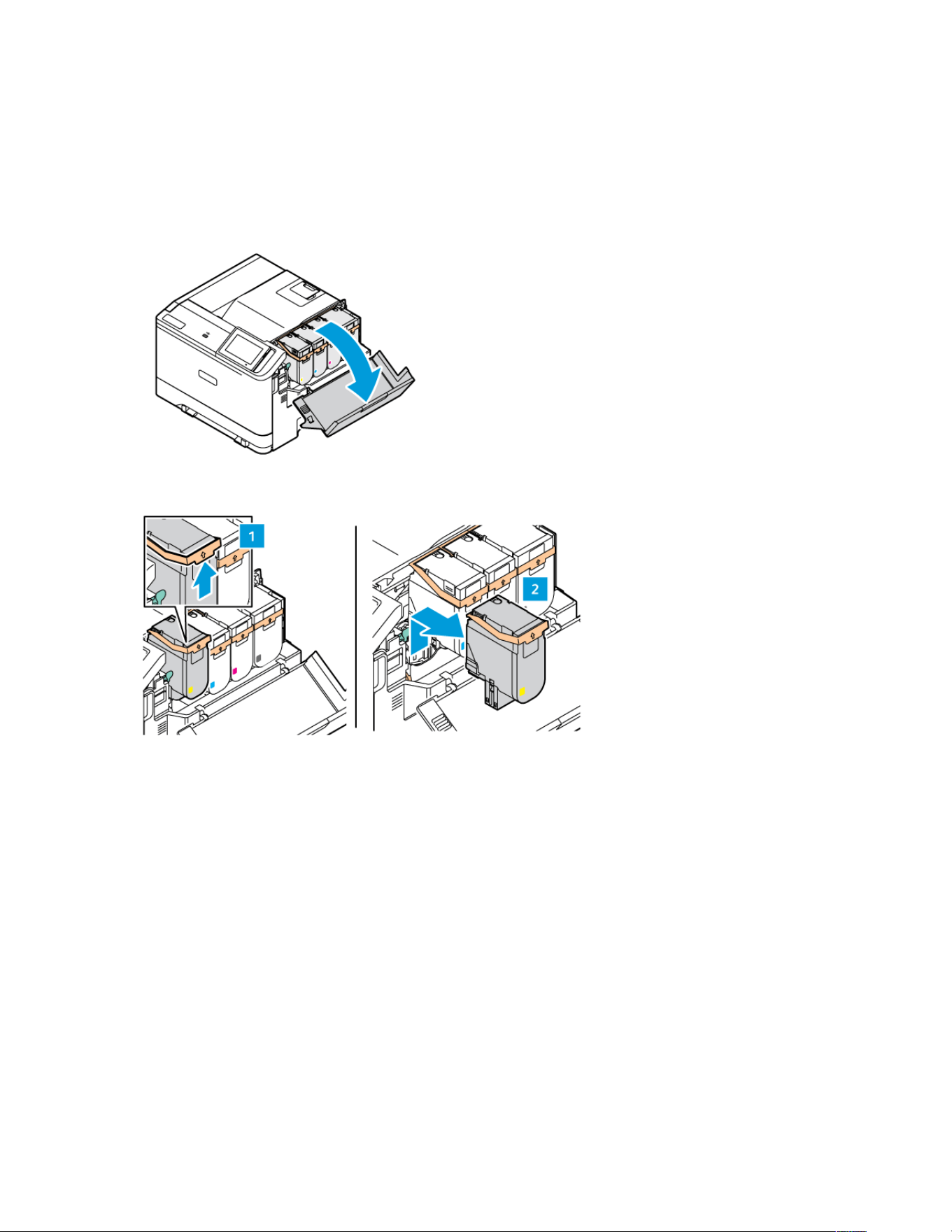
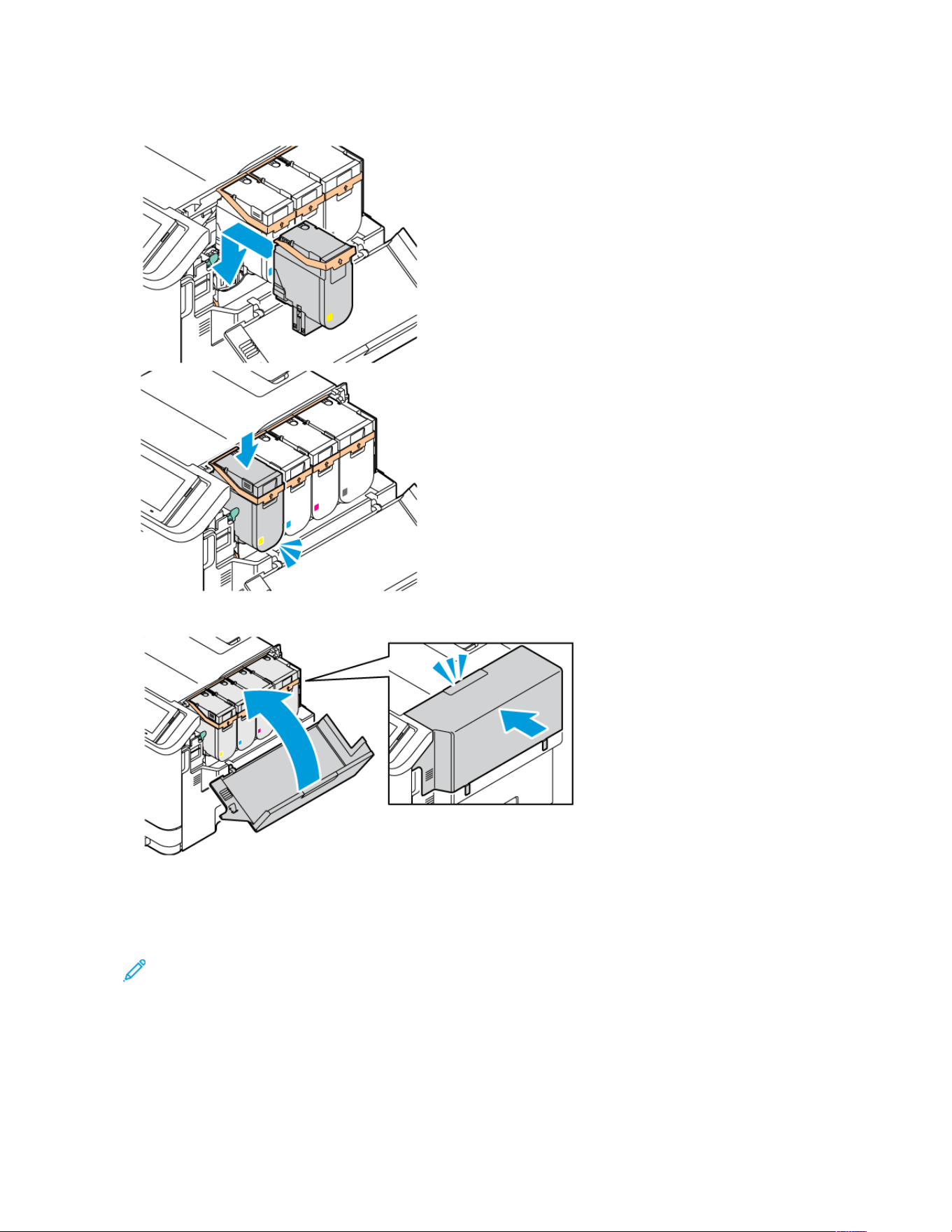
4. Insert the new toner cartridge until it clicks into place.
5. Close Door B.
REPLACING THE WASTE TONER BOTTLE
1. Remove the used waste toner bottle.
Note: To avoid spilling the toner, place the bottle in an upright position.
2. Unpack the new waste toner bottle.
170
Xerox
®
C410 Color Printer User Guide
Maintenance
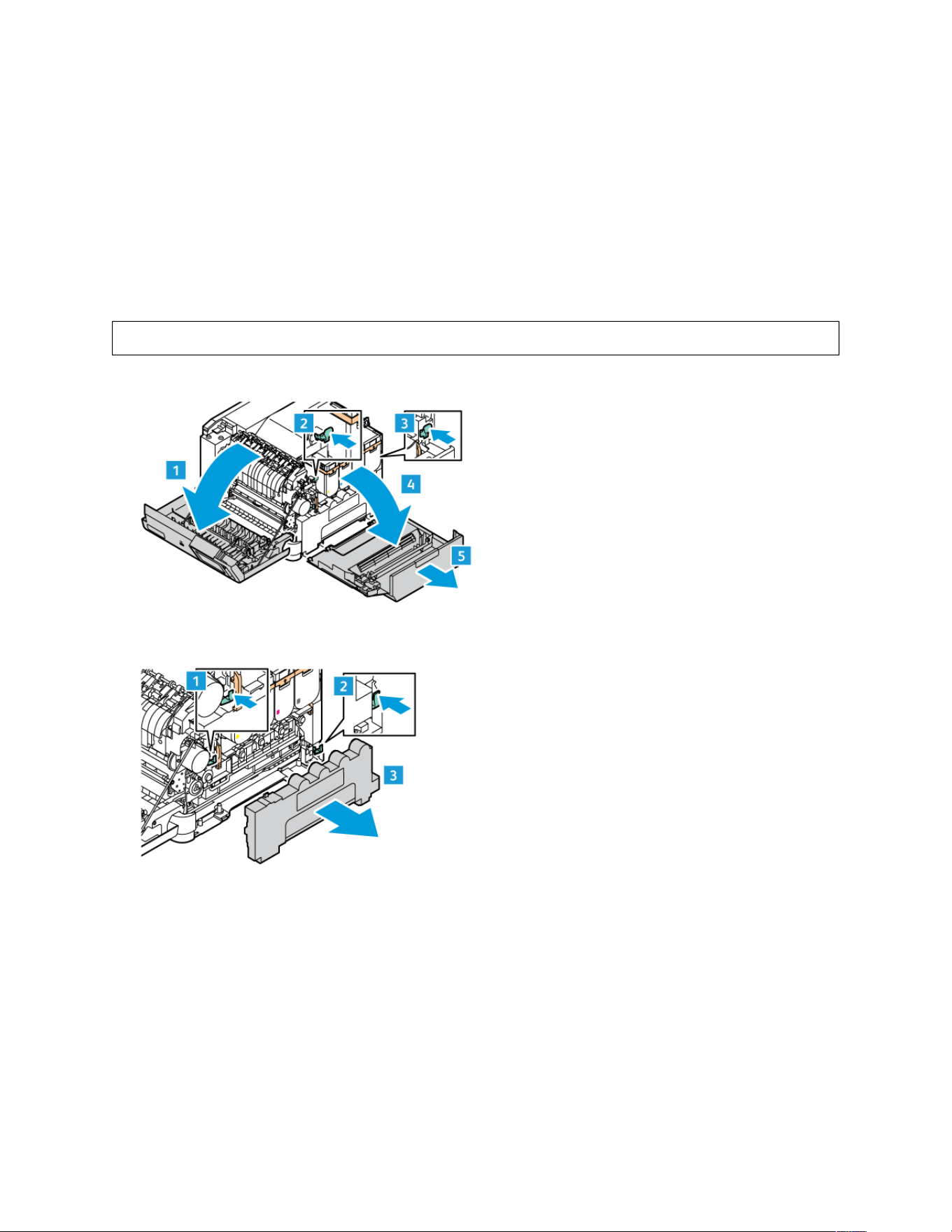
3. Insert the new waste toner bottle.
REPLACING THE IMAGING KIT
When it is time to replace the imaging unit, the printer displays a message appears on the control panel.
Use Imaging Kit to replace the imaging unit. There are two types of Imaging Kit available for your printer:
• Black Imaging Kit
• Four Color Imaging Kit for Cyan, Magenta, Yellow, and Black
WWaarrnniinngg:: Do not perform this procedure when the printer is copying or printing.
1. Open Door A and Door B.
2. Remove the waste toner bottle.
Xerox
®
C410 Color Printer User Guide 171
Maintenance
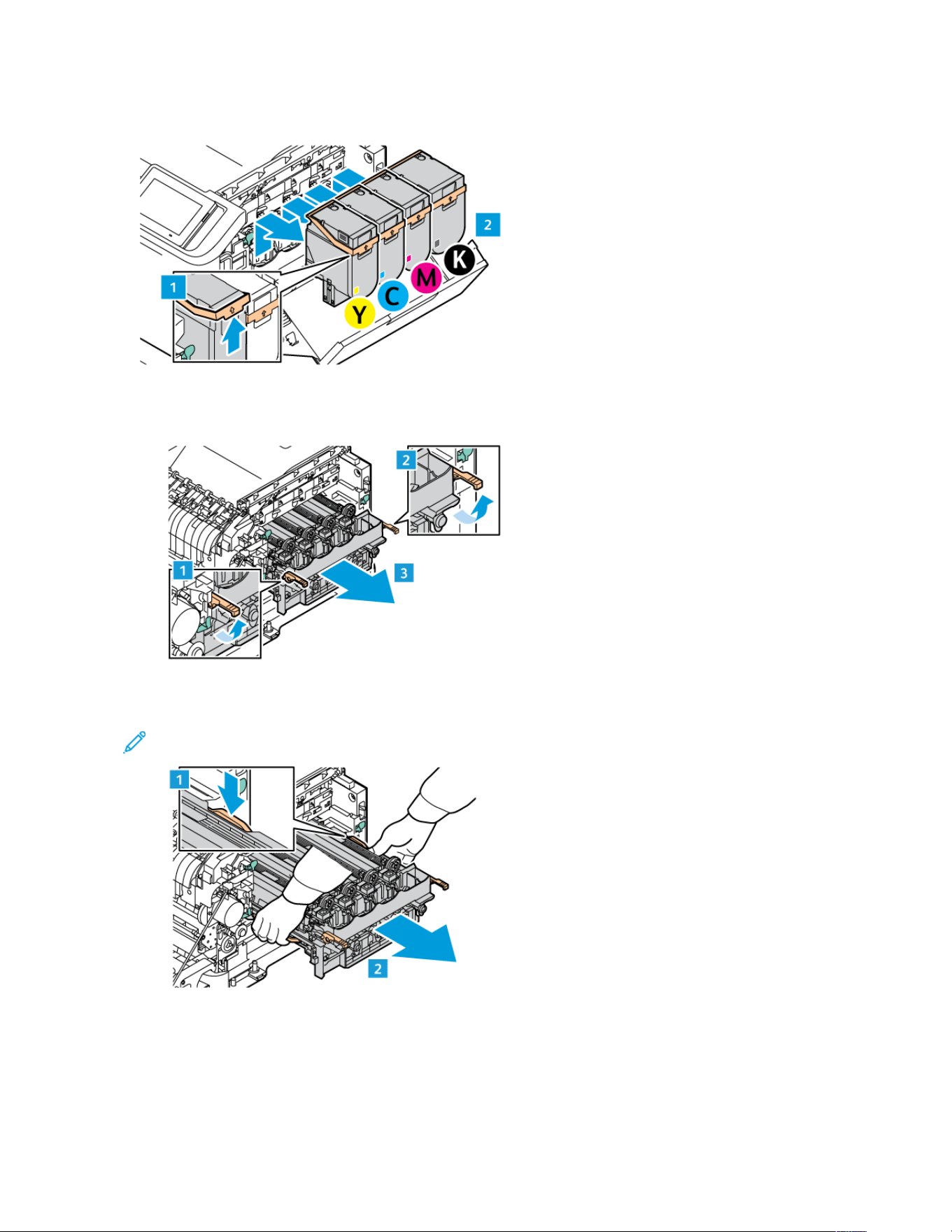
3. Remove the toner cartridge from the printer.
4. Do the following to remove the existing Imaging Kit:
a. To unlock the Imaging Kit, pull up the lever.
b. Pull the Imaging Kit out slowly from the printer and take out the Imaging Kit by holding the handles on
both sides.
Note: Refer to the installation instructions included in the Imaging Kit.
172 Xerox
®
C410 Color Printer User Guide
Maintenance
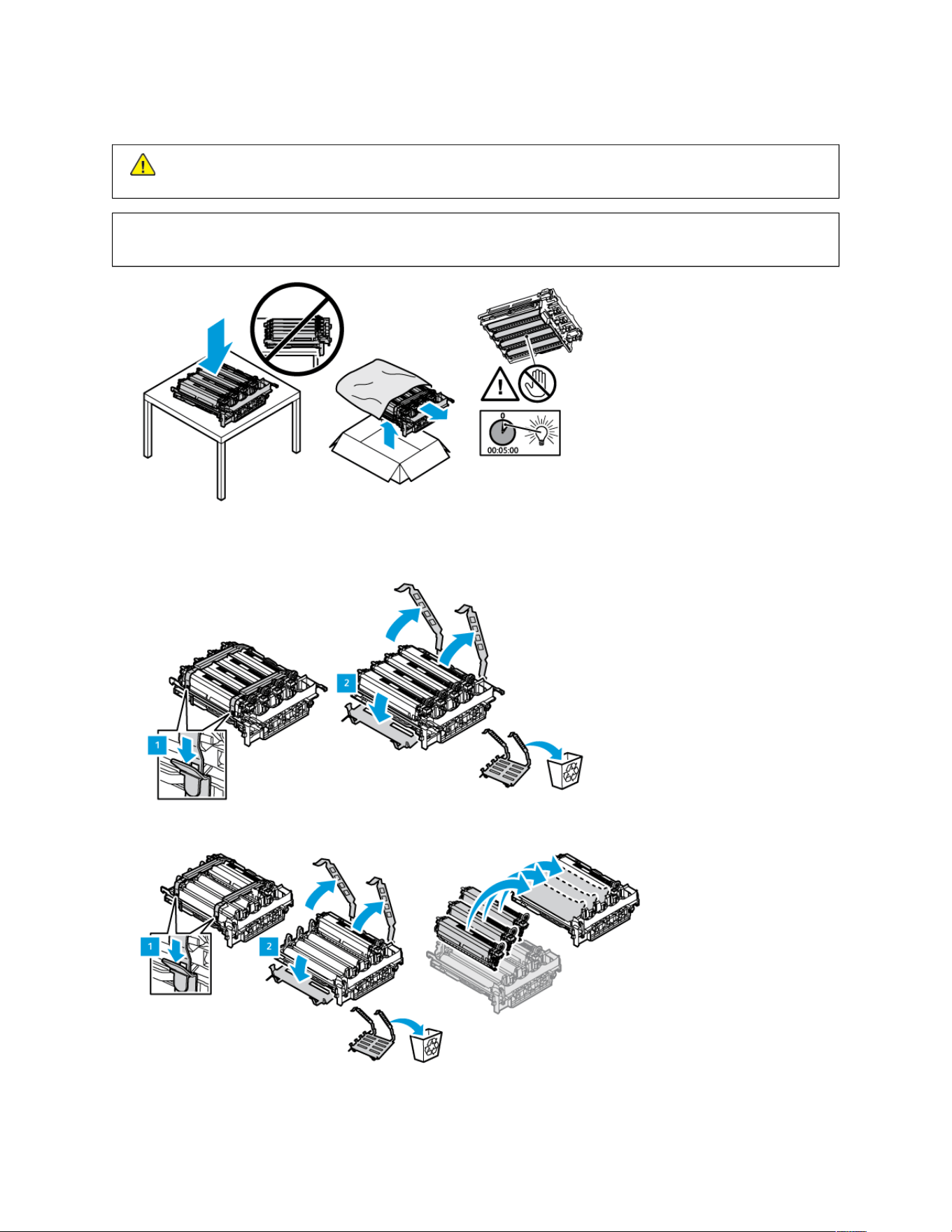
5. Unlock and remove the required imaging unit from the Imaging Kit.
CCaauuttiioonn:: Do not expose the photoconductor unit to direct light for more than 10 minutes. Extended
exposure to light may cause print quality problems.
WWaarrnniinngg:: Do not touch the shiny photoconductor drum under the imaging unit. Doing so may affect the
quality of future print jobs.
6. Insert the imaging unit from the Imaging Kit.
Four Color Imaging Kit for Cyan, Magenta, Yellow, and Black.
For Black Imaging Kit.
Xerox
®
C410 Color Printer User Guide 173
Maintenance
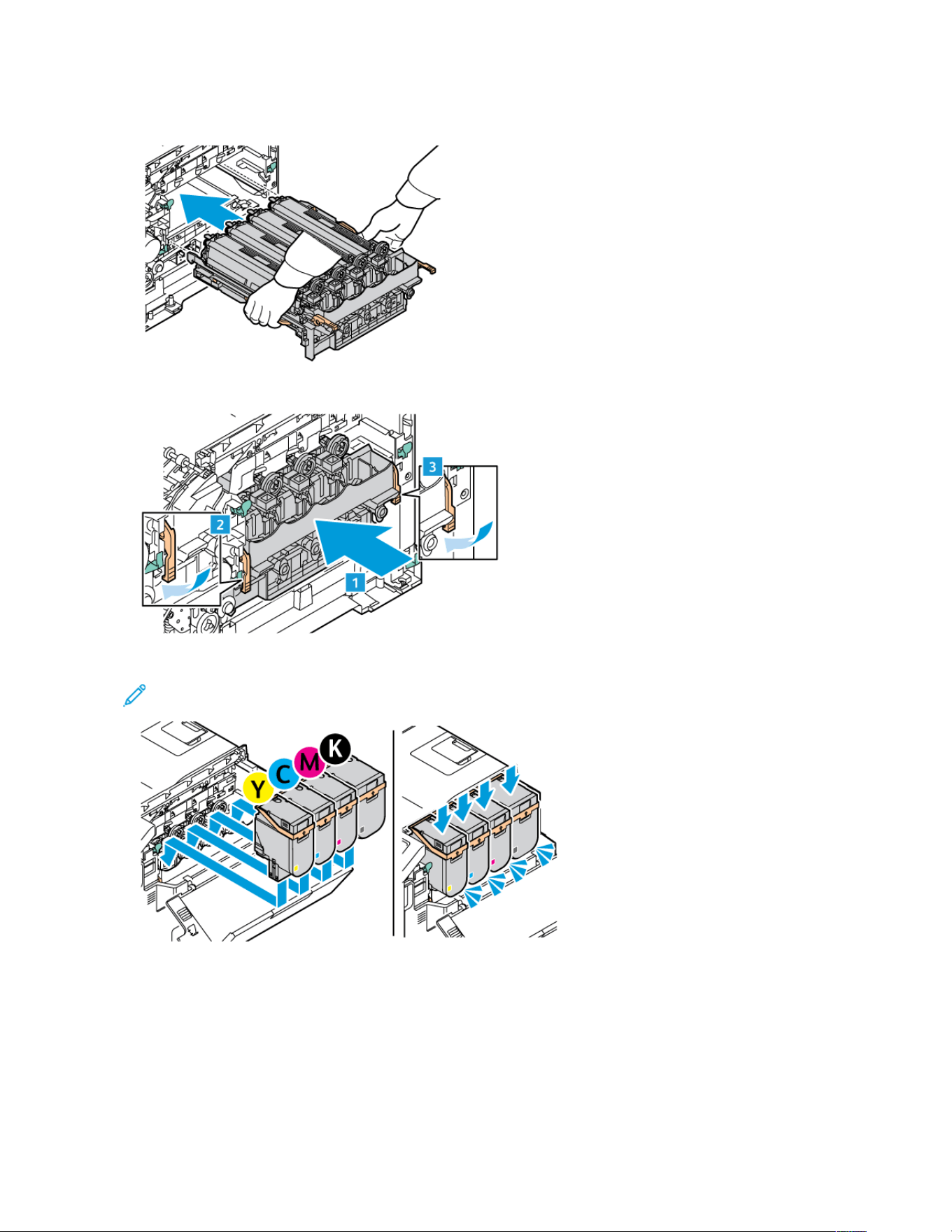
7. Hold the handles of the Imaging Kit and insert it back into the printer.
8. To lock the Imaging Kit, pull down the lever.
9. Insert the toner cartridge back into the Imaging Kit.
Note: Refer to the installation instructions included in the Imaging Kit.
174 Xerox
®
C410 Color Printer User Guide
Maintenance
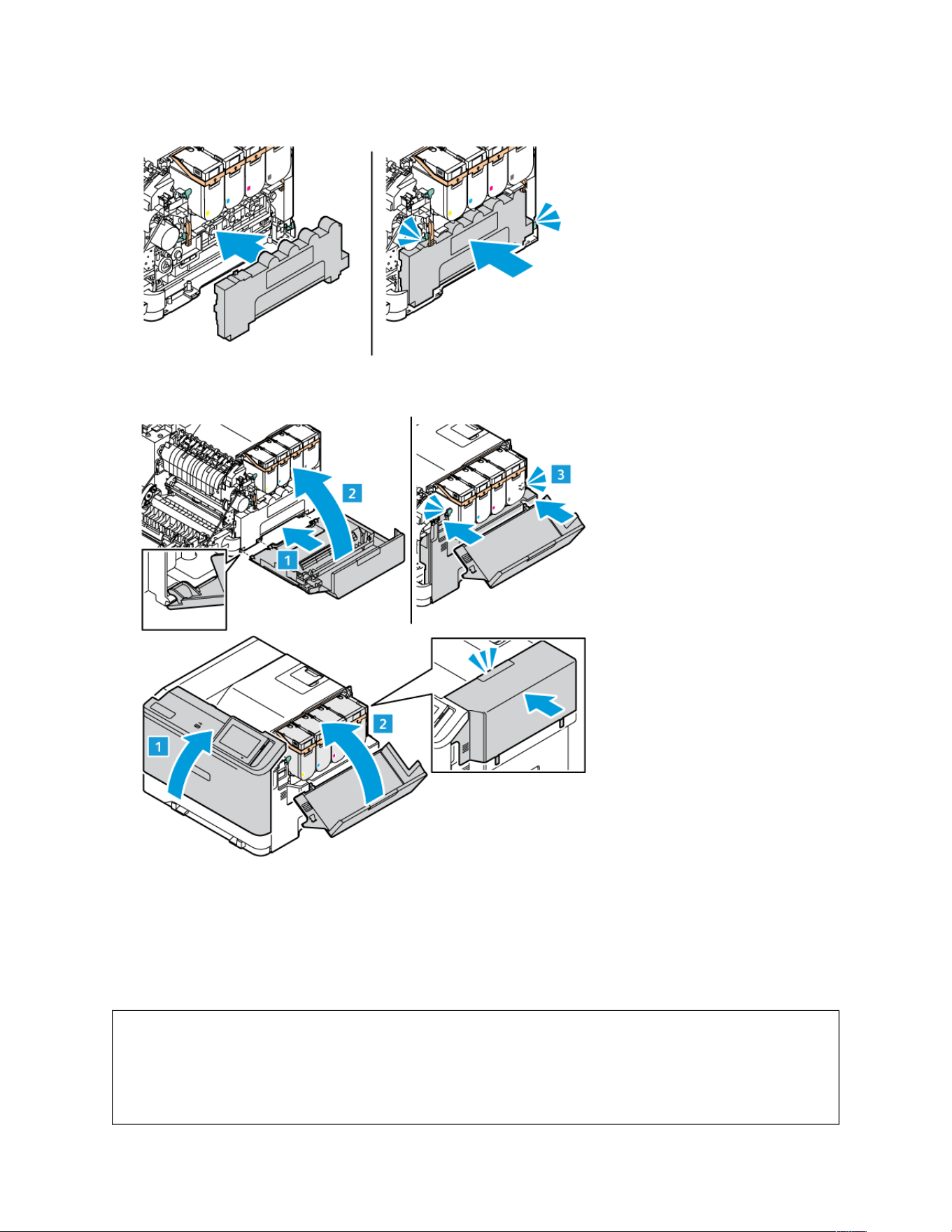
10. Insert the waste toner container back into the printer.
11. Close Door B and Door A.
RESETTING THE SUPPLY USAGE COUNTERS
1. From the home screen, touch SSeettttiinnggss >> DDeevviiccee >> MMaaiinntteennaannccee >> CCoonnffiigguurraattiioonn MMeennuu >> SSuuppppllyy UUssaaggee
AAnndd CCoouunntteerrss.
2. Select the counter that you want to reset.
WWaarrnniinngg:: Supplies and parts without Return Program agreement terms may be reset and
remanufactured. However, the manufacturer’s warranty does not cover any damage caused by non-
genuine supplies or parts. Resetting counters on the supply or part without proper remanufacturing can
cause damage to your printer. After resetting the supply or part counter, your printer may display an error
indicating the presence of the reset item.
Xerox
®
C410 Color Printer User Guide 175
Maintenance
Cleaning Printer Parts
CLEANING THE PRINTER
CCAAUUTTIIOONN——SSHHOOCCKK HHAAZZAARRDD:: To avoid the risk of electrical shock when cleaning the exterior of the
printer, unplug the power cord from the electrical outlet and disconnect all cables from the printer before
proceeding.
• Perform this task after every few months.
• Damage to the printer caused by improper handling is not covered by the printer warranty.
1. Turn off the printer, and then unplug the power cord from the electrical outlet.
2. Remove paper from the standard bin and multipurpose feeder.
3. Remove any dust, lint, and pieces of paper around the printer using a soft brush or vacuum.
4. Wipe the outside of the printer with a damp, soft, lint-free cloth.
• Do not use household cleaners or detergents, as they may damage the finish of the printer.
• Make sure that all areas of the printer are dry after cleaning.
5. Connect the power cord to the electrical outlet, and then turn on the printer.
CCAAUUTTIIOONN——PPOOTTEENNTTIIAALL IINNJJUURRYY:: To avoid the risk of fire or electrical shock, connect the power cord
to an appropriately rated and properly grounded electrical outlet that is near the product and easily
accessible.
CLEANING THE TOUCH SCREEN
CCAAUUTTIIOONN——SSHHOOCCKK HHAAZZAARRDD:: To avoid the risk of electric shock when cleaning the exterior of the
printer, unplug the power cord from the electrical outlet and disconnect all cables from the printer before
proceeding.
1. Turn off the printer, and then unplug the power cord from the electrical outlet.
2. Using a damp, soft, lint-free cloth, wipe the control panel.
• Do not use household cleaners or detergents, as they may damage the control panel screen..
• Make sure that the control panel screen is dry after cleaning.
3. Connect the power cord to the electrical outlet, and then turn on the printer.
CCAAUUTTIIOONN——PPOOTTEENNTTIIAALL IINNJJUURRYY:: To avoid the risk of fire or electrical shock, connect the power cord
to an appropriately rated and properly grounded electrical outlet that is near the product and easily
accessible.
CLEANING THE FEED ROLLS
1. Turn off the printer, and then unplug the power cord from the electrical outlet.
176
Xerox
®
C410 Color Printer User Guide
Maintenance
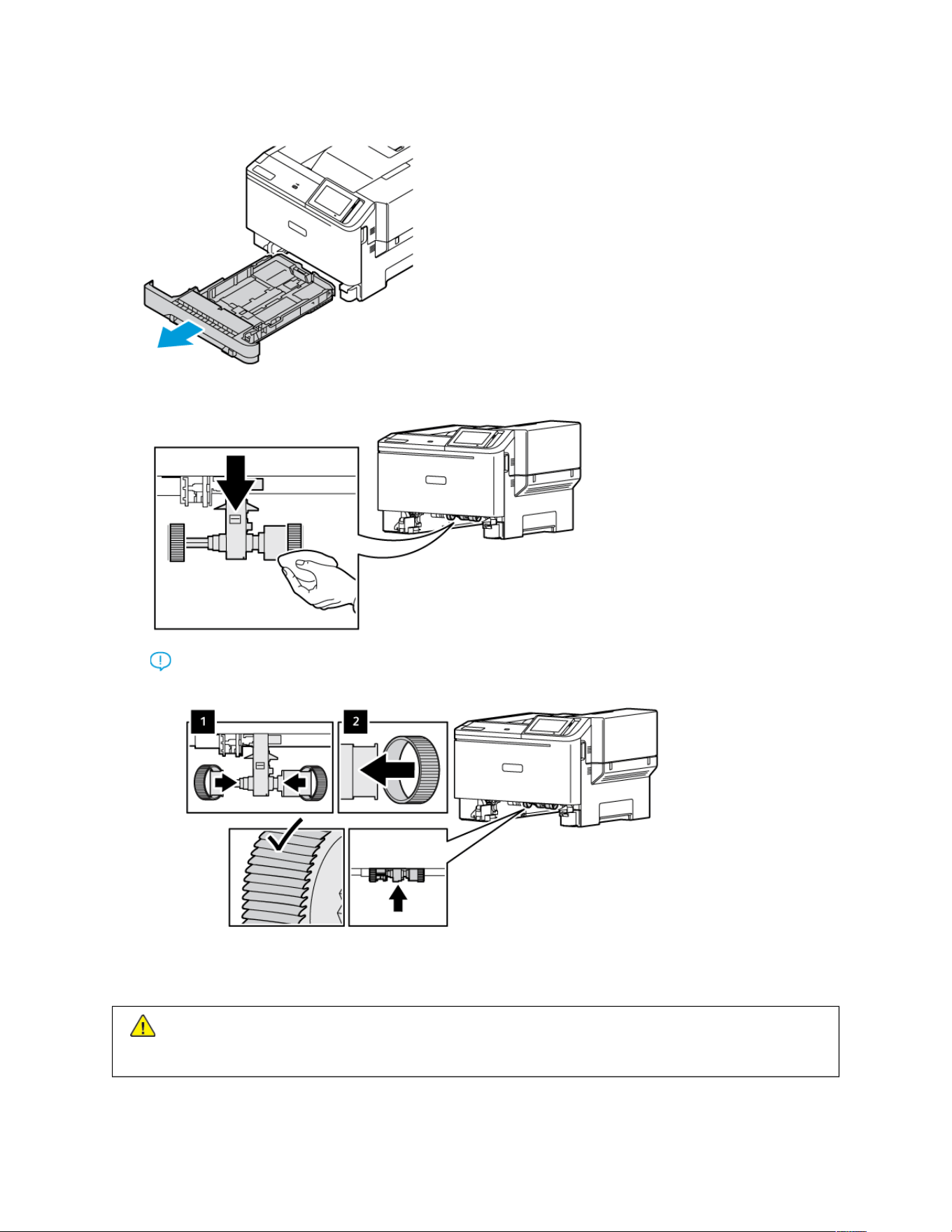
2. Remove the tray.
3. While turning the feed rolls, wipe them with a clean, lint-free cloth moistened with water.
Important: If the feed rolls come off during cleaning, make sure to reinstall them correctly as shown.
Incorrect installation of feed rolls can result in paper jam.
4. Insert the tray.
5. Connect the power cord to the printer, and then to the electrical outlet, and then turn on the printer.
CCAAUUTTIIOONN——PPOOTTEENNTTIIAALL IINNJJUURRYY:: To avoid the risk of fire or electrical shock, connect the power cord
to an appropriately rated and properly grounded electrical outlet that is near the product and easily
accessible.
Xerox
®
C410 Color Printer User Guide 177
Maintenance

Saving Energy and Paper
CONFIGURING POWER SAVE MODE SETTINGS
Sleep Mode
1. From the home screen, touch SSeettttiinnggss >> DDeevviiccee >> PPoowweerr MMaannaaggeemmeenntt >> TTiimmeeoouuttss >> SSlleeeepp MMooddee .
2. Specify the amount of time that the printer stays idle before it enters Sleep mode.
Hibernate Mode
1. From the home screen, touch SSeettttiinnggss >> DDeevviiccee >> PPoowweerr MMaannaaggeemmeenntt >> TTiimmeeoouuttss >> HHiibbeerrnnaattee MMooddee .
2. Select the amount of time that the printer stays idle before it enters Hibernate mode.
• For Hibernate Timeout to work, set Hibernate Timeout on Connection to Hibernate.
• The Embedded Web Server is disabled when the printer is in Hibernate mode.
ADJUSTING THE BRIGHTNESS OF THE DISPLAY
1. From the home screen, touch SSeettttiinnggss >> DDeevviiccee >> PPrreeffeerreenncceess.
2. In the Screen Brightness menu, adjust the setting.
CONSERVING SUPPLIES
• Print on both sides of the paper.
Note: Two-sided printing is the default setting in the print driver.
• Print multiple pages on a single sheet of paper.
• Use the preview feature to see how the document looks like before printing it.
• Print one copy of the document to check its content and format for accuracy.
178
Xerox
®
C410 Color Printer User Guide
Maintenance
Moving the Printer to Another Location
CCAAUUTTIIOONN——PPOOTTEENNTTIIAALL IINNJJUURRYY:: If the printer weight is greater than 20kg (44lb), then it may
require two or more people to lift it safely.
CCAAUUTTIIOONN——PPOOTTEENNTTIIAALL IINNJJUURRYY:: To avoid the risk of fire or electrical shock, use only the power cord
provided with this product or the manufacturer's authorized replacement.
CCAAUUTTIIOONN——PPOOTTEENNTTIIAALL IINNJJUURRYY:: When moving the printer, follow these guidelines to avoid personal
injury or printer damage:
• Make sure that all doors and trays are closed.
• Turn off the printer, and then unplug the power cord from the electrical outlet.
• Disconnect all cords and cables from the printer.
• If the printer has separate floor-standing optional trays or output options attached to it, then disconnect them
before moving the printer.
• If the printer has a caster base, then carefully roll it to the new location. Use caution when passing over
thresholds and breaks in flooring.
• If the printer does not have a caster base but is configured with optional trays or output options, then remove
the output options and lift the printer off the trays. Do not try to lift the printer and any options at the same
time.
• Always use the handholds on the printer to lift it.
• Any cart used to move the printer must have a surface able to support the full footprint of the printer.
• Any cart used to move the hardware options must have a surface able to support the dimensions of the options.
• Keep the printer in an upright position.
• Avoid severe jarring movements.
• Make sure that your fingers are not under the printer when you set it down.
• Make sure that there is adequate clearance around the printer.
Note: Damage to the printer caused by improper moving is not covered by the printer warranty.
Xerox
®
C410 Color Printer User Guide 179
Maintenance


Xerox
®
C410 Color Printer User Guide 181
Troubleshooting
This chapter contains:
Print Quality Problems... . .. .. .. .. .. . .. .. .. .. .. . .. .. .. ..... .. .. .. ..... .. .. .. ....... .. .. ....... .. .. .. ..... .. .. .. ..... .. .. .. . .. .. .. .. .. . .. .. .. .. . 182
Printing Problems . .. ....... .. .. .. . .. .. .. .. .. . .. .. .. .. .. . .. .. .. .. .. . .. .. .. .. .. . .. .. .. .. .. . .. .. .. .. .. .. . .. .. .. .. .. . .. .. .. ..... .. .. .. ..... .. .. .. ... 183
The Printer is not Responding.. .. .. .. ..... .. .. .. . .. .. .. .. .. . .. .. .. .. .. .. . .. .. .. .. .. . .. .. .. .. .. . .. .. .. .. .. . .. .. .. .. .. . .. .. .. .. .. .. . .. .. .. .. .. 223
Network Connection Problems. .. .. .. . .. .. .. .. .. . .. .. .. .. .. . .. .. .. .. .. .. . .. .. .. .. .. . .. .. .. ..... .. .. .. ..... .. .. .. ..... .. .. .. ....... .. .. ...... 225
Issues with Supplies.. .. .. ..... .. .. .. ..... .. .. .. ..... .. .. .. ..... .. .. .. ....... .. .. .. . .. .. .. .. .. . .. .. .. .. .. . .. .. .. .. .. . .. .. .. .. .. . .. .. .. .. .. . .. .. . 228
Clearing Jams. .. .. .. .. .. . .. .. .. .. .. . .. .. .. .. .. . .. .. .. .. .. .. . .. .. .. .. .. . .. .. .. ..... .. .. .. ..... .. .. .. ..... .. .. .. ..... .. .. .. ....... .. .. .. . .. .. .. .. .. 230
Paper Feed Problems . .. .. .. .. .. . .. .. .. .. .. . .. .. .. .. .. . .. .. .. .. .. . .. .. .. ..... .. .. .. ..... .. .. .. ....... .. .. .. ..... .. .. .. ..... .. .. .. . .. .. .. .. .. . .. 237
Color Quality Problems.. . .. .. .. .. .. . .. .. .. .. .. . .. .. .. .. .. . .. .. .. .. .. . .. .. .. .. .. .. . .. .. .. .. .. . .. .. .. .. .. . .. .. .. .. .. . .. .. .. ..... .. .. .. ..... .. .. . 241
Contacting Customer Support . .. .. .. .. .. . .. .. .. .. .. .. . .. .. .. .. .. . .. .. .. ..... .. .. .. ..... .. .. .. ..... .. .. .. ..... .. .. .. ....... .. .. .. . .. .. .. .. .. 244

Print Quality Problems
Find the image that resembles the print quality problem you are having, and then click the link below it to read
problem-solving steps.
• Blank or White Pages
• Dark Print
• Ghost Images
• Gray or Colored Background
• Incorrect Margins
• Light Print
• Missing Colors
• Mottled Print and Dots
• Paper Curl
• Print Crooked or Skewed
• Solid Color or Black Images
• Text or Images Cut Off
• Toner Easily Rubs Off
• Uneven Print Density
• Horizontal Dark Lines
• Vertical Dark Lines
• Horizontal White Lines
• Vertical White Lines
• Repeating Defects
182
Xerox
®
C410 Color Printer User Guide
Troubleshooting

Printing Problems
PRINT QUALITY IS POOR
Blank or White Pages
Note: Before solving the problem, print the Print Quality Test Pages.
To print test pages, refer to the following information:
1. From the control panel, navigate to SSeettttiinnggss >> TTrroouubblleesshhoooottiinngg >> PPrriinntt QQuuaalliittyy TTeesstt PPaaggeess.
2. For printer models without a touch-screen, to navigate through the settings, press the OOKK button.
Xerox
®
C410 Color Printer User Guide 183
Troubleshooting

AACCTTIIOONN YYEESS NNOO
SStteepp 11
1 Check if the printer is using a
genuine and supported Xerox
toner cartridge.
Note: If the cartridge is
not supported, then
install a supported one.
2 Print the document.
Is the printer printing blank or white
pages?
Go to step 2. The problem is solved.
SStteepp 22
1 Remove the color imaging kit,
and then remove the black
imaging unit.
WWaarrnniinngg——
PPootteennttiiaall DDaammaaggee::
Do not expose the
color imaging kit and
black imaging unit to
direct light for more
than 10 minutes.
Extended exposure to
light may cause print
quality problems.
WWaarrnniinngg:: Do not
touch the
photoconductor drum
under the color
imaging kit and black
imaging unit. Doing
so may affect the
quality of future print
jobs.
2 Insert the black imaging unit,
and then insert the color
imaging kit.
3 Print the document.
Is the printer printing blank or white
pages?
Contact Contacting Customer
Support
The problem is solved.
184
Xerox
®
C410 Color Printer User Guide
Troubleshooting
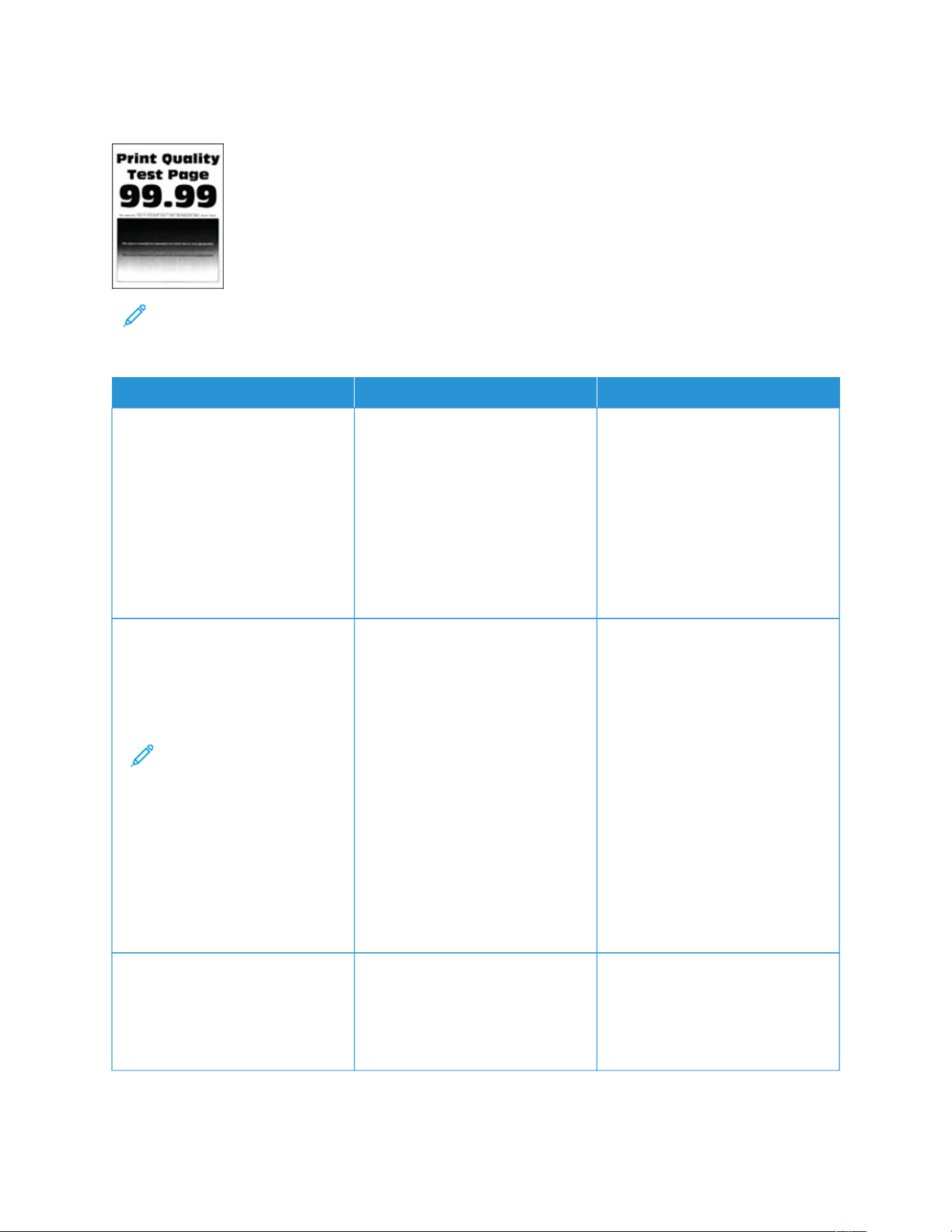
Dark Print
Note: Before solving the problem, print the quality sample pages to determine the missing color. From the
control panel, navigate to SSeettttiinnggss >> TTrroouubblleesshhoooottiinngg >> PPrriinntt QQuuaalliittyy TTeesstt PPaaggeess. For non-touch-screen
printer models, press OOKK to navigate through the settings.
AACCTTIIOONN YYEESS NNOO
SStteepp 11
1 Perform Color Adjust.
From the control panel, navigate
to: SSeettttiinnggss >> PPrriinntt >> QQuuaalliittyy >>
AAddvvaanncceedd IImmaaggiinngg >> CCoolloorr
AAddjjuusstt.
2 Print the document.
Is the print too dark?
Go to step 2. The problem is solved.
SStteepp 22
1 Depending on your operating
system, reduce the toner
darkness from the Printing
Preferences or Print dialog.
Note: You can also
change the setting on
the printer control
panel. Navigate to:
SSeettttiinnggss >> PPrriinntt >>
QQuuaalliittyy >> TToonneerr
DDaarrkknneessss.
2 Print the document.
Is the print too dark?
Go to step 3. The problem is solved.
SStteepp 33
1 Depending on your operating
system, specify the paper type
from the Printing Preferences or
Print dialog.
Go to step 4. The problem is solved.
Xerox
®
C410 Color Printer User Guide 185
Troubleshooting

AACCTTIIOONN YYEESS NNOO
Note: Make sure that
the settings matches
the paper loaded in the
tray.
Note: You can also
change the settings on
the printer control
panel. Navigate to:
SSeettttiinnggss >> PPaappeerr >>
TTrraayy CCoonnffiigguurraattiioonn >>
PPaappeerr SSiizzee//TTyyppee.
2 Print the document.
Is the print too dark?
SStteepp 44
Check if the paper has texture or
rough finishes.
Are you printing on textured or
rough paper?
Is the print too dark?
Go to step 5. The problem is solved.
SStteepp 55
1 Replace textured or rough paper
with plain paper.
2 Print the document.
Is the print too dark?
Go to step 6. The problem is solved.
SStteepp 66
1 Load paper from a fresh
package.
Note: Paper absorbs
moisture due to high
humidity. Store paper in
its original wrapper until
you are ready to use it.
2 Print the document.
Is the print too dark?
Contact Contacting Customer
Support
The problem is solved.
186
Xerox
®
C410 Color Printer User Guide
Troubleshooting

Ghost Images
Note: Before solving the problem, print the Print Quality Test Pages. From the control panel, navigate to
SSeettttiinnggss >> TTrroouubblleesshhoooottiinngg >> PPrriinntt QQuuaalliittyy TTeesstt PPaaggeess. For non-touch-screen printer models, press OOKK to
navigate through the settings.
Xerox
®
C410 Color Printer User Guide 187
Troubleshooting

AACCTTIIOONN YYEESS NNOO
SStteepp 11
1 Load the tray with the correct
paper type and weight.
2 Print the document.
Do ghost images appear on prints?
Go to step 2. The problem is solved.
SStteepp 22
1 Depending on your operating
system, specify the paper type
from the Printing Preferences or
Print dialog.
Note: Make sure that
the settings matches
the paper loaded in the
tray.
Note: You can also
change the settings on
the printer control
panel. Navigate to:
SSeettttiinnggss >> PPaappeerr >>
TTrraayy CCoonnffiigguurraattiioonn >>
PPaappeerr SSiizzee//TTyyppee.
2 Print the document.
Do ghost images appear on prints?
Go to step 3. The problem is solved.
SStteepp 33
1 Perform Color Adjust.
From the control panel, navigate
to: SSeettttiinnggss >> PPrriinntt >> QQuuaalliittyy >>
AAddvvaanncceedd IImmaaggiinngg >> CCoolloorr
AAddjjuusstt.
2 Print the document.
Do ghost images appear on prints?
Contact Contacting Customer
Support
The problem is solved.
188
Xerox
®
C410 Color Printer User Guide
Troubleshooting

Gray or Colored Background
Note: Before solving the problem, print the Print Quality Test Pages. From the control panel, navigate to
SSeettttiinnggss >> TTrroouubblleesshhoooottiinngg >> PPrriinntt QQuuaalliittyy TTeesstt PPaaggeess. For non-touch-screen printer models, press OOKK to
navigate through the settings.
Xerox
®
C410 Color Printer User Guide 189
Troubleshooting

AACCTTIIOONN YYEESS NNOO
SStteepp 11
1 Depending on your operating
system, increase toner darkness
from the Printing Preferences or
Print dialog.
Note: You can also
change the setting on
the printer control
panel. Navigate to:
SSeettttiinnggss >> PPrriinntt >>
QQuuaalliittyy >> TToonneerr
DDaarrkknneessss.
2 Print the document.
Does gray or colored background
appear on prints?
Go to step 2. The problem is solved.
SStteepp 22
1 Perform Color Adjust.
From the control panel, navigate
to: SSeettttiinnggss >> PPrriinntt >> QQuuaalliittyy >>
AAddvvaanncceedd IImmaaggiinngg >> CCoolloorr
AAddjjuusstt.
2 Print the document.
Does gray or colored background
appear on prints?
Go to step 3. The problem is solved.
SStteepp 33
1 Remove the color imaging kit,
and then remove the black
imaging unit.
WWaarrnniinngg——
PPootteennttiiaall DDaammaaggee::
Do not expose the
color imaging kit and
black imaging unit to
direct light for more
than 10 minutes.
Extended exposure to
light may cause print
quality problems.
WWaarrnniinngg:: Do not
touch the
Contact Contacting Customer
Support
The problem is solved.
190
Xerox
®
C410 Color Printer User Guide
Troubleshooting
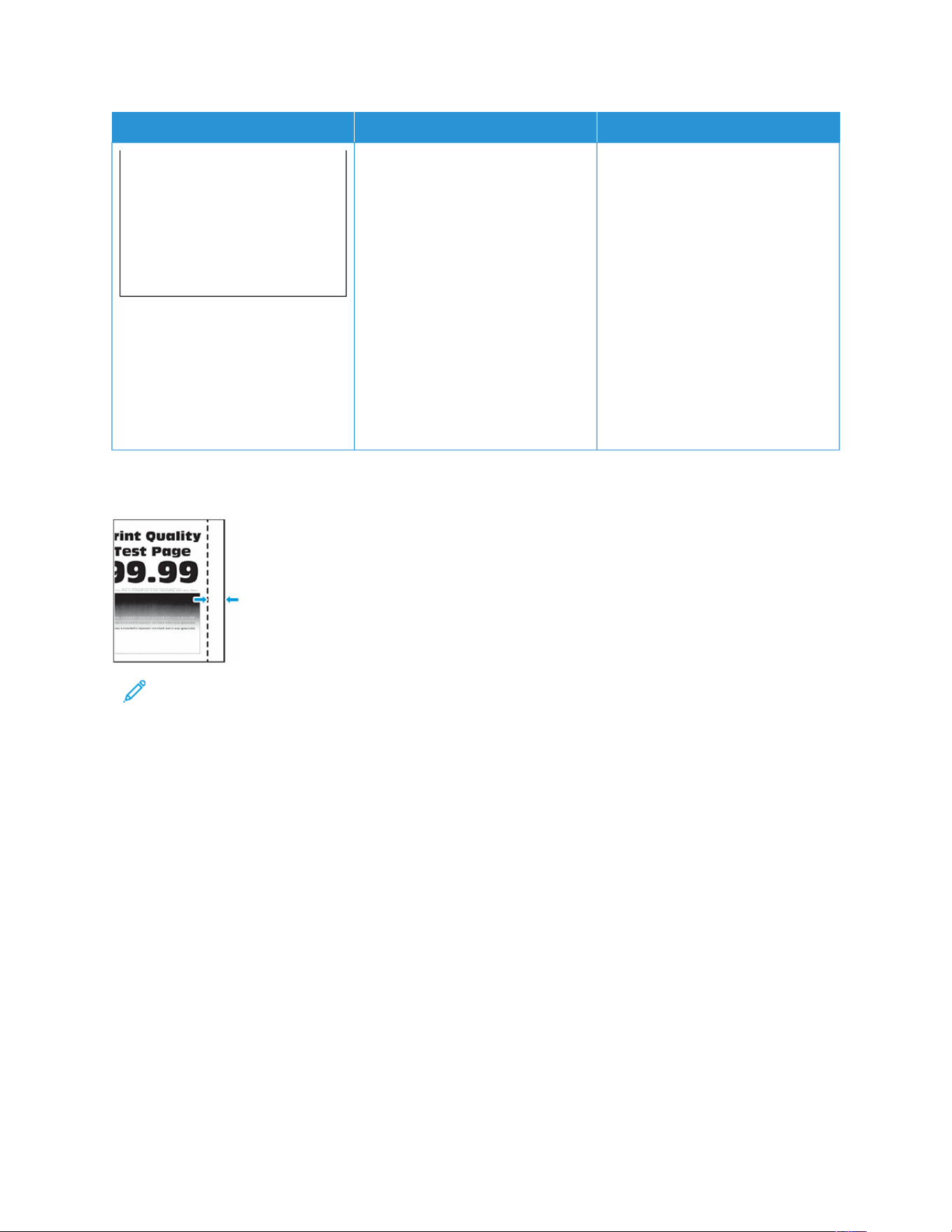
AACCTTIIOONN YYEESS NNOO
photoconductor drum
under the color
imaging kit and black
imaging unit. Doing
so may affect the
quality of future print
jobs.
2 Insert the black imaging unit,
and then insert the color
imaging kit.
3 Print the document.
Does gray or colored background
appear on prints?
Incorrect Margins
Note: Before solving the problem, print the Print Quality Test Pages. From the control panel, navigate to
SSeettttiinnggss >> TTrroouubblleesshhoooottiinngg >> PPrriinntt QQuuaalliittyy TTeesstt PPaaggeess. For non-touch-screen printer models, press OOKK to
navigate through the settings.
Xerox
®
C410 Color Printer User Guide 191
Troubleshooting
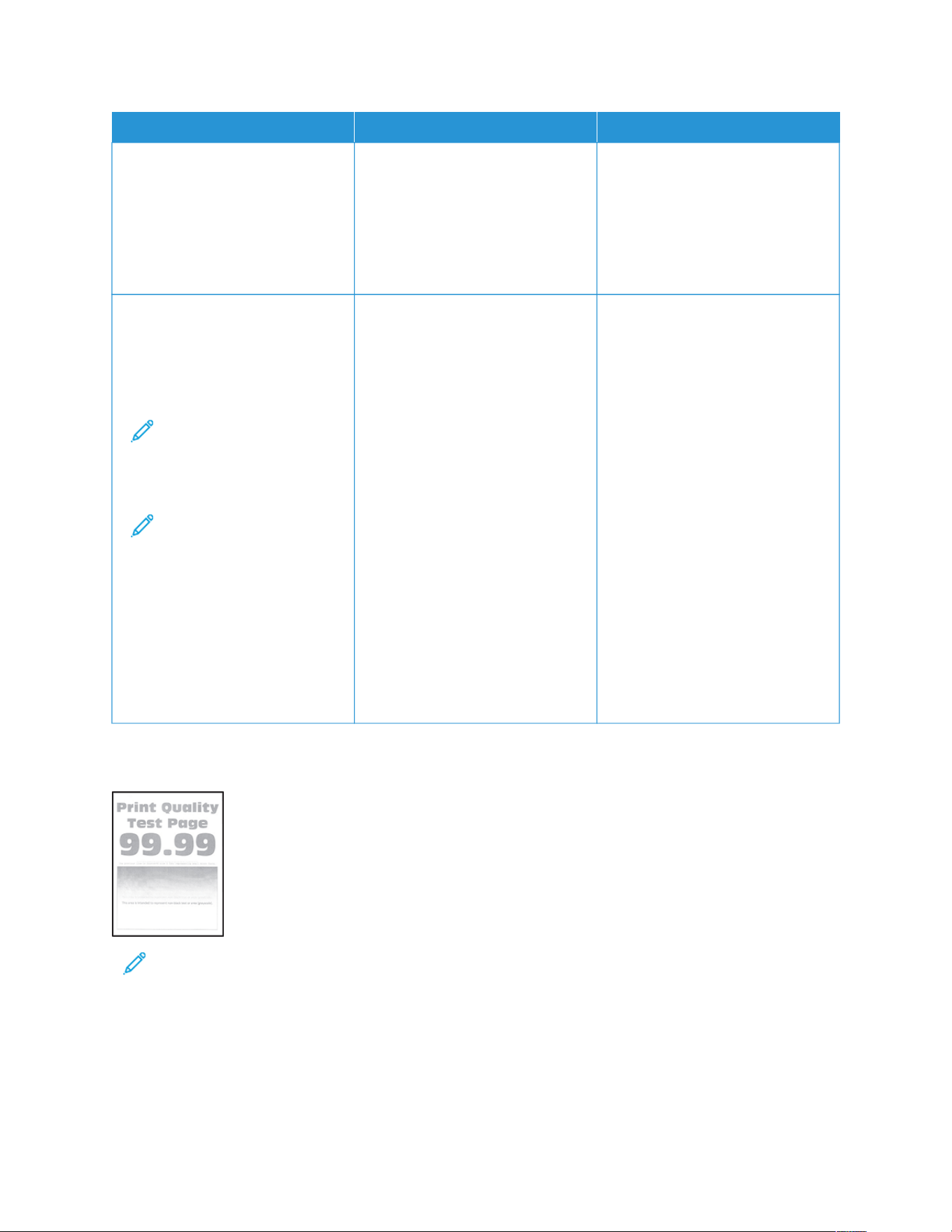
AACCTTIIOONN YYEESS NNOO
SStteepp 11
1 Adjust the paper guides in the
tray to the correct position for
the paper loaded.
2 Print the document.
Are the margins correct?
The problem is solved. Go to step 2.
SStteepp 22
1 Depending on your operating
system, specify the paper size
from the Printing Preferences or
Print dialog.
Note: Make sure that
the settings matches
the paper loaded in the
tray.
Note: You can also
change the settings on
the printer control
panel. Navigate to:
SSeettttiinnggss >> PPaappeerr >>
TTrraayy CCoonnffiigguurraattiioonn >>
PPaappeerr SSiizzee//TTyyppee.
2 Print the document.
Are the margins correct?
The problem is solved. Contact Contacting Customer
Support
Light Print
Note: Before solving the problem, print the Print Quality Test Pages. From the control panel, navigate to
SSeettttiinnggss >> TTrroouubblleesshhoooottiinngg >> PPrriinntt QQuuaalliittyy TTeesstt PPaaggeess. For non-touch-screen printer models, press OOKK to
navigate through the settings.
192
Xerox
®
C410 Color Printer User Guide
Troubleshooting

AACCTTIIOONN YYEESS NNOO
SStteepp 11
1 Perform Color Adjust.
From the control panel, navigate
to: SSeettttiinnggss >> PPrriinntt >> QQuuaalliittyy >>
AAddvvaanncceedd IImmaaggiinngg >> CCoolloorr
AAddjjuusstt.
2 Print the document.
Is the print light?
Go to step 2. The problem is solved.
SStteepp 22
1 Depending on your operating
system, reduce the toner
darkness from the Printing
Preferences or Print dialog.
Note: You can also
change the setting on
the printer control
panel. Navigate to:
SSeettttiinnggss >> PPrriinntt >>
QQuuaalliittyy >> TToonneerr
DDaarrkknneessss.
2 Print the document.
Is the print light?
Go to step 3. The problem is solved.
SStteepp 33
1 Turn off Color Saver.
From the control panel, navigate
to: SSeettttiinnggss >> PPrriinntt >> QQuuaalliittyy >>
CCoolloorr SSaavveerr.
2 Print the document.
Is the print light?
Go to step 4. The problem is solved.
SStteepp 44
1 Depending on your operating
system, specify the paper type
from the Printing Preferences or
Print dialog.
Note: Make sure that
the settings matches
the paper loaded in the
tray.
Go to step 5. The problem is solved.
Xerox
®
C410 Color Printer User Guide 193
Troubleshooting

AACCTTIIOONN YYEESS NNOO
Note: You can also
change the settings on
the printer control
panel. Navigate to:
SSeettttiinnggss >> PPaappeerr >>
TTrraayy CCoonnffiigguurraattiioonn >>
PPaappeerr SSiizzee//TTyyppee.
2 Print the document.
Is the print light?
SStteepp 55
Check if the paper has texture or
rough finishes.
Are you printing on textured or
rough paper?
Is the print light?
Go to step 6. The problem is solved.
SStteepp 66
1 Replace textured or rough paper
with plain paper.
2 Print the document.
Is the print light?
Go to step 7. The problem is solved.
194
Xerox
®
C410 Color Printer User Guide
Troubleshooting

AACCTTIIOONN YYEESS NNOO
SStteepp 77
1 Load paper from a fresh
package.
Note: Paper absorbs
moisture due to high
humidity. Store paper in
its original wrapper until
you are ready to use it.
2 Print the document.
Is the print light?
Go to step 8. The problem is solved.
SStteepp 88
1 Remove the color imaging kit,
and then remove the black
imaging unit.
WWaarrnniinngg——
PPootteennttiiaall DDaammaaggee::
Do not expose the
color imaging kit and
black imaging unit to
direct light for more
than 10 minutes.
Extended exposure to
light may cause print
quality problems.
WWaarrnniinngg:: Do not
touch the
photoconductor drum
under the color
imaging kit and black
imaging unit. Doing
so may affect the
quality of future print
jobs.
2 Insert the black imaging unit,
and then insert the color
imaging kit.
3 Print the document.
Is the print light?
Contact Contacting Customer
Support
The problem is solved.
Xerox
®
C410 Color Printer User Guide 195
Troubleshooting

Missing Colors
Note: Before solving the problem, print the Print Quality Test Pages. From the control panel, navigate to
SSeettttiinnggss >> TTrroouubblleesshhoooottiinngg >> PPrriinntt QQuuaalliittyy TTeesstt PPaaggeess. For non-touch-screen printer models, press OOKK to
navigate through the settings.
196
Xerox
®
C410 Color Printer User Guide
Troubleshooting

AACCTTIIOONN YYEESS NNOO
1 Remove the color imaging kit,
and then remove the black
imaging unit.
WWaarrnniinngg——
PPootteennttiiaall DDaammaaggee::
Do not expose the
color imaging kit and
black imaging unit to
direct light for more
than 10 minutes.
Extended exposure to
light may cause print
quality problems.
WWaarrnniinngg:: Do not
touch the
photoconductor drum
under the color
imaging kit and black
imaging unit. Doing
so may affect the
quality of future print
jobs.
2 Remove the toner cartridge of
the missing color.
3 Remove, and then insert the
developer unit of the missing
color.
4 Insert the toner cartridge of the
missing color.
5 Insert the color imaging kit.
6 Print the document.
Are some colors missing on print?
Contact Contacting Customer
Support
The problem is solved.
Xerox
®
C410 Color Printer User Guide 197
Troubleshooting
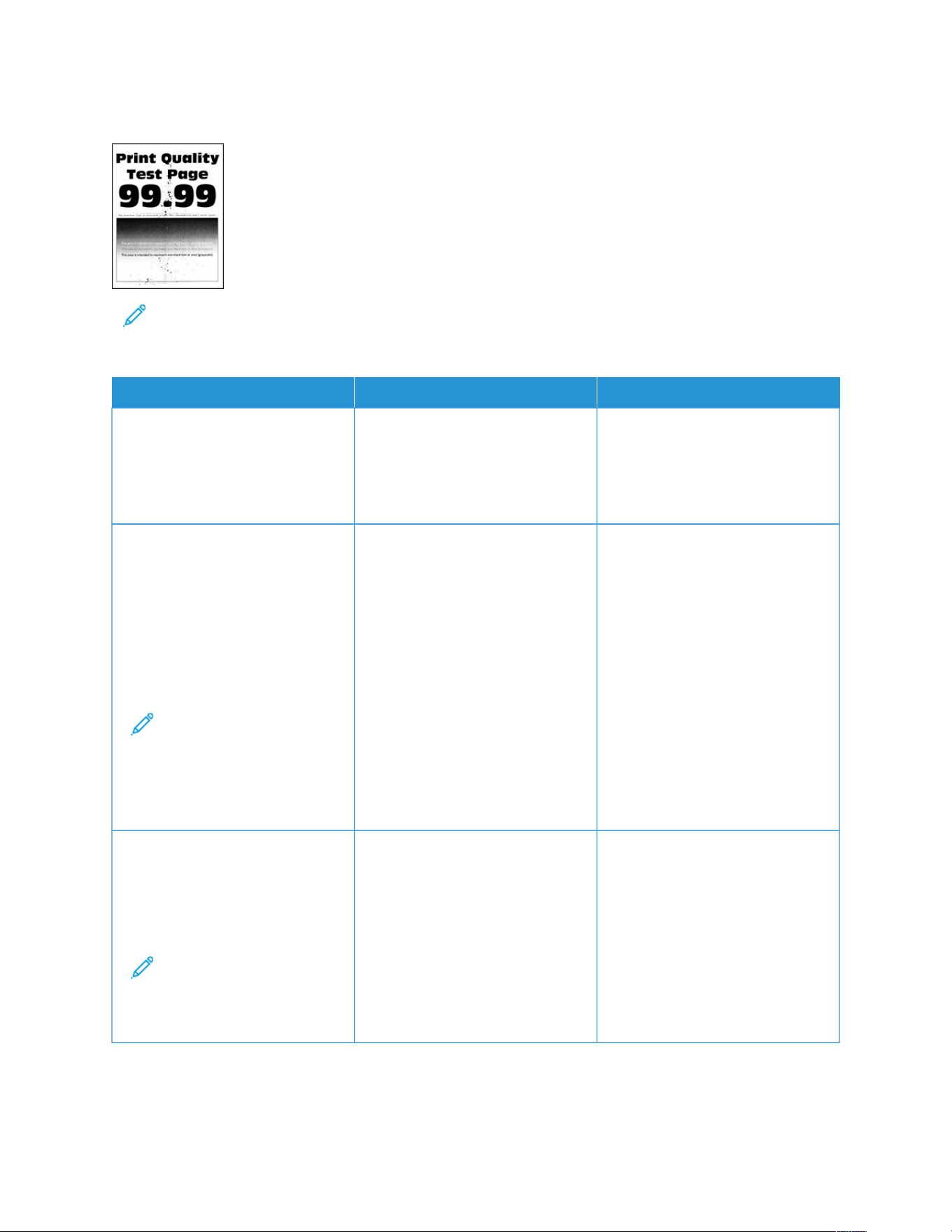
Mottled Print and Dots
Note: Before solving the problem, print the Print Quality Test Pages. From the control panel, navigate to
SSeettttiinnggss >> TTrroouubblleesshhoooottiinngg >> PPrriinntt QQuuaalliittyy TTeesstt PPaaggeess. For non-touch-screen printer models, press OOKK to
navigate through the settings.
AACCTTIIOONN YYEESS NNOO
SStteepp 11
Check the printer for leaked toner
contamination.
Is the printer free of leaked toner?
Go to step 2. Contact Contacting Customer
Support
SStteepp 22
1 From the control panel, navigate
to: SSeettttiinnggss >> PPaappeerr >> TTrraayy
CCoonnffiigguurraattiioonn >> PPaappeerr SSiizzee//
TTyyppee.
2 Check if the paper size and
paper type settings match the
paper loaded.
Note: Make sure that
paper does not have
texture or rough
finishes.
Do the settings match?
Go to step 4. Go to step 3.
SStteepp 33
1 Depending on your operating
system, specify the paper type
from the Printing Preferences or
Print dialog.
Note: Make sure that
the settings matches
the paper loaded in the
tray.
Go to step 4. The problem is solved.
198
Xerox
®
C410 Color Printer User Guide
Troubleshooting

AACCTTIIOONN YYEESS NNOO
Note: You can also
change the settings on
the printer control
panel. Navigate to:
SSeettttiinnggss >> PPaappeerr >>
TTrraayy CCoonnffiigguurraattiioonn >>
PPaappeerr SSiizzee//TTyyppee.
2 Print the document.
Is the print mottled?
SStteepp 44
1 Load paper from a fresh
package.
Note: Paper absorbs
moisture due to high
humidity. Store paper in
its original wrapper until
you are ready to use it.
2 Print the document.
Is the print mottled?
Go to step 5. The problem is solved.
Xerox
®
C410 Color Printer User Guide 199
Troubleshooting
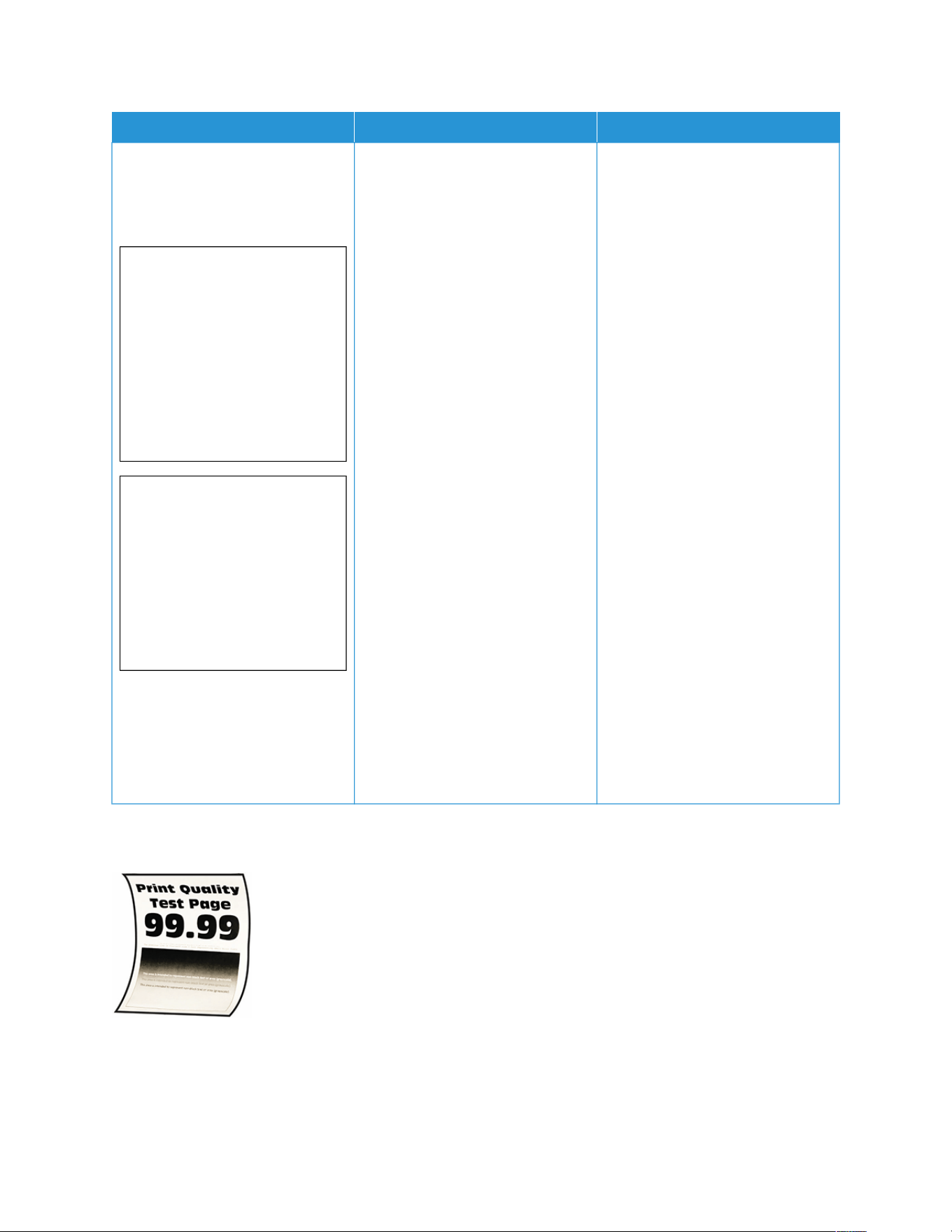
AACCTTIIOONN YYEESS NNOO
SStteepp 55
1 Remove the color imaging kit,
and then remove the black
imaging unit.
WWaarrnniinngg——
PPootteennttiiaall DDaammaaggee::
Do not expose the
color imaging kit and
black imaging unit to
direct light for more
than 10 minutes.
Extended exposure to
light may cause print
quality problems.
WWaarrnniinngg:: Do not
touch the
photoconductor drum
under the color
imaging kit and black
imaging unit. Doing
so may affect the
quality of future print
jobs.
2 Insert the black imaging unit,
and then insert the color
imaging kit.
3 Print the document.
Is the print mottled?
Contact Contacting Customer
Support
The problem is solved.
Paper Curl
200 Xerox
®
C410 Color Printer User Guide
Troubleshooting

AACCTTIIOONN YYEESS NNOO
SStteepp 11
1 Adjust the guides in the tray to
the correct position for the
paper
2 Print the document.
Is the paper curled?
Go to step 2. The problem is solved.
SStteepp 22
1 Depending on your operating
system, specify the paper type
from the Printing Preferences or
Print dialog.
Note: Make sure that
the settings matches
the paper loaded in the
tray.
Note: You can also
change the settings on
the printer control
panel. Navigate to:
SSeettttiinnggss >> PPaappeerr >>
TTrraayy CCoonnffiigguurraattiioonn >>
PPaappeerr SSiizzee//TTyyppee.
2 Print the document.
Is the paper curled?
Go to step 3. The problem is solved.
Xerox
®
C410 Color Printer User Guide 201
Troubleshooting

AACCTTIIOONN YYEESS NNOO
SStteepp 33
Print on the other side of the paper.
1 Remove paper, flip it over, and
then reload paper.
2 Print the document.
Is the paper curled?
Go to step 4. The problem is solved.
SStteepp 44
1 Load paper from a fresh
package.
Note: Paper absorbs
moisture due to high
humidity. Store paper in
its original wrapper until
you are ready to use it.
2 Print the document.
Is the paper curled?
Contact Contacting Customer
Support
The problem is solved.
Print Crooked or Skewed
Note: Before solving the problem, print the Print Quality Test Pages. From the control panel, navigate to
SSeettttiinnggss >> TTrroouubblleesshhoooottiinngg >> PPrriinntt QQuuaalliittyy TTeesstt PPaaggeess. For non-touch-screen printer models, press OOKK to
navigate through the settings.
202
Xerox
®
C410 Color Printer User Guide
Troubleshooting

AACCTTIIOONN YYEESS NNOO
SStteepp 11
1 Pull out the tray.
2 Remove the paper, and then
load paper from a fresh
package.
Note: Paper absorbs
moisture due to high
humidity. Store paper in
its original wrapper until
you are ready to use it.
3 Adjust the paper guides in the
tray to the correct position for
the paper loaded.
4 Insert the tray.
5 Print the document.
Is the print crooked or skewed?
Go to step 2. The problem is solved.
SStteepp 22
1 Make sure that you are printing
on a supported paper.
2 Print the document.
Is the print crooked or skewed?
Contact Contacting Customer
Support
The problem is solved.
Solid Color or Black Images
Note: Before solving the problem, print the Print Quality Test Pages. From the control panel, navigate to
SSeettttiinnggss >> TTrroouubblleesshhoooottiinngg >> PPrriinntt QQuuaalliittyy TTeesstt PPaaggeess. For non-touch-screen printer models, press OOKK to
navigate through the settings.
Xerox
®
C410 Color Printer User Guide 203
Troubleshooting
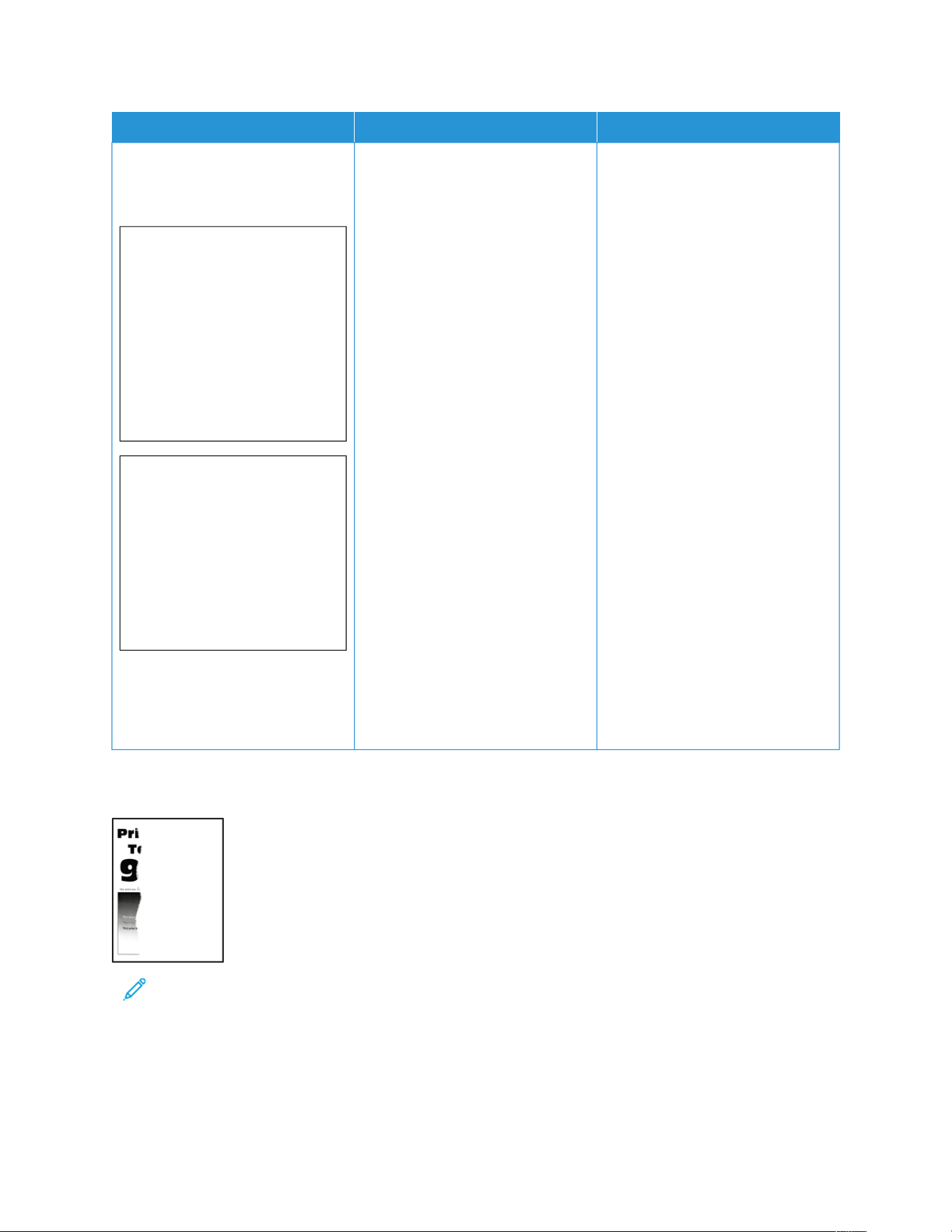
AACCTTIIOONN YYEESS NNOO
1 Remove the color imaging kit,
and then remove the black
imaging unit.
WWaarrnniinngg——
PPootteennttiiaall DDaammaaggee::
Do not expose the
color imaging kit and
black imaging unit to
direct light for more
than 10 minutes.
Extended exposure to
light may cause print
quality problems.
WWaarrnniinngg:: Do not
touch the
photoconductor drum
under the color
imaging kit and black
imaging unit. Doing
so may affect the
quality of future print
jobs.
2 Insert the black imaging unit,
and then insert the color
imaging kit.
3 Print the document.
Contact Contacting Customer
Support
The problem is solved.
Text or Images Cut Off
Note: Before solving the problem, print the Print Quality Test Pages. From the control panel, navigate to
SSeettttiinnggss >> TTrroouubblleesshhoooottiinngg >> PPrriinntt QQuuaalliittyy TTeesstt PPaaggeess. For non-touch-screen printer models, press OOKK to
navigate through the settings.
204
Xerox
®
C410 Color Printer User Guide
Troubleshooting

AACCTTIIOONN YYEESS NNOO
SStteepp 11
1 Adjust the paper guides in the
tray to the correct position for
the paper loaded.
2 Print the document.
Is the text or image clipped?
Go to step 2. The problem is solved.
SStteepp 22
1 Depending on your operating
system, specify the paper type
from the Printing Preferences or
Print dialog.
Note: Make sure that
the settings matches
the paper loaded in the
tray.
Note: You can also
change the settings on
the printer control
panel. Navigate to:
SSeettttiinnggss >> PPaappeerr >>
TTrraayy CCoonnffiigguurraattiioonn >>
PPaappeerr SSiizzee//TTyyppee.
2 Print the document.
Go to step 3. The problem is solved.
SStteepp 33
1 Remove the color imaging kit,
and then remove the black
imaging unit.
WWaarrnniinngg——
PPootteennttiiaall DDaammaaggee::
Do not expose the
color imaging kit and
black imaging unit to
direct light for more
than 10 minutes.
Extended exposure to
light may cause print
quality problems.
WWaarrnniinngg:: Do not
touch the
photoconductor drum
under the color
Contact Contacting Customer
Support
The problem is solved.
Xerox
®
C410 Color Printer User Guide 205
Troubleshooting
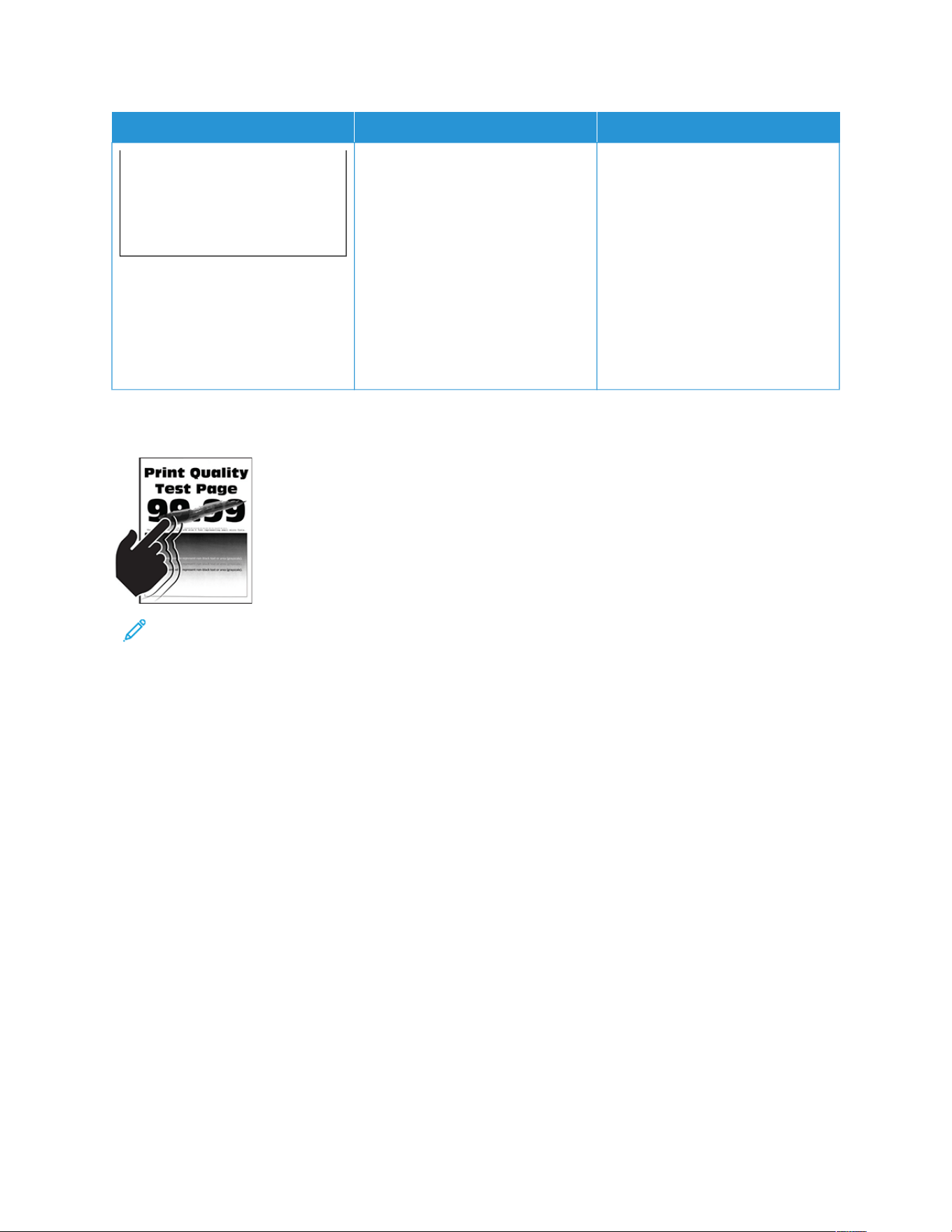
AACCTTIIOONN YYEESS NNOO
imaging kit and black
imaging unit. Doing
so may affect the
quality of future print
jobs.
2 Insert the black imaging unit,
and then insert the color
imaging kit.
3 Print the document.
Is the text or image clipped?
Toner Easily Rubs Off
Note: Before solving the problem, print the Print Quality Test Pages. From the control panel, navigate to
SSeettttiinnggss >> TTrroouubblleesshhoooottiinngg >> PPrriinntt QQuuaalliittyy TTeesstt PPaaggeess. For non-touch-screen printer models, press OOKK to
navigate through the settings.
206
Xerox
®
C410 Color Printer User Guide
Troubleshooting
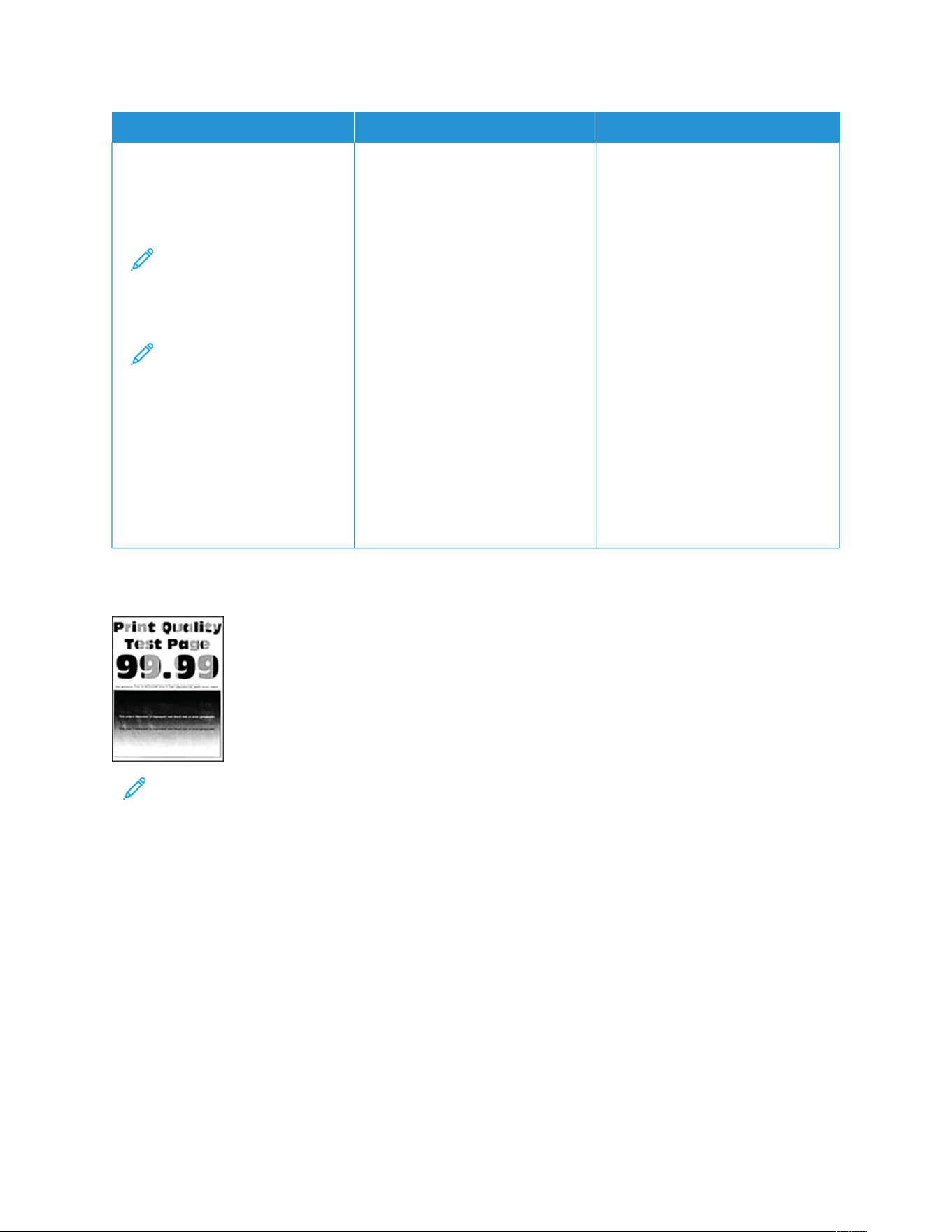
AACCTTIIOONN YYEESS NNOO
1 Depending on your operating
system, specify the paper type
from the Printing Preferences or
Print dialog.
Note: Make sure that
the settings matches
the paper loaded in the
tray.
Note: You can also
change the settings on
the printer control
panel. Navigate to:
SSeettttiinnggss >> PPaappeerr >>
TTrraayy CCoonnffiigguurraattiioonn >>
PPaappeerr SSiizzee//TTyyppee.
2 Print the document.
Does the toner rub off?
The problem is solved. Contact Contacting Customer
Support
Uneven Print Density
Note: Before solving the problem, print the Print Quality Test Pages. From the control panel, navigate to
SSeettttiinnggss >> TTrroouubblleesshhoooottiinngg >> PPrriinntt QQuuaalliittyy TTeesstt PPaaggeess. For non-touch-screen printer models, press OOKK to
navigate through the settings.
Xerox
®
C410 Color Printer User Guide 207
Troubleshooting
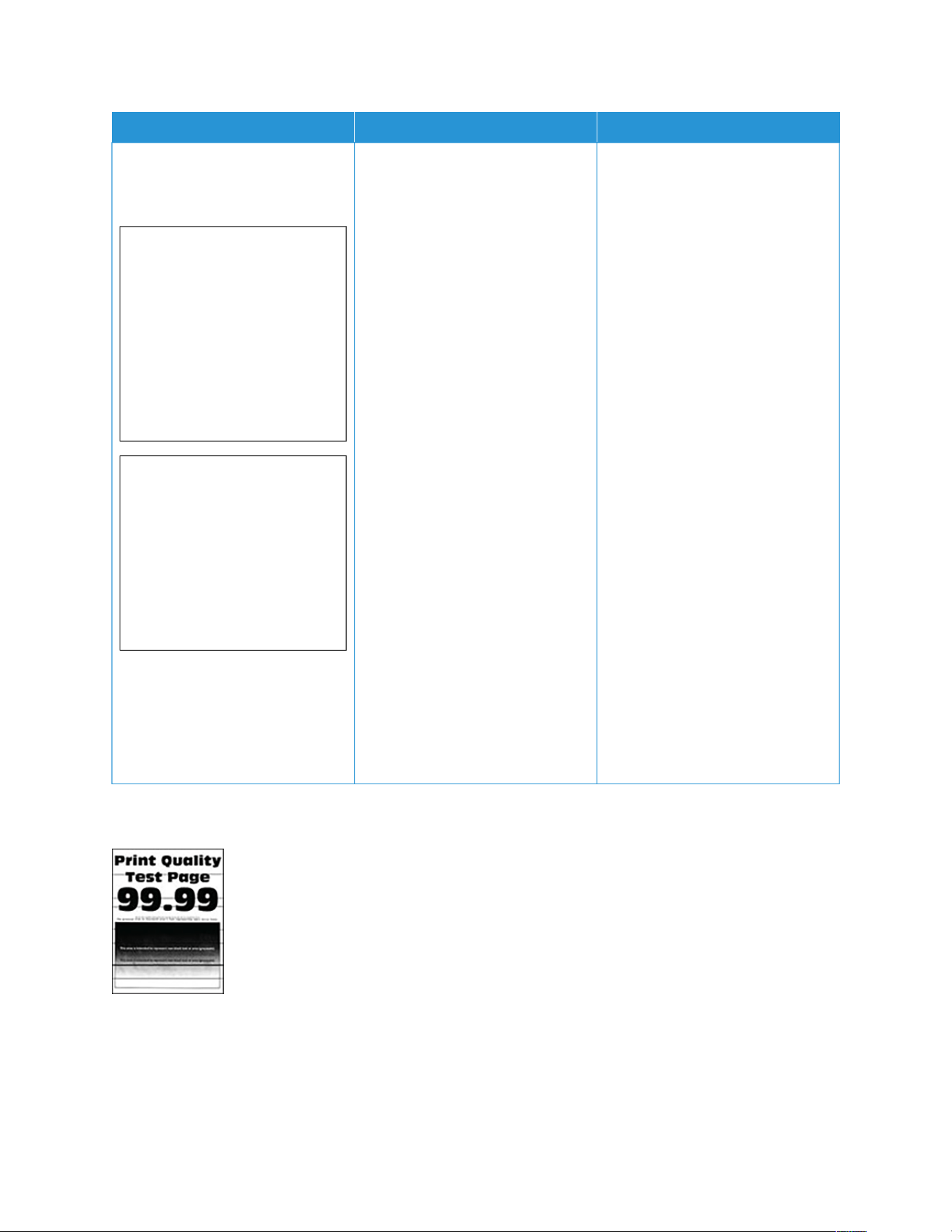
AACCTTIIOONN YYEESS NNOO
1 Remove the color imaging kit,
and then remove the black
imaging unit.
WWaarrnniinngg——
PPootteennttiiaall DDaammaaggee::
Do not expose the
color imaging kit and
black imaging unit to
direct light for more
than 10 minutes.
Extended exposure to
light may cause print
quality problems.
WWaarrnniinngg:: Do not
touch the
photoconductor drum
under the color
imaging kit and black
imaging unit. Doing
so may affect the
quality of future print
jobs.
2 Insert the black imaging unit,
and then insert the color
imaging kit.
3 Print the document.
Is the print density uneven?
Contact Contacting Customer
Support
The problem is solved.
Horizontal Dark Lines
• Before solving the problem, print the Print Quality Test Pages. From the control panel, navigate to SSeettttiinnggss >>
TTrroouubblleesshhoooottiinngg >> PPrriinntt QQuuaalliittyy TTeesstt PPaaggeess. For non-touch-screen printer models, press OOKK to navigate
through the settings.
• If horizontal dark lines keep appearing on the prints, then see the “Repeating defects” topic.
208
Xerox
®
C410 Color Printer User Guide
Troubleshooting

AACCTTIIOONN YYEESS NNOO
SStteepp 11
1 Depending on your operating
system, specify the paper type
from the Printing Preferences or
Print dialog.
Note: Make sure that
the settings matches
the paper loaded in the
tray.
Note: You can also
change the settings on
the printer control
panel. Navigate to:
SSeettttiinnggss >> PPaappeerr >>
TTrraayy CCoonnffiigguurraattiioonn >>
PPaappeerr SSiizzee//TTyyppee.
2 Print the document.
Do horizontal dark lines appear on
prints?
Go to step 2. The problem is solved.
SStteepp 22
1 Load paper from a fresh
package.
Note: Paper absorbs
moisture due to high
humidity. Store paper in
its original wrapper until
you are ready to use it.
2 Print the document.
Do horizontal dark lines appear on
prints?
Go to step 3. The problem is solved.
SStteepp 33
1 Remove the color imaging kit,
and then remove the black
imaging unit.
WWaarrnniinngg——
PPootteennttiiaall DDaammaaggee::
Do not expose the
color imaging kit and
black imaging unit to
direct light for more
than 10 minutes.
Contact Contacting Customer
Support
The problem is solved.
Xerox
®
C410 Color Printer User Guide 209
Troubleshooting
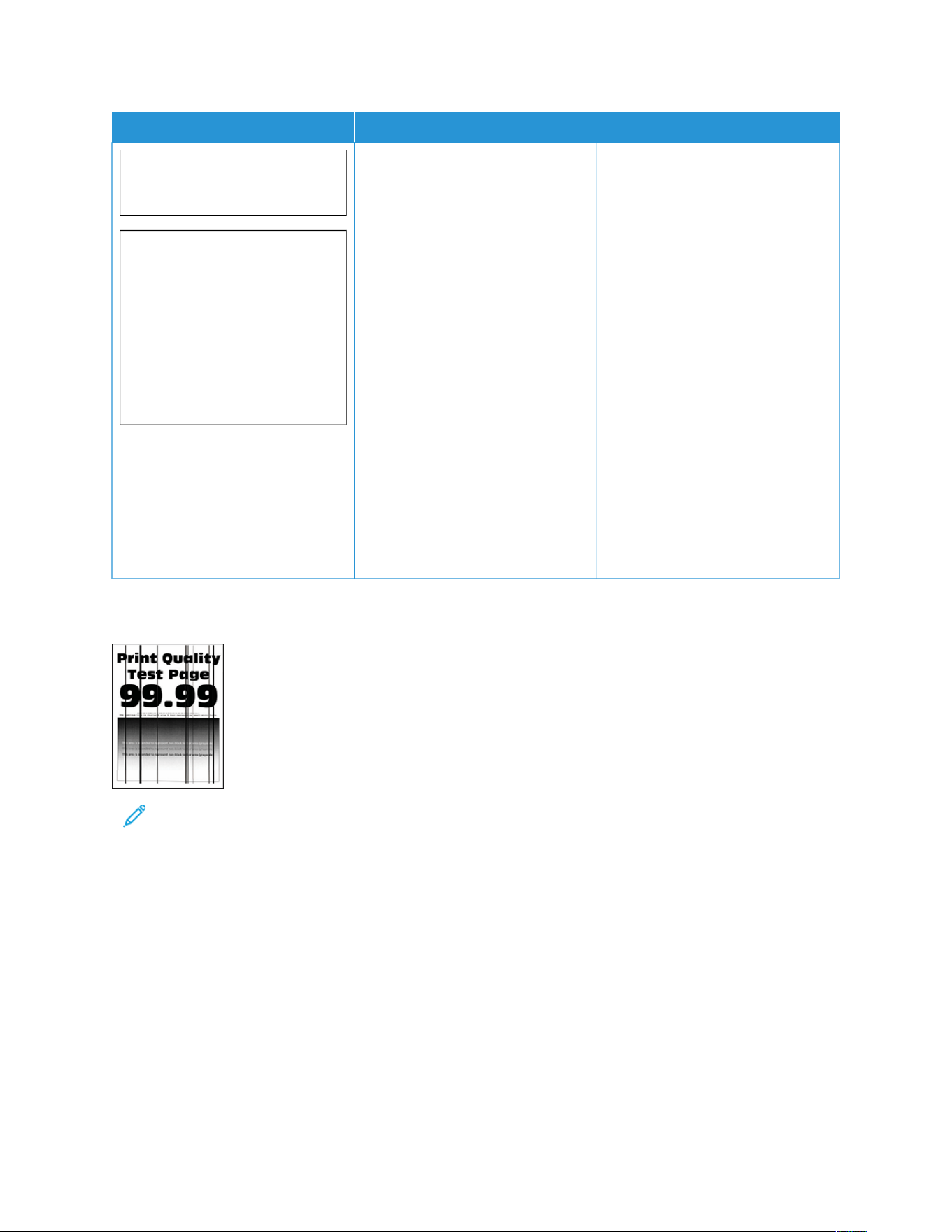
AACCTTIIOONN YYEESS NNOO
Extended exposure to
light may cause print
quality problems.
WWaarrnniinngg:: Do not
touch the
photoconductor drum
under the color
imaging kit and black
imaging unit. Doing
so may affect the
quality of future print
jobs.
2 Insert the black imaging unit,
and then insert the color
imaging kit.
3 Print the document.
Do horizontal dark lines appear on
prints?
Vertical Dark Lines
Note: Before solving the problem, print the Print Quality Test Pages. From the control panel, navigate to
SSeettttiinnggss >> TTrroouubblleesshhoooottiinngg >> PPrriinntt QQuuaalliittyy TTeesstt PPaaggeess. For non-touch-screen printer models, press OOKK to
navigate through the settings.
210
Xerox
®
C410 Color Printer User Guide
Troubleshooting

AACCTTIIOONN YYEESS NNOO
SStteepp 11
1 Depending on your operating
system, specify the paper type
from the Printing Preferences or
Print dialog.
Note: Make sure that
the settings matches
the paper loaded in the
tray.
Note: You can also
change the settings on
the printer control
panel. Navigate to:
SSeettttiinnggss >> PPaappeerr >>
TTrraayy CCoonnffiigguurraattiioonn >>
PPaappeerr SSiizzee//TTyyppee.
2 Print the document.
Do vertical dark lines appear on
prints?
Go to step 2. The problem is solved.
SStteepp 22
1 Load paper from a fresh
package.
Note: Paper absorbs
moisture due to high
humidity. Store paper in
its original wrapper until
you are ready to use it.
2 Print the document.
Do vertical dark lines appear on
prints?
Go to step 3. The problem is solved.
SStteepp 33
1 Remove the color imaging kit,
and then remove the black
imaging unit.
WWaarrnniinngg——
PPootteennttiiaall DDaammaaggee::
Do not expose the
color imaging kit and
black imaging unit to
direct light for more
than 10 minutes.
Contact Contacting Customer
Support
The problem is solved.
Xerox
®
C410 Color Printer User Guide 211
Troubleshooting
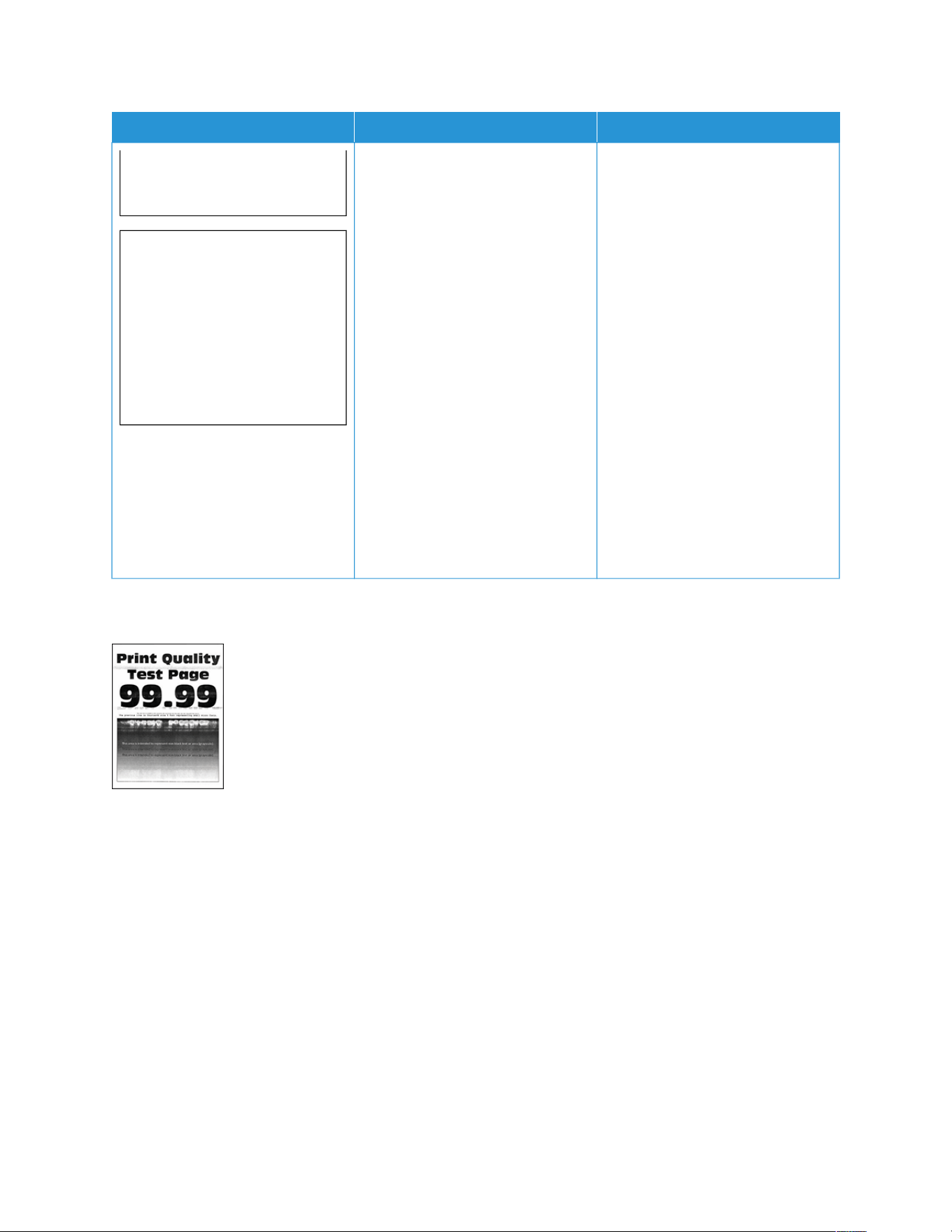
AACCTTIIOONN YYEESS NNOO
Extended exposure to
light may cause print
quality problems.
WWaarrnniinngg:: Do not
touch the
photoconductor drum
under the color
imaging kit and black
imaging unit. Doing
so may affect the
quality of future print
jobs.
2 Insert the black imaging unit,
and then insert the color
imaging kit.
3 Print the document.
Do vertical dark lines appear on
prints?
Horizontal White Lines
• Before solving the problem, print the Print Quality Test Pages. From the control panel, navigate to SSeettttiinnggss >>
TTrroouubblleesshhoooottiinngg >> PPrriinntt QQuuaalliittyy TTeesstt PPaaggeess. For non-touch-screen printer models, press OOKK to navigate
through the settings.
• If horizontal white lines keep appearing on your prints, then see the “Repeating defects” topic.
212
Xerox
®
C410 Color Printer User Guide
Troubleshooting

AACCTTIIOONN YYEESS NNOO
SStteepp 11
1 Depending on your operating
system, specify the paper type
from the Printing Preferences or
Print dialog.
Note: Make sure that
the settings matches
the paper loaded in the
tray.
Note: You can also
change the settings on
the printer control
panel. Navigate to:
SSeettttiinnggss >> PPaappeerr >>
TTrraayy CCoonnffiigguurraattiioonn >>
PPaappeerr SSiizzee//TTyyppee.
2 Print the document.
Do horizontal white lines appear on
prints?
Go to step 2. The problem is solved.
SStteepp 22
1 Load the specified paper source
with the recommended paper
2 Print the document.
Do horizontal white lines appear on
prints?
Go to step 3. The problem is solved.
SStteepp 33
1 Remove the color imaging kit,
and then remove the black
imaging unit.
WWaarrnniinngg——
PPootteennttiiaall DDaammaaggee::
Do not expose the
color imaging kit and
black imaging unit to
direct light for more
than 10 minutes.
Extended exposure to
light may cause print
quality problems.
Contact Contacting Customer
Support
The problem is solved.
Xerox
®
C410 Color Printer User Guide 213
Troubleshooting
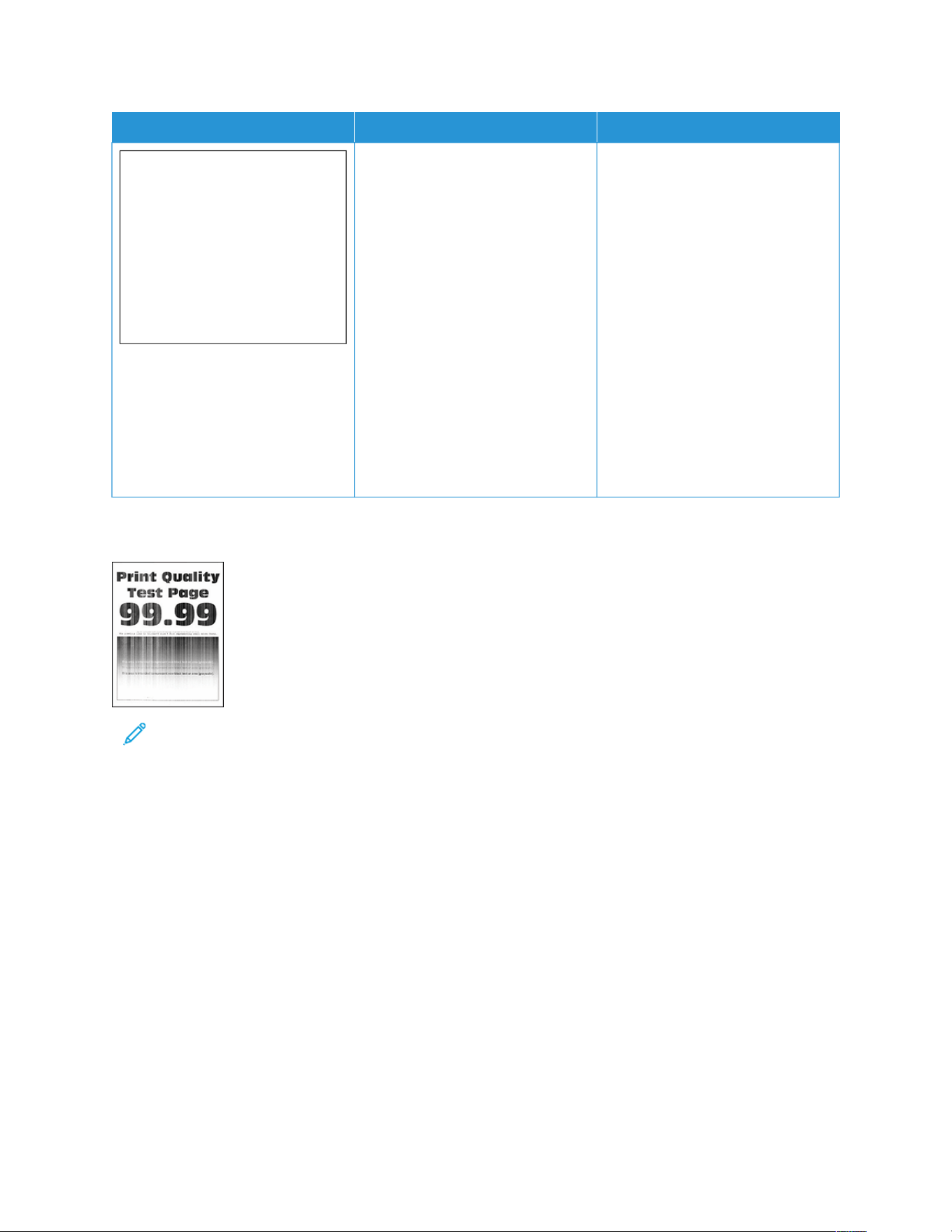
AACCTTIIOONN YYEESS NNOO
WWaarrnniinngg:: Do not
touch the
photoconductor drum
under the color
imaging kit and black
imaging unit. Doing
so may affect the
quality of future print
jobs.
2 Insert the black imaging unit,
and then insert the color
imaging kit.
3 Print the document.
Do horizontal white lines appear on
prints?
Vertical White Lines
Note: Before solving the problem, print the Print Quality Test Pages. From the control panel, navigate to
SSeettttiinnggss >> TTrroouubblleesshhoooottiinngg >> PPrriinntt QQuuaalliittyy TTeesstt PPaaggeess. For non-touch-screen printer models, press OOKK to
navigate through the settings.
214
Xerox
®
C410 Color Printer User Guide
Troubleshooting

AACCTTIIOONN YYEESS NNOO
SStteepp 11
1 Depending on your operating
system, specify the paper type
from the Printing Preferences or
Print dialog.
Note: Make sure that
the settings matches
the paper loaded in the
tray.
Note: You can also
change the settings on
the printer control
panel. Navigate to:
SSeettttiinnggss >> PPaappeerr >>
TTrraayy CCoonnffiigguurraattiioonn >>
PPaappeerr SSiizzee//TTyyppee.
2 Print the document.
Do vertical white lines appear on
prints?
Go to step 2. The problem is solved.
SStteepp 22
Make sure you are using the
recommended paper type.
1 Load the specified paper source
with the recommended paper
2 Print the document.
Do vertical white lines appear on
prints?
Go to step 3. The problem is solved.
SStteepp 33
1 Remove the color imaging kit,
and then remove the black
imaging unit.
WWaarrnniinngg——
PPootteennttiiaall DDaammaaggee::
Do not expose the
color imaging kit and
black imaging unit to
direct light for more
than 10 minutes.
Extended exposure to
light may cause print
quality problems.
Contact Contacting Customer
Support
The problem is solved.
Xerox
®
C410 Color Printer User Guide 215
Troubleshooting
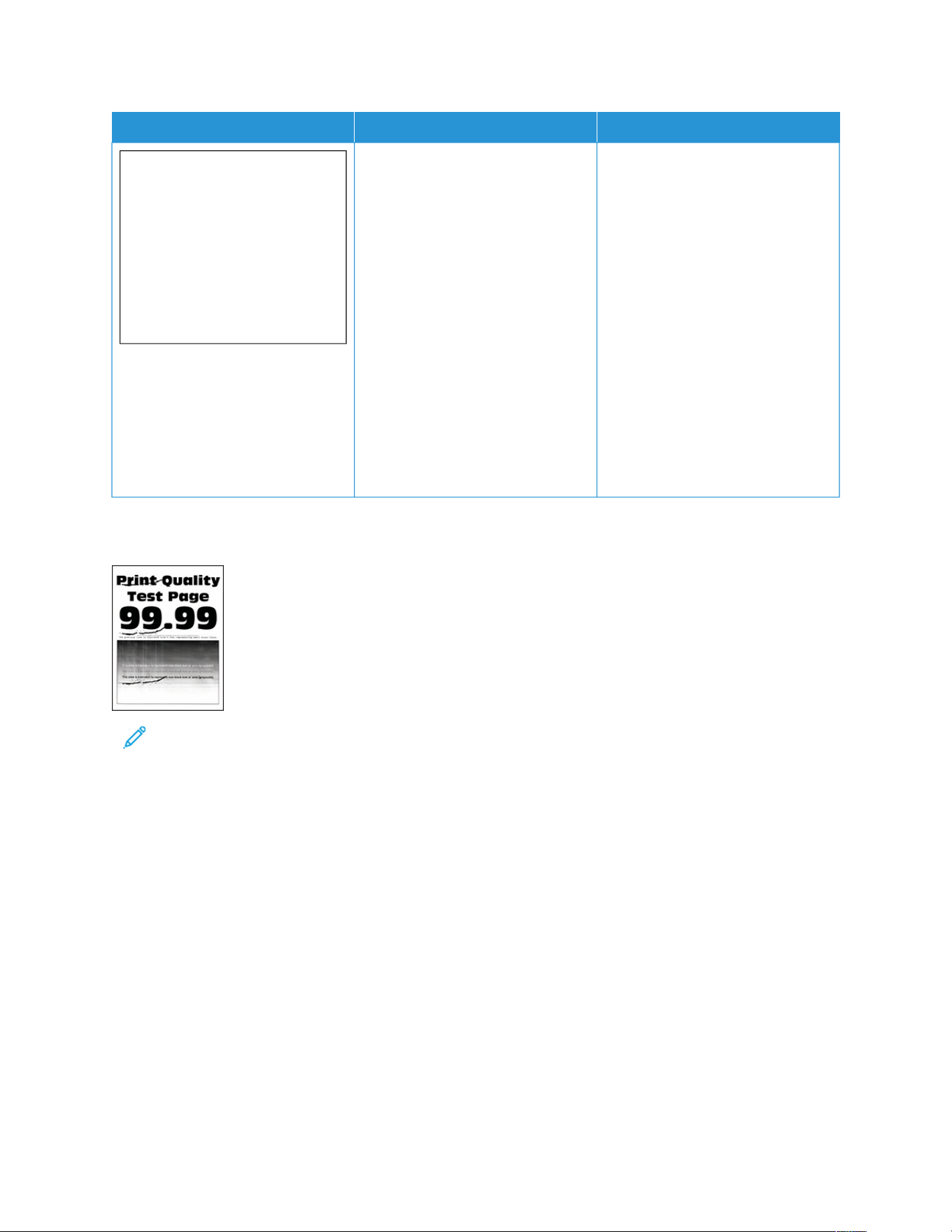
AACCTTIIOONN YYEESS NNOO
WWaarrnniinngg:: Do not
touch the
photoconductor drum
under the color
imaging kit and black
imaging unit. Doing
so may affect the
quality of future print
jobs.
2 Insert the black imaging unit,
and then insert the color
imaging kit.
3 Print the document.
Do vertical white lines appear on
prints?
Repeating Defects
Note: Before solving the problem, print the Print Quality Test Pages. From the control panel, navigate to
SSeettttiinnggss >> TTrroouubblleesshhoooottiinngg >> PPrriinntt QQuuaalliittyy TTeesstt PPaaggeess. For non-touch-screen printer models, press OOKK to
navigate through the settings.
216
Xerox
®
C410 Color Printer User Guide
Troubleshooting

AACCTTIIOONN YYEESS NNOO
SStteepp 11
Determine how many colors have
defects.
Is only one color affected?
Go to step 2. Go to step 3.
SStteepp 22
1 Using the Maintenance Defect
Ruler, measure the distance
between the repeating defects
on the affected color page.
2 Replace the supply item that
matches the measurement on
the affected color page.
CCoolloorr iimmaaggiinngg kkiitt oorr bbllaacckk
iimmaaggiinngg uunniitt
• 94.5 mm (3.72 in.)
• 29.9 mm (1.18 in.)
• 23.2 mm (0.91 in.)
DDeevveellooppeerr uunniitt
• 43.6 mm (1.72 in.)
• 45.0 mm (1.77 in.)
3 Print the Print Quality Test
Pages.
Do the defects still appear?
Take note of the distance, and then
contact Contacting Customer
Support or your service
representative.
The problem is solved.
SStteepp 33
1 Using the Maintenance Defect
Ruler, measure the distance
between the repeating defects
on the affected color page.
2 Replace the supply item that
matches the measurement on
the affected color page.
TTrraannssffeerr mmoodduullee
• 37.7 mm (1.48 in.)
• 78.5 mm (3.09 in.)
• 54.6 mm (2.15 in.)
FFuusseerr
• 95 mm (3.74 in.)
• 110 mm (4.33 in.)
Take note of the distance, and then
contact Contacting Customer
Support or your service
representative.
The problem is solved.
Xerox
®
C410 Color Printer User Guide 217
Troubleshooting

AACCTTIIOONN YYEESS NNOO
3 Print the Print Quality Test
Pages.
Do the defects still appear?
PRINT JOBS DO NOT PRINT
AACCTTIIOONN YYEESS NNOO
SStteepp 11
a. From the document you are
trying to print, open the Print
dialog, and then check if you
have selected the correct
printer.
b. Print the document.
Is the document printed?
The problem is solved. Go to step 2.
SStteepp 22
a. Check if the printer is on.
b. Resolve any error messages that
appear on the display.
c. Print the document.
Is the document printed?
The problem is solved. Go to step 3.
SStteepp 33
a. Check if the ports are working
and if the cables are securely
connected to the computer and
the printer.
For more information, see the
setup documentation that came
with the printer.
b. Print the document.
Is the document printed?
The problem is solved. Go to step 4.
218
Xerox
®
C410 Color Printer User Guide
Troubleshooting

AACCTTIIOONN YYEESS NNOO
SStteepp 44
a. Turn off the printer, wait for
about 10 seconds, and then
turn on the printer.
b. Print the document.
Is the document printed?
The problem is solved. Go to step 5.
SStteepp 55
a. Remove, and then reinstall the
print driver.
b. Print the document.
Is the document printed?
The problem is solved. Refer to Contacting Customer
Support.
SLOW PRINTING
AACCTTIIOONN YYEESS NNOO
SStteepp 11
Make sure that the printer cable is
securely connected to the printer
and to the computer, print server,
option, or other network device.
Is the printer printing slow?
Go to step 2. The problem is solved.
SStteepp 22
a. Make sure that the printer is not
in Quiet Mode.
• From the control panel,
navigate to: SSeettttiinnggss >>
DDeevviiccee >> MMaaiinntteennaannccee >>
CCoonnffiigg MMeennuu >> DDeevviiccee
OOppeerraattiioonnss >> QQuuiieett MMooddee.
For non-touch-screen printer
models, press OOKK to navigate
through the settings.
b. Print the document.
Is the printer printing slow?
Go to step 3. The problem is solved.
SStteepp 33
a. Depending on your operating
system, specify the print
resolution from the Printing
Preferences or Print dialog.
Go to step 4. The problem is solved.
Xerox
®
C410 Color Printer User Guide 219
Troubleshooting

AACCTTIIOONN YYEESS NNOO
b. Set the resolution to 4800 CQ.
c. Print the document.
Is the printer printing slow?
SStteepp 44
a. Depending on your operating
system, specify the paper type
from the Printing Preferences or
Print dialog.
Note: Make sure that
the settings matches
the paper loaded in the
tray.
Note: You can also
change the settings on
the printer control
panel. Navigate to:
SSeettttiinnggss >> PPaappeerr >>
TTrraayy CCoonnffiigguurraattiioonn >>
PPaappeerr SSiizzee//TTyyppee.
Note: Heavier paper
prints more slowly.
Note: Paper narrower
than letter, A4, and
legal may print more
slowly.
• Make sure that the setting
matches the paper loaded.
• You can also change the
setting on the printer control
panel. Navigate to SSeettttiinnggss
>> PPaappeerr >> TTrraayy
CCoonnffiigguurraattiioonn >> PPaappeerr
SSiizzee//TTyyppee. For non-touch-
screen printer models, press
OOKK to navigate through the
settings.
• Heavier paper prints more
slowly.
• Paper narrower than letter,
A4, and legal may print
more slowly.
b. Print the document.
Go to step 5. The problem is solved.
220
Xerox
®
C410 Color Printer User Guide
Troubleshooting

AACCTTIIOONN YYEESS NNOO
Is the printer printing slow?
SStteepp 55
a. Make sure that the printer
settings for texture and weight
match the paper being loaded.
From the control panel, navigate
to: SSeettttiinnggss >> PPaappeerr >> MMeeddiiaa
CCoonnffiigguurraattiioonn >> MMeeddiiaa TTyyppeess
For non-touch-screen printer
models, press OOKK to navigate
through the settings.
Note: Rough paper
texture and heavy
paper weight may print
more slowly.
b. Print the document.
Is the printer printing slow?
Go to step 6. The problem is solved.
SStteepp 66
Remove held jobs.
Is the printer printing slow?
Go to step 7. The problem is solved.
SStteepp 77
a. Make sure that the printer is not
overheating.
• Allow the printer to cool
down after a long print job.
• Observe the recommended
ambient temperature for the
printer. For more
information, see Selecting a
Location for the Printer.
b. Print the document.
Is the printer printing slow?
Refer to Contacting Customer
Support.
The problem is solved.
Xerox
®
C410 Color Printer User Guide 221
Troubleshooting

JOB PRINTS FROM THE WRONG TRAY OR ON THE WRONG PAPER
AACCTTIIOONN YYEESS NNOO
SStteepp 11
a. Check if you are printing on the
correct paper.
b. Print the document.
Is the document printed on the
correct paper?
Go to step 2. Load the correct paper size and
paper type.
SStteepp 22
a. Depending on your operating
system, specify the paper size
and paper type from the
Printing Preferences or Print
dialog.
Note: You can also
change the settings on
the printer control
panel. Navigate to:
SSeettttiinnggss >> PPaappeerr >>
TTrraayy CCoonnffiigguurraattiioonn >>
PPaappeerr SSiizzee//TTyyppee.
For non-touch-screen printer
models, press OOKK to navigate
through the settings.
b. Make sure that the settings
match the paper loaded.
c. Print the document.
Is the document printed on the
correct paper?
The problem is solved. Go to step 3.
SStteepp 33
1 Check if the trays are linked.
For more information, see
Linking trays
2 Print the document.
Is the document printed from the
correct tray?
The problem is solved. Refer to Contacting Customer
Support
222
Xerox
®
C410 Color Printer User Guide
Troubleshooting
The Printer is not Responding
AACCTTIIOONN YYEESS NNOO
SStteepp 11
Check if the power cord is
connected to the electrical outlet.
CCAAUUTTIIOONN——
PPOOTTEENNTTIIAALL IINNJJUURRYY::
To avoid the risk of fire or
electrical shock, connect
the power cord to an
appropriately rated and
properly grounded
electrical outlet that is
near the product and
easily accessible.
Is the printer responding?
The problem is solved. Go to step 2.
SStteepp 22
Check if the electrical outlet is
turned off by a switch or breaker.
Is the electrical outlet turned off by
a switch or breaker?
Turn on the switch or reset the
breaker.
Go to step 3.
SStteepp 33
Check if the printer is on.
Is the printer on?
Go to step 4. Turn on the printer.
SStteepp 44
Check if the printer is in Sleep or
Hibernate mode.
Is the printer in Sleep or Hibernate
mode?
Press the power button to wake the
printer.
Go to step 5.
SStteepp 55
Check if the cables connecting the
printer and the computer are
inserted to the correct ports.
Are the cables inserted to the
correct ports?
Go to step 6. Insert the cables to the correct
ports.
SStteepp 66
Turn off the printer, install the
The problem is solved. Go to step 7.
Xerox
®
C410 Color Printer User Guide 223
Troubleshooting

AACCTTIIOONN YYEESS NNOO
hardware options, and then turn on
the printer.
For more information, see the
documentation that came with the
option.
Is the printer responding?
SStteepp 77
Install the correct print driver.
Is the printer responding?
The problem is solved. Go to step 8.
SStteepp 88
Turn off the printer, wait for about
10 seconds, and then turn on the
printer.
Is the printer responding?
The problem is solved. Refer to Contacting Customer
Support.
224
Xerox
®
C410 Color Printer User Guide
Troubleshooting

Network Connection Problems
CANNOT OPEN EMBEDDED WEB SERVER
AACCTTIIOONN YYEESS NNOO
SStteepp 11
1 Check if the printer is on.
2 Access the printer Embedded
Web Server (EWS).
Can you open the EWS?
The problem is solved. Go to step 2.
SStteepp 22
1 Make sure that the printer IP
address is correct.
• View the IP address on the
home screen.
• An IP address appears as
four sets of numbers
separated by periods, such
as 123.123.123.123.
2 Access the EWS.
Can you open the EWS?
The problem is solved. Go to step 3.
SStteepp 33
1 Check if you are using a
supported browser:
• Internet Explorer version 11
or later
• Microsoft Edge
• Safari version 6 or later
• Google Chrome
™
version 32
or later
• Mozilla Firefox version 24 or
later
2 Access the EWS.
Can you open the EWS?
The problem is solved. Go to step 4.
SStteepp 44
1 Check if the network connection
is working.
Note: If the connection
is not working, then
contact your
administrator.
The problem is solved. Go to step 5.
Xerox
®
C410 Color Printer User Guide 225
Troubleshooting

AACCTTIIOONN YYEESS NNOO
2 Access the EWS.
Can you open the EWS?
SStteepp 55
1 Make sure that the cable
connections to the printer and
print server are secure. For more
information, see the
documentation that came with
the print server.
2 Access the EWS.
Can you open the EWS?
The problem is solved. Go to step 6.
SStteepp 66
1 Check if the web proxy servers
are disabled.
Note: If the servers are
disabled, then contact
your administrator.
2 Access the EWS.
Can you open the EWS?
The problem is solved. Refer to Contacting Customer
Support.
CANNOT CONNECT THE PRINTER TO THE WI-FI NETWORK
Note: This feature is available only in some printer models.
AACCTTIIOONN YYEESS NNOO
SStteepp 11
Make sure that Active Adapter is set
to Auto.
From the control panel, navigate to:
SSeettttiinnggss >> NNeettwwoorrkk//PPoorrttss >>
NNeettwwoorrkk OOvveerrvviieeww >> AAccttiivvee
AAddaapptteerr >> AAuuttoo
For non-touch-screen printer
models, press OOKK to navigate
through the settings.
Can the printer connect to the Wi-Fi
network?
The problem is solved. Go to step 2.
SStteepp 22
Check if the correct Wi-Fi network is
Go to step 4. Go to step 3.
226
Xerox
®
C410 Color Printer User Guide
Troubleshooting

AACCTTIIOONN YYEESS NNOO
selected.
Note: Some routers may
share the default SSID.
Are you connecting to the correct
Wi-Fi network?
SStteepp 33
Connect to the correct Wi-Fi
network. For more information, see
Connecting the Printer to a Wi-Fi
Network.
Can the printer connect to the Wi-Fi
network?
The problem is solved. Go to step 4.
SStteepp 44
Check the wireless security mode.
From the control panel, navigate to:
SSeettttiinnggss >> NNeettwwoorrkk//PPoorrttss >>
WWiirreelleessss >> WWiirreelleessss SSeeccuurriittyy
MMooddee.
For non-touch-screen printer
models, press OOKK to navigate
through the settings.
Is the correct wireless security mode
selected?
Go to step 6. Go to step 5.
SStteepp 55
Select the correct wireless security
mode.
Can the printer connect to the Wi-Fi
network?
The problem is solved. Go to step 6.
SStteepp 66
Make sure that you entered the
correct network password.
Note: Take note of the
spaces, numbers, and
capitalization in the
password.
Can the printer connect to the Wi-Fi
network?
The problem is solved. Contact Contacting Customer
Support.
Xerox
®
C410 Color Printer User Guide 227
Troubleshooting

Issues with Supplies
REPLACE CARTRIDGE PRINTER REGION MISMATCH
There is a mismatch error between the printer region and the cartridge region. To correct this problem, purchase a
cartridge with the correct region that matches the printer region, or purchase a worldwide cartridge.
To locate the region settings of the printer and print cartridge, print the Print Quality Test Pages. From the control
panel, navigate to: SSeettttiinnggss >> TTrroouubblleesshhoooottiinngg >> PPrriinntt QQuuaalliittyy TTeesstt PPaaggeess.
• The first number in the message after 42 indicates the region of the printer.
• The second number in the message after 42 indicates the region of the cartridge.
PPrriinntteerr aanndd pprriinntt ccaarrttrriiddggee rreeggiioonnss
RREEGGIIOONN NNUUMMEERRIICC CCOODDEE
Worldwide or Undefined region 0
North America (United States, Canada) 1
European Economic Area, Western Europe, Nordic countries, Switzerland 2
Asia Pacific 3
Latin America 4
Rest of Europe, Middle East, Africa 5
Australia, New Zealand 6
Invalid region 9
Note: To find the region settings of the printer and toner cartridge, print the print quality test pages. From
the control panel, navigate to: SSeettttiinnggss >> TTrroouubblleesshhoooottiinngg >> PPrriinntt QQuuaalliittyy TTeesstt PPaaggeess
228
Xerox
®
C410 Color Printer User Guide
Troubleshooting

NON-XEROX SUPPLIES
The printer has detected a non-Xerox supply installed in the printer.
Your Xerox printer is designed to function best with genuine Xerox supplies. Use of third-party supplies can affect
the performance, reliability, or life of the printer and its imaging components.
All life indicators are designed to function with Xerox supplies and can deliver unpredictable results if third-party
supplies are used. Imaging component usage beyond the intended life may damage your Xerox printer or
associated components.
WWaarrnniinngg——PPootteennttiiaall DDaammaaggee:: Use of third-party supplies or parts can affect warranty coverage.
Damage caused by the use of third-party supplies or parts may not be covered by the warranty.
To accept any and all of these risks and to proceed with the use of non-genuine supplies or parts in your printer,
touch and hold the error message on the display using two fingers for 15 seconds. When a confirmation dialog box
appears, touch CCoonnttiinnuuee.
If you do not want to accept these risks, then remove the third-party supply or part from your printer and install a
genuine Xerox supply or part. For more information, refer to Using Genuine Xerox Supplies.
If the printer does not print after clearing the error message, then reset the supply usage counter.
1. From the control panel, navigate toSSeettttiinnggss >> DDeevviiccee >> MMaaiinntteennaannccee >> CCoonnffiigguurraattiioonn MMeennuu >> SSuuppppllyy
UUssaaggee aanndd CCoouunntteerrss..
2. Select the part or supply that you want to reset, and then touch SSttaarrtt.
3. Read the warning message, and then touch CCoonnttiinnuuee.
4. Using two fingers, touch the display for 15 seconds to clear the message.
Note: If you are unable to reset the supply usage counters, then return the supply item to the place of
purchase.
Xerox
®
C410 Color Printer User Guide 229
Troubleshooting
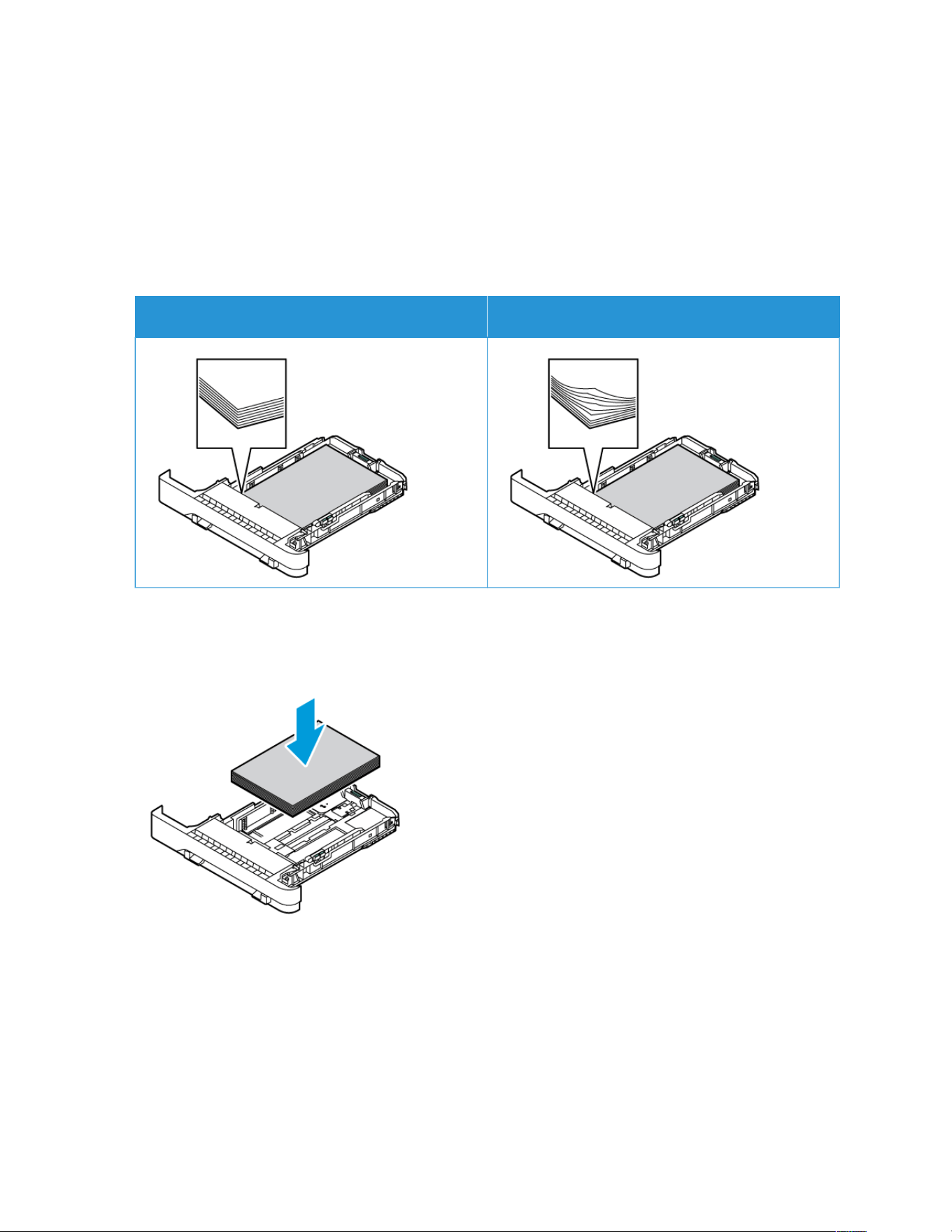
Clearing Jams
AVOIDING JAMS
Load Paper Properly
• Make sure that the paper lies flat in the tray.
CCOORRRREECCTT LLOOAADDIINNGG OOFF PPAAPPEERR IINNCCOORRRREECCTT LLOOAADDIINNGG OOFF PPAAPPEERR
• Do not load or remove a tray while the printer is printing.
• Do not load too much paper. Make sure that the stack height is below the maximum paper fill indicator.
• Do not slide paper into the tray. Load paper as shown in the illustration.
• Make sure that the paper guides are positioned correctly and are not pressing tightly against the paper or
envelopes.
• Push the tray firmly into the printer after loading paper.
Use Recommended Paper
• Use only recommended paper or specialty media.
• Do not load paper that is wrinkled, creased, damp, bent, or curled.
230
Xerox
®
C410 Color Printer User Guide
Troubleshooting

• Flex, fan, and align the paper edges before loading.
• Do not use paper that has been cut or trimmed by hand.
• Do not mix paper sizes, weights, or types in the same tray.
• Make sure that the paper size and type are set correctly on the computer or printer control panel.
• Store paper according to manufacturer recommendations.
IDENTIFYING JAM LOCATIONS
• When Jam Assist is set to OOnn, the printer might attempt to flush blank pages or pages with partial prints after a
jammed page has been cleared. Check your printed output for blank pages.
• When Jam Recovery is set to OOnn or AAuuttoo, the printer reprints jammed pages.
Xerox
®
C410 Color Printer User Guide 231
Troubleshooting
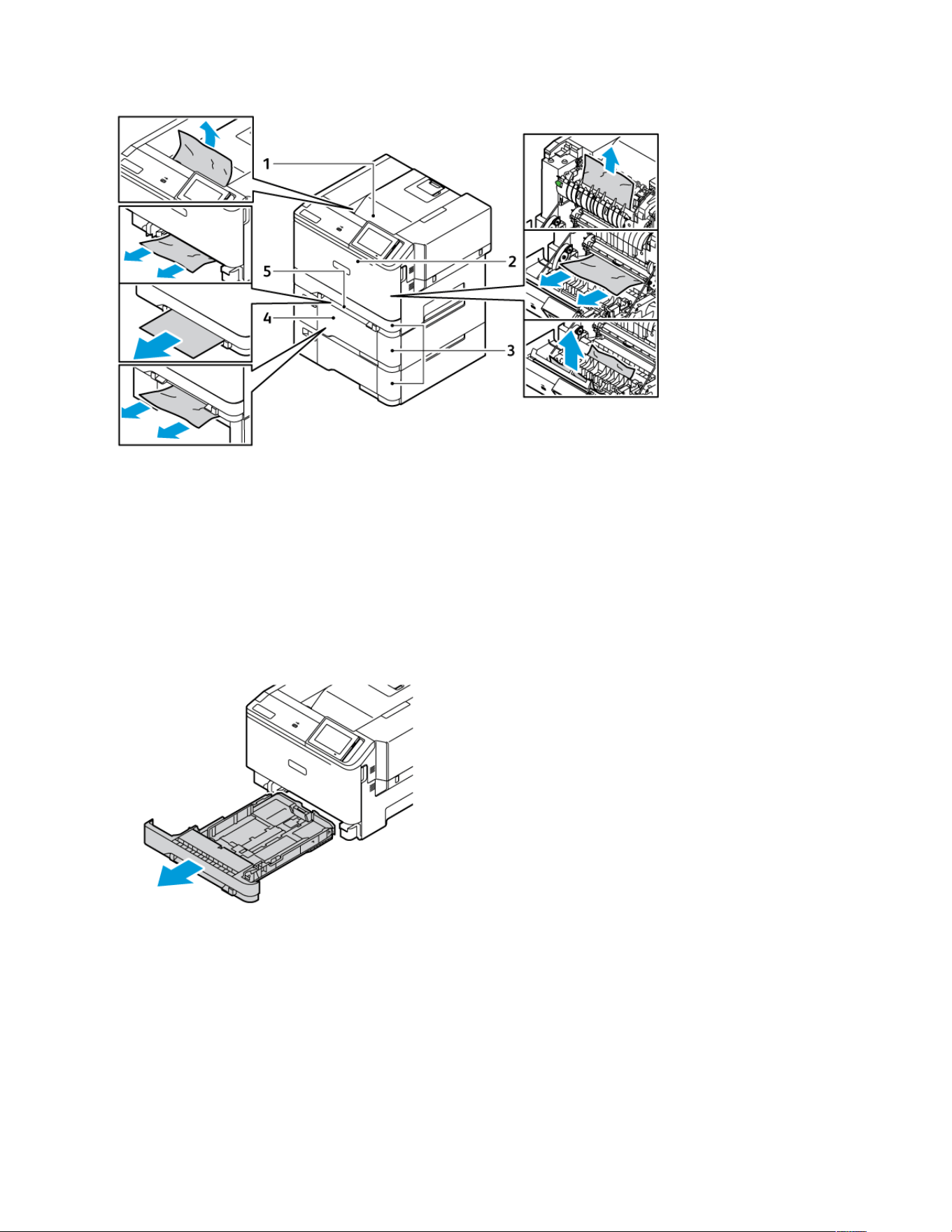
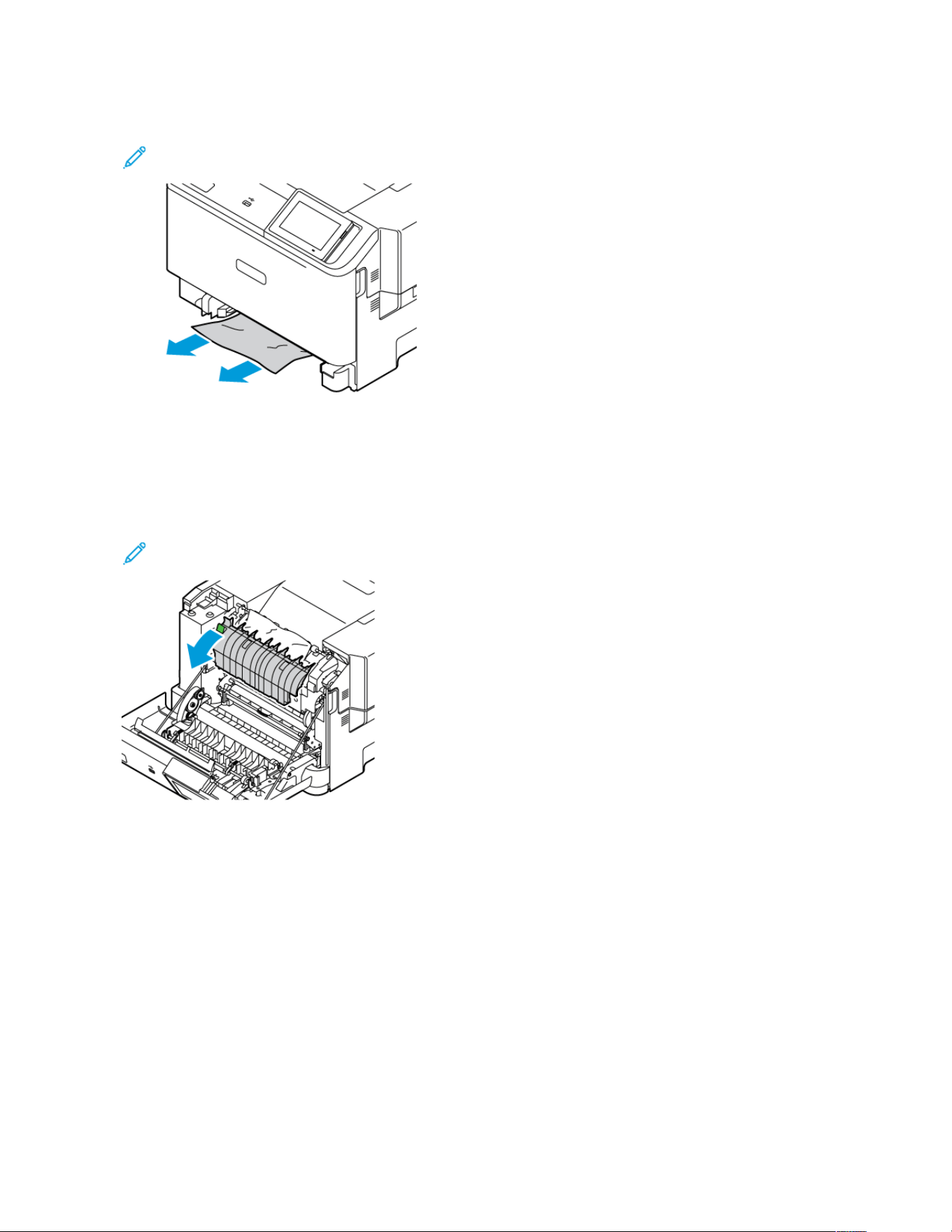
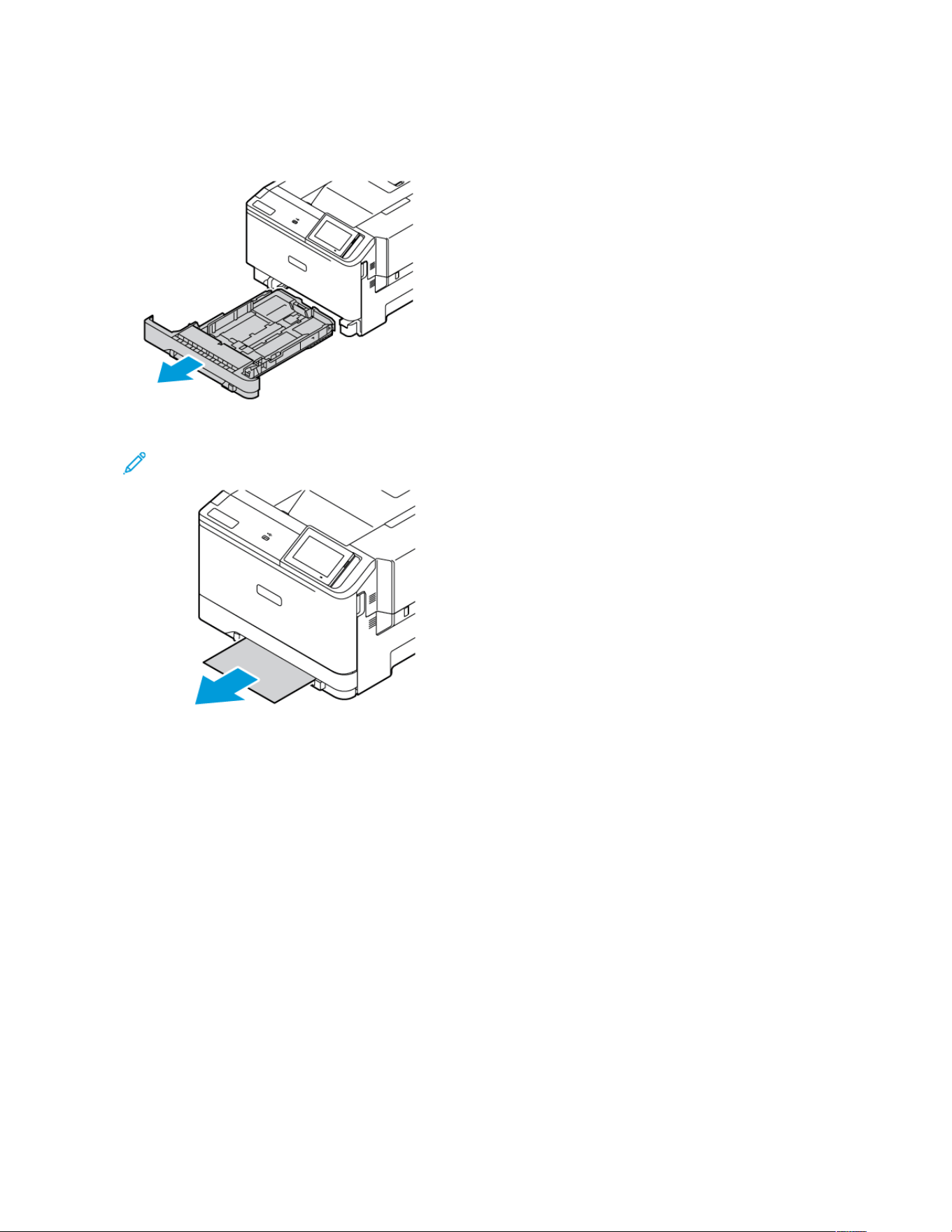
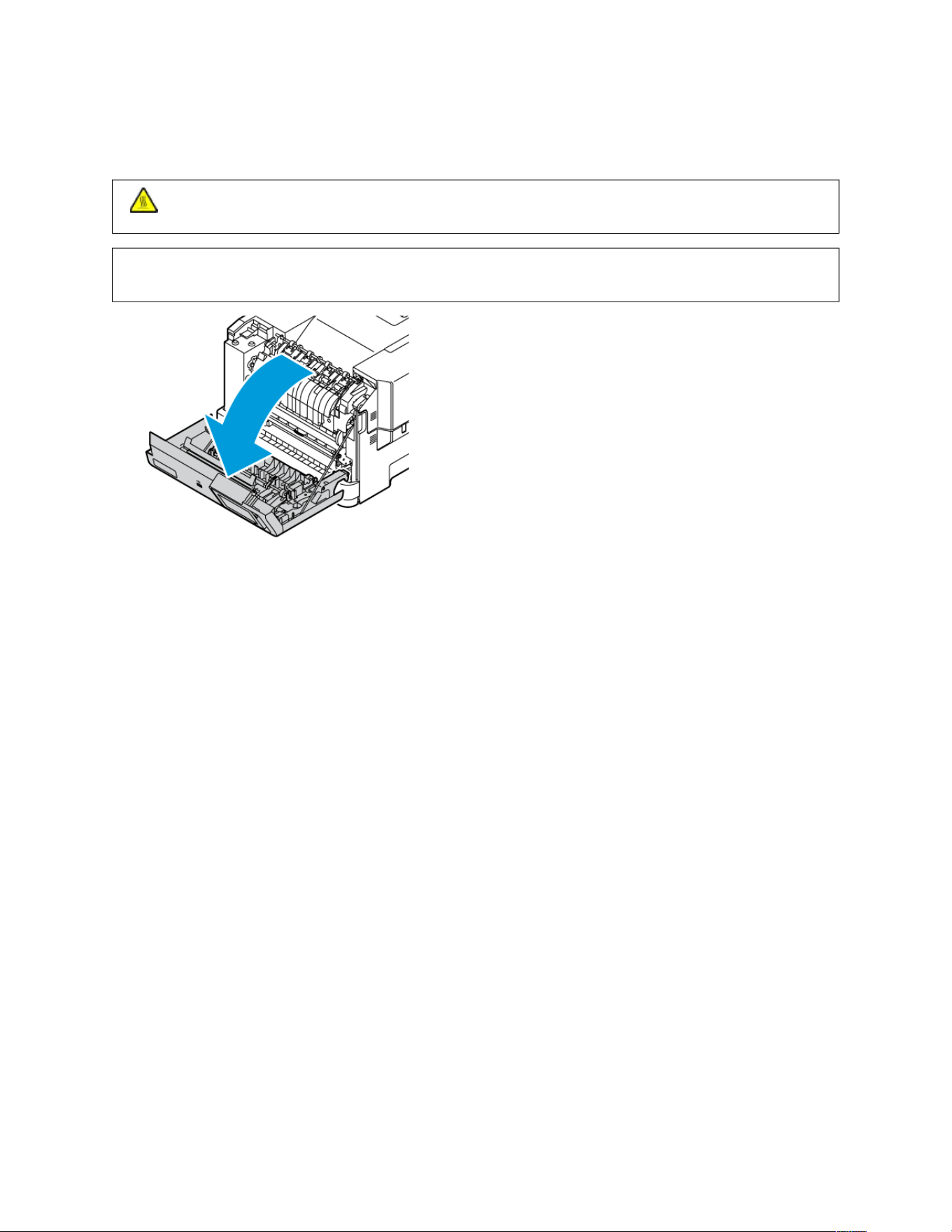
PAPER JAM IN DOOR A
1. Open Door A.
CCAAUUTTIIOONN——HHOOTT SSUURRFFAACCEE:: The inside of the printer might be hot. To reduce the risk of injury from a
hot component, allow the surface to cool before touching it.
WWaarrnniinngg——PPootteennttiiaall DDaammaaggee:: To prevent damage from electrostatic discharge, touch any exposed
metal frame of the printer before accessing or touching interior areas of the printer.
Xerox
®
C410 Color Printer User Guide 235
Troubleshooting
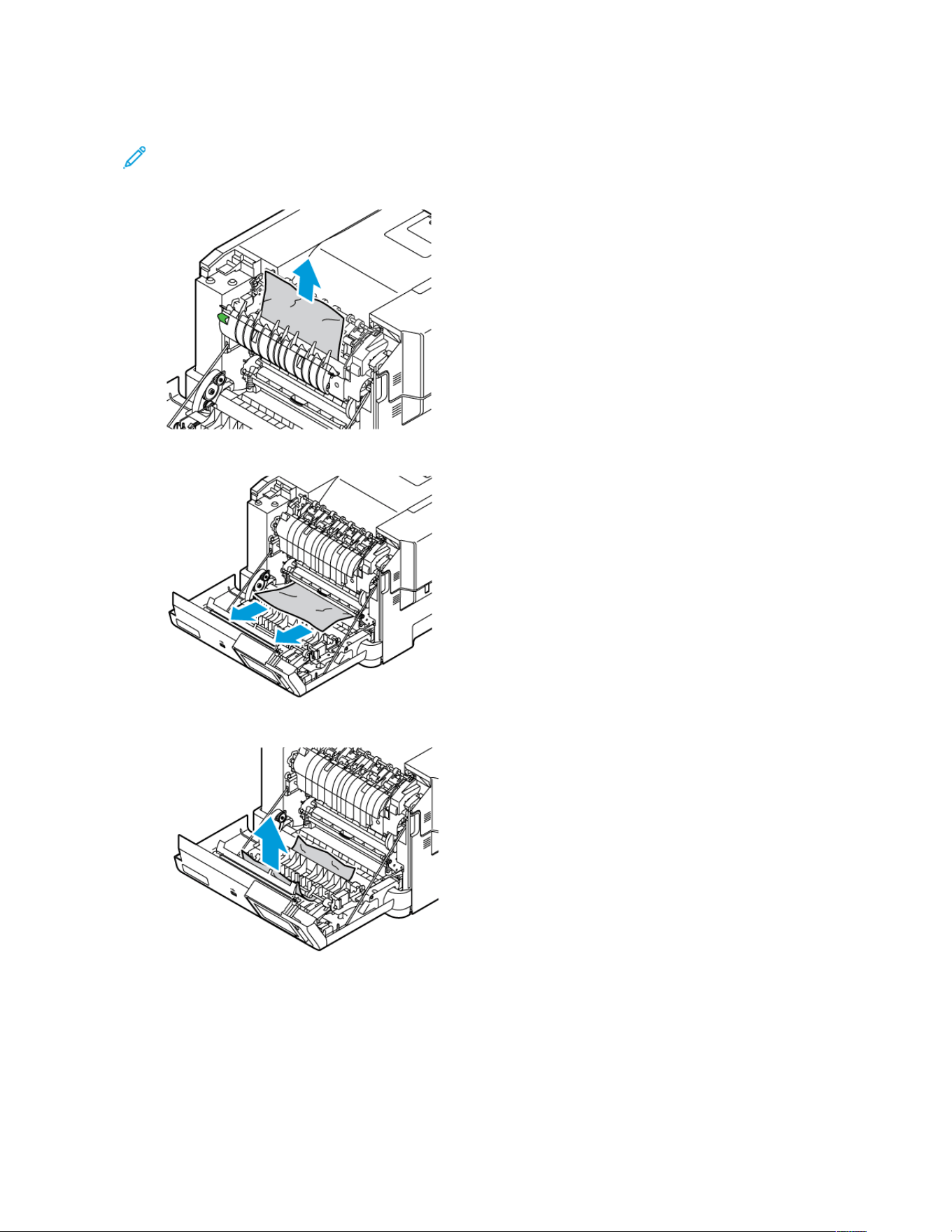

Paper Feed Problems
ENVELOPE SEALS WHEN PRINTING
AACCTTIIOONN YYEESS NNOO
SStteepp 11
a. Use an envelope that has been
stored in a dry environment
Note: Printing on
envelopes with high
moisture content can
seal the flaps.
b. Send the print job.
Does the envelope seal when
printing?
Go to step 2. The problem is solved.
SStteepp 22
a. Make sure that paper type is set
to Envelope.
From the control panel, navigate
to: SSeettttiinnggss >> PPaappeerr >> TTrraayy
CCoonnffiigguurraattiioonn >> PPaappeerr SSiizzee//
TTyyppee.
For non-touch-screen printer
models, press OOKK to navigate
through the settings.
b. Send the print job.
Does the envelope seal when
printing?
Refer to Contacting Customer
Support.
The problem is solved.
Xerox
®
C410 Color Printer User Guide 237
Troubleshooting

COLLATED PRINTING DOES NOT WORK
AACCTTIIOONN YYEESS NNOO
SStteepp 11
a. From the control panel, navigate
to: SSeettttiinnggss >> PPrriinntt >> LLaayyoouutt >>
CCoollllaattee.
For non-touch-screen printer
models, press OOKK to navigate
through the settings.
b. Select OOnn [[11,,22,,11,,22,,11,,22]].
c. Print the document.
Is the document collated correctly?
The problem is solved. Go to step 2.
SStteepp 22
a. From the document that you
are trying to print, open the
Print dialog, and then select
CCoollllaattee.
b. Print the document.
Is the document collated correctly?
The problem is solved. Go to step 3.
SStteepp 33
a. Reduce the number of pages to
print.
b. Print the document.
Are the pages collated correctly?
The problem is solved. Refer to Contacting Customer
Support.
238
Xerox
®
C410 Color Printer User Guide
Troubleshooting

PAPER FREQUENTLY JAMS
AACCTTIIOONN YYEESS NNOO
SStteepp 11
a. Remove the tray.
b. Check if paper is loaded
correctly.
• Make sure that the paper
guides are positioned
correctly.
• Make sure that the stack
height is below the
maximum paper fill
indicator.
• Make sure to print on
recommended paper size
and type.
c. Insert the tray.
d. Print the document.
Do paper jams occur frequently?
Go to step 2. The problem is solved.
SStteepp 22
a. From the control panel, navigate
to: SSeettttiinnggss >> PPaappeerr >> TTrraayy
CCoonnffiigguurraattiioonn >> PPaappeerr SSiizzee//
TTyyppee.
For non-touch-screen printer
models, press OOKK to navigate
through the settings.
b. Set the correct paper size and
type.
c. Print the document.
Do paper jams occur frequently?
Go to step 3. The problem is solved.
SStteepp 33
a. Load paper from a fresh
package.
Note: Paper absorbs
moisture due to high
humidity. Store paper in
its original wrapper until
you are ready to use it.
b. Print the document.
Do paper jams occur frequently?
Refer to Contacting Customer
Support.
The problem is solved.
Xerox
®
C410 Color Printer User Guide 239
Troubleshooting

JAMMED PAGES ARE NOT REPRINTED
AACCTTIIOONN YYEESS NNOO
1 From the control panel, navigate
to: SSeettttiinnggss >> DDeevviiccee >>
NNoottiiffiiccaattiioonnss >> JJaamm CCoonntteenntt
RReeccoovveerryy.
For non-touch-screen printer
models, press OOKK to navigate
through the settings.
2 In the Jam Recovery menu,
select OOnn or AAuuttoo.
3 Print the document.
Are the jammed pages reprinted?
The problem is solved. ContactContacting Customer
Support.
240
Xerox
®
C410 Color Printer User Guide
Troubleshooting

Color Quality Problems
MODIFYING THE COLORS IN PRINTED OUTPUT
For non-touch-screen printer models, press OOKK to navigate through the settings.
1. From the control panel, navigate to:
SSeettttiinnggss >> PPrriinntt >> QQuuaalliittyy >> AAddvvaanncceedd IImmaaggiinngg >> CCoolloorr CCoorrrreeccttiioonn
2. From the Color Correction menu, select MMaannuuaall >> CCoolloorr CCoorrrreeccttiioonn CCoonntteenntt.
3. Choose the appropriate color conversion setting.
OOBBJJEECCTT TTYYPPEE CCOOLLOORR CCOONNVVEERRSSIIOONN TTAABBLLEESS
RGB Image
RGB Text
RGB Graphics
• Vivid—Produces brighter, more saturated colors
and may be applied to all incoming color
formats.
• sRGB Display—Produces an output that
approximates the colors displayed on a computer
monitor. Black toner usage is optimized for
printing photographs.
• Display-True Black—Produces an output that
approximates the colors displayed on a computer
monitor. This setting uses only black toner to
create all levels of neutral gray.
• sRGB Vivid—Provides an increased color
saturation for the sRGB Display color correction.
Black toner usage is optimized for printing
business graphics.
• Off
CMYK Image
CMYK Text
CMYK Graphics
• US CMYK—Applies color correction to
approximate the Specifications for Web Offset
Publishing (SWOP) color output.
• Euro CMYK—Applies color correction to
approximate Euroscale color output.
• Vivid CMYK—Increases the color saturation of
the US CMYK color correction setting.
• Off
FAQ ABOUT COLOR PRINTING
WWhhaatt iiss RRGGBB ccoolloorr??
RGB color is a method of describing colors by indicating the amount of red, green, or blue used to produce a certain
color. Red, green, and blue light can be added in various amounts to produce a large range of colors observed in
nature. Computer screens, scanners, and digital cameras use this method to display colors.
Xerox
®
C410 Color Printer User Guide 241
Troubleshooting

WWhhaatt iiss CCMMYYKK ccoolloorr??
CMYK color is a method of describing colors by indicating the amount of cyan, magenta, yellow, and black used to
reproduce a particular color. Cyan, magenta, yellow, and black inks or toners can be printed in various amounts to
produce a large range of colors observed in nature. Printing presses, inkjet printers, and color laser printers create
colors in this manner.
HHooww iiss ccoolloorr ssppeecciiffiieedd iinn aa ddooccuummeenntt ttoo bbee pprriinntteedd??
Software programs are used to specify and modify the document color using RGB or CMYK color combinations. For
more information, see the software program Help topics.
HHooww ddooeess tthhee pprriinntteerr kknnooww wwhhaatt ccoolloorr ttoo pprriinntt??
When printing a document, information describing the type and color of each object is sent to the printer and is
passed through color conversion tables. Color is translated into the appropriate amounts of cyan, magenta, yellow,
and black toner used to produce the color you want. The object information determines the application of color
conversion tables. For example, it is possible to apply one type of color conversion table to text while applying a
different color conversion table to photographic images.
WWhhaatt iiss mmaannuuaall ccoolloorr ccoorrrreeccttiioonn??
When manual color correction is enabled, the printer employs user-selected color conversion tables to process
objects. Manual color correction settings are specific to the type of object being printed (text, graphics, or images).
It is also specific to how the color of the object is specified in the software program (RGB or CMYK combinations).
To apply a different color conversion table manually, see Modifying the Colors in Printed Output.
If the software program does not specify colors with RGB or CMYK combinations, then manual color correction is
not useful. It is also not effective if the software program or the computer operating system controls the
adjustment of colors. In most situations, setting the Color Correction to Auto generates preferred colors for the
documents.
HHooww ccaann II mmaattcchh aa ppaarrttiiccuullaarr ccoolloorr ((ssuucchh aass aa ccoorrppoorraattee llooggoo))??
From the printer Quality menu, nine types of Color Samples sets are available. These sets are also available from
the Color Samples page of the Embedded Web Server. Selecting any sample set generates multiple-page prints
consisting of hundreds of colored boxes. Each box contains a CMYK or RGB combination, depending on the table
selected. The observed color of each box is obtained by passing the CMYK or RGB combination labeled on the box
through the selected color conversion table.
By examining Color Samples sets, you can identify the box with color closest to the color being matched. The color
combination labeled on the box can then be used for modifying the color of the object in a software program. For
more information, see the software program Help topics. Manual color correction may be necessary to use the
selected color conversion table for the particular object.
Selecting which Color Samples set to use for a particular color-matching problem depends on:
• The Color Correction setting being used (Auto, Off, or Manual)
• The type of object being printed (text, graphics, or images)
• How the color of the object is specified in the software program (RGB or CMYK combinations)
If the software program does not specify colors with RGB or CMYK combinations, then the Color Samples pages are
242
Xerox
®
C410 Color Printer User Guide
Troubleshooting

not useful. Additionally, some software programs adjust the RGB or CMYK combinations specified in the program
through color management. In these situations, the printed color may not be an exact match of the Color Samples
pages.
THE PRINT APPEARS TINTED
AACCTTIIOONN YYEESS NNOO
SStteepp 11
Perform Color Adjust.
a. From the control panel, navigate
to: SSeettttiinnggss >> PPrriinntt >> QQuuaalliittyy >>
AAddvvaanncceedd IImmaaggiinngg >> CCoolloorr
AAddjjuusstt.
For non-touch-screen printer
models, press OOKK to navigate
through the settings.
b. Print the document.
Does the print appear tinted?
Go to step 2. The problem is solved.
SStteepp 22
Perform Color Balance.
a. From the control panel, navigate
to: SSeettttiinnggss >> PPrriinntt >> QQuuaalliittyy >>
AAddvvaanncceedd IImmaaggiinngg >> CCoolloorr
BBaallaannccee.
For non-touch-screen printer
models, press OOKK to navigate
through the settings.
b. Adjust the settings.
c. Print the document.
Does the print appear tinted?
Refer to Contacting Customer
Support.
The problem is solved.
Xerox
®
C410 Color Printer User Guide 243
Troubleshooting

Contacting Customer Support
To access the Customer Support Center phone numbers, go to https://www.xerox.com/office/worldcontacts. Before
contacting customer support, make sure to have the following information:
• Printer problem
• Error message
• Printer model type and serial number
To access customer support, search through the Knowledgebase, browse through user documentation, or download
printer software, go to https://support.xerox.com, and enter your product into the Search field.
244
Xerox
®
C410 Color Printer User Guide
Troubleshooting

Xerox
®
C410 Color Printer User Guide 245
Regulatory Information
This appendix contains:
Basic Regulations ... .. .. .. ..... .. .. .. ..... .. .. .. . .. .. .. .. .. . .. .. .. .. .. . .. .. .. .. .. .. . .. .. .. .. .. . .. .. .. .. .. . .. .. .. .. .. . .. .. .. .. .. . .. .. .. .. .. . .. .. . 246
Safety Certification. . .. .. .. . .. .. .. .. .. . .. .. .. .. .. .. . .. .. .. .. .. . .. .. .. .. .. . .. .. .. ..... .. .. .. ..... .. .. .. ....... .. .. ....... .. .. .. ..... .. .. .. . .. .. .. 253
Material Safety Data Sheets .. . .. .. .. .. .. . .. .. .. .. .. .. . .. .. .. .. .. . .. .. .. .. .. . .. .. .. ..... .. .. .. ..... .. .. .. ..... .. .. .. ....... .. .. .. ..... .. .. .. 254

Basic Regulations
Xerox has tested this printer to electromagnetic emission and immunity standards. These standards are designed to
mitigate interference caused or received by this printer in a typical office environment.
Changes or modifications to this device not specifically approved by Xerox
®
Corporation can void the authority of
the user to operate this equipment.
UNITED STATES FCC REGULATIONS
This equipment has been tested and found to comply with the limits for a Class A digital device, pursuant to Part 15
of the Federal Communications Commission (FCC) Rules. These limits are designed to provide reasonable protection
against harmful interference when the equipment is operated in a commercial environment. This equipment
generates, uses, and can radiate radio frequency energy. If the equipment is not installed and used in accordance
with the instruction manual, it may cause harmful interference to radio communications. Operation of this
equipment in a residential area is likely to cause harmful interference. Users are required to correct the interference
at their own expense.
Changes or modifications to this equipment not approved by Xerox can void the authority of the user to operate
this equipment.
To maintain compliance with FCC regulations, shielded cables must be used with this equipment. Operation with
non-approved equipment or unshielded cables is likely to result in interference to radio and TV reception.
WWaarrnniinngg:: To ensure compliance with Part 15 of the FCC rules, use shielded interface cables.
Xerox
®
C410 Color Printers
Xerox
®
C410 Color Printers comply with Part 15 of the FCC rules. Operation is subject to the following two
conditions:
• The devices are not used to cause harmful interference.
• The devices must accept any interference received, including any interference that can cause an undesired
operation.
Responsible Party: Xerox Corporation
Address: 800 Phillips Road, Webster, NY 14580
Internet contact information: www.xerox.com/en-us/about/ehs.
REGULATORY INFORMATION FOR 2.4-GHZ AND 5-GHZ WIRELESS NETWORK ADAPTERS
This product contains a 2.4-GHz and 5-GHz Wireless LAN radio transmitter module that complies with the
requirements specified in FCC Part 15, Industry Canada RSS-210, and European Council Directive 2014/53/EU.
Radio Frequency (RF) output power of this device will not exceed 20 dBm in either frequency band.
Operation of this device is subject to the following two conditions:
1. This device may not cause harmful interference, and
2. This device must accept any interference received, including interference that may cause undesired operation.
246
Xerox
®
C410 Color Printer User Guide
Regulatory Information

Changes or modifications to this device not specifically approved by the Xerox Corporation can void the authority of
the user to operate this equipment.
LASER NOTICE
The printer is certified in the U.S. to conform to the requirements of DHHS 21 CFR, Chapter I, Subchapter J for Class
I (1) laser products, and elsewhere is certified as a Class I laser product conforming to the requirements of IEC
60825-1: 2014.
Class I laser products are not considered to be hazardous. The laser system and printer are designed so there is
never any human access to laser radiation above a Class I level during normal operation, user maintenance, or
prescribed service conditions. The printer has a non-serviceable printhead assembly that contains a laser with the
following specifications:
Class: IIIb (3b) AlGaAs
Nominal output power (milliwatts): 12
Wavelength (nanometers): 770–800
CANADA
This Class A digital apparatus complies with Canadian ICES-003 and ICES-001.
Cet appareil numérique de la classe A est conforme à la norme NMB-003 et NMB-001 du Canada.
This product contains a 2.4-GHz and 5-GHz Wireless LAN radio transmitter module that complies with the
requirements specified in Industry Canada RSS-210.
Ce produit contient un module émetteur radio LAN sans fil de 2,4 GHz et 5 GHz conforme aux exigences spécifiées
dans la réglementation Industrie du Canada RSS-210.
This device complies with Industry Canada’s licence-exempt RSSs. Operation is subject to the following two
conditions:
1. This device may not cause interference, and
2. This device must accept any interference, including interference that may cause undesired operation of the
device.
Le présent appareil est conforme aux CNR d’Industrie Canada applicables aux appareils radio exempts de licence.
L’exploitation est autorisée aux deux conditions suivantes:
1. l’appareil ne doit pas produire de brouillage, et
2. l’utilisateur de l’appareil doit accepter tout brouillage radioélectrique subi, même si le brouillage est susceptible
d’en compromettre le fonctionnement.
There are operational restrictions for License-Exempt Local Area Network (LE-LAN) devices: the device for operation
in the band 5150-5250 MHz is only for indoor use to reduce the potential for harmful interference to co-channel
mobile satellite systems.
Il y a des restrictions opérationnelles pour dispositifs de réseaux locaux exempts de licence (RL-EL): les dispositifs
fonctionnant dans la bande 5 150-5 250 MHz sont réservés uniquement pour une utilisation à l’intérieur afin de
réduire les risques de brouillage préjudiciable aux systèmes de satellites mobiles utilisant les mêmes canaux.
Xerox
®
C410 Color Printer User Guide 247
Regulatory Information

This transmitter must not be co-located or operating in conjunction with any other antenna or transmitter. This
equipment should be installed and operated with a minimum distance of 20 centimeters between the radiator and
your body.
Cet émetteur ne doit pas être Co-placé ou ne fonctionnant en même temps qu’aucune autre antenne ou émetteur.
Cet équipement devrait être installé et actionné avec une distance minimum de 20 centimètres entre le radiateur et
votre corps.
EUROPEAN UNION AND EUROPEAN ECONOMIC AREA COMPLIANCE
The CE mark applied to this product indicates compliance to applicable EU Directives
The full text of the EU Declaration of Conformity is located at www.xerox.com/en-us/about/ehs.
This product contains a 2.4-GHz and 5-GHz Wireless LAN radio transmitter module.
Radio Frequency (RF) output power of this device will not exceed 20 dBm in either frequency band.
Hereby, Xerox declares that the radio equipment models Xerox
®
C410 Color Printers are in compliance with
Directive 2014/53/EU.
This printer, if used properly in accordance with the instructions, is not dangerous for the consumer or for the
environment.
WWaarrnniinngg::
• Changes or modifications to this equipment not specifically approved by the Xerox Corporation may
void the user's authority to operate this equipment.
• External radiation from Industrial, Scientific, and Medical (ISM) equipment can interfere with the
operation of this Xerox device. If external radiation from ISM equipment interferes with this device,
contact your Xerox representative for assistance.
• This is a class A product. In a domestic environment, this product can cause radio frequency
interference, in which case the user can be required to take adequate measures.
• To ensure compliance with European Union regulations, use shielded interface cables.
European Union Lot 4 Imaging Equipment Agreement
Xerox
®
has agreed to design criteria for energy efficiency and environmental performance of our products that are
in scope of the European Union (EU) Energy Related Products Directive, specifically the Lot 4 - Imaging Equipment.
In scope products include Household and Office equipment that meet the following criteria:
• Standard monochrome format products with a maximum speed less than 66 A4 images per minute.
• Standard color format products with a maximum speed less than 51 A4 images per minute.
248
Xerox
®
C410 Color Printer User Guide
Regulatory Information

TTOO LLEEAARRNN MMOORREE AABBOOUUTT GGOO TTOO
• Power Consumption and Activation Times
• Default Energy Saver Settings
User Documentation or Systems Administrators Guide
www.xerox.com/office/C410docs
• Benefits of purchasing ENERGY STAR
®
qualified products
www.energystar.gov
• Environmental Benefits of Duplex Printing
• Benefits of using lighter paper weights (60
g/m
2
) and Recyclability
• Cartridge disposal and treatment
• Xerox participation in sustainability
initiatives
www.xerox.com/en-us/about/ehs
ENERGY STAR
The ENERGY STAR program is a voluntary scheme to promote the development and
purchase of energy-efficient models, which help to reduce environmental impact. Details on
the ENERGY STAR program and models qualified to ENERGY STAR can be found at the
following website: www.energystar.gov.
The ENERGY STAR and ENERGY STAR mark are registered United States trademarks.
The ENERGY STAR Imaging Equipment Program is a team effort between United States,
European Union, Japanese governments, and the office equipment industry to promote
energy-efficient copiers, printers, fax, multifunction printers, personal computers, and
monitors. Reducing product energy consumption helps combat smog, acid rain, and long-
term changes to the climate by decreasing the emissions that result from generating
electricity.
For more information on energy or other related topics, go to www.xerox.com/environment or www.xerox.com/
environment_europe.
Power Consumption and Activation Time
The amount of electricity that a device consumes depends on the way the device is used. This device is designed
and configured to enable you to reduce your electricity usage.
To reduce energy consumption, your device is configured to use Energy Saver modes. After the last print, the device
transitions to Ready mode. In Ready mode, the device can print again immediately. If the device is not used for a
specified period, the device transitions to Sleep mode. To reduce power consumption, only essential functions
remain active in Sleep mode. The device takes longer to produce the first print after it exits Sleep Mode, than it
takes to print in Ready mode. This delay is the result of the printer that wakes up and is typical of most imaging
devices on the market.
To save power, you can configure Energy Saver modes. The following options are available:
Xerox
®
C410 Color Printer User Guide 249
Regulatory Information

• JJoobb AAccttiivvaatteedd: The device wakes when it detects activity. To set the delay before the device enters Sleep Mode,
enter the number of minutes.
• SSlleeeepp aanndd wwaakkee uupp aatt sscchheedduulleedd ttiimmeess: The device wakes and sleeps according to a schedule that you
specify.
• AAuuttoo PPoowweerr OOffff: To allow the device to power off after a period of time in Sleep Mode, select Auto Power Off.
To set the delay before the printer powers off from the Sleep Mode setting, enter the number of hours.
To change the Energy Saver mode settings, refer to the User Guide at www.xerox.com/office/C410docs. For further
assistance, contact your System Administrator or refer to the System Administrator Guide.
To enable Auto Power Off mode, contact your System Administrator. For details, refer to the System Administrator
Guide at www.xerox.com/office/C410docs.
To learn more about Xerox participation in sustainability initiatives, go to: www.xerox.com/environment or www.
xerox.com/environment_europe.
Note: Changing the default Energy Saver activation times can result in an overall higher energy consumption
of the device. Before you turn off Energy Saver modes or set a long activation time, consider the increase in
device power consumption.
Default Energy Saver Settings
This device is ENERGY STAR
®
-qualified under the ENERGY STAR Program Requirements for Imaging Equipment. The
transition time from Ready mode to Sleep mode can be set from 0–60 or 0–120 minutes, depending on the printer
model. The default value is set to 0 minutes. The maximum transition time from Ready mode to Sleep mode can
take up to 120 minutes, depending on the printer model and system configuration.
To change the Energy Saver settings, or enable Auto Standby capability, contact your system administrator or refer
to System Administrator Guide at www.xerox.com/office/C410docs.
EPEAT
This device is registered in the EPEAT directory for meeting the ecolabel properties. Included is the factory defaulted
Sleep mode enablement. In Sleep mode the printer uses less than 1 Watt of power.
To learn more about Xerox participation in sustainability initiatives, go to https://www.xerox.com/en-us/about/ehs or
www.xerox.co.uk/about-xerox/environment/engb.html.
Environmental Benefits of Duplex Printing
Most Xerox products have duplex printing, also known as 2-sided printing, capability. This enables you to print on
both sides of the paper automatically, and therefore helps to reduce the use of valuable resources by reducing your
paper consumption. The Lot 4 Imaging Equipment agreement requires that on models greater than or equal to 40
ppm color or greater than or equal to 45 ppm monochrome the duplex function has been auto enabled, during the
setup and driver installation. Some Xerox models below these speed bands may also be enabled with 2-sided
printing settings defaulted on at the time of install. Continuing to use the duplex function will reduce the
environmental impact of your work. However, should you require simplex/1-sided printing, you may change the
print settings in the print driver.
250
Xerox
®
C410 Color Printer User Guide
Regulatory Information

Paper Types
This product can be used to print on both recycled and virgin paper, approved to an environmental stewardship
scheme, which complies with EN12281 or a similar quality standard. Lighter weight paper (60 g/m
2
), which contains
less raw material and thus saves resources per print, may be used in certain applications. We encourage you to
check if this is suitable for your printing needs.
EURASIAN ECONOMIC COMMUNITY CERTIFICATION
The EAC mark applied to this product indicates certification for use on the markets of the Member
States of the Customs Union.
GERMANY
Germany - Blue Angel
RAL, the German Institute for Quality Assurance and Labeling, has awarded the
following configuration of this device the Blue Angel Environmental Label:
Network printer with automatic 2-sided printing and USB or network connectivity.
This label distinguishes it as a device that satisfies Blue Angel criteria for
environmental acceptability in terms of device design, manufacture, and operation.
For more information, go to www.blauer-engel.de.
Blendschutz
Das Gerät ist nicht für die Benutzung im unmittelbaren Gesichtsfeld am Bildschirmarbeitsplatz vorgesehen. Um
störende Reflexionen am Bildschirmarbeitsplatz zu vermeiden, darf dieses Produkt nicht im unmittelbaren
Gesichtsfeld platziert werden.
Lärmemission
Maschinenlärminformations-Verordnung 3. GPSGV: Der höchste Schalldruckpegel beträgt 70 dB(A) oder weniger
gemäß EN ISO 7779.
Importeur
Xerox GmbH
Hellersbergstraße 2-4
41460 Neuss
Deutschland
Xerox
®
C410 Color Printer User Guide 251
Regulatory Information

TURKEY ROHS REGULATION
In compliance with Article 7 (d), we hereby certify “it is in compliance with the EEE regulation.”
“EEE yönetmeliğine uygundur.”
UKRAINE ROHS COMPLIANCE
Обладнання відповідаєвимогам Технічного регламенту щодо обмеження
використання деяких небезпечних речовин в електричному та електронному
обладнані, затвердженого постановою Кабінету Міністрів України від 3 грудня 2008 № 1057
The equipment complies with requirements of the Technical Regulation, approved by the Resolution of Cabinet of
Ministry of Ukraine as of December 3, 2008, in terms of restrictions for the use of certain dangerous substances in
electrical and electronic equipment.
252
Xerox
®
C410 Color Printer User Guide
Regulatory Information



Xerox
®
C410 Color Printer User Guide 255
Recycling and Disposal
This appendix contains:
All Countries.. ..... .. .. .. ..... .. .. .. ..... .. .. .. . .. .. .. .. .. .. . .. .. .. .. .. . .. .. .. .. .. . .. .. .. .. .. . .. .. .. .. .. . .. .. .. .. .. . .. .. .. .. .. .. . .. .. .. .. .. . .. .. .. 256
North America... . .. .. .. .. .. . .. .. .. .. .. . .. .. .. .. .. .. . .. .. .. .. .. . .. .. .. .. .. . .. .. .. .. .. . .. .. .. ..... .. .. .. ....... .. .. ....... .. .. .. ..... .. .. .. ..... .. 257
European Union . .. .. .. ..... .. .. .. ..... .. .. .. ....... .. .. .. ..... .. .. .. . .. .. .. .. .. . .. .. .. .. .. . .. .. .. .. .. . .. .. .. .. .. . .. .. .. .. .. .. . .. .. .. .. .. . .. .. .. 258
Other Countries . .. .. . .. .. .. .. .. .. . .. .. .. .. .. . .. .. .. .. .. . .. .. .. .. .. . .. .. .. ..... .. .. .. ..... .. .. .. ....... .. .. .. ..... .. .. .. ..... .. .. .. . .. .. .. .. .. . .. 259

All Countries
If you are managing the disposal of your Xerox product, please note that the printer may contain lead, mercury,
perchlorate, and other materials whose disposal may be regulated due to environmental considerations. The
presence of these materials is fully consistent with global regulations applicable at the time that the product was
placed on the market.
For recycling and disposal information, contact your local authorities.
Perchlorate Material: This product may contain one or more Perchlorate-containing devices, such as batteries.
Special handling may apply. For more information, go to www.dtsc.ca.gov/hazardouswaste/perchlorate.
BATTERY REMOVAL
Batteries should only be replaced by a manufacturer-approved service facility.
256
Xerox
®
C410 Color Printer User Guide
Recycling and Disposal

North America
Xerox operates an equipment take-back and reuse/recycle program. Contact your Xerox representative (1-800-ASK-
XEROX) to determine if this Xerox product is part of the program.
For more information about Xerox environmental programs, visit www.xerox.com/environment.
For recycling and disposal information, contact your local authorities.
Xerox
®
C410 Color Printer User Guide 257
Recycling and Disposal

European Union
These symbols indicate that this product is not to be disposed of with your household waste, according to the
Waste Electrical and Electronic Equipment (WEEE) Directive (2012/19/EU), the Battery Directive (2006/66/EC) and
national legislation implementing those Directives.
If a chemical symbol is printed beneath the symbol shown above, in accordance with the Battery Directive, this
indicates that a heavy metal (Hg = Mercury, Cd = Cadmium, Pb = Lead) is present in this battery or accumulator at
a concentration above an applicable threshold specified in the Battery Directive.
Some equipment may be used in both a domestic/household and a professional/business application. Private
households within European Union may return used electrical and electronic equipment to designated collection
facilities free of charge. For more information about collection and recycling of old products and batteries, contact
your local municipality, your waste disposal service or the point of sale where you purchased the items. In some
member states, when you purchase new equipment, your local retailer may be required to take back your old
equipment free of charge. For more information, contact your retailer.
Business Users in the European Union, in accordance with European legislation, end of life electrical and electronic
equipment subject to disposal must be managed within agreed procedures. If you wish to discard electrical and
electronic equipment, contact your dealer or supplier, local reseller or Xerox representative for end of life take-back
information prior to disposal.
Improper handling of this type of waste could have a possible impact on the environment and human health due
to potentially hazardous substances that are generally associated with EEE. Your cooperation in the correct disposal
of this product will contribute to the effective usage of natural resources.
DISPOSAL OUTSIDE OF THE EUROPEAN UNION
These symbols are only valid in the European Union. If you wish to discard these items, please contact your local
authorities or dealer and ask for the correct method of disposal.
258
Xerox
®
C410 Color Printer User Guide
Recycling and Disposal