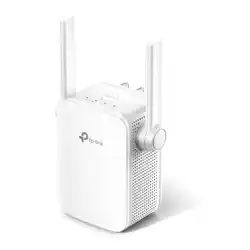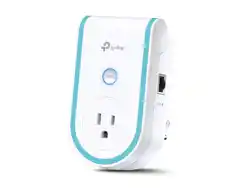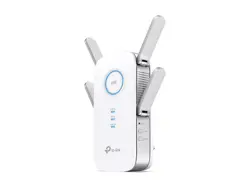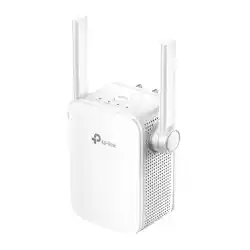

Wi-Fi Range Extender
RE205/RE305/RE750C
User Guide
REV4.0.0 1910013724
1
About This Guide
This guide is a complement to Quick Installation Guide. The Quick Installation Guide
provides instructions for quick internet setup, while this guide contains details of each
function and demonstrates how to configure them.
Note: Features available in the range extender may vary by model and software version.
The range extender availability may also vary by region or ISP. All images, steps, and
descriptions in this guide are only examples and may not reflect your actual range
extender experience.
Conventions
In this guide the following conventions are used:
Convention Description
Underline
Underlined words or phrases are hyperlinks. You can click to redirect to a
website or a specific section.
Teal
Contents to be emphasized and texts on the web page are in teal, including the
menus, items, buttons and so on.
>
The menu structures to show the path to load the corresponding page.
For example, Advanced > Wireless > MAC Filtering means the MAC Filtering
function page is under the Wireless menu that is located in the Advanced tab.
Note:
Ignoring this type of note might result in a malfunction or damage to the device.
Tip:
Indicates important information that helps you make better use of your device.
More Info
The latest software, management app and utility are available from Download Center at
https://www.tp-link.com/support/.
The Quick Installation Guide can be found where you find this guide or inside the
package of the extender.
Specifications can be found on the product page at https://www.tp-link.com.
TP-Link community is provided for you to discuss our products and share knowledge at
https://community.tp-link.com.
Our Technical Support contact information can be found at the Contact Technical
Support page at https://www.tp-link.com/support/.
Speed/Coverage Disclaimer
*Maximum wireless signal rates are the physical rates derived from IEEE Standard
802.11 specifications. Actual wireless data throughput and wireless coverage are
not guaranteed and will vary as a result of 1) environmental factors, including building
materials, physical objects, and obstacles, 2) network conditions, including local
interference, volume and density of traffic, product location, network complexity, and
network overhead, and 3) client limitations, including rated performance, location,
connection quality, and client condition.

2
* Further software upgrades for feature availability may be required.
*TP-Link EasyMesh-compatible products can network with other devices that use
EasyMesh. Failed connections may be due to firmware conflicts of different vendors.
The EasyMesh-Compatible function is still being developed on some models and
will be supported in subsequent software updates. This product is compatible with
standardized EasyMesh technology but has not obtained the Wi-Fi EasyMesh
TM
certification.

4
Chapter 1
Get to Know About Your Extender
1. 1. Product Overview
Bring Dead Zones Back to Life
The TP-Link extender is connected to your router wirelessly, strengthening its signal
and expanding its coverage into areas that could not otherwise be reached.
Easy Installation & Quick Position
Instantly connect the extender to a router by pressing the router’s WPS button (if
available) followed by the extender’s WPS button. Alternatively, follow the Quick Setup
instructions found on the extender’s web management page.
Once the extender is connected to a router, you can relocate it to your preferred location
with no further configuration required. The intelligent signal light can help to find the
best location.
Easy Management with the Tether App
Tether provides a simple, intuitive way to access and manage your extender with your
smart devices.
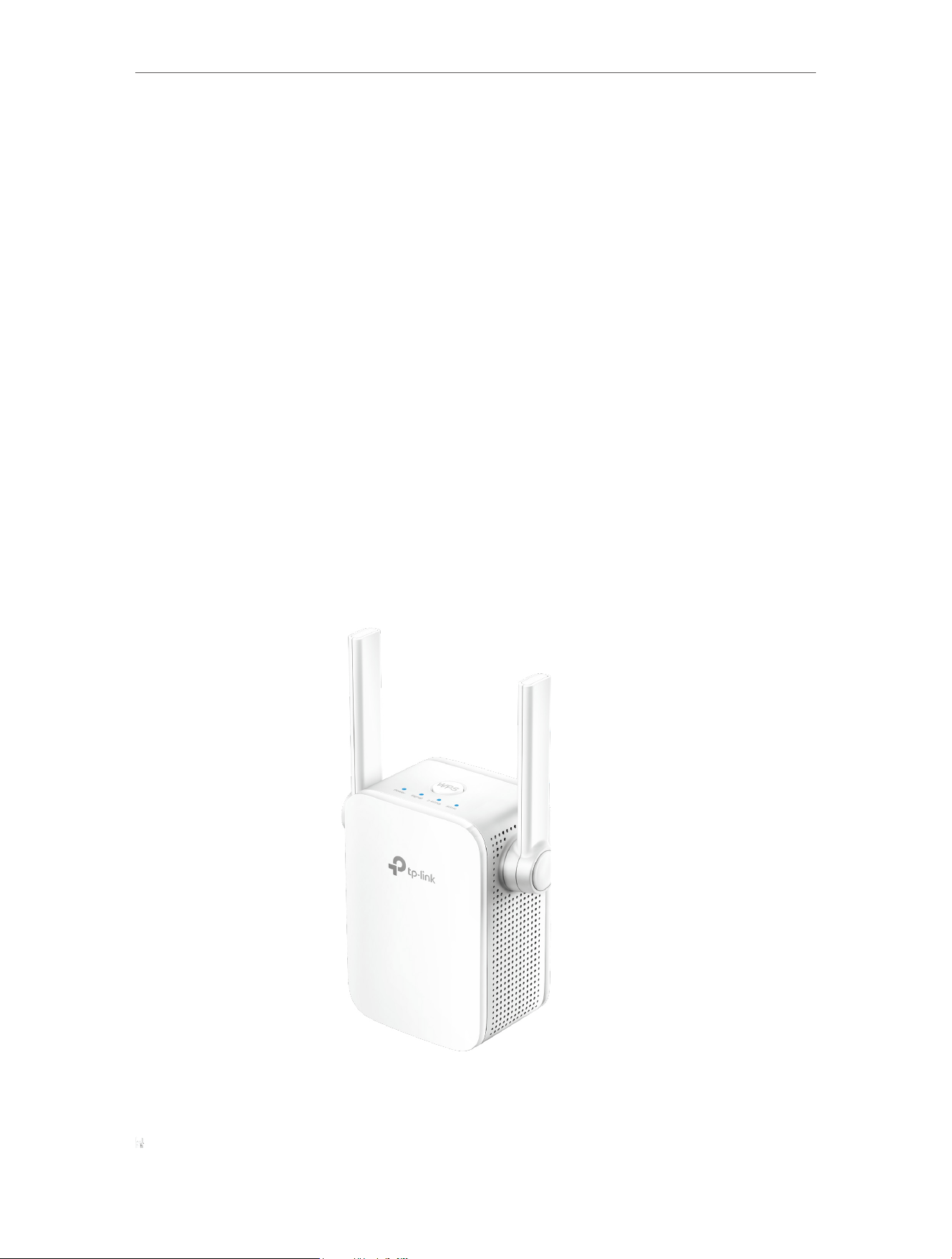
1. 2. Appearance
Note: The provided plug may differ from the picture due to different regional power specifications.
5
Chapter 1
Get to Know About Your Extender
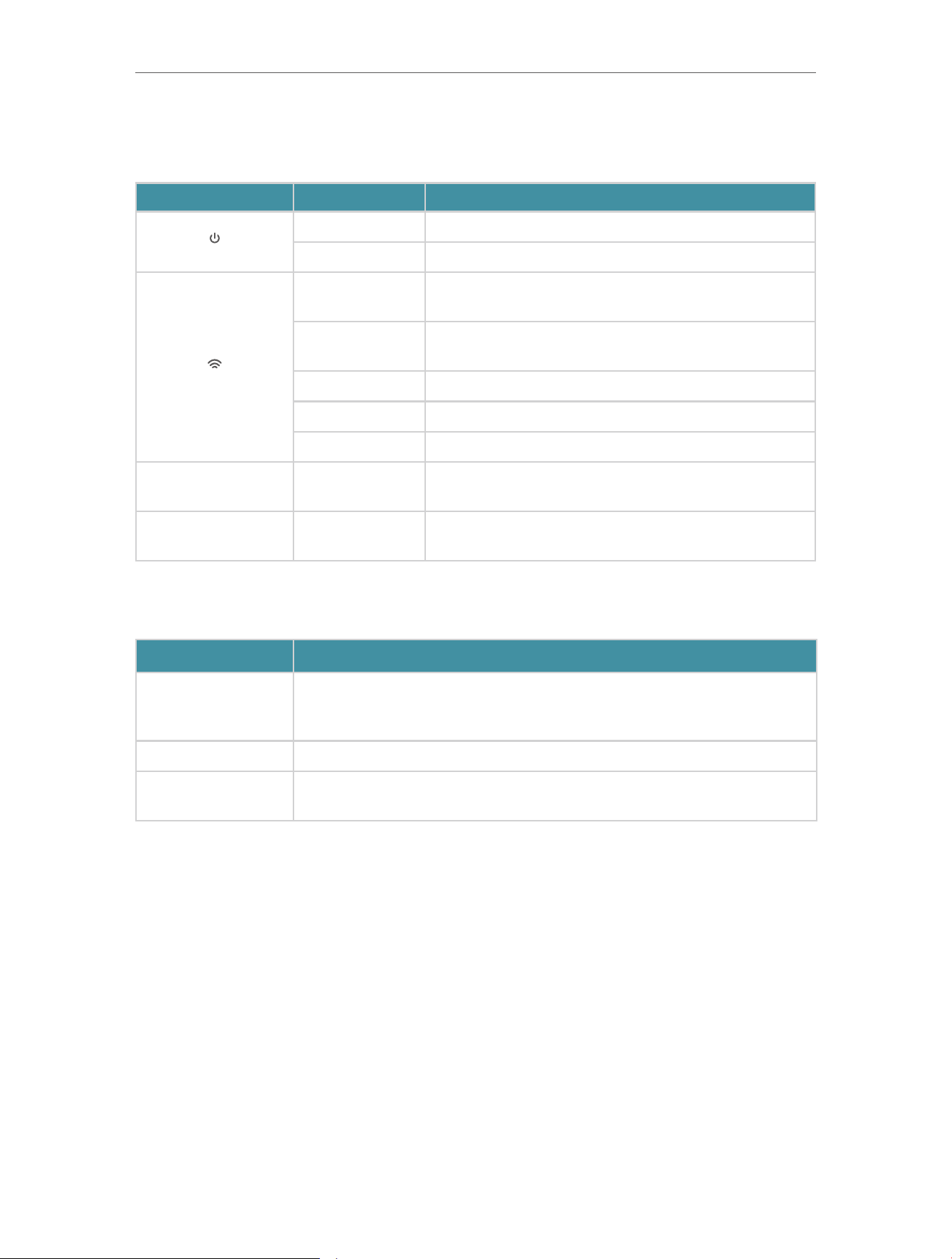
1. 2. 1. LED Explanation
You can check the extender’s working status by following the LED Explanation table.
Name Status Indication
( )
Power
On/Off The extender is on or off.
Blinking Fast The system is starting up or firmware is being upgraded.
( )
Signal
Solid Blue
The extender is connected to your router’s wireless
network and is in a suitable location.
Solid Red
The extender is experiencing poor signal strength. Try
relocating it closer to your router.
Blinking Slowly WPS connection is in progress.
Blinking Fast WPS connection failed.
Off No wireless connection is established.
2.4GHz On/Off
The extender is connected or not connected to the
2.4GHz wireless network of your host router.
5GHz On/Off
The extender is connected or not connected to the 5GHz
wireless network of your host router.
1. 2. 2. Port and Button Description
Ports or Buttons Description
WPS Button
Press the WPS button on your host router, and immediately press the WPS
button on the extender for 1 second. The Signal LED of the extender should
change to solid on, indicating successful WPS connection.
RESET Button Use a pin to press the button for 1 second to reset the extender.
Ethernet Port
Connect your Ethernet-only device to the Ethernet port of the extender to join
the Wi-Fi network.

7
Chapter 2
Set Up Internet Connection
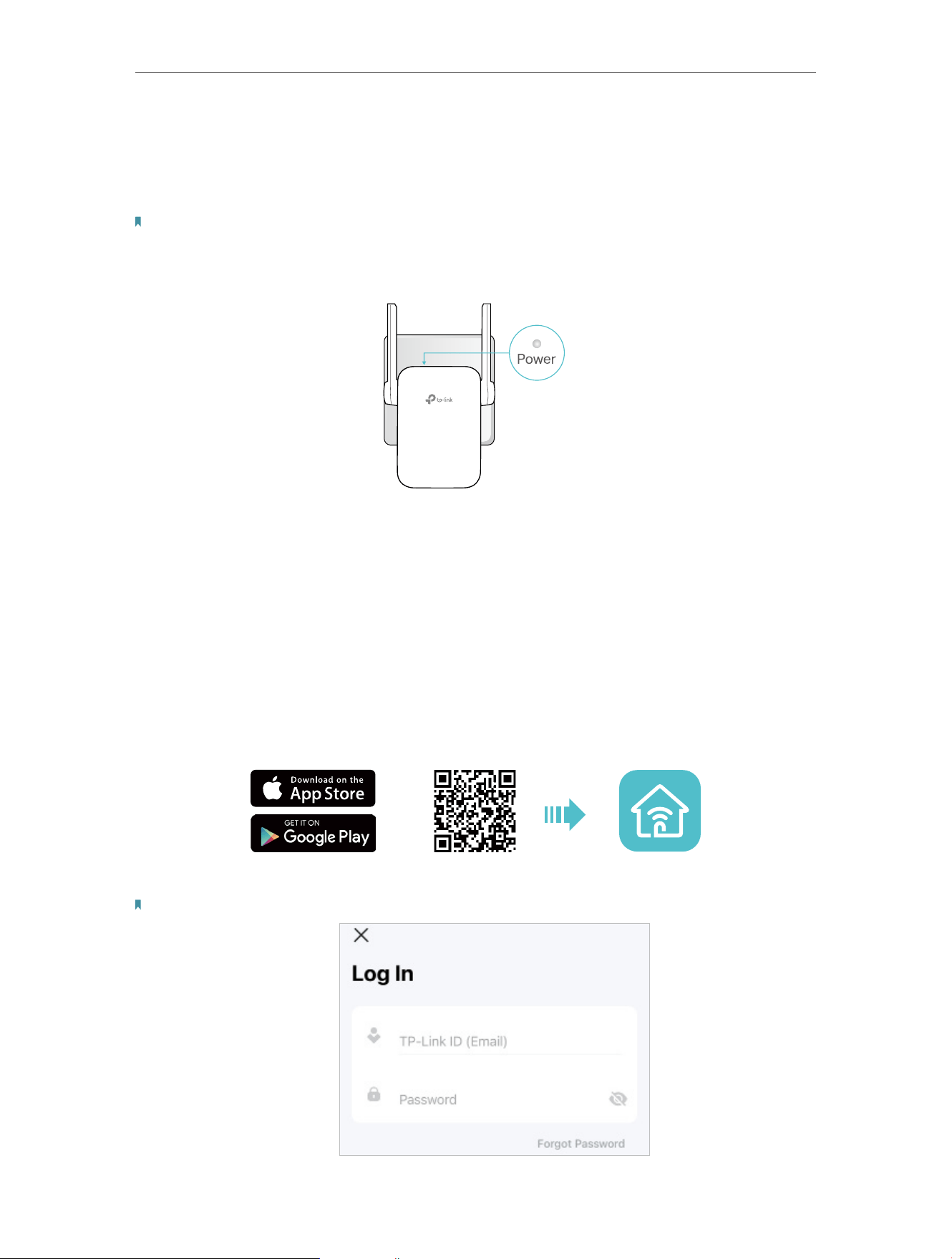
2. 1. Power On the Extender
Plug the extender into an electrical outlet near your main router, and then wait until the
Power LED is solid on.
Notes:
• For safety, only plug the extender in upright direction as shown below. The antennas are not detachable. Do not force
the antennas to rotate to avoid damaging your extender.
• The operating temperature should be between 0°C and 40°C (32°F - 104°F).
Solid On
2. 2. Set Up the Extender
There are three ways to set up the extender: via the TP-Link Tether app, via a web
browser, or via the WPS button.
2. 2. 1. Method 1: Via the TP-Link Tether App
1. Launch the Apple App Store or Google Play Store and search TP-Link Tether or simply
scan the QR code to download and install the app.
OR
2. Launch the Tether app and log in with your TP-Link ID.
Note: If you don’t have a TP-Link ID, create one first.
8
Chapter 2
Set Up Internet Connection
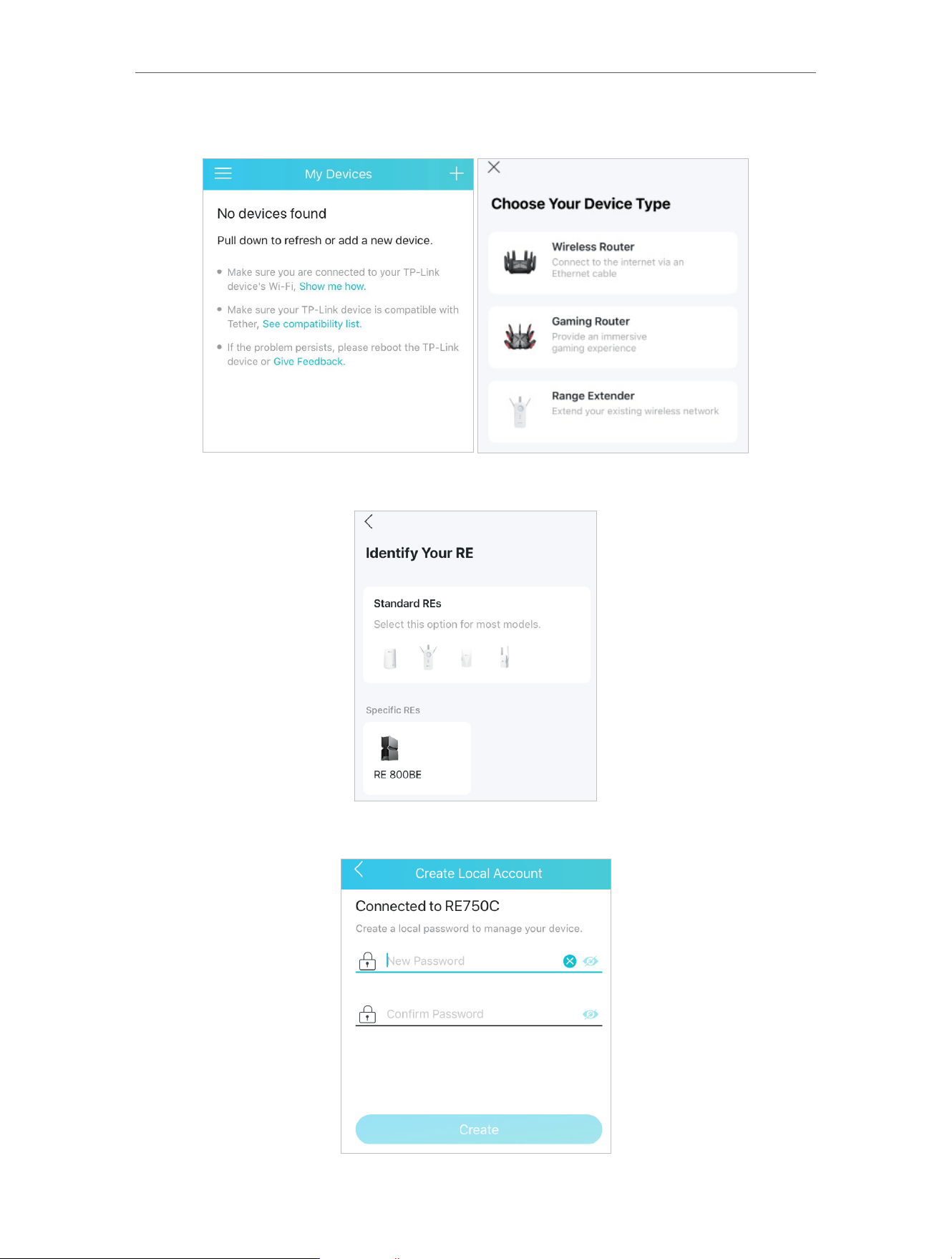
3. Tap the + icon on the upper-right corner and select Range Extender.
4. Choose your RE from either Standard REs or Specific REs.
5. Create a local password to manage your device.
9
Chapter 2
Set Up Internet Connection
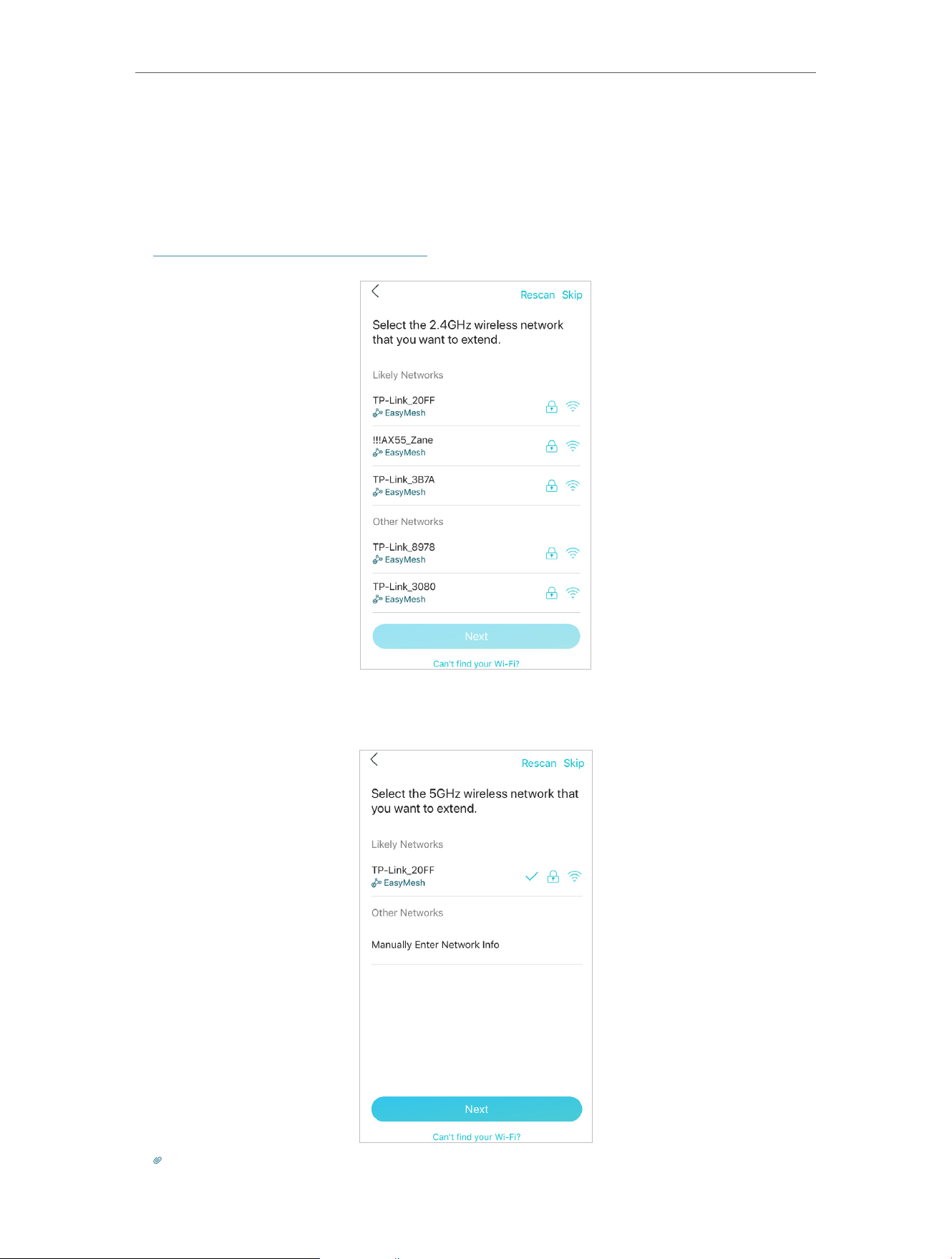
6. A scanning process for the wireless network will begin. Select your main router’s
2.4GHz SSID (network name) and click Next, enter its password (NOT the password
you just created for management) , and click Next.
If the extender connects to an EasyMesh router, it will copy the router’s wireless
settings for seamless roaming. For more information about EasyMesh, refer to
EasyMesh with Seamless Roaming.
7. Select your main router’s 5GHz SSID (network name) and click Next, enter its
password (NOT the password you just created for management) , and click Next.
Tip: If your main router does not support 5GHz wireless network, please click Skip to continue.
10
Chapter 2
Set Up Internet Connection
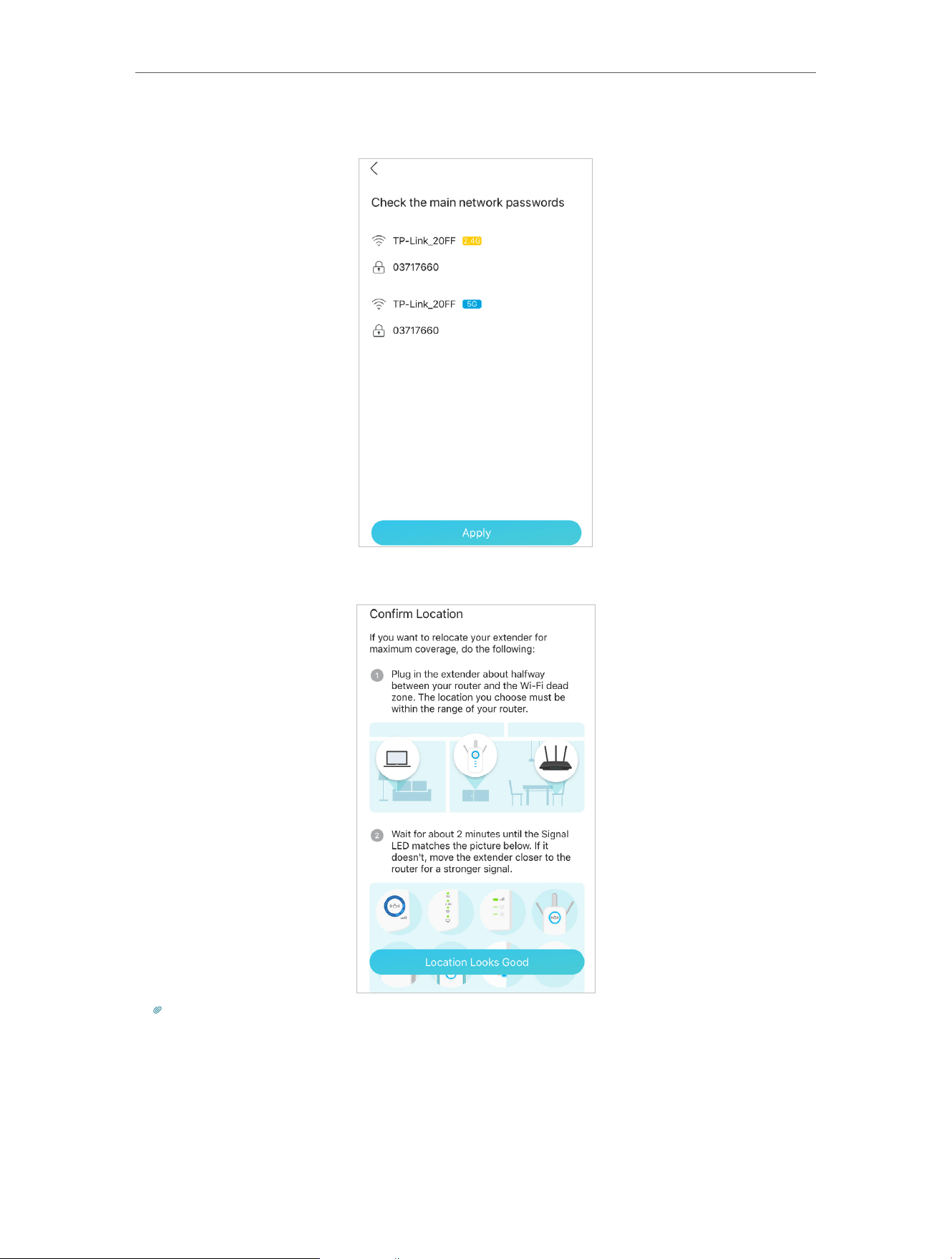
8. Confirm the main network passwords and click Apply to apply the settings.
9. Follow app instructions to relocate your extender.
Tips:
For more intuitive location assistant, access extender settings via Tether and go to Tools > Location Assistant.
You can also manage your extender via Tether, such as controlling LEDs, sharing passwords of your networks and
blocking devices.
11
Chapter 2
Set Up Internet Connection
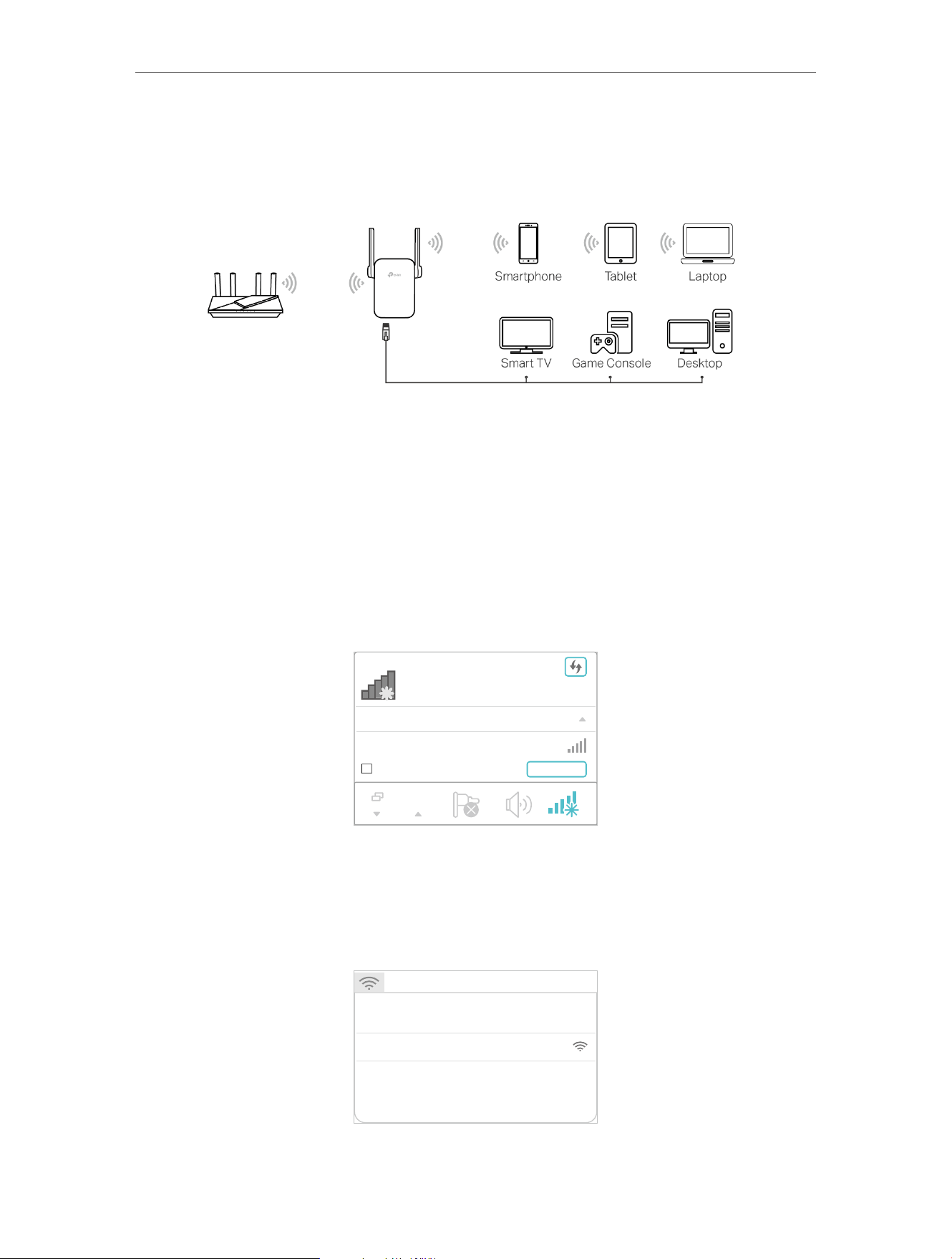
Enjoy! Connect your devices to the extender wirelessly or via an Ethernet cable, then
enjoy the internet.
2. 2. 2. Method 2: Via a Web Browser
1. Connect your computer to the extender via an Ethernet cable, or connect wirelessly
as follows:
• For Windows Users
1 ) Unplug the Ethernet cable from your computer (if any).
2 ) Click the Wi-Fi icon on the taskbar and connect to the extender’s wireless
network: TP-Link_Extender.
C
onnections are available
Wireless Network
C
onnection
TP-Link_Extender
Connect automatically
Connect
√
√
• For Mac OS X Users
1 ) Unplug the Ethernet cable from your computer (if any).
2 ) Click the Wi-Fi icon in the top right corner of the screen, and connect to the
extender’s network: TP-Link_Extender.
Wi-Fi: On
Tu rn Wi-Fi O
Join Other Network...
Create Network...
Open Network Preferences...
TP-Link_Extender
12
Chapter 2
Set Up Internet Connection
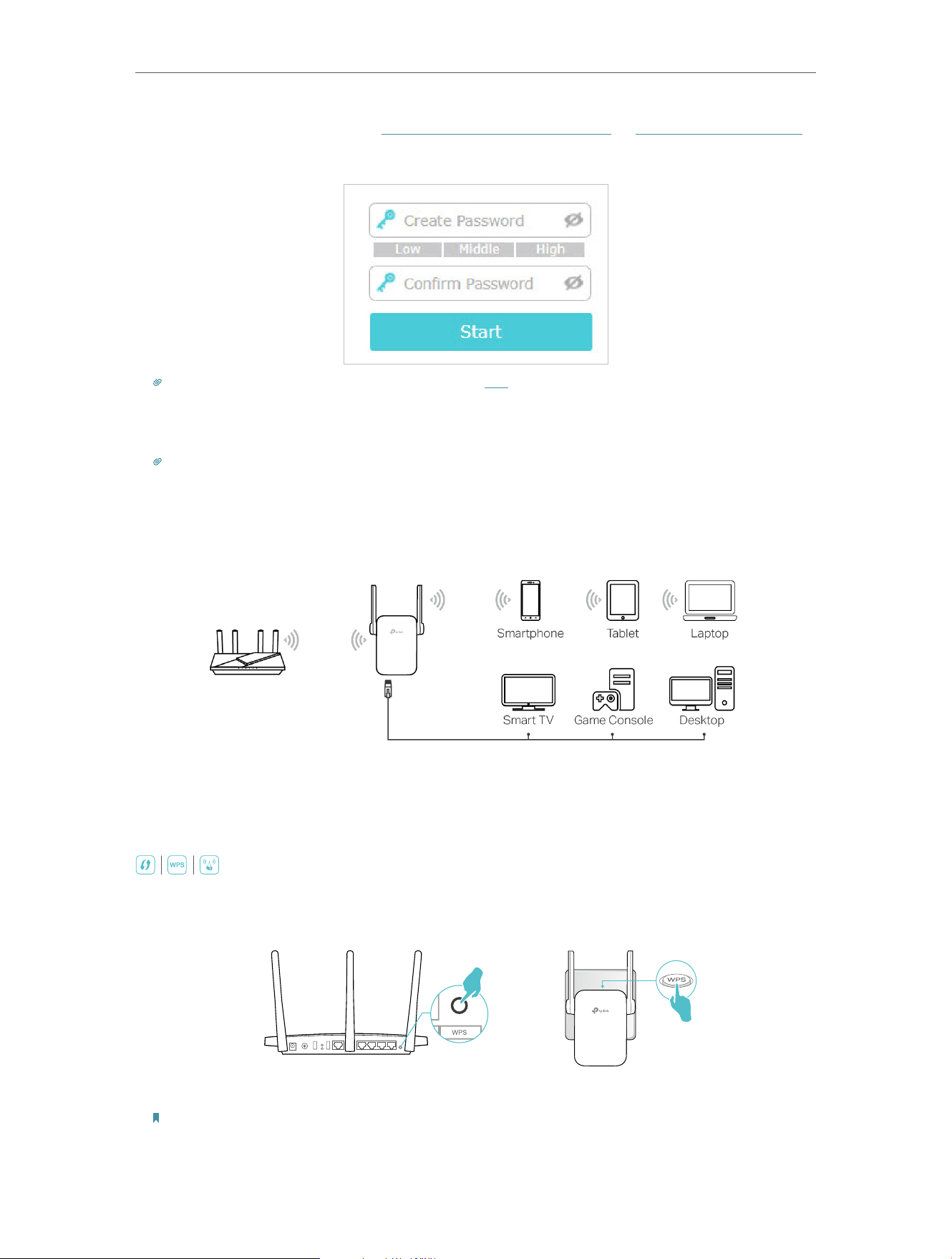
2. Launch a web browser, enter http://www.tplinkrepeater.net or http://192.168.0.254 in
the address bar, and then create a password to log in.
Tip: If the login window does not appear, please refer to FAQ.
3. Follow web instructions to connect the extender to your main router, and to relocate
the extender.
Tip: The setup procedures are similar to that of the Tether app.
4. Enjoy! Connect your devices to the extender wirelessly or via an Ethernet cable, then
enjoy the internet.
2. 2. 3. Method 3: Via the WPS Button
Use this way if your router has a WPS button. The button might look like one of these:
.
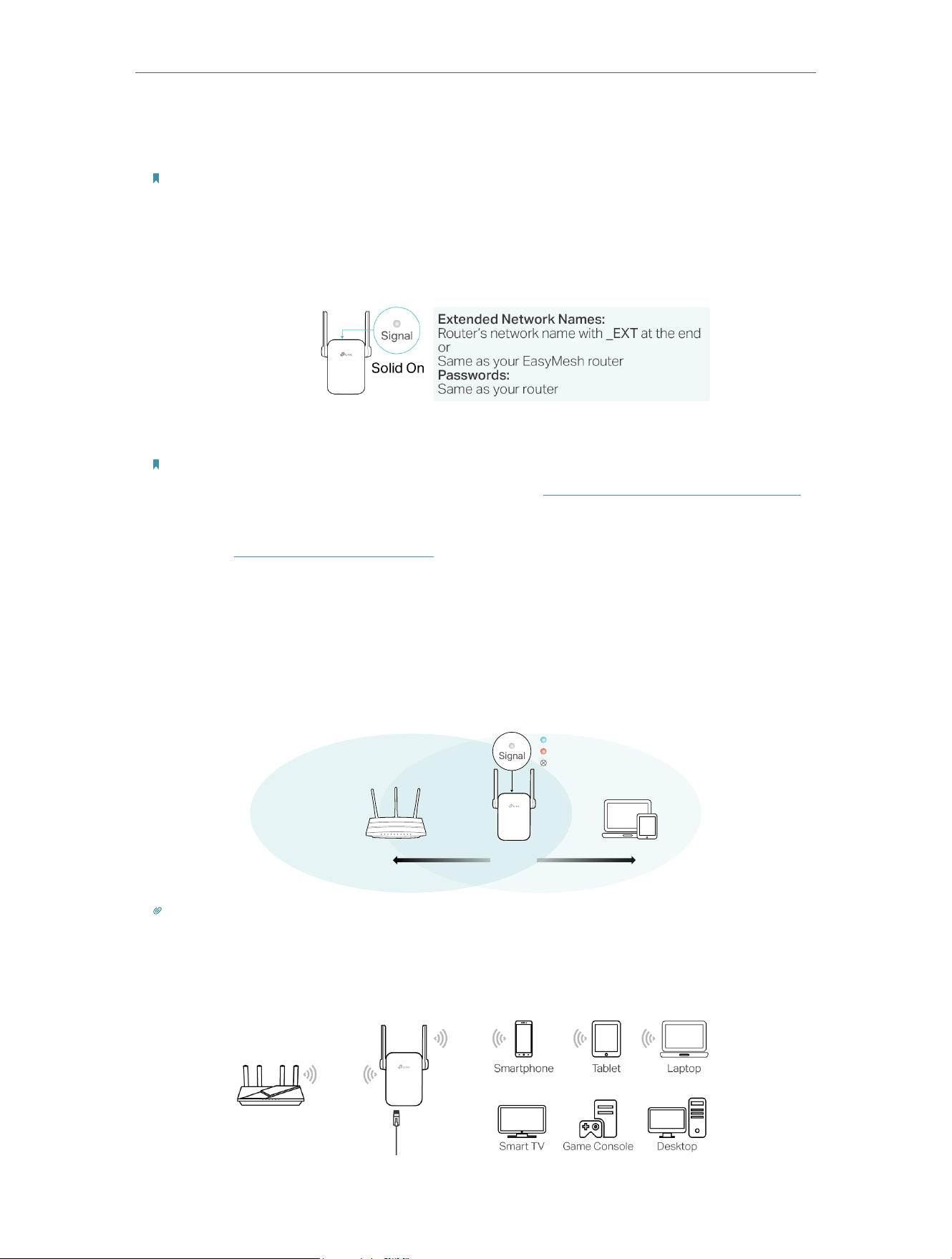
1. Press the WPS button on your main router, and then press the WPS button on the
extender for 1 second within 2 minutes.
Note: If you don’t know how to do it, refer to your router’s user manual, or you can use other methods to set it up.
13
Chapter 2
Set Up Internet Connection
2. Wait until the Signal LED changes to solid blue and the 2.4GHz LED and 5GHz LED
turn solid on, indicating a successful connection.
Notes:
• If only the 2.4GHz or 5GHz LED illuminates, check to see if the router has both 2.4 GHz and 5 GHz turned on. If
both are turned on, try WPS again or use another method.
• WPA3 required for 6 GHz bands does not allow WPS connection. To connect to a router’s 6 GHz band, please
connect via the Tether app or web browser.
Notes:
• If you want to customize the extended network name, refer to To change the wireless network name (SSID):.
• If you cannot find the network names with _EXT in your Wi-Fi network list, this means that the extender has
been connected to an EasyMesh router and automatically copied its wireless settings. For more information,
refer to EasyMesh with Seamless Roaming.
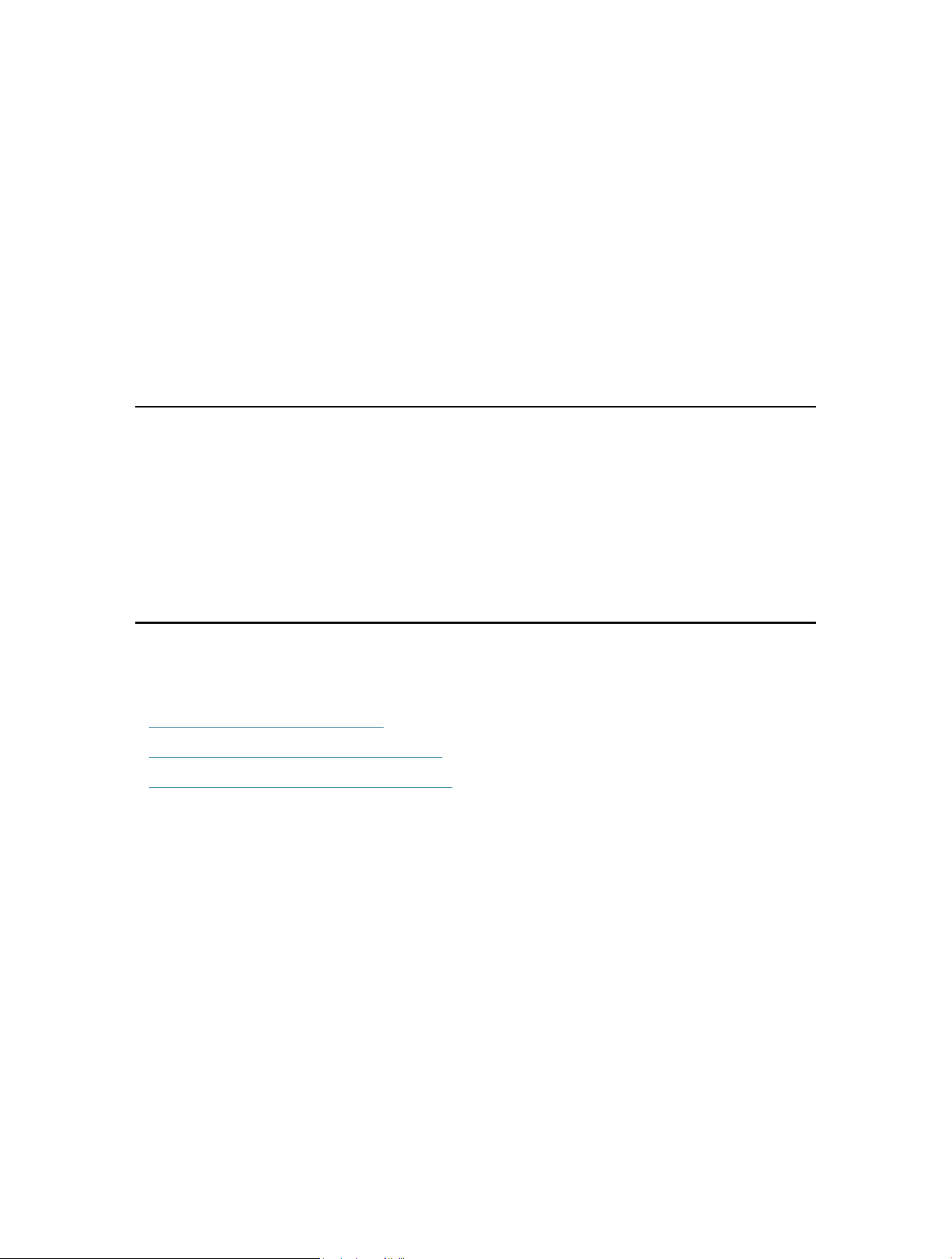
3. Relocate your extender for optimal Wi-Fi coverage and performance.
1 ) Plug in the extender about halfway between your router and the Wi-Fi dead zone.
The location you choose must be within the range of your router.
2 ) Wait for about 2 minutes until the Signal LED turns solid blue. If it doesn’t, relocate
the extender closer to the router to achieve better signal quality.
Router Devices
Halfway
Suitable location
Too far from router
No connection
Tip: To minimize signal interference, please choose a location which is far away from Bluetooth devices and other
household electronic devices, such as cordless phones, microwave ovens and baby monitors.
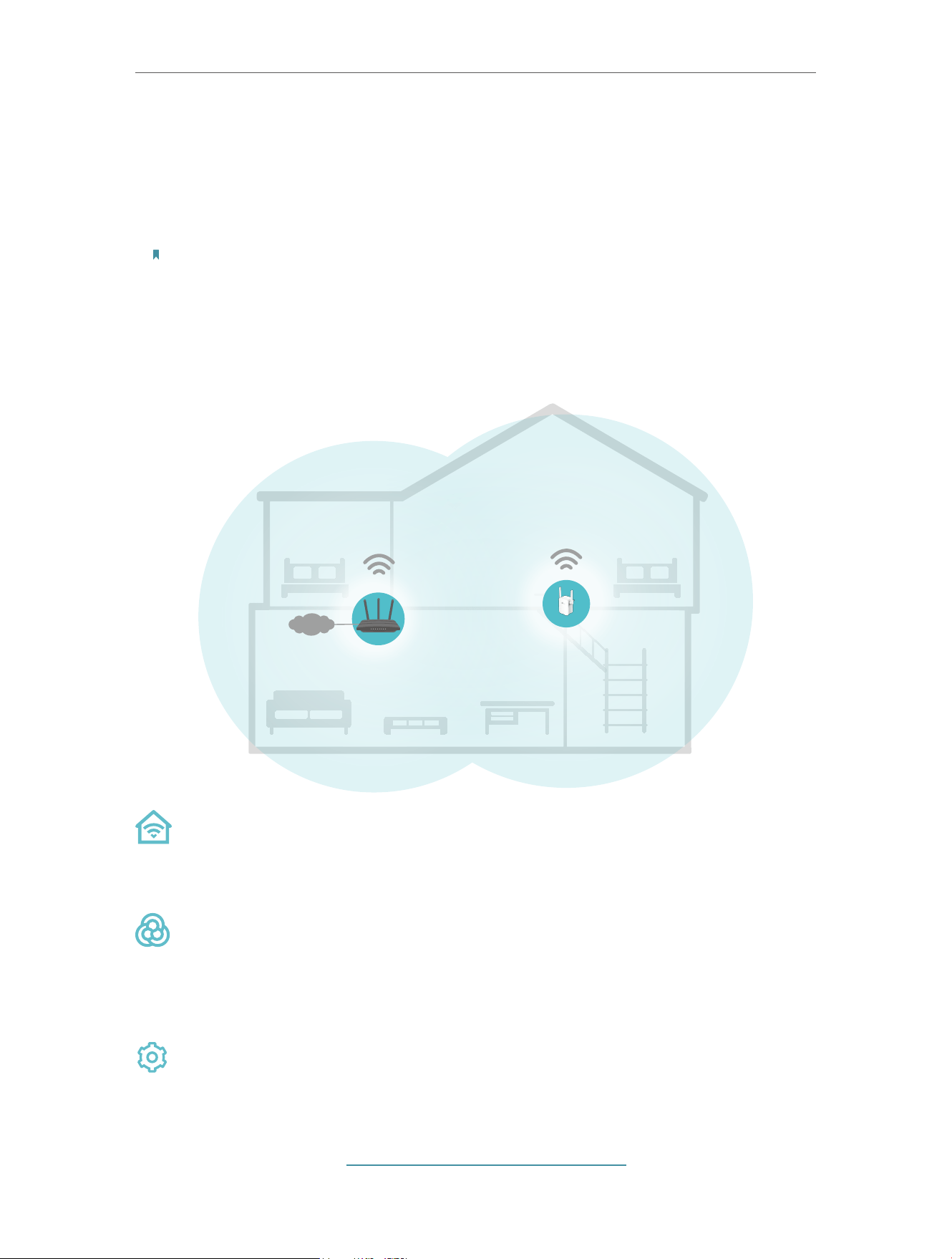
4. Enjoy! Connect your devices to the extender wirelessly or via an Ethernet cable, then
enjoy the internet.
15
Chapter 3
EasyMesh with Seamless Roaming
3. 1. What‘s an EasyMesh Network
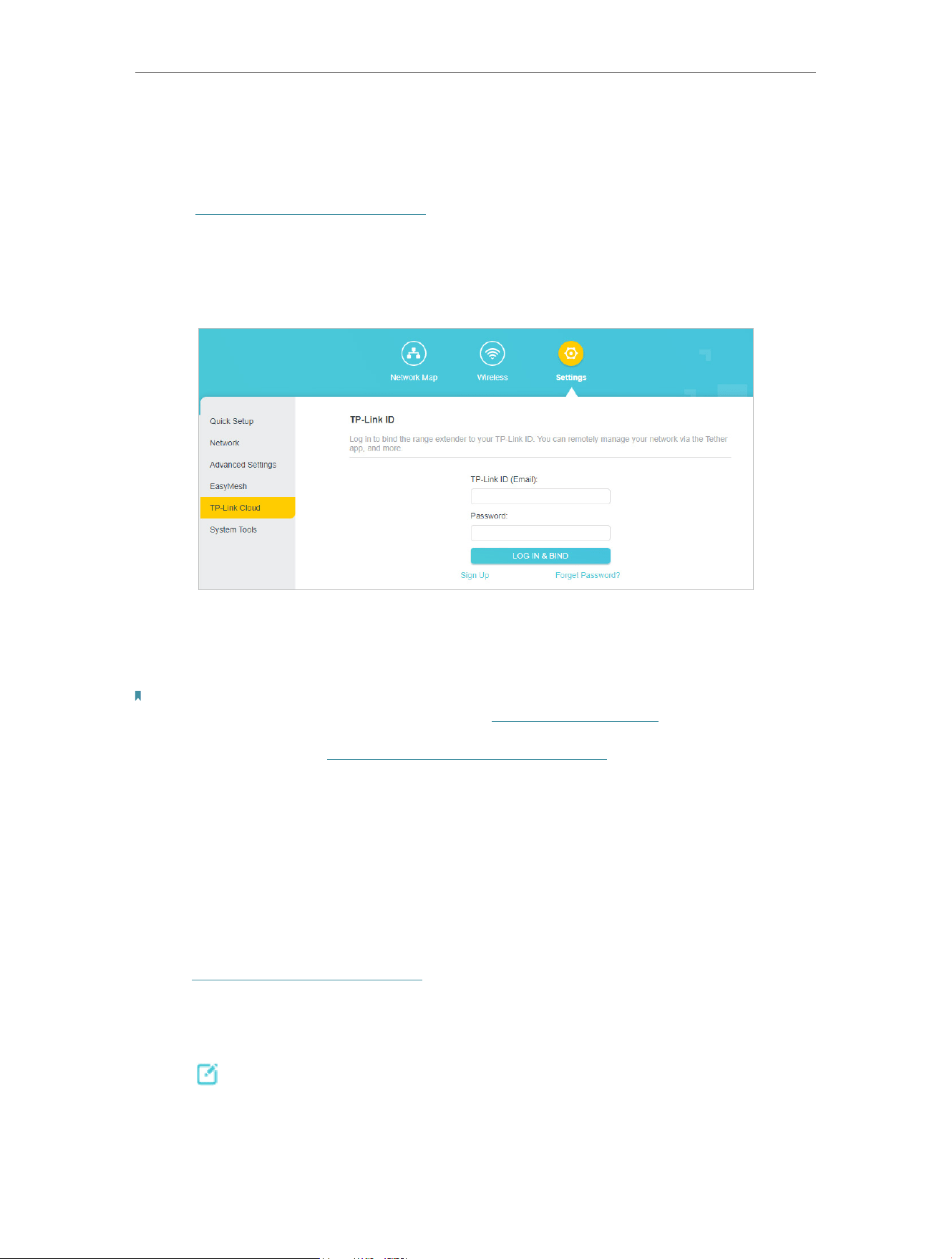
TP-Link EasyMesh router and TP-Link EasyMesh extenders work together to form one
unified Wi-Fi network. Walk through your home and stay connected with the fastest
possible speeds thanks to EasyMesh’s seamless coverage.
Notes:
• Routers and range extenders must be compatible with EasyMesh or OneMesh™. Firmware upgrades may be
required.
• TP-Link EasyMesh-compatible products can network with other devices that use EasyMesh. Failed connections
may be due to firmware conflicts of different vendors.
• The EasyMesh-Compatible function is still being developed on some models and will be supported in subsequent
software updates.
INTERNET
SAME
Network Name & Password
for seamless roaming
Flexible Scalability
Flexibly scale your home networking with different vendors,* different topologies,
different Protocols and different product categories.
Seamless Roaming
Connects mobile devices to your routers or extenders that provide the best coverage.
Devices compatible with EasyMesh also share a single Wi-Fi name so you stay
connected in every room.
One-Click Settings
Press the WPS button on the main router and the extender within 2 minutes of each
other, then the EasyMesh network will set up.
For more information, visit https://www.tp-link.com/easymesh/.

16
Chapter 3
EasyMesh with Seamless Roaming
3. 2. How to Set Up an EasyMesh Network
1. Make sure your router supports EasyMesh or OneMesh
TM
.
Note: To check full list of EasyMesh devices, visit https://www.tp-link.com/EasyMesh/compatibility. Firmware
update may be required for some firmware versions.
2. Connect the extender to your router by referring to the provided Quick Installation
Guide or Set Up Internet Connection. The extender will automatically join your router’s
mesh network.
3. 3. How to Manage an EasyMesh Network
• To leave or join an EasyMesh network:
1. Visit http://www.tplinkrepeater.net, and log in with the password you set for the
extender.
2. Go to Settings > EasyMesh.
3. Toggle off or on EasyMesh according to your needs.
Note: This function is available only when the extender is connected to an EasyMesh router.
• To change wireless settings:
Simply change wireless settings on your EasyMesh router, the extender will automatically
copy the settings.
• To manage devices in the EasyMesh network:
1. Connect your computer or smartphone to the extender‘s or router’s network.
2. Log in to your router’s web management page (http://tplinkwifi.net).
3. Go to the EasyMesh page to view and manage all mesh devices and their clients.

Chapter 4
TP-Link Cloud Service
TP-Link Cloud service provides a better way to manage your cloud devices. Log in to
your cloud device with a TP-Link ID, and you can easily monitor and manage your home
network when you are out and about via the Tether app on your smartphone or tablet.
To ensure that your cloud device stays new and gets better over time, the TP-Link
Cloud will notify you when an important firmware upgrade is avaliable. Surely you can
also manage multiple TP-Link Cloud devices with a single TP-Link ID.
This chapter introduces how to register a new TP-Link ID, bind or unbind TP-Link IDs to
manage your cloud device, and the Tether app with which you can manage your home
network no matter where you may find yourself.
It contains the following sections:
• Register a TP-Link ID
• Change Your TP-Link ID Information
• Manage the User TP-Link IDs
• Manage the Extender via the TP-Link Tether App
18
Chapter 4
TP-Link Cloud Service
4. 1. Register a TP-Link ID
You can access the TP-Link Cloud settings as follows:
1. Visit http://www.tplinkrepeater.net, and log in with the password you set for the
extender.
2. Go to Settings > TP-Link Cloud.
3. Click Sign Up and follow the instructions to register a TP-Link ID.
4. After activating your TP-Link ID, come back to the TP-Link Cloud page to log in. The
TP-Link ID used to log in to the extender for the first time will be automatically bound
as an Admin.
Notes:
• To learn more about the Admin and User TP-Link ID, refer to Manage the User TP-Link IDs.
• Once you have logged in the web management page using a TP-Link ID, you can only register another TP-Link ID via
the Tether APP. Please refer to Manage the Extender via the TP-Link Tether App to install the app and register a new
one.
• If you want to unbind the admin TP-Link ID from your extender, please go to Settings > TP-Link Cloud, an click Unbind
in the Device Information section.
4. 2. Change Your TP-Link ID Information
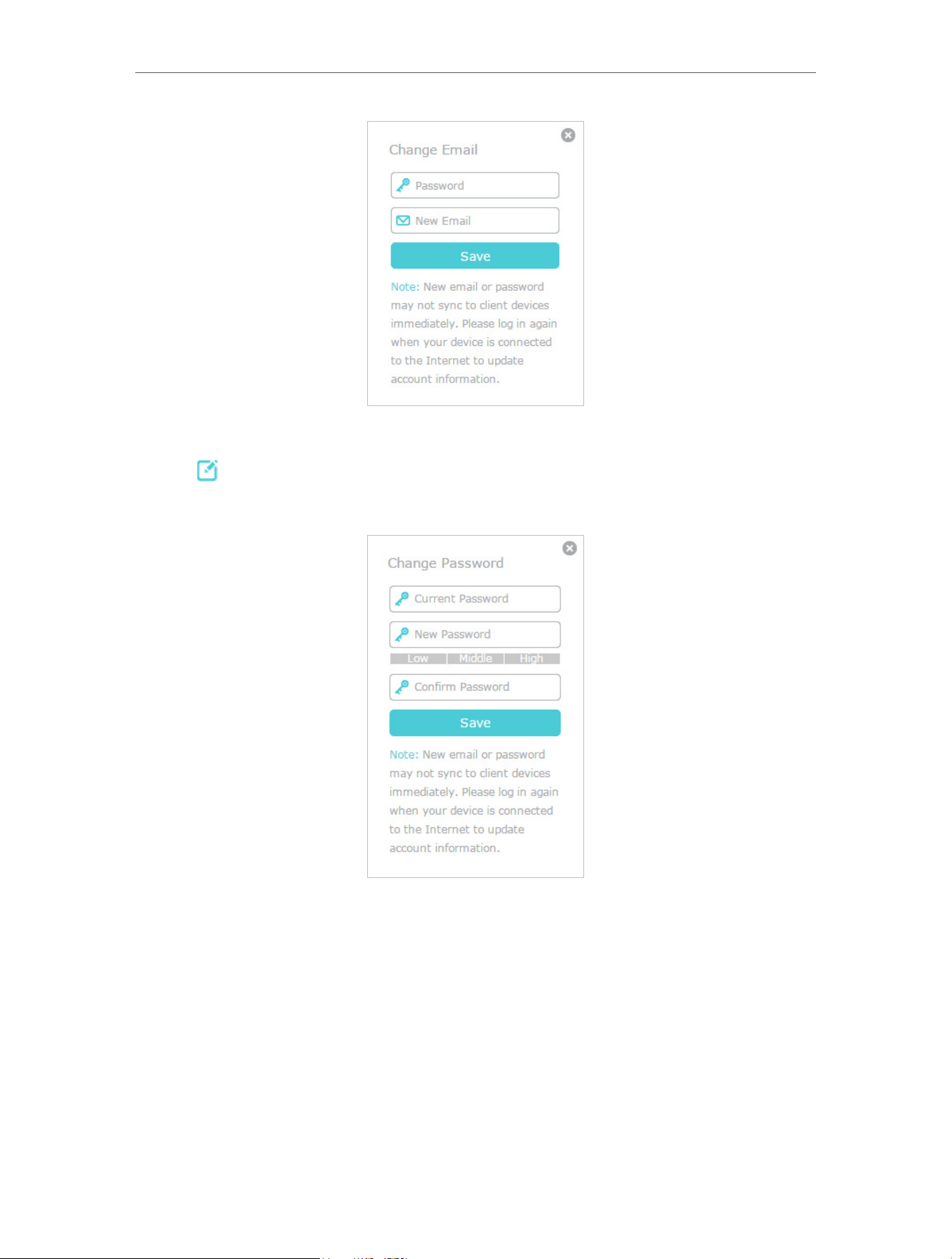
Follow the steps below to change your email address and password of your TP-Link ID
as needed.
1. Visit http://www.tplinkrepeater.net, and log in with your TP-Link ID.
2. Go to Settings > TP-Link Cloud, and focus on the Account Information section.
• To change your email address:
1. Click
next to the Email.
2. Enter the password of your TP-Link ID, then a new email address. And click Save.
19
Chapter 4
TP-Link Cloud Service
• To change your password:
1. Click
next to the Password.
2. Enter the current password, then a new password twice. And click Save.
4. 3. Manage the User TP-Link IDs
The TP-Link ID used to log in to the extender for the first time will be automatically
bound as the Admin account. An admin account can add or remove other TP-Link IDs to
or from the same extender as Users. All accounts can monitor and manage the extender
locally or remotely, but user accounts cannot:
• Reset the extender to its factory default settings either on the web management page
or in the Tether app.
• Add/remove other TP-Link IDs to/from the extender.
20
Chapter 4
TP-Link Cloud Service
4. 3. 1. Add TP-Link ID to Manage the Extender
1. Visit http://www.tplinkrepeater.net, and log in with your TP-Link ID.
2. Go to Settings > TP-Link Cloud, and focus on the Bound Accounts section.
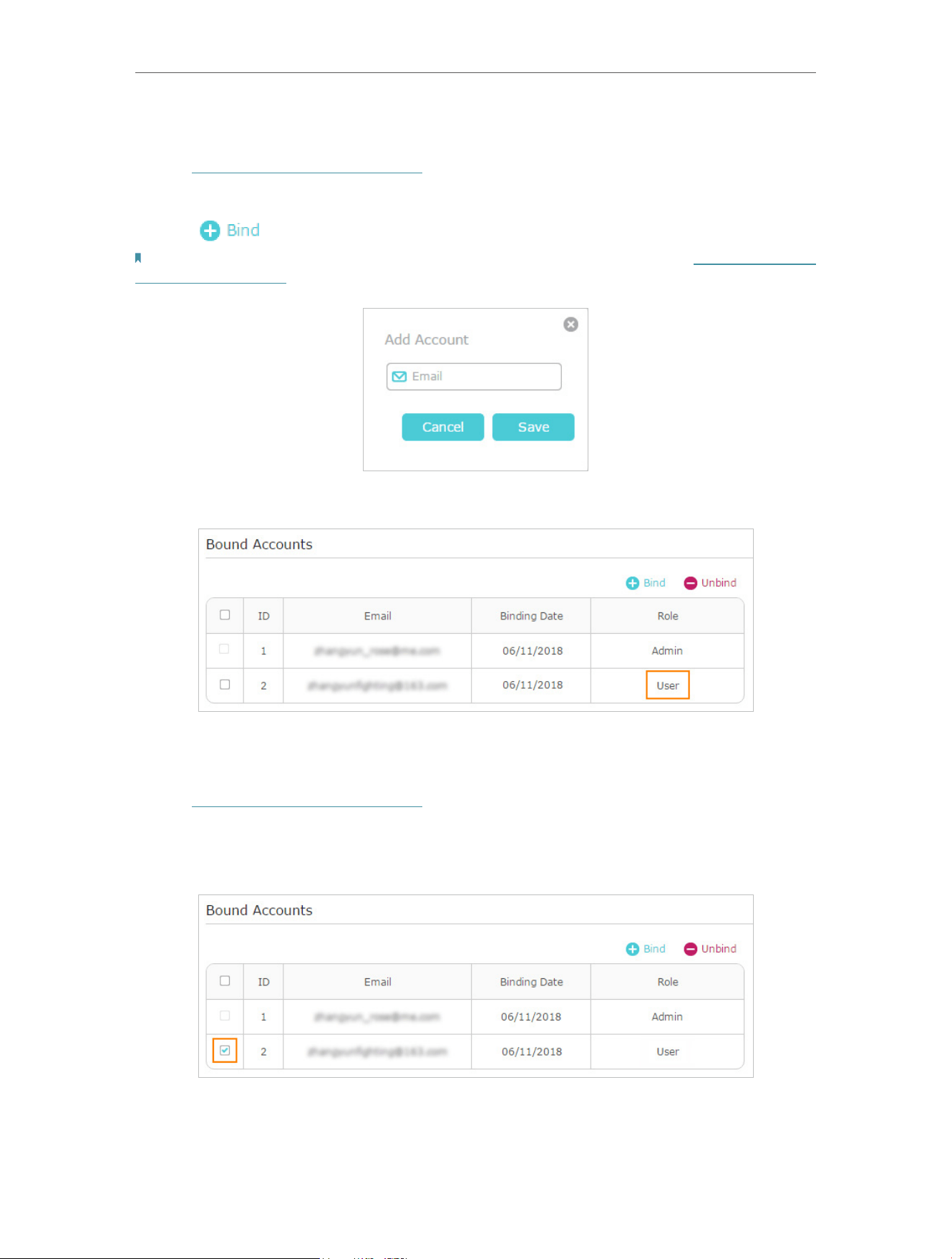
3. Click
, enter another TP-Link ID as needed and click Save.
Note: If you need another TP-Link ID, please register a new one via the Tether app. Please refer to Manage the Extender
via the TP-Link Tether App to install the app and register a new TP-Link ID.
4. The new TP-Link ID will be displayed in the Bound Accounts table as a User.
4. 3. 2. Remove TP-Link ID(s) from Managing the Extender
1. Visit http://www.tplinkrepeater.net, and log in with your TP-Link ID.
2. Go to Settings > TP-Link Cloud, and focus on the Bound Accounts section.
3. Tick the checkbox(es) of the TP-Link ID(s) you want to remove and click Unbind.
21
Chapter 4
TP-Link Cloud Service
4. 4. Manage the Extender via the TP-Link Tether App
The Tether app runs on iOS and Android devices, such as smartphones and tablets.
1. Launch the Apple App Store or Google Play store and search “TP-Link Tether” or
simply scan the QR code to download and install the app.
OR
2. Launch the Tether app and log in with your TP-Link ID.
Note: If you don’t have a TP-Link ID, create one first.
3. Connect your device to the extender’s or main router’s wireless network.
4. Go back to the Tether app, select the model of your extender and log in with the
password your set for the extender.
5. Manage your extender as needed.
Notes:
If you need to remotely access your extender from your smart devices, you need:
• Log in with your TP-Link ID. If you don’t have one, refer to Register a TP-Link ID.
• Make sure your smartphone or tablet can access the internet with cellular data or a Wi-Fi network.

23
Chapter 5 Customize Your Network
5. 1. Check Internet Status
You can view the internet status of your extender to check whether you have successfully
set up the extended network(s).
1. Visit http://www.tplinkrepeater.net, and log in with your TP-Link ID or the password
you set for the extender.
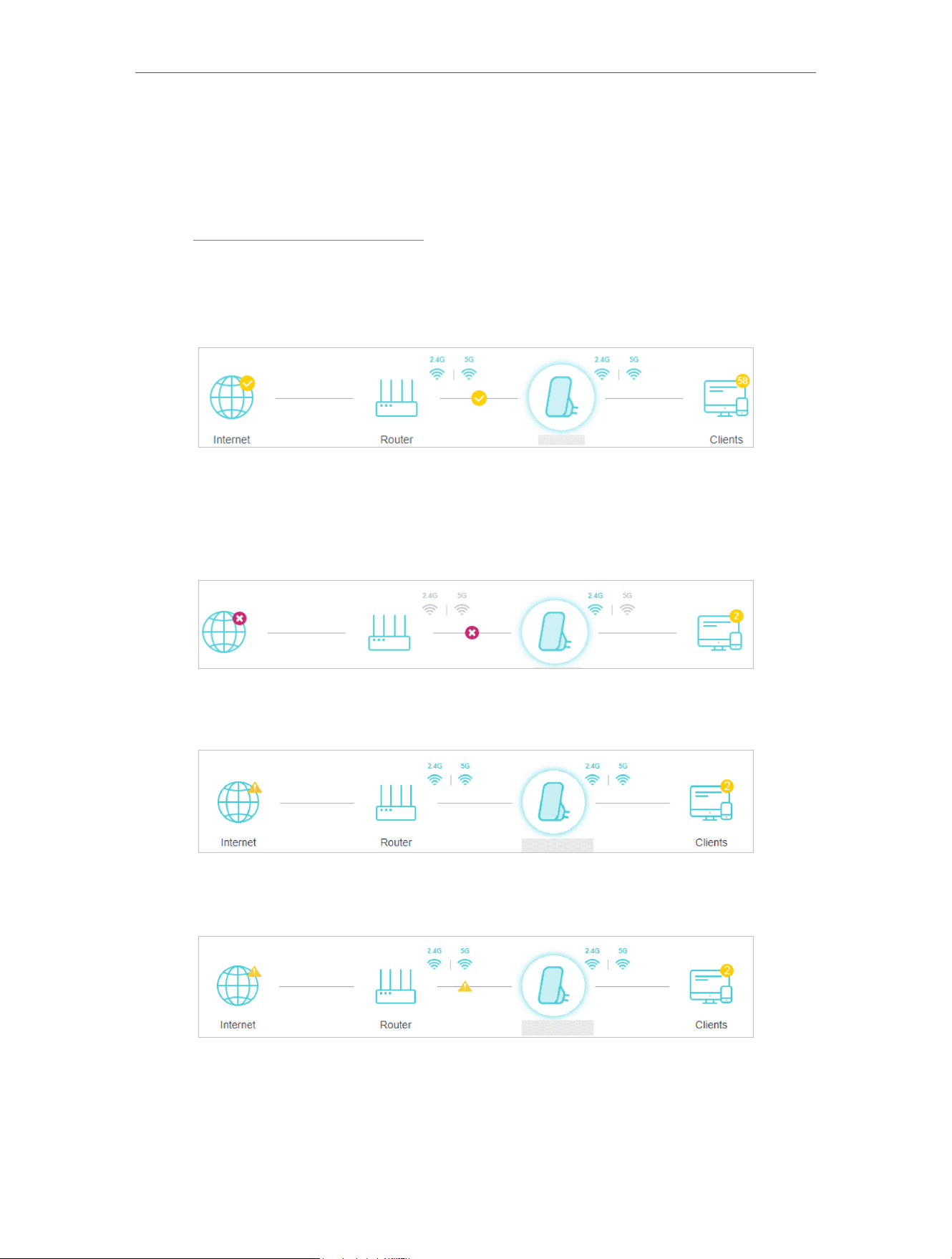
2. Go to Network Map to view the internet status of your extender.
• The extender runs normally.
• The extender fails to connect to the main networks. Please go to Wireless >
Connect to Host Network to check whether the main network passwords are
correct. If the problem still exists, relocate the extender closer to the router to
achieve better signal quality.
• The extender is connected to the main networks, but is not transmitting data.
Please check the internet connection of your router.
• The extender is connected to the router abnormally. Please go to Settings >
Network and try setting your extender to obtain an IP address automatically.
Click the icon of the Internet/Router/Range Extender/Clients to view corresponding
information.
24
Chapter 5 Customize Your Network
5. 2. Configure Wireless Network
If you want to extend another main network after Quick Setup, you can refer to this
section. You can also change the wireless settings for your extended networks.
Tip: If the extender is in your router’s EasyMesh network, it will automatically copy wireless settings from your router.
No wireless settings is needed for the extender.
Visit http://www.tplinkrepeater.net, and log in with your TP-Link ID or the password you
set for the extender.
Note: Here we take the configuration of the 2.4GHz network as an example. If the 5GHz network is available on your
extender, please refer to the instructions to set your 5GHz network.
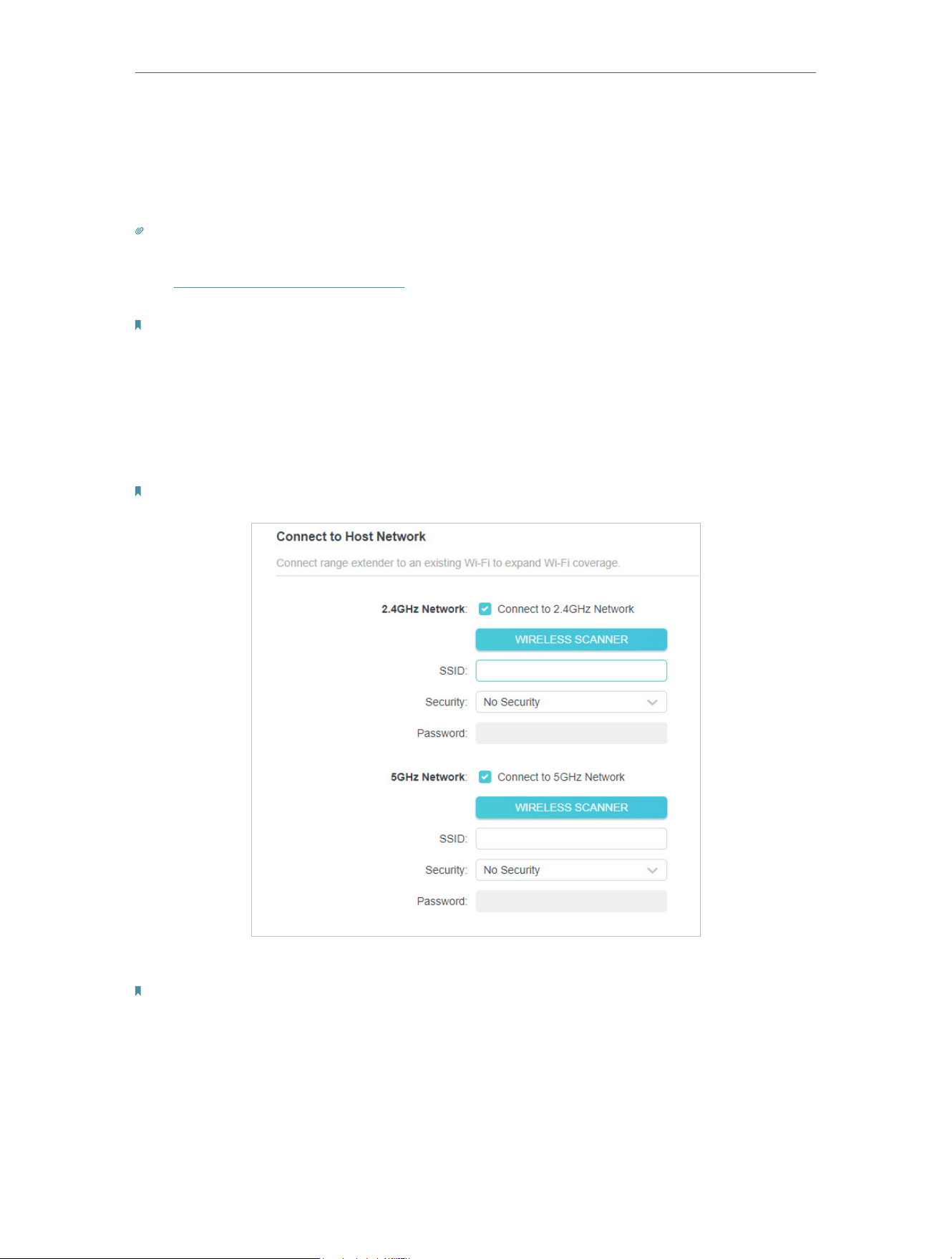
• To extend another main network:
1. Go to Wireless > Connect to Host Network.
2. Enable Connect to 2.4GHz Network and click Wireless Scanner to find all available
networks.
Note: You will not be able to change main network settings when the extender is in an EasyMesh network.
3. Select the 2.4GHz main network you want to extend.
Notes:
If the network you want to extend is on but not listed, please try the following steps:
· Move the extender closer to your router and rescan for networks.
· You can manually enter the SSID (network name) and password of the network you want to extend, and click Save.
4. Once a main network is selected, the SSID and security type will be automatically
filled in. If the selected network is encrypted, enter the password in the Password
field.
5. Click Save.
25
Chapter 5 Customize Your Network
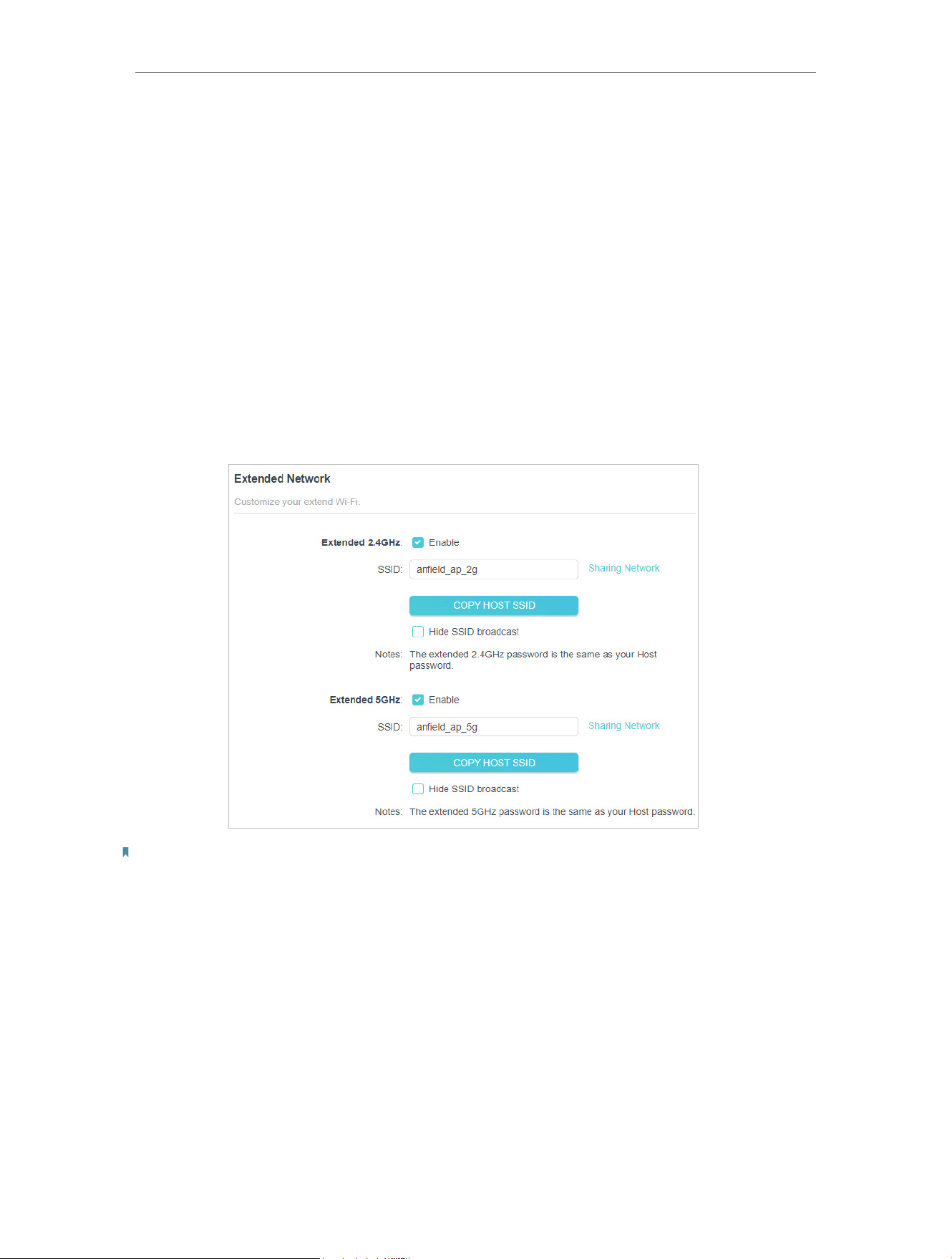
• To enable or disable the extended network:
1. Go to Wireless > Extended Network.
2. Extended networks are enabled by default. If you want to disable the wireless function
of a certain band, just clear the Enable checkbox. In this case, all the wireless settings
of this band will be invalid.
3. Click Save.
• To change the wireless network name (SSID):
1. Go to Wireless > Extended Network.
2. Create a new SSID in Extended 2.4GHz SSID or click Copy Host SSID. The value is
case-sensitive.
3. Click Save.
Note:
If you have changed the wireless settings via a wireless device, you will be disconnected after the settings are applied.
Please write down the new SSID for future use.
• To hide the SSID of the extended network:
1. Go to Wireless > Extended Network.
2. Select Hide SSID broadcast, and the corresponding SSID will not be displayed when
wireless devices scan for local wireless networks. You need to manually enter the
SSID to join the network.
3. Click Save.
26
Chapter 5 Customize Your Network
5. 3. Change LAN Settings
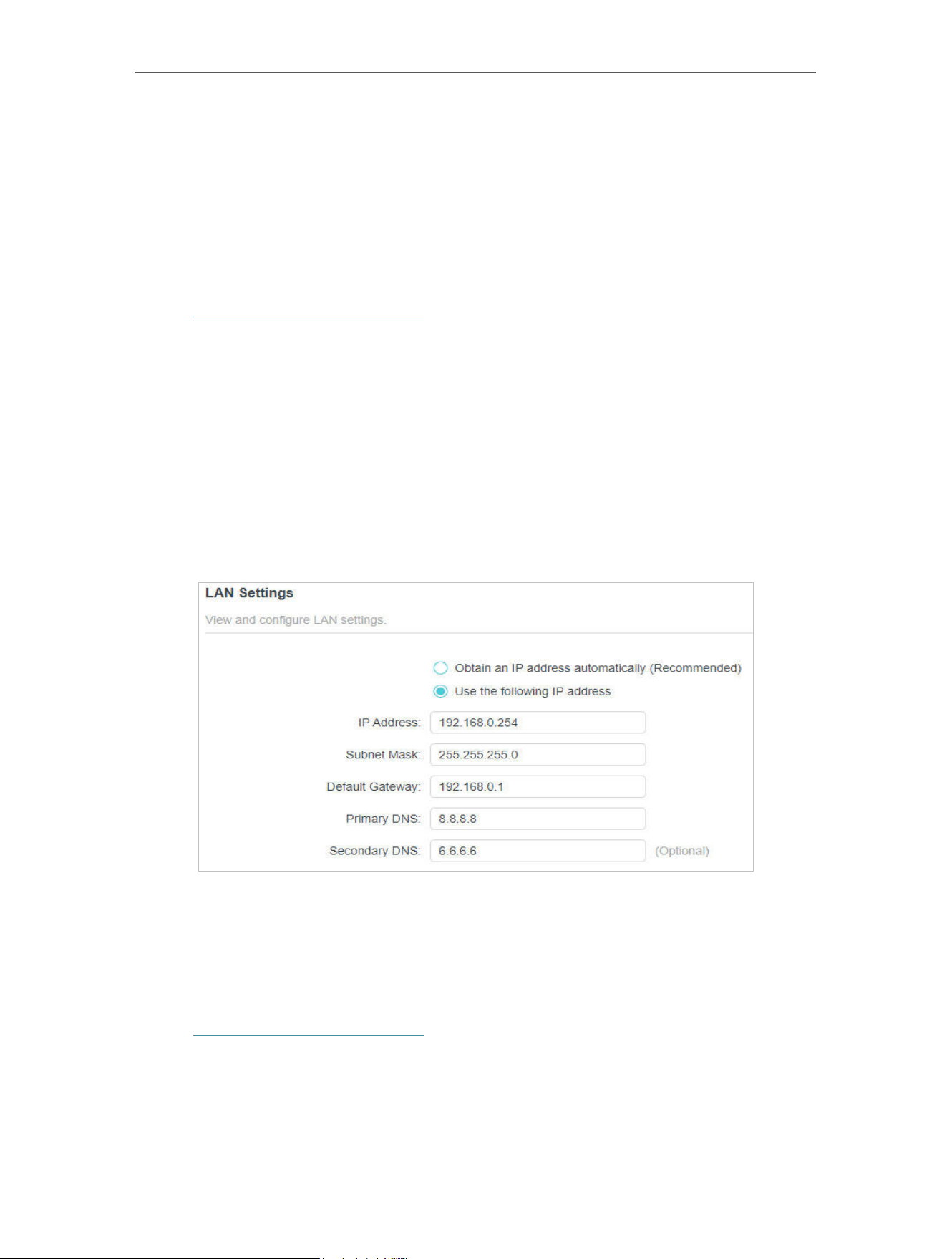
The extender is preset with a default LAN IP 192.168.0.254, with which you can log in to
the web management page. The LAN IP address, together with the Subnet Mask, also
defines the subnet that the connected devices are on. If the IP address conflicts with
another device on your local network or your network requires a specific IP subnet, you
can change it.
1. Visit http://www.tplinkrepeater.net, and log in with your TP-Link ID or the password
you set for the extender.
2. Go to Settings > Network.
3. Select Use the following IP address.
4. Enter a new IP Address as needed, and leave the subnet mask as the default settings.
5. Enter the gateway that is in the same subnet as the IP Address. The gateway is usually
the LAN IP address of your router.
6. Leave the primary and secondary DNS addresses as the default settings.
7. Click Save.
5. 4. Adjust Wi-Fi Coverage
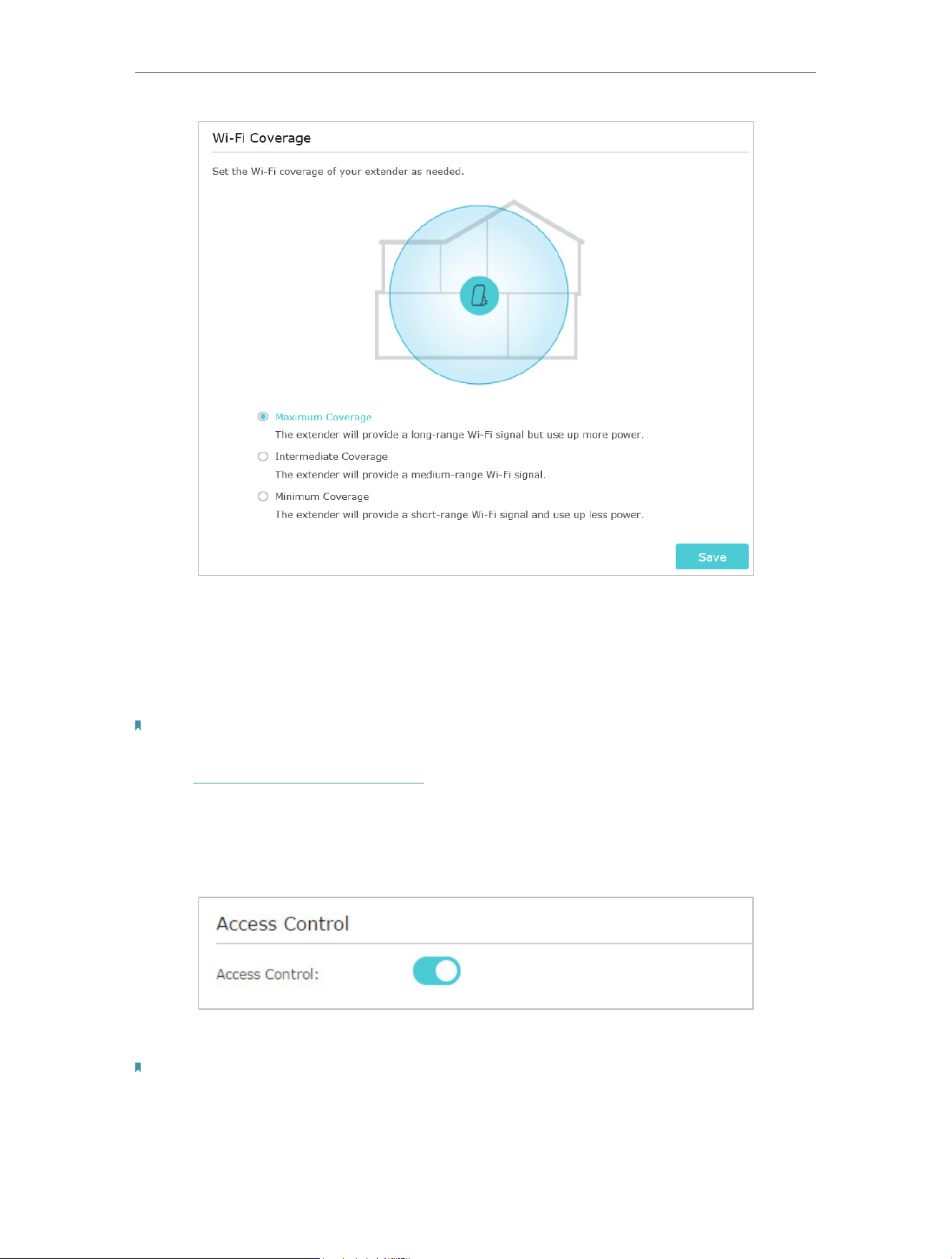
You can set the extender’s Wi-Fi coverage depending on how large you want your Wi-Fi
area to be.
1. Visit http://www.tplinkrepeater.net and log in with your TP-Link ID or the password
you set for the extender.
2. Go to Settings > Advanced Settings > Wi-Fi Coverage.
3. Select your desired Wi-Fi coverage level for the extender.
4. Click Save.
27
Chapter 5 Customize Your Network
5. 5. Set Access Control
Access Control allows you to permit or block specific devices from accessing the
internet for a specific period.
Note: If the extender is in your router’s EasyMesh network, it will automatically copy access control settings from your
router. No access control settings is needed for the extender.
1. Visit http://www.tplinkrepeater.net and log in with your TP-Link ID or the password
you set for the extender.
2. Go to Settings > Advanced Settings > Access Control.
3. Enable Access Control.
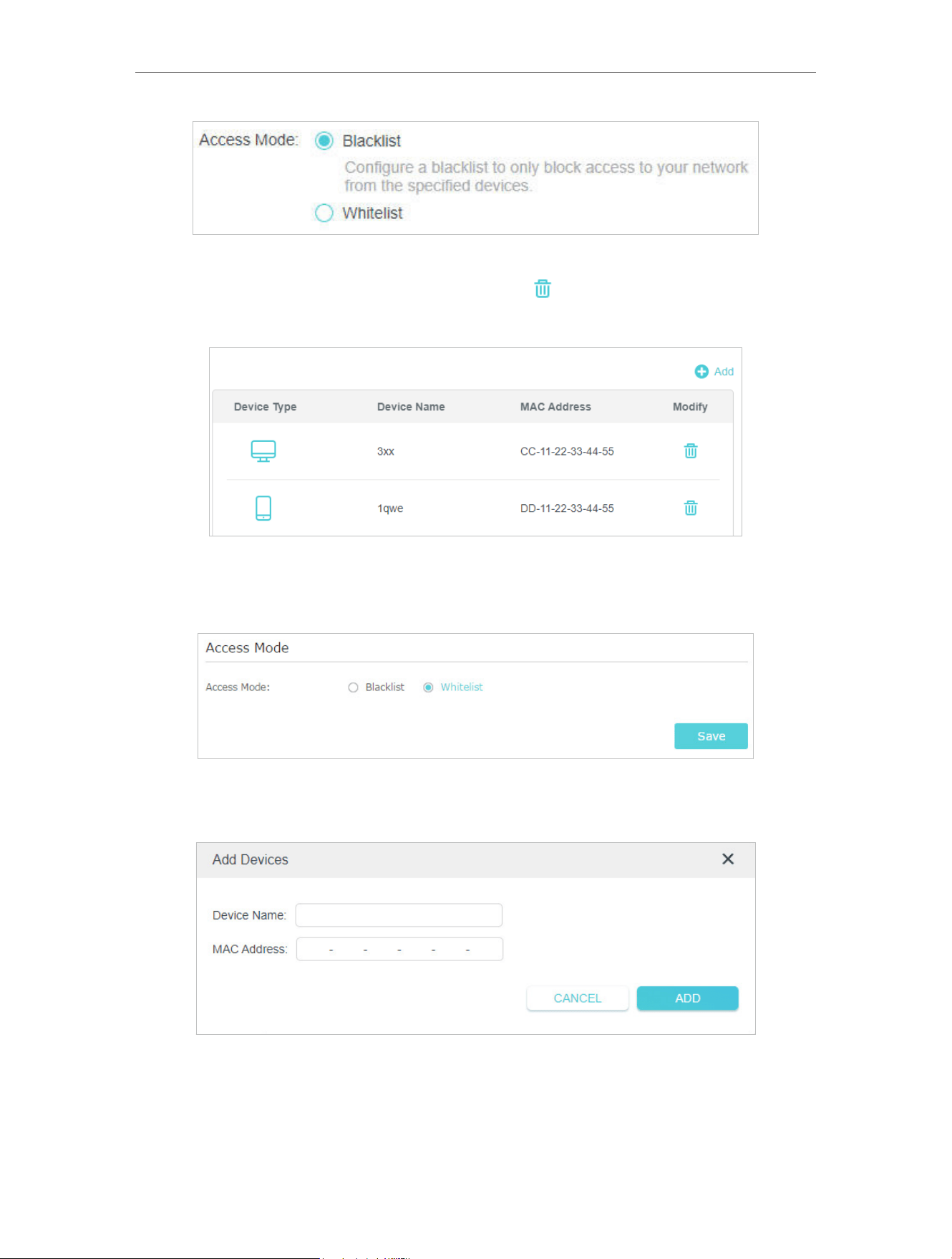
• To block specific device(s):
Note: Devices connected to the extender via an Ethernet cable cannot be blocked.
1. Select Blacklist.
28
Chapter 5 Customize Your Network
2. Click the Add button on the upper-right corner to add the device(s) to be blocked.
To remove the device(s) from the Blacklist, click
to the right of the device.
3. Click Block and the selected device(s) will be added to the Devices in Blacklist table.
• To permit specific device(s):
1. Select Whitelist.
2. Click the Add button on the upper-right corner to add the device(s). Enter the Device
Name and MAC Address. Click ADD.

Chapter 6
Use Your Extender as an
Access Point
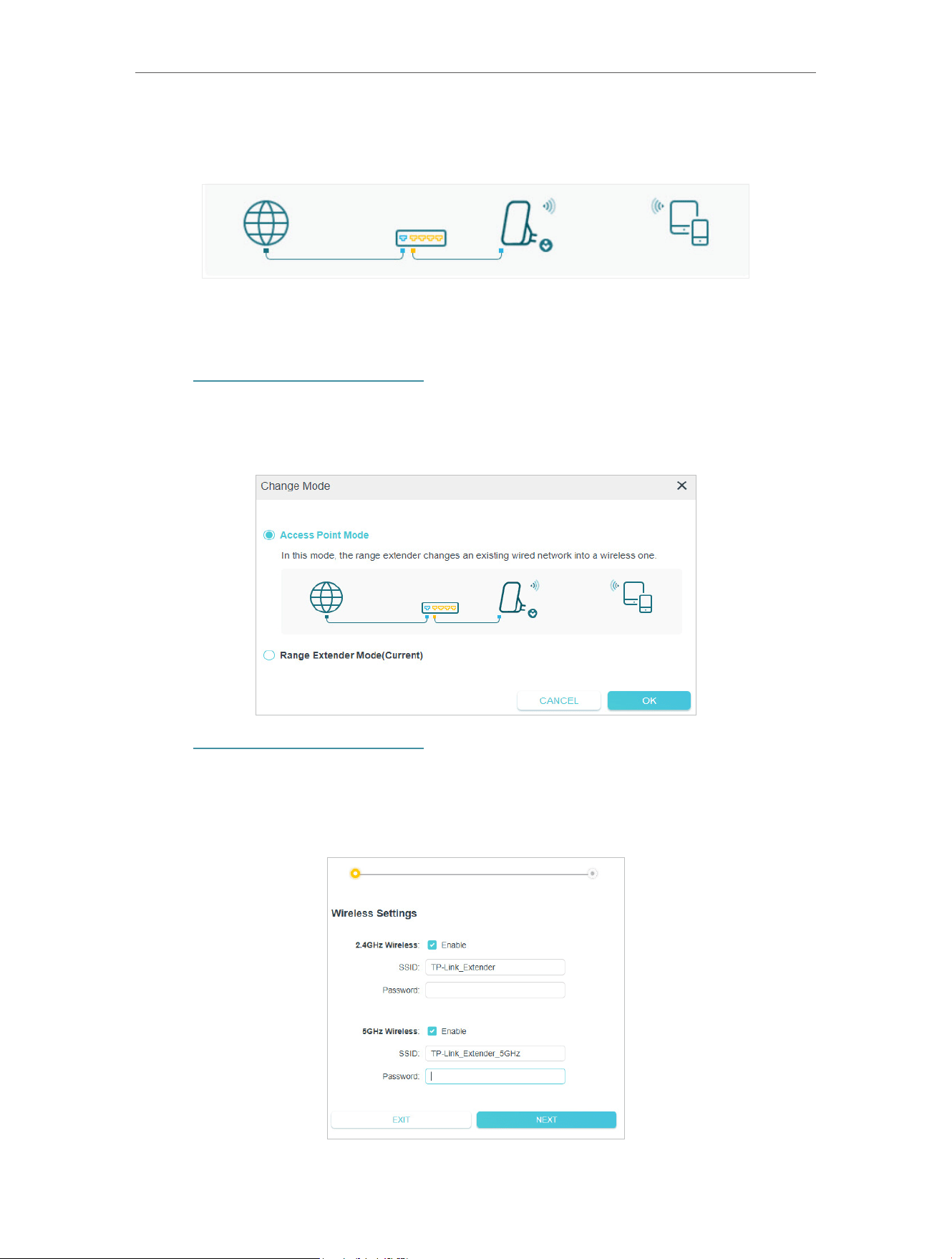
This chapter explains how to use the extender as an access point.
It contains the following sections:
• Set Up the Extender as an Access Point
• Connect Wireless Devices to the Extender
• LED Explanation for the Access Point Mode
30
Chapter 6 More Features of Your Extender
The extender can work as an access point, transforming your existing wired network to
a wireless one.
6. 1. Set Up the Extender as an Access Point
1. Visit http://www.tplinkrepeater.net, and log in with your TP-Link ID or the password
you set for the extender.
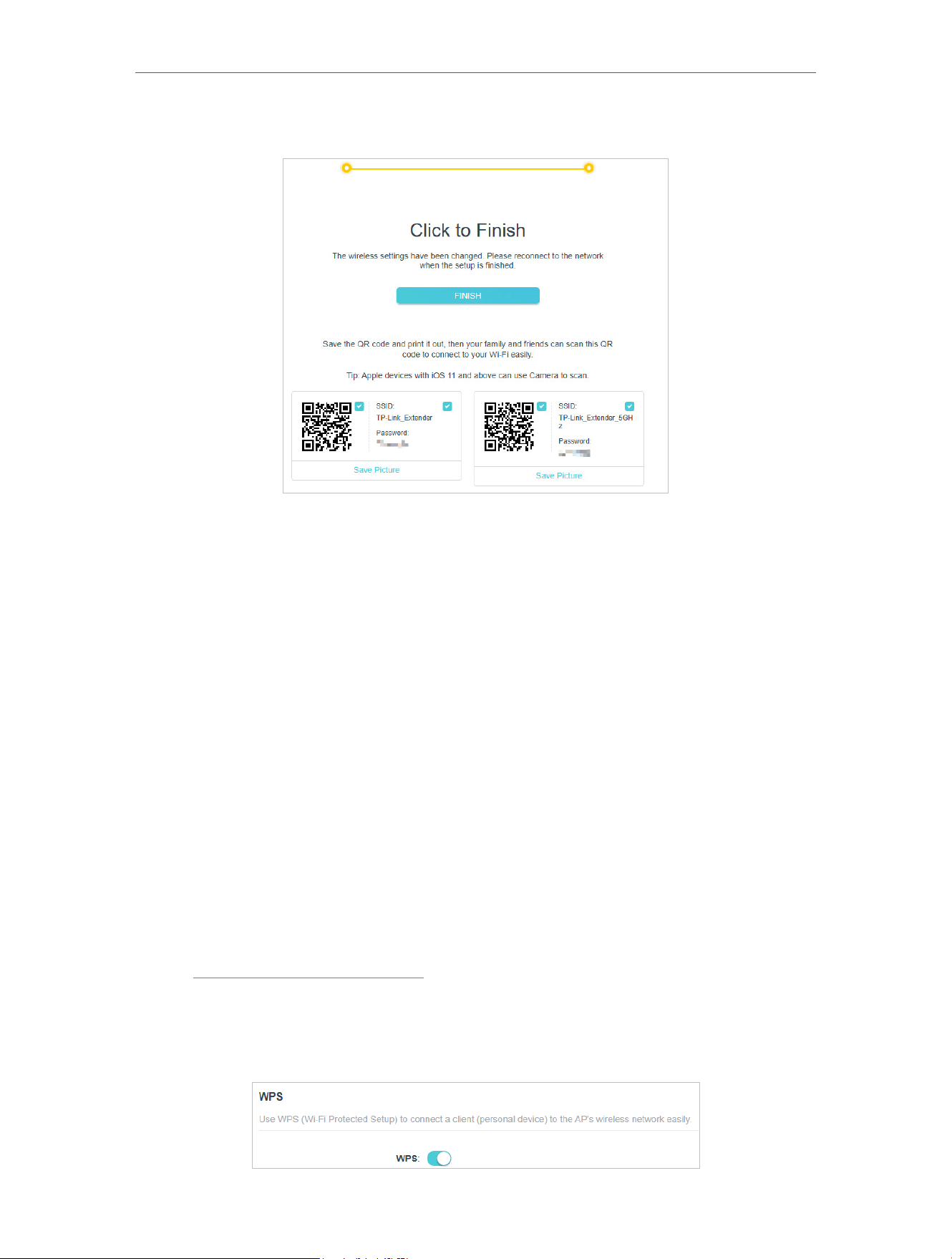
2. Click Change Mode at the top of the page. Select Access Point Mode and click OK.
The extender will reboot and switch to Access Point mode.
3. Visit http://www.tplinkrepeater.net, and log in with your TP-Link ID or the password
you set for the extender.
4. Go to Quick Setup to configure your extender.
1 ) Configure your wireless settings and click Next.
31
Chapter 6 More Features of Your Extender
2 ) Confirm the information and click Finish.
6. 2. Connect Wireless Devices to the Extender
The extender can work as an access point, transforming your existing wired network to
a wireless one.
Method 1: Connect to the extender manually
You can connect your wireless devices to the extender by using the extender’s wireless
network names and passwords.
Method 2: Connect to the extender via WPS
Wi-Fi Protected Setup (WPS) provides an easier way to set up a secure Wi-Fi
connection.
Wireless devices that support WPS, including Android phones, tablets, and most USB
network cards, can be connected to your extender through this method (not supported
by iOS devices).
1. Visit http://www.tplinkrepeater.net, and log in with your TP-Link ID or the password
you set for the extender.
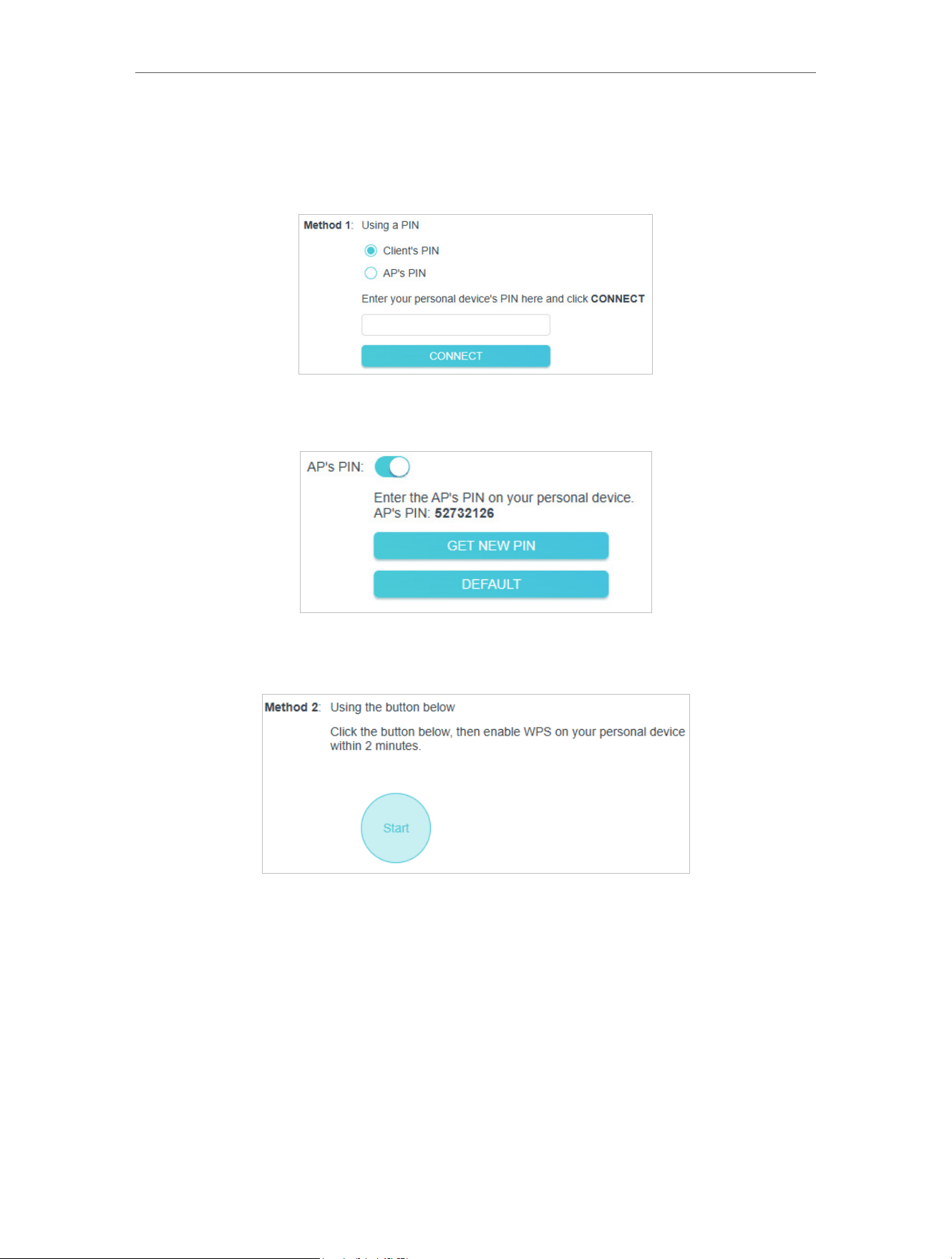
2. Go to Wireless > WPS.
3. Enable WPS.
32
Chapter 6 More Features of Your Extender
4. Connect via WPS:
• Client’s PIN: Enable Client’s PIN and enter your personal device’s PIN. Then
click Connect.
• AP’s PIN: Enable AP’s PIN and enter the PIN on your device. You can click Get
New PIN to get a new PIN or click Default to restore the PIN to its factory one.
• Start Button: Click the Start button on the page and enable WPS on your
personal device within 2 minutes.
• AP’s WPS button: Press the AP’s WPS button, then enable WPS on your personal
device within 2 minutes.
33
Chapter 6 More Features of Your Extender
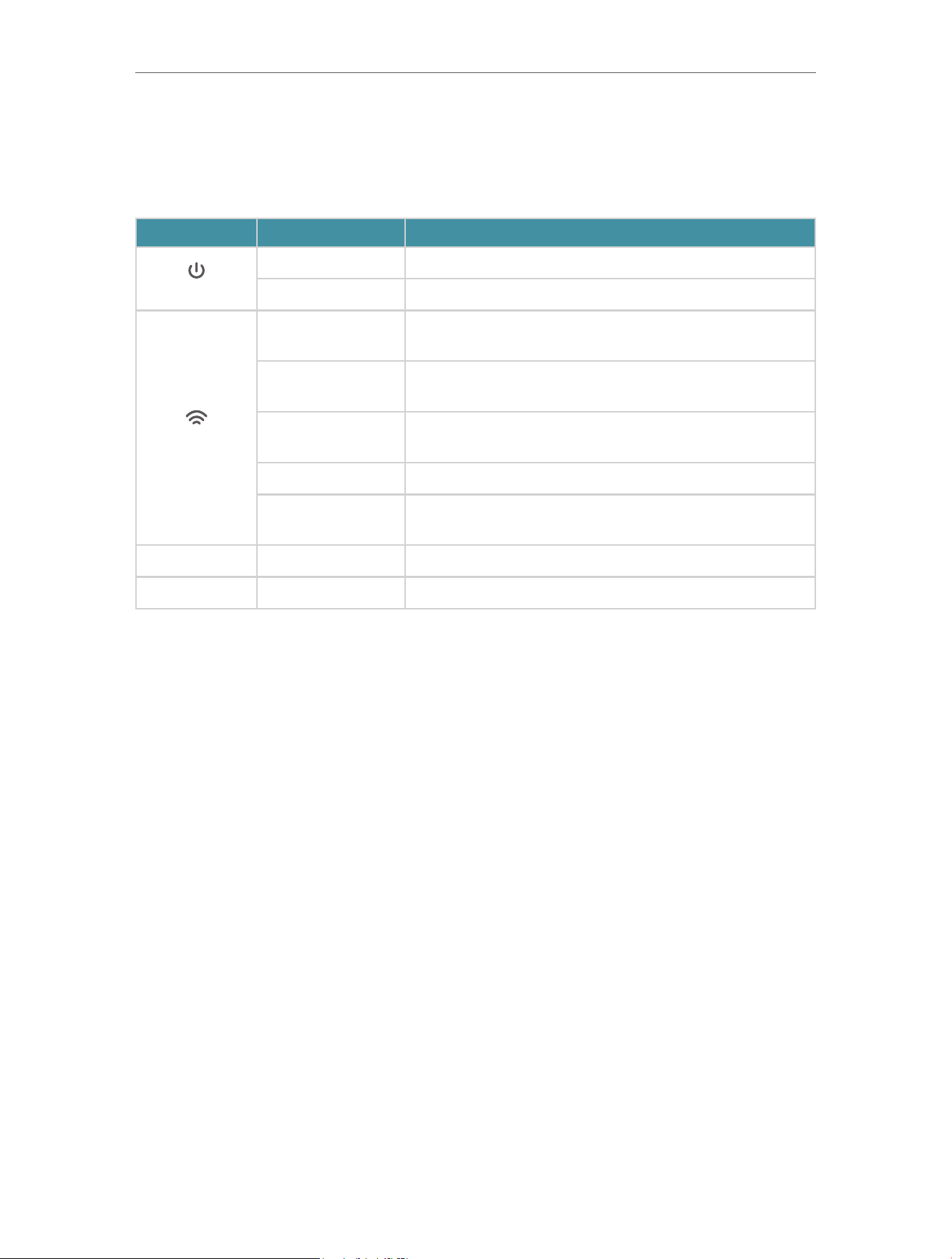
6. 3. LED Explanation for the Access Point Mode
When the extender works in the Access Point mode, you can check its working status
by following the LED Explanation table below.
Name Status Indication (For Access Point Mode)
(Power)
On/Off The extender is on or off.
Blinking Fast The system is starting up or firmware is being upgraded.
(Signal)
Solid Blue
The extender is connected to your router’s wireless
network and is in a suitable location.
Solid Red
The extender is experiencing poor signal strength. Try
relocating it closer to your router.
Blinking Slowly
WPS connection is in progress. This may take up to 2
minutes.
Blinking Fast WPS connection failed; will be off in 1 minute.
Off
A WPS connection has been established for more than
5 minutes or WPS connection failed.
2.4G On/Off The 2.4 GHz wireless band is enabled or disabled.
5G On/Off The 5 GHz wireless band is enabled or disabled.
35
Chapter 7 Manage Your Extender
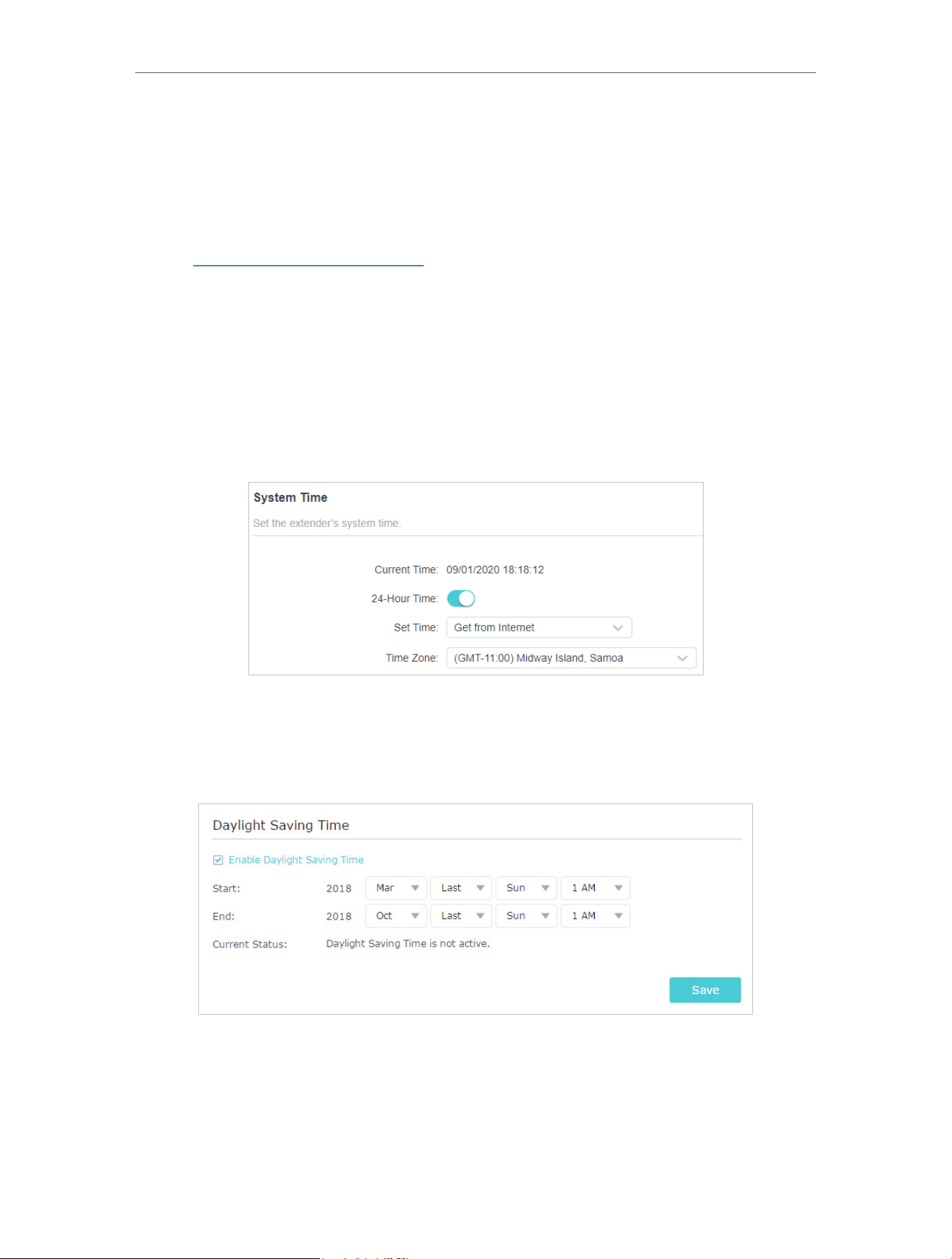
7. 1. Set System Time
The System Time of the extender will be used for time-based function such as the
Power Schedule function. If you have enabled the Daylight Saving Time feature, the
system time will be sychronized with the daylight saving time you configure.
1. Visit http://www.tplinkrepeater.net, and log in with your TP-Link ID or the password
you set for the extender.
2. Go to Settings > System Tools > Time Settings.
• To set system time:
1. Enable or disable the 24-hour time according to your needs.
2. Choose to set time automatically via the Internet or manually.
3. Select your local Time Zone from the drop-down list.
4. Click Save.
• To set up Daylight Saving Time:
1. Select Enable Daylight Saving Time.
2. Select the Start and End date and time of the daylight saving time at your local time
zone.
3. Click Save.
36
Chapter 7 Manage Your Extender
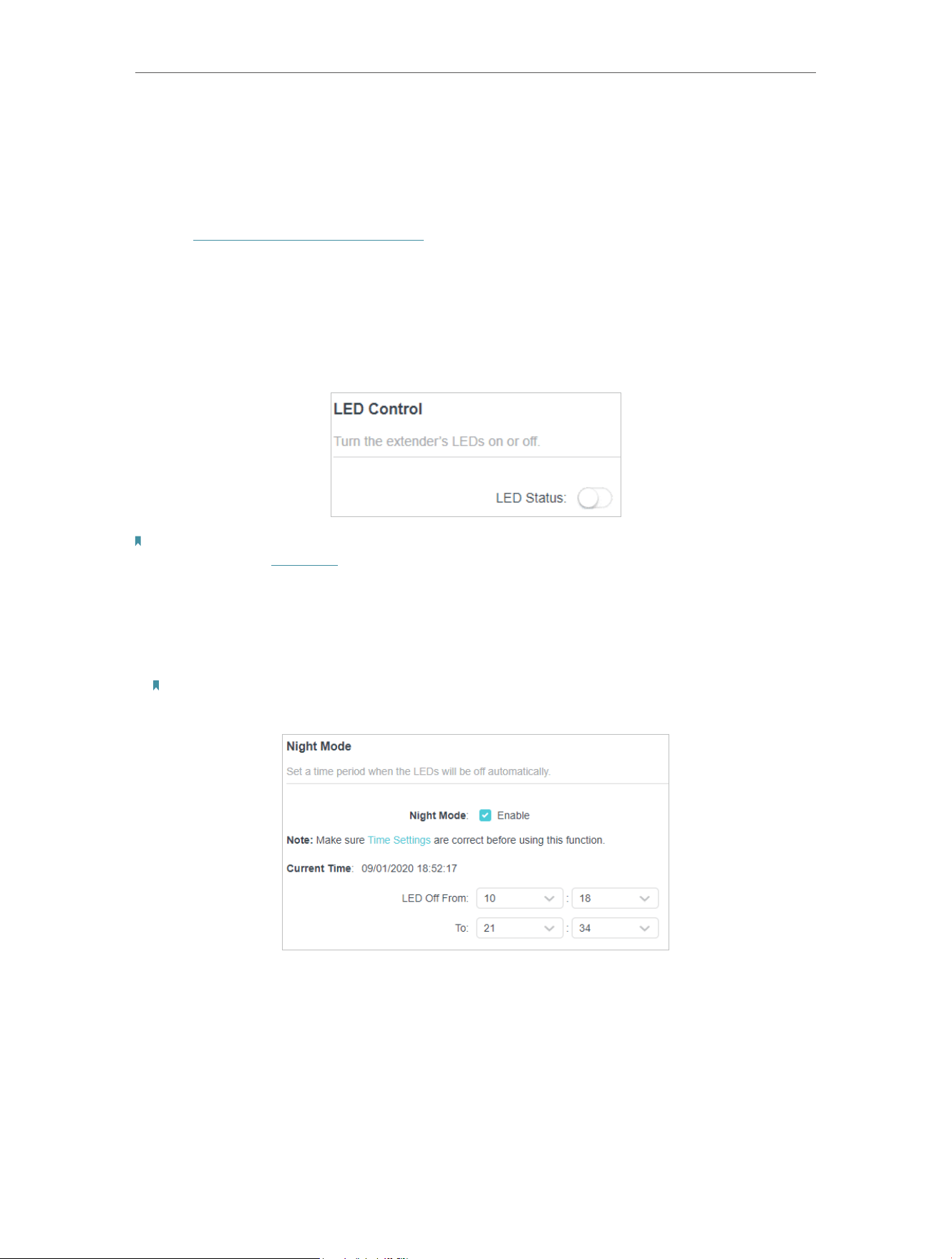
7. 2. Control LEDs
The LEDs of the extender indicate its activities and status. You can turn off LEDs when
you don’t need them.
1. Visit http://www.tplinkrepeater.net, and log in with your TP-Link ID or the password
you set for the extender.
2. Go to Advanced Settings > LED Control.
• To turn off the LEDs:
Disable LED Status.
Note: The LED Status will turn back on after restarting the extender. If you want to keep the LED off after restarting, it
is recommended to set Night Mode.
• To specify a time period when LEDs are off:
1. Enable Night Mode.
2. Specify the LED off time period.
Note: The effective time schedule for Night Mode is based on the system time of the extender. You can go to
Settings > System Tools > Time Settings to modify the time.
3. Click Save.
37
Chapter 7 Manage Your Extender
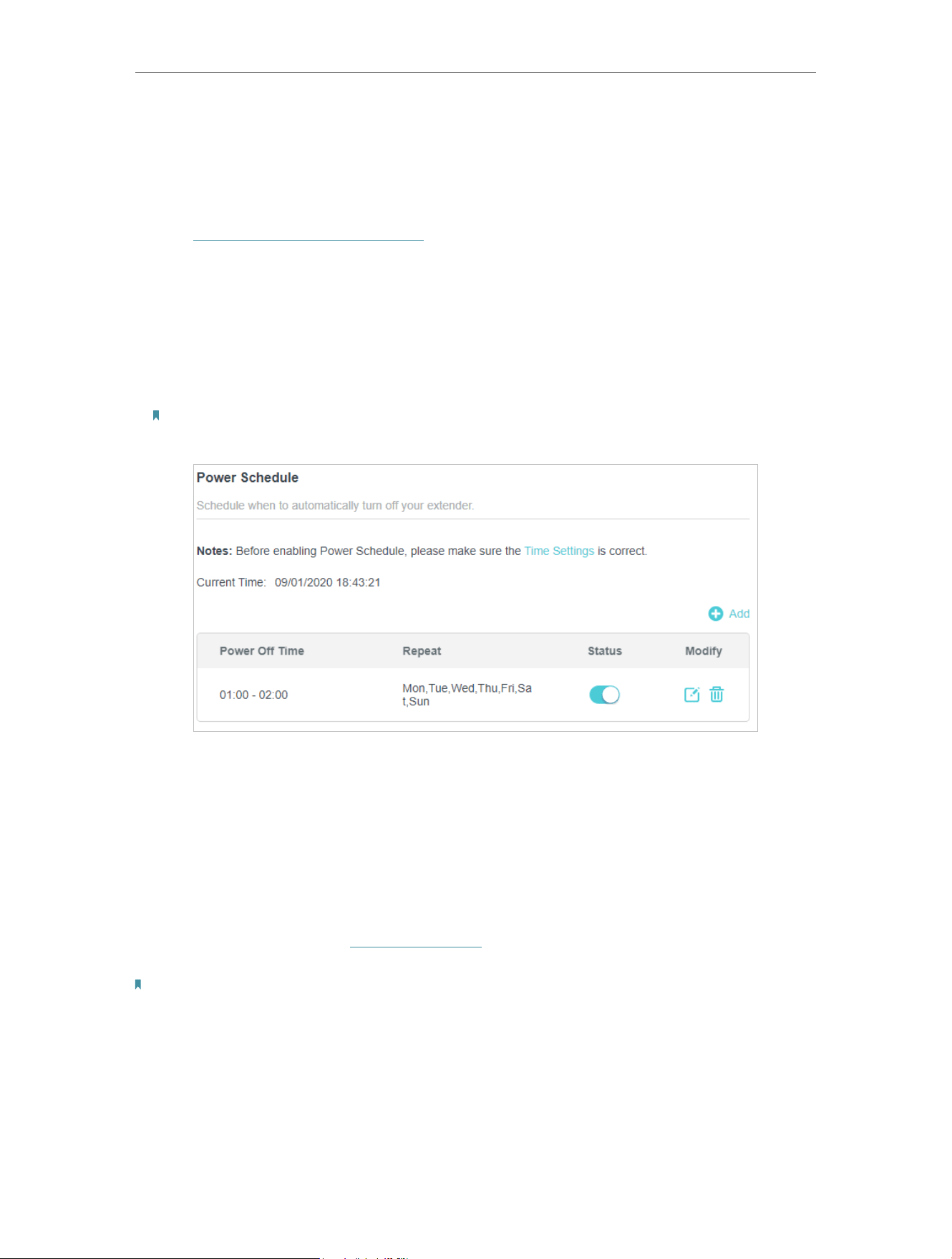
7. 3. Set Power Schedule
The Power Schdule feature allows you to specify a time period during which the
extender is off.
1. Visit http://www.tplinkrepeater.net, and log in with your TP-Link ID or the password
you set for the extender.
2. Go to Settings > Advanced Settings > Power Schedule.
• To specify a time period when the extender is off:
1. Click Add.
2. Specify the power off time period and repetitive days.
Note: The effective power off time is based on the time of the extender. You can go to Settings > System Tools >
Time Settings to modify the time.
3. Click Save.
7. 4. Upgrade the Firmware
TP-Link is committed to improving product features, giving you a better network
experience. We will inform you through the web management page if there’s any
firmware updates available for your extender. Also, the latest firmware will be released at
the TP-Link official website www.tp-link.com, and you can download it from the Support
page for free.
Notes:
• Make sure the latest firmware file is matched with the hardware version (as shown in the download section of the
Support page).
• Make sure that you have a stable connection between the extender and your computer. It is NOT recommended to
upgrade the firmware wirelessly.
• Backup your extender configuration.
• Do NOT power off the extender during the firmware upgrade.
38
Chapter 7 Manage Your Extender
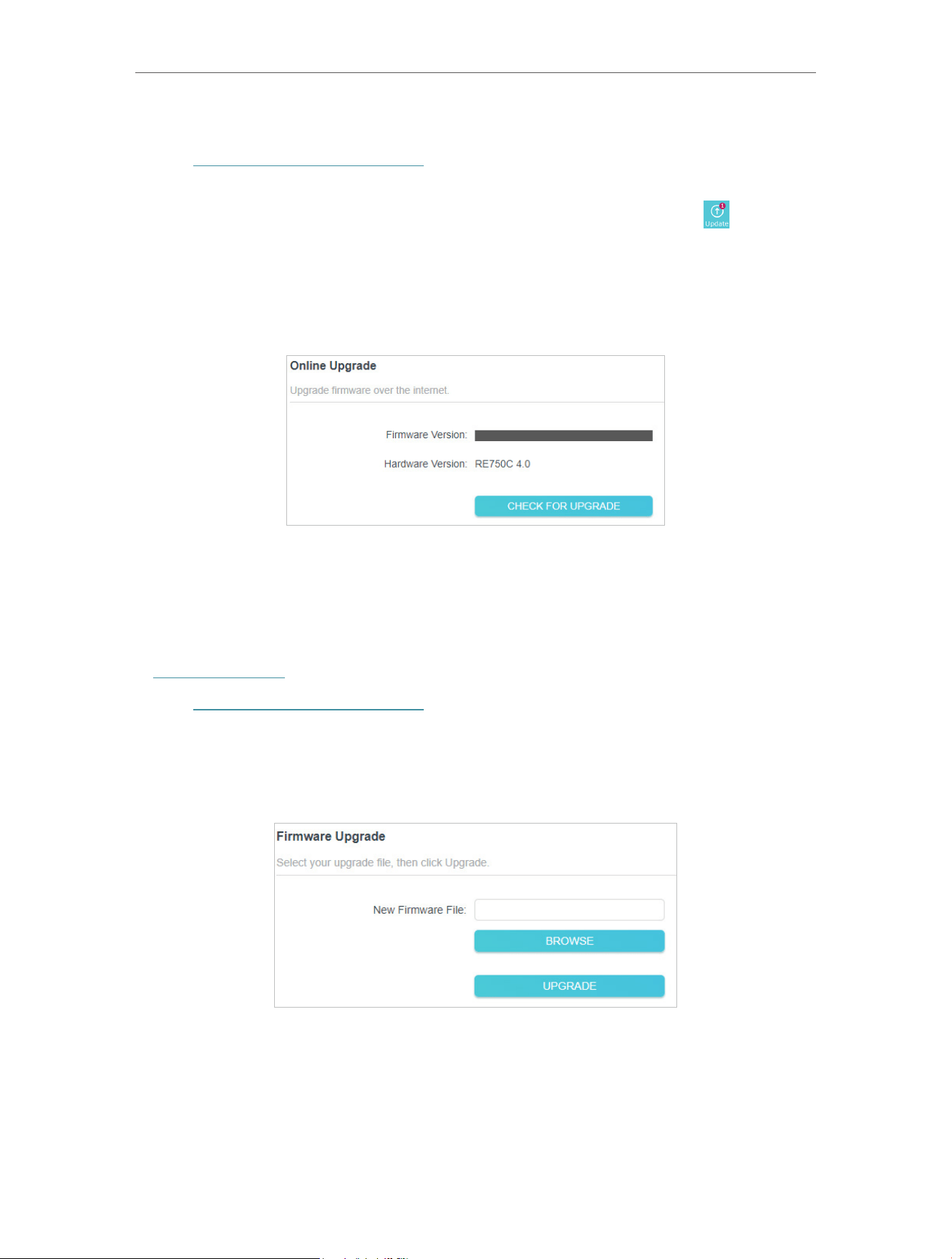
• To upgrade the firmware online:
1. Visit http://www.tplinkrepeater.net, and log in with your TP-Link ID or the password
you set for the extender.
2. When the latest firmware is available for your extender, the update icon
will display
on the top-right corner of the page. Click the icon to go to the Firmware Upgrade
page.
Alternatively, you can go to Settings > System Tools > Firmware Upgrade, and click
Check for upgrade to see whether a new firmware is released.
3. Click Upgrade. Wait a few minutes for the upgrade and reboot to complete.
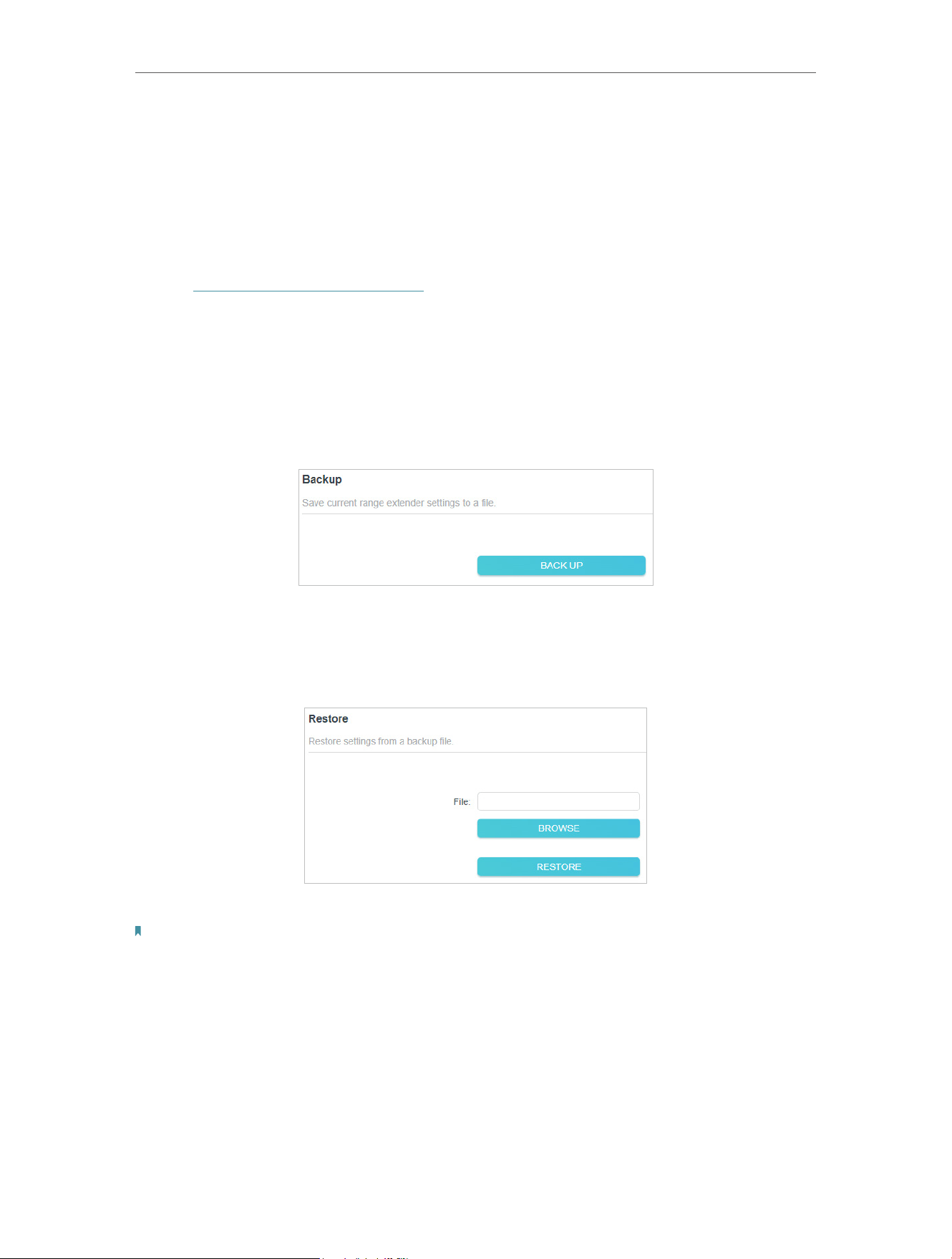
7. 4. 1. Local Upgrade
1. Download the latest firmware file for the extender from our website
www.tp-link.com.
2. Visit http://www.tplinkrepeater.net, and log in with your TP-Link ID or the password
you set for the extender.
3. Go to Settings > System Tools > Firmware Upgrade.
4. Click Browse to locate the downloaded new firmware file, and then click Upgrade.
5. Wait a few minutes for the firmware upgrade to complete and the extender to reboot.
39
Chapter 7 Manage Your Extender
7. 5. Back up and Restore Configuration Settings
The configuration settings are stored as a configuration file in the extender. You can
back up the configuration file and restore the extender to the previous settings from
the backup file when needed. If necessary, you can erase the current settings and reset
the extender to the default factory settings.
1. Visit http://www.tplinkrepeater.net, and log in with your TP-Link ID or the password
you set for the extender.
2. Go to Settings > System Tools > Backup & Restore.
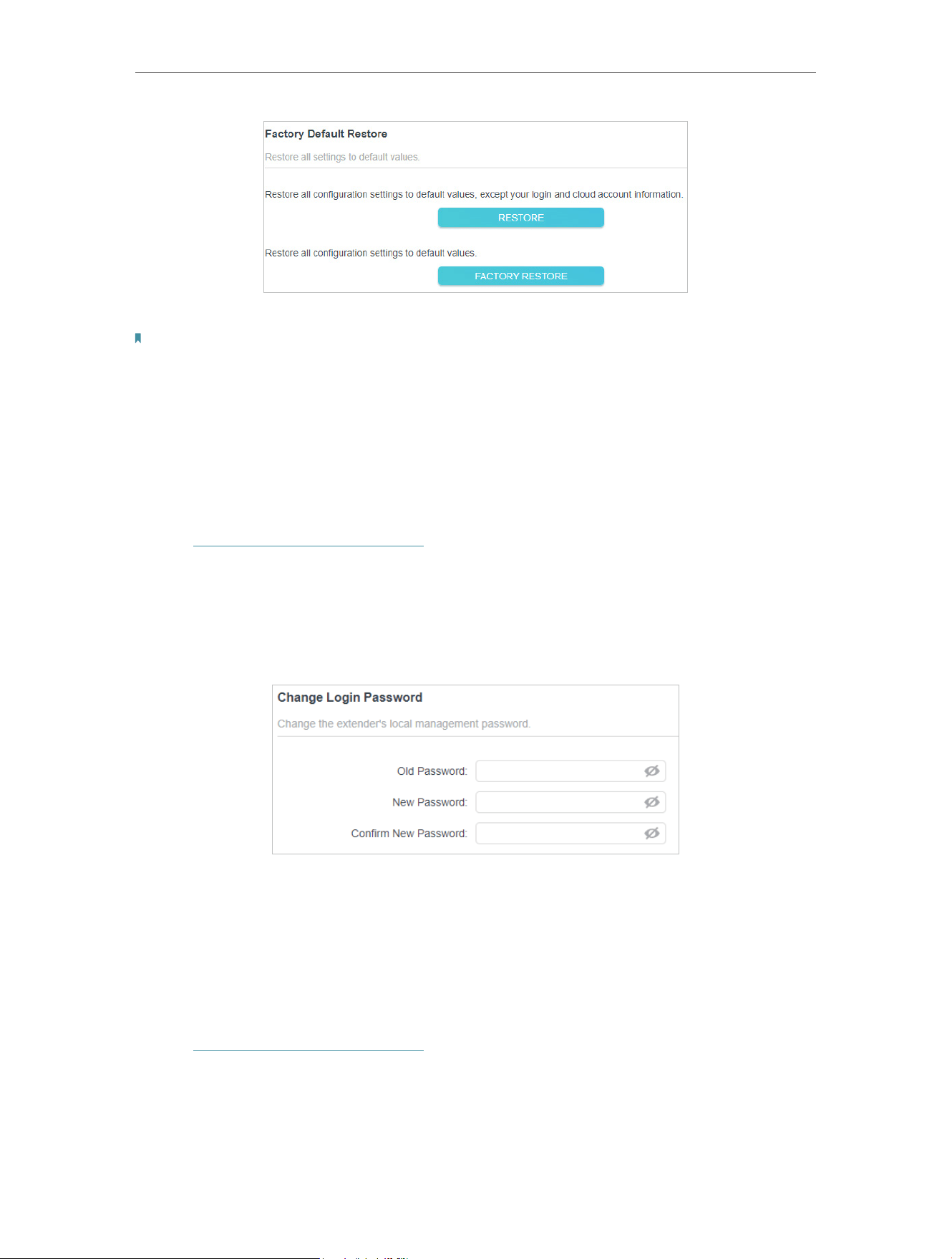
• To back up configuration settings:
Click Backup to save a copy of the current settings to your local computer. A ‘.bin’ file of
the current settings will be stored on your computer.
• To restore configuration settings:
1. Click Browse to locate the backup configuration file stored on your computer, and
click Restore.
2. Wait a few minutes for the restore and reboot.
Note: During the restore process, do not power off or reset the extender.
• To reset the extender to factory default settings:
1. Click Factory Restore to restore all configuration settings to default values, or click
Restore if you want to keep you login and cloud account information.
40
Chapter 7 Manage Your Extender
2. Wait a few minutes for the reset and reboot.
Notes:
1. During the reset process, do not power off or reset the extender again.
2. We strongly recommend you back up the current configuration settings before resetting the extender.
7. 6. Change Login Password
The account management feature allows you to change your login username and
password of the web management webpage.
1. Visit http://www.tplinkrepeater.net, and log in with your TP-Link ID or the password
you set for the extender.
2. Go to Settings > System Tools > Change Login Password.
3. Enter the old password. Then enter the new password twice (case-sensitive) and
click Save.
4. Use the new password for future logins.
7. 7. Check System Log
If the extender is not working properly, you can save the system log and send it to our
technical support team.
1. Visit http://www.tplinkrepeater.net, and log in with your TP-Link ID or the password
you set for the extender.
2. Go to Settings > System Tools > System Log.
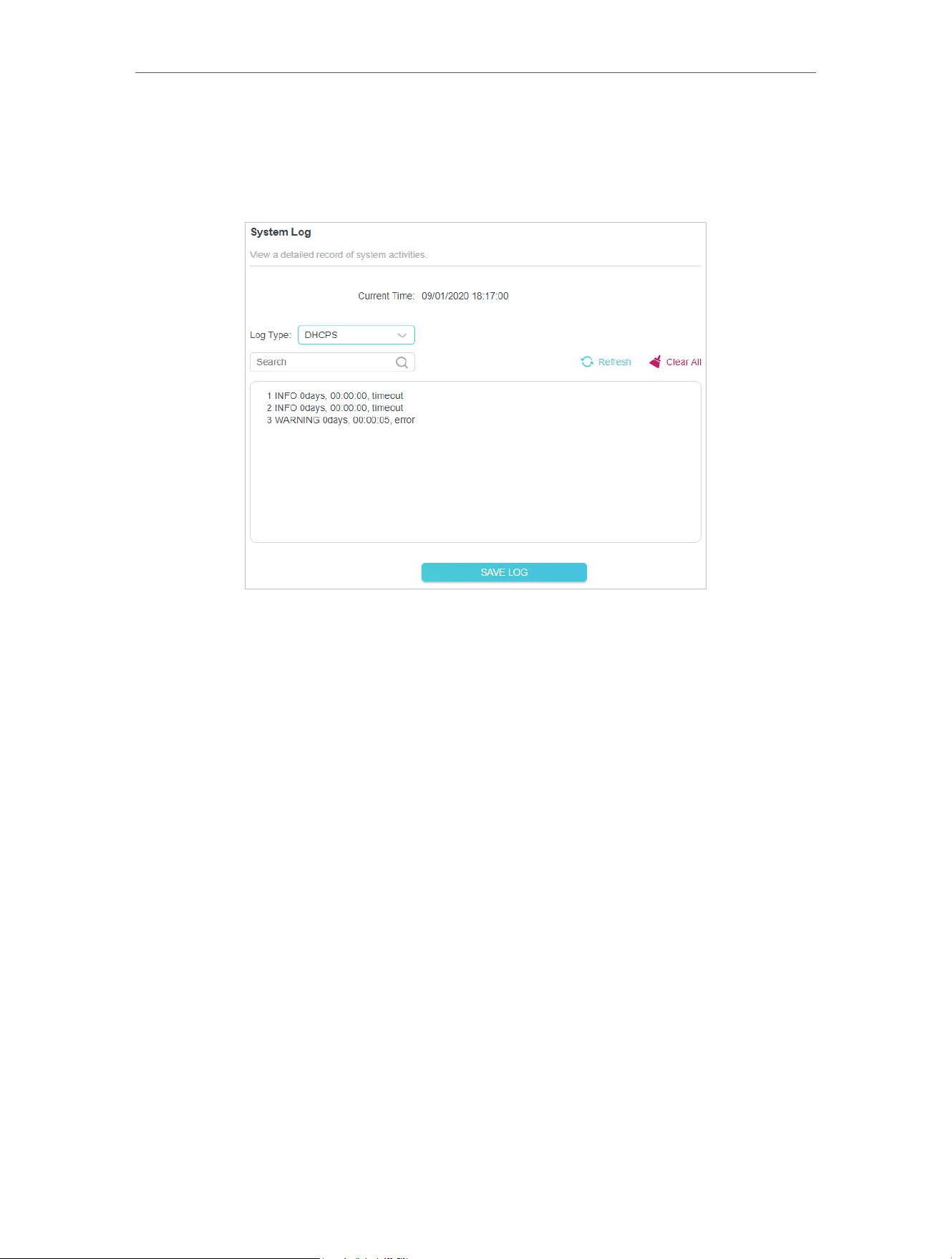
41
Chapter 7 Manage Your Extender
• To save the system log locally:
1. Choose the type and level of the system log as needed.
2. Click Save Log to save the system logs to a local disk.

42
FAQ
Q1. How to reset the extender to its factory default settings?
• With the extender powered on, use a pin to press the RESET button for 1 second. The
extender will reboot.
• Log in to the extender’s web management page. Go to System Tools > Backup &
Restore and click Factory Restore.
Q2. What should I do if I forget my login password?
Refer to FAQ > Q1 to reset the extender, and then visit http://www.tplinkrepeater.net to
create a new login password.
Note: The extender must be reconfigured after a reset to access the internet. Please note down your login password
for future logins.
Q3. What should I do if I forget my wireless password?
The extender shares the same wireless passwords as those of your main networks.
Q4. What should I do if I can’t access the web management page?
This can happen for a variety of reasons. Please try the methods below to log in again.
• If your computer is wirelessly connected, make sure that you have connected to the
extender’s SSID.
• Make sure your computer is configured as Obtain an IP address automatically and
Obtain DNS server address automatically.
• Verify that http://www.tplinkrepeater.net is correctly entered in the web browser and
press Enter.
• Use the IP address to access the extender. The default IP is 192.168.0.254. If the
extender is connected to the router, you should go to your router’s DHCP client list to
obtain the extender’s current IP address.
• Reset the extender and try again.
Q5. I have enabled wireless MAC filter, wireless access control, or access
control list (ACL) on my router. What should I do before configuring
the extender?
When a device connects through the extender to your router, the MAC address of the
device shown on the router is translated to another MAC address. If your router’s MAC
filter, wireless access control, or ACL is enabled, the devices connected to the extender
cannot get an IP address from the extender and cannot access the internet.
To solve this problem, please follow the steps below:

43
1. Log in to your router and disable the MAC filter, wireless access control or ACL.
Note: For more information about how to disable your router’s MAC filter, wireless access control or ACL, please refer
to your router’s user guide.
2. Power on your extender, and run the Quick Setup to configure your extender.
3. Connect all of your devices to the extended network.
4. On your router, add all the Online Devices’ MAC addresses to your router’s MAC filter
table.
5. Enable the router’s MAC filter, wireless access control, or ACL to complete the
configuration.

44
FCC compliance information statement
Product Name: Wi-Fi Range Extenderr
Model Number: RE205/RE305/RE750C
Responsible Party:
TP-Link Systems Inc.
Address: 10 Mauchly, Irvine, CA 92618
Website: http://www.tp-link.com/us/
Tel: +1 626 333 0234
Fax: +1 909 527 6804
E-mail: [email protected]om
This equipment has been tested and found to comply with the limits for a Class B digital
device, pursuant to part 15 of the FCC Rules. These limits are designed to provide
reasonable protection against harmful interference in a residential installation. This
equipment generates, uses and can radiate radio frequency energy and, if not installed
and used in accordance with the instructions, may cause harmful interference to radio
communications. However, there is no guarantee that interference will not occur in a
particular installation. If this equipment does cause harmful interference to radio or
television reception, which can be determined by turning the equipment off and on, the
user is encouraged to try to correct the interference by one or more of the following
measures:
• Reorient or relocate the receiving antenna.
• Increase the separation between the equipment and receiver.
• Connect the equipment into an outlet on a circuit different from that to which the
receiver is connected.
• Consult the dealer or an experienced radio/ TV technician for help.
This device complies with part 15 of the FCC Rules. Operation is subject to the following
two conditions:
1. This device may not cause harmful interference.
2. This device must accept any interference received, including interference that may
cause undesired operation.
Any changes or modifications not expressly approved by the party responsible for
compliance could void the user’s authority to operate the equipment.
Note: The manufacturer is not responsible for any radio or TV interference caused by
unauthorized modifications to this equipment. Such modifications could void the user’s
authority to operate the equipment.

45
FCC RF Radiation Exposure Statement:
This equipment complies with FCC RF radiation exposure limits set forth for an
uncontrolled environment. This device and its antenna must not be co-located or
operating in conjunction with any other antenna or transmitter.
“To comply with FCC RF exposure compliance requirements, this grant is applicable to
only Mobile Configurations. The antennas used for this transmitter must be installed to
provide a separation distance of at least 20 cm from all persons and must not be co-
located or operating in conjunction with any other antenna or transmitter.”
We, TP-Link USA Corporation, has determined that the equipment shown as above
has been shown to comply with the applicable technical standards, FCC part 15. There
is no unauthorized change is made in the equipment and the equipment is properly
maintained and operated.
Issue Date: 25/03/26

46
CE Mark Warning
OPERATING FREQUENCY (the maximum transmitted power)
2400 MHz -2483.5 MHz (20dBm)
5150 MHz -5250 MHz (23dBm)
5250 MHz -5350 MHz (23dBm)
5470 MHz -5725 MHz (30dBm)
EU Declaration of Conformity
TP-Link hereby declares that the device is in compliance with the essential requirements
and other relevant provisions of directives 2014/53/EU, 2009/125/EC, 2011/65/EU and
(EU) 2015/863.
The original EU declaration of conformity may be found at http://www.tp-link.com/en/ce
RF Exposure Information
This device meets the EU requirements (2014/53/EU Article 3.1a) on the limitation of
exposure of the general public to electromagnetic fields by way of health protection.
The device complies with RF specifications when the device used at 20 cm from your
body.
National Restrictions
Frequency band: 5150 - 5250 MHz:
Indoor use: Inside buildings only. Installations and use inside road vehicles and train
carriages are not permitted. Limited outdoor use: If used outdoors, equipment shall
not be attached to a fixed installation or to the external body of road vehicles, a fixed
infrastructure or a fixed outdoor antenna. Use by unmanned aircraft systems (UAS) is
limited to within the 5170 - 5250 MHz band.
Frequency band: 5250 - 5350 MHz:
Indoor use: Inside buildings only. Installations and use in road vehicles, trains and aircraft
are not permitted. Outdoor use is not permitted.
Frequency band: 5470 - 5725 MHz:
Installations and use in road vehicles, trains and aircraft and use for unmanned aircraft
systems (UAS) are not permitted.
47
AT BE BG CH CY CZ DE DK
EE EL ES FI FR HR HU IE
IS IT LI LT LU LV MT NL
NO PL PT RO SE SI SK UK(NI)
UKCA Mark
UK Declaration of Conformity
TP-Link hereby declares that the device is in compliance with the essential
requirements and other relevant provisions of the Radio Equipment Regulations 2017.
The original UK Declaration of Conformity may be found at
https://www.tp-link.com/support/ukca
National Restrictions
Attention: This device may only be used indoors in Great Britain.
UK
Canadian Compliance Statement
This device contains licence-exempt transmitter(s)/receiver(s) that comply with
Innovation, Science and Economic Development Canada’s licence-exempt RSS(s).
Operation is subject to the following two conditions:
1. This device may not cause interference.
2. This device must accept any interference, including interference that may cause
undesired operation of the device.
L’émetteur/récepteur exempt de licence contenu dans le présent appareil est conforme
aux CNR d’Innovation, Sciences et Développement économique Canada applicables
aux appareils radio exempts de licence. L’exploitation est autorisée aux deux conditions
suivantes :
1. L’appareil ne doit pas produire de brouillage;
2. L’appareil doit accepter tout brouillage radioélectrique subi, même si le brouillage est
susceptible d’en compromettre le fonctionnement.
Caution:
1. The device for operation in the band 5150–5250 MHz is only for indoor use to reduce
the potential for harmful interference to co-channel mobile satellite systems;
48
DFS (Dynamic Frequency Selection) products that operate in the bands 5250- 5350
MHz, 5470-5600MHz, and 5650-5725MHz.
Avertissement:
1. Le dispositif fonctionnant dans la bande 5150-5250 MHz est réservé uniquement
pour une utilisation à l’intérieur afin de réduire les risques de brouillage préjudiciable
aux systèmes de satellites mobiles utilisant les mêmes canaux;
Les produits utilisant la technique d’atténuation DFS (sélection dynamique des
fréquences) sur les bandes 5250- 5350 MHz, 5470-5600MHz et 5650-5725MHz.
Radiation Exposure Statement:
This equipment complies with IC radiation exposure limits set forth for an uncontrolled
environment. This equipment should be installed and operated with minimum distance
20cm between the radiator & your body.
Déclaration d’exposition aux radiations:
Cet équipement est conforme aux limites d’exposition aux rayonnements IC établies
pour un environnement non contrôlé. Cet équipement doit être installé et utilisé avec
un minimum de 20 cm de distance entre la source de rayonnement et votre corps.
Industry Canada Statement
CAN ICES (B) / NMB (B)
Korea Warning Statements
당해 무선설비는 운용중 전파혼신 가능성이 있음.
NCC Notice & BSMI Notice
注意!
取得審驗證明之低功率射頻器材,非經核准,公司、商號或使用者均不得擅自變更頻
率、加大功率或變更原設計之特性及功能。
低功率射頻器材之使用不得影響飛航安全及干擾合法通信;經發現有干擾現象時,應立
即停用,並改善至無干擾時方得繼續使用。
前述合法通信,指依電信管理法規定作業之無線電通信。
49
低功率射頻器材須忍受合法通信或工業、科學及醫療用電波輻射性電機設備之干擾。
應避免影響附近雷達系統之操作。
高增益指向性天線只得應用於固定式點對點系統。
安全諮詢及注意事項
• 請使用原裝電源供應器或只能按照本產品注明的電源類型使用本產品。
• 清潔本產品之前請先拔掉電源線。請勿使用液體、噴霧清潔劑或濕布進行清潔。
• 注意防潮,請勿將水或其他液體潑灑到本產品上。
• 插槽與開口供通風使用,以確保本產品的操作可靠並防止過熱,請勿堵塞或覆蓋
開口。
• 請勿將本產品置放於靠近熱源的地方。除非有正常的通風,否則不可放在密閉位
置中。
• 不要私自拆開機殼或自行維修,如產品有故障請與原廠或代理商聯繫。
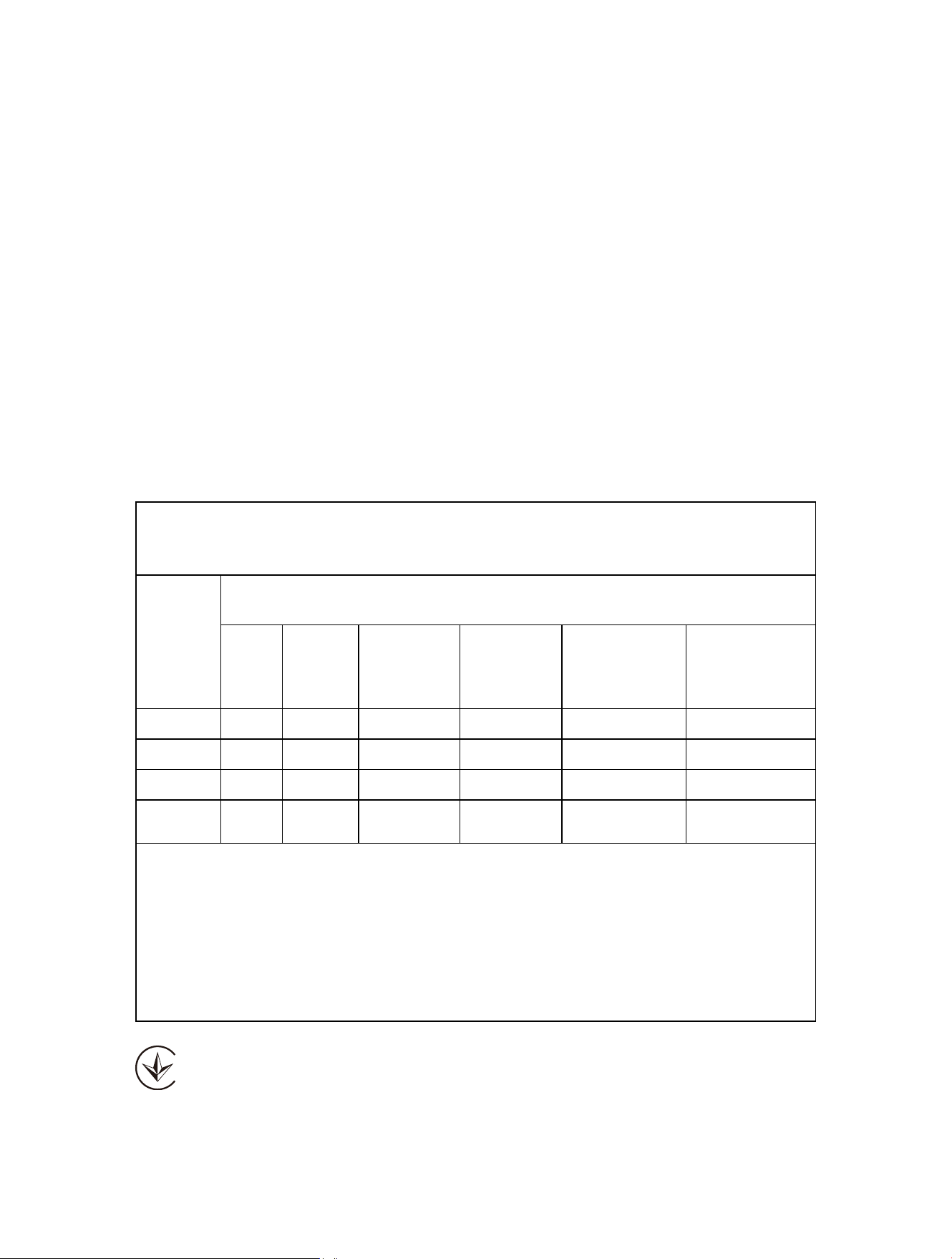
限用物質含有情況標示聲明書
設備名稱:
Equipment name:
AC750/AC1200 Wi-Fi Range Extender
型號(型式):
Type designation (Type):
RE205/RE305/RE750C
單元
Unit
限用物質及其化學符號
Restricted substances and its chemical symbols
鉛
Lead
(Pb)
汞
Mercury
(Hg)
鎘
Cadmium
(Cd)
六價鉻
Hexavalent
chromium
(Cr
+6
)
多溴聯苯
Polybrominated
biphenyls
(PBB)
多溴二苯醚
Polybrominated
diphenyl ethers
(PBDE)
PCB
○ ○ ○ ○ ○ ○
外殼
○ ○ ○ ○ ○ ○
電源供應板
− ○ ○ ○ ○ ○
其他及其
配件
○ ○ ○ ○ ○ ○
備考1.〝超出0.1 wt %〞及〝超出0.01 wt %〞係指限用物質之百分比含量超出百分比含量基準值
Note 1:“Exceeding 0.1 wt %” and “exceeding 0.01 wt %” indicate that the percentage content of
the restricted substance exceeds the reference percentage value of presence condition.
備考2.〝○〞係指該項限用物質之百分比含量未超出百分比含量基準值。
Note 2:“○” indicates that the percentage content of the restricted substance does not exceed the
percentage of reference value of presence.
備考3.〝−〞係指該項限用物質為排除項目。
Note 3:The “−” indicates that the restricted substance corresponds to the exemption.
Продукт сертифіковано згідно с правилами системи УкрСЕПРО на відповідність
вимогам нормативних документів та вимогам, що передбачені чинними
законодавчими актами України.
50
Safety Information
• Keep the device away from water, fire, humidity or hot environments.
• Do not attempt to disassemble, repair, or modify the device.
• Do not use the device where wireless devices are not allowed.
Please read and follow the above safety information when operating the device. We
cannot guarantee that no accidents or damage will occur due to improper use of the
device. Please use this product with care and operate at your own risk.
Operating Temperature: 0 ° C~40 ° C (32 ° F~104 ° F)
This product uses radios and other components that emit electromagnetic fields.
Electromagnetic fields and magnets may interfere with pacemakers and other implanted
medical devices. Always keep the product and its power adapter more than 15 cm (6
inches) away from any pacemakers or other implanted medical devices. If you suspect
your product is interfering with your pacemaker or any other implanted medical device,
turn off your product and consult your physician for information specific to your medical
device.
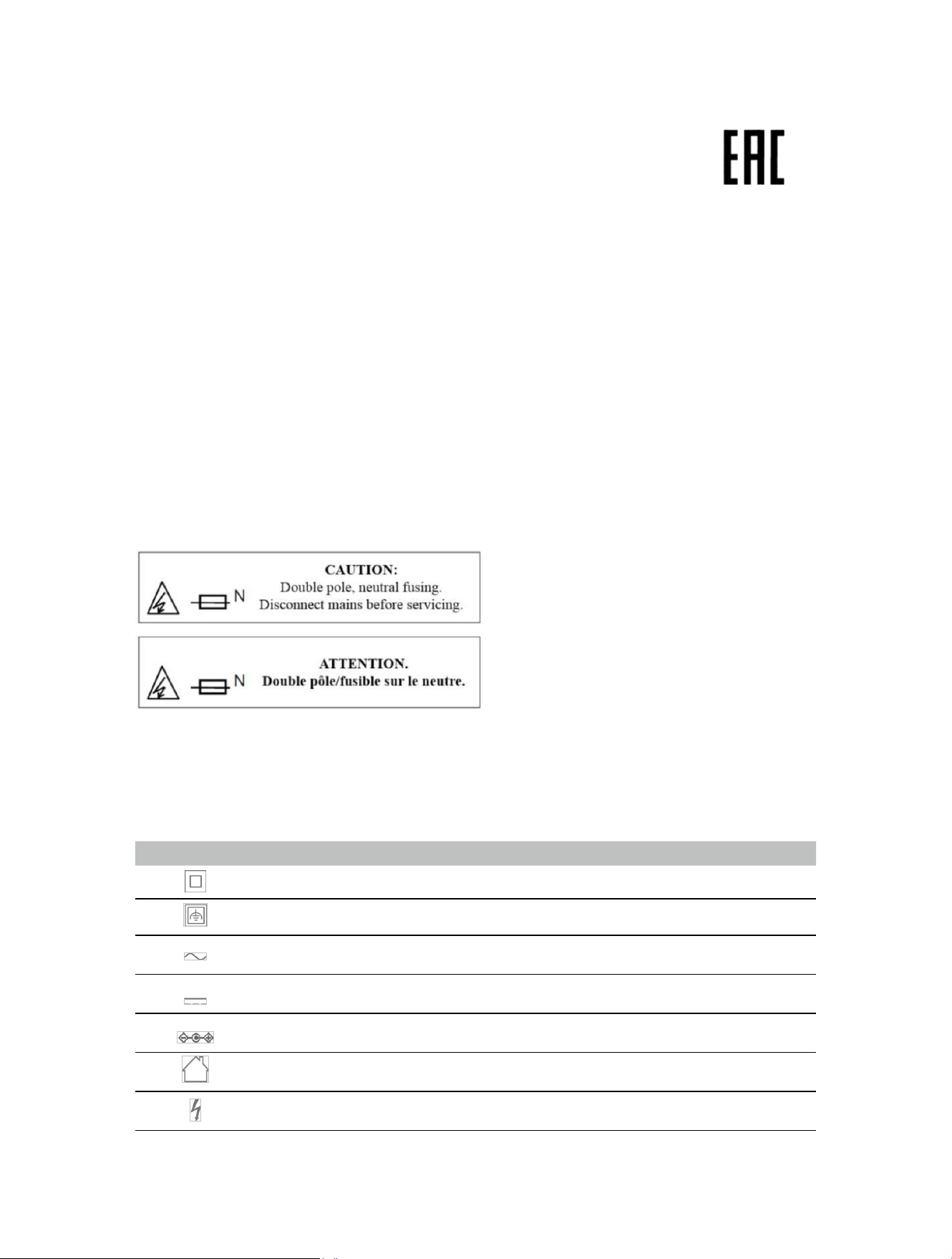
Explanations of the symbols on the product label
Note: The product label can be found at the back of the product. Symbols may vary
from products.
Symbol Explanation
Class II equipment
Class II equipment with functional earthing
Alternating current
Direct current
Polarity of d.c. power connector
For indoor use only
Dangerous voltage
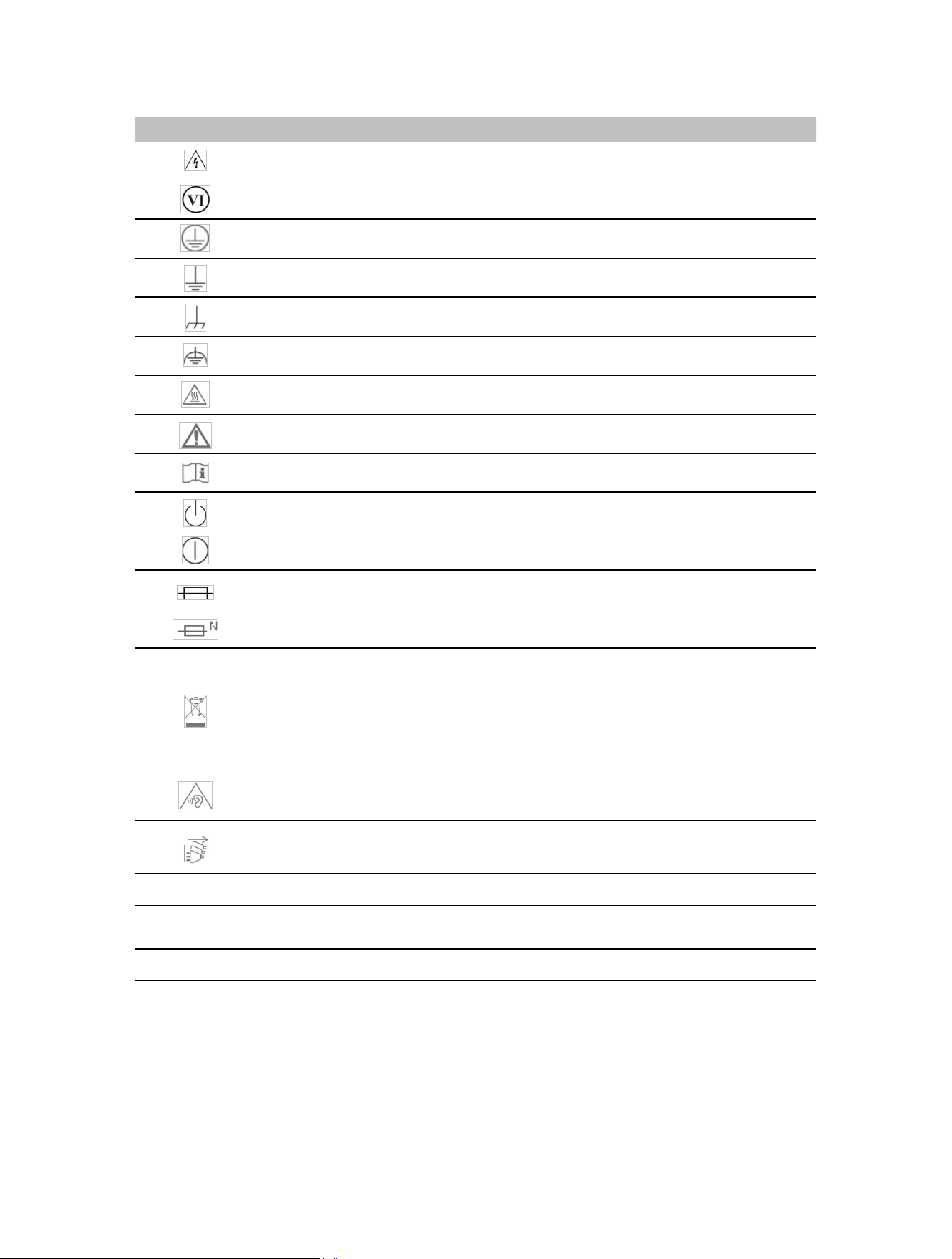
51
Symbol Explanation
Caution, risk of electric shock
Energy efficiency Marking
Protective earth
Earth
Frame or chassis
Functional earthing
Caution, hot surface
Caution
Operator’s manual
Stand-by
“ON”/”OFF” (push-push)
Fuse
Fuse is used in neutral N
RECYCLING
This product bears the selective sorting symbol for Waste electrical and electronic equipment
(WEEE). This means that this product must be handled pursuant to European directive 2012/19/
EU in order to be recycled or dismantled to minimize its impact on the environment.
User has the choice to give his product to a competent recycling organization or to the retailer
when he buys a new electrical or electronic equipment.
Caution, avoid listening at high volume levels for long periods
Disconnection, all power plugs
m Switch of mini-gap construction
µ
Switch of micro-gap construction (for US version)
Switch of micro-gap / micro-disconnection construction (for other versions except US)
ε Switch without contact gap (Semiconductor switching device)