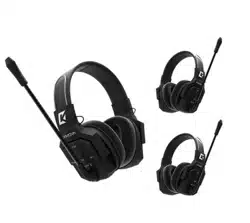

Wicom E
Full-Duplex Wireless Intercom Headset System
User Manual

Introduction:
The CKMOVA Wicom E system is a full-duplex
wireless intercom system featuring Environmental
Noise Cancellation (ENC) suitable for loud
environments.
The system includes single-ear headset version
and dual-ear headset version for different
condition choice.
The system features A & B group isolate settings
to separately communicate each group remote
headsets, and a wired connection two master
headsets enables communication up to 16 remote
headsets.
The system provides reliable transmission to all
the wireless headsets at a line-of-sight range of
up to 400m---making it well suited for a variety of
applications, including public and sporting events,
film and video production,TV & concerts and live
events.

Available Combo:
Wicom E S3
Wicom E S5
Wicom E S7
Wicom E S9
Wicom E D3
Wicom E D5
Wicom E D7
Wicom E D9
(one single-ear master headset + two single-ear remote
headsets)
(one single-ear master headset + four single-ear remote
headsets)
(one single-ear master headset + six single-ear remote
headsets)
(one single-ear master headset + eight single-ear remote
headsets)
(one dual-ear master headset + two dual-ear remote
headsets)
(one dual-ear master headset + four dual-ear remote
headsets)
(one dual-ear master headset + six dual-ear remote
headsets)
(one dual-ear master headset + eight dual-ear remote
headsets)

Available Combo:
Wicom E SM5
Wicom E SM9
Wicom E DM5
Wicom E DM9
(one single-ear master headset + two single-ear remote
headsets + two dual-ear remote headsets)
(one single-ear master headset + four single-ear remote
headsets + four dual-ear remote headsets)
(one dual-ear master headset + two single-ear remote
headsets + two dual-ear remote headsets)
(one dual-ear master headset + four single-ear remote
headsets + four dual-ear remote headsets)
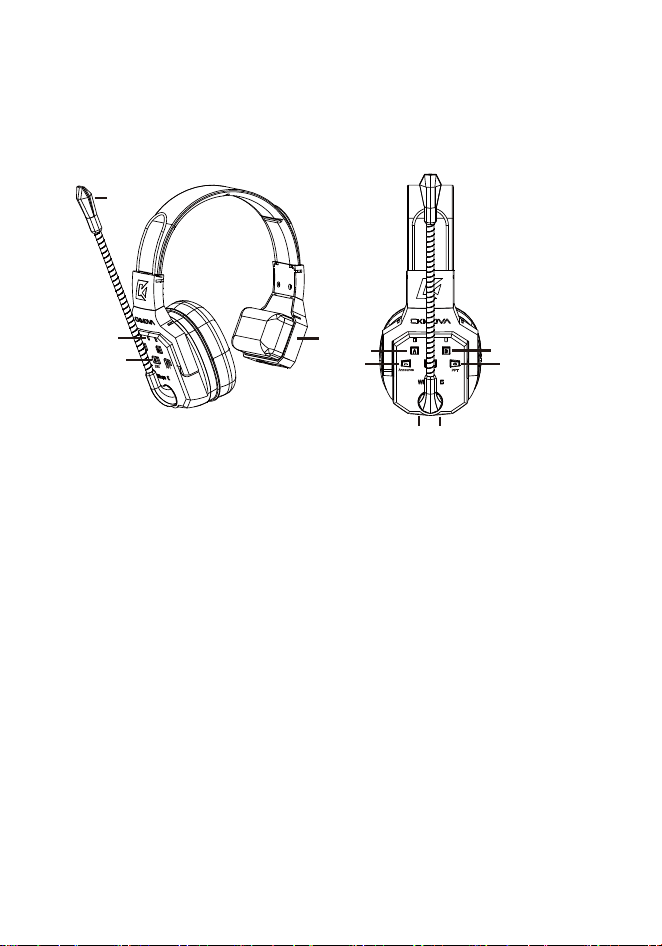
Product Structure:
1. Wicom E SM: Single-ear Master Headset
1. Microphone
2. Status Indicator (Group A; Power; Group B)
Group A Indicator:
Double blinking: under pairing status
Single blinking: disconnected
Static: connected
Dim: Group A isolation
Power Indicator:
Blue led: >10% power
Red led: <10% power
Purple led: ENC on
Blinking led: charging battery
Static led: battery full
Group B Indicator:
Double blinking: under pairing status
Single blinking: disconnected
Static: connected
Dim: Group B isolation
1
2
3
4
5
6
7
89
10

3. Group A Button
Long press button for pairing remote headset
Short press button for isolating group B remote headset
4. Group B Button
Long press button for pairing remote headset
Short press button for isolating group A remote headset
5. Power & ENC Button
Power On: long press
Power Off: long press
ENC On & Off : short press
6. “-” & Announce Button
“-” : short press button for decreasing the volume
Announce: long press and hold
7. “+” Button & PPT Button
Short press button for increasing the volume
PPT On & Off : long press about 3 seconds
8. Type-C Charging port
9. Audio Output
For two master wired connection
For computer connection
10. Battery Compartment
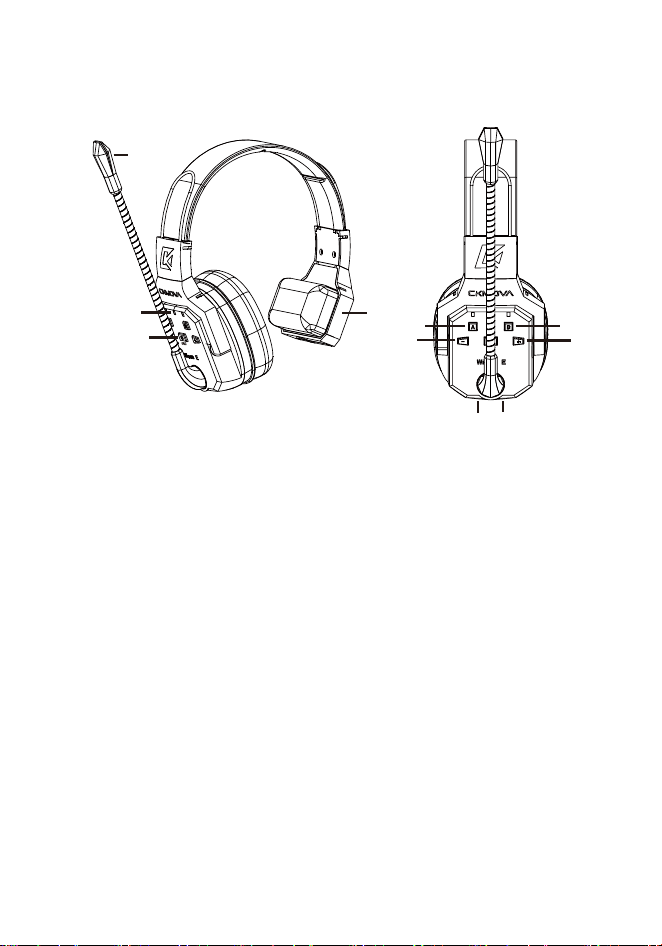
2. Wicom E SR: Single-ear Remote Headset
1
2
3
4
5
6
7
8
9
10
1. Microphone
2. Status Indicator (Group A; Power; Group B)
Group A Indicator:
Double blinking: under pairing status
Single blinking: disconnected
Static: connected
Power Indicator:
Blue led: >10% power
Red led < 10% power
Purple led: ENC on
Blinking led: charging battery
Static led: battery full
Group B Indicator:
Double blinking: under pairing status
Single blinking: disconnected
Static: connected

3. Group A Button
Long press button for pairing master headset Group A
Short press button for switching to group A
4. Group B Button
Long press button for pairing master headset Group B
Short press button for switching to group B
5. Power Button & ENC Button
Power On: long press
Power Off: long press
ENC On & Off : short press
6. “-” Button
Short press button for decreasing the volume
7. “+” Button
Short press button for increasing the volume
8. Type-C Charging port
9. Audio Output
Unavailable
10. Battery Compartment
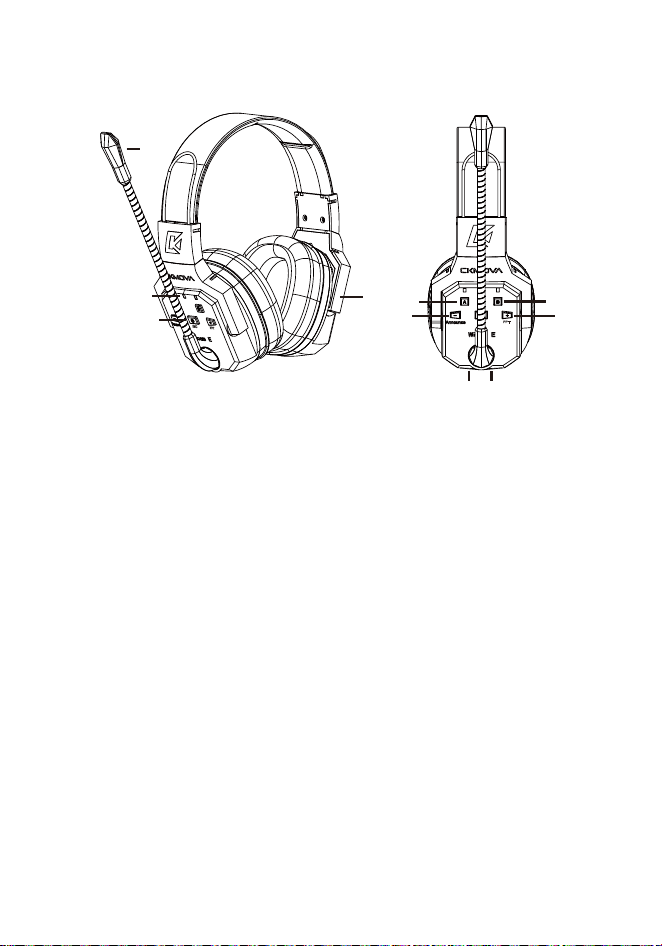
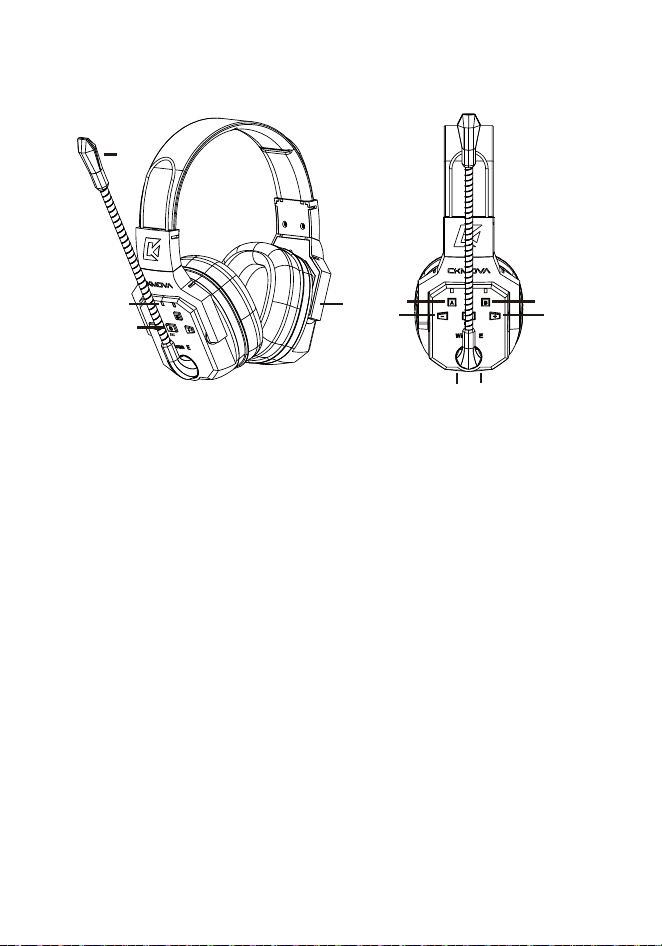
3. Wicom E DM: Dual-ear Master Headset
3
4
6
7
89
1. Microphone
2. Status Indicator (Group A; Power; Group B)
Group A Indicator:
Double blinking: under pairing status
Single blinking: disconnected
Static: connected
Dim: Group A isolation
Power Indicator:
Blue led: >10% power
Red led < 10% power
Purple led: ENC on
Blinking led: charging battery
Static led: battery full
Group B Indicator:
Double blinking: under pairing status
Single blinking: disconnected
Static: connected
Dim: Group B isolation
1
2
5
10

3. Group A Button
Long press button for pairing remote headset
Short press button for isolating group B remote headset
4. Group B Button
Long press button for pairing remote headset
Short press button for isolating group A remote headset
5. Power & ENC Button
Power On: long press
Power Off: long press
ENC On & Off : short press
6. “-” & Announce Button
“-”: short press button for decreasing the volume
Announce: long press and hold
7. “+” Button & PPT Button
Short press button for increasing the volume
PPT On & Off : long press about 3 seconds
8. Type-C Charging port
9. Audio Output
For two master wired connection
For computer connection
10. Battery Compartment
4. Wicom E DR: Dual-ear Remote Headset
1
2
5
10
3
4
6
7
8
9
1. Microphone
2. Status Indicator (Group A; Power; Group B)
Group A Indicator:
Double blinking: under pairing status
Single blinking: disconnected
Static: connected
Power Indicator:
Blue led: >10% power
Red led < 10% power
Purple led: ENC on
Blinking led: charging battery
Static led: battery full
Group B Indicator:
Double blinking: under pairing status
Single blinking: disconnected
Static: connected

3. Group A Button
Long press button for pairing master headset Group A
Short press button for switching to group A
4. Group B Button
Long press button for pairing master headset Group B
Short press button for switching to group B
5. Power Button & ENC Button
Power On: long press
Power Off: long press
ENC On & Off : short press
6. “-” Button
Short press button for decreasing the volume
7. “+” Button
Short press button for increasing the volume
8. Type-C Charging port
9. Audio Output
Unavailable
10. Battery Compartment
Operation Guide:
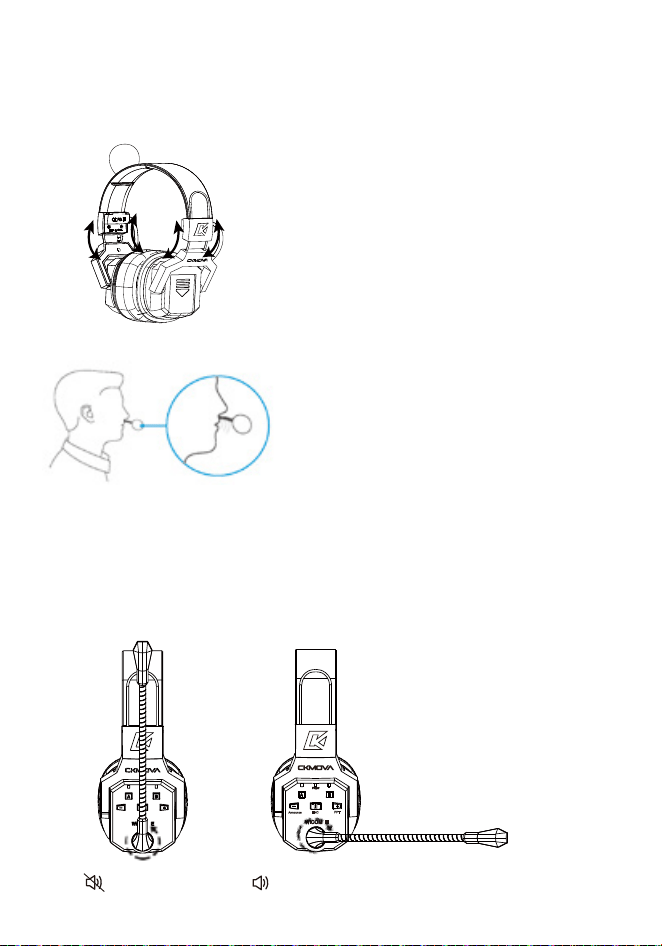
How to wear headset
1. Adjust the headset to the comfortable size and position
2. Adjust the microphone 2cm away from your mouth for
optimal audio
Headsets Mute
: Communication
: Mute On
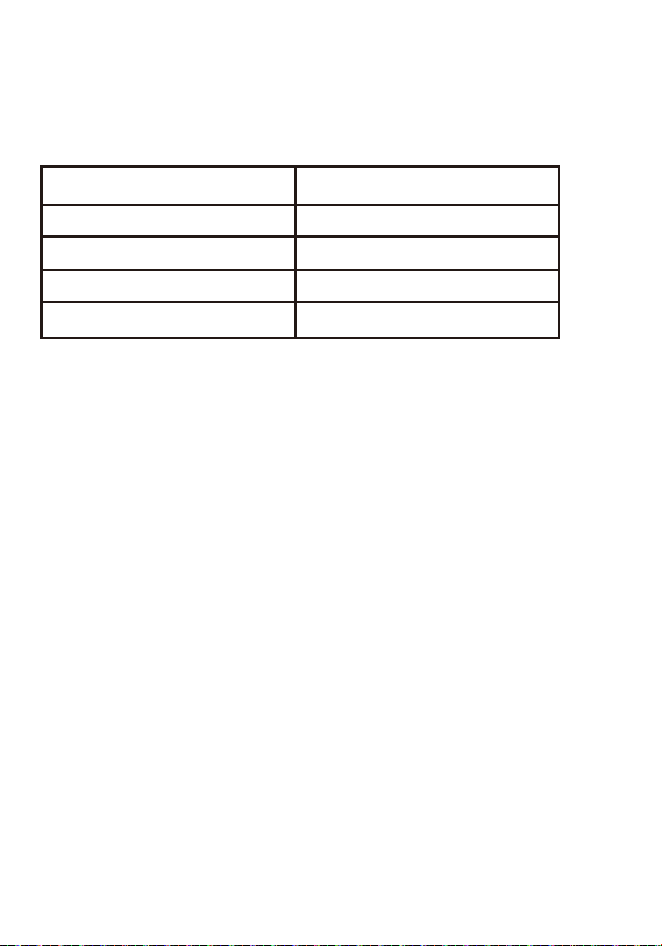
Frequency Band Selection
Standard Version:
American Version:
Brazilian Version:
Japanese Version:
Taiwanese Version:
1880-1900MHz
1920-1930MHz
1910-1920MHz
1893-1906MHz
1880-1895MHz
There are five frequency band versions as below:
Make sure the master headset is power off, long press
group A button then press power button, till the group A
led light is blinking that mean enter “selecting frequency
band status”, short press “+” & “-” to select frequency
band, then short press group B button save & exit.
Make sure the remote headset is power off, long press
group A button then press power button, till the group A
led light is blinking that mean enter “selecting frequency
band status”, short press “+” & “-” to select frequency
band, then short press group B button save & exit.
After selecting the new frequency band, then you need
to pair the remote & master headset as regular operation
way.
Noted: The factory default frequency band for each
market complies with local regulatory requirements.
It is not recommended to switch the frequency band
unless you take the headsets to other region.

Headsets Pairing
The default is paired before leaving factory, if they are
disconnected or adding more remote headsets to master,
please follow the below steps:
(1): Make sure the master headset and remote headset
are powered on
(2): Long press master headset Group A or Group B
button then related indicator double blinking that
mean master headset is under pairing, then long
press remote headset Group A or Group B then
related indicator double blinking that mean the
remote headset is under pairing too
Later the remote headset indicator become static
then the remote headset is paired; The master
headset is always under paring until short press
related Group A or Group B button then quit pairing.
(3): Timeout quit pairing: If not scan master or remote
headset, the master & remote headset will quit
pairing after 120 seconds, then related indicator
become single blinking.
Clearing headsets paired
Long press group A button on master headset for about
3 seconds till the A light blinking, then short press “+”
button 7~10 times on master headset till the A&B lights
blinking together and change to off, then waiting to clear
the connection to all remote headsets.
Noted:
1. Each Group can have a maximum of eight remote
headsets paired simultaneously
2. Each master can have a maximum of eight remote
headsets paired simultaneously
After paired master & remote headsets keep connected
code, so no need to re-pair again in next time
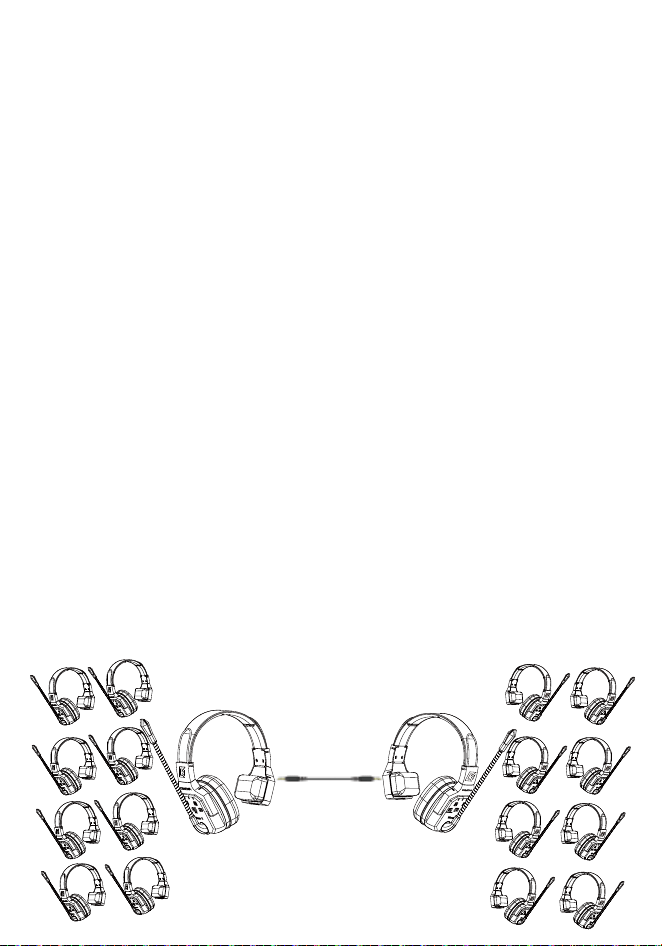
Headsets Expanding
Expandable system up to 18 headsets for connecting via
AC-T3C(not included) to two master headsets
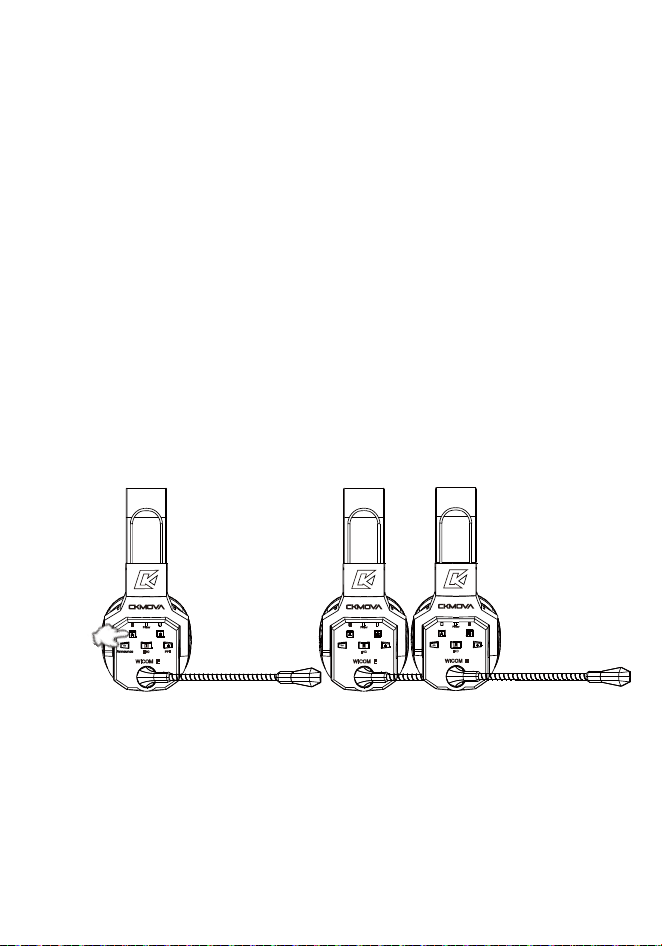
A & B Group Isolate Setting
Short press Group A button on master headset enables
isolate all Group B remote headsets, then the master
headsets can only communicate with Group A remote
headsets.
Short press Group B button on master headset enables
isolate all Group A remote headsets, then the master
headsets can only communicate with Group B remote
headsets.
Noted: The remote headset still enables internal
communication between isolated group remote headsets
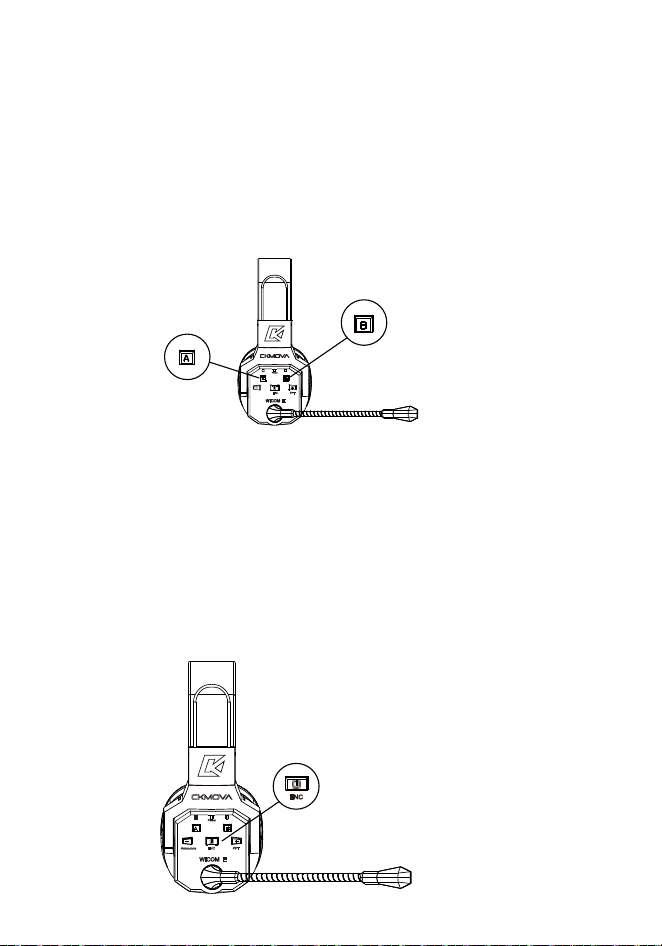
A & B Group Manage Setting
The remote headset conveniently switch to group A or
group B
(group A + group B up to 8 remote headsets)
Noted: Before manage group, make sure the headset
is paired
ENC
Short press power button on master or remote headset
then entering ENC functions, it hepls to reduce ambient
noise, enables the users using in some loud noise
environments, short press again then exit.
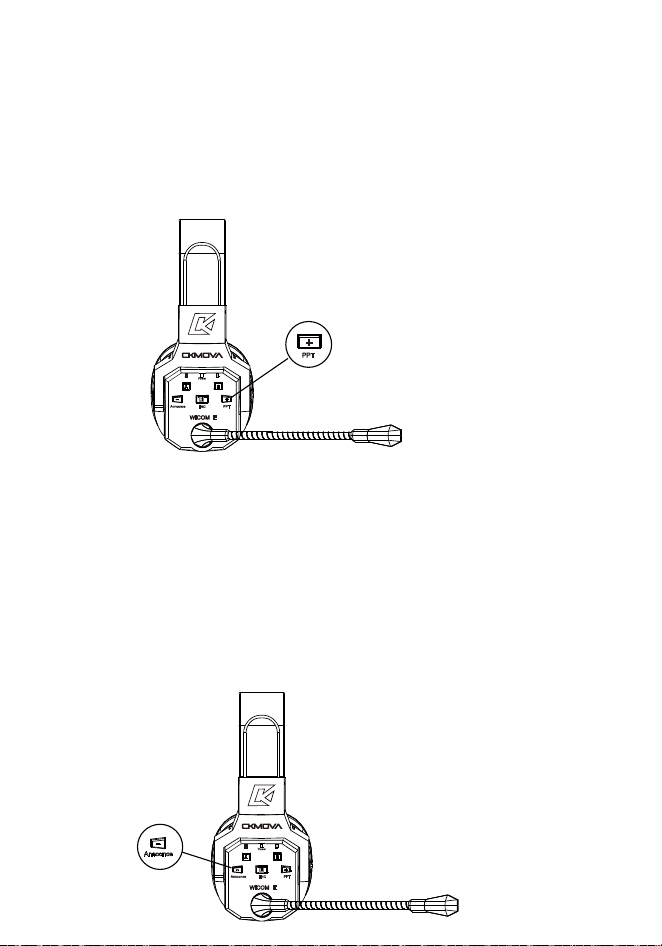
PPT Talk
Long press “+” button on master headset about 3
seconds then entering PPT talk mode, it enables the
master headset user hear their voice when talking,
long press about 3 seconds again then exit.
ANNOUNCE
Long press and hold “-” button on master headset then
activating this function, all remote headsets are instantly
muted, allowing the entire team to only hear the instructions
from master headset, release button then exit.
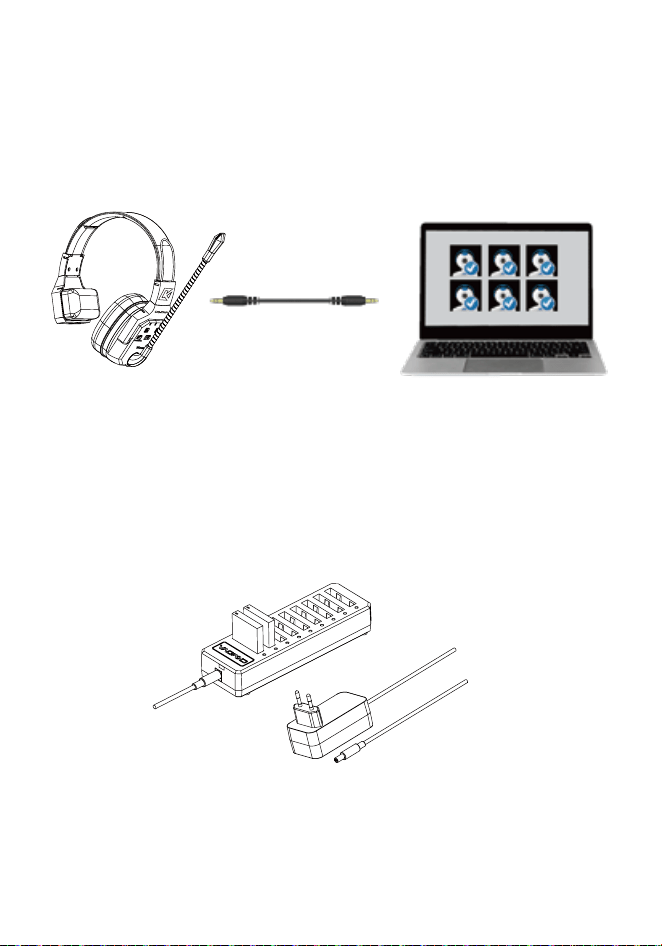
Cloud Meetings
Master headset connect computer via AC-T3C(not
included) for cloud meetings
Battery charging
Please charge the battery when battery is low
1. Charge the battery via charger
2. Charge the battery via headset type-c port directly
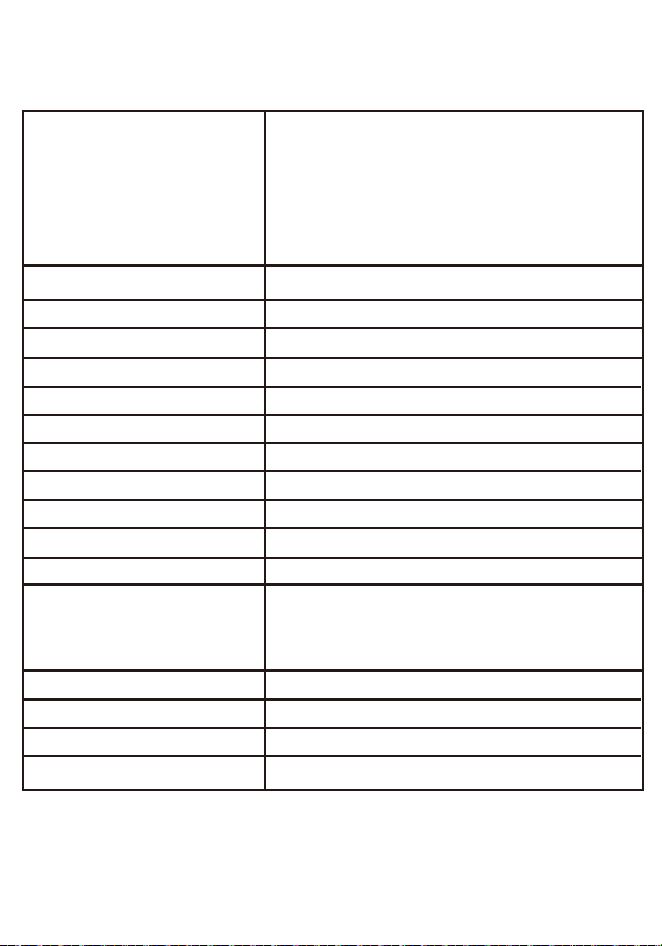
Specifications:
Frequency Band
Duplex Mode:
Modulation:
Microphone Type:
Operation Range:
Frequency Response:
Distortion:
SNR:
RF Output Power:
Power Consumption:
Battery Capacity:
Charging Time:
Battery Life:
Dimensions:
Weight:
Operating Temperature:
Storage Temperature:
Standard Version: 1880-1900MHz
American Version: 1920-1930MHz
Brazilian Version: 1910-1920MHz
Japanese Version: 1893-1906MHz
Taiwanese Version: 1880-1895MHz
Full-Duplex
GFSK
Condenser Microphone
1312ft(400m)
300Hz-5kHz
<1%
65dB and more
<24dBm
<0.5W
1000mAh
2 Hours
Remote headset: 10 hours
Master
(work with 4 remote): 6 hours
Master
(work with 8 remote): 5 hours
195*145*28mm
(Master&Remote)
360g(12.7oz)
-10℃~50℃
-20℃~55℃

Packing List
Wicom E S3
Wicom E SM headset x 1
Wicom E SR headset x 2
BL-5C battery x 3
Type-C charging cable x 3
AC-HC3 carry suitcase x 1
User Manaual x 1
Warranty Card x 1
Wicom E S5
Wicom E SM headset x 1
Wicom E SR headset x 4
BL-5C battery x 5
AC-BC9 battery charger x 1
AC-HC3 carry suitcase x 1
User Manaual x 1
Warranty Card x 1
Wicom E S7
Wicom E SM headset x 1
Wicom E SR headset x 6
BL-5C battery x 7
AC-BC9 battery charger x 1
AC-HC4 carry suitcase x 1
User Manaual x 1
Warranty Card x 1
Wicom E S9
Wicom E SM headset x 1
Wicom E SR headset x 8
BL-5C battery x 9
AC-BC9 battery charger x1
AC-HC4 carry suitcase x1
User Manaual x 1
Warranty Card x 1

Wicom E D3
Wicom E DM headset x 1
Wicom E DR headset x 2
BL-5C battery x 3
Type-C charging cable x 3
AC-HC3 carry suitcase x 1
User Manaual x 1
Warranty Card x 1
Wicom E D5
Wicom E DM headset x 1
Wicom E DR headset x 4
BL-5C battery x 5
AC-BC9 battery charger x 1
AC-HC3 carry suitcase x 1
User Manaual x 1
Warranty Card x 1
Wicom E D7
Wicom E DM headset x 1
Wicom E DR headset x 6
BL-5C battery x 7
AC-BC9 battery charger x 1
AC-HC4 carry suitcase x 1
User Manaual x 1
Warranty Card x 1
Wicom E D9
Wicom E DM headset x 1
Wicom E DR headset x 8
BL-5C battery x 9
AC-BC9 battery charger x1
AC-HC4 carry suitcase x1
User Manaual x 1
Warranty Card x 1

Wicom E SM5
Wicom E SM headset x 1
Wicom E SR headset x 2
Wicom E DR headset x 2
BL-5C battery x 5
AC-BC9 battery charger x 1
AC-HC3 carry suitcase x 1
User Manaual x 1
Warranty Card x 1
Wicom E SM9
Wicom E SM headset x 1
Wicom E SR headset x 4
Wicom E DR headset x 4
BL-5C battery x 9
AC-BC9 battery charger x 1
AC-HC3 carry suitcase x 1
User Manaual x 1
Warranty Card x 1
Wicom E DM5
Wicom E DM headset x 1
Wicom E SR headset x 2
Wicom E DR headset x 2
BL-5C battery x 5
AC-BC9 battery charger x 1
AC-HC4 carry suitcase x 1
User Manaual x 1
Warranty Card x 1
Wicom E DM9
Wicom E DM headset x 1
Wicom E SR headset x 4
Wicom E DR headset x 4
BL-5C battery x 9
AC-BC9 battery charger x1
AC-HC4 carry suitcase x1
User Manaual x 1
Warranty Card x 1

Shenzhen Shenyao Technology Co., Ltd
CKMOVA is the trademark of Shenzhen Shenyao Technology Co., Ltd
Add: Floor 6, 38th Building, BaoNan Street, LongGang District, Shenzhen
Guangdong, China
Email: [email protected]
Web: www.ckmova.com
深圳市神堯科技有限公司