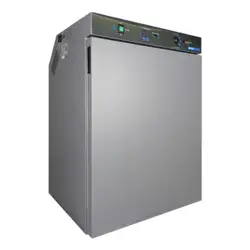
MICROBIOLOGICAL INCUBATORS
SMI FAMILY
Installation - Operation Manual
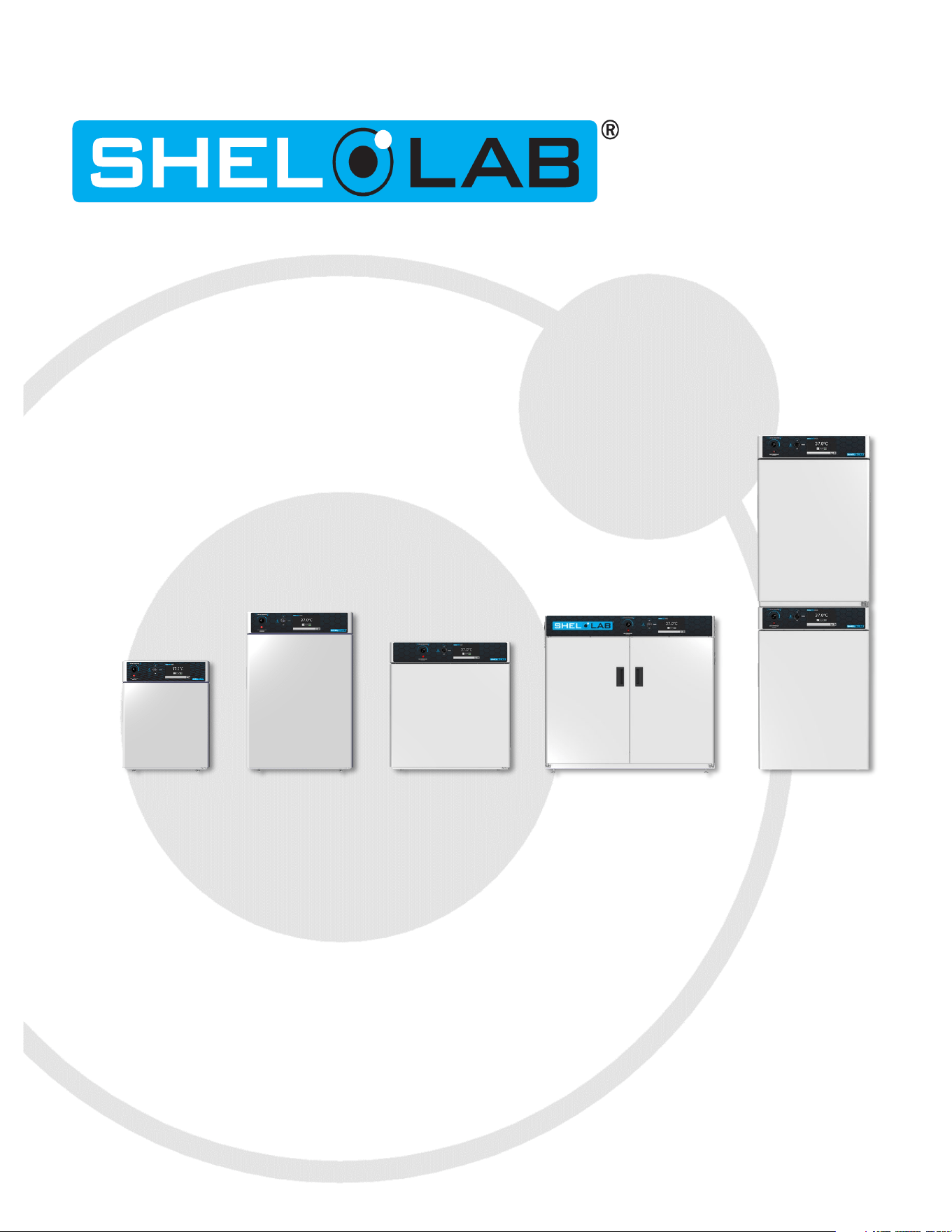
SMI2s SMI6s SMI7s SMI11s SMI12s
2 | Page
Pictured on the front cover, left to right: SMI2, SMI6, SMI7, SMI11, SMI12
Note: The SMI12 and SMI12-2 incubators each require two power outlets to plug into.
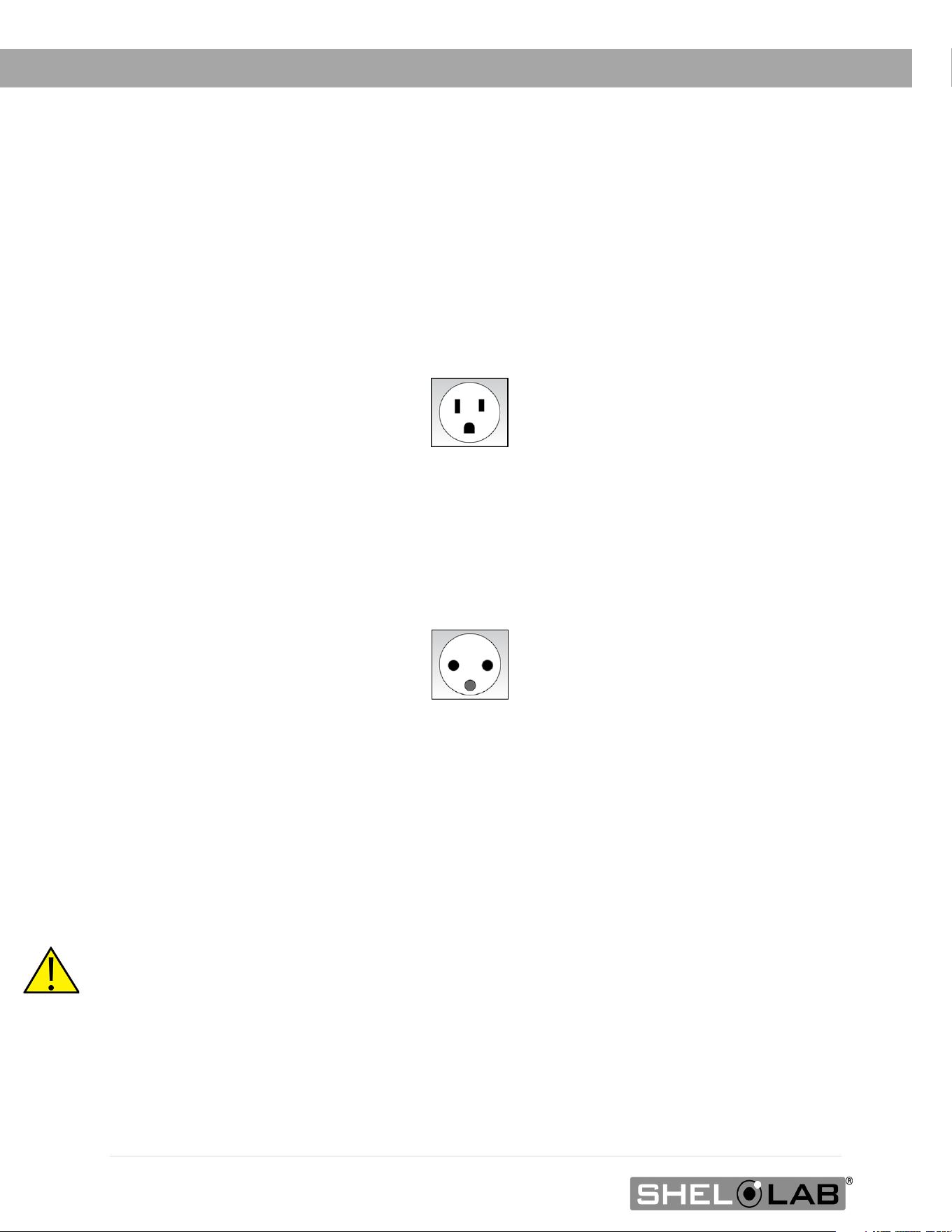
The SMI2, SMI6, SMI7, SMI11, and SMI12 incubators require 100 – 120-volt NEMA 5-15R power outlets.
The SMI2-2, SMI6-2, SMI7-2, SMI11-2, and SMI12-2 incubators require 220 – 240-volt CEE 7/7
power outlets.
Warning: This product contains chemicals, including triglycidyl isocyanurate, known to the State of
California to cause cancer as well as birth defects or other reproductive harm. For more information,
go to www.P65Warnings.ca.gov.
¡Advertencia! Este producto contiene sustancias químicas, incluido el triglicidil isocianurato, que el
estado de California sabe que causa cáncer, así como defectos de nacimiento u otros daños
`reproductivos. Para obtener más información, visite www.P65Warnings.ca.gov.
Avertissement! Ce produit peut vous exposer à des produits chimiques, dont l'isocyanurate de
triglycidyle, reconnu par l'État de Californie pour provoquer le cancer, des anomalies congénitales
ou d'autres problèmes de reproduction. Pour plus d'informations, visitez le site
www.P65Warnings.ca.gov.
3 | Page
SMI Microbiological Incubators
100 – 120 Voltage Models: SMI2 SMI6 SMI7 SMI11 SMI12
220 – 240 Voltage Models: SMI2-2 SMI6-2 SMI7-2 SMI11-2 SMI12-2
Part Number (Manual): 4861825
Revised: June 15, 2021
Sheldon Part ID Numbers:
Model SMI2 SMI6 SMI7 SMI11 SMI12
Part ID
SLM222 SLM622 SLM722 SLM1122 SLM1222
Model SMI2-2 SMI6-2 SMI7-2 SMI11-2 SMI12-2
Part ID SLM222-E SLM622-E SLM722-E SLM1122-E SLM1222-E
The Part ID denotes the build type of the model. The manufacturer periodically releases new build-type
designs incorporating new features and refinements of existing ones.

4 | Page
TABLE OF CONTENTS
MODEL CERTIFICATIONS...................................................................................................................................... 7
Electromechanical Safety Testing ..................................................................................................................................... 7
CE Compliant ........................................................................................................................................................................... 7
ISO Certified Manufacturer .................................................................................................................................................. 7
INTRODUCTION ..................................................................................................................................................... 9
Read this Manual .................................................................................................................................................................... 9
Safety Considerations and Requirements ...................................................................................................................... 9
Contacting Assistance ........................................................................................................................................................ 10
Manufacturing Warranty .................................................................................................................................................... 10
Engineering Improvements ............................................................................................................................................... 10
Reference Sensor Device ................................................................................................................................................... 11
RECEIVING YOUR UNIT ....................................................................................................................................... 13
Inspect the Shipment ........................................................................................................................................................... 13
Orientation Images .............................................................................................................................................................. 14
Recording Data Plate Information .................................................................................................................................. 20
INSTALLATION ...................................................................................................................................................... 21
Installation Procedures Checklist .................................................................................................................................... 21
Required Ambient Conditions .......................................................................................................................................... 22
Required Clearances .......................................................................................................................................................... 22
100 – 120 Volt Power Requirements .............................................................................................................................. 23
220 – 240 Volt Power Requirements ............................................................................................................................ 24
Lifting and Handling ........................................................................................................................................................... 25
Removing from the Pallet .................................................................................................................................................. 25
Leveling .................................................................................................................................................................................. 25
Install the Incubator ............................................................................................................................................................ 26
Deionized and Distilled Water ......................................................................................................................................... 26
Installation Cleaning and Disinfection .......................................................................................................................... 26
Install the Shelving ...............................................................................................................................................................27
Access Port ............................................................................................................................................................................27
GRAPHIC SYMBOLS ............................................................................................................................................ 29
CONTROL OVERVIEW .......................................................................................................................................... 31
OPERATION .......................................................................................................................................................... 33
Theory of Operation ........................................................................................................................................................... 33
Put the Incubator into Operation .................................................................................................................................... 34
Set the Date and Time ....................................................................................................................................................... 35
Adjust the Temperature Setpoint ................................................................................................................................... 36
Adjusting The Temperature Deviation Alarm .............................................................................................................. 37
Set the Over Temperature Limit (OTL) .......................................................................................................................... 38
Passcode Locking the Settings ....................................................................................................................................... 39
Changing Locked Settings ............................................................................................................................................... 40
Alarms and Muting ............................................................................................................................................................... 41
Loading Samples ................................................................................................................................................................. 42
Chamber Power Outlet ...................................................................................................................................................... 42
Power and Memory ............................................................................................................................................................. 43
Data Log ................................................................................................................................................................................ 43
Data Log Copy and Export ............................................................................................................................................... 44
Real Time Data Outputs .................................................................................................................................................... 46
Accessory Expansion Port ................................................................................................................................................ 46
Humidifying the Incubator................................................................................................................................................. 46
Condensation and the Dew Point ................................................................................................................................... 47
USER MAINTENANCE ......................................................................................................................................... 49
Cleaning and Disinfecting ................................................................................................................................................. 49

5 | Page
Minimizing Contamination Exposure .............................................................................................................................. 51
Storing the Incubator ........................................................................................................................................................... 51
Door Components ................................................................................................................................................................ 51
Electrical Components ........................................................................................................................................................ 51
Calibrating the Temperature Display ............................................................................................................................ 52
UNIT SPECIFICATIONS ....................................................................................................................................... 57
Weight ......................................................................................................................................................................................57
Dimensions .............................................................................................................................................................................57
Capacity ................................................................................................................................................................................. 58
Shelf Capacity by Weight .................................................................................................................................................. 58
Temperature ......................................................................................................................................................................... 58
Power ...................................................................................................................................................................................... 59
PARTS LIST ............................................................................................................................................................ 61

6 | Page
TABLE OF CONTENTS
7 | Page
MODEL CERTIFICATIONS
Model Certification and Compliance Statements
ELECTROMECHANICAL SAFETY TESTING
61010 Safety Certified: Canada, USA, EU
Electrical, mechanical, and fire hazards
The models in this manual are CUE listed by TÜV SÜD America as incubators for
professional, industrial, or educational use in conditions in which no flammable,
volatile, or combustible materials are being heated and the unit is being operated
under an environmental air pressure range of 22.14 – 31.3 inHg (75 – 106 kPa).
These models have been tested to the following requirements:
CAN/CSA C22.2 No. 61010-1:2012
CAN/CSA C22.2 No. 61010-2-010 + R:2009
UL 61010A-2-010:2002
UL 61010-1:2012
EN 61010-1:2010
EN 61010-2-010:2003
TÜV SÜD America, Inc. is a Standards Council of Canada accredited certification
body, an OSHA-recognized NRTL, and an EU Notified Body.
CE COMPLIANT
These unit models meet all required electromagnetic compatibility (EMC),
EU low-voltage, and RoHS directives.
ISO CERTIFIED MANUFACTURER
SHEL LAB is a brand of Sheldon Manufacturing, INC, an ISO 9001
certified manufacturer.

8 | Page
CERTIFICATIONS

9 | Page
INTRODUCTION
Thank you for purchasing a SHEL LAB incubator. We know you have many choices in today’s
competitive marketplace when it comes to constant temperature equipment. We appreciate you
choosing ours. We stand behind our products and will be here if you need us.
READ THIS MANUAL
Failure to follow the guidelines and instructions in this user manual may create a protection impairment
by disabling or interfering with the unit safety features. This can result in injury or death.
Before using the unit, read the manual in its entirety to understand how to install, operate, and maintain
the unit in a safe manner. Ensure all operators are given appropriate training before the unit begins
service.
Keep this manual available for use by all operators.
SAFETY CONSIDERATIONS AND REQUIREMENTS
Follow basic safety precautions, including all national laws, regulations, and local ordinances in your area
regarding the use of this unit. If you have any questions about local requirements, please contact the
appropriate agencies.
SOPs: Because of the range of potential applications this unit can be used for, the operator or their
supervisors must draw up a site-specific standard operating procedure (SOP) covering each application
and associated safety guidelines. This SOP must be written and available to all operators in a language
they understand.
Intended Applications and Locations: The incubators are intended for constant temperature, non-
humidified microbiological incubation applications in professional, industrial, and educational
environments. The units are not intended for use at hazardous or household locations.
Power: Your unit and its recommended accessories are designed and tested to meet strict safety
requirements.
• The unit is designed to connect to a power source using the specific power cord type
shipped with the unit.
• Always plug the unit power cord into a protective earth grounded electrical outlet
conforming to national and local electrical codes. If the unit is not grounded properly, parts
such as knobs and controls can conduct electricity and cause serious injury.
• Do not bend the power cord excessively, step on it, or place heavy objects on it.
• A damaged cord can be a shock or fire hazard. Never use a power cord if it is damaged or
altered in any way.
• Use only approved accessories. Do not modify system components. Any alterations or
modifications to your unit not explicitly authorized by the manufacturer can be dangerous
and will void your warranty.

10 | Page
INTRODUCTION
CONTACTING ASSISTANCE
Phone hours for Sheldon Customer Support are 6 am – 4:30 pm Pacific Coast Time (west coast of
the United States, UTC -8), Monday – Friday. Please have the following information ready when
calling or emailing Customer Support: the model number, serial number, part number, and part ID
(see page 20).
1-800-322-4897 extension 4
(503) 640-3000 extension 4
FAX: (503) 640-1366
Sheldon Manufacturing, INC.
P.O. Box 627
Cornelius, OR 97113
USA
MANUFACTURING WARRANTY
For information on your warranty and online warranty registration please visit:
sheldonmanufacturing.com/warranty
ENGINEERING IMPROVEMENTS
Sheldon Manufacturing continually improves all of its products. As a result, engineering changes and
improvements are made from time to time. Therefore, some changes, modifications, and
improvements may not be covered in this manual. If your unit’s operating characteristics or
appearance differs from those described in this manual, please contact your SHEL LAB dealer or
customer service representative for assistance.
11 | Page
INTRODUCTION
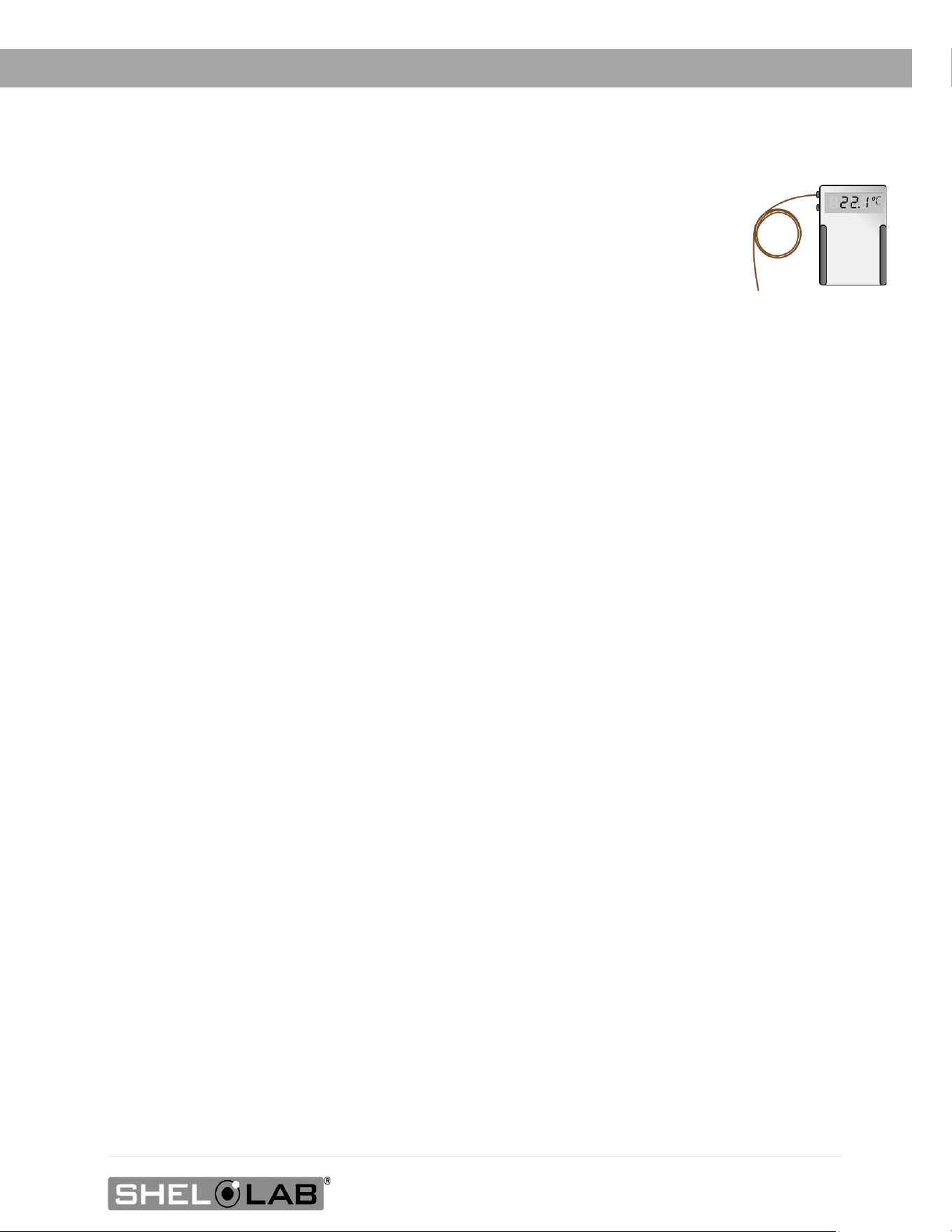
REFERENCE SENSOR DEVICE
Must be purchased separately
Temperature Calibrations
If you are not using a third-party service, a reference sensor device is required for calibrating
your unit’s temperature display.
• See the Calibrating the Temperature Display procedure on page 52 for more information.
Device Accuracy
Reference devices must meet the following standards:
• Accurate to at least 0.1°C
The device should be regularly calibrated, preferably by a third party.
Temperature Probe
Use a digital device with a wire thermocouple probe that can be introduced into the unit chamber
through the access port or door space. Select a thermocouple suitable for the application temperature
you will be calibrating at.
Why a Probe?
Reference readings taken from outside the chamber using wire temperature probes avoid chamber
door openings. Openings disrupt the chamber temperature. Each disruption requires a minimum 1-hour
wait to allow the chamber to re-stabilize before continuing.
No Alcohol or Mercury Thermometers
Alcohol thermometers do not have sufficient accuracy to conduct accurate temperature calibrations.
Never place a mercury thermometer in the unit chamber. Always use thermocouple probes.
Temperature
Reference

12 | Page
INTRODUCTION
13 | Page
RECEIVING YOUR UNIT
INSPECT THE SHIPMENT
Safe delivery becomes the responsibility of the carrier when a unit leaves the factory. Damage
sustained during transit is not covered by the manufacturing defect warranty.
When you receive your unit, inspect it for concealed loss or damage to its interior and exterior. If you
find any damage to the unit, follow the carrier’s procedure for claiming damage or loss. Save the
shipping carton until you are certain that the unit and its accessories function properly.
1. Carefully inspect the shipping carton for damage.
2. Report any damage to the carrier service that delivered the unit.
3. If the carton is not damaged, open the carton and remove the contents.
4. Inspect the unit for signs of damage. Use the orientation images in this chapter as
references.
5. The unit should come with an Installation and Operation Manual.
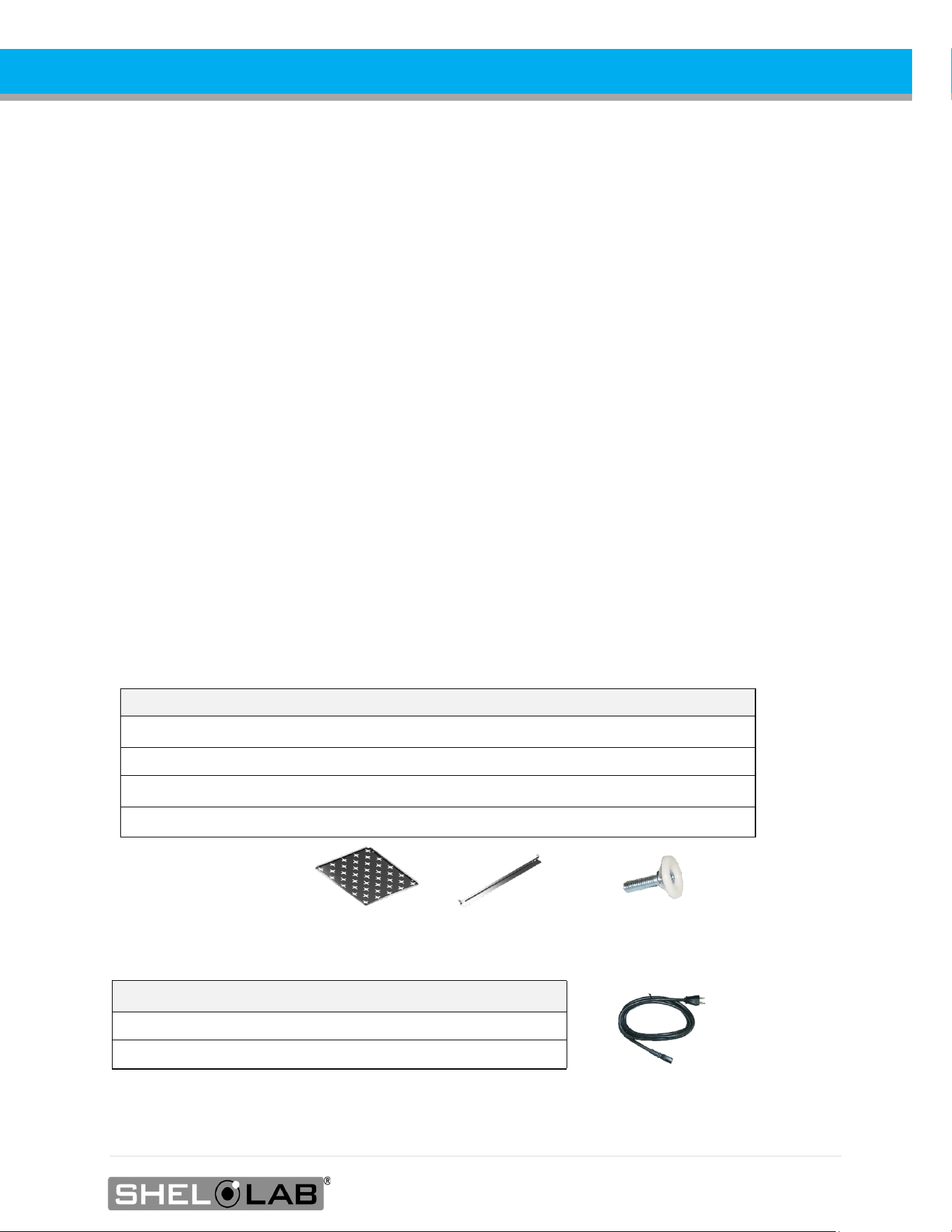
6. Verify that the correct number of accessory items has been included.
7. Carefully check all packaging for accessory items before discarding.
Included Accessories
Model Shelves Shelf Mounts Leveling Feet
SMI2s, SMI7s 2 4 4
SMI6s 3 6 4
SMI11s 6 12 4
SMI12s 6 12 4
Power Cords
Model Number of Cords
SMI2s, SMI6s, SMI7s, SMI11s
1
SMI12s
2
14 | Page
RECEIVING
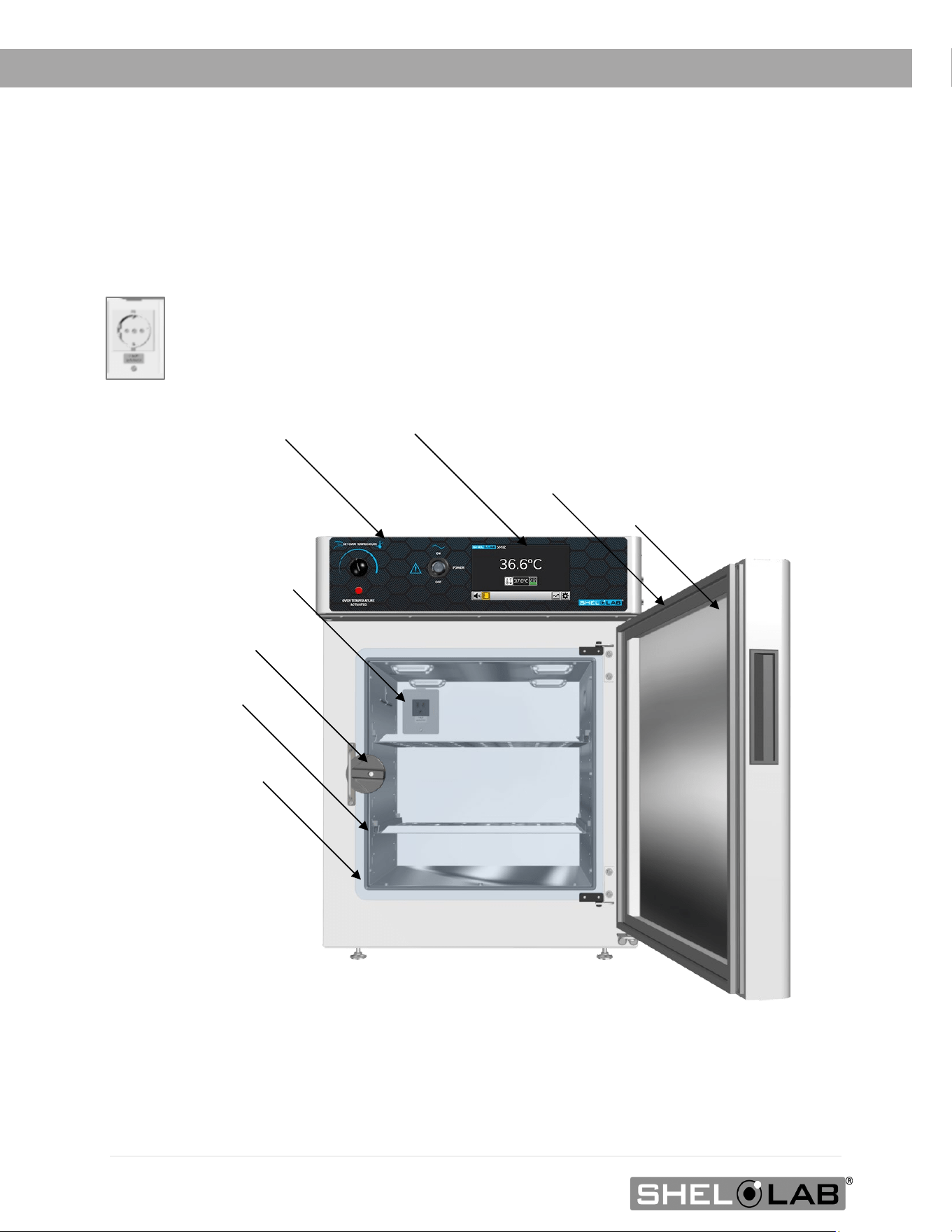
ORIENTATION IMAGES
Control Panel
Control Panel Touch Display
SMI2 Chamber Power Outlet,
NEMA 5-15R 100 – 120 Volt*
Chamber Inner Door Latch
SMI2s
Chamber Outer Door
Incubation Chamber
Outer Door Seal
Chamber Inner Door Seal
Data Plate
*SMI2-2 Chamber Power Outlet, CEE7 220 – 240 Volt
15 | Page
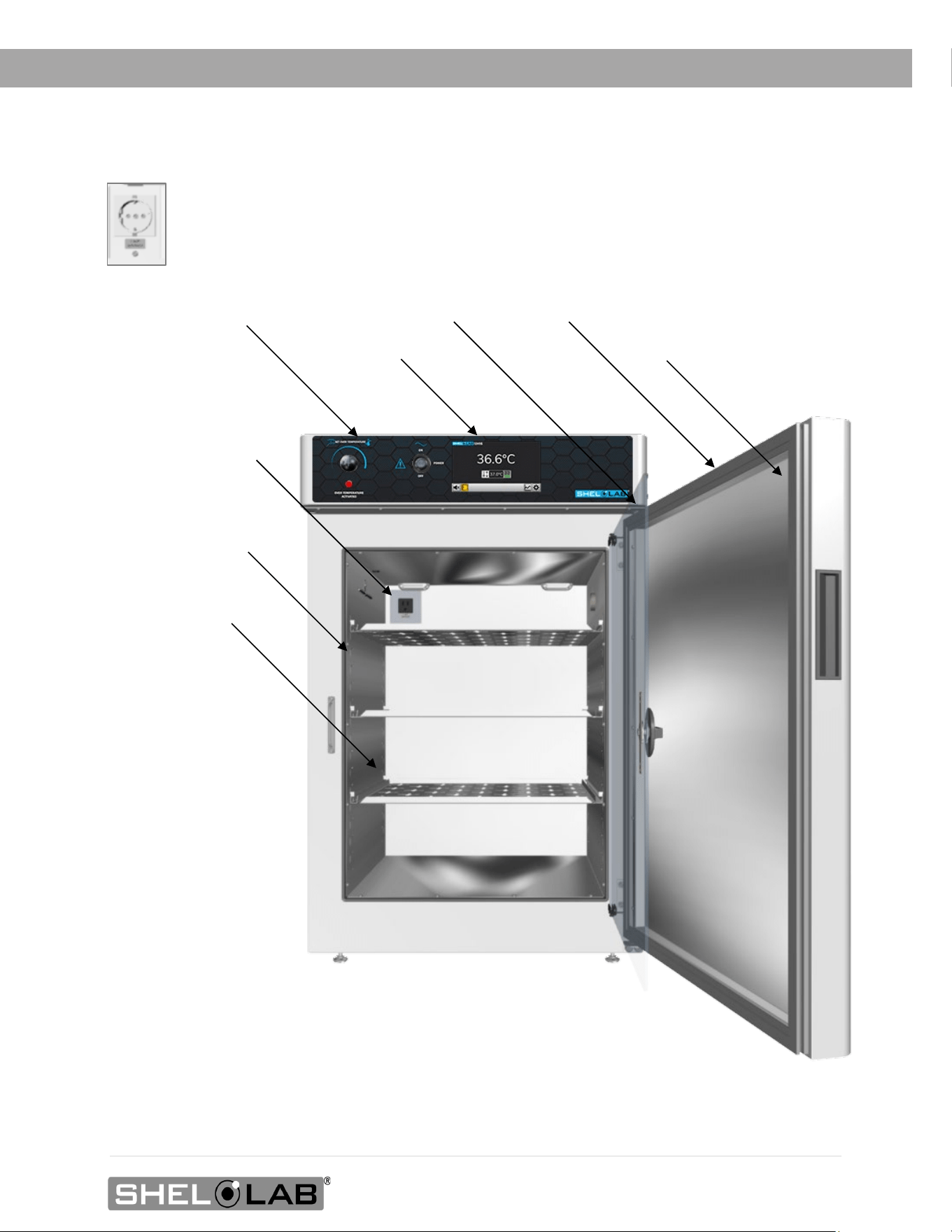
RECEIVING
Control Panel
SMI6 Chamber Power Outlet,
NEMA 5-15R 100 – 120 Volt*
SMI6s Front
Chamber Outer Door
Incubation Chamber
Chamber Inner Door
Outer Door Seal
Chamber Inner Door Seal
Data Plate
Touch Display
*SMI6-2 Chamber Power Outlet, CEE7 220 – 240 Volt
16 | Page
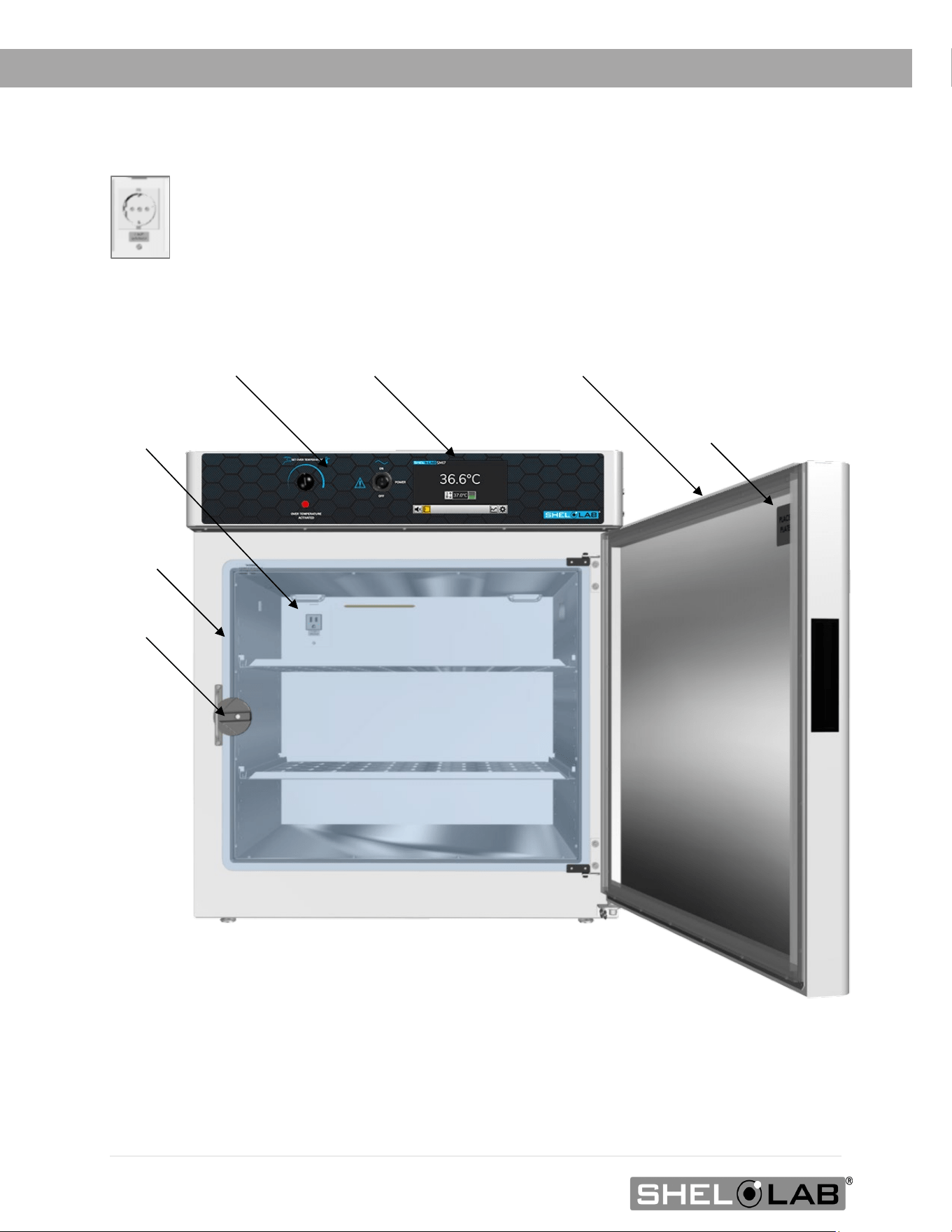
RECEIVING
Control Panel
SMI7 Chamber Power Outlet,
NEMA 5-15R 100 – 120 Volt*
SMI7s
Chamber Outer Door
Chamber Inner
Door Latch
Touch Display
Outer Door Seal
Chamber Inner
Door Seal
Data Plate
*SMI7-2 Chamber Power Outlet, CEE7 220 – 240 Volt
17 | Page
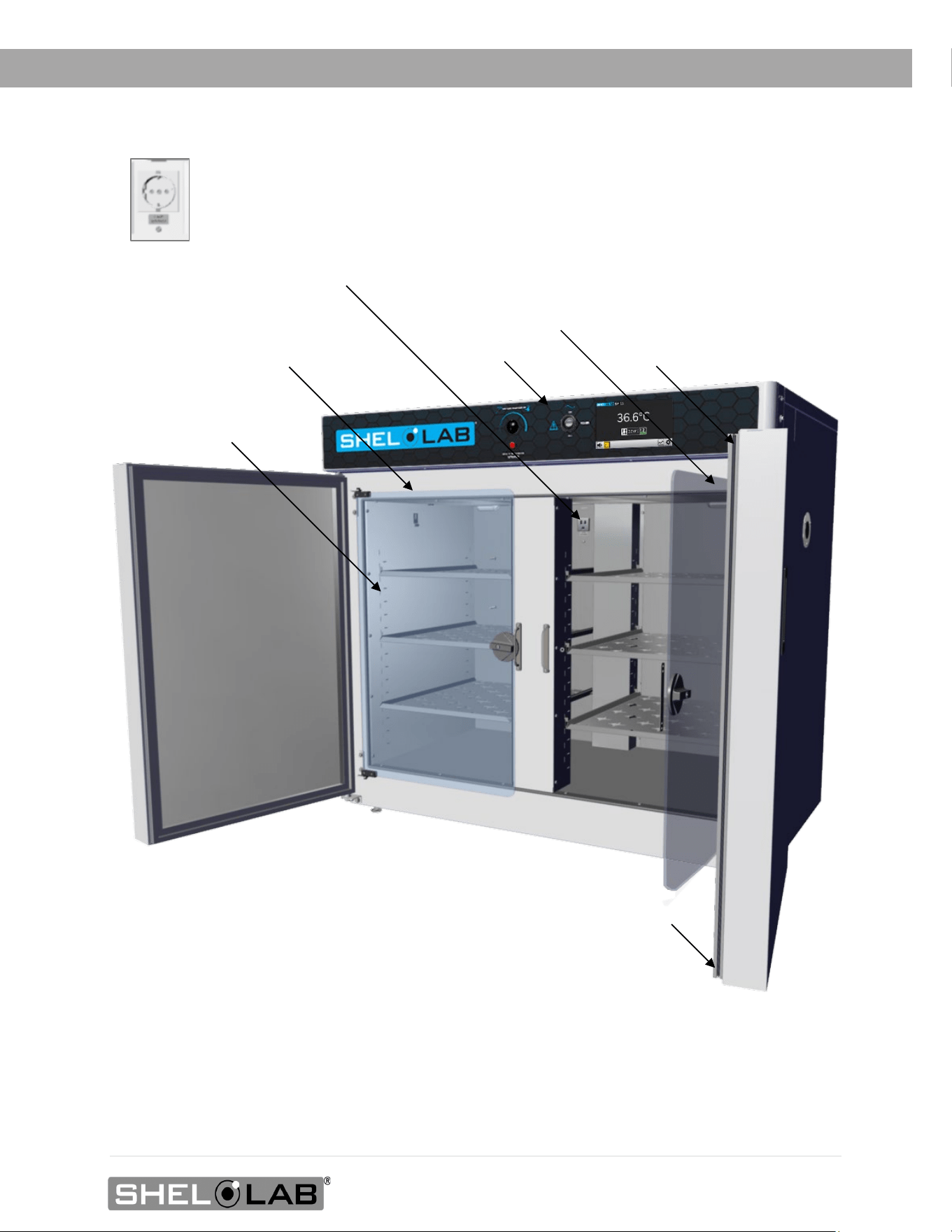
RECEIVING
Chamber Inner Door – Left
SMI11s Front
Chamber Outer Door – Right
SMI11 Chamber Power Outlet, NEMA 5-15R 100 – 120 Volt*
Chamber Outer Door – Left
Note: The SMI11 has a single incubation chamber.
Chamber Inner Door – Right
Control Panel
Outer Door Seal
Data Plate (interior)
Inner Chamber Door Seal
*SMI11-2 Chamber Power Outlet, CEE7 220 – 240 Volt
18 | Page
RECEIVING
Chamber Inner Door Latch
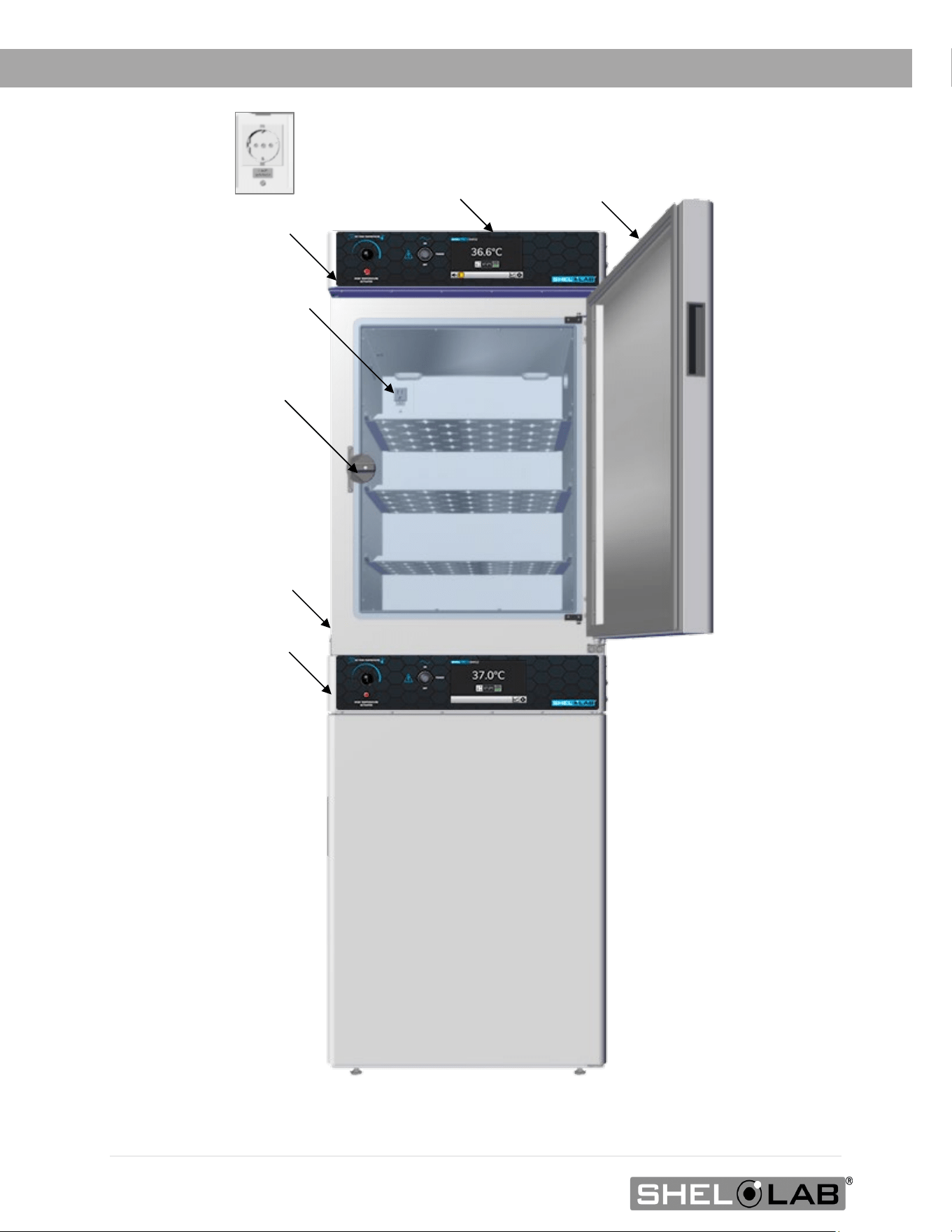
SMI12 Chamber Power Outlet,
NEMA 5-15R 100 – 120 Volt*
SMI12s
Chamber Outer Door Seal
SMI12 Data Plate
Note: The SMI12 consists of two SMI6 incubators secured to a stacking brace. Each incubator
operates independently and is separately powered.
Bottom Incubator
Top Incubator
Top Incubator Control Panel
Bottom Incubator Control Panel
Touch Display
*SMI12-2 Chamber Power Outlet, CEE7 220 – 240 Volt
19 | Page
RECEIVING
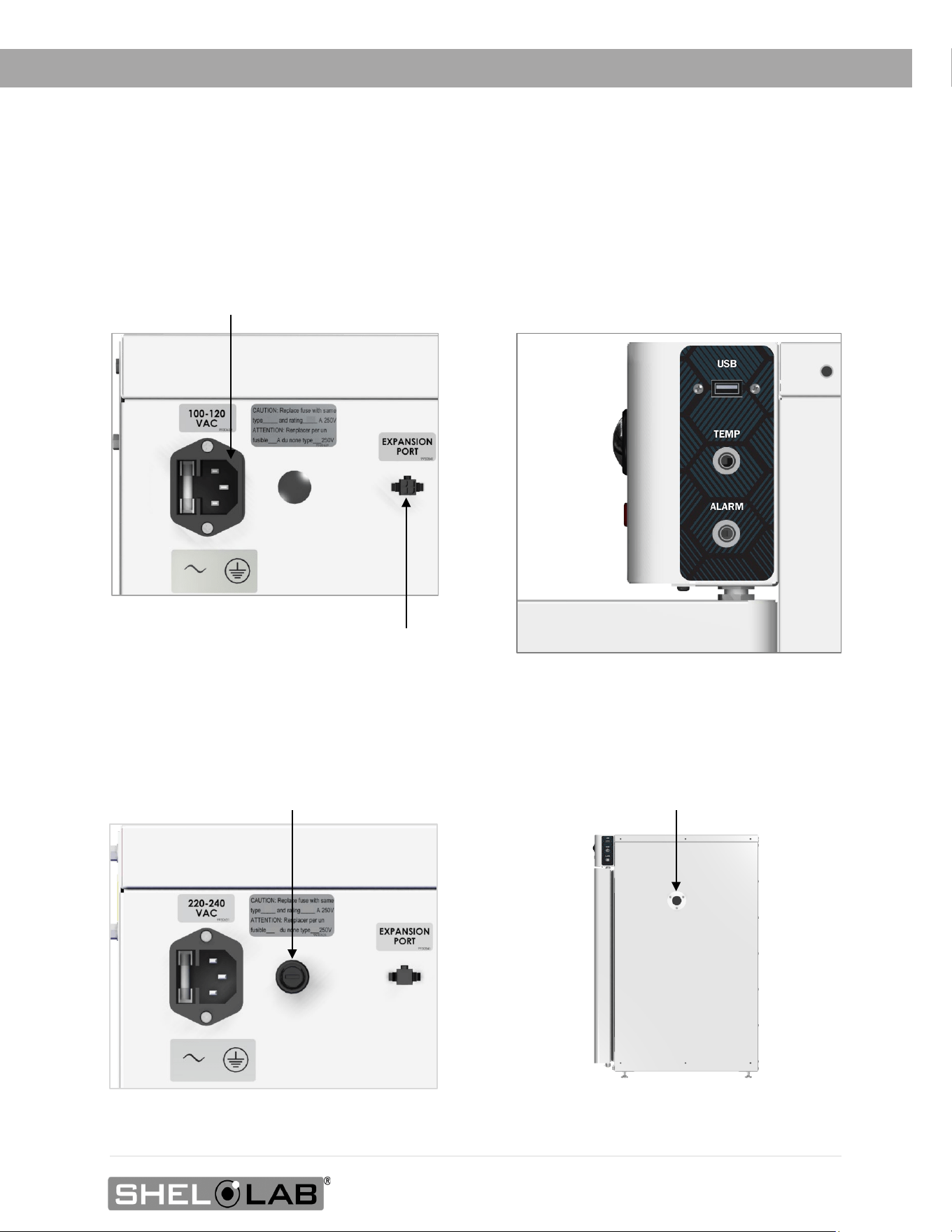
Sides – All Models
Left Side – 100 to 120 Volt Incubators
Power Cord Inlet with Fuse
Holder (Fuse Holder Cover
Removed)
Data Ports
Right Side
Chamber Access Port
24-volt Expansion Port for SHEL LAB Accessories
Fuse Holder for Second Fuse
Left Side – 220 to 240 Volt Incubators
20 | Page
RECEIVING
RECORDING DATA PLATE INFORMATION
Record the unit model number, serial number, part number, and part ID below for future reference.
Customer Support needs this information to provide accurate help during support calls and emails.
• SMI2s, SMI6s, SMI7s
o The data plate is located on the inside of the incubation chamber door in the top
right corner.
• SMI11s
o The data plate is located on the inside of the right-hand chamber door in the top
right corner.
• SMI12s
o The data plate is located on the exterior, left side of the incubator, on or just above
the mounting brace.
MODEL NO:
SERIAL NO:
PART NO:
PART ID:
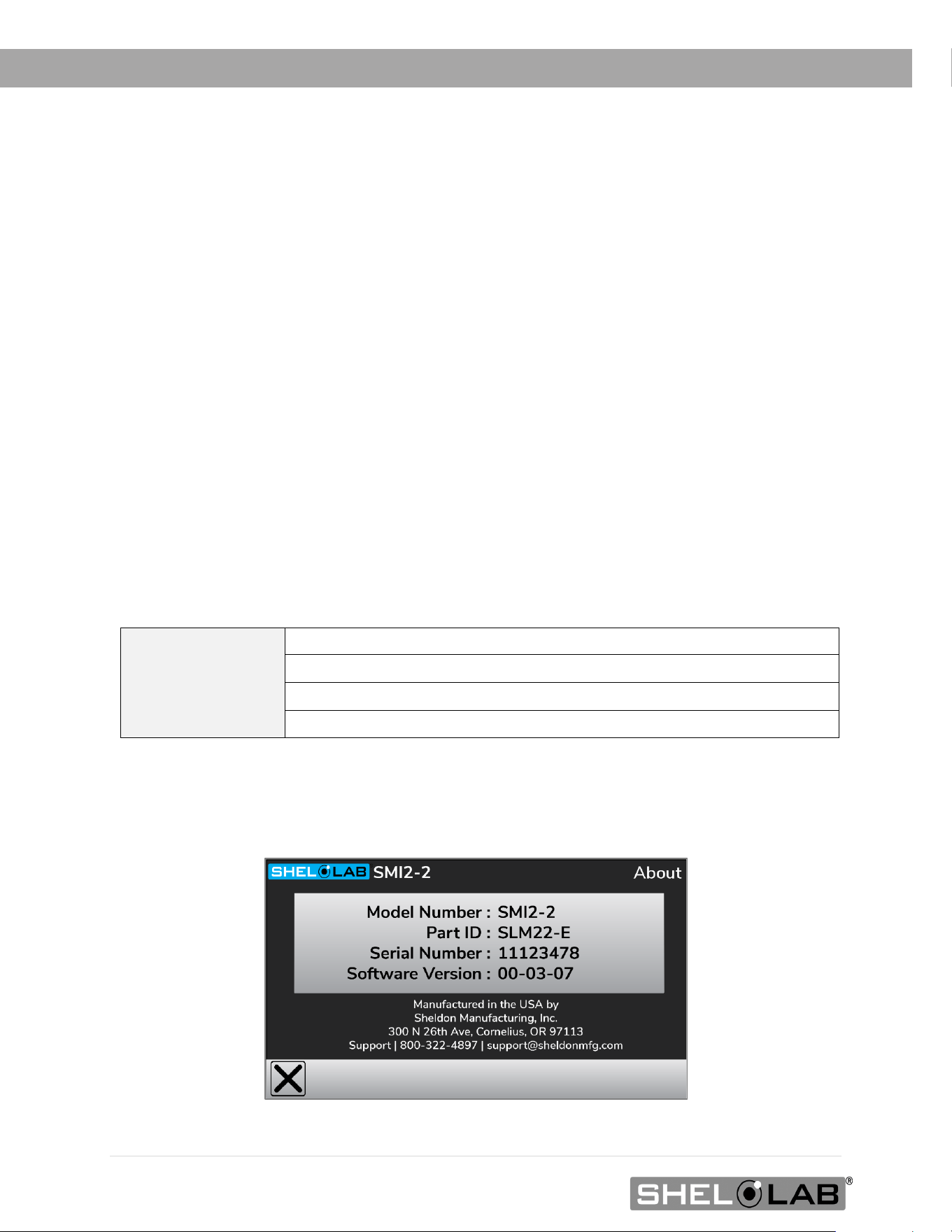
• The Model Number, Part ID, and Serial Number can also be found on the About screen in
the settings menu.

21 | Page
INSTALLATION
INSTALLATION PROCEDURES CHECKLIST
For installing the unit in a new workspace location.
Pre-Installation
Check that the required ambient conditions for the unit are met, page 22.
Check that the spacing clearance requirements are met, page 22.
• Unit dimensions may be found on page 57.
Check that a suitable electrical outlet and power supply are present.
• 100 – 120 Volt units, page 23.
• 220 – 240 Volt units, page 24.
Install the incubator in a suitable workspace location
Review the lifting and handling instructions, page 25.
Remove the unit from the pallet, page 25.
Install the unit leveling feet, page 25.
Install the incubator in its workspace location, page 25.
Set up the incubator for use
Clean and disinfect the unit and shelving (recommended), page 26.
Install the shelving, page 27.
Verify the port cover is installed on the access port, page 27.
22 | Page
INSTALLATION
REQUIRED AMBIENT CONDITIONS
These units are built for use indoors at room temperatures between 15°C and 30°C (59°F and 86°F), at
no greater than 80% Relative Humidity (at 25°C / 77°F). The ambient temperature should not change by
2°C (3.6°F) or more during operation. The units are rated to operate in a Pollution Degree 2 environment.
Maximum Altitude: 2000 meters (6562 feet)
Operating outside these conditions may affect the unit temperature performance.
When selecting a location to install the unit, consider all environmental conditions that can adversely
impact its temperature performance. These include:
• Proximity to ovens, autoclaves, or any other device producing significant radiant heat
• Heating and cooling vents or other sources of fast-moving air currents
• High-traffic areas
• Direct sunlight
REQUIRED CLEARANCES
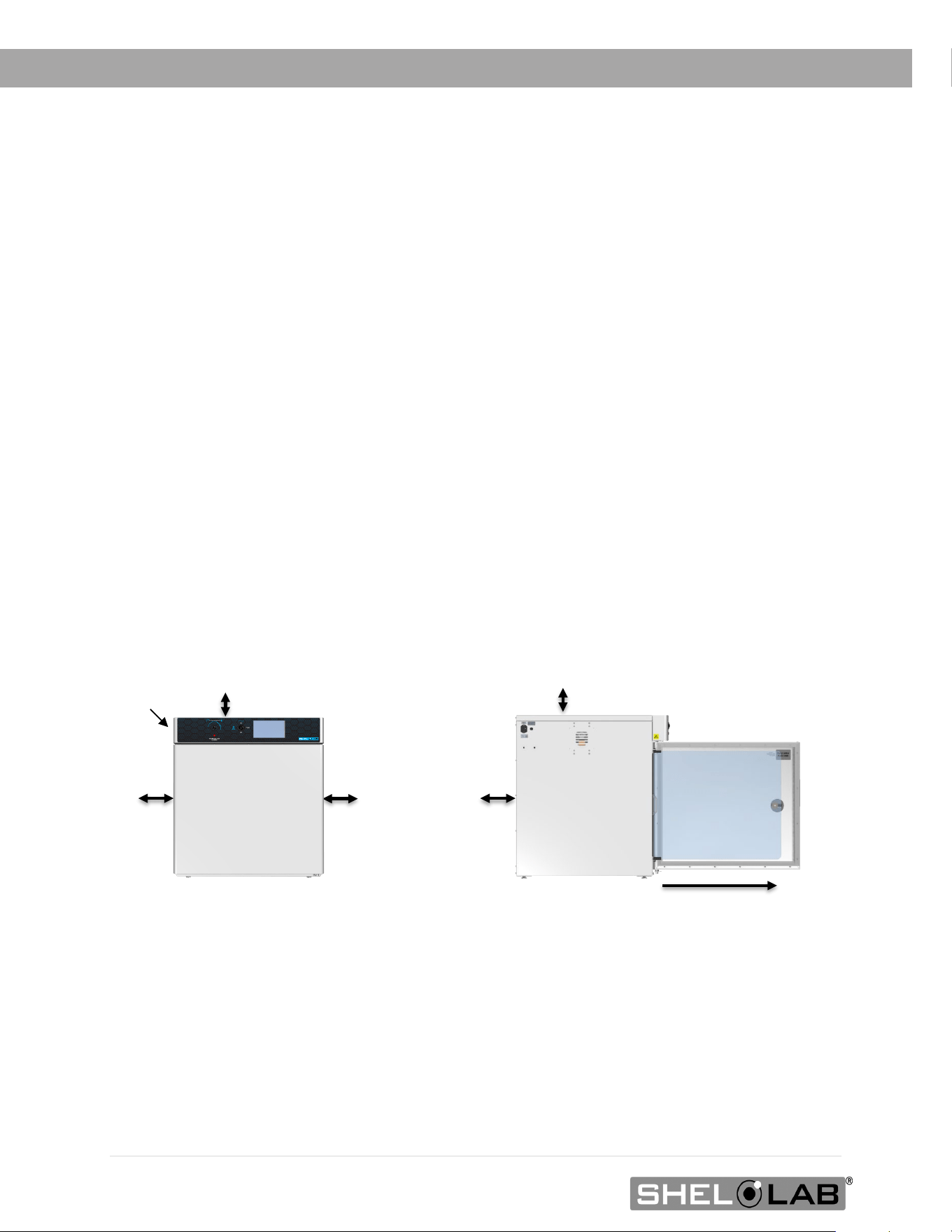
These clearances are required to provide airflows for ventilation and cooling.
4 inches (102 mm) of clearance is required on the sides and back.
2 inches (51 mm) of headspace clearance is required between the top of the unit and any overhead
partitions.
Power Cord
2” (51 mm)
2” (51 mm)
4” (102 mm)
4” (102 mm)
4” (102 mm)
Door Swing
SMI2s— 26” (559 mm)
SMI6s — 26” (660 mm)
SMI7s — 30” (762 mm)
SMI11s — 23” (584 mm)
SMI12s — 26” (660 mm
23 | Page
INSTALLATION
Note: See the next page for the 220-volt incubators.
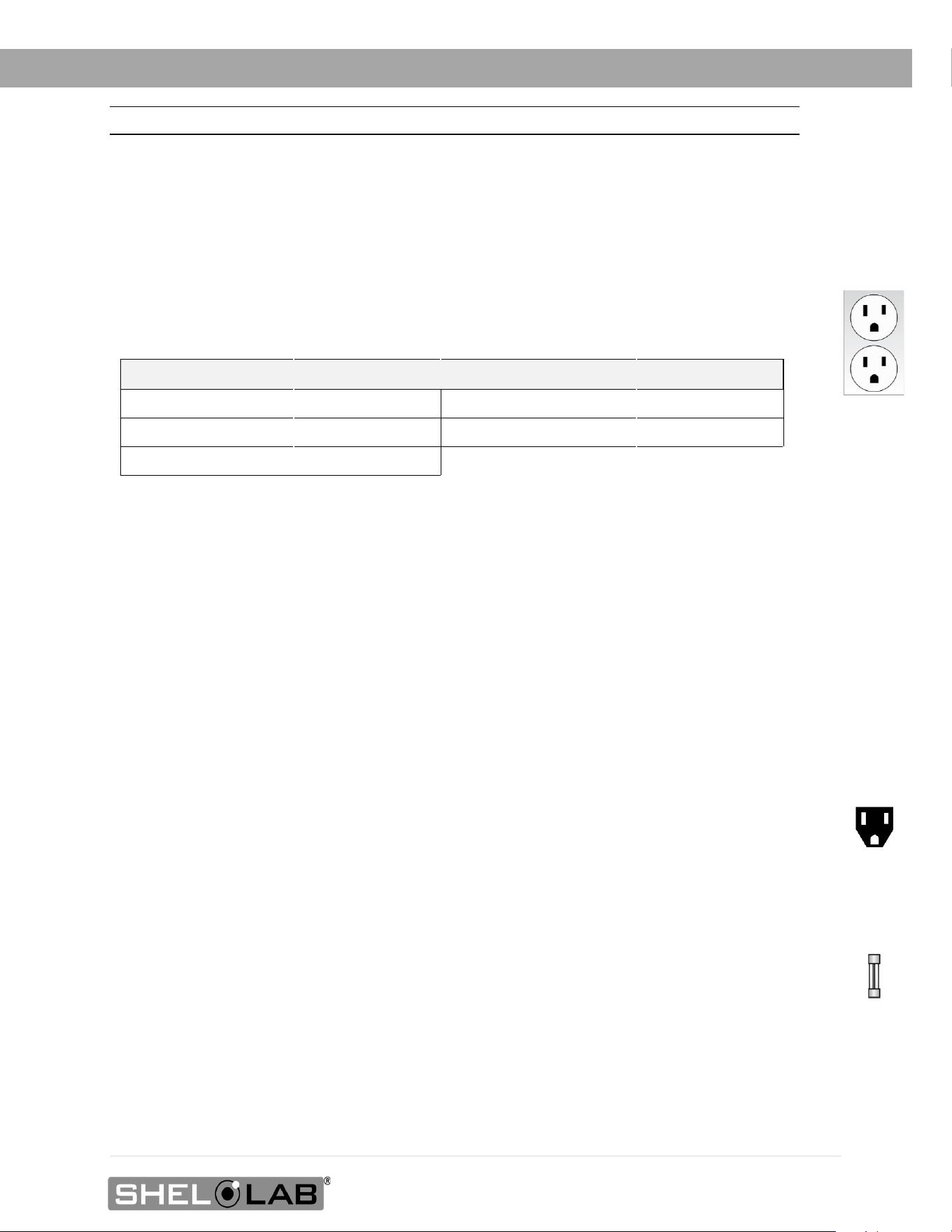
100 – 120 VOLT POWER REQUIREMENTS
Applies to: SMI2, SMI6, SMI7, SMI11, SMI12
When selecting a location for the unit, verify each of the following requirements is satisfied.
Power Source: The power source must match the voltage and amperage requirements listed on the
unit data plate. These units are intended for 100 – 120 volt, 50/60 Hz applications at the following
amperages:
Model Amperage Model Amperage
SMI2 4.5 Amps SMI11 10.0 Amps
SMI6 6.0 Amps SMI12 6.0 Amps*
SMI7 6.5 Amps
*The SMI12 comes with two power cords. It requires 6.0 amps for each cord.
• The wall power source must be protective earth grounded.
• The unit may be damaged if the supplied voltage varies by more than 10% from the data
plate rating.
o The unit is safety-rated to withstand transient overvoltage levels up to Overvoltage
Category II.
• Use a separate circuit to prevent loss of the unit due to overloading or circuit failure.
• The recommended wall circuit breakers for these units are 15 amps.
• The wall power source must conform to all national and local electrical codes.
Power Cord: The unit must be positioned so that all end-users can quickly unplug the cord in the
event of an emergency.
• Each unit is provided with a 125-volt, 15 amp, 9ft 5 in (2.86m) NEMA 5-15P power cord.
Always use this cord or an identical replacement.
Fuses: Each unit ships with a fuse installed in the power cord inlet.
• The fuse must be installed and intact for the unit to operate.
• Always find and fix the cause of a blown fuse prior to putting the unit back into operation.
• Fuse types:
o SMI7, SMI11: 250V T10 amp, 5x20mm
o SMI2s, SMI6, SMI12: 250V T6.3 amp, 5x20mm
Standard
NEMA 5-15R
wall socket
24 | Page
INSTALLATION
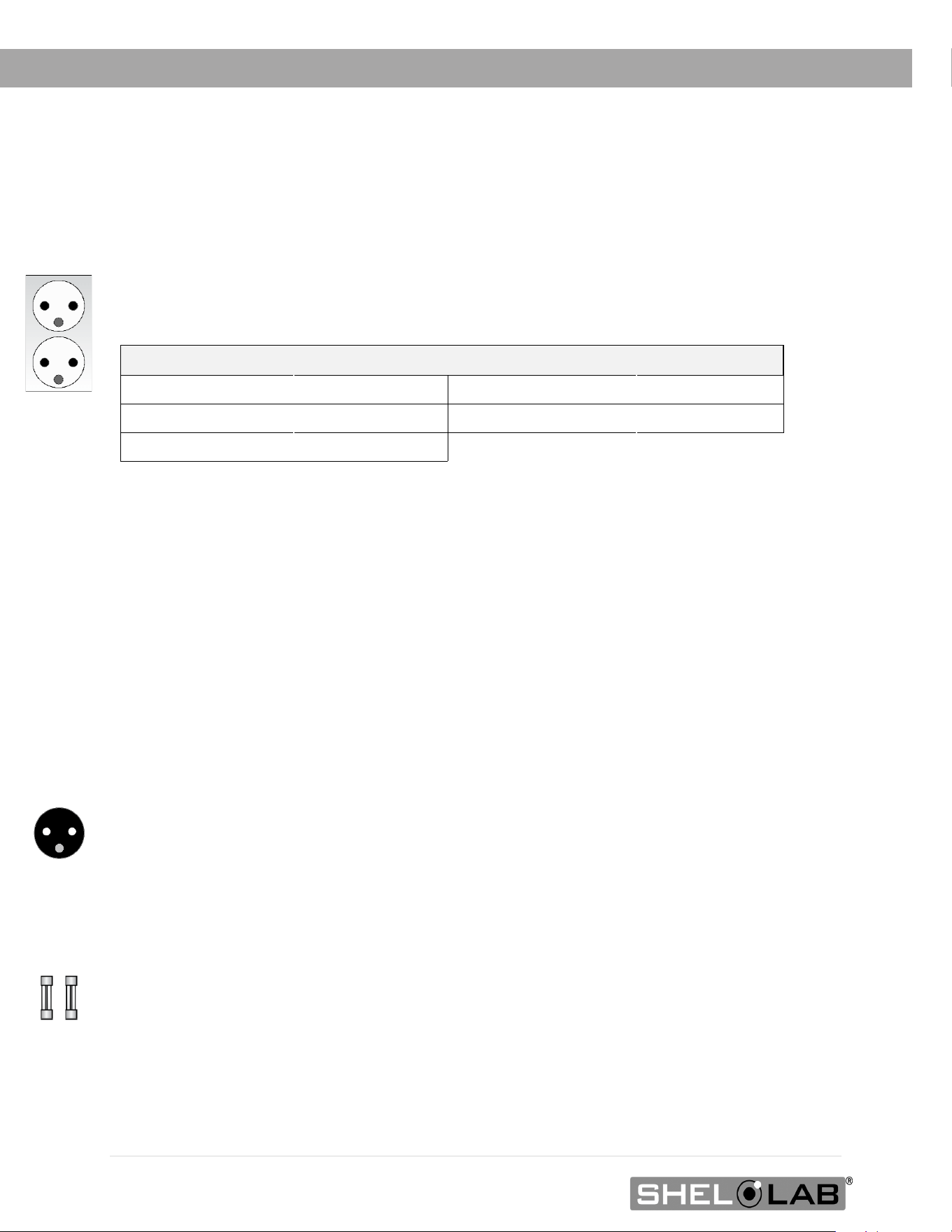
220 – 240 VOLT POWER REQUIREMENTS
Applies to: SMI2-2, SMI6-2, SMI7-2, SMI11-2, SMI12-2
When selecting a location for the unit, verify each of the following requirements is satisfied.
Power Source: The power source must match the voltage and amperage requirements listed on the
unit data plate. These units are intended for 220 – 240 volt, 50/60 Hz applications at the following
amperages:
Model Amperage Model Amperage
SMI2-2 3.0 Amps SMI11-2 5.0 Amps
SMI6-2 4.0 Amps SMI12-2 4.0 Amps*
SMI7-2 5.0 Amps
*The SMI12-2 comes with two power cords. It requires 4.0 amps for each cord.
• The wall power source must be protective earth grounded.
• The unit may be damaged if the supplied voltage varies by more than 10% from the data
plate rating.
• Use a separate circuit to prevent loss of the unit due to overloading or circuit failure.
• The recommended wall circuit breakers for these units are 20 amps.
• The wall power source must conform to all national and local electrical codes.
Power Cord: The unit must be positioned so that all end-users can quickly unplug the cord in the
event of an emergency.
• Each unit is provided with a 230-volt, 10 amp, EUR16P, 2.5 meters (8ft 2in), CEE 7/7 power
cord. Always use this cord or an identical replacement.
Fuses: Each unit ships with a fuse installed in the power cord inlet and a second fuse installed in an
adjacent fuse holder.
• Both fuses must be installed and intact for the unit to operate.
• Always find and fix the cause of a blown fuse prior to putting the unit back into operation.
• Fuse type:
o 250V T6.3 amp, 5x20mm
Standard
CEE7/7 wall
socket.
25 | Page
INSTALLATION
LIFTING AND HANDLING
The unit is heavy. Use appropriate lifting devices that are sufficiently rated for these loads. Follow these
guidelines when lifting the unit.
• Lift the unit only from its bottom surface.
• Doors, handles, and knobs are not adequate for lifting or stabilization.
• Restrain the unit completely while lifting or transporting so it cannot tip.
• Remove all moving parts, such as shelves and trays, and lock doors in the closed position
during transfers to prevent shifting and damage.
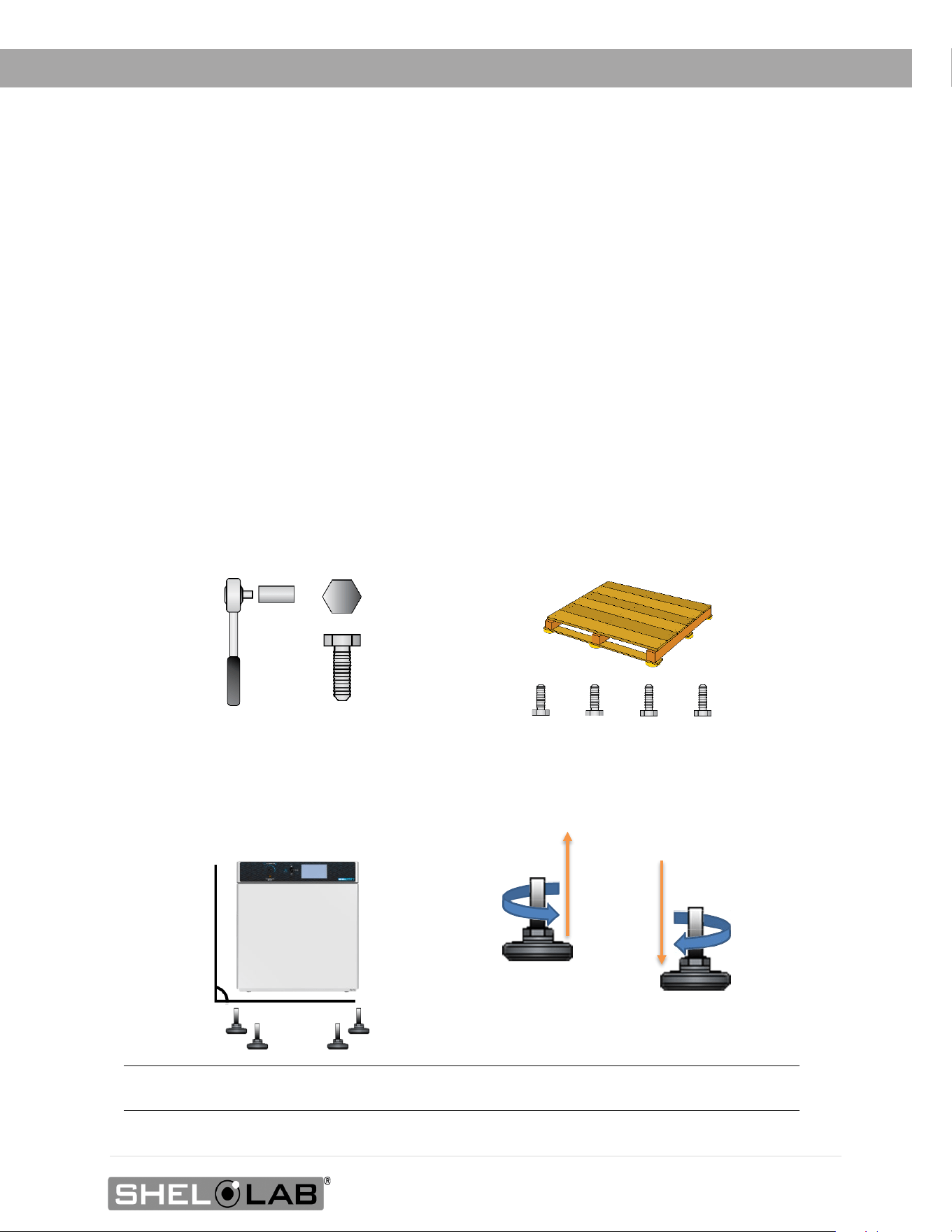
REMOVING FROM THE PALLET
The unit comes secured to a shipping pallet with ½” hex bolts inserted through the 4 leveling feet
holes on the bottom of the incubator. Use a socket wrench to remove the bolts and release the unit
from the pallet.
LEVELING
Install the 4 leveling feet in the 4 corner holes on the bottom of the unit. The unit must be level and
stable for safe operation.
Note: To prevent damage when moving the unit, turn all 4 leveling feet so that the leg of each foot
sits inside the unit.
0.5 inch (12 mm)

26 | Page
INSTALLATION
INSTALL THE INCUBATOR
Install the unit in a workspace location that meets the criteria discussed in the previous entries of the
Installation chapter.
DEIONIZED AND DISTILLED WATER
Do not use deionized water to clean the unit, even if DI water is readily available in your laboratory.
• The use of deionized water may corrode metal surfaces and voids the manufacturing
warranty.
• The manufacturer recommends the use of distilled water in the resistance range of 50K
Ohm/cm to 1M Ohm/cm, or a conductivity range of 20.0 uS/cm to 1.0 uS/cm, for cleaning
applications.
INSTALLATION CLEANING AND DISINFECTION
The manufacturer recommends cleaning the shelving and chamber before installing the shelving in
the chamber.
• The unit was cleaned at the factory but may have been exposed to contaminants during
shipping.
• Remove all wrappings and coverings from shelving prior to cleaning and installation. Do not
clean the shelving with deionized water.
• Please see the Cleaning and Disinfection procedure on page 49 in the User Maintenance
chapter for information on how to clean and disinfect without damaging the unit.
27 | Page
INSTALLATION
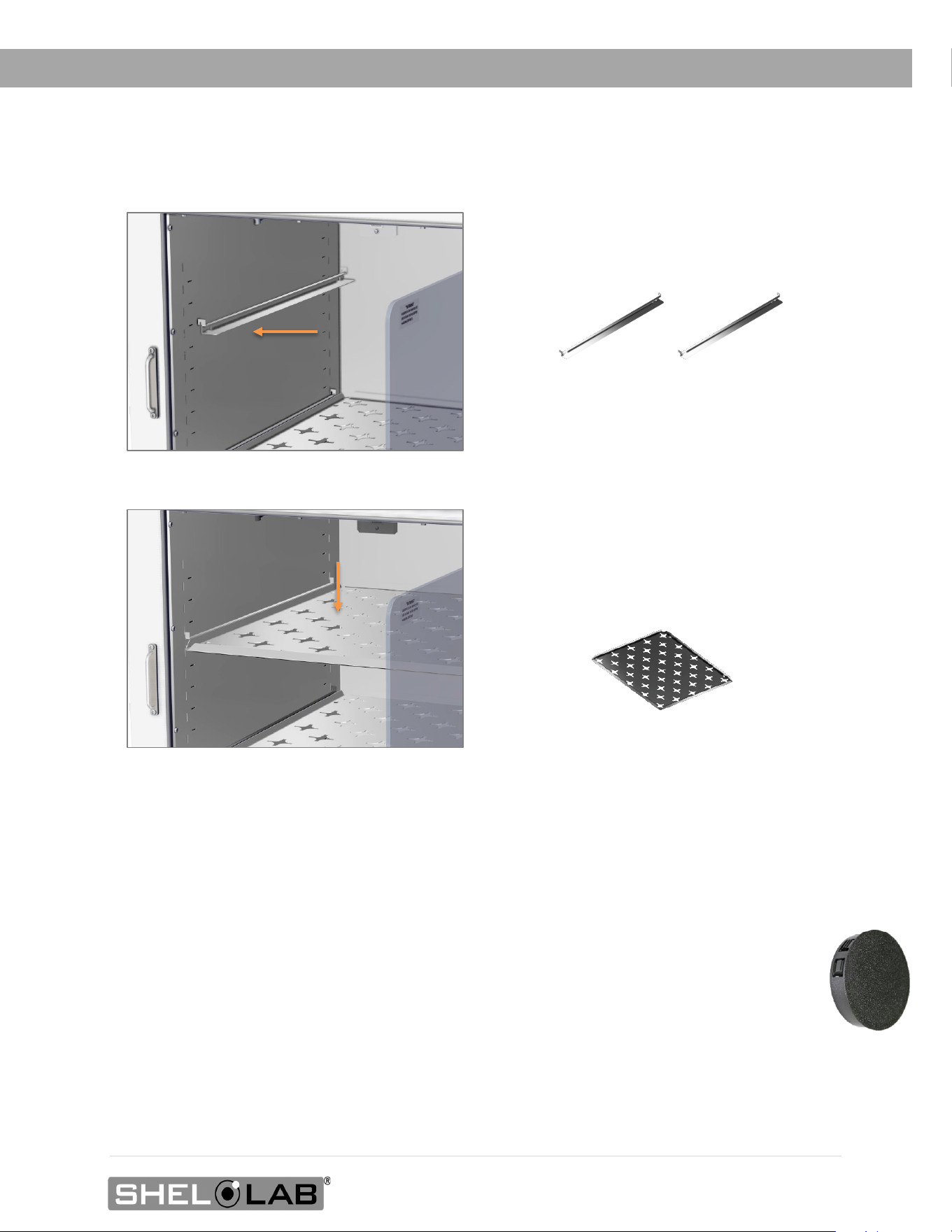
INSTALL THE SHELVING
1. Install 2 shelf mounting rails.
2. Verify both mounts are level with one
another and securely seated.
3. Place 1 shelf on the installed rails.
ACCESS PORT
Always leave the access port cap in place, except when introducing sensor probes into the chamber.
Removing the cap during normal operations can adversely impact temperature stability and uniformity.

28 | Page
INSTALLATION
29 | Page
GRAPHIC SYMBOLS
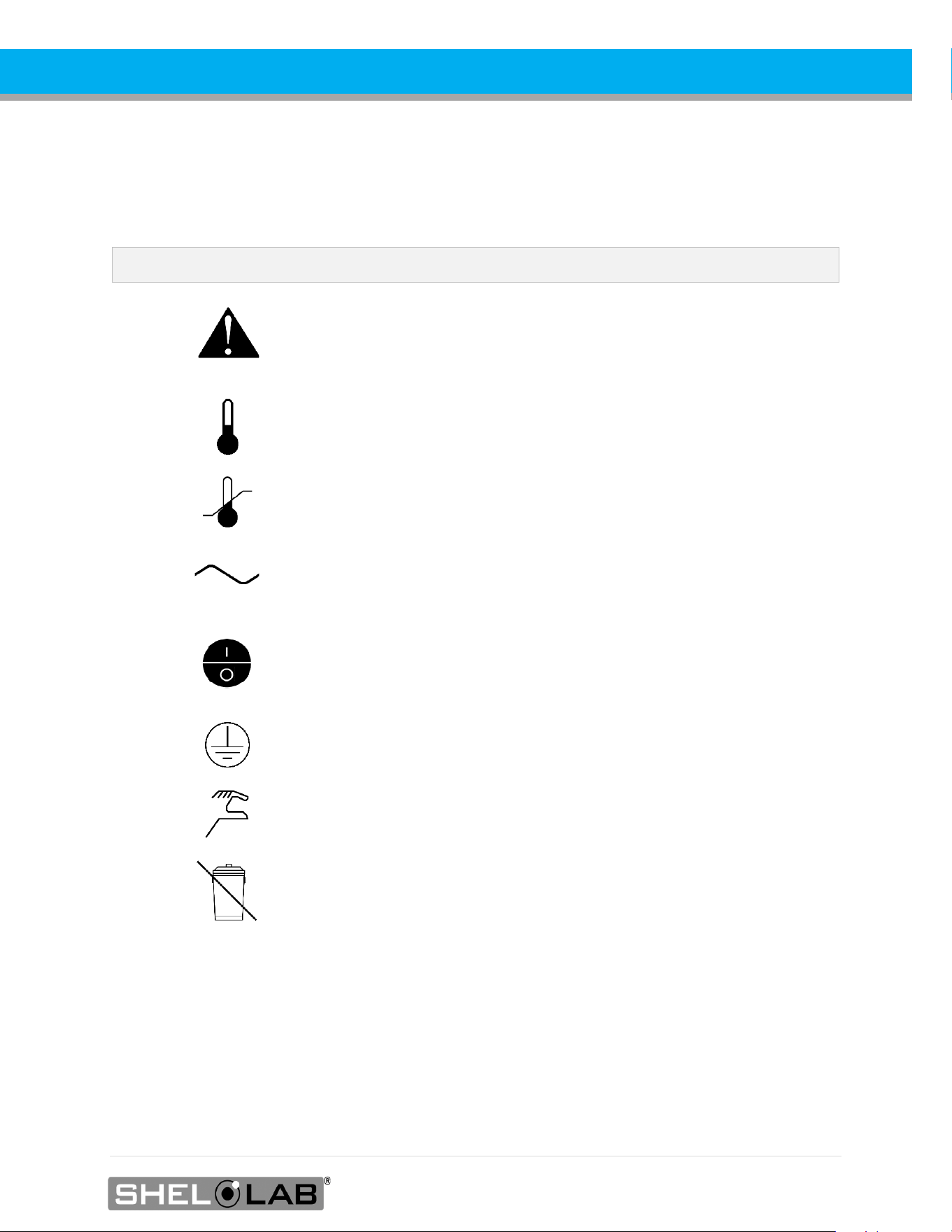
The unit is provided with graphic symbols on its exterior. These identify hazards and adjustable
components as well as important notes in the user manual.
Symbol Definition
Consult the user manual
Consulter le manuel d'utilisation
Temperature display
Indique l'affichage de la température
Over Temperature Limit system
Thermostat température limite contrôle haute
AC Power
Repère le courant alternatif
I/ON O/OFF
I indique que l'interrupteur est en position marche.
O indique que le commutateur est en position d'arrêt.
Protective earth ground
Terre électrique
Manually adjustable
Indique un réglage manuel
Recycle the unit. Do not dispose of in a landfill.
Recycler l'unité. Ne jetez pas dans une décharge.

30 | Page
SYMBOLS
31 | Page
CONTROL OVERVIEW
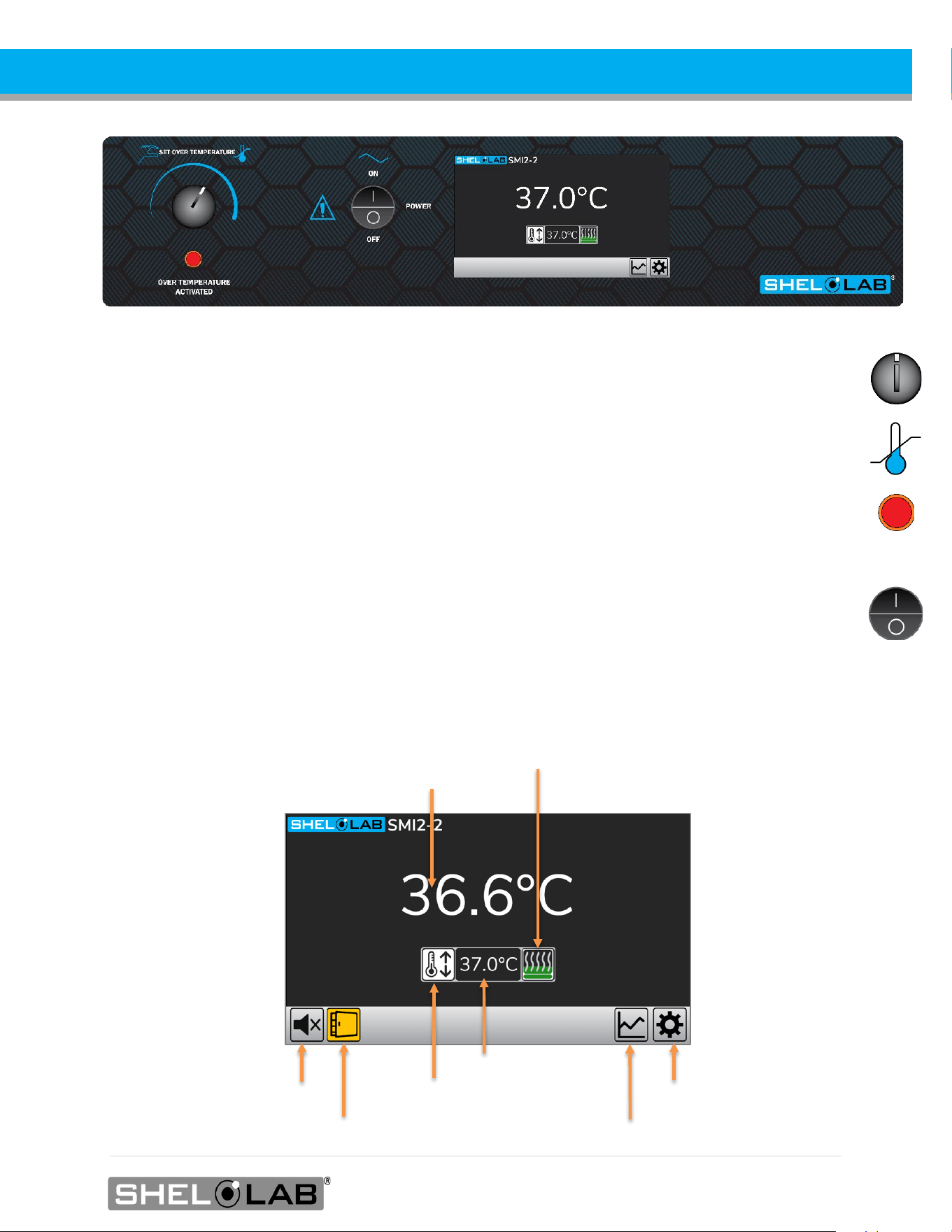
Over Temperature Limit (OTL)
This graduated dial sets the mechanical heating cut-off for the Over Temperature Limit system (OTL).
The OTL helps prevents unchecked heating of the chamber in the event of an electronics failure or
external heat spike. For details, please see the Over Temperature Limit System description in the
Theory of Operations (page 33).
The red Over Temperature Activated light illuminates when the OTL system cuts off heating to the
unit chamber by rerouting power away from the heating elements.
Power Switch
Power is supplied when the switch is in the ( I ) ON position.
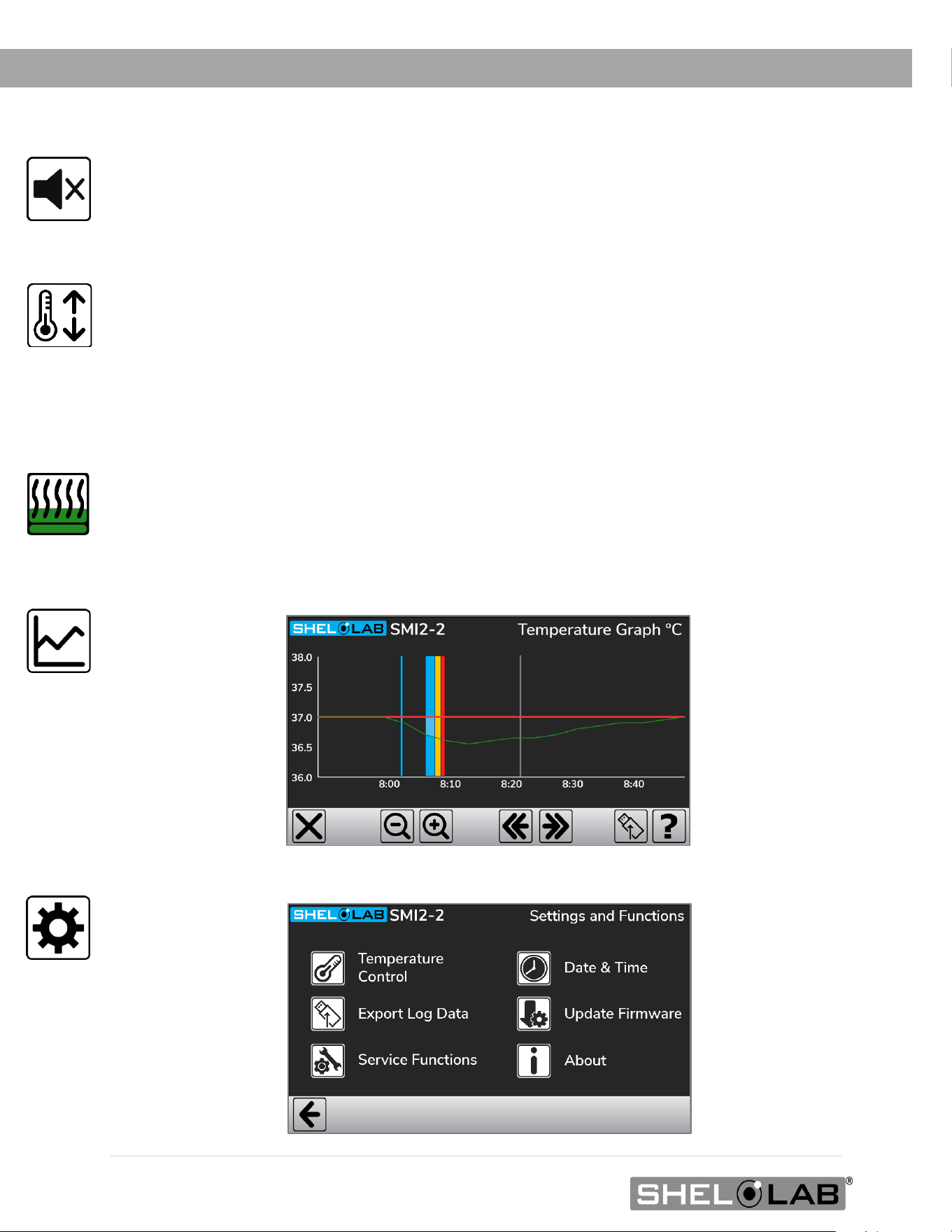
Temperature Control and Display
Current Chamber Temperature (36.6°C)
Temperature Setpoint Button
Alarm Mute Button
View Data Log Graph
Settings Menu Button
Heating Indicator
Door Alarms Indicator
Current setpoint (37.0°C)
32 | Page
CONTROL
Alarm Mute Button
Only visible when an alarm is active. When an active alarm is muted, the red background disappears.
Temperature Setpoint Button
Tap to set the incubation chamber operating temperature.
Heating Indicator
This icon functions as a two-part display. The oval at the bottom is an on / off indicator, illuminating
green when the incubator controller calls for power to the heating elements. The top box containing
the wavy lines functions as a bar graph. This mini display indicates how much heating power the
incubator controller is calling for. The more power, the taller the green bar.
Data Log Graph
Settings Menu
33 | Page
OPERATION
THEORY OF OPERATION
Note: Each incubator chamber in a SMI12 is independently powered and heated.
Heating
When powered, the incubator heats to and maintains a user-selected target setpoint in the incubation
chamber. The incubator senses the chamber air temperature using a solid-state probe mounted on the
chamber interior wall. When the incubator detects that the chamber temperature has dropped below the
target setpoint, it pulses power to the heating elements inside the chamber walls and in the outer
chamber door.
The incubator uses Proportional – Integral – Derivative (PID) control to avoid significantly overshooting the
setpoint. This means the rate of heating slows as the chamber temperature approaches the target
temperature. If the chamber temperature is above the setpoint, the incubator uses minimum heating to
control the rate of cooling and avoid dipping below the setpoint.
Additionally, the PID loops optimize heating rates for the temperature environment around the incubator.
If the incubator is operating in a cool room, it will increase the length of heating pulses to compensate.
Likewise, when operating in a warm room the incubator uses shorter pulses. If the ambient temperature
conditions change significantly, there may be minor over or undershoots as the incubator adapts.
SMI incubators rely on natural heat radiation for cooling. These units can achieve a low-end temperature
just above the ambient room temperature plus the internal waste heat of the unit.
Each outer chamber door is self-heating to bolster the thermal uniformity and stability of the chamber
and to minimize condensation on the glass viewing door. The inner glass door will cool while the
chamber door is opened, eventually leading to condensation on the door and impacting the
chamber temperature stability and uniformity. Minimize sample viewing times when possible.
The Over Temperature Limit System (OTL)
The OTL is a user-set, mechanical heating cutoff connected to a hydrostatic sensor probe inside the
incubation chamber. The system operates independently of the main microprocessor temperature
controller and routes power away from the incubator heating elements if the chamber temperature
exceeds the OTL temperature cutoff setting. It will continue doing so as long as the chamber temperature
remains above the OTL setting. This helps safeguard the unit by preventing runaway heating in the event
of electronics failures or a sudden external heat spike.
The OTL must be set by the user in order to function. The manufacturer recommends a setting of
approximately 1°C above the highest temperature setpoint of your heating application. A red indicator
illuminates when the OTL is rerouting power.
Data Logging and Outputs
The incubator logs temperature and event data such as alarm activations every 60 seconds. The log can
be copied and exported as a human-readable .CSV file using the USB port on the right side of the
incubator. A 4 – 20 milliamp data port outputs temperature data once per minute as an analog signal
suitable for building monitoring systems. An open / closed dry contact port communicates alarm activation
instances.
34 | Page
OPERATION
PUT THE INCUBATOR INTO OPERATION
Perform the following procedures and steps to put the unit into operation after installing it in a new
workspace environment. Reminder: All procedures in the Installation chapter must be carried out
before putting the unit into operation.
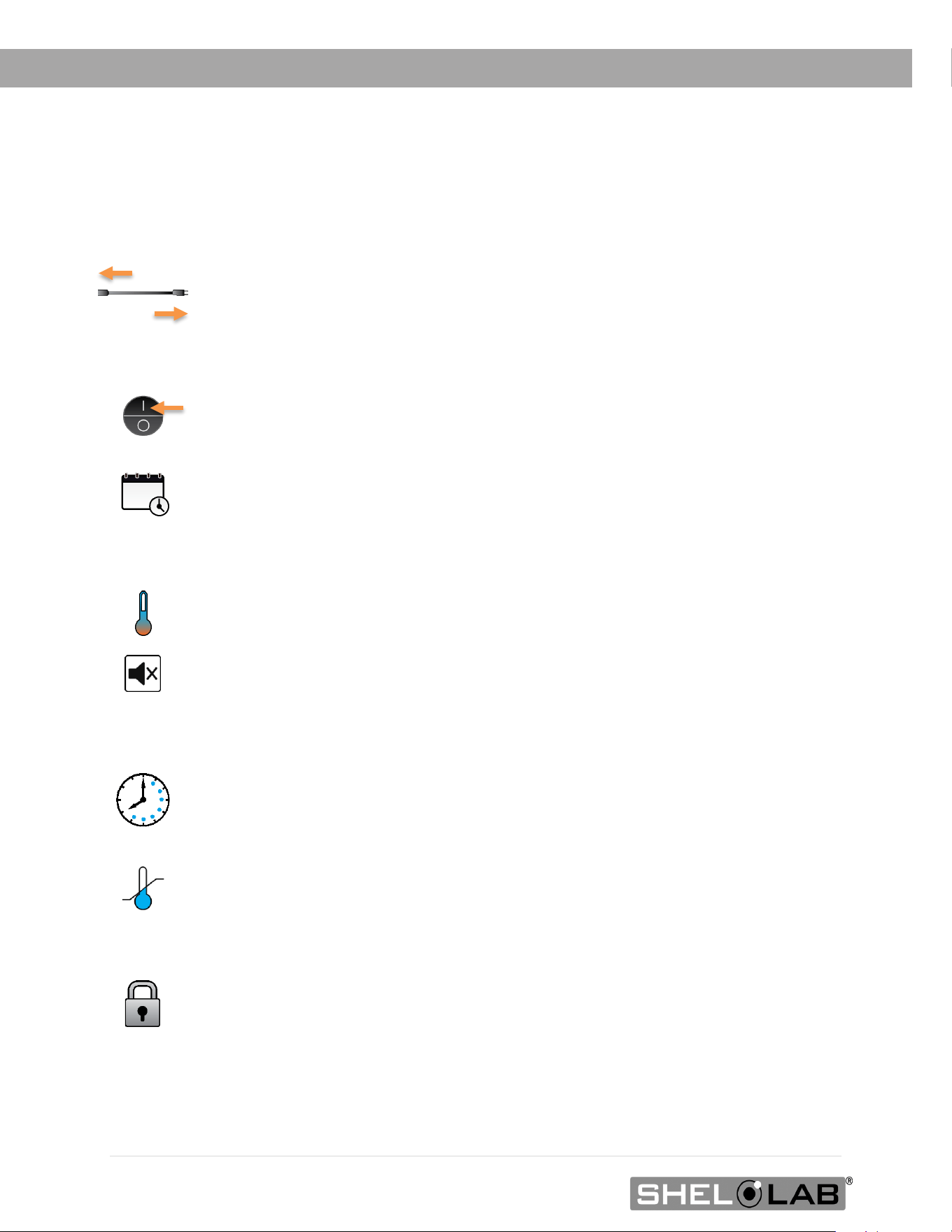
Plug in the Incubator.
• Attach the power cord that came with the unit to the inlet
receptacle on the left side of the incubator.
• Plug the power cord into the workspace electrical outlet.
Turn on the Incubator.
Perform the Set the Date and Time procedure on page 36.
Optional Procedures: Adjust these settings if needed to meet your study protocol.
• Change the incubator operating temperature from 37°C using the Adjust the
Temperature Setpoint procedure on page 36.
• Adjust the temperature deviation alarm activation setpoints using the
Adjusting the Temperature Deviation Alarm procedure on page 37.
Allow the incubator to heat soak for a minimum of 8 hours.
• Run the unit for at least 8 hours (for example, overnight) with the chamber
doors closed before setting the Over Temperature Limit or loading samples.
Perform the Set the Over Temperature Limit procedure on page 38.
Optional: Passcode lock the incubator settings. See the Passcode Locking
procedure on page 39.
• The incubator ships from the factory unlocked.
Optional: You may Load Samples now, see page 42. The incubator is ready for use.
35 | Page
OPERATION
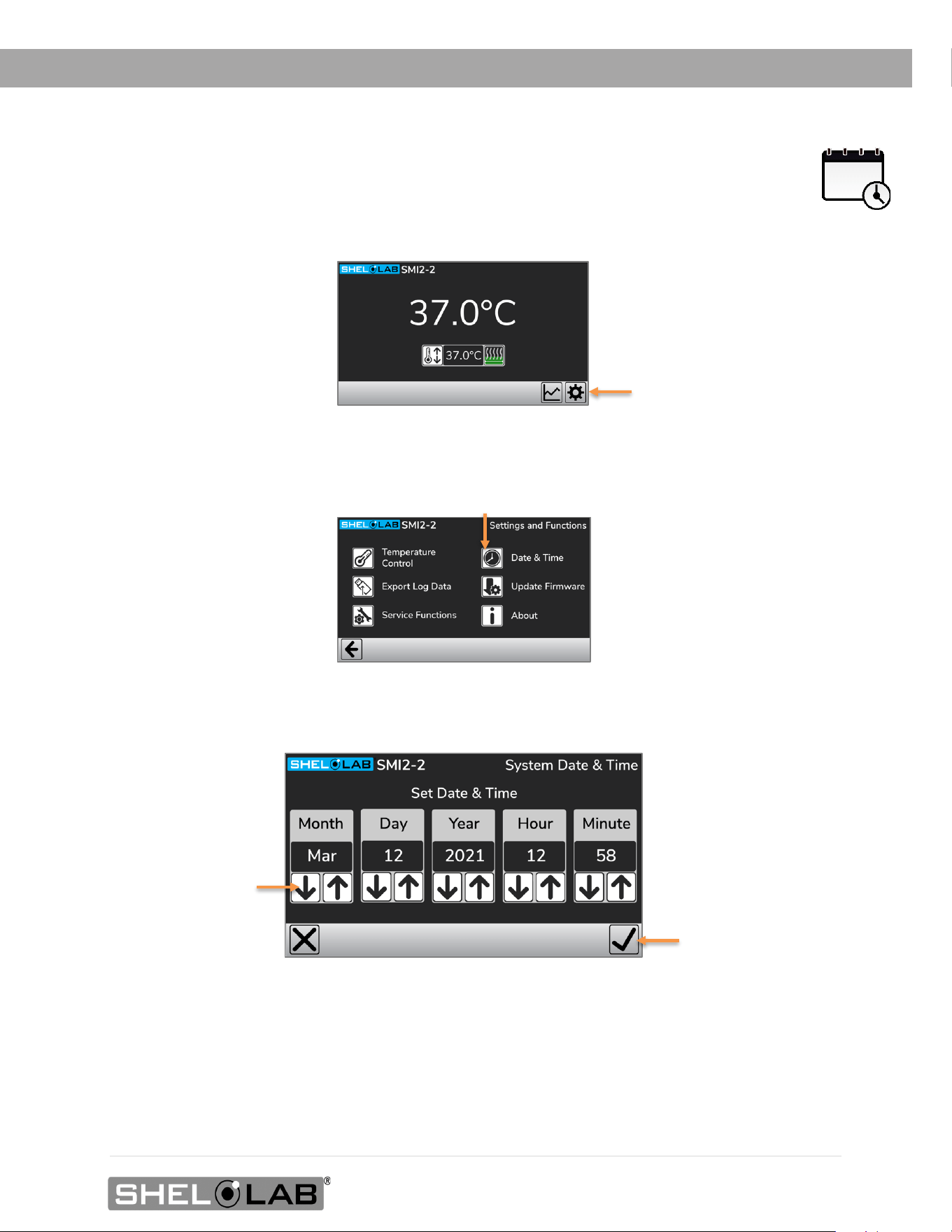
SET THE DATE AND TIME
The incubator date and time are used for logging temperature, event, and diagnostic information.
1. From the homepage open the Settings Menu.
2. Open the Date and Time Menu.
3. Adjust the incubator date and time to your local date and time.
4. Save your date and time and return to the Settings menu.
• Tap the Checkmark button to save the new setting.
• Tapping the X button returns to the Settings menu without saving any changes.
Tap the Settings gear button.
Tap the Date and Time clock button.
Tap the up and down
Adjustment arrow buttons
for each parameter you
need to adjust.
Tap the checkmark
Save button
36 | Page
OPERATION
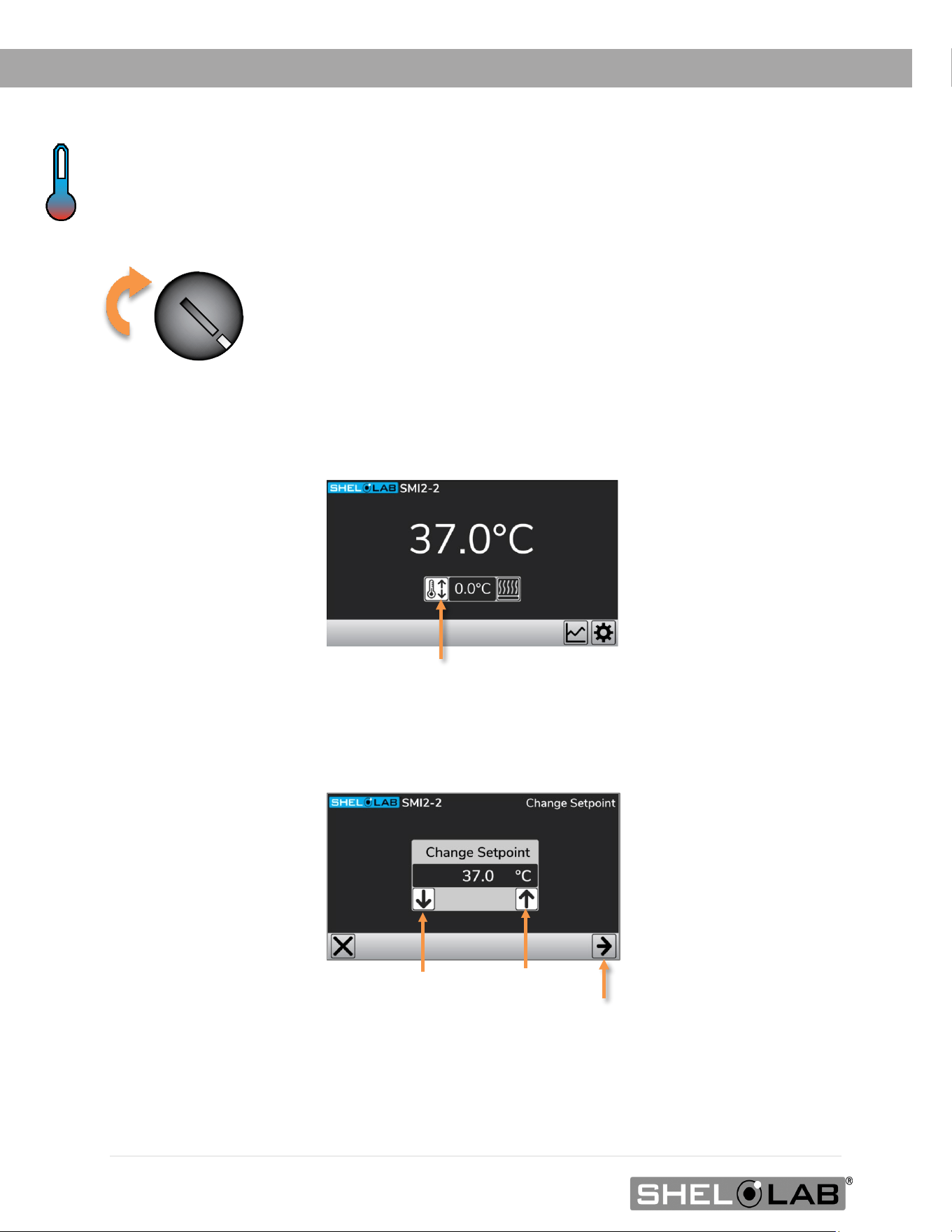
ADJUST THE TEMPERATURE SETPOINT
Note: Each SMI12 incubation chamber temperature is set separately
The incubator comes from the factory set to 37°C.
Before starting this procedure, turn the OTL dial clockwise to its
maximum setting, if not already set at max. This prevents the heating
cutoff system from interfering with this procedure.
1. Open the Setpoint page.
2. Adjust the temperature setpoint.
Note: The temperature setpoint can also be changed under the Temperature Control menu found on
the Settings page.
End of procedure
Tap the Setpoint thermometer button.
Tap the right arrow Save button to save the setting and exit.
Tap the up and down Adjustment arrow buttons.
37 | Page
OPERATION
ADJUSTING THE TEMPERATURE DEVIATION ALARM
Note: The alarms for each incubation chamber must be set independently for SMI12s.
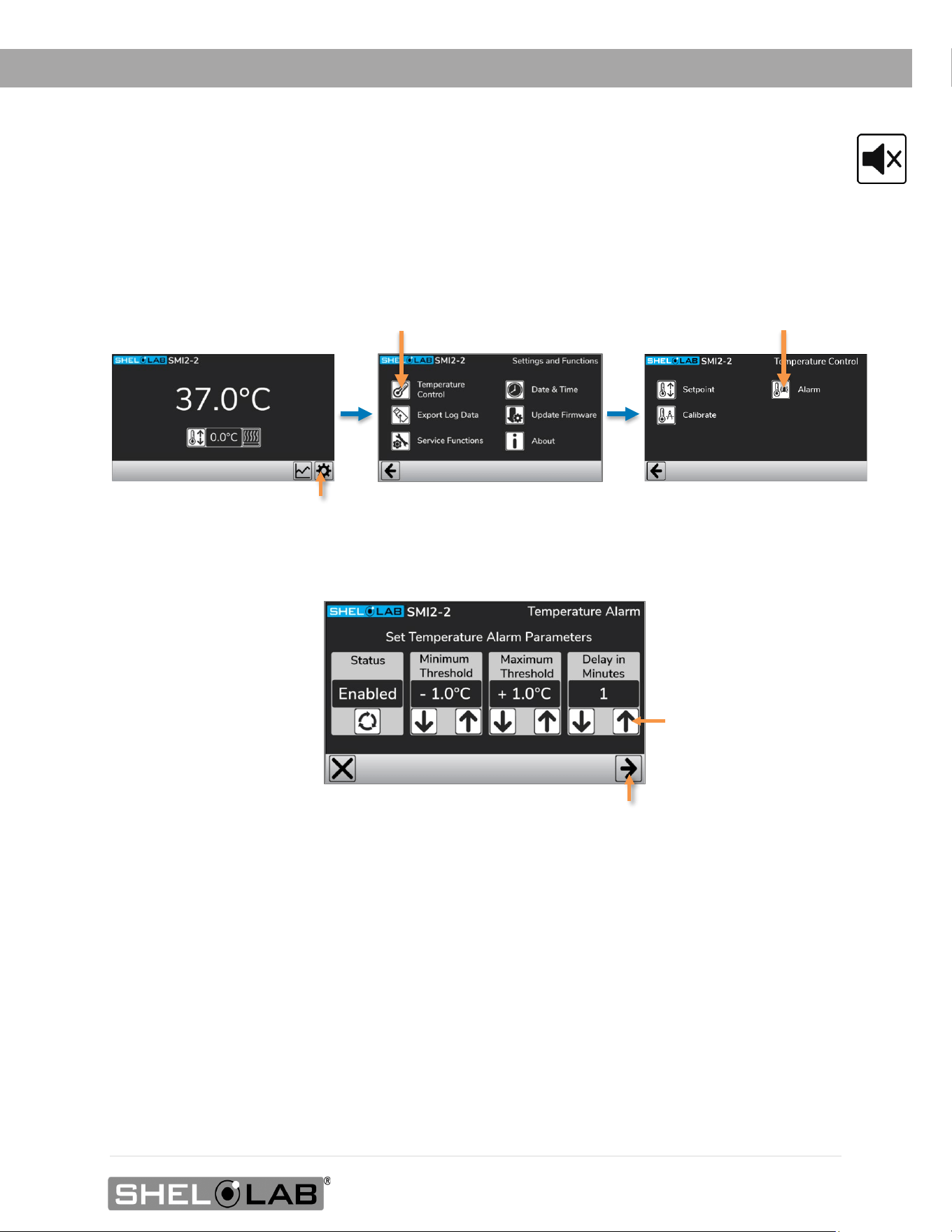
The incubator comes with the deviation alarm enabled set to activate if the chamber temperature deviates
from the setpoint by ±1°C for 1 minute or longer. See page 41 for a description of operating conditions that
will stop the alarm from activating.
1. Open the Alarm menu.
2. Adjust the deviation alarm settings.
• Status: This setting enables and disables the deviation alarm.
o Note: This setting does not affect the mechanical Over Temperature Limit system.
• Minimum and Maximum Thresholds: These parameters set the deviation range above or
below the current temperature setpoint that will not trigger an alarm.
o The minimum deviation range is - 0.2°C to - 3°C
o The maximum deviation range is + 0.2°C to + 3°C
o This helps prevent the incubator from alarming during small or short-lived deviations.
• Delay in Minutes: The number of minutes that the chamber temperature must deviate for
before the alarm activates.
Use the up and down arrow
buttons to adjust each
parameter as needed.
Tap the right arrow button to save the settings and exit.
Tap the Settings button
Tap the Temperature Control button
Tap the Alarm button
38 | Page
OPERATION
Note: Test the OTL system at least once per year to verify its functionality. Failure to set the OTL
voids the manufacturing defect warranty if over-temperature damage occurs.
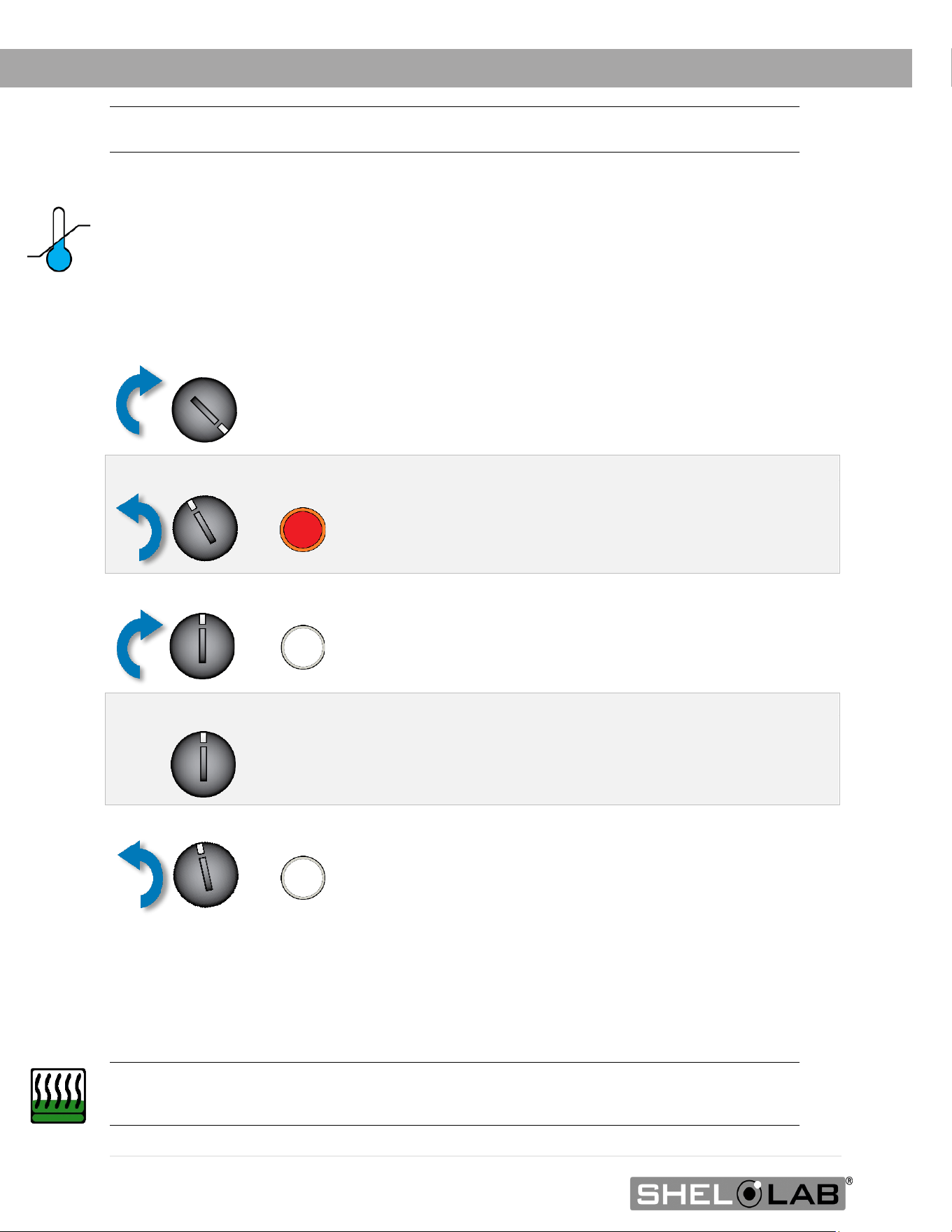
SET THE OVER TEMPERATURE LIMIT (OTL)
This procedure sets the mechanical heating cutoff to approximately 1˚C above the current chamber
temperature. Perform this procedure when the unit has been running with no temperature
fluctuations at your application temperature for at least 8 hours.
If the Over Temperature Limit sporadically activates after setting the control, turn the dial very slightly
to the right (clockwise). If the OTL continues activating, check for ambient sources of heat or cold
that may be adversely impacting the unit temperature stability. If you find no sources of external or
internal temperature fluctuations, contact Customer Support or your distributor for assistance.
Note: Since the OTL is an independent system. the incubator may continue calling for power to heat
the chamber when OTL is routing power away from the heating elements. This will be visible
on the homepage Heating indicator.
1.
Set OTL control to its maximum setting, if not already set to max.
2. Turn the dial counterclockwise until the Over Temperature Activated light illuminates.
• There is a soft click when the OTL begins rerouting power
away from the heating elements.
3. Slowly turn the dial clockwise until the Over Temperature light turns off.
• The Over Temperature Limit is now set at approximately
1˚C above the current chamber air temperature.
4. Leave the OTL dial set just above the activation point.
Optional: Turn the dial slightly to the left (counterclockwise).
•
This sets the cutoff threshold nearer to the current
chamber temperature.
39 | Page
OPERATION
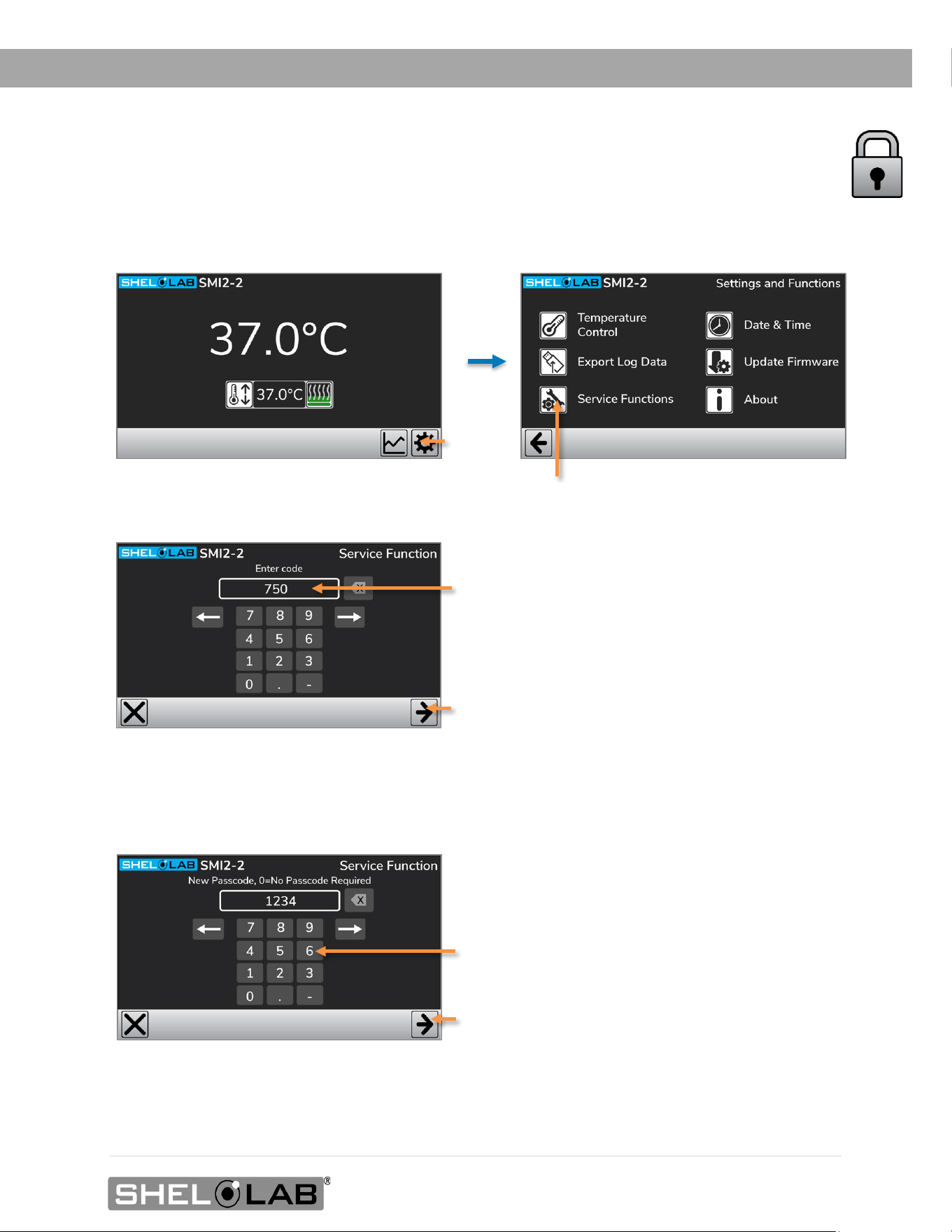
PASSCODE LOCKING THE SETTINGS
This procedure locks the temperature setpoint and other settings with a numeric code of your
choosing. Users will be prompted to enter the code when attempting to change the settings of a
locked unit.
1. Open the Service Functions menu.
2. Open the Passcode menu.
3. Enter a 1 to 4-digit numeric passcode of your choosing.
Note: The settings will not lock until the display is returned to the homepage.
Note: The display will automatically return to the homepage after 120 seconds of inactivity.
Note: A value of 0 leaves the incubator
unlocked.
Note: 1234 is not a secure passcode.
Tap
Tap the checkmark Save button
Tap
Enter 750 in the Service Function Code field.
Tap the right arrow Save button
40 | Page
OPERATION
CHANGING LOCKED SETTINGS
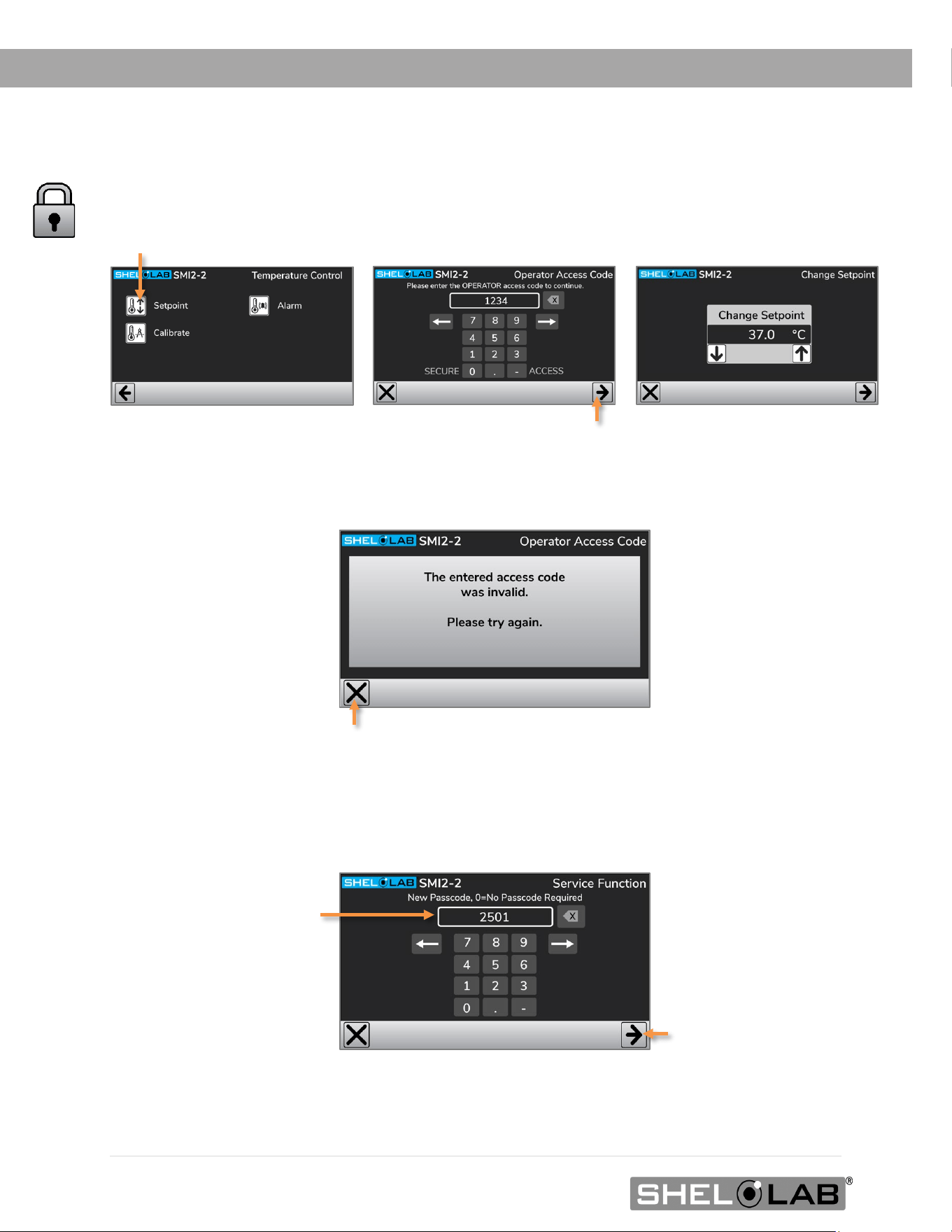
If the settings are passcode locked, users will be prompted to enter the passcode when attempting
to change settings. After entering the code, the settings remain unlocked until the display is returned
to the homepage.
Tap the X button to return to the previous screen if an invalid passcode has been entered. There is
no limit to the number of times a passcode can be attempted.
Changing the Passcode
Access the Passcode menu and enter a new passcode value. Enter a value of 0 to disable the
Passcode Locking function.
Note: If the passcode has been lost, please contact Customer Support for assistance.
Tap the right arrow Save button
Tap the right arrow
Save button
41 | Page
OPERATION
ALARMS AND MUTING
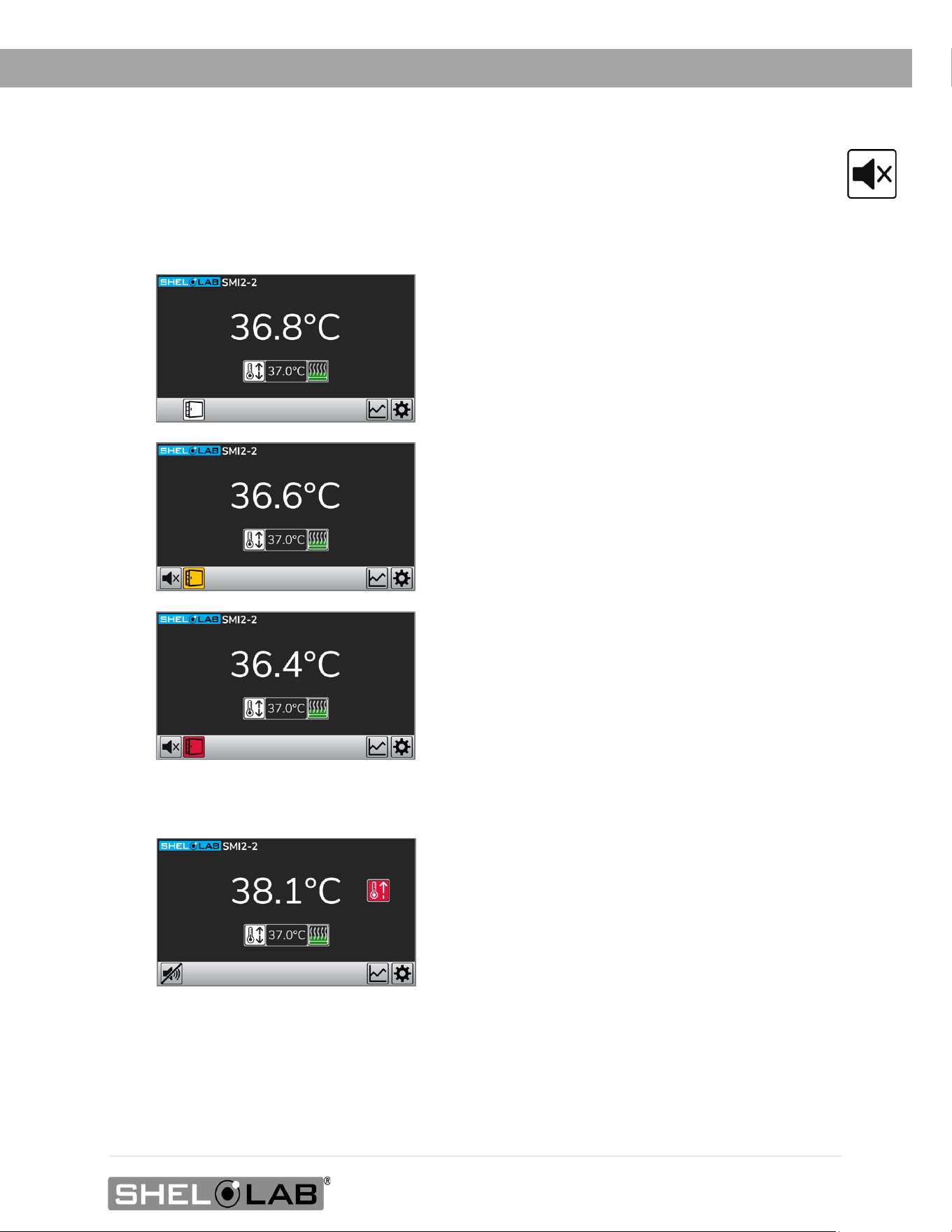
The incubator comes with two types of digital alarms: Door open and temperature deviation.
Door Alarms
Deviation Alarms
Door Open Notification
• Door open 0 – 60 seconds
• Visual notification only
Door Open Warning
• Door open 61 – 120 seconds
• Visual notification and audible chime
Door Open Alarm
• Door open 120+ seconds
• Visual and audible alert
Temperature Deviation Alarm
• Visual and audible alerts when the chamber
temperature deviates from the setpoint. The
deviation parameters are set in the
Temperature Control menu.
The deviation alarm will not activate under the
following conditions:
• If the door is currently open.
• For 6 minutes after the door was last closed.
• For 15 minutes after the temperature setpoint
is changed.
• For 45 minutes after the unit is turned on or
until the temperature is within the +/-
Temperature Deviation setting.
Note: The deviation alarm activation timer
starts when all the conditions to the right
have ended.
42 | Page
OPERATION
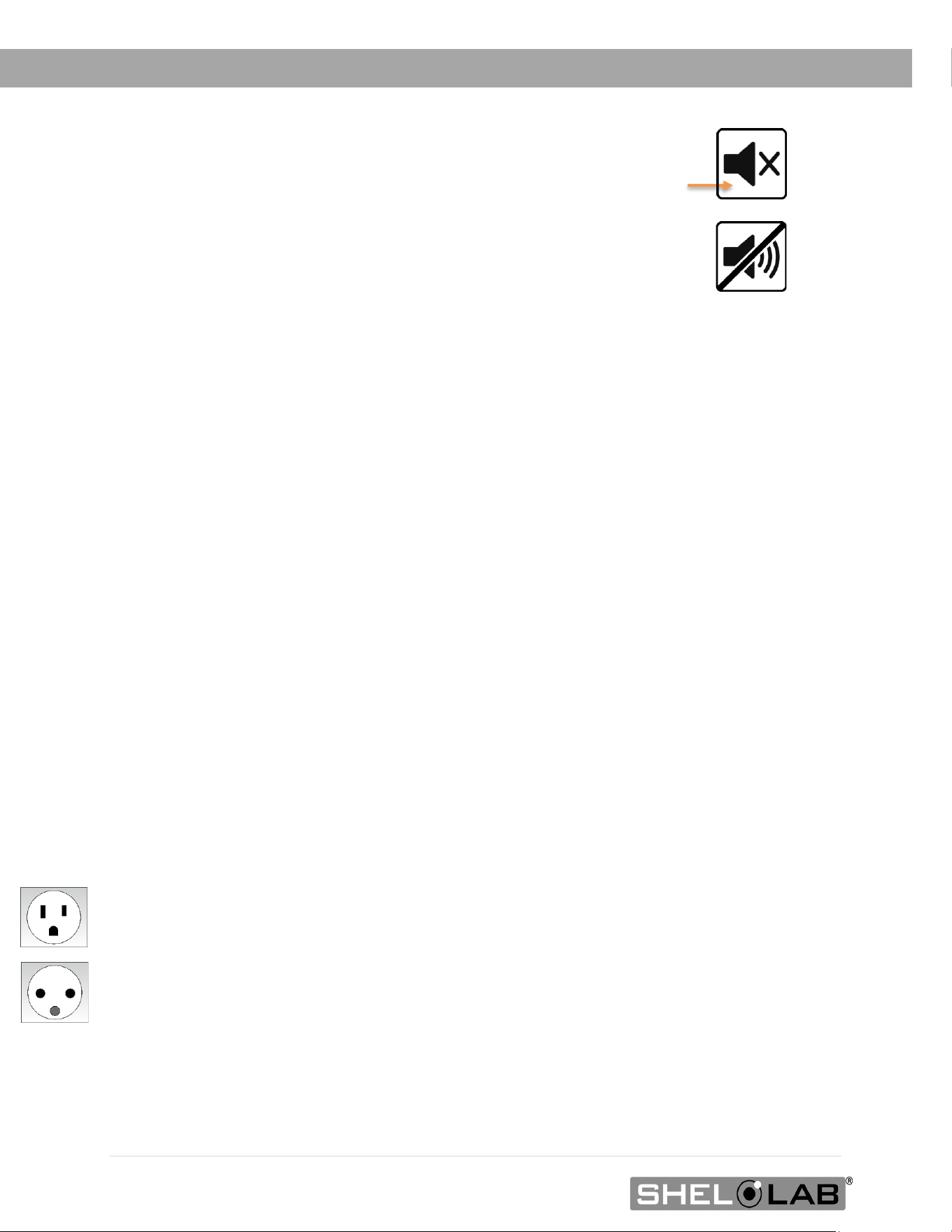
Muting the Audible Alert
Tapping the mute icon mutes the currently active alarm.
• The audible alert remains silent until the alarm deactivates or until
another alarm activates.
The mute icon disappears when the alarm deactivates.
Deactivating an Alarm
Alarms deactivate when the unit returns to normal operating conditions.
• Door Alarm: Deactivates when the door is closed.
• Deviation Alarms: Deactivate when the incubation chamber temperature returns to within
the temperature deviation alarm bounds set by the user.
LOADING SAMPLES
The manufacturer strongly recommends waiting at least 8 hours after putting the unit into operation
before loading samples in the incubation chamber. This allows the unit to heat soak, protecting
against temperature instability.
• Samples should be placed at least 1 inch (25 mm) away from the chamber walls.
• Proper spacing allows for maximum air circulation and a higher degree of temperature
uniformity.
• Proper spacing also decreases the chance of condensate forming in the incubator when
operating with a large number of samples in the chamber.
CHAMBER POWER OUTLET
Each incubator comes with a 1-amp power outlet inside the chamber. Do not attach powered
equipment that draws more than 1 amp. SMI12s have one outlet inside each chamber.
• The SMI2, SMI6, SMI7, SMI11 and SMI12 power outlet provides 100 – 120 volts,
• The SMI2-2, SMI6-2, SMI7-2, SMI11-2, and SMI12-2 power outlet provides 220 – 240 volts.
Verify that any powered accessory equipment used inside the chamber can safely and effectively
operate within your selected temperature range.
Powered equipment, such as stirrers or shakers, can generate heat sufficient to disrupt the thermal
uniformity and stability of the chamber.
Alarm Muted
43 | Page
OPERATION
POWER AND MEMORY
The incubator stores the data log, temperature setpoint, and other settings in non-volatile memory.
The unit retains log data and its settings indefinitely in the event of a power outage.
DATA LOG
The incubator logs the chamber temperature and setpoint once per minute. It also logs events.
• Alarm activations are logged the moment the alarm is activated.
• Power outages are retroactively logged as starting at the moment of the outage.
The incubator stores up to 5 years of continually logged data.
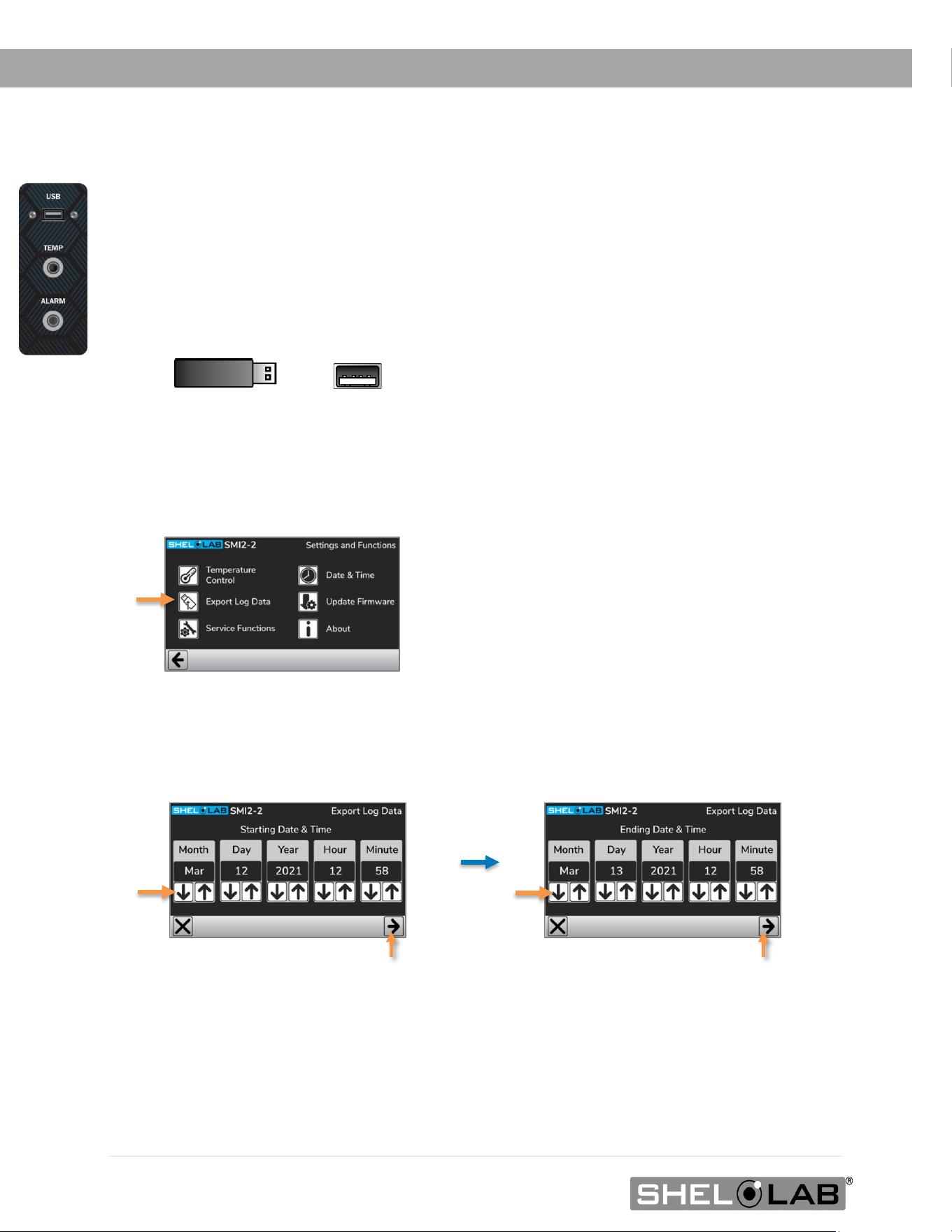
Logged data can be viewed as a graph on the incubator by touching the graph button.
The ( ? ) Help button brings up a color legend for the graph.
o
Power Outage includes periods
during which the unit is off.
o Tapping the graph on a vertical
guideline centers the graph on that
point in time.
o The graph can be zoomed in or out.
44 | Page
OPERATION
DATA LOG COPY AND EXPORT
The incubator copies and then exports user-specified date ranges of the log as human-readable .CSV
spreadsheet files. Copying and exporting requires a USB A thumb drive. Note: This process does not
erase log data on the incubator.
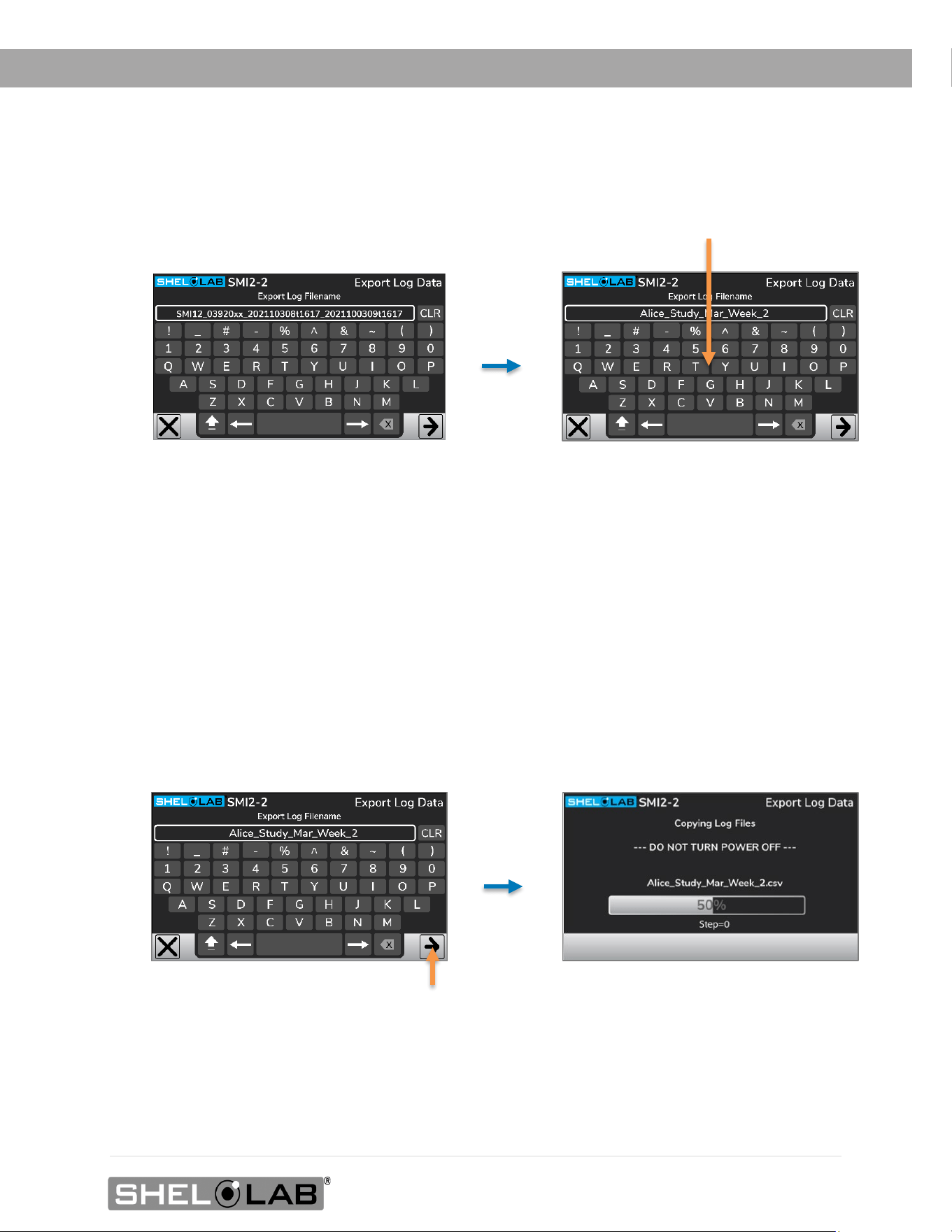
1. Insert a USB A thumb drive in the incubator USB Port.
• Note: The Export Log Data page cannot be accessed unless a thumb drive is in the port.
2. Open the Export Log Data page from the Settings Menu.
• Tap the Export Log Data button
3. Enter a start date, end date, and times.
• This selects the time range of data to copy and export to the USB drive.
• Note: The time range must be at least 5 minutes in length and the End value must be before the
current date and time.
Continued on next page
Thumb Drive
USB Formatting
For best results:
• Use a FAT32 formatted drive
• It may take up to 30 seconds for the incubator to
recognize some formats or USB brands.
Tap the right arrow Save button
Tap the right arrow Save button
45 | Page
OPERATION
4. Optional: Change the autogenerated filename.
• The autogenerated filename consists of the model, unit serial numbers, start date-and-time
block, and the end date-and-time block.
• Use the keypad to enter a new filename and then save.
o Note: Entering the file name of a data log file already on the USB drive appends the
new date range to the existing spreadsheet rather than overwriting the original file
or any data in it.
5. Copy and export the selected date range of data.
• Tap the right arrow Save button to save and export.
46 | Page
OPERATION
REAL TIME DATA OUTPUTS
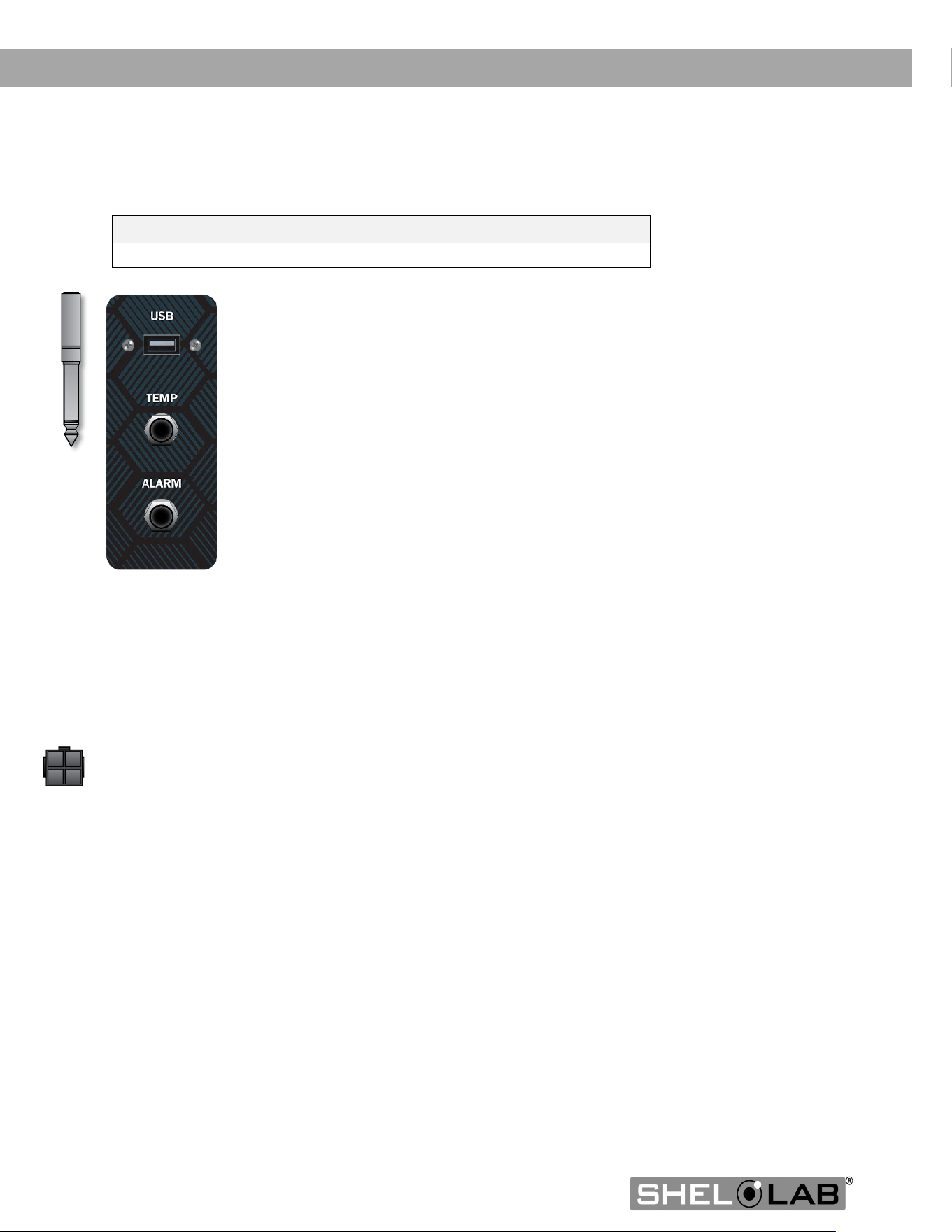
TEMP Port: 4 – 20mA analog output describing the current chamber temperature.
This port connects to an audio jack (male mono phono plug, ¼ inch (6.3 mm).
Jacks and cables are not included with the incubator.
Data Monitoring Systems – Max Resistance: For building management and
other data monitoring or logging systems, the maximum resistance of the current
loop from the 4-20mA module is 250 Ohms. At higher loop resistances, the
current value will be erroneously low for parameter values near the top of the
scale.
Alarm Port: A dry contact port. This port communicates all alarm activations as
On or Off outputs in which the Open position indicates an alarm instance. The
port connects to an audio jack and cable – male mono phono plug, ¼ inch (6.3
mm).
Jacks and cables are not included with the incubator.
Note: The jack ports output once every 60 seconds. The USB port is only for
copying and exporting the data log. It does not output data in real time.
ACCESSORY EXPANSION PORT
This 24-volt port powers and supports SHEL LAB accessories. Only plug in devices specifically
authorized for this port.
HUMIDIFYING THE INCUBATOR
Long-term use of a large water container, such as a humidifier pan, will create excess water vapor in
the unit and can damage the electrical components of an SMI incubator. Additionally, the use of
deionized water may cause significant corrosion damage to the incubator. Overloading the unit with
sample media may also damage the incubator from excessive media evaporation and disruption of
airflow pathways through the shelf space.
Small Sample Load
Placing a small number of Petri plates or other media containers in the incubator chamber may lead
to excessively fast drying of sample media. A small water-filled container, such as an open flask, may
be placed in the chamber to help slow sample drying with small loads.
Parameter Parameter Value at 4mA Parameter Value at 20mA
Temperature
0°C
70°C
47 | Page
OPERATION
CONDENSATION AND THE DEW POINT
Relative humidity inside the incubation chamber should never be allowed to exceed 80% at 25°C.
Exceeding this threshold will likely result in condensation and leaks around the incubator and may
cause corrosion damage if allowed to continue for any significant length of time.
Condensation takes place whenever the humidity level in the incubation chamber reaches the dew
point. The dew point is the level of humidity at which the air cannot hold more water vapor. The
warmer the air, the more water vapor it can hold.
As the level of humidity rises in an incubation chamber, condensate will first appear on surfaces that
are cooler than the air temperature. Near the dew point, condensate forms on any item or exposed
surface even slightly cooler than the air. When the dew point is reached, condensate forms on nearly
all exposed surfaces.
Managing condensation primarily depends on either lowering the humidity level or increasing the air
temperature in the incubation chamber.
Note: Rising or falling air pressure from the weather will adjust the dew point up and down in small
increments. If the relative humidity in the incubation chamber is already near the dew point,
barometric fluctuations may push it across the threshold.
Note: Thin air at higher altitudes holds less humidity than the denser air found at or near sea level.
If excessive condensate has appeared in the incubation chamber, dry the chamber interior. After
removing the condensate, check the following.
• Ensure samples on the shelves are evenly spaced to allow for good airflow.
• Ensure the chamber door is closing and latching properly.
• Verify the chamber access port is closed. The shipping cap that came with the unit should
be installed on the outside of the incubator and not in the chamber.
• Are frequent or lengthy chamber door openings causing significant temperature disruptions
and chilling the chamber surfaces? If so, reduce the number of openings.
• Are there too many open or “breathable” containers of evaporating sample media in the
chamber? If so, reduce the number of open sample containers.
• Does the ambient humidity in the room exceed the stated operating range of 80% relative
environmental humidity? If so, lower the room humidity.
• Is the incubator exposed to an external flow of cold air such as an air-conditioning vent or a
door to a cooler hallway or adjacent room? Block or divert the air or reposition the unit.
• Check the door gasket for damage, wear, or signs of brittleness or dryness. Arrange for
replacement of the gasket if damaged or excessively worn.

48 | Page
OPERATION
49 | Page
USER MAINTENANCE
Warning: Disconnect this unit from its power supply prior to performing maintenance or services.
Avertissement: Débranchez cet appareil de son alimentation électrique avant d'effectuer la maintenance
ou les services.
CLEANING AND DISINFECTING
If a hazardous material or substance has spilled in the unit chamber, immediately initiate your site
Hazardous Material Spill Containment protocol. Contact your local Site Safety Officer and follow
instructions per the site policy and procedures.
• Periodic cleaning and disinfection are required.
• Do not use spray-on cleaners or disinfectants. These can leak through openings and coat
electrical components.
• Consult with the manufacturer or their agent if you have any doubts about the
compatibility of decontamination or cleaning agents with the parts of the equipment or
with the material contained in it.
• Do not use cleaners or disinfectants that contain solvents capable of harming paint
coatings or stainless-steel surfaces. Do not use chlorine-based bleaches or abrasives;
these will damage the chamber liner.
Warning: Exercise caution if cleaning the unit with alcohol or flammable cleaners. Always allow the
unit to cool down to room temperature prior to cleaning and make sure all cleaning agents have
evaporated or otherwise been completely removed prior to putting the unit back into service.
Avertissement: Soyez prudent lorsque vous nettoyez l'appareil avec de l'alcool ou des produits de
nettoyage inflammables. Laissez toujours refroidir l'appareil à la température ambiante avant le
nettoyage et assurez-vous que tous les produits de nettoyage se sont évaporés ou ont été
complètement enlevés avant de remettre l'appareil en service.
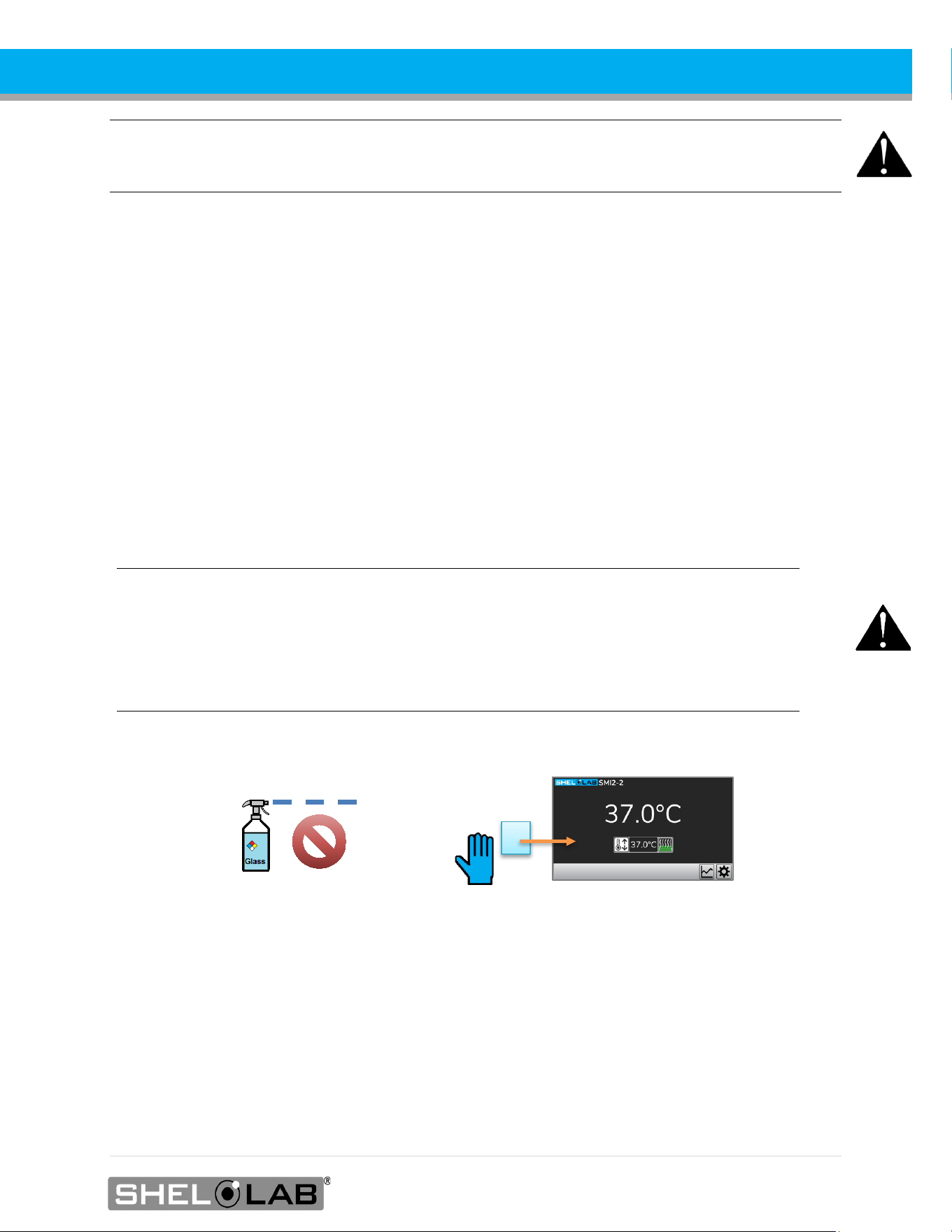
Cleaning and Disinfecting the Display Screen
• Do not spray cleaning or disinfecting agents directly onto the screen.
o Spray onto a lint-free soft wipe or cloth, then apply.
• The manufacturer recommends non-chlorine-based wipes to clean and disinfect.
o Isopropyl alcohol wipes are acceptable.
• If the incubator is powered, begin cleaning by placing the cleaning and disinfecting wipe on
a blank region of the display screen.
o Wipe across the screen surface while maintaining continual contact. This avoids
triggering buttons.

50 | Page
MAINTENANCE
Cleaning Recommendations
Keep the following in mind when cleaning the unit chamber and body.
• Always disconnect the unit from its power supply.
• Remove all removable accessory components such as shelving if permitted by your
laboratory protocol.
• Clean the unit with a mild soap and water solution, including all corners.
o Do not use an abrasive cleaner. These will damage metal surfaces.
o Do not use deionized water to rinse or clean with.
o Take special care when cleaning around the temperature sensor probes in the
chamber to prevent damage. Do not clean the probes.
• Rinse with distilled water and wipe dry with a soft cloth.
Disinfecting Considerations
When disinfecting the unit:
• Always turn off and disconnect the unit to safeguard against electrical hazards.
• For maximum effectiveness, disinfection procedures are typically performed after cleaning.
• Disinfect the unit chamber using commercially available disinfectants that are non-corrosive,
non-abrasive, and suitable for use on stainless steel and glass surfaces. Contact your local
Site Safety Officer for detailed information on which disinfectants are compatible with your
applications.
• If permitted by your protocol, remove all removable interior accessories (shelving and other
non-attached items) from the chamber.
• Disinfect all surfaces in the chamber, making sure to thoroughly disinfect the corners.
Exercise care to avoid damaging the sensor probes.
• Gas concentrations from evaporating disinfecting agents can inhibit growth or cause
metabolic symptoms in microbiological sample populations. Make sure that chlorines,
quaternary ammonias, or any other overtly volatile disinfecting agents have been rinsed or
otherwise removed from the chamber surfaces, prior to placing samples in the chamber.
When disinfecting external surfaces, use disinfectants that will not damage painted metal, glass, and
plastic.

51 | Page
MAINTENANCE
MINIMIZING CONTAMINATION EXPOSURE
Suggestions for minimizing exposure of the incubator chamber to potential contaminants.
• Maintain a high air quality in the laboratory workspaces around the incubator.
• Avoid placing the incubator near sources of air movement such as doors, air vents, or high
traffic routes in the workspace.
• Minimize the number of times the incubator chamber door is opened during normal
operations.
STORING THE INCUBATOR
Perform the following steps if the incubator will be out of use for more than 24 hours to prevent
microbiological contamination such as fungus or mold.
1. Depower the incubator.
2. Clean and disinfect if required by your laboratory protocol or if the chamber has been
exposed to pathogenic microorganisms.
3. Use a soft cloth to dry the chamber surfaces.
DOOR COMPONENTS
Periodically, inspect the door latch, trim, catch, and gaskets for signs of deterioration. Failure to
maintain the integrity of the door system shortens the life span of the unit.
ELECTRICAL COMPONENTS
Electrical components do not require maintenance. If the incubator fails to operate as specified,
please contact your distributor or Customer Support for assistance.
52 | Page
MAINTENANCE
CALIBRATING THE TEMPERATURE DISPLAY
Note: Performing a temperature display calibration requires a temperature reference device. Please
see the Reference Sensor Device topic on page 11 for the device requirements.
Note: Each SMI12 incubation chamber must be independently calibrated to its temperature display.
Temperature calibrations are performed to match the unit temperature display to the actual air
temperature inside the unit chamber. The actual air temperature is supplied by a calibrated
reference device. Calibrations compensate for long-term drifts in the incubator microprocessor
controller as well as those caused by the natural material evolution of the sensor probes. Calibrate
annually or as often as required by your laboratory or production protocol, or regulatory compliance
schedule. Always calibrate to the standards and use the calibration setup required by your industry.
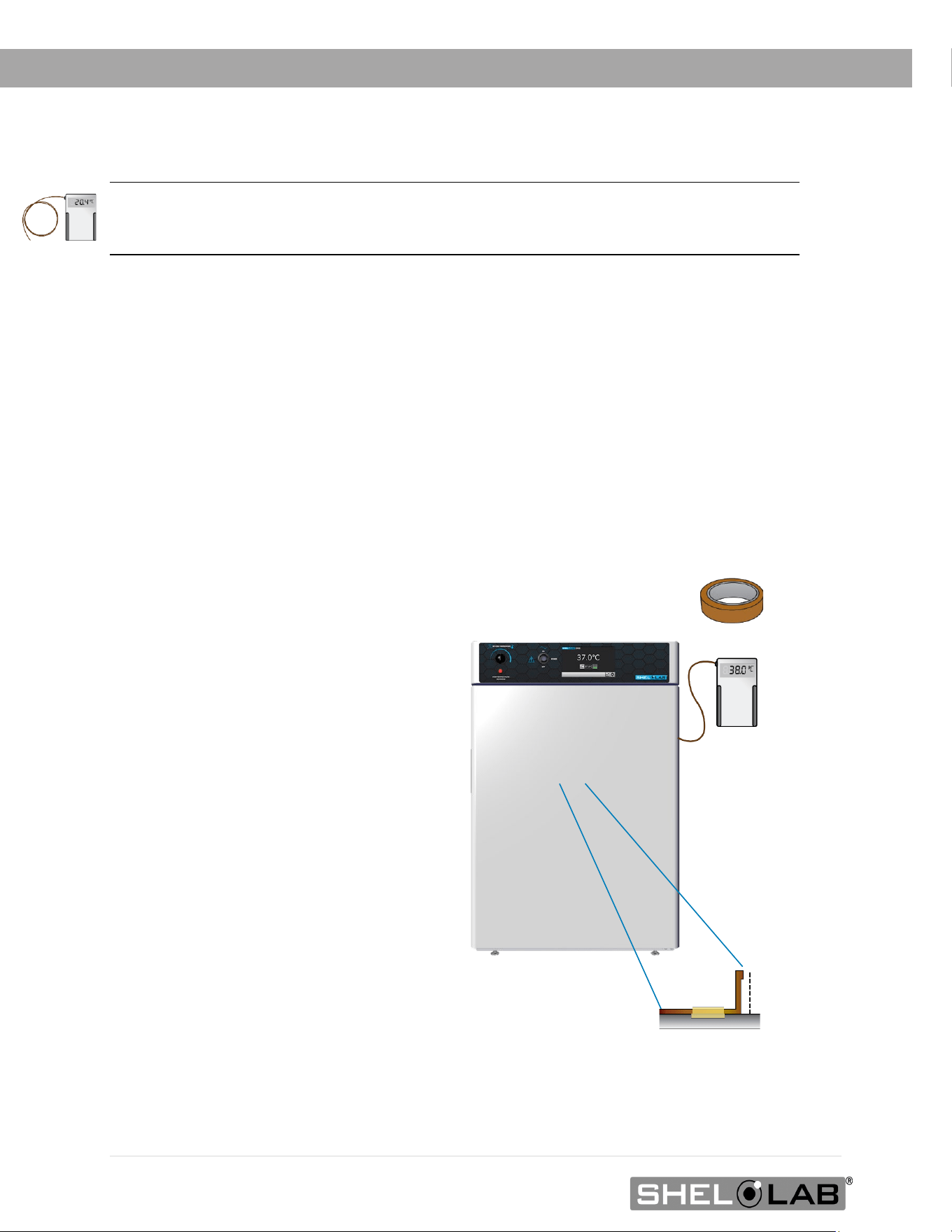
A suggested calibration setup
2” (50 mm)
1. Introduce the reference device
thermocouple probe through the access
port on the right side of the unit.
2. Position the sensor probe head as close
as possible to the geometric center point
of the chamber. The probe head must be
at least 2 inches (50 mm) above or below
shelving surfaces to prevent heat sinking.
Secure the probe head in position using
the non-stick tape.
3. After securing the probe head in
position, carefully place the access port
stopper in the port over the probe wires.
Use non-stick tape to seal any gaps
created between the stopper and the
port by the probe wires.
4. The incubator door must be
closed and latched. Failure to do so
will prevent an accurate calibration.
Continued next page
Use non-marking, heat-resistant polyamide tape
to hold the thermocouple probe in place. The
manufacturer recommends Kapton brand tape,
0.5 inches width (12 mm), 2 mil thickness.
53 | Page
MAINTENANCE
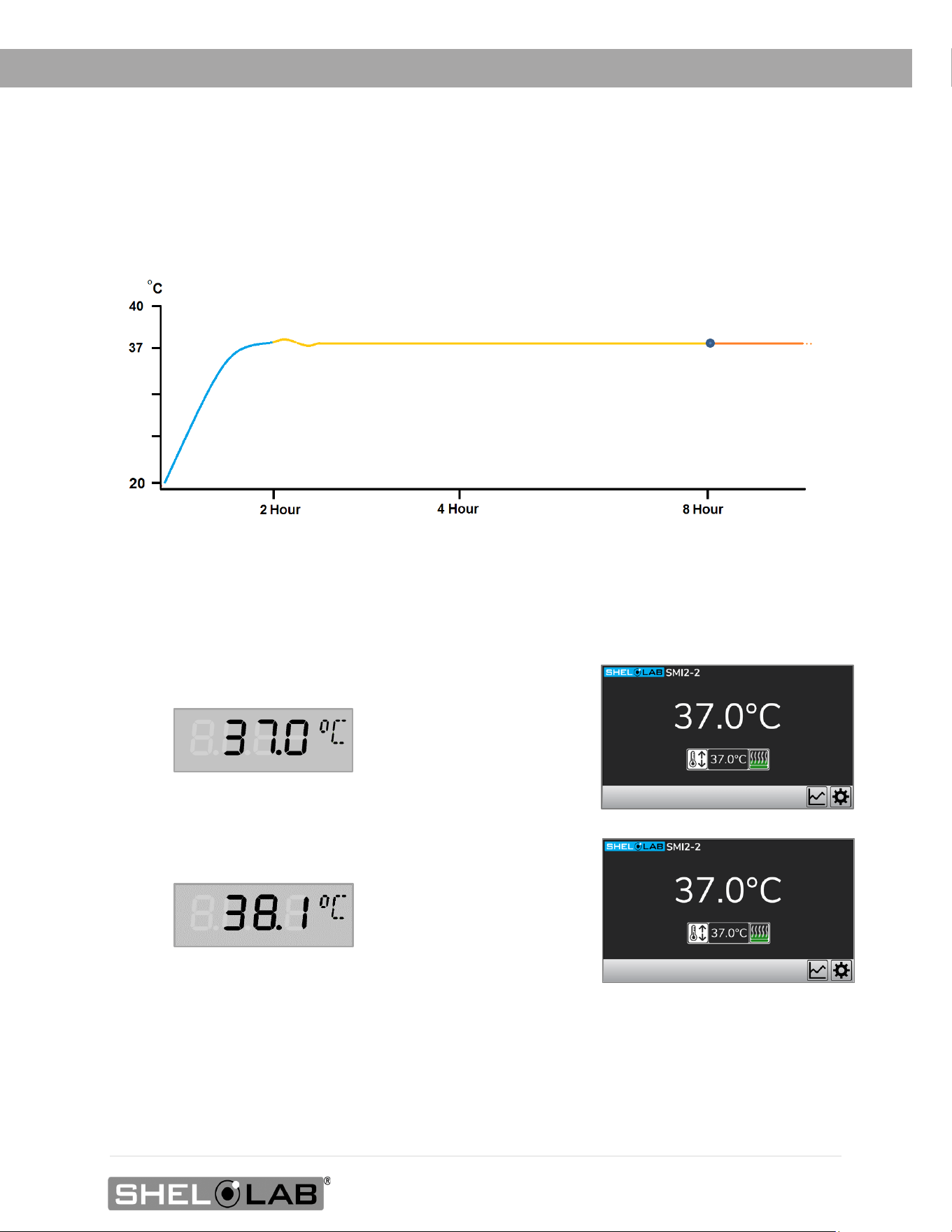
5. The unit cannot be accurately calibrated until it is thermally stabilized at the setpoint temperature.
Wait until the following conditions have been met.
• The incubator must operate for at least 8 hours prior to conducting a calibration.
• The temperature is considered stabilized when the incubation chamber has operated
with the door closed at your calibration temperature for at least 1 hour with no
fluctuations greater than the specified stability of the incubator (see page 58).
Suggested Calibration Procedure
1. Compare the reference device and incubator temperature display readings.
• Reminder: The incubator temperature must be stabilized.
• If the readings are the same, or the difference between the two falls within the
acceptable range of your protocol, the display is accurately showing the chamber air
temperature. The Temperature Calibration procedure is now complete.
• If the difference falls outside of your protocol range, advance to the next step.
Unit Powered On
Begin Calibration
Fluctuations
(Exaggerated)
Reference Device
Reference Device
Unit in Calibration
Calibration Required
Required Stability Period
1 Hour Minimum
54 | Page
MAINTENANCE
Temperature Calibration Continued
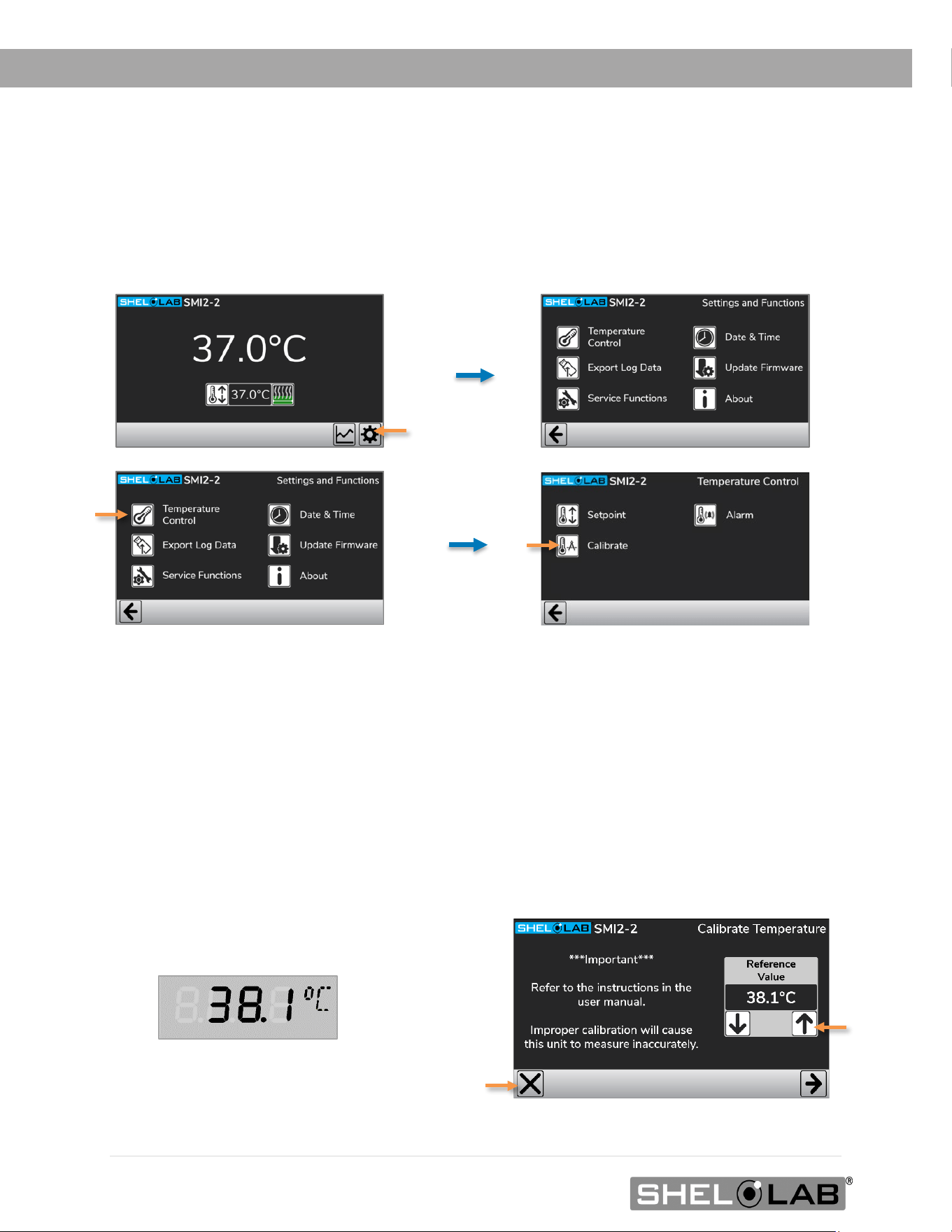
2. Open the Calibrate Temperature Menu.
a. Tap the Settings button.
b. Tap the Temperature Control button.
c. Tap the Calibrate button.
3. Adjust the temperature calibration value.
a. Use the arrow buttons to match the Reference Value on the controller to the temperature of
the reference device.
• The temperature calibration function has a range of approximately ±10°C (18°F). For
temperature deviations outside these parameters, contact Customer Support.
b. Tap the left arrow button to save the setting and return to the Temperature Control menu.
• The unit will begin heating or passively cooling to achieve the new setpoint.
Continued next page
Reference Device
55 | Page
MAINTENANCE
Temperature Calibration Continued
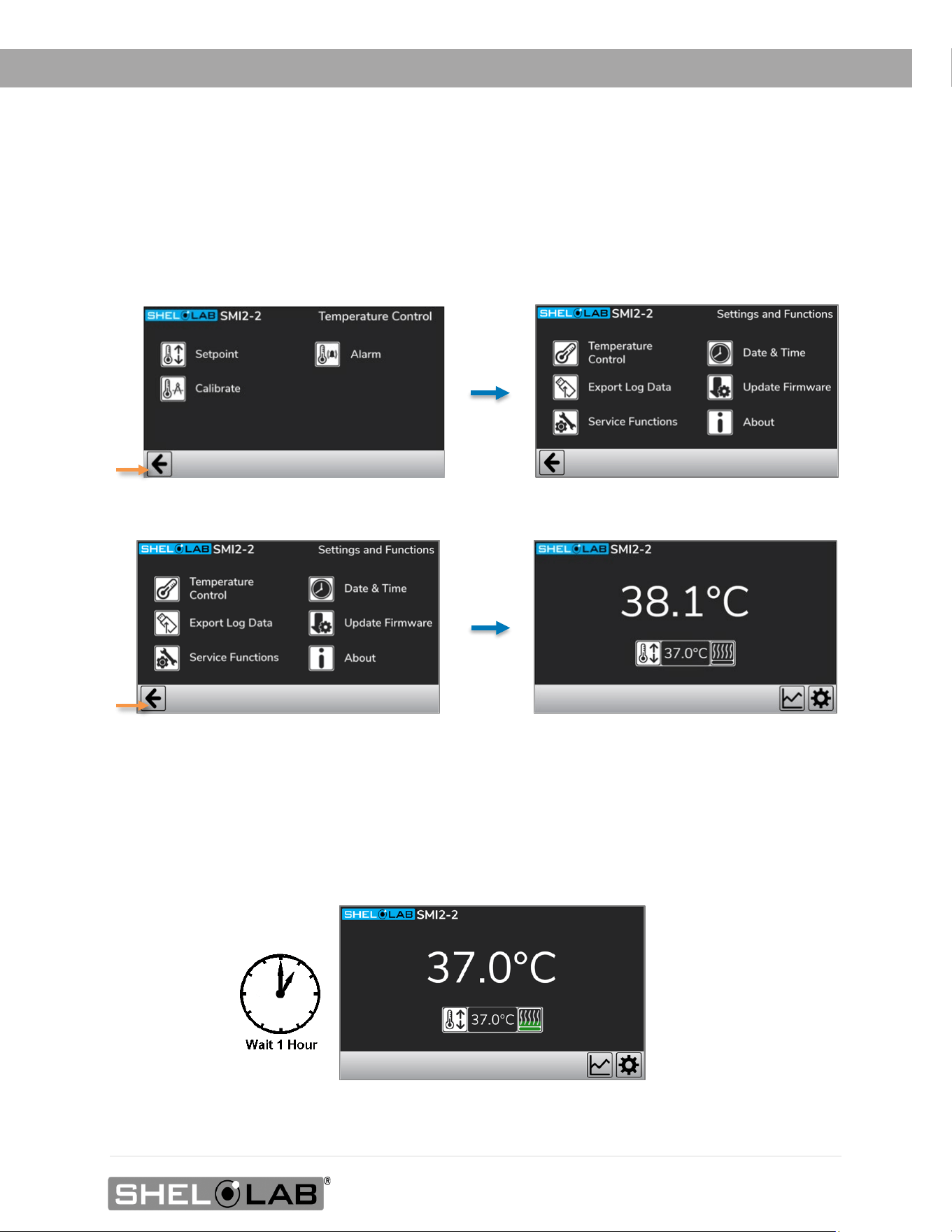
4. Return the display to the homepage.
a. Tap the left arrow button twice to return to the homepage.
5. Allow 1 hour for the incubator temperature to stabilize.
• Wait 1 hour after the incubator has cooled or heated to the temperature setpoint.
• Failure to wait until the incubator is fully stabilized will result in an inaccurate reading.
Continued next page
56 | Page
MAINTENANCE
Temperature Calibration Continued
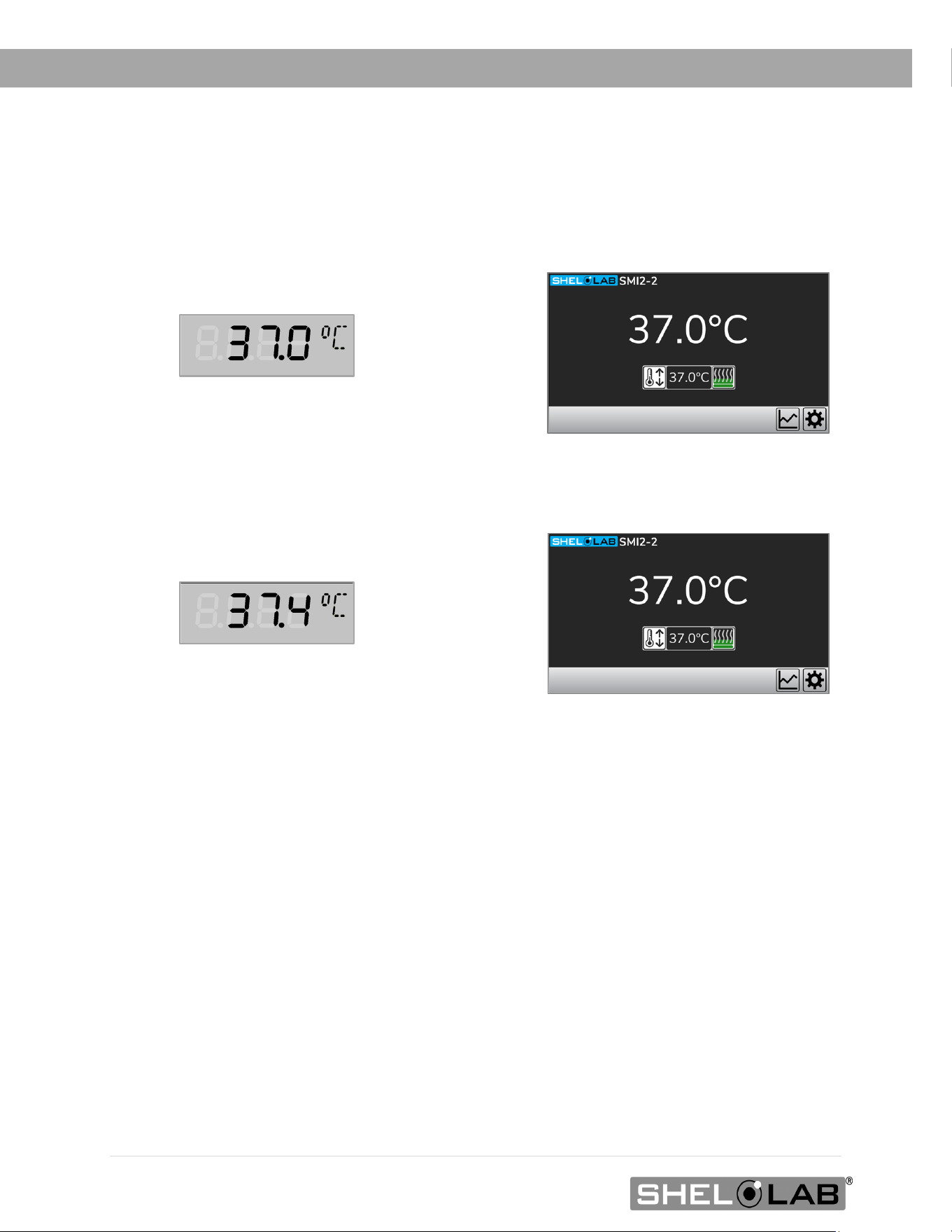
6. Compare the reference device and display temperature readings.
• If the reference device and the chamber temperature display readings are now the same or
the difference falls within the range of your protocol, the incubator is now calibrated for
temperature.
• If the difference still falls outside the acceptable range of your protocol, repeat the
calibration procedure up to 2 more times.
If the temperature readings of the incubator temperature display and the reference device still fall
outside your protocol after 3 calibration attempts, contact your distributor or Customer Support
for assistance.
End of Procedure
Further Calibration
Required
Reference Device
Reference Device
Unit in Calibration
57 | Page
UNIT SPECIFICATIONS
These incubators are 100 – 120 volt units. Please refer to the unit data plate for individual electrical
specifications.
Technical data specified applies to units with standard equipment at an ambient temperature of 25°C
and at nominal voltage. The temperatures specified are determined in accordance with factory
standards following DIN 12880 respecting the recommended wall clearances of 10% of the height,
width, and depth of the inner chamber. All indications are average values, typical for units produced
in the series. We reserve the right to alter technical specifications at all times.
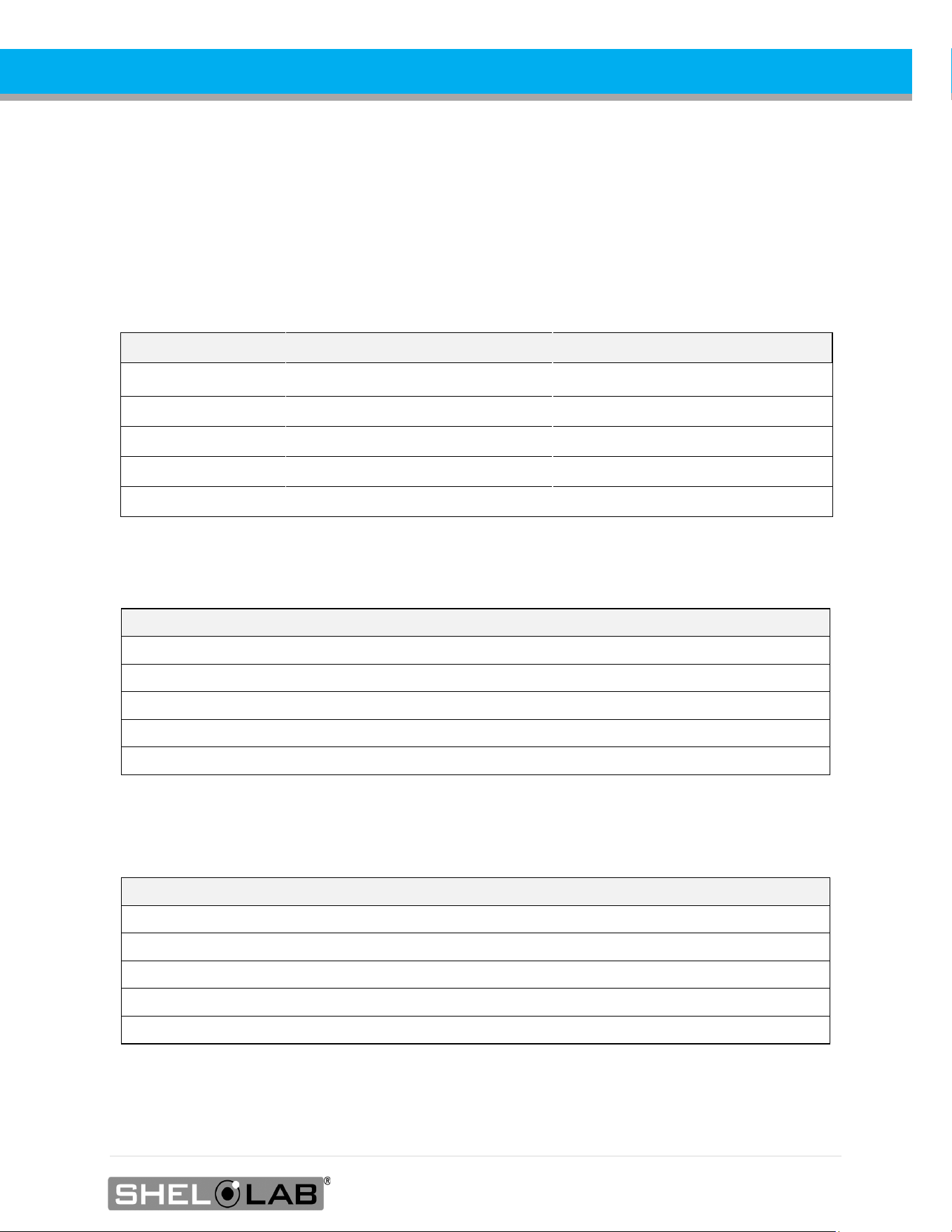
WEIGHT
Model Shipping Net Weight
SMI2s 117 lb / 53 kg 83.0 lb / 37.6 kg
SMI6 187 lb / 85 kg 158.0 lb / 71.7 kg
SMI7 198 lb / 90 kg 162.0 lb / 73.5 kg
SMI11 300 lb / 136 kg 217.0 lb / 98.5 kg
SMI12 372 lb / 169 kg 316.0 lb / 143.3 kg
DIMENSIONS
In Inches
Model Exterior W × D × H Interior W × D × H
SMI2s 21.3 × 22.3 × 26.0 in 15.0 × 15.0 × 15.2 in
SMI6 25.3 × 27.3 × 38.0 in 19.5 × 20.0 × 26.0 in
SMI7 30.0 × 31.0 × 32.0 in 23.7 × 24.0 × 20.0 in
SMI11 42.0× 27.0 × 38.0 in 36.2 × 20.0 × 26.0 in
SMI12 25.3 × 27.3 × 76.0 in 19.5 × 20.0 × 26.0 in*
*The interior dimensions are for each SMI12 chamber
In Millimeters
Model Exterior W × D × H Interior W × D × H
SMI2s 541 × 566 × 660 mm 381 × 381 × 386 mm
SMI6 643 × 693 × 965 mm 495 × 508 × 660 mm
SMI7 762 × 787 × 813 mm 602 × 610 × 508 mm
SMI11 1067 × 686 × 965 mm 920 × 508 × 660 mm
SMI12 643 × 693 × 1930 mm 495 × 508 × 660 mm*
*Each Chamber
58 | Page
SPECIFICATIONS
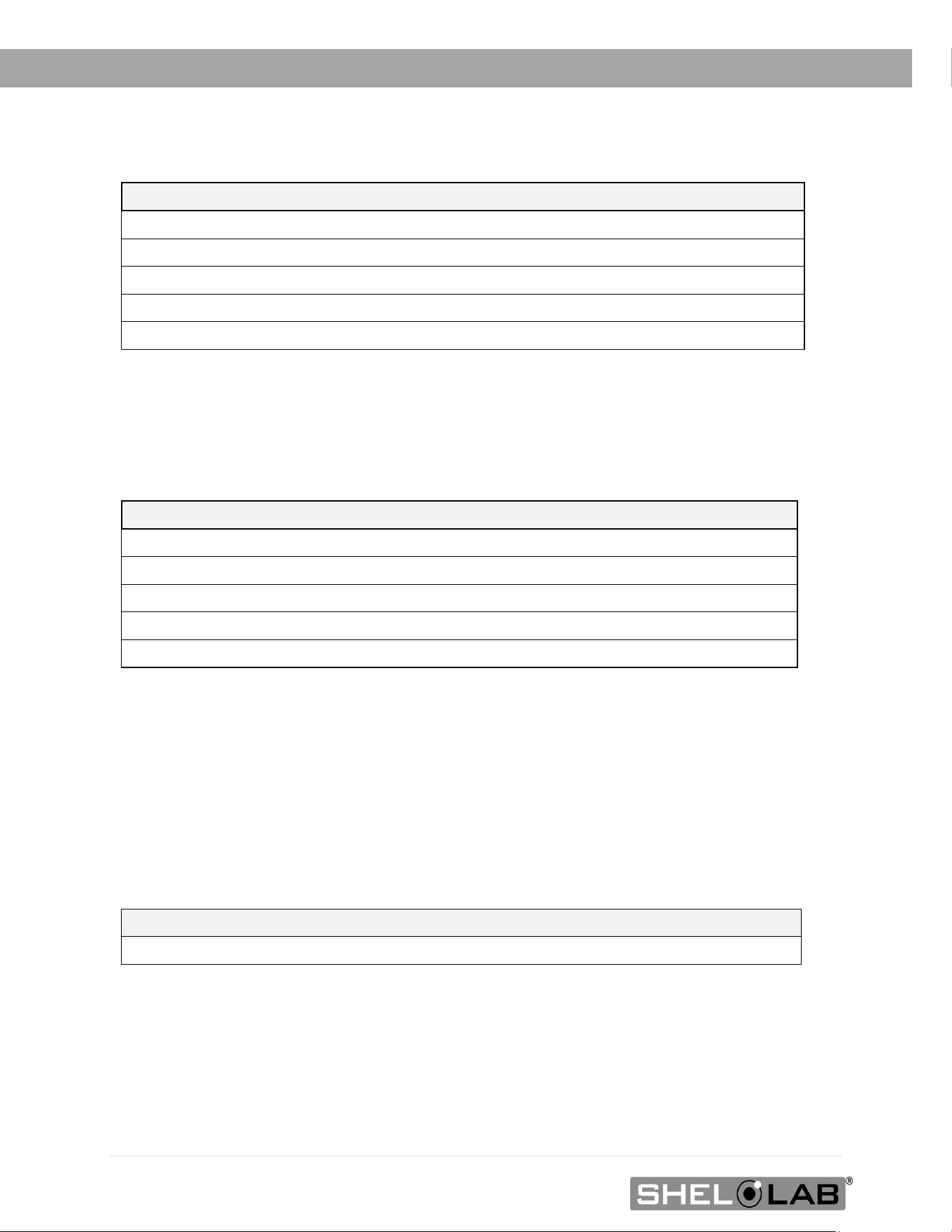
CAPACITY
Model Cubic Feet Liters
SMI2s
2.0 56.3
SMI6
5.9 166.0
SMI7
6.5
184.0
SMI11
10.9
309.0
SMI12
11.7
332.0
SHELF CAPACITY BY WEIGHT
Model Per Shelf * Total ** Max. Shelves per Unit
SMI2s
35.0 lb / 15.9 kg 70.0 lb / 31.8 kg 6
SMI6
35.0 lb / 15.9 kg 105.0 lb / 47.6 kg 12
SMI7 35.0 lb / 15.9 kg 70.0 lb / 31.8 kg 9
SMI11
35.0 lb / 15.9 kg 105.0 lb / 47.6 kg *** 12
SMI12
35.0 lb / 15.9 kg 105.0 lb / 47.6 kg **** 12
* Weight evenly distributed across the shelf.
** Total load for the incubation chamber. Exceeding this limit risks damaging the chamber liner.
*** For each side of the SMI11 chamber. 210 lb / 95 kg total maximum on both sides.
**** For each SMI6 in a SMI12 stack. 210 lb / 95 kg total maximum for both chambers.
TEMPERATURE
Model Range Uniformity Stability
All
Ambient +8° to 70°C ±0.5° @ 37°C ±0.1°C @ 37°C
59 | Page
SPECIFICATIONS
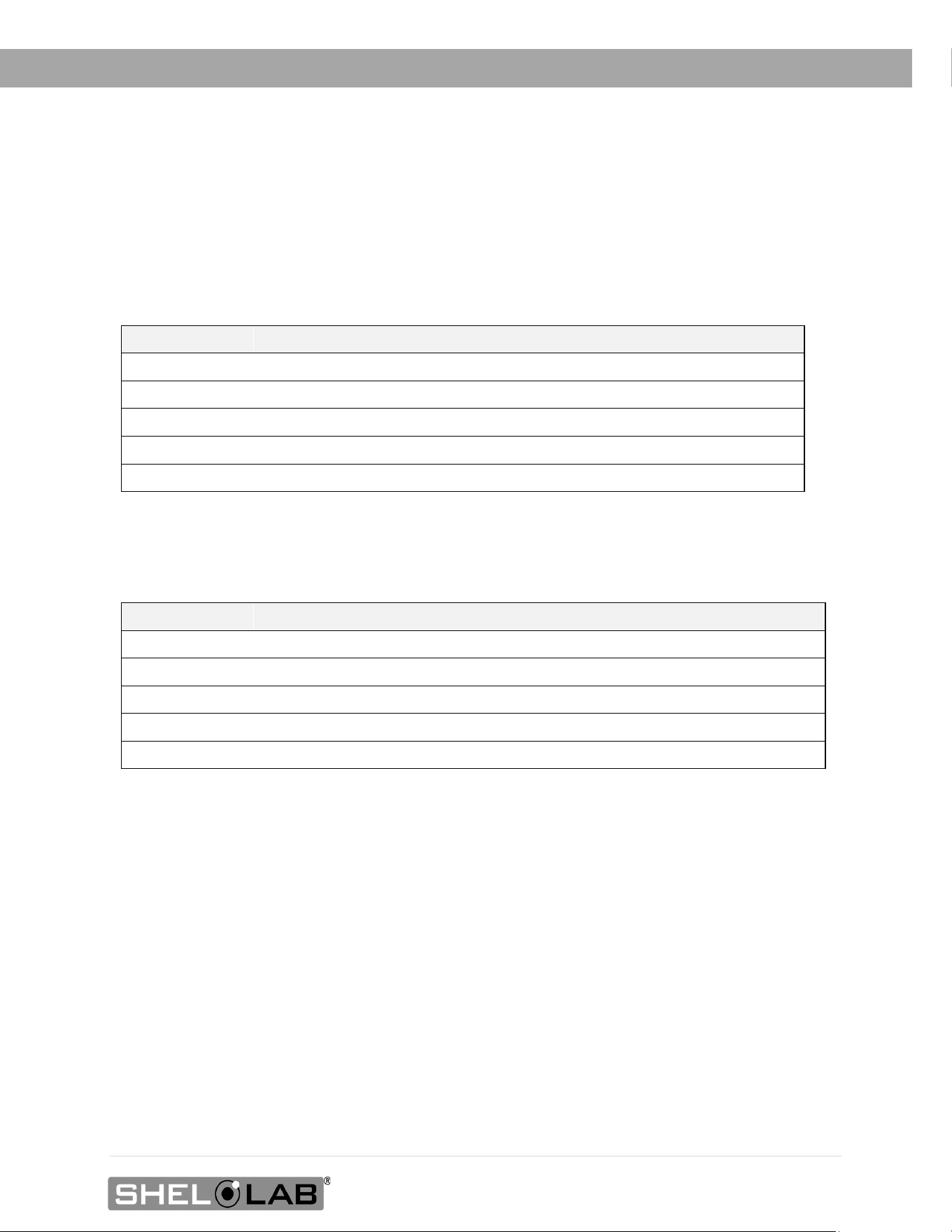
POWER
100 – 120 Volt Models
Model Voltage Amperage Frequency
SMI2
100 – 120 4.5 50/60 Hz
SMI6
100 – 120 6.0 50/60 Hz
SMI7 100 – 120 6.5 50/60 Hz
SMI11
100 – 120 10.0 50/60 Hz
SMI12
100 – 120 12.0 (6.0 each chamber) 50/60 Hz
220 – 240 Volt Models
Model Voltage Amperage Frequency
SMI2-2
220 – 240 3.0 50/60 Hz
SMI6-2
220 – 240
4.0
50/60 Hz
SMI7-2
220 – 240
5.0
50/60 Hz
SMI11-2
220 – 240
5.0
50/60 Hz
SMI12-2
220 – 240 8.0 (4.0 each chamber) 50/60 Hz

60 | Page
SPECIFICATIONS
61 | Page
PARTS LIST
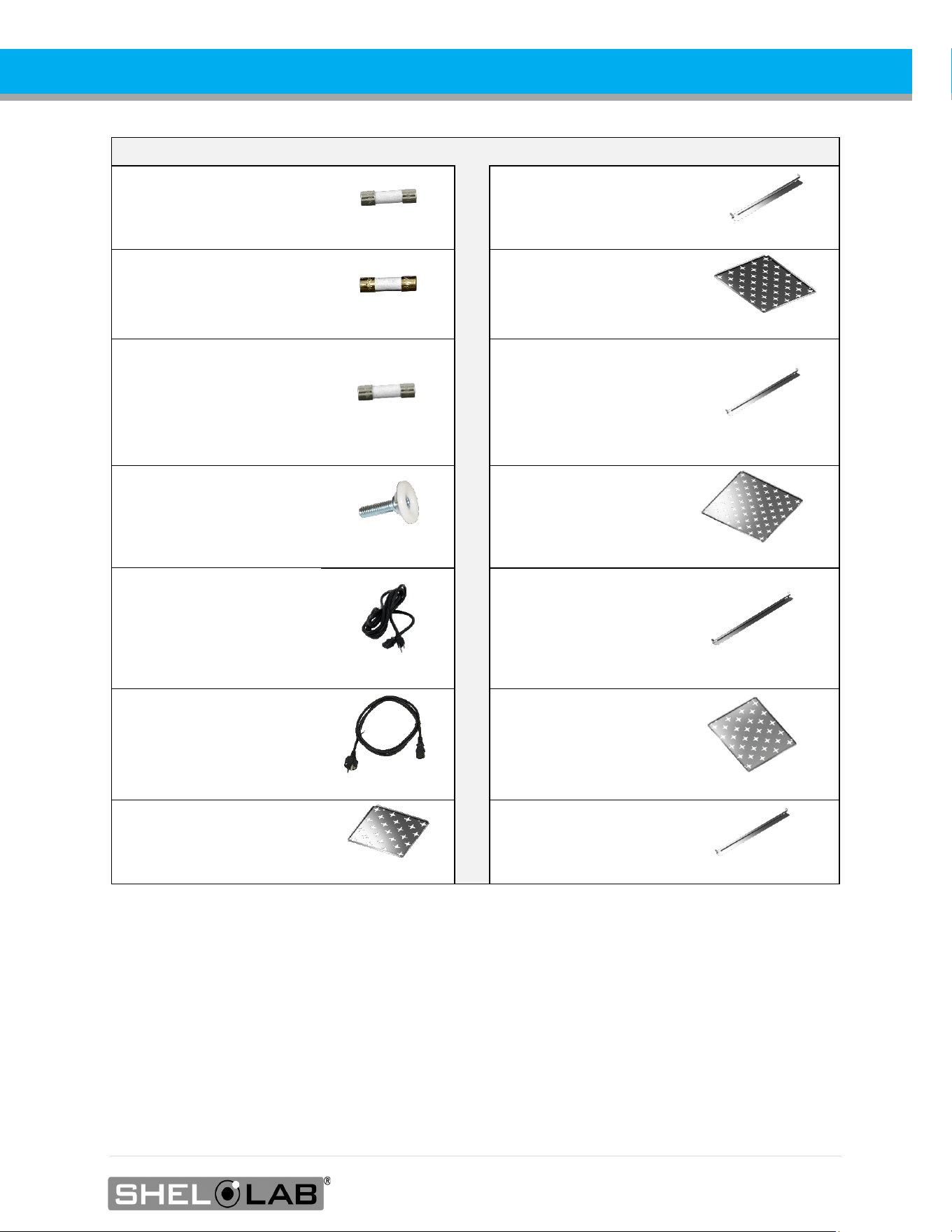
Description Parts Number Description Parts Number
Fuse 110 – 120 Volt
SMI2, SMI6, SMI12
T6.3A 250V 5x20mm
3300515
Shelf Mount, SMI2s
5081174
Fuse 110 – 120 Volt
SMI7, SMI11
T10 amp 250V 5x20mm
3300516
Shelf, SMI6s and SMI12s
5130523
Fuse 220 – 240 Volt
SMI2-2, SMI6-2, SMI7-2,
SMI11-2, SMI12-2
T6.3A 250V 5x20mm
(Requires 2)
3300515
Shelf Mount, SMI6s and
SMI12s
5081201
Leveling Foot
2700512
Shelf, SMI7s
5130518
Power Cord 110 – 120 Volt
SMI2, SMI6, SMI7, SMI11,
SMI12
15 Amp, 9ft 5in (2.86m)
NEMA 5-15P
1800510
Shelf Mount, SMI7s
5081205
Power Cord 220 – 240 Volt
SMI2-2, SMI6-2, SMI7-2,
SMI11-2, SMI12-2
10 Amp, 8ft 2in (2.5m), CEE 7/
1800500
Shelf, SMI11s
5130687
Shelf, SMI2s
5080758
Shelf Mount, SMI11s
5081201
Ordering
Accessories and replacement parts can be ordered online at parts.sheldonmfg.com.
If the required item is not listed online, or if you require assistance in determining which part or
accessory you need contact SHEL LAB by emailing p[email protected] or by calling 1-800-322-
4897 ext. 3 or (503) 640-3000 ext. 3.
Please have the model, serial, and part numbers, and Part ID of the unit ready. Customer Support
needs this information to match your unit to its correct part.

P.O. Box 627
Cornelius, OR 97113
USA
support@sheldonmfg.com
sheldonmanufacturing.com
1-800-322-4897
(503) 640-3000
FAX: 503 640-1366