
Notice: Please read the user manual carefully before using
this product.
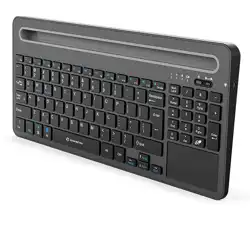
Multi-channel Universal Desktop Slot Keyboard
User Manual
ZW-07
1
A
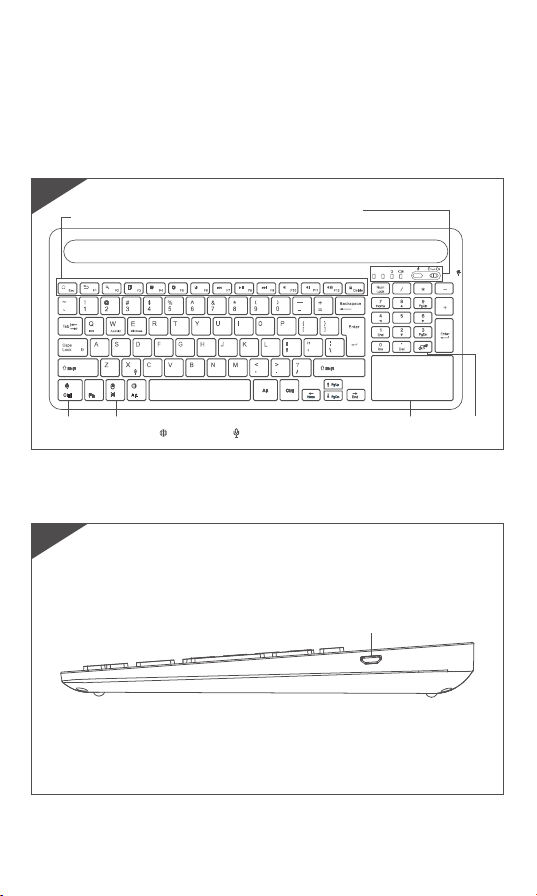
Charging Interface
Front
Back
Touchpad
Multi-function Keys
Touc h pad
Switch
Low Battery Indicator
Channel Switch
Left Mouse
Button
Right Mouse
Button
Language
Switch
Voice
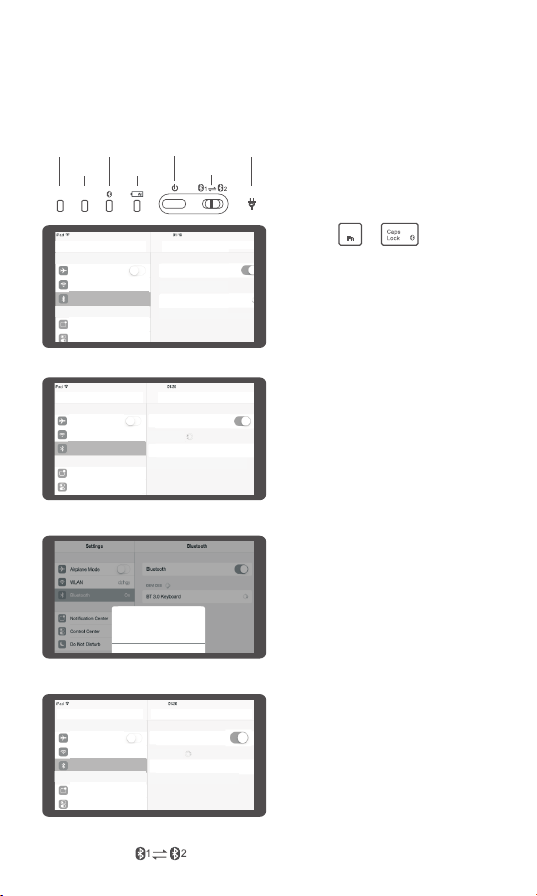
● iOS Connection Instructions:
Airplan e Mode
WL AN
dzhgy
Bluetooth
On
Notific ation Center
Control Center
BluetoothSettings
Bluetooth
DEVICES
Searching...
Now Disco verable
Airplane Mode
WL AN
dzhgy
Bluetooth
On
Notification Center
Bluetooth
Settings
Bluetooth
DEVICES
Now Discoverab le
Bluetoot h3. 0 Key boa rd
Not Paired
Control Center
Bluet ooth Pai ring Reque st
Bluet ooth Pai ring Reque st
Ent er the co d“e 9 575”on“ 3.0 Blu etoot h
Key board”,fo llowe d by the re turn o r
ent er key.
Cance l
Airplan e Mode
WL AN
dzhgy
Bluetooth
On
Notification Center
Bluetooth
Settings
Bluetooth
DEVICES
Now Discoverable
Bluetoot h3. 0 Key boa rd
Connected
Control Center
3. Turn on the Bluetooth of your IOS
devices and start the pairing.
4. Searching will be initiated after
Bluetooth turned on. Click on
"Bluetooth 3.0 Keyboard" to finish
the pairing process.
5. According the indication from your
IOS device, please follow the
instructions and press the
corresponding password in the
keyboard and then click "Enter".
6. You may use the keyboard freely
after successfully connected with your
IOS device.
1. Please switch on the power button
on the upper right of the keyboard,
and then press it for 1s to activate
(4s to turn off the power).
2. Press + for code
pairing. The Bluetooth light will keep
flashing blue, which means the device
goes into the pairing mode.
Power Switch
Channel Switch
Power Light
Caps Lock
Numeric keys
Bluetooth Light
A
1
Charging Indicator
Multi-channel Switch:
Switch between to any paired one freely while being connected with two
devices simultaneously.
Bluetoo th Device Man agement
Bluet ooth
Open
Your co mpute r is sear ch for Bl uetoo th devi ces, th ese
dev ices ca n be foun d.
Lock screen
Display
Bluetooth
Device
Mouse and Touc h Pad
Input
Edges
Power an d Sle ep
Computers and device
Pairing
Paired pre paratio ns
are ready
Blue tooth 3 .0 Keyb oard
Lock screen
Display
Bluetooth
Device
Mouse and Touc h Pad
Input
Edges
Power an d Sle ep
Computers and device
Bluetoo th Device Man agement
Your co mpute r is sear ch for Bl uetoo th devi ces, th ese
dev ices ca n be foun d.
Blu etoot h
Ope n
Lock screen
Display
Bluetooth
Device
Mouse and Touc h Pad
Input
Edges
Power an d Sle ep
Computers and device
Bluetoo th Device Man agement
Blu etoot h
Ope n
Enter t he pass word on your keyboard
The p asswo rd to your 3.0 K eyboar d,
and t hen in th e Press E nter on t he keybo ard.
Blu etoot h
54978465
Ca ncel
Co nne cte d
Blu etoot h 3.0 Key boar d
Bluetoo th Device Man agement
Your co mpute r is sear ch for Bl uetoo th devi ces, th ese
dev ices ca n be foun d.
Blueto oth
Open
Lock screen
Display
Bluetooth
Device
Mouse and Touc h Pad
Input
Edges
Power an d Sle ep
Computers and device
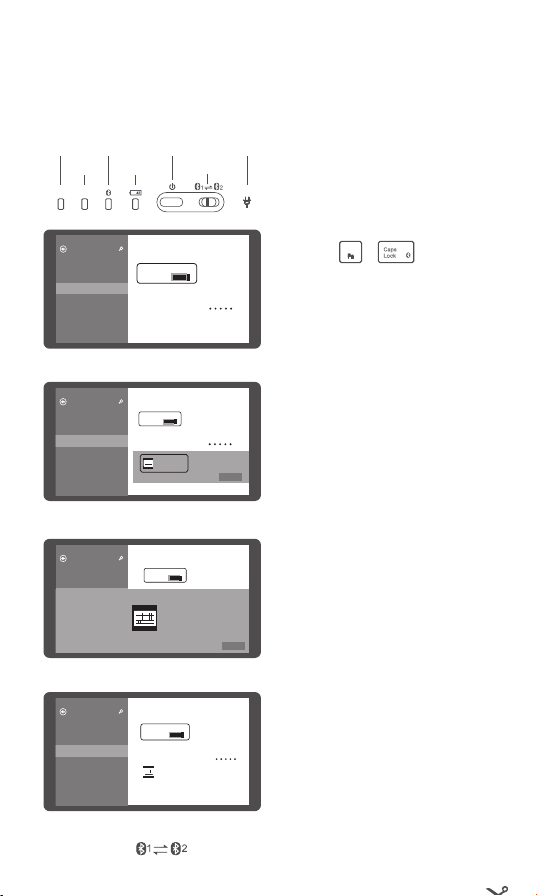
● Win8 Connection Instructions:
3. Turn on the Bluetooth of your
computer and start the pairing.
4. Searching will be initiated after
Bluetooth turned on. Click on
“Bluetooth 3.0 Keyboard" to finish
the pairing process.
5. According the indication from
your PC, please follow the
instructions and press the
corresponding password in the
keyboard and then click "Enter".
6. You may use the keyboard freely
after successfully connected with
your PC.
Power Switch
Channel switching
Power Light
Caps Lock
Number keys
Bluetooth Light
A
1
Charging indicator
1. Please switch on the power button
on the upper right of the keyboard,
and then press it for 1s to activate
(4s to turn off the power).
2. Press + for code pairing.
The Bluetooth light will keep flashing
blue, which means the device goes into
the pairing mode.
Multi-channel Switch:
Switch between to any paired one freely while being connected with two
devices simultaneously.
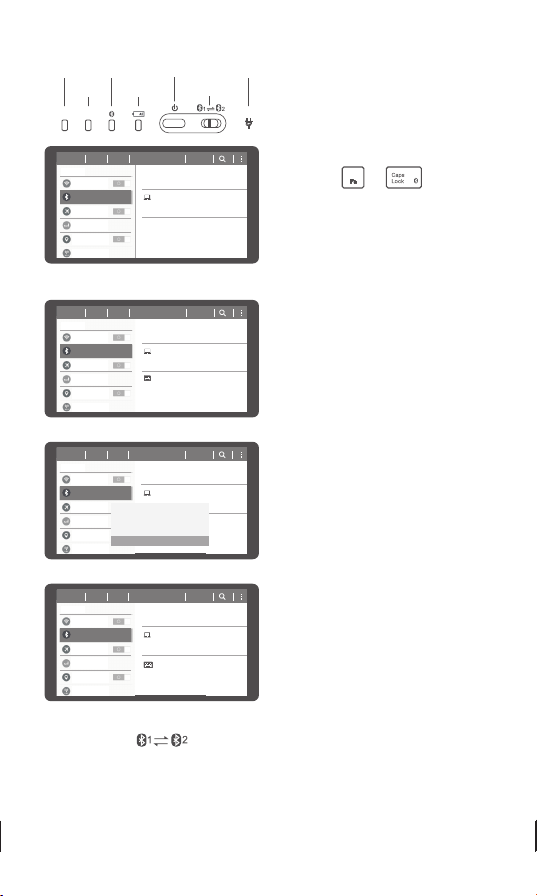
● Connection Instructions:Android
Connect
Control
General
Scanning
Bluetoot h
WL AN
Airpl ane M ode
Data Use
Locat ion
More Network
Bluetooth
My Devi ce
Vis ible to o the r Blue tooth d evi ce.
Galax y TabPro
Ava ila ble Device
Network Co nnection
Device
Blu etoot h 3.0 Keybo ard
Connect
Control
General
Scanning
Bluetoot h
WL AN
Airpl ane M ode
Data Use
Locat ion
More Network
Bluetooth
My Devi ce
Vis ible to o the r Blue tooth d evi ce.
Galax y TabPro
Ava ila ble Device
Network Co nnection
Device
Blu etoot h 3.0 Keybo ard
Blu eto oth Pa iri ng Req ues t
In th e Bluet ooth 3. 0 Keyboa rd inpu t 26022 8
To matc h, and th en clic k on the re turn or e nter.
Cancel
Connect
Control
General
Scanning
Bluetoot h
WL AN
Airpl ane M ode
Data Use
Location
More Network
Bluetooth
My Devi ce
Vis ible to o the r Blue tooth d evi ce.
Galax y TabPro
Ava ila ble Device
Network Co nnection
Device
Blu etoot h 3.0 Keybo ard
Has b een att ached t o the inp ut devi ce.
3. Turn on the Bluetooth of your
device and start the pairing.
4. Searching will be initiated after
Bluetooth turned on. Click on
“Bluetooth 3.0 Keyboard" to finish
the pairing process.
5. According the indication from
your device, please follow the
instructions and press the
corresponding password in the
keyboard and then click "Enter".
6. You may use the keyboard freely
after successfully connected with
your device.
Connect
Control
General
Scanning
Bluetoot h
WL AN
Airpl ane M ode
Data Use
Locat ion
More Network
Bluetooth
My Devi ce
Vis ible to o the r Blue tooth d evi ce.
Galax y TabPro
Ava ila ble Device
Network Co nnection
Device
Power Switch
Channel Switch
Power Light
Caps Lock
Numeric Keys
Bluetooth Light
A
1
Charging Indicator
1. Please switch on the power button
on the upper right of the keyboard,
and then press it for 1s to activate
(4s to turn off the power).
2. Press + for code
pairing. The Bluetooth light will
keep flashing blue , which means the
device goes into the pairing mode.
Remarks:After connecting successfully for once, no more code pairing needed next time.
Just turn on the Bluetooth keyboard and enable the tablet PC“Bluetooth.”power switch in the
Multi-channel Switch:
Switch between to any paired one freely while being connected with two
devices simultaneously.
Touchpad Functions
Three System Function Key Combinations(fn+)
Left Mouse Button:
Single finger click
Drag: Single finger click for
twice and pressing to move
Right Mouse Button:
Two fingers click
Middle Mouse button:
Three fingers click
Zoom:
Two fingers Stretching
Vertical Scrolling:
Two fingers sliding
vertically
Back/Forward:
Two fingers sliding
horizontally
Open an application:
One finger sliding from
up to down.
Fn+ Win
Fn + Android
Fn+ iOS
Fn+
Fn+
Fn+
Fn+
Fn+
Fn+
Fn+
Fn+
Fn+
Fn+
Fn+
Fn+
Fn+
Fn+
Switch to Win System
Switch to Android System
Apple iOS System
Return to desktop
Search
Select All
Cut
Paste
Copy
Previous
Play/Pause
Next
Mute
Volume-
Volume+
Screen Lock
Return to desktop
Return to the
previous page
Search
Select All
Cut
Previous
Play/Pause
Next
Mute
Volume-
Volume+
Screen Lock
Home Page
Return
Search
Select All
Cut
Previous
Play/Pause
Next
Mute
Volume-
Volume+
Screen Lock
Paste
Copy
Paste
Copy
Esc
Switch to the next application:
One finger sliding from left to right
Bring out Win8 Charm menu:
One finger sliding from right to left
Problems or damage relating to below reasons are not
included on this limited warranty.
(1) Accident, misuse, improper operation or any unauthorized
repaire, conversion or disassembly.
(2) Im proper operation or maintenance; violation against the
instructions or connection with unsuitable power supply.
Warranty Card
User information
Company or personal full name
Contact address
Tel.
Zip
Purchased product’s name and model NO.
Purchase date
Certification
In sp ec ti on:
Pr od uc ti on d at e:
折线
折线 折线
折线
折线 折线
折线
折线
尺寸:85x130mm 折页
Troubleshooting
Please contact the after-sales service.
IP Information
It is forbidden to duplicate any information from this user guide without the
permission of the seller.
Safety instructions
Do not open or repair this device. Do not use this device in a damp
Clean the device with dry cloth.
environment.
Warranty
One-year limited hardware repair service from the date of purchase.
FAQ
1.The tablet PC can't connect with the BT keyboard.
1) Please check first if the BT keyboard enters into code pairing status, then turn on
the Bluetooth of the tablet PC to search for the device.
2) Check the power of the BT keyboard before using it and please fully charge the
keyboard once the power is low.
Keyboard Maintenance
1. Please keep the keyboard away from liquid or humid environment. D close to
the saunas, swimming pool, steam room, etc.
2. Please don't expose the keyboard to environment with extreamely high or low
temperature.
3. Please don't place the keyboard under sun for a long time.
4. Keep the keyboard away from open flame, such as cooking stoves, candles or fireplace.
5. Avoid sharp objects scratching the products; Recharge or replace the dry cell
timely to ensure the normal use.
on't
◆ Keyboard Size: 370*164.5*22.3 mm
◆ Touchpad Size: 71.7*38.9 mm
◆ Working Distance: 10M
◆ Weight: 600g
◆ Keyboard Layout: 96 Keys
◆ Sleep Time: 10 Minutes
◆ Batter y Capacity:370mAh
◆ Wake up the device: Press any key
◆ Charging Current:<250mAh
◆ Charging Time: 2h
◆ Working Voltage: 3.7V
◆ Low Voltage Alarm: ≤3.3V
◆ Standby Current: 0.85mA
◆ Sleep Current: 0.1mA
◆ Working current of Touchpad : 6.8-10.36mA
◆ Working current of Keys : 2.0mA
Technical Specifications
Status Display LED
◆ Turn on
◆
◆ The blue light will be off after pairing sucessfully.
◆
the power switch , the blue light will be on.
The blue light will flash intensely during code pairing.
Low voltage indication: when the voltage is below 3.3V.the red light will flash
2. The keyboard indication light keep flashing during use.
It means the batter y power will be off soon, please charge the keyboard immediately.
3. The table PC displays BT keyboard is disconnected.
The BT keyboard will enter into sleeping mode to save power without use for 10 mins;
Press any key to wake up the the BT keyboard.
Notice: Please read the user manual carefully before using
this product.
Multi-channel Universal Desktop Slot Keyboard
User Manual
ZW-07
1
A
Charging Interface
Front
Back
Touchpad
Multi-function Keys
Touc h pad
Switch
Low Battery Indicator
Channel Switch
Left Mouse
Button
Right Mouse
Button
Language
Switch
Voice
● iOS Connection Instructions:
Airplan e Mode
WL AN
dzhgy
Bluetooth
On
Notific ation Center
Control Center
BluetoothSettings
Bluetooth
DEVICES
Searching...
Now Disco verable
Airplane Mode
WL AN
dzhgy
Bluetooth
On
Notification Center
Bluetooth
Settings
Bluetooth
DEVICES
Now Discoverab le
Bluetoot h3. 0 Key boa rd
Not Paired
Control Center
Bluet ooth Pai ring Reque st
Bluet ooth Pai ring Reque st
Ent er the co d“e 9 575”on“ 3.0 Blu etoot h
Key board”,fo llowe d by the re turn o r
ent er key.
Cance l
Airplan e Mode
WL AN
dzhgy
Bluetooth
On
Notification Center
Bluetooth
Settings
Bluetooth
DEVICES
Now Discoverable
Bluetoot h3. 0 Key boa rd
Connected
Control Center
3. Turn on the Bluetooth of your IOS
devices and start the pairing.
4. Searching will be initiated after
Bluetooth turned on. Click on
"Bluetooth 3.0 Keyboard" to finish
the pairing process.
5. According the indication from your
IOS device, please follow the
instructions and press the
corresponding password in the
keyboard and then click "Enter".
6. You may use the keyboard freely
after successfully connected with your
IOS device.
1. Please switch on the power button
on the upper right of the keyboard,
and then press it for 1s to activate
(4s to turn off the power).
2. Press + for code
pairing. The Bluetooth light will keep
flashing blue, which means the device
goes into the pairing mode.
Power Switch
Channel Switch
Power Light
Caps Lock
Numeric keys
Bluetooth Light
A
1
Charging Indicator
Multi-channel Switch:
Switch between to any paired one freely while being connected with two
devices simultaneously.
Bluetoo th Device Man agement
Bluet ooth
Open
Your co mpute r is sear ch for Bl uetoo th devi ces, th ese
dev ices ca n be foun d.
Lock screen
Display
Bluetooth
Device
Mouse and Touc h Pad
Input
Edges
Power an d Sle ep
Computers and device
Pairing
Paired pre paratio ns
are ready
Blue tooth 3 .0 Keyb oard
Lock screen
Display
Bluetooth
Device
Mouse and Touc h Pad
Input
Edges
Power an d Sle ep
Computers and device
Bluetoo th Device Man agement
Your co mpute r is sear ch for Bl uetoo th devi ces, th ese
dev ices ca n be foun d.
Blu etoot h
Ope n
Lock screen
Display
Bluetooth
Device
Mouse and Touc h Pad
Input
Edges
Power an d Sle ep
Computers and device
Bluetoo th Device Man agement
Blu etoot h
Ope n
Enter t he pass word on your keyboard
The p asswo rd to your 3.0 K eyboar d,
and t hen in th e Press E nter on t he keybo ard.
Blu etoot h
54978465
Ca ncel
Co nne cte d
Blu etoot h 3.0 Key boar d
Bluetoo th Device Man agement
Your co mpute r is sear ch for Bl uetoo th devi ces, th ese
dev ices ca n be foun d.
Blueto oth
Open
Lock screen
Display
Bluetooth
Device
Mouse and Touc h Pad
Input
Edges
Power an d Sle ep
Computers and device
● Win8 Connection Instructions:
3. Turn on the Bluetooth of your
computer and start the pairing.
4. Searching will be initiated after
Bluetooth turned on. Click on
“Bluetooth 3.0 Keyboard" to finish
the pairing process.
5. According the indication from
your PC, please follow the
instructions and press the
corresponding password in the
keyboard and then click "Enter".
6. You may use the keyboard freely
after successfully connected with
your PC.
Power Switch
Channel switching
Power Light
Caps Lock
Number keys
Bluetooth Light
A
1
Charging indicator
1. Please switch on the power button
on the upper right of the keyboard,
and then press it for 1s to activate
(4s to turn off the power).
2. Press + for code pairing.
The Bluetooth light will keep flashing
blue, which means the device goes into
the pairing mode.
Multi-channel Switch:
Switch between to any paired one freely while being connected with two
devices simultaneously.
● Connection Instructions:Android
Connect
Control
General
Scanning
Bluetoot h
WL AN
Airpl ane M ode
Data Use
Locat ion
More Network
Bluetooth
My Devi ce
Vis ible to o the r Blue tooth d evi ce.
Galax y TabPro
Ava ila ble Device
Network Co nnection
Device
Blu etoot h 3.0 Keybo ard
Connect
Control
General
Scanning
Bluetoot h
WL AN
Airpl ane M ode
Data Use
Locat ion
More Network
Bluetooth
My Devi ce
Vis ible to o the r Blue tooth d evi ce.
Galax y TabPro
Ava ila ble Device
Network Co nnection
Device
Blu etoot h 3.0 Keybo ard
Blu eto oth Pa iri ng Req ues t
In th e Bluet ooth 3. 0 Keyboa rd inpu t 26022 8
To matc h, and th en clic k on the re turn or e nter.
Cancel
Connect
Control
General
Scanning
Bluetoot h
WL AN
Airpl ane M ode
Data Use
Location
More Network
Bluetooth
My Devi ce
Vis ible to o the r Blue tooth d evi ce.
Galax y TabPro
Ava ila ble Device
Network Co nnection
Device
Blu etoot h 3.0 Keybo ard
Has b een att ached t o the inp ut devi ce.
3. Turn on the Bluetooth of your
device and start the pairing.
4. Searching will be initiated after
Bluetooth turned on. Click on
“Bluetooth 3.0 Keyboard" to finish
the pairing process.
5. According the indication from
your device, please follow the
instructions and press the
corresponding password in the
keyboard and then click "Enter".
6. You may use the keyboard freely
after successfully connected with
your device.
Connect
Control
General
Scanning
Bluetoot h
WL AN
Airpl ane M ode
Data Use
Locat ion
More Network
Bluetooth
My Devi ce
Vis ible to o the r Blue tooth d evi ce.
Galax y TabPro
Ava ila ble Device
Network Co nnection
Device
Power Switch
Channel Switch
Power Light
Caps Lock
Numeric Keys
Bluetooth Light
A
1
Charging Indicator
1. Please switch on the power button
on the upper right of the keyboard,
and then press it for 1s to activate
(4s to turn off the power).
2. Press + for code
pairing. The Bluetooth light will
keep flashing blue , which means the
device goes into the pairing mode.
Remarks:After connecting successfully for once, no more code pairing needed next time.
Just turn on the Bluetooth keyboard and enable the tablet PC“Bluetooth.”power switch in the
Multi-channel Switch:
Switch between to any paired one freely while being connected with two
devices simultaneously.
Touchpad Functions
Three System Function Key Combinations(fn+)
Left Mouse Button:
Single finger click
Drag: Single finger click for
twice and pressing to move
Right Mouse Button:
Two fingers click
Middle Mouse button:
Three fingers click
Zoom:
Two fingers Stretching
Vertical Scrolling:
Two fingers sliding
vertically
Back/Forward:
Two fingers sliding
horizontally
Open an application:
One finger sliding from
up to down.
Fn+ Win
Fn + Android
Fn+ iOS
Fn+
Fn+
Fn+
Fn+
Fn+
Fn+
Fn+
Fn+
Fn+
Fn+
Fn+
Fn+
Fn+
Fn+
Switch to Win System
Switch to Android System
Apple iOS System
Return to desktop
Search
Select All
Cut
Paste
Copy
Previous
Play/Pause
Next
Mute
Volume-
Volume+
Screen Lock
Return to desktop
Return to the
previous page
Search
Select All
Cut
Previous
Play/Pause
Next
Mute
Volume-
Volume+
Screen Lock
Home Page
Return
Search
Select All
Cut
Previous
Play/Pause
Next
Mute
Volume-
Volume+
Screen Lock
Paste
Copy
Paste
Copy
Esc
Switch to the next application:
One finger sliding from left to right
Bring out Win8 Charm menu:
One finger sliding from right to left
Problems or damage relating to below reasons are not
included on this limited warranty.
(1) Accident, misuse, improper operation or any unauthorized
repaire, conversion or disassembly.
(2) Im proper operation or maintenance; violation against the
instructions or connection with unsuitable power supply.
Warranty Card
User information
Company or personal full name
Contact address
Tel.
Zip
Purchased product’s name and model NO.
Purchase date
Certification
In sp ec ti on:
Pr od uc ti on d at e:
折线
折线 折线
折线
折线 折线
折线
折线
尺寸:85x130mm 折页
Troubleshooting
Please contact the after-sales service.
IP Information
It is forbidden to duplicate any information from this user guide without the
permission of the seller.
Safety instructions
Do not open or repair this device. Do not use this device in a damp
Clean the device with dry cloth.
environment.
Warranty
One-year limited hardware repair service from the date of purchase.
FAQ
1.The tablet PC can't connect with the BT keyboard.
1) Please check first if the BT keyboard enters into code pairing status, then turn on
the Bluetooth of the tablet PC to search for the device.
2) Check the power of the BT keyboard before using it and please fully charge the
keyboard once the power is low.
Keyboard Maintenance
1. Please keep the keyboard away from liquid or humid environment. D close to
the saunas, swimming pool, steam room, etc.
2. Please don't expose the keyboard to environment with extreamely high or low
temperature.
3. Please don't place the keyboard under sun for a long time.
4. Keep the keyboard away from open flame, such as cooking stoves, candles or fireplace.
5. Avoid sharp objects scratching the products; Recharge or replace the dry cell
timely to ensure the normal use.
on't
◆ Keyboard Size: 370*164.5*22.3 mm
◆ Touchpad Size: 71.7*38.9 mm
◆ Working Distance: 10M
◆ Weight: 600g
◆ Keyboard Layout: 96 Keys
◆ Sleep Time: 10 Minutes
◆ Batter y Capacity:370mAh
◆ Wake up the device: Press any key
◆ Charging Current:<250mAh
◆ Charging Time: 2h
◆ Working Voltage: 3.7V
◆ Low Voltage Alarm: ≤3.3V
◆ Standby Current: 0.85mA
◆ Sleep Current: 0.1mA
◆ Working current of Touchpad : 6.8-10.36mA
◆ Working current of Keys : 2.0mA
Technical Specifications
Status Display LED
◆ Turn on
◆
◆ The blue light will be off after pairing sucessfully.
◆
the power switch , the blue light will be on.
The blue light will flash intensely during code pairing.
Low voltage indication: when the voltage is below 3.3V.the red light will flash
2. The keyboard indication light keep flashing during use.
It means the batter y power will be off soon, please charge the keyboard immediately.
3. The table PC displays BT keyboard is disconnected.
The BT keyboard will enter into sleeping mode to save power without use for 10 mins;
Press any key to wake up the the BT keyboard.
Notice: Please read the user manual carefully before using
this product.
Multi-channel Universal Desktop Slot Keyboard
User Manual
ZW-07
1
A
Charging Interface
Front
Back
Touchpad
Multi-function Keys
Touc h pad
Switch
Low Battery Indicator
Channel Switch
Left Mouse
Button
Right Mouse
Button
Language
Switch
Voice
● iOS Connection Instructions:
Airplan e Mode
WL AN
dzhgy
Bluetooth
On
Notific ation Center
Control Center
BluetoothSettings
Bluetooth
DEVICES
Searching...
Now Disco verable
Airplane Mode
WL AN
dzhgy
Bluetooth
On
Notification Center
Bluetooth
Settings
Bluetooth
DEVICES
Now Discoverab le
Bluetoot h3. 0 Key boa rd
Not Paired
Control Center
Bluet ooth Pai ring Reque st
Bluet ooth Pai ring Reque st
Ent er the co d“e 9 575”on“ 3.0 Blu etoot h
Key board”,fo llowe d by the re turn o r
ent er key.
Cance l
Airplan e Mode
WL AN
dzhgy
Bluetooth
On
Notification Center
Bluetooth
Settings
Bluetooth
DEVICES
Now Discoverable
Bluetoot h3. 0 Key boa rd
Connected
Control Center
3. Turn on the Bluetooth of your IOS
devices and start the pairing.
4. Searching will be initiated after
Bluetooth turned on. Click on
"Bluetooth 3.0 Keyboard" to finish
the pairing process.
5. According the indication from your
IOS device, please follow the
instructions and press the
corresponding password in the
keyboard and then click "Enter".
6. You may use the keyboard freely
after successfully connected with your
IOS device.
1. Please switch on the power button
on the upper right of the keyboard,
and then press it for 1s to activate
(4s to turn off the power).
2. Press + for code
pairing. The Bluetooth light will keep
flashing blue, which means the device
goes into the pairing mode.
Power Switch
Channel Switch
Power Light
Caps Lock
Numeric keys
Bluetooth Light
A
1
Charging Indicator
Multi-channel Switch:
Switch between to any paired one freely while being connected with two
devices simultaneously.
Bluetoo th Device Man agement
Bluet ooth
Open
Your co mpute r is sear ch for Bl uetoo th devi ces, th ese
dev ices ca n be foun d.
Lock screen
Display
Bluetooth
Device
Mouse and Touc h Pad
Input
Edges
Power an d Sle ep
Computers and device
Pairing
Paired pre paratio ns
are ready
Blue tooth 3 .0 Keyb oard
Lock screen
Display
Bluetooth
Device
Mouse and Touc h Pad
Input
Edges
Power an d Sle ep
Computers and device
Bluetoo th Device Man agement
Your co mpute r is sear ch for Bl uetoo th devi ces, th ese
dev ices ca n be foun d.
Blu etoot h
Ope n
Lock screen
Display
Bluetooth
Device
Mouse and Touc h Pad
Input
Edges
Power an d Sle ep
Computers and device
Bluetoo th Device Man agement
Blu etoot h
Ope n
Enter t he pass word on your keyboard
The p asswo rd to your 3.0 K eyboar d,
and t hen in th e Press E nter on t he keybo ard.
Blu etoot h
54978465
Ca ncel
Co nne cte d
Blu etoot h 3.0 Key boar d
Bluetoo th Device Man agement
Your co mpute r is sear ch for Bl uetoo th devi ces, th ese
dev ices ca n be foun d.
Blueto oth
Open
Lock screen
Display
Bluetooth
Device
Mouse and Touc h Pad
Input
Edges
Power an d Sle ep
Computers and device
● Win8 Connection Instructions:
3. Turn on the Bluetooth of your
computer and start the pairing.
4. Searching will be initiated after
Bluetooth turned on. Click on
“Bluetooth 3.0 Keyboard" to finish
the pairing process.
5. According the indication from
your PC, please follow the
instructions and press the
corresponding password in the
keyboard and then click "Enter".
6. You may use the keyboard freely
after successfully connected with
your PC.
Power Switch
Channel switching
Power Light
Caps Lock
Number keys
Bluetooth Light
A
1
Charging indicator
1. Please switch on the power button
on the upper right of the keyboard,
and then press it for 1s to activate
(4s to turn off the power).
2. Press + for code pairing.
The Bluetooth light will keep flashing
blue, which means the device goes into
the pairing mode.
Multi-channel Switch:
Switch between to any paired one freely while being connected with two
devices simultaneously.
● Connection Instructions:Android
Connect
Control
General
Scanning
Bluetoot h
WL AN
Airpl ane M ode
Data Use
Locat ion
More Network
Bluetooth
My Devi ce
Vis ible to o the r Blue tooth d evi ce.
Galax y TabPro
Ava ila ble Device
Network Co nnection
Device
Blu etoot h 3.0 Keybo ard
Connect
Control
General
Scanning
Bluetoot h
WL AN
Airpl ane M ode
Data Use
Locat ion
More Network
Bluetooth
My Devi ce
Vis ible to o the r Blue tooth d evi ce.
Galax y TabPro
Ava ila ble Device
Network Co nnection
Device
Blu etoot h 3.0 Keybo ard
Blu eto oth Pa iri ng Req ues t
In th e Bluet ooth 3. 0 Keyboa rd inpu t 26022 8
To matc h, and th en clic k on the re turn or e nter.
Cancel
Connect
Control
General
Scanning
Bluetoot h
WL AN
Airpl ane M ode
Data Use
Location
More Network
Bluetooth
My Devi ce
Vis ible to o the r Blue tooth d evi ce.
Galax y TabPro
Ava ila ble Device
Network Co nnection
Device
Blu etoot h 3.0 Keybo ard
Has b een att ached t o the inp ut devi ce.
3. Turn on the Bluetooth of your
device and start the pairing.
4. Searching will be initiated after
Bluetooth turned on. Click on
“Bluetooth 3.0 Keyboard" to finish
the pairing process.
5. According the indication from
your device, please follow the
instructions and press the
corresponding password in the
keyboard and then click "Enter".
6. You may use the keyboard freely
after successfully connected with
your device.
Connect
Control
General
Scanning
Bluetoot h
WL AN
Airpl ane M ode
Data Use
Locat ion
More Network
Bluetooth
My Devi ce
Vis ible to o the r Blue tooth d evi ce.
Galax y TabPro
Ava ila ble Device
Network Co nnection
Device
Power Switch
Channel Switch
Power Light
Caps Lock
Numeric Keys
Bluetooth Light
A
1
Charging Indicator
1. Please switch on the power button
on the upper right of the keyboard,
and then press it for 1s to activate
(4s to turn off the power).
2. Press + for code
pairing. The Bluetooth light will
keep flashing blue , which means the
device goes into the pairing mode.
Remarks:After connecting successfully for once, no more code pairing needed next time.
Just turn on the Bluetooth keyboard and enable the tablet PC“Bluetooth.”power switch in the
Multi-channel Switch:
Switch between to any paired one freely while being connected with two
devices simultaneously.
Touchpad Functions
Three System Function Key Combinations(fn+)
Left Mouse Button:
Single finger click
Drag: Single finger click for
twice and pressing to move
Right Mouse Button:
Two fingers click
Middle Mouse button:
Three fingers click
Zoom:
Two fingers Stretching
Vertical Scrolling:
Two fingers sliding
vertically
Back/Forward:
Two fingers sliding
horizontally
Open an application:
One finger sliding from
up to down.
Fn+ Win
Fn + Android
Fn+ iOS
Fn+
Fn+
Fn+
Fn+
Fn+
Fn+
Fn+
Fn+
Fn+
Fn+
Fn+
Fn+
Fn+
Fn+
Switch to Win System
Switch to Android System
Apple iOS System
Return to desktop
Search
Select All
Cut
Paste
Copy
Previous
Play/Pause
Next
Mute
Volume-
Volume+
Screen Lock
Return to desktop
Return to the
previous page
Search
Select All
Cut
Previous
Play/Pause
Next
Mute
Volume-
Volume+
Screen Lock
Home Page
Return
Search
Select All
Cut
Previous
Play/Pause
Next
Mute
Volume-
Volume+
Screen Lock
Paste
Copy
Paste
Copy
Esc
Switch to the next application:
One finger sliding from left to right
Bring out Win8 Charm menu:
One finger sliding from right to left
Problems or damage relating to below reasons are not
included on this limited warranty.
(1) Accident, misuse, improper operation or any unauthorized
repaire, conversion or disassembly.
(2) Im proper operation or maintenance; violation against the
instructions or connection with unsuitable power supply.
Warranty Card
User information
Company or personal full name
Contact address
Tel.
Zip
Purchased product’s name and model NO.
Purchase date
Certification
In sp ec ti on:
Pr od uc ti on d at e:
折线
折线 折线
折线
折线 折线
折线
折线
尺寸:85x130mm 折页
Troubleshooting
Please contact the after-sales service.
IP Information
It is forbidden to duplicate any information from this user guide without the
permission of the seller.
Safety instructions
Do not open or repair this device. Do not use this device in a damp
Clean the device with dry cloth.
environment.
Warranty
One-year limited hardware repair service from the date of purchase.
FAQ
1.The tablet PC can't connect with the BT keyboard.
1) Please check first if the BT keyboard enters into code pairing status, then turn on
the Bluetooth of the tablet PC to search for the device.
2) Check the power of the BT keyboard before using it and please fully charge the
keyboard once the power is low.
Keyboard Maintenance
1. Please keep the keyboard away from liquid or humid environment. D close to
the saunas, swimming pool, steam room, etc.
2. Please don't expose the keyboard to environment with extreamely high or low
temperature.
3. Please don't place the keyboard under sun for a long time.
4. Keep the keyboard away from open flame, such as cooking stoves, candles or fireplace.
5. Avoid sharp objects scratching the products; Recharge or replace the dry cell
timely to ensure the normal use.
on't
◆ Keyboard Size: 370*164.5*22.3 mm
◆ Touchpad Size: 71.7*38.9 mm
◆ Working Distance: 10M
◆ Weight: 600g
◆ Keyboard Layout: 96 Keys
◆ Sleep Time: 10 Minutes
◆ Batter y Capacity:370mAh
◆ Wake up the device: Press any key
◆ Charging Current:<250mAh
◆ Charging Time: 2h
◆ Working Voltage: 3.7V
◆ Low Voltage Alarm: ≤3.3V
◆ Standby Current: 0.85mA
◆ Sleep Current: 0.1mA
◆ Working current of Touchpad : 6.8-10.36mA
◆ Working current of Keys : 2.0mA
Technical Specifications
Status Display LED
◆ Turn on
◆
◆ The blue light will be off after pairing sucessfully.
◆
the power switch , the blue light will be on.
The blue light will flash intensely during code pairing.
Low voltage indication: when the voltage is below 3.3V.the red light will flash
2. The keyboard indication light keep flashing during use.
It means the batter y power will be off soon, please charge the keyboard immediately.
3. The table PC displays BT keyboard is disconnected.
The BT keyboard will enter into sleeping mode to save power without use for 10 mins;
Press any key to wake up the the BT keyboard.
Notice: Please read the user manual carefully before using
this product.
Multi-channel Universal Desktop Slot Keyboard
User Manual
ZW-07
1
A
Charging Interface
Front
Back
Touchpad
Multi-function Keys
Touc h pad
Switch
Low Battery Indicator
Channel Switch
Left Mouse
Button
Right Mouse
Button
Language
Switch
Voice
● iOS Connection Instructions:
Airplan e Mode
WL AN
dzhgy
Bluetooth
On
Notific ation Center
Control Center
BluetoothSettings
Bluetooth
DEVICES
Searching...
Now Disco verable
Airplane Mode
WL AN
dzhgy
Bluetooth
On
Notification Center
Bluetooth
Settings
Bluetooth
DEVICES
Now Discoverab le
Bluetoot h3. 0 Key boa rd
Not Paired
Control Center
Bluet ooth Pai ring Reque st
Bluet ooth Pai ring Reque st
Ent er the co d“e 9 575”on“ 3.0 Blu etoot h
Key board”,fo llowe d by the re turn o r
ent er key.
Cance l
Airplan e Mode
WL AN
dzhgy
Bluetooth
On
Notification Center
Bluetooth
Settings
Bluetooth
DEVICES
Now Discoverable
Bluetoot h3. 0 Key boa rd
Connected
Control Center
3. Turn on the Bluetooth of your IOS
devices and start the pairing.
4. Searching will be initiated after
Bluetooth turned on. Click on
"Bluetooth 3.0 Keyboard" to finish
the pairing process.
5. According the indication from your
IOS device, please follow the
instructions and press the
corresponding password in the
keyboard and then click "Enter".
6. You may use the keyboard freely
after successfully connected with your
IOS device.
1. Please switch on the power button
on the upper right of the keyboard,
and then press it for 1s to activate
(4s to turn off the power).
2. Press + for code
pairing. The Bluetooth light will keep
flashing blue, which means the device
goes into the pairing mode.
Power Switch
Channel Switch
Power Light
Caps Lock
Numeric keys
Bluetooth Light
A
1
Charging Indicator
Multi-channel Switch:
Switch between to any paired one freely while being connected with two
devices simultaneously.
Bluetoo th Device Man agement
Bluet ooth
Open
Your co mpute r is sear ch for Bl uetoo th devi ces, th ese
dev ices ca n be foun d.
Lock screen
Display
Bluetooth
Device
Mouse and Touc h Pad
Input
Edges
Power an d Sle ep
Computers and device
Pairing
Paired pre paratio ns
are ready
Blue tooth 3 .0 Keyb oard
Lock screen
Display
Bluetooth
Device
Mouse and Touc h Pad
Input
Edges
Power an d Sle ep
Computers and device
Bluetoo th Device Man agement
Your co mpute r is sear ch for Bl uetoo th devi ces, th ese
dev ices ca n be foun d.
Blu etoot h
Ope n
Lock screen
Display
Bluetooth
Device
Mouse and Touc h Pad
Input
Edges
Power an d Sle ep
Computers and device
Bluetoo th Device Man agement
Blu etoot h
Ope n
Enter t he pass word on your keyboard
The p asswo rd to your 3.0 K eyboar d,
and t hen in th e Press E nter on t he keybo ard.
Blu etoot h
54978465
Ca ncel
Co nne cte d
Blu etoot h 3.0 Key boar d
Bluetoo th Device Man agement
Your co mpute r is sear ch for Bl uetoo th devi ces, th ese
dev ices ca n be foun d.
Blueto oth
Open
Lock screen
Display
Bluetooth
Device
Mouse and Touc h Pad
Input
Edges
Power an d Sle ep
Computers and device
● Win8 Connection Instructions:
3. Turn on the Bluetooth of your
computer and start the pairing.
4. Searching will be initiated after
Bluetooth turned on. Click on
“Bluetooth 3.0 Keyboard" to finish
the pairing process.
5. According the indication from
your PC, please follow the
instructions and press the
corresponding password in the
keyboard and then click "Enter".
6. You may use the keyboard freely
after successfully connected with
your PC.
Power Switch
Channel switching
Power Light
Caps Lock
Number keys
Bluetooth Light
A
1
Charging indicator
1. Please switch on the power button
on the upper right of the keyboard,
and then press it for 1s to activate
(4s to turn off the power).
2. Press + for code pairing.
The Bluetooth light will keep flashing
blue, which means the device goes into
the pairing mode.
Multi-channel Switch:
Switch between to any paired one freely while being connected with two
devices simultaneously.
● Connection Instructions:Android
Connect
Control
General
Scanning
Bluetoot h
WL AN
Airpl ane M ode
Data Use
Locat ion
More Network
Bluetooth
My Devi ce
Vis ible to o the r Blue tooth d evi ce.
Galax y TabPro
Ava ila ble Device
Network Co nnection
Device
Blu etoot h 3.0 Keybo ard
Connect
Control
General
Scanning
Bluetoot h
WL AN
Airpl ane M ode
Data Use
Locat ion
More Network
Bluetooth
My Devi ce
Vis ible to o the r Blue tooth d evi ce.
Galax y TabPro
Ava ila ble Device
Network Co nnection
Device
Blu etoot h 3.0 Keybo ard
Blu eto oth Pa iri ng Req ues t
In th e Bluet ooth 3. 0 Keyboa rd inpu t 26022 8
To matc h, and th en clic k on the re turn or e nter.
Cancel
Connect
Control
General
Scanning
Bluetoot h
WL AN
Airpl ane M ode
Data Use
Location
More Network
Bluetooth
My Devi ce
Vis ible to o the r Blue tooth d evi ce.
Galax y TabPro
Ava ila ble Device
Network Co nnection
Device
Blu etoot h 3.0 Keybo ard
Has b een att ached t o the inp ut devi ce.
3. Turn on the Bluetooth of your
device and start the pairing.
4. Searching will be initiated after
Bluetooth turned on. Click on
“Bluetooth 3.0 Keyboard" to finish
the pairing process.
5. According the indication from
your device, please follow the
instructions and press the
corresponding password in the
keyboard and then click "Enter".
6. You may use the keyboard freely
after successfully connected with
your device.
Connect
Control
General
Scanning
Bluetoot h
WL AN
Airpl ane M ode
Data Use
Locat ion
More Network
Bluetooth
My Devi ce
Vis ible to o the r Blue tooth d evi ce.
Galax y TabPro
Ava ila ble Device
Network Co nnection
Device
Power Switch
Channel Switch
Power Light
Caps Lock
Numeric Keys
Bluetooth Light
A
1
Charging Indicator
1. Please switch on the power button
on the upper right of the keyboard,
and then press it for 1s to activate
(4s to turn off the power).
2. Press + for code
pairing. The Bluetooth light will
keep flashing blue , which means the
device goes into the pairing mode.
Remarks:After connecting successfully for once, no more code pairing needed next time.
Just turn on the Bluetooth keyboard and enable the tablet PC“Bluetooth.”power switch in the
Multi-channel Switch:
Switch between to any paired one freely while being connected with two
devices simultaneously.
Touchpad Functions
Three System Function Key Combinations(fn+)
Left Mouse Button:
Single finger click
Drag: Single finger click for
twice and pressing to move
Right Mouse Button:
Two fingers click
Middle Mouse button:
Three fingers click
Zoom:
Two fingers Stretching
Vertical Scrolling:
Two fingers sliding
vertically
Back/Forward:
Two fingers sliding
horizontally
Open an application:
One finger sliding from
up to down.
Fn+ Win
Fn + Android
Fn+ iOS
Fn+
Fn+
Fn+
Fn+
Fn+
Fn+
Fn+
Fn+
Fn+
Fn+
Fn+
Fn+
Fn+
Fn+
Switch to Win System
Switch to Android System
Apple iOS System
Return to desktop
Search
Select All
Cut
Paste
Copy
Previous
Play/Pause
Next
Mute
Volume-
Volume+
Screen Lock
Return to desktop
Return to the
previous page
Search
Select All
Cut
Previous
Play/Pause
Next
Mute
Volume-
Volume+
Screen Lock
Home Page
Return
Search
Select All
Cut
Previous
Play/Pause
Next
Mute
Volume-
Volume+
Screen Lock
Paste
Copy
Paste
Copy
Esc
Switch to the next application:
One finger sliding from left to right
Bring out Win8 Charm menu:
One finger sliding from right to left
Problems or damage relating to below reasons are not
included on this limited warranty.
(1) Accident, misuse, improper operation or any unauthorized
repaire, conversion or disassembly.
(2) Im proper operation or maintenance; violation against the
instructions or connection with unsuitable power supply.
Warranty Card
User information
Company or personal full name
Contact address
Tel.
Zip
Purchased product’s name and model NO.
Purchase date
Certification
In sp ec ti on:
Pr od uc ti on d at e:
折线
折线 折线
折线
折线 折线
折线
折线
尺寸:85x130mm 折页
Troubleshooting
Please contact the after-sales service.
IP Information
It is forbidden to duplicate any information from this user guide without the
permission of the seller.
Safety instructions
Do not open or repair this device. Do not use this device in a damp
Clean the device with dry cloth.
environment.
Warranty
One-year limited hardware repair service from the date of purchase.
FAQ
1.The tablet PC can't connect with the BT keyboard.
1) Please check first if the BT keyboard enters into code pairing status, then turn on
the Bluetooth of the tablet PC to search for the device.
2) Check the power of the BT keyboard before using it and please fully charge the
keyboard once the power is low.
Keyboard Maintenance
1. Please keep the keyboard away from liquid or humid environment. D close to
the saunas, swimming pool, steam room, etc.
2. Please don't expose the keyboard to environment with extreamely high or low
temperature.
3. Please don't place the keyboard under sun for a long time.
4. Keep the keyboard away from open flame, such as cooking stoves, candles or fireplace.
5. Avoid sharp objects scratching the products; Recharge or replace the dry cell
timely to ensure the normal use.
on't
◆ Keyboard Size: 370*164.5*22.3 mm
◆ Touchpad Size: 71.7*38.9 mm
◆ Working Distance: 10M
◆ Weight: 600g
◆ Keyboard Layout: 96 Keys
◆ Sleep Time: 10 Minutes
◆ Batter y Capacity:370mAh
◆ Wake up the device: Press any key
◆ Charging Current:<250mAh
◆ Charging Time: 2h
◆ Working Voltage: 3.7V
◆ Low Voltage Alarm: ≤3.3V
◆ Standby Current: 0.85mA
◆ Sleep Current: 0.1mA
◆ Working current of Touchpad : 6.8-10.36mA
◆ Working current of Keys : 2.0mA
Technical Specifications
Status Display LED
◆ Turn on
◆
◆ The blue light will be off after pairing sucessfully.
◆
the power switch , the blue light will be on.
The blue light will flash intensely during code pairing.
Low voltage indication: when the voltage is below 3.3V.the red light will flash
2. The keyboard indication light keep flashing during use.
It means the batter y power will be off soon, please charge the keyboard immediately.
3. The table PC displays BT keyboard is disconnected.
The BT keyboard will enter into sleeping mode to save power without use for 10 mins;
Press any key to wake up the the BT keyboard.
Notice: Please read the user manual carefully before using
this product.
Multi-channel Universal Desktop Slot Keyboard
User Manual
ZW-07
1
A
Charging Interface
Front
Back
Touchpad
Multi-function Keys
Touc h pad
Switch
Low Battery Indicator
Channel Switch
Left Mouse
Button
Right Mouse
Button
Language
Switch
Voice
● iOS Connection Instructions:
Airplan e Mode
WL AN
dzhgy
Bluetooth
On
Notific ation Center
Control Center
BluetoothSettings
Bluetooth
DEVICES
Searching...
Now Disco verable
Airplane Mode
WL AN
dzhgy
Bluetooth
On
Notification Center
Bluetooth
Settings
Bluetooth
DEVICES
Now Discoverab le
Bluetoot h3. 0 Key boa rd
Not Paired
Control Center
Bluet ooth Pai ring Reque st
Bluet ooth Pai ring Reque st
Ent er the co d“e 9 575”on“ 3.0 Blu etoot h
Key board”,fo llowe d by the re turn o r
ent er key.
Cance l
Airplan e Mode
WL AN
dzhgy
Bluetooth
On
Notification Center
Bluetooth
Settings
Bluetooth
DEVICES
Now Discoverable
Bluetoot h3. 0 Key boa rd
Connected
Control Center
3. Turn on the Bluetooth of your IOS
devices and start the pairing.
4. Searching will be initiated after
Bluetooth turned on. Click on
"Bluetooth 3.0 Keyboard" to finish
the pairing process.
5. According the indication from your
IOS device, please follow the
instructions and press the
corresponding password in the
keyboard and then click "Enter".
6. You may use the keyboard freely
after successfully connected with your
IOS device.
1. Please switch on the power button
on the upper right of the keyboard,
and then press it for 1s to activate
(4s to turn off the power).
2. Press + for code
pairing. The Bluetooth light will keep
flashing blue, which means the device
goes into the pairing mode.
Power Switch
Channel Switch
Power Light
Caps Lock
Numeric keys
Bluetooth Light
A
1
Charging Indicator
Multi-channel Switch:
Switch between to any paired one freely while being connected with two
devices simultaneously.
Bluetoo th Device Man agement
Bluet ooth
Open
Your co mpute r is sear ch for Bl uetoo th devi ces, th ese
dev ices ca n be foun d.
Lock screen
Display
Bluetooth
Device
Mouse and Touc h Pad
Input
Edges
Power an d Sle ep
Computers and device
Pairing
Paired pre paratio ns
are ready
Blue tooth 3 .0 Keyb oard
Lock screen
Display
Bluetooth
Device
Mouse and Touc h Pad
Input
Edges
Power an d Sle ep
Computers and device
Bluetoo th Device Man agement
Your co mpute r is sear ch for Bl uetoo th devi ces, th ese
dev ices ca n be foun d.
Blu etoot h
Ope n
Lock screen
Display
Bluetooth
Device
Mouse and Touc h Pad
Input
Edges
Power an d Sle ep
Computers and device
Bluetoo th Device Man agement
Blu etoot h
Ope n
Enter t he pass word on your keyboard
The p asswo rd to your 3.0 K eyboar d,
and t hen in th e Press E nter on t he keybo ard.
Blu etoot h
54978465
Ca ncel
Co nne cte d
Blu etoot h 3.0 Key boar d
Bluetoo th Device Man agement
Your co mpute r is sear ch for Bl uetoo th devi ces, th ese
dev ices ca n be foun d.
Blueto oth
Open
Lock screen
Display
Bluetooth
Device
Mouse and Touc h Pad
Input
Edges
Power an d Sle ep
Computers and device
● Win8 Connection Instructions:
3. Turn on the Bluetooth of your
computer and start the pairing.
4. Searching will be initiated after
Bluetooth turned on. Click on
“Bluetooth 3.0 Keyboard" to finish
the pairing process.
5. According the indication from
your PC, please follow the
instructions and press the
corresponding password in the
keyboard and then click "Enter".
6. You may use the keyboard freely
after successfully connected with
your PC.
Power Switch
Channel switching
Power Light
Caps Lock
Number keys
Bluetooth Light
A
1
Charging indicator
1. Please switch on the power button
on the upper right of the keyboard,
and then press it for 1s to activate
(4s to turn off the power).
2. Press + for code pairing.
The Bluetooth light will keep flashing
blue, which means the device goes into
the pairing mode.
Multi-channel Switch:
Switch between to any paired one freely while being connected with two
devices simultaneously.
● Connection Instructions:Android
Connect
Control
General
Scanning
Bluetoot h
WL AN
Airpl ane M ode
Data Use
Locat ion
More Network
Bluetooth
My Devi ce
Vis ible to o the r Blue tooth d evi ce.
Galax y TabPro
Ava ila ble Device
Network Co nnection
Device
Blu etoot h 3.0 Keybo ard
Connect
Control
General
Scanning
Bluetoot h
WL AN
Airpl ane M ode
Data Use
Locat ion
More Network
Bluetooth
My Devi ce
Vis ible to o the r Blue tooth d evi ce.
Galax y TabPro
Ava ila ble Device
Network Co nnection
Device
Blu etoot h 3.0 Keybo ard
Blu eto oth Pa iri ng Req ues t
In th e Bluet ooth 3. 0 Keyboa rd inpu t 26022 8
To matc h, and th en clic k on the re turn or e nter.
Cancel
Connect
Control
General
Scanning
Bluetoot h
WL AN
Airpl ane M ode
Data Use
Location
More Network
Bluetooth
My Devi ce
Vis ible to o the r Blue tooth d evi ce.
Galax y TabPro
Ava ila ble Device
Network Co nnection
Device
Blu etoot h 3.0 Keybo ard
Has b een att ached t o the inp ut devi ce.
3. Turn on the Bluetooth of your
device and start the pairing.
4. Searching will be initiated after
Bluetooth turned on. Click on
“Bluetooth 3.0 Keyboard" to finish
the pairing process.
5. According the indication from
your device, please follow the
instructions and press the
corresponding password in the
keyboard and then click "Enter".
6. You may use the keyboard freely
after successfully connected with
your device.
Connect
Control
General
Scanning
Bluetoot h
WL AN
Airpl ane M ode
Data Use
Locat ion
More Network
Bluetooth
My Devi ce
Vis ible to o the r Blue tooth d evi ce.
Galax y TabPro
Ava ila ble Device
Network Co nnection
Device
Power Switch
Channel Switch
Power Light
Caps Lock
Numeric Keys
Bluetooth Light
A
1
Charging Indicator
1. Please switch on the power button
on the upper right of the keyboard,
and then press it for 1s to activate
(4s to turn off the power).
2. Press + for code
pairing. The Bluetooth light will
keep flashing blue , which means the
device goes into the pairing mode.
Remarks:After connecting successfully for once, no more code pairing needed next time.
Just turn on the Bluetooth keyboard and enable the tablet PC“Bluetooth.”power switch in the
Multi-channel Switch:
Switch between to any paired one freely while being connected with two
devices simultaneously.
Touchpad Functions
Three System Function Key Combinations(fn+)
Left Mouse Button:
Single finger click
Drag: Single finger click for
twice and pressing to move
Right Mouse Button:
Two fingers click
Middle Mouse button:
Three fingers click
Zoom:
Two fingers Stretching
Vertical Scrolling:
Two fingers sliding
vertically
Back/Forward:
Two fingers sliding
horizontally
Open an application:
One finger sliding from
up to down.
Fn+ Win
Fn + Android
Fn+ iOS
Fn+
Fn+
Fn+
Fn+
Fn+
Fn+
Fn+
Fn+
Fn+
Fn+
Fn+
Fn+
Fn+
Fn+
Switch to Win System
Switch to Android System
Apple iOS System
Return to desktop
Search
Select All
Cut
Paste
Copy
Previous
Play/Pause
Next
Mute
Volume-
Volume+
Screen Lock
Return to desktop
Return to the
previous page
Search
Select All
Cut
Previous
Play/Pause
Next
Mute
Volume-
Volume+
Screen Lock
Home Page
Return
Search
Select All
Cut
Previous
Play/Pause
Next
Mute
Volume-
Volume+
Screen Lock
Paste
Copy
Paste
Copy
Esc
Switch to the next application:
One finger sliding from left to right
Bring out Win8 Charm menu:
One finger sliding from right to left
Problems or damage relating to below reasons are not
included on this limited warranty.
(1) Accident, misuse, improper operation or any unauthorized
repaire, conversion or disassembly.
(2) Im proper operation or maintenance; violation against the
instructions or connection with unsuitable power supply.
Warranty Card
User information
Company or personal full name
Contact address
Tel.
Zip
Purchased product’s name and model NO.
Purchase date
Certification
In sp ec ti on:
Pr od uc ti on d at e:
折线
折线 折线
折线
折线 折线
折线
折线
尺寸:85x130mm 折页
Troubleshooting
Please contact the after-sales service.
IP Information
It is forbidden to duplicate any information from this user guide without the
permission of the seller.
Safety instructions
Do not open or repair this device. Do not use this device in a damp
Clean the device with dry cloth.
environment.
Warranty
One-year limited hardware repair service from the date of purchase.
FAQ
1.The tablet PC can't connect with the BT keyboard.
1) Please check first if the BT keyboard enters into code pairing status, then turn on
the Bluetooth of the tablet PC to search for the device.
2) Check the power of the BT keyboard before using it and please fully charge the
keyboard once the power is low.
Keyboard Maintenance
1. Please keep the keyboard away from liquid or humid environment. D close to
the saunas, swimming pool, steam room, etc.
2. Please don't expose the keyboard to environment with extreamely high or low
temperature.
3. Please don't place the keyboard under sun for a long time.
4. Keep the keyboard away from open flame, such as cooking stoves, candles or fireplace.
5. Avoid sharp objects scratching the products; Recharge or replace the dry cell
timely to ensure the normal use.
on't
◆ Keyboard Size: 370*164.5*22.3 mm
◆ Touchpad Size: 71.7*38.9 mm
◆ Working Distance: 10M
◆ Weight: 600g
◆ Keyboard Layout: 96 Keys
◆ Sleep Time: 10 Minutes
◆ Batter y Capacity:370mAh
◆ Wake up the device: Press any key
◆ Charging Current:<250mAh
◆ Charging Time: 2h
◆ Working Voltage: 3.7V
◆ Low Voltage Alarm: ≤3.3V
◆ Standby Current: 0.85mA
◆ Sleep Current: 0.1mA
◆ Working current of Touchpad : 6.8-10.36mA
◆ Working current of Keys : 2.0mA
Technical Specifications
Status Display LED
◆ Turn on
◆
◆ The blue light will be off after pairing sucessfully.
◆
the power switch , the blue light will be on.
The blue light will flash intensely during code pairing.
Low voltage indication: when the voltage is below 3.3V.the red light will flash
2. The keyboard indication light keep flashing during use.
It means the batter y power will be off soon, please charge the keyboard immediately.
3. The table PC displays BT keyboard is disconnected.
The BT keyboard will enter into sleeping mode to save power without use for 10 mins;
Press any key to wake up the the BT keyboard.

Notice: Please read the user manual carefully before using
this product.
Multi-channel Universal Desktop Slot Keyboard
User Manual
ZW-07
1
A
Charging Interface
Front
Back
Touchpad
Multi-function Keys
Touc h pad
Switch
Low Battery Indicator
Channel Switch
Left Mouse
Button
Right Mouse
Button
Language
Switch
Voice
● iOS Connection Instructions:
Airplan e Mode
WL AN
dzhgy
Bluetooth
On
Notific ation Center
Control Center
BluetoothSettings
Bluetooth
DEVICES
Searching...
Now Disco verable
Airplane Mode
WL AN
dzhgy
Bluetooth
On
Notification Center
Bluetooth
Settings
Bluetooth
DEVICES
Now Discoverab le
Bluetoot h3. 0 Key boa rd
Not Paired
Control Center
Bluet ooth Pai ring Reque st
Bluet ooth Pai ring Reque st
Ent er the co d“e 9 575”on“ 3.0 Blu etoot h
Key board”,fo llowe d by the re turn o r
ent er key.
Cance l
Airplan e Mode
WL AN
dzhgy
Bluetooth
On
Notification Center
Bluetooth
Settings
Bluetooth
DEVICES
Now Discoverable
Bluetoot h3. 0 Key boa rd
Connected
Control Center
3. Turn on the Bluetooth of your IOS
devices and start the pairing.
4. Searching will be initiated after
Bluetooth turned on. Click on
"Bluetooth 3.0 Keyboard" to finish
the pairing process.
5. According the indication from your
IOS device, please follow the
instructions and press the
corresponding password in the
keyboard and then click "Enter".
6. You may use the keyboard freely
after successfully connected with your
IOS device.
1. Please switch on the power button
on the upper right of the keyboard,
and then press it for 1s to activate
(4s to turn off the power).
2. Press + for code
pairing. The Bluetooth light will keep
flashing blue, which means the device
goes into the pairing mode.
Power Switch
Channel Switch
Power Light
Caps Lock
Numeric keys
Bluetooth Light
A
1
Charging Indicator
Multi-channel Switch:
Switch between to any paired one freely while being connected with two
devices simultaneously.
Bluetoo th Device Man agement
Bluet ooth
Open
Your co mpute r is sear ch for Bl uetoo th devi ces, th ese
dev ices ca n be foun d.
Lock screen
Display
Bluetooth
Device
Mouse and Touc h Pad
Input
Edges
Power an d Sle ep
Computers and device
Pairing
Paired pre paratio ns
are ready
Blue tooth 3 .0 Keyb oard
Lock screen
Display
Bluetooth
Device
Mouse and Touc h Pad
Input
Edges
Power an d Sle ep
Computers and device
Bluetoo th Device Man agement
Your co mpute r is sear ch for Bl uetoo th devi ces, th ese
dev ices ca n be foun d.
Blu etoot h
Ope n
Lock screen
Display
Bluetooth
Device
Mouse and Touc h Pad
Input
Edges
Power an d Sle ep
Computers and device
Bluetoo th Device Man agement
Blu etoot h
Ope n
Enter t he pass word on your keyboard
The p asswo rd to your 3.0 K eyboar d,
and t hen in th e Press E nter on t he keybo ard.
Blu etoot h
54978465
Ca ncel
Co nne cte d
Blu etoot h 3.0 Key boar d
Bluetoo th Device Man agement
Your co mpute r is sear ch for Bl uetoo th devi ces, th ese
dev ices ca n be foun d.
Blueto oth
Open
Lock screen
Display
Bluetooth
Device
Mouse and Touc h Pad
Input
Edges
Power an d Sle ep
Computers and device
● Win8 Connection Instructions:
3. Turn on the Bluetooth of your
computer and start the pairing.
4. Searching will be initiated after
Bluetooth turned on. Click on
“Bluetooth 3.0 Keyboard" to finish
the pairing process.
5. According the indication from
your PC, please follow the
instructions and press the
corresponding password in the
keyboard and then click "Enter".
6. You may use the keyboard freely
after successfully connected with
your PC.
Power Switch
Channel switching
Power Light
Caps Lock
Number keys
Bluetooth Light
A
1
Charging indicator
1. Please switch on the power button
on the upper right of the keyboard,
and then press it for 1s to activate
(4s to turn off the power).
2. Press + for code pairing.
The Bluetooth light will keep flashing
blue, which means the device goes into
the pairing mode.
Multi-channel Switch:
Switch between to any paired one freely while being connected with two
devices simultaneously.
● Connection Instructions:Android
Connect
Control
General
Scanning
Bluetoot h
WL AN
Airpl ane M ode
Data Use
Locat ion
More Network
Bluetooth
My Devi ce
Vis ible to o the r Blue tooth d evi ce.
Galax y TabPro
Ava ila ble Device
Network Co nnection
Device
Blu etoot h 3.0 Keybo ard
Connect
Control
General
Scanning
Bluetoot h
WL AN
Airpl ane M ode
Data Use
Locat ion
More Network
Bluetooth
My Devi ce
Vis ible to o the r Blue tooth d evi ce.
Galax y TabPro
Ava ila ble Device
Network Co nnection
Device
Blu etoot h 3.0 Keybo ard
Blu eto oth Pa iri ng Req ues t
In th e Bluet ooth 3. 0 Keyboa rd inpu t 26022 8
To matc h, and th en clic k on the re turn or e nter.
Cancel
Connect
Control
General
Scanning
Bluetoot h
WL AN
Airpl ane M ode
Data Use
Location
More Network
Bluetooth
My Devi ce
Vis ible to o the r Blue tooth d evi ce.
Galax y TabPro
Ava ila ble Device
Network Co nnection
Device
Blu etoot h 3.0 Keybo ard
Has b een att ached t o the inp ut devi ce.
3. Turn on the Bluetooth of your
device and start the pairing.
4. Searching will be initiated after
Bluetooth turned on. Click on
“Bluetooth 3.0 Keyboard" to finish
the pairing process.
5. According the indication from
your device, please follow the
instructions and press the
corresponding password in the
keyboard and then click "Enter".
6. You may use the keyboard freely
after successfully connected with
your device.
Connect
Control
General
Scanning
Bluetoot h
WL AN
Airpl ane M ode
Data Use
Locat ion
More Network
Bluetooth
My Devi ce
Vis ible to o the r Blue tooth d evi ce.
Galax y TabPro
Ava ila ble Device
Network Co nnection
Device
Power Switch
Channel Switch
Power Light
Caps Lock
Numeric Keys
Bluetooth Light
A
1
Charging Indicator
1. Please switch on the power button
on the upper right of the keyboard,
and then press it for 1s to activate
(4s to turn off the power).
2. Press + for code
pairing. The Bluetooth light will
keep flashing blue , which means the
device goes into the pairing mode.
Remarks:After connecting successfully for once, no more code pairing needed next time.
Just turn on the Bluetooth keyboard and enable the tablet PC“Bluetooth.”power switch in the
Multi-channel Switch:
Switch between to any paired one freely while being connected with two
devices simultaneously.
Touchpad Functions
Three System Function Key Combinations(fn+)
Left Mouse Button:
Single finger click
Drag: Single finger click for
twice and pressing to move
Right Mouse Button:
Two fingers click
Middle Mouse button:
Three fingers click
Zoom:
Two fingers Stretching
Vertical Scrolling:
Two fingers sliding
vertically
Back/Forward:
Two fingers sliding
horizontally
Open an application:
One finger sliding from
up to down.
Fn+ Win
Fn + Android
Fn+ iOS
Fn+
Fn+
Fn+
Fn+
Fn+
Fn+
Fn+
Fn+
Fn+
Fn+
Fn+
Fn+
Fn+
Fn+
Switch to Win System
Switch to Android System
Apple iOS System
Return to desktop
Search
Select All
Cut
Paste
Copy
Previous
Play/Pause
Next
Mute
Volume-
Volume+
Screen Lock
Return to desktop
Return to the
previous page
Search
Select All
Cut
Previous
Play/Pause
Next
Mute
Volume-
Volume+
Screen Lock
Home Page
Return
Search
Select All
Cut
Previous
Play/Pause
Next
Mute
Volume-
Volume+
Screen Lock
Paste
Copy
Paste
Copy
Esc
Switch to the next application:
One finger sliding from left to right
Bring out Win8 Charm menu:
One finger sliding from right to left
Problems or damage relating to below reasons are not
included on this limited warranty.
(1) Accident, misuse, improper operation or any unauthorized
repaire, conversion or disassembly.
(2) Im proper operation or maintenance; violation against the
instructions or connection with unsuitable power supply.
Warranty Card
User information
Company or personal full name
Contact address
Tel.
Zip
Purchased product’s name and model NO.
Purchase date
Certification
In sp ec ti on:
Pr od uc ti on d at e:
折线
折线 折线
折线
折线 折线
折线
折线
尺寸:85x130mm 折页
Troubleshooting
Please contact the after-sales service.
IP Information
It is forbidden to duplicate any information from this user guide without the
permission of the seller.
Safety instructions
Do not open or repair this device. Do not use this device in a damp
Clean the device with dry cloth.
environment.
Warranty
One-year limited hardware repair service from the date of purchase.
FAQ
1.The tablet PC can't connect with the BT keyboard.
1) Please check first if the BT keyboard enters into code pairing status, then turn on
the Bluetooth of the tablet PC to search for the device.
2) Check the power of the BT keyboard before using it and please fully charge the
keyboard once the power is low.
Keyboard Maintenance
1. Please keep the keyboard away from liquid or humid environment. D close to
the saunas, swimming pool, steam room, etc.
2. Please don't expose the keyboard to environment with extreamely high or low
temperature.
3. Please don't place the keyboard under sun for a long time.
4. Keep the keyboard away from open flame, such as cooking stoves, candles or fireplace.
5. Avoid sharp objects scratching the products; Recharge or replace the dry cell
timely to ensure the normal use.
on't
◆ Keyboard Size: 370*164.5*22.3 mm
◆ Touchpad Size: 71.7*38.9 mm
◆ Working Distance: 10M
◆ Weight: 600g
◆ Keyboard Layout: 96 Keys
◆ Sleep Time: 10 Minutes
◆ Batter y Capacity:370mAh
◆ Wake up the device: Press any key
◆ Charging Current:<250mAh
◆ Charging Time: 2h
◆ Working Voltage: 3.7V
◆ Low Voltage Alarm: ≤3.3V
◆ Standby Current: 0.85mA
◆ Sleep Current: 0.1mA
◆ Working current of Touchpad : 6.8-10.36mA
◆ Working current of Keys : 2.0mA
Technical Specifications
Status Display LED
◆ Turn on
◆
◆ The blue light will be off after pairing sucessfully.
◆
the power switch , the blue light will be on.
The blue light will flash intensely during code pairing.
Low voltage indication: when the voltage is below 3.3V.the red light will flash
2. The keyboard indication light keep flashing during use.
It means the batter y power will be off soon, please charge the keyboard immediately.
3. The table PC displays BT keyboard is disconnected.
The BT keyboard will enter into sleeping mode to save power without use for 10 mins;
Press any key to wake up the the BT keyboard.
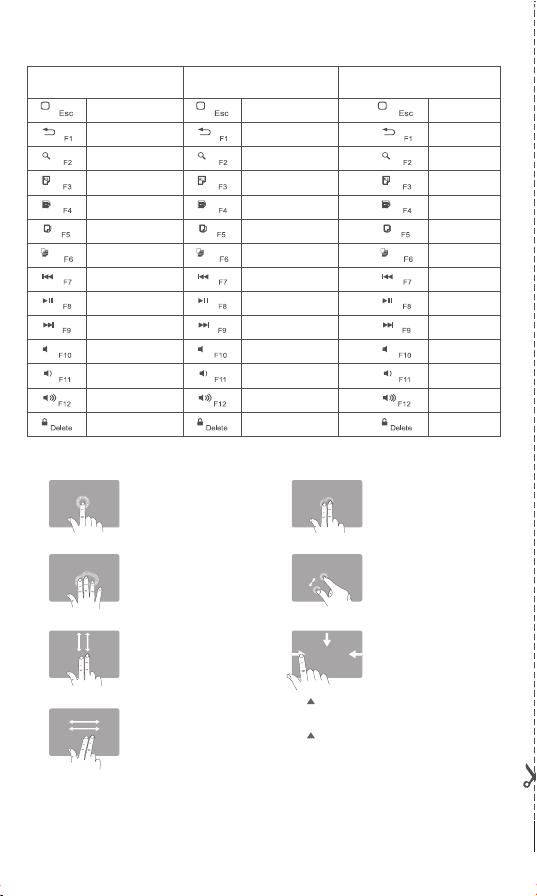
Notice: Please read the user manual carefully before using
this product.
Multi-channel Universal Desktop Slot Keyboard
User Manual
ZW-07
1
A
Charging Interface
Front
Back
Touchpad
Multi-function Keys
Touc h pad
Switch
Low Battery Indicator
Channel Switch
Left Mouse
Button
Right Mouse
Button
Language
Switch
Voice
● iOS Connection Instructions:
Airplan e Mode
WL AN
dzhgy
Bluetooth
On
Notific ation Center
Control Center
BluetoothSettings
Bluetooth
DEVICES
Searching...
Now Disco verable
Airplane Mode
WL AN
dzhgy
Bluetooth
On
Notification Center
Bluetooth
Settings
Bluetooth
DEVICES
Now Discoverab le
Bluetoot h3. 0 Key boa rd
Not Paired
Control Center
Bluet ooth Pai ring Reque st
Bluet ooth Pai ring Reque st
Ent er the co d“e 9 575”on“ 3.0 Blu etoot h
Key board”,fo llowe d by the re turn o r
ent er key.
Cance l
Airplan e Mode
WL AN
dzhgy
Bluetooth
On
Notification Center
Bluetooth
Settings
Bluetooth
DEVICES
Now Discoverable
Bluetoot h3. 0 Key boa rd
Connected
Control Center
3. Turn on the Bluetooth of your IOS
devices and start the pairing.
4. Searching will be initiated after
Bluetooth turned on. Click on
"Bluetooth 3.0 Keyboard" to finish
the pairing process.
5. According the indication from your
IOS device, please follow the
instructions and press the
corresponding password in the
keyboard and then click "Enter".
6. You may use the keyboard freely
after successfully connected with your
IOS device.
1. Please switch on the power button
on the upper right of the keyboard,
and then press it for 1s to activate
(4s to turn off the power).
2. Press + for code
pairing. The Bluetooth light will keep
flashing blue, which means the device
goes into the pairing mode.
Power Switch
Channel Switch
Power Light
Caps Lock
Numeric keys
Bluetooth Light
A
1
Charging Indicator
Multi-channel Switch:
Switch between to any paired one freely while being connected with two
devices simultaneously.
Bluetoo th Device Man agement
Bluet ooth
Open
Your co mpute r is sear ch for Bl uetoo th devi ces, th ese
dev ices ca n be foun d.
Lock screen
Display
Bluetooth
Device
Mouse and Touc h Pad
Input
Edges
Power an d Sle ep
Computers and device
Pairing
Paired pre paratio ns
are ready
Blue tooth 3 .0 Keyb oard
Lock screen
Display
Bluetooth
Device
Mouse and Touc h Pad
Input
Edges
Power an d Sle ep
Computers and device
Bluetoo th Device Man agement
Your co mpute r is sear ch for Bl uetoo th devi ces, th ese
dev ices ca n be foun d.
Blu etoot h
Ope n
Lock screen
Display
Bluetooth
Device
Mouse and Touc h Pad
Input
Edges
Power an d Sle ep
Computers and device
Bluetoo th Device Man agement
Blu etoot h
Ope n
Enter t he pass word on your keyboard
The p asswo rd to your 3.0 K eyboar d,
and t hen in th e Press E nter on t he keybo ard.
Blu etoot h
54978465
Ca ncel
Co nne cte d
Blu etoot h 3.0 Key boar d
Bluetoo th Device Man agement
Your co mpute r is sear ch for Bl uetoo th devi ces, th ese
dev ices ca n be foun d.
Blueto oth
Open
Lock screen
Display
Bluetooth
Device
Mouse and Touc h Pad
Input
Edges
Power an d Sle ep
Computers and device
● Win8 Connection Instructions:
3. Turn on the Bluetooth of your
computer and start the pairing.
4. Searching will be initiated after
Bluetooth turned on. Click on
“Bluetooth 3.0 Keyboard" to finish
the pairing process.
5. According the indication from
your PC, please follow the
instructions and press the
corresponding password in the
keyboard and then click "Enter".
6. You may use the keyboard freely
after successfully connected with
your PC.
Power Switch
Channel switching
Power Light
Caps Lock
Number keys
Bluetooth Light
A
1
Charging indicator
1. Please switch on the power button
on the upper right of the keyboard,
and then press it for 1s to activate
(4s to turn off the power).
2. Press + for code pairing.
The Bluetooth light will keep flashing
blue, which means the device goes into
the pairing mode.
Multi-channel Switch:
Switch between to any paired one freely while being connected with two
devices simultaneously.
● Connection Instructions:Android
Connect
Control
General
Scanning
Bluetoot h
WL AN
Airpl ane M ode
Data Use
Locat ion
More Network
Bluetooth
My Devi ce
Vis ible to o the r Blue tooth d evi ce.
Galax y TabPro
Ava ila ble Device
Network Co nnection
Device
Blu etoot h 3.0 Keybo ard
Connect
Control
General
Scanning
Bluetoot h
WL AN
Airpl ane M ode
Data Use
Locat ion
More Network
Bluetooth
My Devi ce
Vis ible to o the r Blue tooth d evi ce.
Galax y TabPro
Ava ila ble Device
Network Co nnection
Device
Blu etoot h 3.0 Keybo ard
Blu eto oth Pa iri ng Req ues t
In th e Bluet ooth 3. 0 Keyboa rd inpu t 26022 8
To matc h, and th en clic k on the re turn or e nter.
Cancel
Connect
Control
General
Scanning
Bluetoot h
WL AN
Airpl ane M ode
Data Use
Location
More Network
Bluetooth
My Devi ce
Vis ible to o the r Blue tooth d evi ce.
Galax y TabPro
Ava ila ble Device
Network Co nnection
Device
Blu etoot h 3.0 Keybo ard
Has b een att ached t o the inp ut devi ce.
3. Turn on the Bluetooth of your
device and start the pairing.
4. Searching will be initiated after
Bluetooth turned on. Click on
“Bluetooth 3.0 Keyboard" to finish
the pairing process.
5. According the indication from
your device, please follow the
instructions and press the
corresponding password in the
keyboard and then click "Enter".
6. You may use the keyboard freely
after successfully connected with
your device.
Connect
Control
General
Scanning
Bluetoot h
WL AN
Airpl ane M ode
Data Use
Locat ion
More Network
Bluetooth
My Devi ce
Vis ible to o the r Blue tooth d evi ce.
Galax y TabPro
Ava ila ble Device
Network Co nnection
Device
Power Switch
Channel Switch
Power Light
Caps Lock
Numeric Keys
Bluetooth Light
A
1
Charging Indicator
1. Please switch on the power button
on the upper right of the keyboard,
and then press it for 1s to activate
(4s to turn off the power).
2. Press + for code
pairing. The Bluetooth light will
keep flashing blue , which means the
device goes into the pairing mode.
Remarks:After connecting successfully for once, no more code pairing needed next time.
Just turn on the Bluetooth keyboard and enable the tablet PC“Bluetooth.”power switch in the
Multi-channel Switch:
Switch between to any paired one freely while being connected with two
devices simultaneously.
Touchpad Functions
Three System Function Key Combinations(fn+)
Left Mouse Button:
Single finger click
Drag: Single finger click for
twice and pressing to move
Right Mouse Button:
Two fingers click
Middle Mouse button:
Three fingers click
Zoom:
Two fingers Stretching
Vertical Scrolling:
Two fingers sliding
vertically
Back/Forward:
Two fingers sliding
horizontally
Open an application:
One finger sliding from
up to down.
Fn+ Win
Fn + Android
Fn+ iOS
Fn+
Fn+
Fn+
Fn+
Fn+
Fn+
Fn+
Fn+
Fn+
Fn+
Fn+
Fn+
Fn+
Fn+
Switch to Win System
Switch to Android System
Apple iOS System
Return to desktop
Search
Select All
Cut
Paste
Copy
Previous
Play/Pause
Next
Mute
Volume-
Volume+
Screen Lock
Return to desktop
Return to the
previous page
Search
Select All
Cut
Previous
Play/Pause
Next
Mute
Volume-
Volume+
Screen Lock
Home Page
Return
Search
Select All
Cut
Previous
Play/Pause
Next
Mute
Volume-
Volume+
Screen Lock
Paste
Copy
Paste
Copy
Esc
Switch to the next application:
One finger sliding from left to right
Bring out Win8 Charm menu:
One finger sliding from right to left
Problems or damage relating to below reasons are not
included on this limited warranty.
(1) Accident, misuse, improper operation or any unauthorized
repaire, conversion or disassembly.
(2) Im proper operation or maintenance; violation against the
instructions or connection with unsuitable power supply.
Warranty Card
User information
Company or personal full name
Contact address
Tel.
Zip
Purchased product’s name and model NO.
Purchase date
Certification
In sp ec ti on:
Pr od uc ti on d at e:
折线
折线 折线
折线
折线 折线
折线
折线
尺寸:85x130mm 折页
Troubleshooting
Please contact the after-sales service.
IP Information
It is forbidden to duplicate any information from this user guide without the
permission of the seller.
Safety instructions
Do not open or repair this device. Do not use this device in a damp
Clean the device with dry cloth.
environment.
Warranty
One-year limited hardware repair service from the date of purchase.
FAQ
1.The tablet PC can't connect with the BT keyboard.
1) Please check first if the BT keyboard enters into code pairing status, then turn on
the Bluetooth of the tablet PC to search for the device.
2) Check the power of the BT keyboard before using it and please fully charge the
keyboard once the power is low.
Keyboard Maintenance
1. Please keep the keyboard away from liquid or humid environment. D close to
the saunas, swimming pool, steam room, etc.
2. Please don't expose the keyboard to environment with extreamely high or low
temperature.
3. Please don't place the keyboard under sun for a long time.
4. Keep the keyboard away from open flame, such as cooking stoves, candles or fireplace.
5. Avoid sharp objects scratching the products; Recharge or replace the dry cell
timely to ensure the normal use.
on't
◆ Keyboard Size: 370*164.5*22.3 mm
◆ Touchpad Size: 71.7*38.9 mm
◆ Working Distance: 10M
◆ Weight: 600g
◆ Keyboard Layout: 96 Keys
◆ Sleep Time: 10 Minutes
◆ Batter y Capacity:370mAh
◆ Wake up the device: Press any key
◆ Charging Current:<250mAh
◆ Charging Time: 2h
◆ Working Voltage: 3.7V
◆ Low Voltage Alarm: ≤3.3V
◆ Standby Current: 0.85mA
◆ Sleep Current: 0.1mA
◆ Working current of Touchpad : 6.8-10.36mA
◆ Working current of Keys : 2.0mA
Technical Specifications
Status Display LED
◆ Turn on
◆
◆ The blue light will be off after pairing sucessfully.
◆
the power switch , the blue light will be on.
The blue light will flash intensely during code pairing.
Low voltage indication: when the voltage is below 3.3V.the red light will flash
2. The keyboard indication light keep flashing during use.
It means the batter y power will be off soon, please charge the keyboard immediately.
3. The table PC displays BT keyboard is disconnected.
The BT keyboard will enter into sleeping mode to save power without use for 10 mins;
Press any key to wake up the the BT keyboard.
Notice: Please read the user manual carefully before using
this product.
Multi-channel Universal Desktop Slot Keyboard
User Manual
ZW-07
1
A
Charging Interface
Front
Back
Touchpad
Multi-function Keys
Touc h pad
Switch
Low Battery Indicator
Channel Switch
Left Mouse
Button
Right Mouse
Button
Language
Switch
Voice
● iOS Connection Instructions:
Airplan e Mode
WL AN
dzhgy
Bluetooth
On
Notific ation Center
Control Center
BluetoothSettings
Bluetooth
DEVICES
Searching...
Now Disco verable
Airplane Mode
WL AN
dzhgy
Bluetooth
On
Notification Center
Bluetooth
Settings
Bluetooth
DEVICES
Now Discoverab le
Bluetoot h3. 0 Key boa rd
Not Paired
Control Center
Bluet ooth Pai ring Reque st
Bluet ooth Pai ring Reque st
Ent er the co d“e 9 575”on“ 3.0 Blu etoot h
Key board”,fo llowe d by the re turn o r
ent er key.
Cance l
Airplan e Mode
WL AN
dzhgy
Bluetooth
On
Notification Center
Bluetooth
Settings
Bluetooth
DEVICES
Now Discoverable
Bluetoot h3. 0 Key boa rd
Connected
Control Center
3. Turn on the Bluetooth of your IOS
devices and start the pairing.
4. Searching will be initiated after
Bluetooth turned on. Click on
"Bluetooth 3.0 Keyboard" to finish
the pairing process.
5. According the indication from your
IOS device, please follow the
instructions and press the
corresponding password in the
keyboard and then click "Enter".
6. You may use the keyboard freely
after successfully connected with your
IOS device.
1. Please switch on the power button
on the upper right of the keyboard,
and then press it for 1s to activate
(4s to turn off the power).
2. Press + for code
pairing. The Bluetooth light will keep
flashing blue, which means the device
goes into the pairing mode.
Power Switch
Channel Switch
Power Light
Caps Lock
Numeric keys
Bluetooth Light
A
1
Charging Indicator
Multi-channel Switch:
Switch between to any paired one freely while being connected with two
devices simultaneously.
Bluetoo th Device Man agement
Bluet ooth
Open
Your co mpute r is sear ch for Bl uetoo th devi ces, th ese
dev ices ca n be foun d.
Lock screen
Display
Bluetooth
Device
Mouse and Touc h Pad
Input
Edges
Power an d Sle ep
Computers and device
Pairing
Paired pre paratio ns
are ready
Blue tooth 3 .0 Keyb oard
Lock screen
Display
Bluetooth
Device
Mouse and Touc h Pad
Input
Edges
Power an d Sle ep
Computers and device
Bluetoo th Device Man agement
Your co mpute r is sear ch for Bl uetoo th devi ces, th ese
dev ices ca n be foun d.
Blu etoot h
Ope n
Lock screen
Display
Bluetooth
Device
Mouse and Touc h Pad
Input
Edges
Power an d Sle ep
Computers and device
Bluetoo th Device Man agement
Blu etoot h
Ope n
Enter t he pass word on your keyboard
The p asswo rd to your 3.0 K eyboar d,
and t hen in th e Press E nter on t he keybo ard.
Blu etoot h
54978465
Ca ncel
Co nne cte d
Blu etoot h 3.0 Key boar d
Bluetoo th Device Man agement
Your co mpute r is sear ch for Bl uetoo th devi ces, th ese
dev ices ca n be foun d.
Blueto oth
Open
Lock screen
Display
Bluetooth
Device
Mouse and Touc h Pad
Input
Edges
Power an d Sle ep
Computers and device
● Win8 Connection Instructions:
3. Turn on the Bluetooth of your
computer and start the pairing.
4. Searching will be initiated after
Bluetooth turned on. Click on
“Bluetooth 3.0 Keyboard" to finish
the pairing process.
5. According the indication from
your PC, please follow the
instructions and press the
corresponding password in the
keyboard and then click "Enter".
6. You may use the keyboard freely
after successfully connected with
your PC.
Power Switch
Channel switching
Power Light
Caps Lock
Number keys
Bluetooth Light
A
1
Charging indicator
1. Please switch on the power button
on the upper right of the keyboard,
and then press it for 1s to activate
(4s to turn off the power).
2. Press + for code pairing.
The Bluetooth light will keep flashing
blue, which means the device goes into
the pairing mode.
Multi-channel Switch:
Switch between to any paired one freely while being connected with two
devices simultaneously.
● Connection Instructions:Android
Connect
Control
General
Scanning
Bluetoot h
WL AN
Airpl ane M ode
Data Use
Locat ion
More Network
Bluetooth
My Devi ce
Vis ible to o the r Blue tooth d evi ce.
Galax y TabPro
Ava ila ble Device
Network Co nnection
Device
Blu etoot h 3.0 Keybo ard
Connect
Control
General
Scanning
Bluetoot h
WL AN
Airpl ane M ode
Data Use
Locat ion
More Network
Bluetooth
My Devi ce
Vis ible to o the r Blue tooth d evi ce.
Galax y TabPro
Ava ila ble Device
Network Co nnection
Device
Blu etoot h 3.0 Keybo ard
Blu eto oth Pa iri ng Req ues t
In th e Bluet ooth 3. 0 Keyboa rd inpu t 26022 8
To matc h, and th en clic k on the re turn or e nter.
Cancel
Connect
Control
General
Scanning
Bluetoot h
WL AN
Airpl ane M ode
Data Use
Location
More Network
Bluetooth
My Devi ce
Vis ible to o the r Blue tooth d evi ce.
Galax y TabPro
Ava ila ble Device
Network Co nnection
Device
Blu etoot h 3.0 Keybo ard
Has b een att ached t o the inp ut devi ce.
3. Turn on the Bluetooth of your
device and start the pairing.
4. Searching will be initiated after
Bluetooth turned on. Click on
“Bluetooth 3.0 Keyboard" to finish
the pairing process.
5. According the indication from
your device, please follow the
instructions and press the
corresponding password in the
keyboard and then click "Enter".
6. You may use the keyboard freely
after successfully connected with
your device.
Connect
Control
General
Scanning
Bluetoot h
WL AN
Airpl ane M ode
Data Use
Locat ion
More Network
Bluetooth
My Devi ce
Vis ible to o the r Blue tooth d evi ce.
Galax y TabPro
Ava ila ble Device
Network Co nnection
Device
Power Switch
Channel Switch
Power Light
Caps Lock
Numeric Keys
Bluetooth Light
A
1
Charging Indicator
1. Please switch on the power button
on the upper right of the keyboard,
and then press it for 1s to activate
(4s to turn off the power).
2. Press + for code
pairing. The Bluetooth light will
keep flashing blue , which means the
device goes into the pairing mode.
Remarks:After connecting successfully for once, no more code pairing needed next time.
Just turn on the Bluetooth keyboard and enable the tablet PC“Bluetooth.”power switch in the
Multi-channel Switch:
Switch between to any paired one freely while being connected with two
devices simultaneously.
Touchpad Functions
Three System Function Key Combinations(fn+)
Left Mouse Button:
Single finger click
Drag: Single finger click for
twice and pressing to move
Right Mouse Button:
Two fingers click
Middle Mouse button:
Three fingers click
Zoom:
Two fingers Stretching
Vertical Scrolling:
Two fingers sliding
vertically
Back/Forward:
Two fingers sliding
horizontally
Open an application:
One finger sliding from
up to down.
Fn+ Win
Fn + Android
Fn+ iOS
Fn+
Fn+
Fn+
Fn+
Fn+
Fn+
Fn+
Fn+
Fn+
Fn+
Fn+
Fn+
Fn+
Fn+
Switch to Win System
Switch to Android System
Apple iOS System
Return to desktop
Search
Select All
Cut
Paste
Copy
Previous
Play/Pause
Next
Mute
Volume-
Volume+
Screen Lock
Return to desktop
Return to the
previous page
Search
Select All
Cut
Previous
Play/Pause
Next
Mute
Volume-
Volume+
Screen Lock
Home Page
Return
Search
Select All
Cut
Previous
Play/Pause
Next
Mute
Volume-
Volume+
Screen Lock
Paste
Copy
Paste
Copy
Esc
Switch to the next application:
One finger sliding from left to right
Bring out Win8 Charm menu:
One finger sliding from right to left
Problems or damage relating to below reasons are not
included on this limited warranty.
(1) Accident, misuse, improper operation or any unauthorized
repaire, conversion or disassembly.
(2) Im proper operation or maintenance; violation against the
instructions or connection with unsuitable power supply.
Warranty Card
User information
Company or personal full name
Contact address
Tel.
Zip
Purchased product’s name and model NO.
Purchase date
Certification
In sp ec ti on:
Pr od uc ti on d at e:
折线
折线 折线
折线
折线 折线
折线
折线
尺寸:85x130mm 折页
Troubleshooting
Please contact the after-sales service.
IP Information
It is forbidden to duplicate any information from this user guide without the
permission of the seller.
Safety instructions
Do not open or repair this device. Do not use this device in a damp
Clean the device with dry cloth.
environment.
Warranty
One-year limited hardware repair service from the date of purchase.
FAQ
1.The tablet PC can't connect with the BT keyboard.
1) Please check first if the BT keyboard enters into code pairing status, then turn on
the Bluetooth of the tablet PC to search for the device.
2) Check the power of the BT keyboard before using it and please fully charge the
keyboard once the power is low.
Keyboard Maintenance
1. Please keep the keyboard away from liquid or humid environment. D close to
the saunas, swimming pool, steam room, etc.
2. Please don't expose the keyboard to environment with extreamely high or low
temperature.
3. Please don't place the keyboard under sun for a long time.
4. Keep the keyboard away from open flame, such as cooking stoves, candles or fireplace.
5. Avoid sharp objects scratching the products; Recharge or replace the dry cell
timely to ensure the normal use.
on't
◆ Keyboard Size: 370*164.5*22.3 mm
◆ Touchpad Size: 71.7*38.9 mm
◆ Working Distance: 10M
◆ Weight: 600g
◆ Keyboard Layout: 96 Keys
◆ Sleep Time: 10 Minutes
◆ Batter y Capacity:370mAh
◆ Wake up the device: Press any key
◆ Charging Current:<250mAh
◆ Charging Time: 2h
◆ Working Voltage: 3.7V
◆ Low Voltage Alarm: ≤3.3V
◆ Standby Current: 0.85mA
◆ Sleep Current: 0.1mA
◆ Working current of Touchpad : 6.8-10.36mA
◆ Working current of Keys : 2.0mA
Technical Specifications
Status Display LED
◆ Turn on
◆
◆ The blue light will be off after pairing sucessfully.
◆
the power switch , the blue light will be on.
The blue light will flash intensely during code pairing.
Low voltage indication: when the voltage is below 3.3V.the red light will flash
2. The keyboard indication light keep flashing during use.
It means the batter y power will be off soon, please charge the keyboard immediately.
3. The table PC displays BT keyboard is disconnected.
The BT keyboard will enter into sleeping mode to save power without use for 10 mins;
Press any key to wake up the the BT keyboard.