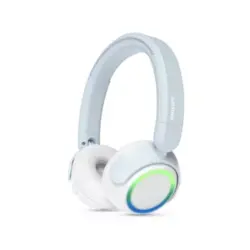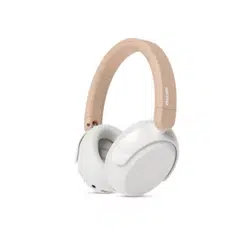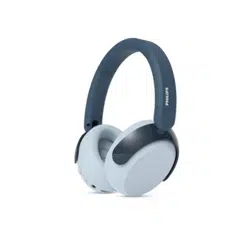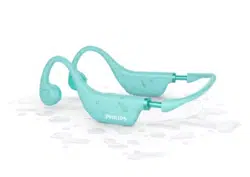
Headphones
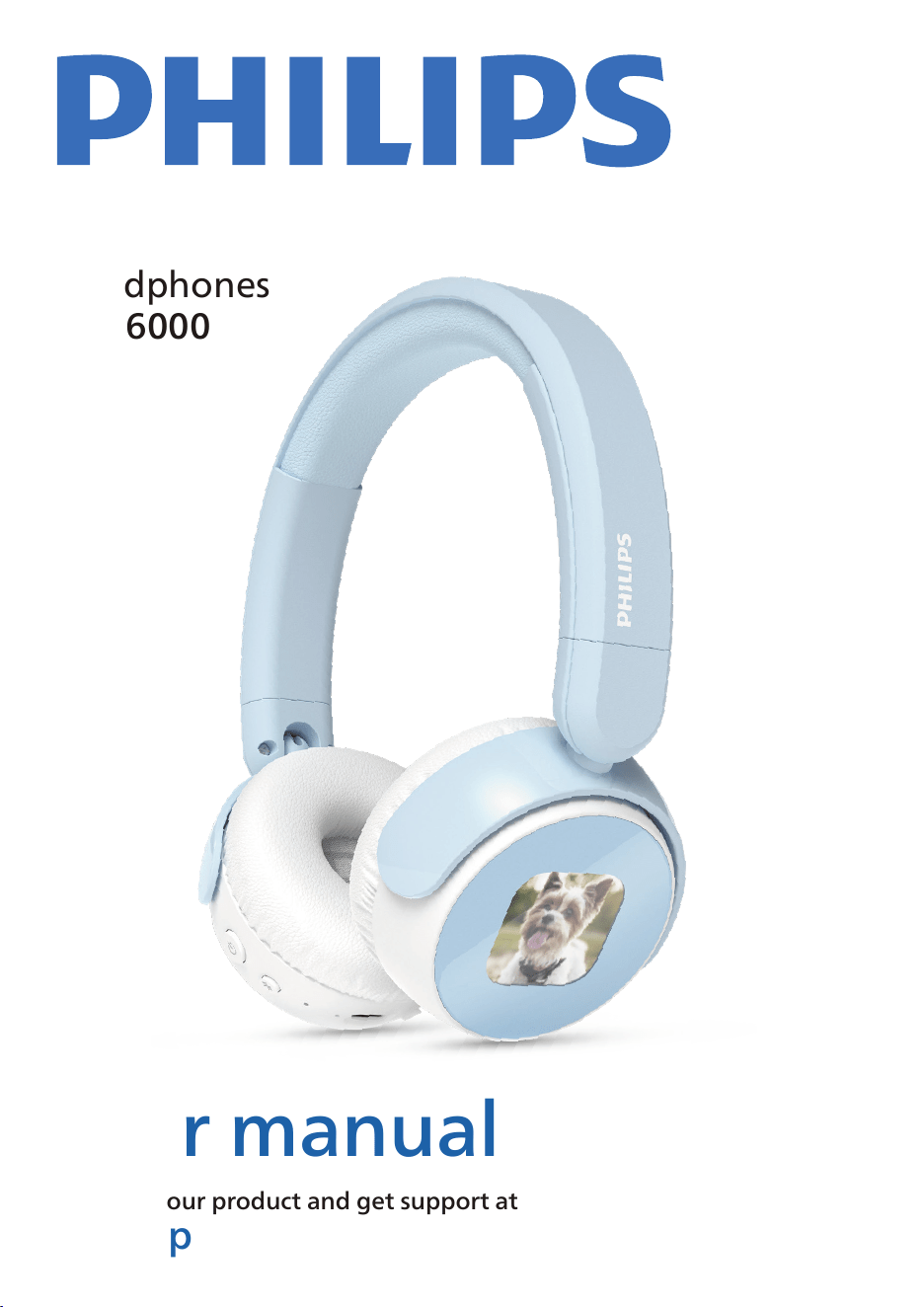
TAK6000
User manual
Register your product and get support at
www.philips.com/support

1 Important safety instructions 2
Hearing safety 2
General information 2
2 Your wireless on-ear kids
headphones 3
What's in the box 3
Overview of your headphones 4
3 Get started 4
Charge the battery 4
Replace the battery 5
Pairing for the �rst time 6
Pairing with another Bluetooth
device 7
Multipoint connection 7
Wired connection 7
4 Use your headphones 8
Connect your headphones to a
Bluetooth device 8
Power on/off 8
Manage your calls and music 8
Voice Assistant 8
Headphones LED indicator status 9
Audio share 9
10 Trademarks 15
Contents
6 Reset the headphones 12
7 Technical data 12
8 Notice 13
Declaration of conformity 13
Disposal of your old product
and battery 13
Remove the integrated battery 13
Compliance with EMF 13
Environmental information 13
Notice of compliance 13
9 Frequently asked questions 15
5 Customize setting on App 9
ePaper 10
Volume limit setting 11
Sidetone setting 11
Play time limit setting 11
2 EN
1 Important
safety
instructions
Hearing safety
• Listen at reasonable volumes for reasonable
periods of time.
• Be careful not to adjust the volume
continuously upwards as your hearing adapts.
• Do not turn up the volume so high that you
can't hear what's around you.
• You should use caution or temporarily
discontinue use in potentially hazardous
situations.
• Excessive sound pressure from headphones
and headphones can cause hearing loss.
• Using headphones with both ears covered
while driving is not recommended and may be
illegal insome areas.
• For your safety, avoid distractions from music
or phone calls while in traffic or other
potentially dangerous environments.
General information
To avoid damage or malfunction:
Danger
• To avoid hearing damage, limit the time you
use headphones at high volume and set the
volume to a safe level. The louder the
volume, the shorter the safe listening time is.
Caution
• Do not expose headphones to excessive heat.
• Do not drop your headphones.
• Headphones shall not be exposed to dripping
or splashing. (Refer to the IP rating of speci�c
product)
• Do not allow your headphones to be submerged
in water.
• Do not charge your headphones when the
connector or socket is wet.
• Do not use any cleaning agents containing
alcohol, ammonia, benzene, or abrasives.
• Use a clean, damp cloth to clean your
headphones - especially the sound conduits and
the microphone holes - regularly and avoid
buildup of substances such as sweat or earwax.
• If any sweat or water droplets are left in the
sound conduits, air holes or microphone holes,
the sound level will temporarily drop or cut out
entirely. This is not a malfunction. Use a soft,
damp cloth to dry the headphones thoroughly.
Alternatively, remove the earbud tips, turn the
sound conduits downward and gently tap the
headphones about �ve times on a dry cloth or
similar to remove any water collected inside.
• Be sure the headphones are completely dry
before charging and using. Avoid using
disposable alcohol pads or other substances for
cleaning.
• The integrated battery shall not be exposed to
excessive heat such as sunshine, �re or the like.
• Danger of explosion if battery is incorrectly
replaced. Replace only with the same or
equivalent type.
• To achieve the speci�c IP rating, the charging
slot cover must be closed.
• Disposal of a battery into �re or a hot oven, or
mechanically crushing or cutting a battery, can
result in an explosion.
• Leaving a battery in an extremely high
temperature surrounding environment can
result in an explosion or the leakage of
�ammable liquid or gas.
• A battery subjected to extremely low air
pressure may result in an explosion or the
leakage of �ammable liquid or gas.
• Replacement of a battery with an incorrect type
risks severely damaging the headphones and the
battery (for example, in the case of some lithium
battery types).
• If the headset is not used for a long time, the
rechargeable battery will begin to lose its
charge. To avoid this loss, please fully charge the
battery at least once every three months.
• To avoid risk of �re, the equipment is supplied
only by external power source which output
shall comply with PS1 (with output capacity less
than or equal to15W).
Operating and storage temperatures and
humidity
• Store in a place where the temperature is
between -20°C (-4°F) and 50°C (122 °F) with
up to 90% relative humidity.
• Operate in a place where the temperature is
between 0°C (32°F) and 45°C (113 °F) with
up to 90% relative humidity.
• Battery life may be shorter in high or low
temperature conditions.
Be sure to observe the following guidelines
when using your headphones.
2 Your wireless
on-ear kids
headphones
Wireless on-ear kids headphones
Philips TAK6000
Congratulations on your purchase, and welcome
to Philips! To fully bene�t from the support that
Philips offers, register your product at
www.philips.com/support.
With these Philips headphones, you can:
• Enjoy convenient wireless handsfree calls
• Enjoy and control music wirelessly
• Switch between calls and music
3 EN
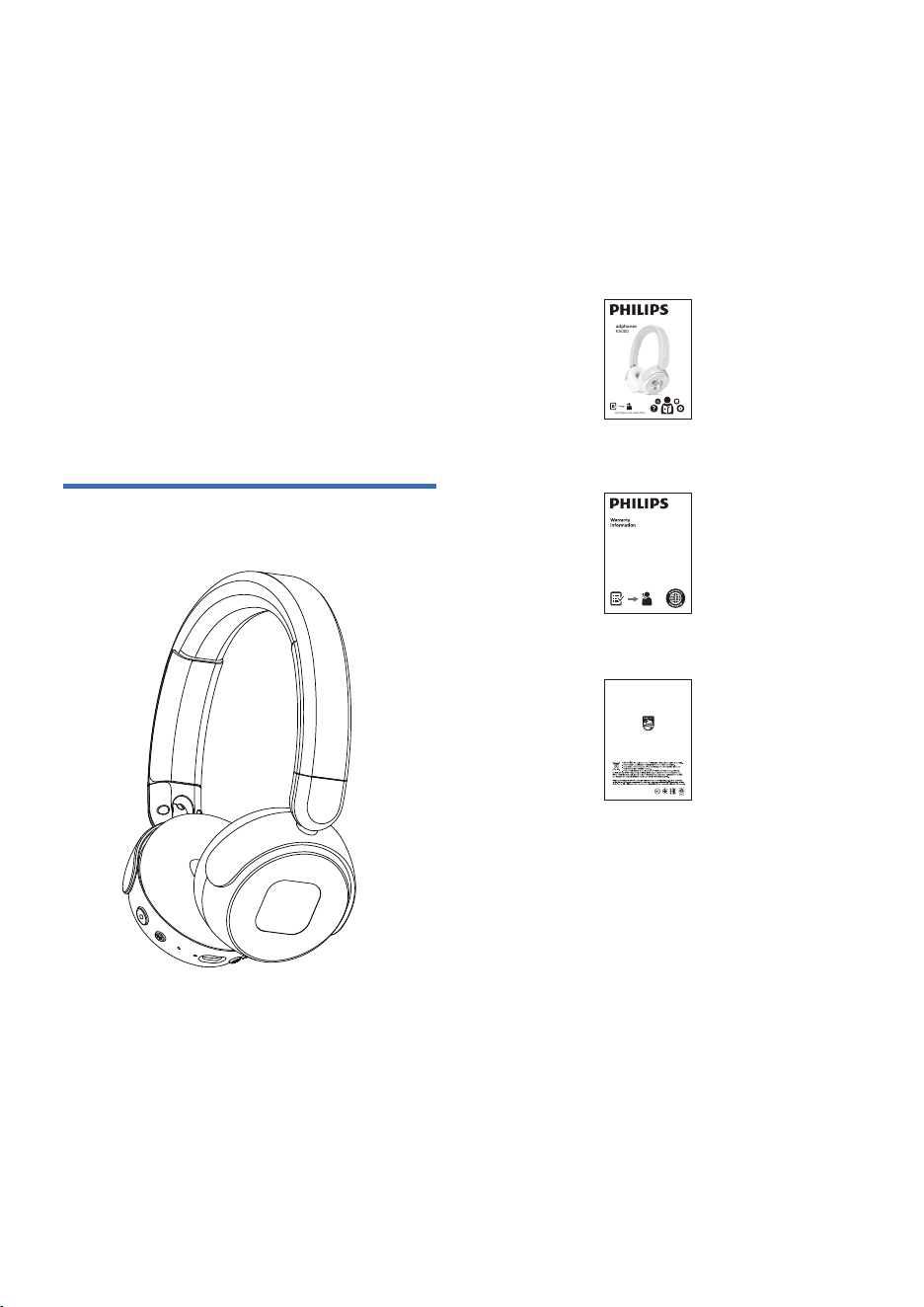
What's in the box
Global warranty
Safety lea�et
Quick start guide
Headphones
TAK6000
www.philips.com/welcome
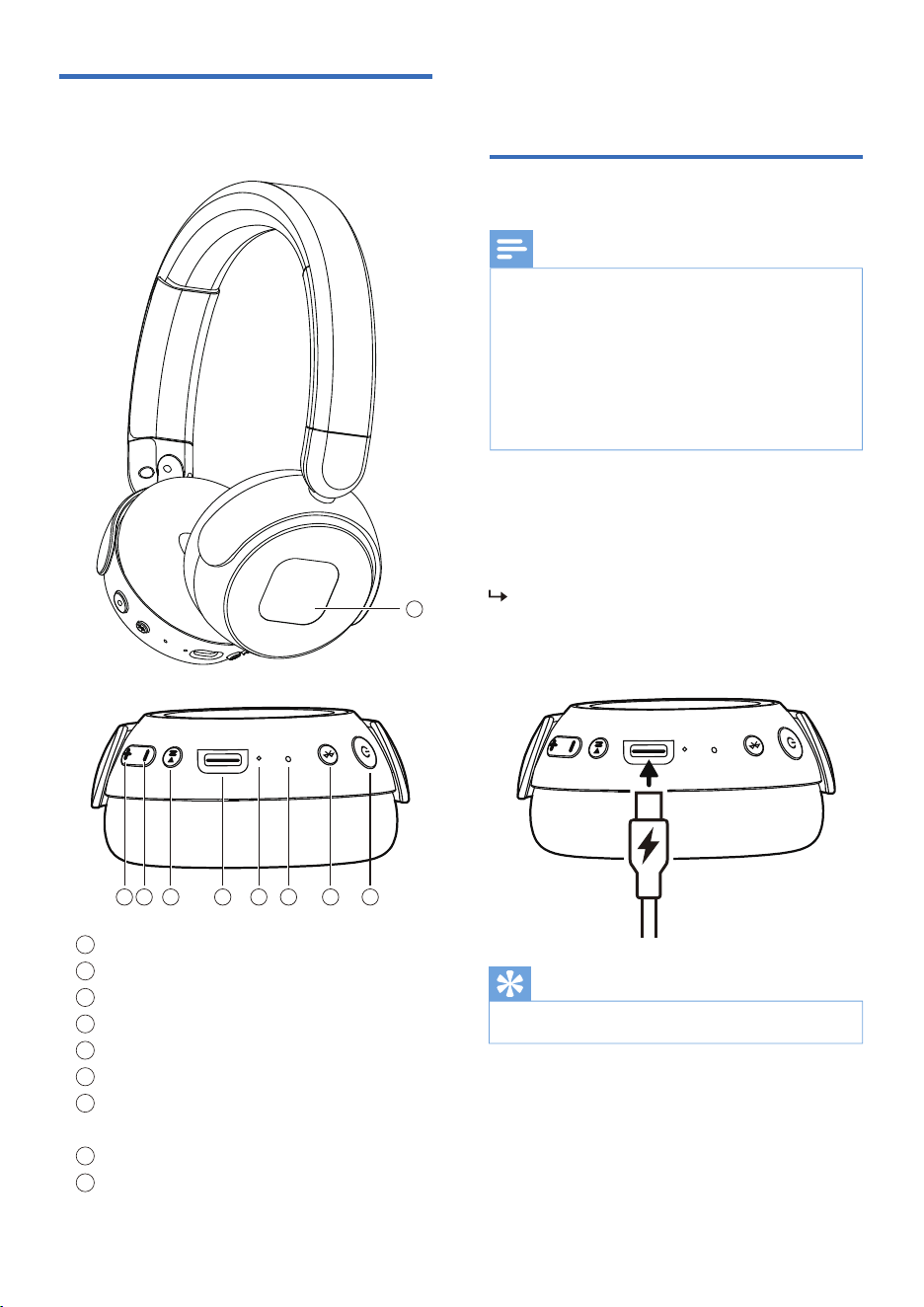
Connect one end of the USB-C cable into the
headphone and the other end into the power
source.
• Normally, a full charge takes two hours.
LED turns white during charging and turns
off when the headphones are fully charged.
3 Get started
Charge the battery
1. Before you use your headphones, charge the
battery for 2 hours to ensure optimal battery
capacity and lifetime.
2. Finish your call before charging. Connecting
the headphones to charge will power them off.
3. If the headphones are not used for a long time,
the rechargeable battery will gradually lose its
charge. To prevent this, please fully charge the
battery at least once every three months.
Note
Tip
4 EN
Overview of your
headphones
Volume up/next track
Volume down/previous track
Play/Pause
USB-C charging slot
LED indicator
Mic
MFB (Multi-functional button) /
Bluetooth pairing button
Power ON/OFF
ePaper display
1
2
3
4
5
6
7
8
9
1 2 3 4 5 6 7 8
9
Replace the battery
EN 5
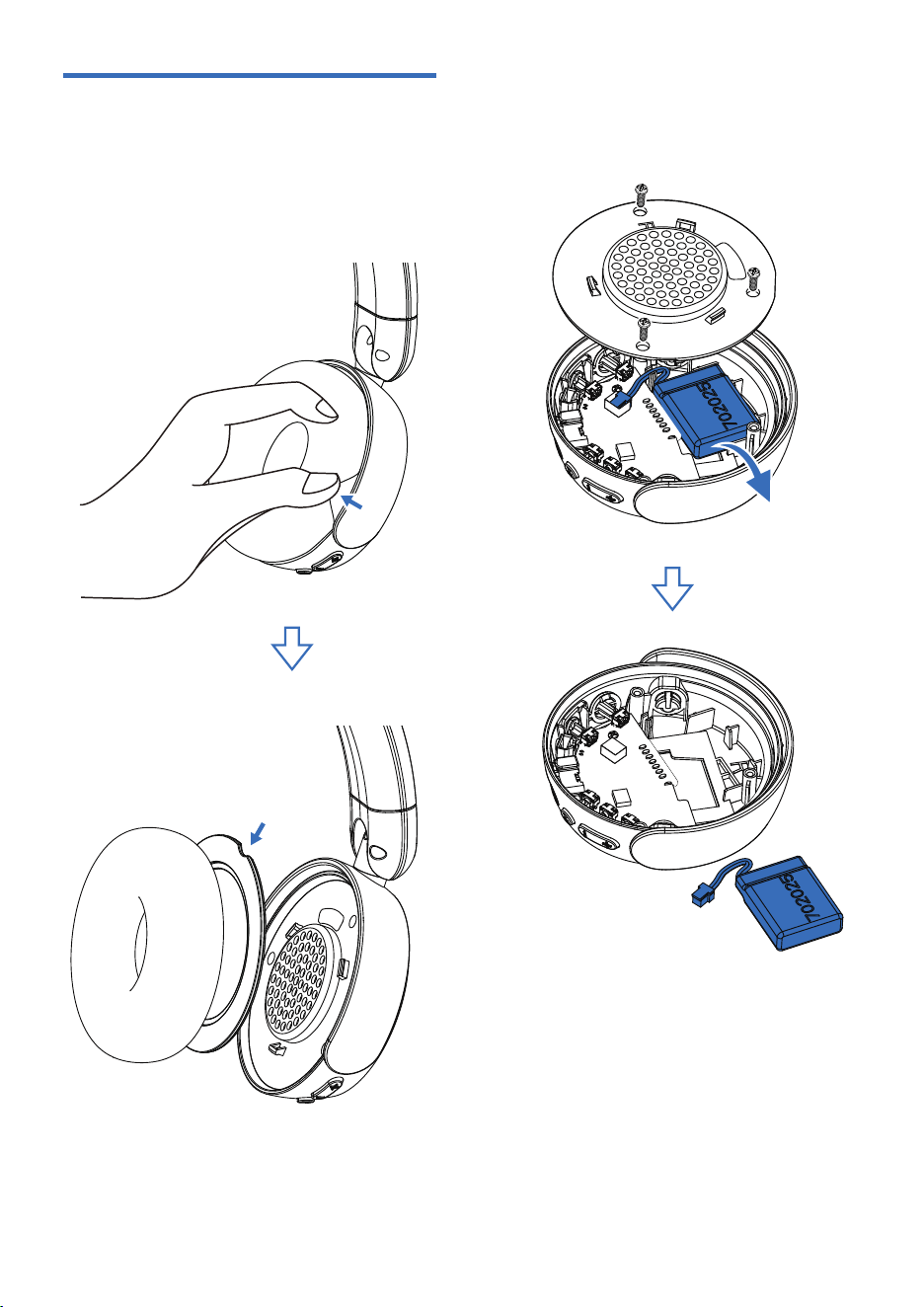
The battery is replaceable. Follow the steps
below to change the battery.
1. Remove the ear cushion together with the ear
cushion bracket from the right headband side.
2. Use a cross-head screwdriver to remove screws
from the driver housing and disconnect the
battery connector, then remove the old battery
and replace it with a new one.
6 EN
Pairing for the �rst time
Make sure that the headphones are fully
charged and powered off.
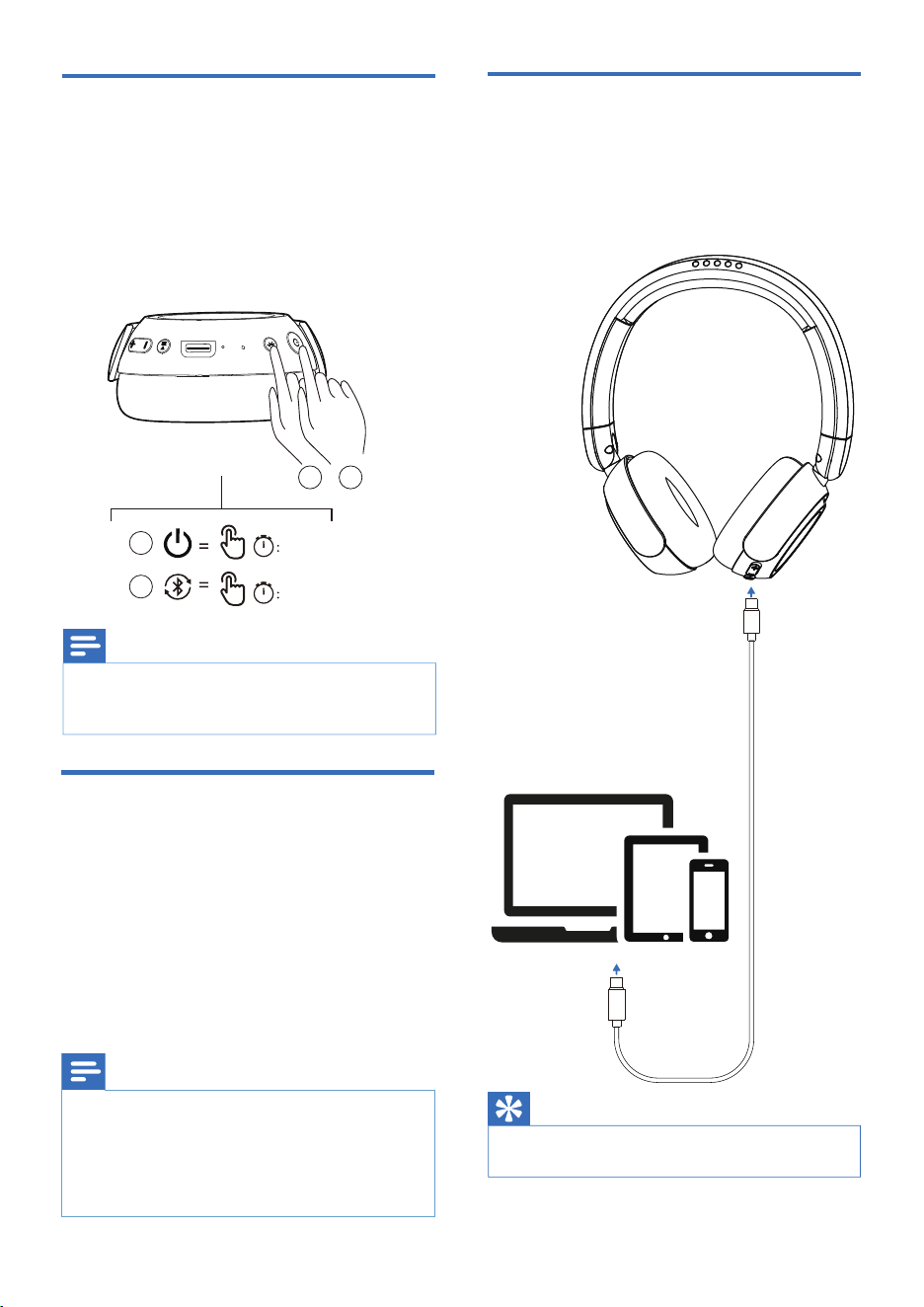
Press and hold the power button for 2
seconds, the headphones will automatically
enter pairing mode and are ready to
connect to a Bluetooth device (e.g. a
mobile phone).
1
2
Turn on the Bluetooth function on your
Bluetooth device.
Select the "Philips TAK6000" from the list of
available devices (refer to your device's user
manual if needed).
3
4
Philips TAK6000
The following example shows you how to pair
the headphones with your Bluetooth device.
Turn on the Bluetooth function on your
device and select Philips TAK6000.
If prompted, enter the headphones'
password "0000" (four zeros). For devices
featuring Bluetooth 3.0 or higher, no
password is required.
1
2
• After powering on, if the headphones can not
�nd any previously connected Bluetooth device,
please put them into pairing mode (press the
MFB for 5 seconds).
• Headphones will automatically power off after 5
minutes of Bluetooth inactivity. Actual timing
may vary by usage conditions.
Note
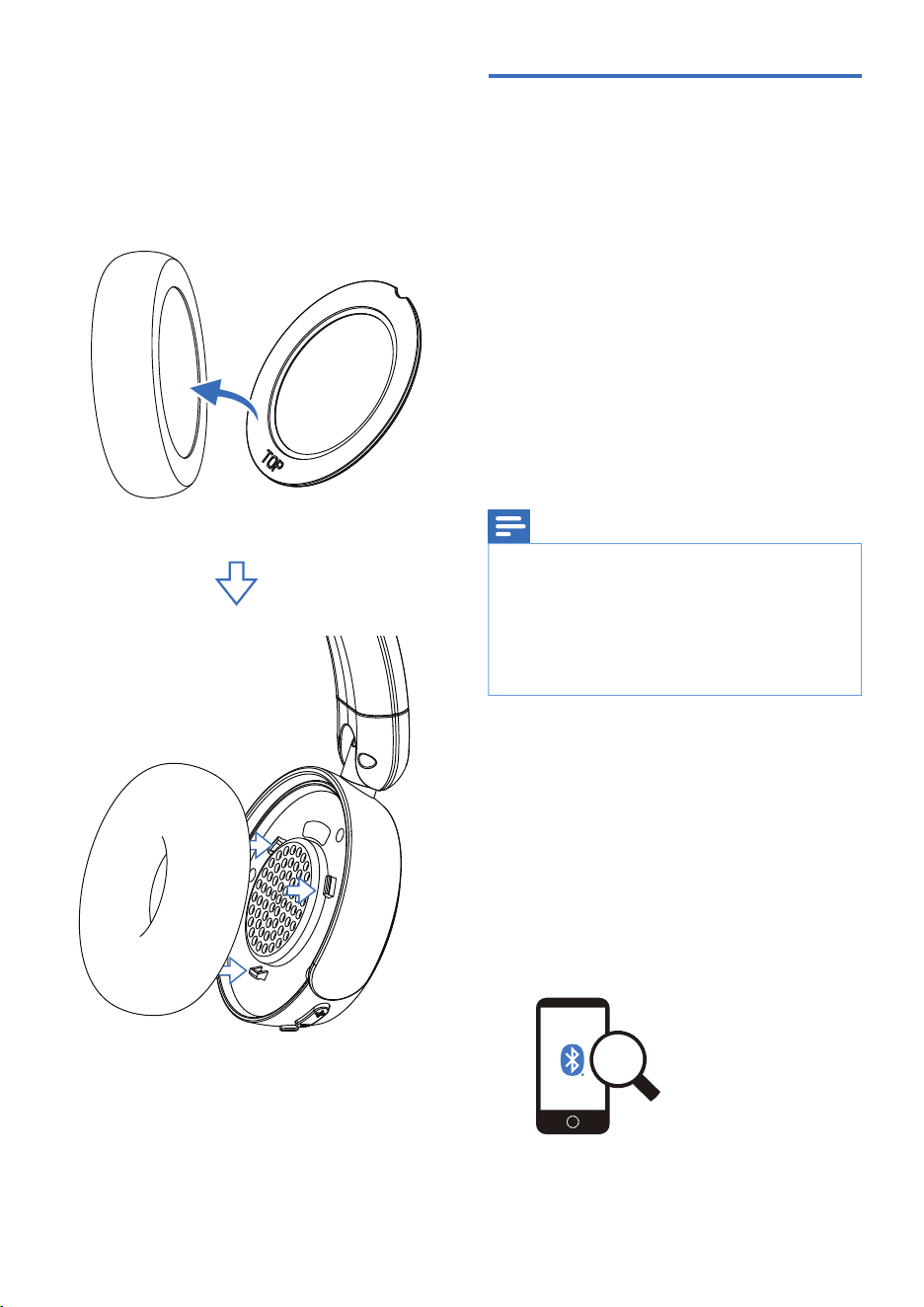
3. Reinstall the components: First, screw back all
screws on the driver housing. Next, �t the ear
cushion bracket into the ear cushion with the
TOP side upward (hooking its angular edge into
the ear cushion leather). Lastly, press the �at side
of the assembled ear cushion �rmly into the
headphone panel to �nish installation.
Pairing with another
Bluetooth device
• The headphones store 4 devices in the memory.
If you try to pair more than 4 devices, the earliest
paired device is replaced by the new one.
7 EN
Note
To pair with another Bluetooth device, put the
headphones into pairing mode again. Press and
hold the Bluetooth pairing button on
headphones for 5 seconds after power on, then
connect to the second device following the
normal pairing process.
Note
• When streaming audio from Device 1, an
incoming call from Device 2 will automatically
pause playback on Device 1. The call will then be
routed to the headphones. After the call ends,
playback from Device 1 will resume
automatically.
Multipoint connection
Pairing
• Pairing the headphones with 2 devices, e.g.
mobile phone and notebook.
Switch between device
• At anytime, you can only listen with music
from one device. Another device can be
used for phone call.
• Pause the audio on one device, then start
to play audio from the another device.
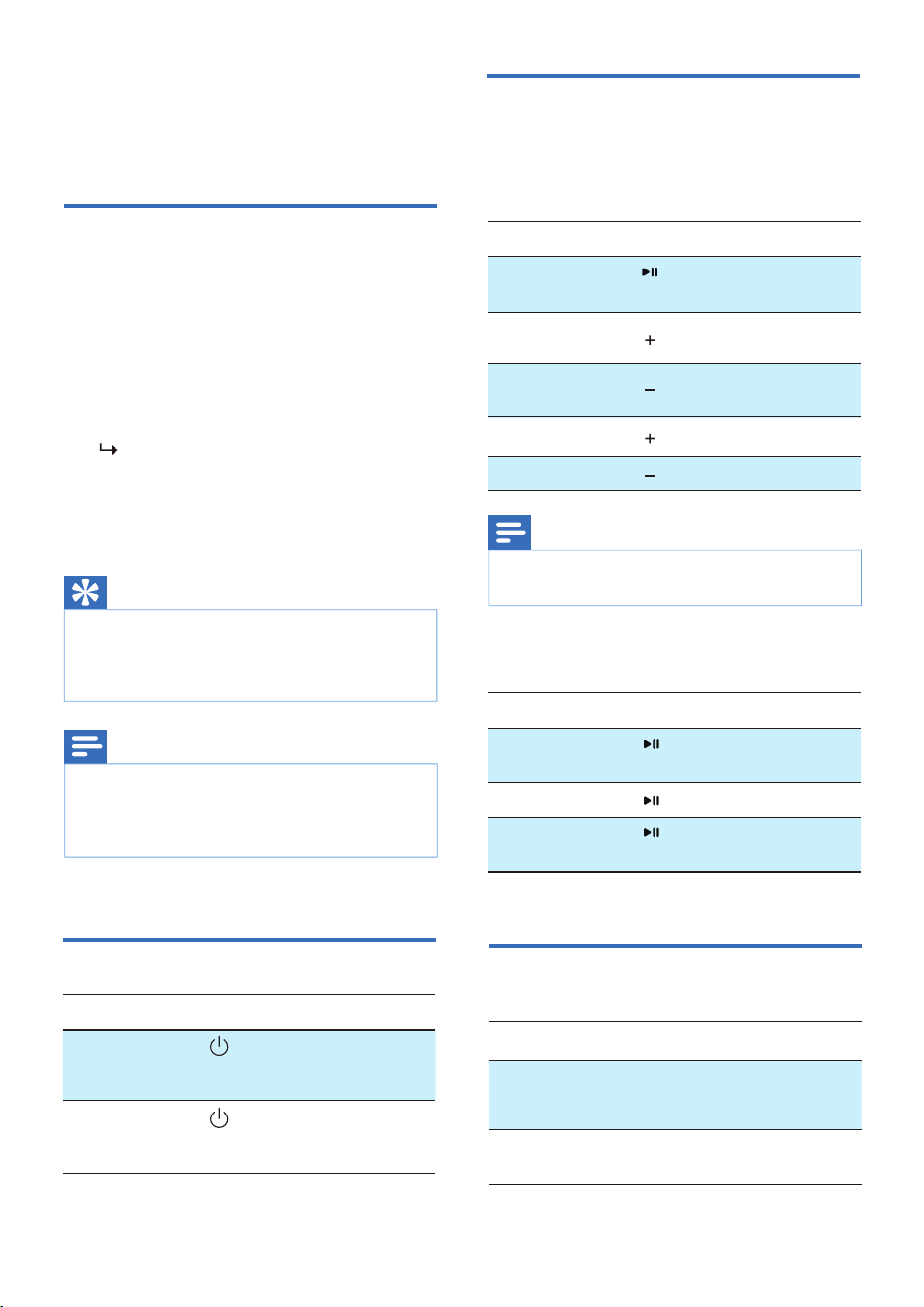
When the headphones' battery is depleted or
your device lacks Bluetooth capability, they can
be connected to the device via USB-C audio cable
(NOT included in the packaging).
Wired connection
Bluetooth functionality is disabled when
using a wired connection.
Tip
02"
05"
1
1
2
2
Next track
Press and hold the Power button to turn
the headphones on.
The headphones will automatically
reconnect to the most recently
connected Bluetooth device. If that
device is not available, they will
attempt to reconnect to the previously
connected device.
8 EN
4 Use your
headphones
Connect the headphones
to your Bluetooth device
1
2
• If you turn on Bluetooth on your device after
powering on the headphones, you will need to
manually connect the headphones through the
device's Bluetooth menu.
Tip
• On some Bluetooth devices, the connection may
not occur automatically. In this case, go to the
Bluetooth menu on your device and connect the
headphones manually.
Note
• A tone will sound when the volume reaches the
maximum level.
Note
Turn on Bluetooth on your device.
Task
Turn the
headphones
on
Press and hold
for 2 seconds
Press and hold for 2
seconds (White LED
is on for 3 seconds)
Turn the
headphones
off
Power on/off
Button Operation
Manage your calls and
music
Music control
Task Button Operation
Play or pause
music
Press once
Press once
Press once
Long press
Long press
Adjust
volume up
Adjust
volume down
Previous track
Call control
Task
Button
Operation
Answer/hang up
a call
Reject a call
Press once
Press once
Long press
Switch caller
during a call
Voice assistant
OperationTask Button
MFB
MFB
Trigger Voice
(Siri/Google)
Assistant
Press twice
Stop Voice
Assistant
Press once
9 EN
Audio share
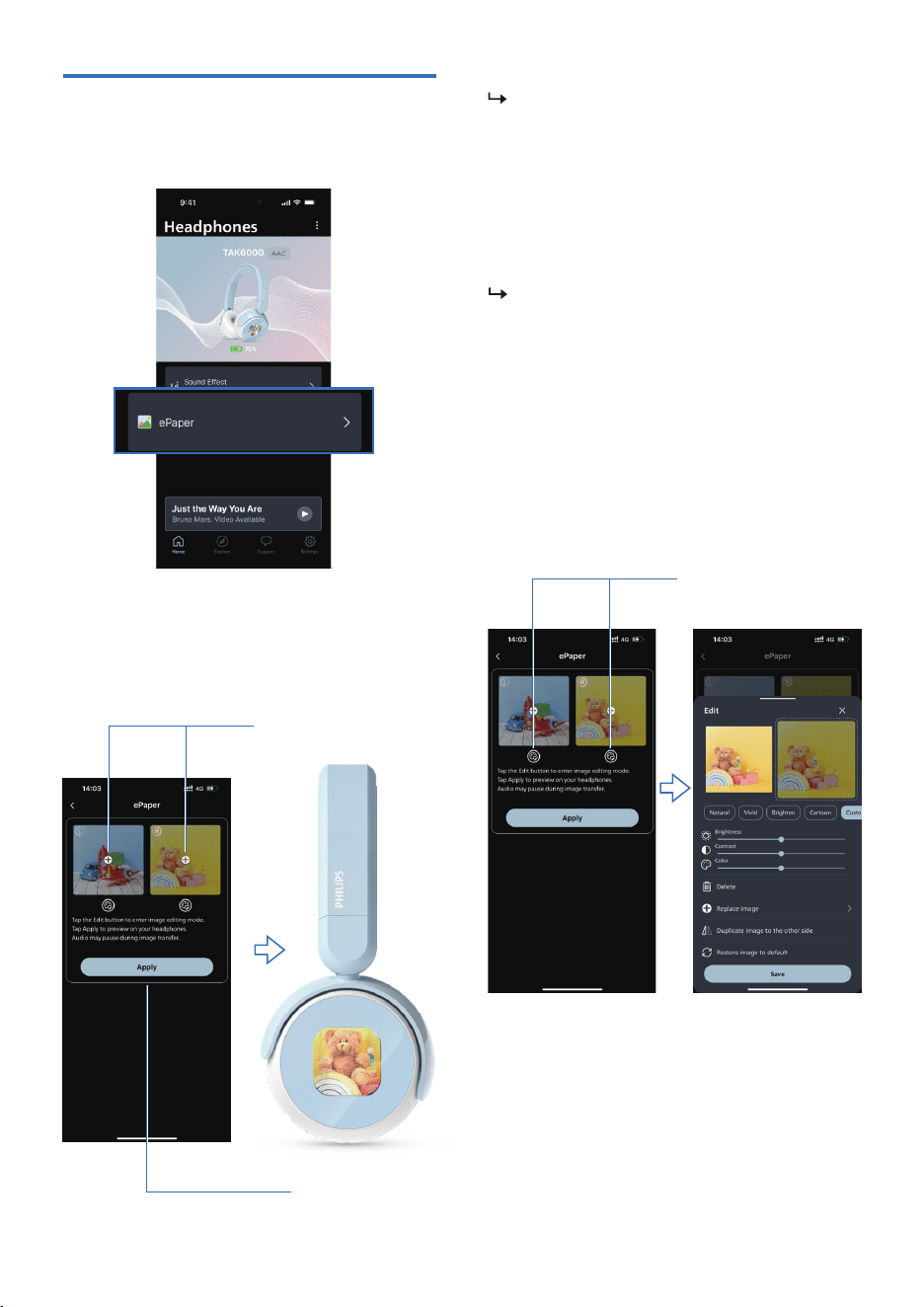
Press power button 4 times consecutively on
A to share audio, and press power button 5
times consecutively on B to accept audio share
from A.
Press power button 4 times consecutively again
to cancel audio share.
Indicator
Headphones LED
indicator status
Headphones status
The headphones are
connected to a
Bluetooth device
The headphones are
ready for pairing
The headphones are
on but not connected
to a Bluetooth device
Low battery level White LED �ashes
every 5 seconds
The LED �ashes blue
and white alternately
White LED �ashes
every 7 seconds
Blue LED �ashes every
5 seconds
5 Customize
setting on
App
Scan the QR code or search 'Philips Headphones'
in the Apple App Store or Google Play to download
the app.
Get Connected
philips.to/headapp
Ensure your device is connected with the
headphones.
R R
A
B
x4 x5
10 EN
Tap the ePaper on the home page to customize
your ePaper display.
Tap "+" to select an image from your photo
album;
Then tap "Apply" to upload image to the ePaper
display.
Tap “Art Creation” icon to edit the image.
Choose a preset or customize your adjustments
in Custom Mode and save your setting.
ePaper
When updating the ePaper image in extreme
high or low temperature environments, you
may experience slower refresh rates, increased
ghosting, incomplete or temporary refresh
failures. This is a normal characteristic of
ePaper displays and does not indicate a
product defect. The display will update
normally after the device settles down to
room temperature.
To ensure ePaper display stability and color
performance, the device will periodically
perform optimization. During this process, the
screen will �ash or reload. This is completely
normal. This process usually takes about 1
minute. Please wait for the optimization to
complete before proceeding with normal
operation.
“+” icon
“Apply” bar
“Art Creation” icon
11 EN
Settings
Multi-Connection
Off
Default
Travel Mode
Sidetone
Call
Product Information
Tone Volume
About
Auto-Off
?
?
?
Home
Explore Support Settings
Auto-Off
30min
Play Time Limit
Play Time Limit
Off
30min
Done
1hr
2hr
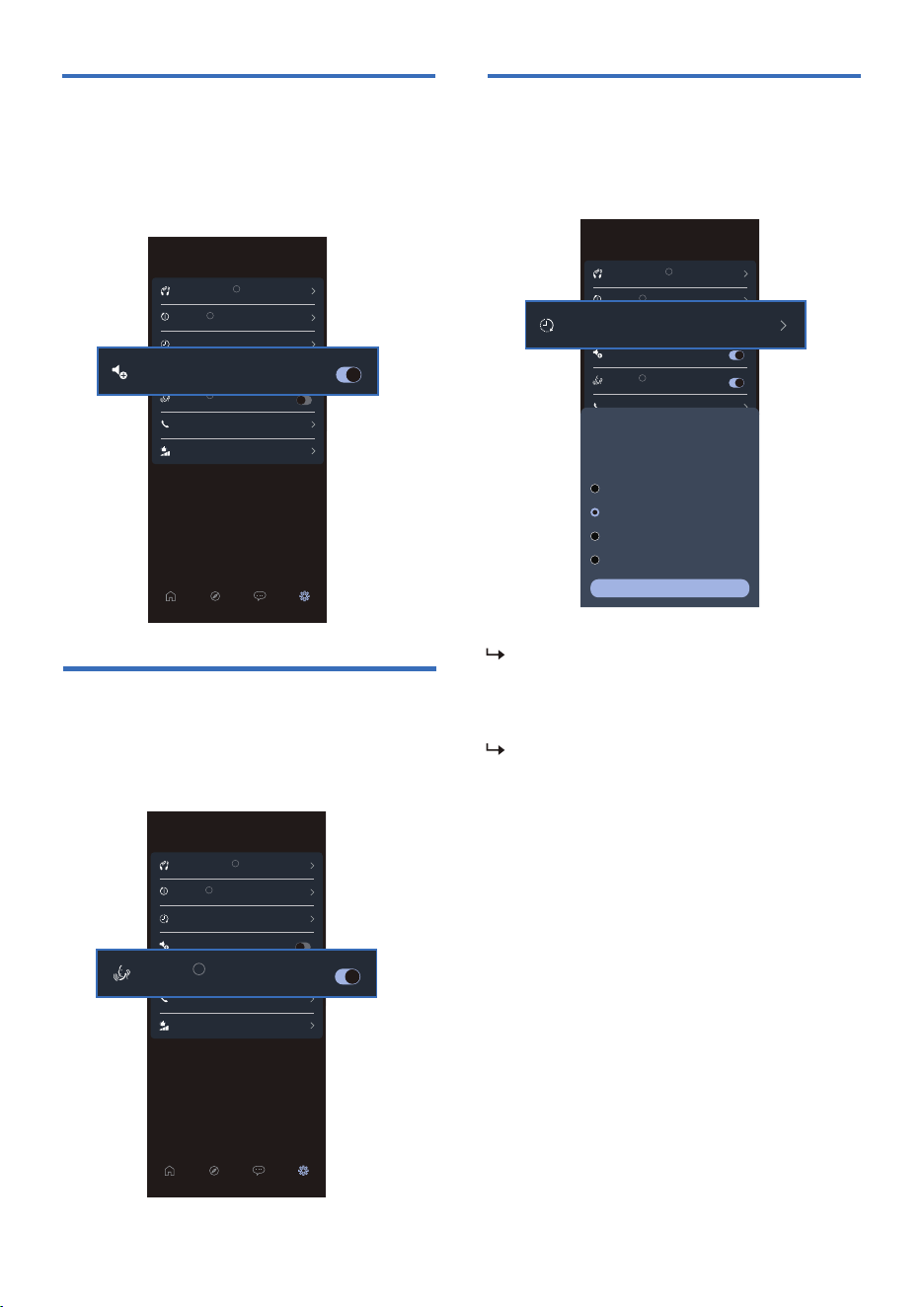
Parents can set a maximum usage time. Once the limit
is reached, the headphones will automatically power
off for 5 minutes before allowing to turn them back on.
Playtime limit setting
Click “Settings” on the bottom menu of the App,
and click “Play Time Limit” to set the playtime to
30min or 1 hour or 2 hours.
A voice prompt indicate ‘Play Time Limit ’
will be heard and the music will be paused
when the playtime limit is reached. The
headphones will turn off at the same time.
You will need to wait for 5mins to turn on
the headphones again if you want to
continue playing from the connected device.
There will be a voice prompt indicate ‘Play
Time Limit ’ if the duration is NOT as long as
5mins.
Volume limit setting
On the “Settings” menu of the App, the default
setting of “Travel Mode” will be OFF, the maximum
volume is limit to 75dB. When “Travel Mode” is ON,
the maximum volume will limit to 85dB.
Sidetone setting
On the “Settings” menu of the App, turn “
Sidetone” ON then you can hear your voice when
you are reading.
30min
Play Time Limit
Settings
Multi-Connection
Off
Default
Travel Mode
Sidetone
Call
Tone Volume
Auto-Off
?
?
?
Home
Explore Support Settings
Auto-Off
30min
Play Time Limit
Travel Mode
Settings
Multi-Connection
Off
Default
Travel Mode
Call
Tone Volume
Auto-Off
?
?
Home
Explore Support Settings
Auto-Off
30min
Play Time Limit
Sidetone
?
Sidetone
?
6 Reset the
headphones
7 Technical data
• Music play time: 45 hours
• Charging time: 2 hours
• Rechargeable lithium ion battery: 300 mAh
• Bluetooth version: 6.0
• Compatible Bluetooth pro�les:
- HFP (Hands-Free Pro�le)
- A2DP
(Advanced Audio Distribution Pro�le)
- AVRCP
(Audio Video Remote Control Pro�le)
• Supported audio codecs: SBC
• Frequency range: 2.4-2.4835 GHz
• Transmitter power: < 10 dBm
• Operating range: Up to 10 meters
(33 feet)
• Auto power off
• USB-C port for charging
• Multipoint connection
• Fast charging time: 15 mins charging gives
10 hrs playtime
Note
• Speci�cations are subject to change without
notice.
• Battery life of playtime is approximate and may
vary depending on application condition.
1. On your Bluetooth device, go to the
Bluetooth menu and remove Philips
TAK6000 from the device list.
2. Turn off the Bluetooth function on your
Bluetooth device.
3. Turn on your headphones.
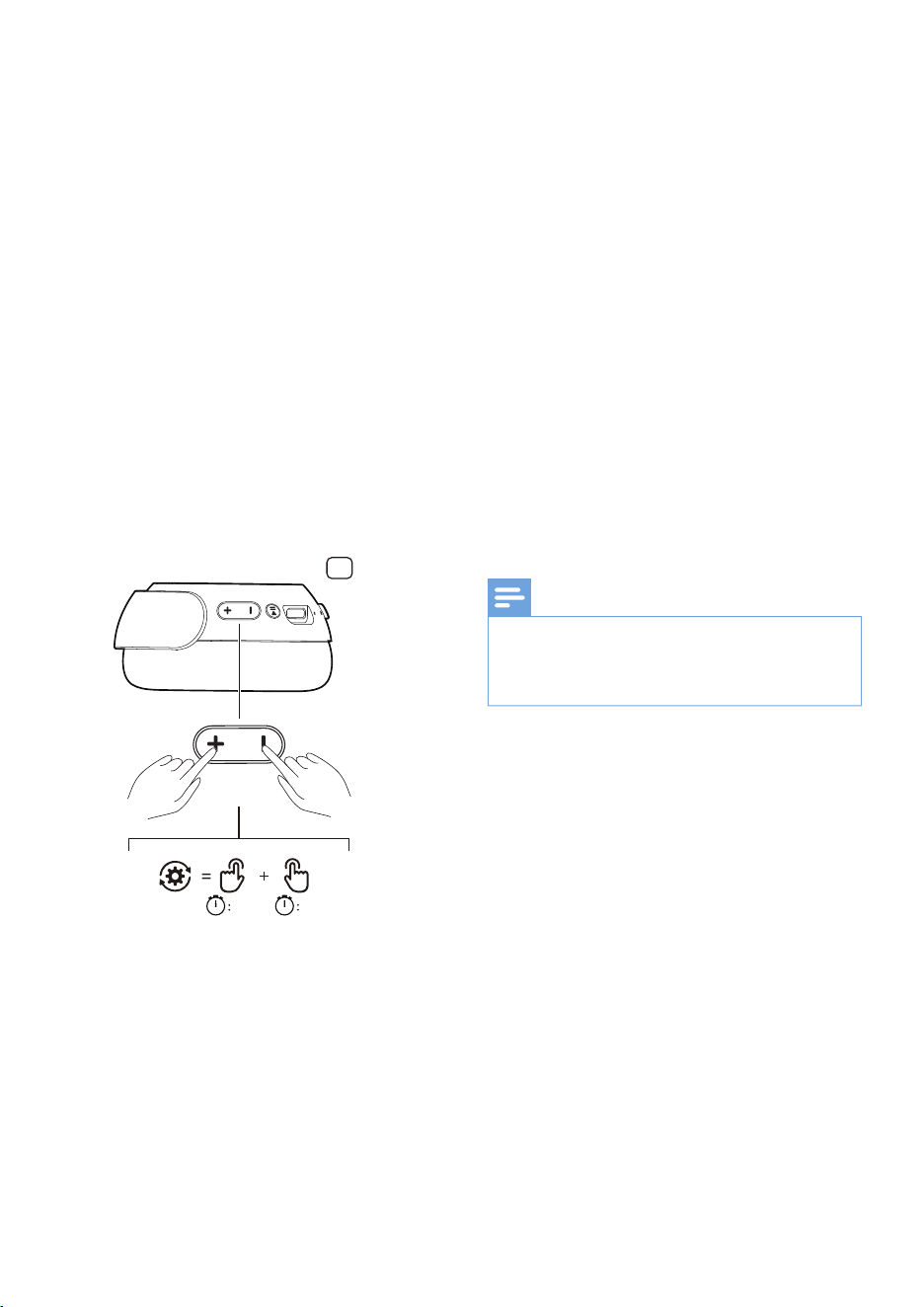
4. Press and hold Volume - and Volume +
for 4 seconds at the same time.
5. Follow steps in “Use your headphones-
connect the headphones to your
Bluetooth device.”
6. Pair the headphones with your Bluetooth
device, select Philips TAK6000.
If you encounter any pairing or connection issue,
you can follow the steps below to reset your
headphones to factory default settings.
12 EN
04" 04"
R
If there is no collection/recycling system for
electronic products in your country, you can protect
the environment by removing and recycling the
battery before disposing the headphones.
This product complies with all applicable
standards and regulations regarding exposure to
electromagnetic �elds.
8 Notice
Hereby, TP Vision Europe B.V. declares that the
product is in compliance with the essential
requirements and other relevant provisions of RED
Directive 2014/53/EU and UK Radio Equipment
Regulations SI 2017 No 1206. You can �nd the
Declaration of Conformity on
www.philips.com/support.
Declaration of conformity
Disposal of your old
product and battery
Your product is designed and
manufactured with high quality materials
and components which can be recycled
and reused.
This symbol on a product means that the
product is covered by European Directive
2012/19/EU.
This symbol means that the product
contains batteries covered by European
Regulation (EU) 2023/1542 which cannot
be disposed of with normal household
waste. Inform yourself about the local
separate collection system for electrical
and electronic products and batteries.
Follow local rules and never dispose of the
product and batteries with normal
household waste. Correct disposal of old
products and batteries helps prevent
negative consequences for the
environment and human health.
Remove the integrated
battery
Compliance with EMF
EN 13
Notice of compliance
The device complies with the FCC rules, Part 15.
Operation is subject to the following two
conditions:
FCC rules
This equipment has been tested and found to
comply with the limits for a Class B digital device,
pursuant to part 15 of the FCC Rules. These limits
are designed to provide reasonable protection
against harmful interference in a residential
installation. This equipment generates, uses and
canradiate radio frequency energy and, if not
installed and used in accordance with the
instruction manual, may cause harmful
interference to radio communications.
However, there is no guarantee that
interference will not occur in a particular
installation. If this equipment does cause
harmful interference to radio or television
reception, which can be determined by turning
the equipment off and on, the user is
encouraged to try to correct the interference by
one or more of the following measures:
• Reorient or relocate the receiving antenna
• Increase the separation between equipment
and receiver
Environmental information
All unnecessary packaging has been omitted. Your
system consists of materials which can be recycled
and reused if disassembled by a specialized
company. Please observe the local regulations
regarding the disposal of packaging materials,
exhausted batteries and old equipment.
1. This device may not cause harmful
interference, and
2. This device must accept any interference
received, including interference that may
cause undesired operation.
Follw the step of ‘Replace the battery’ on
page 5 to remove battery.

14 EN
• Connect the equipment into an outlet on a
circuit different from that to which the
receiver is connected
• Consult the dealer or an experienced radio/TV
technician for help
FCC Radiation Exposure Statement:
Canada:
This device contains licence-exempt
transmitter(s)/receiver(s) that comply with
Innovation, Science and Economic Development
Canada’s license-exempt RSS(s). Operation is
subject to the following two conditions: (1) This
device may not cause interference. (2) This
device must accept any interference, including
interference that may cause undesired operation
of the device.
Avis de conformité
Cet appareil satisfait aux règlements de la FCC
partie 15 du Code of Federal Regulations. Son
fonctionnement est assujetti aux deux
conditions suivantes :
1. Cet appareil ne doit pas causer
d’interférence préjudiciable et
2. l’appareil doit accepter toute interférence
reçue, y compris les interférences qui
peuvent causer un fonctionnement non
désiré.
Caution:
The user is cautioned that changes or
modifications not expressly approved by the party
responsible for compliance could void the user's
authority to operate the equipment.
Rien ne garantit toutefois que des interférences
ne surviendront pas dans une installation
particulière. Si cet équipement cause des
interférences nuisibles pour la réception de la
radio ou de la télévision, ce qui peut être
déterminé en mettant l’équipement hors
tension puis sous tension, l’utilisateur devra
essayer de corriger ces interférences en
effectuant une ou plusieurs des opérations
suivantes :
• Déplacez l’antenne de réception.
• Augmentez la distance entre l’équipement et
le récepteur.
• Branchez l’équipement à une prise d’un
circuit autre que celui sur lequel le récepteur
est branché.
• Consultez le détaillant ou un technicien de
radiotélévision expérimenté.
Canada :
Le présent appareil est conforme aux CNR
d’Industrie Canada applicables aux appareils
radio exempts de licence. L’exploitation est
autorisée aux deux conditions suivantes : (1)
l’appareil ne doit pas produire de brouillage, et
(2) l’utilisateur de l’appareil doit accepter tout
brouillage radioélectrique subi, même si le
brouillage est susceptible d’en compromettre le
fonctionnement.
CAN ICES-(B)/NMB-(B)
Déclaration d’IC sur l’exposition aux radiations:
Cet équipement est conforme aux limites
d’exposition aux radiations dé�nies par le
Canada pour des environnements non contrôlés.
Cet émetteur ne doit pas être installé au même
endroit ni utilisé avec une autre antenne ou un
autre émetteur.
Cet équipement devrait être installé et actionné
avec une distance minimum de 0mm entre le
radiateur et votre corps.
This equipment complies with FCC radiation
exposure limits set forth for uncontrolled
environments.
This transmitter must not be co-located or
operating in conjunction with any other antenna
or transmitter.
Règlement de la FCC
Cet équipement a été testé et jugé compatible
avec les limites s’appliquant aux appareils
numériques de la classe B, conformément à
l’article 15 du règlement de la FCC. Ces limites
ont été dé�nies pour fournir une protection
raisonnable contre les interférences nuisibles
dans le cadre d’une installation résidentielle. Cet
équipement génère, utilise et peut émettre de
l’énergie radiofréquence et, s’il n’est pas installé
ni utilisé conformément aux instructions, peut
causer des interférences gênantes pour les
communications radio.

9 Frequently
asked
questions
My Bluetooth headphones do not turn on.
The battery level is low. Charge the headphones.
I cannot pair my Bluetooth headphones with my
Bluetooth device.
The Bluetooth is disabled. Enable the Bluetooth
feature on your Bluetooth device and turn on
the Bluetooth device before you turn on the
headphones.
How to reset pairing.
While the device is powered on, press and hold
the
Bluetooth pairing button
for 5 secondsuntil
the blue and white LED alternately �ashes. This
triggers re-pairing mode in two cases:
1) Switching devices in multipoint connection
mode;
2) Connecting to a new source device.
I hear but cannot control music on my Bluetooth
device (e.g. play/pause/skip forward/backward).
Make sure the Bluetooth audio source supports
AVRCP (see ‘Technical data’ on page 12).
The volume level of the headphones is too low.
Some Bluetooth devices cannot link the volume
level with the headphones through volume sync.
In this case, you have to adjust the volume on
your Bluetooth device independently to achieve
an appropriate volume level.
The Bluetooth device cannot �nd the
headphones.
• The headphones may be connected to a
previously paired device. Turn off the
connected device or move it out of range.
• Pairing may have been reset or the
headphones have been previously paired
with another device. Pair the headphones
with the Bluetooth device again as described
in the user manual. (see ‘Pairing with
another Bluetooth device’ on page 7).
My Bluetooth headphones are connected to a
Bluetooth stereo enabled mobile phone, but
music only plays on the mobile phone speaker.
Refer to the user manual of your mobile phone.
Select to listen to music through the
headphones.
The audio quality is poor and crackling noise can
be heard.
• The Bluetooth device is out of range. Reduce
the distance between your headphones and
Bluetooth device, or remove obstacles
between them.
• Charge your headphones.
Clean your headphones regularly.
• Use a clean, damp cloth to clean your
headphones - especially the sound conduits
and the microphone holes - regularly and
avoid buildup of substances such as sweat or
earwax.
• If any sweat or water droplets are left in the
sound conduits, air holes or microphone
holes, the sound level will temporarily drop
or cut out entirely. This is not a malfunction.
Use a soft, damp cloth to dry the
headphones thoroughly. Alternatively, for
in-ear headphones remove the earbud tips,
turn the sound conduits downward and
gently tap the headphones about �ve times
on a dry cloth or similar to remove any water
collected inside.
• Be sure the headphones are completely dry
before charging and using. Avoid using
disposable alcohol pads or other substances
for cleaning.
Charge your headphones regularly.
If the headset is not used for a long time, the
rechargeable battery will begin to lose its
charge. To avoid this loss, please fully charge the
battery at least once every three months.
10 Trademarks
Bluetooth
For further support, visit www.philips.com/support.
The Bluetooth® word mark and logos are
registered trademarks owned by Bluetooth SIG,
Inc. and any use of such marks by MMD Hong
Kong Holding Limited is under license. Other
trademarks and trade names are those of their
respective owners.
EN 15

UM_TAK6000_00_EN_2.0
MMD Hong Kong Holding Limited. All rights reserved. Speci�cations are subject to change without notice.
Philips and the Philips Shield Emblem are registered trademarks of Koninklijke Philips N.V. and are used under license. This product
has been manufactured by and is sold under the responsibility of MMD Hong Kong Holding Limited or one of its affiliates, and
MMD Hong Kong Holding Limited is the warrantor in relation to this product. All other company and product names may be
trademarks of their respective companies with which they are associated.