
[在此处键入]
MORNVOY
Automobile Smart Screen
manual

[在此处键入]
[在此处键入]
Contents
1 Product Overview ......................................................................................................................................................... 3
2 Product Composition List .......................................................................................................................................... 4
3 Product Parameters ..................................................................................................................................................... 5
4 Wiring Instructions....................................................................................................................................................... 7
5 Installation of reverse camera (optional) .......................................................................................................... 11
6 Interface specification .............................................................................................................................................. 12
6.1 Gemini ............................................................................................................................................................... 14
6.2 Half Screen mode .......................................................................................................................................... 15
6.3 Connect to the network .............................................................................................................................. 17
6.4 Recent Task Button ........................................................................................................................................ 18
6.5 Startup Wizard ................................................................................................................................................ 21
6.6 Carplay ............................................................................................................................................................... 23
6.7 Android Auto ................................................................................................................................................... 28
6.8 Audio output ................................................................................................................................................... 30
6.9 Help Center ...................................................................................................................................................... 32
6.10 Files .................................................................................................................................................................. 38
6.11 Settings ........................................................................................................................................................... 39
[在此处键入]
[在此处键入]
1 Product Overview
MORNVOY Smart Screen has true dual 5G WiFi, supporting wireless WiFi connection to
Carplay, Android Auto for mobile phone connectivity. At the same time, WiFi function can be
used in settings to connect to personal hotspots on the phone and use applications such as
YouTube, Netflix, Gemini, etc.
In addition, it also adopts a true dual Bluetooth chip design, which can receive Bluetooth from
mobile phones to complete mobile phone interconnection, and can also transmit
independent Bluetooth audio to car systems.
[在此处键入]
[在此处键入]
2 Product Composition List
Name
Graphic
Instructions
Number
The host
10.25-inch HD display (1920x720) / touch control / dual
Bluetooth / dual WIFI / audio output / powered by Type
C interface.
1
The power
cord
Type C power cable / 12-24V / 3A current / integrated
cable / cigarette lighter power supply.
1
Pull back
camera
AHD FHD (1080P)/4PIN BMW camera
1
Pull the
headphone
extension cord
back
Pull back headphone cable / 6m / 2.5mm headphone
+4PIN BMW head/double shield/with reverse cable
1
AUX
After selecting the AUX audio output mode, use AUX to
connect the smart screen to the car audio system.
1
[在此处键入]
[在此处键入]
3 Product Parameters
Project
Function
introduction
Performance indicators
Network
Dual WiFi
Capable of connecting to WiFi, enabling internet
connectivity
Supports wireless connection to Apple Carplay, Android
Auto
Input methods
Input methods
Google Input, other inputs.
More settings
Operating language
Default is English, can be customized to other multiple
languages
Operating interface
Graphical menu navigation
Operation mode
Touch control
Version upgrade
SD card upgrade/OTA upgrade
Factory reset
Can restore to factory system settings
Install apps
You can download applications from the Google Play
Store
Video display
Real-time display
10.25-inch high-definition IPS screen, 1920X720
Reverse display
Reverse display
Automatically switches to the rear view
Astern line adjustment
Adjust the reversing line for various models
Quick Access
Menu
Quick Access Menu
Half/Full Screen Mode, Home Screen, Volume Down,
Return, Volume Up, Backend application management,
Brightness Adjustment
Third-Party
Applications
Carplay
Carplay, Apple's in-vehicle system, seamlessly
integrates functionalities such as telephony, music
entertainment, and more, enabling intelligent connectivity
and facilitating a convenient driving experience.

[在此处键入]
[在此处键入]
Android
Auto
Android Auto allows for effortless connection between
Android smartphones and automobiles, providing easy
access to navigation, music, telephony, and other
essential functions while driving.
YouTube
YouTube stands as the world's largest video-sharing
platform.
Netflix
Netflix is a pioneering global streaming entertainment
service, offering an extensive library of movies, TV
series, and other video content for online viewing.
YT Music
YT Music, an independent music application launched by
the YouTube team, offers both video and audio music
modes for a versatile listening experience.
Power part
The power input
The step-down line supports a wide voltage range of
12-24V, and has car-grade anti-surge, anti-reverse
connection and other power protection.
Other
Working temperature
-4~149 ℉
Camera Mirroring
Camera mirroring inversion in up-down and left-right
directions to fit various installation methods
[在此处键入]
[在此处键入]
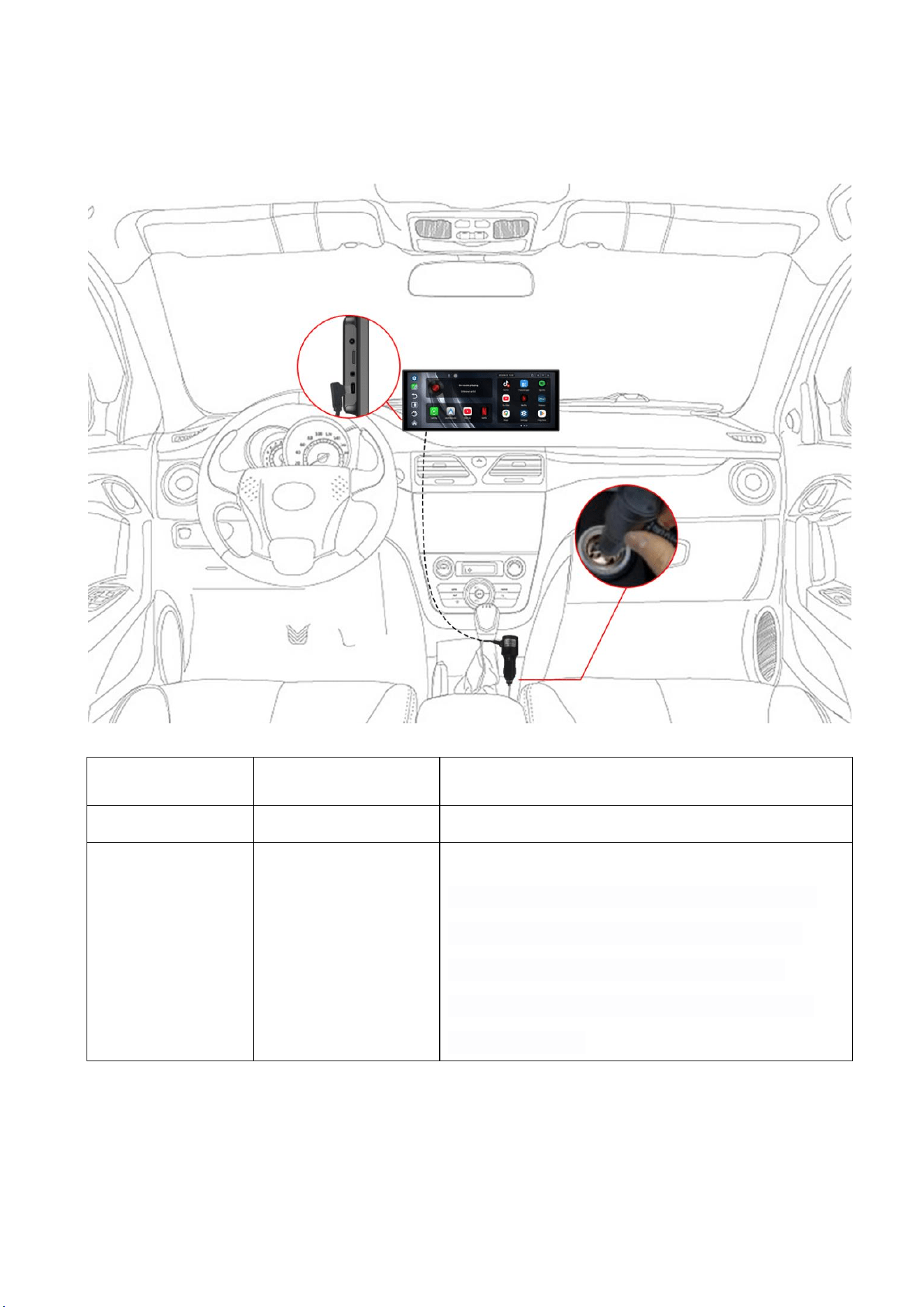
4 Wiring Instructions
Serial number
Interface
Illustrate
1
Type C interface
Motherboard power supply interface
2
Cigarette lighter
Cigarette lighter takes electricity directly;
Note: Please use our charger, otherwise it is easy
to damage the machine or cause other injuries
due to insufficient voltage and heat, and the
frequency modulation transmission function will
not work properly.
[在此处键入]
[在此处键入]
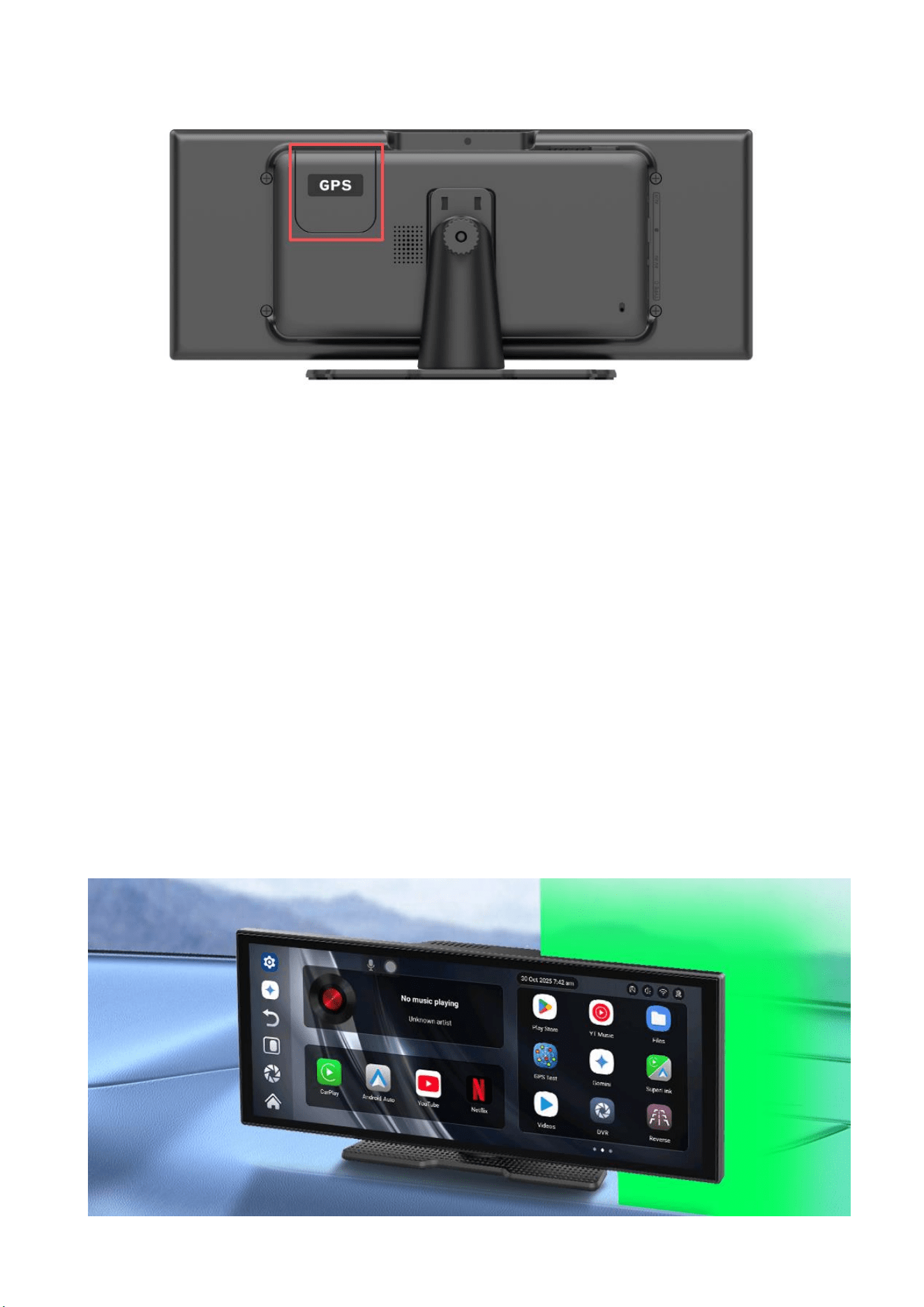
GPS: The T89 supports built-in GPS functionality. It can accurately locate the vehicle
in real time and obtain its position through satellite signals. With intelligent route
planning combined with real-time traffic data, it dynamically adjusts the route to
avoid congested sections, thereby improving travel efficiency.
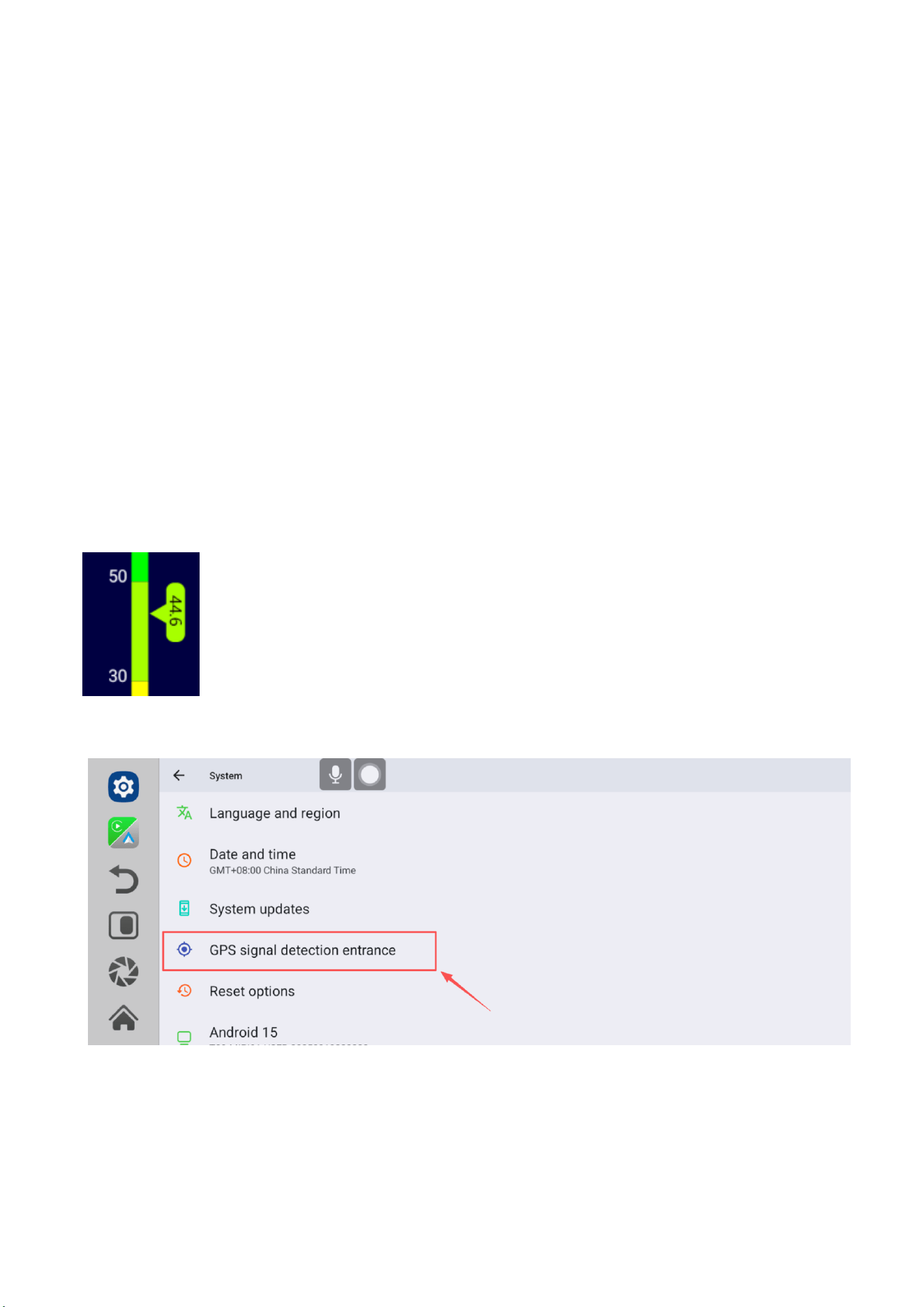
Install the product on the front center console of the car, beneath the front
windshield! Do not attach the product to the car's air vents or place it under the
air vents! (Also, please do not place any obstructions such as tissue boxes,
decorative items, or hanging ornaments to the right of or above the product.)
[在此处键入]
[在此处键入]
The green area is the GPS signal reception zone. Please do not obstruct it! Otherwise,
the reception of GPS signals will be affected. Placing it in the middle of the
dashboard will result in better signal reception!
Attention: The GPS locator can be installed on the center console next to the A-pillar
of the car (if the car's front windshield is covered with film, it may affect the GPS
signal, please find another place with good signal for installation). During
installation, the antenna should face upwards and the adhesive should face
downwards.
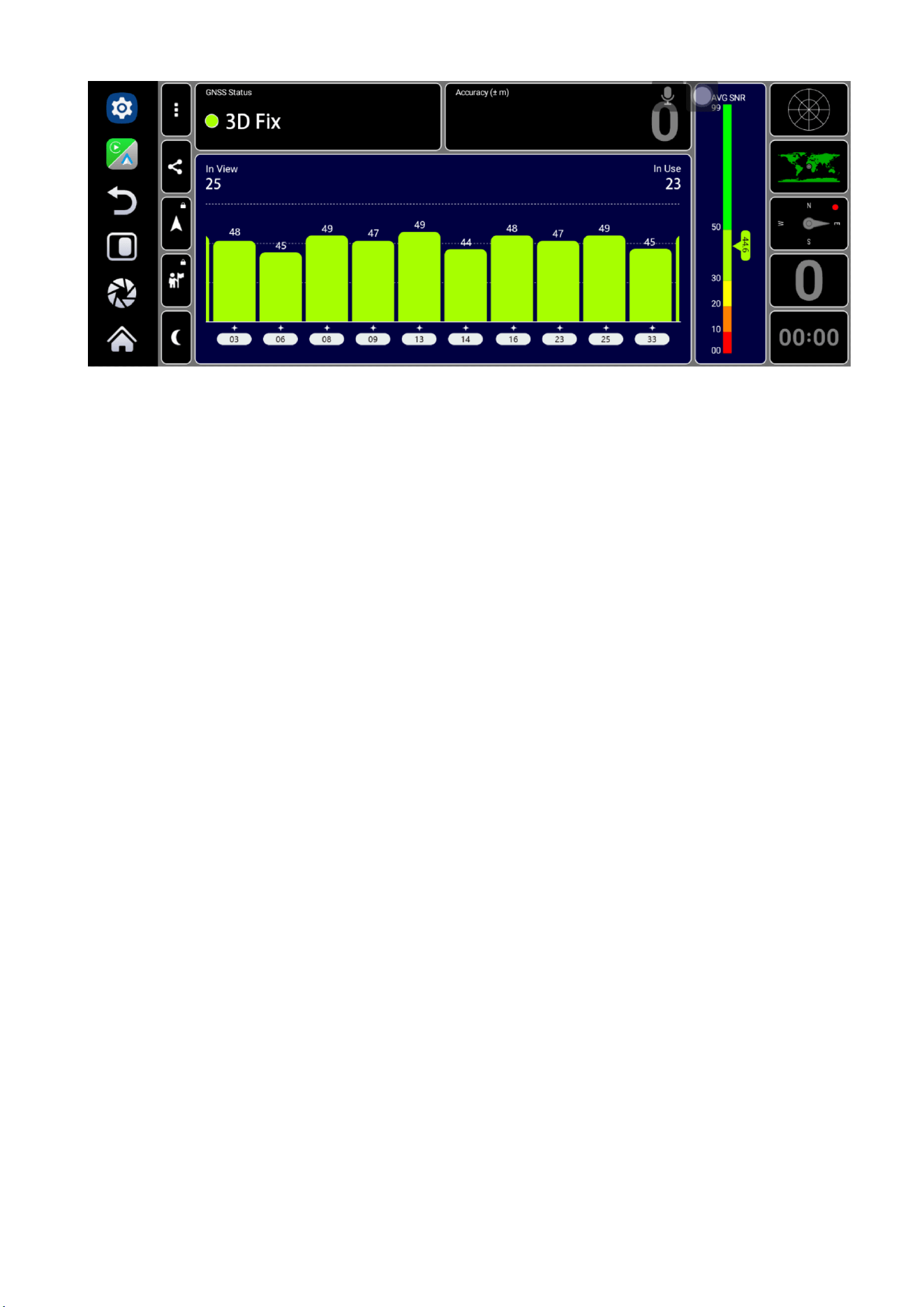
After installation, please click on Settings - System - GPS Signal Detection
Entrance. If the detection signal score is above 35 points, the signal is
normal.
[在此处键入]
[在此处键入]
Note: Some new energy electric vehicles may interfere with GPS, preventing the
built-in GPS from receiving signals.
[在此处键入]
[在此处键入]
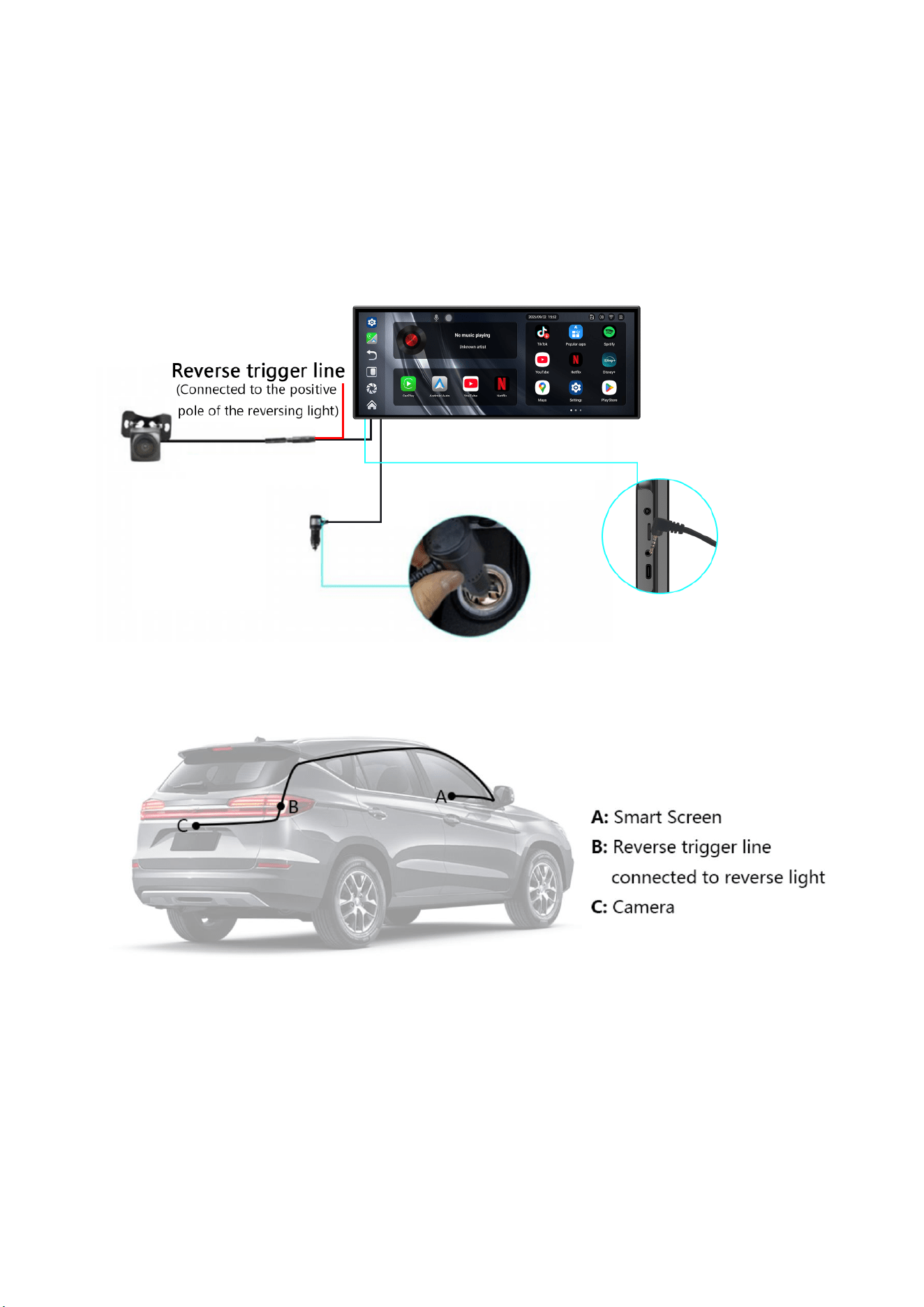
5 Installation of reverse camera (optional)
Find a suitable installation location near the license plate, mark it with a pen, and drill screw
holes of appropriate size. Secure the camera to the rear of the car with screws, and finally
connect it to the monitor with an extended camera cable.
[在此处键入]
[在此处键入]
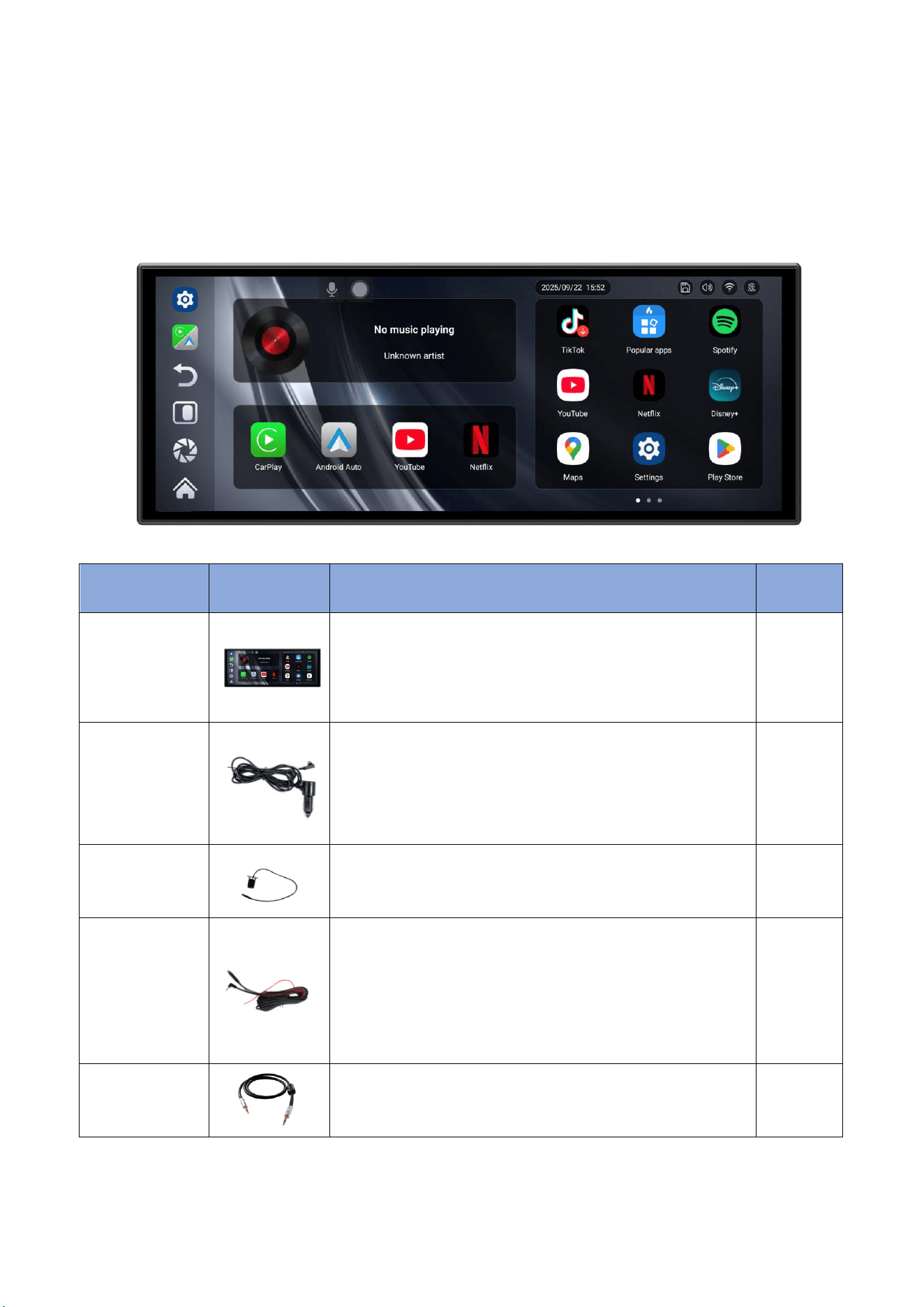
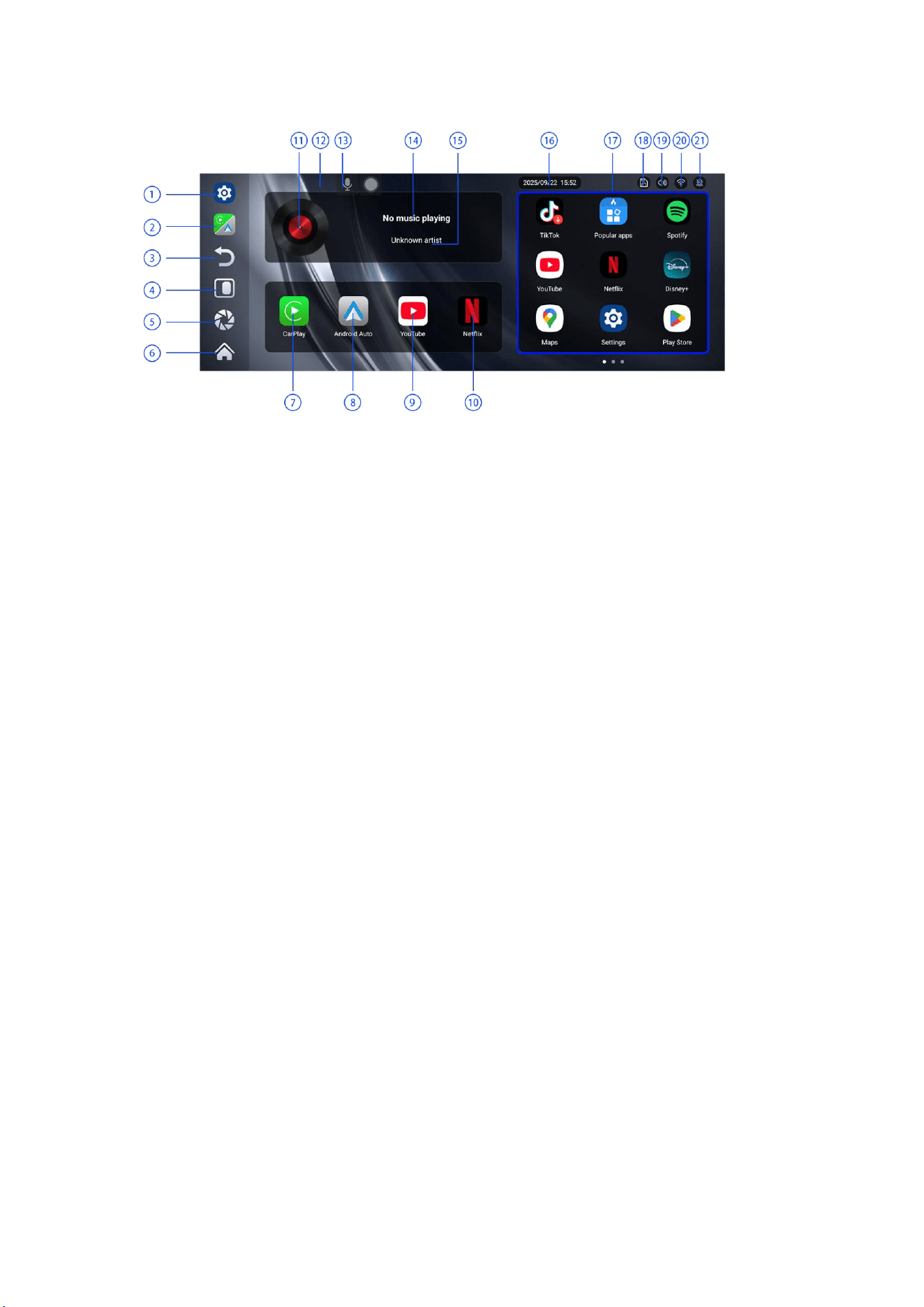
6 Interface specification
1: Recently opened application 1
2: Recently opened application 2
3: Return button
4: Split screen mode button
5: Reverse screen button
6: Home button
7: Carplay button
8: Android Auto button
9: YouTube button
10: Netflix button
11: Audio player button
12: Quickly activate Gemini voice control function button
13: Shortcut menu (small white dot) auxiliary button
14: Song name
15: Songwriter
16: Time and Date
17:Application list (slide to flip pages)
[在此处键入]
[在此处键入]
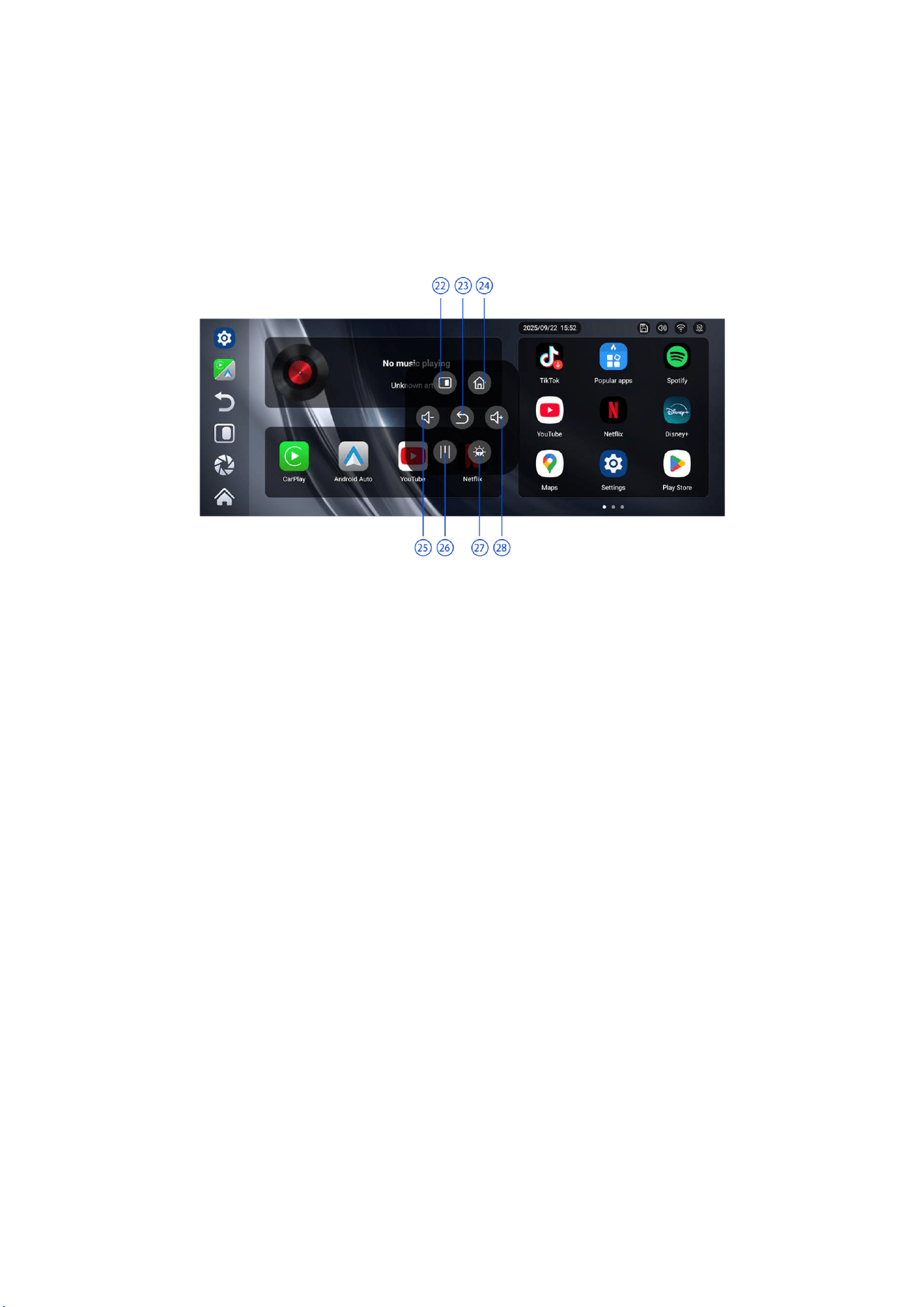
18: Storage card status
19: Audio transmission status
20: WiFi status
21: GPS status
22: Half screen mode button/Full screen mode button (detailed introduction as follows)
23: Return button
24: Home button
25: Volume down button
26: Recent Task Button (detailed introduction as follows)
27: Brightness adjustment button
28: Volume Enhancement Button
[在此处键入]
[在此处键入]
6.1 Gemini
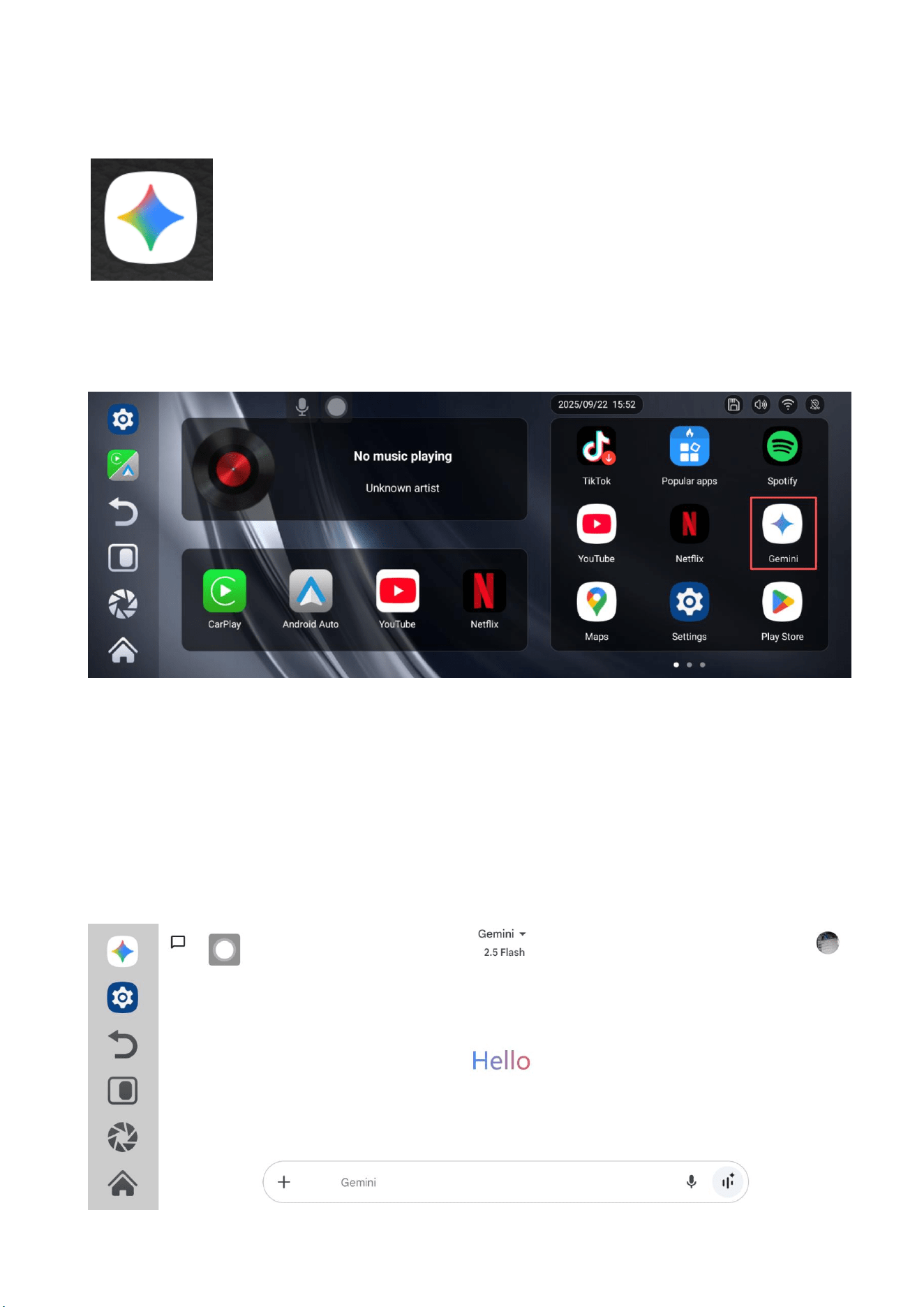
MORNVOY Smart Screen can use Gemini voice control technology and
support full language recognition. Use Gemini to implement voice
controlled navigation, play music, open applications, and other
operations.
Gemini needs to be connected to the network before it can be used normally. (Gemini
supports most countries and regions' networks. If the Gemini icon cannot be found, it
indicates that Gemini does not support the current regional network.)
[在此处键入]
[在此处键入]
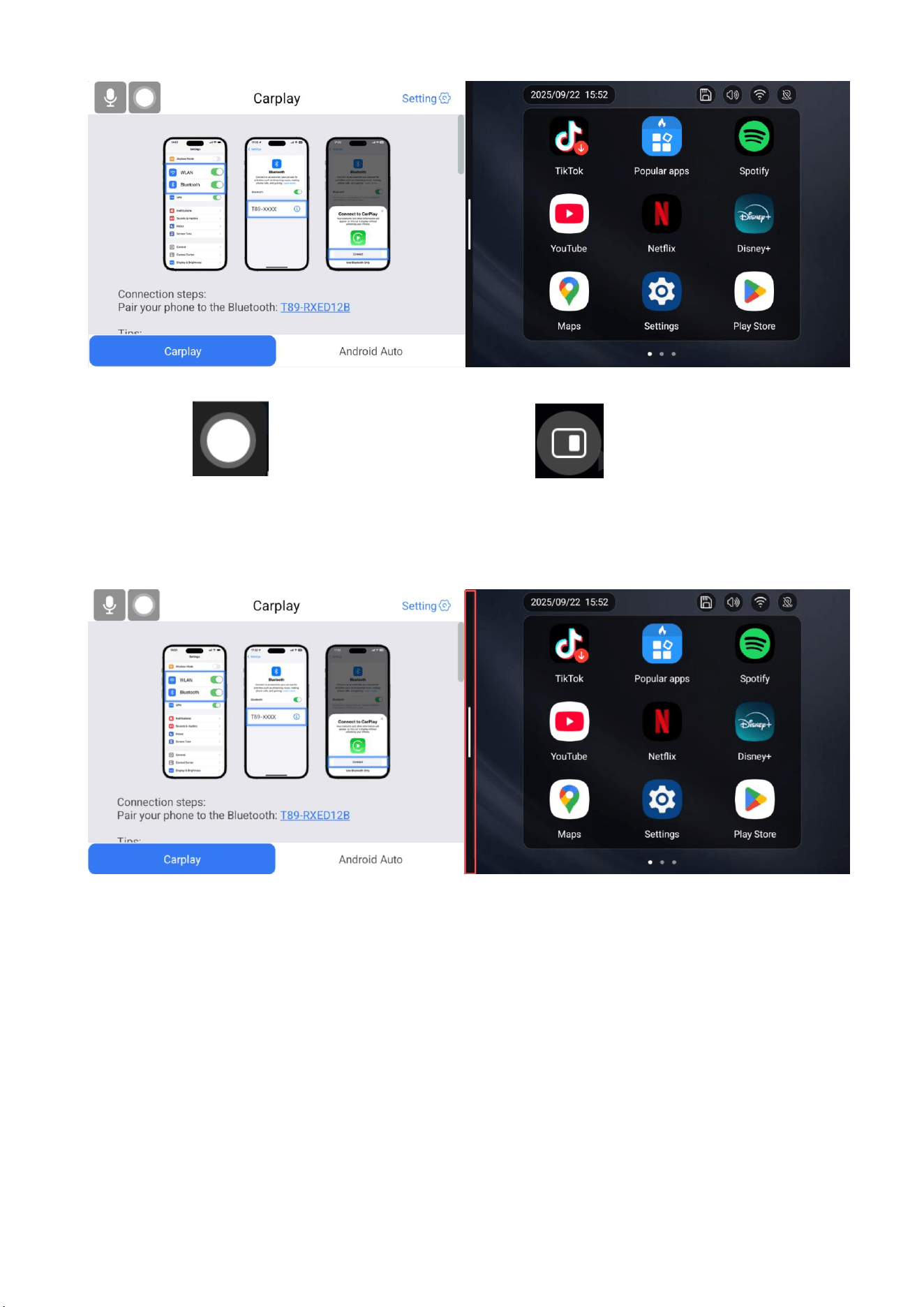
6.2 Half Screen mode
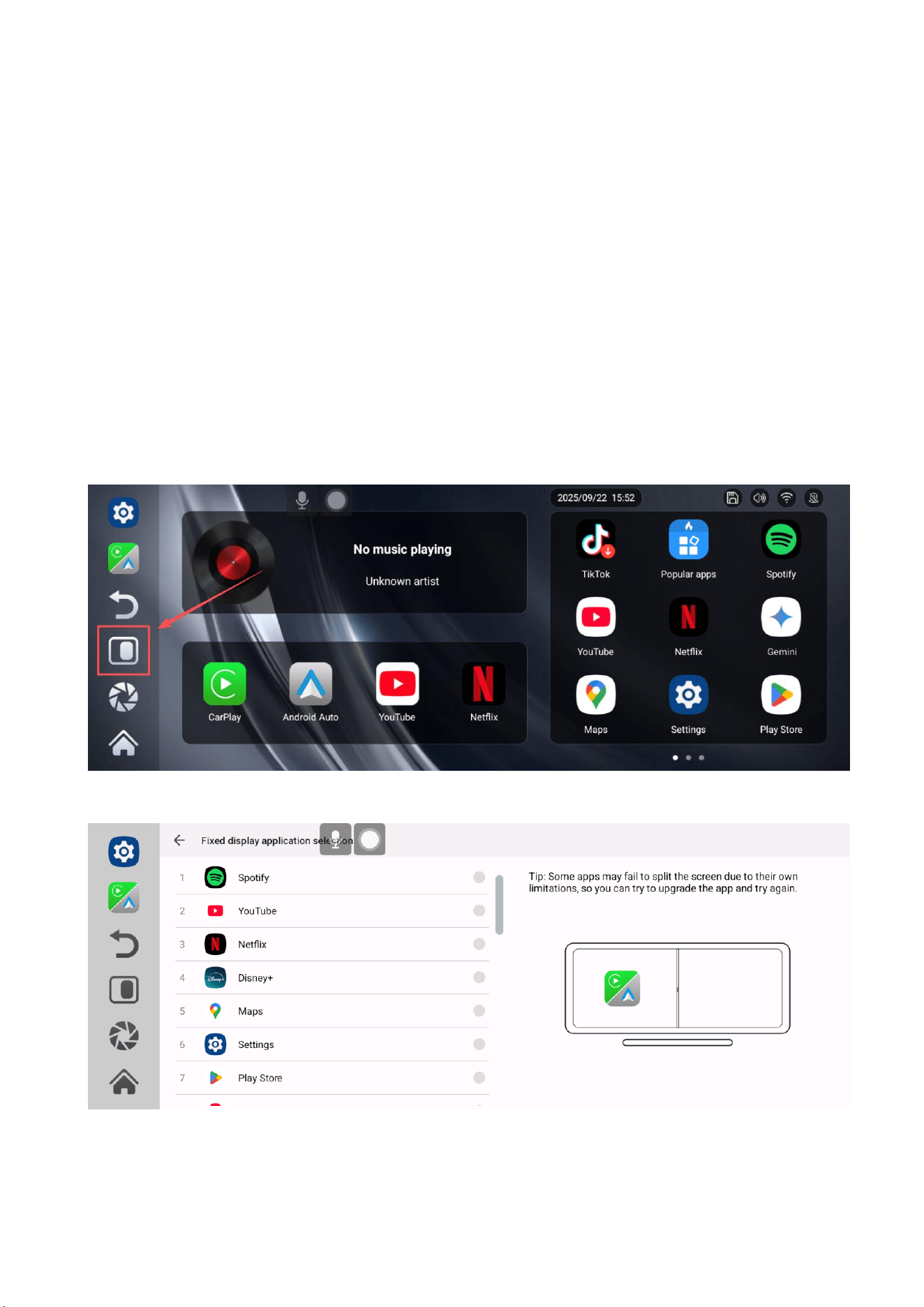
Half screen mode allows users to run multiple applications simultaneously on the same
screen, thereby avoiding the time waste caused by frequent switching of applications. This
parallel processing approach enables users to complete multiple tasks more quickly.
Click the 'Half Screen' button to enter half screen mode.
[在此处键入]
[在此处键入]
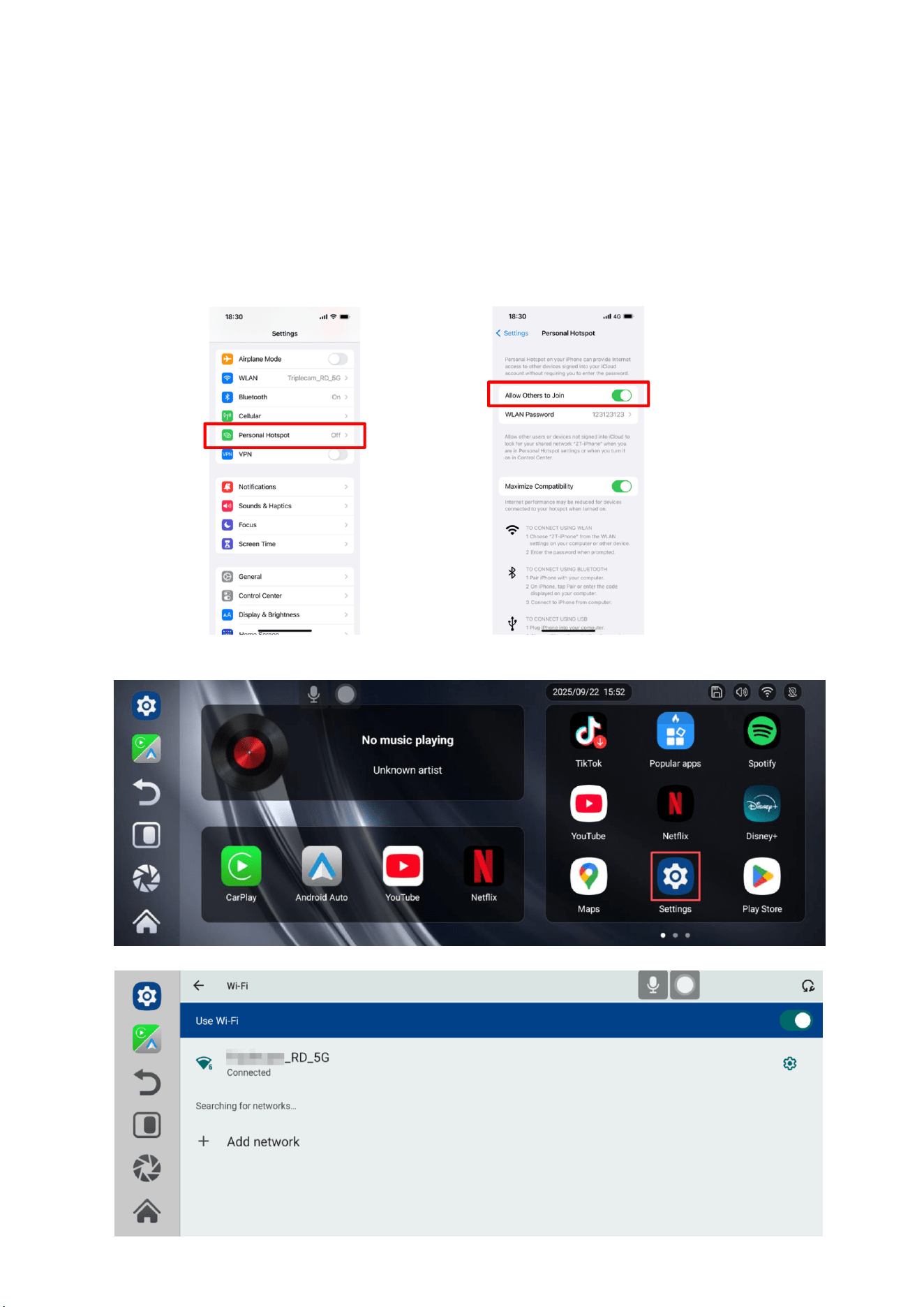
Click on the 'Auxiliary button' and select the 'Full screen button' to exit half
screen mode.
Slide the middle boundary line left and right to both sides to exit the half screen mode.
[在此处键入]
[在此处键入]
6.3 Connect to the network
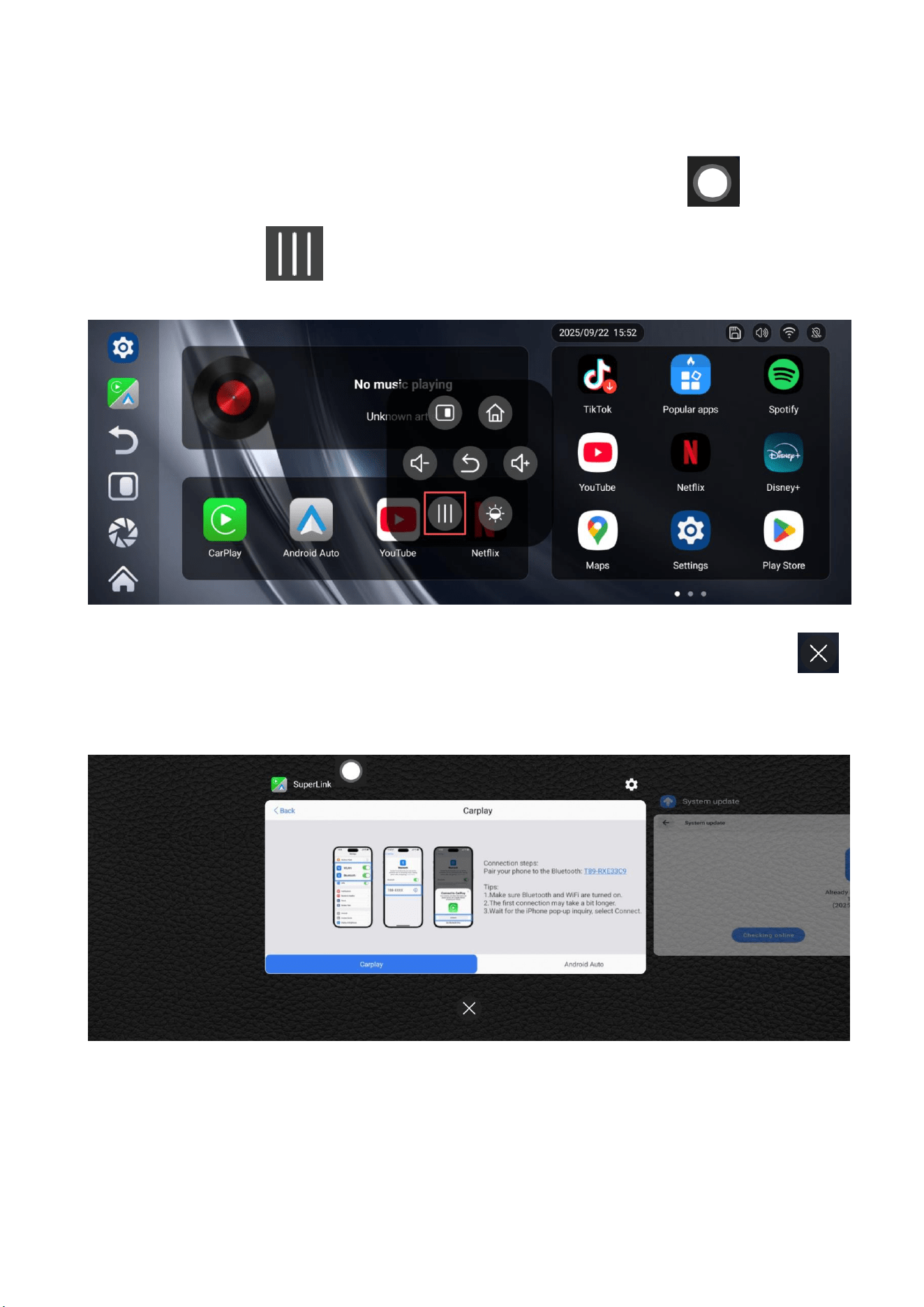
Some functions of MORNVOY Smart Screen require a network connection to use.
Please turn on your phone hotspot, then click on the Smart Screen Settings - WiFi, turn
on the WiFi switch, select and connect to your phone hotspot.
[在此处键入]
[在此处键入]
6.4 Recent Task Button
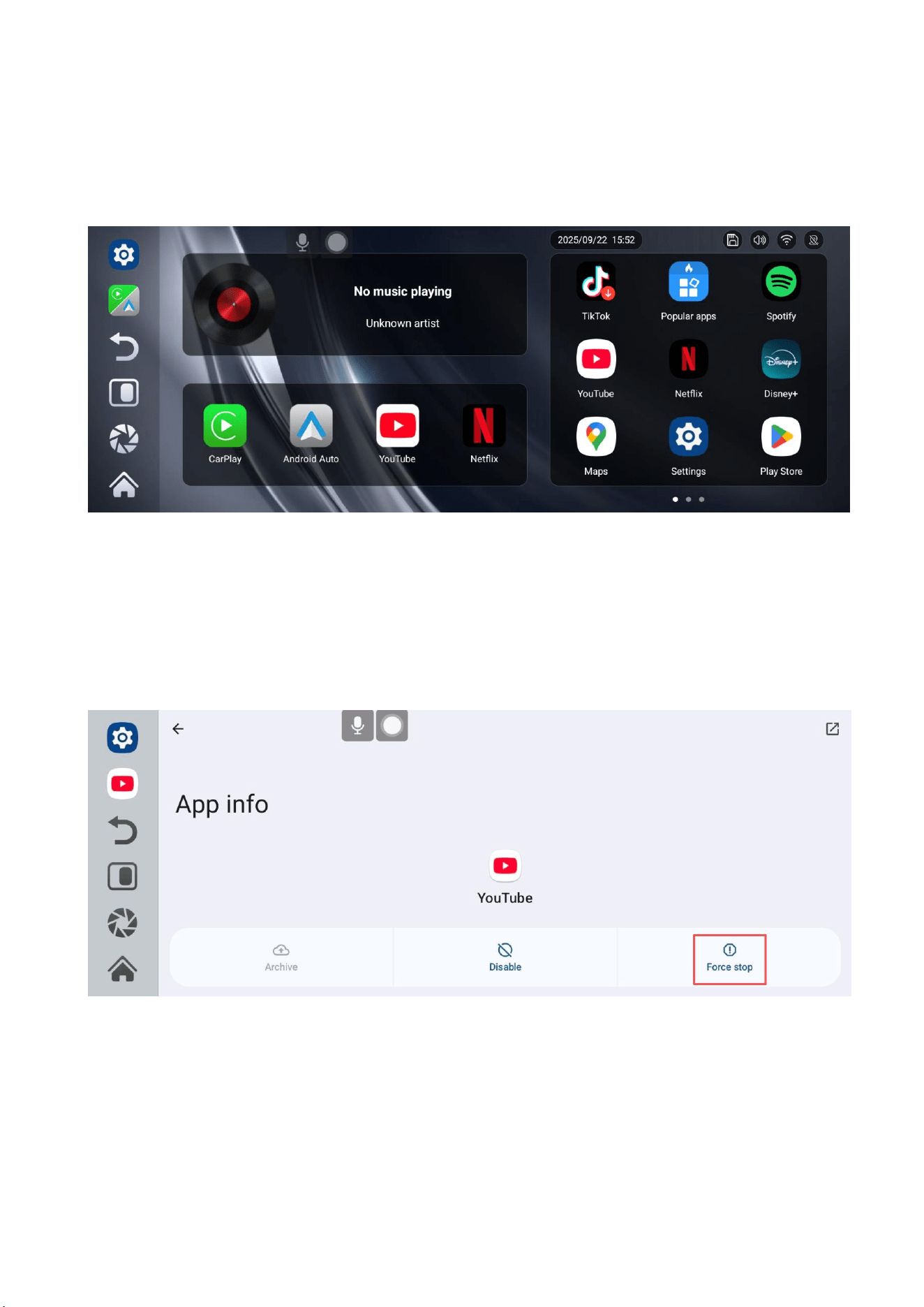
When the application runs incorrectly, you can open the auxiliary button and click the
'Recent Tasks' button.
Swipe left or right to select recent apps, swipe up to close apps, click the close button
to close all recent apps with just one click, and then restart the wrong app.
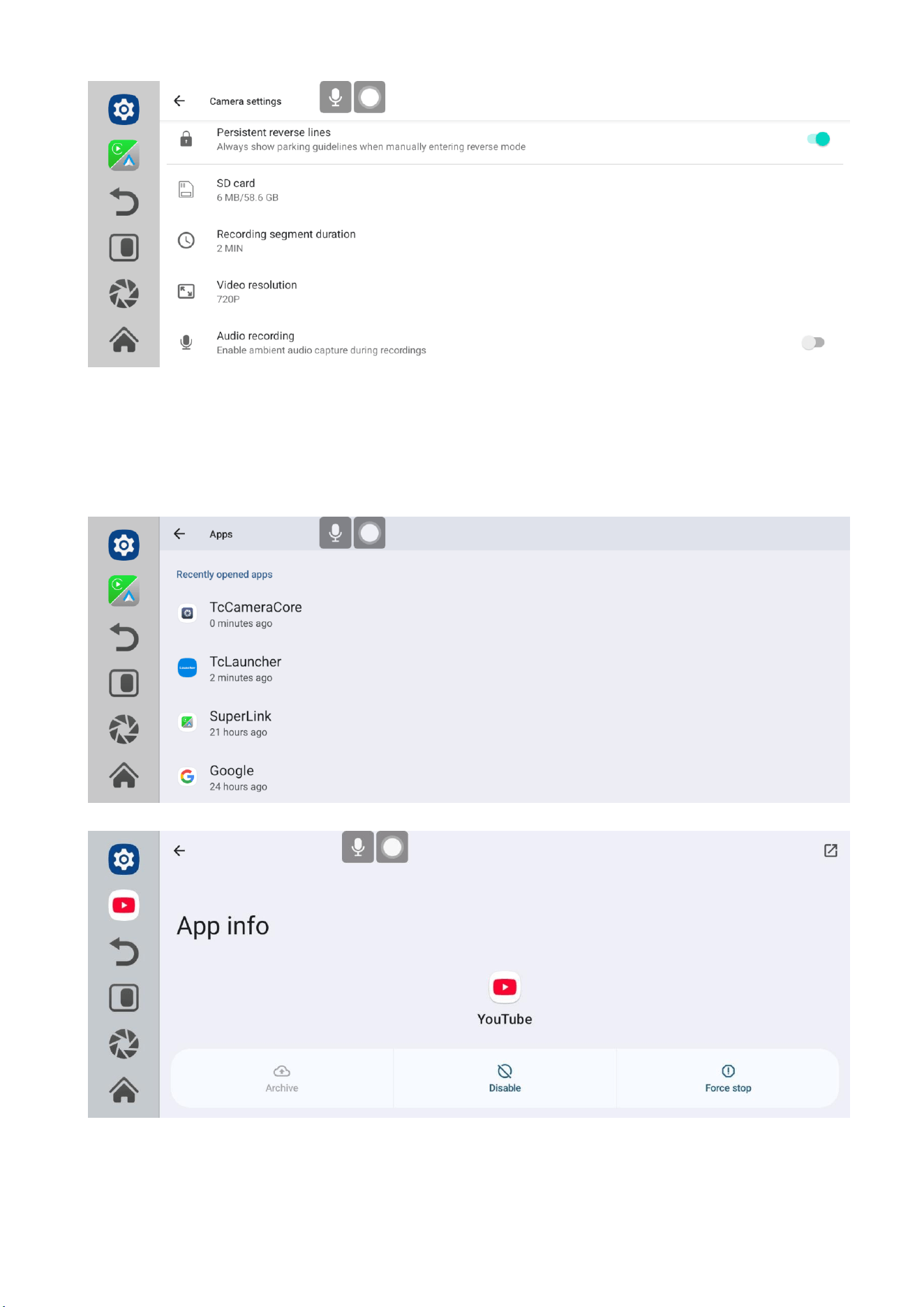
When the application is not running properly, you can also long press the application icon
to enter the application information interface. (Taking YouTube as an example below)
[在此处键入]
[在此处键入]
1. Long press the YouTube application icon on the main interface to enter the application
information interface.
2. After clicking on the 'Force Stop' icon, open YouTube again to check if it is running
properly.
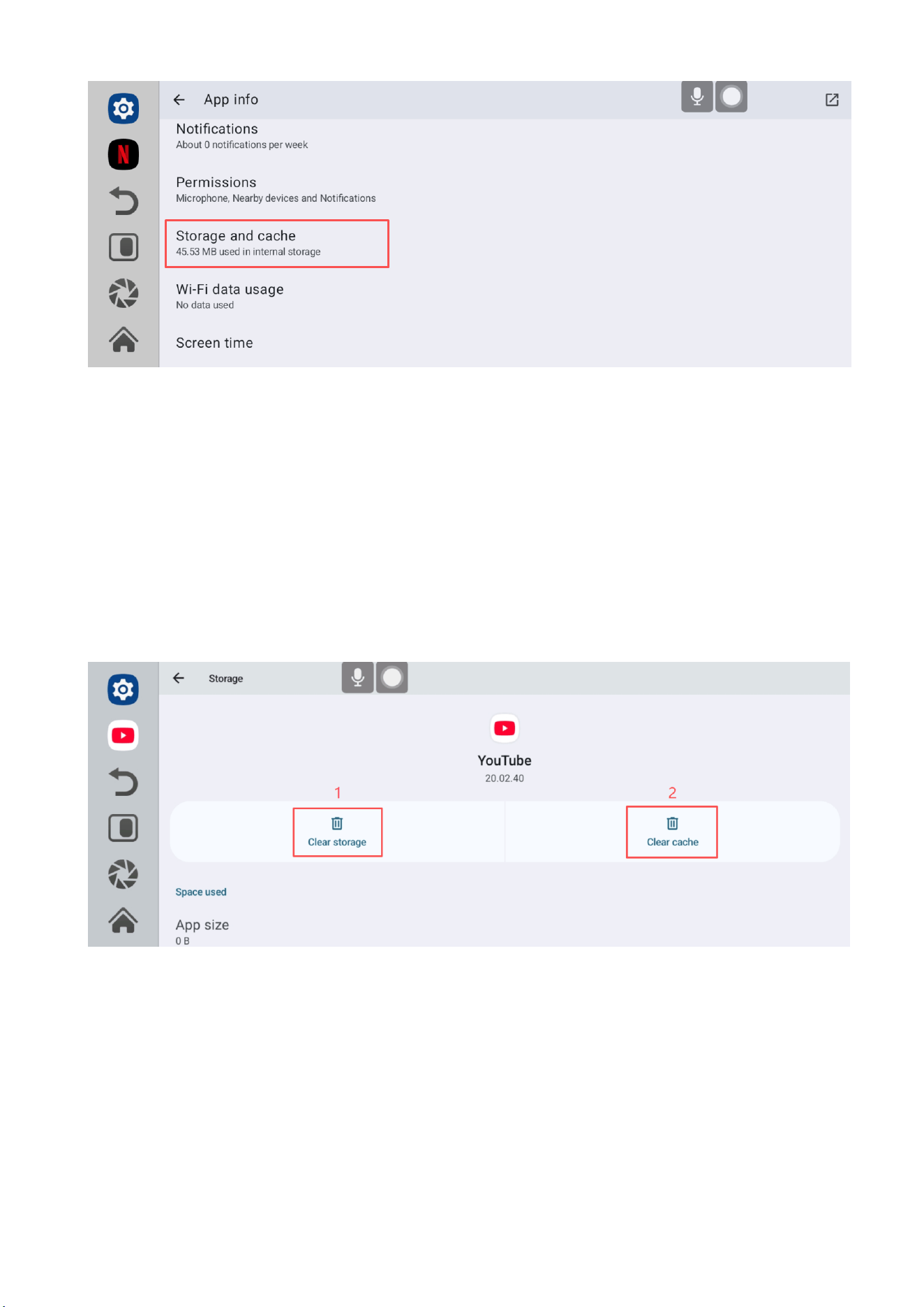
3. If you still cannot restore normal operation after opening YouTube again, please scroll
down in the application information interface and click on 'Storage & cache'.
[在此处键入]
[在此处键入]
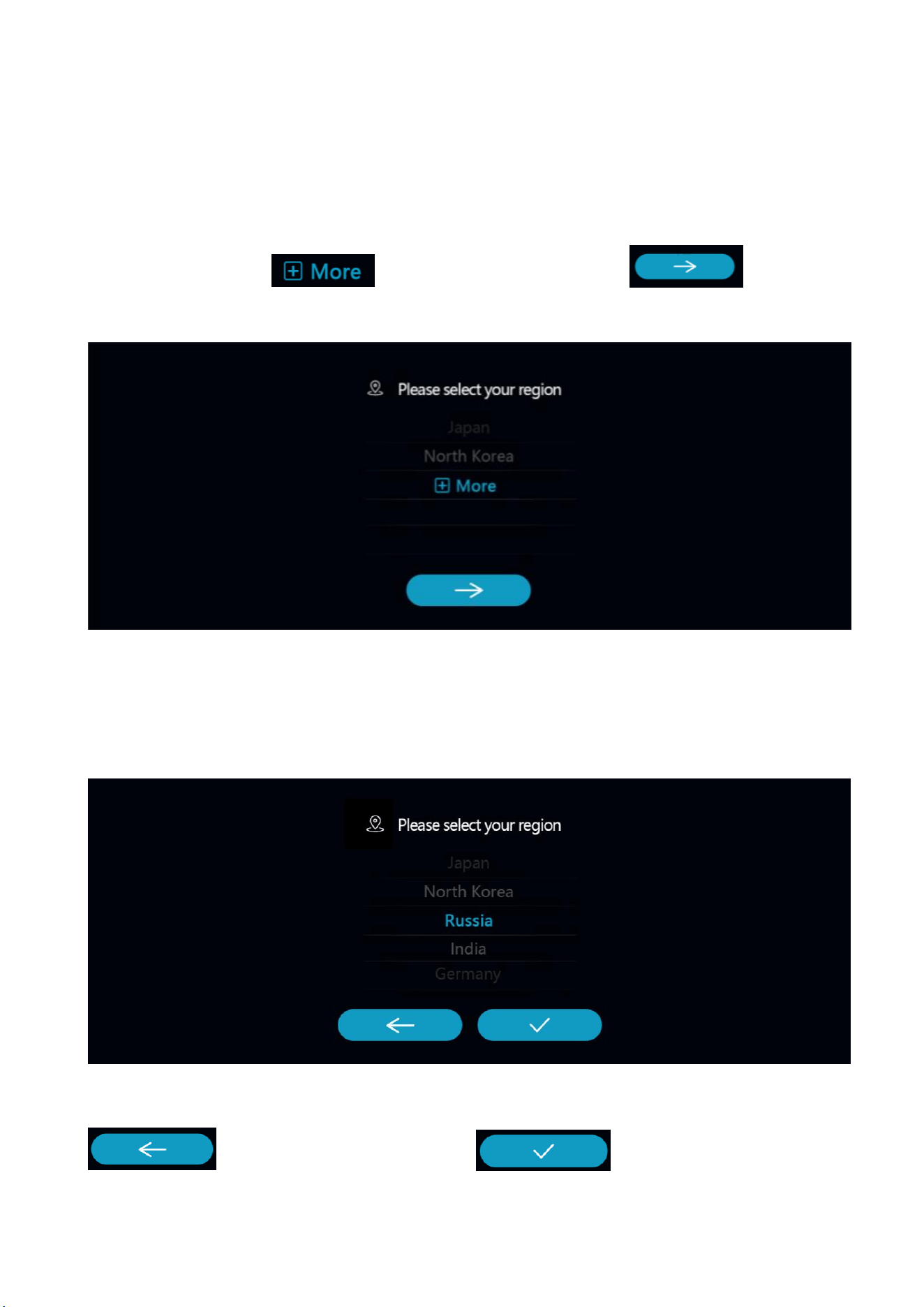
4. After clicking on 'Clear Storage' and 'Clear Cache' in sequence, try opening YouTube
again.
(Reminder: This operation will clear all data and records of the application)
[在此处键入]
[在此处键入]
6.5 Startup Wizard
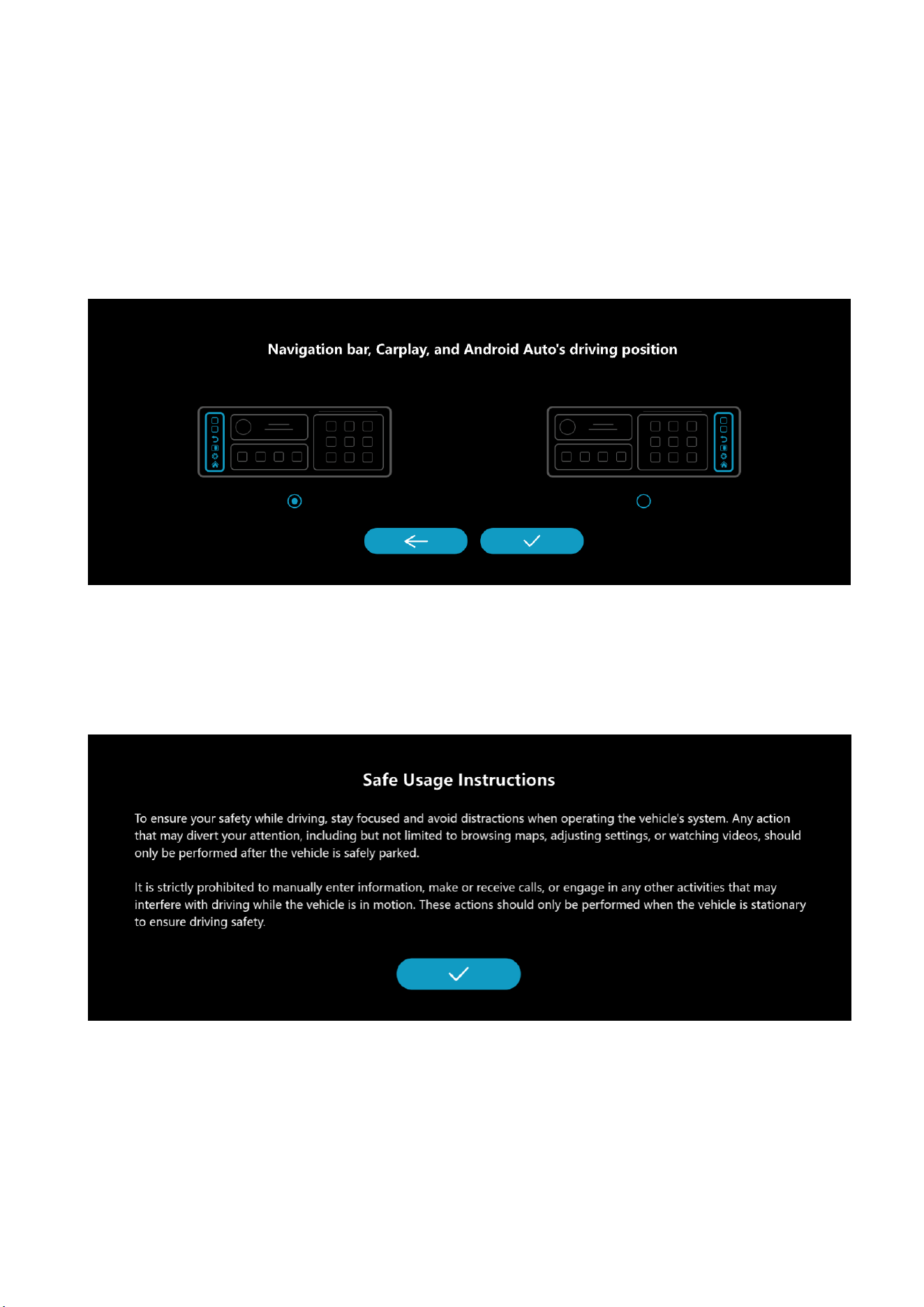
1. After the first startup or factory reset, you need to select your language again. If you
need to select more languages, please scroll down to the end, click on the more options to
select more languages , and then click the next button .
2. Then you need to click to select your region, and WiFi will be set based on this region
code.
Return to the previous level. Confirm the selection.
[在此处键入]
[在此处键入]
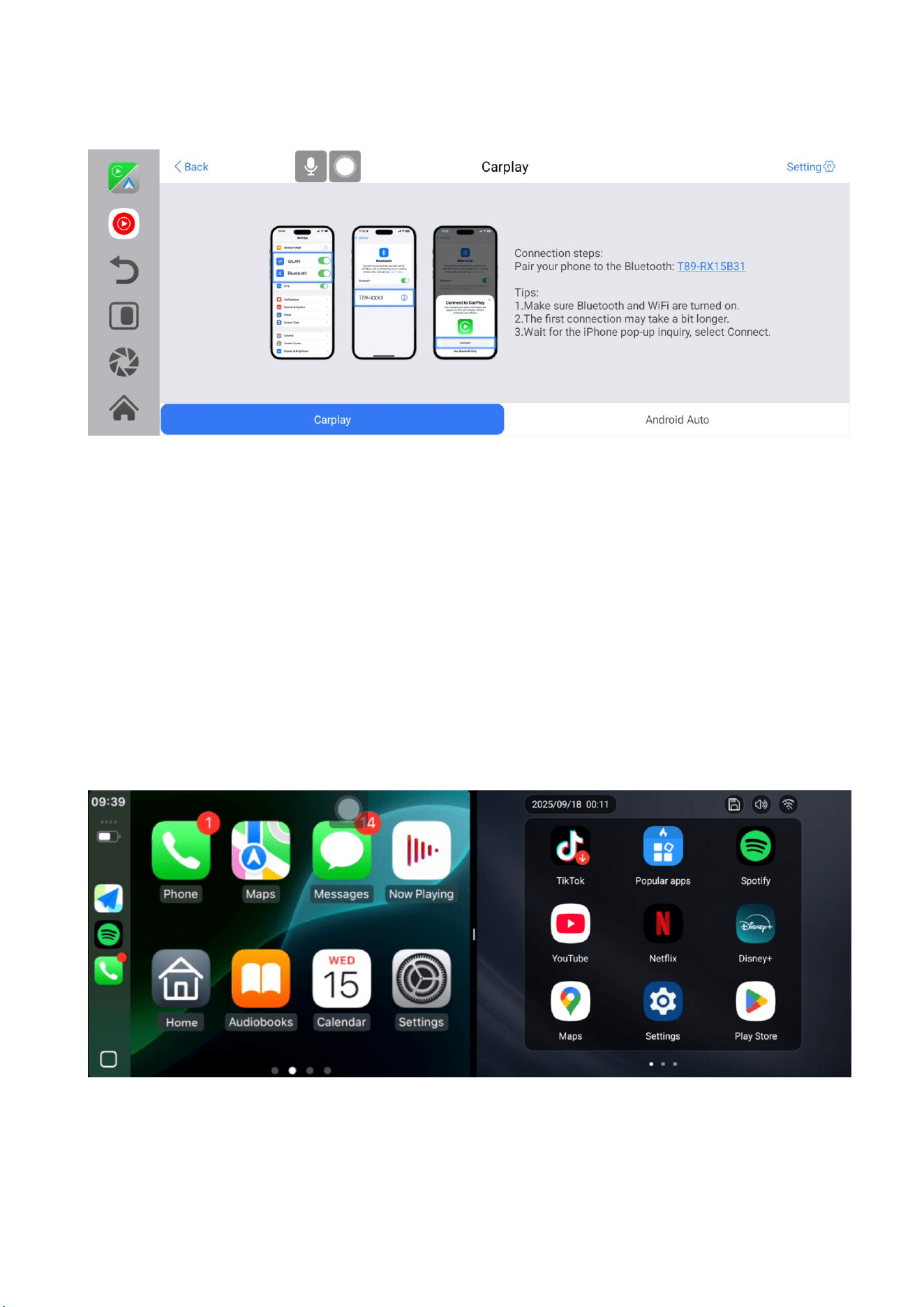
3. Please select left and right steering. The shortcut keys of this product support adaptive
configuration of left and right steering, which can be matched with different vehicle models
(left/right steering), ensuring that the operation logic is consistent with the steering wheel
position, and improving driving safety and handling convenience.
4. Please carefully read the safety instructions and use this product in accordance with
them.
After clicking confirm, you can enter the main interface to start using this product.
[在此处键入]
[在此处键入]
6.6 Carplay
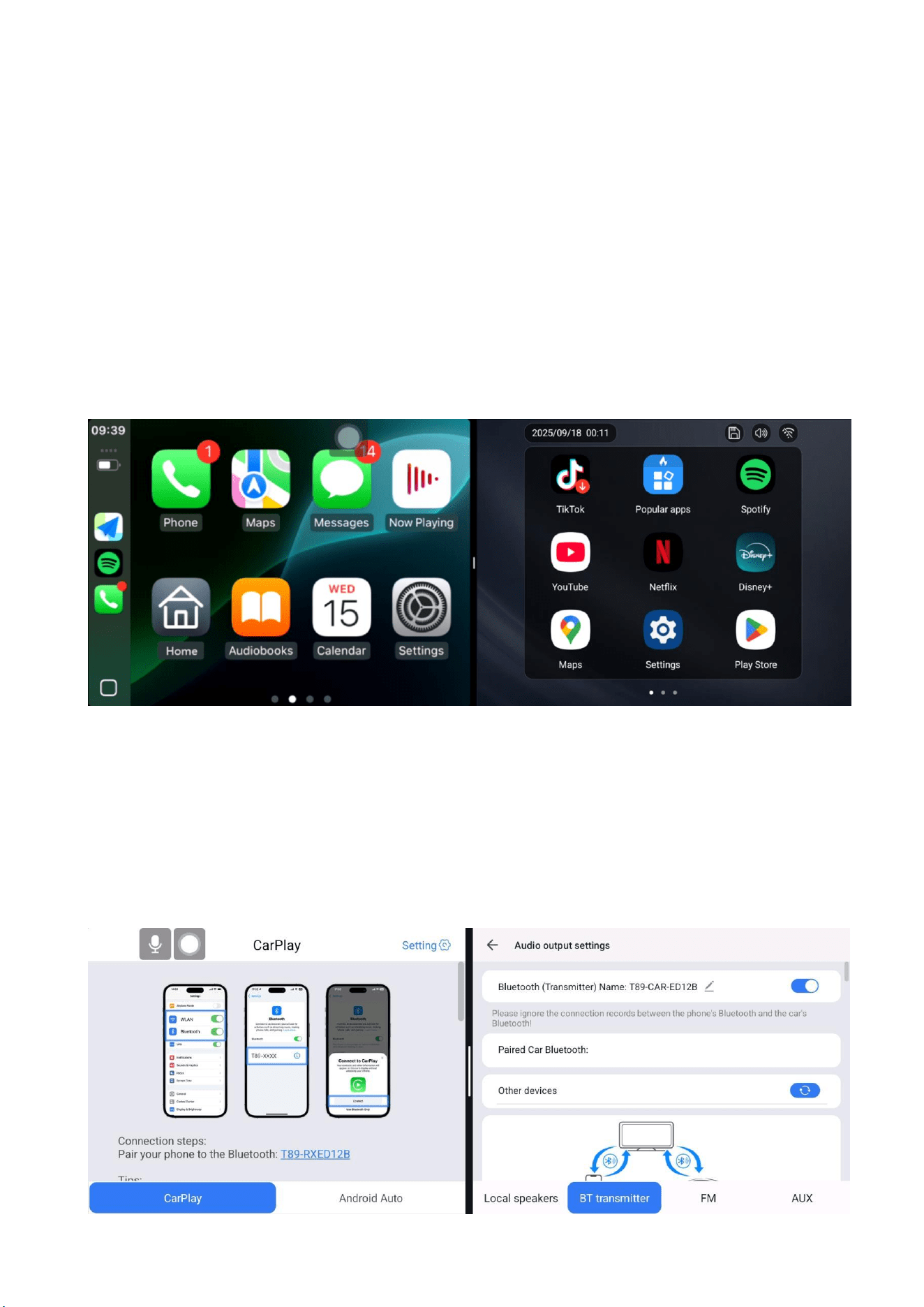
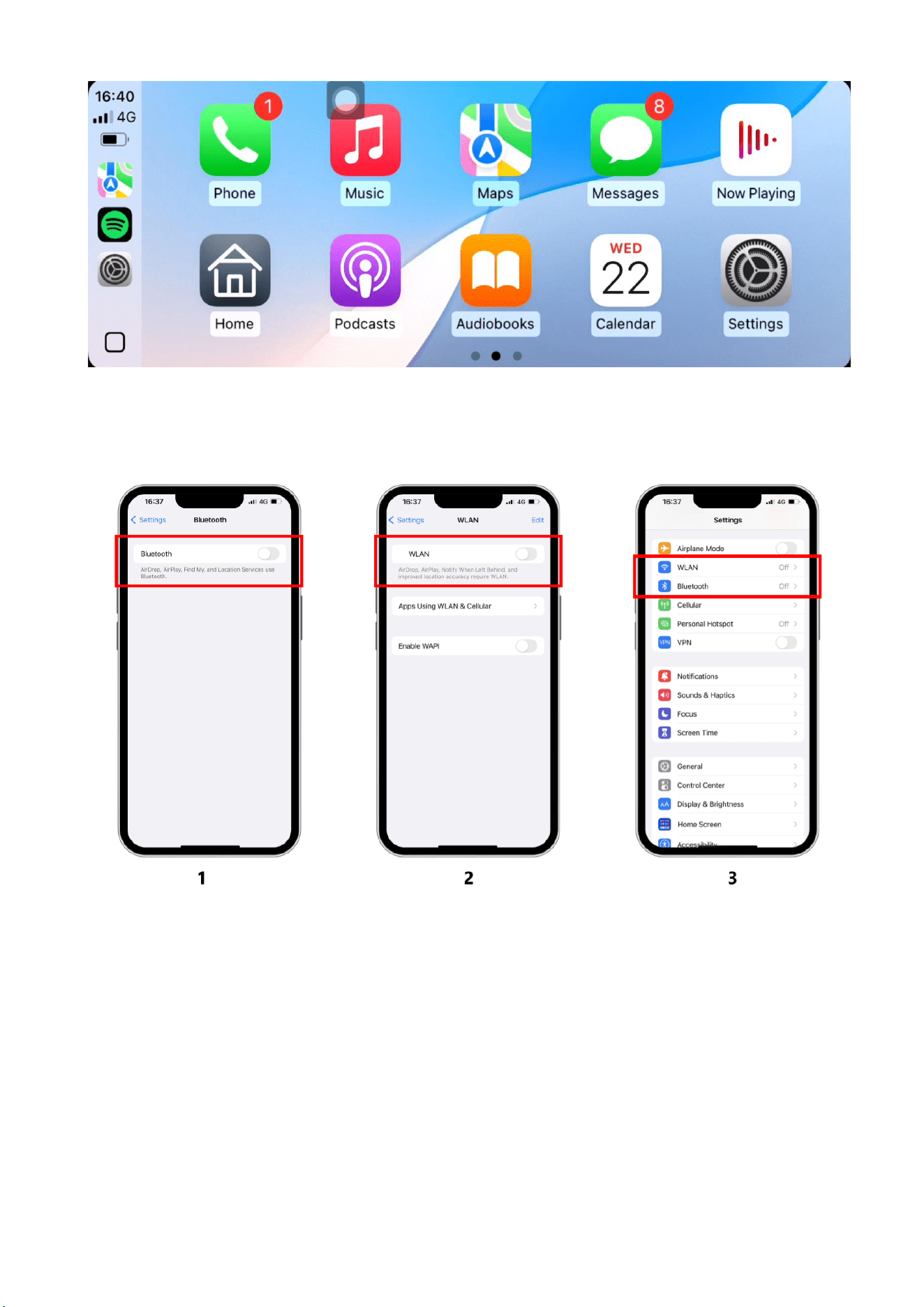
As shown in the figure above, click the 【Carplay】 button, then select the 【Carplay】
option, and first turn on the phone's WiFi and Bluetooth, as shown in the figure above.
Bluetooth (receive) will automatically turn on, named T89-RXXXXX. After successful
Bluetooth connection, Carplay can be connected. When the machine is powered on, it will
attempt to automatically connect to the last connected phone.
(Half screen mode)
[在此处键入]
[在此处键入]
(Full screen mode)
(Carplay option only supports Apple phones, turn off the WiFi button on the phone to
disconnect)
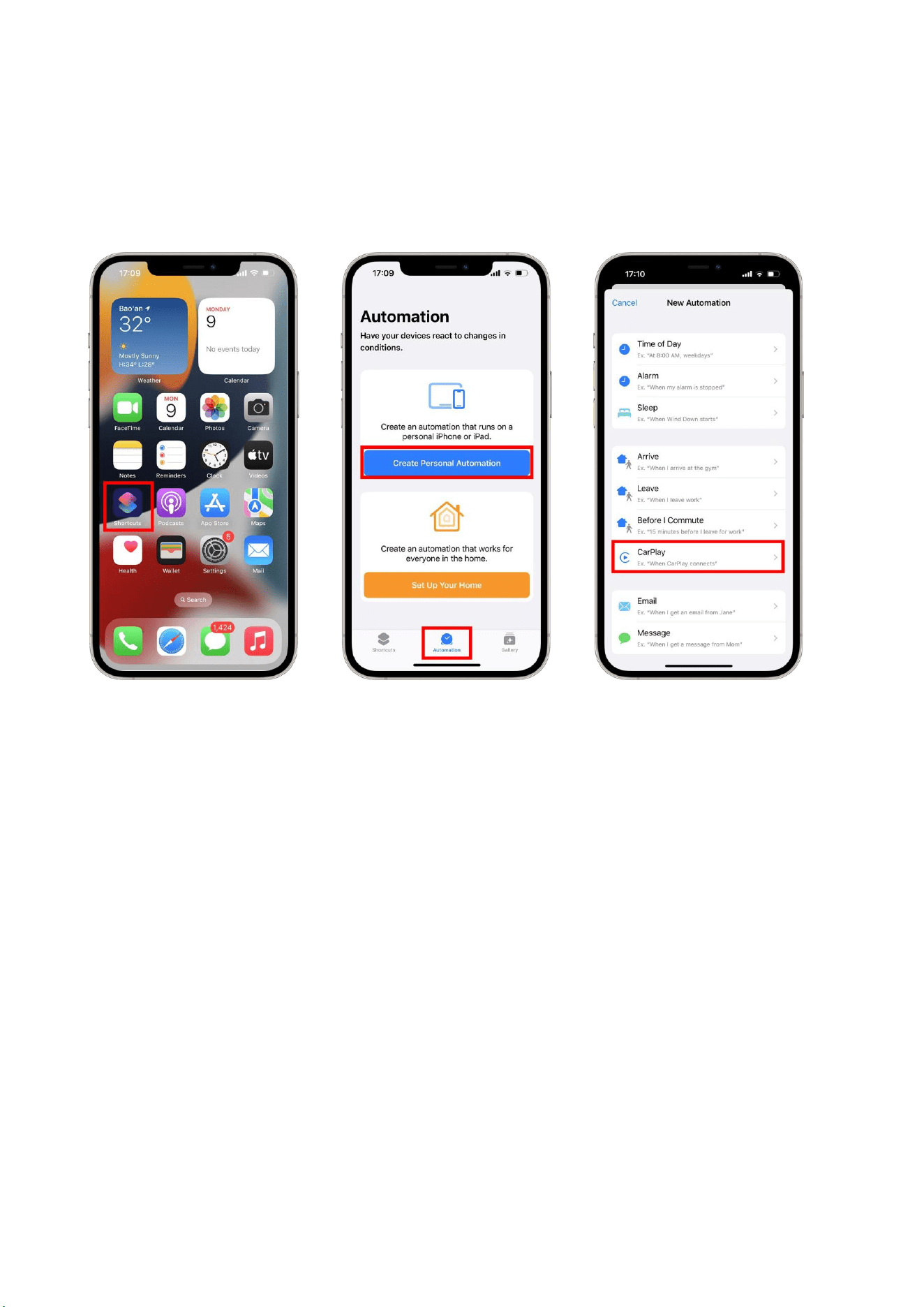
Users can set the phone to automatically turn on personal hotspot function when
connected to CarPlay, so that the smart screen can easily access the network. (Set up
tutorial as shown in the following figure)
[在此处键入]
[在此处键入]
1. Find and open the Shortcuts app on your phone, select Automation, click Create
Personal Automation, and choose CarPlay.
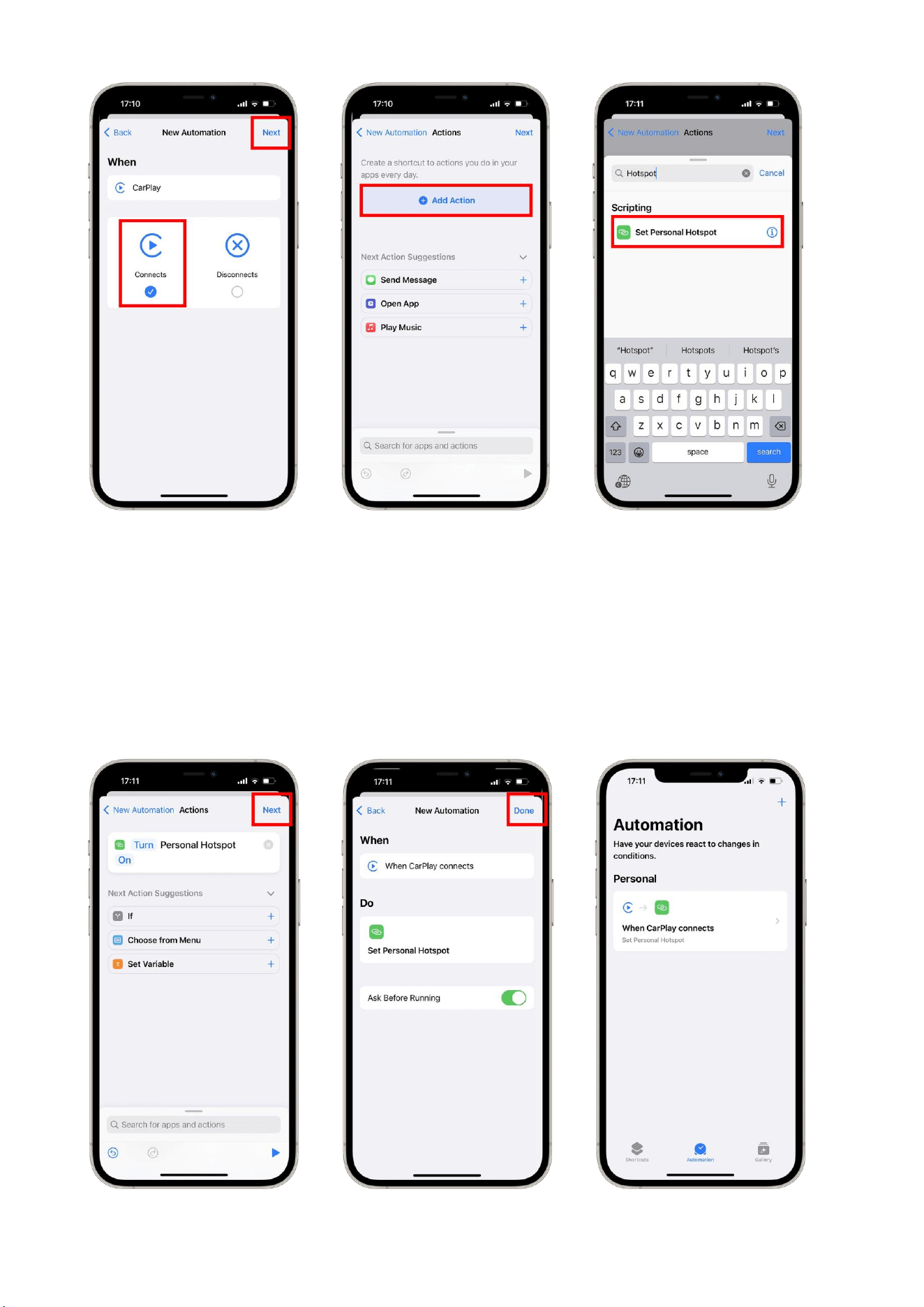
2. After selecting Connects, click Next, click Add Action, search and select Set Personal
Hotspot.
[在此处键入]
[在此处键入]
3. When Turn Personal Hotspot is displayed, click Next, click Done, and when CarPlay
connections Set Personal Hotspot is displayed, it indicates successful setup.

[在此处键入]
[在此处键入]
[在此处键入]
[在此处键入]
6.7 Android Auto
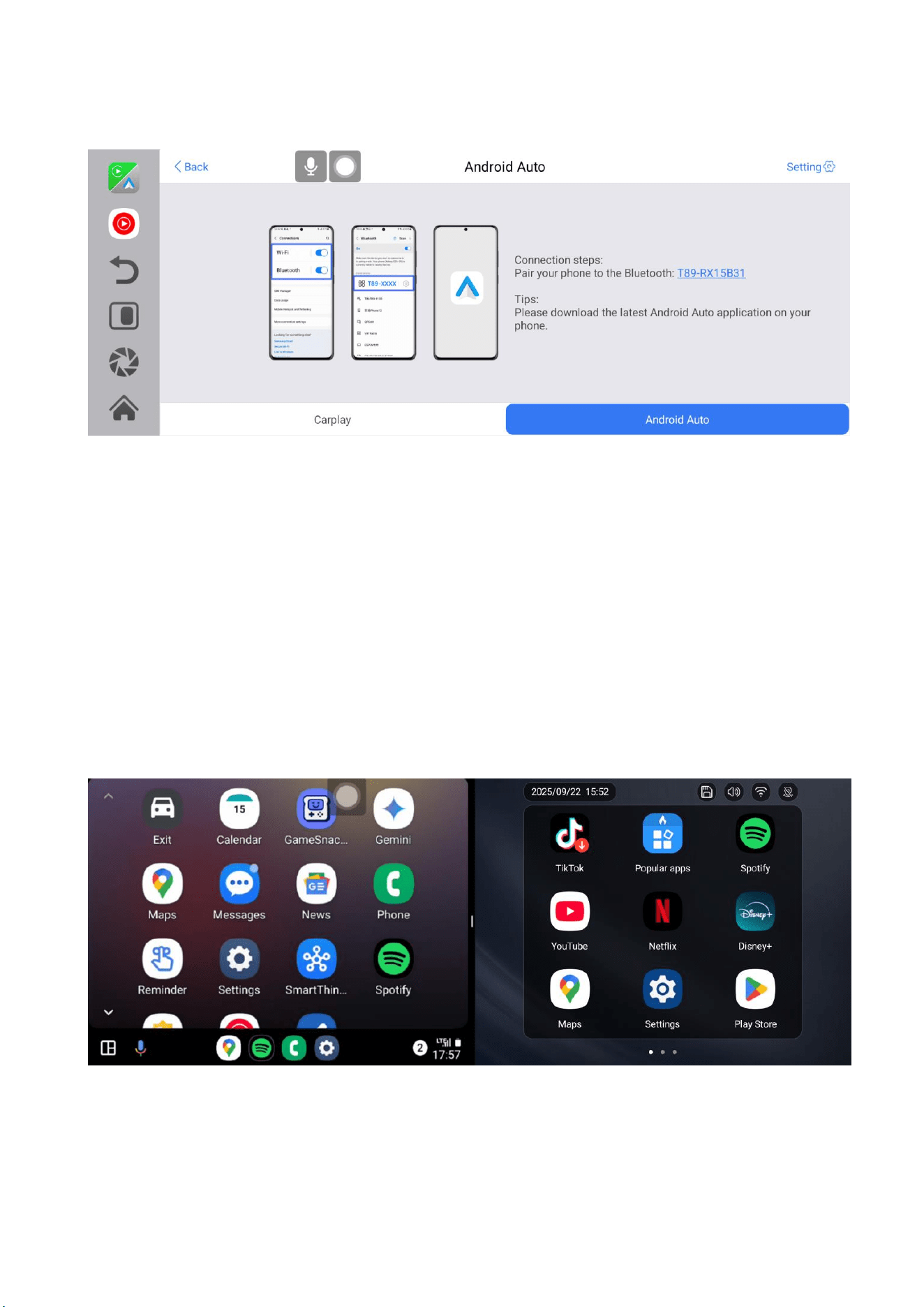
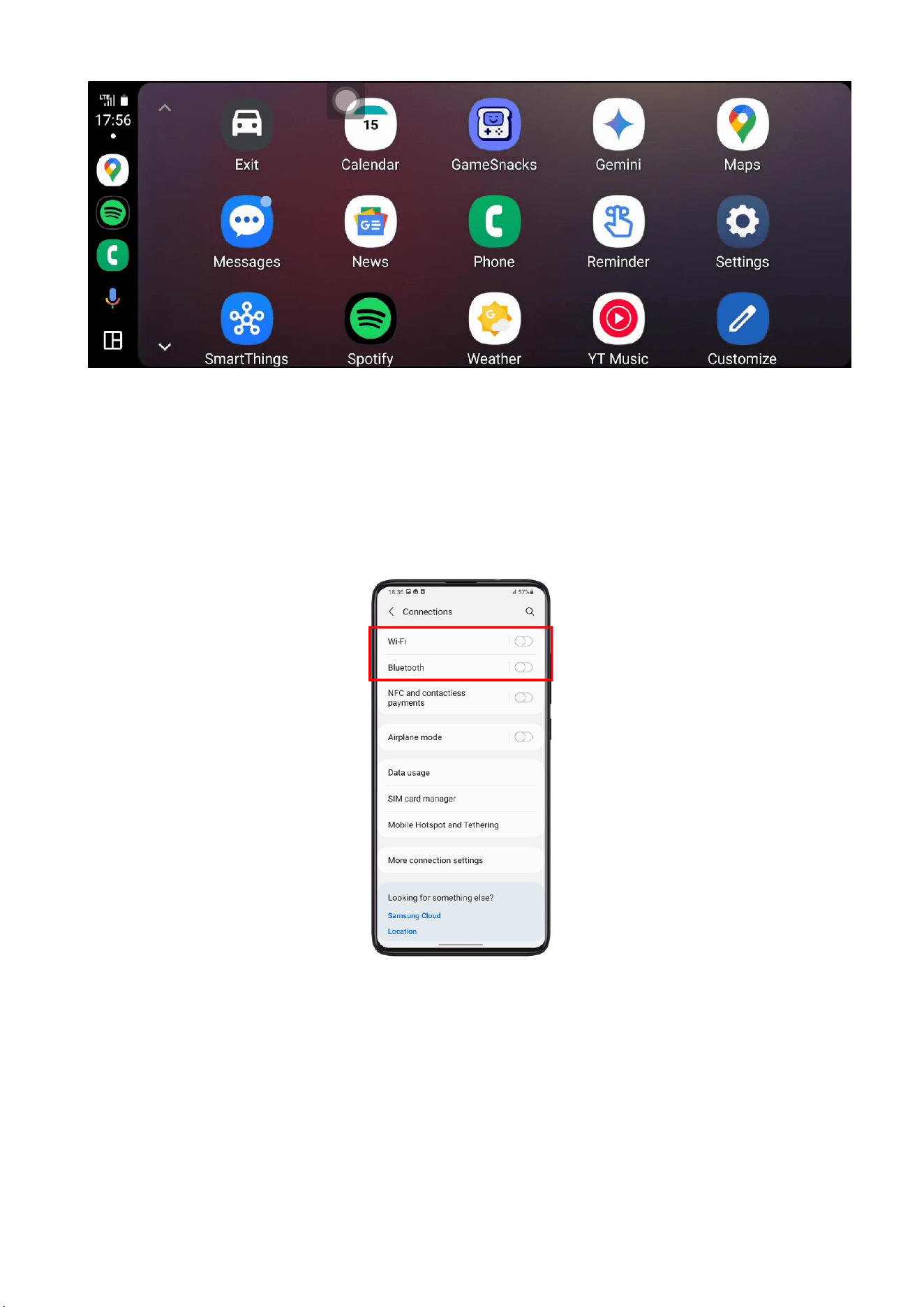
As shown in the figure, click the [Android Auto] button and select the [Android Auto]
option. First, turn on the phone's WiFi and Bluetooth, as shown in the figure above.
Bluetooth will automatically turn on, named T89-RXXXXX. After a successful Bluetooth
connection, you can connect to Android Auto. (When turned on, the machine will attempt
to automatically connect to the last connected phone)
(Half screen mode)
[在此处键入]
[在此处键入]
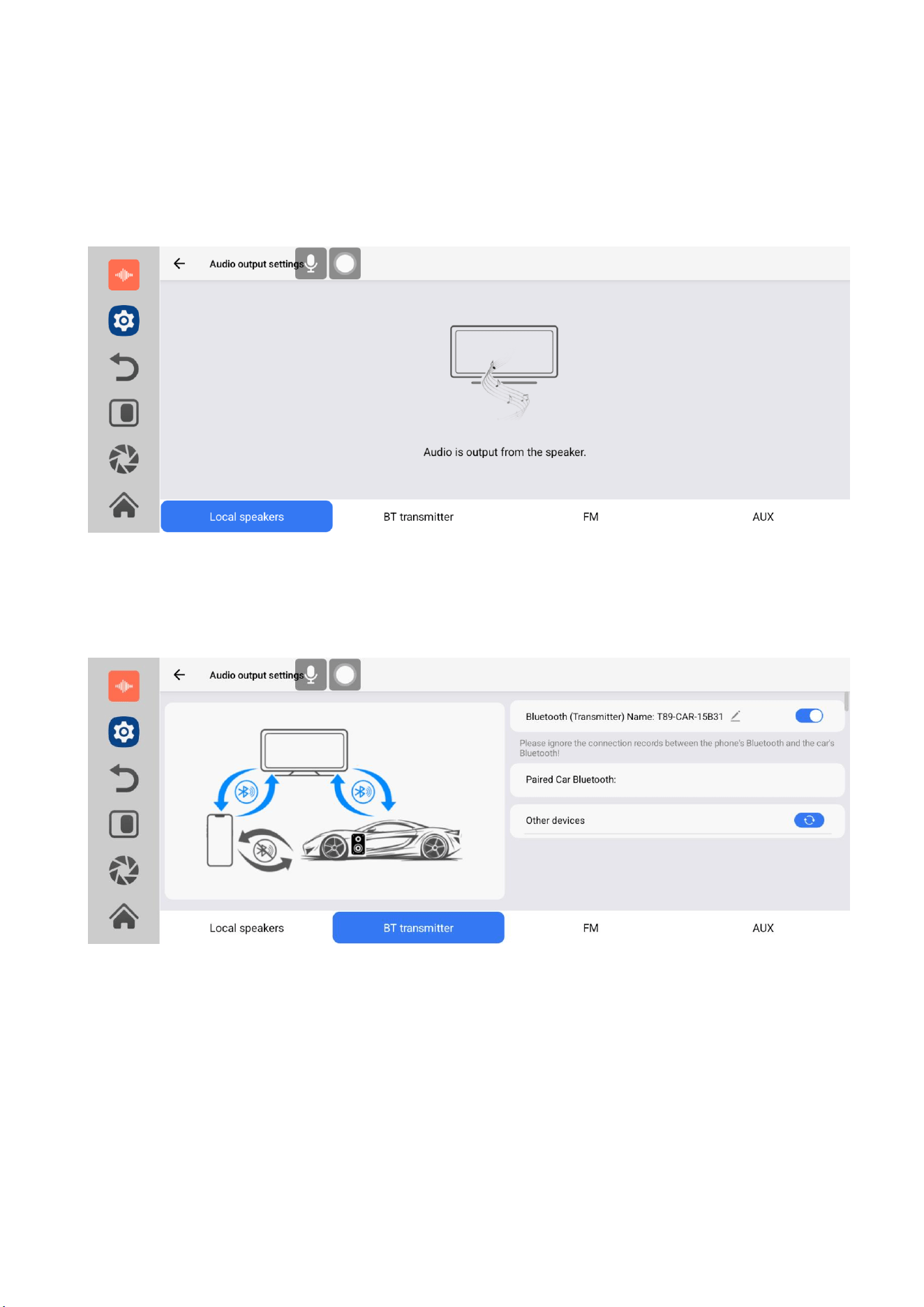
(Full screen mode)
The wireless Android Auto option only supports Android phones. To disconnect, turn off
Bluetooth and the WiFi button in the phone settings.
[在此处键入]
[在此处键入]
6.8 Audio output
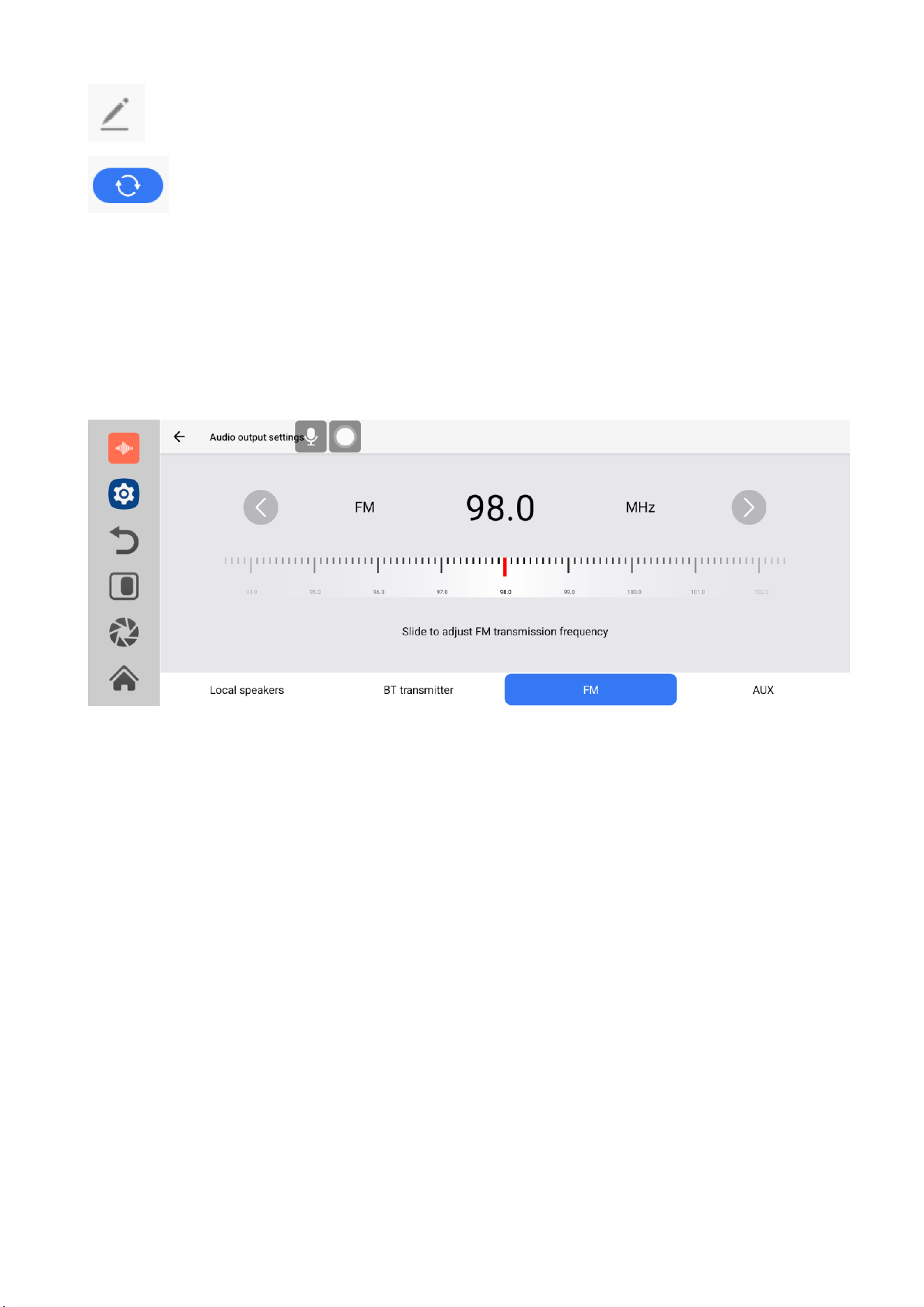
As shown in the above figure, click the [Audio Output] button to enter the audio output
selection interface.
① 【Local speakers】: The sound will be played from the speaker of the smart screen.
② 【Bluetooth transmitter】: After selecting this mode, turn on the Bluetooth (emission)
switch. Turn on the car's Bluetooth again, and the name of the car's Bluetooth will be
displayed in the "Other Devices" section on the lower right side. After successful
connection, all sounds from the device will be transmitted via Bluetooth to the car speakers
for playback.
[在此处键入]
[在此处键入]
Click to modify the Bluetooth name.
Click to refresh and search for Bluetooth again.
When connected, steering wheel controls support music track switching, pause/play, and
other playback operations.
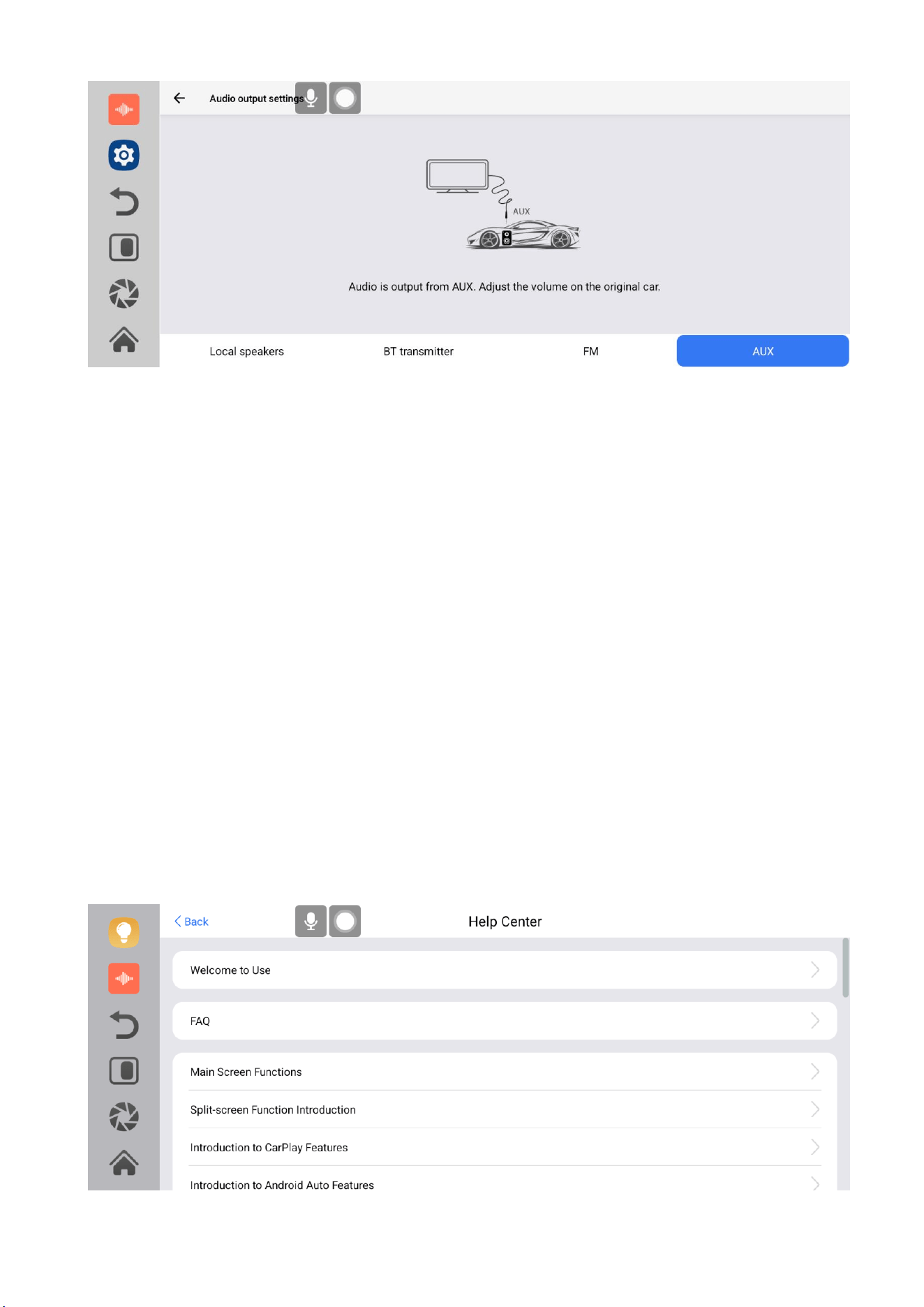
③【FM】: After selecting this mode, the FM transmission mode will be turned on by default.
For example, the FM transmission frequency of the device is adjusted to FM 106.0 MHz (any
unoccupied channel can be used), and the car radio will also adjust the receiving frequency
band to the same FM 106.0 Hz. After successful connection, all sounds from the device will
be transmitted to the car horn through FM transmission. When using FM transmission,
please do not insert the AUX cable as it may interfere with the FM transmission sound
quality! (Not using the power cord may result in deterioration of FM transmission signal
or malfunction.)
[在此处键入]
[在此处键入]
④【AUX】: After selecting this mode, the AUX output mode will be turned on by default.
Connect the smart screen to the original vehicle using AUX sound source wires. After
successful connection, all sounds from the device will be transmitted to the car speakers
through the AUX sound source cable for playback.
6.9 Help Center
The help function provides you with answers to questions and operation guides during the
use of the smart screen.

[在此处键入]
[在此处键入]
Frequently Asked Questions, Main Interface Function Introduction, Half Screen Function
Introduction, Carplay Function Introduction, Android Auto Function Introduction, System
Settings Function Introduction.
Frequently Asked Questions Special Explanation:
1. For the stability of device usage, the device will perform a shutdown instead of hibernation
after a certain number of uses.
2. The system needs to be optimized for the first startup, and the startup time will be more
than 2 minutes. After optimization, the subsequent boot time is only about 30 seconds.
Mobile phones that can connect to both screen mirroring and hotspot settings require:
iPhone series: Requires IOS16 or higher version. (iPhone 8 and above, iPhone SE second
generation and above)
Android series: Some Android phones do not support simultaneous connection of screen
mirroring and phone hotspot. (Currently found unsupported phones include Samsung A40)
Common problem:
1. After turning on the hotspot on the iPhone, the smart screen cannot connect or use the
WiFi.
Please turn on the maximum compatibility button for personal hotspot on your iPhone.
Mobile phones without a maximum compatibility button and unable to connect to hotspots
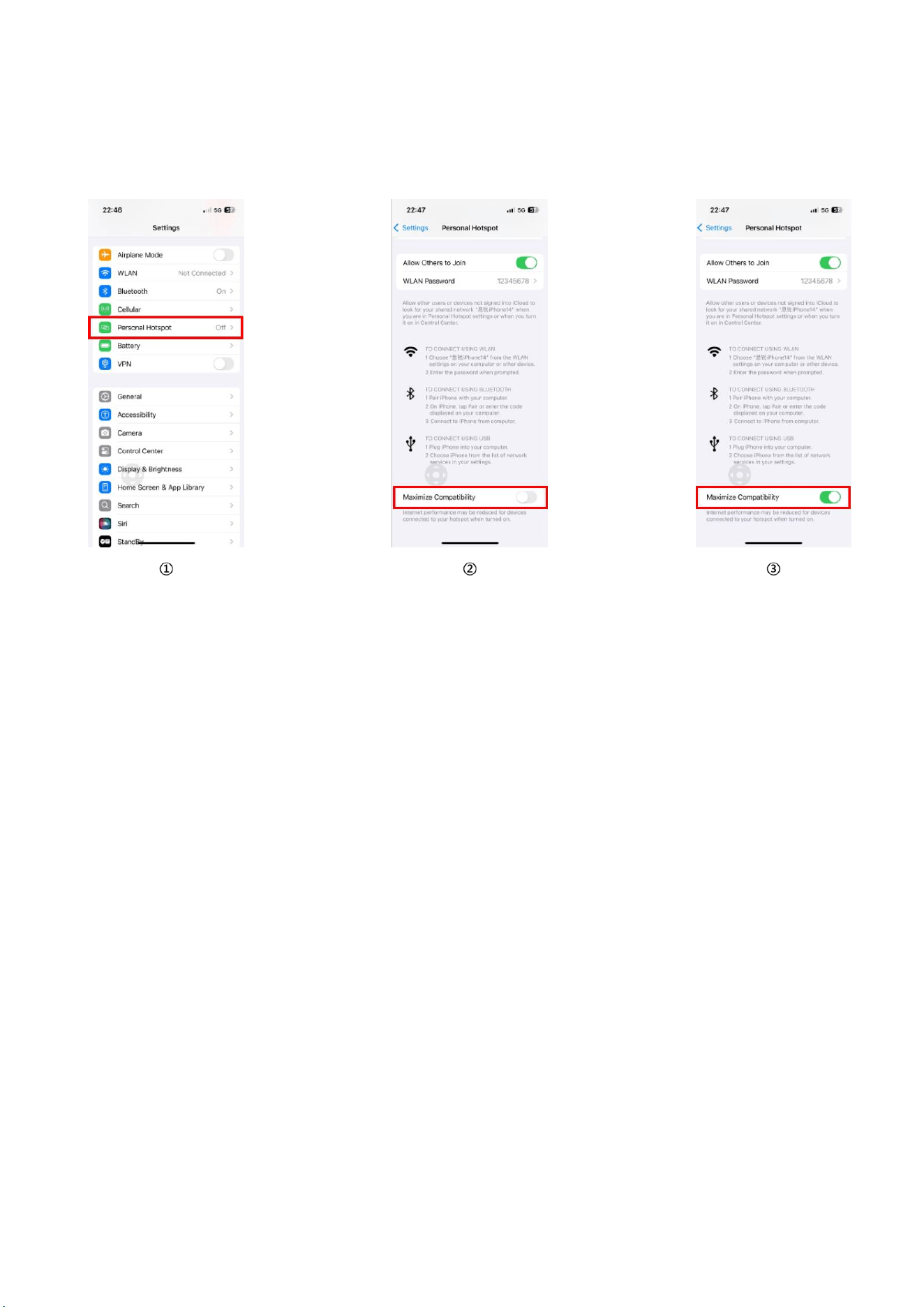
[在此处键入]
[在此处键入]
do not support connecting to Carplay and personal hotspots at the same time (some phone
steps are shown in the following figure)
iPhone needs to be IOS16 or above to connect to personal hotspots (iPhone 8 and above,
iPhone SE 2nd generation and above) while connecting to Carplay. Mobile phones that do
not meet the requirements need to disconnect Carplay before connecting to the hotspot.
2. After turning on the hotspot on an Android phone, the smart screen cannot connect or use
the WiFi.
Most Android phones do not have the maximum compatibility feature, and only some
Android phones can connect to personal hotspots while connecting to Android Auto
(currently found to be unsupported phones include Samsung A40). Phones that do not meet
the requirements need to disconnect Android Auto and then connect to the hotspot.
[在此处键入]
[在此处键入]
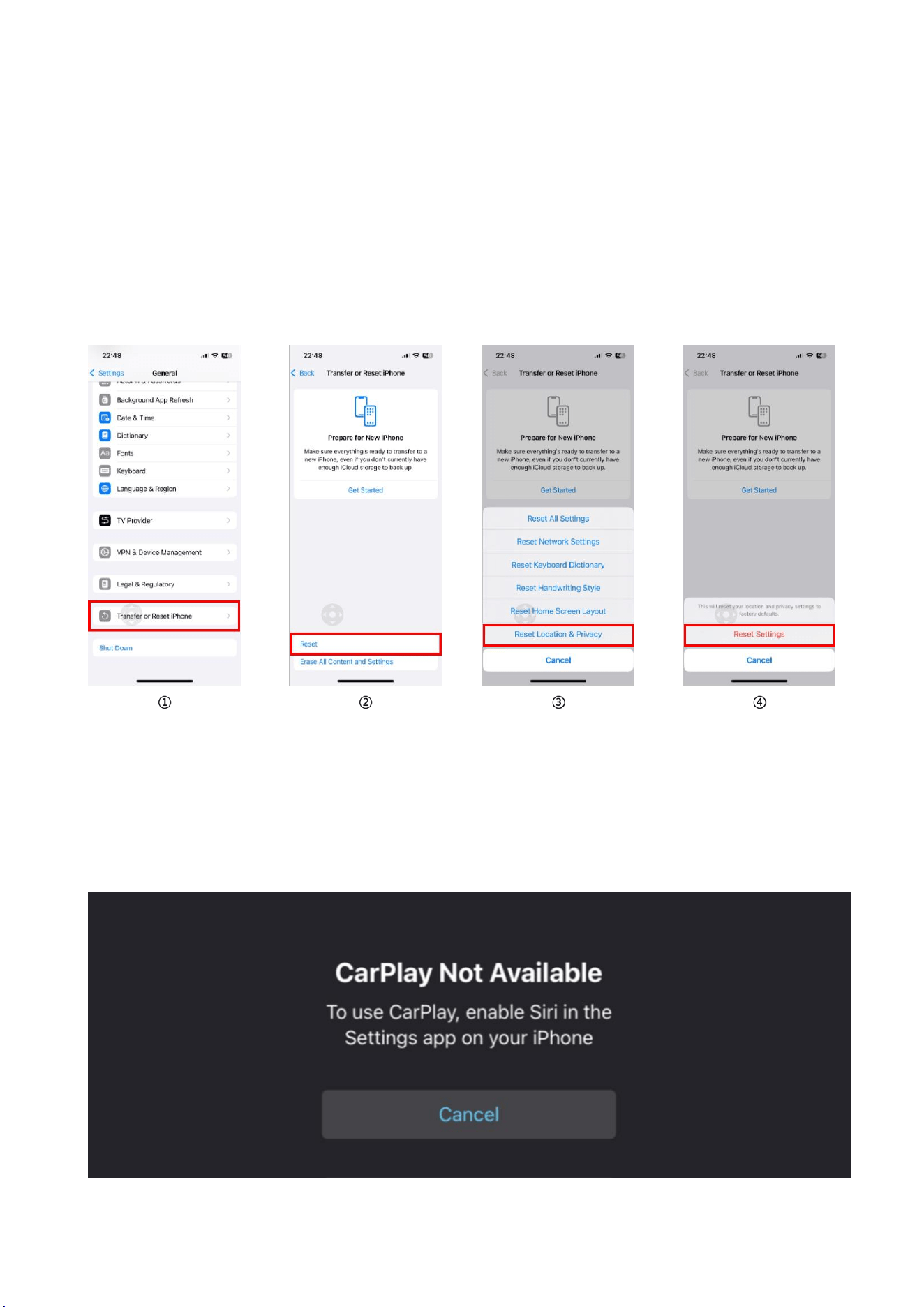
3. When Carplay screens are projected, the navigation positioning may be offset or
inaccurate.
Solution: Open the phone [Settings] → [General] → [Transfer or Restore iPhone] → [Rest] →
[Reset Location & Privacy] → [Reset Settings].
4. When Carplay is projected, the smart screen displays [ Carplay Not Available] and cannot
be used.
Solution: Open your phone [Settings] → [Siri & Search] → Select Enable Siri.
[在此处键入]
[在此处键入]
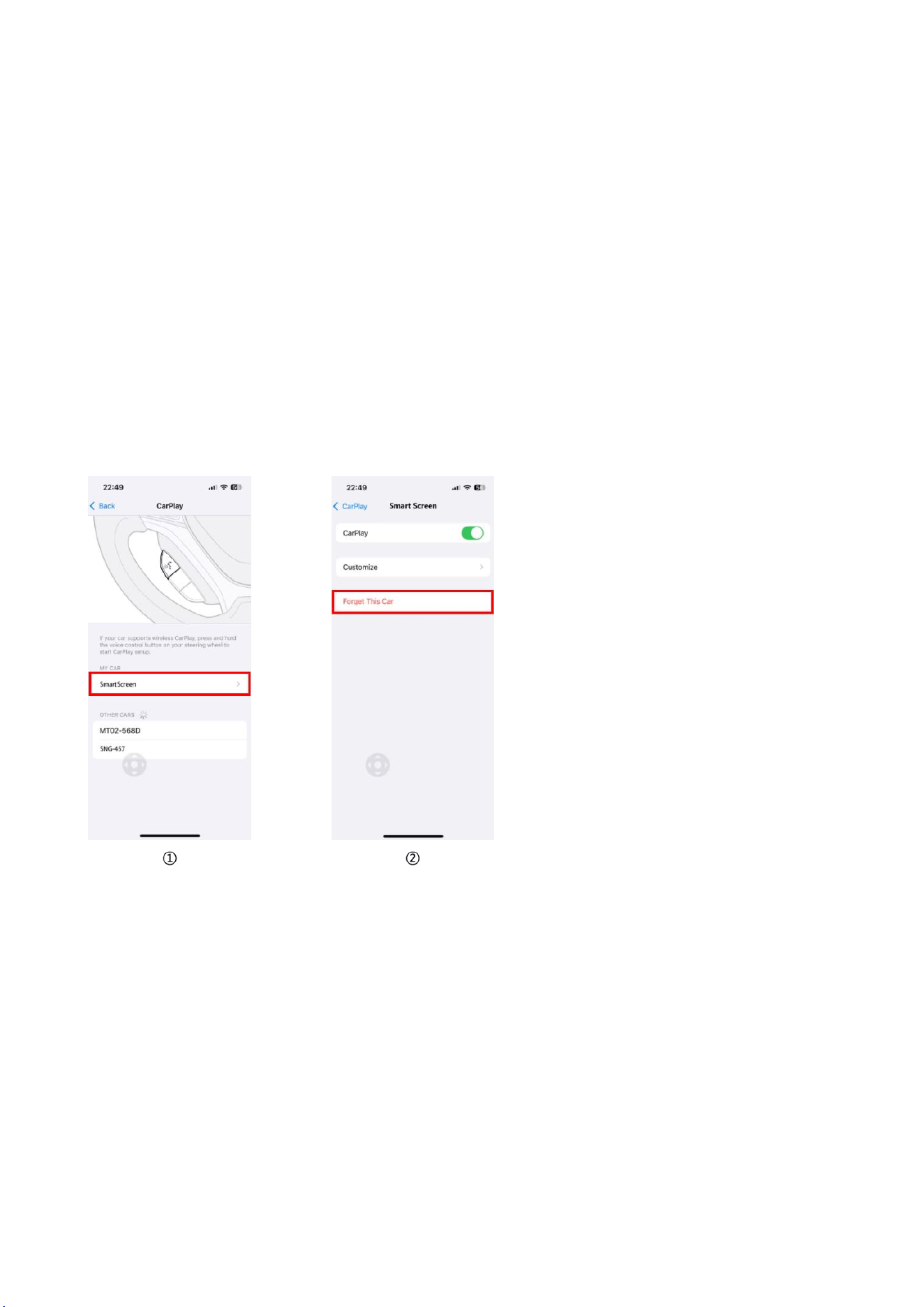
5. Carplay cannot connect.
Carplay connection requirements:
The phone must be an iPhone 5 or above.
The mobile system version requires IOS13 or above.
Solution 1: Open the phone [Settings] → [General] → [Carplay], and then clear the records
inside.
Solution 2: Restart the phone and reconnect to the smart screen Bluetooth.
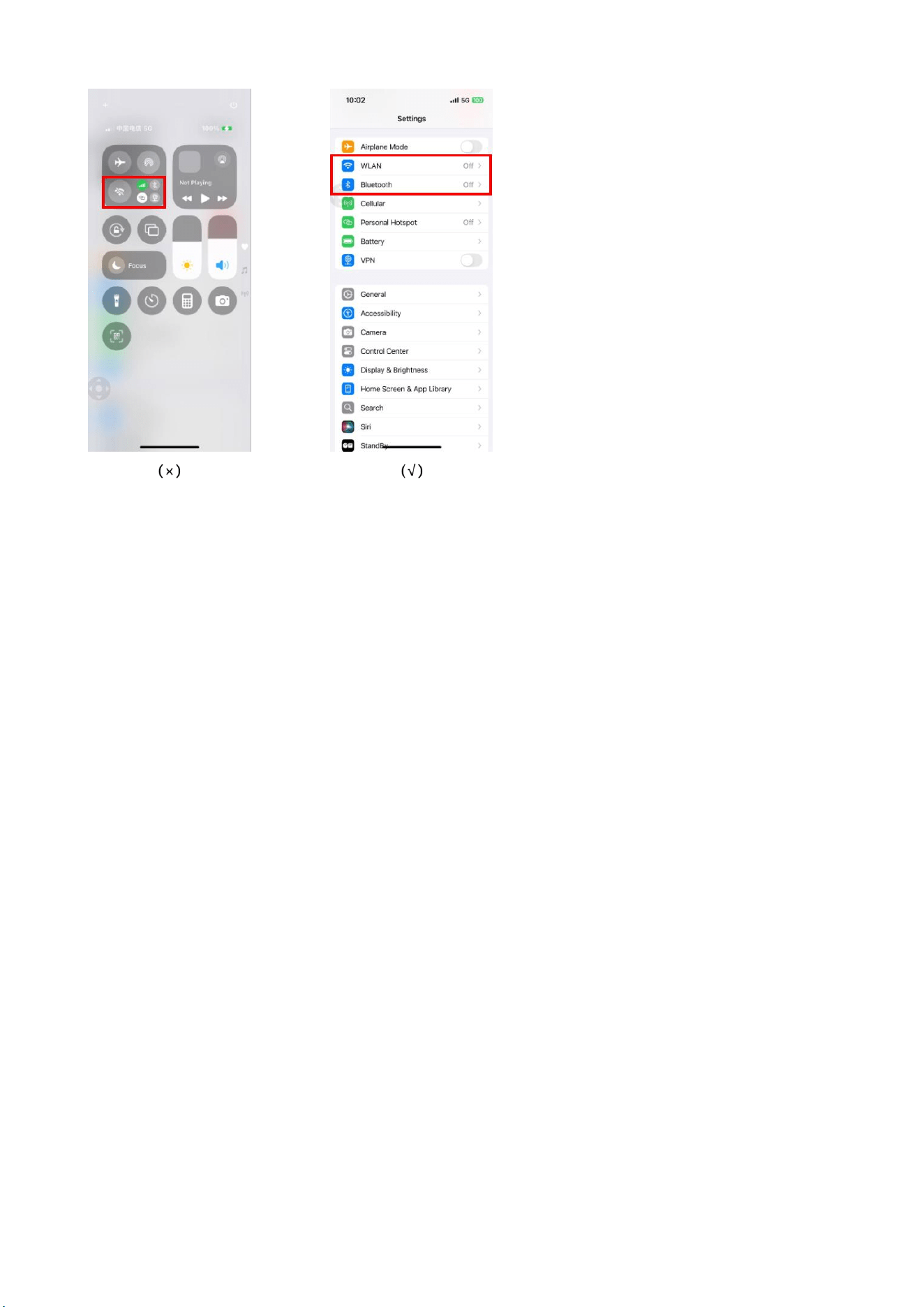
Solution 3: You can turn off both WiFi and Bluetooth on your phone at the same time, then
turn them back on and reconnect.
(To turn it off in the settings, do not turn it off in the quick notification bar).
[在此处键入]
[在此处键入]
Solution 4: Disconnect the personal hotspot of the phone first, and then connect it to the
Bluetooth of the smart screen.
7. Android Auto cannot connect.
Android phone connection requirements:
● The versions of Android Auto, Google, Google Maps, and Google Voice have been
updated.
● Unable to activate the VPN function on the phone during screen mirroring.
● Require the phone version to be Android 11 or above, and the phone supports 5G WiFi.
Solution 1: You can turn off the Bluetooth on your phone, turn it back on, and then reconnect
the Bluetooth on your smart screen.
Solution 2: After clearing the cache and data of Google Play service on the phone, restart the
phone and reconnect to Bluetooth.
Solution 3: Disconnect the personal hotspot of the phone first, and then connect it to the
[在此处键入]
[在此处键入]
Bluetooth of the smart screen.
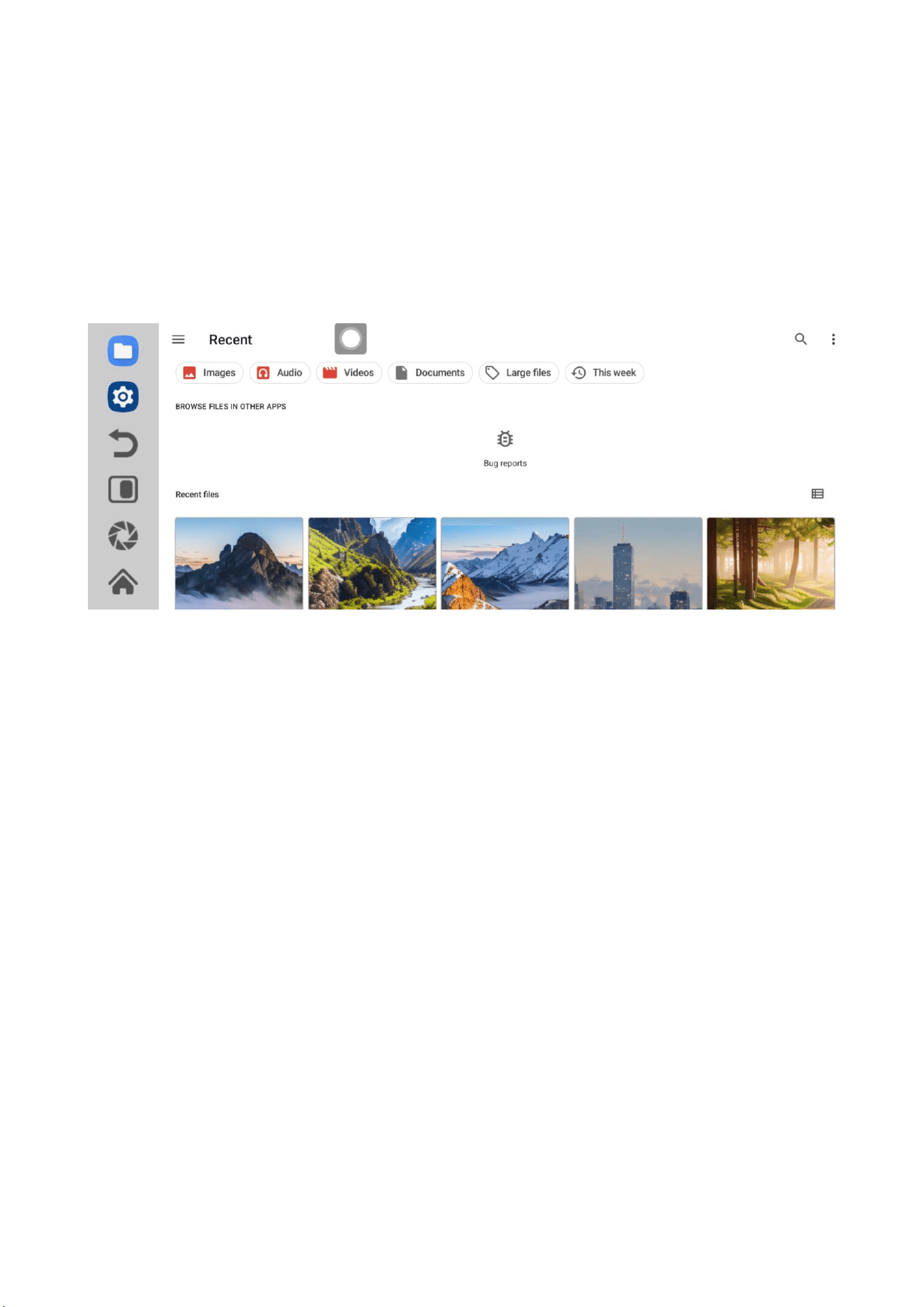
6.10 Files
File application is a tool used in smart screens to manage files such as downloads, images,
music, videos, etc.
You can browse files in the smart screen memory and SD card in a list format. Support sorting
files by name, size, type, or modification date.
Long press file selection provides file operation functions such as copy, move, delete, share,
compress, rename, etc. Support creating folders to organize files. Enter keywords in the
search box to quickly find files. Choose the appropriate application to open the file.
Usage tip: Be cautious when deleting files to avoid accidentally deleting important data.
[在此处键入]
[在此处键入]
6.11 Settings
The system settings aim to provide users with comprehensive device management and
personalized services:
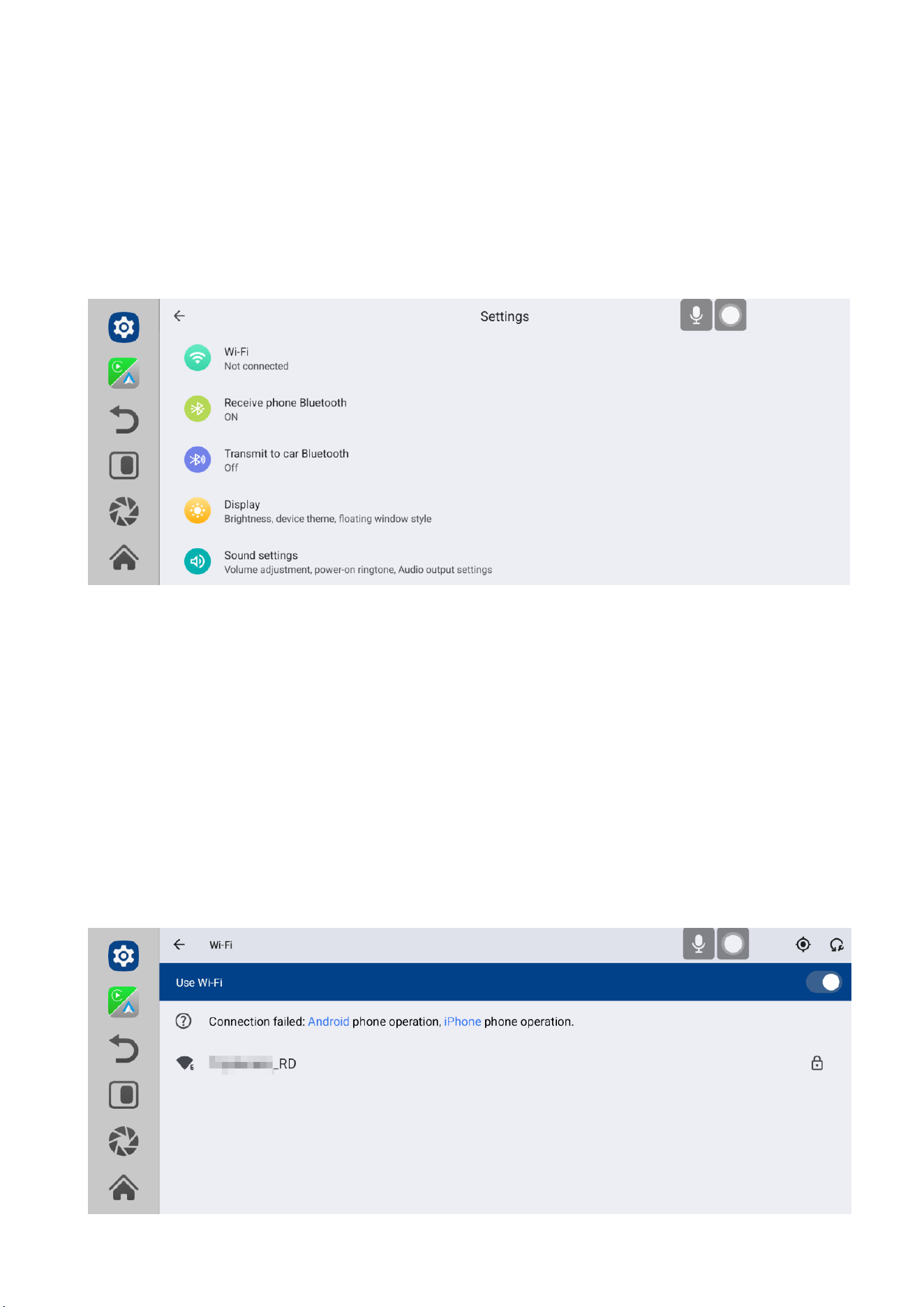
1. WiFi: Users can find the WiFi option in "Settings", turn on the WiFi switch, scan and
connect to available networks, and also set WiFi preferences.
[在此处键入]
[在此处键入]
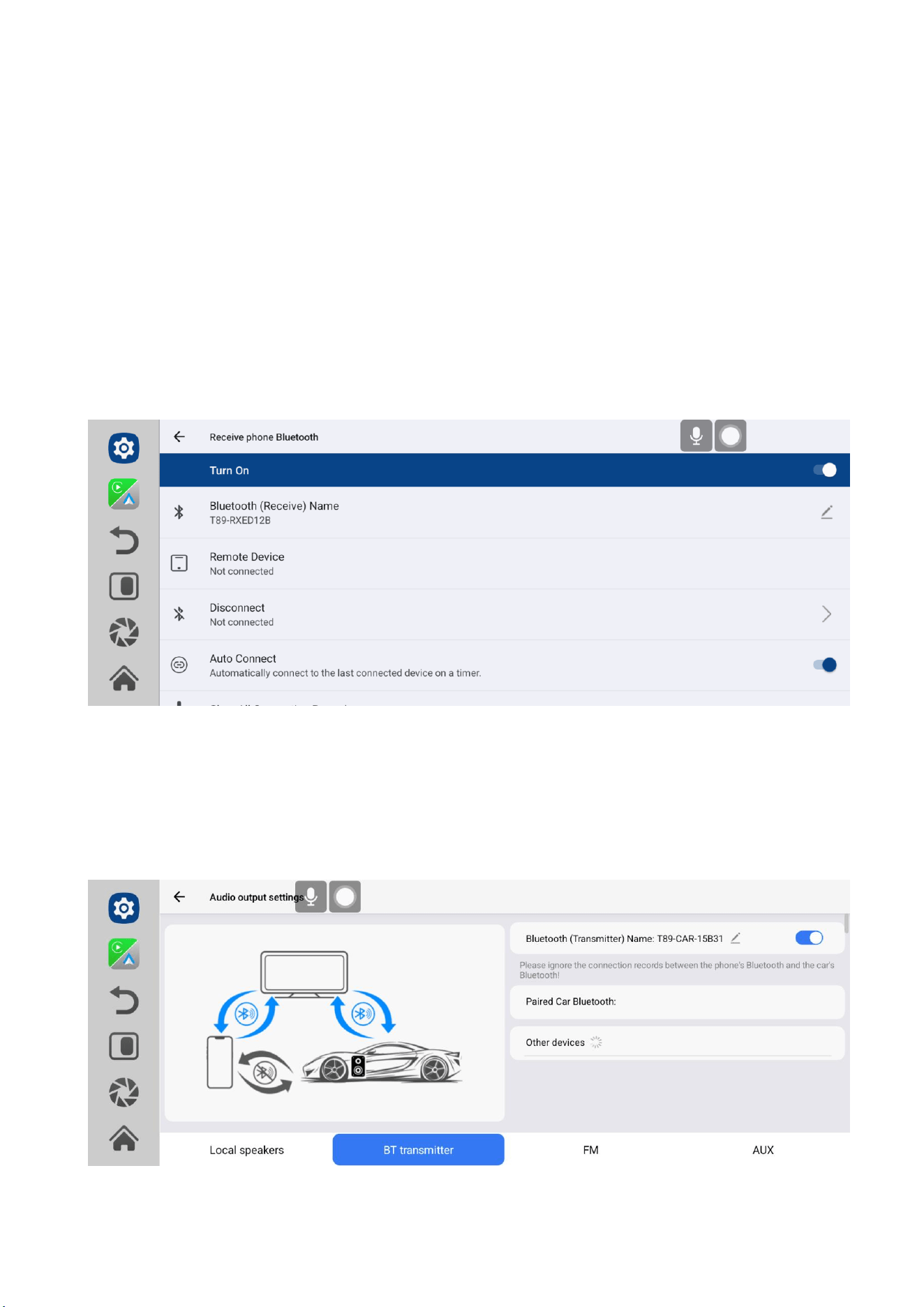
To simultaneously connect Carplay/Android Auto and mobile hotspot on the same phone,
please enable the maximum compatibility feature of the mobile hotspot. Android phone
operation, iPhone phone operation. Clicking on the blue font will redirect you to the
corresponding operating interface.
2. Receive Bluetooth: Users use their mobile devices to search for Bluetooth reception on the
smart screen, achieving wireless connectivity with their phones.
Bluetooth transmission: Users can actively search and connect to the car's Bluetooth to send
all audio to the car's audio system for playback.
[在此处键入]
[在此处键入]
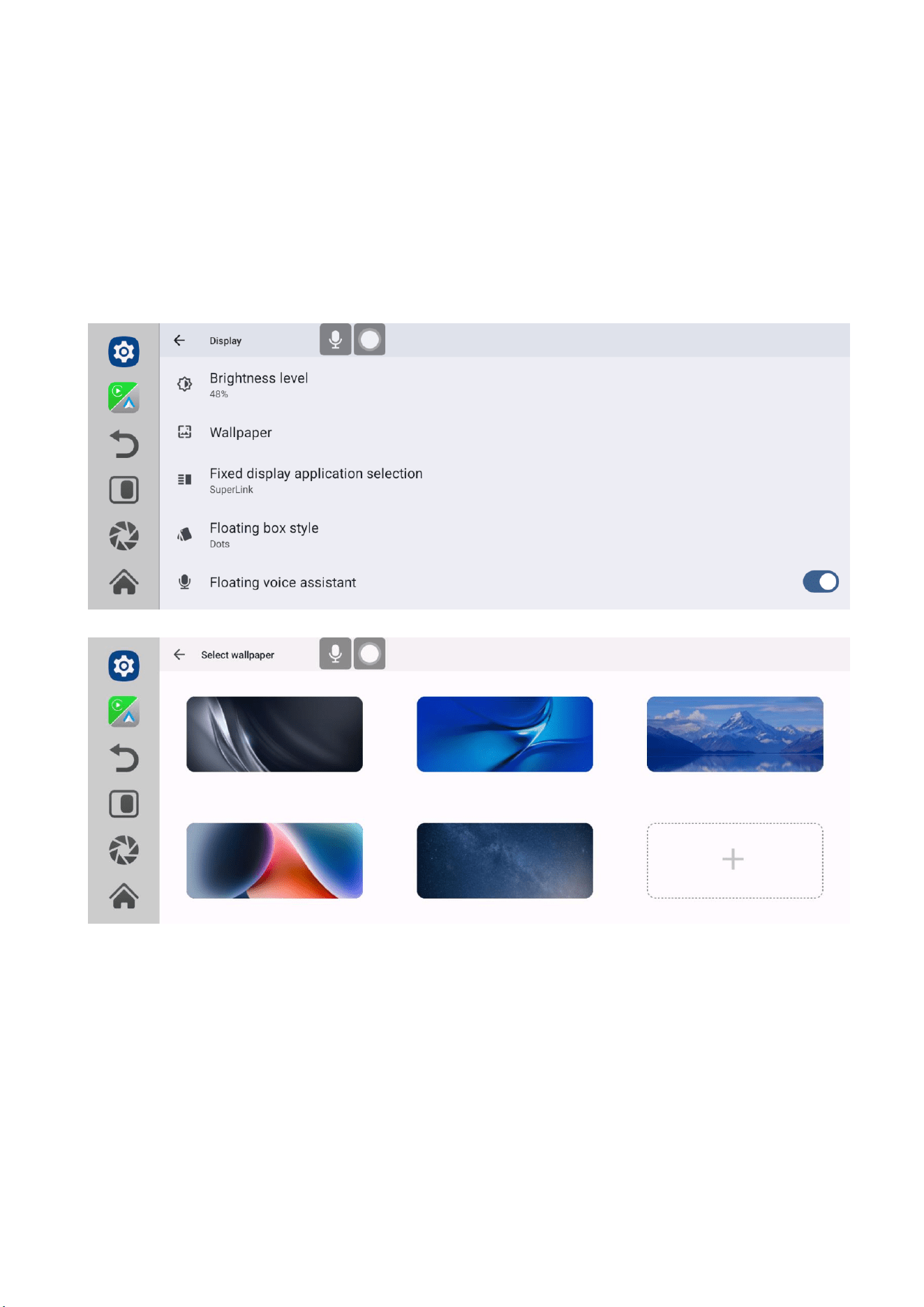
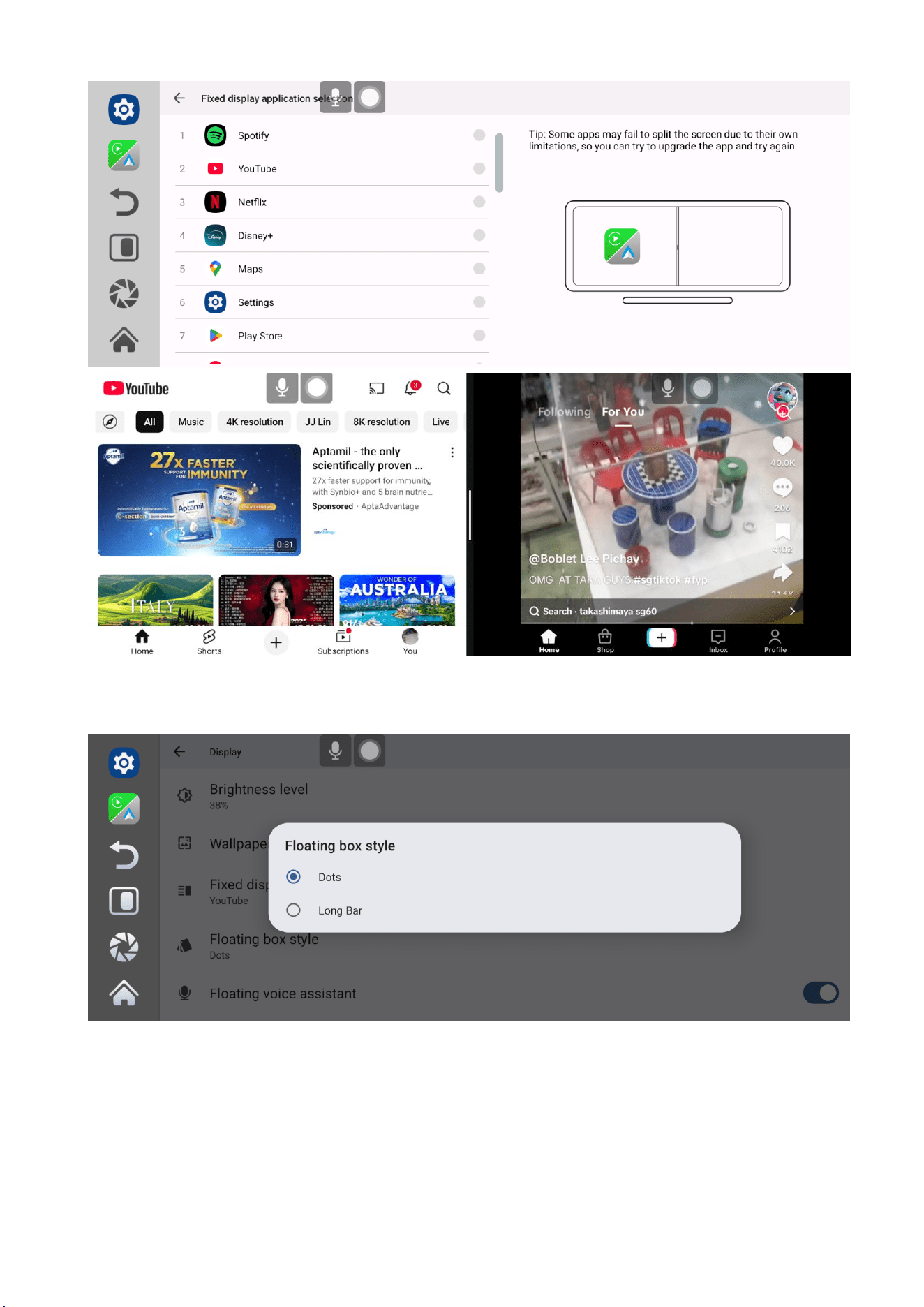
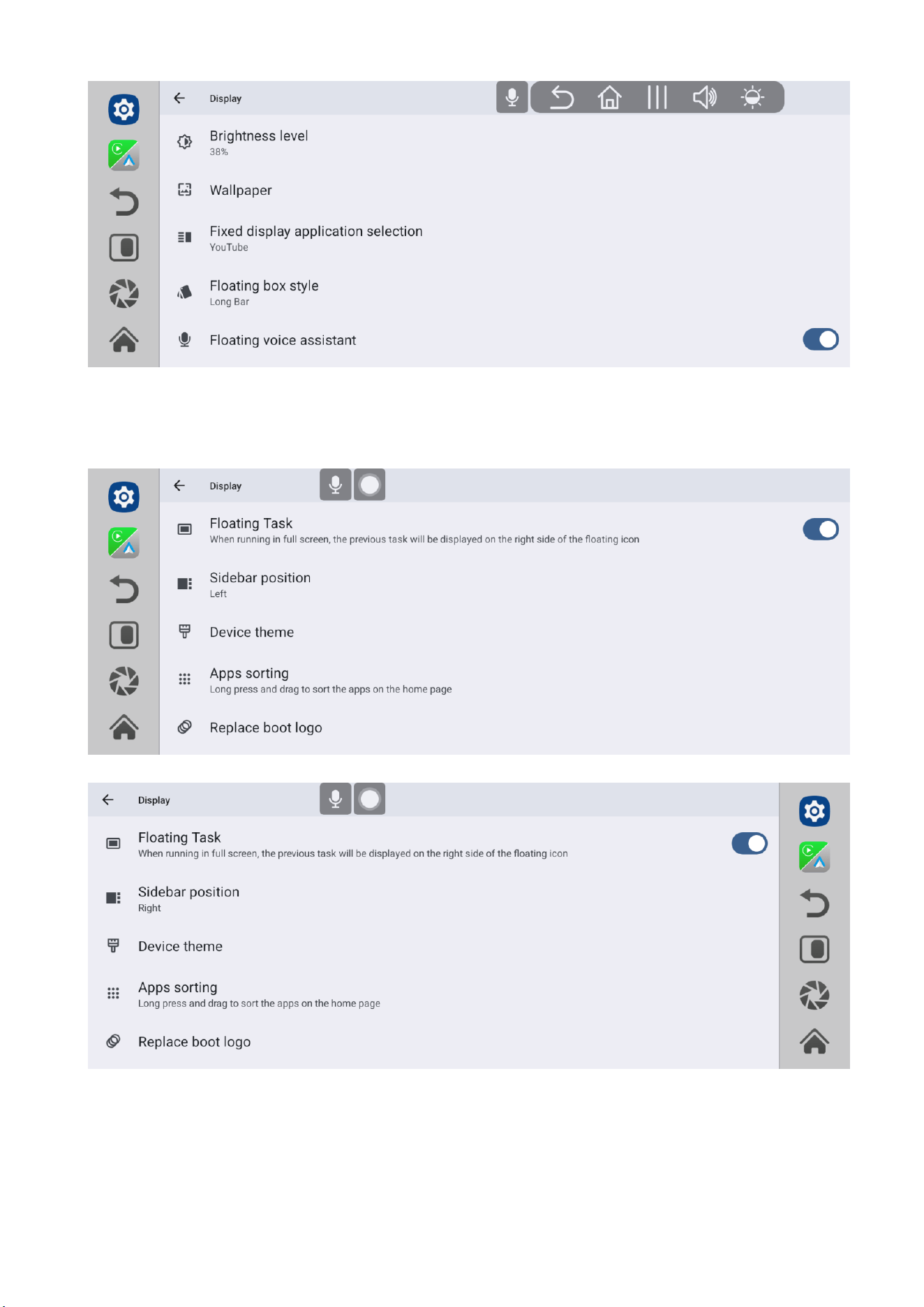
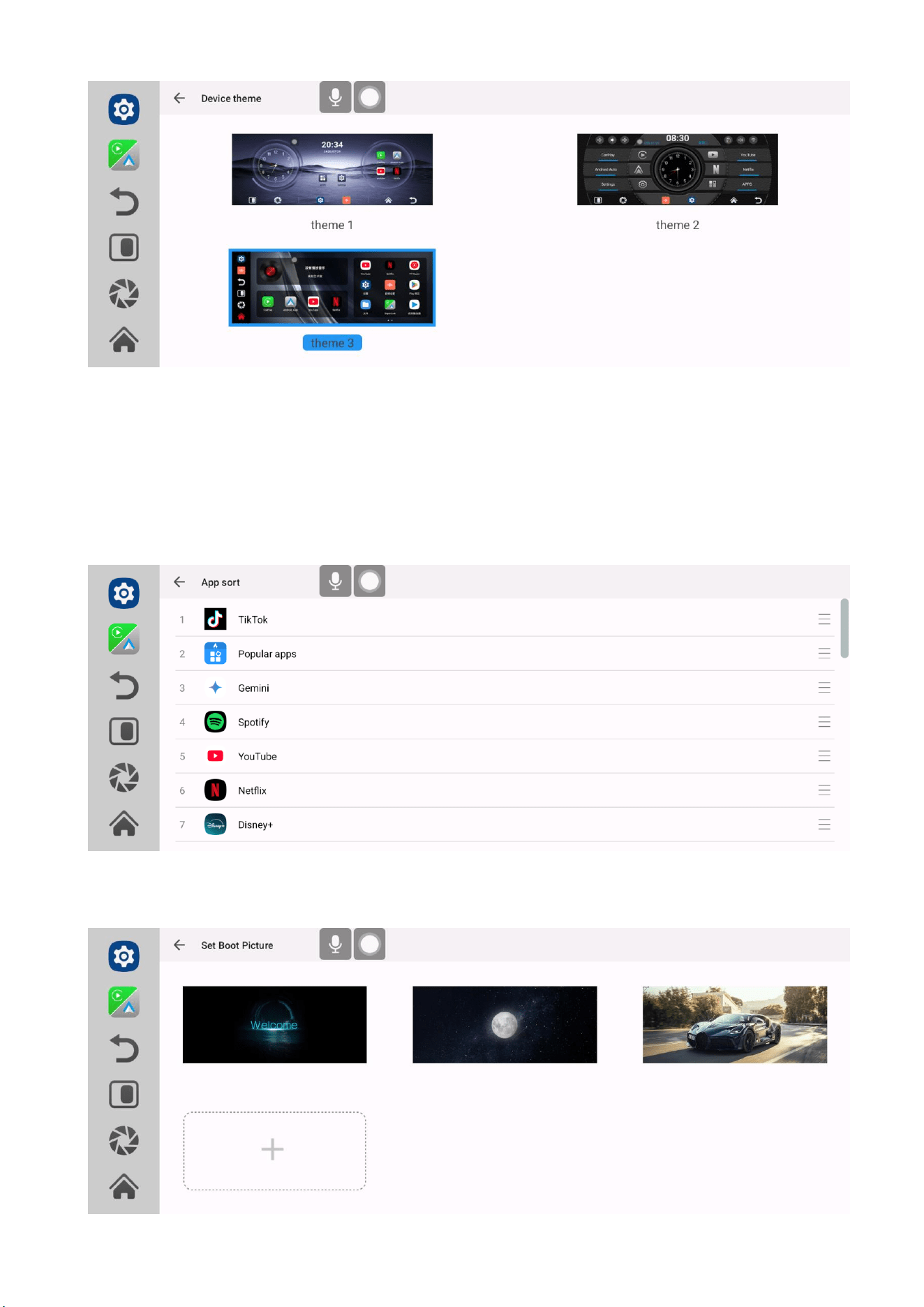
3. Display: Users can adjust screen brightness, change the default split screen application on
the left, change the floating frame style, position the sidebar, select device themes, sort
applications, and replace the startup logo.
▲Change the wallpaper of the main interface
[在此处键入]
[在此处键入]
▲Change the left or right split screen application
[在此处键入]
[在此处键入]
▲Replace the Floating box style
▲Sidebar position
[在此处键入]
[在此处键入]
▲Change wallpaper
▲Application sorting (long press to select applications and drag to sort)
[在此处键入]
[在此处键入]
▲Change the startup logo
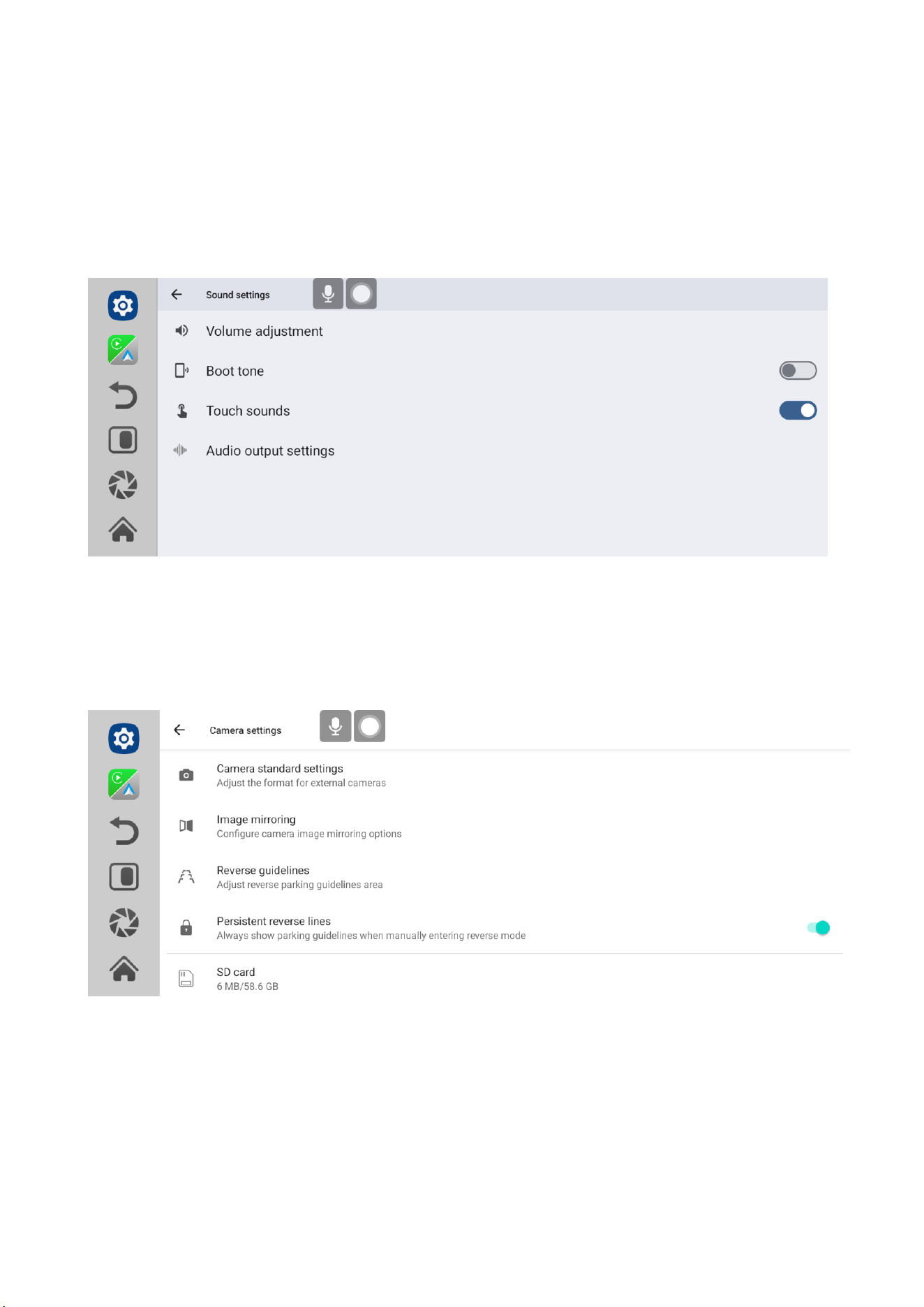
4. Sound settings: Users can control the volume of the device, choose to turn on or off the
power on ringtone, and set audio output.
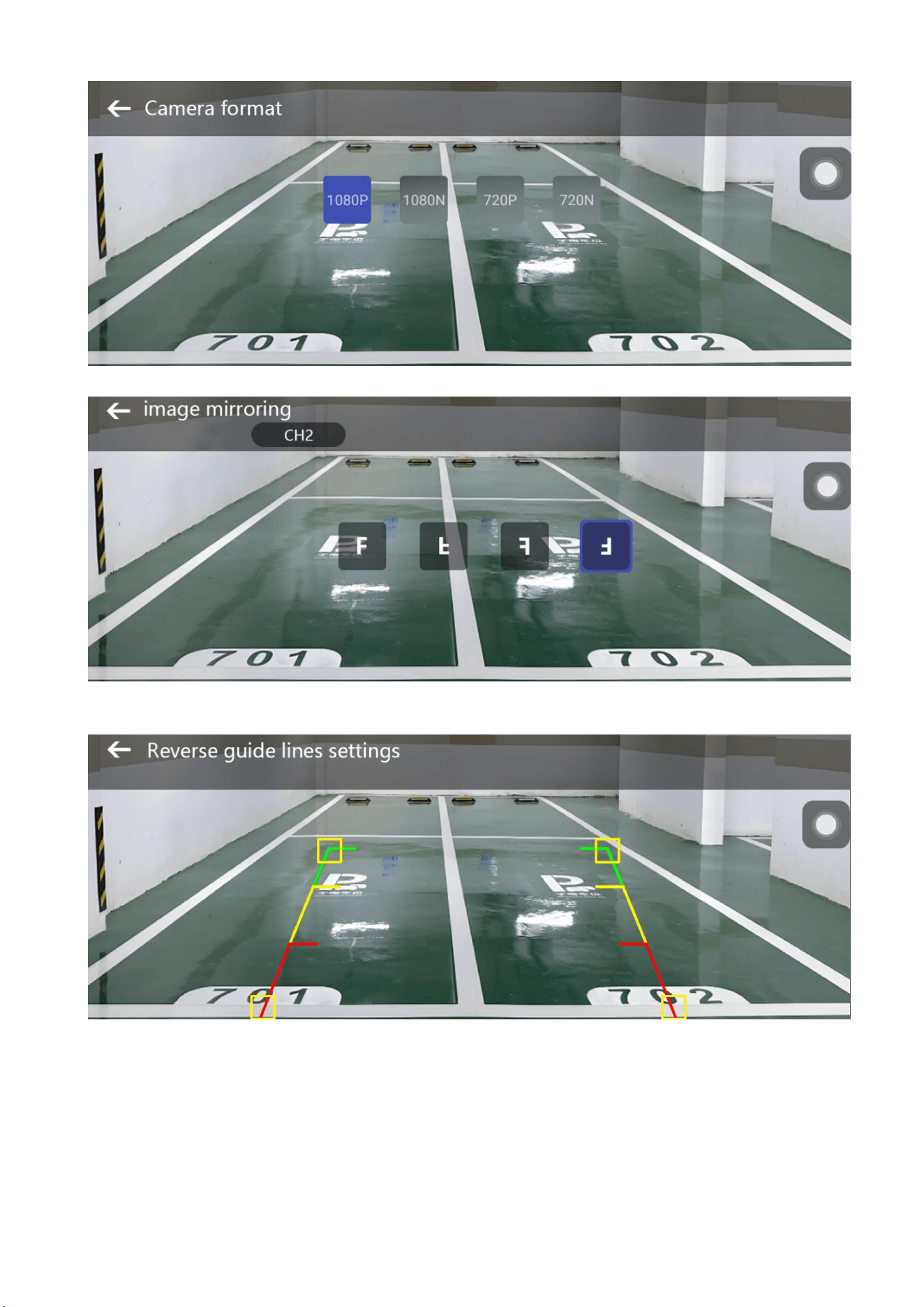
5. Reverse settings: reverse line calibration, reverse camera system selection, reverse camera
image mirroring.
[在此处键入]
[在此处键入]
▲Reverse line calibration
[在此处键入]
[在此处键入]
6. Applications: Recently used applications, default applications.
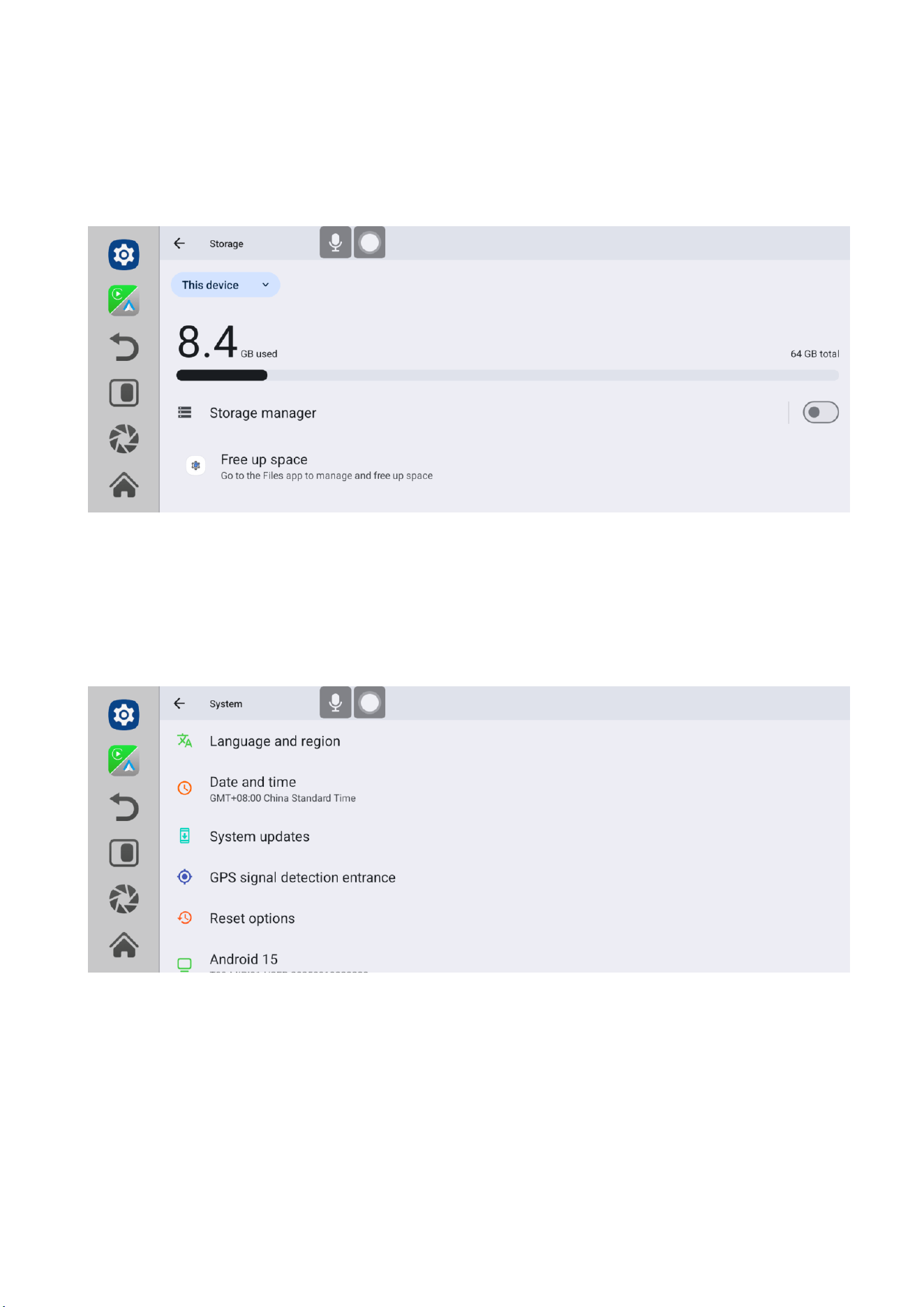
7. Storage: Provide users with functions such as storage space usage, cleaning storage space,
[在此处键入]
[在此处键入]
and external storage management to help users better manage and optimize their phone's
storage space.
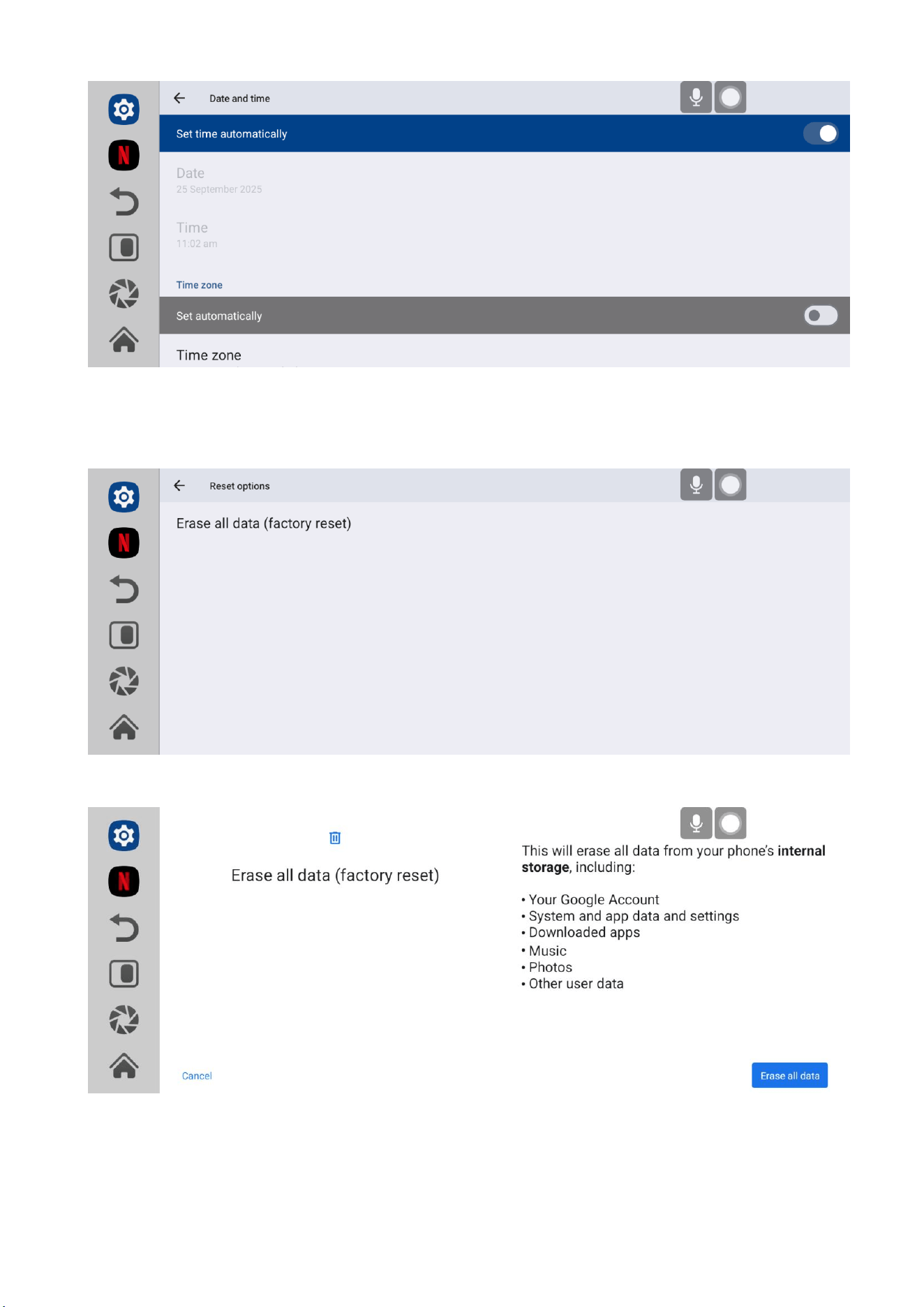
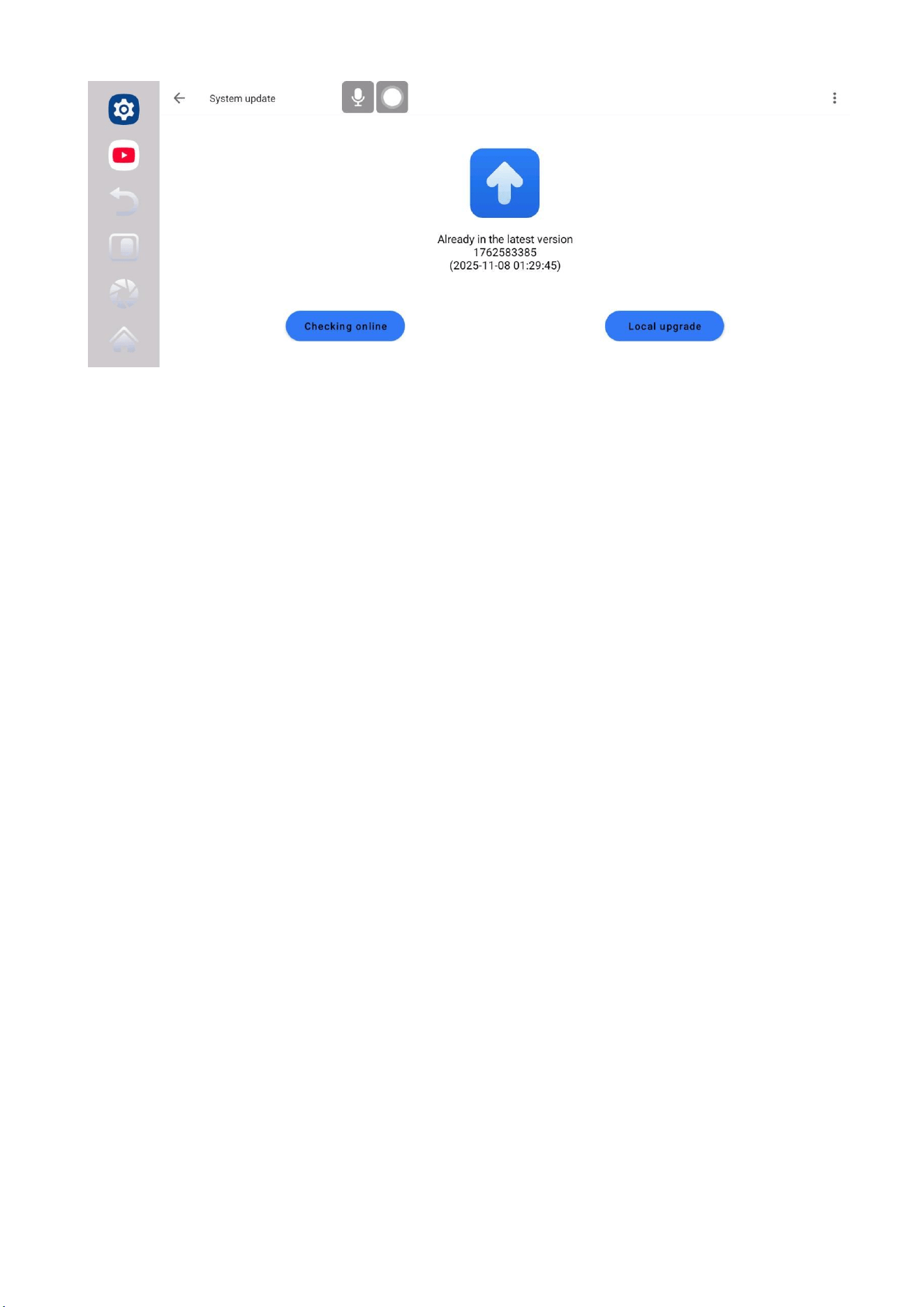
8. System: Language and region, Date & time, Reset options, System updates, AI OS. This
system is based on Android 15.
▲Choose language or region
[在此处键入]
[在此处键入]
▲Choose to set date and time
▲Restore factory settings
[在此处键入]
[在此处键入]
▲System updates
Please ensure the vehicle power supply remains active and the system maintains
uninterrupted power throughout the OTA update process. Do not interrupt the power source
during the upgrade procedure.
FCC Warning
This device complies with part 15 of the FCC rules. Operation is subject to the following two conditions: (1) this
device may not cause harmful interference, and (2) this device must accept any inte rference received, including
interference that may cause undesired operation.
Changes or modifications not expressly approved by the party responsible for compliance could void the user's
authority to operate the equipment.
NOTE: This equipment has been tested and found to comply with the limits for a Class B digital device, pursuant to
part 15 of the FCC Rules. These limits are designed to provide reasonable protection against harmful interference in
a residential installation. This equipment generates uses and can radiate radio frequency energy and, if not installed
and used in accordance with the instructions, may cause harmful interference to radio communications. However,
there is no guarantee that interference will not occur in a particular installation. If this equipment does cause harmful
interferenceto radio or television reception, which can be determined by turning the equipment off and on, the user is
encouraged to try to correct the interference by one or more of the following measures:
• Reorient or relocate the receiving antenna.
• Increase the separation between the equipment and receiver.
• Connect the equipment into an outlet on a circuit different from that to which the receiver is connected.
• Consult the dealer or an experienced radio/TV technician for help.
Radiation Exposure Statement
This equipment complies with FCC radiation exposure limits set forth for an uncontrolled environment. This
equipment should be installed and operated with minimum distance 20cm between the radiator and your body.