Voice Assistant
Setup Guide

CREATE A SMART AND
COMFORTABLE LIVING SPACE
Scan the QR code to watch the setup video.
01
Before Setting Up
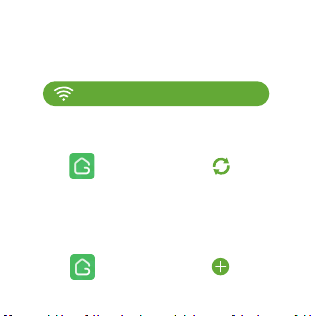
1. See manual: check if the device you purchased
suppos 2.4 GHz only, or both 2.4 GHz and 5 GHz Wi-Fi.
2. Download the GHome App and update it to
version 5.7.0 or later.
Ensure your phone runs iOS 11+ or
Android 6.0+ for a smooth connection.
3. Add your devices to GHome App
according to the manual.
Conrm Wi-Fi Suppo
Add devices
5.7.0 or later
02
Connecting GHome Devices to Alexa
1. Please download the Amazon Alexa App and logged
in before connecting.
2. You can set up using either the GHome App or the
Amazon Alexa App. See the instructions below.
GHome
03
Amazon Alexa
Amazon Alexa
or
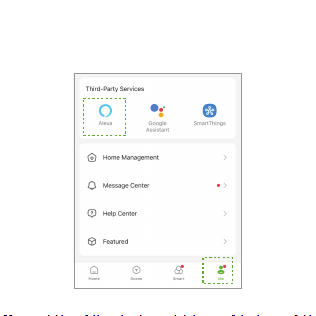
Method 1: Link via GHome App
1. Open the GHome App, go to the "Me" page, then
tap the "Alexa" icon.
04
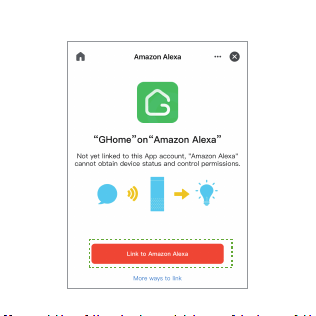
2. Tap "Link to Amazon Alexa".
05
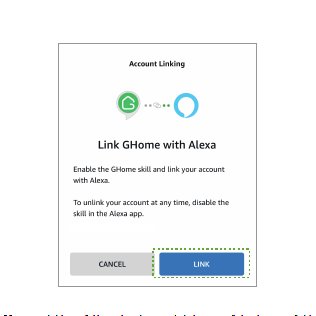
3. GHome App will redirect you to Alexa, then tap "LINK".
06
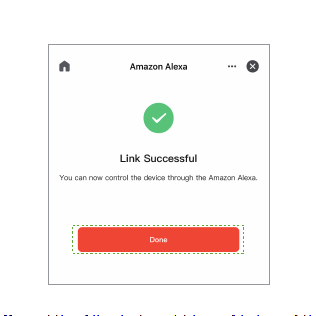
4. Link successfully.
07
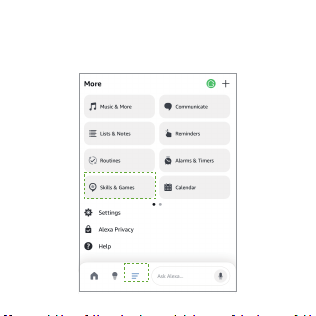
Method 2: Link via Alexa App
1. Open Amazon Alexa App, tap "Skills & Games" on
the "More" page.
08
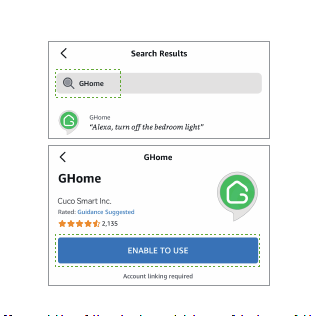
2. Search for "GHome", then tap "ENABLE TO USE".
09
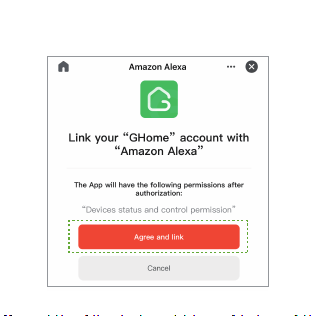
3. If the GHome App is installed, Alexa will redirect
you to it; then tap "Agree and link".
10
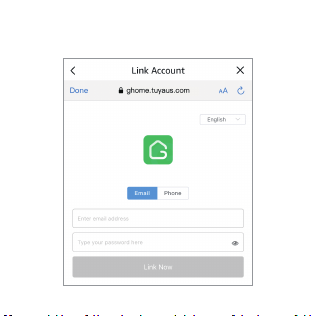
If the GHome App is not installed, download it and create
an account, then complete the required information.
11
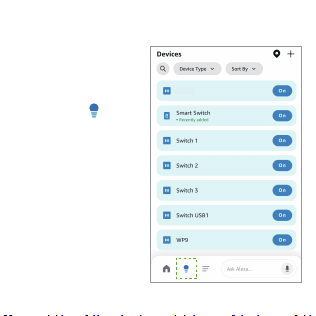
Operate Devices via Alexa Voice Control
2. Go to the " " page,
and tap your device.
1. Ensure the GHome
App is linked to the
Amazon Alexa App.
12
WP3/5
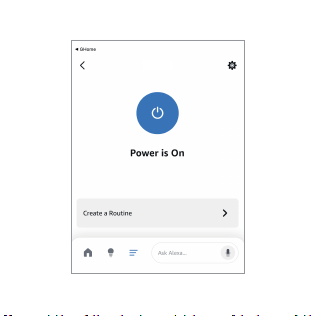
3. Operate the device.
Note: WP3/5 is used as an example.
13
WP3/5
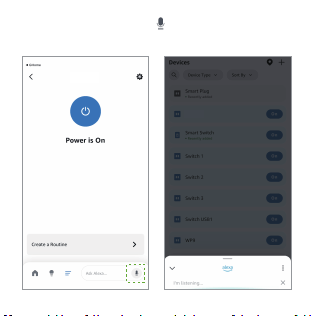
4. Voice Control: Tap the " " in the Alexa App to
activate the voice assistant.
14
WP3/5
WP3/5
Examples of Voice Commands:
Note:
1. e device name can be changed via the
Amazon Alexa App.
2. To use voice control with the speaker, make
sure it is connected to the Amazon Alexa App.
15
"Alexa, turn on [the living room light]."
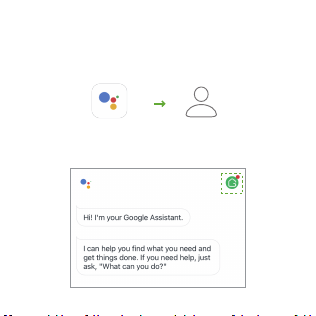
Connecting GHome Devices to
Google Assistant
1. Download the Google Assistant App and login in.
2. Tap your prole icon.
16
Assistant
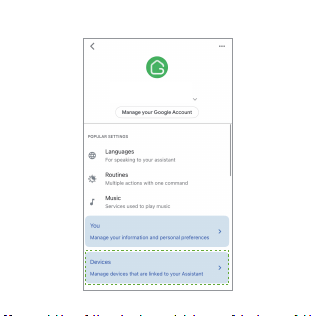
3. Tap "Devices".
17
GHome Sma
********@gamil.com
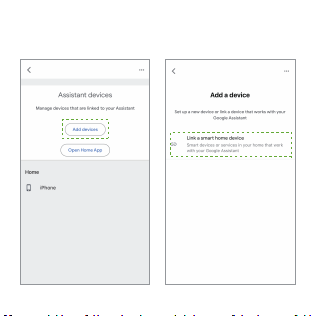
4. Tap "Add devices", then tap
"Link a sma home device".
18
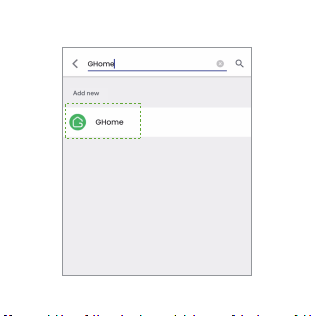
5. Search for "GHome" and tap it.
19
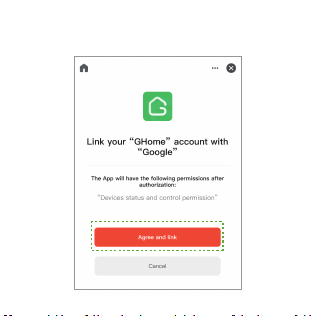
6. If the GHome App is installed, Google Assistant
will redirect you to it; then tap "Agree and link".
20
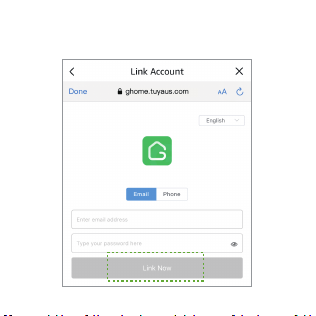
If the GHome App is not installed, download it and create
an account, then complete the required information.
21
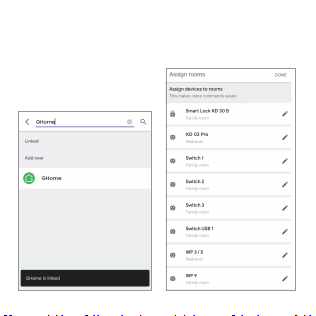
7. Do not take any action when "GHome is linked"
appears. Google Assistant will then guide you to
assign rooms for your devices.
e.g.
22
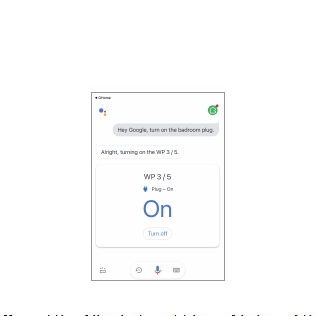
Note: WP3/5 is used as an example.
Operate Devices via Google Assistant
& Google Home
1. After devices are assigned to rooms, you can control
them via Google Assistant voice commands.
e.g.
23
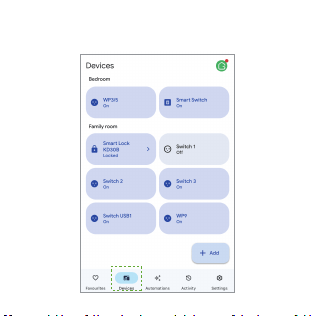
2. At the same time, you can view these devices on the
"Devices" page in Google Home App.
24
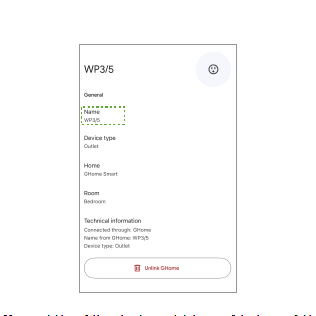
3. Devices name can be changed in Google Home App.
25
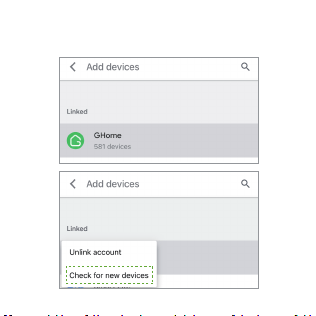
4. When adding new devices in the GHome App, tap
"Check for new devices" during the search step (page 19).
26