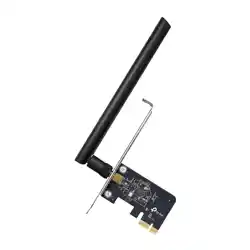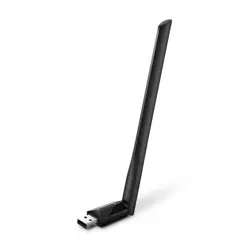

© 2021 TP-Link 7106509432 REV2.1.0
English
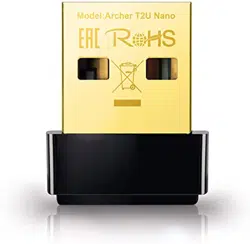
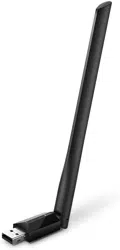
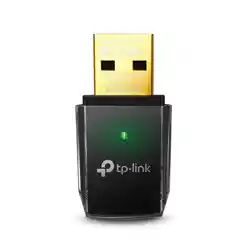
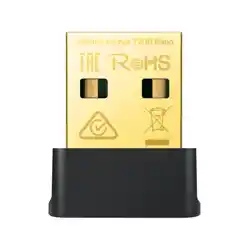
1 Connect to a Computer
Option 1: Directly
Option 2: Via the USB Extension Cable
Note: In Windows XP or Vista, a Found New Hardware Wizard window
will appear when the adapter is detected. Please click Cancel.
2 Install Driver
For Windows
A. Insert the CD and run the Autorun.exe.
Note: You can also download the driver from this product’s
Support page at www.tp-link.com.
B. Select your adapter and follow the instructions to
complete the installation.
Note: If you can’t install the driver successfully, disable the
antivirus software and rewall, then try again.
For Mac OS X
A. Download the driver and utility from this product’s
Support page at www.tp-link.com.
B. Unzip the downloaded folder and run the Install.pkg.
C. Follow the instructions to complete the installation.
3 Join a Wireless Network
For Windows
Option 1: Via Windows Wireless Utility
A. Click the network icon ( or ) on the taskbar.
B. Select your Wi-Fi network, click Connect and enter
the password when prompted.
Uninstall.commandInstall.pkg
SHELL
Connections are available
Wireless Network Connection
Connect automatically
Connect
√
TP-Link_XXXX
English
Option 2: Via WPS Tool
If your adapter does not have a WPS button, please ignore this option.
A. Press the WPS button on your router.
B. Within 2 minutes, press and hold the WPS button on
the adapter until WPS Tool opens.
C. When the "Success!" message appears, your
computer is connected to Wi-Fi.
For Mac OS X
Option 1: Via TP-Link Utility
A. Click (TP-Link Utility) on the menu bar or select
Site Survey tab of the pop-up utility window.
B. Select your Wi-Fi network and enter the Wi-Fi
password when prompted.
Option 2: Via Wi-Fi Protected Setup (WPS)
If your adapter does not have a WPS button, please ignore this option.
A. Press the WPS button on your router.
B. Within 2 minutes, press and hold the WPS button on
the adapter until the following window appears.
C. When you are prompted “WPS Protocol Finished”
For detailed instructions, please refer to the User Manual from
this product’s Support page at www.tp-link.com.
WPS Progress: Scan Active WPS AP
PIN PBC Cancel
WPS
WPS
Cancel
WPS
Cancel
Fri 5:14 PM
T P - Link_ 0 9 0 3
T P - Link_
0 2 1 0
T P - Link_ 0 0 0 1
T P - Link_ X X X X
J oin O th e r N e tw or k
W P S
O pe n W ir e le ss Utility
USB - W iF i: O n
T u r n USB - W iF i O f f
Wireless Utility
P r of ile Link Statu s Site Su r v e y Statistics
W P S
A b ou t
A P List
D isconne cte d! !
R ESC A N C O N N EC T A D D P R O F ILE
SSID
B SSID
Encr …
A u th e …
C h anne l N e tw or k T y pe
Signal
T P - Link_ X X X X 7 2 - 1 0 - 1 8 - 0 1 - 0 0 - 0 3
T P - Link_ T EST _
T P - Link_ 0 9 0 3
T P - Link_ 0 0 0 1 0 0 - 1 0 - 1 8 - A 9 - 5 D - 8 D
0 0 - 5 1 - E1 - 0 2 - 2 0 - 4 4
0 2 - 1 0 - 1 8 - 0 1 - 0 0 - 0 2
5 6 W P A 2 - P S A ES Inf r astr u ctu r e
Inf r astr u ctu r e
Inf r astr u ctu r e
Inf r astr u ctu r e
A ES
N O N E
N O N E
W P A 2 - P S
O pe n
O pe n
3 6
1 1
22 9
7
2
Português
1 Conectando ao Computador
Opção 1: Diretamente
Opção 2: Via Cabo de Extensão USB
Aviso: No Windows XP, uma janela de um Novo Hardware aparecerá
quando o adaptador for detectado. Favor clicar em Cancelar.
2 Instalando o Driver
Para Windows
A. Insira o CD e inicie o Autorun.exe.
Aviso: Você também pode baixar o driver da nossa página de
Suporte do produto em www.tp-link.com.
B. Selecione seu adaptador e siga as instruções para
concluir a instalação.
Aviso: Caso não consiga instalar o driver com sucesso, desabilite
o antivírus e o rewall, e tente novamente.
Para MAC OS X
A. Baixe o driver e o utilitário da página de Suporte do
produto em: www.tp-link.com.
B. Descompacte a pasta baixada e inicie o arquivo
Install.pkg.
C. Siga as instruções para completar a instalação.
3 Acessando uma Rede Wireless
Para Windows
Opção 1: Via Utilitário Wireless Windows
A. Clique no ícone de rede ( or ) na barra de tarefas.
B. Selecione sua rede Wi-Fi, clique em Conectar e digite
a senha quando solicitado.
Uninstall.commandInstall.pkg
SHELL
Connections are available
Wireless Network Connection
Connect automatically
Connect
√
TP-Link_XXXX
Português
Opção 2: Via Ferramenta WPS
Caso seu adaptador não possua botão WPS, favor ignorar esta opção.
A. Pressione o botão WPS no seu roteador.
B. Dentro de 2 minutos, pressione e segure o botão WPS
no adaptador até que a Ferramenta WPS abra.
C. Quando a mensagem "Feito com sucesso! " aparecer,
seu computador estará conectado ao Wi-Fi.
Para MAC OS X
Opção 1: Via Utilitário TP-Link
A. Clique em (Utilitário TP-Link) na barra de menu ou
selecione a tabela Site Survey da janela pop-up do
utilitário.
B. Selecione sua rede Wi-Fi e digite a senha quando
solicitado.
Caso seu adaptador não possua botão WPS, favor ignorar esta opção.
A. Pressione o botão WPS no seu roteador.
B. Dentro de 2 minutos, pressione e segure o botão WPS
no adaptador até que a seguinte janela apareça.
o processo está completo.
Para obter instruções detalhadas, consulte o Manual do Usuário na
página de suporte deste produto em www.tp-link.com.
Para informações de aspectos de segurança e adequação do
produto no território brasileiro consulte: www.gov.br/anatel/pt-br/
WPS Progress: Scan Active WPS AP
PIN PBC Cancel
WPS
WPS
Cancel
WPS
Cancel
Fri 5:14 PM
T P - Link_ 0 9 0 3
T P - Link_
0 2 1 0
T P - Link_ 0 0 0 1
T P - Link_ X X X X
J oin O th e r N e tw or k
W P S
O pe n W ir e le ss Utility
USB - W iF i: O n
T u r n USB - W iF i O f f
Wireless Utility
P r of ile Link Statu s Site Su r v e y Statistics
W P S
A b ou t
A P List
D isconne cte d! !
R ESC A N C O N N EC T A D D P R O F ILE
SSID
B SSID
Encr …
A u th e …
C h anne l N e tw or k T y pe
Signal
T P - Link_ X X X X 7 2 - 1 0 - 1 8 - 0 1 - 0 0 - 0 3
T P - Link_ T EST _
T P - Link_ 0 9 0 3
T P - Link_ 0 0 0 1 0 0 - 1 0 - 1 8 - A 9 - 5 D - 8 D
0 0 - 5 1 - E1 - 0 2 - 2 0 - 4 4
0 2 - 1 0 - 1 8 - 0 1 - 0 0 - 0 2
5 6 W P A 2 - P S A ES Inf r astr u ctu r e
Inf r astr u ctu r e
Inf r astr u ctu r e
Inf r astr u ctu r e
A ES
N O N E
N O N E
W P A 2 - P S
O pe n
O pe n
3 6
1 1
22 9
7
2

Español
1 Conecte una computadora
Opción 1: Directamente
Opción 2: A través del cable de extensión USB
Nota: En Windows XP o Vista, aparecerá una ventana de Asistente
para hardware nuevo encontrado cuando se detecte el adaptador.
Haga clic en Cancelar.
2 Instalar controlador
Para Windows
A. Inserte el CD y ejecute el Autorun.exe.
Nota: También puede descargar el controlador desde la
página de soporte de este producto en www.tp-link.com.
B. Seleccione su adaptador y siga las instrucciones
para completar la instalación.
Nota: Si no puede instalar el controlador correctamente, desactive
el programa del antivirus y el cortafuegos y vuelva a intentarlo.
Para Mac OS X
A. Descargue el controlador y la utilidad en la página de
soporte de este producto en www.tp-link.com.
B. Descomprima la carpeta descargada ejecute el archivo
Install.pkg.
C. Sigue las instrucciones para completar la instalación.
3 Unirse a una red inalámbrica
Para Windows
Opción 1: A través de la utilidad inalámbrica de Windows
A. Haga clic en el icono de red ( ó ) en la barra de tareas.
B. Seleccione su red Wi-Fi, haga clic en Conectar e
ingrese la contraseña cuando se le solicite.
Uninstall.commandInstall.pkg
SHELL
Connections are available
Wireless Network Connection
Connect automatically
Connect
√
TP-Link_XXXX
Español
Opción 2: A través de la herramienta WPS
Si su adaptador no tiene un botón WPS, por favor ignore esta opción.
A. Presione el botón WPS en su router.
B. Dentro de 2 minutos, mantenga presionado el
botón WPS del adaptador hasta que se abra la
herramienta WPS.
C. Cuando aparezca el mensaje de "conexión éxitosa!" ,
Para Mac OS X
Option 1: Via la utileria de TP-Link
A. Click Utileria de TP-Link) en la barra de menús
o seleccione la pestaña Escanear Redes en la ventana
emergente de la utileria .
cuando se le solicite.
Si su adaptador no tiene un botón WPS, por favor ignore esta opción.
A. Presione el botón WPS en su router.
B. Dentro de 2 minutos, mantenga presionado el botón
WPS del adaptador hasta que aparezca la siguiente
ventana.
C. Cuando se le pida "Protocolo terminado WPS " o "PBC -
Para obtener las instrucciones detalladas, consulte el Manual del
usuario en la página de soporte de este producto en www.tp-link.com.
WPS Progress: Scan Active WPS AP
PIN PBC Cancel
WPS
WPS
Cancel
WPS
Cancel
Fri 5:14 PM
T P - Link_ 0 9 0 3
T P - Link_
0 2 1 0
T P - Link_ 0 0 0 1
T P - Link_ X X X X
J oin O th e r N e tw or k
W P S
O pe n W ir e le ss Utility
USB - W iF i: O n
T u r n USB - W iF i O f f
Wireless Utility
P r of ile Link Statu s Site Su r v e y Statistics
W P S
A b ou t
A P List
D isconne cte d! !
R ESC A N C O N N EC T A D D P R O F ILE
SSID
B SSID
Encr …
A u th e …
C h anne l N e tw or k T y pe
Signal
T P - Link_ X X X X 7 2 - 1 0 - 1 8 - 0 1 - 0 0 - 0 3
T P - Link_ T EST _
T P - Link_ 0 9 0 3
T P - Link_ 0 0 0 1 0 0 - 1 0 - 1 8 - A 9 - 5 D - 8 D
0 0 - 5 1 - E1 - 0 2 - 2 0 - 4 4
0 2 - 1 0 - 1 8 - 0 1 - 0 0 - 0 2
5 6 W P A 2 - P S A ES Inf r astr u ctu r e
Inf r astr u ctu r e
Inf r astr u ctu r e
Inf r astr u ctu r e
A ES
N O N E
N O N E
W P A 2 - P S
O pe n
O pe n
3 6
1 1
22 9
7
2
Français
1 Connecter à un ordinateur
Option 1 : Directement
Option 2 : Via la rallonge USB
Remarque : Sous Windows XP et Vista, une fenêtre Nouveau
matériel détecté apparaitra à la détection de l'adaptateur.
Merci de cliquer sur Annuler.
2 Installer le pilote
Pour Windows
A. Insérer le CD et exécuter Autorun.exe.
Remarque : Vous pouvez aussi télécharger le pilote depuis la
page support du produit sur www.tp-link.fr.
B. Sélectionner votre adaptateur et suivre les
instructions pour procéder à son installation.
Remarque : Si vous ne pouvez installer le pilote, désactivez
l'antivirus et le parefeu avant d'essayer à nouveau.
Pour OS X
A. Télécharger pilotes et utilitaire depuis la page
support du produit sur www.tp-link.fr.
install.pkg.
C. Suivre les instructions pour procéder à son installation.
3 Se connecter à un réseau Wi-Fi
Pour Windows
ou ) de la barre des
tâches.
B. Sélectionner le réseau Wi-Fi, cliquer sur se connecter
Uninstall.commandInstall.pkg
SHELL
Connections are available
Wireless Network Connection
Connect automatically
Connect
√
TP-Link_XXXX
Français
Si votre adaptateur ne dispose pas d'un bouton WPS ignorer cette option.
A. Appuyer sur le bouton WPS du routeur.
B. Dans les 2 minutes qui suivent, maintenir le bouton
C. Quand le message "Réussi !" apparait, votre ordinateur
est connecté au réseau Wi-Fi.
Pour OS X
B. Sélectionner le réseau Wi-Fi, puis saisir le mot de
Option 2 : Via la fonction WPS (Wi-Fi Protected Setup)
Si votre adaptateur ne dispose pas d'un bouton WPS ignorer cette option.
A. Appuyer sur le bouton WPS du routeur.
B. Dans les 2 minutes qui suivent, maintenir le bouton WPS
C. Quand le message "Protocole WPS achevé" ou "PBC -
Pour des instructions détaillées, référez vous au mode d'emploi
disponible sur la page support du produit depuis www.tp-link.fr.
WPS Progress: Scan Active WPS AP
PIN PBC Cancel
WPS
WPS
Cancel
WPS
Cancel
Fri 5:14 PM
T P - Link_ 0 9 0 3
T P - Link_
0 2 1 0
T P - Link_ 0 0 0 1
T P - Link_ X X X X
J oin O th e r N e tw or k
W P S
O pe n W ir e le ss Utility
USB - W iF i: O n
T u r n USB - W iF i O f f
Wireless Utility
P r of ile Link Statu s Site Su r v e y Statistics
W P S
A b ou t
A P List
D isconne cte d! !
R ESC A N C O N N EC T A D D P R O F ILE
SSID
B SSID
Encr …
A u th e …
C h anne l N e tw or k T y pe
Signal
T P - Link_ X X X X 7 2 - 1 0 - 1 8 - 0 1 - 0 0 - 0 3
T P - Link_ T EST _
T P - Link_ 0 9 0 3
T P - Link_ 0 0 0 1 0 0 - 1 0 - 1 8 - A 9 - 5 D - 8 D
0 0 - 5 1 - E1 - 0 2 - 2 0 - 4 4
0 2 - 1 0 - 1 8 - 0 1 - 0 0 - 0 2
5 6 W P A 2 - P S A ES Inf r astr u ctu r e
Inf r astr u ctu r e
Inf r astr u ctu r e
Inf r astr u ctu r e
A ES
N O N E
N O N E
W P A 2 - P S
O pe n
O pe n
3 6
1 1
22 9
7
2
www.tp-link.com