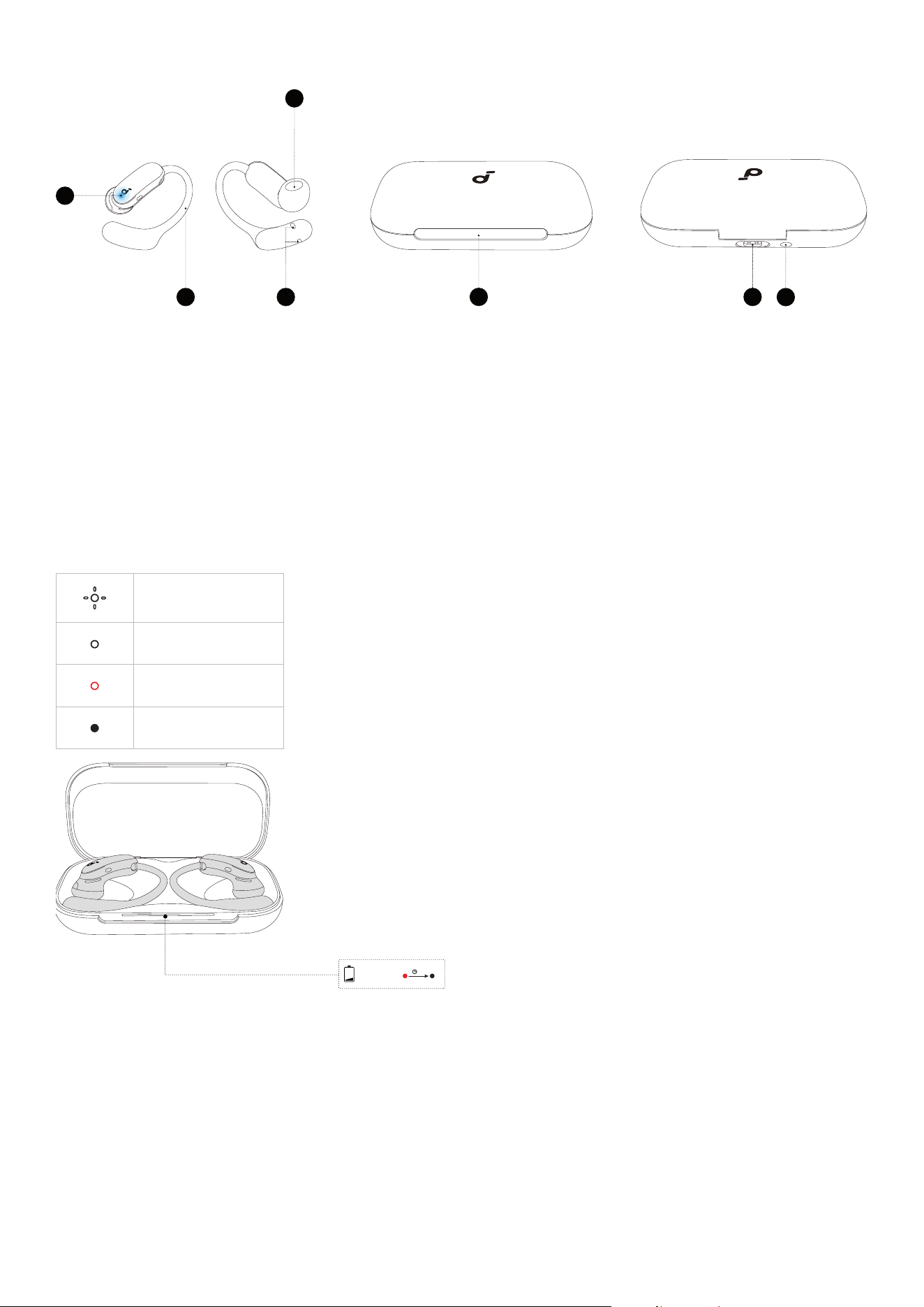
OVERVIEW
2
3
5
6
7
1
4
1. Earbud Button
2. Ear Hook
3. Sound Outlet
4. Charging Contacts
5. LED Light Strip
6. USB-C Charging Port
7. Charging Case Button
LED LIGHT GUIDE
Flashing White
Solid White
Solid Red
Light O
< 20%
5s
10s
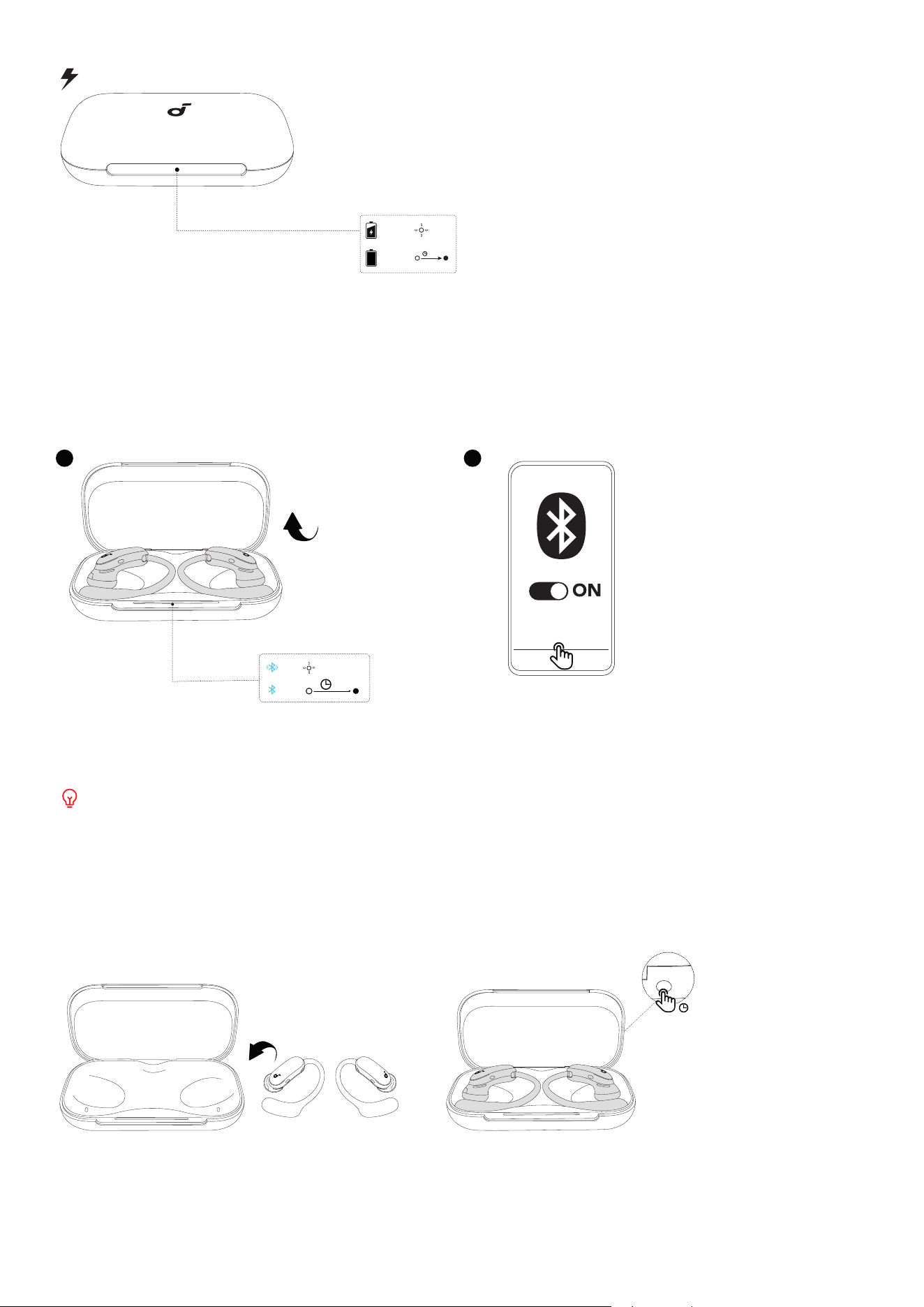
When the charging case is opened, the LED light strip will indicate the case's remaining battery level.
When the battery level is below 20%, the light strip stays red for 5 seconds and then turns o.
< 20%
5s
10s
When the charging case is connected to a power source, the LED light strip will indicate the case's
charging status.
While charging, the light strip flashes white.
Once fully charged, the light strip stays solid white for 10 seconds, then turns o.
POWERING ON & PAIRING
1 2
2s
AeroFit 2 Pro
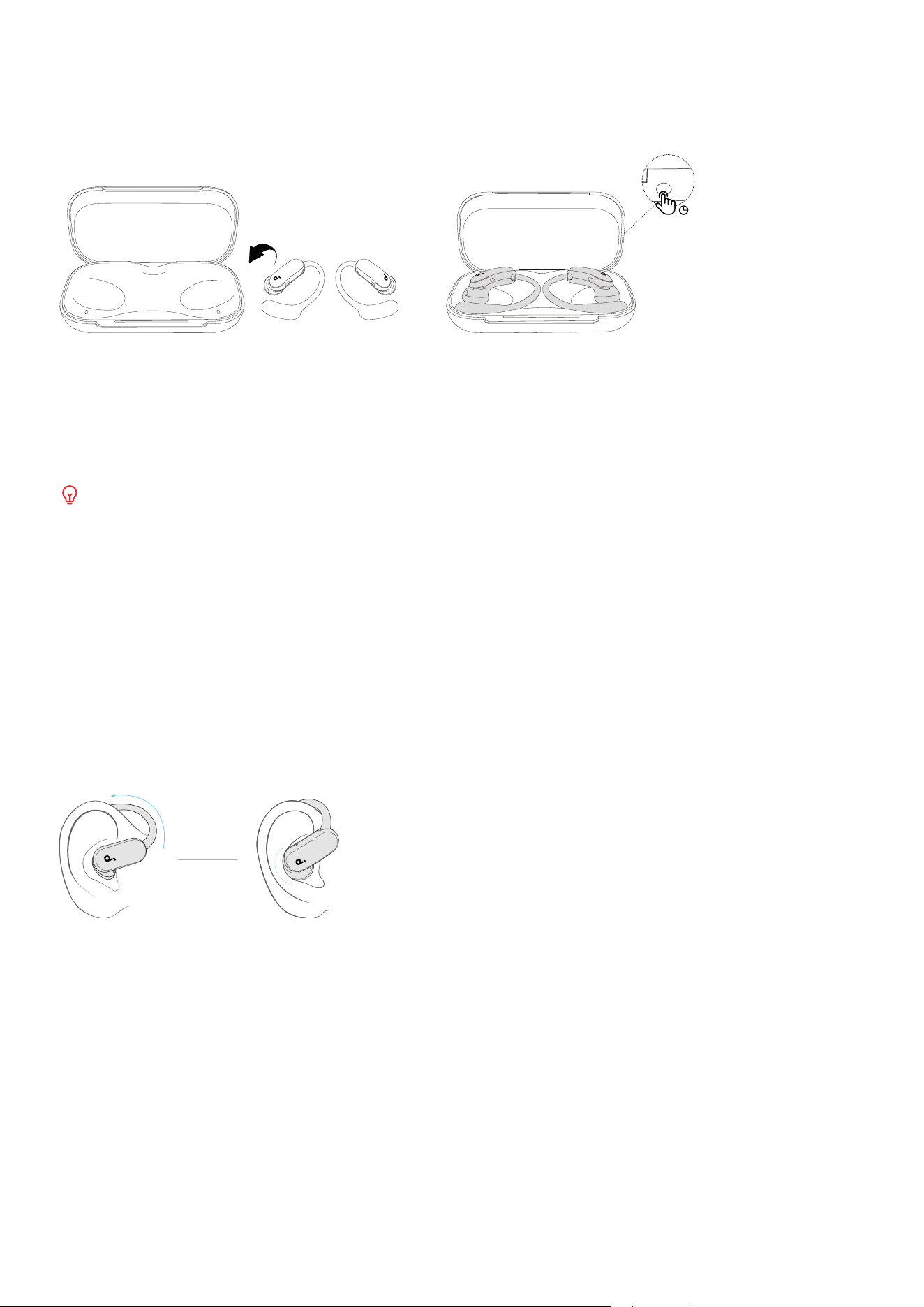
1. Open the charging case, and the earbuds will automatically power on and enter pairing mode.
2. Select "AeroFit 2 Pro" from your device's Bluetooth list to connect. The case's LED light strip will flash
white during pairing and stay on for 2 seconds once connected.
Once paired, the earbuds will automatically reconnect to your device every time you open the charging
case. For auto-connection, avoid deleting pairing history from your device.
MANUAL PAIRING
To manually enter Bluetooth pairing mode, there are two ways:
AeroFit 2 Pro
3s
Place the earbuds in the charging case. Leave the case open, then press and hold the charging case
button for 3 seconds until the light strip flashes white. You can then proceed with pairing.
Alternatively, press and hold the buttons on both earbuds for 5 seconds to enter pairing mode. You can
then proceed with pairing.
DUAL CONNECTIONS
To connect two Bluetooth devices simultaneously, use one of the two methods:
Method 1: Manually Pair with the Second Device
AeroFit 2 Pro
3s
Place the earbuds in the charging case. Leave the case open, then press and hold the charging case
button for 3 seconds until the light strip flashes white. You can then proceed to pair with the second
device.
Method 2: Use the soundcore App
On the main inteace of the soundcore app, go to Dual Connections > Connect New Device.
If your earbuds are already connected to two devices, disconnect from at least one before pairing with
a new device. Dual Connections is enabled by default.
DUAL FORM WEARING AND SWITCHING
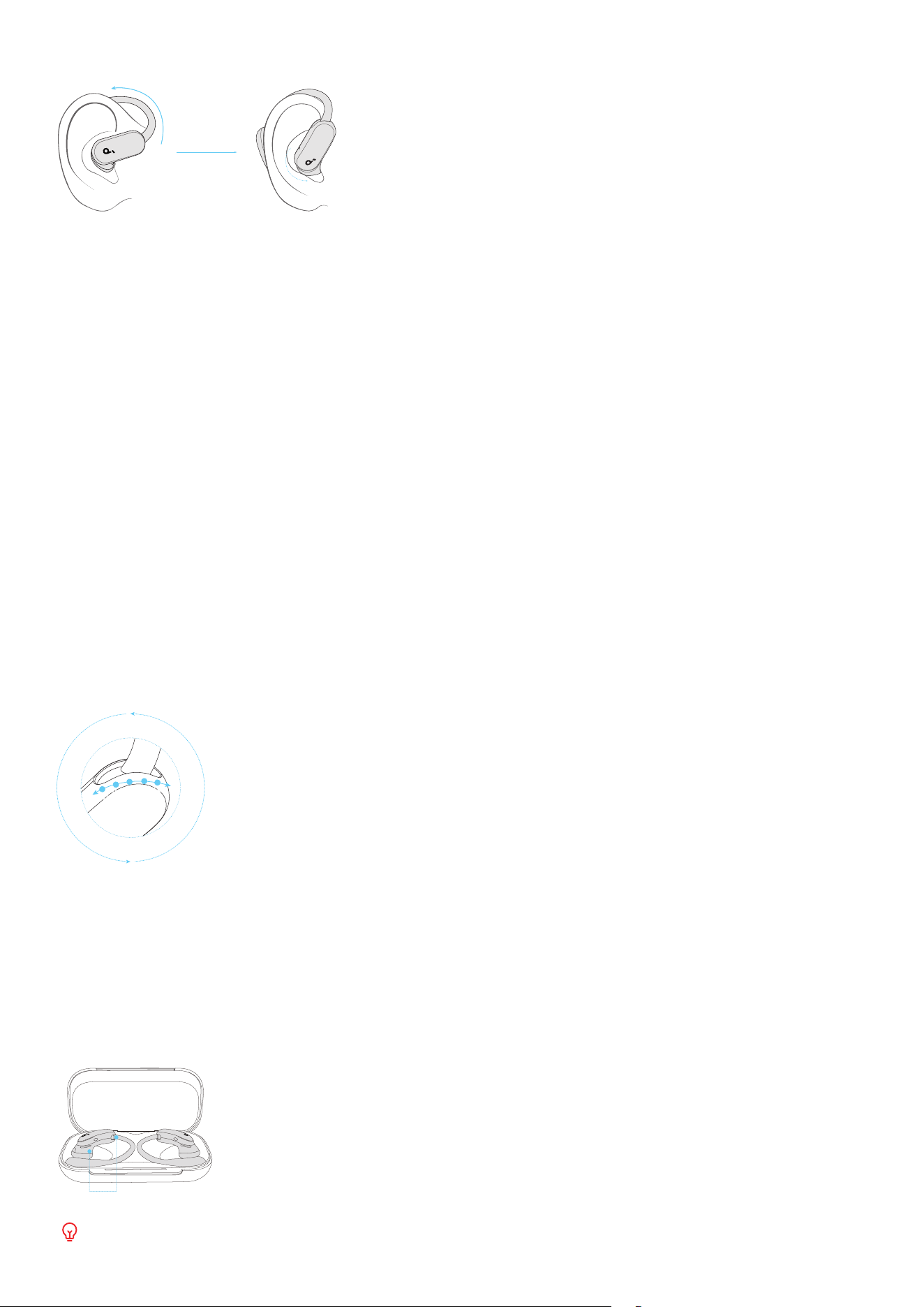
AeroFit 2 Pro has two wearing forms: Open-Ear and ANC. The built-in sensors can detect which form is
being used based on whether the earbuds cover your ear canals.
• When the earbuds rest on the ears and the ear canals are clear, this is Open-Ear Form.
• When the earbuds cover the ear canal, this is ANC Form.
• You can easily switch between them by adjusting the ear hook levels, and enjoy dierent wearing
experiences and functions as needed.
Wearing in Open-Ear Form
1. Place the ear hook over the outer ear.
2. Adjust the ear hook along your outer ear by sliding it between the five available levels, making sure
the sound outlet faces the entrance of your ear canal.
3. Earbuds rest on the ears, keeping the ear canals clear.
This form ensures your ear canals remain unobstructed, reducing pressure and allowing for comfortable
long-term wear without blocking out surrounding sounds.
Recommended for use:
• During outdoor activities (e.g., jogging, cycling, or situations where you need to stay aware of your
surroundings)
• Indoors (e.g., in the oice, at home, or in situations where awareness of ambient sounds is preferred)
Wearing in ANC Form
1. Place the ear hook over the outer ear.
2. Place earbuds to cover the ear canals.
3. Adjust the ear hook along your outer ear by sliding it between the five available levels, ensuring a
good seal and comfortable fit.
4. When both earbuds are positioned in ANC form, you will hear a prompt tone, and adaptive noise
cancellation (ANC) will be activated.
In this form, ANC can be enabled, providing enhanced audio quality and bass peormance.
Recommended for use:
• In noisy environments (e.g., on public transportation, subways, airplanes)
• When focusing (e.g., listening to music, taking calls)
Note:
• Automatic ANC switching is enabled by default; you can disable this feature through Smart Toggle in
the app to control ANC manually.
• When Smart Toggle is turned o, ANC can only be activated manually.
• ANC cannot be enabled while in Open-Ear form.
• Press and hold the earbud button for 2 seconds on either side to manually turn ANC on or o.
Switching Between Forms
LV1
LV2
LV3
LV4
LV5
Adjust the earbuds' position and ear hook by sliding it between dierent levels to easily transition
between Open-Ear and ANC forms.
Level 1-2: Typically Open-Ear Form
Level 4-5: Typically ANC Form
Please select the wearing form that best suits your environment and preferences to enjoy a more
versatile and comfortable user experience.
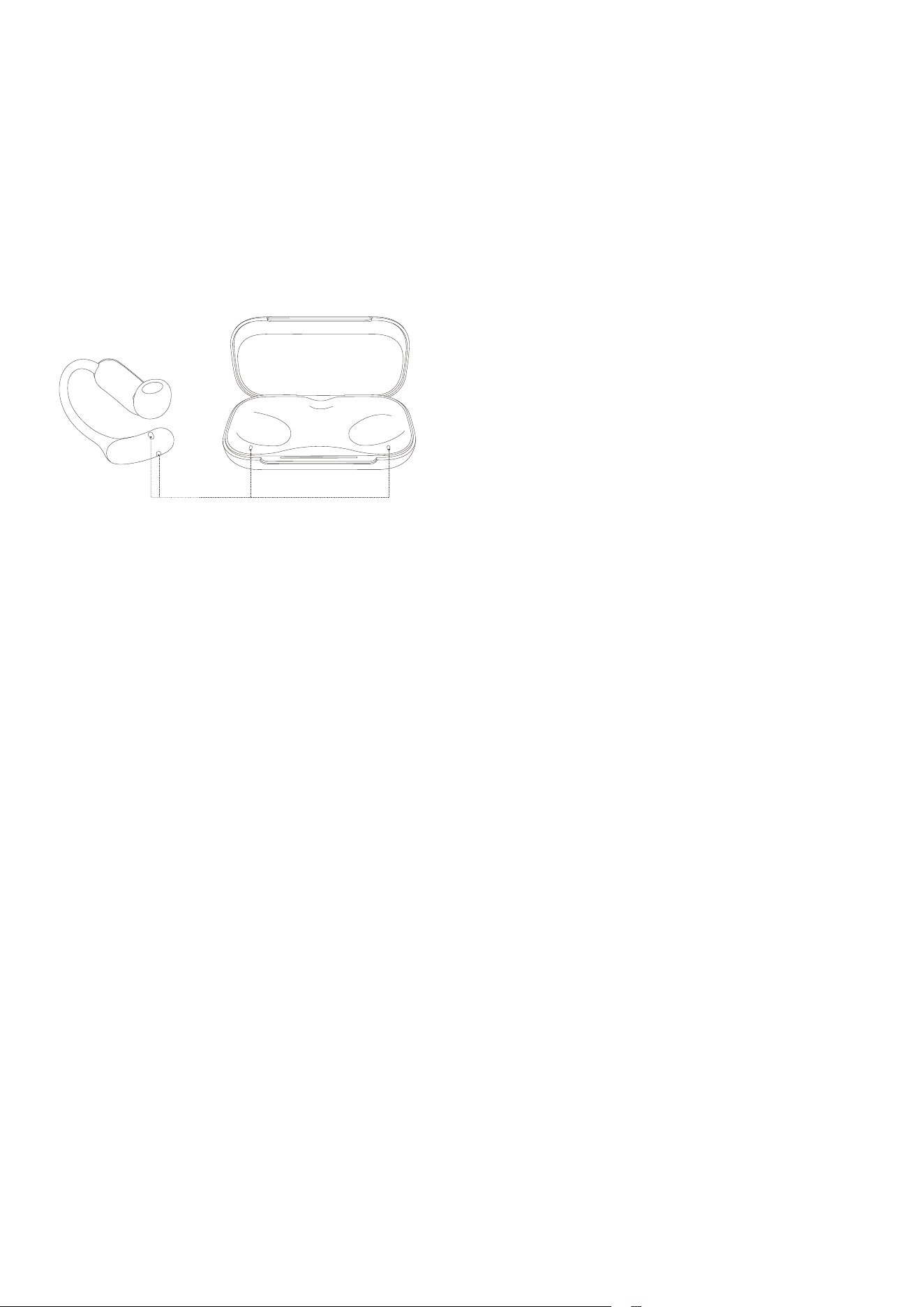
Sensor
During the switching process, please avoid covering the sensor to prevent incorrect detection.
VOLUME ADJUSTMENT
Low volume may be related to system settings. Please follow the steps below to adjust:
Android:
Find "soundcore AeroFit 2 Pro" in your device's Bluetooth list, press the settings icon on the right, and
enable "Sync Bluetooth device volume with phone."
iOS:
Go to "Settings" > "Sounds & Haptics" > "Headphone Safety," and turn o the "Reduce Loud Audio"
option. If this feature is enabled, your phone will automatically limit the volume.
CLEANING
Charging
Contacts
Aer use, if you find stains such as sweat on the charging contacts, gently wipe them with a so dry
cloth to prevent power-o problems caused by long-term sweat erosion.
ANC
The UI images shown are for illustrative purposes only. The actual inteace may dier depending on
soware version and language.
AeroFit 2 Pro
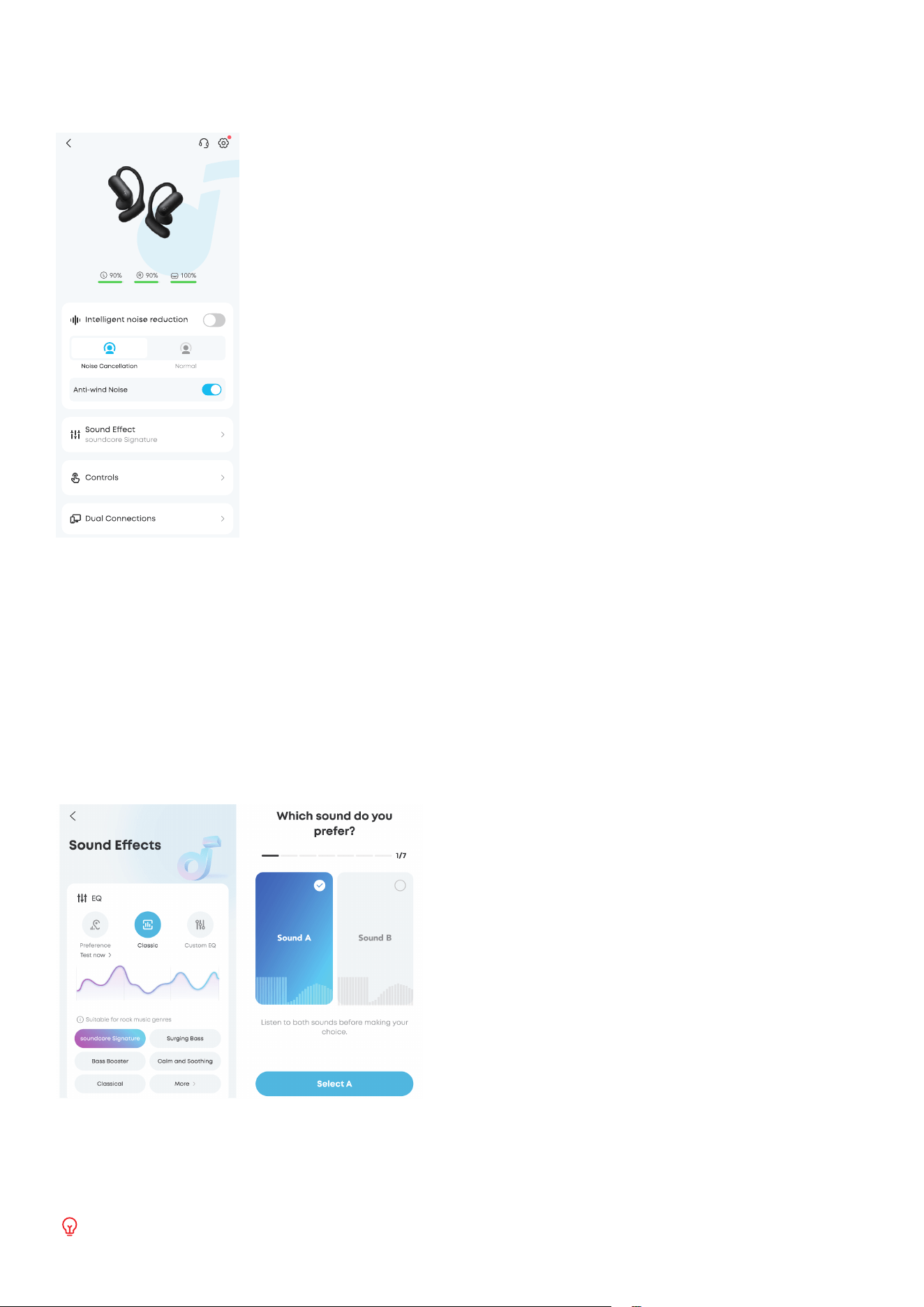
ANC can only be enabled when both earbuds are in ANC Form.
In the soundcore app, you can select between ANC and Normal mode.
• ANC: Optimizes noise cancellation by adjusting to your ears and environment.
• Normal: Enjoy balanced sound without noise cancellation.
Alternatively, press and hold the button on either earbud for 2 seconds to turn ANC on or o.
Hear ID
Hear ID provides a personalized listening experience.
The UI images shown are for illustrative purposes only. The actual inteace may dier depending on
soware version and language.
To set up Hear ID, go to Sound Eects > EQ > Preference, then tap Test now.
Follow the on-screen instructions and complete the short test, which involves choosing your preferred
music styles and sound types.
Once the test is completed, the app will automatically generate your unique Hear ID profile.
The Open-Ear Form currently does not support Hear ID testing. Please keep the earbuds in ANC Form.
SPATIAL AUDIO
The UI images shown are for illustrative purposes only. The actual inteace may dier depending on
soware version and language.
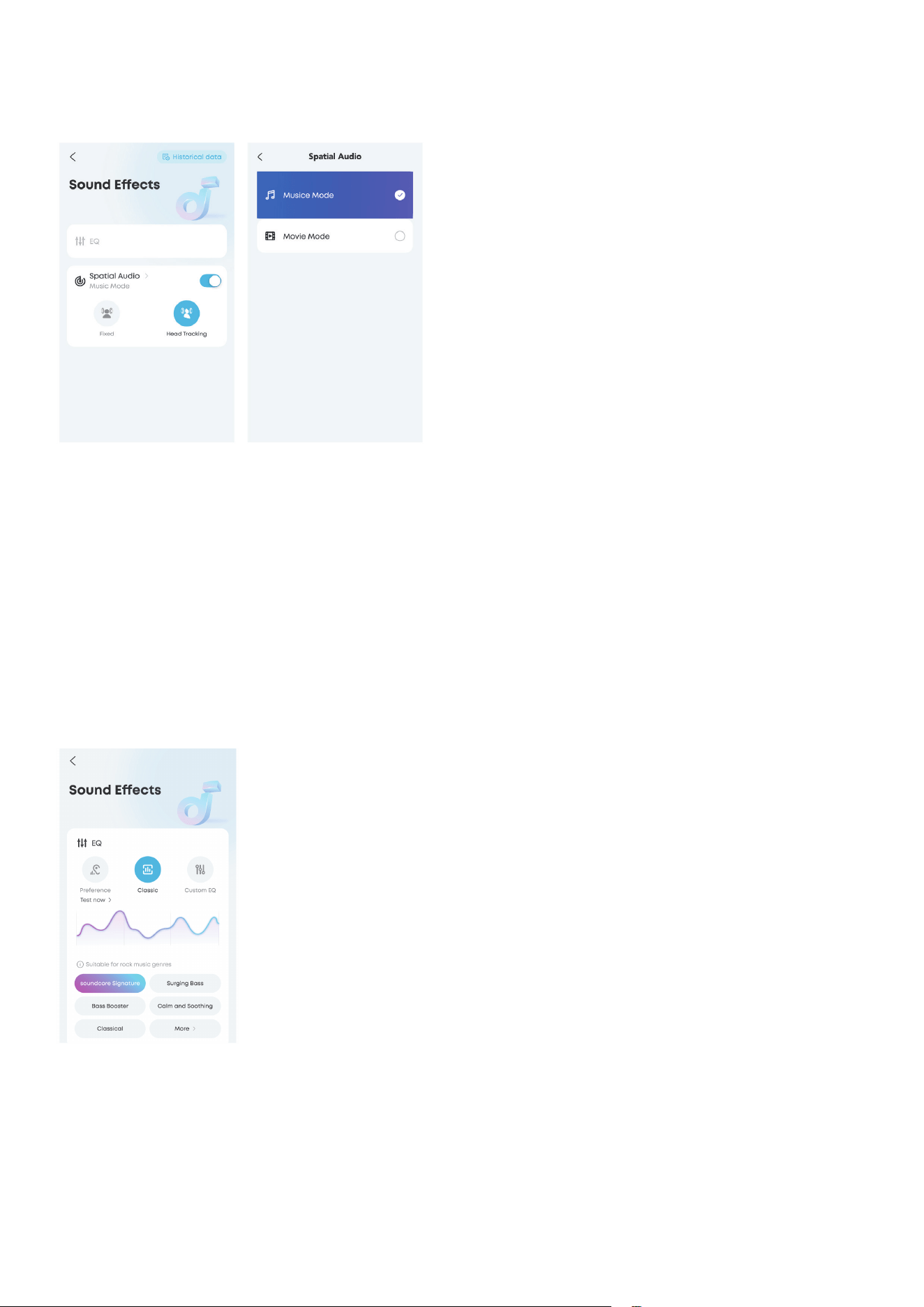
Spatial Audio creates an immersive listening experience by surrounding you with sound. You can choose
between the following Spatial Audio modes in the soundcore app:
Head Tracking: Hear surround sound that follows your head movement.
• Music Mode: Provides the most suitable music experience by adapting to your surroundings and
head position.
• Movie Mode: Enhances your cinematic experience with rich, immersive audio that brings actions to
life.
Fixed: Listen to Spatial Audio without head tracking.
EQ
The UI images shown are for illustrative purposes only. The actual inteace may dier depending on
soware version and language.
The soundcore app provides default sound settings for both Open-Ear and ANC forms.
You can also choose from 22 EQ presets to match your usage scenario and preferences.
Additionally, you can create your own sound profile by adjusting the eight sliders in Custom EQ.
AI ASSISTANT
Before Use:
• Uninstall the soundcore app on your device and download the latest version.
• The AI assistant is designed to prioritize your privacy and data security.
• The AI assistant cannot access or control third-party apps (e.g., Contacts, Phone, Messages, Music,
Video).
• To use the AI assistant, download the soundcore app and keep it connected to your earbuds. If you're
an Android user, adjust your system settings to ensure the app runs in the background.
• AI-generated responses are for reference only and may contain inaccuracies, especially on political
or other sensitive topics. Please use your discretion and judgment when considering the information
provided.
• UI images are for illustrative purposes only; actual display may vary depending on soware version.
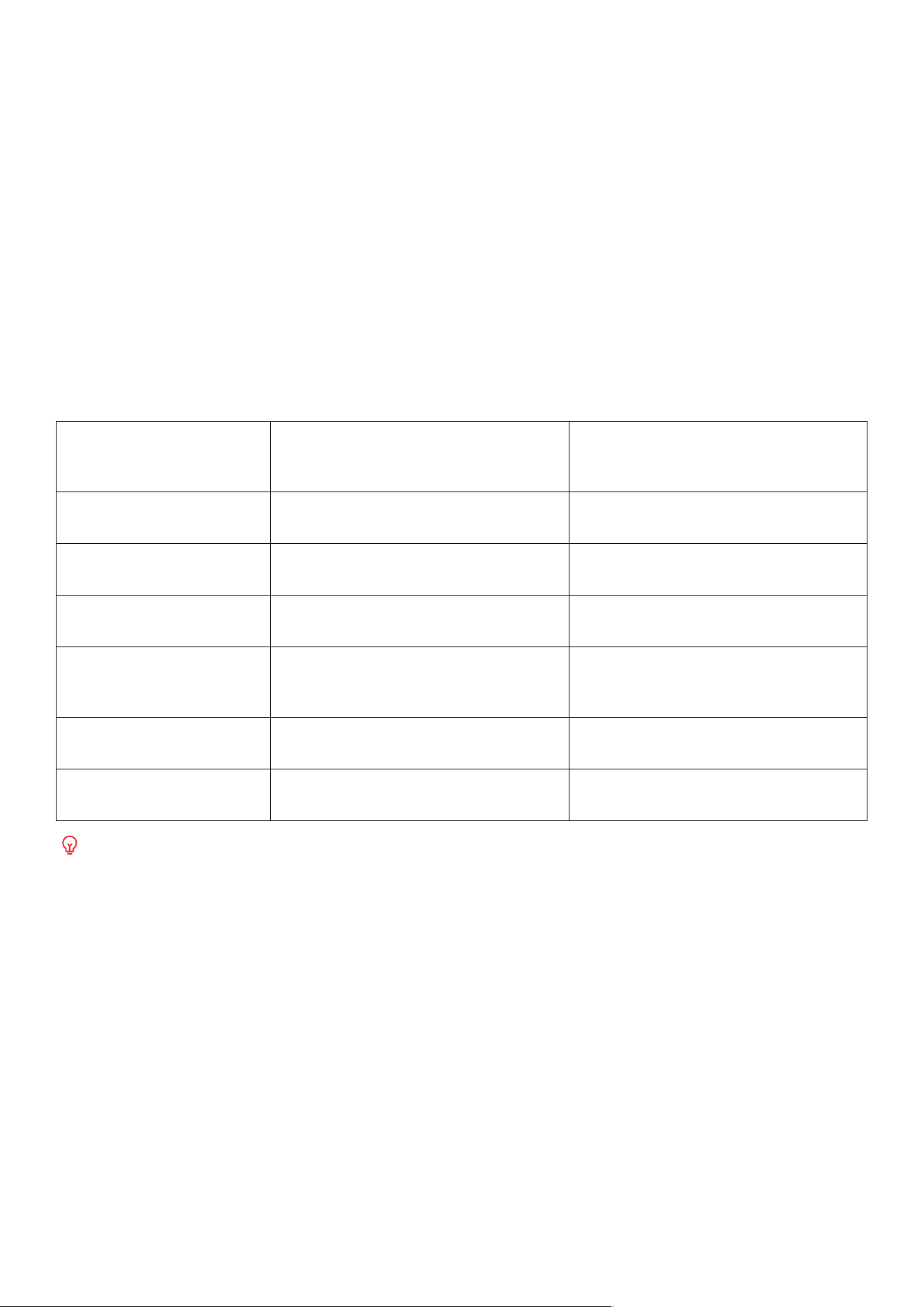
What Anka Can Do for You
In the soundcore app, go to the Anka page and chat with Anka. Make sure your earbuds are connected
to the app.
Function What It Does
Example Command (Say the
following to Anka aer activating
with "Hey Anka")
Answering Questions
Your portable encyclopedia—ask
any question anytime.
"Why do giraes have such long
necks."
Casual Conversation
Chat with you like a friend and help
you relax.
"Tell me a joke."
Information Aggregation
Provides you with daily news and
updates.
"Tell me some tech news for today."
Information Lookup
Check the weather, check the latest
match scores, and more.
"What's the weather like in
Shenzhen today? Will I need an
umbrella when going out?"
Activate AI Real-time
Translation
Starts real-time translation using
voice control.
"Start real-time translation."
Music Control
Control music playback, pause,
volume, etc., by voice.
"Set the volume to 60%."
Some voice commands may not work due to app limitations.
AI TRANSLATION
Before Use:
• Make sure your phone is connected to the app when using AI translation.
• Disable Dual Connections.
• The UI images shown are for illustrative purposes only. The actual inteace may dier depending on
soware version and language.
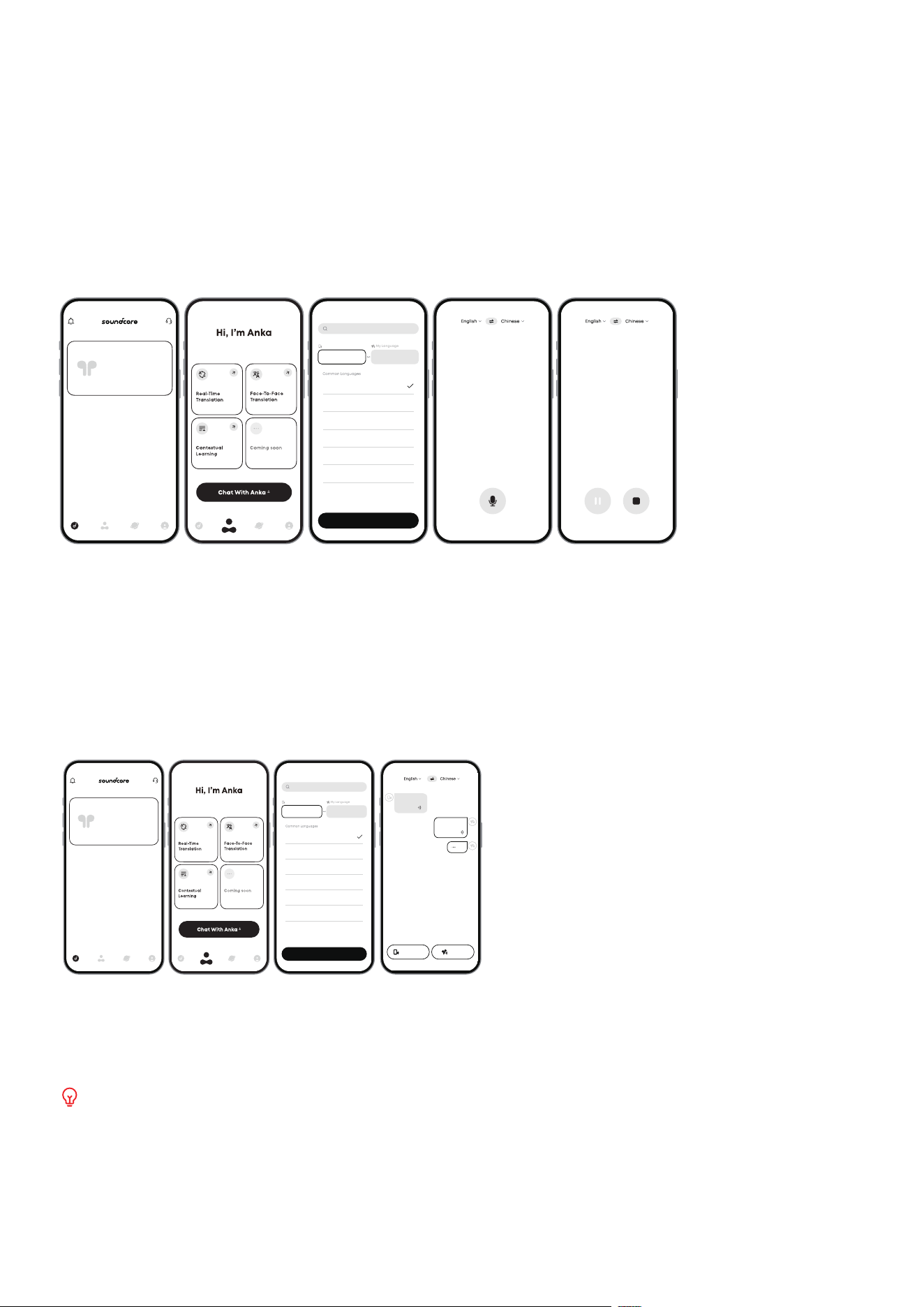
Real-Time Translation
In the soundcore app, go to Anka Page > Real-Time Translation. Make sure your earbuds are connected
to the app.
Real-Time Translation
Click to start speaking English
Search
Their Language
My Language
English
Japanese
French
Italian
German
Spanish
Chinese
Done
English Chinese
soundcore
soundcore
搜索
对方语言
我的语言
中文
日语
法语
意大利语
德语
西班牙语
英语
常用语言
完成
中文 英语
英语(美
国)
日语(日
本)
英语中文
点击开始说话
英语中文
英语中文
soundcore
Suchen
Sprache meines Gegenübers
Meine Sprache
Chinesisch
Japanisch
Deutsch
Spanisch
Französisch
English
Fertig
English Deutsch
Gängige Sprachen
Klicken, um Englisch (USA) zu
sprechen zu beginnen
Deutsch Deutsch
soundcore
Mit Anka chatten
Hallo, ich bin Anka
Übersetzung in
Echtzeit
Kontextbezogenes
Lernen
Demnächst
Face-to-Face-
Übersetzung
soundcore
你好,我是Anka
实时翻译 面对面翻译
情景学习 敬请期待
快来与Anka聊天吧
soundcore
The translation is displayed in real time in the app.
1. Tap Real-Time Translation.
2. Tap the language section at the top of the page, then select Their Language and My Language.
3. Tap the microphone button to start recording. Tap the le button to pause, and the right button to
exit Real-Time Translation.
Face-to-Face Translation
In the soundcore app, go to Anka page, then tap Face-to-Face Translation. Make sure your earbuds are
connected to the app.
soundcore
soundcore
Search
Their Language
My Language
English
Japanese
French
Italian
German
Spanish
Chinese
Done
English Chinese
点击说话
hello, hello.
你好,你好。
你好吗
How are you?
Press to Talk
Face-to-Face Translation
soundcore
搜索
对方语言
我的语言
中文
日语
法语
意大利语
德语
西班牙语
英语
常用语言
完成
中文 英语
hello,hello.
你好,你好。
你好吗
How are you?
点击说话
英语中文
Press to Talk
soundcore
Hallo.
Hello.
Hello.
Hallo.
Press to Talk
Zum Sprechen
drücken
Deutsch
Suchen
Sprache meines Gegenübers
Meine Sprache
Chinesisch
Japanisch
Deutsch
Spanisch
Französisch
English
Fertig
English Deutsch
Gängige Sprachen
你好,我是Anka
实时翻译 面对面翻译
情景学习
敬请期待
快来与Anka聊天吧
soundcore
Mit Anka chatten
Hallo, ich bin Anka
Übersetzung in
Echtzeit
Kontextbezogenes
Lernen
Demnächst
Face-to-Face-
Übersetzung
soundcore
1. Tap the language section at the top of the page, then select Their Language and My Language.
2. Tap the bottom-right button and speak into your earbuds. The translation will play through your
phone.
3. Tap the bottom-le button and speak into your phone. The translation will play through your earbuds.
Supports translation for conversations in 100 languages.
LDAC
To use the LDAC codec, use devices running Android 8.0 or higher.
LDAC oers higher sound quality but uses more power, which will reduce battery life.
For a stable Bluetooth connection, enable LDAC in low-inteerence environments.
The UI images shown are for illustrative purposes only. The actual inteace may dier depending on
soware version and language.
Fit Test
Test der Passform
Klangmodus
Weitere Einstellungen
佩戴贴合度测试
声音模式
更多设置
Upgrade your earphones’ soware
to use LDAC codec. Do you want to
upgrade now?
Switching modes, please wait
for about 10 seconds.
音质优先
畅享高品质音质,但会增加耗电量,
部分场景下会出现卡顿现象。
声音模式
LDAC
Klangmodus
Bevorzugte Audioqualität
Wenn der LDAC-Codec aktiviert ist, erhöht
dies den Stromverbrauch. In einigen
Umgebungen kann es gelegentlich zu
Verbindungsinstabilitäten kommen.
Modus wird umgeschaltet, bitte ca.
10 Sekunden warten
Aktualisiere die Soware der
Kopfhörer, um den LDAC-Codec zu
verwenden. Möchtest du jetzt
aktualisieren?
Abbrechen Zustimmen
升级您的耳机软件以使用 LDAC 编解码
器。是否要立即升级?
取消
同意
正在切换,大约需要10秒。
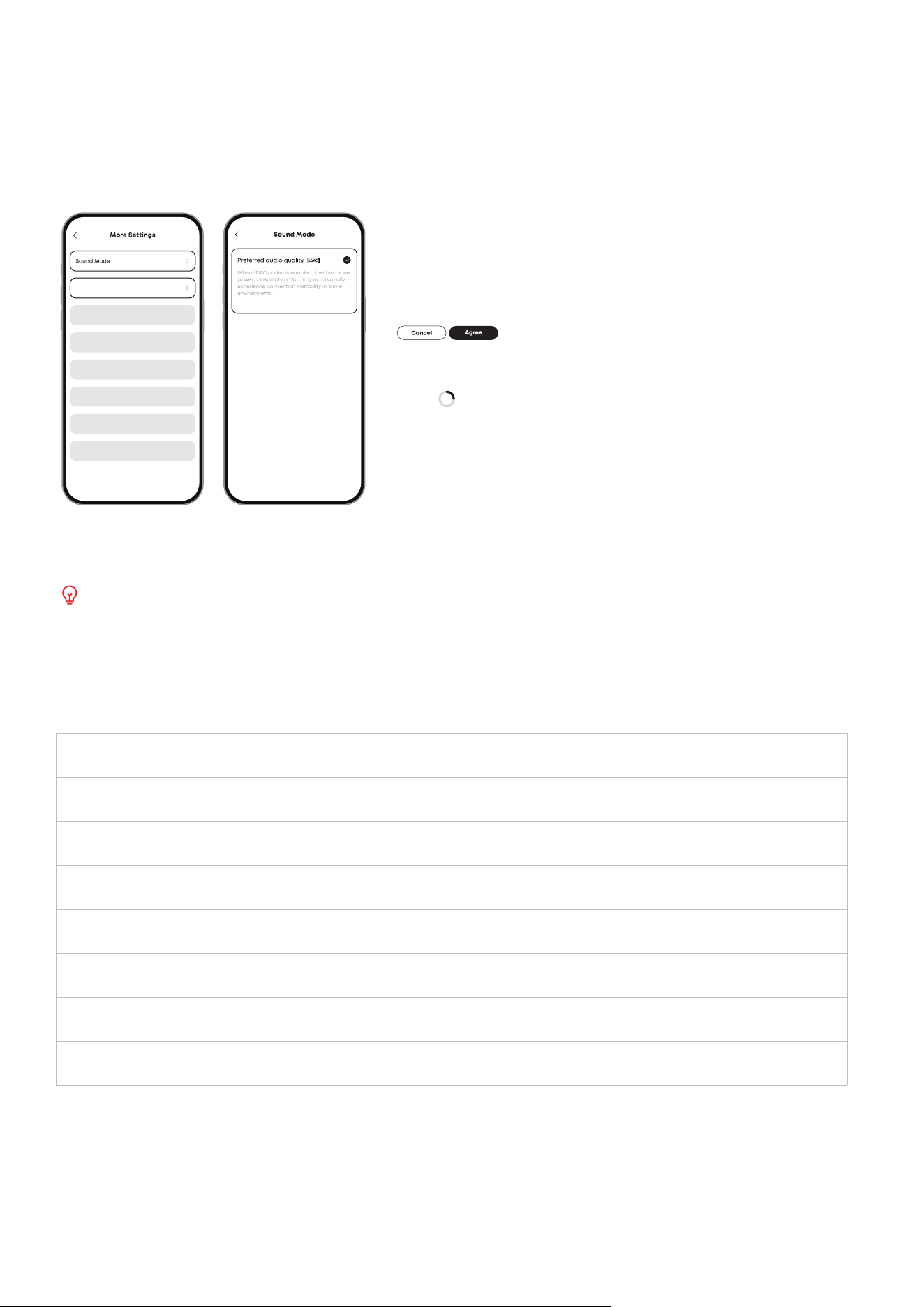
In the soundcore app:
Go to Settings
>
Sound Mode
>
Preferred audio quality
>
Agree.
Switching audio codecs takes about 10 seconds. You may be prompted to update the firmware if a
new version is available.
CONTROLS
The table below shows the default button control settings.
Play / Pause Audio Double press (L / R)
Increase the Volume Press once (R)
Decrease the Volume Press once (L)
Answer a Call Press once (L / R)
Reject a Call / End a Call Hold for 2 seconds (L / R)
ANC On / O Hold for 2 seconds (L / R)
Power O Hold for 3 seconds (L+R)
Power On Single Earbud Hold the button on the earbud for 3 seconds
Customize Touch Controls via the soundcore App
Access Controls on the home page to customize touch controls. You can adjust the volume, skip songs,
play or pause audio, and activate the voice assistant with touch gestures.
CHARGING
1.7hrs
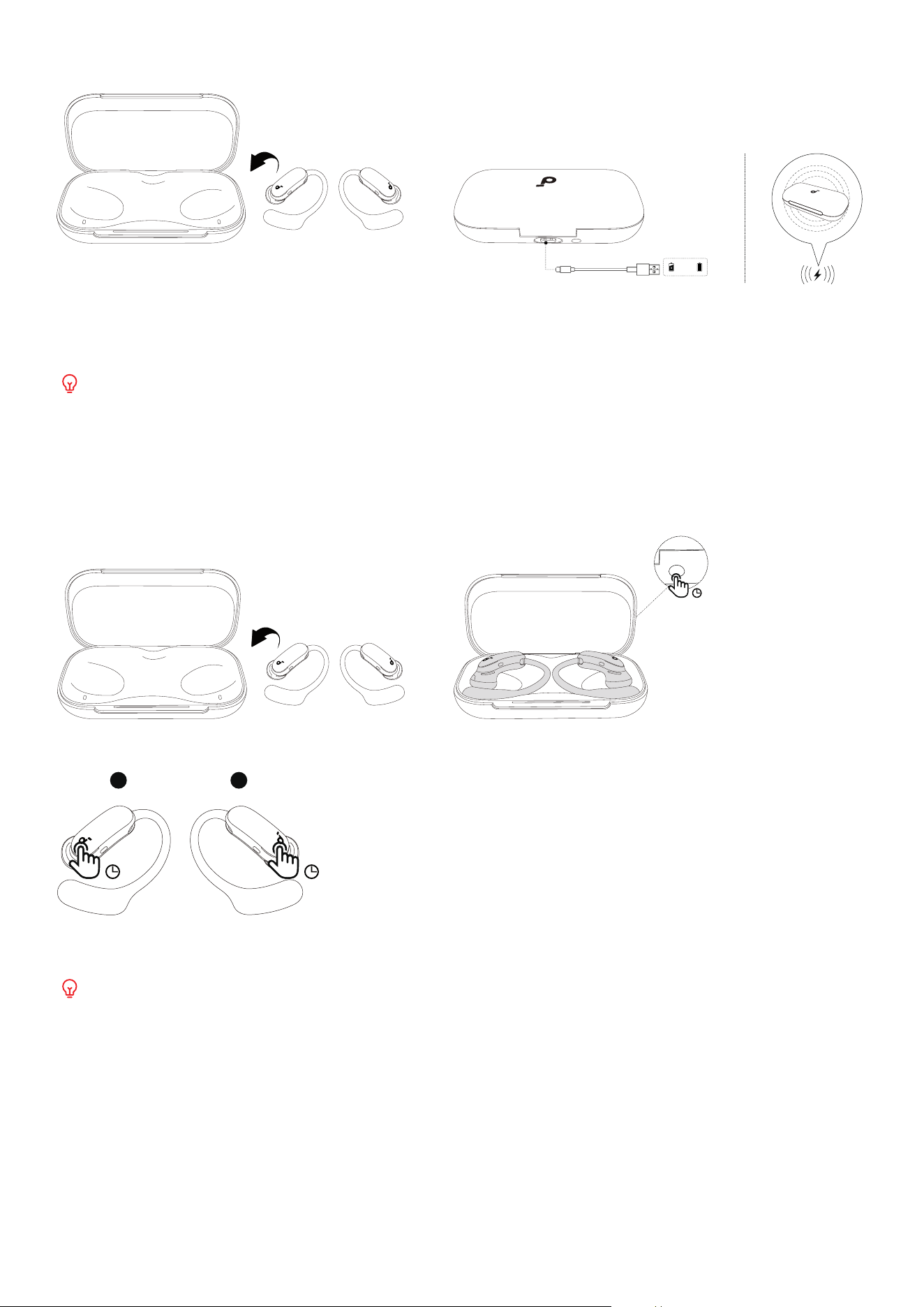
1. Place the earbuds in the charging case and close it.
2. Connect the charging case to a power supply using the provided USB-C charging cable. Alternatively,
place the charging case at the center of your wireless charger for wireless charging.
Ensure the earbuds and the USB-C charging port are fully dry before charging. A full recharge of the
case takes 1.7 hours via the cable and 2.6 hours wirelessly.
POWERING ON AND OFF
To power o the earbuds, there are two ways.
10s
Place both earbuds in the charging case and close it. The earbuds will power o automatically.
AeroFit 2 Pro
3s 3s
L R
Alternatively, hold the buttons on both earbuds for 3 seconds to power o. To turn a single earbud back
on, hold the button on that earbud for 3 seconds.
If not connected, the earbuds will automatically power o aer 30 minutes of inactivity. You can
customize the auto-o period in the soundcore app.
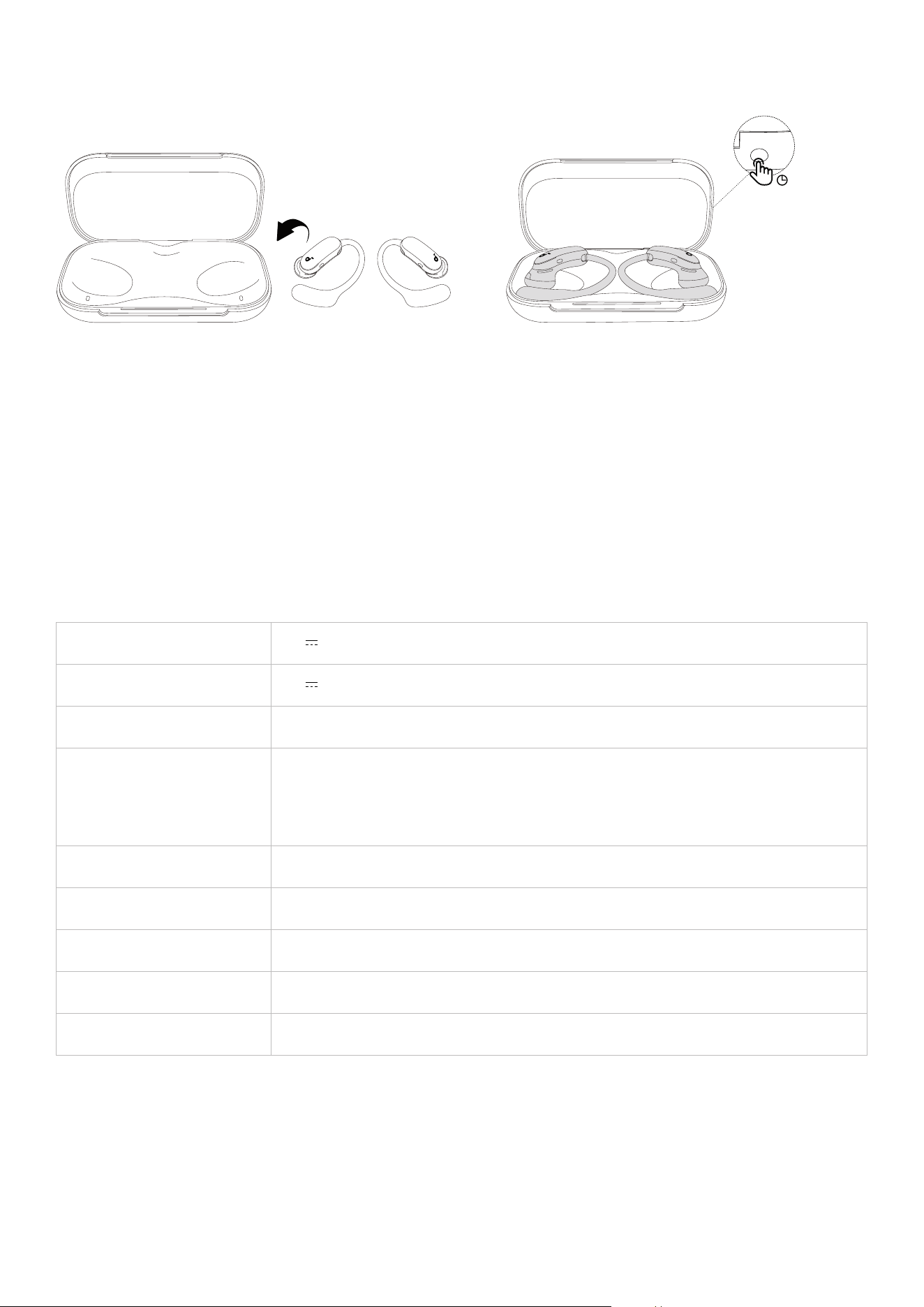
RESET
Reset the earbuds if they fail to pair with each other or other devices.
10s
1. Place the earbuds in the charging case and leave the case open.
2. Press and hold the charging case button for 10 seconds until the LED light strip flashes white three
times, which indicates a successful reset.
FIRMWARE UPDATE
When the earbuds are connected to the app, you will be notified of available firmware updates. Keep
the earbuds in the charging case with the case open until the update is complete. Avoid using earbuds
during this process.
SPECS
Specifications are subject to change without notice.
Input 5V 0.8A
Output 5V 0.36A (0.18A per port)
Battery capacity 750mAh
Charging time
Earbuds: 1 Hour
Charging Case:
Wired Charging: 0.7 Hours (Case), 1.7 Hours (Case and Earbuds)
Wireless Charging: 2.6 Hours (Case and Earbuds)
Driver 11.8 mm
Frequency response 20Hz - 20kHz (40kHz with LDAC enabled)
Impedance 16Ω
IP Rating IP55 (waterproof and dustproof)
Bluetooth Version 6.1

Customer Service
service@soundcore.com
support.mea@soundcore.com (For Middle East and Africa Only)
support@anker.com (
日本
)
+1 (800) 988 7973 (US/Canada)
+44 (0) 1604 936200 (UK)
+49 (0) 69 9579 7960 (DE)
03 4455 7823 (
日本
)
+86 400 0550 036 (
中国
)
+82 1666-8470 (
한국
)
+971 8000320817 (UAE)
+966 8008500030 (KSA)
+965 22069086 (Kuwait)
+20 8000000826 (Egypt)
+61 3 8331 4800 (Australia)
+90 (850) 460 14 14 (Türkiye)
+8 (800) 511-86-23 (Russia)
000-8000-504-414 (India)
Note: The 'x' of SN Code: xxxxxxxxxxxxxxxx is a variable, see below table.
Variable 'x'
Range of
variable
Content
Eighth 8,9,A,B,C...
Denotes the year, 8 means 2018, 9 means 2019, A means 2020, B
means 2021, C means 2022, and so on.
Ninth and
tenth
01,02,03...
Denotes weeks, 01 means the first week in this year, 02 means
the secondary week in this year, and so on.
Eleventh 1-7
Denotes date, 1 means Monday, 2 means Tuesday..., 7 means
Sunday and so on.
The last five 00001-99999 Denotes serial No.
Hereby, Anker Innovations Limited declares that this device is in compliance with The Product Security
and Telecommunications Infrastructure (Security Requirements for Relevant Connectable Products)
Regulations 2023. For the Statement of Compliance, visit the website: https://uk.soundcore.com/pages/
psti-related.