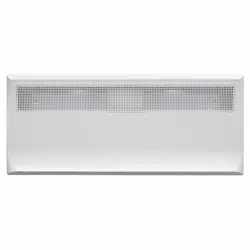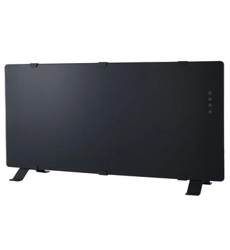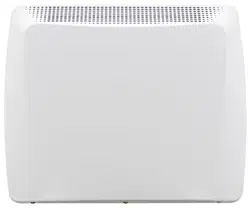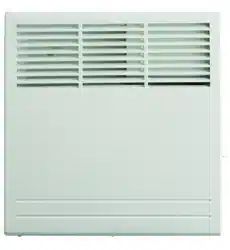
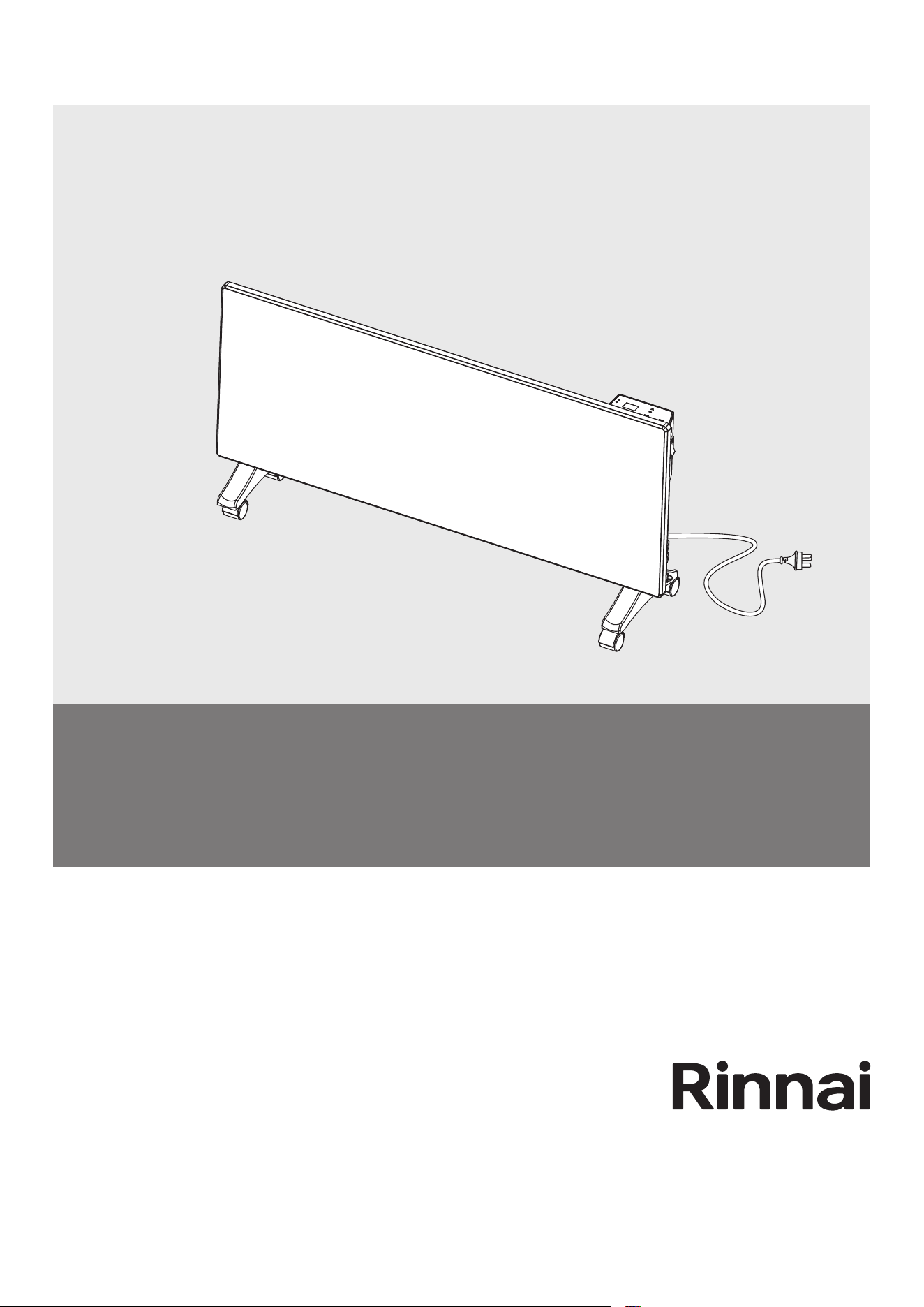
Electric Panel Heater
Wi-Fi Operation & Manual
MODELS
FEPH10WF
FEPH15WF
FEPH22WF
Rinnai 2 FEPH Electric Panel Heater Wi-Fi OM
This appliance must be installed in accordance with:
• Manufacturer’s Installation Instructions
• Current AS/NZS 3000
• Local regulations, including local OH&S requirements,
and Municipal Building Codes, including the National
Construction Code (NCC).
For continued safety of this appliance it must be installed
and maintained in accordance with the manufacturer’s
instructions.
Before proceeding with the operation or installation of your
new heater, please read this manual thoroughly and gain a
full understanding of the requirements, features and
operation of your new appliance.

Rinnai 3 FEPH Electric Panel Heater Wi-Fi OM
TABLE OF CONTENTS
Terms & Conditions 4
Wi-Fi Compatibility / Connectivity ��������������������������������������������������������������������������������������������������������������������� 5
Minimum Requirements ������������������������������������������������������������������������������������������������������������������������������������� 5
Wi-Fi Set Up 6
Advanced Wi-Fi Router Guidance �������������������������������������������������������������������������������������������������������������������� 11
Tips and advice ������������������������������������������������������������������������������������������������������������������������������������������������ 11
Device List Page ���������������������������������������������������������������������������������������������������������������������������������������������� 13
Operation Functions ����������������������������������������������������������������������������������������������������������������������������������������� 13
Device settings ������������������������������������������������������������������������������������������������������������������������������������������������� 14
App Settings 15
Voice Control with Google Home or Amazon Alexa ����������������������������������������������������������������������������������������� 15
How to Connect to Amazon Alexa �������������������������������������������������������������������������������������������������������������� 15
How to Connect to Google home ��������������������������������������������������������������������������������������������������������������� 15
How to Control Amazon Alexa �������������������������������������������������������������������������������������������������������������������� 15
How to Control Google Home �������������������������������������������������������������������������������������������������������������������� 15
Contacts 16
1. DEFINITIONS
App means the Tuya Smart App you can download to your Device to operate your Rinnai FEPH Panel Heater.
Australian Consumer Law (‘ACL’) is Schedule 2 of the Competition and Consumer Act 2010.
Device means your smart phone/ tablet (Android 5.0+ or Apple 10.0+) through which you have downloaded the App.
Rinnai FEPH Panel Heater, comprising the following models:
Models FEPH10WF FEPH15WF FEPH22WF
Rinnai, we, our or us means Rinnai Australia Pty Ltd (ABN 74 005 138 769).
Wi-Fi Operations Manual means the Wi-Fi operations manual which details how to download and operate the App.
you or your means a customer who uses the Rinnai FEPH Panel Heater and App.
2. GENERAL
2.1 By downloading the App, you agree to be bound by these Terms & Conditions.
2.2 These Terms & Conditions should be read in conjunction with the Wi-Fi Operations Manual.
2.3 Rinnai may make updates to these Terms & Conditions from time to time. You should download and understand all
relevant updates to ensure you understand your obligations and Rinnai’s obligations under the Terms & Conditions.
2.4 Rinnai may make updates to the App from time to time. You should download and understand all relevant updates to
ensure you have access to the functions of your Rinnai FEPH Panel Heater and App.
3. THE AUSTRALIAN CONSUMER LAW (‘ACL’)
Our goods come with guarantees that cannot be excluded under the ACL. You are entitled to a replacement or refund for
a major failure and compensation for any other reasonably foreseeable loss or damage. You are also entitled to have the
goods repaired or replaced if the goods fail to be of acceptable quality and the failure does not amount to a major failure.
All the clauses under these Terms & Conditions apply subject to the ACL.
4. USE OF THE APP
4.1 You may download the App to your Device for your personal use only.
4.2 You are responsible for all costs incurred in accessing, downloading and using the App. This includes but is not limited to
fees charged by your internet service provider, smartphone or app data access charges and any other access charges
or device usage charges.
4.3 You must follow the instructions in the Wi-Fi Operations Manual to operate the Rinnai FEPH Panel Heater via the App.
4.4 You must not use the App for any prohibited or unlawful purpose.
4.5 The App is available as another means to control and monitor the Rinnai FEPH Panel Heater, but should not be used for
critical heating or cooling applications.
5. TERMINATION
5.1 You may terminate these Terms & Conditions by deleting and ceasing use of the App.
5.2 Rinnai may terminate these Terms & Conditions immediately through the App or by any other appropriate means if you
are in breach of the Terms & Conditions.
6. INTELLECTUAL PROPERTY
6.1 If you download the App, Rinnai grants you a limited, non-exclusive, non-transferable, and non-assignable royalty free
licence solely in order to access and use the App.
6.2 All intellectual property rights in the Rinnai FEPH Panel Heater and the App are owned by Rinnai or licensed to Rinnai by
third parties. You do not acquire any express or implied rights in any these intellectual property rights, other than those
granted in clause 6.1 and within the context of these Terms & Conditions.
6.3 You may not modify, copy, sell, reproduce, interfere with or distribute the App in any way.
7. DISCLAIMER
To the extent permitted by law:
7.1 Rinnai makes no warranties that the App will be error-free, secure or free from any virus, malicious code or other adverse
elements. Rinnai therefore excludes any liability which may arise as a result of you downloading, accessing or using
the App. Rinnai does not exclude or restrict liability to the extent provided for by the ACL under the Competition and
Consumer Act 2010.
7.2 Rinnai will not be liable for any indirect, incidental, special or consequential loss.
8. FORCE MAJEURE
Unless prohibited by law, Rinnai shall be released from its obligations in the event of national emergency, war, prohibitive
governmental regulation, or if any other cause beyond the control of the parties renders the App or Rinnai FEPH Panel
Heater inoperable.
Rinnai 4 FEPH Electric Panel Heater Wi-Fi OM
TERMS & CONDITIONS
Rinnai 5 FEPH Electric Panel Heater Wi-Fi OM
Wi-Fi COMPATIBILITY / CONNECTIVITY
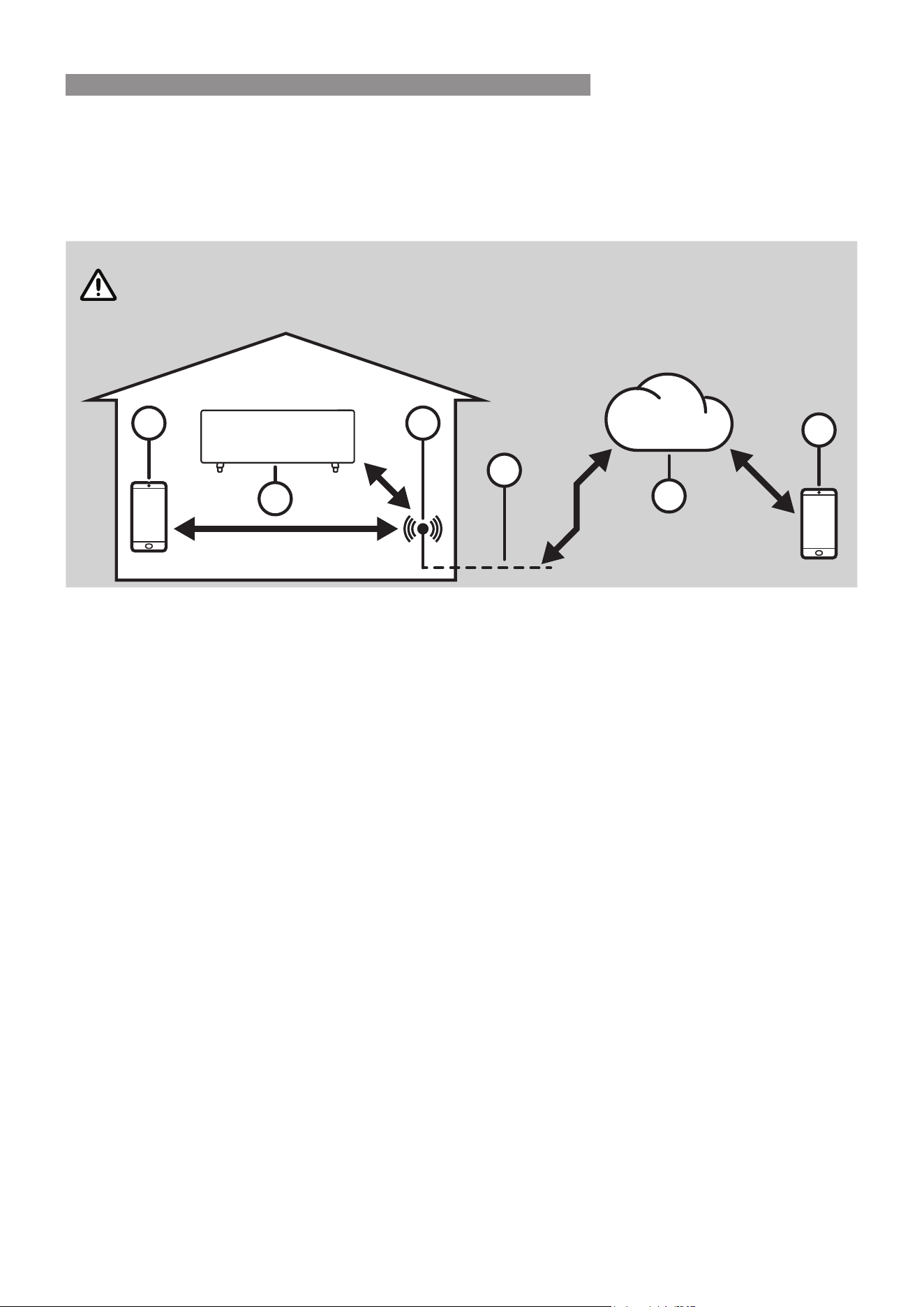
Rinnai FEPH panel heater models are tted with built-in Wi-Fi connectivity. Using the Tuya Smart App (available
from Apple App Store or Google Play) it is then possible to use a smart phone to operate these appliances
remotely. Multiple compatible appliances can be added as required.
A Wi-Fi router (paired with the appliance via Tuya Smart App) is used to control the appliance(s).
IMPORTANT
The Appliance(s) MUST BE installed in a location that has Wi-Fi router coverage.
If the controlling mobile device is outside of the Wi-Fi router's coverage i.e. operating remotely,
then the Wi-Fi router will require an internet connection to communicate with the controlling
mobile device.
1
3
4
6
5
2
Within Wi-Fi router coverage
Outside Wi-Fi router coverage
1. The Appliance
2. Smart phone (using Wi-Fi)
3. Wi-Fi router
4. Internet connection
5. Internet cloud
6. Smart phone (using internet cloud)
MINIMUM REQUIREMENTS
•
Rinnai FEPH panel heater models
•
Wi-Fi Router, 2.4G frequency range supporting 802.11b/g mode, with coverage of the Appliance(s) location
•
For remote cloud based operation Wi-Fi router / modem with active internet connection
•
Smart phone / Tablet (Android 5.0+ or Apple iOS 10.0+) with Tuya Smart App installed
INTRODUCTION
Rinnai 6 FEPH Electric Panel Heater Wi-Fi OM
Pairing With Mobile device & Wi-Fi Network
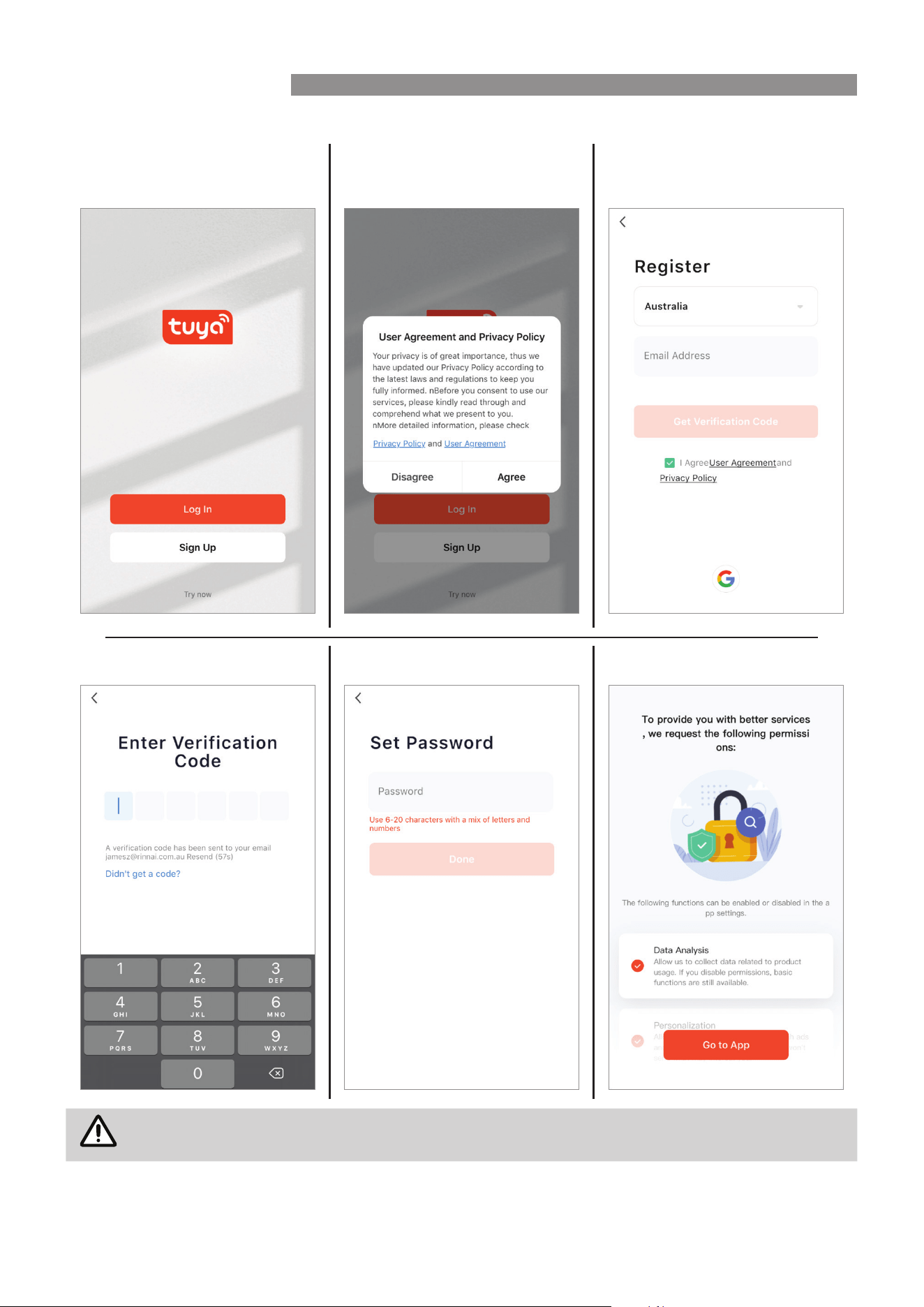
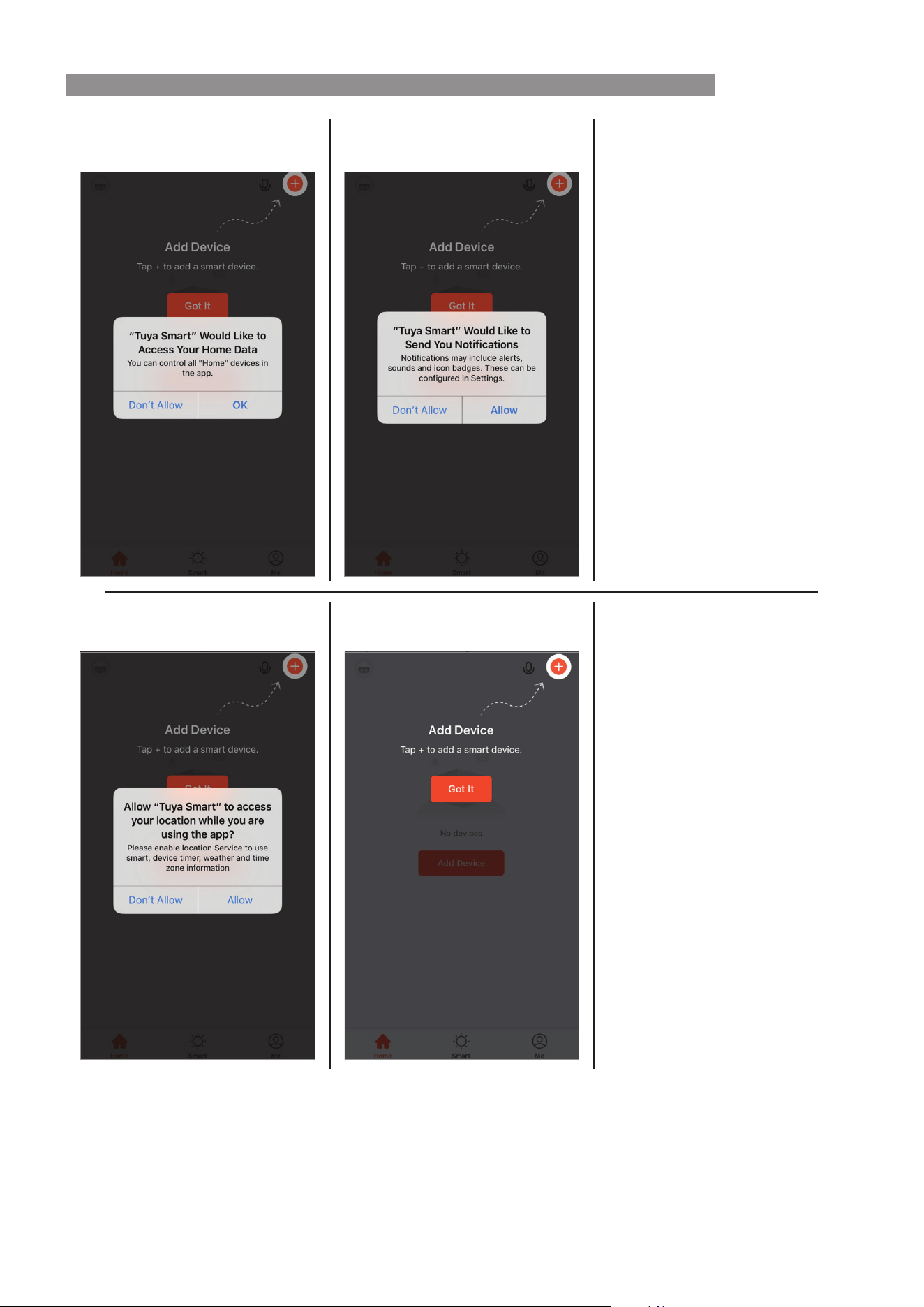
1. Open App, and Sign up for rst
time users.
2. Read and conrm the User
Agreement and Privacy Policy
3. Register via email
Enter verication code Set password Allow permissions
NOTE
Password may require a number of characters including alphabet and numerals.
WI-FI SET UP
Rinnai 7 FEPH Electric Panel Heater Wi-Fi OM
Follow prompts on the screen. Follow prompts on the screen.
Follow prompts on the screen. Follow prompts on the screen.
WI-FI SET UP
Rinnai 8 FEPH Electric Panel Heater Wi-Fi OM
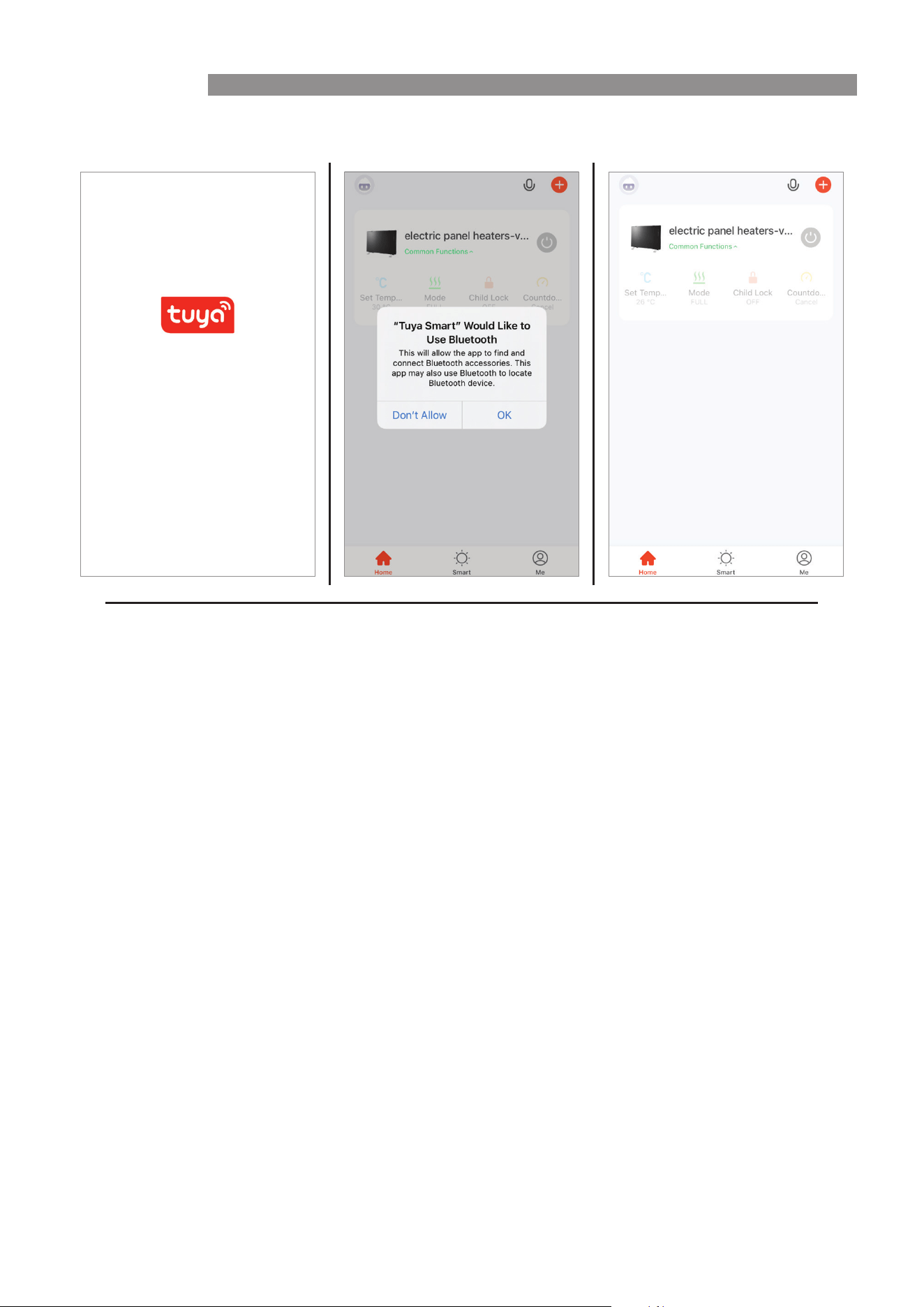
4. 'Welcome' page. If prompted, give the App permission.
WI-FI SET UP
Rinnai 9 FEPH Electric Panel Heater Wi-Fi OM
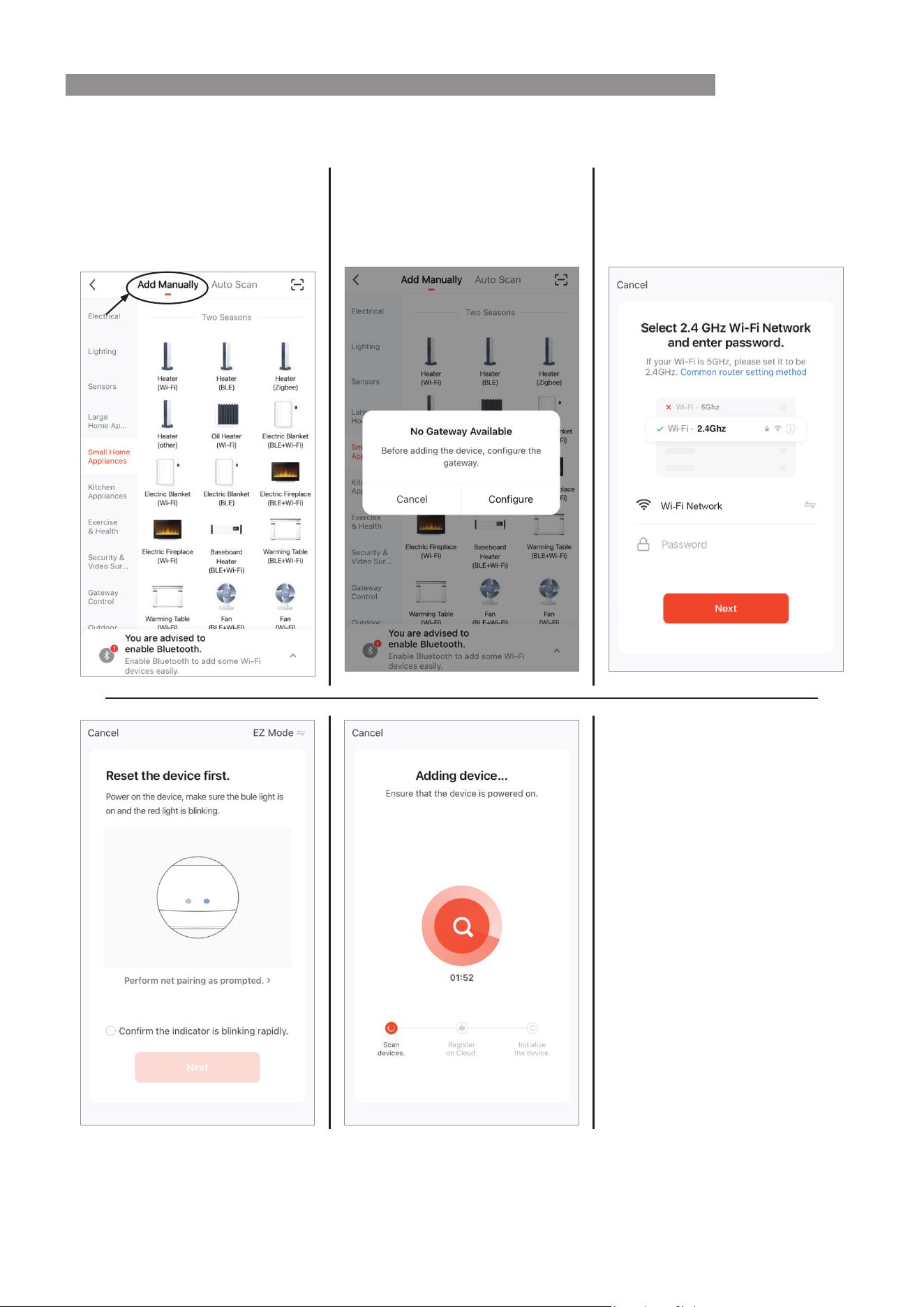
5. Add Device. When the product is in standby mode, press and hold the MODE button on the panel for 3
seconds to activate the Wi-Fi networking mode, the Wi-Fi indicator will ash to conrm Wi-Fi activation or reset.
Select the + Add device button, on
the Device List page.
Add Manually or Auto Scan, follow
prompts on the screen.
Add Manually - Heater (Wi-Fi)
Follow prompts on the screen.
Auto Scan (Allow the app to use Bluetooth)
WI-FI SET UP
Rinnai 10 FEPH Electric Panel Heater Wi-Fi OM
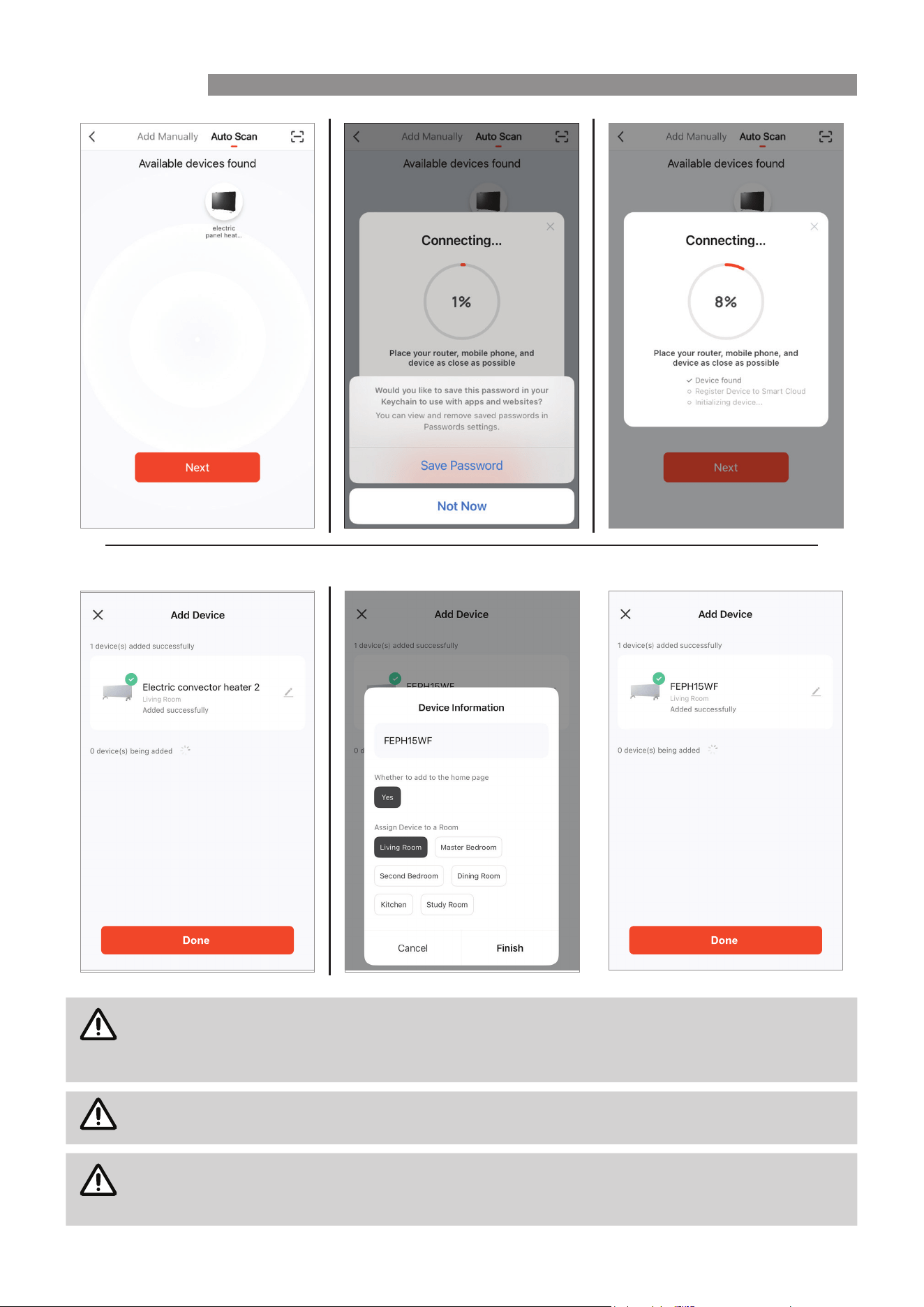
6. Select device location and name.
NOTE
The conguration process may take up to a minute or more depending upon signal strength. The
Device List page will be displayed with the new device listed when conguration is complete.
To add additional device to the current mobile device press the + 'Add button' and follow the
screen prompts.
NOTE
Changing your internet provider/service may mean you need to add device again.
NOTE
If conguration continues to fail, check Wi-Fi Router, make sure you only have 2.4G frequency
range and bandwidth setting 802.11b/g mode.
If conguration continues to fail contact Rinnai.
WI-FI SET UP

Rinnai 11 FEPH Electric Panel Heater Wi-Fi OM
If conguration continues to fail, please check:
•
Ensure your appliance is in standby mode.
•
Your appliance and smart phone is in Wi-Fi router coverage.
•
Your smartphone/tablet is connected to your home network.
•
Ensure the latest version of the App is installed on your phone or tablet.
•
Check your network has a good signal strength.
If you are still experiencing issues, please uninstall the App from your device and reinstall then repeat the above
steps.
ADVANCED WI-FI ROUTER GUIDANCE
In order to connect your appliance, make sure you choose 2.4G frequency range, bandwidth setting 802.11b/g/n
mode.
The range of wireless transmissions can reduce at high frequencies, because at those levels they do encounter
diculties when trying to penetrate through solid objects, these objects can be structural, or general building
fabrics, such as metal framework, walls & oors.
For the best possible connection to your appliance, the location of your Wi-Fi router in relation to your appliance
is key:
If there are certain areas of your home where you nd your signal drops, it may be due to a blockage.
Large objects can often obstruct or interfere with a wireless connection, so it's best to keep your router o the
ground and away from larger items.
Avoid putting your router behind the sofa, inside a cabinet or behind a door. Although it may look tidy, if you are
experiencing an issue this could be the cause a problem. You should also keep electronics such as microwaves,
lamps, speakers, TVs and monitors as far away from the router as possible.
If issues are encountered when trying to connect your appliance, our best advice would be to follow the below:
Check the location of the appliance in relation to the wireless router, are there any objects that may be causing a
blockage problem with the signal?
Check if you are experiencing the same connection problem across other devices, you can do this by checking
their Wi-Fi status. Typical devices to be checked would be your mobile phone, tablet, laptop, or even your TV.
Try adding a new device to your wireless network – this will verify that the wireless password & SSID are correct.
Are you using wireless extenders? If so, turn o all wireless extenders and add try adding a new device (a
mobile phone for example) in the same location as your wireless router. This conrms that your Wireless router is
accepting new devices without issue.
The last step would be to reset the wireless router.
TIPS AND ADVICE
If the appliance is installed out of the range of your wireless network, the Wi-Fi signal will not be detected by the
appliance. It may be too far away from your router. You may need to purchase a signal booster to extend the range
of your home network. You can purchase a Wi Fi booster from any computer store, online or an electrical retailer.
How do I know if my Wi-Fi signal is strong enough or if the appliance is out of range?
Simply stand in front of the appliance holding the device in close proximity to the control panel, you will nd this
on the front of the appliance. By using an existing device, that is already connected to the wireless network, this
could be a phone or tablet, and then see if the Wi-Fi indicator shows that you have signal? If the signal strength
is not full, it may indicate connectivity issue. If they are greyed out or only 1 or 2 bars are showing, then the signal
strength of your home network will need boosting, in order for your SmartLife-SmartHome to control the appliance.
If the connection problems persist and you are unable to connect to the appliance, please contact your network
provider for advice on the best solution.
TROUBLESHOOTING
Rinnai 12 FEPH Electric Panel Heater Wi-Fi OM
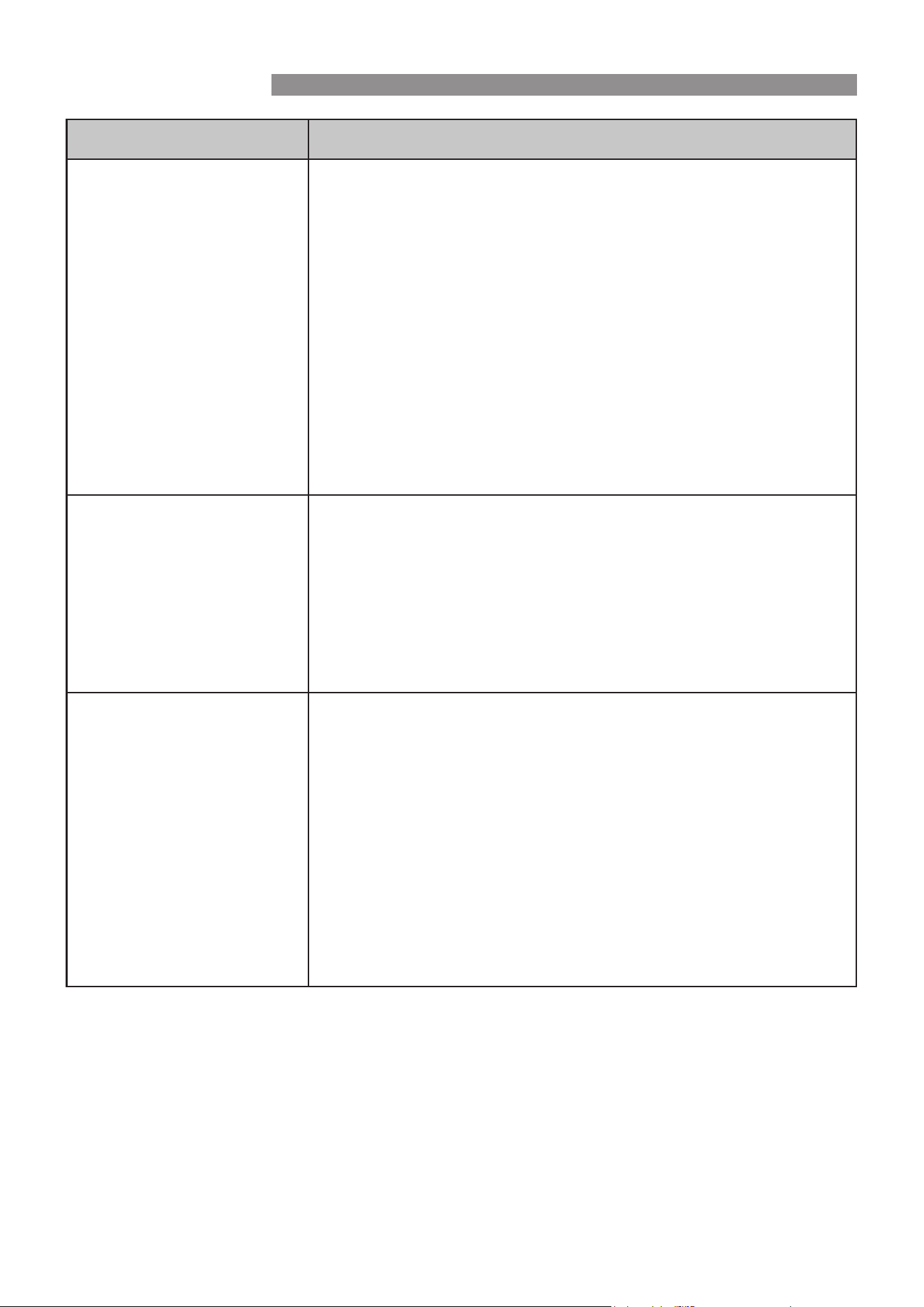
Description Analysis of cause
Appliance can't be congured
successfully
1. Please enable the permissions of Storage / Location / Camera / Wi-Fi /
Bluetooth for this APP when installing. Otherwise problems may occur
when operating.
2. Check that the mobile is connected to WLAN router SSID and password
is correct;
3. Check whether there are additional settings of WLAN router as shown
below.
•
Firewall by router or by PC
•
MAC address ltering
•
Hidden SSID
•
DHCP server
Reboot WLAN router, mobile device and appliance (WLAN module) and
connect appliance by CF or AP mode again. Before rebooting, check nobody
has already connected to same appliance.
Mobile can't control appliance
1. When appliance (WLAN module) is rebooted and App displays device
remove, ignoring this conrmation as this will lead to mobile device
losing control of permission of the appliance. You will need to connect
the appliance by CF or AP mode again.
2. In case of power failure, mobile device will lose control of permission of
the appliance for 3 minutes after power failure. (Notication will show on
the mobile device.)
If you cannot control the App (appliance) even after power is restored, you
will need to connect the appliance by CF or AP mode again.
Mobile can't nd appliance
1. App shows that appliance is oine. Please check the following
conditions.
•
The appliance has been recongured.
•
Appliance is out of power.
•
Router is out of power.
•
Appliance can't connect to router.
•
Appliance can't connect to network through the router.
•
Mobile device can't connect to network.
2. After adding the device, it will disappear from the device list.
Hold and slide down to refresh the device list. If there is no change, shut
down the App and start again.
TROUBLESHOOTING
Rinnai 13 FEPH Electric Panel Heater Wi-Fi OM
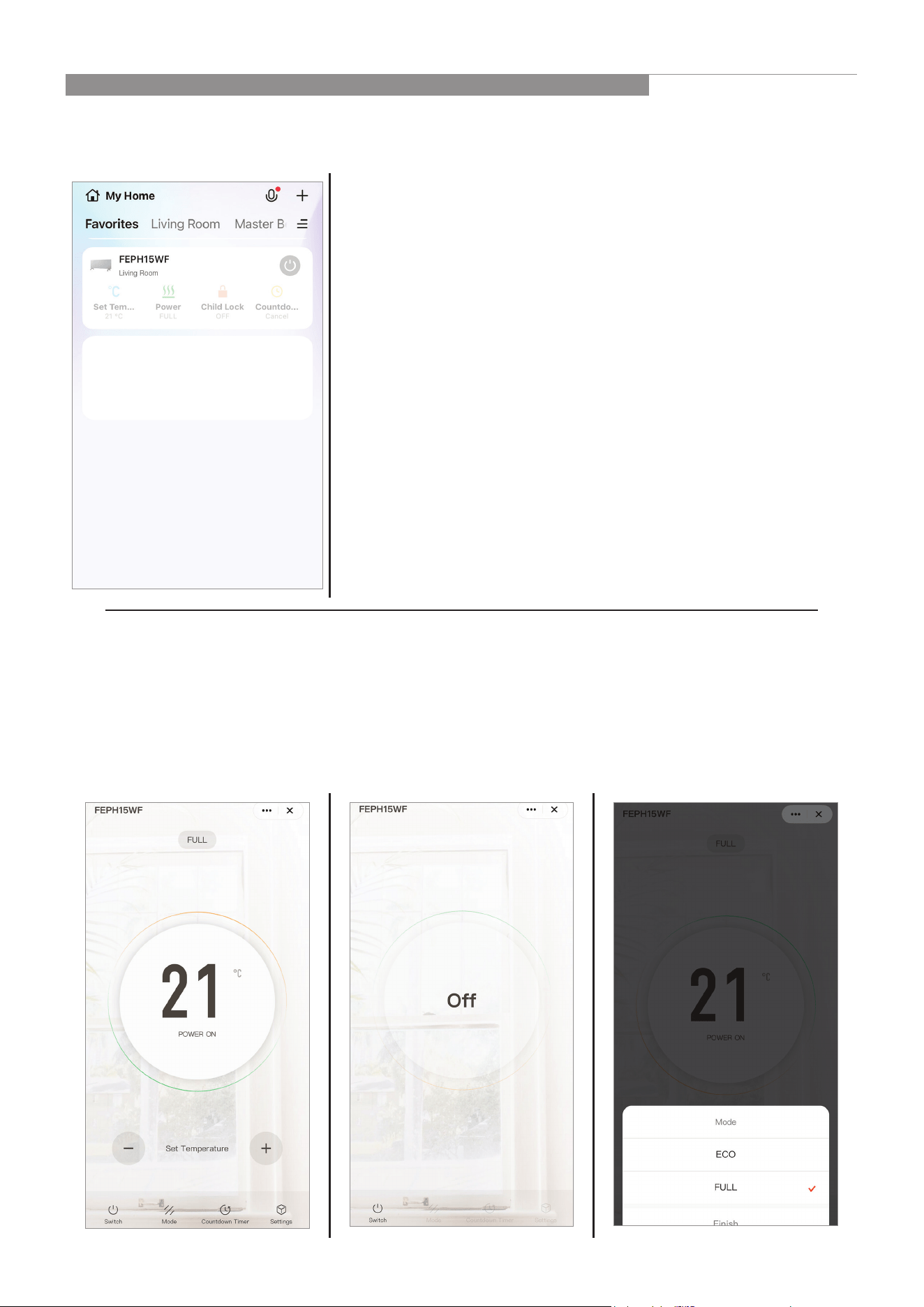
DEVICE LIST PAGE
After opening the App the Device List page is displayed, select the desired device that you wish to control.
OPERATION FUNCTIONS
Operate appliance via app
•
Power `ON´ / `OFF´
•
Power Rate
•
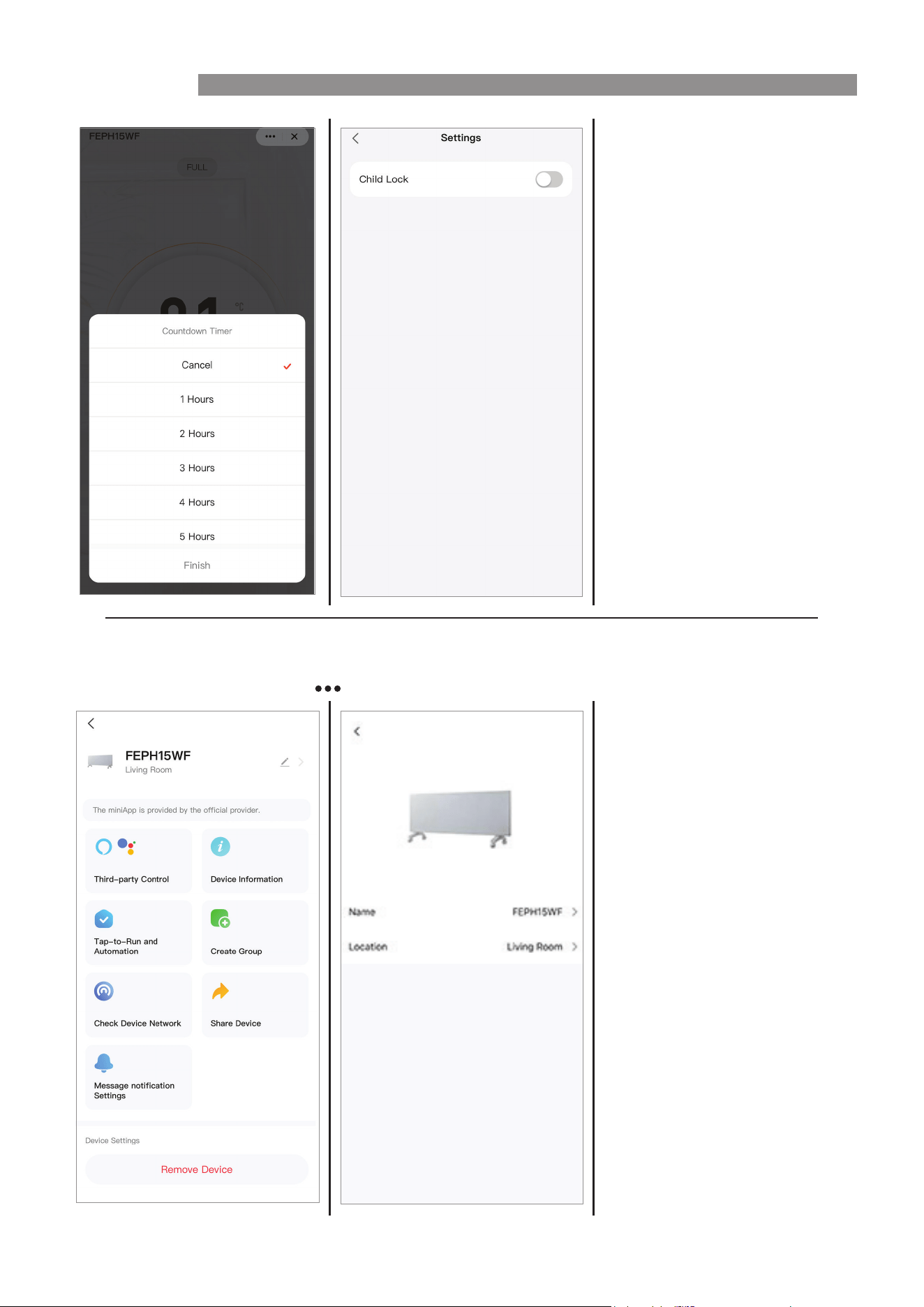
Timer
•
Settings - Child Lock
OPERATION
Rinnai 14 FEPH Electric Panel Heater Wi-Fi OM
DEVICE SETTINGS
To enter the Device settings, press at the top right hand corner of Operation Page. Follow the screen prompts.
OPERATION
Rinnai 15 FEPH Electric Panel Heater Wi-Fi OM
VOICE CONTROL WITH GOOGLE HOME OR AMAZON ALEXA
This appliance features Wi-Fi control via the ‘Tuya Smart’ App. It can be compatible with your Google Home and
Amazon Alexa smart devices. Instructions on how to install are illustrated below.
HOW TO CONNECT TO AMAZON ALEXA
1. Set up your App
If Wi-Fi Control is already congured and working with your air conditioner continue to next step. Otherwise,
download the ‘Tuya Smart’ App from the Apple Store or Google Play, and follow the Wi-Fi manual to set up it.
2. Set up your Amazon Alexa and App
If Amazon Alexa is already congured, then continue to next step. Otherwise, follow Amazon's guide.
3. Link Alexa with ‘Tuya Smart’ App
See the integrated guide in the ‘Tuya Smart’ App.
HOW TO CONNECT TO GOOGLE HOME
1. Set up your App
If Wi-Fi Control is already congured and working with your air conditioner continue to next step. Otherwise,
download the ‘Tuya Smart’ App from the Apple Store or Google Play, and follow the Wi-Fi manual to set up it.
2. Set up your Google Home Device and App
If Google Home is already congured, then continue to next step. Otherwise, follow Google's guide.
3. Link Google Home with ‘Tuya Smart’ App
See the integrated guide in the ‘Tuya Smart’ App.
HOW TO CONTROL AMAZON ALEXA
After you have successfully linked ‘Tuya Smart’ App to Amazon Alexa, you can now control your device(s) with
Amazon Alexa.
Voice commands examples:
For example, if you have the Wi-Fi Control device connecting to Google home named 'Panel Heater'.
To turn on the device, ask “Alexa, turn on Panel Heater""
To turn o the device, ask “Alexa, turn o Panel Heater”
HOW TO CONTROL GOOGLE HOME
After you have successfully linked ‘Tuya Smart’ App to Google Home, you can now control your device(s) with
Google Home.
Voice commands examples:
For example, if you have the Wi-Fi Control device connecting to Google home named 'Panel Heater'.
To turn on the device, ask “ok google, turn on Panel Heater”
To turn o the device, ask To turn o the device, ask “ok google, turn o Panel Heater”
APP SETTINGS

Rinnai 16 FEPH Electric Panel Heater Wi-Fi OM Issue 1 - December 2025
CONTACTS
Rinnai Australia Pty Ltd
ABN 74 005 138 769 | AU45204
82-88 Mills Road, Braeside, Victoria, 3195
P.O. Box 460, Braeside, Victoria, 3195
Tel: (03) 9271 6625
Customer Support
Tel: 1300 555 545* Fax: 1300 555 655
Monday to Friday, 8.00 am to 5.00 pm EST.
*Cost of a local call may be higher from a mobile phone.
(National calls from public phones in Australia are free.)
For further information visit www.rinnai.com.au
or email [email protected]
Rinnai has a Service and Spare Parts network with
personnel who are fully trained and equipped to give
the best service on your Rinnai appliance. If your
appliance requires service, please call Customer
Support.
With our policy of continuous improvement, we
reserve the right to change, or discontinue at any time,
specifications or designs without notice.