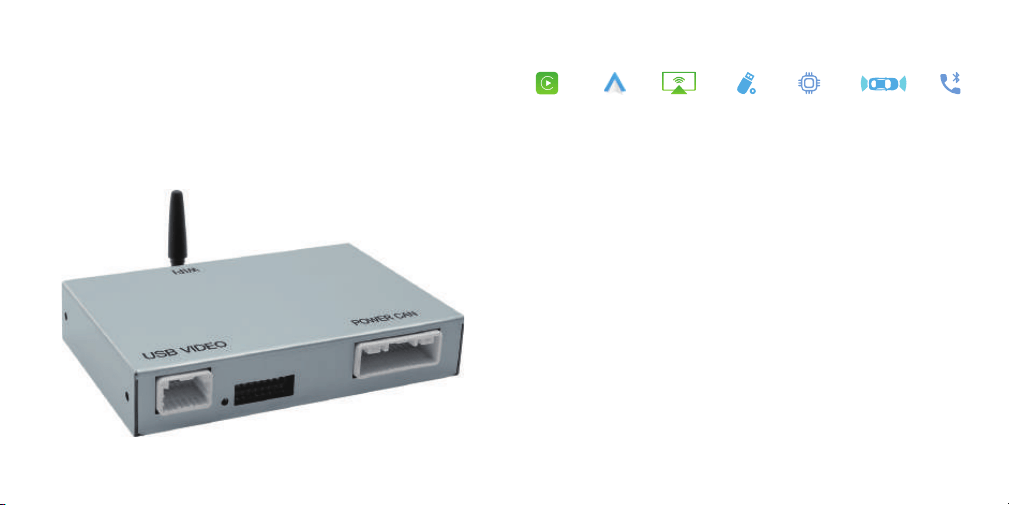
User Manual
For Toyota Touch2 & Entune2.0 System
1. Functional Statement
The built-in vehicle machine interaction system of iPhone cooperates with
the central control knob button to provide voice command and control of
phone, information, navigation, music, to operate Siri voice interaction to
obtain more information; Support wireless and wired connection Carplay.
The original ecological Android car-machine interaction system developed
by Google, voice control of phone, information, navigation, music built-in
voice control system;
Smart module can decode video and can be equipped with rear-view video
input (The intelligent module can decode video and install rear view )
Supports wired & wireless mirroring functions for iphone and Android phones
CarPlay / Android Auto
Reversing Video Input
Mirroring
Automatic media playback function, can be directly inserted into U disk to
play video and audio media
USB Video Playback
Apple
CarPlay
Android
Auto
Screen
Mirroring
USB
Media
Advanced
Chip
Front
Camera
Bluetooth
Calling
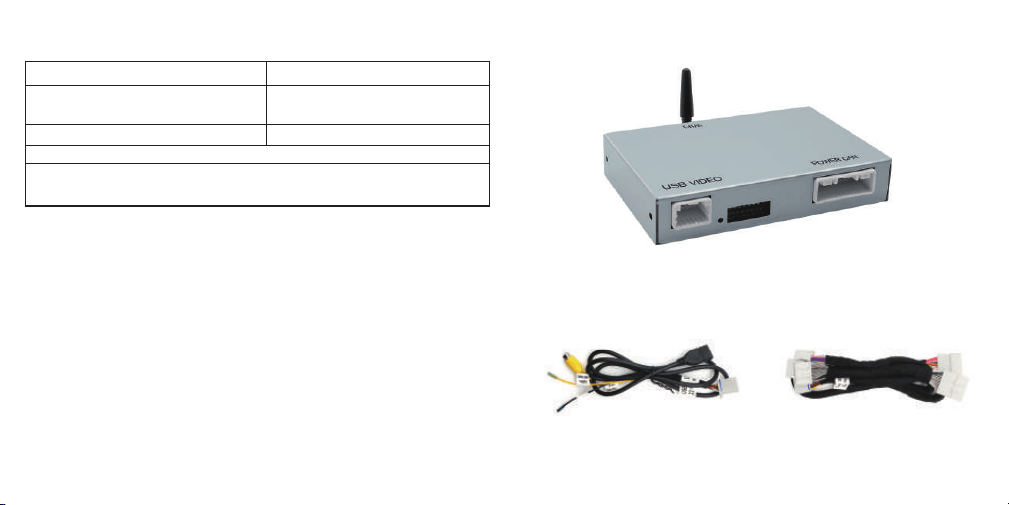
2. Specifications
3. Warranty Terms
Dear users:
Thanks for buying and using and our products!
To ensure our products have a great condition and all of our users can
great experience from that, every product would have a double checked
and tested before selling
The following regulations will not be covered by the free warranty service
1. Exceeding the free warranty period, the appearance is scratched,
dirty or deformed.
2. Failure to use, maintain, dismantle, or modify the product to cause
damage.
3. Damage due to force majeure (such as fire, flood, traffic accident,
thunder and lightning, earthquake, etc.).
Operating Voltage :5V Stored temperature :-30~+85℃
Operating temperature :-30~+75℃ Environment humidity :≤98% (at45℃)
65±5% (rated)
Power consumption :1A (rated) ,3A(Max) Shutdown current :300mA (Clock is on)
Quiescent Current :less than 3mA
Charging current: ≤2A, when the USB charging current>1A, the host should activate the
circuit protection function to control the current below 1.5A, to avoid burning the product.
4. Product Information
USB Video Cable Power Cable
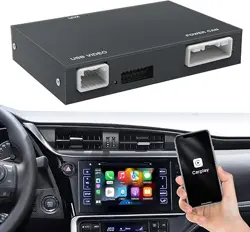
Host (Size: 128*84*25mm)
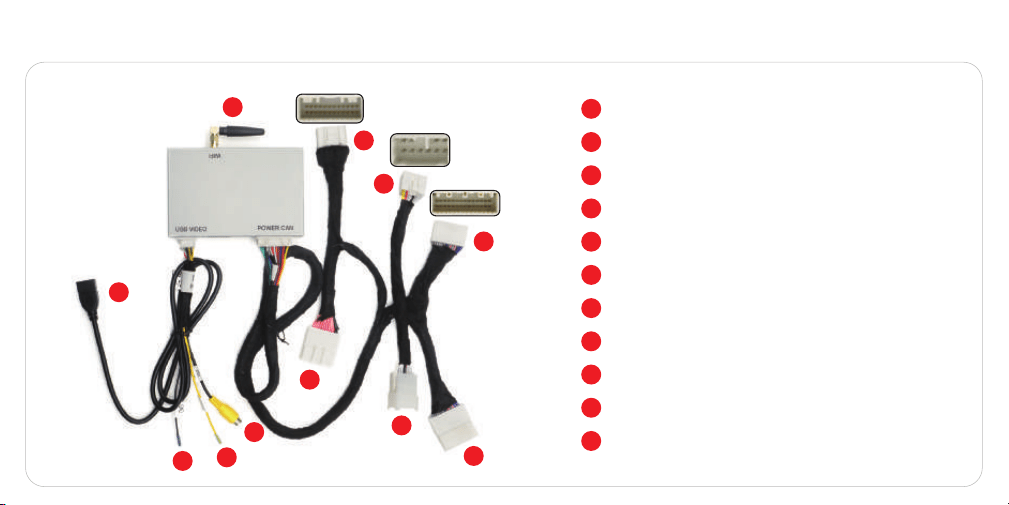
5. Connection Diagram
Connect with Original Car's Main Unit-24PIN
Connect with Original Car's Main Unit-10PIN
Connect with Original Car's Main Unit-28PIN
Connect with Original Car's Plug-28PIN
Connect with Original Car's Plug-10PIN
Connect with Original Car's Plug-24PIN
Forward Looking Input
Camera Power Supply
GND
USB Cable
WIFI Antenna
1
1
2
3
4
5
6
7
8
9
2
3
4
5
6
7
8
9
10
11
10
11
24PIN
10PIN
28PIN
7. Switch to CarPlay System
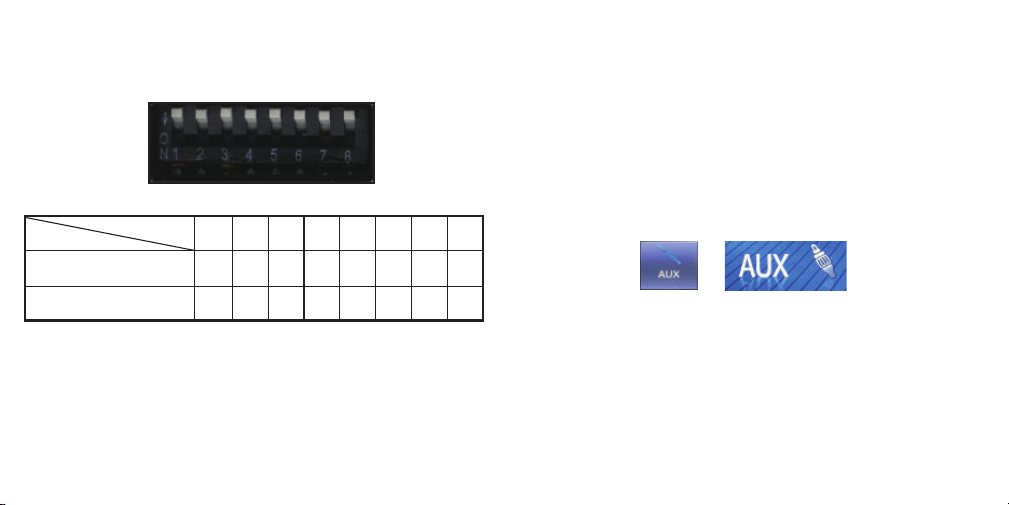
6. Vehicle Dialing Table
All OFF by default: Applicable to Panasonic Fujitsu mainframes
5-ON:Applicable to Pioneer mainframes
The product supports the original car system
and there are three ways to switch to CarPlay interface:
1 2 3 4 5 6 7 8
OFF OFF OFF OFF OFF OFF OFF OFFFujitsu Panasonic
Model
Dialing
Pioneer
OFF OFF OFF OFF ON OFF OFF OFF
1. In the original car screen: click on the “AUX” icon to enter
2. In the steering wheel: Long press the voice button to enter
3. If there is no voice button: press the “MODE” button to enter
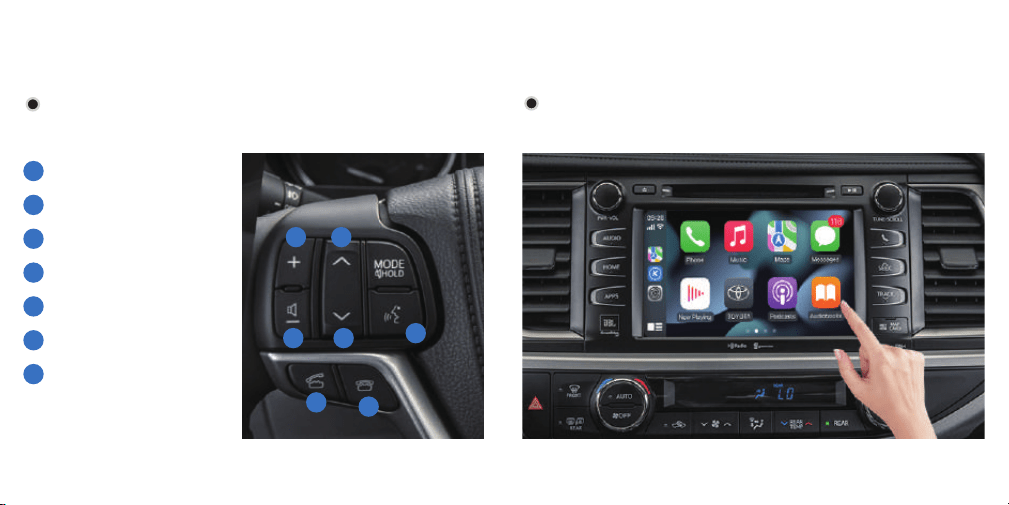
Volume +
Volume -
Previous song
Next song
Answer the phone
Hang up the phone
Short press to wake up Siri
8. Control Key Operation Instructions
1 3
4
5
6
7
2
1
2
3
4
5
6
7
Long press 2s to switch
CarPlay system
Support original car button control Support touch screen control
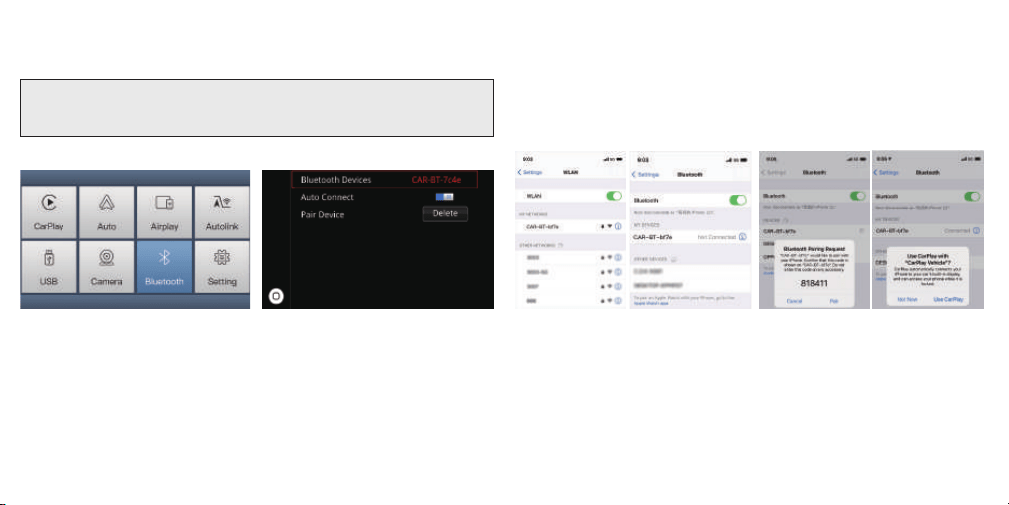
9. Wireless CarPlay Connection Method
Select “Bluetooth”
Step 1
Check the Bluetooth Device name
as “CAR-BT-xxxx"
Step 2
Turn on WIFI and keep it on, then
back to Bluetooth to connect
CarPlay
Step 3
Select Bluetooth Device name as
“CAR-BT-XXX"-Pair-Use CarPlay
while that pop up a request window
Step 4
Wired Connection Method: connect the phone cable with the host,
and then Click “Use CarPlay" in the pop up window.
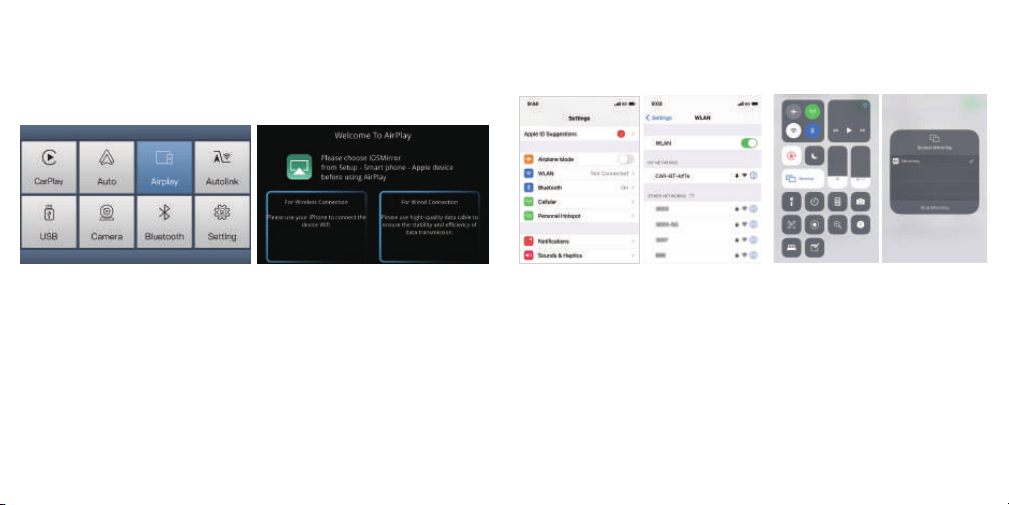
10. Apple Wireless Screen Mirroring
Select “Airplay”
Step 1
Turn on the phone, select the
“Wireless LAN" option, the search
bar will show the “CAR-WIFI-XXX"
and click the link, the password is
66668888
Step 2
After the carplay wifi connection is
successful, return to the main
interface of phone, open the shortcut
menu page, select “Screen Mirroring"
and turn on
Step 3
After the mobile phone “Screen
Mirroring" is turned on, select
“Airplay" to complete the
wireless Screen Mirroring
Step 4
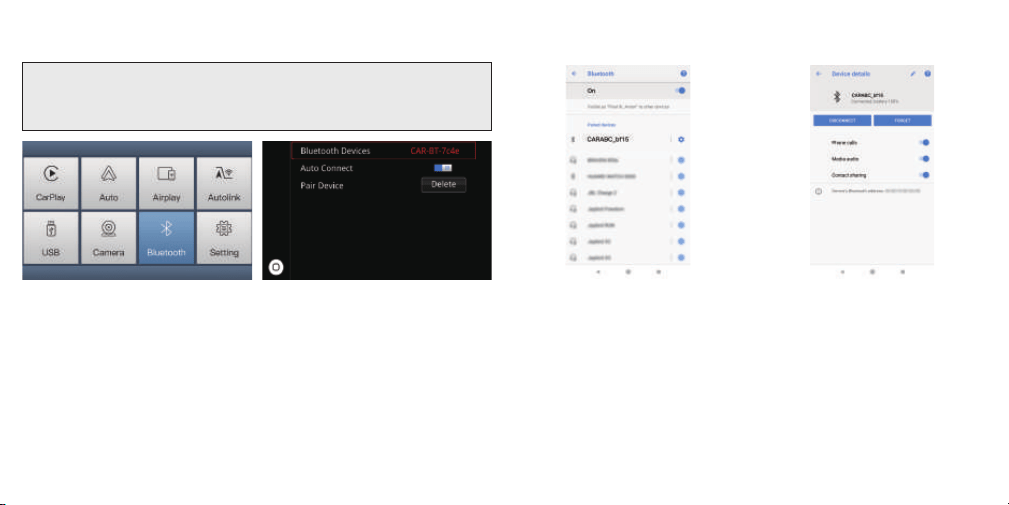
11. Wireless Android Auto Connection Method
Select the “Bluetooth”
Step 1
Check the Bluetooth name starting
with “CAR-BT-xxx" in the
Bluetooth interface
Step 2
Click on the Bluetooth name
beginning with the link
“CAR-BT-xxx", a pairing request
will pop up, just click Pairing; after
the Bluetooth pairing is successful,
the phone will pop up a request to
enable the carplay option, just
confirm it.
Step 3
Click the Bluetooth name at the
beginning of the link
“CAR-BT-xxx" and click pairing.
Turn on the Android auto app on
the mobile phone, and the system
will connect automatically.
Step 4
Wired Connection Method: connect the phone cable with the host,
and then Click “Allow" in the pop up window.
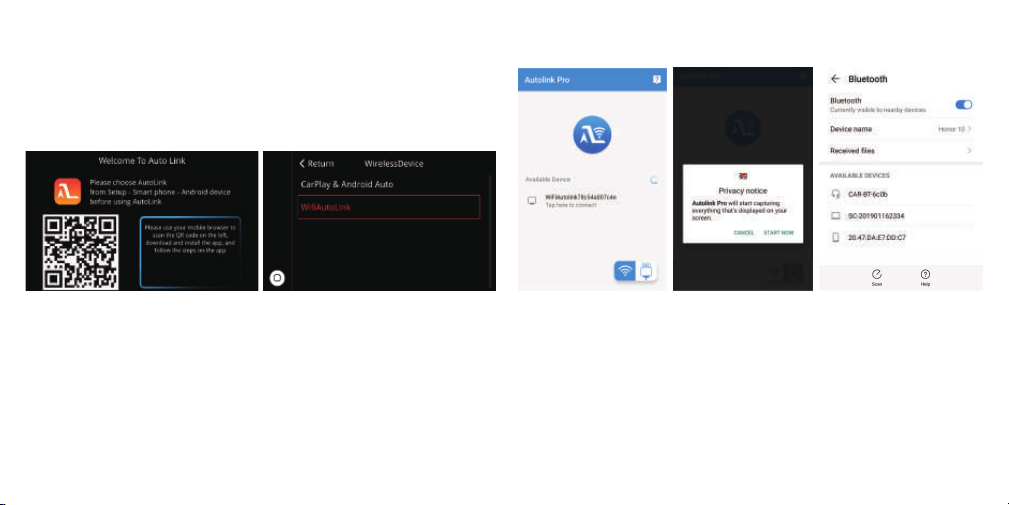
12. Android Wireless Screen Mirroring
Android phone scan and download
the Auto Link by using the Browser
Step 1
Switch the WIFI Auto Link to “ON”
in the Settings page
Step 2
Open the Auto link software you
downloaded, search “WIFIAuto-
link-xxx” and connect, then click
the “START NOW” on the phone
prompt box.
Step 3
The touch reverse control and
the media sound can be
realized after the Auto Link
connection, media sound needs
to connect with Bluetooth.
Step 4
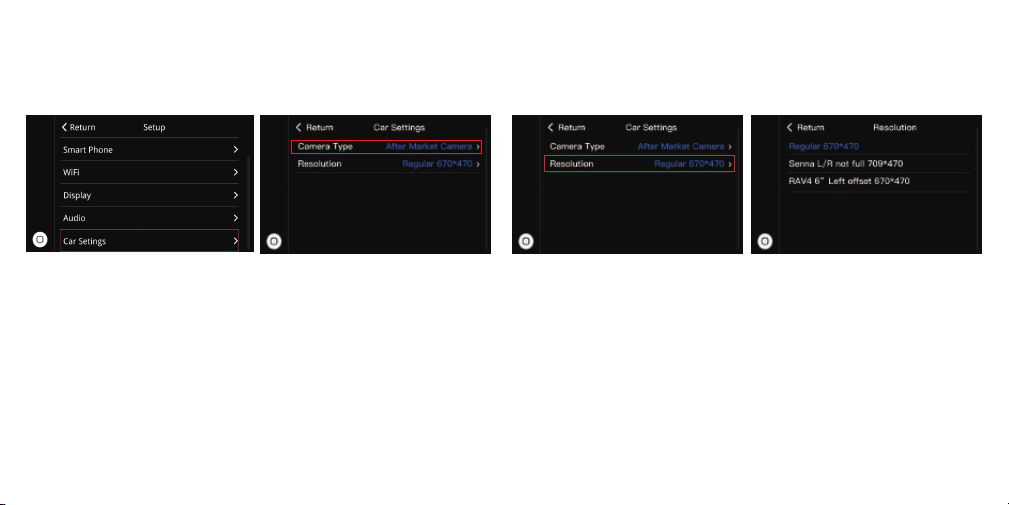
Default regular resolution: 670*470
Left and right display incomplete selection: Senna L/R not full 709*470
RAV4 Corolla display leftward selection: RAV4 6” Left offset 670*470
13. Car Settings
Camera selection:
Select OEM Camera and Aftermarket Camera
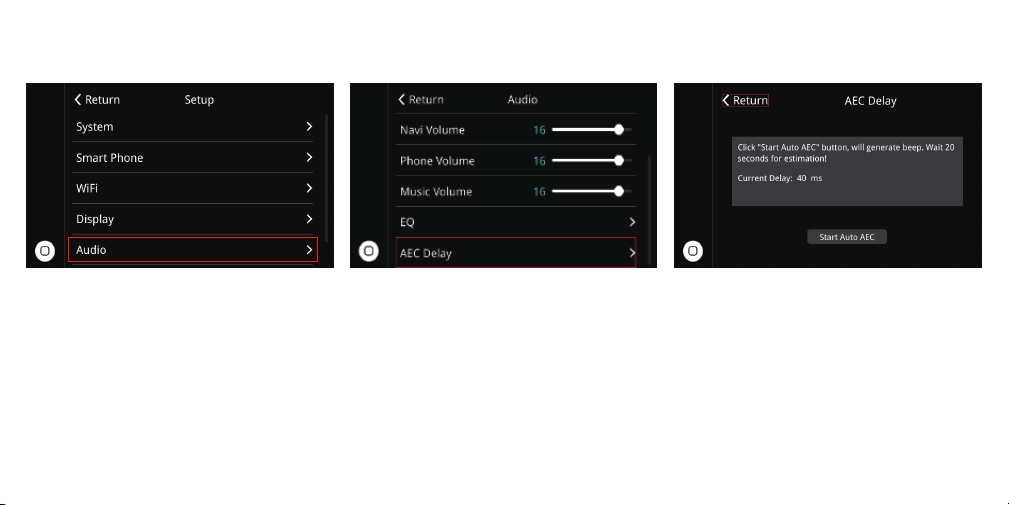
14. Audio Settings
Call Echo Cancellation:
If there is an echo,please click this button for echo correction.
When correcting the echo, we must :
1. Keep quiet in the car;
2. Turn the volume to a moderate position, and then click "start" to cancel echo.
Steps: Settings-Audio-AEC Delay,then click the button “Start Auto AEC”

Dear users:
We are CARABC Official Store.Thank you very much for choosing and using our products! Our products have passed strict
functional and performance tests before leaving the factory to ensure that each product is in good condition Give it to users. All
products enjoy the Three Guarantees policy.If you cannot install or have other problems, please contact us.All of our products
enjoy a year of warranty service, please feel free to purchase and use them!
The following regulations will not be covered by the free warranty service
9.1 After the free warranty period, the appearance is scratched, dirty and deformed.
9.2 The warranty card and purchase certificate are inconsistent with the product model or have altered marks.
9.3 The bar code of the host machine body is unclear or there is no bar code product.
9.4 Failure to use, maintain, repair or refit according to the requirements of the product manual causes damage.
9.5 Damage due to force majeure (such as fire, flood, traffic accident, lightning, earthquake, etc.).