Mevo+
User Manual
“FlightScope technology is developed to offer you performance data you
can trust in your pursuit of excellence.”
Performance data you can trust
Henri Johnson - Founder & CEO

Contents
Battery Warning
Performance tracking
In the box
Mevo+
Charging
Battery indicators
System indicators
Get the app
Connect to Mevo+
Via QR Code
Manually (via Wi-Fi)
Kickstand
Setup
Setback
Aiming
Clearance
1
2
3
4
5
6
8
9
10
10
12
13
14
14
15
16
19
20
21
22
23
24
27
28
29
31
33
Tips
Indoor ball spin
Tee the ball
E6 Connect
Switch off
Electronic noise
Care
Avoid
FAQ’s and support
Technical specifications
FCC Statement
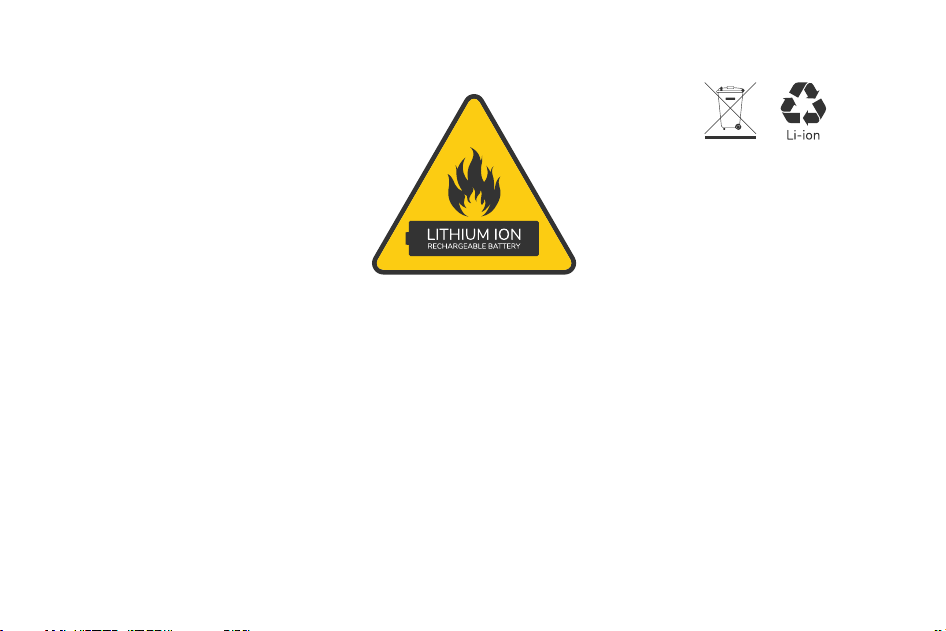
Battery warning
CAUTION: This device contains a Li-ion battery. Do not expose to temperatures below freezing point.
Do not expose to excessive heat. Avoid physical impact, puncture, crushing or dropping. If the unit is
struck by a club or ball, a short circuit or other heat reaction may occur, resulting in a fire.
Do not tamper with the battery pack. Avoid physical damage or stress when removing or inserting the
battery. Do not short-circuit the battery terminals. Maintain battery condition by charging and
discharging regularly, at least every few months.
Use only the included charger and charging cable for best results. If the battery bulges, emits fumes,
or becomes very hot, disconnect it from the charger and replace the battery. Dispose of old batteries
in accordance with applicable waste battery and recycling regulations.
1
Visit myFlightScope.com to analyze and track your data performance over time.
Join the myFlightScope.com community and connect with fellow golfers like yourself. Keep
track of your stats over time, spot trends or tendencies and see how you have improved.
Performance tracking
myFlightScope.com
Please share your results and tag us on social media.
ΫǽŃĵĽƪƞČŰƓĚgolf
2
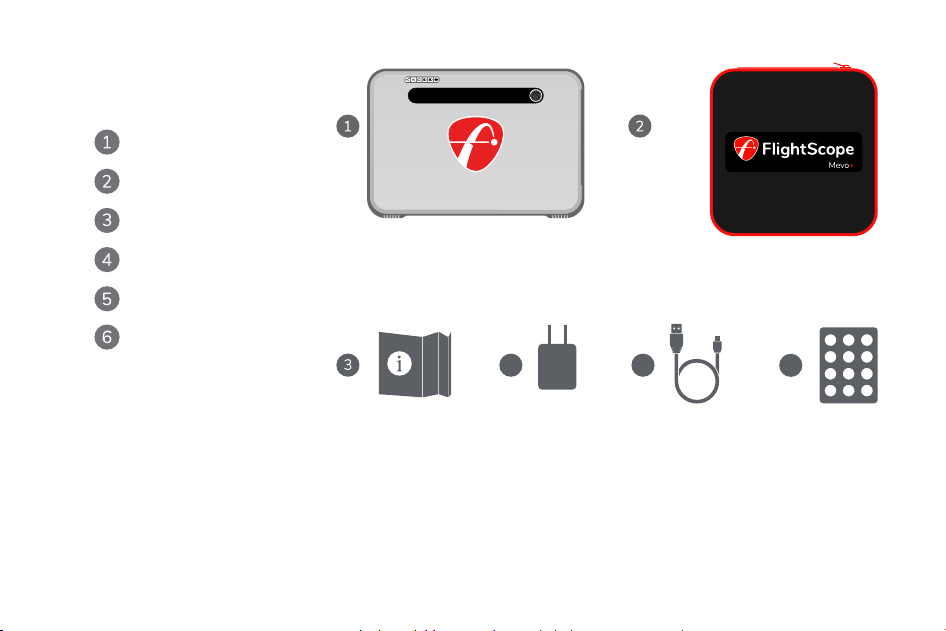
Mevo+
Power adapter
Case
Quickstart guide
USB charging cable
Aluminum stickers
In the box
(Only needed for indoor use)
(Not to scale)
5
4
6
3
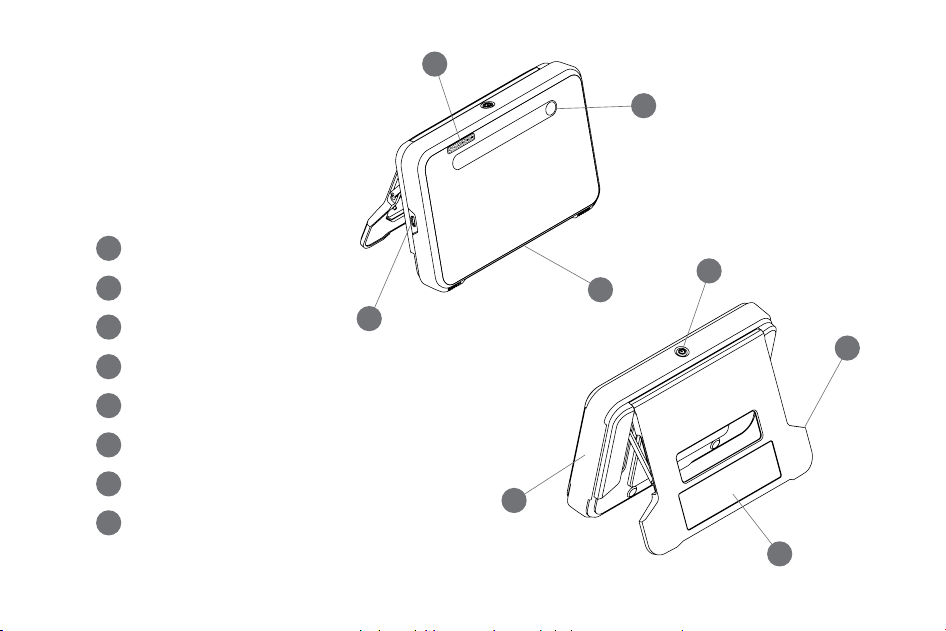
Mevo+
7
8
8
6
1
2
3
4
5
Indicators
USB charging port
On / Off button
Kickstand
5000 mAh Battery
(under rubber band)
Tripod mount (bottom of the unit)
Serial Sticker (includes QR code for connection)
Alignment camera
2
7
5
6
4
3
1
4
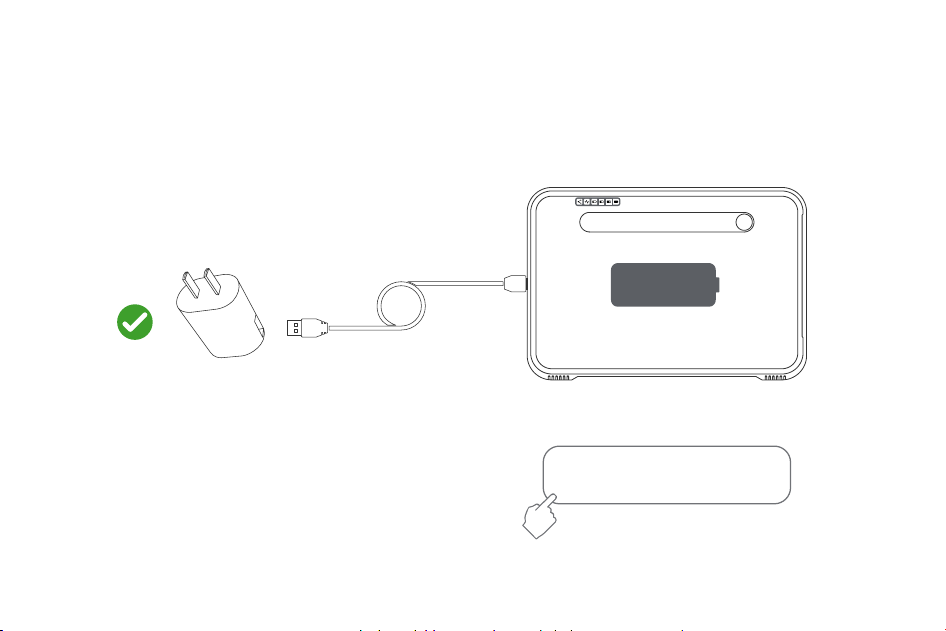
Power and charging
4hrs for a full charge using
the supplied adapter.
External FlightScope battery packs available
in shop on flightscopemevo.com
5000mAh
5
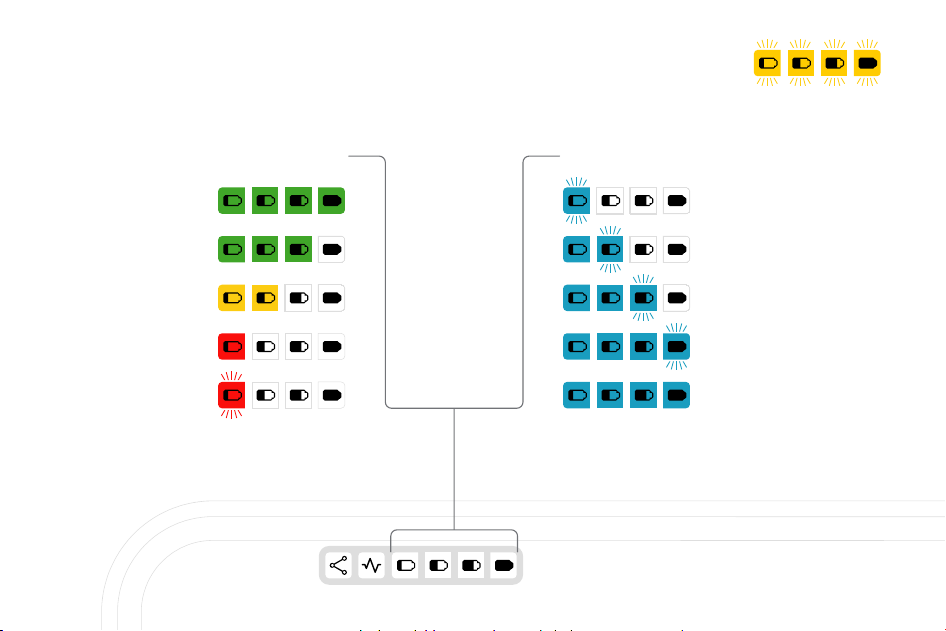
above 75%
above 50%
above 25%
above 10%
under 10%
Battery and charging indicators
0-25%
25-50%
50-75%
75-100%
Full
ChargingBattery Powered
Charging error
(Battery too hot or cold to charge,
or battery is not connected properly)
6
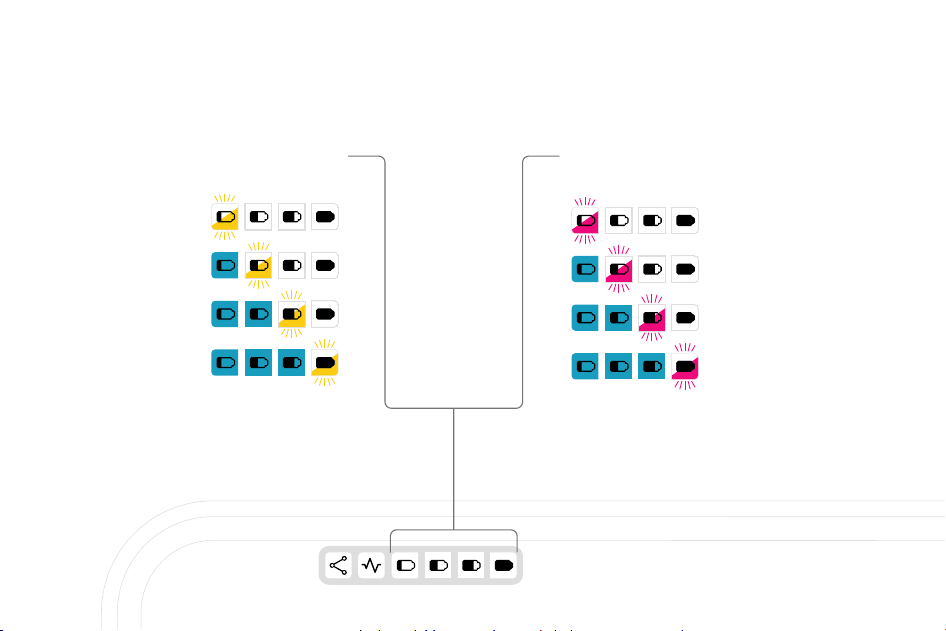
0-25%
25-50%
50-75%
75-100%
Externally Powered
(Battery not charging)
0-25%
25-50%
50-75%
75-100%
External & battery power
(External power is not sufficient to power system)
7
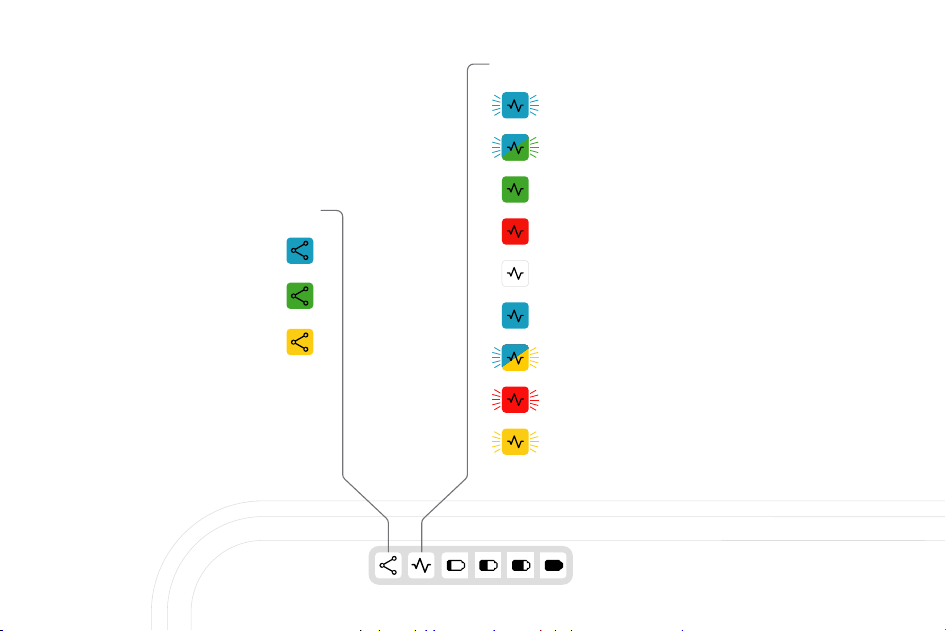
Battery empty
Connection Status
Radar Status
Triggered
Power on, switching on
Processor start up
30-60 seconds
Sleep
Standby mode
Armed, ready to measure
Processor shut down
15-30 seconds
Firmware error
System indicators
Ready
Connected
Communication Error
8
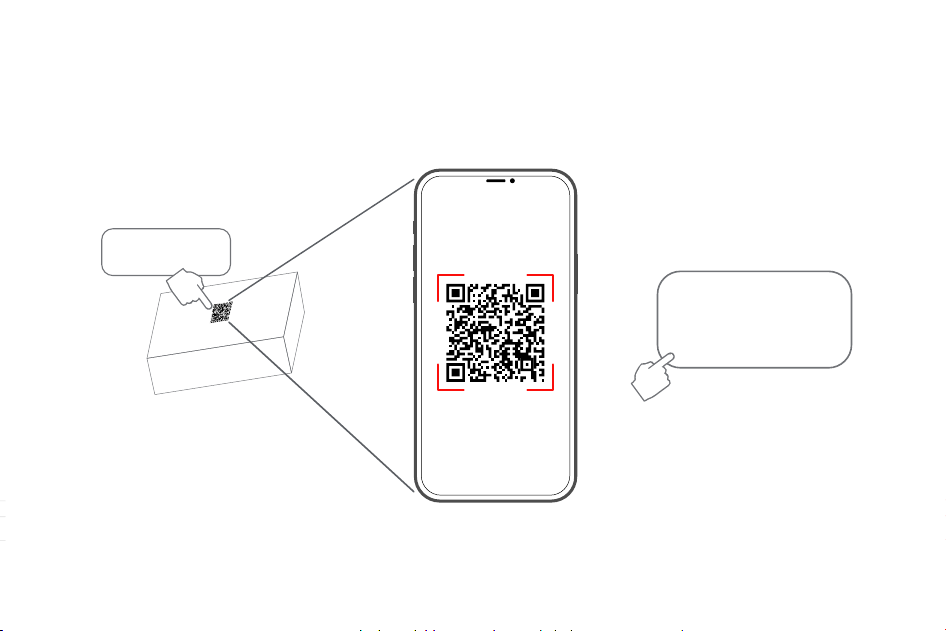
Get the app
Scan the QR code on
the bottom of the box
Download and install the FS Golf app.
This will direct you to the
FlightScope applications
page. Please choose the
FS Golf app.
9
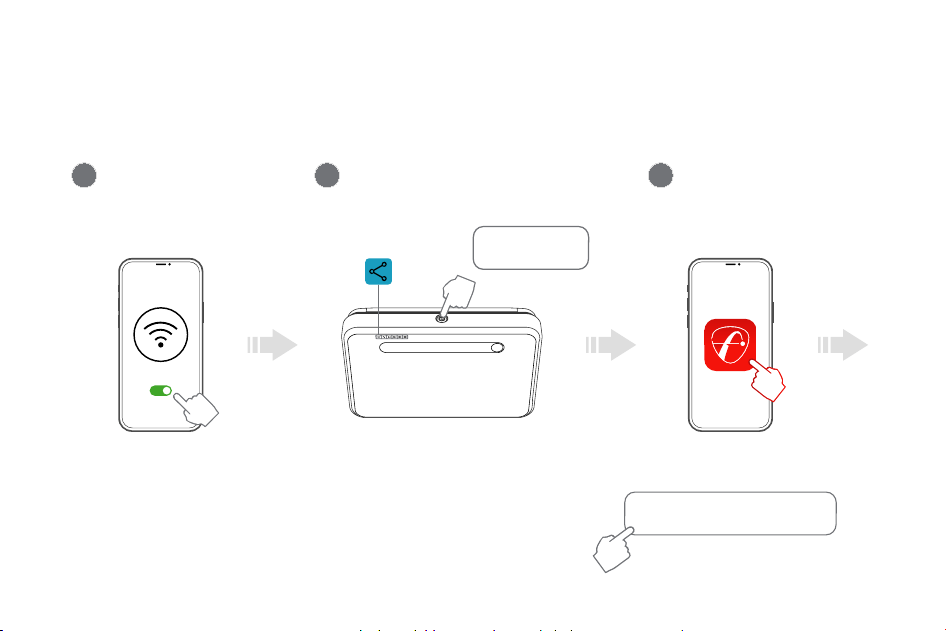
Switch on
Wi-Fi on
Launch FS Golf app
The username and password you setup
will be the same for myflightscope.com
Connect to Mevo+ (via QR Code)
1 2
3
Press and hold until
the unit beeps
1
2
3
10
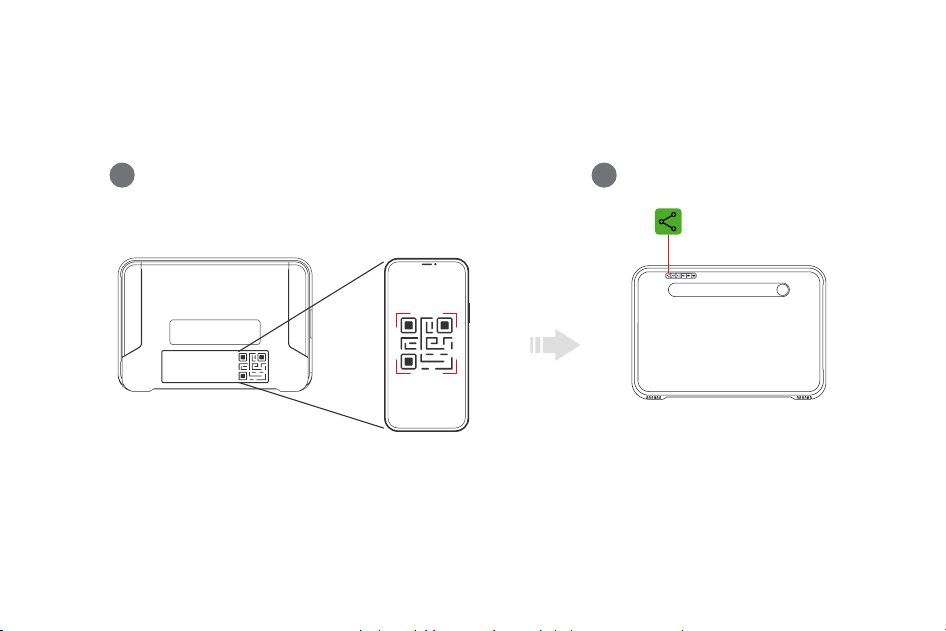
4 5
In app, scan QR code
on back of unit
Connected
4
5
11
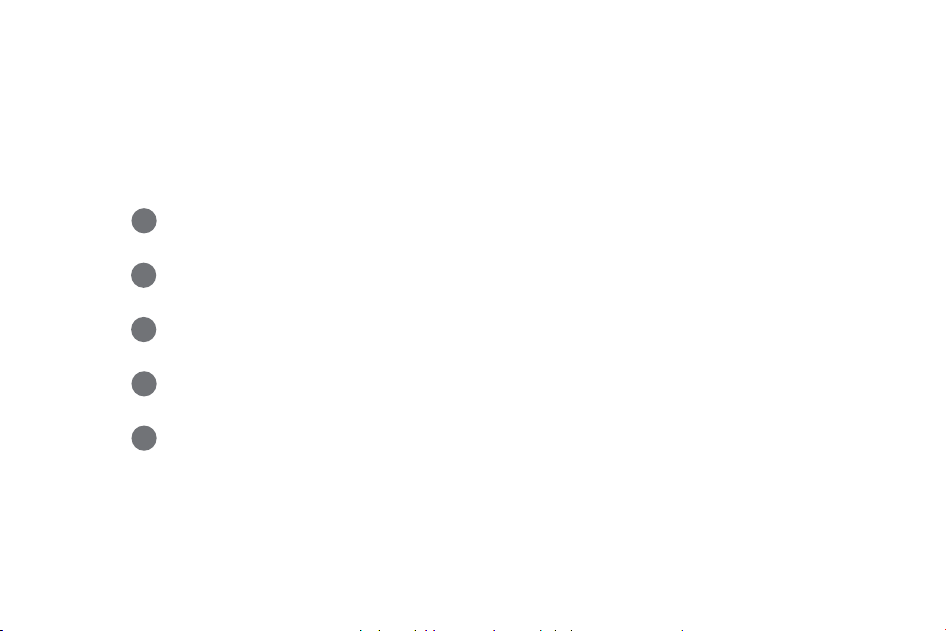
Connect manually (via Wi-Fi)
5
4
3
2
1
Make sure your phone’s Wi-Fi is turned on.
Press the on/off button on the unit, the system and battery lights will come on.
The connection light will be solid blue while the unit is ready for connection.
Select Wi-Fi settings on your phone and select the unit with your serial number.
The Wi-Fi password is your serial number, for example: M2-123456.
The connection light on the the unit will turn to solid green when connection has
been established.
Launch the app on your phone and proceed.
If you are unable to connect using the QR code, then you can connect
manually in your device settings. Follow these easy steps:
1
1
2
2
3
3
4
4
5
5
12
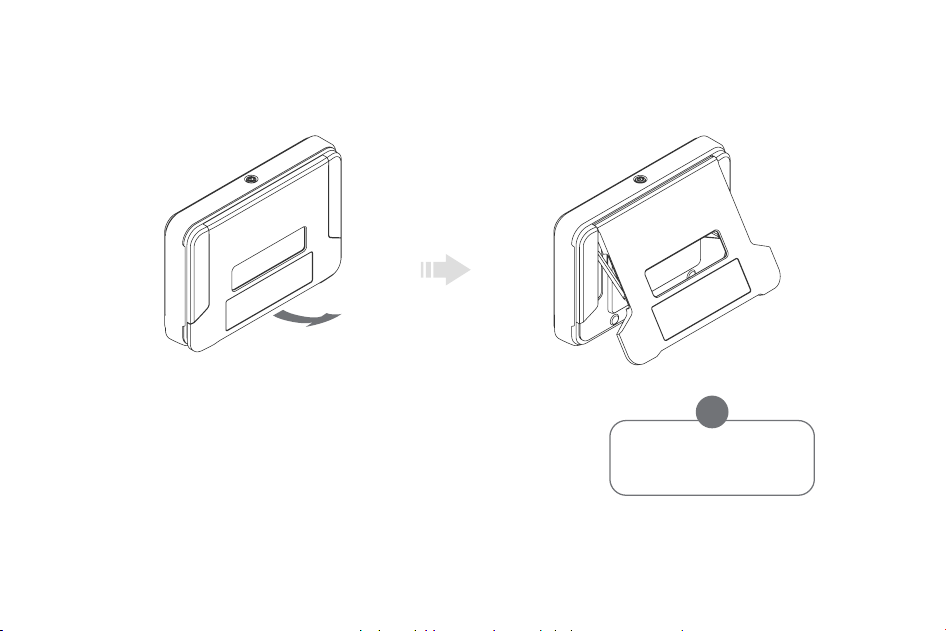
Open the Kickstand before placing.
Do not over extend the kickstand
or force it past it’s open position,
this can cause damage to your unit.
Kickstand
The kickstand will stop at open position. With the kickstand open,
the radar will be at the correct tilt angle on a flat surface.
!
13
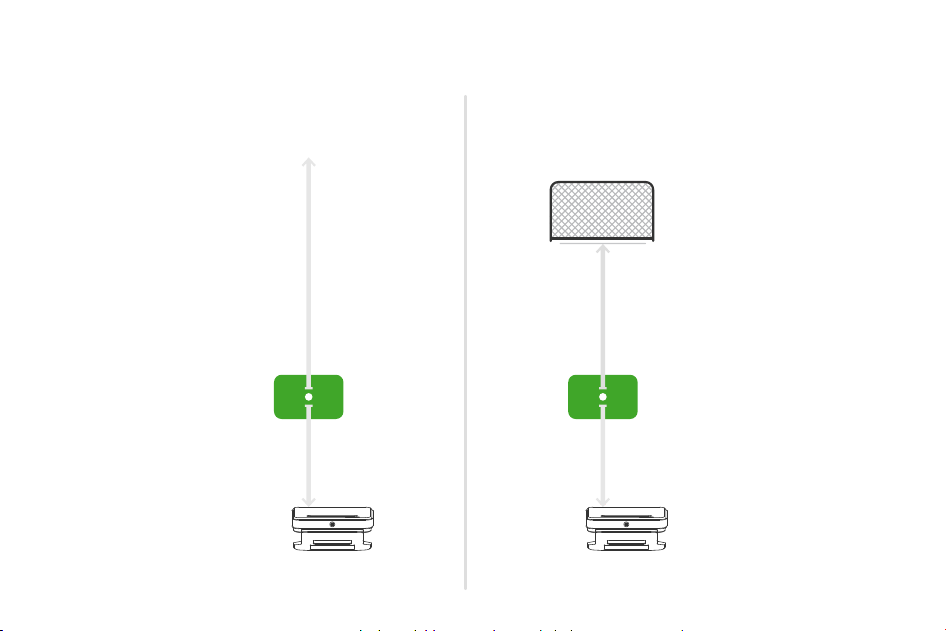
Setup - Setback
OUTDOOR
Unrestricted
ball flight
LIMITED FLIGHT
8’ (2.4m) min.
Aluminum stickers required.Aluminum stickers NOT required.
8’ (2.4m)
sensor to tee
8’ (2.4m)
sensor to tee
Aluminum stickers not required if using Titleist RCT golf balls.
14
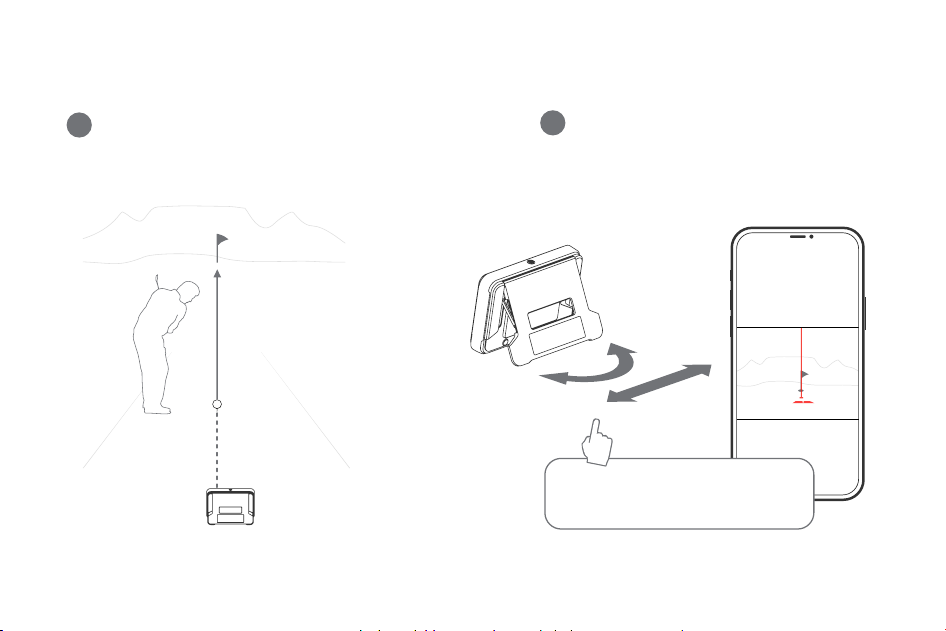
Aiming
Place the Mevo+ behind the ball position so that the
camera aims along the chosen target line.
In the App, follow the instructions
using the camera view to align.
1
2
1
1
2
2
Adjust the position and aim so that the vertical
line on the camera view passes through the
ball and is aligned with the target.
15
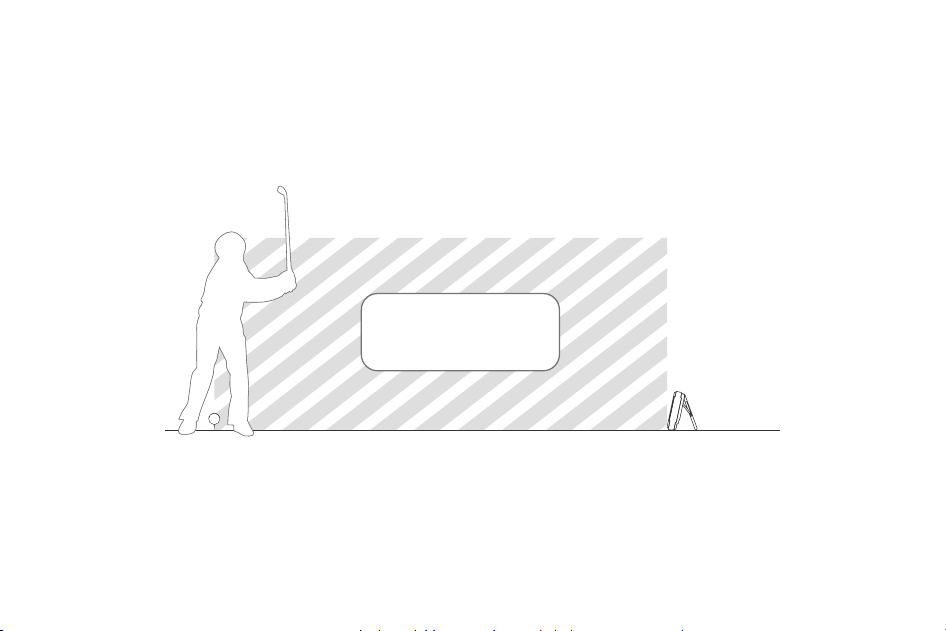
Clearance
KEEP CLEAR
Keep area between Mevo+ and the ball position clear of any objects and people.
16
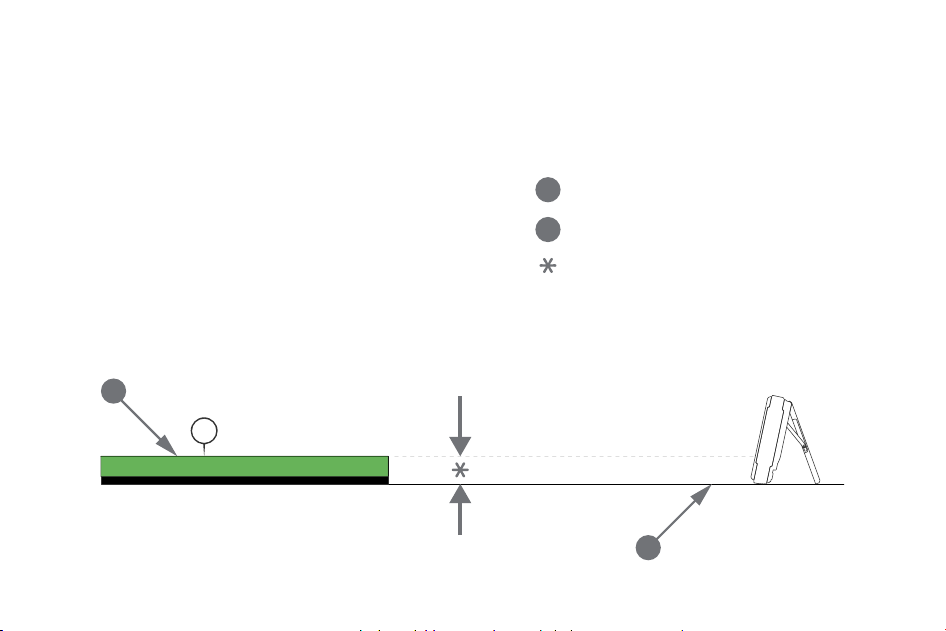
1
2
3
Hitting Surface
Ground surface
Maximum Height: 3’’ (76mm)
Tips
Best practice is to keep the unit on the floor with a level surface between the unit and the mat.
1
2
17
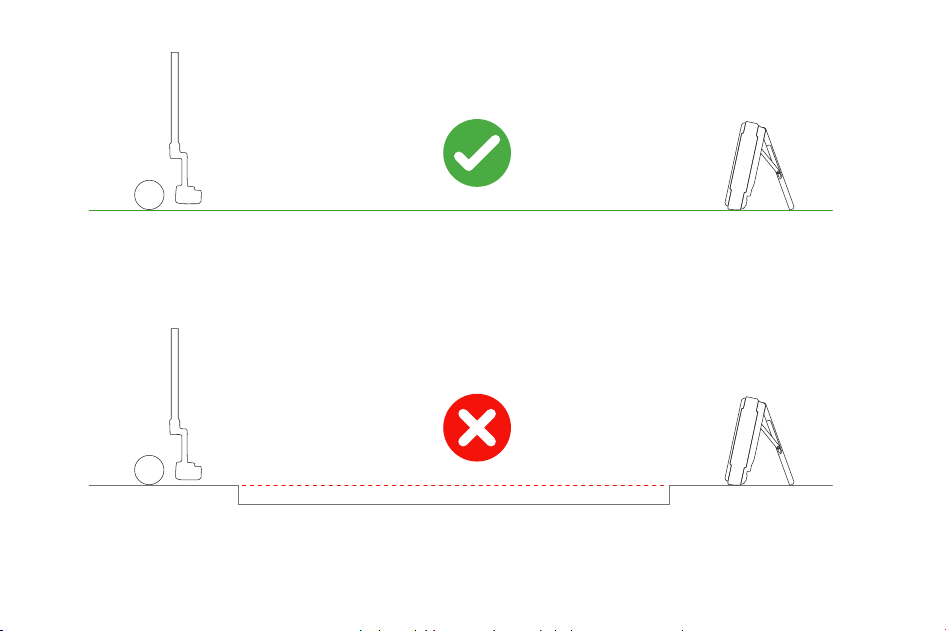
For putting, keep the ball and unit on an even flat surface.
For putting, chipping and hitting never raise the Mevo+ to match the ground level.
18
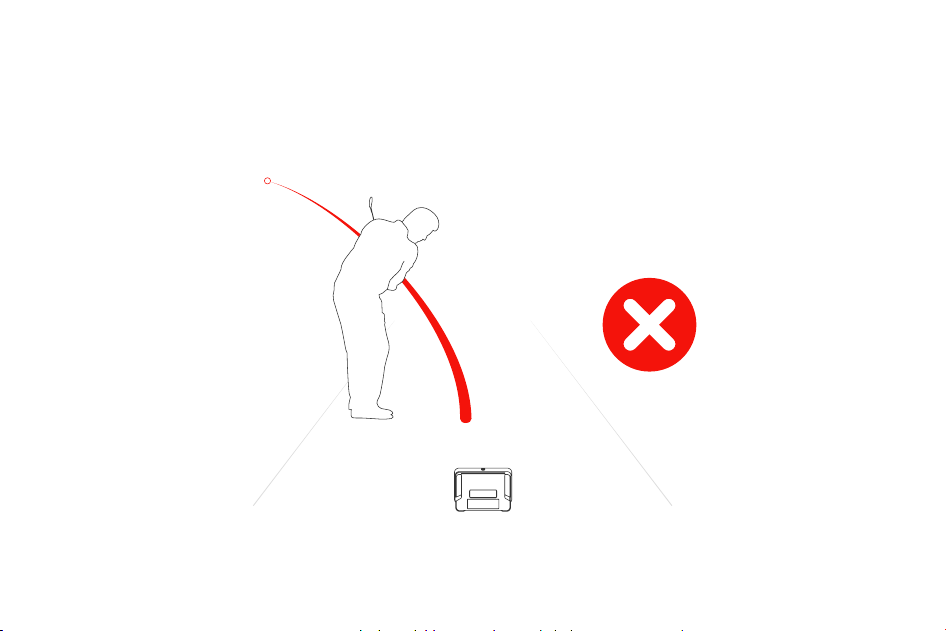
Extremely low and wide shots, and shots where the player is between the
Mevo+ and the ball, might not register.
19
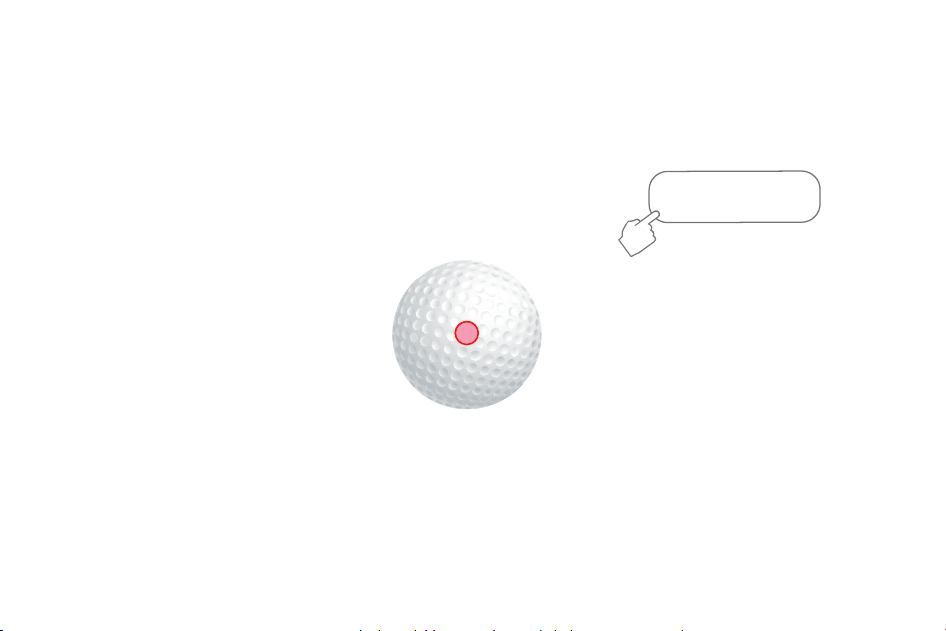
Indoor ball spin
For the best spin accuracy indoors, place a reflective sticker on the ball.
To order additional stickers: go to flightscopemevo.com/collections/mevo-accessories
Reflective stickers are
for indoor use only.
20
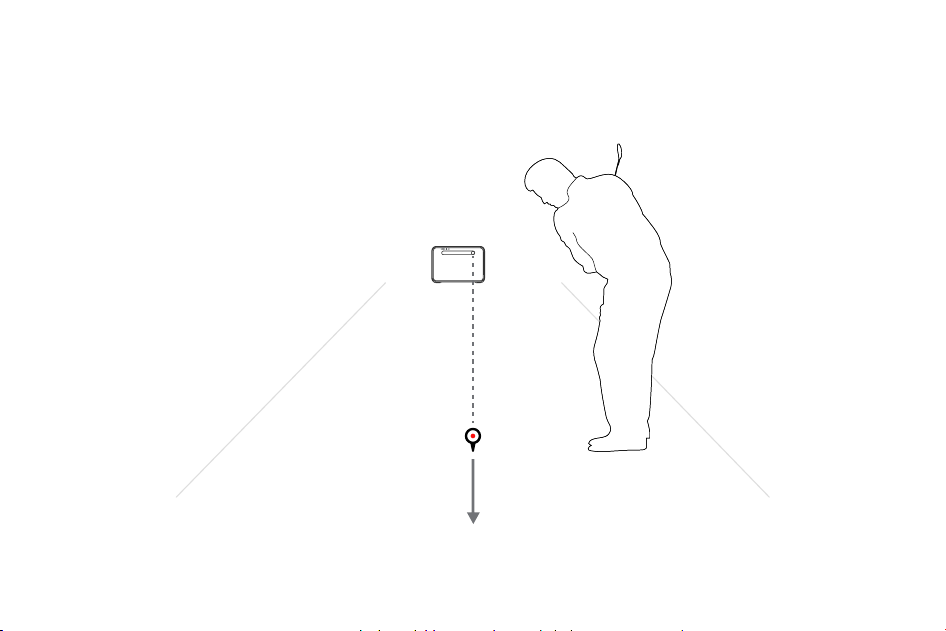
Place the ball so that the sticker faces forward, directly away from the Mevo+.
Sticker facing
towards target
Tee the ball
21
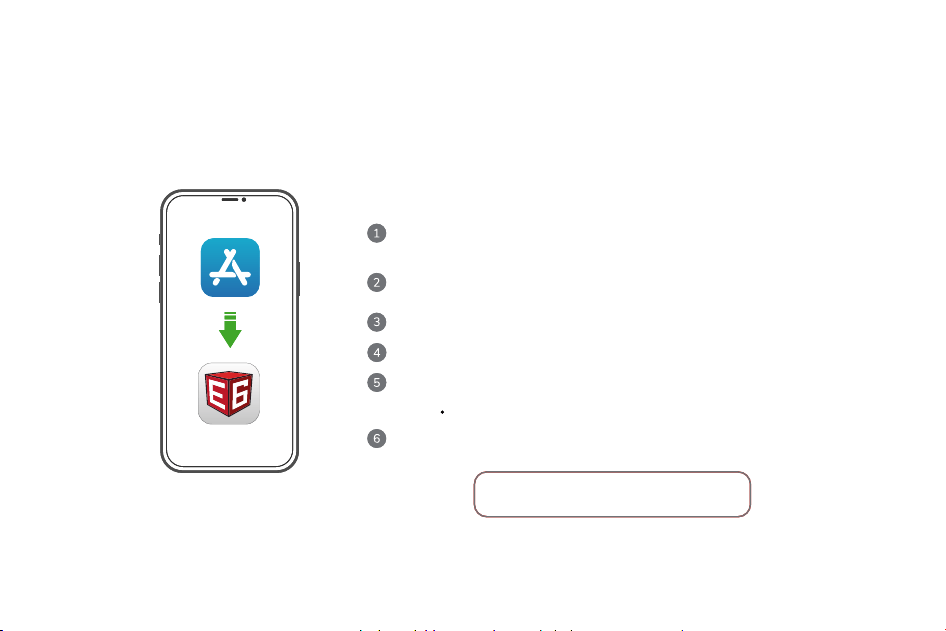
E6 Connect
Follow the on-screen instructions to create your E6 Connect profile.
Select the redeem option and enter your product key.
Download the available courses to your E6 Connect app.
(Courses must be downloaded BEFORE connecting your mobile device)
With your purchase of a new FlightScope Mevo+ 2023
product you receive an E6 Connect golf simulator software
license with 10 golf courses, multiple practice ranges, and
more features, at no extra charge.
(Note that this free E6 Connect license is not transferable if
you decide to sell your Mevo+ to another person in future.)
You can now connect to your Mevo+ via Wi-Fi and
begin your session.
Play Golf Menu > Course Selection
Create or access your account on portal.e6golf.com
to activate, view or manage your E6 licenses.
Register a FlightScope Mevo+ account on the iOS/ Android FS
Golf app or Windows FS Golf PC app. An E6 Connect product key
will be emailed to you.
Download the iOS E6 Connect app from the Apple app store, or download the
Windows PC app from the E6 website at portal.E6golf.com
Follow the on-screen instructions to create your E6 Connect profile.
Select the redeem option and enter your product key.
Download the available courses to your E6 Connect app.
(Courses must be downloaded BEFORE connecting your mobile device)
With your purchase of a new FlightScope Mevo+ 2023
product you receive an E6 Connect golf simulator software
license with 10 golf courses, multiple practice ranges, and
more features, at no extra charge.
(Note that this free E6 Connect license is not transferable if
you decide to sell your Mevo+ to another person in future.)
You can now connect to your Mevo+ via Wi-Fi and
begin your session.
Play Golf Menu > Course Selection
Create or access your account on portal.e6golf.com
to activate, view or manage your E6 licenses.
Register a FlightScope Mevo+ account on the iOS/ Android FS
Golf app or Windows FS Golf PC app. An E6 Connect product key
will be emailed to you.
Download the iOS E6 Connect app from the Apple app store, or download the
Windows PC app from the E6 website at portal.E6golf.com
22
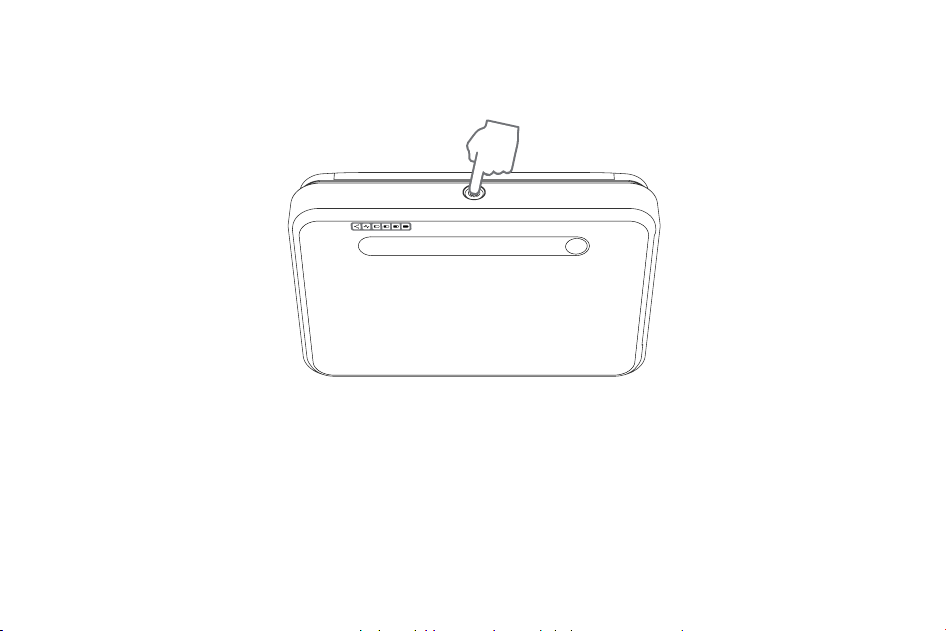
Press and hold to turn off, unit will beep to confirm.
When all indicators are off, the unit is off.
Switch off
23
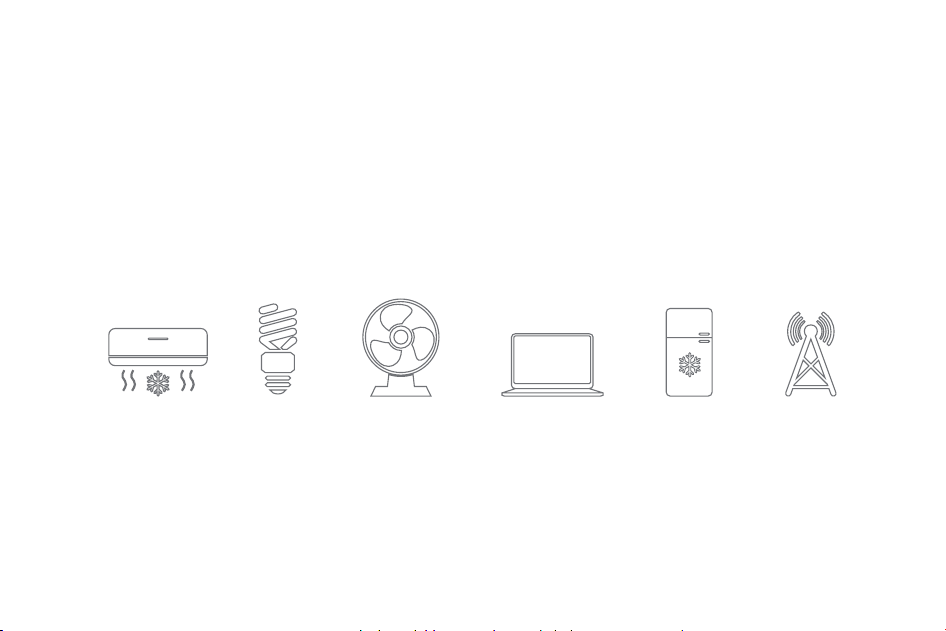
fluorescent
lights
fans tv’s, laptops &
desktop computers
in front of the Mevo+
fridges signal
towers
aircon
Electronic noise
Mevo+ is designed to operate in most environments. However certain appliances and equipment
can create noise that can interfere with resulting shots.
Some common noisy objects are:
24
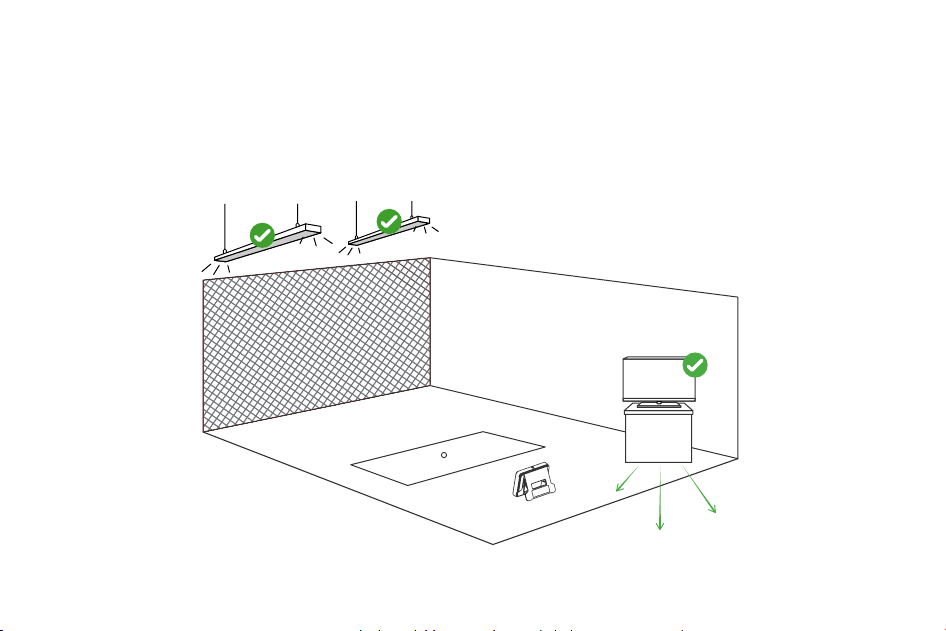
LED
Keep area clear of possible noise interference. Make sure to move
noisy electronic devices behind the unit.
25
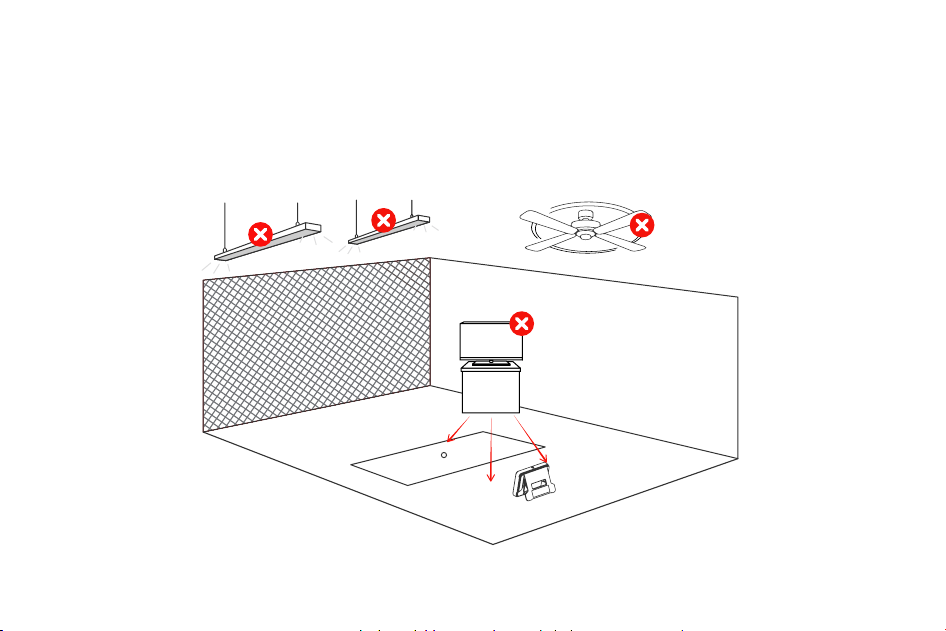
Flourescent
Noisy electronic devices in front of the unit may cause poor tracking
performance.
26
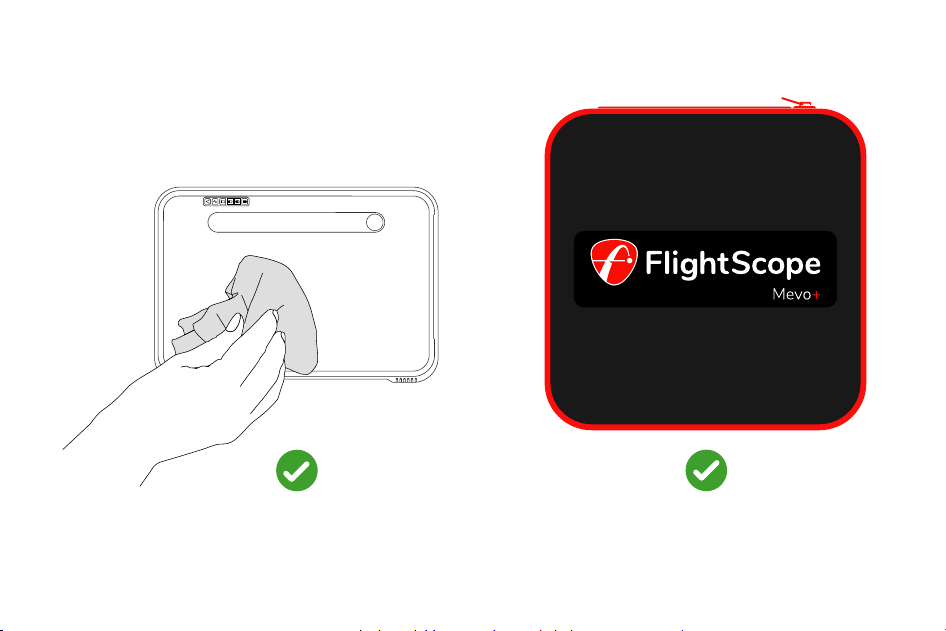
Care
Clean with a damp cloth and light
household detergent
Store in the case
27
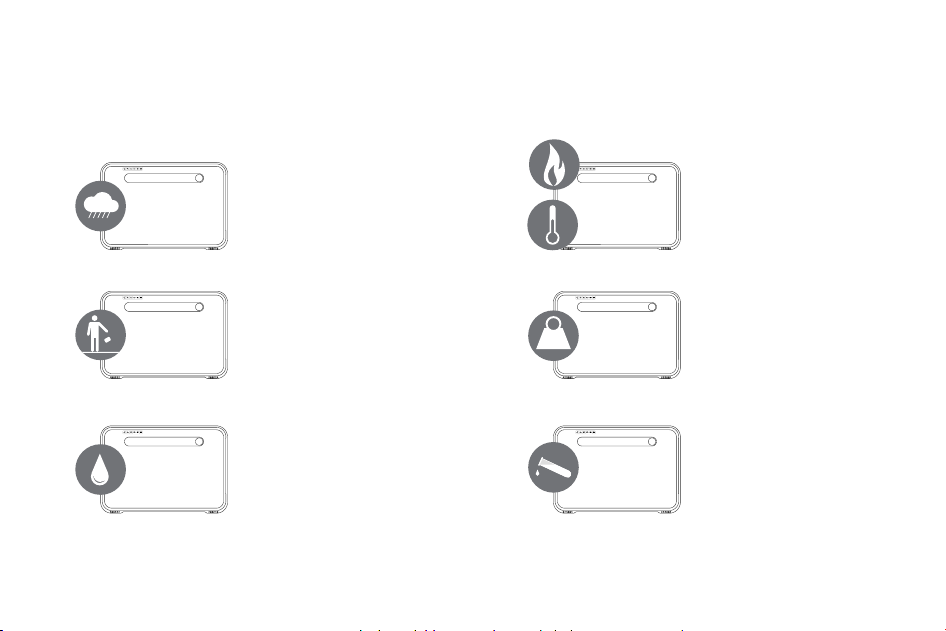
lb
Moisture, including rain
Physical impact
Water immersion
Flames and
direct heat
Excessive weight loading
Solvent Chemicals
Avoid
28
FAQ’s and support
1. Can Mevo+ be used indoors and outdoors?
Yes. Please check page 13 for indoor space requirements.
2. Does a reflective sticker need to be used?
Yes, for indoor use only. See page 18.
3. How is the video recorded?
The video is taken with your iPhone camera in the FS Golf application.
The radar is synchronized with your iPhone to automatically record and clip video of your
swing with data overlay.
4. Can the built in camera be used for video?
The built in camera is used for target alignment only.
5. How long is the battery life?
The battery life is up to 2 hours on a full charge, and up to 1.5 hours in simulator play.
1
2
3
Below are the top 5 frequently asked questions.
For more FAQ’s please refer to flightscopemevo.com/faq
4
5
?
29
30
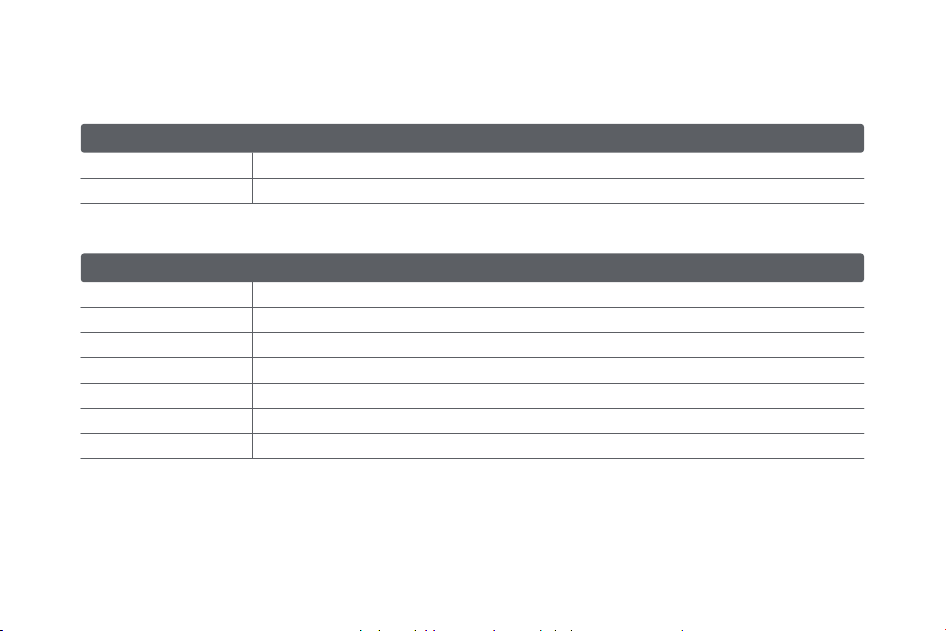
24.08 - 24.16 GHz (nominal)
24dBm +/- 3dBm USA 17dBm +/-3dBm EU
6.8" x 1.2" x 4.6" / 174 x 31 x 118mm (W x D x H)
1lb / 465g
5V DC +/- 5%; >2 A
5MP
output power (EIRP)
operating temperature
* Other frequencies ranges may apply in certain countries
battery
dimensions
mass
power supply
camera
USB 2.0
data interfaces
Technical specifications
*operating frequency
transceiver
electrical, physical, and general
0°C to 40°C / 32°F to 100°F
Rechargeable Li-ion Battery, 3.6V, 5000mAh, 18Wh
31
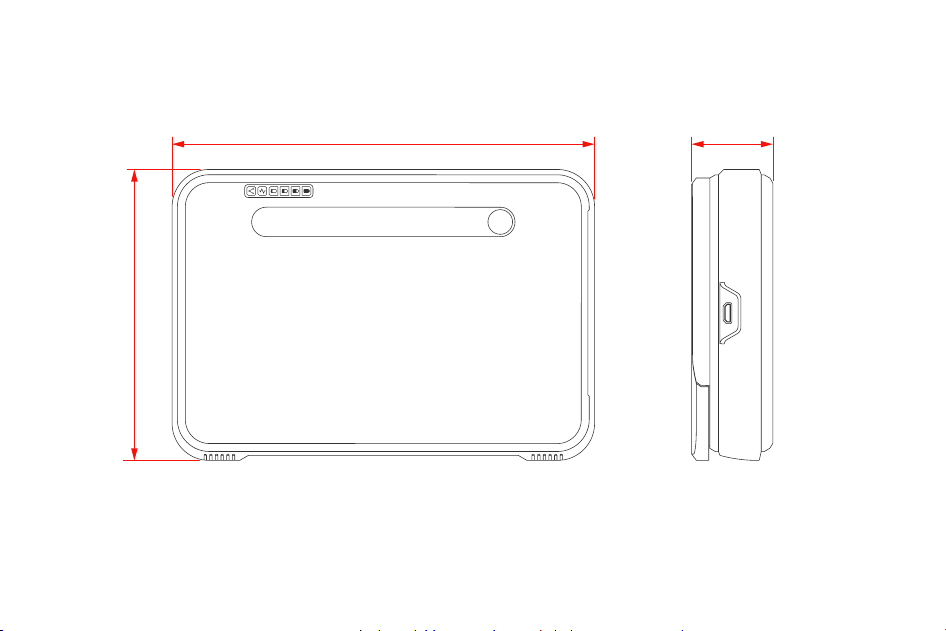
33mm172mm
118mm
32

flightscopemevo.com myflightscope.com
FCC Statement: This equipment has been tested and found to comply with the limits for a Class B digital device, pursuant to
Part 15 of the FCC Rules. These limits are designed to provide reasonable protection against harmful interference in a residential installation. This
equipment generates, uses and can radiate radio frequency energy and, if not installed and used in accordance with the instructions, may cause harmful
interference to radio communications. However, there is no guarantee that interference will not occur in a particular installation. If this equipment does
cause harmful interference to radio or television reception, which can be determined by turning the equipment off and on, the user is encouraged to try to
correct the interference by one or more of the following measures:
— Reorient or relocate the receiving antenna.
— Increase the separation between the equipment and receiver.
— Connect the equipment into an outlet on a circuit different from that to which the receiver is connected.
— Consult the dealer or an experienced radio/TV technician for help.
Changes or modifications not expressly approved by FlightScope (PTY) could void the user’s authority to operate the equipment.
ISED Statement: This device contains licence-exempt transmitters(s)/receiver(s) that comply with Innovation, Science and Economic Development
Canada’s licence-exempt RSS(s).
Operation is subject to the following two conditions:
(1) This device may not cause interference.
(2) This device must accept any interference, including interference that may cause undesired operation
of the device.
Declaration IC: Cet appareil contient des émetteurs/récepteurs exemptés de licence conformes à la norme Innovation, Sciences, et Développement
économique Canada.
L'exploitation est autorisée aux deux conditions suivantes:
(1) L'appareil ne doit pas produire de brouillage.
(2) L'utilisateur de l'appareil doit accepter tout brouillage radioélectrique subi, même si le brouillage est
susceptible d'en compromettre le fonctionnement.
Japanese caution: for Indoors use only.
++++++本機器の使用に係る注意事項++++++ 本機器の使用周波数帯(10.5GHz を超え10.55GHz 以下の周波数)では、 免許を受けて屋外で利用されて
いる無線局があります。これらとの干渉が懸 念される為、本機器の使用は、屋内で
の使用、即ち住宅、マンション、ビル 等の建築物内のみと限定されています。 万一、10.5GHz 帯の周波数を使用する移動体検知センサーを屋外で使用
し た場合には、その使用に支障が生じるばかりでなく、電波法令に違反し罰則
の適用を受けることとなりますので、十分注意してください。
E19-BN276-ISS5
33

Performance data you can trust
www.flightscope.com