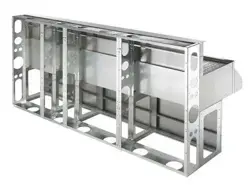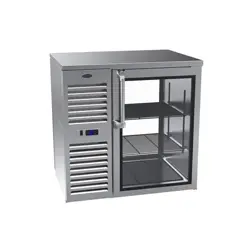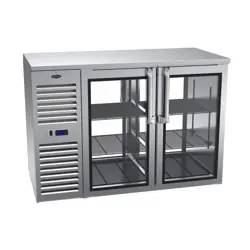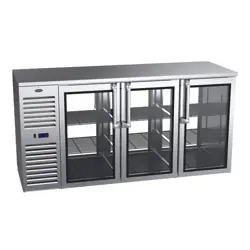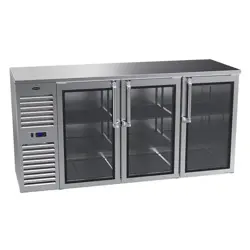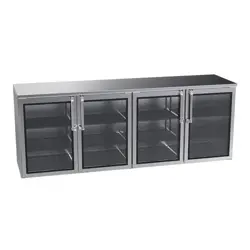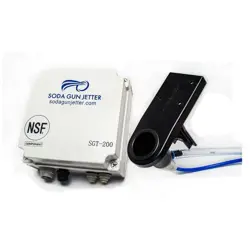

Krowne KR-GC100 Metal Soda Gun Jetter 1-2 Bar Soda Gun Cleaning System

Product's Documents

Below are documents related to this product, you can read online or download:
User Manual Other Documents
  • Krowne metal kr gc100spec sheet - (English) Download
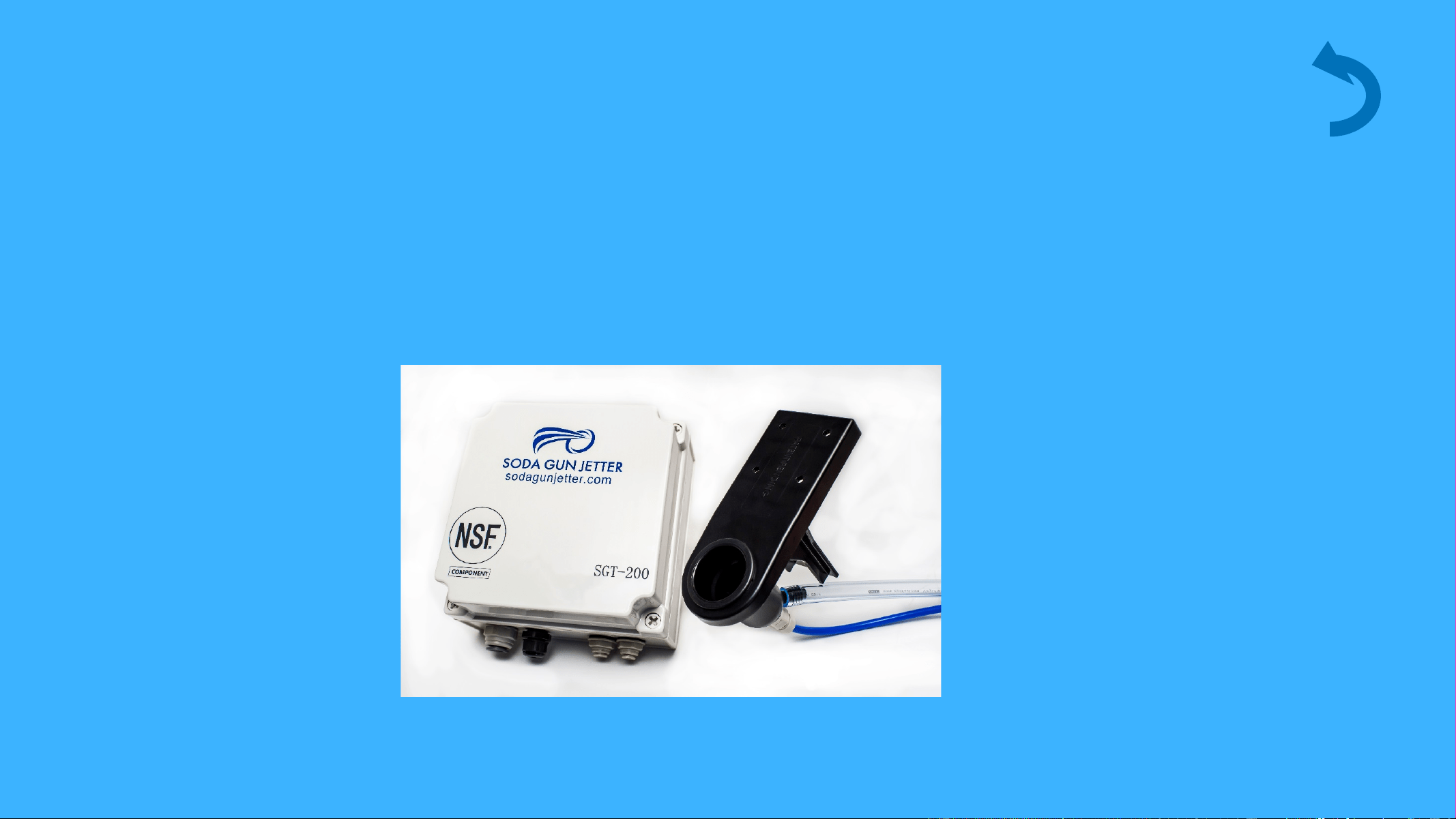
KR-GC100 photo

Instructions

This is the main product document for model KR-GC100.

The file format is pdf, 30 pages, you can download this manual here .

background
Soda Gun Jetter Smart controller setup guide
6/10/2018 © Copyright. Soda Gun Jetter all rights reserved 1

background
Contents
10.06.2018 2
Say Soda Gun Jetter and Be Sure
Menu navigation - Templates
Menu navigation - Settings
Update firmware
Menu navigation Devices
© Copyright. Soda Gun Jetter all rights reserved
background
Menu navigation- Device
10.06.2018 3
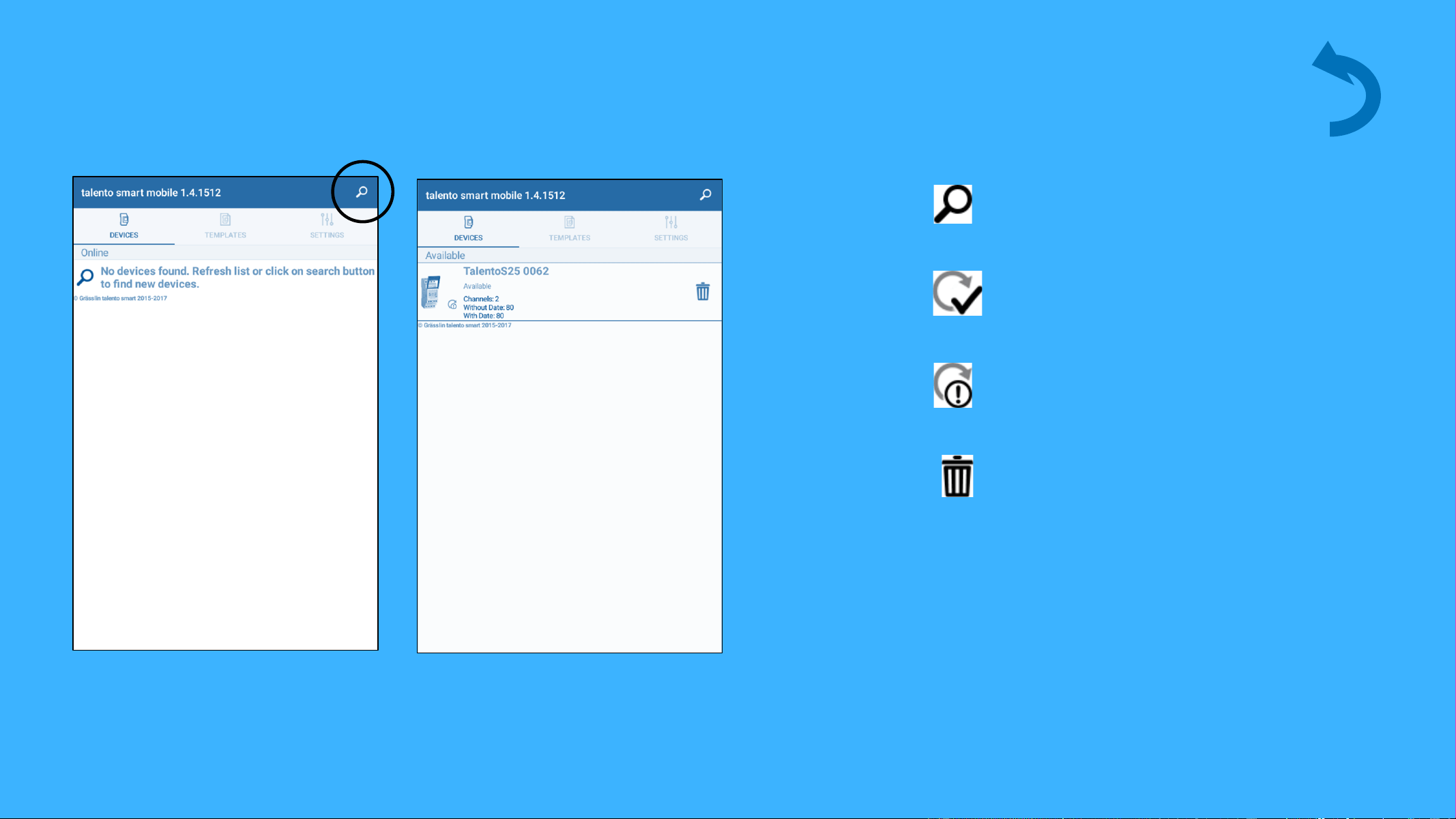
Search for new devices
Search for Devices
Timer synchronized
Timer needs to be
synchronized
Erase device
Search for available devices by
tapping the magnifying glass
© Copyright. Soda Gun Jetter all rights reserved
background
10.06.2018 4
Devices
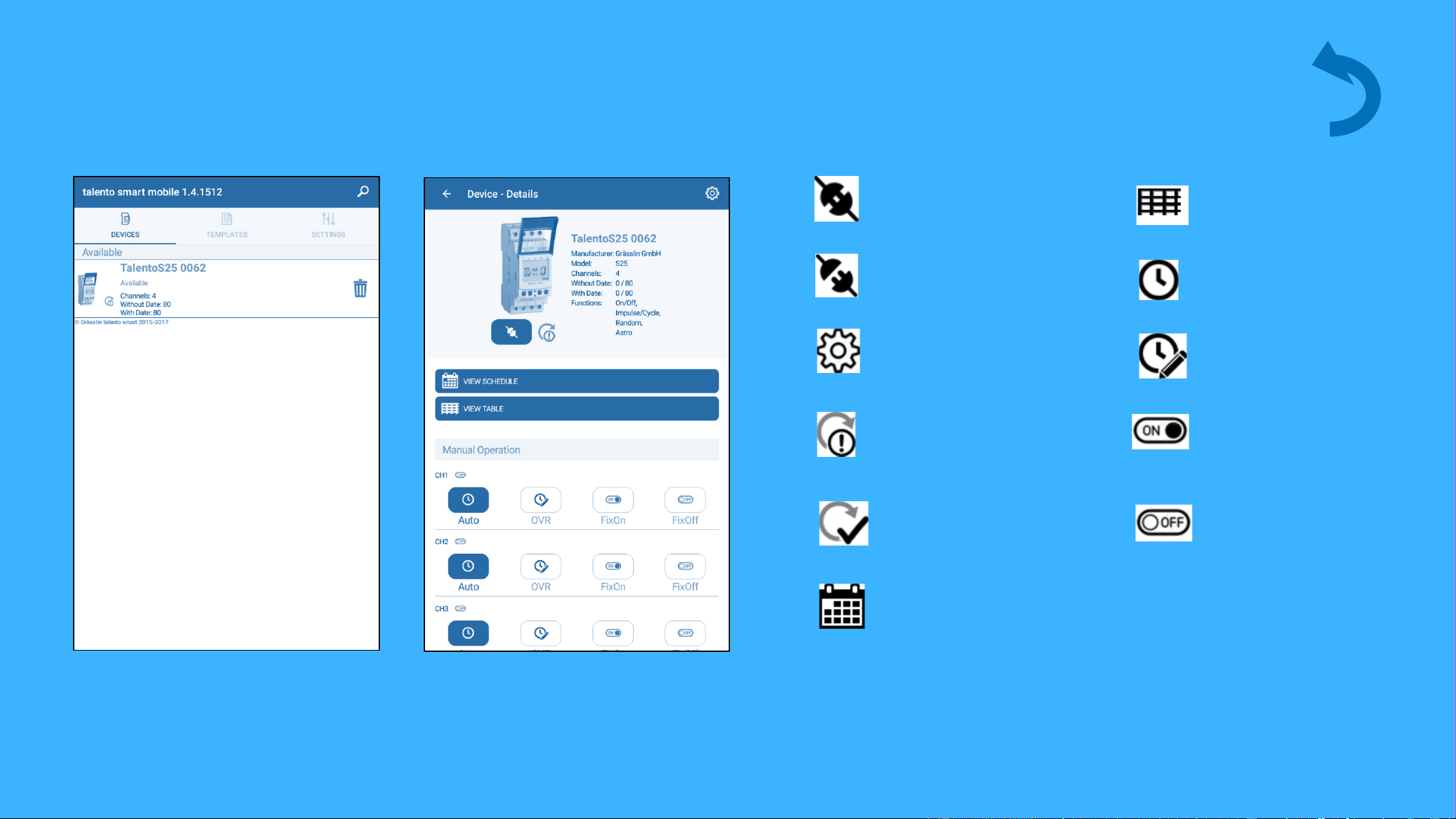
Overview od the symbols
Timer needs to be
synchronized
Timer synchronized
Settings
Device is connected
Device is
disconnected
Schedule
Auto mode
Override
Fix off
Fix on
Select an available timer to get
to the manual control.
Table
© Copyright. Soda Gun Jetter all rights reserved
background
10.06.2018 5
Devices
Overview of programs and functions
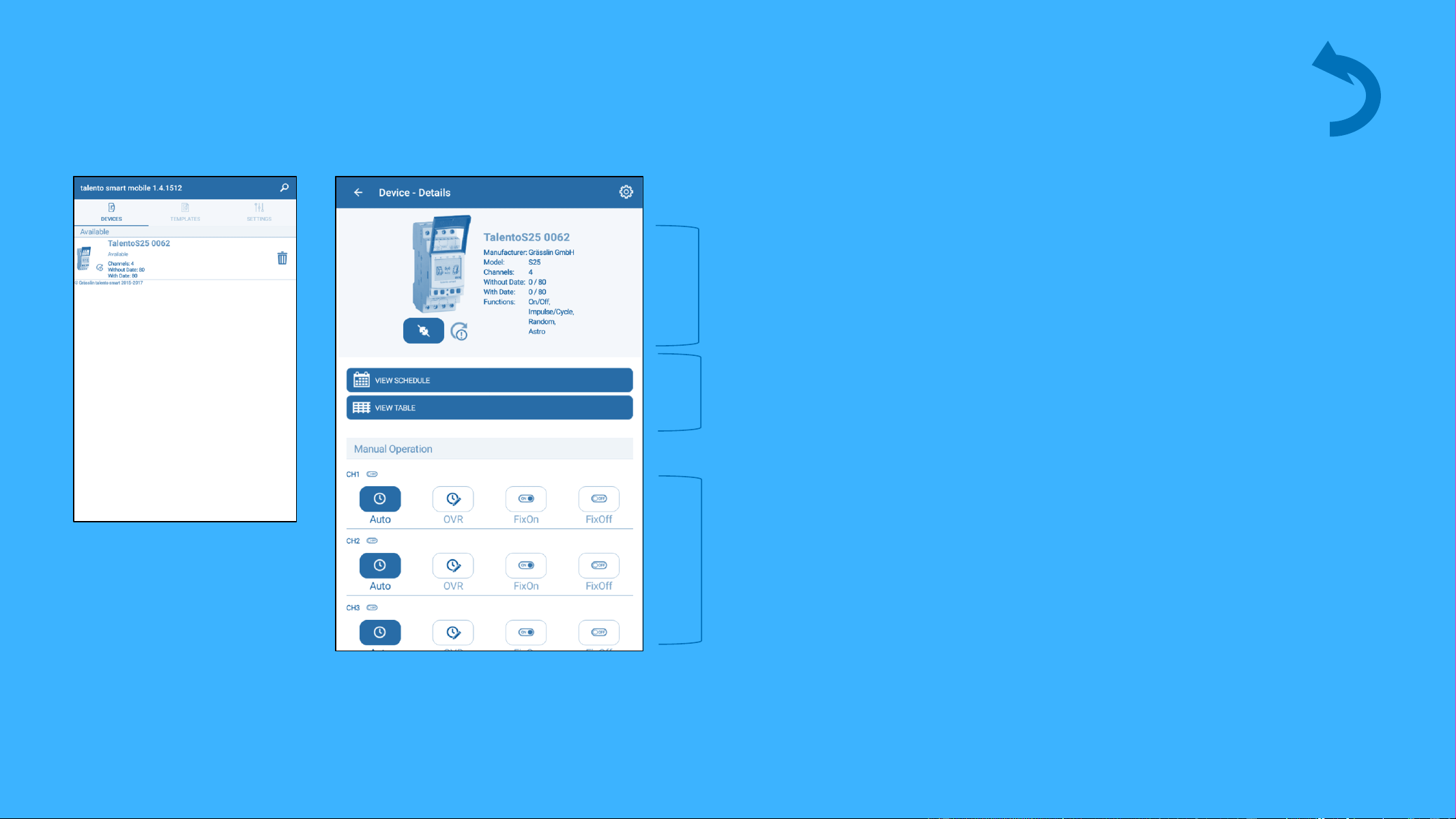
Here you will see all the
information regarding the timer.
Tap here to see and adjust timer
programs.
Buttons for manual control / override
of timer circuits.
© Copyright. Soda Gun Jetter all rights reserved
background
10.06.2018 6
Devices
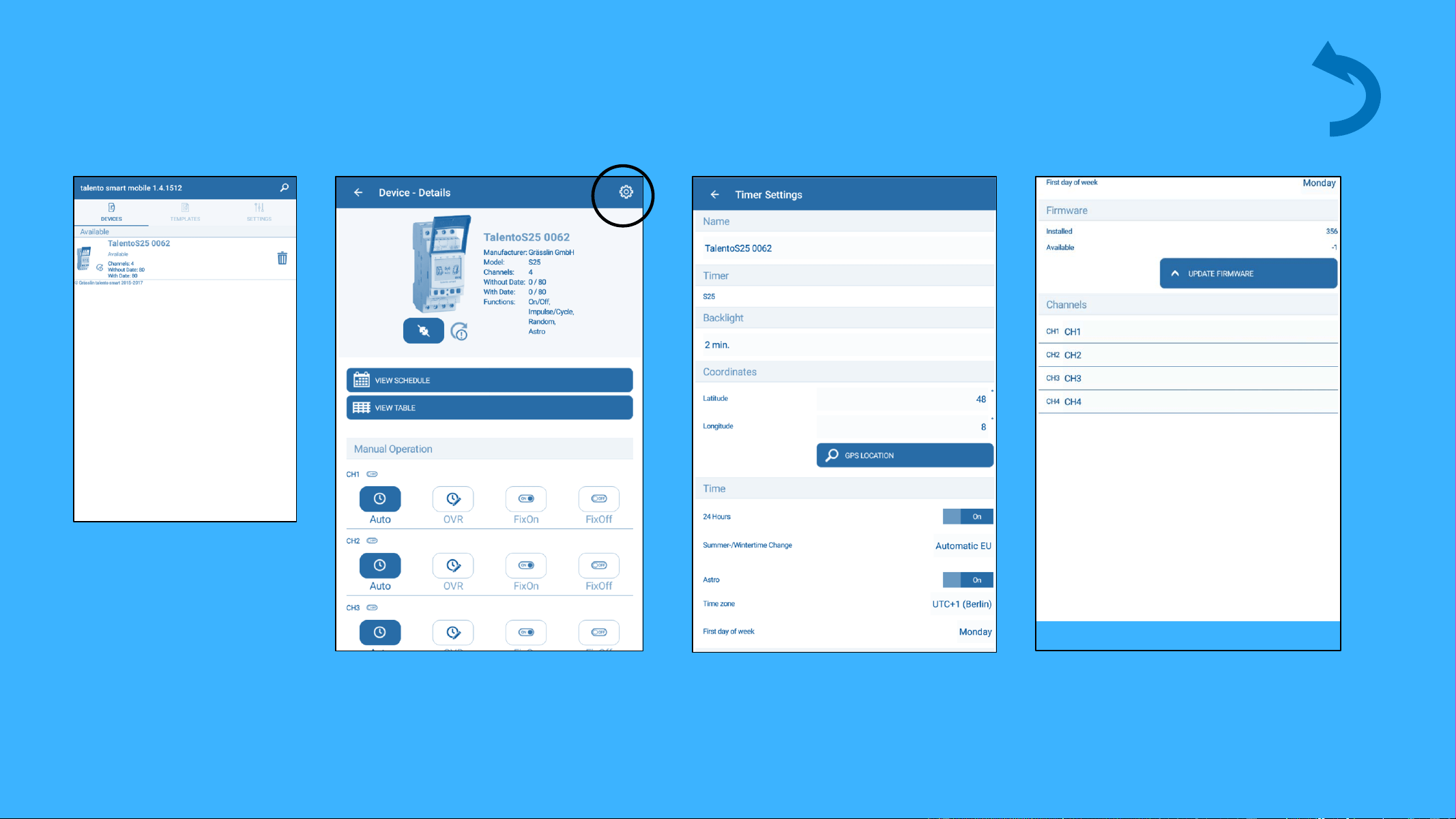
Change of settings
Tap the gear symbol to access
timer settings.
This gives you access to name / rename timers and channels, set
latitude / longitude coordinates, time tone, etc..
© Copyright. Soda Gun Jetter all rights reserved
background
10.06.2018 7
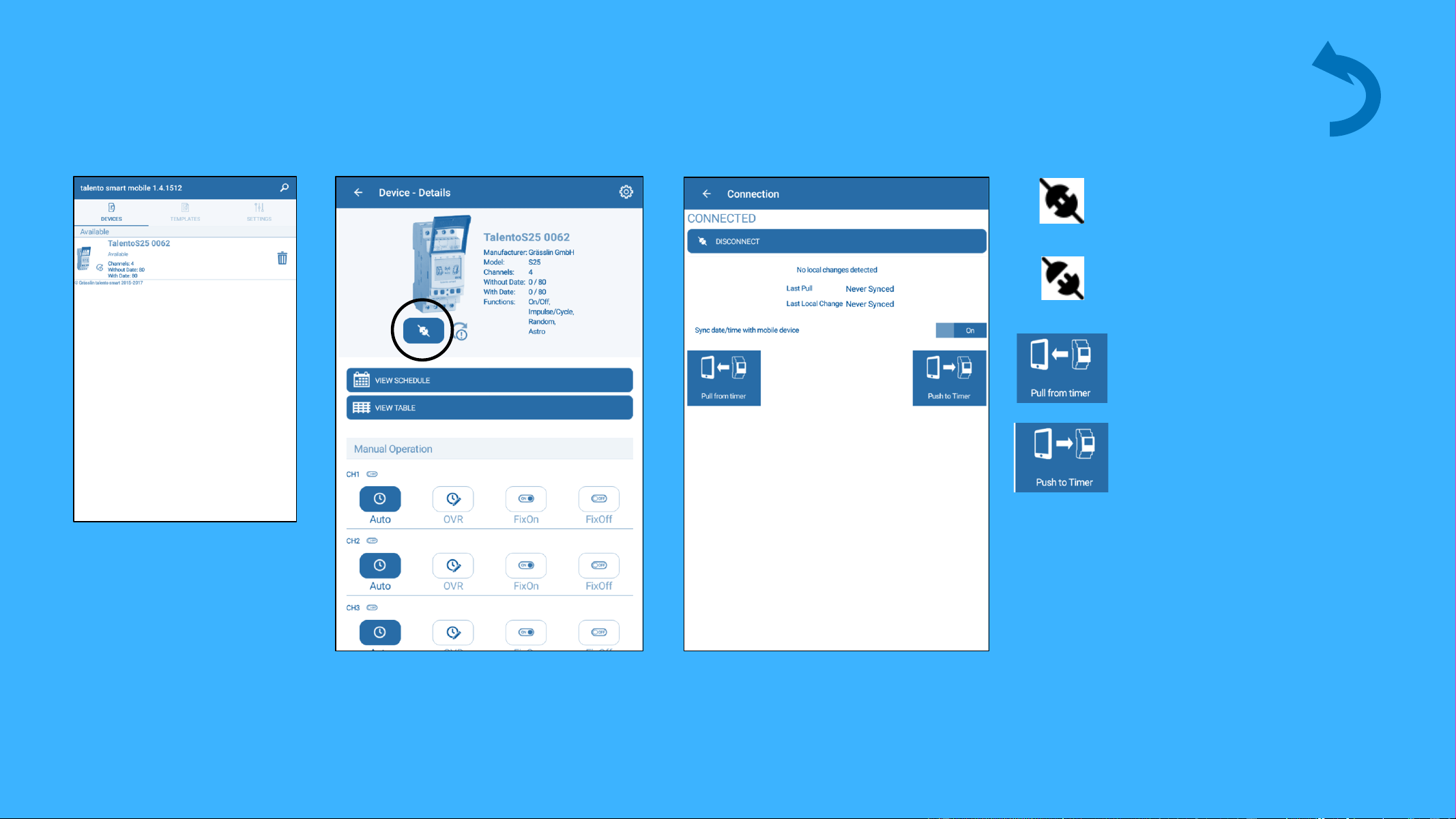
Synchronization
Device is connected
Device is
disconnected
Tap the connection button to
access the synchronization
menu.
Pull program from
the time switch
Send program to the
time switch
Tap on Pull From Timer to load
the schedule from the timer.
Devices
© Copyright. Soda Gun Jetter all rights reserved
background
10.06.2018 8
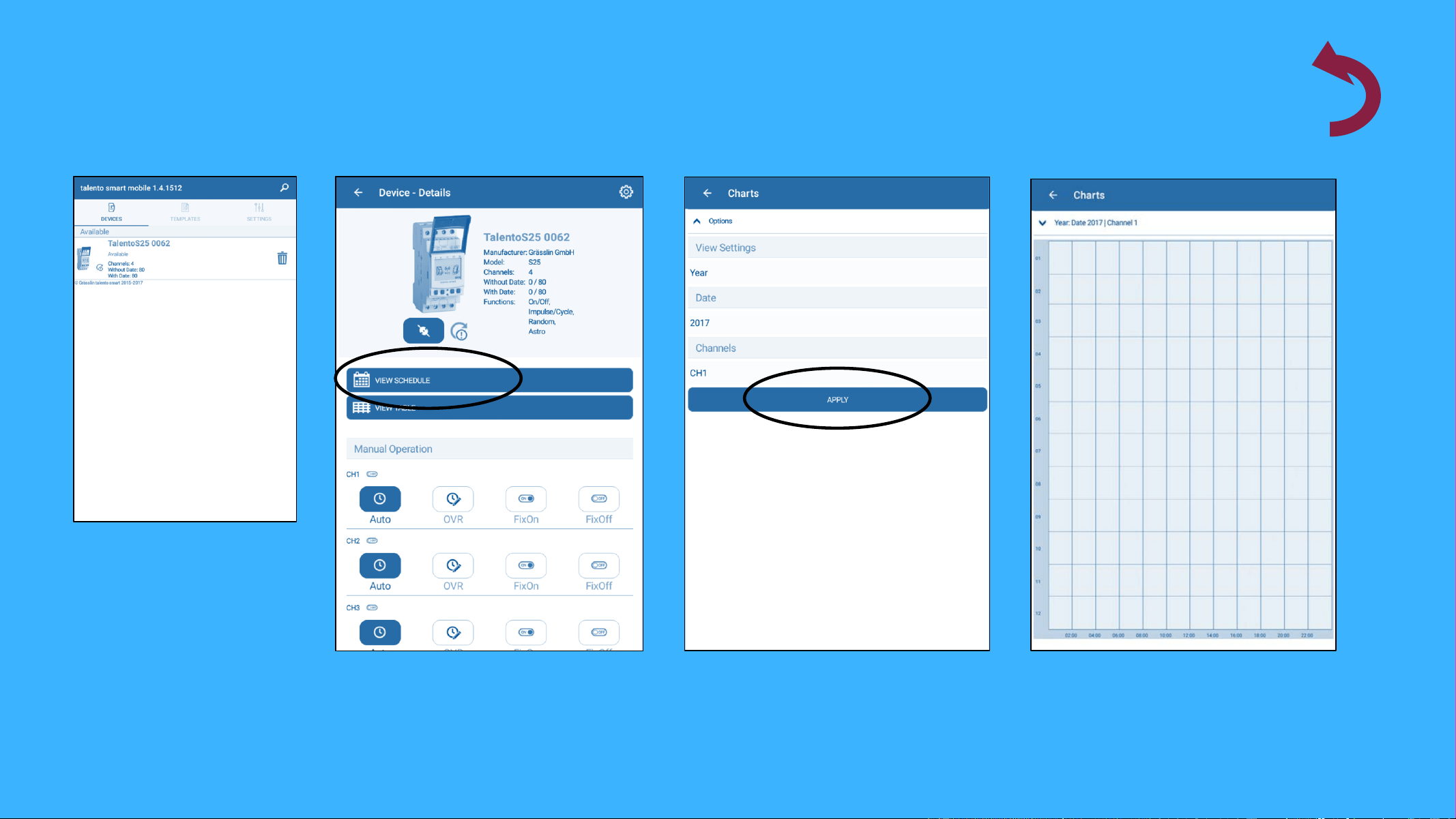
Tap the View Schedule bar to
see the timer schedule.
Schedule
Tap on the parameter you want
to see, then tap on Apply to
confirm your choice.
A graph of selected information
will be displayed.
Devices
© Copyright. Soda Gun Jetter all rights reserved
background
10.06.2018 9
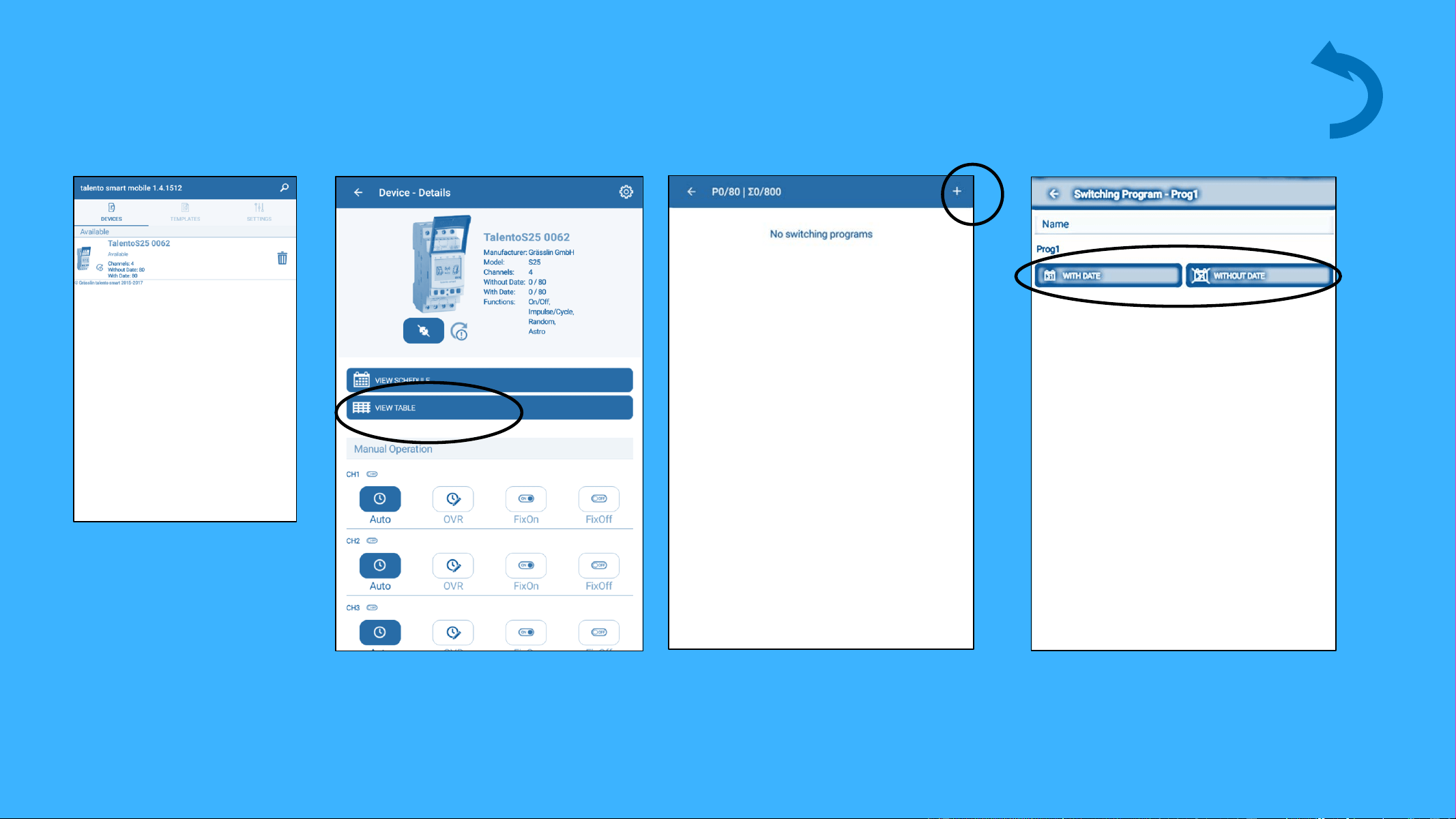
Tap on View Table to access the
program schedule. Here you can
add programs and events.
Time table – create new program
To create a new program tap on
+.
Program can be named / renamed. The
select with date for holiday settings or
without date for regular schedule event.
Devices
© Copyright. Soda Gun Jetter all rights reserved
background
10.06.2018 10
Time table – create new program
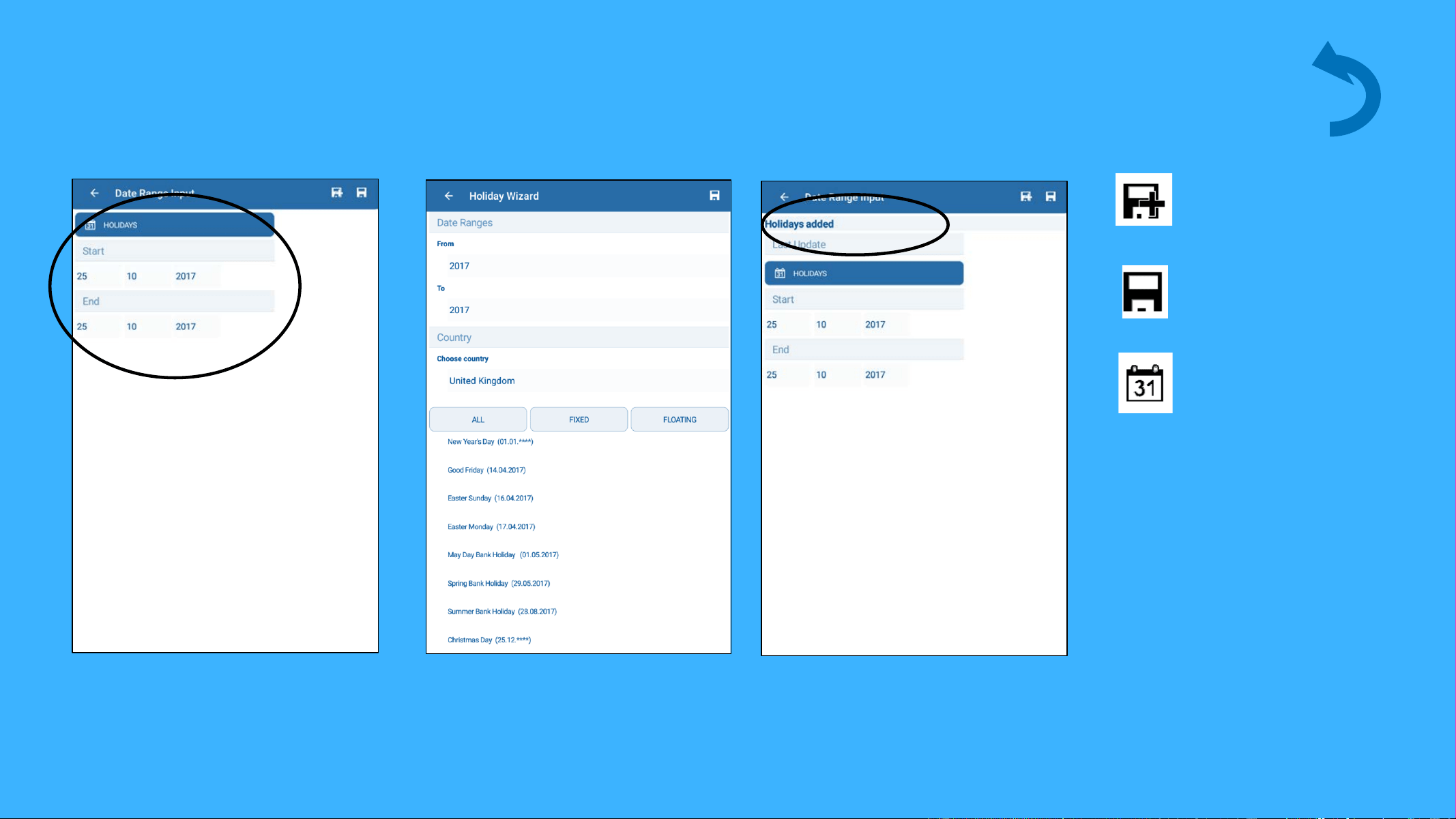
.Enter your holiday date range.
Save + add more
data
Save + end
Select holidays
Select Holidays to choose from preset holiday dates. Tap the disk icon to save
and exit or the icon with the plus symbol to save and add another holiday.
Notification at the top of the screen will indicate when the holiday is saved.
Holiday function is not used but included if needed
© Copyright. Soda Gun Jetter all rights reserved
background
10.06.2018 11
Time table - overview
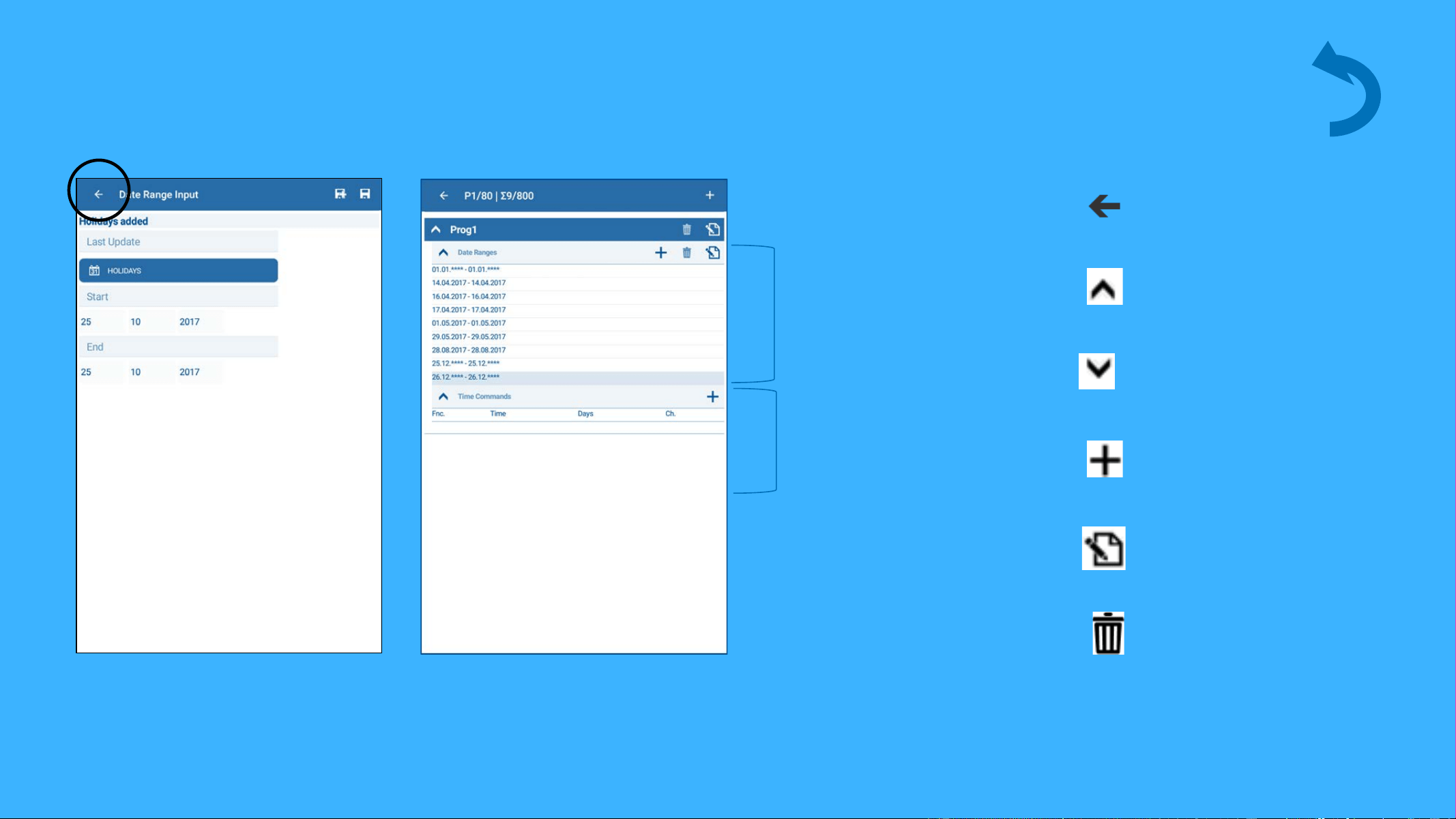
Tapping the back arrow will take
you back to the time table.
Overview of
Dates + date range
Overview of
Time commands
Go back
Close detailed view
Open detailed view
Add program, date
range or time
command
Change settings
Erase data
Devices
© Copyright. Soda Gun Jetter all rights reserved
background
10.06.2018 12
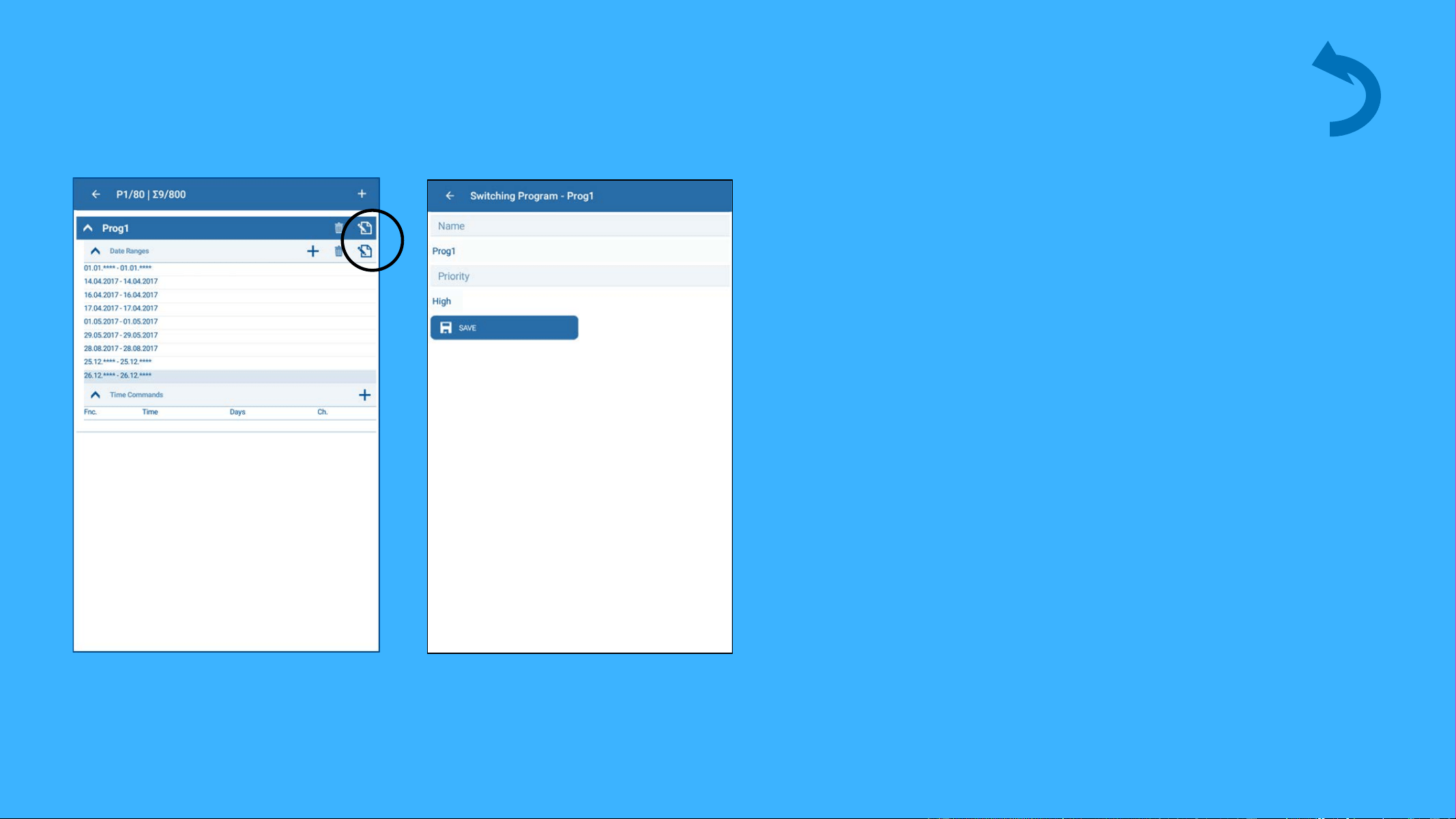
Time table – Adjust program priority / rename program
Tap on the change setting icon
to edit program information.
You can change the program name
or adjust the priority. Tap the save
icon to save your change.
Devices
© Copyright. Soda Gun Jetter all rights reserved
background
10.06.2018 13
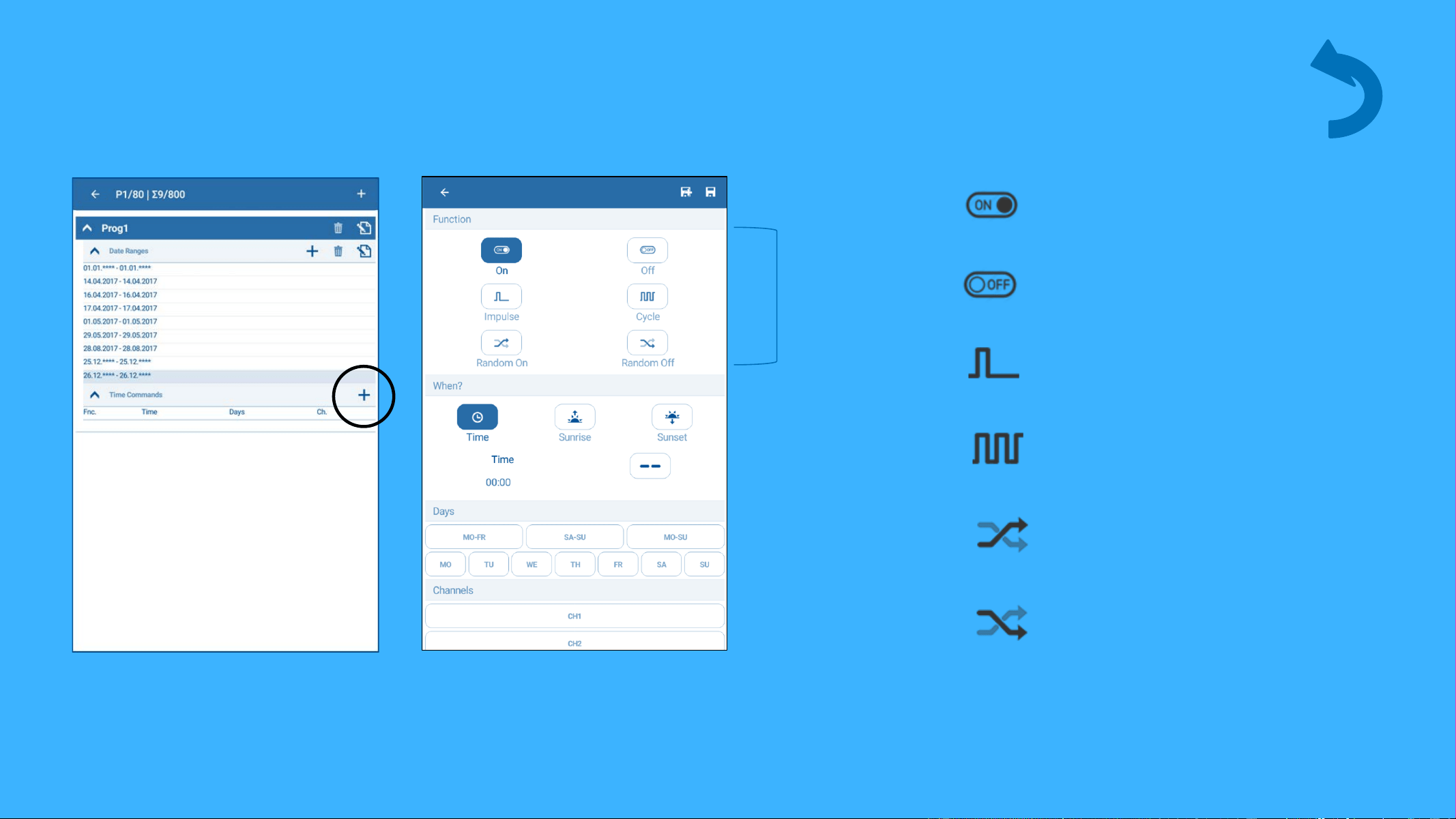
Time table – add time command - functions
Tap on the (+) button to add an
event.
Functions
Tap on the appropriate function
for this event.
On command
Off command
Pulse command
Cycle command
(multiple pulse)
Random on command
Random off command
Devices
© Copyright. Soda Gun Jetter all rights reserved
background
10.06.2018 14
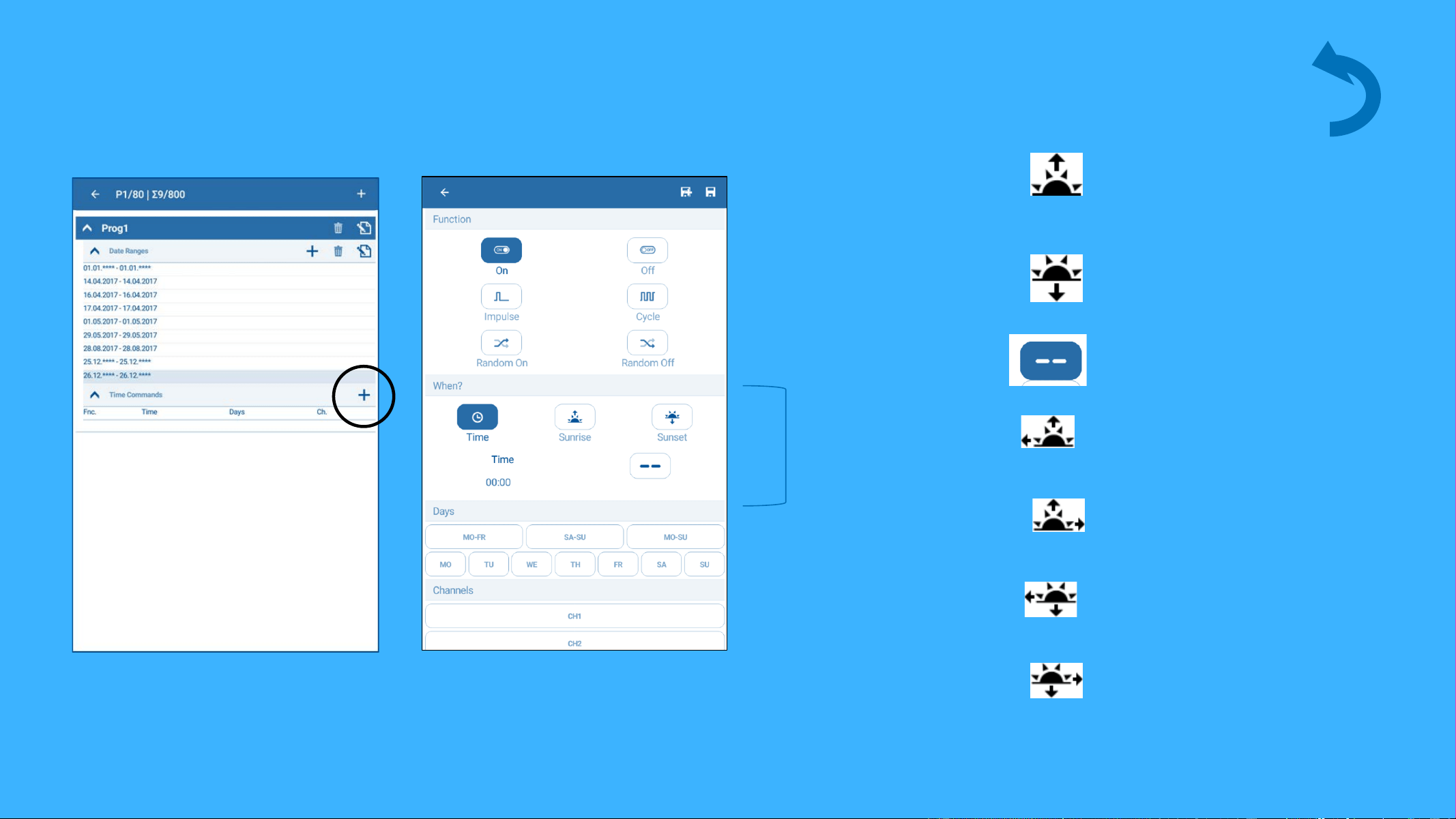
Time table – add time command – times / astro
Time selection
+ astro
Sunrise
Sunset
Open Nightbreak-menu
If set time is BEFORE
SUNRISE
If set time is AFTER
SUNRISE
If set time is BEFORE
SUNSET
If set time is AFTER
SUNSET
Tap on the (+) button to add an
event time.
Tap Time (specific time), Sunrise or
Sunset to set the timing of the event.
Devices
© Copyright. Soda Gun Jetter all rights reserved
background
10.06.2018 15
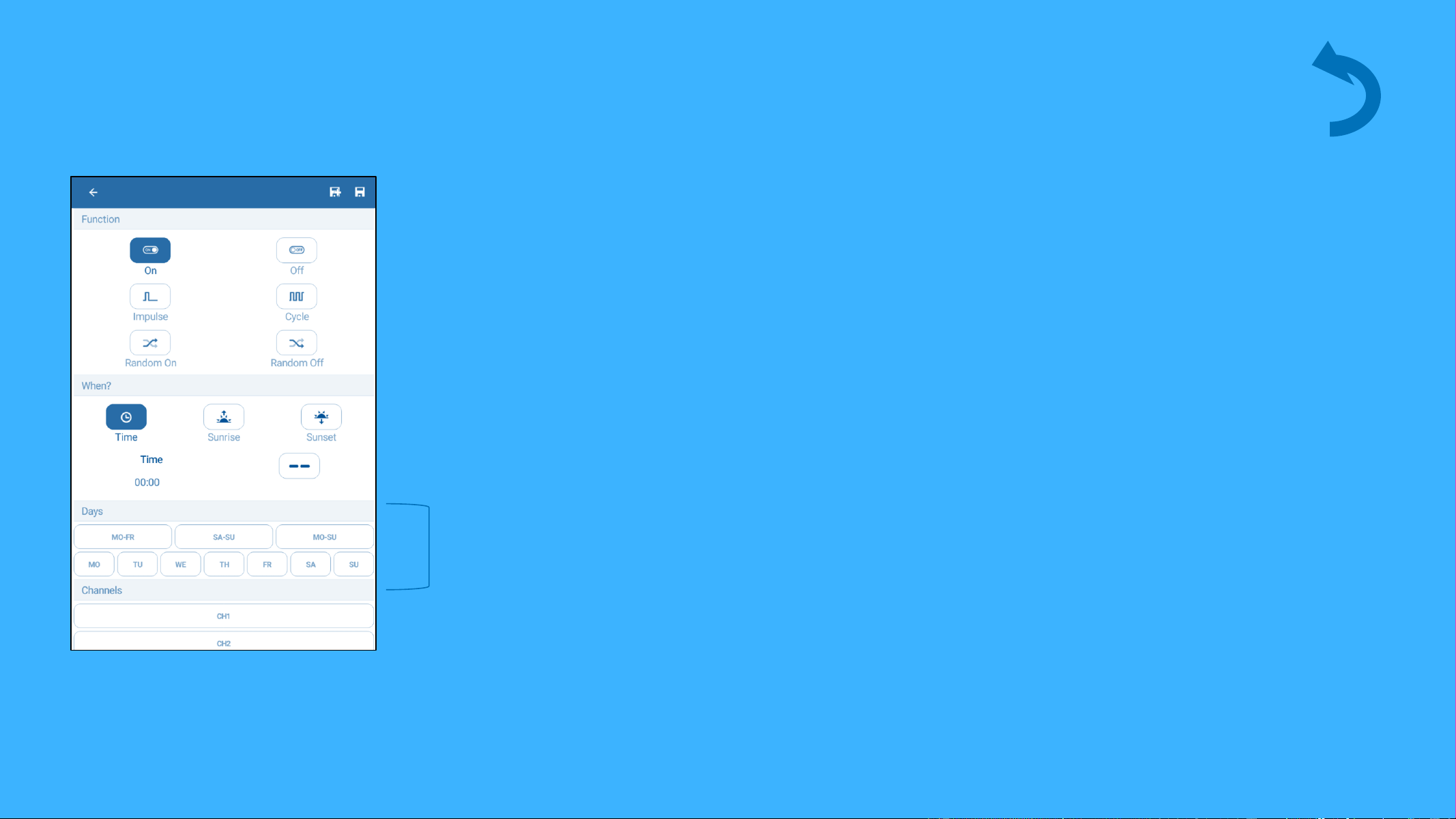
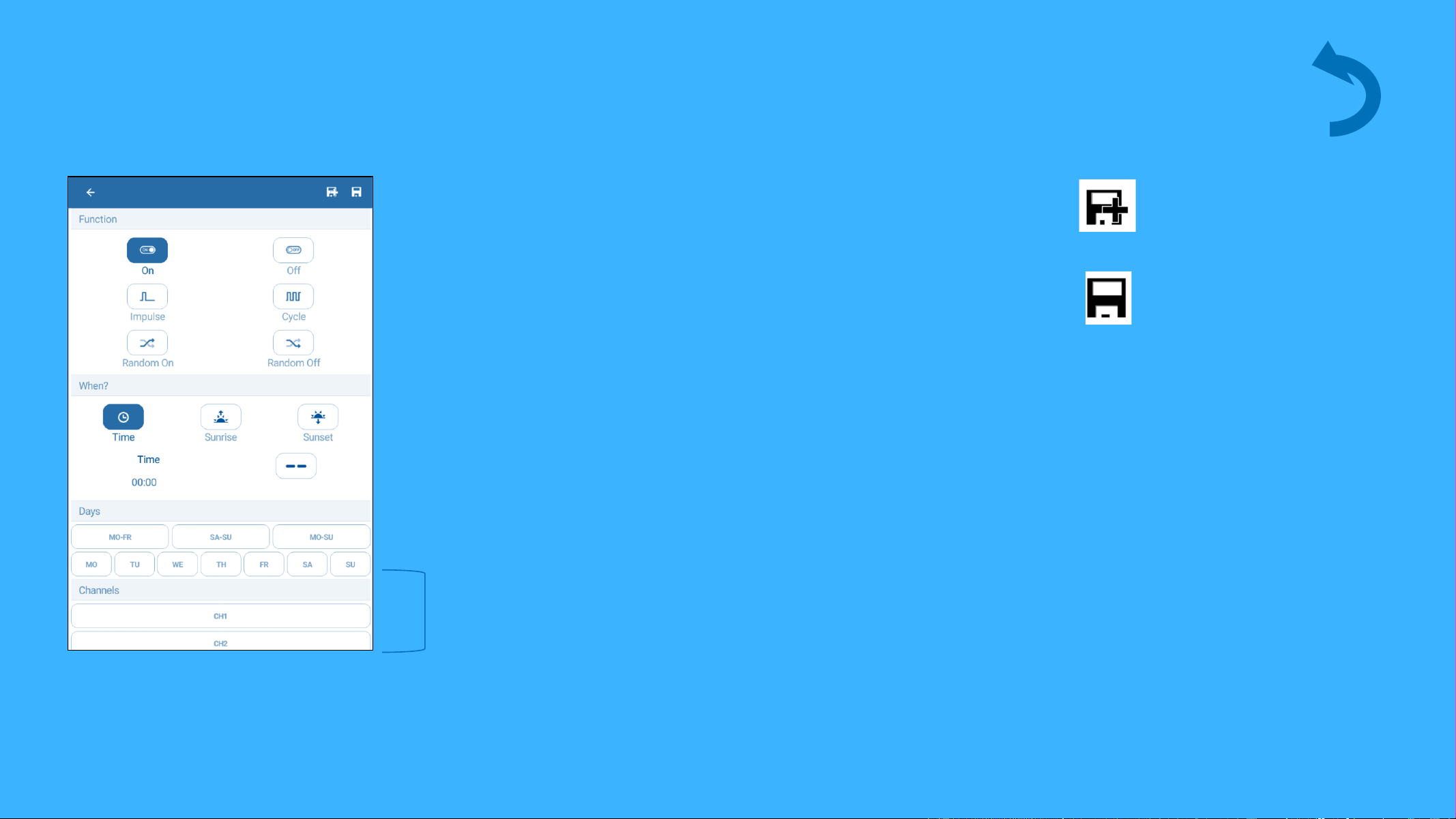
Time table – add time command – days
Day selection
Tap on a predefined day grouping
or the individual days that this
event should happen.
Devices
© Copyright. Soda Gun Jetter all rights reserved
background
10.06.2018 16
Time table – add time command – channels
Channel selection
Tap on each channel that this
event applies to. Tap the Save
icon to save settings.
Save + add more
data
Save + end
Devices
© Copyright. Soda Gun Jetter all rights reserved
background
10.06.2018 17
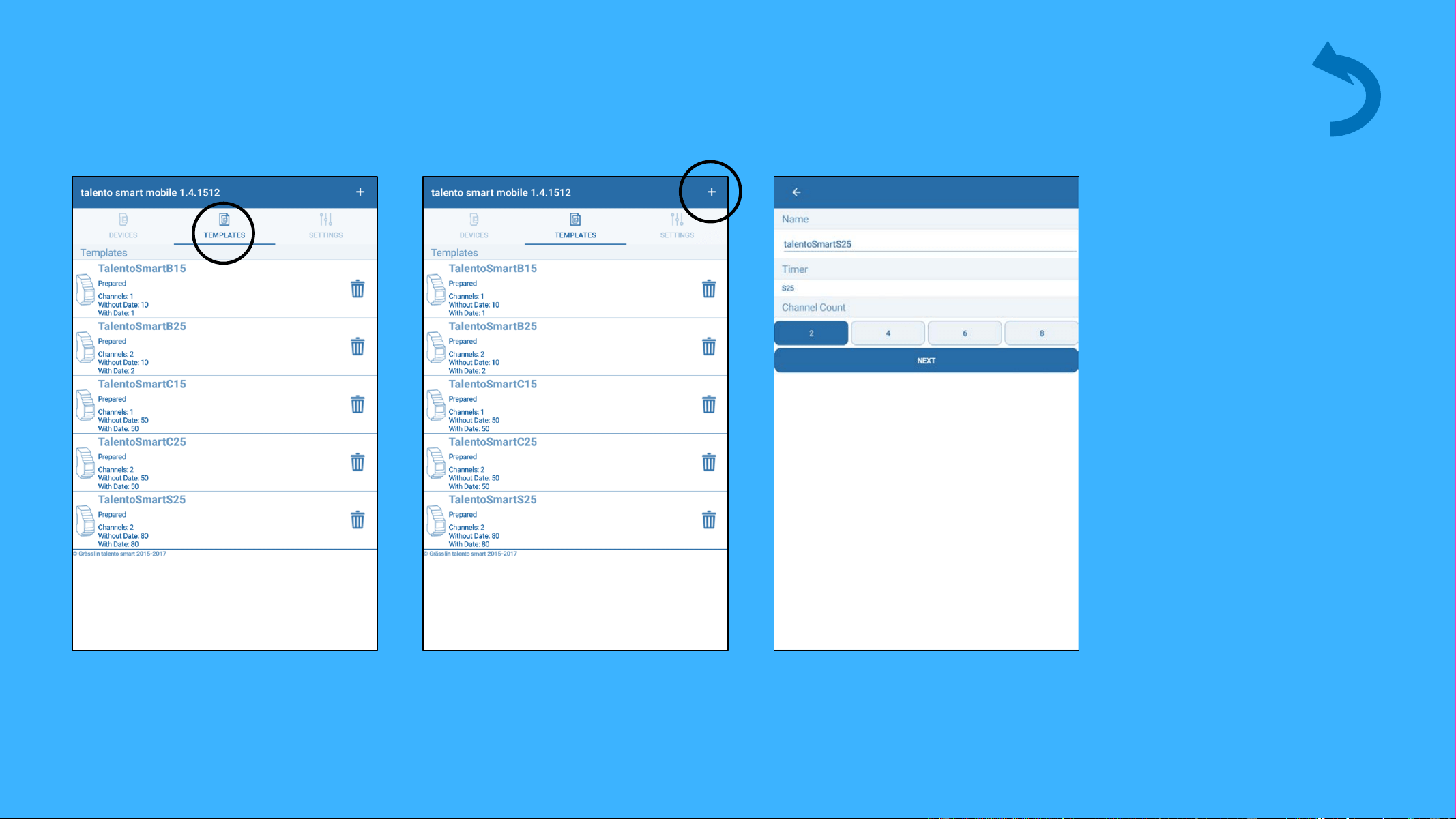
Menu navigation- Template
From the main screen, tap on
the Template icon to see the
templates overview
Tap on the add button to create
a new template.
Timer and template can be
renamed here. Tap on the Next
button to save.
New template
© Copyright. Soda Gun Jetter all rights reserved
background
10.06.2018 18
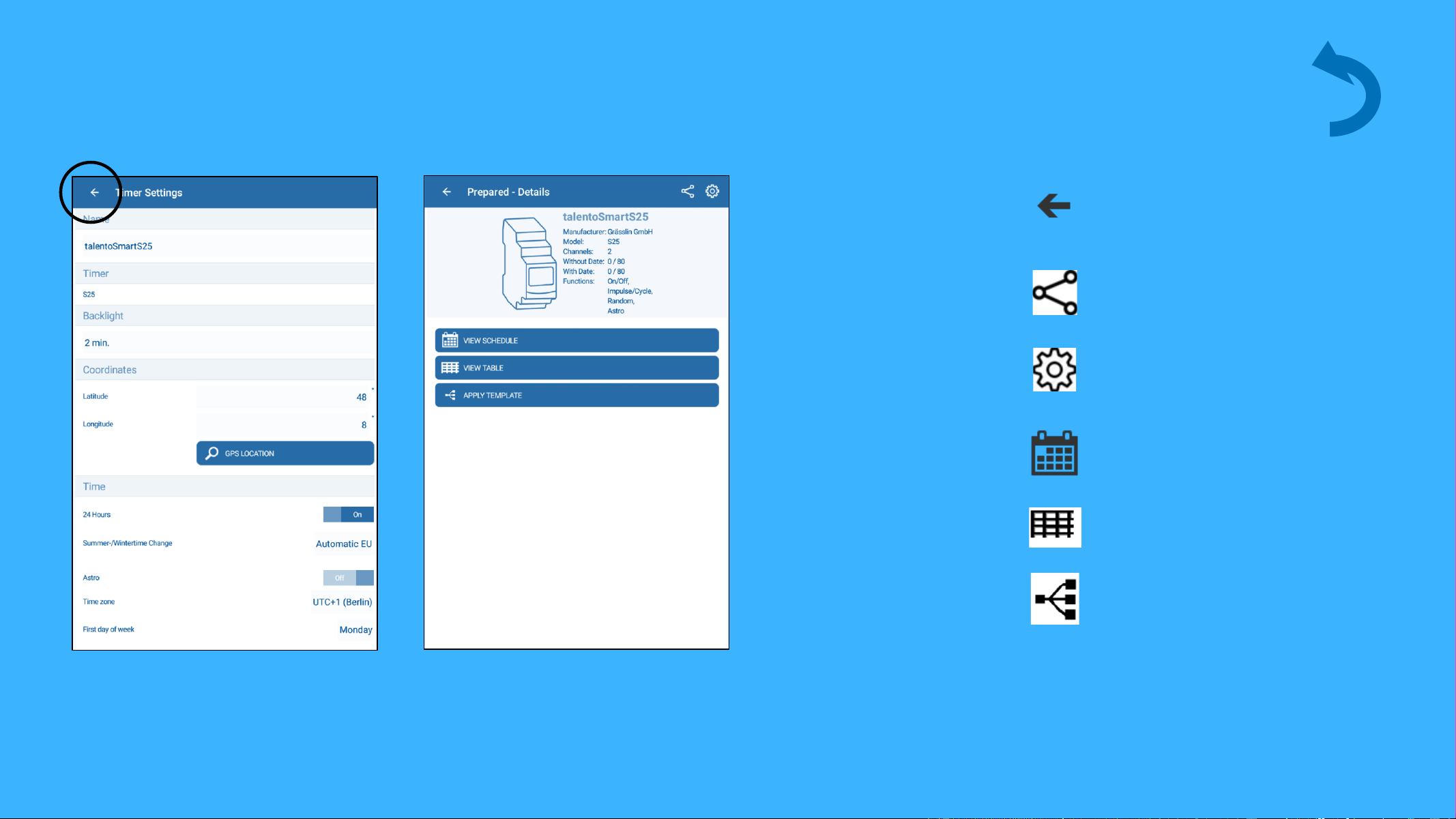
Template
New template
Timer settings can be changed,
then tap the back arrow to
confirm and save.
Go back
Share template
Timer settings
View schedule
View time table
Apply template
© Copyright. Soda Gun Jetter all rights reserved
background
10.06.2018 19
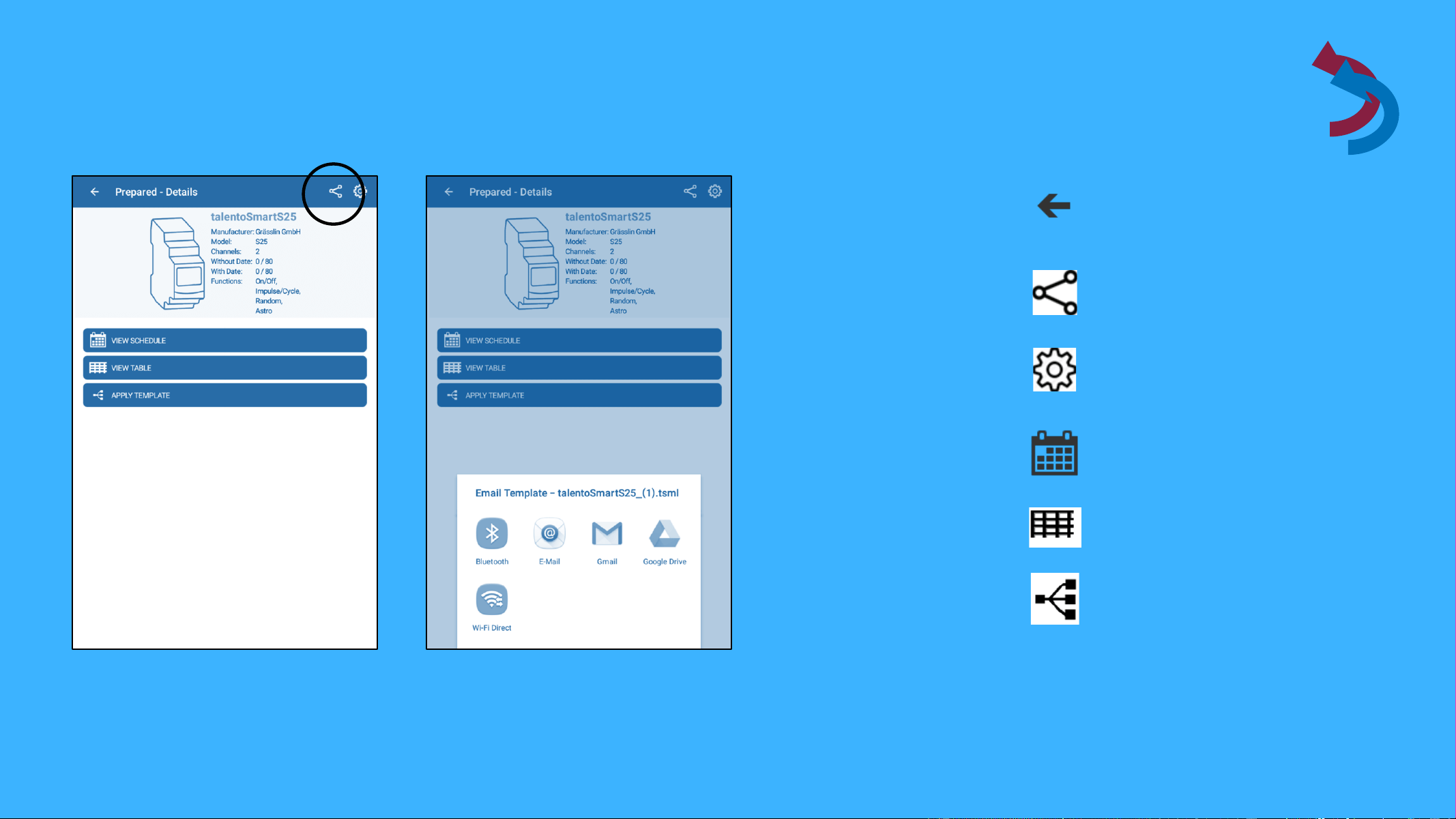
Template
New template
Tap on the share button to send
the template e.g. via E-Mail.
Go back
Share template
Timer settings
View schedule
View time table
Apply template
© Copyright. Soda Gun Jetter all rights reserved
background
10.06.2018 20
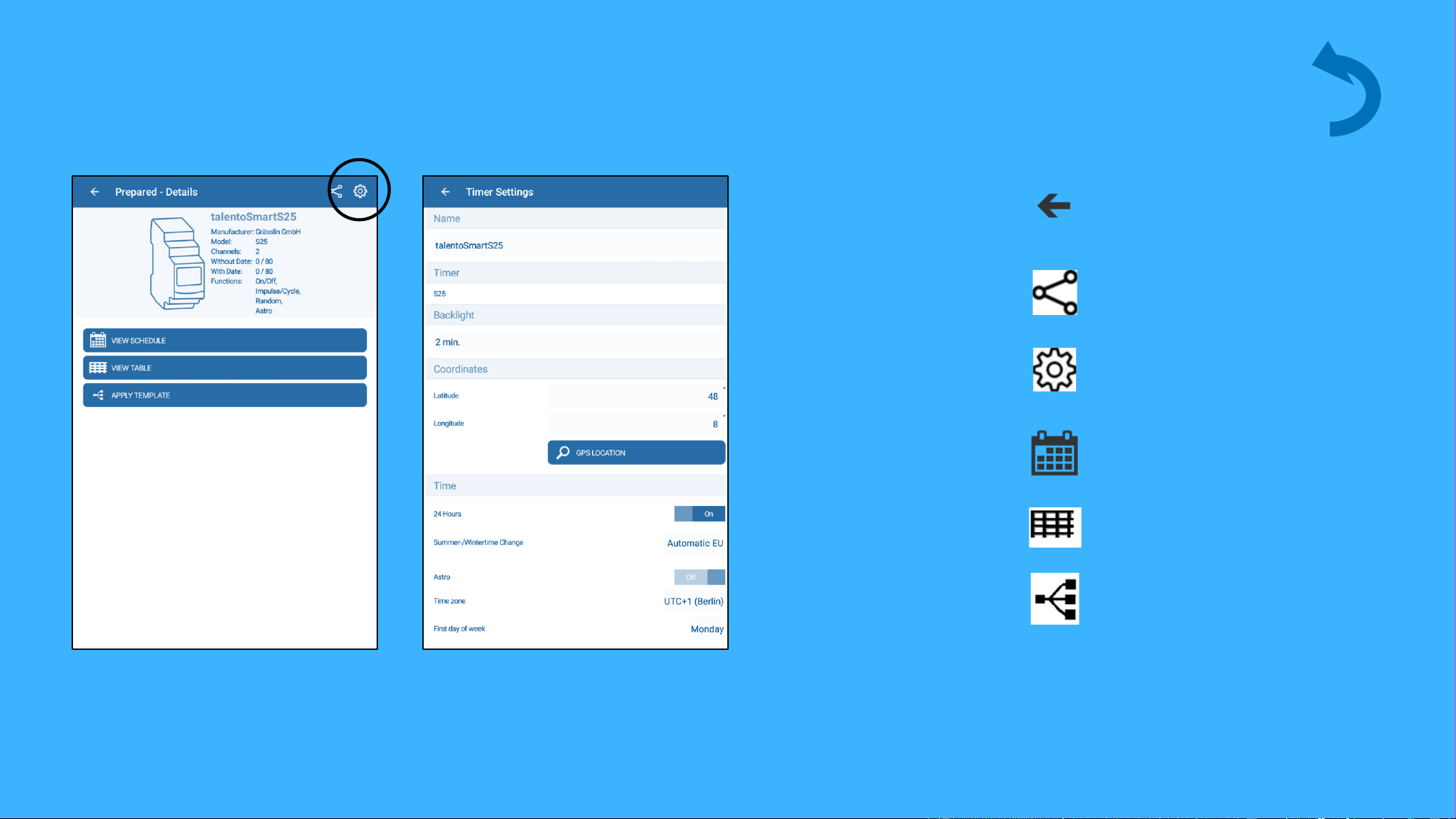
Template
New template
Tap on the gear symbol to access
timer settings.
Go back
Share template
Timer settings
View schedule
View time table
Apply template
© Copyright. Soda Gun Jetter all rights reserved
background
10.06.2018 21
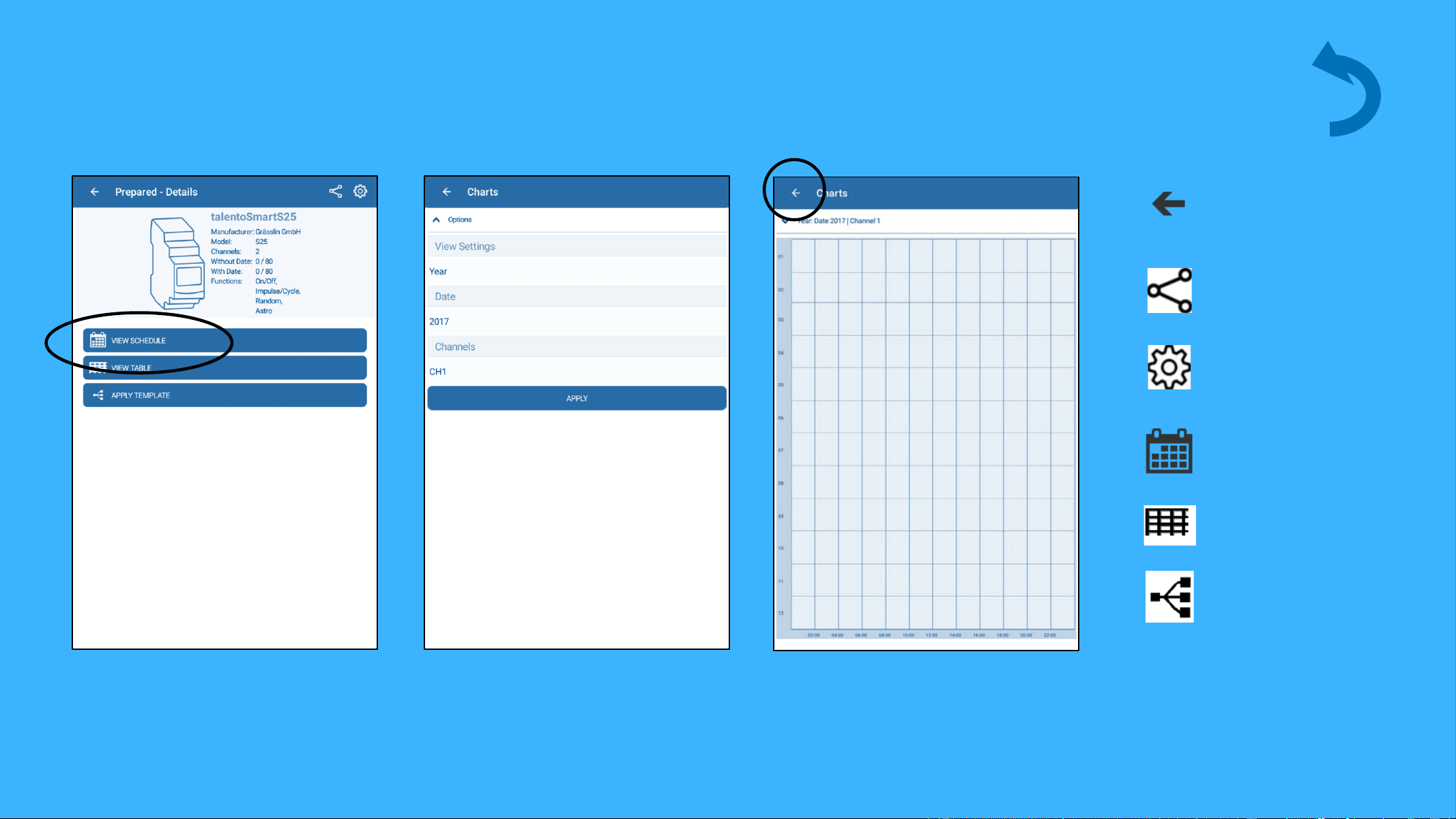
Template
New template
Tap on View Schedule to create a
chart.
Go back
Share template
Timer settings
View schedule
View time table
Apply template
Set parameters an tap APPLY to
confirm.
Tap the back arrow to return to
the main screen.
© Copyright. Soda Gun Jetter all rights reserved
background
10.06.2018 22
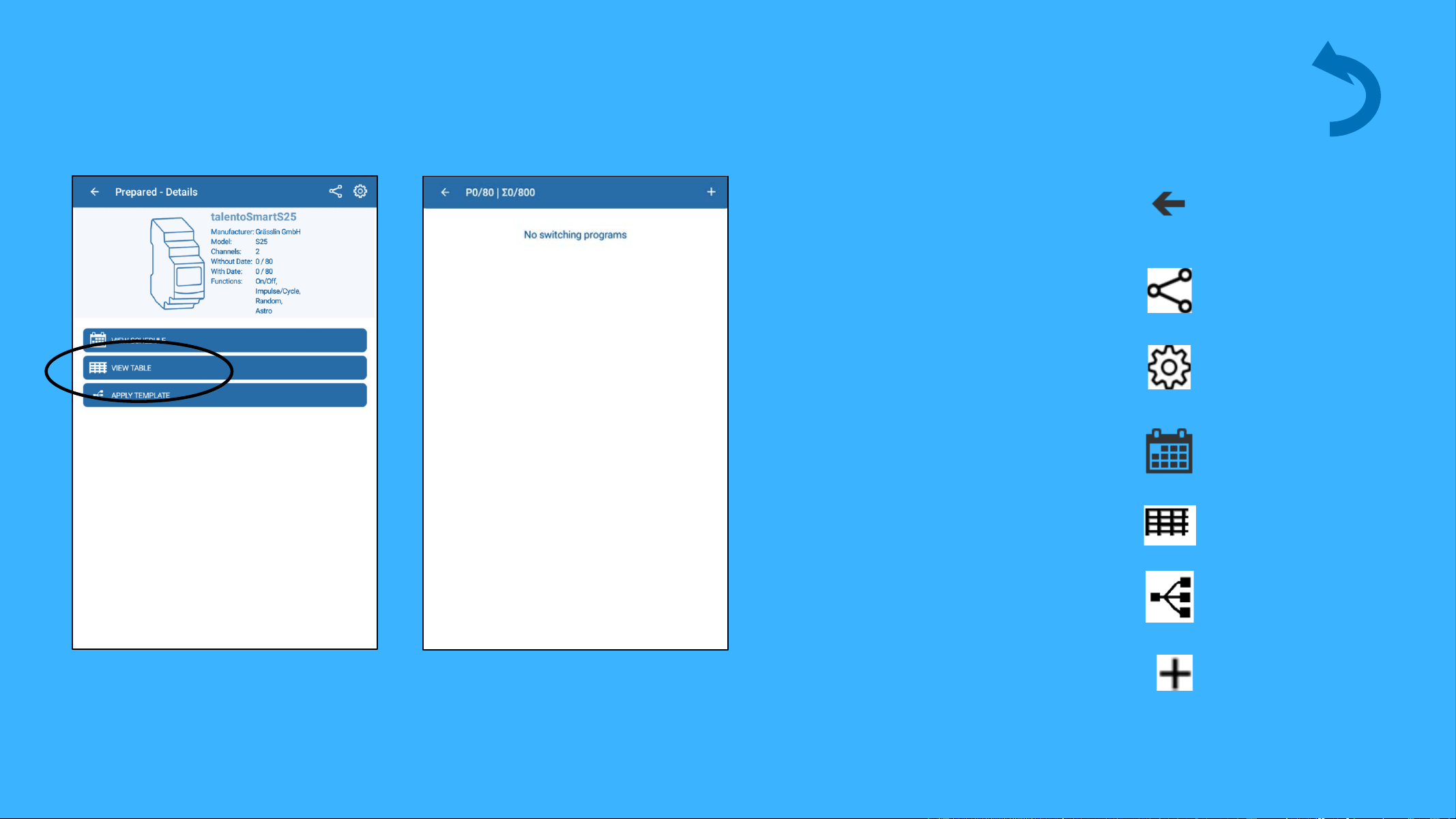
Template
New template
Tap on the table symbole to
get to the time table
Go back
Share template
Timer settings
View schedule
View time table
Apply template
Add data
© Copyright. Soda Gun Jetter all rights reserved
background
10.06.2018 23
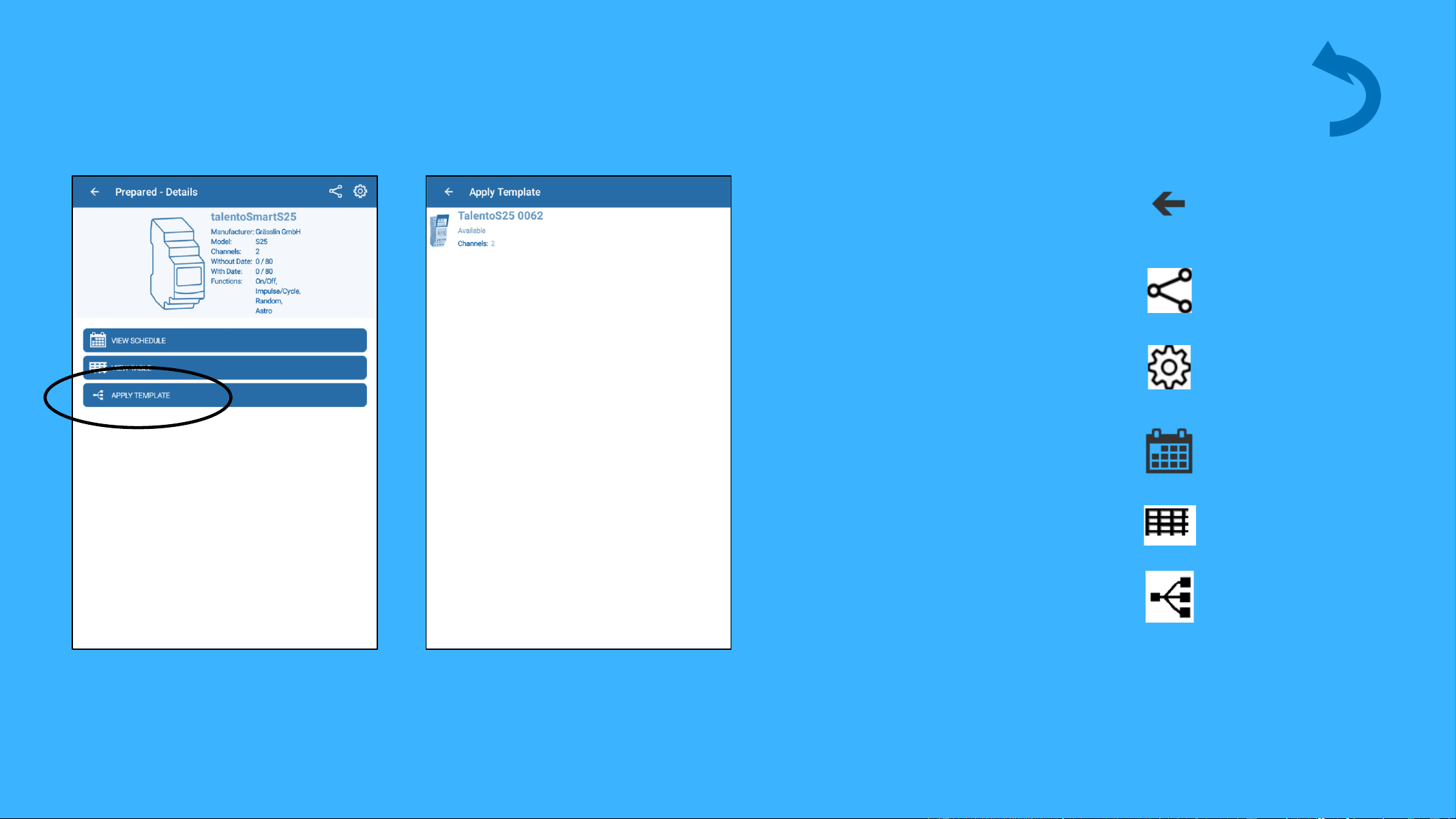
Template
New template
Tap Apply Template to send
template to a device.
Go back
Share template
Timer settings
View schedule
View time table
Apply template
Select device to upload
template.
© Copyright. Soda Gun Jetter all rights reserved
background
10.06.2018 24
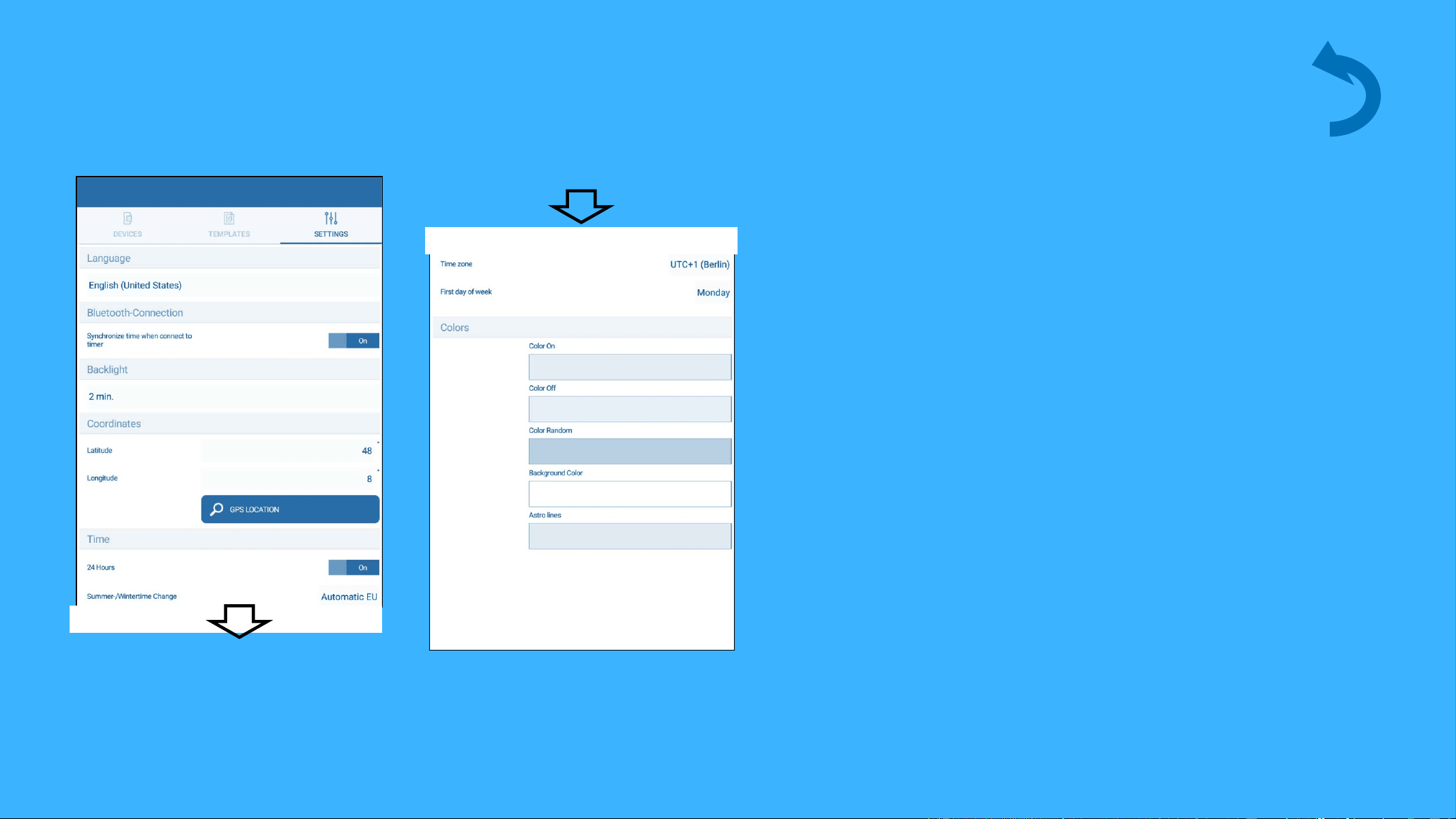
Menu navigation- Settings
Settings
© Copyright. Soda Gun Jetter all rights reserved

background
10.06.2018 25
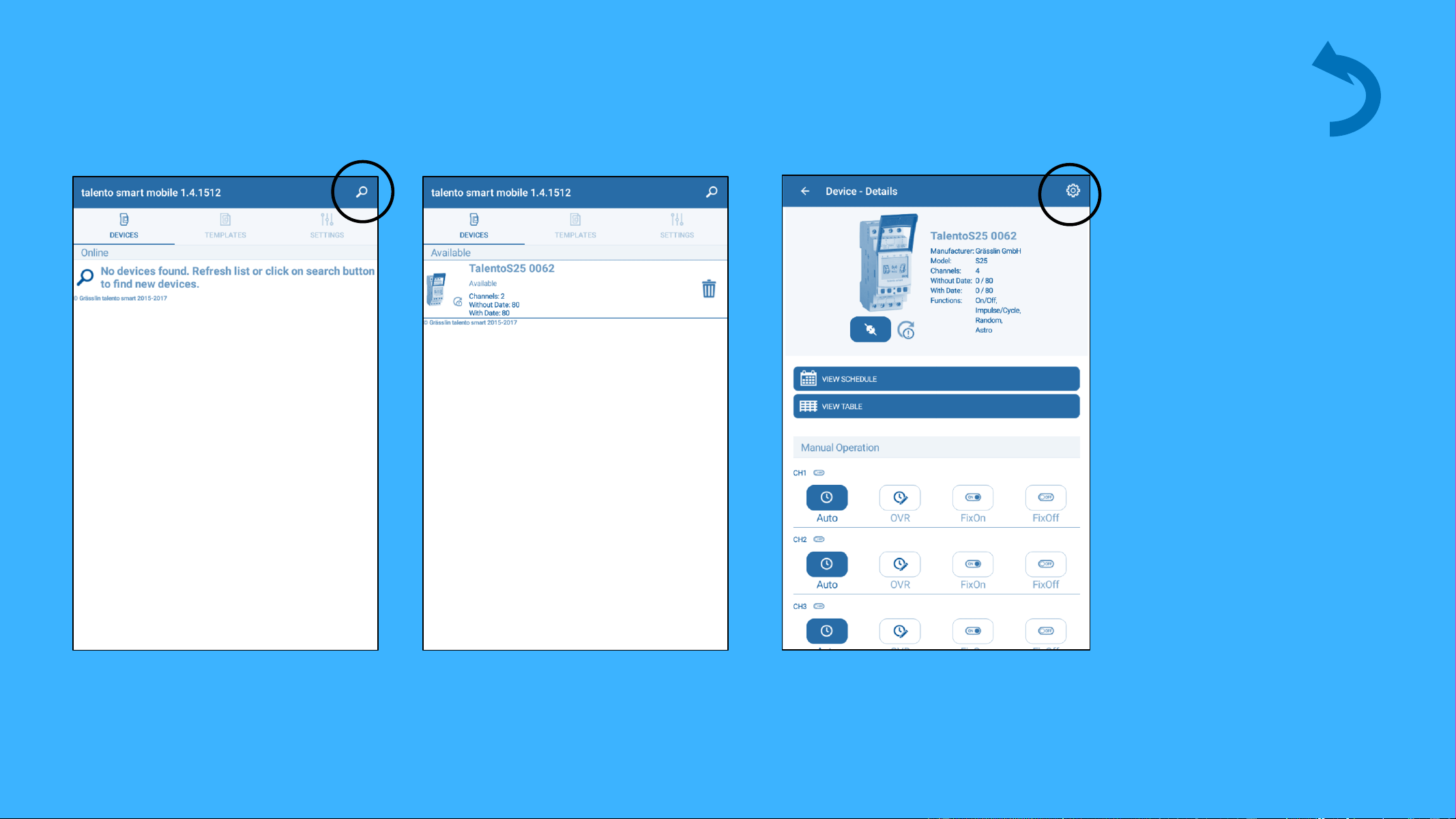
Current schedule should be saved to the app prior to
firmware update. Updating will erase all existing
programming in timer.
Update Firmware
© Copyright. Soda Gun Jetter all rights reserved
background
Update Firmware
10.06.2018 26
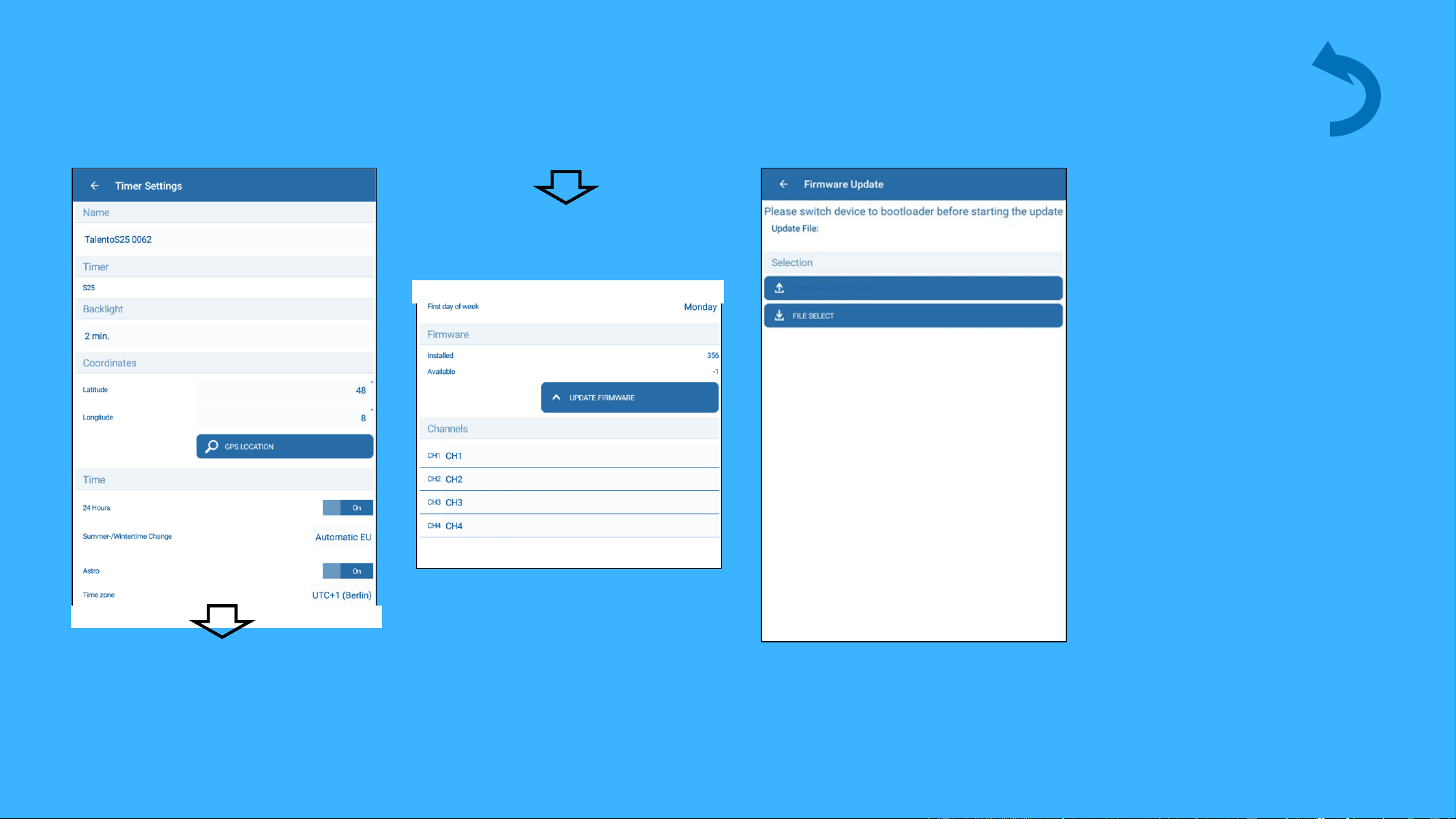
Tap on the magnifying glass to
search for available devices.
Tap the gear symbol to access
timer settings.
Select time switch to be
updated.
© Copyright. Soda Gun Jetter all rights reserved
background
10.06.2018 27
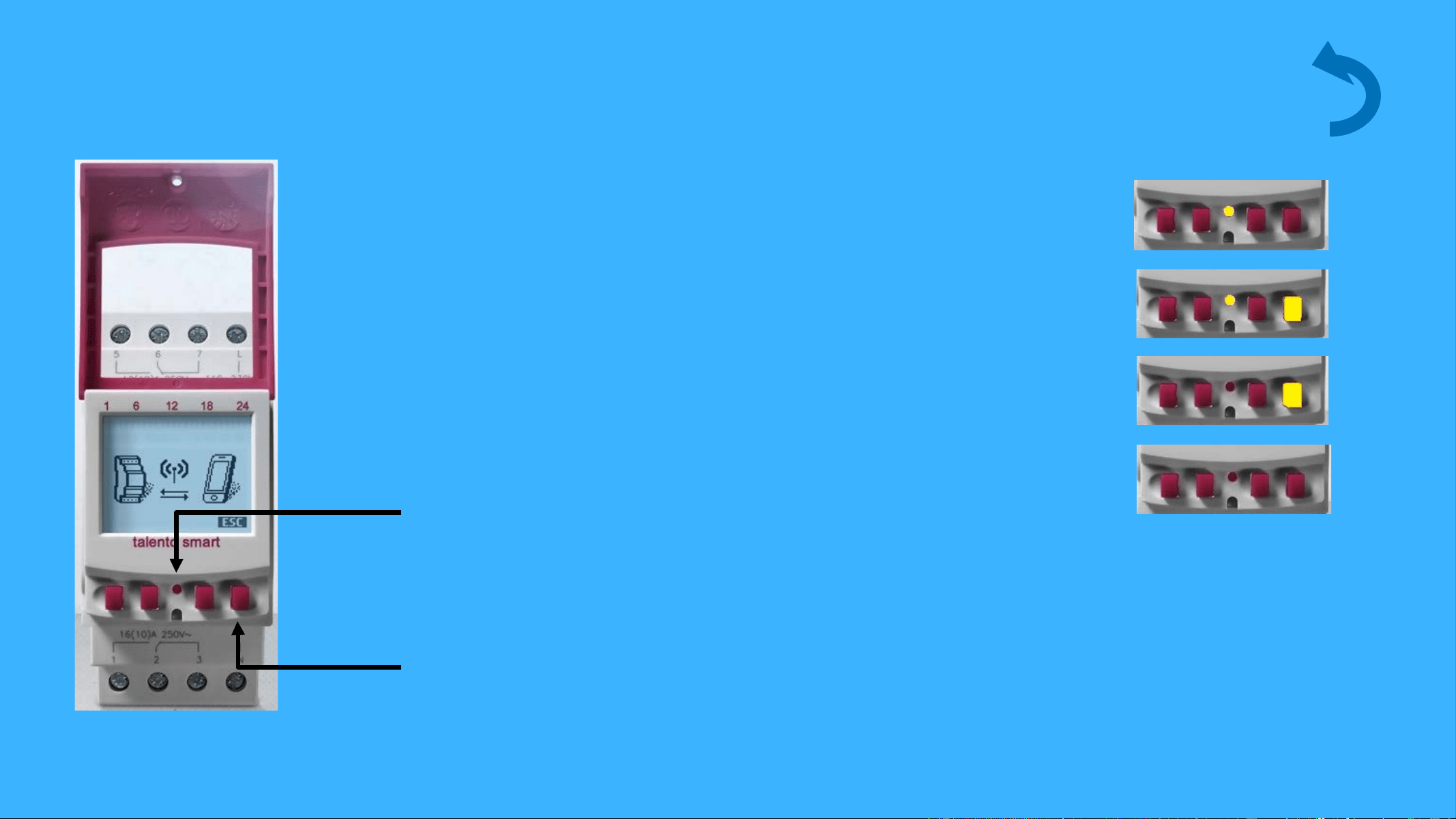
Scroll down to update
firmware.
Select Update firmware.
Update Firmware
Switch device to bootloader
mode.
© Copyright. Soda Gun Jetter all rights reserved
background
Update firmware
10.06.2018 28
Reset button
Menu button
Bootload
1. Step: Press and hold reset button.
2. Step: Press menu button and hold it
.
3. Step: Release reset button.
4. Step: Release menu button.
The display should start to flash
© Copyright. Soda Gun Jetter all rights reserved

background
10.06.2018 29
Update Firmware
Select update from displayed
files.
© Copyright. Soda Gun Jetter all rights reserved
background
10.06.2018 30
In case of questions please do not hesitate to contact your
technical support (856) 396-7900 ext.3
© Copyright. Soda Gun Jetter all rights reserved

Specifications

Krowne KR-GC100 Questions and Answers

Questions and Answers

Related Products