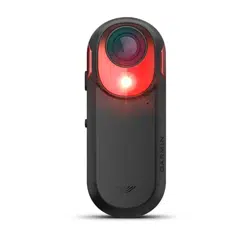
VARIA
™
RCT715
Owner’s Manual

© 2022 Garmin Ltd. or its subsidiaries
All rights reserved. Under the copyright laws, this manual may not be copied, in whole or in part, without the written consent of Garmin. Garmin reserves the right to change
or improve its products and to make changes in the content of this manual without obligation to notify any person or organization of such changes or improvements. Go to
www.garmin.com for current updates and supplemental information concerning the use of this product.
Garmin
®
, the Garmin logo, ANT+
®
, Edge
®
, fēnix
®
, Forerunner
®
, and Venu
®
are trademarks of Garmin Ltd. or its subsidiaries, registered in the USA and other countries. Garmin
Connect
™
, Garmin Express
™
, and Varia
™
are trademarks of Garmin Ltd. or its subsidiaries. These trademarks may not be used without the express permission of Garmin. The
BLUETOOTH
®
word mark and logos are owned by the Bluetooth SIG, Inc. and any use of such marks by Garmin is under license. microSD
®
and the microSD logo are trademarks of
SD-3C, LLC. Wi‑Fi
®
is a registered mark of Wi-Fi Alliance Corporation.
M/N: A04247
Country restrictions apply. 010-02476-00 is approved for operation in France and the United Kingdom. 010-02477-00 is approved for operation in Germany.

Table of Contents
Introduction......................................1
Getting Started........................................ 1
Tips for Installing the Device.................. 1
Installing the Tail Light Mount................ 2
Device Overview...................................... 2
Varia RCT715 Device Status LED........... 3
Camera Status LED................................. 4
Tail Light Modes and Intensity............... 4
Turning Off the Device............................ 4
The Varia RCT715 and the Varia
App.................................................. 5
Pairing the Varia RCT715 with Your
Phone....................................................... 6
Viewing Radar on the Varia App............. 6
Video Recording...................................... 7
Viewing Videos and Photos on the
Varia App..............................................7
Downloading Videos and Photos on
the Varia App....................................... 7
Deleting a Video or Photo on the Varia
App....................................................... 8
Saving Videos and Photos
Manually............................................... 8
About Incident Recording................... 8
Varia App Device Settings...................... 8
Camera Settings.................................. 9
Customizing the Varia App Sounds
and Alerts Settings.............................. 9
Vault Storage....................................... 9
Edge Bike Computer Settings......... 10
Pairing the Varia RCT715 with a
Compatible Edge Bike Computer......... 10
Viewing Radar on Your Edge Bike
Computer............................................... 10
Tone Alerts for Approaching
Vehicles................................................. 10
Viewing the Status Widget................... 11
Customizing Device Settings with Your
Edge Bike Computer............................. 11
Testing the Light Network................ 11
Light Network Settings..................... 12
Light Mode Settings.......................... 12
Customizing the Radar Alert Settings
with Your Edge Bike Computer.............12
Other Compatible Devices.............. 13
Pairing the Device with a Compatible
Garmin Watch........................................13
Device Information......................... 13
Charging the Device.............................. 13
Tips for Charging the Device............ 14
Connecting the Device to Your
Computer............................................... 14
Videos and Photos on Your
Computer........................................... 15
Replacing the Memory Card................. 15
Device Care............................................16
Cleaning the Device...........................16
Radar Detection.....................................16
Varia RCT715 Specifications................17
Troubleshooting............................. 17
Resetting the Device............................. 17
Updating the Device Software With the
Varia App............................................... 17
Device Status LED for Software
Updates.............................................. 18
Product Updates................................... 18
Updating the Software Using the
Garmin Express Application............. 18
The radar device is not responding..... 18
Radar detection does not work
indoors................................................... 18
The radar device does not turn on....... 18
The status LED is flashing yellow........ 19
The status LED flashes red while
charging................................................. 19
The status LED turns red while updating
the software.......................................... 19
The radar device disconnects from the
Edge bike computer.............................. 19
The radar device disconnects from the
Varia app................................................19
Replacement Parts................................19
Getting More Information..................... 19
Table of Contents i

Introduction
WARNING
See the Important Safety and Product Information guide in the product box for product warnings and other
important information.
The device can improve situational awareness. It is not a replacement for cyclist attentiveness and good
judgement. Always maintain awareness of your surroundings, and operate the bicycle in a safe manner. Failure
to do so could result in serious injury or death.
Always consult your physician before you begin or modify any exercise program.
Getting Started
You can use the Varia RCT715 with your compatible Garmin
®
device or a phone. This list provides an overview of
the installation and setup tasks.
• Charge the device (Charging the Device, page13).
• Install the tail light mount (Installing the Tail Light Mount, page2).
• Download the Garmin Varia app to your phone, and pair the devices (Pairing the Varia RCT715 with Your
Phone, page6).
• If you are using an Edge
®
series bike computer, pair the devices (Pairing the Varia RCT715 with a Compatible
Edge Bike Computer, page10).
• If you are using another Garmin device, pair the devices (Pairing the Device with a Compatible Garmin Watch,
page13).
Tips for Installing the Device
The Varia RCT715 device includes a tail light and micro radar that can detect approaching vehicles up to 140
meters away.
• Select a secure location to mount the device where it does not interfere with the safe operation of your bike.
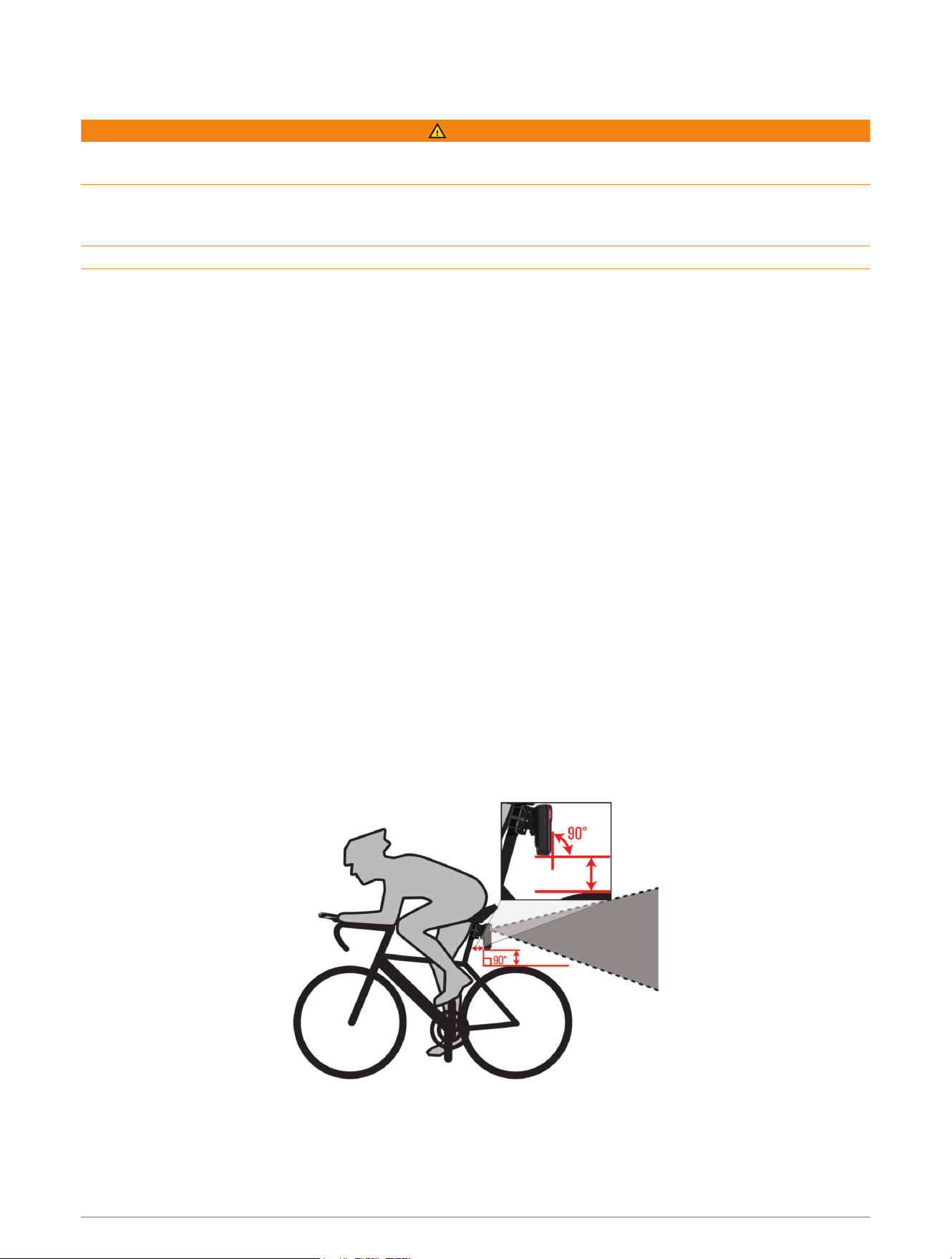
• Mount the device as high on the seat post as possible for optimal light visibility and radar detection.
NOTE: The mount surface should be vertical. The mounts are designed to accommodate most seat post
angles.
• Mount the device on the seat post 250 mm to 1200 mm above the road.
• Install the device correctly.
The device faces backward and is perpendicular to the road.
• Make sure there are no obstructions in front of the light.
• Go for a test ride during the day in a safe environment.
Introduction 1
Installing the Tail Light Mount
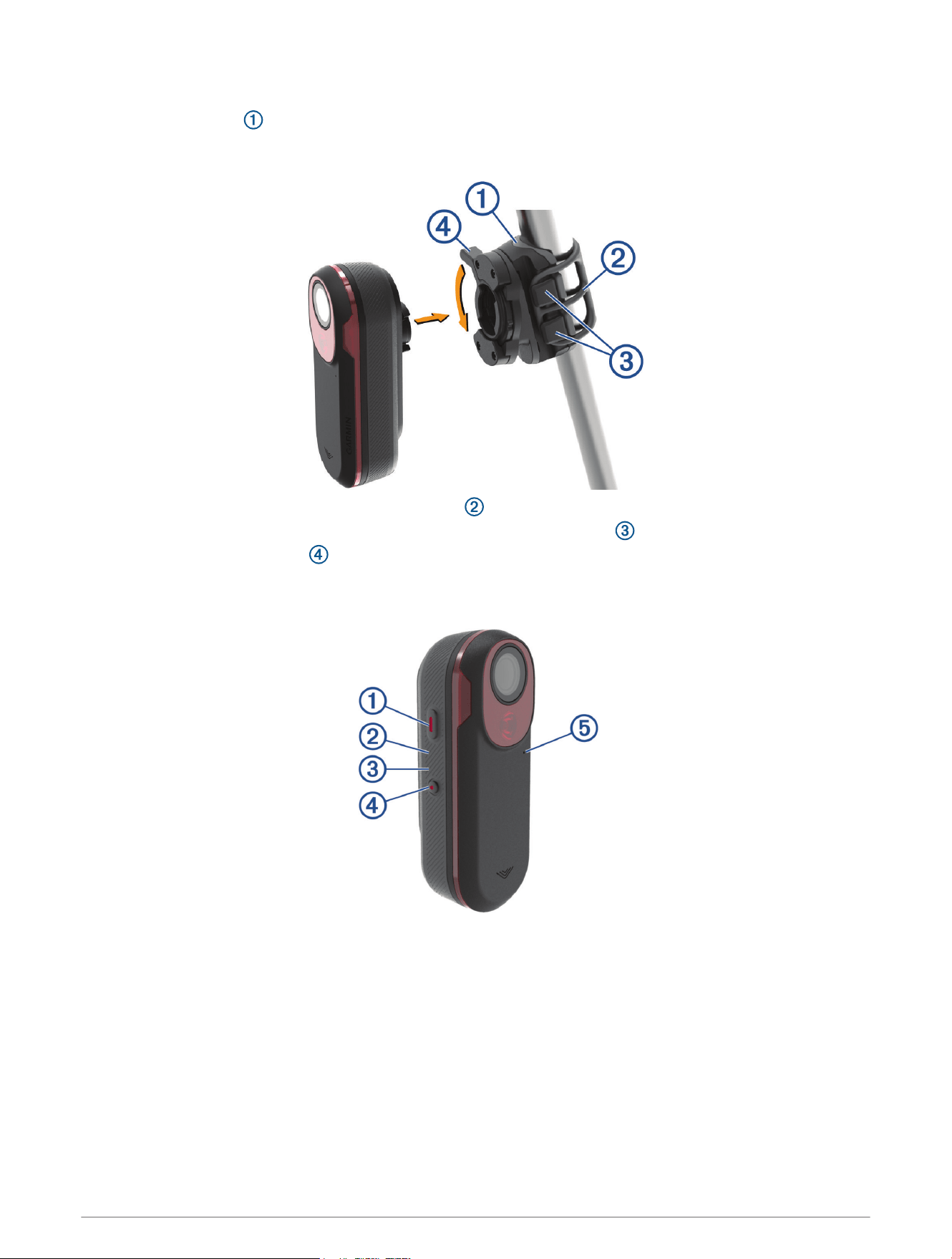
1 Select a rubber pad based on your seat post shape, and place the rubber pad on the back of the tail light
mount.
2 Place the tail light mount on the seat post.
3 Attach the tail light mount securely using one band .
4 Align the tabs on the back of the device with the tail light mount notches .
5 Press the locking lever down until it locks into place.
Device Overview
2 Introduction
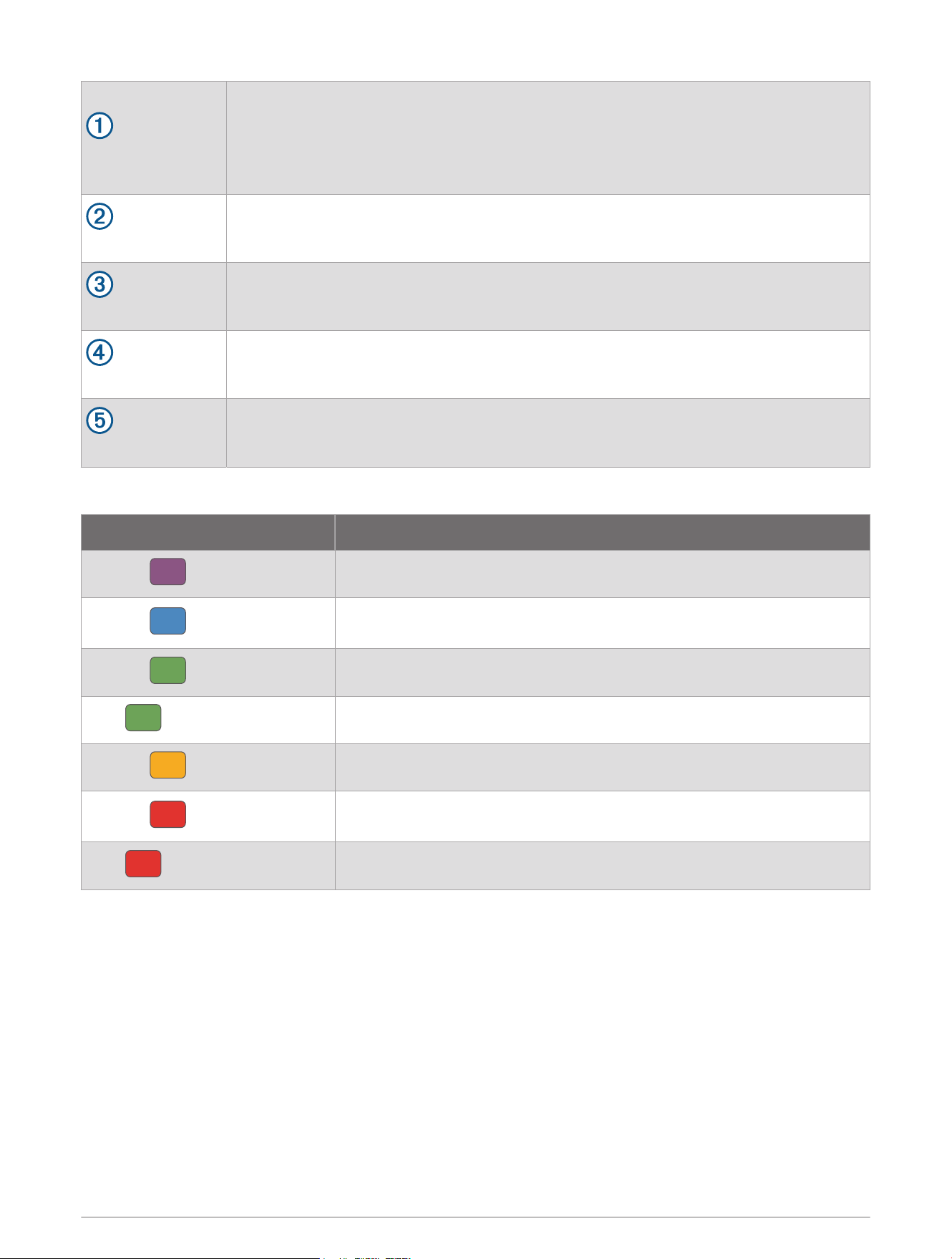
Device button
Press to change device and light modes.
Hold for 1 second to turn the device on and enter active mode.
When the device is off, hold for 2 seconds to enter pairing mode (Pairing the Varia RCT715
with Your Phone, page6).
Hold for 2 seconds to turn the device off.
Device status LED
Changes color based on the battery level, pairing status, device modes, and charging
status (Varia RCT715 Device Status LED, page3).
Camera status LED
Changes color based on the camera status (Camera Status LED, page4).
Camera button
Hold for 1 second to save a video or take a picture.
Hold for 4 seconds to turn the camera off.
Microphone
Captures audio.
Varia RCT715 Device Status LED
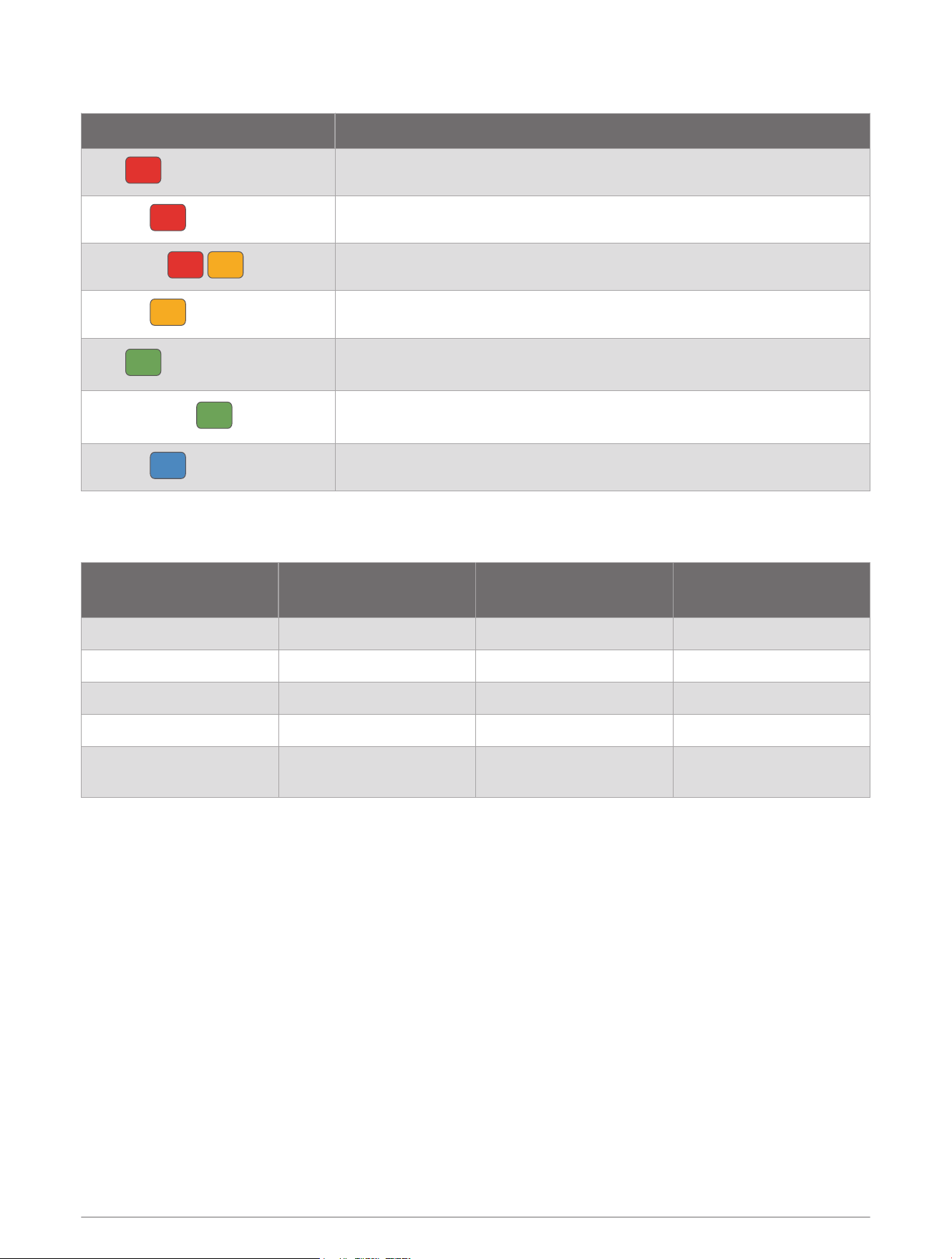
LED State Status
Flashing
The device is in active pairing mode.
Flashing
The device is in smart mode and can be controlled by a paired compatible
Garmin device.
Flashing
The device is charging.
Solid
The device is fully charged.
Flashing
The device is in lock mode.
Flashing
The device has approximately 60 or fewer minutes of battery life
remaining.
Solid
An error occurred. You may need to restart the device.
Introduction 3
Camera Status LED
LED State Status
Solid
The device is recording video to the video loop.
Flashing
The device is saving a video or photo.
Alternating
The memory card is underperforming or low on space.
Flashing
There is a problem with the memory card.
Solid
The memory card is being formatted.
The device is in mass storage mode.
Slowly flashing
The device is powering on.
The device is accessing the memory card.
Flashing
The device is in Wi‑Fi
®
sharing mode.
Tail Light Modes and Intensity
You can switch the Varia RCT715 tail light modes by pressing the device button (Device Overview, page2).
Mode Light Intensity Default Flash Behavior
Flash Behavior when
Vehicle Approaches
Solid (default) High None Light flashes
Peloton (group ride) Moderate None Light flashes softly
Night Flash High Slow Light flashes quickly
Day Flash Maximum Occasional Light flashes quickly
Standby Off None
The device does not
detect vehicles
Turning Off the Device
Hold the device button for 2 seconds (Device Overview, page2).
NOTE: You can also hold both buttons for 4 seconds to lock the device, preventing it from turning on.
4 Introduction
The Varia RCT715 and the Varia App
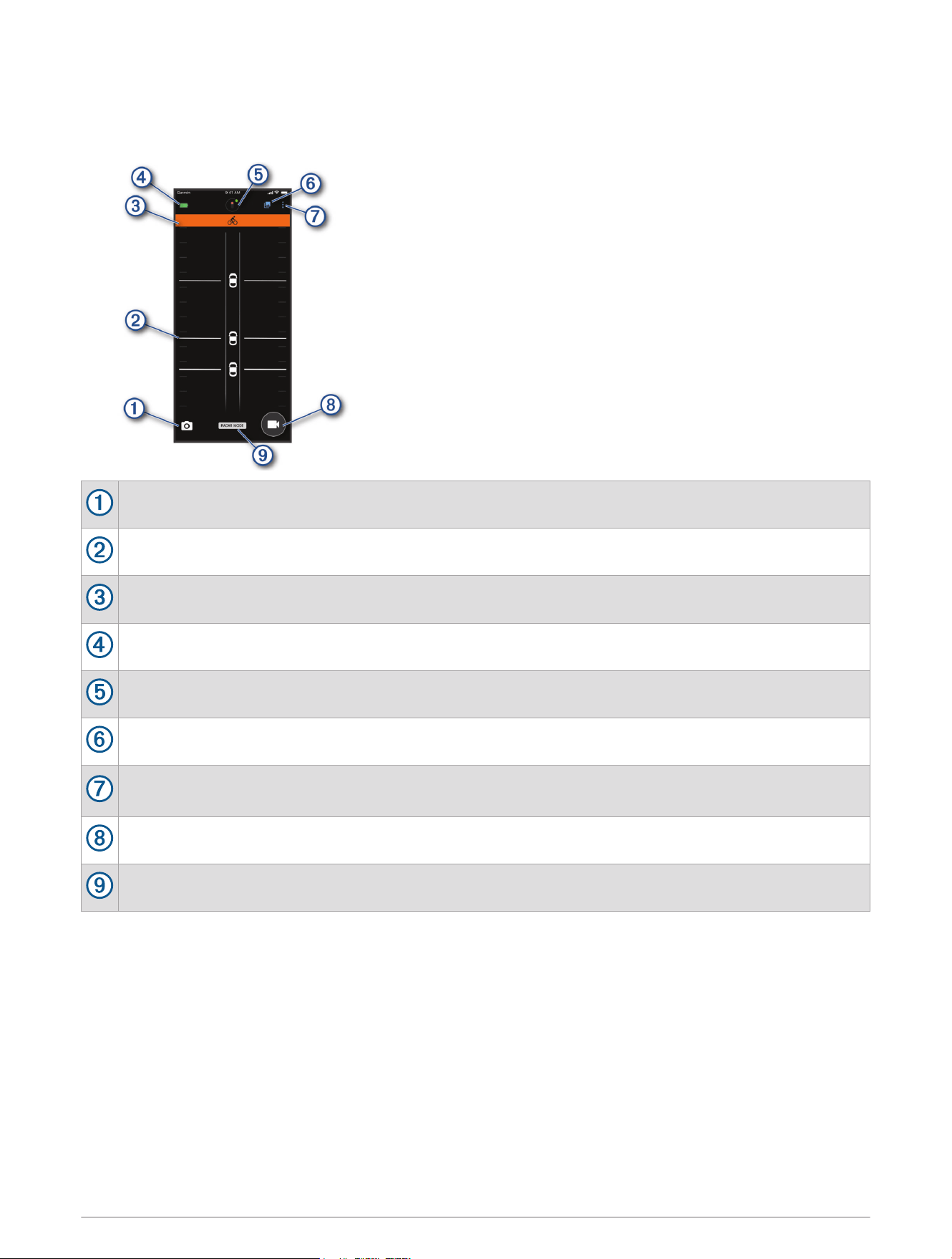
The Varia app connects to your Varia RCT715 device using Bluetooth
®
technology. The app displays radar
information, settings, videos, and photos.
Select to take a photo.
Displays radar information (Viewing Radar on the Varia App, page6).
Displays a colored banner indicating the threat level posed by approaching vehicles.
Displays battery status of the paired Varia device.
Select to change the device and camera settings (Varia App Device Settings, page8).
Select to open the video and photo gallery (Viewing Videos and Photos on the Varia App, page7).
Select to update the sounds and alerts on your phone. (Customizing the Varia App Sounds and Alerts
Settings, page9).
Select to record video or save a video clip.
Displays your recording mode (Changing Your Recording Mode, page9).
You can download the Varia app from the app store on your phone.
The Varia RCT715 and the Varia App 5
Pairing the Varia RCT715 with Your Phone
The first time you connect the Varia RCT715 to the Varia app on your phone, you must pair both devices. After
the initial pairing, the Varia app automatically connects to the Varia RCT715 when you open the app and the
radar device is active and within range.
1 Bring your phone within range (0.3m) of the Varia RCT715.
NOTE: Stay 10m away from other Bluetooth sensors while pairing.
2 On your compatible phone, enable Bluetooth technology.
3 From the app store on your phone, install and open the Varia app.
4 Select Add New Device.
5 While the Varia RCT715 is turned off, hold the device button for 4 seconds to enter pairing mode.
The device status LED flashes , and the tail light turns on. The device is in pairing mode for 5 minutes or
until you hold the device button for 2 seconds to exit pairing mode.
6 Select Pair.
When the Varia RCT715 is paired with your phone, the app displays the current radar status.
Viewing Radar on the Varia App
Go for a ride.
The radar information appears on the active data screen.
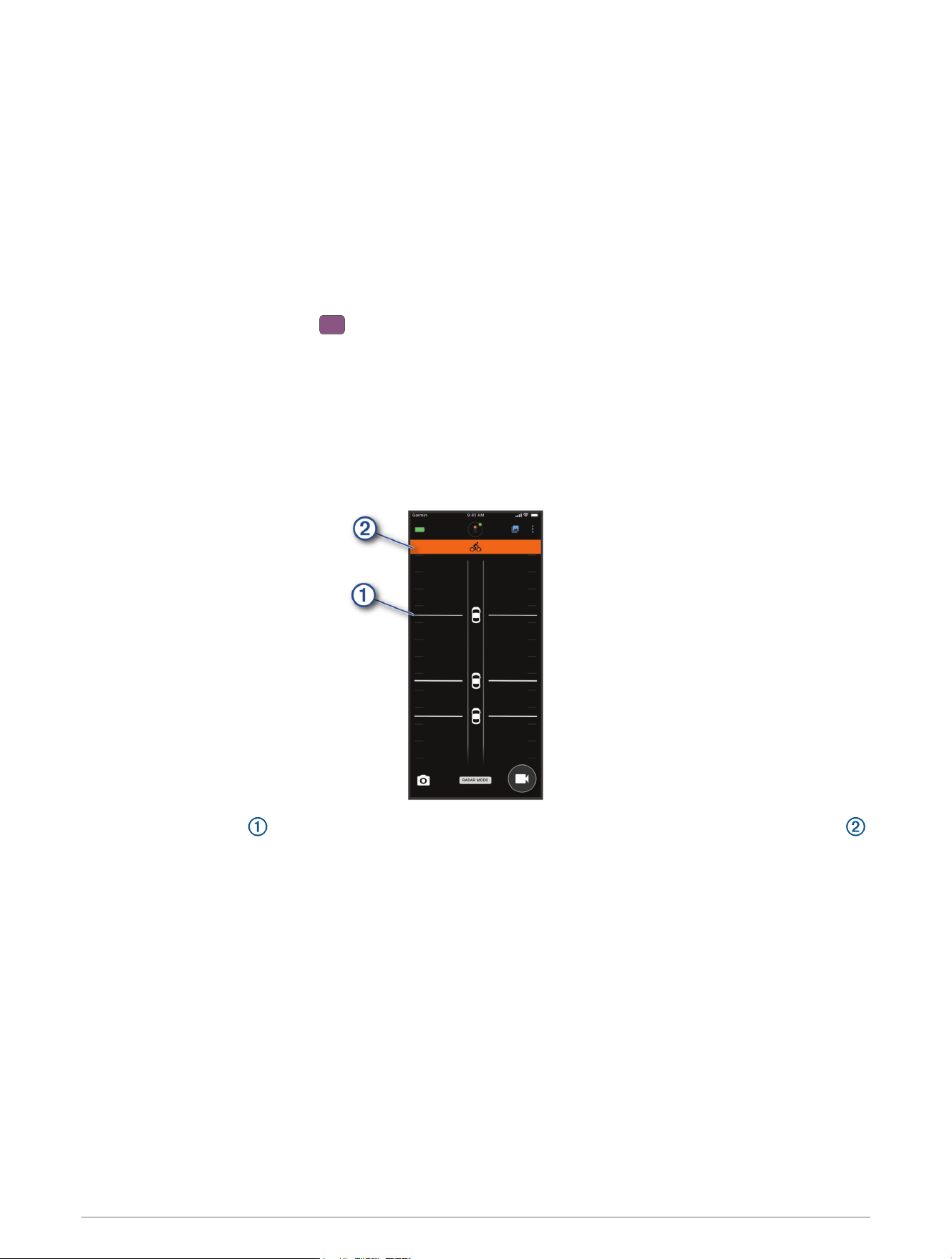
The vehicle position moves up the screen as a vehicle gets closer to your bike. The threat level banner
changes color based on the potential level of threat. Green indicates no vehicle is detected. Amber indicates
a vehicle is approaching. Red indicates a vehicle is advancing at a high rate of speed.
TIP: The line next to the vehicle also indicates the threat level. A straight line changes to jagged with a red
threat level.
6 The Varia RCT715 and the Varia App
Video Recording
NOTICE
Some jurisdictions may prohibit or regulate the recording of video, audio, or photographs, or may require that
all parties have knowledge of the recording and provide consent. It is your responsibility to know and follow all
laws, regulations, and any other restrictions in jurisdictions where you plan to use this device.
The Varia RCT715 records video to the memory card (Replacing the Memory Card, page15). By default, the
device immediately starts recording video when it turns on, and it continues recording until it is turned off. If the
memory card is full, the device automatically overwrites the oldest unsaved video with new video.
You can save a video recording to prevent it from being overwritten or deleted. (Saving Videos and Photos
Manually, page8)
TIP: After you save a video recording, you should download the recording to your phone (Downloading Videos
and Photos on the Varia App, page7) or transfer the recording to your computer or other external storage
location for permanent storage (Connecting the Device to Your Computer, page14).
Viewing Videos and Photos on the Varia App
Before you can view videos and photos on the Varia app, you must download the app and pair it with your Varia
RCT715 device (Pairing the Varia RCT715 with Your Phone, page6).
NOTE: The device stops recording while you are viewing the gallery.
1 From the Varia app, select .
The app opens to the Downloaded folder (Downloading Videos and Photos on the Varia App, page7).
2 To view other folders, select an option:
• To view a saved video or photo, select Locked.
• To view recent, unsaved video footage, select Unlocked.
3 Select Join Varia Wi-Fi Network.
4 Follow the on-screen instructions.
Downloading Videos and Photos on the Varia App
Before you can download videos and photos on the Varia app, you must download the app, and pair it with your
Varia RCT715 device (Pairing the Varia RCT715 with Your Phone, page6).
NOTE: The device stops recording while you are viewing the gallery.
1 From the Varia app, select the device icon at the top of the home screen.
2 Select Gallery & Storage > Gallery.
3 Follow the on-screen instructions.
4 Select the Locked or Unlocked folder.
5 Select a video or photo from the thumbnail gallery.
6 Select , and select an option:
• To download the video or photo and delete it from its current folder, select Download & Delete.
• To download the video or photo and keep a copy in its current folder, select Download.
7 Select Downloaded to view the downloaded video or photo.
TIP: Select Add to Vault and following the on-screen instructions to upload your video or photo to your
Garmin Vault account (optional) (Vault Storage, page9).
The Varia RCT715 and the Varia App 7
Deleting a Video or Photo on the Varia App
Before you can delete a video or photo on the Varia app, you must download the app and pair it with your Varia
RCT715 device (Pairing the Varia RCT715 with Your Phone, page6).
NOTE: The device stops recording while you are viewing the gallery.
1 From the Varia app on your phone, select > Join Varia Wi-Fi Network, and follow the on-screen
instructions.
2 Select the Locked or Unlocked folder.
3 Select a video or photo from the thumbnail gallery.
4 Select on the video or photo.
5 Select Delete.
Saving Videos and Photos Manually
When the camera is enabled, the device is always recording and saving video to the memory card, overwriting
the oldest video footage with new footage. You can also save video files and photos manually at any time to
prevent the camera from overwriting them.
• On the device, press the camera button (Device Overview, page2).
• From the Varia app, select or (The Varia RCT715 and the Varia App, page5).
• On your compatible Edge bike computer, select an option :
◦ To take a photo, select Take Photo.
◦ To save a 2-minute segment of video, select Save Clip.
◦ To manually save video, select Film Ride
TIP: To stop saving video, hold the camera button for 2 seconds.
The memory card has limited storage. After you manually save a video recording, you should download the
recording to your phone, or transfer the recording to your computer or other external storage location for
permanent storage (Downloading Videos and Photos on the Varia App, page7, Connecting the Device to Your
Computer, page14). Saved recordings are automatically displayed in the Locked folder when your paired
phone is connected to a Wi‑Fi network (Viewing Videos and Photos on the Varia App, page7).
About Incident Recording
By default, the device uses a sensor to detect possible incidents and saves video footage automatically before,
during, and after the detected event (Camera Settings, page9). The video footage is stamped with the time,
date, and location (if available) of the event.
Varia App Device Settings
On the Varia app, select the device icon at the top of the home screen (Device Overview, page2).
Camera Configuration: Allows you to set up the camera, change recording mode, customize the video options,
and enable incident recording (Camera Settings, page9).
Gallery & Storage: Allows you to delete videos and photos in the gallery and format your memory card (Deleting
a Video or Photo on the Varia App, page8).
Software Updates: Displays the software version and device information.
8 The Varia RCT715 and the Varia App
Camera Settings
NOTICE
The accuracy of the speed overlay depends on a number of factors, including GPS accuracy of the connected
display, rider speed, and wireless connectivity between the display and the device.
From the Varia app, select the device icon at the top of the home screen, and select Camera Configuration.
NOTE: Not all settings are available for all Edge bike computers.
Recording Mode: Sets the recording mode for the video camera, or turns off video recording (Changing Your
Recording Mode, page9).
Video Quality & Audio: Allows you to select the video resolution, and turn on and off audio recording (Turning
Audio Recording Off, page9).
Live Camera Preview: Allows you to see the camera view for optimal placement on your bike.
Incident Recording: Turns on and off incident recording (About Incident Recording, page8).
Data Overlays: Sets the type of data that appears on videos and photos.
NOTE: GPS and speed overlays require an open connection between the Varia RCT715 and the display. An
open connection between a sensor and display is not encrypted or authenticated.
Changing Your Recording Mode
1 From the Varia app, select the device icon at the top of the home screen.
2 Select Camera Configuration > Recording Mode.
3 Select an option:
• Select Continuous to turn on camera recording when the device turns on.
• Select On Radar Activity to record video only when a compatible radar device radar that is connected to
the app detects a vehicle.
• Select Off to disable camera recording. The device continues to transmit radar data.
Turning Audio Recording Off
The device records audio using the integrated microphone while recording video. You can turn off audio
recording at any time.
1 From the Varia app, select the device icon at the top of the home screen.
2 Select Camera Configuration > Video Quality & Audio.
3 Select the Record Audio During Ride toggle switch.
Customizing the Varia App Sounds and Alerts Settings
1 From the Varia app, select > Sounds & Alerts.
2 Select an option.
Vault Storage
NOTE: This feature requires an active, paid Vault subscription. Vault features are not available for all countries.
You can upload, manage, and share videos on a secure, online storage drive using Garmin Vault. With a paid
subscription, you can transfer downloaded videos from your Varia RCT715 device to your Garmin Vault account
using your phone (Downloading Videos and Photos on the Varia App, page7).
You can purchase a Vault subscription from the Varia app on your phone (Subscribing to Vault, page9).
NOTE: Your Varia device must be connected to a Wi‑Fi network to use this feature.
Subscribing to Vault
You can purchase a Vault subscription to store your videos in a secure online storage server.
1 From the Varia app, select > Vault Settings > Vault Subscription.
2 Follow the on-screen instructions.
The Varia RCT715 and the Varia App 9
Edge Bike Computer Settings
You can remotely control your radar device and customize settings using your compatible Edge bike computer.
Pairing the Varia RCT715 with a Compatible Edge Bike Computer
You can pair your Varia device with a compatible Edge bike computer through an open connection using ANT+
®
technology. After the initial pairing, the Edge bike computer automatically connects to the Varia device when
you start your activity and the device is active and within range. When paired, the device controls appear on
the compatible bike computer. You can also control the camera on the compatible bike computer. For more
information about connection types, go to garmin.com/connectiontypes.
TIP: To check if your bike computer is compatible, go to garmin.com/cycling, select Radars & Lights, select your
Varia device, and select the Compatible Devices tab.
1 Bring the Edge bike computer within range (3m) of the Varia RCT715.
NOTE: Stay 10m away from other sensors that use ANT+ technology while pairing.
2 Turn on the Edge bike computer.
3 Select > Sensors > Add Sensor > Search All.
4 While the Varia RCT715 device is turned off, hold the device button for 2 seconds to enter pairing mode.
The status LED flashes , and the radar tail light turns on. The radar tail light is in pairing mode for 5
minutes or until you press the device button to exit pairing mode.
5 Select your sensor.
When the radar device is paired with your Edge bike computer, the sensor status is Connected. The (radar)
and (bike light) status icons appear solid on the top banner of the home screen.
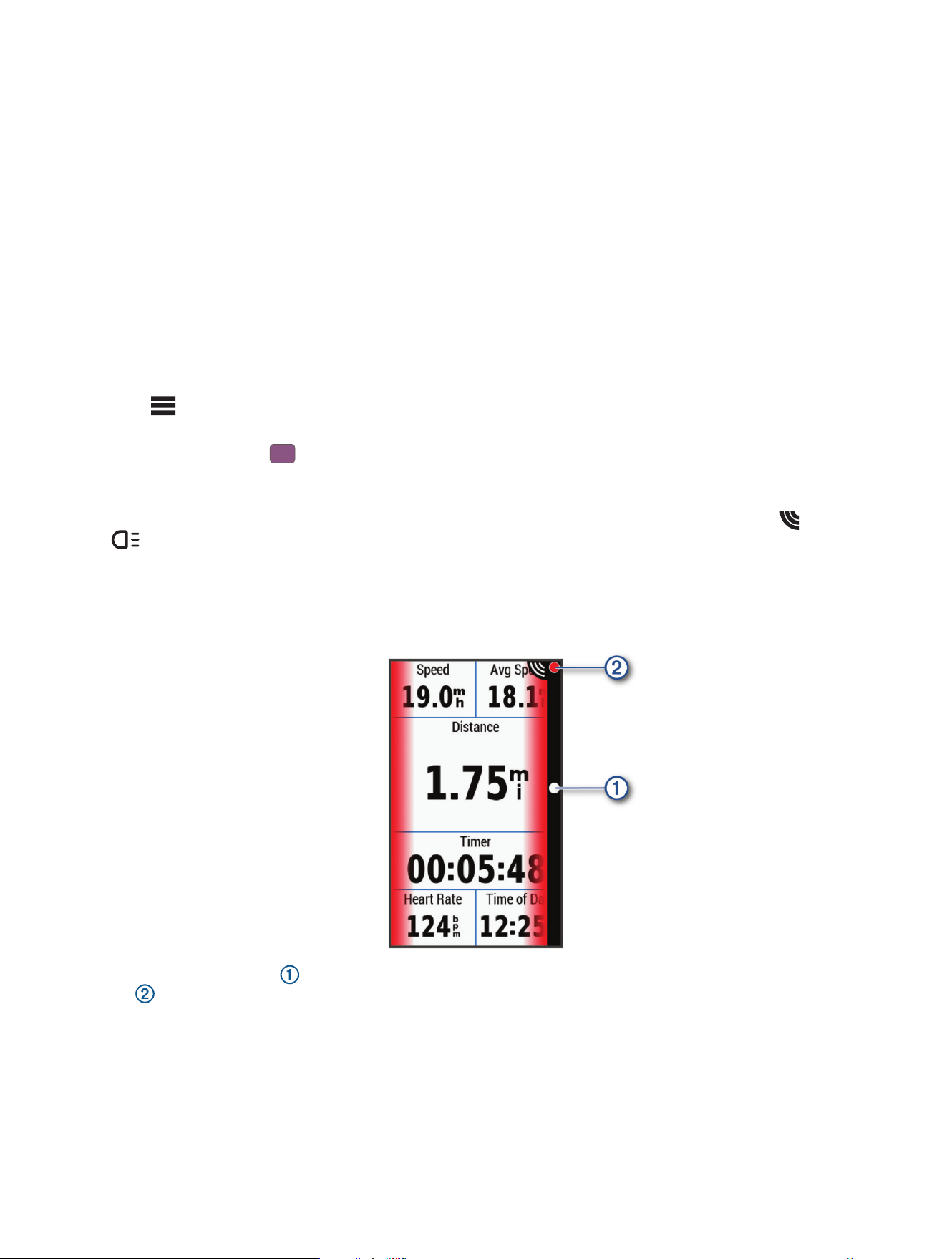
Viewing Radar on Your Edge Bike Computer
Go for a ride.
The radar information appears on the active data screen.
The vehicle position LED moves up the column as a vehicle gets closer to your bike. The threat level
LED changes color based on the potential level of threat. Green indicates no vehicle is detected. Amber
indicates a vehicle is approaching. Red indicates a vehicle is advancing at a high rate of speed.
Tone Alerts for Approaching Vehicles
The Edge device beeps if audible tones are turned on in the settings. Your device has alert tones for several
features. The alert tone for approaching vehicles has a unique sound. The device beeps one time when the first
vehicle is detected. After the threat is cleared, the device beeps again when another vehicle is detected.
10 Edge Bike Computer Settings
Viewing the Status Widget
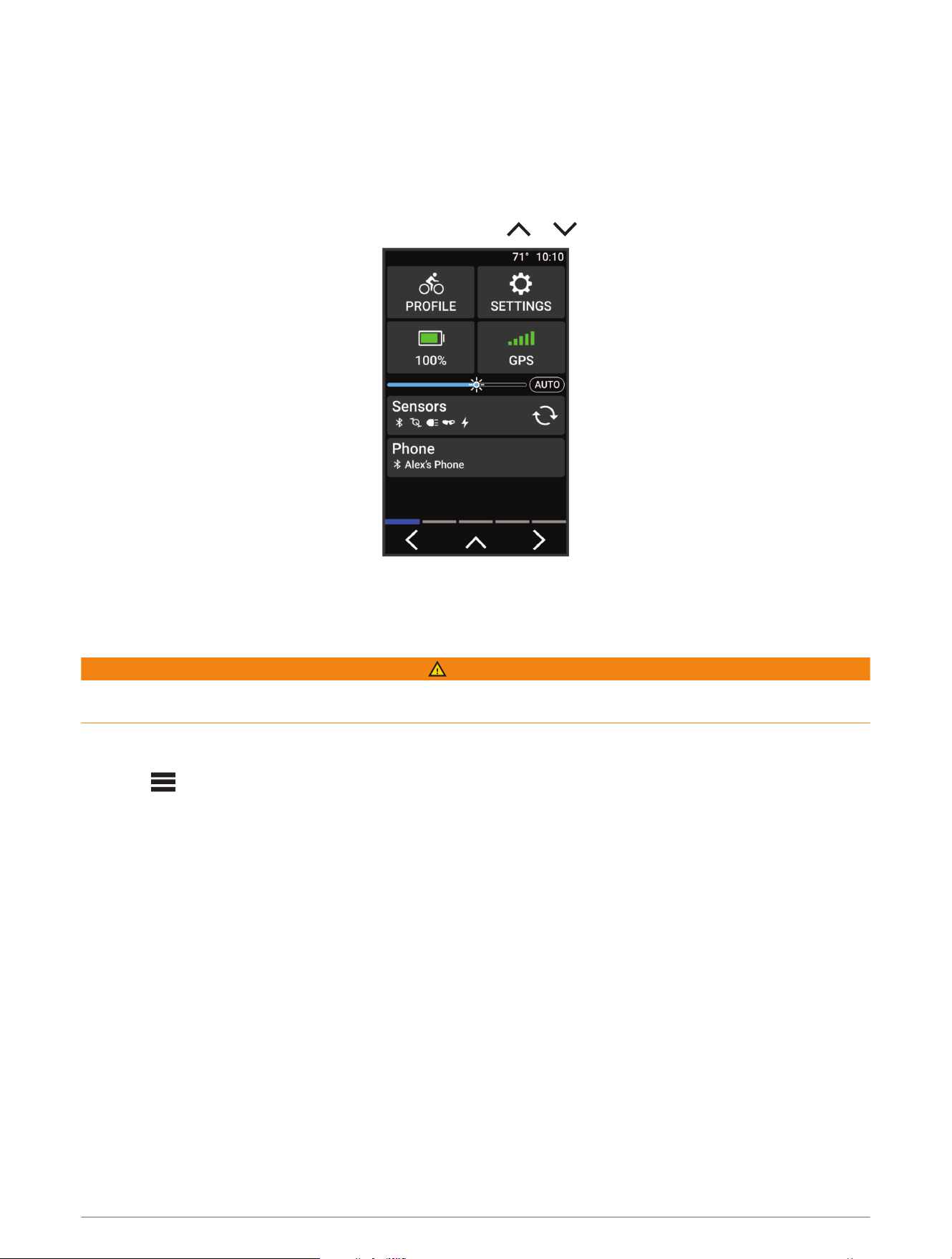
The status widget on your Edge bike computer displays the status of the GPS, sensors, and wireless
connections. See your Edge owner's manual for more information.
Select an option:
• If your Edge bike computer uses a touchscreen, swipe down from the top of the home screen or a data
screen.
• If your Edge bike computer uses device buttons, press or from the widgets screen.
The status widget appears. A flashing icon means the device is searching. A solid icon means the signal was
found or the sensor is connected.
Customizing Device Settings with Your Edge Bike Computer
WARNING
The tail light can be programmed to emit light at varying degrees of brightness and flash at various intervals.
Consult your physician if you have epilepsy or are sensitive to bright or flashing lights.
Before you can customize Varia RCT715 settings with your Edge bike computer, you must pair the devices
(Pairing the Varia RCT715 with a Compatible Edge Bike Computer, page10).
1 Select > Sensors > Lights.
2 Select an option:
• Select Enable to enable the light network.
• Select Network Options > Test Lights to verify that each light in your network is set up correctly (Testing
the Light Network, page11).
• Select a light to view device information and customize each light in your network (Light Network Settings,
page12).
Testing the Light Network
1 From the Sensors menu, select Lights > Network Options > Test Lights.
2 Select a light to test.
The light blinks when it is connected.
Edge Bike Computer Settings 11
Light Network Settings
From the Sensors menu, select Lights, and select a paired light.
NOTE: Not all settings are available for all Edge bike computers.
Sensor ID: Displays the sensor's identification number.
Connection Type: Displays the technology that is used to connect to the sensor.
About: Displays device and software information.
Camera Settings: Sets the video resolution and recording mode, turns off audio recording, turns on image
stabilization, and more.
Light Mode: Sets the light intensity and pattern mode, or turns off the light.
NOTE: This setting is available when you select the Individual light mode setting (Light Mode Settings,
page12).
Remove: Allows you to delete a paired light from the network.
Light Mode Settings
From the Sensors menu, select Lights > Network Options > Light Mode.
Auto: Automatically adjusts the light intensity and light mode based on the ambient light and time of day. This
mode is recommended for commuting or road rides.
High Visibility: Sets the light intensity to flash mode or the brightest setting available.
Trail: Automatically adjusts the light intensity and light mode based on the ambient light and time of day. This
mode is recommended for trail riding.
Individual: Allows you to customize the light intensity and pattern mode for each light in your network (Light
Network Settings, page12).
Customizing the Radar Alert Settings with Your Edge Bike Computer
Before you can customize the radar alert settings with your Edge bike computer, you must pair the devices.
You can customize how the radar alerts sound and display on your Edge bike computer.
1 From your Edge bike computer, select > Sensors.
2 Select your Varia RCT715.
3 Select Sensor Details > Alert Settings.
4 Select an option.
12 Edge Bike Computer Settings
Other Compatible Devices
Pairing the Device with a Compatible Garmin Watch
You can pair your Varia device with a compatible Garmin watch, such as a Forerunner
®
watch. When paired, the
device controls appear on the compatible watch. You can also control the camera on the compatible watch.
TIP: To check if your watch is compatible, go to garmin.com/cycling, select Radars & Lights, select your Varia
device, and select the Compatible Devices tab.
NOTE: Not all Varia RCT715 features are available on all compatible watches. See the owner's manual for your
watch.
1 Bring the watch within range (3m) of the Varia RCT715.
NOTE: Stay 10m away from other sensors that use ANT+ technology while pairing.
2 Turn on the Garmin watch.
3 From the Settings menu, select Connectivity > Sensors & Accessories > Add New > Search All.
4 While the Varia RCT715 device is turned off, hold the device button for 2 seconds to enter pairing mode.
The status LED flashes , and the tail light turns on. The device is in pairing mode for 5 minutes or until
you press the device button to exit pairing mode.
5 Select your sensor.
When the radar device is paired with your Garmin watch, the radar and bike light status icons appear solid.
Device Information
Charging the Device
NOTICE
To prevent corrosion, thoroughly dry the USB port, the weather cap, and the surrounding area before charging or
connecting to a computer.
The device is powered by a built-in lithium-ion battery that you can charge using a standard wall outlet or a USB
port on your computer.
NOTE: The device does not charge when outside the approved temperature range (Varia RCT715 Specifications,
page17).
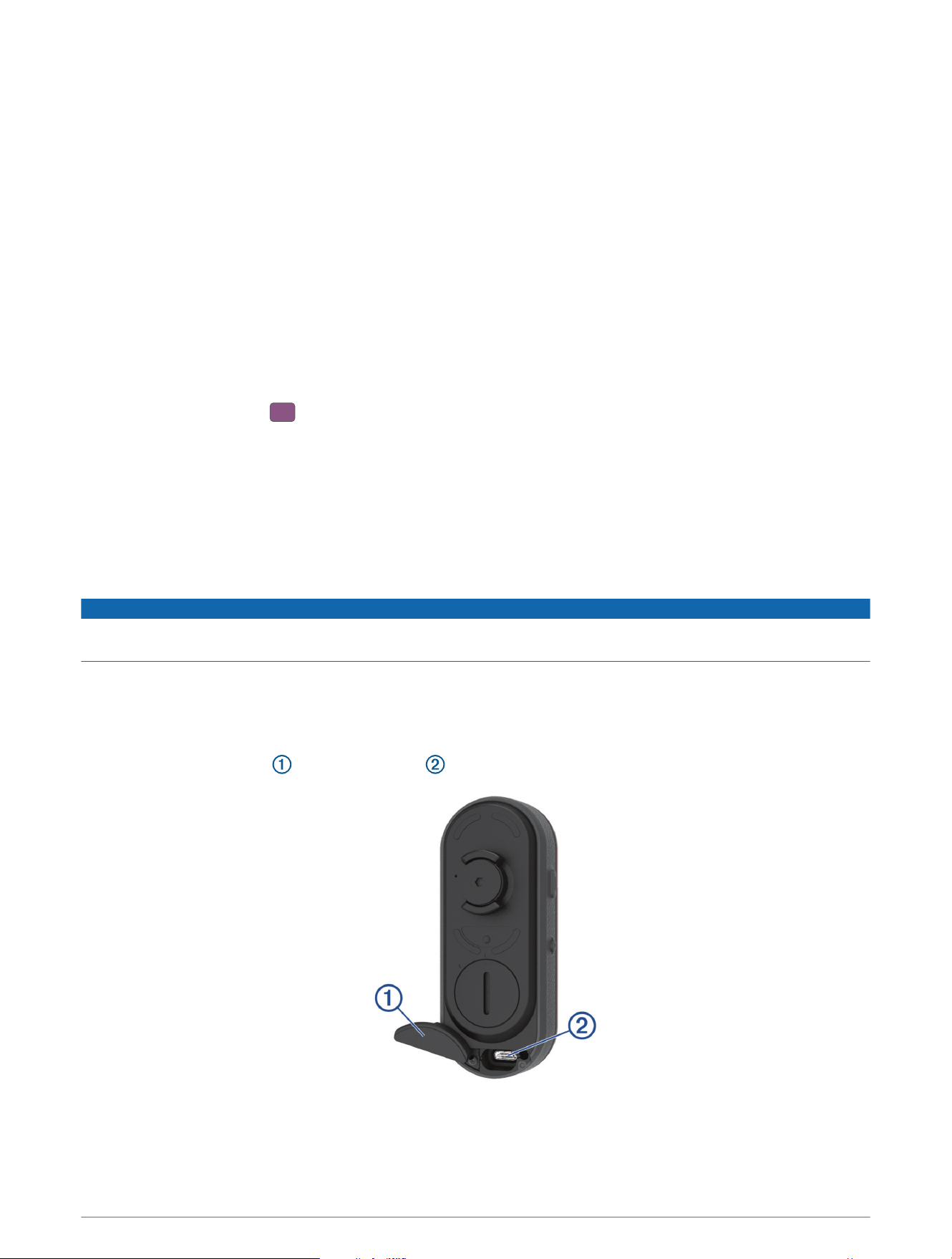
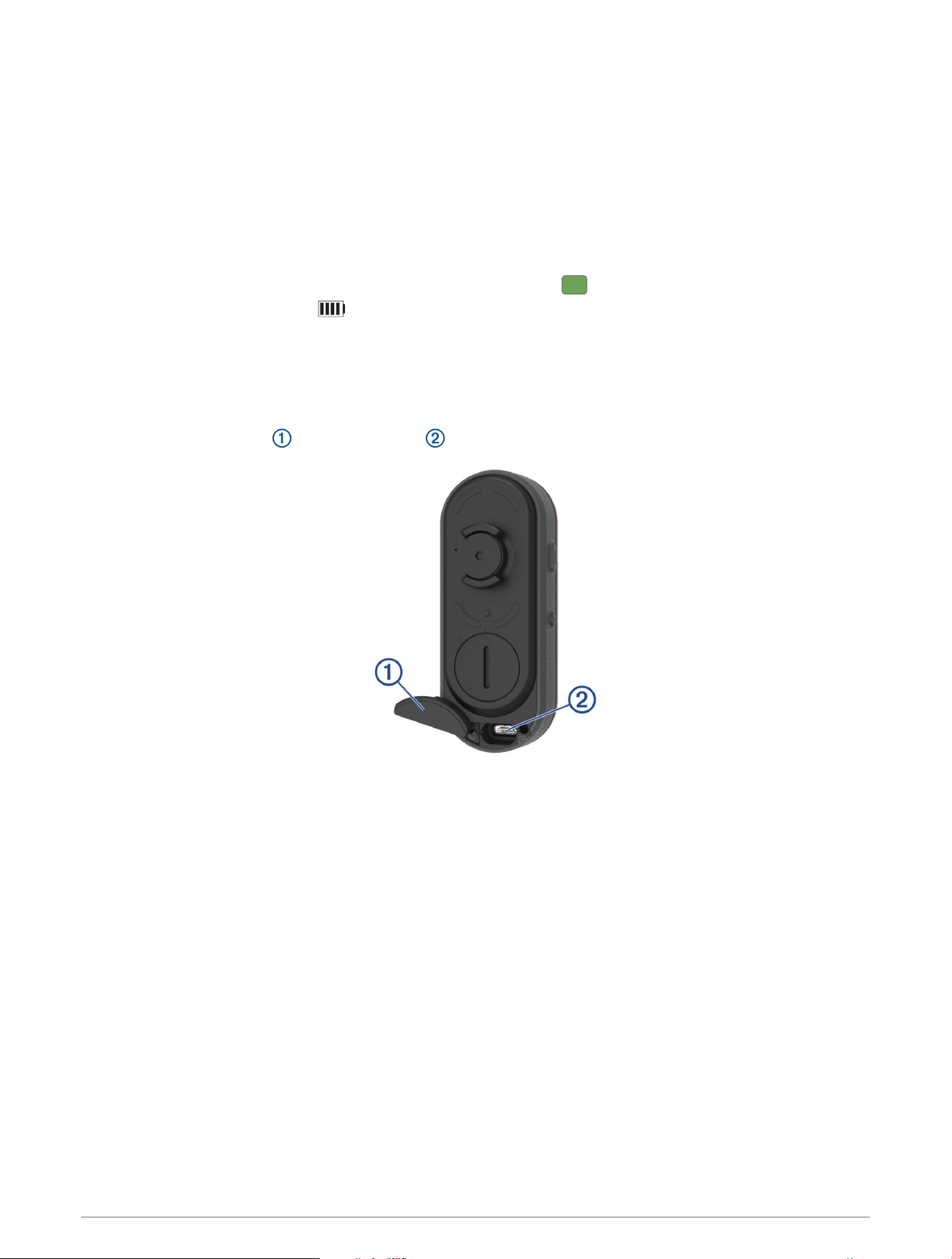
1 Pull up the weather cap from the USB port .
2 Plug the small end of the USB cable into the USB port on the device.
3 Plug the large end of the USB cable into an AC adapter or a computer USB port.
4 Plug the AC adapter into a standard wall outlet.
Other Compatible Devices 13
5 Charge the device completely.
The status LED flashes green while charging. The status LED is solid green when charging is complete.
6 Remove the USB cable, and close the weather cap.
Tips for Charging the Device
• Connect the charger securely to the device.
You can charge the device by plugging the USB cable in to a Garmin approved AC adapter with a standard
wall outlet or a USB port on your computer. Charging a fully depleted battery takes about 5 hours using a
computer and 3 hours using an AC power source.
• Remove the charger from the device when the status LED is solid .
• View the remaining battery life on the Edge status widget (Viewing the Status Widget, page11) or Varia
app (The Varia RCT715 and the Varia App, page5).
Connecting the Device to Your Computer
You can connect the device to your computer to install software updates or transfer videos and photos to your
computer.
1 Pull up the weather cap from the USB port .
2 Plug the small end of the USB cable into the USB port on the device.
3 Plug the large end of the USB cable into a USB port on your computer.
Depending on your computer operating system, the device appears as either a removable drive or a
removable volume on your computer (Videos and Photos on Your Computer, page15).
14 Device Information
Videos and Photos on Your Computer
NOTE: Some media players might not support high-resolution playback.
Videos and photos are stored in the DCIM directory on the memory card. Videos are stored in MP4 file format,
and photos are stored in JPG format. You can view and transfer videos and photos by inserting the memory
card into your computer or connecting the device to your computer (Connecting the Device to Your Computer,
page14).
The videos and photos are sorted into folders.
100EVENT
Contains videos saved automatically when the device
detects an incident.
101PHOTO Contains photos.
102SAVED Contains videos saved manually by the user.
103UNSVD
Contains unsaved video footage. The device over
writes the oldest unsaved video when the storage
space for unsaved videos is full.
Replacing the Memory Card
You can replace the memory card to increase the storage capacity or to replace a card that has reached the end
of its useful life. The device requires an 8 to 128GB microSD
®
memory card with a speed rating of Class 10 or
higher.
NOTE: A memory card is included so your device is ready to use out of the box. All memory cards have a limited
life and must be replaced periodically.
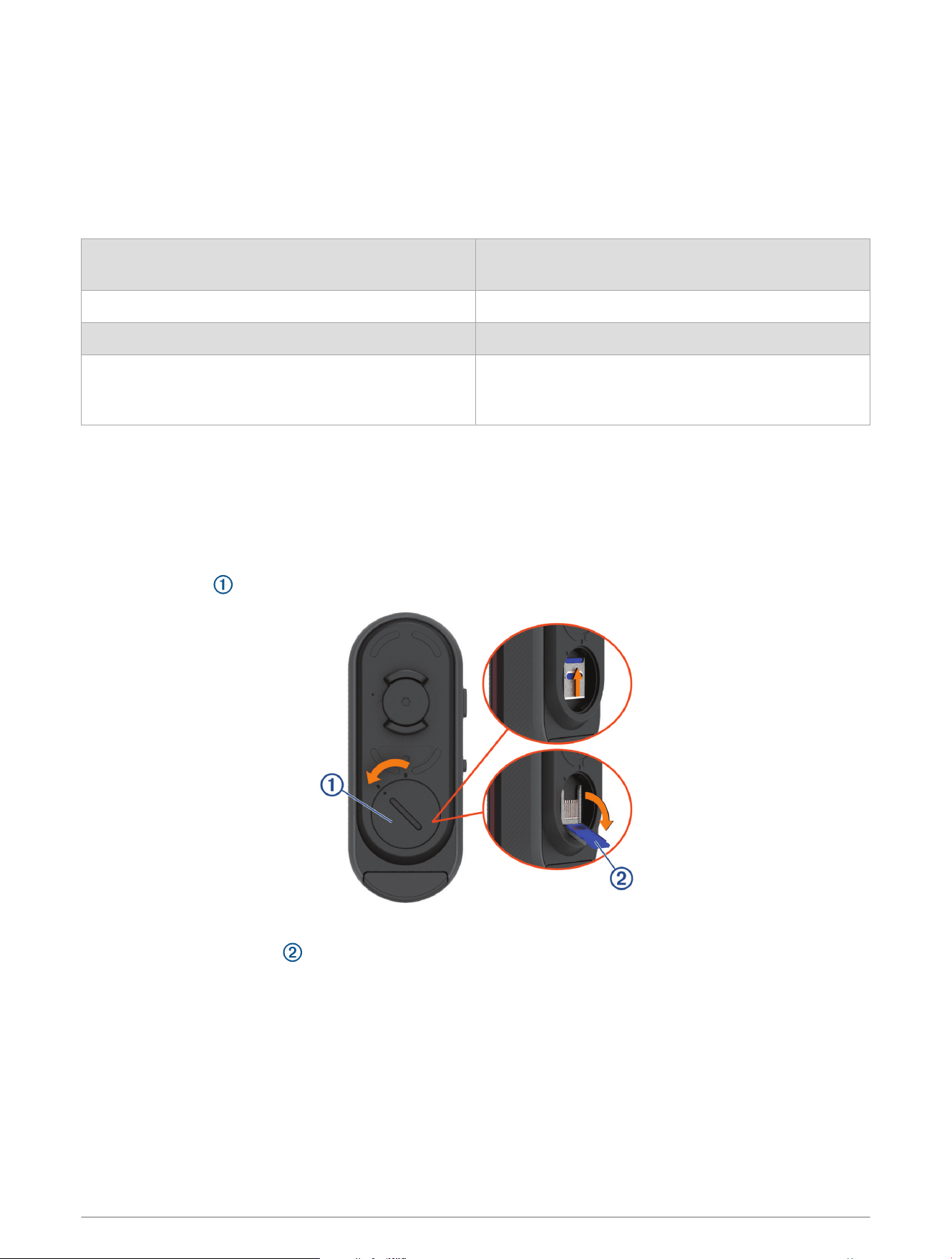
1 Open the cover .
2 Slide the card holder toward the mount, and lift up.
3 Pull open the card holder .
4 Insert the memory card into the memory card slot with the contacts facing the device.
Device Information 15
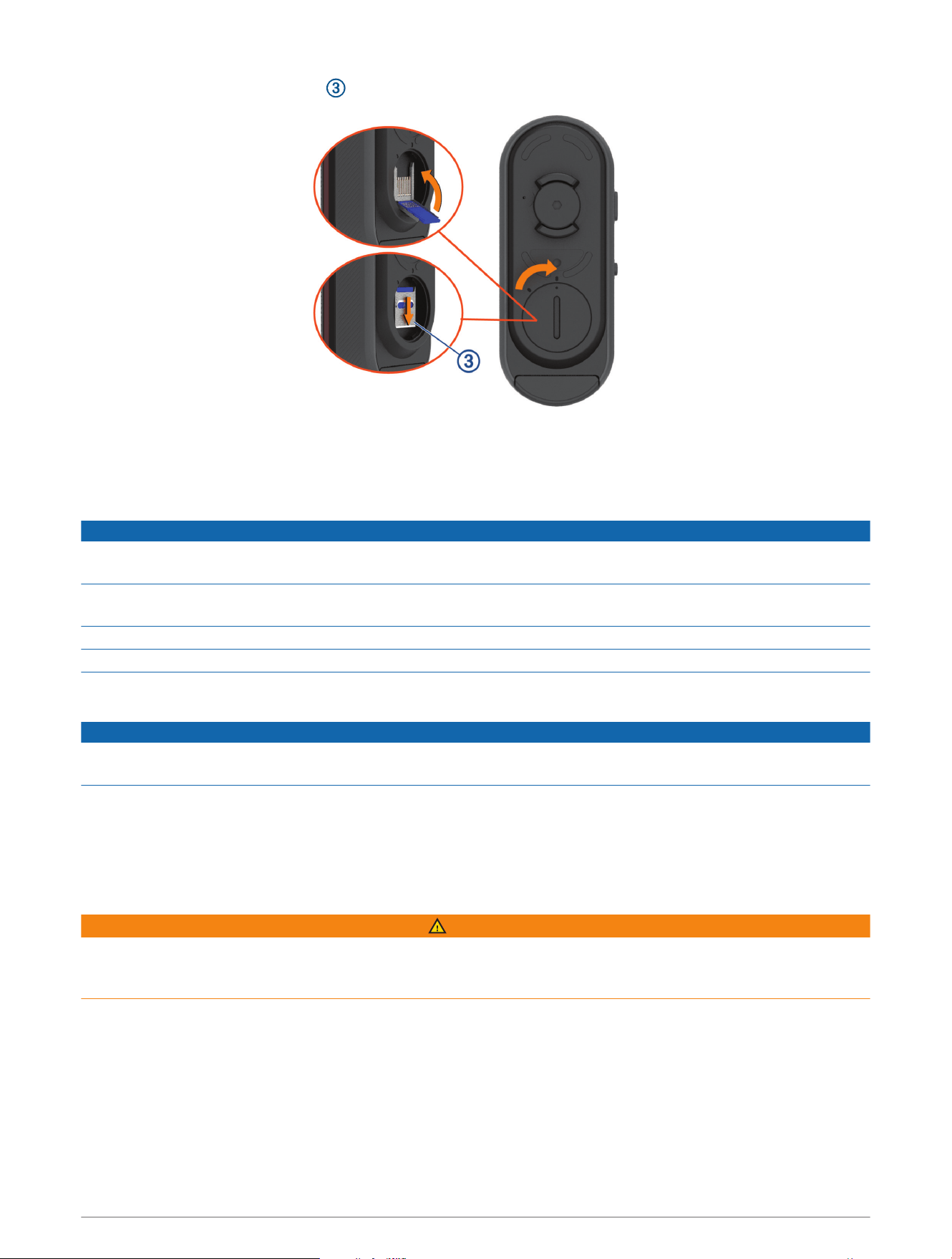
5 Close and latch the card holder .
6 Close and latch the cover.
7 If necessary, connect to the Varia app to reformat the memory card.
Device Care
NOTICE
Do not store the device where prolonged exposure to extreme temperatures can occur, because it can cause
permanent damage.
Avoid chemical cleaners, solvents, sunscreen, and insect repellents that can damage plastic components and
finishes.
Secure the weather cap tightly to prevent damage to the USB port.
Avoid extreme shock and harsh treatment, because it can degrade the life of the product.
Cleaning the Device
NOTICE
Do not use a cloth or any material that can scratch the optical lens on the front of the device. Scratching the
optical lens may cause poor radar performance.
• Clear mud and dirt from the weather cap area.
• While the weather cap is closed, hold the device under running water.
After cleaning, allow the device to dry completely.
Radar Detection
WARNING
The device can improve situational awareness. It is not a replacement for cyclist attentiveness and good
judgement. Always maintain awareness of your surroundings, and operate the bicycle in a safe manner. Failure
to do so could result in serious injury or death.
• The radar detects approaching vehicles up to 140m away.
• The radar detects approaching vehicle speed from 10 to 160km/h (from 6 to 99mph).
NOTE: The radar does not detect vehicles traveling at the same speed as your bike.
• The radar beam width is 40 degrees. It provides radar coverage for typical bends in the road.
• The radar can detect up to eight approaching vehicles.
16 Device Information
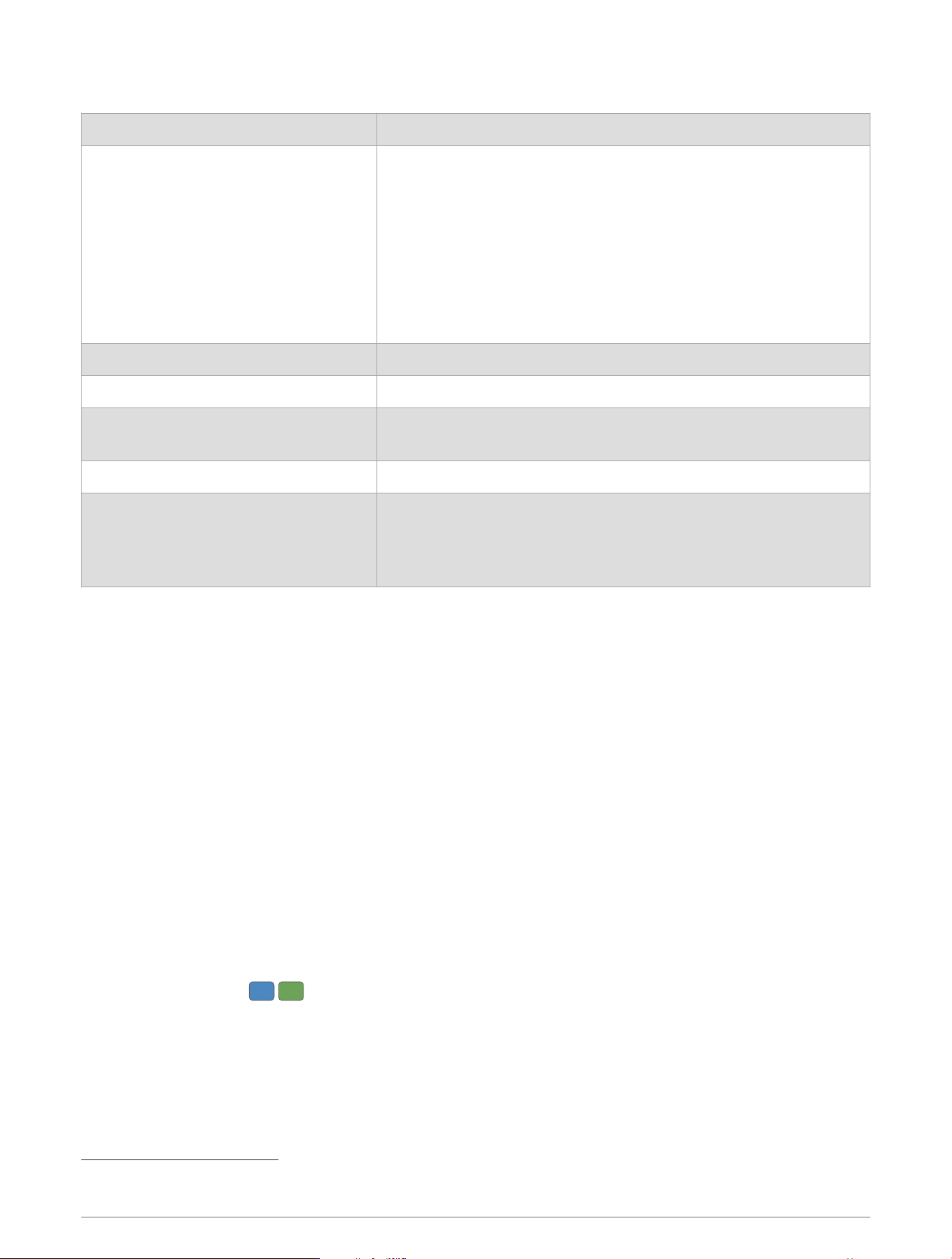
Varia RCT715 Specifications
Battery type Rechargeable, built-in, lithium-ion polymer battery
Battery life
Up to 6 hr. in solid mode, camera off
Up to 8 hr. in peloton mode, camera off
Up to 10 hr. in day flash mode, camera off
Up to 6 hr. in night flash mode, camera off
Up to 4 hr. in solid mode, 1080p recording
Up to 5 hr. in peloton mode, 1080p recording
Up to 6 hr. in day flash mode, 1080p recording
Up to 4 hr. in night flash mode, 1080p recording
Up to 6 mo. in standby mode
Operating temperature range From -15º to 45ºC (from 5º to 113ºF)
Charging temperature range From 0º to 45ºC (from 32º to 113ºF)
Wireless frequencies
2.4 GHz @ 7 dBm maximum
24 GHz @ -11.3 dBm maximum
Water rating IEC 60529 IPX7
1
LED luminous flux
20lm (solid mode)
8 lm (peloton mode)
21 lm (night flash mode)
65 lm (day flash mode)
Troubleshooting
Resetting the Device
You can reset the device if it stops responding.
Hold both buttons for 10 seconds until both LEDs turn off.
Resetting deletes the pairing connections from the device.
Updating the Device Software With the Varia App
Before you can update the device software, you must pair the device with the Varia app on your phone (Pairing
the Varia RCT715 with Your Phone, page6).
1 Bring your phone within range (3m) of the device.
2 Sync your device with the Varia app.
When new software is available, the app alerts you to update the software.
TIP: You can check for software updates in the app by selecting the device icon at the top of the home
screen, and selecting Software Updates.
3 Follow the on-screen instructions.
The device LED flashes to indicate the device is updating. When the update is complete, the tail light
turns on and the LED flashes green 20 times.
1
The device withstands incidental exposure to water of up to 1m for up to 30min. For more information, go to www.garmin.com/waterrating.
Troubleshooting 17
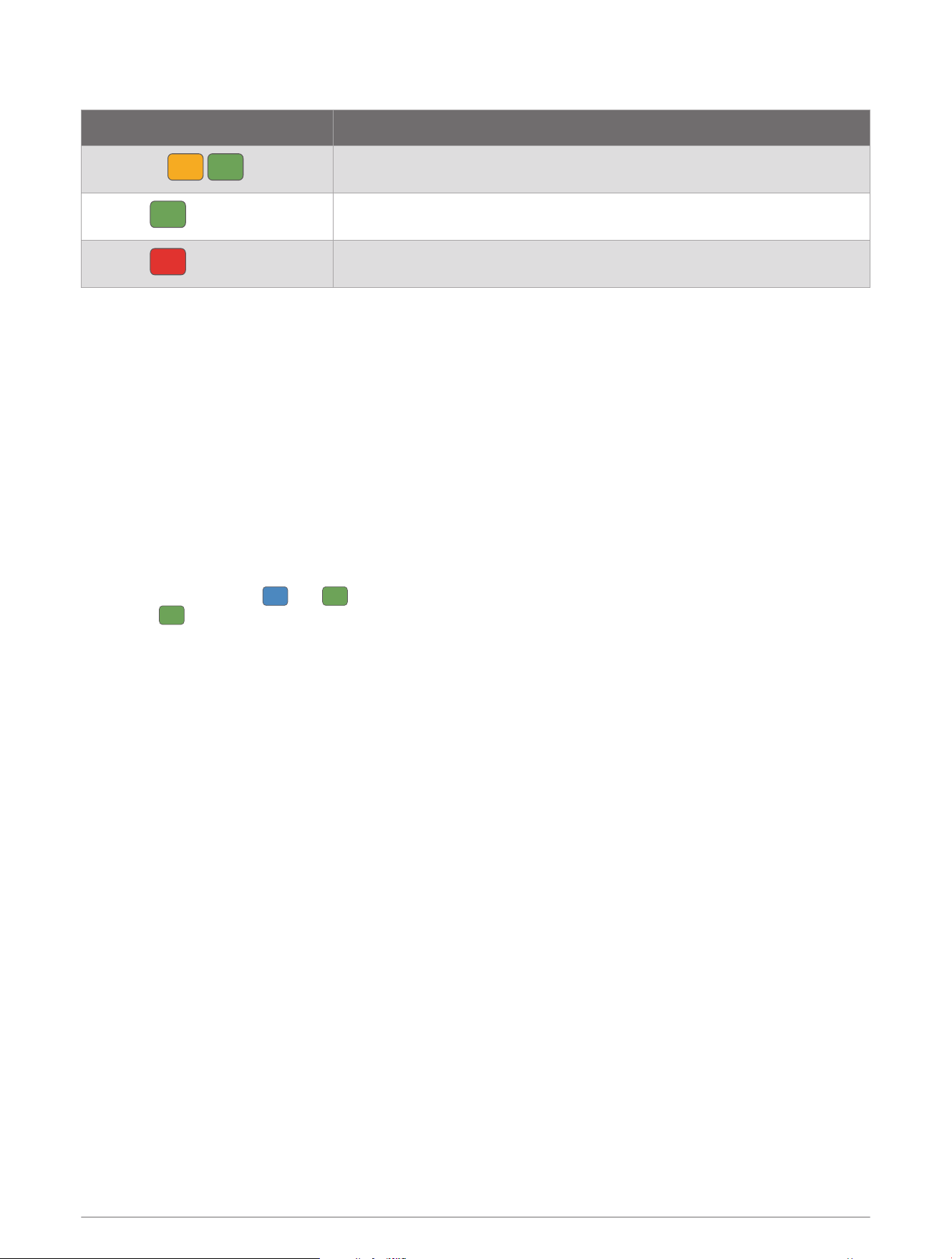
Device Status LED for Software Updates
LEDActivity Status
Alternating
The device is uploading software.
Flashing
The software update is complete and successful.
Flashing
The software update failed.
Product Updates
On your computer, install Garmin Express
™
(www.garmin.com/express).
This provides easy access to these services for Garmin devices:
• Software updates
• Product registration
Updating the Software Using the Garmin Express Application
Before you can update your device software, you must download the Garmin Express application.
1 Connect the radar device to your computer using the USB cable.
The Garmin Express application looks for software updates automatically and sends them to your device.
2 Follow the on-screen instructions.
3 Disconnect the device, and turn it on.
The radar LED flashes and to indicate the device is updating. When the update is complete, the LED
flashes 20 times.
The radar device is not responding
During a ride, if the radar device status LED is solid red, the device is in an error state.
• Make sure the device is within the approved operating temperature range (Varia RCT715 Specifications,
page17).
• Turn the device off, and turn it back on.
You can check the battery level on the Sensors menu of your Edge device or on the Varia app.
• Avoid multiple sources of radar interference.
Radar detection does not work indoors
The Varia RCT715 device is tuned to detect vehicles in an outdoor setting. If you turn on the device indoors, a
saturation alert can occur. When you take the device outdoors, the device resumes normal operation.
The radar device does not turn on
• Make sure the device is within the approved operating or charging temperature range (Varia RCT715
Specifications, page17).
• Charge the device for 4 hours (Charging the Device, page13).
If the device does not turn on, disconnect the charger, and charge for another 4 hours.
18 Troubleshooting
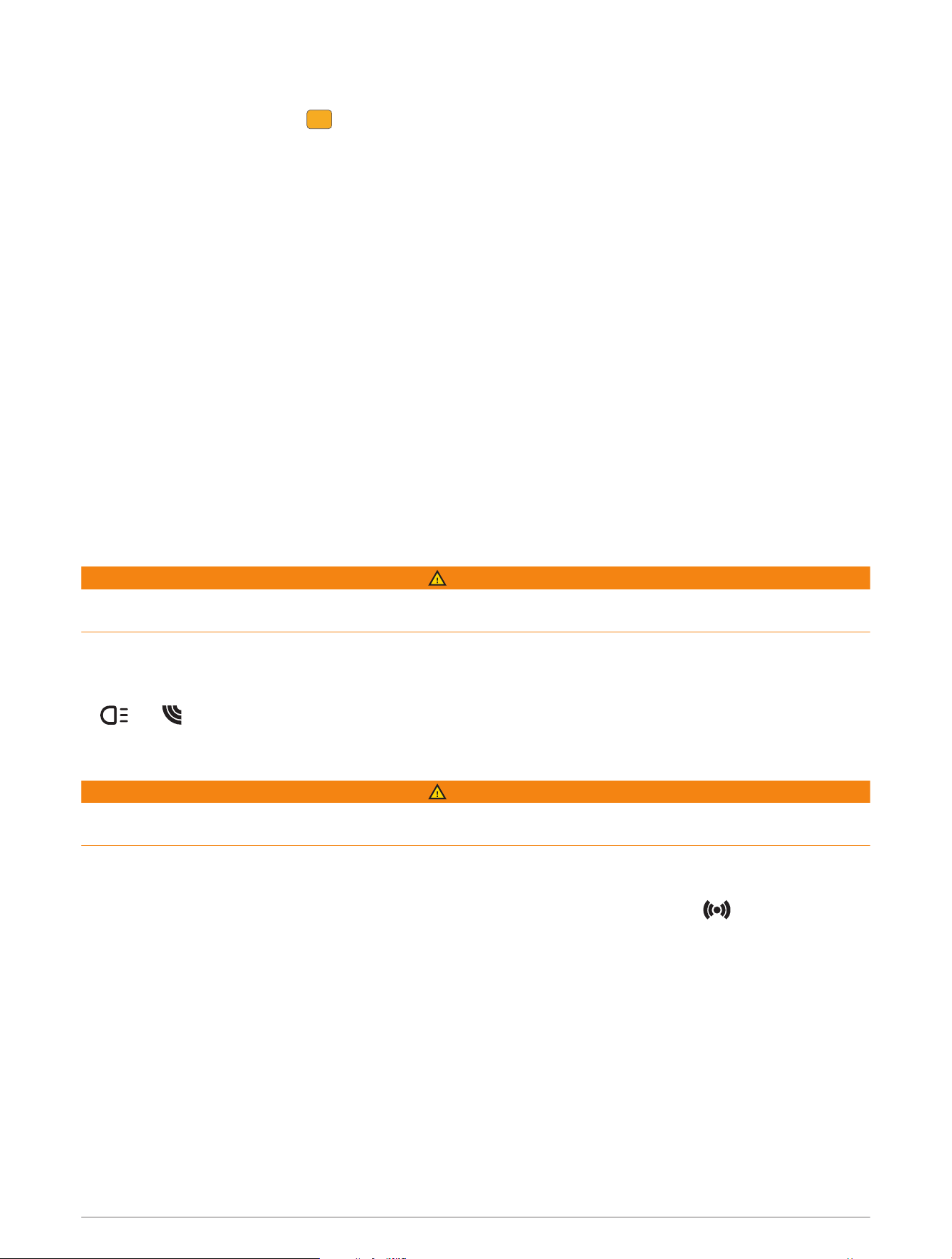
The status LED is flashing yellow
If the device status LED flashes in a fast, continuous pattern while the taillight is on, the device is in demo
mode. When the device is in demo mode, artificial data is generated for demonstration only.
To exit demo mode, select an option:
• Turn the device off, and turn it back on.
• Hold both buttons for 10 seconds to reset the device.
The status LED flashes red while charging
• Check the USB cable, connectors, and ports for damage.
• Make sure the AC adapter or computer USB port is generating power.
You can check this several ways. For example, you can check whether other devices powered by the source
are functioning.
• Charge the device within the approved charging temperature range (Varia RCT715 Specifications, page17).
The status LED turns red while updating the software
• Check the USB cable, connectors, and ports for damage.
• Turn both devices off, and turn them back on.
• Make sure the device is within the approved operating temperature range (Varia RCT715 Specifications,
page17).
The radar device disconnects from the Edge bike computer
WARNING
If the radar device is not connected or sending radar data, Garmin recommends that you stop riding and check
the devices in a safe location. Failure to do so could result in serious injury or death.
• Turn both devices off, and turn them back on.
• Pair the devices (Pairing the Varia RCT715 with a Compatible Edge Bike Computer, page10).
The Varia RCT715 sends light and radar data to the Edge bike computer. The Edge bike computer displays
and when connected.
The radar device disconnects from the Varia app
WARNING
If the radar device is not connected or sending radar data, Garmin recommends that you stop riding and check
the devices in a safe location. Failure to do so could result in serious injury or death.
• Turn off Bluetooth technology from your phone settings, and turn it back on.
• Turn off both devices, and turn them back on.
The Varia RCT715 sends light and radar data to the Varia app. The Varia app displays when connected.
Replacement Parts
Replacement parts are available for this device. Contact your Garmin dealer or go to garmin.com for more
information.
Getting More Information
• Go to support.garmin.com for additional manuals, articles, and software updates.
• Go to buy.garmin.com, or contact your Garmin dealer for information about optional accessories and
replacement parts.
Troubleshooting 19

support.garmin.com
GUID-FF49DAFA-3213-4C92-924F-2532424071B1 v4August 2025