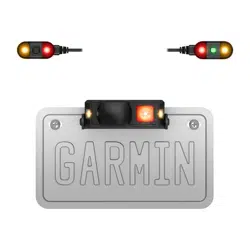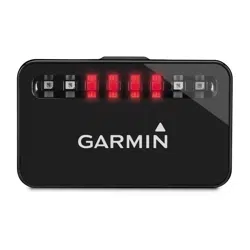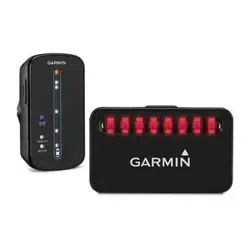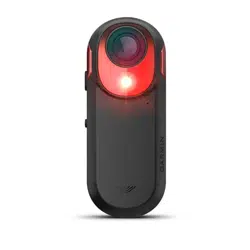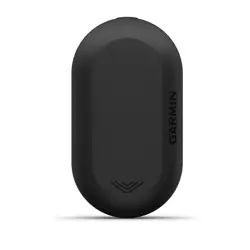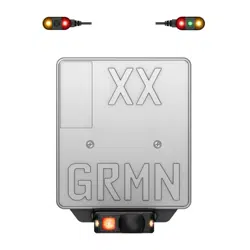
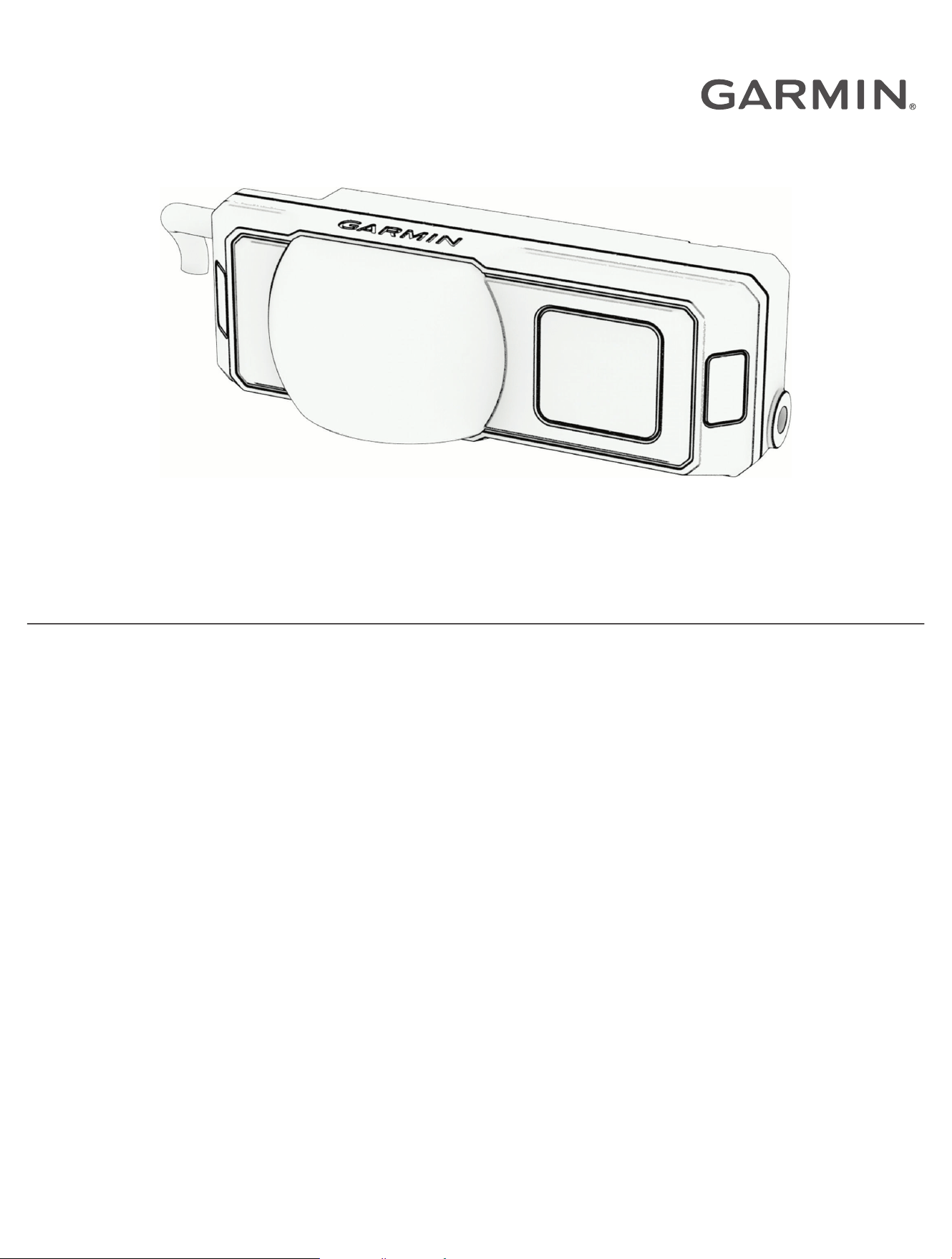
ZŪMO
™
R1 RADAR
Owner’s Manual
© 2025 Garmin Ltd. or its subsidiaries
All rights reserved. Under the copyright laws, this manual may not be copied, in whole or in part, without the written consent of Garmin. Garmin reserves the right to change
or improve its products and to make changes in the content of this manual without obligation to notify any person or organization of such changes or improvements. Go to
www.garmin.com for current updates and supplemental information concerning the use of this product.
Garmin
®
, the Garmin logo, Tread
®
, and zūmo
®
are trademarks of Garmin Ltd. or its subsidiaries, registered in the USA and other countries. zūmo
™
is a trademark of Garmin Ltd. or its
subsidiaries. These trademarks may not be used without the express permission of Garmin.
Table of Contents
Introduction......................................1
Getting Started........................................ 1
Device Overview...................................... 2
Radar Status LED.................................4
Status Icons......................................... 4
Tools Needed.......................................... 5
Installation....................................... 5
Mounting Considerations....................... 5
Installing the Indicators.......................... 6
Mounting the Indicators with
Brackets............................................... 7
Mounting the Indicators with
Adhesive...............................................8
Mounting the Indicators with Cable
Ties....................................................... 9
Installing the Mount.............................. 10
Vehicle Mount Installation for North
America.............................................. 10
Vehicle Mount Installation for
Europe................................................ 11
Installing the Surface Mount............ 12
Installing the Motorcycle Radar in the
Mount..................................................... 13
Checking the Radar Angle.................... 14
Wiring Diagram...................................... 15
In-line Fuse Cable.............................. 16
The zūmo R1 Radar System and the
zūmo Radar App............................. 16
Pairing the zūmo R1 Radar System with
Your Phone............................................ 16
Viewing Radar on the App.................... 17
Display Mode Settings.......................... 17
Enabling or Disabling Alignment
Lines.......................................................17
Pairing Multiple Devices with Your
Phone..................................................... 18
Selecting a Radar Device from Multiple
Paired Devices................................... 18
Enabling Audio Alerts on Your Phone or
Bluetooth Headset................................ 18
Enabling Blind Spot Alerts on Your
Phone..................................................... 18
Enabling the Rear Alert Lights from the
App......................................................... 19
Adjusting Alert Sensitivity.....................19
The zūmo R1 Radar System and Your
Compatible Motorcycle Navigator...19
Pairing the zūmo R1 Radar System with
Your Motorcycle Navigator...................20
Viewing Radar on Your Motorcycle
Navigator............................................... 20
Viewing the Radar Map Tool on Your
Motorcycle Navigator........................... 20
Enabling or Disabling Alignment Lines on
Your Motorcycle Navigator...................21
Enabling Audio Alerts on Your
Motorcycle Navigator or Bluetooth
Headset................................................. 21
Enabling Blind Spot Alerts on Your
Motorcycle Navigator........................... 21
Enabling the Rear Alert Lights from Your
Motorcycle Navigator........................... 21
Rider Awareness Features and
Alerts............................................. 22
Enabling the Rear Alert Lights from the
zūmo R1 Radar System........................ 22
Rear Alert Notifications........................ 23
Device Information......................... 23
Device Care............................................23
Cleaning the Device...........................23
Radar Detection.....................................24
Specifications........................................24
Troubleshooting............................. 24
Restarting the Device............................ 24
Resetting the Device............................. 24
Exiting Demo Mode............................... 24
My device is overheating...................... 25
Table of Contents i
Introduction
WARNING
See the Important Safety and Product Information guide in the product box for product warnings and other
important information.
Garmin
®
strongly recommends having an experienced installer with the proper knowledge of electrical systems
install the device. Incorrectly wiring the power cable can result in damage to the vehicle, the battery, or the
device and can cause bodily injury.
The device can improve situational awareness. It is not a replacement for rider attentiveness, good judgement,
or checking mirrors and blind spots. Always maintain awareness of your surroundings, and operate the
motorcycle in a safe manner. Failure to do so could result in serious injury or death.
The device, including the sensor, must be securely mounted and must remain stable in all operating conditions.
The mounting options outlined here may not be compatible with all vehicles and may require additional
hardware. Failure to securely mount this device could result in poor product performance and could cause
the device to detach from its mount, which could damage the device or the vehicle and could cause serious
personal injury.
If the radar device is not connected or sending radar data, Garmin recommends that you stop riding and check
the devices in a safe location. Failure to do so could result in serious injury or death.
Failure to install this device according to these instructions could result in serious personal injury, damage to
the motorcycle or device, or poor product performance.
The device must be installed in a manner that ensures sufficient cable slack for the entire turning range of the
motorcycle’s handlebars. Failure to do so could result in poor product performance, property damage, or serious
personal injury.
Adverse weather conditions and wet roads may interfere with the operation of the device. Avoid using the
device in these conditions.
Routinely inspect the device and remove any dirt, debris, or other obstructions. Failure to do so could result in
poor product performance or may interfere with the operation of the the device.
CAUTION
To avoid possible personal injury, always wear safety goggles, ear protection, and a dust mask when drilling,
cutting, or sanding.
NOTICE
When drilling or cutting, always check what is on the opposite side of the surface to avoid damaging the vehicle.
These installation instructions do not apply to a specific vehicle type, and are meant as a guide when
installing this product on your vehicle. For questions specific to your vehicle, you should contact the vehicle
manufacturer.
When using the license plate mount, Garmin recommends attaching this device only to OEM license plate
mounts to ensure adequate stability and a clear view.
Getting Started
You can use the zūmo R1 Radar system with your compatible Garmin device or the zūmo
®
Radar app on your
phone. You can also use the zūmo R1 Radar system as a standalone device without a screen (Radar Status LED,
page4). This list provides an overview of the installation and setup tasks.
1 Install the indicators (Installing the Indicators, page6).
2 Install the mount (Installing the Mount, page10).
3 Install the zūmo R1 Radar system in the mount (Installing the Motorcycle Radar in the Mount, page13).
4 Select an option:
• If you are using a compatible motorcycle navigator, pair the devices (Pairing the zūmo R1 Radar System
with Your Motorcycle Navigator, page20).
• If you are using your phone, download the zūmo Radar app to your phone, and pair the devices (Pairing the
zūmo R1 Radar System with Your Phone, page16).
Introduction 1
Device Overview
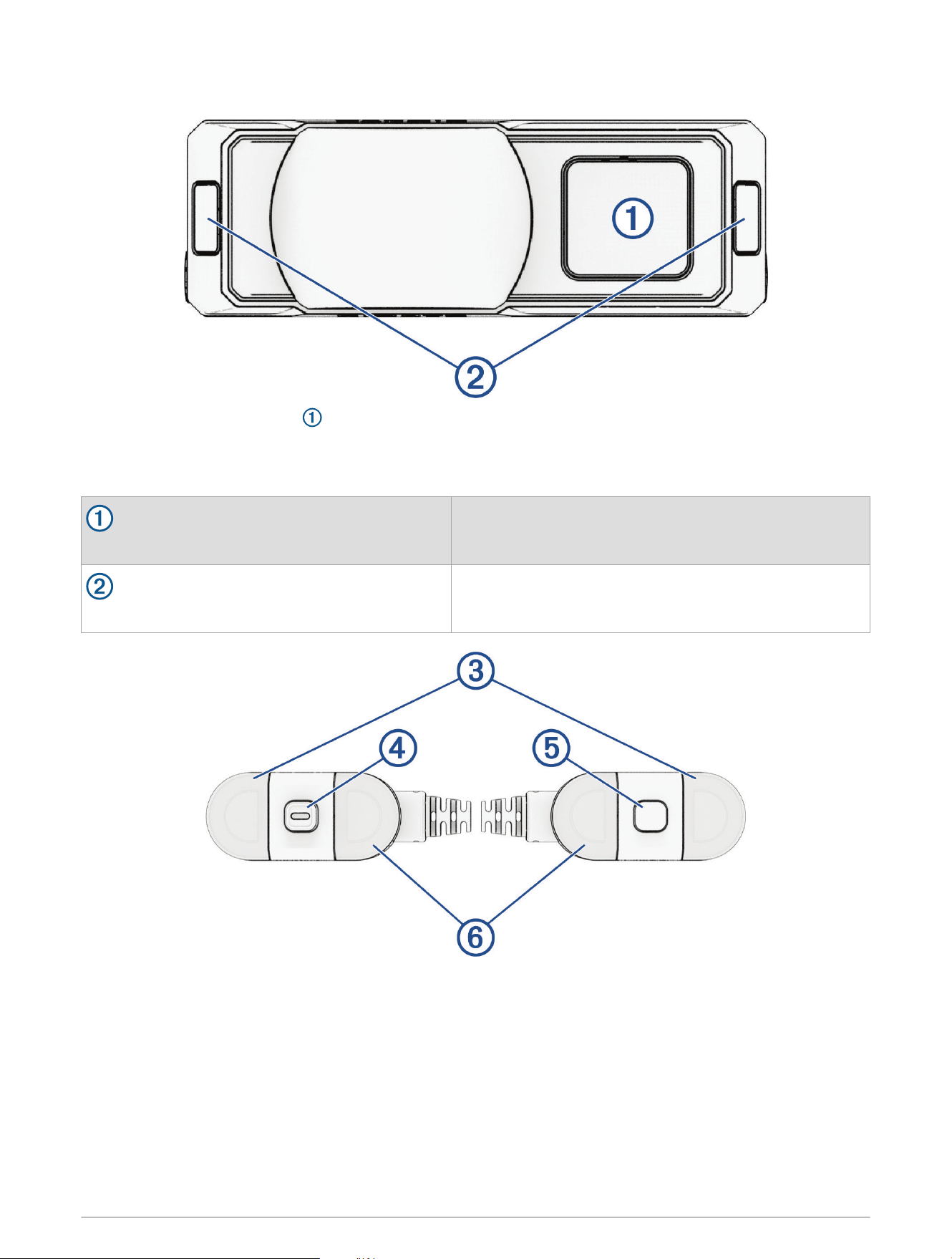
NOTE: The rear-facing red light may be oriented to the left or right, depending on which fit is most suitable
for your motorcycle.
The rear-facing red lights and amber indicator lights are disabled by default (Enabling the Rear Alert Lights from
the zūmo R1 Radar System, page22).
Rear-facing red light
Rear alert light.
Amber indicator lights
Blind spot warning lights.
2 Introduction
Amber LEDs
Blind spot warning lights.
Device button
Powers the device on or off or enters the device into pairing mode.
Status LED
Indicates the radar status.
Red LEDs
Rear alert lights.
Introduction 3
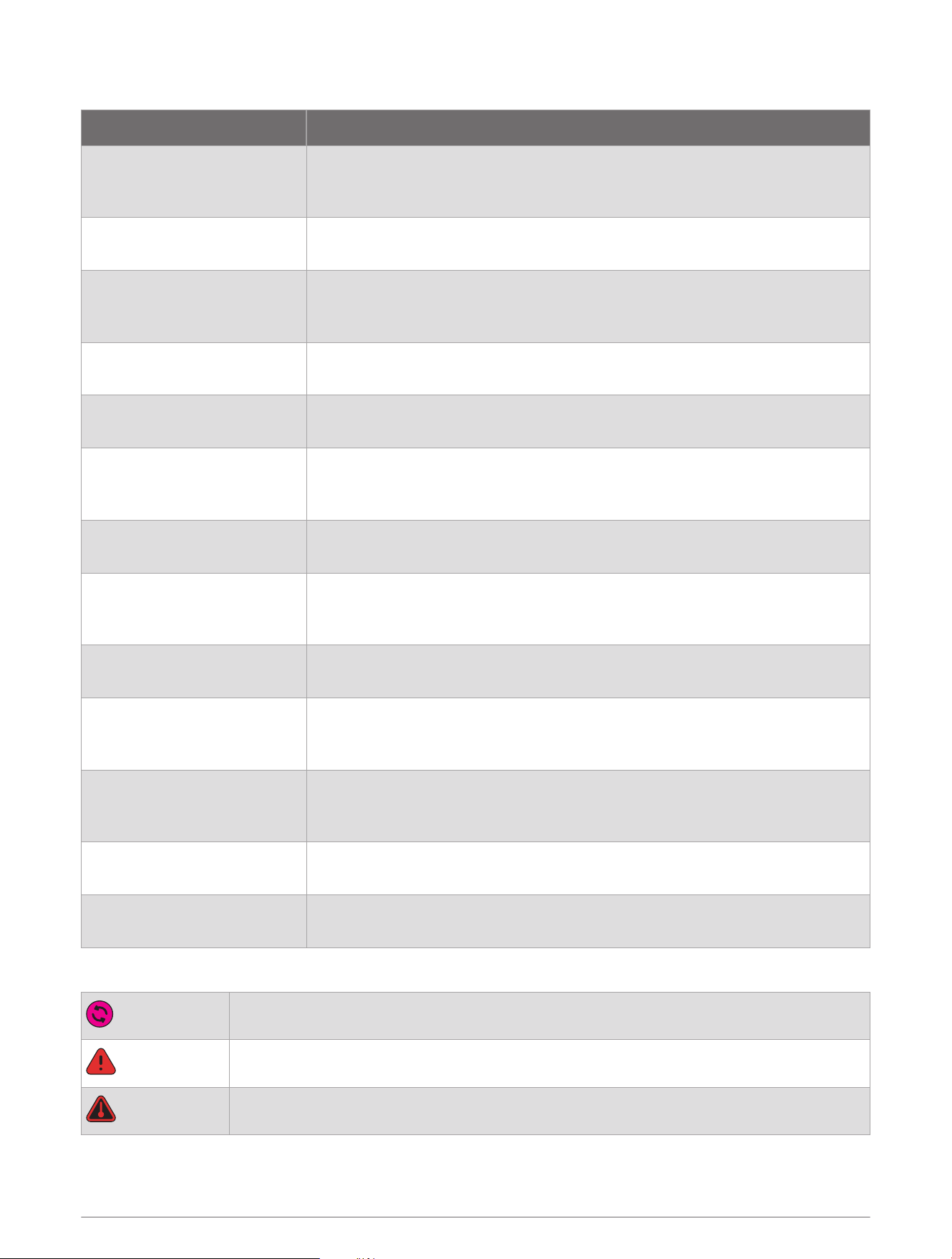
Radar Status LED
LED Activity Status
Flashing blue
Bluetooth
®
The device is in Bluetooth pairing mode. The light will flash for three minutes,
until a Bluetooth device is paired, or until the device button is pressed.
Solid yellow
Demo
The device is in demo mode.
Solid orange
Error
The device is experiencing degraded performance because the rear sensor is
obstructed.
Solid red
Error
The device is not operational because of a system error.
Solid green
Normal operation
The device is operating normally.
Solid blue
Normal operation
The device features are limited because the motorcycle is traveling at a low
rate of speed.
Single green flash (after
button press)
Normal operation
The indicator and rear lights are enabled.
Single yellow flash (after
button press)
Normal operation
The indicator lights are enabled. The rear lights are off, but radar detection is
working.
Three green flashes (after
three button presses)
Normal operation
The indicator and rear lights are enabled.
Three orange flashes (after
three button presses)
Normal operation
The indicator lights are disabled. The rear lights are off, but radar detection is
working.
Solid or flashing magenta
Update
The device is performing a software update and is disabled until the update is
complete.
20 green flashes on startup
Update
The device performed a successful update.
20 red flashes on startup
Update
The device failed to perform a software update.
Status Icons
Software update
Frequency interference
Overheating
4 Introduction
Tools Needed
• 2.5 mm hex wrench (included)
• Adhesive strips (included)
• Cable ties (included)
• Cutters to trim cable ties
• Screws or bolts (to secure the devices)
Installation
Mounting Considerations
WARNING
Failure to mount the device without the appropriate vertical or horizontal clearance could cause degraded
performance or could interfere with motorcycle operations, causing an accident possibly resulting in property
damage, serious personal injury, or death.
Failure to ensure sufficient cable slack could result in poor product performance, property damage, or serious
personal injury.
When selecting a location to mount the device, observe these considerations before permanently mounting it.
• Ensure adequate clearance around the device through full suspension travel of the rear wheel.
• Ensure the device does not block any numbers or letters on the license plate when using the license plate
mount.
• You must mount the device in a location where it is not exposed to extreme temperatures, such as the
exhaust.
• Installing the device higher on the back of the motorcycle provides a better radar view.
• The included surface mount bracket can be fastened to the back of the motorcycle using self-tapping,
panhead screws or adhesive.
• When using the license plate mount, Garmin recommends using metal fasteners to attach the license plate to
your motorcycle.
• Ensure the device faces backward and is level and parallel to the road.
Installation 5
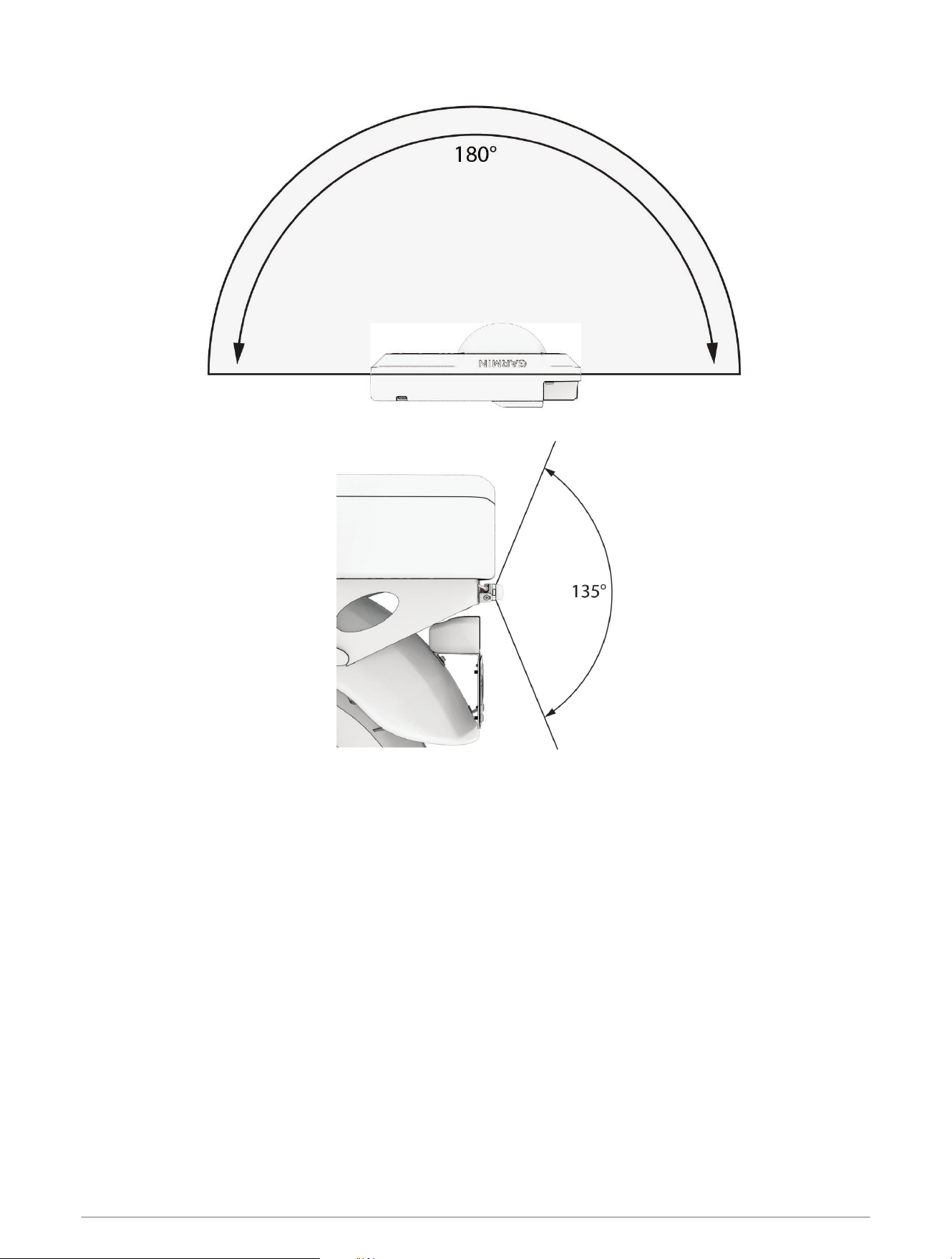
• Ensure the device has 180 degrees of horizontal clearance.
• Ensure the device has 135 degrees of vertical clearance.
• The device must be installed in a manner that ensures sufficient cable slack for the entire turning range of
the motorcycle’s handlebars and during full range of suspension travel.
Installing the Indicators
The device includes parts for multiple indicator installation solutions. Custom mounts may require additional
hardware. The indicators are labeled on the back, with the L indicator to be positioned on the left handlebar and
the R indicator to be positioned on the right handlebar. Ensure the indicators are visible in your peripheral vision
while you are looking straight ahead.
6 Installation
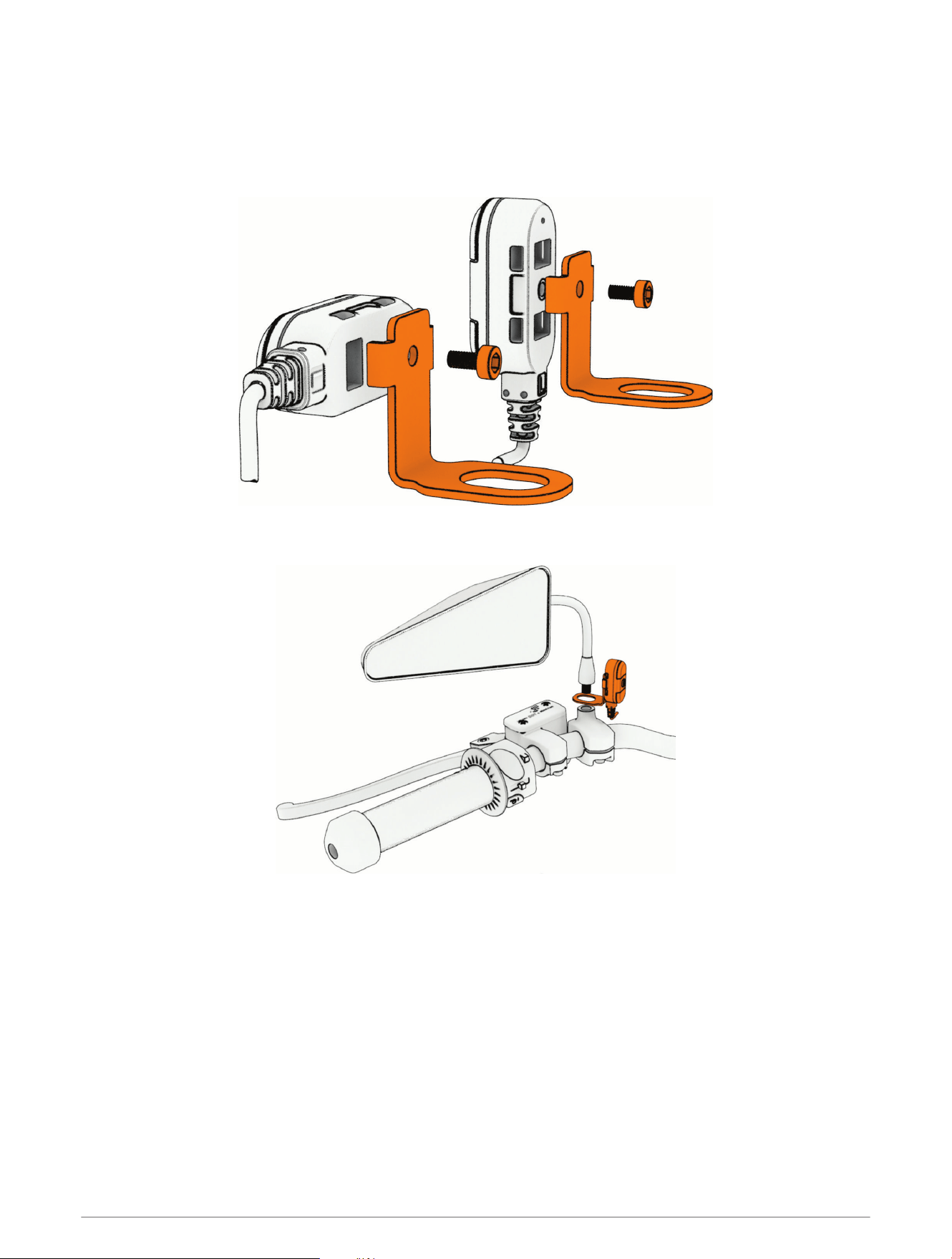
Mounting the Indicators with Brackets
Before you mount the indicators, determine whether the indicator should be placed vertically or horizontally on
your motorcycle and which side each indicator should be placed on. Each indicator is marked with L or R to
align with the left or right side from the rider's position.
1 Attach the bracket to the back of the indicator using the included screw.
2 Remove the mirror.
3 Place the bracket under the mirror stem with the indicator facing the rider.
4 Return the mirror to its original position.
5 Repeat steps 1 through 4 to install the other indicator on the other side.
Installation 7
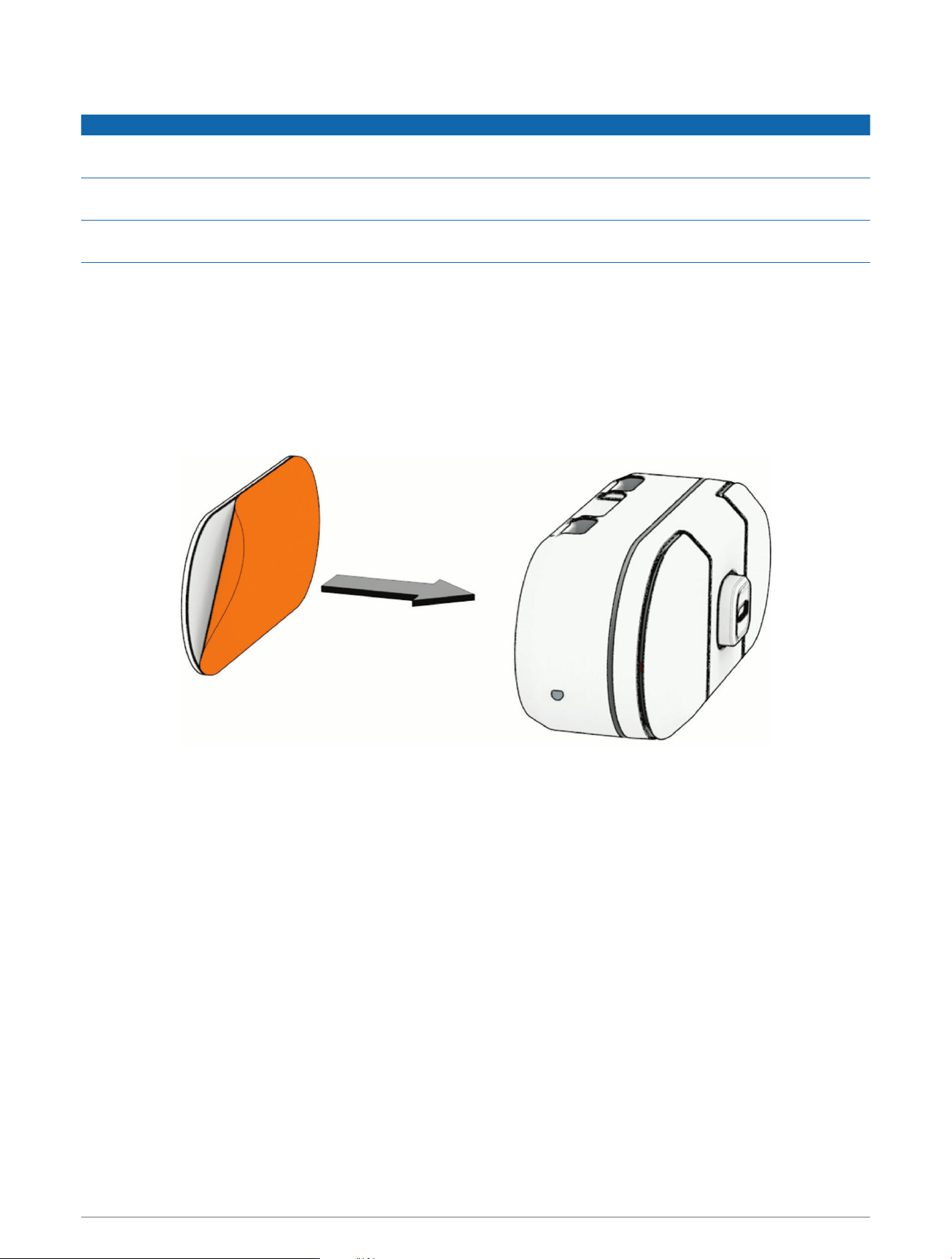
Mounting the Indicators with Adhesive
NOTICE
The adhesive mount is intended for a long-term installation and can be difficult to remove. You should carefully
consider the mounting location before you install the mount.
You should allow the mount to remain in place at room temperature for 24 hours before completing installation
and going for a ride.
For the best results, the ambient temperature should be from 21° to 38°C (from 70° to 100°F) while installing
with adhesive. The adhesive may not bond correctly if the temperature is outside this range.
Before you mount the indicators, determine whether the indicator should be placed vertically or horizontally on
your motorcycle and which side each indicator should be placed on. Each indicator is marked with L or R to
align with the left or right side from the rider's position.
Before you mount the indicators with adhesive, ensure the surface areas are completely flat.
1 Clean the surface area and the back of the indicators using water or isopropyl alcohol and a lint-free cloth.
The surface must be free of dust, wax, oils, or coatings.
2 Remove the protective film from the adhesive.
3 Apply the adhesive to the back of the indicator.
TIP: The adhesive is extremely sticky. Do not touch the adhesive to the surface until the indicator is properly
positioned and aligned.
8 Installation
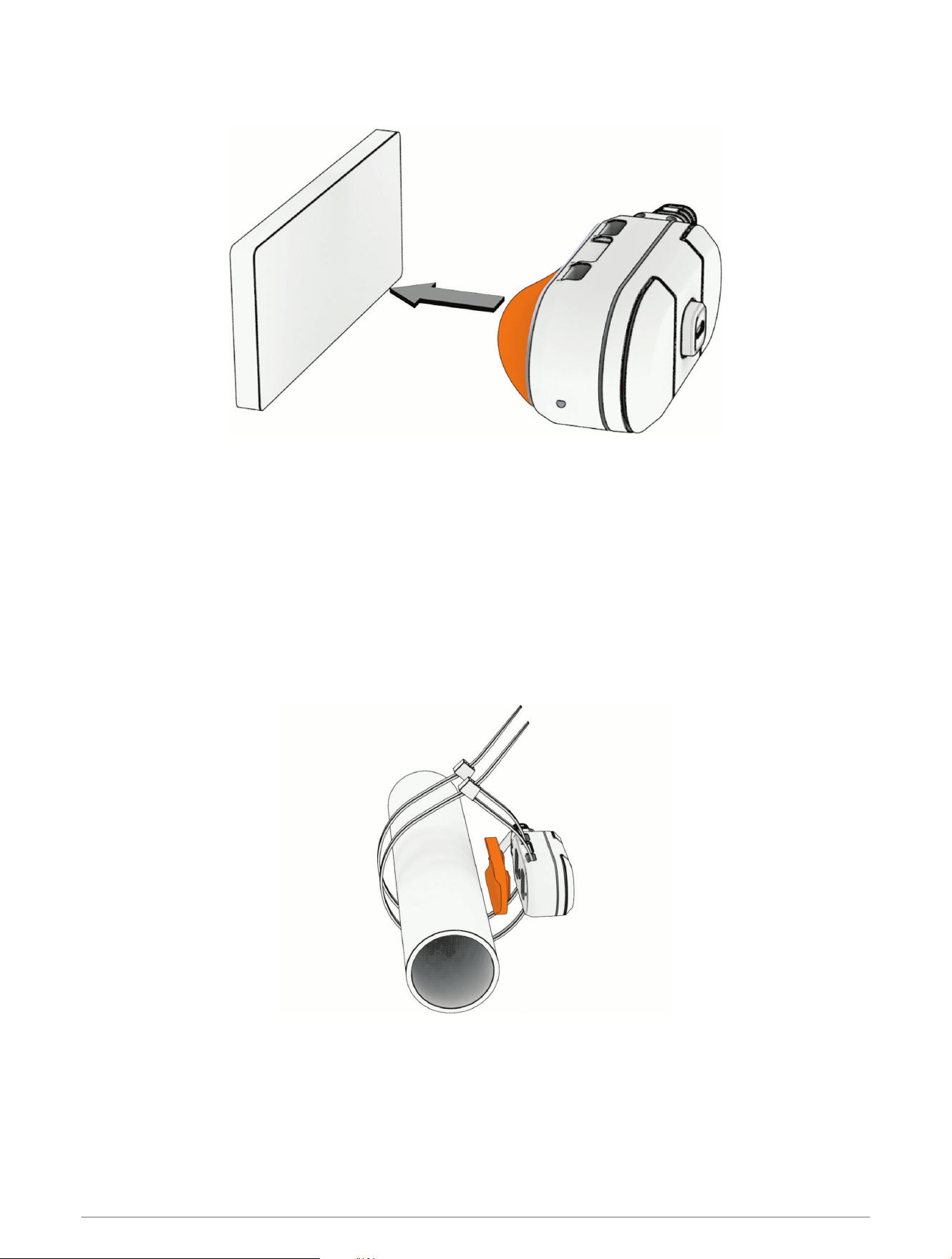
4 Remove the protective film from the other side of the adhesive, and position the indicator over the mounting
location.
TIP: The adhesive is extremely sticky. Do not touch the adhesive to the surface until the indicator is properly
positioned and aligned.
5 Press the indicator firmly onto the surface, and maintain pressure for 30 seconds.
6 Repeat steps 1 through 5 to install the other indicator.
Mounting the Indicators with Cable Ties
Before you mount the indicators, determine whether the indicator should be placed vertically or horizontally on
your motorcycle and which side each indicator should be placed on. Each indicator is marked with L or R to
align with the left or right side from the rider's position.
1 Position the indicator facing toward the rider and in a location where it is visible without needing to look
away from the road.
2 Mount the indicator to the handlebar or mirror stem using zip ties and the included mounting pad.
3 Repeat steps 1 and 2 for the indicator on the other side.
Installation 9
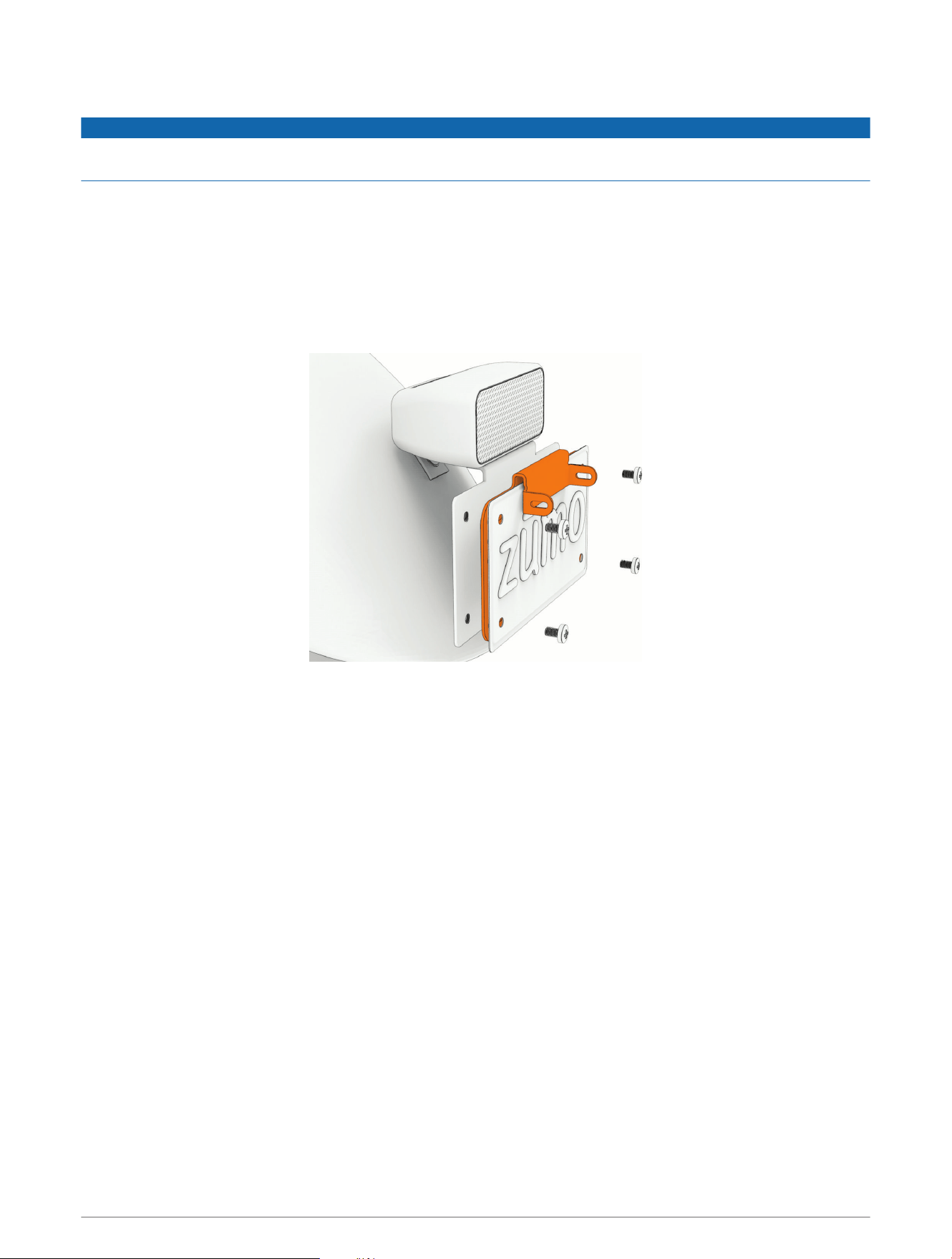
Installing the Mount
NOTICE
It is the user's responsibility to mount and operate the device in compliance with all applicable laws and
ordinances.
The zūmo R1 Radar system includes parts for a license plate or surface mount. Custom mounts may require
additional hardware.
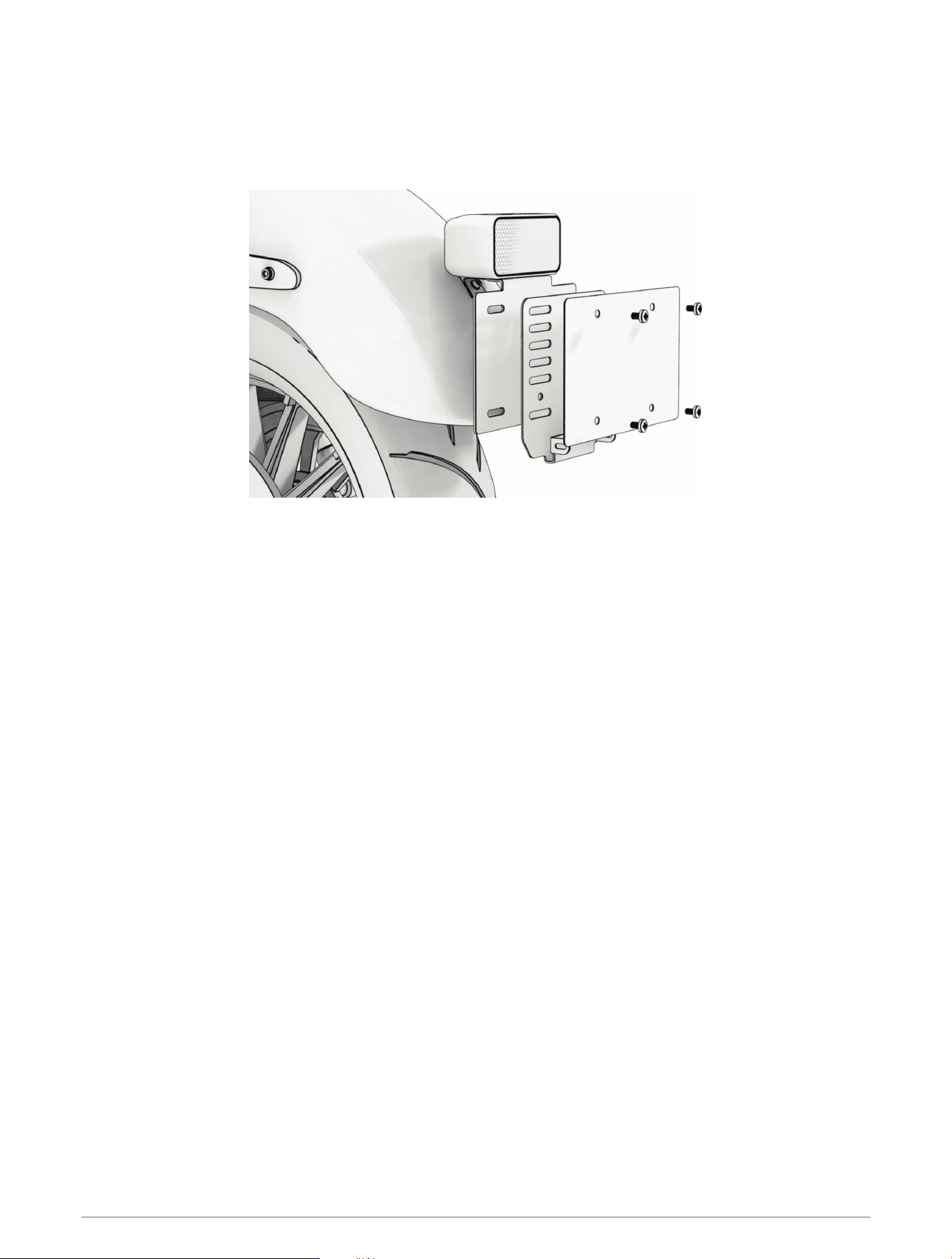
Vehicle Mount Installation for North America
Installing the License Plate Mount
1 Plan a path for the cable so that it does not interfere with the operation and function of your motorcycle.
2 Attach the license plate and mount to your motorcycle using the existing license plate hardware.
NOTE: Some license plates may accommodate only two screws, but you should use four screws when
possible.
3 Ensure the mount is securely attached to the motorcycle near the sensor. If your license plate is mounted
with only two screws, or if the existing license plate screws are not close to the sensor, you should use
adhesive strips (included) or additional fasteners.
4 Secure the cable, and connect it to the battery and zūmo R1 Radar system.
10 Installation
Vehicle Mount Installation for Europe
Installing the License Plate Mount
1 Plan a path for the cable so that it does not interfere with the operation and function of your motorcycle.
2 Attach the license plate and mount assembly to your motorcycle using the existing license plate hardware.
NOTE: Some license plates may accommodate only two screws, but you should use four screws when
possible.
3 Ensure the mount is securely attached to the motorcycle near the sensor. If your license plate is mounted
with only two screws, or if the existing license plate screws are not close to the sensor, you should use
adhesive strips (included) or additional fasteners.
4 Secure the cable, and connect it to the battery and zūmo R1 Radar system.
Installation 11
Installing the License Plate Mount with an Extender Plate
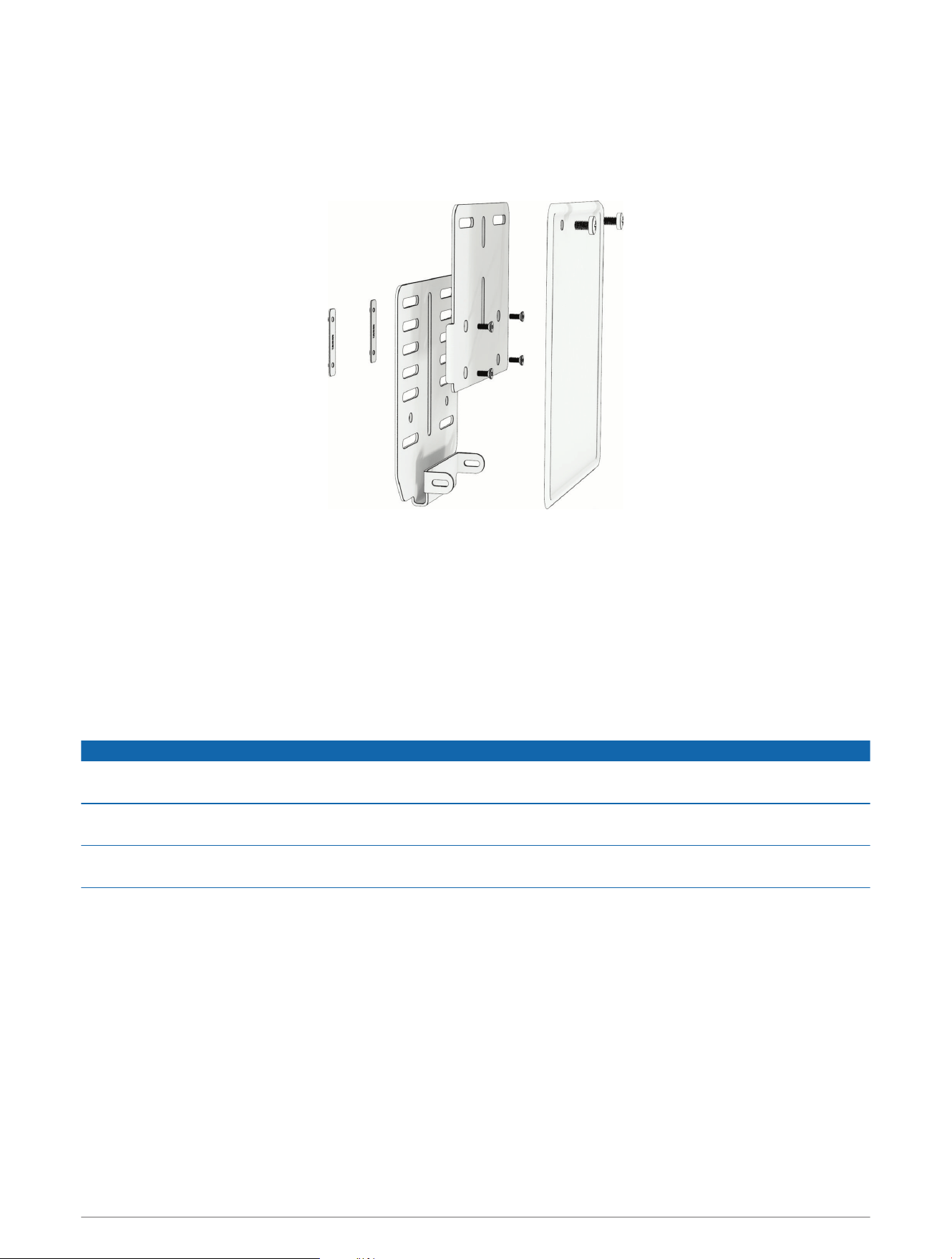
An extender plate is included so that you can adjust the mount to accommodate tall license plates.
1 Plan a path for the cable so that it does not interfere with the operation and function of your motorcycle.
2 Position the extender plate with the license plate mount so that the assembly accommodates your license
plate.
3 Attach the license plate mount to the extender plate using the four included screws.
4 Attach the license plate and mount assembly to your motorcycle using the existing license plate hardware.
NOTE: Some license plates may accommodate only two screws, but you should use four screws when
possible.
5 Ensure the mount is securely attached to the motorcycle near the sensor. If your license plate is mounted
with only two screws, or if the existing license plate screws are not close to the sensor, you should use
adhesive strips (included) or additional fasteners.
6 Secure the cable, and connect it to the battery and zūmo R1 Radar system.
Installing the Surface Mount
NOTICE
The adhesive is intended for a long-term installation and can be difficult to remove. You should carefully
consider the mounting location before you install the mount.
You should allow the mount to remain in place at room temperature for 24 hours before completing installation
and going for a ride.
For the best results, the ambient temperature should be from 21° to 38°C (from 70° to 100°F) while installing
with adhesive. The adhesive may not bond correctly if the temperature is outside this range.
Before you install the mount with adhesive, ensure the surface area is completely flat.
If screws cannot be used for installation, you can install the zūmo R1 Radar system using the included adhesive
strip.
1 Plan a path for the cable so that it does not interfere with the operation and function of your motorcycle.
2 Clean the mount and the area of the vehicle where you want to place the device using water or alcohol and a
lint-free cloth.
The surface must be free of dust, wax, oils, or coatings.
3 Remove the protective film from the adhesive, and press it into place on the mount.
TIP: The adhesive is extremely sticky. Do not touch the adhesive to the surface until the indicator is properly
positioned and aligned.
12 Installation
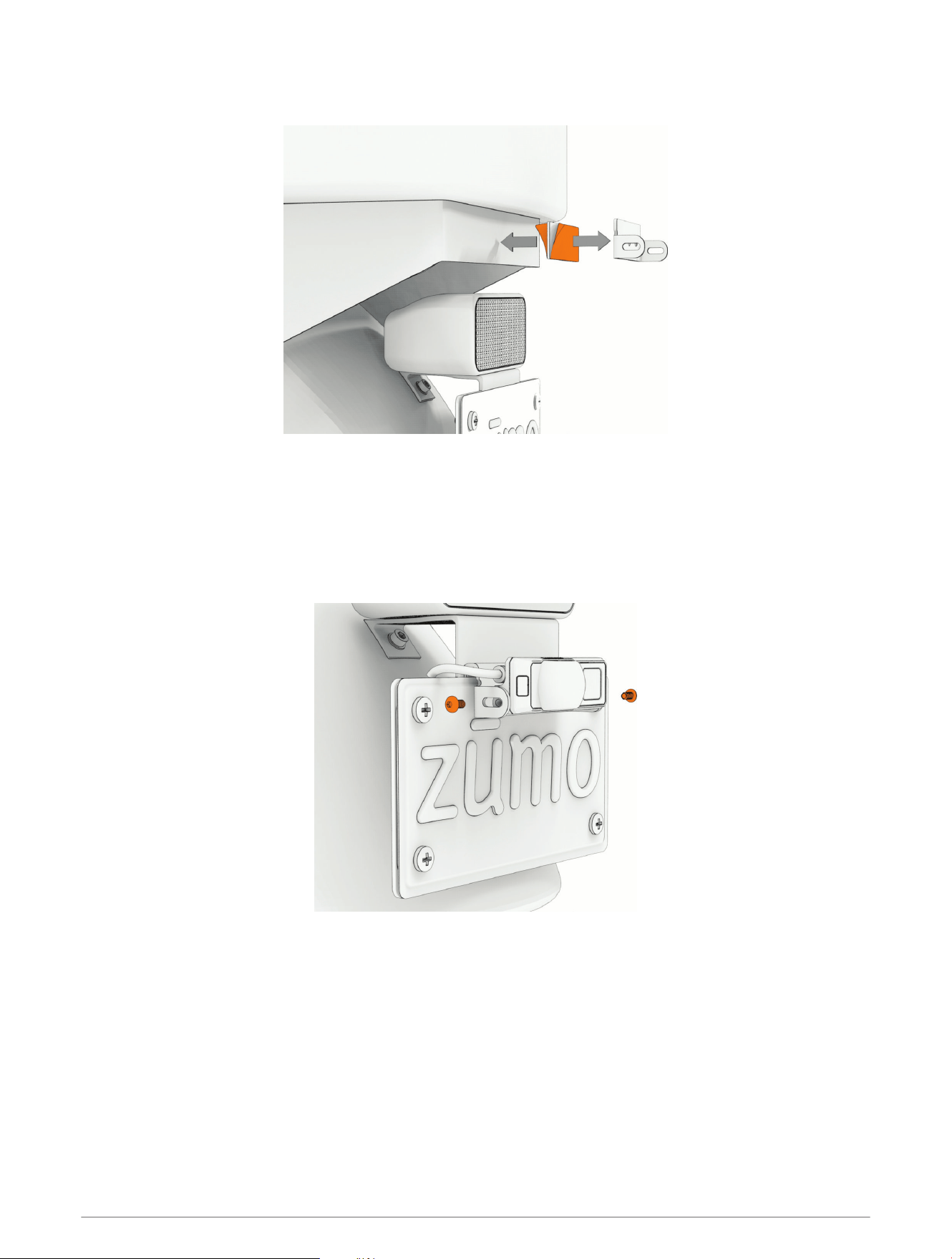
4 Remove the protective film from the other side of the adhesive strip, press the mount into place on the
vehicle, and hold the mount for 30 seconds to ensure proper adhesion.
5 Secure the cable, and connect it to the battery and zūmo R1 Radar system.
Installing the Motorcycle Radar in the Mount
1 Place the zūmo R1 Radar system into the mount, with the lens facing outward.
NOTE: The radar system automatically detects orientation and can be mounted with the red light to the left
or right, depending on which fit is more appropriate for your motorcycle.
2 Secure the device into the mount using the included M4 screws.
Installation 13
Checking the Radar Angle
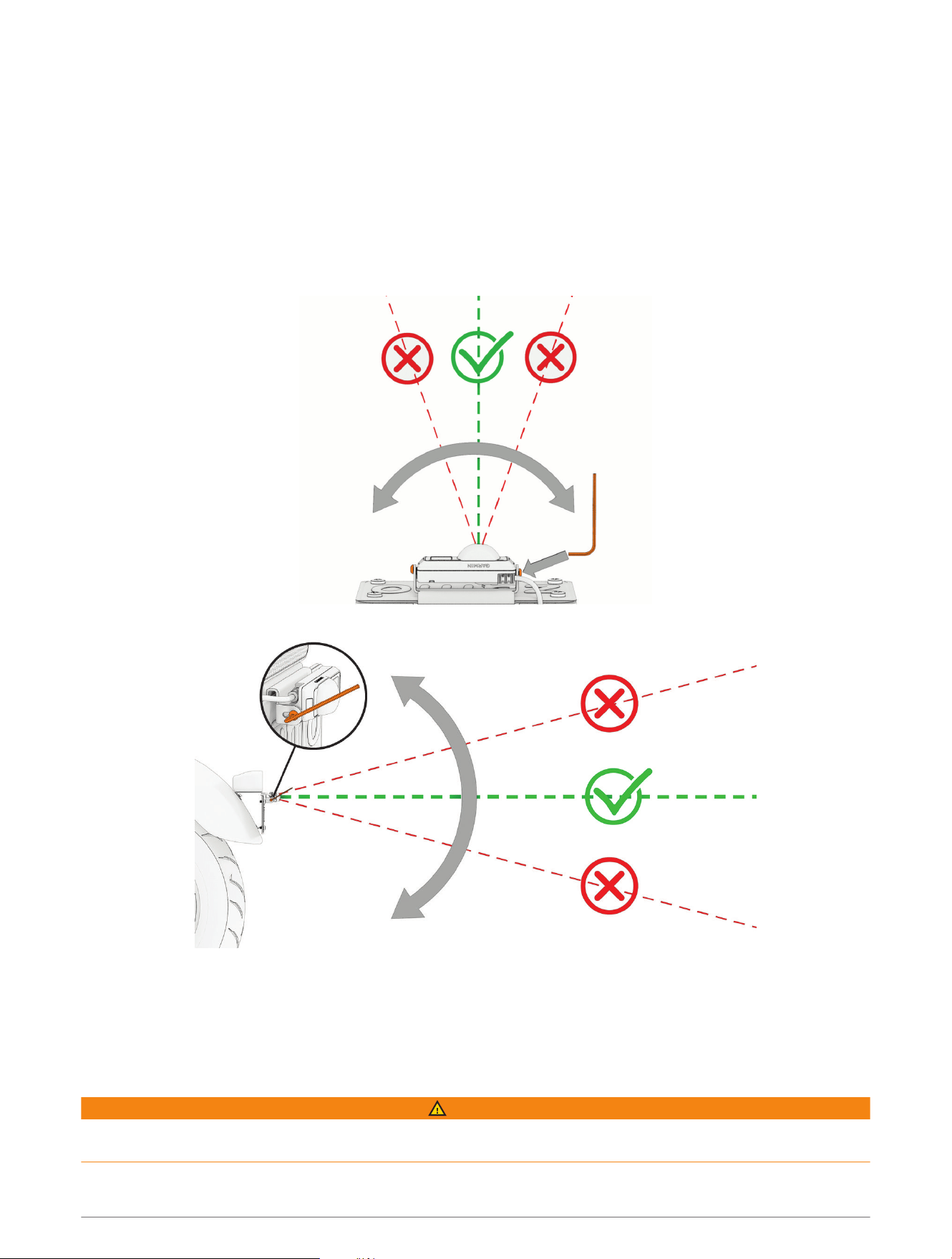
You can adjust the radar angle to provide the best view for your motorcycle.
1 Ensure the system is facing straight backward from the motorcycle.
2 Drive to a level area with a clear view behind your motorcycle.
3 Use a 2.5 mm hex wrench to loosen the two screws that hold the radar to the mount.
4 Tilt the radar left or right.
NOTE: If approaching vehicles appear too far to your left side, adjust the angle so that the radar sensor
points more to the left side. If the vehicles are too far to the right, adjust the radar sensor to point more to the
right side.
5 Tilt the radar up and down so that it is level and parallel to the road.
6 Tighten the screws to lock the radar in the new position.
7 While on a ride, view the radar from the zūmo R1 Radar app or the motorcycle navigator, and verify the radar
angle.
When the radar is angled correctly, vehicles appear accurately on the radar screen (Viewing Radar on the App,
page17), (Viewing Radar on Your Motorcycle Navigator, page20).
8 If necessary, repeat this procedure until the radar angle is correct.
WARNING
After you adjust the radar angle, you must ensure that vehicles appear as expected. Failure to properly verify the
radar angle could result in an accident or collision, resulting in death, serious injury, or property damage.
14 Installation
Wiring Diagram
WARNING
See the Important Safety and Product Information guide in the GPS device product box for product warnings and
other important information.
WARNING
Garmin strongly recommends having an experienced installer with the proper knowledge of electrical systems
install the device. Incorrectly wiring the power cable can result in damage to the vehicle, the battery, or the
device and can cause bodily injury.
The device must be mounted in a suitable and secure location on your motorcycle, based on available power
sources and safe cable routing.
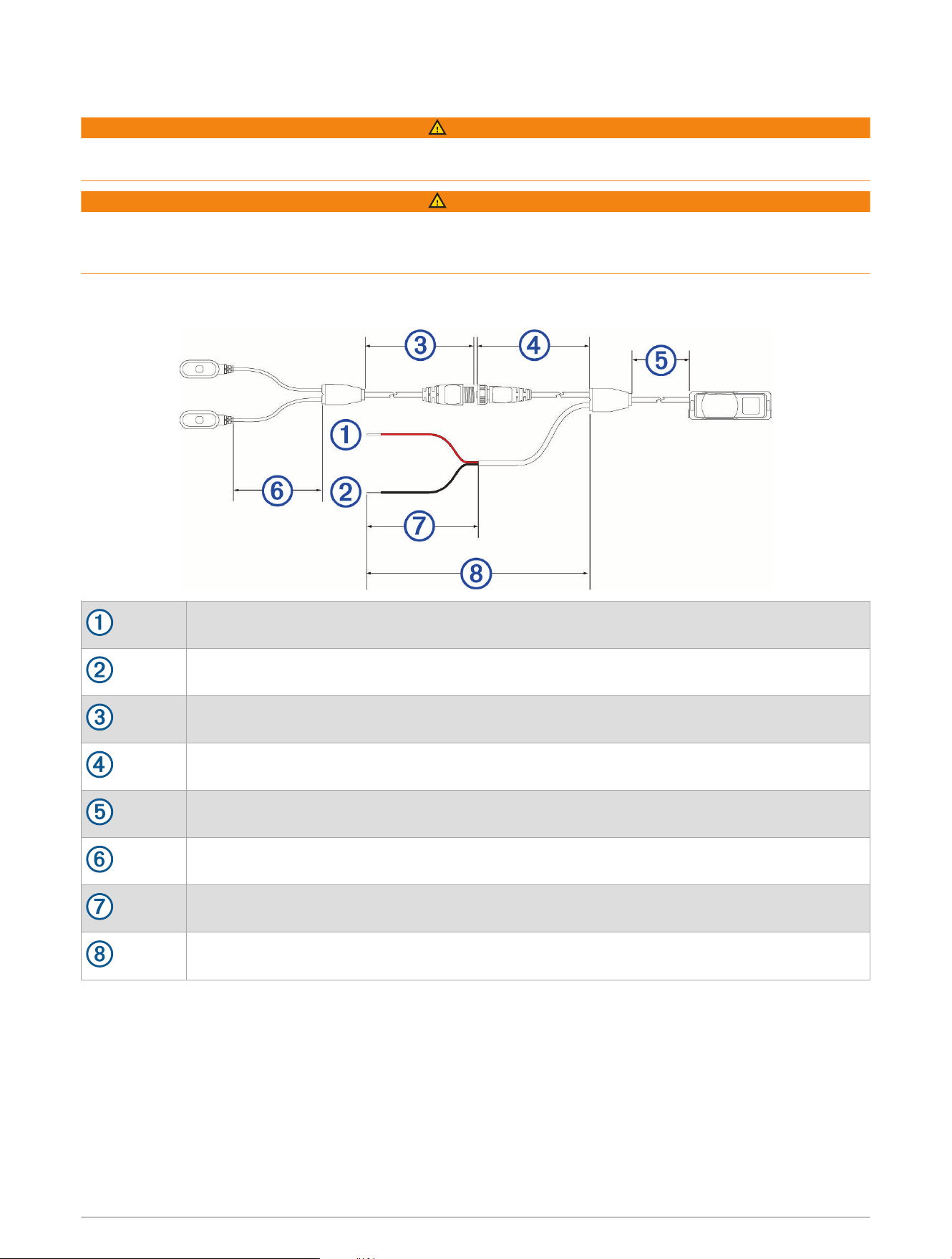
10to30 Vdc system power (red)
System ground (black)
Cable length: 1.4 m (55.1 in.)
Cable length: 0.7 m (27.5 in.)
Cable length: 1 m (39.3 in.)
Cable length: 0.95 m (37.4 in.)
Cable length: 0.15 m (5.9 in.)
Cable length: 1 m (39.3 in.)
NOTE: Cable lengths are not to scale.
All measurements may vary by 3 cm (1.2 in.).
Installation 15
In-line Fuse Cable
WARNING
Garmin strongly recommends having an experienced installer with the proper knowledge of electrical systems
install the in-line fuse cable. Incorrectly wiring the power cable or the in-line fuse cable can result in damage to
the vehicle or the battery and can cause bodily injury.
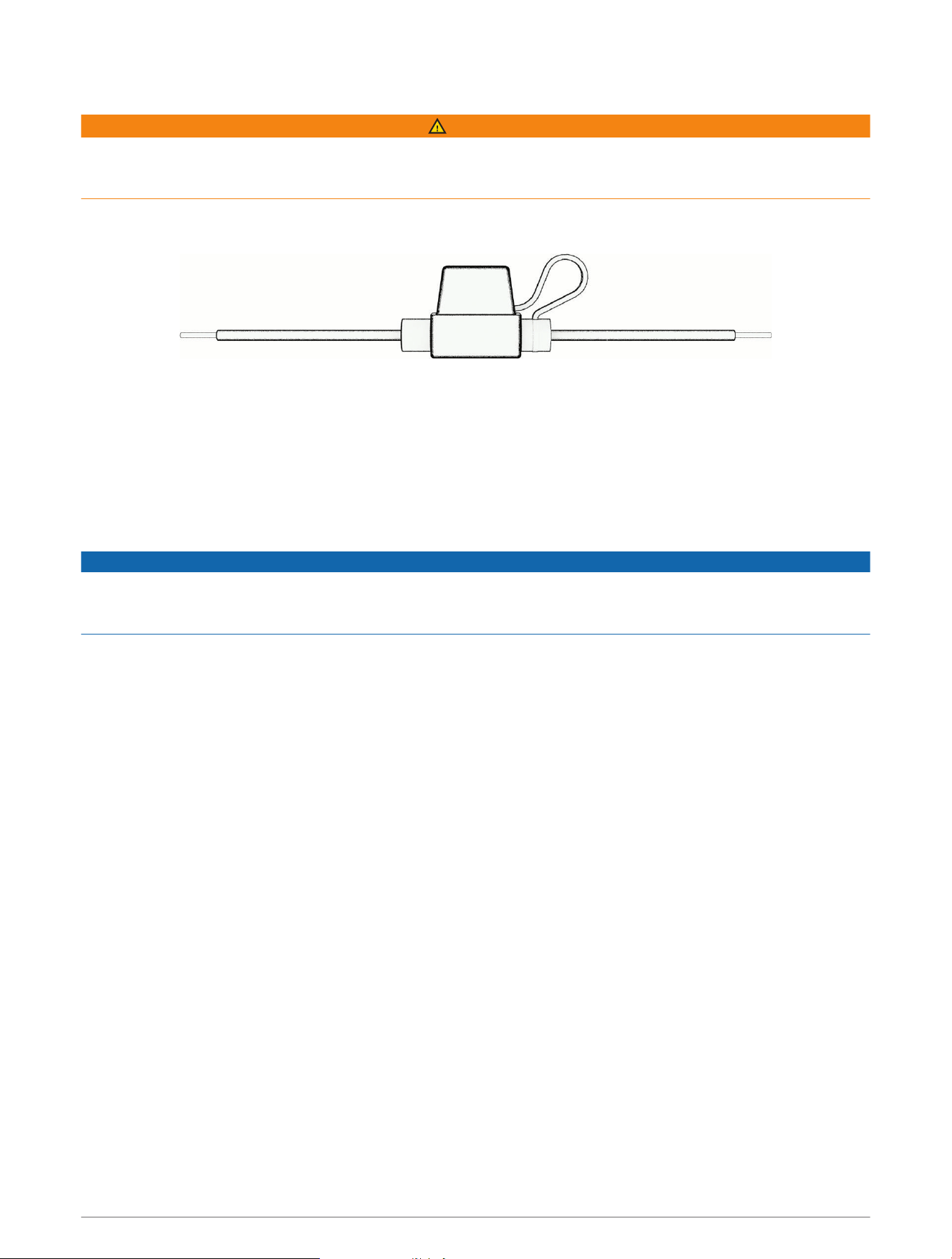
In many cases, you must install the included in-line fuse cable on the device power cable to protect the device
from excessive electrical current.
• You must install the included in-line fuse cable if you are connecting the power cable directly to the vehicle
battery.
• If you are connecting the power cable to an accessory power source or bus bar that already has a suitable
fuse or a protective circuit, installing the included in-line fuse is not necessary.
• When installing the fuse cable, you should connect it to the red system power wire using the included splice
connector.
The zūmo R1 Radar System and the zūmo Radar App
NOTICE
Use of the rear alert lights may violate certain laws and regulations related to motorcycle operation. It is the
user's responsibility to comply with any such applicable laws or regulations. Garmin is not responsible for any
fines, penalties, citations, or damages that may be incurred due to any such lack of compliance.
The zūmo Radar app connects to your zūmo R1 Radar system using Bluetooth technology. The app displays
radar information and settings.
• After pairing, the app displays colored vehicles indicating the threat level posed by approaching vehicles.
• You can enable rear alert lights and audio alerts.
• Firmware updates are sent to the zūmo R1 Radar system from the zūmo Radar app.
garmin.com/zumoradarapp
Pairing the zūmo R1 Radar System with Your Phone
The first time you connect the zūmo R1 Radar system to the zūmo Radar app on your phone, you must pair both
devices. After the initial pairing, the zūmo Radar app automatically connects to the zūmo R1 Radar system when
you open the app and the device is active and within range.
1 Bring your phone within 3m (10 ft.) of the rear radar sensor on your zūmo R1 Radar system.
NOTE: Stay 10m (33 ft.) away from other Bluetooth sensors while pairing.
2 On your compatible phone, enable Bluetooth technology.
3 From the app store on your phone, install and open the zūmo Radar app.
4 Follow the on-screen instructions.
5 While the zūmo R1 Radar system is powered on, hold the device button for 5 seconds until the status LED
flashes blue to enter pairing mode.
NOTE: If you hold the device button for 8 seconds or longer, the radar enters demo mode (Exiting Demo
Mode, page24).
The device is in pairing mode for 3 minutes or until you press the device button to exit pairing mode.
6 Follow the on-screen instructions.
When the zūmo R1 Radar system is paired with your phone, the app displays the current radar status.
16 The zūmo R1 Radar System and the zūmo Radar App
Viewing Radar on the App
Go for a ride.
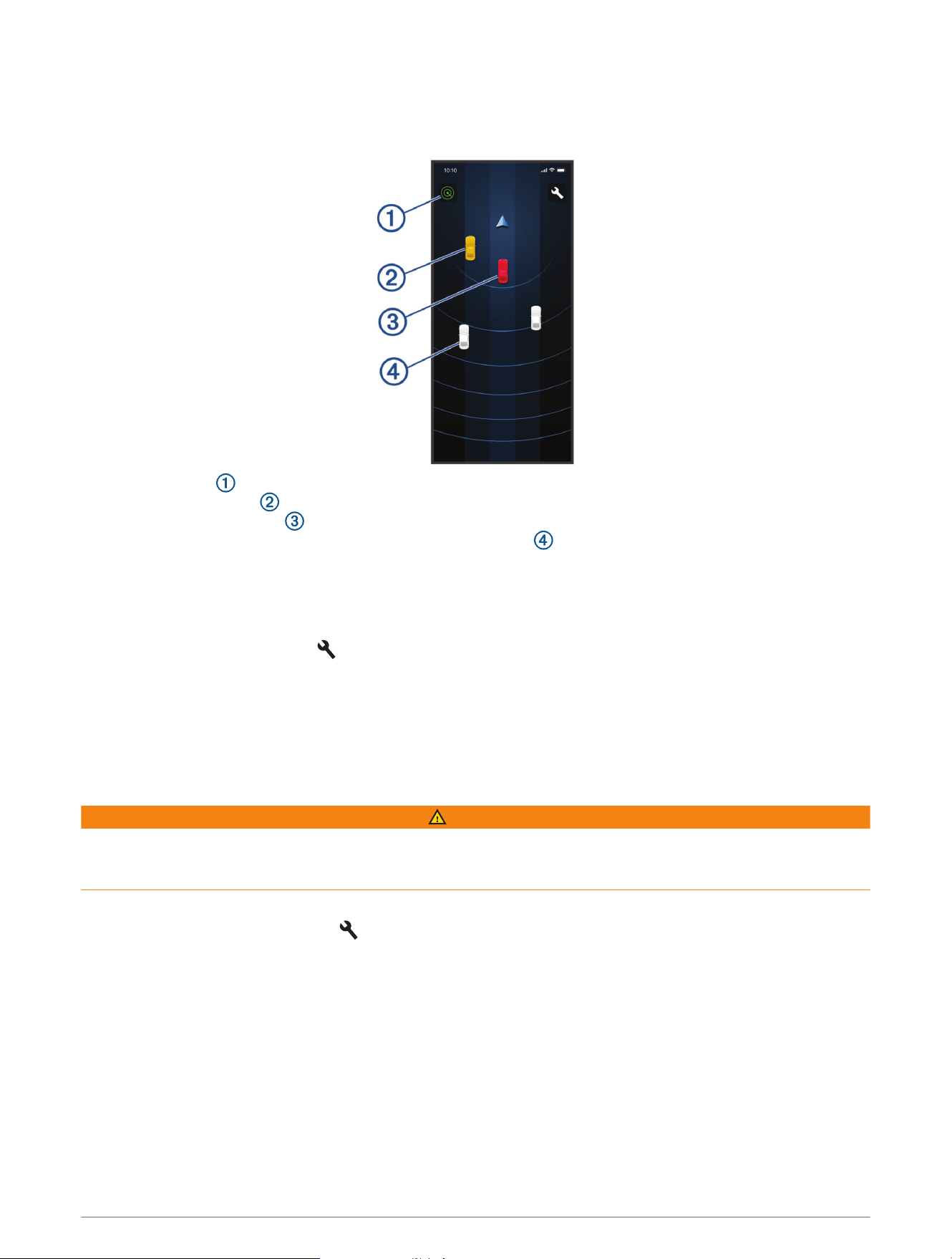
The radar information appears on the active data screen.
The status icon indicates the radar sensor status. The vehicle positions change color based on threat
level. A yellow vehicle indicates a vehicle is approaching in your blind spot to the left or right of your
motorcycle. A red vehicle indicates a vehicle is approaching rapidly or presents a danger. The rear alert
light flashes red three times when this occurs. A gray vehicle indicates a vehicle is approaching from a
distance.
Display Mode Settings
You can change the background of the radar screen in the zūmo Radar app.
From the zūmo Radar app, select .
Automatic: Uses the light sensor on the radar device to set the background to light during the day and dark
during the night.
Light: Sets a light background.
Dark: Sets a dark background.
Enabling or Disabling Alignment Lines
WARNING
The alignment lines feature is intended for informational and reference purposes only. You are responsible for
maintaining awareness of your surroundings. Failure to do so could result in an accident or collision, resulting in
death, serious injury, or property damage.
Alignment lines provide an approximate visual representation of the vehicle's path of travel.
From the zūmo Radar app, select > Alignment Lines.
The zūmo R1 Radar System and the zūmo Radar App 17
Pairing Multiple Devices with Your Phone
You can pair multiple zūmo R1 Radar systems with the zūmo Radar app.
1 Bring your phone within 3m (10 ft.) of the zūmo R1 Radar system.
NOTE: Stay 10m (33 ft.) away from other Bluetooth sensors while pairing.
2 On your compatible phone, enable Bluetooth technology.
3 From the app store on your phone, install and open the zūmo Radar app.
4 Select > Add Another Device.
5 Follow the on-screen instructions.
6 While the zūmo R1 Radar system is powered on, hold the device button for 5 seconds until the status LED
flashes blue to enter pairing mode.
NOTE: If you hold the device button for 8 seconds or longer, the radar enters demo mode (Exiting Demo
Mode, page24).
The device is in pairing mode for 3 minutes or until you press the device button to exit pairing mode.
Connected devices are displayed at the top of the screen when you open the zūmo Radar app (Selecting a Radar
Device from Multiple Paired Devices, page18).
Selecting a Radar Device from Multiple Paired Devices
Before you can select from a list of radar devices, you must have more than one device paired (Pairing Multiple
Devices with Your Phone, page18).
1 From the zūmo Radar app, select the zūmo R1 Radar system listed at the top of the screen.
2 Select a different zūmo R1 Radar system.
The selected zūmo R1 Radar system remains the default device until you select a different one.
Enabling Audio Alerts on Your Phone or Bluetooth Headset
When the system detects a vehicle approaching from behind or in your blind spot, you can receive audio alerts
through your paired phone or Bluetooth headset.
1 From the zūmo Radar app, select .
2 Select an option:
• To receive an alert when the system detects a vehicle approaching from behind, under Rear Alert Settings,
select Audio Alerts.
• To receive an alert when the system detects a vehicle in your blind spot, under Blind Spot Settings, select
Audio Alerts.
Enabling Blind Spot Alerts on Your Phone
When the zūmo R1 Radar system detects a vehicle in your blind spot, you can receive alerts through your paired
phone.
From the zūmo Radar app, select > Blind Spot Alerts.
18 The zūmo R1 Radar System and the zūmo Radar App
Enabling the Rear Alert Lights from the App
NOTICE
Use of the rear alert lights may violate certain laws and regulations related to motorcycle operation. It is the
user's responsibility to comply with any such applicable laws or regulations. Garmin is not responsible for any
fines, penalties, citations, or damages that may be incurred due to any such lack of compliance.
Rear alert lights are disabled by default. You can enable rear alert lights to light up when vehicles are
approaching your motorcycle from behind or in your blind spot.
1 From the zūmo Radar app, select .
2 Select your zūmo Radar system.
3 Select an option:
• To make the lights turn on when the system detects a vehicle approaching from behind, under Rear Alert
Settings, select Rear Lights.
• To make the lights turn on when the system detects a vehicle in your blind spot, under Blind Spot Settings,
select Rear Lights.
Adjusting Alert Sensitivity
You can adjust the radar sensitivity to control how many alerts you receive.
1 From the zūmo Radar app, select > Rear Alerts.
2 Select an option:
• Select More to receive all alerts.
• Select Standard to receive the default amount of alerts.
• Select Less to receive fewer alerts.
• Select Off to turn off all alerts.
The zūmo R1 Radar System and Your Compatible Motorcycle
Navigator
You can remotely control your zūmo R1 Radar system and customize settings using your compatible
motorcycle navigator. This section contains instructions for the zūmo XT2 motorcycle navigator and Tread
®
2 powersport navigator. Go to buy.garmin.com for more information about compatible devices.
The zūmo R1 Radar System and Your Compatible Motorcycle Navigator 19
Pairing the zūmo R1 Radar System with Your Motorcycle Navigator
Before you can pair your devices, you must ensure both the zūmo R1 Radar and motorcycle navigator are
installed on the motorcycle and connected to power.
The first time you connect the zūmo R1 Radar system to your motorcycle navigator, you must pair both devices
using Bluetooth technology. After the initial pairing, the motorcycle navigator automatically connects to the
zūmo R1 Radar system when it is active and within range.
1 Bring the motorcycle navigator within 3m (10 ft.) of the zūmo R1 Radar system.
NOTE: Stay 10m (33 ft.) away from other sensors that use Bluetooth technology while pairing.
2 From the motorcycle navigator, select > zūmo R1 Radar > Connect Now, and follow the on-screen
instructions.
3 While the zūmo R1 Radar system is powered on, hold the device button for 5 seconds to enter pairing mode.
NOTE: If you hold the device button for 8 seconds or longer, the radar enters demo mode (Exiting Demo
Mode, page24).
The status LED flashes blue. The device is in pairing mode for 3 minutes or until you press the device button
to exit pairing mode.
4 When prompted, select Yes to select the zūmo R1 Radar system.
5 Follow the on-screen instructions.
When the zūmo R1 Radar system is paired with your motorcycle navigator, the status icon turns blue.
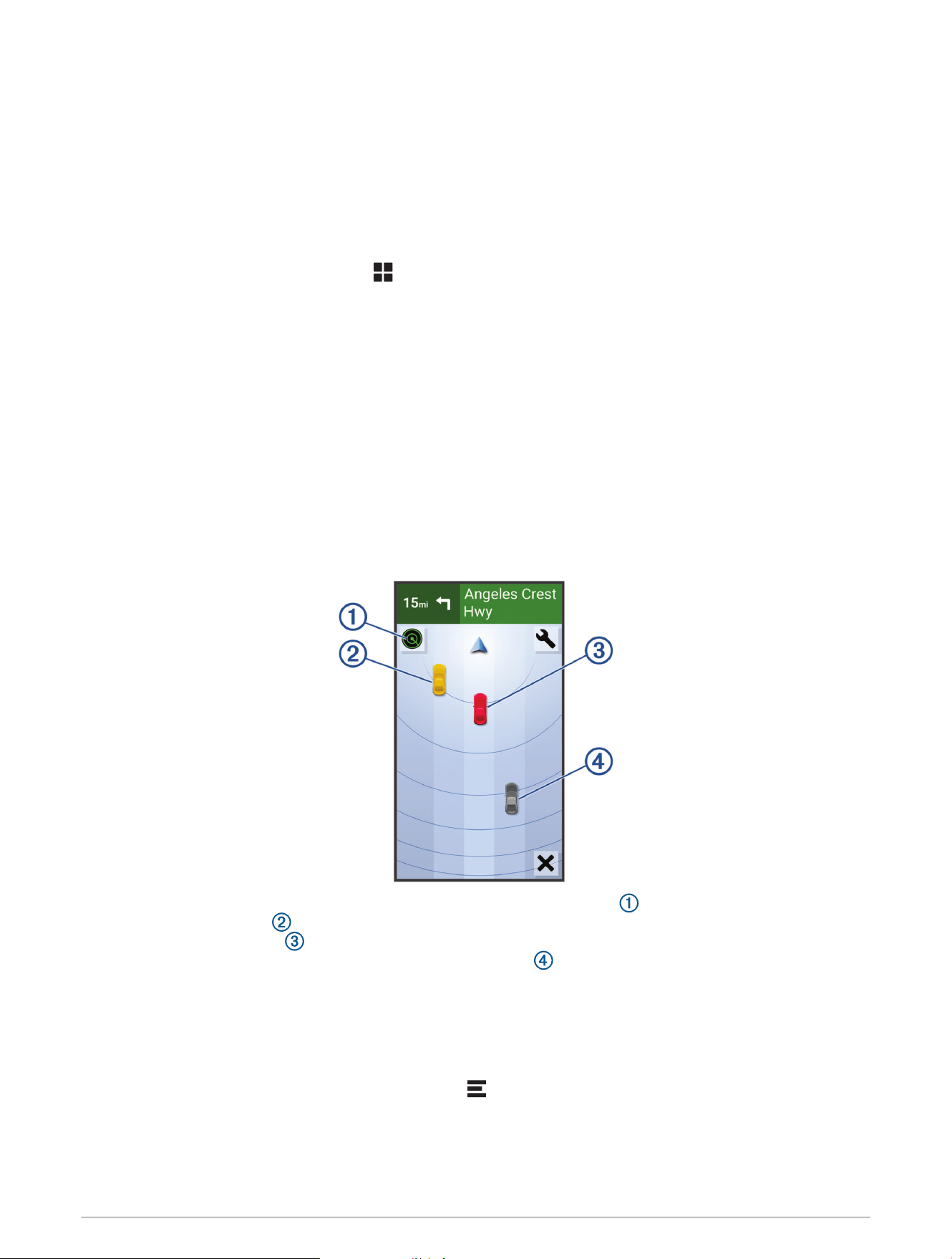
Viewing Radar on Your Motorcycle Navigator
Go for a ride.
The radar information appears on the active data screen.
The vehicle positions change color based on threat level. The status icon indicates the radar sensor
status. A yellow vehicle indicates a vehicle is approaching in your blind spot to the left or right of your
motorcycle. A red vehicle indicates a vehicle is approaching rapidly or presents a danger. The rear alert
light flashes red three times when this occurs. A gray vehicle indicates a vehicle is approaching from a
distance.
Viewing the Radar Map Tool on Your Motorcycle Navigator
You can use the zūmo XT2 radar map tool on your motorcycle navigator to view the radar and map data at the
same time.
On your motorcycle navigator, from the map, select > zūmo R1 Radar.
The map tool appears in a panel at the edge of the map.
20 The zūmo R1 Radar System and Your Compatible Motorcycle Navigator
Enabling or Disabling Alignment Lines on Your Motorcycle Navigator
WARNING
The alignment lines feature is intended for informational and reference purposes only. You are responsible for
maintaining awareness of your surroundings. Failure to do so could result in an accident or collision, resulting in
death, serious injury, or property damage.
Alignment lines provide an approximate visual representation of the vehicle's path of travel.
From your motorcycle navigator, select > zūmo R1 Radar > > Alignment Lines.
Enabling Audio Alerts on Your Motorcycle Navigator or Bluetooth Headset
When the system detects a vehicle, you can receive audio alerts through your motorcycle navigator or paired
Bluetooth headset.
1 From your motorcycle navigator, select > zūmo R1 Radar > .
2 Select your zūmo Radar system.
3 Select Audio Alerts.
Enabling Blind Spot Alerts on Your Motorcycle Navigator
When the zūmo R1 Radar system detects a vehicle in your blind spot, you can receive alerts through your
motorcycle navigator.
1 From your motorcycle navigator, select > zūmo R1 Radar > .
2 Select your zūmo Radar system.
3 Select Blind Spot Alerts.
Enabling the Rear Alert Lights from Your Motorcycle Navigator
NOTICE
Use of the rear alert lights may violate certain laws and regulations related to motorcycle operation. It is the
user's responsibility to comply with any such applicable laws or regulations. Garmin is not responsible for any
fines, penalties, citations, or damages that may be incurred due to any such lack of compliance.
Rear alert lights are disabled by default. You can enable rear alert lights to light up when vehicles are
approaching your motorcycle from behind or in your blind spot.
1 From your motorcycle navigator, select > zūmo R1 Radar > .
2 Select your zūmo Radar system.
3 Select an option:
• To make the lights turn on when the system detects a vehicle approaching from behind, select Rear Alert
Settings > Rear Lights.
• To make the lights turn on when the system detects a vehicle in your blind spot, select Blind Spot Settings
> Rear Lights.
The zūmo R1 Radar System and Your Compatible Motorcycle Navigator 21
Rider Awareness Features and Alerts
WARNING
The device can improve situational awareness. It is not a replacement for rider attentiveness, good judgement,
or checking mirrors and blind spots. Always maintain awareness of your surroundings, and operate the
motorcycle in a safe manner. Failure to do so could result in serious injury or death.
The zūmo R1 Radar system provides features that can help encourage safer riding by notifying you of
approaching vehicles. When paired with the zūmo Radar app on your phone or motorcycle navigator, you can
customize the device features and alerts.
Lights: The amber and red LEDs on your indicators are illuminated when a vehicle is approaching (Device
Overview, page2).
Messages and color changes: When a vehicle is approaching at a rapid speed, the bottom of the screen turns
red before the vehicle travels into view (Rear Alert Notifications, page23).
Audio alerts: You can enable audio alerts through your paired phone (Enabling Audio Alerts on Your Phone or
Bluetooth Headset, page18) or motorcycle navigator (Enabling Audio Alerts on Your Motorcycle Navigator or
Bluetooth Headset, page21).
Rear facing lights: You can enable rear alert lights to light up when vehicles are approaching your motorcycle
(Enabling the Rear Alert Lights from the zūmo R1 Radar System, page22).
Alert sensitivity: You can adjust the amount of alerts displayed or turn them off (Adjusting Alert Sensitivity,
page19).
Enabling the Rear Alert Lights from the zūmo R1 Radar System
NOTICE
Use of the rear alert lights may violate certain laws and regulations related to motorcycle operation. It is the
user's responsibility to comply with any such applicable laws or regulations. Garmin is not responsible for any
fines, penalties, citations, or damages that may be incurred due to any such lack of compliance.
Rear alert lights are disabled by default. You can enable rear alert lights to light up when vehicles are
approaching your motorcycle.
1 Press the device button three times.
The light flashes green three times to indicate that the lights were successfully enabled.
2 Press the device button once to determine whether the rear lights are enabled or disabled.
The LED status light flashes green three times when the rear lights are enabled or orange three times when
the rear lights are disabled.
22 Rider Awareness Features and Alerts
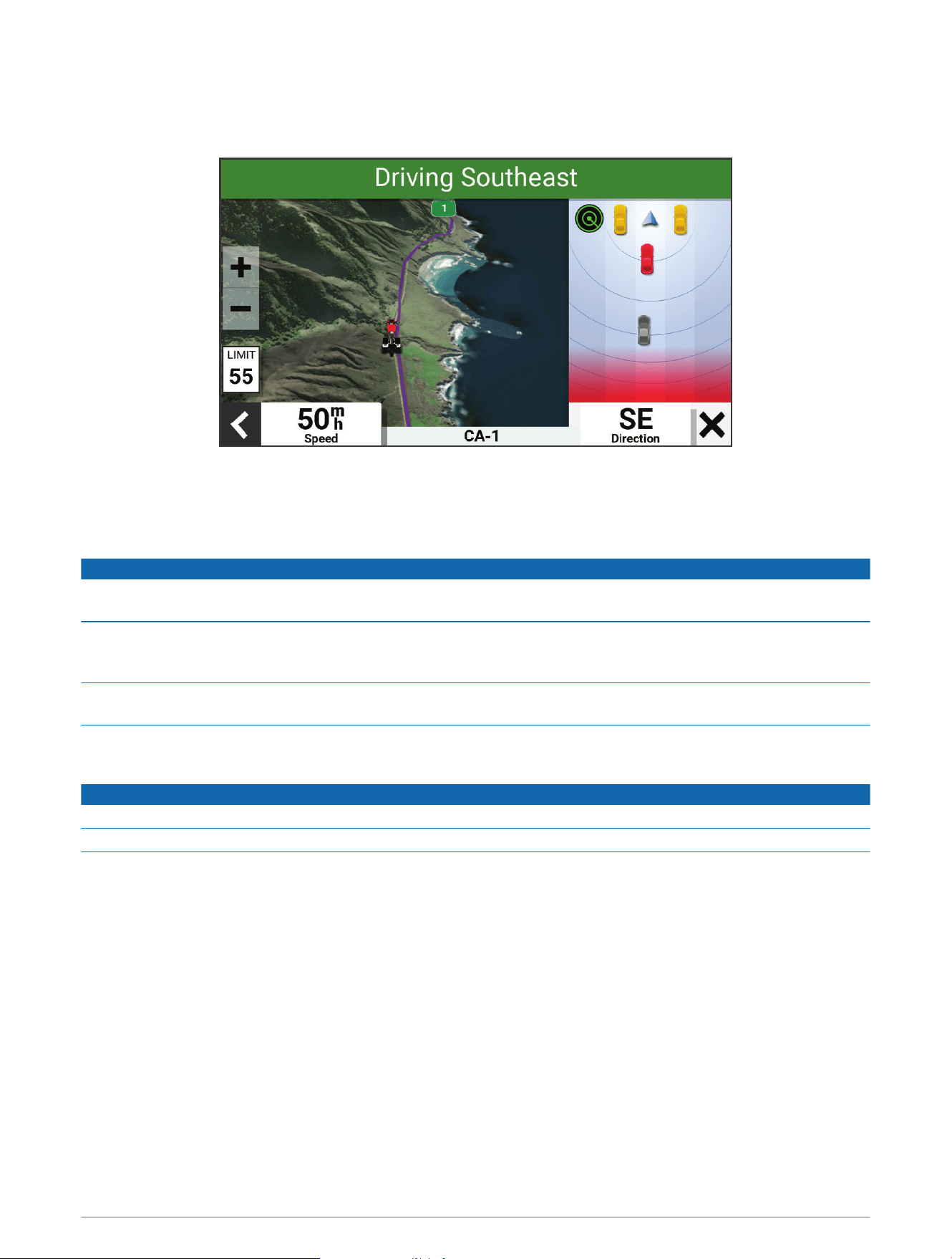
Rear Alert Notifications
When a vehicle is approaching from the rear, the bottom of the screen turns red before the rapidly approaching
vehicle travels into view.
Device Information
Device Care
NOTICE
Avoid contact with chemical cleaners, solvents, gasoline, oil, insect repellents, or sunscreen. These chemicals
can damage plastic components and finish.
Thoroughly rinse the device with fresh water as soon as possible after exposure to chlorine, salt water,
sunscreen, cosmetics, alcohol, or other harsh chemicals. Prolonged exposure to these substances can damage
the plastic components and finish.
Do not store the device where prolonged exposure to extreme temperatures can occur, because it can cause
permanent damage.
Cleaning the Device
NOTICE
Do not use a dry cloth to clean the LED lenses. Use of a dry cloth may damage the LED lenses.
Avoid chemical cleaners and solvents that can damage plastic components.
1 Wipe the outer casing and LED lenses with a soft, non-scratch cloth dampened with water or isopropyl
alcohol.
2 Wipe the outer casing dry, and allow the LED lenses to air dry.
Device Information 23
Radar Detection
WARNING
Radar performance may be degraded or vehicles may not be detected when the motorcycle is operated outside
of the following range: 25 to 150 km/h (15 to 93 mph). Always maintain awareness of your surroundings and
operate your motorcycle in a safe manner. Failure to maintain awareness of your surroundings could result in an
accident, possibly causing property damage, serious injury, or death.
• The radar detects approaching vehicles up to 60 m (197 ft.) away.
• The radar detects approaching vehicle speed from 0 to 55km/h (from 0 to 34mph) relative to your current
speed.
• The radar beam width is 170 degrees.
• The radar can detect up to 8 moving vehicles.
Specifications
Input voltage From 12 to 24Vdc
Current usage 0.5A at 12Vdc
Water rating IEC 60529 IP67
1
Operating temperature range From -20° to 55°C (from -4° to 131°F)
Wireless frequency
77-81 GHz @ 21 dBm maximum
2.4 GHz @ 4 dBM maximum
Troubleshooting
Restarting the Device
If the device stops responding or the status LED is solid red, you may need to restart it. This does not erase any
of your data or settings.
1 Hold the device button for 10 seconds.
2 Release the device button.
The status LED turns off and the device restarts.
Resetting the Device
Before you reset the device, you should try to restart the device to avoid erasing data and settings (Restarting
the Device, page24).
If the device is not responding or the status LED is solid red, you can reset the device.
Press the device button 10 consecutive times.
The status LED turns blue and the device restarts.
Exiting Demo Mode
Demo mode shows a preview of features on your zūmo R1 Radar system. The status LED is solid yellow when
the device is in demo mode.
1 Hold the device button for 8 seconds until the status LED changes to orange.
2 Release the device button.
1
The device is protected against the ingress of dust and withstands incidental exposure to water of up to 1 m for up to 30 min.
24 Troubleshooting
My device is overheating
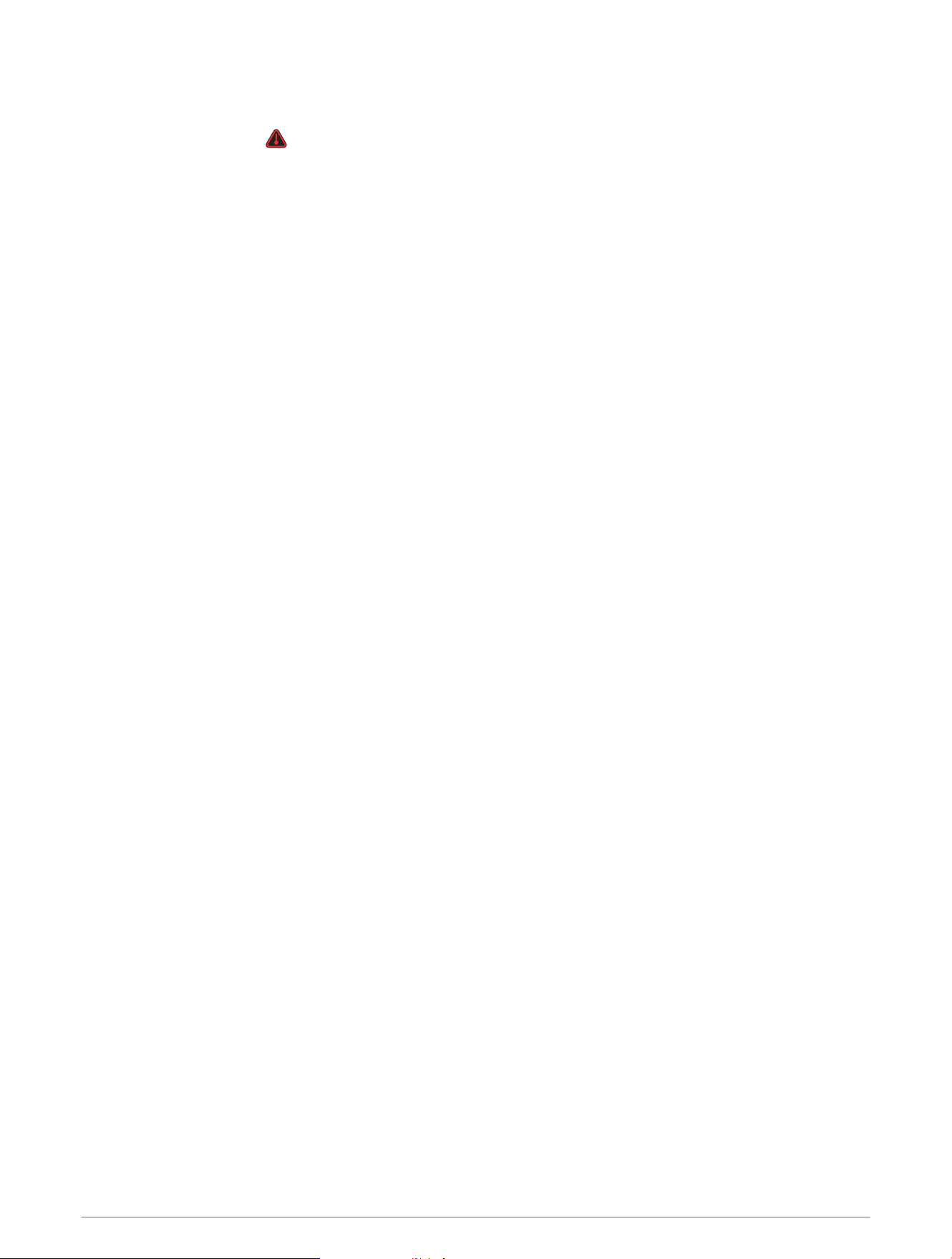
The operating temperature range specification for the device is from -20° to 55°C (from -4° to 131°F). The status
LED turns red and an icon is displayed in the zūmo Radar app or on your motorcycle navigator when your
device is overheating and could indicate that the device is operating outside this range.
NOTE: The zūmo Radar system is not operational when this icon is displayed and the status LED is red.
• Ensure your device is mounted as far away from heat sources on the motorcycle as possible.
• Avoid parking your motorcycle with the device in direct sunlight.
Troubleshooting 25
support.garmin.com
GUID-3B03A850-46B2-47F7-B7AF-7CD84686A1DA v2February 2025