PUB. DIE-0455-000D
HD Camcorder
Instruction Manual
2
Important Usage Instructions
COPYRIGHT WARNING:
Unauthorized recording of copyrighted materials may infringe on the rights of copyright own-
ers and be contrary to copyright laws.
CAUTION:
TO REDUCE THE RISK OF ELECTRIC SHOCK AND TO REDUCE ANNOYING INTERFER-
ENCE, USE THE RECOMMENDED ACCESSORIES ONLY.
CAUTION:
DISCONNECT THE MAINS PLUG FROM THE SUPPLY SOCKET WHEN NOT IN USE.
To reduce the risk of electric shock, do not expose this product to dripping or splashing.
The Mains plug is used as the disconnect device. The Mains plug shall remain readily opera-
ble to disconnect the plug in case of an accident.
CA-110E identification plate is located on the bottom.
While using the compact power adapter, do not wrap it or cover it with a piece of cloth, and
do not place it in confined narrow spaces.
Only for European Union and EEA (Norway, Iceland and Liechtenstein)
These symbols indicate that this product is not to be disposed of
with your household waste, according to the WEEE Directive (2012/
19/EU), the Battery Directive (2006/66/EC) and/or national legislation
implementing those Directives.
If a chemical symbol is printed beneath the symbol shown above, in accordance with
the Battery Directive, this indicates that a heavy metal (Hg = Mercury, Cd = Cadmium,
Pb = Lead) is present in this battery or accumulator at a concentration above an appli-
cable threshold specified in the Battery Directive.
Complies with
IDA Standards
DB00671
3
This product should be handed over to a designated collection point, e.g., on an
authorized one-for-one basis when you buy a new similar product or to an authorized
collection site for recycling waste electrical and electronic equipment (EEE) and batter-
ies and accumulators. Improper handling of this type of waste could have a possible
impact on the environment and human health due to potentially hazardous sub-
stances that are generally associated with EEE. Your cooperation in the correct dis-
posal of this product will contribute to the effective usage of natural resources.
For more information about the recycling of this product, please contact your local city
office, waste authority, approved scheme or your household waste disposal service or
visit www.canon-europe.com/weee
, or www.canon-europe.com/battery.
REGIONS OF USE
The LEGRIA mini X is in compliance (as of January 2014) with the radio signal regula-
tions of the regions listed below. For details on other regions where it can be used,
make inquiries with the contacts listed at the end of this instruction manual (A 304).
Statement on EC directive
Hereby, Canon Inc. declares that the ID0037 is in compliance with the
essential requirements and other relevant provisions of Directive 1999/5/EC.
Please contact the following address for the original Declaration of Conformity:
CANON EUROPA N.V.
Bovenkerkerweg 59, 1185 XB Amstelveen, The Netherlands
CANON INC.
30-2, Shimomaruko 3-chome, Ohta-ku, Tokyo 146-8501, Japan
Model
ID0037: LEGRIA mini X
REGIONS
Australia, Austria, Belgium, Bulgaria, China (PRC mainland), Cyprus, Czech Repub-
lic, Denmark, Estonia, Finland, France, Germany, Greece, Hong Kong S.A.R., Hun-
gary, Iceland, Ireland, Italy, Latvia, Liechtenstein, Lithuania, Luxembourg, Malta,
Netherlands, New Zealand, Norway, Poland, Portugal, Romania, Russia, Singapore,
Slovakia, Slovenia, Spain, Sweden, Switzerland, United Kingdom
4
Trademark Acknowledgements
• SD, SDHC and SDXC Logos are trademarks of SD-3C, LLC.
• Microsoft and Windows are trademarks or registered trademarks of Microsoft Corporation in the United
States and/or other countries.
• App Store, iPad, iPhone, iTunes and Mac OS are trademarks of Apple Inc., registered in the U.S. and
other countries.
• HDMI, the HDMI logo and High-Definition Multimedia Interface are trade-
marks or registered trademarks of HDMI Licensing LLC in the United States
and other countries.
• “AVCHD” and the “AVCHD” logo are trademarks of Panasonic Corporation
and Sony Corporation.
• Manufactured under license from Dolby Laboratories.
“Dolby” and the double-D symbol are trademarks of Dolby Laboratories.
• Google, Android, Google Play, YouTube are trademarks of Google Inc.
• Facebook is a registered trademark of Facebook, Inc.
• IOS is a trademark or registered trademark of Cisco in the U.S. and other countries and is used under
license.
• Wi-Fi is a registered trademark of the Wi-Fi Alliance.
• Wi-Fi Certified, WPA, WPA2, and the Wi-Fi Certified logo are trademarks of the Wi-Fi Alliance.
• WPS as used on the camcorder’s settings, onscreen displays and in this manual signifies Wi-Fi Pro-
tected Setup.
• The Wi-Fi Protected Setup Identifier Mark is a mark of the Wi-Fi Alliance.
• Other names and products not mentioned above may be trademarks or registered trademarks of their
respective companies.
• This device incorporates exFAT technology licensed from Microsoft.
• “Full HD 1080” refers to Canon camcorders compliant with high-definition video com-
posed of 1,080 vertical pixels (scanning lines).
• This product is licensed under AT&T patents for the MPEG-4 standard and may be
used for encoding MPEG-4 compliant video and/or decoding MPEG-4 compliant
video that was encoded only (1) for a personal and non-commercial purpose or (2) by a video provider
licensed under the AT&T patents to provide MPEG-4 compliant video. No license is granted or implied
for any other use for MPEG-4 standard.
5
About this Manual and Camcorder
Thank you for purchasing the Canon LEGRIA mini X. Please
read this manual carefully before you use the camcorder and
retain it for future reference. Should your camcorder fail to oper-
ate correctly, refer to Troubleshooting (A 246).
Conventions Used in this Manual
• “Scene” refers to one movie unit from the point you press the
start/stop button or touch [Ü] to start recording until you
press the start/stop button or touch [Ñ] to stop recording.
• Brackets [ ] are used to refer to onscreen controls you need to
touch (menus, buttons, etc.) and to messages as they are dis-
played on the screen.
Important precautions related to the camcorder’s opera-
tion.
Additional notes and topics that complement the basic
operating procedures.
Restrictions, requirements or preconditions regarding the
function described.
A
Reference page number within this manual.
>
This arrow is used to abbreviate menu selections. For a
detailed explanation on how to use the menus, refer to
Using the Menus (A 46).
6
• The photos included in this manual are simulated pictures
taken with a still camera.
• Illustrations of the camcorder’s screen or a computer’s screen
included in this manual may show only relevant parts of the
screen.
• Navigation buttons: The navigation bar at the bottom of the
page offers up to four buttons to let you get quickly to the
information you want to find.
Jump to the general table of contents.
Go to a list of select functions grouped by their uses in
real-life situations. This alternative index can be very
useful for beginners who encounter a particular chal-
lenge but are not sure of what function to use.
Jump to the alphabetical index.
The button with a number in it will take you to the
beginning of the current chapter, where you will find an
overview of the information and related functions cov-
ered in that chapter. Note that the icon itself will
change depending on the chapter you are currently
reading.
7
• Observe the following precautions while the cam-
corder's ACCESS indicator is on or flashing. Failing to
do so may result in permanent data loss or damage to
the memory card.
- Do not open the memory card slot cover.
- Do not disconnect the power source or turn off the
camcorder.
- Do not press and hold the ^ button.

8
Table of Contents
Important Usage Instructions...................................... 2
About this Manual and Camcorder ............................. 5
The Camcorder’s Functions in Real-Life
Situations .................................................................. 14
Unique functions for special cases ........................... 14
Getting the look you want......................................... 15
Challenging subjects and shooting conditions .......... 16
Playback, editing and others .................................... 17
Wireless functions .................................................... 18
Getting to Know the Camcorder ............................... 20
Supplied Accessories ............................................... 20
Names of Parts ........................................................ 21
Preparations........................................................ 28
Charging the Battery Pack........................................ 30
Using a Memory Card ............................................... 35
Memory Cards Compatible for Use with the
Camcorder............................................................... 35

9
Inserting and Removing a Memory Card................... 37
First Time Settings .................................................... 39
Basic Setup ............................................................. 39
Changing the Time Zone .......................................... 42
Initializing a Memory Card......................................... 43
Basic Operation of the Camcorder ........................... 45
Using the Touch Screen ........................................... 45
Using the Menus ...................................................... 46
Operating Modes ..................................................... 53
Selecting the Movie Recording Format
(AVCHD/MP4) ........................................................... 55
Basic Recording and Playback .......................... 56
Basic Recording........................................................ 57
Recording Video....................................................... 57
Changing the Field of View ....................................... 59
Taking Photos .......................................................... 62
AUTO Mode ............................................................. 64
Basic Playback.......................................................... 67
Playing Back Video .................................................. 67
Viewing Photos ........................................................ 75
Deleting Scenes and Photos .................................... 79
Dividing Scenes........................................................ 83
Trimming Scenes ..................................................... 85
Slideshow ................................................................ 86

10
Advanced Functions ........................................... 88
Video Quality and Shooting Modes .......................... 90
Selecting the Video Quality ....................................... 90
Selecting the Photo Size .......................................... 92
Selecting the Shooting Mode ................................... 93
Special Recording Modes......................................... 97
Interval Recording .................................................... 97
Slow and Fast Motion............................................. 101
Video Snapshot...................................................... 104
Pre-Recording........................................................ 105
Convenient Functions ............................................. 108
Self Timer............................................................... 108
Decoration: Adding a Personal Touch .................... 109
Image Rotation and Image Flipping ........................ 113
Recording Audio ..................................................... 116
Using an External Microphone................................ 116
Audio Scenes (Built-in Microphone)........................ 118
Audio Recording Level ........................................... 124
Wind Screen (Built-in Microphone).......................... 126
Microphone Attenuator (Built-in Microphone).......... 127
Audio Equalizer (Built-in Microphone) ..................... 129
Microphone Directionality (Built-in Microphone) ...... 130
Microphone Attenuator (External Microphone) ........ 131
Low Cut Filter (External Microphone) ...................... 132
Switching the Input (External Microphone) .............. 133

11
Audio Mix ............................................................... 134
Audio Limiter .......................................................... 135
Audio Compressor ................................................. 135
Using Headphones................................................. 137
When You Want More Control ................................ 139
White Balance ........................................................ 139
Exposure................................................................ 141
Face Detection....................................................... 144
Capturing Video Snapshot Scenes and Photos
from a Movie .......................................................... 147
External Connections........................................ 150
Terminals on the Camcorder .................................. 151
Connection Diagrams............................................. 152
Playback on a TV Screen ....................................... 154
Saving and Sharing Your Recordings ..................... 156
Converting Movies to MP4 Format ......................... 156
Saving Recordings on a Computer......................... 159
Copying Recordings to an External Video
Recorder ................................................................ 168
Wi-Fi Functions ................................................. 170
Overview of the Camcorder's Wi-Fi Functions ....... 172
The Camcorder's Wi-Fi Functions .......................... 178
Using an iOS or Android Device as a Remote
Control ................................................................... 178

12
Remote Browse: Viewing Recordings Using a Web
Browser on an iOS or Android Device .................... 188
Saving Recordings and Uploading Movies to the
Web Using an iOS Device ...................................... 191
Sharing Recordings with CANON iMAGE
GATEWAY ............................................................. 193
Wireless Playback on a Computer .......................... 201
Wi-Fi Connection and Settings ............................... 204
Wi-Fi Connection Using an Access Point................ 204
Viewing and Changing Wi-Fi Settings ..................... 213
Additional Information ...................................... 217
Appendix: Menu Options Lists................................ 219
[1 Other Settings] Menus ..................................... 222
Appendix: Onscreen Icons and Displays ................ 236
Trouble? .................................................................. 246
Troubleshooting ..................................................... 246
List of Messages .................................................... 259
Do’s and Don’ts ...................................................... 276
Handling Precautions ............................................. 276
Maintenance/Others................................................ 283
Cleaning................................................................. 283
Condensation......................................................... 284
Using the Camcorder Abroad................................. 285
General Information ................................................ 286

13
Optional Accessories.............................................. 286
Specifications......................................................... 290
Reference Tables .................................................... 297
Index ....................................................................... 300
14
The Camcorder’s Functions in
Real-Life Situations
Unique functions for special cases
Change the field of view you record from a fisheye-
like ultra wide angle to a close-up center view.
X Field of View (A 59)
Record the best sound possible
according to your shooting situation,
such as at a business meeting or
musical performance.
X Audio Scenes (A 118)
Shoot a cool time-lapse video or use slow motion to check
your golf swing.
X Interval Recording (A 97)
X Slow and Fast Motion Recording (A 101)
15
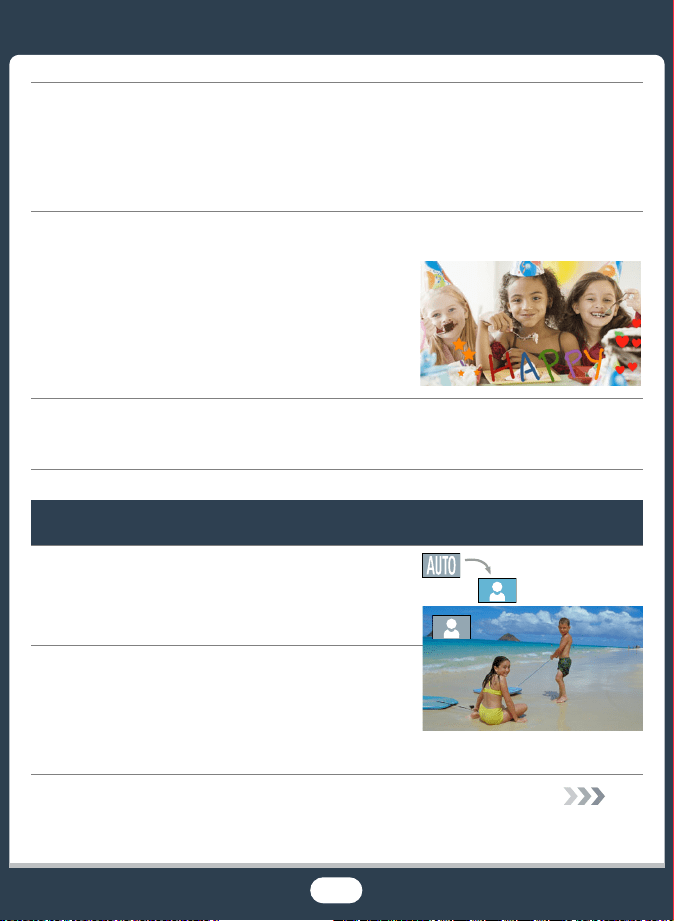
Record a mirror image of your dance training so you can
practice along with the playback scene.
X Automatic Image Rotation and
Image Flipping (A 113)
Decorate movies with graphics and stamps.
X Decoration (A 109)
Create a dynamic montage sequence with short cuts.
X Video Snapshot (A 104)
Getting the look you want
Get gorgeous video and photos
without bothering with settings.
X N mode (A 57)
Make the image brighter or darker
than the exposure set by the
camcorder.
X Exposure (A 141)
16
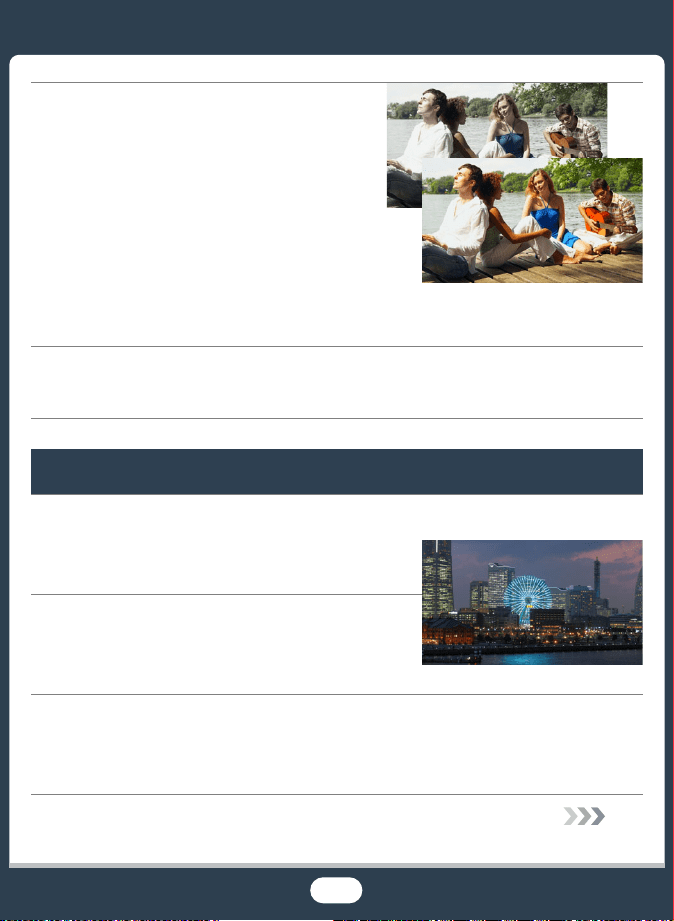
Create a copy of your movies
applying a unique cinematic filter.
X Converting and Resizing Movies
(A 156)
Choose whether to record in AVCHD or MP4 format.
X Selecting the Recording Format (A 55)
Challenging subjects and shooting conditions
Shoot great video of special scene situations with minimal
settings.
X Shooting Modes (A 93)
Obtain natural-looking colors even
under special lighting conditions.
X White Balance (A 139)
Optimize the exposure for the desired subject just by touch-
ing the screen.
X Touch A E (A 143)
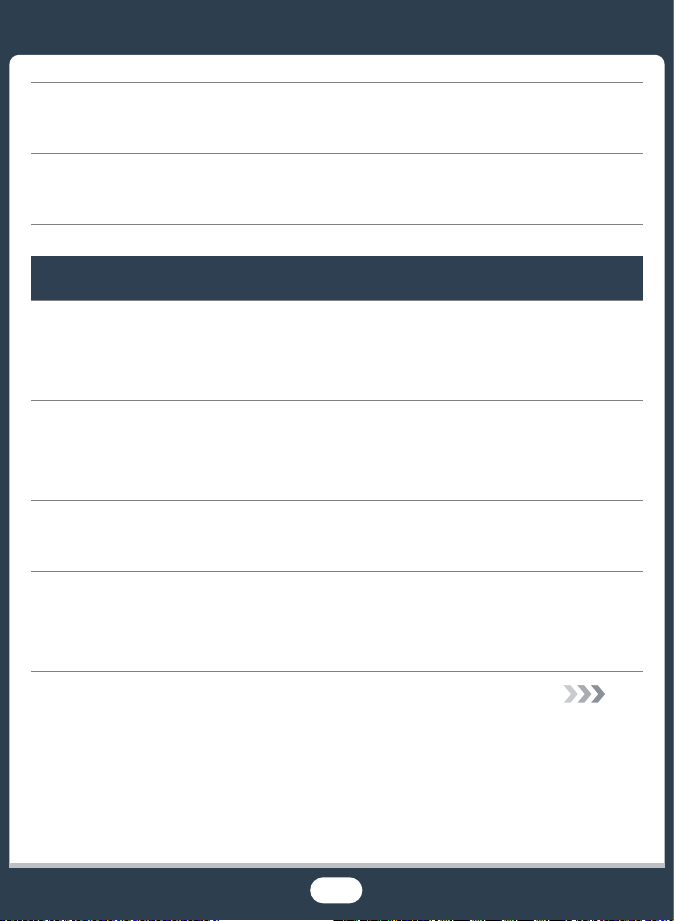
Cinema filter
[FILTER 2] (Vivid)
17
Keep the exposure optimized while shooting a moving subject.
X Face Detection and Tracking (A 144)
Give yourself time to get in the picture.
X Self Timer (A 108)
Playback, editing and others
Save parts of your video as photos or short video snapshot
scenes.
X Capturing Photos/Video Snapshot Scenes (A 147)
Convert your scenes into a smaller file size to upload to the
Web.
X Converting Movies to MP4 Format (A 156)
Play a slideshow of your photos.
X Slideshow (A 86)
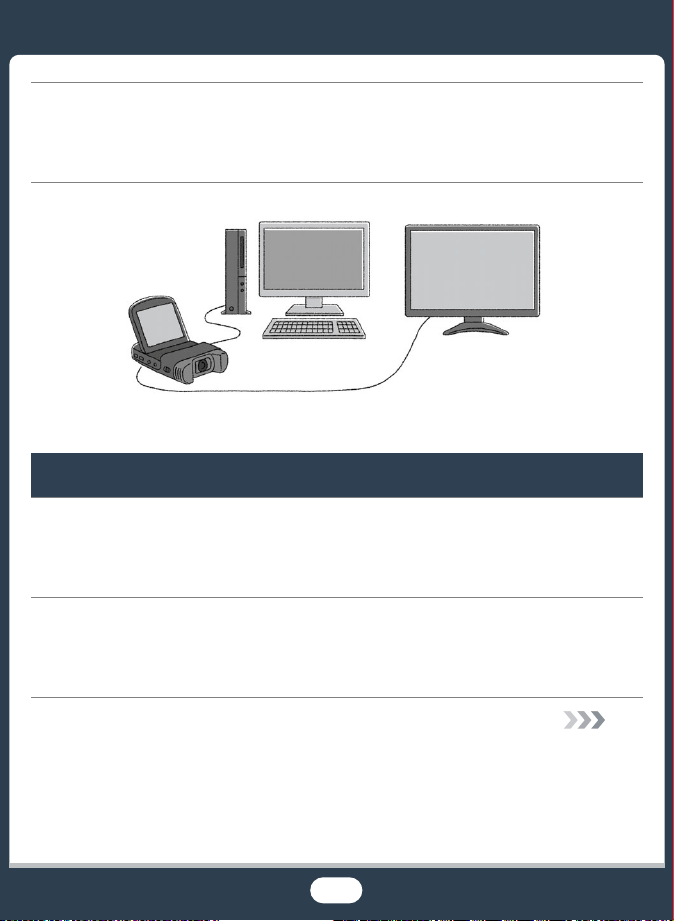
Enjoy your recordings on a TV.
X HDMI Connection (A 152)
X Playback (A 154)
18
Save recordings on your computer and upload them to the
Web.
X Saving Recordings (A 159)
Wireless functions
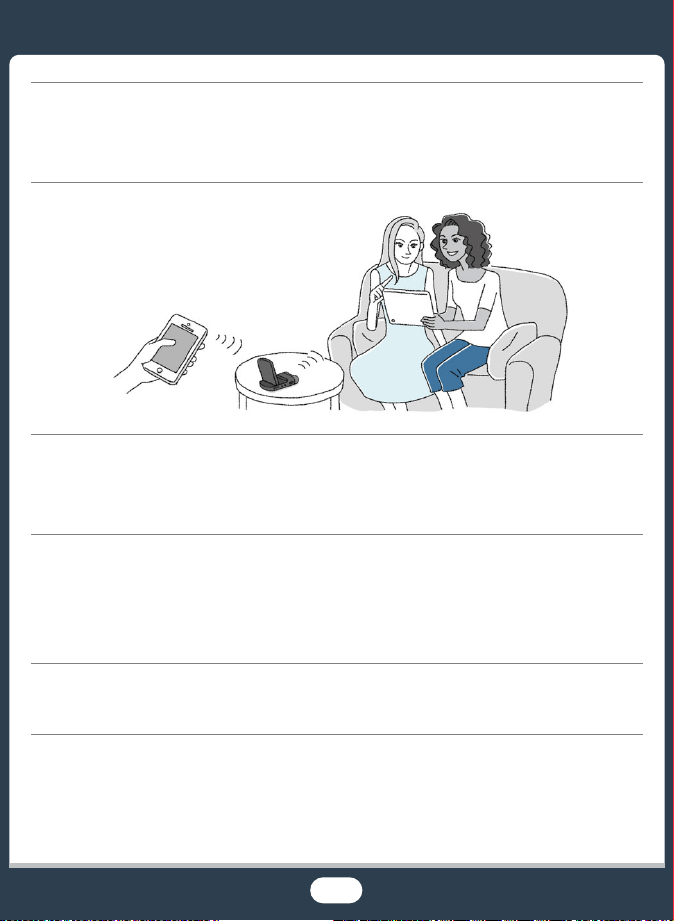
Use your smartphone or tablet as a remote control while
recording.
X Wi-Fi Remote Control (CameraAccess plus) (A 178)
Use a Web browser on your smartphone or tablet to access
and play back the recordings in the camcorder.
X Remote Browse/Playback via Browser (A 188)
19
Use an iOS app to wirelessly transfer recordings to your
iPhone/iPad and upload them to the Web.
X Movie Uploader (A 191)
Share your recordings with Web albums using CANON
iMAGE GATEWAY.
X CANON iMAGE GATEWAY (A 193)
Connect the camcorder to your home network and wire-
lessly stream your recordings.
X Media Server (A 201)
X Wi-Fi Connection to an Access Point (A 204)
Review and change Wi-Fi settings (for advanced users).
X Wi-Fi Settings (A 213)
20
Getting to Know the Camcorder
Supplied Accessories
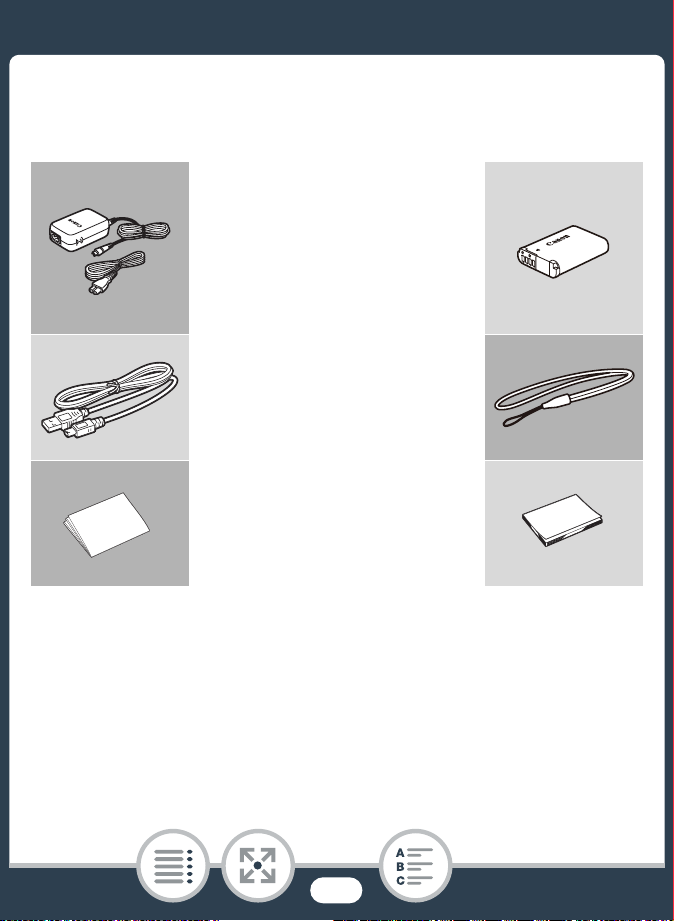
The following accessories are supplied with the camcorder:
* This guide explains how to download PIXELA's Transfer Utility LE
software, which allows you to save your AVCHD movies to a memory
card. For details on using the software, refer to the Transfer Utility LE
Software Guide included with the downloaded software.
XCA-110E Compact Power
Adapter
(incl. power cord)
NB-12L Battery PackW
XIFC-300PCU/S USB Cable
WS-DC11 Wrist StrapW
XGetting Started Leaflet
Transfer Utility LE
Startup Guide*W
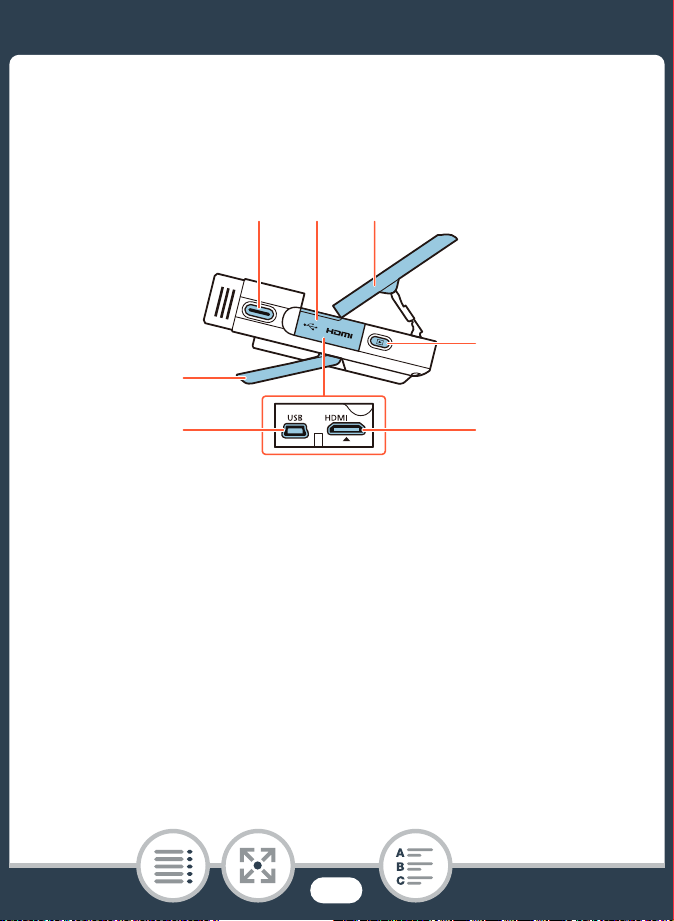
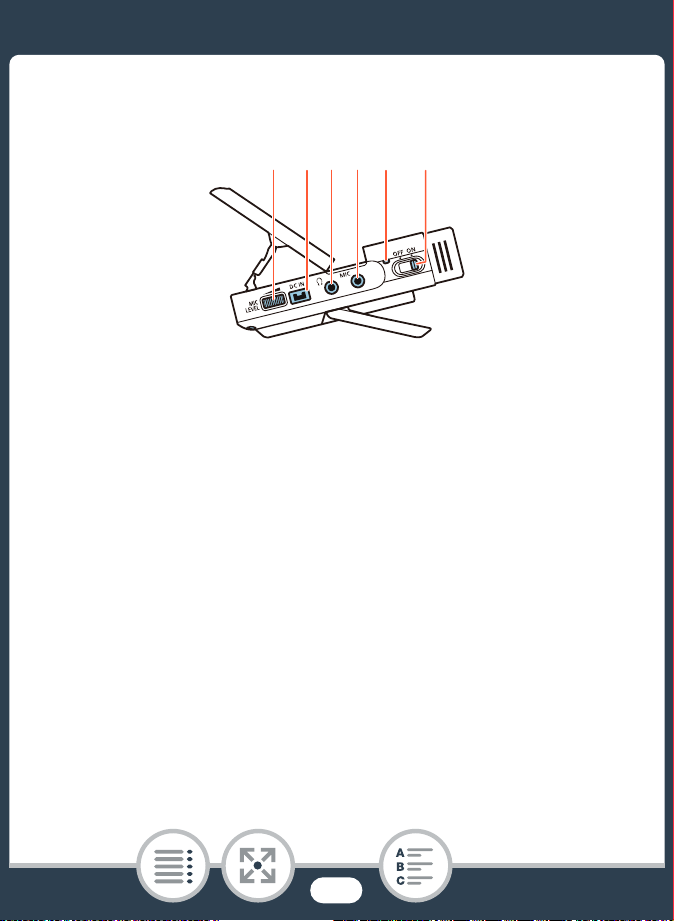
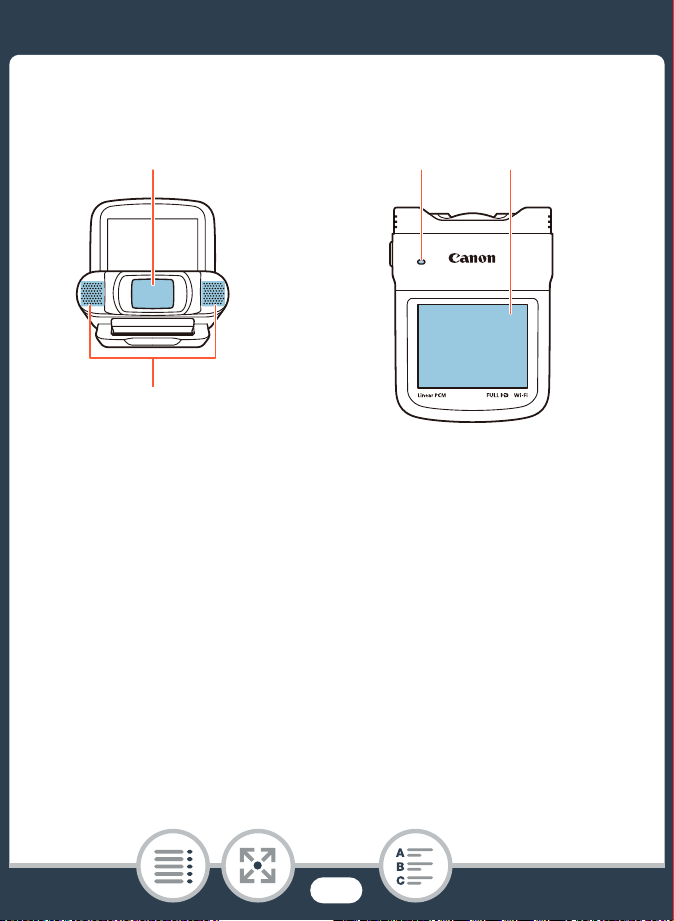
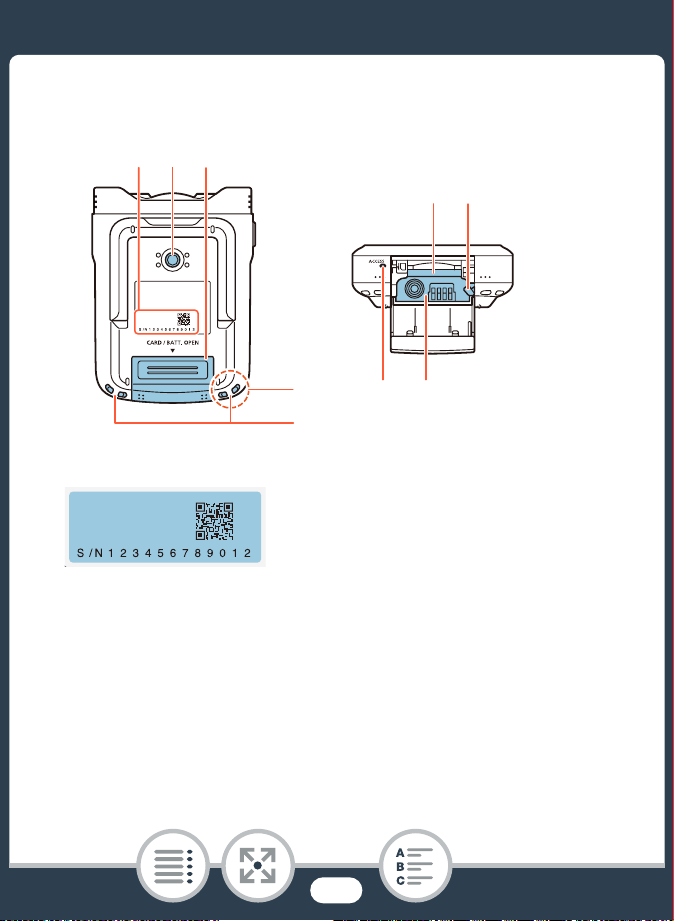

27
17 LCD touch screen
• The screen is produced using extremely high-precision
manufacturing techniques, with more than 99.99% of the
pixels operating to specification. Less than 0.01% of the
pixels may occasionally misfire or appear as black, red,
blue or green dots. This has no effect on the recorded
image and does not constitute a malfunction.
• For details about how to take care of the touch screen,
refer to Handling Precautions (A 276), Cleaning
(A 283).
• You can adjust the screen’s brightness using the 1 >
q > [LCD Brightness] and [LCD Backlight] settings.
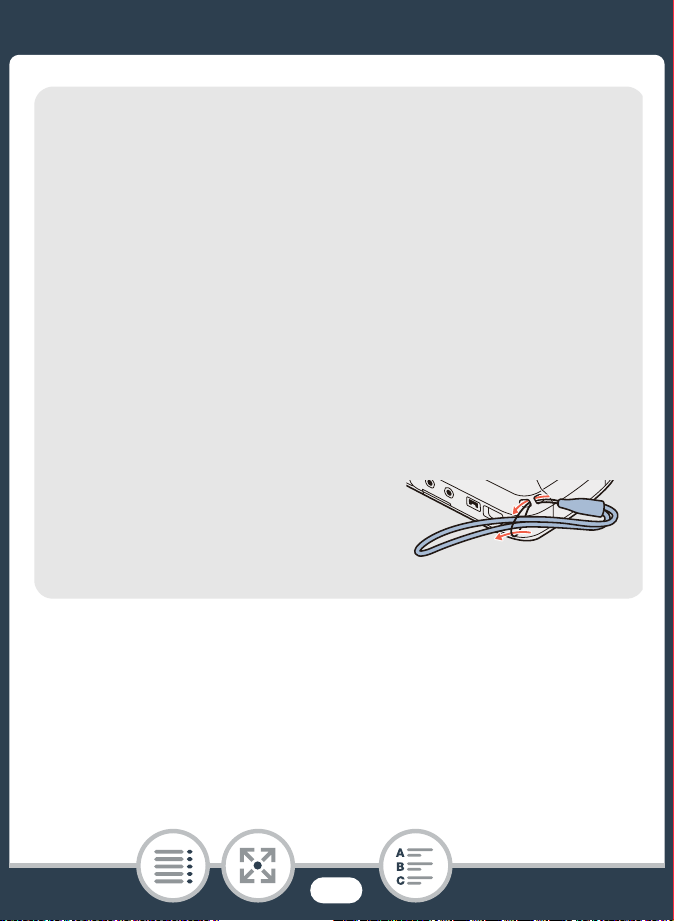
26 Strap mounts
You can attach the supplied wrist
strap to either side of the camcorder.
28
Preparations
Charging the Battery Pack
The first step for using your camcorder is to prepare the
power supply. This section explains how to charge a bat-
tery pack.
Using a Memory Card
Next, you need to prepare a memory card where your
movies and photos will be recorded. This section explains
the types of memory cards that can be used and how to
insert one into the camcorder.
First Time Settings
Now that your camcorder is powered up and has a mem-
ory card, you can turn it on and complete the basic setup.
These include selecting the camcorder’s language and
setting the date and time.
30
35
39
29
Basic Operation of the Camcorder
In this section you can learn more about basic operations,
such as using the touch screen, changing operating
modes and using the menus.
Selecting the Movie Recording Format
(AVCHD/MP4)
Before you begin recording, you can select whether to
record in AVCHD or MP4 format.
45
55
30
Charging the Battery Pack
Charging the Battery Pack
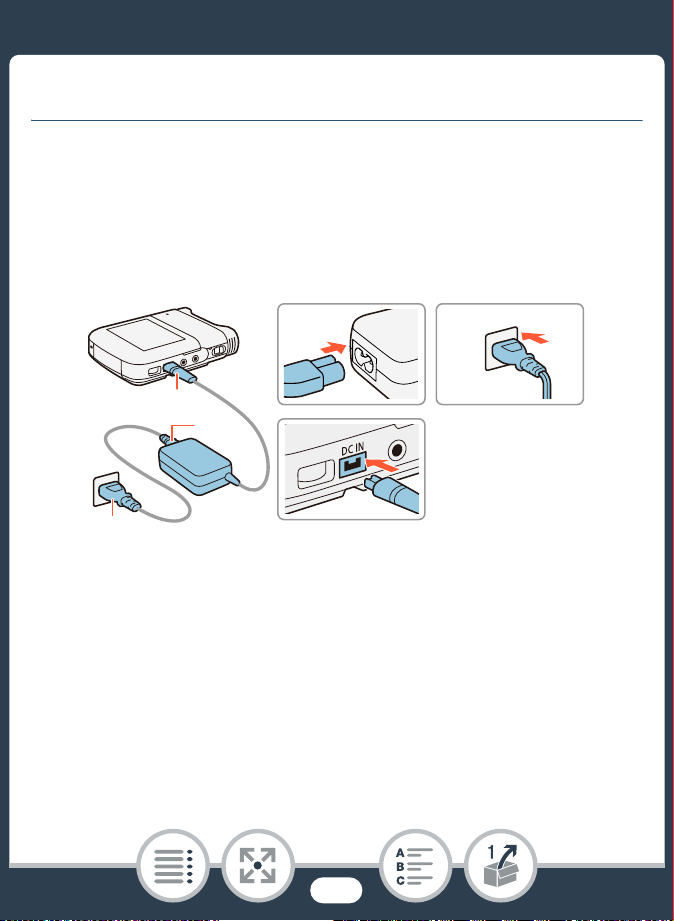
The camcorder can be powered with a battery pack or directly
using the compact power adapter.
For approximate charging times and recording/playback times
with a fully charged battery pack, refer to Charging Times
(A 298).
1 Connect the power cord to the compact power
adapter.
2 Plug the power cord into a power outlet.
3 Connect the compact power adapter to the cam-
corder’s DC IN terminal.
3
1
21
3
2
31
Charging the Battery Pack
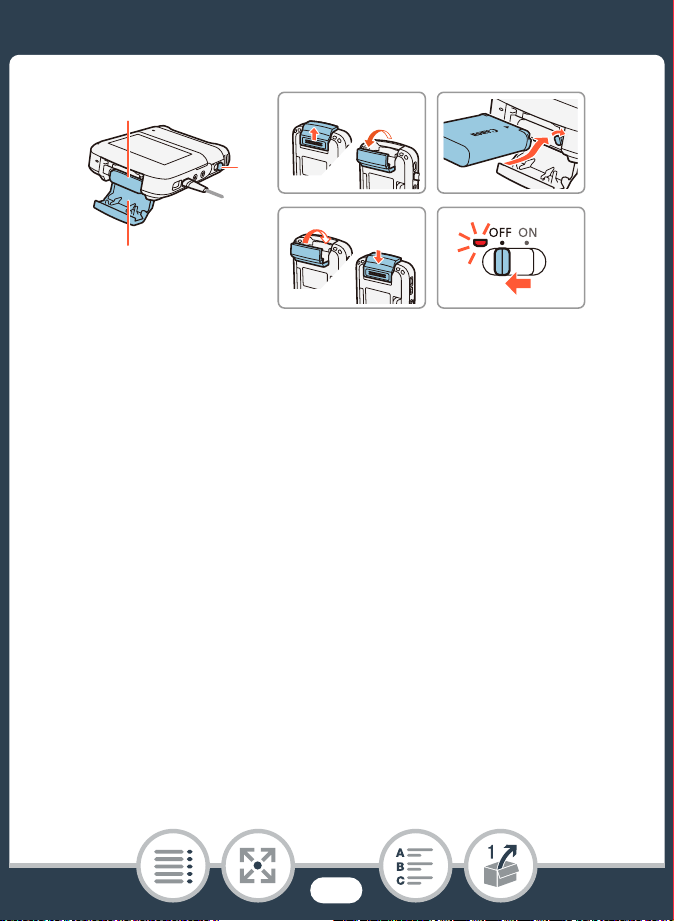
4 Push the battery compartment cover in the direction of
the arrow to open it.
5 Insert the battery pack with the Canon label facing the
top of the camcorder.
• When inserting the battery pack, push it up against the
battery release latch. Next, push it all the way in until the
battery release latch secures it in place.
6 Close the battery compartment cover.
• Push the cover until you hear a click. Do not force the
cover closed if the battery pack is not correctly inserted.
5
7
54
67
4, 6
32
Charging the Battery Pack
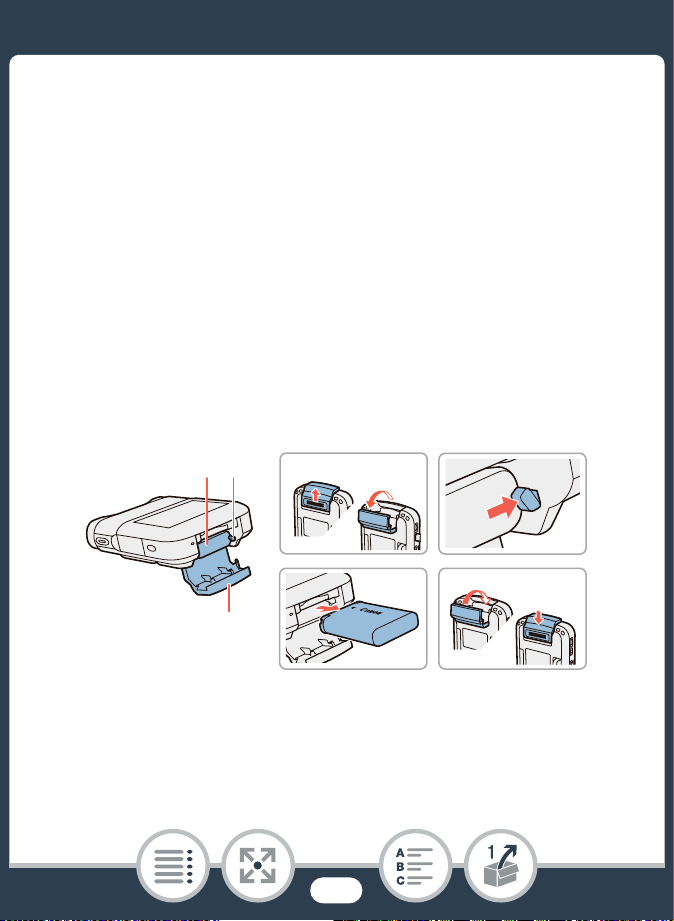
7 Charging will start when the camcorder is turned off.
• If the camcorder was on, the green power/charge indica-
tor will go out when you turn off the camcorder. After a
moment, the power/charge indicator will turn on in red
(battery pack charging). The red power/charge indicator
will go out when the battery pack is fully charged.
• If the indicator flashes, refer to Troubleshooting (A 246).
To remove the battery pack
Open the battery compartment cover and slide the battery
release latch in the direction of the arrow so the battery pack
springs out. Remove the battery pack and close the cover.
32
21
334
1, 4
33
Charging the Battery Pack
• Turn off the camcorder before connecting or discon-
necting the compact power adapter. After turning off
the camcorder, important data is updated in the mem-
ory. Be sure to wait until the green power/charge indi-
cator goes out.
• Do not connect to the camcorder’s DC IN terminal or to
the compact power adapter any electrical equipment
that is not expressly recommended for use with this
camcorder.
• When inserting the battery pack, do not force it in to the
battery compartment as this may cause damage.
• To prevent equipment breakdowns and excessive heat-
ing, do not connect the supplied compact power
adapter to voltage converters for overseas travels or
special power sources such as those on aircraft and
ships, DC-AC inverters, etc.
• We recommend charging the battery pack in tempera-
tures between 10 °C and 30 °C. If either the ambient
temperature or the battery pack’s temperature is out-
side the range of approx. 0 °C to 40 °C, charging will
not start.
• If the ambient temperature or the battery pack’s tem-
perature is low, charging may take longer than usual.

34
Charging the Battery Pack
• The battery pack will be charged only when the cam-
corder is off.
• If the power supply was disconnected while charging a
battery pack, make sure the power/charge indicator
has gone out before restoring the power supply.
• If remaining battery time is an issue, you can power the
camcorder using the compact power adapter so the
battery pack will not be consumed.
• Charged battery packs continue to discharge naturally.
Therefore, charge them on the day of use, or the day
before, to ensure a full charge.
• We recommend that you prepare battery packs to last
2 to 3 times longer than you think you might need.
• You can use an optional battery charger to charge the
battery pack. For details on charging times, refer to
Charging Times (A 298).
35
Using a Memory Card
Using a Memory Card
Memory Cards Compatible for Use with the
Camcorder
You can use the following types of commercially available SD
cards with this camcorder. We recommend using memory cards
rated CLASS 4, 6 or 10.
As of November 2013, the movie recording function has been
tested using SD/SDHC/SDXC cards made by Panasonic,
Toshiba and SanDisk. For the latest information on memory
cards that can be used, visit your local Canon Web site.
* When using an SD memory card without a Speed Class rating or one
rated CLASS 2, you may not be able to record movies, depending on
the memory card used.
Memory card type:. SD card
/ SDHC card
0 SDXC card
SD Speed Class*: CLASS 4 or better
36
Using a Memory Card
■ SDXC Cards
You can use SDXC cards with this camcorder. When using
SDXC cards with other devices, such as digital recorders, com-
puters and card readers, make sure that the external device
is compatible with SDXC cards. For more information on com-
patibility, contact the computer, operating system or memory
card manufacturer.
• After repeatedly recording, deleting and editing scenes
(fragmented memory), it will take longer to write data on
the memory
card and recording may stop. Back up
your recordings and initialize the memory card using the
[Complete Initialization] option.
• About the Speed Class: Speed Class is a standard
that indicates the minimum guaranteed data transfer
speed of memory cards. When you buy a new memory
card, look for the Speed Class logo on the package.
• If you use a SDXC card with a computer OS that is not
SDXC-compatible, you may be prompted to format the
memory card. In such case, cancel the operation to
prevent data loss.
37
Using a Memory Card
Inserting and Removing a Memory Card
Make sure to initialize all memory cards with the camcorder,
using the [Complete Initialization] option, before using them
for the first time. When you turn on the camcorder for the first
time, you will need to complete the basic setup first (A 39), and
then initialize the memory card (A 43).
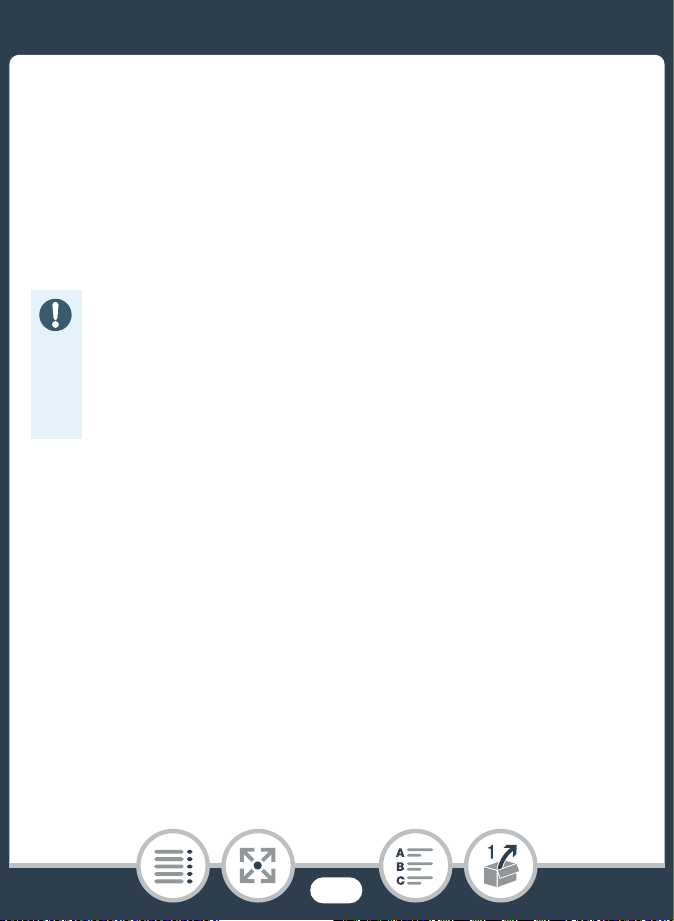
1 Turn off the camcorder.
• Set the power switch to OFF and check that the power/
charge indicator is off.
2 Open the memory card slot cover.
3 Insert the memory card with the label facing down and
push it all the way into the memory card slot until it
clicks.
31
12 3
3
34
2, 4
38
Using a Memory Card
4 Close the memory card slot cover.
• Do not force the cover closed if the memory card is not
correctly inserted.
To remove the memory card
Push the memory card once to release it. When the memory
card springs out, pull it all the way out.
• Memory cards have front and back sides that are not
interchangeable. Inserting a memory card facing the
wrong direction can cause a malfunction of the cam-
corder. Be sure to insert the memory card as described
in step 3.
39
First Time Settings
First Time Settings
Basic Setup
The first time you turn on the camcorder, you will be guided by
the camcorder’s basic setup screens to select the camcorder’s
language and set the date and time. For details on how to use
the touch screen, refer to Using the Touch Screen (A 45).
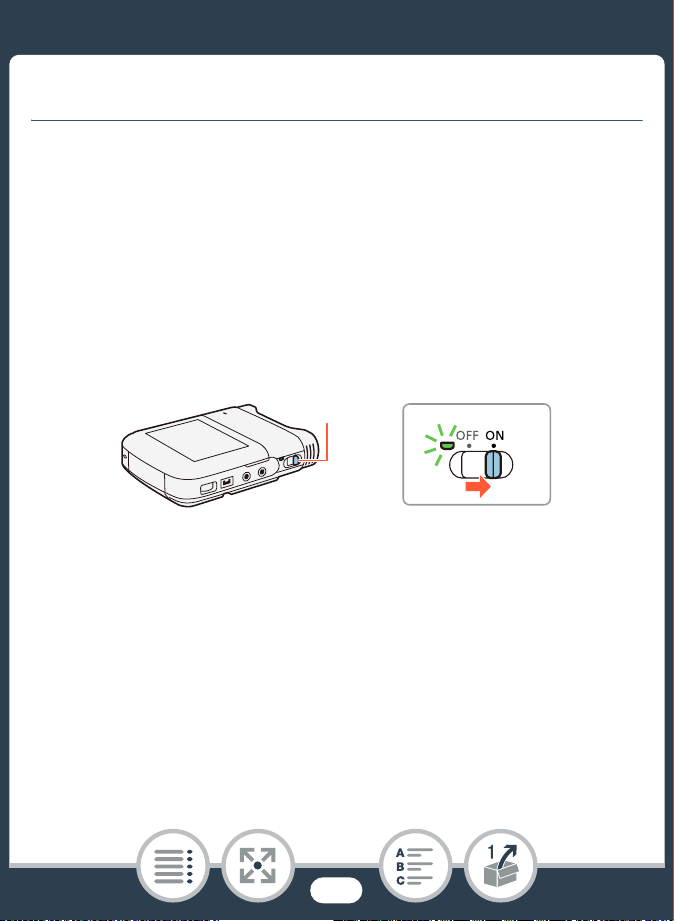
1 Set the power switch to ON to turn on the camcorder.
• The lens cover will open.
• The language selection screen will appear.
• After the power/charge indicator turns on in green, it will
go out.
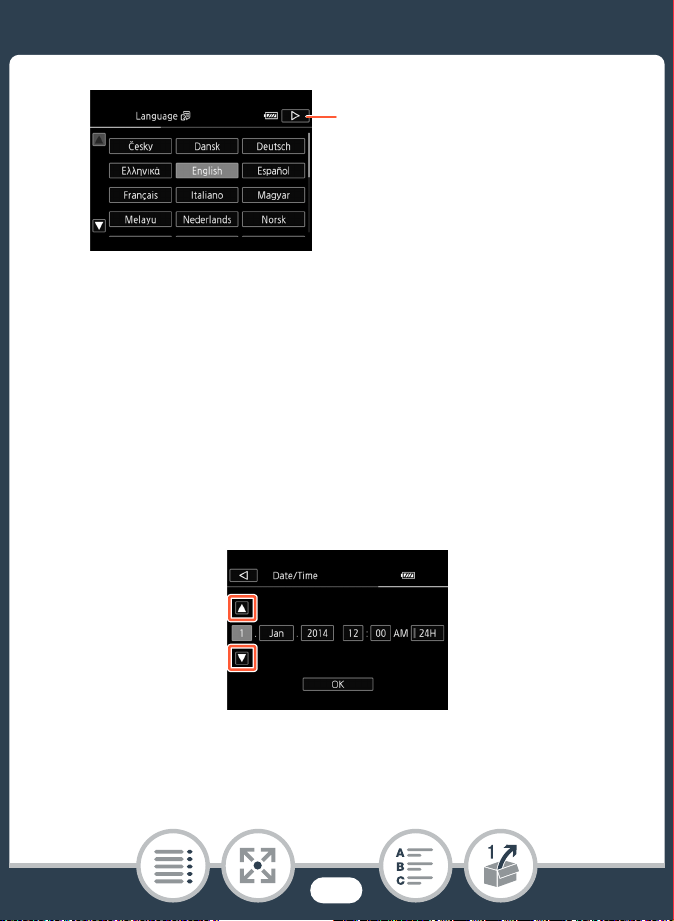
2 Touch the language that you want to be used for
onscreen displays and then touch [æ].
• You can select one of 27 languages. You may need to
scroll down to find your language.
• After you select a language, the [Date Format] screen will
appear.
1
1
40
First Time Settings
3 Touch [Y.M.D], [M.D,Y] or [D.M.Y] to select the date for-
mat you prefer and then touch [æ].
• After you select the date format, the [Date/Time] screen
will appear with the first field selected.
4 Touch a field you want to change (year, month, day,
hours or minutes).
5 Touch [Í] or [Î] to change the field as necessary.
Tou c h [ æ] after selecting a
language
41
First Time Settings
6 Set the correct date and time by changing all the fields
in the same way.
• Touch [24H] to use 24-hour clock or leave it unselected to
use 12-hour clock (AM/PM).
7 Touch [OK] to complete the basic setup and close the
setup screen.
• Some buttons, such as [ON]/[OFF] in some screens, will
appear in English regardless of the language selected.
• You can change the language and adjust the date and
time later on, using the following menu settings.
- 1 > q > [Language H]
- 1 > q > [Date/Time]
• When you do not use the camcorder for about 3
months, the built-in rechargeable lithium battery may
discharge completely and the date and time setting
may be lost. In such case, recharge the built-in lithium
battery (A 282). The next time you turn on the cam-
corder, you will have to perform the basic setup again.
42
First Time Settings
Changing the Time Zone
Change the time zone to match your location. The default set-
ting is Paris. In addition, the camcorder is able to retain the date
and time of another location. This is convenient when you travel
so that you can set the camcorder to match the time of your
home location or that of your destination.
This section requires using the camcorder’s menus. For details
about how to use the menus, refer to Using the Menus
(A 46).
1 Open the [Time Zone/DST] screen.
2 Touch ["] to set the home time zone, or [#] to set the
time zone of your destination when you are traveling.
3 Touch [Í] or [Î] to set the desired time zone. If nec-
essary, touch [$] to adjust for daylight saving time.
4 Touch [X] to close the menu.
N
I
J L K
’
y }
Shooting mode Playback
Format
0 > [1 Other Settings] > q > [Time Zone/DST]
43
First Time Settings
Initializing a Memory Card
Initialize memory cards when you use them with this camcorder
for the first time. You can also initialize a memory card to perma-
nently delete all the recordings it contains.
1 Power the camcorder using the compact power
adapter.
• Do not disconnect the power source or turn off the cam-
corder until the initialization is completed.
2 Set the power switch to ON to turn on the camcorder.
• The lens cover will open.
• After the power/charge indicator turns on in green, it will
go out.
N
I
J L K
’
y }
Shooting mode Playback
Format
1
1
44
First Time Settings
3 Initialize the memory card.
1
Touch this option if you want to physically erase all the data
rather than just clear the file allocation table of the memory card.
2
If you selected the [Complete Initialization] option, you can touch
[Cancel] to cancel the initialization while it is in progress. All
recordings will be erased and the memory card can be used
without any problem.
• Initializing a memory card will permanently erase all
recordings. Lost original recordings cannot be recov-
ered. Make sure you save important recordings in
advance (A 159).
0 > [1 Other Settings] > q > [Initialize 8] >
[Initialize] > [Complete Initialization]
1
> [Yes]
2
> [OK]
> [X]
45
Basic Operation of the Camcorder
Basic Operation of the Camcorder
Using the Touch Screen
The buttons and menu items that appear on the touch screen
change dynamically depending on the operating mode and the
task you are performing. With the intuitive touch screen interface
you have all the controls at your fingertips.
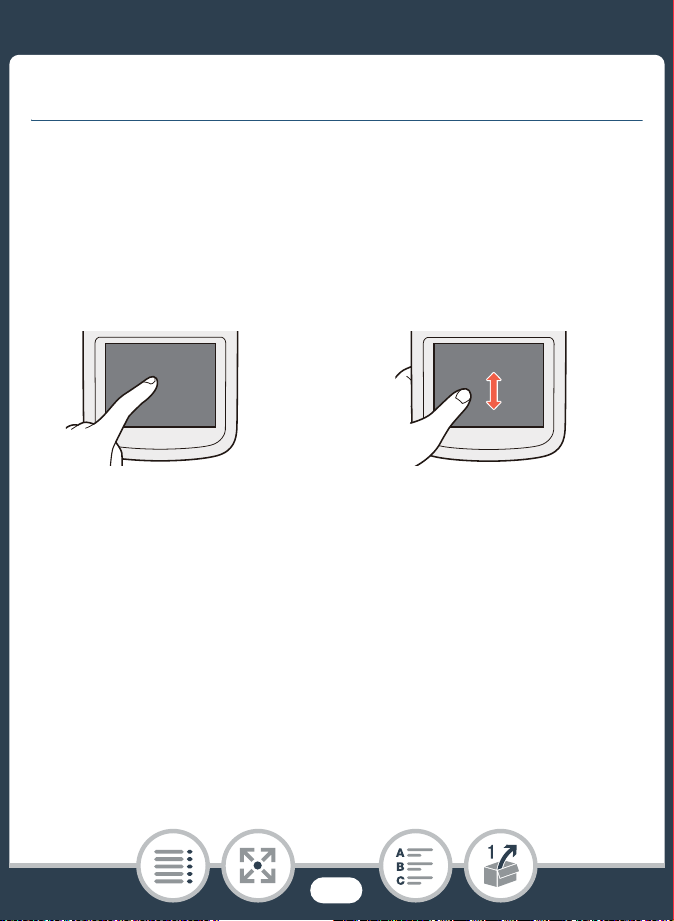
1 Touch
Touch on an element displayed on the touch screen.
Used to start playing back a scene in an index screen, to select
a setting from the menus, etc.
2 Drag
While touching the screen, swipe your finger up and down or left
and right across the screen.
Used to scroll menus, to browse through index screen pages or
to adjust slider controls like the volume.
12
46
Basic Operation of the Camcorder
Using the Menus
The 0 (Home) menu is the gateway to most of the camcorder’s
functions and settings. In recording mode, the 0 (Home) menu
offers immediate access to some frequently used functions. In
playback mode, it is from the 0 (Home) menu that you will
switch between the movies’ and photos’ index screens. In both
modes, from the 0 (Home) menu you can open the [1Other
Settings] menus for more detailed settings, and also access the
camcorder’s various Wi-Fi functions.
• In the following cases, you may not be able to perform
touch operations correctly.
- Using your fingernails or hard-tipped objects, such as
ballpoint pens.
- Operating the touch screen with wet or gloved hands.
- Applying excessive force with your finger.
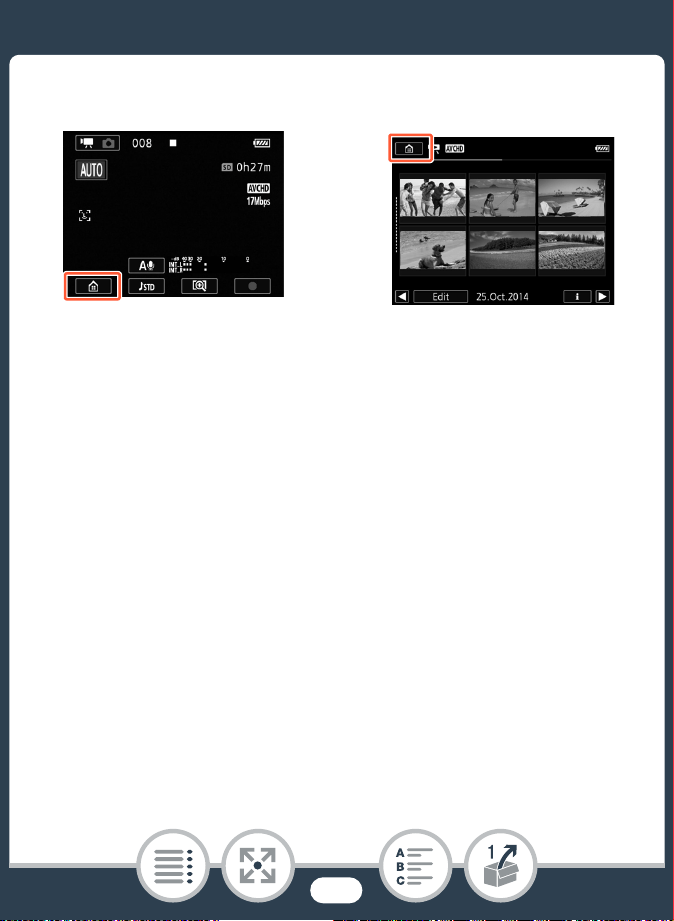
47
Basic Operation of the Camcorder
■ 0 (Home) Menu
1 Touch [0] on the bottom left corner (recording mode)
or top left corner (playback mode) of the screen to
open the 0 (Home) menu.
2 Drag your finger left/right to bring the desired menu to
the center.
3 Touch the icon of the desired menu to open it.
• See the following table for a description of each menu.
Recording mode Playback mode
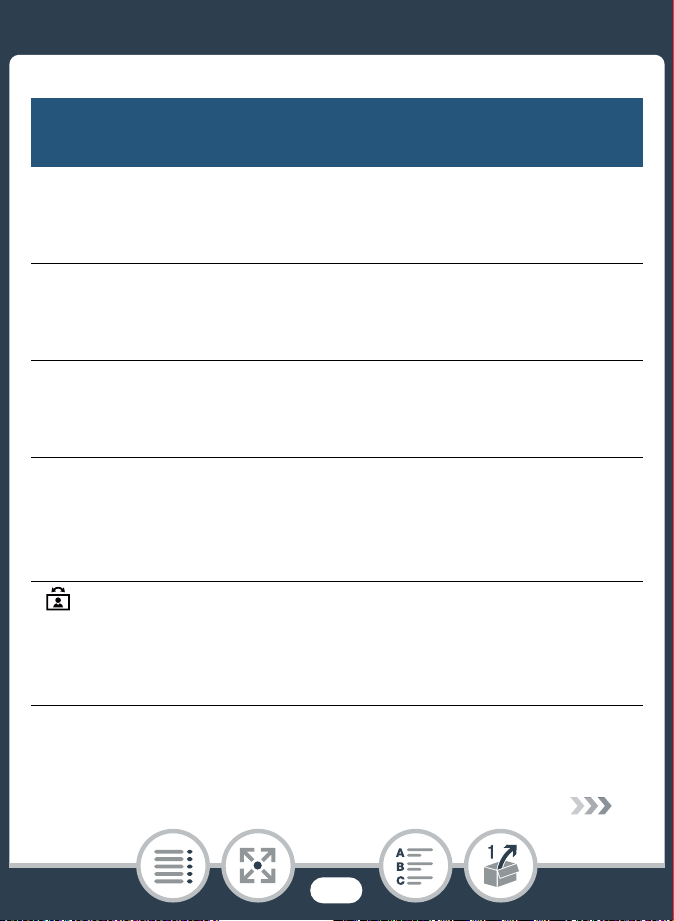
48
Basic Operation of the Camcorder
Menu item
Description
[1 Other Settings] (A 51, 222)
Opens the [1 Other Settings] menus, which give you
access to various camcorder settings.
[Audio Scene]* (recording mode only) (A 118)
Optimize audio settings for your surroundings to get the
best possible sound.
[Special Rec Modes]* (recording mode only) (A 97)
Enjoy special recording modes, like slow and fast motion
and interval recording, to achieve unique effects.
[Shooting Mode]* (recording mode only) (A 93)
The camcorder features a number of shooting modes that
offer the most appropriate settings for a variety of special
scenes.
[ Flip/Rotate Image] (recording mode only) (A 113)
You can have the camcorder record a mirror image (flipped
horizontally) or automatically detect its position to rotate the
image during playback.
* For these menu items, the icon shown in the 0 (Home) menu indi-
cates, respectively, the audio scene, special recording mode or
shooting mode currently selected.
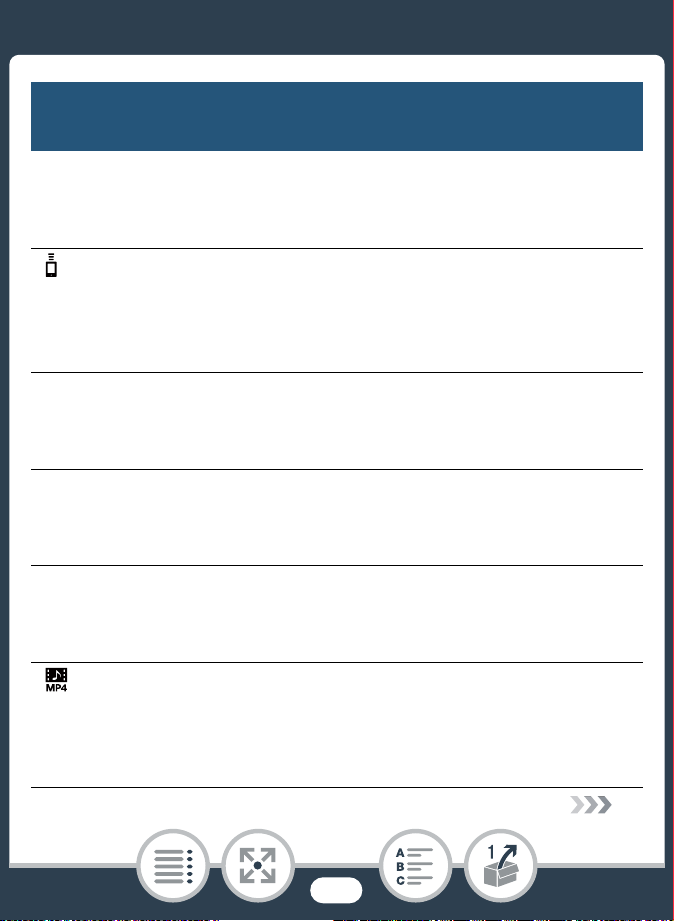
49
Basic Operation of the Camcorder
[< Self Timer] (recording mode only) (A 108)
Convenient function to give you time to get in the picture
after setting up the camcorder.
[ Remote Control+Streaming] (recording mode only) (A 178)
Use your smartphone or tablet as a remote control to
record with the camcorder. You can also stream video from
the camcorder and record it on the smartphone or tablet.
[} Photo Playback] (playback mode only) (A 75)
Switches the camcorder to photo playback mode and
opens the [}] index screen.
[· Movie Playback] (playback mode only) (A 67)
Switches the camcorder to playback mode for AVCHD
movies and opens the [y·] index screen.
[¸ Movie Playback] (playback mode only) (A 67)
Switches the camcorder to playback mode for MP4 movies
and opens the [y¸] index screen.
[ Video Snapshot] (playback mode only) (A 67)
Switches the camcorder to movie playback mode and
opens the [¦¸] index screen, which displays only your
MP4 video snapshot scenes.
Menu item
Description
50
Basic Operation of the Camcorder
■ Using the Menus
Changing the camcorder’s various settings using the menus is
very easy. You make your selection simply by touching the but-
ton of the desired option. When they appear on the screen, you
can touch [K] to return to the previous screen or [X] to close
the menu.
In some screens, you will need to scroll to find the desired
option.
[— Wi-Fi] (playback mode only) (A 170)
Allows you to access the various Wi-Fi functions, such as
uploading recordings to the Web or playing back record-
ings using a smartphone.
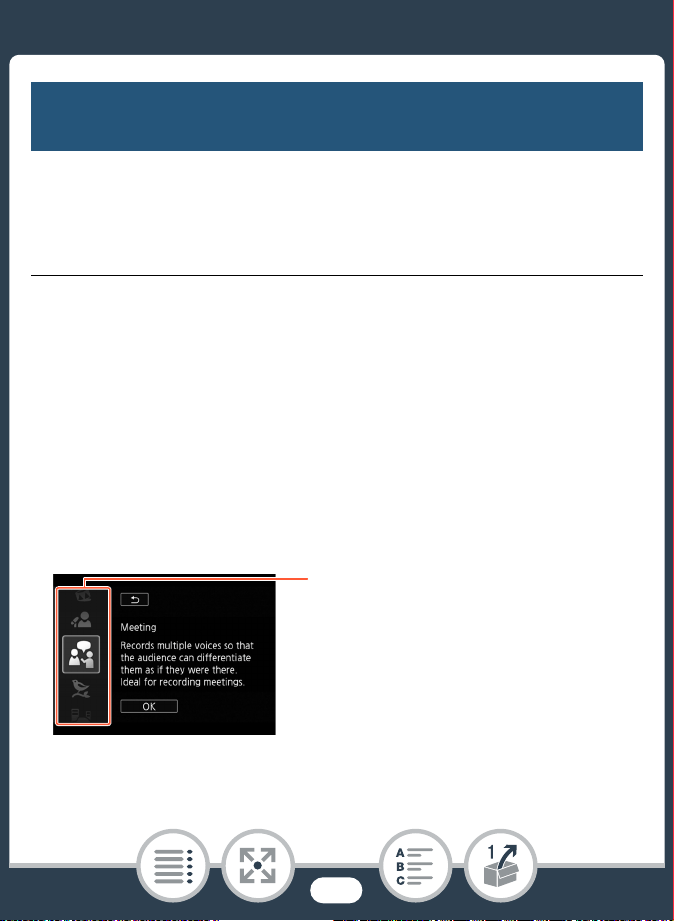
Menu item
Description
Some screens provide additional
information about the options. In
that case, simply drag your finger
up and down along the column of
icons.

51
Basic Operation of the Camcorder
The [1 Other Settings] Menu
The [1 Other Settings] menus offer many options to control
various aspects of the camcorder’s operation. For details, refer
to the complete list of settings in the appendix [1 Other Set-
tings] Menus (A 222).
In the [1 Other Settings] menus, settings are organized under
submenus (tabs). For brevity’s sake, these settings are refer-
enced throughout the manual like this: “1 > q >
[Language H]”. In this example (to change the language), you
will need to do the following:
1 Touch [0] to open the 0 (Home) menu.
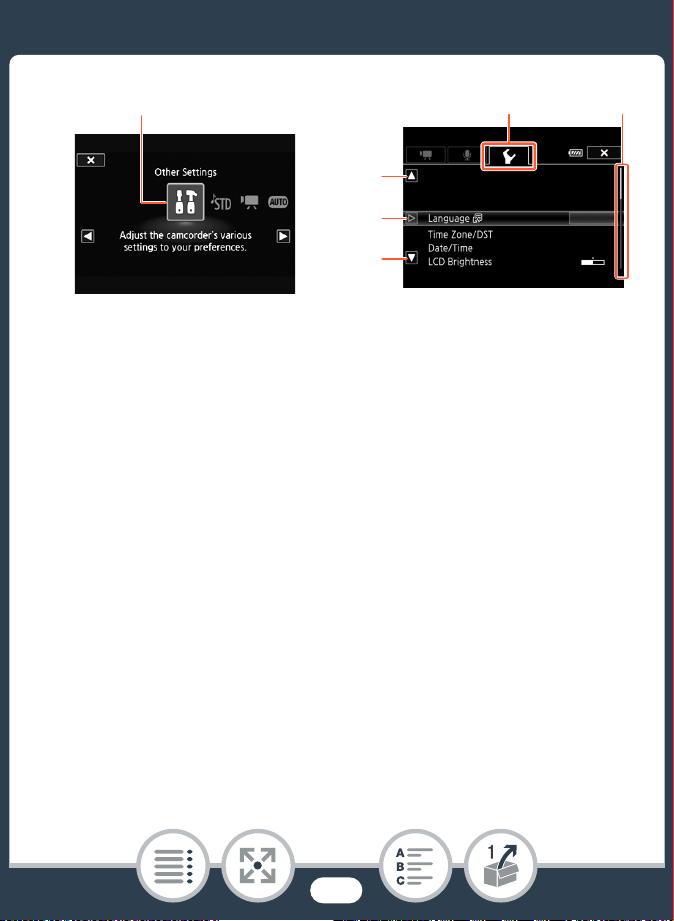
2 Drag your finger left/right to bring [1 Other Settings]
to the center. Then, touch the icon to open the
[1 Other Settings] menus.
• You can also use the [Ï] and [Ð] icons for scrolling.
52
Basic Operation of the Camcorder
3 Touch the tab of the desired menu.
4 Drag your finger up/down to bring the setting you want
to change into the orange selection bar.
• You can also use the [Í] and [Î] icons for scrolling.
• Menu items not available appear grayed out.
• You can touch any menu item on the screen to bring it
directly into the selection bar.
5 When the desired menu item is inside the selection bar,
touch [æ].
6 Touch the desired option and touch [X].
• You can touch [X] to close the menu at any time.
2
4
34
5
4
53
Basic Operation of the Camcorder
Operating Modes
In this manual, the camcorder’s operating modes are indicated
with a bar of icons. A full icon in blue (N) indicates that the
function described can be used in that particular operating
mode; a grayed-out icon (}) indicates the function is not avail-
able in that operating mode. Icons are divided into movie format
(A 55), shooting modes and playback modes.
■ Recording
When you set the power switch to ON, the camcorder will turn
on in recording mode. In recording mode, the camcorder’s oper-
ating mode is determined by the selected shooting mode
(A 93). The shooting mode icons are the same icons used in
the shooting mode selection screen.
N
I
J L K
’
y }
Shooting mode Playback
Format
54
Basic Operation of the Camcorder
■ Playback
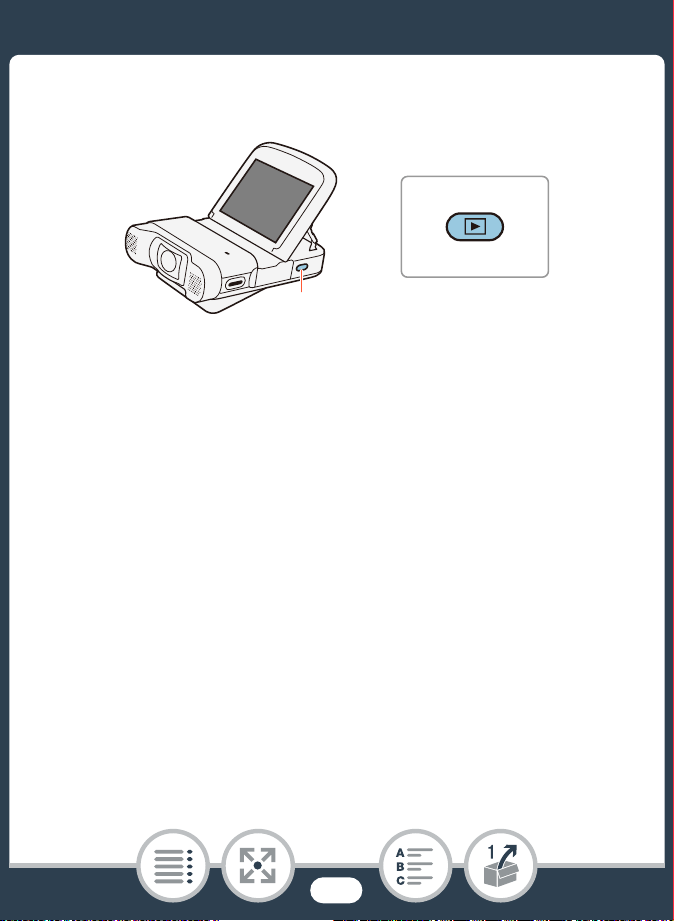
Press and hold the ^ button to switch the camcorder between
recording mode and playback mode.
In the bar of operating mode icons, the y icon refers to playing
back movies, whether from the [y·] or [y¸] index
screen (all AVCHD or MP4 scenes) or from the [¦¸] index
screen (only MP4 video snapshot scenes) (A 67). The } icon
refers to viewing photos from the [}] index screen (A 75).
1
1
55
Selecting the Movie Recording Format (AVCHD/MP4)
Selecting the Movie Recording
Format (AVCHD/MP4)
You can choose to record movies in AVCHD or MP4 format.
AVCHD movies are ideal for copying to an external device such
as a Blu-Ray Disc recorder. MP4 movies are versatile and can
easily be played back on smartphones or uploaded to the Web.
N
I
J L K
’
y }
Shooting mode Playback
Format
0 > [1 Other Settings] > p > [Movie Format] >
Desired movie format > [X]
56
Basic Recording and Playback
Basic Recording
This section covers how to easily record video and photos
and explains the convenient N mode. To record using
other shooting modes, use more advanced functions and
enjoy full access to all menu settings, refer to Advanced
Functions (A 88).
Basic Playback
This section covers how to play back, trim, delete and
divide movies and how to view photos (including in slide-
show mode) and delete them.
57
67
57
Basic Recording
Basic Recording
Recording Video
You are now ready to record movies. Because the camcorder
uses an ultra wide angle lens, you can even change the field of
view (ultra wide or close up). You can also select a different
shooting mode according to the shooting conditions (A 93).
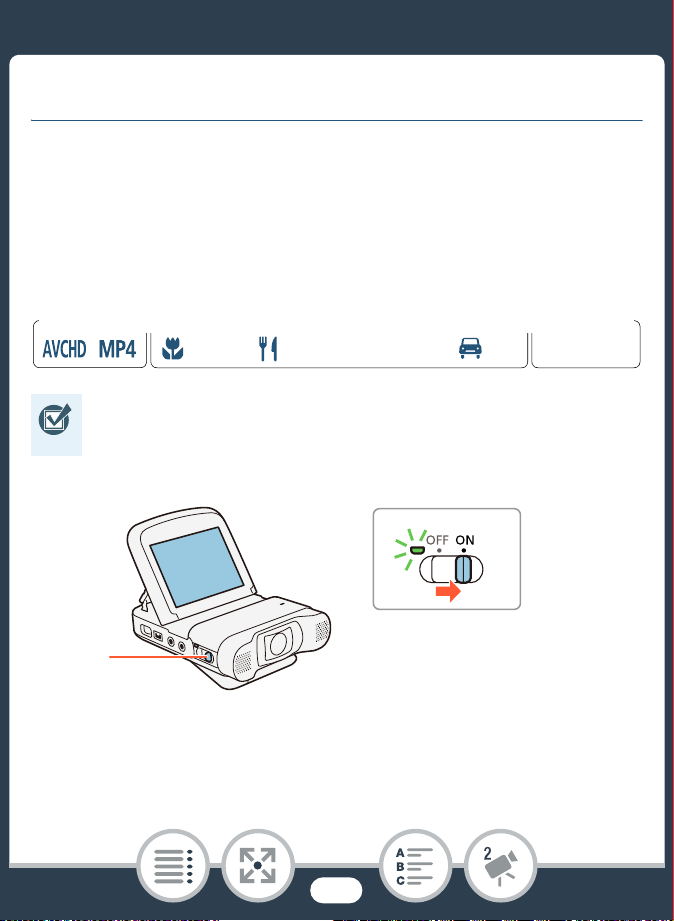
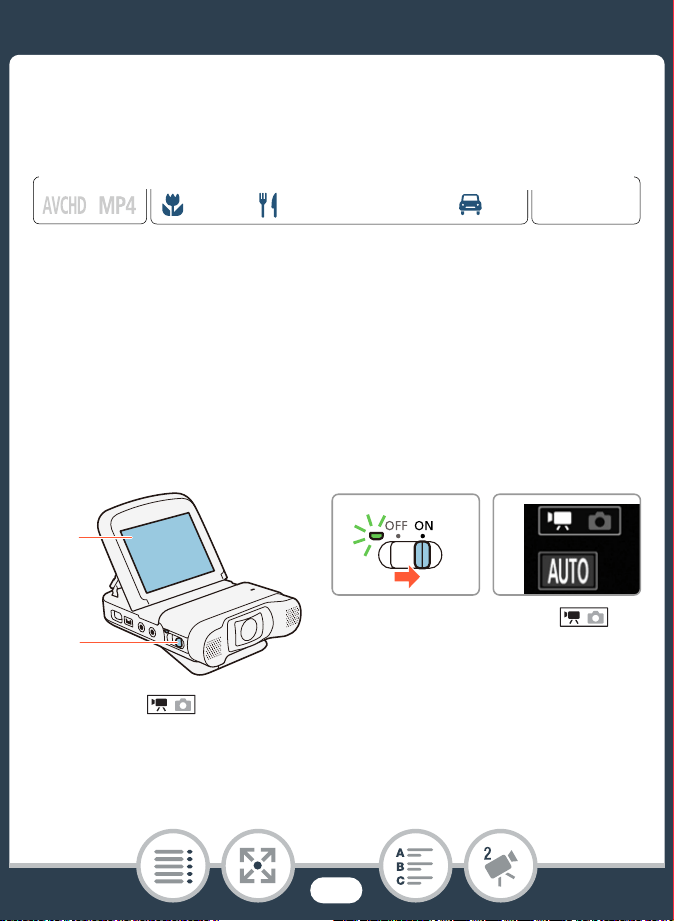
1 Set the power switch to ON to turn on the camcorder.
• The lens cover will open.
• Before you begin recording, make a test recording
first to check that the camcorder is operating correctly.
N
I
J L K
’
y }
Shooting mode Playback
Format
1
1
58
Basic Recording
• After the power/charge indicator turns on in green, it will
go out.
• Place and adjust the camcorder as necessary. If shooting
with the camcorder hand-held, be careful not to obstruct
the lens.
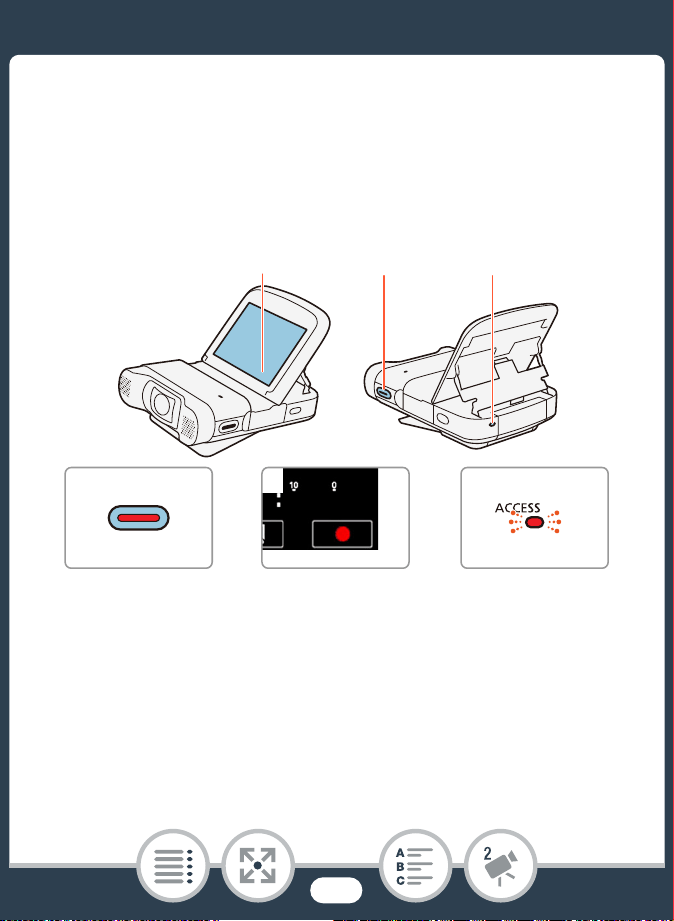
2 Press the start/stop button to begin recording.
• You can also touch [Ü] on the bottom right corner of the
screen.
• The ACCESS indicator will flash from time to time while the
scene is being recorded.
2
2, 3 22
2
2, 3
59
Basic Recording
3 Press the start/stop button again to stop recording.
• You can also touch [Ñ] on the bottom right corner of the
screen.
When you have finished recording
Make sure the ACCESS indicator is off and set the power switch
to OFF.
■ Changing the Field of View
The camcorder features an ultra wide angle lens so you can
capture a vast field of view (about 150° for AVCHD movies,
about 160° for MP4 movies, about 170° for photos), for example
to include a large group in a fisheye-like image. The ultra wide
angle means also that subjects on the sides of the image will
appear to have a curved distortion. Alternatively, you can enlarge
the center of the screen for a closer view.
Touch [ ] to enlarge the center of the screen (close-up).
Touch [ ] to return to the default field of view (ultra wide).
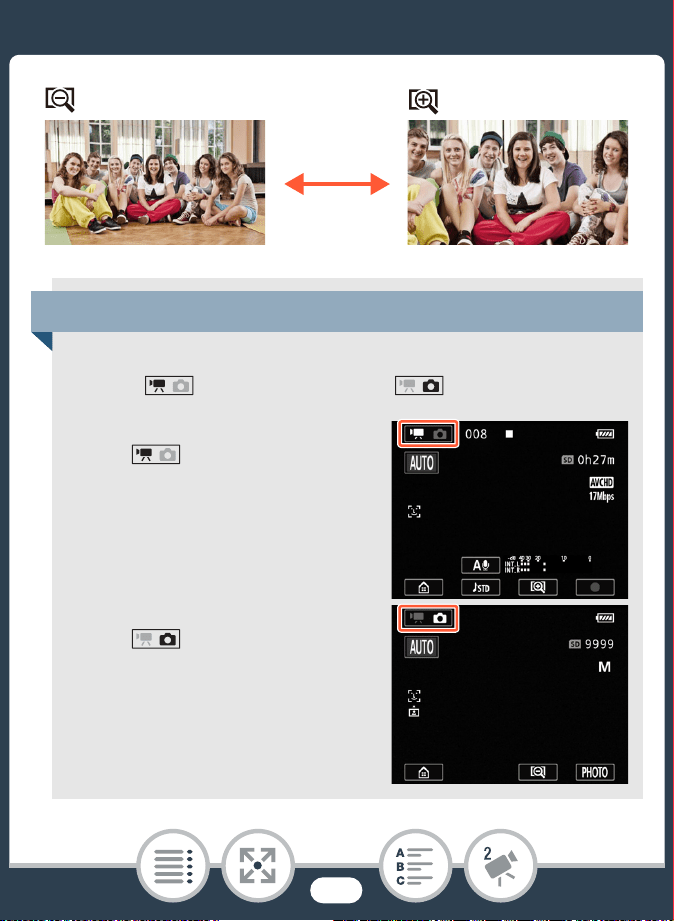
61
Basic Recording
• In order to protect the lens, turn off the camcorder after
you have finished recording to keep the lens cover
closed.
• Be sure to save your recordings regularly (A 159),
especially after making important recordings. Canon
shall not be liable for any loss or corruption of data.
• If a subject is too close to the camcorder, it may not be
able to focus correctly. You can set the shooting mode
to (A 93) to be able to focus a subject at a dis-
tance of only 20 cm from the camcorder.
•If 1 > q > [Auto Power Off] is set to [i On],
the camcorder will shut off automatically to save power
when it is powered by a battery pack and is left without
any operation for 3 minutes. Should this happen, set
the power switch to OFF and then ON again to turn the
camcorder back on.
• When recording in bright places, it may be difficult to
use the LCD screen. In such cases, you can adjust the
LCD backlight with the 1 > q > [LCD Back-
light] setting or adjust the brightness of the LCD screen
with the 1 > q > [LCD Brightness] setting.
62
Basic Recording
Taking Photos
You can easily take photos with the camcorder.
1 Set the power switch to ON to turn on the camcorder.
• The lens cover will open.
• After the power/charge indicator turns on in green, it will
go out.
• Place and adjust the camcorder as necessary. If shooting
with the camcorder hand-held, be careful not to obstruct
the lens.
2 Touch [ ] to switch the camcorder to photo mode
(A 60).
N
I
J L K
’
y }
Shooting mode Playback
Format
2
1
Touch [ ] to
switch modes
1
2
63
Basic Recording
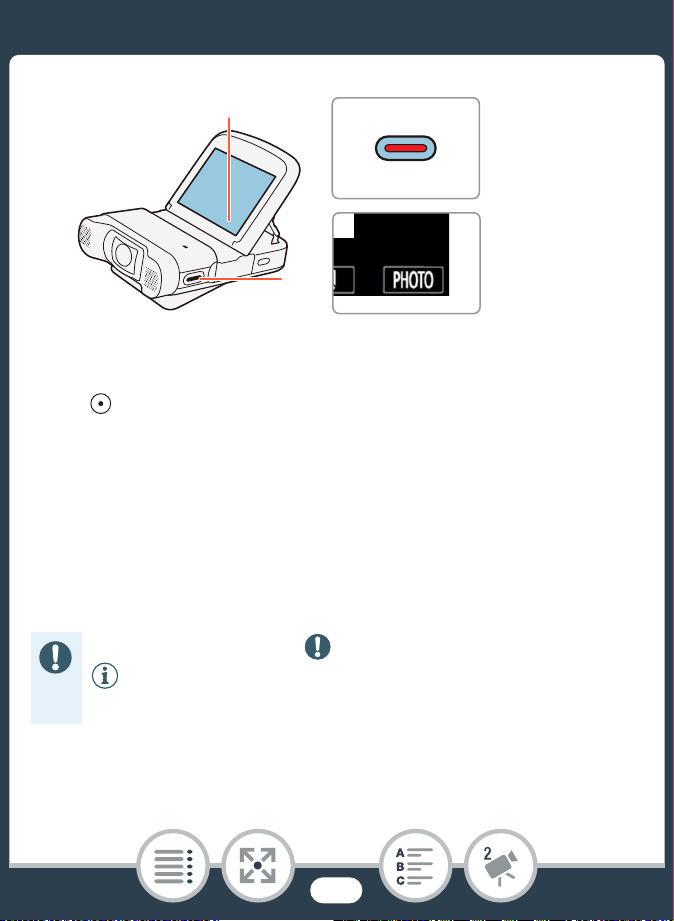
3 Touch [PHOTO] to take a photo.
• You can also press the start/stop button.
• will appear on the screen. The screen will turn black
momentarily and the aperture value and shutter speed will
appear.
• Photos have an aspect ratio of 4:3.
When you have finished taking photos
Make sure the ACCESS indicator is off and set the power switch
to OFF.
The information in the (important precautions) and
(additional notes) sections in the previous pages
apply also to photo shooting.
3
3
3
3
64
Basic Recording
AUTO Mode
With N mode, you can take great-looking videos by letting
the camcorder automatically adjust settings.
• Photos cannot be recorded while the camcorder is in
movie mode.
• You can use the 1 > > [Photo Size] setting
to change the size of the photos you take.
• In order to save power, the image shown on the screen
in photo mode is less detailed than the photo that will
actually be recorded.
• For details on how many photos you can take, refer to
Reference Tables (A 297).
N
I
J L K
’
y }
Shooting mode Playback
Format
65
Basic Recording
* Under certain conditions, the Smart AUTO icon that appears on the
screen may not match the actual scene. Especially when shooting
against orange or blue backgrounds, the Sunset or one of the Blue
Skies icons may appear and the colors may not look natural. In such
case, we recommend recording in ’ mode (A 93).
** There are times when the Smart AUTO function cannot detect the
subject, such as during interval recording or when you touch a sub-
ject's face for face detection. In such case, N will be displayed as
the Smart AUTO icon.
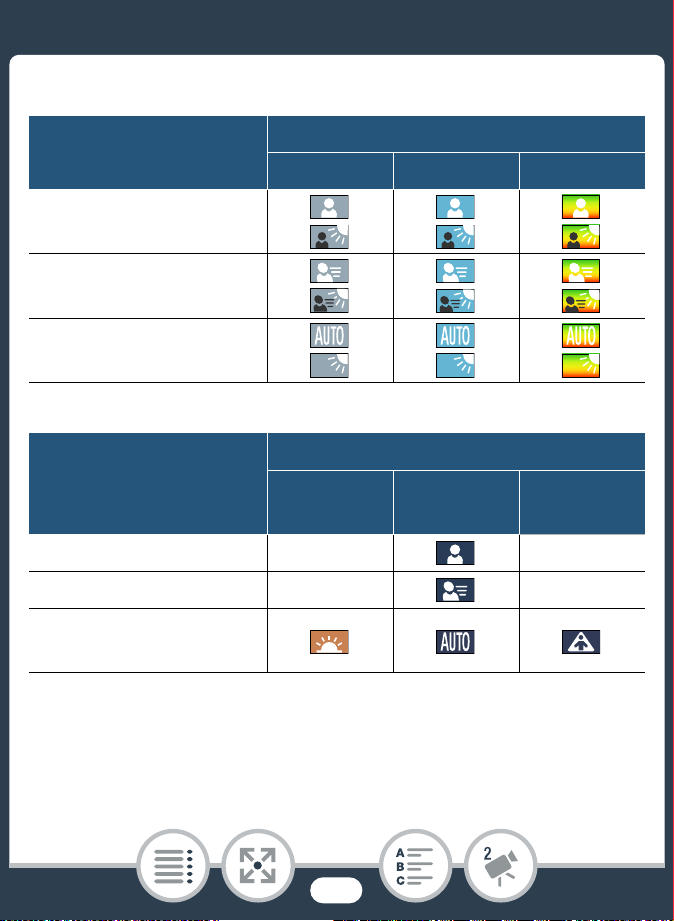
About the Smart AUTO function
In N mode, the camcorder will automatically detect cer-
tain characteristics of the subject, background, lighting con-
ditions, etc.* It will then adjust the exposure and color,
selecting the best settings for the scene you want to shoot.
The icon in the shooting mode button will automatically
change to one of the following Smart AUTO icons.**
66
Basic Recording
Smart AUTO icons
* The icon in parentheses appears under backlight conditions.
Subject
Background
Bright* Blue skies* Vivid colors*
People (stationary)
( )
( )
( )
People (moving)
( )
( )
( )
Subjects other than peo-
ple, such as landscapes
( ) ( ) ( )
Subject
Background
Sunset Dark
Dark +
Spotlight
People (stationary) — —
People (moving)
—
—
Subjects other than peo-
ple, such as landscapes
67
Basic Playback
Basic Playback
Playing Back Video
1
Press and hold the ^ button until an index screen
appears.
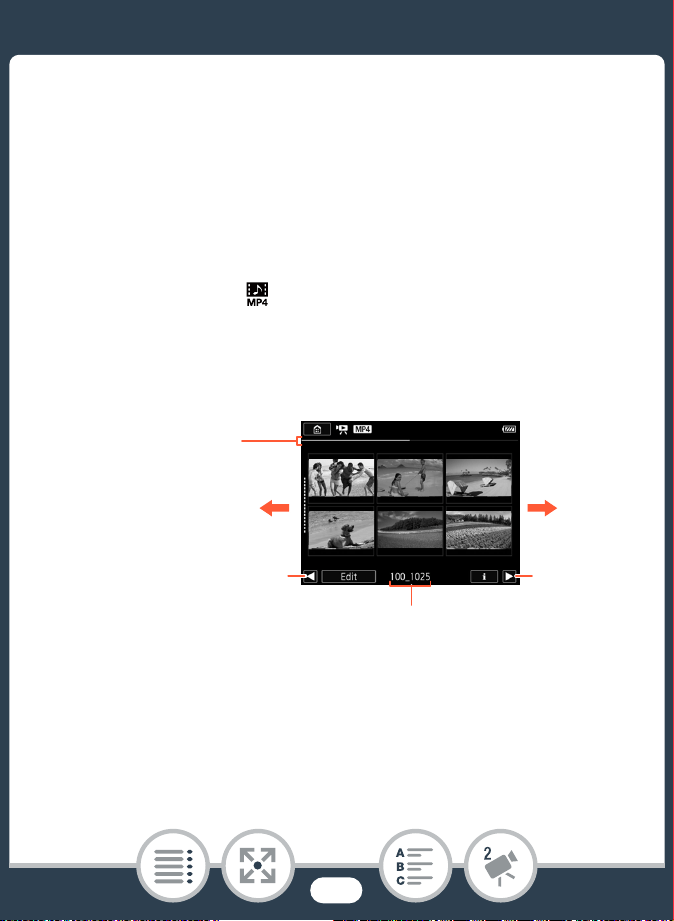
• The index screen that appears will depend on the record-
ing mode that was used previously. If you were using
movie mode, a movie index screen ([y¸], [y·] or
[¦¸]) will appear; for photo mode, the [}] index
screen will appear.
N
I
J L K
’
y }
Shooting mode Playback
Format
1
1
68
Basic Playback
• To play back AVCHD movies:
Touch 0 > [· Movie Playback] to open the
[y·] index screen.
To play back MP4 movies:
Touch 0 > [¸ Movie Playback] to open the
[y¸] index screen.
To play back MP4 video snapshot scenes only:
Touch 0 > [ Video Snapshot] to open the
[¦¸] index screen.
• After the power/charge indicator turns on in green, it will
go out.
2b
2a
2b
2a
For MP4 movies: Folder name.
The last four digits represent the
recording date (1025 = October
25).
For AVCHD movies: Recording
date.
Visual bar shows
the relative loca-
tion of the cur-
rent index screen.

69
Basic Playback
2 Look for the scene you want to play back.
• Drag your finger right/left (2a) or touch [Ï] or [Ð] (2b) to
display the previous/next index screen.
3 Touch the desired scene to play it back.
• The camcorder will play back the scene selected and con-
tinue until the end of the last scene in the index screen.
• Touch the screen to display the playback controls. During
playback, the playback controls will disappear automati-
cally after a few seconds without operation.
To adjust the volume
1 During playback, touch the screen to display the play-
back controls.
2 Touch [Ó/ ], drag your finger along the [Headphone
Volume] or [Speaker Volume] bar, or repeatedly touch
the headphone or speaker icon on either end of it to
adjust the volume and touch [K].
70
Basic Playback
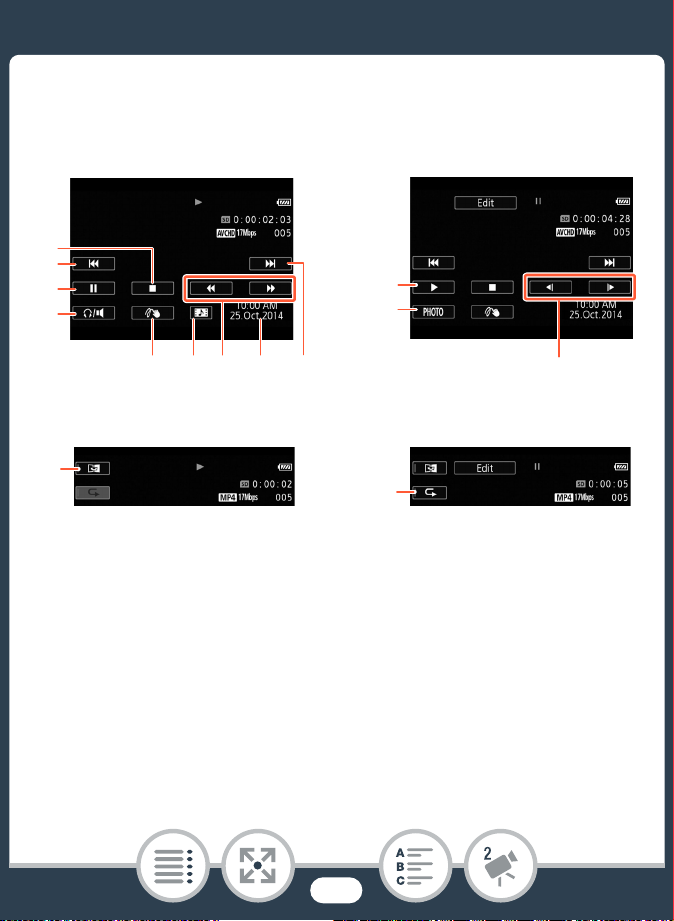
Playback controls
1 Stop the playback.
2 Jump to the beginning of the scene. Double-tap to jump to
the previous scene.
3 Pause the playback.
4 Volume control.
5 Decoration (A 109).
6 Capture a video snapshot scene (A 147).
7 Fast playback* backward/forward.
For AVCHD movies:
Playback Playback pause
For MP4 movies:
76589
1
2
3
4
Playback Playback pause
11
12
10
13
14
71
Basic Playback
8 For AVCHD scenes: Recording date and time.
For MP4 scenes: Recording date.
9 Jump to the beginning of the next scene.
10 Resume the playback.
11 Capture the displayed frame as a photo (A 149).
12 Slow playback** backward/forward.
13 Mirror image playback (MP4 scenes only).
14 Repeat playback (MP4 scenes only).
* Touch several times to increase the playback speed to 5x → 15x →
60x normal speed.
** Touch several times to increase the playback speed to 1/8x → 1/4x
normal speed.
■ The Scene Information Screen
On the scene information screen you can check various details,
including the scene’s length, date and time of recording and
video quality.
N
I
J L K
’
y }
Shooting mode Playback
Format
72
Basic Playback
1 In the [y·], [y¸] or [¦¸] index screen,
touch [I] and then touch the desired scene.
• The [Scene Info] screen appears.
• Touch [Ï]/[Ð] to select the previous/next scene.
2 Touch [K] twice to return to the index screen.
■ Repeat Playback
During playback of the desired scene:
• The same scene will be played back in a loop. Repeat the pro-
cedure to return to normal playback. Stopping the playback
will also cancel the repeat playback setting.
■ Mirror Image Playback
N
I
J L K
’
y }
Shooting mode Playback
Format
Touch the screen to display the playback controls > [Ý] >
[] > [Ð]
N
I
J L K
’
y }
Shooting mode Playback
Format
73
Basic Playback
During playback of the desired scene:
• The image will be flipped left to right. Repeat the proce-
dure to end the mirror image playback.
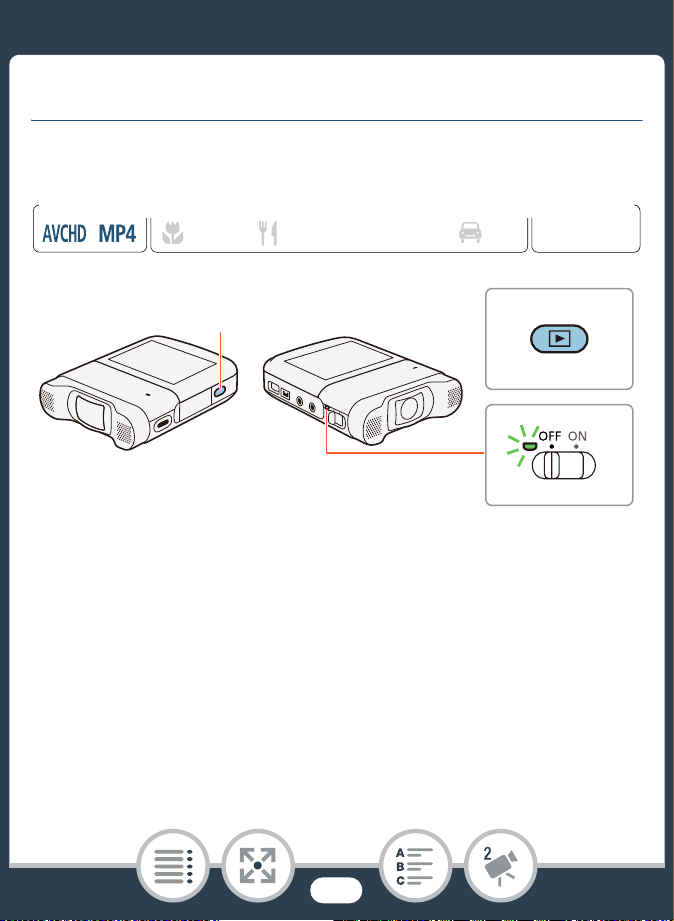
The ^ button
When the camcorder is turned on, press and hold the ^
button to switch back and forth between playback and
recording mode.
• When the camcorder is off, you can press and hold the
^ button to turn it on directly in playback mode.
•The ^ button cannot be used while recording movies
(except during interval recording).
Touch the screen to display the playback controls > []
74
Basic Playback
• You may not be able to play back with this camcorder
movies recorded on or copied onto a memory card
using another device.
• MP4 video snapshot scenes can be played back from
the [¦¸] or [y¸] index screen while AVCHD
video snapshot scenes can be played back only from
the [y·] index screen.
• You can use the 1 > > [Display Date/Time]
setting to choose whether to display the recording date
(MP4 movies) or date and time (AVCHD movies) when
you play back scenes.
• Depending on the recording conditions, you may notice
brief stops in video or sound playback between scenes.
• During fast/slow playback, you may notice some anom-
alies (blocky video artifacts, banding, etc.) in the play-
back picture. Also, sound will not be output.
• The speed indicated on the screen is approximate.
• Slow reverse playback will look the same as continuous
frame reverse.
• Sound will not be output from the built-in speaker while
headphones or the optional HTC-100 High Speed
HDMI cable is connected to the camcorder.
75
Basic Playback
Viewing Photos
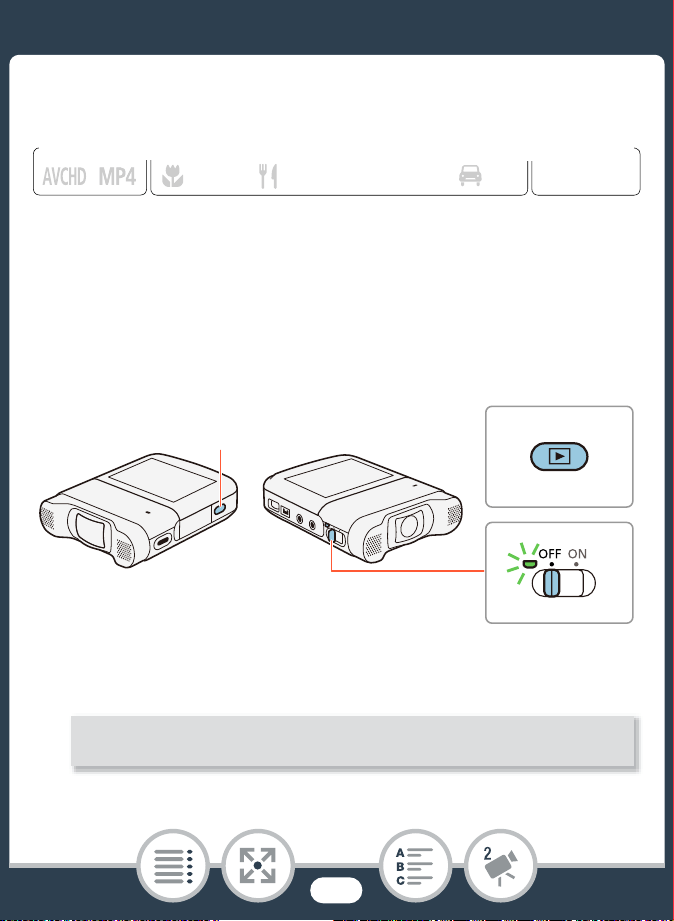
1
Press and hold the ^ button to turn on the camcorder
in playback mode.
• Keep the button held down until the index screen appears.
• After the power/charge indicator turns on in green, it will
go out.
2 If a movie index screen appears, open the [}] index
screen.
N
I
J L K
’
y }
Shooting mode Playback
Format
1
1
0 > [} Photo Playback]
76
Basic Playback
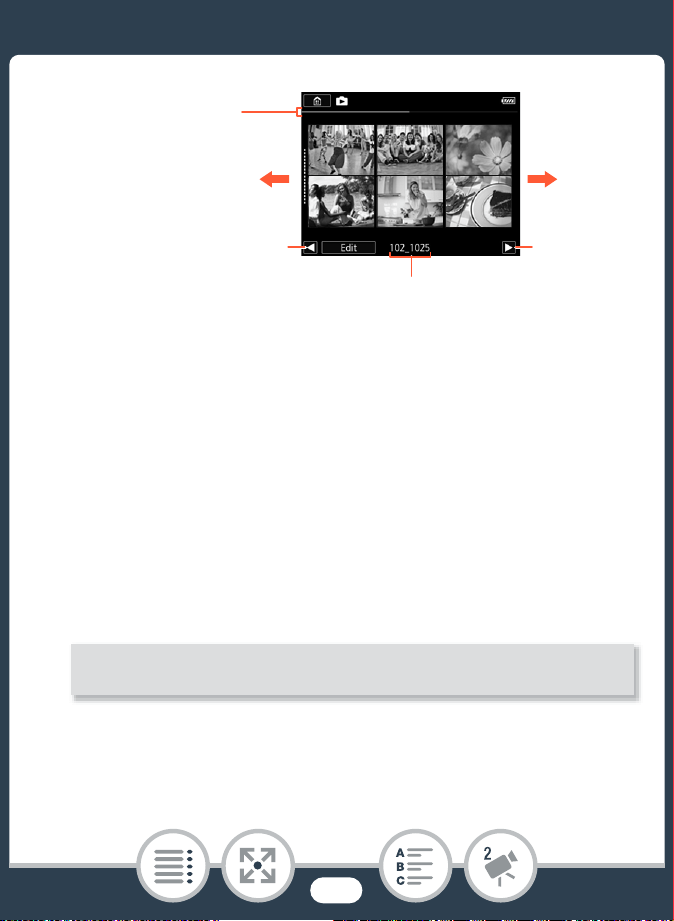
3 Look for the photo you want to view.
• Drag your finger right/left (3a) or touch [Ï] or [Ð] (3b) to
display the previous/next index screen.
4 Touch the photo you want to view.
• The photo is displayed in single photo view.
• Drag your finger left/right to browse through the photos
one by one.
• To return to the [}] index screen:
3b
3a
3b
3a
Folder name. The last four
digits represent the recording
date (1025 = October 25).
Visual bar shows
the relative loca-
tion of the cur-
rent index screen.
Touch the screen to display the playback controls > [f]
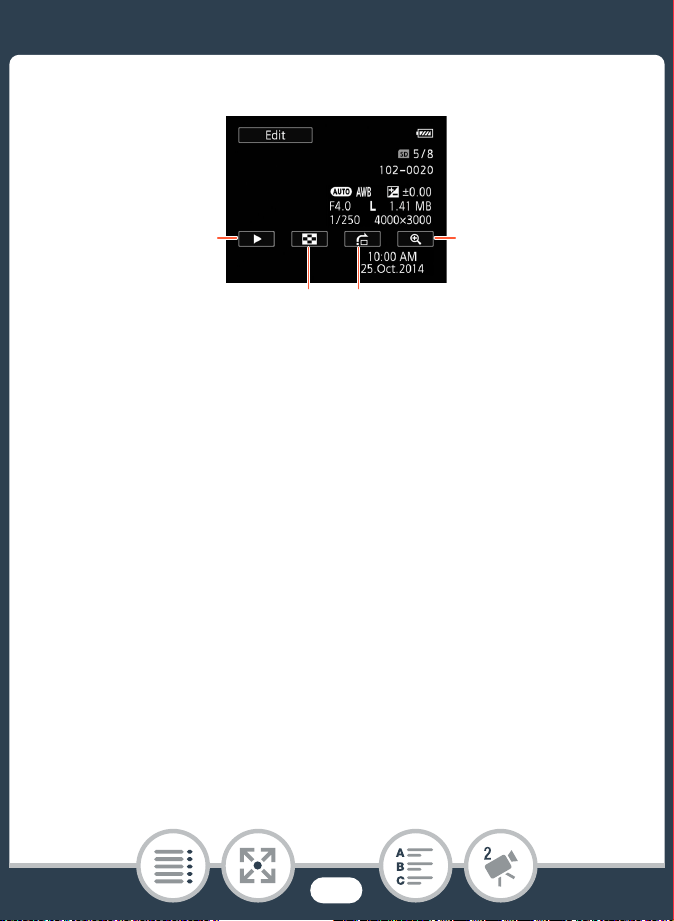
77
Basic Playback
Playback controls
1 Slideshow (A 86).
2 Return to the [}] index screen.
3 Photo jump
Touch [Ï] or [Ð], or drag your finger along the scroll bar to
find the desired photo. Touch [K] to return to single photo
view.
4 Magnified playback (see the following section).
■ Magnifying Photos in Playback
1 In single photo view, select the photo you want to mag-
nify.
32
1
4
78
Basic Playback
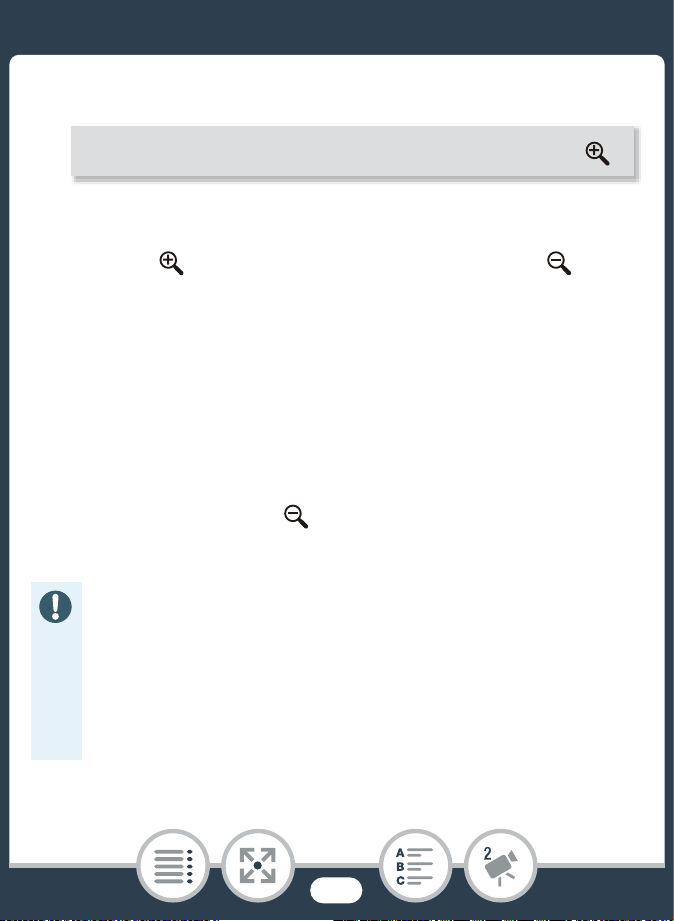
2 Magnify the photo.
• The center of the photo is magnified approximately 2
times.
• Touch [ ] to magnify the image further. Touch [ ] to
reduce the magnification.
• Drag your finger along the magnified area to check other
parts of the photo. The white square within the frame rep-
resents the approximate location of the portion of the
photo that is shown magnified.
3 Touch [K] to cancel the magnified view and return to
single photo view.
• You can also touch [ ] repeatedly until the magnified
view is canceled.
• The following image files may not be displayed correctly
with this camcorder if they were recorded on or copied
onto a memory card using another device.
- Images not recorded with this camcorder.
- Images edited on a computer.
- Images whose file names have been changed.
Touch the screen to display the playback controls > []
79
Basic Playback
Deleting Scenes and Photos
You can delete recordings that you are not interested in keeping.
Deleting recordings allows you also to free up space on the
memory card.
■ Deleting Scenes or Photos from the Index
Screen
1 Open the index screen that contains the scene or
photo you want to delete (A 67, 75).
• To delete all the scenes or photos recorded on the same
date (saved in the same folder), drag your finger left/right
until a scene or photo you want to delete appears.
2 Delete the recordings.
N
I
J L K
’
y }
Shooting mode Playback
Format
[Edit] > [Delete] > Desired option* > [Yes]** > [OK]

80
Basic Playback
* When you select [Select], perform the following procedure to
select the individual recordings you want to delete before touch-
ing [Yes].
** Touch [Stop] to interrupt the operation while it is in progress.
Some recordings may be deleted nevertheless.
To select individual scenes or photos
1 Touch on the individual scenes or photos you want to
delete.
• A checkmark ! will appear on the scenes or photos you
touch. The total number of selected scenes or photos will
appear next to the " icon.
• Touch a selected scene or photo to remove the check-
mark. To remove all checkmarks at once, touch [Remove
All] > [Yes].
2 After selecting all the desired recordings, touch [OK].
Options
[<date>] (for AVCHD movies):
Delete all the scenes recorded on a particular date. The date will
appear in the control button.
81
Basic Playback
■ Deleting a Single Scene
1 Play back the scene you want to delete (A 67).
2 Delete the scene.
[<folder name>] (for MP4 movies and photos):
Delete all the scenes or photos recorded on a particular date
that are stored in the same folder. The last four digits of the
folder name that appears in the button indicate the date the
folder was created (ex. 1025 = October 25).
[Select]:
Select individual scenes or photos to delete.
[All Scenes] or [All Photos]:
Delete all the scenes or photos.
N
I
J L K
’
y }
Shooting mode Playback
Format
Touch the screen to display the playback controls > [Ý]
> [Edit] > [Delete] > [Yes] > [OK]
82
Basic Playback
■ Deleting a Single Photo
1 In single photo view, select the photo you want to
delete (A 75).
2 Delete the photo.
3 Drag your finger left/right to select another photo to
delete or touch [X].
• Be careful when deleting recordings. Once deleted,
they cannot be recovered.
• Save copies of important recordings before deleting
them (A 159).
• Photos that were protected with other devices and then
transferred to the memory card when it was connected
to a computer cannot be deleted with this camcorder.
N
I
J L K
’
y }
Shooting mode Playback
Format
Touch the screen to display the playback controls >
[Edit] > [Delete] > [¸ Proceed] > [Yes]
83
Basic Playback
Dividing Scenes
You can divide AVCHD scenes in order to leave out the best
parts and later cut out the rest.
1 Play back the desired scene (A 67).
2 At the point where you want to divide the scene, open
the screen for dividing scenes.
3 Bring the scene to a precise point, if necessary.
Playback controls will appear on the screen (A 70). Use
any special playback modes (fast playback, frame reverse/
advance) as necessary to locate the desired point.
• To delete all recordings and make all recordable space
available again you may prefer to initialize the memory
card (A 43).
N
I
J L K
’
y }
Shooting mode Playback
Format
Touch the screen to display the playback controls > [Ý]
> [Edit] > [Divide]
84
Basic Playback
4 Divide the scene.
• The video from the division point to the end of the scene
will appear as a new scene in the index screen.
• When advancing/reversing frames while dividing the
scenes, the interval between frames is about 0.5 sec-
onds.
• If the scene cannot be divided at the point where you
paused the playback, advance/reverse a frame and
then divide the scene.
• During the playback of a scene that was divided, you
may notice some anomalies in the picture/sound at the
point where the scene was cut.
• Scenes that are too short (less than 3 seconds) cannot
be divided.
• Scenes cannot be divided within 1 second from the
beginning or the end of the scene.
[µ Divide] > [Yes]
85
Basic Playback
Trimming Scenes
You can trim MP4 scenes by removing everything up to a certain
point or everything after a certain point. By doing so, you leave
only memorable moments to keep for posterity.
1 Play back the scene you want to trim (A 67).
2 At the point where you want to trim the scene, open the
scene trimming screen.
3 Bring the scene to a precise point, if necessary.
• The point at which is movie will be trimmed is indicated by
the ´ marker.
• Playback controls will appear on the screen (A 70). Use
any special playback modes (fast playback, frame reverse/
advance) as necessary to locate the desired point.
N
I
J L K
’
y }
Shooting mode Playback
Format
Touch the screen to display the playback controls > [Ý]
> [Edit] > [Trim]
86
Basic Playback
4 Trim the scene.
• You can select whether to trim the part before or after the
´ marker and whether to save the remaining part of the
video as a new scene (keeping the original scene) or to
overwrite the original scene.
• Touch [Stop] to interrupt the operation while it is in
progress.
Slideshow
You can play a slideshow of all the photos.
• You may not be able to correctly trim scenes that were
recorded on or copied onto a memory card using
another device.
• Interval scenes with the icon cannot be trimmed.
• Scenes cannot be trimmed within about 0.5 seconds
from the beginning or the end of the scene.
[Trim] > [Trim Before Marker] or [Trim After Marker] >
[Save as New] or [Overwrite]
N
I
J L K
’
y }
Shooting mode Playback
Format
87
Basic Playback
1 Open the [}] index screen (A 75).
2 Touch the photo that will open the slideshow to display
it in single photo view.
3 Start the slideshow.
• During the photo slideshow, touch the screen and touch
[Ý] to stop the slideshow.
• You can change the slideshow’s effects with the 1 >
> [Slideshow Transition] setting.
Touch the screen to display the playback controls > [Ð]
88
Advanced Functions
Video Quality and Shooting Modes
This section explains how to change the video quality of
your recordings and how to use the camcorder’s various
shooting modes to get perfect recordings when you are
shooting fashion scenes, dance training sessions, night
scenes or many other special scenes.
Special Recording Modes
This section explains how you can use interval recording
to create time-lapse scenes, slow and fast motion for
unique recordings, or video snapshot scenes for a fast-
paced, interesting video clip.
Convenient Functions
This section introduces some of the camcorder’s functions
that you may find convenient in special situations. For
example, self timer, fun decorations for your scenes and
mirror image recording.
90
97
108
89
Recording Audio
This section explains various functions related to recording
audio, such as audio scene selection, wind screen, audio
mix and using headphones.
When You Want More Control
This section explains functions you can use when you
want more control over how your recordings look. It is
more oriented for advanced users and covers functions
such as white balance and exposure compensation.
116
139
90
Video Quality and Shooting Modes
Video Quality and Shooting Modes
Selecting the Video Quality
The camcorder offers the following video quality options (bit rates)
for recording movies: 24 Mbps, 17 Mbps and 4 Mbps
1
. Select
24 Mbps for higher video quality; select 4 Mbps for longer record-
ing times or smaller file sizes. In addition, for AVCHD movies, when
the video quality is set to 24 Mbps, you can enjoy two-channel lin-
ear PCM (LPCM) audio recording with a sampling frequency of
48 kHz
2
.
1
The 4 Mbps option is available for MP4 movies only.
2
With LPCM audio recording, recorded data is not processed or com-
pressed so there is no loss of audio quality. When scenes recorded at
24 Mbps are played back on other devices, audio will be output only
if the device is compatible with LPCM audio.
N
I
J L K
’
y }
Shooting mode Playback
Format
0 > [1 Other Settings] > p > [Video Quality] >
Desired video quality > [X]
91
Video Quality and Shooting Modes
• For details on approximate recording times, refer to
Approximate recording times (A 297).
• Bit rate (measured in Mbps) indicates how much infor-
mation is recorded in 1 second of video and therefore
affects also the recording time available on the memory
card.
• Depending on the device used, you may not be able to
play back your recordings on other devices.
• The camcorder uses a variable bit rate (VBR) to encode
video so the actual recording times will vary depending
on the content of the scenes.
• The following types of MP4 scenes will be recognized
as multiple files on other devices.
- Scenes exceeding 4 GB.
- Scenes exceeding 1 hour.
92
Video Quality and Shooting Modes
Selecting the Photo Size
Photos are recorded as JPG files. The camcorder offers three
photo sizes but the photo quality cannot be changed. As a gen-
eral rule, select a larger photo size for higher quality.
1 Set the camcorder to photo mode (A 60).
2 Select the photo size.
• Even if the photo size was set to , it will change auto-
matically to n size when you set the field of view to
close-up.
• For details on the number of photos you can take on a
memory card, refer to Approximate number of pho-
tos available on a 4 GB memory card (A 297).
N
I
J L K
’
y }
Shooting mode Playback
Format
0 > [1 Other Settings] > > [Photo Size] >
Desired option > [X]
93
Video Quality and Shooting Modes
Selecting the Shooting Mode
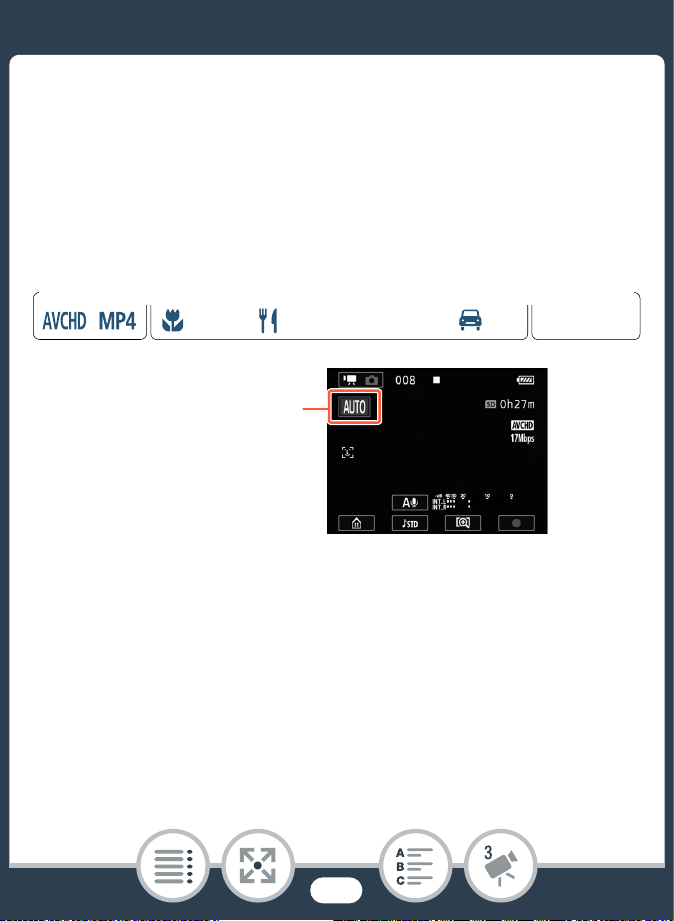
In addition to N mode, the camcorder features a number of
shooting modes that offer the most appropriate settings for a
variety of special scenes. You can also use the ’ shooting
mode when you want the camcorder to set the exposure auto-
matically but control manually some advanced settings.
1 Touch the shooting mode button on the top left corner
of the screen.
• The button will show the icon of the shooting mode cur-
rently selected. If the camcorder is set to N mode, the
button will show one of the Smart AUTO icons (A 66).
• Alternatively, you can open the shooting mode selection
screen from the 0 (Home) menu: 0> [Shooting Mode].
N
I
J L K
’
y }
Shooting mode Playback
Format
Shooting mode button
94
Video Quality and Shooting Modes
2 Drag your finger up/down to bring the desired shooting
mode to the center and then touch [OK].
• You can also touch the icon in the center instead of touch-
ing [OK].
Options (
Default value;
ƒ
- special scene shooting mode)
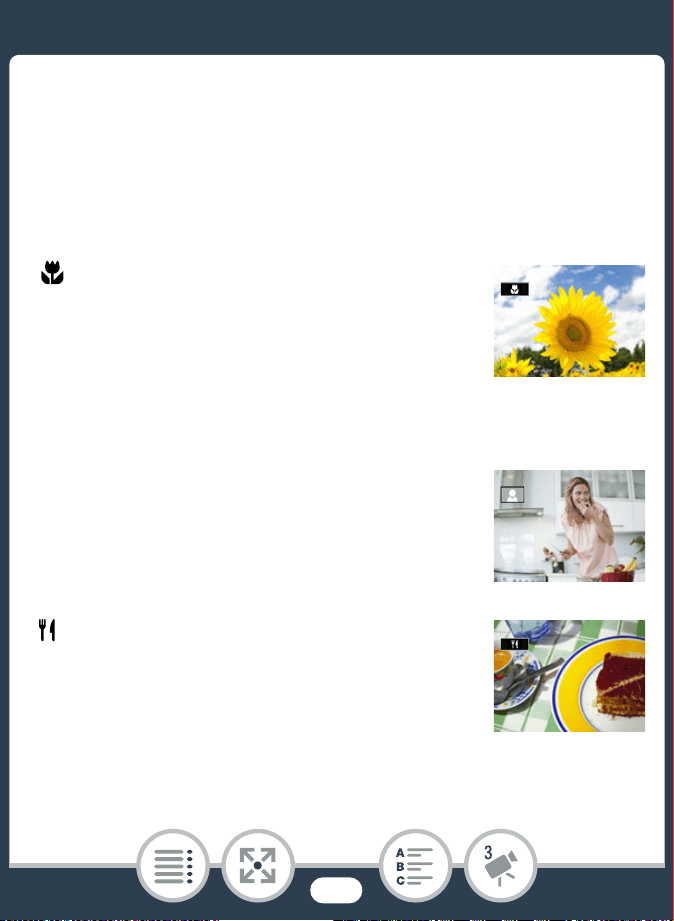
[ Macro] (ƒ)
The camcorder can focus at a shorter distance,
allowing you to get closer shots of flowers or
insects. When the field of view is ultra wide
(A 59) subjects will also stand out more
because of the fisheye effect of the ultra wide
angle lens.
[N Auto]
Let the camcorder take care of most of the set-
tings while you concentrate on recording
(A 57). Great for beginners or if you just prefer
not to bother with detailed camcorder settings.
[ Food and Fashion] (ƒ)
To record fashion or food related scenes with
vivid colors.
95
Video Quality and Shooting Modes
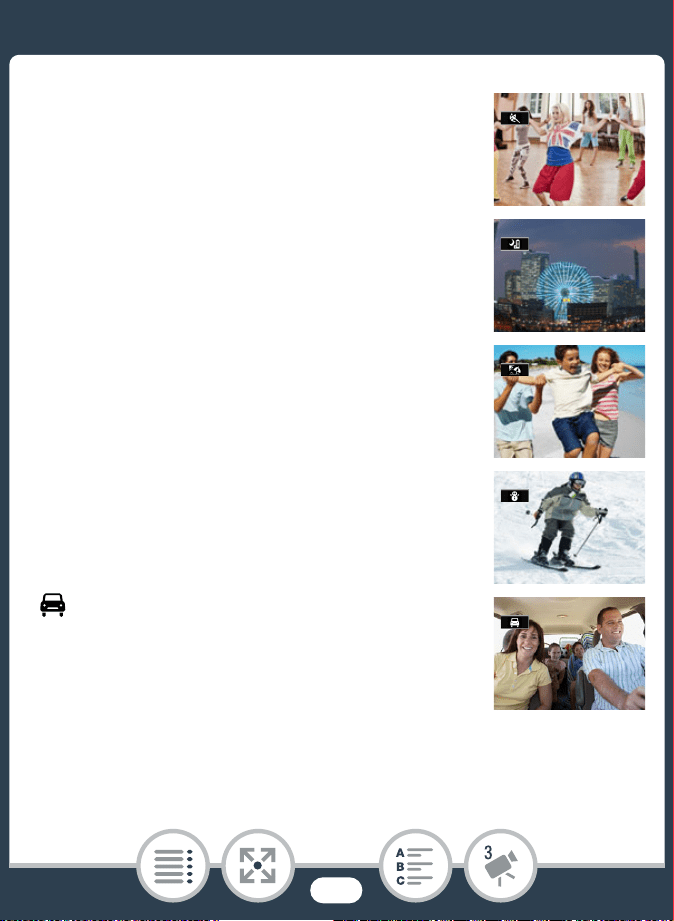
[I Sports] (ƒ)
To record scenes with lots of movement, such
as sport events and dance scenes.
[J Night Scene] (ƒ)
To record nightscapes with lower noise.
[L Beach] (ƒ)
To record on a sunny beach without the subject
being underexposed.
[K Snow] (ƒ)
To record in bright ski resorts without the sub-
ject being underexposed.
[ Car] (ƒ)
To record in a car without the subject being
underexposed.
96
Video Quality and Shooting Modes
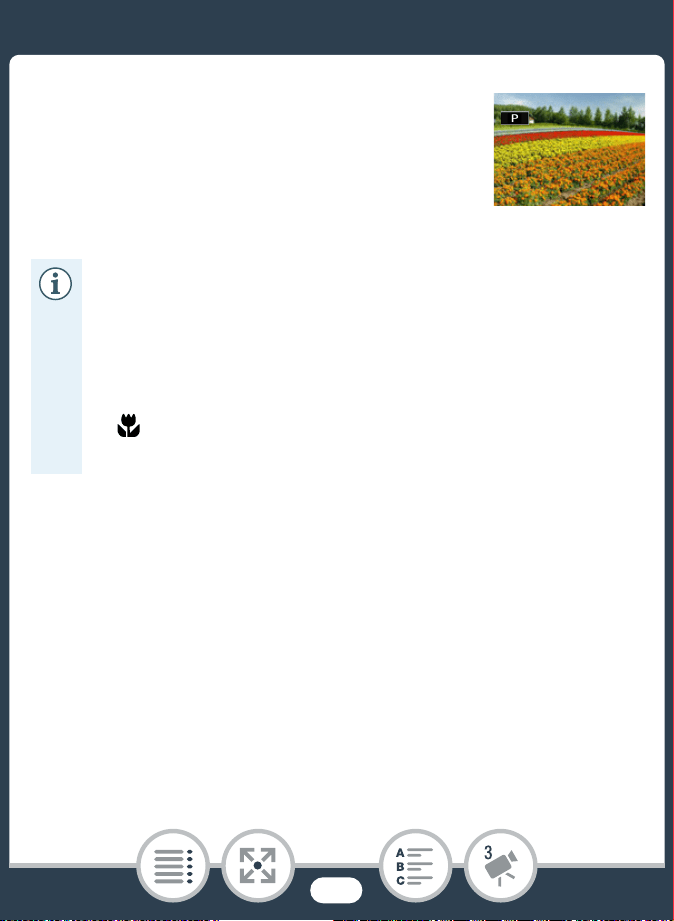
[’ Programmed AE]
The camcorder automatically sets the shutter
speed and aperture but you have the option to
adjust the white balance (A 139) and expo-
sure (A 141).
•[I Sports]/[L Beach]/[K Snow]: The picture may
not appear smooth during playback.
•[L Beach]/[K Snow]: The subject may become over-
exposed on cloudy days or in shaded places. Check
the image on the screen.
• [ Macro]: The camcorder can focus on a subject as
close as 21 cm.
97
Special Recording Modes
Special Recording Modes
Interval Recording
When the movie format is set to MP4, you can easily set the
camcorder to record about half a second of video or a photo at
fixed intervals from 5 seconds to 10 minutes. When recording
video using interval recording, you can join all these short bits of
video (interval scenes) into a single time-lapse scene that cap-
tures the passage of time.
Sound is not recorded in this special recording mode.
1 Make sure the camcorder has sufficient power to com-
plete the operation.
• Insert a fully charged battery pack or use the supplied
compact power adapter.
2 Activate interval recording.
• You can also touch the icon in the center instead of touch-
ing [OK].
N
I
J L K
’
y }
Shooting mode Playback
Format
0 > [Special Rec Modes] > [ Interval Recording]
> [OK]

98
Special Recording Modes
• The default recording interval is 5 seconds. Before touch-
ing [OK], you can change the recording interval with the
following procedure (A 99).
3 Touch [OK] and start recording with interval recording.
• and the selected interval length will appear on the
screen. Also, the remaining video recording time will auto-
matically be reduced by about half.
• In movie mode: Press the start/stop button or touch [Ü]
to record the first video.
In photo mode: Press the start/stop button or touch
[PHOTO].
• The camcorder will continue recording interval scenes or
photos at the set interval. The number of videos/photos
recorded so far, and a countdown until the next recording
is made will be displayed on the screen.
• You can change the recording interval with the following
procedure.
4 Press and hold the ^ button and then touch [Yes] to
end interval recording mode.
• Interval recording mode will end. In photo mode, the rest of
the procedure is not necessary.
• In movie mode, continue the procedure to join all the inter-
val scenes into a single time-lapse scene.

99
Special Recording Modes
5 Touch [Yes] to join the interval scenes.
• If you prefer to join the interval scenes later on, touch [No]
instead. The rest of the procedure is not necessary.
• You can touch [Stop] > [OK] to interrupt the operation
while it is in progress. The index screen will appear, dis-
playing the folder where the interval scenes are saved.
6 Touch [OK].
7 Touch [Yes] to delete the original interval scenes.
• If you prefer to keep the original interval scenes even after
they were successfully joined, touch [No] instead.
• You can touch [Stop] to interrupt the operation while it is in
progress.
8 Touch [OK].
• A new time-lapse scene, created from all the interval
scenes, will be added to the [y] index screen.
To change the recording interval
You can change the recording interval while activating interval
recording (from the [ Interval Recording] selection screen) or
from the record standby screen after interval recording is acti-
vated.
[w] > Desired interval > [K]
100
Special Recording Modes
To join interval scenes later on
Even if you did not join MP4 scenes recorded using interval
recording immediately after recording them, you can do so at a
later date.
1 Open the [y¸] index screen (A 67).
2 Touch an interval scene marked with the icon.
3 Touch [Join] and continue from step 5 in the previous
procedure (A 99).
• Face detection and tracking, exposure adjustment and
Wi-Fi functions cannot be used during interval record-
ing.
• The maximum recording time from the point recording
begins to the point it ends is as follows. The maximum
recording time in interval recording mode depends on
the selected recording interval.
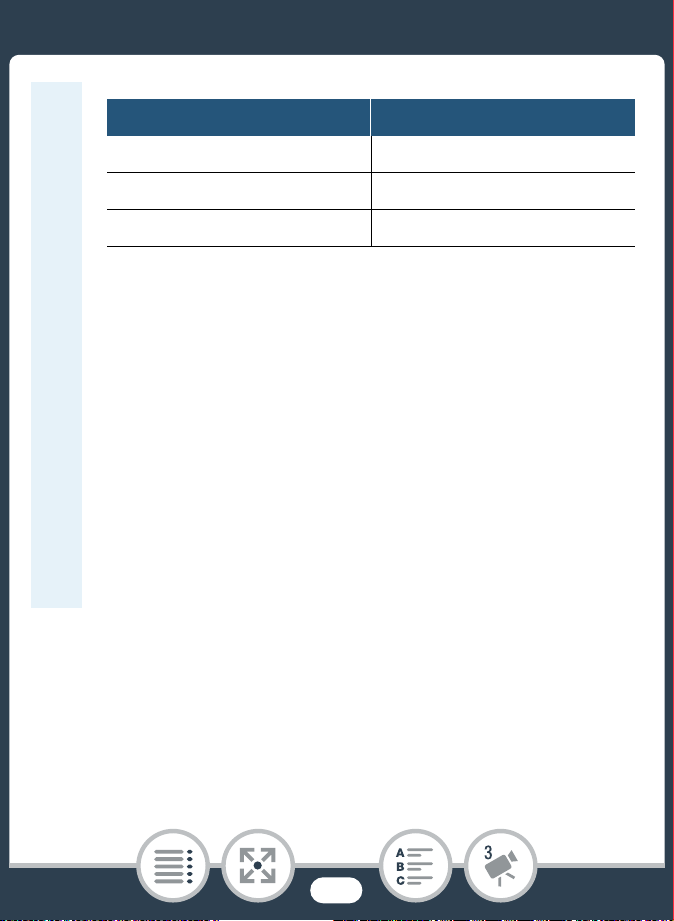
101
Special Recording Modes
Slow and Fast Motion
When the movie format is set to MP4, you can use slow motion
or fast motion to record movies with a unique look. Sound is not
recorded in this special recording mode.
• Depending on the memory card used, writing on the
memory card may take longer, and the actual recording
interval may be longer than the recording interval that
was selected.
• When you select a recording interval of 30 seconds or
longer, the camcorder will enter standby mode when it
is not recording in order to save power. In standby
mode the screen will turn off and the power/charge
indicator will light up in green.
* When the camcorder is being powered by a battery pack,
depending on the remaining battery charge, the maximum
recording time may be shorter.
Recording interval Maximum recording time*
5 sec., 10 sec., 30 sec. 3 hours
1 min. 6 hours
10 min. 60 hours
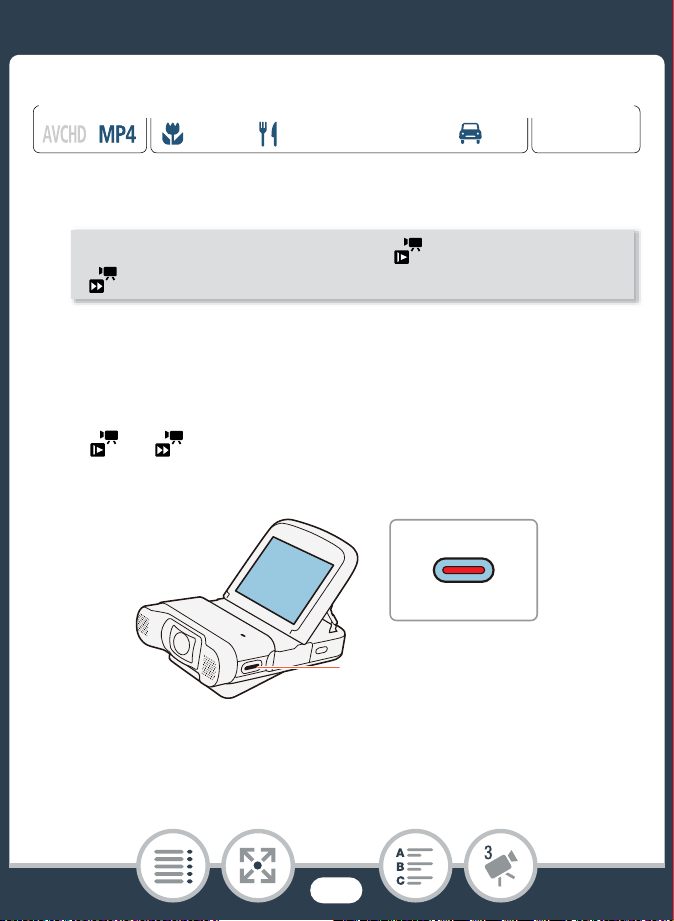
102
Special Recording Modes
1 Activate slow/fast motion.
• You can also touch the icon in the center instead of touch-
ing [OK].
• Before touching [OK], you can change the playback speed
with the following procedure.
• or and the selected speed will appear on the
screen.
2 Press the start/stop button to record scenes in slow/
fast motion.
• You can also touch [Ü]/[Ñ].
N
I
J L K
’
y }
Shooting mode Playback
Format
0 > [Special Rec Modes] > [ Slow Motion] or
[ Fast Motion] > [OK]
2
2
103
Special Recording Modes
To change the playback speed
You can change the playback speed while activating slow/fast
motion (from the [ Slow Motion]/[ Fast Motion] selection
screen) or from the record standby screen after slow/fast motion
is activated.
• The maximum continuous recording time using slow
motion is 6 hours ([x1/2] speed) or 3 hours ([x1/4]
speed). After that, recording will continue as a separate
scene.
• When recording using slow motion, the video quality will
change automatically to 4 Mbps/1280x720 ([x1/2]
speed) or 3 Mbps/640x360 ([x1/4] speed).
[w] > Desired speed > [K]
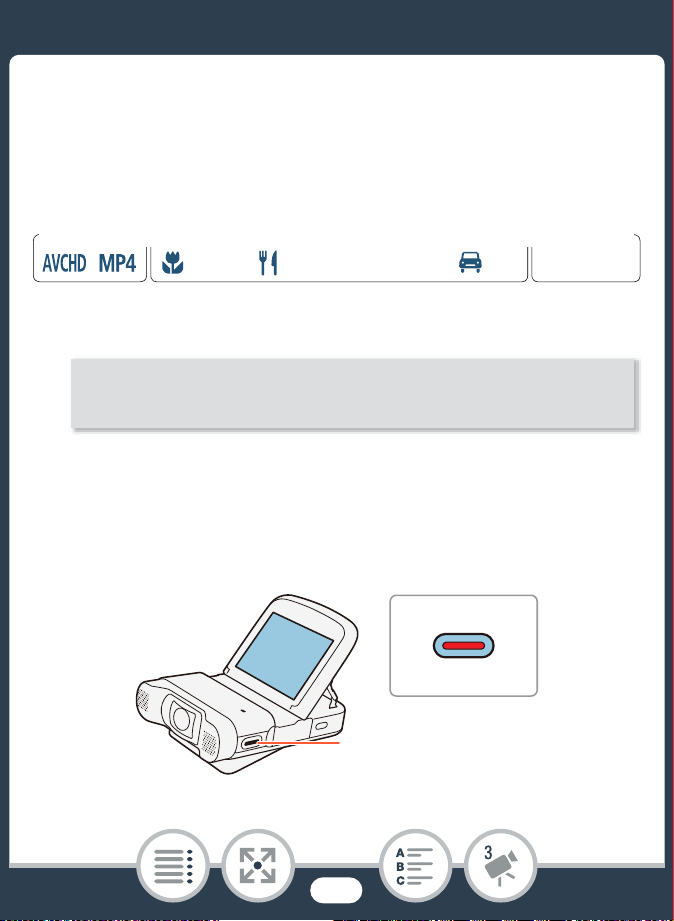
104
Special Recording Modes
Video Snapshot
You can record a series of short scenes, each a few seconds
long. When you play the video snapshot scenes one after the
other, this will result in fast-paced, dynamic video.
1 Activate video snapshot.
• You can also touch the icon in the center instead of touch-
ing [OK].
• ¦ and the video snapshot length currently selected, and
a blue border appear on the screen.
N
I
J L K
’
y }
Shooting mode Playback
Format
0 > [Special Rec Modes] > [¦ Video Snapshot] >
[OK]
2
2
105
Special Recording Modes
2 Press the start/stop button.
• You can also touch [Ü].
• The camcorder records for about 4 seconds (the blue
frame serves as a visual progress bar) and then automati-
cally returns to record standby mode.
Pre-Recording
The camcorder will start recording 3 seconds before you press
the start/stop button, ensuring you do not miss important shoot-
ing opportunities. This is especially useful when it is difficult to
predict when to start recording.
• You can change the length of the video snapshot
scenes recorded to 2 or 8 seconds with the 1 >
p > [Video Snapshot Length] setting.
• Changing the movie format will deactivate video snap-
shot.
N
I
J L K
’
y }
Shooting mode Playback
Format
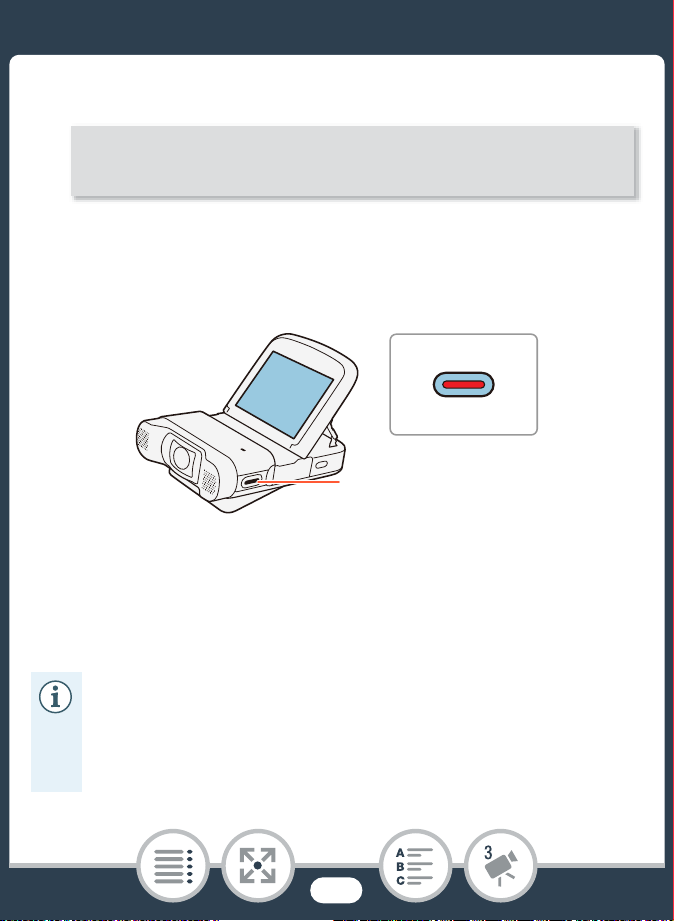
106
Special Recording Modes
1 Activate the pre-recording function.
• You can also touch the icon in the center instead of touch-
ing [OK].
• z will appear on the screen.
2 Press the start/stop button.
• You can also touch [Ü].
• The scene recorded in the memory will start 3 seconds
before the start/stop button was pressed.
• The camcorder will not record the full 3 seconds prior to
pressing the start/stop button if the button was pressed
within 3 seconds of having turned on pre-recording or
having finished the previous recording.
0 > [~ Special Rec Modes] > [z Pre REC] >
[OK]
2
2

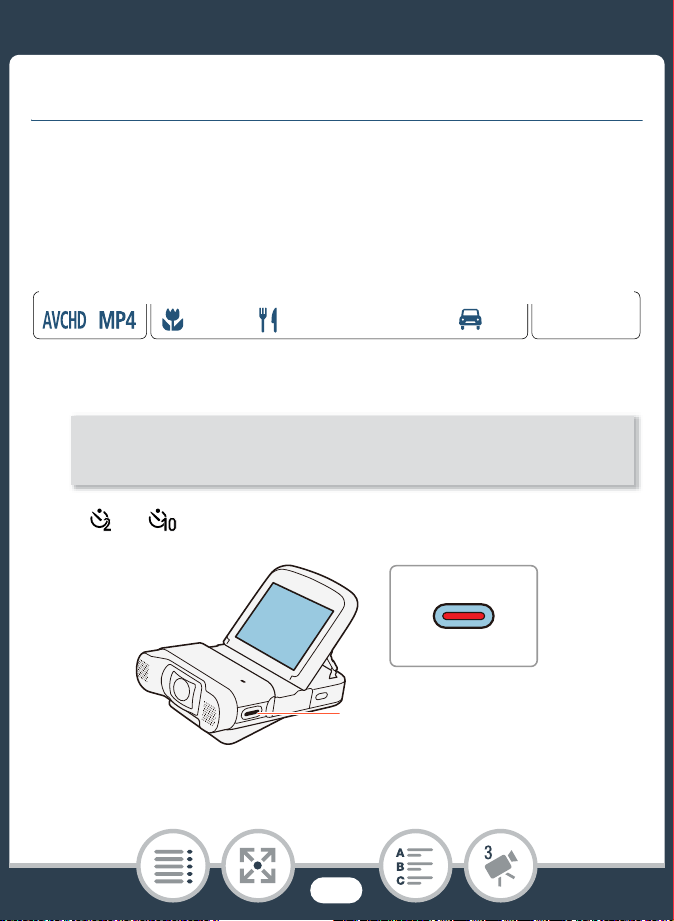
108
Convenient Functions
Convenient Functions
Self Timer
By setting the self-timer, you will be able to include yourself in
the shot before the camcorder starts recording a movie or taking
a photo.
1 Activate the self-timer function.
• or will appear on the screen.
N
I
J L K
’
y }
Shooting mode Playback
Format
0 > [< Self Timer] > [C 2 sec] or [G 10 sec]
> [X]
2
2
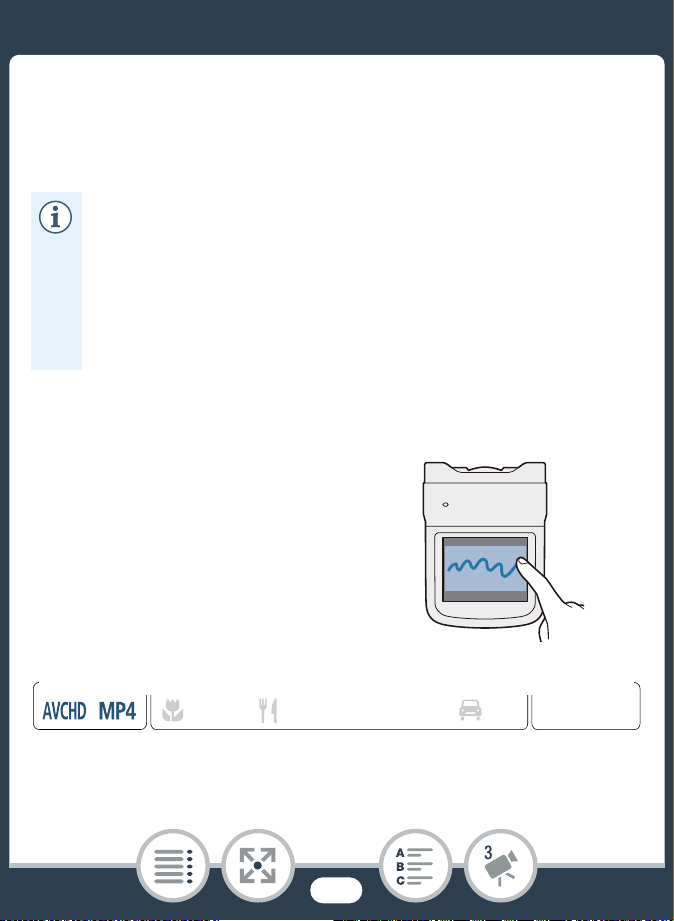
109
Convenient Functions
2 In record standby mode, press the start/stop button.
• You can also touch [Ü] for movies or [PHOTO] for photos.
• The countdown appears on the screen.
Decoration: Adding a Personal Touch
Add a new level of enjoyment
while playing back your scenes
by decorating them. You can add
animated graphics, stamps and
even your own freehand drawing
easily just by simply using your
fingertip.
• Once the countdown has begun, any of the following
actions will cancel the self timer.
- Pressing the start/stop button.
- Touching [Ü] when recording movies.
- Turning off the camcorder.
- Pressing and holding the ^ button.
N
I
J L K
’
y }
Shooting mode Playback
Format
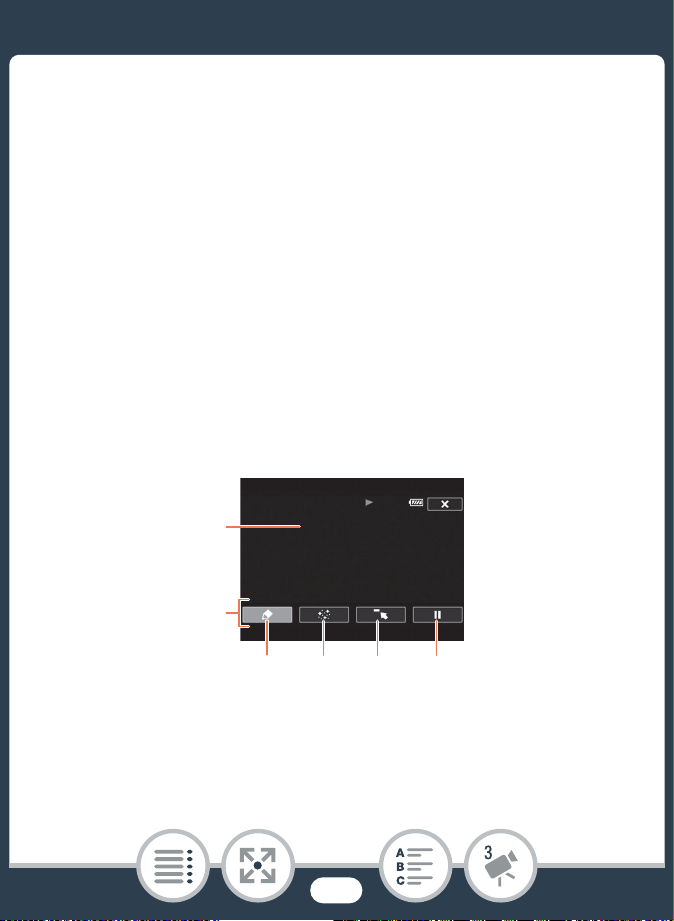
110
Convenient Functions
■ Decorating Scenes
1 Play back the scene you want to decorate (A 67).
2 Touch the screen to display the playback controls.
3 Touch [Ò] to display the decoration toolbar.
• You can touch [Ý] to pause the playback. During play-
back pause mode, you can save a canvas or load a previ-
ously saved canvas (A 111).
4 Use a tool from the toolbar as explained in the follow-
ing procedures.
5 Touch [X] to exit the decoration screen.
1 Canvas - The area where you will draw and see your deco-
rations in action.
2 Too lba r.
1
345 6
2

111
Convenient Functions
3 [Ó Pens and Stamps] Select the type of pen or stamp and
its color. You can also save a single canvas or load a previ-
ously saved canvas.
4 [× Animated Stamps] Select animated stamps to add to
your decoration.
5 [ß] Minimize the toolbar to the top of the screen to view
almost all of the canvas. Touch [à] to restore the toolbar.
6 [Ý]/[Ð] Pause the playback or resume it after it has been
paused.
■ To Use [Pens and Stamps]
1 Touch [Ó].
• The [Pens and Stamps] screen will appear.
2 Touch the desired pen or stamp from [Tools].
• The main decoration screen will appear again.
3 Draw freely on the canvas with your fingertip.
• To select a different pen or stamp: Repeat steps 1 and 2.
• To change color: Touch [Ó] and then touch the white or
black button under [Colors]. Alternatively, touch [Ó] >
[Ö] and select a color from the color palette.
• To clear your freehand drawings and stamps: Touch [Ó]
> [Clear] > [Yes] > [K].

112
Convenient Functions
• To save your freehand drawings and stamps on the mem-
ory card: Touch [Ó] > [8 Save] > [Yes] > [K].
• To load a previously saved canvas (freehand drawings and
stamps only) from the memory card: Touch [Ó] >
[8 Load] > [Yes] > [K].
• You will need to pause the playback before saving or load-
ing a canvas.
■ To Use [Animated Stamps]
1 Touch [×].
• The [Animated Stamps] screen will appear.
2 Touch one of the buttons.
3 Touch anywhere on the canvas to place the selected
animated stamp. You can also drag some animated
stamps to a different location.
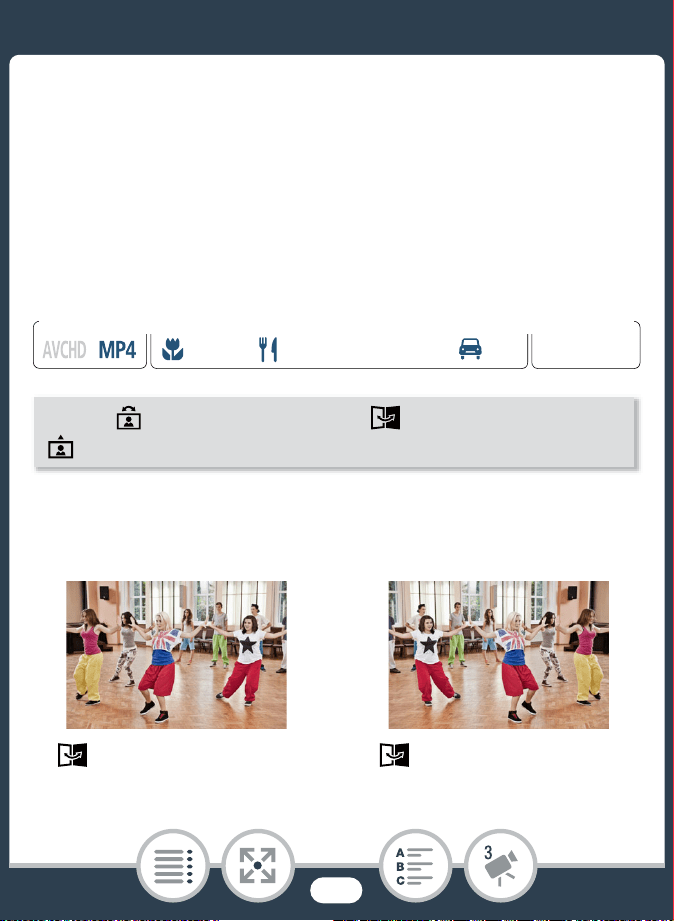
113
Convenient Functions
Image Rotation and Image Flipping
For MP4 movies and photos, the camcorder offers two functions
to manipulate how the image is recorded or played back. Using
mirror image recording, the camcorder will record the image
reversing left and right. When orientation detection is turned on,
the camcorder will detect if it is turned sideways or upside-down
while recording so the image can be corrected during playback.
• The icon of the selected function will appear on the screen.
Example of image flipping
N
I
J L K
’
y }
Shooting mode Playback
Format
0 > [ Flip/Rotate Image] > [ Mirror Image] or
[ Detect Orientation] > [On] > [X]
[ Mirror Image] set to [Off] [ Mirror Image] set to [On]
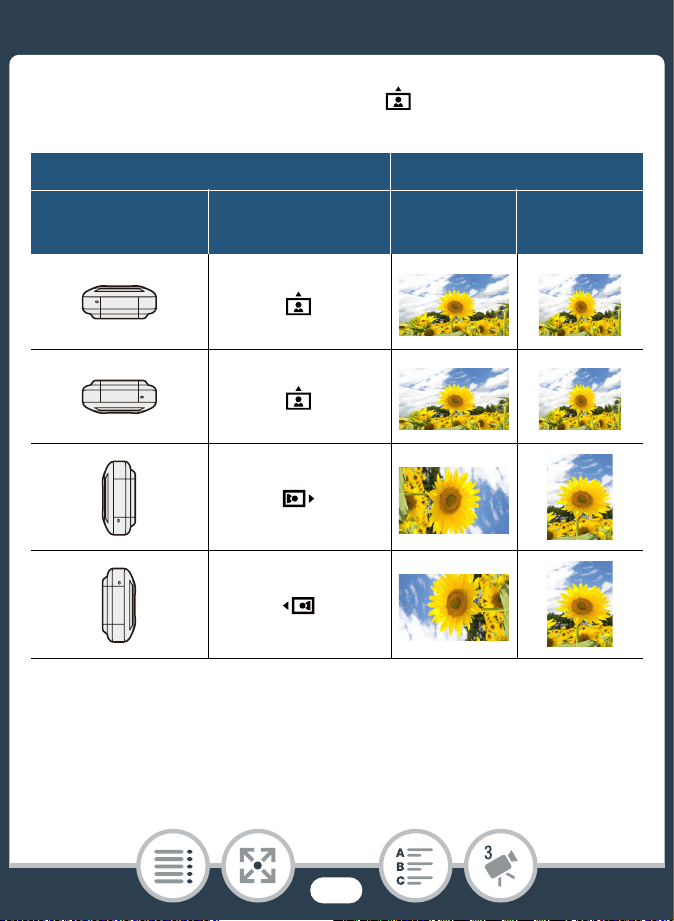
114
Convenient Functions
Examples of image rotation when [ Detect Orientation] is
set to [On]
* As seen from the back of the camcorder, with the lens pointing for-
ward.
** Even when orientation detection is turned on, movies recorded with
the camcorder turned sideways cannot be played back in vertical ori-
entation using the camcorder.
Recording Playback
Camcorder’s
orientation*
Onscreen icon Movies** Photos***
116
Recording Audio
Recording Audio
You can record audio using the built-in stereo microphone or an
external microphone connected to the MIC terminal. When you
are recording AVCHD movies and the video quality is set to
24 Mbps, you can enjoy two-channel linear PCM audio record-
ing with a sampling frequency of 48 kHz.
Audio is not recorded during interval recording and slow/fast
motion.
Using an External Microphone
■ Using the WM-V1 Wireless Microphone
Using the optional WM-V1 Wireless Microphone, you can reli-
ably record sound even when recording subjects at a distance
exceeding the practical range of the built-in microphone. For
details on connecting and using the WM-V1, refer to the instruc-
tion manual supplied with the microphone.
N
I
J L K
’
y }
Shooting mode Playback
Format
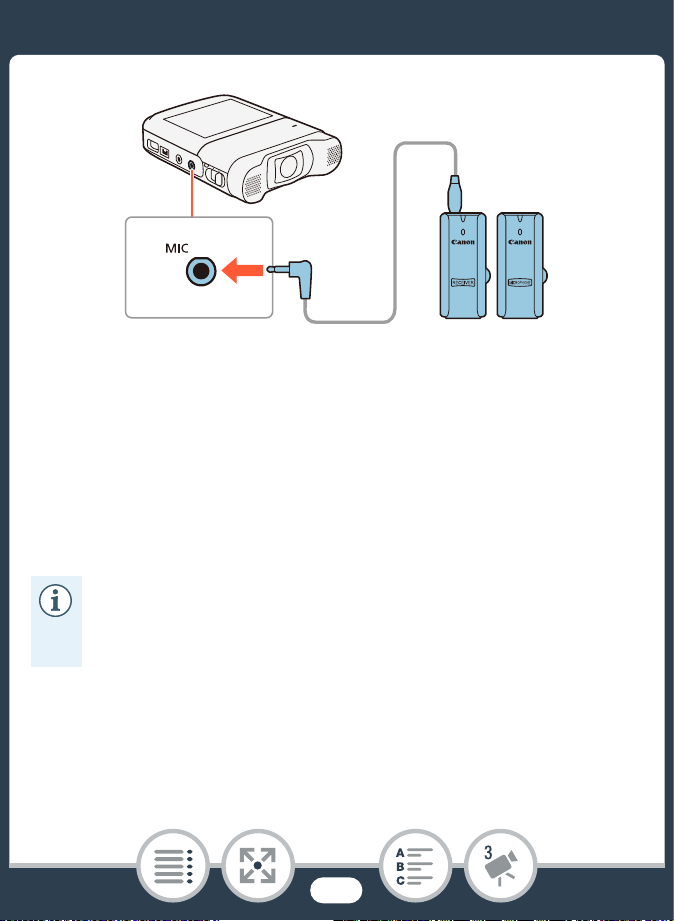
117
Recording Audio
■ Using Commercially Available Microphones
You can also use commercially available condenser micro-
phones with their own power supply. You can connect almost
any stereo microphone with a ∅ 3.5 mm plug and a cable no
longer than 3 m but audio recording levels may vary.
Connect the external microphone to the MIC terminal.
• An external microphone may pick up noise while Wi-Fi
functions are in use. Keep a distance between the cam-
corder and microphone.
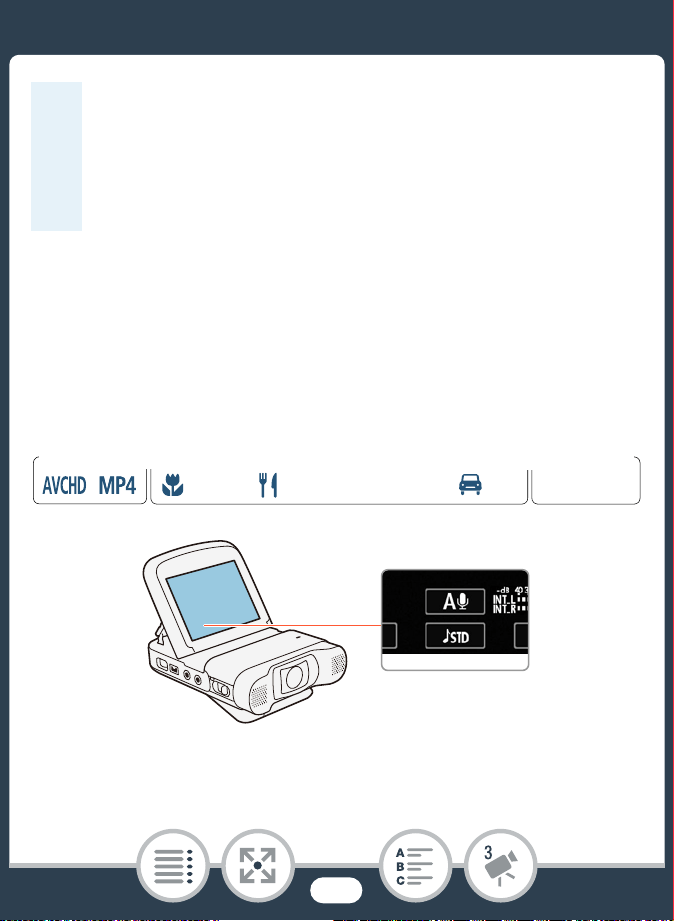
118
Recording Audio
Audio Scenes (Built-in Microphone)
You can have the camcorder optimize the audio settings of the
built-in microphone by selecting the audio scene that matches
your surroundings. This will greatly enhance the sense of “being
there”.
• When referring to the instruction manual of the WM-V1,
note that the procedure written for manually adjusting
the audio recording level does not apply to this cam-
corder. Refer to Audio Recording Level (A 124) for
this camcorder's correct procedure.
N
I
J L K
’
y }
Shooting mode Playback
Format
Audio scene button
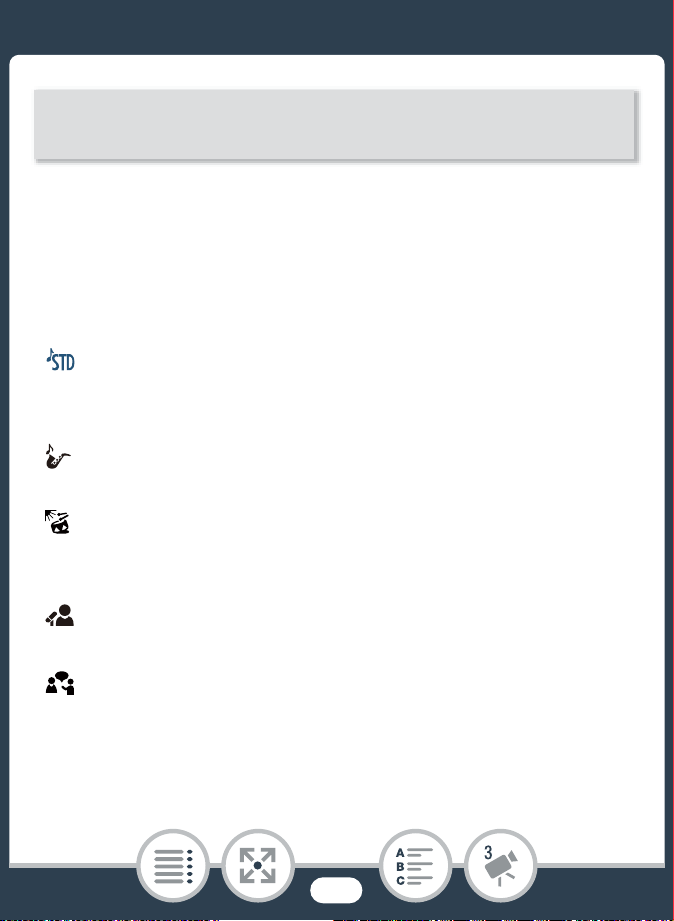
119
Recording Audio
• You can also touch the icon in the center instead of touching
[OK].
• Alternatively, you can touch 0 > [Audio Scene] to open the
audio scene menu.
Options (
Default value)
[ Standard]
To record most general situations. The camcorder records with
standard settings.
[ Music]
To vibrantly record music performances and singing indoors.
[ Festival]
Optimized for recording music outdoors more naturally. Ideal for
outdoor events with music.
[ Speech]
Best for recording human voices and dialog.
[ Meeting]
To record people talking while keeping each voice separate,
allowing viewers to feel as if they were there.
Touch the audio scene button > Desired audio scene >
[OK]
120
Recording Audio
[ Forest and Birds]
To record birds and scenes in forests. The camcorder clearly
captures sound as it spreads.
[ Noise Suppression]
To record scenes while reducing noise from wind, passing vehi-
cles and similar ambient sound. Ideal for recording at the beach
or in places with a lot of noise.
[„ Custom Setting]
Allows you to adjust the audio settings to your liking. You can
adjust the following settings in the 1
> menu: [Built-in
Mic Wind Screen], [Built-in Mic Att.], [Built-in Mic Freq.
Response], [Built-in Mic Directionality], [Audio Limiter] and
[Audio Compressor].
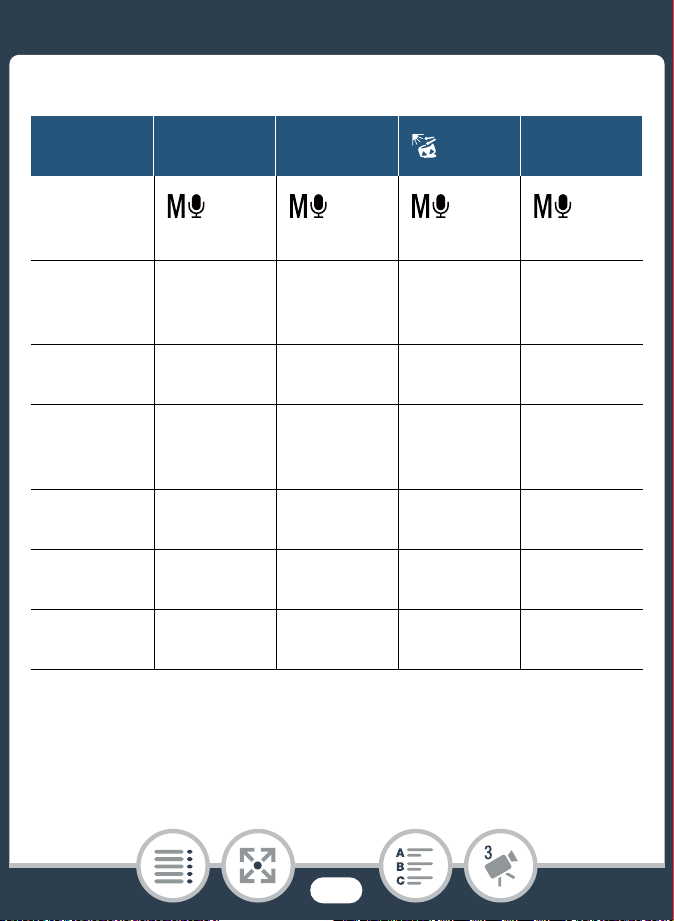
121
Recording Audio
Settings for each audio scene
[‘
Standard]
[’ Music] [ Festival][‚ Speech]
Audio
recording
level
[
Manual]: 70
[
Manual]: 70
[
Manual]: 70
[
Manual]: 86
[Built-in Mic
Wind
Screen]
[H Auto
(High)]
[L Auto
(Low) ë]
[L Auto
(Low) ë]
[H Auto
(High)]
[Built-in Mic
Att.]
[k
Automatic]
[k
Automatic]
[k
Automatic]
[k
Automatic]
[Built-in Mic
Freq.
Response]
[h
Normal]
[ê Boost
HF+LF
Range]
[h
Normal]
[é Boost
MF Range]
[Built-in Mic
Directionality
]
[h
Normal]
[î Wide] [î Wide]
[í
Monaural]
[Audio
Limiter]
[i On] [i On] [i On] [i On]
[Audio
Compressor
]
[L Low] [L Low] [L Low] [j Off]
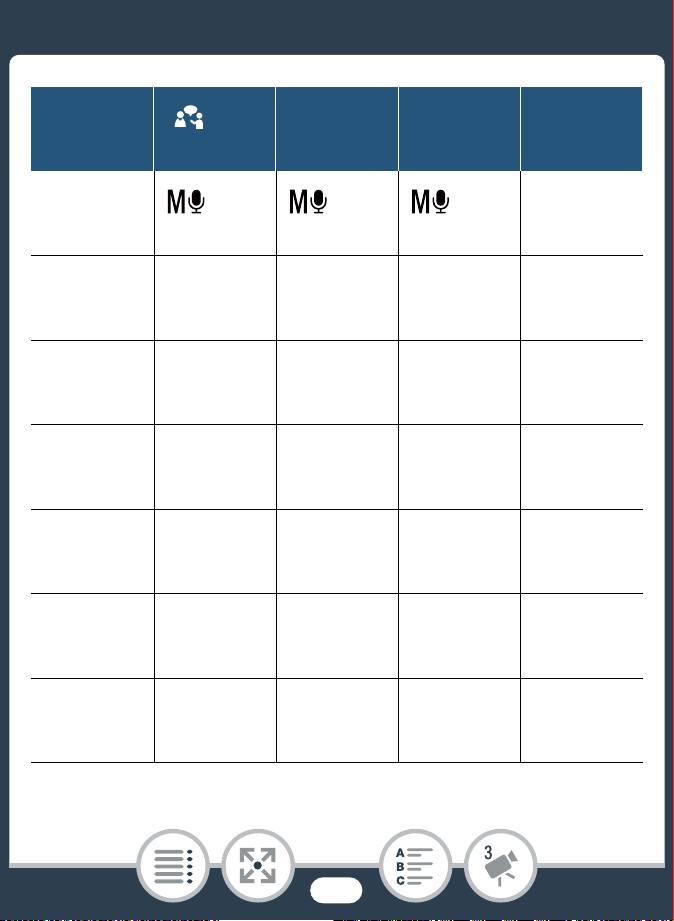
122
Recording Audio
[ Meet-
ing]
[“ Forests
and Birds]
[” Noise
Suppres-
sion]
[„ Custom
Setting]
Audio
recording
level
[
Manual]: 94
[
Manual]: 80
[
Manual]: 70
Selected by
user
(A 124)
[Built-in Mic
Wind
Screen]
[H Auto
(High)]
[H Auto
(High)]
[H Auto
(High)]
Selected by
user
(A 126)
[Built-in Mic
Att.]
[k
Automatic]
[k
Automatic]
[k
Automatic]
Selected by
user
(A 127)
[Built-in Mic
Freq.
Response]
[é Boost
MF Range]
[è Low
Cut Filter]
[è Low
Cut Filter]
Selected by
user
(A 129)
[Built-in Mic
Directionality
]
[î Wide] [î Wide]
[í
Monaural]
Selected by
user
(A 130)
[Audio
Limiter]
[i On] [i On] [i On]
Selected by
user
(A 135)
[Audio
Compressor
]
[H High] [L Low] [j Off]
Selected by
user
(A 135)
123
Recording Audio
•[„ Custom Setting] is not available in N mode.
After setting [Audio Scene] to [„ Custom Setting], if
the camcorder is then set to N mode, this setting
will change to [‘ Standard].
• To reproduce louder and quieter sounds in music more
faithfully, we recommend that you first adjust the audio
recording level (refer to the following section). To repro-
duce the linearity of the music even more faithfully, we
recommend that you select the [„ Custom Setting]
audio scene and adjust the audio settings to match
those of the [’ Music] audio scene except set [Audio
Compressor] to [j Off].
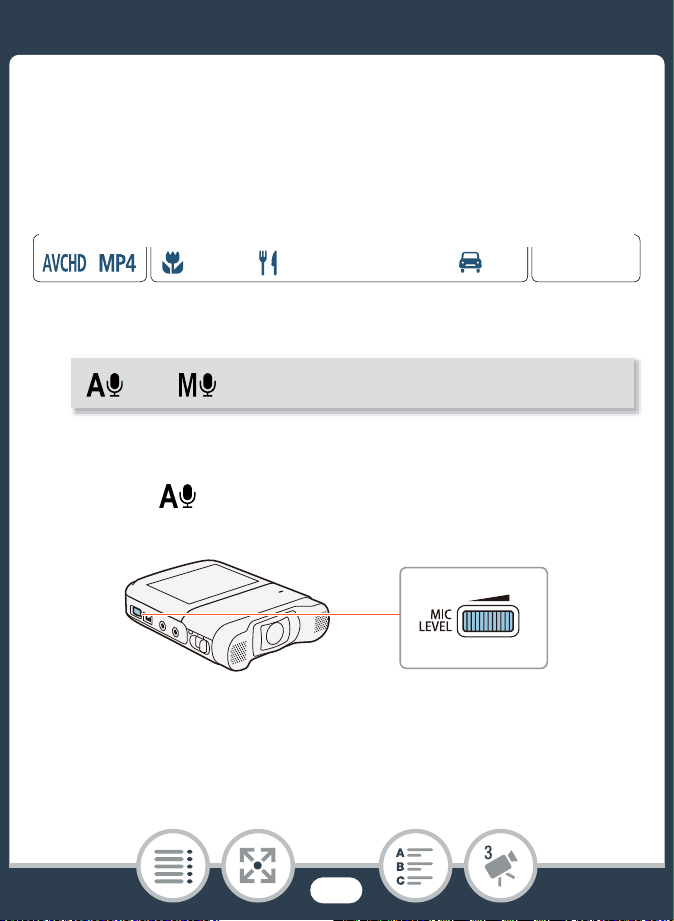
124
Recording Audio
Audio Recording Level
You can adjust the audio recording level of the built-in micro-
phone or an external microphone connected to the MIC termi-
nal.
1 Set the audio recording level to manual.
• The current audio recording level will appear next to the
audio level indicator.
• Touch [ Automatic] instead to return the camcorder to
automatic audio recording level.
N
I
J L K
’
y }
Shooting mode Playback
Format
[] > [ Manual] > [K]
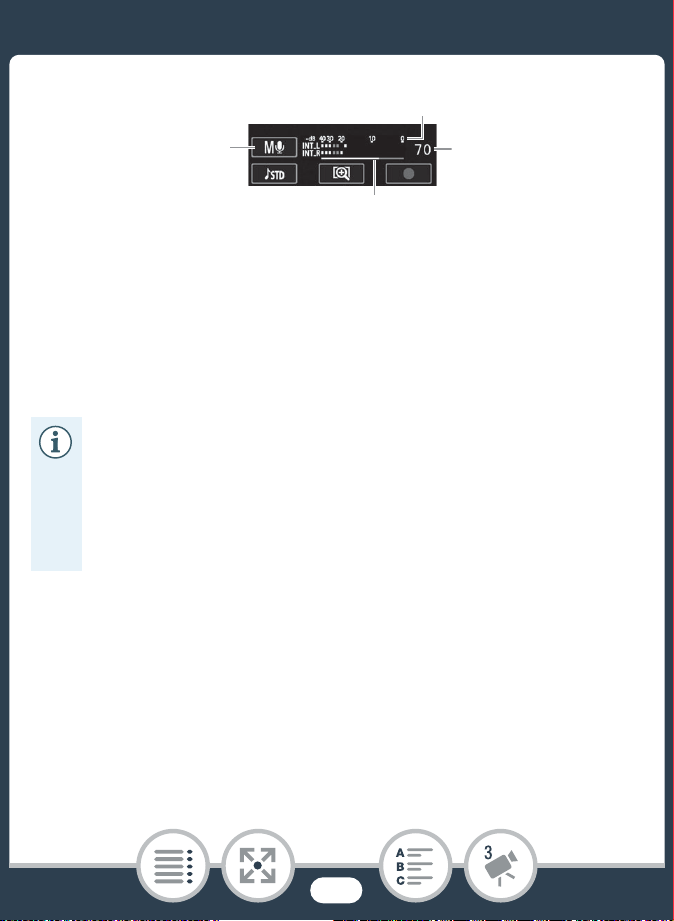
125
Recording Audio
2 Turn the MIC LEVEL dial to adjust the audio recording
level as necessary.
• As a guideline, adjust the audio recording level so that the
audio level meter will go to the right of the -10 dB mark
only occasionally.
• When the audio level meter reaches the red point
(0 dB), the sound may be distorted.
• We recommend using headphones to check the sound
level while adjusting the audio recording level or when
the microphone attenuator is activated.
Audio level indicator
Audio level adjustment bar
Manual audio level
adjustment
Current audio
recording level
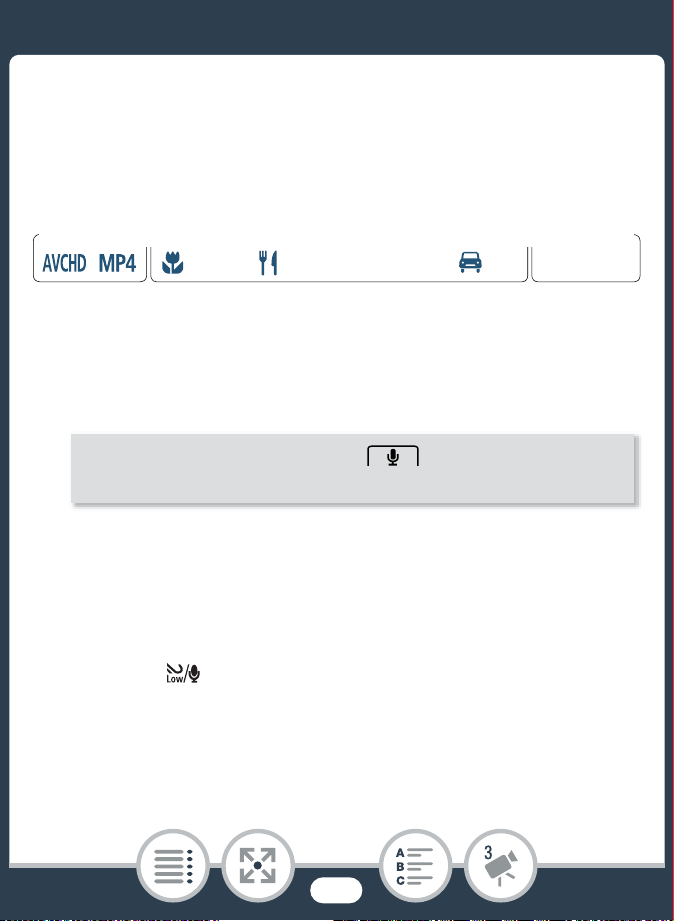
126
Recording Audio
Wind Screen (Built-in Microphone)
The camcorder automatically reduces the background sound of
wind when recording outdoors. You can select from two levels
or turn off the auto wind screen.
1 Make sure [Audio Scene] is set to [„ Custom Setting]
(A 118).
2 Activate the wind screen.
Options (
Default value)
[H Auto (High)]
The camcorder will reduce a large amount of noise from the
wind. Low-frequency sounds will also be reduced.
[L Auto (Low) ]
The camcorder will reduce a small amount of noise from the
wind. A small amount of low-frequency sounds will also be
reduced.
N
I
J L K
’
y }
Shooting mode Playback
Format
0 > [1 Other Settings] > > [Built-in Mic Wind
Screen] > Desired option > [X]
127
Recording Audio
Microphone Attenuator (Built-in Microphone)
You can activate the microphone attenuator (20 dB) for the built-
in microphone to prevent audio from being distorted if the audio
level is too high.
1 Make sure [Audio Scene] is set to [„ Custom Setting]
(A 118).
[j Off à]
The built-in microphone's wind screen will be deactivated at all
times.
• Some low-frequency sounds will be suppressed along
with the sound of wind. When recording in surround-
ings unaffected by wind or if you want to record low-fre-
quency sounds, we recommend setting [Built-in Mic
Wind Screen] to [j Off à].
N
I
J L K
’
y }
Shooting mode Playback
Format
128
Recording Audio
2 Activate the microphone attenuator.
Options (
Default value)
[2 Automatic]
The camcorder will automatically activate the built-in micro-
phone attenuator as necessary for optimal audio recording lev-
els so high audio levels will not be distorted.
[i On]
The built-in microphone attenuator will be activated at all times
to reproduce more faithfully the sound dynamics. When you
select this option, å will appear on the screen.
[j Off]
The built-in microphone attenuator will be deactivated at all
times. When you select this option, will appear on the
screen.
0 > [1 Other Settings] > > [Built-in Mic Att.]
> Desired option > [X]
129
Recording Audio
Audio Equalizer (Built-in Microphone)
You can use the audio equalizer to adjust sound levels by specif-
ically targeting one of the available frequency ranges.
1 Make sure [Audio Scene] is set to [„ Custom Setting]
(A 118).
2 Adjust the audio equalizer.
Options (
Default value)
[h Normal]
Appropriate for balanced sound under most normal recording
conditions.
[ç Boost LF Range]
Accentuates the low-frequency range for more powerful sound.
[è Low Cut Filter]
Filters the low-frequency range to reduce the noise of blowing
wind, a car’s engine and similar ambient sounds.
N
I
J L K
’
y }
Shooting mode Playback
Format
0 > [1 Other Settings] > > [Built-in Mic Freq.
Response] > Desired option > [X]
130
Recording Audio
Microphone Directionality (Built-in
Microphone)
You can change the directionality of the built-in microphone to
have more control over how sound is recorded.
1 Make sure [Audio Scene] is set to [„ Custom Setting]
(A 118).
2 Adjust the microphone directionality.
[é Boost MF Range]
Best for recording human voices and dialog.
[ê Boost HF+LF Range]
Best, for example, for recording live music and clearly capture
the special sound characteristics of a variety of instruments.
N
I
J L K
’
y }
Shooting mode Playback
Format
0 > [1 Other Settings] > > [Built-in Mic
Directionality] > Desired option > [X]
131
Recording Audio
Options (
Default value)
Microphone Attenuator (External Microphone)
You can activate the microphone attenuator (20 dB) for a micro-
phone connected to the MIC terminal to prevent audio from
being distorted if the audio level is too high.
[í Monaural]
Mono recording that emphasizes sound coming from the front
of the camcorder/microphone.
[h Normal]
Standard stereo recording; a middle point between the
[î Wide] and [í Monaural] settings in reach.
[î Wide]
Stereo recording of ambient sound over a more extensive area
that adds to the sense of presence of movies.
N
I
J L K
’
y }
Shooting mode Playback
Format
0 > [1 Other Settings] > > [MIC Att.] >
Desired option > [X]
132
Recording Audio
Options (
Default value)
Low Cut Filter (External Microphone)
When you are recording using a microphone connected to the
MIC terminal, you can activate the low cut filter to reduce the
sound of blowing wind, a car’s engine and similar ambient
sounds.
[2 Automatic]
The camcorder will automatically activate the microphone atten-
uator as necessary for optimal audio recording levels so high
audio levels will not be distorted.
[i On]
The microphone attenuator will be activated at all times to repro-
duce more faithfully the sound dynamics. When you select this
option, å will appear on the screen.
[j Off]
The microphone attenuator will be deactivated at all times.
When you select this option, will appear on the screen.
N
I
J L K
’
y }
Shooting mode Playback
Format
133
Recording Audio
Switching the Input (External Microphone)
You can switch the input of the MIC terminal depending on
whether you are using an external microphone or an external
audio source, such as a digital audio player. However, this pro-
cedure is not necessary for the optional WM-V1 Wireless Micro-
phone.
0 > [1 Other Settings] > > [MIC Low Cut] >
[i On] > [X]
N
I
J L K
’
y }
Shooting mode Playback
Format
0 > [1 Other Settings] > > [MIC Terminal Input]
> [Þ External Audio] or [ß Microphone] > [X]
134
Recording Audio
Audio Mix
When recording, you can mix audio from the built-in microphone
with external audio from the MIC terminal and adjust the mix bal-
ance for original sound effects. The external audio input can be
from the optional WM-V1 Wireless Microphone, a commercially
available external microphone or from an external audio player
(analog Line In).
1 Connect the external source to the MIC terminal.
2 Activate the audio mix.
• The audio level indicator and audio mix bar will appear.
3 Adjust the audio mix balance as necessary.
• Touch [INT] (more of the sound from the built-in micro-
phone) or [LINE]/[MIC] (more of the sound from the exter-
nal audio) or drag your finger along the audio mix bar to
adjust the mix balance as desired.
4 Touch [X] to set the audio mix and close the menu.
N
I
J L K
’
y }
Shooting mode Playback
Format
0 > [1 Other Settings] > > [Audio Mix] >
[i On]
135
Recording Audio
Audio Limiter
The audio limiter will limit the amplitude of audio signals to pre-
vent audio distortions when sudden, loud sounds are picked up
by the camcorder.
1 Make sure [Audio Scene] is set to [„ Custom Setting]
(A 118) and the audio recording level is set to
[ Manual] (A 124).
2 Activate the audio limiter.
Audio Compressor
The audio compressor will adjust the audio levels while maintain-
ing the strength of even louder sounds, which will make listening
to the audio easier.
N
I
J L K
’
y }
Shooting mode Playback
Format
0 > [1 Other Settings] > > [Audio Limiter] >
[i On] > [X]
N
I
J L K
’
y }
Shooting mode Playback
Format
136
Recording Audio
1 Make sure [Audio Scene] is set to [„ Custom Setting]
(A 118).
2 Activate the audio compressor.
Options (
Default value)
[H High]
Flattens out audio levels more and is best when recording multi-
ple people talking at varying levels, such as during a meeting.
[L Low]
Keeps the difference between higher and lower audio levels
clear and is best when recording situations such as a musical
performance. This setting is effective when the audio level meter
goes all the way to the right repeatedly.
[j Off]
To record scenes that are not mainly people talking or music
performances.
0 > [1 Other Settings] > > [Audio Compres-
sor] > Desired option > [X]
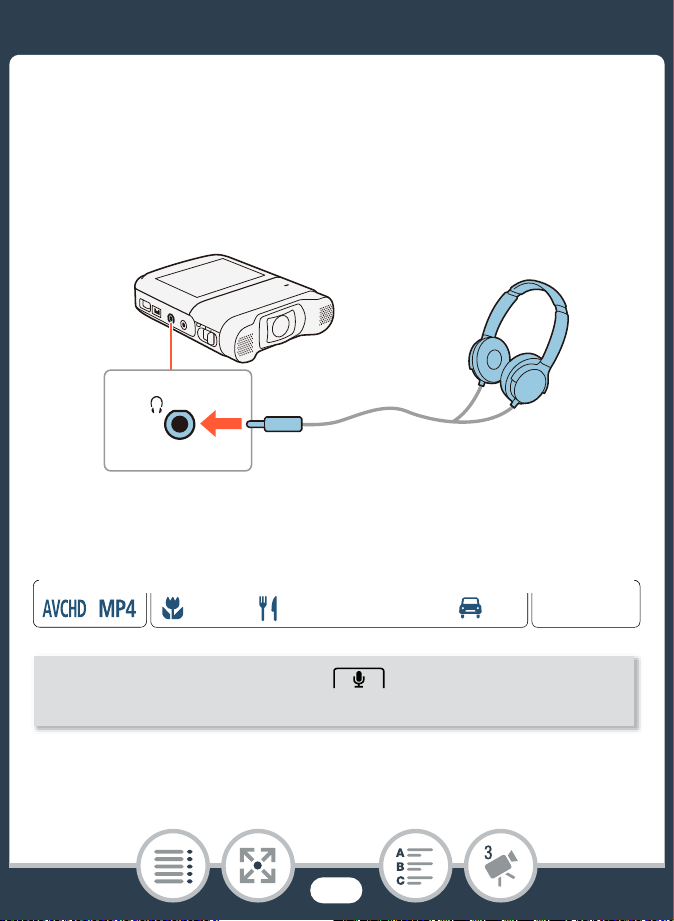
137
Recording Audio
Using Headphones
Use headphones for playback or to check the audio level while
recording. Connect headphones to the × terminal. When using
headphones, make sure to lower the volume to an appropriate
level.
■ Adjusting the Volume from the Menus
* You can also drag your finger along the volume bar.
• The volume will be output at the selected level.
N
I
J L K
’
y }
Shooting mode Playback
Format
0 > [1 Other Settings] > > [Headphone
Volume] > [Ô] or [Õ]* to adjust the volume > [X]
138
Recording Audio
■ Adjusting the Volume during Playback
In playback mode, adjust the headphones volume the same way
you would adjust the speaker’s volume (A 69), selecting the
headphone icons instead.
• Use commercially available headphones with a
∅ 3.5 mm minijack and a cable no longer than 3 m.
• Audio will not output from the × (headphones) terminal
while Wi-Fi functions are in use.
N
I
J L K
’
y }
Shooting mode Playback
Format
139
When You Want More Control
When You Want More Control
White Balance
The white balance function helps you to accurately reproduce
colors under different lighting conditions so that white objects
will always look truly white in your recordings.
1 Select the [’ Programmed AE] shooting mode (A 93),
but do not touch [OK].
2 Touch [Ä] to open the white balance selection screen.
3 Select the desired white balance option.
• When you select [Å Custom WB], set the custom white
balance with the following procedure.
4 Touch [X] to set the shooting mode to ’ and apply
the selected white balance.
• The icon of the selected white balance setting will appear
on the screen.
N
I
J L K
’
y }
Shooting mode Playback
Format

140
When You Want More Control
To set the custom white balance
1 Point the camcorder at a white object, so it fills the
frame at the center of the screen.
2 Touch [Set WB].
When the adjustment is completed, Å stops flashing and
disappears. The camcorder will retain the custom white bal-
ance even if you turn it off.
3 Touch [K].
Options (
Default value)
[Ã Automatic]
The camcorder automatically sets the white balance for natural
looking colors.
[¼ Daylight]
To record outdoors.
[É Tungsten]
To record under tungsten and tungsten-type 3-wavelength fluo-
rescent lighting.
[Å Custom WB]
Use the custom white balance setting to make white subjects
appear white under colored lighting.
141
When You Want More Control
Exposure
When you want to record a subject that is much brighter or
darker than its surroundings, the automatic exposure obtained
by the camcorder may not be best for that specific subject.
To correct this, you can compensate the exposure to make the
whole picture brighter or darker, you can use Touch AE to tell the
camcorder to optimize the exposure for a selected subject, or
you can use a combination of both.
• When you select the custom white balance:
- Reset the white balance when you change locations
or the lighting or other conditions change.
- Depending on the light source, Å may keep flash-
ing. The result will still be better than with
[Ã Automatic].
• Custom white balance may provide better results in the
following cases.
- Changing lighting conditions.
-Close-ups.
- Subjects in a single color (sky, sea or forest).
- Under mercury lamps, certain types of fluorescent
lights and LED lights.
142
When You Want More Control
1 Select the desired shooting mode (A 93), but do not
touch [OK].
2 Touch [y] to open the exposure adjustment screen.
■ Exposure Compensation
1 Touch [n].
• The exposure is locked and the exposure compensation
dial appears with the compensation value set at ±0.
• Touch [n] again to return the camcorder to automatic
exposure.
2 Touch [Ï] or [Ð], or drag your finger along the dial to
compensate the exposure.
• + values will make the picture brighter; – values will make it
darker.
• The compensation range may vary depending on the initial
brightness of the image, and some values may be grayed
out.
N
I
J L K
’
y }
Shooting mode Playback
Format

143
When You Want More Control
3 Touch [X] to apply the selected shooting mode and
exposure compensation value.
• During exposure lock, y and the exposure compensation
value will appear on the screen.
■ Touch AE
1 Touch a subject that appears inside the y frame.
• The Touch AE mark (I) will flash and the exposure will be
optimized automatically for the subject you selected.
• Touch [n] to return the camcorder to automatic expo-
sure.
2 Touch [X] to apply the selected shooting mode and
adjusted exposure.
• Using Touch AE also locks the exposure (the exposure
compensation dial appears with the compensation value
set at ±0). Before touching [X], you can compensate the
exposure further (steps 2 and 3 in the previous procedure).
• During exposure lock, y and the exposure compensation
value will appear on the screen.
144
When You Want More Control
Face Detection
The camcorder automatically detects people’s faces and uses
this information to set the correct exposure.
* Face detection is always activated in N mode.
By default, face detection is activated so you can skip step 1 in
the following procedure. If the function was turned off, perform
the following procedure starting from step 1.
1 Activate face detection.
• If the shooting mode is changed during exposure com-
pensation, the camcorder will return to automatic expo-
sure.
• This function is not available during interval recording.
N
I
J L K
’
y }
Shooting mode Playback
Format
0 > [1 Other Settings] > p/ > [Face
Detection & Tracking] > [i On }] > [X]
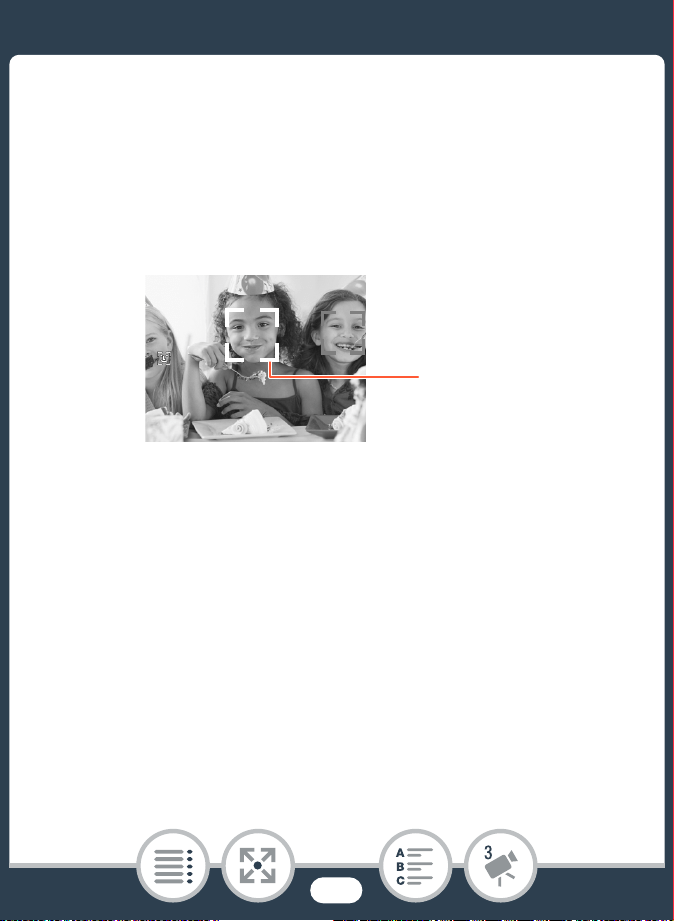
145
When You Want More Control
2 Point the camcorder at a person.
• If there is more than one person in the picture, the cam-
corder will automatically select one person it determines is
the main subject. The main subject is indicated by a white
frame and the camcorder will optimize the settings for that
person. Other faces will have gray frames.
3 Touch a different face on the touch screen to optimize
the exposure for another person.
• A white double frame will appear around the selected per-
son’s face.
• Touch [Cancel £] to remove the frame.
Main subject
146
When You Want More Control
• The camcorder may mistakenly detect the faces of
non-human subjects. In such case, turn face detection
off.
• In certain cases, faces may not be detected correctly.
Typical examples include:
- Faces extremely small, large, dark or bright in relation
to the overall picture.
- Faces turned to the side, at a diagonal or partially hid-
den.
• Face detection is not available in the following cases.
- While recording using interval recording or slow/fast
motion.
- While the camcorder is controlled remotely from an
iOS/Android device.
- When the exposure was adjusted manually.
147
When You Want More Control
Capturing Video Snapshot Scenes and
Photos from a Movie
You can capture video snapshot scenes or photos from a previ-
ously recorded scene. For example, you may want to print pho-
tos from video recorded at a party or create a small video clip
using video snapshot scenes from the highlights of an event.
■ Capturing a Video Snapshot Scene
1 Play back the scene from which you want to capture
the video snapshot scene (A 67).
2 At the point where you want the video snapshot scene
to start, touch the screen to display the playback con-
trols.
3 Touch [¦].
• You can also press the start/stop button.
• The camcorder captures the video snapshot scene for
about 4 seconds (the blue frame serves as a visual
progress bar), and then enters playback pause mode.
N
I
J L K
’
y }
Shooting mode Playback
Format
148
When You Want More Control
4 Touch [Ñ] to stop the playback.
• The new video snapshot scene will have the same record-
ing date (for AVCHD movies) or be saved in the same
folder (for MP4 movies) as the original scene.
• You can change the length of the video snapshot
scenes you capture to 2 or 8 seconds with the 1 >
> [Video Snapshot Length] setting.
• A video snapshot scene can be captured only during
playback; it cannot be captured during playback pause
mode.
• Video snapshot scenes cannot be captured from
scenes shorter than 1 second.
• When you start capturing a video snapshot scene less
than 1 second from the end of the scene, the video
snapshot scene will be captured starting from the
beginning of the following scene.
149
When You Want More Control
■ Capturing Photos
1 Play back the scene from which you want to capture
the photo (A 67).
2 At the point you want to capture, pause the playback
and capture the photo.
3 Touch [Ñ] to stop the playback.
• The size of photos captured from a scene is
1920x1080 (16:9 aspect ratio).
• The data code of the photos will reflect the date and
time of recording of the original scene.
• Photos captured from a scene with a lot of fast move-
ment may be blurred.
Touch the screen to display the playback controls > [Ý]
> [PHOTO]
150
External Connections
Terminals on the Camcorder
This section gives more details about the camcorder’s out-
put terminals and presents connection diagrams for con-
necting your camcorder to other devices.
Playback on a TV Screen
This section explains how to connect the camcorder to an
HDTV using the optional HTC-100 High Speed HDMI
Cable.
Saving and Sharing Your Recordings
Finally, this section explains how to convert movies to
smaller video files and how to upload movies and photos
to a computer using the supplied USB cable.
* Note that this chapter presents only connections to other
devices using cables (wired connections). To use the cam-
corder’s convenient wireless connections, refer to Wi-Fi Func-
tions (A 170).
151
154
156
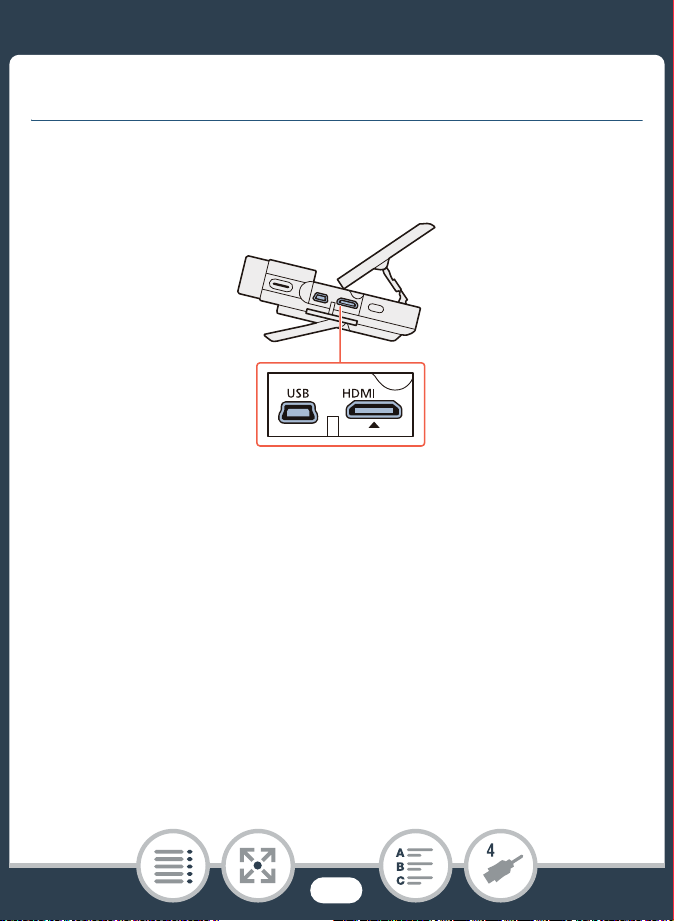
151
Terminals on the Camcorder
Terminals on the Camcorder
Open the side terminal cover to access the terminals on the
camcorder.
1 HDMI Terminal
The HDMI terminal offers a high-quality digital connection
that combines audio and video in a single convenient cable.
This terminal is an HDMI mini receptacle. When using a
commercially available HDMI cable, make sure the HDMI
cable is Type A to Type C and is no longer than 3 meters.
2 USB Terminal
This terminal is a mini-B receptacle. You can use the sup-
plied USB cable to connect to a computer or other digital
devices with standard-A receptacles.
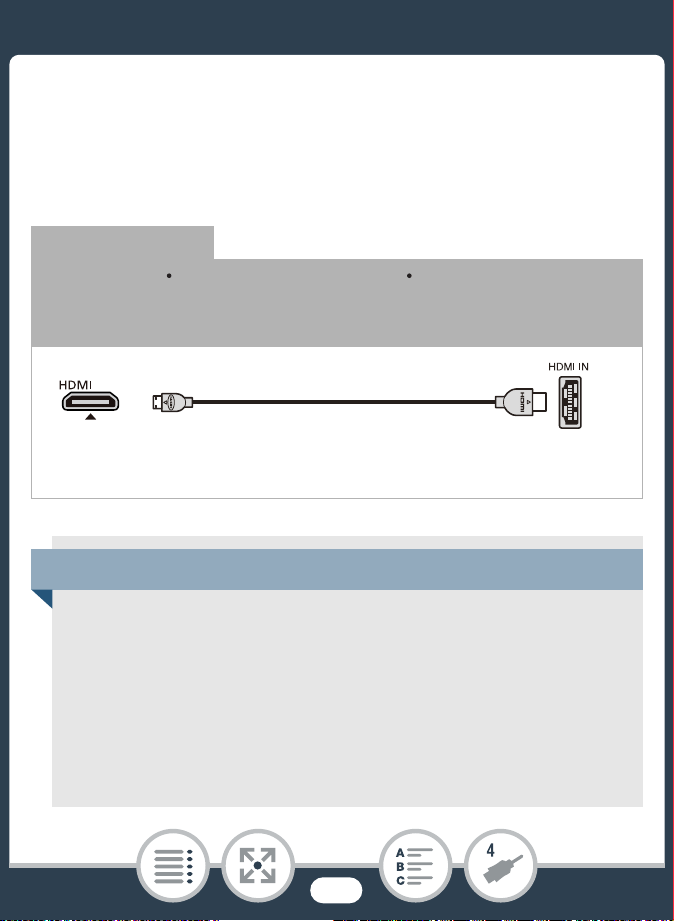
152
Terminals on the Camcorder
Connection Diagrams
In the following connection diagrams, the left side shows the ter-
minals on the camcorder and the right side shows (for reference
only) an example of terminals on a connected device.
Connection 1
HDMI
Type: Digital Quality: High definition Output only
Connect to a high-definition TV (HDTV) with an HDMI input termi-
nal.
About the HDMI
TM
connection
The HDMI (High-Definition Multimedia Interface) connection
(1) is a convenient all-digital connection using a single cable
for both video and audio. When you connect the camcorder
to an HDTV equipped with an HDMI terminal, you can enjoy
video and audio playback at the highest quality. The cam-
corder adjusts the output resolution based on the capability
of the HDTV.
HTC-100 High Speed
HDMI Cable (optional)
HDMI mini
connector
HDMI connector
(standard)
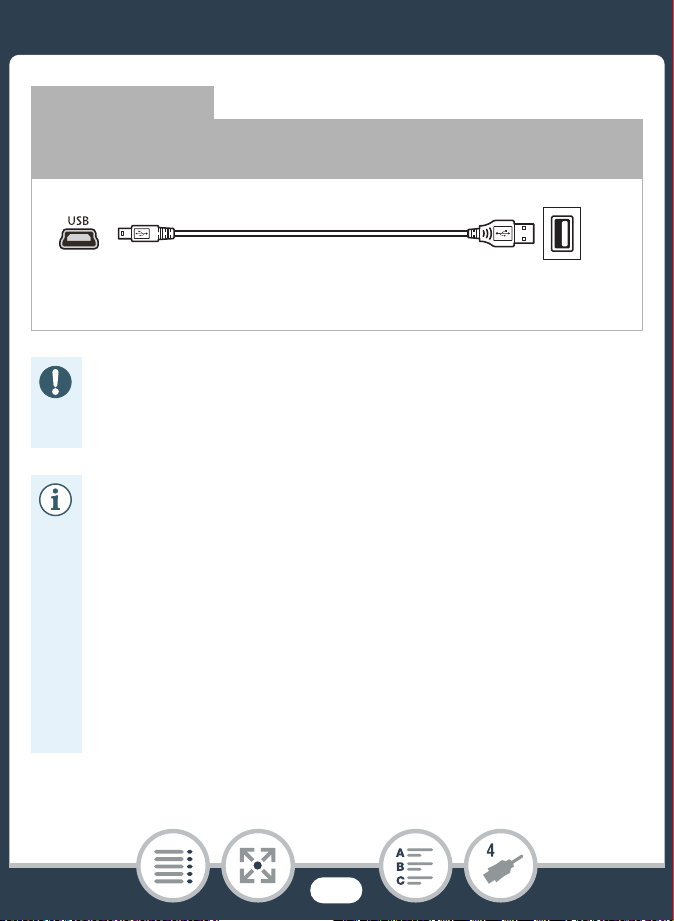
153
Terminals on the Camcorder
Connection 2
USB
Type: Digital data connection · Output only
Connect to a computer to save your recordings.
• The HDMI terminal on the camcorder is for output only.
Do not connect it to an HDMI output terminal on an
external device, as this may damage the camcorder.
• If remaining battery time is an issue, you can power the
camcorder using the compact power adapter so the
battery pack will not be consumed.
• Correct operation cannot be guaranteed when con-
necting the camcorder to DVI monitors.
• Depending on the HDTV, correct playback of personal
video content may not be possible using connection 1.
• Sound from the built-in speaker will be muted while a
cable is connected to the HDMI terminal.
USB cable
(supplied)
Mini-B Standard-A
(computer)
154
Terminals on the Camcorder
Playback on a TV Screen
Connect the camcorder to a TV to enjoy your recordings with
family and friends.
1 Turn off the camcorder and the TV.
2 Connect the camcorder to the TV.
• Connection 1. Refer to Connection Diagrams (A 152).
• Audio and video will not be output from the HDMI termi-
nal while using Wi-Fi functions and during interval
recording, slow/fast motion and photo mode.
• AVCHD-compatible HDTVs and digital recorders with a
compatible memory card slot can play back AVCHD
movies you record with this camcorder. Refer to the
instruction manual of the device used. Depending on
the device used, correct playback may not be possible
even if the device is AVCHD-compatible. In such case,
play back the recordings on the memory card using the
camcorder.
N
I
J L K
’
y }
Shooting mode Playback
Format
155
Terminals on the Camcorder
3 Turn on the connected TV.
• On the TV, select as the video input the same terminal to
which you connected the camcorder. Refer to the instruc-
tion manual of the connected TV.
4 Turn on the camcorder and set it to playback mode.
5 Open the desired index screen (A 67, 75).
• Play back the desired movies or photos.
• HDMI output is not available during photo mode, inter-
val recording and slow/fast recording.
156
Saving and Sharing Your Recordings
Saving and Sharing Your Recordings
Converting Movies to MP4 Format
You can convert AVCHD and MP4 scenes to an MP4 scene with
lower video quality (down-conversion) to obtain smaller file sizes.
This is convenient, for example, when you want to upload videos
to the Web, as smaller video files will upload more quickly. Addi-
tionally, when you convert a scene, you can apply unique cin-
ema-look filters and decorations to the converted copy.
The converted movies are saved as new scenes so you always
keep your original movies.
1 Open the [y·] or [y¸] index screen (A 67).
2 Open the screen for selecting scenes to convert.
* Before selecting the video quality, touch [Join Scenes] to join the
converted movies into a single scene.
N
I
J L K
’
y }
Shooting mode Playback
Format
[Edit] > [Convert to MP4] > Desired video quality of
converted movies*
157
Saving and Sharing Your Recordings
3 Touch the individual scenes you want to convert.
• A checkmark ! will appear on the scenes you touch. The
total number of selected scenes will appear next to the "
icon.
• Touch a selected scene to remove the checkmark. To
remove all checkmarks at once, touch [Remove All] >
[Yes].
4 After selecting all the desired scenes, touch [OK] and
then touch [Next].
• To add a cinema-look filter*: The camcorder offers 7 cin-
ema-look filters. You can read a description of each filter
and preview its effect on the screen.
• You can also touch the filter thumbnail in the center
instead of touching [OK].
• To deactivate the cinema-look filter, touch [FILTER] again.
• You can add a cinema-look filter only to movies that were
MP4 before conversion.
[FILTER 1] > Select the desired filter > [OK]
158
Saving and Sharing Your Recordings
• To add decorations*:
* When a cinema-look filter is applied to a movie, you cannot
add decorations.
5 Touch [START] to convert the scene.
• Touch [STOP] to interrupt the operation while it is in
progress.
6 Touch [OK].
Options for converting and resizing movies
* For MP4 movies only.
Video quality
and resolu-
tion of the
original scene
Video quality and resolution of the converted scene
24 Mbps
(1920x1080)
17 Mbps
(1920x1080)
4 Mbps
(1280x720)
24 Mbps
(1920x1080)
ÜÜÜ
17 Mbps
(1920x1080)
ÜÜÜ
4 Mbps
(1280x720)*
––Ü
[Ò] > Decorate the scene (A 109)
159
Saving and Sharing Your Recordings
Saving Recordings on a Computer
Make sure to save your recordings on a computer on a regular
basis. This section explains how to save your recordings on a
computer using a USB connection. Use the software Transfer
Utility LE
1
for AVCHD movies and the software ImageBrowser
EX
2
for MP4 movies and photos.
1
Software for AVCHD movies, available for free from PIXELA’s Web
site.
2
Software for photos and MP4 movies, available for free from your
local Canon Web site.
• After repeatedly recording, deleting and editing scenes
(fragmented memory), MP4 conversion may stop work-
ing correctly.
• The following scenes cannot be converted/resized
using MP4 conversion.
- Slow motion scenes recorded using 3 Mbps video
quality ([x1/4] speed).
- Interval scenes with the icon.
160
Saving and Sharing Your Recordings
■ Saving AVCHD Movies (Windows only)
With the software Transfer Utility LE, you can save to your com-
puter the AVCHD scenes you have recorded. Download the
software and install it before you connect the camcorder to the
computer for the first time. An Internet connection is required to
download the software. Perform the following procedures while
referring to the supplied ‘Transfer Utility LE Startup Guide’.
Installation
1 Download the zip file from PIXELA’s Web site.
• Visit PIXELA’s site to download the zip file, which contains
the software and instruction manual.
http://pixela.jp/cetule_dl
2 Uncompress the zip file.
• The zip file contains the installer (setup.exe) and the Soft-
ware Guide (PDF file).
• Before installing the software, make sure your computer
is connected to the Internet.
N
I
J L K
’
y }
Shooting mode Playback
Format
161
Saving and Sharing Your Recordings
3 Run the installer to install the software.
• For details, refer to the Software Guide (PDF file) of
PIXELA’s software.
Connecting the Camcorder to a Computer
1 Camcorder: Power the camcorder using the compact
power adapter.
2 Camcorder: Open the [y·] index screen (A 67).
3 Connect the camcorder to the computer using the sup-
plied USB cable.
• Connection 2. Refer to Connection Diagrams (A 152).
4 Computer: Double-click the icon shown on the
right.
5 Computer: Follow the onscreen instructions to
complete the procedure.
• For details about using the software, refer to the Software
Guide (PDF file) of PIXELA’s software.
162
Saving and Sharing Your Recordings
■ Saving MP4 Movies and Photos (Windows/
Mac OS)
With the software ImageBrowser EX you can save MP4 movies
and photos to your computer and easily organize them. Refer to
the ‘ImageBrowser EX User Guide’ (PDF file) for the full system
requirements and other information. Additionally, you can use
CANON iMAGE GATEWAY* to make online photo albums and
more.
* This service may not be available in all countries/regions.
Installation
Install the software before you connect the camcorder to the
computer for the first time. Make sure to install the software
even if you have a different version of ImageBrowser EX on your
computer. The auto-update function of the software may make
available to you features optimized for this camcorder.
The ‘ImageBrowser EX User Guide’ will also be installed with the
software.
• Before installing the software, make sure your computer
is connected to the Internet.
N
I
J L K
’
y }
Shooting mode Playback
Format

163
Saving and Sharing Your Recordings
1 Download the software from your local Canon Web
site.
• Visit the following Web site to download ImageBrowser
EX.
http://www.canon.com/icpd/
(Click on your country/region, select your camcorder
model and the proceed to the download page.)
2 Install ImageBrowser EX.
• For details about opening the software package and run-
ning the installer, refer to the instructions on the download
Web site.
3 Follow the onscreen instructions to select your area
(continent), country/region and language.
• Available options will vary depending on your country/
region.
4 In the main installer panel, click [Easy Installation].
• For Windows users, if a User Account Control dialog box
appears, follow the instructions.
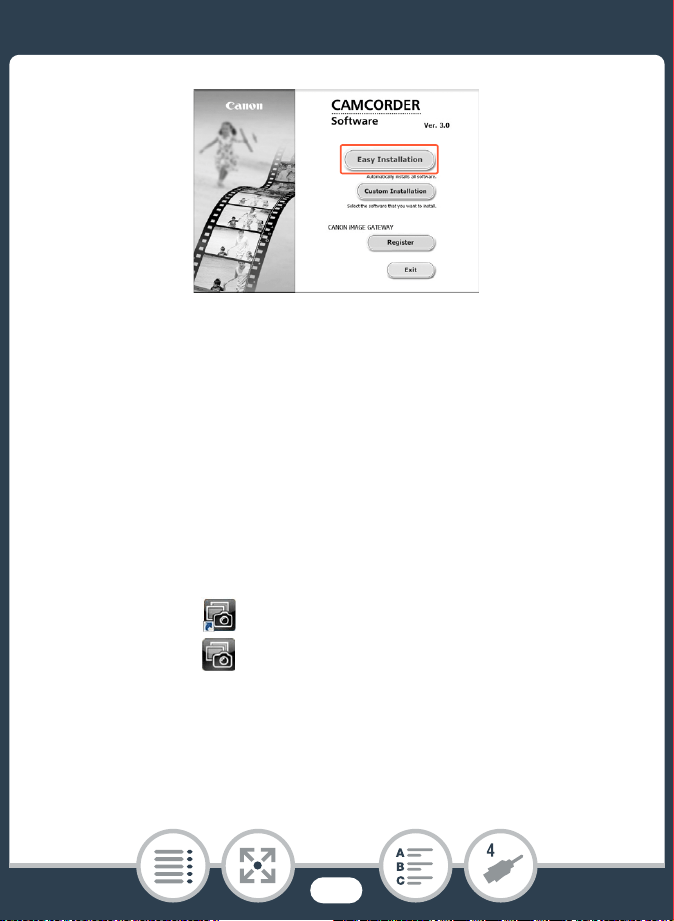
164
Saving and Sharing Your Recordings
5 Follow the onscreen instructions to complete the
installation.
• During the installation process, you may be prompted to
install Microsoft Silverlight. Follow the instructions to do
so.
• CameraWindow will also be installed.
To check that the software was installed correctly
You can check that the software was installed correctly by look-
ing for the ImageBrowser EX icon in the following location.
Windows: The shortcut will be added to the Desktop.
Mac OS: The icon will appear in the Dock.
If you cannot find the icon, check your Internet connection and
install the software again.

165
Saving and Sharing Your Recordings
First-time connection to a computer running Windows
The first time you connect the camcorder to the computer, you
also need to select the CameraWindow auto-launch setting.
Connecting the Camcorder to a Computer
1 Power the camcorder using the compact power
adapter.
2 Open the [y¸] or [}] index screen (A 67, 75).
3 Connect the camcorder to the computer using the sup-
plied USB cable.
• Connection 2. Refer to Connection Diagrams (A 153).
• Camcorder: When the connection is successfully estab-
lished, [USB Connection] appears on the screen.
• Computer: CameraWindow will start automatically.
Windows users only: If you did not set up the auto-launch
setting, open CameraWindow manually.
4 Save the MP4 movies and photos onto the computer.
•Refer to Non-EOS DIGITAL Cameras: Importing Images
with CameraWindow in the ‘ImageBrowser EX User
Guide’. This PDF file can be accessed through the ? menu
on the upper right of the ImageBrowser EX main screen.
166
Saving and Sharing Your Recordings
• When the camcorder is connected to a computer:
- Do not open the memory card slot cover.
- Do not change or delete any of the memory card’s
folders or files directly from the computer as this may
result in permanent data loss. When saving record-
ings on a computer, we recommend using the soft-
ware described in this section (Transfer Utility LE for
AVCHD movies; ImageBrowser EX for MP4 movies
and photos).
• If you wish to use the recordings on your computer,
make copies of them first. Use the copied files, retaining
the originals.
167
Saving and Sharing Your Recordings
• Depending on the computer, the software may not
work correctly or you may not be able to play back
movies.
• Interval scenes with the icon cannot be played back
on a computer.
• Regardless of the camcorder’s actual remaining battery
charge, the remaining battery charge on the cam-
corder’s details area of CameraWindow’s main screen
will always appear as full.
• The following types of MP4 scenes will be recognized
as multiple files on a computer.
- Scenes exceeding 4 GB.
- Scenes exceeding 1 hour.
• Users of Windows XP and later and Mac OS X: Your
camcorder is equipped with the standard Picture Trans-
fer Protocol (PTP) allowing you to transfer photos
(JPEG only) and MP4 movies simply by connecting the
camcorder to a computer using the supplied USB
cable, without having to install ImageBrowser EX.
168
Saving and Sharing Your Recordings
Copying Recordings to an External Video
Recorder
Connect the camcorder to Blu-ray Disc recorders and other
AVCHD-compatible digital video recorders using the supplied
USB cable to make perfect copies of your movies in high defini-
tion. If the external digital video recorder has an SD memory
card slot*, you can use the memory card to copy your movies
without connecting the camcorder.
* Make sure the external device is compatible with the type of memory
card used.
Connecting
1 Power the camcorder using the compact power
adapter.
2 Open the [y·] index screen (A 67).
3 Connect the camcorder to the digital video recorder
using the supplied USB cable.
• Connection 2. Refer to Connection Diagrams (A 152).
N
I
J L K
’
y }
Shooting mode Playback
Format

170
Wi-Fi Functions
Overview of the Camcorder's Wi-Fi Functions
This is an introduction to the Wi-Fi functions offered by the
camcorder and contains also important information about
the supported Wi-Fi standards.
The Camcorder's Wi-Fi Functions
Refer to this section for details on how to use the cam-
corder's useful Wi-Fi functions such as controlling the
camcorder remotely with an iOS or Android device* or
playing back the camcorder's recordings from a Web
browser on a Wi-Fi-equipped device.
172
178
171
Wi-Fi Connection and Settings
This section explains how to connect your camcorder to an
access point (wireless router) on an existing Wi-Fi network
as well as how to check the Wi-Fi settings and, if neces-
sary, change them.
* “iOS device” is used in this text to refer to Wi-Fi-enabled
iPhones and iPads, while “Android device” refers to Wi-Fi-
enabled Android smartphones and tablets.
204

172
Overview of the Camcorder's Wi-Fi Functions
Overview of the Camcorder's Wi-Fi
Functions
You can use the camcorder’s Wi-Fi functions to connect wire-
lessly to Wi-Fi enabled devices* like smartphones or tablets and
save, play back and upload your recordings. Refer to Glossary
(A 216) for a definition of some of the frequently used terms in
this text.
* “iOS device” is used in this text to refer to Wi-Fi-enabled iPhones and
iPads, while “Android device” refers to Wi-Fi-enabled Android smart-
phones and tablets.
173
Overview of the Camcorder's Wi-Fi Functions
iOS Devices
• Install the CameraAccess plus app and use your iPhone or iPad
as a remote control to record with the camcorder (A 178). You
can even stream video from the camcorder and record it directly
on your iOS device.
• Installing the Movie Uploader app, you can save recordings on
your iOS device and even upload them to YouTube or Facebook
(A 191).
• Use a Web browser to access the camcorder and play back
recordings on your iOS device (A 188).
CameraAccess plus Movie Uploader
174
Overview of the Camcorder's Wi-Fi Functions
Android Devices
• Install the CameraAccess plus app and use your smartphone or
tablet as a remote control to record with the camcorder
(A 178). You can even stream video from the camcorder and
record it directly on your Android device.
• Use a Web browser to access the camcorder and play back
recordings on your Android device. You can also save a local
copy on your Android device (A 188).
CameraAccess plus
175
Overview of the Camcorder's Wi-Fi Functions
Computers and Other Wi-Fi Devices
• On computers with a Wi-Fi receiver, use a Web browser to
access the camcorder and play back recordings on the device.
You can also save a local copy on the computer (A 188).
• Connect the camcorder to an access point as a media server
and play back your recordings on computers and other devices
connected to the same home network (A 201).
CANON iMAGE GATEWAY
• Connecting the camcorder to an access point (home network)
connected to the Internet, you can also share recordings on
CANON iMAGE GATEWAY and enjoy a number of Web ser-
vices, including uploading recordings to Facebook and YouTube
(A 193).
176
Overview of the Camcorder's Wi-Fi Functions
■ Before Using Wi-Fi Functions
Based on the function, the camcorder will wirelessly connect
directly to a Wi-Fi-enabled device, such as a smartphone, or to a
Wi-Fi network via an access point (wireless router)*. After select-
ing the function you want to use, follow the onscreen directions
to connect the camcorder.
* Depending on the manufacturer, the access point may be referred to
using a different name, such as wireless LAN router or wireless net-
work router.
About the camcorder’s Wi-Fi standard
The camcorder’s Wi-Fi standard complies with the IEEE
802.11b/g/n protocol and operates in the 2.4 GHz band. As
such, the maximum data transfer rate is 11 Mbps for IEEE
802.11b, 54 Mbps for IEEE 802.11g, and 150 Mbps for
IEEE 802.11n. Note that these are theoretical values and
actual data transfer rates may differ.
• Using an unprotected Wi-Fi network can expose your
files and data to monitoring by unauthorized third par-
ties. Be aware of the risks involved.
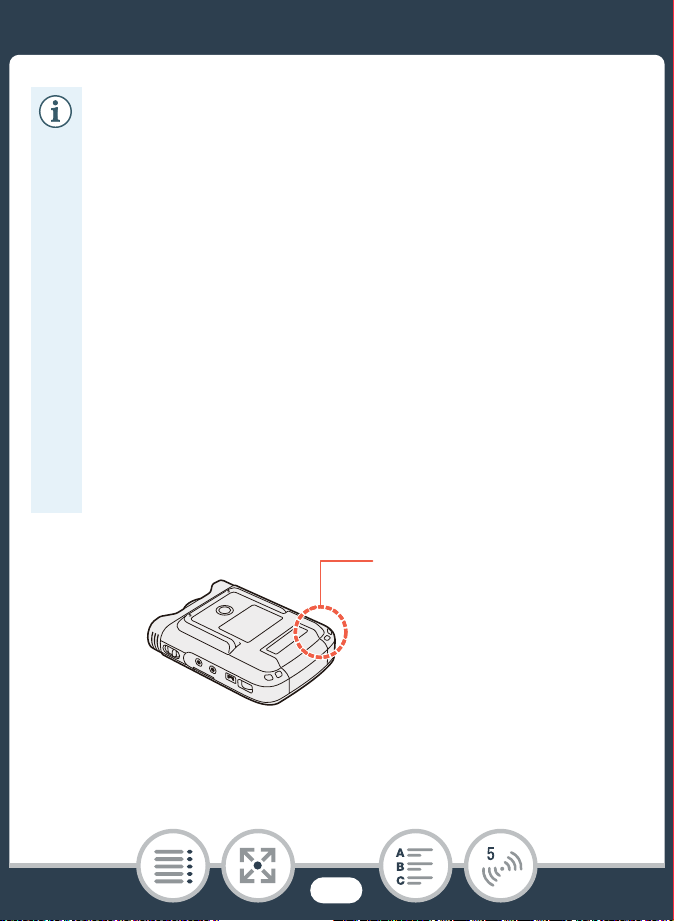
177
Overview of the Camcorder's Wi-Fi Functions
• We recommend inserting a fully charged battery pack
or using the supplied CA-110E Compact Power
Adapter when using Wi-Fi functions.
• When using the camcorder’s Wi-Fi functions, do not
cover the rear left corner of the camcorder with your
hand or other object. The Wi-Fi antenna is located there
and covering it may interfere with wireless signals.
• Do not open the memory card slot cover during the
wireless connection.
• While using Wi-Fi functions, the camcorder’s automatic
power off function will be disabled.
• The camcorder’s Wi-Fi functions cannot be used while
the optional WM-V1 Wireless Microphone is connected
to the camcorder.
Wi-Fi antenna
178
The Camcorder's Wi-Fi Functions
The Camcorder's Wi-Fi Functions
Using an iOS or Android Device as a Remote
Control
Using the CameraAccess plus app*, you can view the image
streamed from the camcorder on your iOS/Android device even
when the camcorder is somewhere else. You can use your iOS/
Android device as a remote control to start recording on the
camcorder and, while using the Monitor from Home function,
you can even record the streamed image locally on your iOS/
Android device.
* The CameraAccess plus app, provided by PIXELA, is available for
free from the App Store (iOS devices) and Google Play™ (Android
devices).
** Even if the camcorder was set to a different shooting mode, it will
change automatically to N mode when using CameraAccess
plus.
N
I
J L K
’
y }
Shooting mode** Playback
Format
179
The Camcorder's Wi-Fi Functions
■ Streaming via Wi-Fi (Monitor from Home)
With this function, you can monitor the image streamed from the
camcorder when it is in another location within Wi-Fi connection
range, for example, in another room in the house. You can use
your iOS/Android device to control the camcorder and record
the streamed image on the camcorder or directly onto your
device.
1 Camcorder: Set the camcorder to the desired recording
mode (movie mode or photo mode).
• Before you perform these procedures for the first time,
download and install the CameraAccess plus app on
your iOS/Android device. The app can be downloaded
for free from the following Web sites.
App Store:
http://appstore.com/cameraaccessplus
Google Play™:
http://play.google.com/store/apps/
details?id=jp.co.pixela.cameraaccessplus
180
The Camcorder's Wi-Fi Functions
2 Camcorder: Activate the [Monitor from Home] function.
• The camcorder’s SSID (network name) and password will
appear.
• The camcorder will be ready to connect with the iOS or
Android device.
3 iOS/Android device: In the Wi-Fi settings screen, turn
on Wi-Fi and select the network name that appears on
the camcorder’s screen (step 2). If necessary, enter the
password that appears on the camcorder’s screen.
• The camcorder’s network name (SSID) should appear in
the list of networks/access points detected by the device.
• As long as you do not reset the camcorder’s Wi-Fi pass-
word, you only need to enter the password the first time
you connect the device.
• When the Wi-Fi connection is correctly established, [Con-
nected] will appear on the camcorder’s screen. To save
battery power, the camcorder’s screen will become dim
after about 1 minute.
4 iOS/Android device: Start the CameraAccess plus app.
0 > [ Remote Control+Streaming] > [ Monitor
from Home] > [OK]

181
The Camcorder's Wi-Fi Functions
• Use the app’s onscreen controls to operate the camcorder
while viewing the live image on the device.
When you have finished recording
1 Camcorder: Touch [End] to end the wireless connection
and turn off the camcorder.
2 iOS/Android device: Close the CameraAccess plus
app.
■ Streaming via Wi-Fi and Internet (Monitor while
Out)
With this function, you can leave the camcorder home and mon-
itor the streamed image while you are away. You can even use
your iOS/Android device to start recording on the camcorder.
Using the Remote Monitoring Checker utility (for Windows only),
you can check whether your home network's access point and
Internet connection meet the requirements for using the Monitor
while Out function*. For details about this program and links to
the download page, visit PIXELA's Web site.
http://pixela.jp/cermc
* To use the Monitor while Out Function, an access point compatible
with UPnP (Universal Plug and Play) and an Internet connection that
can acquire global IP addresses are required.
182
The Camcorder's Wi-Fi Functions
1 Camcorder: Set the camcorder to the desired recording
mode (movie mode or photo mode).
2 Activate the [Monitor while Out] function.
• You can also touch the icon in the center instead of touch-
ing [OK].
• The first time you activate the function, you will need to set
a password and the port to be used by this function (steps
2 to 4). If you have already completed the settings for the
Monitor while Out function, skip to step 6.
3 Touch [OK] to open the settings screen.
4 To enter the [Password] field, touch [Not configured].
Enter a unique password for the Monitor while Out
function and touch [OK].
• The password is required for this function and must be
between 4 and 8 characters long. We recommend using
an 8-character password using a mix of numbers and
uppercase/lowercase letters.
• To enter the password (and the port number in the next
step), use the virtual keyboard (A 186).
0 > [ Remote Control+Streaming] > [ Monitor
while Out] > [OK]

183
The Camcorder's Wi-Fi Functions
5 To change the port number to be used, touch [80].
Enter a different port number and touch [OK].
• By default, the port number is set to 80 but you can
change it if necessary.
6 If necessary, set up a connection to an access point.
• If you have previously configured and saved a connection
to an access point, the camcorder will connect automati-
cally to the last access point used. Continue to step 7.
• If no connections to access points have been saved in the
camcorder, the message [Save the access point] will
appear on the screen. Touch [OK] to configure and save a
new access point connection (step 2 in Wi-Fi Connection
Using an Access Point (A 205)) before continuing with
this procedure.
7 When the wireless connection is successfully estab-
lished, the camcorder’s ID will be displayed on the
screen.
• The camcorder will be ready to connect with the iOS/
Android device.

184
The Camcorder's Wi-Fi Functions
Connecting the iOS/Android Device
If the iOS/Android device is connected to the same Wi-Fi net-
work as the camcorder, CameraAccess plus will recognize the
camcorder's ID and register it automatically. Otherwise, you can
enter the camcorder's ID manually.
As long as you do not reset the camcorder's settings, you only
need to register the camcorder's ID the first time you connect
the device. Later on, you only need to enter the Monitor while
Out password (start this procedure from step 4).
To register the camcorder's ID in the CameraAccess plus
app
1 If the iOS/Android device is near the camcorder, turn
on Wi-Fi and select the same access point as that to
which the camcorder is connected (step 6 in the previ-
ous procedure).
2 Start the CameraAccess plus app and touch Setting
and then Start.
• If the iOS device is not connected to the same access
point as the camcorder, enter manually the camcorder's
ID that is displayed on the camcorder's screen (step 7 in
the previous procedure).

185
The Camcorder's Wi-Fi Functions
3 Touch Finish and close the CameraAccess plus app.
• If necessary, disconnect the iOS/Android device from the
access point.
To use the Monitor while Out function
4 While you are out, start the CameraAccess plus app.
• Make sure the iOS/Android device is connected to a Wi-Fi
access point.
5 Touch Start under Monitor while Out.
6 Enter the password for the Monitor while Out function
that you set in the camcorder (step 4 of the previous
procedure) and then touch Connect.
• Use the app’s onscreen controls to operate the camcorder
while viewing the live image on the device.
When you have finished recording
1 Camcorder: Touch [End] to end the wireless connection
and turn off the camcorder.
2 iOS/Android device: Close the CameraAccess plus
app.
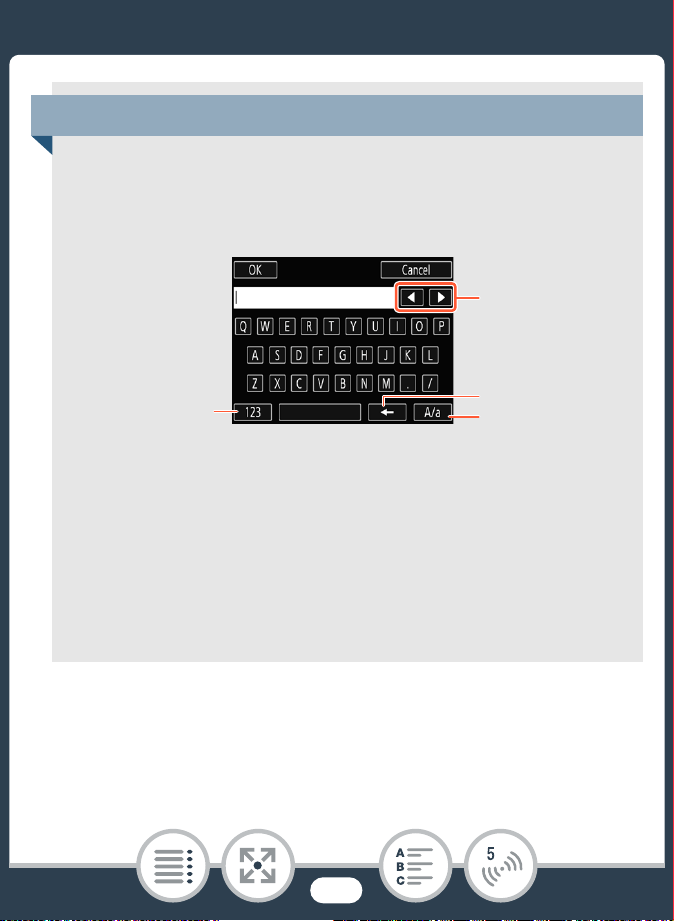
186
The Camcorder's Wi-Fi Functions
Using the virtual keyboard
When you need to enter text for various settings, touch the
text field and a virtual keyboard will appear on the screen.
The illustration below explains the various keys you can use.
1 Switch between letters and numbers/special charac-
ters.
2 Change the position of the cursor.
3 Delete the character to the cursor’s left (backspace).
4 Caps Lock. When the numerical keyboard is displayed,
[#%?] switches between set 1 and set 2 of special char-
acters.
2
4
3
1
187
The Camcorder's Wi-Fi Functions
• For details about the CameraAccess plus app, visit
PIXELA’s Web site.
http://pixela.jp/cecap
• When using CameraAccess plus, you cannot switch
between movie mode and photo mode. Make sure you
set the desired recording mode in advance before acti-
vating the [Monitor from Home] or [Monitor while Out]
function.
• There may be interruptions in the live video image or the
response may be slow when starting/stopping recording
a movie, taking a photo or changing the field of view.
• Using CameraAccess plus, the image is recorded
exactly as it appears on the screen, regardless of the
0 > [ Flip/Rotate Image] > [ Detect Orienta-
tion] setting.
• Depending on the connection and the strength of the
wireless signal, there may be interruptions in the live
video image or the response may be slow.
• If you mount the camcorder on the optional CT-V1
Camera Pan Table, you can use the CameraAccess
plus app on your iOS/Android device as a remote con-
trol to move the camcorder sideways (panning) in addi-
tion to starting/stopping recording. For details, refer to
the instruction manual of the CT-V1.
188
The Camcorder's Wi-Fi Functions
Remote Browse: Viewing Recordings Using a
Web Browser on an iOS or Android Device
With the Remote Browse function, you can use the Web
browser on any device equipped with a Wi-Fi receiver (iOS/
Android devices, computers, etc.) to access the camcorder. You
can then play back your recordings using the Web browser and
even save local copies of them on your device*.
* Depending on the device, OS, browser and video quality, you may
not be able to play back or save recordings. For details, visit your
local Canon Web site.
1 Camcorder: From any index screen, activate the
Remote Browse mode.
• You can also touch the icon in the center instead of touch-
ing [OK].
• The camcorder’s SSID (network name) and password will
appear.
• The camcorder will be ready to connect with the wireless
device.
N
I
J L K
’
y }
Shooting mode Playback
Format
0 > [— Wi-Fi] > [5 Playback via Browser] > [OK]

189
The Camcorder's Wi-Fi Functions
2 iOS/Android device: In the Wi-Fi settings screen, turn
on Wi-Fi and select the network name that appears on
the camcorder’s screen (step 1). If necessary, enter the
password that appears on the camcorder’s screen.
• The camcorder’s network name (SSID) should appear in
the list of networks/access points detected by the device.
• As long as you do not reset the camcorder’s Wi-Fi pass-
word, you only need to enter the password the first time
you connect the device.
3 iOS/Android device: Start the Web browser.
4 iOS/Android device: Enter the URL that appears on the
camcorder’s screen into the Web browser’s address
bar.
• When the Wi-Fi connection is correctly established, the
Playback via Browser screen will appear.
• The URL is always the same so you may find it convenient
to bookmark the URL.
5 iOS/Android device: Touch the desired recording from
the list.
• Touch the button on the top left of the screen to change
the index screen displayed. Touch [·] (AVCHD movies),
[¸] (MP4 movies) or [}] (photos).
190
The Camcorder's Wi-Fi Functions
• Touch a thumbnail to display the photo (or the first frame
of a movie).
MP4 movies only: Touch again to play back the movie.
• AVCHD movies cannot be played back.
• Interval scenes with the icon will not be shown.
•Touch ö to return to the index screen.
• Devices other than iOS devices: Touch õ to save a local
copy of the movie/photo on the device.
When you have finished
Camcorder: Touch [End] > [OK] to end the wireless connection
and turn off the camcorder.
• The following types of MP4 scenes will be recognized
as multiple files on other devices.
- Scenes exceeding 4 GB.
- Scenes exceeding 1 hour.
• For details about Wi-Fi connections on computers and
other devices, refer to the instruction manual of the OS,
computer or device used.
191
The Camcorder's Wi-Fi Functions
Saving Recordings and Uploading Movies to
the Web Using an iOS Device
Using the Movie Uploader app*, you can play back and save
your movies and photos on an iOS device. You can also upload
your movies to YouTube and Facebook even when you are away
from your home network.
* The Movie Uploader app, provided by PIXELA, is available for free
from the App Store.
1 Camcorder: From any index screen, set the camcorder
to connect with the iOS device.
• You can also touch the icon in the center instead of touch-
ing [OK].
• Before you perform this procedure for the first time,
install the Movie Uploader app on your iOS device. The
app can be downloaded for free from the following Web
site.
http://appstore.com/movieuploader
N
I
J L K
’
y }
Shooting mode Playback
Format
0 > [— Wi-Fi] > [6 Movie Uploader] > [OK]

192
The Camcorder's Wi-Fi Functions
• The camcorder’s SSID (network name) and password will
appear.
• The camcorder will be ready to connect with the iOS
device.
2 iOS device: In the Wi-Fi settings screen, turn on Wi-Fi
and select the network name that appears on the cam-
corder’s screen (step 1). If necessary, enter the pass-
word that appears on the camcorder’s screen.
• The camcorder’s network name (SSID) should appear in
the list of networks/access points detected by the device.
• As long as you do not reset the camcorder’s Wi-Fi pass-
word, you only need to enter the password the first time
you connect the device.
• When the Wi-Fi connection is correctly established, [Con-
nected] will appear on the camcorder’s screen.
3 iOS device: Use the Movie Uploader app to upload the
camcorder’s movies.
• You can also play back or save movies and photos on the
iOS device.
When you have finished
Camcorder: Touch [End] > [OK] to end the wireless connection
and turn off the camcorder.
193
The Camcorder's Wi-Fi Functions
Sharing Recordings with CANON iMAGE
GATEWAY
After you register for CANON iMAGE GATEWAY*, you will be
able to access various Web services**. You will be able to
upload movies and photos to online albums, upload movies to
Facebook and YouTube, send links to your online albums by e-
mail to friends and family, and more! To use this function, you will
need an access point connected to the Internet.
* Availability differs from area to area.
** “Web services” is used in this text to refer to various Internet services
supported by CANON iMAGE GATEWAY.
• Depending on factors such as the wireless network
conditions, it can take some time to upload video files.
• The procedure above may differ depending on the ver-
sion of iOS you are using.
• For details about the Movie Uploader app, visit
PIXELA’s Web site.
http://www.pixela.co.jp/oem/canon/e/movieuploader/
• The following types of MP4 scenes will be recognized
as multiple files on other devices.
- Scenes exceeding 4 GB.
- Scenes exceeding 1 hour.
194
The Camcorder's Wi-Fi Functions
General requirements
• Completed free registration online for CANON iMAGE GATE-
WAY.
• Account settings for the services you plan to use (YouTube,
Facebook, etc.). Available services may differ by country/
region.
CANON iMAGE GATEWAY
CANON iMAGE GATEWAY is a Web site that provides vari-
ous photo-related services for owners of qualified Canon
products. After you complete the free registration online, you
can use the Web services, create online photo albums, and
more. Visit Canon’s Web site (also accessible using smart-
phones and tablets) for information on registration and coun-
tries/regions where you can use this service.
http://canon.com/cig
N
I
J L K
’
y }
Shooting mode Playback
Format
195
The Camcorder's Wi-Fi Functions
■ Setting the Desired Web Services in the
Camcorder
Log in to CANON iMAGE GATEWAY and set the Web services
you want to use.
1 Camcorder: From any index screen, activate the Web
service function.
• You can also touch the icon in the center instead of touch-
ing [OK].
2 Camcorder: If necessary, set up a connection to an
access point.
• If you have previously configured and saved a connection
to an access point, the camcorder will connect automati-
cally to the last access point used. Continue to step 3.
• If no connections to access points have been saved in the
camcorder, the message [Save the access point] will
appear on the screen. Touch [OK] to configure and save a
new access point connection (step 2 in Wi-Fi Connection
Using an Access Point (A 205)) before continuing with
this procedure.
0 > [— Wi-Fi] > [ To Web Service] > [OK]

196
The Camcorder's Wi-Fi Functions
3 Camcorder: When the wireless connection is success-
fully established, touch .
4 iOS/Android device: Following the camcorder's
onscreen instructions, log in to CANON iMAGE GATE-
WAY.
• The online album screen will be displayed.
5 Camcorder: Touch [Authenticate].
• After a short while, an authentication code will be dis-
played on the screen.
6 iOS/Android device: Open the camera settings screen
and enter the authentication code (from step 5).
7 Camcorder: Make sure the camcorder and iOS/Android
device display the same confirmation number and then
touch [OK].
8 iOS/Android device: Complete the setup process.
When you have finished
Camcorder: End the wireless connection and turn off the cam-
corder.
197
The Camcorder's Wi-Fi Functions
■ Adding/Deleting Web Services from the
Camcorder
You can add more Web services to the camcorder or delete the
ones that are already set.
1 iOS/Android device: Log in to CANON iMAGE GATE-
WAY and open the Web services settings screen.
2 iOS/Android device: Follow the onscreen instructions
and add or delete the desired Web service(s).
3 Camcorder: On the [ To Web Service] screen,
touch .
• The Web services set in the camcorder will be updated.
• Available Web services differ depending on the country/
region of use and may be updated from time to time.
For the latest details about available services and terms
of use, visit your local CANON iMAGE GATEWAY Web
site.
• If the date set in the camcorder is not correct, the cam-
corder cannot connect to CANON iMAGE GATEWAY.
Make sure the date is correct before trying to establish
a connection.
198
The Camcorder's Wi-Fi Functions
■ Sharing Your Recordings Using Web Services
Conveniently share your recordings with family and friends using
Web services.
1 From any index screen, activate the Web service func-
tion.
• You can also touch the icon in the center instead of touch-
ing [OK].
• If you have previously configured and saved a connection
to an access point, the camcorder will connect automati-
cally to the last access point used.
• Once you have set the maximum number of Web ser-
vices in the camcorder, you will not be able to set any
additional services. Delete unnecessary Web services
and then set the desired Web service.
• You cannot set multiple accounts for Web services
other than e-mail.
0 > [— Wi-Fi] > [ To Web Service] > [OK]

199
The Camcorder's Wi-Fi Functions
• If no connections to access points have been saved in the
camcorder, the message [Save the access point] will
appear on the screen. Touch [OK] to configure and save a
new access point connection (step 2 in Wi-Fi Connection
Using an Access Point (A 205)) before continuing with
this procedure.
2 Select the desired Web service.
• When you select (e-mail), the list of registered e-mail
addresses will appear. Select the e-mail addresses to
which you want to send an e-mail notification.
3 Select the type of recording to upload.
4 Touch the scene or photo(s) to upload.
• When uploading photos, you can touch up to 10 photos
to upload at a time. To cancel a selection, touch the photo
to cancel. To cancel all selections at once, touch [Remove
All] > [Yes].
• Interval scenes with the icon cannot be selected.
• If you are uploading to YouTube, read the YouTube agree-
ment carefully and touch [I Agree] if you agree.
• The upload will begin automatically.
• You can touch [Stop] to cancel the wireless transfer while
it is in progress.
5 Touch [OK].
200
The Camcorder's Wi-Fi Functions
Checking your uploads using CANON iMAGE
GATEWAY Library
You can use the CANON iMAGE GATEWAY Library or
Album screen to see the movies and photos you uploaded.
You can also check what files you have sent and the various
settings for the Web services. For details on CANON iMAGE
GATEWAY, refer to the Help module (in the upper right of
the screen).
• The maximum length and file size for uploading
depends on the Web service.
• For movies, you can upload one at a time; for photos,
up to 10 at a time.
• Depending on the access point’s (wireless router’s) set-
tings and capabilities, it can take some time to upload
files.
• E-mail addresses must consist of single-byte charac-
ters. Only e-mail addresses with 16 or fewer characters
before the @ mark can be set in the camcorder.
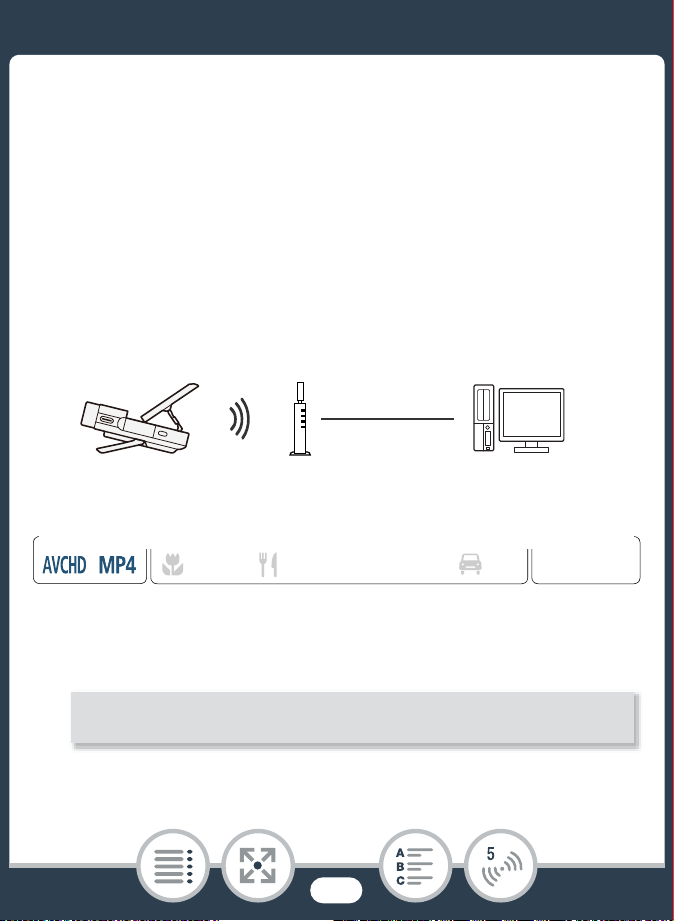
201
The Camcorder's Wi-Fi Functions
Wireless Playback on a Computer
Using the Media Server function, you can wirelessly view your
movies and photos on your computer or similar device. You will
need an access point connected to your home network and
software installed on your computer that can play back movies
and photos from a media server. We recommend that you con-
nect the computer to the access point using a LAN cable. Refer
also to the instruction manuals for the computer, software and
access point.
1 Camcorder: From any index screen, activate the media
server function.
Access point
LAN cable
Computer
N
I
J L K
’
y }
Shooting mode Playback
Format
0 > [— Wi-Fi] > [8 Media Server] > [OK]

202
The Camcorder's Wi-Fi Functions
• You can also touch the icon in the center instead of touch-
ing [OK].
• If you have previously configured and saved a connection
to an access point, the camcorder will connect automati-
cally to the last access point used.
• If no connections to access points have been saved in the
camcorder, the message [Save the access point] will
appear on the screen. Touch [OK] to configure and save a
new access point connection (step 2 in Wi-Fi Connection
Using an Access Point (A 205)) before continuing with
this procedure.
2 Camcorder: When the wireless connection is success-
fully established, [Connected] will appear on the cam-
corder’s screen.
• You can touch [View Information] to view the access
point’s SSID, connection protocol, and the camcorder’s IP
address and MAC address.
• After touching [View Information], you can touch [Change
Connection Point] to select a different SSID saved in the
camcorder in order to change access points.
203
The Camcorder's Wi-Fi Functions
3 Computer: Start your preferred media player software
and select your camcorder’s model name (Canon
LEGRIA mini X) from the list of media servers.
• On standalone media players and other devices, connect
the device to the home network and select your cam-
corder’s model name from the list of media servers.
4 Computer: Play back the movies and photos.
• Interval scenes with the icon will not be shown.
5 Camcorder: Touch [End] > [OK] when finished.
• Depending on the access point’s (wireless router’s) set-
tings and capabilities, playback may take time to start
or may not appear smooth. For details, refer to Trou-
bleshooting (A 256).
204
Wi-Fi Connection and Settings
Wi-Fi Connection and Settings
Wi-Fi Connection Using an Access Point
The camcorder can connect to a Wi-Fi network using an access
point (wireless router) and even remember the settings for 4
access points.
General requirements
• Correctly configured router that complies with
the 802.11b/g/n protocol and is Wi-Fi certified
(bears the logo shown to the right) and a home
network.
1 From any index screen, open the [— Network Setup]
screen.
N
I
J L K
’
y }
Shooting mode Playback
Format
0 > [ Remote Control+Streaming] (from record
standby mode) or [— Wi-Fi] (from any index screen in
playback mode) > [w Check/Edit Settings] > [Access
Point Connection Settings] > [Not configured]

205
Wi-Fi Connection and Settings
2 Touch the desired setup method.
• Depending on the setup method chosen, the procedure
will be different. Read the descriptions below and continue
with the procedure described in the relevant page.
Options
[WPS: Button]*
Simply press and hold the WPS button on your wireless router
and then touch the camcorder’s screen. This is the easiest con-
nection method if you are using a WPS-compatible router. Con-
tinue the procedure as described in Wi-Fi Protected Setup
(WPS) (A 206).
[WPS: PIN Code]*
Access the access point’s configuration screen using your Web
browser. The camcorder will give you a PIN code, which you will
enter into the browser. You will need a WPS-compatible router
and a computer or other device connected to it. Continue the
procedure as described in Wi-Fi Protected Setup (WPS)
(A 206).
[Search for Access Points]
Following the camcorder’s onscreen instructions, you select the
desired access point from a list and then enter your password.
Continue the procedure as described in Searching for Access
Points (A 208)
206
Wi-Fi Connection and Settings
* WPS, which stands for Wi-Fi Protected Setup, is a standard that
makes connecting to an access point easier.
■ Wi-Fi Protected Setup (WPS)
If your access point is WPS-compatible (bears the logo shown
below), connecting the camcorder to it can be very easy. If you
cannot successfully connect the camcorder using WPS, try
using the [Search for Access Points] method. Refer also to the
router’s instruction manual.
[Manual Setup]
You manually enter the access point’s name, password and
other network settings. This method is recommended only for
advanced users of Wi-Fi networks. Continue the procedure as
described in Manual Setup (A 210).

207
Wi-Fi Connection and Settings
1 [WPS: Button] method
• Press and hold the WPS button on the wireless router.
• Depending on the router, the amount of time required may
differ.
• Make sure the router’s WPS function is activated.
[WPS: PIN Code] method
• From a computer or similar device connected to the
access point, use the Web browser to open the router’s
WPS settings screen. After the 8-digit PIN code appears
on the camcorder’s screen, enter it into your router’s WPS
settings screen.
2 Within 2 minutes, touch [OK] on the camcorder’s
screen.
• The camcorder will connect to the access point.
• You can touch [Stop] and then [OK] to interrupt the Wi-Fi
Protected Setup while it is in progress.
• When the Wi-Fi Protected Setup is finished, [Configuration
completed] will appear on the screen.

208
Wi-Fi Connection and Settings
3 Touch [OK] to save the configuration.
• If you were in the process of performing another proce-
dure, the camcorder will automatically connect to the
access point. Return to the procedure of the function you
were previously using:
Step 7 in Streaming via Wi-Fi and Internet (Monitor
while Out) (A 183)
Step 3 in Setting the Desired Web Services in the Cam-
corder (A 196)
Step 2 in Sharing Your Recordings Using Web Services
(A 199)
Step 2 in Wireless Playback on a Computer (A 202)
• Otherwise, touch [K] > [X] to close the menu.
■ Searching for Access Points
After you touch [Search for Access Points], the camcorder will
take a few seconds to detect access points available in the
vicinity and will display the first one. Make a note in advance of
the network name (SSID) and password (encryption key) of the
access point you want to use. (This will usually be the wireless
router on your home network.)
To enter text for the various settings, use the virtual keyboard
(A 186).

209
Wi-Fi Connection and Settings
1 Select the desired access point.
• If the desired access point is not displayed, you can touch
[Í] or [Î] to go through the list of detected access
points. You can also touch [Search Again] to have the
camcorder search for access points again.
• When the network name (SSID) of the desired access
point appears, touch [OK].
2 To enter the [Encryption Key] field, touch [Not config-
ured]. Enter the access point’s password (encryption
key) and touch [OK].
• If the access point selected in step 1 did not have a [C]
icon, this step is not necessary.

210
Wi-Fi Connection and Settings
3 Touch [OK] to save the configuration.
• If you were in the process of performing another proce-
dure, the camcorder will automatically connect to the
access point. Return to the procedure of the function you
were previously using:
Step 7 in Streaming via Wi-Fi and Internet (Monitor
while Out) (A 183)
Step 3 in Setting the Desired Web Services in the Cam-
corder (A 196)
Step 2 in Sharing Your Recordings Using Web Services
(A 199)
Step 2 in Wireless Playback on a Computer (A 202)
• Otherwise, touch [K] > [X] to close the menu.
■ Manual Setup
Perform this procedure to manually configure the wireless con-
nection settings. This may be necessary, for example, if your
access point’s network name (SSID) cannot be detected due to
the stealth function being enabled. Manual setup is for advanced
users of Wi-Fi networks.
To enter text for the various settings, use the virtual keyboard
(A 186).

211
Wi-Fi Connection and Settings
1 In the [SSID] field, enter the SSID. Touch [OK] and then
touch [Next].
2 In the [Authentication/Encryption Method] field, touch
[OPEN NONE] and then touch the desired method.
• If you selected [OPEN WEP], the WEP index is 1.
3 In the [Encryption Key] field, enter the encryption key.
Touch [OK] and then touch [Next].
• If you selected [OPEN NONE] in step 2, this step is not
necessary.
4 Touch [Automatic] or [Manual] to select how to obtain
the IP address.
• If you selected [Automatic], proceed to step 9.
5 To enter the [IP Address] field, touch [0.0.0.0]. Touch
the first field and touch [Í]/[Î] to change the value.
Change the rest of the fields in the same way and
touch [OK].
6 Enter the [Subnet Mask] field in the same way and
touch [Next].
7 Enter the [Default Gateway] field in the same way and
touch [Next].
212
Wi-Fi Connection and Settings
8 Enter the [Primary DNS Server] and [Secondary DNS
Server] fields in the same way and touch [Next].
9 Touch [OK] to save the configuration.
• If you were in the process of performing another proce-
dure, the camcorder will automatically connect to the
access point. Return to the procedure of the function you
were previously using:
Step 7 in Streaming via Wi-Fi and Internet (Monitor
while Out) (A 183)
Step 3 in Setting the Desired Web Services in the Cam-
corder (A 196)
Step 2 in Sharing Your Recordings Using Web Services
(A 199)
Step 2 in Wireless Playback on a Computer (A 202)
• Otherwise, touch [K] > [X] to close the menu.
• The Wi-Fi functions available and the setup method will
vary depending on the specifications and characteris-
tics of the Wi-Fi network you want to use.
213
Wi-Fi Connection and Settings
Viewing and Changing Wi-Fi Settings
You can review and change, if necessary, the settings used for
the various Wi-Fi connections and for the Monitor while Out
function.
1 From recording mode or any index screen, open the
[
— Check Current Configuration] screen.
• You can also touch the icon in the center instead of touch-
ing [OK].
To view the connection settings for iOS/Android devices
2 Touch [Smartphone Connection Settings].
• The camcorder’s SSID and password will appear.
N
I
J L K
’
y }
Shooting mode Playback
Format
0 > [ Remote Control+Streaming] (from record
standby mode) or [— Wi-Fi] (from any index screen in
playback mode) > [w Check/Edit Settings] > [OK]
214
Wi-Fi Connection and Settings
3 If necessary, change the camcorder’s network name
(SSID) and password.
• The next time you make a wireless connection, you will
need to change the Wi-Fi settings on the iOS/Android
device.
4 Touch [K] repeatedly to return to the 0 (Home)
menu, and then touch [X] to close the menu.
To view the access point’s connection settings
2 Touch [Access Point Connection Settings].
• The SSID settings of up to 4 access points in the cam-
corder’s memory will appear.
• If there are available connection slots, you can touch [Not
configured] to set up a new access point (A 204).
3 Touch the SSID of the access point whose settings you
want to view.
• The access point’s settings will appear.
• Touch [Í] and [Î] to view more information.
• To delete the access point connection displayed, touch
[Edit] > [Delete] > [Yes].
[Edit] > [OK] > [OK]

215
Wi-Fi Connection and Settings
• To manually change the settings of the access point con-
nection displayed, touch [Edit] > [Manual Setup] and
then perform the procedure in Manual Setup (A 210).
• Touch [K] to return to the access point selection screen.
4 Touch [K] repeatedly to return to the 0 (Home)
menu, and then touch [X] to close the menu.
To view the settings for the Monitor while Out function
(recording mode only)
2 Touch [Monitor while Out Settings].
• The password and port number to be used for the Monitor
while Out function will appear.
3 If necessary, change the settings.
• Steps 4 and 5 in Streaming via Wi-Fi and Internet (Mon-
itor while Out) (A 181)
4 Touch [K] repeatedly to return to the 0 (Home)
menu, and then touch [X] to close the menu.
216
Wi-Fi Connection and Settings
Glossary
This is a glossary of some of the basic terms used fre-
quently in this chapter. The documentation for your access
point may also contain a glossary you can refer to.
Access Point
A wireless access point (WAP) is a device that allows wire-
less devices, like your camcorder, to connect to a wired net-
work (including to the Internet) using the Wi-Fi standard. In
most cases, this will be your wireless router.
IP Address
Exclusive number assigned to each device connected to
the network.
SSID
Service Set Identifier. This is simply the public name of a
Wi-Fi network.
WPS
Wi-Fi Protected Setup. Standard for easy and secure setup
of Wi-Fi networks created by the Wi-Fi Alliance.
217
Additional Information
Appendix: Menu Options Lists
This section contains tables of all the camcorder’s menu set-
tings and setting options for your reference.
Appendix: Onscreen Icons and Displays
This section explains the icons and displays that appear
on the camcorder’s various screens, with reference pages
to the relevant functions.
Trouble?
Consult the troubleshooting advice and list of messages
when you are experiencing some trouble with your cam-
corder.
Do’s and Don’ts
This section contains important handling precautions and
maintenance instructions.
219
236
246
276

219
Appendix: Menu Options Lists
Appendix: Menu Options Lists
The functions that are available depend on the camcorder’s oper-
ating mode. On the camcorder’s screen, menu items not available
appear grayed out. For details about how to select an item, refer
to Using the Menus (A 46). For details about each function, see
the reference page. Menu options without a reference page are
explained after the tables. Menu options in blue and bold type,
like this, indicate default values.
0 (Home) Menu
Menu item
Setting options
[1 Other Settings] (A 51, 222)
[Audio Scene] (A 118)
[Standard], [ Music], [ Festival], [ Speech],
[ Meeting], [ Forest and Birds],
[ Noise Suppression], [„ Custom Setting]
[Special Rec Modes] (A 97, 101, 104)
[v Normal Recording], [ Interval Recording],
[ Slow Motion], [ Fast Motion], [¦ Video Snapshot],
[z Pre REC]
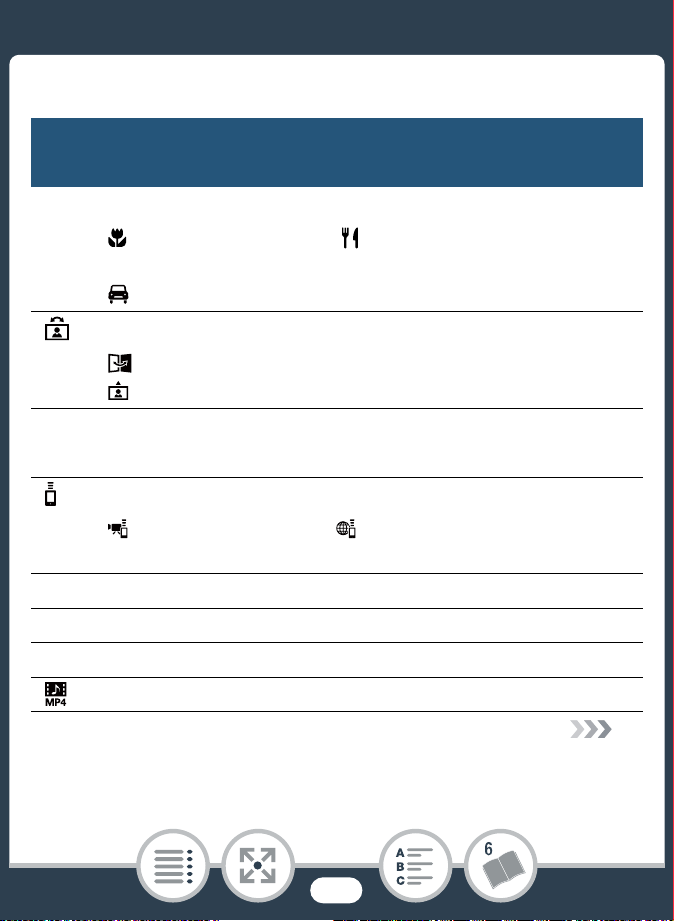
220
Appendix: Menu Options Lists
[Shooting Mode] (A 93)
[ Macro], [N Auto], [ Food and Fashion],
[I Sports], [J Night Scene], [L Beach], [K Snow],
[ Car], [’ Programmed AE]
[ Flip/Rotate Image] (A 113)
[ Mirror Image]: [On], [Off]
[ Detect Orientation]: [On], [Off]
[< Self Timer] (A 108)
[C 2 sec], [G 10 sec], [j Off]
[ Remote Control+Streaming] (A 178)
[ Monitor from Home], [ Monitor while Out],
[w Check/Edit Settings]
[} Photo Playback] (A 75)
[· Movie Playback] (A 67)
[¸ Movie Playback] (A 67)
[ Video Snapshot] (A 67)
0 (Home) Menu (cont.)
Menu item
Setting options
221
Appendix: Menu Options Lists
[— Wi-Fi] (A 170)
[6 Movie Uploader], [5 Playback via Browser],
[ To Web Service], [8 Media Server],
[w Check/Edit Settings]
[Edit] Functions in Playback Modes
Button
Setting options
[Convert to MP4] (A 156)
[Delete] (A 79)
[y·] index screen: <date>, [Select], [All Scenes]
[y¸] or [¦¸] index screen: <folder name>,
[Select], [All Scenes]
[}] index screen: <folder name>, [Select], [All Photos]
During playback pause: [This Scene]
In single photo view: [¸ Proceed] (deletes the current
photo)
[Divide] (A 83)
[Trim] (A 85)
0 (Home) Menu (cont.)
Menu item
Setting options
222
Appendix: Menu Options Lists
[1 Other Settings] Menus
p/ Camera Setup (recording mode only)
Menu item
Setting options
[Movie Format] (A 55)
[· AVCHD], [¸ MP4]
[Video Quality] (A 90)
[ High Quality 24 Mbps],
[ Standard (Full HD) 17 Mbps],
[ Long Play 4 Mbps]
[Face Detection & Tracking] (A 144)
[i On }], [j Off]
[Auto Backlight Correction] –
[i On], [j Off]
[Auto Slow Shutter] –
[i On], [j Off]
[Flicker Reduction] –
[j Off], [: 50 Hz], [; 60 Hz]
[Image Stabilizer] –
[i On], [j Off]
223
Appendix: Menu Options Lists
[Auto Backlight Correction]: The camcorder automatically cor-
rects for backlight when shooting subjects with a strong light
behind them.
• This function is not available when the shooting mode is set to
J, K, L or .
[Video Snapshot Length] (A 104)
[C 2 sec], [D 4 sec], [F 8 sec]
[Photo Size] (A 92)
[ 4000x3000], [n 1920x1440], [ 640x480]
[Photo Review Time] –
[j Off], [C 2 sec], [D 4 sec], [E 6 sec],
[F 8 sec], [G 10 sec]
[Onscreen Markers] –
[j Off], [3 Level (White)], [4 Level (Gray)],
[5 Grid (White)], [6 Grid (Gray)]
p/ Camera Setup (recording mode only) (cont.)
Menu item
Setting options

224
Appendix: Menu Options Lists
[Auto Slow Shutter]: For AVCHD movies only. The camcorder
automatically uses slow shutter speeds to obtain brighter
recordings in places with insufficient lighting.
• This function is only available when the shooting mode is set
to N or ’.
• When you are recording moving subjects, if a trailing afterim-
age appears, set the slow shutter to [j Off].
[Flicker Reduction]:
If the screen starts to flicker when record-
ing movies under fluorescent lights, change the setting to reduce
the effect.
• This function is only available when the shooting mode is set
to ’.
• Flicker reduction is not available while recording using slow/
fast motion.
• When using this function in dark surroundings, the recorded
image may become darker.
[Image Stabilizer]: The image stabilizer reduces camcorder blur
(blur due to the camcorder moving) so you can get nice, stable
shots.
• The image stabilizer is not available in the following cases:
- When recording using slow or fast motion.
- When the field of view is ultra wide.
- When the camcorder is in photo mode.
- When using [ Remote Control+Streaming].

225
Appendix: Menu Options Lists
• For AVCHD movies, the image will appear wider when the
image stabilizer is set to [i On].
• When using this function in dark surroundings, the recorded
image may become darker.
[Photo Review Time] (photo mode only): Selects the time to
display a photo after it is recorded.
[Onscreen Markers]: You can display a grid or a horizontal line
at the center of the screen. Use the markers as a reference to
make sure your subject is framed correctly (vertically and/or hor-
izontally).
• Using the onscreen markers will not affect the recordings.
226
Appendix: Menu Options Lists
[Slideshow Transition]: You can select the transition effect
between photos in a slideshow.
[k Dissolve]: The currently displayed photo fades away while
the next photo fades in.
[l Slide Image]: Photos slide to the left as the slideshow
advances.
[Auto Rotate]: When set to [i On], the camcorder will display
in the correct orientation photos that were recorded with the
camcorder held vertically, if at the time of recording, >
[ Detect Orientation] was set to [On].
Playback Setup (playback mode only)
Menu item
Setting options
[Video Snapshot Length] (A 147)
[C 2 sec], [D 4 sec], [F 8 sec]
[Slideshow Transition] –
[j Off], [k Dissolve], [l Slide Image]
[Auto Rotate] –
[i On], [j Off]
[Display Date/Time] –
[i On], [j Off]
227
Appendix: Menu Options Lists
[Display Date/Time]: Select whether to display the recording
date and time during playback.
• During AVCHD movie and photo playback, both the date and
time are displayed. During MP4 movie playback, only the date
is displayed.
Audio Setup
Menu item
Setting options
[Built-in Mic Wind Screen] (A 126)
[H Auto (High)], [L Auto (Low)ë], [j Offà]
[Built-in Mic Att.] (A 127)
[k Automatic], [i On], [j Off]
[Built-in Mic Freq. Response] (A 129)
[h Normal], [ç Boost LF Range],
[è Low Cut Filter], [é Boost MF Range],
[ê Boost HF+LF Range]
[Built-in Mic Directionality] (A 130)
[í Monaural], [h Normal], [î Wide]
[MIC Att.] (A 127)
[k Automatic], [i On], [j Off]
228
Appendix: Menu Options Lists
[MIC Low Cut] (A 132)
[i On], [j Off]
[MIC Terminal Input] (A 133)
[Þ External Audio], [ß Microphone]
[Audio Mix] (A 134)
[j Off], [i On]
When [i On] is selected: audio mix bar,
[Internal Microphone]/[MIC Terminal Input]
[Audio Limiter] (A 135)
[i On], [j Off]
[Audio Compressor] (A 135)
[H High], [L Low], [j Off]
[Headphone Volume] (A 137)
, Ö
0-15 (8)
Audio Setup (cont.)
Menu item
Setting options
ÔÕ
229
Appendix: Menu Options Lists
[Notification Sounds]: A beep will accompany some opera-
tions like turning on the camcorder, the self-timer countdown,
etc.
• Set to [j Off] to turn off notification sounds.
[Speaker Volume] (A 69)
, Ú
0-15 (8)
[Notification Sounds] –
[÷ High Volume], [ø Low Volume], [j Off]
Audio Setup (cont.)
Menu item
Setting options
230
Appendix: Menu Options Lists
q System Setup
Menu item
Setting options
[Language H] (A 39)
[ ], [Dansk], [Deutsch], [ ], [English],
[Español], [Français], [Italiano], [Magyar], [Melayu],
[Nederlands], [Norsk], [Polski], [Português], [ ],
[Suomi], [Svenska], [Türkçe], [ ], [ ],
[ ], [ ], [ ], [ ], [ ], [ ],
[]
[Time Zone/DST] (A 42)
["] (home time zone) or [#] (travel time zone):
[Paris], list of world time zones
[$] (DST adjustment): Toggle on or off
[Date/Time] (A 39)
[Date/Time]: –
[Date Format]: [Y.M.D], [M.D,Y], [D.M.Y] (Y- year,
M- month, D- day)
[24H]: Toggle on
(
24-hour clock) or
off (12-hour clock)
[LCD Brightness] –
231
Appendix: Menu Options Lists
[LCD Backlight] –
[H Bright], [M Normal], [L Dim]
[Available Space in Memory] –
[Used Space in Memory] –
[File Numbering] –
[m Reset], [n Continuous]
[Auto Power Off] –
[i On], [j Off]
[HDMI Status] –
[Output Onscreen Displays] –
[i On], [j Off]
[Initialize 8] (A 43)
[Complete Initialization]: Toggle on or off
[Firmware] –
[Certification Logo Display] –
[Demo Mode] –
[i On], [j Off]
q System Setup (cont.)
Menu item
Setting options
232
Appendix: Menu Options Lists
[LCD Brightness]: Adjusts the brightness of the LCD screen.
• Changing the brightness of the LCD screen does not affect the
brightness of your recordings or the brightness of the play-
back image on a TV.
[LCD Backlight]:
Sets the screen to one of three brightness lev-
els. You can use this to make the screen brighter when record-
ing in bright places, for example.
• Changing the brightness of the LCD screen does not affect the
brightness of your recordings or the brightness of the play-
back image on a TV.
• Using the [H Bright] setting will shorten the effective usage
time of the battery pack.
• While [L Dim] is selected, the power/charge indicator will turn
on in green.
[Reset All] –
[No], [Yes]
q System Setup (cont.)
Menu item
Setting options

233
Appendix: Menu Options Lists
[Available Space in Memory] (recording mode only)/
[Used Space in Memory] (playback mode only): Displays a
screen where you can verify how much of the memory card is
currently available for recording or how much is in use (ª indi-
cates photos).
• Estimated figures about available movie recording time and
available number of photos are approximate and based on the
currently selected video quality and photo size.
• The information screen displays also the Speed Class rating of
the memory card.
[File Numbering]: MP4 movies and photos are saved on the
memory card as files in folders, which are assigned consecutive
file numbers. This setting determines how files are numbered.
[m Reset]: File numbers will restart from 100-0001 every time
you record on a memory card that has been initialized.
[n Continuous]: File numbers will continue from the number
following that of the last file recorded with the camcorder.
• If the memory card you insert already contains a file with a
larger number, a new file will be assigned a number one higher
than that of the last file on the memory card.
• We recommend using the [n Continuous] setting.
• Folders can contain up to 500 files (MP4 movies and photos
combined).

234
Appendix: Menu Options Lists
• File numbers consist of 7 digits, for example “101-0107”. The
3 digits before the hyphen indicate the folder where the file is
saved and can range from 100 to 999. The 4 digits after the
hyphen are a unique identifier for each file and can range from
0001 to 9900.
• The last four digits of the folder name indicate the date when
the folder was created.
• The file number and folder name also indicate the location of
the file on the memory card. A recording with the file number
“101-0107”, made on October 25 will be found in the folder
DCIM\101_1025. If it is an MP4 movie, its file name will be
MVI_0107.MP4; if it is a photo, its file name will be
IMG_0107.JPG.
• All the interval scenes recorded during one interval recording
sequence are saved in separate folders indicated by the letter
“I” instead of an underscore (ex. “101I1025”).
[Auto Power Off]: In order to save power when the camcorder
is powered by a battery pack, it will automatically shut off if left
without any operation for 3 minutes.
• Approximately 30 seconds before the camcorder shuts off,
[Auto Power Off] will appear. Operating any of the camcorder’s
controls while the message is displayed will prevent the cam-
corder from shutting off.

235
Appendix: Menu Options Lists
[HDMI Status]: Displays a screen where you can verify the stan-
dard of the output signal from the HDMI terminal.
[Output Onscreen Displays] (playback mode only):
When set
to [i On], the camcorder’s onscreen displays will appear also
on the screen of a TV or monitor connected to the camcorder.
[Firmware] (playback mode only): You can verify the current ver-
sion of the camcorder’s firmware, which is the software that con-
trols the camcorder. This menu option is usually unavailable.
[Certification Logo Display]: This displays select certification
logos that apply to this camcorder.
• The certification logos apply to Australia and New Zealand
only.
[Demo Mode]: The demonstration mode displays the cam-
corder’s main features. It starts automatically when the cam-
corder is powered using the compact power adapter if you leave
it in record standby mode without a memory card for more than
5 minutes.
• To cancel the demo mode once it has started, press any but-
ton or turn off the camcorder.
[Reset All]: Resets all of the camcorder’s settings, including any
stored access point connections, passwords and other Wi-Fi
settings.
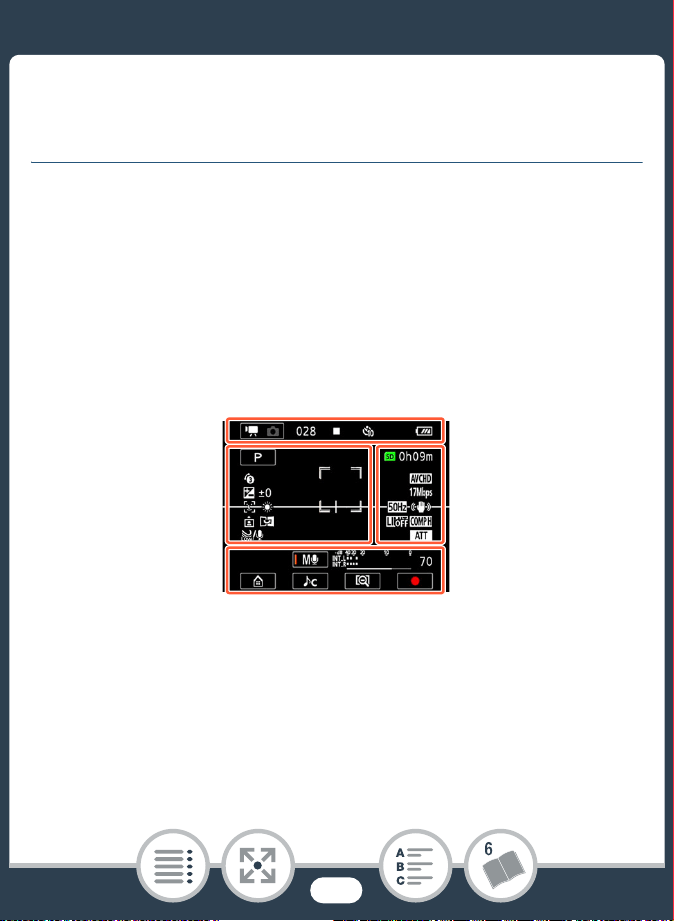
236
Appendix: Onscreen Icons and Displays
Appendix: Onscreen Icons and
Displays
The following tables show the icons that appear in the various
modes. For easy reference, the icons in the table are grouped
according to the area in which they appear on the screen.
Please note that what icons appear depends on the movie for-
mat, shooting mode, and other functions.
For details about each function, see the reference page.
Recording mode
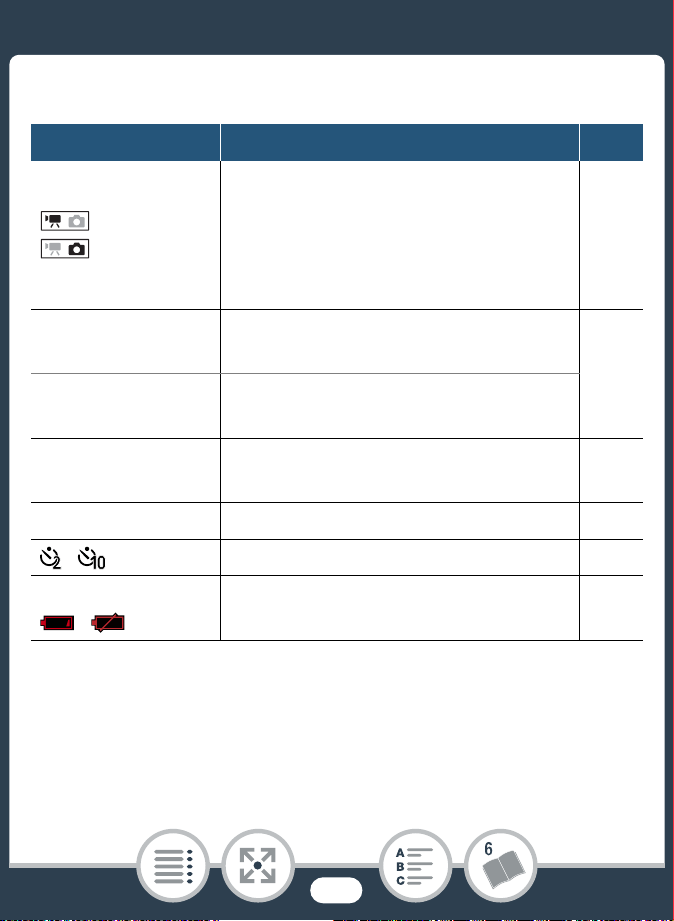
237
Appendix: Onscreen Icons and Displays
Icons on the top of the screen
Icon Description/Function A
The left side shows the current
recording mode (movie or photo
mode) while the right side shows the
new recording mode when this control
button is touched.
60
00:00:00:00 (for
AVCHD movies)
Time code
(hours : minutes : seconds : frames)
244
0:00:00 (for MP4
movies)
Scene counter
(hours: minutes : seconds)
000 (for AVCHD
movies)
Total number of scenes -
Ü Ñ Memory card operation 244
Self timer and countdown 108
è é ê
Remaining battery charge 244
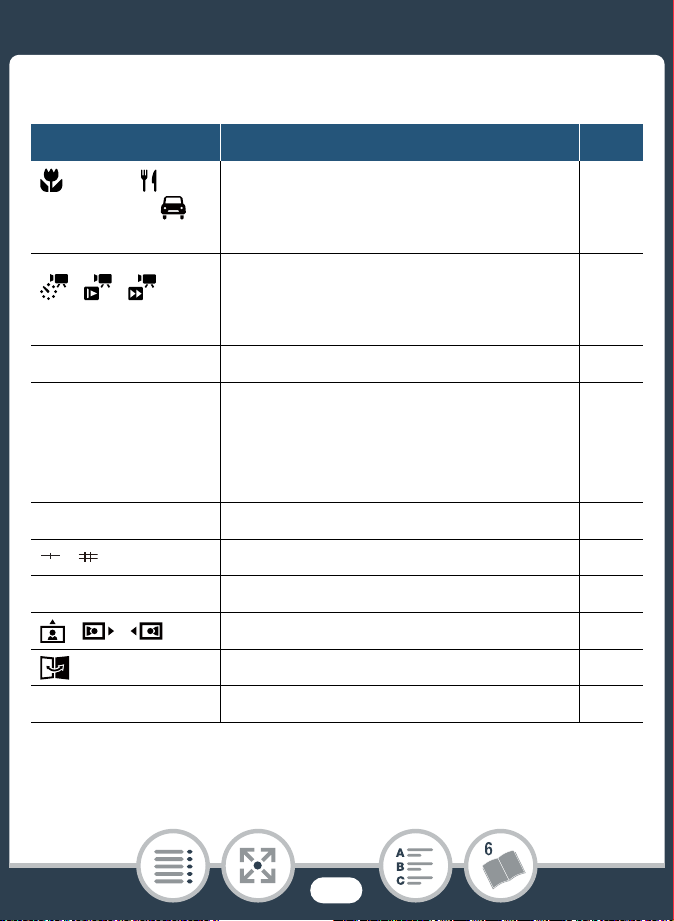
238
Appendix: Onscreen Icons and Displays
Icons on the left side of the screen
Icon Description/Function A
ó I
J L K
’
Shooting mode button
(In N mode: Smart AUTO icons)
93
65
¦
z
Special recording modes and, if appli-
cable, an icon indicating an interval of
time for that function.
245
y±0 Exposure compensation 141
}
Face detection. When a face is
detected, a white frame will also
appear around the main subject's
face.
144
à ¼ É Å White balance 139
Onscreen markers 225
£ User-selected face detection frame 144
Orientation detection 113
Mirror image recording 113
ë à Built-in microphone's wind screen 126
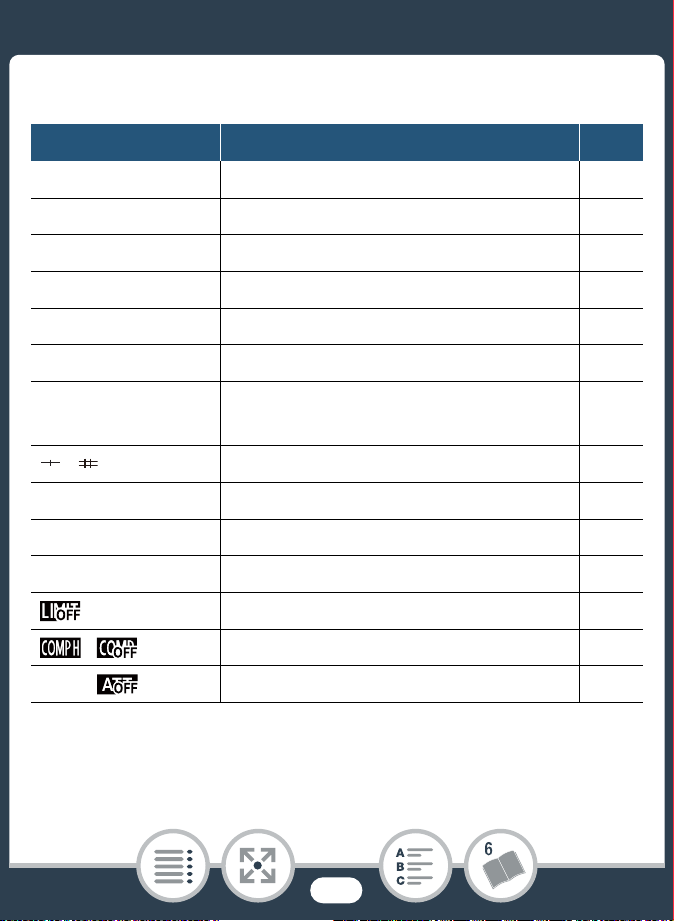
239
Appendix: Onscreen Icons and Displays
Icons on the right side of the screen
Icon Description/Function A
80h00m Remaining video recording time 245
80000 Remaining available number of photos 245
LPCM Linear PCM audio 90
· ¸ Movie format 55
L M S Photo size 92
¼ Frame rate -
24 Mbps 17 Mbps
4 Mbps
Video quality 90
Onscreen markers 225
£ User-selected face detection frame 144
: ; Flicker reduction 224
Å Image stabilizer 224
Audio limiter 135
Audio compressor 135
å Built-in microphone attenuator 127
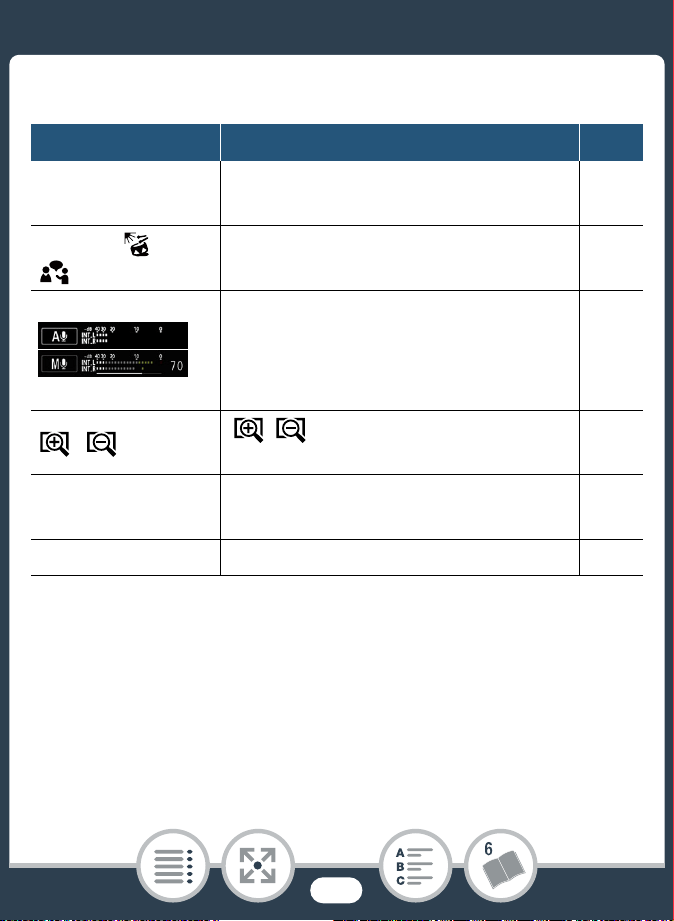
240
Appendix: Onscreen Icons and Displays
Icons on the bottom of the screen
Icon Description/Function A
0
[0] button: Open the 0 (Home)
menu
47
‘ ’ ‚
“ ” „
Audio scene button: Change the
audio scene.
118
Audio recording mode button and
audio level indicator: Switch between
manual and automatic audio record-
ing level
124
[ / ] button: Change the field of
view
59
Ü Ñ
[Ü]/[Ñ] button: Start/Stop recording
a movie
57
PHOTO [PHOTO] button: Take a photo 62
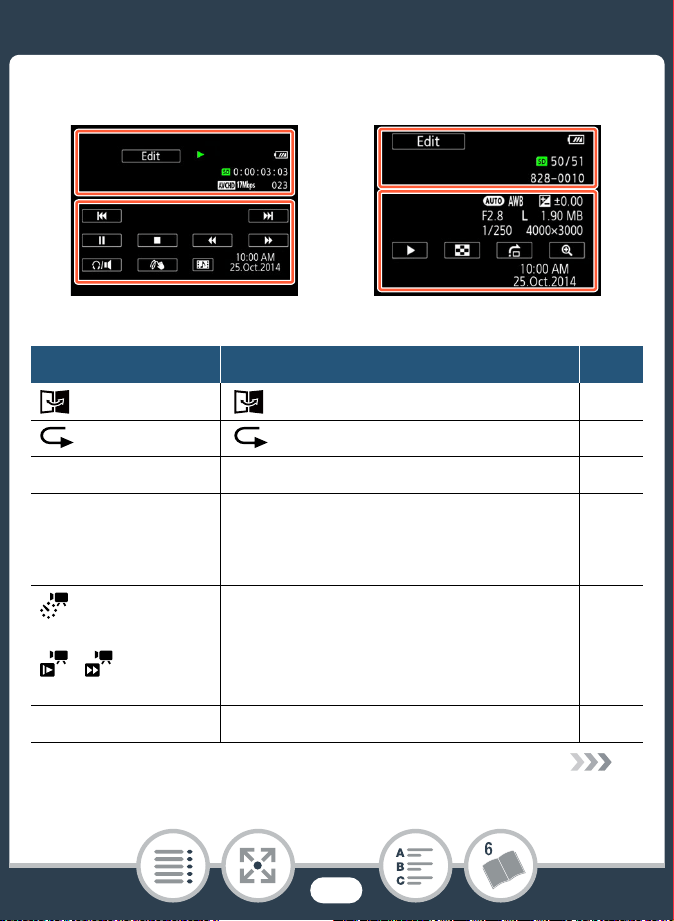
241
Appendix: Onscreen Icons and Displays
Playback mode
Icons on the top of the screen
Icon Description/Function A
[ ] button: Mirror image playback 72
[ ] button: Repeat playback 72
Edit [Edit] button: Open the [Edit] panel 221
Ð Ý Ö Õ
Ø ×
Ô Ó
Memory card operation 244
Interval scenes that have not yet been
joined.
Slow/Fast motion and playback
speed.
97
101
LPCM Linear PCM audio 90
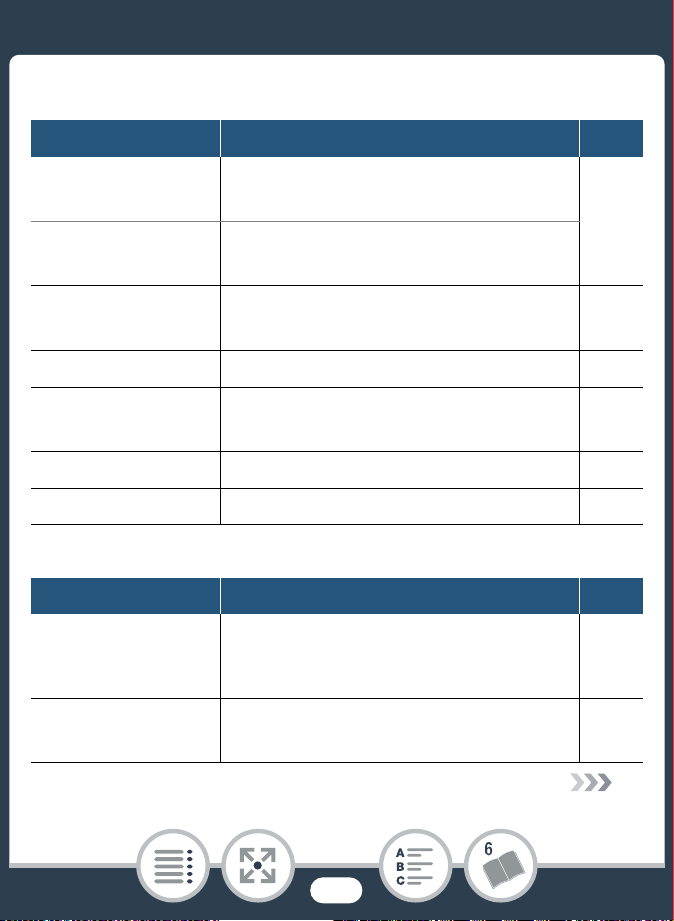
242
Appendix: Onscreen Icons and Displays
00:00:00:00 (for
AVCHD movies)
Scene playback time code (hours :
minutes : seconds : frames)
244
0:00:00 (for MP4
movies)
Scene playback time (hours: minutes :
seconds)
800/00
Current photo / Total number of
photos
-
· ¸ Movie format 55
24 Mbps 17 Mbps
4 Mbps
Video quality 90
000 Scene number -
000-0000 File number 233
Icons on the bottom of the screen
Icon Description/Function A
For movies:
Ú Ù Ý Ð Û
Ø × Ö Õ
Playback control buttons 70
For photos:
Ð
[Ð] button: Slideshow 86
Icons on the top of the screen (cont.)
Icon Description/Function A
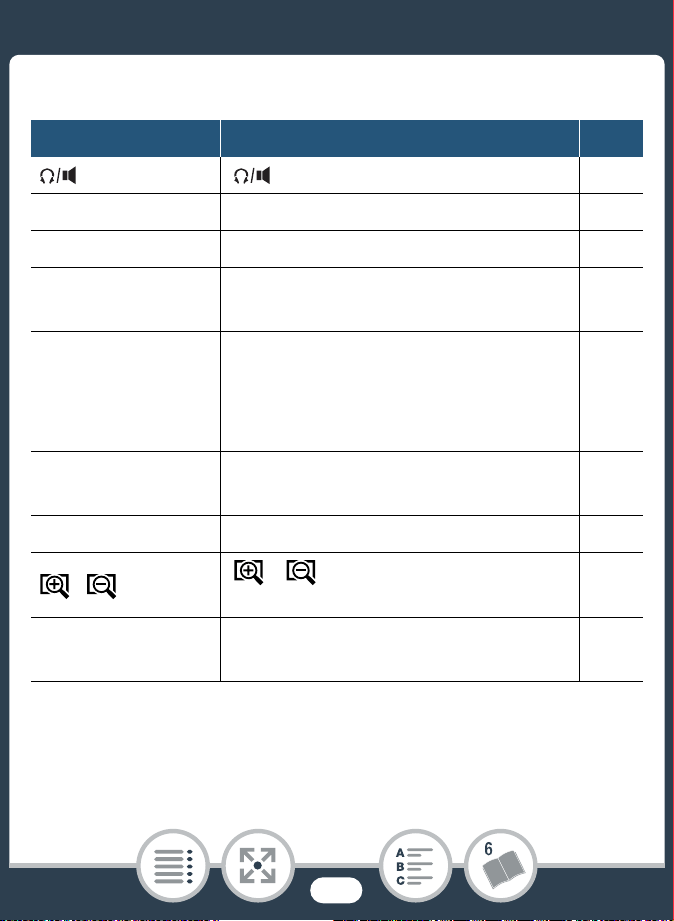
243
Appendix: Onscreen Icons and Displays
[ ] button: Volume 69
PHOTO [PHOTO] button: Capture a photo 149
Ò [Ò] button: Decoration 110
¦
[¦] button: Capture a video snap-
shot scene
147
N Ã
y±0.00 F2.8 L
1.90 MB 1/250
4000×3000
Shooting information 245
f
[f] button: Return to the [}] index
screen
75
h [h] button: Photo jump 77
[ ]/[ ] button: Increase/decrease
magnification for photo playback
77
10:00 AM
25.Oct.2014
Recording date and time 227
Icons on the bottom of the screen (cont.)
Icon Description/Function A
244
Appendix: Onscreen Icons and Displays
Time code/Scene counter
Both the time code and scene counter are counters that
advance only when recording. The time code starts at
0:00:00:00 every time you record a new scene.
Memory card operation
Ü Record, Ñ Record standby, Ð Playback, Ý Playback
pause, × Fast playback, Ø Fast reverse playback,
Õ Slow playback, Ö Slow reverse playback, Ó Frame
advance, Ô Frame reverse.
Remaining battery charge
• The icon shows a rough estimate of the remaining charge
of the battery pack.
• When the battery charge becomes low, replace or charge
the battery pack. Depending on the condition of the cam-
corder or battery, the actual battery charge may not match
what is displayed on the screen.
• When you insert an empty battery pack, the power may
turn off without displaying .
245
Appendix: Onscreen Icons and Displays
Special recording modes
- Interval recording and selected interval (A 97)
- Slow motion and selected speed (A 101)
- Fast motion and selected speed (A 101)
¦ - Video snapshot and selected video snapshot length
(A 104)
z - Pre-recording (A 105)
Remaining video recording time
When there is no more free space on the memory card,
and [End] will be displayed (in red) on the screen and the
recording will stop.
Remaining available number of photos
Even if the remaining number of photos that can be
recorded is larger, the maximum number displayed on this
screen is [9999].
Shooting information
N Shooting mode, Ã White balance,
y±0.00 Exposure, F2.8 Aperture number,
1/250 Shutter speed, L 4000×3000 Photo size,
1.90 MB File size

246
Trouble?
Tro ubl e?
Troubleshooting
If you have a problem with your camcorder, refer to this section.
Sometimes what you think is a malfunction of the camcorder
may have the simplest of solutions - please read the “CHECK
THIS FIRST” box before going on to the more detailed problems
and solutions. Consult your dealer or a Canon Service Center if
the problem persists.
CHECK THIS FIRST
Power supply
• Is the battery charged? Is the compact power adapter cor-
rectly connected to the camcorder? (A 30)
Recording
• Did you turn the camcorder on and correctly set it to record-
ing mode? (A 57, 62) Is a compatible memory card cor-
rectly inserted into the camcorder? (A 37)
Playback
• Did you turn the camcorder on and correctly set it to play-
back mode? (A 67, 75) Is a compatible memory card cor-
rectly inserted into the camcorder? (A 37) Does it contain
any recordings?

247
Trouble?
Power Source
The camcorder will not turn on or it turns off by itself.
- The battery pack is exhausted. Replace or charge the bat-
tery pack.
- Remove the battery pack and insert it correctly.
Cannot charge the battery pack.
- Make sure the camcorder is off so charging can start.
- The temperature of the battery pack is outside its operating
range (approximately 0 – 40 °C). Remove the battery pack,
warm it or let it cool down, as necessary, and try charging it
again.
- Charge the battery pack in temperatures between approxi-
mately 0 °C and 40 °C.
- If you are using a battery pack recommended by Canon for
use with this camcorder, there may be a problem with the
battery pack. Consult a Canon Service Center.
A noise can be heard from the compact power adapter.
- A faint sound can be heard while the compact power
adapter is connected to a power outlet. This is not a mal-
function.
The battery pack is exhausted extremely quickly even at nor-
mal temperatures.
- The battery may have reached the end of its battery life. Buy
a new battery pack.

248
Trouble?
Recording
Pressing the start/stop button or touching [Ü] will not start
recording.
- You cannot record while the camcorder is writing previous
recordings onto the memory card (while the ACCESS indica-
tor is on or flashing). Wait until the camcorder has finished.
- The memory is full or it already contains the maximum num-
ber of scenes of AVCHD movies (3,999 scenes). Delete
some recordings (A 79) or initialize the memory card
(A 43) to free some space.
- The file numbers for MP4 movies and photos have reached
their maximum value. Set 1 >q>[File Numbering] to
[Reset] and insert a new memory card.
The point where the start/stop button was pressed or [Ü]/[Ñ]
was touched does not match the beginning/end of the
recording.
- There is a slight interval between pressing/touching the but-
ton and the actual start/end of recording. This is not a mal-
function.

249
Trouble?
When a subject flits across in front of the lens, the image
appears slightly bent.
- This is a phenomenon typical of CMOS image sensors.
When a subject crosses very quickly in front of the cam-
corder, the image may seem slightly warped. This is not a
malfunction.
Changing the operating mode between recording (Ü)/record-
ing standby (Ñ)/playback (Ð) takes longer than usual.
- When the memory card contains a large number of scenes,
some operations may take longer than usual. Save your
recordings (A 159) and initialize the memory card (A 43).
Movies or photos cannot be recorded properly.
- This may occur as movies and photos are recorded/deleted
over time. Save your recordings (A 159) and initialize the
memory card using the [Complete Initialization] option
(A 43).
After using the camcorder for a long time, it becomes hot.
- The camcorder may become hot after using it continuously
for long periods of time; this is not a malfunction. If the cam-
corder becomes unusually hot or it becomes hot after using
it only for a short while, it may indicate a problem with the
camcorder. Consult a Canon Service Center.
250
Trouble?
Playback
Deleting scenes takes longer than usual.
- When the memory card contains a large number of scenes,
some operations may take longer than usual. Save your
recordings (A 159) and initialize the memory card (A 43).
Cannot capture a video snapshot scene from a movie.
- You cannot capture video snapshot scenes from scenes
recorded or edited using another device and then trans-
ferred to a memory card connected to the computer.
- The memory card is full. Delete some recordings (A 79) to
free some space.
Cannot mark individual scenes/photos in the index screen
with a checkmark !.
- You cannot select more than 100 scenes/photos individually.
Select the [All Scenes] or [All Photos] option instead of
[Select].
Indicators and Onscreen Displays
or appears (in red) on the screen.
- Battery pack is exhausted. Replace the battery pack with a
fully charged one.
251
Trouble?
or appears (in red) on the screen and the camcorder
cannot be turned off and on.
- Battery pack is exhausted. Replace the battery pack with a
fully charged one.
appears (in red) on the screen.
- A memory card error occurred. Turn off the camcorder.
Remove and reinsert the memory card. Initialize the memory
card if the display does not change back to normal.
and [End] appear (in red) on the screen.
- The memory card is full. Replace the memory card or delete
some recordings (A 79) to free some space on the mem-
ory card.
- The folder and file numbers have reached their maximum
value. Set 1 > q> [File Numbering] to [Reset] and
delete all the movies and photos (A 79) on the memory
card or initialize it (A 43).
Even after stopping recording, the ACCESS indicator does
not go off.
- The scene is being recorded on the memory card. This is not
a malfunction.

252
Trouble?
The red power/charge indicator flashes rapidly (
one flash at 0.5-second intervals).
- The temperature of the battery pack is outside its operating
range (approximately 0 – 40 °C). Remove the battery pack,
warm it or let it cool down, as necessary, and try charging it
again.
- Charge the battery pack in temperatures between approxi-
mately 0 °C and 40 °C.
- The battery pack is damaged. Use a different battery pack.
- Charging has stopped because the compact power adapter
or the battery pack is faulty. Consult a Canon Service Cen-
ter.
Picture and Sound
The screen appears too dark.
- The LCD screen was dimmed. Change the 1 > q >
[LCD Backlight] setting to [Normal] or [Bright].
Screen displays turn on and off repeatedly.
- The battery pack is exhausted. Replace or charge the bat-
tery pack.
- Remove the battery pack and insert it correctly.
Abnormal characters appear on the screen and the cam-
corder does not operate properly.
- Remove the battery pack and insert it after a few moments.

253
Trouble?
Video noise appears on screen or noise can be heard in the
audio.
- Keep a distance between the camcorder and devices that
emit strong electromagnetic fields (plasma TVs, cellular
phones, etc.).
- An external microphone may pick up noise while Wi-Fi func-
tions are in use. Keep a distance between the camcorder
and microphone.
Horizontal bands appear on the screen.
- This is a phenomenon typical of CMOS image sensors when
recording under some types of fluorescent, mercury or
sodium lamps. This is not a malfunction. To reduce the
symptoms, change the 1 >p> [Flicker Reduction]
setting.
Sound is distorted or is recorded at lower levels.
- When recording near loud sounds (such as fireworks, shows
or concerts), sound may become distorted or it may not be
recorded at the actual levels. This is not a malfunction.
Adjust the audio recording level manually (A 124).
The picture is displayed correctly but there is no sound from
the built-in speaker.
- Speaker volume is turned off. Adjust the volume (A 69).
- Sound will not be output from the built-in speaker while
headphones or the optional HTC-100 High Speed HDMI
cable is connected to the camcorder.

254
Trouble?
There is no sound from the × (headphones) terminal.
- Audio will not be output from the camcorder while Wi-Fi
functions are in use.
Memory Card and Accessories
Cannot insert the memory card.
- The memory card was not facing the correct direction. Turn
the memory card over and insert it.
Cannot record on the memory card.
- The memory card is full. Delete some recordings (A 79) to
free some space or replace the memory card.
- Initialize the memory card using the [Complete Initialization]
option (A 43) when you use it with the camcorder for the
first time.
- A compatible memory card must be used to be able to
record movies on a memory card (A 35).
- The folder and file numbers for MP4 movies and photos
have reached their maximum value. Set 1 >q>[File
Numbering] to [Reset] and insert a new memory card.

255
Trouble?
Connections with External Devices
Video noise appears on the TV screen.
- When using the camcorder in a room where a TV is located,
keep a distance between the compact power adapter and
the power or antenna cables of the TV.
There is no image on the TV screen and there is no sound.
- The video input on the TV is not set to the video terminal to
which you connected the camcorder. Select the correct
video input.
- Disconnect the optional HTC-100 High Speed HDMI cable
and then restore the connection or turn the camcorder off
and then on again.
- Video and audio will not be output from the camcorder while
Wi-Fi functions are in use.
The computer does not recognize the camcorder even though
the camcorder is connected correctly.
- Disconnect the USB cable and turn off the camcorder. After
a short while, turn it on again and restore the connection.
- Connect the camcorder to a different USB port on the com-
puter.

256
Trouble?
Cannot save recordings on my computer
- When the memory card contains too many recordings (Win-
dows – 2,500 or more photos/MP4 movies, Mac OS –
1,000 or more photos/MP4 movies), you may not be able to
transfer recordings to a computer. Try using a card reader.
Wi-Fi Functions
Refer also to the instruction manual of your access point and
other devices you will use.
Cannot connect with the access point.
- Check that the access point is working correctly.
- The effective communication range between the camcorder
and access point may vary depending on the strength of the
wireless signal. Try using the camcorder closer to the access
point.
- Cordless phones, microwave ovens, refrigerators and other
appliances in the line of sight between the access point and
the camcorder may interfere with the wireless signal. Try
using the camcorder in a location farther away from such
appliances.

257
Trouble?
- Wi-Fi networks with a stealth function that do not broadcast
their network name (SSID) will not be detected by the cam-
corder during the Wi-Fi network setup. Perform the setup
manually (A 210) or turn off the stealth function of the
access point.
Wireless playback on a computer or similar device is not
smooth.
- Playback may not be smooth depending on the access
point’s settings and capabilities.
- Connect the computer to the access point using a LAN
cable.
- Remove any objects between the camcorder and wireless
access point that may interfere with the wireless signal.
- Move the camcorder closer to the wireless access point.
- Turn off the wireless functions of other wireless devices other
than the computer or similar device being used for playback.
- Switch the wireless access point to IEEE 802.11n. Refer to
its instruction manual for details.
- If these do not solve the issue, the cause may be due the
device or conditions unique to the surrounding area. Use the
optional HTC-100 High Speed HDMI cable to connect the
camcorder to a TV (A 154).

258
Trouble?
The wireless connection was interrupted while transferring
files.
- Incomplete files may remain at the transfer destination. If
incomplete files remain at the transfer destination, check the
content and make sure they are safe to delete before delet-
ing them.
- Select [New Files] and perform the file transfer again.
Cannot complete a wireless connection to the camcorder.
- Resetting the camcorder’s settings using 1 > q >
[Reset All] will reset the camcorder’s SSID (network name)
and change the network passwords. Erase the camcorder’s
previous network settings from the iOS or Android device
and connect the device to the camcorder again.
The Playback via Browser screen does not appear correctly
on the Web browser.
- The device, operating system or Web browser used may not
be supported. For the latest information about supported
systems, visit your local Canon Web site.
- Enable JavaScript and cookies in your Web browser’s set-
tings. For details, refer to the help modules or online docu-
mentation of the Web browser used.

259
Trouble?
List of Messages
Refer to List of Messages for Wi-Fi Functions (A 268) for a
list of messages related to general Wi-Fi functions, and List of
Messages for Web Services (A 274) for messages related to
Web services when using CANON iMAGE GATEWAY.
Back up recordings regularly
- This message may appear when you turn on the camcorder.
In the event of a malfunction, recordings may be lost so
back up your recordings regularly.
Battery communication error. Does this battery display the
Canon logo?
- This may be due to using a battery pack not recommended
by Canon for use with this camcorder.
- If you are using a battery pack recommended by Canon for
use with this camcorder, there may be a problem with the
battery pack or camcorder. Consult a Canon Service
Center.
Cannot convert scenes recorded using interval recording.
- Interval scenes with the icon cannot be converted or
resized. Join the interval scenes into a single scene
(A 100).
Cannot convert the scene
- Scenes that were recorded or edited with other devices and
then transferred to a memory card connected to the com-
puter, cannot be converted to MP4 scenes.
(in alphabetical order)

260
Trouble?
Cannot divide the scene
- The scene could not be divided because the camcorder’s
internal scene management data log is full. Delete some
scenes and photos (A 79) and try dividing the scene again.
Cannot load canvas
- The canvas file that was saved on the memory card is cor-
rupted.
- Canvas data cannot be read from canvas files created using
other devices and then transferred to a memory card con-
nected to the computer.
Cannot play back
- You may not be able to play back scenes that were recorded
with other devices or created or edited on a computer and
then transferred to a memory card connected to the com-
puter.
- There is a problem with the memory card. If this message
appears often without apparent reason, contact a Canon
Service Center.
Cannot play back Check the memory card
- There is a problem with the memory card. Save your record-
ings (A 159) and initialize the memory card using the
[Complete Initialization] option (A 43). If the problem per-
sists, use a different memory card.

261
Trouble?
Cannot play the movies on this memory card
- Movies cannot be played back from a 64 MB or smaller
memory card. Use a recommended memory card (A 35).
Cannot play the movies on this memory card Initialize only
using the camcorder
- The memory card in the camcorder was initialized using a
computer. Initialize the memory card with this camcorder
(A 43).
Cannot record
- You cannot capture video snapshot scenes from scenes
recorded or edited using another device and then trans-
ferred to a memory card connected to the computer.
- There is a problem with the memory card. If this message
appears often without apparent reason, contact a Canon
Service Center.
Cannot record Check the memory card
- There is a problem with the memory card. Save your record-
ings (A 159) and initialize the memory card using the
[Complete Initialization] option (A 43). If the problem per-
sists, use a different memory card.
Cannot record movies on this memory card
- Movies cannot be recorded on a 64 MB or smaller memory
card. Use a recommended memory card (A 35).

262
Trouble?
Cannot record movies on this memory card Initialize only
using the camcorder
- The memory card in the camcorder was initialized using a
computer. Initialize the memory card with this camcorder
(A 43).
Cannot save the canvas
- Cannot save your [Pens and Stamps] drawings on the mem-
ory card. Save your recordings (A 159) and initialize the
memory card (A 43).
Cannot trim the scene
- Scenes that were recorded or edited with other devices and
then transferred to a memory card connected to the com-
puter, cannot be trimmed with this camcorder.
Charge the battery pack
- Battery pack is exhausted. Charge the battery pack.
Check the memory card
- Cannot access the memory card. Check the memory card
and make sure it is inserted correctly.
- A memory card error occurred. The camcorder cannot
record or display the image. Try removing and reinserting the
memory card, or use a different memory card.
- You inserted a MultiMedia Card (MMC) into the camcorder.
Use a recommended memory card (A 35).

263
Trouble?
- If after the message disappears, 9 appears in red, perform
the following: Turn off the camcorder and remove and rein-
sert the memory card. If 8 turns back to green you can
resume recording/playback. If the problem persists, save
your recordings (A 159) and initialize the memory card
(A 43).
File name error
- The folder and file numbers have reached their maximum
value. Set 1 > q> [File Numbering] to [Reset] and
delete all the MP4 movies and photos (A 79) on the mem-
ory card or initialize it (A 43).
Initialize only using the camcorder
- There is a problem with the file system that prevents access-
ing the memory card. Initialize the memory card with this
camcorder (A 43).
LCD Screen has been dimmed Use the [LCD Backlight] set-
ting to change the brightness
- Change the 1 > q > [LCD Backlight] setting to
[Normal] or [Bright].
May not be possible to record movies on this memory card
- You may not be able to record movies on a memory card
without a CLASS rating or with one rated CLASS 2. Replace
the memory card with one rated CLASS 4, 6 or 10.

264
Trouble?
Memory card is full
- The memory card is full. Delete some recordings (A 79) to
free some space or replace the memory card.
Memory card is write-protected
- The LOCK switch on the memory card is set to prevent acci-
dental erasure. Change the position of the LOCK switch.
Memory card writing error Attempt to recover the data?
- This message will appear the next time you turn on the cam-
corder if power supply was accidentally interrupted while the
camcorder was writing to the memory card. Select [Yes] to
try to recover the recordings. If you inserted a memory card
that contains scenes recorded using another device, we rec-
ommend that you select [No].
Need to recover files from the memory card. Change the
position of the LOCK switch on the memory card.
- This message will appear the next time you turn on the cam-
corder if power supply was accidentally interrupted while the
camcorder was writing on the memory card and later the
position of the card’s LOCK switch was changed to prevent
erasure. Change the position of the LOCK switch.
No memory card
- Insert a compatible memory card into the camcorder
(A 37).

265
Trouble?
- The memory card may not be inserted correctly. Insert the
memory card all the way into the memory card slot until it
clicks.
Not enough available space
- Delete some recordings on the memory card (A 79) or
select [4 Mbps] for the video quality when recording MP4
movies.
Number of scenes already at maximum
- The maximum number of AVCHD scenes (3,999 scenes)
has been reached. Delete some scenes (A 79) to free
some space.
Recording was stopped due to insufficient write speed of the
memory card
- The data transfer rate was too high for the memory card in
use and the recording was stopped. Replace the memory
card with one rated CLASS 4, 6 or 10.
- After repeatedly recording, deleting and editing scenes (frag-
mented memory), it will take longer to write data on the
memory card and recording may stop. Save your recordings
(A 159) and initialize the memory card using the [Complete
Initialization] option (A 43).
Scene recorded using another device. Cannot divide the
scene.
- Scenes that were not recorded with this camcorder cannot
be divided with this camcorder.

266
Trouble?
- Scenes that were edited using software cannot be copied or
divided.
Scene recorded using another device. Cannot play back the
scene.
- Scenes that were not recorded with this camcorder cannot
be played back.
Select the desired scene number
- A number of scenes have the same recording date but dif-
ferent file control information. This can occur for example
when you record movies in the area of the international date
line. Select a number to display the corresponding group of
scenes.
Some scenes could not be deleted
- Movies that were protected/edited with other devices and
then transferred to a memory card connected to the com-
puter, cannot be deleted with this camcorder.
Task in progress. Do not disconnect the power source.
- The camcorder is updating the memory card. Wait until the
operation ends and do not remove the battery pack.
This photo cannot be displayed
- You may not be able to display photos taken with other
devices or image files created or edited on a computer and
then transferred to a memory card connected to the com-
puter.

267
Trouble?
To record video on this memory card, it is recommended to
use [Long Play] video quality.
- When using a memory card rated CLASS 2, you may not be
able to record movies using a video quality option other than
4Mbps.
Too many photos and MP4 movies. Disconnect the USB
cable.
- Disconnect the USB cable. Try using a memory card reader
or decrease the number of photos and movies on the mem-
ory card to fewer than 2,500 (Windows), or 1,000 (Mac OS).
- If a dialog box appeared on the computer screen, close it.
Disconnect the USB cable, and restore the connection after
a short while.
Unable to recognize the data
- You transferred data to the camcorder recorded using a
video configuration that is not supported (NTSC). Play back
the recordings with the device originally used to record
them.
Unable to recover data
- Could not recover a corrupted file. Save your recordings
(A 159) and initialize the memory card using the [Complete
Initialization] option (A 43).

268
Trouble?
List of Messages for Wi-Fi Functions
Refer also to the instruction manual of your access point and
other devices you will use.
Another user is already controlling the camcorder. Try again
later.
- This message appears on the screen of the Wi-Fi device.
Multiple Wi-Fi devices are trying to connect with the cam-
corder. Make sure only one Wi-Fi device is trying to connect
and then touch Retry.
Invalid port number. Perform the setting again.
- The port number entered cannot be used. In the settings for
the Monitor while Out function (A 181) change the port
number to a port that does not conflict with other devices.
IP address conflict
- Change the camcorder’s IP address to avoid any conflict
with devices connected to the same network. Alternatively,
change the IP address of the conflicting device.
Memory card cover is open
- The memory card cover was opened while the memory card
was being accessed. Stop the Wi-Fi function in use and end
the Wi-Fi connection.

269
Trouble?
Multiple access points detected. Try the operation again.
- There are multiple access points sending out a WPS signal
at the same time. Try the operation again later or perform
setup using the [WPS: PIN Code] or [Search for Access
Points] option (A 204).
No access points found
- The access point set in the camcorder could not be found.
- Cordless phones, microwave ovens, refrigerators and other
appliances may interfere with the wireless signal. Try using
the camcorder in a location farther away from such appli-
ances.
- Make sure that you use the access point’s SSID for the cam-
corder’s Wi-Fi settings (A 208).
- If the access point is using MAC address filtering, enter the
camcorder’s MAC address in the access point’s configura-
tion screen.
The access point is not compatible with UPnP
- An access point compatible with UPnP (Universal Plug and
Play) was not found in the connected network. You must
use an access point compatible with UPnP. If your access
point is compatible, make sure UPnP is activated.
Unable to access configuration files
- Turn off the camcorder. After a short while, turn it on again. If
the problem persists contact a Canon Service Center.

270
Trouble?
Unable to complete WPS.
- Turn off the camcorder and access point (wireless router).
After a short while, turn them on again and try again. If the
problem persists, perform setup using the [Search for
Access Points] option (A 204).
Unable to complete WPS. Try the operation again.
- Some access points require pressing and holding the Wi-Fi
Protected Setup (WPS) button. For details, refer to the
instruction manual of your access point.
- Make sure to touch [OK] on the camcorder’s screen within
2 minutes of activating the Wi-Fi Protected Setup signal on
the access point, whether by pressing the button or by
entering the PIN code.
Unable to connect
- Cordless phones, microwave ovens, refrigerators and other
appliances may interfere with the wireless signal. Try using
the camcorder in a location farther away from such appli-
ances.
Unable to connect to the server
- The camcorder could not access the external server used
for the Monitor while Out function. Make sure the access
point is correctly connected to the Internet.
- Check that 1 > q > [Date/Time] is set to the correct
date and time.

271
Trouble?
Unable to obtain a global IP address.
- The access point to which the camcorder is connected has
not been assigned a global IP address. Check the WAN set-
tings of the broadband router to see if a global IP address
has been assigned.
- Several wireless routers are connected to the same home
network. Leave only one wireless router to serve as the
access point.
Unable to obtain an IP address
- If you are not using a DHCP server, connect using the [Man-
ual Setup] option and enter the IP address using the [Man-
ual] option (A 210).
- Turn on the DHCP server. If it is already on, make sure it is
functioning properly.
- Make sure the address range for the DHCP server is suffi-
cient.
- Turn on the DNS server. If it is already on, make sure it is
functioning properly.
- Make sure that the DNS server’s IP address and the name
for that address are correctly configured.
- Set the DNS server’s IP address in the camcorder.
- If you are not using a DNS server, set the DNS address to
[0.0.0.0].

272
Trouble?
- If you are using a wireless gateway router, make sure all of
the devices in the network, including the camcorder, are
configured with the correct gateway address.
Wi-Fi authentication unsuccessful
- Make sure the camcorder and access point are using the
same authentication/encryption method and encryption key.
- If the access point is using MAC address filtering, enter the
camcorder’s MAC address in the access point’s configura-
tion screen.
Wi-Fi cannot be used while the wireless microphone is
attached
- The camcorder’s Wi-Fi functions cannot be used while the
optional WM-V1 Wireless Microphone is connected to the
camcorder. Disconnect the microphone from the MIC termi-
nal and turn it off.
Wi-Fi connection terminated
- Cordless phones, microwave ovens, refrigerators and other
appliances may interfere with the wireless signal. Try using
the camcorder in a location farther away from such appli-
ances.
- The camcorder may not be able to connect to the access
point if too many devices are accessing it. After a short
while, establish the connection again.

273
Trouble?
Wi-Fi error. Incorrect authentication method.
- Make sure the camcorder and access point are correctly
configured.
- Make sure the camcorder and access point are using the
same authentication/encryption method and encryption key.
- If the access point is using MAC address filtering, enter the
camcorder’s MAC address in the access point’s configura-
tion screen.
Wi-Fi error. Incorrect encryption key.
- The encryption key (password) is case sensitive so make
sure to enter it correctly.
Wi-Fi error. Incorrect encryption method.
- Make sure the camcorder and access point are using the
same authentication/encryption method.
- If the access point is using MAC address filtering, enter the
camcorder’s MAC address in the access point’s configura-
tion screen.
Wireless communication is not working correctly
- Cordless phones, microwave ovens, refrigerators and other
appliances may interfere with the wireless signal. Try using
the camcorder in a location farther away from such appli-
ances.

274
Trouble?
- Turn off the camcorder and access point (wireless router).
After a short while, turn them on again and perform the Wi-Fi
network setup again. If the problem persists contact a
Canon Service Center.
List of Messages for Web Services
Camera Web Link is not set up
- An error occurred when transferring data with the CANON
iMAGE GATEWAY server. Check the CANON iMAGE
GATEWAY settings and try setting Camera Web Link again.
Check network settings
- An error occurred during authentication with the CANON
iMAGE GATEWAY server. Make sure the date and time set in
the camcorder are correct.
Insufficient space on server
- You have exceeded the amount of data you can save on the
CANON iMAGE GATEWAY server. Delete some data to free
some space.
Movie must be less than X min.
- You attempted to send a movie whose length exceeds the
maximum length allowed by the Web service (the maximum
length differs according to the Web service). Shorten the
movie and try sending it again.

275
Trouble?
Server busy Try again later
- The CANON iMAGE GATEWAY server is busy due to a high
number of users trying to connect to the server. End the
Wi-Fi connection and try again later.
This image cannot be sent
- You attempted to send a type of recording or a file with a
size that is not supported by the selected Web service.
Check the recording before sending.
Try again
- An error occurred when transferring data with the CANON
iMAGE GATEWAY server or the server is temporarily down.
Try connecting the camcorder to the server again. If the
same error occurs, wait a while and try again.
Unable to connect to the server
- The camcorder was not able to connect to the CANON
iMAGE GATEWAY server. Connect the access point to
which the camcorder is connected to the Internet.
Web service settings have been changed.
- The Web service settings for CANON iMAGE GATEWAY
have been changed. Check the settings and try setting
Camera Web Link again.

276
Do’s and Don’ts
Do’s and Don’ts
Handling Precautions
Camcorder
Be sure to observe the following precautions to ensure maxi-
mum performance.
• Save your recordings periodically. Make sure to transfer
your recordings to an external device, such as a computer
(A 159), and save them on a regular basis. This will protect
your important recordings in case of damage and create more
free space on the memory card. Canon shall not be liable for
any data loss.
• Do not carry the camcorder by the LCD panel. Be careful
when closing the LCD panel.
• Handle the touch screen with care. Do not apply excessive
force and do not use ballpoint pens or other hard-tipped tools
to operate the touch screen. This may damage the touch
screen’s surface.
• Do not allow contact with metallic objects. If metallic objects
come in contact with the touch screen, this may inadvertently
cause incorrect operation of the camcorder.

277
Do’s and Don’ts
• Do not hold the camcorder in the same posture for long peri-
ods of times as this may cause low-temperature contact
burns. Even if the camcorder does not feel too hot, prolonged
contact with the same body part may cause skin redness or
blistering. The use of a tripod is recommended for people with
circulation problems or very sensitive skin, or when using the
camcorder in very hot places.
• Do not leave the camcorder in places subject to high tempera-
tures (like the inside of a car parked under direct sunlight), or
high humidity.
• Do not use the camcorder near strong electromagnetic fields
such as above TVs or near plasma TVs.
• Do not use the camcorder’s Wi-Fi functions inside hospitals,
medical clinics or onboard aircraft. In addition, do not use
them near medical equipment or sensitive electronic devices
as it may affect their performance. In the case of pacemakers,
keep the camcorder at least 22 cm away from the device.
• The camcorder’s Wi-Fi functions may be subject to interfer-
ence from devices such as cordless phones and microwave
ovens. Keeping as much distance as possible from these
devices or using the camcorder’s Wi-Fi functions at a different
time of day may reduce such interference.
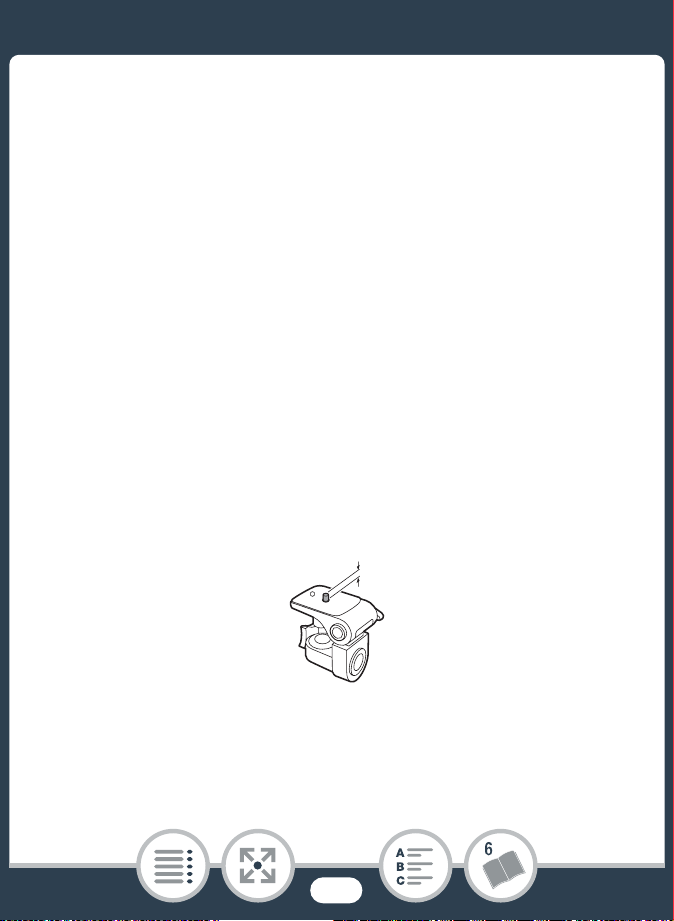
278
Do’s and Don’ts
• Do not point the camcorder toward an intense light source,
such as the sun on a sunny day or an intense artificial light
source. Doing so may damage the image sensor or the cam-
corder's internal components.
• Do not use or store the camcorder in dusty or sandy places.
The camcorder is not waterproof – avoid also water, mud or
salt. If any of the above should get into the camcorder it may
damage the camcorder and/or the lens.
• Be careful of heat generated by lighting equipment.
• Do not disassemble the camcorder. If the camcorder does not
function properly, consult qualified service personnel.
• Handle the camcorder with care. Do not subject the cam-
corder to shocks or vibration as this may cause damage.
• When mounting the camcorder on a tripod, make sure that the
tripod’s fastening screw is shorter than 5.5 mm. Using other
tripods may damage the camcorder.
5.5 mm

279
Do’s and Don’ts
• When recording movies, try to get a calm, stable picture.
Excessive camcorder movement while shooting can result in
jittery scenes. In extreme cases, the playback of such scenes
may result in visually induced motion sickness. If you experi-
ence such a reaction, stop the playback immediately and take
a rest break as necessary.
■ Long-Term Storage
If you do not intend to use the camcorder for a long time, store it
in a place free of dust, in low humidity, and at temperatures not
higher than 30 °C.
Battery Pack
DANGER!
Treat the battery pack with care.
• Keep it away from fire (or it might explode).
• Do not expose the battery pack to temperature higher than
60 °C. Do not leave it near a heater or inside a car in hot
weather.
• Do not try to disassemble or modify it.
• Do not drop it or subject it to shocks.
• Do not get it wet.

280
Do’s and Don’ts
• Dirty terminals may cause a poor contact between the battery
pack and the camcorder or battery charger. Wipe the termi-
nals with a soft cloth.
■ Long-Term Storage
• Store battery packs in a dry place at temperatures no higher
than 30 °C.
• To extend the battery life of the battery pack, discharge it
completely before storing it.
• Charge and discharge all your battery packs fully at least once
a year.
Memory Card
• We recommend backing up the recordings on the memory
card onto your computer. Data may be corrupted or lost due
to memory card defects or exposure to static electricity.
Canon shall not be liable for lost or corrupted data.
• Do not touch or expose the terminals to dust or dirt.
• Do not use memory cards in places subject to strong mag-
netic fields.
• Do not leave memory cards in places subject to high humidity
and high temperature.
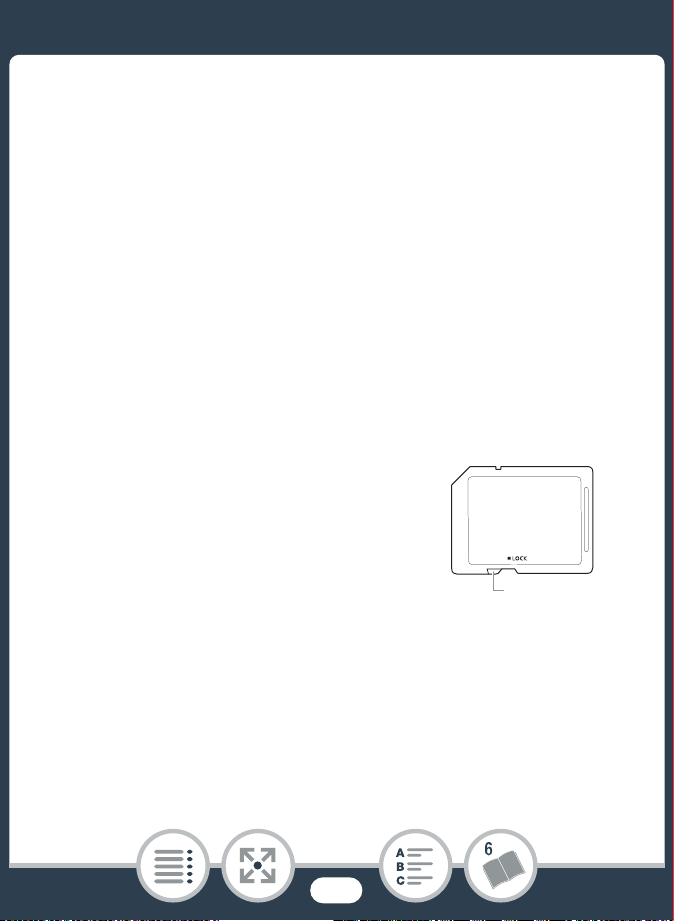
281
Do’s and Don’ts
• Do not disassemble, bend, drop, or subject memory cards to
shocks and do not expose them to water.
• Check the direction before inserting the memory card. Forcing
a memory card into the slot if it is not correctly oriented may
damage the memory card or the camcorder.
• Do not attach any labels or stickers on the memory card.
• When you delete movies or initialize the memory card, only the
file allocation table is altered and stored data is not physically
erased. When you dispose of the memory card or give it to
another person, initialize the memory card using the [Complete
Initialization] option (A 43). Fill it up with unimportant record-
ings, and then initialize it again using the same option. This
makes recovering the original recordings very difficult.
• Secure Digital (SD) memory cards
have a physical switch to prevent
writing on the card so as to avoid
the accidental erasure of the card’s
content. To write-protect the mem-
ory card set the switch to the LOCK
position.
LOCK switch

282
Do’s and Don’ts
Built-in Rechargeable Lithium Battery
The camcorder has a built-in rechargeable lithium battery to
keep the date/time and other settings. The built-in lithium battery
is recharged while you use the camcorder; however, it will dis-
charge completely if you do not use the camcorder for about
3months.
To recharge the built-in lithium battery: Connect the compact
power adapter to the camcorder and leave it connected with the
camcorder off. The built-in lithium battery will be fully charged
after about 24 hours.

283
Maintenance/Others
Maintenance/Others
Cleaning
Camcorder Body
• Use a soft, dry cloth to clean the camcorder body. Never use
chemically treated cloths or volatile solvents such as paint
thinner.
Lens
• Remove any dust or dirt particles using a non-aerosol type
blower brush.
• Use a clean, soft lens-cleaning cloth to gently wipe the lens.
Never use tissue paper.
LCD Touch Screen
• Clean the LCD touch screen using a clean, soft lens-cleaning
cloth.
• Condensation may form on the surface of the screen when the
temperature changes suddenly. Wipe it with a soft dry cloth.

284
Maintenance/Others
Condensation
Moving the camcorder rapidly between hot and cold tempera-
tures may cause condensation (water droplets) to form on its
internal surfaces. Stop using the camcorder if condensation is
detected. Continued use may damage the camcorder.
Condensation may form in the following cases:
• When the camcorder is moved quickly from cold to warm
places
• When the camcorder is left in a humid room
• When a cold room is heated rapidly
To avoid condensation
• Do not expose the camcorder to sudden or extreme changes
in temperature.
• Remove the memory card and battery pack. Then, place the
camcorder in an airtight plastic bag and let it adjust gradually
to temperature changes before removing it from the bag.
When condensation is detected
The precise time required for water droplets to evaporate will
vary depending on the location and weather conditions. As a
general rule, wait for 2 hours before resuming use of the cam-
corder.

285
Maintenance/Others
Using the Camcorder Abroad
Power Sources
You can use the compact power adapter to operate the cam-
corder and to charge battery packs in any country with power
supply between 100 and 240 V AC, 50/60 Hz. Consult a Canon
Service Center for information on plug adapters for overseas
use.
Playback on a TV Screen
You can only play back your recordings on TVs compatible with
the PAL/SECAM system or 50-Hz digital TV broadcasts. These are
used in the following regions/countries:
Europe: All of Europe and Russia. Americas: Only in Argentina,
Brazil, Uruguay and French territories (French Guiana, Guade-
loupe, Martinique, etc.). Asia: Most of Asia (except in Japan, the
Philippines, South Korea, Taiwan and Myanmar). Africa: All of
Africa and African islands. Australia/Oceania: Australia, New
Zealand, Papua New Guinea; most Pacific islands (except for
Micronesia, Samoa, Tonga and US territories like Guam and
American Samoa).
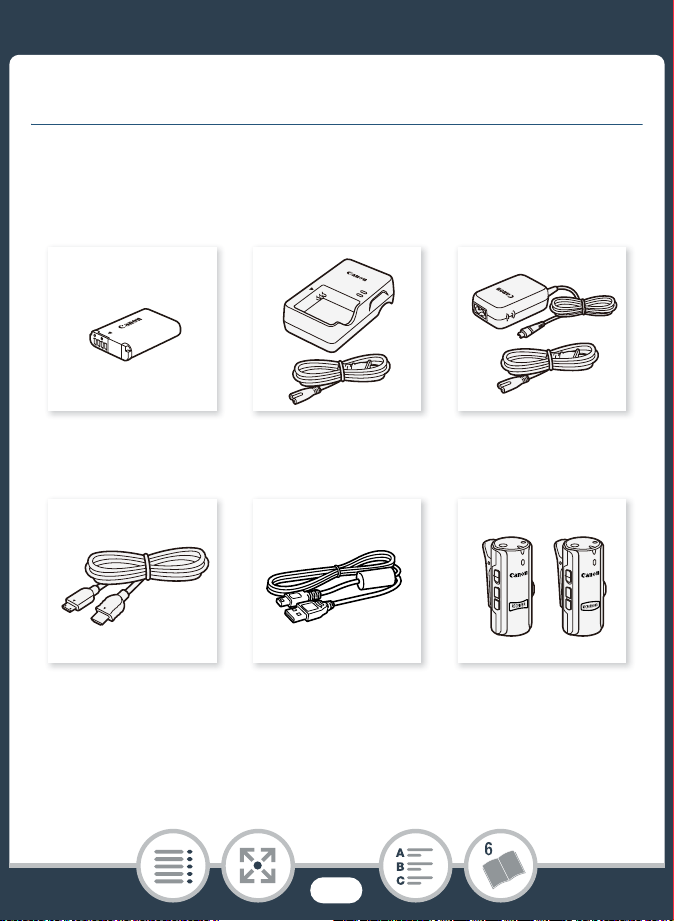
286
General Information
General Information
Optional Accessories
The following optional accessories are compatible with this cam-
corder but their availability may differ from area to area. Select
accessories are described in more detail in the following pages.
NB-12L Battery Pack CB-2LGE Battery
Charger
CA-110E Compact
Power Adapter
HTC-100 High Speed
HDMI Cable
IFC-400PCU
USB Cable
WM-V1 Wireless
Microphone
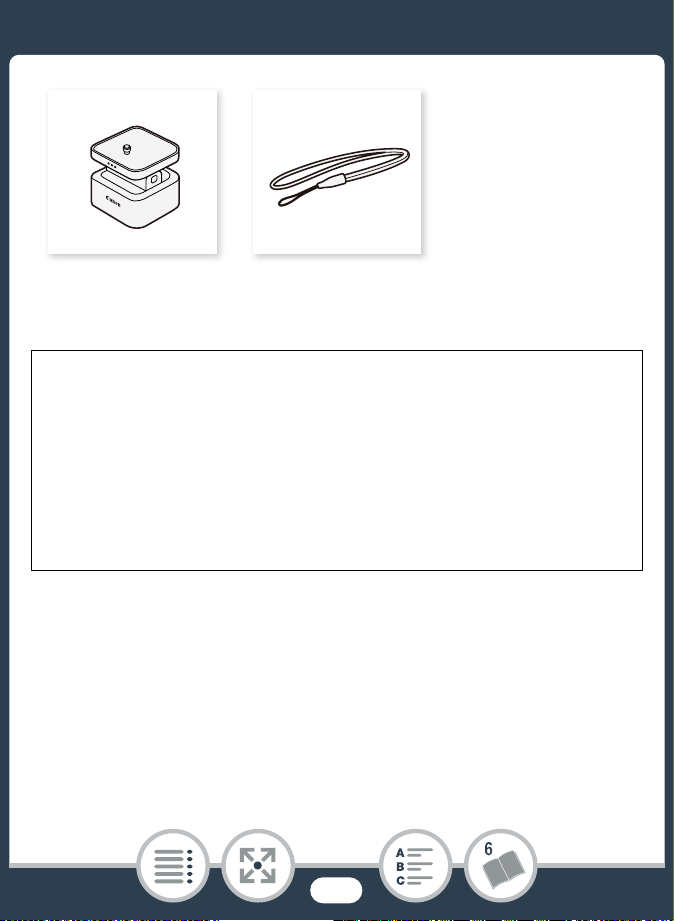
287
General Information
Battery Packs
When you need extra battery packs, use only the NB-12L.
CT-V1 Camera Pan
Tab le
WS-DC11
Wrist Strap
Use of genuine Canon accessories is recommended.
The message [Battery communication error] is displayed if
you use a non-genuine Canon battery pack, and user
response is required. Note that Canon shall not be liable for
any damages resulting from accidents, such as malfunction
or fire, that occur due to use of non-genuine Canon battery
packs.
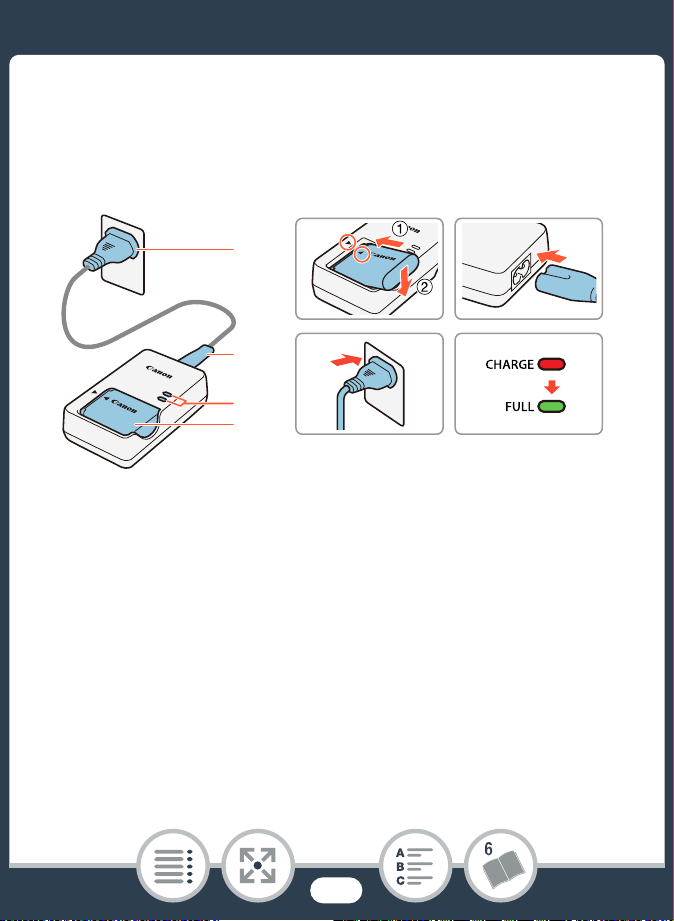
289
General Information
Charging the Battery Pack
1 Attach the battery pack to the battery charger by
inserting it at a downward angle, aligning the triangle
marks.
2 Connect the power cord to the battery charger and
plug the other end into a power outlet.
• The indicator lights up in orange. When the indicator lights
up in green, the battery pack is fully charged.
3 When the battery pack is fully charged, remove the bat-
tery pack from the battery charger and unplug the bat-
tery charger.
This mark identifies genuine Canon video acces-
sories. When you use Canon video equipment,
we recommend Canon-brand accessories or
products bearing the same mark.

290
General Information
Specifications
LEGRIA mini X
— Values given are approximate figures.
System
• Recording System
AVCHD
1
movies:
Video: MPEG-4 AVC/H.264
Audio: Linear PCM
2
2ch, Dolby Digital 2ch
MP4 movies:
Video: MPEG-4 AVC/H.264
Audio: MPEG-4 AAC-LC (2ch)
Photos:
DCF (Design rule for Camera File system), compatible with
Exif
3
Ver. 2.3
Image compression: JPEG
1
Compatible with AVCHD ver. 2.0 specifications.
2
Linear PCM is available only when the video quality is 24 Mbps.
3
This camcorder supports Exif 2.3 (also called “Exif Print”). Exif Print is
a standard for enhancing the communication between camcorders
and printers. By connecting to an Exif Print-compliant printer, the
camcorder’s image data at the time of shooting is used and opti-
mized, yielding extremely high quality prints.

291
General Information
• Video Signal Configuration: AVCHD, MP4
•Recording Media
SD, SDHC (SD High Capacity) or SDXC (SD eXtended
Capacity) memory card (not included)
• Maximum Recording Time
Commercially available 16 GB memory card
24 Mbps: 1 hr. 25 min.
17 Mbps: 2 hr. 5 min.
4 Mbps: 8 hr. 40 min.
Commercially available 32 GB memory card
24 Mbps: 2 hr. 55 min.
17 Mbps: 4 hr. 10 min.
4 Mbps: 17 hr. 20 min.

292
General Information
•Image Sensor
1/2.3-type CMOS, 12,800,000 pixels
Effective pixels (ultra wide)
:
8,290,000 pixels (AVCHD movies)
8,990,000 pixels (MP4 movies)
12,000,000 pixels (photos)
Effective pixels (close-up)
:
1,330,000 pixels (AVCHD movies, when [Image stabilizer] is
[On])
2,070,000 pixels (AVCHD movies, when [Image stabilizer] is
[Off])
2,070,000 pixels (MP4 movies)
2,760,000 pixels (photos)
•LCD Touch Screen
6.8 cm (2.7 in.), TFT color, 230,000 dots
, capacitive touch
screen operation, 100% coverage
• Microphone
Stereo electret condenser microphone

293
General Information
• Lens
f=2.7 mm, F/2.8
35mm-equivalent focal length (ultra wide)
:
17.5 mm (AVCHD movies)
16.8 mm (MP4 movies)
15.4 mm (photos)
35mm-equivalent focal length (close-up)
:
43.7 mm (AVCHD movies, when [Image stabilizer] is [On])
35.0 mm (AVCHD movies, when [Image stabilizer] is [Off])
35.0 mm (MP4 movies)
32.1 mm (photos)
• Lens Configuration
6 elements in 5 groups (1 double-sided aspheric element)
• Focusing Distance
Deep focus, 0.4 m to infinity
• White Balance
Auto white balance, Custom white balance or Preset white
balance settings: [Daylight], [Tungsten]
• Minimum Illumination
8 lx ([Programmed AE] shooting mode, Shutter speed at
1/25)
• Recommended Illumination: More than 100 lx
294
General Information
• Image Stabilization: Electronic
• Size of Video Recordings
24 Mbps, 17 Mbps: 1920 x 1080 pixels
4 Mbps: 1280 x 720 pixels
3 Mbps: 640x360 (only during [x1/4] slow motion)
• Size of Photos
4000x3000 pixels, n 1920x1440 pixels, 640x480 pixels
Photos captured from movies: 1920x1080 pixels
Terminals
• USB Terminal: mini-B, Hi-Speed USB; output only
• HDMI Terminal: HDMI Mini Connector; output only
•MIC Terminal
∅ 3.5 mm stereo minijack
–64 dBV (with 600 Ω microphone) / 5 kΩ or more
• × (headphones) terminal
∅ 3.5 mm minijack, stereo output
Wi-Fi
• Standard
Complies with the IEEE 802.11b/g/n protocol; Wi-Fi Protected
Setup (connection methods: WPS button, PIN code)
• Frequency: 2.4 GHz

295
General Information
• Supported channels: 1 - 13
• Encryption methods: WEP-64/WEP-128, TKIP/AES
Power/Others
• Power supply (rated)
3.6 V DC (battery pack), 5.3 V DC (compact power adapter)
• Power consumption (17 Mbps video quality, normal
brightness)
AVCHD movies: 2.4 W
MP4 movies: 2.2 W
• Operating temperature
: 0 – 40 °C
• Dimensions
[W x H x D] (excluding the wrist strap)
82 x 30 x 109 mm
•Weight
(camcorder body only)
205 g
NB-12L Battery Pack
•Battery type
Rechargeable lithium ion battery
• Rated voltage: 3.6 V DC
• Operating temperature
: 0 – 40 °C

296
General Information
• Battery capacity: 1910 mAh (typical)
• Dimensions
: 34.4 x 48.5 x 10.4 mm
• Weight
: 35 g
CA-110E Compact Power Adapter
• Power supply: 100 - 240 V AC, 50/60 Hz
• Rated output / consumption
5.3 V DC, 1.5 A / 17 VA (100 V) - 23 VA (240 V)
• Operating temperature
: 0 - 40 °C
• Dimensions
: 49 x 27 x 79 mm
• Weight
: 110 g
Weight and dimensions are approximate. Errors and omissions
excepted.
The information in this manual is verified as of April 2015. Speci-
fications and outer appearance are subject to change without
previous notice.
297
Reference Tables
Reference Tables
Approximate recording times
1
For MP4 movies only.
2
A single scene can be recorded continuously for 12 hours; at that
point, the camcorder will stop for about 3 seconds. After that, record-
ing will continue as a separate scene.
Approximate number of photos available on a 4 GB memory
card
The numbers given in the following table are approximate and
vary according to recording conditions and the subject.
Memory card
Video quality (Resolution)
24 Mbps
(1920x1080)
17 Mbps
(1920x1080)
4 Mbps
1
(1280x720)
8 GB 40 min. 1 hr. 4 hr. 20 min.
16 GB 1 hr. 25 min. 2 hr. 5 min. 8 hr. 40 min.
32 GB 2 hr. 55 min. 4 hr. 10 min. 17 hr. 20 min.
2
64 GB 5 hr. 55 min. 8 hr. 20 min. 34 hr. 45 min.
2
298
Reference Tables
Charging Times
The charging times given in the following table are approximate
and vary according to charging conditions and initial charge of
the battery pack.
Approximate Usage Times
Recording and playback times given in the following table are
approximate and vary according to video quality and charging,
recording or playback conditions. The effective usage time of the
battery pack may decrease when recording in cold surround-
ings, when using the brighter screen settings, etc.
Photo size Number of photos
[ 4000x3000]
750
[n 1920x1440] 3,200
[ 640x480] 23,500
Charging conditions Charging time
Using the camcorder 240 min.
Using the CB-2LGE Battery Charger 185 min.
Default value
299
Reference Tables
Recording AVCHD movies
Recording MP4 movies
* Approximate times for recording with repeated operations such as
start/stop, and power on/off.
Video quality
Recording
(maximum)
Recording
(typical)*
Playback
24 Mbps 165 min. 95 min. 225 min.
17 Mbps 165 min. 95 min. 225 min.
Video quality
Recording
(maximum)
Recording
(typical)*
Playback
24 Mbps 180 min. 100 min. 230 min.
17 Mbps 180 min. 100 min. 225 min.
4 Mbps 190 min. 110 min. 240 min.

300
Index
A
Abroad, using the
camcorder
..................285
Audio compressor .........135
Audio equalizer .............129
Audio limiter..................135
Audio mix.....................134
Audio recording level ......124
Audio scenes................118
AUTO mode ...................57
Auto rotate ...................226
Automatic backlight
correction
...................223
B
Battery pack
Charging
......................30
Remaining charge
indicator
................... 244
Beach (shooting mode)..... 93
Built-in backup battery ... 282
C
CameraAccess plus....... 178
CANON iMAGE
GATEWAY
................. 193
Capturing photos/video
snapshot scenes from a
movie
........................ 147
Car (shooting mode) ........ 93
Cinema-look filters......... 156
Close-up........................ 59
Condensation ............... 284
Connections to external
devices
...................... 152

301
Converting movies to
MP4
..........................156
D
Date and time .................39
Decoration ...................109
Deleting recordings ..........79
Dividing scenes ...............83
E
Edit panel.....................221
Error messages .............259
Exposure
compensation
.............141
External microphone ......116
F
Face detection ..............144
Facebook.....................191
Fast motion ..................101
Field of view....................59
File numbering ..............233
Flicker reduction ............224
Folder name .................233
Food and Fashion (shooting
mode)
.......................... 93
H
HDMI terminal....... 151, 152
Headphones................. 137
Home menu ........... 47, 219
I
Image rotation/flipping.... 113
Image stabilizer ............. 224
Initializing a
memory card
............... 43
Interval recording............. 97
L
LCD brightness ............. 232
LCD touch screen ........... 45
Linear PCM .................... 90
Low cut filter................. 132
M
Macro (shooting mode)..... 93
Magnified playback.......... 77
Maintenance................. 283

302
Markers .......................225
Memory card ..........35, 280
Microphone
attenuator
...........127, 131
Microphone directionality 130
Mirror image playback ......72
Mirror image recording....113
Monitor from Home........179
Monitor while Out ..........181
Movie format
(AVCHD/MP4)
...............55
Movie Uploader.............191
N
Night scene (shooting
mode)
..........................93
Notification sounds ........229
O
Onscreen icons .............236
Orientation detection ......113
Other Settings
menus
.................50, 222
P
P (Programmed AE shooting
mode)
.......................... 93
Photo review time.......... 225
Photo size...................... 92
Playback
Movies
......................... 67
Photos ........................ 75
Power saving.................. 61
Pre-recording ............... 105
R
Recording
Movies
......................... 57
Photos ........................ 62
Remote Browse ............ 188
Remote Control+
Streaming
.................. 178
Repeat playback ............. 72
Resetting all camcorder
settings
...................... 235
S
Saving recordings.......... 159
Self timer ..................... 108

303
Serial number .................24
Shooting mode ...............93
Shooting mode button......93
Slideshow ......................86
Slow motion .................101
Smart AUTO ...................65
Snow (shooting mode)......93
Special recording
modes
.........................97
Sports (shooting mode).....93
T
Time zone/DST ...............42
Touch AE.....................143
Touch screen
operations
....................45
Trimming scenes .............85
Tripod .........................278
Troubleshooting ............246
Turning off notification
sounds
......................229
U
Ultra wide angle .............. 59
Uploading
movies
............... 191, 193
USB terminal ........151, 153
V
Video quality................... 90
Video
snapshot
............ 104, 147
Volume.......................... 69
W
White balance............... 139
Wi-Fi functions .............. 170
Wind screen ................. 126
Y
YouTube...................... 193

© CANON INC. 2016 30-2, Shimomaruko 3-chome, Ohta-ku, Tokyo 146-8501, Japan
PUB. DIE-0455-000D
EUROPE
Canon Europa N.V.
Bovenkerkerweg 59, 1185 XB Amstelveen, The Netherlands
www.canon-europe.com
UNITED KINGDOM
Canon UK Ltd, CCI Service Centre, Unit 130
Centennial Park, Borehamwood, Hertfordshire, WD6 3SE, United Kingdom
Telephone 0844-369-0100
AUSTRALIA
Canon Australia Pty Ltd
Tel: 13-13-83 (within Australia only), (61) 02-9805-2555
www.canon.com.au
NEW ZEALAND
Canon New Zealand Ltd
Tel: 0800-222-666 (within New Zealand only), (64) 09-489-0300
www.canon.co.nz
SINGAPORE
Canon Singapore Pte. Ltd
1 Fusionopolis Place, #15-10 Galaxis, Singapore 138522
Tel: (65) 6799 8888, Fax: (65) 6799 8882
HONG KONG S.A.R.
Canon Hongkong Company Ltd
19/F, The Metropolis Tower, 10 Metropolis Drive, Hunghom, Kowloon, Hong Kong
Tel: +852 3191 2333, Fax: +852 2428 3963
CENTRO Y SURAMÉRICA
Canon Latin America, Inc.
Sales & Enquiries: One Canon Park, Melville, NY 11747 USA