¡¢£¢¤¥¦§¨©ª
«¬®¯°
±²¬³´µ¤¥¶·¸¹º»¼»¬µ¤½¹º»¼»
¾¿ÀÁÂÃÄ¡
ÅÆÇÀÈÉÊ¿ËÌÃÍÎÏÐÑÒÓÔÕ¿ÀÖ×ØÙ¥Ú
ÛÜÅÆÝÞßàá¿Ë
âãä
å³æªçèéêëìäÃíØîïðãäñòå³æóô
Þßõö÷øùúàû¥üÑíýÜþû
ÿ©¥~}|{[¹\\]^_^`@??^_>=\<_Ý
;:/.-
¦¶, ¸½+*
¦·)('&.%$#")(
!012%345
1%367
¶·8ç.Ù9Aû
¬BÙCDÝæE).½F
,·)(GH!0'I#
J)('KL#1
¸·MNO'KL#PQ
)("GR¬
¬SóTUVS
¬îWXYÀ'Z
¬abc¬d#
½·¥eHQfØgh1
¬
¦·S,§FiOÉÊjÀ£õk
¶·õkSÙClmno.p¦ÕnonoSqórsÊ
+·tuOvwº»¼»x
2)(&y1
4¬®&z9¶·¸¹¬
*·)( 667S
s OXYÀ
'Z¬ ô Z c
Êd#S1Ê
õkno
ÁÂ7
¦·ü&RÊÜ ØØ
¶·sv ãrïÊyå
ã
¦·üʪv 6ªô
åT
¦·,+Õ* ¦¶ã¡¢£6太 ¥
¦§
¶·åz¨ ©ª6嫬¥VS®üÝ©¯0°Õ±Þ
Ü¥¦²ï
³°7
¦·jÀ䵩$vwjÀÿ$¨WÀ¶ ·¸¹jÀ
??À°tuHQtuZÜÕjÀд
¶·6庻¼¯ W彺»7 º¾Ü¿-Àýº$
Á6åÜ))ÂÂ
SvÃÄ µ©ÊÅW ÆÇÊ
¦·C.noÊȱ¨
CÊC.noÕÊßÉÊS©qóóÊÉÊÙ
ËJRClno.1Ë
¶·¿ÀnoÊ
¿ÀÉÌnoÍnoÕÊßÉÊSqóóÊ÷ÊÙ
ËÊJRÉÌnoÍ1
12345678
¦ÎϳÐW6¡ÑÒÓÔÕL©Ö×ØÜÙÚÛÜ«÷
¶ ݬÞøùßàúýúOþáâNúrsÊWÅ
ãäS÷
,åæçèé(êDëì÷
¸åævÕíTîïð÷
½å楱²ñòó²Ëô³÷
+ æóõèö¸÷³÷õèøõùú÷õè³Ð¡¢WÑ¥ [
ßÌå³æ³æõè÷
* ¬Þz½øù±²Êãõès û1üýúBWþ èÿ
éïã~}Ñ÷
|åæ¥õè{ÝÍ[±²É
¦·)(0û
tu!0'···#
¶·)('Á\#
,·)('KL#xý]
^_Øü
`1\@ý]
¸·)('¡\#
1\67
LEDODO
Warranty Card
Emotion Recognition
Capture children’s multi-dimensional emotions ( e.g., happiness, sadness, anger )
through every conversation.
Automatically activate positive guidance dialogues when abnormal or dangerous
emotions are detected, while sending real-time alerts to the parent app.
Interest Discovery
Analyze daily conversations to generate a child’s interest profile and recommend
personalized content, empowering parents to better understand their child’s preferences.
Age-Specific Education
Provide stage-based growth models tailored to age groups: behavior habits for ages 3-6
and cognitive development for ages 7-12, with content delivered through layered methods.
Parent Customization: Let parents manually design developmental tasks, which the
AI toy then guides through age-appropriate interactions and expressions.
Special Features
Voice Cloning: Users can record their own voice or existing audio to create a unique voice.
Navigate to the " My Voice" section in the app’s sound settings to enable cloning.
Growth Memory Card: The AI toy retains long-term memory of the child’s name, hobbies,
and milestones, preserving every moment of their growth journey.
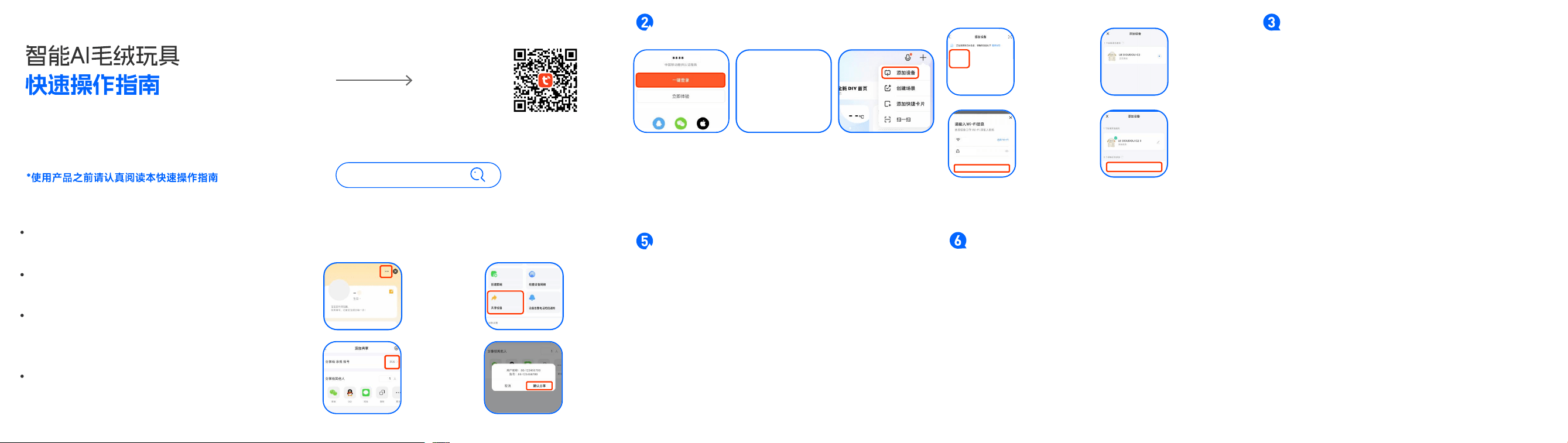
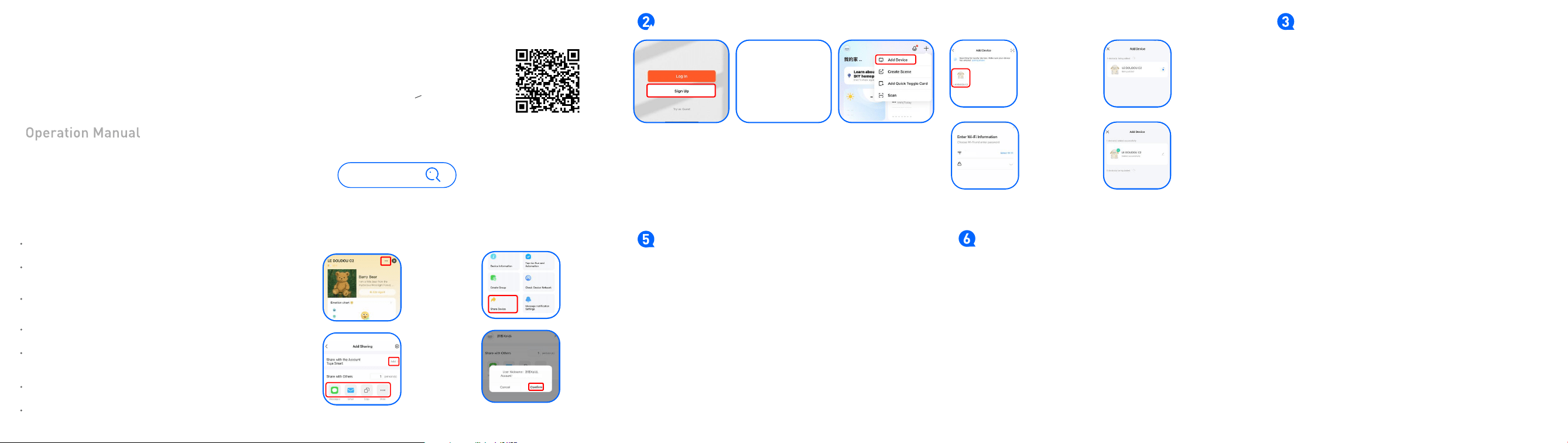
Download and install the Tuya mobile app
Please use your mobile phone to scan the
QR code below to directly download the
latest version of the Tuya APP
You can also search for Tuya in the App, Android Market,
GooglePlay, or Apple Store.
Tuya
1.Click "Sign Up", select your
region, and enter your email
address to complete account
registration.
2.Press the bottom button to
power on.
To reset the network configuration,
press the circular button in the center
for 5 seconds.
3.On the app's home page,
click the "+" in the top-right
corner, then select "Add Device".
4.Navigate to the
" Add Device " interface
and click the device.
5. Wait briefly on this
page to enter pairing
mode.
LEDODO
12345678
6. Select your Wi-Fi
network, enter the
password, and click
Next.
*Note: The network must
be a 2.4GHz Wi-Fi band.*
7. Click Complete. Upon
successful connection,
the blue light will stay
solid. After hearing the
voice prompt " I'm online.
Let's start talking now! ",
you may begin your
conversation.
Sleep / Wake-up
After booted, the device enters sleep mode if no speech is detected for 30 seconds.
While in sleep mode, press the left hand [ Wake-up Button ] once to wake the device and resume
normal conversation.
Chat Mode
The device automatically enters to chat mode after booting. Users can direcfly have
conversations and ask questions. There are operations modes available:
1.Press-to-Talk Mode;Press the talk button to wake the device.
After the device finishes speaking, you may continue continuous conversation;
To interrupt, press the left hand button again.
2.Voice Wake-Up Mode
Say the wake-up word to activate the device.
After the device tinishes, speaking, you can keep continuous conversation remains available.
To interrupt, say the wake-up word again.
1. Click Settings
( bottom-right corner )
Select "..." ( top-right )
3. Click "Add" → Enter
friend's Tuya account
or share via link below
4. Click "Confirm
Sharing" and the
sharing will be
succesful .
2. Choose "Share
Device"
Q: Unable to pair with phone?
A: Possible reasons:Bluetooth disabled on phone;Distance between toy and phone
exceeds 10m not in pairing mode;Already connected to another device
Solution: Enable phone Bluetooth, keep within 10m range.
Q: Network connection failed?
A: Product only supports 2.4GHz Wi-Fi for initial setup.
*Note: 5GHz Wi-Fi networks are incompatible.*
Q: Inaccurate voice recognition?
A: Potential causes:Background noise interference;Rapid/unclear speech Obstructed
microphone;Not get voice training conducted.
Solution: Use in quiet environments, speak clearly at moderate pace, ensure microphone
is uncovered.
Q: Device overheating?
A: Common triggers:Prolonged continuous usage;Internal circuit malfunction;Poor ventilation
Prevention: Limit continuous operation, allow periodic rest periods, ensure proper airflow
around device.
1. Children must be supervised and guided by adults when using the device, and they
must be responsible for the safety of the user;
2. Before use, be sure to check whether the appearance is intact, whether the installation
is in place, and whether the machine is operating normally. lf there is any problem, please
contact after-sales service;
3. Do not collide, impact, squeeze or puncture;
4. Do not disassemble, repair or modify by yourself;
5. Do not use this product when it is damaged or broken;
6. Do not charge continuously for more than 4 hours,Red light: Charging
Green light: Fully charged;make sure someone is present when charging, and do not charge
when going out or leaving for a long time;
7. Please be sure to check this product regularly. lf you find that the charging cable is
abnormal, please stop using it immediately, otherwise there is a risk of leakage, short
circuit or fire;
8. Do not clean this product during booting or charging;
*Please read this operation manual carefully before using the product
Smart AI PLUSH TOY
Qucik Operation Guide
Model
Dealer
Zip Code
Failure Cause
Contact Address

FCC Caution:
This device complies with part 15 of the FCC Rules.
Operation is subject to the following two conditions:
(1) This device may not cause harmful interference, and (2) this device must accept any interference received, including
interference that may cause undesired operation.
Any changes or modifications not expressly approved by the party responsible for compliance could void the user's authority to
operate the equipment.
NOTE: This equipment has been tested and found to comply with the limits for a Class B digital device, pursuant to Part 15 of
the FCC Rules. These limits are designed to provide reasonable protection against harmful interference in a residential
installation. This equipment generates, uses and can radiate radio frequency energy and, if not installed and used in
accordance with the instructions, may cause harmful interference to radio communications. However, there is no guarantee
that interference will not occur in a particular installation.
If this equipment does cause harmful interference to radio or television reception,
which can be determined by turning the equipment off and on, the user is encouraged to try to correct the interference by one
or more of the following measures:
-- Reorient or relocate the receiving antenna.
-- Increase the separation between the equipment and receiver.
-- Connect the equipment into an outlet on a circuit different
from that to which the receiver is connected.
-- Consult the dealer or an experienced radio/TV technician for help.
The device has been evaluated to meet general RF exposure requirement. The device can be
used in portable exposure condition without restriction.