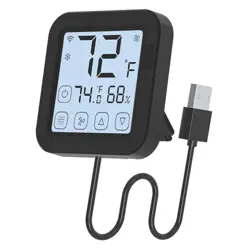
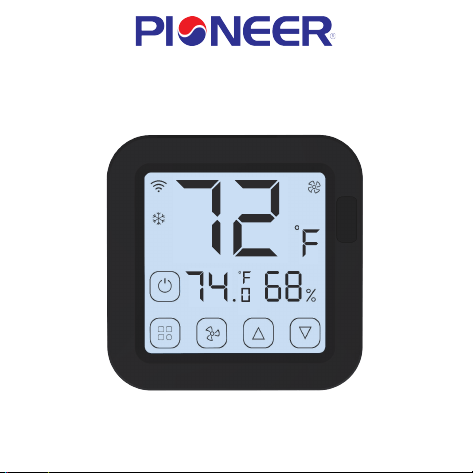
Smart AC Controller
USER MANUAL
Model: S16Pro
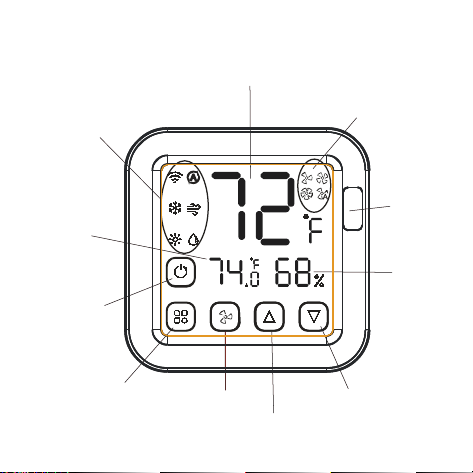
Product Overview:
Temperature -
Temperature +
Speed Button
Mode Button
Power Button
Current
Temperature
Indoor
Humidity
Level
Set A/C temperature
5 Modes
4 Speed Modes
-2-
Infrared
Inductive
Switch
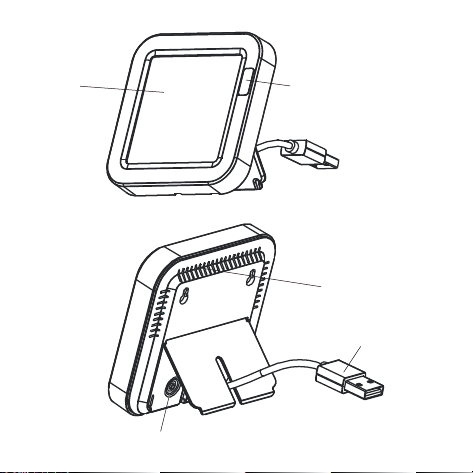
Infrared Inductive Switch
LED Indicator
5FT Cable
Reset Button
Screen
-3-

Product Specification
Temperature Measure Range: 32 F F°~ 140°
Humidity Measure Range: 0% RH~99% RH
Temperature Accuracy: F
Size: 80*80*16mm USB Cable: 5FT length
Input: DC 5V/1A
Wi-Fi Protocol: 2.4GHz IEEE 802.11b/g/n
Infrared Frequency: 38KHz
Infrared Range: ≤ 40 Feet
-
2°
+
5% RH
-
Humidity Accuracy:
Standby Power: ≤ 0.4W
-4-
+
Product weight: 104g

Checklist before using the device:
a. Your smartphone is connected to a 2.4GHz
Wi-Fi network.
b. You have entered the correct Wi-Fi password.
c. Your smartphone is on version Android 4.4 + or iOS 8.0 +.
d. Your Wi-Fi router is MAC-open.
e. If the numbers of devices connected to Wi-Fi router has
reached the limit, you can try to disable a device to
vacate the channel or try with another Wi-Fi router.
-5-
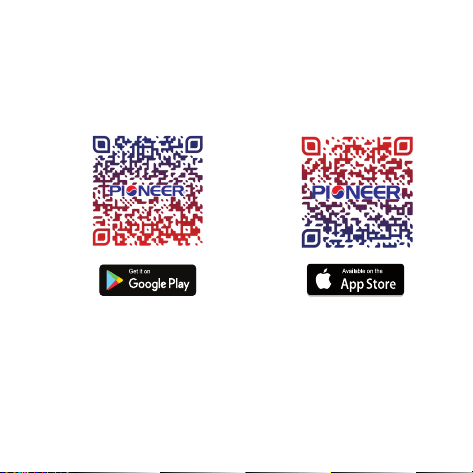
1. Use your smartphone to scan QR code, or search
“Pioneer Airlink” app in Google Play Store or APP Store to
download and install.
2. Create account with your mobile number and
authentication code.
How to set up:
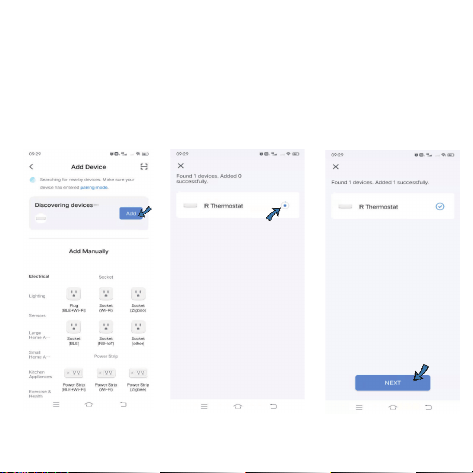
3. Connect your mobile to your Wi-Fi router , connect the
USB cable to USB power socket, click “+” in the upper right
corner of homepage or click “Add Device” .
-6-
-7-
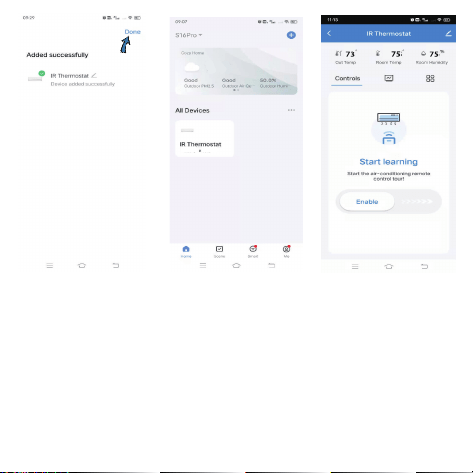
4. 1) Bluetooth Mode:
The app will advise you to turn on the bluetooth in your
mobile, then the app will pop up a window, click
“ Add ” , it will discover and connect automatically.
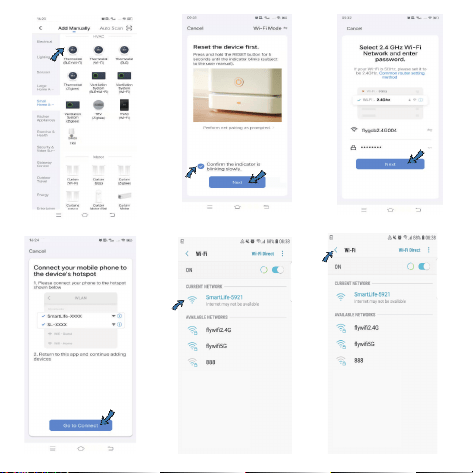
2) Wi-Fi Mode:
Select “ Thermostat (BLE + Wi-Fi) ” from “ Small Home
Appliance”, make sure the LED indicator is blinking slowly, if
not, hold the reset button for about 5s till indicator is blinking
slowly. enter Wi-Fi name and password. Connect your
mobile to device’s hotspot: “ SmartLife-XXXX ”, then click to
return to App interface, it will connect wifi automatically.
-8-
55°F
69.5°F 49%
-9-
-10-
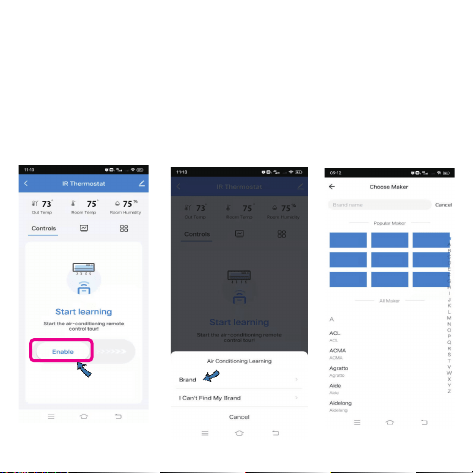
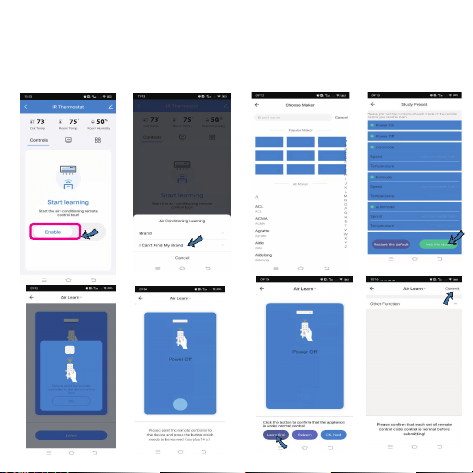
5. Start learning the A/C code, please slide “ Enable ” bar
towards the right, it will pop up a window, select the brand
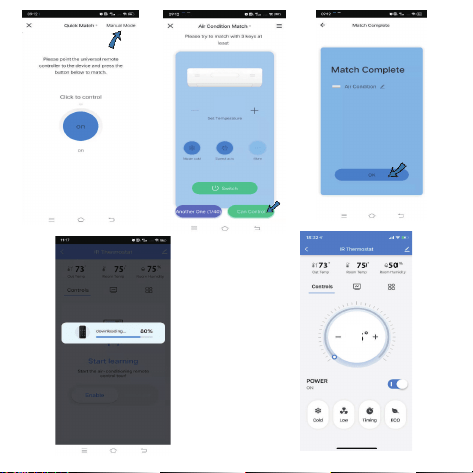
of your A/C, choose “ Manual Mode”, please try to match
at least 3 buttons to check whether the A/C reacts properly,
if yes, match completed. You can control the A/C on the
app now, and can also control A/C by pressing the touch
buttons on the screen.
Pioneer
LG
Bosch
Friedrich TCL
Samsung Haier
Fujitsu Mitsubishi
-11-
62
°F
62
-12-
6. If you can not find your A/C brand, you can learn the
buttons of the remote control of other brands, after button
learned, please click it to confirm the A/C is under control.
Once complete, then you can control your A/C.
Pioneer
LG
Bosch
Friedrich TCL
Samsung Haier
Fujitsu Mitsubishi
62°F ~ 86°F
62°F ~ 86°F
62°F ~ 86°F
Functions
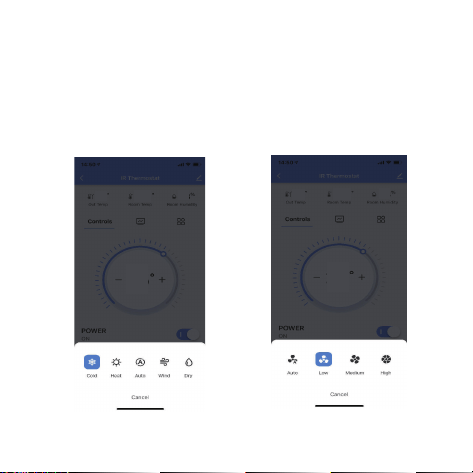
1. Working mode and Wind Speed
You can adjust working mode, wind speed, AC temperature
and power on/off in the app or manually press the buttons
on the touch screen, and they will sync.
Working mode Wind Speed
-13-
77
77
79 79 48
79 79 48
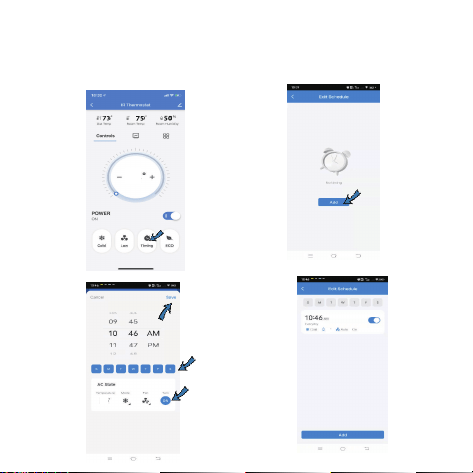
2. Timing
-14-
Click “Timing”, and select the specific time and week to
turn on/off the A/C.
62
68
68
3. Backlight Display
When an object passes through the infrared inductive switch
less than 2 in. away, or manually press the touch buttons,
the backlight will be triggered and last for about 10s. So
you can see the data on the screen clearly at night.
-15-
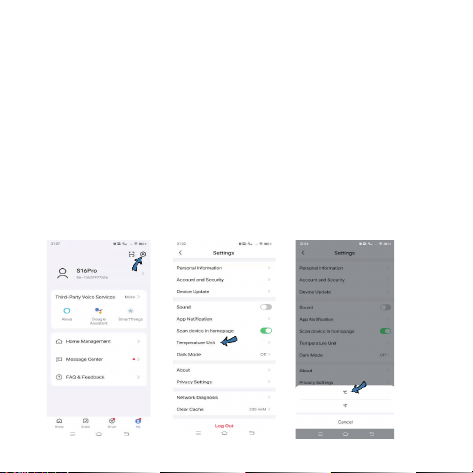
4. Temperature Unit Switch
You can switch temperature unit between Celsius and
Fahrenheit, the temperature value will change accordingly
after switching, and will sync in the app and on the screen.
°F
°F
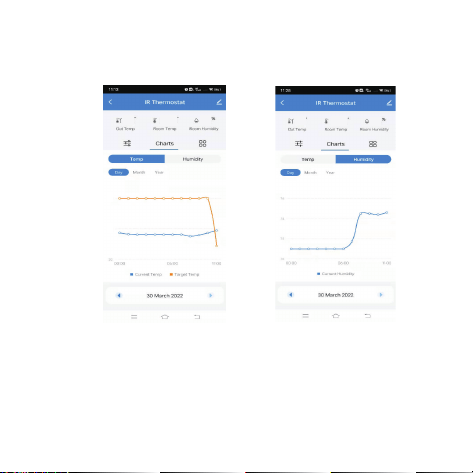
5 . Temp and humidity records
You can view the records of temp and humidity stored for
1 year.
-16-
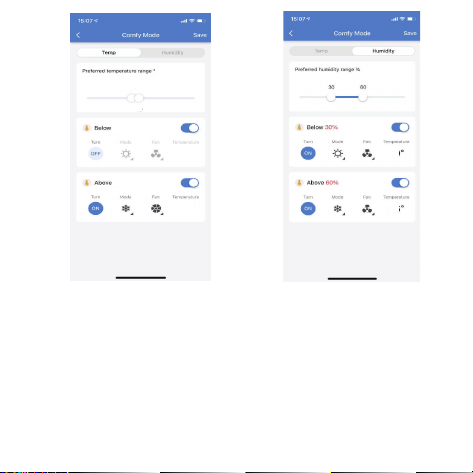
6. Comfy mode
You can preset your preferred temperature and humidity
range and AC state, making you feel comfort at home.
78
75
78
73
7573
82
75
-17-
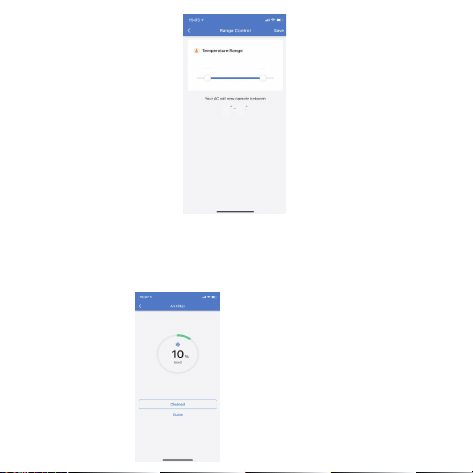
7. Range Control
You can preset the AC temperature range, then the AC
will operate between the range.
68
79
77
77°
84°
84
68°
73°
-18-
8. Air Filter Cleaning reminder
When the air filter used to 100%, you have to remove the air
filter and clean, make the AC works properly.
64 82
64
82
11 . Third-party Voice Control
Works with Amazon Alexa and Google Assistant.
10. Share devices
You can share your added AC Controller with your family
members or friends, so they can also control remotely.
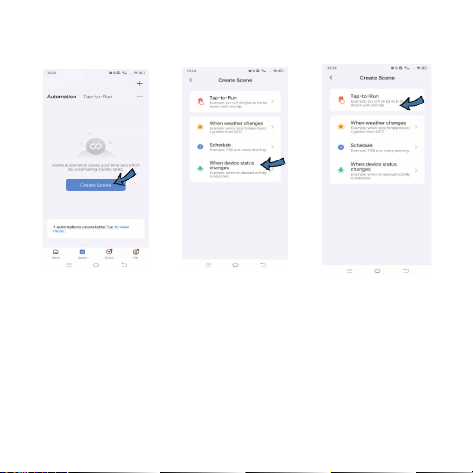
9. Smart Scene
You can create smart scene for your specific needs.
-19-

When an object pass through the infrared inductive area
less than 2 in. away, or manually press the touch buttons,
the backlight will be triggered and lasts for 10 seconds.
FAQ
About 30 minutes after Wi-Fi configuration completed, the
temperature and humidity is closer to actual ambient
environment, so the readings are more accurate.
1. When will the backlight be triggered ?
2. When will the temperature/humidity be more accurate?
-20-
3. Can the controller be used without internet connection?
After you match the AC buttons successfully in app, and
its code library is downloaded, you can still control the
AC by pressing the touch buttons on the screen when the
network Smart AC Controller connected is offline.