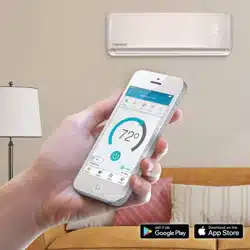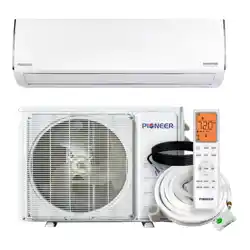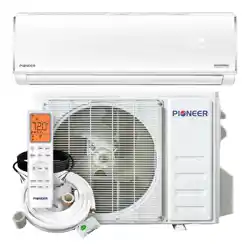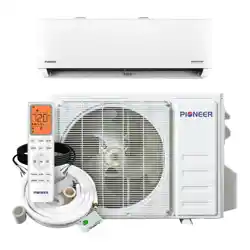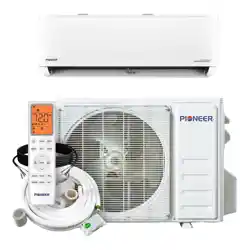

3rd Generation WIFI
Air Conditioner Remote Access Modules
January 17

Product introduction
>>
01
Contents
How to connect WIFI air conditioner
>>
02
Troubleshooting
>>
03

Overview Conception Mode Composition
Product Introduction How to connect WIFI air conditioner Troubleshooting
Android iOS
Cloud
Server
Remote
Home
Router

Overview Conception Mode Composition
What is WIFI air-conditioner?
Air conditioners controlled by smartphone, smartpad through wireless router and internet.
Types of WIFI air-conditioner
1st Generation: Based on integrated RF module and smart control box (433Hz , only suitable in some countries).
2nd Generation: with integrated WIFI module (2.4GHz, available all over the world) made by 3
rd
party.
3nd Generation: with new USB WIFI module (2.4GHz, available all over the world) and new APP created.
Product Introduction How to connect WIFI air conditioner Troubleshooting
Overview Conception Mode Composition
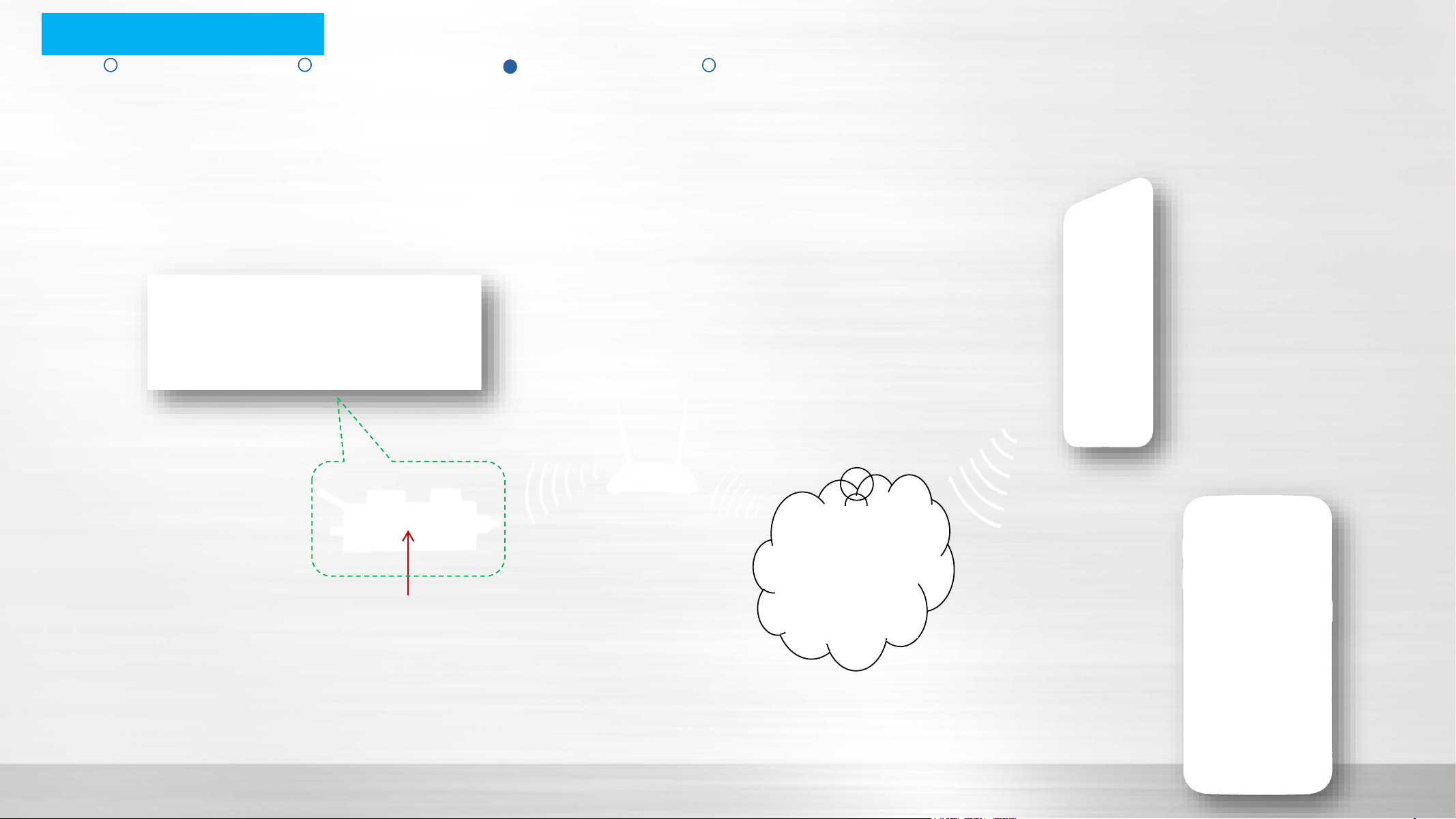
Remote Mode
Wifi Module
Router
Cloud servers & Internet
Product Introduction How to connect WIFI air conditioner Troubleshooting
Overview Conception Mode Composition
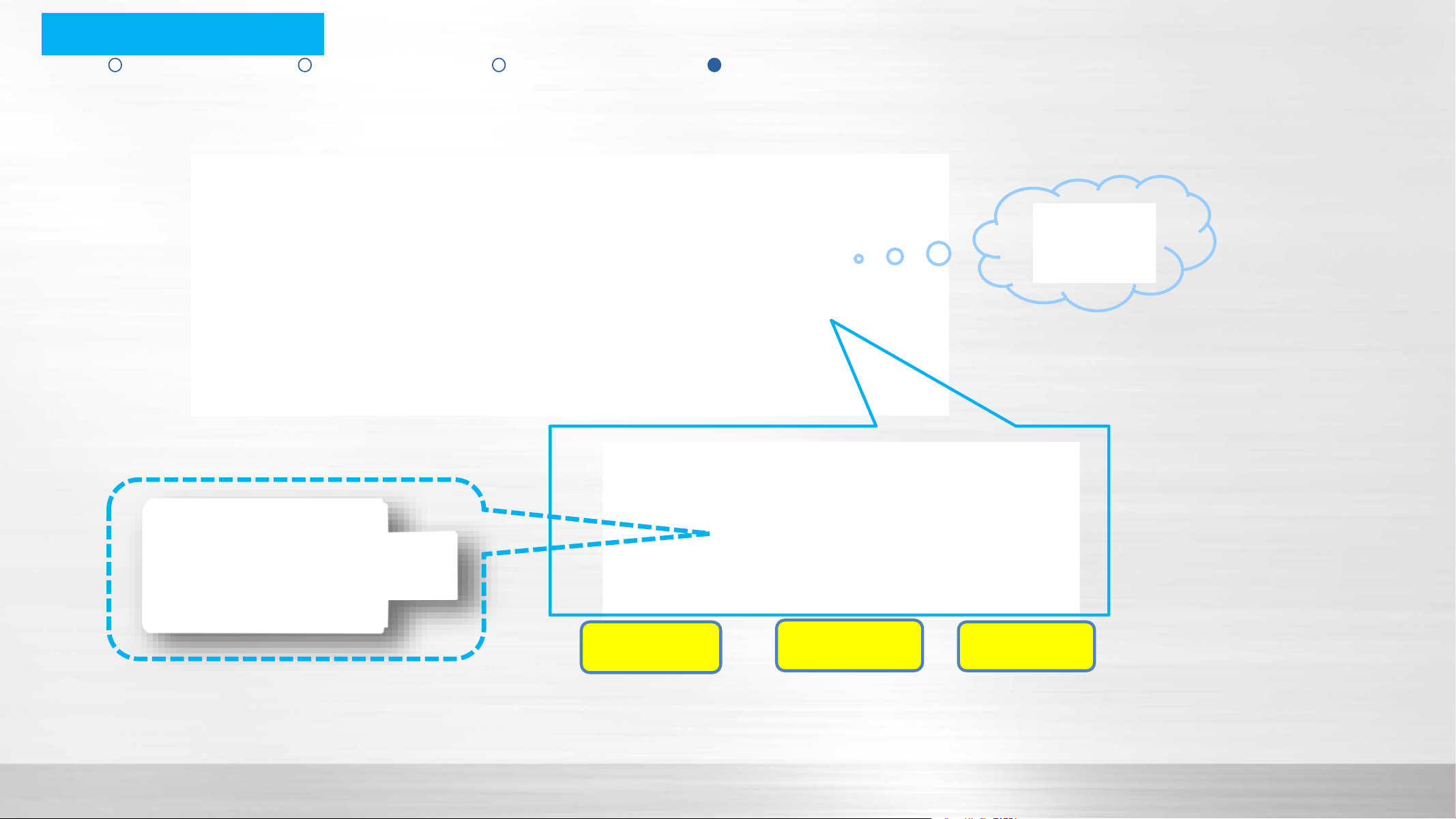
USB
Connection
Display
Board
WiFi
Module
Product Introduction How to connect WIFI air conditioner Troubleshooting
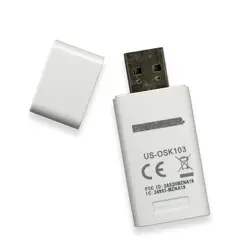
Standard air conditioner set does not include the USB WIFI module, it needs to be purchased separately.
Overview Conception Mode Composition
Smartphone
Operation system: Android (above version 3.1 and but below version 6) or IOS (above version 6.1)
Storage space: at least 20MB.
Product Introduction How to connect WIFI air conditioner Troubleshooting
Overview Conception Mode Composition
System with WIFI module
There is QR code label on module which can identify the unit and build the
connection between the Air conditioner and the Router.
The WIFI module is certified by FCC, CE and ID (Canada).
Product Introduction How to connect WIFI air conditioner Troubleshooting
Overview Conception Mode Composition
Wireless Router
Any normal Home Wireless Router providing 2.4G Hz signal is suitable. But the routers providing 5G Hz
signal is not supported for now. Please do not attempt to connect to 5G Hz WiFi signals.
Product Introduction How to connect WIFI air conditioner Troubleshooting
Overview Conception Mode Composition
Operating
Interface
Device ListAPP Interface
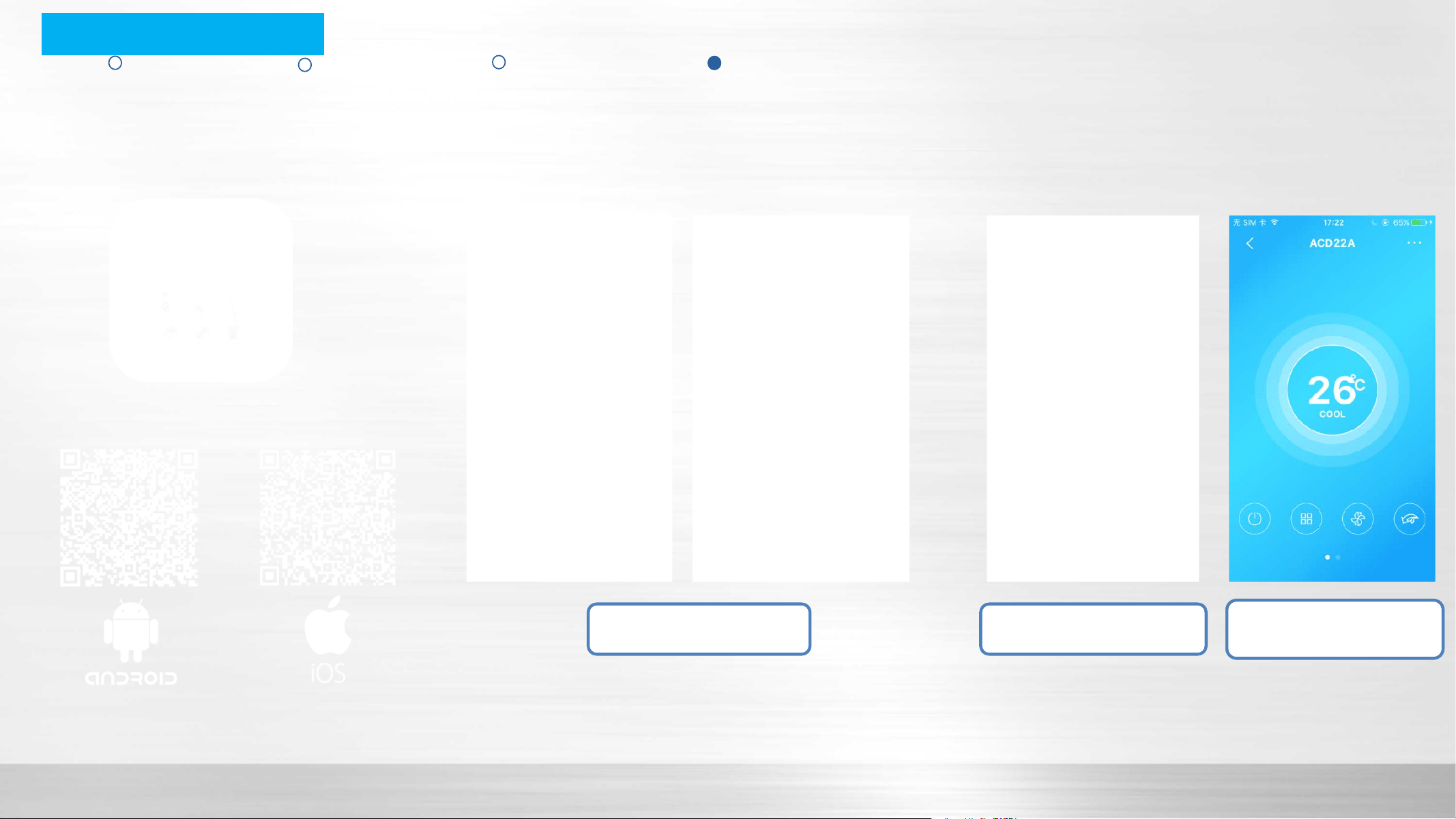
App
You can download the software “NetHome Plus” from App Store for IOS system or GooglePlay
®
for Android system
Product Introduction How to connect WIFI air conditioner Troubleshooting
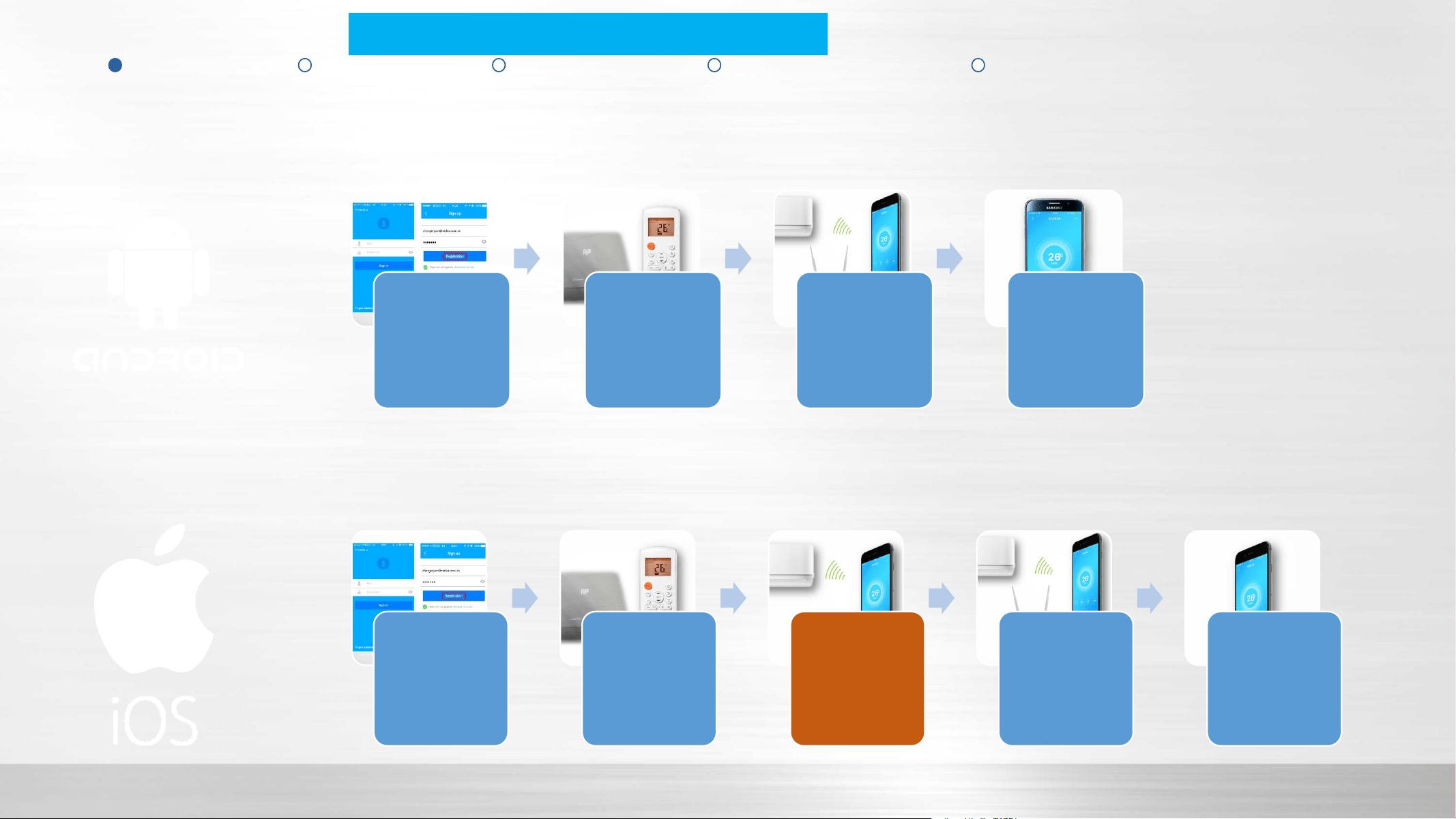
Create a
new
account
with APP
Set WIFI
AC to AP
mode
Connect
AC to
router via
APP
Control AC
via APP
Create a
new
account
with APP
Set WIFI AC
to AP mode
Make
iphone
connect to
the WIFI AC
Connect AC
to router
via APP
Control AC
via APP
Product Introduction How to connect WIFI air conditioner Troubleshooting
Procedure Step by step Local Mode Remote Mode Operation Interface
Check if everything is OK
Turn on the WIFI of smartphone, check the WIFI signal to see if network is OK.
Before Start
Get the WIFI SSID and password
Signal Intensity
The WIFI signal should be at least one bar. Adjust the position of router to make
it close to the air conditioner if the signal is too weak.
Product Introduction How to connect WIFI air conditioner Troubleshooting
Procedure Step by step Local Mode Remote Mode Operation Interface
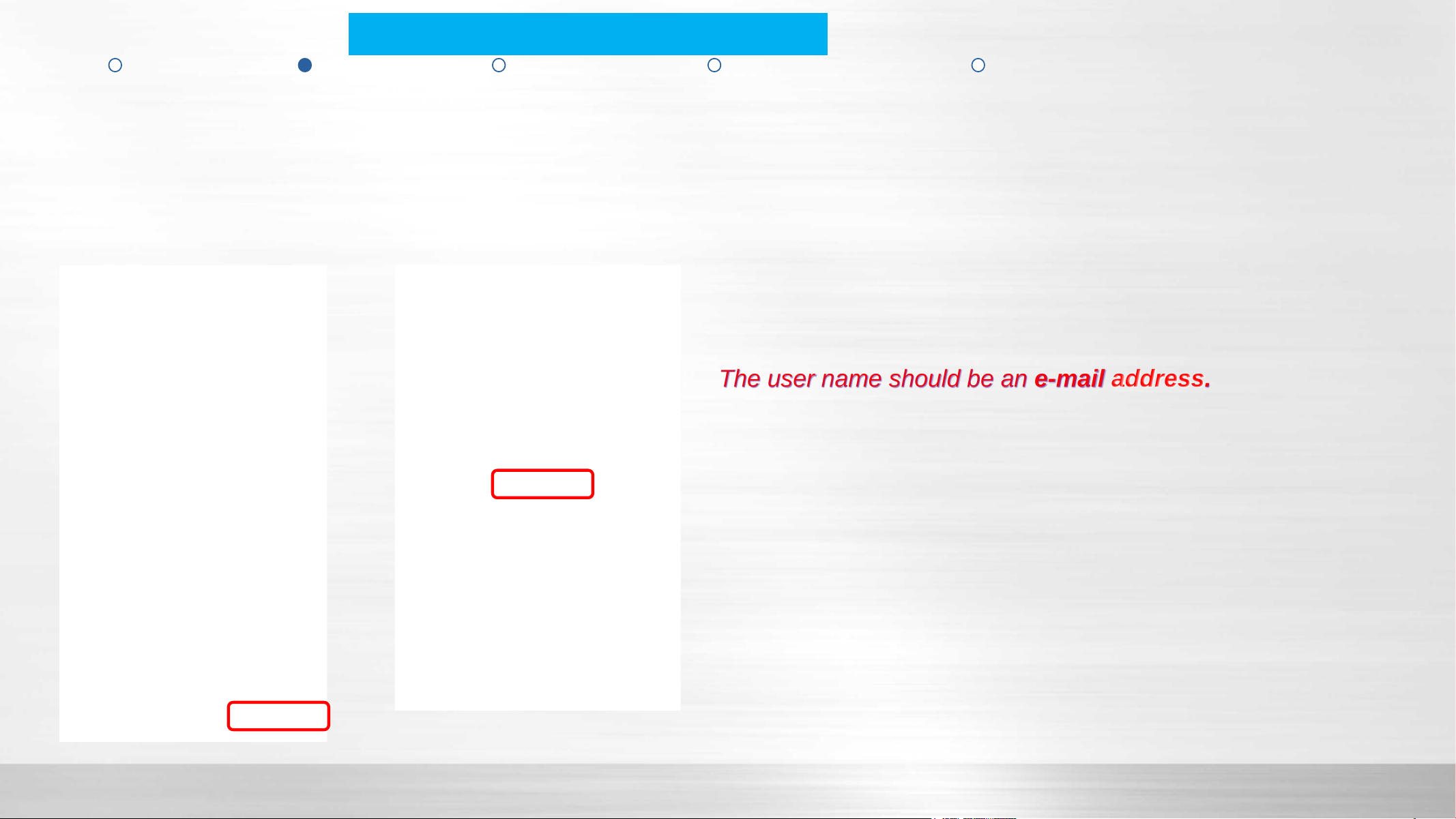
Start the APP and press “Create Account” button to create a
new account.
The user name should be an e-mail address.
Register a New Account
Product Introduction How to connect WIFI air conditioner Troubleshooting
Procedure Step by step Local Mode Remote Mode Operation Interface
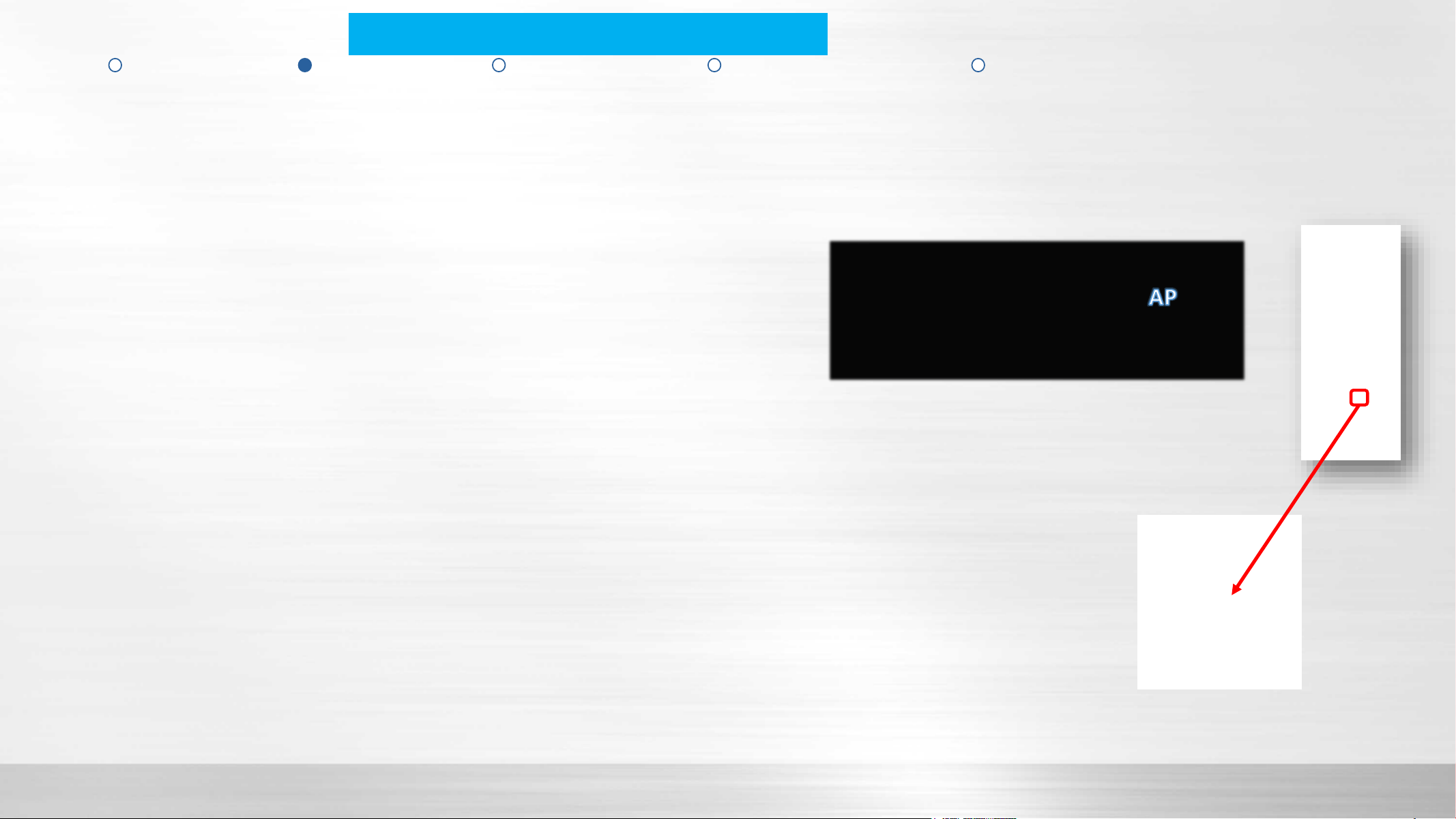
Use the present remote controller, press the [LED digital
display] button no less than 7 times continuously within 3
minutes until AP appears on the panel. Note LED function is
activated through the left side of this multi function button.
AP mode means the WIFI module works as a WIFI hotpot
with default password “12345678”.
WIFI signal display from the panel
AP mode setting
Product Introduction How to connect WIFI air conditioner Troubleshooting
Procedure Step by step Local Mode Remote Mode Operation Interface
Building connection between Air-conditioner and Router via APP
Product Introduction How to connect WIFI air conditioner Troubleshooting
Procedure Step by step Local Mode Remote Mode Operation Interface
Input the username and password , click “ Sign in
”
button , click “Add Device” , then Scan QR Code which provides
connection with WIFI module.
Note: Make sure your smartphone is connected to your own WIFI router when setting (not 3G/4G).
When you use an Android device:
APP will connect to network directly, choose your Router name, enter the correct password, press the “OK” button ,
Now connection will be established.
NOTE: If you input a wrong password, there will be no error information. Start from “Set AP mode” again if you find
there is no response for a long time.
Building connection between Air-conditioner and Router via APP
Product Introduction How to connect WIFI air conditioner Troubleshooting
Procedure Step by step Local Mode Remote Mode Operation Interface
Building connection between Air-conditioner and Router via APP
Product Introduction How to connect WIFI air conditioner Troubleshooting
Procedure Step by step Local Mode Remote Mode Operation Interface
When you have Apple device:
APP will remind you to return to the setting page of IOS device to connect WIFI kit. Choose the related WIFI named
with “net_ac_....” on your smart phone and enter the password: 12345678.
Building connection between Air-conditioner and Router via APP
Product Introduction How to connect WIFI air conditioner Troubleshooting
Procedure Step by step Local Mode Remote Mode Operation Interface
When you have Apple device:
Then go back to APP, click “Next” button and choose your Router name, enter the correct password, press the “OK”
button. Now connection will be established.
Building connection between Air-conditioner and Router via APP
Product Introduction How to connect WIFI air conditioner Troubleshooting
Procedure Step by step Local Mode Remote Mode Operation Interface
When you press network button to start the connection between AC and router, the WIFI module will quit AP mode and
become a client of WIFI. After establishing the connection successfully, the AC will keep the connection to the router
and store this information. Even there is power failure, the AC will restore this connection when power is back.
NOTE: If SSID or password of the router is reset or changed, you must re-connect the WIFI AC again from AP mode.
On the contrary, if you change a new router but still set the previous SSID and password, this connection is still
available.
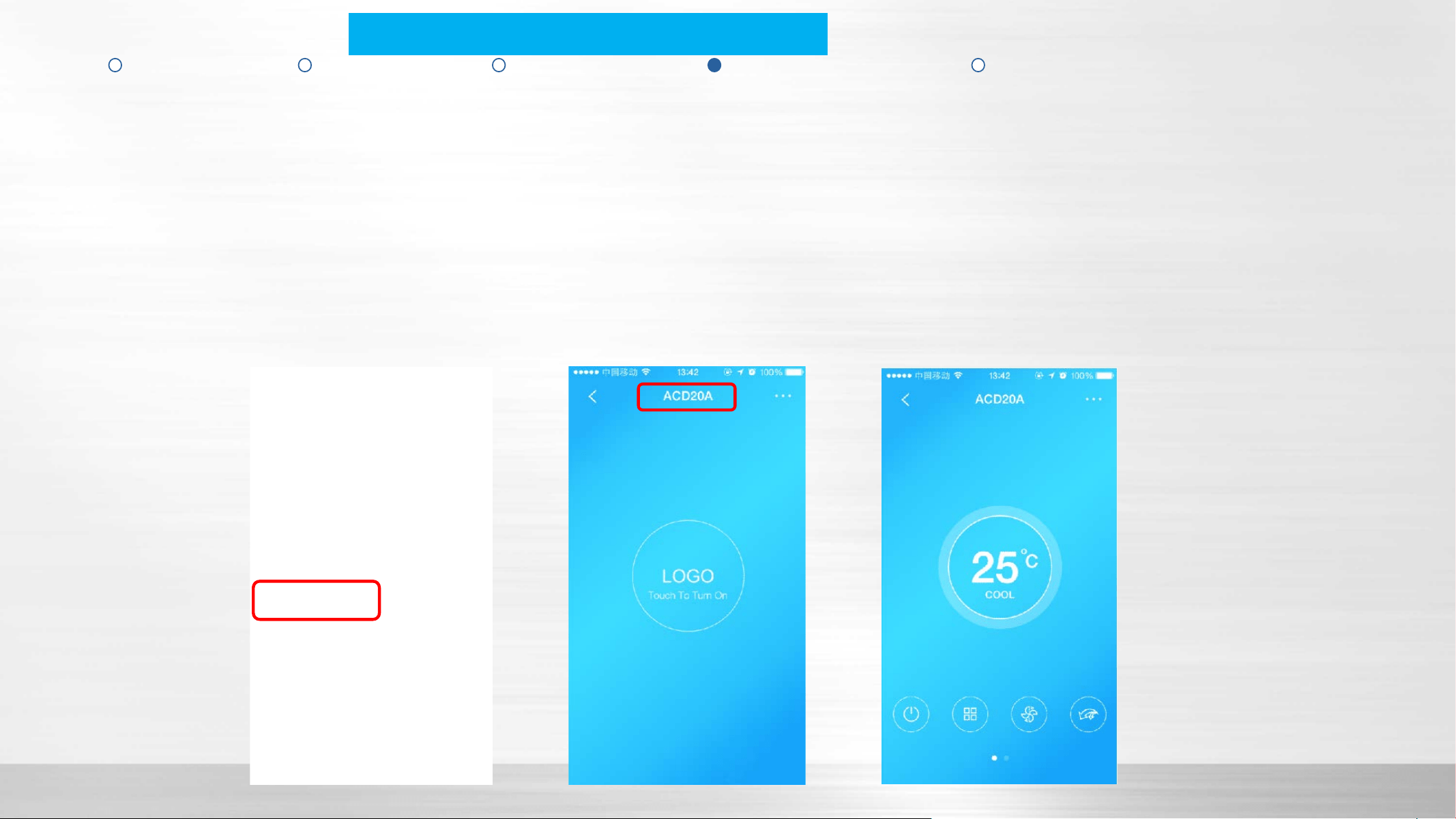
Click the device name you added, then press the “touch to turn on“ button. Now you can control the unit using the phone
though internet.
You also can login your username to control your WIFI AC by smartphone though mobile 3G/4G network if you are away
from any WiFi area.
Control AC with Smartphone
Product Introduction How to connect WIFI air conditioner Troubleshooting
Procedure Step by step Local Mode Remote Mode Operation Interface
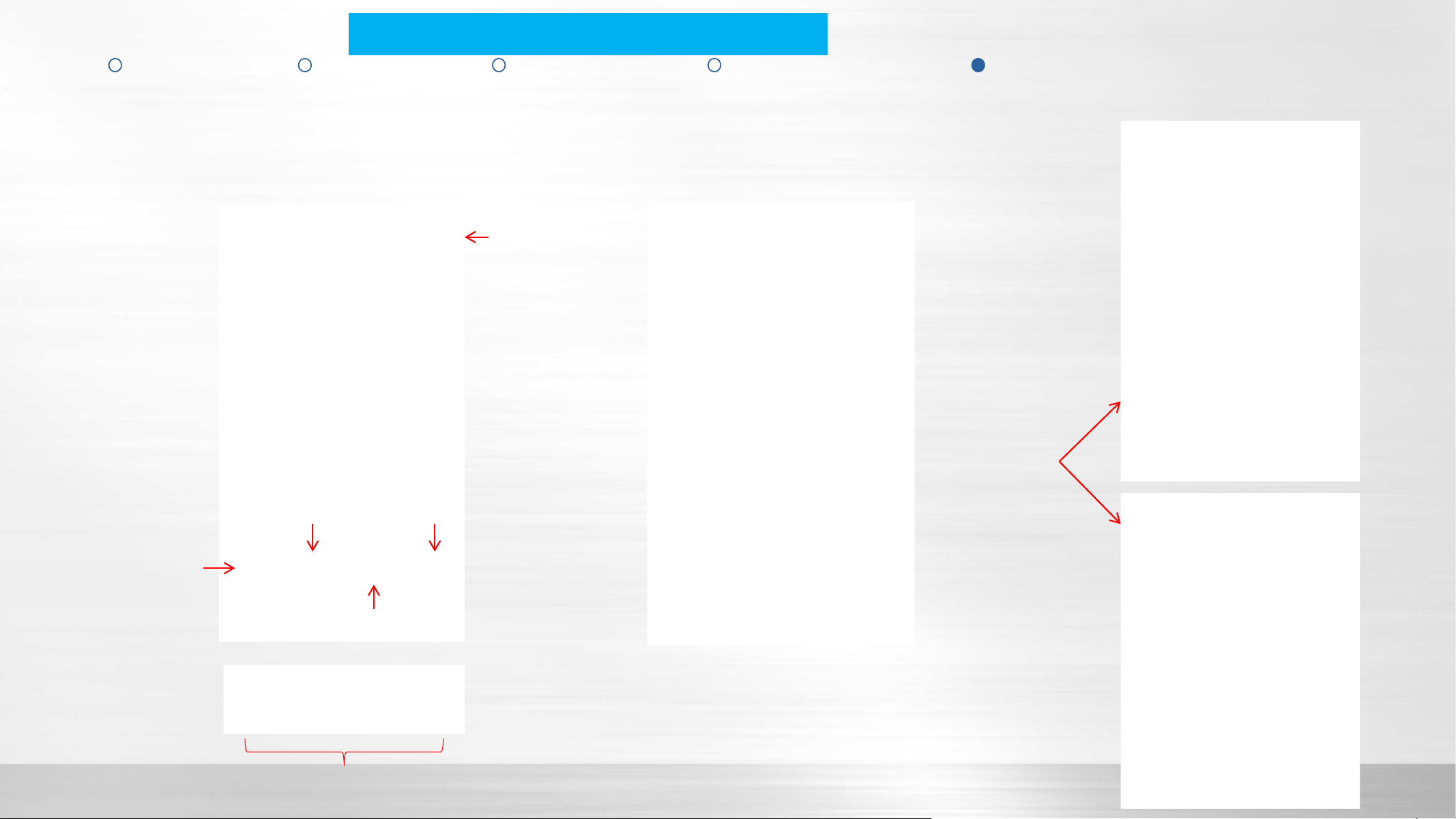
Operation Interface
Product Introduction How to connect WIFI air conditioner Troubleshooting
Procedure Step by step Local Mode Remote Mode Operation Interface
ON / OFF
Mode setting
Fan speeding setting
Turbo
Other Operations
Function Button
More
information
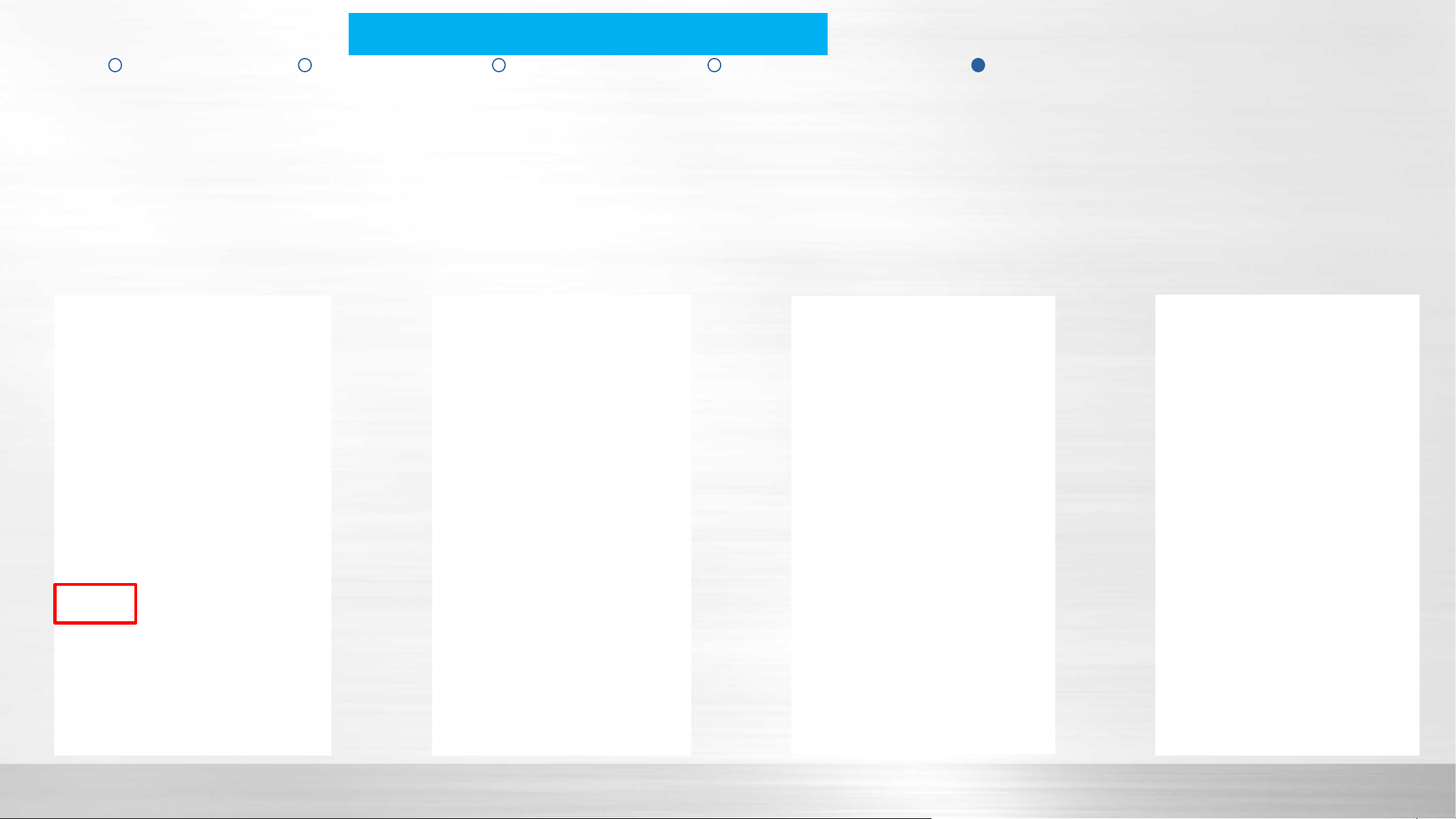
Detect the AC connection condition and ERROR code
Press “Check” button to start self-check of the A/C unit, and the detailed information will be shown.
Product Introduction How to connect WIFI air conditioner Troubleshooting
Procedure Step by step Local Mode Remote Mode Operation Interface

Product Introduction How to connect WIFI air conditioner Troubleshooting
Connection Failure Router Setup Tips
Connection failure between WIFI AC and router
Possible reasons:
1) Wrong password inputted.
There is no error information if you input the wrong password of router when you try to connect the WIFI AC
to the router. If there is no response for a long time, please re-connect from AP mode.
2) Composition of password
For now WIFI module supports the password containing letters and numbers only. If there are “*, @, /”
symbols inside the password, the system will not connect to the router.
3) Unsupported encryption
This is about WIFI security setting of your router. There are some encryption types you can choose in
normal household router such as WEP, WAP-PSK, WAP2-PSK. WEP is NOT supported.
Supported encryption:

Connection failure between WIFI AC and router
Possible reasons:
4) The WIFI that needs a Browser Login is NOT supported.
Some WIFI in public places such as shopping malls, airports, hotels, etc. needs you to input username and
password through a browser to log in. This system cannot be connected through such WIFI.
Product Introduction How to connect WIFI air conditioner Troubleshooting
Connection Failure Router Setup Tips
Connection failure between WIFI AC and router
Possible reasons:
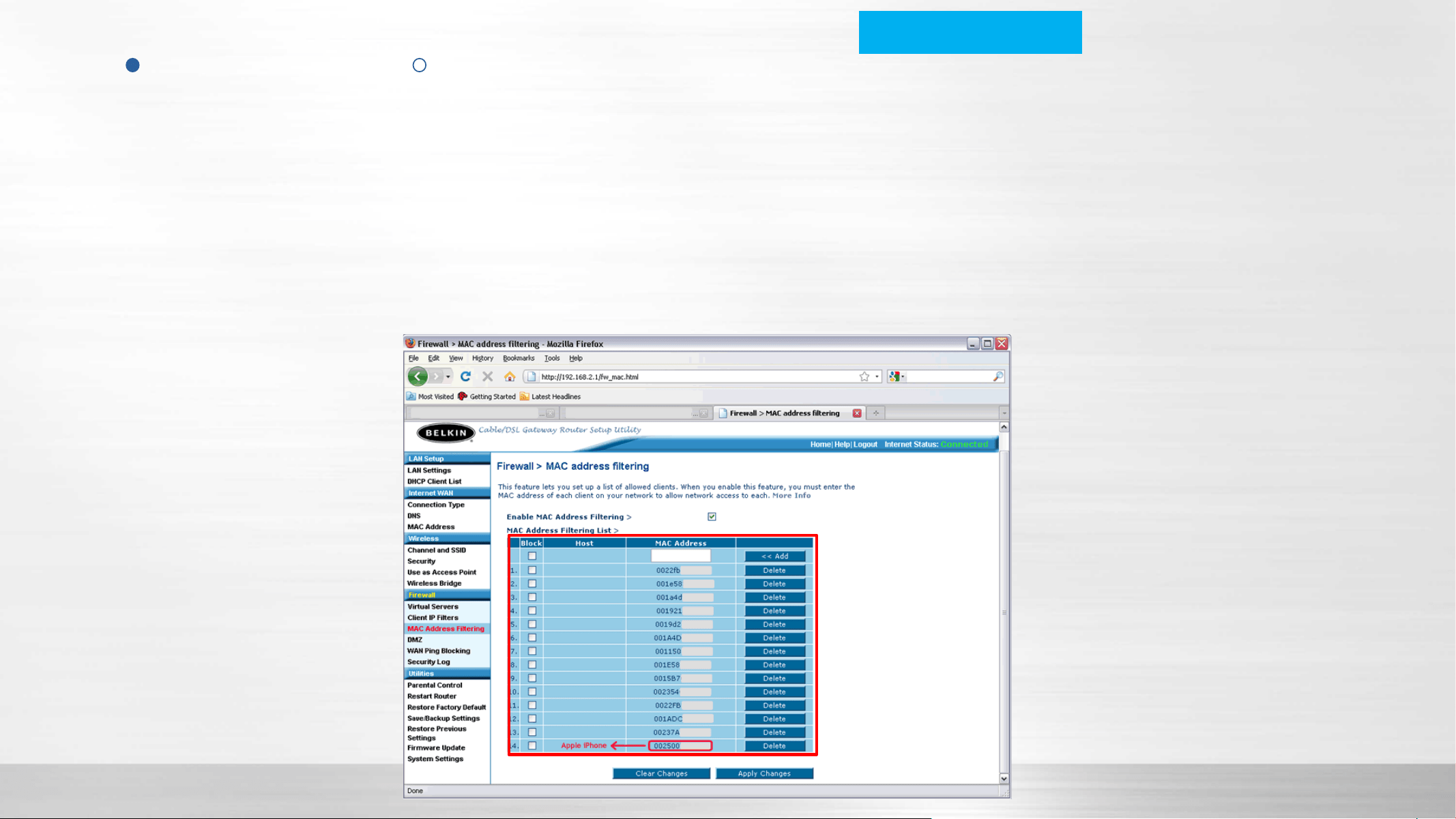
5) The router is set to filter MAC addresses.
This router forbids other client to connect in except for the devices in the list. You need to add MAC address
of WIFI AC into this list or disable the MAC address filtering function.
Product Introduction How to connect WIFI air conditioner Troubleshooting
Connection Failure Router Setup Tips
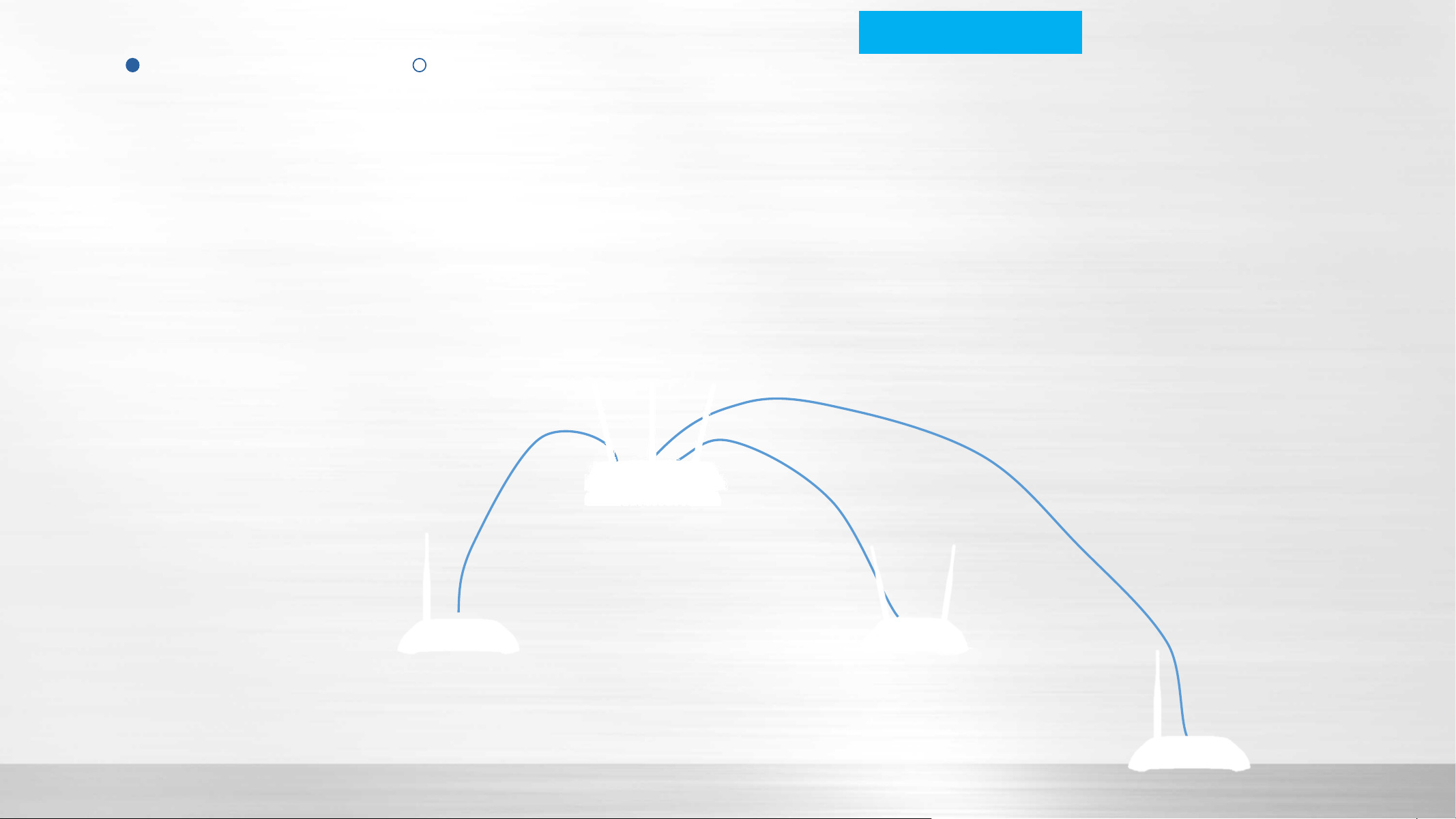
Connection failure between WIFI AC and router
Possible reasons:
6) There are too many clients connected to the router.
Normal household router cannot support more than 8 clients connections. If connection failure is caused by
this reason, reduce some clients or add routers with network cable.
Main Router
Sub Router
Sub Router
Sub Router
Network Cable
Network Cable
Network Cable
Product Introduction How to connect WIFI air conditioner Troubleshooting
Connection Failure Router Setup Tips

Connection failure between router and Cloud Server
1) Check the internet connection.
You can connect your smartphone or a computer to the router and browse a web to see if the internet
connection is OK.
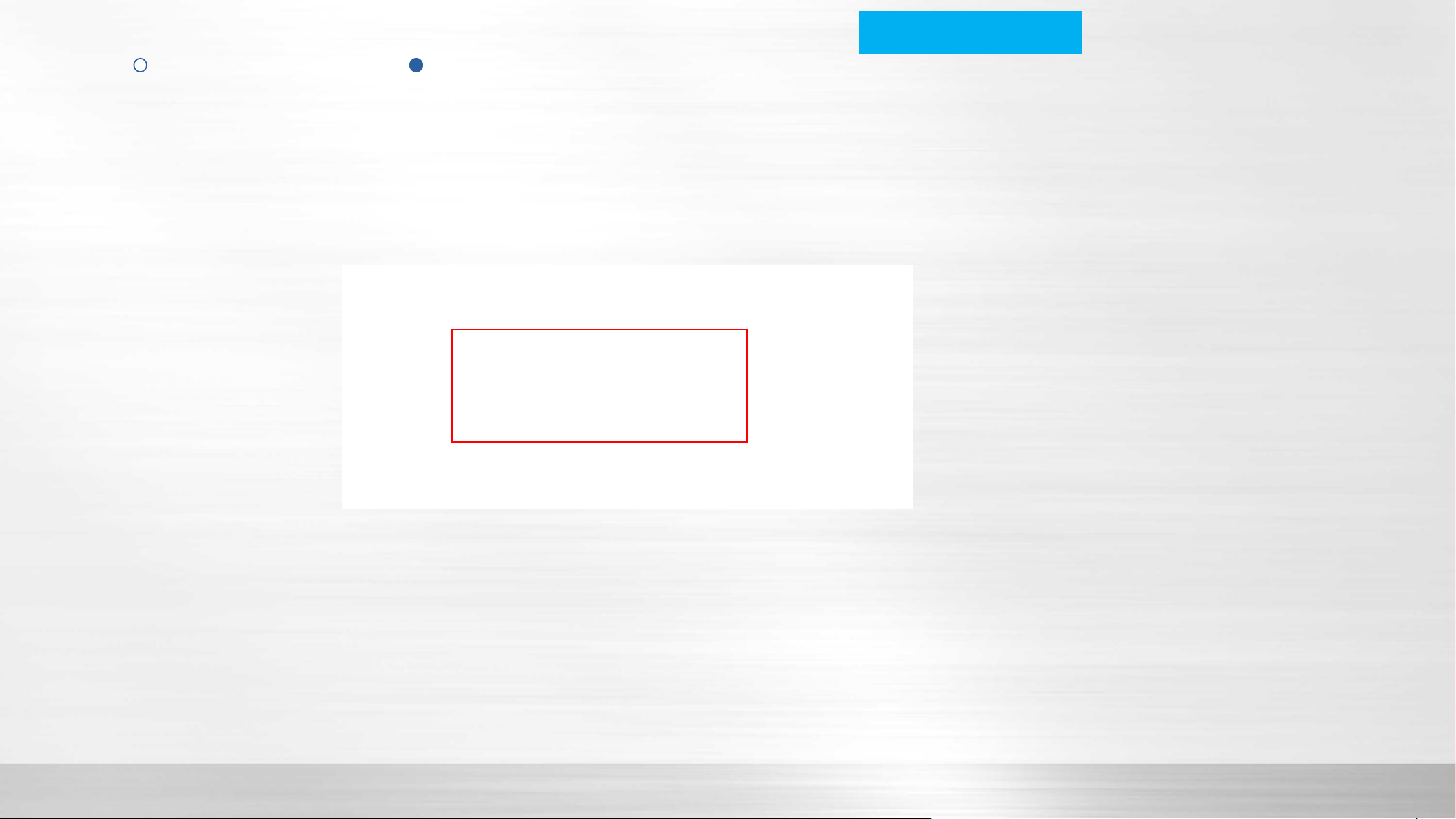
3) Use browser of computer or smartphone, input
https://app.v1.appsmb.com:8443/V2/Login.ashx into the address bar.
If you can see the following message, your connection to the server is OK.
Product Introduction How to connect WIFI air conditioner Troubleshooting
Connection Failure Router Setup Tips
Note: Amazon Cloud is used as server of
WIFI control service which can be reached
from most countries of the world. In some
countries or with carriers, restricting the
connection to Amazon Cloud, you can not
use this system.
Product Introduction How to connect WIFI air conditioner Troubleshooting
Connection Failure Router Setup Tips
LAN Setup
DO NOT change anything
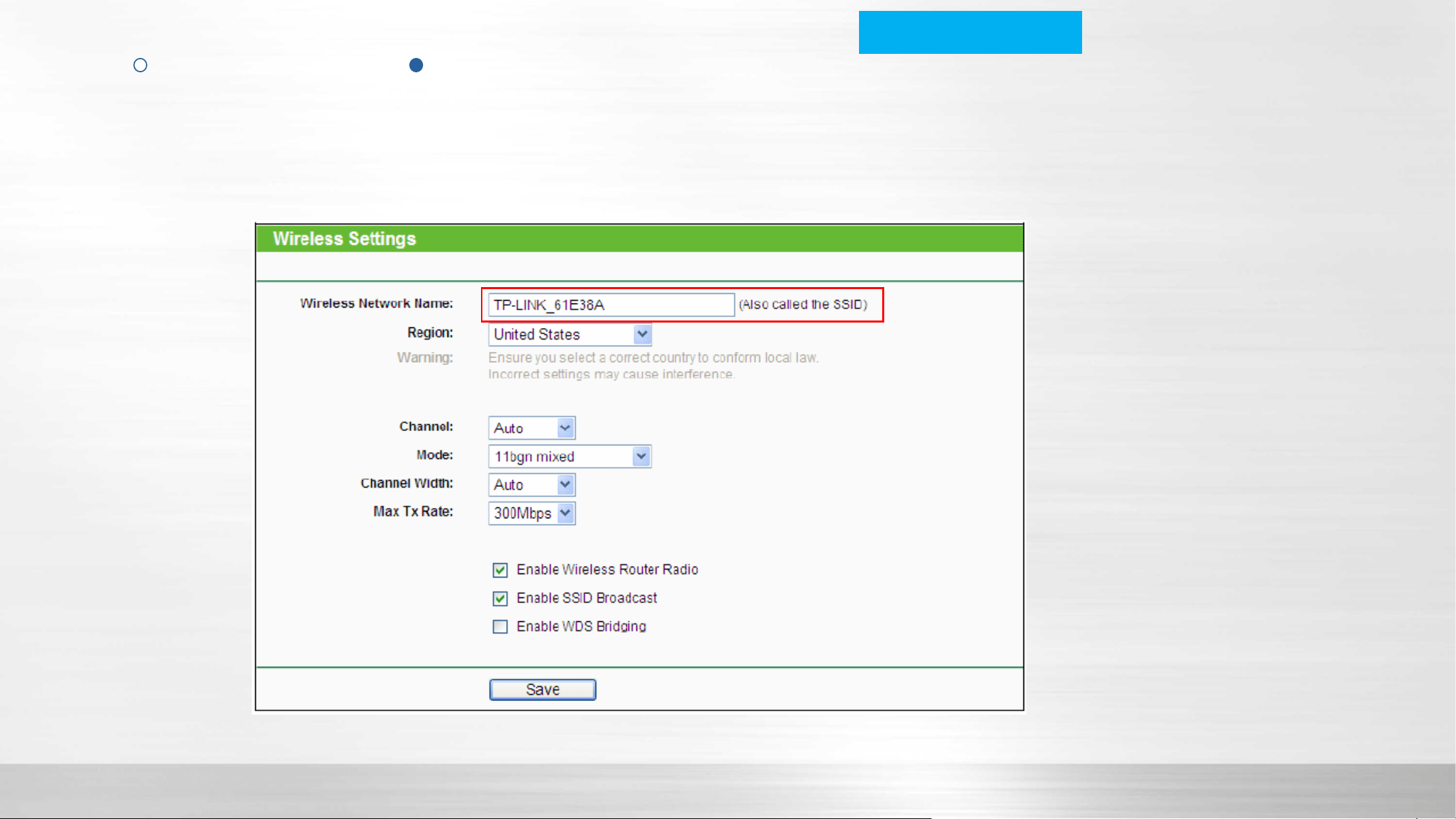
Wireless Setup
Use any name you can
recognize and remember
Product Introduction How to connect WIFI air conditioner Troubleshooting
Connection Failure Router Setup Tips
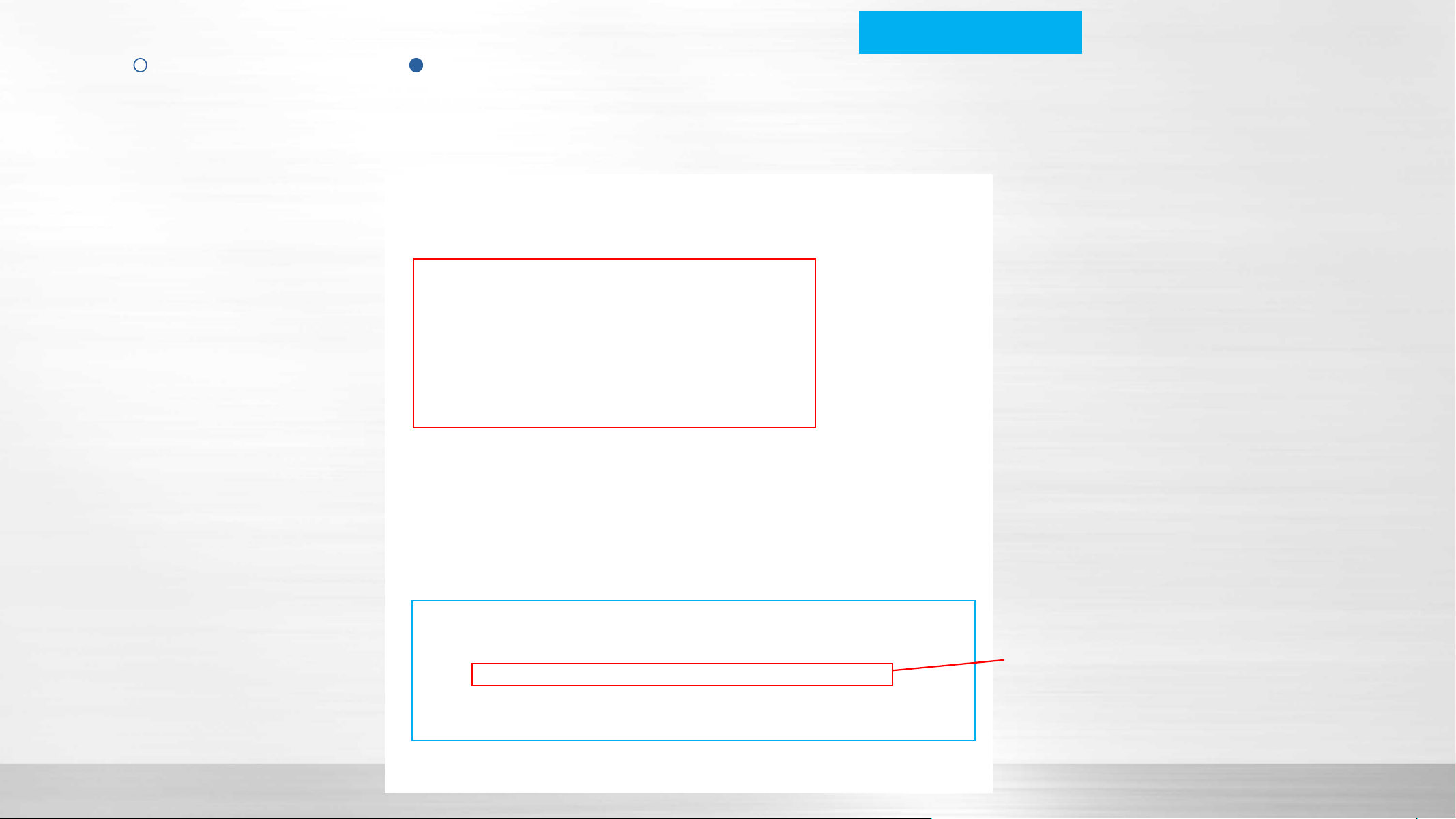
Wireless Security Setup
DO NOT use it
Recommended
Use combination of letters
and numbers as password
DO NOT use any special
symbols.
Product Introduction How to connect WIFI air conditioner Troubleshooting
Connection Failure Router Setup Tips
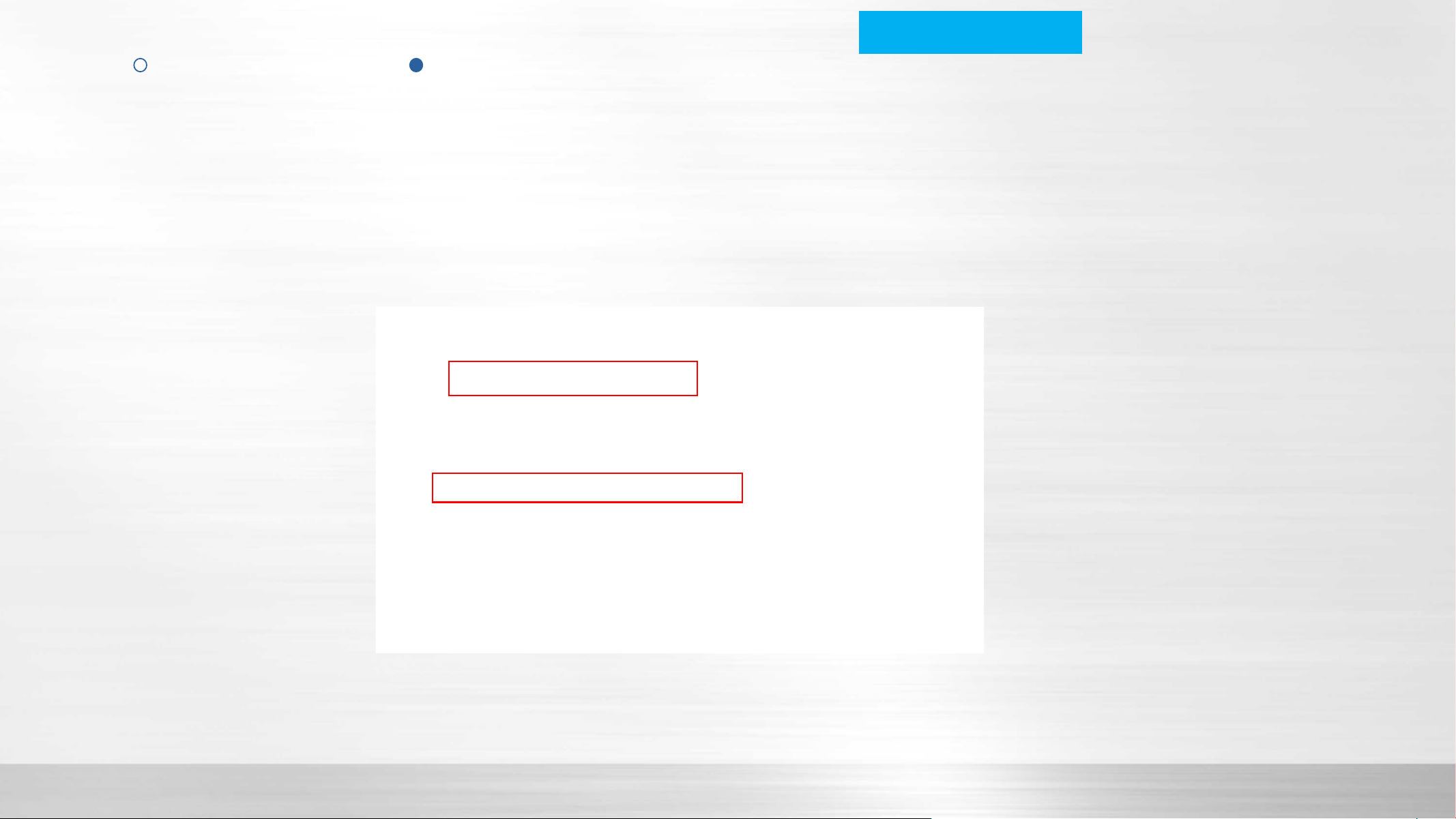
Gateway and DHCP Setup
Enable DHCP server which can manage the IP address distribution of connected clients automatically.
Product Introduction How to connect WIFI air conditioner Troubleshooting
Connection Failure Router Setup Tips

Wireless MAC address filtering
Disabled is recommended
Product Introduction How to connect WIFI air conditioner Troubleshooting
Connection Failure Router Setup Tips
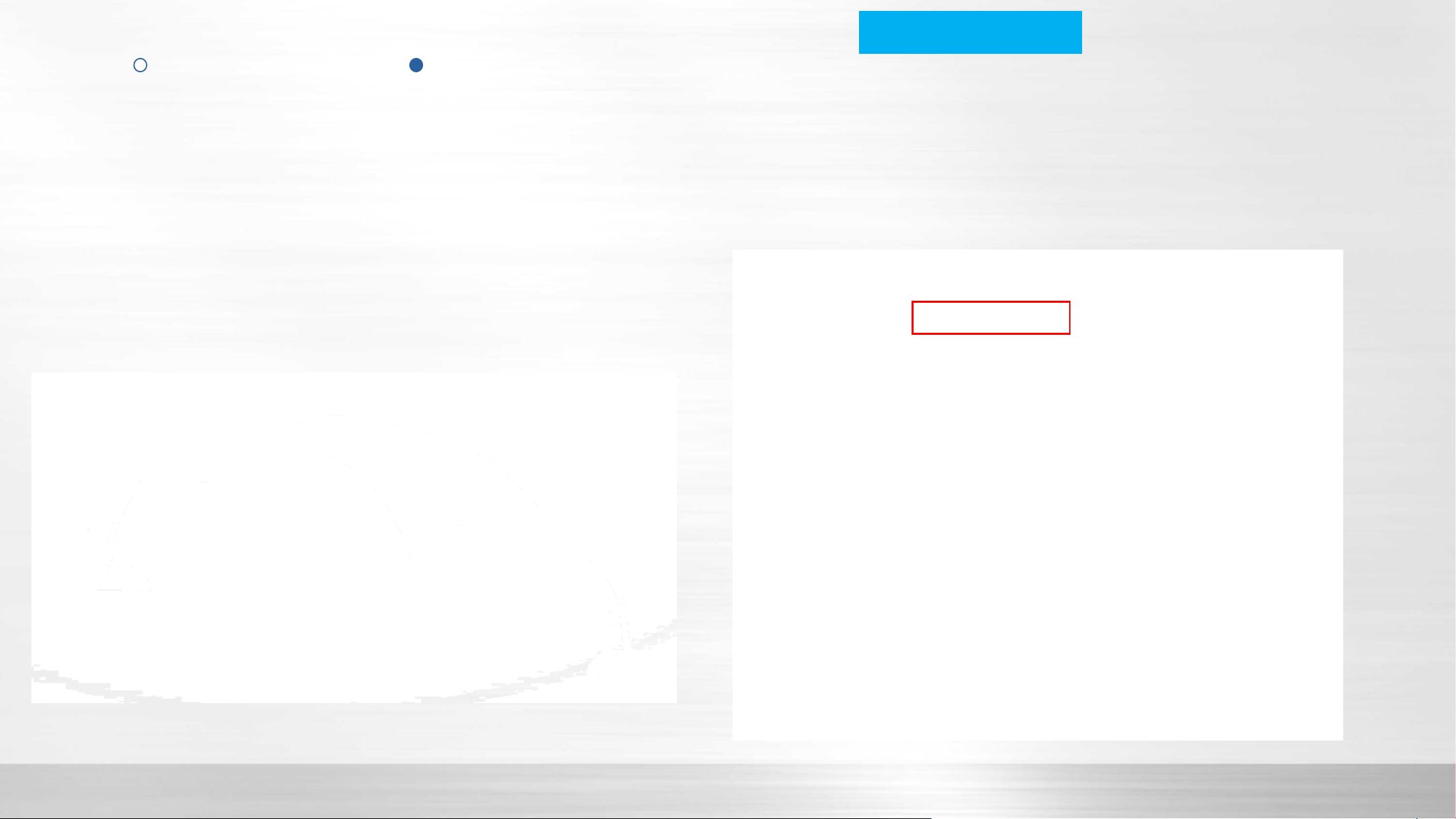
Multi router Setup
Choose “Dynamic IP”
Settings of main router is as same as above. WAN setting of sub router should as follows:
Product Introduction How to connect WIFI air conditioner Troubleshooting
Connection Failure Router Setup Tips
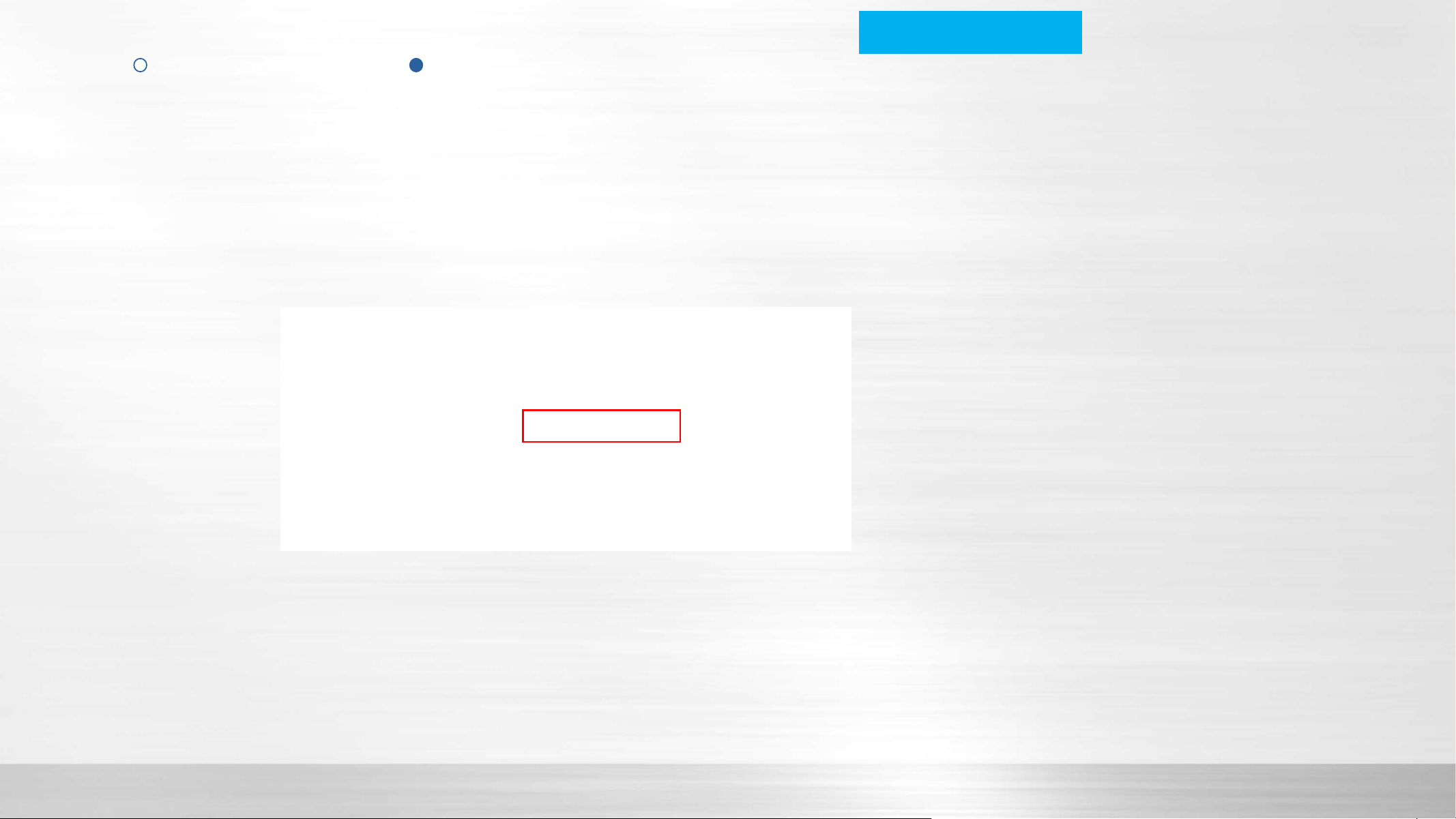
Multi router Setup
Change to “192.168.1.1”,
If you have other sub router, set them as
“192.168.2.1”, “192.168.3.1”…
LAN setting of sub router should as follows
Product Introduction How to connect WIFI air conditioner Troubleshooting
Connection Failure Router Setup Tips
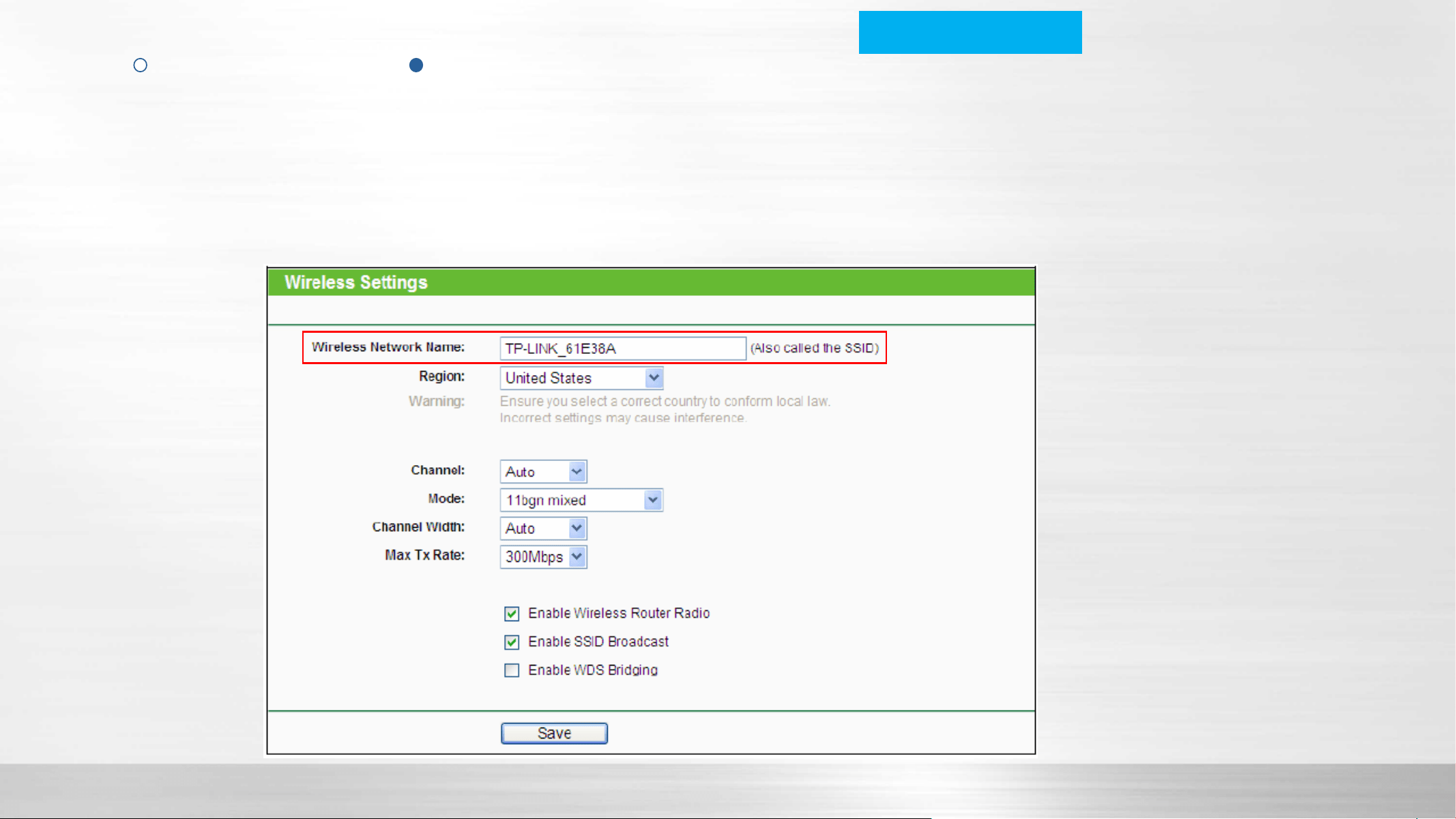
Multi router Setup
Must same as main router
Product Introduction How to connect WIFI air conditioner Troubleshooting
Connection Failure Router Setup Tips
Recommended
Same as main router
Multi router Setup
Product Introduction How to connect WIFI air conditioner Troubleshooting
Connection Failure Router Setup Tips
Recommended
Same as main router
Multi router Setup
Product Introduction How to connect WIFI air conditioner Troubleshooting
Connection Failure Router Setup Tips
Multi router Setup
Change to “192.168.1.1”, “192.168.2.1”,
“192.168.3.1”…
Change to “192.168.1.100” to “192.168.1.199”,
“192.168.2.100” to “192.168.2.199”,
Product Introduction How to connect WIFI air conditioner Troubleshooting
Connection Failure Router Setup Tips