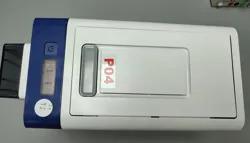
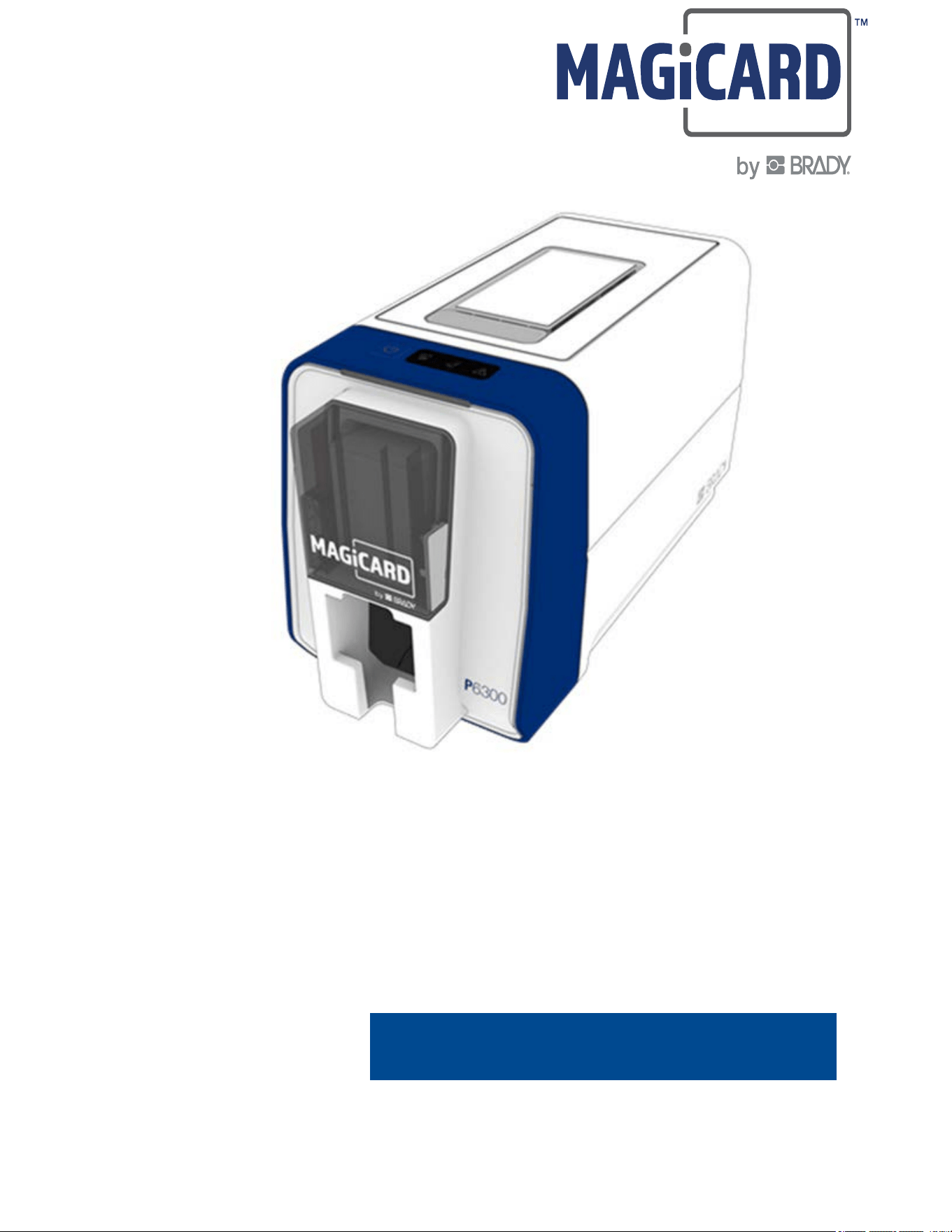
P6300
®
ID Card Printer
P6000 Series Laminator
User Manual

P6300
®
Printer User Manual ii
Copyright and Trademarks
Disclaimer
This manual is proprietary to Magicard, a Brady Worldwide, Inc. business, and may be revised from
time to time without notice. Brady and Magicard disclaim any understanding to provide you with such
revisions, if any.
This manual is copyrighted with all rights reserved. No portion of this manual may be copied or
reproduced by any means without the prior written consent of Brady or Magicard.
While every precaution has been taken in the preparation of this document, neither Brady nor
Magicard assume any liability to any party for any loss or damage caused by errors or omissions or by
statements resulting from negligence, accident, or any other cause. Brady and Magicard further
assume no liability arising out of the application or use of any product or system described, herein; nor
any liability for incidental or consequential damages arising from the use of this document. Brady and
Magicard disclaim all warranties of merchantability of fitness for a particular purpose.
Brady and Magicard reserve the right to make changes without further notice to any product or system
described herein to improve reliability, function, or design.
Trademarks
P6300
®
Printer is a trademark of Magicard and Brady Worldwide, Inc.
Microsoft and Windows are registered trademarks of Microsoft Corporation.
Bluetooth and the Bluetooth logo are trademarks of Bluetooth SIG, Inc.
Wi-Fi is a trademark of Wi-Fi Alliance
®
.
Apple is a trademark of Apple Inc.
Google Play is a trademark of Google LLC.
All brand or product names referenced in this manual are trademarks (™) or registered trademarks (
®
)
of their respective companies or organizations.
© 2026 All Rights Reserved.
Revision A
Magicard by Brady
Waverley House
Hampshire Road
Weymouth,
Dorset
DT4 9XD
United Kingdom.
www.magicard.com

P6300
®
Printer User Manual iii
Warranty
Visit magicard.com/warranty for information.
Safety and Environment
Please read and understand this manual before using the product for the first time.
Precautions
Before using the printer, please note the following precautions:
• Read all instructions carefully before operating and prior to performing any procedure.
• Do not place the unit on an unstable surface or stand.
• Do not place anything on top of the unit.
• Keep the top clear of obstructions.
• Always use in a well ventilated area. Do not block the slots and opening on the unit, which are
provided for ventilation.
• Only use the power source indicated on the rating label.
• Do not place anything on the power cord.
• This equipment is not intended for use by children.
• Do not attempt to service the printer yourself.
Technical Support
Contact Information
For repair, technical assistance, or license information go to:
https://support.magicard.com/

P6300
®
Printer User Manual iv
Contents
1 • Introduction
System Specifications............................................................................................... 1
Physical and Environmental Characteristics .........................................................1
2 • Setup
Unpacking the Printer ............................................................................................... 2
What’s in the Box ..................................................................................................2
Save the Packaging ..............................................................................................2
Registration ...........................................................................................................2
Printer Components .................................................................................................. 3
External .................................................................................................................3
Internal ..................................................................................................................4
Power .......................................................................................................................... 5
AC Power Adapter ................................................................................................5
Connecting the Printer .............................................................................................. 6
Driver Installation ..................................................................................................6
Wi-Fi ......................................................................................................................6
USB .......................................................................................................................7
Ethernet ................................................................................................................7
Installing or Changing Supplies............................................................................... 8
Ribbon Cartridge ...................................................................................................8
Ribbon Spool ........................................................................................................8
Cards ....................................................................................................................8
Software for Creating Cards ..................................................................................... 9
Connecting the Laminator ...................................................................................... 10
Installing Laminate ..............................................................................................10
Installing the Card Tray .......................................................................................10
Accessories.............................................................................................................. 11
3 • General Operation
Status Light Bar ....................................................................................................... 12
LED Indicators ......................................................................................................... 13
Media LED ..........................................................................................................13
Cleaning LED ......................................................................................................13
Information LED ..................................................................................................14
4 • Maintenance
Cleaning.................................................................................................................... 15
Cleaning Roller Replacement .............................................................................15
Cleaning the Print Roller .....................................................................................15
Cleaning the Printhead .......................................................................................15
Installing Firmware Upgrades ................................................................................ 16

P6300
®
Printer User Manual v
Smart Module Installation ....................................................................................... 16
Rotation Module Installation................................................................................... 17
A • Regulatory Compliance
Agency Compliance and Approvals ...................................................................... 18
United States ......................................................................................................18
Estados Unidos ...................................................................................................18
Canada ...............................................................................................................19
Europe ..............................................................................................................20
China 中国 .......................................................... 20
Turkey .................................................................................................................20
Wireless Regulatory Information ........................................................................... 21
United States ......................................................................................................21
Mexico .................................................................................................................22
Canada ...............................................................................................................22
European Union ..................................................................................................22
Japan 日本 ..........................................................................................................24
Oman ..................................................................................................................24
South Africa ........................................................................................................24
Israel ...................................................................................................................24
International ........................................................................................................25
P6300
®
Printer User Manual 1
1 Introduction
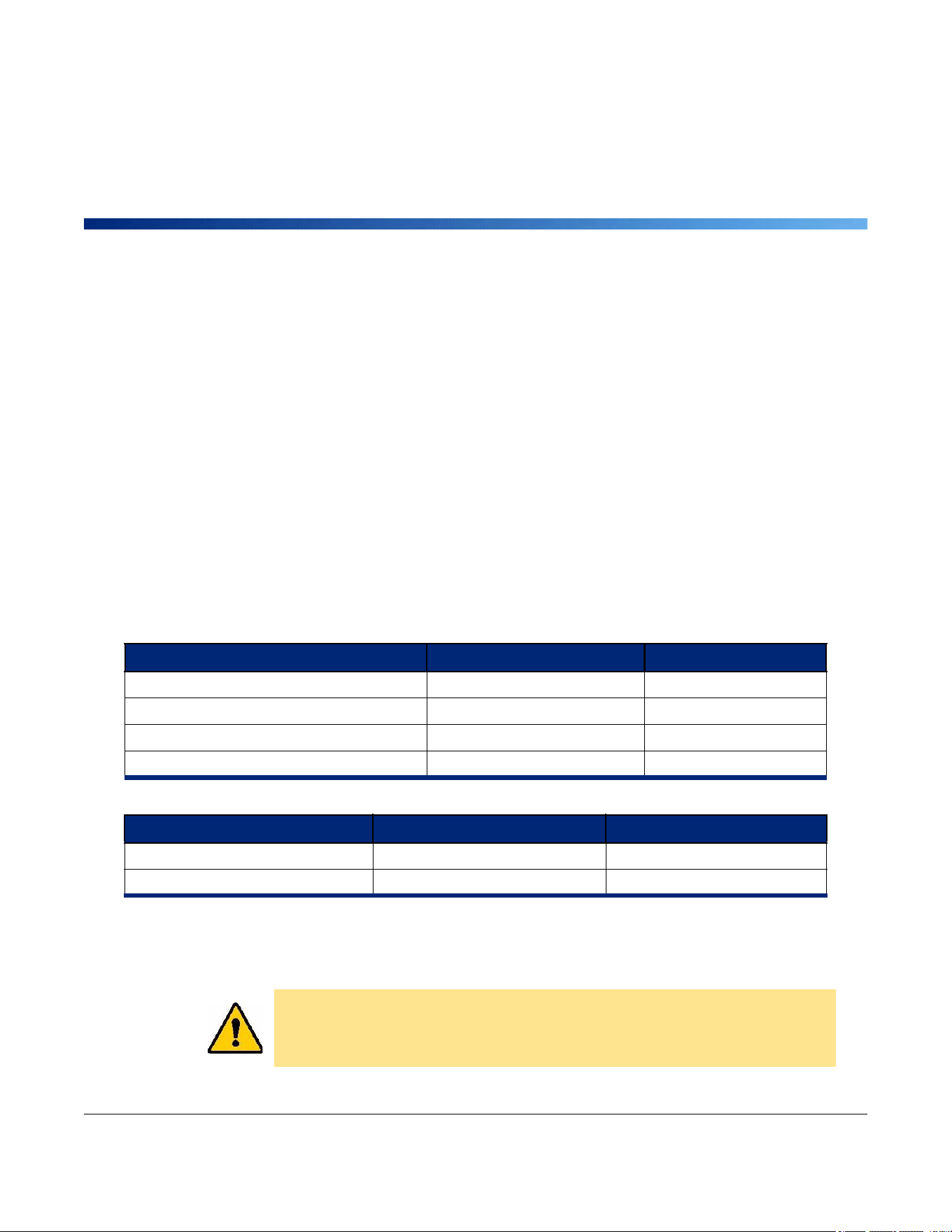
System Specifications
• Print Resolution: 300 dpi on P6300
• Color Depth: 256 levels (8 bit)
• Print Speed: 200 cards per hour
• Card Size:
• CR79 - 3.303" x 2.051" (83.9 mm x 51.0 mm)
• CR80 - 3.375" x 2.125" (85.7 mm x 54.0 mm)
• Card Thickness: 0.50mm to 1.27mm (10 mil to 50 mil)
• Printer Security: Kensington lock
Physical and Environmental Characteristics
The P6300
®
Printer (without optional laminator) has the following physical and environmental
characteristics:
Note: Consumable performance may vary.
Physical U.S. Units Metric Units
Dimensions (printer only) 12.80" L x 7.28" W x 9.25" H 325 x 185 x 235 mm
Weight (printer only)
10.8 lb
4.9 kg
Dimensions (printer with laminator) 23.62" L x 7.28" W x 9.25" H 600 x 185 x 235 mm
Weight (laminator only)
8.3 lb
3.7 kg
Environmental Operation Storage
Temperature (Printer) 50° to 85° F (10° to 30° C) 50° to 85° F (10° to 30° C)
Relative Humidity (Printer) 20% to 90% (non-condensing)
10% to 90% (non-condensing)
CAUTION! Avoid using the printer near water, in direct sunlight, or near a
heating device.

P6300
®
Printer User Manual 2
2 Setup
Unpacking the Printer
Carefully unpack and inspect the exterior and interior of the printer.
What’s in the Box
Before setting up the printer, verify that you have received the following items in the packaging:
• P6300 Printer
• AC adapter and power cord (region specific)
• USB-C cable
• Cleaning kit
• Quick Start Guide
Save the Packaging
Save the packaging surrounding your printer in case you have to ship the printer and accessories back
to the supplier.
Registration
To receive free product support and updates, register your printer online at
support.magicard.com/register-your-printer.
1. Enter the serial number, shown on the bottom of the printer, into the type-in field.
2. Click Find Serial.
3. Fill in the Proof of Purchase information.
4. Click the reCHAPTA box.
5. Click Register printer.
P6300
®
Printer User Manual 3
Setup
Printer Components
Printer Components
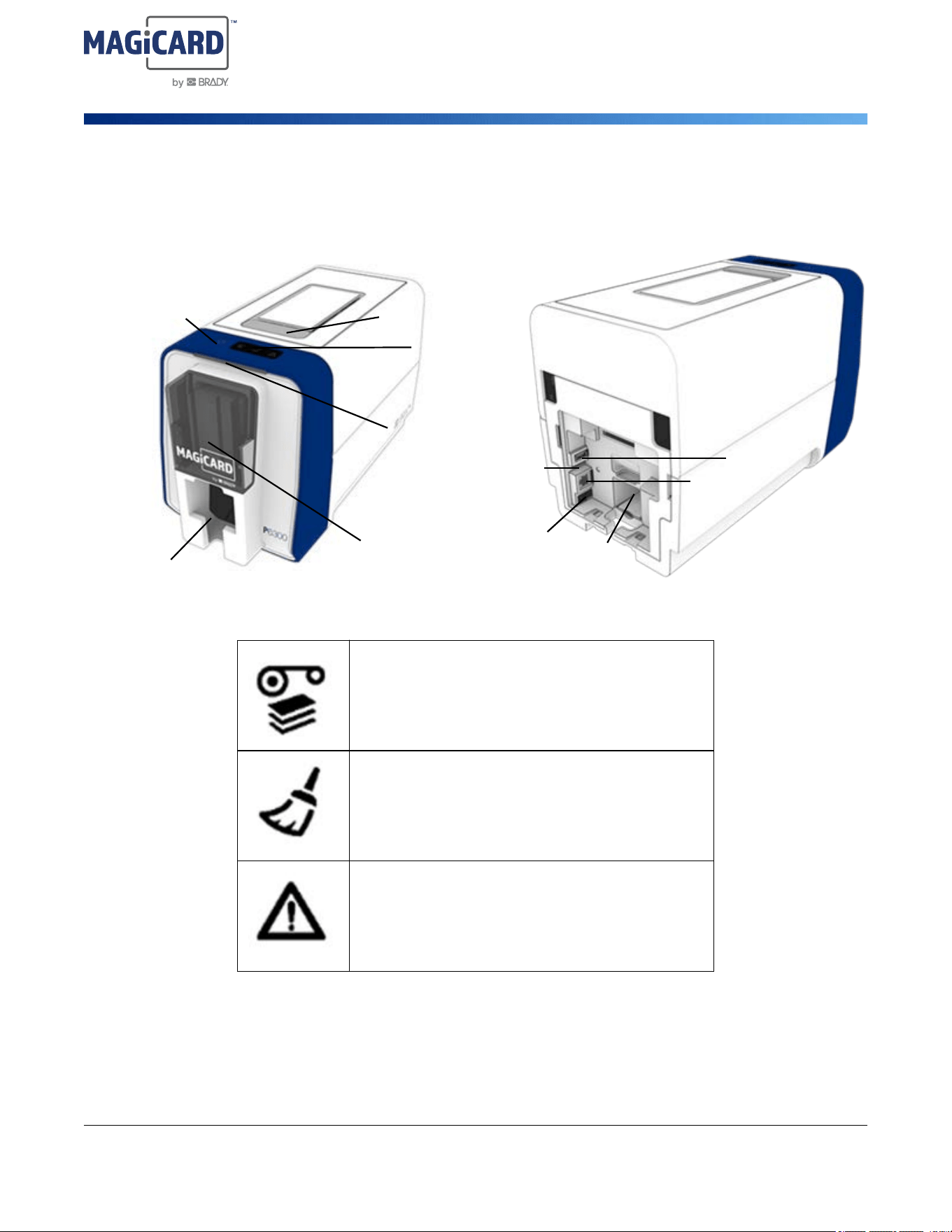
External
LED Indicators
Steady illumination when cards are out of stock or if
there is a card jam.
Flashing illumination when there is a problem with
the ribbon cartridge or ribbon spool.
Flashing illumination indicates that cleaning is
required.
Steady or flashing illumination indicates an error.
See “LED Indicators” on page 13 for additional
information.
Cover Release Latch
LED Indicators
Power Button
Input Card Tray Cover
Output Card Tray
Status Light Bar
USB-A Port
Ethernet
AC Adapter
Ferrite Holder
AC Adapter Power
USB-C Port
P6300
®
Printer User Manual 4
Setup
Printer Components
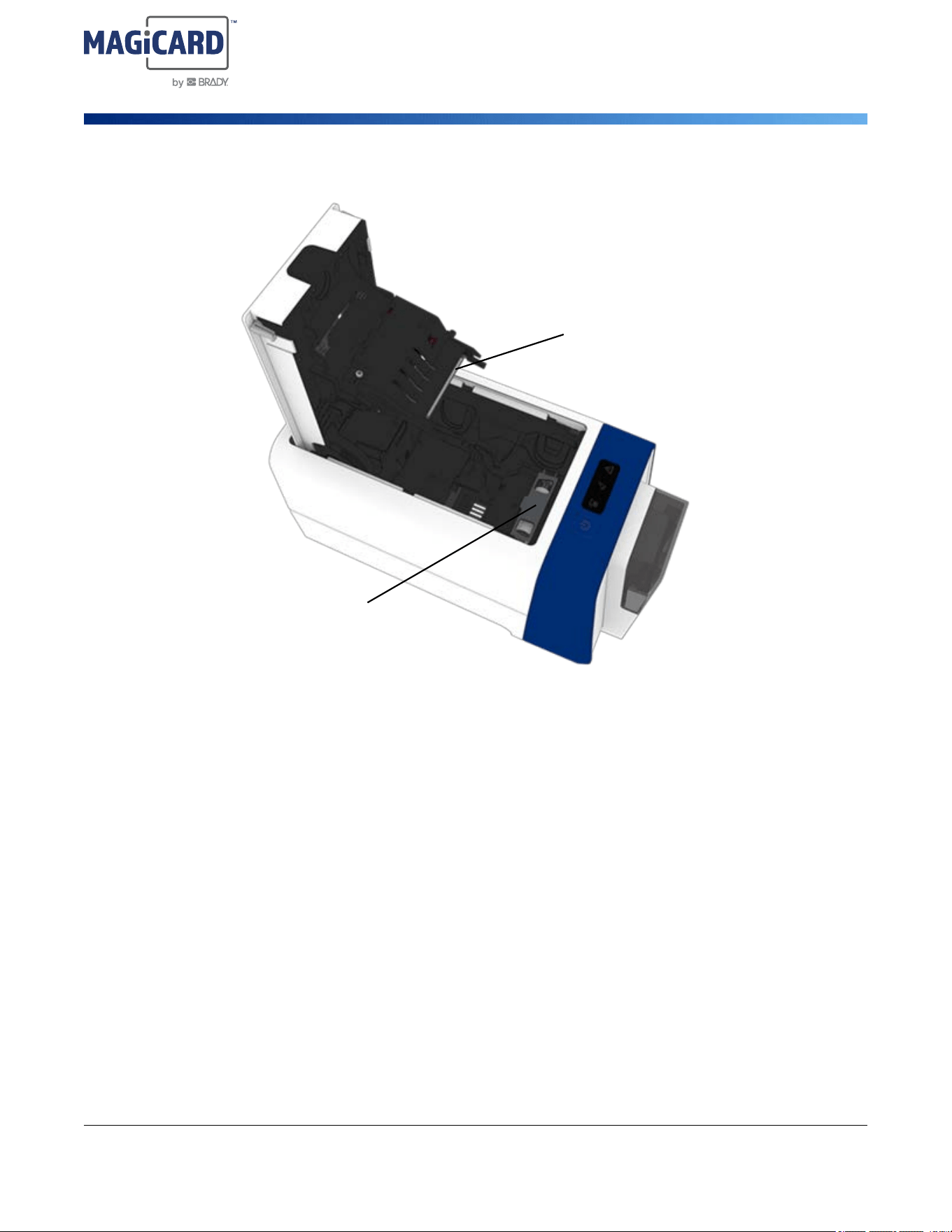
Internal
Printhead
Cleaning Roller
P6300
®
Printer User Manual 5
Setup
Power
Power
AC Power Adapter
For best results, use the AC wall adapter that came with the printer. This adapter provides 100 W.
To power on the printer:
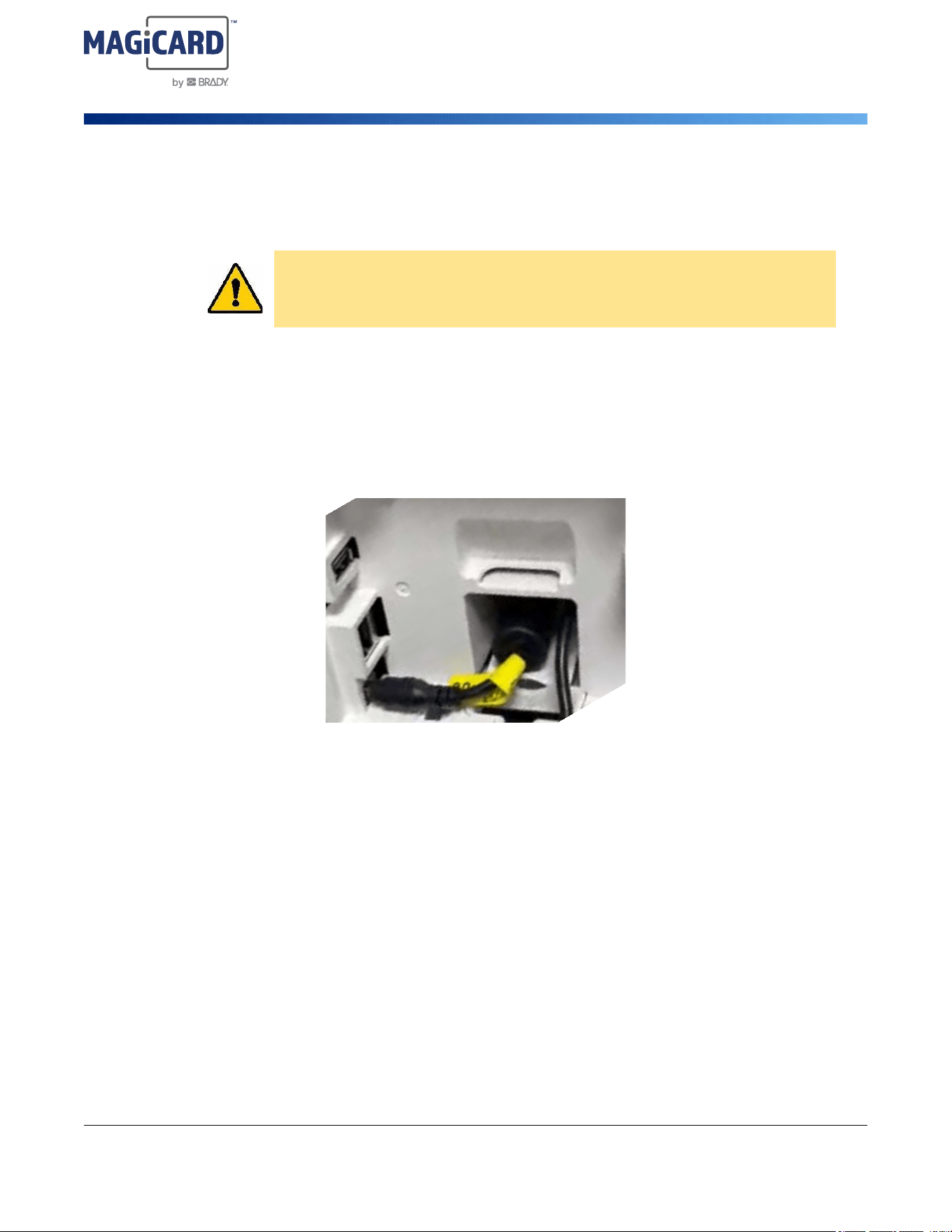
1. Insert the ferrite (cylindrical shape on the power adapter) into the holder on the back of the
printer.
2. Insert the barrel end of the adapter cable into the plug-in port on the back of the printer.
3. Plug the female end of the electrical cord into the opposite side of the adapter.
4. Plug the other end of the cord into an electrical outlet.
5. Press the power button on the top of the printer.
The printer is ready when the status light bar is a solid white.
When powering off the printer, press and hold the power button for one second.
CAUTION! Only use approved power adapters for the printer.

P6300
®
Printer User Manual 6
Setup
Connecting the Printer
Connecting the Printer
Driver Installation
If you are using Magicard HUB software, you do not need to install the printer driver.
IMPORTANT! Do not connect the USB cable from the printer to the computer prior to installing
the printer driver.
1. From your computer, go to the Magicard website: https://magicard.com
2. Select Support at the top of the page and then select your printer model.
3. The printer drivers page will display by default.
4. Select the operating system of the computer to which the printer will be attached.
5. Download the appropriate driver.
6. Follow the on-screen instructions for installing the printer driver.
Wi-Fi
IMPORTANT! If Magicard HUB is not being used, the printer driver must be installed on the
computer and the printer powered on before connecting the printer to Wi-Fi.
1. Open the device manager on the computer on which the printer driver is installed.
2. Find the P6300 printer and open up Properties.
3. Select the Network tab and click on Wi-Fi.
A network configuration window will open.
4. Click Next on the network configuration window.
5. Choose the network from the list displayed.
6. Click Advanced followed by Next.
Note: Assistance from a Network Administrator may be needed for the following steps.
7. On the Wi-Fi configuration screen, select Use static network settings.
8. Enter the Static IP address for the printer.
9. Enter the Static Net Mask (Subnet Mask).
10. Enter the Static Default gateway.
11. Enter the Primary DNS Address for the network being used.
12. Enter the password for the Wi-Fi network.
13. Click Connect.
The Establishing Connection window will display.
14. After the connection is established, click OK in the Wi-Fi configuration window.
15. In the Network Configuration Status window, click Next.
16. Click Finish to exit.

P6300
®
Printer User Manual 7
Setup
Connecting the Printer
USB
To connect to a computer via USB 2.0, plug the provided USB-C cable (for data) into the printer and
the computer. Magicard HUB software automatically detects the printer when connected via USB
cable. See “Software for Creating Cards” on page 9.
Ethernet
Note: The Ethernet cable can be connected if the optional laminator is not attached to the printer.
To set up the printer for Ethernet (network) operation, the printer will first need to be temporarily
connected via the USB port. After the printer has been setup for networking, the USB cable can be
disconnected and the network (Ethernet) cable can be connected to the printer.
1. Insert the USB cable provided into the USB port on the back of the printer and into the
computer.
2. Open the Control Panel on the computer.
3. Set the View by: option (top-right of window) to Small icons.
4. Select the Device Manager from the list.
5. Find and select the printer.
6. Right-click on the printer icon and select Printing Preferences.
This will open the Printer window.
7. Click on Printer Status.
8. Confirm the printer shows 'connected'.
9. Close the Printer Status window.
10. Right-click again on the printer icon and select Printer Properties then select the Network
tab.
11. Click the Ethernet button.
The Network configuration dialogue box should now be displayed.
12. Click the box next to Use static network settings.
13. Click OK.
14. Remove the USB cable from the printer and computer.
15. Connect the Ethernet cable into the port on the back of the printer and the other end into a
network port.
P6300
®
Printer User Manual 8
Setup
Installing or Changing Supplies
Installing or Changing Supplies
IMPORTANT! For optimal performance and to avoid damage to the printhead, only use genuine
supplies from your authorized Magicard Ltd by Brady Partner.
The printer can be either powered on or off when changing supplies.
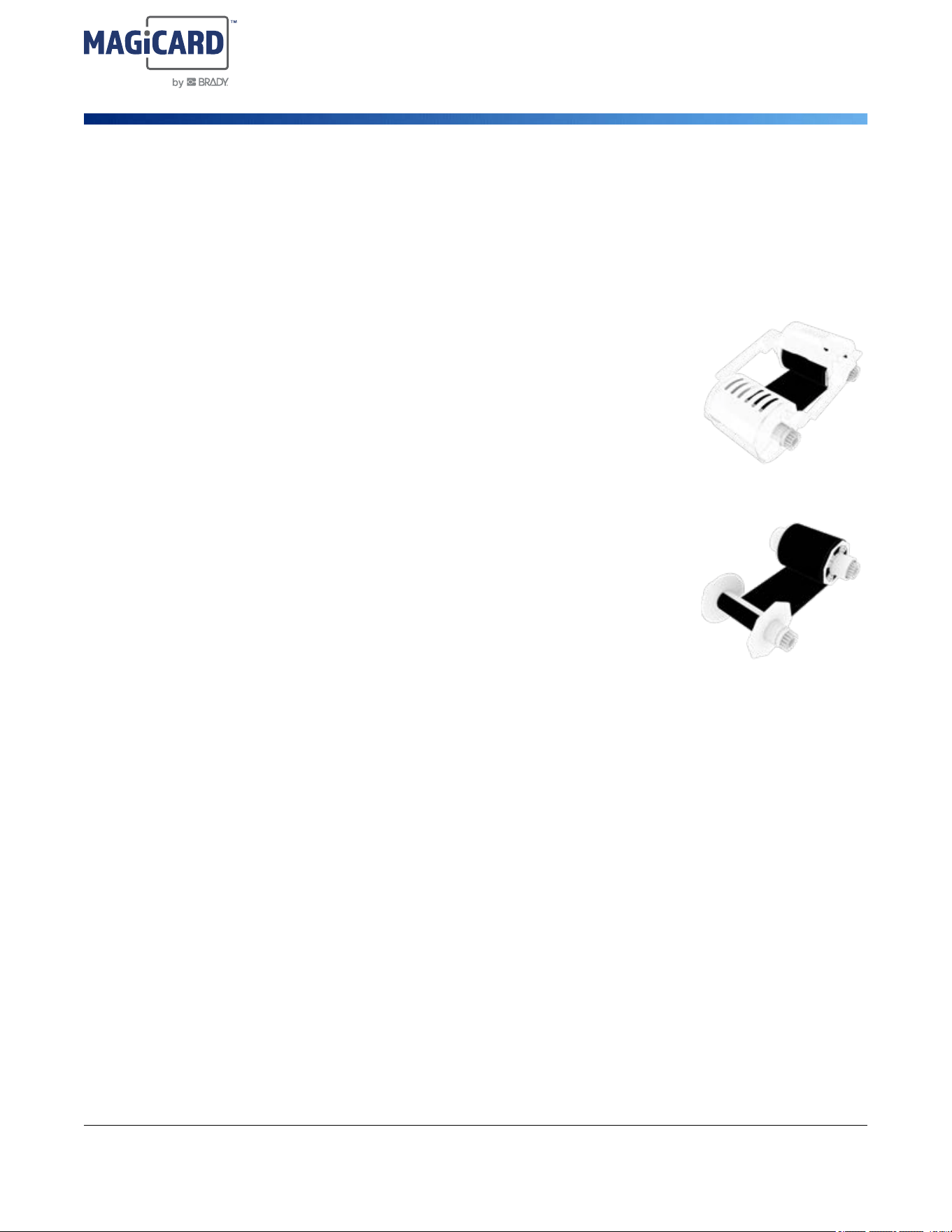
Ribbon Cartridge
1. Press the cover release latch to open the cover.
2. Position the ribbon cartridge with the ribbon on the bottom and the
word "FRONT" towards the front of the printer.
3. The cartridge will snap into place when inserted.
4. Close the cover.
Ribbon Spool
1. Press the cover release latch to open the cover.
2. Hold the spool by one knob on each spool with the film facing down.
3. Insert the spool with the least amount of film towards the back of the
printer.
4. Close the cover.
IMPORTANT! If storage of a ribbon spool is necessary, remove slack
and store upright on the spool ends in a dust free environment.
Cards
For the highest quality printing, use only PVC or laminated PVC/polyester* glossy white cards. Cards
must adhere to the following:
• Free of dirt, grease or other surface contaminants
• No pits or bumps on the surface
• No burrs along the edges
• Must be completely flat
*Best suited for heavy usage and heat lamination.
IMPORTANT! Do not touch the surface of the cards.
1. Lift the input tray cover up.
2. Hold the cards by the outer edges.
3. Insert up to 100 cards lengthwise so that they lie flat in the tray.
4. Close the tray cover.

P6300
®
Printer User Manual 9
Setup
Software for Creating Cards
Software for Creating Cards
Magicard HUB is a software platform designed to serve as a one-stop solution to install your Magicard
printer, create cards, recognize consumables and access technical support. To install Magicard HUB,
go to start.magicard.com and enter the serial number of your printer, which can be found on the
bottom of the printer.
Download and install Magicard HUB following the on-screen instructions.
P6300
®
Printer User Manual 10
Setup
Connecting the Laminator
Connecting the Laminator
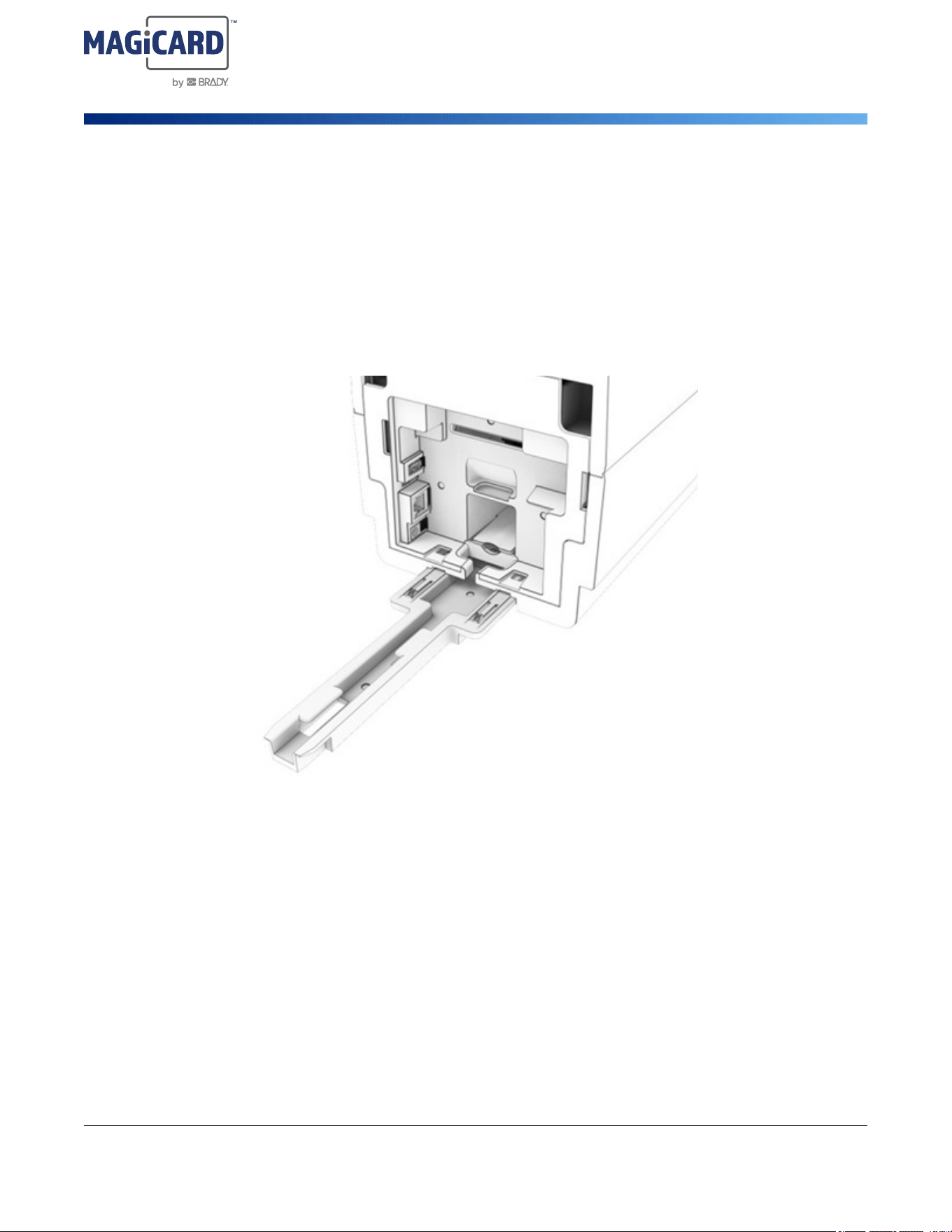
The optional laminator can be connected to the printer. For faster throughput the optional rear tray can
be fitted and the printer configured for rear ejection via the printer properties / tools menu in system
settings.
1. Plug the USB-A cable from the laminator into the back of the printer.
2. Hold the cables up while sliding the connection bracket into the rear of the printer until it clicks
into place.
3. Align the cables in the grooves.
4. Set the laminator on to the bracket and slide towards the printer until it clicks into place.
Installing Laminate
1. Press the cover release latch to open the cover on the laminator.
2. Position the laminate cartridge with the word "FRONT" towards the front of the laminator.
3. The cartridge will snap into place when inserted.
4. Close the cover.
Installing the Card Tray
The card tray presses into the back of the laminator.

P6300
®
Printer User Manual 11
Setup
Accessories
Accessories
• Laminator, which includes power cable/transformer, USB cord, connection bracket, rear card
tray, and cleaning card
• Rotation Module
• Encoder Module
• Cleaning Cards
• P6300 Cleaning Kit - 325988
• P6000 Cleaning-Kit-Laminator - 325989
P6300
®
Printer User Manual 12
3 General Operation
Status Light Bar
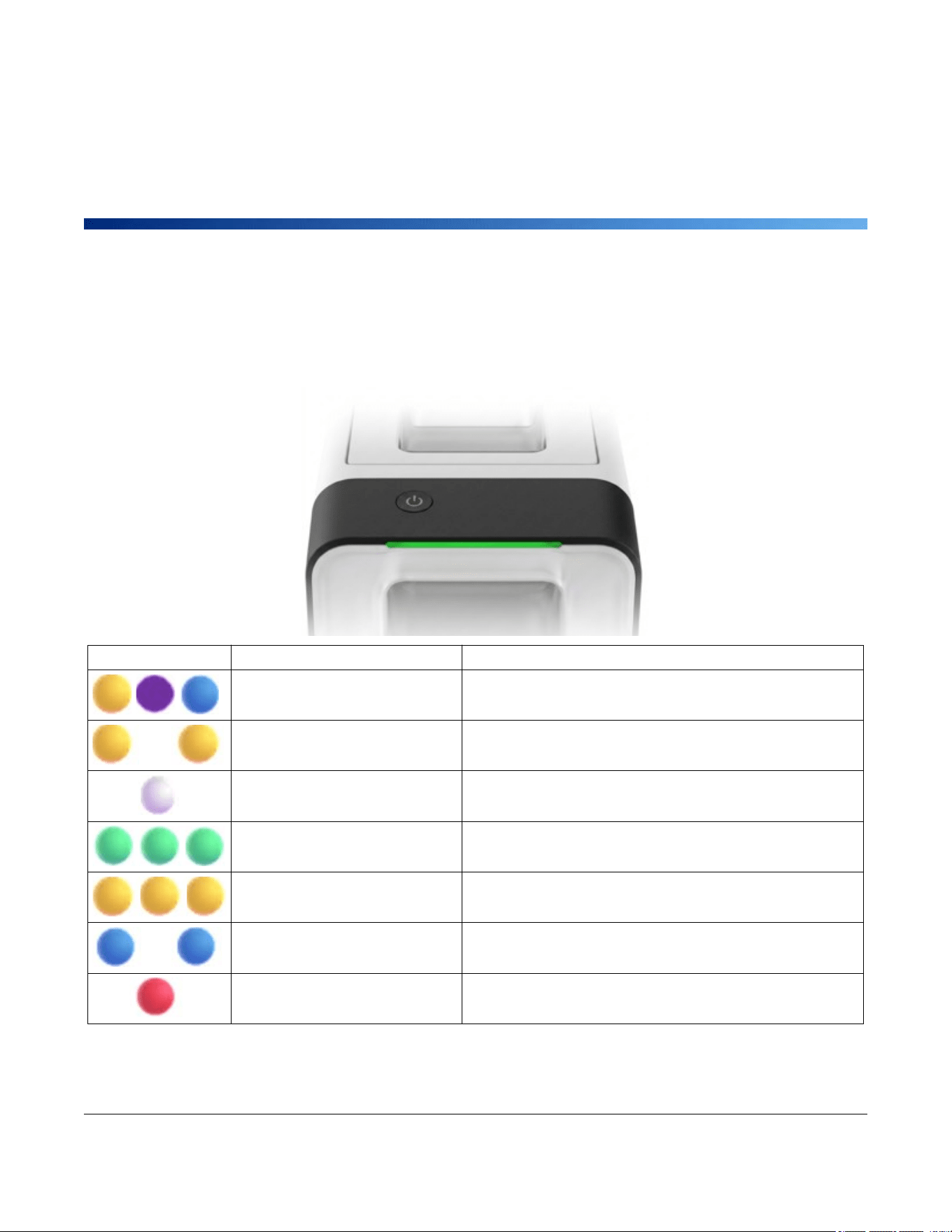
The status light bar provides printer information at a glance.
Color(s) Pattern Status
Pulse yellow, sequential flashing
yellow, pulse purple, blue
Printer is booting up.
Yellow flashing one section of
the light bar at a time.
Laminator is heating up.
Steady white. Printer is ready to print.
Green sequential flashing. Printer is actively printing, laminating, or encoding a card.
Yellow sequential flashing. Printer is initializing after the lid was opened and closed.
Flashing blue. Printer is searching for a Bluetooth connection.
Steady red. Printer or laminator is in an error state.
P6300
®
Printer User Manual 13
General Operation
LED Indicators
LED Indicators
When using Magicard HUB, any error condition will be displayed as a message in the software along
with the steps to correct. If using third party software, follow the guide below to troubleshoot.
Media LED
Steady On
If the media LED is illuminated check for these conditions:
• Blank cards are installed.
• Card is not jammed in the printer.
Flashing
• Ribbon cartridge or ribbon spool are installed.
• Ribbon cartridge or ribbon spool has not run out.
• Ribbon cartridge or ribbon spool are compatible with printer.
• Ribbon cartridge or ribbon spool are compatible with job being printed, that is a color ribbon is
installed for a color job.
Cleaning LED
Flashing - LED Only
• Cleaning roller needs to be replaced or is installed incorrectly.
Steady On LED - Flashing Power Button
• The printer is in cleaning mode, do not disturb until LEDs are no longer illuminated/flashing.

P6300
®
Printer User Manual 15
4 Maintenance
Cleaning
Perform the following cleaning routine when the ribbon cartridge or ribbon spool are replaced. This will
keep the printer running at optimal performance.
Lightly moisten a soft (non-scratching) cloth or swab with isopropyl alcohol to clean the outer case.
IMPORTANT! Never spray or pour cleaning liquid directly on the LED indicators or on the device.
Cleaning Roller Replacement
1. Press the cover release latch to open the cover.
2. Pull the gray roller holder out of the printer.
3. Pull off the cleaning roller and discard.
4. Snap the new cleaning roller into the gray roller holder.
5. Peel off the label holding the white wrapper and remove from the roller.
6. Avoid touching the sticky roller by holding the top, flat part of the holder, then put the holder
with roller into the printer and press into place.
Cleaning the Print Roller
IMPORTANT! If the cleaning card feels dry, do not use as equipment damage could occur.
1. Remove the ribbon cartridge and any cards from the printer.
2. If the laminator is attached, remove the laminate cartridge.
3. Quickly double press the power button on the printer.
4. Insert the cleaning card.
Cleaning will take 10-12 seconds.
5. When cleaning is complete, install the ribbon and cards.
Cleaning the Printhead
1. Power off the printer and disconnect the power cord from the
electrical outlet.
2. Open the cover to the printer.
3. Run the tip of the cleaning pen across the print face several times.
IMPORTANT! Once clean, do not touch the print face!
4. Clean the tip of the cleaning pen by gently rubbing it on an old (dry) cleaning card to remove
any contamination.

P6300
®
Printer User Manual 16
Maintenance
Installing Firmware Upgrades
Installing Firmware Upgrades
Upgrades to firmware (printer system software) are available online.
To upgrade firmware using Magicard HUB:
1. Connect the printer with a USB cable to a computer and open Brady Workstation Software.
2. On the Magicard HUB home screen, click the PRINTER UPDATES link on the left-side panel
and scroll to the connected printer.
3. Magicard HUB will automatically detect and display the current firmware on the connected
printer and will display a MORE ACTIONS button.
4. Click on MORE ACTIONS to see options for updating firmware for the connected printer.
If upgrades are available a yellow arrow icon will be displayed.
5. Follow prompts in Magicard HUB to update the firmware for the printer.
6. When the update is complete restart the printer.
To upgrade firmware using the printer driver:
1. Go to support.magicard.com and enter the printer’s serial number.
2. Click Find serial.
3. Click the Printer firmware heading.
4. Click the Download button next to the Magicard Firmware selection.
5. After the download completes, open the P6300 printer driver on the computer.
6. In the printer driver properties window, click on the Tools tab.
7. Click the Browse button in the Print *.PRN file section of the window.
8. Locate and select the firmware download.
9. Click Print on the printer driver properties window.
10. When the upgrade is complete restart the printer.
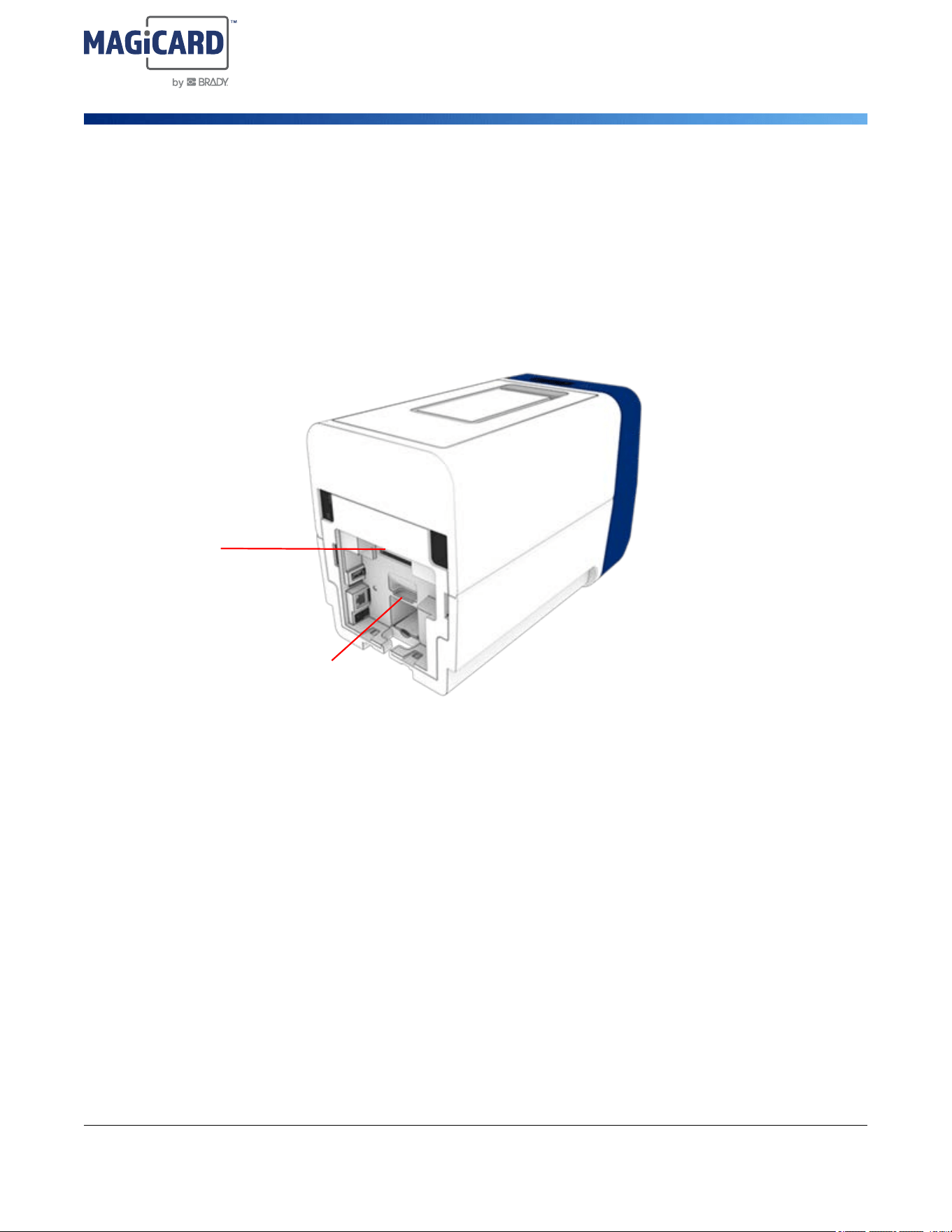
Smart Module Installation
Supports smart card programming through contact and contactless smart encoding. The module
interfaces with the printer via a modular connection.
To install the smart module:
1. Unplug the power cord from the electrical outlet.
2. Press the cover release latch and open the cover.
3. Hold the module so that the white and gold contact board is facing down.
4. Insert the module in the back of the printer and press until you hear it click into place.
5. Close the cover.
P6300
®
Printer User Manual 17
Maintenance
Rotation Module Installation
Rotation Module Installation
This module is required for printers with two-sided printing capability or for any printer that has a
laminator attached. The module rotates the card for two sided printing and lamination.
To install the rotation module:
1. Remove the power cord from the back of the printer.
2. Press down lightly on the tab while simultaneously pulling the back cover away from the
printer.
3. Hold the module with the green board facing you and slide into the printer until it clicks into
place.
4. Angle the back cover slightly to insert the bottom first, then press into place.
5. Install the power cord.
Tab
Pull Here

P6300
®
Printer User Manual 18
A Regulatory Compliance
Agency Compliance and Approvals
United States
FCC Notice
This equipment has been tested and found to comply with the limits for a Class A digital device,
pursuant to part 15 of the FCC Rules. These limits are designed to provide reasonable protection
against harmful interference when the equipment is operated in a commercial environment. This
equipment generates, uses, and can radiate radio frequency energy and, if not installed and used in
accordance with the instruction manual, may cause harmful interference to radio communications.
Operation of this equipment in a residential area may cause harmful interference in which case the
user will be required to correct the interference at his own expense.
In instances where interference is experienced, the following measures are recommended to assist in
mitigation:
• Reorient or reposition the equipment relative to the interference.
• Increase the separation distance between the equipment and the interference.
• Connect equipment to a separate power circuit than the interference if applicable.
Changes or modifications not expressly approved by the party responsible for compliance could void
the user's authority to operate the equipment.
This device complies with Part 15 of the FCC Rules. Operation is subject to the following two
conditions: (1) This device may not cause harmful interference and, (2) this device must accept any
interference received, including interference that may cause undesired operation.
RF exposure guidelines / Important note: This equipment complies with FCC SAR exemption limits
set forth for an uncontrolled environment when properly used as instructed.
RF exposure statement: The radiated output power of this device meets the limits of FCC/ISED
Canada radio frequency exposure limits. This device is not intended to be nor shall it be worn on a
person's body. This device should be operated with a minimum separation distance of 20 cm (8
inches) between the equipment and a person’s body.
Estados Unidos
Aviso de la FCC
Este equipo se puso a prueba y se confirmó que cumple con los límites para un dispositivo digital de
Clase A, conforme a la Parte 15 de las Regulaciones de la Comisión Federal de Comunicaciones
(Federal Communications Commission, FCC). Estos límites se han diseñado para proporcionar

P6300
®
Printer User Manual 19
Regulatory Compliance
Agency Compliance and Approvals
protección razonable contra interferencias perjudiciales cuando el equipo se utilice en un entorno
comercial. Este equipo genera, utiliza y puede emitir energía de radiofrecuencia y, si no se instala y se
utiliza según el manual de instrucciones, puede ocasionar interferencias perjudiciales en las
radiocomunicaciones.
El uso de este equipo en un área residencial puede causar interferencias perjudiciales, en cuyo caso
el usuario tendrá que corregir dichas interferencias por su cuenta.
En los casos donde se producen interferencias, se recomiendan las siguientes medias para ayudar a
mitigarlas:
• Volver a orientar o reposicionar el equipo para evitar la interferencia.
• Aumente la distancia de separación entre el equipo y la interferencia.
• Si es posible, conecte el equipo a un circuito eléctrico distinto al de las interferencias.
Los cambios o las modificaciones que no hayan sido aprobados expresamente por la parte
responsable del cumplimiento pueden invalidar la autorización que se le otorga al usuario para utilizar
el equipo.
Este dispositivo cumple con la Parte 15 de las Regulaciones de la FCC. El uso está sujeto a las
siguientes dos condiciones: (1) es posible que este dispositivo no provoque interferencias
perjudiciales y (2) este dispositivo debe aceptar cualquier interferencia recibida, incluso aquella que
pueda generar un uso no deseado.
Canada
Innovation, Science and Economic Development (ISED)
Canada ICES-003: Information Technology Equipment (including Digital Apparatus)
Canada NMB-003: Équipement de technologie del’information(incluant les appareils numériques)
CAN ICES-3 (A)/NMB-3(A)
P6300
®
Printer User Manual 20
Regulatory Compliance
Agency Compliance and Approvals
Europe
RoHS Directive 2011/65/EU, 2015/863/EU
This product is CE marked and complies with the European Union's Directive 2011/65/EU OF THE
EUROPEAN PARLIAMENT AND OF THE COUNCIL of 8 June 2011 on the restriction of the use of
certain hazardous substances in electrical and electronic equipment.
EU Directive 2015/863 of 31 March 2015 (RoHS 3) amends Annex II to Directive 2011/65/EU of the
European Parliament and of the Council as regards the list of restricted substances.
China 中国
China RoHS Hazardous Substance Table related to this product is available at
https://www.bradyid.com/forms/customer-service/certificate-request.
警
告
此为
A
级产品。在生活环境中,该产品可能会造成无线电干扰。在这种情况下,可能需要用户对干扰
采取切实可行的措施。
仅适用于非热带气候条件下安全使用
仅适用于海拔2000m 以下地区安全使用。
Turkey
Turkish Ministry of Environment and Forestry
(Directive on the Restriction of the use of certain hazardous substances in electrical and electronic
equipment).
Türkiye Cumhuriyeti: EEE Yönetmeliğine Uygundur
WARNING! This is a Class A product. In a domestic environment, this product
may cause radio interference in which case the user may be
required to take adequate measures.
Waste Electrical and Electronic Equipment Directive
In accordance with the European WEEE Directive, this device needs to be
recycled in accordance with local regulations.
P6300
®
Printer User Manual 21
Regulatory Compliance
Wireless Regulatory Information
Wireless Regulatory Information
Applies to the Wi-Fi module only included in printer models that support wireless communication.
Regulatory markings, subject to country certification, are applied to host printer signifying Wi-Fi
approvals have been obtained.
United States
Note: This equipment has been tested and found to comply with the limits for a Class A digital
device, pursuant to part 15 of the FCC Rules. These limits are designed to provide
reasonable protection against harmful interference when the equipment is operated in a
commercial environment. This equipment generates, uses, and can radiate radio frequency
energy and, if not installed and used in accordance with the instruction manual, may cause
harmful interference to radio communications.
Operation of this equipment in a residential area is likely to cause harmful interference in which case
the user will be required to correct the interference at their own expense.
Changes or modifications not expressly approved by the party responsible for compliance could void
the user's authority to operate the equipment.
This device complies with Part 15 of the FCC Rules. Operation is subject to the following two
conditions: (1) This device may not cause harmful interference and, (2) this device must accept any
interference received, including interference that may cause undesired operation.
Co-located statements: To comply with FCC RF exposure compliance requirement, the antenna
used for this transmitter must not be co-located or operating in conjunction with any other
transmitter/antenna except those already with radio module filing.
WARNING! Operation of the device without regulatory approval for the region
in which the equipment is being operated is illegal.
Radio protocol WLAN IEEE 802.11b/g/n
RF Operating Frequency 2.412 – 2.462 GHz
RF Output Power < +20dBm EIRP (100mW)
Antenna Type \ Antenna Gain PCB trace antenna \ 2.3 dBi
Environmental Operation -40 to 85° C (-40° to 185° F)
Note: Be mindful of the maximum operating temperatures for the
printer. See “Physical and Environmental Characteristics” on
page 1.
Environmental Storage -55 to 125° C (-67° to 257° F)
Note: Be mindful of the maximum storage temperatures for the
printer. See “Physical and Environmental Characteristics” on
page 1.

P6300
®
Printer User Manual 22
Regulatory Compliance
Wireless Regulatory Information
RF exposure guidelines / Important note: This equipment complies with FCC SAR exemption limits
set forth for an uncontrolled environment when properly used as instructed.
Mexico
CRT notice: La operación de este equipo está sujeta a las siguientes dos condiciones: (1) es posible
que este equipo o dispositivo no cause interferencia perjudicial y (2) este equipo o dispositivo debe
aceptar cualquier interferencia, incluyendo la que pueda causar su operación no deseada.
Canada
Innovation, Science and Economic Development (ISED)
CAN ICES-3 (A)/NMB-3(A)
This device contains license-exempt transmitter(s)/receiver(s) that comply with Innovation, Science
and Economic Development Canada's license-exempt RSSs. Operation is subject to the following two
conditions:
1. This device may not cause interference; and
2. This device must accept any interference, including interference that may cause undesired
operation of the device.
Le présent appareil est conforme aux CNR Innovation, Sciences et Développement économique
Canada applicables aux appareils radio exempts de licence. L’exploitation est autorisée aux deux
conditions suivantes:
1. l’appareil ne doit pas produire de brouillage;
2. l’utilisateur de l’appareil doit accepter tout brouillage radioélectrique subi, même si le
brouillage est susceptible d’en compromettre le fonctionnement.
Déclarations coimplantées : pour se conformer aux exigences de la IC relatives à la conformité à
l’exposition RF, l’antenne utilisée pour cet émetteur ne peut être coimplantée ou opérée conjointement
avec tout autre émetteur ou toute autre antenne, excepté ceux disposant déjà d’un module radio.
Directives sur l’exposition RF/ remarques importantes : cet équipement est conforme aux limites
d’exposition aux rayonnements ISED définies dans la norme RSS-102 établies pour un environnement
non contrôlé lorsqu’il est correctement utilisé selon les instructions.
European Union
This is a Class A product. In a domestic environment, this product may cause radio interference in
which case the user may be required to take adequate measures.
Radio Equipment Directive (RED) 2014/53/EU
a. Frequency band(s) in which the radio equipment operates; 2.401GHz to 2.483GHz
b. Maximum radio-frequency power transmitted in the frequency band(s) in which the radio
equipment operates; < +20dBm EIRP (100mW)
This device is a 2.4 GHz wideband transmission system (transceiver), intended for use in all EU
member states and EFTA countries, except in France and Italy where restrictive use applies.

P6300
®
Printer User Manual 23
Regulatory Compliance
Wireless Regulatory Information
In Italy the end-user should apply for a license at the national spectrum authorities in order to obtain
authorization to use the device for setting up outdoor radio links and/or for supplying public access to
telecommunications and/or network services.
This device may not be used for setting up outdoor radio links in France and in some areas the RF
output power may be limited to 10 mW EIRP in the frequency range of 2454 - 2483.5 MHz. For
detailed information the end-user should contact the national spectrum authority in France.
Country Specific Statements
български [Bulgarian] С настоящото Технология Брейди декларира, че това устройство P6300 е
в съответствие със съществените изисквания и други приложими разпоредби на Директиви
2014/53/EU
Hrvatski [Croatian] Tehnologija Brady ovim putem izjavljuje da je ovaj uređaj P6300 sukladan
osnovnim zahtjevima i ostalim bitnim odredbama Direktiva 2014/53/EU
Česky [Czech] Technologie Brady tímto prohlašuje, že tento P6300 je ve shodě se základními
požadavky a dalšími příslušnými ustanoveními směrnice 2014/53/EU.
Dansk [Danish] Undertegnede Brady teknologi erklærer herved, at følgende udstyr P6300 overholder
de væsentlige krav og øvrige relevante krav i direktiv 2014/53/EU.
Deutsch [German] Hiermit erklärt Brady-Technologie, dass sich das Gerät P6300 in Übereinstimmung
mit den grundlegenden Anforderungen und den übrigen einschlägigen Bestimmungen der Richtlinie
2014/53/EU befindet.
Eesti [Estonian] Käesolevaga kinnitab Brady tehnoloogia seadme P6300 vastavust direktiivi
2014/53/EU põhinõuetele ja nimetatud direktiivist tulenevatele teistele asjakohastele sätetele.
English Hereby, Brady Technology, declares that this P6300 is in compliance with the essential
requirements and other relevant provisions of Directive 2014/53/EU.
Español [Spanish] Por medio de la presente Tecnología Brady declara que el P6300 cumple con los
requisitos esenciales y cualesquiera otras disposiciones aplicables o exigibles de la Directiva
2014/53/EU.
Ελληνική [Greek] ΜΕ ΤΗΝ ΠΑΡΟΥΣΑ Τεχνολογία Brady ΔΗΛΩΝΕΙ ΟΤΙ P6300 ΣΥΜΜΟΡΦΩΝΕΤΑΙ
ΠΡΟΣ ΤΙΣ ΟΥΣΙΩΔΕΙΣ ΑΠΑΙΤΗΣΕΙΣ ΚΑΙ ΤΙΣ ΛΟΙΠΕΣ ΣΧΕΤΙΚΕΣ ΔΙΑΤΑΞΕΙΣ ΤΗΣ ΟΔΗΓΙΑΣ
2014/53/EU.
Français [French] Par la présente Technologie Brady déclare que l'appareil P6300 est conforme aux
exigences essentielles et aux autres dispositions pertinentes de la directive 2014/53/EU.
Íslenska [Icelandic] Hér, Brady tækni, því yfir að þetta P6300 tæki er í samræmi við grunnkröfur og
önnur viðeigandi ákvæði tilskipana 2014/53/ EU
Italiano [Italian] Con la presente Tecnologia Brady dichiara che questo P6300 è conforme ai requisiti
essenziali ed alle altre disposizioni pertinenti stabilite dalla direttiva 2014/53/EU.
Latviešu valoda [Latvian] Aršo Brady tehnoloģija deklarē, ka P6300 atbilstDirektīvas 2014/53/EU
būtiskajāmprasībām un citiemar to saistītajiemnoteikumiem.
Lietuvių kalba [Lithuanian] Šiuo Brady technologija deklaruoja, kad šis P6300 atitinka esminius
reikalavimus ir kitas 2014/53/EU Direktyvos nuostatas.
P6300
®
Printer User Manual 24
Regulatory Compliance
Wireless Regulatory Information
Nederlands [Dutch] Hierbij verklaart Brady-technologie dat het toestel P6300 in overeenstemming is
met de essentiële eisen en de andere relevante bepalingen van richtlijn 2014/53/EU.
Malti [Maltese] Hawnhekk, Teknoloġija Brady, jiddikjara li dan P6300 jikkonforma mal-ħtiġijiet
essenzjali u ma provvedimenti oħrajn relevanti li hemm fid-Dirrettiva 2014/53/EU.
Magyar [Hungarian] Alulírott, Brady technológia nyilatkozom, hogy a P6300 megfelel a vonatkozó
alapvetõ követelményeknek és az 2014/53/EU irányelv egyéb elõírásainak.
Norsk [Norwegian] Herved Brady-teknologi, erklærer at denne P6300 enheten, er i samsvar med de
grunnleggende kravene og andre relevante bestemmelser i direktivene 2014/53/EU
Polski [Polish] Niniejszym Technologia Brady'ego oświadcza, że P6300 jest zgodny z zasadniczymi
wymogami oraz pozostałymi stosownymi postanowieniami Dyrektywy 2014/53/EU.
Português [Portuguese] Tecnologia Brady declara que este P6300 está conforme com os requisitos
essenciais e outras disposições da Directiva 2014/53/EU.
Română [Romanian] Prin prezenta, Tehnologia Brady declară că acest dispozitiv P6300 este în
conformitate cu cerințele esențiale și alte prevederi relevante ale Directivelor 2014/53/EU
Slovenščina [Slovenian] Tehnologija Brady izjavlja, da je ta P6300 v skladu z bistvenimi zahtevami in
ostalimi relevantnimi določili direktive 2014/53/EU.
Slovenčina [Slovak] Technológia Brady týmtovyhlasuje, že P6300 spĺňazákladnépožiadavky a
všetkypríslušnéustanovenia Smernice 2014/53/EU.
Suomi [Finnish] Brady tekniikka vakuuttaa täten että P6300 tyyppinen laite on direktiivin 2014/53/EU
oleellisten vaatimusten ja sitä koskevien direktiivin muiden ehtojen mukainen.
Svenska [Swedish] Härmed intygar Brady-teknik att denna P6300 står I överensstämmelse med de
väsentliga egenskapskrav och övriga relevanta bestämmelser som framgår av direktiv 2014/53/EU
Japan 日本
MIC \ TELEC: XXX-XXXXXX
MIC \ TELEC: XXX-XXXXXX
Oman
South Africa
Israel
It is prohibited to perform operations on the device that could change the wireless feature of the
device, including software changes, replacement of an original antenna or adding the option of
TA-XXXX/XX

P6300
®
Printer User Manual 25
Regulatory Compliance
Wireless Regulatory Information
connecting to an external antenna, without obtaining approval from the Ministry of Communications,
due to the fear of wireless interference.
The device is prohibited to operate outside the building, due to the possibility of wireless interference.
International
The Wi-Fi, radio module used in Magicard by Brady host printers comply with internationally
recognized standards covering human exposure to electromagnetic fields, i.e. EN 62311 "Assessment
of electronic and electrical equipment related to human exposure restrictions for electromagnetic fields
(0 Hz - 300 GHz)".