BEACN
HEADSET
USER MANUAL
CONTENTS
03 3
04 5
05 10
06 17
07 22
08 24
09 27
10 33
11 39
12 42
13 50
14 56
WHAT
’
S IN THE BOX
GET TO KNOW YOUR HEADSET
GETTING STARTED
CONTROLS REFERENCE
STATUS LIGHTS
BATTERY AND CHARGING
WEARING AND CARE
TROUBLESHOOTING
SPECIFICATIONS
SAFETY AND HANDLING
REGULATORY AND COMPLIANCE
INFORMATION
SUPPORT
BEACN HEADSET
03
·
IN THE BOX
—
3
—
03
WHAT
’
S IN THE BOX
BEACN HEADSET
03
·
IN THE BOX
—
4
—
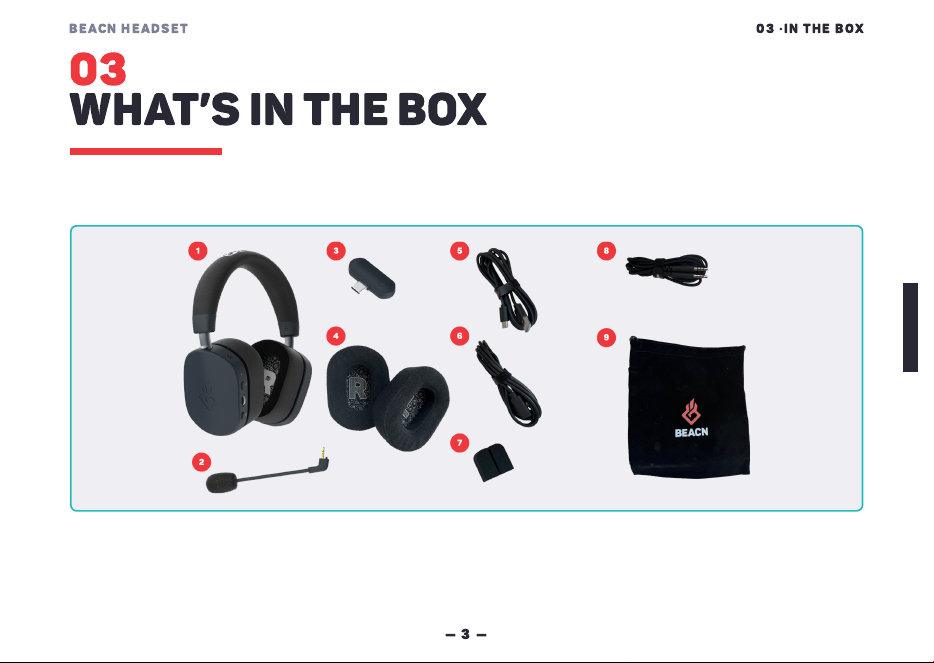
1
BEACN HEADSET
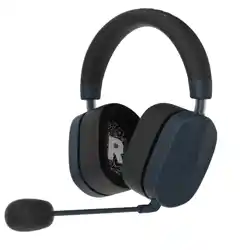
BEACN Headset, with the leatherette pads on.
2
BOOM MICROPHONE
Detachable boom mic. It plugs into the four-pole
socket on the left ear cup, keyed so it only seats
one way.
3
WIRELESS DONGLE
Plugs into your computer and carries the 2.4GHz
wireless link. Game audio and chat audio both run
over it. Your headset and dongle are already
paired to each other.
4
EAR PAD SETS
(
LEATHERETTE AND
FABRIC
)
Two sets of gel-cooled pads. Leatherette isolates
more. Fabric feels more open.
5
USB
-
A TO USB
-
C CABLE
Charges BEACN Headset, and carries 24-bit audio
when you plug it straight into a computer.
6
USB
-
C EXTENSION CABLE
Use it to move the dongle off the back of your
computer and out where you can see it. The
dongle is USB-C, so the extension takes it straight
off a USB-C port.
7
ADHESIVE DONGLE HOLDER
Sticks to your desk or your monitor and holds the
dongle out in the open instead of behind your
machine.
8
3.5
mm STEREO CABLE
Connects BEACN Headset to a phone, a controller,
or anything else with a headphone jack. One four-
pole cable carries stereo audio and the mic.
9
MICROFIBER SUEDE CARRY BAG
Holds BEACN Headset, the dongle and the spare
pads when you travel.
BEACN HEADSET
04
·
GET TO KNOW IT
—
5
—
04
GET TO KNOW
YOUR HEADSET
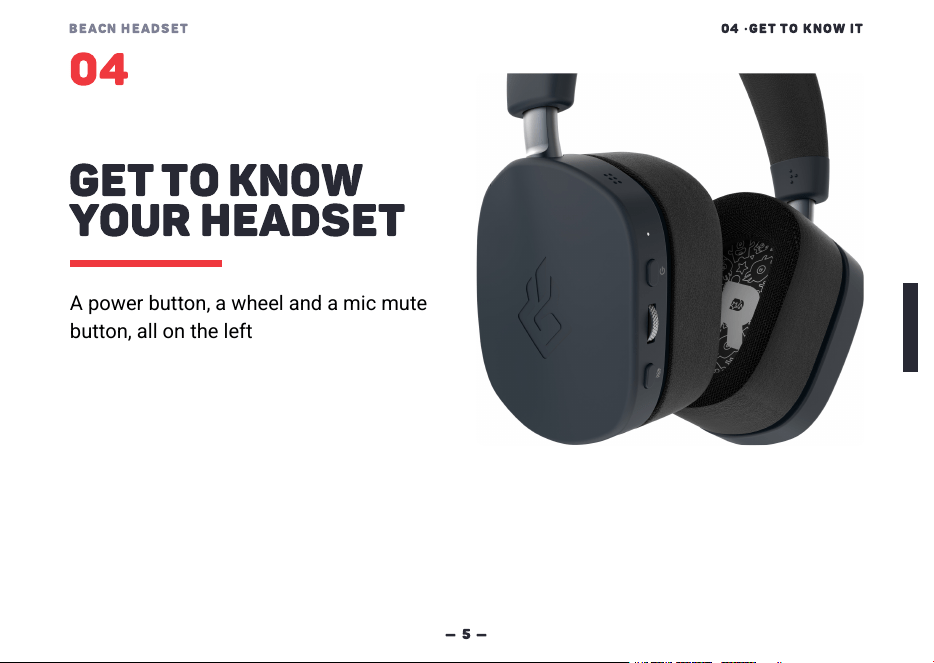
A power button, a wheel and a mic mute
button, all on the left ear cup, run
everything on BEACN Headset.
BEACN HEADSET
04
·
GET TO KNOW IT
—
6
—
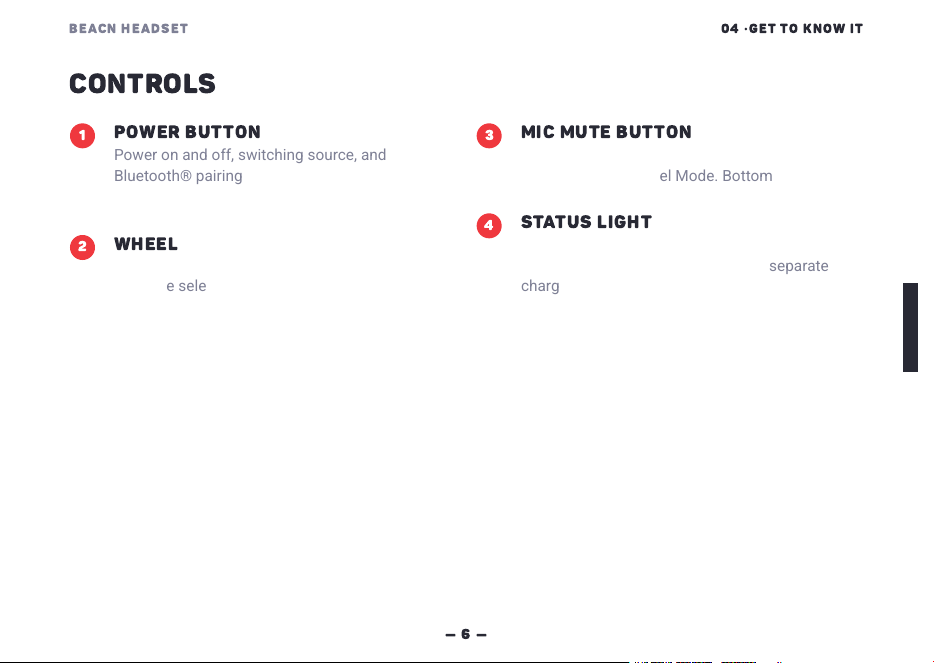
CONTROLS
1
POWER BUTTON
Power on and off, switching source, and
Bluetooth® pairing. Top of the three, with the
status light just above it.
2
WHEEL
Scroll it to set volume, or the amount of whatever
you have selected in Wheel Mode. It only scrolls -
there is nothing to press.
3
MIC MUTE BUTTON
Mute and unmute the mic, play, pause, skip a
track, and open Wheel Mode. Bottom of the three.
4
STATUS LIGHT
The one status light on BEACN Headset, just
above the power button. There is no separate
charge light.
BEACN HEADSET
04
·
GET TO KNOW IT
—
7
—
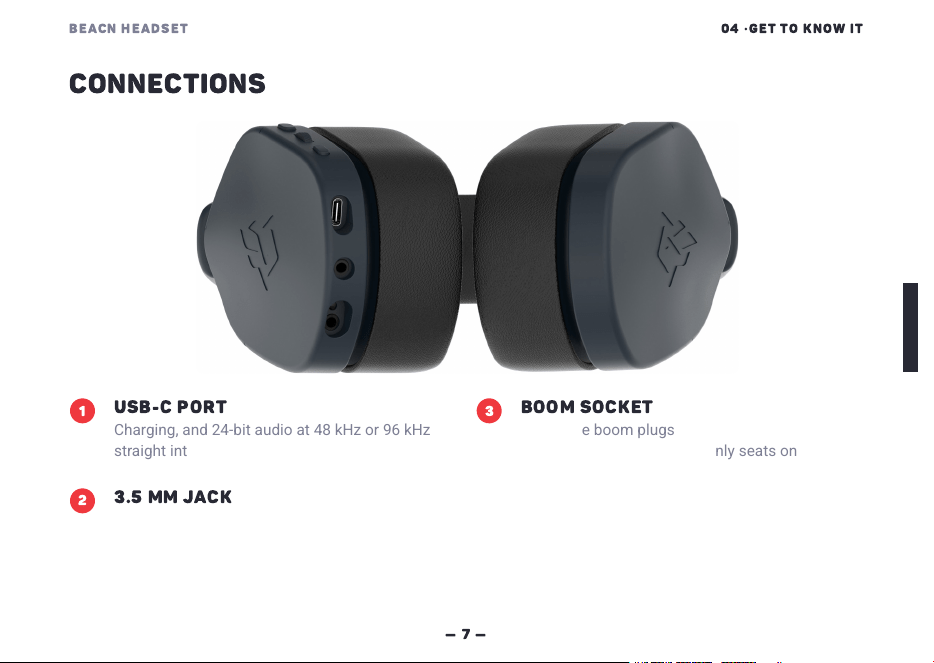
CONNECTIONS
1
USB
-
C PORT
Charging, and 24-bit audio at 48kHz or 96kHz
straight into a computer.
2
3.5
mm JACK
Analog audio in and mic out on one four-pole jack.
3
BOOM SOCKET
Where the boom plugs in. A 3.5mm four-pole
socket, keyed so the boom only seats one way.
BEACN HEADSET
04
·
GET TO KNOW IT
—
8
—
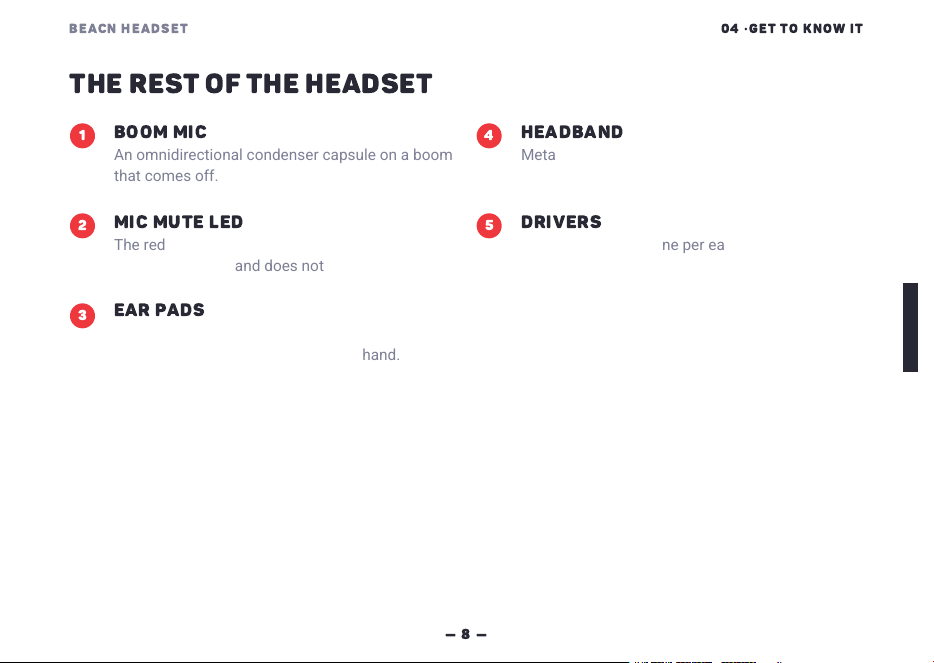
THE REST OF THE HEADSET
1
BOOM MIC
An omnidirectional condenser capsule on a boom
that comes off.
2
MIC MUTE LED
The red light on the boom. It shows solid red while
the mic is muted, and does nothing else.
3
EAR PADS
Both pad sets fit the same cups. They press on
with clips, so you can swap them by hand.
4
HEADBAND
Metal-reinforced, with high-tension arms that hold
where you set them.
5
DRIVERS
50mm silk drivers, one per ear, with their own EQ
curve each in the BEACN App.
BEACN HEADSET
04
·
GET TO KNOW IT
—
9
—
WIRELESS DONGLE
1
USB CONNECTOR
Plugs into a USB-C port on your computer. The
connector sits at a right angle so the dongle lies
flat.
2
STATUS LIGHT
Purple, in the three states below.
SOLID PURPLE
Connected to BEACN Headset and streaming audio.
SLOW FLASHING PURPLE
Connected to BEACN Headset, but not streaming audio.
FAST FLASHING PURPLE
Pairing mode. The dongle is looking for BEACN Headset.
BEACN HEADSET
05
·
GETTING STARTED
—
10
—
05
GETTING STARTED
In this section we'll get BEACN Headset charged and connected.
There are two sources the power button steps between:
ULL Wireless
Bluetooth
USB and the 3.5mm cable are separate paths and aren't part of
that rotation.
BEACN HEADSET
05
·
GETTING STARTED
—
11
—
5.1
CHARGE IT
BEACN Headset charges over the same USB-C port it uses for audio. Give it
a full charge before your first long session. With BEACN Headset turned on,
a short press of the power button announces the battery level.
1
Plug the USB-C end of the USB cable into the USB-C port on BEACN Headset.
2
Plug the USB-A end of the USB cable into your computer or a USB charger.
3
With BEACN Headset off, check the status light above the power button. It flashes red while
charging and goes green when the battery is full.
BEACN HEADSET
05
·
GETTING STARTED
—
12
—
5.2
CONNECT WITH THE WIRELESS DONGLE
The dongle and USB-C are the two main ways into your computer, and the
dongle is the one most people use. It's already paired to BEACN Headset,
so there's nothing to set up: plug it in and you're wireless.
1
Plug the dongle into a USB port on your computer. The extension cable and the adhesive holder
are handy if the port is hard to get at.
2
Hold the power button for three seconds, then let go.
3
Wait for "Wireless connected" in your ears to confirm that BEACN Headset has found the dongle.
4
If the status light is not purple, press the power button twice until it is.
REACH FOR THE DONGLE WHEN YOU WANT TO
Get up mid-session without unplugging anything
Keep one more cable off your desk
Play games on the ultra-low-latency wireless link
Sit further from your computer than a cable would reach
BEACN HEADSET
05
·
GETTING STARTED
—
13
—
5.3
CONNECT WITH USB
-
C
USB-C is the other main connection. The mic runs at its highest resolution
here, 24-bit at 48kHz or 96kHz, and BEACN Headset charges the whole
time you're plugged in. The status light shows white while you're on USB.
1
Plug the USB-C end of the USB cable into the USB-C port on BEACN Headset.
2
Plug the USB-A end of the USB cable into your computer.
3
In Windows, set Headphones (BEACN Headset) as your default playback device and set
Microphone (BEACN Headset) as your default recording device.
REACH FOR USB
-
C WHEN YOU WANT TO
Record or stream with the mic at full resolution
Charge and listen at once, so a long session never runs the battery down
Carry one cable and no dongle to keep track of
Settle in at a desk where you're staying put anyway
BEACN HEADSET
05
·
GETTING STARTED
—
14
—
5.4
CONNECT WITH BLUETOOTH
Bluetooth is for everything that isn't your main computer: your phone, a
tablet, a TV, or a media box like a Roku or an NVIDIA Shield. BEACN
Headset holds two Bluetooth connections at the same time, and a second
incoming call doesn't cut off the first.
1
Start with BEACN Headset powered off. Bluetooth pairing runs from off, not from on.
2
Hold the power button for five seconds to start pairing. The status light fast-flashes blue.
3
On your phone, open the Bluetooth settings and pick BEACN Headset from the list. On Windows
11 it also turns up as a Swift Pair notification while it is discoverable.
4
Wait for the connected prompt to confirm it is paired.
IMPORTANT NOTE
Bluetooth audio plays at the same time as your other sources. With the 3.5mm cable in, or with
USB connected, you hear both together.
BEACN HEADSET
05
·
GETTING STARTED
—
15
—
5.5
CONNECT WITH THE
3.5
mm CABLE
The 3.5mm cable works with anything that has a headphone jack, and a
game controller is where most people use it. PlayStation takes the dongle
or a USB-C cable directly, and that's the better option there. Xbox takes
neither, so the 3.5mm cable into the controller is how you get mic and
audio both ways on Xbox.
Pressing the power button won't switch to the cable and won't switch away
from it - the cable just works whenever it's plugged in. All three controls
keep working while you listen this way.
1
Plug one end of the 3.5mm cable into the jack on BEACN Headset.
2
Plug the other end into the device you want to listen to.
BEACN HEADSET
05
·
GETTING STARTED
—
16
—
5.6
UNLOCK MORE WITH THE BEACN APP
BEACN Headset works out of the box with no software at all. The BEACN
App is where you go for more: the full mic chain, headphone EQ, mic
monitor, and app-by-app mixing if you make content. It's a free download.
1
Head to beacn.com/pages/downloads and download the BEACN App for Windows. It needs
Windows 11, an Intel or AMD CPU, and a supported BEACN product.
2
Run the installer and follow the prompts.
3
Open the BEACN App and pick BEACN Headset.
BEACN HEADSET
06
·
CONTROLS
—
17
—
06
CONTROLS REFERENCE
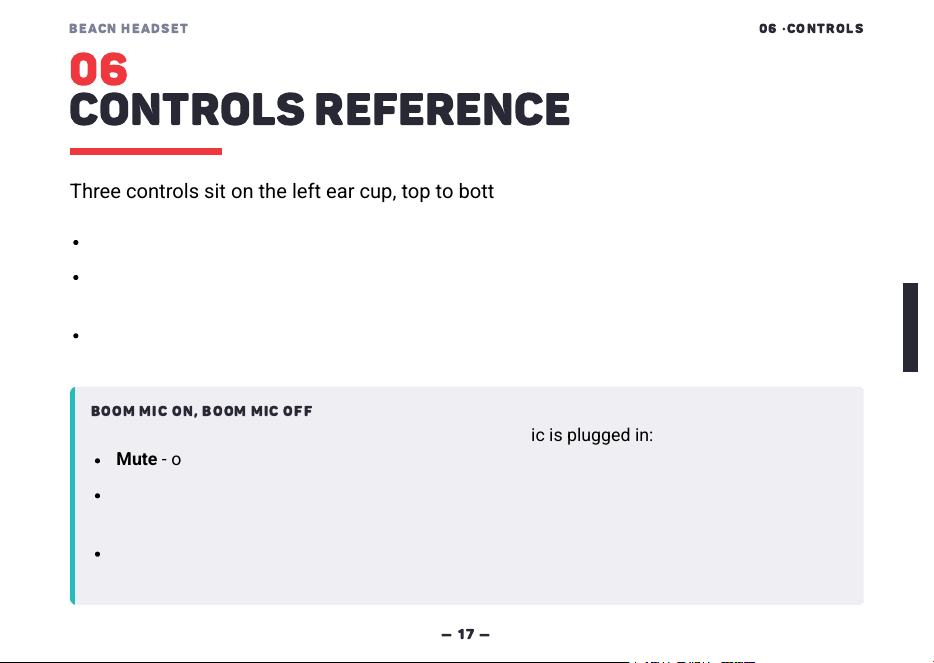
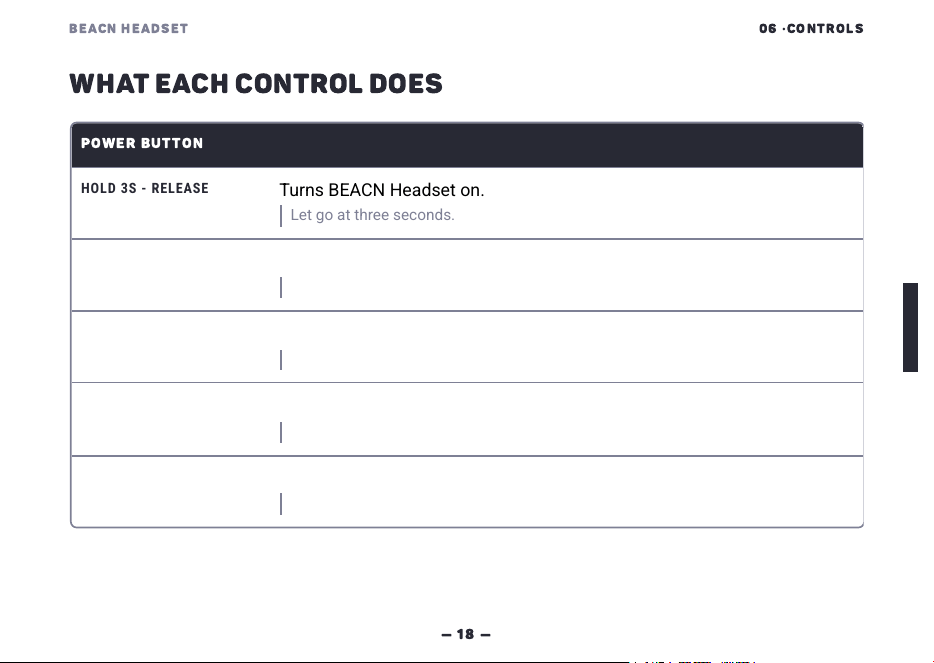
Three controls sit on the left ear cup, top to bottom:
Power Button - power, source, battery level and Bluetooth pairing.
Wheel - scrolls only. It sets volume, or the amount of whatever you have
selected in Wheel Mode.
Mic Mute Button - mute, media, and Wheel Mode.
BOOM MIC ON
,
BOOM MIC OFF
Three things change depending on whether the boom mic is plugged in:
Mute - only exists with the boom on.
Media controls - what each press does changes slightly depending on whether the boom is
connected. Both sets are listed in full over the next few pages.
Mic Monitor - only appears in the Wheel Mode list with the boom on.
BEACN HEADSET
06
·
CONTROLS
—
18
—
WHAT EACH CONTROL DOES
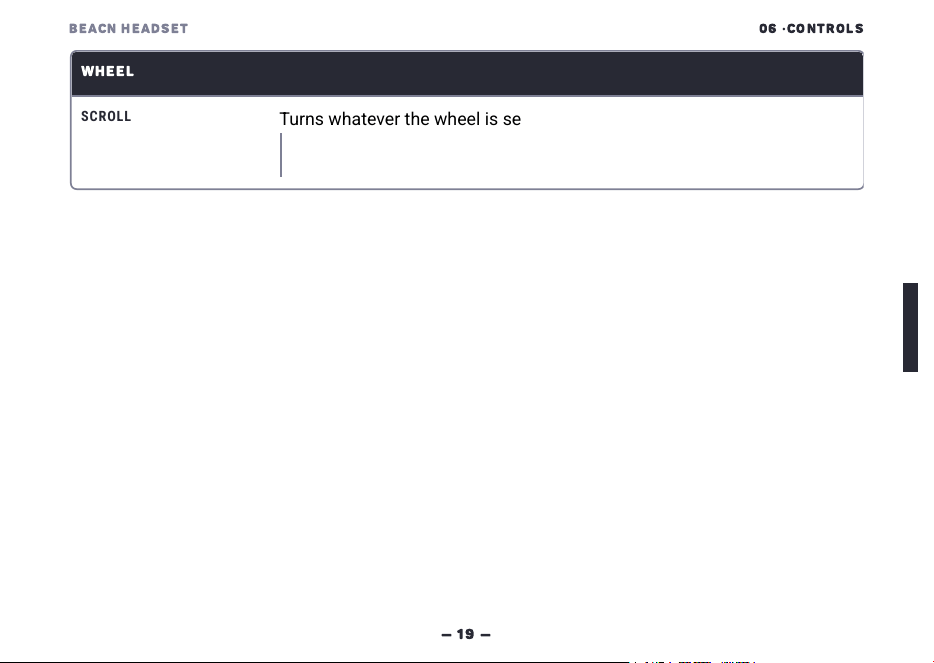
POWER BUTTON
HOLD 3S - RELEASE
Turns BEACN Headset on.
Let go at three seconds. Only works from off.
HOLD 3S
Turns BEACN Headset off.
Keep holding. Only works from on.
PRESS
Announces the battery level.
Only works from on. A short press, not a hold.
PRESS 2X
Steps between ULL Wireless and Bluetooth.
The status light above the power button changes colour with it.
OFF - HOLD 5S
Starts Bluetooth pairing.
Start from powered off, not from on. The status light fast-flashes blue.
BEACN HEADSET
06
·
CONTROLS
—
19
—
WHEEL
SCROLL
Turns whatever the wheel is set to up or down.
Volume until you change it in Wheel Mode. You hear a tone at minimum and at
maximum. The wheel only scrolls - it does not press.
BEACN HEADSET
06
·
CONTROLS
—
20
—
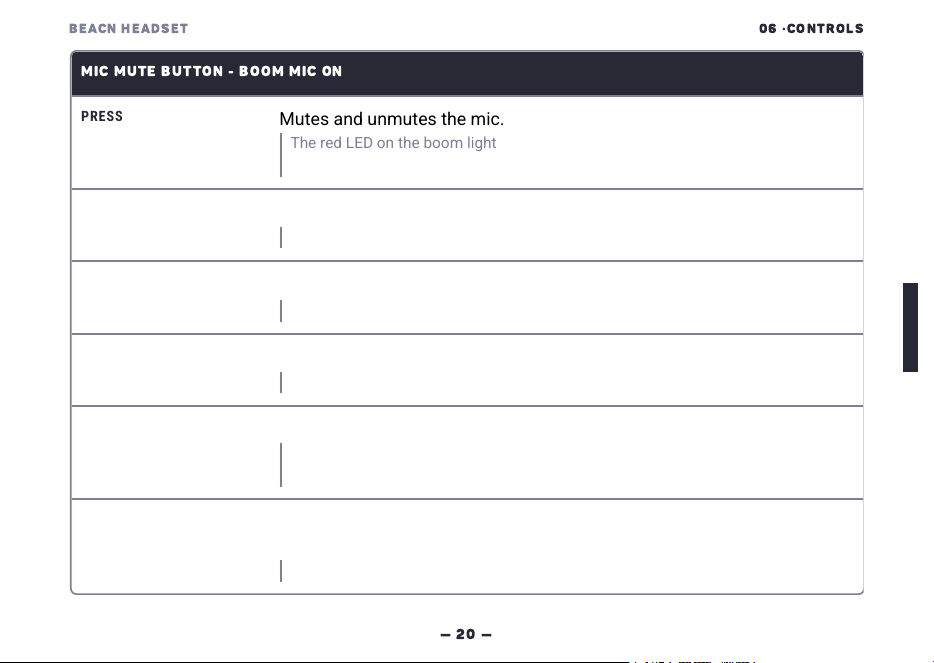
MIC MUTE BUTTON
-
BOOM MIC ON
PRESS
Mutes and unmutes the mic.
The red LED on the boom lights while you are muted. If a call is coming in, the
same press answers it instead.
PRESS 2X
Plays or pauses.
Works on whatever source you're on.
PRESS 3X
Skips forward a track.
Works on whatever source you're on.
PRESS 4X
Skips back a track.
Works on whatever source you're on.
HOLD 2S
Opens Wheel Mode, where you choose what the wheel adjusts.
You hear "Wheel Mode, Volume". While you're on a call, the same hold ends or
rejects the call instead.
PRESS - IN WHEEL MODE
Steps to the next thing the wheel adjusts: Volume, Subwoofer, Chat Mix,
Mic Monitor.
In Wheel Mode. Scroll the wheel to set the amount.
BEACN HEADSET
06
·
CONTROLS
—
21
—
MIC MUTE BUTTON
-
BOOM MIC OFF
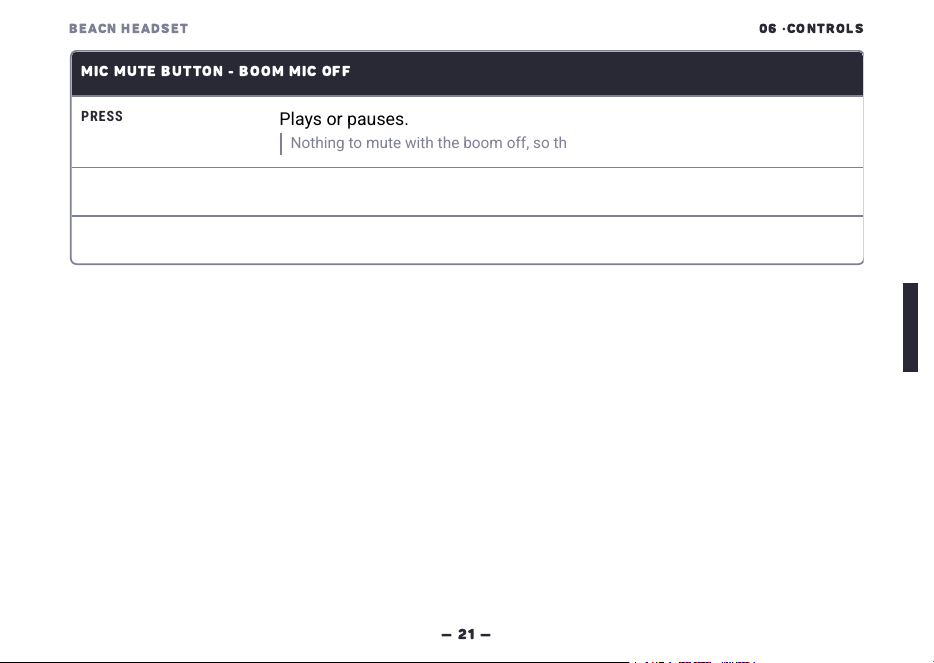
PRESS
Plays or pauses.
Nothing to mute with the boom off, so the whole ladder moves up one press.
PRESS 2X
Skips forward a track.
PRESS 3X
Skips back a track.
Every one of these works on its own, with no software running. The BEACN
App is what adds the full mic chain, headphone EQ, mic monitor and app-
by-app mixing on top - see Getting Started.
BEACN HEADSET
07
·
STATUS LIGHTS
—
22
—
07
STATUS LIGHTS
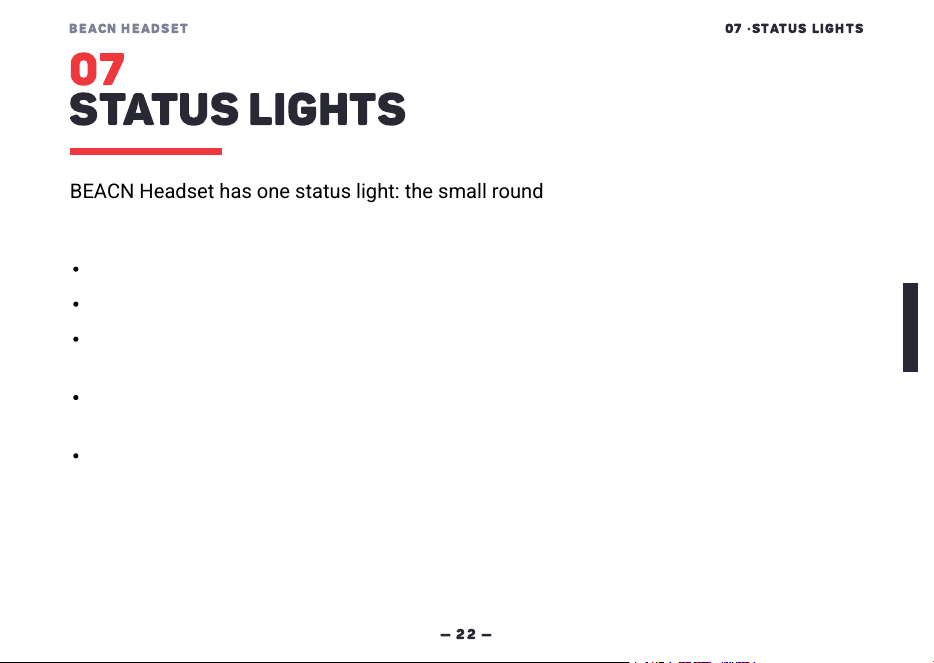
BEACN Headset has one status light: the small round indicator
above the power button.
Its colour tells you which source you're on.
It turns red when the battery gets low.
The two charge states below only show while BEACN Headset is off
AND plugged in. Off with nothing plugged in, the light stays dark.
Powered on, the light keeps showing the source you're on, even while it
charges.
The red light on the boom isn't a status light. It only shows when the
mic is muted.
BEACN HEADSET
07
·
STATUS LIGHTS
—
23
—
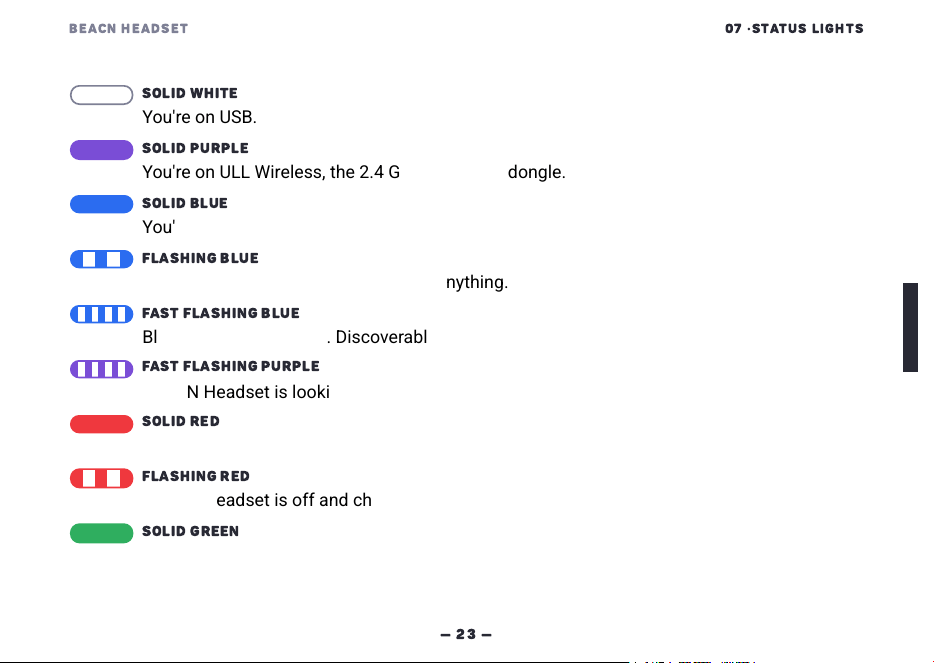
SOLID WHITE
You're on USB.
SOLID PURPLE
You're on ULL Wireless, the 2.4GHz link to the dongle.
SOLID BLUE
You're on Bluetooth.
FLASHING BLUE
Bluetooth is on, but not connected to anything.
FAST FLASHING BLUE
Bluetooth pairing mode. Discoverable and waiting for a device to pair with it.
FAST FLASHING PURPLE
BEACN Headset is looking for the dongle. The dongle's light does the same.
SOLID RED
The battery is low.
FLASHING RED
BEACN Headset is off and charging.
SOLID GREEN
BEACN Headset is off, plugged in, and fully charged.
BEACN HEADSET
08
·
BATTERY
—
24
—
08
BATTERY AND CHARGING
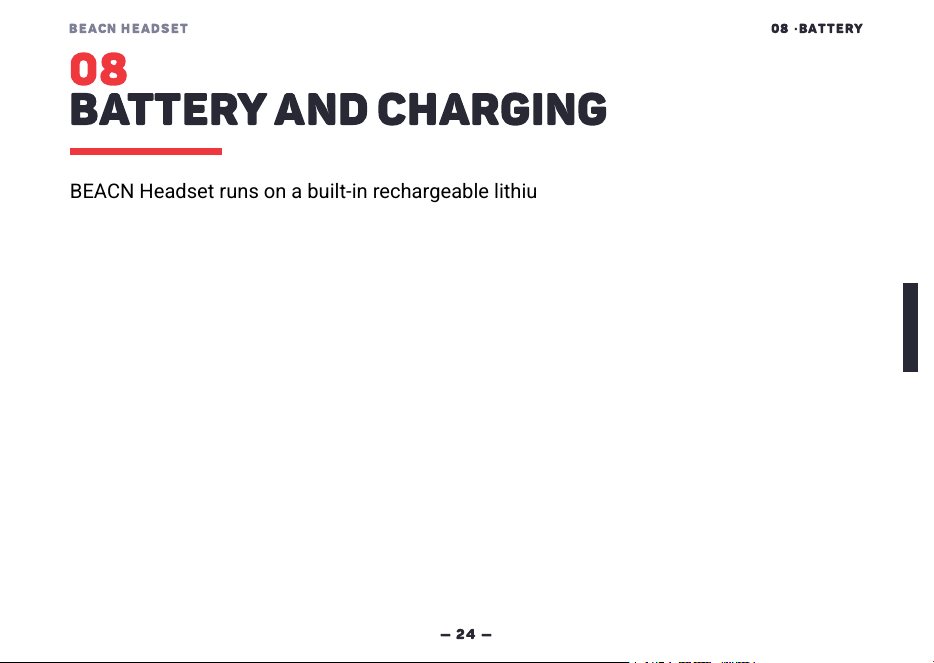
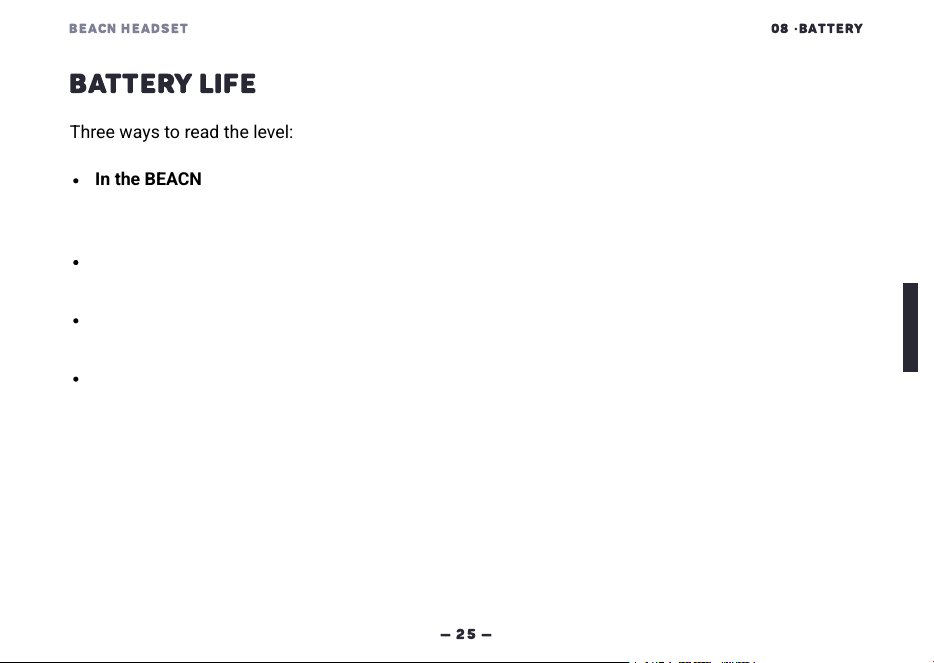
BEACN Headset runs on a built-in rechargeable lithium-ion battery
and charges over USB-C.
BEACN HEADSET
08
·
BATTERY
—
25
—
BATTERY LIFE
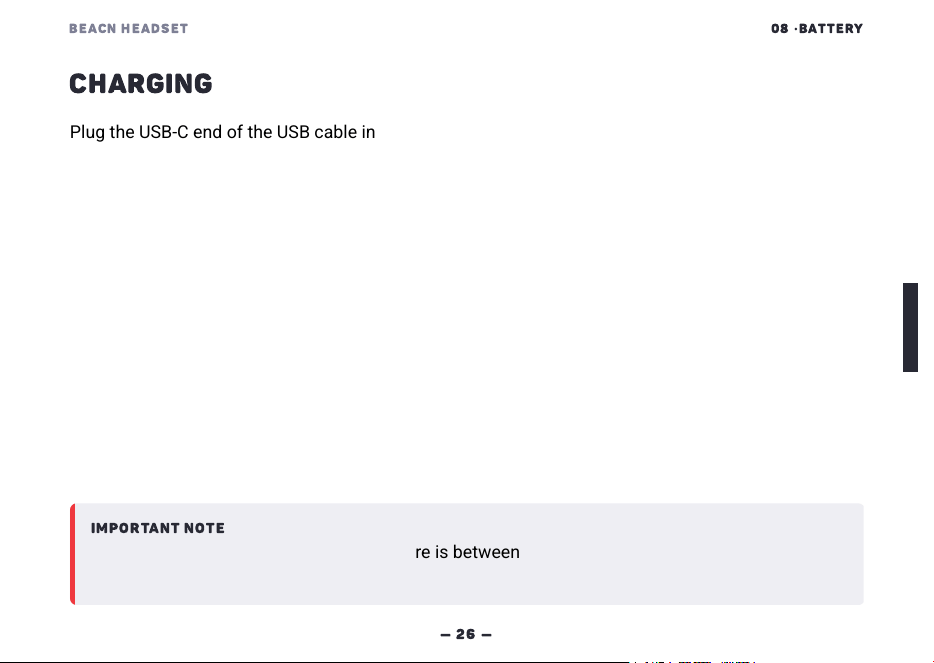
Three ways to read the level:
In the BEACN App - open Settings for BEACN Headset and look for the
battery line. It reads "Battery: 60%", and picks up a "(charging)" on the
end while it's charging. The level moves in steps of ten.
On the headset - press the power button once and BEACN Headset
speaks the level.
In your ears - BEACN Headset warns you when the battery is low, warns
you again when it's critical, and shuts down after that.
On the status light - it turns red when the battery is low.
BEACN HEADSET
08
·
BATTERY
—
26
—
CHARGING
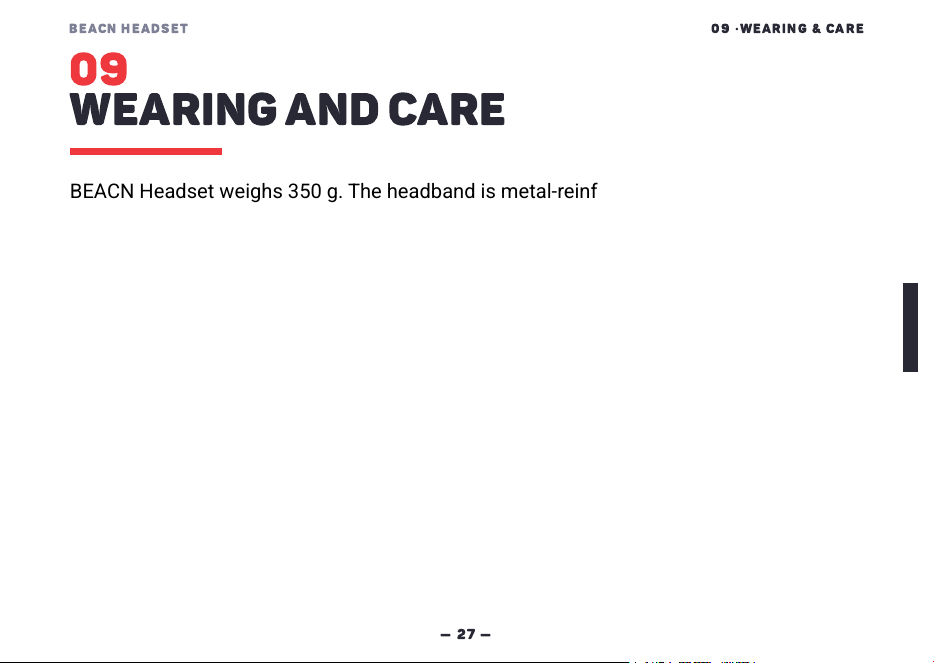
Plug the USB-C end of the USB cable into the USB-C port on BEACN
Headset and the USB-A end into your computer or a USB charger. BEACN
Headset charges from a 5 V DC supply, so any standard USB charger will
do.
You can keep using BEACN Headset while it charges.
IMPORTANT NOTE
Charge only when the ambient temperature is between 0°C (32°F) and 45°C (113°F). Charging
outside this range reduces battery life and may be unsafe.
BEACN HEADSET
09
·
WEARING
&
CARE
—
27
—
09
WEARING AND CARE
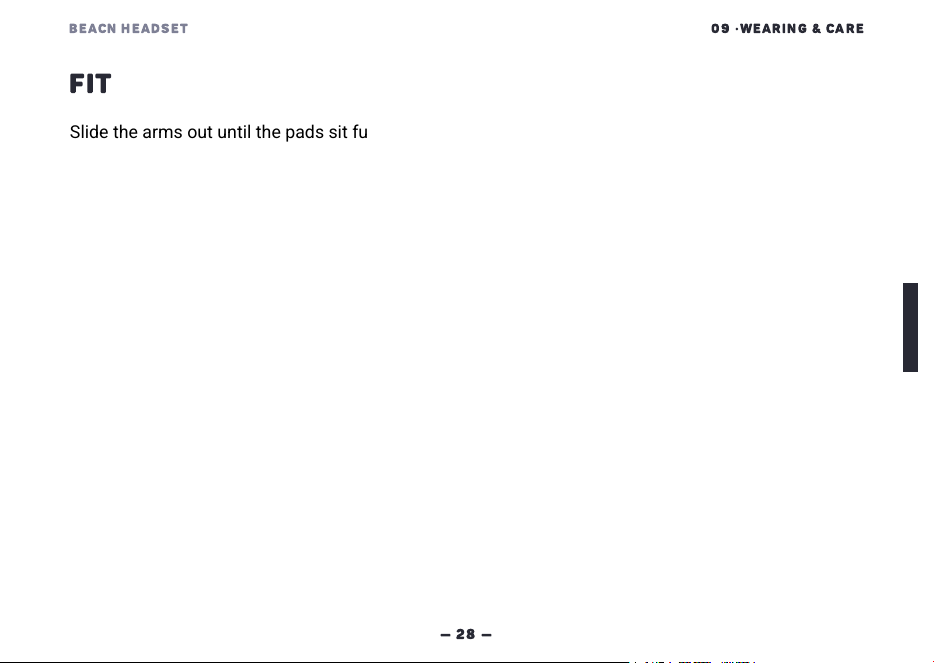
BEACN Headset weighs 350g. The headband is metal-reinforced,
so most of the adjustment happens in the arms rather than in the
band flexing.
BEACN HEADSET
09
·
WEARING
&
CARE
—
28
—
FIT
Slide the arms out until the pads sit fully over your ears and the band rests
on top of your head without pressing. The arms are high-tension and hold
where you set them, so you should only have to do this once.
Then set the boom. Closer picks up more of your voice and less of your
room, so don't park it out by your cheek. Leave about the length of the USB
extension holder, or two fingers side by side, between the capsule and the
corner of your mouth.
BEACN HEADSET
09
·
WEARING
&
CARE
—
29
—
SWAPPING THE EAR PADS
Two sets of gel-cooled pads ship in the box. Leatherette isolates more of
the room. Fabric feels more open. Swapping them takes no tools.
1
Hold the ear cup in one hand. Push down on the inside of the cup while you pull up on the sides
of the pad. Four clips built into the pad hold it to the cup, and lifting from the sides alone can
break them.
2
Line the new pad up with the cup and press it on the whole way round.
3
Press harder than you think you need to. You're listening for a solid click, which is all four clips
home.
BEACN HEADSET
09
·
WEARING
&
CARE
—
30
—
REMOVING THE BOOM ARM
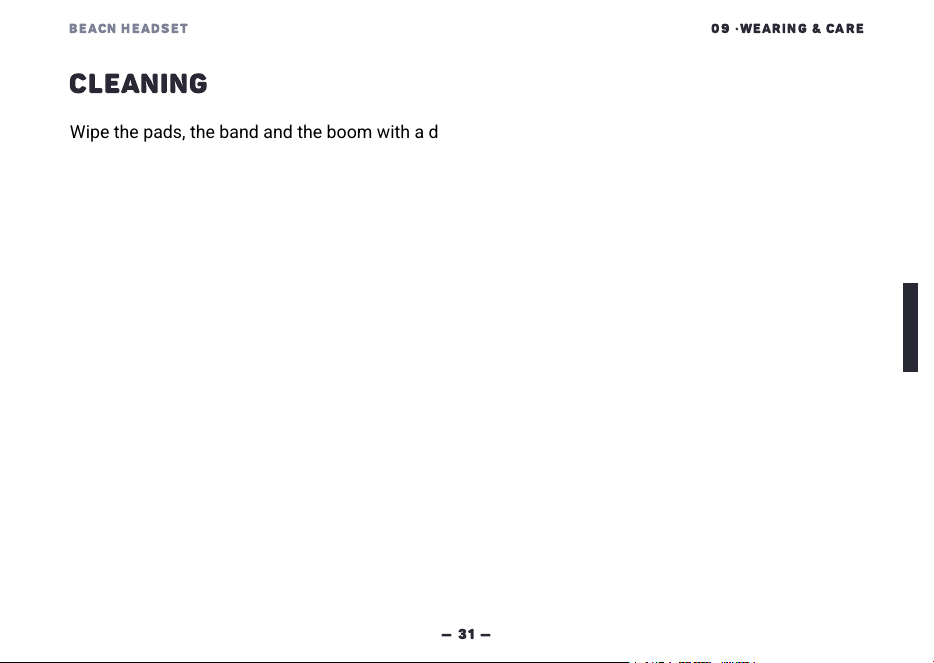
The boom comes off, and nothing else changes when it does. BEACN
Headset doesn't sense whether the boom is fitted, so mute state, audio
mode and the lights all stay exactly as they were.
1
Hold the left ear cup in one hand. The boom socket is on the same side as the controls.
2
Pull the boom straight out of its socket. A small key bump on the plug means it only goes back in
one way round, so line it up and push it home.
BEACN HEADSET
09
·
WEARING
&
CARE
—
31
—
CLEANING
Wipe the pads, the band and the boom with a dry microfiber cloth. For
anything the cloth won't shift, dampen it very slightly with water and wring
it out first. Keep solvents, alcohol and cleaning sprays away from the pads -
they break down the coating on the leatherette.
BEACN HEADSET
09
·
WEARING
&
CARE
—
32
—
STORAGE
Use the carry bag. It keeps the pads from picking up dust and the finish
from picking up scratches. Keep BEACN Headset out of extreme heat and
cold, and take it out of a hot car rather than leaving it there.
IMPORTANT NOTE
BEACN Headset is not rated for water resistance. Do not use it in rain or other wet conditions,
and do not expose it to liquids. Moisture ingress may damage the electronics and voids the
warranty.
BEACN HEADSET
10
·
TROUBLESHOOTING
—
33
—
10
TROUBLESHOOTING
Here's what we've seen people run into, and what to try first.
The BEACN App says BEACN Headset isn
'
t connected to the dongle
.
1
Check the dongle is in a USB port on the computer and that the BEACN App is running.
2
Hold the power button for three seconds to make sure BEACN Headset is on.
3
If the app says "Headset in Bluetooth mode. Please switch headset to wireless mode.", press the
power button twice until the status light is purple.
BEACN HEADSET
10
·
TROUBLESHOOTING
—
34
—
Nothing you change in the BEACN App reaches BEACN Headset
.
1
The BEACN App reaches BEACN Headset over the dongle or over USB, and over nothing else - not
Bluetooth, not the 3.5mm cable. Press the power button twice until the status light is purple for
ULL Wireless, or white for USB. With USB and the dongle connected at the same time, USB takes
precedence and the light stays purple rather than turning white.
2
Open Settings and check that a serial number and a firmware version show for both BEACN
Headset and the dongle. "Not Connected" in those fields means the dongle can't see BEACN
Headset.
Windows shows a long list of BEACN devices and you don
'
t know which one to
pick
.
1
For listening, pick Headphones. For your mic, pick Microphone. Those two are the physical
hardware.
2
Leave anything labelled "(Do Not Use)" alone. Mic Relay (Do Not Use) and LDM Relay (Do Not
Use) are plumbing the BEACN App uses internally.
3
Assign the rest - Chat, Music, Game, Browser, System, Aux 1 and Aux 2 - to the applications you
want to control separately.
BEACN HEADSET
10
·
TROUBLESHOOTING
—
35
—
The mic picks up your keyboard
,
your fans
,
or the room
.
1
Open the NOISE SUPPRESSION tab on the Headset Mic Chain page and raise Amount.
2
Set Style to Snapshot, click Take Snapshot, and stay quiet through the "Be Quiet ... 5" countdown
so it captures the room instead of you.
A firmware update failed
.
1
Reset and replug the failed device over USB. Its row reads "Failed - reconnect to retry" until you
do.
2
Press Continue to run it again.
You get crackles or static on a computer
.
1
Move the dongle onto the desk with the extension cable and holder instead of leaving it behind
the machine.
2
Take BEACN Headset off a powered USB hub and put it straight into the computer.
BEACN HEADSET
10
·
TROUBLESHOOTING
—
36
—
An application doesn
'
t show up in your sources list
.
1
Make sure audio is actually playing through it first.
2
Check that the application is set to the BEACN endpoint you assigned it to.
BEACN Headset won
'
t turn on
.
1
Charge it over USB-C for a few minutes and try again.
Your phone can
'
t find BEACN Headset
.
1
Turn BEACN Headset off, then hold the power button for five seconds - Bluetooth pairing runs
from off.
2
Pick BEACN Headset from the list on your phone as soon as it appears.
BEACN HEADSET
10
·
TROUBLESHOOTING
—
37
—
You can
'
t hear yourself
.
1
Open the Headset Headphones page in the BEACN App and raise Mic Monitor.
2
Or hold the mic mute button for two seconds to open Wheel Mode, press it until you reach Mic
Monitor, then scroll the wheel up - Mic Monitor is only in that list with the boom mic connected.
3
Check that the mic isn't muted: a press of the mic mute button mutes it, and you hear a prompt
each way.
The dongle and BEACN Headset have lost each other
.
1
Plug the dongle into your computer and hold its button for about ten seconds. Its light fast-
flashes purple.
2
With BEACN Headset powered off, hold the power button for about ten seconds until the status
light fast-flashes purple.
3
Wait for "Wireless connected" in your ears.
4
If the status light still isn't purple, press the power button twice until it is.
BEACN HEADSET
10
·
TROUBLESHOOTING
—
38
—
The wheel is changing the wrong thing
.
1
Hold the mic mute button for two seconds to open Wheel Mode.
2
Press the mic mute button until you land on the one you want: Volume, Subwoofer, Chat Mix or
Mic Monitor.
3
Scroll the wheel to set the amount.
Still stuck? Head to support.beacn.com, email us at suppor[email protected], or come and find us in
the Discord at discord.gg/BEACN. Community members are amazing at helping each other out,
so don't hesitate to reach out there too.
BEACN HEADSET
11
·
SPECIFICATIONS
—
39
—
11
SPECIFICATIONS
BEACN Headset has the following specifications:
HEADPHONES
DRIVERS
50mm silk drivers
EQ
10-band parametric EQ per ear
BASS
Custom BEACN subwoofer algorithm
MICROPHONE
CAPSULE
Omnidirectional condenser capsule on a
detachable boom
USB AUDIO
24-bit, 48kHz and 96kHz over USB
PROCESSING
Broadcast Voice DSP: compressor, expander,
noise suppression, EQ, de-esser, bass
enhance, exciter
BEACN HEADSET
11
·
SPECIFICATIONS
—
40
—
CONNECTIONS
WIRELESS
2.4GHz ultra-low-latency wireless, via the
supplied dongle. Headphones run 24-bit at
48kHz or 96kHz; the mic runs 16-bit at
16kHz or 48kHz
USB-C
USB-C - 24-bit / 96kHz audio and charging.
Rated 5 V DC
BLUETOOTH
Bluetooth LE, two devices at once. A2DP,
AVRCP, HFP, HSP
ANALOG
3.5mm analog - stereo in, mono mic out.
FIT
&
FINISH
WEIGHT
350g
HEADBAND
Metal-reinforced headband, high-tension
adjustable arms
EAR PADS
Two gel-cooled ear pad sets - leatherette and
fabric
BEACN HEADSET
11
·
SPECIFICATIONS
—
41
—
WHAT
’
S IN THE BOX
CORE
BEACN Headset, wireless dongle, USB-A to
USB-C cable
CABLES AND MOUNTS
USB-C extension cable, adhesive dongle
holder, 3.5mm stereo cable
EXTRAS
Two gel-cooled ear pad sets, microfiber
suede carry bag
BEACN HEADSET
12
·
SAFETY
—
42
—
12
SAFETY AND HANDLING
Read this section before you use BEACN Headset.
BEACN HEADSET
12
·
SAFETY
—
43
—
HEARING SAFETY
PROTECT YOUR HEARING
Listening at high volume levels through headphones can cause permanent
hearing damage. The risk increases with both the volume level and the
duration of exposure.
As a guide:
85dB(A) — safe for up to 8 hours per day (comparable to busy traffic
noise)
95dB(A) — safe for no more than 50 minutes per day
100dB(A) and above — can cause damage in 15 minutes or less
Signs that the volume is too high: you cannot hear people speaking to you
at a normal voice level, others nearby can hear audio from your
headphones, or you notice ringing or muffled hearing after use.
Start each listening session at a low volume and increase only as needed.
Take regular breaks. BEACN recommends using the in-app equaliser to
achieve the sound you want at the lowest volume that still satisfies you.
BEACN HEADSET
12
·
SAFETY
—
44
—
BATTERY SAFETY
BATTERY SAFETY
—
READ BEFORE USE
The BEACN Headset contains a built-in rechargeable lithium-ion battery.
Follow these precautions to prevent fire, explosion, leakage, injury, or
damage to property.
Do not disassemble, crush, puncture, or short-circuit the battery. Do
not attempt to remove the battery from the headset. The battery is not
user-serviceable.
Do not expose to heat or fire. Keep the headset away from heat
sources, open flames, and direct sunlight for extended periods. Do not
store in a closed vehicle in high heat.
Do not expose to water or moisture. The headset is not waterproof.
Charge only with approved accessories. Use only the USB-C cable
supplied with the headset, or a USB charger that supplies 5 V and
complies with the USB specifications. The headset is rated for a 5 V DC
charging input. Using unapproved chargers may damage the battery or
cause fire.
BEACN HEADSET
12
·
SAFETY
—
45
—
Charge within the rated temperature range. Charge only when the
ambient temperature is between 0°C (32°F) and 45°C (113°F). Charging
outside this range reduces battery life and may be unsafe.
Do not leave charging unattended for extended periods. Disconnect
from the charger once fully charged if practical.
Stop using immediately if the battery swells, leaks, emits an unusual
odour, or becomes abnormally hot during use or charging. Place the
headset in a non-flammable location away from people and flammable
materials. Contact BEACN support at suppor[email protected].
If electrolyte leaks and contacts skin or eyes, flush immediately with
clean water for 15 minutes and seek medical attention.
Keep out of reach of children and pets.
Do not dispose of in household waste. See disposal instructions in this
manual.
Do not transport the headset in checked baggage if the battery is
swollen or damaged. Lithium-ion batteries are subject to transport
regulations (IATA Dangerous Goods Regulations; US DOT 49 CFR Part
173). A non-damaged consumer lithium-ion battery at less than 100Wh
is permitted in carry-on baggage. Battery capacity: 1000mAh.
BEACN HEADSET
12
·
SAFETY
—
46
—
GENERAL HANDLING
ATTENTION TO SURROUNDINGS
Do not use the headset in situations where reduced awareness of your
environment could be dangerous, including while driving, cycling, operating
machinery, or crossing streets. You are responsible for your own safety and
the safety of others.
MOISTURE AND WATER
The BEACN Headset is not rated for water resistance. Do not use in rain or
other wet conditions, and do not expose to liquids. Moisture ingress may
damage the electronics and voids the warranty.
SKIN IRRITATION
The ear cushions contain synthetic leather and foam materials. If you
experience skin irritation during extended use, discontinue use and consult
a physician.
BEACN HEADSET
12
·
SAFETY
—
47
—
CHILDREN AND SMALL PARTS
CHOKING HAZARD
The headset includes small parts including the 3.5mm cable, detachable
boom microphone, and cable adapters. Keep all small parts out of reach of
children under 3 years of age.
BEACN HEADSET
12
·
SAFETY
—
48
—
MEDICAL DEVICES
MAGNETS AND IMPLANTED MEDICAL DEVICES
The BEACN Headset contains magnets (used in the driver assemblies and
ear cushion attachment system). Magnets can interfere with pacemakers,
implantable cardioverter defibrillators (ICDs), and other implanted medical
devices. If you use an implanted medical device, consult your physician
before using the headset. Keep the headset at least 15cm (6 inches) from
any implanted medical device while wearing it.
IMPORTANT NOTE
Stop using immediately if the battery swells, leaks, emits an unusual odour, or becomes
abnormally hot during use or charging. Place the headset in a non-flammable location away
from people and flammable materials. Contact BEACN support at suppor[email protected].
BEACN HEADSET
12
·
SAFETY
—
49
—
RESPONSIBLE PARTIES
&
REPRESENTATIVES
FCC RESPONSIBLE PARTY
(
USA
)
Americas Compliance Consulting LLC dba iCertifi
2445 NE Division Street, Suite 202
Bend, Oregon 97703
USA
Email: fccagent@icertifi.com
Tel: +1 (866) 885-4575
EU AUTHORISED REPRESENTATIVE
iCertifi B.V., Amsterdam, Netherlands
UK AUTHORISED REPRESENTATIVE
iCertifi Global Approvals LTD, Ruislip, London, UK
BEACN HEADSET
13
·
REGULATORY
—
50
—
13
REGULATORY AND
COMPLIANCE
INFORMATION
The statements in this section are reproduced in full.
BEACN HEADSET
13
·
REGULATORY
—
51
—
MODEL AND IDENTIFICATION
This manual covers two devices, supplied together in one
package.
Product name: BEACN Headset
Trade mark: BEACN
Model number / SKU number: 055845300648
FCC ID: 2BRSW0064
IC: 34705-0064
Input: 5 V
Made in China
CAN ICES (B) / NMB (B)
Manufacturer: Beacon Hill Innovations Ltd.
Product name: BEACN Dongle
Trade mark: BEACN
Model number / SKU number: 055845300662
FCC ID: 2BRSW0066
IC: 34705-0066
Input: 5 V
Made in China
CAN ICES (B) / NMB (B)
Manufacturer: Beacon Hill Innovations Ltd.
Description: 2.4GHz wireless USB-C dongle, supplied in the box
with BEACN Headset and not sold separately.
USB Vendor ID / Product ID: 0x33AE / 0x0010 (BEACN
Headset); 0x33AE / 0x8010 (BEACN Dongle)
FCC PART
15
—
COMPLIANCE STATEMENT
BEACN Headset — FCC ID: 2BRSW0064
BEACN Dongle — FCC ID: 2BRSW0066
This device complies with part 15 of the FCC Rules. Operation
is subject to the following two conditions: (1) This device may
not cause harmful interference, and (2) this device must accept
any interference received, including interference that may cause
undesired operation.
Changes or modifications not expressly approved by the party
responsible for compliance could void the user's authority to
operate the equipment.
BEACN HEADSET
13
·
REGULATORY
—
52
—
FCC PART
15
—
CLASS B NOTICE
This equipment has been tested and found to comply with the
limits for a Class B digital device, pursuant to Part 15 of the
FCC Rules. These limits are designed to provide reasonable
protection against harmful interference in a residential
installation. This equipment generates, uses and can radiate
radio frequency energy and, if not installed and used in
accordance with the instructions, may cause harmful
interference to radio communications. However, there is no
guarantee that interference will not occur in a particular
installation. If this equipment does cause harmful interference
to radio or television reception, which can be determined by
turning the equipment off and on, the user is encouraged to try
to correct the interference by one or more of the following
measures:
Reorient or relocate the receiving antenna.
Increase the separation between the equipment and
receiver.
Connect the equipment to an outlet on a circuit different
from that to which the receiver is connected.
Consult the dealer or an experienced radio/TV technician
for help.
ISED CANADA
BEACN Headset — IC: 34705-0064
BEACN Dongle — IC: 34705-0066
This device complies with ISED Canada licence-exempt RSS
standard(s). Operation is subject to the following two
conditions: (1) this device may not cause interference, and (2)
this device must accept any interference, including interference
that may cause undesired operation of the device.
CAN ICES (B) / NMB (B)
Le présent appareil est conforme aux CNR d'ISDE Canada
applicables aux appareils radio exempts de licence.
L'exploitation est autorisée aux deux conditions suivantes : (1)
l'appareil ne doit pas produire de brouillage, et (2) l'appareil doit
accepter tout brouillage radioélectrique subi, même si le
brouillage est susceptible d'en compromettre le
fonctionnement.
CAN ICES (B) / NMB (B)
FCC RF Exposure Warning Statement:
This equipment complies with FCC radiation exposure limits set forth for an uncontrolled
environment. This equipment can be used in portable exposure conditions.
ISED Radio Frequency Exposure Statement:
This equipment complies with ISED exposure limits set forth for an uncontrolled
environment. This equipment can be used in portable exposure conditions.
Déclaration d'ISDE sur l'exposition aux radiofréquences :
Cet équipement est conforme aux limites d'exposition d'ISDE établies pour un
environnement non contrôlé. Cet équipement peut être utilisé dans des conditions
d'exposition portables.
BEACN HEADSET
13
·
REGULATORY
—
53
—
EUROPEAN UNION
—
CE
BEACN Headset carries the CE mark and is assessed against
Directive 2014/53/EU (Radio Equipment Directive) and Directive
2011/65/EU as amended by 2015/863/EU (RoHS), covering:
Article 3(1)(a) — health and safety, including RF exposure
(EN 62368-1, EN 50332, and EN 62479 or EN 50663)
Article 3(1)(b) — electromagnetic compatibility (EN 301
489-1 plus the applicable EN 301 489-17 part)
Article 3(2) — effective use of spectrum (EN 300 328 for the
2.4GHz ISM band, covering both the proprietary link and
Bluetooth LE)
EU DECLARATION OF CONFORMITY
Hereby, Beacon Hill Innovations Ltd. declares that the radio
equipment types BEACN Headset, model 055845300648, and
BEACN Dongle, model 055845300662, are in compliance with
Directive 2014/53/EU.
Manufacturer: Beacon Hill Innovations Ltd., 204-1075
Pendergast St., Victoria BC V8V 0A1, Canada. Trade name:
BEACN. Council Directives: 2014/53/EU (Radio Equipment
Directive); 2011/65/EU as amended by 2015/863/EU (RoHS).
Signed by Neil Hindle.
UNITED KINGDOM
—
UKCA
Hereby, Beacon Hill Innovations Ltd. declares that the radio
equipment types BEACN Headset, model 055845300648, and
BEACN Dongle, model 055845300662, are in compliance with
the Radio Equipment Regulations 2017.
Manufacturer: Beacon Hill Innovations Ltd., 204-1075
Pendergast St., Victoria BC V8V 0A1, Canada. Trade name:
BEACN. UK legislation: Radio Equipment Regulations 2017 (SI
2017 No 1206); Electromagnetic Compatibility Regulations
2016 (SI 2016 No 1091); Restriction of the Use of Certain
Hazardous Substances in Electrical and Electronic Equipment
Regulations 2012 (SI 2012 No 3032). Signed by Neil Hindle.
Northern Ireland continues to accept the CE mark under the
Windsor Framework, so the EU declaration above covers
Northern Ireland.
RADIO FREQUENCY BANDS AND POWER
Radio frequency bands, as required by Article 10(8) of Directive
2014/53/EU:
2.4GHz Proprietary Wireless — 2400–2483.5MHz (2.4GHz
ISM)
Bluetooth LE — 2402–2480MHz
BEACN HEADSET
13
·
REGULATORY
—
54
—
BLUETOOTH
The Bluetooth® word mark and logos are registered trademarks
owned by Bluetooth SIG, Inc. and any use of such marks by
Beacon Hill Innovations Ltd. is under license.
BATTERY AND WEEE DISPOSAL
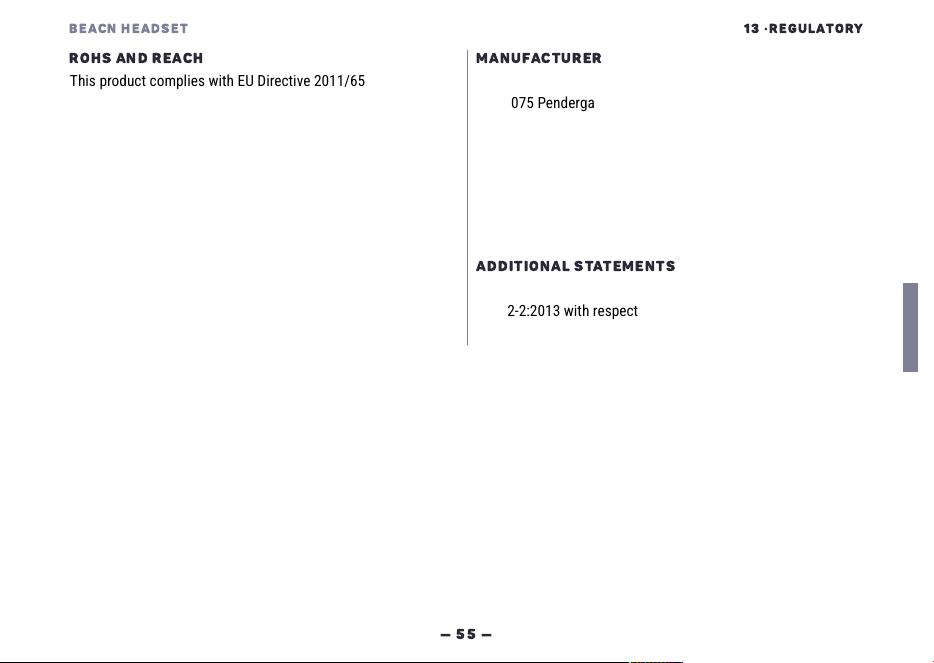
Disposal — Electrical and Electronic Equipment (WEEE)
Do not dispose of this product with general household waste.
This symbol indicates that this product must be disposed of
separately from household waste, in accordance with local
regulations. When this product reaches the end of its life, take it
to a designated collection point for the recycling of electrical
and electronic equipment. By disposing of this product
correctly, you help prevent potential harm to the environment
and human health that could otherwise result from improper
waste handling.
For information on the nearest collection point, contact your
local municipal office or the retailer where you purchased the
product.
Disposal — Battery
The BEACN Headset contains a built-in lithium-ion battery that
is not user-removable. Do not attempt to remove the battery
yourself. At end of life, deliver the complete headset to a
designated collection point for WEEE or battery recycling. Do
not dispose of in household waste or fire.
BEACN HEADSET
13
·
REGULATORY
—
55
—
ROHS AND REACH
This product complies with EU Directive 2011/65/EU on the
restriction of the use of certain hazardous substances in
electrical and electronic equipment (RoHS 2), as amended by
EU Directive 2015/863/EU (RoHS 3). This product does not
contain the restricted substances above the maximum
concentration values established by the directive.
MANUFACTURER
Manufacturer: Beacon Hill Innovations Ltd.
204-1075 Pendergast St.
Victoria BC V8V 0A1
Canada
Trade name: BEACN
Made in China
ADDITIONAL STATEMENTS
This product is designed to meet EN 50332-1:2013 and EN
50332-2:2013 with respect to maximum sound pressure levels
for portable audio equipment.
BEACN HEADSET
14
·
SUPPORT
—
56
—
14
SUPPORT
We're a small team in Victoria, BC. Here's how to reach us.
If you have software or setup questions, we support those for free through
support.beacn.com and our public Discord server. Since we're a small
team, we can't offer 24/7 support, but the Discord is awake at hours we
aren't.
Warranty terms are at beacn.com/warranty.
BEACN HEADSET
14
·
SUPPORT
—
57
—
EMAIL
DISCORD
discord.gg/BEACN
HELP CENTRE
support.beacn.com
BEACN Headset User Manual · Version 1.0 · BEACN Headset, model 055845300648 · BEACN Dongle, model 055845300662 · Revision A ·
Published August 2026 · © 2026 Beacon Hill Innovations Ltd. All rights reserved. Beacon Hill Innovations Ltd., 204-1075 Pendergast St.,
Victoria BC V8V 0A1, Canada. Trade name BEACN. Made in China.