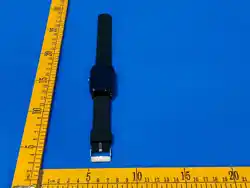

MANUAL
Please read the manual carefully before using the device. Pictures and products in
the manual for reference only.
1.Before starting
1. Check if the watch is the correct model and has complete accessories in the package.
2. Prepare a 4G LTE SIM card, can ask for your dealer if have any questions.(Please turn off the watch
before inserting the SIM Card)
3. Necessary to activate data flow, GPRS and caller display functions.
4. Download the APP in your cell phone and ask your carrier for the bar code or QR code.
Before first use, fully charge the battery. Overall item construction is IP67 waterproof, but NO
Swimming!
Note:
1) Before inserting the SIM card into the device or when removing the SIM card from the device, the device
must first be turned OFF.
2) Restart the device outside in an open area where you are guaranteed to have a good signal to properly
sync the GPS position from the satellites. This way you ensure the correct functionality of the device. Please
note that in places with a poorer signal, the device may not be set correctly.
3) After pairing the device with the app (with your account), logout the app and then login again to refresh
the app features
4) Long press 3 seconds turn ON device, long press 5 seconds trigger the SOS call
5) Set correct your local timezone in the app setting
4G sim nano card specs.:
Ⅰ) Activate VoLTE 4G sim,valid Voice +SMS+GPRS(VoLTE=voice over LTE, VERY important)
Ⅱ) GPRS monthly plan is 60-80MB/monthly
Ⅲ) No Pin code
Ⅳ) No voice mail
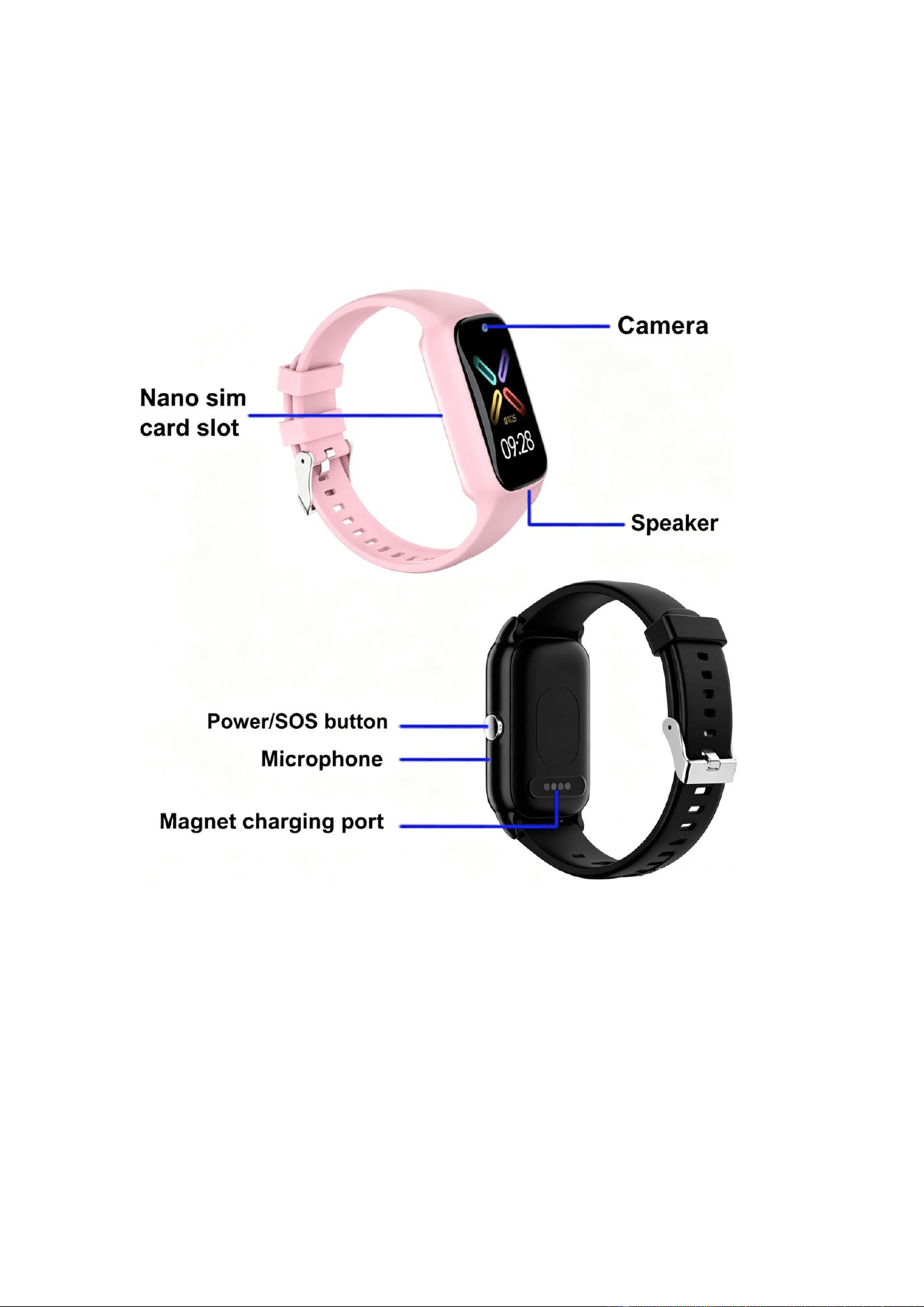
2.Install the Nano-SIM card.
1. Make sure the device is off the power.
2. Use the SIM tool to take the SIM tray out.
3. Place a Nano-SIM card into the SIM tray
3.Switch on and off
Switch on:
If the device is off the power, long press the power button to turn on the device.
Shut down:
1: Enter the watch settings,choose the power off option.
2: When the device is crashed, you can use remote shut down from mobile app.
3: When there is not a SIM card, long press the power button to turn off the device.
4. Functional area diagram
5.Download the APP
5.1 Medium
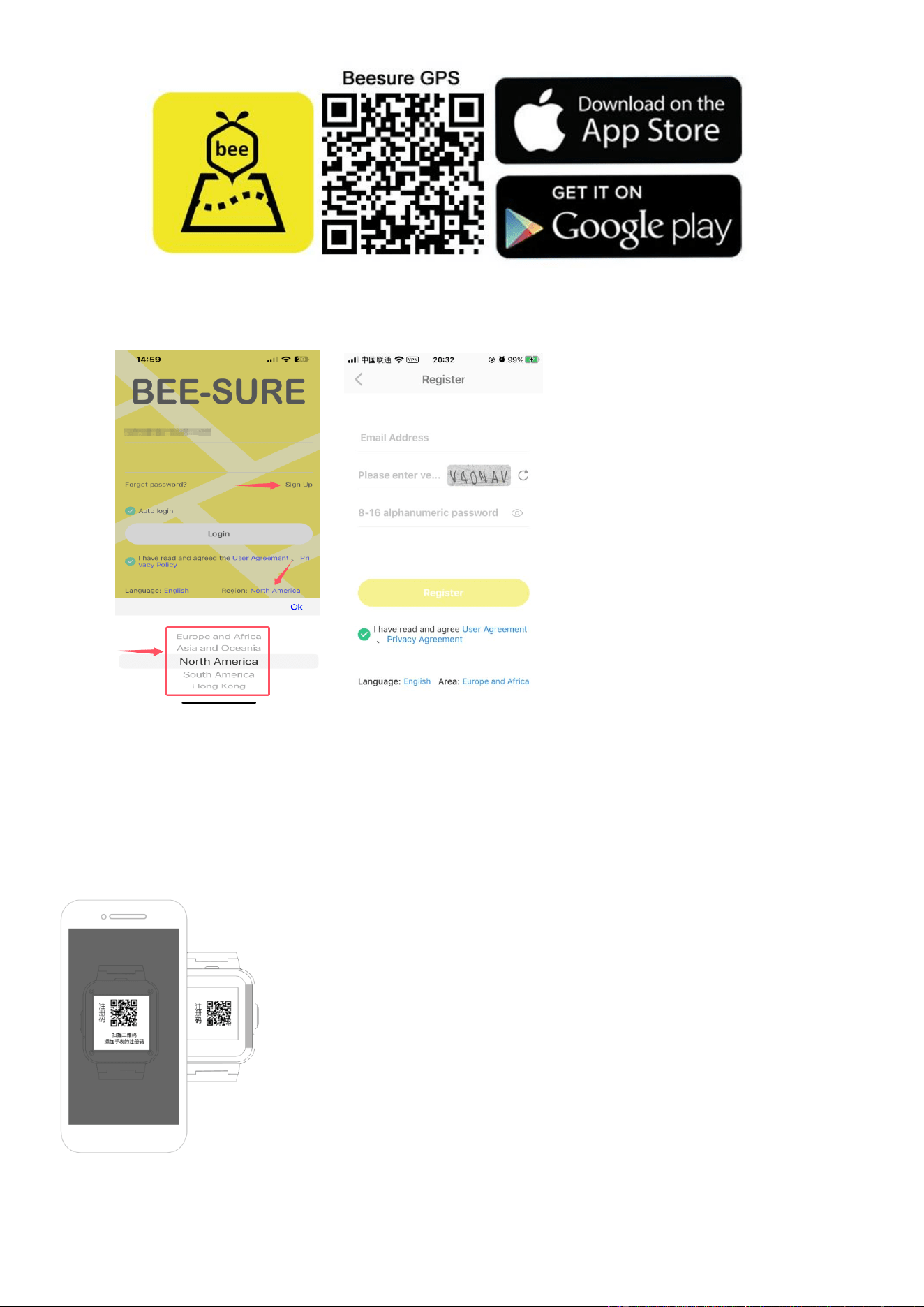
1: Scan the QR code below to download the Beesure GPS APP and install directly.
2: Enter the device information option in the watch and find the QR code to scan and download.
5.2 Register and login in.
Please follow the steps in the APP to register and login in.
5.3Bind with the device.
Login in the APP and find the correct device.The correct device type is SMART WATCH.Enter the
registration code to bind with device.
About the registration code:
(1)Scan the QR code on the back of device or manually enter the 15 numbers length code
(2)Enter the device information page and find the registration code option,scan or manual input.
6.Functions
Location: GPS + LBS Location real time on Map.

Trace: Find the trace in APP.
Safety area: Set fence(safety area) in the device(Max 3 fences),And notify you in APP when watch wearer
out of the safety Zone area.
Contact: Setting up maximum 15 members of your friends or relative in APP.
Dial interface: Dial interface is supported.You can turn on or off this function in switch settings of APP.
SOS: 3 emergency contacts can be set. Press the SOS BUTTON for 3 more seconds and it will make an
emergency call to the preset SOS numbers in 2 rounds if there is no one answering the call, if someone pick
up, then it will not call the next SOS number.
SMS Alert: Notify you when the device turn on the SOS notification through SMS.(The fees of SMS are
calculated according to your local carrier)
Remote monitoring: Set the function in APP.After the monitor is turned on, the watch will dials the set
number.This calling is one-way.Only You can monitor the voice and sound of the watch wearer.
Reject un-know call: Turn on this function and the watch only receives the call from the numbers which
preset in the app. It will block all other calls.
Alarms: Set 3 alarm clocks
Camera: Take a photo
Gallery: Save the photos, and you can delete in it or upload photos to the APP.
Remote snapshot: Enter the interface in the APP and click the “Remote photo” option to remotely control
the watch to take a photo and the photo will upload to the APP.
Voice chat: Real time chat between the device and the APP. APP can text or send 15s voice message to the
device.And device can read one unread message each time and only send voice message.
Video call:Make a video call with the bind account on Mobile app.
Do not disturb: Set 4 periods in one time.Block all calls and keep silent mode in this preset period.
Setting: Change UI, Volume(Medium, Ringtone, Alarms, Power on and off), Brightness, Power off, About
device(Model, Version, IMEI)
What is in Device Information:
1. Registration code: Scan it to bind device.
2. APP download: Download the Beesure GPS APP
Stopwatch:For time measuring
Calculator:For usual math calculating
Members: Show the account of family members who is bind with with the device.
Work mode: 3 modes(Normal,Power saving mode, Sleep mode), the default is Power saving mode.
Remote shutdown: Remote shutdown when it is powered on and connected network.
Remote restart:Send a remote restarting message to the watch and restart the device.
7.Problems fixing
If the device can not connect to the server in your first time of using, and on the APP shows the device is out
off line.Please check the following conditions:
1) Your SIM card is 4G and network is normal or not.
2) Data flow service is turned on and normal or not.
3) The ip and port,or the IMEI is correct or not.The IMEI code on the device shall be same as the factory
code.You can get the code by send message pw,123456,ts# to the watch.(The watch has a SIM card.And the
message is texted in ENGLISH).
4) If there is still not working, please ask the seller for more details and help.
5) If you can not register, there are 2 problems usual:
1. The code of device does not exist or it has registered before, under this condition you must ask for your
seller for help.

2.Account has registered before.Under this condition, you just change this account is OK.
6) If you are sure the sim is not out of credit and with GPRS data plan package activated, but after the device
bind in app, still show offline/ disconnected in phone app, then you need setup the apn for the GPS tracker to
connect the local network.
1) Take out the sim card from the tracker/Watch, put it in an Android phone to check the apn information,
refer to the link:
https://www.4p-touch.com/how-to-check-sim-card-apn-information-in-an-android-smart-phone.html
2) After get the sim card APN information, then turn off the tracker/watch, take out the sim card from the
android phone, and put back to the tracker and turn it on
4) Send the sms command to set the apn, the sms command format is ( no any space among the command) :
pw,123456,apn,apn name,,,MCCMNC#
For example, apn name: cmnet MCC:460 MNC: 02 Then the SMS command for apn setting is:
pw,123456,apn,cmnet,,,46002#
(Note:the sms command send from your smart phone to the GPS Tracker sim card number)

FCC Statement
This device complies with part 15 of the FCC rules. Operation is subject to the following two
conditions: (1) this device may not cause harmful interference, and (2) this device must accept
any interference received, including interference that may cause undesired operation.
Changes or modifications not expressly approved by the party responsible for compliance could
void the user's authority to operate the equipment.
NOTE: This equipment has been tested and found to comply with the limits for a Class B digital
device, pursuant to part 15 of the FCC Rules. These limits are designed to provide reasonable
protection against harmful interference in a residential installation. This equipment generates
uses and can radiate radio frequency energy and, if not installed and used in accordance with the
instructions, may cause harmful interference to radio communications. However, there is no
guarantee that interference will not occur in a particular installation. If this equipment does
cause harmful interference to radio or television reception, which can be determined by
turning the equipment off and on, the user is encouraged to try to correct the interference by
one or more of the following measures:
•
•
•
Reorient or relocate the receiving antenna.
Increase the separation between the equipment and receiver.
Connect the equipment into an outlet on a circuit different from that to which the receiver is
connected.
•
Consult the dealer or an experienced radio/TV technician for help.
This device meets the government's requirements for exposure to radio waves. The guidelines are
based on standards that were developed by independent scientific organizations through periodic
and thorough evaluation of scientific studies. The standards include a substantial safety margin
designed to assure the safety of all persons regardless of age or health. The SAR limit of USA (FCC)
is 1.6 W/kg averaged. Device types: 4G GPS tracker watch (FCC ID: 2BH5J-Y6C) has also been tested
against this SAR limit. SAR information can be viewed on‐line at http://www.fcc.gov/oet/ea/
fccid/. Please use the device FCC ID number for search. This device was tested simulation typical
10mm to Body(Front of face) and 0mm to Body(Wrist-worn). To maintain compliance with FCC RF
exposure requirements, use accessories should maintain a separation distance between the user's
bodies mentioned above, use accessories should not contain metallic components in its assembly,
the use of accessories that do not satisfy these requirements may not comply with FCC RF
exposure requirements, and should be avoided.