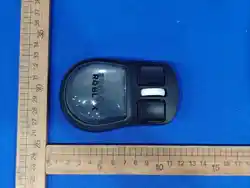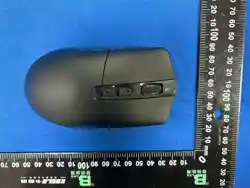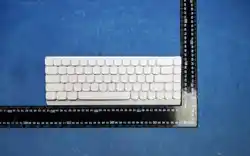
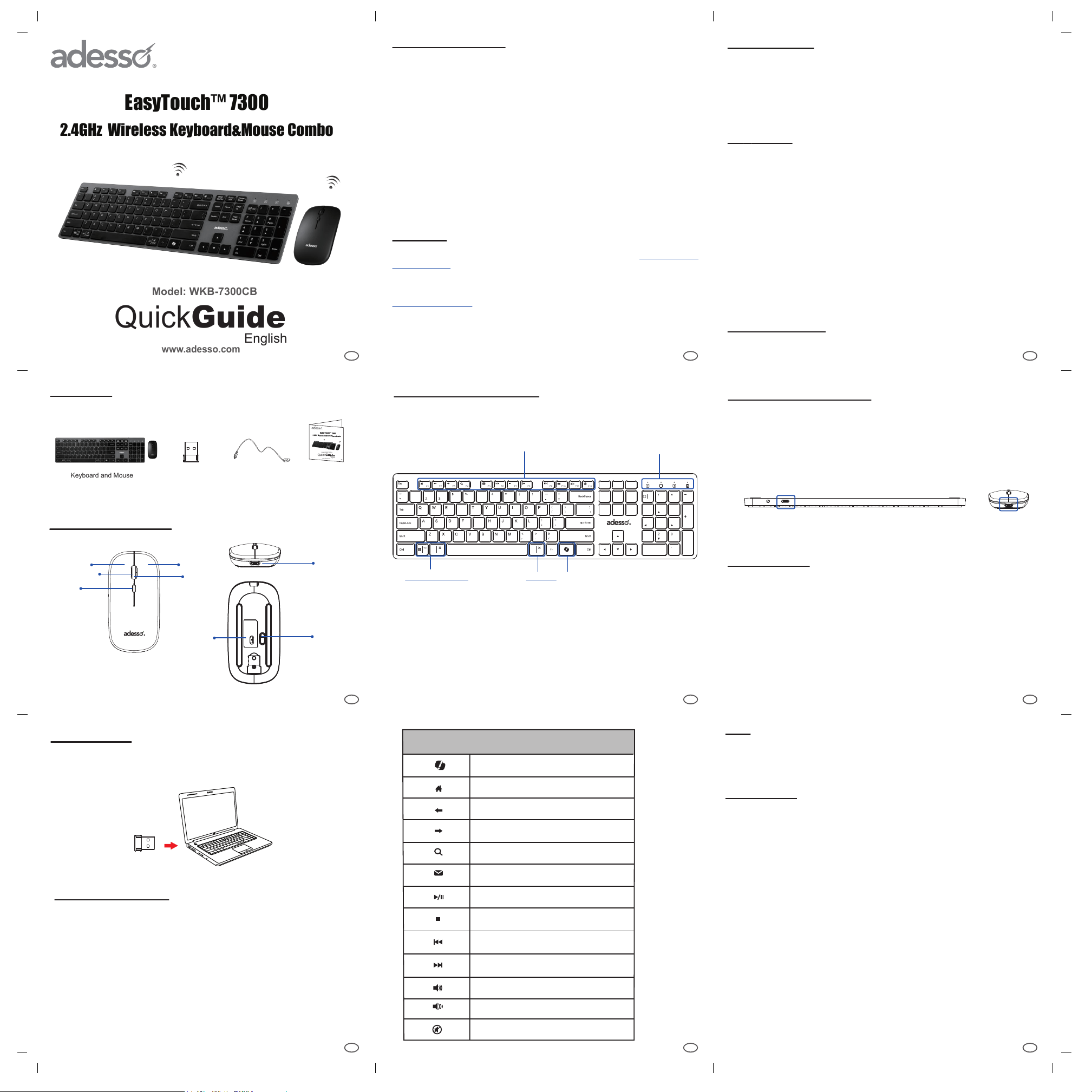
MOUSE DESCRIPTION
Scrolling
Wheel
Right Button
Left Button
DPI
Switch
LED Indicator
Power
Switch
Optical
Sensor
TYP-C USB
Charging
USB Reciver TYP-C Cable
Quick Start Guide
Keyboard and Mouse
FEATURES
• Platform: Windows® 8 and above Mac os 10.4 and above
• Connnectivity Technology: 2.4GHz wireless
REQUIREMENTS
INTRODUCTION
TM
Adesso® EasyTouch WKB-7300CB 2.4GHz Wireless Keyboard Combo isideal for
the home, oce , or while on the go with an adavaned Optical Mouse.This keyboard
combo features multi-functional hotkeys which can quickly accessmedia player,
multimedia controls, and Internet browser commands.it is designed with a slim and
low-proe Scissor-Switch Technology for comfort,speed, and a better tactile feel.
This keyboard also has a built-in lithium PolymerRechargeable Battery which can
be recharged via USB cable for long extended use.
CHARGING THE BATTERY
CONTENTS
1. Insert the Type-C USB Charging Cable Connector into the
Type-C USB charging port at top of the Keyboard and/or Mouse.
Pairing method
2. Insert the USB end of the Type-C USB Cable into the USB port
of your computer or any 5V USB power adaptor.
WKB-7300CB-English-0601824-V1.0
2
3
654
8 97
Keyboard Specications:
• Keyboard Layout:
• Connection:
• Working Range:
• Battery:
• Hotkeys:
• Keyboard Dimensions:
• Keyboard Weight:
• Connection:
• Sensor:
• DPI:
• Working Range:
• Battery:
• Mouse Dimensions:
• Mouse Weight:
2.4GHz Wireless
Optical
800/1200/1600
30 feet(10m)
Built-in Polymer(Rechargeable)
4.2 x 2.5 x 1.5" (105 x 64 x 38 mm)
0.18 Lbs(80g)
104-Key US layout
2.4GHz Wireless
30 feet (10m)
Built-in Polymer (Rechargeable)
Up to 100 hours (continuous use)/Up to 30 days (standby mode)
13 Hotkeys (
CoPilot,Home , Back, Forward, Email, Search, Play/Pause,
Stop,Previous Track, Next Track, Volume Up,Volume Down & Mute )
16.25 x 4.75 x 0.50" (436 x 122.8 x 11 mm)
1.4 Lbs (625g)
Mosue Specications:
TIPS
• When the Battery Low LED is ON, it means that the device requires to charing
the batteries.
• We suggest to turn “OFF” the devices when leaving your desk for more than an
hour to save battery life for longer lasting use.
FCC Caution.
This device complies with part 15 of the FCC Rules. Operation is subject to the
following two conditions: (1) This device may not cause harmful interference, and (2)
this device must accept any interference received, including interference that may
cause undesired operation.
Any Changes or modifications not expressly approved by the party responsible for
compliance could void the user's authority to operate the equipment.
Note: This equipment has been tested and found to comply with the limits for a
Class B digital device, pursuant to part 15 of the FCC Rules. These limits are
designed to provide reasonable protection against harmful interference in a
residential installation. This equipment generates uses and can radiate radio
frequency energy and, if not installed and used in accordance with the instructions,
may cause harmful interference to radio communications. However, there is no
guarantee that interference will not occur in a particular installation. If this equipment
does cause harmful interference to radio or television reception, which can be
determined by turning the equipment off and on, the user is encouraged to try to
correct the interference by one or more of the following measures:
-Reorient or relocate the receiving antenna.
-Increase the separation between the equipment and receiver.
-Connect the equipment into an outlet on a circuit different from that to which the
receiver is connected.
-Consult the dealer or an experienced radio/TV technician for help.
*RF warning for Portable device:
The device has been evaluated to meet general RF exposure requirement. The
device can be used in portable exposure condition without restriction.
TROUBLESHOOTING
If wireless keyboard/ mouse cannot be operated, please try the following:
1. Make sure the Device have enough power.
Switch the device to ON.
2. Make sure you have connected the USB receiver correctly to the device's
USB ports. Move the devices 1 foot away from the receiver in order to avoid
interference while pairing connection.
3. Do the pairing process once more according the Pairing method on page 6.
Note: Wireless phone, routers and other devices that uses 2.4GHz frequency,
might cause interference with wireless keyboard and mouse. Please
relocate such wireless applicances away from your keyboard and mouse
*Windows CoPilot only works with Windows 11 version 23H2 and later.
INSTALLATION
Optional
Win Key
Command
Alt Key
KEYBOARD DESCRIPTION
Command
Alt Key
LED Indicator
Numlock/Capslock/Scroll lock/Low Battery
Shortcut Keys
TYP-C USB
Charging
TYP-C USB
Charging
LIMITED WARRANTY
Adesso provides a one year limited warranty for all of its products against defects in
material and workmanship.
During this period, Adesso will repair or replace any product which proves to be
defective. However, Adesso will not warranty any product which has been subject to
improper freight handling, shipping abuse, neglect, improper installation or unautho-
rized repair. The warranty will not cover products installed with components not
approved by Adesso and products where the sealed assembly trace has been broken.
If you discover a defect, Adesso will, at its option, repair or replace the product at no
charge to you provided you return it during the warranty period with freight charges
pre-paid to Adesso. Before returning any product, you must obtain a Return Merchan-
dise Authorization number (RMA). This RMA # must be clearly marked on the outside
of the package you are returning for warranty service. Be certain to also include your
name, shipping address (no PO Boxes), telephone number, and a copy of the invoice
showing proof of purchase in the package.
SUPPORT
We have listed most of our FAQ’s (Frequently Asked Questions) at: http://www.ades-
so.com/faqs.asp. Please visit our FAQ Service & Support pages before you contact our
E-mail or Telephone Support.
Email Support: If our FAQ’s do not help you resolve your issues, please email
Telephone Support:
Toll Free: (800) 795-6788
9:00AM to 5:00PM PST Monday - Friday
1. Turn ON your computer and plug in the USB receiver into your computer
or device’s available USB port. The system will automatically load
the
USB
receiver is plug and play feature.
2. Turn ON your keyboard and mouse, it will be ready to use.
USB Receiver
Home
Backward
Forward
Search
Email
Multimedia Hotkeys
Previous Track
Next Track
Play / Pause
Stop
Volume Up
Volume Down
Mute
Launches CoPilot
Copilot AI hotkey
1. The receiver was paired with keyboard and mouse in advance, below is
the pairing method in case it needs re-pairing.
a. Turn ON your available device and plug the USB receiver, Turn ON
the keyboard and move it near receiver within 1 foot, press ESC + K in 15
seconds, the LED will blinking when pairing and Stop blinking paired.
b. The same setup for the mouse, except press middle and right key instead.
www.adesso.com
English
QuickGuide
Model: WKB-7300CB
EasyTouch™ 7300
2.4GHz Wireless Keyboard&Mouse Combo
1
www.adesso.com
English
QuickGuide
Model: WKB-7300CB
CyberTouch™ 7300
2.4GHz Wireless Keyboard&Mouse Combo
1
A
G
R
#
7
0
9
8
^
6
5
4
@
1
!
PrtSc
SysRq
Scroll Pause
Break
Lock
Home PgUp
PgDn
7
8 9
6
5
4
1
End
Ins
Enter
0
Del
Insert
Page
Up
Page
Down
Home
EndDelete
9
Clear
opt
cmd
Alt
cmd
Alt