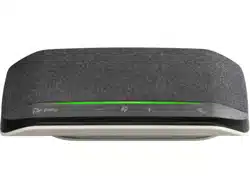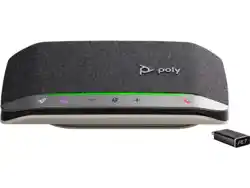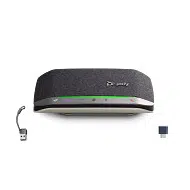

Poly Sync 10 Series Corded
Speakerphone User Guide
SUMMARY
This guide provides the end-user with task-based user information for the featured product.

Legal information
Copyright and license
© 2026, HP Development Company, L.P. The information contained herein is subject to change
without notice. The only warranties for HP products and services are set forth in the express
warranty statements accompanying such products and services. Nothing herein should be
construed as constituting an additional warranty. HP shall not be liable for technical or editorial
errors or omissions contained herein.
Trademark credits
All third-party trademarks are the property of their respective owners.
Privacy policy
HP complies with applicable data privacy and protection laws and regulations. HP products and
services process customer data in a manner consistent with the HP Privacy Policy. Please refer to
HP Privacy Statement.
Open source software used in this product
This product contains open source software. You may receive the open source software from HP
up to three (3) years after the distribution date of the applicable product or software at a charge
not greater than the cost to HP of shipping or distributing the software to you. To receive software
information, as well as the open source software code used in this product, contact HP by email at
ipgoopensourceinfo@hp.com.

Table of contents
Controls and status lights 1
LEDs 1
Be safe 2
Setup 3
Corded setup 3
Load software 3
Update your Poly device 4
Basics 5
Power 5
Answer or end a call 5
Make a call 5
Hold call 5
Adjust volume 5
Adjust speakerphone microphone volume 6
Mute/Unmute 6
Launch Microsoft Teams (Teams model only) 6
Troubleshoot 7
What's in the box 8
Safety warnings 9
Safety Instructions 9
Support 11
iii
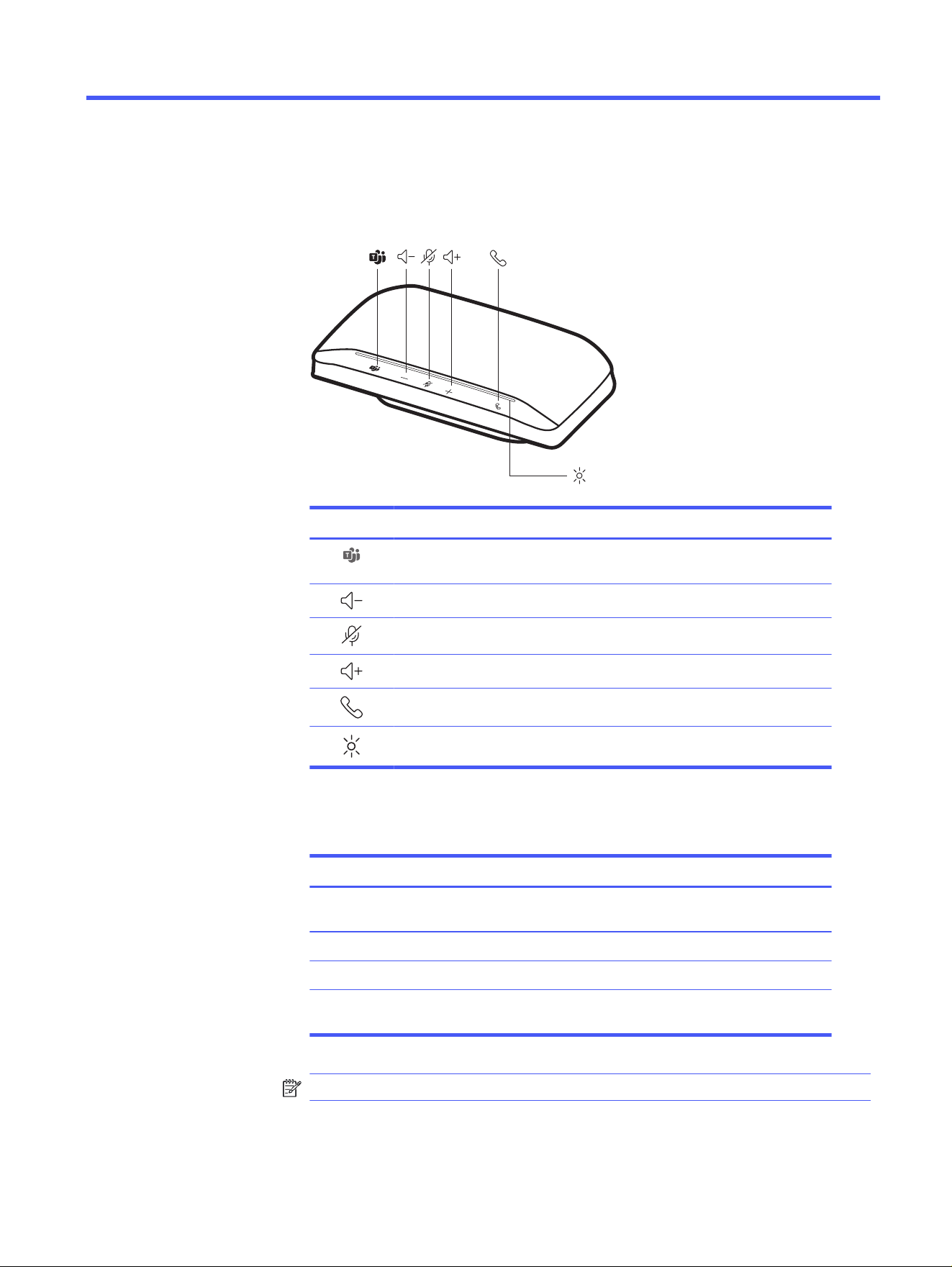
Controls and status lights
A portable speakerphone with corded connectivity.
Lock
Indicator Light
Music
ANC
imer
Custom Button
Headphones
Phone
Mobile
Computer
Camera
Charging/Battery
Mic / Mic Mute
Music
Devices
Phone
Scaled to 45% of full size
General
Indicator Light
Music
Scaled to 45% of full size
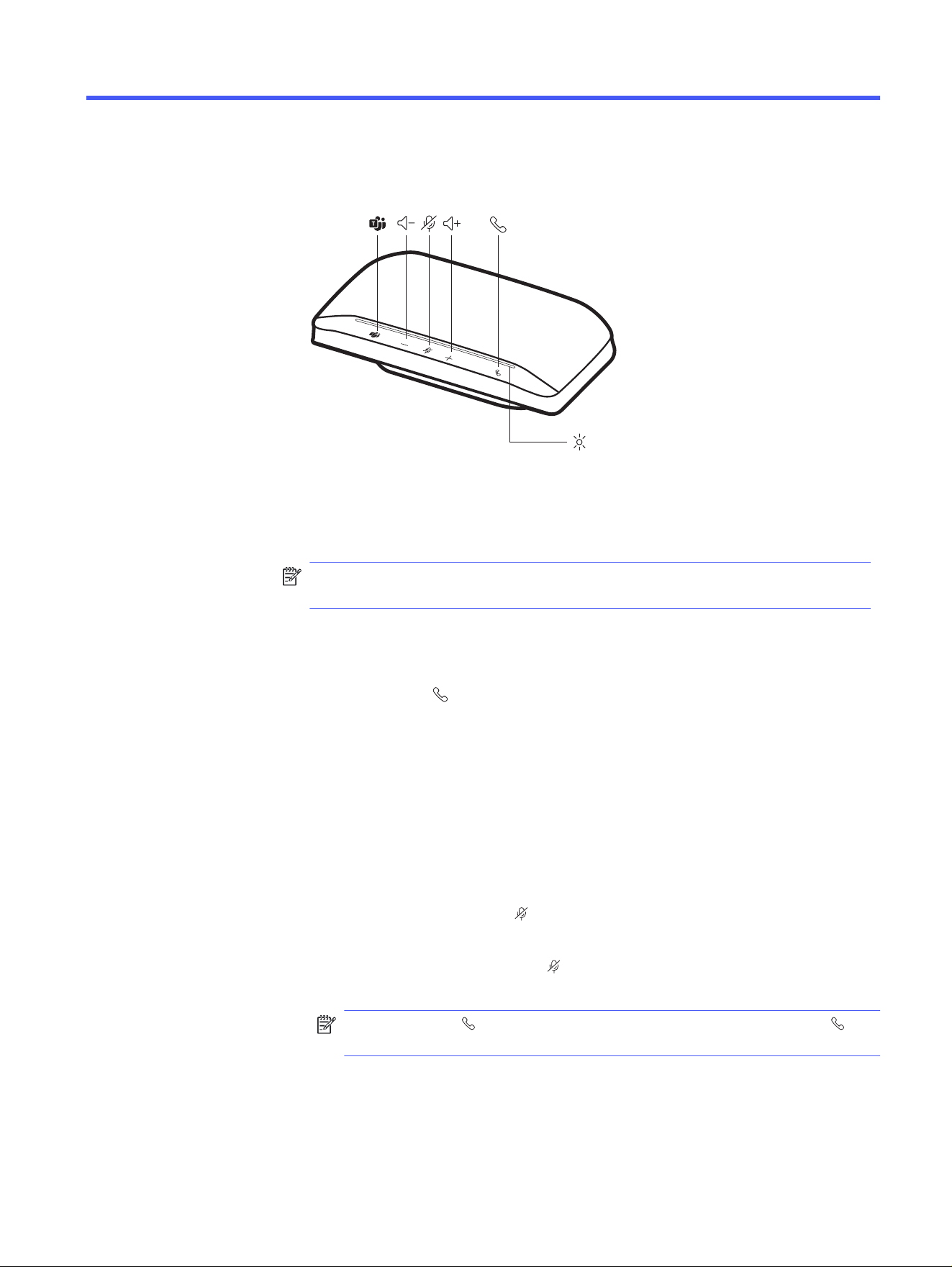
Icon Description
Press to interact with Microsoft Teams (Teams model only, desktop
application required)
Volume down
Mute / Hold
Volume up
Call
LED bar
LEDs
LED bar What lights mean
Flashing
green
Incoming call
Solid green In a call
Solid red Mute active
Flashing
red
Call on hold
NOTE: LEDs do not illuminate in standby mode.
Controls and status lights
1

Be safe
Please read the safety guide for important safety and regulatory information
before using your new device.
2 Chapter 1 Controls and status lights
Setup
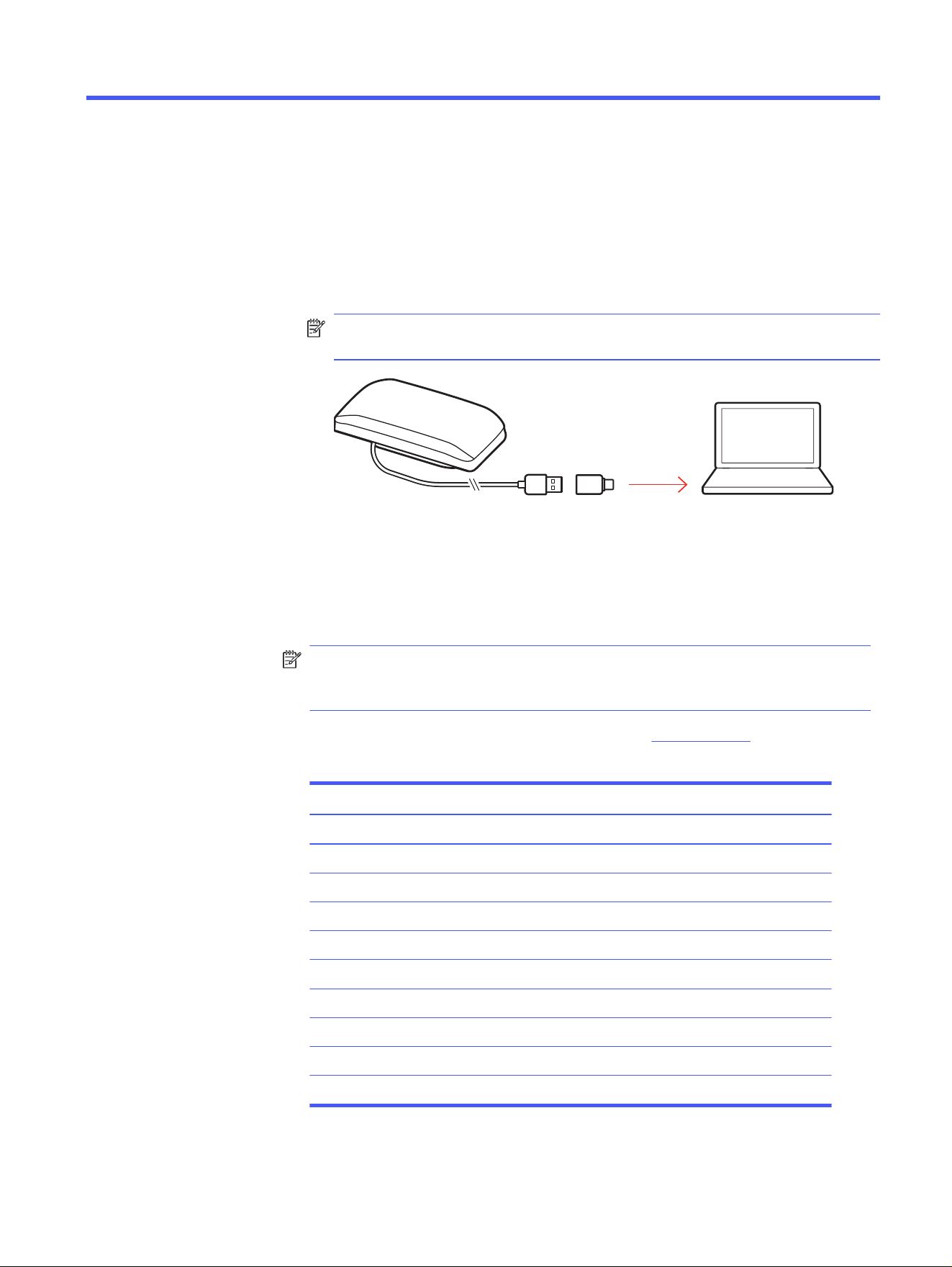
Corded setup
■
Connect the USB cable from the speakerphone to the USB port on your
computer.
NOTE: Your speakerphone has a USB-A to USB-C adapter for easy
connection to either type of port.
USB-A / USB-C
Load software
Download
HP Poly Studio to get the most out of your device. Some softphones
require the installation of HP software to enable device call control (answer or end
a call and mute) functionality.
NOTE: Administrative privileges may be required to download the desktop
application. If you don't have administrator privileges on your system, contact
your system administrator.
● Download the HP Poly Studio Desktop app at hp.com/studio.
Table 2-1
Supported features
Feature HP Poly Studio Desktop app
Configure call control for softphones ✓
Change headset language ✓
Enable features ✓
Choose preferred Equalizer setting ✓
Battery meter ✓
Update device firmware ✓
Manage notifications and alerts ✓
Schedule wellbeing reminders ✓
View user guide ✓
FindMyHeadset
Setup 3

Basics
Lock
Indicator Light
Music
ANC
imer
Custom Button
Headphones
Phone
Mobile
Computer
Camera
Charging/Battery
Mic / Mic Mute
Music
Devices
Phone
Scaled to 45% of full size
General
Indicator Light
Music
Scaled to 45% of full size
Power
Plug the USB cable into your computer. The LED bar illuminates when powered on.
NOTE: Your speakerphone has a USB-A to USB-C adapter for easy connection
to either type of port.
Answer or end a call
■
Press the Call button to answer or end a call.
Make a call
Use your softphone to make an outgoing call.
■
Dial using your softphone app.
Hold call
1. Press and hold the Mute button for 2 seconds to hold the call. The LED bar
flashes red.
2. To resume call, hold the Mute button for 2 seconds. The LED bar returns to
solid green.
NOTE: The Call button is also equipped to hold calls. Press the Call
button for 2 seconds to hold/resume call.
Adjust volume
Adjust your speakerphone volume for calls, media, and notifications.
Basics
5

● Call volume: Press the volume up (+) or down (-) buttons when on a call (not
streaming audio or idle).
● Media streaming volume: Press the volume up (+) or down (-) buttons when
streaming media (not on a call or idle).
NOTE: Notification volume matches the media streaming volume. To adjust the
notification volume, adjust the volume during media streaming.
Adjust speakerphone microphone volume
■
Place a test softphone call and adjust softphone volume and PC sound volume
accordingly.
Mute/Unmute
■
During an active call, press the Mute button to mute or unmute the
microphones. Manage mute settings in HP Poly Studio Desktop.
Launch Microsoft Teams (Teams model only)
Your device has a Teams button to quickly view and use the Microsoft Teams
desktop app. The Teams button pulses when you have a meeting or notification.
● When not on a call, tap the Teams button to view Microsoft Teams app on
your computer.
● When the Teams button LED pulses purple, tap to view your Teams
notifications or meeting.
NOTE: Teams model and open Teams desktop application required. Teams
mobile application is not supported.
NOTE: If your Teams button is not responsive, ensure your Poly device is the
default audio device in Microsoft Teams settings.
6
Chapter 3 Basics

Troubleshoot
Issue Resolution
(Teams model only) How do I interact with
Microsoft Teams?
● Tap the Teams button to quickly open and
use Microsoft Teams.
● Teams model is compatible with Microsoft
Teams desktop app. Teams mobile app is not
supported.
(Teams model only) When I tap the Teams
button nothing happens.
● Your device is not set as the default audio input
and output device in Microsoft Teams. Change
settings in Microsoft Teams.
How do I manage my speakerphone using
HP Poly Studio software?
● Your speakerphone is supported by HP Poly
Studio desktop application. Download: hp.com/
studio.
Troubleshoot 7
What's in the box
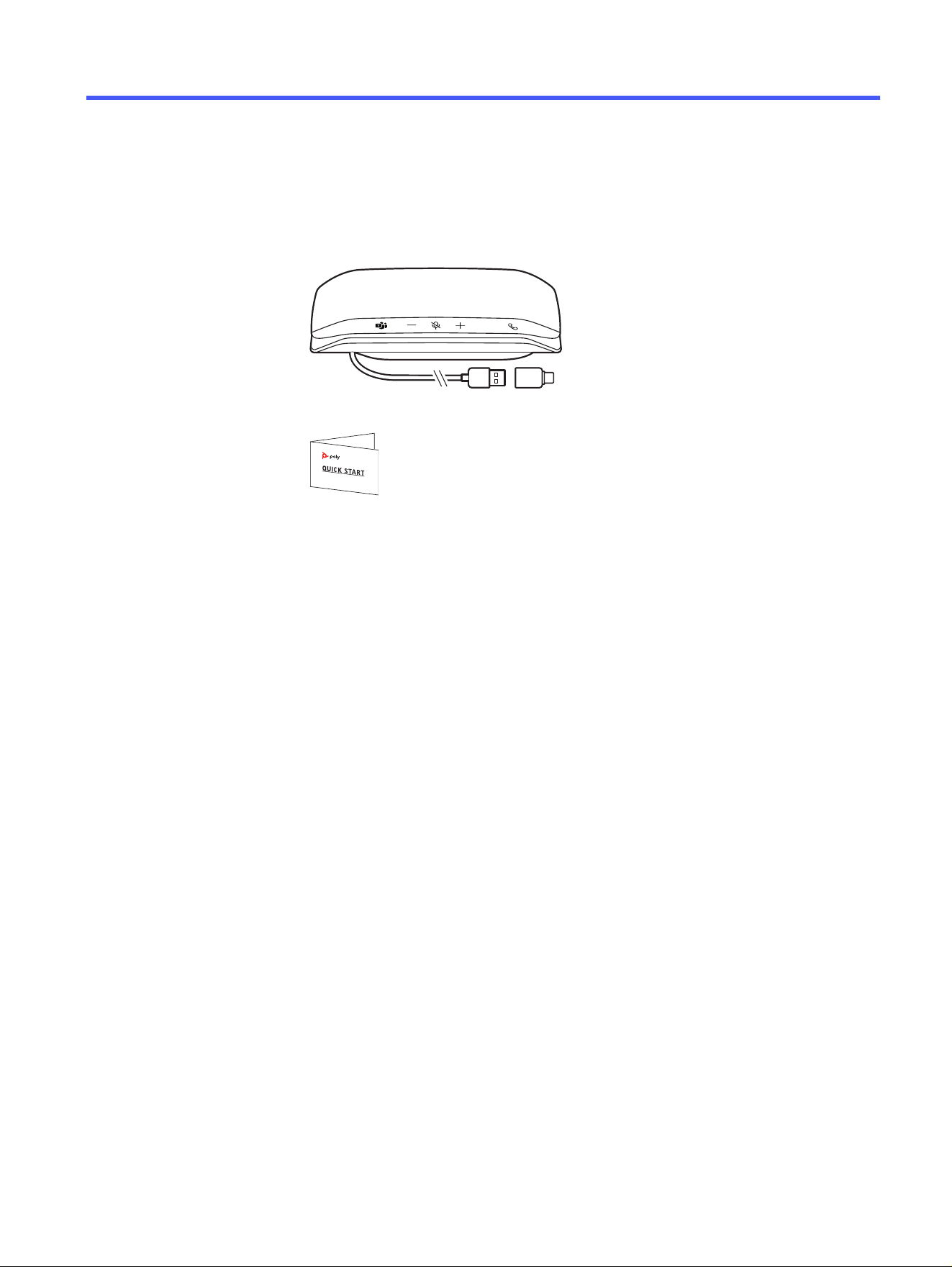
Contents may vary by product.
Figure 5-1 Speakerphone with USB-A to USB-C adapter
Figure 5-2 Quick start guide
8
Chapter 5 What's in the box

Safety warnings
Safety Instructions
To reduce the risk of fire, electric shock, injury to persons and damage to property,
read all operating instructions and the following safety instructions before using
your HP product. Operating, storage and charging temperature is 10˚C to 40˚C
(50˚F to 104˚F).
● Only use those HP products and accessories designed for use with this
product.
● If you experience a skin irritation after using this product, discontinue use and
contact HP.
● CHILDREN. Never allow children to play with the product-small parts may be a
choking hazard.
● Do not disassemble the product as this may expose you to dangerous
voltages or other risks. Incorrect reassembly can cause electric shock or fire
when the product is subsequently used.
● Unplug, discontinue use and contact HP if the product overheats or has a
damaged outer casing, cord or plug.
● Exposure to high volume sound levels or excessive sound pressure may
cause temporary or permanent damage to your hearing. Although there is
no single volume setting that is appropriate for everyone, you should always
use your headset/headphones with the volume set at moderate levels and
avoid prolonged exposure to high volume sound levels. The louder the volume,
the less time is required before your hearing could be affected. You may
experience different sound levels when using your headset/headphones with
different devices. The device you use and its settings affect the level of sound
you hear. If you experience hearing discomfort, you should stop listening to the
device through your headset/headphones and have your hearing checked by
your doctor. To protect your hearing, some hearing experts suggest that you:
1. Set the volume control in a low position before putting your headset/
headphones on your ears and use as low a volume as possible.
2. Avoid turning up the volume to block out noisy surroundings. Whenever
possible, use your headset/headphones in a quiet environment with low
background noise.
3. Limit the amount of time you use headsets/headphones at high volume levels.
4. Turn the volume down if the sound from the headset/headphones prevent you
from hearing people speaking near you.
Safety warnings
9

● If you use your headset/headphones while driving, check local laws regarding
use of a mobile phone and headset, and ensure your attention and focus
remain on driving safely. Use of a headset/headphones that covers both ears
will impair your ability to hear other sounds and in most regions is illegal to
use while operating a motor vehicle or riding a bicycle and may be a serious
hazard for you and others.
● If this product includes earbuds/eartips, install and use them in accordance
with the instructions provided. Do not force earbuds/eartips down the ear
canal. Consult a doctor if they become lodged in the ear canal.
● Plug the mains adapter or charger into a socket-outlet that is near to the
equipment and will be easily accessible.
Battery Warnings for Wireless Products
● If your product has an embedded, non-replaceable battery, do not attempt
to open the product or remove the battery as this may cause injury and/or
damage the product. If your product has a replaceable battery, use only the
battery type supplied by HP. Remove a spent battery promptly.
● Replace rechargeable batteries after three years or 300 charge cycles,
whichever occurs first.
● Do not dispose of the product or battery in a fire or heat above 40°C (104°F).
● Do not expose the battery to extremely high temperatures. It may result in an
explosion or the leakage of flammable liquid or gas.
● Do not open, deform or mutilate the battery. There may be corrosive materials
which can cause damage to eyes or skin and may be toxic if swallowed.
● Never put batteries in mouth. If swallowed, contact a physician or poison
control center.
● Swallowing may lead to burns, perforation of soft tissue, and death. Severe
burns can occur within 2 hours of ingestion.
● Always store batteries where children cannot reach them.
● Do not allow any battery or its holder to contact metal objects such as keys or
coins.
● RECYCLING: The product battery must be recycled or disposed of properly.
Contact your local recycling center for battery removal and proper disposal.
● Use only the charger supplied by HP to charge the product and follow the
charging instructions provided. Alternatively, if your headset is designed to be
charged with your cell phone charger, use only cell phone chargers approved
and provided by your cell phone manufacturer. Do not use the charger for
any other purpose. Ensure that the voltage rating corresponds to the power
supply you intend to use.
10
Chapter 6 Safety warnings

Support
NEED MORE HELP?
support.hp.com/poly
HP Inc.
1501 Page Mill Road
Palo Alto, CA 94304, U.S.A.
650-857-1501
HP REG 23010, 08028
Barcelona, Spain
HP Inc UK Ltd
Regulatory Enquiries, Earley West
300 Thames Valley Park Drive
Reading, RG6 1PT
United Kingdom
台灣惠普資訊科技股份有限公司
臺北市南港區經貿二路 66 號 10 樓
電話:02-37899900
RMN (Regulatory Model Number): SY10/SY10-M USB-A/C. System: Poly Sync 10 has
a SY10/SY10-M speakerphone.
Support
11