1 / 103
Wireless AV Content Sharing & BYOD
collaboration System (Quad Viewer)
User Manual_V1.6
Receiver: WMS-10, WMS-20, WMS-40
Transmitter: WMT-Mini, WMT-H35,WMT-C35

2 / 103
Feature List:
WMS-10/WMS-20/WMS-40:
⚫ Support quad viewer on one display.
⚫ Support VESA PC resolution input, auto-detecting.
⚫ Can transmit PC’s mirror/extended desktop or Macbook's mirror desktop.
⚫ Can transmit smart devices' mirror, photos, videos, music etc.
⚫ Support the Wireless Media Teleporter "show-me" button.
⚫ Support HDMI/ Type C plug-in auto configuration/pairing for Wireless Media Teleporter "show-me"
button.
⚫ Support "Airplay" for apple device.
⚫ Support VESA PC resolution, auto-detecting.
⚫ Can wireless transmit PC's mirror or extended desktop to base unit.
⚫ Quick "Show-me" button to selection switcher the active signal of PC, less than 1s.
⚫ "Show-me" button can independently step in/out the source of PC.
⚫ Dual color LED, green indicates active source signal, red indicates power/link. (Hardware support on
USB dongle, HDMI dongle and type C dongle)
Version log:
Version Revise time Description
1.0 2019, NOV. 21
th
Created
1.5 2020, MAR.13
th
Updated
WMT-Mini/WMT-H35/WMT-C35:

3 / 103
Catalogue
1. Overview: ......................................................................................................................................................... 6
2. Specification: ................................................................................................................................................... 8
3. Panel Layout ................................................................................................................................................... 8
3.1 Hardware Interface .......................................................................................................................... 9
3.1.1 WMS-10/WMS-20/WMS-40 Front Panel ..................................................................................... 9
3.1.2 WMS-10/WMS-20/WMS-40 Rear Panel .................................................................................... 11
3.1.3 Factory Reset ................................................................................................................................. 12
3.2 Software Interface ......................................................................................................................... 17
3.2.1 Home Screen ................................................................................................................................. 17
4. Installation ..................................................................................................................................................... 19
4.1 Installation methods for the Base unit ....................................................................................... 19
4.2 Wiring Diagram ............................................................................................................................. 20
4.3 Power Connection ......................................................................................................................... 21
4.4 Video Connection.......................................................................................................................... 21
4.5 Audio Connection ......................................................................................................................... 22
4.6 LAN connection ............................................................................................................................. 24
4.7 Usage of USB device ..................................................................................................................... 24
5. Quick-to-Start ............................................................................................................................................... 25
5.1 Mobile device: Wireless Connection ........................................................................................... 25
5.1.1 Enable portable hotspot: ................................................................................................................... 26
5.1.2 Enable LAN connection: ............................................................................................................... 27
5.2 Pairing transmitter with base unit ............................................................................................... 28
5.3 Mirroring ........................................................................................................................................ 29
5.3.1 PC/Lap-top ..................................................................................................................................... 29
5.3.2 Mobiles Devices............................................................................................................................. 32
5.4 Preview Window ............................................................................................................................ 35
5.5 Whiteboard & Annotation ........................................................................................................... 37
5.5.1 Whiteboard ....................................................................................................................................... 38
5.5.2 Annotation ........................................................................................................................................ 40
1. Web Setting Management Configuration ................................................................................................ 42

4 / 103
6.1 Network settings ........................................................................................................................... 45
6.1.1 Wireless network ........................................................................................................................... 45
6.1.2 Ethernet ............................................................................................................................................. 55
6.1.3 Auto change password ................................................................................................................... 56
6.2 Display & Audio ............................................................................................................................ 57
6.2.1 HDMI .................................................................................................................................................... 57
6.2.2 Audio .................................................................................................................................................... 59
6.2.3 Airplay screen quality ...................................................................................................................... 60
6.2.4 Screen display ID .............................................................................................................................. 61
6.2.5 Home Screen background image .................................................................................................. 61
6.3 Moderator control ......................................................................................................................... 62
6.4 System settings.............................................................................................................................. 64
6.4.1 Buttons: ................................................................................................................................................ 64
6.4.2 Date & Time ..................................................................................................................................... 65
6.4.3 Auto standby .................................................................................................................................... 67
6.4.4 Language .......................................................................................................................................... 68
6.4.5 Reset .................................................................................................................................................. 69
6.4.6 Configuration File ............................................................................................................................ 69
6.4.7 Series Port Setting ........................................................................................................................... 70
6.5 Security Settings ............................................................................................................................ 71
6.5.1 Security level .................................................................................................................................. 71
6.5.2 Login Password ............................................................................................................................. 72
6.5.3 Connection password ................................................................................................................... 72
6.6 Firmware upgrade ......................................................................................................................... 73
6.6.1 Firmware Update ................................................................................................................................ 73
6.6.2 Automatic Upgrading ......................................................................................................................... 73
6.7 Other settings ................................................................................................................................ 74
6.7.1 Auto create launcher ........................................................................................................................... 74
6.7.2 Clear history after meeting ............................................................................................................. 74
6.8 About device .................................................................................................................................. 75
2. Updating WirelessMedia ............................................................................................................................. 75
7.1 Check current firmware information .................................................................................................... 76

5 / 103
7.2 Upgrading firmware of base unit: ......................................................................................................... 79
7.3 Upgrading and Pairing of Dongle: .............................................................................................. 80
7.4 Upgrading Launcher: .................................................................................................................... 81
7.5 Clean left files of older versions of Launcher program in Lap-top .................................................. 83
3. Operation Guide ........................................................................................................................................... 84
8.1 Mirroring PC desktop ................................................................................................................... 84
8.1.1 Extended Desktop for Windows 10 ............................................................................................ 84
8.1.2 Microsoft Windows PC/Laptop with Dongle ............................................................................. 84
8.1.3 Microsoft Windows PC/Laptop without Dongle ....................................................................... 86
8.1.4 Options for Microsoft Windows PC / Laptop – Extended Screen ........................................... 88
8.1.5 MAC OS PC/Laptop with Dongle ................................................................................................ 90
8.1.6 MAC OS PC/Laptop without Dongle .......................................................................................... 92
8.1.7 Options for Apple MacOS, MacBook – Extended Screen ........................................................ 94
8.2 Transmitting IOS mobile device .................................................................................................. 95
8.2.1 How to use AirPlay? ...................................................................................................................... 95
8.3 Transmit Android device wireless ............................................................................................... 95
8.3.1 “WirelessMedia” Apk for Android ............................................................................................... 95
4. WIFI Recommendation Setting .................................................................................................................. 97
9.1 Check the WIFI config on base unit ............................................................................................ 97
9.2 Check the WIFI RSSI on dongle or Mobiles ............................................................................... 98
5. Problem Shooting ........................................................................................................................................ 98
6 / 103
1. Overview:
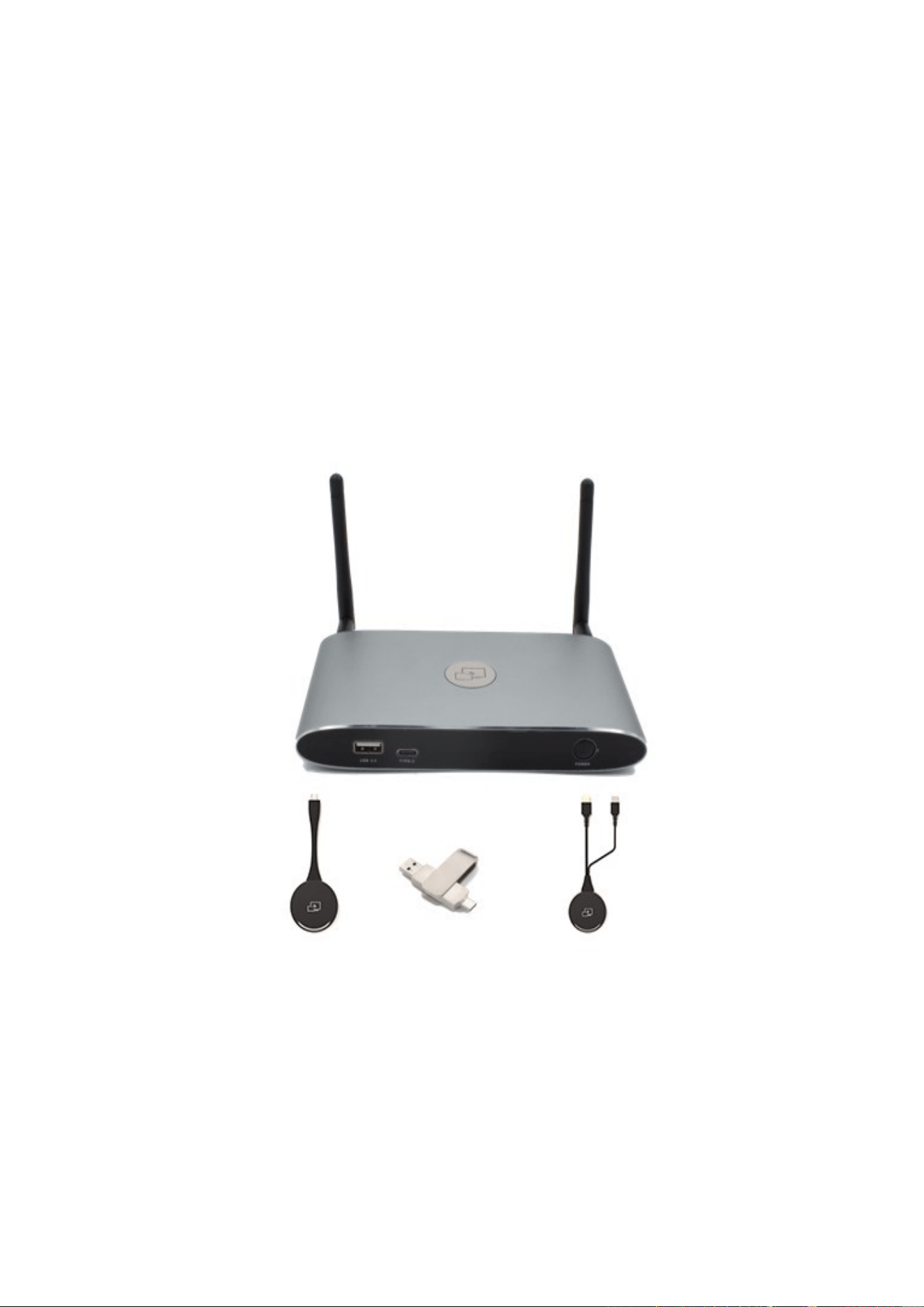
WirelessMedia Set
Wirelessmedia Set Components
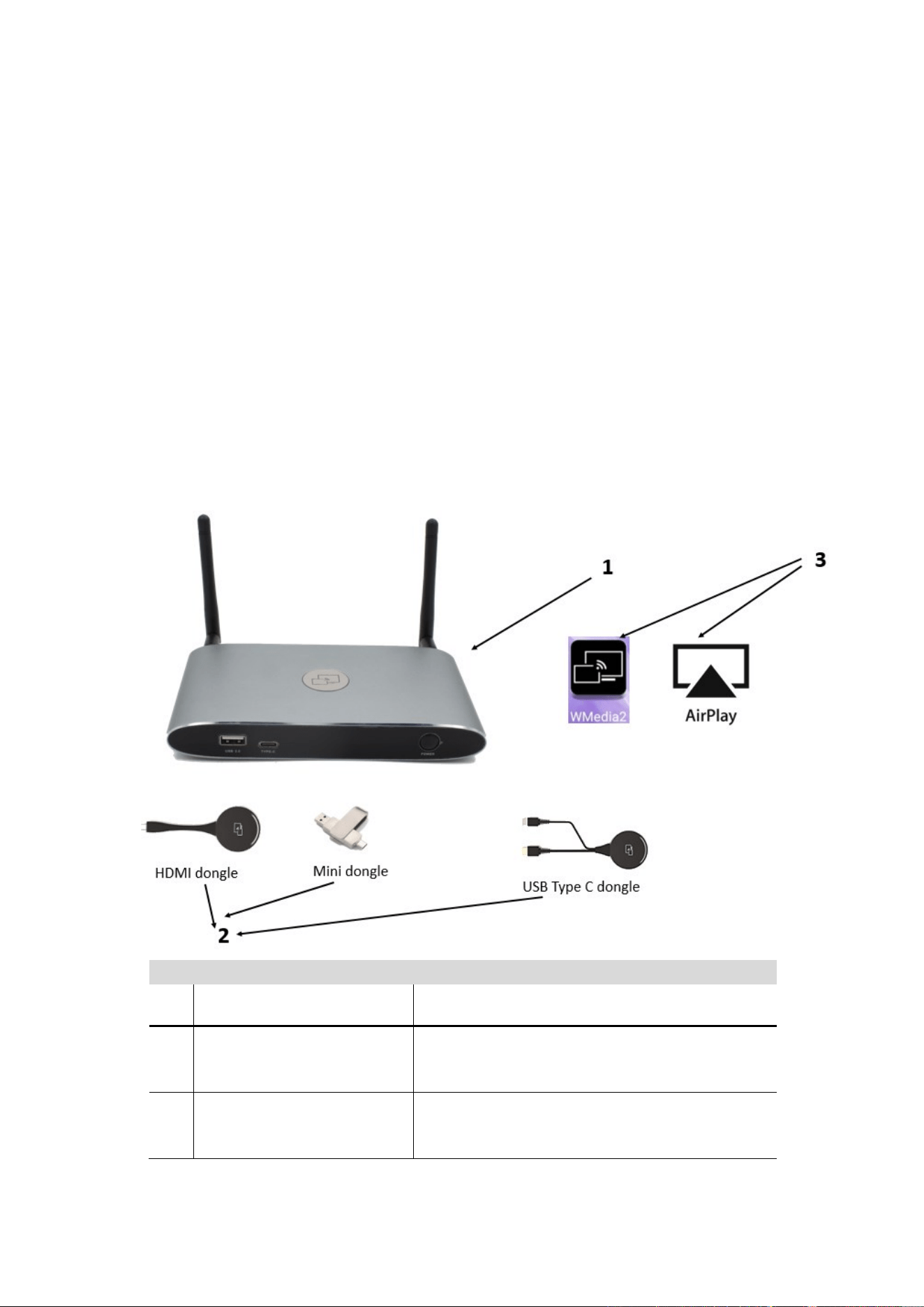
A typical WirelessMedia Set includes two Buttons, one Base Unit, “WMedia2” for Android” APK and Airplay for
IOS”. Depending on the application or size of meeting room, user could purchase more kinds of buttons, e.g.
USB dongle/ HDMI dongle/ USB Type C dongle if they need.
ID Name Description
1 Base Unit Host unit
2 Transmitters
For PC/Lap-top to share the desktop/extended
desktop.
3 “WMedia2” App for Android For smart android devices to share the screen.
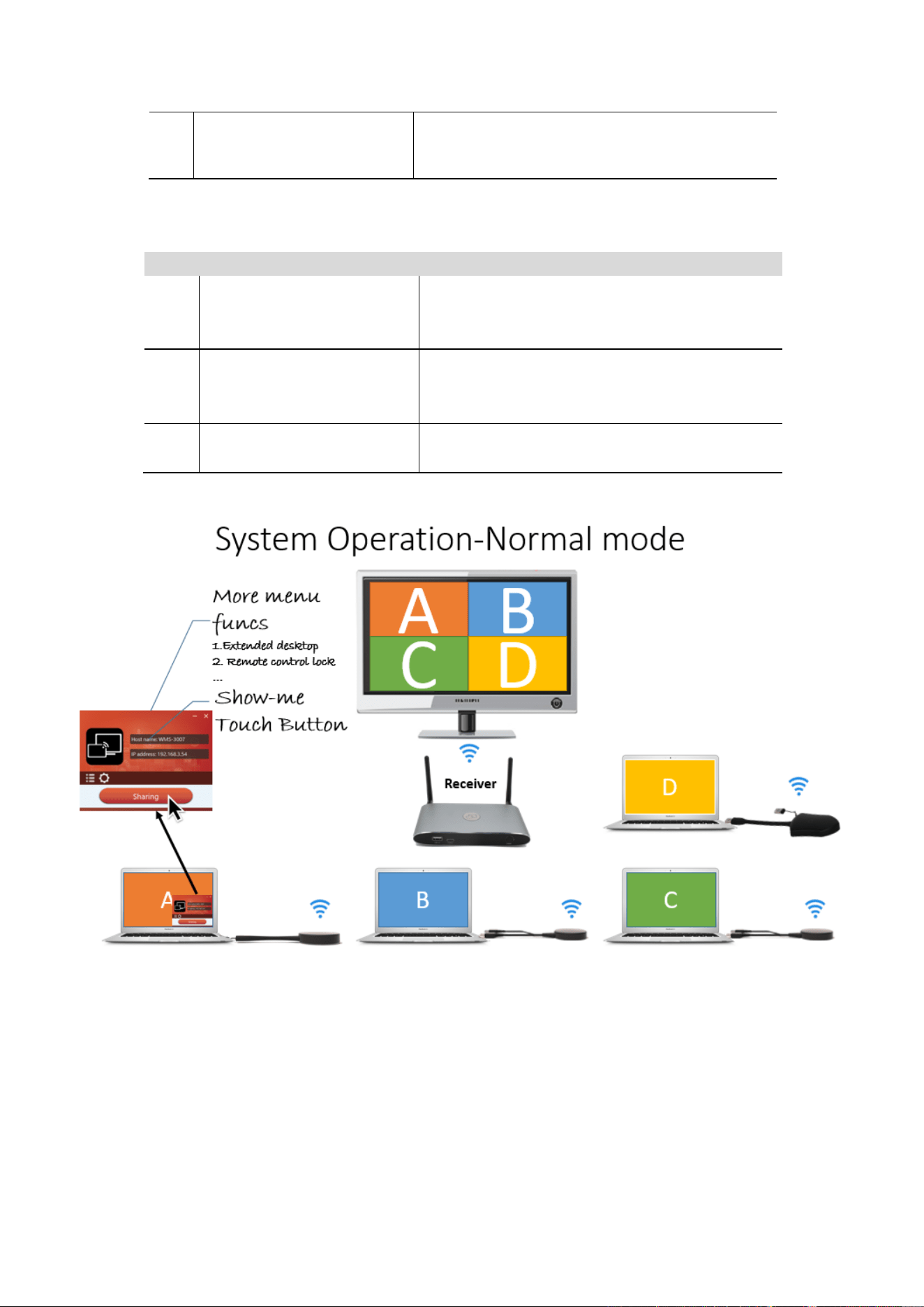
WirelessMedia makes connecting or participate in a meeting by a most simple way, touching a button. It also
allows the other to join in the meeting more actively. The result is to make the meeting more efficient and
productive. A typical WirelessMedia contains one Base Unit WMS and two Transmitters e.g. WMT-H35/WMT-
C35/WMT-Mini for choices.
7 / 103
4
Airplay for IOS
For smart IOS devices to share the screen.
Accessories List
ID
Name
Description
1
Antenna
2 pcs of antenna are included in the box. To avoid
damage, they are not pre-mounted. The antenna
can rotate for a better wireless connection.
2
Power adapter
International plug inter-changeable power
adapter, of which the plugs includes US, Europe,
UK, Australia standard.
3
Phoenix terminal
1 piece phoenix terminal for connecting the RS232
port of the rear panel.
The diagram of receiver and transmitter system as below.

8 / 103
2. Specification:
3. Panel Layout
About this chapter
The installation chapter gives an overview of the interface of WirelessMedia.
WMS-40 Specification
HDMI output
1x HDMI 19-pin female connector
Video Output Resolution
3840x2160@60Hz,3840x2160@30Hz,
1920x1080@60Hz
Format Compliance
HDMI1.4/HDMI2.0
Video Capacity:
1080P @ <60Hz Airplay for IOS devices
1080P @ <60Hz "WirelessMedia" app
1080P @ <60Hz for all show-me button
HDCP
HDCP1.4/HDCP2.2
Analog Audio Output
1x 3.5mm PC audio female connectors
LAN port
RJ45 x2:1000Mbps x1,100Mbps x1
USB interface
USB3.0 x1, USB 2.0 x1,Type-C x1
Audio Input
AirPlay, Windows/MAC, WMH
Control connectors
3.5mm Phoenix terminal/ RS232 interface
Number of window simultaneous on
screen
≥4+14(4 main windows+14 thumbnail windows)
Number of simultaneous
connections
≥16
Data rate in wireless
Up to 1200Mbps
Video Playback Frame Rate
20-60 FPS
Latency
<100ms,Min 20ms
Wireless transmission protocol
WIFI IEEE 802.11 a/g/n/ac
Frequency band
2.4 GHz & 5 GHz
WIFI Antenna
MIMO 2x2
Dimension (W x D x H)
165mm x 95mm x 24.5mm(including antenna:
165mm x 125mm x 24.5 mm)
Weight
0.4lbs(200g)
Temperature
-4° ~ +140° F (-20° ~ +60° C)
Humidity (Storage / Operating)
20%-90%(non-condensing)
DC Power
12V / POE
POE standard
IEEE802.3af
Power Consumption
10W(MAX)
9 / 103
Overview
⚫ Hardware Interface
◼
◼
◼
⚫ Software Interface
◼ Home Screen
3.1 Hardware Interface
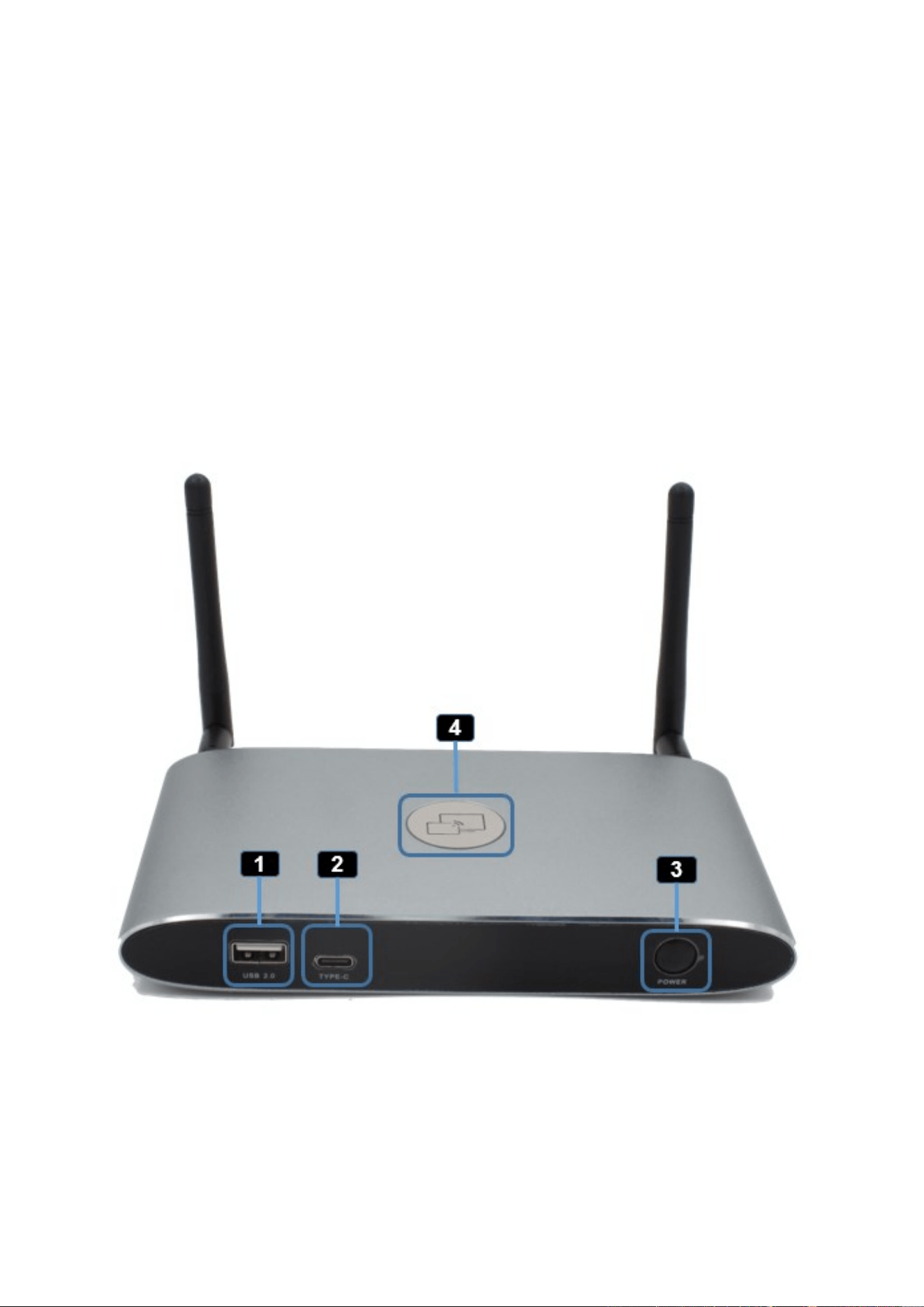
3.1.1 WMS-10/WMS-20/WMS-40 Front Panel
WMS-10/WMS/20/WMS-40 Front Panel
WMS-10/WMS/20/WMS-40 Rear Panel
WMT-Mini /WMT-H35 /WMT-C35 Front panel

10 / 103
ID
Name
Description
1
Front USB connector
USB port, for dongle pairing, mouse control, USB
touch screen etc.
2
Front Type-C connector
Type-C port, for dongle pairing.
3
Power Button
Turn on or off the device.
4
Back-lit LED indicator
Initializing indicates RED, power on indicates
flashing GREEN, “Ready to share” indicates static
GREEN, “Sharing” indicates static cyan.
USB port
⚫ The USB port is used to update the software of the WMS-40.
⚫ The USB port is used for pairing the dongle and base unit, when the transmitter is plugged-in.
⚫ The USB port is used for connecting a mouse to create/upgrade Launcher by clicking Download button,
hide SSID, PASS, Wifi IP and Lan IP by clicking Info, check Security level button and control PC source
device, when a PC desktop is mirroring to the screen by plugging in the dongle.
⚫ The USB port is used for connecting a USB-based touch screen to create/upgrade Launcher by clicking
Download button, hide SSID, PASS, Wifi IP and Lan IP by clicking Info, check Security level button and
control PC source device, when a PC desktop is mirroring to the screen by plugging in the dongle.
⚫ The USB port is used for creating or upgrading Launcher by clicking Download button, when a USB stick is
plugged in.
Type-C port
The Type-C port is used for pairing USB Type C dongle with base unit.
Mechanical fixture points.
The mechanical fixture points are located at the bottom of the base unit.
11 / 103
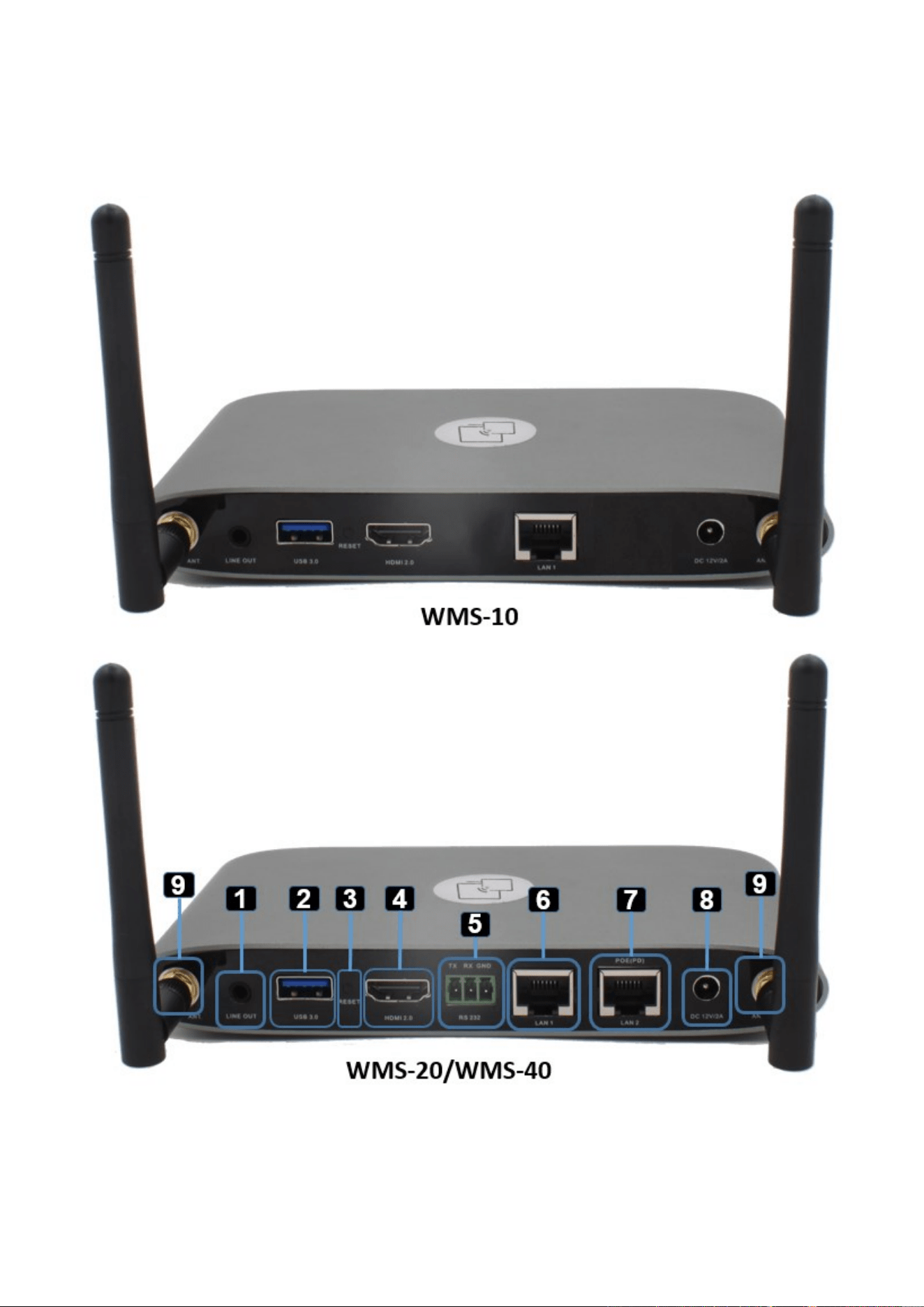
3.1.2 WMS-10/WMS-20/WMS-40 Rear Panel

12 / 103
ID
Name
Description
1
Line audio
output
2 channel analog audio output, Connect a 3.5mm mini-jack
PC connector from this jack to the Line in jack of an audio
system.
2
Rear USB3.0
connector
USB port, for USB dongle pairing, mouse control, USB touch
screen etc.
3
Reset
Reset button to restore to the factory default setting.
4
HDMI output
Connect an HDMI cable from this port to an
HD or 4K/HDMI2.0 display.
5
RS-232
Connect an RS-232 cable from this port to an RS-232 device.
(Note: No RS-232 port in model WMS-10 hardware.)
6
LAN Ethernet
port 1
100Mbps, Connect an Ethernet cable between
this jack and a LAN to connect WMS-40 to LAN.
7
LAN Ethernet
port 2
1000Mbps, Connect an Ethernet cable between
this jack and a LAN to connect WMS-40 to LAN. Support POE.
(Note: No LAN Port 2 in model WMS-10 hardware.)
8
DC Power socket
Connect the included power adapter to this socket, and
connect the plug to an available electrical outlet.
9
Antenna fixture
points
Screw up the included two antennas to these two ports.
Note: LAN port 2 and RS-232 port is only for WMS-20&WMS-40 in hardware.
USB port
⚫ The USB port is used to update the software of the WMS-40.
⚫ The USB port is used for pairing the dongle and base unit, when the transmitter is plugged-in.
⚫ The USB port is used for connecting a mouse to create/upgrade Launcher by clicking Download button,
hide SSID, PASS, Wifi IP and Lan IP by clicking Info, check Security level button and control PC source
device, when a PC desktop is mirroring to the screen by plugging in the dongle.
⚫ The USB port is used for connecting a USB-based touch screen to create/upgrade Launcher by clicking
Download button, hide SSID, PASS, Wifi IP and Lan IP by clicking Info, check Security level button and
control PC source device, when a PC desktop is mirroring to the screen by plugging in the dongle.
⚫ The USB port is used for creating or upgrading Launcher by clicking Download button, when a USB stick is
plugged in.
3.1.3 Factory Reset
⚫ Start up the Base unit.
⚫ When the Home Screen is shown up, press the reset button at the rear panel of base unit. Press this button
with a pointed object, e.g. an unbent paper clip until the “Factory Reset” page is shown up as below, for at
least 2 seconds.
⚫ The Base unit will reboot after 3 seconds to be default configuration.
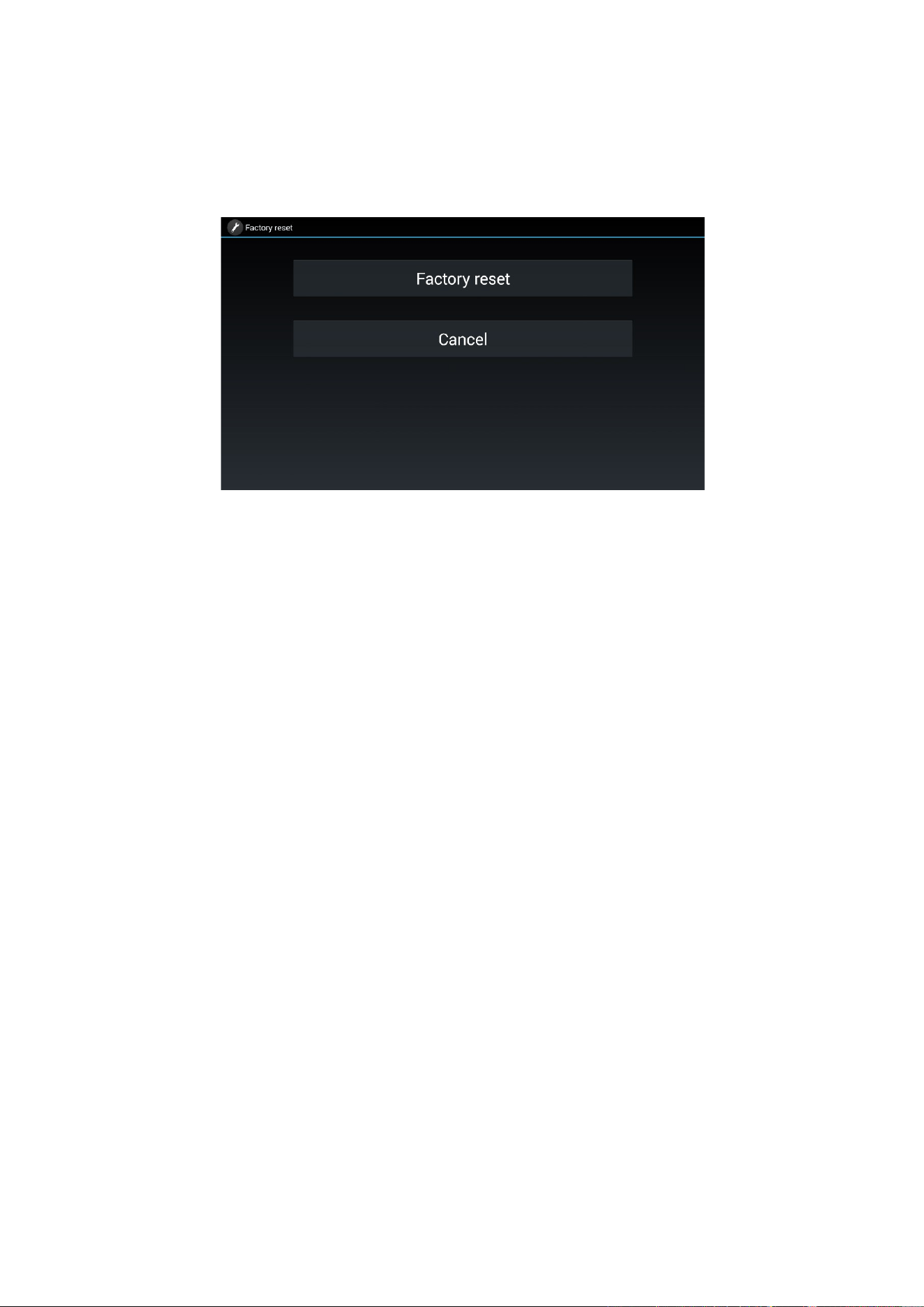
13 / 103
⚫ If you do not have a picture, press and hold the reset button until the red LED in the top panel will lit, to
execute the reset.
All previous settings will be lost and you will need to do the set-up once more.
Default Configuration
⚫ Ethernet:
◼ Proxy: None
◼ DHCP: Enable
⚫ Wireless network:
◼ Frequency: 5GHZ
◼ Channel: Auto
◼ Auto change Wi-Fi hotspot password: 5minute
⚫ Display & Audio
◼ HDMI resolution: Auto
◼ HDMI CEC:
◆ Device auto power off: ON
◆ Base unit auto power on: OFF
◼ Audio output: Jack&HDMI
◼ Airplay screen quality: High
◼ show device name and password when mirroring: OFF
◼ show PCs user name when mirroring: ON
⚫ Moderator Control
◼ Add a sub-window bar to enable previewing the connected devices: ON
◼ Real time preview: ON
⚫ System settings
◼ Date & time: Automatic date & time: use network-provided time
◼ Auto Standby: Never
◼ Language: English
⚫ Security Settings
◼ Security Level: Security level 1
14 / 103
◼ Connection Password: 4-digits password beginning with 0000
◼ Change admin password: admin(default)
⚫ Other settings
◼ Auto create launcher: Disabled
◼ Clear history after meeting: Always
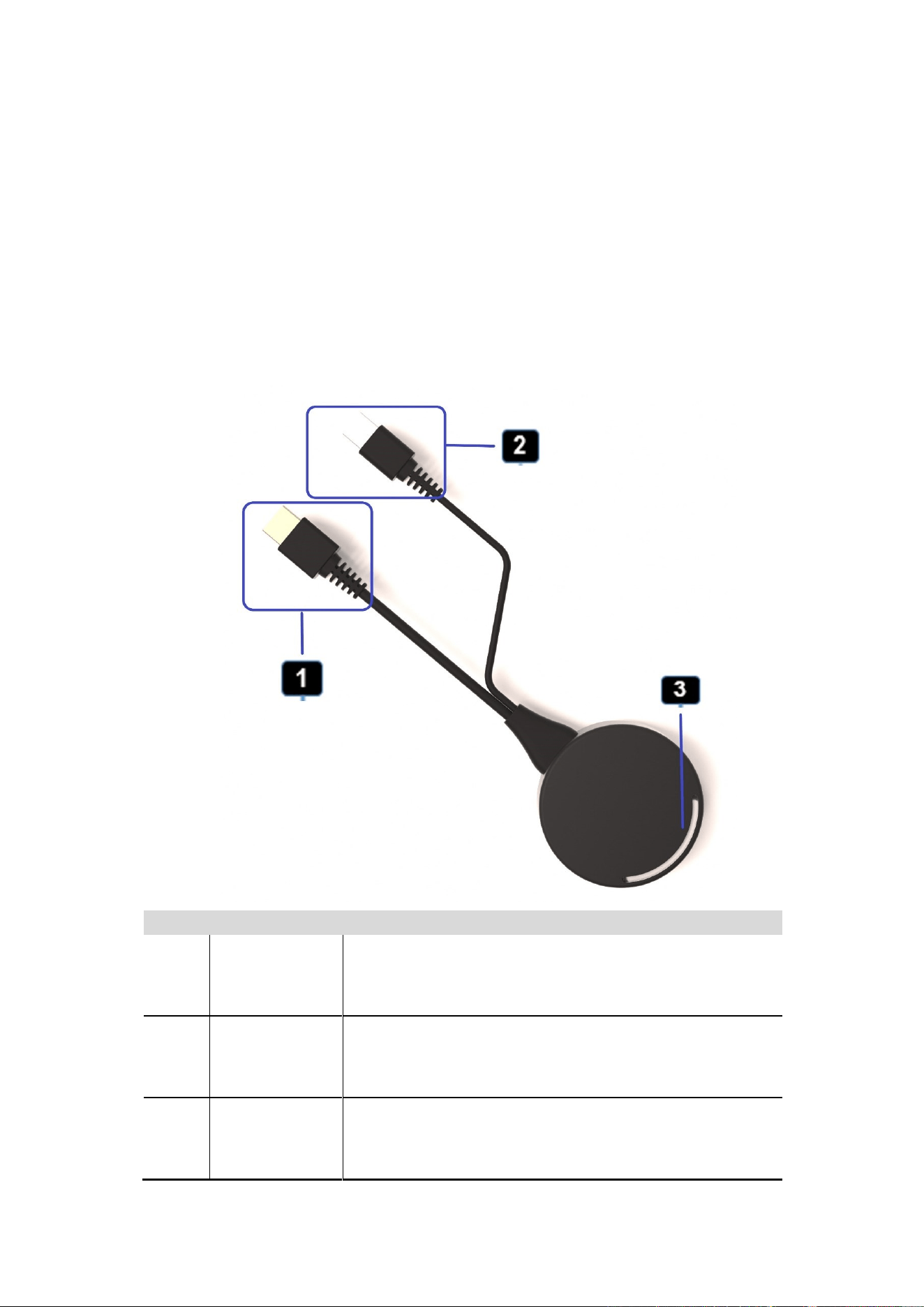
ID Name Description
1 HDMI connector
Using HDMI connector of the button can be plugged into a
PC/Laptop for sharing your screen.
2 USB connector
Supply power, or plug into the base unit for pairing the
Button to the Base Unit or upgrade the dongle.
3
LED ring
indicator
Indicates the status of the button.
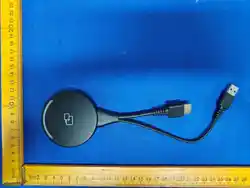
WMT-Mini, WMT-H35, WMT-C35 are dongles, which is used for toggling the mirroring from personal PC or M
AC desktop on the main screen.
15 / 103
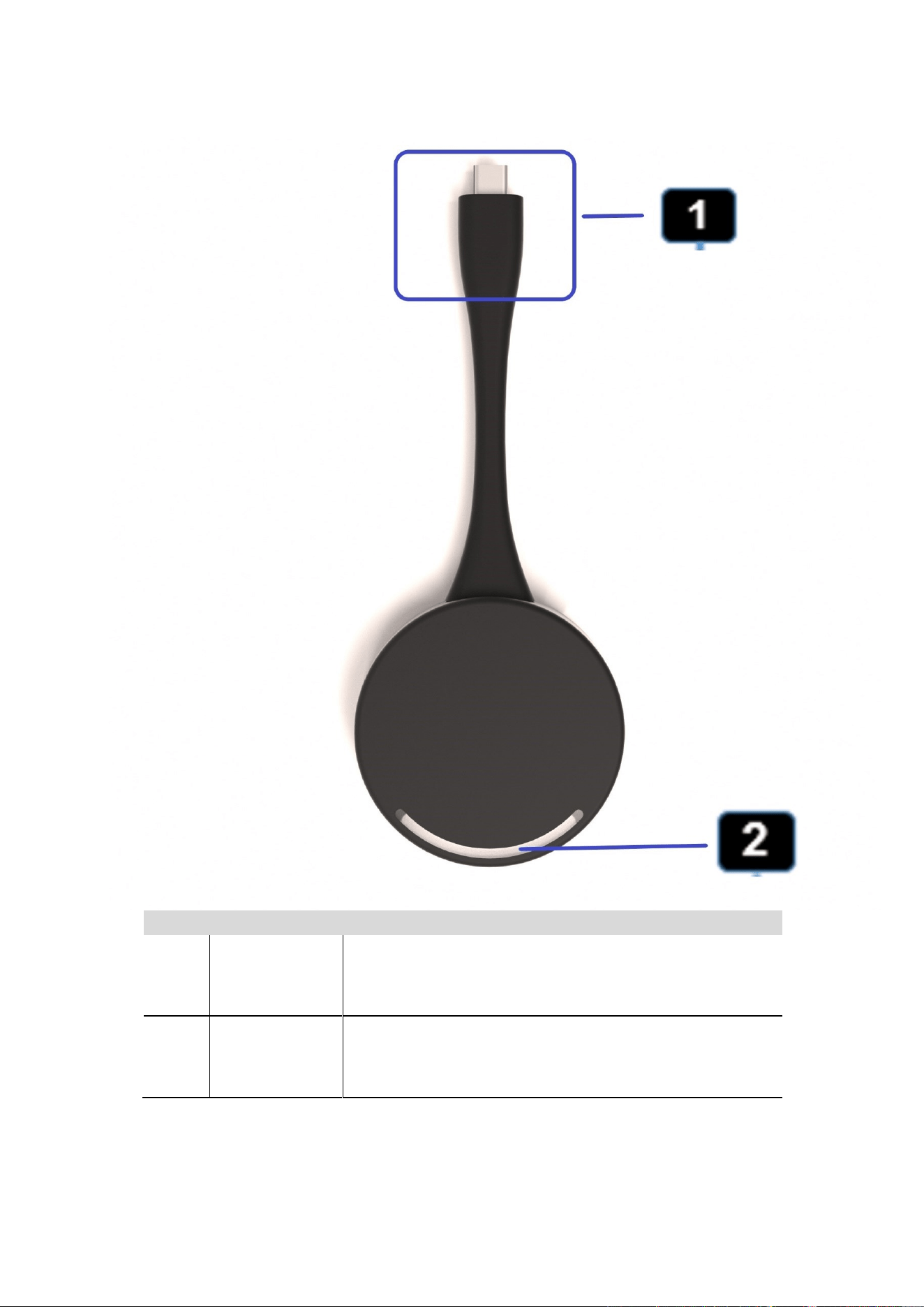
ID
Name
Description
1
HDMI Type C
connector
Using HDMI Type C connector of the button can be plugged
into a PC/Laptop for sharing your screen.
2
LED ring
indicator
Indicates the status of the button.
16 / 103
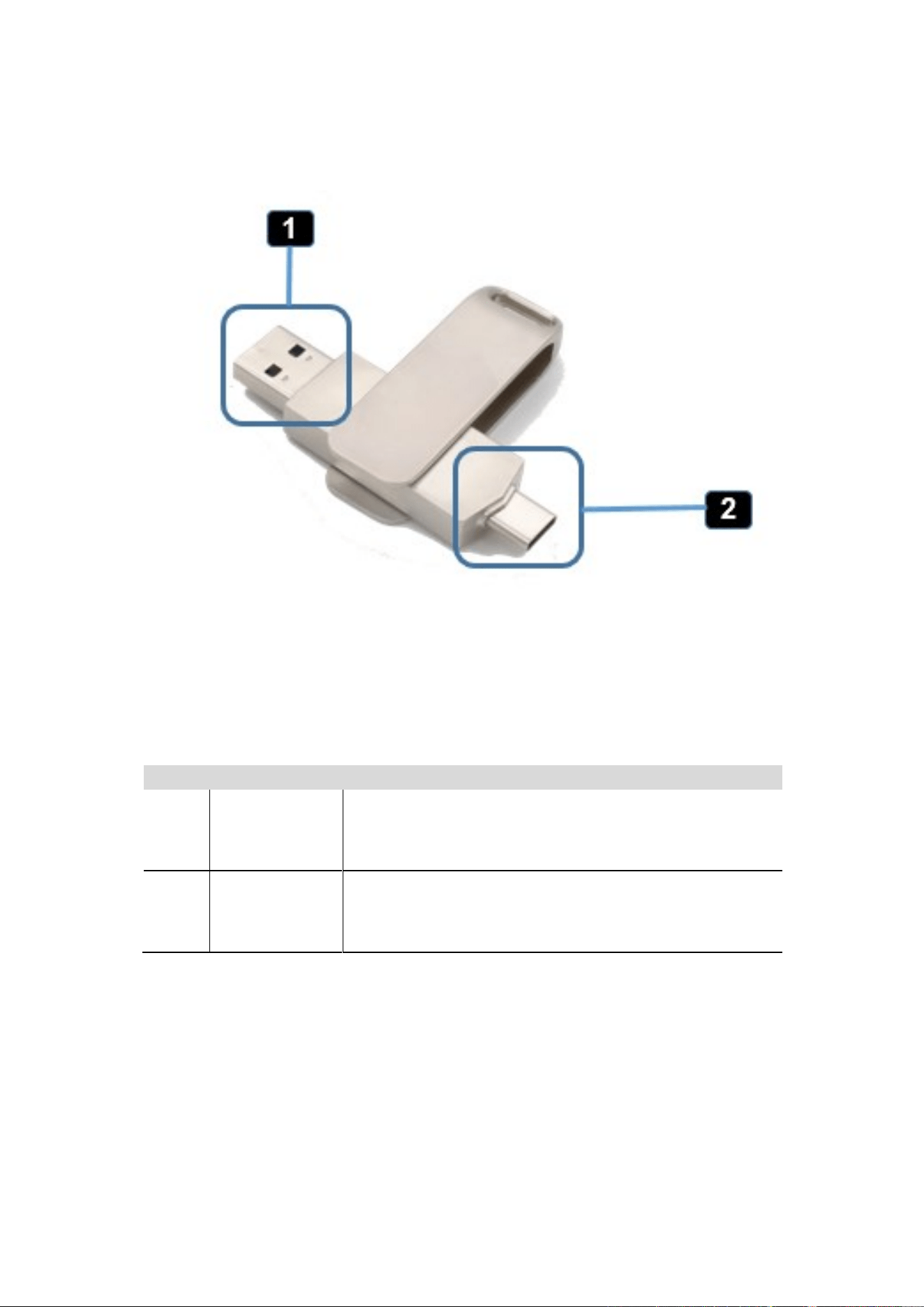
ID
Name
Description
1
USB connector
Using USB connector of the dongle can be plugged into a
PC/Laptop for sharing your screen.
2
Type C
connector
Using Type C connector of the dongle can be plugged into a
PC/Laptop for sharing your screen.
17 / 103
3.2 Software Interface
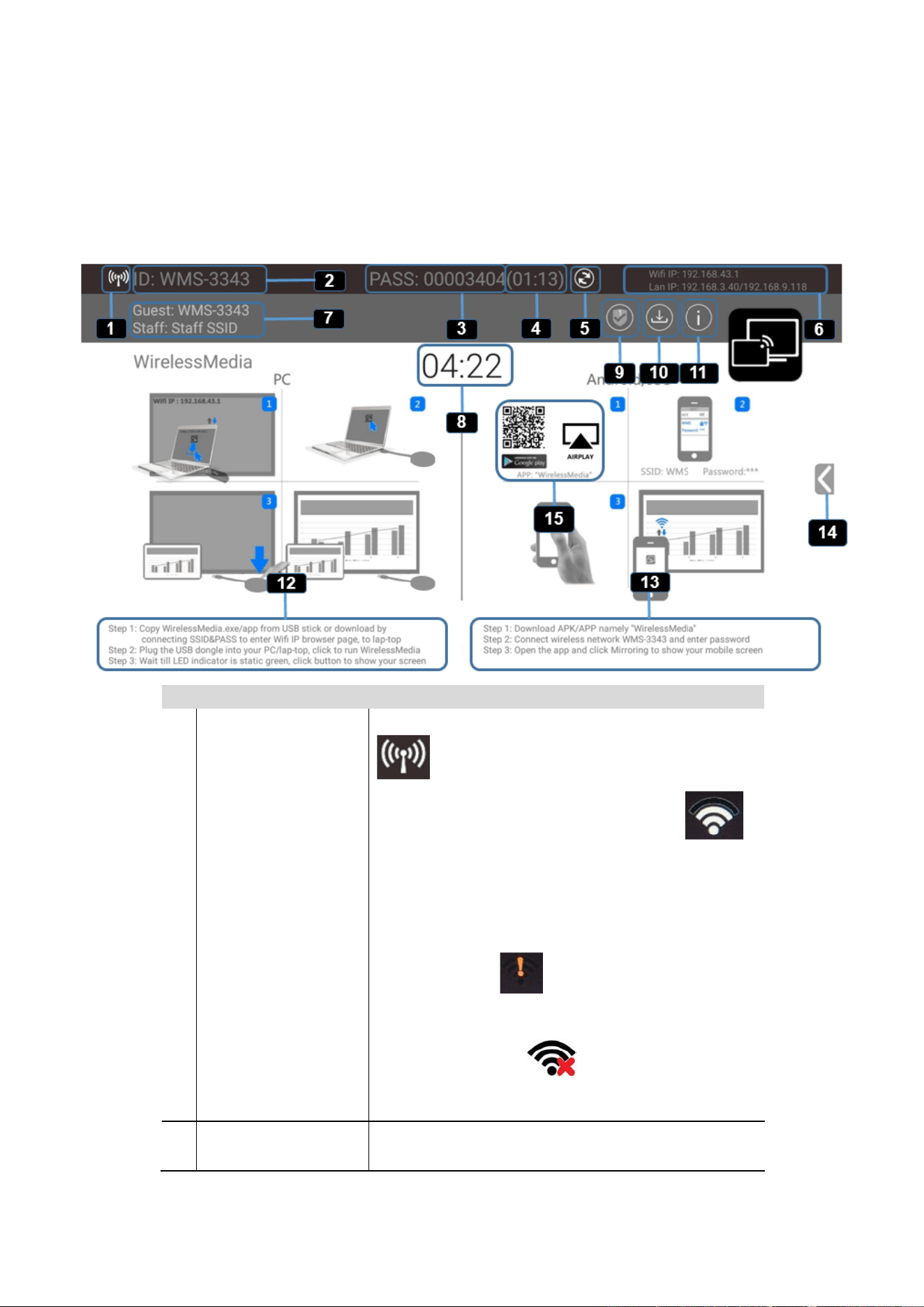
3.2.1 Home Screen
ID
Name
Description
1
Wi-Fi Indicator
Wi-Fi Direct mode: internal access point is enabled
Wi-Fi Infrastructure mode: “Client-Mode“ ,
Wi-Fi connection to router is established,
icon displays the current signal strength.
A secure Wi-Fi connection is established, or connection
to a router failed:
Wi-Fi is not available:
LAN Infrastructure mode: access point is disabled
2
ID
Wi-Fi name or device name of the Base-unit access
point.

18 / 103
3
PASS
Wi-Fi password of base unit.
4
Password-timer
only displayed, when timer is active;
time until the password is changed automatically.
5
Refresh Wi-Fi-
password
Generate new password manually for securing your Wi-
Fi network.
6
Wi-Fi IP
LAN IP
⚫ Wi-Fi IP: address of base unit in wireless LAN
⚫ Assigned IP: address of base unit in LAN; “N/A“ =
no connection to network
7
SSID: Guest
SSID: Staff
Name of Wi-Fi network for Guest and Staff, which
allows mobile devices to connect with the base unit.
8
TIME
Show time, if LAN has access to a time server; even after
disconnecting the LAN connection, the time is displayed
until the device has been disconnected from power.
9
Security level
Security level 1-3, display ONLY; the security features of
the displayed level are displayed in detail by clicking on
the icon;
the settings can only be changed by administrator in the
webserver console setting menu.
10
Download Button
Creating & upgrading Launcher
“WirelessMedia.exe“ for Windows, MAC to USB stick.
11
Info
Show status-bar (1) – (7) in Home screen
showing/hiding
12
Windows / MacOS
Quick Start
Steps to instruct how to transmit PC/Lap-top onto the
main screen. First-time users must first install the
starter program from the web page or from the USB
stick one time.
13
Android/IOS
Quick Start
Steps to instruct how to transmit smart mobile devices
either powered by Android or IOS, onto the main
screen.
14
Preview function of
the screen contents
of the participants
with transmitter and
mobile devices;
White Board&
Annotation function
icon
Preview function of the screen contents of all
connected transmitters and mobile devices;
White Board and Annotation function.
15
Load
“WirelessMedia2”
App from Store
Scan QR-code for Android device and download the
App from GooglePlay Store.

19 / 103
4. Installation
The installation chapter gives an overview of the different ways to install and connect WirelessMedia Base Unit.
Overview:
⚫ Installation methods for the Base unit
⚫ Table mounting
⚫ Wall mounting
⚫ Recommendations about antenna placement and orientation
⚫ WMS Power Connection
⚫ WMS Video Connection
⚫ WMS Audio connection
⚫ WMS LAN connection
⚫ About USB device connection
⚫ Wiring Diagram
4.1 Installation methods for the Base unit
Introduction to the installation methods:
The Base unit can be installed in different ways in a meeting room.
⚫ Table mount
⚫ Wall mount
The articulated antennas are removable. They can rotate for better wireless connection.
Attention: For optimal performance, install the Base unit close to the display and avoid obstacles between the
Base unit and the Transmitters.
Necessary tools
• A drill (type of drill depends on the type of wall)
• Flat screwdriver
• Additional screwdriver that matches the mounting screws (mounting screws not included in the package)
Necessary parts
• 2 mounting screws
• 2 plugs
20 / 103
How to install
1. Drill two holes in the wall as indicated on the drawing.
Horizontal distance: 177 mm ± 0.15
2. At the bottom of Base Unit, turn in 2 flat screws into 2 holes to be fasten enough.
Note: Mounting screws and plugs are not included in the WirelessMedia box . The type of screws depends on the
type of wall (stone, wood, plasterboard, ...) you are mounting the Base Unit to. Make sure the head of the screw is
not larger than the hole in the bottom of base unit.
3. Place the WMS on the wall and fixate the base unit with the 2 unfixed screws.
Antenna placement rules
⚫ The antennas should be oriented vertically, so perpendicular to the ceiling and parallel to the walls.
⚫ The antennas should be installed far enough (at least 50cm/1.6ft) from metallic surfaces to avoid unwanted
reflections and far enough (at least 1m/3.3ft) from other radio equipment that operates in the same
frequency range, e.g. other Wi-Fi access points, cordless telephone, microwave ovens,…. It is also best to
install antennas at least 15 cm (6 inches) from concrete walls.
⚫ The most favorable situation is a direct line of sight between antennas and Buttons. Any obstruction will
cause the signal to follow a longer propagation path, which can result in performance degradation.
⚫ Due to the particular radio pattern of the dipole antennas, the antennas should not be placed just above
potential positions of WirelessMedia users. As a result, the advised position for the antennas is at the side of
the meeting room.
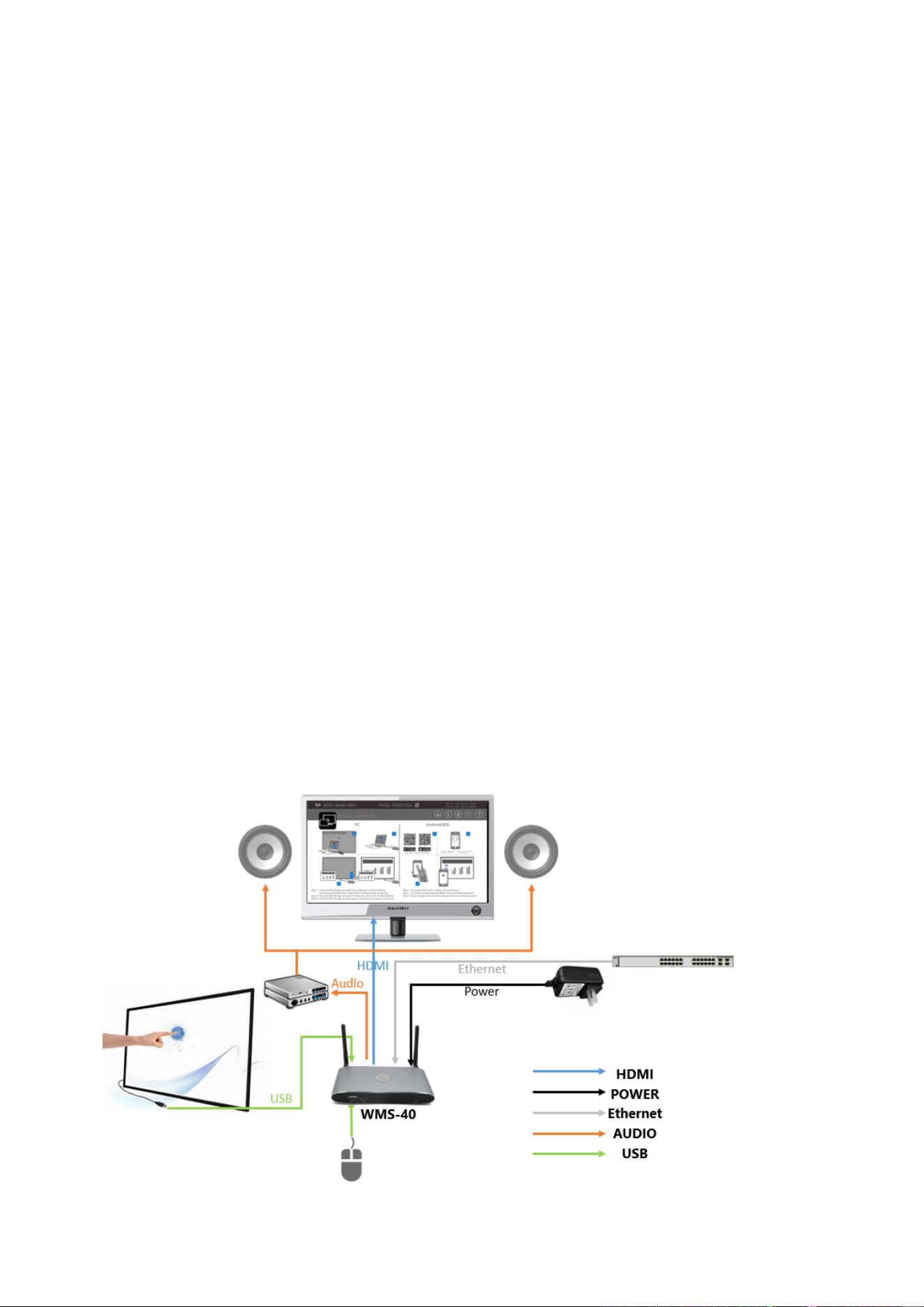
4.2 Wiring Diagram
21 / 103
4.3 Power Connection
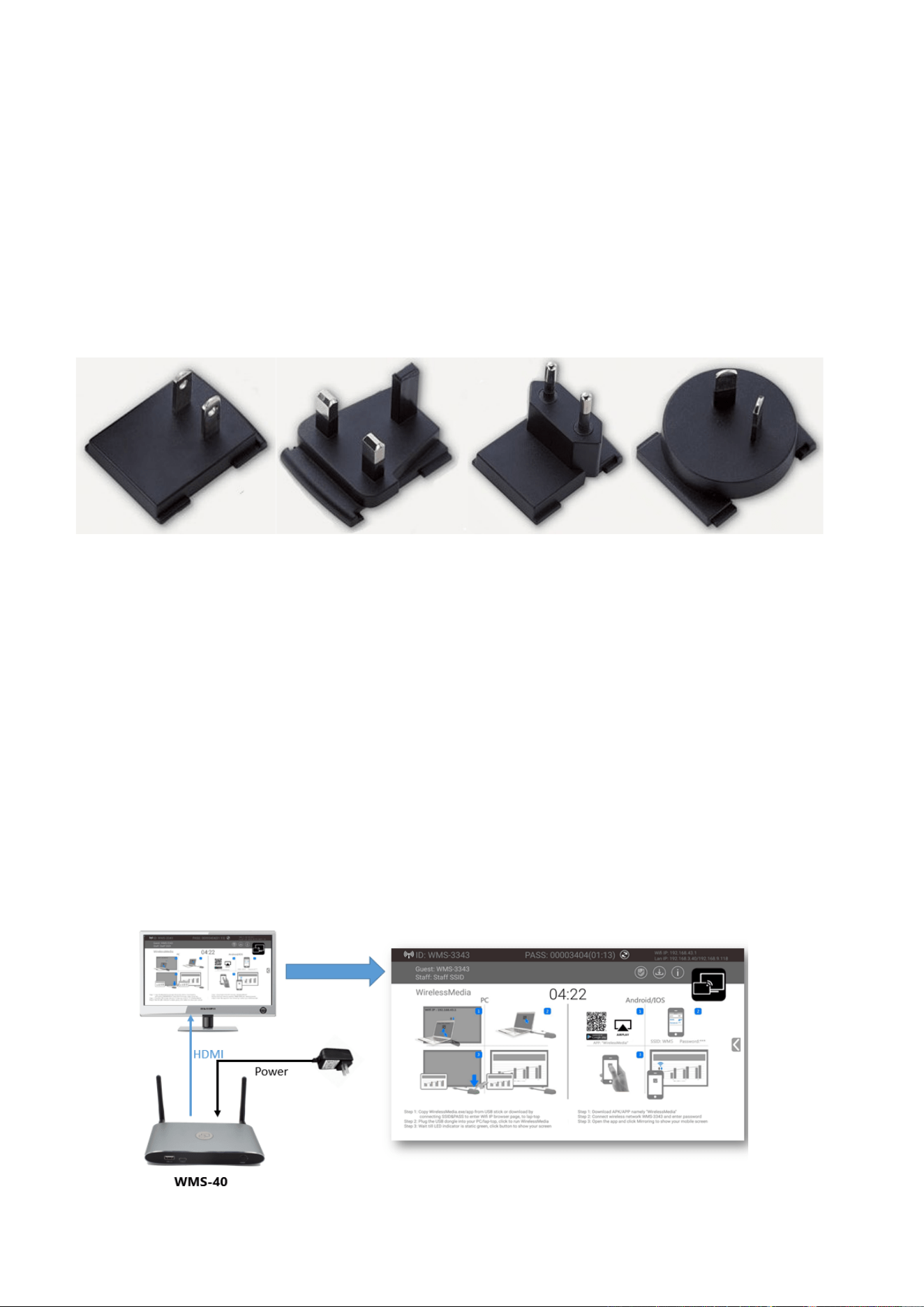
The Base unit can be powered by the external universal power adapter.
How to connect the external power adapter
1. Plug the power connector to the power adapter to the power input connector of the Base Unit
2. Choose the appropriate power plug (US, UK, EU or AU) to be installed on the power adapter,
3. Connect the power cable plug into the wall outlet.
Note: Once the base unit is powered, it starts up. From now on please use the POWER button with Status LED on
front of Base-unit to switch ON or OFF.
Power over Ethernet
If the LAN Ethernet switcher support POE (Power over Ethernet), it could power up the Base-unit instead of using
the external power adapter. (WMS-40 LAN2 Port is support POE.)
4.4 Video Connection
1. Connect the HDMI Output of base unit to a 4K or Full-HD display by a HDMI cable.
2. Connect the power adapter to the base unit DC power socket and connect the other side plug to an
available electrical outlet and switch the base unit on.
3. After started, the system show the home page, as shown below.
22 / 103
4.5 Audio Connection
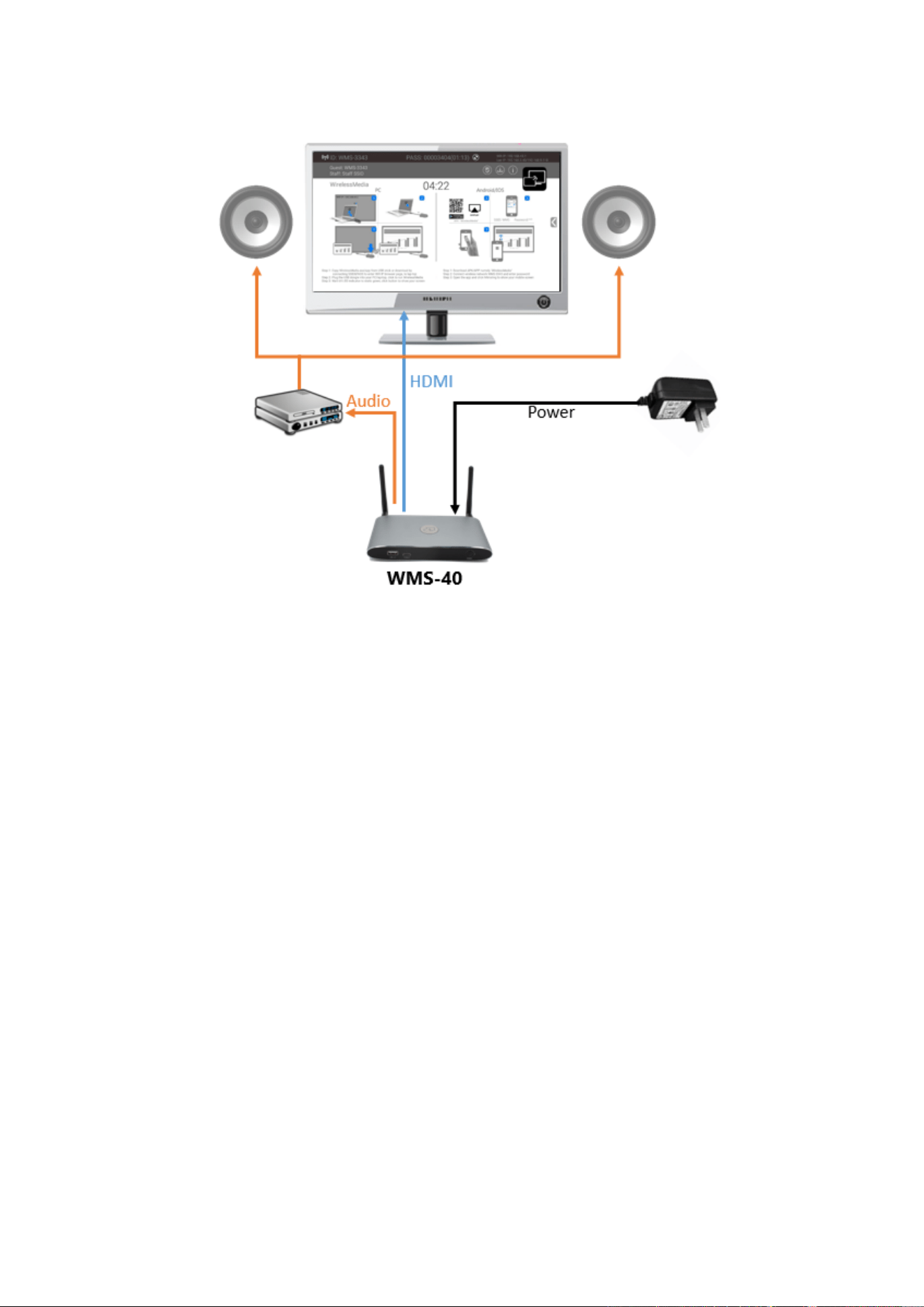
WirelessMedia transmitter can transmit the audio output of the PC/Lap-top, re-direct and send to the Base Unit
together with the video signal. The audio will be output at line levels from mini jack socket 3.5mm connector and
via the HDMI output connectors simultaneously.
It’s up to the user to decide whether or not to send the audio signal together with the video signal.
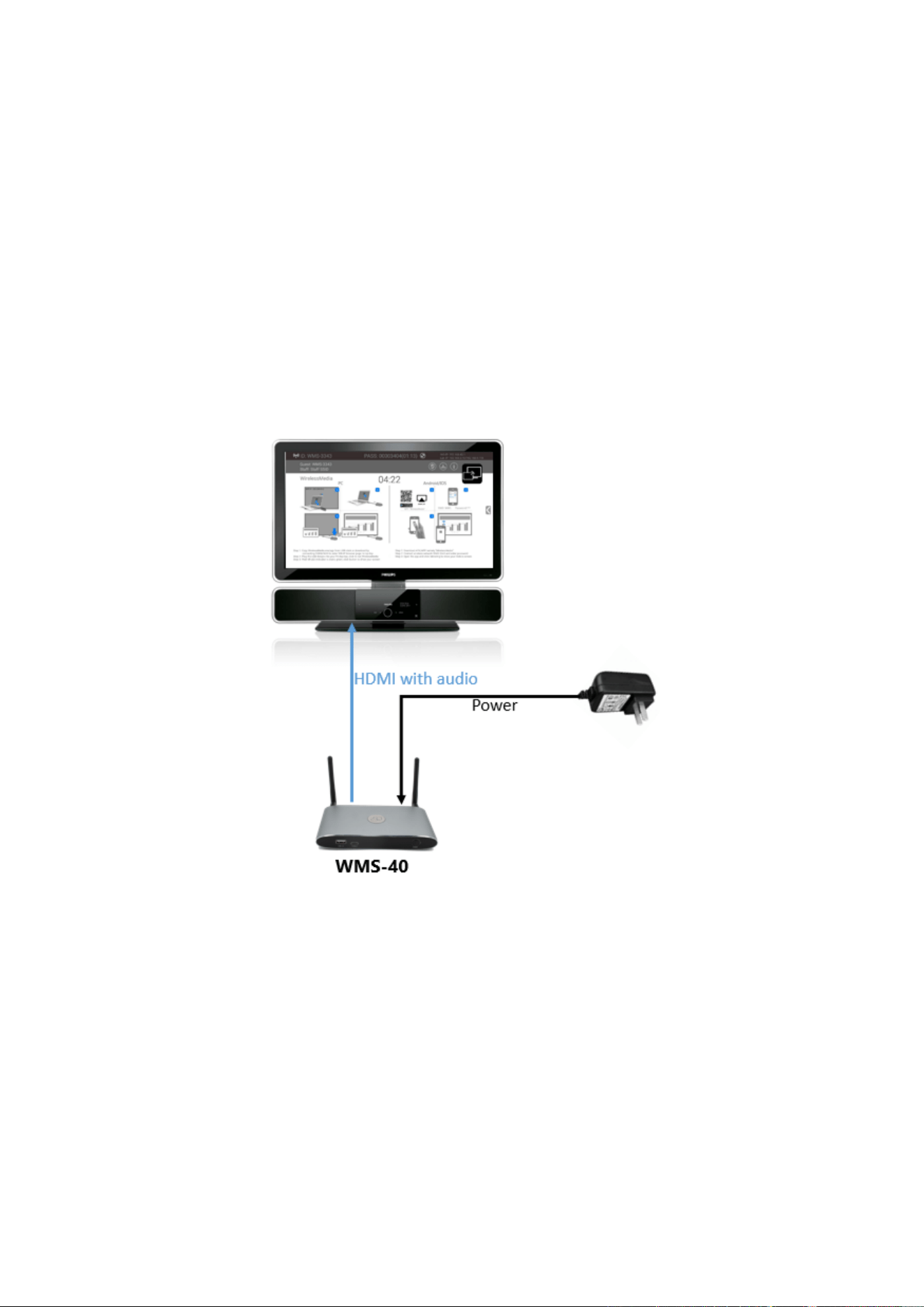
Audio via HDMI output
When your display/projector is connected via HDMI and it support audio together with video, then a separate
audio connection is not necessary. The audio signal is sent together with the video signal to the display. The
system is shown as below.
How to connect separate audio
1. Connect an audio cable with mini jack socket 3.5mm connector into the audio of the Base Unit
2. Connect the other side to the meeting room’s sound system.
23 / 103
Sound is not sent out
WirelessMedia button will keep capturing and send the audio of PC/Lap-top, since PC/Lap is successfully
mirroring desktop to the main screen.
1. Please be sure the button is static green and the PC/Lap-top is sharing on the screen
2. Check Setting configuration, to adjust the Volume set in WirelessMedia setting tab.
PC/Lap Sound
As default set, WirelessMedia will mute the internal speaker of PC/Lap and route the audio to the base unit, after
PC/Lap is successfully mirroring desktop to the main screen, in order to avoid the repeated audio.
When click the button to stop sharing, local loudspeaker will return to previous status, you could adjust the
volume on your PC/Lap.
Note: If you want to keep the internal speaker of PC/Lap still while route the audio to the base unit, please click the
audio mute icon in the status bar to turn on the internal speaker.
24 / 103
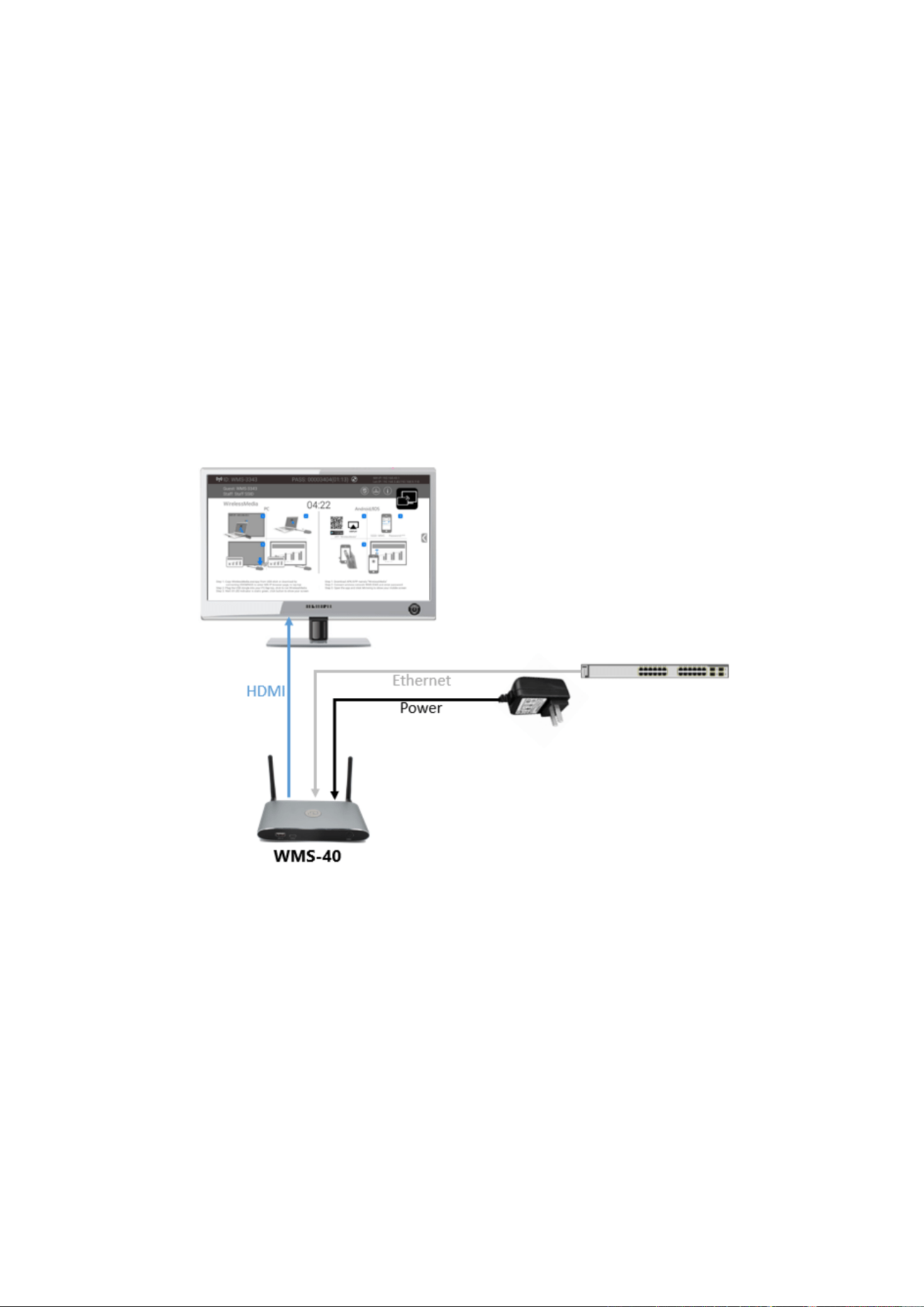
4.6 LAN connection
The Base Unit can be connected to a local network or directly to a PC/lap-top. For normal operation, a LAN
connection is not necessary. When needed, it’s suggested to connect the WMS to the Internet.
1. Connect a network cable with RJ-45 connector into the LAN port of Base Unit.
2. Connect the other side to LAN.
3. If the LAN Ethernet switcher support POE (Power over Ethernet), it could power up the WMS than using the
external power adapter.
The LAN connection can be used for:
⚫ Network integration of Base Unit in guest or company network.
⚫ Telnet control the Base Unit.
⚫ Maintenance purpose.
⚫ Over-The-Air -Update (OTA) of firmware of Base-unit.
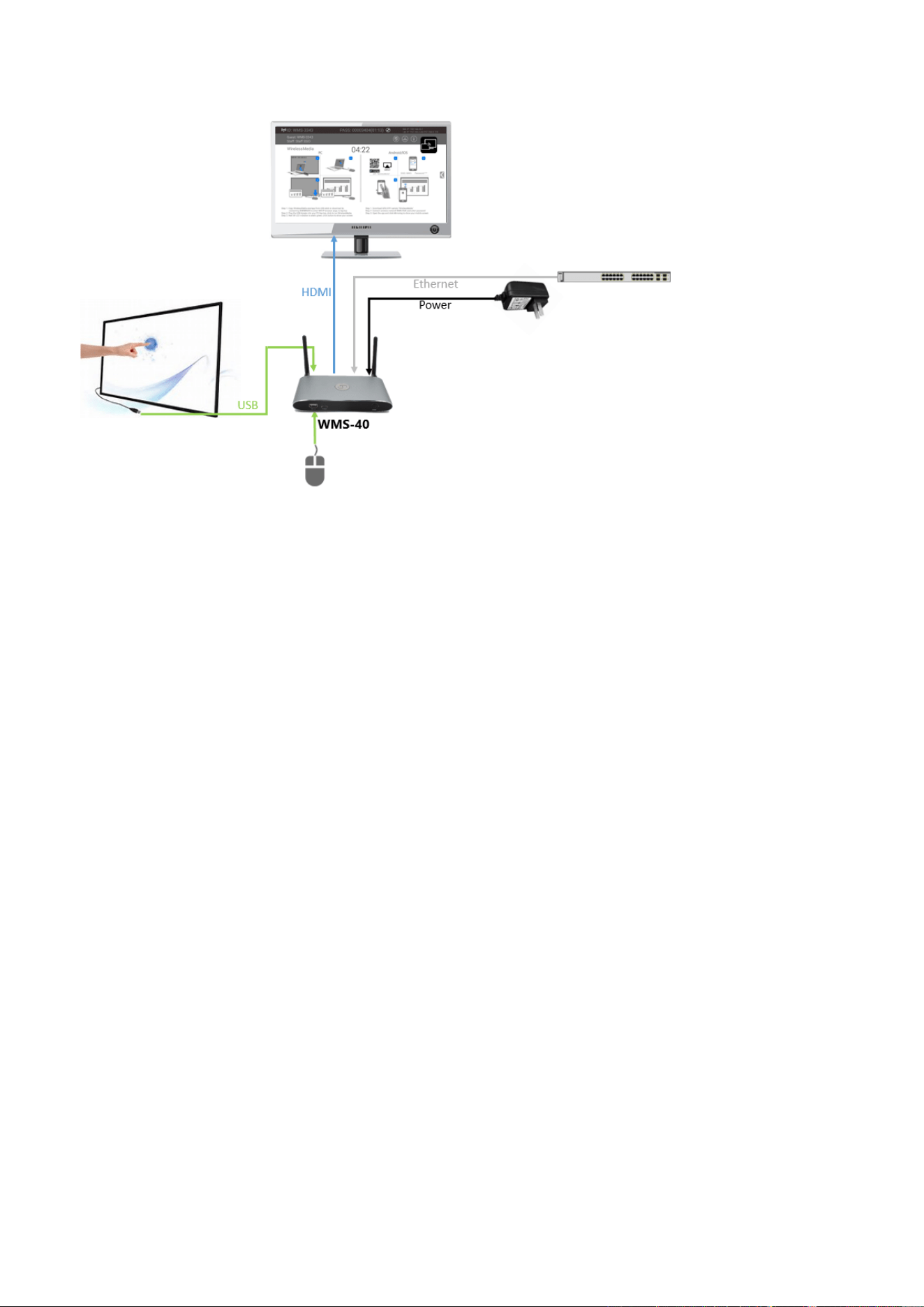
4.7 Usage of USB device
Please use a USB Mouse or Touchscreen:
25 / 103
1. To configure the Security level check button, DOWNLOAD BUTTON, INFO.
2. To control the sharing PC/Lap-top.
3. To activate system upgrading
4. For white board or annotation during a presentation, WirelessMedia transmits Video, Audio and the USB-HID
function for mouse-control and click-function of a touchscreen. Connect touch-interface of your screen to the
USB-port on your laptop or PC.
USB control
USB mouse for configuration menu
⚫ Single click to select.
⚫ Right-click to back to the Home Page.
Touch screen
⚫ Click to select.
⚫ Long press to open the contextual menus, as double-click or click the right button of a USB mouse.
5. Quick-to-Start
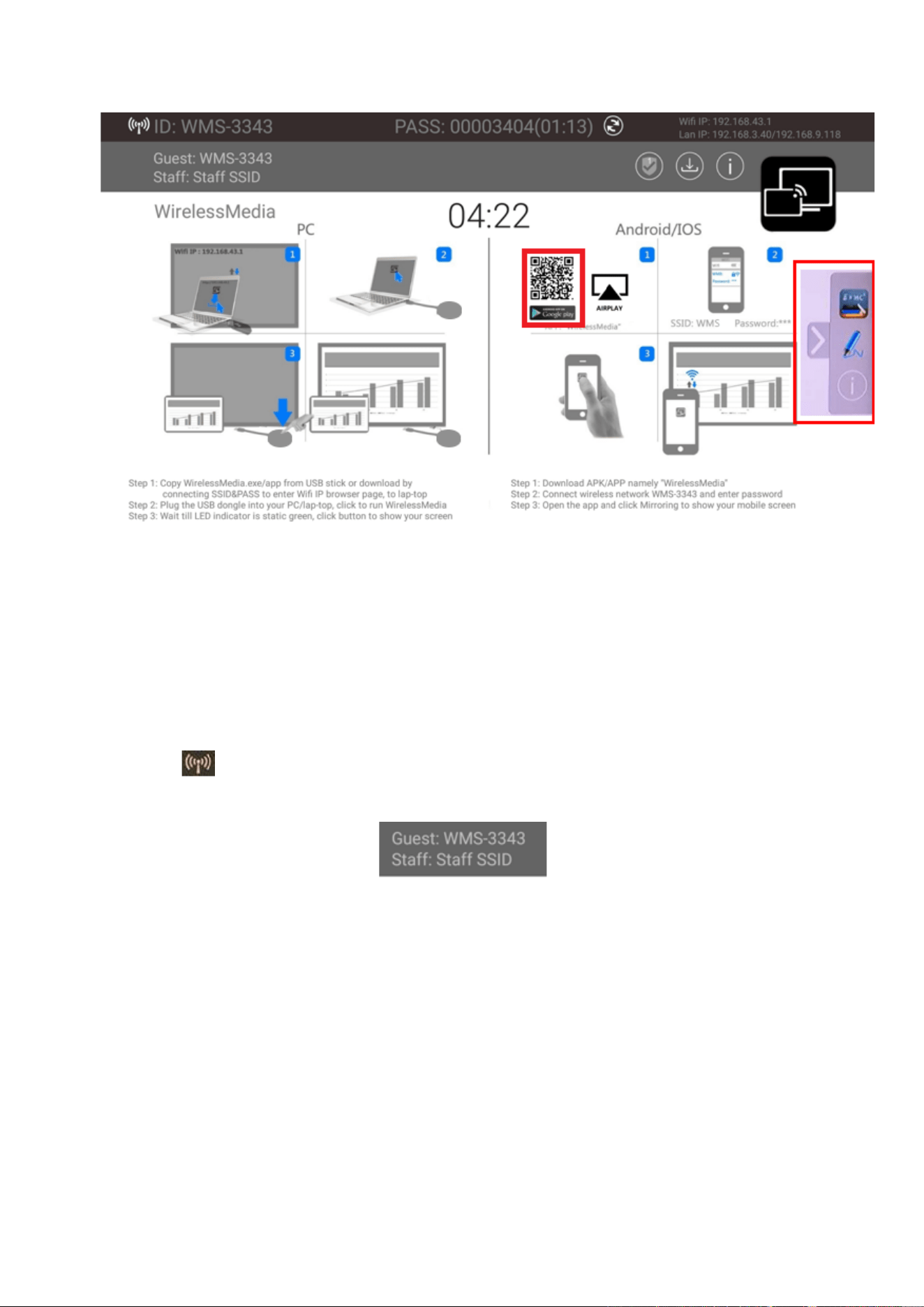
5.1 Mobile device: Wireless Connection
1. Download the application namely “WirelessMedia” (for example scan QR-Code in Home screen) in
Android Google Play market for Android mobile device.
26 / 103
2. For IOS devices, use Airplay to mirror the desktop.
3. WirelessMedia provides two way to discover the WMS for mobile devices.
a) Portable hotspot, to connect the hotspot to connect the WMS.
b) LAN connection, to connect the WMS and mobile both in LAN network, to discover and connect to
WMS.
After Factory reset, WirelessMedia starts in standard configuration "Wireless Direct Mode" ("Linked Single
Network"), where the base unit creates its own wireless access point, to which all the transmitters connect. This is
typical for quick setup, temporarily installations or for small business meetings with a small number of meeting
rooms.
The Wi-Fi icon for "WiFi Direct Mode" appears in the top status bar of the Home screen. The SSIDs for
these hotspots appear in the Start screen of WirelessMedia:
Guests and staff have access to the internet when LAN is enabled.
5.1.1 Enable portable hotspot:
Check the SSID and PASS (Password) are shown on the Homepage, as shown below.
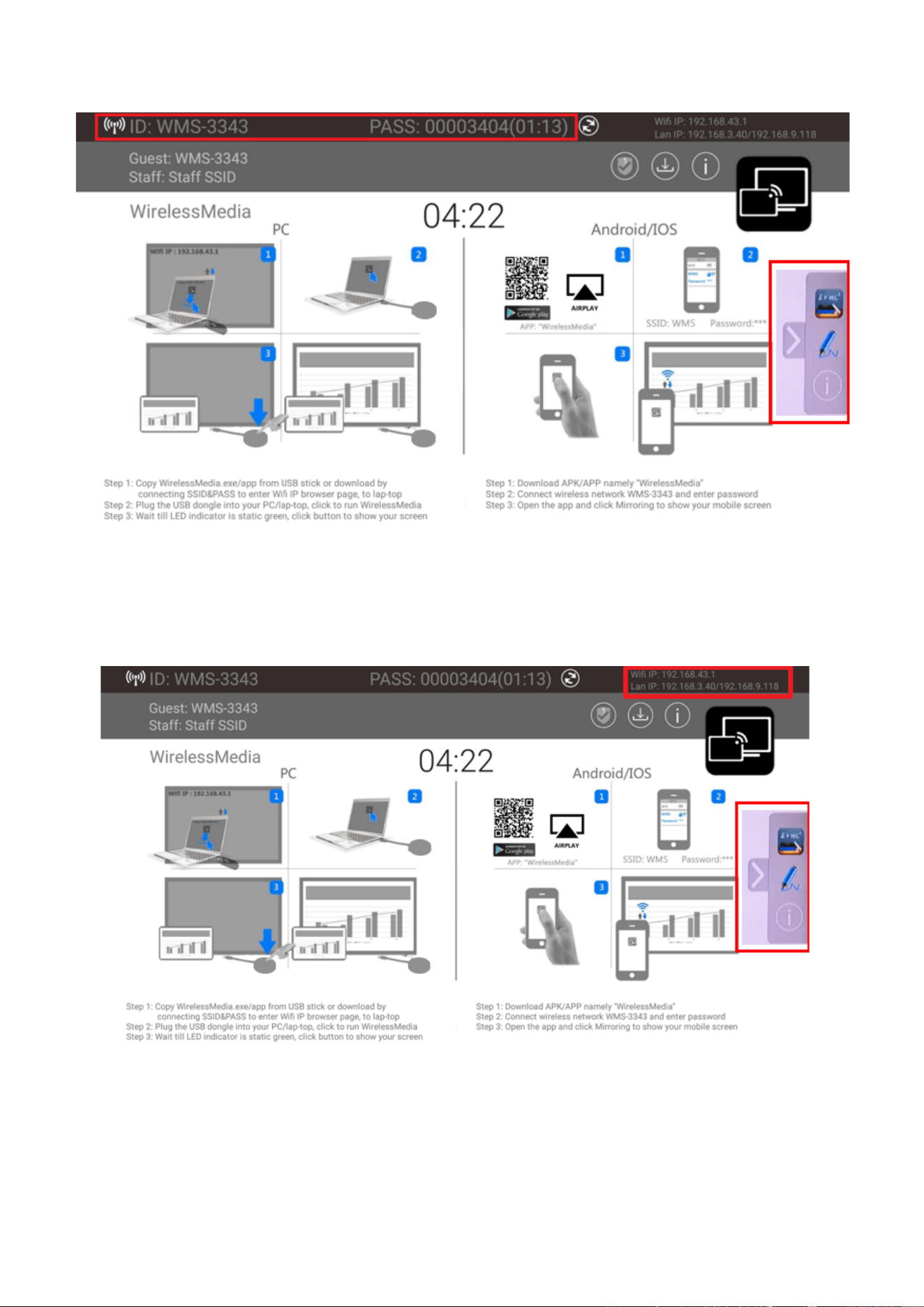
27 / 103
5.1.2 Enable LAN connection:
Be sure the WMS is connected to the Network. When Local IP shows an active IP address, such like 192.168.3.32,
it indicates WMS is successfully connected to the LAN and get an appointed IP address.
Note: When it shows “N/A”, means the WMS is not connected to the LAN (Local Area Network) by CAT cable or
it failed to get an available IP address by the corporation router.
Please refer to the LAN-settings in Ethernet, as below.
Default password for entering the Main menu on webserver console is “admin”.
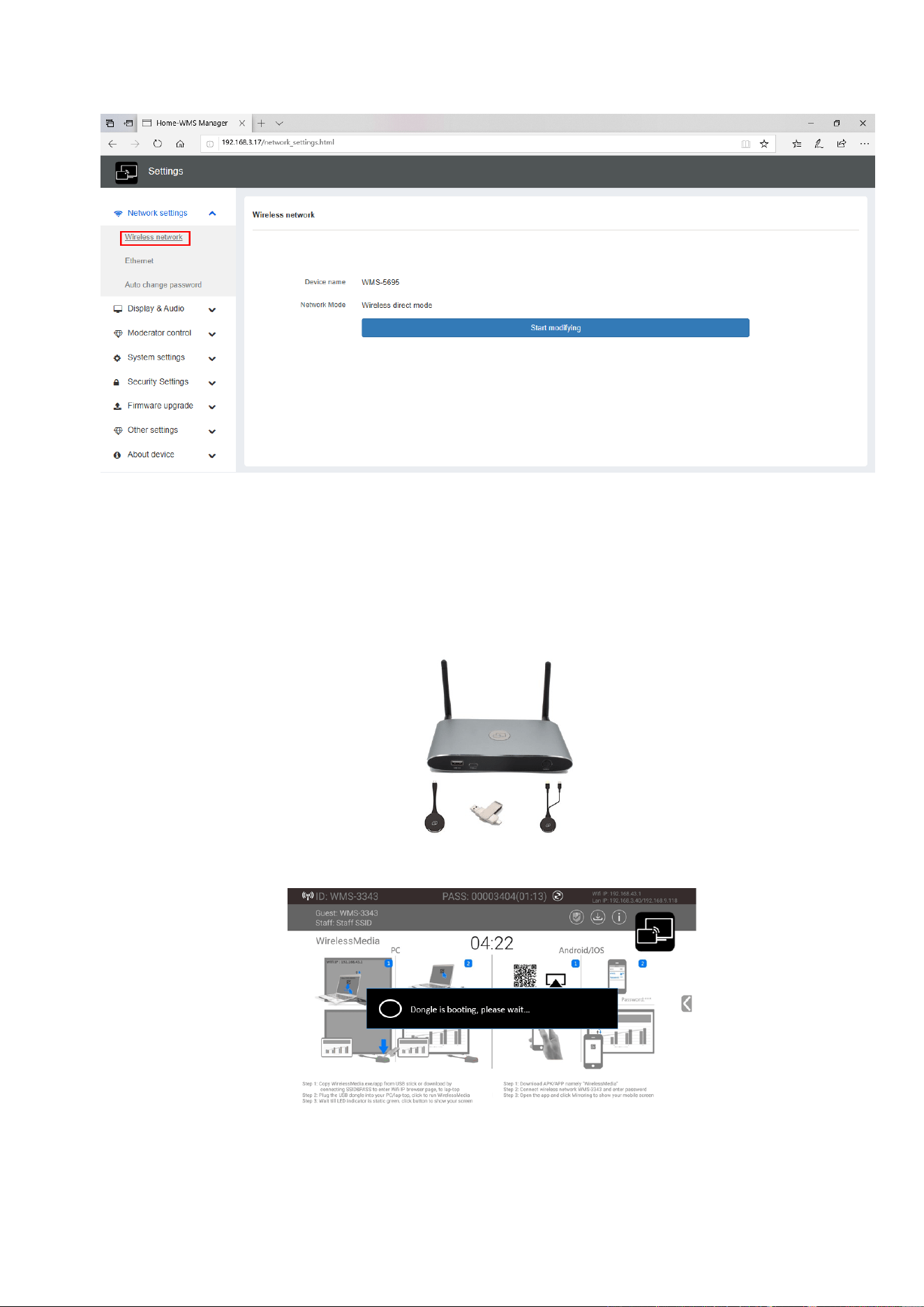
28 / 103
5.2 Pairing transmitter with base unit
2. When plug in transmitters, the message table shows “Dongle is booting, please wait…” as shown below
3. Then, the message table shows “Pairing, please wait…” as shown below
1. Connect the WMT-mini to USB port/type C port, WMT-H35 (HDMI dongle )to USB port, WMT-C35(Type C d
ongle) to type C port, to pair all the transmitters with base unit. The home page displays as shown below.
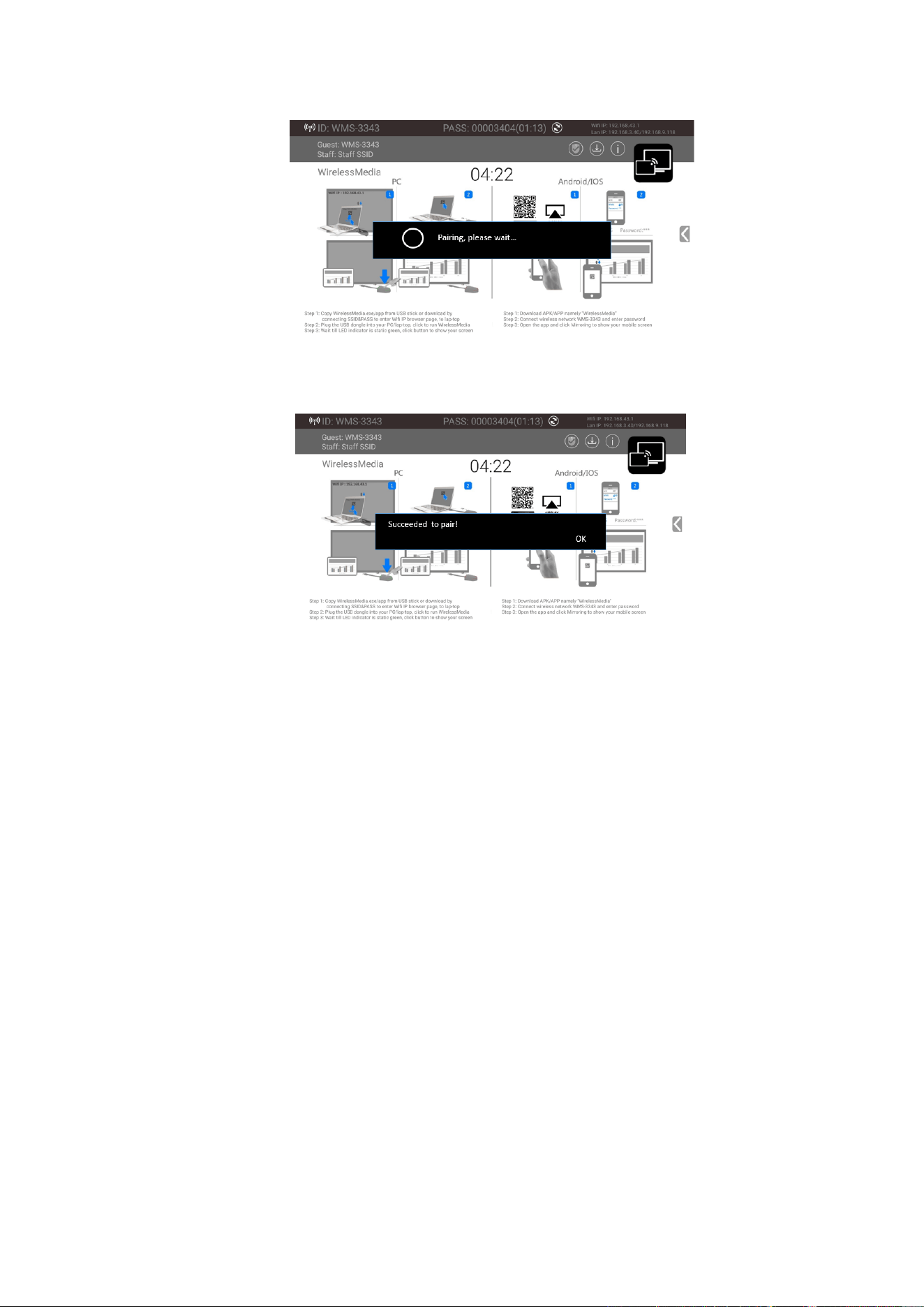
29 / 103
4. After completing the pairing, the message table shows “Succeeded to pair!” on the home page, as shown
below. Then, please un-plug the transmitters and use it for the mirroring on your laptop.
If error-message “Configuration fail” is shown, please check the connection of USB/type C to keep stable after
plug-in, and try again.
Note: After each changing the SSID/Wi-Fi channel in menu, all the transmitters must be paired again!
When you buy additional transmitters or when a transmitter should be assigned to another Base-unit, the
transmitter must be paired again.
A transmitter can only be paired to one Base-unit at a time. The transmitter will always make connection to the
Base-unit it was last paired to.
5.3 Mirroring
5.3.1 PC/Lap-top
Driver-based Transmitter
WMT-mini:
1. Plug WMT-mini into USB/Type C port to pair with base unit. The “WirelessMedia-windows.exe” for windows
PC/Lap-top, “WirelessMedia-macOS.app” for Macbook will be auto downloaded into WMT-mini.
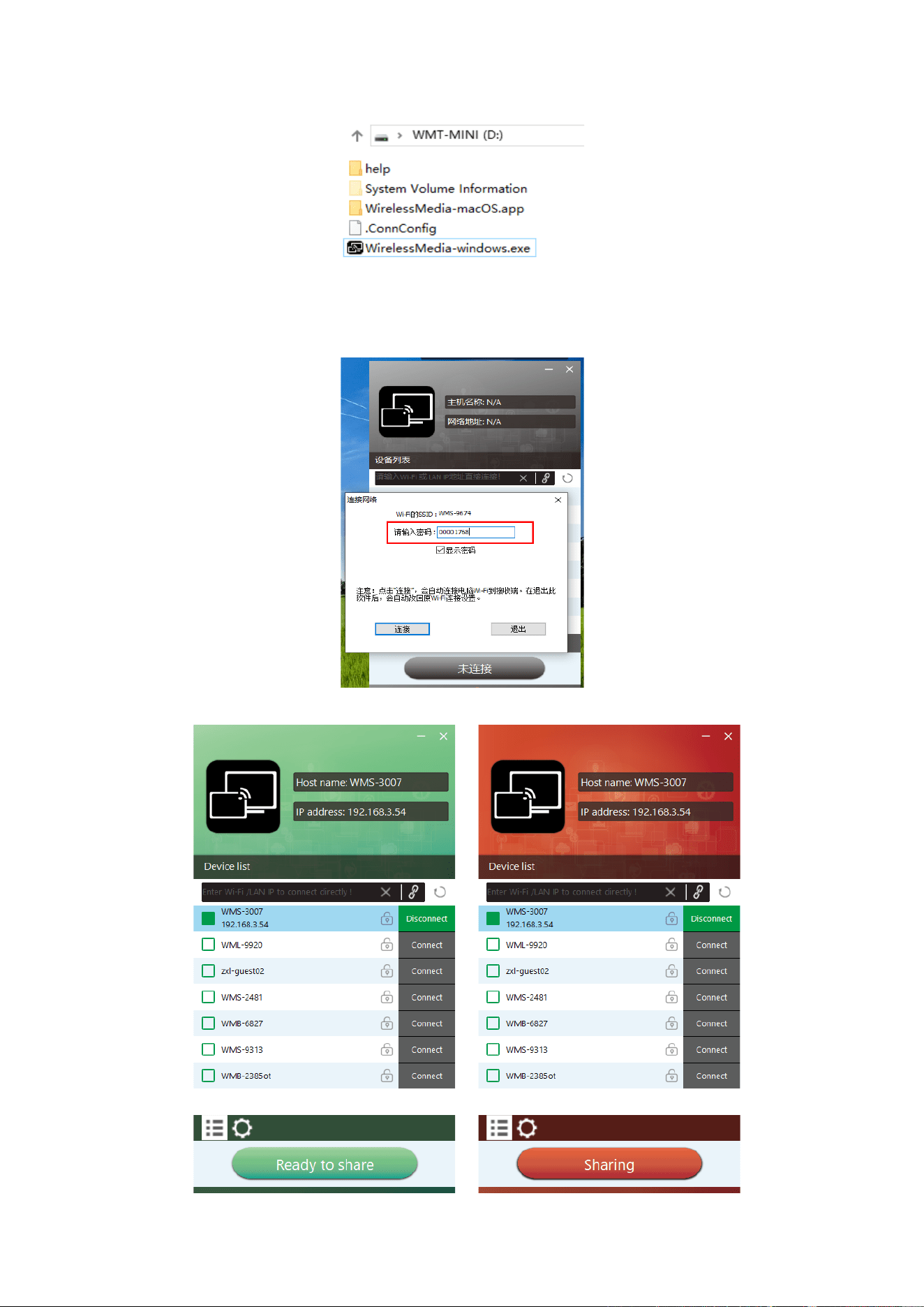
30 / 103
2. Plug WMT-mini into PC/Laptop/MACbook and click the “Launcher” to run. WMT-mini will auto change
PC’s wifi to the target base unit wifi. No need to manually change PC’s wifi. It will pop out the message
bar to enter the password to connect.
3. It will show “Ready to share”, click to share the desktop to screen.
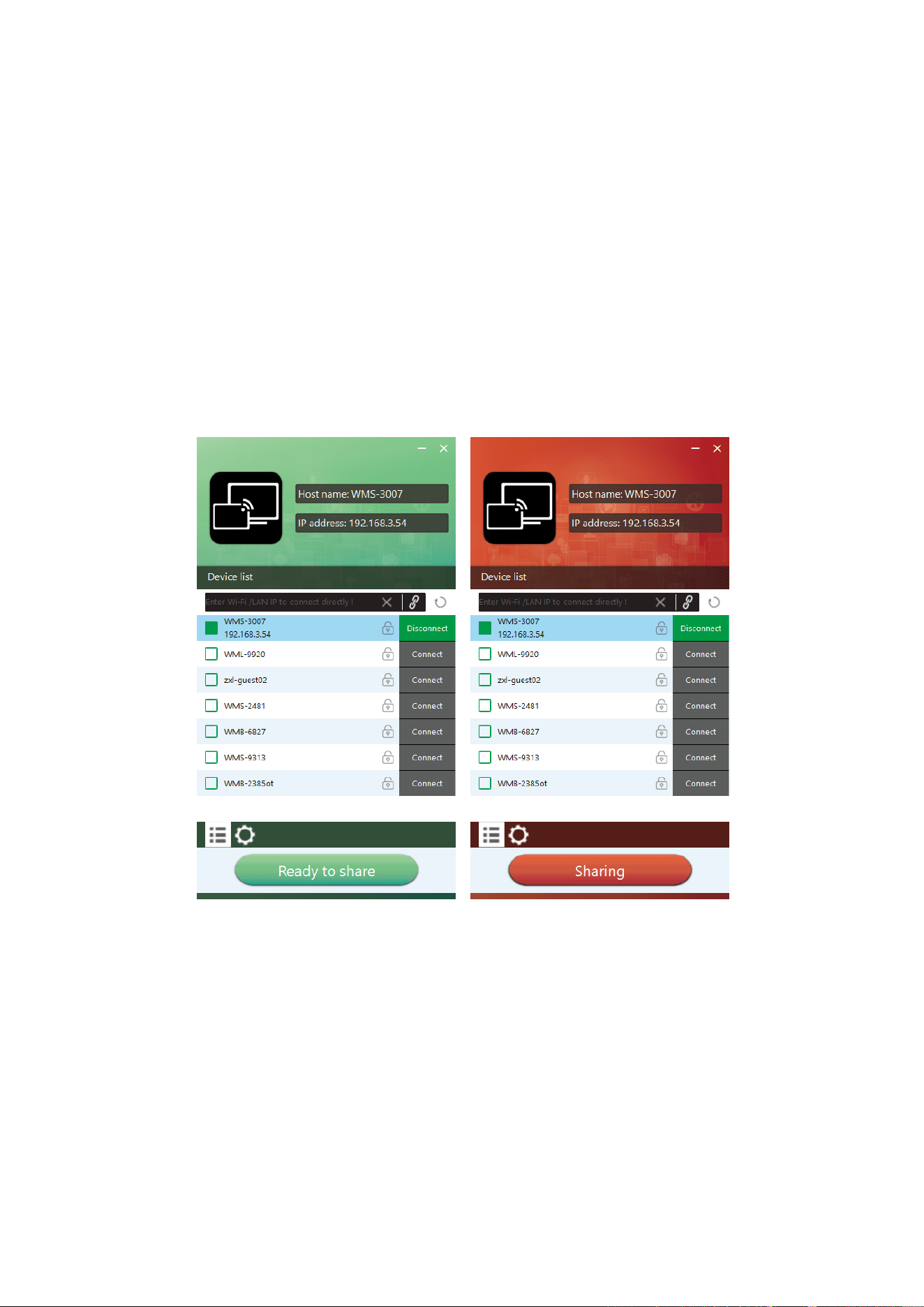
31 / 103
Note: for second time user, WMT-mini will automatically run to share screen, no need to click “Launcher”.
Non-Driver based transmitter
3. Till the transmitter LED turn static green and touch to share the screen or click the visual button on bottom
right corner of PC.
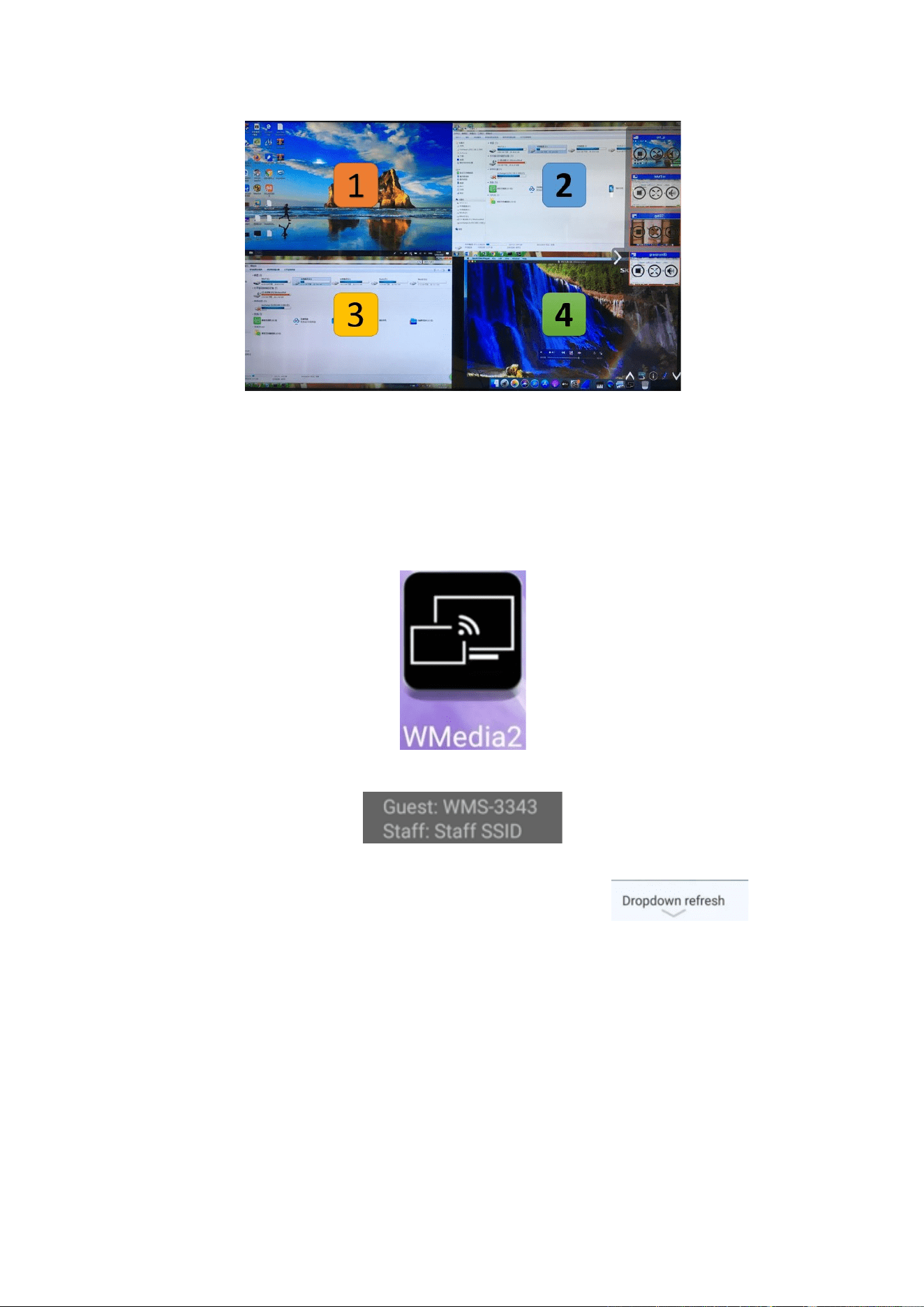
Quad view mirroring:
WMS-40 base unit can mirror 4 sources onto main display simultaneously, which supports PC/Laptop and
mobile devices.
WMT-H35 (HDMI dongle) /WMT-C16C (Type C dongle):
1. Plug USB port of WMT-H35 / Type C port of WMT-C35 to base unit to pair.
2. Plug USB port and HDMI port of WMT-H35 / Type-C port of WMT-C35 to PC/Laptop/MacBook. (USB po
rt for power)
32 / 103
5.3.2 Mobiles Devices
Sharing on Android devices
1. Open the “WirelessMedia” application.
2. Connect your mobile device to one of the displayed Wi-Fi networks.
3. Open the “WirelessMedia2” application in your mobile device, and you will see the Home Page of
“WirelessMedia2” as shown below. and click the device list refresh button for Android,
which is highlighted in red circles as shown below:
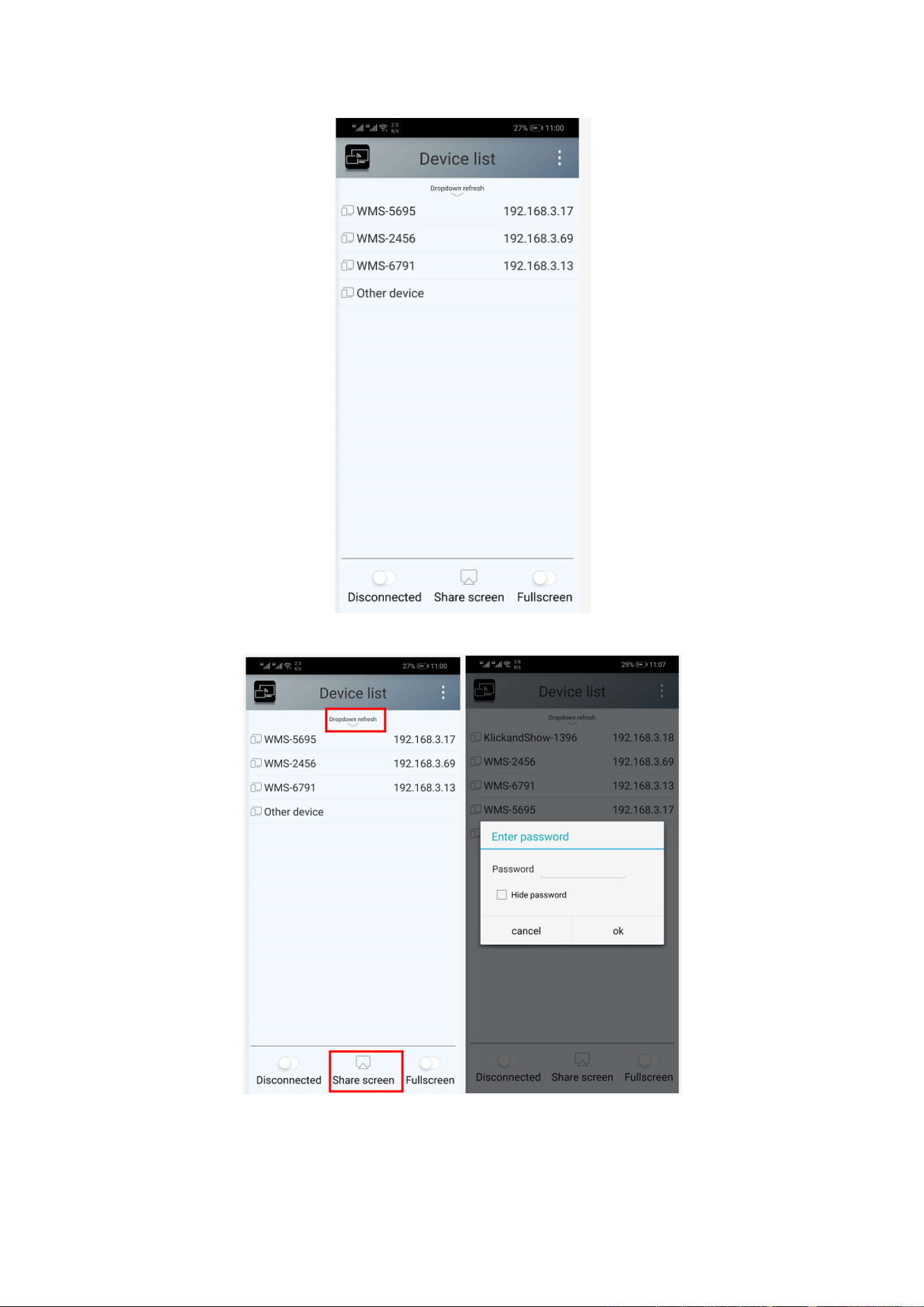
33 / 103
4. Select the base unit you want to connect, enter password and mirror.
5. After completing the pairing, it shows OSD “Welcome ***” on the home page. For example, if we connect it
by a HUAWEI-PLA-AL00, it shows a “Welcome HUAWEI-PLA-AL00” on screen, as shown below.
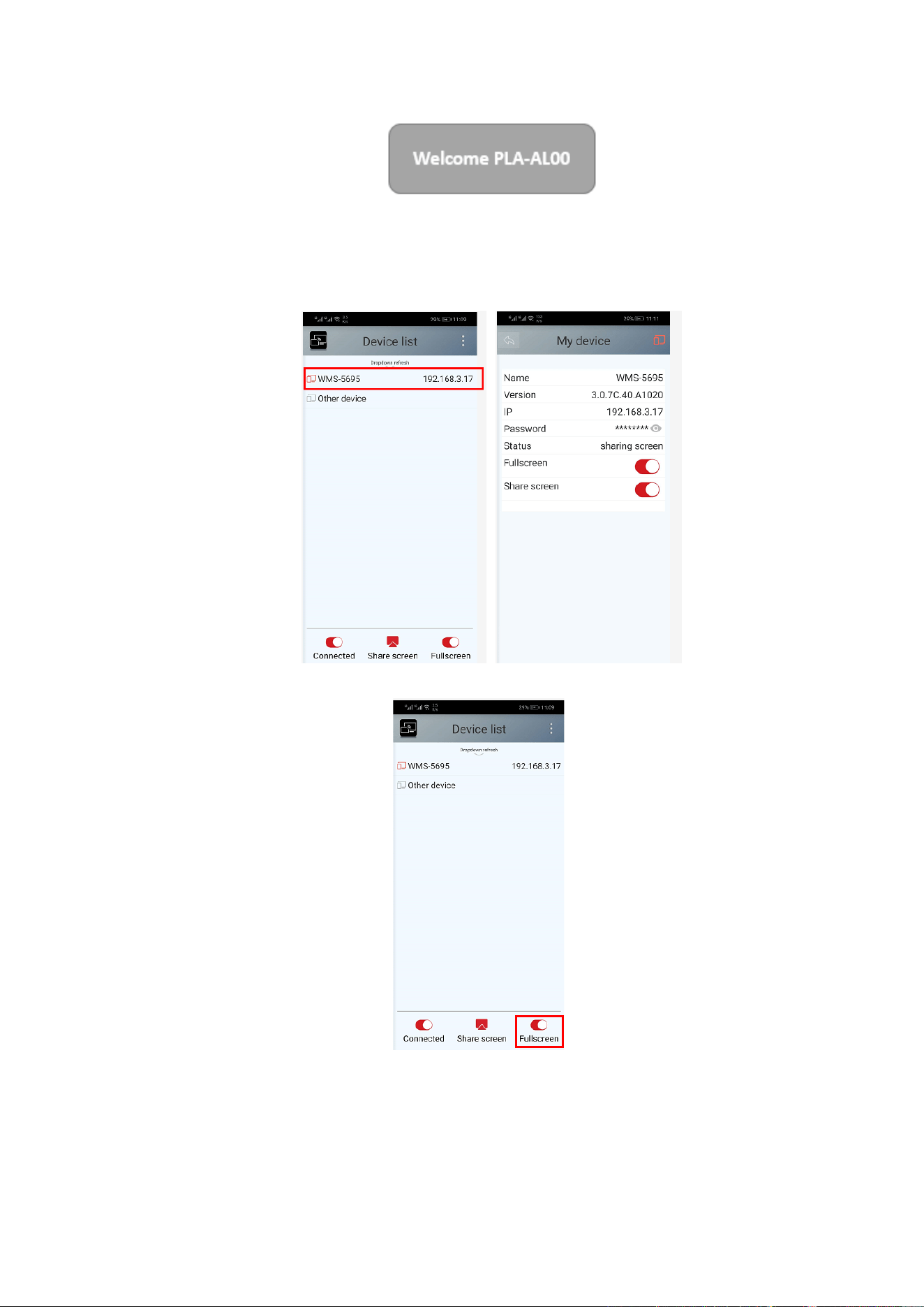
34 / 103
6. Now you can mirror your desktop of your mobile.
7. Click again the button “Share Screen” to stop mirroring.
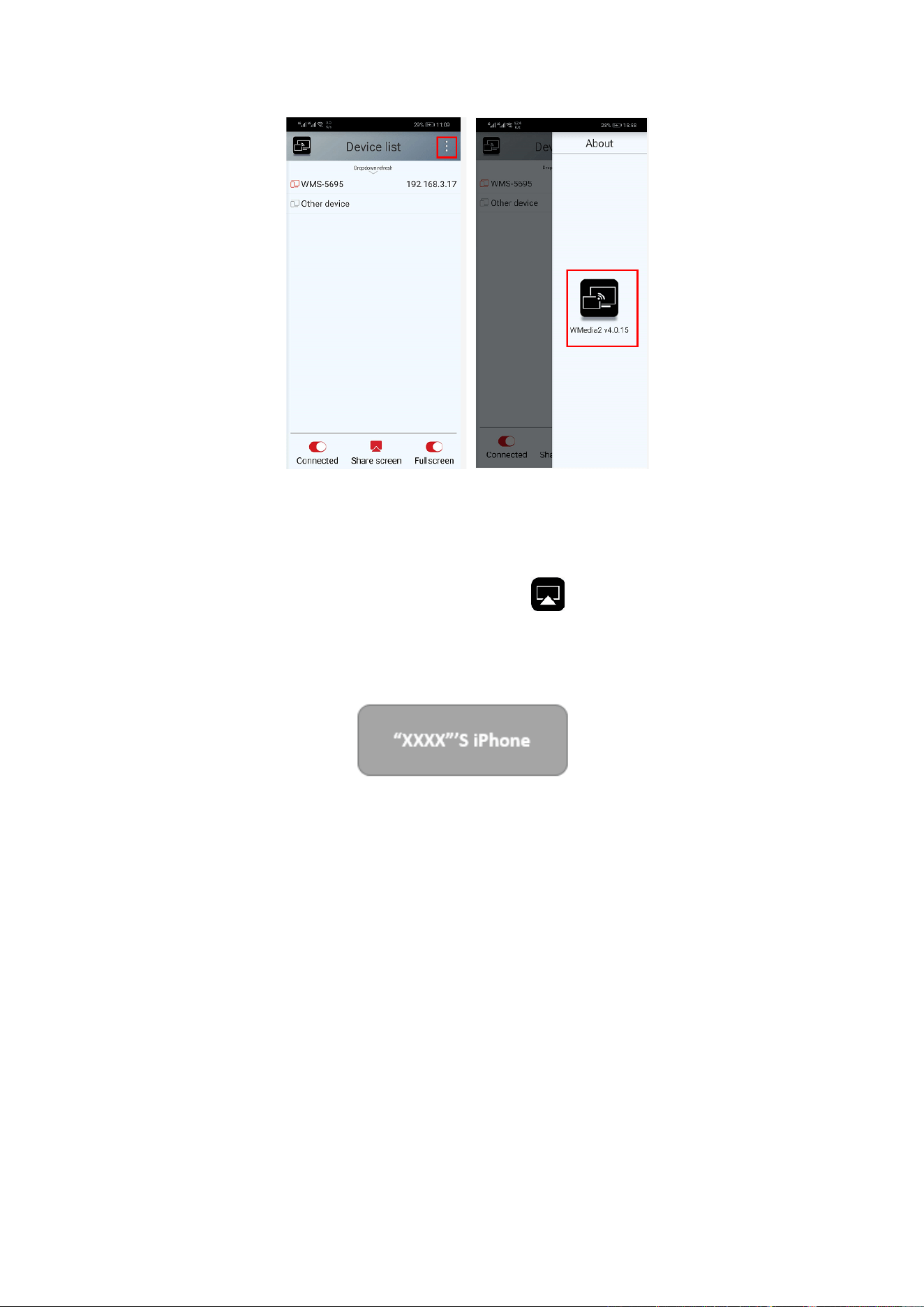
Click the connected device name to check the base unit status and base unit firmware version.
Click “Fullscreen” to be full screen in the main screen when more than one signal is connected and shared.
Click the upper right corner icon, check the “WirelessMedia2” application version information.
35 / 103
Sharing on IOS devices
1. With AirPlay technology, user can stream his screen or music, (YouTube-) videos, pictures … wireless to
Base-unit. Connect your iOS device with the same Wi-Fi network from WMS.
For IOS devices, activate the control center. Click the Airplay icon on your Apple device and select the
target WMS to start mirroring through the WMS to the main screen.
It will show OSD on home screen after connecting successfully.
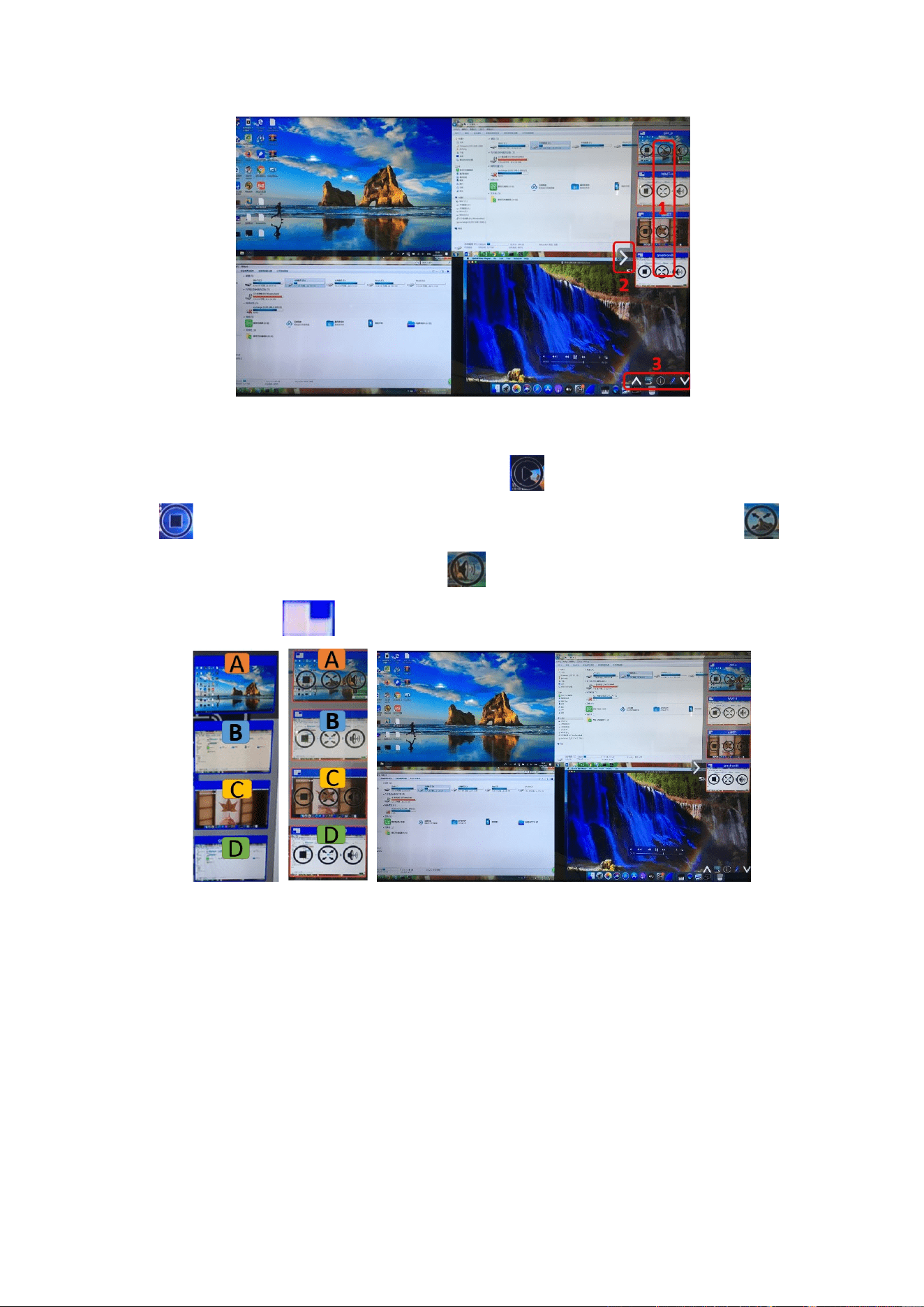
5.4 Preview Window
At touch-screen or with mouse of Base-unit, you can click on LEFT or RIGHT-arrow (2), to show the small
preview-windows as a bar on the right edge of the screen, or to hide them, if they are disturbing. Once the
preview windows are activated, you see live-pictures (1) of all connected transmitters and android devices via
“WirelessMedia2” APK at the right edge of the screen. Just scroll UP or DOWN (3) to see further preview pictures.
36 / 103
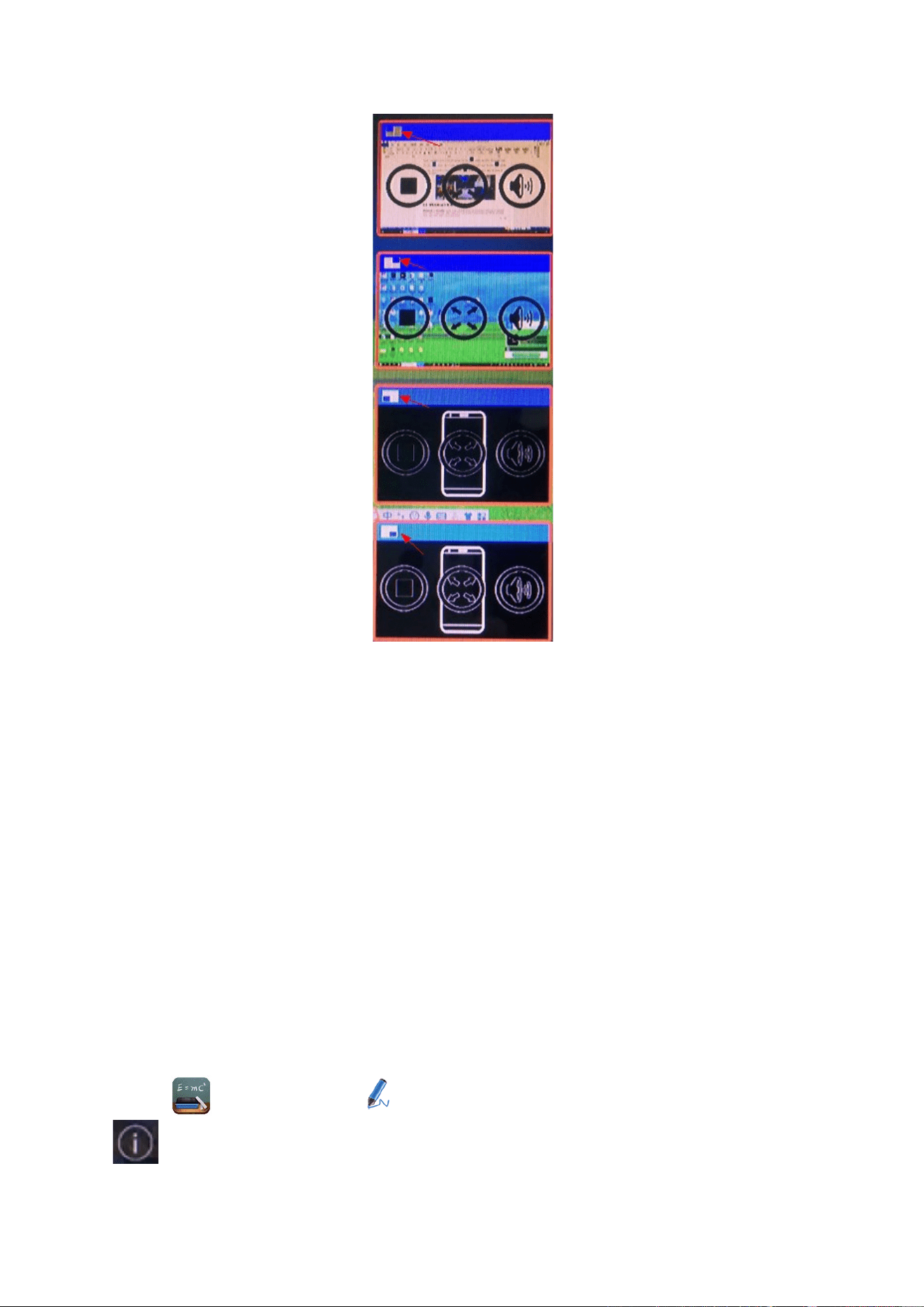
As soon as presenter is clicking with mouse of Base-unit, or clicking with finger at touch-screen, the appropriate
participants of the meeting is activated, another click at the arrow shows his picture at the main screen in full
format. A red frame is shown for the active picture. The button indicates play button, click to show screen.
The button indicates step out screen, click to stop mirroring the current signal. The button indicates
full screen, click to be full on main screen. The button indicates volume, click to adjust the volume of
connected signal. The button indicates the location of connected devices on main screen.
37 / 103
5.5 Whiteboard & Annotation
Whiteboard and Annotation requires an HID compatible device, such as interactive white board or interactive
touch screen. It is easy to use, makes collaboration in your business more productive and effective: documents
can be easily written, edited, captured and shared.
Whiteboard: write all your ideas and share the digital notes with anybody. Different colors of pen and
background can be selected.
Annotation: draw or write annotations in overlay within your documents, presentations. Save and share
everything that was discussed. Different colors of pen can be selected.
How to start Whiteboard or Annotation mode
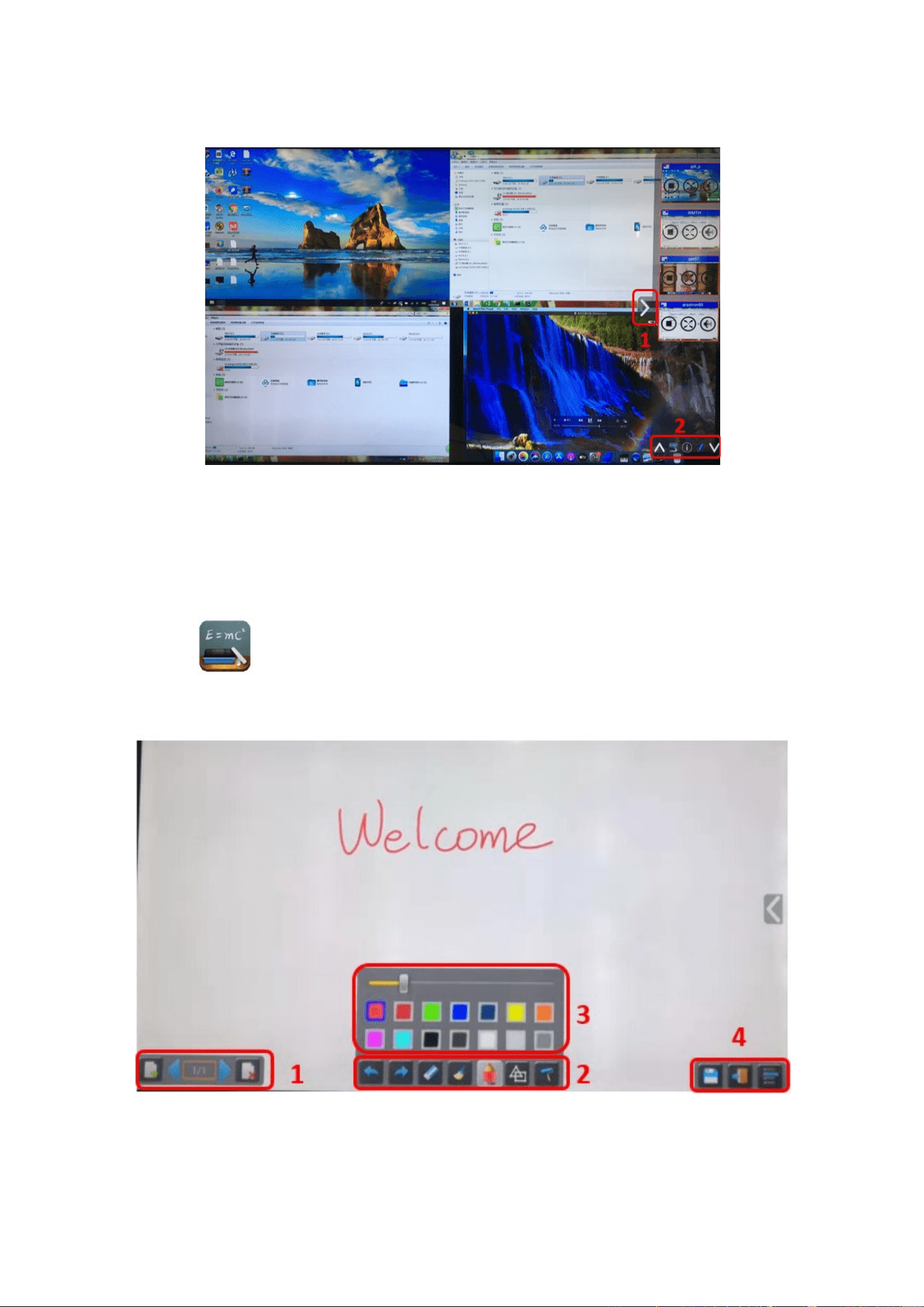
The “Preview window” in Home Screen to start this mode.
Tap (click) the LEFT-arrow (1), located on the right side of the screen, and select
Whiteboard or Annotation icon icon in (2).
Icon in (2) indicates “information”, click to check the base unit SSID, password, Wifi IP and Lan IP address
when some device are sharing on main screen. This info will show on main screen at least 20s then will disappear
38 / 103
automatically. In order to let other attendees join into meetings as well.
The toolbar for Whiteboard or Annotation appears in the bottom of your screen.
If another user is mirroring, the Whiteboard & Annotation function is closed.
5.5.1 Whiteboard
Click on the icon to enter the white Whiteboard page. You can create free drawings with your finger at
touch screen, mouse (multitouch capability).
39 / 103
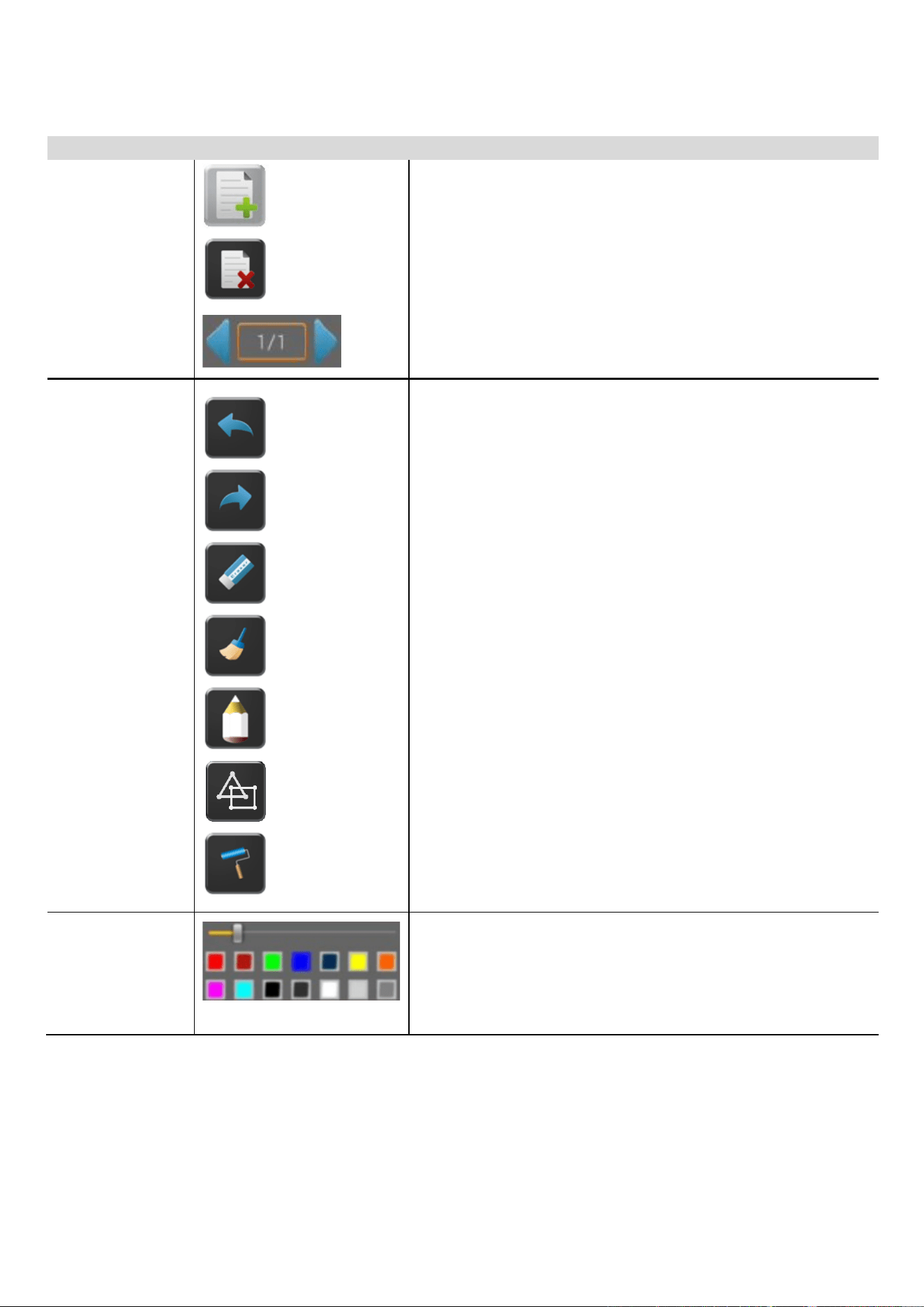
Use the toolbar to select one of the following functions.
ID
Icons
Function
Tool bar 1
Add an empty page
Delete the actual page
Display previous or next page
Tool bar 2
Undo: one step backward in changes
Redo: one step forward in changes
Erase part of drawings or annotation, change
diameter by a longer tap
Clear the entire drawing/writing on the screen
Pen allows writing/drawing in different colors
Draw basic geometric shapes
Select color of board, the drawing will be kept
Tool bar 3
will pop up, when “Pen” or “Draw shape” or “Select color of
board” is selected, for individual change of size of Pen, Shape or
color.
40 / 103
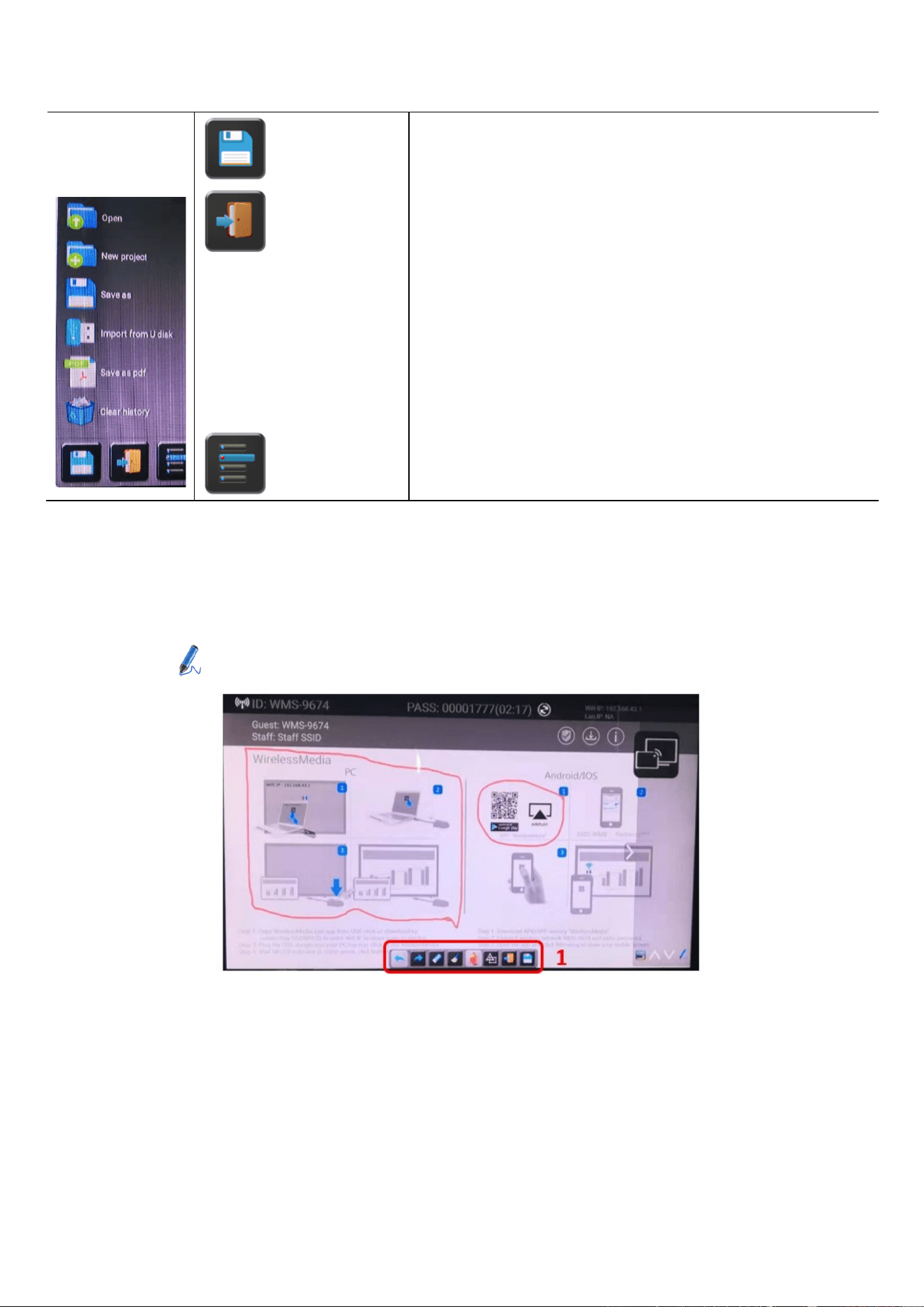
Tool bar 4
File options
Save the current screenshot on local storage (PNG+WMN)
Close Whiteboard to go back to Home screen,
actual project can be saved on local storage (WMN)
File options:
⚫ Open WMN-file from local storage and continue/edit an
older project
⚫ New project
⚫ Save as WMN on local storage in unit, it will be
erased after POWER-OFF
⚫ Import from U disk stored project (WMN)
⚫ All pages are saved as PDF on local storage
⚫ Clear history – delete all whiteboard & annotation
files on local storage
5.5.2 Annotation
Click on icon to enter the Annotation function.
41 / 103
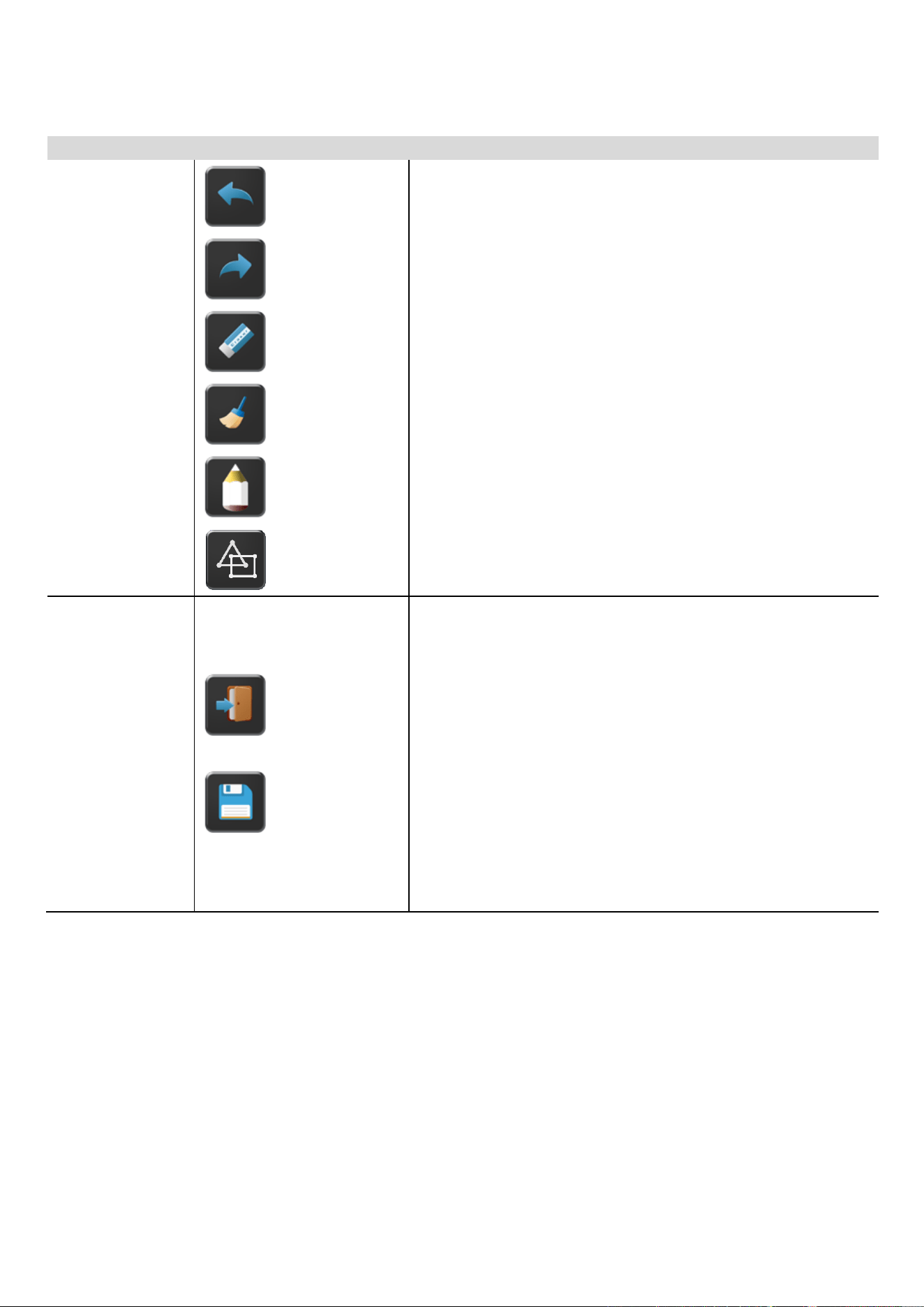
Use the toolbar to select one of the following functions.
ID
Icons
Function
Tool bar 1
Undo: one step backward in changes
Redo: one step forward in changes
Erase part of drawings or annotation, change
diameter by a longer tap
Clear the entire drawing/writing on the screen
Pen allows writing/drawing in different colors
Draw basic geometric shapes
Tool bar 1
Close Whiteboard to go back to Home screen,
actual project can be saved on local storage (WMN)
Close Whiteboard to go back to Home screen,
Save the current screenshot on local storage (PNG)
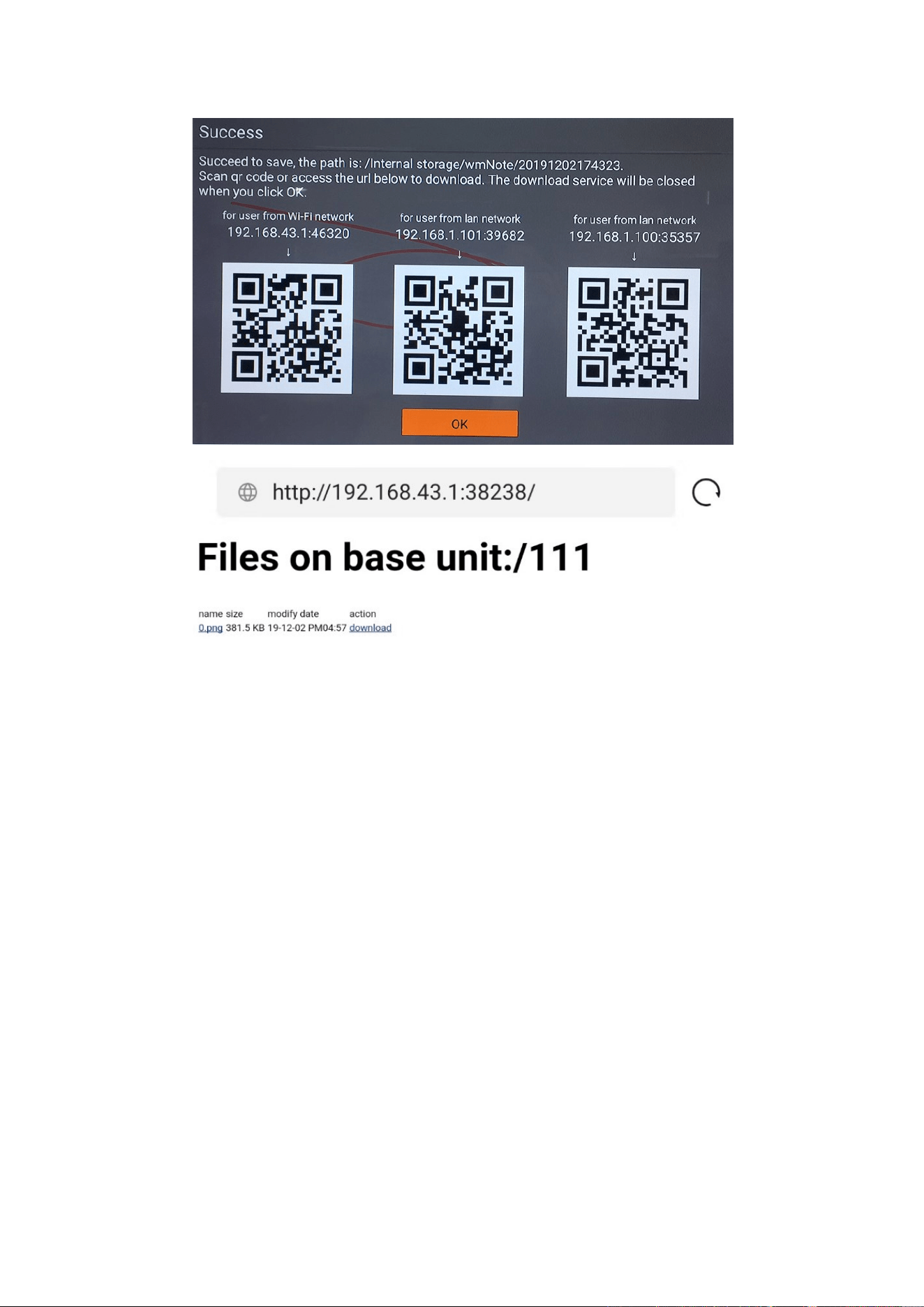
Download the drawings to connected users
Scan the QR-code with your mobile’s camera or enter the given IP-address in a browser. If the network
connection is set properly, you will get the saved files on Base unit, which you can download as PNG file. The
possibility for download will be closed after you click OK. You can copy data to USB disk and put this USB disk
into the Base-unit and import with “Import from U disk” to the Whiteboard-section.
42 / 103
1. Web Setting Management Configuration
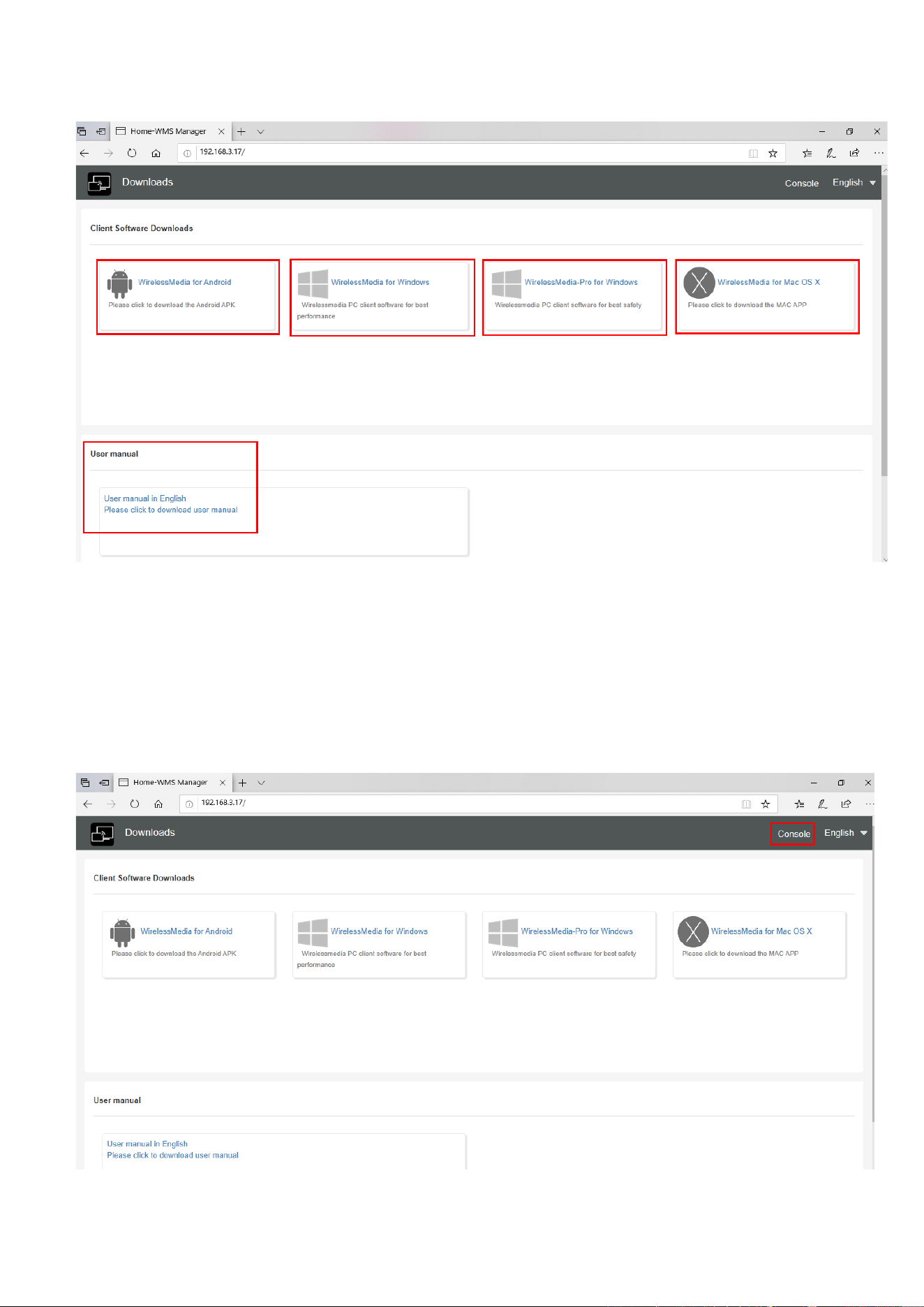
Connect base unit ID & Password or LAN IP to laptop, to enter Wi-Fi IP browser page to configure settings of
base unit. The “WirelessMedia-windows.exe” and “WirelessMedia-Pro.exe” for windows PC/Lap-top,
“WirelessMedia-macOS.app” for Mac OS X, “user manual” and “WirelessMedia” for Android can be downloaded
here.
43 / 103
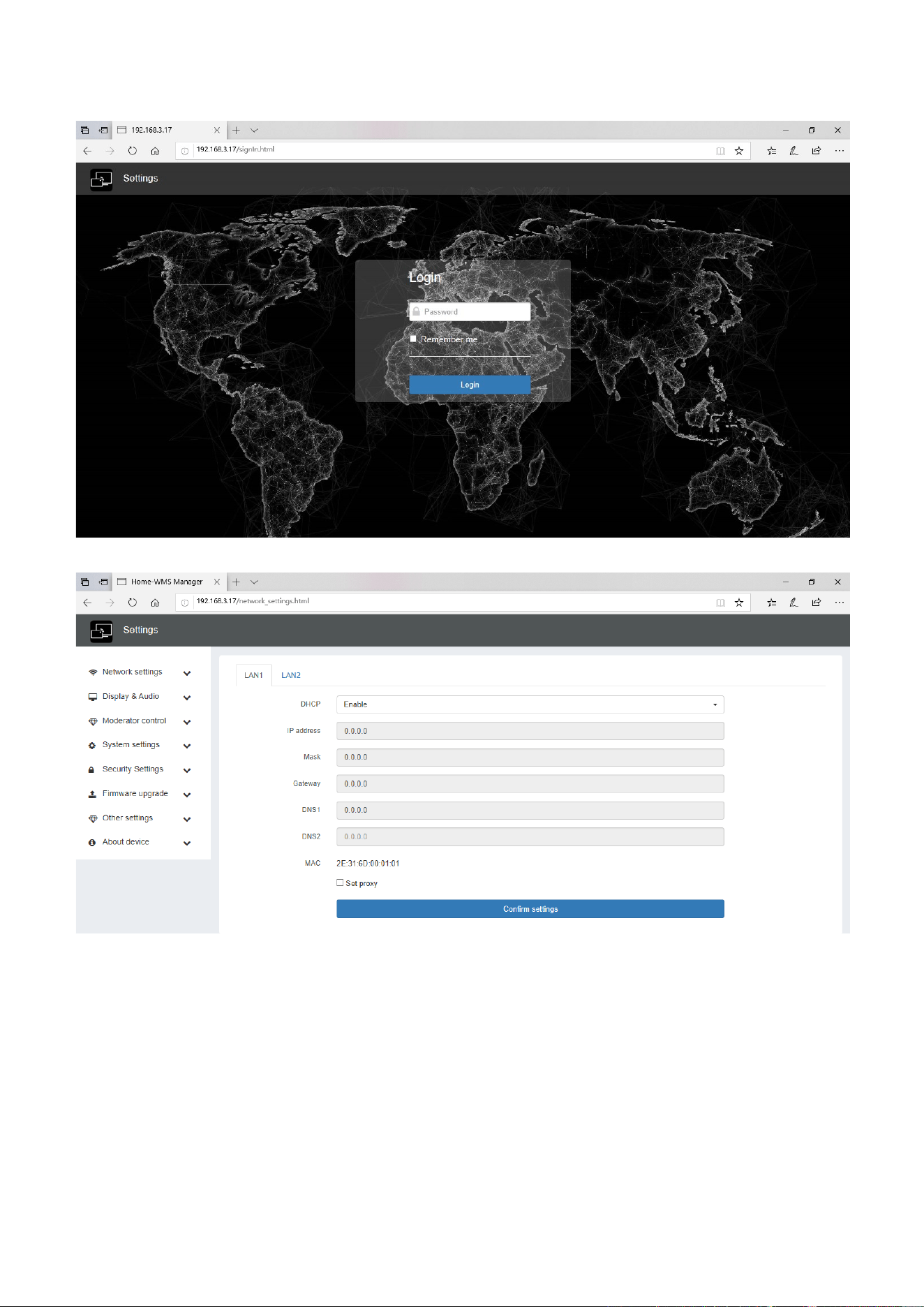
Click “Console” on the top right corner to enter into menu to configure.
A password is required to enter the configuration menu. The default password after Reset is ”admin”. You can
change the password in menu “Security setting”.
Note:
If user has forgotten his password, you need to make a Factory Reset to restore
“
admin
”
as password.
44 / 103
The main interface of Setting is shown as below, including Network settings, Display & Audio, Moderator
control, System settings, Security settings, Firmware upgrade, Other settings, About device.
45 / 103
6.1 Network settings
6.1.1 Wireless network
To take the full benefits of the WirelessMedia possibilities, WMS should be properly integrated in the
organization’s network (company/university/school). This wizard allows user to create a custom configuration for
integration of WirelessMedia into the existing wireless infrastructure in larger organizations.
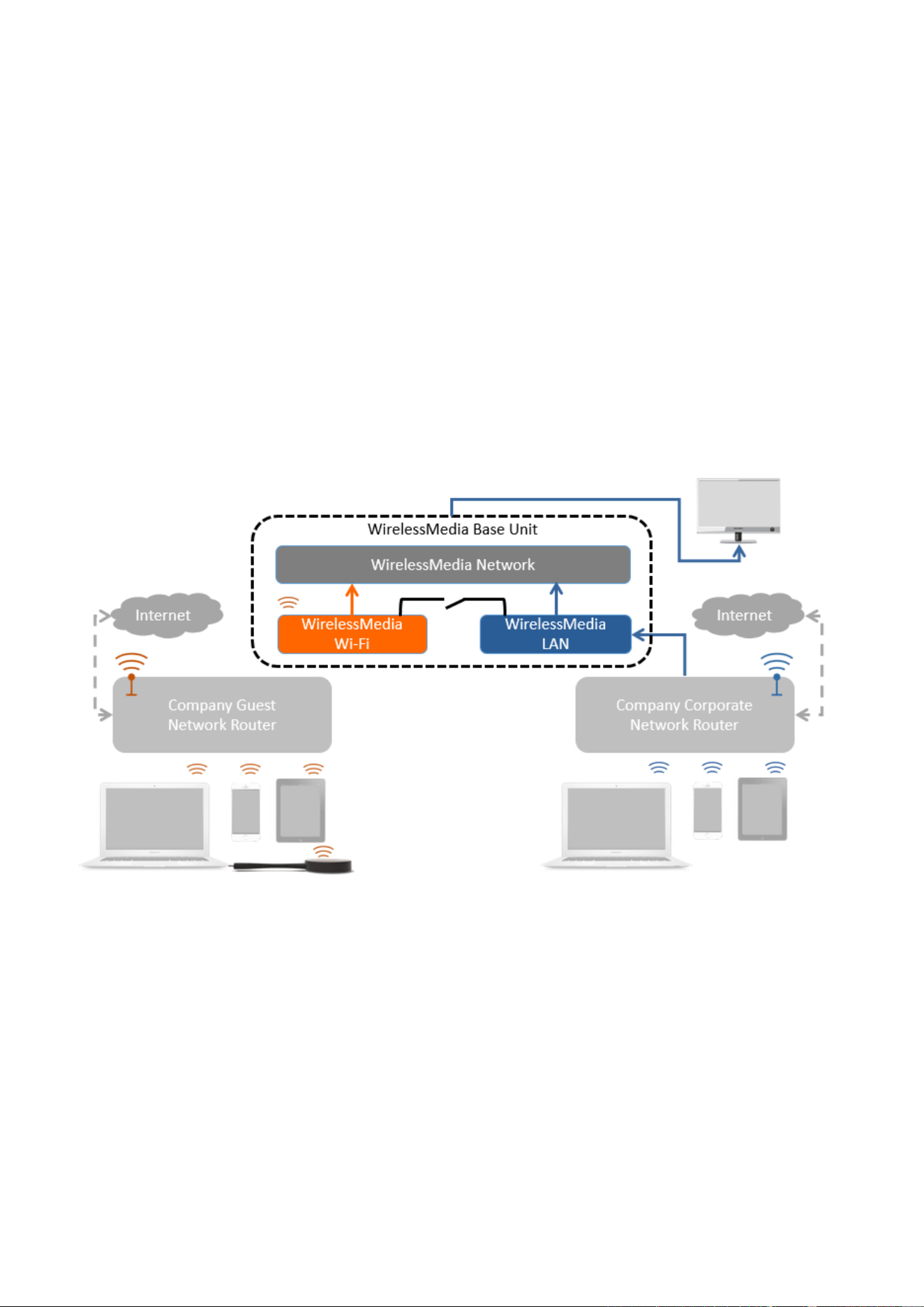
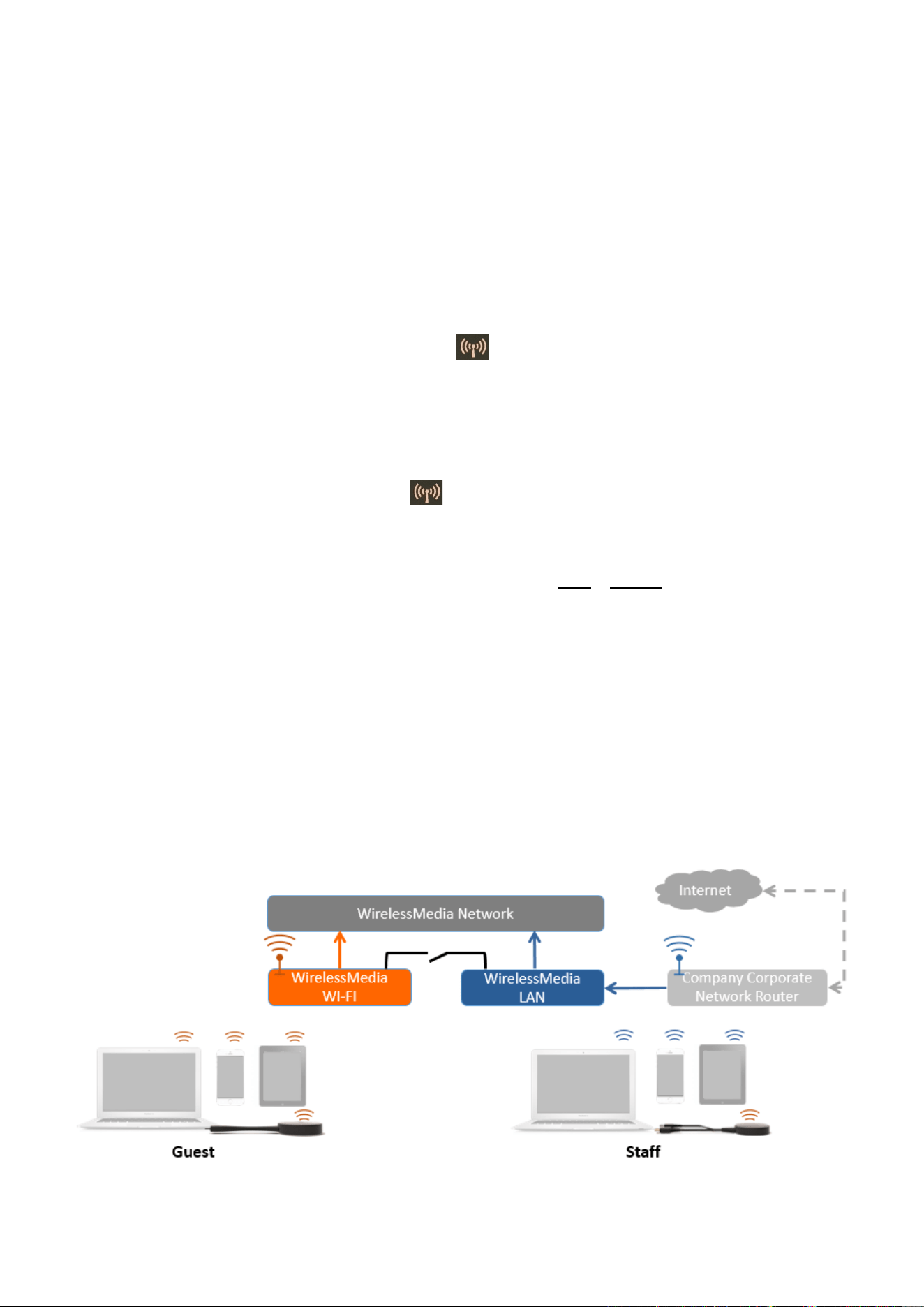
Segmented Dual Network, is to provide two segmented routing ways to connect to the base unit
simultaneously and separately, including wireless WI-FI network (normally connected to Guest/untrusted
network) and wired LAN network (normally connected to the corporate/trusted network).
A typical Segmented Dual Network topology is shown as below:
46 / 103
6.1.1.1 Wireless network configuration wizard
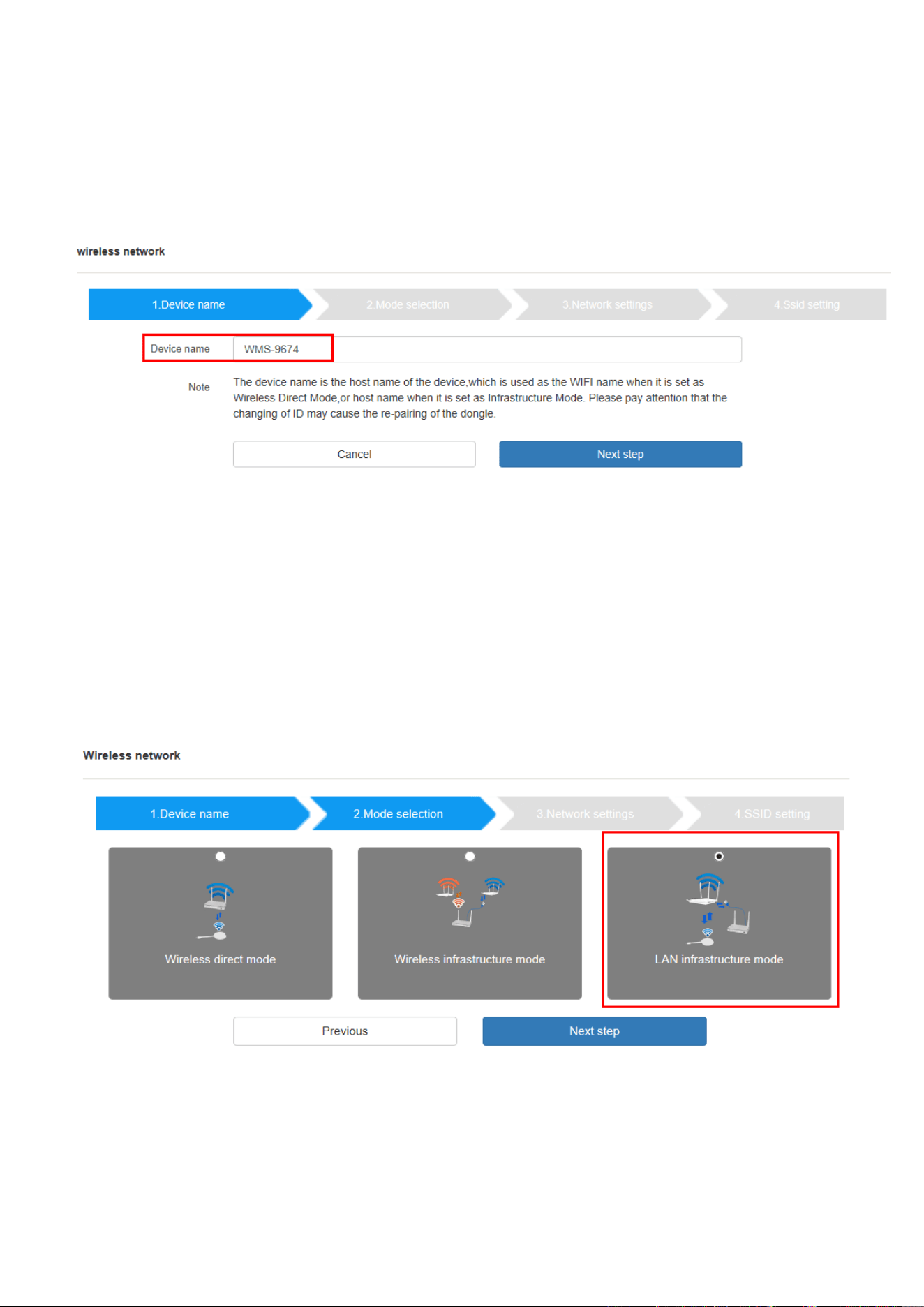
Enter a device name for the Base-unit. We recommend to take a descriptive name, if you have more than one
WirelessMedia installed. The default name is “WMS-XXXX”.
Only "a-z","A-Z","0-9","-_" and space are legal character.
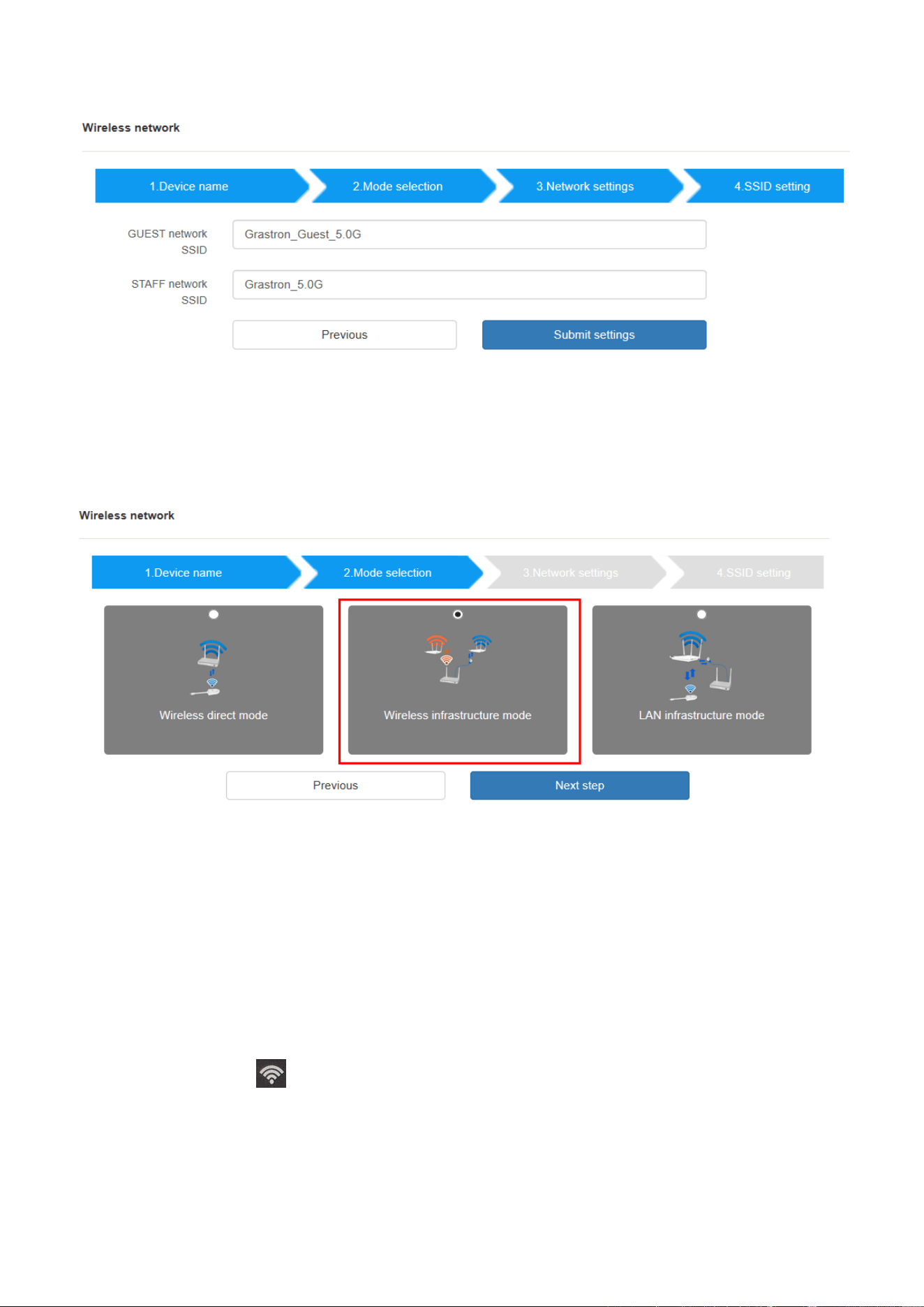
Click “Next step”. The following three connection methods are available:
47 / 103
6.1.1.2 Wireless Direct Mode
After Factory Reset, WMS base unit starts up in the default Stand-Alone “Wireless direct mode” configuration,
where the Base-unit creates its own wireless access point, which all transmitters use to connect. This is typical for
a quick setup for small group meetings. The Wi-Fi icon for the “Wireless direct mode” is displayed in top
status-bar of Home screen. Guest connect to the access-point of Klick & Show, while Staff can also connect to
Base-unit via Wi-Fi or via LAN connection to their corporate network.
Stand-Alone Connection
The internal Wi-Fi access Point of WMS is active . The dongle is paired directly to it. Guest and Staff use the
internal Wi-Fi access point of Base-unit to present with all their units. No Internet access is required.
The LAN-Port of Base-unit is not connected. The PC-users can present with or without dongle by WirelessMedia
PC driver (Windows or MacOS). Android users (BYOD) can share their content by installing the free APP on their
device and IOS users can use AirPlay (Apple only).
Recommended Environment
This option is best for temporary operation, small installations, and rooms without network access or networks
that do not allow network access for Guests, due to strict security concerns, and are completely separate from
the corporate network.
Under this mode, dongle will be automatically paired to the base unit Wi-Fi hotspot when plugging dongle to
the base unit USB port for pairing.
48 / 103
You can start using WMS in this mode without any other wireless network configuration.
Click “Next step” to
Set up Wi-Fi access point
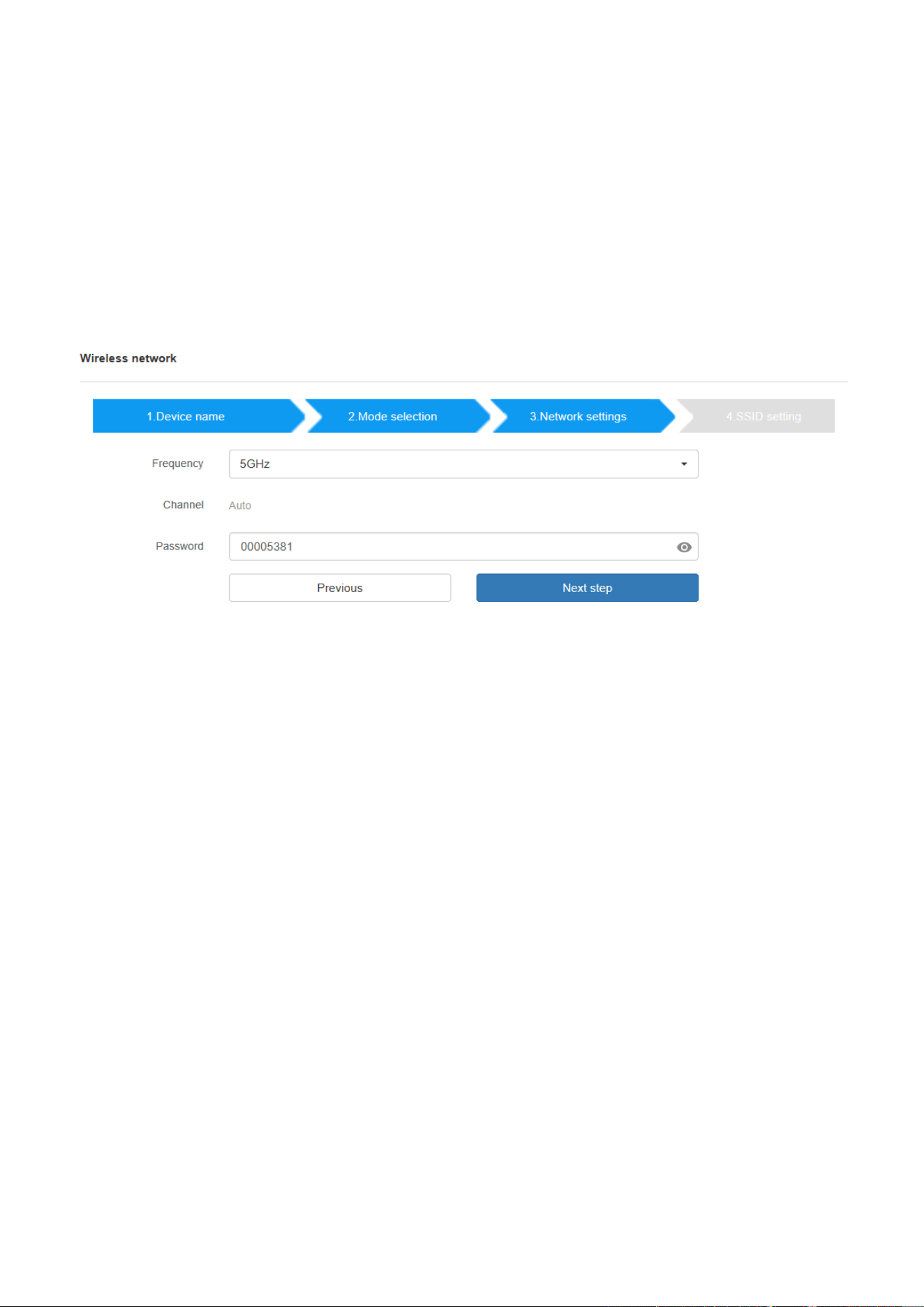
Set-up Wi-Fi access point includes, Frequency, Channel, Password.
⚫ Frequency: Click to select 2.4 GHz or 5 GHz Wi-Fi frequency. Default is 5 GHz.
⚫ Channel: Click to select the Wi-Fi channel. Default is 5 GHz, Auto.
If the Wi-Fi channel is changed, no new pairing of the dongle is necessary.
2.4 GHz frequency band: channels 1, 2, 3, 4, 5, 6, 7, 8, 9, 10, 11,
5 GHz frequency band: no need to choose 5G channel, system will choose proper channel automatically.
Default is 5 GHz, channel: Auto.
Default channel (USA area): 36,40,44,48 or 149,153,157, 161. Four channels will be opened at the same time,
system will automatically choose proper channel from them.
Default channel (European area): 36,40,44,48.
Default channel (China): 149,153,157,161.
⚫ Password: Click in the input filed to fill out the appropriate password with length of 8 characters.
Click “Next step” to edit or change Guest network SSID and STAFF network SSID. This information will be shown
at Home Screen of WirelessMedia.
49 / 103
Click “Submit settings” to finish configuration.
After it please re-pairing dongle with the base unit.
6.1.1.3 Wireless Infrastructure mode
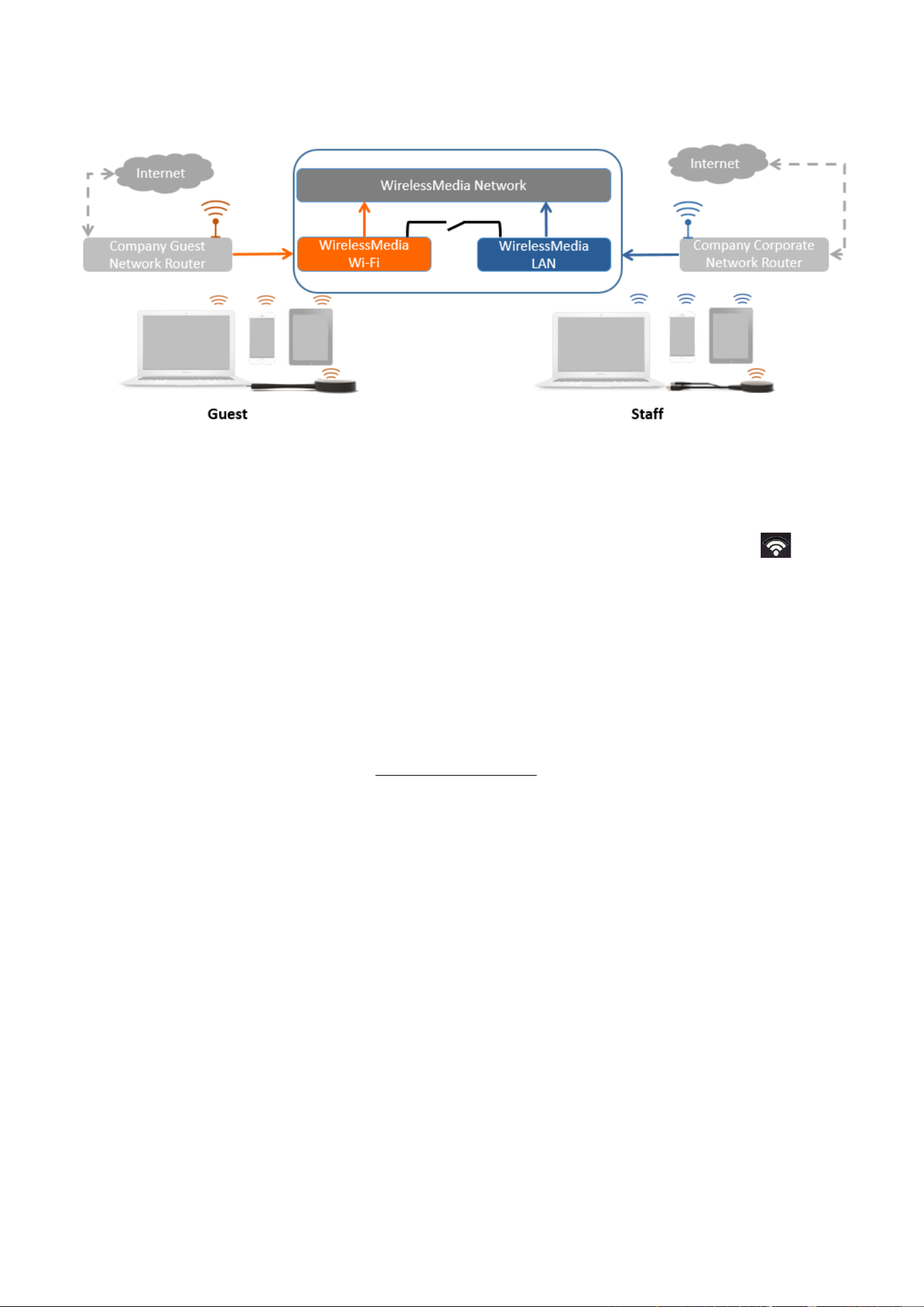
WirelessMedia can connect to a wired and a wireless network simultaneously. The basic unit is firmly "connected
to the company network with LAN. Guest users connect to Wi-Fi "Guest" access. The employees (“Staff”) connect
to their usual access point of the corporate network, without having to change the Wi-Fi. This is very useful for
organizations, which have a wireless “Guest” network for external visitors and a wired “Staff” network for their
employees. The segmented Dual Network of WirelessMedia provides two separated routing ways to connect to
the Base-unit at same time. Guest-users are not able to access any resource on the Ethernet of the company.
WirelessMedia uses the existing wireless network infrastructure. Guest and Staff have internet access.
Dual Network Configuration
The internal the Wi-Fi network of WirelessMedia is connected to Guest Wi-Fi network of the organization, (Client
Mode: the indicator-icon shows the actual signal strength). The Base-unit is still wired with LAN-cable to
the internal company network
The PC-users can present, with or without dongle TOUCH by WirelessMedia PC driver (Windows or MacOS).
Android users can share their content by installing the free APP, IOS users can use AirPlay to share content
50 / 103
(Apple only).
The dongle is connected to the Wi-Fi access Point of Guest network, which in turn is connected to the internal
Wi-Fi access Point of WirelessMedia. (The dongle can also be configured to connect to the enterprise’s access
point.) Mobile users stay connected to their current network, have access to their normal corporate environment,
as well as Internet access.
The actual received signal strength from Guest network is shown in Home screen of WirelessMedia: .
Follow the instructions of the configuration wizard for “Wireless infrastructure mode”. When pairing the dongles,
by plugging the dongle in the USB port of the Base-unit, it will automatically pair to the associated access point
of Guest or Staff Wi-Fi and NOT to WirelessMedia.
Click “Next step” to configure the network which dongle needs to be paired to.
“Dongle connects to base unit via wireless network.”
Choose a wireless network which is separate from the company LAN network for guest users.
Select SSID: Choose a wireless network to connect to base unit for guest.
Password: enter password to connect the base unit to the guest network.
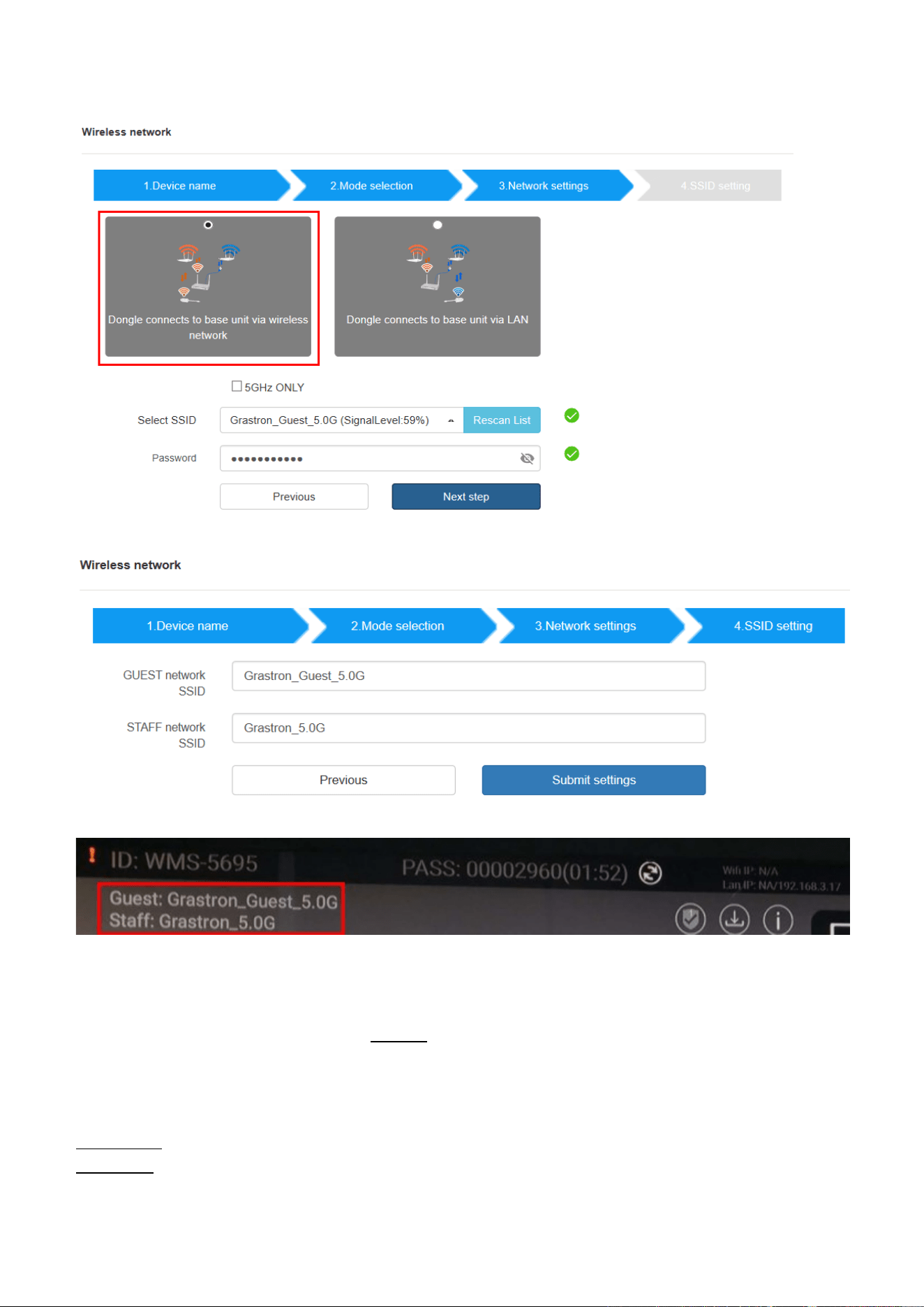
51 / 103
Click “Next step” to edit or change Guest network SSID and Staff network SSID.
Wi-Fi name of guest and staff will be shown on home screen after “Submit settings”.
After submitting successfully, please re-pair dongle with base unit.
“Dongle connects to base unit via LAN.”
Choose a LAN network which is used for the company staff users.
Note: usually in this mode, dongle paired for internal staff usage.
Select SSID: Choose a wireless network to connect to base unit for guest.
Password: enter password to connect the base unit to the guest network.
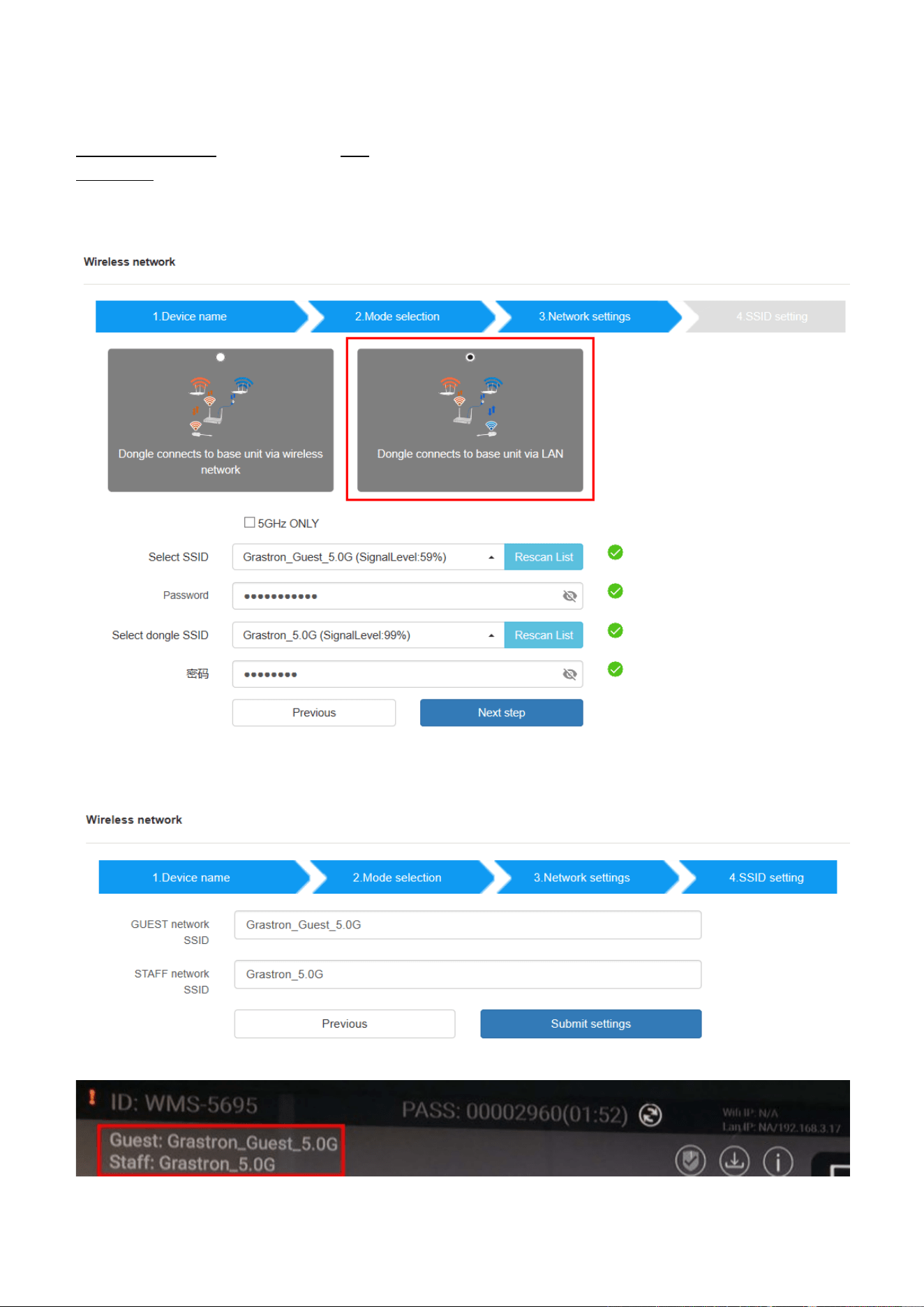
52 / 103
Select dongle SSID: choose the same LAN network which base unit connects, to pair the dongle.
Password: enter password of the LAN network.
See picture as below:
Click “Next step” to edit or change Guest network SSID and Staff network SSID.
Wifi name of guest and staff will be shown on home screen after “Submit settings”
53 / 103
After submitting successfully, please re-pair dongle with base unit.
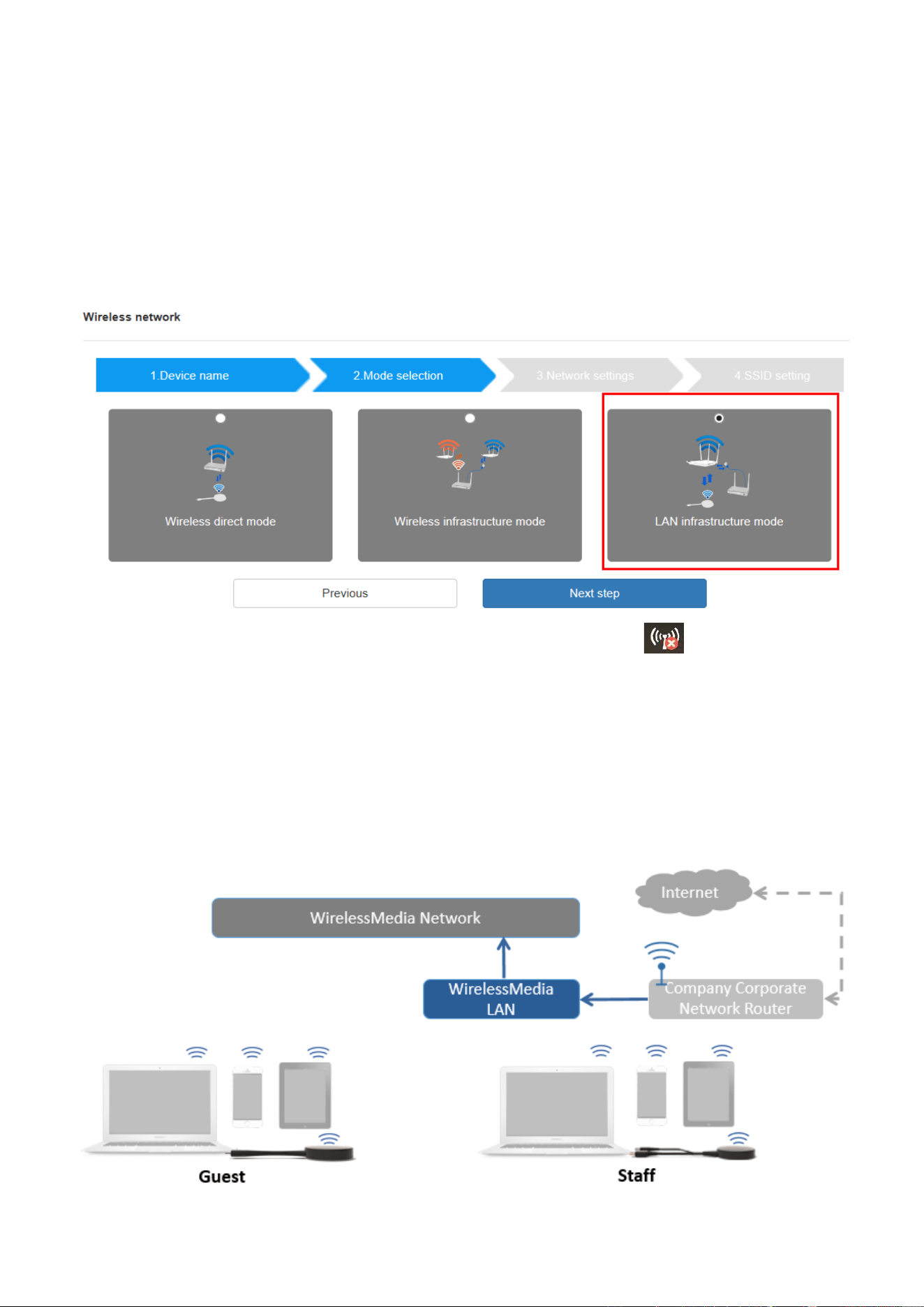
6.1.1.4 LAN Infrastructure Mode
In this configuration the built-in Wi-Fi access point of WirelessMedia is disabled: .
The dongle and/or the mobile devices can connect to the secured wireless access point of the company network.
The Base-unit of WirelessMedia is hard-wired connected via LAN to the Ethernet of the Company network.
The Staff-users connect to their usual access point of Company network, without the need to change the Wi-Fi.
Follow the instructions of the configuration wizard for “LAN infrastructure mode”.
When pairing the dongles, by plugging the dongle in the USB /Type C port of the Base-unit, will be automatically
paired to the Staff access point, and NOT to “WirelessMedia” Base-unit.
54 / 103
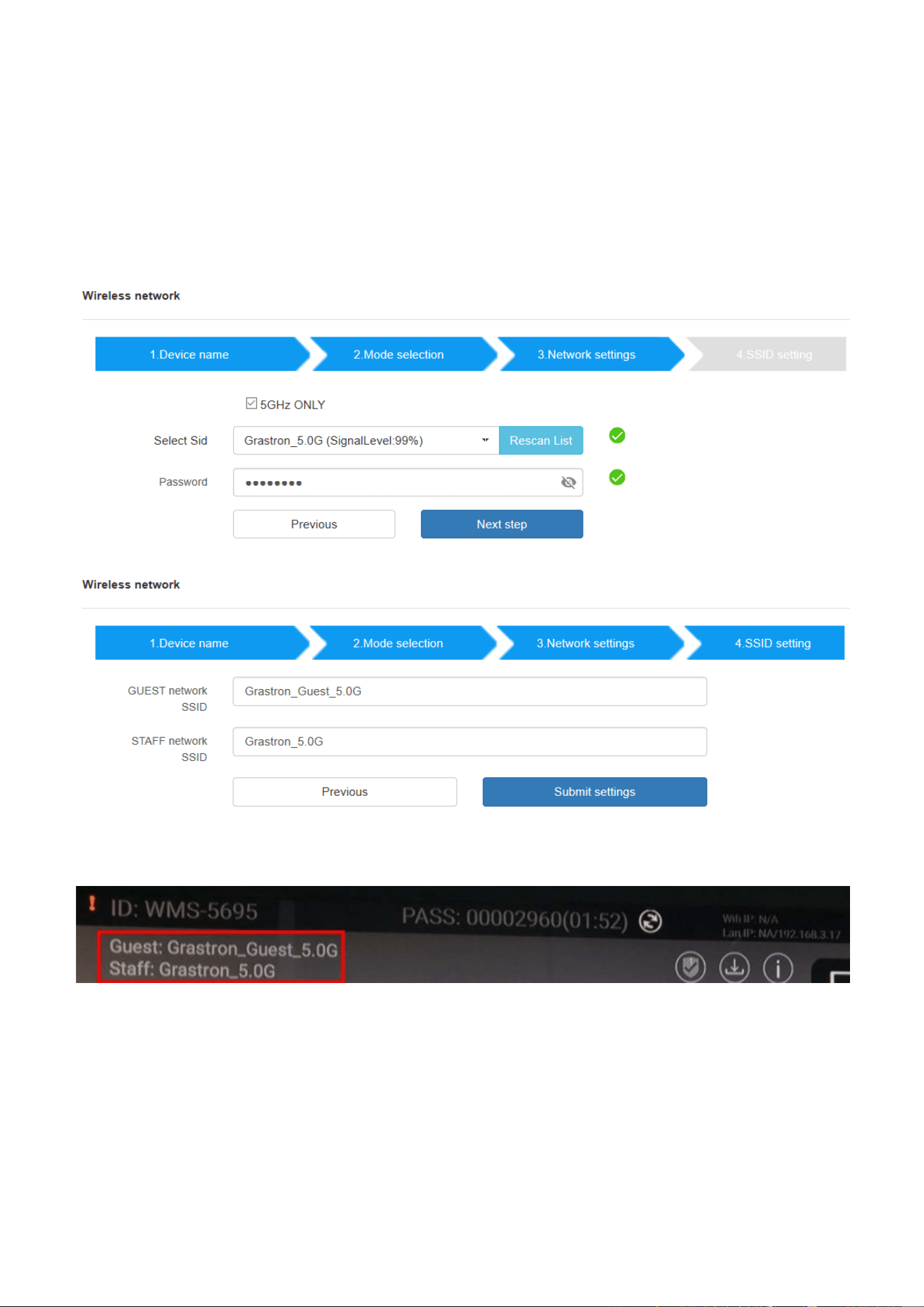
Click “Next step” to choose a LAN network which is used for the company staff users and pair the dongle into
this network.
Click “Next step” to edit or change Guest network SSID and Staff network SSID.
Wifi name of guest and staff will be shown on home screen after “Submit settings”
After submitting successfully, please re-pair dongle with base unit.
55 / 103
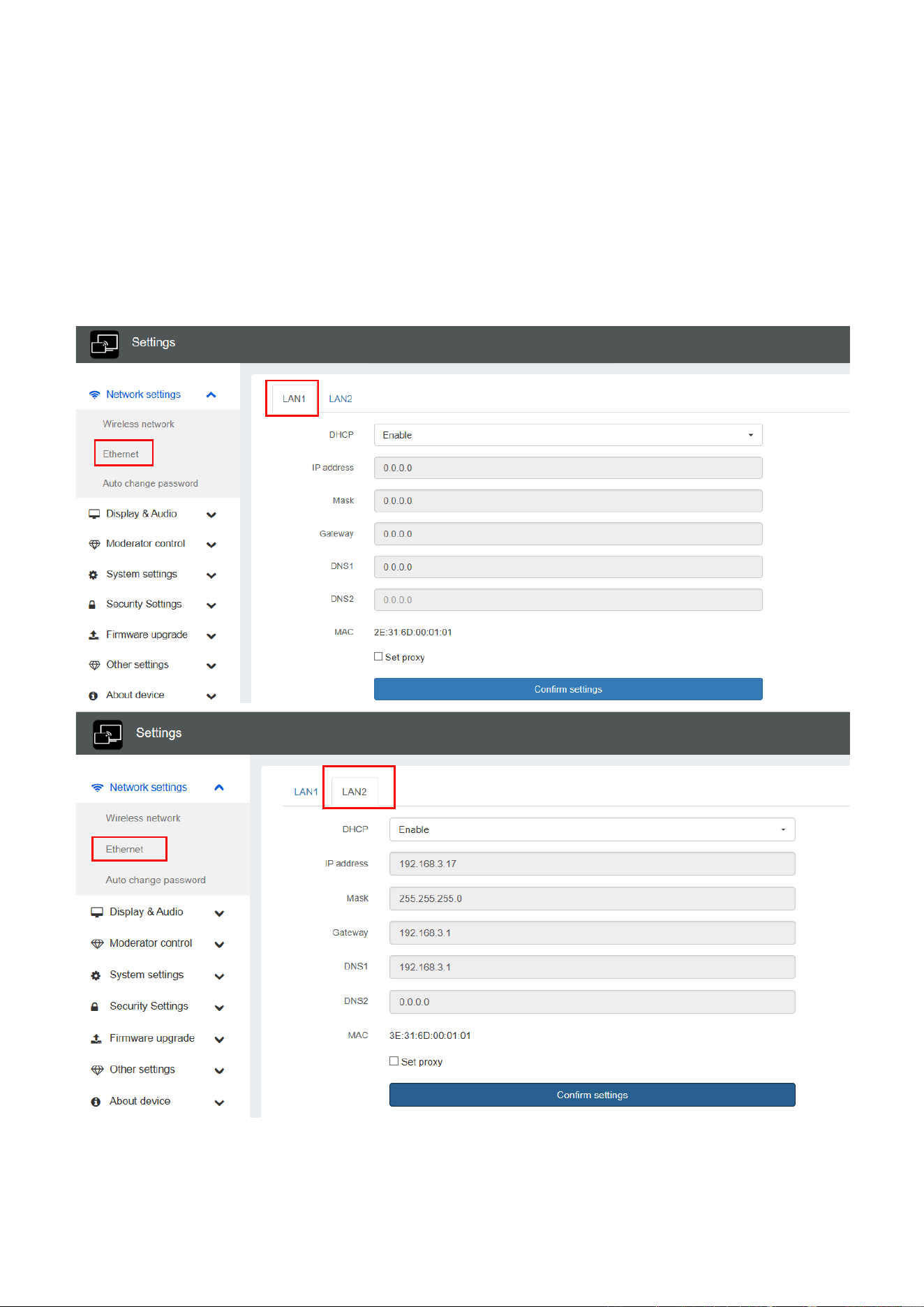
6.1.2 Ethernet
Configure the Ethernet settings. WMS-40 has 2 Lan port, if the base unit is connected with 2 LAN cable, you can
configure from below tab.
56 / 103
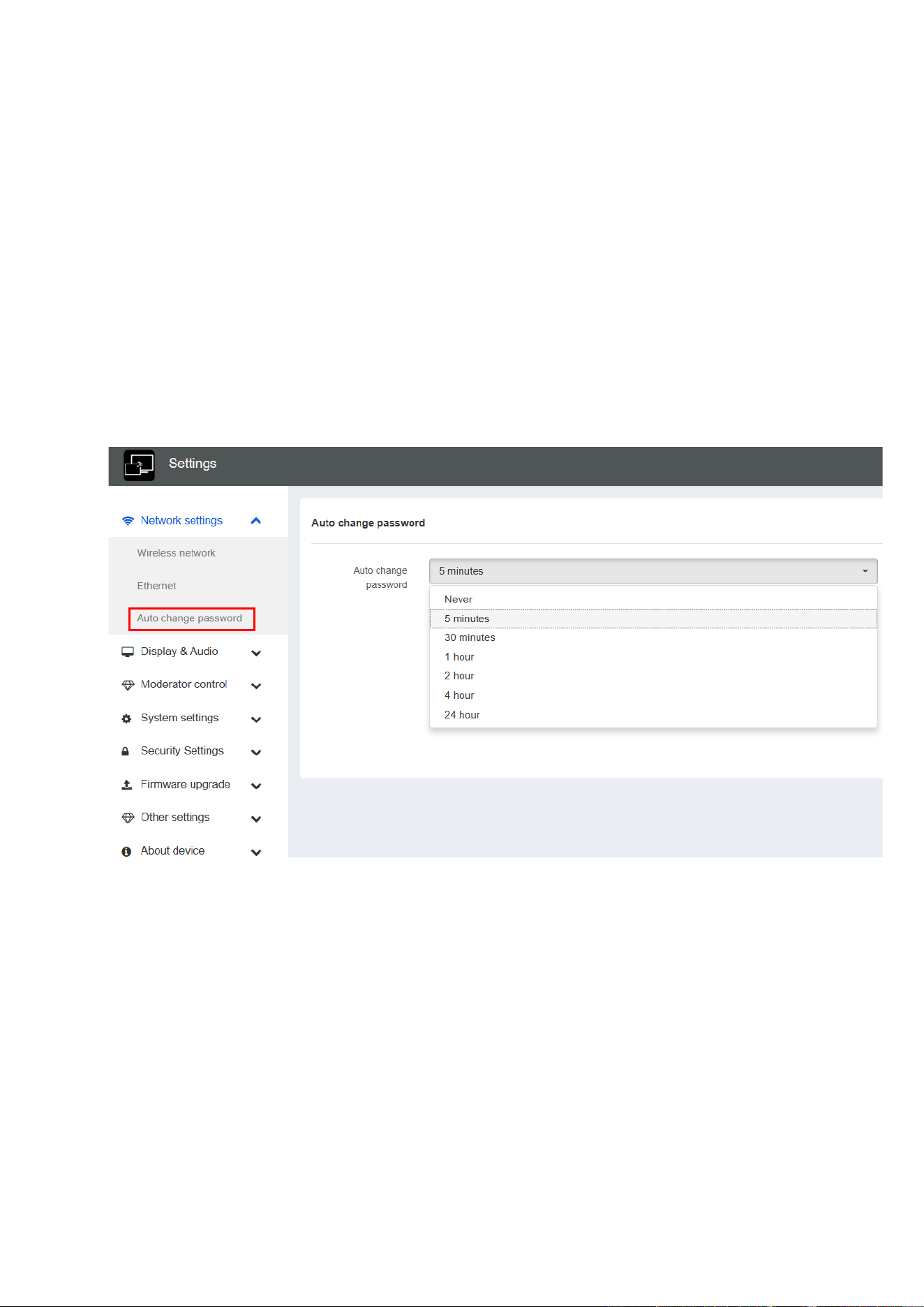
6.1.3 Auto change password
The password remains unchanged for all participants of the meeting, while at least one dongle or a Wi-Fi
network of a mobile device are connected with Base-unit. After the user is disconnected, a configurable time
runs.
⚫ The changeable password will be fixed by connecting a dongle to PC/Laptop or connect a mobile unit to the
Wi-Fi of the Base-unit, and continue to be changeable after 15s after disconnecting the last dongle or
disconnect the Wi-Fi of a mobile unit.
⚫ User do not need to re-pair the dongle again, if only the password is changed. A Smart mobile device has
to enter the correct SSID and password to connect to the Base-unit access point, in order to access all
functionality.
Configure to automatically change Wi-Fi password to a random number every period of time.
Click to set the configuration, including
⚫ Never: never change Wi-Fi password. (Even after POWER-OFF condition)
⚫ 5 minutes: change Wi-Fi password every 5 minutes.
⚫ 30 minutes: change Wi-Fi password every 30 minutes.
⚫ 1 hour: change Wi-Fi password every 1 hour.
⚫ 2 hours: change Wi-Fi password every 2 hours.
⚫ 4 hours: change Wi-Fi password every 4 hours.
⚫ 24 hours: change Wi-Fi password every 24 hours.
57 / 103
6.2 Display & Audio
6.2.1 HDMI
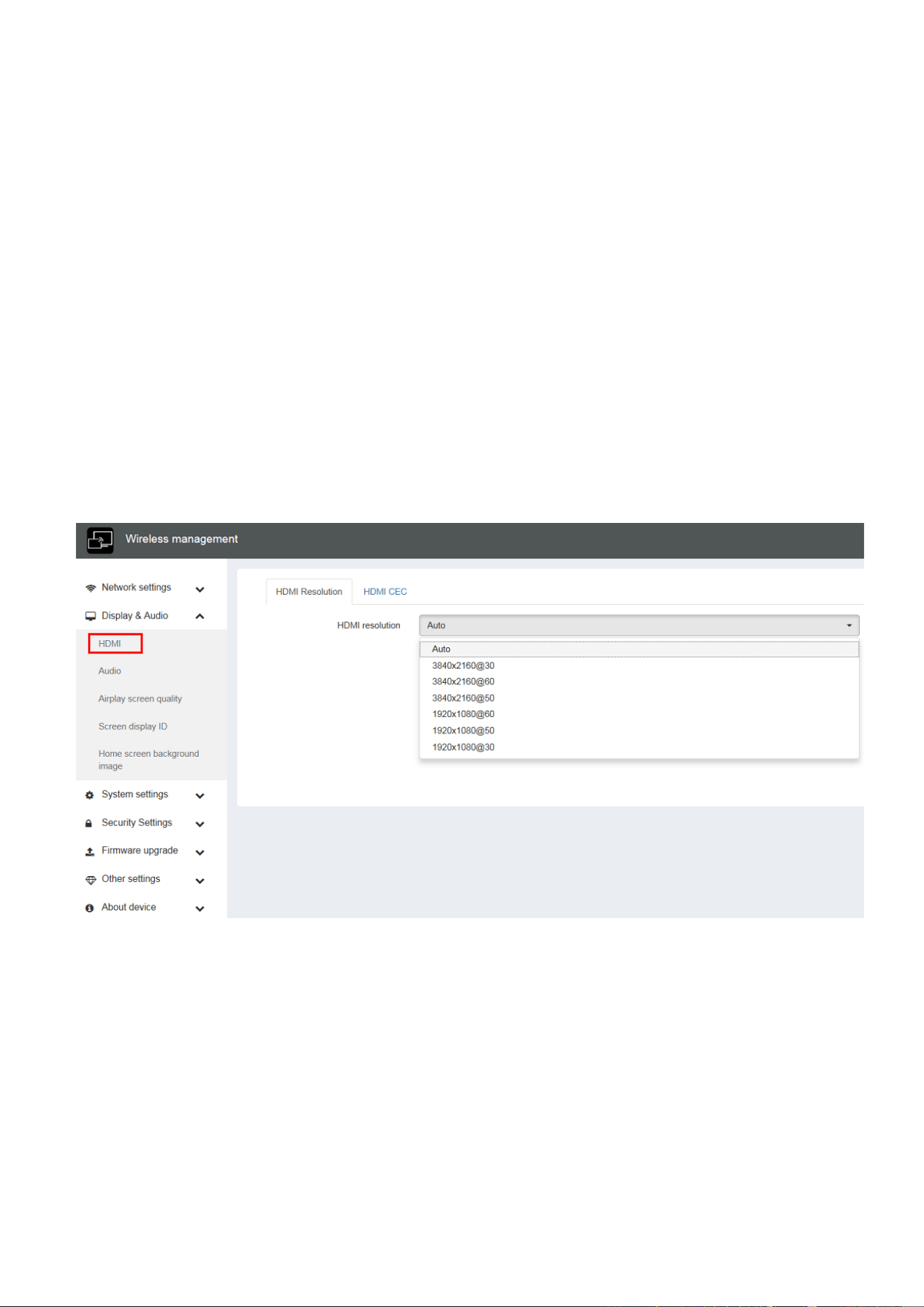
HDMI Resolution
Select the resolution at HDMI output of Base-unit.
Existing HDMI output resolution as below:
⚫ Auto
⚫ 3840x2160 @30Hz
⚫ 3840x2160 @60Hz
⚫ 3840x2160 @50Hz
⚫ 1920x1080 @60Hz
⚫ 1920x1080 @50Hz
⚫ 1920x1080 @30Hz
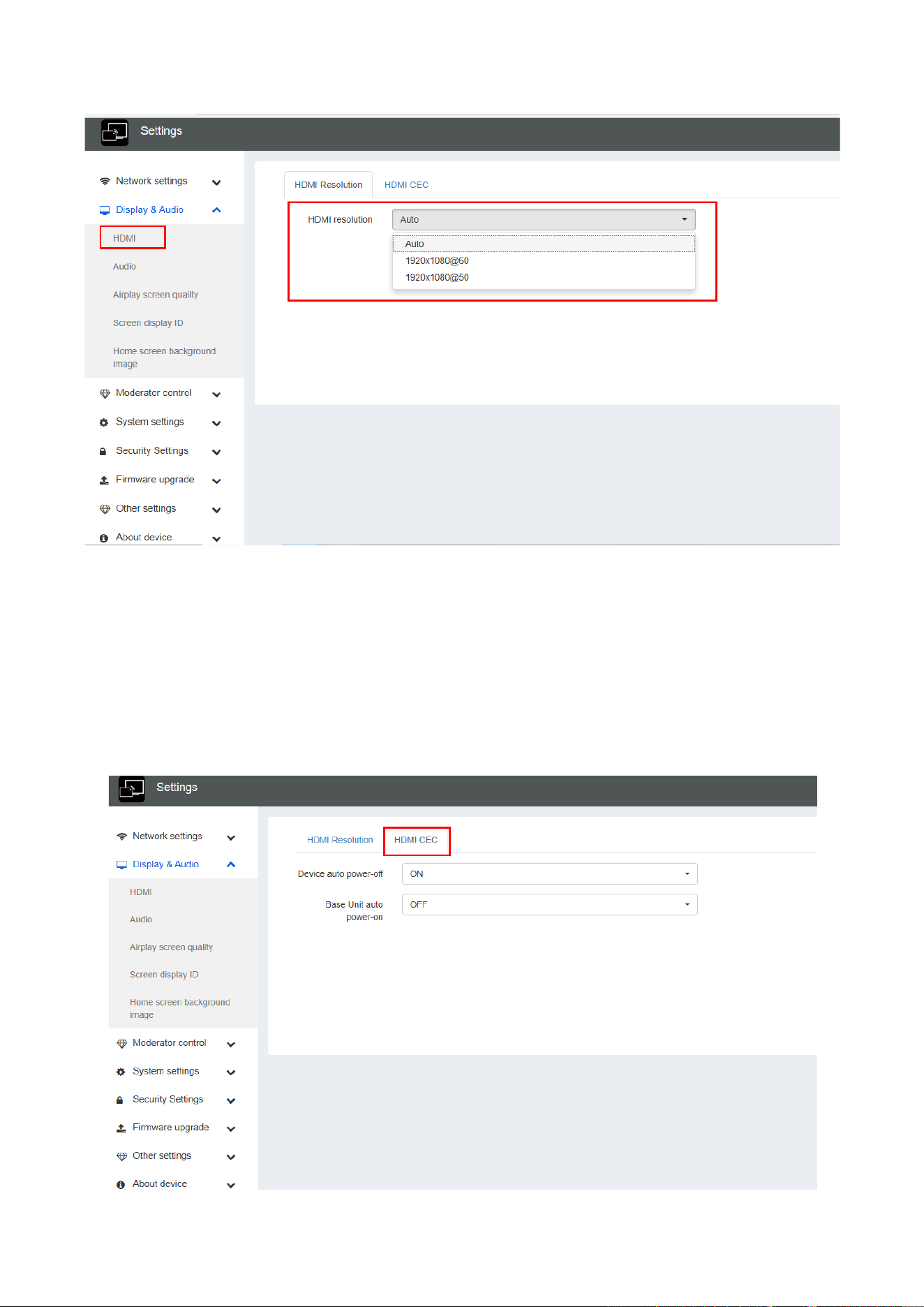
Note: if the display is only support FULL HD, the 4K resolution will not be shown on the list of the below resolution.
58 / 103
HDMI CEC
Base unit support CEC function if the connected display support CEC function.
⚫ Device auto power off:
◼ ON (Default): Display will automatically turn off when base unit is powered off.
◼ OFF: Display will not automatically turn off when base unit is powered off.
⚫ Base unit auto power on:
◼ On: Base unit will be automatically woke up when display is on.
◼ Off (Default): Base unit will not be automatically woke up when display is on.
59 / 103
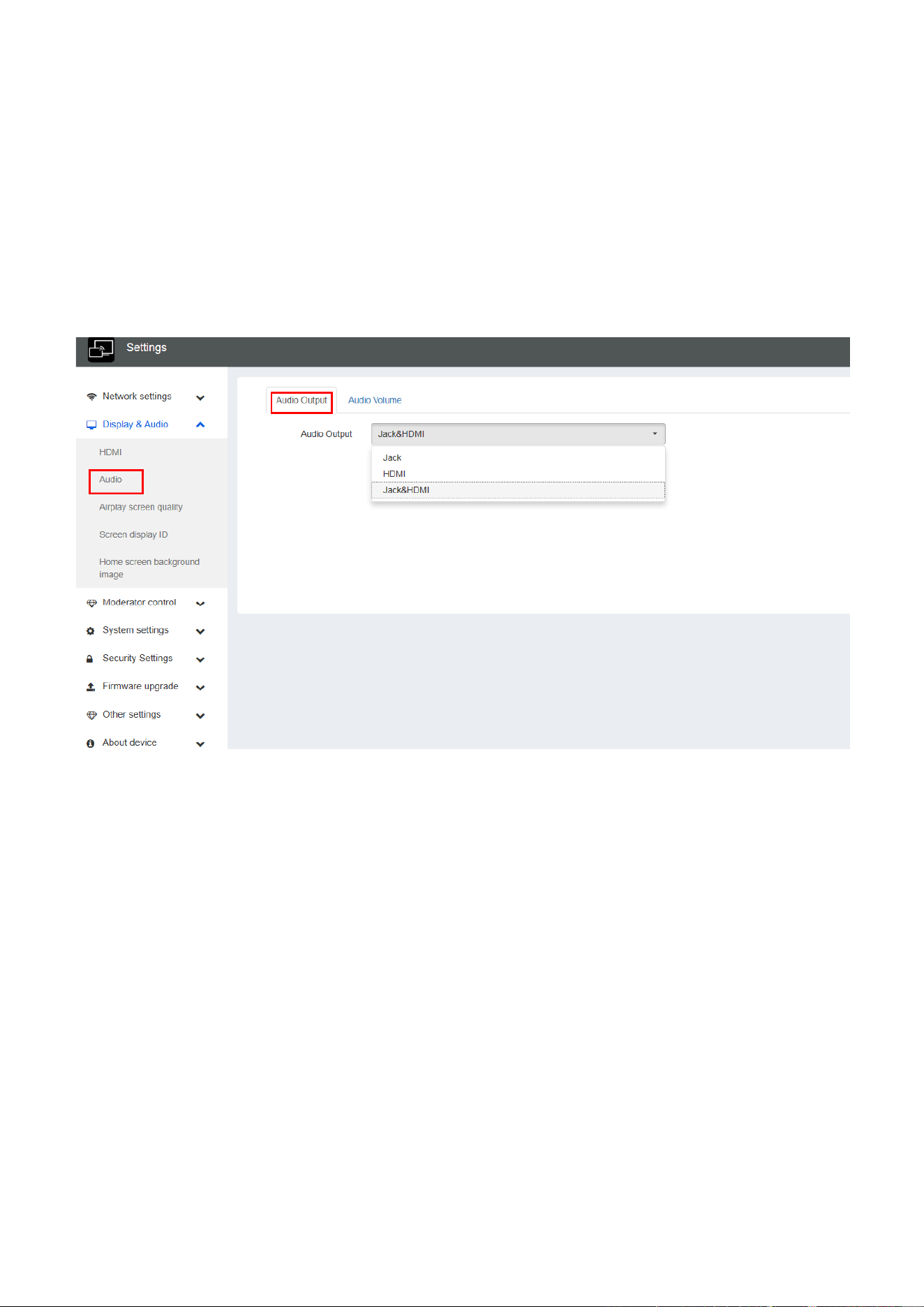
6.2.2 Audio
Audio
Choose audio output:
Jack: output only 3.5mm mini-jack audio.
HDMI: output only HDMI audio.
Jack&HDMI (Default): output Jack & HDMI audio
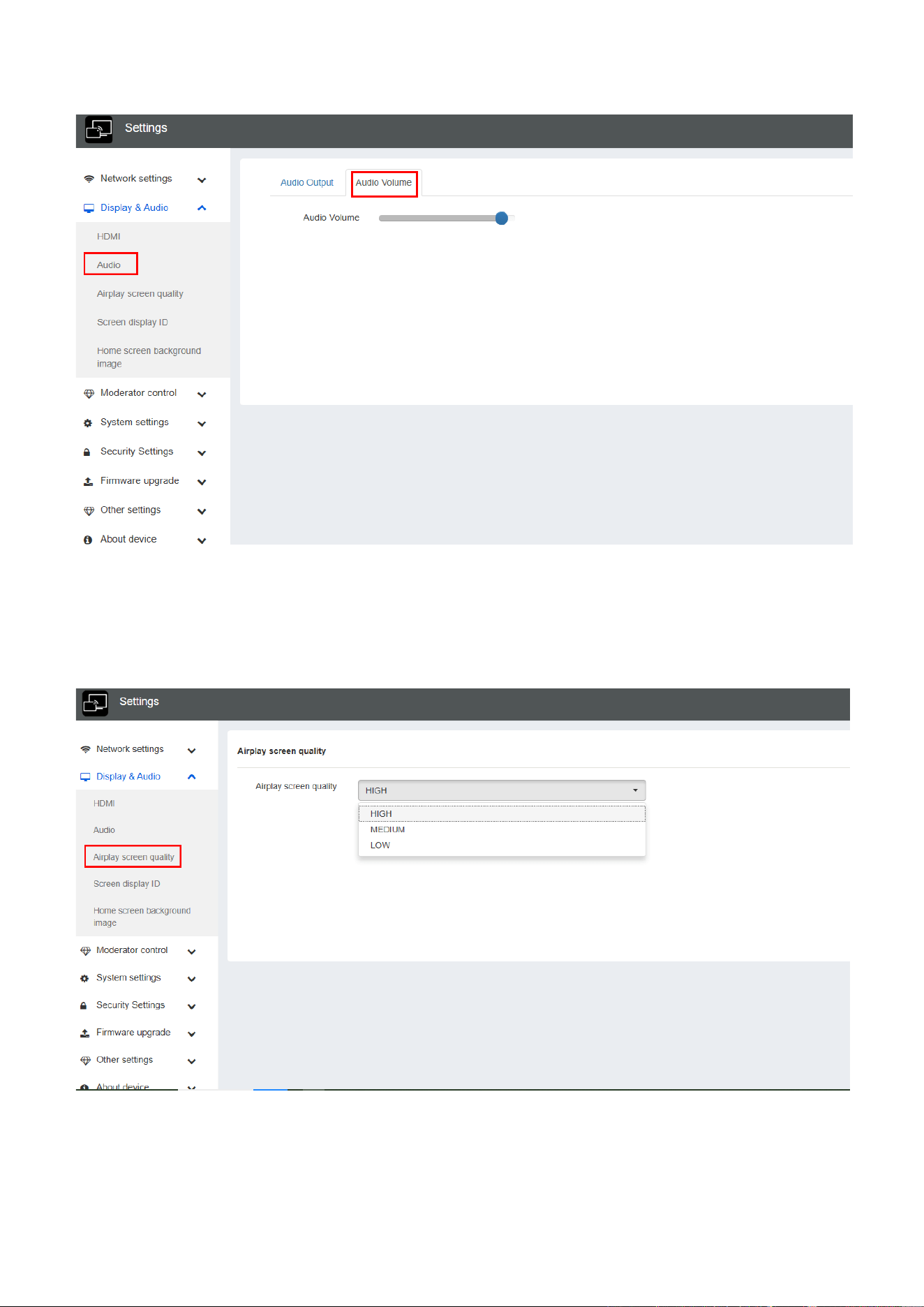
Volume
User can select volume of display from 0 to 100.
60 / 103
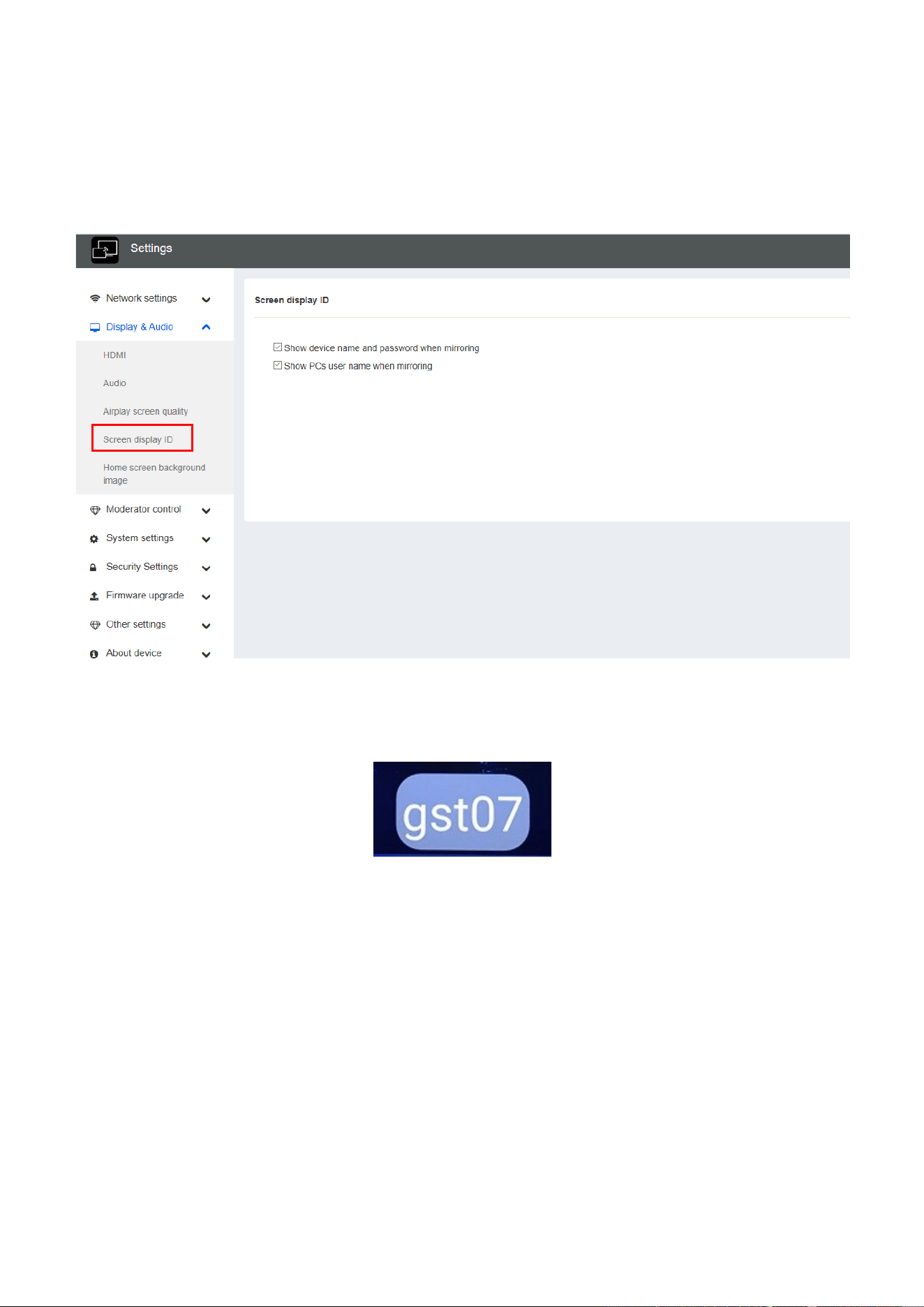
6.2.3 Airplay screen quality
Click to select the image quality when transmit apple device by “AirPlay” mode.
61 / 103
6.2.4 Screen display ID
⚫ Show device name and password when mirroring: Name (ID) and Wi-Fi-password can be shown or hided
at top status-line of main screen.
⚫ Show PCs user name when mirroring.
Show user name.
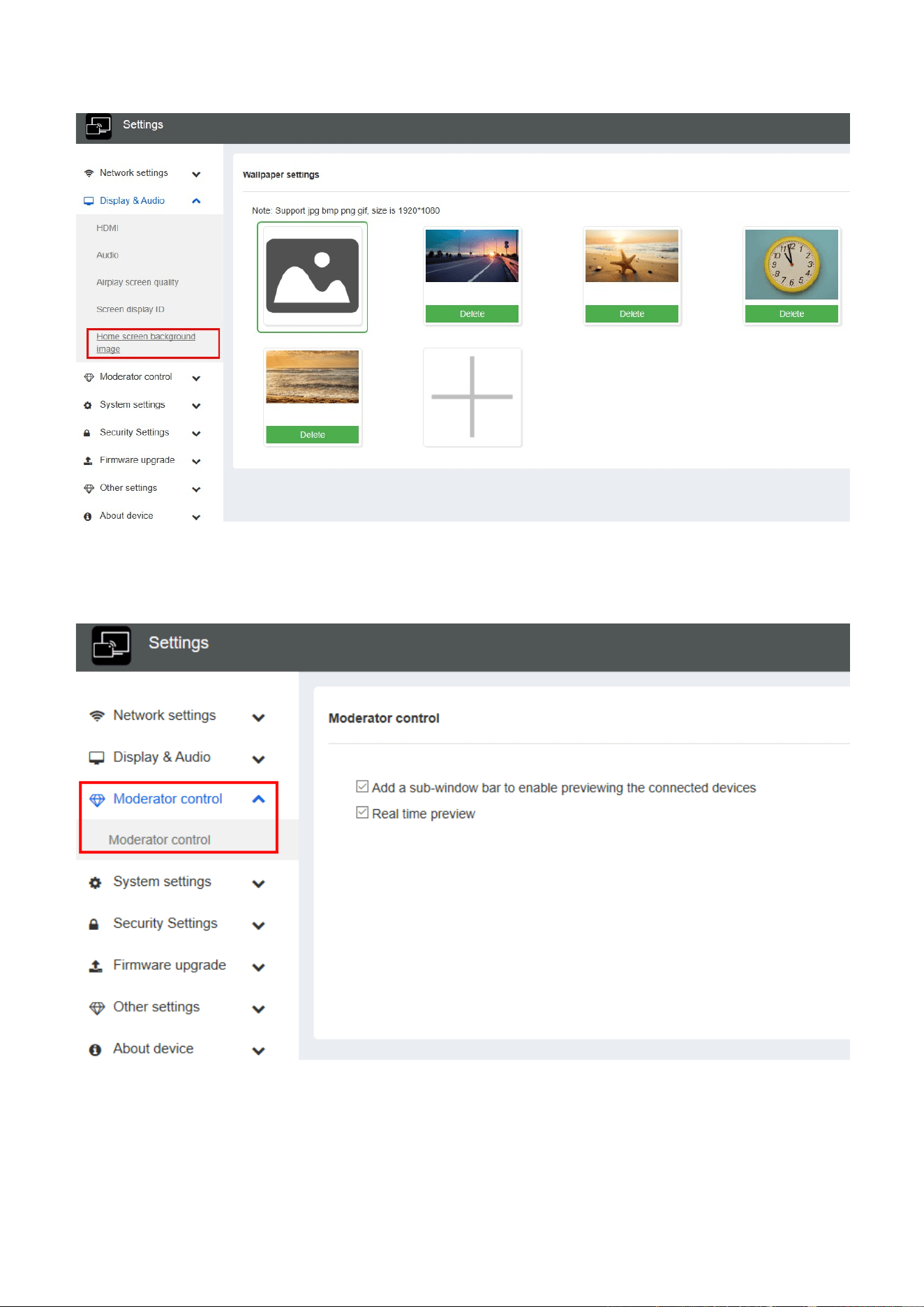
6.2.5 Home Screen background image
When powering WirelessMedia the start screen will be displayed. User can change background image of Home
screen. Select the image (jpg, bmp, png, gif with resolution 1920x1080 p.) from suitable directory and activate
box for selection. You can return to Standard Home screen every time.
62 / 103
6.3 Moderator control
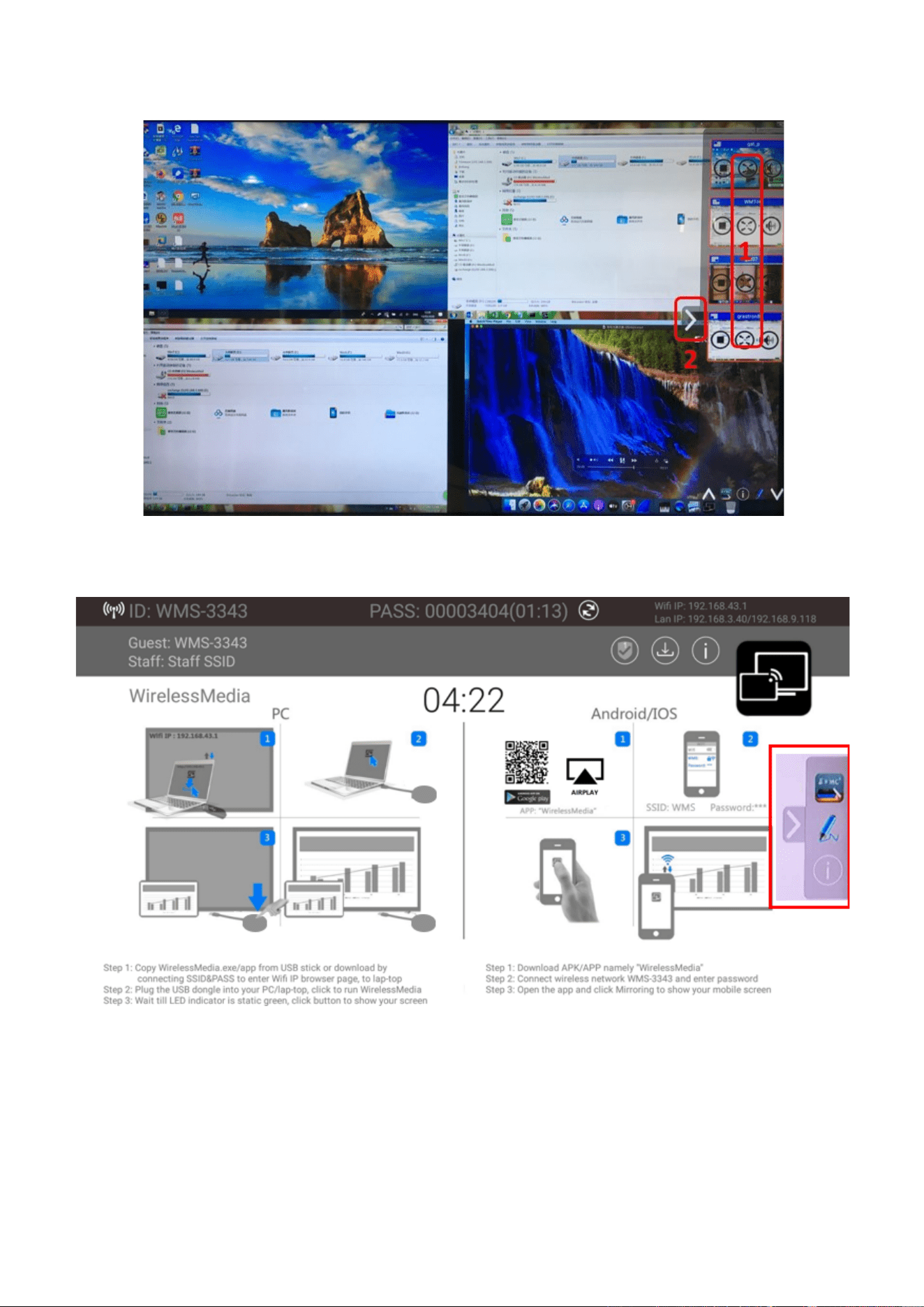
⚫ Add a sub-window bar to enable previewing the connected devices. Tick the icon, it will show the sub
window as below once devices are connected to base unit.
63 / 103
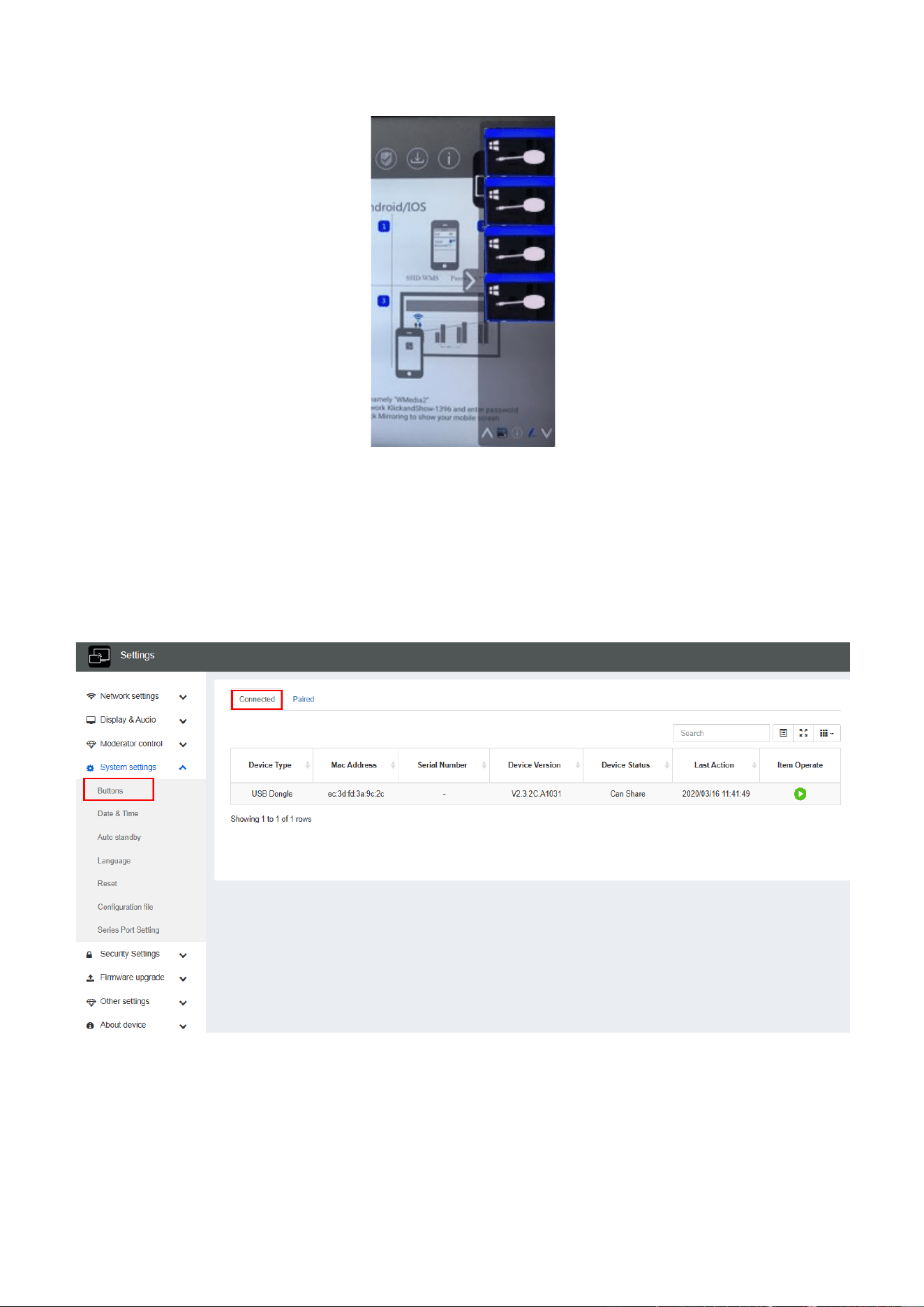
If do not tick the icon, the preview window bar will be minimized as below.
⚫ Real time preview
If tick the icon, the preview window will show real time preview, if not tick, the preview window will only show a
static picture as below.
64 / 103
6.4 System settings
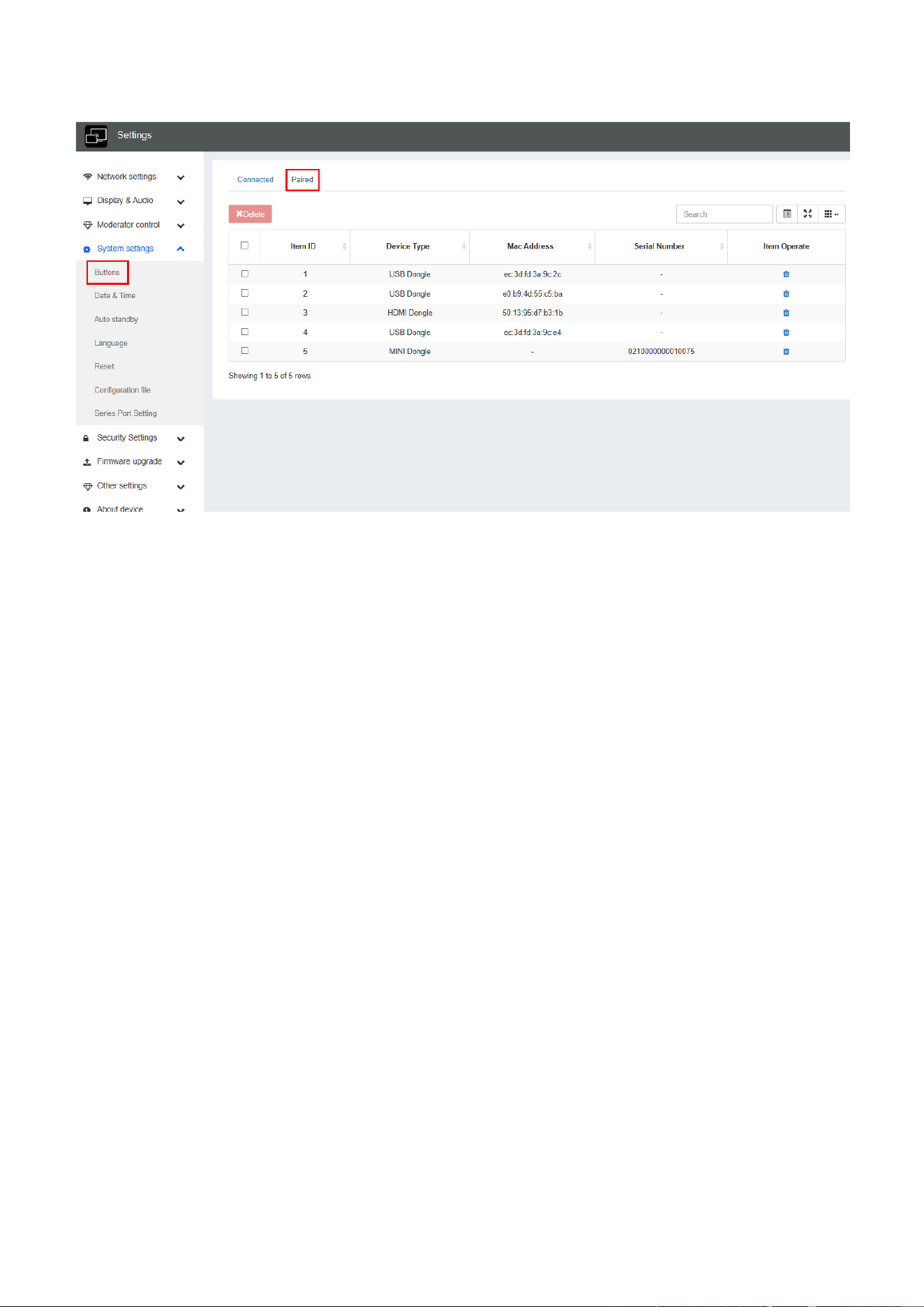
6.4.1 Buttons:
Show Device name, MAC Address, Serial Number, Device Version, Device Status, Last Action, Item Operate.
Paired: Show properties of connected dongles and can be managed from this page.
65 / 103
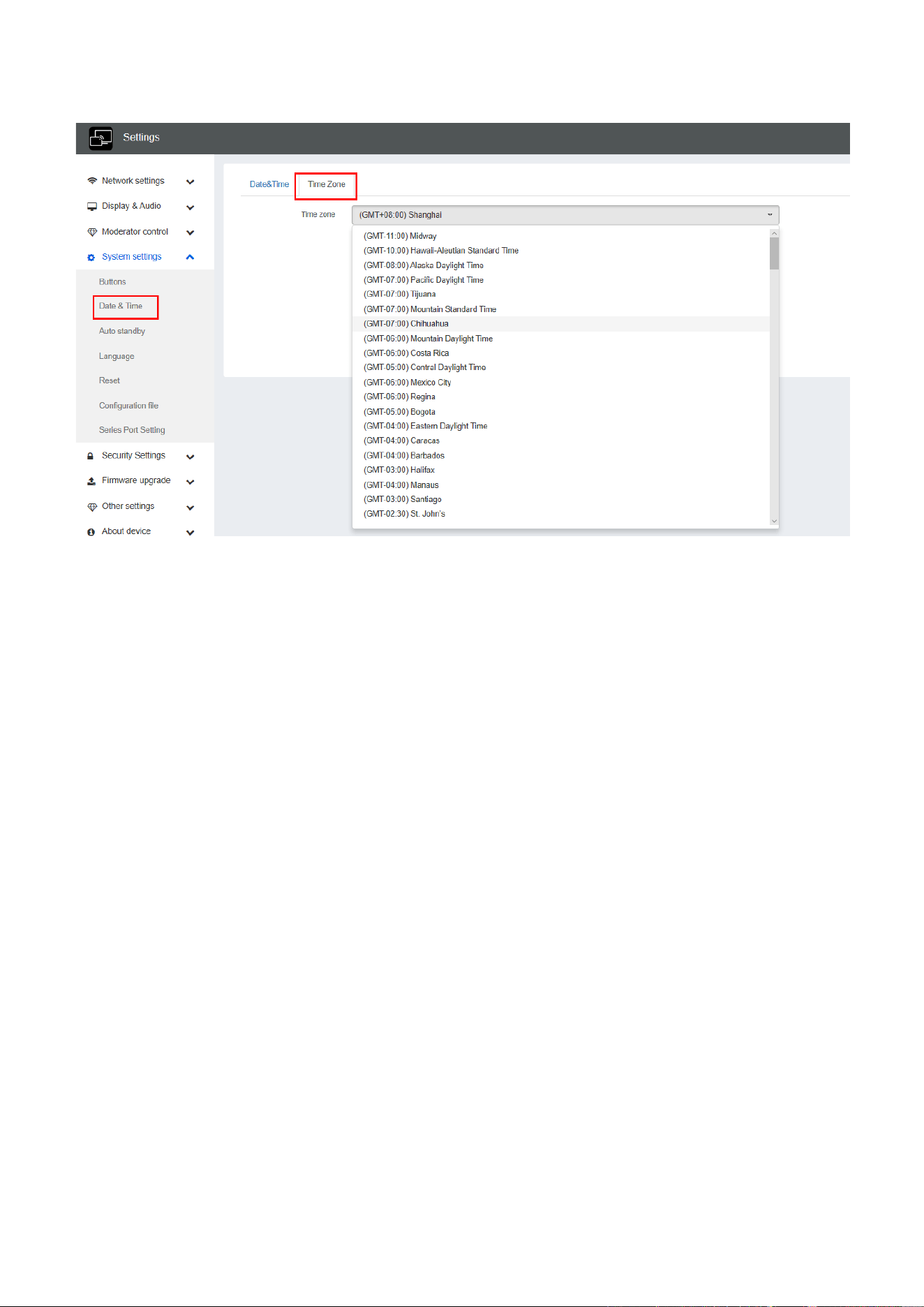
6.4.2 Date & Time
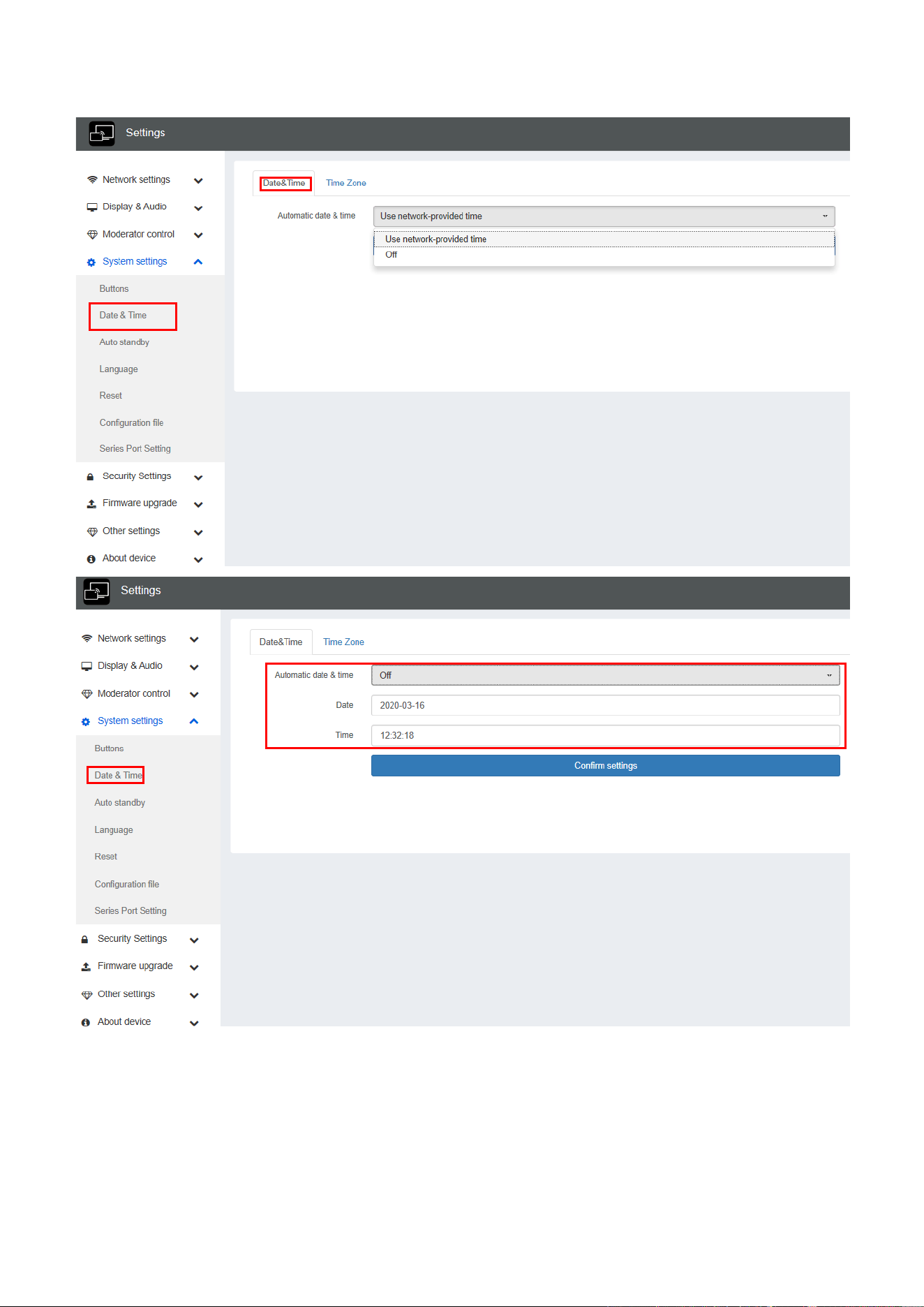
Includes Automatic date & time, Set date, Set time, Select time zone.
⚫ Automatic date & time: Check to use a NTP time server to provide time as system time.
⚫ Set date: Click in the input filed to fill out the appropriate date.
⚫ Set time: Click in the input filed to fill out the appropriate time manually. The setting is not saved, when
power is off.
⚫ Select time zone: Click in the input filed to fill out the appropriate time zone.
66 / 103
67 / 103
6.4.3 Auto standby
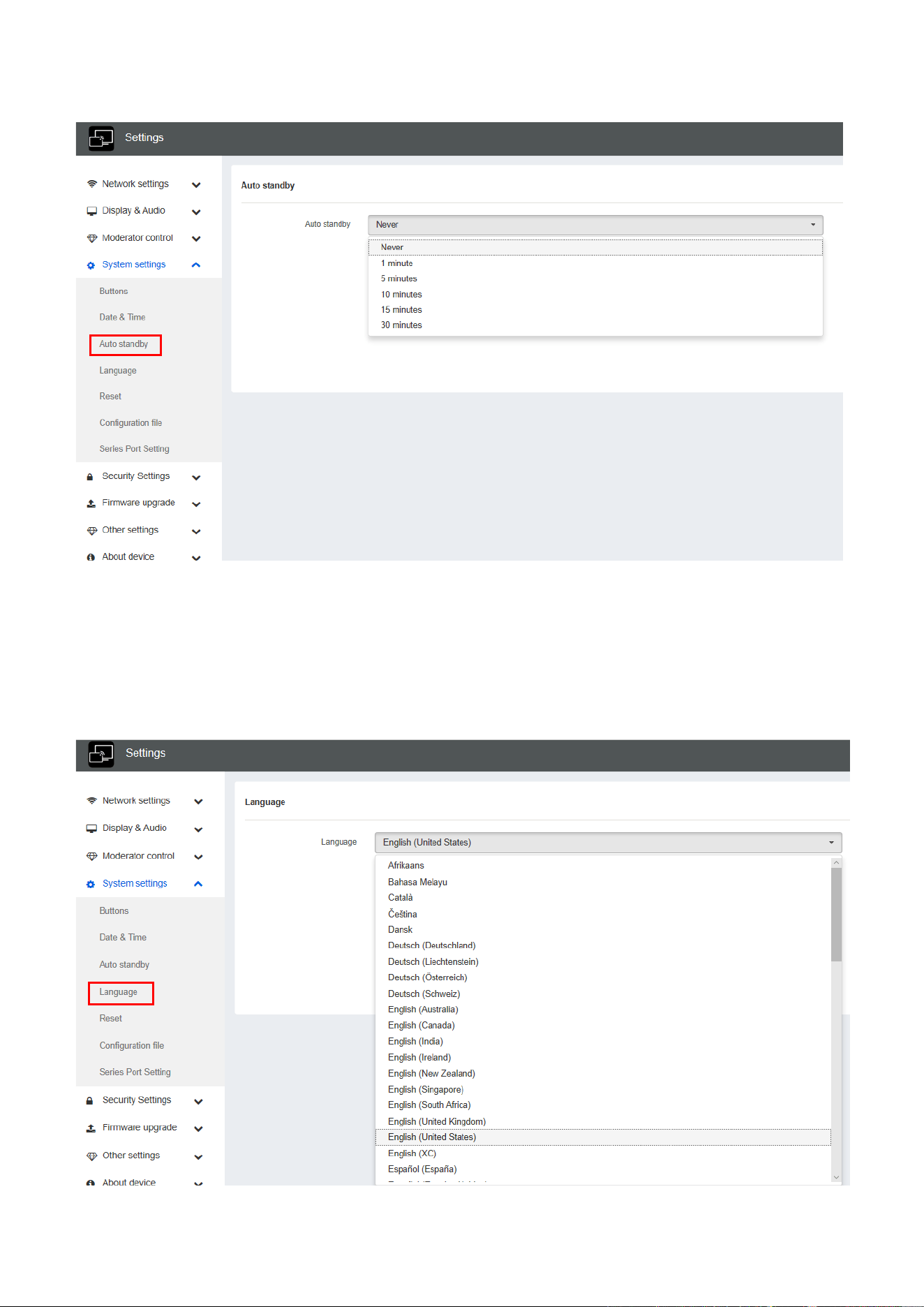
If the Auto Standby mode is activated, WirelessMedia will automatically switch to power saving mode, a
selectable time after the last dongle was plugged out, or Wi-Fi of a mobile unit was disconnected, or there is no
operation at the system. Time is selectable from Never to 30 minutes. In Standby green LED in top of Base-unit
is flashing and HDMI-output is switched off.
When a dongle is plugged in and connected, or a mobile unit is connected, Standby is deactivated.
Movement of mouse at USB-input at Base-unit deactivates Standby mode also.
68 / 103
6.4.4 Language
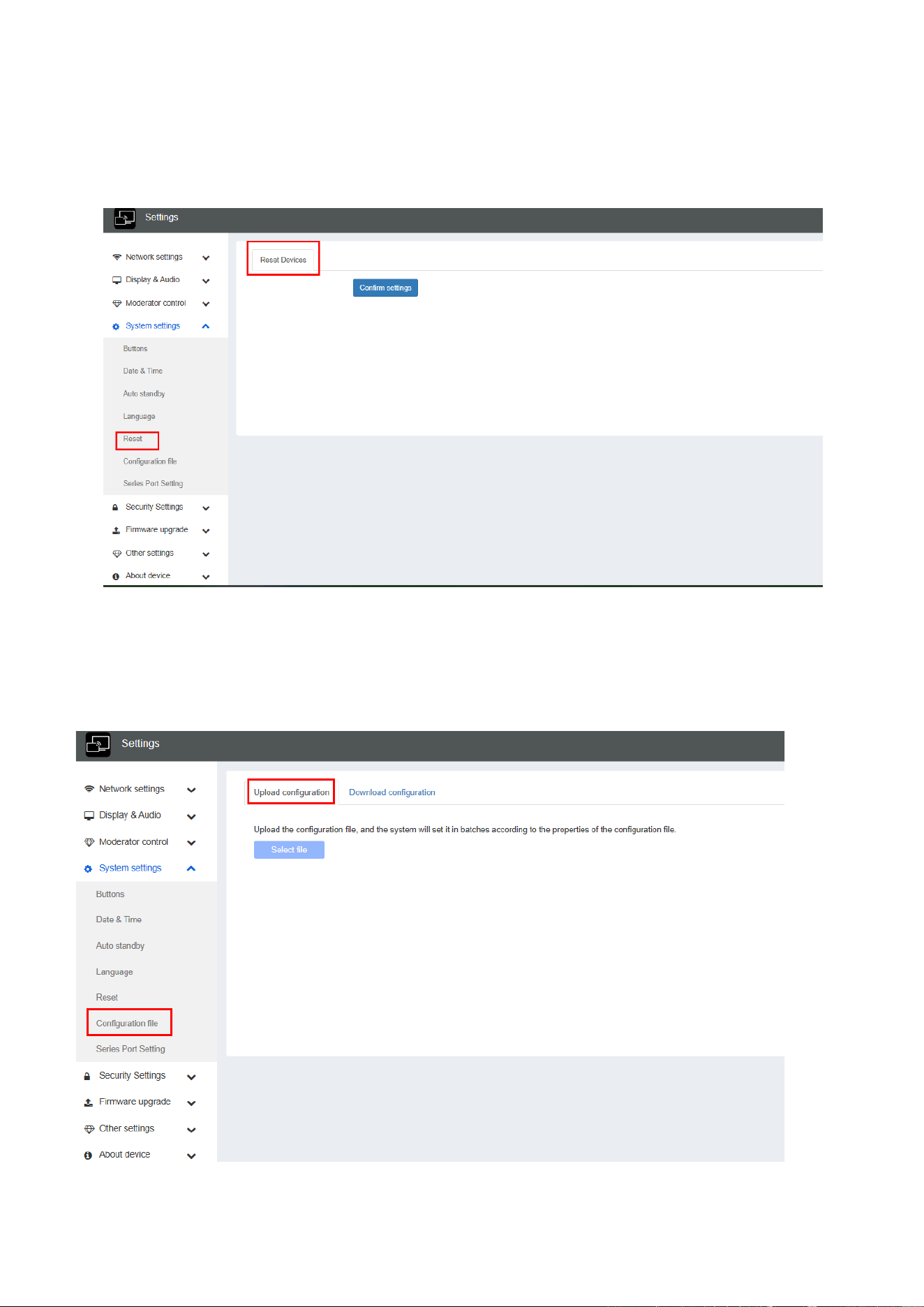
Select an installed display language.
69 / 103
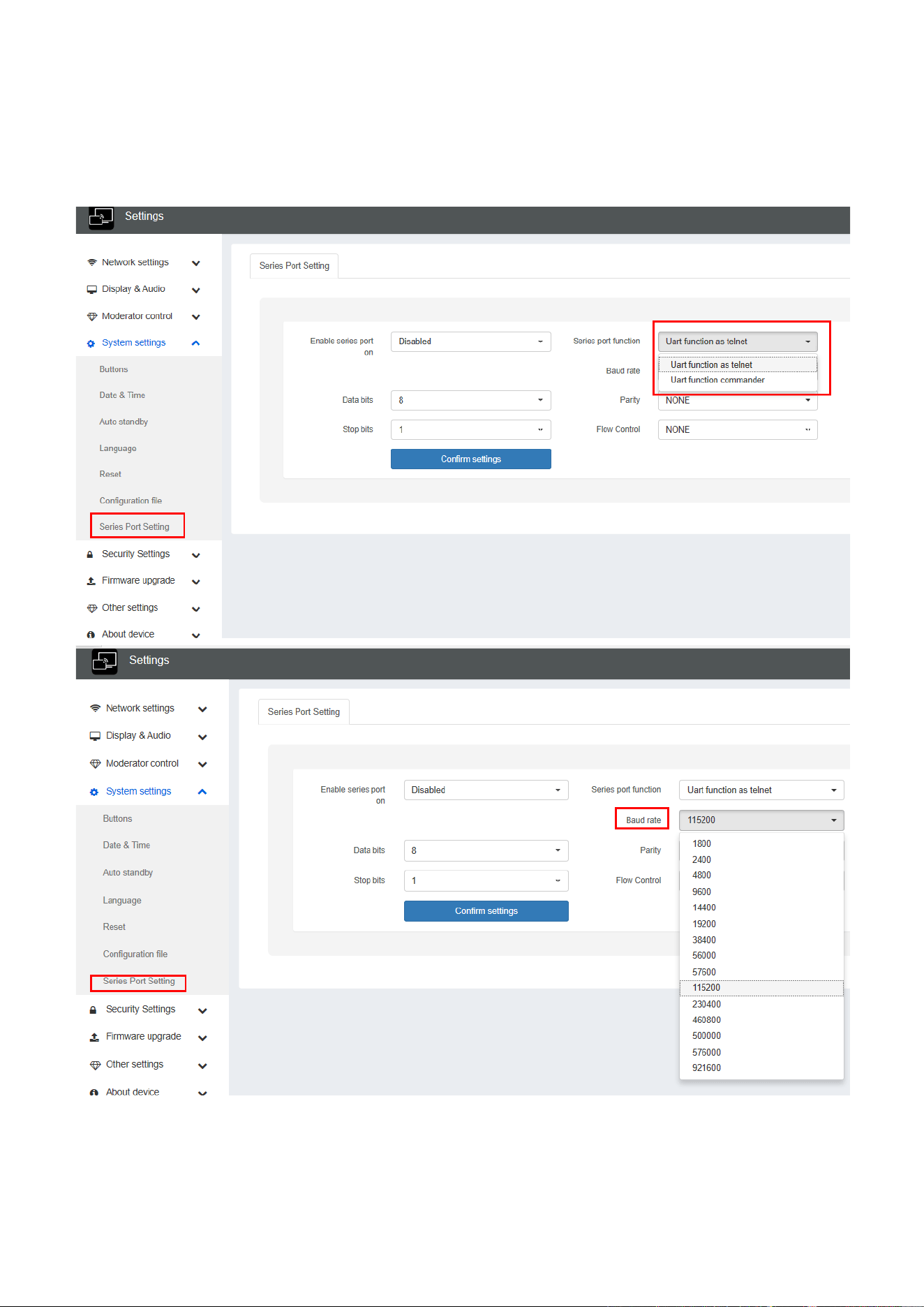
6.4.5 Reset
Doing factory reset to restore unit.
6.4.6 Configuration File
Configuration File is a packaged file which contains all the configuration parameter of the WMS, which could be
downloaded and copied to multiple device which needs to use the same configuration.
70 / 103
6.4.7 Series Port Setting
To configure telnet command and RS-232 command.
71 / 103
6.5 Security Settings
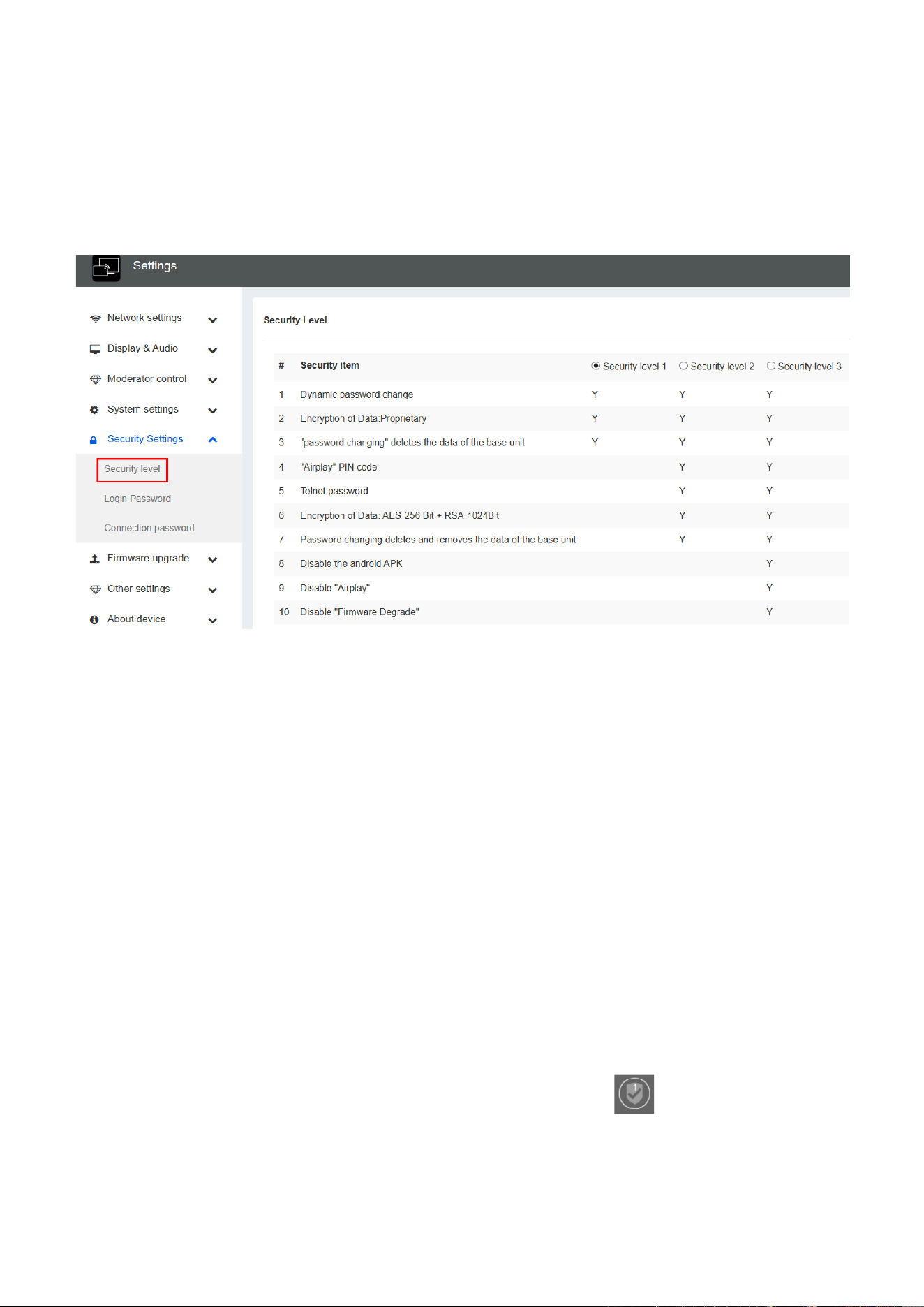
6.5.1 Security level
Based on user requirements, three different security levels can be set in the menu of WirelessMedia, to satisfy
different security requirements, according to different security sensitive environments or security policies. A
security level is a predefined set of settings. Click on the corresponding entry in the menu if you want to adjust
the respective security features. The default setting is level 1.
Level 1: normal safety; keeps the security in normal and daily usage for any organization, such like classroom,
regular meeting room etc.
Level 2: higher security; provides increased security for companies, organizations, government agencies, etc.,
through powerful encryption of audio and video data; other security features include limiting the transmission of
"AirPlay" by introducing a password.
Level 3: is used for strict security requirements of companies, organizations, authorities, banks.
This level contains all “Level 2” security measures; in addition, all mobile applications, such as the Android APP as
well as AirPlay are blocked, the web browser (WebUI) of the Base-unit is blocked. In addition, the downgrade of
the firmware is not possible.
The setting of the security level is displayed in the Home screen, click the icon for more information.
72 / 103
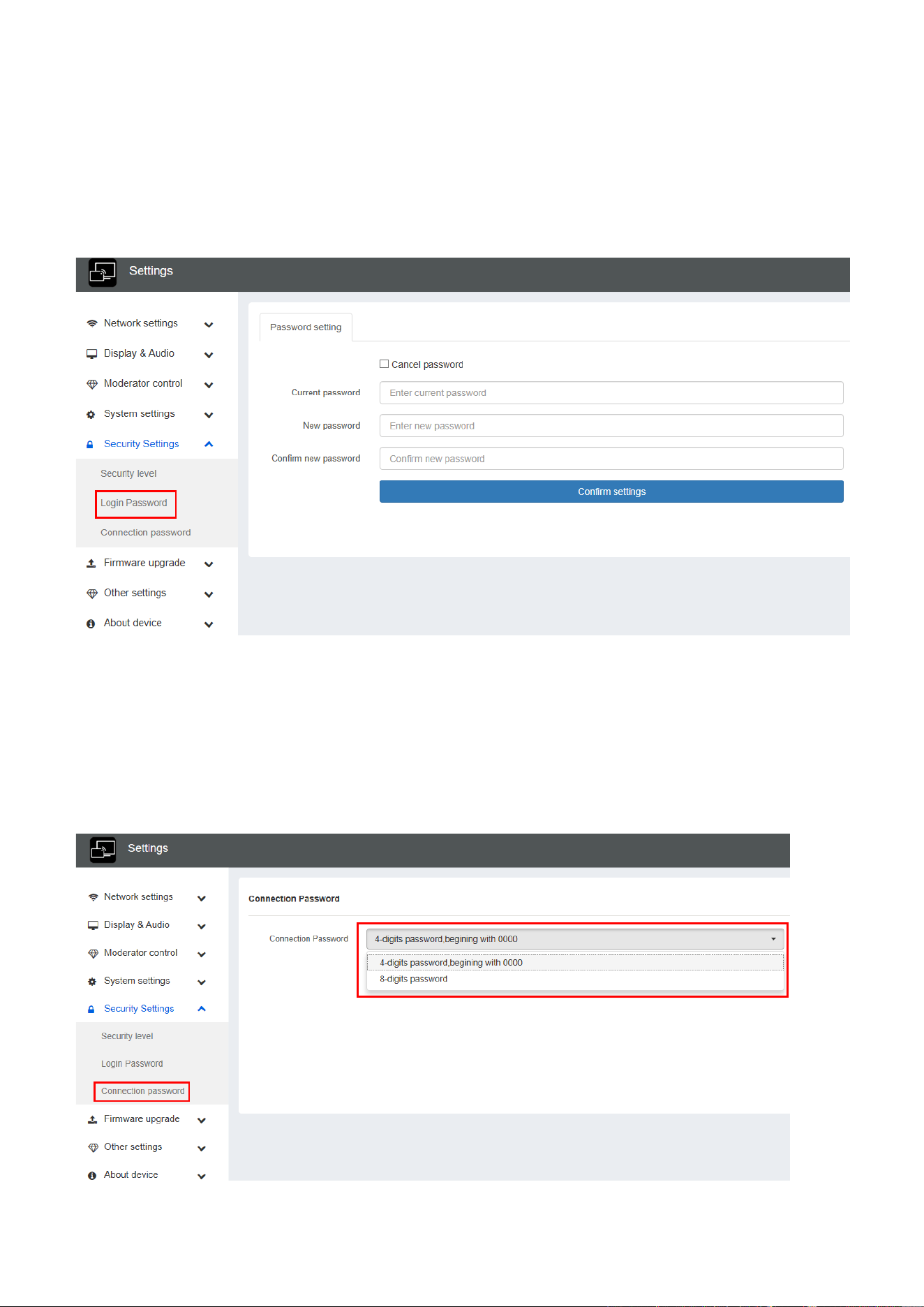
6.5.2 Login Password
Change admin password for entering setting menu on webserver. Default password, or after a RESET, is “admin”.
You can change the password as you like. You can also deactivate the password entry, set the appropriate
checkmark and “Confirm settings”.
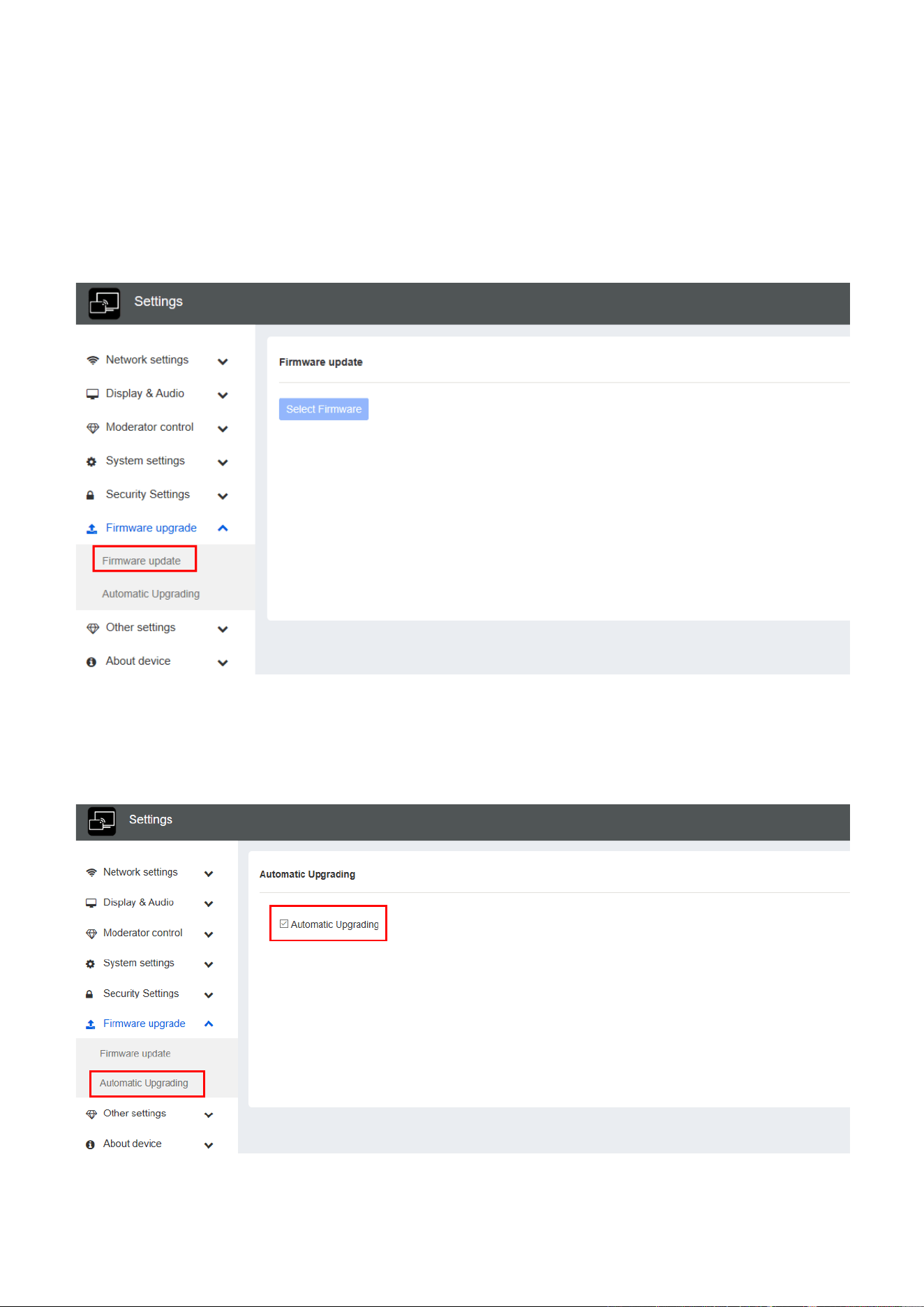
6.5.3 Connection password
Two type of password format can be chosen to show on home screen.
⚫ 4-digits password, beginning with 0000
⚫ 8-digits password
73 / 103
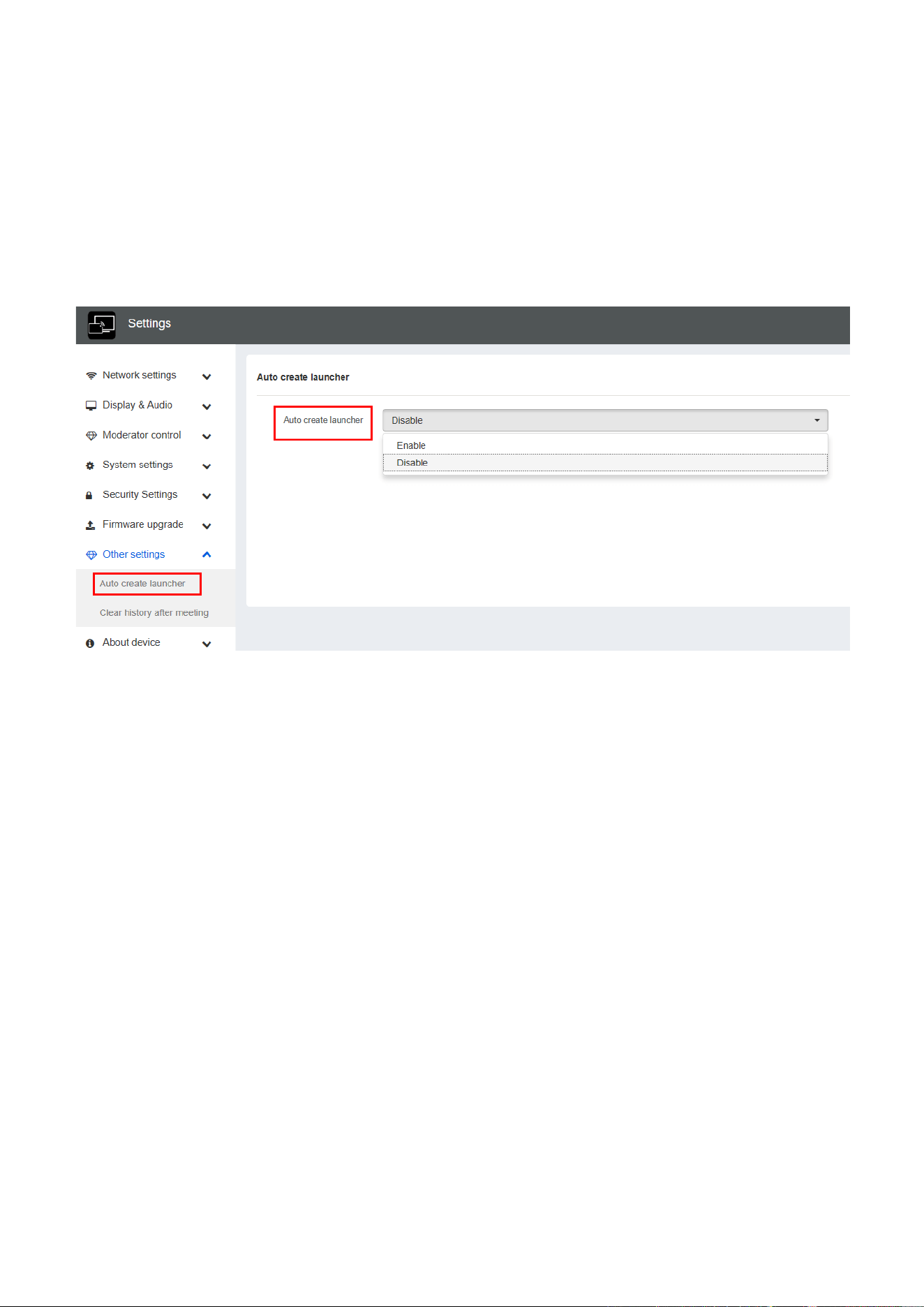
6.6 Firmware upgrade
6.6.1 Firmware Update
To upload local updating files to upgrade base unit.
6.6.2 Automatic Upgrading
Tick to choose upgrading from OTA via Internet or from local files.
74 / 103
6.7 Other settings
6.7.1 Auto create launcher
Determines, when using a USB memory at one USB-port of Base-unit, the Launcher program “WirelessMedia” will
be copied automatically on USB memory. Enable or disable the corresponding box.
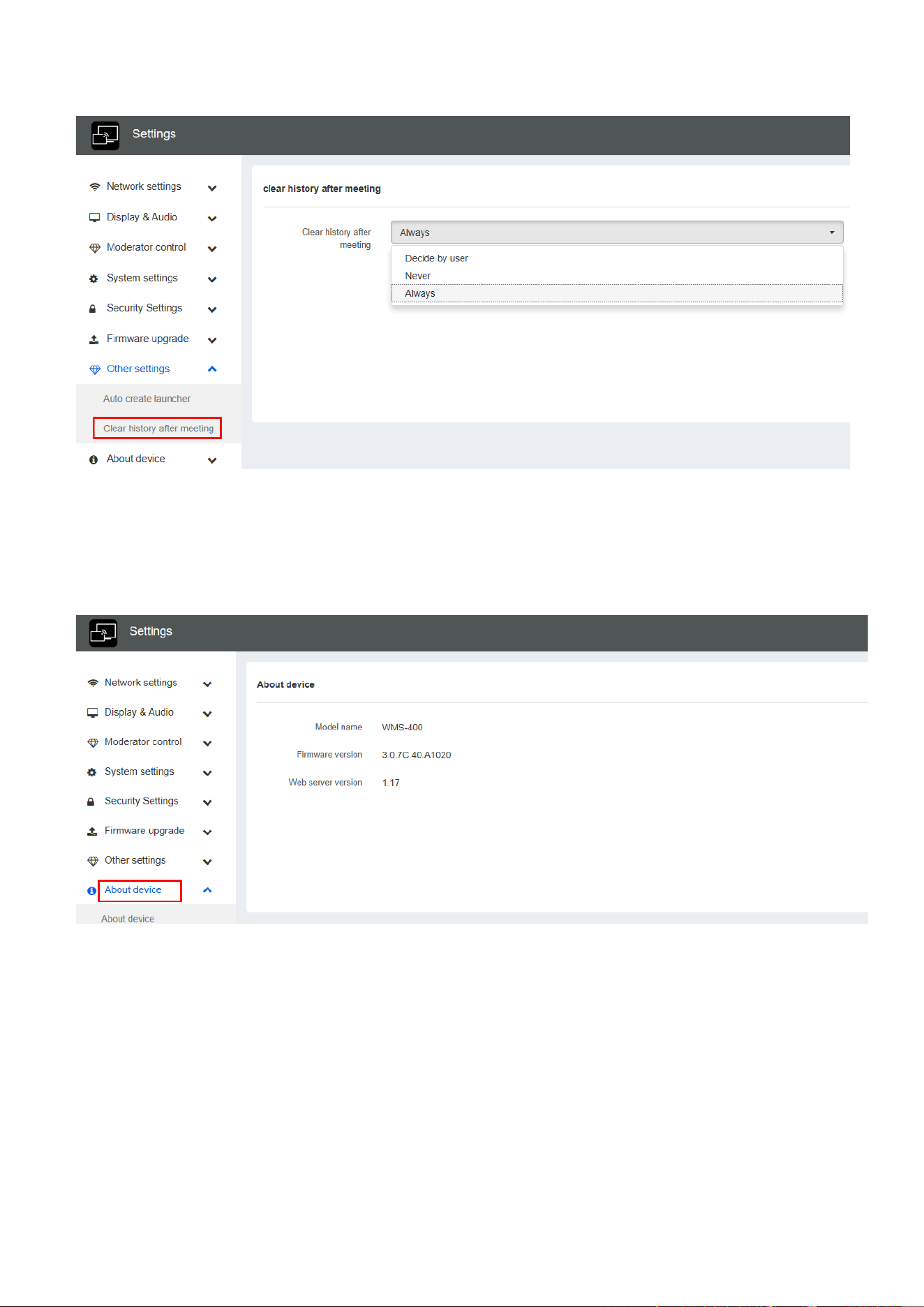
6.7.2 Clear history after meeting
Pictures, videos, music of mobile units will be stored in memory of Base-unit. This memory can optionally be
erased, at the end of a meeting, when the dongle is pulled from the Laptop / PC.
Settings are:
Decide by User – a dialog appears, when dongle is pulled.
Never – storage space is automatically erased, when memory is filled for 90%
Always – memory is automatically deleted.
75 / 103
6.8 About device
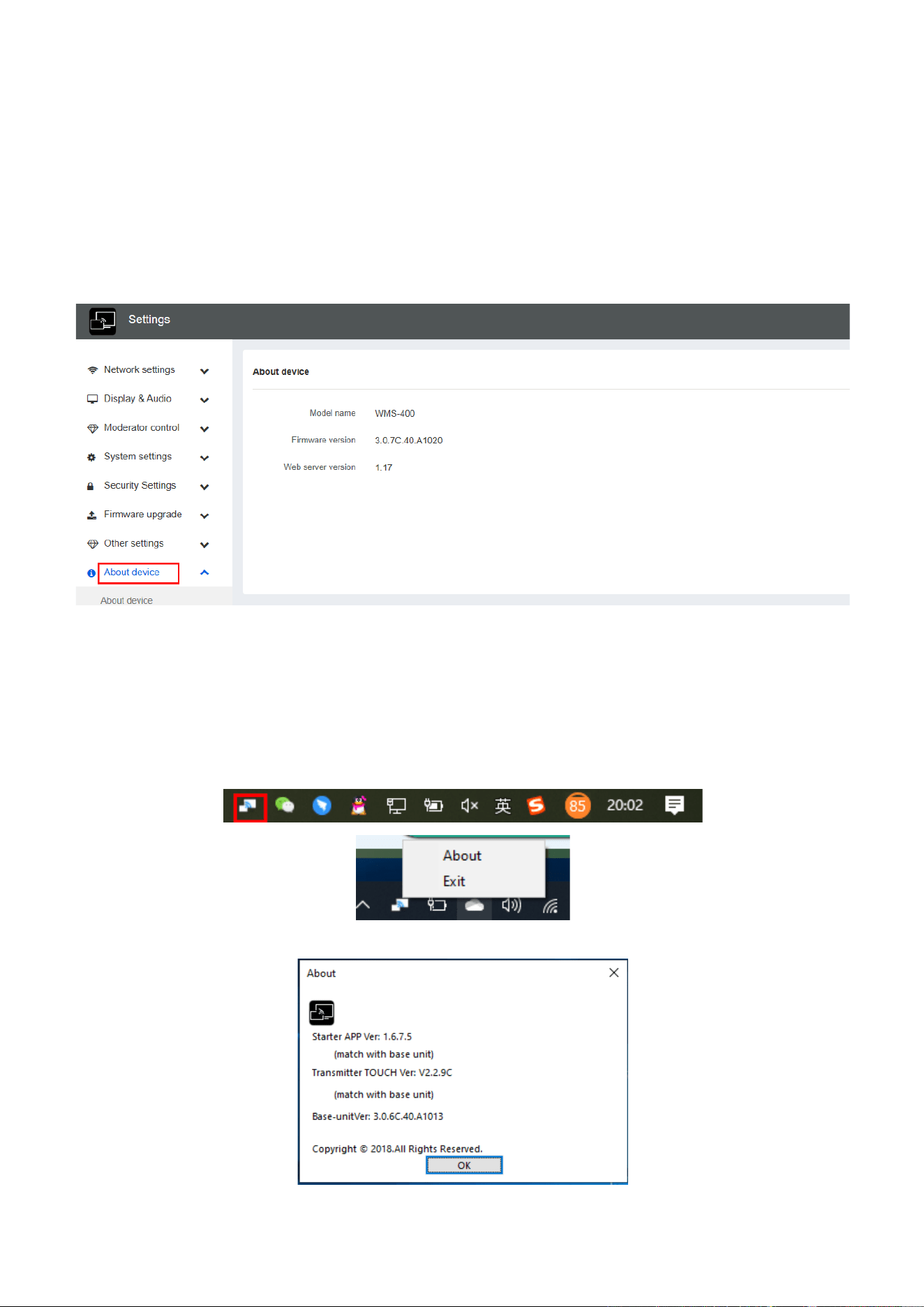
Check the firmware version of base unit and web server version.
2. Updating WirelessMedia
An update of the firmware can be useful to take the advantage of new features of WirelessMedia or to fix known
issues and bugs. WirelessMedia includes two methods of updating. Updating by USB stick and webserver.
After updating the Base-unit, always check, whether the other parts still fit together or should be updated also.
76 / 103
There are up to three different areas for updating: Firmware Base-unit, Firmware dongle and Launcher for
PC/Laptop or MAC “WirelessMedia.exe“. All software is stored in Base-unit, to be transferred manually to
different devices.
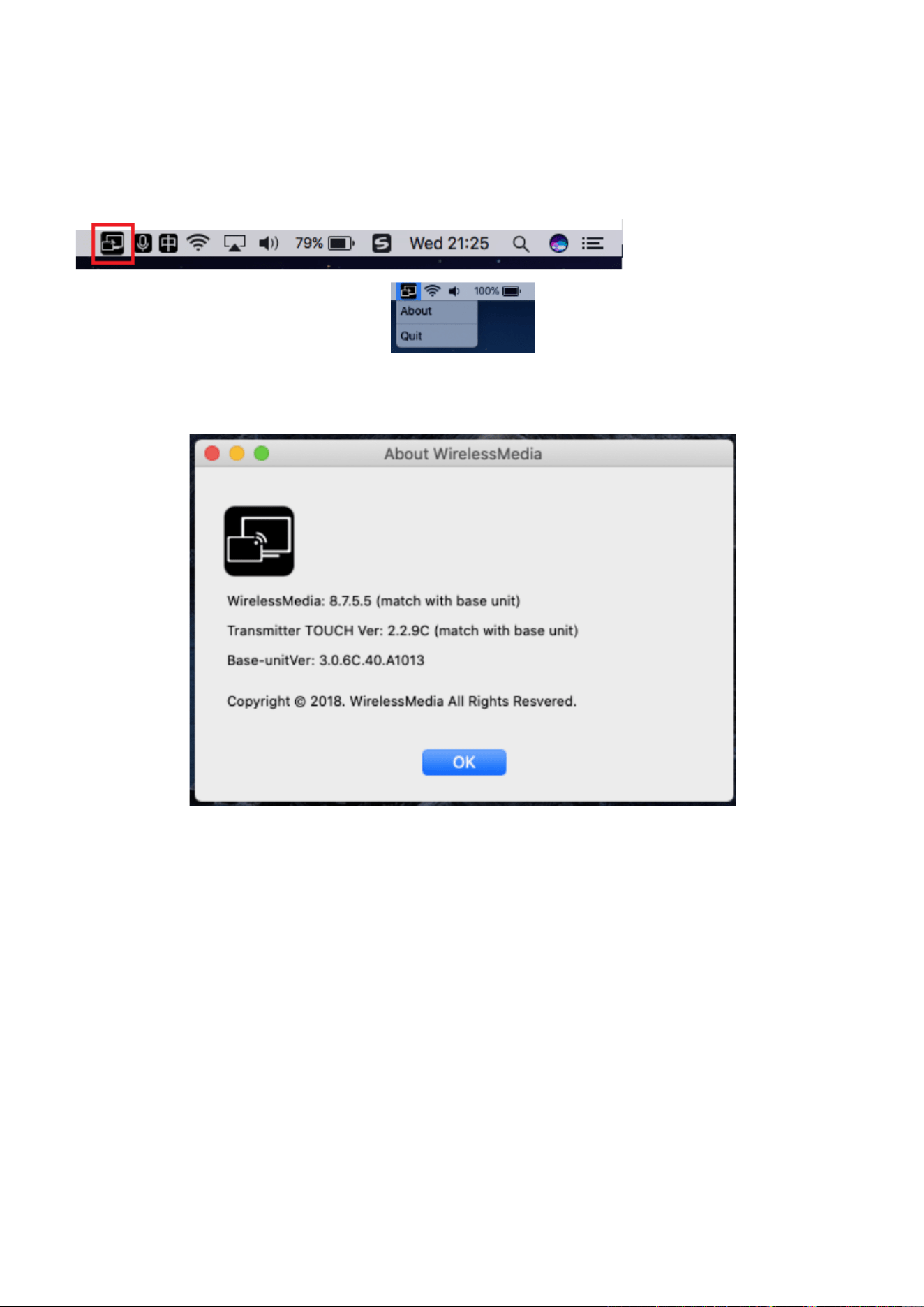
7.1 Check current firmware information
Base-unit: webserver “console” menu / About device.
Windows OS:
Dongle/Launcher: firmware version can be visual in the ““WirelessMedia”.exe” program icon in windows status
bar by right-clicking the ““WirelessMedia”” icon and select “About”, as shown below.
Click “About” to check dongle and launcher program version.
77 / 103
MAC OSX:
Dongle/Launcher: firmware version can be visual in the ““WirelessMedia”.app” program icon in MAC OSX status
bar, by clicking the ““WirelessMedia”” icon and select “About”, as shown below.
Click “About” to check dongle and launcher program.
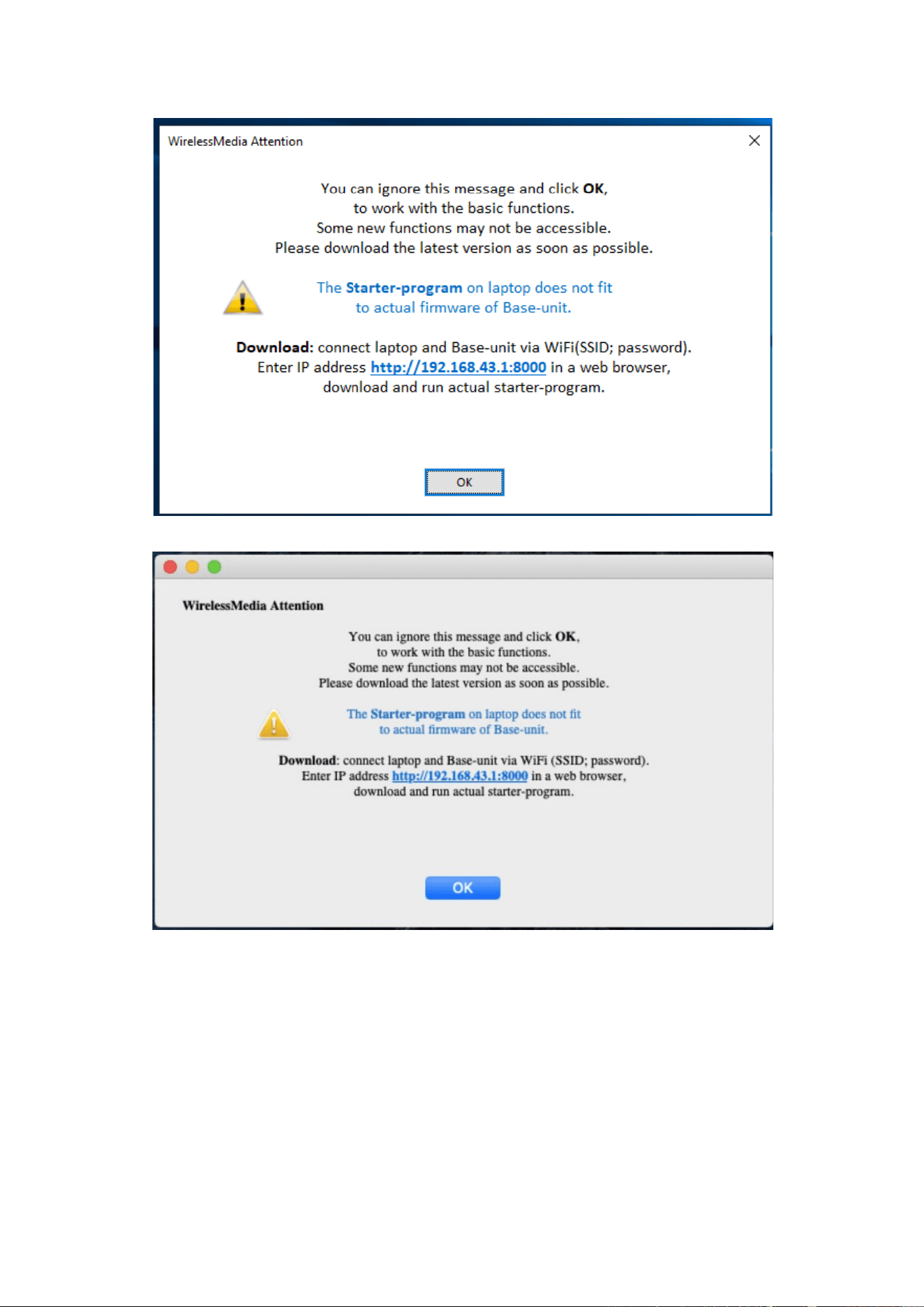
Firmwares are NOT matching:
When dongle firmware or “Launcher” firmware are older version, or in other words dongle firmware or
“Launcher” firmware doesn’t match with the base unit version, it shows up ““WirelessMedia” ATTENTION” alert
message box in the window OS or MAC OSX, as below.
78 / 103
When mismatching occurs, please do the following steps to update the firmwares, as indicates in the message
box.
79 / 103
7.2 Upgrading firmware of base unit:
There are two ways to upgrade base unit as below.
First method to upgrade base unit as below:
The base unit device can be updated through a USB drive as below.
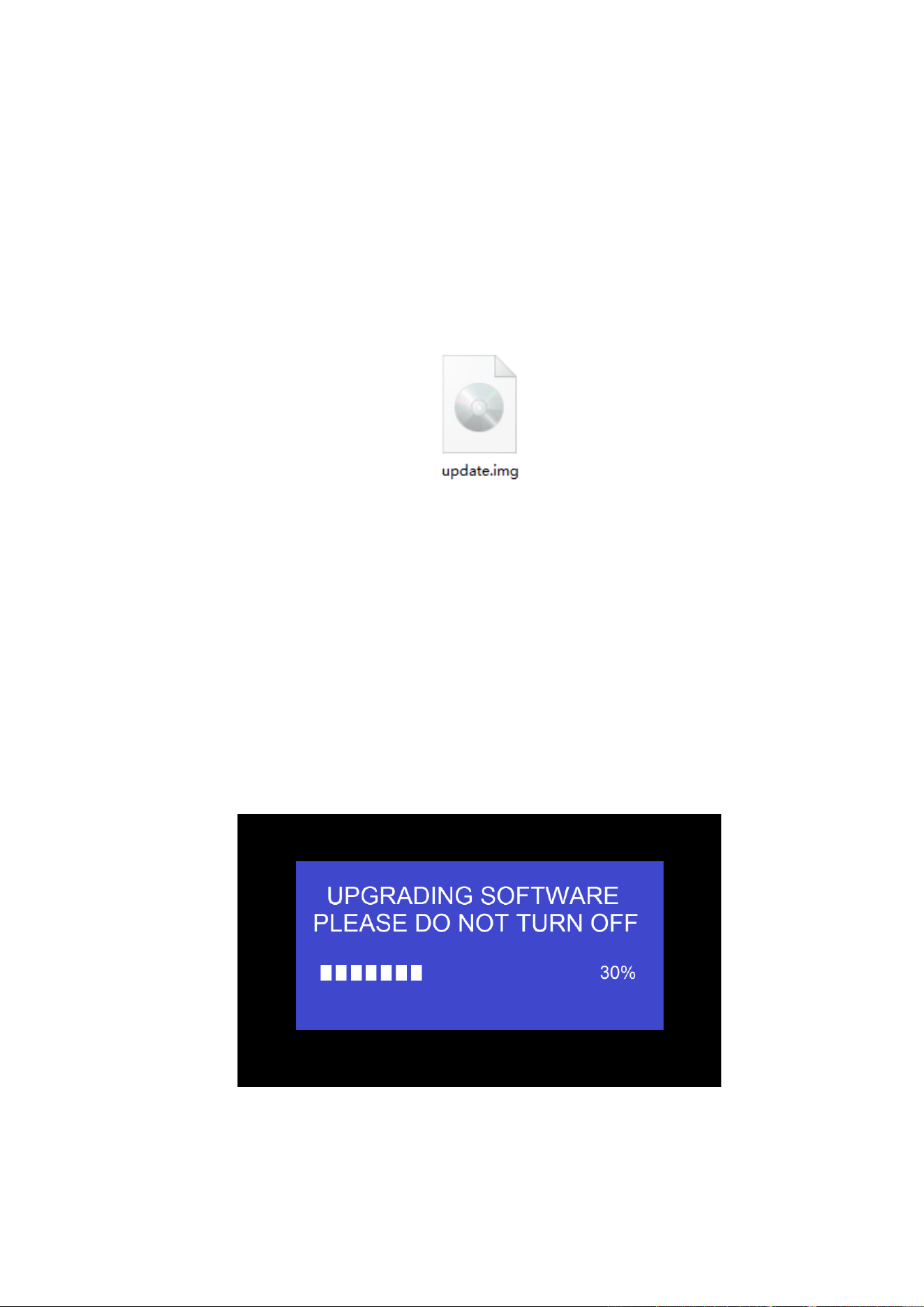
1. Copy the updating file “update.img” to the root directory of the USB drive.
2. Connect the USB drive to either USB port of Base-unit.
Note: The USB port can only support maximum 500ma. Please use a small power U-disk as upgrading USB
drive.
WirelessMedia recognizes the “update.img”-file at a plugged-in USB stick automatically and starts the “Full
Update” procedure.
You can plug out the USB stick within 10 seconds to stop the update.
Attention !
Do not disconnect power during upgrading progress. Or, the unit firmware will be corrupted.
3. The upgrading progress displays as shown below, and the unit will reboot automatically after complete the
updating 100%, as shown below.
Note: During the update, screen can be temporary dark.
If the progress bar stops at 1%, use another USB stick, it may be defective.
80 / 103
The display device shows the Home Screen after normal boot of the device, you can disconnect USB-drive.
4. Perform “Factory Reset” when the firmware update is complete?
Only when the associated “Release notes” are requiring an additional „Factory Reset“, perform it via the
menu “System settings” / “Reset” on websever console menu.
All data of configuration will be lost. So that you do not have to re-configure all data in an elaborate process,
therefore note all settings within the Sub-menus before doing Factory Reset.
5. The update of Base-unit is finished.
Second method to upgrade base unit as below:
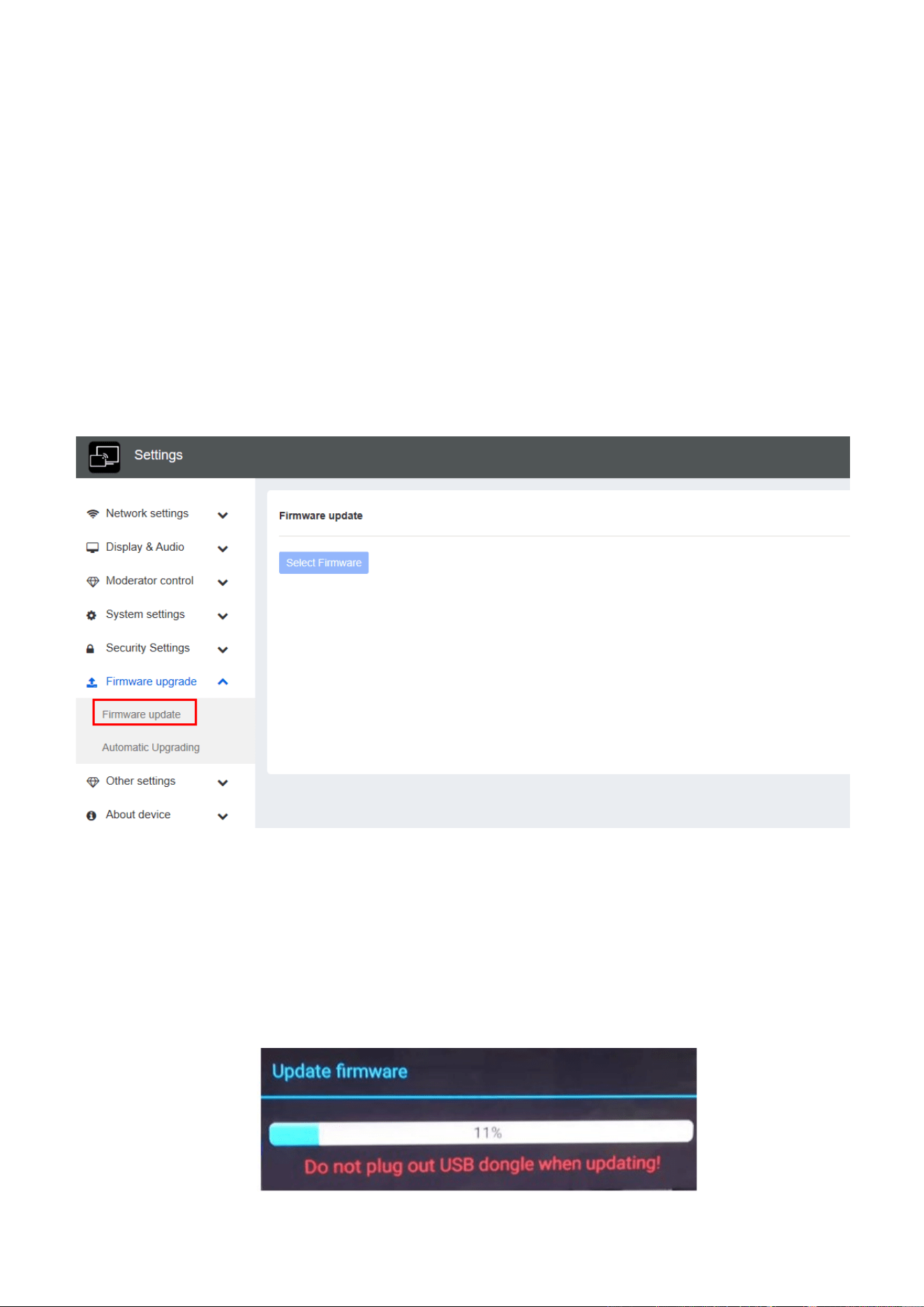
Base unit can be upgrade via webserver console menu as below:
Select a “update.img” file to upgrade to target version.
7.3 Upgrading and Pairing of Dongle:
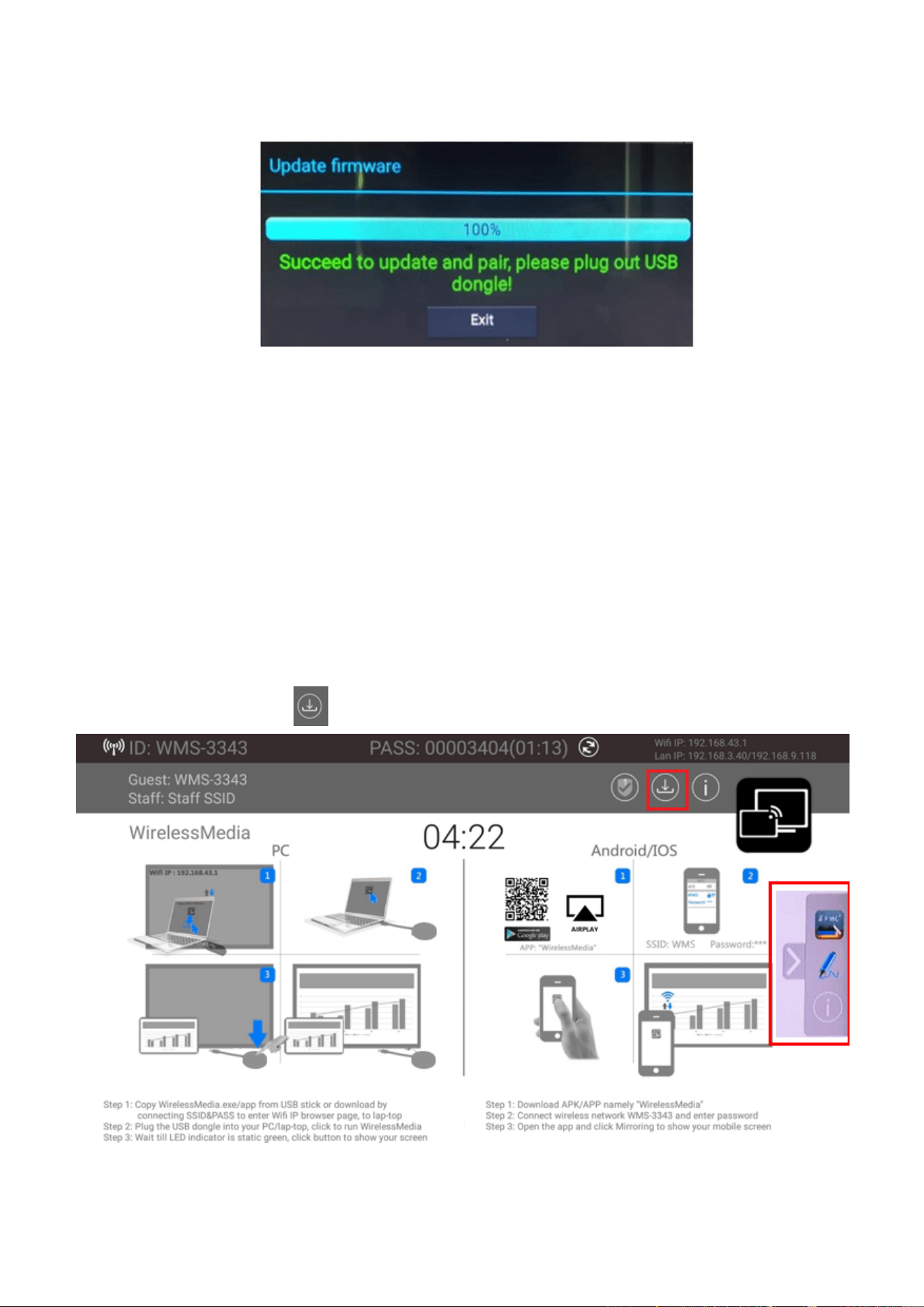
1. Plug the dongle to either of the two USB port of WMS to be updated. It will automatically show up a
message to indicate if the installed firmware of dongle is older, and needs to be upgraded.
Note: Type C dongle needs to plug into Type-C port of front base unit to upgrade.
The upgrading progress starts automatically with the progress bar, as shown below.
81 / 103
2. “Pairing” to the Base-unit is done automatically afterwards, it shows as below
3. Plug out the dongle. Now, the upgrading progress is finished. Update all other dongles accordingly.
7.4 Upgrading Launcher:
Attention: The USB driver should be FAT 32 format not NTSC format.
After upgrading Base unit and Dongle, the launcher should be written with the actual launcher program for
Windows, MAC and Apps for mobile-units.
There are 2 methods to update the USB stick/launcher, including:
Method 1: Via USB stick
1. Connect the USB drive to either USB port of base unit.
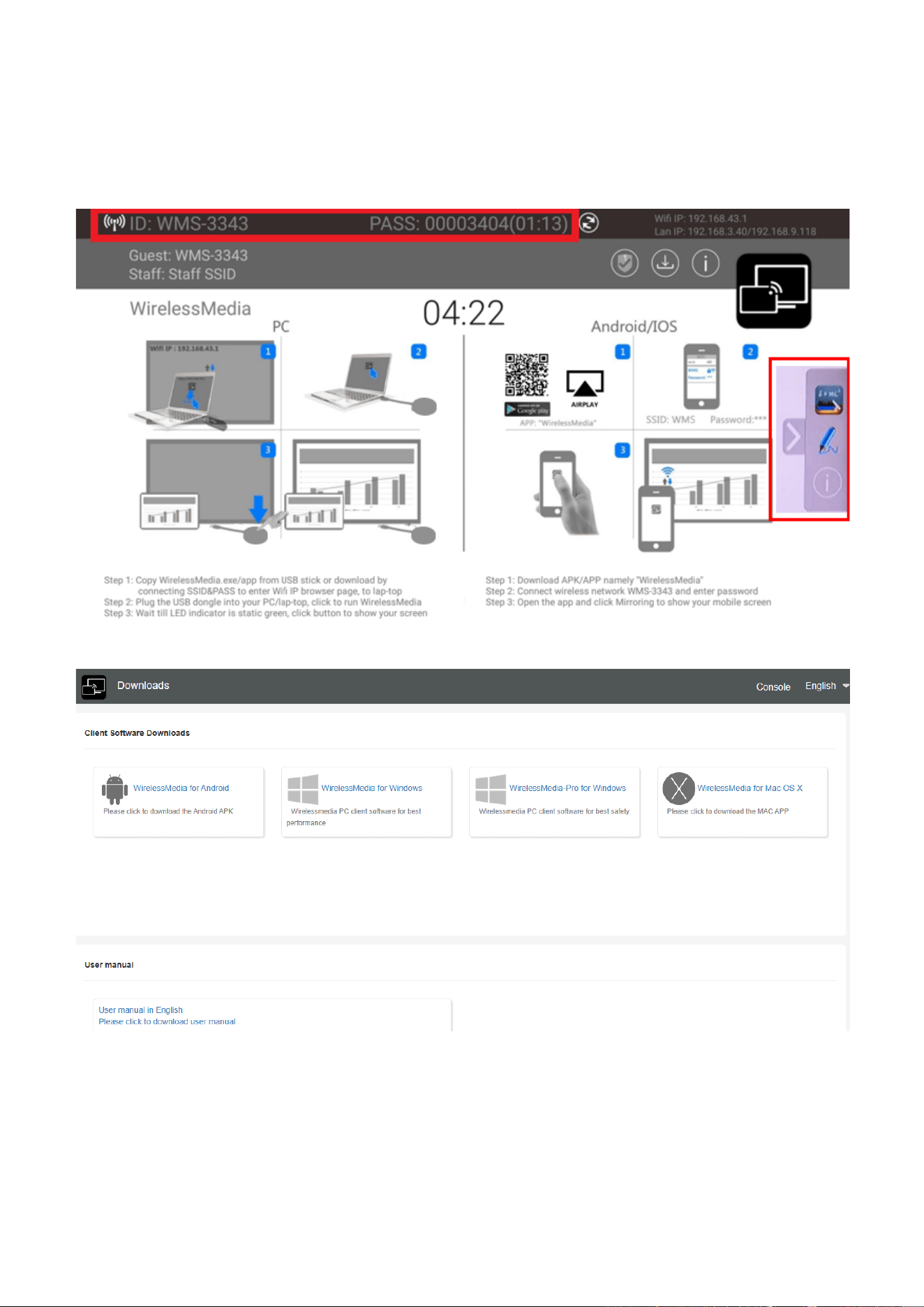
2. Click the “Download” icon in “Home Page”, pls see as below:
3. The Launcher “WirelessMedia” is written to the USB-stick, an OSD-windows shows the progress. When
ready, unplug the USB-stick.
82 / 103
Method 2: Via WIFI
1. Connect PC to WMS’s SSID and enter password in homepage, see pictures as below:
2. Open Browser and enter WiFi IP: 192.168.43.1:8000.
3. Click to enter “Launcher” download webpage. Shown as below:
4. Choose and click Windows or MAC launcher to download.
5. Find the “Launcher” program in PC and copy to PC desktop. (Recommend to copy to desktop for quick run.)
6. Run the program to start sharing.
Two methods to execute the launcher for first time user
⚫ Copy the program to PC, and click to execute it to share PC screen.
83 / 103
⚫ Connect dongle to PC; click to run program from the USB drive and share PC screen.
For both two methods, user don’t need repeat the above steps since the second time plug-in.
The Launcher program "WirelessMedia for Windows" and "WirelessMedia Pro for Windows" includes by
default an additional virtual driver "ExtendedDesktop" to optionally install the Windows 10 Extended Desktop
functionality, if they are is needed. This may require admin rights.
7.5 Clean left files of older versions of Launcher program
in Lap-top
There are some old version “WirelessMedia” files left in the lap-top, which may influence the performance of the
newer “WirelessMedia” program. Currently, it needs to manually clear them, before start to use the newly
updated “WirelessMedia” firmwares.
Steps:
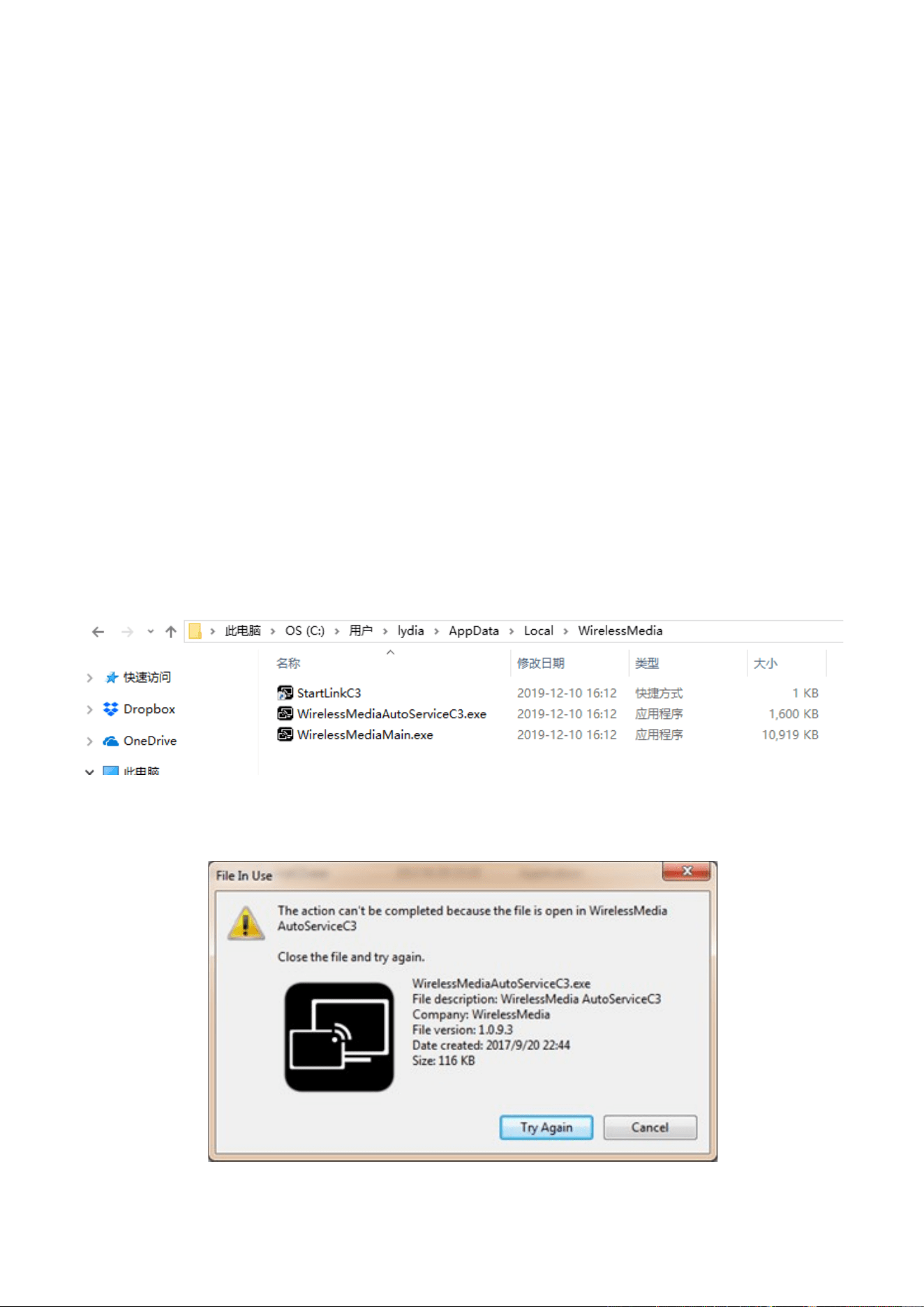
1. Find the place where the left “WirelessMedia” programs are stored. Normally, these files are stored in the
C:\Users\***(user name)\AppData\Local\”WirelessMedia”, as shown below.
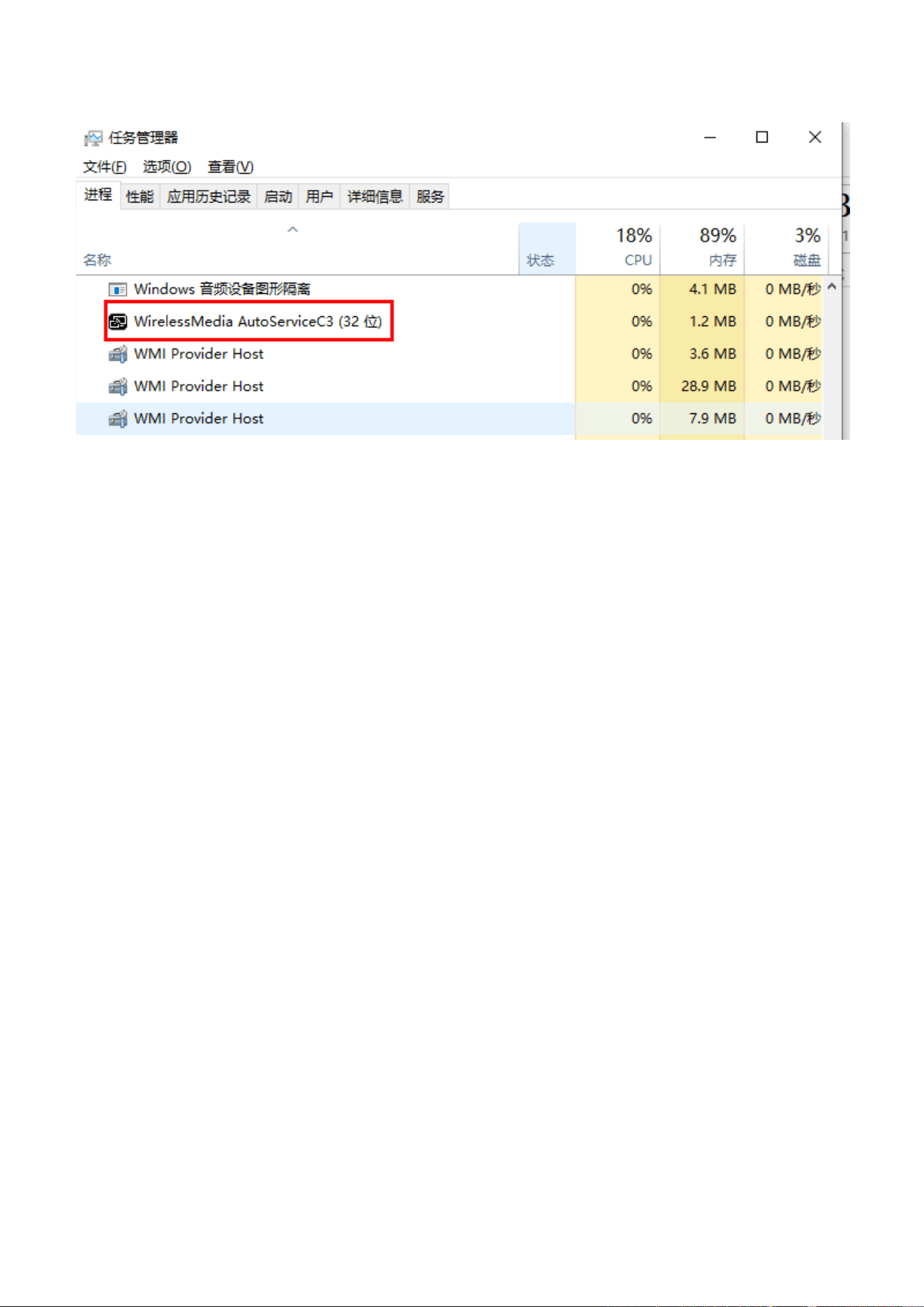
2. If the “*.service“ “*.serviceC3” can’t be removed and shows up an alert message as below, please use
combined hot key to open the task manager by pressing “Ctrl+Alt+Delete”, as shown below.
84 / 103
3. Right-Click on the “*.service” or “*.serviceC3”, for example right-click on
“WirelessMediaAutoServiceC3.exe”as shown below, and click to End Process Tree.
4. Check again the task manager, to be sure there is no more any “WirelessMedia” programs still running in
the task manager. And check again to be sure there is no more any “WirelessMedia” in the
C:\Users\***(userame)\AppData\Local\”WirelessMedia”.
5. Execute the actual version of Launcher program.
Upgrading progress is completed.
3. Operation Guide
8.1 Mirroring PC desktop
You can operate WirelessMedia for Windows optionally with or without Dongle. If there are several participants
in a meeting, mixed operation is also possible.
8.1.1 Extended Desktop for Windows 10
The Launcher program "WirelessMedia for Windows" and "WirelessMedia Pro for Windows" includes by
default an additional virtual driver "ExtendedDesktop" to optionally install the Windows 10 Extended Desktop
functionality, if it is needed.
8.1.2 Microsoft Windows PC/Laptop with Dongle
Operating system requirement: Windows XP/Vista/7/8/8.1/10 32 & 64 bit.
For first time user, you have to copy the Launcher program ”WirelessMedia” first on your Laptop. Run this
85 / 103
Launcher program.
When the Launcher program is pre-installed one time and already run in the first time, with plug in dongle,
continue with step 2.
When Launcher program is not yet installed on PC, refer to chapter 7.4.
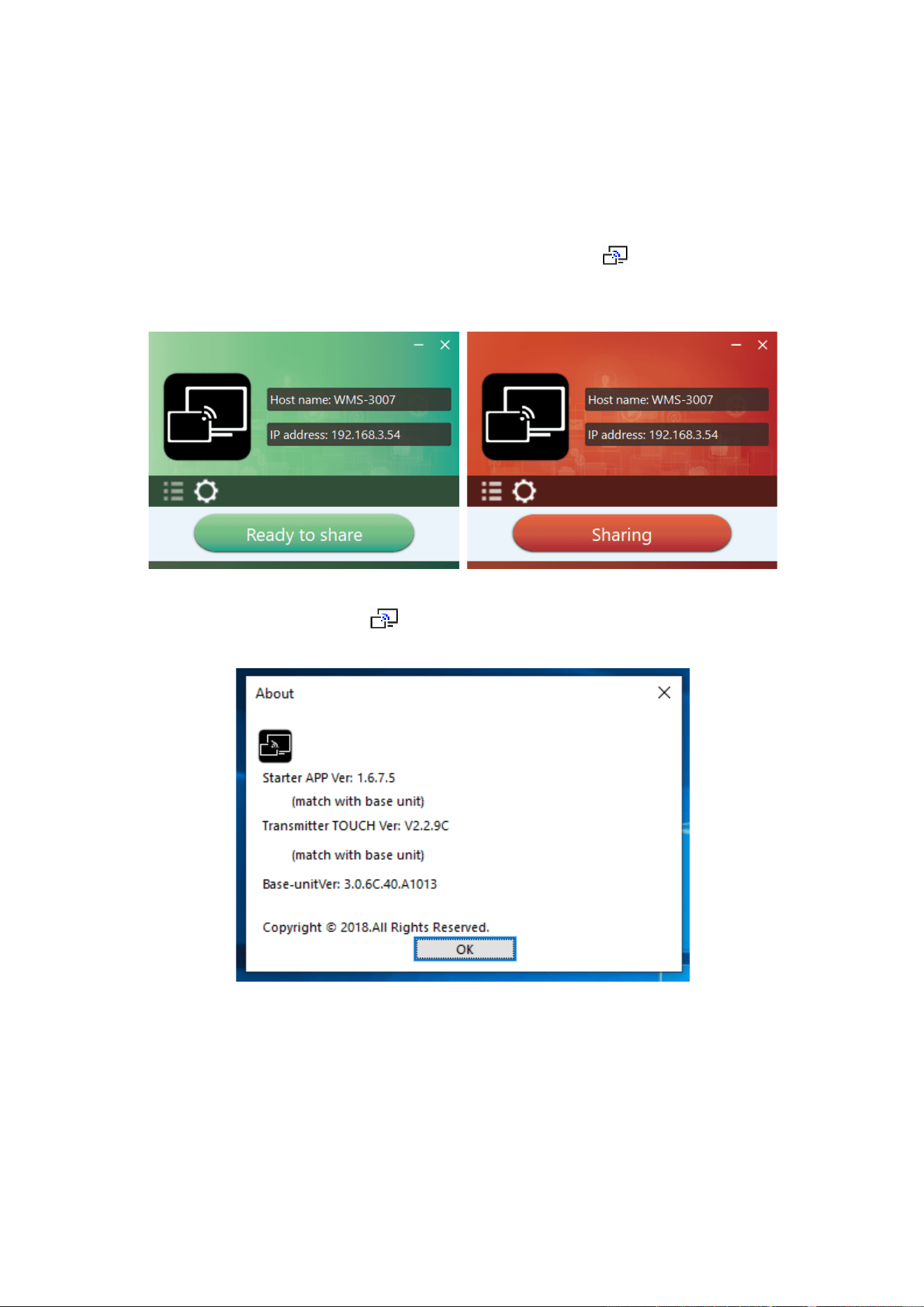
1. Plug a dongle to the USB port of your PC or Laptop. The WirelessMedia application is starting
automatically and a symbol is displayed in the task bar of the PC/laptop .
2. Until the transmitter button shows a static green LED indicator, or till you see a message table showing up
“Ready to share”, you could click the transmission button to start mirroring.
3. Click dongle or the visual button again to stop mirroring, LED or window color shows green again.
Right click the WirelessMedia status icon in Windows taskbar to open up the context- menu.
⚫ “About”: You can check the software versions of the Base-unit, the dongle and the launcher program.
⚫ “Exit”: End APP. Exiting the App completely.
If you click the cross "X" in the upper right corner of the app, the app in the task bar is only minimized and
can be recalled again from the taskbar at any time.