Smart Knob User Manual
1. Product Introduction
• Product Name:Smart Knob
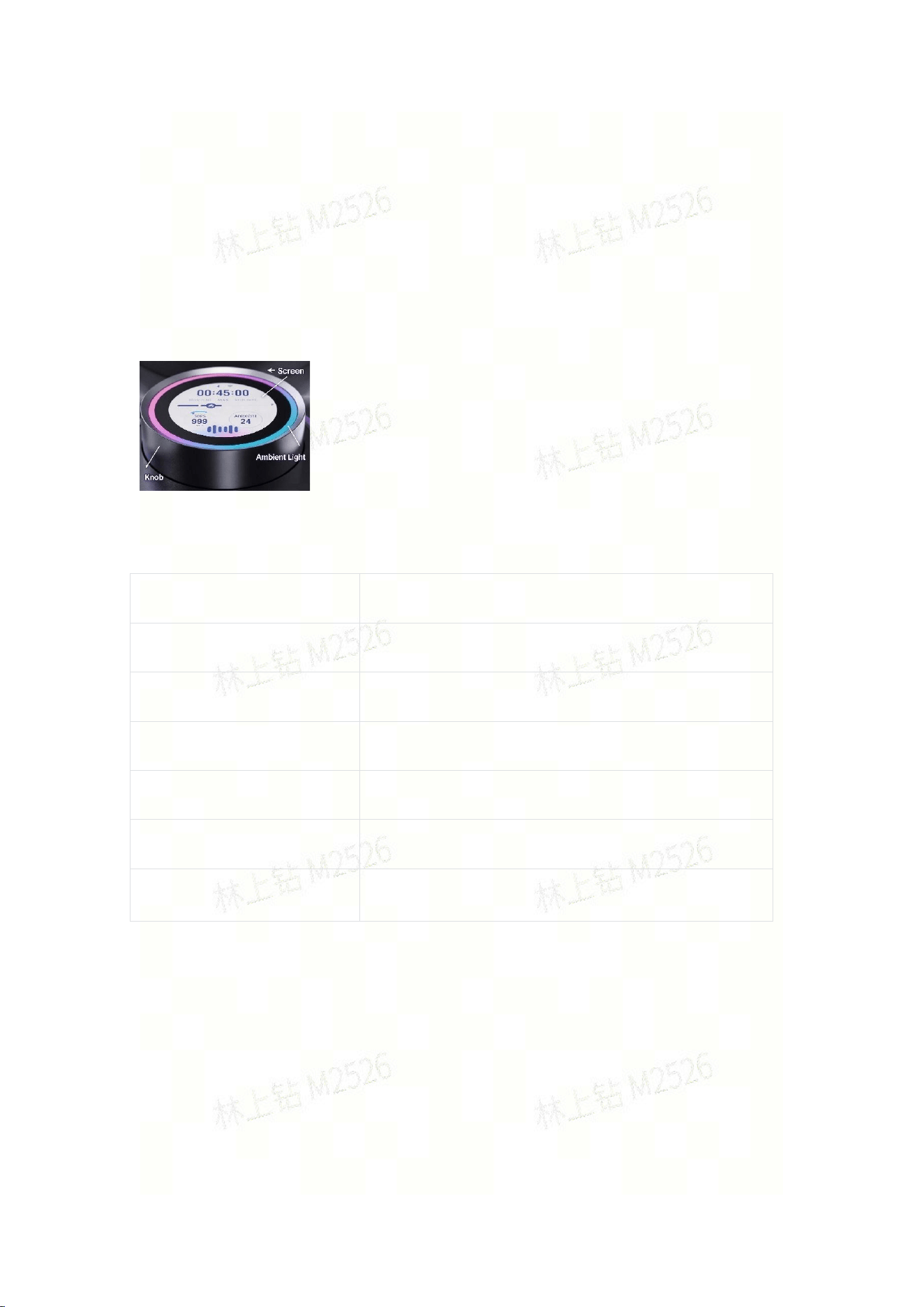
• Product Component Description
2. Product Specifications
Parameter
Specification
Model
MR-A02
Weight
Approx.111g
Voltage/Current
12V/0.5A
Power
6W
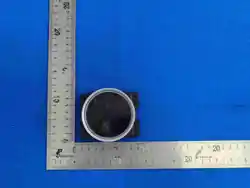
Product Dimensions
84*69.02*44.96mm
Operating Temperature
-10-45℃
3. Ambient Light Instructions
• 1、Standby:No light
• 2、Wake-up successful,listening status:Blue+Cyan
• 3、Processing status:Blue
• 4、Voice reply: Dynamic breathing blue light along with audio output
• 5、During workout: White light
4. Operating Instructions
4.1 Detailed Operation Guide
4.1.1 Wi-Fi Connection
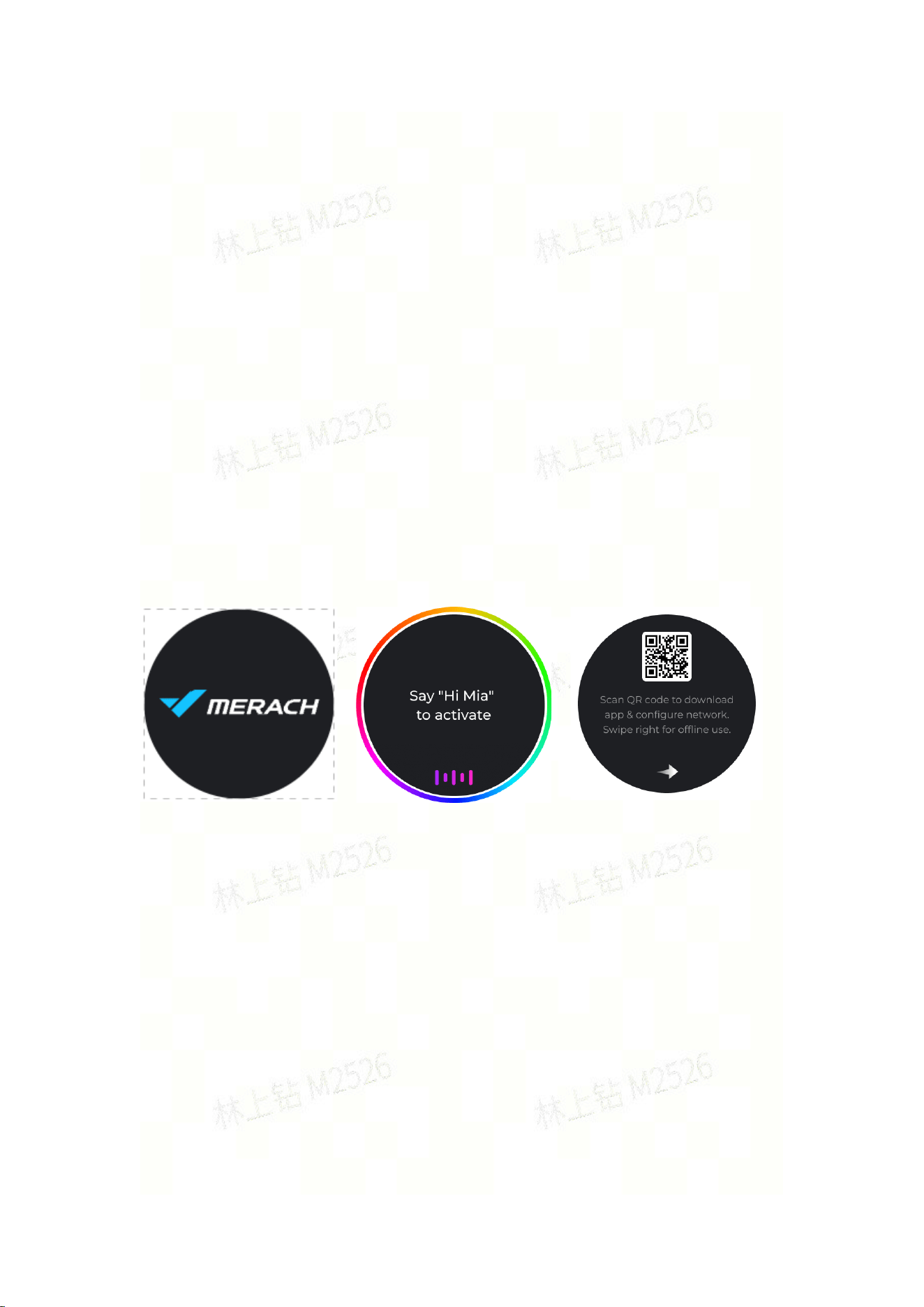
• Power on the Smart Knob. The display will light up and show the startup screen
(Figure 1).
• After startup completes, it automatically enters the voice interface (Figure 2). Say
“Hi, Mia” to wake up the device.
• Upon wake-up, a QR-code page appears (Figure 3). Scan the QR code to
download the corresponding App.
• Launch the downloaded App and complete network configuration following
in-App prompts.
• After successful App network configuration, the device jumps to the home screen.
• If network configuration fails, swipe left on the device screen to switch to Offline
Mode for temporary use.
Figure 1
Figure 2
Figure 3
4.1.2 Basic Settings
1. Wi-Fi Management
Tap Wi-Fi Management on the Settings page to enter the Wi-Fi management
screen (Figure 4-5). Operate according to the current network status of Smart Knob.
• If the device has never connected to Wi-Fi (Figure 6): Complete connection via
the supporting App.
• If the device is already connected to Wi-Fi (Figure 7): Select Disconnect or
Forget for the target Wi-Fi on-device.
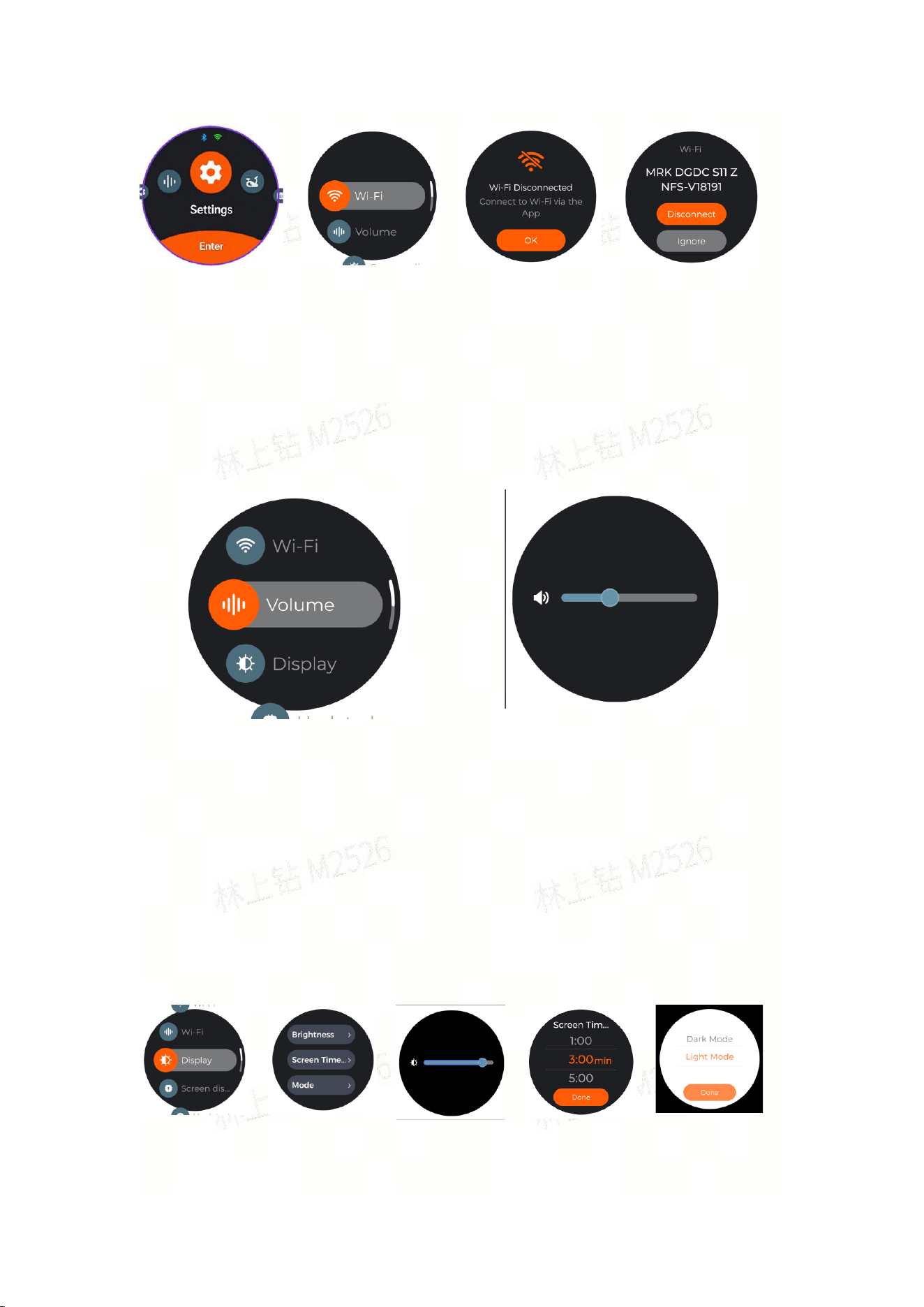
Figure 4
Figure 5
Figure 6
Figure 7
2. Voice Settings
Tap Voice Settings on the Settings page to open the voice-setting screen
(Figure 8). The following operation is available:
Adjust speaker volume (Figure 9).
Figure 8
Figure 9
3. Display & Brightness
Tap Display & Brightness on the Settings page to enter the corresponding page
(Figure 10-11). Three adjustments are supported:
• Adjust screen brightness (Figure 12)
• Set screen auto-sleep timeout (Figure 13)
• Toggle theme mode (Figure 14)
Figure 10
Figure 11
Figure 12
Figure 13
Figure 14
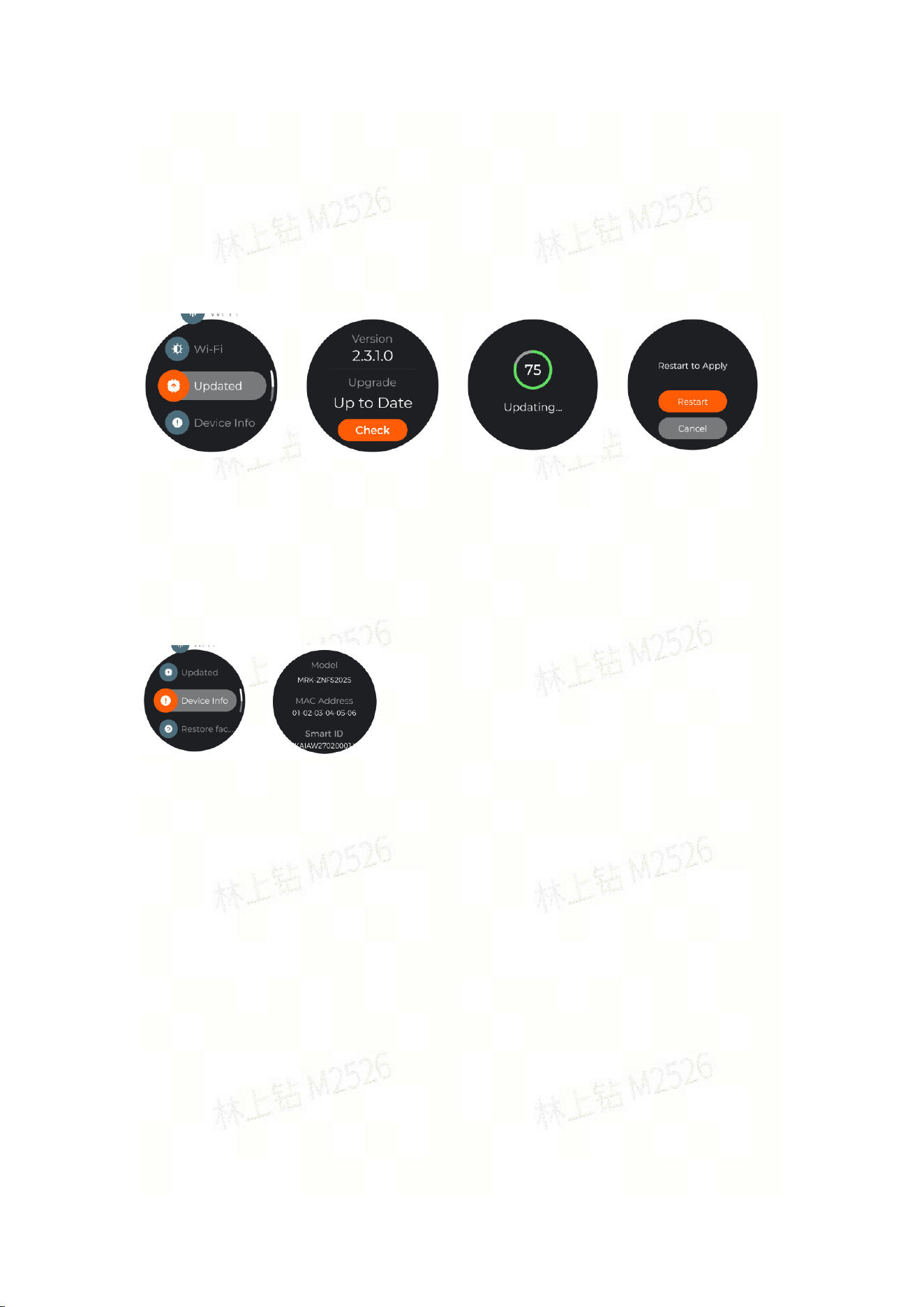
4. Firmware Update
Tap Firmware Update on the Settings page to enter the update screen
(Figure 15-16). It shows current firmware version and upgrade availability. Tap to start
updating (Figure 17). Reboot the device after update for changes to take effect
(Figure 18).
Figure 15
Figure 16
Figure 17
Figure 18
5. Device Information
Tap Device Information on the Settings page to view hardware details
(Figure 19-20), including firmware model, MAC address and SN code.
Figure 19
Figure 20
5. Important Notes
1. The operating temperature range for this product is -10 ℃ to 45 ℃. Do not
operate it in excessively hot or cold environments.
2. This is a precision electronic device. Do not use it in highly humid or
water-prone conditions; otherwise normal function may be impaired.
3. Place the product within good Wi-Fi coverage. Keep it away from metal
objects and microwave ovens which may cause signal interference.
6. FCC STATEMENT
1. This device complies with Part 15 of the FCC Rules. Operation is subject to

the following two conditions:
(1) This device may not cause harmful interference, and
(2) This device must accept any interference received, including interference that
may cause undesired operation.
2. Changes or modifications not expressly approved by the party responsible for
compliance could void the user's authority to operate the equipment.
NOTE: This equipment has been tested and found to comply with the limits for a
Class B digital device, pursuant to Part 15 of the FCC Rules. These limits are
designed to provide reasonable protection against harmful interference in a
residential installation.
This equipment generates uses and can radiate radio frequency energy and, if
not installed and used in accordance with the instructions, may cause harmful
interference to radio communications. However, there is no guarantee that
interference will not occur in a particular installation. If this equipment does
cause harmful interference to radio or television reception, which can be
determined by turning the equipment off and on, the user is encouraged to try to
correct the interference by one or more of the following measures:
Reorient or relocate the receiving antenna.
Increase the separation between the equipment and receiver.
Connect the equipment into an outlet on a circuit different from that to which the
receiver is connected.
Consult the dealer or an experienced radio/TV technician for help.
FCC Radiation Exposure Statement
This equipment complies with FCC radiation exposure limits set forth for an
uncontrolled environment. This equipment should be installed and operated with
minimum distance 20cm between the radiator & your body