
1
Thank you to snail for choosing a smartphone
A smart phone Powered by Android
™
, stylish appearance design, high-
quality manufacturing process, multi-touch capacitive touch screen, capacitive
touch buttons, let you enjoy a comfortable feel experience.
Using a device powered by Android 14, support FDD / TDD / WCDMA / GSM and
network, can automatically switch network connection
mode
according to
the
network connection
status,
so that
you
enjoy high-speed Internet access,
simple
and
easy to use operation interface, but also
let
you
get started
faster.

1
Do not use any tool root this phone, otherwise there may be irreparable
failure, the root phone is not subject to warranty 1
Please read the instructions carefully before use.
2
in
Safety precautions
Read
the concise rules below. Failure to
follow them
may
lead to danger or violation
of the law. This specification provides
more detailed information on safety matters
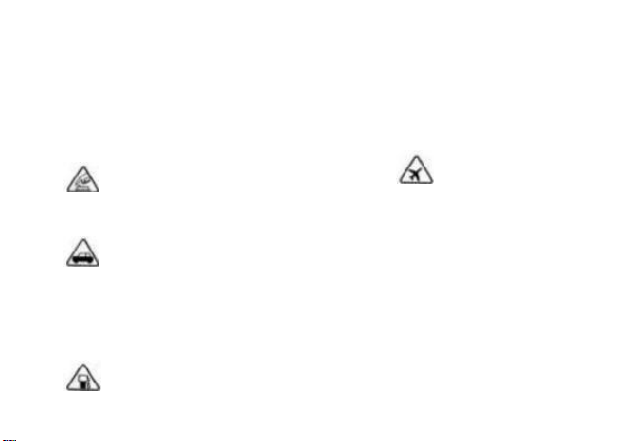
Safe boot
Do
not turn
on
the mobile
phone
when
it
causes interference or
danger
Traffic safety first
Please comply with all relevant
local laws and regulations, and
drive a car with both hands as
much as possible. Traffic
safety should be considered
first when using mobile phones
in suburban cars.
Shut off when refueling
In near the smoke,
th chemical
e preparation place.
re Please do not use
fu the cell phone.
el
Turn
it
off
when
g
taking the plane
cl
Mobile phones can
ea
cause interference,
n
and using them on
(o
planes is not only
nl
dangerous but also
y
illegal
re
pa
ir
st
at
io
n)
or
2
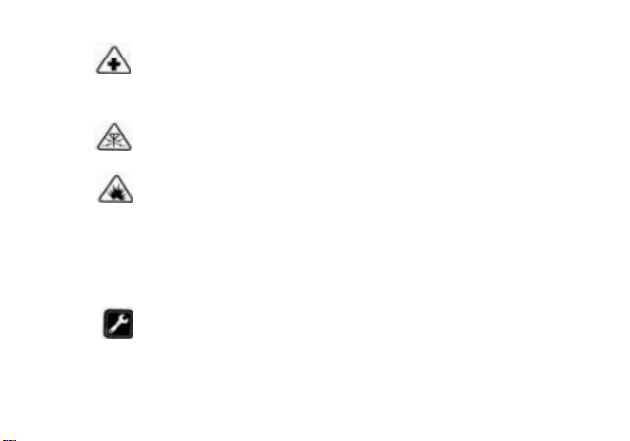
Shuoff
near the
medical
equipment
affect the performance
It should be shut off
near the blasting site
Please comply with any relevant
Hospitals into
restrictions. Do not use the
health care
equipment where the blasting
facilities
may
operation is performed.
use devices
Reasonable use
sensitive to
Only use the phone in a normal
wireless
frequencies.
Please
effectively
position, and do not touch the
antenna area without reason
unless necessary.
comply with Use of a qualified
any rules or
repair service
regulations.
disturb
All wireless
devices can
be disrupted,
which can
Only the qualified maintenance
personnel can install or repair
this product.

3
Introduction to this manual
This practical manual describes the concise information about how to
use a mobile phone. If you want to quickly master the basic practical
methods of this mobile phone, please refer to "Understand the mobile
phone".

4
Eye scene
Safety precautions
.................................. 6
Safe boot....................................... 6
Traffic safety first
..........
6
Shut down in the restricted area
........................................................
6
disturb........................................... 6
waterproof
.................................. 6
The phone
is
placed out of the son's
touch
................................................
6
Accessories and batteries.......6
Professional services
............. 6
Install the SM card or USIM card and the
battery 6
Ch a r g e th e ba t t e r y
........... 7
Power-on and shutdown
.............
8
Learn about cell phones.......................... 8
Use the touch screen............. 9
Lock or unlock the touchscreen and
buttons
........................................10
Gradually understand the standby
function-1 1
Access to the application........12
Window small lang piece
..........
12
Custom mobile phone
............ 13
F i n g e r p r i n t a n d f i n g e r p r i n t
u n l o c k
.................................................... 15
dial
............................................................... 15
dial
............................................
15

4
call log
.......................................
15
dial
.............................................
16
Function menu............................ 16
information
................................................. 16
camera........................................................ 16
music
..................................................... 16
photo
album
........................................... 16
hold-
all
...................................................
17
radio...........................................................17
recorder...................................................... 17
clock
............................................................. 17
browser.................................................... 17
file
management................................... 17
calendar................................................... 18
E-
mail
........................................................... 18
video frequency
...................................... 18
contacts
....................................................18
collect
.........................................
18
All of the
contacts
................
18
cluster
.......................................
18
counter.........................................................18
set up....................................................... 18
WLAN............................................18

4
Steaming
teeth.............................18
D
u a
l
ca
r
d and
m
o b
i l
e n e
t
w
o
r
k 19
Traffic
monitoring
.................
19
Other wireless connections
.... 19
Display and brightness...........19
Sound and vibration
.................. 19
About the cell phones
.....
-21
Common problems and solutions21
Unable to start the phone 2 1
Start the cell phone, with a message showing 2 1
SM card error 2 1
Un a ble to co n n e ct to ne tw o r k 22
The number cannot be exhaled
22
The quality of the
call is
poor
_22
The number cannot be called in
22
The contact person cannot hear of you
22
Short standby time
...................22
Cannot
charge
............................. 23

6
Safety precautions
To use your cell phone safely
and
effectively, please read the
following information carefully
before using
it.
Safe boot
Do not use mobile phones in
places where they are prohibited,
or when they can cause interference
or danger
Traffic safety first
Do not use your mobile phone
while driving, so as not to drive
safely.
Shut
down
in the restricted area
Please comply with the relevant
restrictions or regulations.
It
should be turned off on the
aircraft, or near flammable items,
chemical agents or medical
equipment.
disturb
Mobile communications may
be subject to radio
interference that affecting
performance
waterproof
This mobile phone
is
not
waterproof, please keep
it
dry

6
The mobile phone is placed in a place
Mobile
phones and
all
their
accessories (including accessories)
should be placed out of the touch of
children
Accessories and electric runs
Please use our designated charger,
otherwise cause explosion.
Professional services
Do not remove the mobile phone and
accessories without authorization. Only
authorized organizations can repair the
mobile phone.
Install
the SIM card or the USM card and
the battery
When you
order
a
mobile
phone
service,
you
will
receive
a
User
Identification
Module
(SIM) card
containing your subscription details,
such
as the Personal Identification
Number (PIN) and optional services. If
it
uses the
4G
(TD-LTE) service,
you
can
buy a universal User Identification
Module (USIM) card. For installing
a SIM card or USIM, card and
battery
1.
If
the phone
is
turned on,
please press
[switch
key]
for
3
seconds and select shutdown to
turn
it
off.2.
Use the card
pin
and remove the catto on the
right
side of the phone
3 . Insert a SIM card or a USIM card.

7
If
a SIM or USIM card
is
not
inserted, only the
non-
network
services
and
partial
features
of the
phone can be
used.
4. Insert Cato
Charging for electricity
Before the
first
use of the
phone, the battery must be
charged. The phone can be
charged by using the travel
charger provided or by
connecting the phone to the
computer through a computer
data cable.
Use only the manufacturer
licensed charger and cable
Unlicensed charger or cable can
cause the battery to explode or
damage your phone.
When
the battery
is
low, the
phone
will
sound
the device
and
display the
message
of
low power.
If
the
battery
is
too low, the
phone
will
automatically shut down,
and the battery needs
to be charged before
continuing to use the
phone.
Charge with a travel charger
Insert the small
end plug of the travel
charger into the multi-
function socket.
Improper connection of
the travel charger may
cause serious damage to
the mobile phone. Due
by misoperation

7
Any damage, will not be subject to
warranty.
1.
Plug the large end plug of the travel
charger into the power outlet
Use the phone while charging, but
this
will
extend the time for the
battery to complete the charge:
When charging, the phone will heat up,
which
is
a normal situation
and
will
not
affect the service
life
or performance
of the phone;
If
the phone cannot charge properly,
please take the phone and the charger to
the customer service center for
inspection
2.
When
the battery
is fully
charged,
disconnect the travel charger from the
phone and remove
it
from the
power
outlet
Charge with a
circuit
data cable
Before charging, make sure that the
computer
is
turned on.
1.
Insert one end of the
computer data cable (micro
USB) into the multi-function
socket
2.
Connect the other end of the
computer cable to the USB port
of the computer. Depending on
the type of computer cable used,
it
may have to wait a moment to
start charging
3.
Disconnect the computer data
cable when the battery
is fully
charged

8
Connect to the phone and
pull it off
from the computer.
Format the SD card storage
In the main menu, select
Settings stores stores storage
information to format SD storage.
Before format S0 card storage,
remember to back up
all
the
important data stored
in
the phone.
Manufacturer Warranty Services does
not include data loss due to user
operation
Boot and shutdown
If
the
song
boot, long press
[switch key] the
phone
will
turn
up
and
automatically connect to the
mobile
4G
network.
If
you want to shut down, long
press [switch key], and then select
Choose to shut down.
In areas where wireless equipment
is prohibited (e. g. aircraft
and
hospitals
and
hospitals), follow
all posted notices and instructions
from official personnel.
If
you want to use only the non
-network service of the mobile
phone, you can switch to
flight
mode, long hold [switch button],
and then select
flight
mode
Understa nd the mobile phone
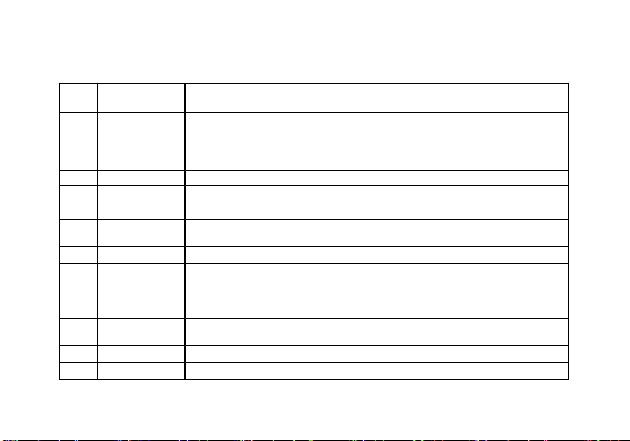
9
numbe
r
name
be interrelated
1
The USB
/
charging
port
Also known as I / O port: USB interface and charging
interface two in one.
2
Side volume
Also known as volume side key
3
The main
screen
also known as LCD
4
Headphone
jack
The 3.5mm headphone jack
5
microphone
Also known as the phone delivery device
6
Switch
machine
health
Short press to enter the lock screen state or light up the
screen. Long press to enter the phone option, you can
select the flight mode shutdown and heavy white phone
7
telephone
receiver
Also known as the receiver: to ensure the quality of the
call, please keep listening close to the ear
8
camera
Built-in camera
9
loudspeaker
Lama Yi, also known as the " speaker

9
Use the touch screen

10
Using the phone touch mode
screen allows you to more easily
select items or perform functions
Understand the basic operation of using
the touch screen:
To
avoid scratching the
screen, do not use sharp tools
Do
not ask the stock touch
screen for other electronic
devices. Electrostatic
discharge
may
cause the face
operation screen failure
Do not
let
the touch screen
touch the water. The touch
screen may
fail in
wet
environments or when touching
water
To achieve the best use
effect, please remove the touch
screen protector before
using the phone
The touch screen has a
protective layer that
reveals the tiny charges
emitted by the human body.
For optimal performance,
click on the touch screen
with your fingertips. The
touch screen does not
respond to the touch of
sharp tools, such as a
needle pen or pen.
The touch screen can be controlled
by performing the following actions:
Click: Click once with
your finger to select or
start a menu, option, or
application

10
Click and Hold: Hold the item for
more than 2 seconds, and the
list
of
options
will
pop up
Scroll: Click
and
up,
down, drag
your
finger left or right to
move
to
the items in the
list
Drag and drop: Click and hold an
item with your finger, then drag
your finger to move the item.
Double
click:
When
viewing a
photo, quickly
click
twice with your
finger to
zoom
in
or out.
If
the
phone
is
not
used
for the
specified length of time, the
phone
turns off the touch screen.
If
you
want to
open
the winning touch
screen again, press the [switch key]
Background
light
time can also be
adjusted. In Standby mode, then
select Settings to display one
sleep and one sleep time
Lock or unlock the touch spleen and
button
The touch screen and buttons
can be locked to prevent any
unexpected phone operation
To lock, press the [Switch key].
If
you want to unlock, press
[switch key] and then prompt on the
screen

11
Unlock manually
Also step to understand the special
machine function
When
the
phone
is in
standby
mode, you can see the standby screen.
In the
standby
screen, view the
status of the
phone and access
the
application.
The standby screen has 2 panels by
default.
Scroll left
or right to
select a standby screen panel.
Choose the source of board paper
You can set the key paper from the
definition standby screen or lock
screen interface (the
wallpaper can customize the
images in the album)
Lock screen
wallpaper: Set up the
lock screen interface
image. Make the desktop
wallpaper: set up the
desktop wallpaper
Dynamic wallpaper: you can
set up the dynamic
wallpaper
Move the items on the special
machine screen
Click and hold the item to
move
Drag the item to the desired
location after the item
vibration.

11
>
Remove the project from the machine
curtain
Click and hold the item to be
removed, vibrate and the delete icon
appears at the top of the screen
Drag the project to the remote
removal icon
Use the shortcut panel
In
standby mode
or
when
using
an
application,
touch
the tip indicator
circle area of the screen,
and then drag
your
finger
down
to
open
the shortcut
panel. Other features
such as
wireless
connectivity
can be
started or canceled,
and a
list
of notifications,
such as
information,
call,
activity, or
processing status is accessed.
To
hide
the
list,
drag up
to the lower
border
of
the
list
Click the shortcut icon in the
shortcut panel to use the following
options:
Wi-
Fi:
Start up or turn off
the Wi-Fi connection function.
Click on this icon to enter
the Wi-
Fi
setting interface.
Data connection: Start up
or close the data connection.
Bluetooth: On or off the
Bluetooth wireless connection
function.
Flight mode: Start-up or off
of flight
mode

12
Scenario mode: standard,
mute, and switching between
conference and outdoor mode
◆
GPS location information:
white move or close the
position information function.
Click on this icon to enter the
location information setting
interface.
One-click cleaning: click to
end the background application
and release part of the
memory.
Automatic rotation: click
on the white or turn off the
automatic rotation
Brightness: adjust the brightness
of the screen thin.
Power quantity: display the power
quantity usage status of the
equipment
Traffic monitoring: click
to view the use of the
flow of this month
Dormancy: Adjust the delay
time for the screen to close
automatically.
Super screen capture: screen
recording and other functions
One-button lock screen:
click the device off screen
lock standby.
Flashlight: Turn the flashlight
on or off

12
More: you can set up the
shortcut function and sequence
display in the shortcut panel
Access to the application
If
you want to access
the phone
app: let
open the phone lock
Scroll left
and
right to
another application
screen Select boot
program:
Press the
virtual
HOME key to
return to the main standby
screen.
The phone
has a built-in
action sensor that detects the
direction of the phone.
If
you
rotate the phone when using some
functions, the
phone
interface
will
automatically switch to
the
mode
screen
mode
if
you
want to set the interface
will
not change with the rotation of
the phone,
open
the shortcut
panel at the top of the screen,
and
then select automatic
screen, or select to set a
display rotation screen
automatically or
keep
longitudinal.
Rich O widget
Click Menu Jian from standby and
select the pl-in.choose and appoint

13
Mea small part long press, drag to
standby
Custom mobile phone
Customize the phone according to
personal preferences: theme and
desktop slide effects, etc
Set the current time and date
In the main menu interface,
then select the setting date
and
time
Set the time and date and change the
other options.
Turn on or off
In the main
menu
interface,
then select set
sound and
remote standard, click the
right setting to select touch
prompt.
Adjust the bell volume
Press up or down to adjust the
ring volume.
Switch to the Christian voice
mode
To mute or mute the phone,
perform one of the
following:
In the shortcut panel
scenario mode, directly
switch in standby mode,
hold [switch key],

13
Then select mute
mode,> change ringtone
In the main
menu
interface, then
select Set
Sound and
Notification
Standard One
Point Right to set a
ringtone / default notification
prompt tone /
message
ringtone.
Select ringfrom the
list,
then
select
OK
Select the added paper of the special
machine screen
In standby mode, select Set a
wallpaper and
Magazine lock screen Select the type
of wallpaper to set
Adjust the brightness of the alliance
display screen
Adjust the screen brightness under
the Settings Selection Order:
1.
In the main menu interface,
then select Set to display
brightness.
2.
Close the closing button on
the automatic adjustment
brightness.
3.
Drag the slider to adjust
the brightness level
The brightness level of the
display affects the speed at which
the phone consumes battery power

14
>
Set the unlock pattern
You can set up the unlock
pattern to prevent others from
using the phone without permission
1.
In the main menu interface,
then select Settings-Security
one
screen thin lock pattern.
2.
Watch the screen prompt and
example pattern and select the
next step
(if
necessary).
3.
Pull your finger to connect
at least four points and draw a
pattern.
4.
Choose to Continue
5.
Redraw the pattern to confirm.
6.
Select a confirmation
After setting the unlock
pattern, the unlock pattern is
required to be entered every
time you turn
it
on.
If
you want to stop the
unlock pattern, select the
privacy and security
screen and lock the lock.
Note:
If
None
is
selected, the screen
will
not be locked.

14
If
you forget to unlock the
pattern, you should take your phone
to the customer service center to
unlock
it.
The manufacturer
is
not
responsible for the loss of
passwords or private information or
other damage caused by the use of
illegal
software.
Lock the SIM card and fill in the USM
card
The phone can be locked by white
movement with the PN code provided by
the SIM card or USIM card.
1.
In the main
menu
interface, then
select the SM card lock
mode
to lock
the SIM card.
2.
Enter the PIN code and select OK.
If
you
start the PIN lock,
you must enter the PN code each
time
you
start on.
If
the PIN code
is
incorrect
three times, the SIM card or
USIM card
is
locked.
A
PIN
unlock key (PUK) must be
entered to unlock the SIM card
or USIM card.
If
the SIM card
is
caused by
entering the wrong PUK

15
Or USIM card lock, please take
the card to the service
provider to unlock,
Fingerprint and fingerprint
unlock
fingerprint
identification
In order to
make
the
fingerprint recognition function
work, the fingerprint information
needs
to
be
registered
and saved
to
the device: the following functions
can be used
after recording the
correct
and
valid fingerprint
2. Lock
the screen
Re g
is
te re d
fin
g e rp
rin t
1 On the main screen, point set a
fingerprint identification (the
standby PIN code will be
successfully entered into
fingerprint management) a
fingerprint tube
Add a fingerprint
2.
Put the finger on the fingerprint
input device and input a valid
fingerprint
3
Raise the finger
when
the
device vibrates, and then put
the finger again.
On
the
recognizer, repeat one finger
every
week
until the
fingerprint is successfully
recorded
4
In the application management to
select the
need
to
open
the
fingerprint lock should
be

15
need
Figure except fingerprint
You can use fingerprint identification
to reverse a registered fingerprint
The main interface sets one
fingerprint identification, one
fingerprint management and selects the
fingerprint to be deleted
dial
The number
Learn
how
to use
call
features,
such as making and answering calls with
available options during the
call,
or
to customize
and
use
call-
related
features.
call log
You can view
call
records
filtered
by type
1.
In standby mode, click the
dial
key to enter the
dial
interface and the
call
recording interface.
2.
In
the
call
record interface,
you can record the
call
by the
phone.
3.
Select the record to view the
call details.

16
The plate
Click the icon in the lower
right corner to fold up or pop up
the dial to contact the
call
record. Each time you dial the
contact number, the contact
will
automatically join the call record
page
Functional policy sheet
Contains contacts, quick dial, and
setting options.
information
Learn how to create and send
SMS (SMS) or SMS (MMS), and view
and manage sent or received
information. Additional costs for
sending or receiving information
outside the local service area,
consult the service provider
for more information.
camera
In standby mode, the
camera can perform the photo
and camera function. Camera
program takes high-quality
photos, support continuous
shooting, special effects and
other more professional
shooting original mode,
support shooting high-quality
video

16
music
Learn how to use a music player
to listen to your favorite
music.
Depending on the mobile phone
software, some
file
formats are
not supported.
If
the
file
size exceeds the
available storage space, an occur
when opening the
file.
Zhang
jia
music
Transfer music files to
the phone to download
from the wireless
Web
Copy through the data line
Transmission via Bluetooth
photo
album
Learn how to view the images in
your memory card and shake their
videos

17
hold-
all
The toolbox contains a radio,
tape recorder, clock, flashlight,
one-button lock screen for your
easy use, or into the toolbox
according to your personal
preferences
radio
Listen to the radio program on
the radio and can record your
favorite while listening, and
always connect the provided
headphones before using the FM
radio (which serves as a radio
antenna)
recorder
Help you quickly save voice
records, you can set your
favorite sound quality and
recording mode
clock
You can set up the clock,
view the world time, and use
the timer and stopwatch
functions
Note: Support the shutdown of
Hong Zhong.

17
Trainer
The built-in browser enables
faster Internet access speed, more
secure website navigation, more
convenient mobile Internet access,
and more enhancements. High-speed
download, skin change, full-screen
survey, etc. The built-in viewer is
not only easy to use, but also
powerful.
file
management
Learn to quickly and
interestingly open all your pictures,
movies, music, documents, and other
files stored in your phone.
pay attention to:
1.
In addition to MP3, MP4 and
picture files, the system files
in the mobile phone storage,
please do not move and state
except;
2.
It
is recommended to install
the APK installation package of the
mobile phone storage system. If the
manufacturer installs the APK
package and resumes, the
manufacturer
will
not bear any
responsibility

18
calendar
You can view the date, the
lunar calendar and set calendar
events for easy use
E-
mail
Send or receive email by
mobile phone by configuring a
personal or corporate email
account
video frequency
You can view, divide video files
and sort videos
contacts
Receive can
Make
it
easier for you to
manage your contacts. Each time
after dialing the contact
number, the contact will
automatically join the
frequent contact, the frequent
contact can be added to the
collection
Note: Only mobile phone
contacts can use the collection
work

18
ability
All contacts
Learn how to create and manage a
list of personal or company contacts
stored on phone memory or SM card or
USM card. Save the name of the
contact.cell-phone number,
Home phone number, email addresses and
more information.
cluster
Set up the mobile phone contact
population group.
counter
Learn how to perform math
directly on a phone, like a normal
handheld or desktop calculator.
se
t
up
WLAN
Set the status of a WLAN,
network notifications, add
networks, etc
PDA
Set the Bluetooth status, search
for the Bluetooth devices, and
modify
it

19
Bluetooth name, etc
Dual card and mobile network
SM card management: this
function can choose to close or open
the SIM card; select whether the
data connection and international
warm tour are open;
Traffic monitoring
Traffic monitoring: view the SIM
card traffic usage.
Other wireless connections
Flight mode:
It
can cut off
all
communication signals. Default
SMS application; Set the
default SMS application
Network and sharing and portable
hotspot: WAN hotspot, USB sharing
network, Bluetooth sharing network.
Network sharing and portable hotspot
settings
VPN:, you can add a VPN profile,
Mobile network: Set up the
data connection.4G services,
preference settings, etc.
Measurement and brightness
Set up functions related
to mobile phone display, such
as screen standby time,
automatic screen rotation,
interactive screen screensaver,
screen lock notification,
brightness
adjustment,
wireless display, etc
Sound and perturbation
Set up the
cell
phone mode.
Default mode: standard,
silent,

19
Meeting, in an outdoor mode
Set the mobile
phone
ringtone,
message ringtone, tone, quantity, etc.,
and can
also set the white definition
scenario
mode
memory
Check the mobile phone and the S0
card storage situation
Electric ground
Check the battery usage of the
mobile phone
apply
Local management applications and
change the management settings for the
installed applications
position
information
Location information: Set the
positioning mode to view the nearest
location information request and
location information service.
safe
Screen lock: set to no, slide,
voice unlock pattern, PIN,
fingerprint, password lock mode.
Enable widgets: Open or close
the widget of the lock screen page.
Owner information; when edited,
your edited information
is
displayed at the standby lock
Encrypt mobile phone: please
check the instructions for
details.

20
Set up the SIM card lock:
Lock SM card: click lock SM
card, enter PIN code to open white
lock SIM card function.
Change
the
SM
card PIN: first
input the original PN code, and then
enter two
new
PIN code.
Display Password: Turn the display
password on and off
Device Manager: View or deactivate
the Device Manager.
Unknown source: Whether
applications from unknown sources
can be turned on and off
Self-start management: allow or
prohibit the application boot to
run automatically
Application rights: Manage
application rights for security and
privacy
Mobile phone anti against
theft: remotely lock the phone
or destroy data remotely
Storage Type: displays the type
of storage
Trust credentials: Use
certificates and credentials
to ensure safe use of each
application
Install from the
phone
storage: install the encrypted
certificate stored in the
phone
storage
Clear credentials: state
except the credentials in the
phone, and

20
Reset the password.
account
Add an account: Change the settings
for the automatic synchronization
features or manage the accounts you
want to synchronize
Language and affection
Language and input method: you can
choose the language, set the keyboard,
and select the input method.
Backup and reset
Backup and reset: restoring the
factory default setting
will
clear
all
data on the phone. Be careful.
Date and time
Automate the date and time: capture
the time by using the network.
Automatically determine the time zone:
to use the time zone provided by the
network
Set date: manually set the
current date, set time:
manually set the current
time select time zone:
set the local time zone
Use a 24-hour format: Set the
display time in a 24-hour format.
Select date format: Select the
date format.
Timed switch machine

21
Set the time when the phone
is
switched on and off
Smart plastic auxiliary
Including intelligent wake change,
intelligent answer, three-finger
screen capture, application split
body,
space
operation, auxiliary
functions
and
other functions
put a seal on
Connect
the printer to print the
required pictures and other files
About mobile phones
Query the information about the
mobile phone, such as system
upgrade, status information, legal
information, mobile phone model,
version number, processor and other
information
Common problems and solutions
In order to save your time
and unnecessary expenses,
please conduct the following
simple inspection before the
professional after-sales
service
Can't move your phone in vain
Check to hold the [switch
key] key for at least 1 second,
Check that the battery power
is
exhausted, and please charge.

21
Start the mobile phone, there is a fear
of interest display
If
the SIM card is not installed,
install the SIM card correctly
Enter the mobile phone lock password,
according to the manual
choose the automatic lock function, must
enter the phone password before use.
Input PIN code, select the function
of PIN, must input PIN code.
Input the PUK code: connect the input
error PIN
code
for three times.
It will
lock the SM card and shall enter the PUK
code
provided by the operator.
SM card error
On the metal surface of SIM card,
wipe the metal contact point of SIM
card with a clean cloth.
instructions.
SM card is damaged, contact your web
service provider

22
Can't connect with the same complex
The signal is weak, please
move to a strong signal area
and try again. Beyond the
network service provider of
the network frontier cover
area.
The SM card
is invalid,
contact your
network provider
The number cannot be exhaled
Please confirm whether you
press the
dial
button after
dialing.
Please confirm
whether the
call is
prohibited due to overdue
payment. Please
confirm that the SM
card is
valid.
Please confirm
if
the
call limit
function
is
set and that the fixed
dial
function
is
set.
Call circle amount whole
Please check
if
the volume
adjustment is not appropriate.
Radio waves cannot be
effectively
conveyed by using
mobile phones in poorly
receiving areas, such as near
tall
buildings or in basements.

22
Using mobile phones during periods
of intensive calls, such as
commuting,
Line congestion causes no
calls.
The number cannot be called in
Please confirm that the
phone
is
turned on and
connected to the network.
Please confirm whether
calling is
prohibited due
to arrears please confirm
whether the SIM card
is
valid.
Please confirm that the call
limit
feature
is
set.
The contact could not hear the
question
Please confirm that the
microphone is turned on

22
Please keep the bottom of the phone
close to your mouth
Special time is short
The standby time
is
related to the
system settings of the network and may
be
in
a poorly receiving area. When the
signal is
not received, the phone
will
continue to launch to find the base
station,
consuming a
lot
of battery
power, resulting in shorter standby time.
Please move to a strong signal place to
use or temporarily turn off the phone.

23
For the battery replacement, please replace the new battery
Unable to charge
Poor contact, check whether the plug is well connected
After up, wipe the wiring port
of the phone and battery with a
soft and clean cloth
When charging in an environment
below 0℃ or above 45℃, change the
charging environment
Battery or charger is damaged and needs replacement.
If
the above guidance
information cannot help you to
solve the problem, please record
the model and serial number of your
mobile phone, authorization, or

23
insurance policy information, and a
clear description of the problem,
and then contact the local after-
sales service provider
Android is a trademark of Google LLC.
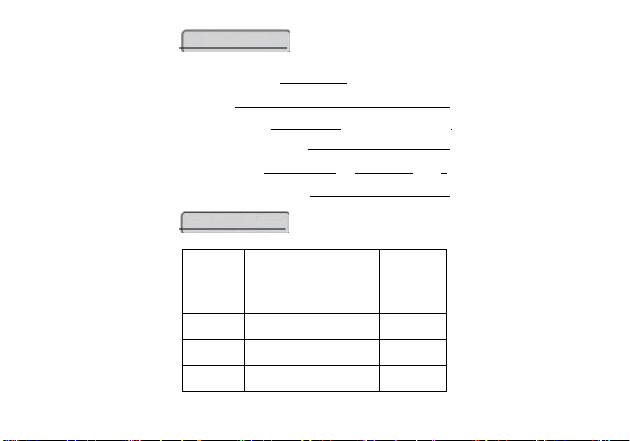
maintenance
customer
customer name:
contact number:
address:
product name: product model:
Seller Unit
and Address:
date of purchase: year moon
Daily Invoice Number:
date
failure
logging
sign
one' s
name

FCC Statement
This device complies with part 15 of the FCC rules. Operation is subject to the following two
conditions: (1) this device may not cause harmful interference, and (2) this device must accept
any interference received, including interference that may cause undesired operation.
Changes or modifications not expressly approved by the party responsible for compliance
could void the user's authority to operate the equipment.
NOTE: This equipment has been tested and found to comply with the limits for a Class B
digital device, pursuant to part 15 of the FCC Rules. These limits are designed to provide
reasonable protection against harmful interference in a residential installation. This equipment
generates uses and can radiate radio frequency energy and, if not installed and used in
accordance with the instructions, may cause harmful interference to radio communications.
However, there is no guarantee that interference will not occur in a particular installation. If
this equipment does cause harmful interference to radio or television reception, which can be
determined by turning the equipment off and on, the user is encouraged to try to correct the
interference by one or more of the following measures:
• Reorient or relocate the receiving antenna.
• Increase the separation between the equipment and receiver.
• Connect the equipment into an outlet on a circuit different from that to which the
receiver is connected.
• Consult the dealer or an experienced radio/TV technician for help.
The device has been evaluated to meet general RF exposure requirement. The device can be
used in portable exposure condition without restriction.
The device has been evaluated to meet general RF exposure requirement.
The device can be used in an uncontrolled environment without restriction.
This device meets the government's requirements for exposure to radio waves. The guidelines
are based on standards that were developed by independent scientific organizations through
periodic and thorough evaluation of scientific studies. The standards include a substantial
safety margin designed to assure the safety of all persons regardless of age or health. The SAR
limit of USA (FCC) is 1.6 W/kg averaged. Device types: TD-LTE digital mobile phone (FCC ID:
2BVYF-S26UITRA) has also been tested against this SAR limit. SAR information can be viewed
on‐line at http://www.fcc.gov/oet/ea/fccid/. Please use the device FCC ID number for search.
This device was tested simulation typical mm to body. To maintain compliance with FCC RF
exposure requirements, use accessories should maintain a separation distance between the
user's bodies mentioned above, use accessories should not contain metallic components in its
assembly, the use of accessories that do not satisfy these requirements may not comply with
FCC RF exposure requirements, and should be avoided.
10