Indoor use in dry locaon
Min Brightness Level Seng( Refer to Parameter 11)
Max brightness Level Seng( Refer to Parameter 12)
Features:
This parameter can access you to set a mer to make the switch turn off
automacally aer the switch turns on.The numberentered as value
(LED flashes 3 mes when the configuraon parameter changed.)
--- Parameter =4, Size=4, Value: 0-65535(minutes);
Value=0(default) disable
Auto Turn-Off Timer
corresponds to number of minutes. Operaon: Set up on the hub.
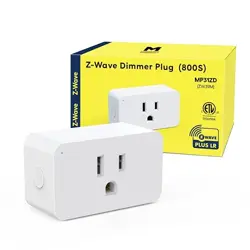
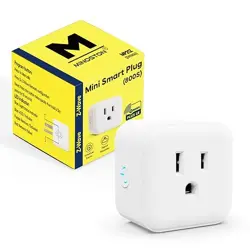
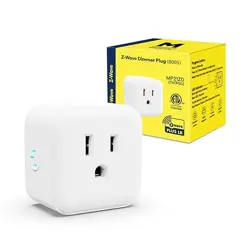
Z-Wave Dimmer Plug (800S)
• MP21ZD •
Specificaon
Input: 125VAC 60Hz
Frequency: 908.42 MHz
Dimmable CFL/LED
Loading: 200W Incandescent 100W
Program buon
Press 1x: Manually
Press 3x: Z-Wave Network configuraon
Reset: Press the buon twice quickly then
hold a 3rd press for 10 seconds
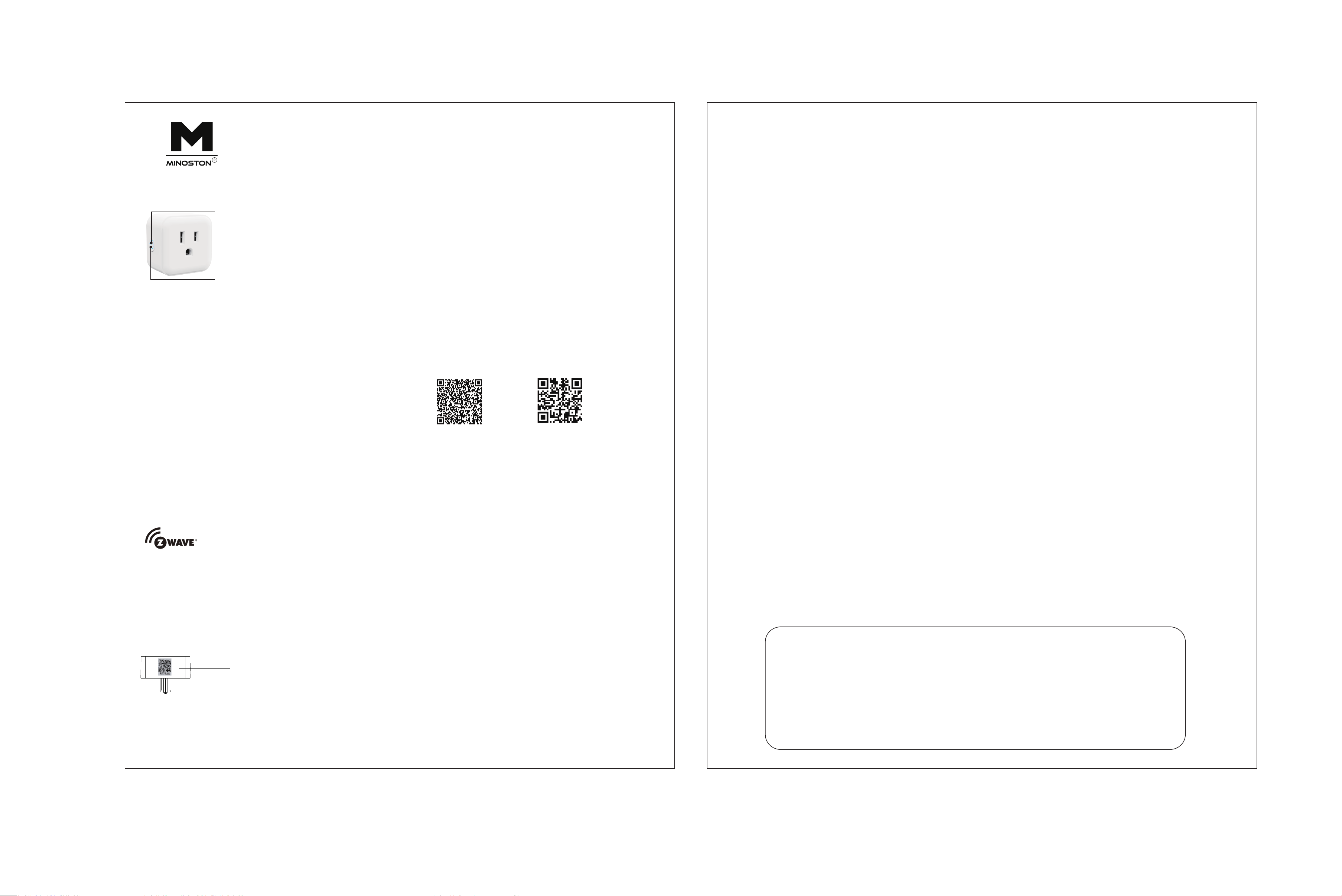
Blue: Light status indicator
Blue: ADD / Inclusion
Purple: Remove / Exclusion
Red: Network Failure
LED indicator
Z-WAVE INTEROPERABILITY
Adding Device to Z-Wave Network for QR Code
Scan here for SmartStart inclusion
Note: FULL DSK can be found on the packaging box.
Do not remove or damage them.
Parameter Sengs
LED Indicator
This parameter can access you to choose the LED indicator to be on when the plug(light) is
on/off, or LED indicator remains on/off all mes.
(LED flashes 3 mes when the configuraon parameter changed.)
Value=1 --- LED is On when switch (light) is On.
--- Parameter =2, size =1byte, Default =0
Value=0 (default) LED is On when switch (light) is Off.
Value=2 --- LED is always Off.
Value=3 --- LED is always On.
This parameter can access you to set a mer to make the switch turn on automacally aer the
switch turned on.The numberentered as value corresponds to number of minutes.
(LED flashes 3 mes when the configuraon parameter changed.)
--- Parameter =6, Size=4, Value: 0-65535(minutes);
Value=0(default) disable turn on the outlet
Auto Turn-On Timer
Operaon: Set up on the hub.
This parameter can access you to set a specific brightness for the light when you want
to make it as a night light.
--- Parameter =7, Size=1, Default = 2
Value=1 --- 10% brightness
Value=2 --- 20% brightness
Value=10 --- 100% brightness
/
Night Light Set
(LED flashes 3 mes when the configuraon parameter changed.)
This parameter can access you to set the switch to be on/off aer power failure.
Operaon: quickly press 8 mes to change this parameter.
Parameter=8, Size=1, Value=2(default)
Value=0 --- The switch is off regardless of the state prior to power failure.
Value=1 --- The switch is on regardless of the state prior to power failure.
Value=2(default) memory state before power failure
This switch will be return to state prior to the power failure aer power is restored.
(LED flashes 3 mes when the configuraon parameter changed.)
Operaon: quickly press 5 mes to change this parameter.
(LED flashes 3 mes when the configuraon parameter changed.)
Value=0 --- disable
Value=1
/
Value=99
---Parameter=11, Size=1, Default = 10
Value=1
/
Value=99
(LED flashes 3 mes when the configuraon parameter changed.)
---Parameter=12, Size=1, Default =99
Value=0 --- disable
Operaon: quickly press 10 mes to change this parameter.
Mullevel Minimum Value Can Be Set
Mullevel Maximum Value Can Be Set
This device complies with part 15 of the FCC and Industry Canada license-exempt RSS
standard(s). Operaon is subjected to the following two condions:
FCC / IC
(1) This device may not cause harmful interference, (2) This device must accept any
interference received, including interference that may cause undesired operaon.
FCC NOTE: The manufacturer is not responsible for any radio or TV interference
caused by unauthorized modificaons to this equipment. Such modificaons could void
the user’s authority to operate the equipment.
CAUTION - PLEASE READ!
WARNING
MEDICAL EQUIPMENT
Please DO NOT use this switch to control Medical or Life Support equipment.
Z-Wave devices should never be used to control the On / Off status of Medical and / or
Life Support equipment.
CONTROLLING APPLIANCES
Restores State Aer Power Failure
Dimmer Speed (On/Off Control)
Dimmer Speed (Dimmer Control)
Generic Device Class:
0x11-GENERIC_TYPE_SWITCH_MULTILEVEL
Specific Device Class:
Command Classes:
0x00-SPECIFIC_TYPE_NOT_USED
0x5E-COMMAND_CLASS_ZWAVEPLUS_INFO_V2,
0x26-COMMAND_CLASS_SWITCH_MULTILEVEL_V4,
0x70-COMMAND_CLASS_CONFIGURATION_V4,
0x85-COMMAND_CLASS_ASSOCIATION_V2,
0x8E-COMMAND_CLASS_MULTI_CHANNEL_ASSOCIATION_V3,
0x59-COMMAND_CLASS_ASSOCIATION_GRP_INFO_V3,
0x55-COMMAND_CLASS_TRANSPORT_SERVICE_V2,
0x87-COMMAND_CLASS_INDICATOR
0x86-COMMAND_CLASS_VERSION_V3,
0x72-COMMAND_CLASS_MANUFACTURER_SPECIFIC_V2,
0x5A-COMMAND_CLASS_DEVICE_RESET_LOCALLY,
0x73-COMMAND_CLASS_POWERLEVEL,
0x9F-COMMAND_CLASS_SECURITY_2,
0x6C-COMMAND_CLASS_SUPERVISION,
0x7A-COMMAND_CLASS_FIRMWARE_UPDATE_MD_V5
Z-Wave Network Configuraon
(LED flashes twice when the configuraon parameter changed.)
Support 2 groups, each group max support 5 devices
Group 1 lifeline
Group 2 Le outlet send basic set.
Adding Device to Z-Wave Network
smart plug 3 mes quickly.
2. Once the controller is ready to add your device, press the Manual/ Program buon on the
1. Follow the instrucons for your Z-Wave cerfied controller to add a device to the Z-Wave
1. Follow the instrucons for your Z-Wave cerfied controller to remove a device from the
Z-Wave network.
2. Once the controller is ready to remove your device, press the manual / program buon on
the smart plug 3 mes quickly.
The green light is on for 2s when the removal is successful.
To Remove the Device
Manual: press the buon twice quickly then hold a 3rd press for 10 seconds.
Host reset: Remove it from hub, the device will be restore to factory default.
To Return the Device to Factory Defaults
Associaon Group
Note: MP21ZD Support Z-Wave Long Range
Z-Wave Long Range
If the SmartThings replacement service results in abnormal use of the product, please
install a new driver(edge driver) according to the following soluons.
Regarding SmartThings Usage Excepons:
1. Scan the above QR code(le)to open the SmartThings Edge Driver subscripon
channel of the product.
subscripon channel.
2. Log in to the SmartThings account aer opening the SmartThings Edge Driver
3. Select the SmartThings Hub you are using, and click "Enroll".
4. Aer "Enroll" is completed, click "Available Drivers".
5. Aer entering the "Available Drivers" page, select "Z-Wave Switch” to "Install".
Note: Please scan the QR code on the right to view the guide video.
(SmartThings driver subscripon channel)
(guide video)
)
This product can be included and operated in any Z-Wave network with other Z-Wave cerfied
devices from other manufacturers and/or other applicaons. All non-baery operated nodes
within the network will act as repeaters regardless of vendor to increase the reliability of the
network. This Device supports Lifeline (associaon group 1) supporng 1 node for lifeline
communicaon. Group 1 must be assigned the Node ID of the primary controller where
unsolicited noficaons will be sent.The Z-Wave controller should set this associaon
automacally aer inclusion.Lifeline associaon only supports the "Device Reset Locally"
funcon.
1: Press the buon 10 mes quickly, the LED indicator flashes slowly to enter the seng"Max
brightness" mode. The lamp will adjusts to the max brightness automacally.
2: Hold the buon to adjust the brightness of the bulb, select the appropriate brightness to set
the max brightness.
3: Press the buon 10 mes quickly to confirm it (the max brightness seng is completed).
The LED indicator will flashes 3 mes.Remark: If the seng is not confirmed at Step 3, the
seng mode will be exited aer 10S.
1: Press the buon 5 mes quickly, the LED indicator flashes slowly to enter the seng "Min
brightness" mode. The lamp will adjusts to the min brightness automacally.2: Hold the
buon to adjust the brightness of the bulb, select the appropriate brightness to set the min
brightness.3: Press the buon 5 mes quickly to confirm it (the min brightness seng is
completed). The LED indicator will flashes 3 mes.
RISK OF FIRE / RISK OF ELECTRICAL SHOCK / RISK OF BURNS TO REDUCE THE RISK OF
ELECTRIC SHOCK, THIS PRODUCT HAS A GROUNDING TYPE PLUG THAT HAS A THIRD
(GROUNDING) PIN. THIS PLUG WILL ONLY FIT INTO A GROUNDING TYPE POWER OUTLET.
IF THE PLUG DOES NOT FIT INTO THE OUTLET, CONTACT A QUALIFIED ELECTRICIAN TO
INSTALL THE PROPER
OUTLET. DO NOT CHANGE THE PLUG IN ANY WAY.
CONTROLLING APPLIANCES:
CAUTION: TO REDUCE THE RISK OF
OVERHEATING AND POSSIBLE DAMAGE TO
OTHER EQUIPMENT
• DO NOT EXCEED RATINGS
• DO NOT USE TO CONTROL ANY DEVICE
WHERE UNINTENDED OPERATION COULD
CAUSE UNSAFE CONDITIONS (HEAT LAMP, SUN LAMP, ETC.)
NOTE: This equipment has been tested and found to comply with the limits for a Class B
digital device, pursuant to Part 15 of the FCC Rules. These limits are designed to provide
reasonable protecon against harmful interference in a residenal installaon. This equipment
generates, uses and can radiate radio frequency energy and, if not installed and used in
accordance with the instrucons may cause harmful interference to radio communicaons.
However, there is no guarantee that interference will not occur in a parcular installaon. If
this equipment does cause harmful interference to radio or television recepon, which can be
determined by turning the equipment off and on, the user is encouraged to try to correct the
interference by one or more of the following measures:
-- Reorient or relocate the receiving antenna.
-- Increase the separaon between the equipment and receiver.
-- Connect the equipment into an outlet on a circuit different from that to which the receiver is
connected.
-- Consult the dealer or an experienced radio/TV technician for help.
1. Z-Wave on/off + dimmer control.
2. Grounded 3-wire power connecon for safety.
3. Remember and restore on/off status aer power failure.
4. Built-in Z-Wave Plus signal repeater to extend network range
5. S2 security and 800 Z-Wave chip for reliable wireless communicaon.
6. Work with all cerficated Z-Wave controllers.7. Support Long Range.
This parameter can access you to set the me from maximum brightness to minimum
brightness or minimum brightness to maximum brightness.
(Only when hold it to change the brightness or control from HUB).
Operaon: Set up on the hub.
(LED flashes 3 mes when the configuraon parameter changed.)
Parameter=10, Size=1, Default=4
Value=1---from 0x63 to 0x00 or from 0x00 to 0x63 need 1s
Value-2---from 0x63 to 0x00 or from 0x00 to 0x63 need 2s
/
Value=10---from 0x63 to 0x00 or from 0x00 to 0x63 need 10s
This device is intended for installaon in accordance with the Naonal Electric Code and local
regulaons in the United States, or the Canadian Electrical Code and local regulaons in Canada If
you are unsure or uncomfortable about performing this installaon consult a qualified electrician.
Important note: To comply with the FCC RF exposure compliance requirements, no change to the
antenna or the device is permied. Any change to the antenna or the device could result in the
device exceeding the RF exposure requirements and void user's authority to operate the device.
Please exercise EXTREME CAUTION when using Z-Wave devices to control appliances. Reason
being is because the appliance you want to control may be in a separate room and if
unintenonal behavior occurs (such as adevice turning on or off - either intenonally via
schedules, or unintenonally via network error) this event may lead to a hazardous condion.
For these reasons, please note the following suggesons:
1) Do not include Z-Wave devices in Groups or Scenes if they control appliances.
2) Do not use Z-Wave devices to control electric heaters or any other appliances which may
present a hazardous condion due to unaended, unintenonal, or automac power control.
This parameter can access you to set the me from maximum brightness to minimum
brightness or minimum brightness to maximum brightness
(Only when turn ON/ OFF the light ) Operaon: Set up on the hub.
(LED flashes 3 mes when the configuraon parameter changed.)
Parameter=9, Size=1, Default = 2
Value=0 ---instant on/off
Value-1--- from 0x63 to 0x00 or from 0x00 to 0x63 need 1s
Value=2---from 0x63 to 0x00 or from 0x00 to 0x63 need 2s
/
Value-10--- from 0x63 to 0x00 or from 0x00 to 0x63 need 10s
Please contact us if you have any quesons:
www.minoston.com
The device is compable with smartstart.SmartStart enabled products can be added into a
Z-Wave network by scanning the Z-Wave QR Code found on the top of the outlet or the back
of the box with a controller providing SmartStart inclusion. No furthe acon is required and
the SmartStart product will be added automacaly within 10 minutes of being switched on
and in the network vicinity.
Note: Z-Wave Long Range device can only support be included via SmartStart. Extract the DSK
from end device and paste it into the DSK Value in PC Controller, make sure the Long Range'
opon is cked.