USER MANUAL
HR0 Hand Held
EID Tag Reader

2
Contents
About the HR0 .................................................................................................................... 3
Box Contents ...................................................................................................................... 3
The Battery .......................................................................................................................... 4
Charging the battery ....................................................................................................... 4
Battery Icon Status ......................................................................................................... 5
Battery Error ................................................................................................................... 6
The HR0 features .............................................................................................................. 7
HR0 Screen & Keypad ..................................................................................................... 8
Tag Reading ......................................................................................................................... 9
HID Mode ......................................................................................................................... 11
Connecting the HR0 to Other Devices ...................................................................... 12
Connect the HR0 to a W-1, TW-x or TWR-x Weigh Scale ............................................... 12
Gallagher Animal Performance App ............................................................................ 13
Connect the HR0 to the Gallagher Animal Performance App ....................................... 14
Care and Maintenance ..................................................................................................... 15
Specifications ..................................................................................................................... 15
Troubleshooting ................................................................................................................. 16
Need more help? .............................................................................................................. 16
Product Disposal ............................................................................................................... 17
Approvals and Standards ............................................................................................... 17
Waste Electrical and Electronic Equipment ................................................................... 17
Bluetooth
®
........................................................................................................................ 17
Regulatory Compliance Statement ................................................................................17
3
The Gallagher HR0 Hand Held EID Tag Reader with Bluetooth
®
wireless technology enables
you to read animal Electronic Identification (EID) tags either individually or continuously.
You can connect the HR0 using Bluetooth® wireless technology or Bluetooth® Low Energy,
to a recording device, for example:
• the Gallagher Animal Performance app
• a Gallagher TW-x Weigh Scale
• a third party weigh scale,
These devices record animal information and store scanned HDX (Half Duplex)
and FDX (Full Duplex) EID tags.
The HR0 Hand Held EID Tag Reader has no internal memory
and does not store scanned EID tags.
IMPORTANT
!
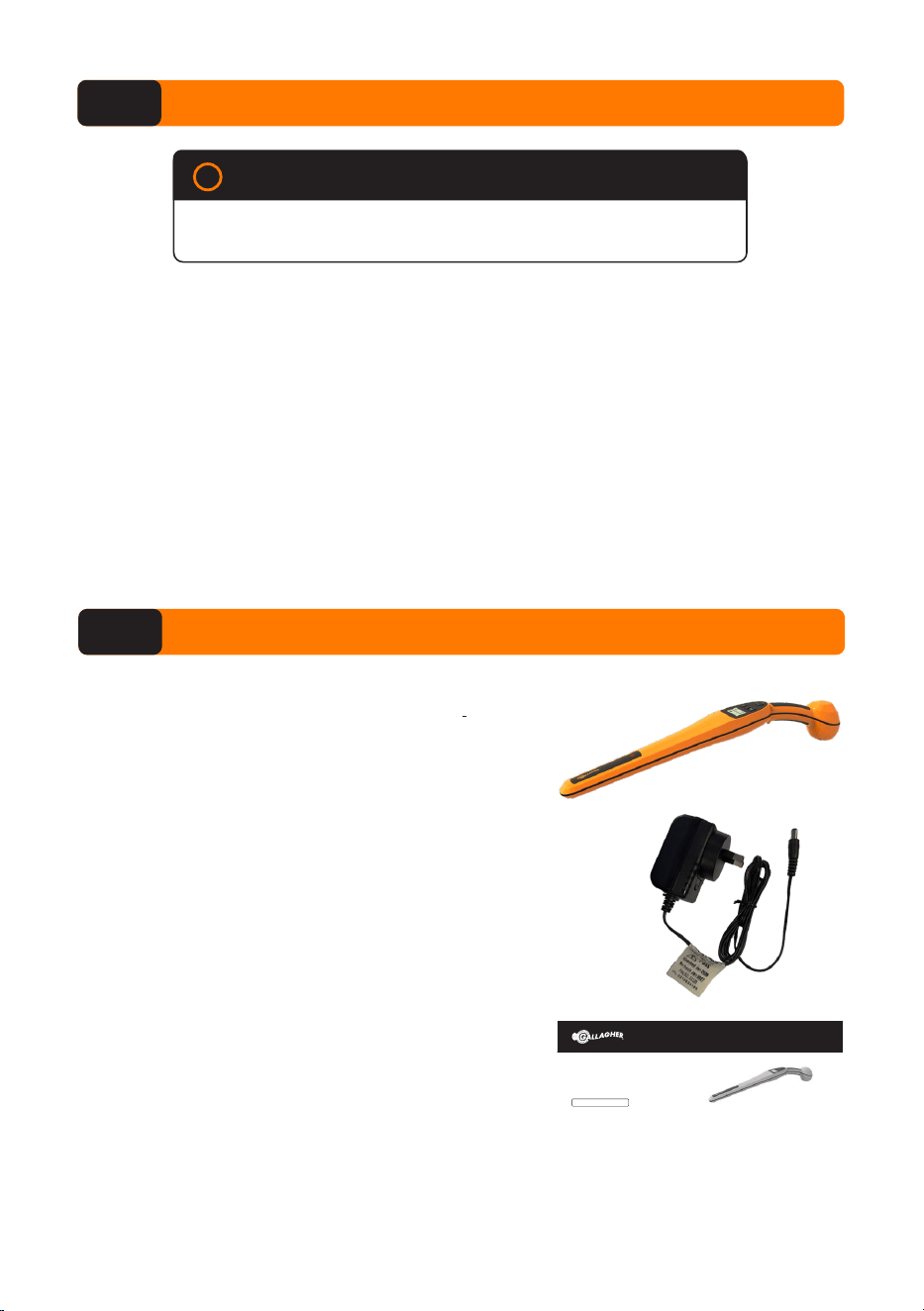
The Gallagher HR0 box contains:
• Gallagher HR0 Hand Held EID Reader
(with Bluetooth® wireless technology)
• 110V - 230V Mains AC adapter
• HR0 Quick Start Guide
Box Contents
2
1
HR0 HAND HELD
EID TAG READER
Q UI C K S TA RT G U I DE
About the HR0
1
4
For optimum performance of the HR0 Hand Held EID Tag Reader,
the internal battery must be fully charged before using.
IMPORTANT
!
Charging the battery
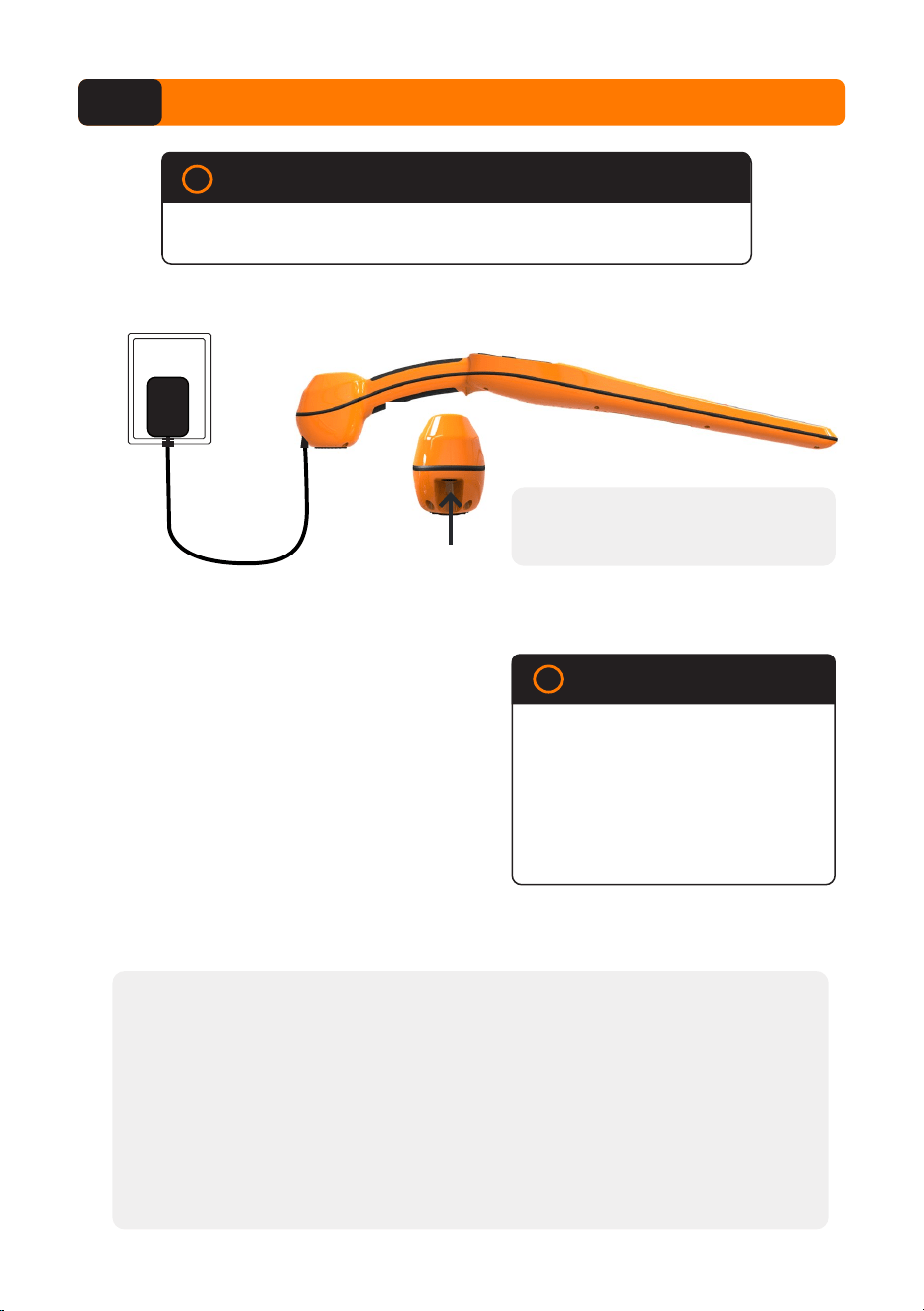
Charging
Port
1
Insert the power adapter into the charging
port on the HR0 and plug into a power
outlet.
2
The battery icon in top right of screen
will fill left to right while the reader is
charging.
The battery icon will appear solid when
fully charged.
IMPORTANT
Gallagher recommend the 110V -
230V Mains AC adapter supplied
with your HR0 reader, is always
used when charging.
The power adaptor is intended for
indoor use only. Do not expose to
rain or dampness.
!
When fully charged, the HR0 is
expected to operate continuously for
6-8 hours in typical yard applications.
Notes for charging the battery:
• You cannot read tags while the Reader is connected to mains power.
• Charge the battery only between +10
°
C to +40
°
C (50
°
F to 104
°
F).
• Always charge the battery indoors.
• Charging outside this temperature range reduces charging performance. At
temperatures above 40
°
C, charging will take longer.
• It takes approximately 8 hours to fully charge the battery from mains
power.
• Firmware updates do not install when the battery has less than 5% charge
remaining or when the battery is charging.
The Battery
3
5
Battery Icon Status
Operation
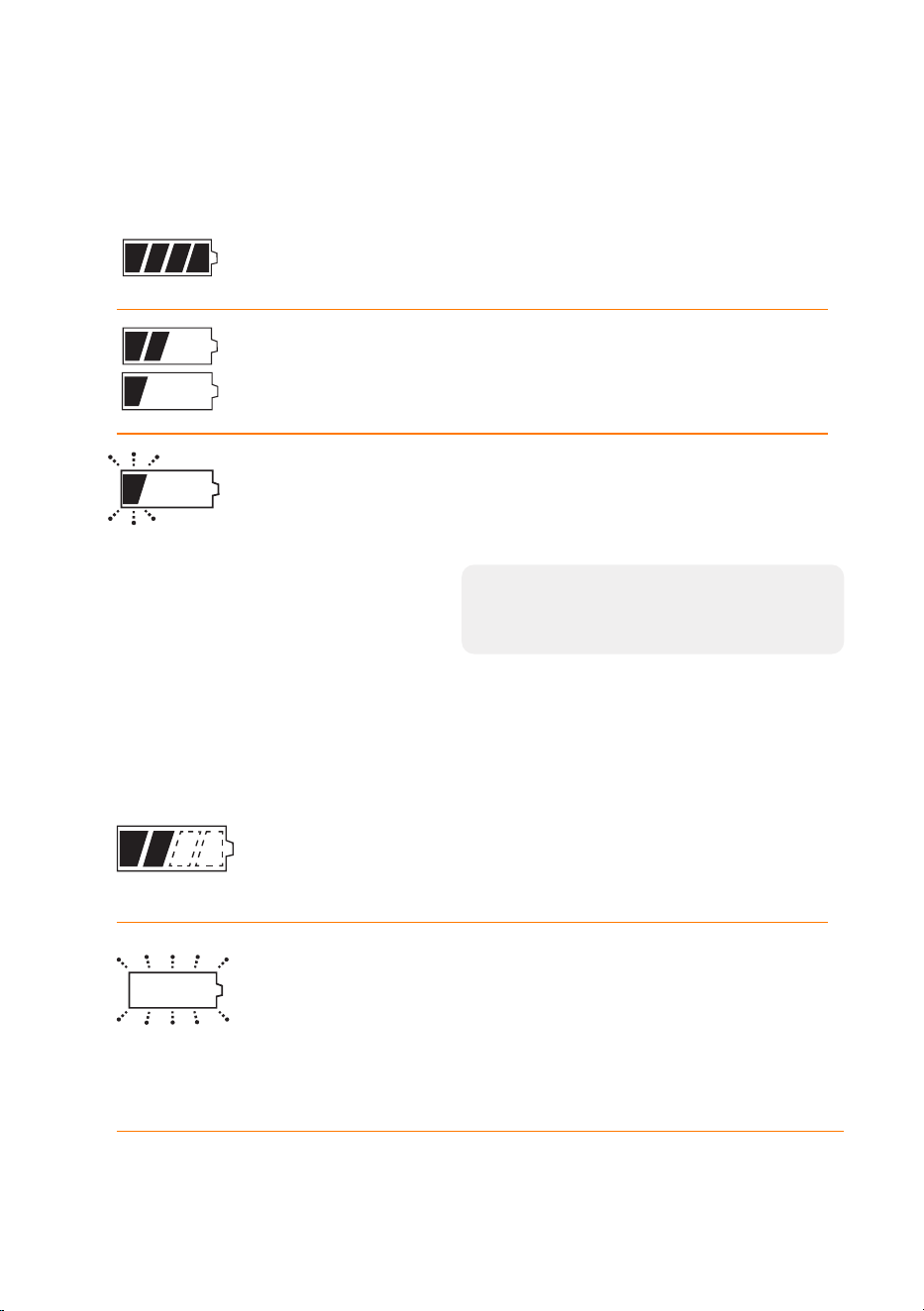
During operation, the battery icon indicates the actual amount of charge left in the battery.
Fully charged The battery icon displays as full bar.
Partially charged
The battery icon displays a graduated
indication of the remaining charge.
Almost flat
Charging
When the Reader is connected to a charger, the battery icon displays a charging status as
follows:
Charging The battery icon shows the battery
constantly filling from the point of the
remaining charge.
Charging Error
One or more conditions prevent
charging.
For example: under-temperature,
over-temperature or excessive supply
voltage.
Check all connections.
Refer to "Battery Error" on page 6.
The battery icon will flash while displaying
one bar of the battery.
About 5 minutes of read time remains
before the HR0 shuts down.
When the charge level becomes critical,
the HR0 sounds three beeps and then
shuts down.

6
Battery Error
• Charging will pause if the temperature exceeds the safe range and will resume
once the unit cools. The charge indicator will turn off during this time.
• If a battery error occurs the battery indicator flashes. Refer to "Troubleshooting" on
page 16 for Error Code information.
• If the error cannot be resolved, return the Reader to a Gallagher Authorised
Service Centre for battery replacement. The lithium battery must be replaced by a
trained professional using a Gallagher approved battery.
Leaking battery
If battery fluid comes in contact with:
Eyes - flush the affected area with water for at least 15
minutes. Ensure adequate flushing by separating the
eyelids with fingers. Call a physician.
Skin - immediately flush with water and/or soap.
Battery replacement
or disposal
This reader contains a Lithium battery which is not user
replaceable. The lithium battery must be replaced by a
trained professional using a Gallagher approved lithium
battery. Return the reader to a Gallagher Authorised
Service Centre for battery replacement or disposal.
Battery Safety Information
7
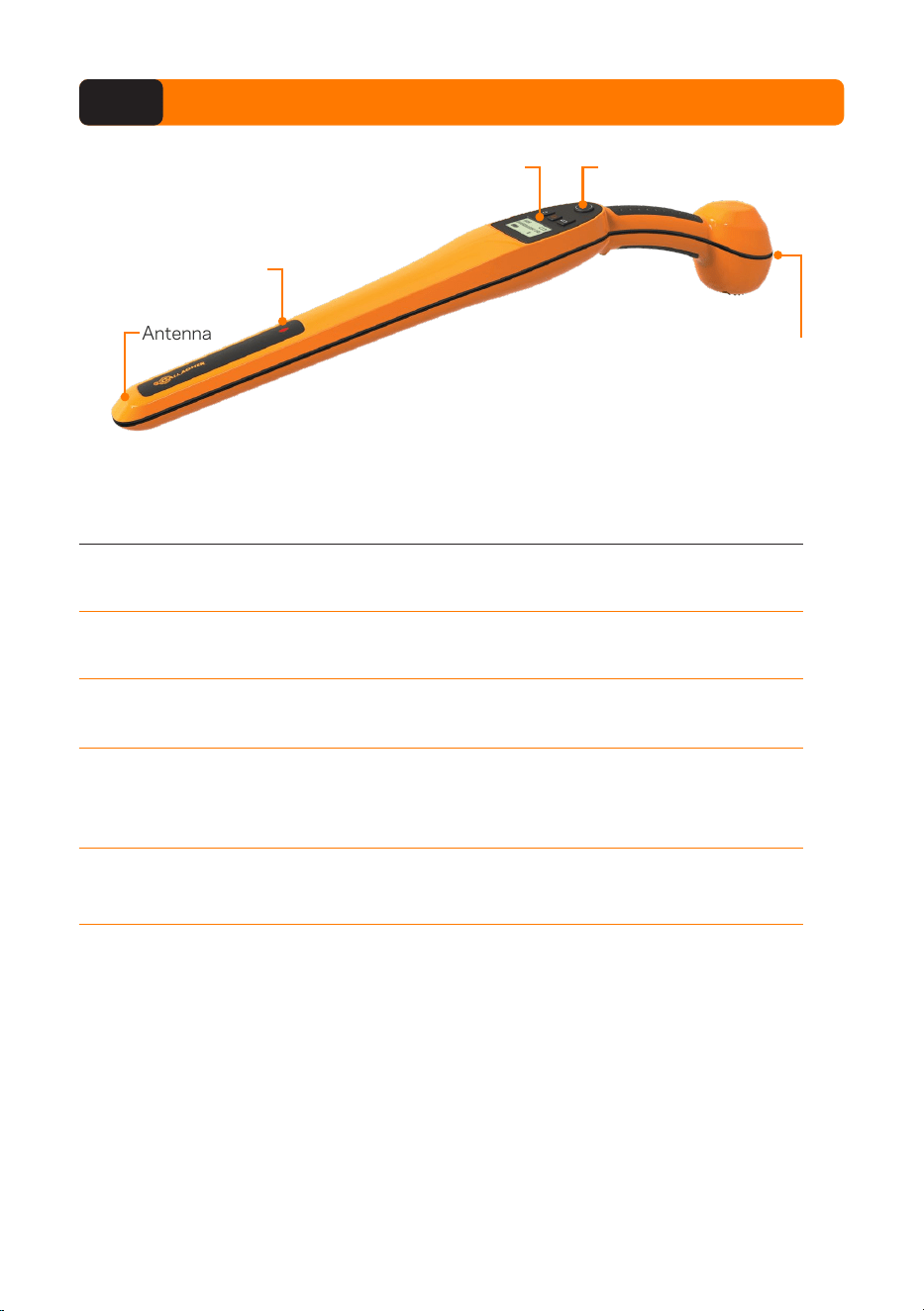
Antenna
Screen & Keypad
Light
Charging port
Read Tag Button
Feature Description
Read Tag Button
Press the Read Tag button to start reading tags either
individually or continuously.
Light
The red light flashes when transmitting and illuminates
continuously when a tag is read.
Vibration
A single vibration is felt in the handle with every successful EID
tag read.
Antenna
The HR0
antenna has a typical read range of 27–33 cm.
Note: If there is more than one tag within range, neither tag
may be read.
Screen & Keypad
Refer to the following section for detailed description of the
screen fields and icons.
Auto Power Down
The HR0 will power itself down after 30 minutes of inactivity.
The HR0 features4
8
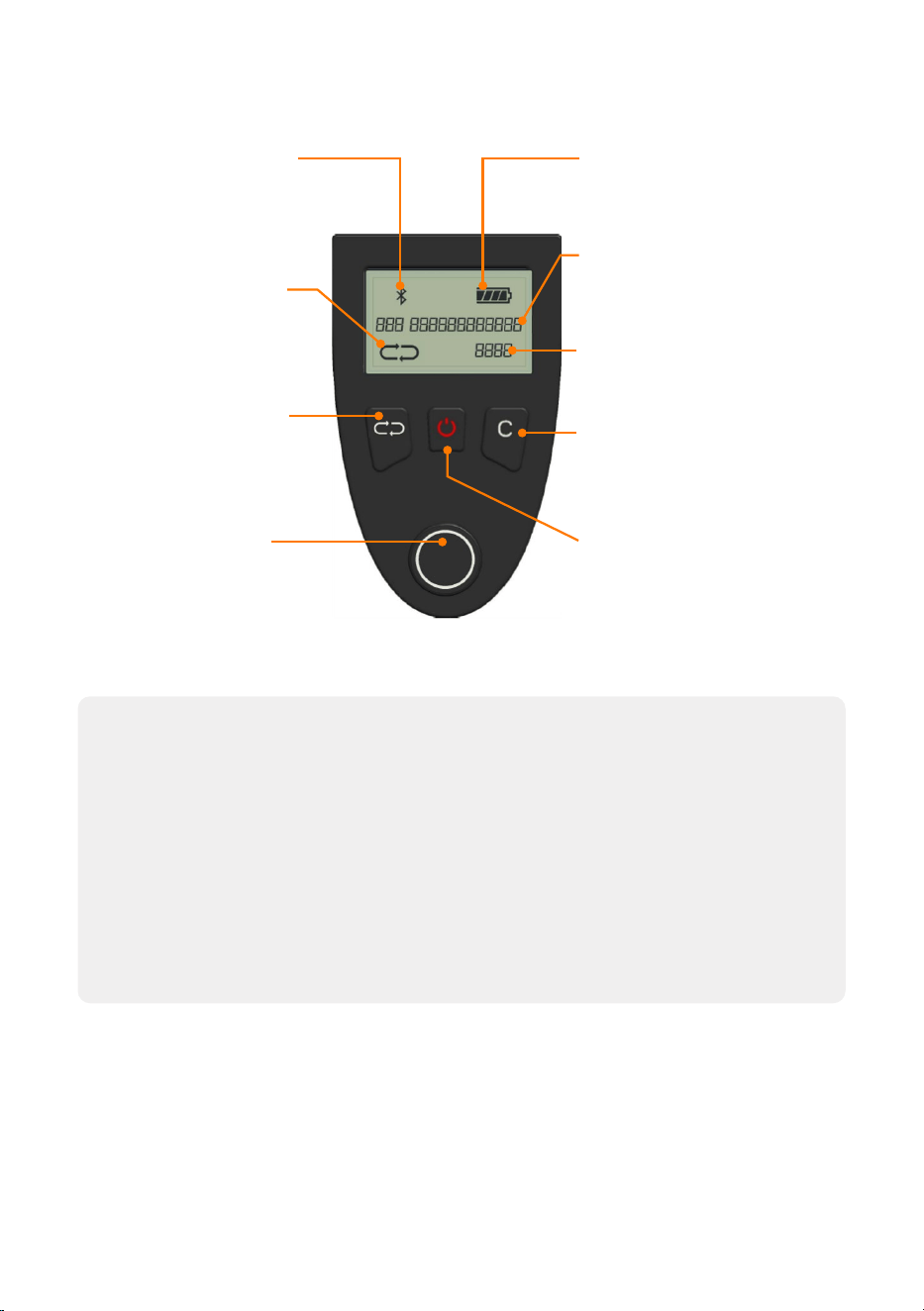
HR0 Screen & Keypad
Bluetooth Indicator
Displays when a
recording device is
connected to the reader
Battery Indicator
Level of charge remaining in
battery
Continuous Mode
Indicator
Displays when continuous
tag reading is enabled
EID Tag
Displays the last tag read
Counter
The total number of tags read
Continuous Mode
Button
Select to enable or disable
continuous tag reading
Read Tag Button
Press to read a tag.
In Continuous Mode, press once
to start reading multiple tags
Clear Button
Press and hold briefly to
clear the tag count
Power Button
Powers On or Off the HR0
Tips
Counter
The counter will increment each time an EID tag is read, displaying the total number of
animals scanned.
Press the
Clear button at the beginning of a session to reset the number of tags read to
zero. For each tag scanned the counter increases, providing a total for the session.
Continuous Mode
The reader continues to transmit following the first tag read, allowing multiple tags to be
read without having to press the Read Tag button for each tag scanned.
Go to "Tag Reading" on page 9 for more information.
9
Tag Read button operation
When you press the Read Tag button, one of the following may occur:
• If the reader is powered off, it powers on and becomes discoverable to
Bluetooth®-enabled devices. For example, a TW-x Weigh Scale or the Gallagher
Animal Performance app.
For more information, see Connecting to the Gallagher Animal Performance app and
Connecting the HR
0 to Other Devices.
• If not paired, the reader operates as a standalone device.
• If powered on and operating in Continuous Mode, the reader searches for tags until
the button is pressed again.
• If powered on and in standard mode, the reader starts a timed search for tags. When
the
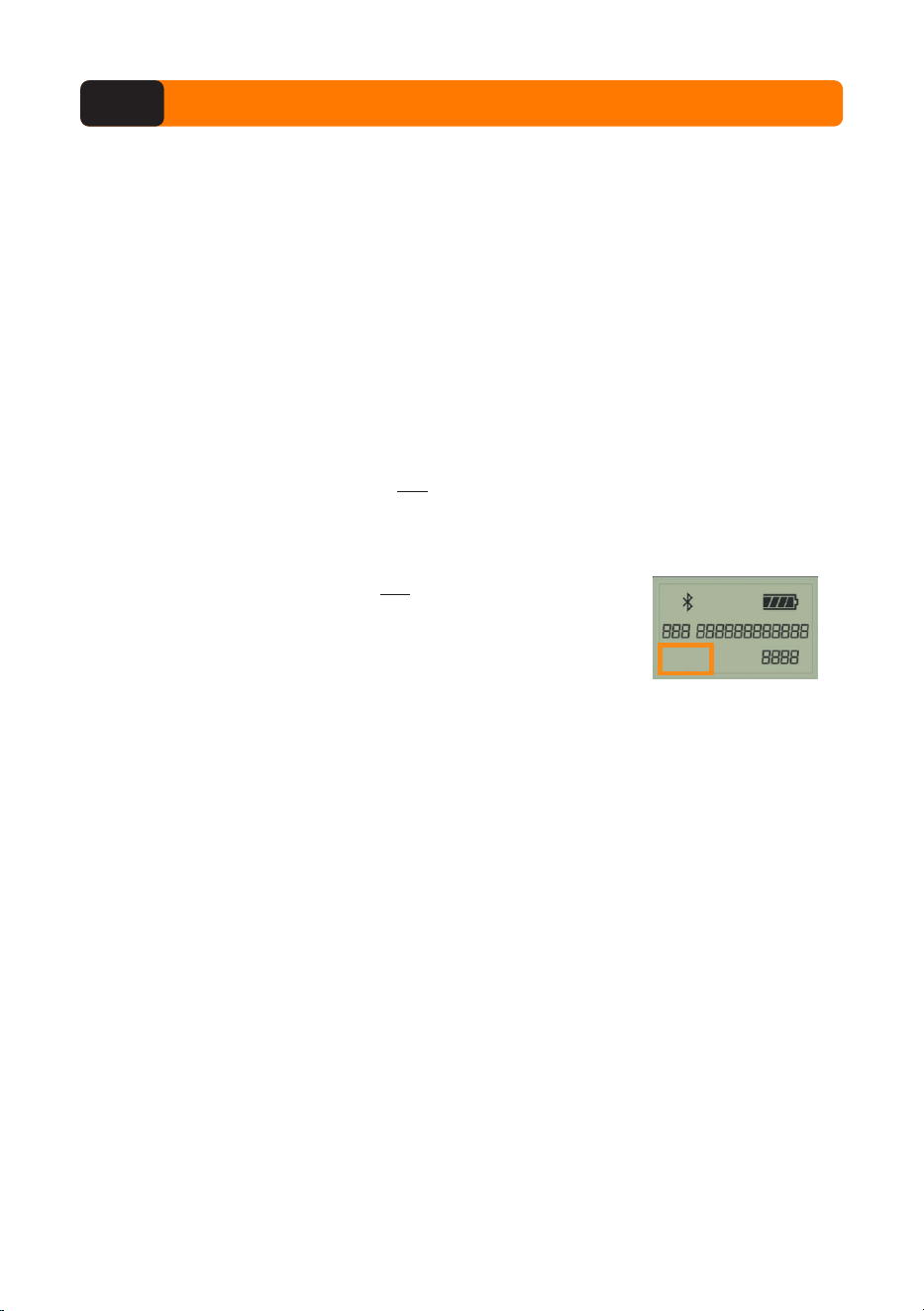
Continuous Mode icon is not displayed, the reader operates in standard mode.
Standard (Non-continuous) Tag Reading
When the Continuous Mode icon is not displayed, the reader
operates in standard mode.
To read a tag:
1. Press the Read Tag button on the HR0
.
2. Move the antenna close to the EID tag.
3. The red light flashes.
A successful tag read is confirmed when all of the following occur:
• You hear a single beep.
• You feel a vibration in the handle.
• The LED stops flashing and glows.
• The screen displays the tag information.
• The tag count increases.
The reader stops transmitting when:
• A
valid tag is read.
• No EID tag is read within 5 seconds.
• You press the Power button.
• The battery level is low (battery icon flashes).
Tag Reading4
10
Continuous Tag Reading
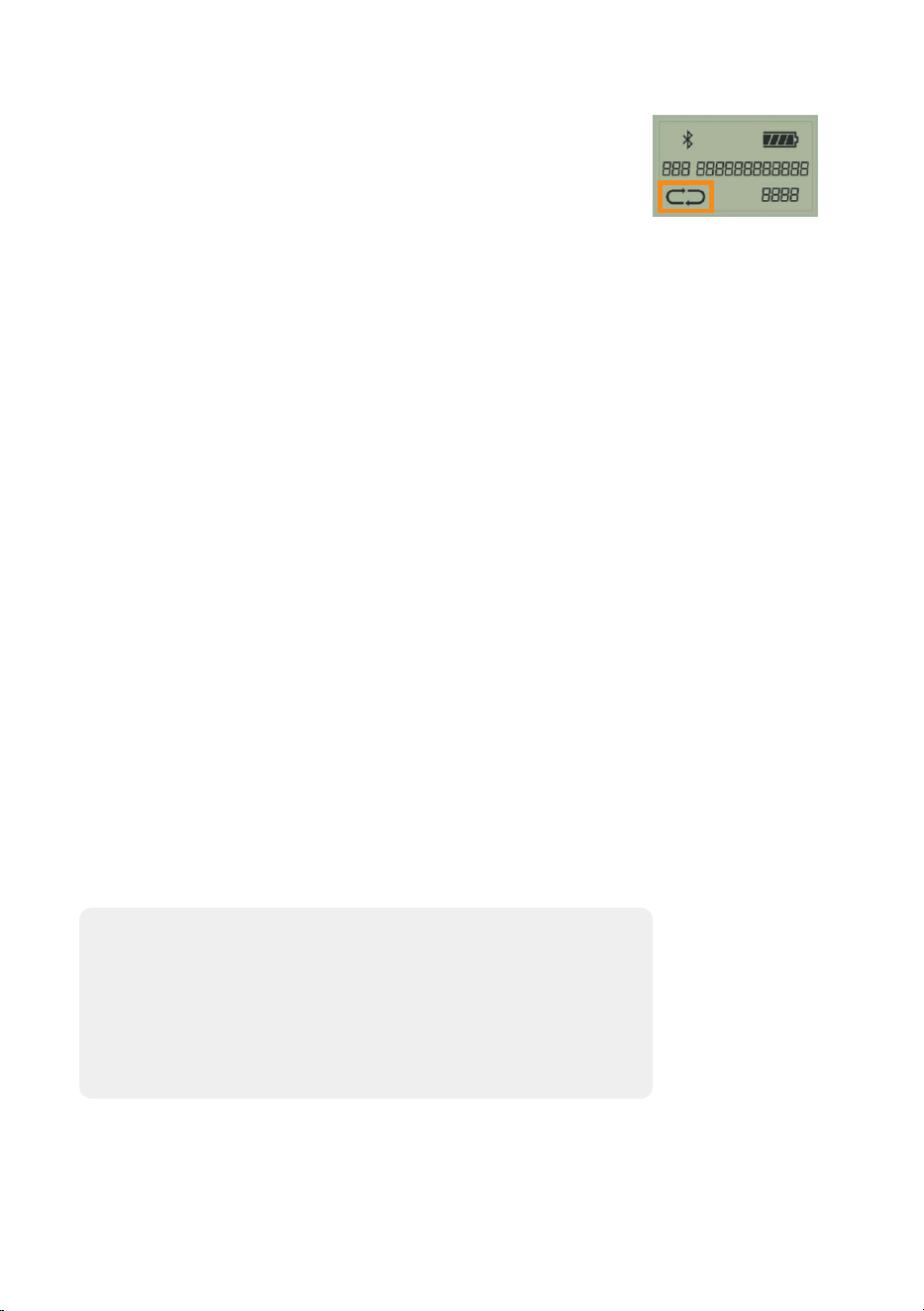
To start Continuous Mode:
• Press the
Continuous Mode button.
• The Continuous Mode Indicator displays on the LCD screen
to show the mode is active.
To read tags continuously:
1. Press the
Read Tag button once to start the reader.
Υ The reader will transmit continuously.
2. EID tags are read continuously as you move the antenna
close to each ear tag.
3. A red light on the antenna turns on each time a tag is read.
A successful tag read is indicated by the following occurring:
• You hear a beep.
• You feel a vibration in the handle.
• The LED briefly stops flashing.
• The screen displays the tag information.
• The tag count increases.
Continuous Tag Reading stops when:
• You press the Read Tag button again
• You press the Power button
• The battery level is too low — the battery icon is flashing
.
Duplicate EID Tag checking
• The HR0 checks for duplicate EID tags during a session.
• If a tag is read a second time in a session, the tag count
does not increase and a double beep sounds.
• If you have fewer than 100 animals, you must reset the
session count to 0 each time you start a new session.
11
HID Mode
The HR0 supports HID mode, which means it works like a keyboard. When this mode is
turned on, any tag you scan will be typed out automatically into the active text field on
whatever app or form you have open on a connected device, such as a computer, tablet, or
smartphone.
When to use HID mode:
HID mode is helpful when you want to quickly scan tag numbers into a spreadsheet or form
without needing special software. For example, a vet might use HID mode to scan animal
tags straight into a health check form on a tablet while out in the field.
How to Enable HID mode:
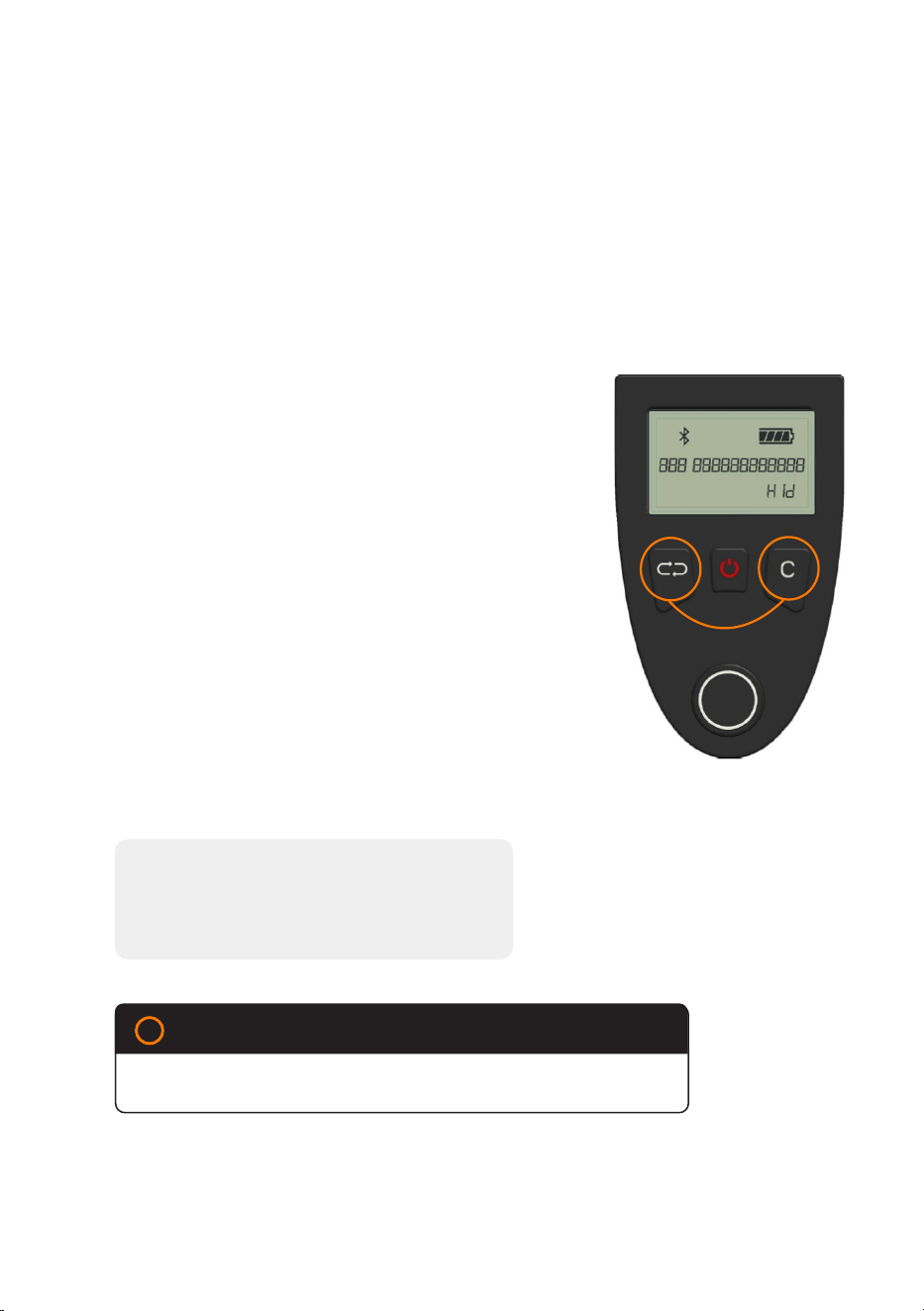
1. Press and hold the Continuous Mode and
the C buttons at the same time.
2. Keep holding both buttons for 4 to 5
seconds.
3. You will hear a beep, and the word “HID” will
appear on the screen.
Υ The reader is now in HID mode and
able to send scanned tag numbers
as keyboard input, to an open form or
spreadsheet on your mobile device.
How to Exit HID mode:
1. Press and hold the Continuous Mode and
the C buttons for 4-5 seconds until a beep
sounds.
Checking reader mode:
If you’re unsure of the reader mode, check the
display when the HR0 is powered on. ‘HID’ will
appear if the HID mode is active.
IMPORTANT
!
HID mode does not operate if weigh scales are connected.
12
The HR
0 operates as a standalone EID reader until it is connected using Bluetooth®
wireless technology to other devices, for example:
The HR0 Hand Held EID Tag Reader has no internal memory
and does not store scanned EID tags. To record data it must be
connected to a 3rd party device.
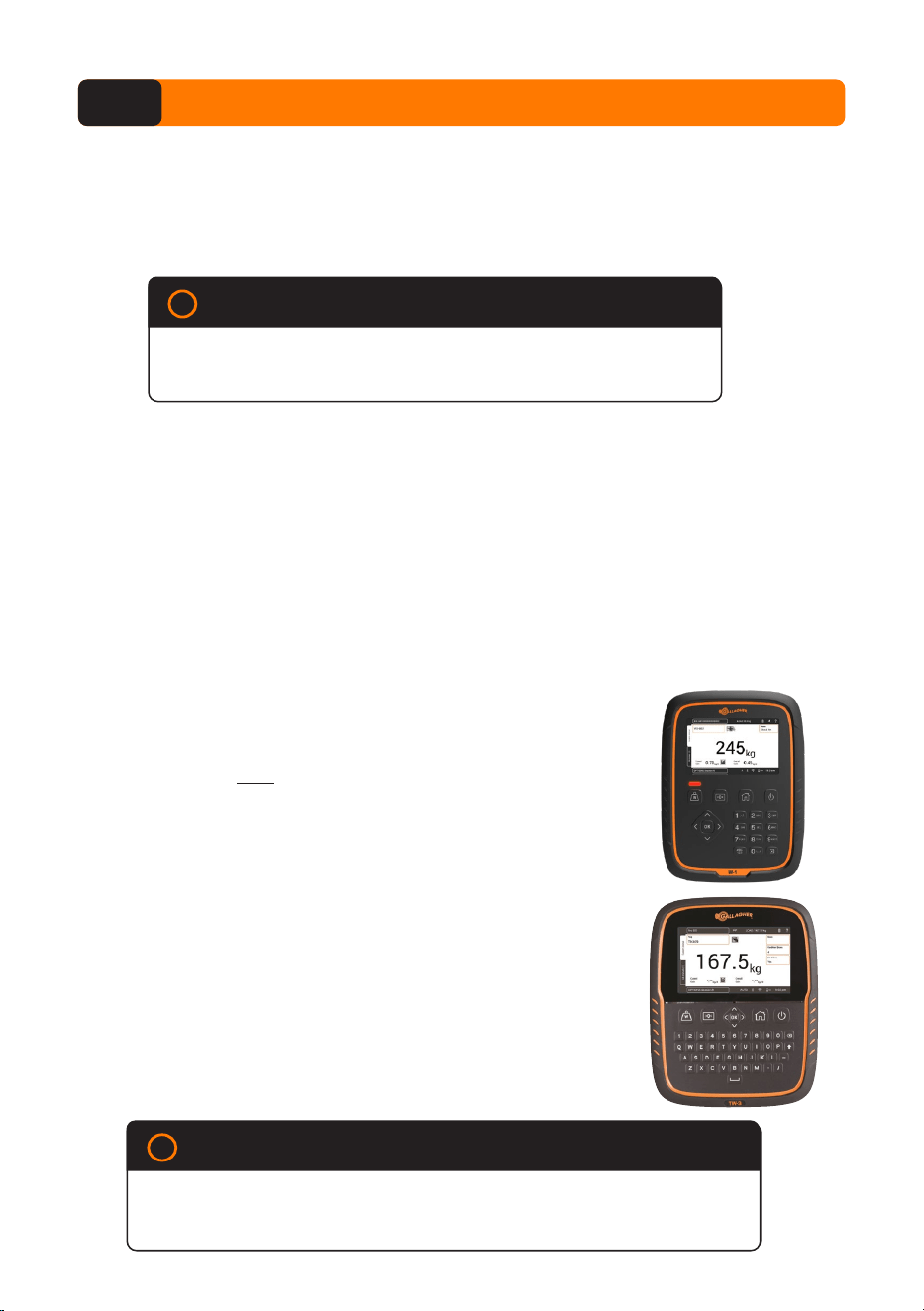
• A weigh scale (for example: Gallagher W
-1, TW-x or TWR-x).
• A mobile device with the Gallagher Animal Performance app installed . Refer
to Gallagher Animal Performance app pg. 12.
! IMPORTANT
Bluetooth
®
Connectivity
• Bluetooth connectivity is always enabled when the reader is powered on.
• The HR0 is always discoverable to other devices if no Bluetooth connection has
been established.
• Once a Bluetooth connection is established, the Bluetooth icon appears on the
screen.
The EID Reader connects wirelessly using the weigh
scale’s Bluetooth® technology.
1. Power on both the HR
0 EID Reader and the
weigh scale.
2. On the weigh scale, tap
Settings > Equipment
Connections > EID Reader.
3. Select
Bluetooth.
Υ The weigh scale will search for available
devices within range.
4. Select the HR
0 from the Available Devices list,
then press Connect.
When the reader is connected press Done.
Connect the HR0 to a W-1, TW-x or TWR-x
Weigh Scale
Connecting the HR0 to Other Devices5
IMPORTANT
!
I
f you use a W-0 weigh scale, connect both the W-0 and the HR0 to the
Gallagher Animal Performance app on your mobile device. These
devices do not connect to each other.
13
Using a mobile or tablet:
1. Scan the QR code to download the
Gallagher Animal Performance App.
The Gallagher Animal Performance App is a cloud based all-in-one software solution that
allows you to view and track livestock performance anywhere at anytime on multiple devices.
Because the HR
0 has no internal memory, it works with the Animal Performance app to
record EID tags scanned during a session.
The Animal Performance app is used with other Gallagher Weighing & EID equipment to
serve as the main database for all of your animal information.
For example, the mobile app can also be connected to a W-0 weigh scale to record weights
with the HR
0 tag reading.
When a session is completed, the recorded session on the mobile app can be synced to the
Animal Performance cloud software. It allows you to synchronize your animal data without
leaving the yard.
To use the Gallagher Animal Performance app, you will need a Gallagher account.
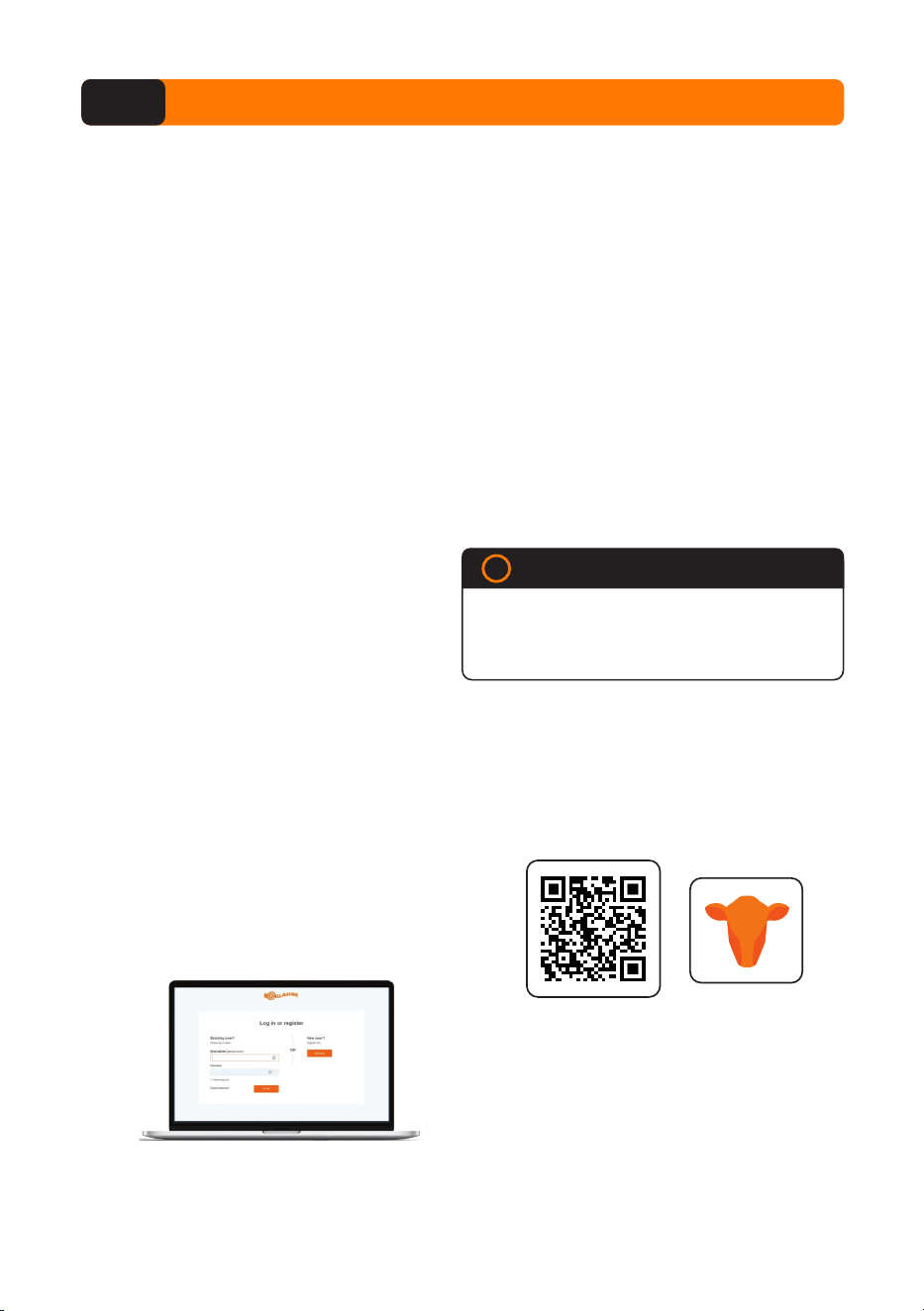
Using a PC or laptop:
1. Go to https://am.app.gallagher.com/
amc/dashboard
•
Log in to your existing account, or
•
Register to create an account by
following the on-screen prompts.
To create an account you will need:
• A mobile phone or tablet, or
• A desktop computer or laptop
• An internet connection.
IMPORTANT
!
If you already have an Ag Devices account
for your fence, or a log in for our website
please use that.
Gallagher Animal Performance App6
2. Log in to your existing Gallagher
account or select Sign Up Now to
create an account on the mobile app by
following the on-screen prompts.
14
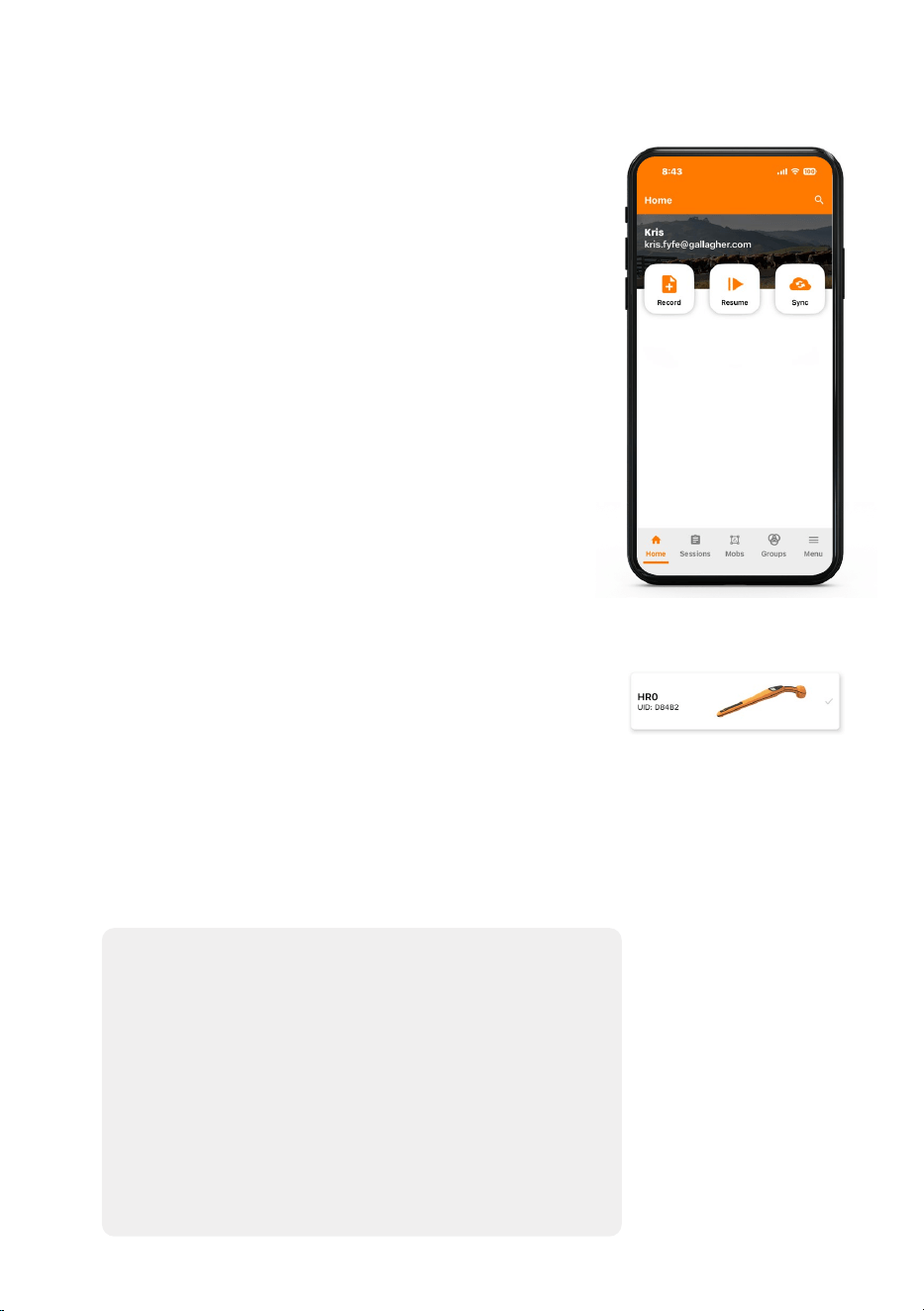
1. Power on the HR0.
This puts the device in discoverable mode so it can be
found by the app or other devices.
2. Open the app, press the Record button.
• Devices with Bluetooth® connectivity that are
powered on and within range will display.
Note:
This could take approximately 60 seconds.
• Devices previously connected to the app will
display in a list.
3. Select the HR0
from the list then press Connect.
• Once the HR0 is paired with the app, a double
beep will sound and the Bluetooth icon will display
on the HR0 screen.
Υ Press
Done. The HR0 is ready to start scanning
tags in a session.
Note:
If the HR0 shuts down during a session,
turning it on again will automatically resume
the session.
Device found within range
Connect the HR0 to the Gallagher Animal Performance App
Firmware update
From time to time, updates may be available for the HR0
firmware. It is important to check periodically for any
new updates.
1. Open the app, select Menu > Device Configuration.
2. Select the HR0
you are connected to and press
Connect.
The app checks for a firmware update. If an update is
detected, you must be connected to WiFi to
download it.
15
The Gallagher HR
0 Hand Held EID Tag Reader is a tough and reliable product designed for
use in typical livestock environments. However, proper care and maintenance can extend the
Reader’s life.
Listed below are guidelines for keeping the Reader in good condition.
• For optimal battery life, Gallagher recommends that you store the Reader in a cool,
dry area (10 to 30 ° Celsius) out of direct sunlight.
• After use, clean the Reader with a damp cloth. Take care not to scratch the display.
• Recharge the batteries after use and before storing for extended periods.
Internal battery type:
Internal battery voltage:
T
ypical charge time on mains charger:
IP (Ingress Protection) Rating:
Operating temperature range:
Charging temperature range:
Storage temperature range:
Lithium Ferro Phosphate (LiFePO4)
3.2
volt
8 hours
IP66
-10°C to +50°C (14°F to 122°F)
+10°C to +40°C (50°F to 104°F)
-10°C to +30°C (humidity45% to 85%)
(14°F to 86°F)
Care and Maintenance7
Specifications8

16
Need more help?
For after-sale support, please contact the retailer where you purchased this product.
If you need additional assistance, your local Gallagher distributor can help.
For the latest distributor information, please visit:
https://am.gallagher.com/en/International-Distributors
You can also submit an enquiry using the Contact Us form on our website at:
https://am.gallagher.com/Support/Contact.
Troubleshooting
9
Use this table to identify error codes that the device can display.
Err 01
Battery temperature out of range (no animation on the actual battery
symbol, no charging)
Err 02
Appears briefly for 1 second after a tag read if the antenna is likely to
need servicing to improve read range
Err 03
Appears permanently after a tag read attempt if the antenna is broken
and needs servicing, power off and on to try again
17
Waste Electrical and Electronic Equipment
This symbol on the product or its packaging indicates that this product
must not be disposed of with other waste. Instead, it is your responsibility
to dispose of your waste equipment by handing it over to a designated
collection point for the recycling of waste electrical and electronic
equipment.
The separate collection and recycling of your waste equipment at the
time of disposal will help conserve natural resources and ensure that it is
recycled in a manner that protects human health and the environment. For
more information about where you can drop off your waste equipment for
recycling, please contact your local city recycling office or the dealer from
whom you purchased the product.
Product Disposal9
The Bluetooth
®
word mark and logos are registered trademarks owned by
the Bluetooth SIG, Inc. and any use of such marks by Gallagher Group Ltd is
under license. Other trademarks and trade names are those of their
respective owners.
Bluetooth
®
Regulatory Compliance Statement
This product bears the Regulatory Compliance Mark (RCM) to indicate that it
complies with all applicable Australian regulations, including:
• Electrical safety requirements under the Electrical Equipment Safety
System (EESS), and
• Electromagnetic compatibility (EMC) and telecommunications standards
as required by the Australian Communications and Media Authority
(ACMA).
The RCM symbol confirms that the product has been tested and meets
the relevant Australian and New Zealand standards. The supplier is
registered on the national database and holds a valid Supplier Declaration of
Conformity (SDoC) for this product.
For more information, visit: www.eess.gov.au or www.acma.gov.au
Approvals and Standards10
WARNING: This product can expose you to chemicals including Styrene,
which is known to the State of California to cause cancer and BPA which is
known to the State of California to cause birth defects or other reproductive
harm. For more information go to www.P65Warnings.ca.gov

18
ISED Canada
This device contains licence-exempt transmitter(s)/receiver(s) that comply
with Innovation, Science and Economic Development Canada’s licence-
exempt RSS. Operation is subject to the following two conditions:
(1) this device may not cause interference, and
(2) this device must accept any interference, including interference that may
cause undesired operation of the device.
ISED Canada RF Exposure warning
To comply with ISED RF exposure requirements, follow the installation and
usage instructions in this user guide. You must maintain a minimum distance
of 20cm (8") between the EID antenna and any part of your body.
Avis de conformité à la réglementation d’ISDE
L’émetteur/récepteur exempt de licence contenu dans le présent
appareil est conforme aux CNR d’Innovation, Sciences et Développement
économique Canada applicables aux appareils radio exempts de licence.
L’exploitation est autorisée aux deux conditions suivantes :
(1) l'appareil ne doit pas produire de brouillage; et
(2) l'appareil doit accepter tout brouillage radioélectrique subi, même si le
brouillage est susceptible d’en compromettre le fonctionnement.
FCC
This device complies with part 15 of the FCC Rules. Operation is subject to
the following two conditions: (1) this device may not cause interference, and
(2) this device must accept any interference, including interference that may
cause undesired operation.
This equipment has been tested and found to comply with the limits for a
Class B digital device, pursuant to part 15 of the FCC Rules. These limits
are designed to provide reasonable protection against harmful interference
in a residential installation. This equipment generates, uses and can radiate
radio frequency energy and, if not installed and used in accordance with
the instructions, may cause harmful interference to radio communications.
However, there is no guarantee that interference will not occur in a particular
installation.
If this equipment does cause harmful interference to radio or television
reception, which can be determined by turning the equipment off and on, the
user is encouraged to try to correct the interference by one or more of the
following measures:
• Reorient or relocate the receiving antenna.
• Increase the separation between the equipment and receiver.
• Connect the equipment into an outlet on a circuit different from that
to which the receiver is connected.
• Consult the dealer or an experienced radio/TV technician for help.
CAUTION: Changes or modifications not expressly approved by Gallagher
Group Limited could void the user’s authority to operate the equipment.
ISED
(previously
IC - Industry
Canada)

19
Need more help?
Contact our customer service or technical support teams.
New Zealand +64 0800 731 500
Australia + 61 1800 425 524
United States +1 800 531 5908
Canada +1 800 531 5908
Chile +56 93431 9695
Brazil +55 66 9 9660 0496
LATAM +56 93920 1844
Rest of World +64 0800 731 500
You can also submit an enquiry using the Contact Us form on our website at:
https://am.gallagher.com/Support/Contact.
Avertissement concernant l’exposition aux RF
d’ISDE
Pour se conformer aux exigences d'exposition RF d’ISED, suivez les
instructions d’installation et d’utilisation de ce guide. Vous devez maintenir
une distance minimale de 20 cm (8 po) entre l’antenne EID et toute partie de
votre corps.
This product complies with all applicable EU legislation.

am.gallagher.com
Gallagher Group Ltd, Private Bag 3026, 181 Kahikatea Drive, Hamilton 3240, New Zealand
03/26
v.2