QSG Supreme T2, V1.0 1
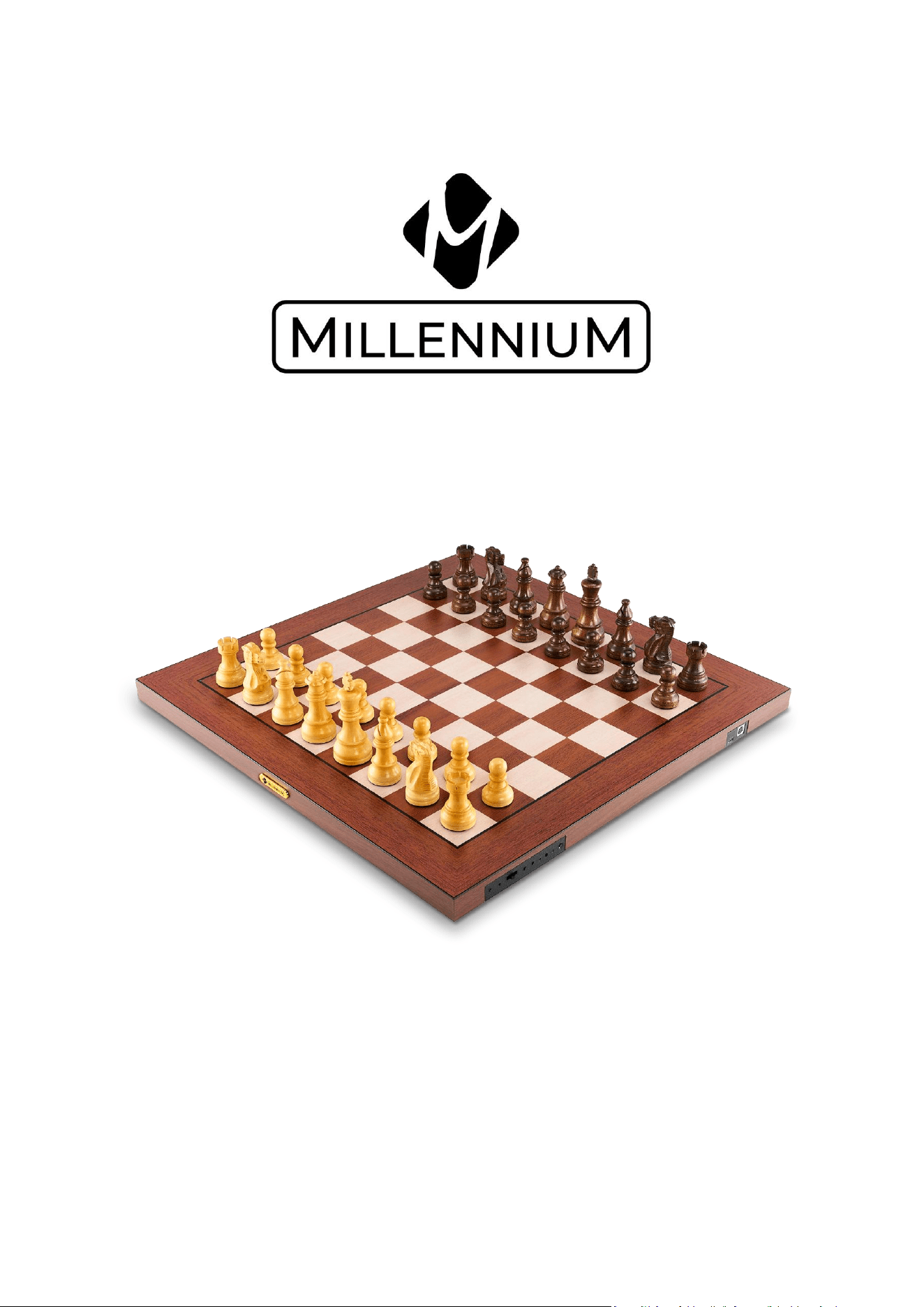
Supreme T2
Quick Start Guide

QSG Supreme T2, V1.0 2

QSG Supreme T2, V1.0 3
Game instructions – ENGLISH
This brief guide will enable you to start playing a game with your Supreme T2 electronic
chess board.
Game instructions – ENGLISH ........................................................................................................................................ 3
Scope ............................................................................................................................................................................................... 3
Charging the chessboard ..................................................................................................................................................4
Charging indicator .............................................................................................................................................................4
Compatible power supplies .........................................................................................................................................4
The battery charge status ..................................................................................................................................................4
Battery level indicator when switching on ........................................................................................................4
Displaying the battery status during use ...........................................................................................................4
Charging the board during use.................................................................................................................................4
Buttons and their functions .............................................................................................................................................4
Connecting the board to apps, programs, or chess computer modules ........................................... 5
Wireless connection via Bluetooth ......................................................................................................................... 5
Connection via USB cable ............................................................................................................................................. 6
Connection with chess computer modules ...................................................................................................... 6
Accessories .................................................................................................................................................................................. 7
Maintenance ............................................................................................................................................................................... 7
Battery replacement ........................................................................................................................................................ 7
Updates .......................................................................................................................................................................................... 8
Delivery Scope
The following components are included with your Supreme T2 eBoard:
- Electronic chess board with RFID piece recognition
- Depending on the version, 1 set of chess pieces with 2 additional queens
- USB cable type C – type C, 2 meters long, for charging and data transfer
- USB adapter type C – type A for use with older USB devices
- User manual & important informations
QSG Supreme T2, V1.0 4
Charging the chessboard
Before you can use your new chessboard, please charge it completely. To do this, plug the
supplied USB-C cable into the appropriate port on the right side of the board and connect
it to a USB power adapter (not included).
Charging indicator
The charging indicator light on the board will now light up. The board is charging while
the LED is lit. When the charging indicator light turns off, the board is fully charged.
Charging takes approximately 6 hours. At the end of the charging process, the light may
flash on and off sporadically; this is normal. You can now disconnect the board from the
charging cable.
Compatible power supplies
The Supreme T2 is compatible with all standard USB power supplies. Make sure that the
power supply has a minimum output of 0.5A.
The battery charge status
Battery level indicator when switching on
When switched on, the chessboard displays the current battery charge status. The 9 LEDs
at the bottom of the board are used for this purpose. If all 9 LEDs are lit, the battery is fully
charged. If only 1 LED is lit, the battery is almost empty.
PLEASE NOTE: this display only appears when at least one piece is on the board.
Displaying the battery status during use
If the battery level drops to a critical level while the board is in use, the board's operating
indicator will start flashing. The LED will flash slowly at first, indicating that you have
approximately 60 minutes of use remaining. If the LED flashes rapidly, the board must be
connected to a power source immediately.
Charging the board during use
You can also charge the board at any time during use. The charging time will then be
extended accordingly. You can also use an external power bank for this purpose.
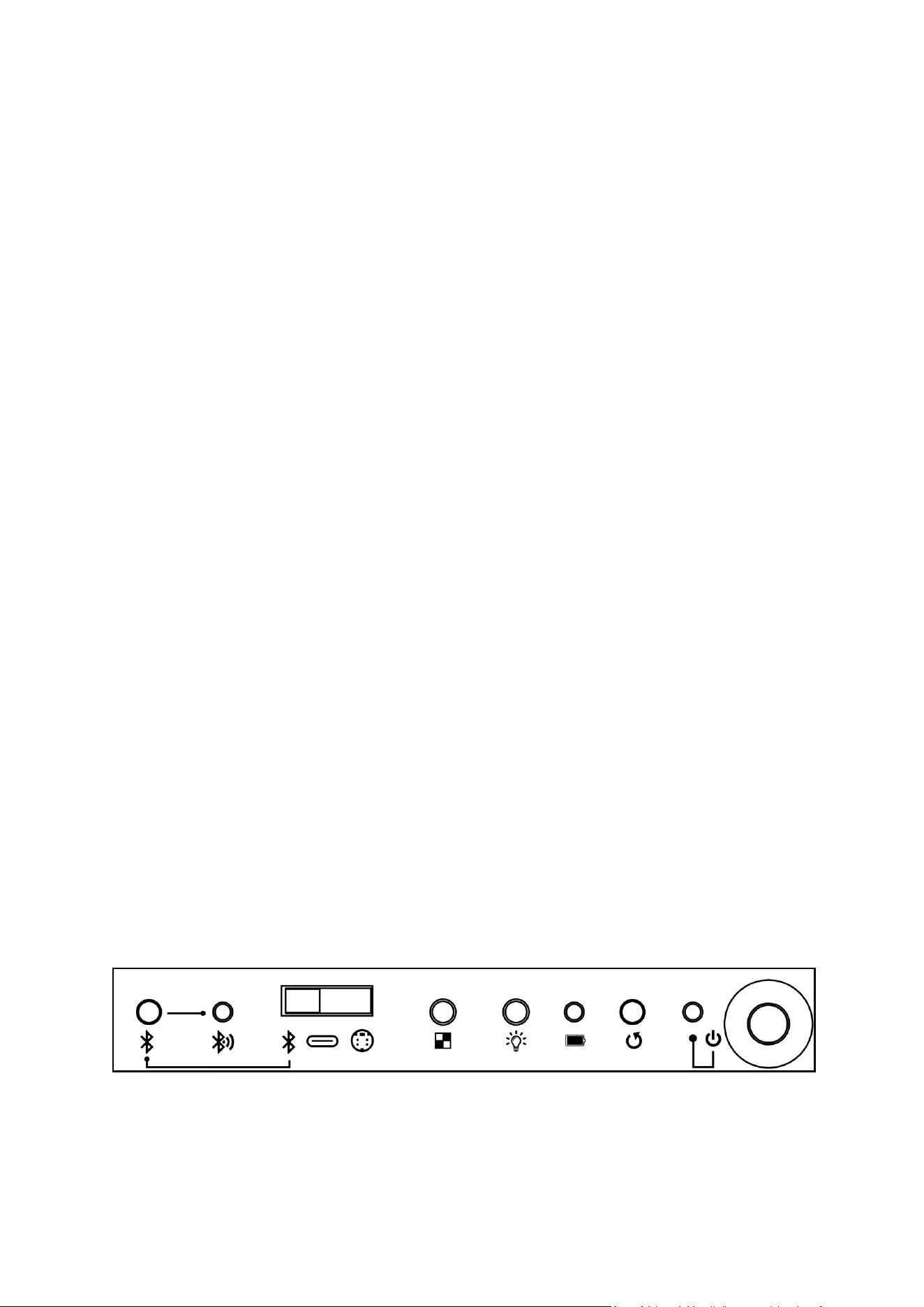
Buttons and their functions
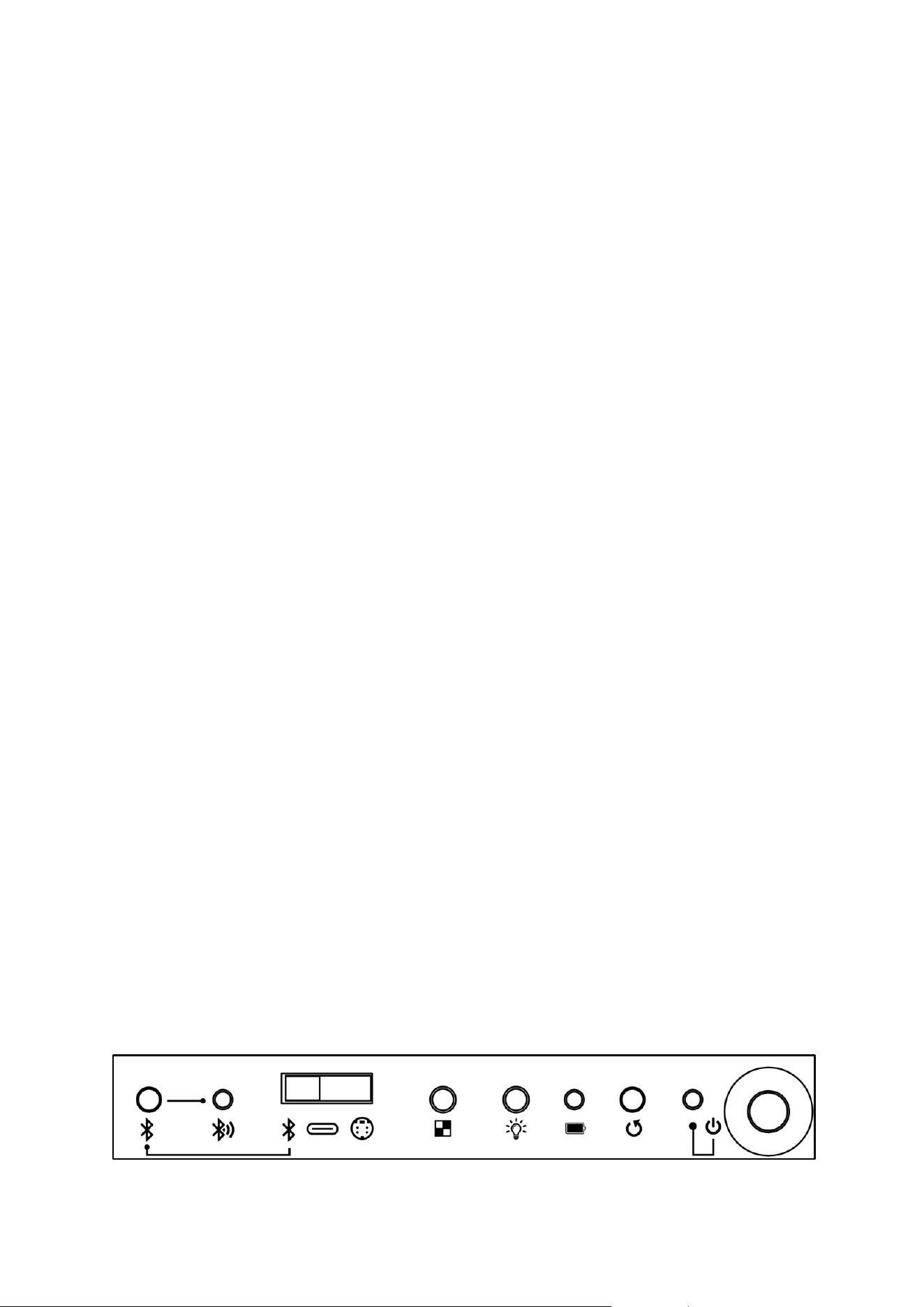
The Supreme T2 has the following buttons and control indicators:
QSG Supreme T2, V1.0 5
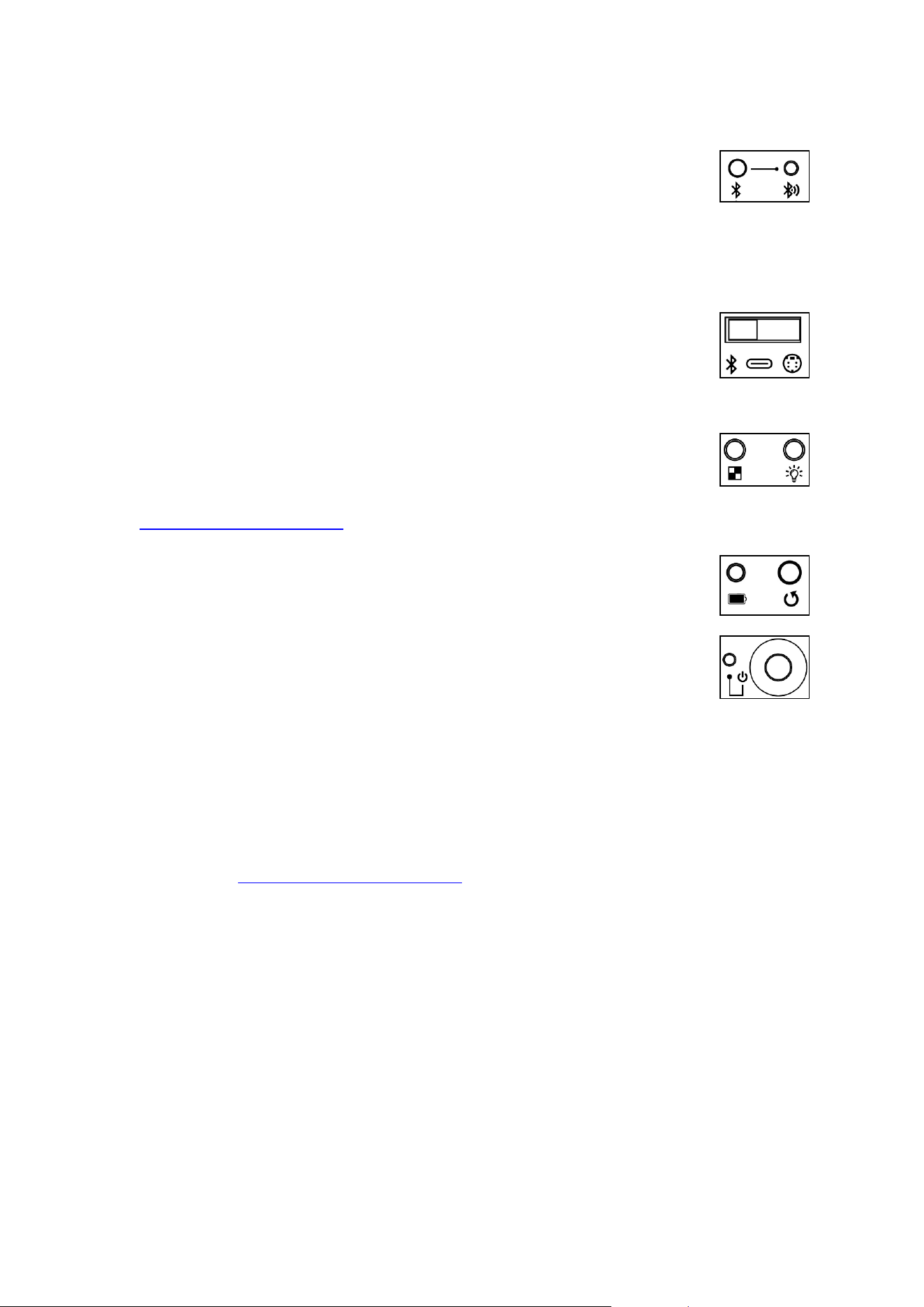
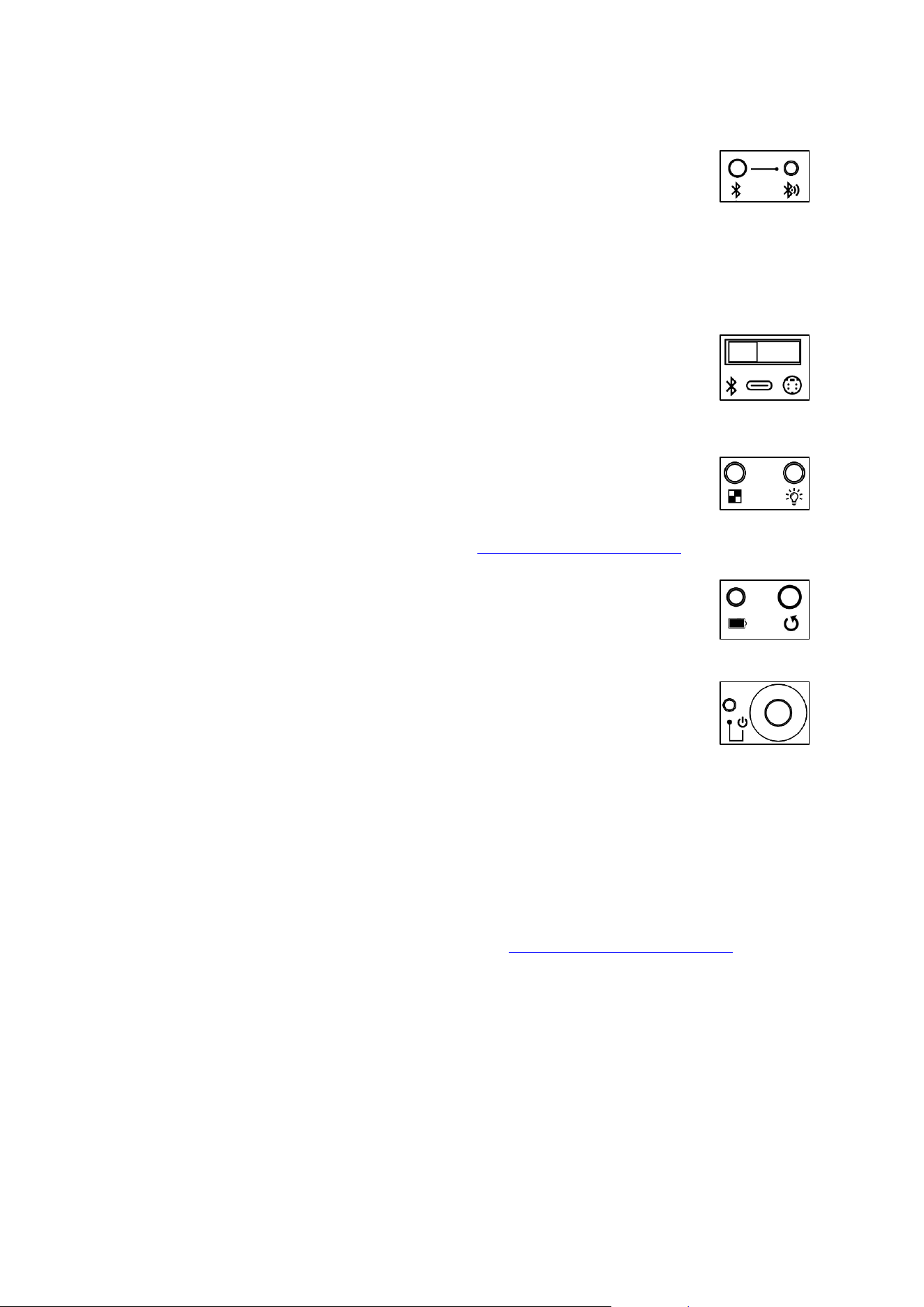
These have the following functions (from left to right)
➢ Bluetooth pairing button: Pressing the button twice puts the board into
pairing mode, allowing you to connect to a Bluetooth-compatible device
(e.g., a smartphone).
Bluetooth must be selected as the input source.
➢ Bluetooth control LED:
o Steadily lit: Bluetooth connection is established
o Flashing: Device is in pairing mode
➢ Slide switch for selecting the input source: This allows you to select the
data source to which the board should be connected:
o Bluetooth for wireless connection to smartphones or PCs
o USB-C port for connection to PCs
o Mini-Din for connection to compatible chess computer modules
➢ Button for controlling game recording (PGN data)
➢ Button for adjusting the brightness of the 81 board LEDs
ATTENTION: These functions have not yet been fully implemented at the
time of writing this manual. Please download the latest version of the manual from
www.computerchess.com.
➢ Charging indicator LED: Indicates that the board is charging
➢ Button for performing a device reset, resets the board to factory settings
➢ Power LED: Indicates that the board is powered on.
o Slow flashing: Battery is low, please recharge
o Fast flashing: Battery is empty, connect the device to a power
source immediately
➢ On/off button: Turns the board on or off.
Connecting the board to apps, programs, or chess computer modules
In order to use a chess application with the Supreme T2 eBoard, the application must be
ChessLink-compatible. A list of apps and programs that are compatible with our eBoards
can be found at https://computerchess.com/ under "Compatible Apps."
Specific instructions and information on how to connect the board to your desired
application can be found from the respective software manufacturer.
Wireless connection via Bluetooth
You can connect your eBoard wirelessly to all common Bluetooth-enabled devices
(smartphones, tablets, or PCs). For smartphones or tablets, the connection is usually not
controlled via the device's system settings, but via the corresponding application.
Here's how the connection works using the Millennium ChessLink app:
1) Switch on the Supreme T2.
2) Set the slide switch to "Bluetooth."
3) Start the app on your mobile device.
4) Make sure that on your mobile device:

QSG Supreme T2, V1.0 6
a. Bluetooth is enabled
b. All necessary permissions for the Bluetooth connection are set correctly -
ATTENTION: Location sharing is essential for the Bluetooth connection to
work.
5) Now press the Bluetooth pairing button on the Supreme T2
6) Click on the connection icon on your mobile device
7) Click the "Search Board" button and wait a moment
8) Once the board has been found, click on it. The connection will now be
established.
ATTENTION: If the board cannot be connected to the desired chess application, this is
often because the board is already connected to another device or another chess
application on the same device.
Typically, the connection will be re-established automatically the next time the board and
app have been successfully connected and the board has not been connected to other
Bluetooth devices in the meantime.
When connected via Bluetooth, the board uses its internal battery as a power source.
However, you can still plug in a USB charging cable during operation to charge the board.
Connection via USB cable
To connect the board to a computer using a USB cable, set the slide switch to USB-C
mode. Now connect the supplied USB cable to the board and your computer. If your
computer does not have a USB-C output, you can use the supplied USB-C-A adapter.
ATTENTION: The FTDI driver may need to be installed. You can find this on the
manufacturer's website, for example: https://ftdichip.com/drivers/vcp-drivers/
While the board is connected to a USB-C output, it will also be charged during operation.
ATTENTION: It is possible to operate the board even when the battery is discharged. Due
to the increased power consumption caused by simultaneous charging, it is
recommended to use the USB-C port on the computer if necessary.
Connection with chess computer modules
To connect the board to one of our chess computer modules, set the slide switch to Mini-
Din mode. Now connect the board to the chess computer module using a Mini-Din cable.
Make sure not to bend the pins and that the cable is correctly aligned.
When operating a chess computer module, the board is powered by the chess computer.
The battery is also recharged here, depending on its charge status.
Compatible chess computer modules include the ChessClassics Element and the
Mephisto Phoenix. Please use the mini-DIN cable supplied with the chess computer or
the ET-M820-DK connection cable available from us to connect the devices.
Please also use the power supply unit supplied with the chess computer. If you have
purchased your chess computer module separately, without a power supply unit, our ET-
M820-NT power supply unit (e.g. for ChessClassics Element) is suitable for most modules.
The Mephisto Phoenix is typically supplied with a power supply unit, in this case the ET-
M900-NT model.

QSG Supreme T2, V1.0 7
Accessories
You will find numerous compatible accessories in our shop at
https://computerchess.com/.
We recommend our custom-made carrying cases for storing and transporting your
Supreme T2 board and all accessories.
Additional sets of pieces, pre-programmed RFID chips for modifying your own chess
pieces, matching chess computer modules, and numerous links to compatible software
applications can also be found on our website.
Maintenance
To ensure that you can enjoy your electronic chess board for a long time, please observe
the following instructions.
Charge the board regularly. Batteries that are not charged are subject to increased wear
and tear. Rechargeable batteries generally have a limited service life.
When not in use, disconnect the board from the power supply. This will protect the
battery.
Do not expose the board to shocks. When playing, make sure that your pieces do not fall
over.
The surface of the chessboard is sealed during manufacture. It is best cleaned with a
slightly damp microfiber cloth.
Protect the board and pieces from prolonged exposure to sunlight to prevent
discoloration.
Battery replacement
Every battery has a certain service life. Depending on how regularly the battery is used
and charged, it will need to be replaced.
If your Supreme T2 no longer achieves a satisfactory service life with the built-in battery, it
is time to replace the battery. This is not a warranty claim.
Your chessboard contains a standard CR18650 lithium-ion battery with 3.7V and 3500
mAH. You can purchase these types of batteries at any well-stocked electronics store.
Make sure you choose a battery with the highest possible mAH rating. The higher the
rating, the longer the board will play on a single battery charge.
To replace the battery, carefully place the board with the playing surface on a blanket.
Loosen the screws on the plastic housing containing the buttons and carefully lift out the
plastic housing. Be careful not to damage the connecting cables.
Remove the battery. Insert a new CR18650 battery. A sensor cable is attached to the
battery compartment, which monitors the battery temperature. Make sure that this is
tightly connected to the replacement battery. Reinstall the plastic housing, paying
particular attention to the cables.

QSG Supreme T2, V1.0 8
Updates
Updates to the operating instructions can be found on our website at
https://computerchess.com/Downloads/.
The Supreme T2 eBoard itself can also be updated. In the event of firmware updates, we
will also make these available at the above link.
This user manual has been carefully compiled and checked for accuracy. However, should
any errors be found, this does not constitute grounds for complaint regarding the device.
This user manual, including excerpts thereof, may not be reproduced without prior
written permission.
Copyright © 2025, MILLENNIUM 2000 GmbH, Ottobrunn, Germany

QSG Supreme T2, V1.0 9
Spielanleitung – DEUTSCH
Diese kurze Anleitung ermöglicht es Ihnen, ein Spiel mit Ihrem elektronischen
Schachbrett Supreme T2 zu starten.
Spielanleitung – DEUTSCH................................................................................................................................................ 9
Lieferumfang .............................................................................................................................................................................. 9
Aufladen des Schachbretts ............................................................................................................................................. 10
Anzeige des Ladevorgangs ........................................................................................................................................ 10
Kompatible Netzteile ..................................................................................................................................................... 10
Der Ladezustand der Batterie ....................................................................................................................................... 10
Anzeige des Akkustands beim Einschalten .................................................................................................... 10
Anzeige des Akkustands während der Nutzung ......................................................................................... 10
Aufladen des Brettes während der Nutzung ................................................................................................. 10
Tasten und ihre Funktionen ........................................................................................................................................... 10
Verbinden des Brettes mit Apps, Programmen oder Schachcomputer-Modulen .................... 11
Kabellose Verbindung per Bluetooth .................................................................................................................. 11
Verbindung mittels USB-Kabel ............................................................................................................................... 12
Verbindung mit Schachcomputer-Modulen ................................................................................................. 12
Zubehörteile ............................................................................................................................................................................. 13
Wartung ...................................................................................................................................................................................... 13
Akkutausch ........................................................................................................................................................................... 13
Updates ........................................................................................................................................................................................ 14
Lieferumfang
Zum Lieferumfang ihres Supreme T2 eBoards gehören folgende Bestandteile:
- Elektronisches Schachbrett mit RFID-Figurenerkennung
- Je nach Ausführung, 1 Satz Schachfiguren mit 2 zusätzlichen Damen
- USB Kabel Typ C – Typ C, 2 Meter lang, zum Aufladen und zur Datenübertragung
- USB Adapter Typ C – Typ A zur Nutzung mit älteren USB-Geräten
- Bedienungsanleitung & Wichtige Informationen
QSG Supreme T2, V1.0 10
Aufladen des Schachbretts
Bevor Sie ihr neues Schachbrett nutzen können, laden Sie es bitte komplett auf. Stecken
Sie hierfür das mitgelieferte USB-C Kabel in den entsprechenden Anschluss an der
rechten Seite des Brettes und verbinden Sie es mit einem USB-Stromadapter (nicht im
Lieferumfang enthalten).
Anzeige des Ladevorgangs
Die Ladekontroll-Leuchte am Brett geht nun an. Solange die LED leuchtet, wird das Brett
geladen. Wenn die Ladekontroll-Leuchte ausgeht, ist das Brett geladen. Der Ladevorgang
dauert etwa 6 Stunden. Am Ende das Ladevorgangs kann es sein, dass die Leuchte
sporadisch an- und wieder ausgeht, dies ist normal. Trennen Sie das Board nun vom
Ladekabel.
Kompatible Netzteile
Das Supreme T2 ist mit allen Standard USB-Netzteilen kompatibel. Achten Sie darauf,
dass das Netzteil mindestens 0,5A leistet.
Der Ladezustand der Batterie
Anzeige des Akkustands beim Einschalten
Beim Einschalten zeigt das Schachbrett den aktuellen Ladezustand der Batterie an.
Hierfür werden die 9 LEDs am unteren Brettrand benutzt. Leuchten alle 9 LEDs, ist der
Akku komplett geladen. Leuchtet nur noch 1 LED, ist der Akku fast leer.
ACHTUNG, diese Anzeige erscheint nur, wenn mindestens eine Figur auf dem Brett steht.
Anzeige des Akkustands während der Nutzung
Wenn der Akkustand während der Nutzung des Bretts auf ein kritisches Niveau sinkt,
fängt die Betriebsanzeige des Bretts zu blinken an. Zunächst blinkt die LED langsam,
dann haben Sie noch in etwa 60 Minuten Nutzungsdauer zur Verfügung. Wenn die LED
schnell blinkt, muss das Brett sofort an eine Stromquelle angeschlossen werden
Aufladen des Brettes während der Nutzung
Sie können das Brett auch jederzeit während der Nutzung aufladen. Die Ladedauer
verlängert sich dann entsprechend. Sie können hierfür zum Beispiel auch eine externe
Powerbank nutzen.
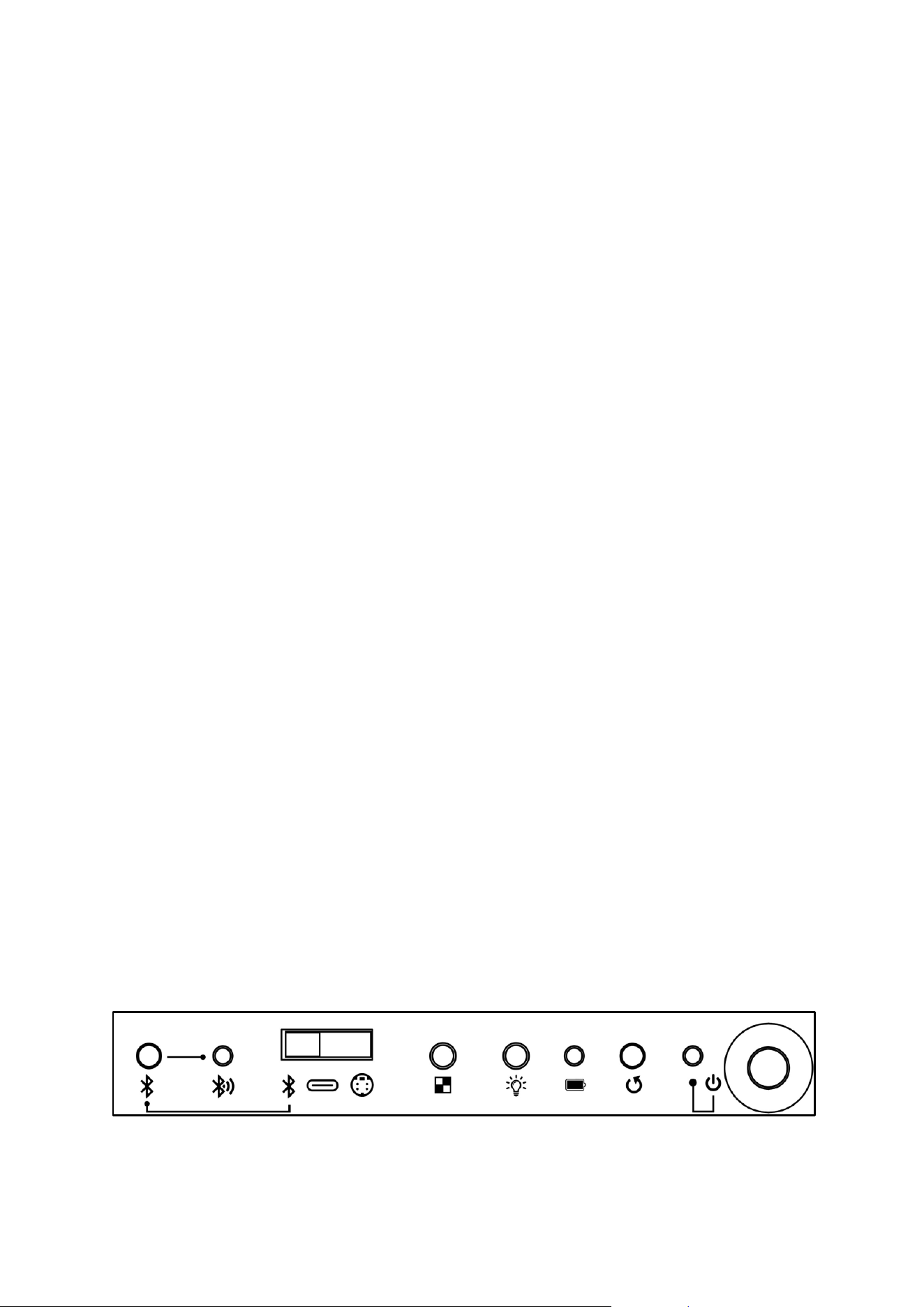
Tasten und ihre Funktionen
Das Supreme T2 verfügt über die folgenden Tasten und Kontroll-Anzeigen:
QSG Supreme T2, V1.0 11
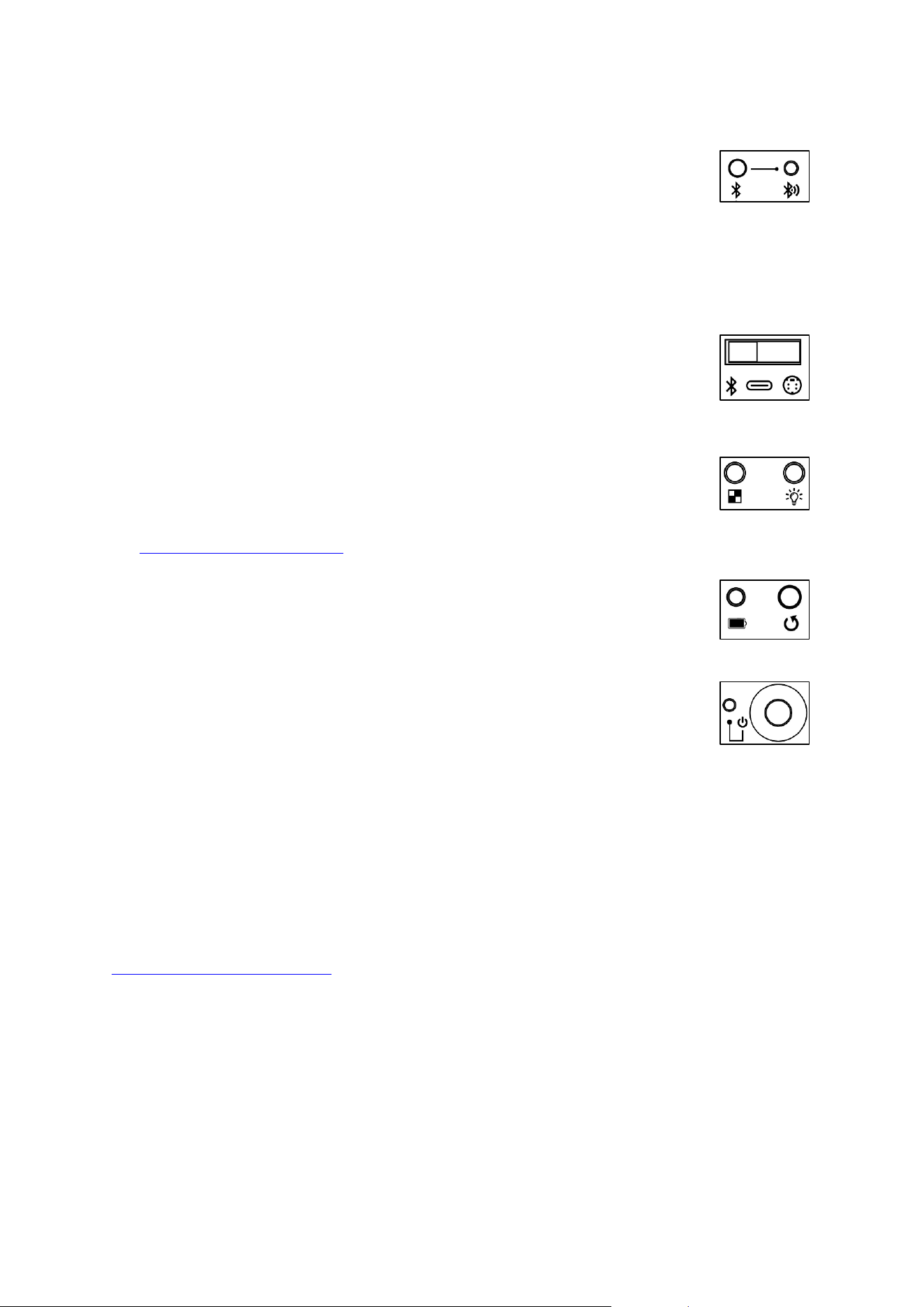
Diese haben die folgenden Funktionen (von links nach rechts)
➢ Taste für das Bluetooth-Pairing: Zweimaliger Tastendruck versetzt das
Brett in den Pairing-Modus, Sie können nun eine Verbindung mit einem
Bluetooth-kompatiblem Endgerät (zum Beispiel einem Smartphone)
herstellen.
Hierzu muss als Eingangsquelle Bluetooth ausgewählt sein.
➢ Bluetooth-Kontroll-LED:
o Leuchtet dauerhaft: Bluetooth-Verbindung ist hergestellt
o Blinkt: Gerät ist im Pairing Modus
➢ Schiebeschalter zur Auswahl der Eingangsquelle: Hiermit wählen Sie
aus, mit welcher Datenquelle das Brett verbunden werden soll:
o Bluetooth zur kabellosen Verbindung mit Smartphones oder PCs
o USB-C-Anschluss zur Verbindung mit PCs
o Mini-Din zur Verbindung mit kompatiblem Schachcomputermodulen
➢ Taste zur Steuerung der Spielaufzeichnung (PGN-Daten)
➢ Taste zur Helligkeits-Einstellung der 81 Brett-LEDs
ACHTUNG: Diese Funktionen sind zum Zeitpunkt der Erstellung dieser
Anleitung noch nicht final implementiert. Bitte laden Sie auf
www.computerchess.com die aktuelle Version der Anleitung herunter.
➢ Lade-Kontroll-LED: Zeigt an, dass das Brett geladen wird
➢ Taste zur Ausführung eines Geräte-Resets, setzt das Brett auf die
Werkseinstellungen zurück
➢ Betriebs-LED: Zeigt an, dass das Brett eingeschalten ist.
o Langsames Blinken: Akku wird leer, bitte aufladen
o Schnelles Blinken: Akku ist leer, Gerät sofort an eine Stromquelle
anschließen
➢ Taste Ein / Aus: Schaltet das Brett an bzw. aus.
Verbinden des Brettes mit Apps, Programmen oder Schachcomputer-
Modulen
Um eine entsprechende Schach-Anwendung mit dem Supreme T2 eBoard nutzen zu
können, muss die Anwendung ChessLink-kompatibel sein. Eine Liste an Apps und
Programmen, die für die Nutzung mit unseren eBoards vorbereitet sind, finden Sie unter
https://computerchess.com/ unter dem Punkt „Kompatible Apps“.
Konkrete Anleitungen und Hinweise, wie Sie das Brett mit der von ihnen gewünschten
Anwendung verbinden können, finden Sie jeweils beim entsprechenden Hersteller der
Software.
Kabellose Verbindung per Bluetooth
Sie können ihr eBoard mit allen gängigen Bluetooth-fähigen Endgeräten (Smartphones,
Tablets oder PCs) kabellos verbinden. Bei Smartphones oder Tablets wird die Verbindung
dabei meist nicht über die Systemeinstellungen des Endgerätes, sondern über die
entsprechende Anwendung gesteuert.

QSG Supreme T2, V1.0 12
Folgendermaßen funktioniert die Verbindung anhand der Millennium ChessLink App:
9) Schalten Sie das Supreme T2 ein.
10) Stellen Sie den Schiebeschalter auf „Bluetooth“.
11) Starten Sie die App an ihrem Mobilgerät.
12) Achten Sie darauf, dass an ihrem Mobilgerät:
a. Bluetooth aktiviert ist
b. Dass alle notwendigen Berechtigungen für die Bluetooth-Verbindung
korrekt eingestellt sind - ACHTUNG: Die Standort-Freigabe ist für das
Funktionieren der Bluetooth-Verbindung zwingend notwendig.
13) Drücken Sie nun die Taste für das Bluetooth-Pairing am Supreme T2
14) Klicken Sie am Mobilgerät auf das Verbindungs-Symbol
15) Klicken Sie den Button „Suche Board“ & warten Sie einen Moment
16) Sobald das Board gefunden wurde, klicken Sie es an. Die Verbindung wird nun
hergestellt.
ACHTUNG: Falls das Brett nicht mit der gewünschten Schach-Anwendung verbunden
werden kann, ist eine häufige Ursache dafür, dass das Brett bereits mit einem anderen
Endgerät oder einer anderen Schach-Applikation auf demselben Gerät verbunden ist.
Typischerweise wird die Verbindung beim nächsten Mal automatisch wieder hergestellt,
wenn Brett und App einmal erfolgreich miteinander verbunden wurden und das Brett
nicht zwischenzeitlich mit anderen Bluetooth-Geräten verbunden war.
Bei einer Verbindung über Bluetooth nutzt das Brett den internen Akku als Stromquelle.
Sie können aber dennoch ein USB-Ladekabel während des Betriebs anstecken, um so das
Brett zu laden.
Verbindung mittels USB-Kabel
Um das Brett mittels USB-Kabel mit einem Computer zu verbinden, stellen Sie den
Schiebeschalter auf den Modus USB-C. Verbinden Sie nun das mitgelieferte USB-Kabel
mit dem Brett und ihrem Computer. Sollte ihr Computer keinen USB-C Ausgang haben,
können Sie den mitgelieferten USB-C-A Adapter verwenden.
ACHTUNG: Möglicherweise muss der FTDI-Treiber installiert werden. Diesen finden Sie
zum Beispiel auf der Hersteller-Webseite: https://ftdichip.com/drivers/vcp-drivers/
Während das Brett mit einem USB-C-Ausgang verbunden ist, wird es während des
Betriebs auch geladen.
ACHTUNG: Es ist es möglich, das Brett auch bei entladenem Akku zu betreiben. Aufgrund
der erhöhten Stromaufnahme, bedingt durch den gleichzeitigen Ladevorgang, wird
empfohlen, gegebenenfalls den USB-C-Anschluss am Computer zu benutzen.
Verbindung mit Schachcomputer-Modulen
Um das Brett mit einem unserer Schachcomputer-Module zu verbinden, stellen Sie den
Schiebeschalter auf den Modus Mini-Din. Verbinden Sie nun das Brett mittels eines Mini-
Din-Kabels mit dem Schachcomputer-Modul. Achten Sie hierbei darauf, die PINs nicht zu
verbiegen und das Kabel korrekt ausgerichtet anzuschließen.
Beim Betrieb eines Schachcomputer-Moduls wird das Brett vom Schachcomputer mit
Strom versorgt. Der Akku wird hier ebenfalls nachgeladen, abhängig von seinem
Ladezustand.

QSG Supreme T2, V1.0 13
Kompatible Schachcomputer-Module sind zum Beispiel das ChessClassics Element, oder
auch der Mephisto Phoenix. Bitte nutzen Sie zur Verbindung das mit dem
Schachcomputer mitgelieferte Mini-Din-Kabel, bzw. das bei uns erhältliche
Verbindungskabel vom Typ ET-M820-DK.
Ebenso nutzen Sie bitte das mit dem Schachcomputer mitgelieferte Netzteil. Falls Sie ihr
Schachcomputermodul einzeln, ohne Netzteil, erworben haben, so passt für die meisten
Module unser Netzteil vom Typ ET-M820-NT (z.B. für ChessClassics Element). Der
Mephisto Phoenix wird typischerweise mit Netzteil geliefert, hier kommt das Modell ET-
M900-NT zum Einsatz.
Zubehörteile
In unserem Shop unter https://computerchess.com/ finden Sie zahlreiche kompatible
Zubehörteile.
Für Lagerung und Transport ihres Supreme T2 Brettes und aller Zubehörteile empfehlen
wir unsere maßgefertigten Transportkoffer.
Weitere Figurensätze, vorprogrammierte RFID-Chips zur Modifikation eigener
Schachfiguren, passende Schachcomputer-Module sowie zahlreiche Links zu
kompatiblen Software-Anwendungen finden Sie ebenfalls auf unserer Website.
Wartung
Damit Sie lange Freude an ihrem elektronischen Schachbrett haben, beachten Sie bitte
die nachfolgenden Hinweise.
Laden Sie das Brett regelmäßig auf. Akkus, die nicht geladen werden, unterliegen einem
erhöhten Verschleiß. Grundsätzlich haben aufladbare Akkus nur eine begrenzte
Lebensdauer.
Wenn Sie das Brett nicht benutzen, trennen Sie es von der Stromversorgung. Damit
schonen Sie den Akku.
Setzen Sie das Brett keinen Stößen aus. Achten Sie beim Spielen darauf, das Ihre Figuren
nicht umfallen.
Die Oberfläche das Schachbretts wird während der Fertigung entsprechend versiegelt.
Die Reinigung erfolgt am besten mit einem leicht feuchten Microfasertuch.
Schützen Sie Brett und Figuren vor dauerhafter Sonneneinstrahlung, um Verfärbungen
zu vermeiden.
Akkutausch
Jeder Akku unterliegt einer bestimmten Lebensdauer. Je nachdem, wie regelmäßig der
Akku genutzt und geladen wird, wird ein Austausch des Akkus notwendig.

QSG Supreme T2, V1.0 14
Wenn ihr Supreme T2 keine befriedigende Nutzungsdauer mehr mit dem eingebauten
Akku erreicht, ist es an der Zeit, den Akku auszutauschen. Hierbei handelt es sich nicht
um einen Garantiefall.
In ihrem Schachbrett ist ein handelsüblicher Lithium-Ionen Akku vom Typ CR18650 mit
3,7V und 3500 mAH verbaut. Sie können diese Batterietypen im gut sortieren Elektronik-
Fachhandel jederzeit nachkaufen. Achten Sie auf eine möglichst hohe mAH-Zahl. Umso
höher diese ausfällt, umso länger ist die Spieldauer des Brettes mit einer Akkuladung.
Um den Akku zu tauschen, legen Sie das Brett vorsichtig mit der Spielfläche auf eine
Decke. Lösen Sie die Schrauben des Kunststoffgehäuses, in dem sich die Tasten befinden,
und heben Sie das Kunststoffgehäuse vorsichtig heraus. Achten Sie darauf, die
Anschlussleitungen nicht zu beschädigen.
Entnehmen Sie den Akku. Setzen Sie einen neuen CR18650 Akku ein. Im Akkufach ist ein
Sensorkabel befestigt, welches die Akkuerwärmung überwacht. Achten Sie darauf, dass
dieses eng am Tauschakku anliegt. Bauen Sie das Kunststoffgehäuse wieder ein, und
achten Sie auch hierbei insbesondere auf die Kabel.
Updates
Updates der Bedienungsanleitung finden Sie auf unserer Websize unter
https://computerchess.com/Downloads/ .
Das Supreme T2 eBoard selbst ist ebenfalls update-fähig, im Falle von Firmware-Updates
stellen wir diese ebenso unter dem oben genannten Link zur Verfügung.
Dieses Benutzerhandbuch wurde sorgfältig erstellt und auf Richtigkeit der Inhalte
geprüft. Sollten wider Erwarten dennoch Fehler enthalten sein, lässt sich daraus kein
Reklamationsgrund für das Gerät ableiten.
Dieses Benutzerhandbuch, einschließlich Auszügen davon, darf ohne vorherige
schriftliche Genehmigung nicht reproduziert werden.
Copyright © 2025, MILLENNIUM 2000 GmbH, Ottobrunn, Deutschland

QSG Supreme T2, V1.0 15
Instrucciones de juego – ESPAÑOL
Estas breves instrucciones le permitirán comenzar a jugar con su tablero de ajedrez
electrónico Supreme T2.
Instrucciones de juego – ESPAÑOL ........................................................................................................................... 15
Contenido ................................................................................................................................................................................... 15
Carga del tablero de ajedrez .......................................................................................................................................... 16
Indicador de carga ........................................................................................................................................................... 16
Fuentes de alimentación compatibles ............................................................................................................... 16
El estado de carga de la batería................................................................................................................................... 16
Indicador del estado de la batería al encender............................................................................................. 16
Indicación del estado de la batería durante el uso ..................................................................................... 16
Carga del tablero durante el uso ............................................................................................................................ 16
Botones y sus funciones ................................................................................................................................................... 16
Conexión de la placa con aplicaciones, programas o módulos de ajedrez ..................................... 17
Conexión inalámbrica por Bluetooth .................................................................................................................. 17
Conexión mediante cable USB ................................................................................................................................ 18
Conexión con módulos de ordenador de ajedrez ....................................................................................... 18
Accesorios .................................................................................................................................................................................. 19
Mantenimiento ....................................................................................................................................................................... 19
Sustitución de la batería .............................................................................................................................................. 19
Actualizaciones ...................................................................................................................................................................... 20
Contenido
El volumen de suministro de su eBoard Supreme T2 incluye los siguientes componentes:
- Tablero de ajedrez electrónico con reconocimiento de piezas RFID
- Según el modelo, 1 juego de piezas de ajedrez con 2 reinas adicionales
- Cable USB tipo C - tipo C, 2 metros de largo, para carga y transferencia de datos
- Adaptador USB tipo C - tipo A para uso con dispositivos USB más antiguos
- Manual de instrucciones e información importante
QSG Supreme T2, V1.0 16
Carga del tablero de ajedrez
Antes de utilizar su nuevo tablero de ajedrez, cárguelo completamente. Para ello, conecte
el cable USB-C suministrado en el puerto correspondiente situado en el lado derecho del
tablero y conéctelo a un adaptador de corriente USB (no incluido).
Indicador de carga
Se encenderá la luz de control de carga del tablero. Mientras el LED esté encendido, el
tablero se estará cargando. Cuando la luz de control de carga se apague, el tablero estará
cargado. El proceso de carga dura aproximadamente 6 horas. Al final del proceso de
carga, es posible que la luz se encienda y se apague esporádicamente, esto es normal.
Desconecte ahora el tablero del cable de carga.
Fuentes de alimentación compatibles
La Supreme T2 es compatible con todas las fuentes de alimentación USB estándar.
Asegúrate de que la fuente de alimentación tenga una potencia mínima de 0,5 A.
El estado de carga de la batería
Indicador del estado de la batería al encender
Al encender el tablero de ajedrez, se muestra el estado actual de carga de la batería. Para
ello se utilizan los 9 LED situados en el borde inferior del tablero. Si los 9 LED están
encendidos, la batería está completamente cargada. Si solo queda 1 LED encendido, la
batería está casi agotada.
ATENCIÓN: esta indicación solo aparece cuando hay al menos una pieza sobre el tablero.
Indicación del estado de la batería durante el uso
Si el estado de la batería desciende a un nivel crítico durante el uso del tablero, el
indicador de funcionamiento del tablero comienza a parpadear. Primero, el LED parpadea
lentamente, lo que significa que aún dispone de unos 60 minutos de uso. Si el LED
parpadea rápidamente, debe conectar inmediatamente el tablero a una fuente de
alimentación.
Carga del tablero durante el uso
También puede recargar la tabla en cualquier momento durante su uso. El tiempo de
carga se prolongará en consecuencia. Para ello, también puede utilizar, por ejemplo, un
powerbank externo.
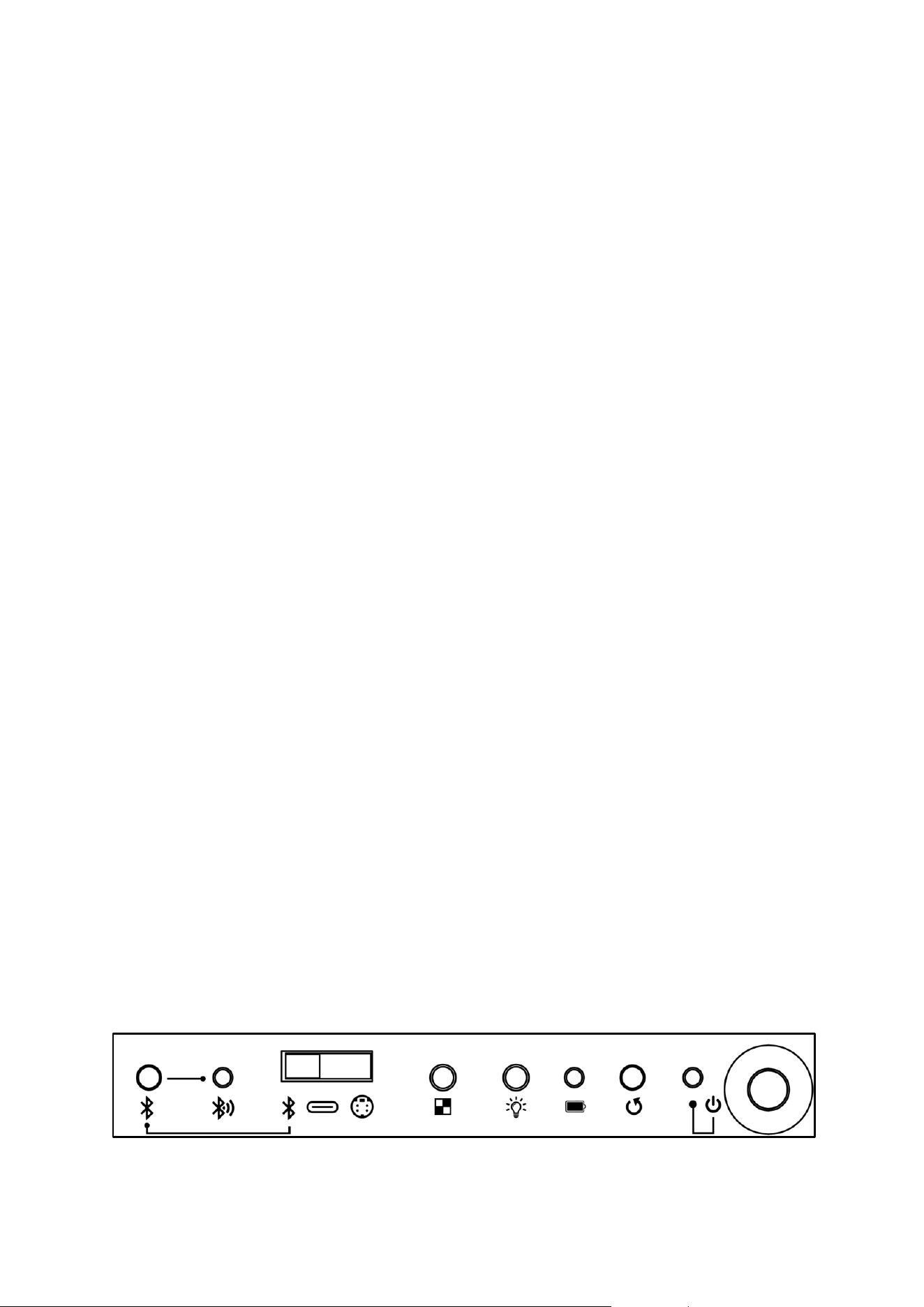
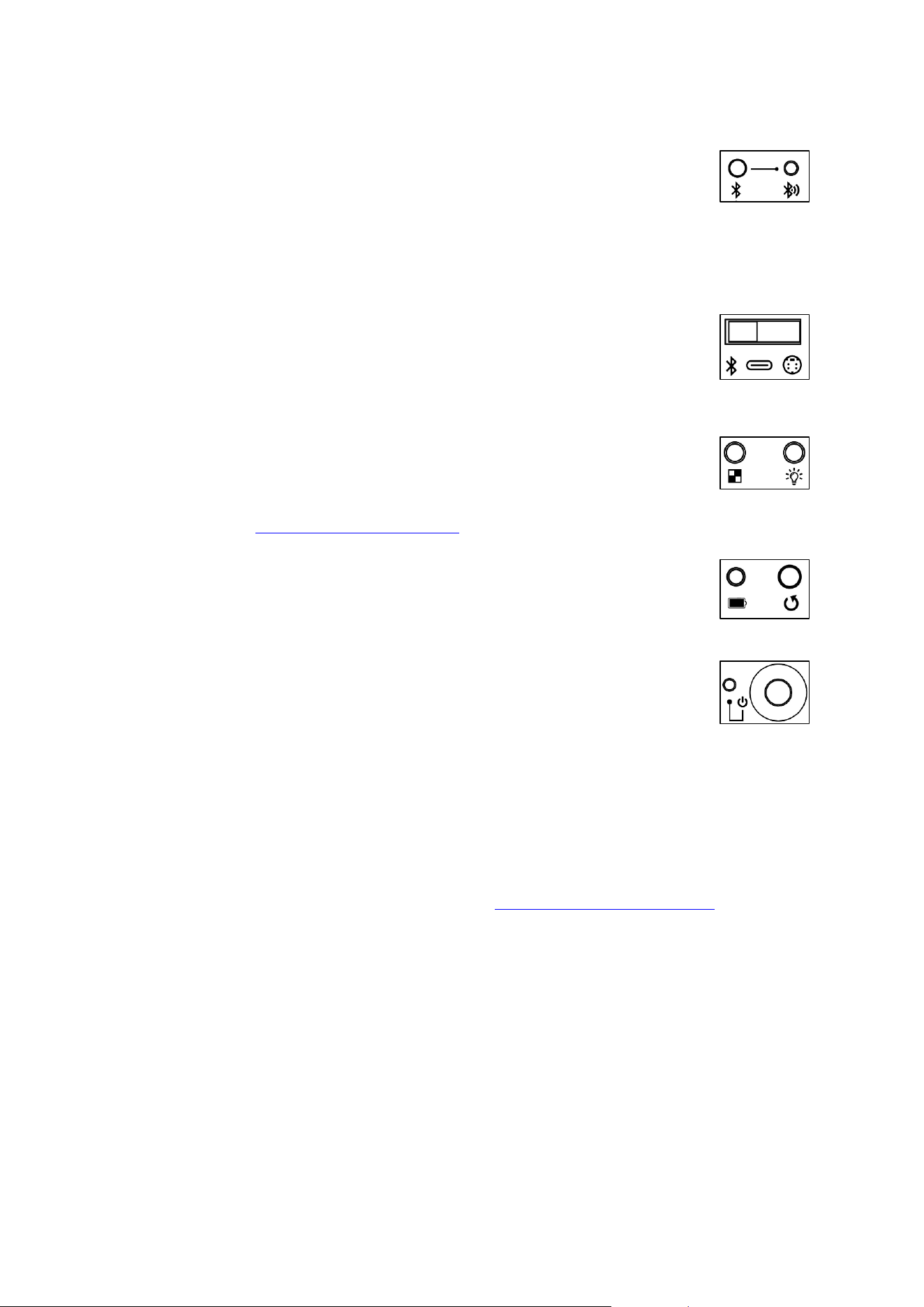
Botones y sus funciones
La Supreme T2 dispone de los siguientes botones e indicadores de control:
QSG Supreme T2, V1.0 17
Estos tienen las siguientes funciones (de izquierda a derecha)
➢ Botón para el emparejamiento Bluetooth: al pulsar dos veces el botón, la
tabla pasa al modo de emparejamiento y ya puede conectarse a un
dispositivo compatible con Bluetooth (por ejemplo, un smartphone).
Para ello, debe seleccionarse Bluetooth como fuente de entrada.
➢ LED de control Bluetooth:
o Se ilumina de forma permanente: la conexión Bluetooth está establecida
o Parpadea: el dispositivo está en modo de emparejamiento
➢ Interruptor deslizante para seleccionar la fuente de entrada: Aquí puede
seleccionar la fuente de datos a la que se debe conectar la tabla:
o Bluetooth para la conexión inalámbrica con smartphones o PC
o Conexión USB-C para conectar a ordenadores
o Mini-Din para conectar módulos de ajedrez compatibles
➢ Botón para controlar la grabación de la partida (datos PGN)
➢ Botón para ajustar el brillo de los 81 LED del tablero
ATENCIÓN: Estas funciones aún no están implementadas de forma
definitiva en el momento de redactar este manual. Descargue la versión actualizada
del manual en www.computerchess.com.
➢ LED de control de carga: indica que el tablero se está cargando
➢ Botón para reiniciar el dispositivo, restablece los ajustes de fábrica del
tablero
➢ LED de funcionamiento: indica que la placa está encendida.
o Parpadeo lento: la batería se está agotando, recargar
o Parpadeo rápido: la batería está agotada, conecte el dispositivo
inmediatamente a una fuente de alimentación
➢ Botón de encendido/apagado: enciende o apaga la tabla.
Conexión de la placa con aplicaciones, programas o módulos de ajedrez
Para poder utilizar una aplicación de ajedrez con el Supreme T2 eBoard, la aplicación
debe ser compatible con ChessLink. Encontrará una lista de aplicaciones y programas
preparados para su uso con nuestros eBoards en https://computerchess.com/, en el
apartado «Aplicaciones compatibles».
Encontrará instrucciones concretas y consejos sobre cómo conectar el tablero con la
aplicación que desee en la página web del fabricante del software correspondiente.
Conexión inalámbrica por Bluetooth
Puede conectar su eBoard de forma inalámbrica a todos los dispositivos habituales con
Bluetooth (smartphones, tabletas o PC). En el caso de los smartphones o las tabletas, la
conexión no se controla a través de la configuración del sistema del dispositivo, sino a
través de la aplicación correspondiente.
Así funciona la conexión con la aplicación Millennium ChessLink:
17) Encienda el Supreme T2.

QSG Supreme T2, V1.0 18
18) Ponga el interruptor deslizante en «Bluetooth».
19) Inicie la aplicación en su dispositivo móvil.
20) Asegúrese de que en su dispositivo móvil:
a. El Bluetooth está activado
b. Todos los permisos necesarios para la conexión Bluetooth estén
configurados correctamente. ATENCIÓN: Es imprescindible habilitar la
ubicación para que la conexión Bluetooth funcione.
21) Ahora pulse el botón para el emparejamiento Bluetooth en el Supreme T2
22) Haga clic en el símbolo de conexión en el dispositivo móvil
23) Haga clic en el botón «Buscar tabla» y espere un momento
24) En cuanto se encuentre la tabla, haz clic en ella. Se establecerá la conexión.
ATENCIÓN: Si no se puede conectar el tablero con la aplicación de ajedrez deseada, es
muy probable que el tablero ya esté conectado con otro dispositivo o con otra aplicación
de ajedrez en el mismo dispositivo.
Normalmente, la conexión se restablece automáticamente la próxima vez, una vez que el
tablero y la aplicación se han conectado correctamente y el tablero no se ha conectado a
otros dispositivos Bluetooth mientras tanto.
Cuando se conecta a través de Bluetooth, el tablero utiliza la batería interna como fuente
de alimentación. No obstante, puede conectar un cable de carga USB durante el
funcionamiento para cargar el tablero.
Conexión mediante cable USB
Para conectar el tablero a un ordenador mediante un cable USB, coloque el interruptor
deslizante en el modo USB-C. A continuación, conecte el cable USB suministrado al
tablero y a su ordenador. Si su ordenador no tiene una salida USB-C, puede utilizar el
adaptador USB-C-A suministrado.
ATENCIÓN: Es posible que sea necesario instalar el controlador FTDI. Lo encontrará, por
ejemplo, en la página web del fabricante: https://ftdichip.com/drivers/vcp-drivers/
Mientras la placa está conectada a una salida USB-C, también se carga durante el
funcionamiento.
ATENCIÓN: Es posible utilizar la placa incluso con la batería descargada. Debido al
aumento del consumo de energía causado por el proceso de carga simultáneo, se
recomienda utilizar el puerto USB-C del ordenador si es necesario.
Conexión con módulos de ordenador de ajedrez
Para conectar el tablero a uno de nuestros módulos de ordenador de ajedrez, coloque el
interruptor deslizante en el modo Mini-Din. A continuación, conecte el tablero al módulo
de ordenador de ajedrez mediante un cable Mini-Din. Tenga cuidado de no doblar los
pines y de conectar el cable correctamente.
Cuando se utiliza un módulo de ordenador de ajedrez, el tablero recibe la alimentación
del ordenador. La batería también se recarga, dependiendo de su estado de carga.
Los módulos de ordenador de ajedrez compatibles son, por ejemplo, el ChessClassics
Element o el Mephisto Phoenix. Para la conexión, utilice el cable mini-din suministrado
con el ordenador de ajedrez o el cable de conexión tipo ET-M820-DK disponible en
nuestra tienda.

QSG Supreme T2, V1.0 19
Utilice también la fuente de alimentación suministrada con el ordenador de ajedrez. Si ha
adquirido el módulo del ordenador de ajedrez por separado, sin fuente de alimentación,
nuestra fuente de alimentación del tipo ET-M820-NT (por ejemplo, para ChessClassics
Element) es compatible con la mayoría de los módulos. El Mephisto Phoenix se
suministra normalmente con una fuente de alimentación, en este caso se utiliza el
modelo ET-M900-NT.
Accesorios
En nuestra tienda, en https://computerchess.com/, encontrará numerosos accesorios
compatibles.
Para el almacenamiento y transporte de su tablero Supreme T2 y todos los accesorios, le
recomendamos nuestras maletas de transporte hechas a medida.
En nuestra página web también encontrará más juegos de piezas, chips RFID
preprogramados para modificar sus propias piezas de ajedrez, módulos de ordenador de
ajedrez a juego y numerosos enlaces a aplicaciones de software compatibles.
Mantenimiento
Para que pueda disfrutar durante mucho tiempo de su tablero de ajedrez electrónico,
tenga en cuenta las siguientes indicaciones.
Cargue el tablero con regularidad. Las baterías que no se cargan están sujetas a un mayor
desgaste. Por norma general, las baterías recargables tienen una vida útil limitada.
Cuando no utilice el tablero, desconéctelo de la fuente de alimentación. De este modo,
protegerá la batería.
No exponga el tablero a golpes. Cuando juegue, tenga cuidado de que las piezas no se
caigan.
La superficie del tablero de ajedrez está sellada durante la fabricación. Se recomienda
limpiarla con un paño de microfibra ligeramente humedecido.
Proteja el tablero y las piezas de la luz solar directa para evitar que se decoloren.
Sustitución de la batería
Todas las baterías tienen una vida útil determinada. Dependiendo de la frecuencia con la
que se utilice y se cargue la batería, será necesario sustituirla.
Si su Supreme T2 ya no alcanza una vida útil satisfactoria con la batería incorporada, es
hora de sustituirla. Esto no está cubierto por la garantía.
Su tablero de ajedrez lleva una batería de iones de litio de tipo CR18650 con 3,7 V y 3500
mAH, disponible en el mercado. Puede adquirir este tipo de baterías en cualquier tienda
especializada en electrónica. Asegúrese de que el número de mAH sea lo más alto
posible. Cuanto mayor sea, mayor será la duración del juego con una carga de batería.

QSG Supreme T2, V1.0 20
Para cambiar la batería, coloque con cuidado el tablero con la superficie de juego sobre
una manta. Afloje los tornillos de la carcasa de plástico en la que se encuentran los
botones y retire con cuidado la carcasa de plástico. Tenga cuidado de no dañar los cables
de conexión.
Retire la batería. Inserte una batería CR18650 nueva. En el compartimento de la batería
hay un cable sensor que controla el calentamiento de la batería. Asegúrese de que este
cable esté bien ajustado a la batería de repuesto. Vuelva a colocar la carcasa de plástico y
preste especial atención a los cables.
Actualizaciones
Encontrará las actualizaciones del manual de instrucciones en nuestro sitio web
https://computerchess.com/Downloads/ .
La eBoard Supreme T2 también se puede actualizar. En caso de actualizaciones del
firmware, estas también estarán disponibles en el enlace mencionado anteriormente.
Este manual de usuario ha sido elaborado cuidadosamente y se ha comprobado que su
contenido sea correcto. No obstante, si contra todo pronóstico contuviera algún error,
esto no constituiría motivo de reclamación del dispositivo.
Este manual de usuario, incluidos sus extractos, no puede reproducirse sin autorización
previa por escrito.
Copyright © 2025, MILLENNIUM 2000 GmbH, Ottobrunn, Alemania

QSG Supreme T2, V1.0 21
Mode d'emploi – FRANÇAIS
Ce guide rapide vous permet de démarrer une partie avec votre échiquier électronique
Supreme T2.
Mode d'emploi – FRANÇAIS ........................................................................................................................................... 21
Contenu ....................................................................................................................................................................................... 21
Chargement de l'échiquier ............................................................................................................................................ 22
Affichage du processus de chargement .......................................................................................................... 22
Blocs d'alimentation compatibles ........................................................................................................................ 22
État de charge de la batterie ........................................................................................................................................ 22
Affichage du niveau de la batterie à la mise en marche ....................................................................... 22
Affichage de l'état de la batterie pendant l'utilisation ............................................................................ 22
Recharge de la planche pendant l'utilisation ............................................................................................... 22
Touches et leurs fonctions ............................................................................................................................................. 22
Connexion de la carte à des applications, des programmes ou des modules d'échecs ....... 23
Connexion sans fil via Bluetooth ........................................................................................................................... 24
Connexion via un câble USB .................................................................................................................................... 24
Connexion avec des modules d'ordinateur d'échecs .............................................................................. 24
Accessoires ............................................................................................................................................................................... 25
Entretien .................................................................................................................................................................................... 25
Remplacement de la batterie ................................................................................................................................. 26
Mises à jour ............................................................................................................................................................................... 26
Contenu
La livraison de votre eBoard Supreme T2 comprend les éléments suivants :
- Échiquier électronique avec reconnaissance RFID des pièces
- Selon le modèle, 1 jeu de pièces d'échecs avec 2 dames supplémentaires
- Câble USB type C - type C, 2 mètres de long, pour le chargement et le transfert de
données
- Adaptateur USB type C - type A pour une utilisation avec des appareils USB plus
anciens
- Mode d'emploi et informations importantes
QSG Supreme T2, V1.0 22
Chargement de l'échiquier
Avant de pouvoir utiliser votre nouvel échiquier, veuillez le charger complètement. Pour
ce faire, branchez le câble USB-C fourni dans le port correspondant situé sur le côté droit
de l'échiquier et connectez-le à un adaptateur secteur USB (non fourni).
Affichage du processus de chargement
Le voyant de contrôle de charge sur le plateau s'allume. Tant que le voyant LED est
allumé, le plateau est en cours de chargement. Lorsque le voyant de contrôle de charge
s'éteint, le plateau est chargé. Le processus de chargement dure environ 6 heures. À la fin
du processus de chargement, il se peut que le voyant s'allume et s'éteigne de manière
sporadique, ce qui est normal. Débranchez alors le plateau du câble de chargement.
Blocs d'alimentation compatibles
La Supreme T2 est compatible avec toutes les alimentations USB standard. Veillez à ce
que l'alimentation ait une puissance minimale de 0,5 A.
État de charge de la batterie
Affichage du niveau de la batterie à la mise en marche
Lors de la mise sous tension, l'échiquier affiche l'état actuel de charge de la batterie. Les 9
LED situées sur le bord inférieur de l'échiquier sont utilisées à cet effet. Si les 9 LED sont
allumées, la batterie est complètement chargée. Si une seule LED est allumée, la batterie
est presque vide.
ATTENTION, cet affichage n'apparaît que lorsqu'au moins une pièce se trouve sur
l'échiquier.
Affichage de l'état de la batterie pendant l'utilisation
Si le niveau de la batterie descend à un niveau critique pendant l'utilisation du plateau, le
voyant d'alimentation du plateau commence à clignoter. La LED clignote d'abord
lentement, puis vous disposez encore d'environ 60 minutes d'autonomie. Si la LED
clignote rapidement, le plateau doit être immédiatement connecté à une source
d'alimentation.
Recharge de la planche pendant l'utilisation
Vous pouvez également recharger la planche à tout moment pendant son utilisation. La
durée de recharge est alors prolongée en conséquence. Vous pouvez par exemple utiliser
une batterie externe.
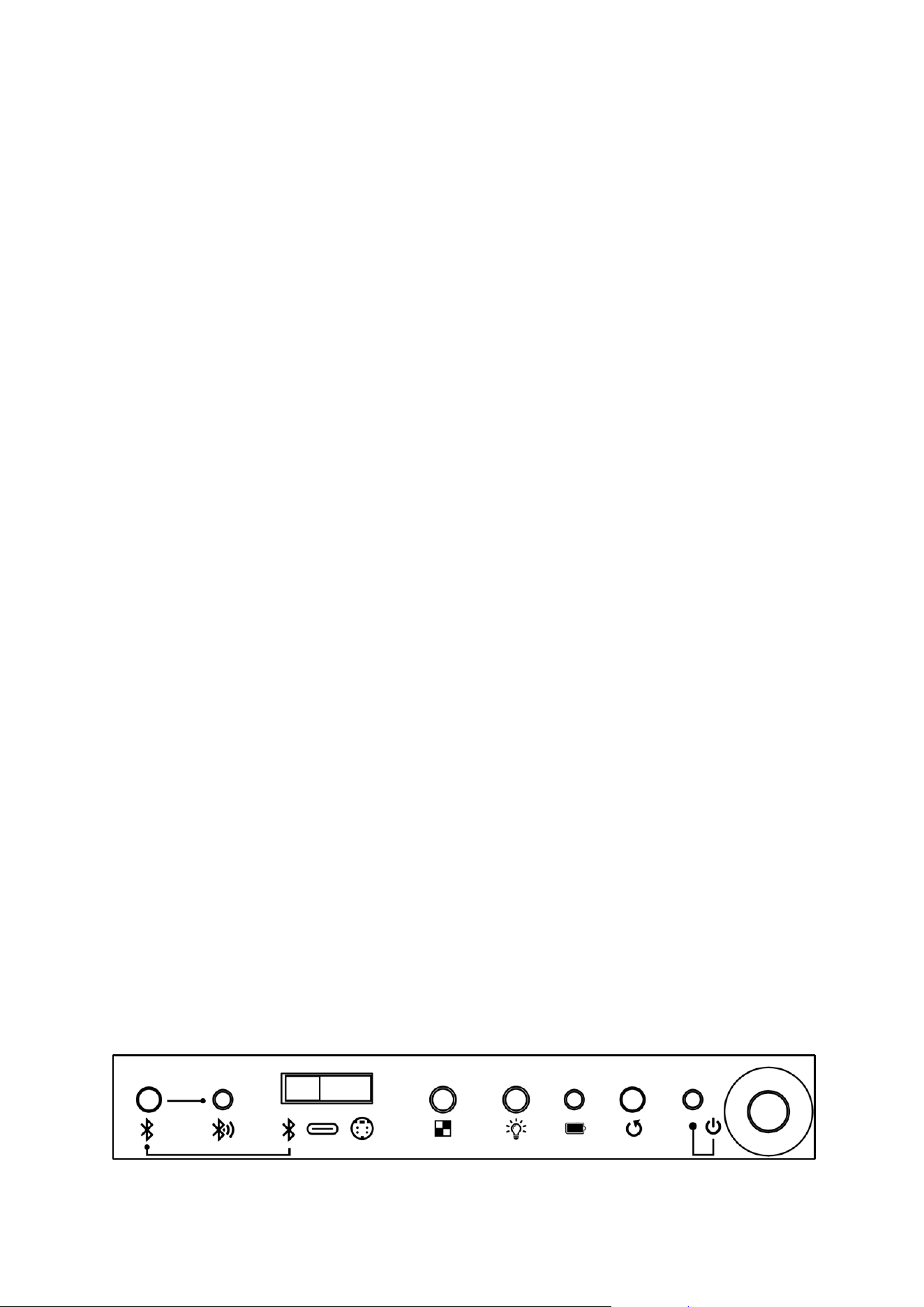
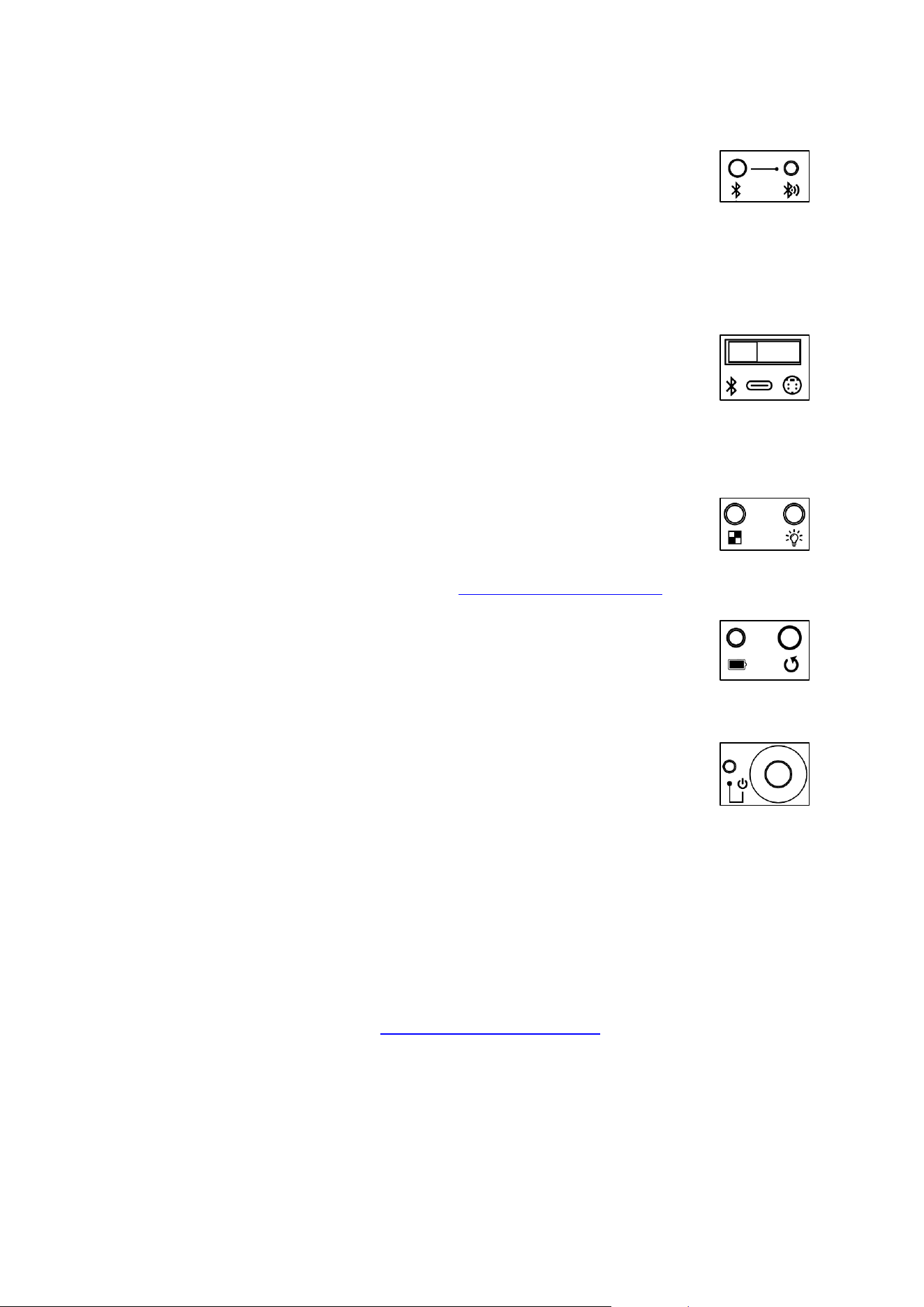
Touches et leurs fonctions
La Supreme T2 dispose des touches et voyants de contrôle suivants :
QSG Supreme T2, V1.0 23
Ceux-ci ont les fonctions suivantes (de gauche à droite)
➢ Bouton pour le couplage Bluetooth : appuyez deux fois sur ce bouton
pour mettre la planche en mode couplage. Vous pouvez alors établir
une connexion avec un appareil compatible Bluetooth (par exemple un
smartphone).
Pour cela, vous devez sélectionner Bluetooth comme source d'entrée.
➢ LED de contrôle Bluetooth :
o Allumé en permanence : la connexion Bluetooth est établie
o Clignote : l'appareil est en mode appairage
➢ Commutateur à glissière pour sélectionner la source d'entrée : il vous
permet de sélectionner la source de données à laquelle la planche doit
être connectée :
o Bluetooth pour une connexion sans fil avec des smartphones ou
des PC
o Port USB-C pour la connexion à des PC
o Mini-Din pour la connexion à des modules d'ordinateur d'échecs compatibles
➢ Bouton pour contrôler l'enregistrement de la partie (données PGN)
➢ Bouton pour régler la luminosité des 81 LED de l'échiquier
ATTENTION : ces fonctions ne sont pas encore définitivement
implémentées au moment de la rédaction de ce mode d'emploi. Veuillez télécharger
la version actuelle du mode d'emploi sur www.computerchess.com.
➢ LED de contrôle de charge : indique que le plateau est en cours de
chargement
➢ Touche pour réinitialiser l'appareil, rétablit les réglages d'usine de
l'échiquier
➢ LED de fonctionnement : indique que la carte est allumée.
o Clignotement lent : la batterie est déchargée, veuillez la
recharger
o Clignotement rapide : batterie vide, connecter immédiatement
l'appareil à une source d'alimentation
➢ Bouton marche/arrêt : allume ou éteint la planche.
Connexion de la carte à des applications, des programmes ou des
modules d'échecs
Pour pouvoir utiliser une application d'échecs avec le Supreme T2 eBoard, celle-ci doit
être compatible avec ChessLink. Vous trouverez une liste des applications et programmes
compatibles avec nos eBoards sur https://computerchess.com/, sous la rubrique «
Applications compatibles ».
Vous trouverez des instructions et des conseils concrets sur la manière de connecter le
plateau à l'application de votre choix auprès du fabricant du logiciel correspondant.

QSG Supreme T2, V1.0 24
Connexion sans fil via Bluetooth
Vous pouvez connecter votre eBoard sans fil à tous les appareils courants compatibles
Bluetooth (smartphones, tablettes ou PC). Sur les smartphones ou les tablettes, la
connexion n'est généralement pas contrôlée via les paramètres système de l'appareil,
mais via l'application correspondante.
Voici comment fonctionne la connexion à l'aide de l'application Millennium ChessLink :
25) Allumez le Supreme T2.
26) Réglez le commutateur à glissière sur « Bluetooth ».
27) Lancez l'application sur votre appareil mobile.
28) Assurez-vous que sur votre appareil mobile :
a. Bluetooth est activé
b. Toutes les autorisations nécessaires pour la connexion Bluetooth sont
correctement configurées - ATTENTION : le partage de la localisation est
indispensable au bon fonctionnement de la connexion Bluetooth.
29) Appuyez maintenant sur la touche pour le couplage Bluetooth sur le Supreme T2
30) Cliquez sur l'icône de connexion sur votre appareil mobile
31) Cliquez sur le bouton « Rechercher une planche » et attendez un instant
32) Dès que la planche est trouvée, cliquez dessus. La connexion est alors établie.
ATTENTION : si le plateau ne peut pas être connecté à l'application d'échecs souhaitée,
cela signifie souvent que le plateau est déjà connecté à un autre appareil ou à une autre
application d'échecs sur le même appareil.
En règle générale, la connexion est rétablie automatiquement la fois suivante, une fois
que le plateau et l'application ont été connectés avec succès et que le plateau n'a pas été
connecté à d'autres appareils Bluetooth entre-temps.
Lorsqu'elle est connectée via Bluetooth, l'échiquier utilise sa batterie interne comme
source d'alimentation. Vous pouvez toutefois brancher un câble de chargement USB
pendant le fonctionnement afin de recharger l'échiquier.
Connexion via un câble USB
Pour connecter le plateau à un ordinateur à l'aide d'un câble USB, placez le commutateur
à glissière en mode USB-C. Connectez ensuite le câble USB fourni au plateau et à votre
ordinateur. Si votre ordinateur ne dispose pas d'une sortie USB-C, vous pouvez utiliser
l'adaptateur USB-C-A fourni.
ATTENTION : il peut être nécessaire d'installer le pilote FTDI. Vous le trouverez par
exemple sur le site Web du fabricant : https://ftdichip.com/drivers/vcp-drivers/
Lorsque la carte est connectée à une sortie USB-C, elle se recharge pendant son
fonctionnement.
ATTENTION : il est possible d'utiliser la carte même lorsque la batterie est déchargée. En
raison de la consommation électrique accrue due au processus de chargement
simultané, il est recommandé d'utiliser le port USB-C de l'ordinateur si nécessaire.
Connexion avec des modules d'ordinateur d'échecs
Pour connecter le plateau à l'un de nos modules d'ordinateur d'échecs, placez le
commutateur à glissière en mode Mini-Din. Connectez ensuite le plateau au module

QSG Supreme T2, V1.0 25
d'ordinateur d'échecs à l'aide d'un câble Mini-Din. Veillez à ne pas plier les broches et à
connecter le câble correctement.
Lorsqu'un module d'ordinateur d'échecs est utilisé, l'échiquier est alimenté par
l'ordinateur d'échecs. La batterie est également rechargée, en fonction de son état de
charge.
Les modules d'ordinateur d'échecs compatibles sont par exemple le ChessClassics
Element ou le Mephisto Phoenix. Pour la connexion, veuillez utiliser le câble mini-din
fourni avec l'ordinateur d'échecs ou le câble de connexion de type ET-M820-DK
disponible chez nous.
Veuillez également utiliser le bloc d'alimentation fourni avec l'ordinateur d'échecs. Si vous
avez acheté votre module d'ordinateur d'échecs séparément, sans bloc d'alimentation,
notre bloc d'alimentation de type ET-M820-NT (par exemple pour ChessClassics Element)
convient à la plupart des modules. Le Mephisto Phoenix est généralement livré avec un
bloc d'alimentation, ici le modèle ET-M900-NT.
Accessoires
Vous trouverez de nombreux accessoires compatibles dans notre boutique en ligne à
l'adresse https://computerchess.com/.
Pour le rangement et le transport de votre échiquier Supreme T2 et de tous ses
accessoires, nous vous recommandons nos valises de transport sur mesure.
Vous trouverez également sur notre site web d'autres jeux de pièces, des puces RFID
préprogrammées pour modifier vos propres pièces d'échecs, des modules d'ordinateur
d'échecs adaptés ainsi que de nombreux liens vers des applications logicielles
compatibles.
Entretien
Afin de profiter longtemps de votre échiquier électronique, veuillez respecter les
consignes suivantes.
Rechargez régulièrement le plateau. Les batteries qui ne sont pas rechargées s'usent plus
rapidement. En principe, les batteries rechargeables ont une durée de vie limitée.
Lorsque vous n'utilisez pas le plateau, débranchez-le de l'alimentation électrique. Vous
préserverez ainsi la batterie.
Ne soumettez pas le plateau à des chocs. Veillez à ce que les pièces ne tombent pas
pendant le jeu.
La surface de l'échiquier est scellée de manière appropriée lors de la fabrication. Le
nettoyage s'effectue de préférence à l'aide d'un chiffon microfibre légèrement humide.
Protégez le plateau et les pièces d'un ensoleillement prolongé afin d'éviter toute
décoloration.

QSG Supreme T2, V1.0 26
Remplacement de la batterie
Chaque batterie a une durée de vie limitée. Selon la fréquence d'utilisation et de recharge
de la batterie, il peut être nécessaire de la remplacer.
Si votre Supreme T2 n'atteint plus une durée d'utilisation satisfaisante avec la batterie
intégrée, il est temps de la remplacer. Cela n'est pas couvert par la garantie.
Votre échiquier est équipé d'une batterie lithium-ion de type CR18650 de 3,7 V et 3500
mAH disponible dans le commerce. Vous pouvez acheter ce type de batterie à tout
moment dans un magasin d'électronique bien achalandé. Veillez à choisir une batterie
avec une capacité mAH aussi élevée que possible. Plus celle-ci est élevée, plus la durée de
jeu de l'échiquier est longue avec une seule charge de batterie.
Pour remplacer la batterie, posez délicatement le plateau sur une couverture, face vers le
haut. Dévissez les vis du boîtier en plastique qui contient les touches, puis retirez
délicatement le boîtier. Veillez à ne pas endommager les câbles de connexion.
Retirez la batterie. Insérez une nouvelle batterie CR18650. Un câble capteur est fixé dans le
compartiment de la batterie afin de surveiller la température de la batterie. Veillez à ce
qu'il soit bien en contact avec la batterie de remplacement. Remontez le boîtier en
plastique en faisant particulièrement attention aux câbles.
Mises à jour
Vous trouverez les mises à jour du mode d'emploi sur notre site Web à l'adresse
https://computerchess.com/Downloads/ .
La Supreme T2 eBoard elle-même peut également être mise à jour. En cas de mises à jour
du micrologiciel, nous les mettrons également à disposition via le lien ci-dessus.
Ce manuel d'utilisation a été rédigé avec soin et son contenu a été vérifié. Si, contre toute
attente, il contenait des erreurs, celles-ci ne pourraient en aucun cas donner lieu à une
réclamation concernant l'appareil.
Ce manuel d'utilisation, y compris des extraits, ne peut être reproduit sans autorisation
écrite préalable.
Copyright © 2025, MILLENNIUM 2000 GmbH, Ottobrunn, Allemagne

QSG Supreme T2, V1.0 27
Istruzioni di gioco – ITALIANO
Queste brevi istruzioni ti consentono di iniziare a giocare con la tua scacchiera elettronica
Supreme T2.
Istruzioni di gioco – ITALIANO ...................................................................................................................................... 27
Contenuto ................................................................................................................................................................................. 27
Ricarica della scacchiera .................................................................................................................................................. 28
Indicatore di carica ......................................................................................................................................................... 28
Alimentatori compatibili ............................................................................................................................................. 28
Stato di carica della batteria.......................................................................................................................................... 28
Indicatore dello stato della batteria all'accensione ................................................................................... 28
Indicatore dello stato della batteria durante l'uso ..................................................................................... 28
Ricarica della tavola durante l'uso ........................................................................................................................ 28
Tasti e loro funzioni ............................................................................................................................................................. 28
Collegamento della scheda a app, programmi o moduli per computer di scacchi ................ 29
Connessione wireless tramite Bluetooth ......................................................................................................... 29
Connessione tramite cavo USB .............................................................................................................................. 30
Collegamento con moduli per computer scacchistici ............................................................................ 30
Accessori ..................................................................................................................................................................................... 31
Manutenzione.......................................................................................................................................................................... 31
Sostituzione della batteria .......................................................................................................................................... 31
Aggiornamenti ....................................................................................................................................................................... 32
Contenuto
La fornitura della vostra eBoard Supreme T2 comprende i seguenti componenti:
- Scacchiera elettronica con riconoscimento RFID dei pezzi
- A seconda del modello, 1 set di pezzi degli scacchi con 2 regine aggiuntive
- Cavo USB tipo C - tipo C, lungo 2 metri, per la ricarica e il trasferimento dei dati
- Adattatore USB tipo C - tipo A per l'utilizzo con dispositivi USB meno recenti
- Manuale d'uso e informazioni importanti
QSG Supreme T2, V1.0 28
Ricarica della scacchiera
Prima di poter utilizzare la nuova scacchiera, è necessario caricarla completamente. A tal
fine, inserire il cavo USB-C in dotazione nella presa corrispondente sul lato destro della
scacchiera e collegarlo a un adattatore di alimentazione USB (non incluso nella fornitura).
Indicatore di carica
La spia di controllo della carica sulla scacchiera si accende. Finché il LED è acceso, la
scacchiera è in carica. Quando la spia di controllo della carica si spegne, la scacchiera è
carica. Il processo di ricarica dura circa 6 ore. Al termine del processo di ricarica, la spia
potrebbe accendersi e spegnersi sporadicamente, ma è normale. A questo punto,
scollegare la scacchiera dal cavo di ricarica.
Alimentatori compatibili
La Supreme T2 è compatibile con tutti gli alimentatori USB standard. Assicurarsi che
l'alimentatore abbia una potenza minima di 0,5 A.
Stato di carica della batteria
Indicatore dello stato della batteria all'accensione
All'accensione, la scacchiera mostra lo stato di carica attuale della batteria. A tale scopo
vengono utilizzati i 9 LED sul bordo inferiore della scacchiera. Se tutti e 9 i LED sono
accesi, la batteria è completamente carica. Se è acceso solo 1 LED, la batteria è quasi
scarica.
ATTENZIONE: questa indicazione appare solo se sulla scacchiera è presente almeno un
pezzo.
Indicatore dello stato della batteria durante l'uso
Se durante l'uso della scacchiera il livello della batteria scende a un livello critico,
l'indicatore di funzionamento della scacchiera inizia a lampeggiare. Inizialmente il LED
lampeggia lentamente, indicando che sono disponibili ancora circa 60 minuti di utilizzo.
Se il LED lampeggia rapidamente, la scacchiera deve essere collegata immediatamente a
una fonte di alimentazione.
Ricarica della tavola durante l'uso
È possibile ricaricare la tavola in qualsiasi momento durante l'uso. Il tempo di ricarica si
prolunga di conseguenza. A tale scopo è possibile utilizzare anche un power bank
esterno.
Tasti e loro funzioni
La Supreme T2 dispone dei seguenti pulsanti e indicatori di controllo:
QSG Supreme T2, V1.0 29
Questi hanno le seguenti funzioni (da sinistra a destra)
➢ Tasto per l'accoppiamento Bluetooth: premendo due volte il tasto, la
tavola entra in modalità di accoppiamento ed è possibile stabilire una
connessione con un dispositivo compatibile con Bluetooth (ad esempio
uno smartphone).
A tal fine è necessario selezionare Bluetooth come sorgente di ingresso.
➢ LED di controllo Bluetooth:
o Acceso fisso: la connessione Bluetooth è stabilita
o Lampeggiante: il dispositivo è in modalità di accoppiamento
➢ Interruttore a scorrimento per la selezione della sorgente di ingresso:
consente di selezionare la sorgente dati a cui collegare la scheda:
o Bluetooth per la connessione wireless con smartphone o PC
o Connettore USB-C per il collegamento a PC
o Mini-Din per il collegamento con moduli di scacchi compatibili
➢ Tasto per il controllo della registrazione della partita (dati PGN)
➢ Tasto per la regolazione della luminosità degli 81 LED della scacchiera
ATTENZIONE: al momento della stesura di questo manuale, queste
funzioni non sono ancora state implementate in modo definitivo. Si prega di scaricare
la versione aggiornata del manuale dal sito www.computerchess.com.
➢ LED di controllo della carica: indica che la scacchiera è in carica
➢ Tasto per eseguire un reset del dispositivo, ripristina le impostazioni di
fabbrica della scacchiera
➢ LED di funzionamento: indica che la scheda è accesa.
o Lampeggiamento lento: la batteria è scarica, ricaricare
o Lampeggiamento rapido: batteria scarica, collegare
immediatamente il dispositivo a una fonte di alimentazione
➢ Tasto On/Off: accende o spegne la scheda.
Collegamento della scheda a app, programmi o moduli per computer di
scacchi
Per poter utilizzare un'applicazione di scacchi con la Supreme T2 eBoard, l'applicazione
deve essere compatibile con ChessLink. Un elenco di app e programmi predisposti per
l'uso con le nostre eBoard è disponibile all'indirizzo https://computerchess.com/ alla voce
"App compatibili".
Istruzioni e indicazioni specifiche su come collegare la scacchiera all'applicazione
desiderata sono disponibili presso il produttore del software.
Connessione wireless tramite Bluetooth
È possibile collegare la propria eBoard in modalità wireless a tutti i dispositivi comuni
dotati di Bluetooth (smartphone, tablet o PC). Nel caso di smartphone o tablet, la
connessione non viene solitamente gestita tramite le impostazioni di sistema del
dispositivo, ma tramite l'applicazione corrispondente.

QSG Supreme T2, V1.0 30
Ecco come funziona la connessione con l'app Millennium ChessLink:
33) Accendere Supreme T2.
34) Impostare l'interruttore a scorrimento su "Bluetooth".
35) Avviare l'app sul dispositivo mobile.
36) Assicurarsi che sul dispositivo mobile:
a. il Bluetooth sia attivato
b. Tutte le autorizzazioni necessarie per la connessione Bluetooth siano
impostate correttamente - ATTENZIONE: la condivisione della posizione è
indispensabile per il funzionamento della connessione Bluetooth.
37) Ora premere il tasto per l'accoppiamento Bluetooth sul Supreme T2
38) Clicca sul simbolo di connessione sul dispositivo mobile
39) Clicca sul pulsante "Cerca tavola" e attendi qualche istante
40) Non appena la scheda viene trovata, cliccarci sopra. La connessione viene ora
stabilita.
ATTENZIONE: se la scacchiera non può essere collegata all'applicazione desiderata, spesso
ciò è dovuto al fatto che la scacchiera è già collegata a un altro dispositivo o a un'altra
applicazione per scacchi sullo stesso dispositivo.
In genere, la connessione viene ripristinata automaticamente la volta successiva, una
volta che la scacchiera e l'app sono state collegate con successo e la scacchiera non è
stata collegata ad altri dispositivi Bluetooth nel frattempo.
Quando è connessa tramite Bluetooth, la scacchiera utilizza la batteria interna come
fonte di alimentazione. Tuttavia, è possibile collegare un cavo di ricarica USB durante il
funzionamento per ricaricare la scacchiera.
Connessione tramite cavo USB
Per collegare la scacchiera a un computer tramite cavo USB, impostare l'interruttore a
scorrimento sulla modalità USB-C. Collegare quindi il cavo USB in dotazione alla
scacchiera e al computer. Se il computer non dispone di una porta USB-C, è possibile
utilizzare l'adattatore USB-C-A in dotazione.
ATTENZIONE: potrebbe essere necessario installare il driver FTDI. Lo trovate ad esempio
sul sito web del produttore: https://ftdichip.com/drivers/vcp-drivers/
Quando la scheda è collegata a un'uscita USB-C, viene caricata durante il funzionamento.
ATTENZIONE: è possibile utilizzare la scheda anche con la batteria scarica. A causa
dell'elevato consumo energetico dovuto al processo di ricarica simultaneo, si consiglia di
utilizzare la porta USB-C del computer, se disponibile.
Collegamento con moduli per computer scacchistici
Per collegare la scacchiera a uno dei nostri moduli per computer per scacchi, impostare
l'interruttore a scorrimento sulla modalità Mini-Din. Collegare quindi la scacchiera al
modulo per computer per scacchi tramite un cavo Mini-Din. Fare attenzione a non
piegare i PIN e a collegare il cavo in modo corretto.
Quando si utilizza un modulo computer per scacchi, la scacchiera viene alimentata dal
computer. Anche la batteria viene ricaricata, a seconda del suo stato di carica.

QSG Supreme T2, V1.0 31
I moduli per computer per scacchi compatibili sono, ad esempio, ChessClassics Element o
Mephisto Phoenix. Per il collegamento, utilizzare il cavo mini-din fornito con il computer
per scacchi o il cavo di collegamento di tipo ET-M820-DK disponibile presso di noi.
Utilizzare anche l'alimentatore fornito con il computer per scacchi. Se avete acquistato il
modulo per computer per scacchi separatamente, senza alimentatore, per la maggior
parte dei moduli è adatto il nostro alimentatore di tipo ET-M820-NT (ad es. per
ChessClassics Element). Il Mephisto Phoenix viene solitamente fornito con un
alimentatore, in questo caso il modello ET-M900-NT.
Accessori
Nel nostro negozio online all'indirizzo https://computerchess.com/ troverete numerosi
accessori compatibili.
Per riporre e trasportare la vostra scacchiera Supreme T2 e tutti gli accessori, vi
consigliamo le nostre valigette di trasporto su misura.
Sul nostro sito web troverete anche altri set di pezzi, chip RFID preprogrammati per
modificare i vostri pezzi degli scacchi, moduli per computer scacchistici compatibili e
numerosi link ad applicazioni software compatibili.
Manutenzione
Per poter godere a lungo della vostra scacchiera elettronica, vi preghiamo di osservare le
seguenti indicazioni.
Ricaricate regolarmente la scacchiera. Le batterie non ricaricate sono soggette a un'usura
maggiore. In linea di massima, le batterie ricaricabili hanno una durata limitata.
Quando non utilizzate la scacchiera, scollegatela dall'alimentazione elettrica. In questo
modo proteggerete la batteria.
Non sottoporre la scacchiera a urti. Durante il gioco, fare attenzione a non far cadere i
pezzi.
La superficie della scacchiera è opportunamente sigillata durante la produzione. Si
consiglia di pulirla con un panno in microfibra leggermente inumidito.
Proteggere la scacchiera e i pezzi dall'esposizione prolungata alla luce solare per evitare
scolorimenti.
Sostituzione della batteria
Ogni batteria ha una durata di vita limitata. A seconda della frequenza di utilizzo e di
ricarica della batteria, sarà necessario sostituirla.
Se il vostro Supreme T2 non raggiunge più una durata di utilizzo soddisfacente con la
batteria integrata, è necessario sostituirla. Questo non è un caso di garanzia.
Nella scacchiera è installata una batteria agli ioni di litio di tipo CR18650 da 3,7 V e 3500
mAH, disponibile in commercio. È possibile acquistare questo tipo di batteria in qualsiasi

QSG Supreme T2, V1.0 32
negozio di elettronica ben fornito. Assicuratevi che il valore mAH sia il più alto possibile.
Più alto è questo valore, maggiore sarà la durata di gioco della scacchiera con una carica
della batteria.
Per sostituire la batteria, appoggiare con cautela la scacchiera con la superficie di gioco su
una coperta. Allentare le viti dell'alloggiamento in plastica in cui si trovano i tasti e
sollevare con cautela l'alloggiamento in plastica. Fare attenzione a non danneggiare i cavi
di collegamento.
Rimuovere la batteria. Inserire una nuova batteria CR18650. Nel vano batteria è fissato un
cavo sensore che monitora il riscaldamento della batteria. Assicurarsi che sia ben
aderente alla batteria sostitutiva. Reinstallare l'alloggiamento in plastica, prestando
particolare attenzione ai cavi.
Aggiornamenti
Gli aggiornamenti del manuale d'uso sono disponibili sul nostro sito web all'indirizzo
https://computerchess.com/Downloads/ .
Anche la Supreme T2 eBoard è aggiornabile; in caso di aggiornamenti del firmware,
questi saranno disponibili al link sopra indicato.
Il presente manuale d'uso è stato redatto con cura e verificato per quanto riguarda la
correttezza dei contenuti. Qualora, contrariamente alle aspettative, dovessero essere
riscontrati degli errori, questi non costituiscono motivo di reclamo per il dispositivo.
Il presente manuale d'uso, compresi i suoi estratti, non può essere riprodotto senza previa
autorizzazione scritta.
Copyright © 2025, MILLENNIUM 2000 GmbH, Ottobrunn, Germania

QSG Supreme T2, V1.0 33
Spelinstructies - NEDERLANDS
Met deze korte handleiding kunt u een spel beginnen met uw Supreme T2 elektronisch
schaakbord.
Spelinstructies - NEDERLANDS .................................................................................................................................. 33
Omvang van de levering ................................................................................................................................................. 33
Het schaakbord opladen ................................................................................................................................................. 34
Indicatie van het oplaadproces .............................................................................................................................. 34
Compatibele voedingen ............................................................................................................................................. 34
De laadstatus van de batterij ........................................................................................................................................ 34
Weergave van de batterijstatus bij inschakelen ......................................................................................... 34
Weergave van de batterijstatus tijdens gebruik ......................................................................................... 34
Het bord opladen tijdens gebruik ........................................................................................................................ 34
Knoppen en hun functies ............................................................................................................................................... 34
Het bord aansluiten op apps, programma's of schaakcomputermodules .................................... 35
Draadloze verbinding via Bluetooth ................................................................................................................... 35
Verbinding via USB-kabel .......................................................................................................................................... 36
Verbinding met schaakcomputermodules .................................................................................................... 36
Accessoires ............................................................................................................................................................................... 37
Onderhoud ............................................................................................................................................................................... 37
Batterijen vervangen ..................................................................................................................................................... 37
Updates ....................................................................................................................................................................................... 38
Omvang van de levering
De volgende onderdelen behoren tot de leveringsomvang van je Supreme T2 eBoard:
- Elektronisch schaakbord met RFID-stukherkenning
- Afhankelijk van de versie, 1 set schaakstukken met 2 extra koninginnen
- USB-kabel type C - type C, 2 meter lang, voor opladen en gegevensoverdracht
- USB-adapter type C - type A voor gebruik met oudere USB-apparaten
- Bedieningsinstructies & belangrijke informatie
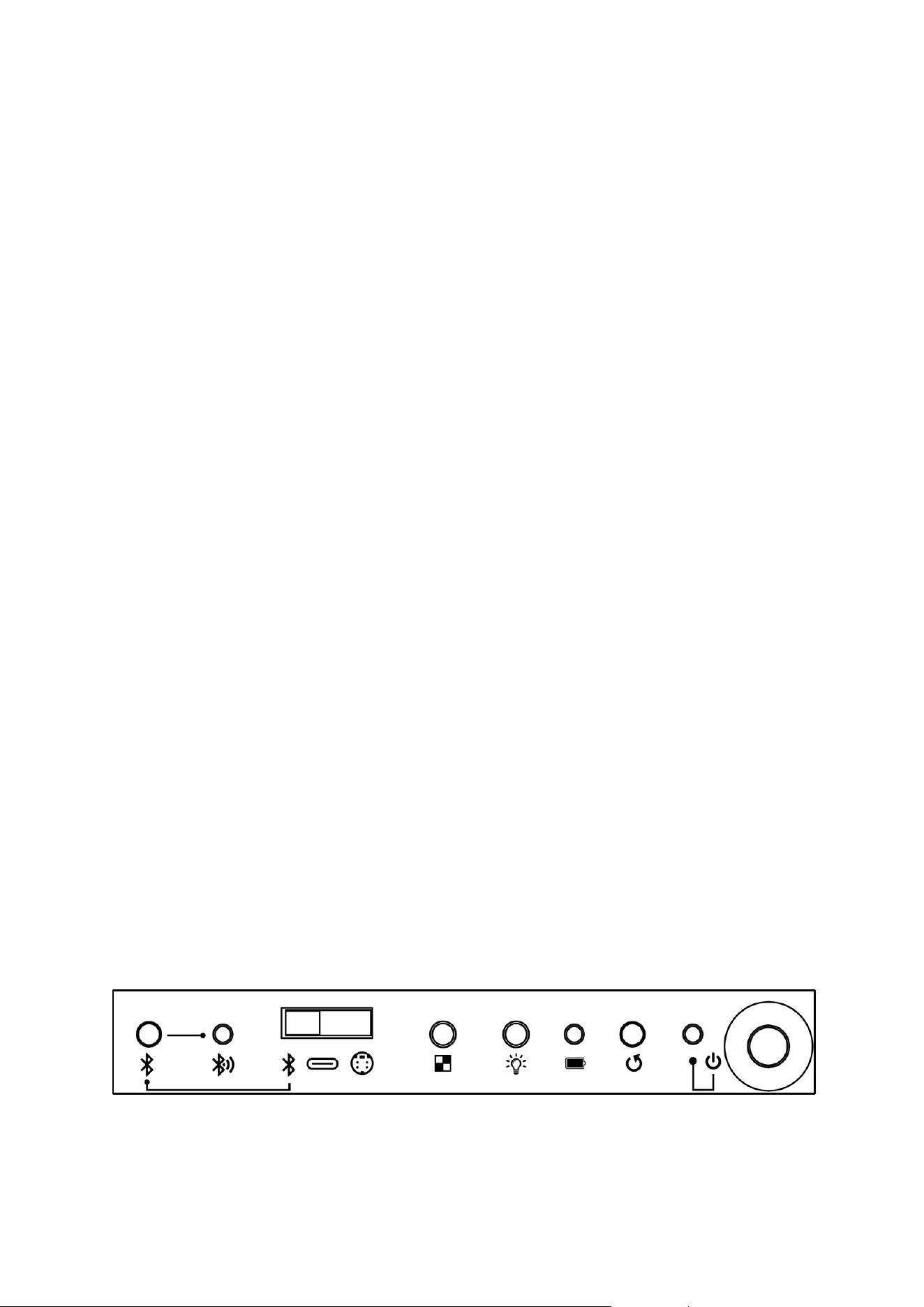
QSG Supreme T2, V1.0 34
Het schaakbord opladen
Voordat u uw nieuwe schaakbord kunt gebruiken, moet u het volledig opladen. Steek
hiervoor de meegeleverde USB-C kabel in de corresponderende poort aan de rechterkant
van het bord en sluit deze aan op een USB-stroomadapter (niet meegeleverd).
Indicatie van het oplaadproces
Het oplaadindicatielampje op het bord gaat nu branden. Zolang het lampje brandt, wordt
het bord opgeladen. Als het oplaadindicatielampje uitgaat, is het bord opgeladen. Het
oplaadproces duurt ongeveer 6 uur. Aan het einde van het laadproces kan het lampje
sporadisch aan en uit gaan, dit is normaal. Koppel de printplaat nu los van de
oplaadkabel.
Compatibele voedingen
De Supreme T2 is compatibel met alle standaard USB-voedingen. Zorg ervoor dat de
voeding een minimale output van 0,5 A heeft.
De laadstatus van de batterij
Weergave van de batterijstatus bij inschakelen
Als het schaakbord is ingeschakeld, geeft het de huidige laadstatus van de batterij weer.
Hiervoor worden de 9 LED's aan de onderkant van het bord gebruikt. Als alle 9 LED's
branden, is de accu volledig opgeladen. Als er maar 1 LED brandt, is de batterij bijna leeg.
OPGELET, deze weergave verschijnt alleen als er minstens één stuk op het bord zit.
Weergave van de batterijstatus tijdens gebruik
Als het batterijniveau daalt tot een kritiek niveau terwijl het bord in gebruik is, begint de
voedingsindicator van het bord te knipperen. In het begin knippert de LED langzaam,
dan heb je nog ongeveer 60 minuten gebruikstijd over. Als de LED snel knippert, moet
het bord onmiddellijk op een voedingsbron worden aangesloten.
Het bord opladen tijdens gebruik
Je kunt het bord ook op elk moment tijdens het gebruik opladen. De oplaadtijd wordt
dan overeenkomstig verlengd. Je kunt bijvoorbeeld ook een externe powerbank
gebruiken.
Knoppen en hun functies
De Supreme T2 heeft de volgende knoppen en controlelampjes:
Deze hebben de volgende functies (van links naar rechts)
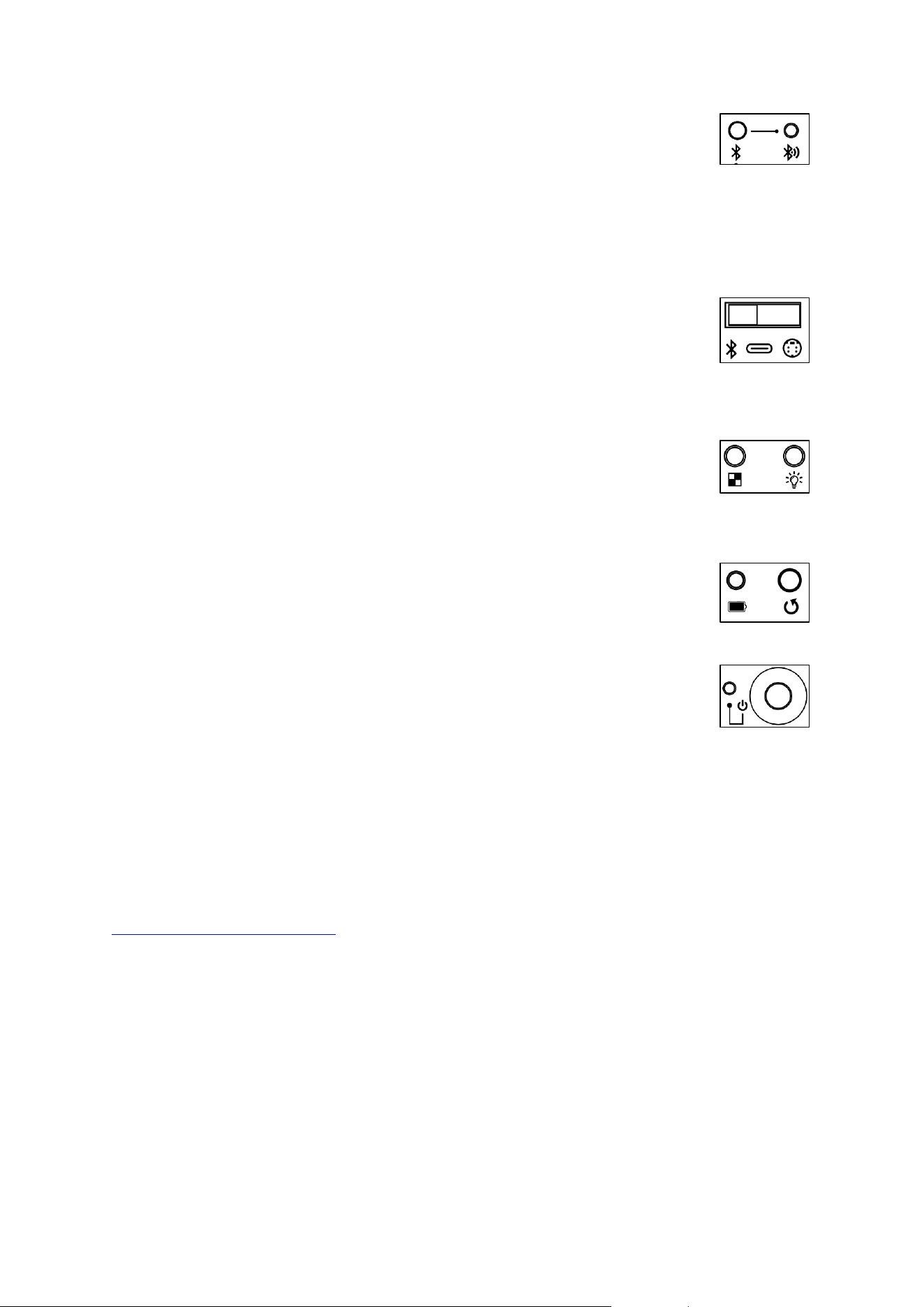
QSG Supreme T2, V1.0 35
➢ Knop voor Bluetooth-koppeling: Als u twee keer op de knop drukt,
wordt het board in de koppelmodus gezet; u kunt nu een verbinding
maken met een Bluetooth-compatibel eindapparaat (bijvoorbeeld een
smartphone).
Bluetooth moet hiervoor als ingangsbron geselecteerd zijn.
➢ Bluetooth-controle-LED:
o Brandt continu: Bluetooth-verbinding is tot stand gebracht
o Knippert: Apparaat staat in koppelmodus
➢ Schuifschakelaar voor het selecteren van de ingangsbron: Hiermee
wordt geselecteerd op welke gegevensbron het bord moet worden
aangesloten:
o Bluetooth voor draadloze verbinding met smartphones of pc's
o USB-C-poort voor aansluiting op pc's
o Mini-Din voor aansluiting op compatibele schaakcomputermodules
➢ Knop voor het regelen van de partijopname (PGN-gegevens)
➢ Knop om de helderheid van de 81 bord-LED's aan te passen
LET OP: Deze functies zijn nog niet definitief geïmplementeerd op het
moment dat deze handleiding wordt geschreven. Download de nieuwste versie van
de handleiding op www.computerchess.com.
➢ LED voor oplaadcontrole: geeft aan dat het bord wordt opgeladen
➢ Knop voor het uitvoeren van een apparaatreset, hiermee worden de
fabrieksinstellingen van het bord hersteld
➢ Voedings-LED: Geeft aan dat het bord is ingeschakeld.
o Knippert langzaam: Batterij bijna leeg, opladen a.u.b.
o Snel knipperend: Batterij is leeg, sluit het apparaat onmiddellijk
aan op een voedingsbron
➢ Aan/uit-knop: Schakelt het bord aan of uit.
Het bord aansluiten op apps, programma's of schaakcomputermodules
Om een overeenkomstige schaakapplicatie met het Supreme T2 eBoard te kunnen
gebruiken, moet de applicatie ChessLink-compatibel zijn. Een lijst met apps en
programma's die zijn voorbereid voor gebruik met onze eBorden vindt u op
https://computerchess.com/ onder "Compatibele apps".
Specifieke instructies en informatie over hoe u het bord met de gewenste toepassing
kunt verbinden, kunt u vinden bij de betreffende softwarefabrikant.
Draadloze verbinding via Bluetooth
U kunt uw eBoard draadloos verbinden met alle standaard eindapparaten met Bluetooth
(smartphones, tablets of pc's). Bij smartphones of tablets wordt de verbinding meestal
niet via de systeeminstellingen van het eindapparaat geregeld, maar via de bijbehorende
toepassing.
De verbinding werkt als volgt met de Millennium ChessLink app:
41) Zet de Supreme T2 aan.

QSG Supreme T2, V1.0 36
42) Zet de schuifschakelaar op "Bluetooth".
43) Start de app op uw mobiele apparaat.
44) Zorg ervoor dat Bluetooth is geactiveerd op uw mobiele apparaat:
a. Bluetooth is geactiveerd
b. Dat alle benodigde autorisaties voor de Bluetooth-verbinding correct zijn
ingesteld - LET OP: Locatiedeling is essentieel voor het werken van de
Bluetooth-verbinding.
45) Druk nu op de Bluetooth-koppelingsknop op de Supreme T2
46) Klik op het verbindingspictogram op het mobiele apparaat
47) Klik op de knop "Zoek bord" & wacht even
48) Zodra het bord is gevonden, klikt u erop. De verbinding is nu tot stand gebracht.
LET OP: Als het bord niet verbonden kan worden met de gewenste schaakapplicatie, is
een veel voorkomende oorzaak dat het bord al verbonden is met een ander eindapparaat
of een andere schaakapplicatie op hetzelfde apparaat.
Als het bord en de app eenmaal met succes zijn verbonden en het bord in de tussentijd
niet met andere Bluetooth-apparaten is verbonden, wordt de verbinding de volgende
keer automatisch hersteld.
Als je verbinding maakt via Bluetooth, gebruikt het board de interne batterij als
energiebron. Tijdens het gebruik kun je echter nog steeds een USB-oplaadkabel
aansluiten om het bord op te laden.
Verbinding via USB-kabel
Om het bord via een USB-kabel op een computer aan te sluiten, zet je de
schuifschakelaar in de USB-C-modus. Sluit nu de meegeleverde USB-kabel aan op het
bord en je computer. Als je computer geen USB-C uitgang heeft, kun je de meegeleverde
USB-C-A adapter gebruiken.
ATTENTIE: Het FTDI-stuurprogramma moet mogelijk worden geïnstalleerd. Deze kun je
vinden op de website van de fabrikant, bijvoorbeeld: https://ftdichip.com/drivers/vcp-
drivers/
Wanneer het bord is aangesloten op een USB-C uitgang, wordt het tijdens gebruik ook
opgeladen.
ATTENTIE: Het is mogelijk om het bord te gebruiken zelfs als de batterij leeg is. Vanwege
het verhoogde stroomverbruik door het gelijktijdige oplaadproces, is het aan te raden om
de USB-C poort van de computer te gebruiken als dat nodig is.
Verbinding met schaakcomputermodules
Om het bord aan te sluiten op een van onze schaakcomputermodules, zet je de
schuifschakelaar op Mini-Din modus. Sluit nu het bord aan op de
schaakcomputermodule met een mini-din kabel. Zorg ervoor dat je de pinnen niet buigt
en sluit de kabel in de juiste richting aan.
Als je een schaakcomputermodule gebruikt, krijgt het bord stroom van de
schaakcomputer. De batterij wordt hier ook opgeladen, afhankelijk van de laadstatus.
Compatibele schaakcomputermodules zijn bijvoorbeeld de ChessClassics Element of de
Mephisto Phoenix. Gebruik voor de aansluiting de Mini-Din kabel die bij de

QSG Supreme T2, V1.0 37
schaakcomputer wordt geleverd of de ET-M820-DK verbindingskabel die bij ons
verkrijgbaar is.
Gebruik ook de voeding die bij de schaakcomputer is geleverd. Als je de
schaakcomputermodule los hebt gekocht, zonder voedingsunit, is onze voedingsunit van
het type ET-M820-NT (bijv. voor ChessClassics Element) geschikt voor de meeste
modules. De Mephisto Phoenix wordt meestal geleverd met een voedingsunit, hier wordt
het model ET-M900-NT gebruikt.
Accessoires
Je vindt talloze compatibele accessoires in onze winkel op https://computerchess.com/.
Voor het opbergen en vervoeren van je Supreme T2 board en alle accessoires raden we je
onze op maat gemaakte transportkoffers aan.
Andere sets met stukken, voorgeprogrammeerde RFID-chips om je eigen schaakstukken
aan te passen, geschikte schaakcomputermodules en talloze links naar compatibele
softwaretoepassingen zijn ook te vinden op onze website.
Onderhoud
Volg de onderstaande instructies om lang plezier te hebben van je elektronische
schaakbord.
Laad het bord regelmatig op. Batterijen die niet worden opgeladen zijn onderhevig aan
verhoogde slijtage. Oplaadbare batterijen hebben over het algemeen maar een beperkte
levensduur.
Haal de stekker uit het stopcontact als je het bord niet gebruikt. Dit beschermt de
batterij.
Stel het bord niet bloot aan schokken. Zorg er tijdens het spelen voor dat je stukken niet
omvallen.
Het oppervlak van het schaakbord is tijdens de productie verzegeld. Schoonmaken gaat
het best met een licht vochtige microvezeldoek.
Bescherm het bord en de stukken tegen langdurige blootstelling aan zonlicht om
verkleuring te voorkomen.
Batterijen vervangen
Elke batterij heeft een bepaalde levensduur. Afhankelijk van hoe regelmatig de batterij
wordt gebruikt en opgeladen, moet deze mogelijk worden vervangen.
Als je Supreme T2 geen bevredigende levensduur meer heeft met de ingebouwde
batterij, is het tijd om de batterij te vervangen. Dit is geen garantiegeval.
In je schaakbord zit een standaard CR18650 lithium-ion batterij met 3,7V en 3500 mAH. Je
kunt dit soort batterijen altijd kopen bij een goed gesorteerde elektronicawinkel. Zorg

QSG Supreme T2, V1.0 38
ervoor dat de mAH-waarde zo hoog mogelijk is. Hoe hoger het is, hoe langer de speeltijd
van het bord met één batterijlading.
Om de batterij te vervangen, leg je het bord met het speeloppervlak voorzichtig op een
deken. Draai de schroeven van de plastic behuizing waarin de knoppen zitten los en til de
plastic behuizing er voorzichtig uit. Zorg ervoor dat je de aansluitkabels niet beschadigt.
Verwijder de batterij. Plaats een nieuwe CR18650-batterij. In het batterijvak zit een
sensorkabel die de opwarming van de batterij controleert. Zorg ervoor dat deze goed is
aangesloten op de vervangende batterij. Plaats de plastic behuizing terug en let daarbij
vooral op de kabels.
Updates
Updates van de gebruiksaanwijzing zijn te vinden op onze website
https://computerchess.com/Downloads/ .
Het Supreme T2 eBoard zelf kan ook worden bijgewerkt; in het geval van firmware-
updates bieden we deze ook aan via de bovengenoemde link.
Deze gebruiksaanwijzing is zorgvuldig opgesteld en op juistheid gecontroleerd. Mochten
er tegen de verwachting in toch fouten in staan, dan is dat geen reden tot reclamatie.
Deze gebruikershandleiding, inclusief uittreksels, mag niet worden gereproduceerd
zonder voorafgaande schriftelijke toestemming.
Copyright
©
2025,
MILLENNIUM
2000
GmbH,
Ottobrunn,
Duitsland
This
device
complies
with
Part
15
of
the
FCC
Rules.
Operation
is
subject
to
the
following
two
conditions:
(1)
This
device
may
not
cause
harmful
interference,
and
(2)
this
device
must
accept
any
interference
received,
including
interference
that
may
cause
undesired
operation.
NOTE:
This
equipment
has
been
tested
and
found
to
comply
with
the
limits
for
a
Class
B
digital
device,
pursuant
to
Part
15
of
the
FCC
Rules.
These
limits
are
designed
to
provide
reasonable
protection
against
harmful
interference
in
a
residential
installation.
This
equipment
generates
uses
and
can
radiate
radio
frequency
energy
and,
if
not
installed
and
used
in
accordance
with
the
instructions,
may
cause
harmful
interference
to
radio
communications.
However,
there
is
no
guarantee
that
interference
will
not
occur
in
a
particular
installation.
If
this
equipment
does
cause
harmful
interference
to
radio
or
television
reception,
which
can
be
determined
by
turning
the
equipment
off
and
on,
the
user
is
encouraged
to
try
to
correct
the
interference
by
one
of
the
following
measures:
-
Reorient
or
relocate
the
receiving
antenna.
-
Increase
the
separation
between
the
equipment
and
receiver.
-
Connect
the
equipment
into
an
outlet
on
a
circuit
different
from
that
to
which
the
receiver
is
connected.
-
Consult
the
dealer
or
an
experienced
radio/TV
technician
for
help.
WARNING:
Any
changes
or
modifications
not
expressly
approved
by
the
party
responsible
for
compliance
could
void
the
user's
authority
to
operate
this
equipment.
This device complieswith RSS247 of Industry Canada. Cet appareil se 7conforme à RSS24 de
Canada d'Industrie. This device complies with Industry Canada license-exempt RSS standard(s).
Operation is subject to the following two conditions: (1) this device may not cause interference,
and (2) this device must accept any interference, including interference that may cause undesired
operation of the device. appareils radio exempts de licence. Son fonctionnement est sujet aux
deux conditions suivantes: (1) le dispositif ne doit pas produire de brouillage prejudiciable, et (2) ce
dispositif doit accepter tout brouillage recu, y compris un brouillage susceptible de provoquer un
fonctionnement indesirable. The device must not be co-located or operating in conjunction with
any other antenna or transmitter.

QSG Supreme T2, V1.0 39
QSG Supreme T2, V1.0 40
www.computerchess.com
Copyright © 2025, MILLENNIUM 2000 GmbH, Ottobrunn.