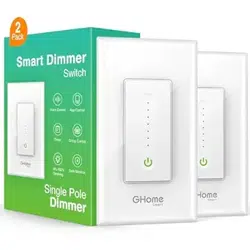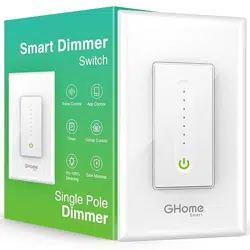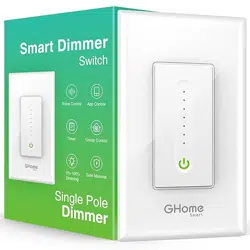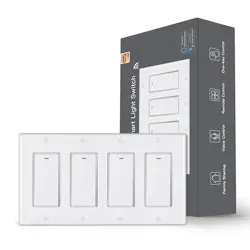
Smart Light Switch
User Manual
Product Description
This new designed single pole smart switch is designed with
WiFi to replace traditional switches with a variety of ways to
control.Now one new smart feature as multi-control
association to other smart switches is added into the Smart
Life/Tuya App,together with the backlight on/off and relay
status.And this smart switch is suitable for different decoration
styles with its best value.
Make sure that the power at the circuit breaker is off before
wiring.
Neutral Wire is required.Confirm the wall box contains a
Neutral Wire(typically white).If the wall box don’t have a
Neutral Wire,please try another location at your home or call a
professional electrician to install the switch.
The wire colors indicated in this manual are the usual colors
and may differ in some houses.
Ensure the wire conductors are securely fastened to each wire.
Ensure the Wi-Fi signal is steady and normally working before
wiring.
If you don’t have any wiring experience,please call a
professional electrician.
Turn off the circuit breaker and use the electrical tester to
test the power.
Ensure the switch is off before wiring.
Remove the existing wall plate;turn on the power at the
circuit breaker and use an electrical tester to check which
wire is line wire;the tester will flash and or chirp when it
comes close to a line wire.
Turn off the power at the circuit breaker and use the
electrical tester if the power is off, and then pull the
existing switch out;label the line wire and other wires;dis-
connect the wires from the existing switch with pliers.
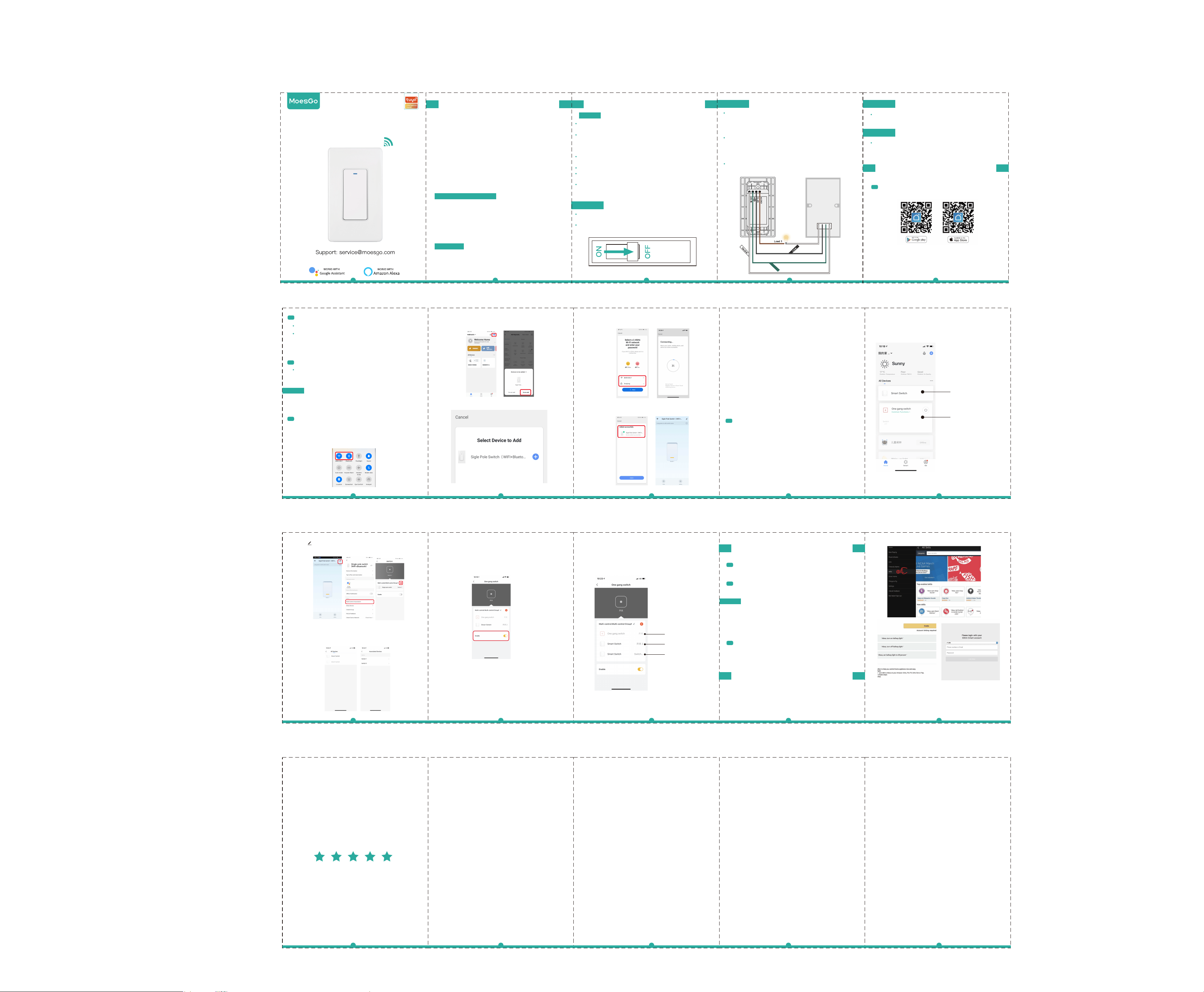
Follow the wiring diagram to connect the switch wires to
the wires in the wall box with the wire conductors.
Mount the switch with the provided screws and snap the
wall plate on it.
Warnings:
Note:
Note:
Step 1
Step 2
Step 3
Turn the power back on at the circuit breaker and then
switch the light on.
Download Smart Life App
Please scan the QR code or download Smart
Life on App store.
Step 4
Turn off the power at the circuit breaker and test that power
is off before wiring.
Safety Information
Installation
Add Devices
1
2
3
3.1
Registration or Log in
Download “Smart Life”Application
Enter the Register/Login interface;tap “Register” to
create an account by entering your phone number to get
verification code and “Set password”.Choose “Log in” if
you already have a Smart Life account.
Configure the APP to the switch
Preparation:Ensure the switch has been connected with
electricity;ensure your phone has been connected to
Wi-Fi and is able to connect to the Internet.
The switch only supports 2.4G network.If you have connected
5G network,please disconnect 5G network firstly and connect
2.4G network.
2.Open Smart Life/Tuya App and Click“+”,then the prompt
page will automatically show on the screen.Click “Go to
add”.
3.Select the device you want to add and click “Add”
4.Enter Wi-Fi Password and click “Next”,waiting for
completing the connection.
5.Add the device successfully, you can edit the name of
the device to enter the device page by click “Done”
Wi-Fi link method:
Pair and clear up the WiFi code(New Updated)
1.Press the power button on the switch 5-8 seconds until the
indicator right blinks quickly to pair.
2.Make sure your phone is connected to Wi-Fi and Bluetooth.
1
6 7 8 9
10
2 3 4 5
Technical Parameters:
Model : DS-122
Rated voltage:100-240V AC, 50Hz/60Hz
Max. Load Power:1200W/Gang
Wireless type:Wi-Fi 2.4GHz
Working temperature:-10℃~45℃
Support system:Android/iOS
Risk of Electric Shock:Electricity can cause personal injury
and property damage if handled improperly.If you are not sure
about any part of these instructions,please seek professional
assistance from a qualified electrician.
Ground
Smart life,Smart future
Powered By
Thank you for your support and purchase at
we MoesGo,we are always here for your
complete satisfaction,just feel free to share
your great shopping experience with us.
If you have any other need,please do not
hesitate to contact us first,we will try to meet
your demand.
How to reset Wi-Fi code
Press the power button on the switch 5-8 seconds until the
indicator right blinks quickly to reset the switch
How to achieve multi-control association
Note:Please confirm you have successfully finished the WiFi link
method above for adding this switch to your Smart Life App
before the association.
2.Then you will see two devices in the app and click the main
switch(as One gang switch as below) by entering into the next
operation.
1.WiFi add another smart switch to the same Smart Life/Tuya
App.(If there is a smart switch having been added before to the
app,just go to next step.)
Note:There is no need to wire the new added switch to the
light,only L and N are required for wiring.
3.Click in the upper right corner and choose“Multi-Control
Association, and then click “+” in the right corner
6.Now you are able to control your light with two switches.
Do not associate another button in the same switch for
multi-control.
7.If you want to add another third or more smart switches to
control your light,just repeat the steps above.And you will see
the result as below when you associate another new switch.
5.Then go back to previous page,you will see two items in the
page,one is your main switch,the other is the one you associate
just now.
Note:Please confirm the associated switch is enabled.
11
13 14
15
12
Then input the user name and password of Smart Life APP
that you have previously registered.
Now you can use your Alexa to control your Smart devices.
Note:
Set your Echo speaker by Alexa APP
Enter Smart Life Skill in Alexa APP
1
If you have finished installing Smart Life,just open Amazon
Alexa App;log into your Alexa account with password.
3
Choose your own Wi-Fi and wait for a few minutes.After
watching an introduction video,click “next step”,then it will
enter Home page automatically.Now the Echo has been
connected to Wi-Fi successfully.
Choose “Skills” in the options bar, and then search “Smart
Life” in the input box.
2
Click the menu on the top left -click “settings”,choose
“Set up a new device”(choose a device like Echo)
When below page appears,long press the small dot on
your Echo device until the light turns to yellow.Then click
“Continue”on the App.
Attention:The mobile phone can not open a variety of
VPN software.
Main Switch
New Added Switch
Associated 1
Associated 2
Main Switch
3.2
4.Choose the switch that you want to associate to and then
choose the switch button that you want to control the same
light.
16
Indicator Light Status
1.The indicator light went out.
-The switch is connected succeed with mobile phone APP.
2.The indicator light blinking slowly.
- The switch is not connected to the network.
3.The indicator light flash continuously and quickly.
- The switch is currently on the status of matching with mobile
phone APP.
4.The indicator light flash 1 time every 3 seconds.
-The switch is into AP pairing Mode
Made in China