Search in Apple Store or Google
Play and download
Apple Store
Google Play
Scan the QR code to download the APP
Open the app , use the third-party shortcut to log in or register an account
App Store download
Scan code download
Sign up and log in
App will be updated continuously, and the interface is subject to App
Kindly select your preferred method to download the App before establishing a connection with
the device.
Download and login
01
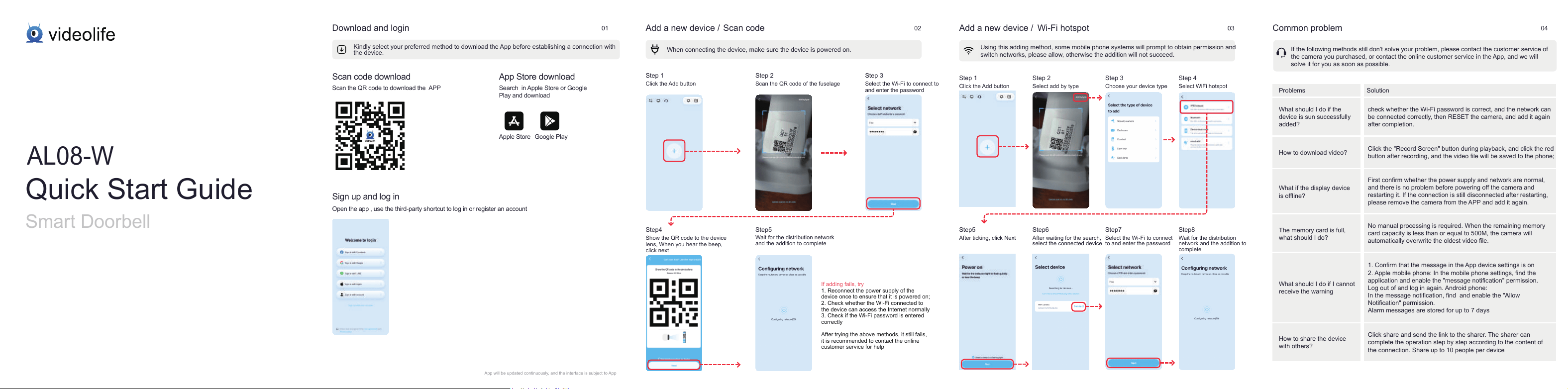
Click the Add button
Show the QR code to the device
lens, When you hear the beep,
click next
Wait for the distribution network
and the addition to complete
If adding fails, try
1. Reconnect the power supply of the
device once to ensure that it is powered on;
2. Check whether the Wi-Fi connected to
the device can access the Internet normally
3. Check if the Wi-Fi password is entered
correctly
After trying the above methods, it still fails,
it is recommended to contact the online
customer service for help
Scan the QR code of the fuselage
Select the Wi-Fi to connect to
and enter the password
Step 1
Step4
Step5
Step 2
Step 3
When connecting the device, make sure the device is powered on.
Add a new device /
Scan code
02
Click the Add button
After ticking, click Next
After waiting for the search,
select the connected device
Select the Wi-Fi to connect
to and enter the password
Wait for the distribution
network and the addition to
complete
Select add by type
Choose your device type
Select WiFi hotspot
Step 1
Step5
Step6
Step7
Step8
Step 2
Step 3
Step 4
Add a new device /
Wi-Fi hotspot
03
Using this adding method, some mobile phone systems will prompt to obtain permission and
switch networks, please allow, otherwise the addition will not succeed.
If the following methods still don't solve your problem, please contact the customer service of
the camera you purchased, or contact the online customer service in the App, and we will
solve it for you as soon as possible.
Common problem
04
Problems
Solution
What should I do if the
device is sun successfully
added?
How to download video?
What if the display device
is offline?
The memory card is full,
what should I do?
What should I do if I cannot
receive the warning
How to share the device
with others?
check whether the Wi-Fi password is correct, and the network can
be connected correctly, then RESET the camera, and add it again
after completion.
Click the "Record Screen" button during playback, and click the red
button after recording, and the video file will be saved to the phone;
First confirm whether the power supply and network are normal,
and there is no problem before powering off the camera and
restarting it. If the connection is still disconnected after restarting,
please remove the camera from the APP and add it again.
No manual processing is required. When the remaining memory
card capacity is less than or equal to 500M, the camera will
automatically overwrite the oldest video file.
1. Confirm that the message in the App device settings is on
2. Apple mobile phone: In the mobile phone settings, find the
application and enable the "message notification" permission.
Log out of and log in again. Android phone:
In the message notification, find and enable the "Allow
Notification" permission.
Alarm messages are stored for up to 7 days
Click share and send the link to the sharer. The sharer can
complete the operation step by step according to the content of
the connection. Share up to 10 people per device
AL08-W
Quick Start Guide
Smart Doorbell
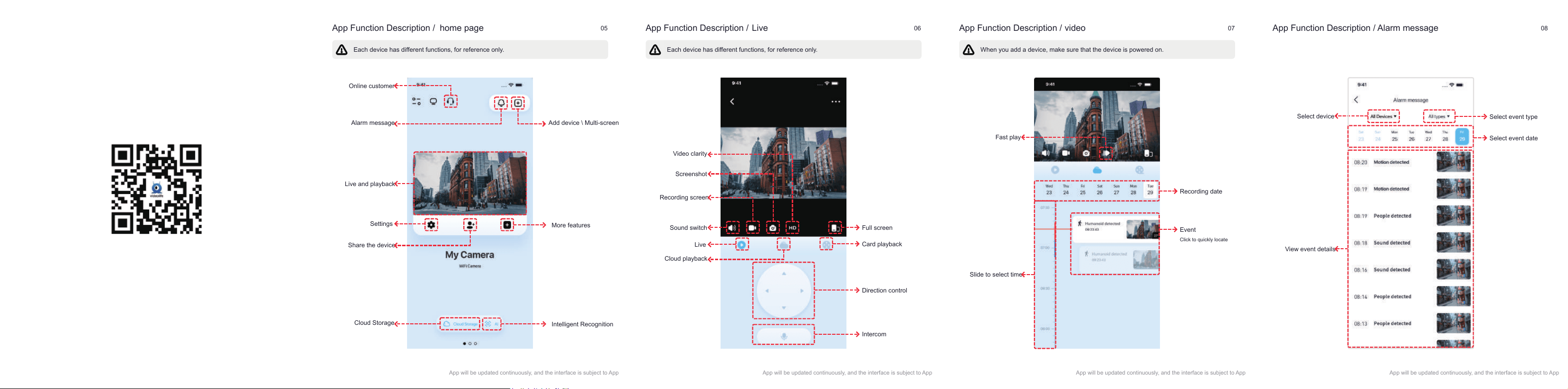
Online customer
Alarm message
Live and playback
Settings
Cloud Storage
More features
Intelligent Recognition
Share the device
Add device \ Multi-screen
App will be updated continuously, and the interface is subject to App
Each device has different functions, for reference only.
App Function Description /
home page
05
Video clarity
Screenshot
Recording screen
Sound switch
Full screen
Card playback
Direction control
Intercom
Live
Cloud playback
App will be updated continuously, and the interface is subject to App
Each device has different functions, for reference only.
App Function Description /
Live
06
Fast play
Event
Click to quickly locate
Recording date
Slide to select time
App will be updated continuously, and the interface is subject to App
When you add a device, make sure that the device is powered on.
App Function Description /
video
07
Select device
View event details
Select event type
Select event date
App will be updated continuously, and the interface is subject to App
App Function Description /
Alarm message
08

This device complies with part 15 of the FCC Rules. Operation is subject to the
following two conditions: (1) This device may not cause harmful interference, and (2)
this device must accept any interference received, including interference that may cause
undesired operation.
Any Changes or modifications not expressly approved by the party responsible for
compliance could void the user's authority to operate the equipment.
Note: This equipment has been tested and found to comply with the limits for a Class B
digital device, pursuant to part 15 of the FCC Rules. These limits are designed to
provide reasonable protection against harmful interference in a residential installation.
This equipment generates uses and can radiate radio frequency energy and, if not
installed and used in accordance with the instructions, may cause harmful interference
to radio communications. However, there is no guarantee that interference will not
occur in a particular installation. If this equipment does cause harmful interference to
radio or television reception, which can be determined by turning the equipment off and
on, the user is encouraged to try to correct the interference by one or more of the
following measures:
-Reorient or relocate the receiving antenna.
-Increase the separation between the equipment and receiver.
-Connect the equipment into an outlet on a circuit different from that to which the
receiver is connected.
-Consult the dealer or an experienced radio/TV technician for help.
-This equipment complies with FCC radiation exposure limits set forth for an
uncontrolled environment. This equipment should be installed and operated with
minimum distance 20cm between the radiator & your body.