产品说明书
K108SAS移动硬盘底座
感谢您购买MAIWO(麦沃)产品,为了您能够更好的使用本产
品,请您在正式使用本产品前,仔细阅读使用本手册所提及的操作要
点及注意事项。
MAIWO(麦沃)为深圳市凯祥源科技有限公司注册商标。
深圳市凯祥源科技有限公司只对产品本身存在的问题负有保修和维修
责任,对于用户操作所引起的数据资料删改或丢失,不负任何责任,
也不对因此造成的其它间接损失负责任。鉴于数据资料的价值不可估
量,正式操作本产品之前,重要资料请自行备份。
如果您使用的是新的硬盘,需要将硬盘初始化并格式化后才能正常出
盘。具体参考新硬盘初始化、分区与格式化教程。
前言
声明事项
注意事项
技术支持
如果您在操作过程中遇到问题,请拨打我们的客服热线4000-666-205,
我们的技术人员将为您提供技术支持。
A、 本产品执行国家三包政策:如有质量问题,7天包退,15天包换,
1年保修。起始时间以客户收到产品的日期起计算。
B、 电源线、USB线等配件不在保修范围内,如损坏需有偿更换。
C、 天灾造成损坏不在保修范围内,可以提供有偿维修服务。
D、 消费者使用不当,造成产品故障,可以提供有偿保修服务。
关于保修
保修凭证
保 修 卡
产品品牌 型 号
购买日期 保修期限
用户姓名 联系电话
客户地址
技术支持
客服热线
销 售 商
厂家地址
⑤ ⑥③ ④
① ②
操作指南
产品参数
产品名称:
产品参数
MAIWO K108SAS
移动硬盘底座
产品名称:
产品型号
产品名称
支持硬盘
传输接口
材 质
功 能
指 示 灯
Type-C
ABS高强度工程塑料+铝合金(底板)
硬盘读写
尺 寸 138x80x24mm
操作系统
Windows, Mac OS, Linux
操作指南
二、新硬盘初始化、分区与格式化教程: 二、新硬盘初始化、分区与格式化教程:
操作指南
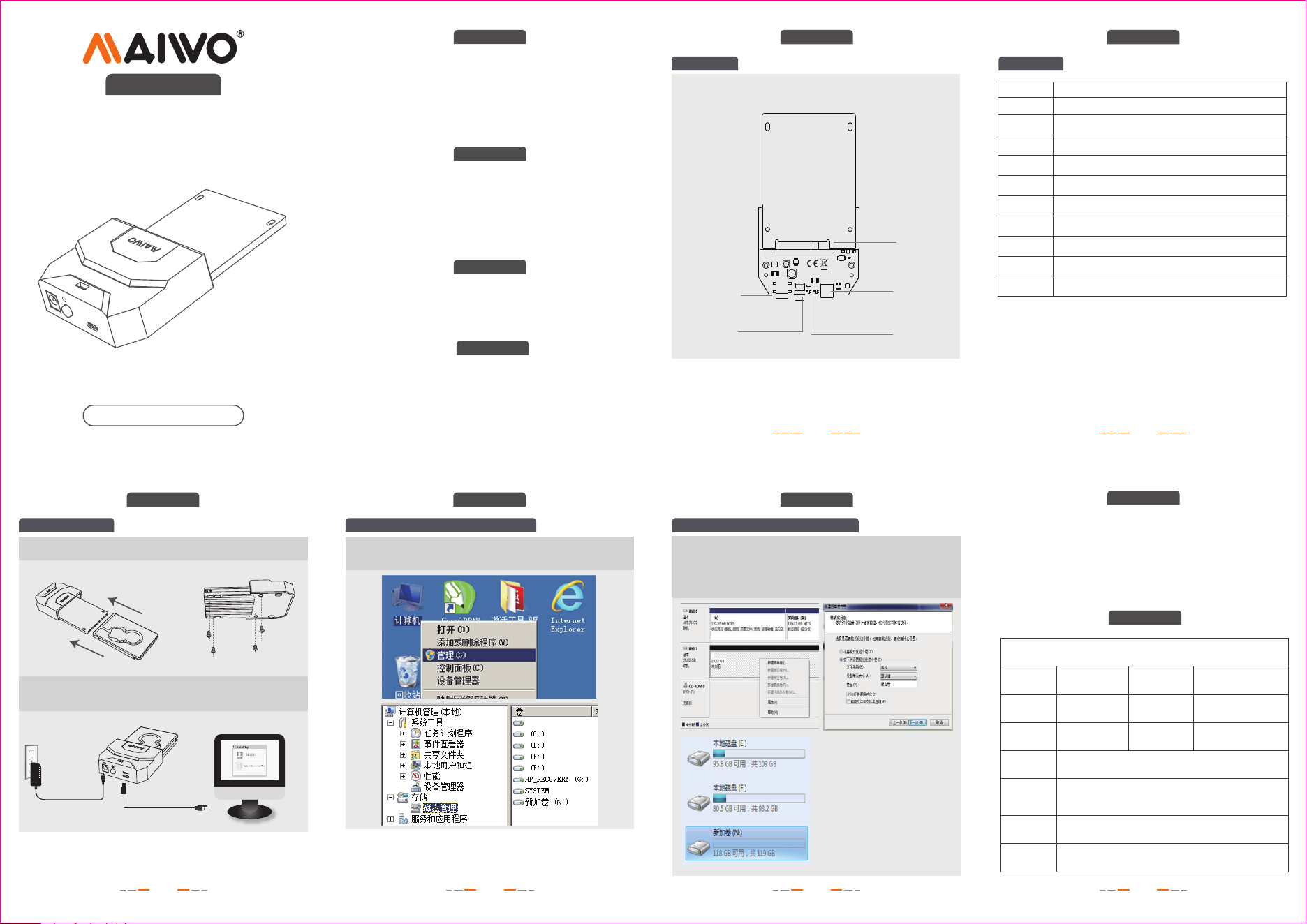
1.1. 将硬盘插入硬盘底座;用螺丝固定硬盘。
一、硬盘读写功能:
1.2. 用数据线连接电脑,电源线连接DC口,按一下电源开关按钮,
LED灯亮起,此时电脑会发现硬件并自动安装驱动。
K108SAS
SAS接口
Type-C接口
电源接口
电源开关
指示灯
传输速度
5Gbps
2.5”SAS 接口硬盘
外接电源 12V-2A
通电红灯常亮,读写数据时蓝灯闪烁
铝合金
(底板)
Type-C
DC
注:硬盘初始化有MBR和GPT两种格式选择,如果您的硬盘小于
或等于2T,请选择MBR格式,大于2T请选择GPT格式。
注:如果是旧硬盘,那么在“计算机”里可以发现新增的硬盘,并可以
正常读写。
如果是新硬盘,则右键点击“计算机”--管理--磁盘管理,找到磁盘,
初始化(或者格式化)后即可使用。
2.1. 硬盘初始化:鼠标右键点击“计算机”,查看“管理-磁盘
管理”发现新磁盘,将其初始化;
2.2. 分区格式化:新硬盘初始化后将会变成“磁盘1”,用鼠标
右键点击“磁盘1”,然后点击“新建简单卷”进行分区,根据
提示操作,可选择所需要分区的大小,并勾选格式化选项,可以
依次建立多个分区,直到完成。
Installation
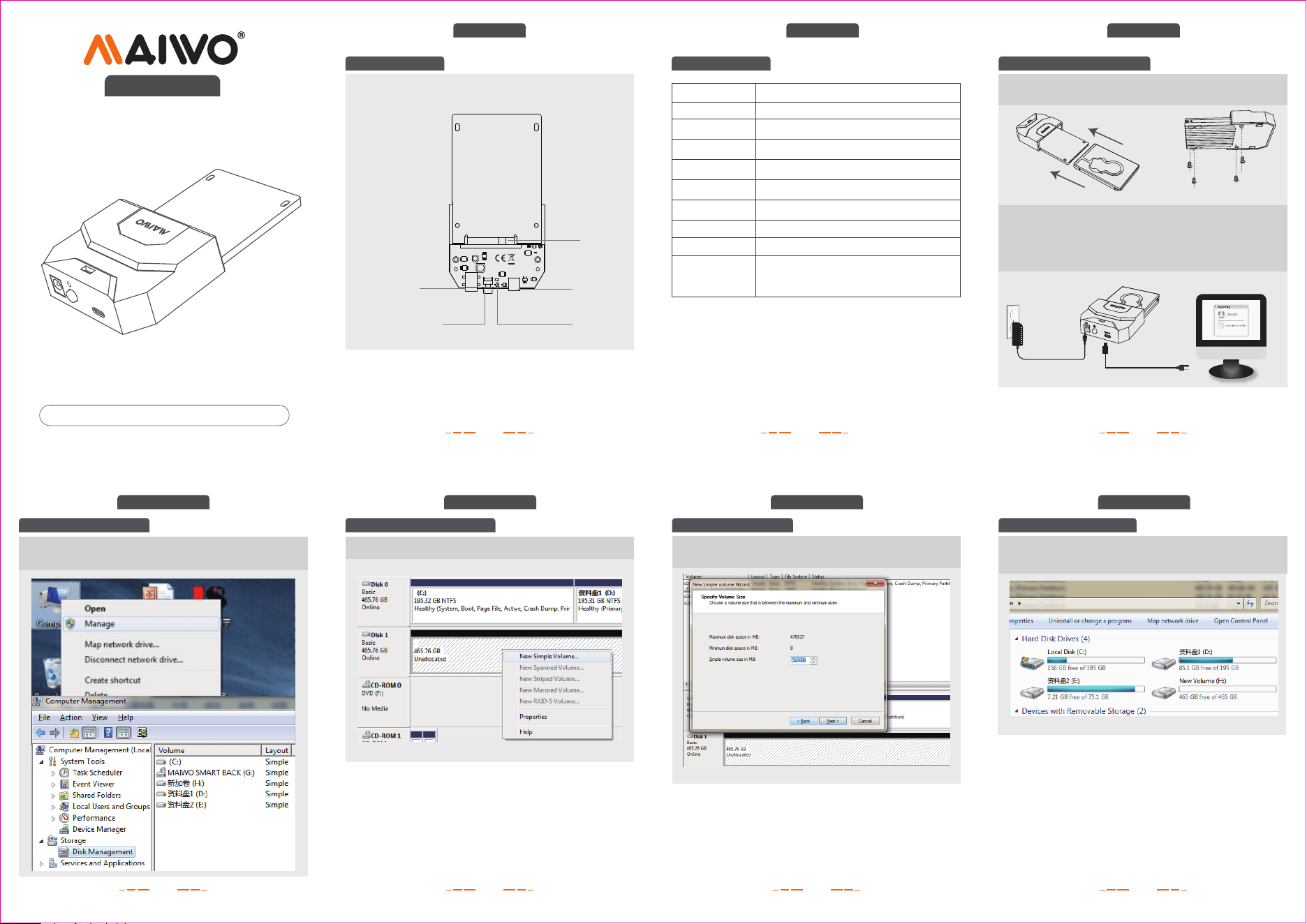
1. Hard drive read and write:
User Manual
⑥ ⑦④
② ③①
Specification
K108SAS Hard Drive Docking Station
Specification
Product name:Product name:
Product name MAIWO Hard Drive Docking Station
⑤
2.2. Right click the “Disk 1”, then click “New Simple Volume”.
2. New hard disk format:
Operation guide
2.New hard disk format:
Operation guide
3.1. According to the instruction, choose the size of partition,
then click “Next” to finish.
3. Hard disk partition:
Operation guide
3. Hard disk partition:
Operation guide
Model
Support SSD
Interface
Product Material
Indicator status
Type-C
ABS+aluminum alloy
Size
138x80x24mm
System Mac OS, Windows, Linux
K108SAS
Transfer rate
5Gbps
2.5”SAS hard drive
Rating
SAS
Type-C
DC jack
Power button
LED
Aluminum
alloy
Type-C
DC
12V-2A
3.2. Then you can find the new hard disk in the “Computer”,
it’s ready to be use.
2.1. View “computer - Manage - disk management” to find the
new disk .
Remark: If used hard drive, you will find it from "computer”. But if you are
installing a new hard drive, you must format it at the first time use.
1.2. Connect USB cable with PC and docking.
1.3. Plug AC adapter with wall plug and DC jack.
1.4. Press power button one time,LED will illuminate when
power on.
1.1. Push SSD into connector and locked disk with screws on the
bottom.
Red light on when power is in, blue flicker
when reading and writing