

i
© Hangzhou Accumems Technology Co.
,
Ltd. All rights reserved.
Manual Usage Guidelines
This manual contains functional descriptions and product
usage/management guidelines for various imager models. Due to
functional differences among models within the same series, the
manual may include explanations that are not applicable to your
specific model. All pictures, charts, and other information provided
herein are for descriptive and explanatory purposes only and are
subject to change without notice due to firmware updates or other
reasons. Please note that information regarding new features in the
latest firmware may not be included in a timely manner. Use this
manual under the guidance and assistance of professionals trained in
supporting the product.
E-mail Address
For more information and technical support, please send an email to
support@accumems.com.
Trademarks Acknowledgement
and other AccuMEMS’s trademarks and logos are the
properties of Hangzhou Accumems Technology Co.
,
Ltd. in various
jurisdictions. Other trademarks and logos mentioned are the
properties of their respective owners.

ii
CONTENTS
1. Safety Instruction .........................................................................................1
1.1 ESD WARNING .................................................................................................... 1
1.2 Power Supply .................................................................................................... 1
1.3 Battery ..................................................................................................................... 1
1.4 Using Environment ....................................................................................... 2
1.5 Transportation ................................................................................................. 3
1.6 Maintenance ...................................................................................................... 3
1.7 Emergency .......................................................................................................... 3
1.8 Laws and Regulations ...............................................................................4
2. Product Appearance.............................................................................. 5
3. Getting Started ............................................................................................ 8
3.1 Charging for the Imager .........................................................................8
3.2 Power On/Off the Imager ....................................................................8
4. Usage Scene Configuration .......................................................... 10
4.1 Choose a Usage Scene ........................................................................ 10
4.2 (Optional) Configure Usage Scene Parameters .............. 13
5. Temperature Measurement........................................................... 16
5.1 Measurement Tools Configuration ............................................... 16

iii
5.2 Temperature Accuracy Parameters Configuration ....... 17
5.3 Alarm Configuration ................................................................................ 18
5.4 Level & Span Configuration ............................................................. 19
6. Display Configuration ......................................................................... 21
6.1 UIRA-IR Configuration .............................................................................. 21
6.2 Image Mode Configuration ............................................................... 21
6.3 On-Screen Info Configuration ........................................................ 22
7. Pictures and Videos ............................................................................ 23
7.1 Capture Pictures ......................................................................................... 23
7.2 Record Videos .............................................................................................24
7.3 View Pictures and Videos .................................................................24
7.4 Export Pictures and Videos............................................................. 25
8. Device Connection ................................................................................ 26
8.1 Connect via Wi-Fi (If Applicable) ................................................ 26
8.2 Connect via Hotspot (If Applicable) ........................................ 26
9. Maintenance ................................................................................................. 27
9.1 Time and Date Configuration .......................................................... 27
9.2 View Imager Information .................................................................... 27
9.3 Format Memory .......................................................................................... 27
9.4 Logs Configuration.................................................................................. 27

iv
9.5 Upgrade ............................................................................................................ 27
9.6 Restore Imager Configuration .......................................................28
10. Guidance for Common Thermal Imaging
Operations ........................................................................................................... 29
10.1 Can the UIRA-IR Algorithm Detect Water Leaks or
Insulation Issues with 100% Accuracy? .......................................... 29
10.2 Factors may Interfere with the Detection Results of
UIRA-Scene ............................................................................................................. 29
10.3 Improve Water Leak Detection Success Rates ........... 30
10.4 Higher-Quality Image ......................................................................... 30
10.5 Guidance on Using Thermal Imaging for Common
Water Leak Detection..................................................................................... 31
10.6 Detect Water Pipe Leaks ................................................................ 32
10.7 Can the Thermal Imager Penetrate Walls or Floors?
........................................................................................................................................... 35
10.8 Check a Thermal Imager’s Temperature Accuracy .. 35
10.9 Frozen Images ...........................................................................................36
10.10 Prolong Battery Life ...........................................................................36

1
1. Safety Instruction
Read all the safety notes and instructions in the AccuMEMS User
Manual for use of the AccuMEMS products. Failure to heed the
following instructions can lead to electric shock, fire and/or severe
injuries.
1.1 ESD WARNING
The imager lens is electrostatic-sensitive. Proper ESD protection
required. Avoid touching the imager lens. Unauthorized contact may
result in damage.
1.2 Power Supply
Voltage Compliance: Input voltage must comply with IEC62368
Limited Power Source specifications (5 VDC, 2A). Refer to technical
specifications for full requirements.
Manufacturer Standards: Use only adapters from qualified
manufacturers. Refer to the product specification for detailed power
requirements.
Connection Requirements: Securely insert plug into power socket
until fully engaged.
DO NOT connect multiple devices to one power adapter, to avoid
over-heating or fire hazards caused by overload.
1.3 Battery
Warning: Explosion Hazard
Confirm there is no flammable material within 2 m of the charger
during charging.
Prohibited Disposal Methods
-
DO NOT dispose in fire or high-temperature ovens.

2
-
DO NOT mechanically crush or cut the battery.
-
DO NOT expose the battery in an extremely high temperature
environment, which may result in an explosion or the leakage of
flammable liquid or gas.
-
DO NOT subject the battery to extremely low air pressure, which
may result in an explosion or the leakage of flammable liquid or gas.
-
DO NOT place the battery near heating or fire source. Avoid direct
sunlight.
-
DO NOT swallow the battery to avoid chemical burns.
-
DO NOT place the battery in the reach of children.
Mandatory Disposal: Follow battery manufacturer's recycling
instructions precisely.
Integrated Battery Maintenance
-
The built-in battery cannot be dismantled. Please contact the
manufacture for repair if necessary.
-
For long-term storage: Maintain full charge every 90 days.
Otherwise, damage may occur.
-
Before using the device after storage, turn off the device and
charge it for at least 30 minutes.
-
Fully charged battery preserves time settings for 60 days (when
the device is powered off).
1.4 Using Environment
Running Environment Requirement of the Device:
-
The operating temperature shall be -10 °C to 50 °C (14 °F to
122 °F), and the operating humidity shall be 95% or less.
-
Place the device in a dry and well-ventilated environment.
Prohibitions:
-
DO NOT expose the device to high electromagnetic radiation or
dusty environments.
-
DO NOT aim the lens at the sun or any other bright light.

3
-
The device is suitable for indoor and outdoor uses, but do not
expose it in wet conditions.
1.5 Transportation
Packaging Requirements: Transport the device exclusively in its
original packaging or equivalent protective materials. Retain all
packaging components after unboxing for potential reuse
Return & Liability Conditions: In the event of device failure requiring
factory return: Must utilize original packaging for transportation.
Transportation without original packaging may cause damage, and
the manufacturer assumes no liability for damages occurring under
such circumstances.
Operational Prohibitions: DO NOT drop the product or subject it to
physical shock. Keep the device away from magnetic interference.
1.6 Maintenance
DO NOT maintain the imager when it is powered on, or it may cause
electric shock!
If the product does not work properly, please contact your dealer or
the nearest service center. We shall not assume any responsibility for
problems caused by unauthorized repair or maintenance.
Wipe the device gently with a clean cloth and a small quantity of
ethanol, if necessary.
Any operation outside manufacturer-specified parameters
immediately voids all safety functions of this device.
1.7 Emergency
Upon detecting smoke, abnormal odors, or noise originating from the
device:
immediately cut all power sources
unplug the power cable

4
notify authorized service center
1.8 Laws and Regulations
Use of the product must be in strict compliance with the local electrical
safety regulations.
5
2. Product Appearance
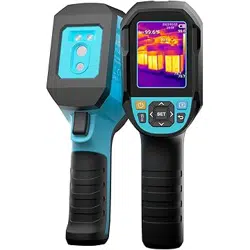
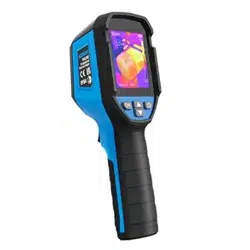
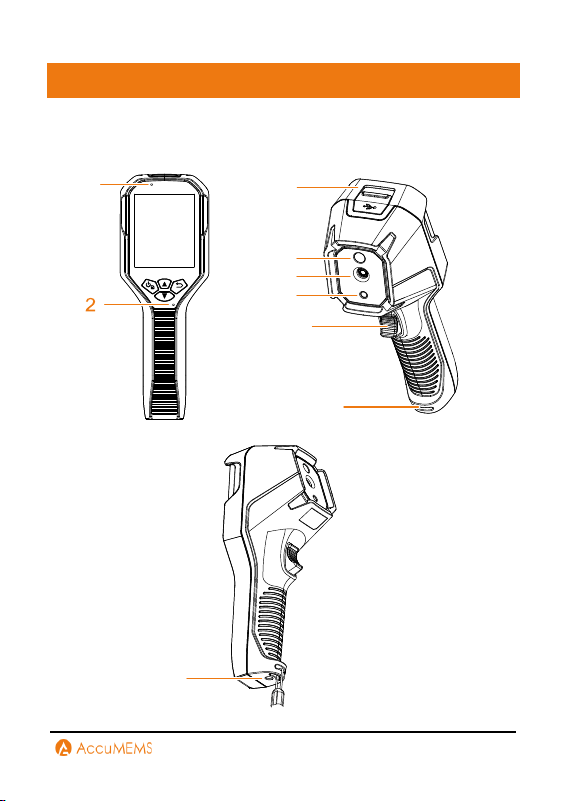
Imager models may differ in appearance and componentry. Please
refer to the actual products.
1
3
4
5
6
7
8
9
6
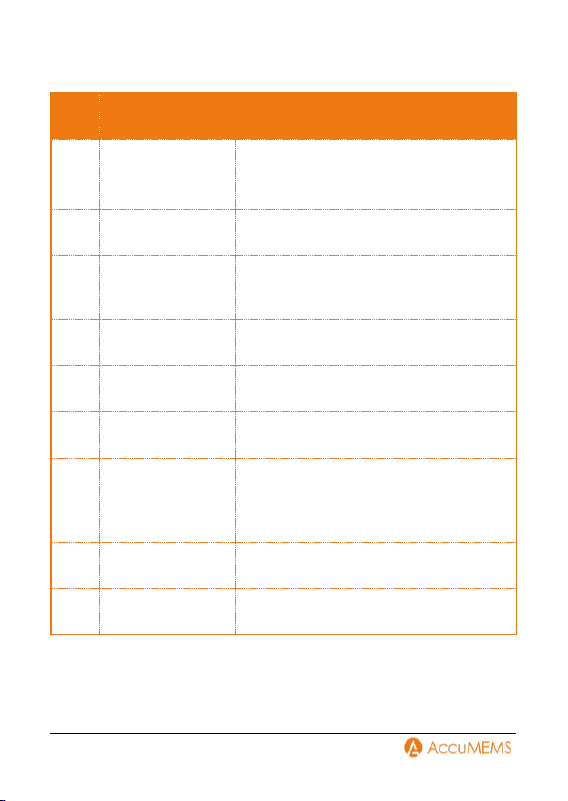
No.
Component
Function
1
Indicator of the
Charger
Solid Red: Charging in progress..
Solid Green: Fully charged.
Flashing red: charging exception.
2
Buzzer
Emit sound alarm.
3
Type-C
Interface
Battery charging and data export.
4
Visual Lens
View the visual image.
5
Thermal Lens
View the thermal image.
6
Flashlight
Provides fill light for objects.
Emits a flashing alarm signal.
7
Trigger
Single press to take a picture in real-
time interface.
Single press to go back to real-time
interface in menu mode.
8
Strap Mount
Attach a wrist strap here.
9
Tripod Mount
Mount the device on a tripod.
7
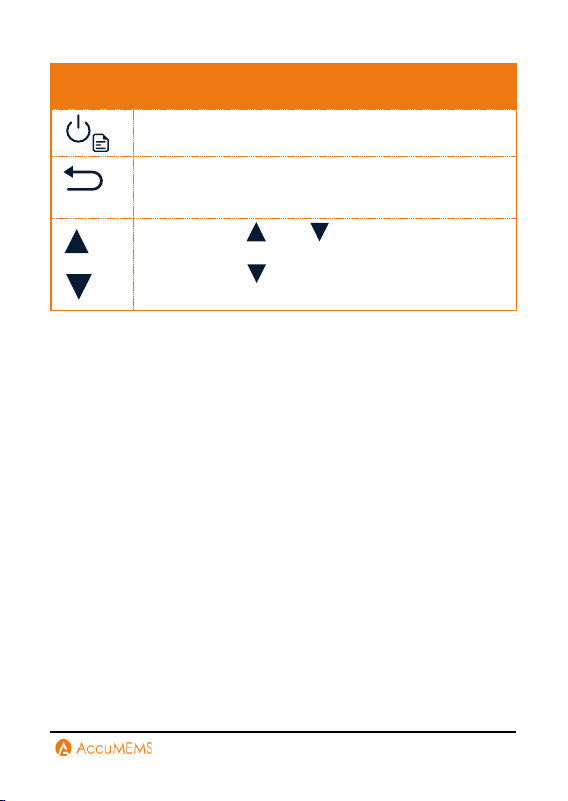
Button
Function
Holding Button: Power On/Off
Single Press: Confirm operation or display settings.
Go back to the previous menu or exit the current one.
Single press and to configure parameters
in menu mode.
Single press to switch palettes in real-time
interface.
8
3. Getting Started
3.1 Charging for the Imager
To charge the imager, plug in the included USB cable and use a power
adapter to connect it to the power source.
The following requirements should be fulfilled by the power adapter
(not included):
Output Voltage/Current: 5 VDC/2 A
Minimum Power Output: 10 W
NOTE
To reach the maximum charging speed, the charger's power must
be between the minimum 6.7 watts needed by the radio equipment
and the maximum 10 watts.
There is an integrated battery in the device. When charging the
imager for the first time, leave it on for more than 3 hours.
It is advised to charge the imager for at least half an hour before
turning it on if it has been over-discharged from prolonged
inactivity.
3.2 Power On/Off the Imager
Power On
To activate the device, hold for more than 6 seconds. When the
imager's interface is steady, you can see the target.
NOTE
After turning the imager on, it can take at least 30 seconds before it
is ready for use.

9
Power Off
When powered on, hold the button for 2 seconds to turn off the
imager.
Auto Power-Off Configuration
To configure the imager’s automatic shutdown time as needed, press
and go to More Config
Auto Power-off.
10
4. Usage Scene Configuration
To facilitate rapid anomaly detection, the Usage Scene offers a range
of preset templates designed for different situations.
1.
Choose a suitable scene or create a customized one according to
detection targets. Refer to 4.1 Choose a Usage Scene for detailed
instructions.
2.
(Optional) Adjust scene parameters. Refer to 4.2 (Optional)
Configure Usage Scene Parameters for detailed instructions.
3.
(Optional) Configure alarms as needed. Refer to 5.3 Alarm
Configuration for detailed instructions.
4.
See detection results in the real-time interface.
4.1 Choose a Usage Scene
Choose a scene according to the faults or irregularities you want to
locate in a specific detection scene.
1.
In real-time interface, press to reveal the menu.
2.
Press \ to select Usage Scene.
3.
Choose a desired scene.
Moisture Detect
This scene is used to detect water leaks on indoor building ceilings,
walls, and floors.
UIRA-Scene technology enables rapid identification of irregularities
during leak inspections. Upon activation, if moisture irregularities are
detected, the system will mark them with “Suspect” indicators and red
frames in the real-time interface.
NOTE

11
If the temperature difference in areas with moisture irregularities
is too subtle to be detected, missed or incorrect reporting may
occur.
A secondary diagnosis using the UIRA-Scene function is
recommended. The algorithm for this function is currently being
updated.
Simultaneously enabling UIRA-IR and UIRA-Scene reduces the
frame rate.
Home Insulation
This scene is used to detect home insulation irregularities of indoor
building structures such as walls and ceilings, common users can apply
this scene.
UIRA-Scene technology enables rapid identification of irregularities
during insulation inspections.
Upon activation, if insulation irregularities are detected, the system will
mark them with “Suspect” indicators and red frames in the real-time
interface. If air leak points are detected, the system will mark them with
“Suspect Air Leak” indicators and red frames in the real-time interface.
NOTE
If the temperature difference in areas with insulation irregularities
is too subtle to be detected, missed or incorrect reporting may
occur.
A secondary diagnosis using the UIRA-Scene function is
recommended. The algorithm for this function is currently being
updated.
Pro Insulation
This scene is used to detect indoor insulation anomalies of building
walls and ceilings. The required parameters include Indoor Temp.,
Outdoor Temp., and Insulation Level.
When indoor temperature is less than or equal to outdoor
temperature, regions with insulation levels surpassing the preset

12
threshold will be highlighted in cyan. Conversely, if indoor temperature
exceeds outdoor temperature, areas with insulation levels lower than
the preset value will be marked in cyan.
NOTE
Indoor Temp. represents the current indoor temperature.
Outdoor Temp. represents the current outdoor temperature.
Insulation Level: An integer ranging from 0 to 100. Typical values
for new buildings fall within 60–80%.
Pro Moisture
To detect potential indoor moisture issues, it is necessary to configure
Relative Humidity, Ambient Temp., and RH Threshold(%).
Regions with condensation deficiency will be highlighted in green when
the measured relative humidity surpasses the specified RH Threshold.
NOTE
Relative Humidity indicates the current relative humidity level.
Ambient Temperature indicates to the current atmospheric
temperature.
RH Threshold represents the humidity upper limit of the target
surface. A relative humidity of 100% signifies that water vapor
condenses into liquid water (dew point), while levels around 70%
or higher may promote mold growth.
Values of Relative Humidity and Ambient Temp. can be acquired
using hygrometers and thermometers, respectively.
Floor Heating
This scene is used to detect and monitoring faults in underfloor heating
systems.
UIRA-Scene technology enables rapid identification of irregularities
during floor heating inspections. Upon activation, if heat irregularities
are detected, the system will mark them with “Suspect” indicators and
red frames in the real-time interface.

13
NOTE
If the temperature difference in areas with heat irregularities is
too subtle to be detected, missed or incorrect reporting may occur.
A secondary diagnosis using the UIRA-Scene function is
recommended. The algorithm for this function is currently being
updated.
Electrical Failure
Used for detecting and monitoring faults in wires, circuits, electrical
components, terminators, and similar items.
Solar Panel
Used for detecting and monitoring faults in solar panels.
Custom
Allows users to create a personalized mode by saving preferred
temperature measurement parameters for later use. Refer to 4.2
(Optional) Configure Usage Scene Parameters for detailed
instructions.
4.2 (Optional) Configure Usage Scene
Parameters
Users can adjust related parameters to achieve more precise detection
results. In Usage Scene, choose a desired scene and then press
to set parameters.
NOTE
Parameters vary depending on the selected scene.
Parameters
Description
14
Distance
Set the distance between the imager
and the target object.
Emissivity
Set the emissivity value according to
the target object.
Palettes
Palettes represent temperature using
different colors. Users can select a
preferred color palette.
Level & Span
The temperature scale on the right
helps visualize the color-temperature
relationship in the image. Refer to 5.4
Level & Span Configuration for
detailed instructions.
Temperature Range
Select the temperature measurement
range. In Auto Switch mode, the device
automatically detects temperature and
switches ranges accordingly.
Alarm
When the target temperature triggers
a set alarm rule, users can be notified
through configured rules. Refer to 5.3
Alarm Configuration for detailed
instructions.
Color Display
Choose between Linear and
Histogram modes for different
scenarios to enhance detail visibility:

15
Linear: Optimized for detecting small
high-temperature targets against a
low-temperature background.
Histogram: Enhances visibility of
small low-temperature targets in
high-temperature areas.
16
5. Temperature Measurement
To get more precise and real-time temperature of the target, user can
set spot tools and alarms as needed.
5.1 Measurement Tools Configuration
The device measures the entire scene temperature and can be
configured to display center, hot, and cold points.
NOTE
Before using the measurement tools, remember turning off the IR
Thermometer function.
1.
In the real-time interface, press to reveal the menu.
2.
Press to select Temp. Settings.
3.
Select the desired spots to display their temperatures, and press
to enable them.
Max: Display the scene's hot point and its max. temperature.
Min: Display the scene's cold point and the min. temperature.
Cen: Display the scene's center point along with the temperature.
4.
Optional: You can customize the user-defined spots if needed.
-
Select a user-defined spot, and press .
-
Press \ \ to adjust the position of the spot.
-
Press to save and exit.
5.
Press to save and exit.
The imager will display the real-time temperature on the upper left
corner of real-time interface.
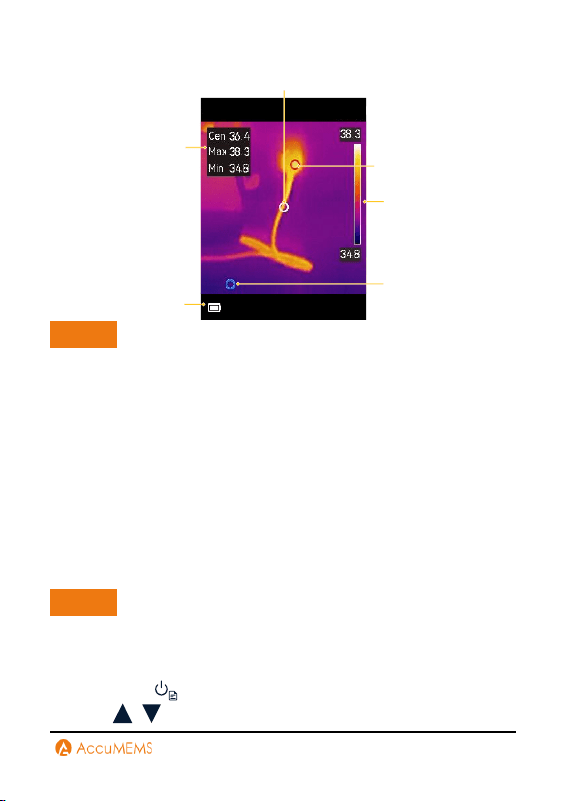
17
Display
Temperature
Range
Status
Icons
Real-Time
Temperature
Max.
Temperature
Center
Temperature
Min.
Temperature
NOTE
This manual is regularly updated; real-time interfaces may differ
slightly from your specific model.
Always refer to your imager.
When temperature values display "~", measurements have not yet
stabilized. This symbol typically appears during startup and
disappears when stable readings are achieved.
5.2 Temperature Accuracy Parameters
Configuration
To increase temperature measurement accuracy, you can adjust the
measurement parameters.
NOTE
After adjusting the emissivity and distance parameters in the settings
interface, the emissivity and distance values in the Usage Scene will
also be modified accordingly.
1.
Single press to reveal the menu in the real-time interface.
2.
Press \ to choose the desired parameters.
18
Emissivity: To configure the target's emissivity—the efficiency with
which energy is released as thermal radiation—enable Custom and
choose Emissivity.
Distance: Configure the distance between the target and the imager.
Unit: Go to Display Config to configure the temperature unit and
distance unit.
3.
Press to save and exit.
5.3 Alarm Configuration
Configure the alarm rule and the imager will alarm when the detected
temperature triggers the rule.
NOTE
Before using alarm trigger, please first turn on Alarm in Usage Scene.
Otherwise, alarm trigger will not be visible in the settings interface.
Only some scenes support the alarm function.
1.
In real-time interface, press to reveal the menu.
2.
Press \ to select Usage Scene.
3.
Choose a scene with alarm function.
4.
Turn on alarm.
5.
Navigate to Measurement to configure an alarm rule. Set your
desired temperature threshold under Alarm Threshold. The imager
triggers an alarm when the target's temperature exceeds or falls
below this preset value.
6.
Press to save and exit.
7.
(Optional)Go back to Settings
Alarm Trigger and enable different
alarm types.
Flashing Alarm: The flash light flashes when the target temperature
exceeds the alarm threshold (only supported by certain models).
Audible Warning: The device beeps when target temperature
exceeds the alarm threshold.
19
Coloring Alarm: When the target’s temperature is higher than the
set value, the target will become red; when the target’s temperature
is lower than the set value, the target will become blue (only
supported by certain models).
5.4 Level & Span Configuration
Adjust the level & span parameters to get better image contrast.
1.
Go to Settings
Usage Scene
Level & Span.
2.
Select Setting Mode, and press to switch auto and manual
adjustment.
Mode
Description
Auto
Enabling Auto mode can automatically adjust
the display temperature range.
Manual
In Manual mode, choose Parameters to access
the settings interface.
Press to lock or unlock the maximum
and minimum temperature settings, and press
\ to adjust any unlocked values.
Alternatively, unlock both the maximum and
minimum temperatures and press \ to
increase or decrease either value individually
while preserving the same temperature range.
You also have the option to enable Persist
Saved.
When Persist Saved is enabled, the current
manual mode settings will be saved and
restored after the device restarts.
20
When Persist Saved is disabled, the settings
will not be saved upon restart, and the device
will revert to automatic mode.
3.
Press to save and exit.

21
6. Display Configuration
6.1 UIRA-IR Configuration
The device supports UIRA-IR in both real-time view (for some models)
and captured snapshots, improving object edge definition for clearer
image quality. Actual performance may vary by model.
Real-time View: When UIRA-IR is enabled, supported models
enhance object contours during real-time viewing.
Snapshot: UIRA-IR sharpens object outlines in captured images after
activation.
NOTE
UIRA-IR is enabled by default. To disable it, go to Settings
UIRA-IR
to turn it off.
6.2 Image Mode Configuration
You can configure the device's thermal/visual display mode. The
selectable options include Thermal, Fusion, PIP, and Visual modes.
Image Mode is only supported by certain models. Please refer to the
actual device.
1.
Select an image mode by the following ways:
Go to Settings
Camera Config
Image Mode, and select a
preferred image mode.
Press in live view to switch image modes.
Mode
Description
Thermal
In thermal mode, the device displays the thermal
view.
22
Fusion
Thermal object image with visual outlines. This
function is only supported by the models with
visual lens.
PIP
In PIP (Picture in Picture) mode, the device
displays thermal view inside the visual view. This
function is only supported by the models with
visual lens.
Visual
Visual object image only. This function is only
supported by the models with visual lens.
2.
Press to save and exit.
6.3 On-Screen Info Configuration
Go to Settings
Display Config to turn on/off the information on-
screen display.
Parameters: Temperature measurement parameters.
Temperature Scale: Display the palettes bar and temperature range
on the right side of the screen.
Screen Brightness: adjust the level of screen brightness as prefer.
23
7. Pictures and Videos
7.1 Capture Pictures
You can capture pictures in real-time interface and a thumbnail of the
picture will be displayed in live view. The pictures will be automatically
saved in the album.
In the real-time interface, you can press and
release the trigger to capture pictures.
You can also set the following parameters in Settings
Capture
Config before capturing snapshots.
Parameters
Description
Capture
Mode
One Picture: Press the trigger once to capture
one image.
Capture Plan: Set Interval (the time interval of
each snapshot to be taken) and Number (the
number of snapshots to be taken in a roll, ranging
from 2 to 10,000) for scheduled capture. Press
the trigger in real-time interface, and the device
captures the set number of images according to
the set interval. Press the trigger again to stop
capturing.
Save Visual
Image
If a visual image is needed to be saved separately,
you can enable Save Visual Image (only
supported by the models with visual lens).
24
File Naming
Files can be named using Time Stamp or
Numbering (filename header + sequence
number).
NOTE
You cannot capture pictures when the imager is connected with PC.
7.2 Record Videos
NOTE
If the recording environment is dark, you can turn on the flashlight
for illumination.
1.
Hold the trigger in real-time interface. When the recording icon and
time display in the interface, recording begins, and you can release
the trigger.
2.
Press the trigger completes the recording. The device will display a
pop-up notification saying "Recording Succeeded”. The recording
video will be saved.
7.3 View Pictures and Videos
1.
Press to reveal the menu in the real-time interface.
2.
Press \ to select Pictures, and press to enter the
album.
3.
Press \ to select the picture or video, and press to view
it.
4.
Optional: Press to delete picture. Press to delete video in
view interface.
5.
Press \ to switch the picture or video.
6.
Press to exit.

25
7.4 Export Pictures and Videos
1.
Connect the device to your PC with the included USB cable, and
select USB Drive mode in the prompt on imager.
2.
Open the detected disk, copy and paste the files to PC to view the
files.
3.
Disconnect the imager from your PC.
NOTE
For the first connection, the driver will be installed automatically.
26
8. Device Connection
8.1 Connect via Wi-Fi (If Applicable)
In the real-time interface, press and go to Settings
More
Config to enable WLAN. Remember download and install the APP on
your phone before using the function.
1.
Connect your device to a Wi-Fi network.
-
Press \ to select Wi-Fi, and enter the password.
-
Press to save and exit.
2.
Add the device to the app.
8.2 Connect via Hotspot (If Applicable)
In the real-time interface, press and go to Settings
More
Config to enable Hotspot. Remember download and install the APP on
your phone before using the function.
1.
Turn on the device hotspot and complete settings.
-
Set the hotspot password.
-
Press to save and exit.
2.
Add the device to the app.
27
9. Maintenance
9.1 Time and Date Configuration
In the real-time interface, press and go to Display Config
Time
and Date to configure the information.
9.2 View Imager Information
In the real-time interface, go to More Config
About to view the
detailed information of the imager.
9.3 Format Memory
1.
In the real-time interface, press and go to More Config
Format Memory.
2.
Press and select OK to start formatting storage.
9.4 Logs Configuration
The imager can retain its operational logs for troubleshooting
purposes. This function can be enabled/disabled via More Config
Save Logs.
To export logs:
1.
Connect the imager to a PC using the included USB cable.
2.
Set the imager's USB mode to USB Drive.
3.
Access operation logs in the device's root directory.
9.5 Upgrade
Before upgrade, download the upgrade file first. You can get the
upgrade file through technical support.

28
1.
Connect the imager to your PC via the included cable, and select
USB Drive as the USB mode in the prompt on the imager.
2.
Copy the upgrade file and replace it to the root directory of the
imager.
3.
Disconnect the imager from your PC.
4.
Reboot the imager and then it will upgrade automatically. The
upgrading process will be displayed in the main interface.
NOTE
After the upgrading, the imager automatically reboot. You can view
the current version in More Config
About.
9.6 Restore Imager Configuration
In the real-time interface, press and go to More Config
Restore Device to initialize the imager and restore default settings.

29
10. Guidance for Common
Thermal Imaging Operations
The manual provides guidance on common issues for first-time users of
imagers. For other questions or updated guidance, please contact
technical support.
10.1 Can the UIRA-IR Algorithm Detect
Water Leaks or Insulation Issues with
100% Accuracy?
No. Although the UIRA-IR algorithm delivers reliable detection
performance, it does not achieve 100% accuracy. The algorithm is
designed for preliminary screening by analyzing thermal image
characteristics in various scenarios, based on clear images captured by
users. If an area is makred as "Suspect," we recommend manual
verification by professionals. Additionally, keeping your device’s
firmware updated ensures access to the latest algorithm
enhancements.
10.2 Factors may Interfere with the
Detection Results of UIRA-Scene
Different wall materials and surrounding heat sources
Heat diffusion properties of different wall materials:
Some wall materials exhibit heat diffusion patterns that resemble
common wall defects, making it necessary for experienced
professionals to conduct further verification.
Interference from ambient heat sources (e.g., heaters or air
conditioning vents):
External heat sources may cause localized temperature increases on
30
wall surfaces, affecting detection accuracy.
10.3 Improve Water Leak Detection
Success Rates
Method
1.
Adhere to recommended leak area and detection distance
guidelines. Ensure the leak area and detection distance match your
device’s IR resolution.
For example:
IR Resolution
Distance
Leak Area
96×96
≤ 1m
≥ 10cm×15cm
96×96
≤ 2m
≥ 20cm×30cm
256×192
≤ 2m
≥ 10cm×15cm
256×192
≤ 4m
≥ 20cm×30cm
Check your device’s IR resolution under Specification.
2.
Perform multiple inspections and dynamic comparisons:
Relying on a single thermal image may lead to errors. Compare images
taken at different times (e.g., day vs. night), under varying temperature
conditions, or from different angles. You can also observe the same
area dynamically.
10.4 Higher-Quality Image
How to Take Clear Thermal Imaging Pictures?

31
Principle
Thermal image use colors to show temperature distribution. The
temperature range of the target affects the image effect.
Method
1.
When the actual temperature difference of the target in the image is
higher than 10 °C (50 °F ) or 20 °C (68 °F ), the thermal image effect is
most obvious, which helps to highlight the subtle temperature
difference.
2.
When the temperature difference of the target in the image is small,
you can manually adjust the temperature range (if applicable) of the
whole image to increase the contrast of the target.
3.
It is recommended that the distance between the imager and the
target should be within 2 meters (about 6.56 feet). Adjust the
distance to ensure clear focus, especially for small targets.
4.
Select an appropriate palette for the scene to get an image with high
contrast.
10.5 Guidance on Using Thermal Imaging
for Common Water Leak Detection
Principle
Water has a higher specific heat capacity than building materials, so the
temperature change rate of the leaking area is different from that of
the surrounding materials. The thermal imager captures this
temperature difference to locate the leak point contactlessly.
Tips
1.
Best Testing Time Period: Choose sunrise or sunset for testing. At
this time, the temperature difference between indoors and outdoors
is usually over 10 °C (50 °F), and the solar radiation heat gradient
makes the thermal imaging of leak points inside the wall more
obvious.

32
2.
Environmental Condition Control: The surface temperature should
be tested in dry and sunny weather. Rain and snow will lower the
surface temperature and interfere with the infrared signal, which will
seriously affect the accuracy of detection.
3.
Priority Detection Area: Scan the weak links of building structures
such as wall corners, window and door edges, existing cracks, pipe-
through wall holes, and connections, which are high-risk areas for
structural water leakage and pipe water leakage.
4.
Dynamic Verification: Avoiding false alarms caused by single-time
capture results. In the periods with significant day and night
temperature differences, or after adjusting different angles to
capture the same area multiple times. Dynamic verification can be
used to exclude false alarms.
NOTE
Structural Leakage Test: Spraying water on the wall to simulate
wetting, or testing the residual water-stained area immediately
after rain, can enhance the temperature difference contrast.
Pipe Leakage Detection: For persistent water leakage, you need to
take pictures during periods of water pressure changes (such as
before and after peak water usage) and refer to the specific
suggestions for pipe leakage detection.
Micro Leakage: if the water leakage is very small and the
temperature difference is not obvious, it is recommended to use
devices with higher sensitivity and resolution (such as ≤40 mK
thermosensitivity and ≥256 × 192 resolution) to improve detection
rate.
10.6 Detect Water Pipe Leaks
How to Use Thermal Imaging for Hot Water Pipe Leaks?
Principle
When hot water pipes leak, heat energy will conduct to the surface of
buildings, and the leaked area will show as a high-temperature region

33
(usually in red or highlighted color) on the thermal image, which can
help you locate the leakage point.
Tips
1.
Time Selection: Select sunrise or sunset time when the environment
temperature changes significantly and helps to enhance the
temperature difference effect.
2.
Pressure Verification: Use the pipe pressure tester to monitor the
pressure change. If the pressure continues to decrease after
pressurization, it can be preliminarily confirmed that there is a leak.
3.
Temperature Difference Enhancement: Ensure the hot water
temperature is at least 10°C higher than the room temperature and
maintain the flow for 15-30 minutes. Under this condition, a
detectable temperature difference can be formed in concrete, wood
boards, or gypsum boards with a penetration depth of 3-5cm.
4.
Pathway Tracking: System scans along the hot water pipe route,
focusing on high-risk parts such as interfaces, valves, and wall-
penetrating holes, as well as historical maintenance records.
NOTE
The detection effect is influenced by water temperature (must be
10 °C higher than the indoor temperature), pipe burial depth
(concrete or dense materials over 5 cm deep may affect imaging), and
contact material (wooden boards or gypsum boards can be detected).
This method is applicable to contact heat transfer scenes. When
pipes have no physical contact with building structures or when
leakage water cannot penetrate to the surface, it will not be possible
to detect due to lack of temperature difference contrast.
How to Use Thermal Imaging for Detecting Leaks in Cold Water
Pipes?

34
Principle
Cold water leakage causes heat conduction to the wall, which results in
a lower temperature than that of the surroundings. The thermal imager
captures the temperature difference and displays it as a low-
temperature area (usually in blue).
Tips
1.
Time Selection: The temperature difference between cold water and
indoor temperature is usually small, and it is difficult for the
temperature to conduct to the surface. You can select sunrise or
sunset for testing, as the natural temperature difference can help
enhance the contrast.
2.
Pressure Verification: Use a pressurizing device to monitor the
pressure of the pipe. If the pressure continues to drop, it can help
confirm that a leak exists.
3.
Operation in Winter: After preheating the wall and floor in the
heating environment, continuously supply cold water to the cold
water pipe to create a significant temperature difference.
4.
Operation in Summer: Inject cold water into the cold water pipe
during the low-temperature sunrise hours to enhance the test effects
by leveraging the temperature difference between the environment
and the water.
5.
Temperature Difference Strengthening Method: Pour hot water
into the cold water pipe and keep it for 15 minutes (refer to the hot
water pipe testing tips), which can quickly generate a recognizable
temperature difference.
NOTE
The detection effect is influenced by water temperature (must be
10 °C higher than the indoor temperature), pipe burial depth
(concrete or dense materials over 5 cm deep may affect imaging), and
contact material (wooden boards or gypsum boards can be detected).
This method is applicable to contact heat transfer scenes. When
pipes have no physical contact with building structures or when

35
leakage water cannot penetrate to the surface, it will not be possible
to detect due to lack of temperature difference contrast.
10.7 Can the Thermal Imager Penetrate
Walls or Floors?
No. Thermal imagers cannot penetrate walls or floors like X-ray
machines. They can only detect heat emitted from the surface of an
object. However, in certain cases, the thermal imager can detect
anomalies inside walls or floors, such as water pipe leakage or heat loss
due to poor insulation. This is because the thermal imager can capture
the heat conducted to the surface of the wall or floor. If the pipe has no
contact with the wall or ground, the temperature cannot be conducted,
and the thermal imager cannot detect it.
10.8 Check a Thermal Imager’s
Temperature Accuracy
How to test the accuracy of the devices?
Tips
1.
Pour crushed ice and water into the cup, and turn on the imager.
2.
Mix the solution and let it stand for a few minutes.
3.
Set the imager's emissivity to 0.95 and adjust the distance.
4.
Point the imager at the solution to measure its temperature. To get
the best effect, please measure the temperature of water surface and
avoid measuring cup wall. The reading should be close to the freezing
point (0 °C / 32 °F) and within the precision range.

36
10.9 Frozen Images
What are the clicking sound and frozen image after device startup?
This is a normal phenomenon of the thermal imaging device. To keep
the measurement accuracy, the imager will automatically calibrate the
environment temperature change. During this process, the screen may
stutter and show "Image Calibrating…", and you can also hear a "click"
sound from the device. This phenomenon usually occurs when the
imager is moved quickly or when it is turned on for the first time.
10.10 Prolong Battery Life
How to extend the life of lithium batteries?
Tips
1.
Initial Charging: Charge the device for 3 hours in the off state before
first use.
2.
Charging Cable: Use the included charging cable or an authenticated
one.
3.
Power Adapter: For best results, use a standard 5 V/2 A charger.
4.
Storage and Reuse: When storing the device for a long time, charge
it to full capacity every 3 months. Before using the device after
storage, turn off the device and charge it for at least 30 minutes.

37
REGULATORY INFORMATION
FCC Compliance Statement
Please take attention that changes or modification not expressly
approved by the party responsible for compliance could void the user's
authority to operate the equipment.
This device complies with Part 15 of the FCC Rules. Operation is
subject to the following two conditions:
(1) This device may not cause harmful interference, and
(2) This device must accept any interference received, including
interference that may cause undesired operation.
This equipment complies with FCC radiation exposure limits set forth
for an uncontrolled environment.
Note: This product has been tested and found to comply with the limits
for a Class B digital device, pursuant to Part 15 of the FCC Rules.
These limits are designed to provide reasonable protection against
harmful interference in a residential installation. This product
generates, uses, and can radiate radio frequency energy and, if not
installed and used in accordance with the instructions, may cause
harmful interference to radio communications. However, there is no
guarantee that interference will not occur in a particular installation. If
this product does cause harmful interference to radio or television
reception, which can be determined by turning the equipment off and
on, the user is encouraged to try to correct the interference by one or
more of the following measures:
—
Reorient or relocate the receiving antenna.
—
Increase the separation between the equipment and receiver.
—
Connect the equipment into an outlet on a circuit different from that
to which the receiver is connected.

38
—
Consult the dealer or an experienced radio/TV technician for help.

AccuMEMS
OFFICE
Hangzhou Accumems Technology Co.,Ltd.
Office Address
Room 418-1, Building 2, JinxiuLinglongfu,
Xixing Street, Binjiang District,
Hangzhou City, Zhejiang Province