PP
until
2023/10/10
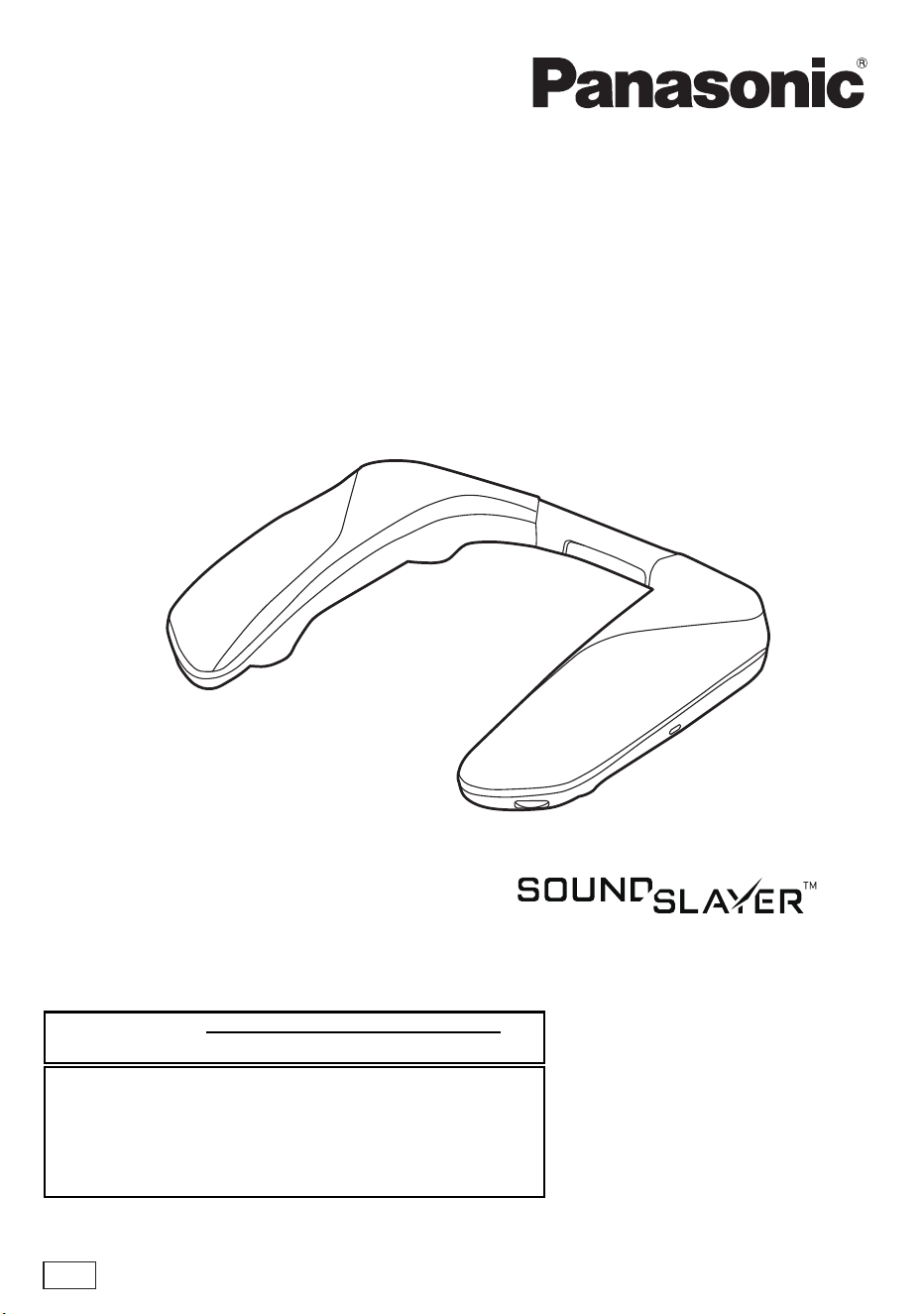
SC-GNW10
Owner’s Manual
Wireless Neck Speaker System
Model No.
Thank you for purchasing this product.
Please read these instructions carefully before using this product, and save this manual for future use.
Register online at http://shop.panasonic.com/support
(U.S. customers only)
If you have any questions, visit:
In the U.S.A.:
http://shop.panasonic.com/support
In Canada:
www.panasonic.ca/english/support
TQBS0526
2
Safety precautions
∫Unit
∫Places where you use or store the product
• This unit is for indoor use.
• Do not use or leave where the temperature is extremely high such as in locations exposed to direct sunlight or
near heating devices.
• Do not use or leave in locations with a lot of dust.
• Do not use or leave in locations with a lot of vibration.
• Do not use or leave in locations with a lot of moisture, such as bathrooms.
∫Handling
• Do not drop, hit, or apply strong shocks. This may cause malfunction.
• Sound may be interrupted or you may hear noise if the plug tip is dirty. If this occurs, wipe the tips of the plug
and plug adaptor clean with a soft dry cloth.
∫Built-in battery
• Do not heat or expose to flame.
• Do not leave this unit in a car exposed to direct sunlight for a long period of time with doors and windows
closed.
• Do not expose to low air pressure at high altitudes.
• Do not expose to extremely low air pressure, as this may result in explosions or leakage of flammable liquids
and gases.
WARNING:
To reduce the risk of fire, electric shock or product damage,
• Do not expose this unit to rain, moisture, dripping or splashing.
• Do not place objects filled with liquids, such as vases, on this unit.
• Use the recommended accessories.
• Do not remove covers.
• Do not repair this unit by yourself. Refer servicing to qualified service personnel.
Avoid the use in the following conditions
• High or low extreme temperatures during use, storage or transportation.
• Disposal of a battery into fire or a hot oven, or mechanically crushing or cutting of a battery, that can
result in an explosion.
• Extremely high temperature and/or extremely low air pressure that can result in an explosion or the
leakage of flammable liquid or gas.
This unit may receive radio interference caused by mobile telephones during use. If such interference occurs,
please increase separation between this unit and the mobile telephone.
The symbols on this product (including the accessories) represent the following:
DC
Í Standby
A lithium ion battery that is recyclable powers the product you have purchased.
Please call 1-800-8-BATTERY for information on how to recycle this battery.
For US and Canada only
Pour les É.-U. et le Canada seulement

3
This device complies with Part 15 of FCC Rules and Innovation, Science and Economic Development
Canada’s licence-exempt RSS(s). Operation is subject to the following two conditions:
(1) this device may not cause interference, and
(2) this device must accept any interference, including interference that may cause undesired operation.
Contains FCC ID: NKR-SWA20
Contains IC: 4441A-SWA20
Model: SC-GNW10 (SB-GNW10, SH-GNW10)
This transmitter must not be co-located or operated in conjunction with any other antenna or transmitter.
(For the U.S.A. only)
This equipment complies with FCC radiation exposure limits set forth for an uncontrolled environment and
meets the FCC radio frequency (RF) Exposure Guidelines as this equipment has very low levels of RF
energy.
(For Canada only)
This equipment has been tested and found to comply with ISED radiation exposure limits set forth for an
uncontrolled environment and meets RSS-102 of the ISED radio frequency (RF) Exposure rules.
THE FOLLOWING APPLIES ONLY IN THE U.S.A.
FCC Note:
This equipment has been tested and found to comply with the limits for a Class B digital device, pursuant to
Part 15 of the FCC Rules.
These limits are designed to provide reasonable protection against harmful interference in a residential
installation. This equipment generates, uses, and can radiate radio frequency energy and, if not installed and
used in accordance with the instructions, may cause harmful interference to radio communications. However,
there is no guarantee that interference will not occur in a particular installation. If this equipment does cause
harmful interference to radio or television reception, which can be determined by turning the equipment off
and on, the user is encouraged to try to correct the interference by one or more of the following measures:
• Reorient or relocate the receiving antenna.
• Increase the separation between the equipment and receiver.
• Connect the equipment into an outlet on a circuit different from that to which the receiver is connected.
• Consult the dealer or an experienced radio/TV technician for help.
FCC Caution:
Any changes or modifications not expressly approved by the party responsible for compliance could void the
user’s authority to operate this equipment.
This device complies with Part 15 of the FCC Rules. Operation is subject to the following two conditions:
(1) This device may not cause harmful interference, and (2) this device must accept any interference
received, including interference that may cause undesired operation.
Supplier’s Declaration of Conformity
Trade Name: Panasonic
Model No.: SC-GNW10
Responsible Party: Panasonic Corporation of North America
Two Riverfront Plaza, Newark, NJ 07102-5490
Support Contact: http://shop.panasonic.com/support
THE FOLLOWING APPLIES ONLY IN CANADA.
CAN ICES-003(B) / NMB-003(B)
Conforms to
UL STD 62368-1.
Certified to CAN/CSA STD
C22.2 No.62368-1.
Conforme à la norme CAN/CSA
C22.2 No.62368-1.

4
Table of contents
Safety precautions ...................................................................................................................................... 2
Before use
Accessories................................................................................................................................................. 5
Maintenance................................................................................................................................................ 5
Part names (SC-GNW10) ........................................................................................................................... 6
Part names (Transmitter) ............................................................................................................................ 7
Charging...................................................................................................................................................... 8
Connecting the transmitter .......................................................................................................................... 9
• Connecting with the USB cable (USB input) ........................................................................................ 9
• Connecting an active subwoofer (optional) .........................................................................................11
Using the SC-GNW10............................................................................................................................... 12
Wirelessly connecting the SC-GNW10 and the transmitter ...................................................................... 12
• Turn on the SC-GNW10 ..................................................................................................................... 12
Operation
Basic operations........................................................................................................................................ 13
• Adjusting the volume .......................................................................................................................... 13
• Enjoying sound field effects that suit the source (sound mode) ......................................................... 13
• Microphone muting ............................................................................................................................. 14
• Using SC-GNW10 with a USB cable connected ................................................................................ 14
Changing the SC-GNW10’s settings......................................................................................................... 15
• Changing the volume of the other party in a chat (chat volume mode) .............................................. 15
• Adjusting the bass (Bass Level) ......................................................................................................... 15
• Turning off the operation indicators during wireless connection (lighting settings)............................. 16
• Pairing the SC-GNW10 and the transmitter again.............................................................................. 16
• Changing settings using the app for use in Windows (SOUNDSLAYER Engine) .............................. 16
Other
Restore factory settings ............................................................................................................................ 17
Licenses .................................................................................................................................................... 17
Troubleshooting......................................................................................................................................... 18
Software update ........................................................................................................................................ 21
Specifications ............................................................................................................................................ 22
When disposing of the product.................................................................................................................. 24
• To remove the battery when disposing of the SC-GNW10 ................................................................. 24

Before use
5
Accessories
Please check and identify the supplied accessories.
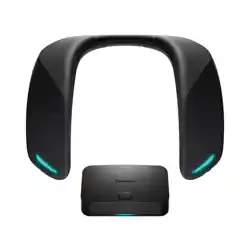
1 x Wireless Transmitter
• Described as “transmitter” in this document.
1 x USB charging cord
• Approx. 0.2 m (0.66 ft)
1 x USB cable (for use with the Wireless Transmitter)
• Approx. 1.0 m (3.2 ft)
Only for U.S.A.:
To order accessories, refer to “Limited Warranty”
in the “Basic Owner’s Manual”.
Maintenance
• To clean the SC-GNW10, wipe with a soft, dry cloth.
• Never use alcohol, paint thinner or benzine to clean this system.
• Before using chemically treated cloth, read the instructions that came with the cloth carefully.
Expressions used in this document
• Pages to be referred to are indicated as “l ±±”.
• The product illustrations may differ from the actual product.
Before use
6
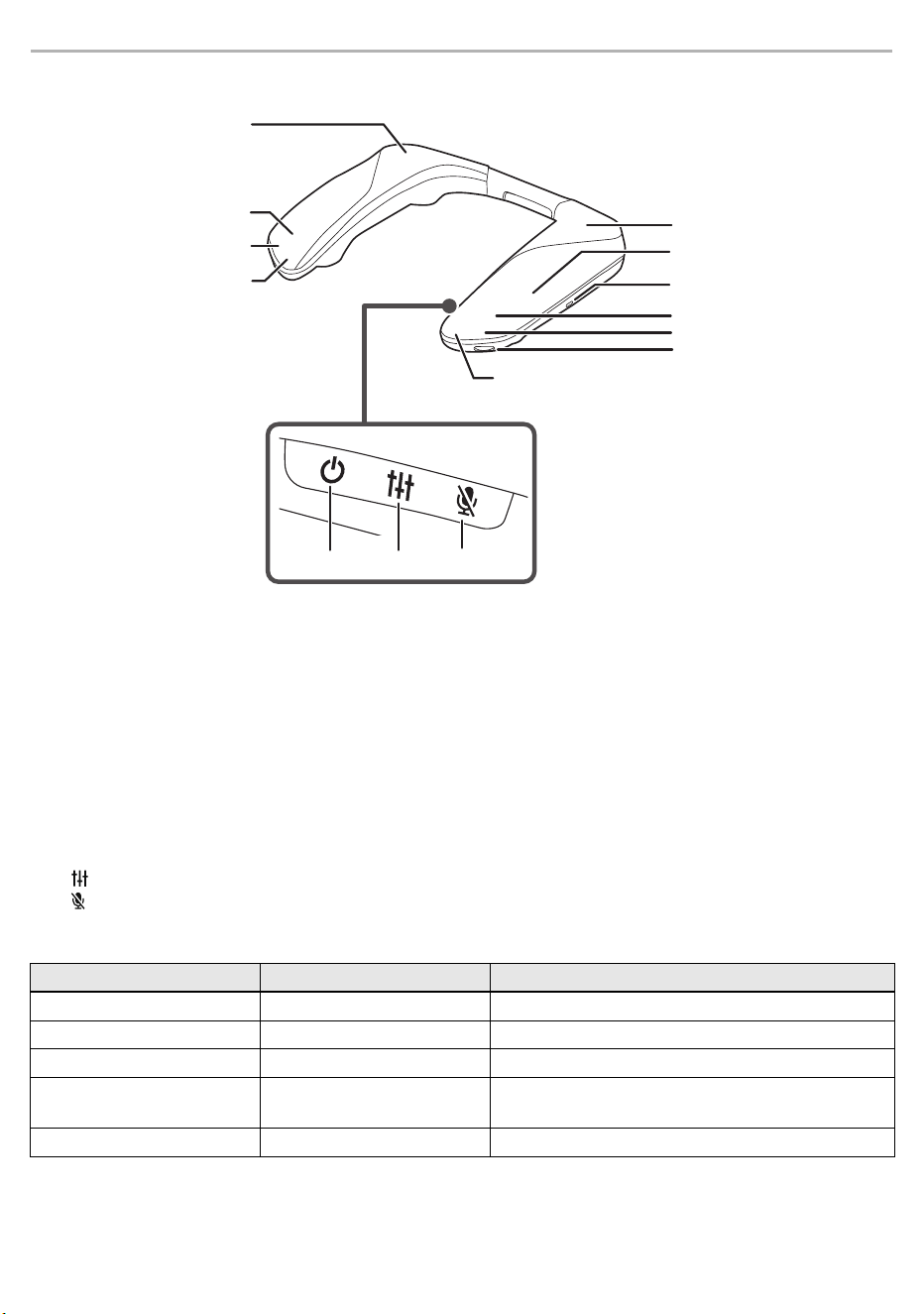
Part names (SC-GNW10)
1 Rear(R) speaker
2 Front (R) speaker
3 Operation indicator (R)
4 Microphone (R)
5 Rear (L) speaker
6 Built-in antenna
7 Charging terminal
8 Front (L) speaker
9 Operation indicator (L)
10 [VOL] dial (volume dial)
11 Microphone (L)
12 [Í]
button (standby button)
13 [ ] button (sound mode button)
14 [ ] button (microphone mute button)
Operation indicator lighting/blinking examples
*1 When only the operation indicator (R) is blinking (red), the battery is low. (l 8, “Battery level notification”)
*2 If the “Lighting Settings” in the app for use in Windows (
l 16) are set to “OFF”, the indicators turn off after about 3
seconds.
Operation indicator (L) Operation indicator (R) State
Off Lights (red) Charging is in progress
Lights (cyan)
*1*2
Lights (cyan)
*1*2
Connected wirelessly
Off Blinking slowly (cyan)
*1
On standby for wireless connection
Off Blinking rapidly (blue) On standby for pairing (registration) for a wireless
connection
Lights (red) Lights (red) Microphones muted
1
2
3
5
7
4
8
9
10
11
6
12 13
14
Before use
7
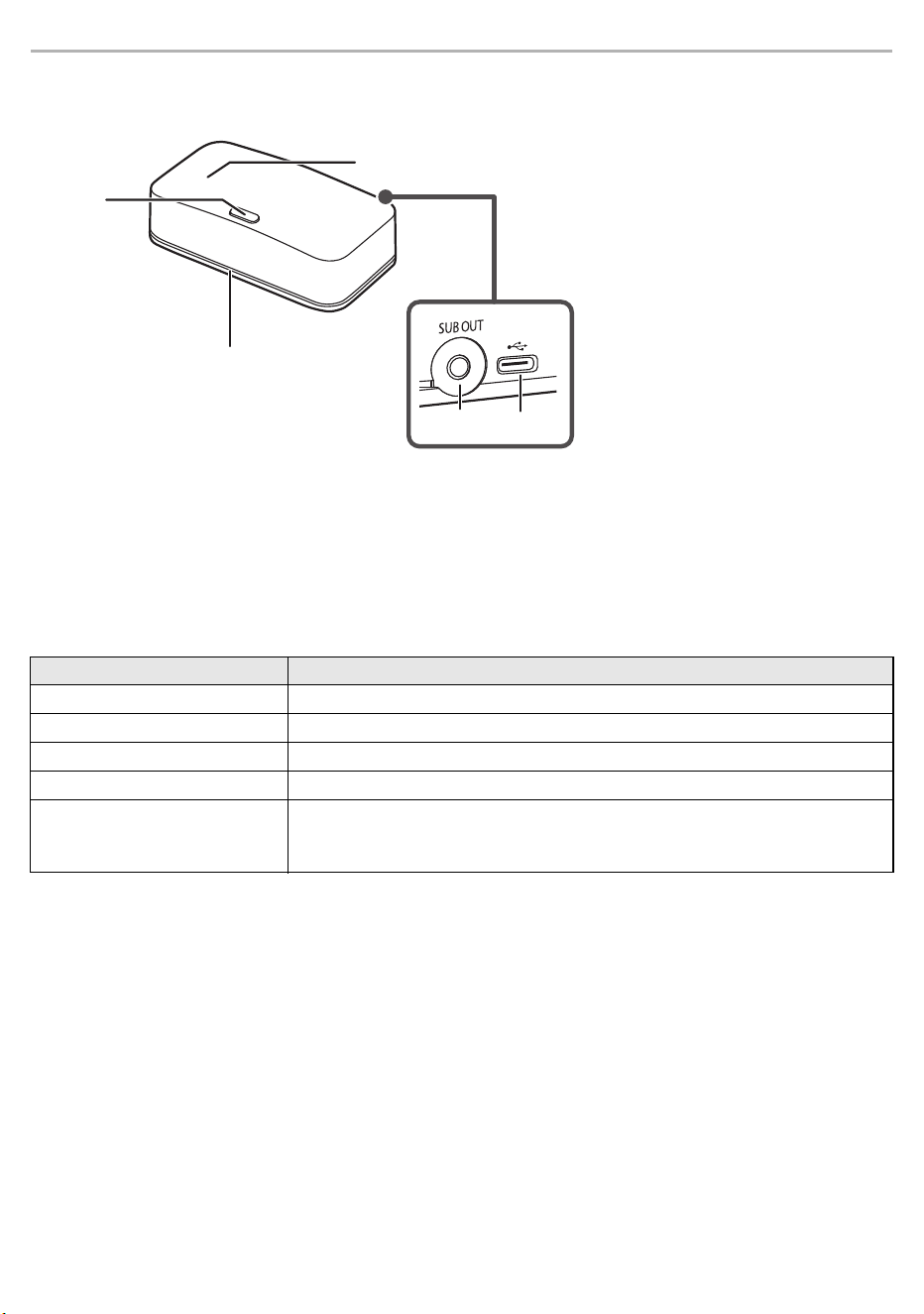
Part names (Transmitter)
1 [-PAIRING] button (pairing button)
2 Operation indicator
3 Built-in antenna
4 Audio output terminal [SUB OUT]
5 USB port
Operation indicator lighting/blinking examples
Operation indicator State
Lights (cyan) Connected wirelessly
Blinking slowly (cyan) On standby for wireless connection
Blinks (cyan) On standby for pairing (registration) for a wireless connection
Lights (red) Microphones muted
Blinks (red) Blinks when connected to the transmitter using the supplied USB charging
cord (approx. 0.2 m (0.66 ft)), etc.
Reconnect using the supplied USB cable (approx. 1.0 m (3.2 ft)).
1
3
2
4
5
Before use
8
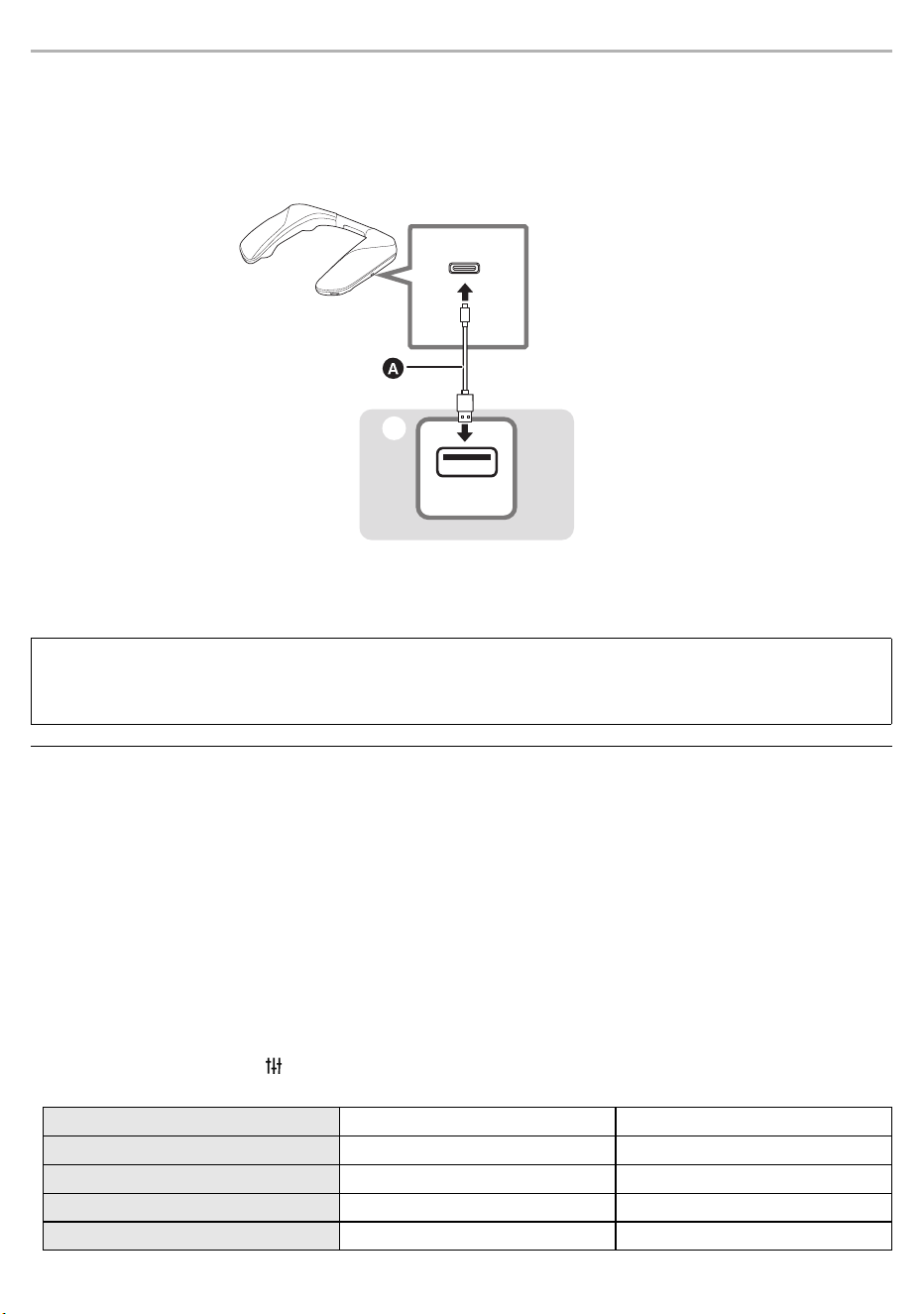
Charging
The rechargeable battery (installed in the SC-GNW10) is not charged initially. Charge the battery before using
the SC-GNW10.
• The operation indicator (R) lights (red) during charging and goes out when charging finishes.
A USB charging cord (supplied)
B USB AC adaptor, etc.
∫ Charging time
Note:
• When using a USB AC adapter first connect the SC-GNW10 to the charger, then plug the charger into the AC power
source.
• Use a USB AC adaptor that is capable of supplying an output current of at least 1500 mA at 5 V DC. It is also possible
to use a device that has an output current of less than 1500 mA, but it may not be able to charge correctly.
• Charging by connecting the supplied USB cable to the USB port that supports USB charging on a computer is also
possible. However, this operation is not guaranteed on all computers.
• Charging may not be performed or may stop if the computer is in or switched to standby or sleep mode.
• Do not use any other USB charging cord except the one which is supplied. Doing so may cause a malfunction.
• The built-in rechargeable battery may deteriorate if it is not used for long periods, so recharge once every 6 months.
• The volume reduces if you use the SC-GNW10 with the USB cable connected.
∫ Battery level notification
• When the battery level drops to 20 %, the operation indicator (R) blinks (red) and an operation tone sounds.
• When you press and hold the [ ] button while the SC-GNW10 is on, you can see the remaining battery charge with
the operation indicators.
Approx. 4.0 hours
• When using a USB AC adaptor (optional) that is capable of supplying an output current of 1500 mA at 5 V DC
• Ambient temperature 25 oC (77 oF)/When recharging a fully discharged battery
Remaining battery charge Operation indicator (L) Operation indicator (R)
71 % to 100 % Lights (blue) Lights (blue)
21 % to 70 % Lights (blue) Off
6 % to 20 % Lights (red) Off
5 % or less Blinks (red) Off
USB
Before use
9
Connecting the transmitter
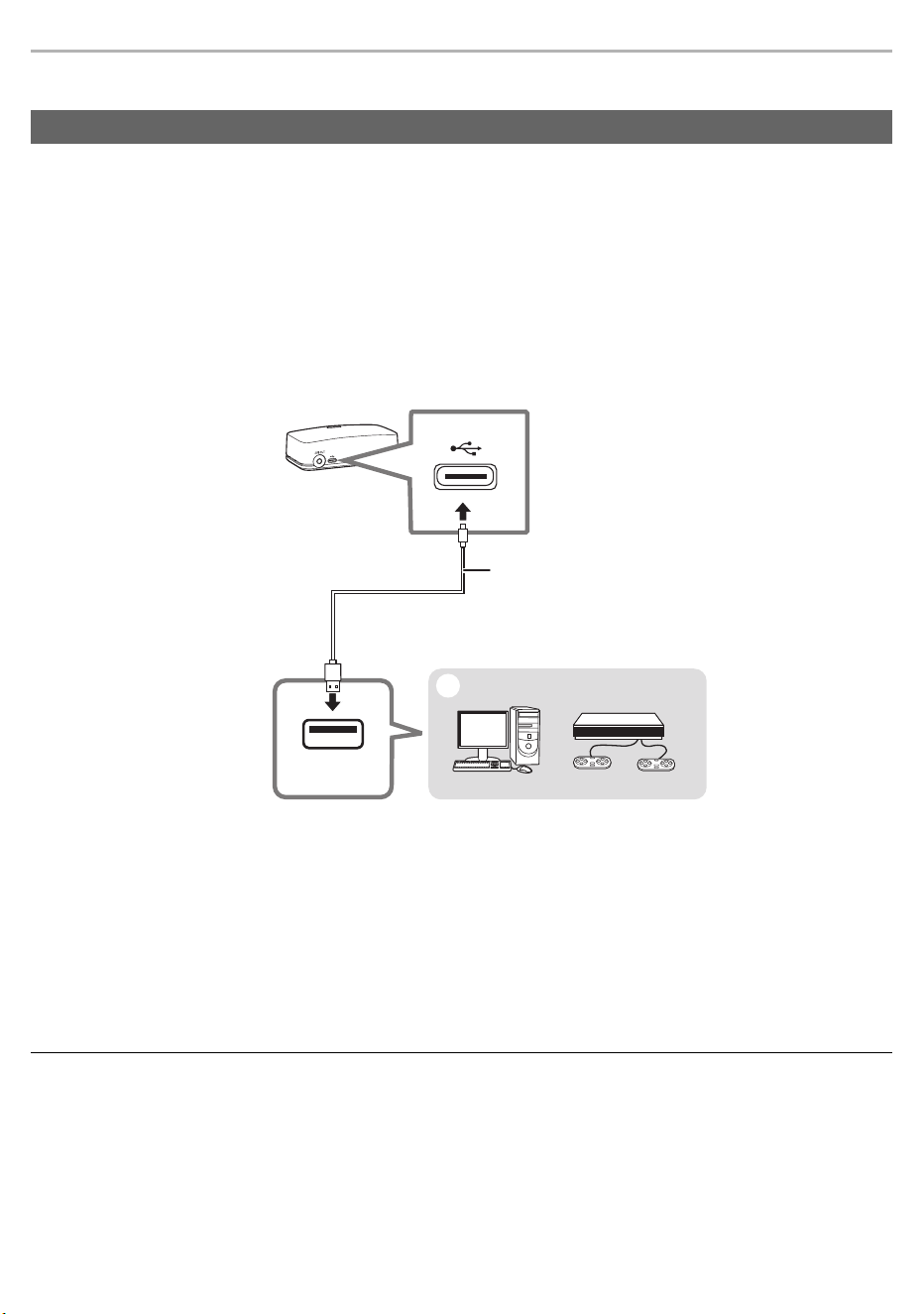
Connect the transmitter to your game console’s/PC’s USB port. This device supports PC, PS4/PS5 Nintendo
Switch. This device does not support Xbox.
• Power is supplied from the USB port that the transmitter is connected to.
• Before connecting the transmitter, make sure your PC/Game Console is powered on.
• The operation indicator of the transmitter lights (cyan) when there is a wireless connection with the SC-GNW10 and
blinks (cyan) when there is no wireless connection with the SC-GNW10.
• If the operation indicator on the transmitter is blinking red, check that you have connected using the supplied USB
cable (approx. 1.0 m (3.2 ft)).
• In order to properly use the SC-GNW10, depending on the operating environment and OS, you need to change some
sound settings on the computer. (
l 10, “When connecting to a PC”)
A USB cable (supplied)
B PC, PS4/PS5 Nintendo Switch
C USB port
Note:
• Do not use any other USB cables except the one which is supplied. Doing so may cause a malfunction.
The shorter cable is specifically for recharging, and as such it cannot be used to connect with the transmitter.
• The operation indicator of the transmitter blinks (cyan) (no wireless connection with SC-GNW10), but the operation
indicator turns off after this continues for about a minute. The operation indicator turns off, but wireless connection is
possible when SC-GNW10 turns on. When connected wirelessly with SC-GNW10 or [-PAIRING] button operations
are performed, the indicator lights again.
Connecting with the USB cable (USB input)
USB
Before use
10
Note:
• Depending on the specifications of the computer, the settings may change if you plug the USB cable into a different
terminal or if you restart the computer. If this happens, change the sound settings on the computer to
“Panasonic SC-GNW10 (Game)”
again.
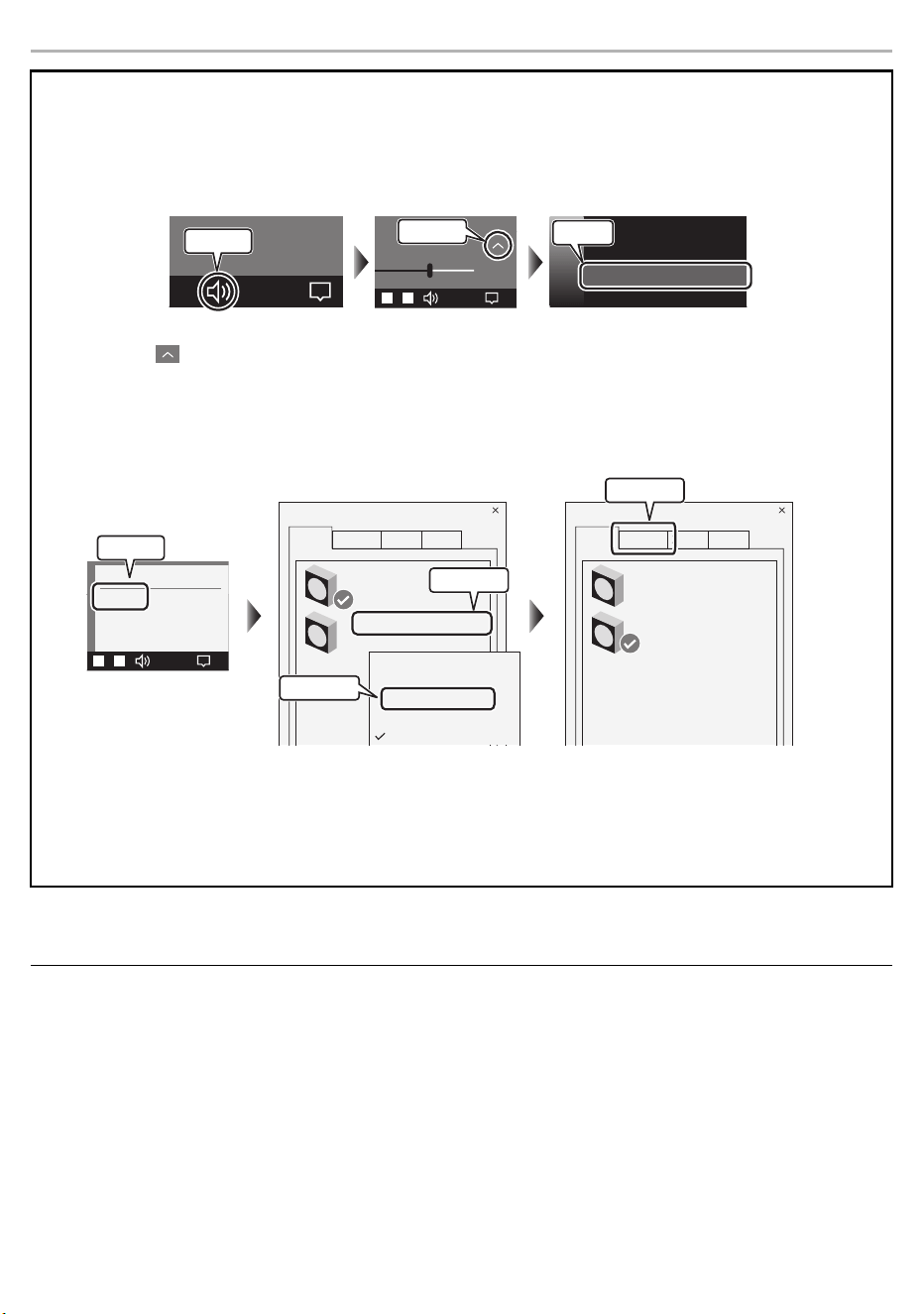
∫ When connecting to a PC
In order to properly use the SC-GNW10, depending on the operating environment and OS, you need to
change some sound settings on the computer. Two devices are shown when you connect the transmitter, so
make the settings as follows:
Make “Panasonic SC-GNW10 (Game)” the default device for “Playback”.
1 Click the speaker icon in the task tray.
2 Click the “ ” at the top right of the volume bar.
3 Select “Panasonic SC-GNW10 (Game)”.
Make “Panasonic SC-GNW10 (Game)” the default device for “Playback”,
make “Panasonic SC-GNW10 (Chat)” the default device for “Recording”.
1 Right-click the speaker icon in the task tray and select “Sounds”.
2 Click the “Playback” tab.
3 Right-click “Panasonic SC-GNW10 (Game)” and select “Set as Default Device”.
4 Click the “Recording” tab.
5 Right-click “Panasonic SC-GNW10 (Chat)” and select “Set as Default Device”.
10:00
01/12/2023
10:00
01/12/2023
65
X
XXXXXXXXXXXXX.
Panasonic SC-GNW10 (Game)
Select playback device
Panasonic SC-GNW10 (Chat)
Click on
Select
Click on
10:00
01/12/2023
Sounds
XXXXXXXXXXX
XXXXXXXXXXX
XXXXXXXXXXX
XXXXXXXXXXX
Sound
Playback
Recording
XXXXX
XXXXX
XXXXXXXXXXXXXXX
Panasonic SC-GNW10 (Game)
XXXXX
XXXXXXXXXXXXXXX
XXXXX XXXXX
XXXXX
XXXXX
XXXXX
Set as Default Device
XXXXX
XXXXX
XXXXX
Sound
Playback
Recording
XXXXX
XXXXX
XXXXXXXXXXXXXXX
Panasonic SC-GNW10 (Game)
XXXXX
XXXXXXXXXXXXXXX
XXXXX XXXXX
Click on
Click on
Click on
Click on
Before use
11
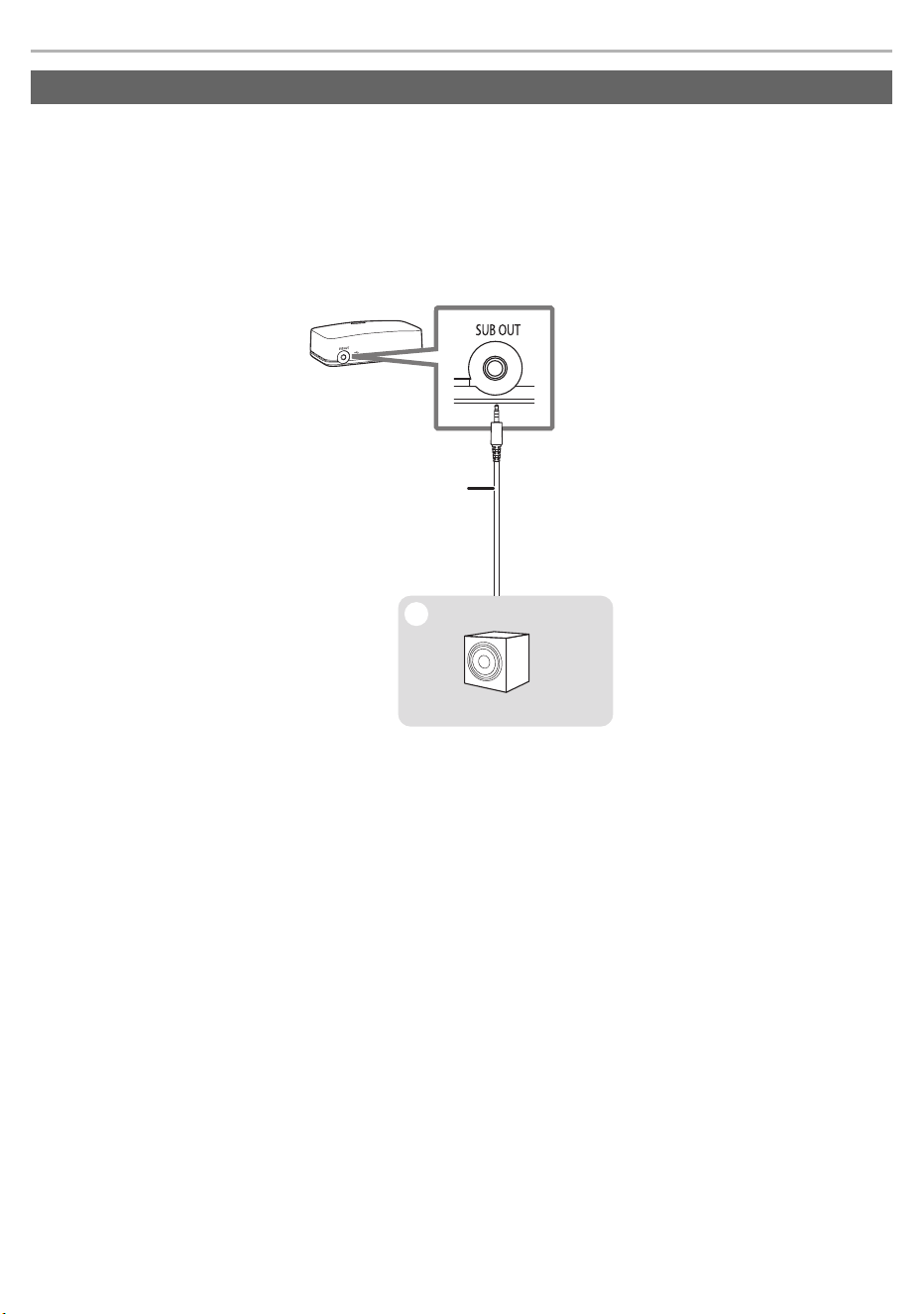
The bass can be output from an active subwoofer by connecting an active subwoofer to the audio output
terminal (SUB OUT) of the transmitter.
You will need an optional audio cable for this connection.
• As noise may occur, use an audio cable (optional) that is 3 m (9.8 ft) or shorter.
• Refer also to the operating instructions of the active subwoofer for connection and usage instructions.
Connection example:
A Audio cable (optional)
B Active subwoofer
Connecting an active subwoofer (optional)
Before use
12
Using the SC-GNW10
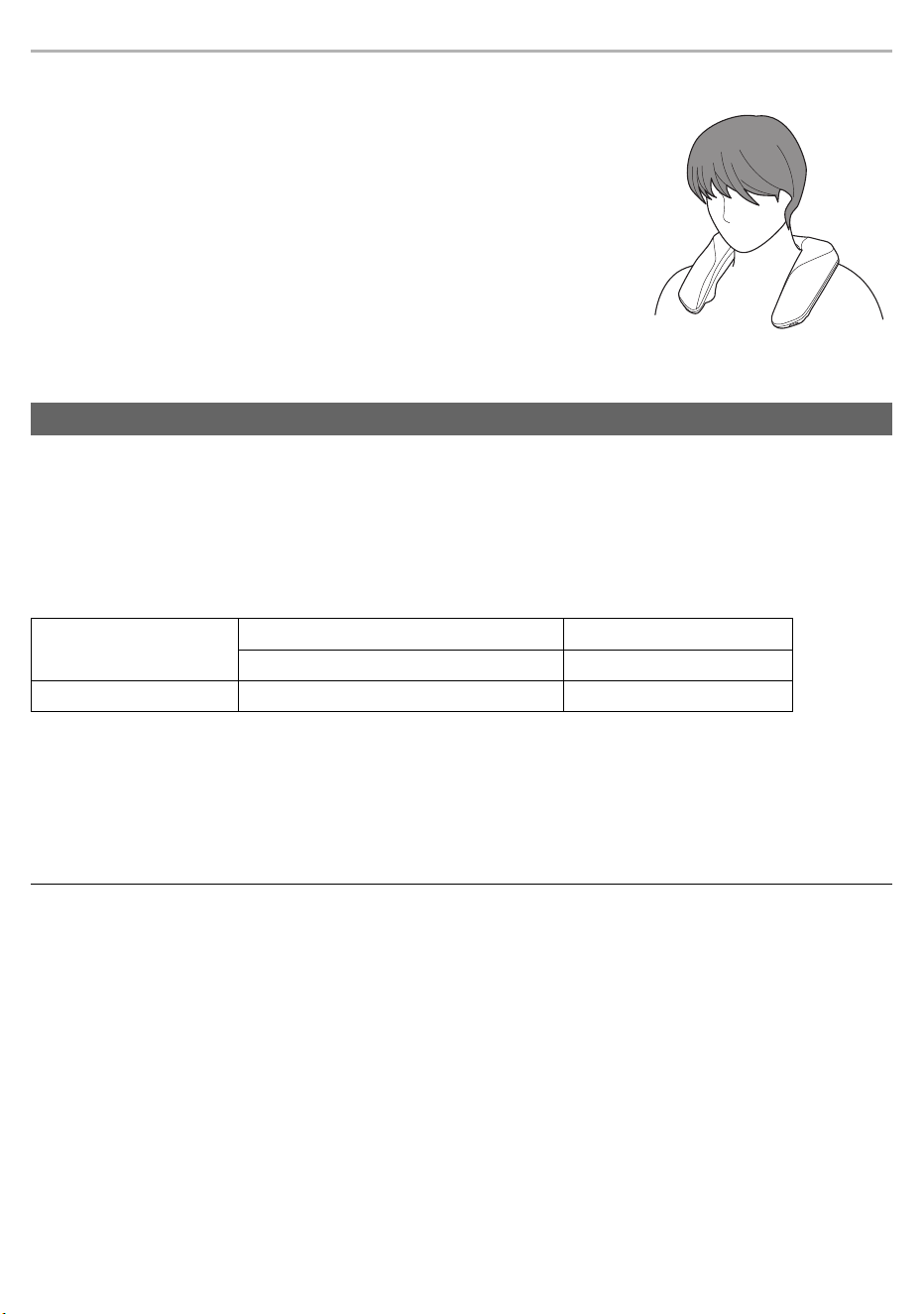
The SC-GNW10 is worn by placing it around your neck, on your shoulders.
Wirelessly connecting the SC-GNW10 and the transmitter
Before turning on the SC-GNW10, make sure the transmitter is connected to your PC/Gaming console and
powered on. The cyan operation indicator will blink.
Press and hold the [Í] button for about 2 seconds until the operation indicator (R) blinks
(cyan).
The wireless connection between the SC-GNW10 and the transmitter starts.
When the wireless connection is completed, the SC-GNW10 and the transmitter are in the following states:
*1 If the “Lighting Settings” in the app for use in Windows are set to “OFF”, the indicators turn off after about 3
seconds.
*2 Blinks (red) when the battery level drops to 20 %.
To turn the SC-GNW10 off
Press and hold the [Í] button for about 2 seconds until the operation indicator (L) blinks 3 times.
• The operation indicator (L) turns off and the power of the SC-GNW10 turns off.
Note:
• If the SC-GNW10 and the transmitter do not connect wirelessly, try pairing again. (l 16)
• If the sound is distorted, turn down the volume.
• If there is an excessive input signal, the function of the SC-GNW10 may stop automatically and the power may be
turned off for safety.
• When connected wirelessly, if there is no sound for 5 minutes or more, the SC-GNW10 automatically turns off. (Auto
off function)
• The auto off function may not work in some cases when there is noise from other devices.
• The settings for the auto off function can be changed in the app for use in Windows. (
l 16) (Factory default: on)
Turn on the SC-GNW10
SC-GNW10 Operation indicator (L) Lights (cyan)
*1
Operation indicator (R) Lights (cyan)
*1*2
Transmitter Operation indicator Lights (cyan)
Operation
13
Basic operations
Adjust the volume.
Turn the [VOL] dial.
• An operation tone sounds when you reach either the minimum volume or the maximum volume.
Note:
• The volume setting is maintained even when the power is turned off.
You can set the sound field effect which best matches the game you are playing. By default, RPG is selected.
Press the [ ] button.
The voice prompt (English) announces the current mode when you press the [ ] button.
(An operation tone sounds when the mode is switched to Custom1/2/3.)
The mode changes if you press the [ ] button again within 3 seconds of the announcement.
• The voice prompt (English) announces the mode you switched to.
Note:
• The setting is maintained until it is changed again.
• You can also switch the sound mode using the app for use in Windows (
l 16).
Adjusting the volume
Enjoying sound field effects that suit the source (sound mode)
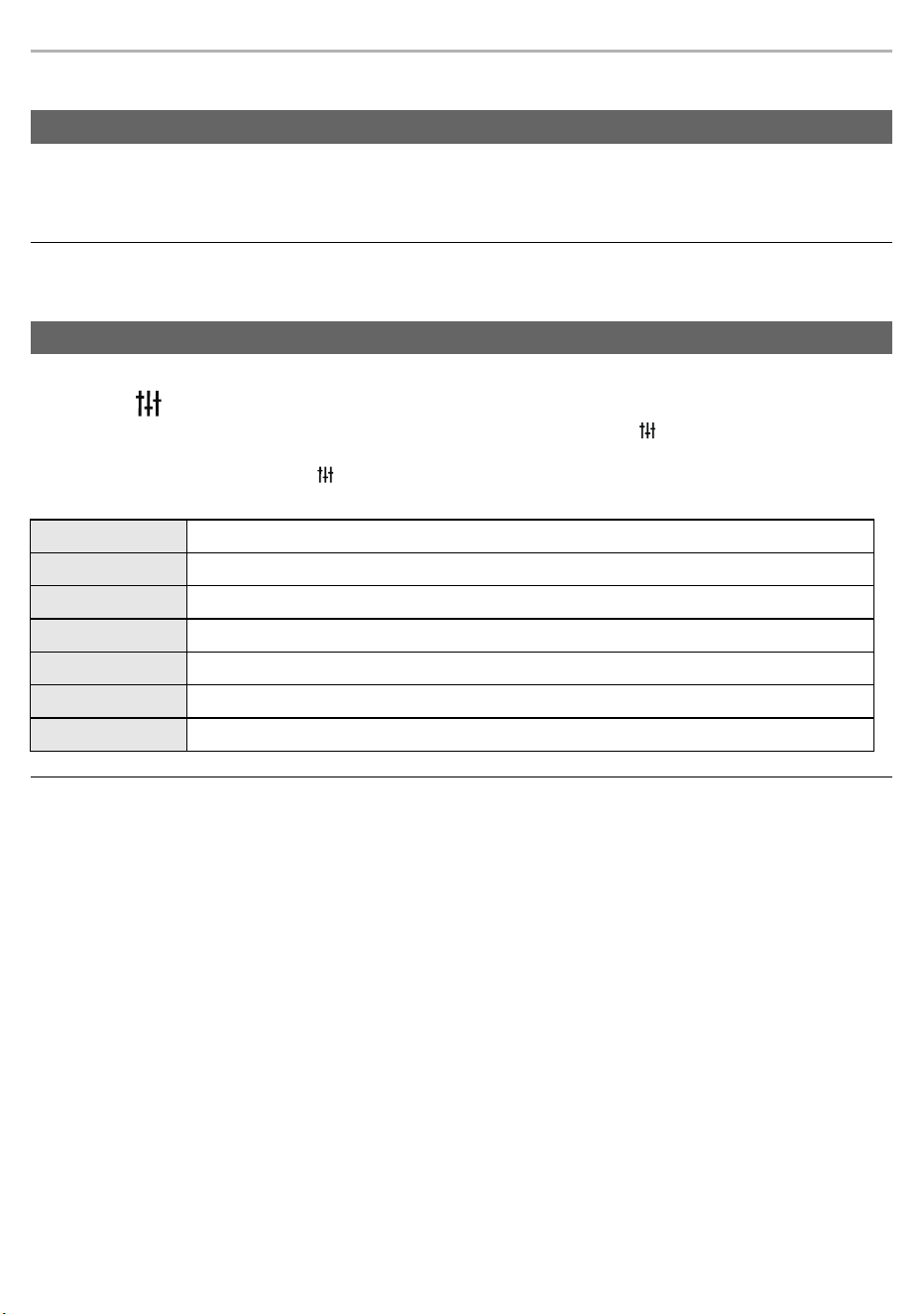
RPG Mode suited to RPG (role-playing games).
FPS Mode suited to FPS (first-person shooter games).
Voice Enhances voices. Mode that makes people’s voices easier to hear.
Cinema Enjoy sound with the spatial effects and power you would expect from a film.
Music Enjoy sound with instruments and vocals enveloping you.
Stereo Output is stereo.
Custom1/2/3 Can only be selected when registered in the app for use in Windows.
Operation
14
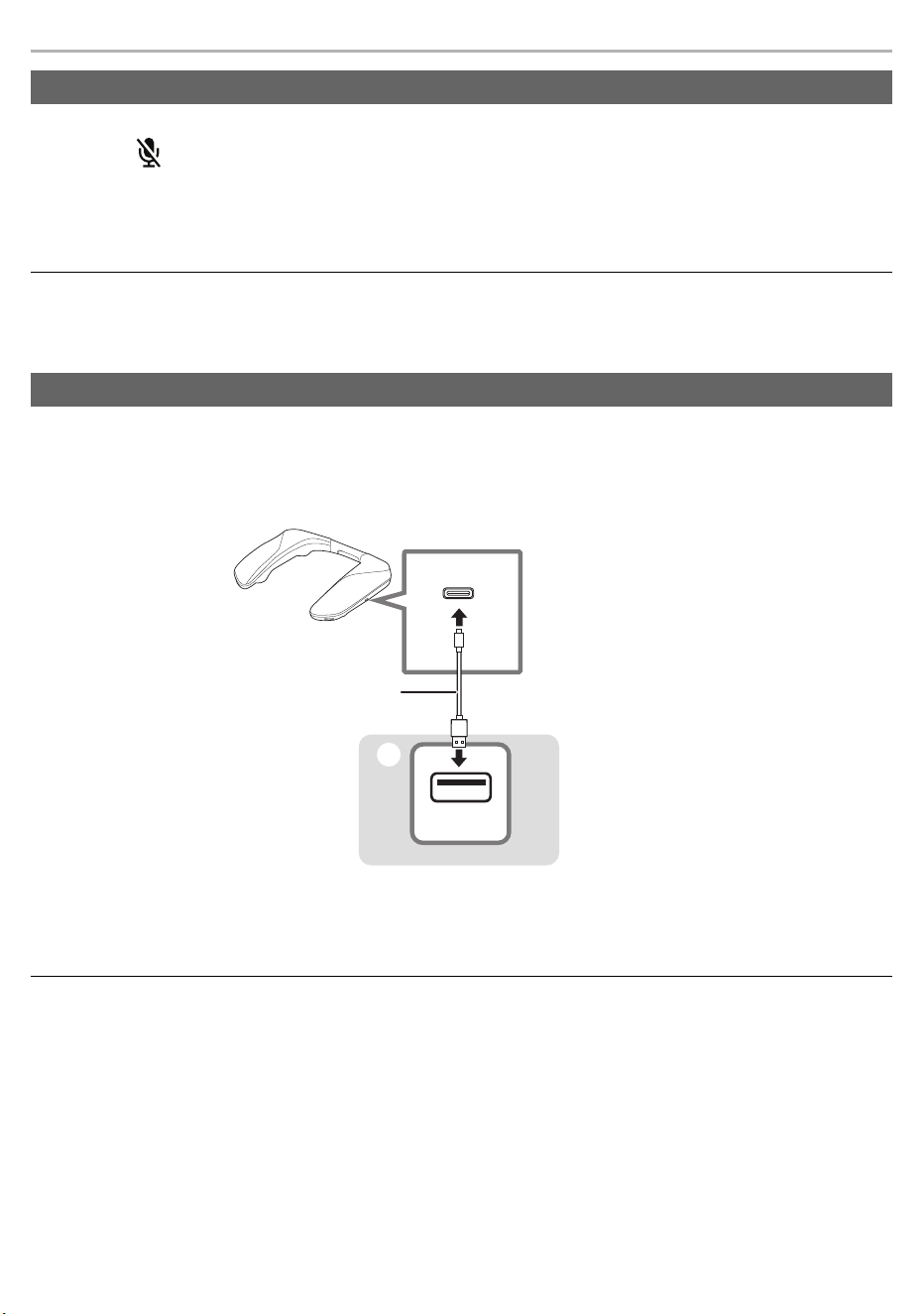
Switches ON/OFF the microphone.
Press the [ ] button.
The operation indicator (L) and operation indicator (R) of the SC-GNW10 and the operation indicator of the
transmitter light (red) and the microphones are muted.
• Press again to cancel.
Note:
• Microphone muting is maintained even when the power is turned off.
• Microphone muting can be changed while the SC-GNW10 and the transmitter are connected wirelessly.
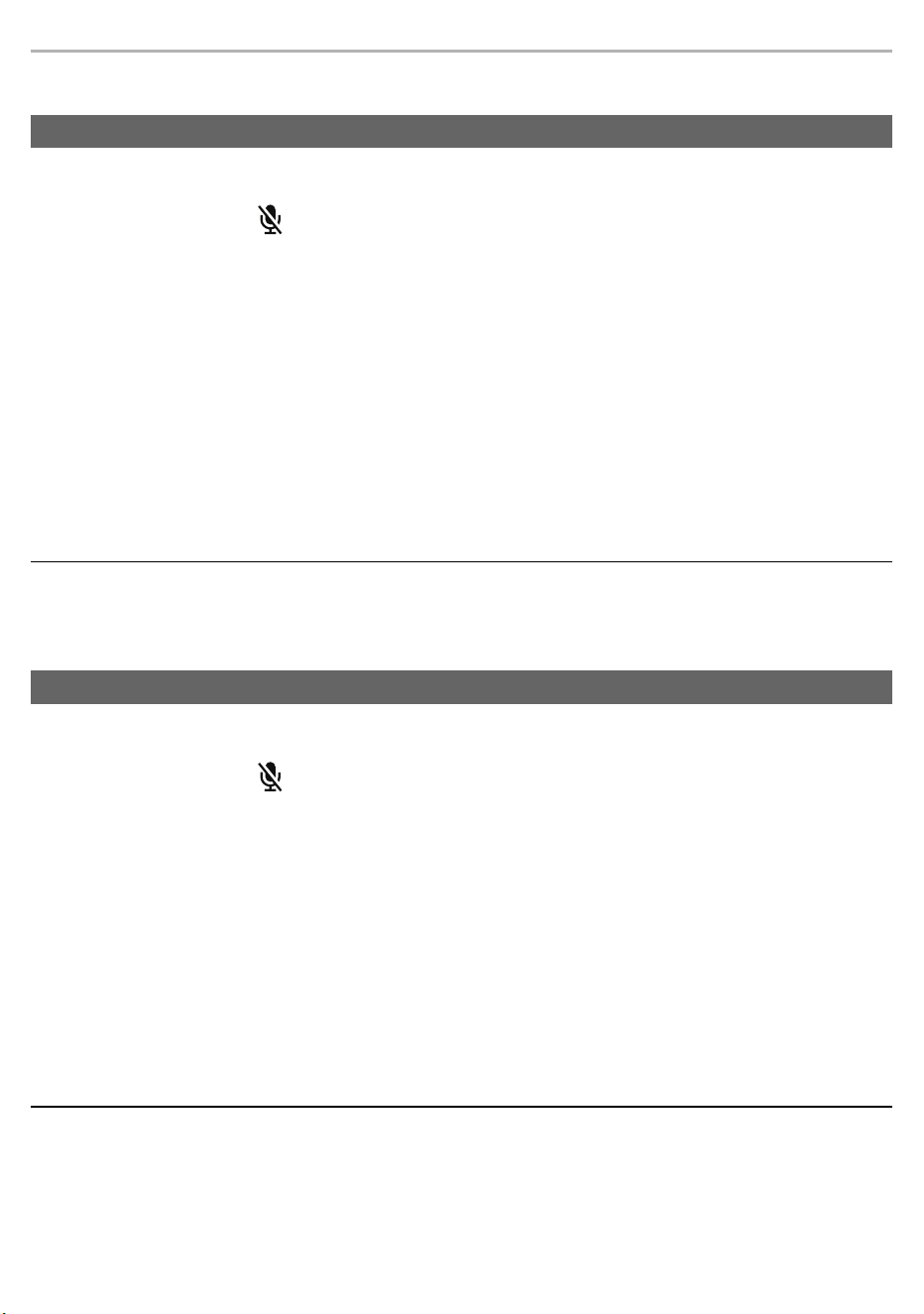
When the battery charge in SC-GNW10 is running low, you can use SC-GNW10 by connecting it to a USB AC
adaptor or the USB port on a computer.
• Connect to a USB AC adaptor or USB port on a computer that is capable of supplying an output current of at least
900 mA at 5 V DC.
A USB charging cord (supplied) or USB cable (optional)
B USB AC adaptor, etc.
Note:
• If SC-GNW10 is used while connected with a USB cable, SC-GNW10 is not charged.
• The maximum volume becomes smaller.
• Operation is not guaranteed with all USB cables.
Microphone muting
Using SC-GNW10 with a USB cable connected
USB
Operation
15
Changing the SC-GNW10’s settings
Adjust the audio output of the other party in a chat that is output from the speakers.
(Factory default: Unadjusted value (0 dB))
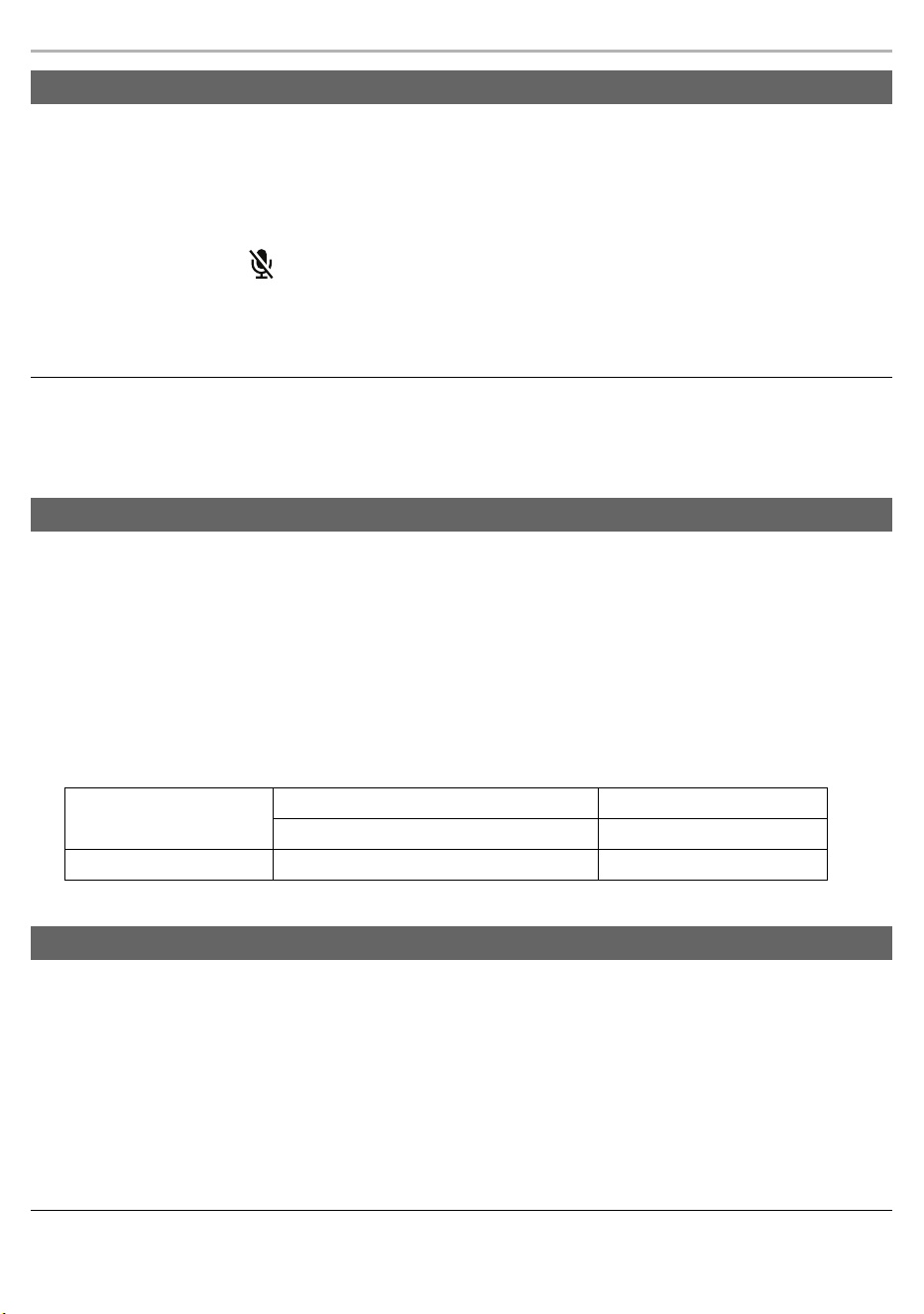
1 While pressing the [] button, turn the [VOL] dial in the [i] direction until the
operation indicators blink (blue).
• While in the chat volume mode, the operation indicator (L) and the operation indicator (R) each blinks (blue)
three times repeatedly.
2 While the SC-GNW10 is in the chat volume mode, turn the [VOL] dial to adjust (7 levels).
• Output increases when you turn in the [i] direction.
• Output decreases when you turn in the [j] direction.
• Operation tones are made at the maximum value (i3 dB), unadjusted value (0 dB), and minimum value
(j3dB).
(The tone sounds twice when you reach the maximum value or the minimum value, and sounds once
when there is no adjustment.)
3 Press any button other than the [VOL] dial to complete the settings.
• The settings are also completed if the SC-GNW10 is left in the chat volume mode continuously for 10 seconds or
more without any operations.
Note:
• The setting is maintained until it is changed again.
• Adjustment is only possible when connected wirelessly.
• You can also switch the chat volume using the app for use in Windows (
l 16).
Adjusts the volume of the bass that is output from the speakers.
(Factory default: level 3)
1 While pressing the [] button, turn the [VOL] dial in the [j] direction until the
operation indicators blink (blue).
• While in the bass level mode, the operation indicator (L) and the operation indicator (R) each blinks (blue) two
times repeatedly.
2 While the SC-GNW10 is in the bass level mode, turn the [VOL] dial to adjust (5 levels).
• The volume of the bass increases when you turn in the [i] direction.
• The volume of the bass decreases when you turn in the [j] direction.
• Operation tones are made at the maximum value (level 5), unadjusted value (level 3), and minimum value (level 1).
(The tone sounds twice when you reach the maximum value or the minimum value, and sounds once
when there is no adjustment.)
3 Press any button other than the [VOL] dial to complete the settings.
• The settings are also completed if the SC-GNW10 is left in the bass level mode continuously for 10 seconds or
more without any operations.
Note:
• The setting is maintained until it is changed again.
• Adjustment is only possible when connected wirelessly.
• You can also switch the bass level using the app for use in Windows (
l 16).
Changing the volume of the other party in a chat (chat volume mode)
Adjusting the bass (Bass Level)
Operation
16
Changes the on/off setting for the operation indicators (cyan) that indicate SC-GNW10 is connected wirelessly
to the transmitter.
(Factory default: on)
1 Unplug the USB cable of the transmitter.
2 Press and hold the [] button for about 5 seconds until the operation indicators blink
(blue).
• Operation indicator (L) and operation indicator (R) blink once: Off setting
• Operation indicator (L) and operation indicator (R) blink twice: On setting
Note:
• The setting is maintained until it is changed again.
• You can also switch the lighting settings using the app for use in Windows (
l 16).
If wireless connection between the SC-GNW10 and transmitter is not possible, wireless connection can be
achieved by pairing the units again.
1 Press and hold the [-PAIRING] button on the transmitter.
• The operation indicator on the transmitter blinks rapidly (cyan).
Do the following procedure with the power of the SC-GNW10 off.
2 Press and hold the [Í] button for about 6 seconds until the operation indicator (R)
blinks (blue) rapidly.
• Wireless connection pairing between the SC-GNW10 and the transmitter starts.
When the wireless connection is completed, the SC-GNW10 and the transmitter are in the following states:
If the transmitter is connected to a PC, you can use the app for use in Windows to change the settings for the
SC-GNW10.
• Equalizer settings
• Adjusting speaker balance
• Turning off the operation indicators (lighting settings)
• Updating software
etc.
Refer to the following website for details about the app:
https://panasonic.jp/support/global/cs/audio/download/sse/
(This site is in English only.)
Note:
• This app does not support Apple/macOS.
Turning off the operation indicators during wireless connection (lighting settings)
Pairing the SC-GNW10 and the transmitter again
SC-GNW10 Operation indicator (L) Lights (cyan)
Operation indicator (R) Lights (cyan)
Transmitter Operation indicator Lights (cyan)
Changing settings using the app for use in Windows (SOUNDSLAYER Engine)
Other
17
Restore factory settings
This is done when returning the SC-GNW10 to the state of purchase, such as by discarding or transferring the
SC-GNW10.
To restore the factory settings, the SC-GNW10 and the transmitter need to be connected wirelessly.
1
Turn the [VOL] dial in the [j] direction until the volume reaches the minimum level [0].
• An operation tone is made when the volume reaches the minimum level [0].
2
Press and hold the [ ] and [ ] buttons for about 5 seconds or more.
• An operation tone is made and the SC-GNW10 is in the factory settings mode.
• When the SC-GNW10 enters the factory settings mode, the operation indicator (L) and the operation indicator
(R) each blinks (blue) once every second.
3
Press the [ ] button while the SC-GNW10 is in the factory settings mode.
• The settings are each initialised, returning to the factory settings.
• The SC-GNW10 turns off.
Note:
• The pairing information for the SC-GNW10 and the transmitter does not get deleted even when the factory settings
are restored. (There is no need to pair the units again.)
Licenses
SOUNDSLAYER is a trademark of Panasonic Holdings Corporation.
PS4 and PS5 are registered trademarks or trademarks of Sony Interactive Entertainment Inc.
Windows, Xbox are registered trademarks or trademarks of Microsoft Corporation.
Nintendo Switch is a registered trademark or a trademark of Nintendo.
Apple, macOS are trademarks or registered trademarks of Apple Inc. in the United States and/or other
countries.
Other names of systems and products mentioned in these instructions are usually the registered trademarks
or trademarks of the manufacturers who developed the system or product concerned.
Some
TM
and
®
marks are not specified in the text.

Other
18
Troubleshooting
Before requesting service, make the following checks. If you are in doubt about some of the check points, or if
the remedies indicated in the chart do not solve the problem, refer to “Customer Services Directory” in the
“Basic Owner’s Manual” if you reside in the U.S.A., or refer to “CONTACT INFORMATION” in the “Basic
Owner’s Manual” if you reside in Canada, or consult your dealer for instructions.
There is no sound.
• The USB port or plug may be dirty. Wipe the USB port and plug clean with a soft dry cloth.
• The sound may have been muted or turned down low on your PC/Gaming console. Adjust the volume on your PC/
Gaming console.
• Make sure that “Panasonic SC-GNW10 (Game)” is selected as the audio output device on your PC. (
l 10)
Depending on the specifications of the computer, the settings may change if you plug the USB cable into a different
terminal or if you restart the computer. If this happens, change the sound settings on the computer to
“Panasonic SC-GNW10 (Game)” again.
• Confirm that the power for SC-GNW10 is on.
• Confirm that SC-GNW10 and the transmitter are wirelessly connected. Check the status of the wireless connection.
(
l 6, 7)
•
When connected wirelessly, if there is no sound for 5 minutes or more, SC-GNW10 automatically turns off. (Auto off function)
Turn on the power of SC-GNW10 again. (l 12)
• If the operation indicator of the transmitter is blinking (red), reconnect using the supplied USB cable (approx. 1.0 m
(3.2 ft)). If it is still blinking (red), check if the USB cable is deteriorated or damaged.
The sound is low.
• Make sure that “Panasonic SC-GNW10 (Game)” is selected as the audio output device on your PC/Gaming console.
(
l
10)
Depending on the specifications of the computer, the settings may change if you plug the USB cable into a different
terminal or if you restart the computer. If this happens, change the sound settings on the computer to
“Panasonic SC-GNW10 (Game)” again.
• Also increase the volume on the other devices as well as the SC-GNW10.
• If SC-GNW10 is used while connected with the USB cable, the volume reduces. Use SC-GNW10 with the USB cable
disconnected.
• You can adjust the equalizer to suit your preference using the app for use in Windows (
l 16). Adjusting towards the
boost direction enables playback with an even higher volume.
• You can adjust the bass level on the app for use in Windows (
l 16) or with SC-GNW10 settings (l 15). By setting to
the maximum value 5, you can enjoy play back with more powerful sound.
• Play back on an audio device other than SC-GNW10 and see if the playback volume is sufficient to check if the
problem is with the content.
• Play back other content and see if the playback volume is sufficient.
• Play back on another PC/Gaming console and see if the playback volume is sufficient.
There are interruptions to the sound. / Too much noise. / Poor sound quality.
• Make sure the USB port is normal. If there are other USB ports on your computer, try using one of the other USB ports.
• There may be a USB hub between the transmitter and the computer. If there are other USB ports on your computer,
try using one of the other USB ports.
• Communications can be interrupted if you simultaneously use devices that use the 2.4 GHz band of radio waves,
such as wireless broadband routers and microwave ovens. Move the SC-GNW10 and its transmitter closer to each
other and move interfering devices further away.
• Turn off the power of wireless LAN devices that are not in use. Alternatively, do not use near wireless LAN devices.
• Are there obstacles between SC-GNW10 and its transmitter, such as metals or walls, or are there people in between?
– Do not block the antenna parts of the SC-GNW10 and its transmitter with metals or hands, etc.
– Put the antenna parts of the SC-GNW10 and its transmitter as close together as possible.
• Has the usable communication distance (approx. 10 m (32.8 ft)) been exceeded? Move the SC-GNW10 and its
transmitter closer to each other.

Other
19
The SC-GNW10 does not work.
• Check if the SC-GNW10 is charged. (l 8)
The transmitter does not work. / Transmitter operation indicator does not light/blink.
• Make sure the USB cable is firmly connected to the USB port of your PC/Gaming console.
• Make sure the USB port is normal. If there are other USB ports on your computer, try using one of the other USB ports.
• If the power still does not come on even after performing the above, unplug the USB cable and then plug it in again.
There is no wireless connection between the SC-GNW10 and the transmitter.
• Try pairing the SC-GNW10 and the transmitter again. (l 16)
• If the operation indicator of the transmitter is blinking (red), reconnect using the supplied USB cable (approx. 1.0 m
(3.2 ft)). If it is still blinking (red), check if the USB cable is deteriorated or damaged.
The transmitter is not detected when connected with the USB cable.
• Try restarting your PC/Gaming console.
• If the operation indicator of the transmitter is blinking (red), reconnect using the supplied USB cable (approx. 1.0 m
(3.2 ft)). If it is still blinking (red), check if the USB cable is deteriorated or damaged.
Cannot charge.
• When using a USB AC adaptor that is capable of supplying an output current of less than 1500 mA at 5 V DC, proper
charging may not be possible. Use a USB AC adaptor that is capable of supplying an output current of at least
1500 mA at 5 V DC. If the USB AC adaptor or computer has a number of outlets, check the supply capacity of the
outlet you are using.
• Charging may not be possible with some USB AC adaptor models.
• If you are charging multiple devices on the same USB AC adaptor, unplug the other devices.
• Are you using the supplied USB charging cord? Charging may not be possible depending on the specifications of
commercially available cables.
• Charge at an ambient temperature of between 5 oC and 35 oC (41 oF to 95 oF) (permissible ambient temperatures).
Even when within the permissible ambient temperature range, a temperature increase may be detected in the battery
during operation or immediately after ceasing operation, making it impossible to charge. If this happens, stop using
and allow SC-GNW10 to cool down.
Usage time is very short even after charging.
• The battery has reached the end of its service life.
The operation indicator does not turn off during charging.
• Even when fully charged, SC-GNW10 may start charging again if you unplug the USB cable and then plug it in again.
(For a maximum of about 10 minutes)
• When using a USB AC adaptor that is capable of supplying an output current of less than 1500 mA at 5 V DC, proper
charging may not be possible. Use a USB AC adaptor that is capable of supplying an output current of at least
1500 mA at 5 V DC.
SC-GNW10 turns off by itself.
•
When connected wirelessly, if there is no sound for 5 minutes or more, SC-GNW10 automatically turns off. (Auto off function)
Turn on the power of SC-GNW10 again. (l 12)
• When no battery charge remains, SC-GNW10 automatically turns off.
• If there is an excessive input signal, the function of the SC-GNW10 may stop automatically and the power may be
turned off for safety.
• If SC-GNW10 is used in an environment with high temperatures, it may automatically turn off for safety reasons.

Other
20
The operation indicators (L) (R) on SC-GNW10 blink (green) for about 1 minute and then the power
turns off.
• There is not enough power being supplied by USB. Use a USB AC adaptor or USB port on a computer that is capable
of supplying an output current of at least 900 mA at 5 V DC. Alternatively, unplug the USB cable and operate on
battery power.
The operation indicator of the transmitter blinks (red).
• Is it connected using the supplied USB charging cord (approx. 0.2 m (0.66 ft))? Reconnect using the supplied USB
cable (approx. 1.0 m (3.2 ft)). If it is still blinking (red), check if the USB cable is deteriorated or damaged.
The blinking (cyan) operation indicator on the transmitter is off.
• The operation indicator turns off when there is no wireless connection with SC-GNW10 for about one minute.
• The operation indicator turns off, but wireless connection is possible when SC-GNW10 turns on. When connected
wirelessly with SC-GNW10 or [-PAIRING] button operations are performed, the indicator lights again.
There is no surround effect.
• Make sure that “Panasonic SC-GNW10 (Game)” is selected as the sound device on your PC. (l 10)
Depending on the specifications of the computer, the settings may change if you plug the USB cable into a different
terminal or if you restart the computer. If this happens, change the sound settings on the computer to
“Panasonic SC-GNW10 (Game)” again.
• Check if your PC/Gaming console and the content being played back support surround (multi-channel) output.
• Check the sound settings on your PC/Gaming console.
• Check the sound settings within the game.
Voice not heard by other party in a chat.
• Make sure that “Panasonic SC-GNW10 (Chat)” is selected as audio output device on your game, chat app, or
meeting app, etc.
• Check that microphone mute is not set on SC-GNW10. (
l 14)
• Raise the microphone volume on your PC/Gaming console.
• There is a microphone test function in the app for use in Windows (
l 16). Check to see if your chat voice can be
heard properly.
Poor sound quality for chat audio.
• Turn off the noise cancelling functions in the apps you are using for chat or meetings, then try again.
Low volume for chat audio.
• Also increase the volume on the other devices as well as the SC-GNW10.
I have changed the settings in the chat volume mode, but the speaker volume does not increase after
the change.
• The SC-GNW10 has a function that activates a control mechanism that suppresses the output when the volume is
high. This is not a malfunction. Before making adjustments, lower the volume.
There is noise, etc., from the active subwoofer.
• When using, connect the USB cable of the transmitter and the audio cable (optional), then turn on the power of the
active subwoofer.
• Unplug the USB cable and the audio cable (optional) connecting with the transmitter after turning off or reducing the
volume of the active subwoofer.
• Check if the audio cable (optional) is deteriorated.

Other
21
Software update
Occasionally, Panasonic may release updated software for this system that may add or improve the way a
feature operates. These updates are available free of charge.
For more details, refer to the following website.
https://panasonic.jp/support/global/cs/
(This site is in English only.)
Other
22
Specifications
SC-GNW10
∫ General
∫ Speaker section
∫ Amplifier section
∫ Microphone section
Power supply USB Type C, DC 5 V
(USB AC adaptor (optional) capable of supplying with an output current of
1500 mA): During USB charging
USB Type C, DC 5 V
(USB AC adaptor (optional) capable of supplying with an output current of
900 mA or more): When powered via USB
*1
Charging time Approx. 4.0 hours
• When using a USB AC adaptor (optional) that is capable of supplying an
output current of 1500 mA at 5 V DC
• Ambient temperature 25 oC (77 oF)/When recharging a fully discharged
battery
Continuous playback time Approx. 9.0 hours
(Sound quality set to the factory settings, with a sound source stipulated by
Panasonic, at Vol 8)
Dimensions (W k H k D) 256 mm (10
1
/
8
q) k 56 mm (2
1
/
4
q) k 221 mm (8
3
/
4
q)
Mass (Weight) Approx. 403 g (14.2 oz)
Operating condition Operating temperature range:
5 oC to 35 oC (41 oF to 95 oF)
Operating humidity range:
20 %RH to 80 %RH (no condensation)
USB terminal USB Type C
Front speaker (L/R),
Rear speaker (L/R)
Full range speaker unit:
Φ Approx. 38 mm (1
1
/
2
q) Cone type 4 pcs
Impedance:
4 h
Total RMS output power
(non-simultaneous drive)
8W
*2
(1 kHz, T.H.D., 10.0 %, 4 h, 20 kHz LPF)
FTC output power 2.5 W+2.5 W+0.2 W+0.2 W
*2
(1 kHz, T.H.D., 1.0 %, 4 h, 20 kHz LPF)
*3
Microphone units MEMS type 2 pcs
Other
23
Wireless Transmitter
Common
∫ Dedicated built-in wireless modules
∫ Compatible equipment
*4
∫ Accessories
*6
*1 Operation may stop when supplied from a device that does not have the recommended power capacity (output
current of 900 mA or more), but this does not indicate a malfunction.
*2 The volume reduces if you use the SC-GNW10 with the USB AC adaptor connected.
*3 The factory settings are; Volume on the SC-GNW10: 16, Input signal: 1 KHz 0 dB 6 channels, EQ setting;
maximum (+3 dB)
*4 Before connecting with other devices, be sure to read the operating instructions for each of the devices.
*5 Operation is not guaranteed on all computers that are running the supported OSs.
*6 An audio cable for connecting an active subwoofer (optional) is not supplied. As noise may occur, use an audio
cable (optional) that is 3 m (9.8 ft) or shorter.
• Continuous playback time and charging time depend on the operating conditions and the surrounding environment.
• The Product Identification Markings are on the bases of the SC-GNW10 and the transmitter.
• Specifications are subject to change without notice.
Power supply USB Type C, DC 5 V 500 mA
(Supplied with power from the USB port of your PC/Gaming console)
Dimensions (W k H k D) 112 mm (4
7
/
16
q) k 33 mm (1
5
/
16
q) k 61 mm (2
7
/
16
q)
Mass (Weight) Approx. 69 g (2.4 oz)
USB port USB Type C
Audio output terminal For connection to an active subwoofer (optional)
3.5 mm (
1
/
8
q) mini jack
Transmission system Other system
Operating frequency range 2.4 GHz band
Line of sight communication
distance
Approx. 10 m (32.8 ft)
PC, PS4/PS5, Nintendo Switch (TV mode)
PC compatible OS
*5
Windows 10/11
USB cable Approx. 1.0 m (3.2 ft)
(For Wireless Transmitter)
USB charging cord Approx. 0.2 m (0.66 ft)
Other
24
When disposing of the product
The built-in batteries are a valuable recyclable resource. When disposing of the SC-GNW10, rather than
disposing of in general waste (non-combustible garbage), follow the local national laws and take to the
appropriate collection point. Contact your local government organization if you are unsure of your local
collection point.
• The SC-GNW10 may keep the user settings information in the SC-GNW10. If you discard the SC-GNW10 either by
disposal or transfer, then follow the procedure to return all the settings to the factory defaults to delete the user
settings. (
l 17)
• Disassemble after the battery runs out.
• Keep disassembled parts out of reach of children.
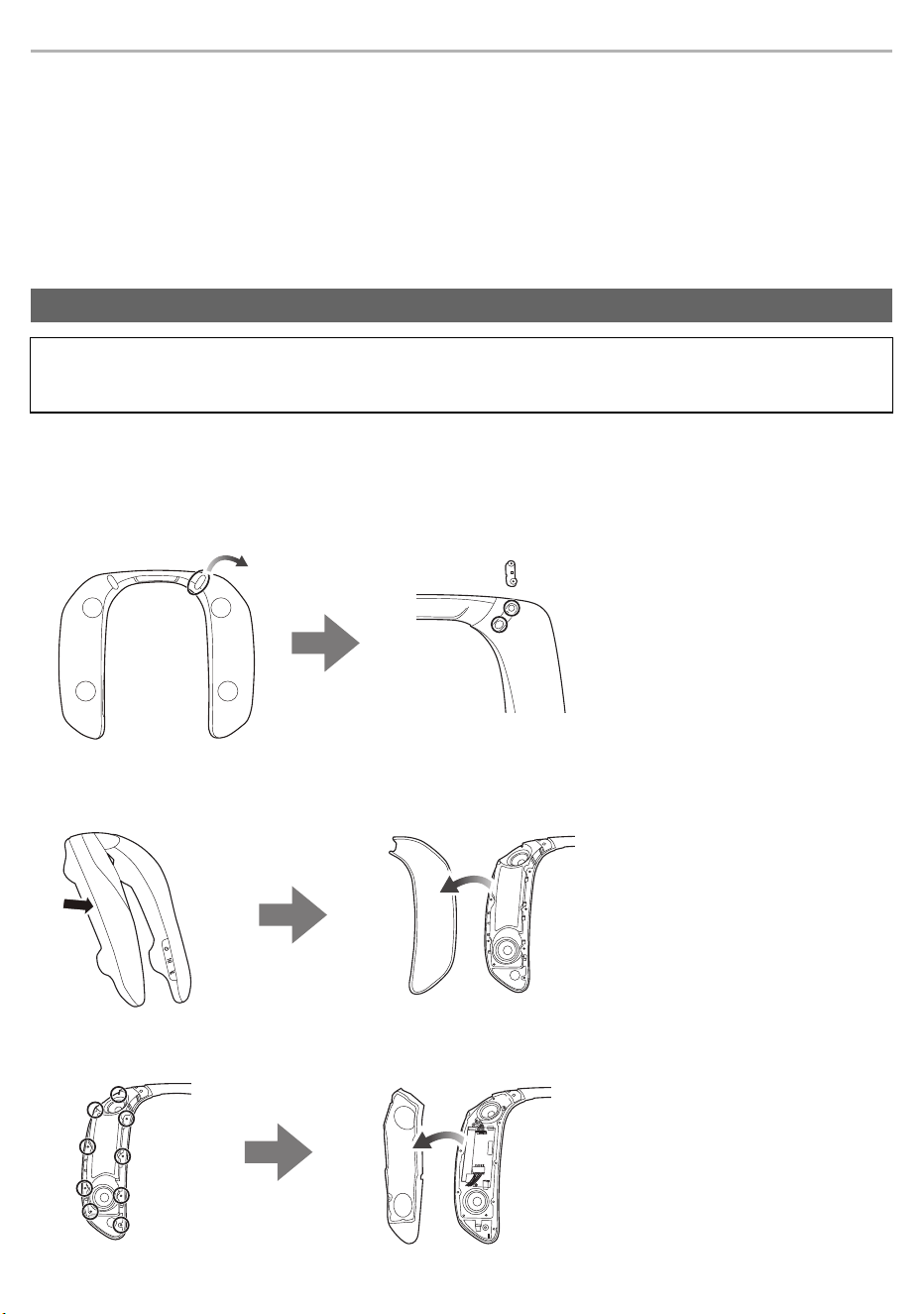
1 Take off the cap (1) on the bottom of the SC-GNW10, then unscrew the screws (2).
• Use a commercially available cross-head precision screwdriver to remove the screws.
2 Remove the covers on the top of the SC-GNW10.
• Use a commercially available flat head screwdriver or similar to insert between the covers and the cabinet to
lever off the covers.
3 Remove the screws (9) and then remove the internal covers.
• Use a commercially available cross-head precision screwdriver to remove the screws.
To remove the battery when disposing of the SC-GNW10
The following instructions are not intended for repairing purposes but for the disposal of the
SC-GNW10. The SC-GNW10 is not restorable once disassembled.
• When disposing of the SC-GNW10, take out the battery installed in the SC-GNW10 and recycle it.
Other
25
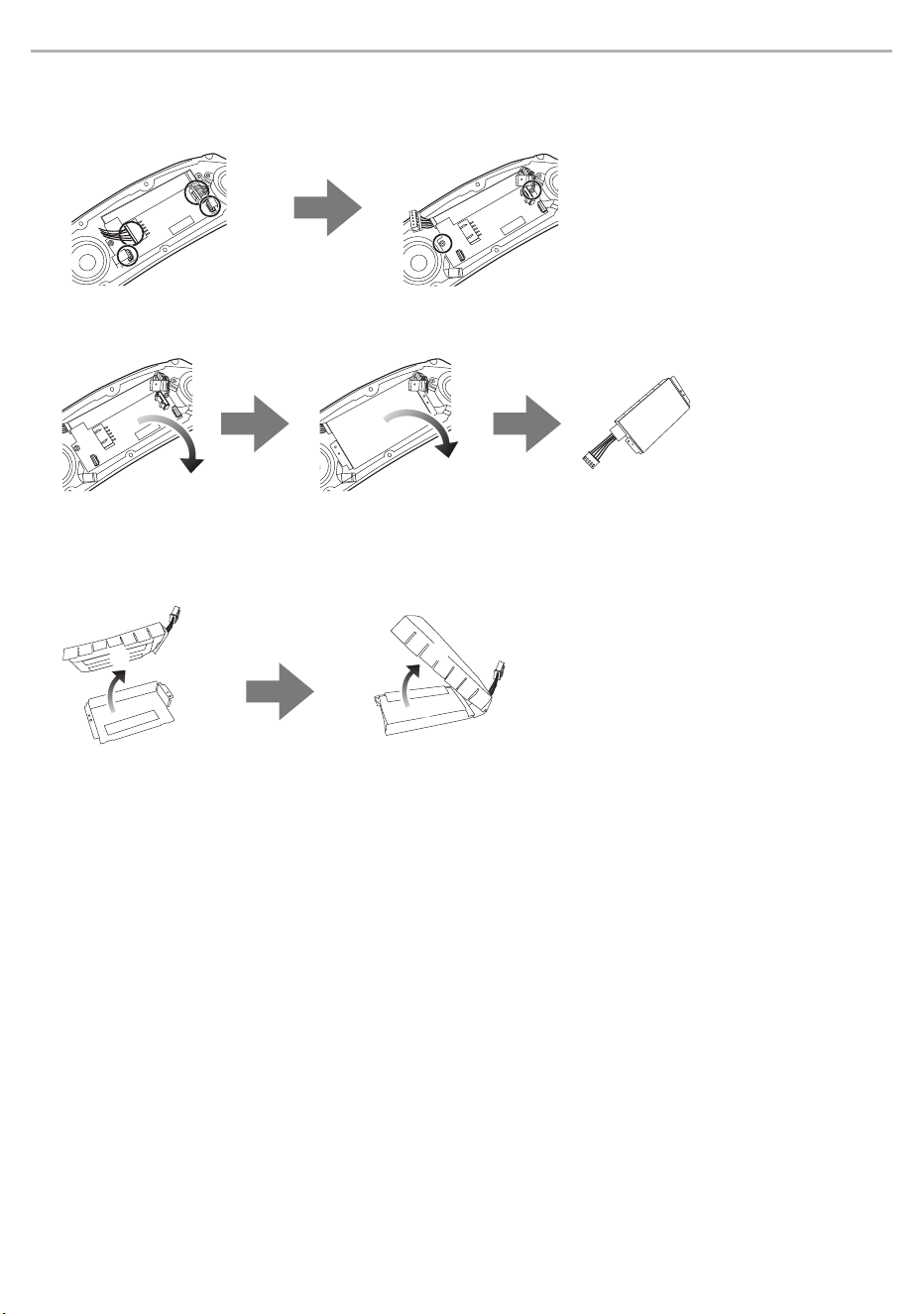
4 Take off the connectors (4), then unscrew the screws (2).
• Use a commercially available cross-head precision screwdriver to remove the screws.
5 Remove the board (A) and take out the battery case (B).
6 Take the battery (C) out of the battery case.
• The battery is attached to the battery case with double-sided tape.
• Remove the lid of the battery case (D) from the battery.
Regarding the handling of used battery
• Insulate the terminals with adhesive tape or similar material.
• Do not disassemble.

Two Riverfront Plaza, Newark, NJ 07102-5490
Panasonic Corporation of North America
Panasonic Canada Inc.
5770 Ambler Drive, Mississauga, Ontario L4W 2T3
www.panasonic.com
http://shop.panasonic.com
Panasonic Entertainment & Communication Co., Ltd. 2023
TQBS0526
F1023TN0