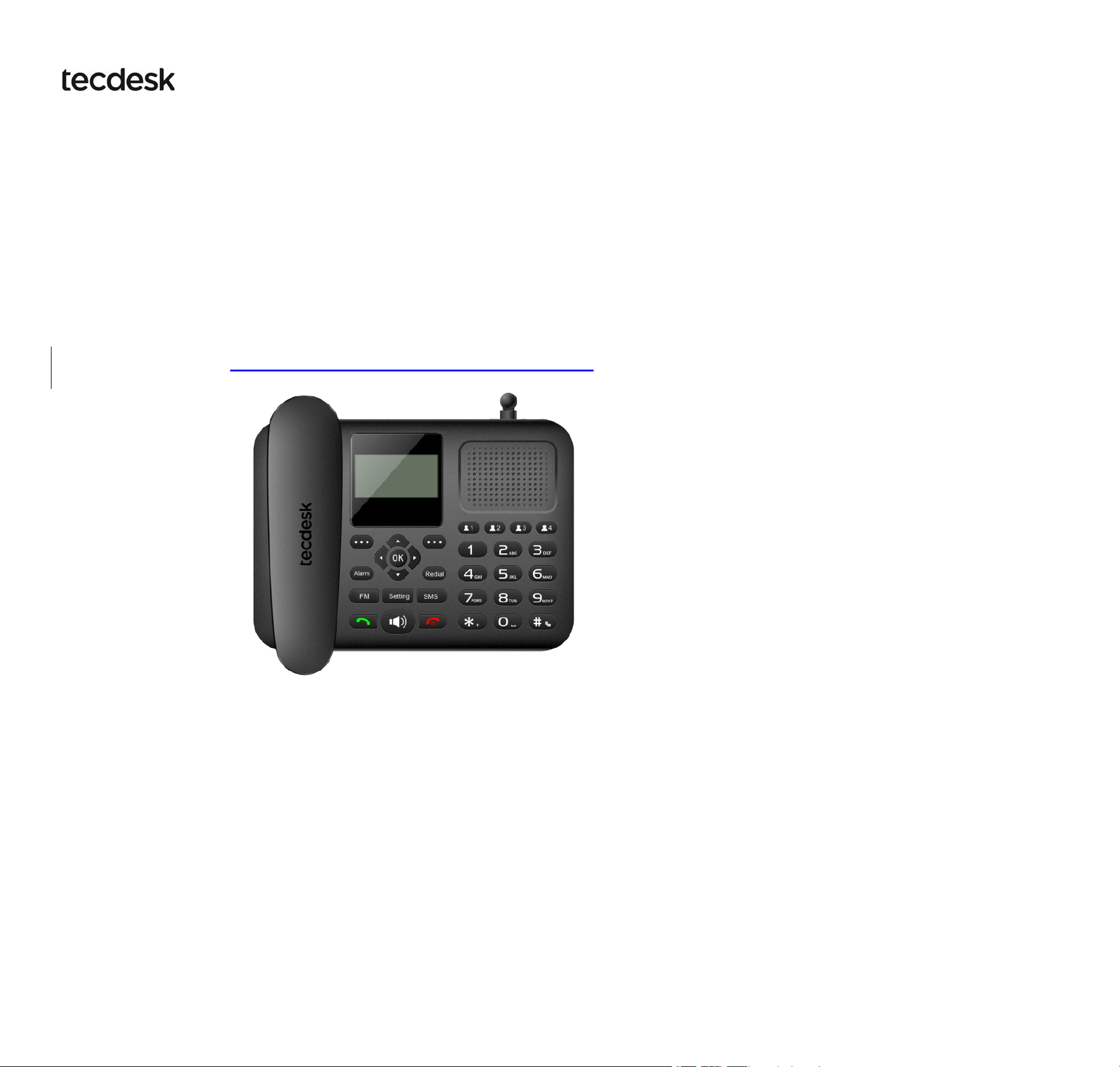
Model 2 SIM Desk Phone | User Manual
Tecdesk Model 2 SIM Desk Phone | User Manual | www.tecdesk.com
Model 2
Tecdesk Model 2/TD/MODEL2BKUS
User Manual
Model 2 SIM Desk Phone | User Manual
Tecdesk Model 2 SIM Desk Phone | User Manual | www.tecdesk.com
Contents
1
Introduction
2
Precautions
3
Important Information
4
Keyboard Introduction
5
Installation
5.1
SIM Card and SD Card Installation
6
Getting Started
6.1
Turn On the Phone
6.2
Make a Call
6.3
Receive a Call
6.4
Rejecting an Incoming Call
7
Menu Functions
7.1
Contacts
7.2
Messages
7.3
Call Logs
7.4
Call Settings
7.5
Calendar
7.6
FM Radio
7.7
Settings
7.7.1
Phone Settings
7.7.2
Display
7.7.3
Security
7.7.4
Profiles
7.7.5
Calculator
7.7.6
Bluetooth
7.7.7
Alarm
7.7.8
Do Not Disturb Mode
7.7.9
Check for Updates
7.7.10
STK
7.7.11
About Phone
7.8
Recorder
7.9
Audio Player
Appendix A: Accessories List
Appendix B: Technical Specifications

Model 2 SIM Desk Phone | User Manual
Tecdesk Model 2 SIM Desk Phone | User Manual | www.tecdesk.com
1. Introduction
Thank you for purchasing the Tecdesk Model 2 SIM Desk Phone. This manual explains how to install, operate and
maintain the device safely and correctly.
2. Precautions
Battery Precautions
Charge the battery for 4 to 6 hours to ensure it is fully charged.
Do not expose the battery to high temperatures, fire or heated areas, as this may cause an explosion.
Stop using the battery immediately if it leaks, smokes or gives off an unusual smell. Keep it away from heat and
open flames.
Dispose of used batteries in accordance with local regulations.
Remove the battery if the device is not used for a long period. Recharge it every three months during storage. Do
not store lithium-ion batteries for more than one year.
Safety Warnings and Precautions
Switch off the device where wireless transmitters are prohibited, including petrol stations, oil depots, chemical
plants and areas containing flammable or explosive materials.
Clean the phone with a slightly damp anti-static cloth. Do not use dry cloths, chemical cleaners or products that
may cause static.
Keep the phone away from strong sunlight and high temperatures.
Do not connect the phone to incompatible external devices.
Only use the original power adapter and battery supplied with the device. Using other equipment may create safety
risks.
This device is designed for long-term use with the power adapter connected. The battery is intended for
emergency backup only.
Do not disassemble the device unless you are a qualified technician.
3. Important Information
Please read this user guide carefully before using the SIM Desk Phone to ensure correct operation and avoid damage.
Check the contents of the box against the packing list and report any missing items to the retailer immediately.
Model 2 SIM Desk Phone | User Manual
Tecdesk Model 2 SIM Desk Phone | User Manual | www.tecdesk.com
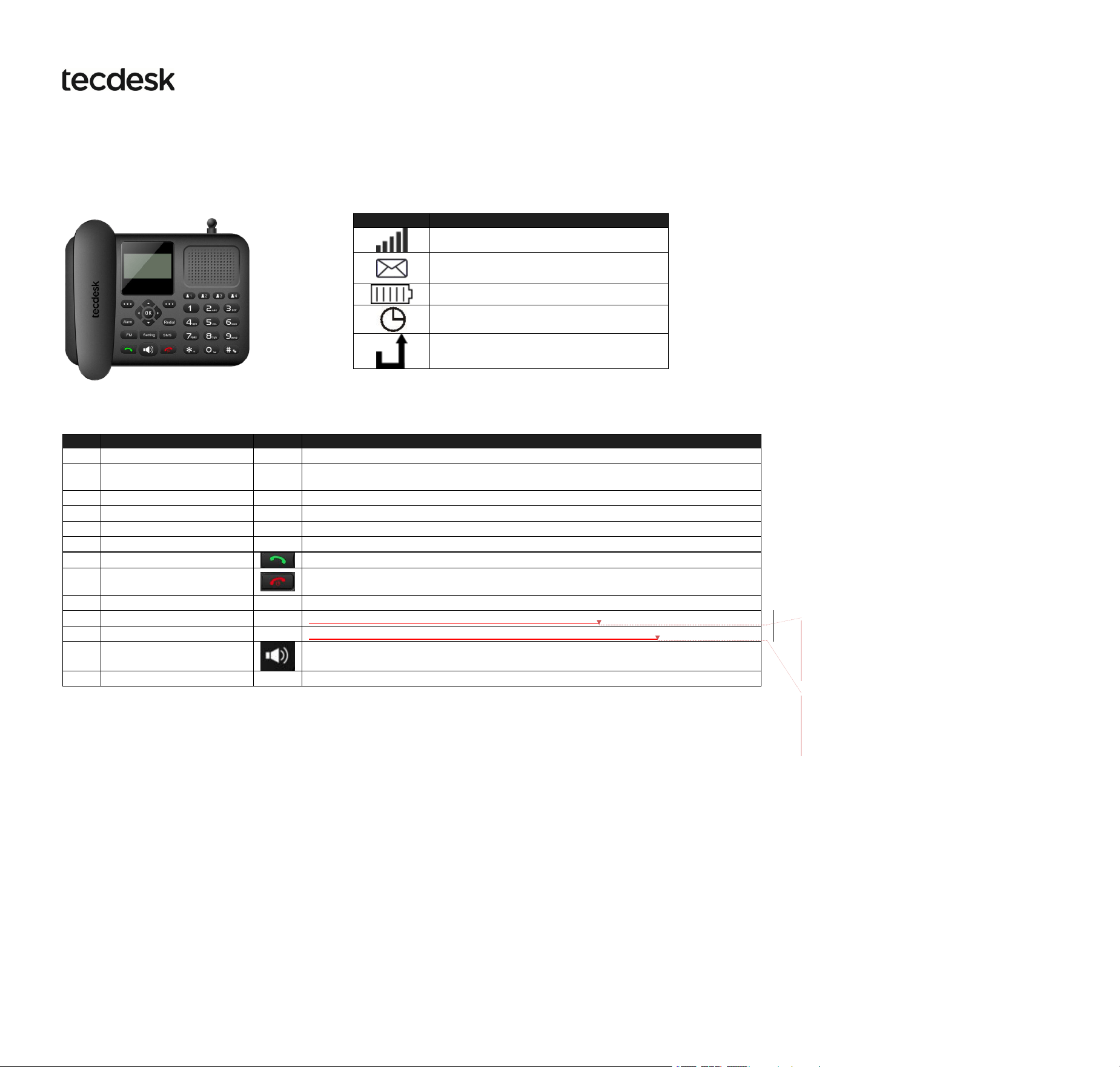
4. Keyboard Introduction
Status Icons
Icon
Description
Network signal strength
Unread message
Battery level
Alarm enabled
Unconditional call forwarding enabled
Key Functions
No.
Key
Icon
Function
1
Left Soft Key
Press to open the Main Menu from the idle screen.
2
Right Soft Key
Press to return to the previous menu or use it as a shortcut to open Contacts from the
idle screen.
3
Up Key
Use to navigate upwards through the menu.
4
Down Key
Use to navigate downwards through the menu.
5
Left Key
Use to navigate left through the menu.
6
Right Key
Use to navigate right through the menu.
7
Dial Key
To make a call, enter the phone number and press the Dial key.
8
Power / End Key
Press and hold for 3 seconds to power the phone on or off. Press during a call to end
the call and return to the idle screen.
9
0-9 Numeric Keys
Enter numbers and characters.
10
* Key
From the idle screen, press this key to enter lock screen.
11
# Key
From the message screen, press this key to switch the input method.
12
Speaker Key
Press to use the loudspeaker for hands-free calls.
13
M1-M4 Speed Dial Keys
Press a Speed Dial key to call the preset phone number.
5. Installation
5.1 SIM Card and SD Card Installation
On the underside of the phone, open the battery cover and remove the battery to access the SIM and SD card slots. Insert
the SIM card and SD card into the correct slots, then replace the battery and battery cover.
From the idle screen, press this key
to enter *. While editing a message, press it to access
special symbols.
删除[Xenia 王雪喵]:
From the idle screen, press this key
to enter #. While editing a message, press it to switch
the input method.
删除[Xenia 王雪喵]:

Model 2 SIM Desk Phone | User Manual
Tecdesk Model 2 SIM Desk Phone | User Manual | www.tecdesk.com
6. Getting Started
6.1 Turn ON the Phone
Install the SIM card and battery, then press and hold the End key for 3 seconds to turn the phone on.
6.2 Make a Call
Enter the phone number. The number will appear on the screen. If the number is incorrect, press the Right key to
delete it.
After entering the phone number, press the Dial key to make the call.
During a call, press the Up or Down key to adjust the volume.
6.3 Receive a Call
When there is an incoming call, the phone will ring and display the caller ID. Pick up the handset or press the
Hands-Free key to answer.
During a call, press the Up or Down key to adjust the volume.
6.4 Reject an Incoming Call
When a call comes in, press the End key to reject it.
7. Menu Functions
All menus can be accessed from the idle screen.
Press the Left Soft Key to open the sub-menu list and press the Right Soft Key to return to the previous menu.
7.1 Contacts
Contacts can store phone numbers, allowing users to view, add, search, delete and copy contacts.
Speed dial numbers can be assigned to keys 2 to 9. Once set, hold the relevant number key from the idle screen
to make a call.
You can view your own number and check the phone and SIM card storage status in the Settings menu.
7.2 Messages
In the Messages menu, you can write and send messages, view the Inbox, Drafts, Outbox and Sent folder, set SMS
templates, view message capacity, configure the voicemail server and manage SMS settings.
7.3 Call Logs
In Call Logs, press the Up or Down key to view missed, received and dialled calls. You can also delete records using the
Clear Call Log menu.
adjust
删除[Xenia 王雪喵]:

Model 2 SIM Desk Phone | User Manual
Tecdesk Model 2 SIM Desk Phone | User Manual | www.tecdesk.com
7.4 Call Settings
In Call Settings, you can configure call divert, call waiting, network selection, network type, IP prefix, post-dial delay, VoLTE
and automatic voice call recording.
7.5 Calendar
The calendar supports a simple date view and allows you to jump to a specific date.
7.6 FM Radio
The FM radio supports automatic channel search, radio list view. Press the Up or Down key to adjust the volume.
7.7 Settings
7.7.1 Phone Settings
Set the time and date, language, shortcuts, M1 to M4 speed dial keys, auto power on/off and restore factory
settings.
In Shortcut Settings, you can assign functions to the Right, Left, Up, Down and Right Soft keys, such as Call Logs,
Messages or Write SMS.
In Speed Dial Settings, you can assign phone numbers to M1 to M4. From the idle screen, press the relevant key
to call directly.
To restore factory settings, enter the default password: 1234.
7.7.2 Display
Use this menu to set the screen brightness and contrast.
7.7.3 Security
Use this menu to set the PIN, auto keypad lock, power-on password, blacklist and whitelist.
When the power-on password is enabled, a password is required each time the phone is switched on. The default
password is 1234.
The blacklist displays all blocked numbers. You can block incoming calls, SMS messages, or both calls and
messages from selected contacts.
The whitelist displays all allowed numbers. You can allow audio calls, messages, or both calls and messages for
selected contacts.
7.7.4 Profiles
Use this menu to set ring settings, volume levels and other alert tones.
In Adjust Volume, you can set the caller ringtone, message ringtone, call volume, alarm and calendar ringtone, and
power ringtone.
In Other Alert Tones, you can set the key tone, low battery alert and power tone.
7.7.5 Calculator
In the Calculator menu, use the Up key for addition (+), Down key for subtraction (-), Left key for multiplication (*) and Right
key for division (/).
and recording when an SD card is
inserted
删除[Xenia 王雪喵]:

Model 2 SIM Desk Phone | User Manual
Tecdesk Model 2 SIM Desk Phone | User Manual | www.tecdesk.com
7.7.6 Bluetooth
Use the Bluetooth menu to turn Bluetooth on or off. Once enabled, Bluetooth functions can be used.
You can set Bluetooth visibility. When visibility is enabled, other Bluetooth devices can search for and find your
phone.
The paired devices list shows all paired devices. You can add new devices or delete existing paired devices.
In Bluetooth File Storage, you can choose whether files are saved to the SD card or phone storage.
The default device’s name is TDModel2. You can rename the device, and the new name will be shown on other
devices.
7.7.7 Alarm
In the Alarm menu, you can view and set alarms.
7.7.8 Do Not Disturb Mode
In Do Not Disturb Mode, you can set a period during which incoming calls and SMS messages are muted.
7.7.9 Check for Updates
Use this menu to check the status of system software updates.
7.7.10 STK
In the STK (SIM Toolkit) menu, you can access services provided by your network operator.
7.7.11 About Phone
In the About Phone menu, you can view the manufacturer and device model.
7.8 Recorder
To use the recording function, insert a memory card first. All recordings will be saved to the memory card. You can play the
latest recording, view and play the recording list, and set the recording format.
7.9 Audio Player
The Audio Player plays files stored on the memory card.
Model 2 SIM Desk Phone | User Manual
Tecdesk Model 2 SIM Desk Phone | User Manual | www.tecdesk.com
Appendix A: Accessories List
Item
Quantity
Fixed Wireless Phone
1
Handset
1
Handset Cable
1
User Manual
1
Power Adapter
1
Battery
1
Antenna
1
Appendix B: Technical Specifications
Specification
Value
Operating Temperature
-10°C to +40°C
Atmospheric Pressure
86 to 106 kPa
Relative Humidity
10% to 95%
Environmental Noise
≤ 60 dB(A)
Transmit Power
2 W
Receiver Sensitivity
-102 dBm
The information in this manual may be updated without notice. Always follow local safety and disposal regulations when
using or disposing of the device and battery.
For more information, please visit www.tecdesk.com.

FCC Statement
This device complies with part 15 of the FCC rules. Operation is subject to the following two
conditions: (1) this device may not cause harmful interference, and (2) this device must accept
any interference received, including interference that may cause undesired operation.
Changes or modifications not expressly approved by the party responsible for compliance could
void the user's authority to operate the equipment.
NOTE: This equipment has been tested and found to comply with the limits for a Class B digital
device, pursuant to part 15 of the FCC Rules. These limits are designed to provide reasonable
protection against harmful interference in a residential installation. This equipment generates
uses and can radiate radio frequency energy and, if not installed and used in accordance with the
instructions, may cause harmful interference to radio communications. However, there is no
guarantee that interference will not occur in a particular installation. If this equipment does
cause harmful interference to radio or television reception, which can be determined by
turning the equipment off and on, the user is encouraged to try to correct the interference by
one or more of the following measures:
• Reorient or relocate the receiving antenna.
• Increase the separation between the equipment and receiver.
• Connect the equipment into an outlet on a circuit different from that to which the receiver is
connected.
• Consult the dealer or an experienced radio/TV technician for help.
This equipment complies with FCC radiation exposure limits set forth for an uncontrolled
environment. This equipment should be installed and operated with minimum distance 20cm
between the radiator & your body.