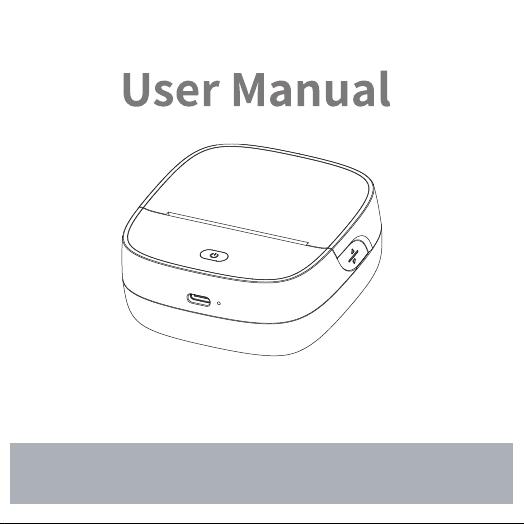
Please read the instructions carefully before you use this product.
Version: 1.0
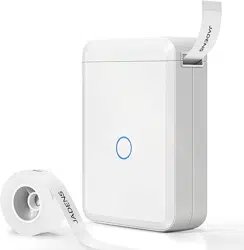
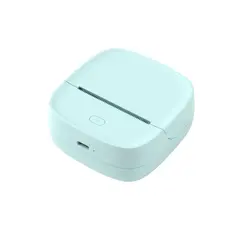
JD-23
Mini Thermal Printer
1. What's in the Box
2. Product Sketch
3. Instruction for Power Button
4. Power Status Indicater
5. How to Get JD-23 Ready to Print
6. How to Use JD-23 with Gap Label
7. APP Printing Instruction
8. Trouble Shooting
9. Charging Instructions
10. Clean the Printer Head
11. Thermal Paper Type
12. Product Specification
P1
P2
P3
P3
P5
P6
P7
P10
P13
P14
P15
P16
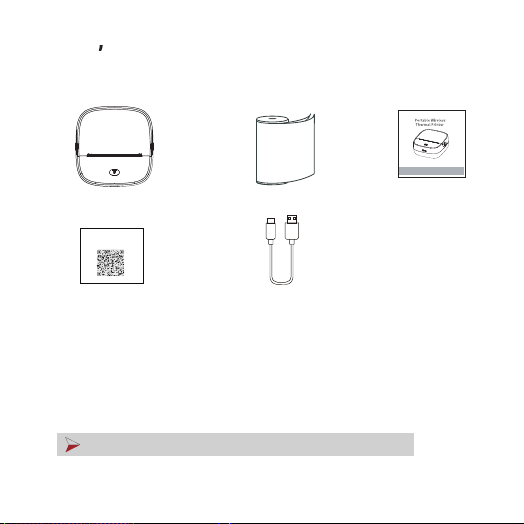
What s in the Box
App Guide Card
Thermal Paper
Printer
User Manual
USB A to C
We have several combos to meet diverse needs.
Combo 1: Printer with 1 x continuous sticker
Combo 2: Printer with 1 x continuous sticker and 1 x 2*1.18inch gap label
Combo 3: Printer with 1 x continuous sticker, 1 x continuous paper (non-sticker),
1 x 2*2.76inch gap label and 6 x color pens (red, orange, yellow, green, blue, pink)
If any accessories are missing, please contact us for support.
Please read the instructions carefully before you use this product.
Version: 1.0
JD-23
APP Printing Quick Start Guide
Scan the QR code below to download the newest
"APP Printing Quick Start Guide", as the APP UI may update.
P1
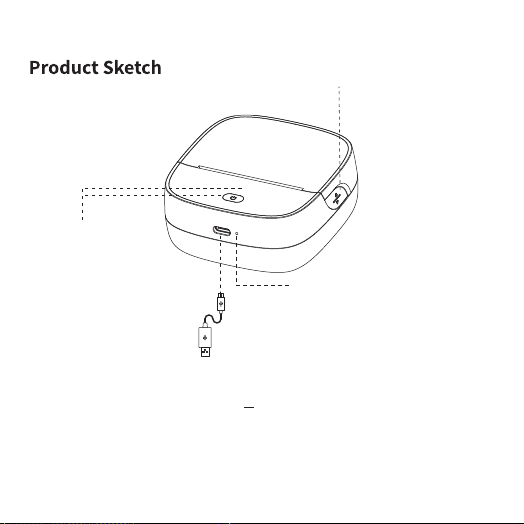
❶
❷ Power button and
indicator light
• Press and hold 2 seconds
to turn on/off.
❸ Type-C Port
• Charged with mobile phone
charger or power bank.
(Input Power:5V --- 2A)
❹ Reset key
• Insert the reset key with a
pin to force the printer
off. ( If necessary)
Cover
• Hold the thermal printer by
the front, and gently lift the
cover to open.
P2
P3
Power Status Indicater
Printer Status
Power on
Power off
Over-heat
Cover opened
Cover closed
Power Status Indicater
Green light on
Light off
Red light on
Red light on
Green light on
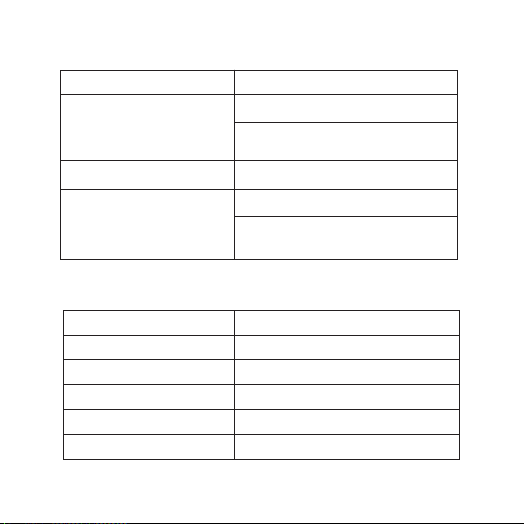
Instruction for Power Button
Long press for 2s
Quickly press 1 time
Quickly press 2 times
Quickly press 3 times
(Paper calibration)
Power on/off
Gap label: detect the label gap
Print self-test page
Gap label: feed 4 blank labels
Continunous paper/sticker:
feed paper about 100mm
Continunous paper/sticker:
feed paper about 100mm
P4
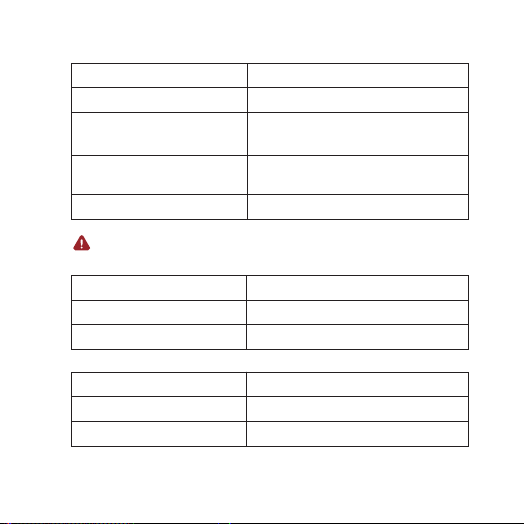
Battery Status
Full charged
Normal
(Battery power ≥20 %)
Low battery
(Battery power<20 %)
Charging normaly
Note: Upgrading > Charging > Low battery > Other status
Power Status Indicater
Green light on
Green light on
Yellow light on
Red light on
Consumable Status
Normal
No paper detected
Power Status Indicater
Green light on
Red light on
Bluetooth Status
Bluetooth connected
Bluetooth disconnected
Power Status Indicater
Green light on
Green light flash slowly
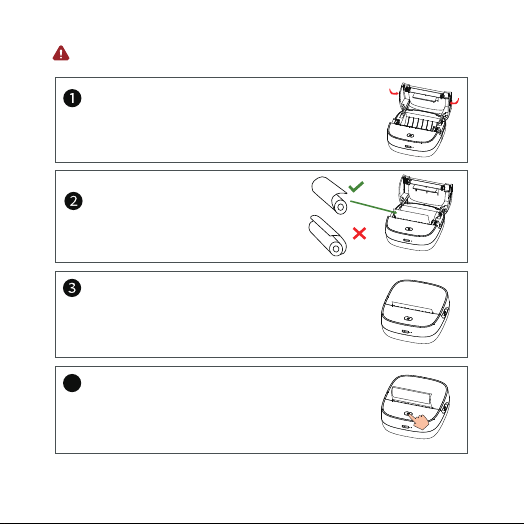
How to Get JD-23 Ready to Print
Open cover
Load the paper with printing side facing
down.
Hold the printer by left and right sides,
and gently lift cover to open.
Put paper in
Close the cover
Close the paper compartment cover.
Please make sure to leave 0.1-0.2inches of
label paper on the outside.
Detect label gap
(Please skip this step for continuous paper/sticker)
Press power button once to detect label gap.
Please full charge the printer for the first using.
4
P5

How to Use JD-23 with Gap Label
Gap label: Refers to roll paper with a fixed width gap
between each label.
① Short press once to detect label gap, which should
be peformed each time after roll label replacing.
Printer will auto detect the label gap to make sure
correct printing.
② Short press 3 times to calibrate paper, which should
be peformed after abnormal positioning. Printer
will feed 4 gap labels to automatically calibrate.
The printer uses this gap to determine precise
positioning and where to print on the label.
P6

APP Printing Instruction
Search for [Jadens Printer] on Google Play or App Store
or scan below QR code to download APP.
1. APP Download
APP Store is a trademark of Apple Inc., registered in the U.S. and other countries.
Google Play and Google Play logo are trademarks of Google LLC.
P7
2. Printer Power On
Hold the power button for 2s until the green light on,
then release the power button.
3. Detect Label Gap
Press power button once, printer will detect label gap.
(Please skip this step for continuous paper/sticker)
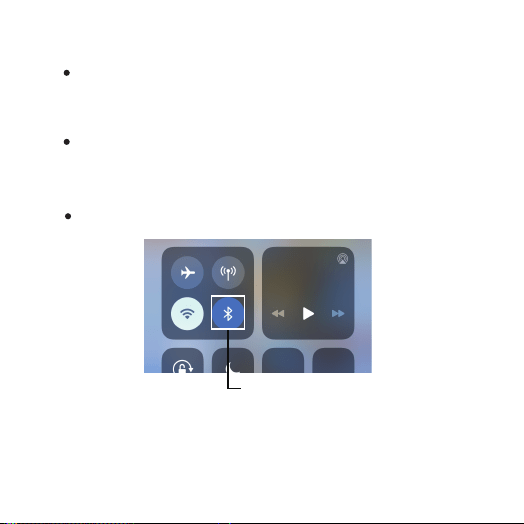
4. Bluetooth Connection
Turn on Bluetooth.
Turn on Bluetooth
P8
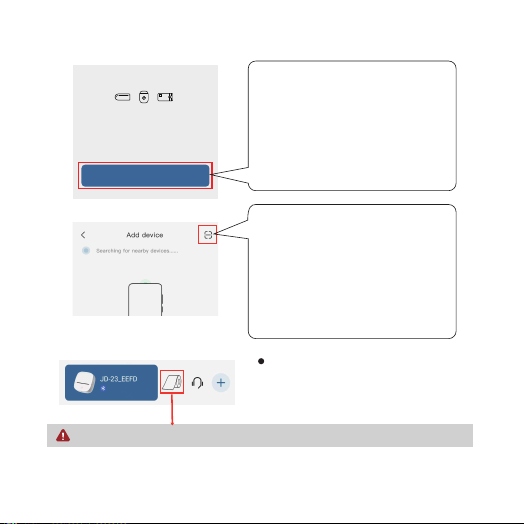
5. Connect Printer to [Jadens Printer] APP:
Option 2
No device temporarily
Let's go get connected
+ Add a device
Option 1
Option1:
1. Open [Jadens Printer] App;
2. Click 'Add a device' to search
nearby devices;
3. Choose the correct printer to
connect.
(Note: Don't connect printer in the
mobile phone Bluetooth settings.)
Option2:
1. Open [Jadens Printer] App;
2. Click 'Add a device' ;
3. Press the printer power button
twice to print QR Code;
4. Click 'Scan' icon on top right
corner;
5. Scan QR code to connect.
After printer connect successfully
by Bluetooth, App will show printer's
model number and battery information.
e.g. JD-23_xxxx in the App;
Paper type in [Jadens Printer] should be consistent with that of the printer.
P9

Trouble Shooting
1. No device can be found in the APP after Bluetooth is turned on.
(1)The distance between printer and smartphone/tablet should
be within 10m. (And no wall between the two)
(2)Make sure‘Jadens Printer’is authorized to access Bluetooth.
You can follow these steps to check, Setting> Apps>
‘ Jadens Printer’> Bluetooth button turned on.
2. Why my printer prints blank pages ?
(1) Check printing side. Printing side should be face down, details
please refer to page 5.
(2) Check paper type. JD-23 only compatible with thermal paper.
(3) Check whether paper jam has happened. Paper jams can occur
when labels or other paper become stuck inside the printer,
causing the printer to malfunction. To check for paper jam, open
the printer and clear any jammed paper.
P10

3. Printer is not printing centrally.
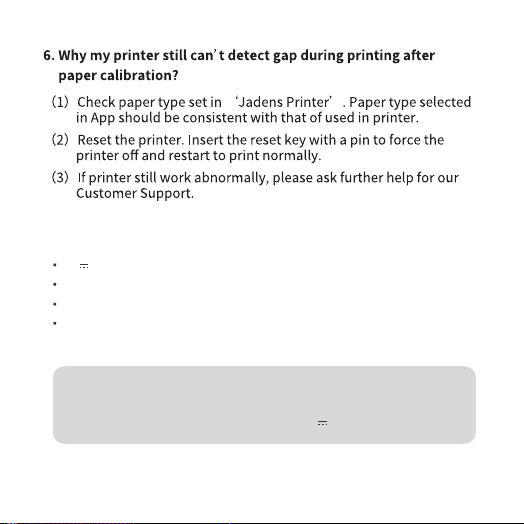
(1)Check paper type set in ‘Jadens Printer’. Paper type selected
in App should be consistent with that of used in printer.
(2)Short press power button, printer will feed one blank label and
position at the gap. Then the printer prints normally.
(2)Paper calibration. Short press power button 3 times, printer will
feed 4 gap labels to automatically calibrate. Then the printer prints
normally.
4. Printer turns itself off automatically.
(1)Check remaining battery. Printer auto shutdown might be out of
power, please charge in time.
(2)Auto-power off. The printer will automatically shut down after
20mins when it is on and idle.(Time can be set in "Jadens
Printer" APP.)Hold the power button for several seconds to
restart the printer.
P11
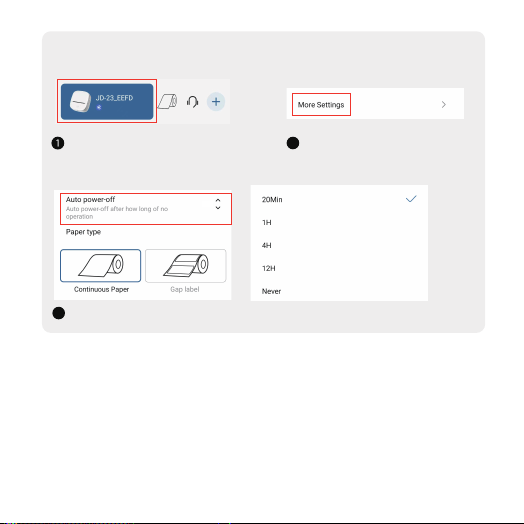
Set Auto Power-off Time in "Jadens Printer" APP:
5. Printer prints not clear/ blurry.
(1)Dust or adhesive on the printer head.
Please try to clean the printer head with a clean cloth with alcohol.
Details please refer to page 13 ‘Clean the Printer Head’.
(2)The printhead needs to be cleaned after a period of use as part
of routine maintenance.
Tap printer information
(e.g JD-23_xxxx)
Select "Auto power-off Time"
Click"More Setting"
2
3
20Min
P12
Charging Instructions
5V 2A input charging, charging time: about 2.5 hours.
We recommend you to use smart phone chargers for charging.
Please full charge the printer before you use it for the first time.
If not used for a long time, please charge once every 3 months to
avoid long-term natural loss of lithium battery can not be charged.
Warm tips: Working environment: Use at the ambient temperature of 5℃~40℃.
Caution! This product doesn’t contain power adapter. The output
specifications of the adapter shall comply with 5V 2A.
P13
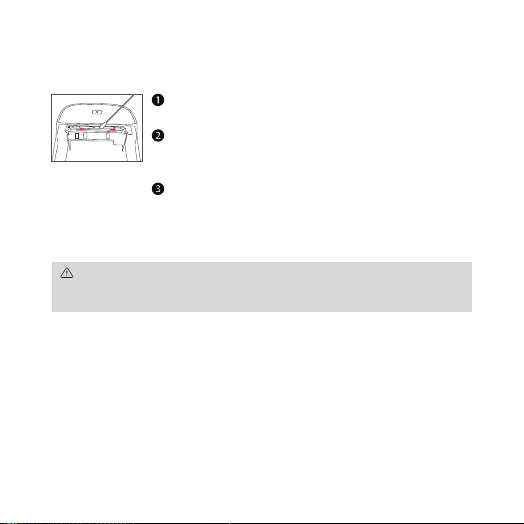
Clean the Printer Head
Please turn off the printer and take out the paper
roll after shutdown.
Rub the cotton cloth or cotton swab with medical
alcohol and gently wipe it from the center of the
print head to all sides.
Do not use the printer immediately after cleaning
the print head, please wait 1-2 minutes until the
alcohol is completely evaporated.
Please do not directly touch the printing head to avoid damage. Especially,
do not directly touch the printing head immediately after printing to avoid
overheating and scalding.
P14
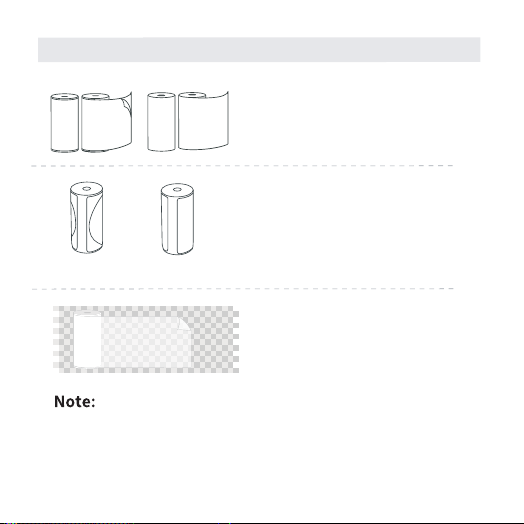
Thermal Paper Type:
(1)Please use with thermal paper only.
(2)Paper printing side please follow to Page 5.
Thermal Gap Label
Gap width: 0.32inch (8mm)
Paper width: 2.2inch (56mm)
Thermal Continuous Sticker / Paper
Paper width: 2.2 inch (56mm)
Thermal Transparent Sticker
Paper width: 2.2 inch (56mm)
2" x 1.18"2" x 2"
P15
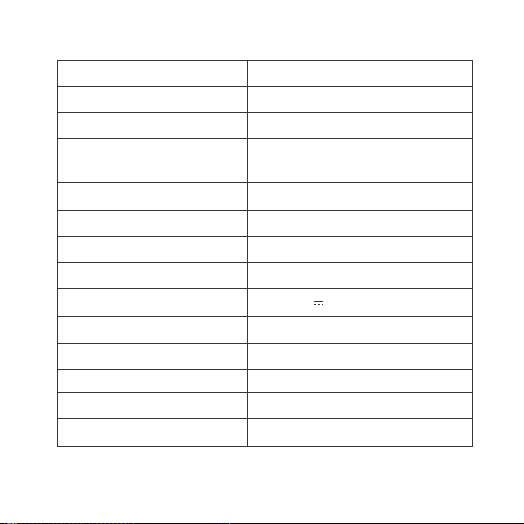
JD-23 Mini Thermal Printer
Model: JD-23
Printing Method: Direct Thermal
Printing Color: Monochrome
Printing Width: 2.2"(56mm)
Printing Speed: 0.39"/s(10mm/s)(max)
Printing Resolution: 203dpi
Printing Life: 16,400ft
Power Input: DC 5V 2A
Battery Capacity: 1200mAh
Charge Time: 2.5hrs
Compatible Devices: iOS, iPadOS, Android
Paper Bin Height: 1.18"(30mm)
N.W: 0.44lb(200g)
Continuous Paper/ Sticker
Gap Label
Compatible Thermal Paper:
P16
Customer Support
Available Time:
Mon -Fri: EST 10AM- 10PM
Sat -Sun: EST 1PM-9PM
P17

1-YEAR LIMITED WARRANTY - REGISTER AND ACTIVATE AT PHONE
APPLICATION 'Jadens Printer'.
This 1-year limited warranty applies to repair or replacement if
product,at JADENS’s option, is found to be defective in material
or workmanship.
1. This warranty only applies to hardware components of the pro
duct
that are not subject to accident, misuse, neglect, fire or dama
ge from
other external causes, alteration, repair or commercial use. D
efects
that are the result of normal wear and tear will not be conside
red
manufacturing defects under this warranty.
Model:
Date of purchase:
Purchased from:
Order Number:
Warranty Information
All warranty requests must be accompanied by proof of purchase.
When contacting us for warranty, please have the information
below.
P18

2. This warranty does not cover damage resulting from any
unauthorized attempts to repair or from any use not in
accordance with the instruction manual.
4. Please read the Instruction Manual carefully before setting up or
using this product. If you believe this product to be suffering from
a manufacturing fault, or if you have inquiries about this product,
please contact Customer Support:
ATTN: Customer Support
Email: [email protected]
3. This warranty applies only to the original purchaser of this
product from the original date of purchase. This warranty appli
es
only if the unit is purchased new from an authorized retailer and
is non-transferable from the original purchaser of the item. Any
warranties accompanied with this product is only valid in the
country of purchase.
P19

P20
FCC Caution:
Any Changes or modifications not expressly approved by the party
responsible for compliance could void the user's authority to operate
the equipment.
This device complies with part 15 of the FCC Rules. Operation is
subject to thefollowing two conditions: (1) This device may not
cause harmful interference, and (2) this device must accept any
interference received, including interferencethat may cause
undesired operation.
IMPORTANT NOTE:
Note: This equipment has been tested and found to comply with
the limits for a Class B digital device, pursuant to part 15 of the FCC
Rules. These limits are designed to provide reasonable protection
against harmful interference in a residential installation. This
equipment generates, uses and can radiate radio frequency energy
and, if not installed and used in accordance with the instructions,
may cause harmful interference to radio communications. However,
there is no guarantee that interference will not occur in a particular
installation. If this equipment does cause harmful interference to
radio or television reception, which can be determined by turning
the equipment off and on, the user is encouraged to try to correct
the interference by one or more of the following measures:

P21
—Reorient or relocate the receiving antenna.
—Increase the separation between the equipment and receiver.
—Connect the equipment into an outlet on a circuit different from
that to which the receiver is connected.
—Consult the dealer or an experienced radio/TV technician for help.
FCC Radiation Exposure Statement:
This equipment complies with FCC radiation exposure limits set
forth for an uncontrolled environment. This equipment should be
installed and operated with minimum distance 20cm between the
radiator& your body.

P22
ISED Warning
This device complies with Inovation, Science,and Economic
Development Canada licence-exempt RSS standard(s). Operation
is subject to the following
two conditions:
(1) this device may not cause interference, and
(2) this device must accept any interference, including interference
that may cause undesired operation of the device.
Le présent appareil est conforme aux CNR d' Imnovation, Sciences
et Développement économique Canada applicables aux appareils
radio exempts de licence. L'exploitation est autorisée aux deux
conditions suivantes:
(1)l'appareil nedoit pas produire de brouillage, et
(2)l'utilisateur de l'appareil doit accepter tout brouillage radioélectrique
subi, méme si le brouillage est susceptible d'en compromettre
le fonctionnement.
The device is compliance with RF exposure guidelines, users can
obtain Canadian information on RF exposure and compliance.The
minimum distance from body to use the device is 20cm.
Le présent appareil est conforme Après examen de ce matériel aux
conformité ou aux limites d'intensité de champ RF, les utilisateurs
peuvent sur l'exposition aux radiofréquences et la conformité and
compliance d'acquérir les informations correspondantes. La distance
minimale du corps à utiliser le dispositif est de 20cm.

P23
FCC ID: 2BDL3-B23
IC:31665-B23
The crossed-out wheeled bin symbol indicates that the
item should be disposed of separately from household
waste. This product complies with the 3R principles of
the EU WEEE Directive (recyclable, reused, recycled),The item
should be handed in for recycling in accordance with local
environmental regulations for waste disposal. By separating a
marked item from household waste, you will help reduce the
volume of waste sent to incinerators or land-fill and minimize
any potential negative impact on human health and the environment.
For more information, please contact us.