
User Manual
Digital Calendar
ALL-in-One Family Calendar
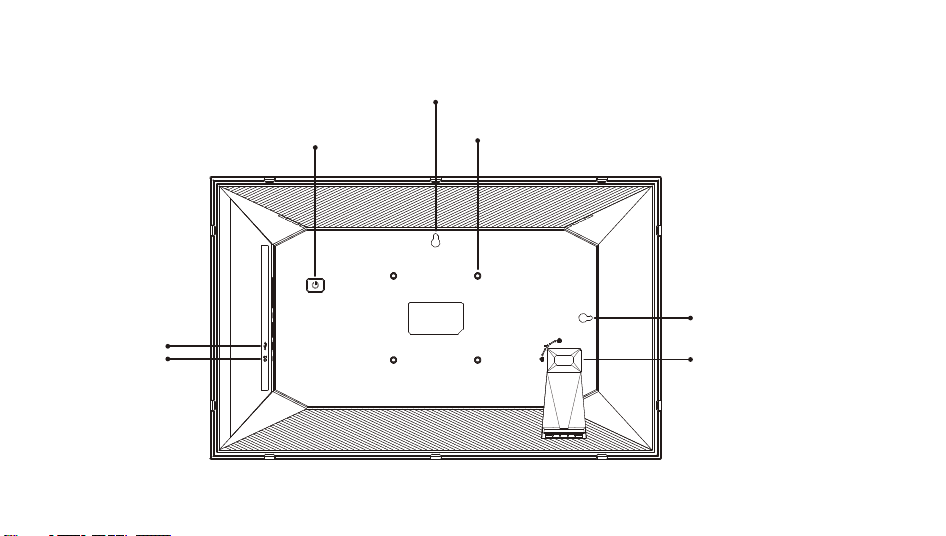
Power Supply
Mounting Hole
Wall-Mounting Hole
Bracket
Wall-Mounting Hole
Type-c
DC
01
02
Hold the power button for about 5 seconds to power on the frame.
when the frame is on, press the power button once to turn the screen on or o.
Hold the power button for about 2 seconds to get power o option.
To avoid anypossible damage to the frame, please do not unplug the power
adapter from the frame while the device is on.
Power Button
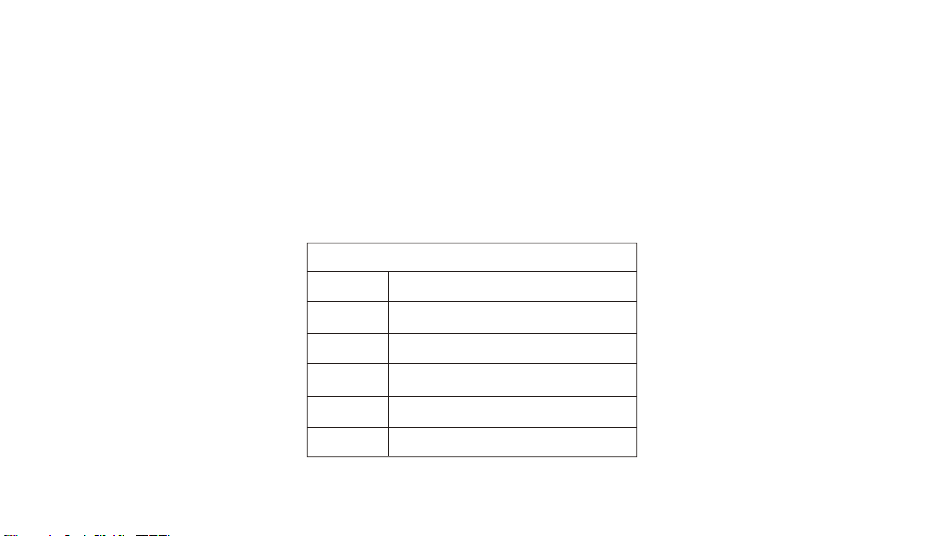
Product Specification
Screen 15.6" Touchscreen (16:10)
1920x1080 FHD
4GB
64GB
A523Cortex™M-A55 Octa-Core
2.4GHz+5GHz
Resolution
Memory
Storage
CPU
WI-FI
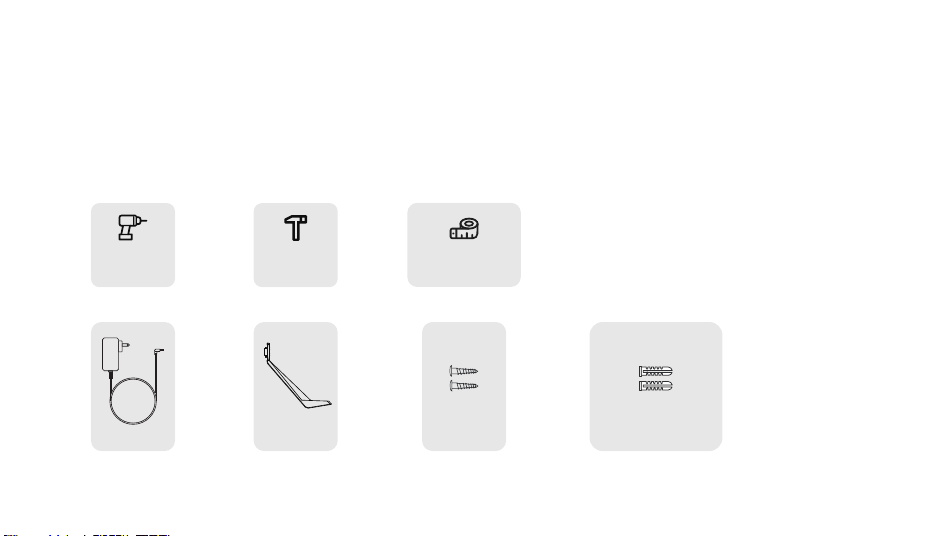
Other accessories inside the packaging box
Electric Drill
Power Adapter
Two Screws Two Expansion Anchors
Hammer Wall Protection Tape
The included screws and expansion anchors are suitable for drywall, brick, concrete, or tile walls.
For more operation instructions, please contact the store customer service.
Bracket
03
Before Device Installation
Wall-Mounting Tips
Required tools
Take the height of all device users into consideration It is recommended to install the device at an eye-level height.
Ensure sucient space for both horizontal and vertical mounting orientations.
Do not drill holes above wall studs, electrical wires, or pipes.
Before installation, unplug the device from the power socket and keep it away from water sources.
*
04
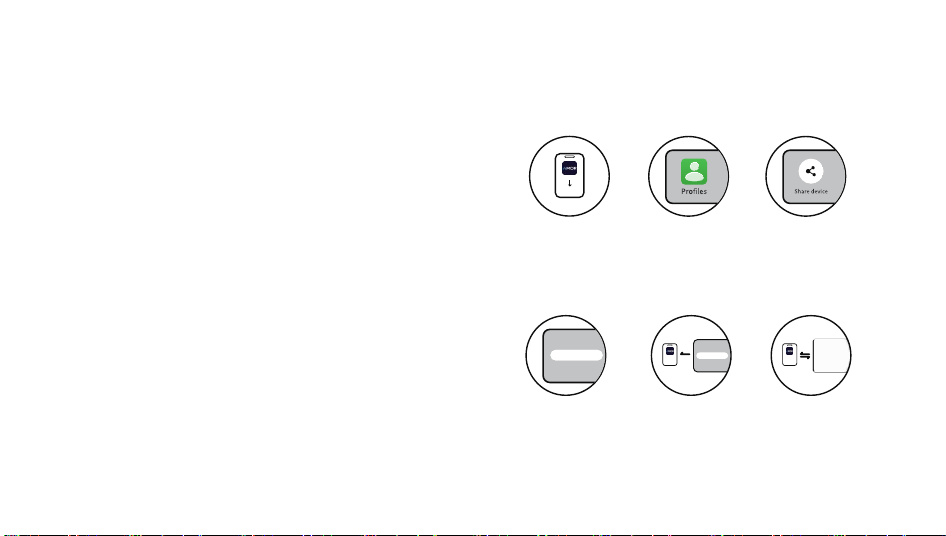
Download AiMOR app on your mobile phone
Bind and Connect Devices
To share your schedule with compatible calendar devices worldwide,
please first download the free AiMOR app on your mobile device.
Search for "AiMOR" in the App Store (iOS) or Google Play (Android) to
download the AiMOR app.
To synchronize your schedule with AiMOR Calendar, you need to
connect the AiMOR app to the AiMOR Calendar device.
Follow the steps below for connection:
** ** ** **** ** ** **
** ** ** **
Download the
"AiMOR APP"
through your mobile
phone
Open the device's
member manage-
ment settings
Open device
sharing
View the device
sharing code
Enter the device
code in the "AiMOR
APP" to bind the
device
You can now
synchronize your
mobile phone with
the calendar
Upload photos
Transmission from mobile to device
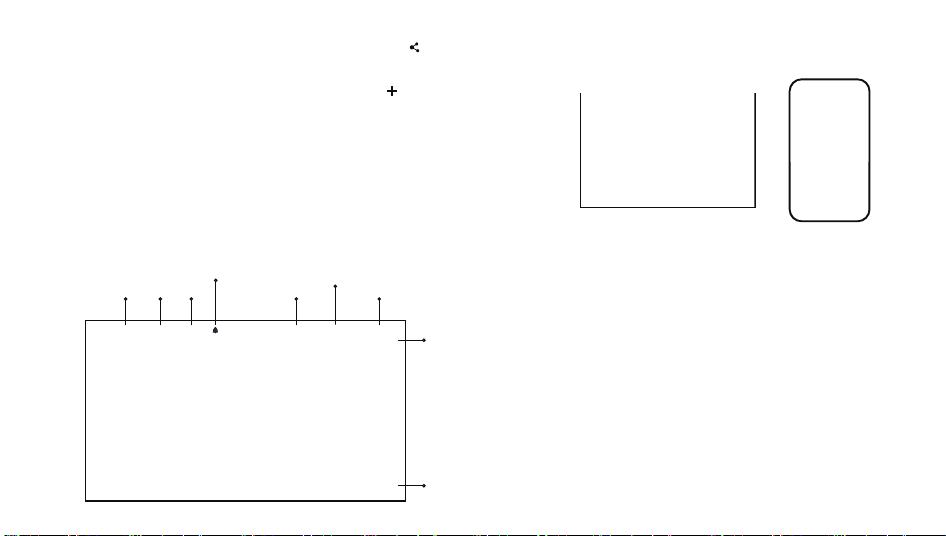
Introduction to Functions on Device Homepage:
Main Functions on Homepage
05
Date Time Weather
Reminder
Member
Switch views
Back to today
Chore display
Add schedule
Click on the device(Profiles-Share device) sharing icon“ “, on the Calendar
A pop-up will appear with a unique code, which is valid for 12 hours.
Now, open the AiMOR app on your phone, tap the " " icon under the device
tab, enter the code from the Calendar, and click. Your mobile app is now
connected to the photo frame.
Share the Calendar code with friends and family. They can add the Calendar and
start synchronizing or creating schedules, household chores, etc., to it. There is no
limit to the number of mobile users connected to the Calendar.
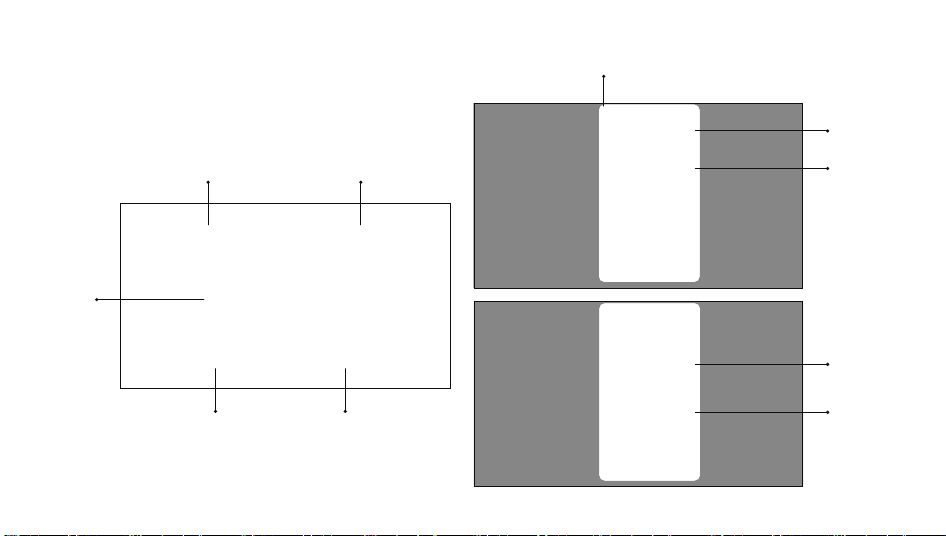
Notification
Ring reminder Close pop-ups
NextMember display
Content
display
06
Message notification
Unread status
Read status
Swipe right
to delete
Reminder
information
category
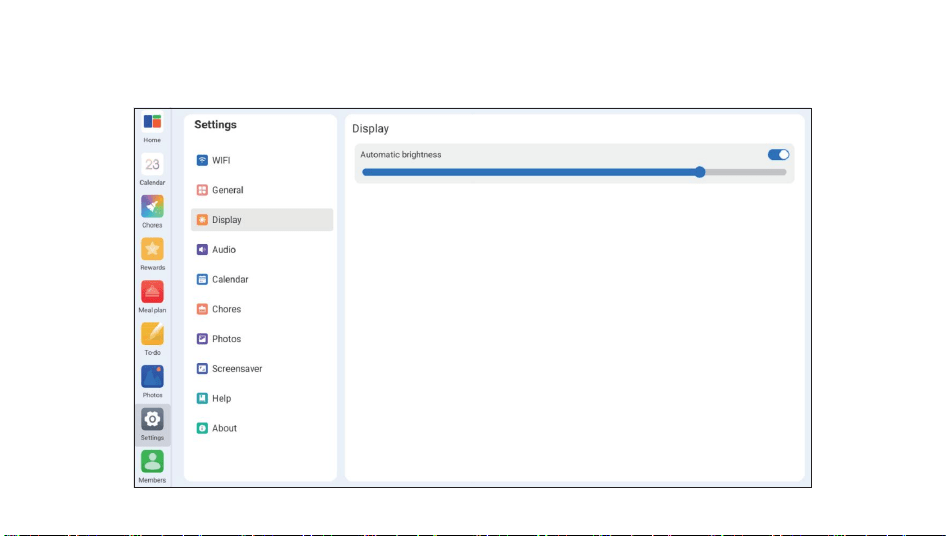
Display:
Supports Automatic brightness settings.
07
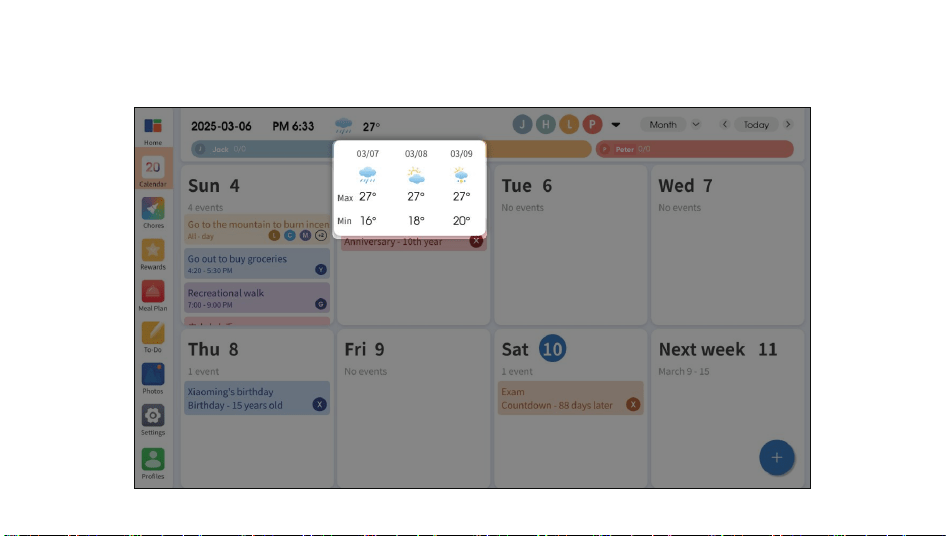
Weather - Set Time Zone
Navigate to Device Settings - General - Weather Location
to ensure that the weather positioning is accurate.
08
Jack Peter
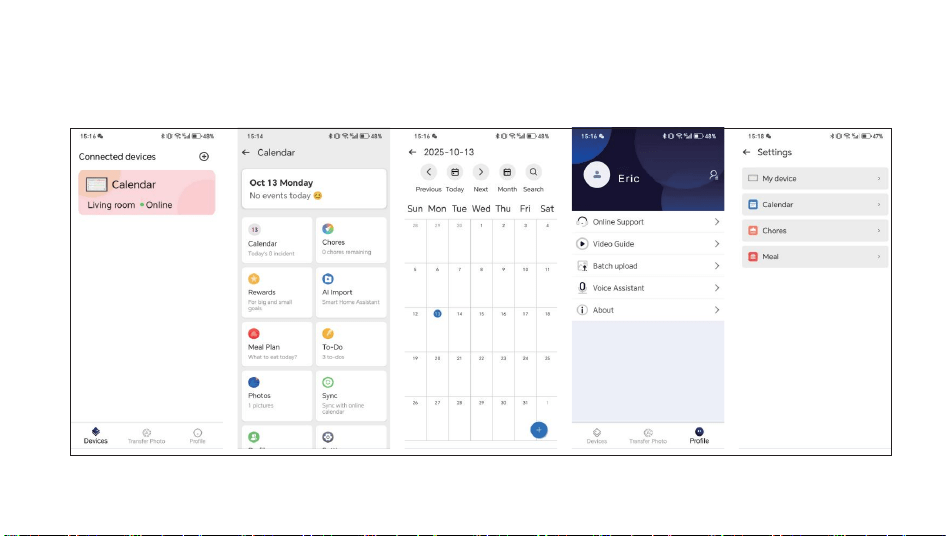
Smart Creation, Star Assignment, Reward Creation, Catering Plans: Smart Recipe Creation, Synchronized Import, Member Management,
Photo Upload Synchronized Import:
Introduction to Main Functional Pages on Mobile App:
09
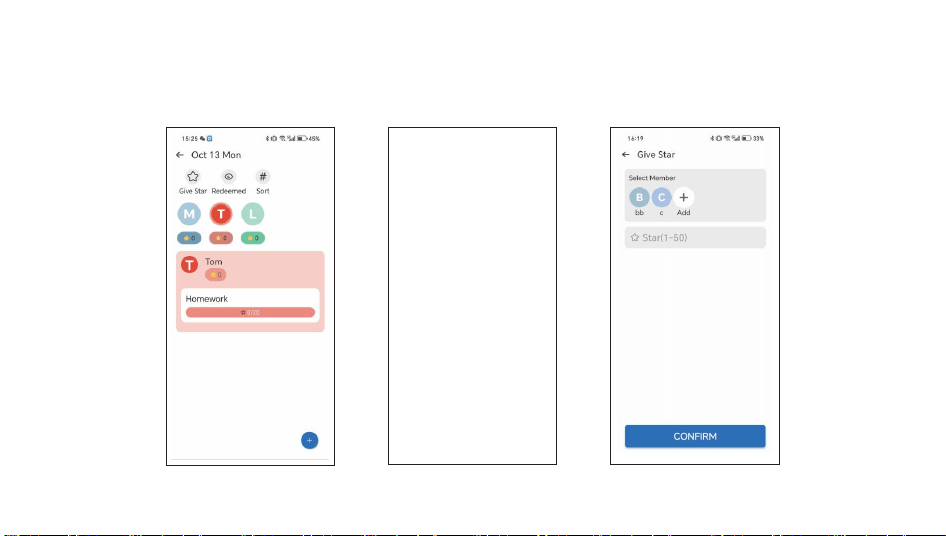
Star Assignment:
10
Create rewards and set rules together.
When you have collected enough stars, you can redeem our pre-agreed rewards with them! Rewards can be items or a special experience.
Rewards are created by parents on the mobile app, and children can view their rewards and progress on the device.

11
Wi-Fi
Icon to view the WiFi status, means that the WiFi signal is strong, means no WiFi, and icon to view the server status,
means connecting to the server, means disconnecting the server.
Factory Reset
Deletes all data from your frame. This will permanently delete all your photos/videos, contacts, and settings.
Help & About
User guide
Opens the quick start guide that is shown during initial setup of the frame.
Check for Updates
Check for available software updates and download/install them on your frame.
Thank you for purchasing this Digital Calendar. Before using the Digital Calendar, please read this manual carefully
and keep it in a safe place.
The description in this manual is based on the latest information at the time of editing. The actual product
you receive may dier slightly from the descriptions in this manual owing to technical updates and production
batch dierences. We reserve the right to change product specifications and update this information from time to time.
For further assistance, please contact our sellers or after-sales team. The final interpretation right belongs to our company.
Introduction

12
Dear Customer, Thank you very much for using our products, Please read the rules carefully.
1. One year warranty.
According to the prescription, the period for protecting to fix our company's Digital Calendar is one year.
(From the day when you have the invoice) During this period,any belongs to under normal usage
circumstance cause because of the product quality's problemof breakdown, our company will be
responsible for giving free maintain.
2. Free maintain won't be given under the following circumstance.
◎ Without Protection to fix warrantees.
◎ The device is out of the warranty period.
◎ The damage caused by customer inappropriate preservation, maintain, orthe usage.
◎ The serial number on the back cover is too dim to recognize if it is for our products.
◎ The breakdown caused by the manipulation that hasn’t follow the requests of the manual.
◎ The breakdown, row harm or damaged because of the move or drop.
◎ The breakdown and the damage caused by the force majeure.
Digital Calendar | Warranty Rules

13
◎ The breakdown caused careless protection on the way to service center.
◎ The damage caused by the dismantle movement of a non-our-companyauthorized maintainer.
3. Customer responsibility.
◎ Users should take the responsibility of the data safety.
◎ Please back up all your important data before send your Digital Calendar to our service center. Will not
take
the responsibility of the data missing.
◎ Please record the product model and serial number and inform theafter-sales customer service.
Customer Service & Technical Support:
◎ Screen is easy-broken accessories, please avoid the damage from drop orcrash. Otherwise you should
pay the extro fixing fee.
◎ Please carefully check the screen before purchase the Digital Calendar
◎ Reserves all the right for the final explanation.
●
Thank you for choosing our product, We will continue to strive to provide better service.
Digital Calendar | Warranty Rules

FCC Caution:
Thisdevicecomplieswithpart15oftheFCCRules.Operationissubjecttothe followingtwoconditions:(1)
Thisdevicemaynotcauseharmfulinterference,and(2) thisdevicemustacceptanyinterferencereceived,
includinginterferencethatmay cause undesired operation.
AnyChangesormodificationsnotexpresslyapprovedbythepartyresponsiblefor compliancecould void
the user's authorityto operatetheequipment.
Note:ThisequipmenthasbeentestedandfoundtocomplywiththelimitsforaClass Bdigitaldevice,
pursuanttopart15oftheFCCRules.Theselimitsaredesignedto
providereasonableprotectionagainstharmfulinterferenceinaresidentialinstallation.
Thisequipmentgeneratesusesandcanradiateradiofrequencyenergyand,ifnot
installedandusedinaccordancewiththeinstructions,maycauseharmfulinterference
toradiocommunications.However,thereisnoguaranteethatinterferencewillnot
occurinaparticularinstallation.Ifthisequipmentdoescauseharmfulinterferenceto
radioortelevisionreception,whichcanbedeterminedbyturningtheequipmentoff andon,
theuserisencouragedtotrytocorrecttheinterferencebyoneormoreofthe followingmeasures:
-Reorient orrelocatethereceivingantenna.
-Increasethe separationbetween theequipmentand receiver.
-Connecttheequipmentintoanoutletonacircuitdifferentfromthattowhichthe receiveris connected.
-Consultthe dealer oranexperienced radio/TVtechnician for help.
The devicehas been evaluated to meetgeneralRFexposurerequirement.The device can be used in
portableexposurecondition withoutrestriction.