Content Page
General Descrip on / Technical Specifi ca ons / Safety Precau ons .......................................2
Care and Maintenance / Factory Se ngs / Func onal Descrip on .........................................3
Overview of Smartphone Apps ................................................................................................ 4
System components and package contents .............................................................................5
Dimensions / Direc on of rota ng ........................................................................................... 6
Moun ng on wood / Moun ng on glas.....................................................................................7
Moun ng on steel / Moun ng on HPL ...................................................................................... 8
Emergency opening with service key / Notes for the following programming steps
Bolt end posi on monitoring ...................................................................................................9
Using the installa on func on in the Lehmann Confi g App ................................................... 10
Transferring a profi le with the Lehmann Confi g App ............................................................ .. 11
Programming in the Lehmann Transponder App ................................................................... 12
Locking and unlocking with the Lehmann Transponder App .................................................13
Unauthorized transponder app / Emergency opening via Lehmann Confi g App
Dele ng an individual transponder app ............................................................ ..................... 14
Changing the opera ng mode / Ac va ng and deac va ng acous c signals .......................16
Reset to factory default se ngs / Ac va ng and deac va ng Unlimited Shared Use ..........17
FCC Comliance Statemant / Firmware Update
Display of lock status in the Lehmann Confi g App / Disposal ..................................................... 18
www.lehmann-locks.com
Opera ng Instruc ons
VERTO
zero
NFC
BDA VERTO zero NFC / 2026-07-13 (GB)
BDA VERTO zero NFC / 2026-07-13 (GB)
2
GENERAL DESCRIPTION
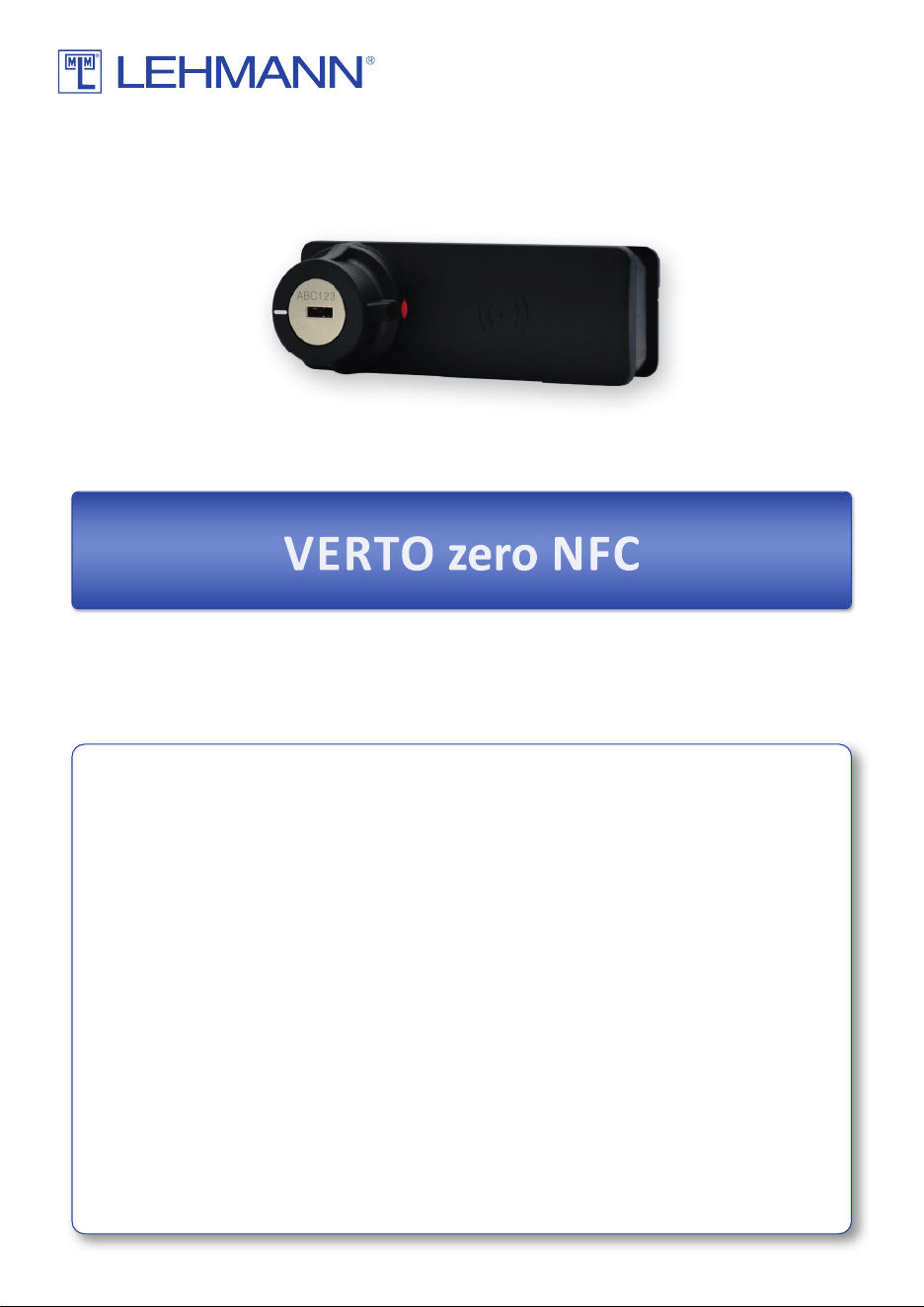
The VERTO zero NFC locking system is an electronic knob lock based on NFC technology, designed for indoor use. This
user manual provides the informa on required for correct opera on of the locking system. Keep the user manual in an
easily accessible place. Improper use may damage the locking system and will void any warranty claims.
Be sure to observe all warnings and read the user manual completely before star ng installa on, commissioning,
and programming.
The use of this locking system in combina on with addi onal mechanical or electronic solu ons from other manufactu-
rers must be checked for compa bility. No liability is accepted for damage resul ng from incompa bility.
Text and graphics have been prepared with care. However, no liability is accepted for any errors that may s ll occur. Chan-
ges to the scope of delivery and technical specifi ca ons may be made without prior no ce.
CAUTION: The locking system is confi gured using the LEHMANN Confi g App and operated exclusively with the
LEHMANN Transponder App. The Transponder App is available for iPhones and Android smartphones
in the respec ve app store. The Confi g App is currently available for Android smartphones (the iOS
version will follow shortly). Ensure that NFC transmission is enabled on your smartphone. The quality
of NFC transmission may vary depending on the device.
SAFETY PRECAUTIONS
→ Pack the lock for transport in such a way that it cannot be damaged.
→ Dispose of packaging material in accordance with applicable na onal regula ons (see Disposal).
→ Do not heat, disassemble, or short-circuit the lock.
→ Never throw the lock into open fi re.
→ Keep the lock, supplied components, and packaging materials away from children.
→ Damaged components may cause injury.
!
TECHNICAL SPECIFICATIONS
Frequency
13,56 MHz
Na onal legisla on about permissible radio frequencies must be observed.
Technologie
NFC
Supported Apps
- Confi gura on: LEHMANN Confi g App
- Opera on: LEHMANN Transponder App
Please make sure that the smartphones being used support NFC technology and supply the
lock with suffi cient voltage.
Energy supply
Via smartphone
Opera ng temperature
-5 °C bis +60 °C
Storage temparature
-25 °C bis +70 °C
Type designa on
L7NF13V1
BDA VERTO zero NFC / 2026-07-13 (GB)
3
FACTORY SETTINGS
At this stage, the locking system can be locked and unlocked using the “Installa on Test” func on in the LEHMANN
Confi g App. A er a profi le has been taught in using the LEHMANN Confi g App, the locking system is set to “Assigned
Use” mode. Opera on of the lock via the “Installa on Test” func on is no longer possible.
CARE AND MAINTENANCE
→ Protect the components of the locking system from moisture.
→ Clean the locking system only with a clean, so , and slightly damp cloth.
→ Do not use harsh cleaning agents containing abrasive substances or solvents. Glass cleaners, thinners, alcohol,
gasoline, or liquids containing ammonia are not suitable for cleaning.
→ Improper handling of all electronic and mechanical components, devia ng from this user manual, may lead to
malfunc ons.
FUNCTIONAL DESCRIPTION
With the VERTO zero NFC locking system, you can conveniently lock and unlock your furniture. The knob on the
lock is operated manually by the user. Contactless NFC technology is used as the “key.” Two operating modes
are available:
Lock opera ng mode
Descrip on
Assigned Use
There is a fi xed assignment between the LEHMANN Transponder App (comparable to a user
card) and the locking system. The Transponder App is programmed or deleted at the lock using
the LEHMANN Confi g App.
The locking system allows selec ve access authoriza on, ensuring that only authorized persons
are granted access. The Transponder App can be programmed simultaneously on mul ple locks
in “Assigned Use” mode.
Shared Use
A user can use any lock of their choice with the LEHMANN Transponder App. Programming the
Transponder App using the LEHMANN Confi g App is not possible.
When a lock is locked using the Transponder App, the Transponder App and the lock are linked.
The Transponder App cannot be used on any other lock in “Shared Use” mode, and the lock will
not accept any addi onal users. This link is only released when the user unlocks the lock again
using their Transponder App. The Transponder App can then be used again for another lock in
“Shared Use” mode.
In the addi onal mode “Unlimited Shared Use,” a user can lock mul ple locks simultaneously
with the Transponder App (note: even all locks), instead of only one lock per Transponder App.
Unlimited Shared Use
With the LEHMANN Transponder App, the user can operate any lock of their choice. When a
lock is locked using the Transponder App, the app and the lock become linked. This link remains
ac ve un l the user unlocks the lock again using their transponder.
In "Unlimited Shared Use" mode, mul ple locks can be locked simultaneously with a single
Transponder App.
WARNING: A single Transponder App can lock all locks confi gured in this mode. Therefore,
the intended use should be carefully evaluated and adapted to the specifi c applica on
requirements.
BDA VERTO zero NFC / 2026-07-13 (GB)
4
OVERVIEW OF THE SMARTPHONE APPS
App
Descrip on
LEHMANN
Confi g App
The LEHMANN Confi g App includes, among other features, the “Installa on Test” func on, which
allows the basic func ons (locking / unlocking) of the lock to be tested. As long as a lock is in the factory
default state, the “Installa on Test” func on can be performed universally from any smartphone with
the Confi g App. For full commissioning, a profi le must be created in the Confi g App and transferred to
the lock. The profi le is required to carry out programming procedures on the lock. This also includes
teaching in users or smartphones with the LEHMANN Transponder App in “Assigned Use” mode.
The Confi g App with a profi le also enables an electronic emergency opening of the lock. A maximum of
one profi le can be assigned per lock. One profi le can be used for mul ple locks.
A er crea ng and transferring a profi le to the lock, the lock can only be confi gured in the Confi g App
using the corresponding password and project ID. Store the password and the project ID of the profi le
carefully in a secure place.
LEHMANN
Transponder App
The LEHMANN Transponder App func ons like a transponder or user card at the lock and is used to
lock and unlock the lock. Mul ple users can be programmed on a lock in “Assigned Use” mode.
In “Shared Use” mode, the Transponder App can only lock one lock at a me. It is possible to use
the Transponder App on mul ple locks in “Assigned Use” mode and at the same me on one lock in
“Shared Use” mode.
IMPORTANT: Smartphones have varying NFC transmission strengths. Transmission quality and speed depend
on the smartphone and should be checked in advance if necessary.
Store the password of the profi le carefully in a secure place. Programming procedures and
rese ng the lock are not possible without the password.
!
BDA VERTO zero NFC / 2026-07-13 (GB)
5
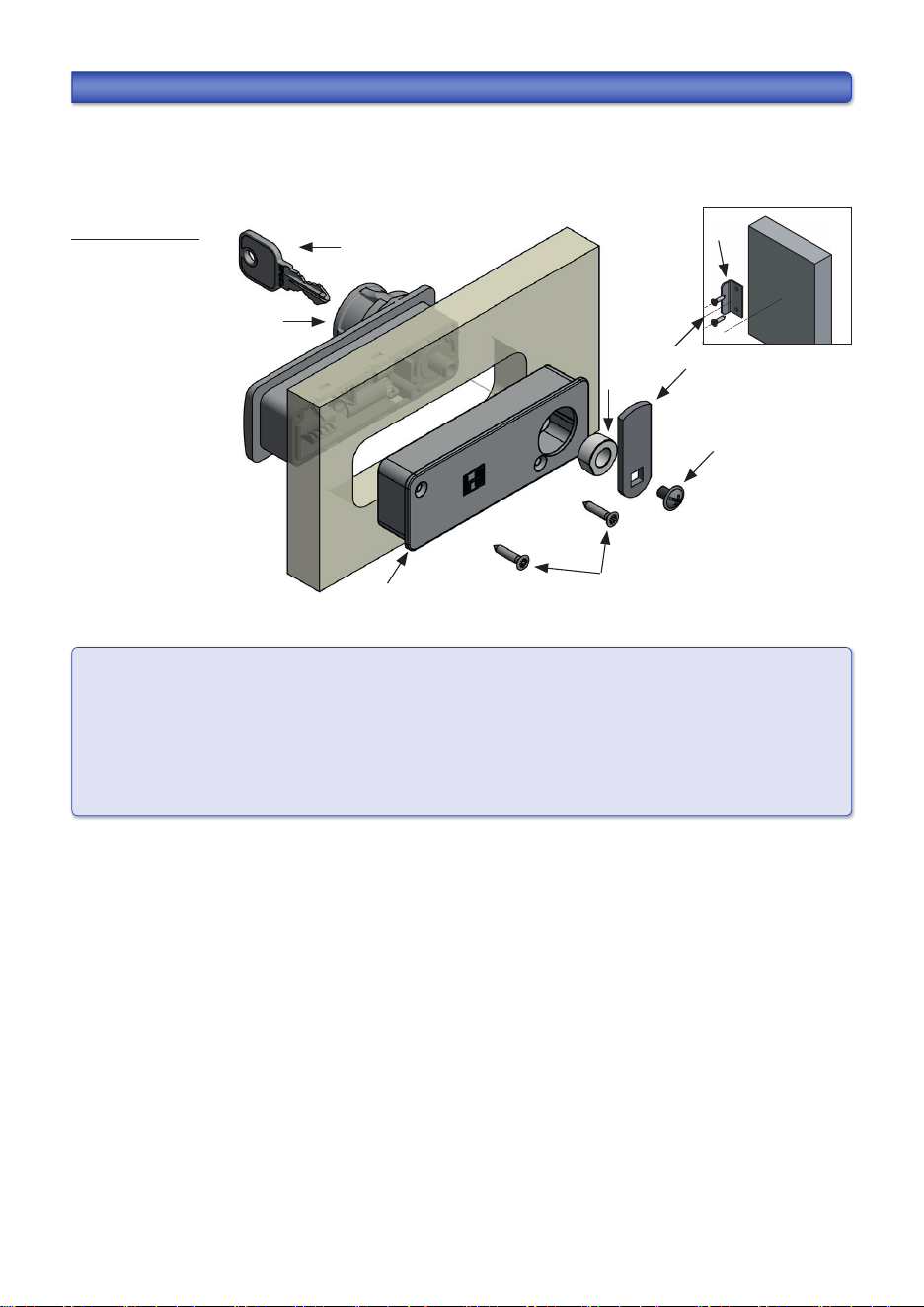
SYSTEM COMPONENTS AND PACKAGE CONTENTS
Please note that these opera ng instruc ons apply to diff erent product versions. The package content therefore
depends on the respec ve product variant. The product variants and moun ng recommenda ons shown here are
intended for wooden furniture with a thickness of 16-21 mm. In the case of devia ng thicknesses and materials, the
screws for moun ng the lock and the fi xing element must be adapted.
Moun ng on wood
Components:
1. VERTO zero NFC
2. case back
3. 2x countersunk chipboard screw 3x20
for material thicknesses 3 - 6 mm and 18 - 21 mm
4. 2x countersunk chipboard screw 3x15
for material thicknesses 0,8 - 3 mm and 16 - 18 mm
5. Washer
6. Bolt 477 (op onal)
7. Screw for fastening the bolt
8. Striker plate 3077 (op onal)
9. 2x countersunk chipboard screw 3x15
or angle bracket 3077 (op onal)
10. Service key (op onal)
➊
➋
➌/➍
➏
➎
➐
➑
➓
➒
BDA VERTO zero NFC / 2026-07-13 (GB)
6
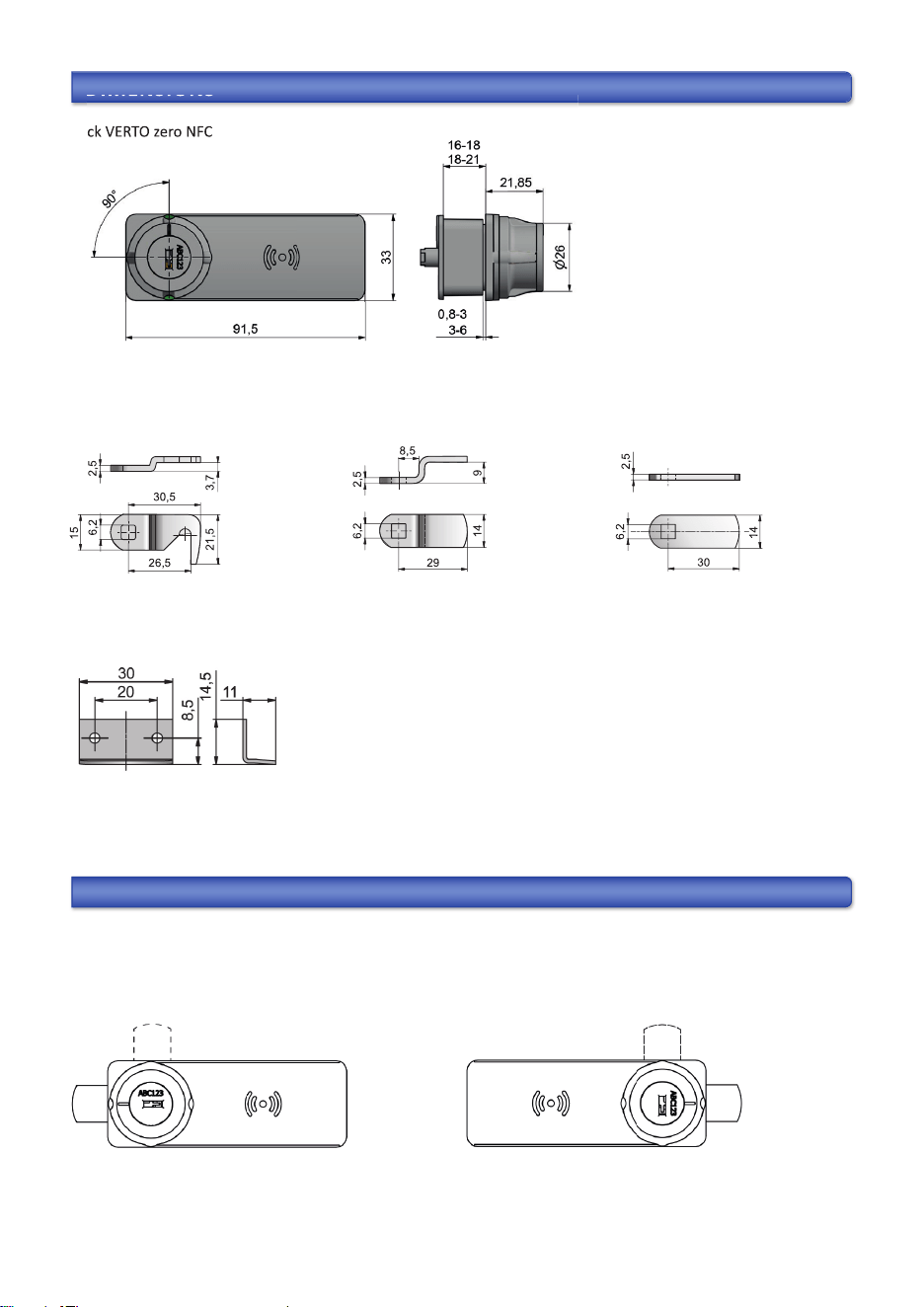
DIRECTION OF ROTATING
The lock can be used for right hand doors and le hand doors.
For right hand doors: For le hand doors:
Bolt 2-027 right Bolt 460 Bolt 477
DIMENSIONS
Lock VERTO zero NFC
All dimensions in mm.
Striker plate 3011
19
Dial Lock
Technical details subject to modicaons • all data without guarantee
© by LEHMANN-V. 0182-04/2019
Technische Änderungen vorbehalten • alle Angaben ohne Gewähr
83,5
33
21
42
Ø
81-61
12-81
3-8,0
6-3
19
Dial Lock
Technical details subject to modicaons • all data without guarantee
© by LEHMANN-V. 0182-04/2019
Technische Änderungen vorbehalten • alle Angaben ohne Gewähr
83,5
33
21
42
Ø
81-61
12-81
3-8,0
6-3
19
Dial Lock
Technical details subject to modicaons • all data without guarantee
© by LEHMANN-V. 0182-04/2019
Technische Änderungen vorbehalten • alle Angaben ohne Gewähr
83,5
33
21
42
Ø
81-61
12-81
3-8,0
6-3
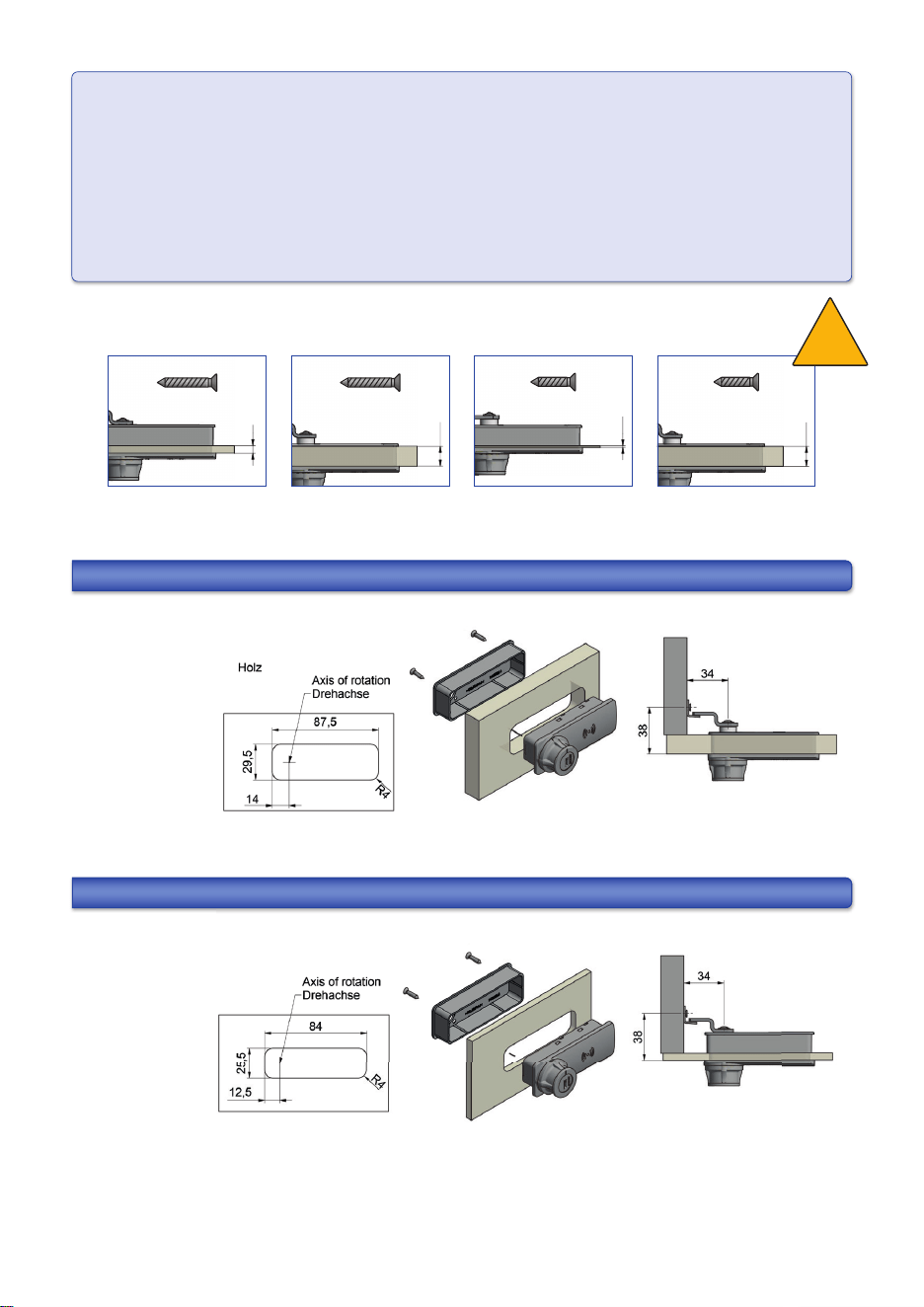
DIMENSIONS
Lock VERTO zero NFC
BDA VERTO zero NFC / 2026-07-13 (GB)
7
All dimensions in mm.
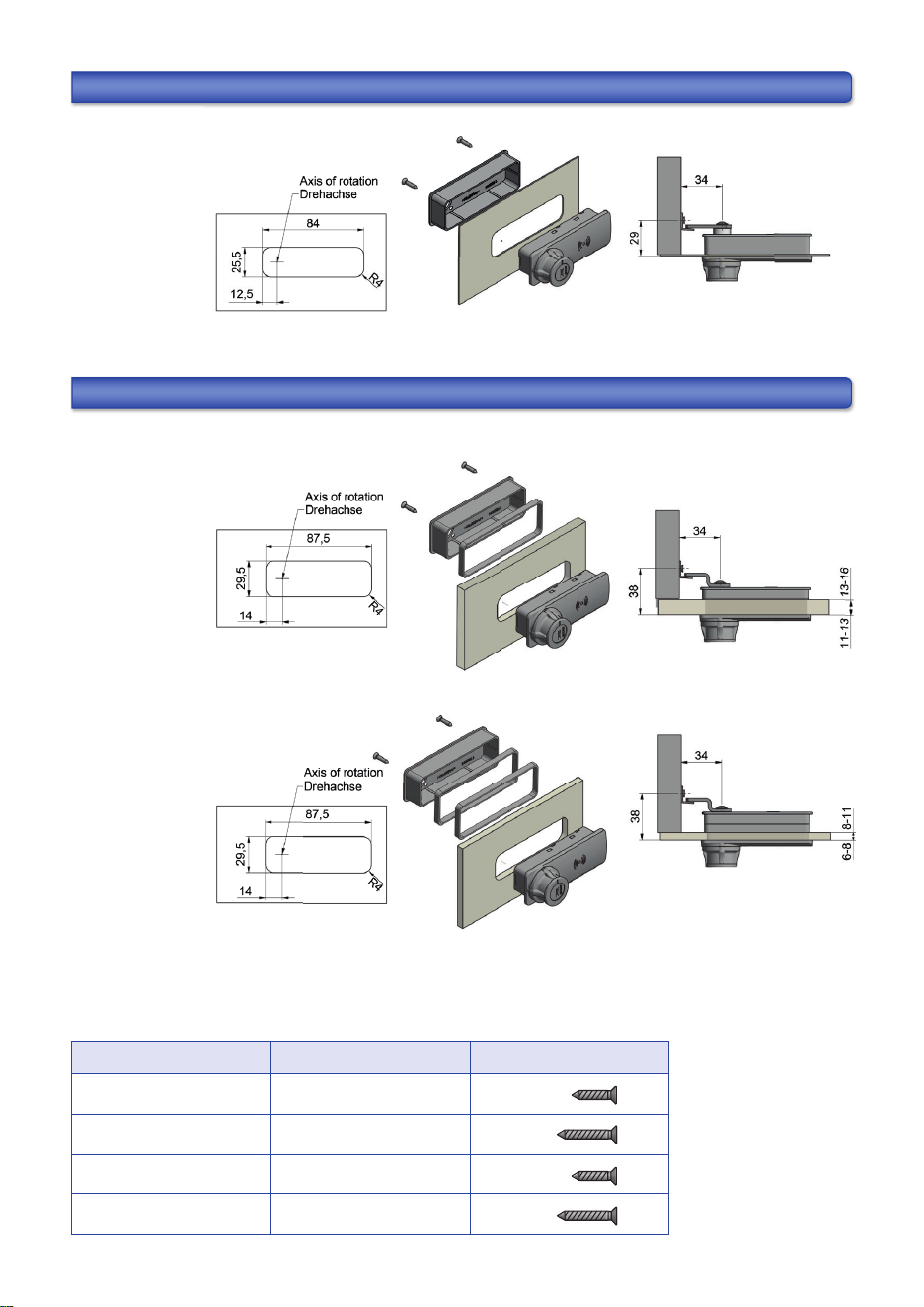
MOUNTING ON WOOD (16 - 21 mm)
Dimensions refer to bolt type 460.
MOUNTING ON GLAS (3 - 6 mm)
Dimensions refer to bolt type 460.
ATTENTION: Determine the appropriate screw length (see items 5 and 6 in the component overview) based on
the material thickness:
- 3x20 screws (component 5) for material thicknesses of 3 - 6 mm and 18 - 21 mm.
- 3x15 screws (component 6) for material thicknesses of 0,8 - 3 mm and 16 - 18 mm.
- The required screw type for material thicknesses of 6 – 16 mm in combina on with spacers can
be found in the table on p. 8 under „Moun ng on HPL”.
Please also note the diff erent milling pa erns for diff erent material thicknesses.
Tighten screws by hand only, max. 0.5 Nm.
3
8
1
6 - 18 mm
3x15
3
8
1
8 - 21 mm
3x20
3
8
3 - 6 mm
3x20
2
9
0
,
8 - 3 mm
3x15
!
Con nue on page 8
BDA VERTO zero NFC / 2026-07-13 (GB)
8
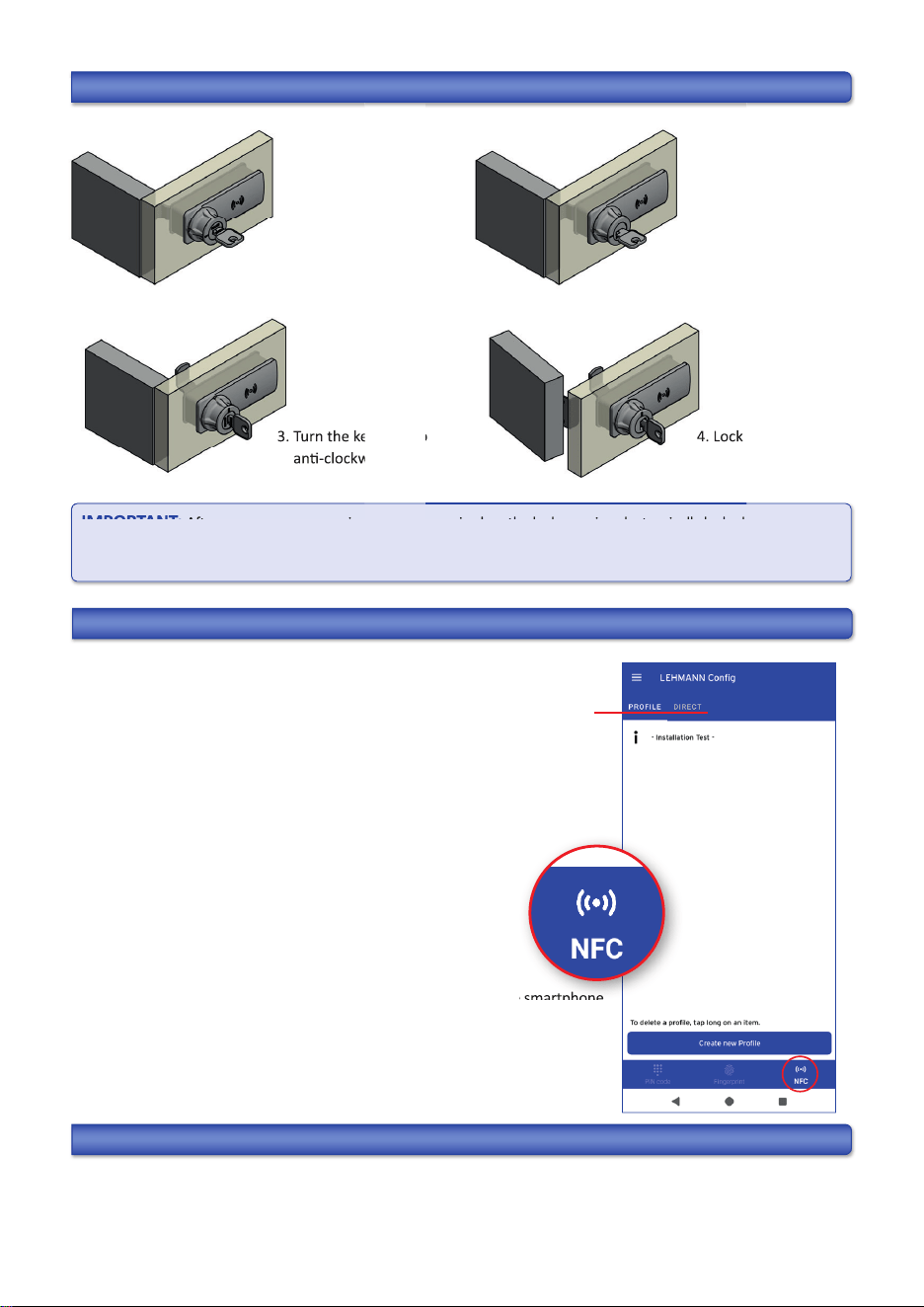
MOUNTING ON STEEL (0,8 - 3 mm)
Dimensions refer to bolt type 477.
MOUNTING ON HPL (6 - 16 mm)
Dimensions refer to bolt type 460 in combina on with spacer 062.
Material thickness Spacer Screw type
6 - 8 mm 2 pieces 3x15
8 - 11 mm 2 pieces 3x20
11 - 13 mm 1 piece 3x15
13 - 16 mm 1 piece 3x20
BDA VERTO zero NFC / 2026-07-13 (GB)
9
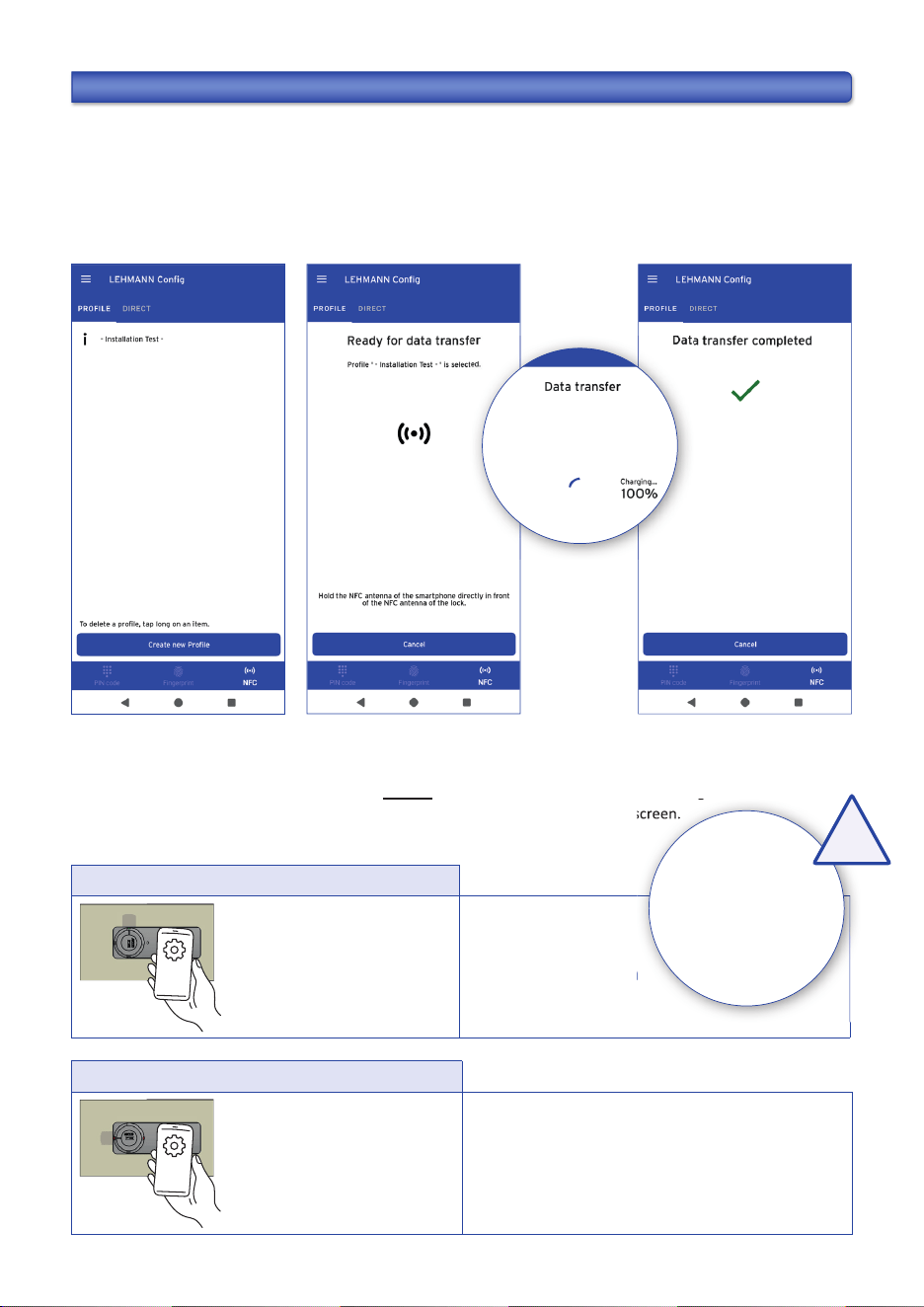
MECHANICAL EMERGENCY OPENING USING A SERVICE KEY
1. Turn the key 180°
to clockwise
3. Turn the key 180° to
an -clockwise
2. Turn the turn
knob by 90°
4. Lock is open
IMPORTANT: A er an emergency opening using the service key, the lock remains electronically locked. If the knob is
turned back a er the emergency opening with the service key, the lock remains locked. Authoriza ons
granted previously remain valid in all opera ng modes a er a mechanical emergency opening.
NOTES FOR THE FOLLOWING PROGRAMMING STEPS
The LEHMANN Confi g App is used to confi gure not only NFC locks, but also
keypad and fi ngerprint locks. Therefore, select “NFC” in the bo om right of the
app. Please note that the app is divided into two sec ons: “Profi le” and “Direct.”
A er ac va ng programming mode on the lock using the Confi g App, this mode
remains ac ve for 30 seconds. End the programming mode using the Confi g App.
Alterna vely, the programming mode ends automa cally a er 30 seconds.
Users (Transponder Apps) taught in or deleted within these 30 seconds will
be saved.
Both the Confi g App and the Transponder App must be
open / ac ve during use.
During data transfer from the smartphone to the lock, hold
the smartphone’s NFC antenna directly against the lock’s
reading area. Data transfer does not work with distance between the smartphone
and the lock! Wait for the confi rma on on the display. Repeat the process
if necessary. This is especially important in "Shared Use" mode.
Carry out all programming procedures and func onal checks
with the cabinet door open.
BOLT END POSITION MONITORING
The lock is equipped with a bolt end posi on monitoring system. If the knob is not in one of the two end posi ons,
an error message will be displayed in the LEHMANN Transponder App as well as in the LEHMANN Confi g App during
the locking process. The lock is not locked.
reading area. Data transfer does not work with distance between the smartphone
3. Turn the key 180° to
4. Lock is open
A er an emergency opening using the service key, the lock remains electronically locked. If the knob is
3. Turn the key 180° to
an -clockwise
IMPORTANT:
A er an emergency opening using the service key, the lock remains electronically locked. If the knob is
BDA VERTO zero NFC / 2026-07-13 (GB)
10
Locking
Turn the knob to the closed
posi on. To transfer the data,
hold the Confi g App with the
installa on func on enabled
in front of the lock.
Refer to the
instruc ons on
the display.
Unlocking
Hold the Confi g App with the
installa on func on enabled
in front of the lock. A er the
data transfer, turn the knob
to the open posi on.
Refer to the instruc ons
on the display.
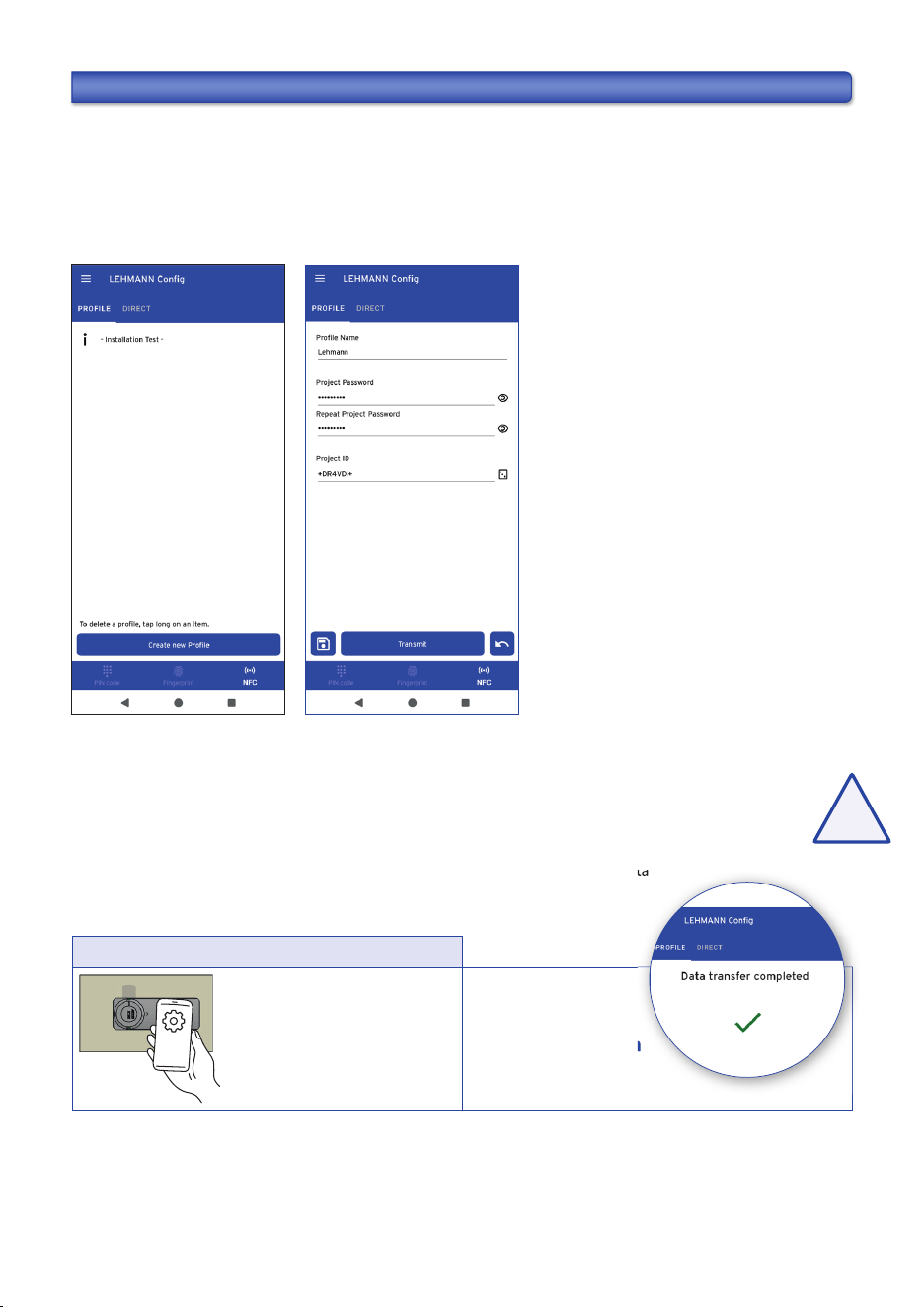
USING THE INSTALLATION TEST FUNCTION IN THE LEHMANN CONFIG APP
During installa on, you have the op on to use the “Installa on Test” func on with the LEHMANN Confi g App.
For this purpose, the lock must be in the factory default state, i.e. no profi le must have been transferred. With
the “Installa on Test” func on, the basic func ons (locking and unlocking) can be performed on the lock. The
“Installa on Test” func on can no longer be used on a lock once a profi le has been transferred to the lock using the
Confi g App.
1. In the LEHMANN Confi g App, click on “Installa on Test” under “Profi le.” The app is then ready for data transfer.
2. Hold the smartphone with the NFC antenna directly in front of the lock’s reading area throughout the en re data
transfer. The comple on of the data transfer will be displayed on the smartphone screen.
instruc ons on
in front of the lock’s reading area throughout the en re data
transfer. The comple on of the data transfer will be displayed on the smartphone screen.
Always hold
the smartphone’s
NFC antenna
directly against
the lock
!
BDA VERTO zero NFC / 2026-07-13 (GB)
11
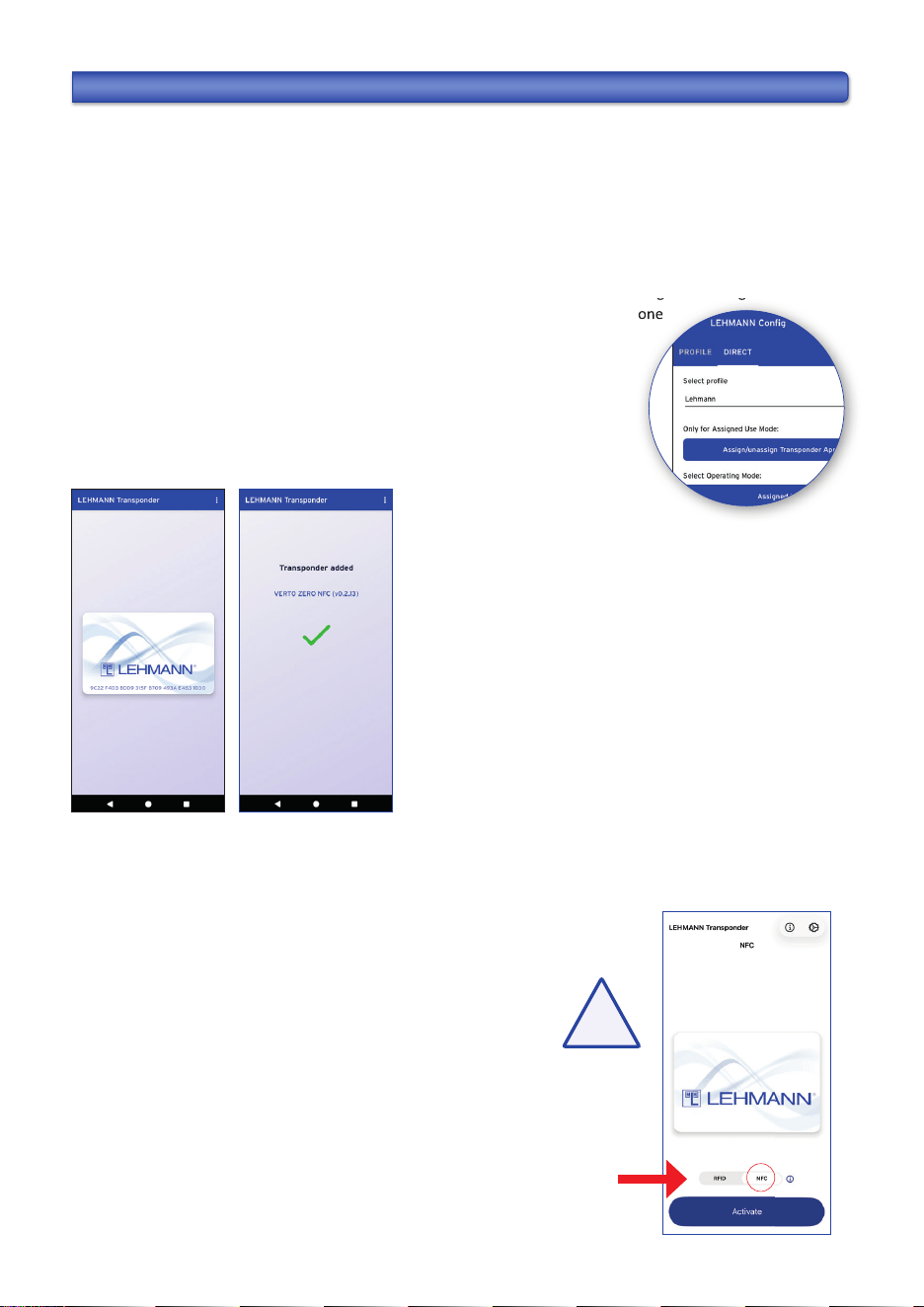
TRANSFERRING A PROFILE WITH THE LEHMANN CONFIG APP
Regardless of the selected opera ng mode, a profi le must be created with the LEHMANN Confi g App and transferred
to the lock before any further programming and opera on. Only one profi le can be transferred per lock.
1. In the LEHMANN Confi g App, click on “Create New Profi le” under “Profi les.” Assign a profi le name. Enter a project
password (3–10 characters) and repeat the password. Assign an 8-digit project ID. The app suggests a secure project ID if
you click on the dice icon next to the Project ID fi eld.
Transfer profi le
Hold the Confi g App with
data transmission enabled in
front of the lock
Refer to the
instruc ons on
the display.
Store the password of the profi le carefully in a secure place. Without the password, no confi gura on or
authoriza on changes can be made to the lock. The lock cannot be reset without the password.
2. Then click on the save icon at the bo om le next to the “Transmit” fi eld.
3. Click on “Transmit” to transfer the profi le to the lock. Hold the smartphone with the NFC antenna directly in front of
the lock’s reading area throughout the en re data transfer. The comple on of the data
transfer will be displayed on the smartphone screen.
A er transferring the profi le, the locking system is set to “Assigned Use” mode. If you want to use the lock in
“Shared Use” mode, please change the opera ng mode next.
Follow the instruc ons on page 12 and then con nue with “Closing and Opening” on page 13.
!
instruc ons on
the lock’s reading area throughout the en re data transfer. The comple on of the data
BDA VERTO zero NFC / 2026-07-13 (GB)
12
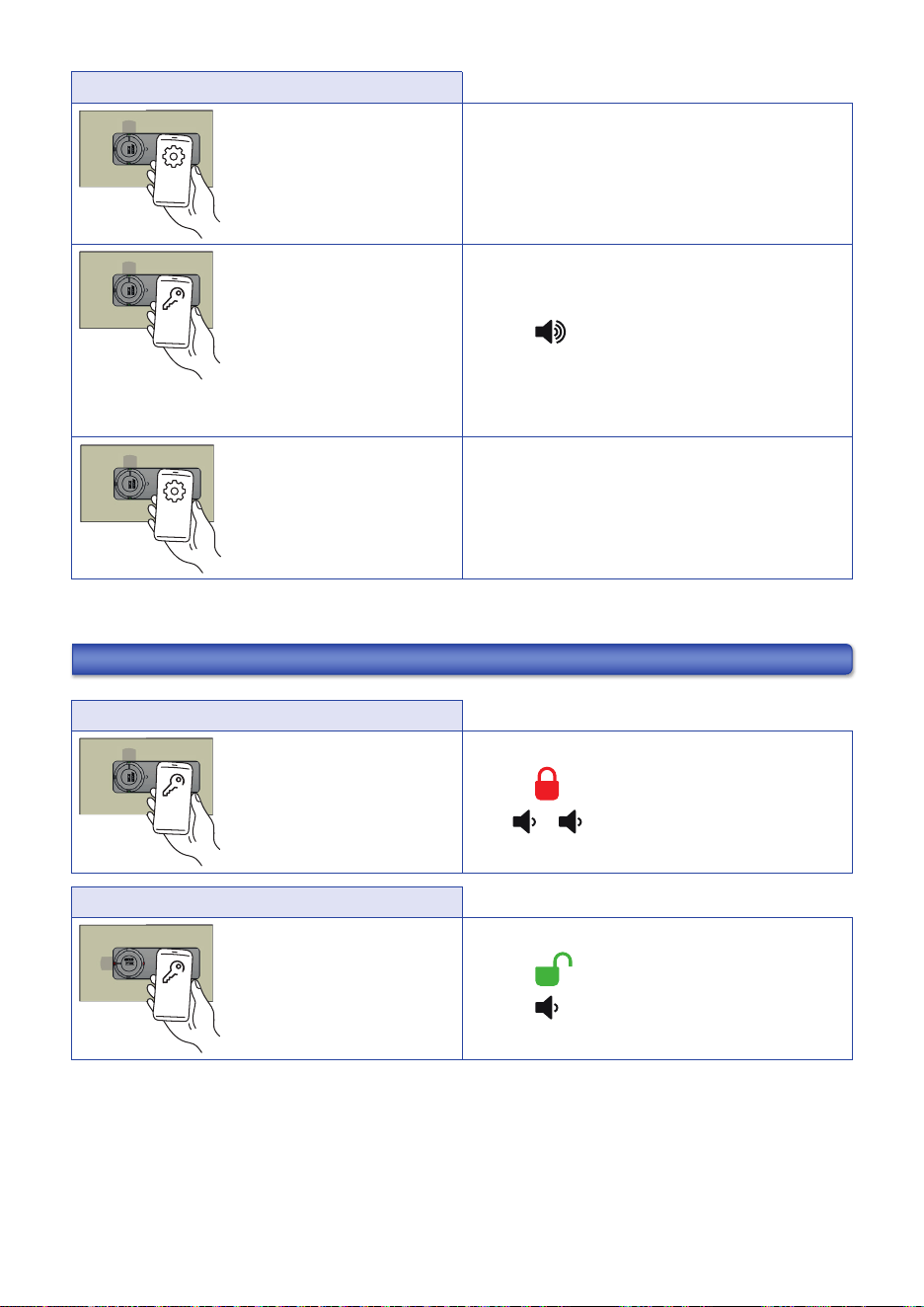
PROGRAMMING THE LEHMANN TRANSPONDER APP (only for assigned use mode)
To teach in a user, the lock must be in the open posi on. Programming a Transponder App is not possible in
“Shared Use” mode. In “Shared Use” mode, the lock is opened and closed without prior teaching-in of the
Transponder App (see Closing and Opening, p. 13).
1. Click on “Direct” in the LEHMANN Confi g App.
2. Under “Direct,” select the desired profi le if it is not already preset, and click on “Assign/unassign Transponder
App.” Hold the smartphone with the NFC antenna directly in front of the lock’s reading area throughout the en re
data transfer. The comple on of the data transfer will be displayed on the smartphone
screen. You now have 30 seconds to teach in a user (LEHMANN Transponder App).
3. Hold the smartphone to be taught-in with the LEHMANN Transponder App open in
front of the lock. Hold the smartphone with the NFC antenna directly in front of the
lock’s reading area throughout the en re data transfer. The comple on of the
programming process will be displayed on the smartphone screen.
4. The programming mode can be ended using the Confi g App (“Assign/unassign Transponder App”). Alterna vely,
the programming mode ends automa cally a er 30 seconds.
App.” Hold the smartphone with the NFC antenna directly in front of the lock’s reading area throughout the en re
data transfer. The comple on of the data transfer will be displayed on the smartphone
Note on using the LEHMANN Transponder App on iPhones:
To use the LEHMANN Transponder App with an iPhone on a VERTO zero NFC lock,
NFC must be enabled within the app. Before each use, the user must tap
the "Ac vate" bu on in the app
(iPhone)
!
BDA VERTO zero NFC / 2026-07-13 (GB)
13
Programming the Transponder App
Hold the Confi g App with
data transmission enabled in
front of the lock.
Refer to the instruc ons
on the display.
A er being taught-in, the Transponder App can lock and unlock the lock.
Hold the Transponder App in
front of the lock. The Trans-
ponder App is accepted and
taught-in. This process can be
repeated to teach in mul ple
users.
4
The Transponder App is not
accepted.
8
Hold the Confi g App with
data transmission enabled in
front of the lock. Alterna -
vely, the programming mode
ends automa cally a er
30 seconds.
Refer to the instruc ons
on the display.
LOCKING AND UNLOCKING WITH THE LEHMANN TRANSPONDER APP
Locking
Turn the knob to the closed
posi on. Then hold the
Transponder App in front of
the lock.
Unlocking
Hold the Transponder App in
front of the lock. Then turn
the knob to the open posi on.
Note on using the LEHMANN Transponder App on iPhones:
To use the LEHMANN Transponder App with an iPhone on a VERTO zero NFC lock, NFC must be enabled within the
app. Before each use, the user must tap the "Ac vate" bu on in the app
BDA VERTO zero NFC / 2026-07-13 (GB)
14
EMERGENCY OPENING VIA LEHMANN CONFIG APP
If one or all authorized users are currently unavailable, an emergency opening can be performed using the LEHMANN
Confi g App. If an emergency opening is carried out the previously used Transponder App in “Shared Use” mode will be
blocked a er opening and can no longer be used. A programmed Transponder App in “Assigned Use” mode can con nue
to be used normally a er the emergency opening.
1. Click on “Direct” in the LEHMANN Confi g App.
2. Under “Direct,” select the required profi le if it is not already preset, and click on “Emergency Opening.” Hold the
smartphone with the NFC antenna directly in front of the lock’s reading area throughout the en re data transfer.
The comple on of the data transfer will be displayed on the smartphone screen.
The lock opens.
Emergency opening
Hold the Confi g App with
data transmission enabled
in front of the lock. Then
turn the knob to the open
posi on.
Refer to the
instruc ons on
the display.
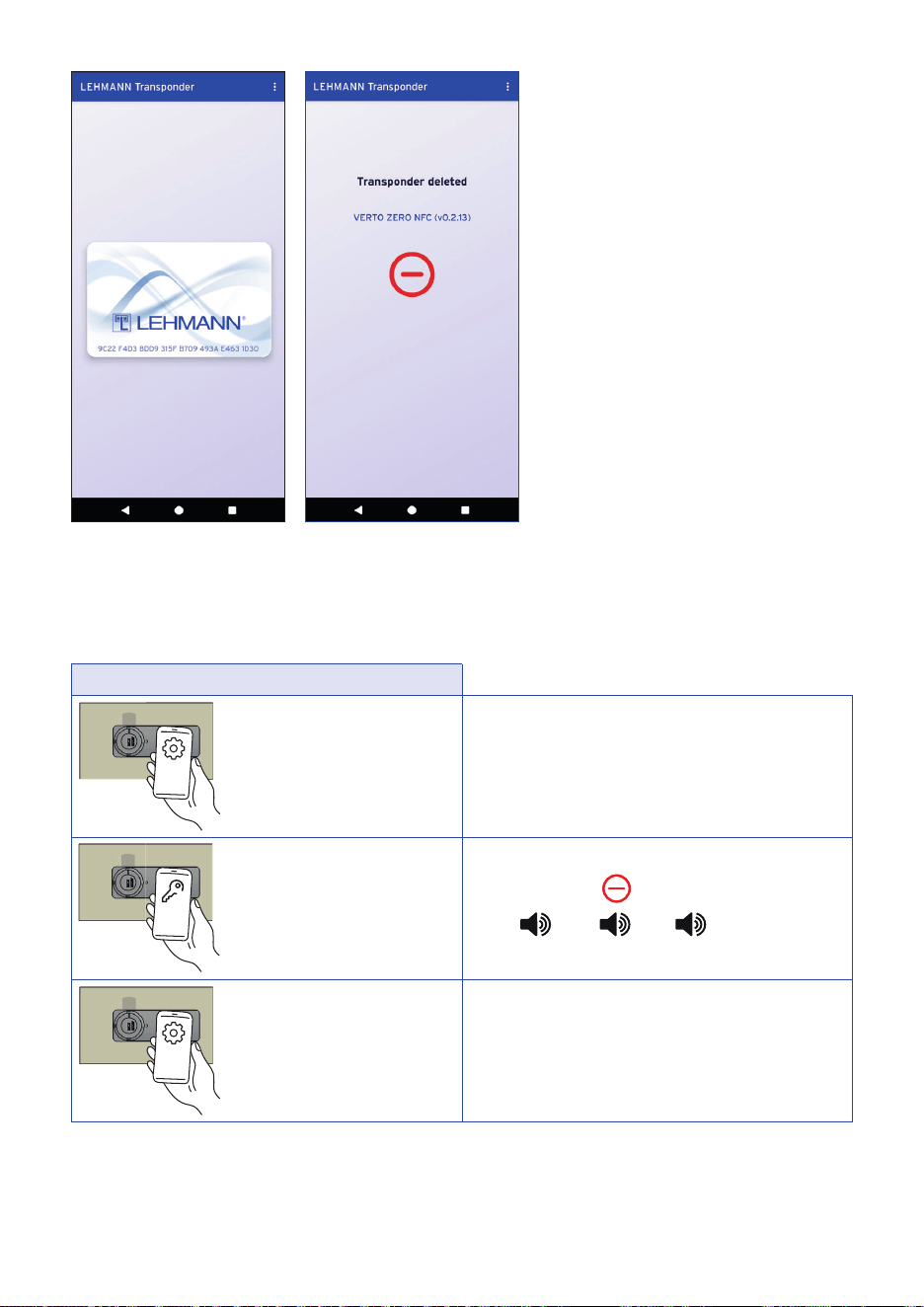
DELETING INDIVIDUAL TRANSPONDER CARDS (only for “assigned use” mode)
If mul ple users / Transponder Apps have been assigned to the lock, they can con nue to be used a er dele ng an
individual Transponder App. The lock must be in the open posi on for the dele on process.
1. Click on “Direct” in the LEHMANN Confi g App.
2. Under “Direct,” select the desired profi le if it is not already preset, and click on “Assign/unassign Transponder
App.” Hold the smartphone with the NFC antenna directly in front of the lock’s reading area throughout the en re
data transfer. The comple on of the data transfer will be displayed on the smartphone screen. You now have
30 seconds to delete a user (LEHMANN Transponder App).
3. Hold the smartphone to be deleted with the LEHMANN Transponder App open in front of the lock. Hold the
smartphone with the NFC antenna directly in front of the lock’s reading area throughout the en re data transfer.
The comple on of the dele on will be displayed on the smartphone screen.
UNAUTHORISED TRANSPONDER APP
Rejec on of an unauthorised user
An unauthorized
Transponder App is held in
front of the lock.
The Transponder App is
rejected.
8
instruc ons on
BDA VERTO zero NFC / 2026-07-13 (GB)
15
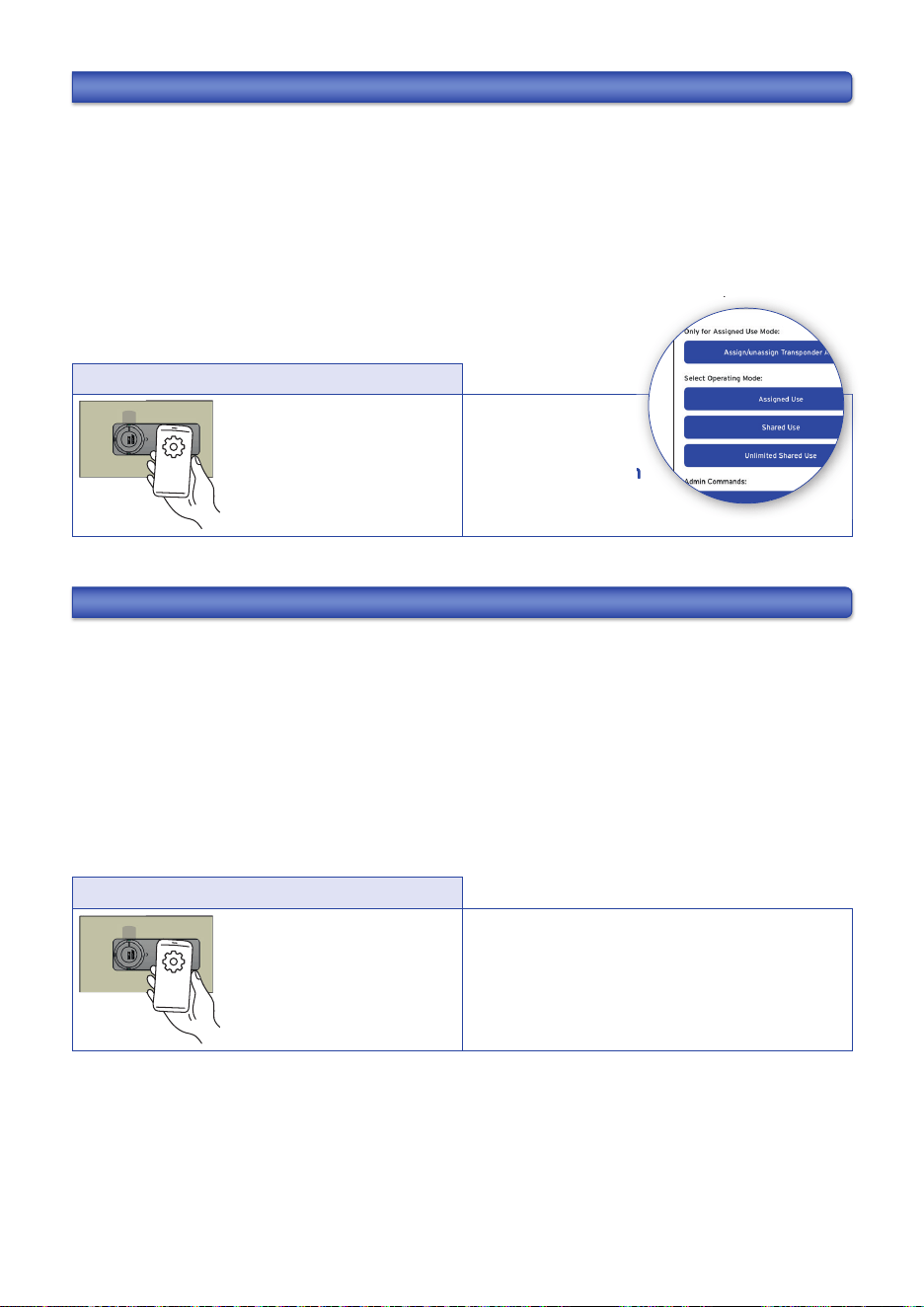
Dele ng individual transponder cards
Hold the Confi g App with
data transmission enabled
in front of the lock.
Refer to the instruc ons
on the display.
Hold the Transponder
App in front of the lock.
Hold the Confi g App with
data transmission enabled in
front of the lock. Alterna -
vely, the programming mode
ends automa cally a er
30 seconds.
Refer to the instruc ons
on the display.
4. The programming mode can be ended using the Confi g App (“Assign/unassign Transponder App”).
Alterna vely, the programming mode ends automa cally a er 30 seconds.
BDA VERTO zero NFC / 2026-07-13 (GB)
16
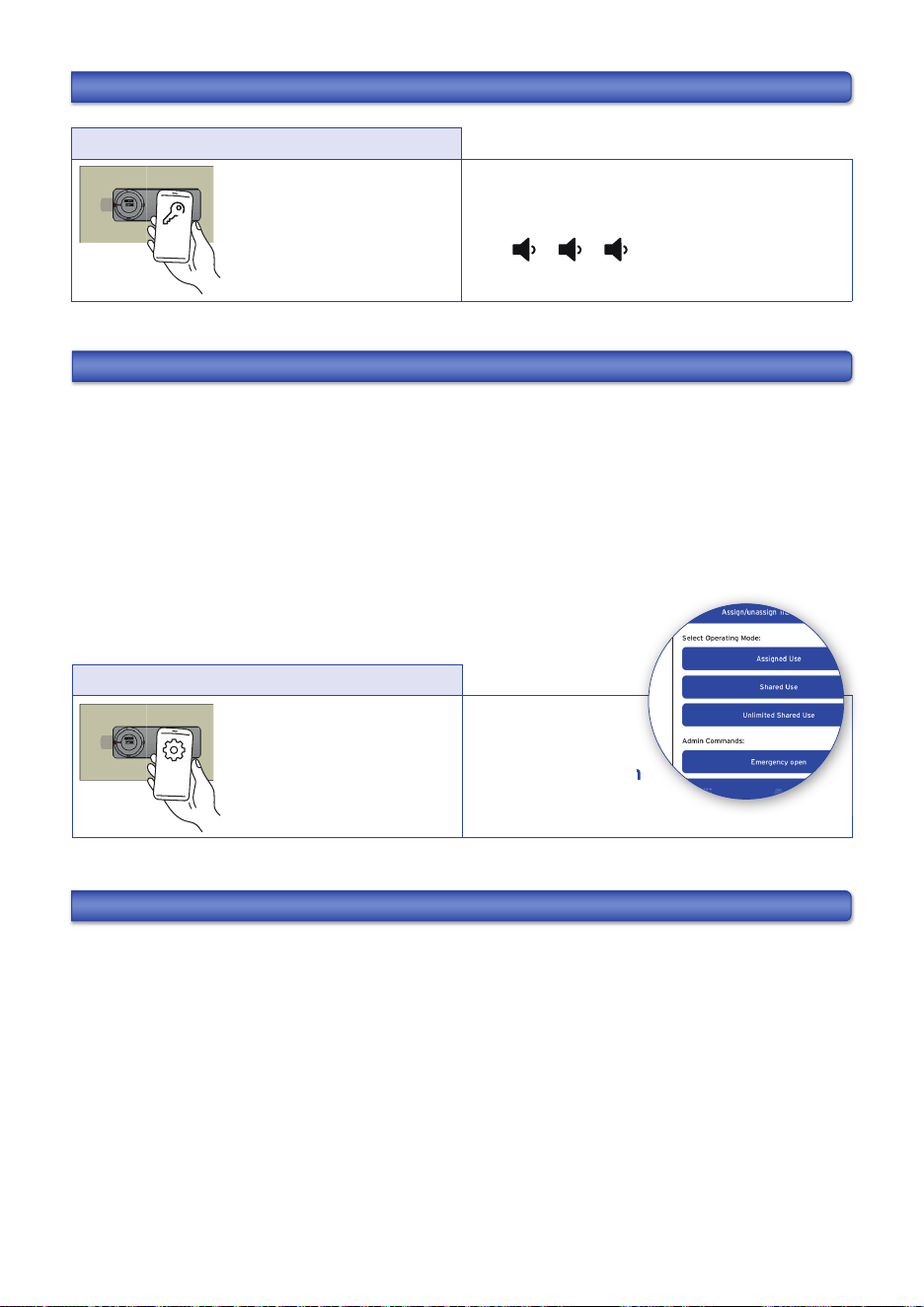
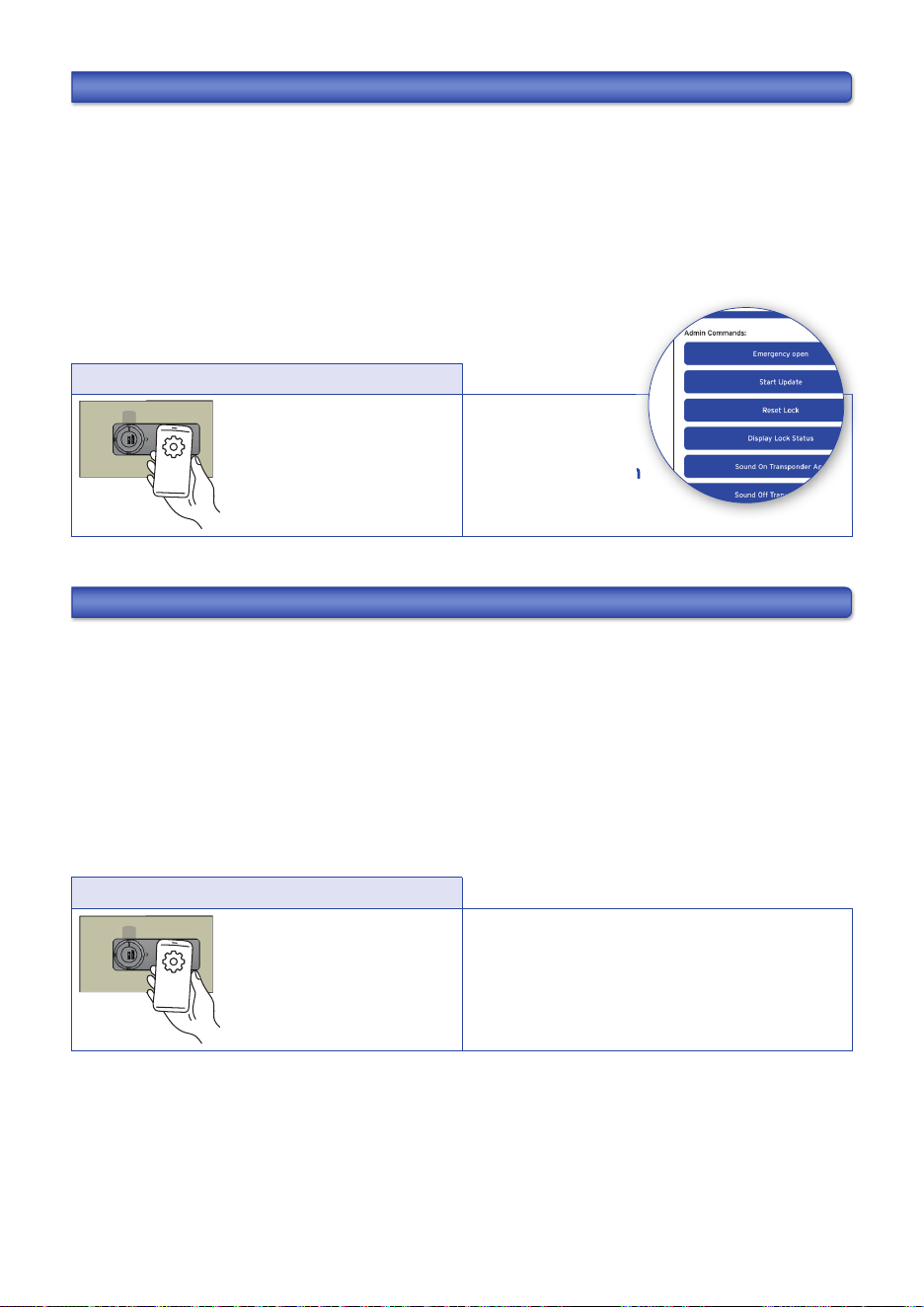
CHANGING THE OPERATING MODE
The lock has two modes: “assigned use“ and “shared use“. A er the ini al transfer of the profi le, the “assigned use”
mode is set automa cally. You have the op on to change the opera ng mode using the LEHMANN Confi g App while
the lock is open.
1. Click on “Direct” in the LEHMANN Confi g App.
2. Under “Direct,” select the desired profi le if it is not already preset, and click on the required opera ng mode.
When changing the opera ng mode, select the desired mode in the app. Hold the smartphone with the NFC
antenna directly in front of the lock’s reading area throughout the en re data transfer. The comple on of the data
transfer will be displayed on the smartphone screen.
Changing the opera ng mode
Hold the Confi g App with
data transmission enabled
in front of the lock.
Refer to the
instruc ons on
the display.
DEACTIVATING AND ACTIVATING ACOUSTIC SIGNALS
In the factory default se ng, acous c signaling in the LEHMANN Transponder App is enabled. You have the op on to
deac vate the acous c signals using the LEHMANN Confi g App.
1. Click on “Direct” in the LEHMANN Confi g App.
2. Under “Direct,” select the desired profi le if it is not already preset, and click on “Sound On Transponder App” or
“Sound Off Transponder App.” Hold the smartphone with the NFC antenna directly in front of the lock’s reading
area throughout the en re data transfer. The comple on of the data transfer will be displayed on the smartphone
screen..
3. In the LEHMANN Transponder App, open the menu and select “Se ngs.”
Deac va ng and ac va ng acous c signals
Hold the Confi g App with
data transmission enabled
in front of the lock.
Refer to the instruc ons
on the display.
4. Enable or disable the “Audio feedback” op on in the Se ngs.
antenna directly in front of the lock’s reading area throughout the en re data transfer. The comple on of the data
instruc ons on
BDA VERTO zero NFC / 2026-07-13 (GB)
17
RESETTING TO FACTORY SETTING (RESET)
A er a poten ally required reset to factory default se ngs, all users and Transponder Apps are deleted.
Using the LEHMANN Confi g App, the basic func ons (locking / unlocking) can be performed via the
“Installa on Test” func on.
1. Click on “Direct” in the LEHMANN Confi g App.
2. Select the desired profi le if it is not already preset, and click on “Reset Lock.” Hold the smartphone with the NFC
antenna directly in front of the lock’s reading area throughout the en re data transfer. The comple on of the data
transfer will be displayed on the smartphone screen.
Reset to factory se ngs
Hold the Confi g App with
data transmission enabled
in front of the lock.
Refer to the
instruc ons on
the display.
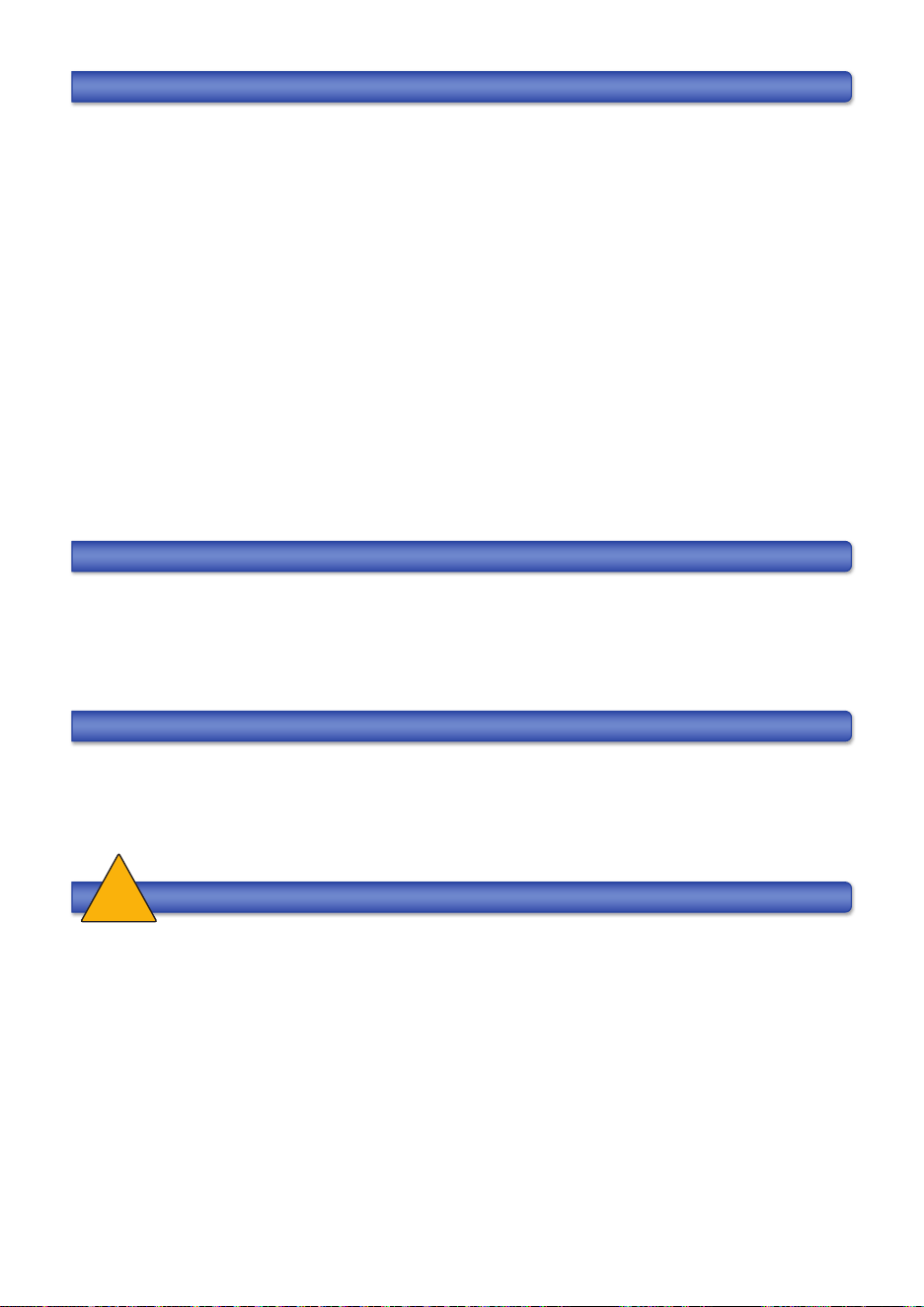
ACTIVATION AND DEACTIVATION OF UNLIMITED SHARED USE
The “Unlimited Shared Use” func on can be ac vated using the LEHMANN Confi g App. Once ac vated, a LEHMANN
Transponder App can lock mul ple locks in “Unlimited Shared Use” mode simultaneously (note: even all locks),
instead of just one lock per Transponder App. To ac vate this func on, the lock must be in the open posi on.
1. Click on “Direct” in the LEHMANN Confi g App.
2. Under “Direct,” select the desired profi le if it is not already preset, and click on „Unlimited Shared Use / Shared
Use“. Hold the smartphone with the NFC antenna directly in front of the lock’s reading area throughout the en re
data transfer. The comple on of the data transfer will be displayed on the smartphone screen.
Ac vate Unlimited Shared Use
Hold the Confi g App with
data transmission enabled
in front of the lock.
Refer to the instruc ons
on the display.
instruc ons on
BDA VERTO zero NFC / 2026-07-13 (GB)
18
DISPLAY OF LOCK STATUS IN THE LEHMANN CONFIG APP
You have the op on to view the lock status in the LEHMANN Confi g App. This includes informa on such as fi rmware
version, opera ng mode, bolt status, and project ID. In the LEHMANN Confi g App, click on “Direct” and then select
“Display Lock Status.” Then hold your smartphone with the Confi g App in front of the lock’s reading area.
ENTSORGUNG
Dispose the locking system in accordance with local regula ons and guidelines.
!
FIRMWARE UPDATE
You have the op on of upda ng the fi rmware of the lock. A special adapter is required for this. Firmware updates for
this lock are only made available on the website www.lehmann-locks.com if required (e.g. for technical reasons). You
will receive further informa on on the implementa on and installa on together with the fi rmware update.
FCC COMLIANCE STATEMANT
This device complies with part 15 of the FCC Rules. Opera on is subject to the following two condi ons:
(1) This device may not cause harmful interference, and (2) this device must accept any interference received, inclu-
ding interference that may cause undesired opera on.
Cau on! Changes or modifi ca ons not expressly approved by the party responsible for compliance could void the
user‘s authority to operate the equipment. Note: This equipment has been tested and found to comply with the li-
mits for a Class B digital device, pursuant to part 15 of the FCC Rules. These limits are designed to provide reasonable
protec on against harmful interference in a residen al installa on.
This equipment generates, uses and can radiate radio frequency energy and, if not installed and used in accordance
with the instruc ons, may cause harmful interference to radio communica ons. However, there is no guarantee that
interference will not occur in a par cular installa on. If this equipment does cause harmful interference to radio or
television recep on, which can be determined by turning the equipment off and on, the user is encouraged to try to
correct the interference by one or more of the following measures:
→ Reorient or relocate the receiving antenna.
→ Increase the separa on between the equipment and receiver.
→ Connect the equipment into an outlet on a circuit diff erent from that to which the receiver is connected.
→ Consult the dealer or an experienced radio/TV technician for help.

BDA VERTO zero NFC / 2026-07-13 (GB)
19
BDA VERTO zero NFC / 2026-07-13 (GB)
20
LEHMANN Vertriebsgesellschaft mbH & Co. KG
Postfach 26 20 • D-32383 Minden
Fon +49 571 / 50 599-0 • Fax +49 571 / 50 599-822
info@lehmann-locks.com • www.lehmann-locks.com
DIN EN ISO 9001:2015 zertifiziert