
Contents
01
Get the App
1.1 Download the Zical App
02
1.2 Visit Our Website
02
01
02
First-Time Setup
2.1 Create Your Account
Get the Activation Code
04
2.2 Activate the Device
06
2.3 Complete Basic Setup
08
03
03
Members & Color Coding
3.1 Add and Manage Family Members
10
3.2 Color Coding Your Family Schedule
12
3.3 Organize Events and Tasks
12
09
04
Syncing Calendars
4.1 Supported Calendar Types
14
4.2 Syncing a New Calendar
15
4.2.1 Syncing Google Calendar
16
4.2.2 Syncing Outlook Calendar
18
4.2.3 Syncing iCloud Calendar (ICS Link)
20
4.2.4 Syncing Yahoo
/
Cozi
/
TeamSna
/
Calendar
UR
L (ICS)
22
4.2.5 Syncing
H
oliday Calendar
22
4.3
R
emoving a Synced Calendar
23
13
Contents
05
Share & Manage Calendar Access
5.1 Invite Family or Friends
25
5.2 Join a Shared Calendar
26
5.3 Manage Calendar Access &
Ownership
28
5.3.1 Remove an Account from a Calendar
28
5.3.2 Transfer Calendar Ownership
29
5.4 Delete Account
30
24
06
Main Features
6.1 Home 33
6.2 Calendar
33
6.3 Tasks
34
6.4 Rewards
35
6.5 Schedule
36
6.6 Meals
37
6.7 Notes
39
6.8 Photos
40
32
07
Special Features
7.1 AI Voice & Text Input
42
7.2 Interactive System
43
7.3 Timer
44
7.4 Festival Theme
45
41
Contents
08
Device Settings
8.1 Display Orientation
47
8.1.1 Portrait & Landscape Modes
47
8.1.2 Zoom In & Out
47
8.2 Screensaver
48
8.2.1 Screensaver Options
48
8.2.2 Screensaver Setup
48
8.3 Sleep Mode
49
8.3.1 Scheduled Sleep
49
8.3.2 Sleep Now
49
8.4 Parental Lock
50
8.4.1 Set Up Parental Lock
50
8.4.2 Reset Parental Lock
50
8.5 Reminders
51
8.6 Weather
52
8.7 Multi-Device Sync
52
8.7.1 Stay in Svnc
52
8.7.2 Connected Devices
53
8.8 Restart & Update
53
8.9 Language Support
54
46
09
Warranty
9.1 Product Warranty
56
9.1.1 Warranty Policy
56
9.1.2 What Is Not Covered
56
55
10
C
erti
cati
o
ns
5
7
01
Get the App
01
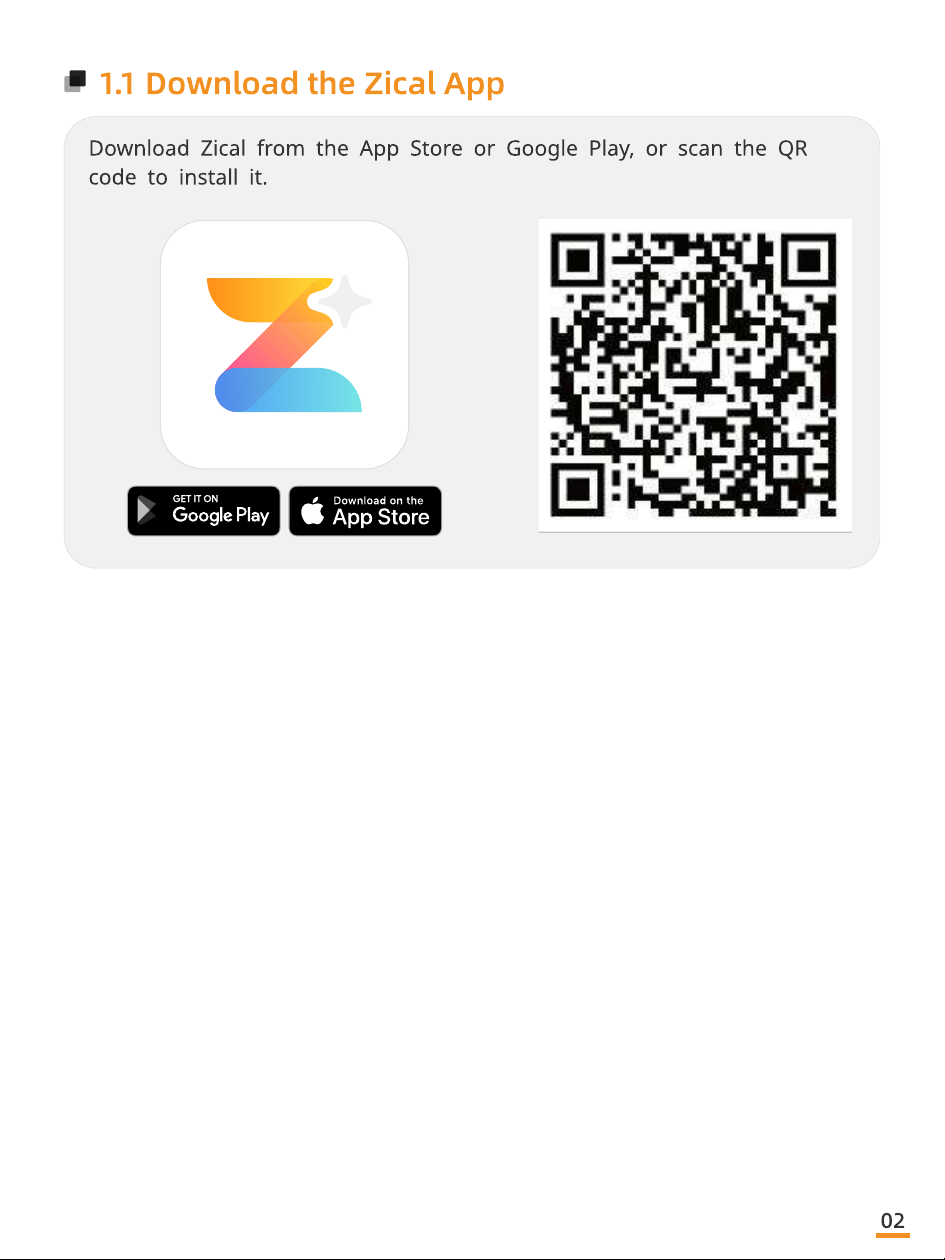
1.1 Download the Zical App
Download Zical from the App Store or Google Play, or scan the QR
code to install it.
02
02
First-Time Setu
This setup only takes a few minutes.
Follow the steps below to get started.
03
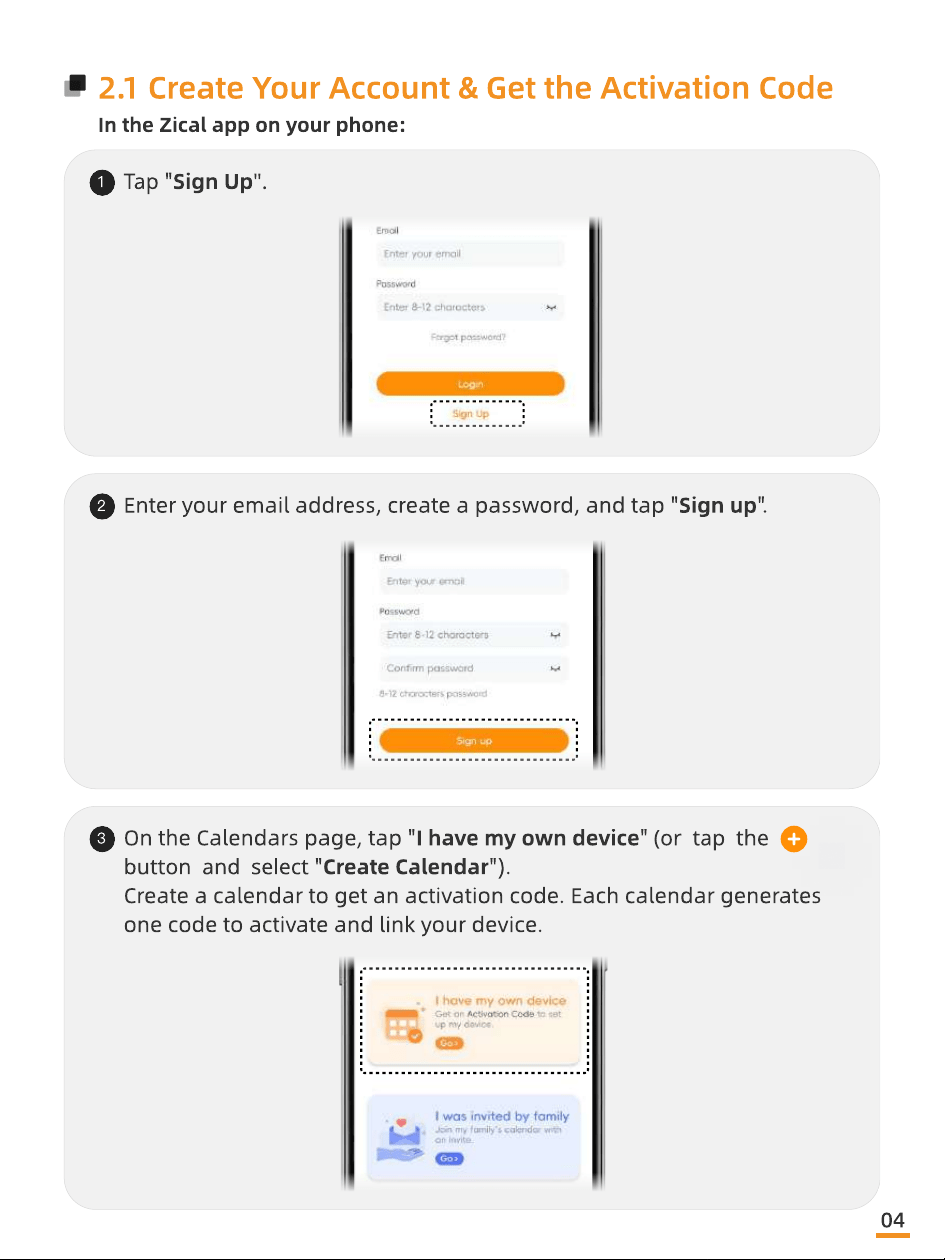
2.1 Create Your Account & Get the Activation Code
1
Tap "Sign Up".
2
Enter your email address, create a password, and tap "Sign up".
3
On the Calendars page, tap "I have my own device" (or tap the
button and select "Create Calendar")
Create a calendar to get an activation code. Each calendar generates
one code to activate and link your device.
In the Zical app on your phone:
04
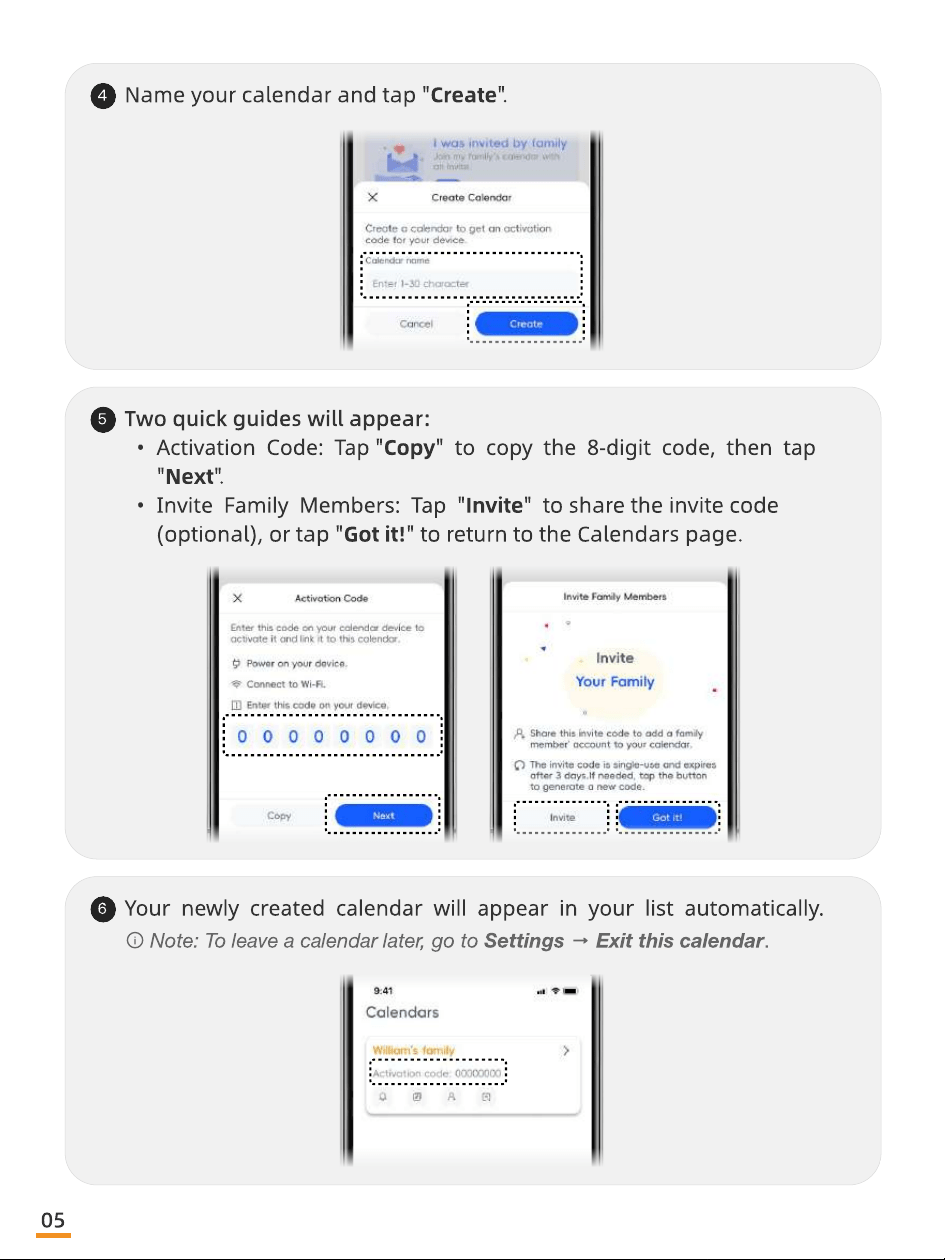
4
Name your calendar and tap "Create".
5
Two quick guides will appear
Activation Code: Tap "Copy" to copy the 8-digit code, then tap
"Next"
Invite Family Members: Tap "Invite" to share the invite code
(optional), or tap "Got it!" to return to the Calendars page.
6
Your newly created calendar will appear in your list automatically.
Note: To leave a calendar later, go to Settings → Exit this calendar.
05
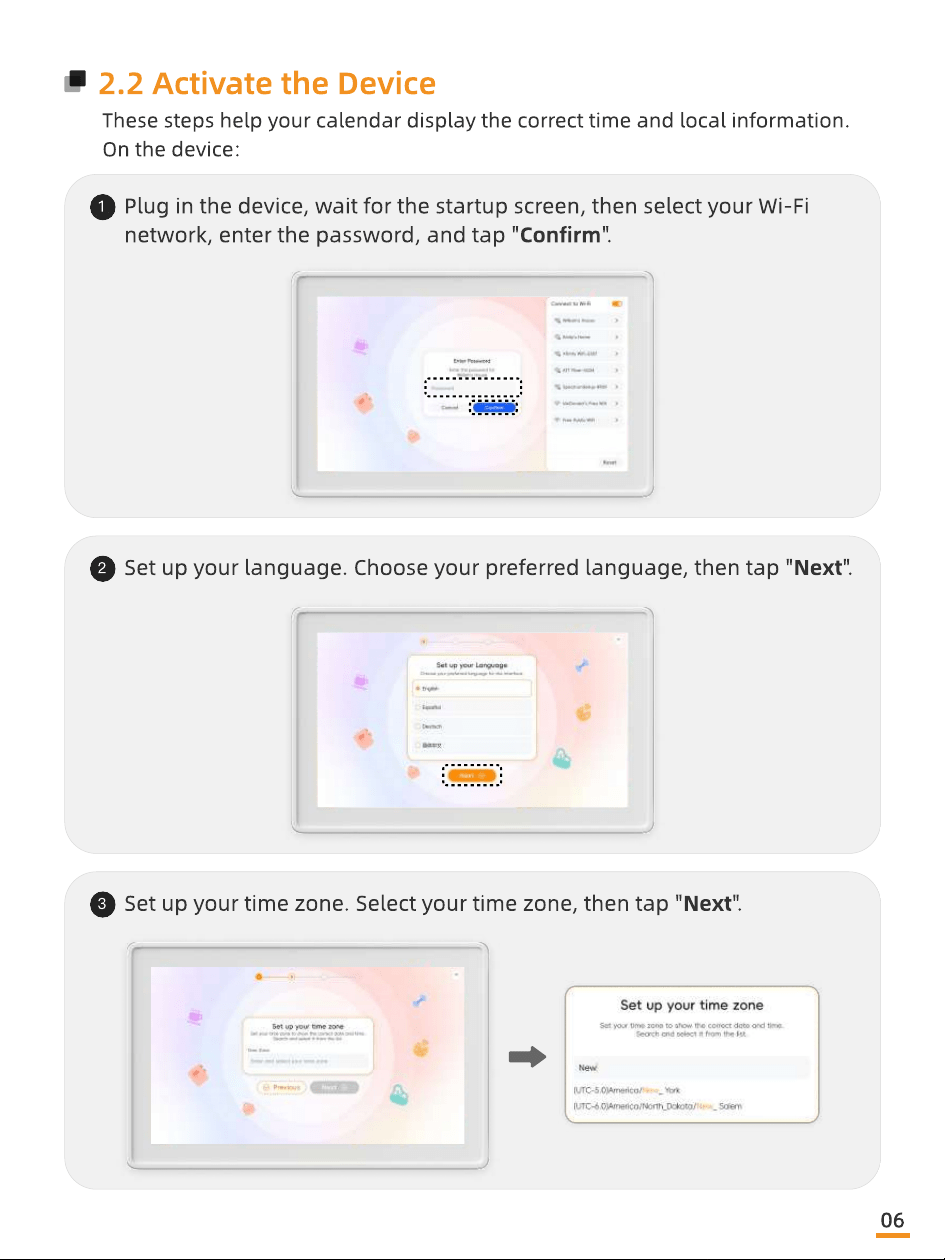
2.2 Activate the Device
1
Plug in the device, wait for the startup screen, then select your Wi-Fi
network, enter the password, and tap "Conrm".
2
Set up your language. Choose your preferred language, then tap "Next".
3
Set up your time zone. Select your time zone, then tap "Next".
These steps help your calendar display the correct time and local information
On the device:
06
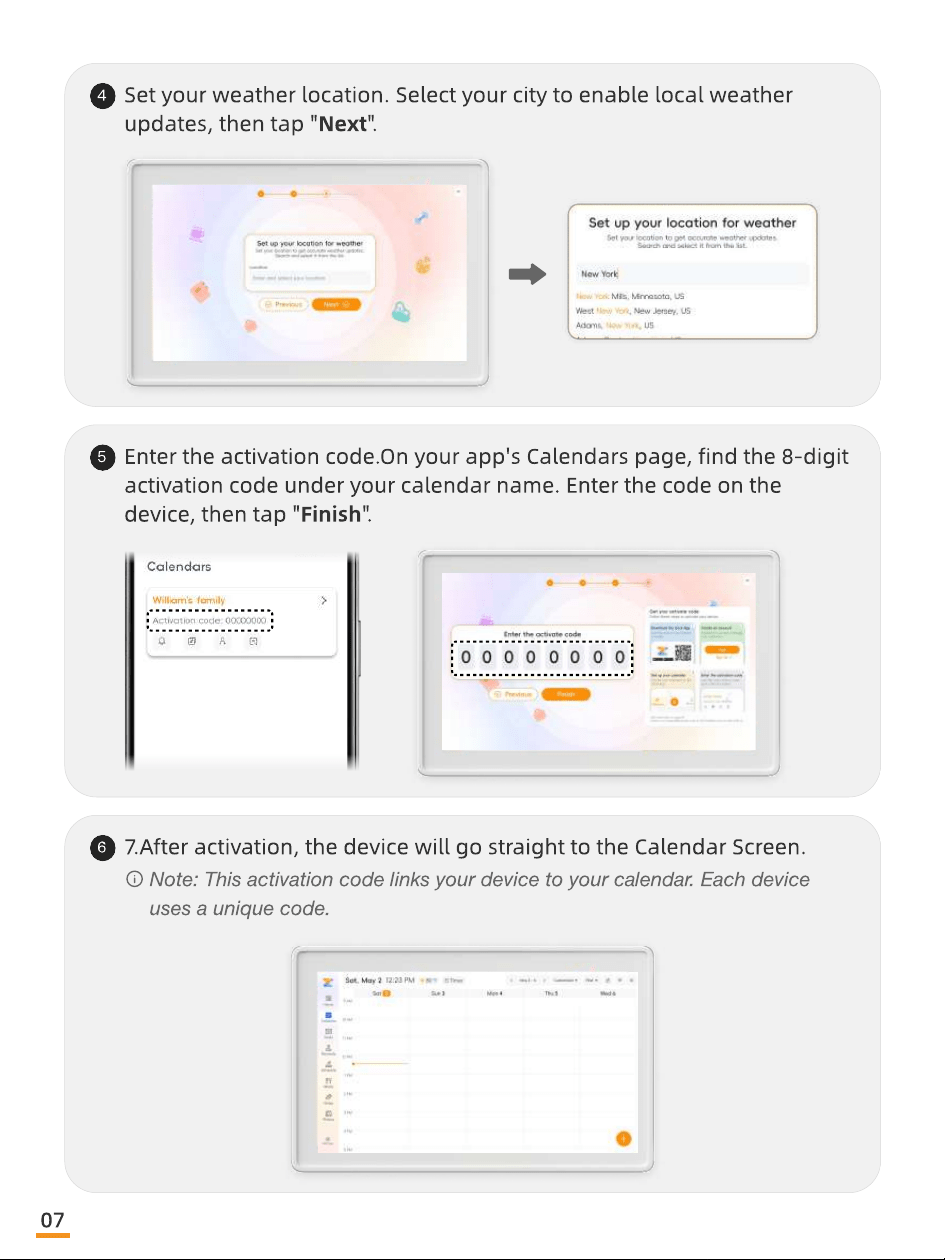
4
Set your weather location. Select your city to enable local weather
updates, then tap "Next".
5
Enter the activation code.On your app's Calendars page, nd the 8-digit
activation code under your calendar name. Enter the code on the
device, then tap "Finish".
6
7.After activation, the device will go straight to the Calendar Screen.
Note: This activation code links your device to your calendar. Each device
uses a unique code.
07
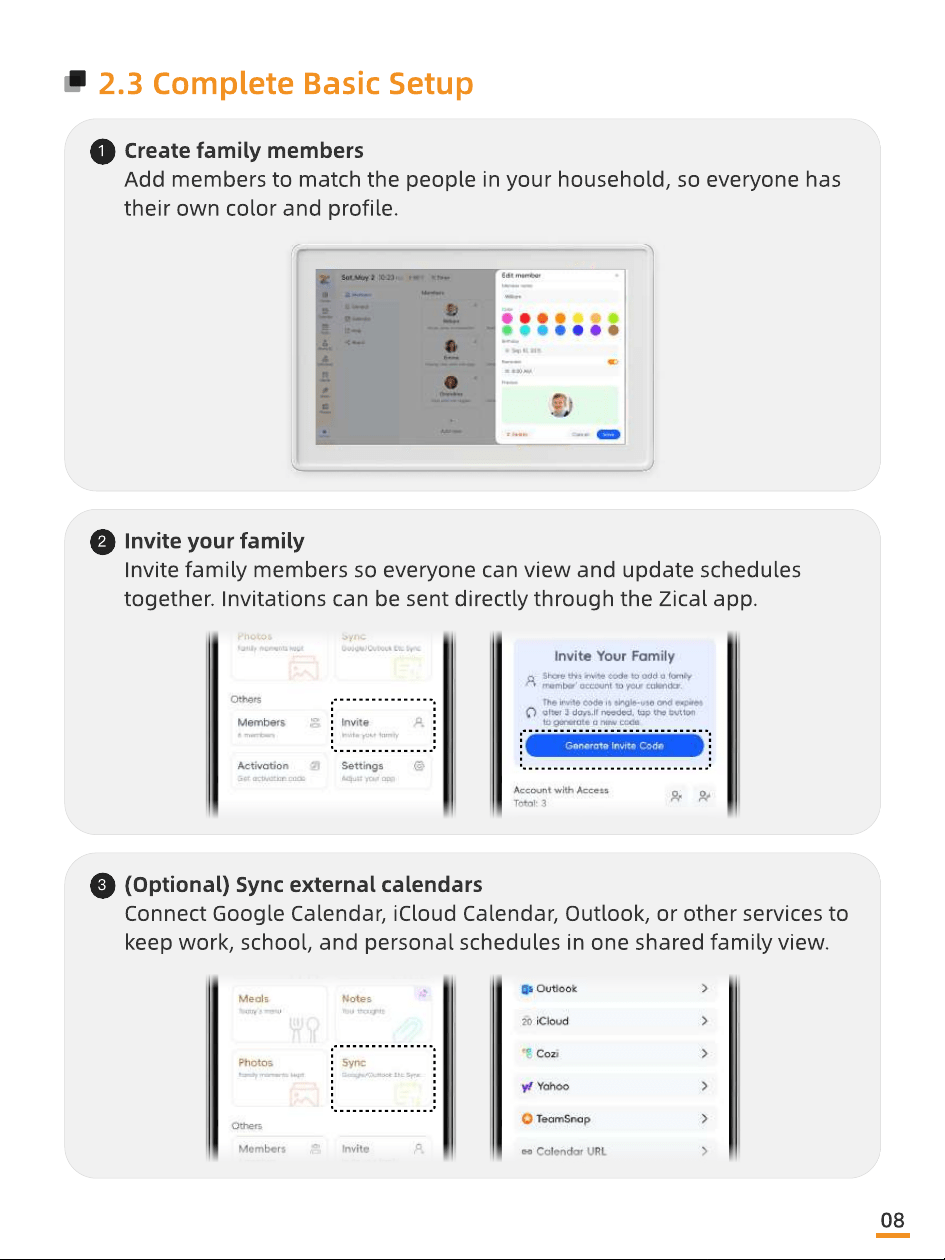
2.3 Complete Basic Setup
1
Create family member
Add members to match the people in your household, so everyone has
their own color and prole.
2
Invite your famil
Invite family members so everyone can view and update schedules
together. Invitations can be sent directly through the Zical app.
3
(Optional) Sync external calendar
Connect Google Calendar, iCloud Calendar, Outlook, or other services to
keep work, school, and personal schedules in one shared family view.
08
03
Members & Color Coding
Keep your family organized at a glance by assigning
each person their own color and prole.
09
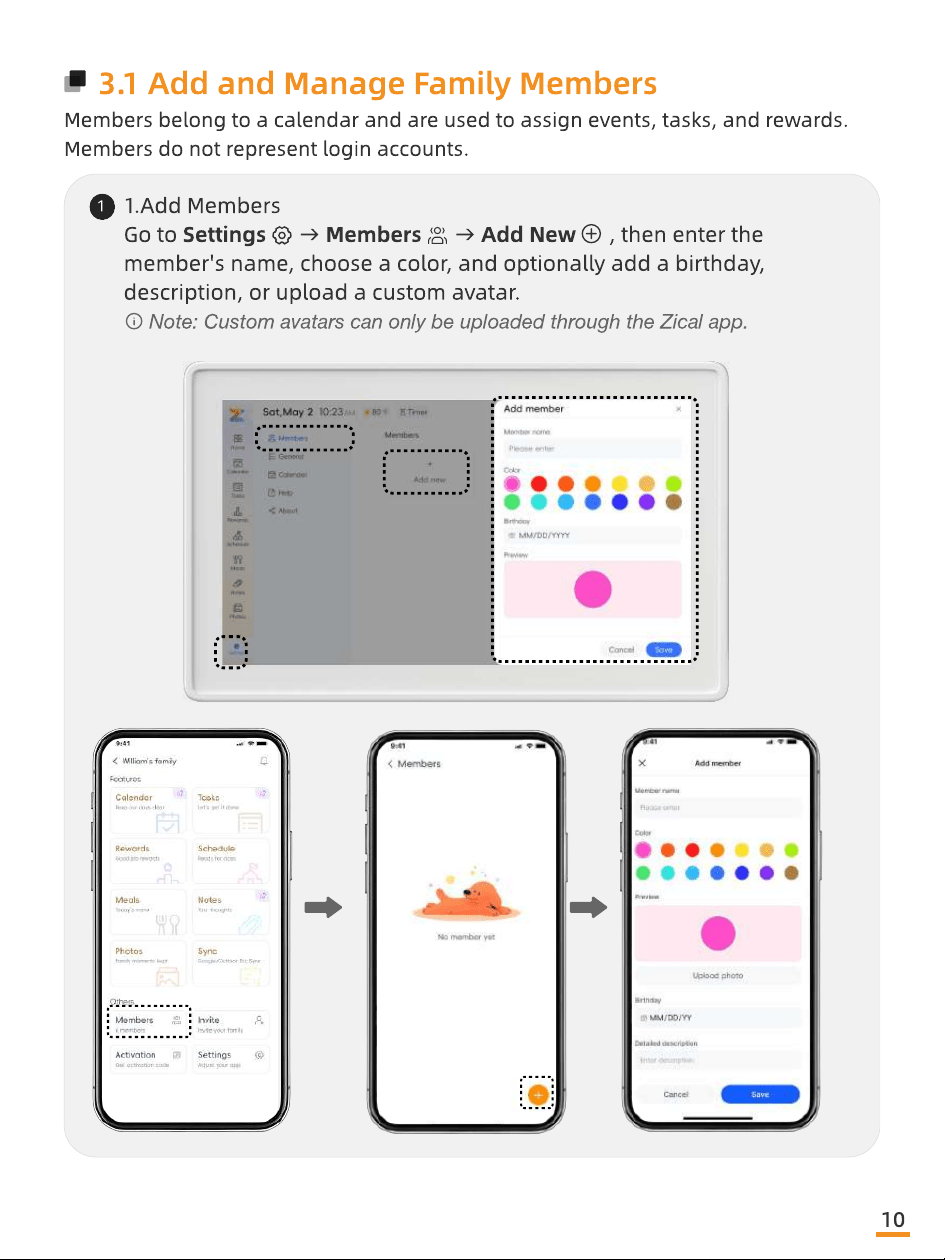
3.1 Add and Manage Family Members
Members belong to a calendar and are used to assign events, tasks, and rewards
Members do not represent login accounts.
1
1.Add Member
Go to Settings → Members → Add New , then enter the
member's name, choose a color, and optionally add a birthday,
description, or upload a custom avatar.
Note: Custom avatars can only be uploaded through the Zical app.
10
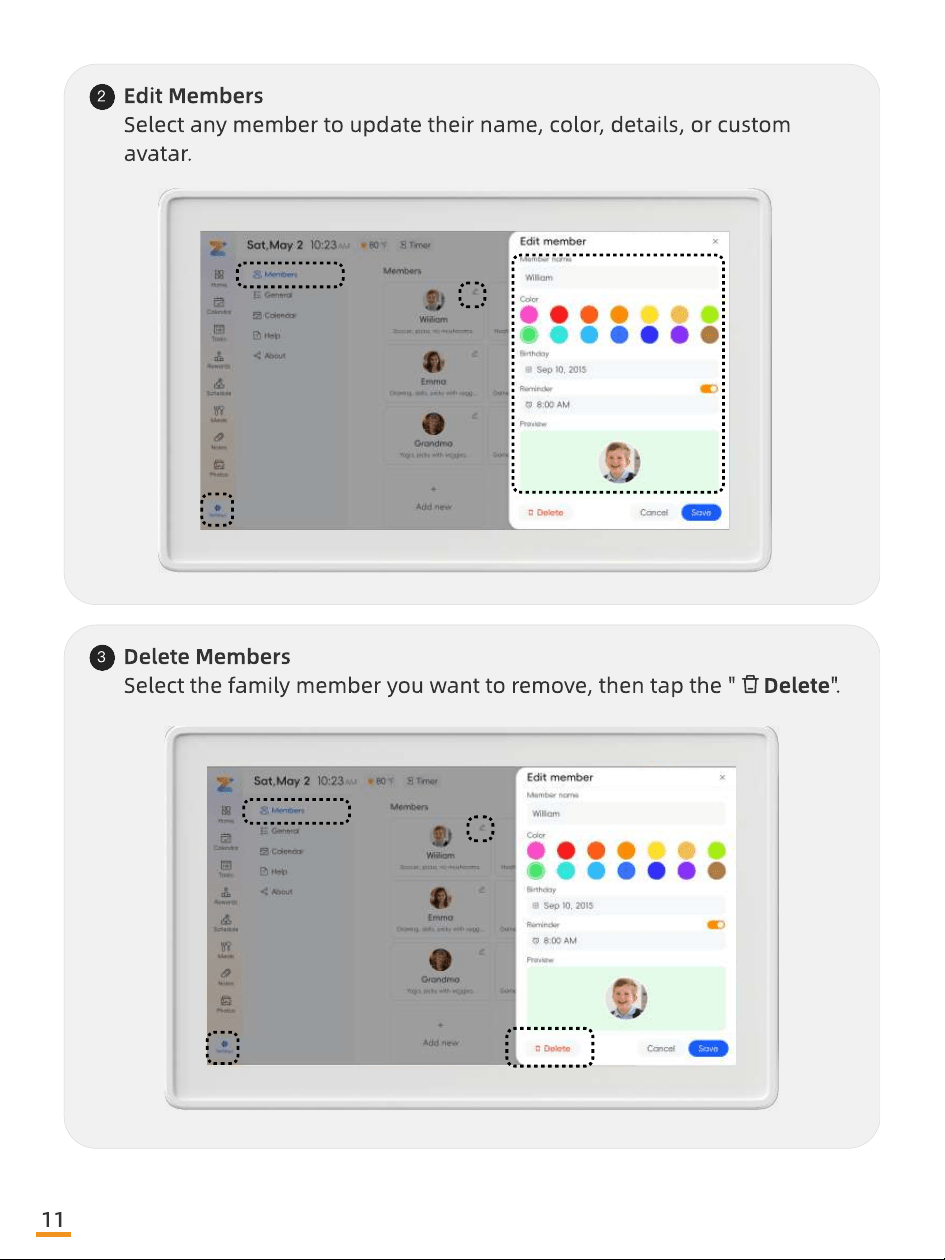
2
Edit Members
Select any member to update their name, color, details, or custom
avatar.
3
Delete Members
Select the family member you want to remove, then tap the " Delete".
11
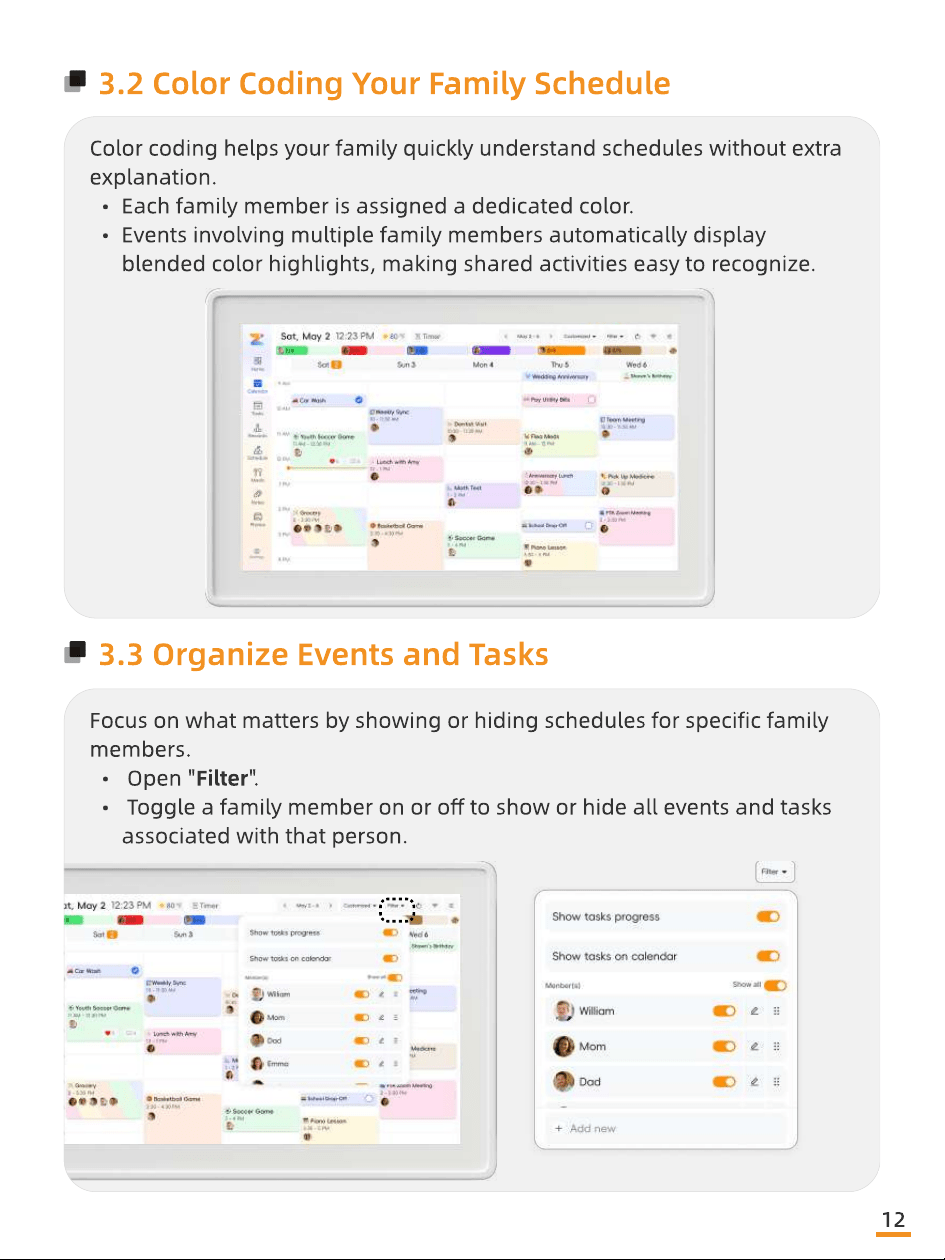
3.2 Color Coding Your Family Schedule
Color coding helps your family quickly understand schedules without extra
explanation
Each family member is assigned a dedicated color
Events involving multiple family members automatically display
blended color highlights, making shared activities easy to recognize.
3.3 Organize Events and Tasks
Focus on what matters by showing or hiding schedules for specic family
members
Open "Filter"
Toggle a family member on or o to show or hide all events and tasks
associated with that person.
12
04
Syncing Calendars
Bring work, school, and personal schedules together
in one shared family view.
13
4.1 Supported Calendar Types
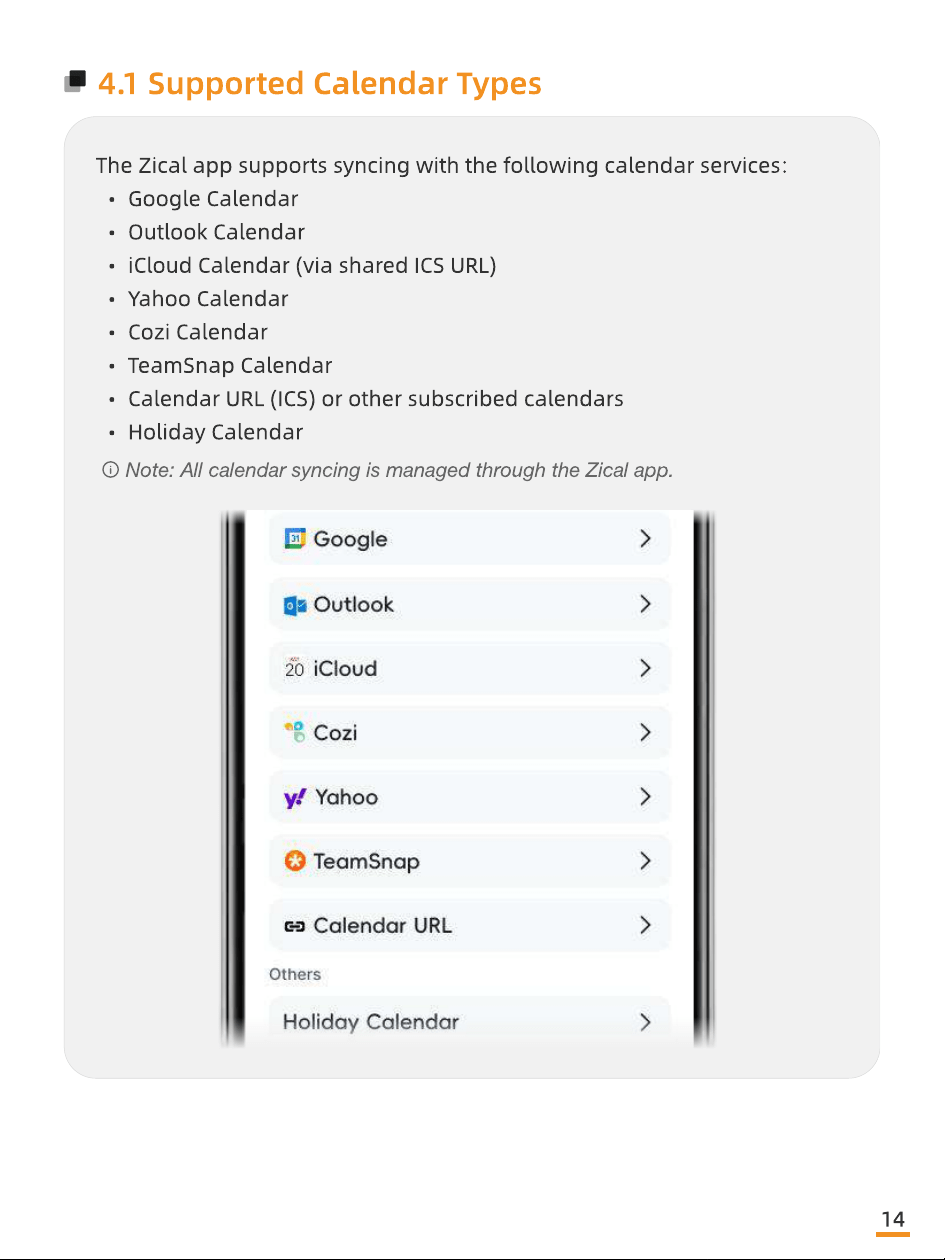
The Zical app supports syncing with the following calendar services
Google Calenda
Outlook Calenda
iCloud Calendar (via shared ICS URL
Yahoo Calenda
Cozi Calenda
TeamSnap Calenda
Calendar URL (ICS) or other subscribed calendar
Holiday Calendar
Note: All calendar syncing is managed through the Zical app.
14
4.2 Syncing a New Calendar
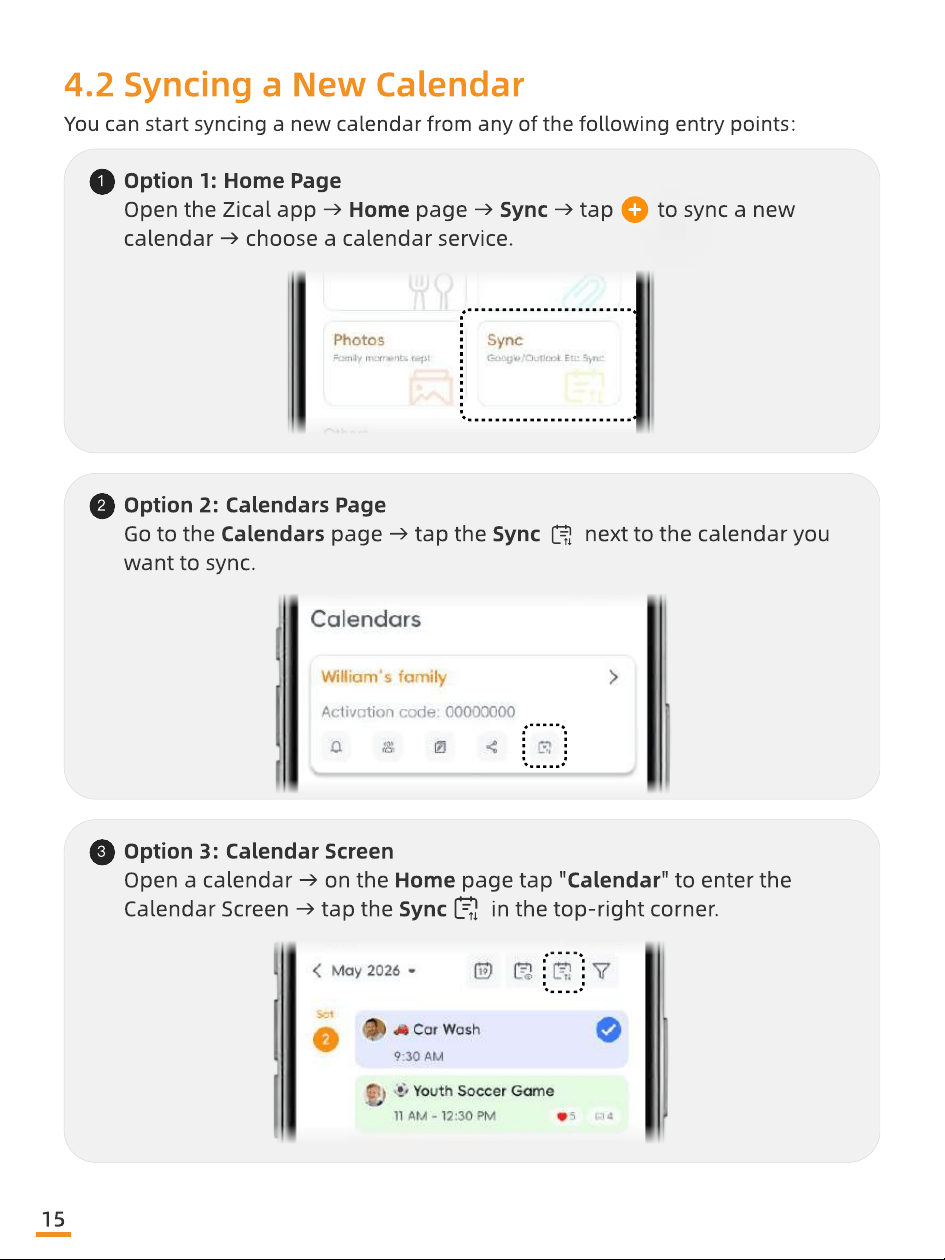
You can start syncing a new calendar from any of the following entry points:
1
Option 1: Home Pag
Open the Zical app → Home page → Sync → tap to sync a new
calendar → choose a calendar service.
2
Option 2: Calendars Pag
Go to the Calendars page → tap the Sync next to the calendar you
want to sync.
3
Option 3: Calendar Scree
Open a calendar → on the Home page tap "Calendar" to enter the
Calendar Screen → tap the Sync in the top-right corner.
15
4.2.1 Syncing Google Calendar
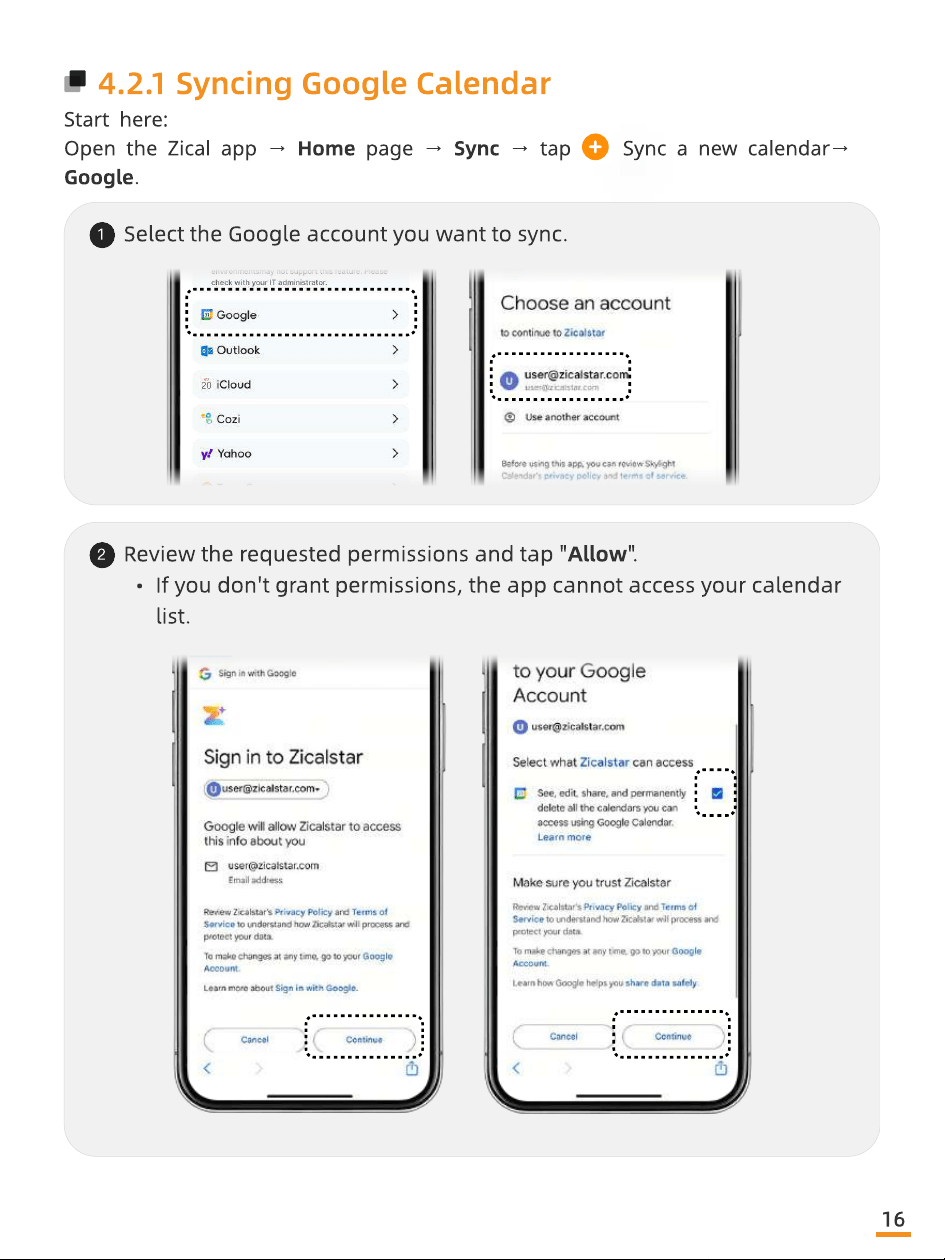
Start here
Open the Zical app → Home page → Sync → tap Sync a new calendar→
Google.
1
Select the Google account you want to sync.
2
Review the requested permissions and tap "Allow"
If you don't grant permissions, the app cannot access your calendar
list.
16
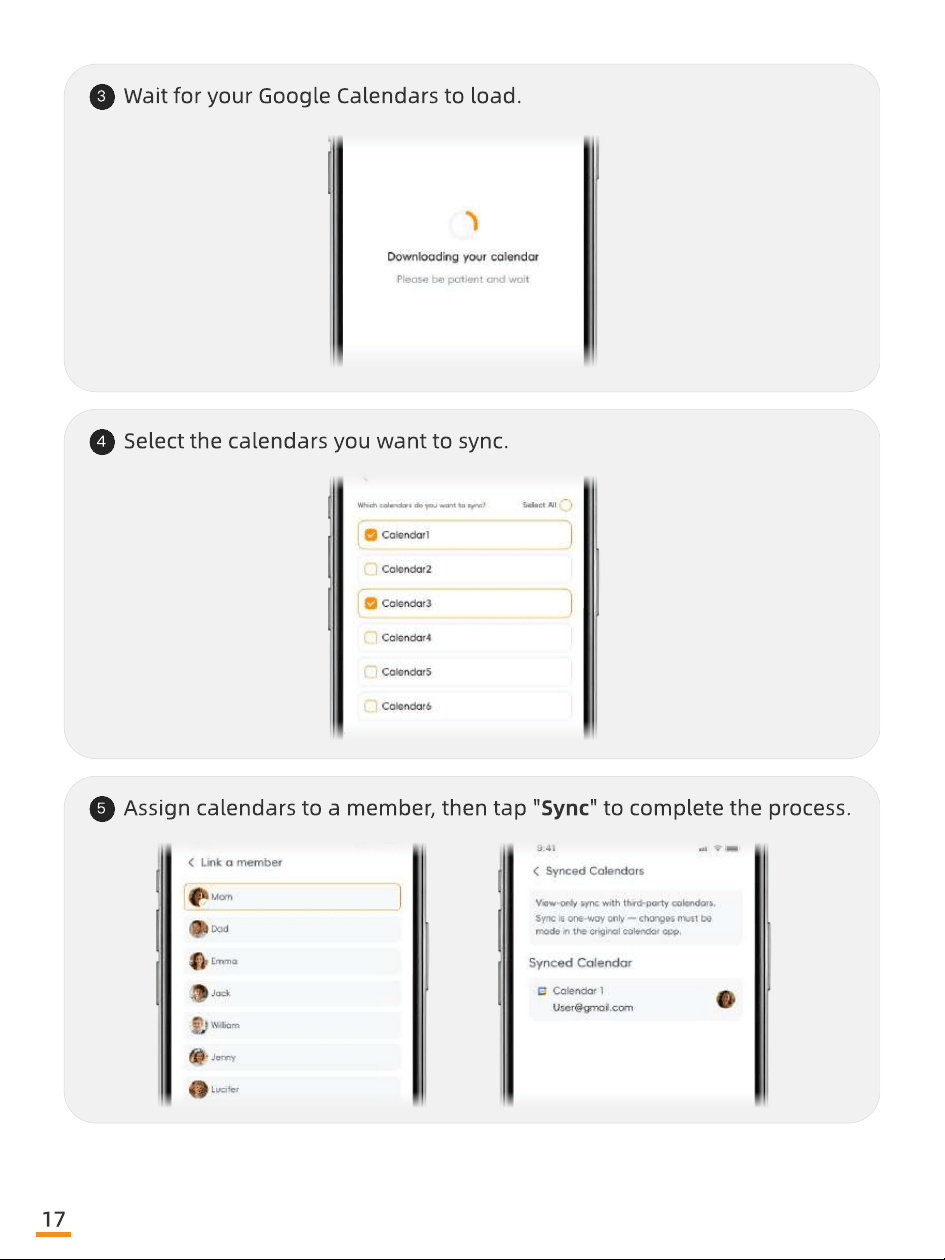
3
Wait for your Google Calendars to load.
4
Select the calendars you want to sync.
5
Assign calendars to a member, then tap "Sync" to complete the process.
17
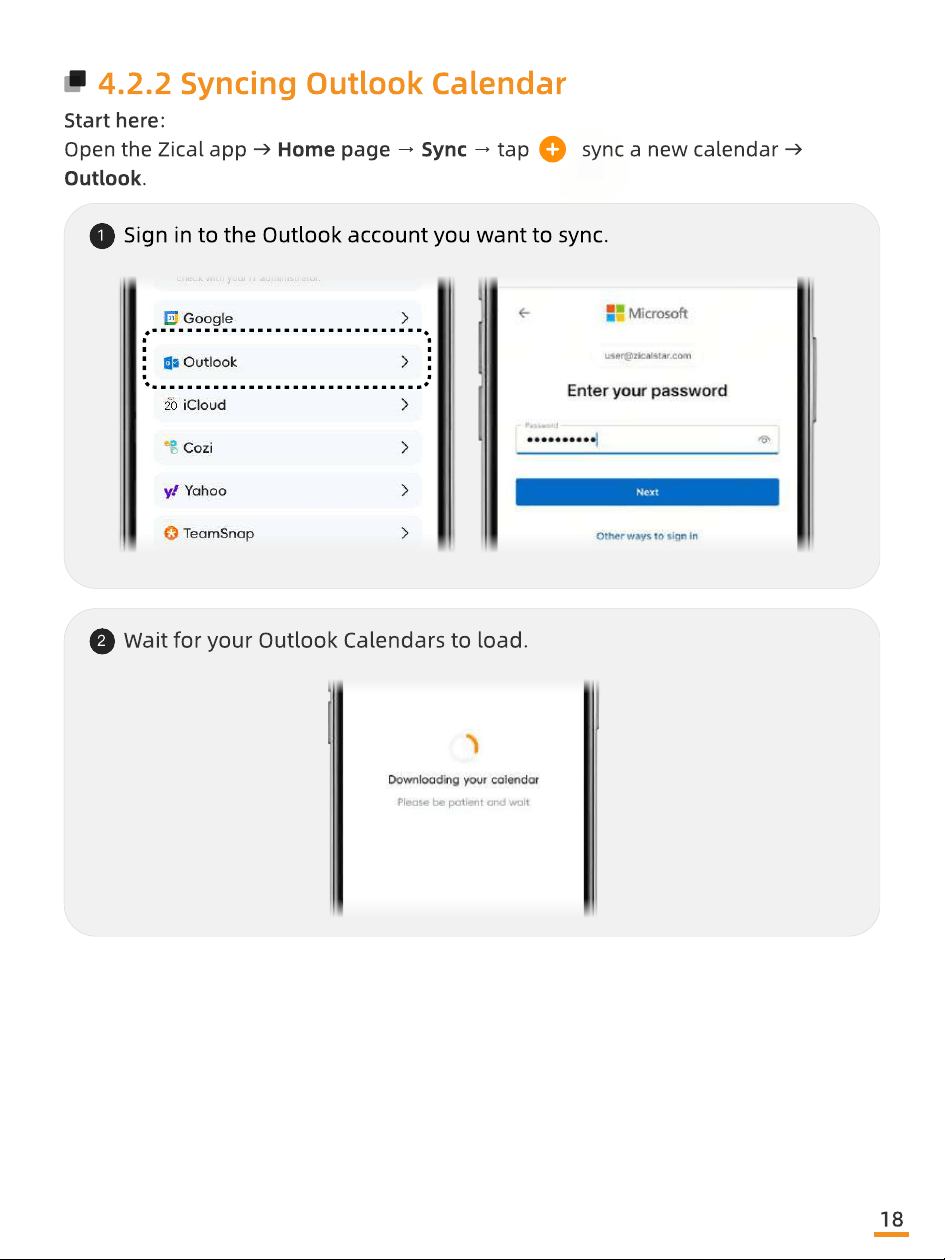
4.2.2 Syncing Outlook Calendar
Start here
Open the Zical app → Home page → Sync → tap sync a new calendar →
Outlook.
1
Sign in to the Outlook account you want to sync.
2
Wait for your Outlook Calendars to load.
18
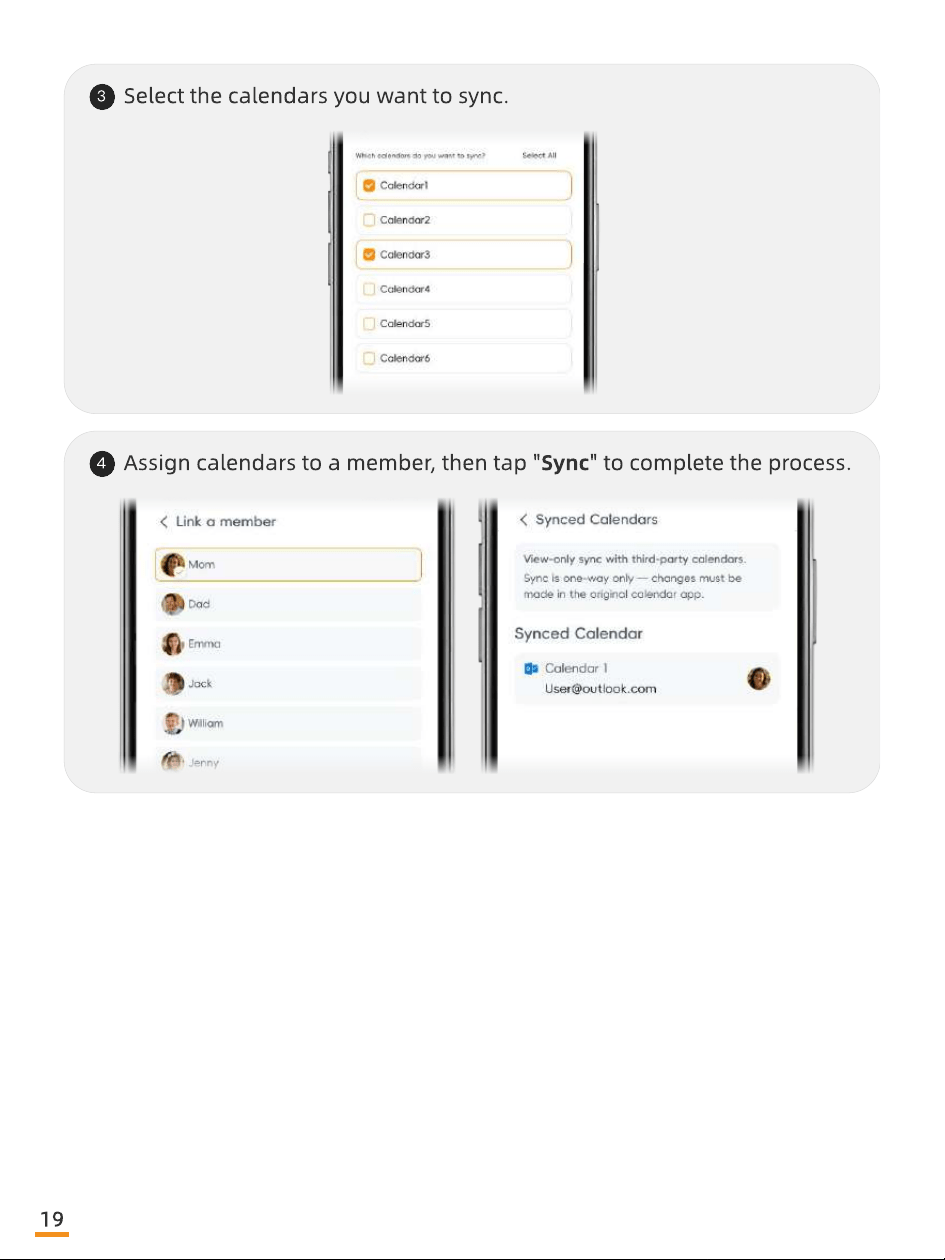
3
Select the calendars you want to sync.
4
Assign calendars to a member, then tap "Sync" to complete the process.
19
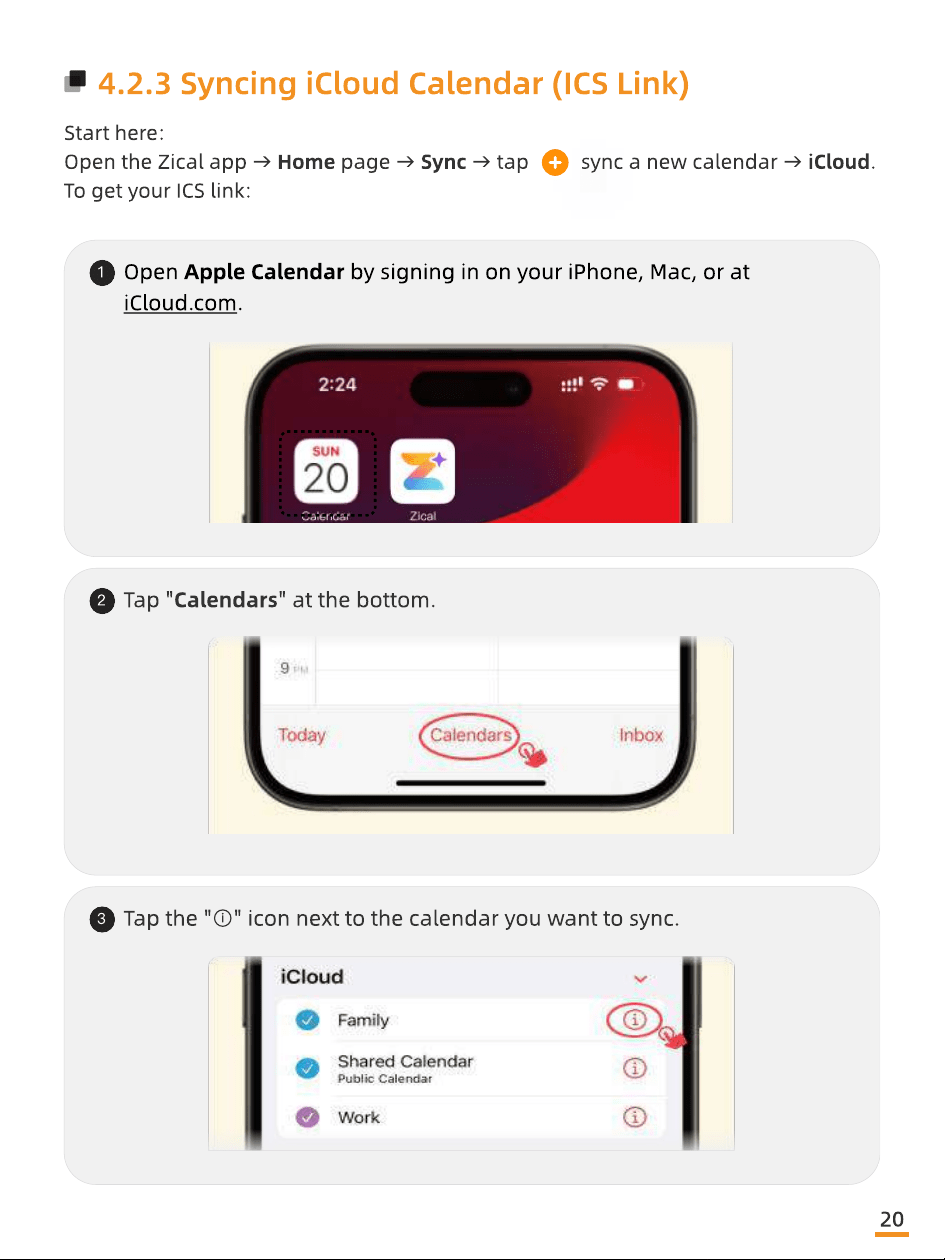
4.2.3 Syncing iCloud Calendar (ICS Link)
Start here
Open the Zical app → Home page → Sync → tap sync a new calendar → iCloud
To get your ICS link:
1
Open Apple Calendar by signing in on your iPhone, Mac, or at
iCloud.com.
2
Tap "Calendars" at the bottom.
3
Tap the "ⓘ" icon next to the calendar you want to sync.
20
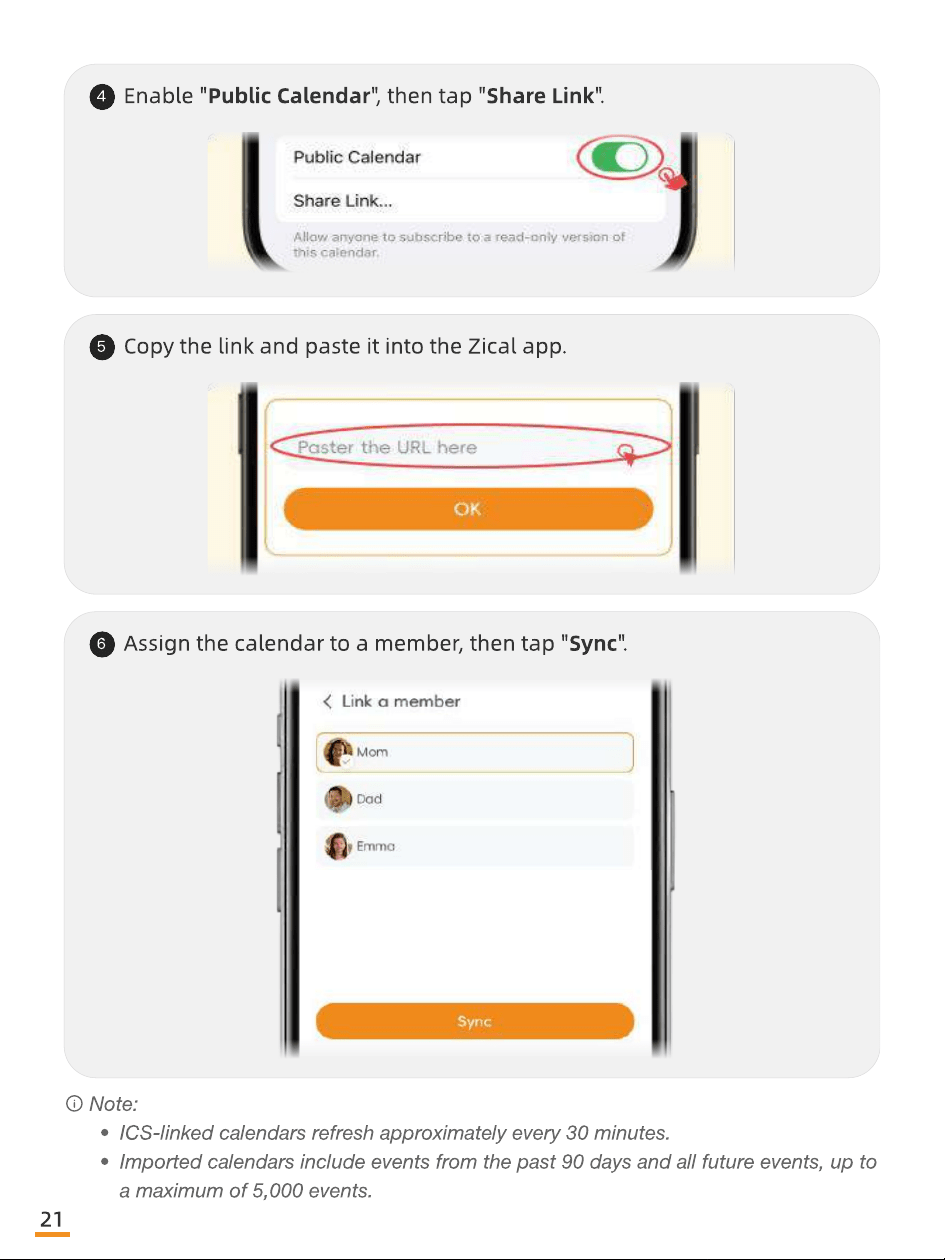
4
Enable "Public Calendar", then tap "Share Link".
5
Copy the link and paste it into the Zical app.
6
Assign the calendar to a member, then tap "Sync".
Note:
ICS-linked calendars refresh approximately every 30 minutes
Imported calendars include events from the past 90 days and all future events, up to
a maximum of 5,000 events.
21
4.2.4 Syncing Yahoo / Cozi / TeamSnap / Calendar
URL (ICS)
Start here
Open the Zical app → Home page → Sync → tap sync a new calendar →
Calendar URL / ICS (or select your provider)
Follow the on-screen steps (steps may vary by provider)
Paste your ICS URL if prompted
Assign the calendar to a Zicalstar member, then tap "Sync" to complete the
process.
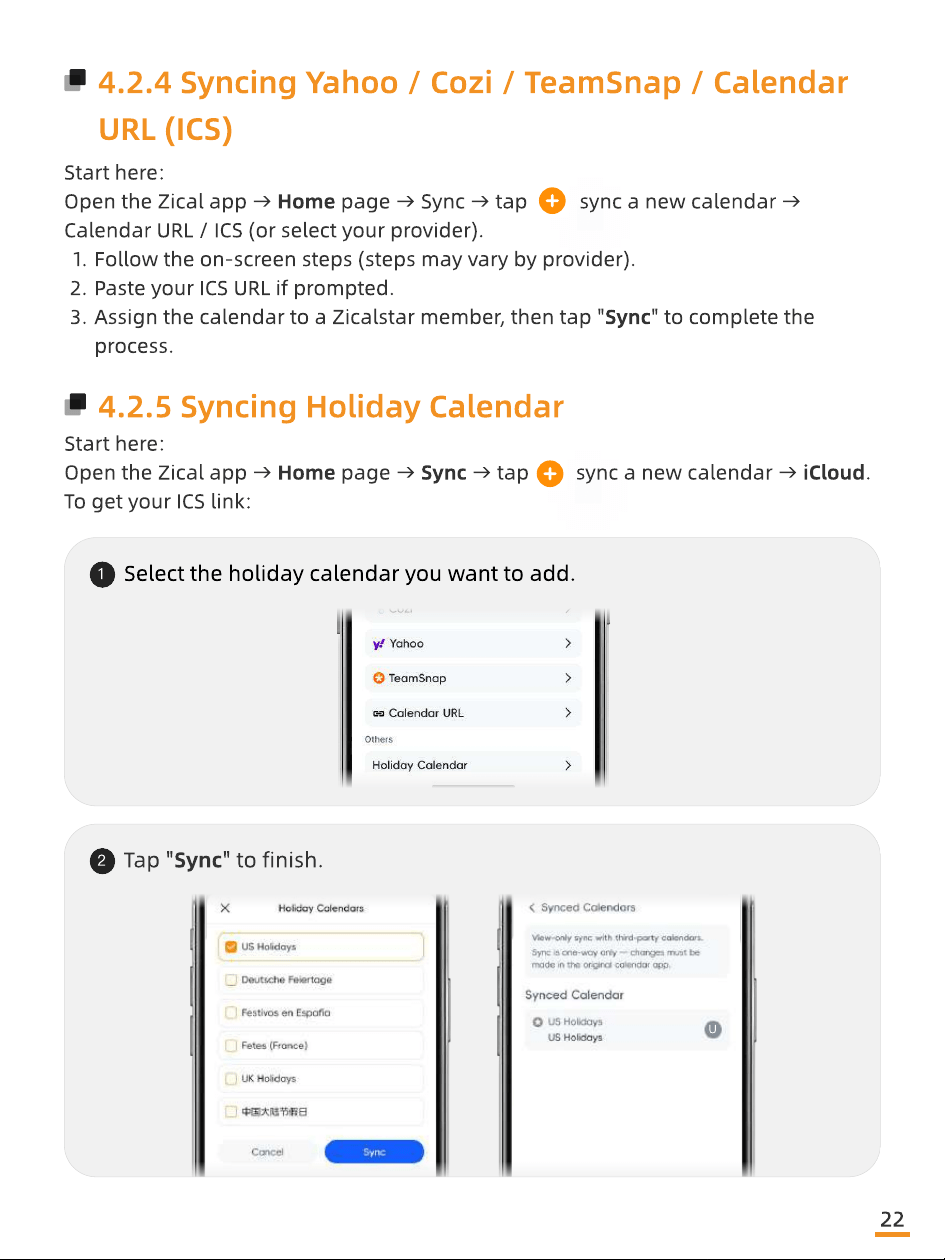
4.2.5 Syncing Holiday Calendar
Start here
Open the Zical app → Home page → Sync → tap sync a new calendar → iCloud
To get your ICS link:
1
Select the holiday calendar you want to add.
2
Tap "Sync" to nish.
U
22
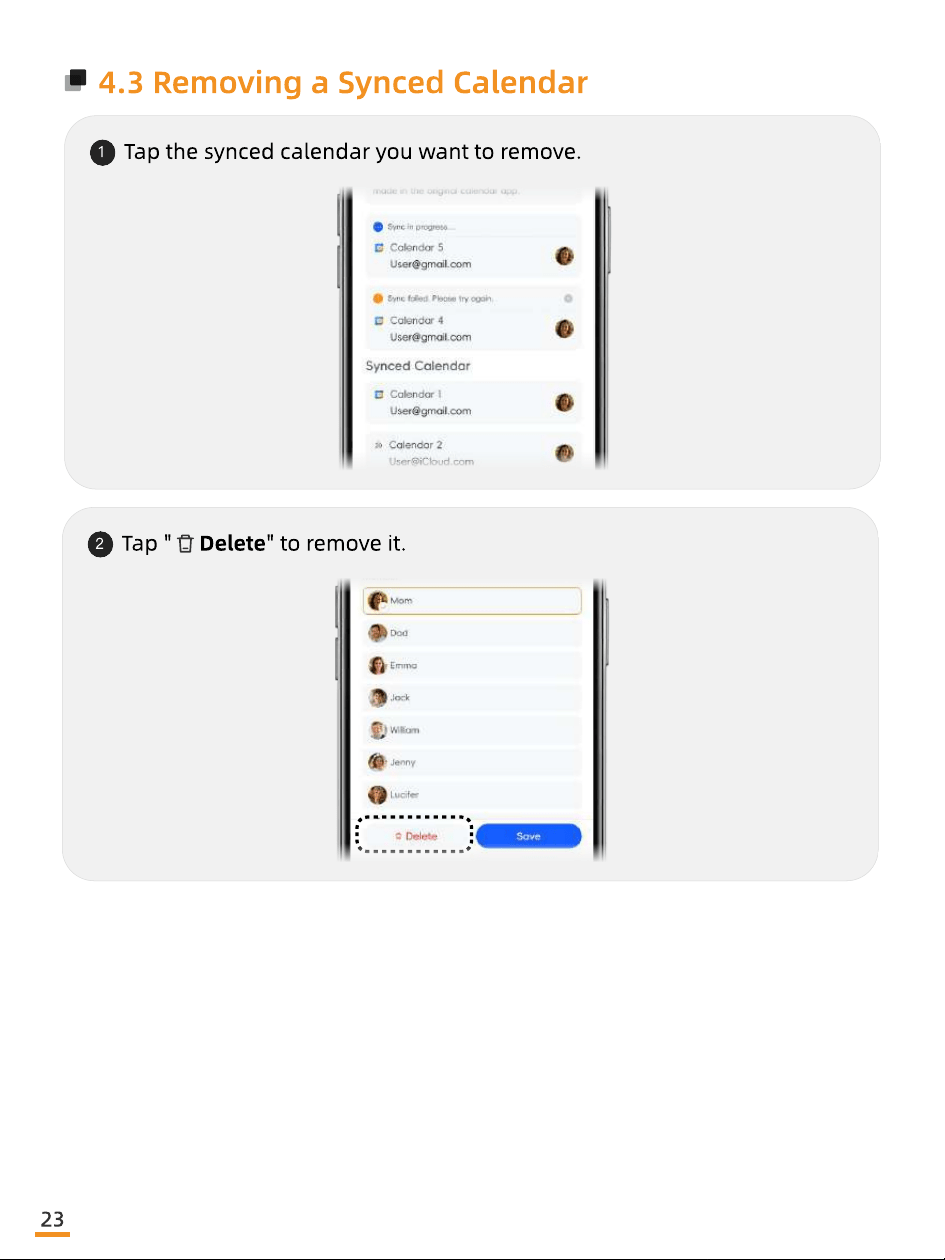
4.3 Removing a Synced Calendar
1
Tap the synced calendar you want to remove.
2
Tap " Delete" to remove it.
23
05
Share & Manage
Calendar Access
Share a calendar with family or friends—and control who
can access and manage it.
24
5.1 Invite Family or Friends
Each person joins using their own account. An account represents a person and can
be added to multiple calendars.The invited user can sign in with their own email
address (they do not need to use yours)
In the Zical app:
1
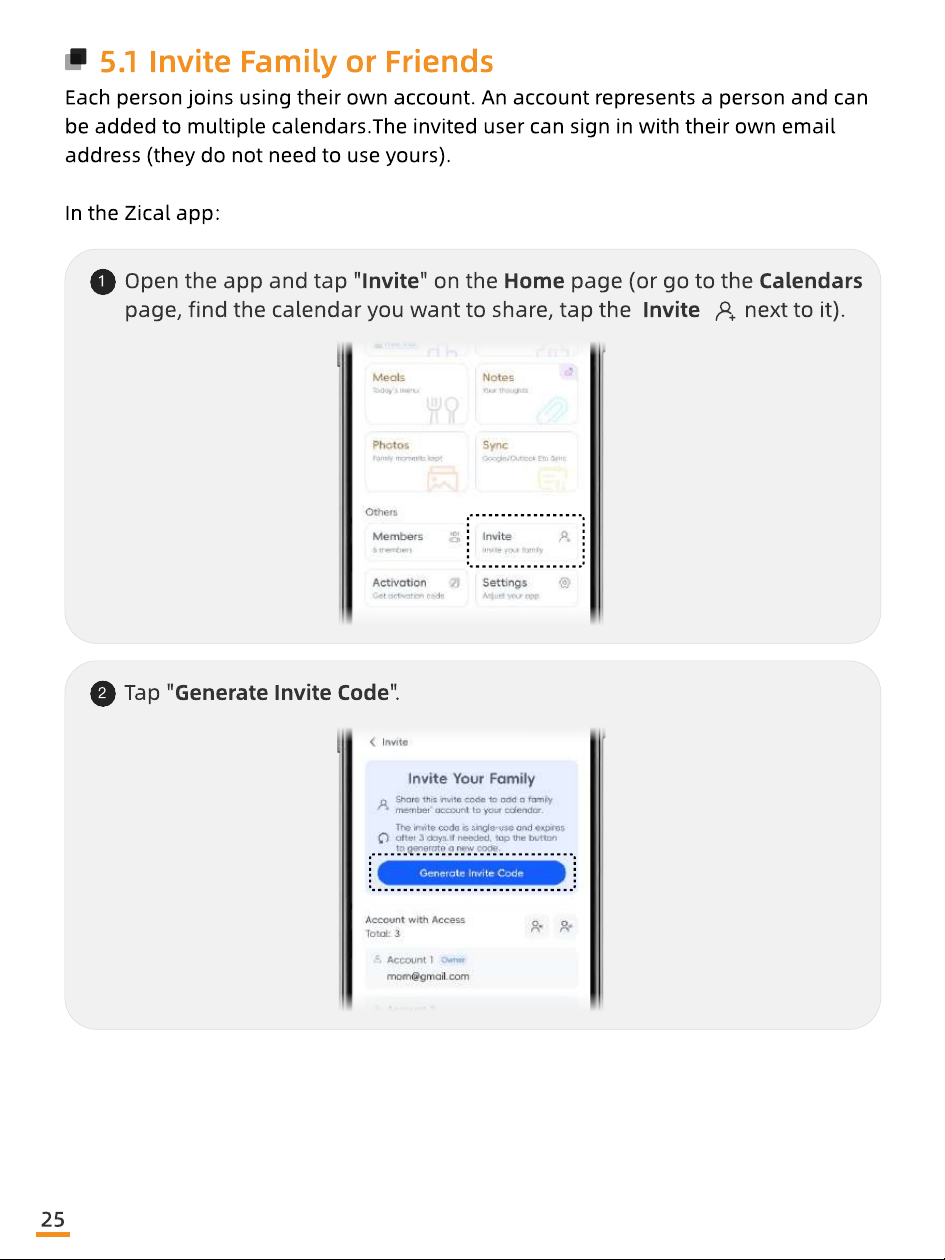
Open the app and tap "Invite" on the Home page (or go to the Calendars
page, nd the calendar you want to share, tap the Invite next to it).
2
Tap "Generate Invite Code".
25
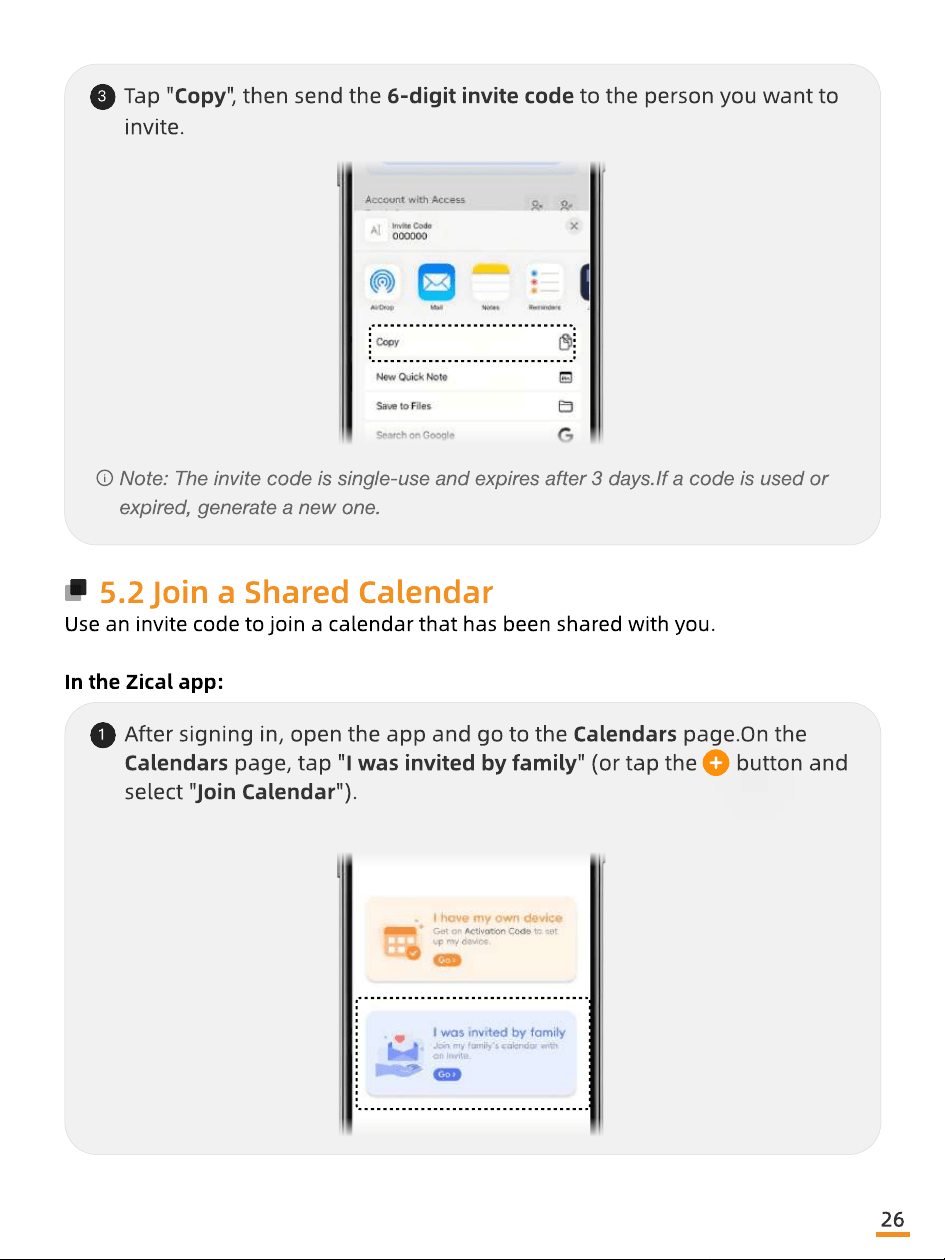
3
Tap "Copy", then send the 6-digit invite code to the person you want to
invite.
Note: The invite code is single-use and expires after 3 days.If a code is used or
expired, generate a new one.
5.2 Join a Shared Calendar
Use an invite code to join a calendar that has been shared with you
In the Zical app:
1
After signing in, open the app and go to the Calendars page.On the
Calendars page, tap "I was invited by family" (or tap the button and
select "Join Calendar")
26
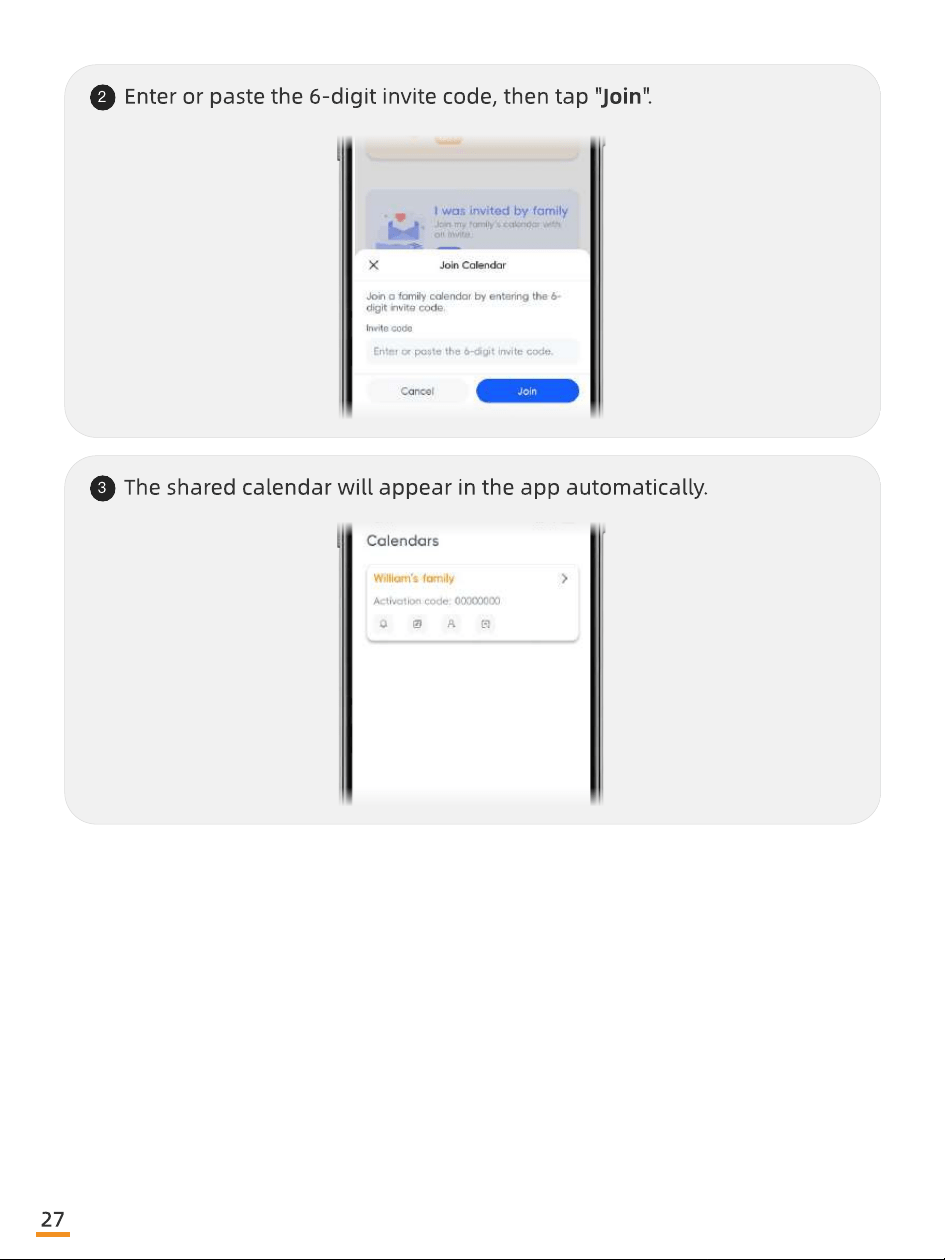
2
Enter or paste the 6-digit invite code, then tap "Join".
3
The shared calendar will appear in the app automatically.
27
5.3.1 Remove an Account from a Calendar
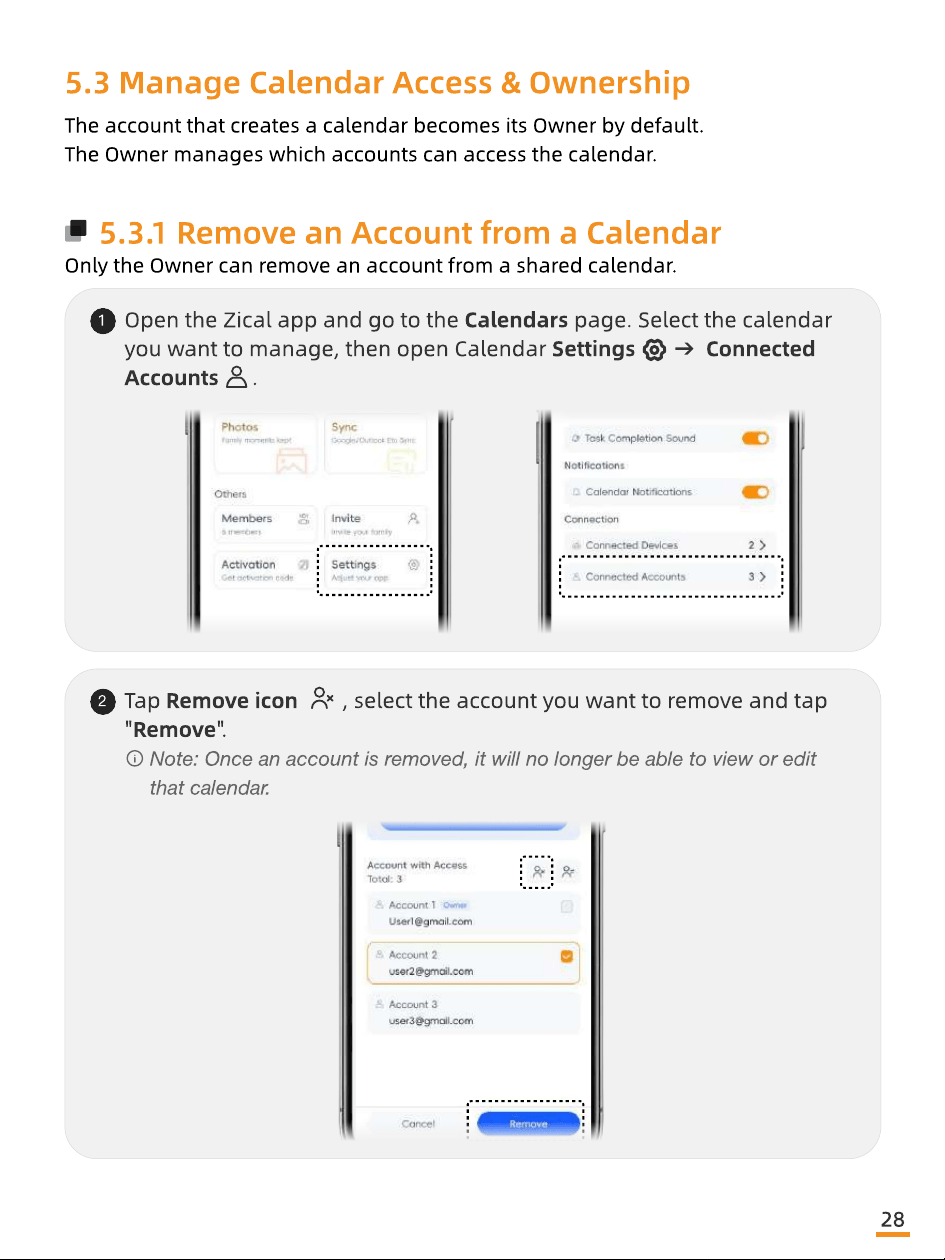
Only the Owner can remove an account from a shared calendar.
1
Open the Zical app and go to the Calendars page. Select the calendar
you want to manage, then open Calendar Settings → Connected
Accounts .
2
Tap Remove icon , select the account you want to remove and tap
"Remove".
Note: Once an account is removed, it will no longer be able to view or edit
that calendar.
28
5.3 Manage Calendar Access & Ownership
The account that creates a calendar becomes its Owner by default
The Owner manages which accounts can access the calendar.
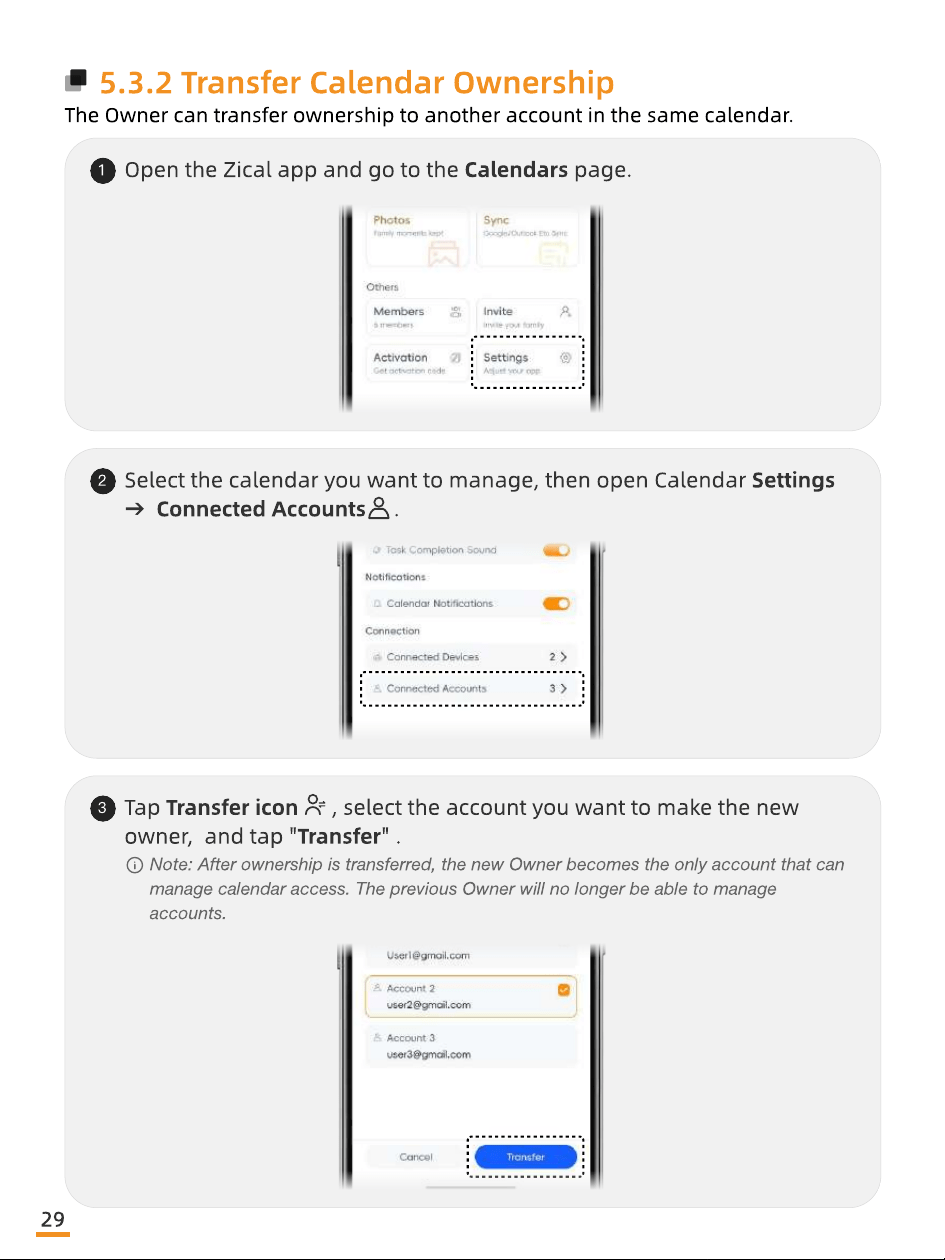
5.3.2 Transfer Calendar Ownership
The Owner can transfer ownership to another account in the same calendar.
1
Open the Zical app and go to the Calendars page.
2
Select the calendar you want to manage, then open Calendar Settings
→ Connected Accounts .
3
Tap Transfer icon , select the account you want to make the new
owner, and tap "Transfer" .
Note: After ownership is transferred, the new Owner becomes the only account that can
manage calendar access. The previous Owner will no longer be able to manage
accounts.
29
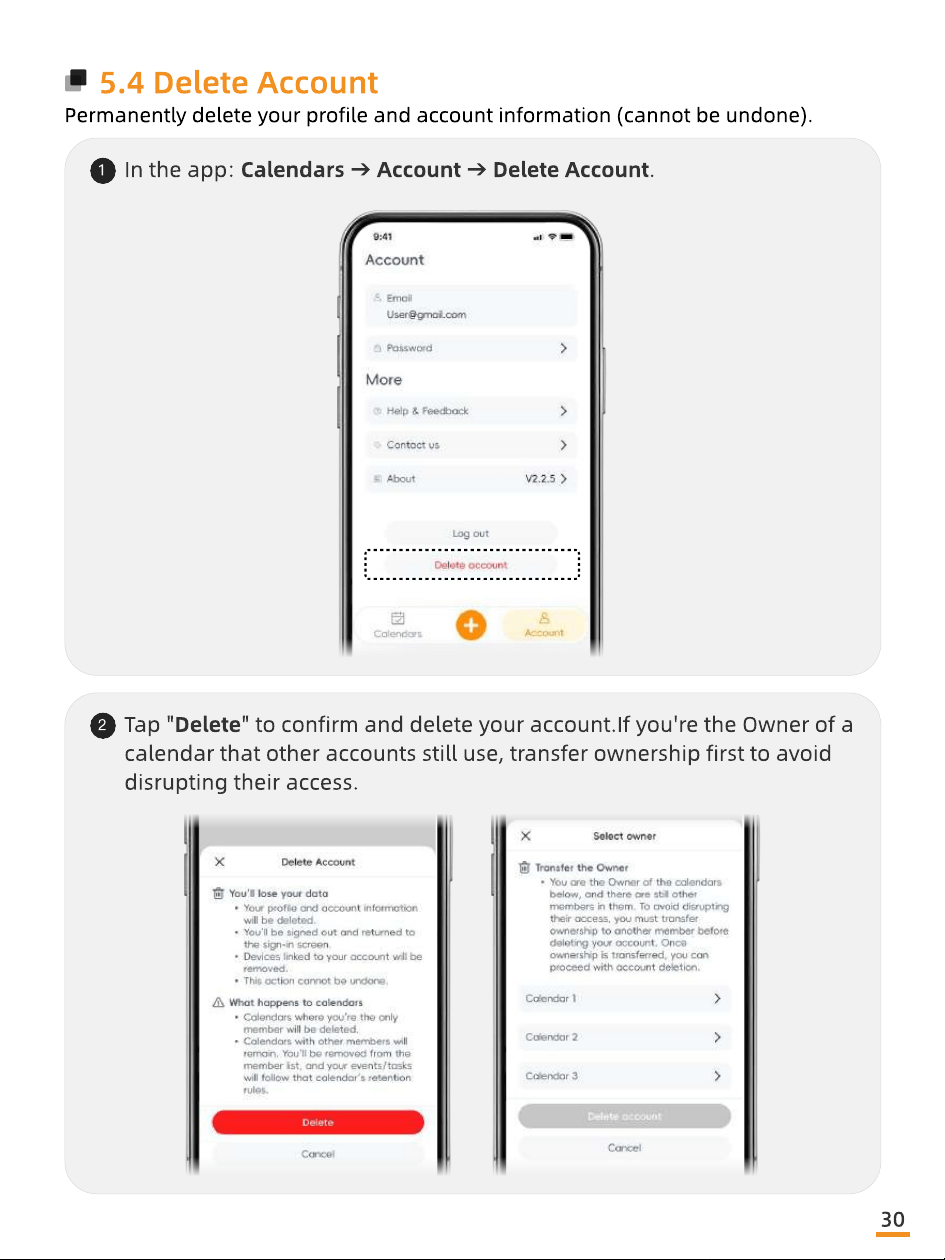
5.4 Delete Account
Permanently delete your prole and account information (cannot be undone).
1
In the app: Calendars → Account → Delete Account.
2
Tap "Delete" to conrm and delete your account.If you're the Owner of a
calendar that other accounts still use, transfer ownership rst to avoid
disrupting their access.
30
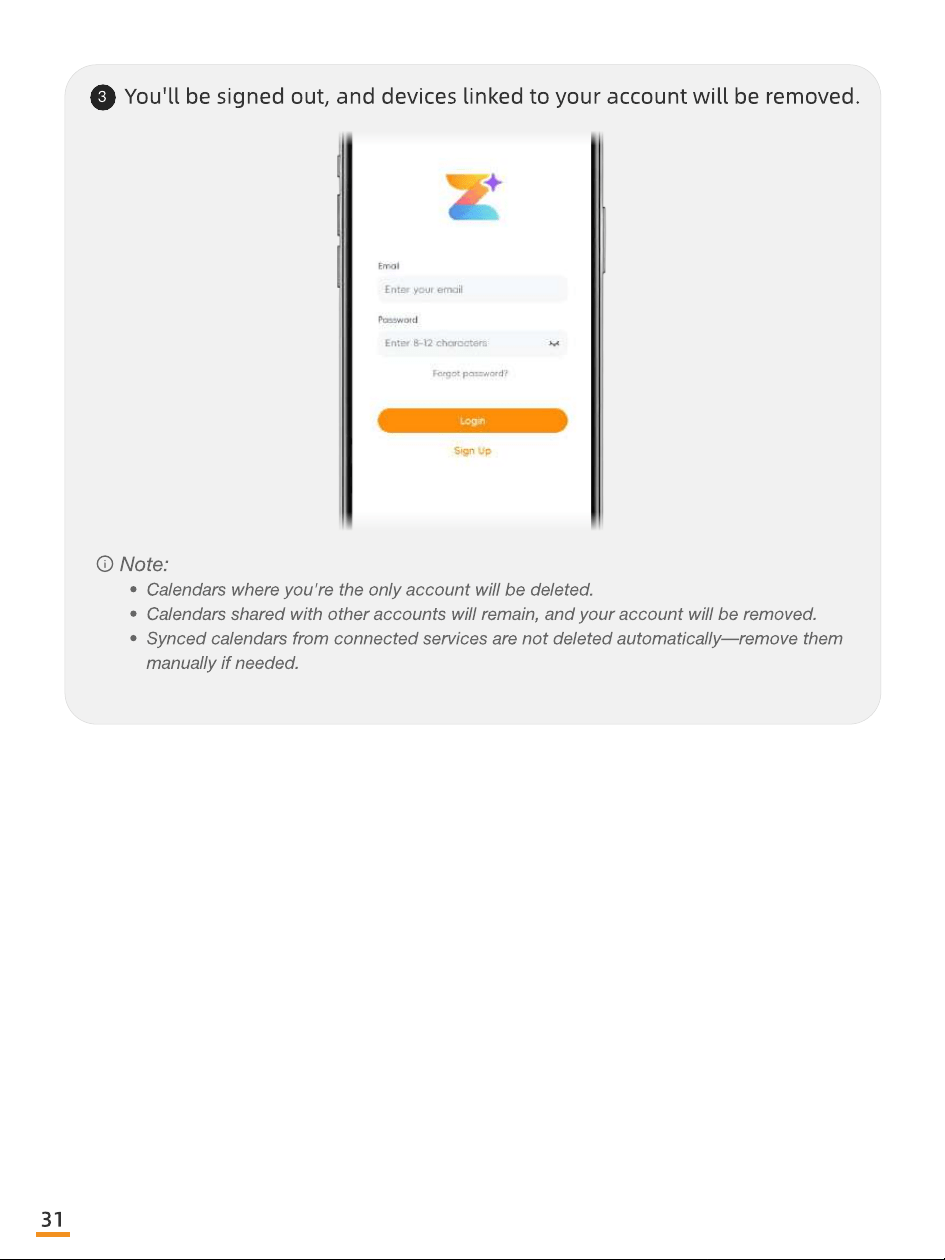
3
You'll be signed out, and devices linked to your account will be removed.
Note
Calendars where you're the only account will be deleted
Calendars shared with other accounts will remain, and your account will be removed
Synced calendars from connected services are not deleted automatically—remove them
manually if needed.
31
06
Main Features
Designed to help your family stay organized,
connected, and on the same page every day.
32
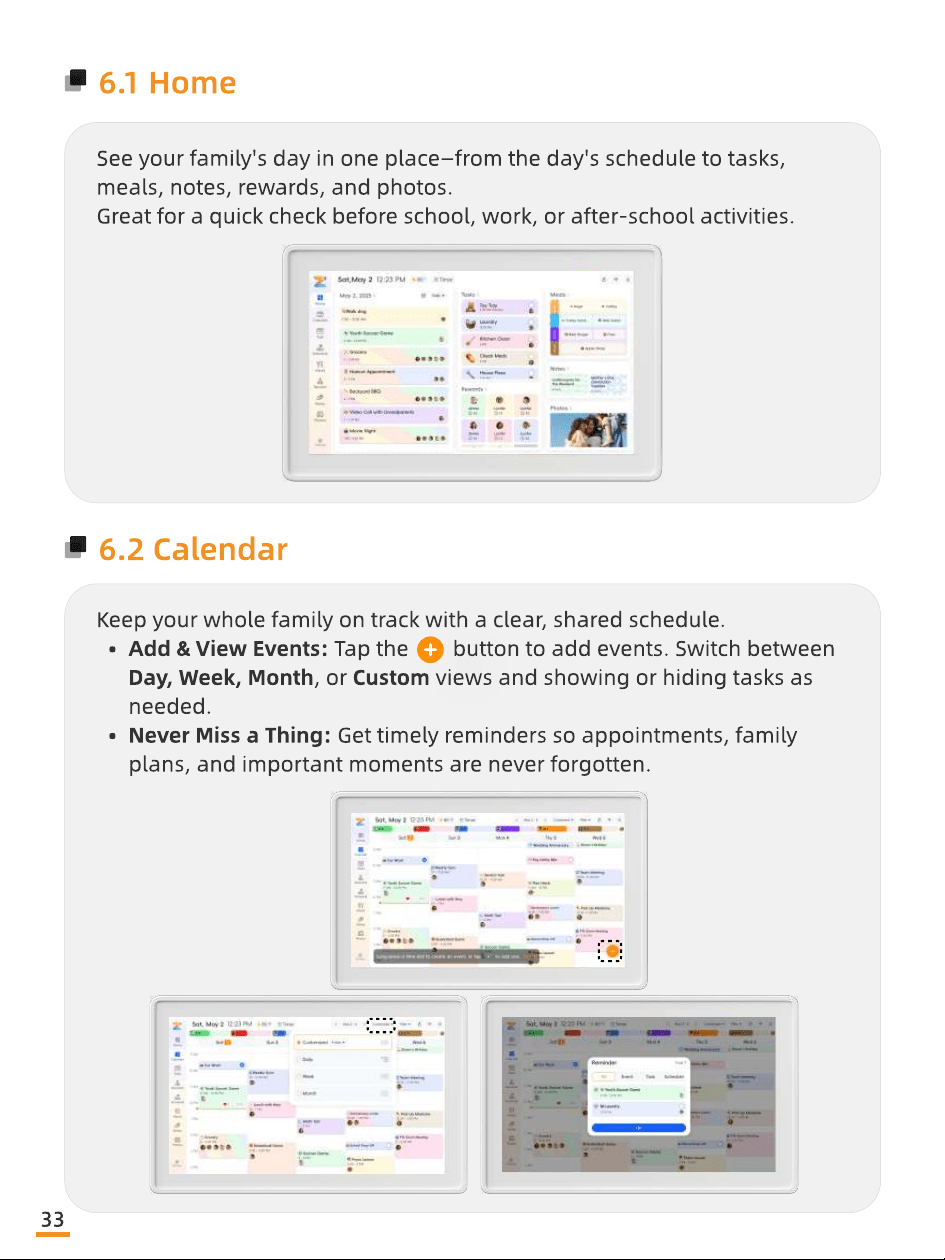
6.1 Home
See your family's day in one place—from the day's schedule to tasks,
meals, notes, rewards, and photos
Great for a quick check before school, work, or after-school activities.
6.2 Calendar
Keep your whole family on track with a clear, shared schedule
Add & View Events: Tap the button to add events. Switch between
Day, Week, Month, or Custom views and showing or hiding tasks as
needed
Never Miss a Thing: Get timely reminders so appointments, family
plans, and important moments are never forgotten.
33
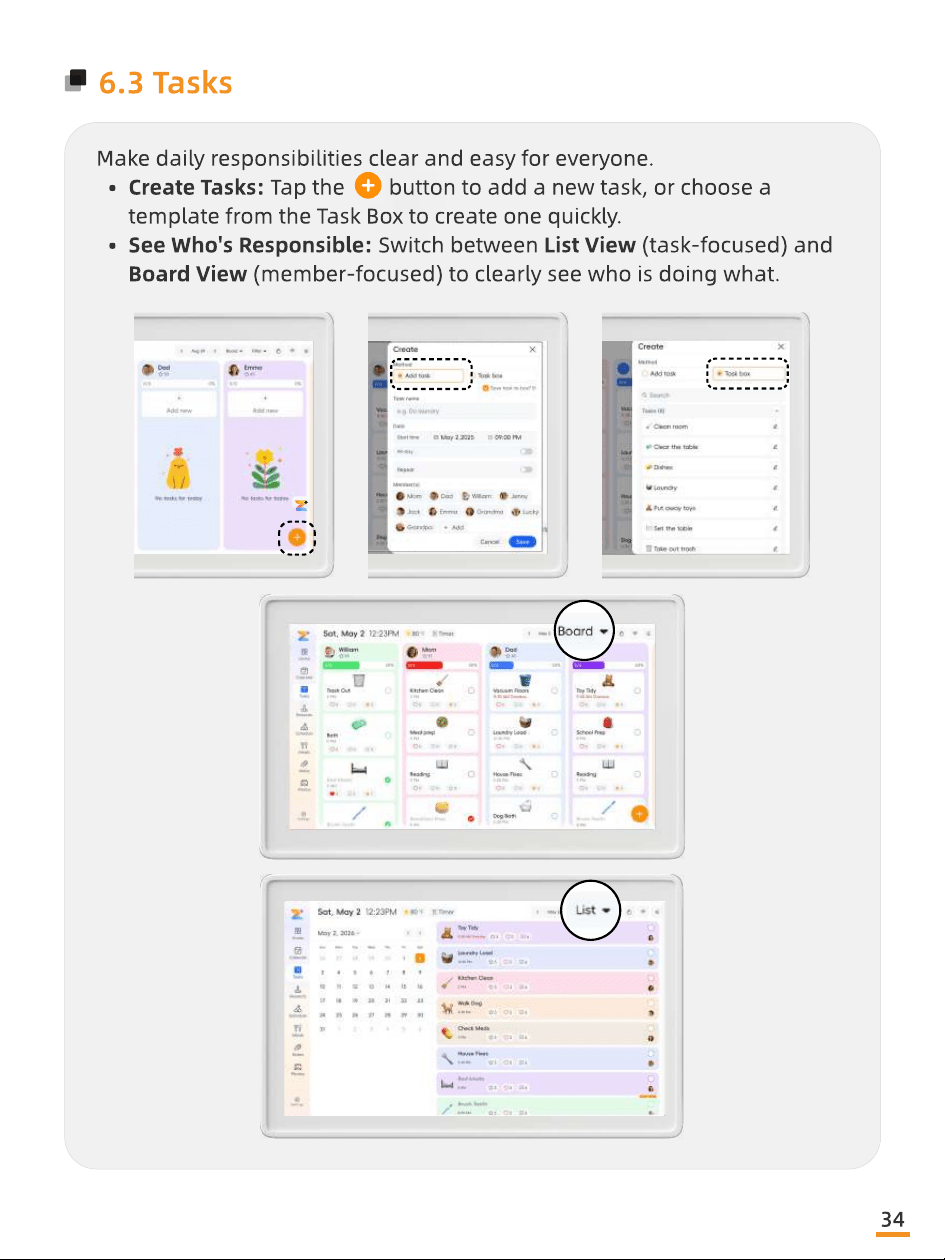
6.3 Tasks
Make daily responsibilities clear and easy for everyone
Create Tasks: Tap the button to add a new task, or choose a
template from the Task Box to create one quickly
See Who's Responsible: Switch between List View (task-focused) and
Board View (member-focused) to clearly see who is doing what.
34
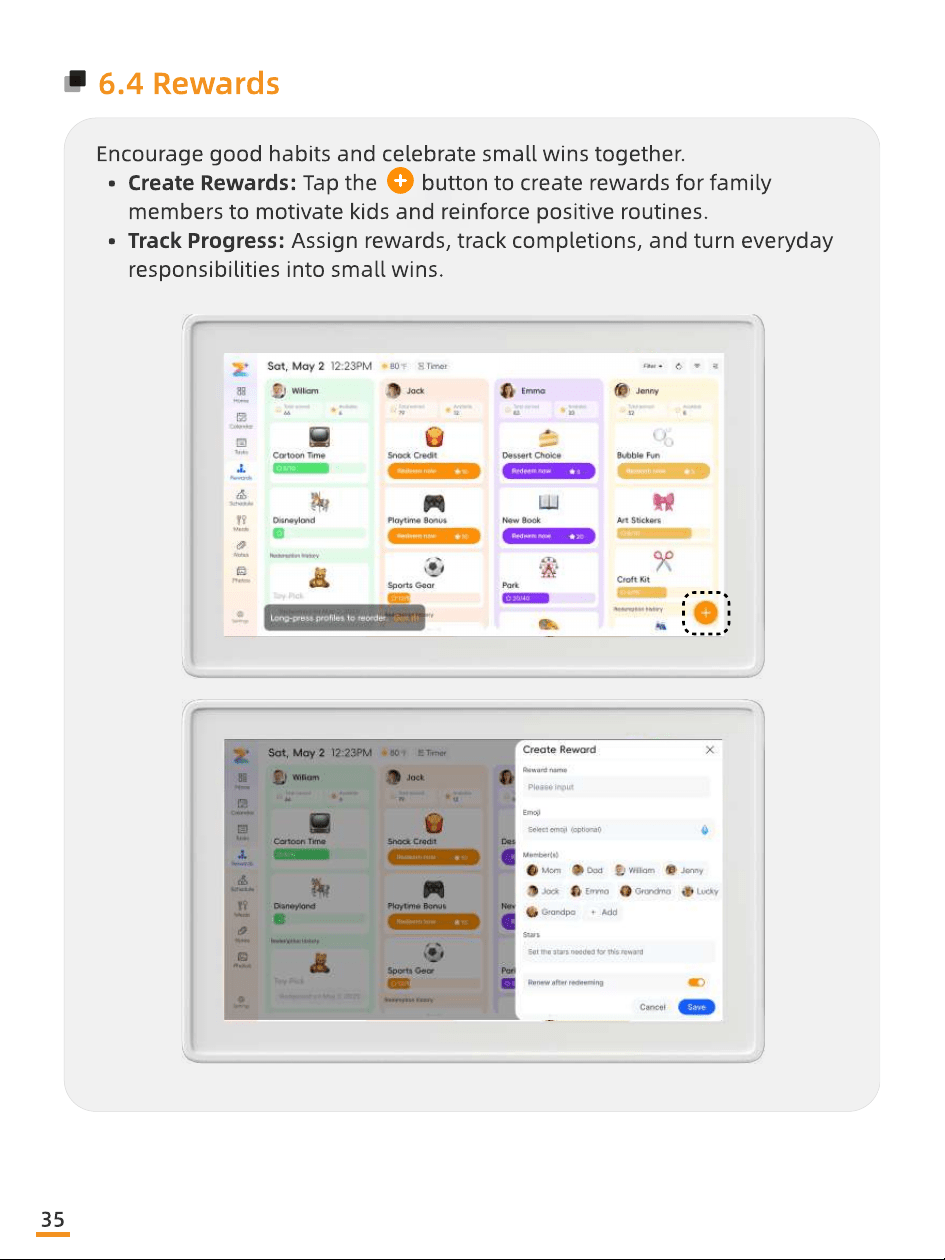
6.4 Rewards
Encourage good habits and celebrate small wins together
Create Rewards: Tap the button to create rewards for family
members to motivate kids and reinforce positive routines
Track Progress: Assign rewards, track completions, and turn everyday
responsibilities into small wins.
35
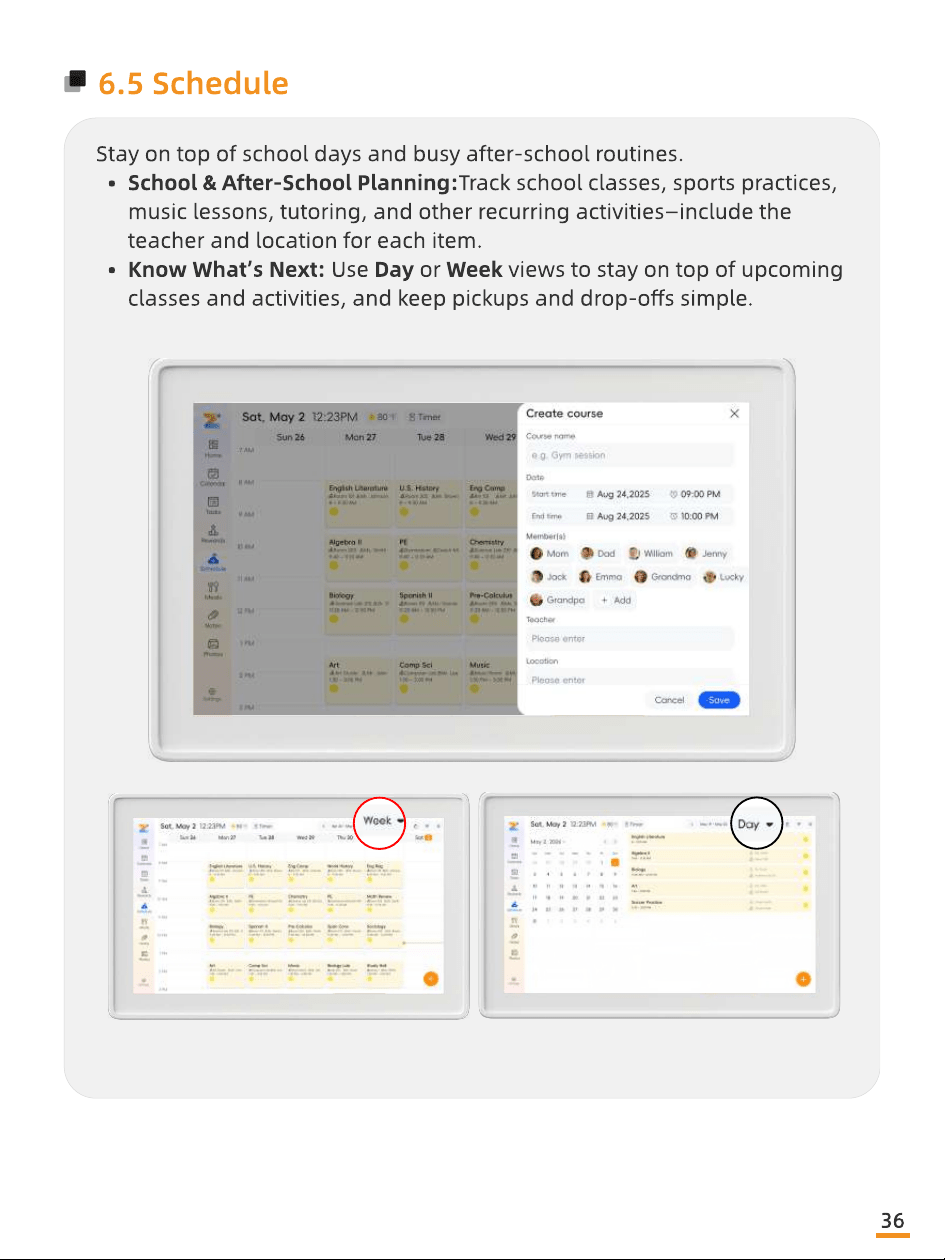
6.5 Schedule
Stay on top of school days and busy after-school routines
School & After-School Planning:Track school classes, sports practices,
music lessons, tutoring, and other recurring activities—include the
teacher and location for each item
Know What’s Next: Use Day or Week views to stay on top of upcoming
classes and activities, and keep pickups and drop-os simple.
36
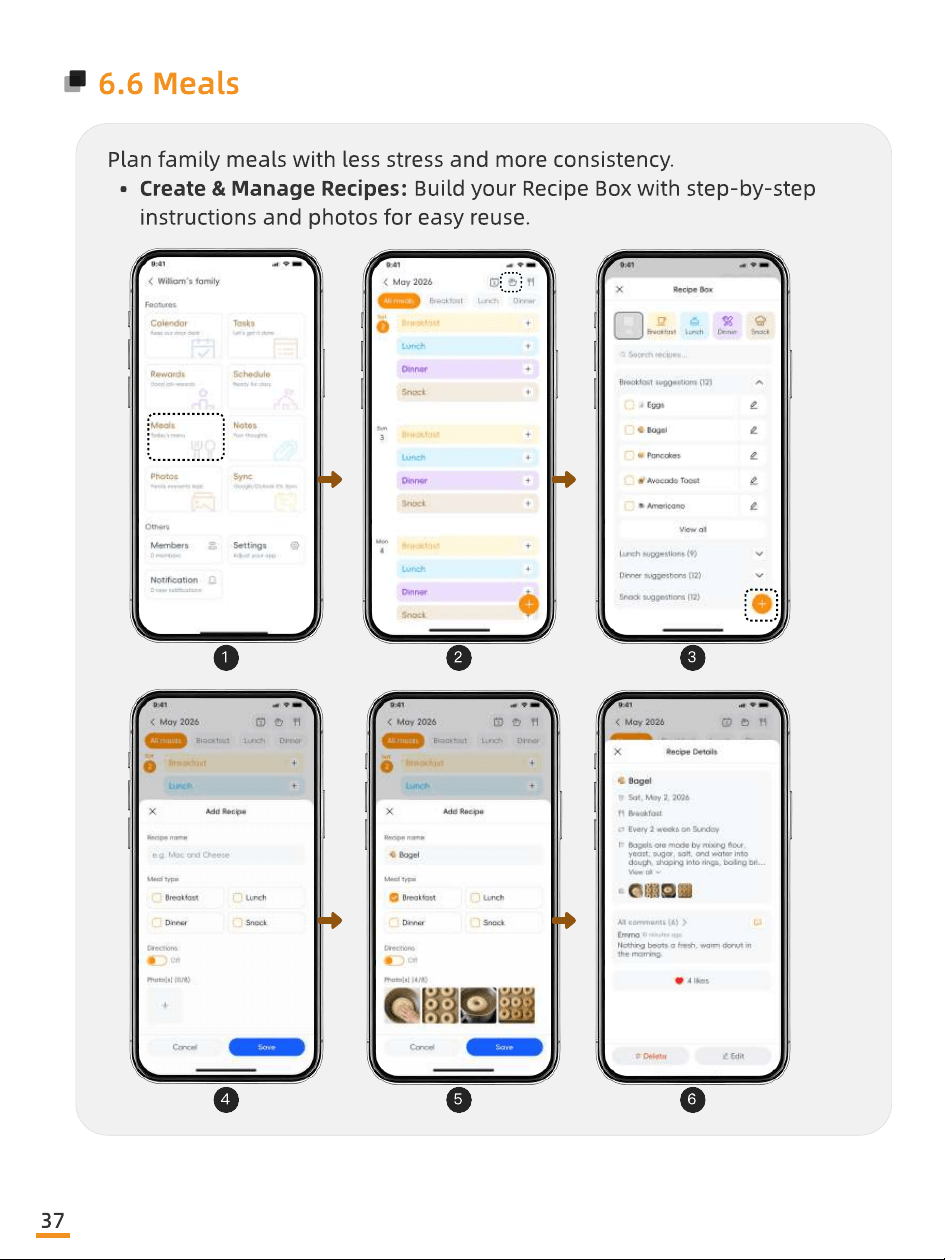
6.6 Meals
Plan family meals with less stress and more consistency
Create & Manage Recipes: Build your Recipe Box with step-by-step
instructions and photos for easy reuse.
1
4
2
5
3
6
37
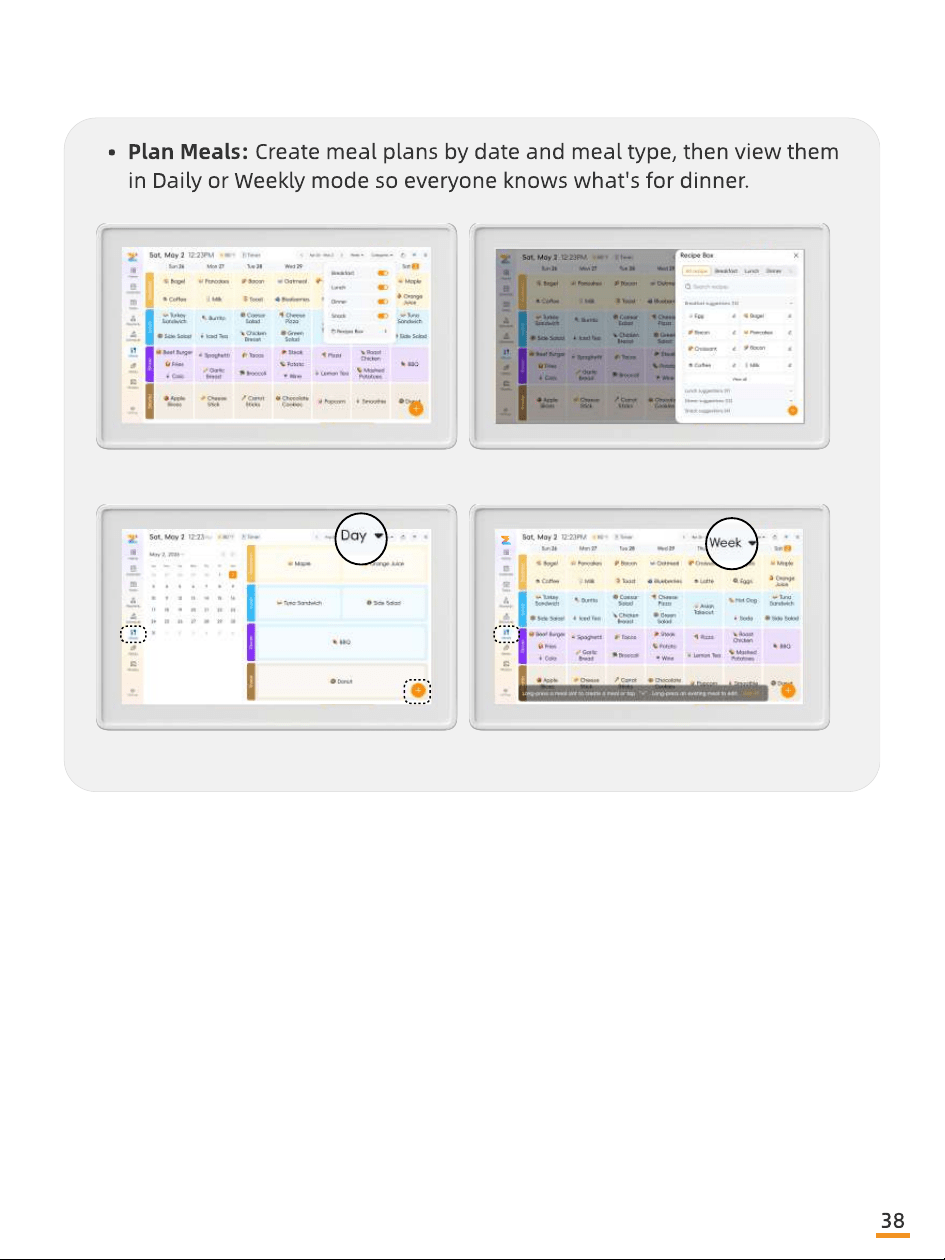
Plan Meals: Create meal plans by date and meal type, then view them
in Daily or Weekly mode so everyone knows what's for dinner.
38
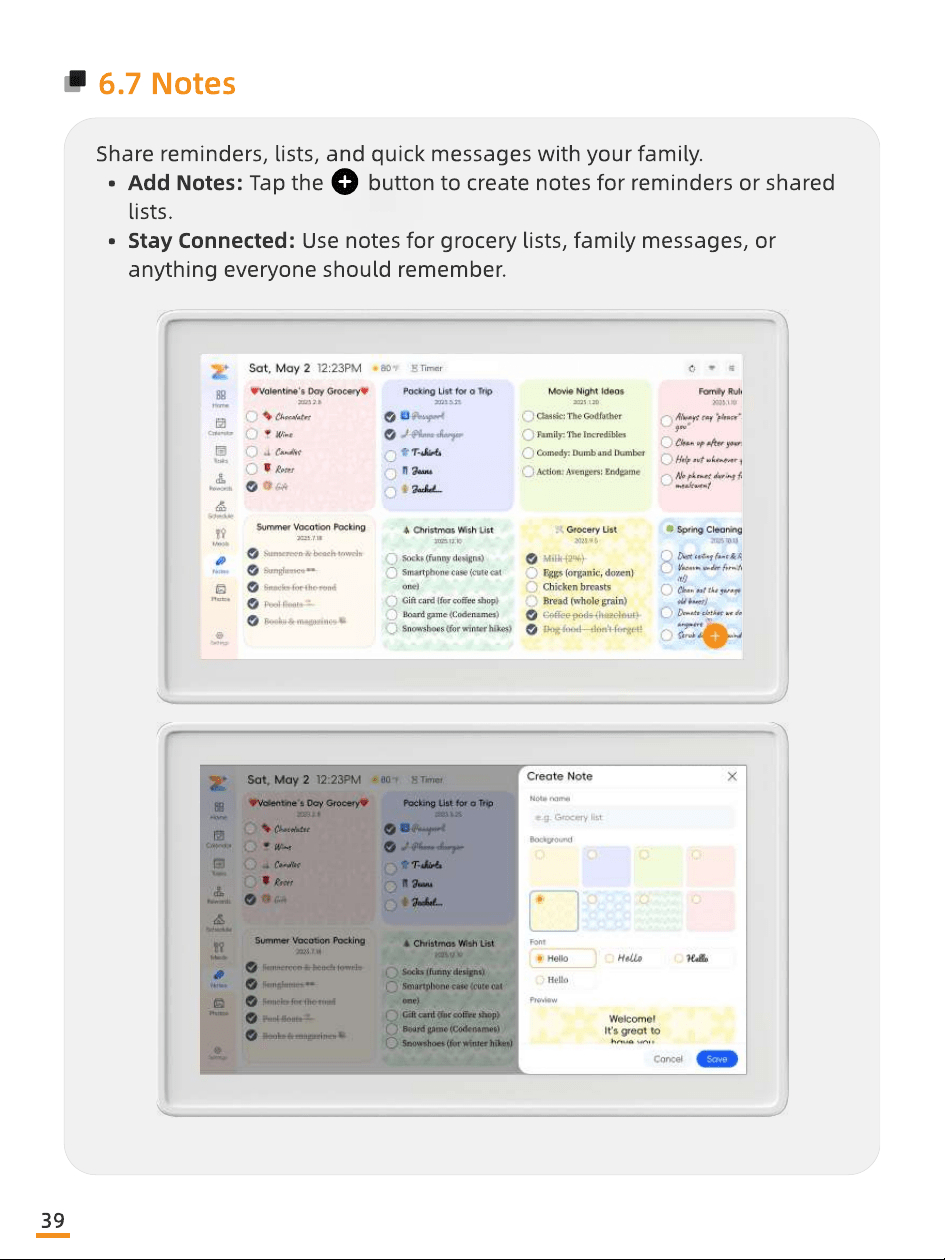
Share reminders, lists, and quick messages with your family
Add Notes: Tap the button to create notes for reminders or shared
lists
Stay Connected: Use notes for grocery lists, family messages, or
anything everyone should remember.
6.7 Notes
39
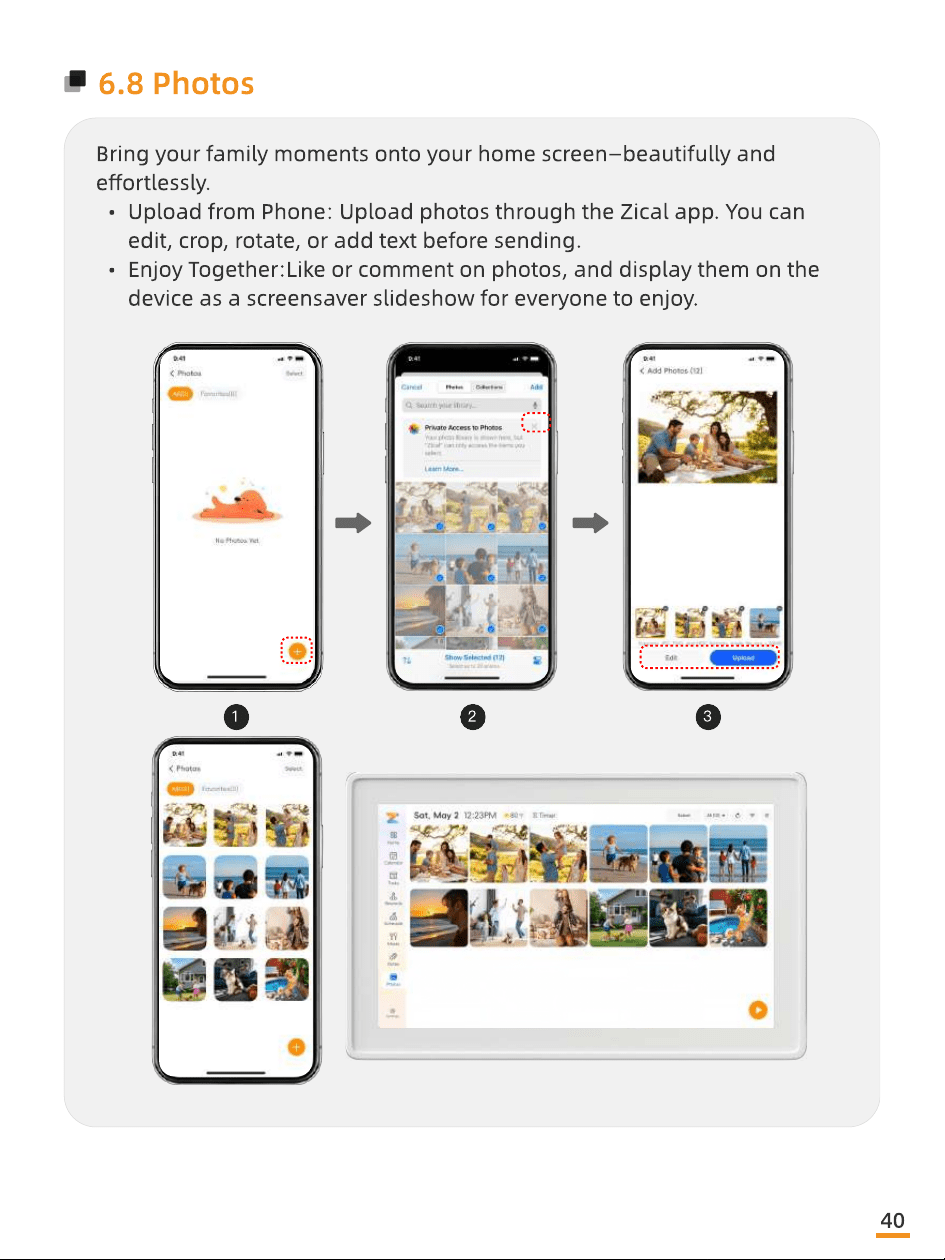
6.8 Photos
Bring your family moments onto your home screen—beautifully and
eortlessly
Upload from Phone: Upload photos through the Zical app. You can
edit, crop, rotate, or add text before sending
Enjoy Together:Like or comment on photos, and display them on the
device as a screensaver slideshow for everyone to enjoy.
1
2
3
40
07
Special Features
Thoughtful extras designed to make everyday family
life easier and more enjoyable.
41
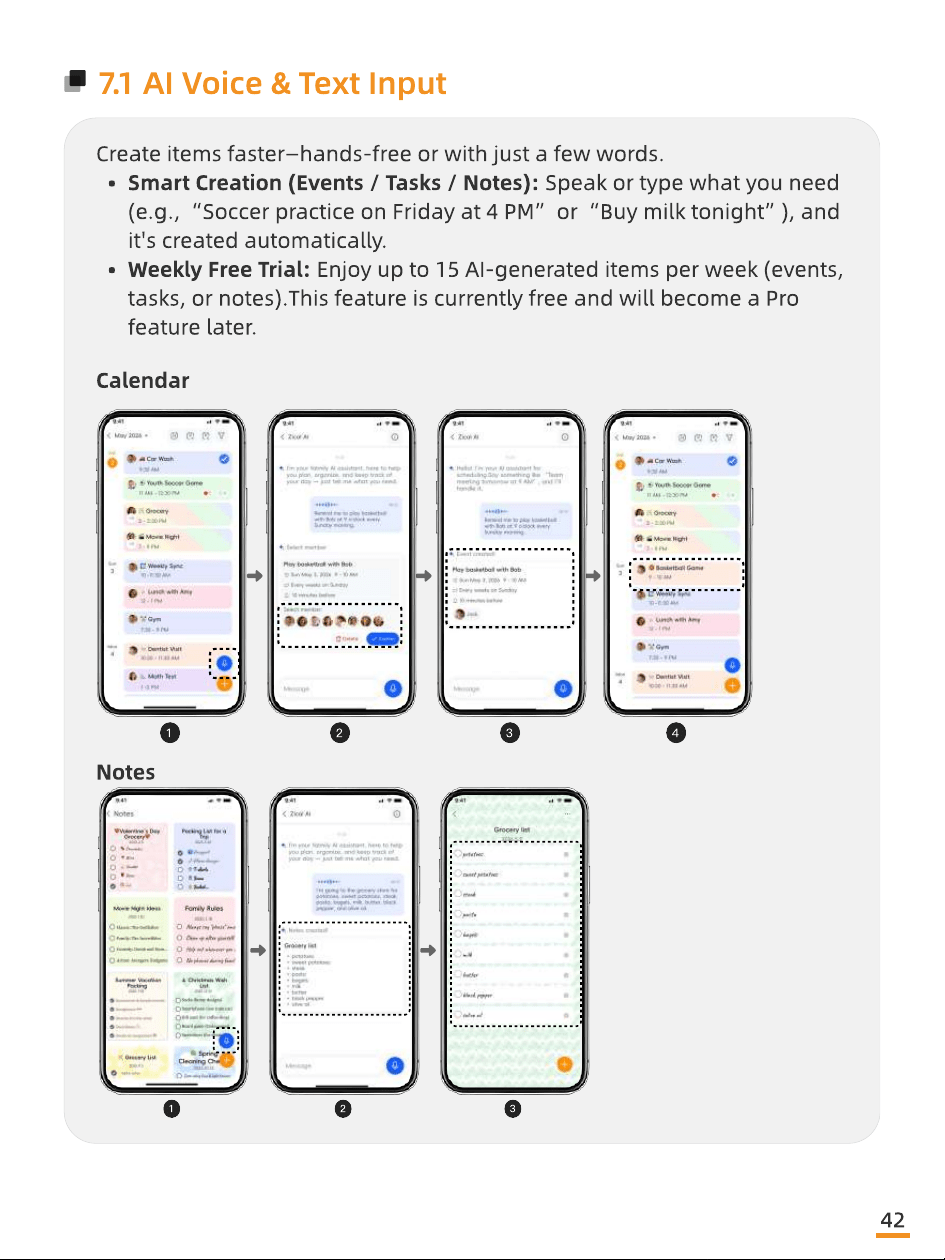
7.1 AI Voice & Text Input
Create items faster—hands-free or with just a few words
Smart Creation (Events / Tasks / Notes): Speak or type what you need
(e.g., “Soccer practice on Friday at 4 PM” or “Buy milk tonight”), and
it's created automatically
Weekly Free Trial: Enjoy up to 15 AI-generated items per week (events,
tasks, or notes).This feature is currently free and will become a Pro
feature later.
Calendar
1
2
3
4
Notes
1
2
3
42
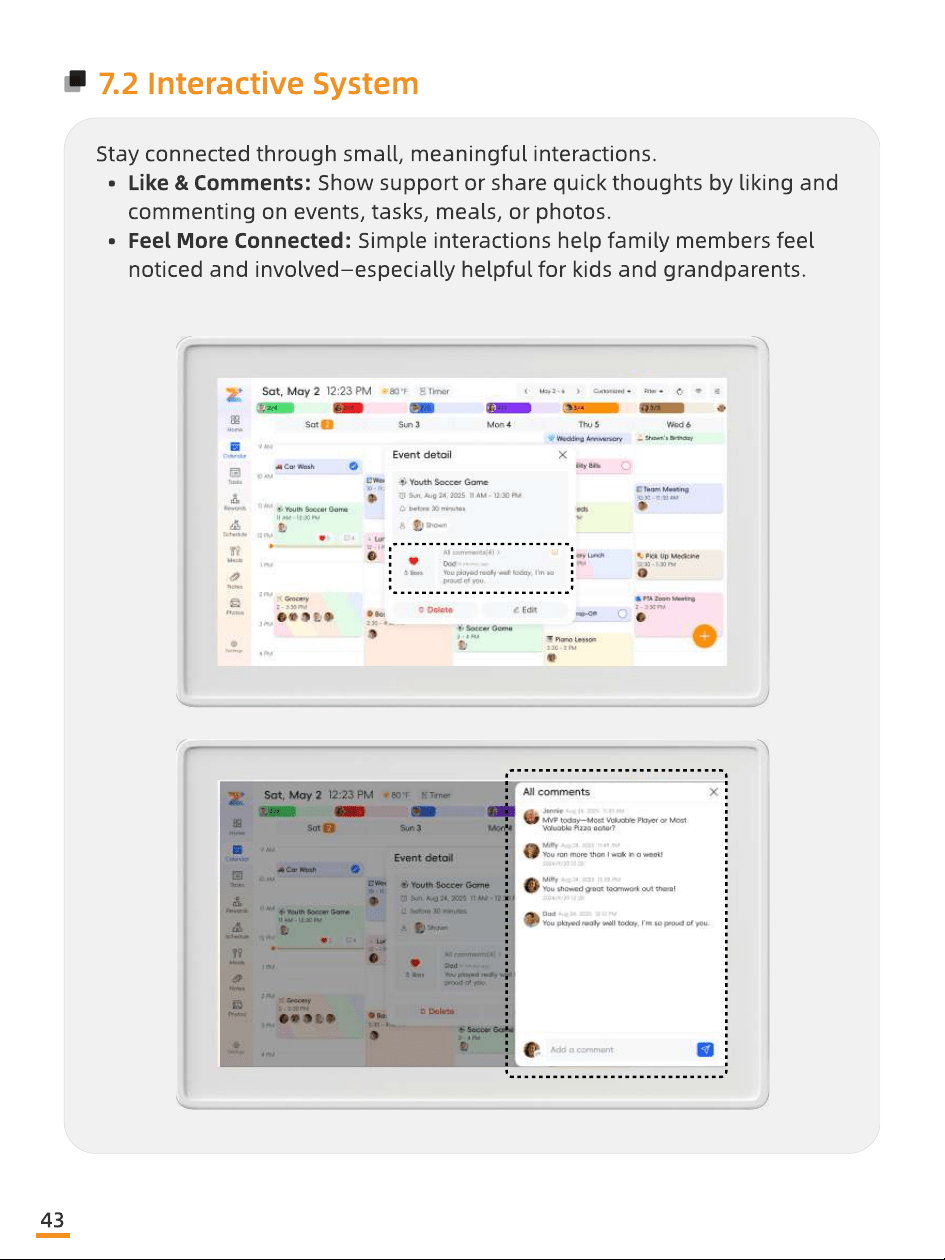
7.2 Interactive System
Stay connected through small, meaningful interactions
Like & Comments: Show support or share quick thoughts by liking and
commenting on events, tasks, meals, or photos
Feel More Connected: Simple interactions help family members feel
noticed and involved—especially helpful for kids and grandparents.
43
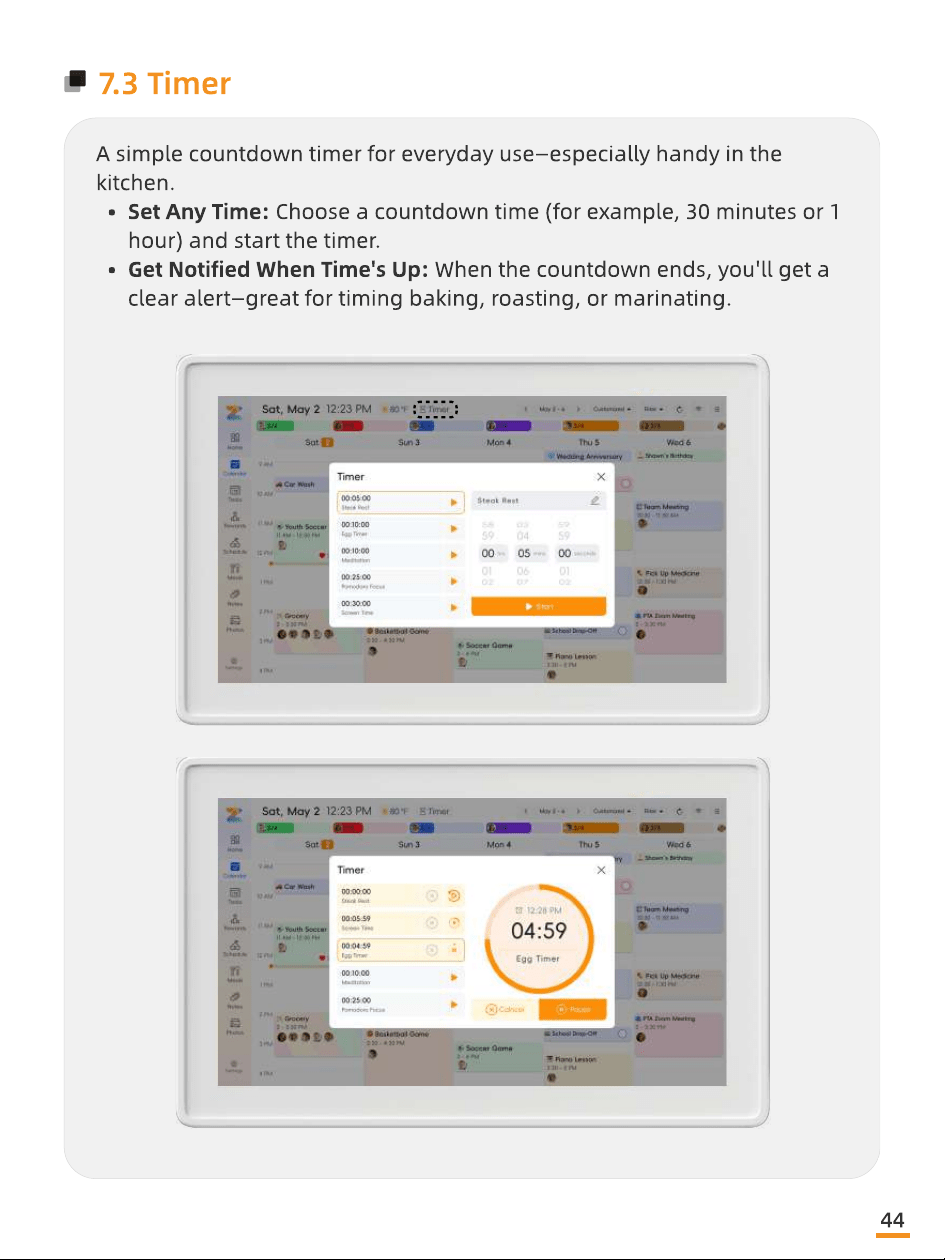
7.3 Timer
A simple countdown timer for everyday use—especially handy in the
kitchen
Set Any Time: Choose a countdown time (for example, 30 minutes or 1
hour) and start the timer
Get Notied When Time's Up: When the countdown ends, you'll get a
clear alert—great for timing baking, roasting, or marinating.
44
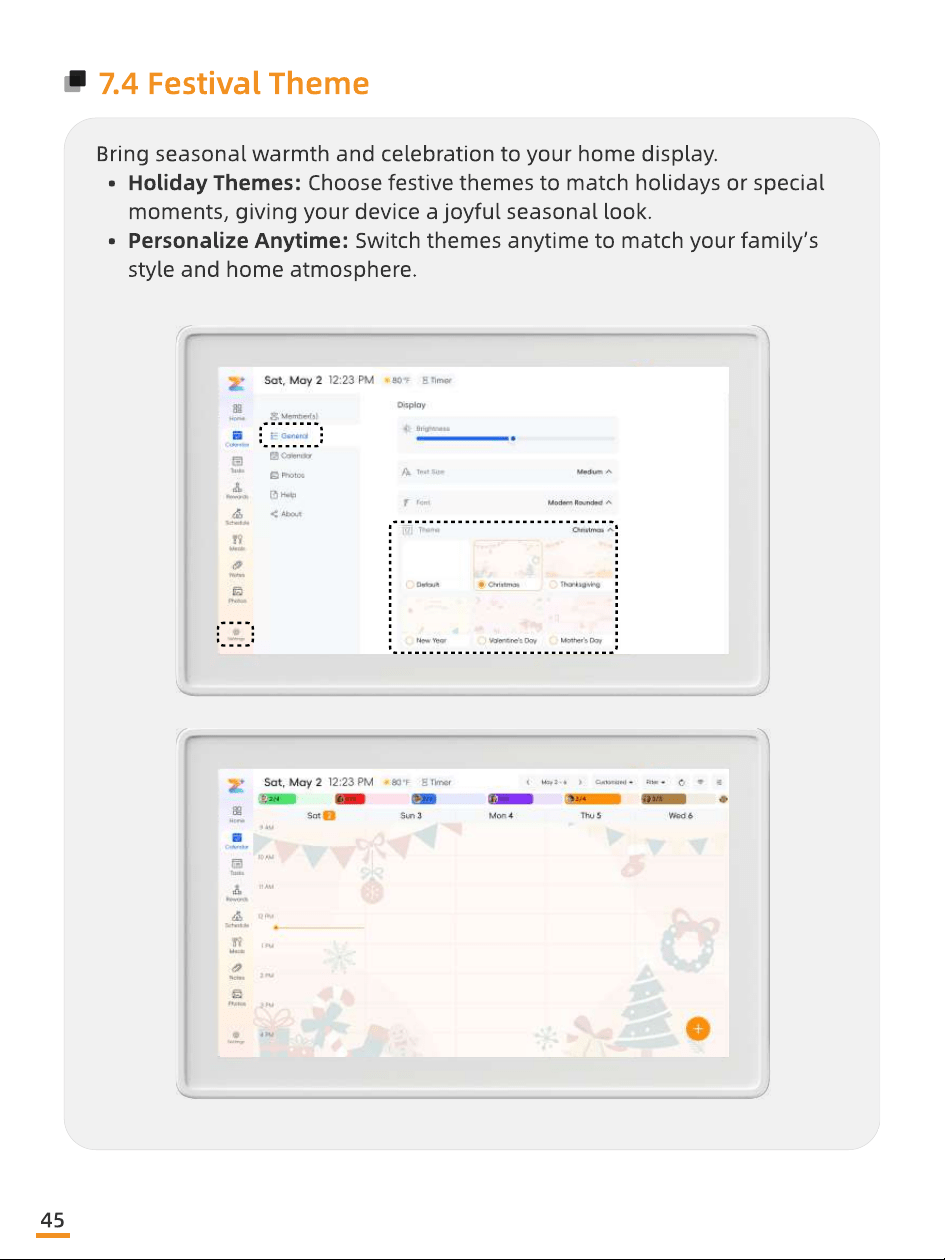
7.4 Festival Theme
Bring seasonal warmth and celebration to your home display
Holiday Themes: Choose festive themes to match holidays or special
moments, giving your device a joyful seasonal look
Personalize Anytime: Switch themes anytime to match your family’s
style and home atmosphere.
45
08
Device Settings
Manage preferences, notications, and device
options to t your family's needs.
46
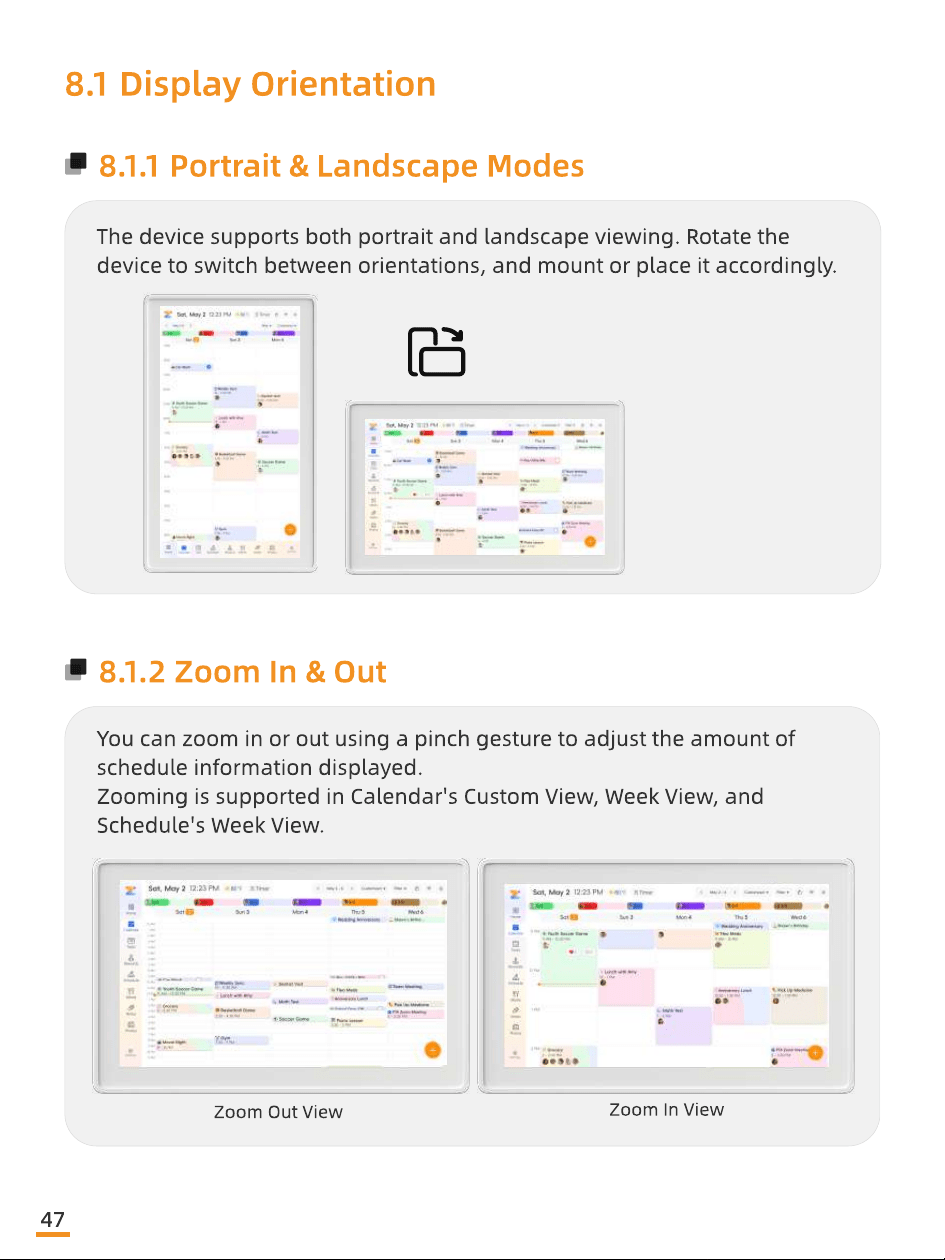
8.1 Display Orientation
8.1.1 Portrait & Landscape Modes
The device supports both portrait and landscape viewing. Rotate the
device to switch between orientations, and mount or place it accordingly.
8.1.2 Zoom In & Out
You can zoom in or out using a pinch gesture to adjust the amount of
schedule information displayed
Zooming is supported in Calendar's Custom View, Week View, and
Schedule's Week View.
Zoom Out View
Zoom In View
47
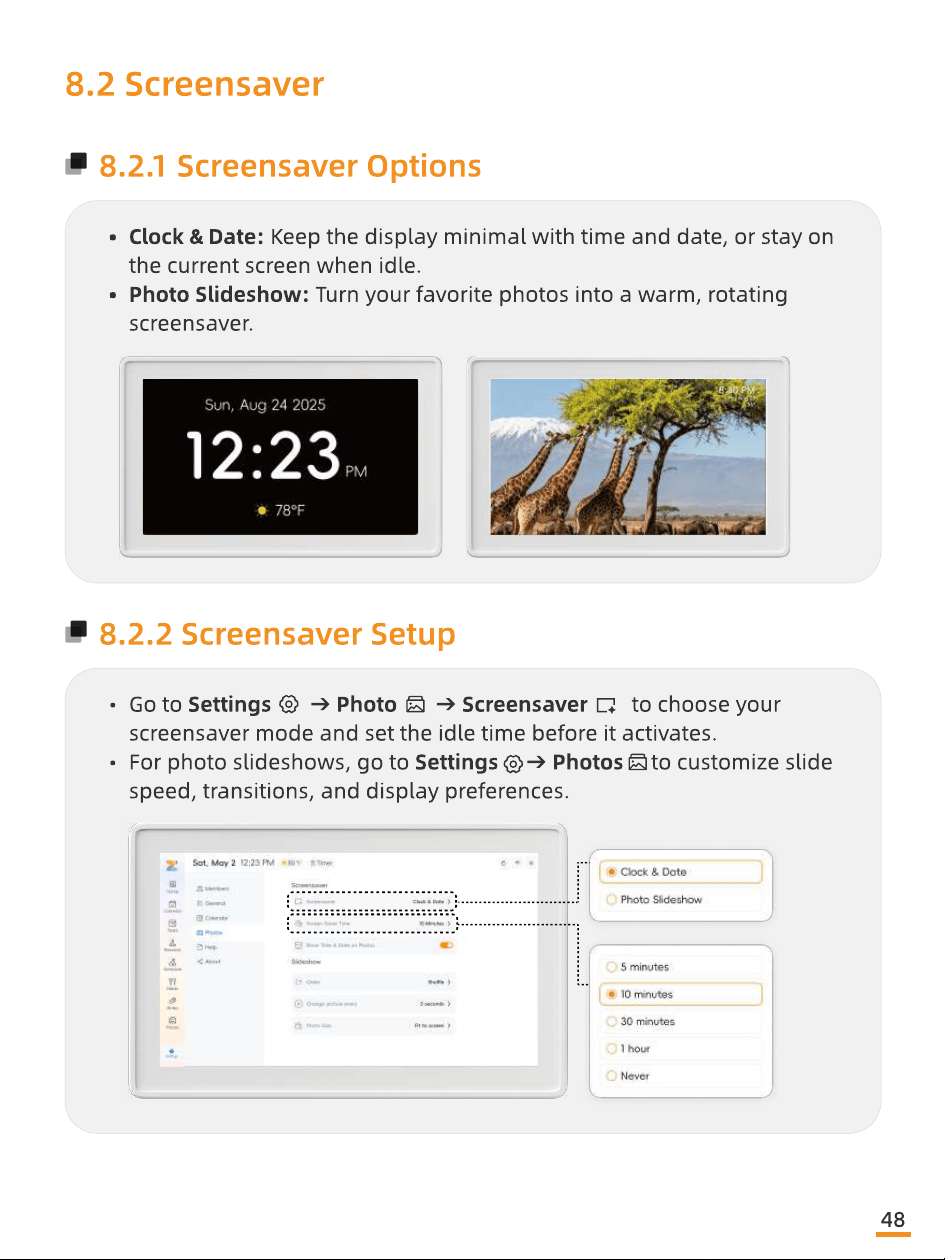
8.2 Screensaver
8.2.1 Screensaver Options
Clock & Date: Keep the display minimal with time and date, or stay on
the current screen when idle
Photo Slideshow: Turn your favorite photos into a warm, rotating
screensaver.
8.2.2 Screensaver Setup
Go to Settings → Photo → Screensaver to choose your
screensaver mode and set the idle time before it activates
For photo slideshows, go to Settings → Photos to customize slide
speed, transitions, and display preferences.
48
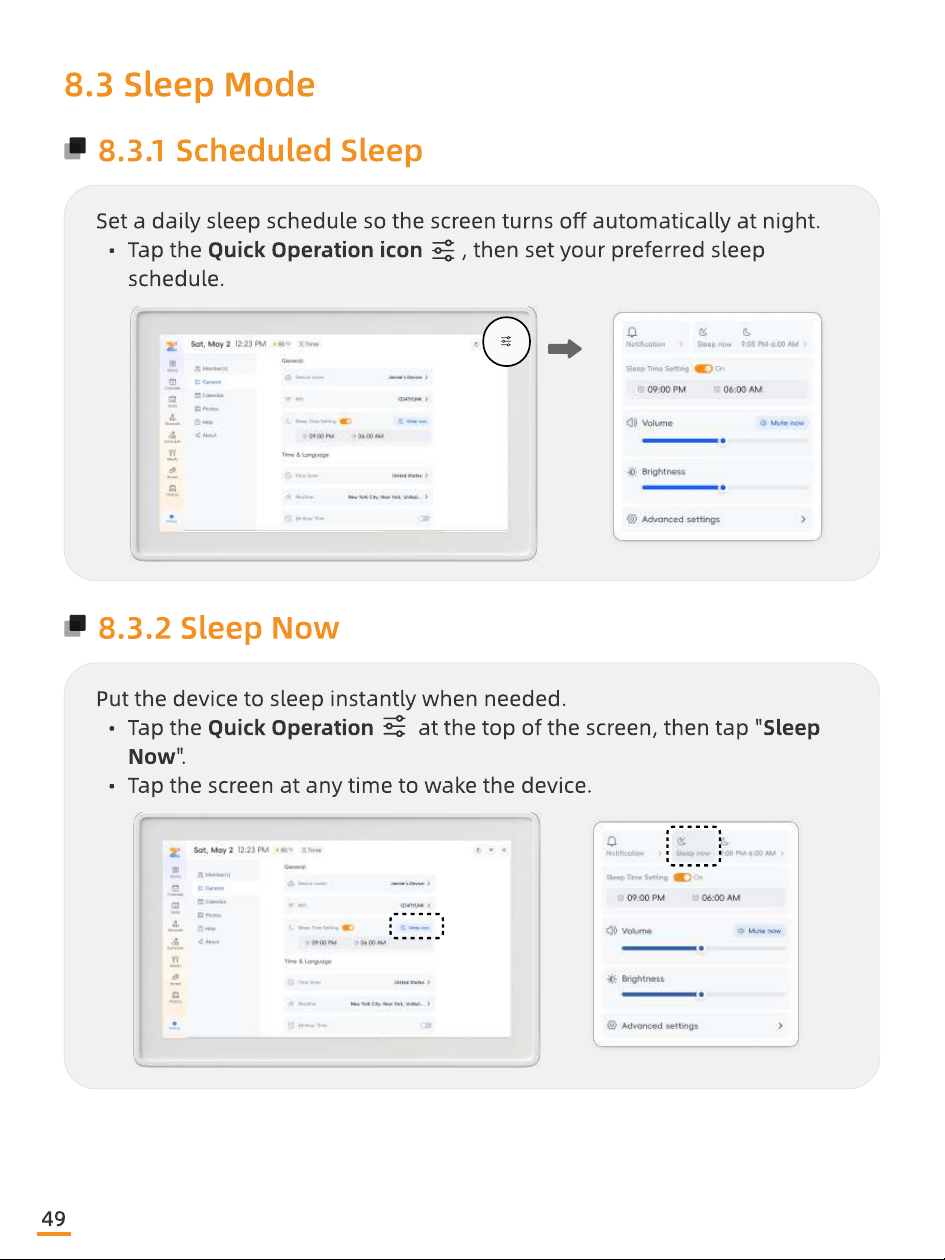
Set a daily sleep schedule so the screen turns o automatically at night
Tap the Quick Operation icon , then set your preferred sleep
schedule.
8.3 Sleep Mode
8.3.1 Scheduled Sleep
8.3.2 Sleep Now
Put the device to sleep instantly when needed
Tap the Quick Operation at the top of the screen, then tap "Sleep
Now"
Tap the screen at any time to wake the device.
49
8.4 Parental Lock
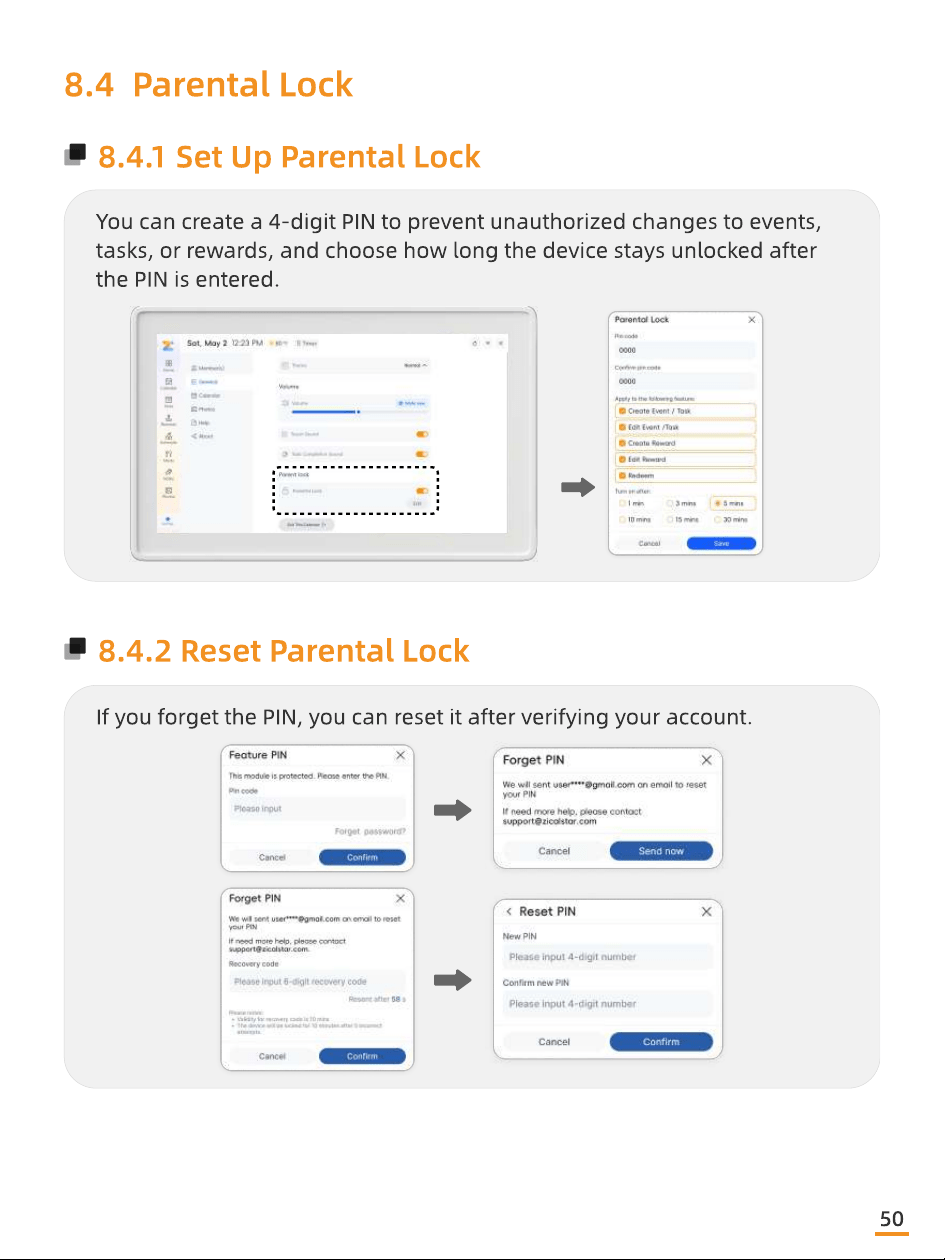
8.4.1 Set Up Parental Lock
You can create a 4-digit PIN to prevent unauthorized changes to events,
tasks, or rewards, and choose how long the device stays unlocked after
the PIN is entered.
8.4.2 Reset Parental Lock
If you forget the PIN, you can reset it after verifying your account.
50
8.5 Reminders
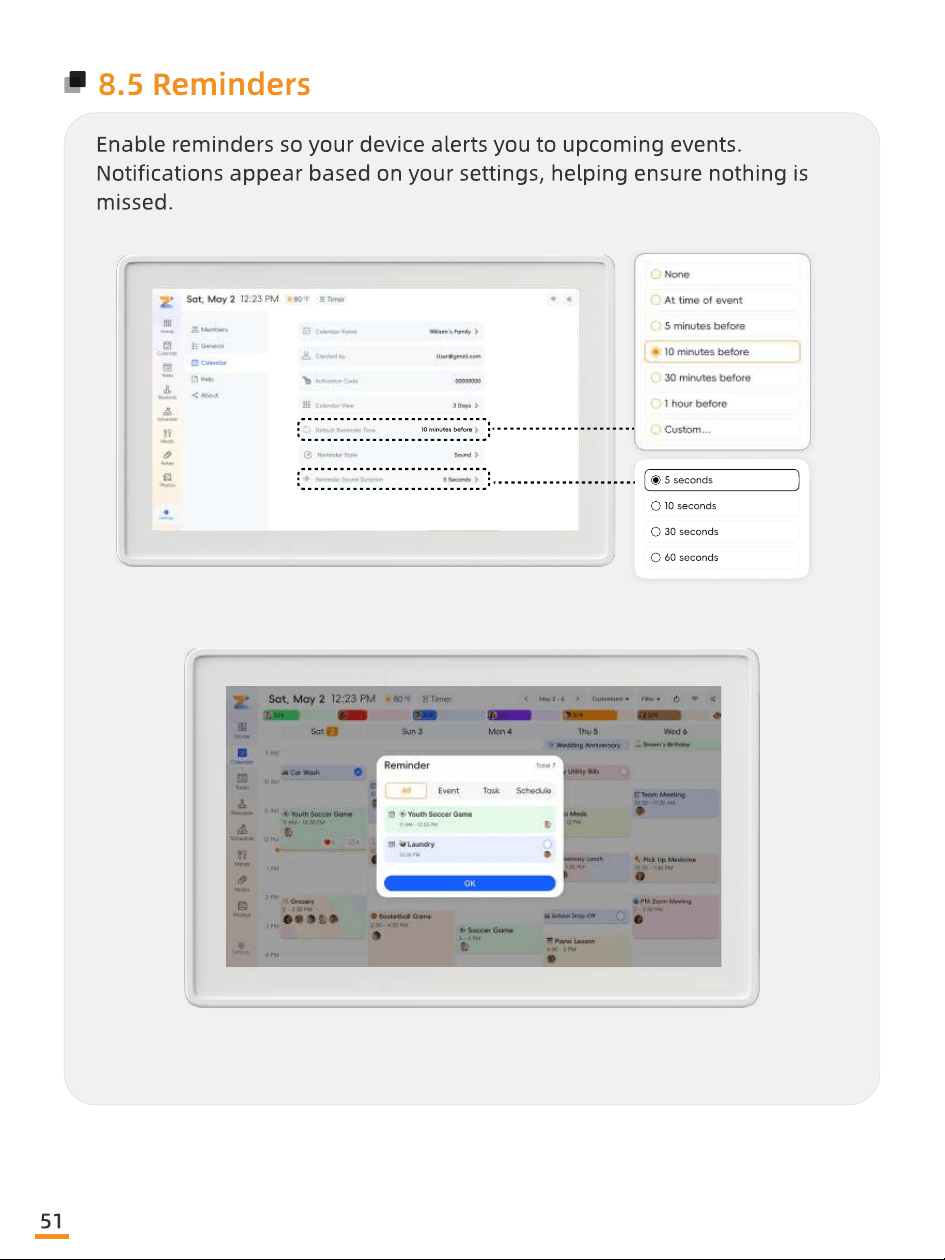
Enable reminders so your device alerts you to upcoming events.
Notications appear based on your settings, helping ensure nothing is
missed.
5 seconds
10 seconds
30 seconds
60 seconds
51
10 minutes before
8.6 Weather
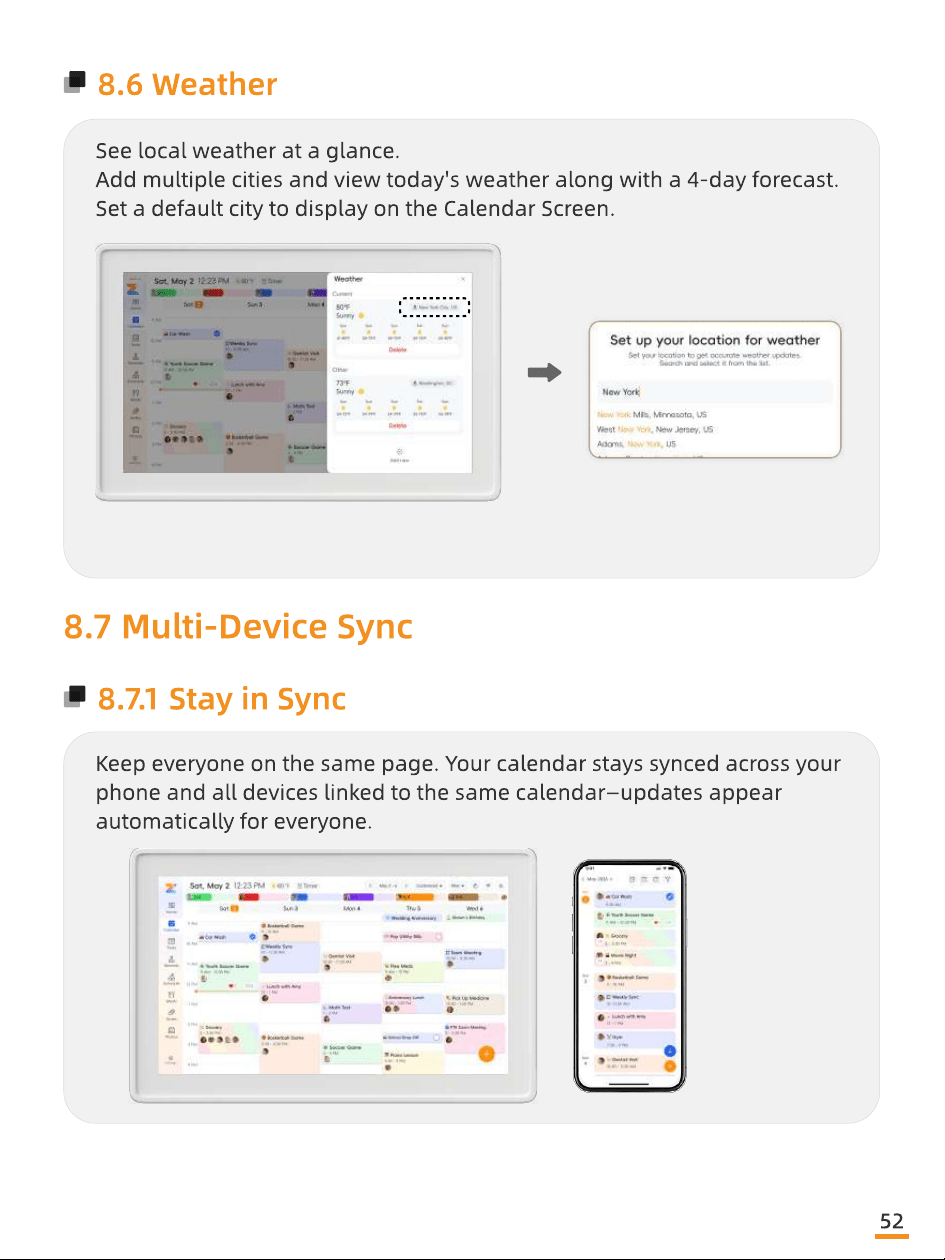
See local weather at a glance
Add multiple cities and view today's weather along with a 4-day forecast.
Set a default city to display on the Calendar Screen.
8.7 Multi-Device Sync
8.7.1 Stay in Sync
Keep everyone on the same page. Your calendar stays synced across your
phone and all devices linked to the same calendar—updates appear
automatically for everyone.
52
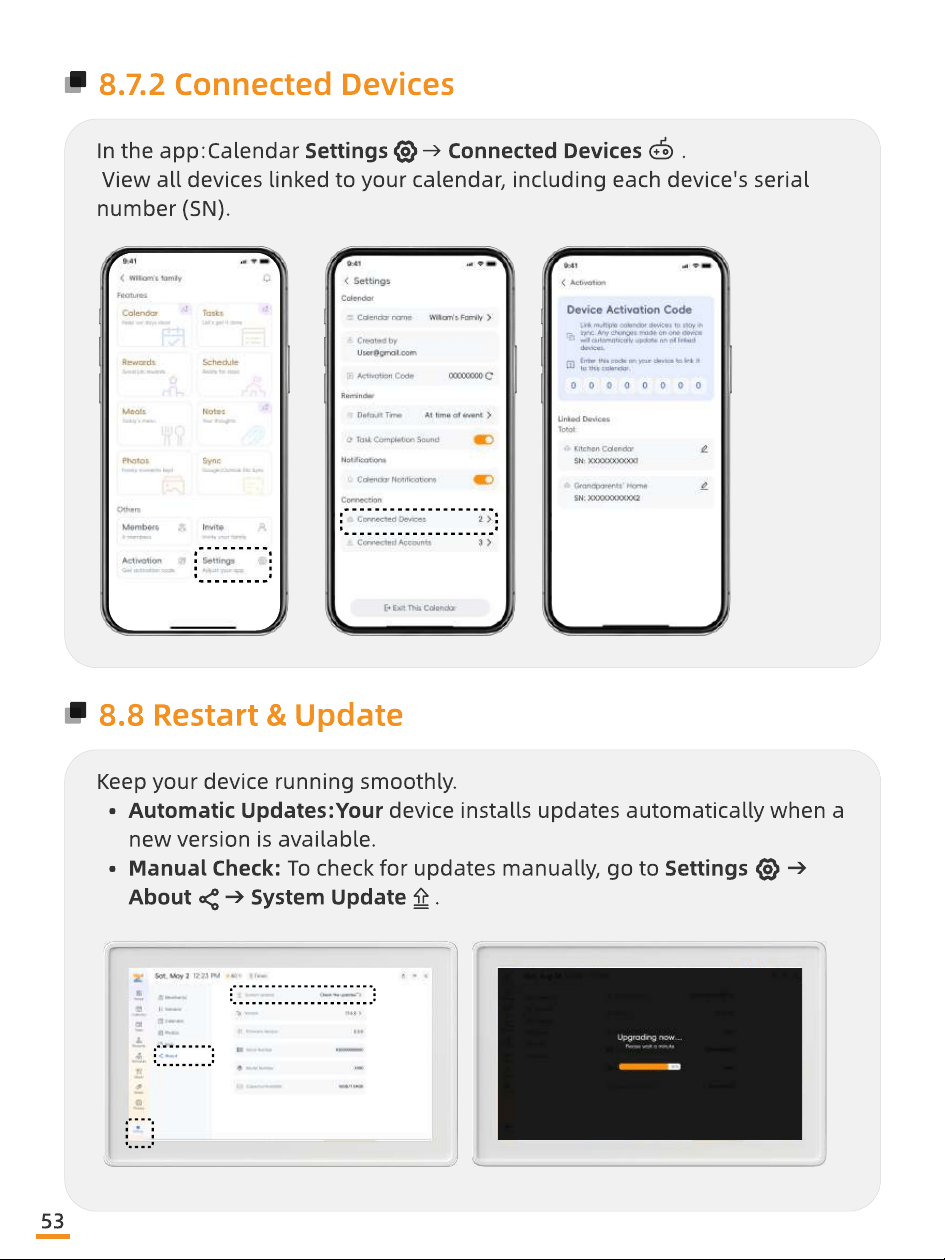
8.7.2 Connected Devices
In the app:Calendar Settings → Connected Devices
View all devices linked to your calendar, including each device's serial
number (SN).
8.8 Restart & Update
Keep your device running smoothly
Automatic Updates:Your device installs updates automatically when a
new version is available
Manual Check: To check for updates manually, go to Settings →
About → System Update .
53
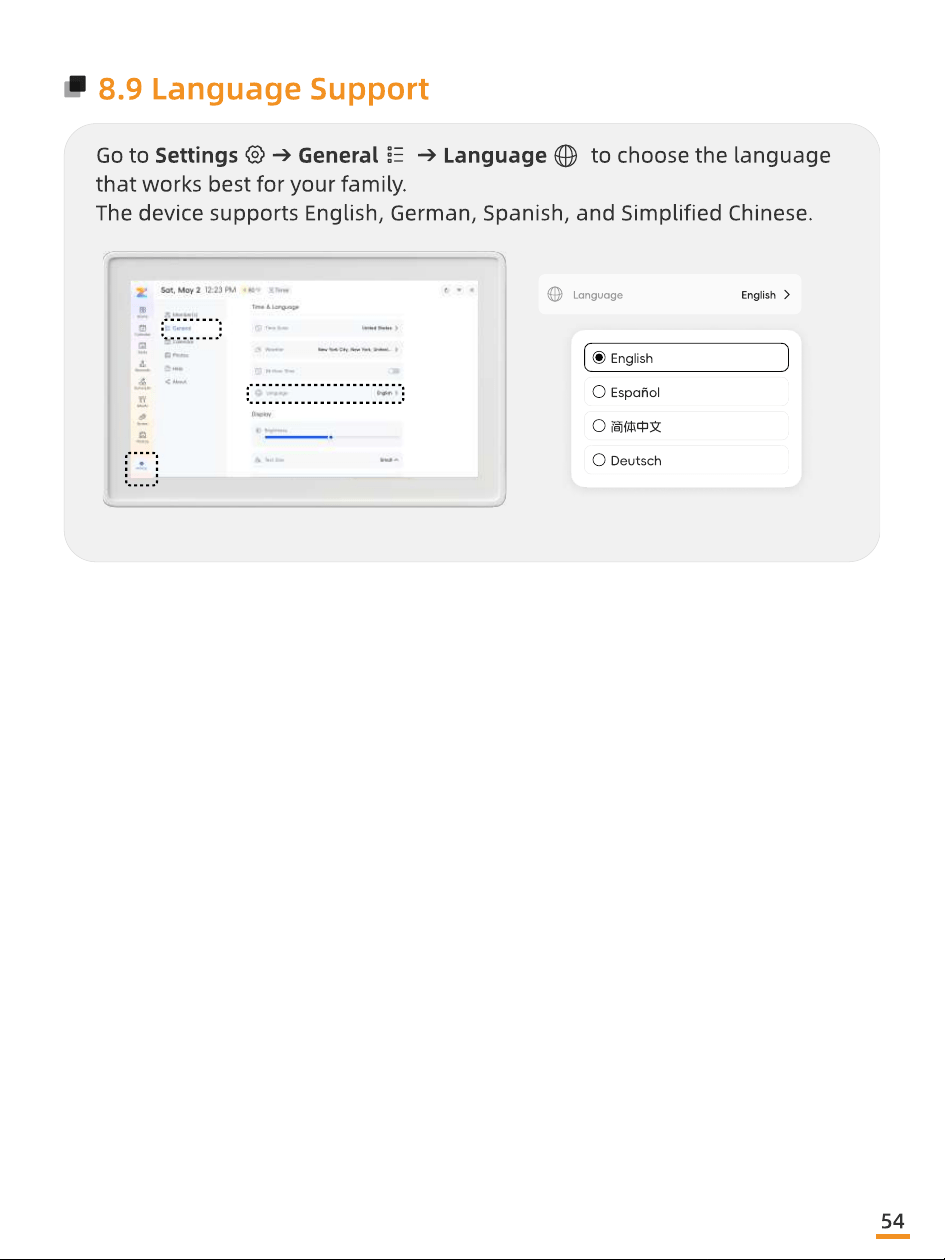
8.9 Language Support
Go to Settings → General → Language to choose the language
that works best for your family
The device supports English, German, Spanish, and Simplied Chinese.
Language
English
English
Español
简体中文
Deutsch
54
09
Warranty
55
9.1 Product Warranty
9.1.1 Warranty Policy
This product is backed by a 12-month limited warranty from the original
date of purchase.
9.1.2 What Is Not Covered
This warranty shall not apply to damage resulting from the following
Physical Damage: Appearance damage, cosmetic damage, or
articial damage
Misuse or Abuse: Damage caused by accident, misuse, abuse,
negligence, or unauthorized modications to any part of the product
Improper Operation: Damage due to improper operation, inadequate
maintenance, or connection to improper equipment
Unauthorized Repairs: Damage caused by repair attempts performed
by anyone not authorized by us.
56

10
Certications
57

FCC Warning
This device complies with Part 15 of the FCC Rules. Operation is subject to the
following two conditions:
(1) This device may not cause harmful interference, and (2) this device must
accept any interference received, including interference that may cause undesired
operation.
NOTE 1: This equipment has been tested and found to comply with the limits for
a Class B digital device, pursuant to part 15 of the FCC Rules. These limits are
designed to provide reasonable protection against harmful interference in a
residential installation. This equipment generates, uses and can radiate radio
frequency energy and, if not installed and used in accordance with the
instructions, may cause harmful interference to radio communications. However,
there is no guarantee that interference will not occur in a particular installation. If
this equipment does cause harmful interference to radio or television reception,
which can be determined by turning the equipment off and on, the user is
encouraged to try to correct the interference by one or more of the following
measures:
- Reorient or relocate the receiving antenna.
- Increase the separation between the equipment and receiver.
-Connect the equipment into an outlet on a circuit different from that to which
the receiver is connected.
-Consult the dealer or an experienced radio/TV technician for help.
NOTE 2: Any changes or modifications to this unit not expressly approved by the
party responsible for compliance could void the user's authority to operate the
equipment.
RF Exposure Statement
To maintain compliance with FCC'S RF Exposure guidelines, This equipment
should be installed and operated with minimum 20cm between the radiator and
your body. This device and its antenna(s) must not be co-located or operation in
conjunction with any other antenna or transmitter.

Zical
Email: support@zicalstar.com