Dual View 4K Dashcam With AI Triggered Smart Incident Recording
Important, retain for future reference:
Read carefully
WP ITM. BT535838
Care & Use Instructions
T402E

TABLE OF CONTENTS
1. Introduction ...............................................................................................................................................................................1
2. Package Contents ...................................................................................................................................................................2
3. Product Specications ..........................................................................................................................................................3
4. Dimensions ................................................................................................................................................................................3
5. Product Overview ....................................................................................................................................................................4
6. Controlling The Camera ........................................................................................................................................................5
7. Installing The Camera .............................................................................................................................................................6
8. Setting Up The Camera ........................................................................................................................................................7
9. Camera Status & LED Indicators .......................................................................................................................................11
10. Recording Time .....................................................................................................................................................................11
11. Time-Lapse Recording Logic ..........................................................................................................................................11
12. Technical Specications ...................................................................................................................................................12
13. Downloading The App .....................................................................................................................................................12
14. Setting Up The App ............................................................................................................................................................13
15. FAQs ..........................................................................................................................................................................................17
16. Safety Information .............................................................................................................................................................18
17. Maintenance & Warranty ................................................................................................................................................. 20
18. General Information ......................................................................................................................................................... 23
For more detailed instructions, please scan the QR code above or
visit www.typesauto.com to access the complete user manual.

1 2
Please carefully review all installation instructions before installing the product. Improper
installation may void the manufacturer's warranty. These instructions are not applicable to all vehicle
types and are provided as guidelines to aid in product installation.
If you require assistance with camera installation, please feel free to either consult an experienced
technician or reach out to TYPE S customer support at 1.866.294.9244.
BEFORE using the camera, please read the safety information in this manual, and always
follow the guidelines outlined in it while using the product.
Please make sure you've read and understood local laws and regulations regarding cameras in
vehicles, as these laws can vary by state.
1. INTRODUCTION
2. PACKAGE CONTENTS
1. 2.
3. 4.
5. 6.
7. 8.
9.
32GB
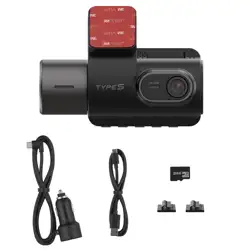
1. 1 x TYPE S T402E Dual View Dashcam
2. 1 x 12/24V Power Adapter
3. 1 x Mounting Bracket with 3M VHB™ Double-
Sided Tape
4. 1 x Spare 3M VHB™ Double-Sided Tape
5. 2 x Cable Clips
6. 1 x USB-A to USB-C Data Transfer Cable
7. 1 x Adhesive Film
8. 1 x 32GB MicroSD Card (Factory-installed,
replaceable)
9. 1 x Warranty Card
www.typesauto.com/register
Register this product within 30 days of purchase to receive 1 FREE YEAR of additional warranty coverage
(beyond the standard one year warranty), along with special product offers and announcements.
Registre este producto dentro de los 30 días siguientes a la compra para recibir 1 AÑO GRATUITO de
cobertura de garantía adicional (más allá de la garantía estándar de un año), junto con ofertas de productos
y anuncios especiales.
Enregistrez ce produit dans les 30 jours suivant l'achat pour recevoir une couverture supplémentaire
GRATUITE DE 1 AN (au-delà de la garantie standard d'un an), ainsi que des offres et des annonces spéciales.
STOP
ARRÊT
DETÉNGASE
Mon-Fri, 8am-5pm PST / Lundi au vendredi, 8h à 17h HNP /
Lun-vie, 8 a. m. a 5 p. m. Hora del Pacífico
[email protected] / (866) 294-9244
Please contact our customer service before returning this product to
the store. Our friendly representatives are happy to help with any
questions or concerns you have.
Póngase en contacto con nuestro servicio a clientes antes de regresar
este producto a la tienda. A nuestros amables representantes les dará
mucho gusto ayudarle con cualquier pregunta o inquietud que tenga.
Veuillez communiquer avec notre service à la clientèle avant de
retourner le produit au magasin. Nos représentants se feront un plaisir
de vous assister pour toute question ou préoccupation.
Product code / Code de produit / Código del producto : BT533004
@TypeSAuto
ML-533004DNR_V1
3 4
3. PRODUCT SPECIFICATIONS
Display:
Video Resolution:
Frequency:
Operating Voltage:
Operating Temperature:
Lens (View Angle):
Maximum Signal Range:
2.4”
Front Camera – UHD 4K (3840 x 2160)
Interior Camera – FHD 1080P (1920 x 1080)
2.4GHz
DC 12/24V / DC 5V (USB-C)
14°F~140°F (-10°C~60°C)
Front Camera – 120°; Interior Camera – 130°
Up to 10ft / 3m
T402E Dual View Dashcam
4. DIMENSIONS
4.22 in / 107.3 mm
2.55 in / 64.9 mm
3.18 in /
80.8 mm
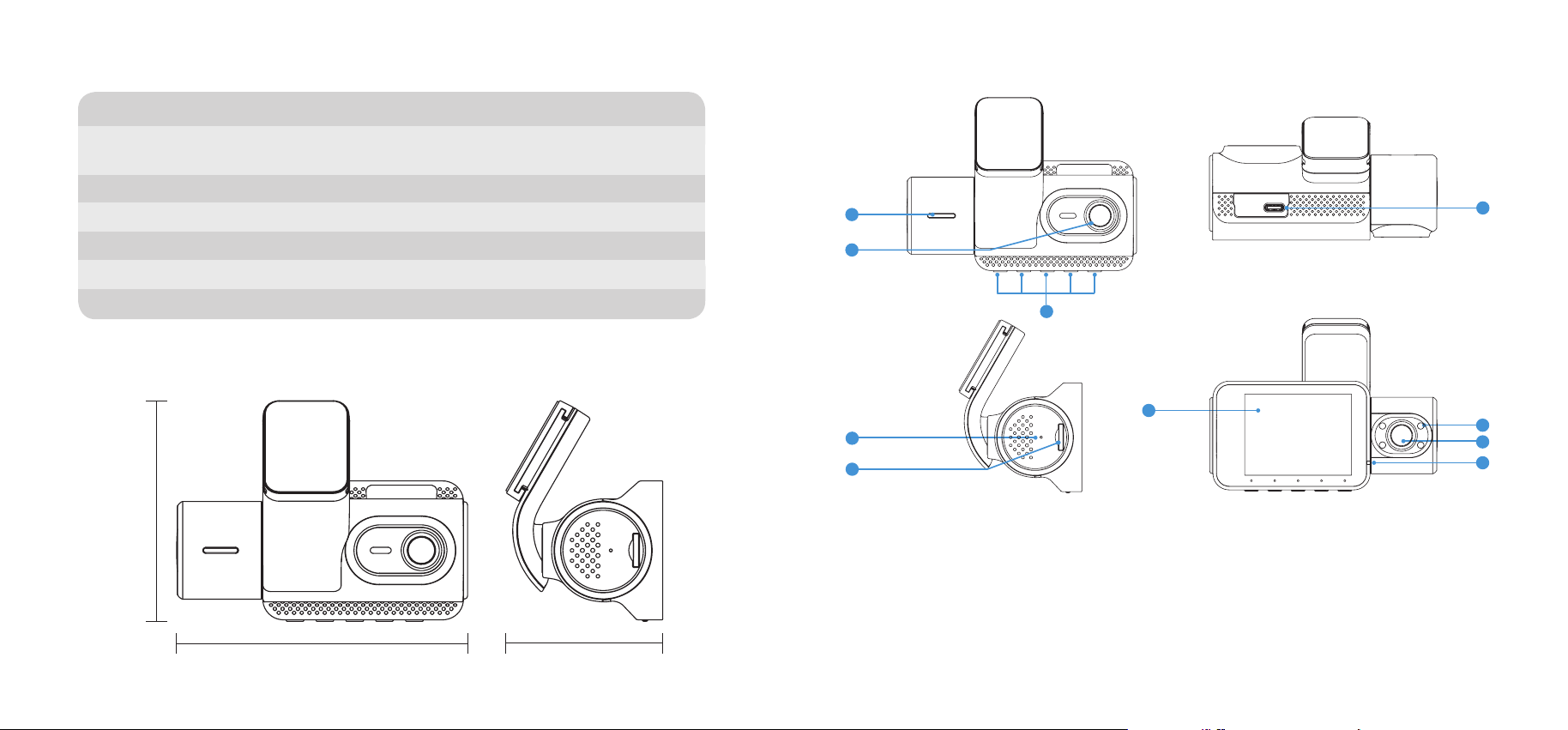
5. PRODUCT OVERVIEW
1
2
6
1. Speaker
2. Front Camera
3. Function Buttons
4. Reset Button
5. MicroSD Card Slot (MicroSD Card Factory-Installed)
6. Power Input
7. Display Screen
8. Infrared Sensors
9. Interior Camera
10. LED Indicators
3
10
8
7
5
4
9
5 6
6. CONTROLLING THE CAMERA
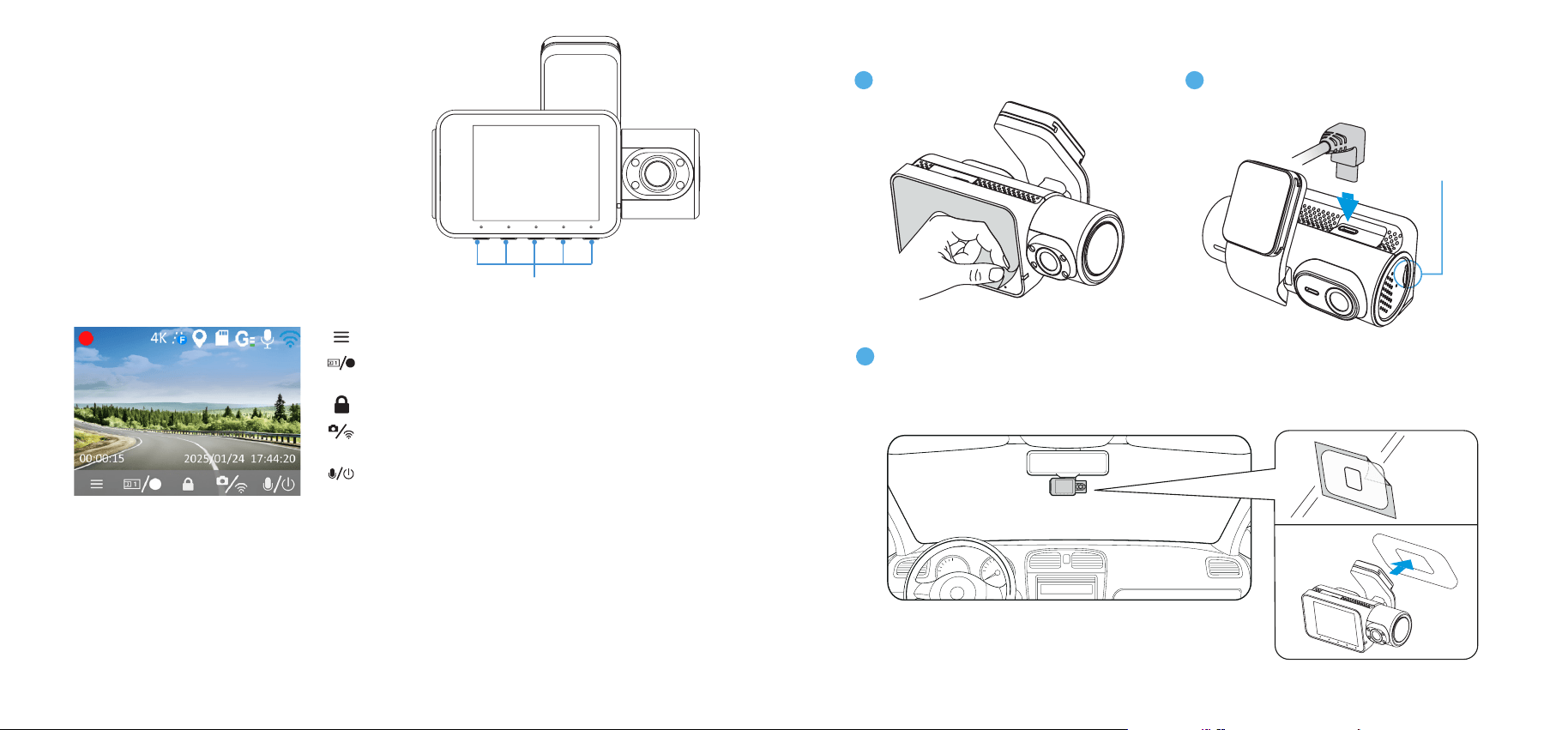
Apply conguration and settings to the camera
using the 5 function buttons. Please refer to
the section below for the functions of each
button under dierent modes.
Function Buttons
7. INSTALLING THE CAMERA
1
Remove the protective lm from the
display screen.
MicroSD Card
(Factory-Installed)
2
Connect the USB-C power cable to the
input port on the camera.
3
Mount the camera onto the windshield:
• Take the adhesive lm, remove the protective layer, and apply it onto the windshield.
• Peel o the 3M VHB™ tape backer from the windshield mount and ax the camera to
the center of the adhesive lm.
NOTE: To optimize the accuracy of AI calibration, we
recommend placing the camera at the center of your
windshield, right behind your rear view mirror.
Windshield
For more information about AI Dashcam operation, please refer to the e-manual on
www.typesauto.com.
Video ModeVideo Mode
Menu (click once)
Switch between Front/Interior/PIP view (click once)
Record/Stop Recording (press & hold)
Event Recording (click once)
Snapshot (click once)
Access WiFi QR Code (press & hold)
Audio Recording On/O (click once)
Power On/O (press & hold)
7 8
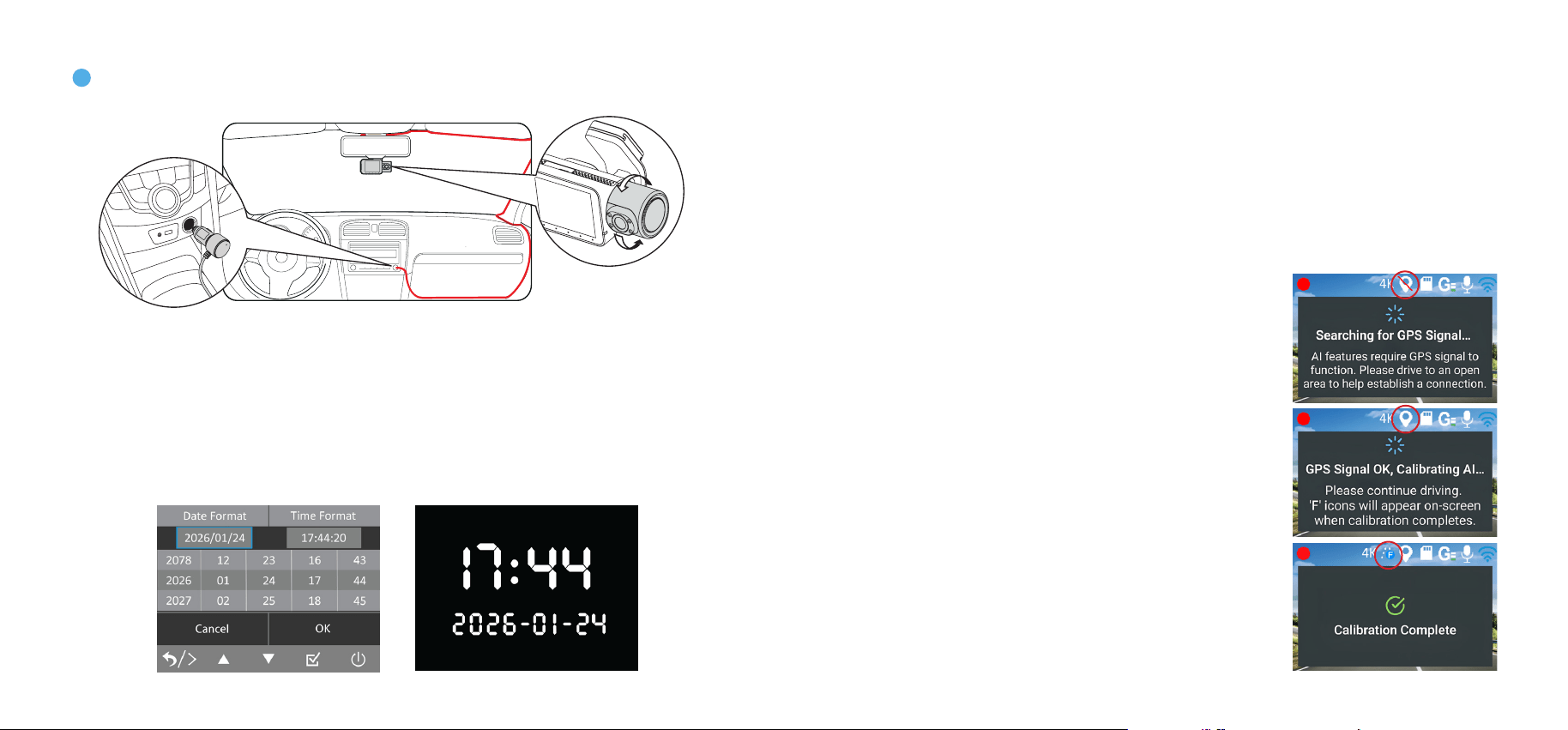
Route the power cable through the headliner and pillars inside your vehicle. To ensure it
doesn’t obstruct the driver’s view, we recommend passing it through the passenger side. You
may use the included cable clips to prevent the cable from dangling.
Adjust the interior
camera to get the best
view of the cabin.
8. SETTING UP THE CAMERA
Set the date & time before using the camera. The date stamps that appear on all future recordings will
follow this setting. You may also sync the date & time to your phone by connecting the camera to the
TYPE S Drive App.
Auto-Calibration
The front camera features an AI-powered Advanced Driver Assistance System. Upon initial use, the
device will automatically calibrate to enhance the accuracy of detecting safety events. Please note
that this calibration process may take up to 15 minutes to complete.
Tips for Faster Calibration
• Calibration requires an active GPS signal. Drive around, and the GPS signal should usually be
acquired quickly.
• Calibration only occurs during rst-time use unless the user manually initiates recalibration.
• We recommend driving on the highway for faster calibration.
• Once calibration is complete, an F icon will appear on the screen.
Initially, the camera will search for a GPS signal. The screen will
display the message: “Searching for GPS Signal”. To expedite this
process, drive in an open area, away from tall buildings or heavy
foliage that may obstruct GPS reception.
Once the GPS signal is acquired, the screen will change to “GPS
Signal OK, Calibrating AI”. This indicates that the calibration
process is initiated but is not yet complete. Continue driving so
the camera can nish calibrating.
WARNING: Please ensure you complete the initial calibration.
Failure to do so may result in inaccurate data, potentially
aecting your safety and the performance of Advanced Driver
Assistance features while driving.
Recalibrating the AI
Recalibration is required when transferring the camera to a
dierent vehicle. To do this, format the SD card in General
Settings, and then repeat the calibration process. Make sure
to transfer all important les to another storage device before
formatting to avoid data loss.
4
Park & Record Mode
To access Park & Record Mode, a hardwiring cable (AC533513) is required. Please visit www.
typesauto.com or contact our customer service regarding the purchase.
9 10
Advanced Driver Assistance System (ADAS)
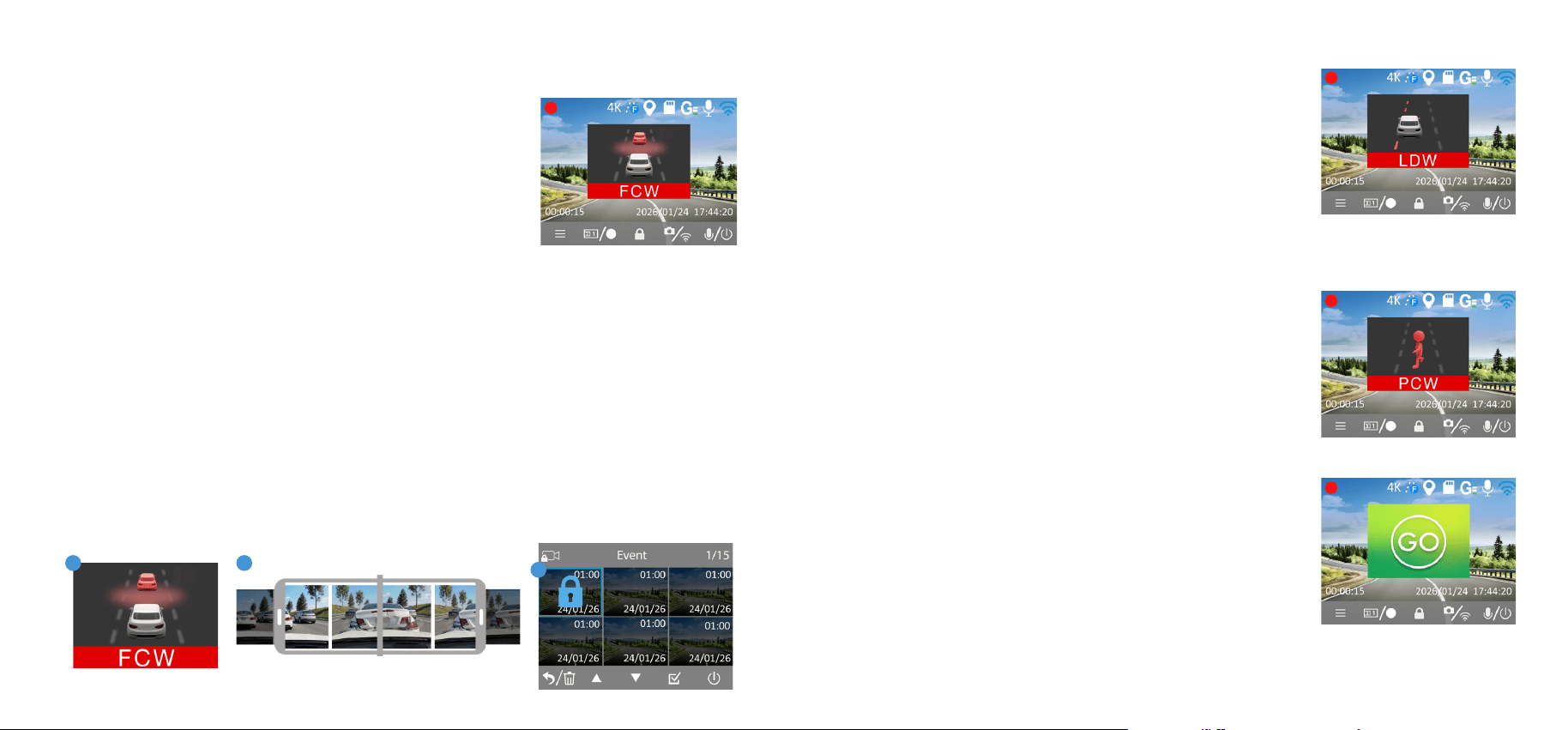
1. Forward Collision Warning
While driving above your selected speed, the camera calculates an
estimated safe following distance. If your vehicle gets too close to the
vehicle ahead and a collision risk is detected, the camera will issue
visual and audio alerts and saves the recording in the "Event" folder.
Select the speed at which you would like the feature to be activated. If
you select 20 MPH, this feature will only activate when you’re driving
at over 20 MPH.
- 20 MPH / 25 MPH / 30 MPH
- 30 KM/H / 40 KM/H / 50 KM/H
NOTE: Please set your desired speed unit before adjusting the
activation speed (Menu > General Settings > Speed Unit).
2.Lane Departure Warning
The Lane Departure Warning system provides alerts when your vehicle
deviates from the driving lane at a speed over the selected threshold.
Select the speed at which you would like the feature to be activated.
- 40 MPH / 45 MPH / 50 MPH
- 60 KM/H / 70 KM/H / 80 KM/H
NOTE: Please set your desired speed unit before adjusting the
activation speed (Menu > General Settings > Speed Unit).
4. Stop & Go
Stop & Go system noties you if trac starts moving, but your
vehicle hasn’t. When your vehicle has stopped for over 5 seconds,
and the vehicle ahead moves at least 7 feet (2 meters) forward, the
camera will issue both visual and audio reminders.
3. Pedestrian Warning
The camera tracks nearby pedestrians, cyclists, and motorcyclists.
If any of these road users are detected within 33 feet (10 meters)
ahead while you’re driving between 7 MPH and 25 MPH (10 KM/H
and 40 KM/H), visual and audio alerts will be issued.
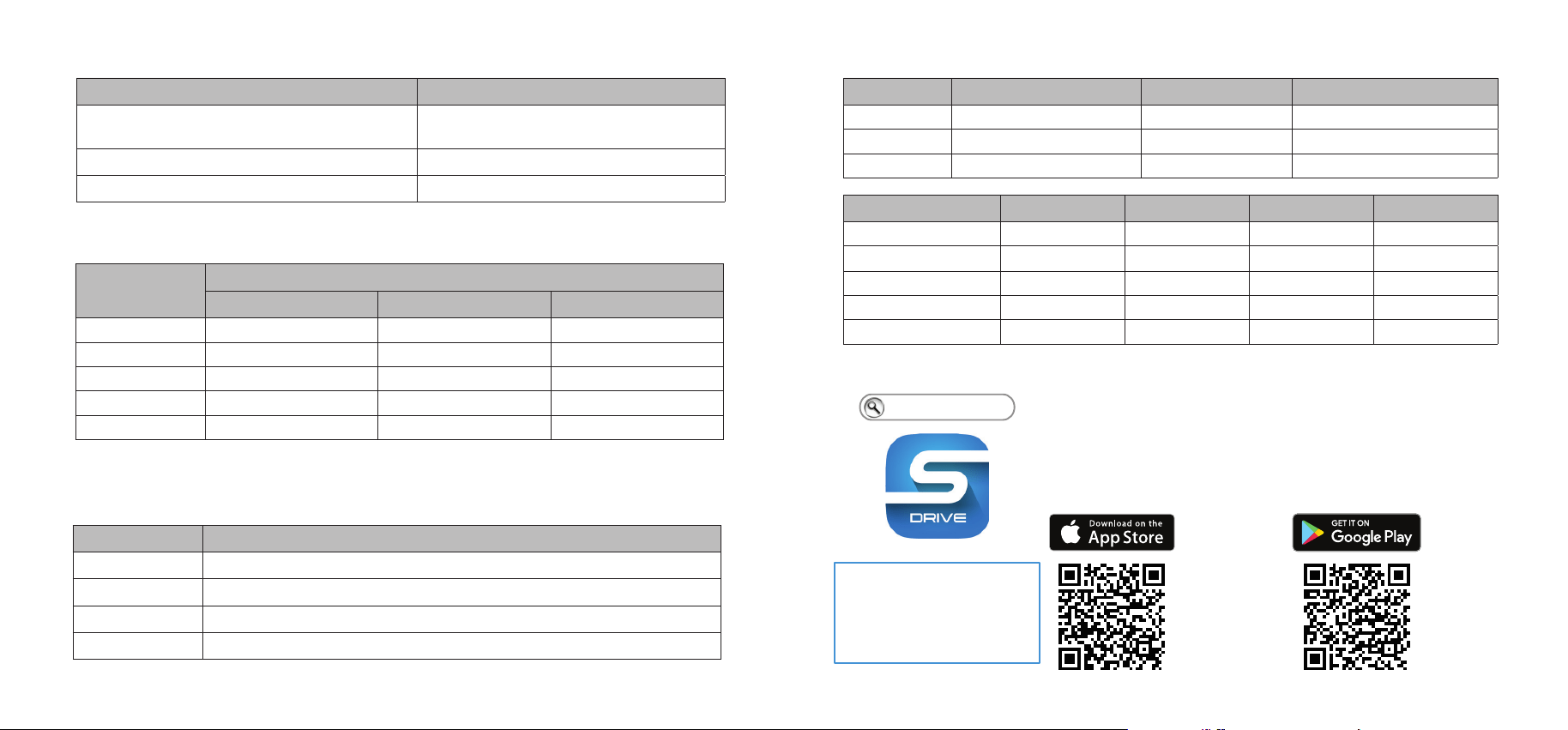
AI Triggered Incident Recording
Traditional G-sensor event recording is triggered only after a sudden impact is detected.
With AI Triggered Incident Recording, the dashcam can begin saving footage earlier in the sequence:
1. The Forward Collision Warning (FCW) system detects a possible collision ahead.
2. The dashcam automatically triggers event recording, and the event video length depends on your
loop record setting.
3. Footage leading up to the event is saved in the "Event" folder. This helps capture more context
before an impact occurs, not just after the fact.
NOTE: AI features are for driver assistance purposes only. FCW may not detect all driving situations or
hazards. GPS signal is required for AI features to function properly.
21
3
Collision
11 12
10. RECORDING TIME
Memory Card
Capacity
Total Recording Time
(4K + FHD) (2K + FHD) (FHD + FHD)
32GB ≈ 106 minutes ≈ 142 minutes ≈ 170 minutes
64GB ≈ 213 minutes ≈ 285 minutes ≈ 342 minutes
128GB ≈ 431 minutes ≈ 575 minutes ≈ 690 minutes
256GB ≈ 797 minutes ≈ 1063 minutes ≈ 1276 minutes
512GB ≈ 1726 minutes ≈ 2301 minutes ≈ 2762 minutes
NOTE: If you use your own MicroSD card please insert it into the camera and format it before rst use.
12. TECHNICAL SPECIFICATIONS
Memory Card Capacity Usable Space System Reserve Event & Parking Video & Photo
32GB 29.4GB 2.6GB 11.76GB 17.64GB
64GB 58.9GB 5.1GB 23.56GB 35.34GB
128GB 119GB 9GB 47.6GB 71.4GB
256GB 220GB 36GB 88GB 132GB
512GB 476GB 36GB 190.4GB 285.6GB
Mode Resolution 1-Minute Video Size Loop Period (32GB SD Card)
4K + FHD 3840 X 2160 + 1920 X 1080 240MB ≈ 106 minutes
2K + FHD 2560 X 1440 + 1920 X 1080 180MB ≈ 142 minutes
FHD + FHD 1920 X 1080 + 1920 X 1080 150MB ≈ 170 minutes
Memory Management
11. TIME-LAPSE RECORDING LOGIC
Mode Behavior
O Without time-lapse record.
1 Second Time-lapse record, captures 1 frame per 1 second.
3 Seconds Time-lapse record, captures 1 frame per 3 seconds.
5 Seconds Time-lapse record, captures 1 frame per 5 seconds.
9. CAMERA STATUS & LED INDICATORS
Power / Mode Status LED Indicators
Power On
Camera powers ON when the engine is turned on.
Red LED light stays on when camera is
powering on.
Recording Red LED light ashes.
Recording Stopped Red LED light stays on.
The auto-sync feature in the TYPE S Drive App allows you to 1)
Synchronize the camera's time with your phone's time, 2) Manage
the camera's functions from your phone, and 3) View and download
recorded videos. To access this feature, scan the QR code below or
search for "TYPE S Drive" on the App Store or Google Play. Download
and install the App.
13. DOWNLOADING THE APP
SSID:
TYPE_S_DVR31_4K_xxxxxx
Password:
12345678
TYPE S Drive
Compatible
with devices
with Android™
7.0 or higher.
Compatible with
iPhone, iPad,
Mac and iPod
touch with iOS
15 or higher.
13 14
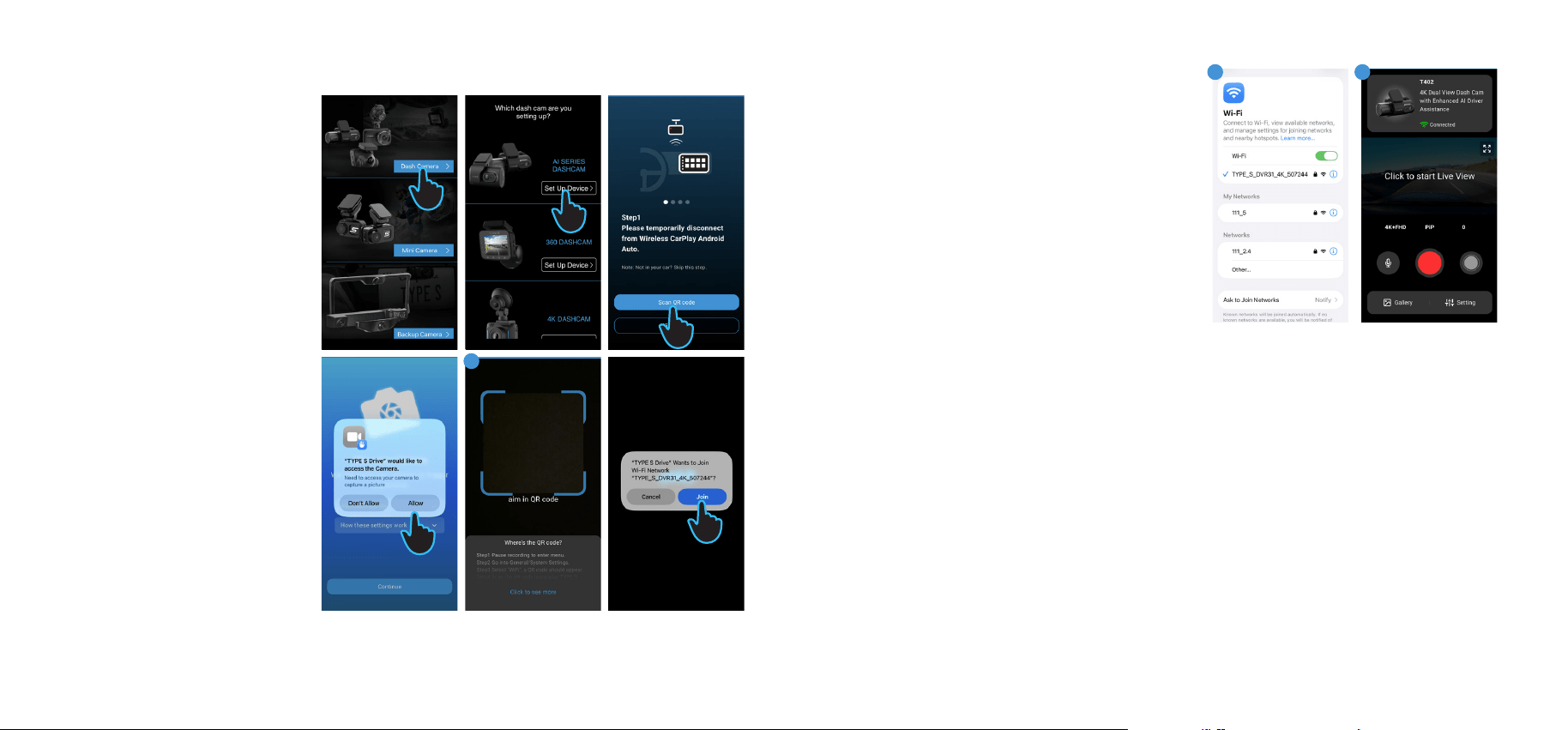
14. SETTING UP THE APP
Auto-sync with the Camera
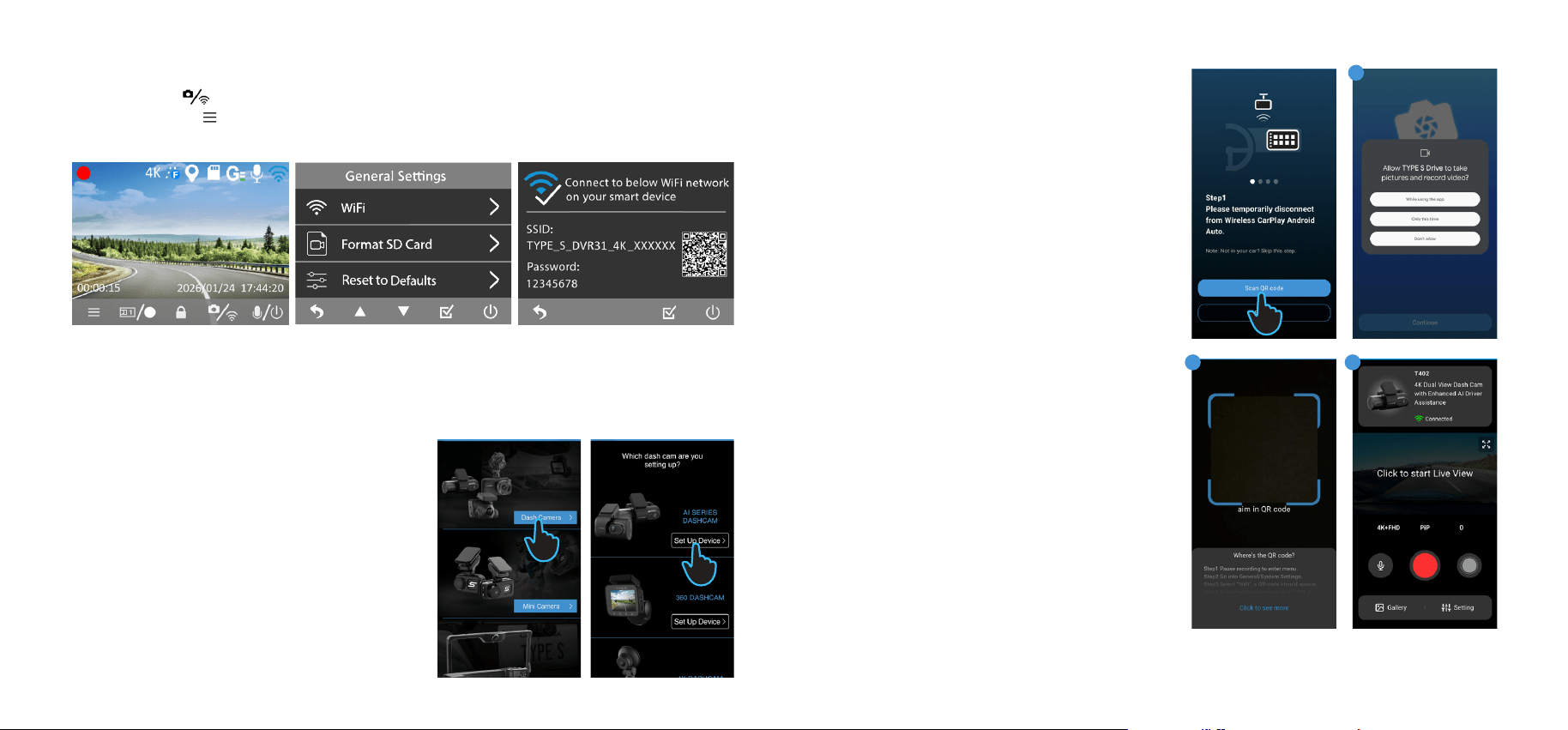
1. Press and hold in the live view to access the camera’s WiFi QR code.
Alternatively, click to open the camera’s menu and navigate to General Settings > WiFi.
2. The designated QR code will appear.
Before Connecting:
- If your vehicle has wireless Apple CarPlay or wireless Android Auto (the wired version is ne), please
temporarily disconnect your phone from them, as they may hinder the connection.
- App connection is not mandatory for using the camera; it is primarily for accessing video les
wirelessly. There’s no need to maintain a constant connection.
Android Device
3. Run the TYPE S Drive App and select Dash Camera.
4. Select AI SERIES DASHCAM from the list of
devices. Click Set Up Device.
5. Grant permissions for Bluetooth, Location, Nearby
Devices, and Notications if prompted.
3
NOTES:
After the initial sync, the App remembers
your camera’s network so that you will be
automatically directed to the live view the next
time you join, without the need for manual
reconnection.
The camera connects to only one device at a
time. If it was previously connected to another
device, make sure that device is either out of
range or has WiFi turned o.
6. Click Scan QR code.
7. Allow access to your camera.
8. Scan the QR code on the camera.
9. Once connected, you can view the camera’s
dashboard.
4
6
7
8 9
15 16
NOTES:
After the initial sync, the App remembers your camera’s network so that you can simply click Join to
reconnect next time.
For older iPhones, you may need to temporarily switch o DATA to access this feature.
The camera connects to only one device at a time. If it was previously connected to another device,
make sure that device is either out of range or has WiFi turned o.
WiFi Connection Troubleshooting
If you’re having trouble connecting, please follow these steps:
1) Disconnect wireless Apple CarPlay / Android Auto (not needed for wired).
2) Temporarily enable Airplane Mode. In WiFi setting, connect to the camera’s WiFi network using
password “12345678”.
3) Return to the App and allow all permissions when prompted.
iOS Device (Follow Steps 1-2 from previous instructions)
3. Turn on Bluetooth and Location
Services on your phone.
4. Run the TYPE S Drive App and
select Dash Camera.
5. Select AI SERIES DASHCAM
from the list of devices. Click Set
Up Device.
6. Grant permissions for Bluetooth,
Location, Local Network, and
Notications if prompted.
7. Click Scan QR code.
8. Allow access to your camera.
9. Scan the QR code on the camera.
10. Click Join in the pop-up
message to connect to the
camera’s WiFi network.
4
9
5
7
8
10
11. (Optional) If there is any issue with the auto
pairing, exit the App and navigate to the
WiFi setting page on your device. Connect to
“TYPE_S_DVR31_4K_xxxxxx” with the default
password “12345678”, then return to the App.
12. Once connected, you can view the camera’s
dashboard.
11 12

17 18
1) Problem: The camera is not providing AI warnings even after driving for a while.
Solution: Ensure the GPS signal is strong, as AI features require an active GPS connection. If the issue
persists, check if the AI calibration is complete and restart the camera if needed.
2) Problem: Can't connect to App, or "Connection Error".
Solution: If you're having trouble connecting, try temporarily disconnecting from Wireless Apple
CarPlay, Wireless Android Auto, or mobile data. You can reconnect after using the App.
App connection is not required for the camera to function.
3) Problem: The camera is displaying a clock on the screen. Is it still recording?
Solution: Yes, the camera is still recording. The clock icon indicates that the screen saver is
active. You can press any button to wake the screen while recording continues in the
background.
4) Problem: Message showing “SD card error”.
Solution: Please try formatting the MicroSD card (Menu > General Settings > Format SD Card).
5) Problem: Cannot nd my accident/event footage.
Solution: Check the Events folder in the App or memory card. Ensure the G-sensor sensitivity is set
correctly. If the memory card is full, older les may be overwritten.
6) Question: Can I use my own MicroSD memory card?
Answer: Yes, you can use your own. If you choose a memory card over 64GB, please make sure it’s
U3 rated to ensure optimal recording performance.
For other issues, please contact our customer service at info@typesauto.com or call 1.866.294.9244.
15. FAQS
WARNING: A failure to read and follow these warnings and instructions may result in a serious
accident, including damaged property or a serious injury, including loss of life.
• The AI Dashcam is designed as an aid to the driver in detecting large stationary objects to help
avoid damaging the vehicle. However, you, the driver, must use it safely and properly. Use of the
AI Dashcam is not a substitute for safe, proper and legal driving.
• Never depend on the AI Dashcam entirely when driving. The image on the screen is dierent from
actual conditions. Objects viewed in the AI Dashcam display screen dier from actual distance
because a wide-angle lens is used.
• The AI Dashcam “Night Vision” feature that is high performance brightness with colorful image is
an aid to a driver but is limited. Always use your own eyes to conrm the vehicle’s surroundings, as
the displayed image may be faint or dark, distorted, or not entirely visible.
IMPORTANT SAFETY INSTRUCTIONS
1. SAVE THESE INSTRUCTIONS – This manual contains important safety and operating instructions
of 12/24V car charger for Model BT535838.
2. Before using the product, read all instructions and cautionary markings.
3. Do not expose car charger to rain, moisture, or snow.
4. Use of an attachment not recommended or sold by the product manufacturer may result in a
risk of re, electric shock, or injury to persons.
5. To reduce risk of damage to cigarette lighter connector and cord, pull by cigarette lighter
connector rather than cord when disconnecting car charger.
6. Make sure the cord is located so that it will not be stepped on, tripped over, or otherwise
subjected to damage or stress.
7. Do not operate the car charger with a damaged cord or cigarette lighter connector – replace the
damaged items with new factory replacement items immediately.
8. Do not operate the car charger if it has received a sharp blow, been dropped, or otherwise
damaged in any way; take it to a qualied serviceperson.
9. Do not disassemble the car charger; take it to a qualied serviceperson when service or repair is
required. Incorrect reassembly may result in a risk of electric shock or re.
10. To reduce risk of electric shock, unplug the charger before attempting any maintenance or
cleaning. Turning o controls will not reduce this risk.
16. SAFETY INFORMATION

19 20
• Always check behind and all around the vehicle visually with mirrors before proceeding.
• The area displayed by the AI Dashcam is limited. The AI Dashcam does not display objects that are
out of the camera’s eld of view. The area displayed on the screen may vary according to vehicle
orientation or road conditions.
• Be sure to check the camera’s position and mounting angle before each use.
• Do not strike the AI Dashcam. It is a precision instrument. Otherwise, it may malfunction or cause
damage resulting in a re or an electric shock.
• This product will only provide images of items that are within the eld of view of the AI Dashcam.
Thus, it is imperative that the AI Dashcam should be kept clean and unobstructed.
• Adhere to all applicable trac laws and motor vehicle regulations applicable to the device.
• Consult local laws and regulations for any restrictions on installation or use.
• Never allow children to play with the device. Small parts may be a choking hazard.
• There is a plastic cover over the AI Dashcam. Do not scratch the cover when cleaning dirt or snow
from it.
• If the temperature changes rapidly, the system may not operate normally.
• When strong light directly enters a camera, objects may not be displayed clearly.
• The screen may icker under uorescent light.
• The colors of objects on the AI Dashcam may dier from those of the actual objects.
• Do not use alcohol or thinner to clean the camera. This will cause discoloration. To clean the
camera, wipe with a clean cloth dampened with mild cleaner diluted with water and then wipe
with a dry cloth.
SAFETY AROUND AND BEHIND OTHER VEHICLES
Many preventable injuries and deaths occur in driveways or parking lots when drivers do not see
children, pets, or others near their vehicles. Here are a few safety tips that will help you to avoid a
back-over accident:
• Walk completely around your vehicle before getting in. Check for kids, toys, and pets before
entering the vehicle and starting the engine.
• Know where children are. Have children stand in a place where they are in full view.
• Be aware of young children. Young children are small and hard to see.
• Parents, caregivers and all adults need to be vigilant in supervising children, especially when
children are in the yard, driveway or parking lot playing near parked cars.
17. MAINTENANCE & WARRANTY
CLEANING
• If dirt, rain or snow attaches to the camera, the display screen may not clearly display objects.
If water droplets, snow or mud adhere to the camera lens, rinse with water and wipe with a dry
cloth.
• Do not use alcohol, benzene or thinner to clean the AI Dashcam. This will cause discoloration. To
clean the AI Dashcam, wipe with a clean cloth dampened with mild cleaner diluted with water
and then wipe with a dry cloth.
WARRANTY
• TYPE S
LIMITED WARRANTY
TYPE S warrants, to the original purchaser, that its products are free from defects in material
and workmanship for 1 year from the date of original purchase. Where permitted by law, TYPE
S liability shall be limited to that set forth in this limited express warranty. This limited express
warranty shall be the exclusive remedy of the purchaser and TYPE S makes no other warranty
of any kind aside from the limited express warranty stated above.
NOTE: Warranty only applies for North American customers of purchases made in North
America.
CONDITIONS OF WARRANTY
If during the 1 year warranty period your new product is found to be defective, TYPE S will
repair such defect, or replace the product, without charge for parts or labor subject to the
following conditions:
1. All repairs must be performed by TYPE S.
2. All warranty claims must be accompanied by a copy of the sales receipt or bill of sale.
3. The equipment must not have been altered or damaged through negligence, accident,
improper operation, or failure to follow the product instructions for installation, use, or care.
• Roll down your window so you will be able to hear what is happening outside your vehicle.
• Owners of SUVs, trucks, and vans need to take extra care to avoid hitting or running over a child.
• Teach children to move away from a vehicle whenever it is started.

21 22
4. The replacement of parts is excluded from the warranty when replacement is necessary due
to normal wear and tear.
5. Repair or replacement parts supplied by TYPE S under this warranty are protected only for
the unexpired portion of the original warranty.
6. This is a “repair or replace” warranty only, and does not cover the costs incurred for the
installation, removal or reinstallation of the product, or damage to any mobile phone device
or vehicle.
OWNER’S RESPONSIBILITIES:
TYPE S will make every eort to provide warranty service within a reasonable period of time.
SHOULD YOU HAVE ANY QUESTIONS ABOUT SERVICE RECEIVED OR IF YOU WOULD LIKE
ASSISTANCE IN OBTAINING SERVICE, PLEASE CALL TOLL FREE 1.866.294.9244 DURING REGULAR
BUSINESS HOURS MONDAY THROUGH FRIDAY 8:00 AM TO 5:00 PM.
NOTE: Toll Free # is for North America Customers ONLY. See Customer service section for
customer contact numbers for other regions/oces.
For customer service and technical support, please call us at 1.866.294.9244. If at that time it is
determined that a replacement unit is needed, the support representative will issue a Return
Authorization and instruct on how to get a new unit. TYPE S makes no other warranty of any kind
aside from the limited express warranty stated herein.
DISCLAIMER OF WARRANTIES, INCLUDING WARRANTY OF MERCHANTABILITY AND WARRANTY
OF FITNESS FOR PARTICULAR PURPOSE: EXCEPT AS SPECIFICALLY SET FORTH HEREIN, NO
WARRANTY OR REPRESENTATION, EXPRESS OR IMPLIES, IS MADE AS TO THE AI DASHCAM.
EXCEPT AS EXPRESSLY SET FORTH HEREIN, TYPE S AND/OR ITS AFFILIATES EXPRESSLY DISCLAIMS,
WITHOUT LIMITATION, ANY STATUTORY WARRANTIES AND ALL IMPLIED WARRANTIES,
INCLUDING ANY IMPLIED WARRANTY OF MERCHANTABILITY OR FITNESS FOR A PARTICULAR
PURPOSE.
TYPE S and/or its aliates do not guarantee or promise that the user of AI Dashcam will not be in
an accident or otherwise not collide with an object and/or person. Our AI Dashcam is not intended
in any way to be a substitute for careful and cautious driving or for the consistent adherence to all
applicable trac laws and motor vehicle safety regulations.
The AI Dashcam is not intended to be a substitute for rearview mirrors or for any other motor
vehicle equipment mandated by law. Even when properly installed, our AI Dashcam has a limited
eld of vision and does not provide a comprehensive view of the rear area of the vehicle.
TYPE S and/or its aliates are not responsible for a user’s intended or actual use of the AI Dashcam.
In no event shall TYPE S and/or its aliates have any liability for any losses (whether direct or
indirect, in contract, tort or otherwise) incurred in connection with the AI Dashcam, including but
not limited to damaged property, personal injury and/or loss of life. Neither shall TYPE S and/or its
aliates have any liability for any decision, action or inaction taken by any person in reliance on
the AI Dashcam, or for any delays, inaccuracies and/or errors in connection with the AI Dashcam
and its functioning.
TYPE S and/or its aliates shall have no responsibility or liability for damage and/or injury resulting
from accidents occurring with vehicles having the installed, and TYPE S and/or its aliates, the
manufacturer, distributor and seller shall not be liable for any injury, loss or damage, incidental or
consequential, arising out of the use or intended use of the product.

23 24
CUSTOMER SERVICE/CONTACT
IF YOU ARE EXPERIENCING ANY ISSUES WITH THE PRODUCT DURING OPERATION, DO NOT RETURN
THE PRODUCT TO THE STORE. CONTACT TYPE S DIRECTLY FOR INSTRUCTIONS ON HOW TO RETURN/
EXCHANGE THE PRODUCT.
FCC Compliance Statement:
This device complies with Part 15 of the FCC rules. Operation is subject to the following two conditions:
(1) This device may not cause harmful interference, and (2) this device must accept any interference
received, including interference that may cause undesired operation.
WARNING: Changes or modications to this unit not expressly approved by the party responsible
for compliance could void the user’s authority to operate the equipment. The manufacturer is not
responsible for any radio or TV interference caused by unauthorized modications or change to this
equipment. Such modications or change could void the user’s authority to operate the equipment.
NOTE: This equipment has been tested and found to comply with the limits for a Class B digital device,
pursuant to part 15 of the FCC Rules. These limits are designed to provide reasonable protection against
harmful interference in a residential installation. This equipment generates uses and can radiate radio
frequency energy and, if not installed and used in accordance with the instructions, may cause harmful
interference to radio communications. However, there is no guarantee that interference will not occur
in a particular installation. If this equipment does cause harmful interference to radio or television
reception, which can be determined by turning the equipment o and on, the user is encouraged to try
to correct the interference by one or more of the following measures:
• Reorient or relocate the receiving antenna.
• Increase the separation between the equipment and receiver.
• Connect the equipment into an outlet on a circuit dierent from that to which the receiver is connected.
• Consult the dealer or an experienced radio/TV technician for help.
This equipment complies with FCC RF radiation exposure limits set forth for an uncontrolled environment.
In order to avoid the possibility of exceeding the FCC radio frequency exposure limits, human proximity
to the antenna shall not be less than 20cm during normal operation.
18. GENERAL INFORMATION
T402E
Dual View 4K Dashcam With AI Triggered Smart Incident Recording
BT535838
Responsible Party:
TYPE S
2975 Red Hill Ave., Ste. 100,
Costa Mesa, CA 92626, U.S.A.
Tel: 1-866-294-9244
Android Auto and Android are trademarks of Google Inc.
Apple CarPlay, iPhone, iPad, Mac and iPod touch are trademarks of Apple Inc.
3M VHB™ is a trademark of 3M Company.

25
ML-535838 _V1
A Horizon Brands Company
2975 Red Hill Ave., Ste. 100, Costa Mesa, CA 92626, U.S.A.
1.866.294.9244 | [email protected]
© 2026 TYPE S. All rights reserved.
www.typesauto.com