Let's Get Started!
1. Check for a 2.4 Ghz
connection and make sure
the device is connected to
that network.
2. Download the Friedrich
Connect App on your
smartphone.
3. Sign into the app or
create a account.
4. Verify the profile, check
and confirm that the TIME
ZONE is populated correctly.
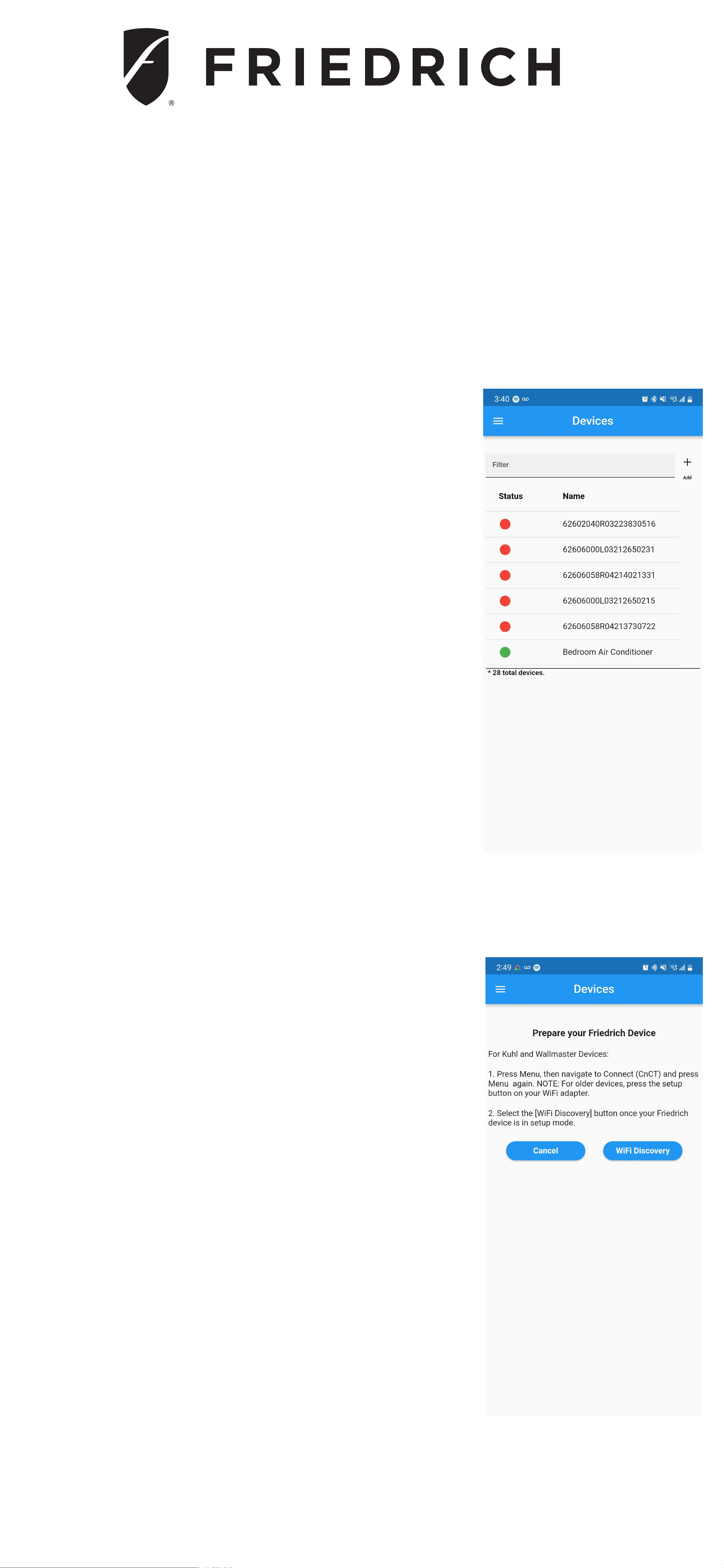
5. Enter the Friedrich
connect app and press
"+ add". The app will
automatically show the
next screen. Prepare your
device by following steps
one and two in the app.
After your unit is in connect
mode please press the Wifi
Discovery button in the app.
NOTE: I Phone users will
need to turn on and allow
location services for the Friedrich Connect
App.
Wi-Fi Setup Guide
FRIEDRICH CONNECT
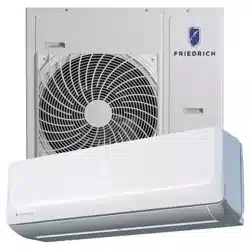
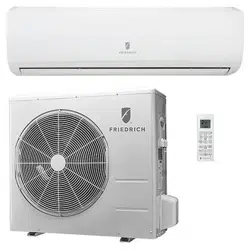
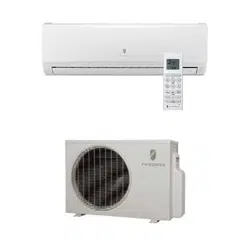
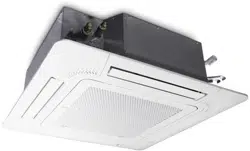
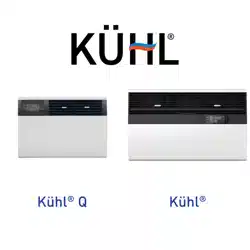
Kuhl Kuhl Q Wallmaster
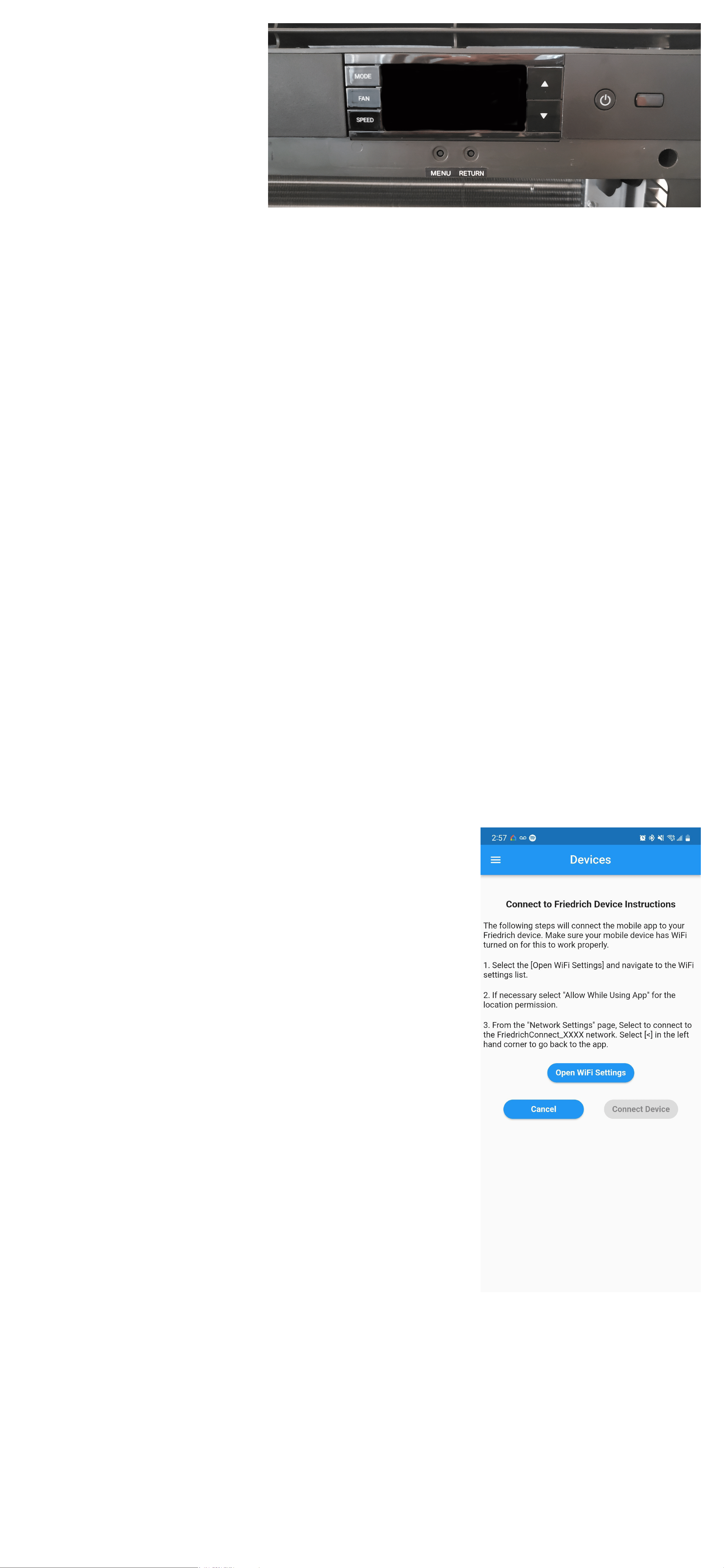
6. Go to
the unit and
press the
MENU button
and with the
arrows go to CNCT and press MENU
again.
NOTE: When the setup process
starts, the WI-FI symbol will begin to
flash. This indicates the A/C unit is
broadcasting its WiFi SSID.
NOTE: Once the setup process has
been started, you will have five minutes
to complete the setup. If the setup
cannot be completed in five minutes
then you will need to restart the
process.
7. After pressing Wifi
Discovery, you will see
the Connect to Friedrich
Device instructions, tap
on "open wifi settings"
and the app will navigate
you to your phones wifi
settings. From your Wifi
settings please connect
to the "Friedrich_XXXX"
network and to allow local
permissions if asked by the mobile
device. You may then press the back
button and return to our app where you
can now tap on "Connect Device" that
was previously greyed out.
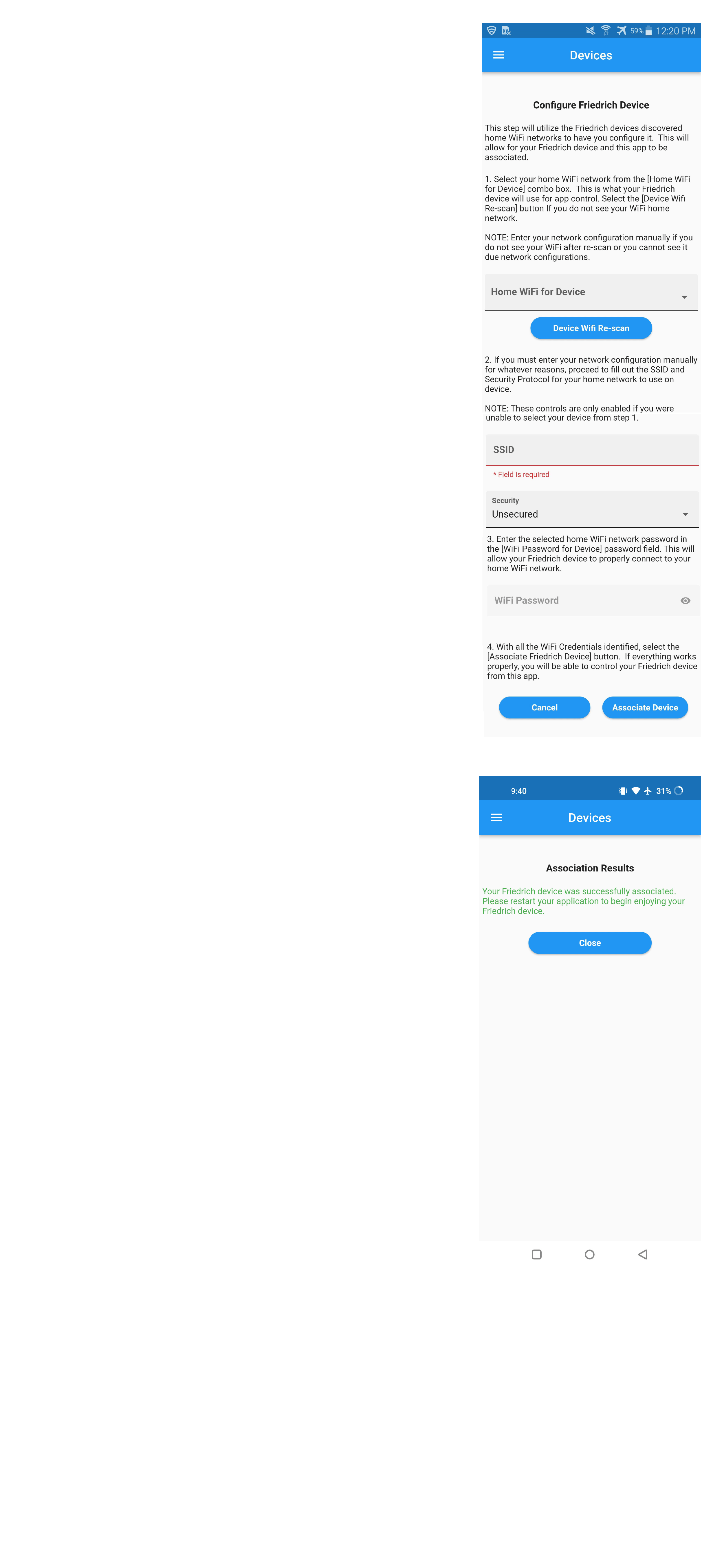
8.After pressing "Connect
Device" you will be taken
to the Configure Friedrich
Device screen. On this
screen we only need to
select your local 2.4Wi-
Fi network in the app
with step 1. Step 2 is
not something that is
normally needed and you
can proceed to step 3 of
entering your 2.4 Wi-Fi
password and then press
"Associate Device".
9. The next window will
show connected success.
Just press OK, and you
will see the new unit in
devices with the serial
number of the device
as its name that can be
changed in the units Info
Tab.
NOTE: Your Home
Screen Wi-Fi symbol will
stop flashing and will
show steady.
NOTE: A GREEN symbol will appear
under the "Status" details and the
name of your Friedrich unit which will
appear with a number. for example:
(62601032R01184660025)
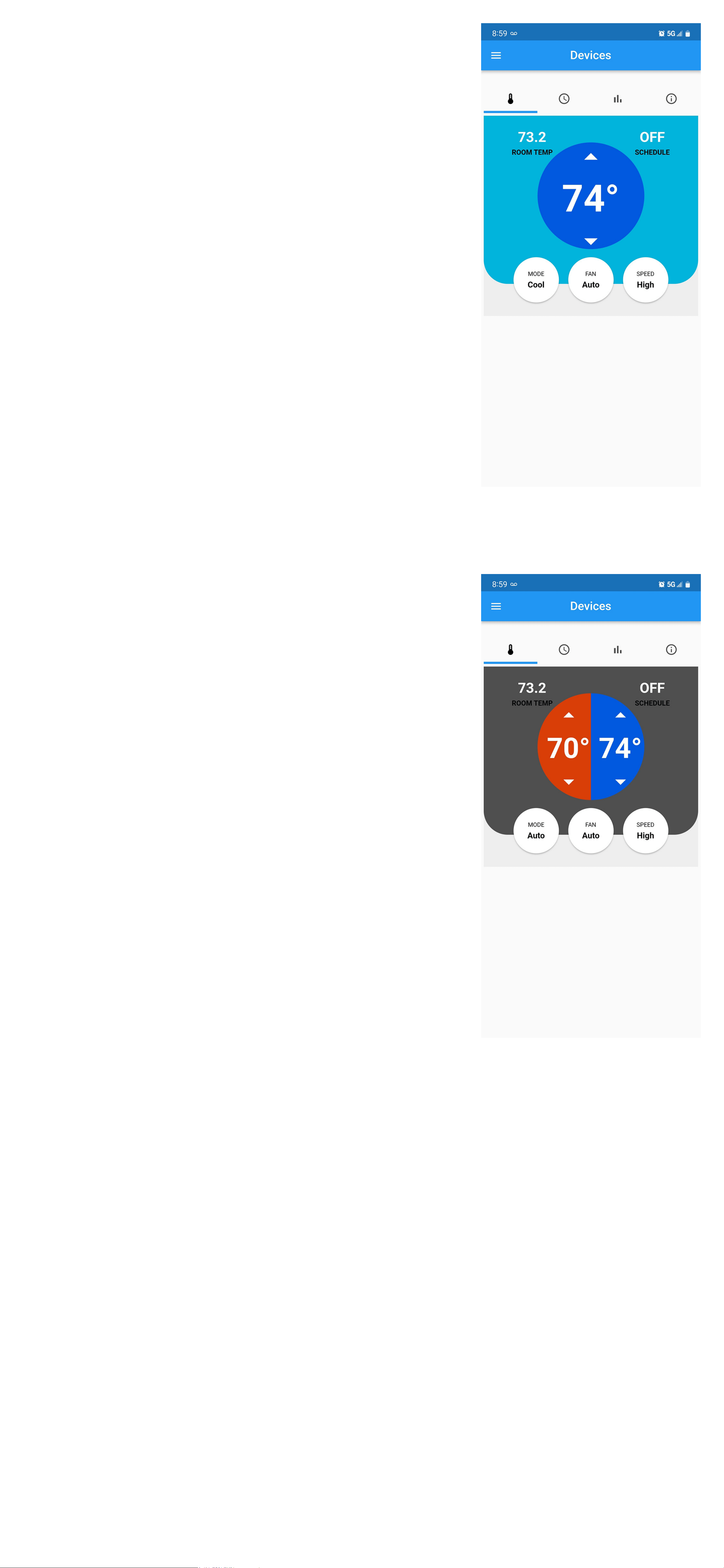
10. Last step when you
see the serial number
under "MY DEVICES"
you can select the unit
and verify if is working,
press MODE to change
the temperature.
NOTE: Sometimes it
takes a few seconds for
the command to register
on the unit.