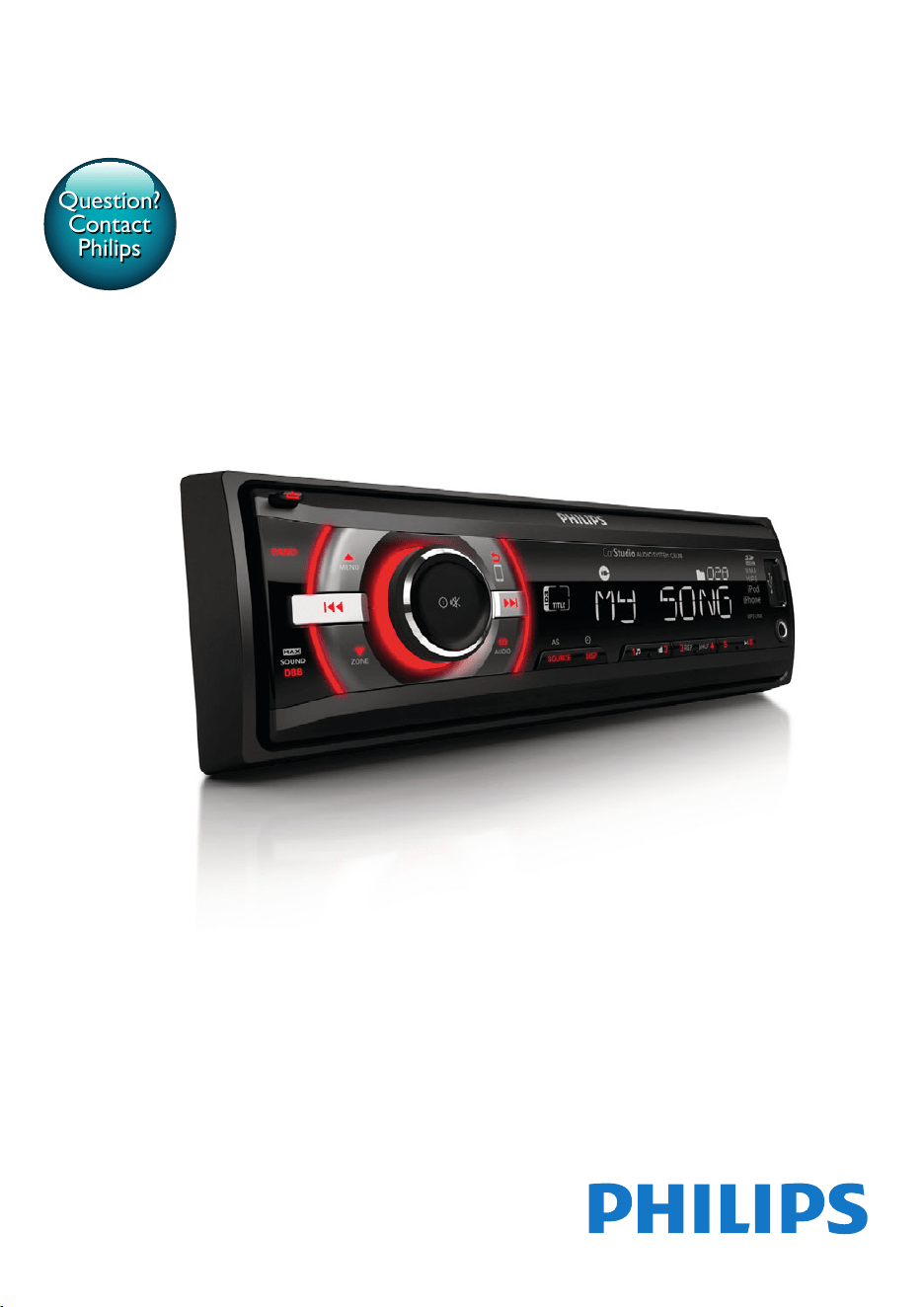
www.philips.com/welcome
User manual
Always there to help you
Register your product and get support at
CE138/85
Question?
Contact
Philips


1EN
Contents
1 Safety 2
2 Your car audio system 3
Introduction 3
What's in the box 3
Overview of the system 4
3 Install the car audio system 6
Connect wires 7
Mount into the dashboard 7
Attach the front panel 8
4 Get started 9
For the rst time use 9
Set the time format 9
Set the clock 10
Select a source 10
Select a listening zone 10
Mute the button beep 10
5 Listen to radio 11
Select a tuner region 11
Select a tuner sensitivity 11
Search for a radio station 11
Store radio stations in memory 11
Play with RDS 12
6 Play from a storage device 14
Control play 14
Switch tracks 14
7 Play from an iPod/iPhone 15
Compatible iPod/iPhone models 15
Connect your iPod/iPhone 15
Control play 16
Charge your iPod/iPhone 16
8 Listen to an external player 17
9 Adjust sound 17
10 Additional information 18
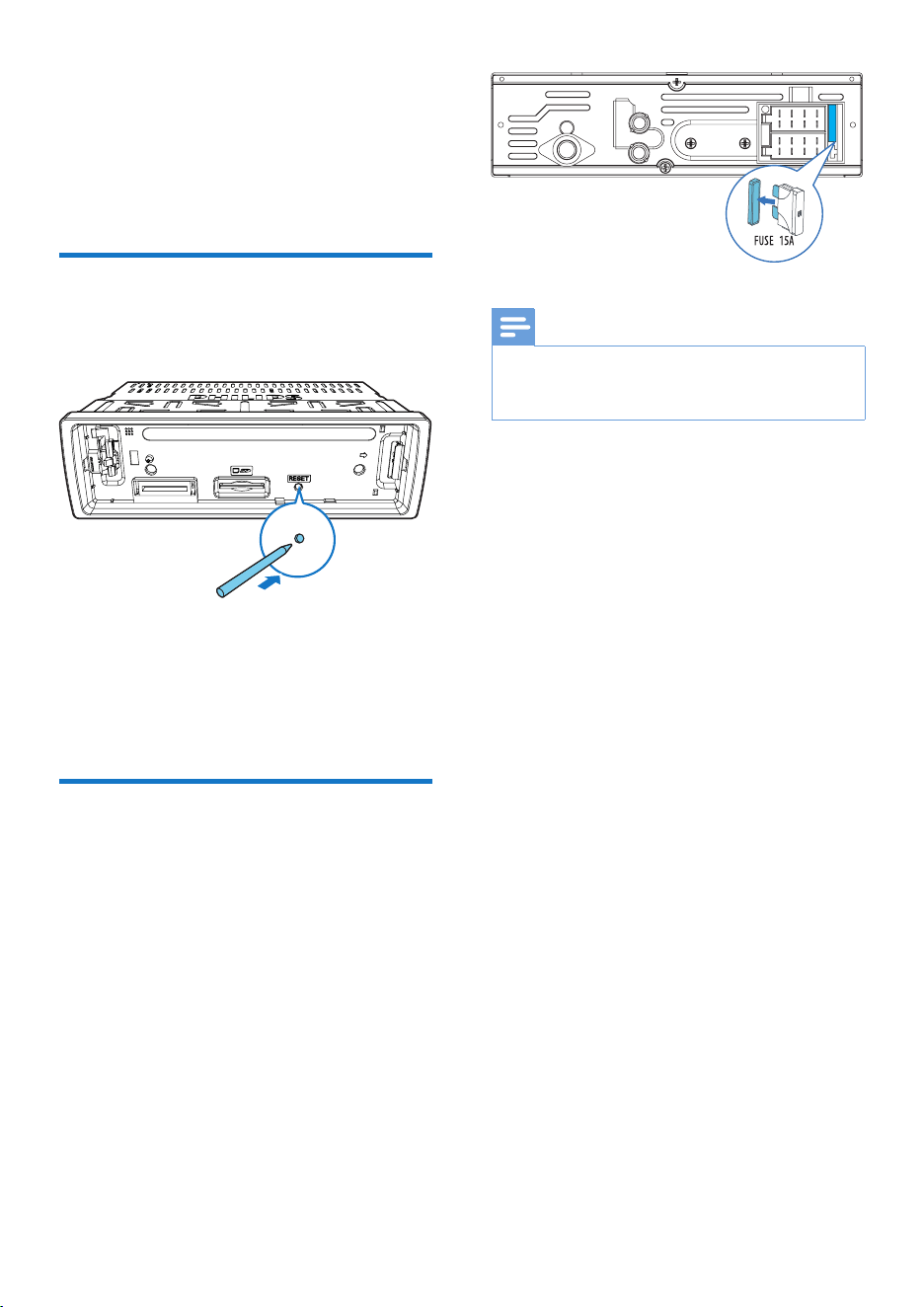
Reset the system 18
Replace the fuse 18
11 Product Information 19
12 Troubleshooting 19
13 Notice 20
Care of the environment 20
Trademark notice 21
Copyright 21
14 Glossary 21

2 EN
1 Safety
Read and understand all instructions before you
use this device. If damage is caused by failure to
follow instructions, the warranty does not apply.
• Modication of the product could result
in hazardous radiation of EMC or other
unsafe operation.
• The device is designed for negative ground
(earth) 12 V DC operation only.
• To ensure safe driving, adjust the volume to
a safe and comfortable level.
• Improper fuses can cause damage or
re. When you need to change the fuse,
consult a professional.
• Use only the supplied mounting hardware
for a safe and secure installation.
• To avoid short circuits, do not expose the
device to rain or water.
• The device shall not be exposed to
dripping or splashing.
• Do not place any sources of danger on
the device (e.g. liquid lled objects, lighted
candles).
• Never insert objects into the ventilation
slots or other openings on the device.
• Clean the device with soft, damp cloth.
Never use substances such as alcohol,
chemicals or household cleaners on the
device.
3EN
2 Your car audio
system
Congratulations on your purchase, and
welcome to Philips! To fully benet from the
support that Philips offers, register your product
at www.philips.com/welcome.
Introduction
With this system, you can:
• enjoy audio from a USB storage device,
SD/SDHC card, iPod/iPhone, and external
player,
• charge your iPod/iPhone, and
• listen to radio stations.
You can enrich sound output with these sound
effects:
• Dynamic bass boost (DBB)
• Digital sound control (DSC)
Playable media:
• USB storage device
• Compatibility: USB 2.0, USB 1.1
• Class support: MSC (Mass Storage
Class)
• Maximum capacity: 32 GB
• SD/SDHC card
• Maximum capacity: 32 GB
• Files
• File system: FAT16, FAT32
• Maximum number of folders: 99
• Maximum number of tracks/les: 999
• Maximum level of directory: 8
• .mp3 les
Sampling frequencies: 32 kHz, 44.1 kHz,
48 kHz
Bitrates: 8-320 kbps and variable
bitrates
• .wma les
Versions: V4, V7, V8, V9 (L1 and L2)
Sampling frequencies: 44.1 kHz, 48 kHz
Bitrates: 64-192 kbps and variable
bitrates
• ID3 tag V2.0 or later
• Unsupported les:
AAC, WAV, and PCM les
DRM protected WMA les (.wav, .m4a,
.m4p, .mp4, and .aac)
WMA les in lossless format
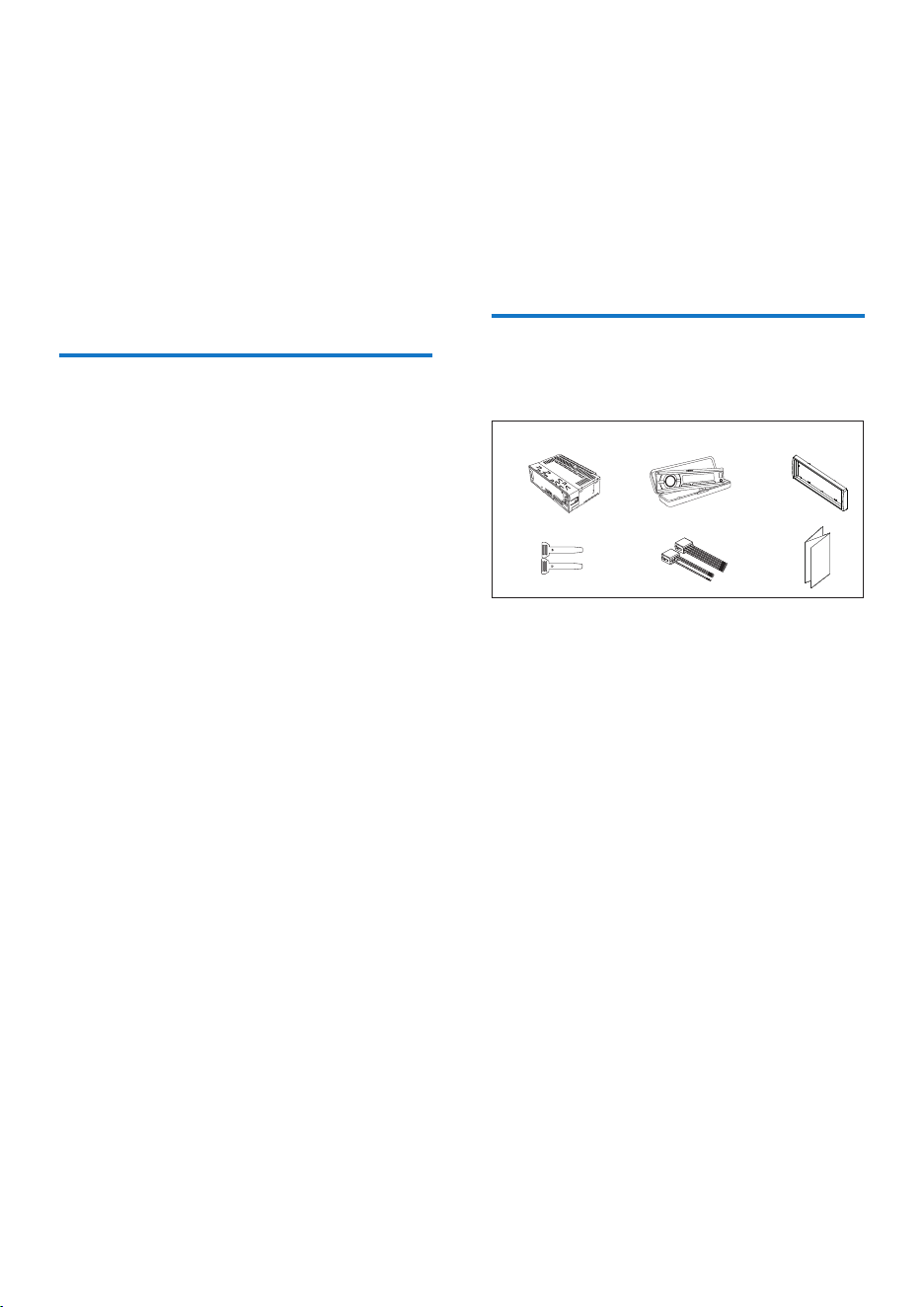
What's in the box
Check and identify the contents of the package:
a Main unit (with a sleeve)
b Carrying case (with front panel included)
c Trim plate
d Disassembly tool X 2
e ISO male connector X 2
f User manual
ab c
fed
4 EN
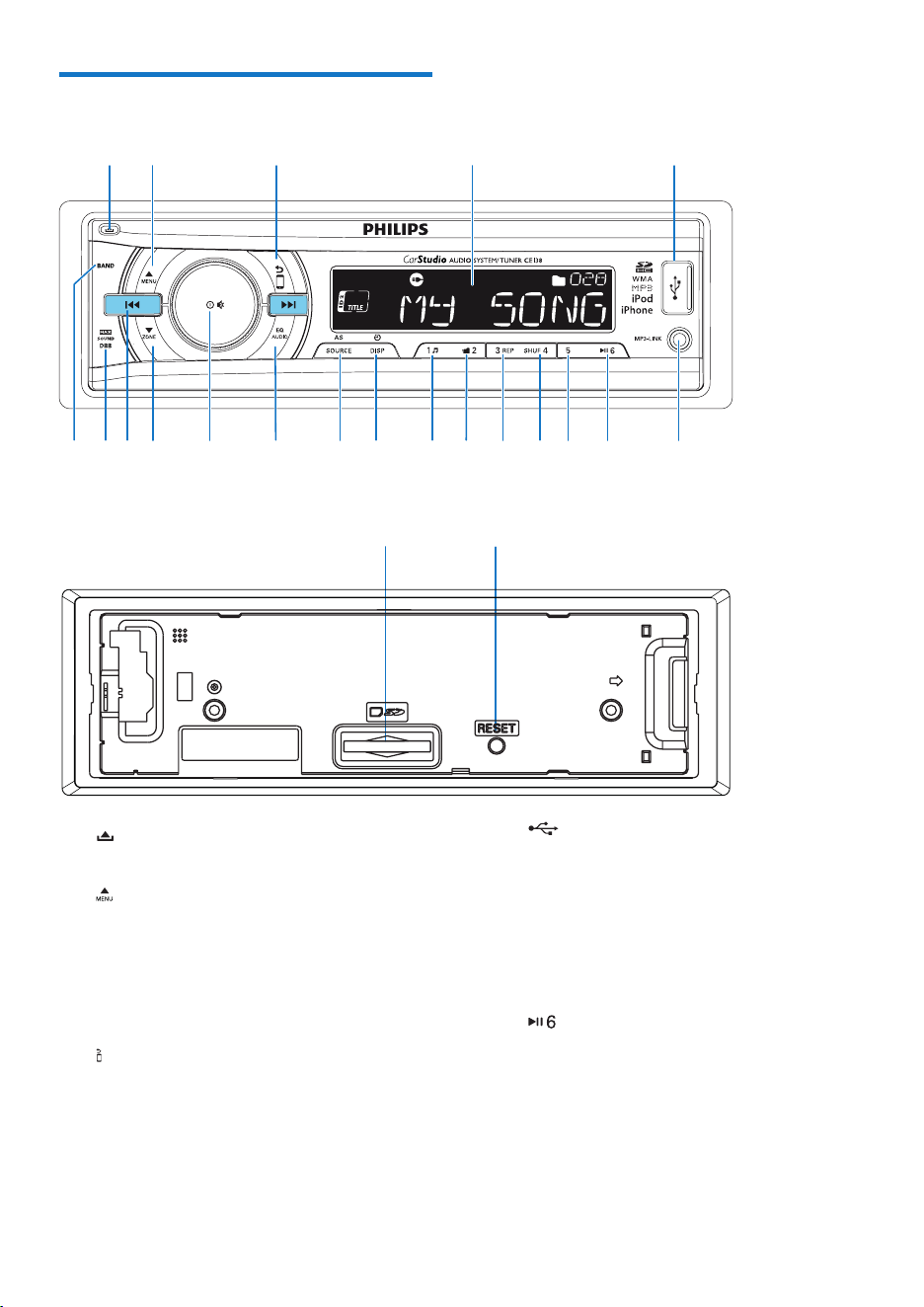
Overview of the system
a
• Unlock the front panel.
b
• For .wma and .mp3 tracks, press to
select the previous folder.
• Press and hold to access the system
menu.
• Press to select a tuner band.
c
• Return to the previous menu.
• For iPod/iPhone, press repeatedly to
select a control mode: control play on
the iPod/iPhone or on this system.
d LCD screen
ab cd e
tsrq ponm lk ji
hf
g
uv
e
• Connect to a USB storage device.
• Connect to a compatible iPod/iPhone.
f MP3-LINK
• Connect to the audio output socket
(usually the headphone socket) of an
external device.
g
• Start, pause, or resume the play of
tracks.
• In radio mode, press to select the
preset radio station of No. 6.
• In radio mode, press and hold to store
the current radio station at channel
No. 6.

5EN
h
• In radio mode, press to select the
preset radio station of No. 5.
• In radio mode, press and hold to store
the current radio station at channel
No. 5.
i
• In radio mode, press to select the
preset radio station of No. 4.
• In radio mode, press and hold to store
the current radio station at channel
No. 4.
• For .wma and .mp3 tracks, press
repeatedly to select a play mode: play
all tracks randomly ([SHU ALL]), play
tracks in the current folder or album
randomly ([SHU FLD]/[SHU ALBM]),
or play all tracks in the storage device
in sequence ([SHU OFF]).
j
• In radio mode, press to select the
preset radio station of No. 3.
• In radio mode, press and hold to store
the current radio station at channel
No. 3.
• For .wma and .mp3 tracks, press
repeatedly to select a repeat mode.
k
• In radio mode, press to select the
preset radio station of No. 2.
• In radio mode, press and hold to store
the current radio station at channel
No. 2.
• For .wma and .mp3 tracks on a storage
device, press to access the folder list.
l
• In radio mode, press to select the
preset radio station of No. 1.
• In radio mode, press and hold to store
the current radio station at channel
No. 1.
• For .wma and .mp3 tracks on a storage
device, press to access the track list.
• Press to access the music menu of an
iPod/iPhone.
m /DSP
• Press repeatedly to display available
information about the current track.
• Press repeatedly to display available
RDS information.
• Press and hold to display the set clock.
n AS/SOURCE
• Press repeatedly to select a source.
• In radio mode, press and hold to
activate the automatic search of radio
stations.
o
• Press repeatedly to select a preset
sound equalizer.
• Press and hold to activate the setup of
bass, treble, balance, and fader.
p
• Press to turn on the system.
• Press and hold to turn off the system.
• Press to mute the speakers or release
them from mute status.
• Press to conrm an option.
• Rotate to switch between menu
options.
• Rotate to adjust the volume level.
q
• For .wma and .mp3 tracks on a storage
device, press to select the next folder.
• Press and hold to activate the selection
of listening zones.
• Press to select a tuner band.
r /
• Tune to a radio station.
• Press to skip to the previous/next
track.
• Press and hold to rewind a track or
search fast forward.
s
• Press to enable or disable the
maximum volume.
• Press and hold to enable or disable
the DBB (dynamic bass boost) sound
effect.

6 EN
t BAND
• Press repeatedly to select a tuner band.
u Slot for SD/SDHC card
• Insert an SD/SDHC card.
v RESET
• Press to reboot the system.
3 Install the car
audio system
Caution
• Use the controls only as stated in this user manual.
Always follow the instructions in this chapter in
sequence.
These instructions are for a typical installation.
However, if your car has different requirements,
make the adjustment accordingly. If you have
any question regarding installation kits, consult
your local retailer.
Note
• This system is designed for negative ground (earth) 12V
DC operation only.
• Always install this system in the car dashboard. Other
locations can be dangerous as the rear of the system
heats up during use.
• To avoid short-circuit: before you connect, make sure
that the ignition is off.
• Make sure that you connect the yellow and red power
supply leads after all other leads are connected.
• Make sure that all loose leads are insulated with
electrical tape.
• Make sure that the leads do not get caught under
screws iron parts that will move (e.g. seat rail).
• Make sure that all ground (earth) leads are run to a
common ground (earth) point.
• Use only the supplied mounting hardware for a safe
and secure installation.
• Improper fuses can cause damage or re. When you
need to change the fuse, consult a professional.
• When you connect other devices to this system, make
sure that the rating of the car circuit is higher than the
total fuse value of all the connected devices.
• Never connect speaker wires to the metal body or
chassis of the car.
• Never connect speaker wires with stripes to one
another.
7EN
Connect wires
Note
• Make sure that all loose leads are insulated with
electrical tape.
• Consult a professional to connect wires as instructed
below.
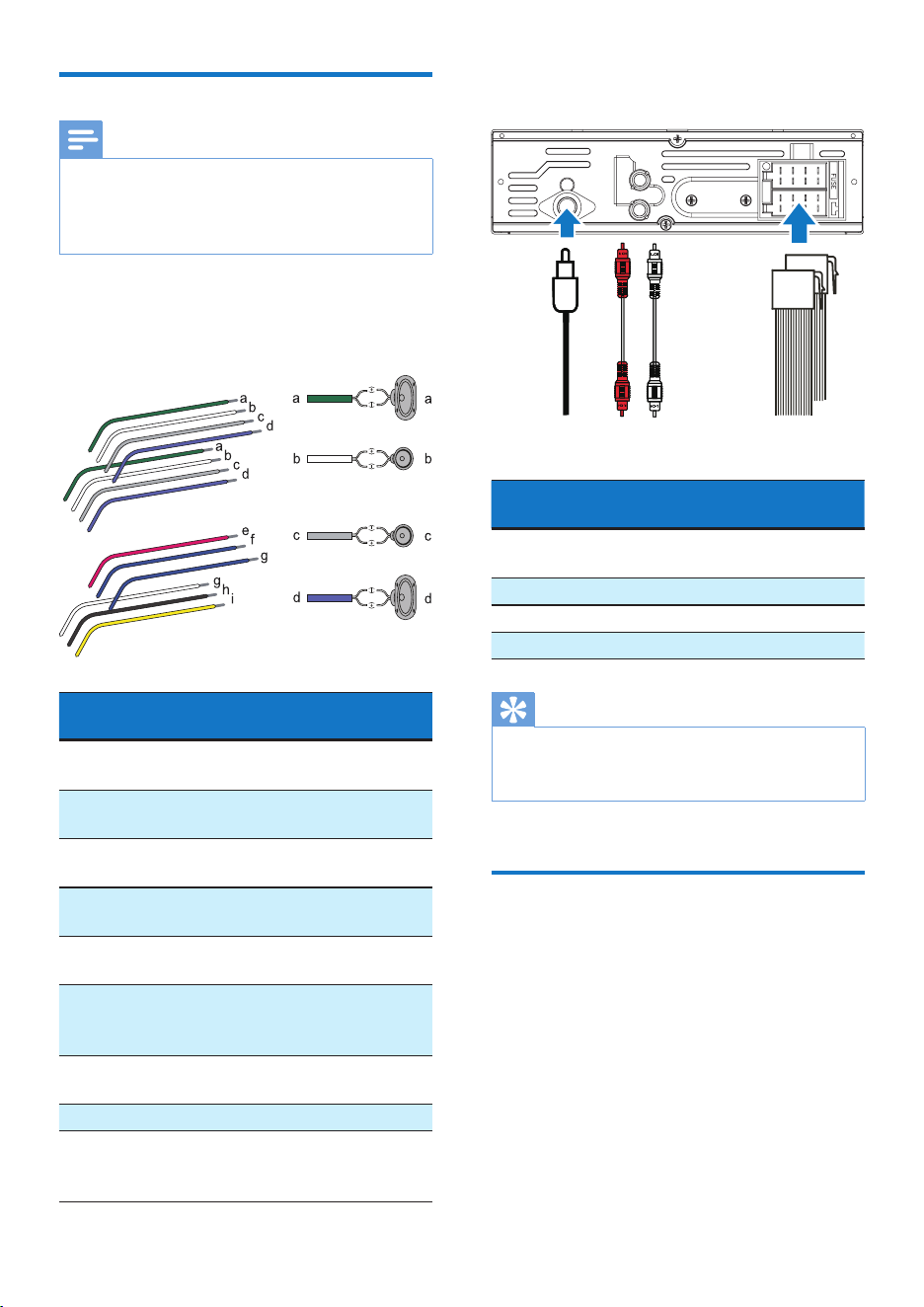
1 Check the car's wiring carefully and
connect them to the the supplied ISO
male connectors.
ISO male
connectors
Connect to
1 Green strip, black-
edged green strip
Rear left speaker
2 White strip, black-
edged white strip
Front left speaker
3 Gray strip, black-
edged gray strip
Front right speaker
4 Purple strip, black-
edged purple strip
Rear right speaker
e Red strip Ignition key +12V
DC when ON/ACC
f Blue strip Motor/electric
antenna relay control
lead
g Blue strip, white strip Amplier relay
control lead
h Black strip Ground
i Yellow strip To the +12V car
battery which is
energized at all times
2 Connect the antenna and amplier as
illustrated, if applicable.
Sockets on rear
panel
External sockets or
connectors
1 For ISO male
connectors
As indicated above
2 REAR L Rear left speaker
3 REAR R Rear right speaker
4 ANTENNA Antenna
Tip
• The pin arrangement for the ISO connectors depends
on the type of your vehicle. To avoid damage to the
unit, connect properly.
Mount into the dashboard
• If the car does not have an on-board drive
or navigation computer, disconnect the
negative terminal of the car battery.
• If the car battery is not disconnected, to
avoid short-circuit, make sure that the bare
wires do not touch each other.
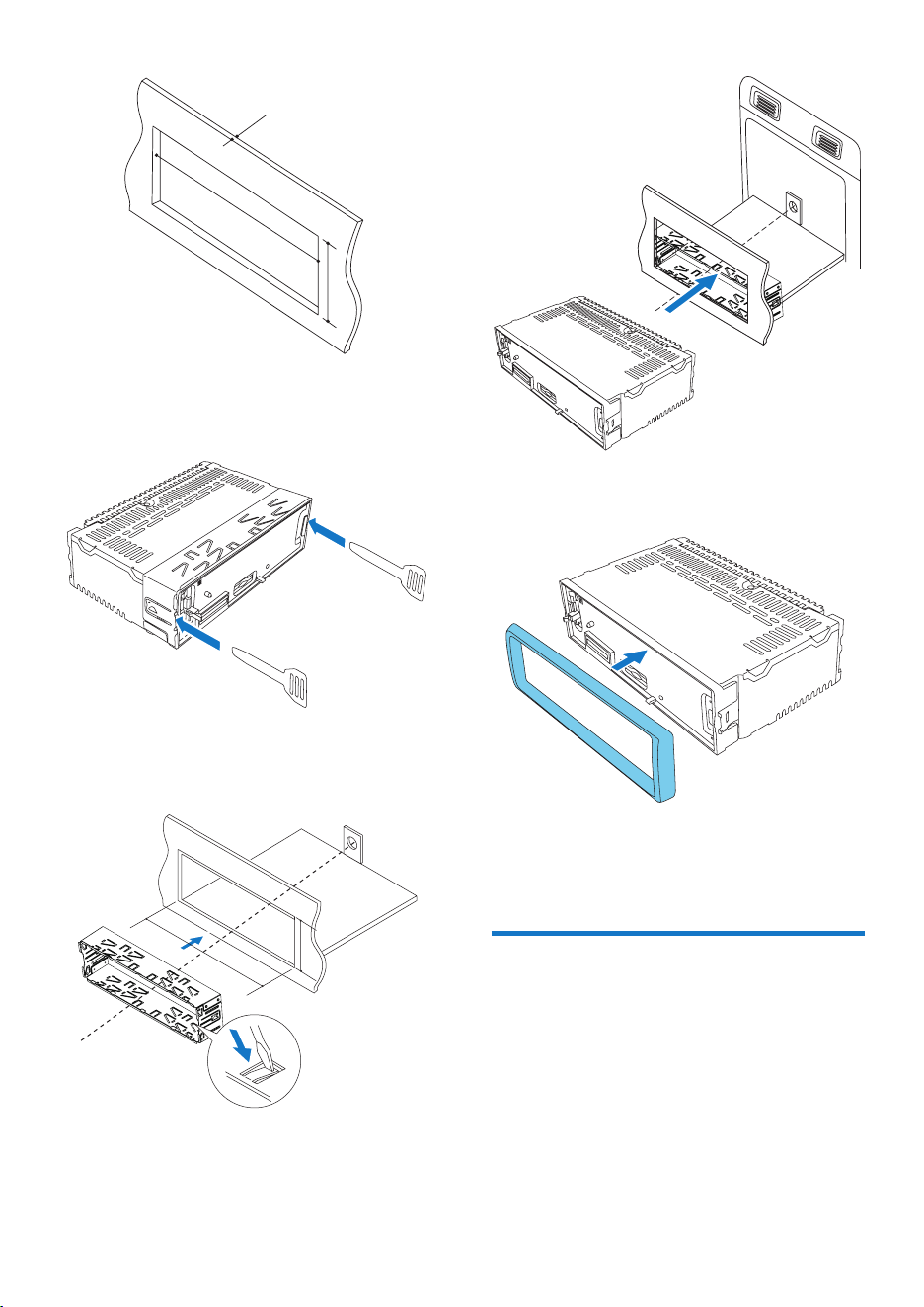
1 Make sure that the car dashboard opening
is within these measurements:
REAR
L
R
abcd
8 EN
2 Remove the mounting sleeve with the
supplied disassembly tools.
3 Install the sleeve into the dashboard and
bend the tabs outward to x the sleeve.
4 Slide the unit into the sleeve until you hear
a "click".
183 mm
53mm
5mm
183 mm
53.5 mm
5 Attach the trim plate.
6 Reconnect the negative terminal of the car
battery.
Attach the front panel
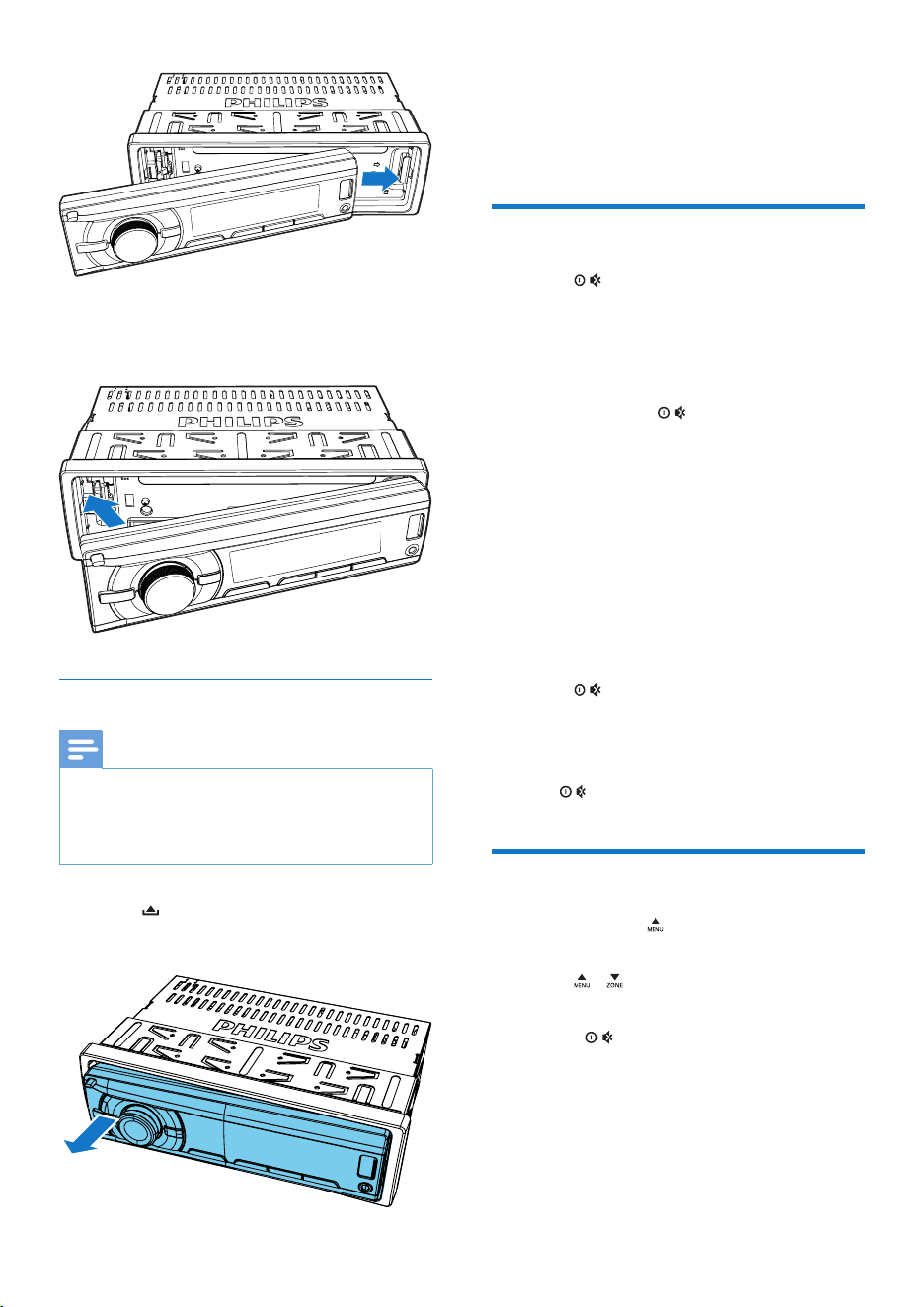
1 Insert the notch on the front panel to the
chassis on the main unit.
9EN
2 Press the left end of the front panel
inwards until it is securely locked with a
"click".
Detach the front panel
Note
• Before you insert an SD/SDHC card or reset the
system, detach the front panel.
• Before you detach the front panel, make sure that the
system is turned off.
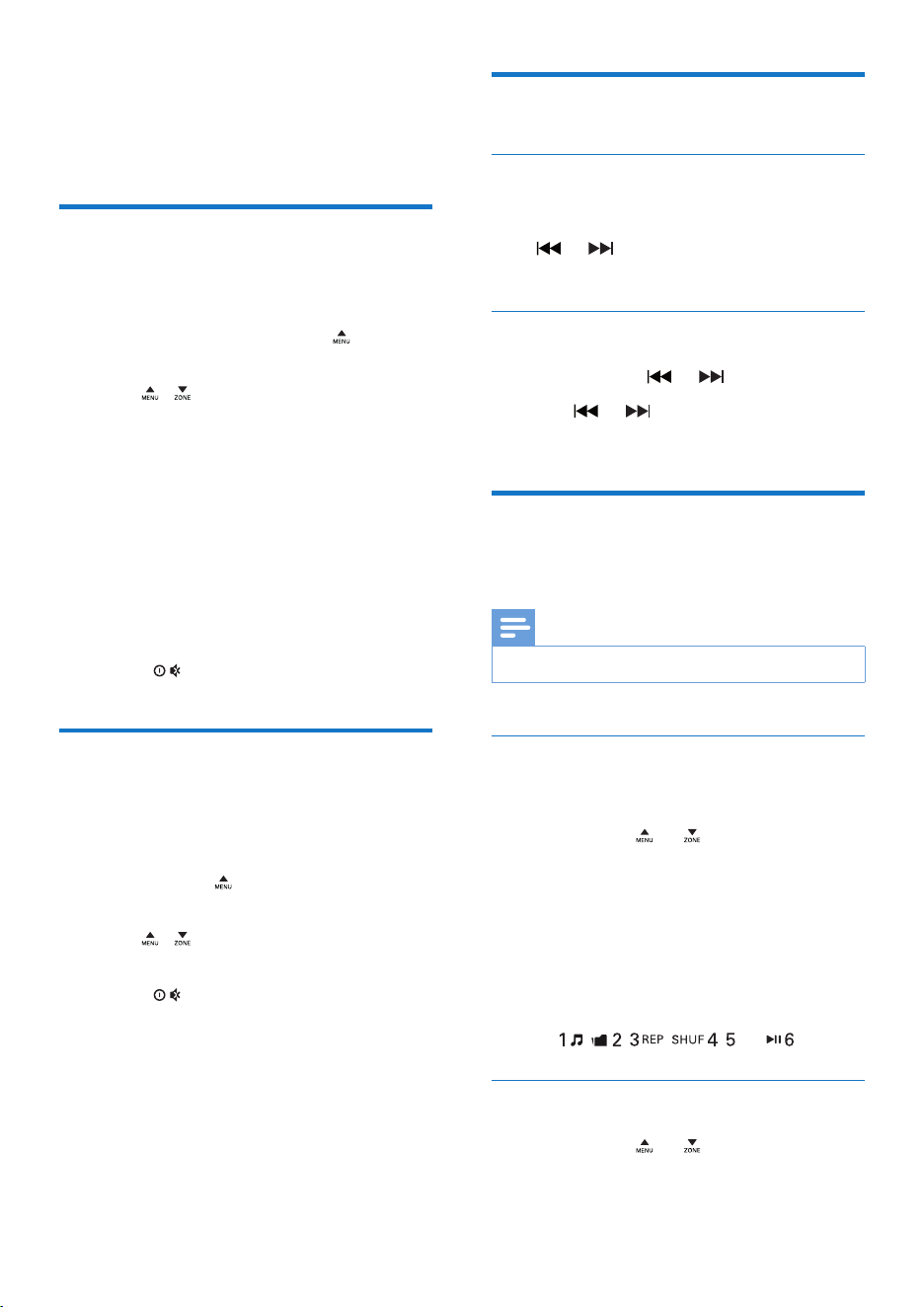
1 Press to release the front panel.
2 Pull the front panel outwards to remove it.
4 Get started
For the rst time use
1 Press to turn on the system.
» [PHILIPS] is displayed and then
[SELECT OPERATING REGION]
(select a radio region) scrolls.
2 When one of the following options is
displayed, rotate
to select a radio
region that matches your location.
• [AREA EUROPE] (Western Europe)
• [AREA ASIA] (Asia Pacic)
• [AREA MID--EAST] (Middle East)
• [AREA AUST] (Australia)
• [AREA RUSSIA] (Russia)
• [AREA USA] (United States)
• [AREA LATIN] (Latin America)
• [AREA JAPAN] (Japan)
3 Press to conrm.
» The system switches to radio mode
automatically.
• To turn off the system, press and hold
until the screen backlight is off.
Set the time format
1 Press and hold to access the system
menu.
2 Press / repeatedly until [CLK 24H]
or [CLK 12H] is displayed.
3 Rotate to select [CLK 24H] or [CLK
12H].
• [CLK 24H]: 24-hour time format
• [CLK 12H]: 12-hour time format

10 EN
Set the clock
1 Press and hold to access the system
menu.
2 Press / repeatedly until [CLK] is
displayed with time digits blinking.
3 Rotate anti-clockwise to set the hour.
4 Rotate clockwise to set the minute.
Display the clock
Press and hold /DISP until [CLK] and the set
clock are displayed.
• To exit the clock display, press any button
or rotate
.
Select a source
Press AS/SOURCE repeatedly to select a
source.
• [RADIO]: Listen to FM/AM radio.
• [MP3--LINK]: Listen to the audio input
through the MP3-LINK socket.
• [iPod/USB]: When a USB storage device or
compatible iPod/iPhone is connected and
recognized, you can select this source to
play audio les that are stored on it.
• [SD/SDHC]: When an SD/SDHC card is
inserted and recognized, you can select this
source to play audio les that are stored
on it.
Select a listening zone
1 Press and hold until one of the following
options is displayed.
• [ALL]: For all passengers
• [FRONT-L]: For the front-left seat only
• [FRONT-R]: For the front-right seat
only
• [FRONT]: For front passengers only
2 Press / repeatedly to select a listening
zone.
Mute the button beep
The beep sound of buttons is enabled by
default.
1 Press and hold to access the system
menu.
2 Press / repeatedly until [BEEP ON]
or [BEEP OFF] is displayed.
• [BEEP ON]: Enable the beep sound of
buttons.
• [BEEP OFF]: Mute the beep sound of
buttons.
3 Rotate to change the setting.
11EN
5 Listen to radio
Select a tuner region
You can select a radio region that matches your
location.
1 In radio mode, press and hold to access
the system menu.
2 Press / repeatedly until one of the
following options is displayed.
• [AREA EUROPE] (Western Europe)
• [AREA ASIA] (Asia Pacic)
• [AREA MID--EAST] (Middle East)
• [AREA AUST] (Australia)
• [AREA RUSSIA] (Russia)
• [AREA USA] (United States)
• [AREA LATIN] (Latin America)
• [AREA JAPAN] (Japan)
3 Rotate to select a region.
Select a tuner sensitivity
To search for radio stations with strong signals
only or more radio stations, you can change the
tuner sensitivity.
1 Press and hold to access the system
menu.
2 Press / repeatedly until [LOC ON]
or [LOC OFF] is displayed.
3 Rotate to select a setting.
• [LOC ON]: Search for radio stations
with strong signals only.
• [LOC OFF]: Search for radio stations
with strong and weak signals.
Search for a radio station
Search for a radio station
automatically
Press or to search for the previous or
next radio station with strong signals.
Search for a radio station manually
1 Press and hold or until [M] blinks.
2 Press or repeatedly until the target
frequency is displayed.
Store radio stations in
memory
Note
• You can store a maximum of six stations in each band.
Store radio stations automatically
1 Switch the source to [RADIO].
2 Press BAND, , or repeatedly to select
a band.
3 Press and hold AS/SOURCE until
[STORE---] is displayed.
» After the search is complete, the
rst stored radio station is broadcast
automatically.
• To select a stored radio station, press
, , , , , or .
Store radio stations manually
1 Press BAND, , or repeatedly to select
a tuner band.
12 EN
2 Tune to the radio station that you want to
store.
3 Press and hold , , , ,
, or to store the radio station at the
selected channel.
• To select a stored radio station, press
, , , , , or .
Play with RDS
The RDS (Radio Data System) function
operates only in areas with FM stations
broadcasting RDS signals. If you tune to an RDS
station, the station name is displayed.
Enable the RDS function
Note
• The RDS function is enabled by default.
• Only when the RDS function is enabled, RDS related
settings can be accessed.
1 Press and hold to access the system
menu.
2 Press / repeatedly until [RDS ON] or
[RDS OFF] is displayed.
3 Rotate to select [RDS ON].
» The RDS function is enabled.
• To disable the RDS function, rotate
to select [RDS OFF].
Select a program type
Before tuning to RDS stations, you can select
a program type to search for programs of the
selected category only.
1 Press and hold to access the system
menu.
2 Press / repeatedly until [PTY] is
displayed.
3 Press to access the list of program
types.
4 Rotate to select a program type, and
then press to conrm.
Item Program
type
Description
1 NEWS News services
2 AFFAIRS Politics and current
affairs
3 INFO Special information
programs
4 SPORT Sports
5 EDUCATE Education and advanced
training
6 DRAMA Radio plays and
literature
7 CULTURE Culture, religion and
society
8 SCIENCE Science
9 VARIED Entertainment programs
10 POP M Pop music
11 ROCK M Rock music
12 EASY M Light music
13 LIGHT M Light classical music
14 CLASSICS Classical music
15 OTHER M Special music programs
16 WEATHER Weather
17 FINANCE Finance
18 CHILDREN Children’s programs
19 SOCIAL Social Affairs
20 RELIGION Religion
21 PHONE IN Phone In
22 TRAVEL Tr avel
23 LEISURE Leisure
24 JAZZ Jazz Music
25 COUNTRY Country Music
26 NATION M National Music
27 OLDIES Oldies Music
28 FOLK M Folk Music
29 DOCUMENT Documentary
30 TEST Alarm Test
31 ALARM Alarm
13EN
Use alternate frequencies
If the signal of an RDS station is poor, enable
the AF (Alternate Frequency) function to search
for another station that broadcasts the same
program.
1 Press and hold to access the system
menu.
2 Press / repeatedly until [AF ON] or
[AF OFF] is displayed.
3 Rotate to select a setting.
• [AF ON]: Enable the AF function.
• [AF OFF]: Disable the AF function.
Set the region for AF tuning
You can set the region for AF tuning.
1 Press and hold to access the system
menu.
2 Press / repeatedly until [REG ON] or
[REG OFF] is displayed.
3 Rotate to select a setting.
• [REG ON]: Only RDS stations in
current region can be tuned to
automatically.
• [REG OFF]: All RDS stations can be
tuned to automatically.
Receive trafc announcement
If you want to receive trafc announcement,
enable the TA (Trafc Announcement) function.
1 Press and hold to access the system
menu.
2 Press / repeatedly until [TA ON] or
[TA OFF] is displayed.
3 Rotate to select a setting.
• [TA ON]: When a trafc
announcement is on air, the system
automatically switches to the tuner
mode and begins to broadcast the
trafc announcement. When the trafc
announcement is over, the system
returns to the previous mode.
• [TA OFF]: Trafc announcement does
not cut in.
Tip
• When a trafc announcement cuts in, you can press
to switch the system to the previous mode.
Synchronize the system clock
You can synchronize the system clock with an
RDS station that transmits time signals.
1 Press and hold to access the system
menu.
2 Press / repeatedly until [CT ON] or
[CT OFF] is displayed.
3 Rotate to select a setting.
• [CT ON]: Synchronize the
system clock with the RDS station
automatically.
• [CT OFF]: The automatic clock
synchronization with RDS station is
disabled.
Tip
• The accuracy of time depends on the RDS station that
transmits time signals.
14 EN
6 Play from a
storage device
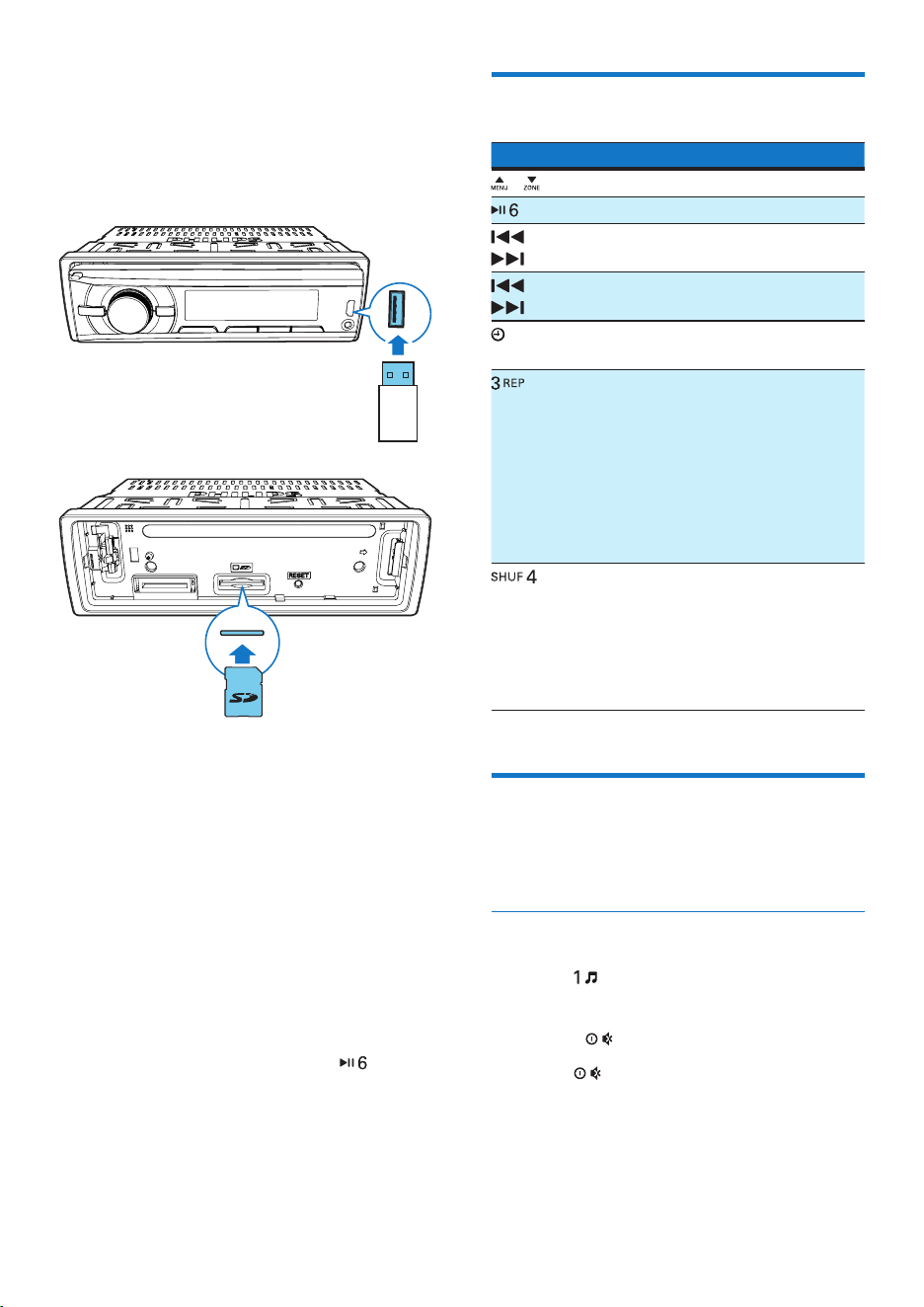
1 Connect a compatible USB storage device
or SD/SDHC card.
• For an SD/SDHC card, detach the
front panel rst, insert the card into
the card slot, and then attach the front
panel.
2 Switch the source to [iPod/USB] or [SD/
SDHC].
• When a USB storage device is
connected and recognized, the system
switches the source to [iPod/USB]
automatically.
3 If the play does not start, press .
Control play
Button Function
/ Press repeatedly to select a folder.
Pause or resume play.
/ Press to play the previous or next
track.
/ Press and hold to rewind a track or
search forward fast.
/DISP
Press repeatedly to display available
information about the current track.
Press repeatedly to select a repeat
mode:
• [REP ONE]: repeat the current
track,
• [RPT FLD]: repeat all tracks in the
current folder, or
• [RPT ALL]: repeat all tracks in the
storage device.
Press repeatedly to select a play mode:
• [SHU ALL]: play all tracks randomly,
• [SHU FLD]: play tracks in the cur-
rent folder randomly, or
• [SHU OFF]: play all tracks in the
storage device in sequence.
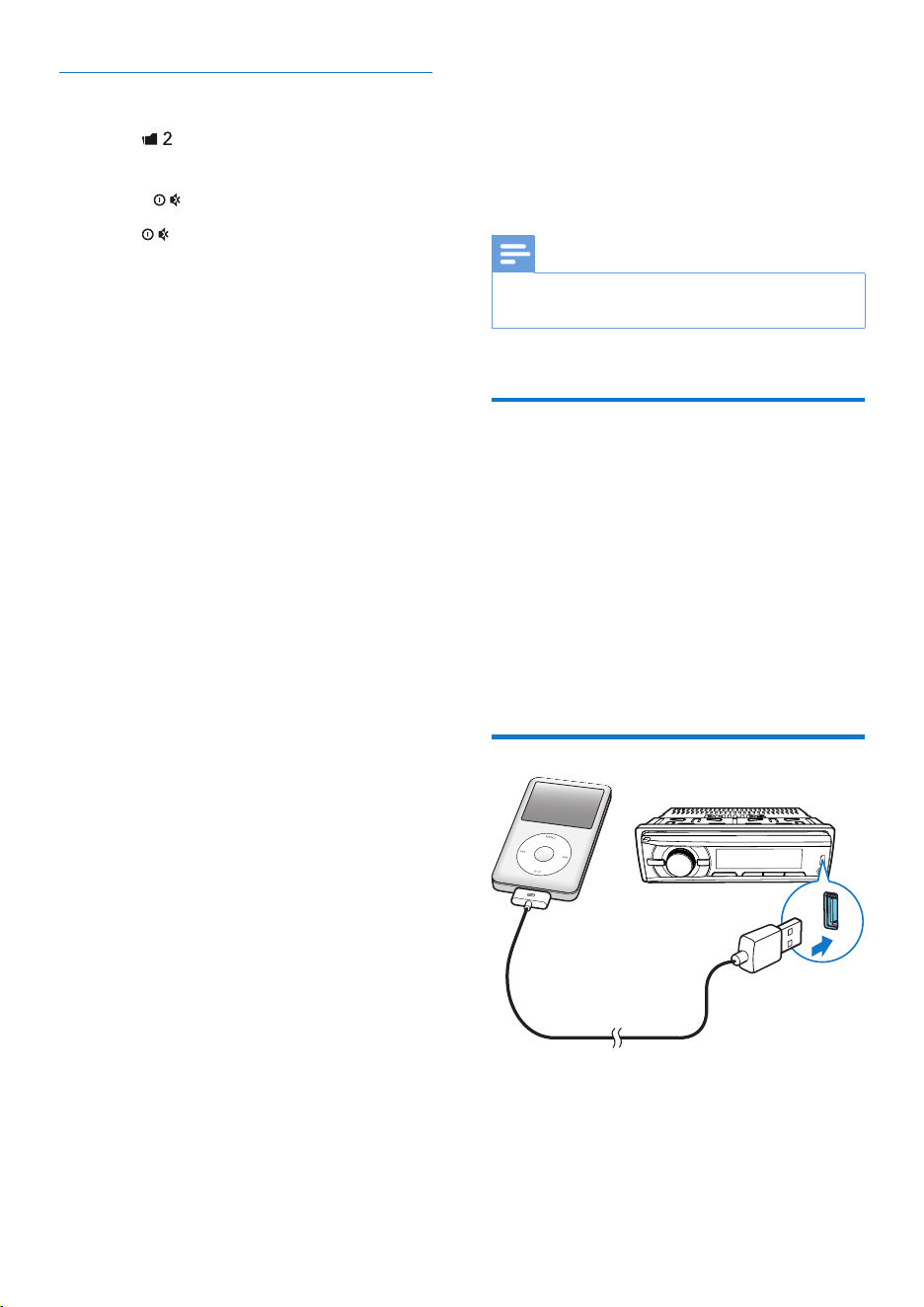
Switch tracks
During play, you can switch tracks or folders
quickly.
Switch tracks directly
1 Press to access the track list.
» The le name of current track scrolls.
2 Rotate to toggle through tracks.
3 Press to play the selected track.
15EN
Switch folders for a track
1 Press to access the folder list.
» The name of current folder scrolls.
2 Rotate to toggle through folders.
3 Press to select the folder.
» The system starts playing the rst track
under the folder.
7 Play from an
iPod/iPhone
Note
• During play, no audio signals are transferred through
the headphone socket of your iPod/iPhone.
Compatible iPod/iPhone
models
This car audio system supports the following
iPod and iPhone models.
• iPhone 4S, iPhone 4, iPhone 3GS, and
iPhone 3G
• iPod touch (2nd, 3rd, and 4th generations)
• iPod classic
• iPod nano (3rd, 4th, 5th, and 6th
generations)
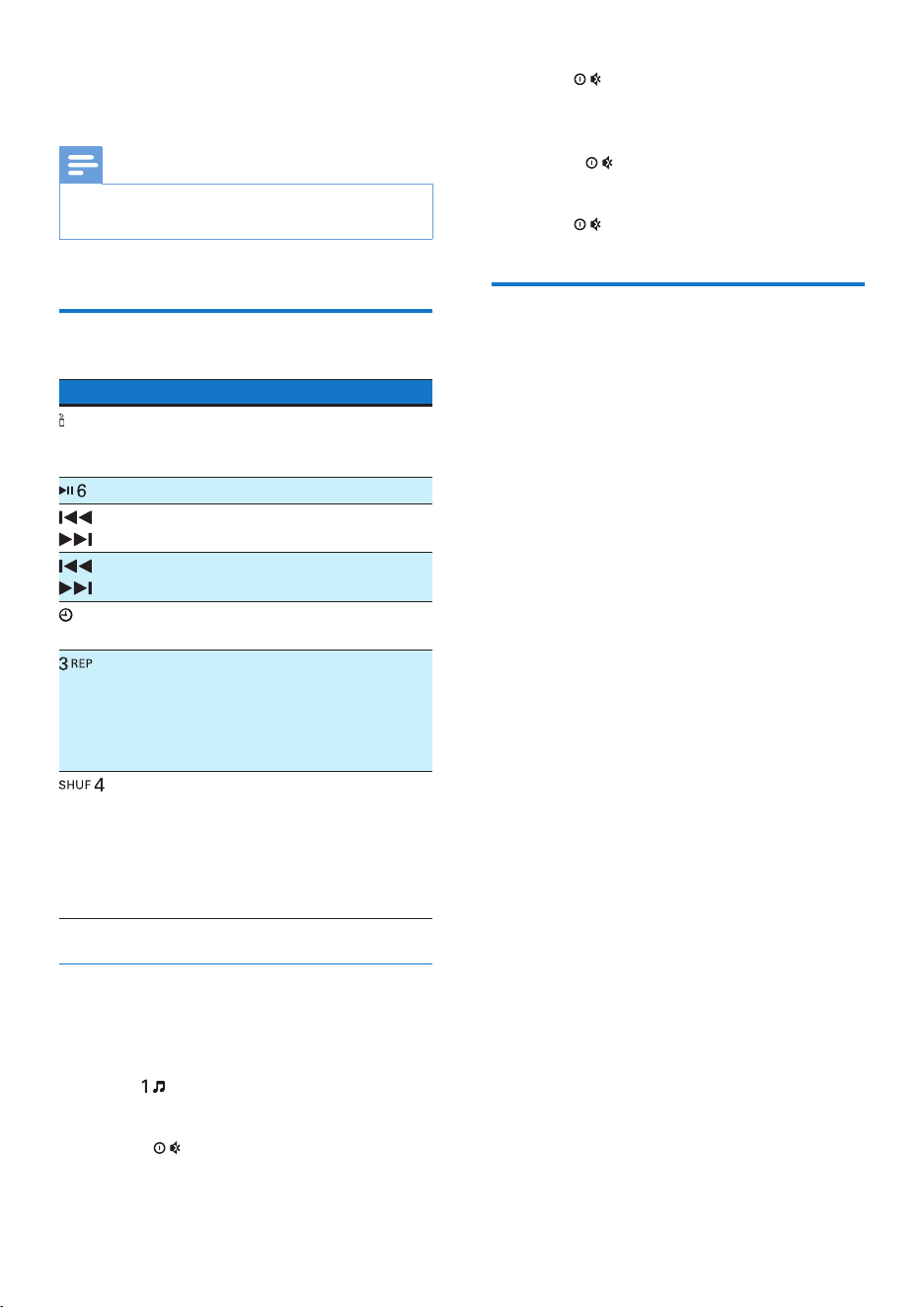
Connect your iPod/iPhone
Connect an Apple 30-pin USB cable to:
• the USB socket on the front panel of this
system, and
• your iPod/iPhone.
» [iPod/USB] scrolls.
16 EN
» The system starts playing tracks that
are stored on your iPod/iPhone.
Note
• Before you disconnect the iPod/iPhone, switch the
system to another source.
Control play
Button Function
Press repeatedly to select a control
mode: control play on your iPod/
iPhone, or on the system.
Press to pause or resume play.
/ Press to play the previous or next
track.
/ Press and hold to rewind a track or
search forward fast.
/DISP
Press repeatedly to display available
information about the current track.
Press repeatedly to select a repeat
mode:
• [REP ONE]: repeat the current
track, or
• [REP ALL]: repeat all tracks.
Press repeatedly to select a play mode:
• [SHU ALL]: play all tracks randomly,
• [SHU ALBM]: play tracks in the cur-
rent album randomly, or
• [SHU OFF]: play all tracks in the
iPod/iPhone library in sequence.
Search for a track
After accessing the iPod/iPhone menu, you can
select a specic track quickly.
1 Press to access the iPod/iPhone menu.
» [PLAYLIST] scrolls.
2 Rotate to select a category.
3 Press to access the list of tracks under
the category.
» The le name of the rst track scrolls.
4 Rotate to select a track.
» The le name of current track scrolls.
5 Press to start play.
Charge your iPod/iPhone
Once the iPod/iPhone is docked and
recognized, the charging starts.
17EN
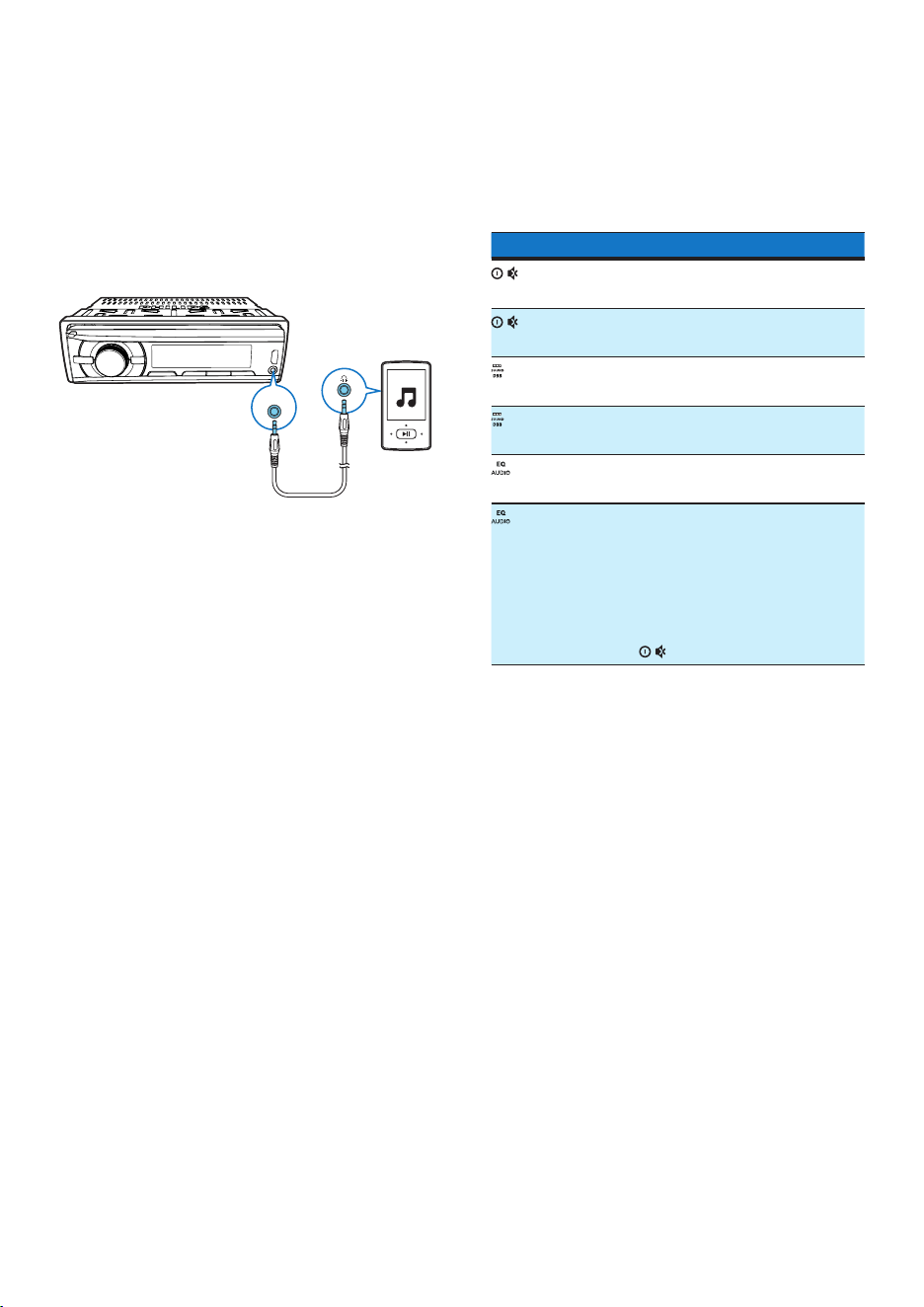
8 Listen to an
external player
You can use the system to amplify the audio
input from an external player, for example, MP3
player.
1 Switch the source to [MP3--LINK].
2 Connect an MP3 link cable to
• the MP3-LINK socket on the system,
and
• the audio output socket (usually the
headphone socket) on the external
player.
3 Play the external player.
MP3-LINK
9 Adjust sound
The following operations are applicable to all
supported media.
Button Function
Rotate to increase or decrease the
volume level.
Press to mute the speakers or release
them from mute status.
Press to enable or disable the
maximum volume.
Press and hold to enable or disable
the Dynamic Bass Boost (DBB) effect.
Press repeatedly to select a sound
equalizer.
1 Press and hold to activate the setup
of customized sound equalizer.
2 Press repeatedly to select an option:
[BAS] (bass), [TRE] (treble), [BAL]
(balance), or [FAD] (fader).
3 Rotate to adjust the setting.
18 EN
10 Additional
information
Reset the system
If the system works abnormally, reset the
system to factory default settings.
1 Detach the front panel.
2 Press the RESET button with the tip of a
ball-point pen or toothpick.
» All settings are reset to factory default.
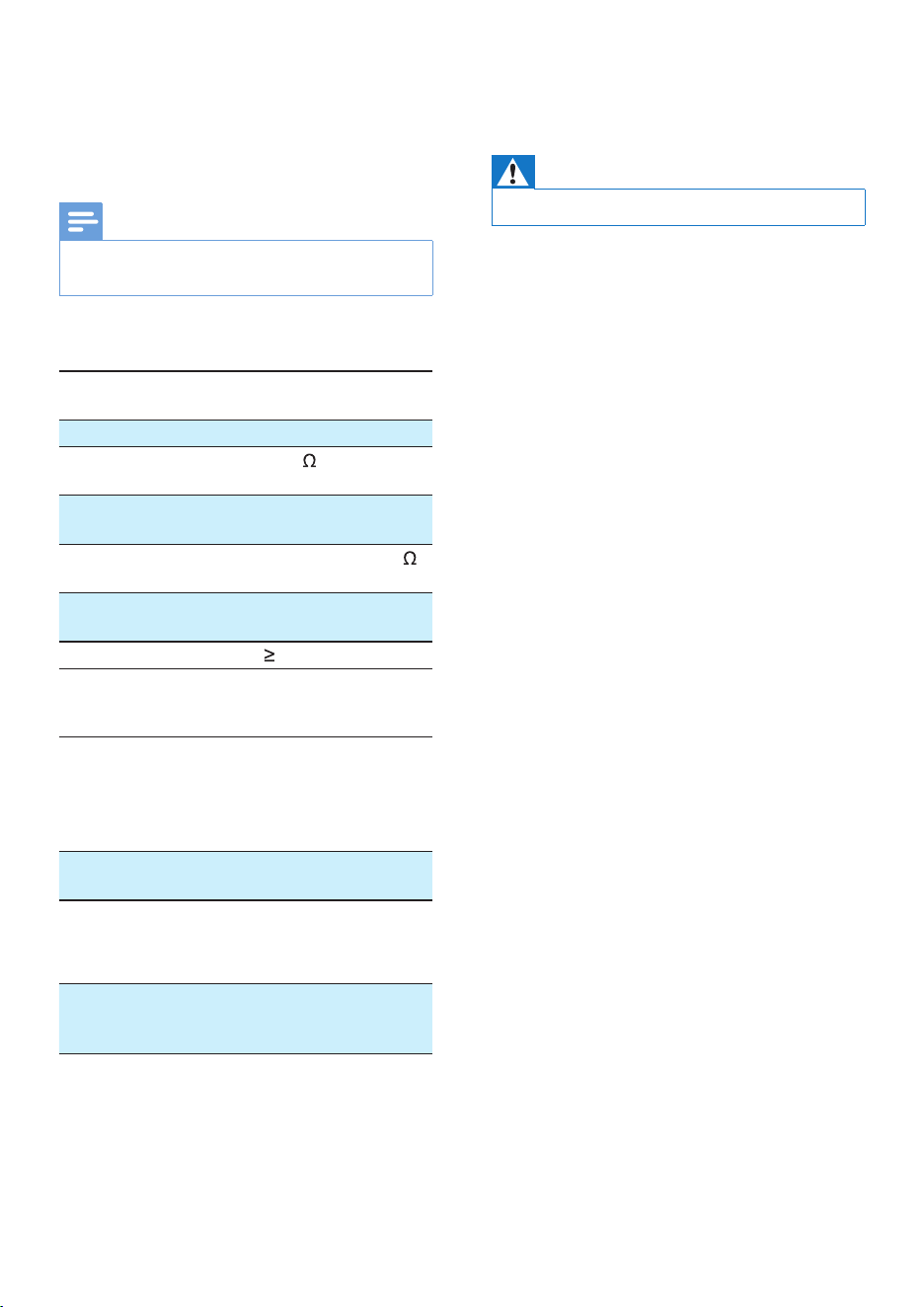
Replace the fuse
If there is no power, check the fuse and replace
it if it is damaged.
1 Check the electric connection.
2 Remove the damaged fuse from the rear
panel.
3 Insert a new fuse with the same
specications (15 A).
Note
• If the fuse gets damaged immediately after it is
replaced, an internal malfunction may occur. In such
case, consult your Philips retailer.
REAR
L
R
19EN
11 Product
Information
Note
• Specications are subject to change without prior
notice.
General
Power supply 12 V DC (11 V - 16
V), negative ground
Fuse 15 A
Suitable speaker
impedance
4 - 8
Maximum power
output
50 W x 4 channels
Continuous power
output
22 W x 4 RMS (4
10% T.H.D.)
Pre-Amp output
voltage
2.5 V
Aux-in level
500 mV
Radio
Frequency range
- FM
87.5 - 108.0 MHz
(100kHz per step in
auto search and 50kHz
per step in manual
search)
Usable sensitivity -
FM (S/N = 20 dB)
8 µV
Frequency range -
AM(MW)
522 - 1620 KHz (9 kHz)
530 - 1710 kHz (10
kHz)
Usable sensitivity -
AM(MW) (S/N =
20 dB)
30 µV
12 Troubleshooting
Warning
• Never remove the casing of this product.
To keep the warranty valid, never try to repair
the product yourself.
If you encounter problems when using this
product, check the following points before
requesting service. If the problem remains
unsolved, go to the Philips Web page (www.
philips.com/support). When you contact Philips,
make sure that the product is nearby and the
model number and serial number are available.
No power or no sound
• The power supply from car battery is cut
off, or the car battery runs out of energy.
Power the system with car battery.
• Car engine is not on. Turn the car engine
on.
• Cable is not correctly connected. Check
connections.
• The fuse is burnt. Replace the fuse.
• Volume is too low. Adjust volume.
• If the above solutions cannot help, press
the RESET button.
• Make sure that the current track is in a
compatible format.
Noise in broadcasts
• Signals are too weak. Select other stations
with stronger signals.
• Check the connection of the car antenna.
• Change the broadcast setting from stereo
to mono.
Preset stations are erased.
• Battery cable is not correctly connected.
Connect the battery cable to the terminal
that is always live.
20 EN
Cannot switch the source to iPod/iPhone
• Check whether the iPod/iPhone is securely
connected.
• Check whether the iPod/iPhone is
compatible with this system.
• Check whether the iPod/iPhone battery is
nearly empty. Connect it to this system for
charging rst.
Display shows ERR-12.
• Data error. Check the USB storage device
or SD/SDHC card.
13 Notice
Any changes or modications made to this
device that are not expressly approved by
Philips Consumer Lifestyle may void the user’s
authority to operate the equipment.
Care of the environment
Your product is designed and manufactured
with high quality materials and components,
which can be recycled and reused.
When this crossed-out wheeled bin symbol is
attached to a product it means that the product
is covered by the European Directive 2002/96/
EC. Please inform yourself about the local
separate collection system for electrical and
electronic products.
Please act according to your local rules and
do not dispose of your old products with your
normal household waste.
Correct disposal of your old product helps to
prevent potential negative consequences for the
environment and human health.
Environmental information
All unnecessary packaging has been omitted.
We have tried to make the packaging easy to
separate into three materials: cardboard (box),
polystyrene foam (buffer) and polyethylene
(bags, protective foam sheet.)
Your system consists of materials which can
be recycled and reused if disassembled by
a specialized company. Please observe the
local regulations regarding the disposal of
21EN
packaging materials, exhausted batteries and old
equipment.
Trademark notice
Windows Media and the Windows logo
are trademarks, or registered trademarks of
Microsoft Corporation in the United States
and/or other countries.
“Made for iPod” and “Made for iPhone”
mean that an electronic accessory has been
designed to connect specically to iPod or
iPhone respectively, and has been certied by
the developer to meet Apple performance
standards. Apple is not responsible for the
operation of this device or its compliance with
safety and regulatory standards. Please note that
the use of this accessory with iPod or iPhone
may affect wireless performance.
iPod and iPhone are trademarks of Apple Inc.,
registered in the U.S. and other countries.
Other trademarks and trade names are those
of their respective owners.
Copyright
2013 © Koninklijke Philips Electronics N.V.
Specications are subject to change without
notice. Trademarks are the property of
Koninklijke Philips Electronics N.V or their
respective owners. Philips reserves the right
to change products at any time without being
obliged to adjust earlier supplies accordingly.
14 Glossary
M
MP3
A le format with a sound data compression
system. MP3 is the abbreviation of Motion
Picture Experts Group 1 (or MPEG-1) Audio
Layer 3.
S
SD
Secure Digital. A type of memory card with a
ash memory.
SDHC
Secure Digital High Capacity (SDHC) is a type
of ash memory card based on the SDA 2.00
specication. The SDA 2.00 specication enables
SD cards to reach higher capacities from 4GB
to 32GB, and growing.
W
WMA (Windows Media Audio)
An audio format owned by Microsoft, is a
part of Microsoft Windows Media technology.
Includes Microsoft Digital Rights Management
tools, Windows Media Video encoding
technology, and Windows Media Audio
encoding technology.

22 EN


Specifications are subject to change without notice
© 2013 Koninklijke Philips Electronics N.V.
All rights reserved.
CE138_85_UM_V1.0