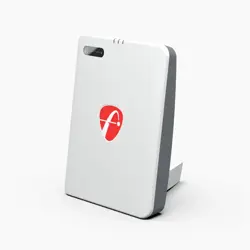
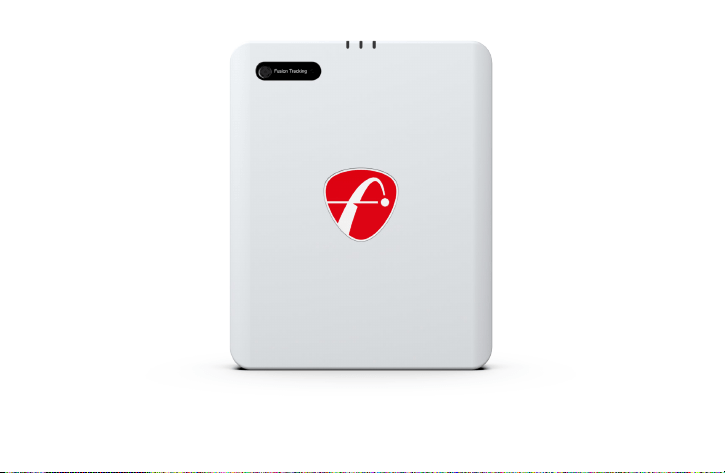
FlightScope Mevo Gen2 User Manual


Contents
Battery warning
Performance tracking
In the box
The Mevo Gen2
Indicator lights
Charging status
Download the FS Golf App
Create a FlightScope Cloud account
Turn on the unit
Scan the QR code
Registration and session setup
Open kickstand
Full swing setup
Preffered setup for putting
Hitting surface offset
1
2
3
4
5
6
7
8
9
10
11
12
13
14
15
16
17
18
20
21
22
23
24
27
28
29
30
31
32
Aluminum stickers
Aluminum sticker alignment
Tips
Charging
Avoid
Care
E6 Connect
Electronic noise
Compatible simulation software
Frequently asked questions
Support
Dimensions
Technical specifications & Patents
FCC Statement
1
Battery warning
This device contains a Li-ion battery. To ensure your safety and the longevity of the battery, please adhere to the following
guidelines. Temperature Exposure: Avoid exposing the battery to extreme temperatures. Do not use or store the device in
environments below freezing point or in excessively hot conditions. Physical Handling: Protect the battery from physical
impacts. Do not puncture, crush, or drop the device. Be cautious of potential impacts from clubs, balls, or other objects.
Battery Maintenance. Regular Charging: Charge and discharge the battery regularly, at least every few months. Correct
Charging Equipment: Use only the charger and cable provided with the device. Battery Damage and Malfunction: If you
notice the battery bulging, emitting fumes, or becoming excessively hot, immediately disconnect it from the charger. In
such cases, replace the battery and dispose of the old one according to local regulations. Battery Disposal: Dispose of old
batteries responsibly in accordance with local waste battery and recycling regulations. In Case of Battery Damage or
Malfunction:Cease usage immediately. In case of a critical malfunction, fumes or fire may result. Avoid inhaling fumes. If it
can be done safely, place the device or battery in a place where gas emissions are ventilated or a fire cannot propagate.
Stay clear of the device or battery until emissions have ceased.
Contact FlightScope Customer Care at customercare@flightscope.com for further information or guidance. By following
these precautions, you can safely enjoy the use of your device.
2
Performance tracking
@flightscopegolf
Visit myFlightScope.com to analyze and track your data performance over time.
3
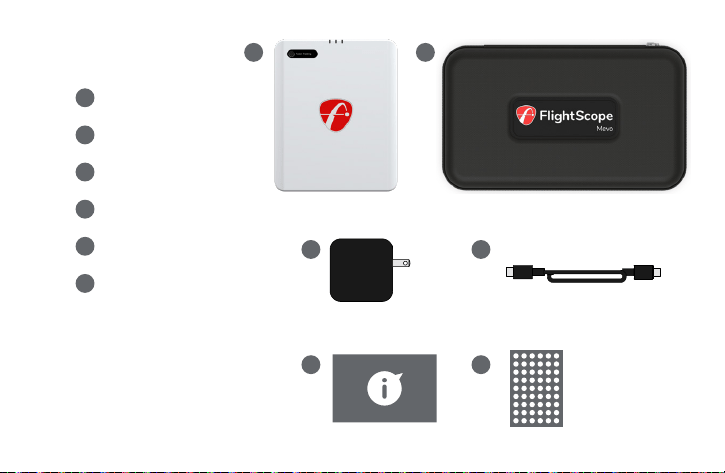
In the box
Mevo Gen2
Carry case
Power supply
USB-C to USB-C cable
Quickstart guide
Aluminum stickers
1
2
3
4
6
5
1 2
3
5 6
4
4
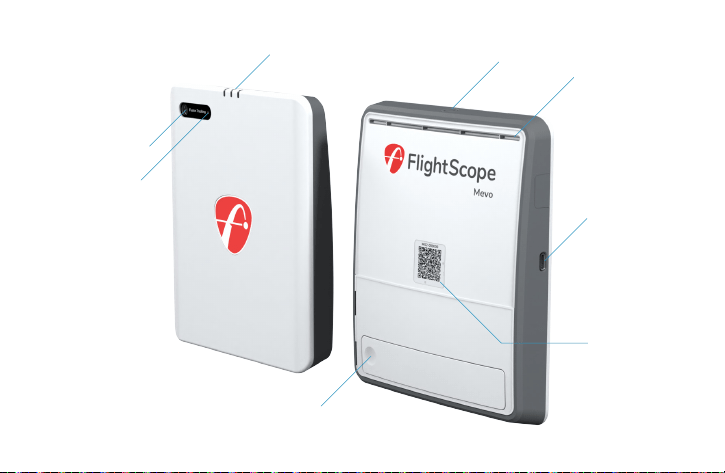
The Mevo Gen2
USB-C
QR Code
Camera
Ambient light sensor
Power button
Air vent
Indicator lights
Kickstand
Fusion tracking
and ball alignment
For Wi-Fi connection
to FS Golf App
5
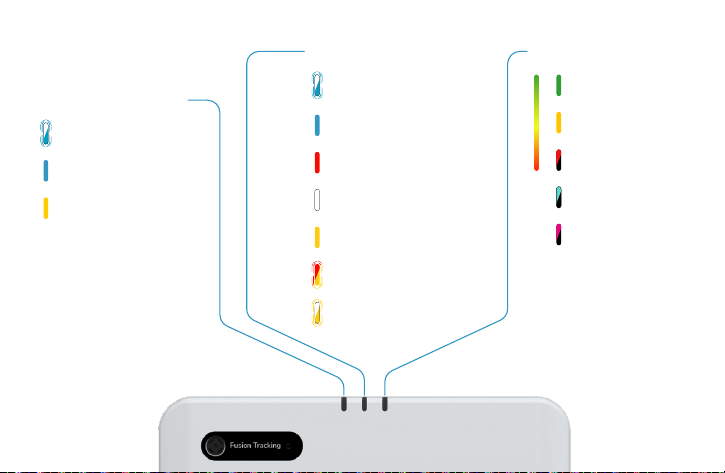
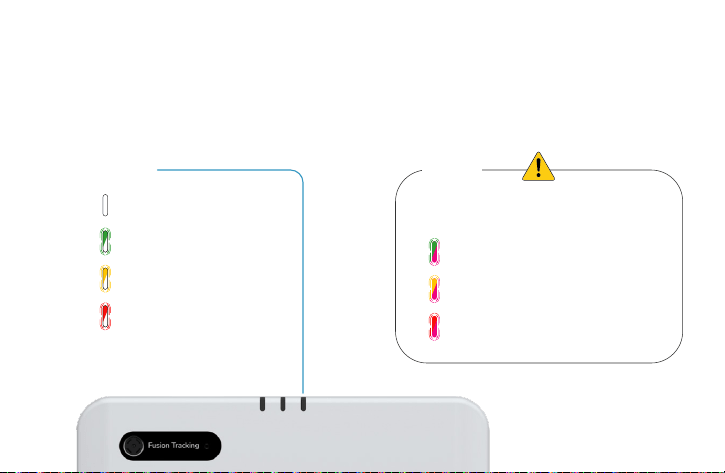
Connection Status
System Status
Ready for Wi-Fi connection
Battery Status
Indicator lights
Thermal charging error
Insufficient charging
Wi-Fi connected
Communication error
Bootup
Standby
Armed
Thermal charging error
System error
System temperature
warning
Shutting down
100%
50%
5%
6
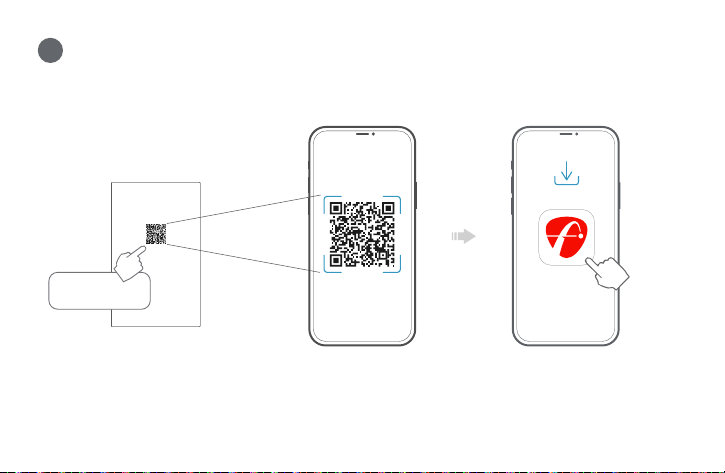
USB-C
If a USB-A to C cable is used to charge the unit
while in use, the battery will slowly discharge. This is
because the required current of 2A is not met by USB-A to C.
100% charged but battery draining
50-99% charged
10-50% charged
10% charged
100% charged (Solid white)
50% charged but battery draining
5% charged but battery draining
We strongly recommend using the supplied power supply and cable to ensure your
unit charges correctly. Charging while in use will show the following light combinations:
Charging status
USB-A
7
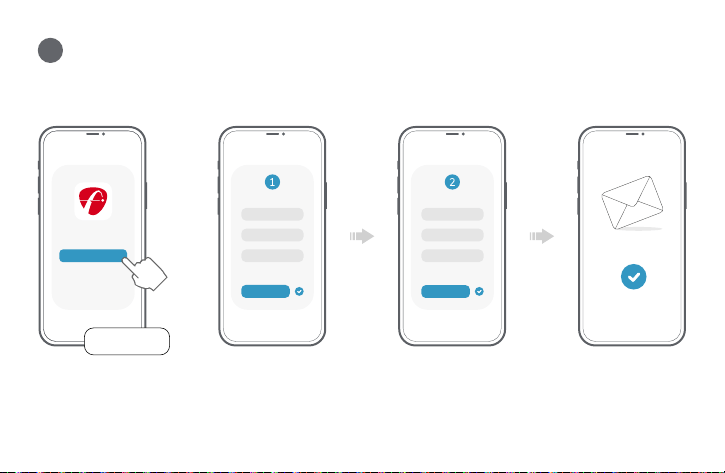
Download the FS Golf app
1
Scan the QR code on
the bottom of the box
FS Golf
8
2
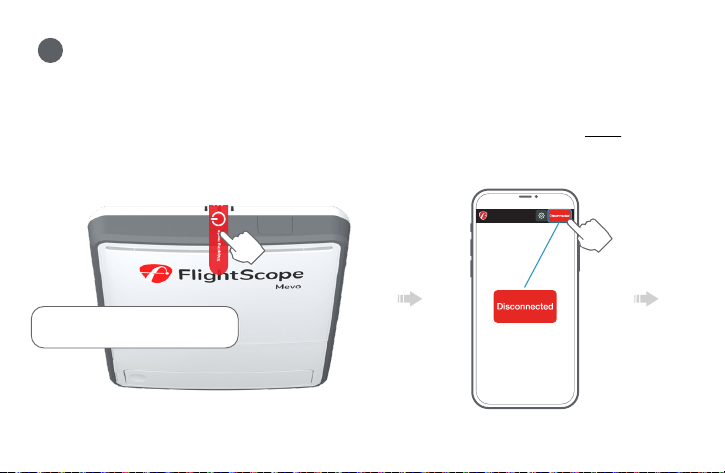
Create a FlightScope Cloud account
Account Setup
Create Account
Personal Details
Confirm Email
FlightScope Cloud
This process happens
within the FS Golf app
9
First-time start up: Plug the unit into the power
supply to deactivate the shipping mode. Once
deactivated remove the shipping mode sticker.
Once the unit has stopped beeping,
click on the disconnect button in the FS Golf app.
3
Turn on the unit
For start up and shut down, push and
hold the power button for 2 secs.
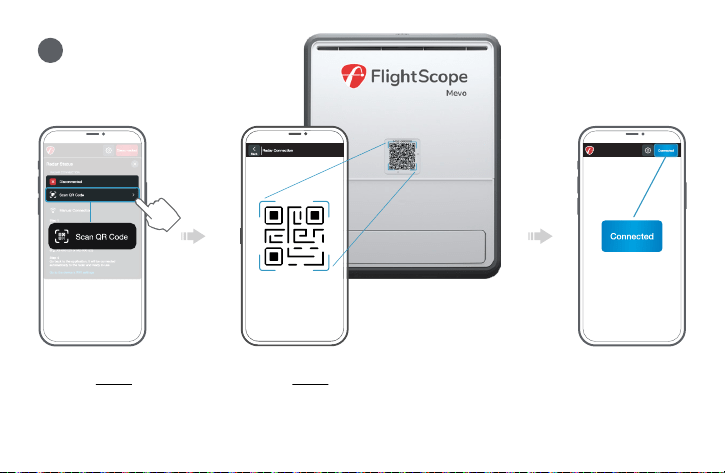
10
Click on the Scan QR code
button in the FS Golf app
Scan the QR code on the unit
within the FS Golf app
The radar is now connected
to your mobile device.
4
Scan the QR code
11
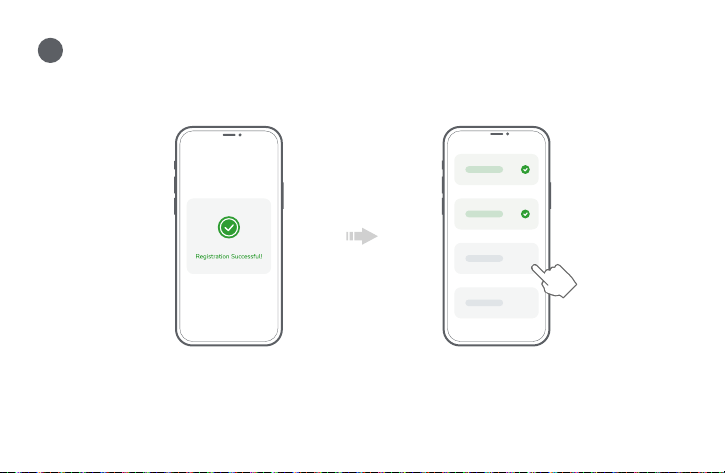
5
Registration and session setup
Follow the on-screen prompts
to register your device.
Follow the on-screen prompts
to setup your session.
12
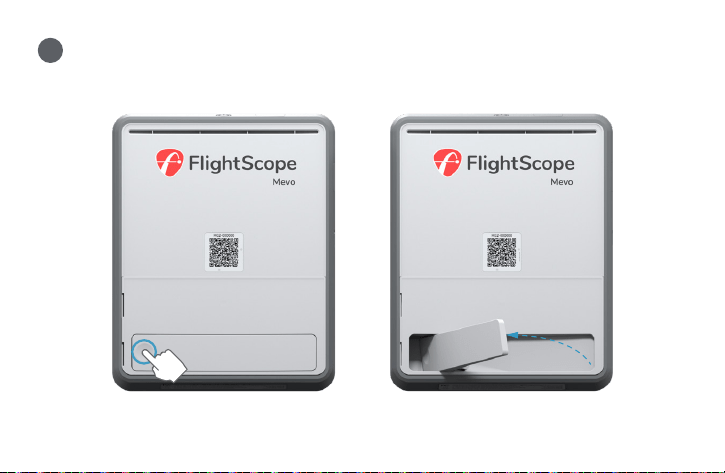
6
Open kickstand
13
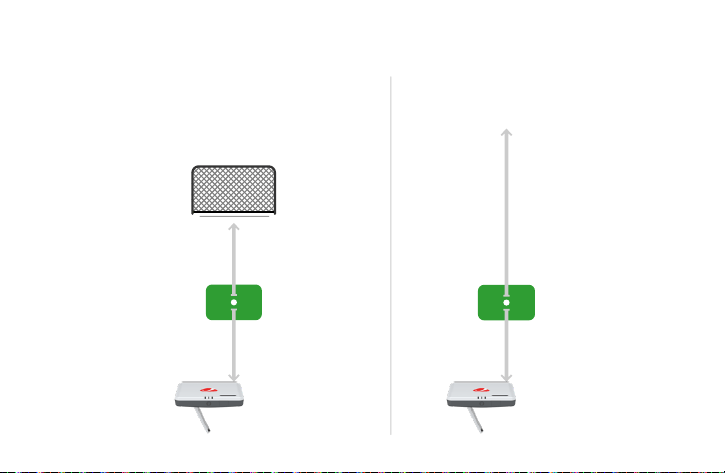
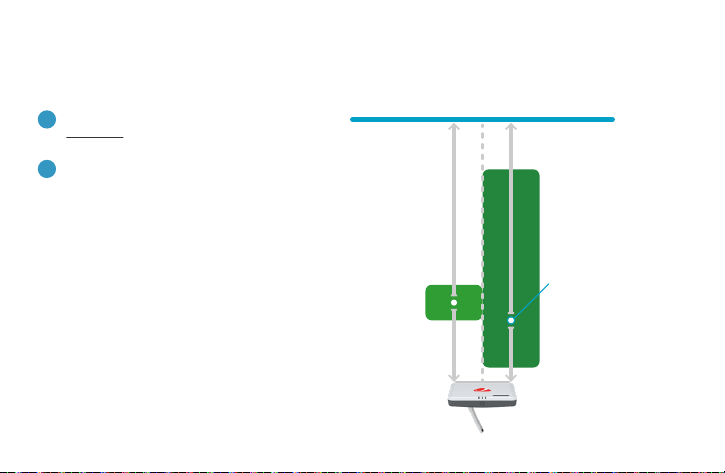
Outdoor
No stickers required
8’ (2.4m)
Mevo Gen2 to ball
Unrestricted
ball flight
Limited Flight
8’ (2.4m)
Mevo Gen2 to ball
Full swing setup
8’ (2.4m) minimum
ball to net
Aluminum stickers or RCT balls required
for accurate spin measurements
14
8’ (2.4m)
Mevo Gen2 to ball
7’ (2.1m)
Mevo Gen2 to ball
Preferred setup for putting
Limited Flight / Simulator
Aluminum stickers or RCT balls
should not be used when putting!
For more detailed simulator setup
guidelines please go to
FlightScope.com > User Manuals >
Simulator Setup Guide
Net / screen
8’ (2.4m) minimum
ball to net
1
2
Putting ball position
15
1
2
3
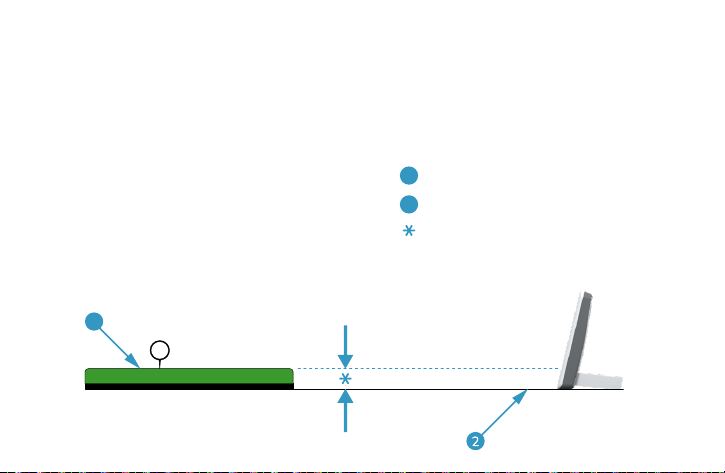
Hitting surface
Ground surface
Maximum Height: 3’’ (76mm)
Best practice is to keep the unit on the floor with a level surface between the unit and the mat.
1
Hitting surface offset
16
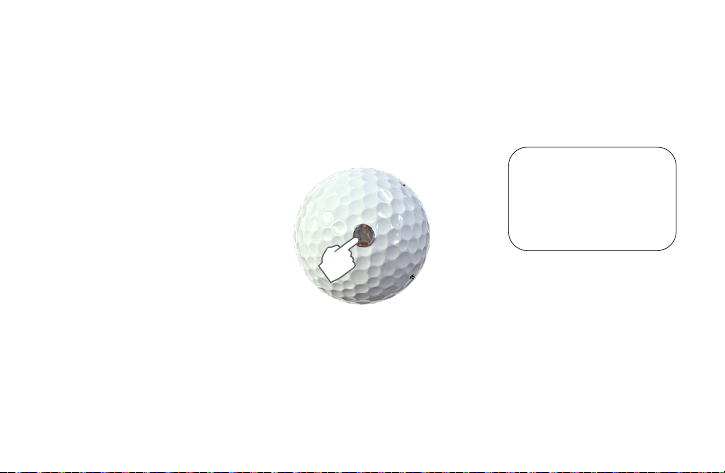
To order additional stickers visit the FlightScope website.
Aluminum stickers
Aluminum stickers or
RCT balls required for
limited flight setup to
enable accurate spin
measurements.
For the best spin accuracy indoors, place an aluminum sticker on the ball.
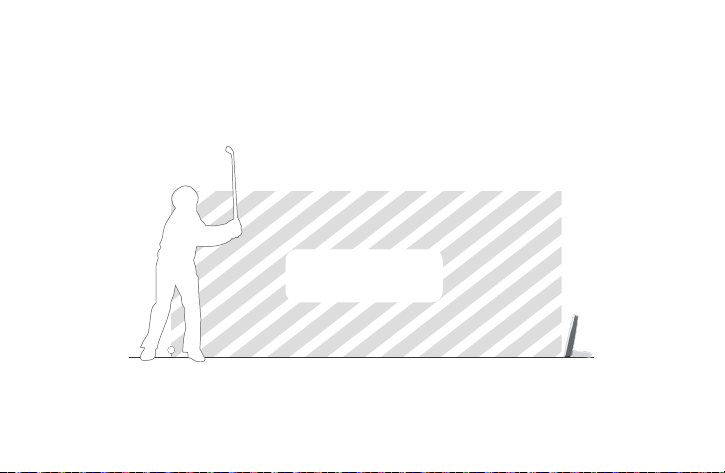
17
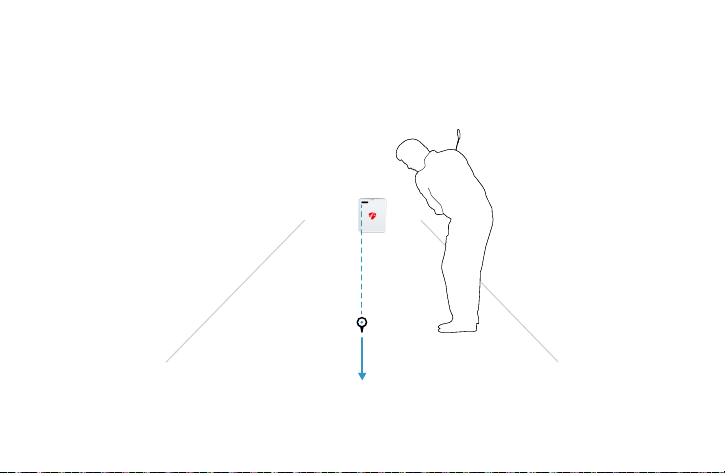
The aluminum sticker must face the target, directly away from the Mevo Gen2 and club face.
Sticker facing
towards target
Aluminum sticker alignment
18
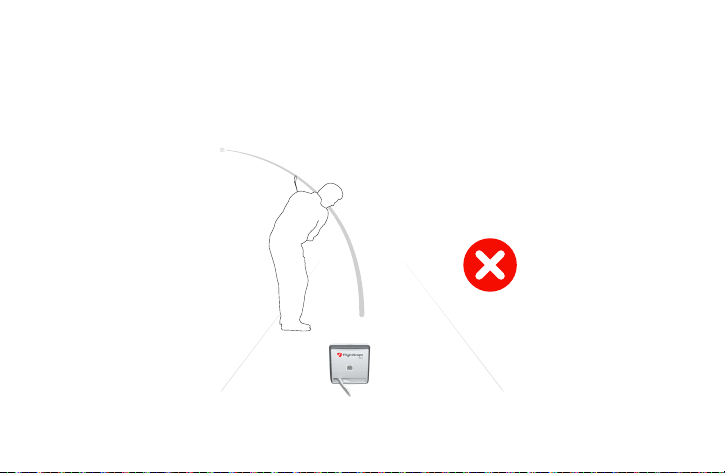
Tips
Keep area between Mevo Gen2 and the ball position clear of any objects and people.
KEEP CLEAR
19
Extremely low and wide shots, and shots where the player is between the
Mevo Gen2 and the ball, might not register.
Tips
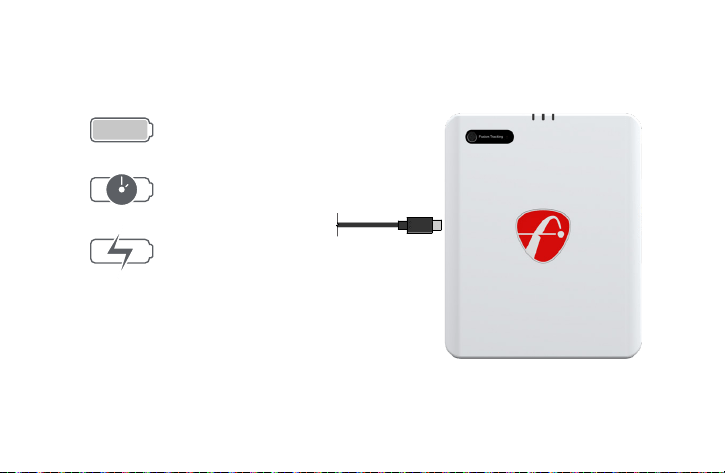
Charging
10’500 mAh
6 hours*
Estimated charging time
run time
capacity
6 hours
20
*exact run time depends on usage cycle
21
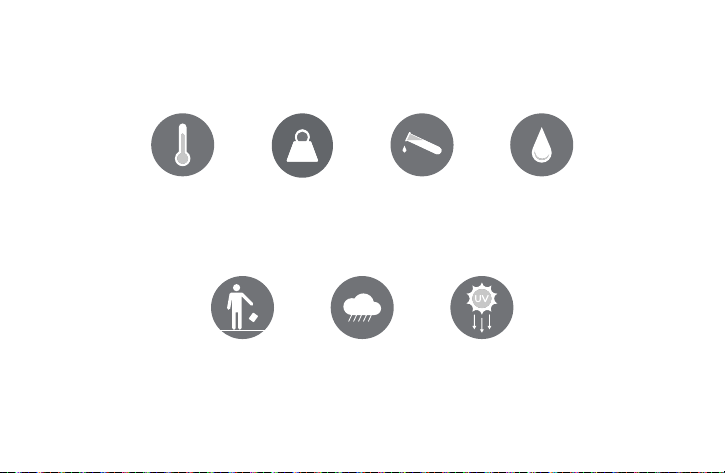
Physical impact Excessive UV
exposure
Flames and
direct heat
Excessive weight
loading
Moisture,
including rain
Water immersion Solvent chemicals
Avoid
22
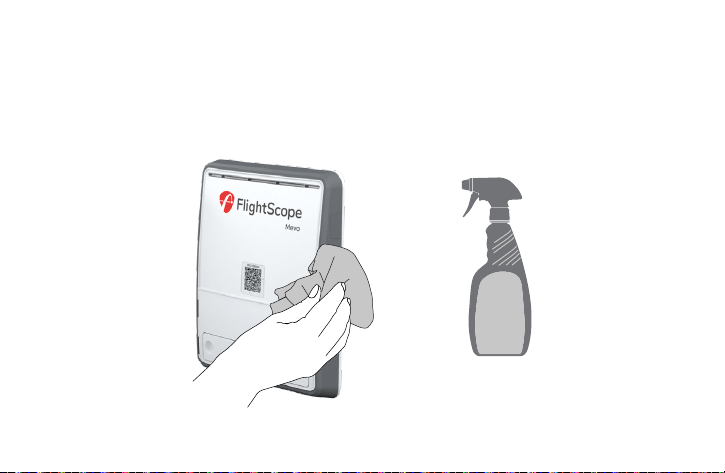
Care
Clean the unit with a microfiber cloth and all purpose cleaner. We recommend the 303
marine aerospace protectant.
23
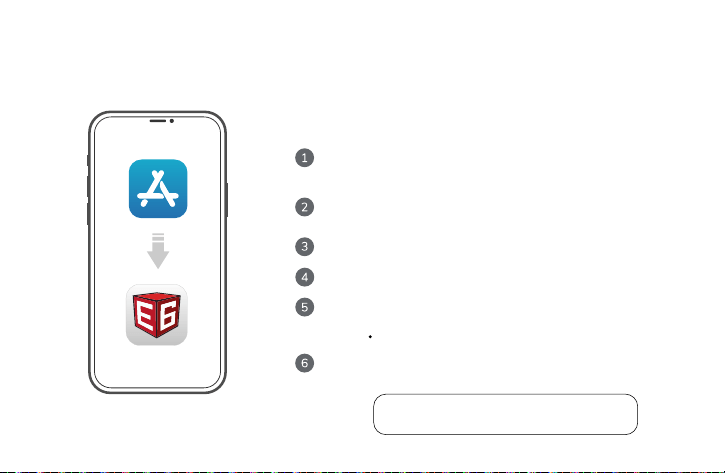
E6 Connect
Follow the on-screen instructions to create your E6 Connect profile.
Select the redeem option and enter your product key.
Download the available courses to your E6 Connect app.
(Courses must be downloaded BEFORE connecting your mobile device)
With your purchase of a new FlightScope Mevo Gen2 product you receive
an E6 Connect golf simulator software license with multiple golf courses,
practice ranges, and more features, at no extra charge.
(Note that this free E6 Connect license is non-transferable once redeemed).
You can now connect to your Mevo Gen2 via Wi-Fi and
begin your session.
Play Golf Menu > Course Selection
Create or access your account on portal.e6golf.com
to activate, view or manage your E6 licenses.
Register a FlightScope Mevo Gen2 account on the iOS/ Android
FS Golf app or Windows FS Golf PC app. An E6 Connect product
key will be emailed to you.
Download the iOS E6 Connect app from the Apple app store, or download
the Windows PC app from the E6 website at portal.E6golf.com
24
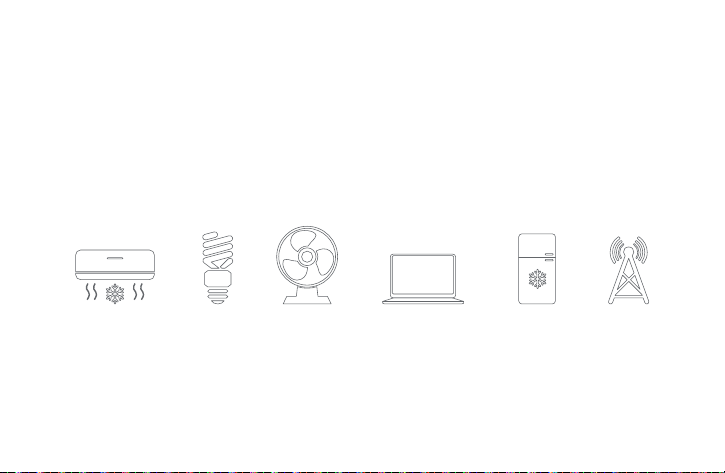
Fluorescent
lights
Fans Fridges Signal
towers
Aircon
Tv’s, laptops and
desktop computers
in front of the Mevo
Electronic noise
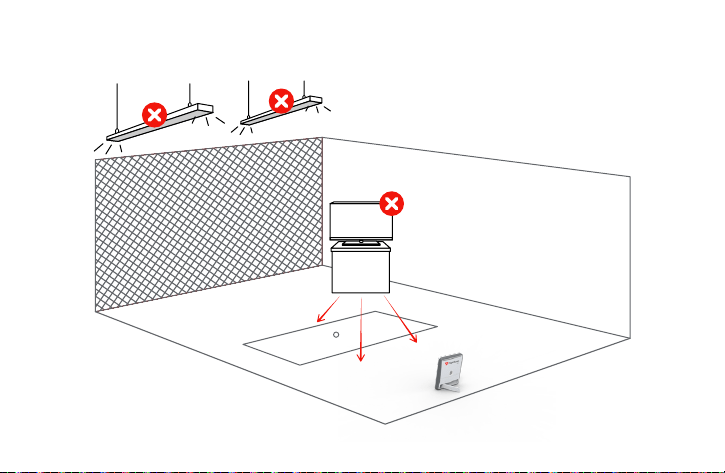
Mevo Gen2 is designed to operate in most environments. However certain appliances
and equipment can create noise that can interfere with resulting shots.
Some common noisy objects are:
25
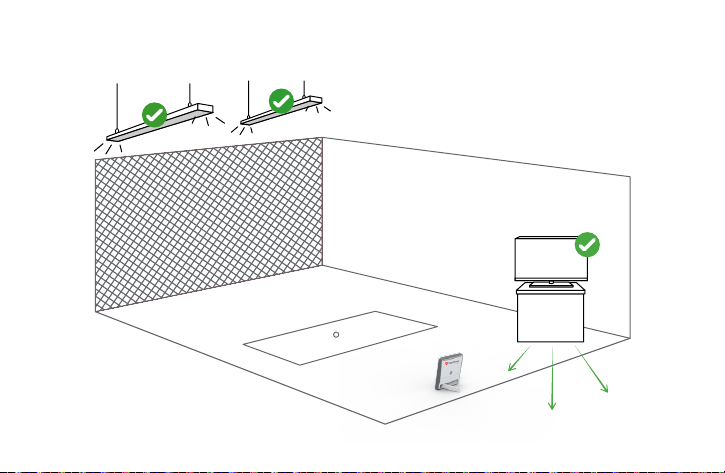
In limited flight (indoor) mode, keep area clear of
possible noise interference. Make sure to move
noisy electronic devices behind the unit.
LED
26
Noisy electronic devices in front of the unit may
cause poor tracking performance.
Fluorescent
27
Compatible simulation software
E6 Golf GS PRO Awesome Golf
iOS, Windows iOS, Android, PCWindows
28
Can the Mevo Gen2 be used indoors and outdoors?
Yes. Please check page 13 for indoor (limited flight) space requirements.
Does a reflective sticker need to be used?
Yes, for indoor (limited flight) use only. See page 15
How is the video recorded?
Swing video can be captured with your Apple or Android device, as well as the radar's
built-in camera, using the FS Golf application. Additional angles can be captured using
the FS Multicam application which can be downloaded on the Apple App Store or the
Google Play Store. The video is synchronized with your device to automatically record
and clip video of your swing with an optional data overlay.
Can the built-in camera be used for video?
Yes, the Mevo Gen2 internal camera can be used to record video.
How long is the battery life?
The battery life is up to 6 hours on a full charge, and up to 6 hours in simulator play.
1
2
3
Below are the top 5 frequently asked questions.
For more FAQ’s please refer to
flightscope.com/pages/faq
4
5
?
Frequently asked questions
29
Support
If you need assitance, please email our customer care team:
customercare@flightscope.com
30
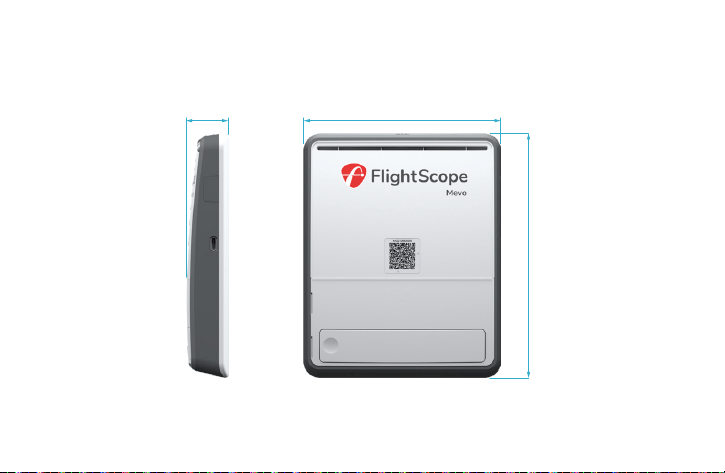
Dimensions
1.2”
30.1mm
5.6”
141mm
6.9”
175mm
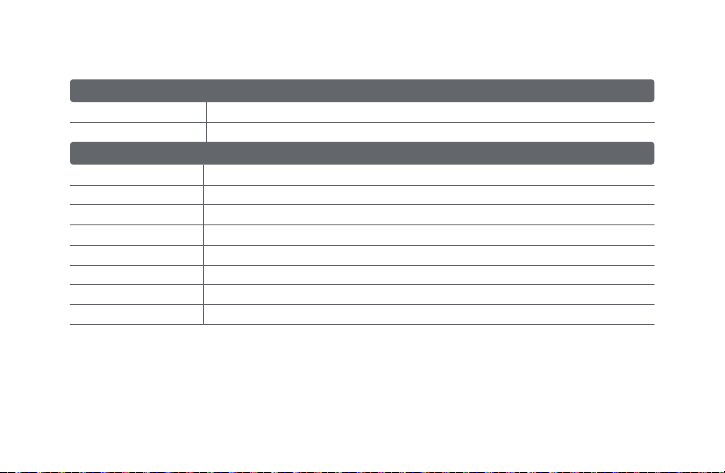
Technical specifications
Patents
Output power (EIRP)
*Operating frequency
Fixed frequency in the 24.083 - 24.168 GHz band
24 dBm +/- 3dBm (North America); 17dBm +/- 3dBm (Japan, Europe, South Korea)
transceiver
31
Operating temperature
0ºC to +40ºC (operating, recommended)
-10ºC to +55ºC (storage, non-operating)
500g
Operating temperature
30%-70%
Relative humidity range
Battery
Dimensions
Mass
Power supply
Data interfaces
electrical, physical, and general
6.9 x 5.6 x 1.2” (175 x 141 x 30.1mm)
Rechargeable Li-ion. Ratings: 3.6VDC / 10.5Ah / 38Wh
USB-C
USB-A for Wi-Fi adapter (Certified seperately)
Spin Rate Measurement Patent: US 9,868,044 B2
Fusion patent: US 11,016,188 B2
Environmental Optimizer patent: US 11,867,530 B2
FCC Statement: This equipment has been tested and found to comply with the limits for a Class B digital device, pursuant to
Part 15 of the FCC Rules. These limits are designed to provide reasonable protection against harmful interference in a residential installation. This equipment
generates, uses and can radiate radio frequency energy and, if not installed and used in accordance with the instructions, may cause harmful interference to radio
communications. However, there is no guarantee that interference will not occur in a particular installation. If this equipment does cause harmful interference to radio
or television reception, which can be determined by turning the equipment off and on, the user is encouraged to try to correct the interference by one or more of the
following measures: 1. Reorient or relocate the receiving antenna. 2. Increase the separation between the equipment and receiver. 3. Connect the equipment into an
outlet on a circuit different from that to which the receiver is connected. 4. Consult the dealer or an experienced radio/TV technician for help. In order to comply with
FCC and ISED RF Exposure requirements, a minimum separation distance of 20cm must be maintained between the device and all persons during normal operation.
Afin de se conformer aux exigences de la FCC et de l’ISED en matière d’exposition aux RF, une distance de séparation minimale de 20 cm doit être maintenue entre
l’appareil et toutes les personnes pendant le fonctionnement normal.
Changes or modifications not expressly approved by FlightScope (PTY) could void the user’s authority to operate the equipment.
ISED Statement: This device contains licence-exempt transmitters/ receivers that comply with Innovation, Science and Economic Development Canada’s
licence-exempt RSS(s). Operation is subject to the following two conditions:
(1) This device may not cause interference.
(2) This device must accept any interference, including interference that may cause undesired operation
of the device.
Declaration IC: Cet appareil contient des émetteurs/récepteurs exemptés de licence conformes à la norme Innovation, Sciences, et Développement économique
Canada. L'exploitation est autorisée aux deux conditions suivantes:
(1) L'appareil ne doit pas produire de brouillage.
(2) L'utilisateur de l'appareil doit accepter tout brouillage radioélectrique subi, même si le brouillage est
susceptible d'en compromettre le fonctionnement.
本装置を使用する際は以下に指定するWiFiドングルをお使いください。
Archer T2U Nano:工事設計認証取得済(201-180565)
En France, ce produit est limité à une utilisation uniquement dans les bandes
de fréquences et niveaux de puissance autorisés par la réglementation nationale.
In the Northen Ireland, this product is restricted to operation only within
frequency bands and power levels permitted by national regulations.
E19-BK317-ISSQ 32
018-250141