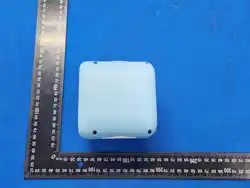

Kids AI Story Speaker
User Manual
WARNING: Suitable for children aged 3 and above.
Thank you very much for choosing this product. To enjoy the convenience brought by
this product, please read this manual carefully to ensure proper operation. Wish you a
pleasant user experience.
Podcast Mode
There are three playback methods for this mode:
1. Control the device to enter Podcast Mode via the bound APP / Mini- Program: Select and
start playback from an album in the Story Square. The device will play content from the
playback list.
2. Enter Podcast Mode on the device: - Case 1: If the “My Play- later List” under Story
Square in the bound APP / Mini- Program contains content, the device plays items from
this list in random order. - Case 2: If “My Play- later List” is empty, the device
randomly plays stories and songs from the full backend content library.
3. Short- press the Power button to switch modes and exit Podcast Mode, returning to AI
Conversation Mode.
4. Wake up voice control via Key A to pause, resume playback or skip to the next track.
5. If the voice query after waking up via Key A is not one of the above playback commands,
the device automatically exits Podcast Mode and enters AI Conversation Mode.
About APP / Mini- Program
Description for the top control bar of Story Square within APP / Mini- Program:

Previous Track / Play- Pause / Next Track
1. These three controls function normally only when the device is playing songs or stories
from the backend content library.
2. These three controls are invalid when the device stays in AI Conversation Mode or AI
Storytelling Mode (not playing backend library content).
Volume Adjustment
Adjust volume globally.
Product Specifications
Item
Parameter
Product Name
Kids AI Story Speaker
Model
YS-G11
Nominal Battery Voltage
3.7 V
Nominal Battery Capacity
600 mAh
Port
Type- C
Charging Time
1.5- 2 hours
Standby Time
6- 8 hours
Speaker Power
-
Recommended Charger Specification
5 V/1 A
Packing List
- AI Story- Player ×1 - Type- C Charging Cable ×1 - User Manual ×1 - Warranty
Card ×1 - Certificate of Conformity ×1
Applicable Standard: GB4943
Maintenance
- Keep the product clean to prevent dust accumulation. - Avoid damp environments
such as bathrooms or windowsills. - Use reasonable volume levels. Avoid long- time
high- volume playback which may shorten service life. - Periodically inspect charging
cables, plugs and housing. Stop using the device immediately if any part is damaged
until properly repaired.
Important Safety Tips

- Contains small parts. NOT suitable for children under 3 years old. Choking hazard.
- Do not disassemble or puncture the battery. Keep away from fire. - Do not charge
under high- temperature conditions; avoid over- charging for extended periods. - Stop
using right away if battery bulges, overheats or emits strange odors. - Do not replace
the built- in battery by yourself. Contact manufacturer for repairs. - Charging ambient
temperature range: 0- 45
℃
. - Do NOT leave children unattended with the device and
charging cable while charging. - Never charge in bathrooms or humid locations. -
Discard damaged chargers; do not reuse them. - Do not use non- standard chargers
other than 5 V/1 A.
Button Functions
- Microphone - Key A - Volume- Button - Volume+ Button - Power Button
Key A
1. Short- press with no network: Voice prompt: “No network detected. Please connect to
network.”
2. Short- press under default standby state: Voice prompt: “Hi”, enter listening state.
3. Short- press while listening: Voice prompt: “I’m resting”, enter standby.
4. Short- press during AI speaking: Voice prompt: “Hi”, resume listening.
Volume- Button
1. Long- press: Decrease volume.
2. Short- press: Next track (only valid when playing library stories / songs).
Volume+ Button
1. Long- press: Increase volume.
2. Short- press: Previous track (only valid when playing library stories / songs).
Power Button
1. Long- press: Power on / off.
2. Short- press: Toggle between AI Conversation Mode and Podcast Mode. Voice prompt
will announce current mode.
3. Press twice consecutively: Enter network- configuration mode, voice prompt
“Network- config mode”. Press twice consecutively again to exit network- config mode.

Network Configuration
Configure via XiaoCai APP / XiaoCai AIo Mini- Program.
Method 1: First- time Network Configuration
1. Power on device, press Power button twice consecutively to enter network- config mode.
2. Voice prompt: “Network- config mode”.
3. Turn on Bluetooth on your mobile phone, launch XiaoCai APP / XiaoCai AIo
Mini- Program.
4. Tap “Add Device” inside APP / Mini- Program.
5. Follow on- screen instructions to complete configuration.
6. After successful configuration, voice prompt “I’m here, please speak”. The device enters
listening state and is ready for interaction.
Method 2: Re- configure on Device Hardware
1. Under non- standby status, press Power button twice consecutively manually to enter
network- config mode.
2. Voice prompt: “Network- config mode”.
3. Repeat steps 3- 6 from Method 1.
Method 3: Re- configure via APP / Mini- Program
1. Keep device bound; open XiaoCai APP / XiaoCai AIo Mini- Program.
2. Go to device details → tap “Modify Network”. The device will announce
“Network- config mode”.
3. Complete subsequent configuration as guided.
Button Interrupt Function
Press any button to interrupt AI speech or audio playback; the device will enter
listening state.
AI Conversation Mode
1. Default boot- up mode. Supports daily chat and interaction.
2. Supports intent recognition and emotion recognition, and can adjust volume accordingly.
3. Supports voice commands for audio playback: - Play music / Play story - Play
specified content (e.g. “Play XXX”) - Next track - Pause - Resume playback
4. After waking with Key A during playback, you may send voice commands to pause,
resume or skip tracks.

5. If your voice command after wake- up is not one of the playback- related commands, the
device automatically exits Podcast Mode and returns to AI Conversation Mode.
Agent Switching
Switch intelligent agent profiles inside APP / Mini- Program.
Library Content Playback
Play custom songs and stories from APP / Mini- Program playlists.
Sleep Mode
1. Enter sleep mode via Key A or voice commands such as “Go rest” / “Take a break”. Voice
reply: “I’m resting”.
2. Wake up via Key A.
3. Auto power- off after 3 minutes in sleep mode; voice prompt: “Powering off”.
4. Charge to full capacity before long- term storage to avoid battery damage from deep
discharge.
Indicator Lights
1. Red light stays lit during charging; turns off once fully charged.
2. Blue light stays lit when powered- on; turns off upon power- off.
OTA Firmware Upgrade
Online firmware updates are available continuously. Product functions may change
with software iterations. Actual features shall be subject to the latest firmware
version.

FCC Caution.
(1)§ 15.19 Labelling requirements.
This device complies with part 15 of the FCC Rules. Operation is subject to the following two
conditions: (1) This device may not cause harmful interference, and (2) this device must accept
any interference received, including interference that may cause undesired operation.
§ 15.21 Changes or modification warning
Any Changes or modifications not expressly approved by the party responsible for compliance
could void the user's authority to operate the equipment.
§ 15.105 Information to the user.
Note: This equipment has been tested and found to comply with the limits for a Class B digital
device, pursuant to part 15 of the FCC Rules. These limits are designed to provide reasonable
protection against harmful interference in a residential installation. This equipment generates uses
and can radiate radio frequency energy and, if not installed and used in accordance with the
instructions, may cause harmful interference to radio communications. However, there is no
guarantee that interference will not occur in a particular installation. If this equipment does cause
harmful interference to radio or television reception, which can be determined by turning the
equipment off and on, the user is encouraged to try to correct the interference by one or more of
the following measures:
-Reorient or relocate the receiving antenna.
-Increase the separation between the equipment and receiver.
-Connect the equipment into an outlet on a circuit different from that to which the receiver is
connected.
-Consult the dealer or an experienced radio/TV technician for help.
RF warning for Portable device:
The device has been evaluated to meet general RF exposure requirement. The device can be used i
n portable exposure condition without restriction.
According to §15.247(e)(i) and §1.1307(b)(1), systems operating under the provisions of this
section shall be operated in a manner that ensures that the public is not exposed to radio frequency
energy level in excess of the Commission’s guidelines.