21
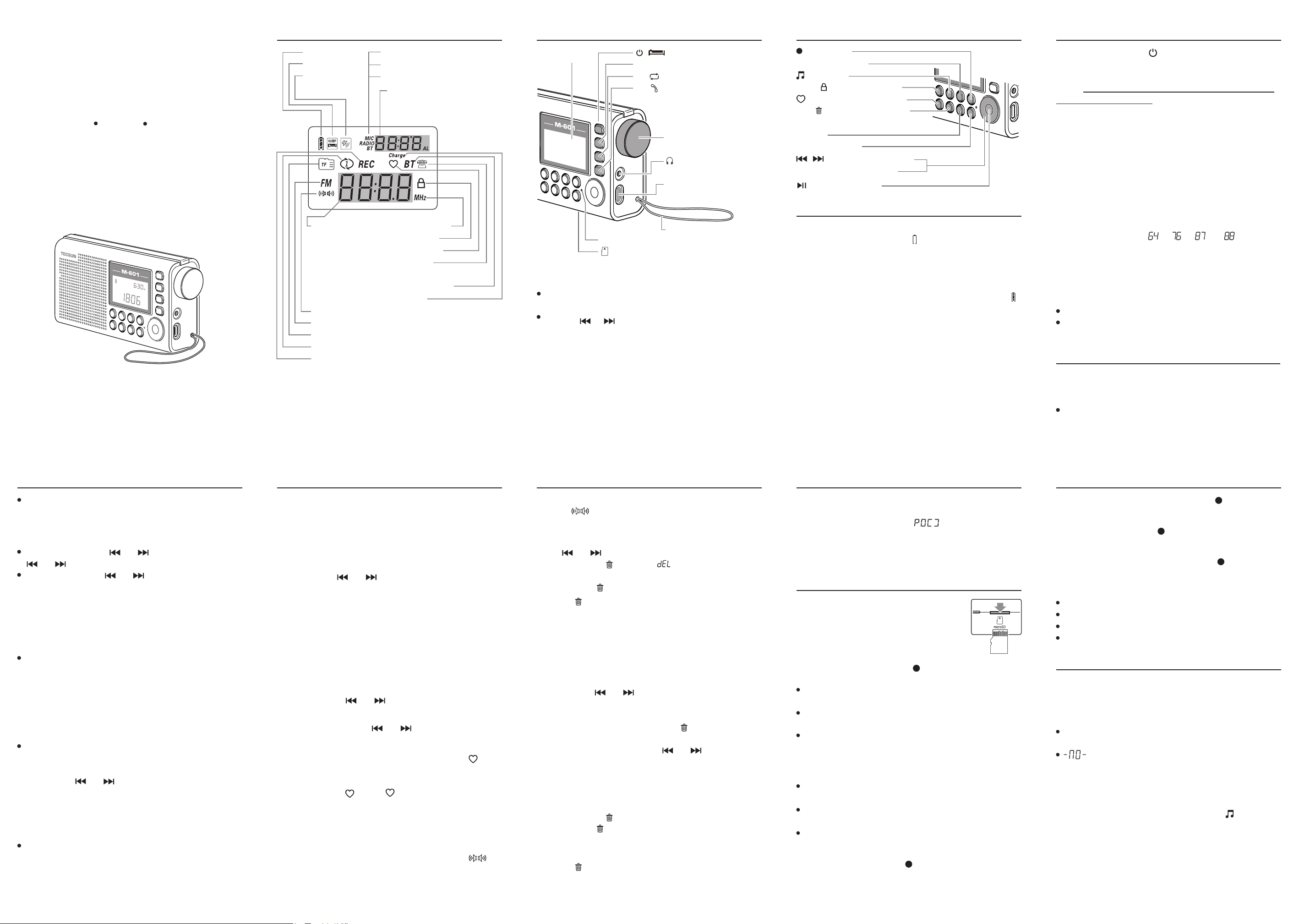
M-601 at a Glance – Display indication
Battery indicator
Sleep timer
Alarm
FM frequency unit
Key/knob lock
Favorite station
Handsfree /
call recording playback
Bluetooth enabled
Charging
MIC: Mic recording/playback
RADIO: Radio recording/playback
BT: Bluetooth recording/playback
Displays: Alarm clock (AL) / clock /
temperature / FM memory preset /
track number / charging time
Displays:
Time/frequency/
recording duration/
folder selection /
playback status
FM stereo reception
FM radio mode
MicroSD (TF) player mode
Repeat track
Recording (flashing) / recording playback
GENERAL OPERATION
Power on/off: Quick press the [ ] button.
Volume adjustment: Quick press the [ Vol.+ ] or [ Vol.- ] button.
Headphone socket: Suitable for 32Ω - 150Ω headphones (Φ3.5mm plug).
Caution! Do not use headphones at high volume for a long time period, as
this may cause hearing damage.
TECSUN
TECSUN ELECTRONIC IND. LTD.
4
Setting the clock (in power off state): 24H format
1. Press and hold the [ TIME ] button until the "hour" digits flash.
2. Rotate the tuning knob to adjust the hour indicator.
3. Quick press the [ TIME ] button to confirm. The "minute" digits start to flash.
4. Rotate the tuning knob to adjust the minute indicator.
5. Quick press the [ TIME ] button to confirm.
Setting the FM Frequency Range
With the device off, set the frequency range to correspond with the
country in which you are using the radio. Press and hold the [ FM ]
button. The display will show “ ”, “ ”, “ ” or “ ” to indicate
the corresponding range: 64 - 108MHz, 76 - 108MHz, 87 - 108MHz or
88 - 108MHz.
Quick press [ FM ] repeatedly to select your preference.
Temperature Display: Fahrenheit (ºF) or Celsius (ºC)
The temperature reading corresponds with the selected FM frequency range.
Fahrenheit (ºF): 88 - 108MHz
Celsius (ºC): 64 - 108MHz, 76 - 108MHz, 87 - 108MHz
Tip: Quick press [ DISPLAY ] repeatedly to display the temperature.
Quick press the [ FM ] button to switch to FM radio listening.
While listening to FM, quick press the [ FM ] button to toggle between the
frequency tuning (VF) and memory mode (VM).
Tuning mode (VF): Frequency flashes after a quick press of the [ FM ]
button.
LISTENING TO FM RADIO
Tuning for new FM frequencies
Manual tuning: Quick press [ ] or [ ]. Alternatively, quick press
[ ] or [ ] and then rotate the [ TUNING ] knob.
Auto tune: Press and hold [ ] or [ ]. The device automatically scans
the FM frequency band. When a radio station is found, it will stay there for
about 5 seconds before continuing the scan. To stop, gently rotate the
[ TUNING ] knob.
Storing FM frequencies
There are several ways to store FM stations.
Storing Stations Manually
1) In VF mode, tune into the frequency.
2) Quick press the memory [ MEM. ] button, the next available memory
location flashes on the display. If desired, select a different memory
location by rotating the [ TUNING ] knob.
3) Quick press the [ MEM. ] button again to confirm the location or wait for
about 2 seconds to auto store the station into the memory.
6
7
AUDIO PLAYER (SD MODE)
Notes:
The volume level of voice recordings and Bluetooth recordings depend on
the volume level of the audio source.
While making voice recordings, to avoid noise, do not use any of the
buttons or the tuning knob.
A recording file has a maximum duration of 1 hour. If the duration of the
recording exceeds 1 hour, a new file will be generated.
Pause the recording: Quick press [ ]. When the recording is paused,
"REC" stops flashing, and the recording time stops and flashes.
Resume the recording after pausing: Quick press [ ] again.
The recording continues, "REC" flashes, and the recording time resumes.
Stop recording: Press and hold [ ]. Recording stops and the device starts
to playback the audio that was just recorded.
Exit recording: Stop recording and then quick press [ ].
Tips: When accessing the microSD card on a computer, recordings can be
found in the following folders:
RECORDB: Bluetooth recording folder.
RECORDF: Radio recording folder.
RECORDH: Phone call recording folder.
RECORDM: Voice recording folder
8
9
5
Deleting a Single Station
1) Enter the memory (VM) mode using the [ FM ] button.
2) Use [ ] or [ ] to select the station that you wish to delete.
3) Press and hold the [ ] button until “ ” and “xx Ch” flash on the
display.
4) Quick press the [ ] button to confirm and delete the unwanted station.
Note: If the [ ] button is not pressed for confirmation within 3 seconds, the
delete function is exited automatically.
Deleting Stations During Memory Scan
The device can auto scan all stored stations, staying on each station for about
5 seconds, and giving you the opportunity to delete any unwanted stored
stations.
1) Use the [ FM ] button to enter the memory (VM) mode.
2) Press and hold [ ] or [ ] until "Ch" flashes in the upper right corner
of the display. The device starts to scan all stored stations and stays on
each station for about 5 seconds before continuing.
3) Upon finding an unwanted station, press the [ ] button. No confirmation
is required and scanning continues immediately.
4) To stop the memory scan, quick press [ ] or [ ].
Deleting All Stored Stations
It is possible to simultaneously delete all stored stations from the memory,
but excluding the favorite station.
1) Use the [ FM ] button to enter the memory (VM) mode.
2) Press and hold the [ ] button untill "P0 dEL" flashes on the display.
3) Quick press the [ ] button to confirm and delete all stored stations.
4) "P0--" is briefly shown on the display. Once the display returns to showing
the frequency, all stored frequencies have been deleted.
Note: If the [ ] button is not pressed for confirmation within 3 seconds, the
delete function is exited automatically.
Auto Sorting Memory
This device can automatically organize all stored stations. In power off mode,
press and hold the [ REC. ] button until appears on the display,
indicating that stored stations are being sorted in ascending frequency. Once
the display returns to showing the time and temperature, the memory sorting
has completed.
RECORDING (microSD card required)
You can use M-601 to make FM radio recordings,
voice recordings, and recordings of audio received via
Bluetooth (including phone calls).
Recordings are saved to an inserted microSD card
(max. 128GB supported).
To start a recording: Press and hold [ ]. “REC” flashes and the recording
time is shown on the display.
FM radio recording: In FM mode, records the selected radio station.
The display indicates “Radio” while recording.
Voice recording: In audio player (SD) mode, uses the built-in microphone
to record the surroundings. The display indicates “Mic” while recording.
Bluetooth recording: In Bluetooth mode, records audio from paired audio
sources as well as incoming and outgoing phone calls.
The display indicates “BT” while recording.
Take note of the correct direction, and then insert a microSD card
(max. 128GB) with supported audio files into the card slot. Quick press the
[ SD ] button, the device starts playing audio from the card automatically.
Notes:
Supported audio formats: 16bit/44.1kHz, FLAC / WAV / WMA / and MP3
formats up to 320kbps.
“ ” is displayed when there is no card inserted, the card is not
supported, or the card does not contain any (supported) files.
Music playback: In audio player mode, quick press the [ ] button.
Recording playback:
In audio player mode, quick press the [ REC. ] button.
Playback Controls
Storing Stations During Auto Tune
It is possible to store stations manually while the radio scans the FM band
for available stations.
1) Press and hold [ ] or [ ] to start the auto tune feature.
2) When coming across a station that you wish to store, quick press the
memory [ MEM. ] button twice. The frequency is stored and the radio
continues scanning for the next available station.
3) To stop the auto tune feature, gently rotate the [ TUNING ] knob.
Auto Tuning Storage (ATS)
Press and hold the [ FM ] button. The frequency starts running and available
FM stations are automatically stored into the memory.
Memory mode (VM): Memory preset indicator "xx ch" flashes after a quick
press of the [ FM ] button. Tip: If "P0--" is displayed, the memory contains
no preset frequencies; the device will automatically return to VF mode.
To stop scanning, quick press [ ] or [ ] .
Setting a Favorite Station
You can set one favorite station that can be accessed using the [ ] button.
Follow these steps to set a favorite station:
1) Tune into a frequency.
2) Press and hold the [ ] button. “ ” flashes on the display briefly,
indicating that your favorite station has been set.
To set a new station as your favorite, follow the above steps again.
FM Mono/Stereo
The speaker audio output is mono. When listening through headphones, the
device automatically switches to stereo output, indicated by the “ ” icon.
When using headphones, but the radio signal is broadcasted in mono, or
Recalling Stored Stations
1) Quick press the [ FM ] button to enter the memory (VM) mode.
The memory is entered when "xx Ch" flashes in the top right corner of the
display.
2) Quick press the [ ] or [ ] button repeatedly to change stations, or
quick press and then rotate the [ TUNING ] knob.
Tip: If "P0--" is displayed, it means the memory contains no preset
frequencies; the device will automatically return to VF mode.
Memory Scan
The device can auto scan all stored stations, staying on each station for
about 5 seconds before continuing.
1) Quick press the [ FM ] button to enter the memory (VM) mode.
The memory is entered when "xx Ch" flashes in the top right corner of the
display.
2) Press and hold the [ ] or [ ] button until "Ch" flashes in the upper
right corner of the display. The device starts to scan all stored stations.
When the frequency stops running, it means the ATS operation has been
completed. Rotate the [ TUNING ] knob to view all the stored stations.
broadcasted in stereo but the signal received is weak, the audio output is in
mono and “ ” is not displayed.
M-601
FM Radio Recorder Audio Player
User Manual
(Please read this manual before use)
3
This device is powered by a 3.7V rechargeable lithium (Li-ion) battery.
When the battery icon is displayed as “ ”, this indicates that battery power
is about to run out. Please charge it in time.
Use a suitable USB-C charging cable to connect the charging socket on the
right side of M-601 to a DC 5V charger. When charging, the charging time is
displayed at the top right corner of the display while the “Charge” indicator
flashes. When charging is complete, the battery symbol is displayed as “ ”
and the charging indicator "Charge" stops flashing.
Attention! Assure that your charger is appropriately certified and meets the
safety standards and other requirements in your region.
Notes:
Many smartphone and tablet chargers are DC 5V. If you own such a device,
check the specifications to find out if it is suitable for use with M-601.
Alternatively, charge M-601 by connecting it to the USB-port of a computer.
To extend battery life, when the lithium battery is fully charged but M-601 is
not used for more than 6 days, the device will enter a self-discharge state,
and the self-discharge will stop when the remaining battery power is about
70%.
●
●
Charging the Battery
: Record button
REC.: Recording library
: Music library
Display/ : Display mode / Keylock
: Favorite FM station / audio track
Mem./ : Store / Delete FM station or
audio track
Alarm set
Time set / A-B repeat
: Select frequency/audio track
Vol.+ / Vol.- : Adjust volume level
: Play/Pause audio track
M-601 at a Glance – Location of Controls
* Multifunctional tuning knob:
After using [ Vol.+ ] / [ Vol.- ], rotating the tuning knob will adjust the
volume level.
After using [ ] / [ ], rotating the tuning knob can be used to tune
the frequency or select an audio track.
Display / : Power switch / Sleep timer
FM: Tuning (VF), memory (VM), ATS
SD / : SD card / Repeat mode
BT / : Bluetooth audio / Handsfree
FM antenna / wrist strap
Microphone
MicroSD card slot
Tuning: Tuning knob
(* multifunctional)
: Stereo earphone socket (and
reset button)
USB-C Charging/Computer
audio input
12 13
14
15
Q & A
Q: Why is it that sometimes the [ TUNING ] knob can only be used to select
FM stations and audio tracks, but cannot be used to adjust the volume;
and at other times it can only adjust the volume, but cannot be used to
select FM stations and audio tracks?
A: The function of the [ TUNING ] knob is related to its last operation.
If the [ ] or [ ] key was used previously, the default operation of
the [ TUNING ] knob is to select FM stations an audio track or folder.
If the [ VOL. + ] or [ VOL. - ] button was used previously, the default
operation of the [ TUNING ] knob is to adjust the volume.
Q: Why does the display show “ ” after inserting a microSD card?
A: There are four possibilities:
1. There are no audio files on the card.
2. M-601 does not support the audio file formats on the card.
3. The capacity of the microSD card is more than 128GB.
4. The microSD card or the audio files are corrupted.
10
11
Use this device as a speaker for a computer by following the below steps:
1) Turn on the device.
2) Use a suitable USB data cable to connect M-601 and the
computer. The display shows “ ”.
3) Turn on the audio player of the computer.
Playback controls: Play, pause, song selection and volume control can be
operated on the M-601 using the corresponding buttons.
Tip: If there is no sound, adjust the sound output settings of your computer,
or turn off and restart the computer's audio player.
COMPUTER SPEAKER MODE
Activating/Deactivating the alarm
Quick press [ ALARM ] to activate the alarm. The alarm “ ” icon is shown
on the display to indicate that the device will turn on at the preset time.
Quick press again to deactivate the alarm.
Setting the Sleep Timer
1) Turn the device off.
2) Press and hold the [ POWER / ] button to enter the setting mode.
3) Rotate the [ TUNING ] knob to select a power-off timer of 1-120 minutes,
or select “ ” to deactivate the sleep timer.
4) The setting is automatically confirmed after 2 seconds. The sleep timer
“ ” icon is shown on the display.
OTHER SETTINGS AND FEATURES
Setting the alarm time:
1) Turn the device off.
2) Press and hold [ ALARM ], the "hour" digit in the upper right corner of the
display flashes.
3) Rotate the [ TUNING ] knob to adjust the "hour". Quick press [ ALARM ] to
confirm.
4) The "minute" digit flashes. Rotate the [ TUNING ] knob to adjust, followed
by a quick press of the [ ALARM ] button to confirm the setting.
5) The display shows the alarm duration, while “ ” and “ ” flash on the
display.
6) Rotate the [ TUNING ] knob to set the alarm duration (1 - 60 minutes).
7) Quick press [ ALARM ] to confirm. The alarm icon “ ” is shown on the
display.
Keylock
To activate the keylock, press and hold [ ]. The lock “ ” icon is displayed
and the buttons and tuning knob are disabled. Press and hold [ ] again to
unlock.
Setting a Favorite Audio Track
You can set one favorite audio track that can be accessed using the [ ]
button.
1) Select an audio track from the music library.
2) Press and hold the [ ] button. “ ” flashes on the display briefly,
indicating that your favorite station has been set.
To set a new station as your favorite, follow the above steps again.
Notes:
Audio in the recordings library cannot be set as favorite.
Only one favorite audio track can be set.
Recalling the favorite audio track
In audio player (SD) mode, quick press the [ ] button. The audio track is
played automatically, with the display indicating the folder and track number.
Quick press [ ] to exit the favorite audio track.
Deleting audio files
1) Select the file you want to delete.
2) Press and hold [ ] until the track number and “ dEL ” flash on the
display.
3) Quick press [ ] to confirm and delete the file.
Tip: To delete multiple files simultaneously, power on M-601 and connect it to
a computer using the included USB data cable. Access the microSD card
and delete the files.
BLUETOOTH AUDIO RECEIVER (BT)
Quick press the [ BT ] button and then use the Bluetooth enabled audio
source (e.g. smartphone or tablet) to pair with "TECSUN-M601".
“ ”: Indicates that M-601 is waiting to pair.
“ ”: Indicates that M-601 has paired succesfully.
Unpair a Bluetooth connection: Press and hold the [ BT ] button.
Playback controls: Play, pause, song selection and volume control can be
operated on the M-601 using the corresponding buttons.
Handsfree calls: If the Bluetooth enabled audio source receives an
incoming phone call, audio playback is paused and the display shows “ ”
and the “ ” symbol flashes.
Answering an incoming call: Quick press [ ].
Tip: The microphone is located below the LCD display.
Recording a phone call: During a call, press and hold [ ].
“REC” flashes and the recording time is shown on the display.
Ending a call: Quick press [ ].
Rejecting an incoming call: Quick press [ ] twice.
16
Q: Can audio in the recording folder be set as the “favorite audio track”?
A: No. If you want to set a recorded audio track as the “favorite audio track”,
use a computer to move this recording file out of the recording folder.
You can then set it as the “favorite audio track”.
Q: Can you repeat the audio files of all folders in one loop?
A: No. It is only possible to repeat audio files in a single folder.
Q: I previously saved a favorite audio track, why is it gone?
A: When the microSD card is removed, or the audio track is deleted from the
card, the favorite audio track selection cannot be retained.
Q: In audio player (SD) mode, the music library (or recording library) cannot
be selected.
A: The audio player is still in the folder preview state. Quick press the [ SD ]
button to exit the folder preview state.
Q: Why is there no response (cannot record) after pressing the recording
button?
A: Recordings are made directly to the microSD card. Has a supported (max.
128GB) SD card been inserted correctly?
Q: Why can't I record voice calls?
A: Some apps (e.g. WeChat) prevent voice recordings to be made.
Q: What is the length of a recording for each 1GB capacity of the microSD
card?
A: For Bluetooth/radio recording, 1GB can store approx. 14 hours.
For phone call recordings, 1GB can store approx. 72 hours. For voice
recordings, 1GB can store approx. 41 hours.
17
Q: How long does it take to charge the battery?
A: When the battery is still new and fully discharged, use a DC 5V≥1A
charger to charge it; it will take about 4 hours to fully charge the battery.
Q: How to prolong battery life?
A:
1. In order to avoid accelerated aging of lithium batteries,
Charge the battery before it is completely exhausted.
Do not charge the battery longer than it is necessary to fully charge it.
Avoid charging the battery and playing audio at the same time.
Do not keep the device in a high-temperature environment.
2. When not using the device for a prolonged period of time, it is
recommended to charge the battery to about 50% - 70% before storing,
and to check the remaining battery power regularly. Do not let the battery
drain completely.
18
Lithium Battery Safety Instructions
This device uses a built-in (104050) lithium battery, which should not be
replaced by yourself. There is a risk of explosion if the battery is incorrectly
replaced. The device can only be used with a battery of the same type or
equivalent. If the battery needs replacing, please contact our customer
service department or a professional repair center.
Do not expose the battery to heat sources (e.g. sunlight, fire), low
temperatures, humidity, or high pressure. Do not use after being immersed
in water.
Do not short-circuit or disassemble the battery. If the battery is seriously
inflated, please do not continue to use it. Dispose of the battery properly.
Please consciously abide by aviation regulations; lithium batteries may be
prohibited from placing into checked luggage.
M-601 Maintenance
Keep it dry. Rain, humidity and other types of liquids or moisture can
contain minerals that may cause corrosion to components.
Do not place or store the device in environments above +45°C.
High temperatures can shorten the life span of certain components.
Do not place or store the device in cold environments below -5°C .
Otherwise, once the surrounding temperature rises, internal condensation
may develop and damage the circuit board and LCD display.
Do not drop, hit, or smash the device. Avoid violent shocks.
Do not use harsh chemicals, cleaning solvents, or strong detergents to
clean the device. Use a clean, soft, dry cloth to clean the screen.
Do not attempt to disassemble the device to adjust internal parameters.
M-601 Specifications
FM frequency range
FM station memories:
FM noise limit sensitivity:
FM selectivity:
MicroSD Card:
Supported Audio:
Recording format:
Voice
Phone calls
Radio and Bluetooth (not phone)
Bluetooth version:
Stereo headphone impedance:
Speaker:
Maximum operating current:
Quiescent current (FM):
Maximum output power:
Stand-by current:
Power supply:
Charging / external power:
Charging socket:
Unit size (excl. carrying strap):
Net weight:
64-108 MHz
76-108 MHz
87-108 MHz
88-108 MHz
100
< 3μV (S / N = 30dB)
> 60dB
Max. 128GB
16bit / 44.1kHz; FLAC / WAV /
WMA / MP3 up to 320 kbps
mono MP3 (56kbps)
mono WAV (32kbps)
stereo MP3 (160kbps)
BT 5.0
32 - 150Ω
4Ω, 3W
500mA
< 50mA
2W
< 90μΑ
3.7V / 2500mAh (104050 Li-ion battery)
or external DC 5V
5V 1000mA
USB type-C
Approx. 148 x 73 x 34 mm
Approx. 225 gram
19
Pause/Play: Quick press [ ]. While paused, “ ” is displayed.
Restart audio track: Quick press [ ].
Next audio track: Quick press [ ]. Alternatively, press once and then
rotate the [ Tuning ] knob.
Previous audio track: Quick press [ ] twice. Alternatively, press once
and then rotate the [ Tuning ] knob.
Repeat track: Press and hold [ ] until the display shows “ ”. Press
and hold [ ] again to resume normal playback.
A-B segment repeat: Quick press [ Time ] at the beginning of the segment
( is displayed). Quick press [ Time ] again to set the end of the segment
( is displayed). To stop the segment repeat, quick press [ Time ].
Fast forward: Press and hold [ ].
Rewind: Press and hold [ ]
Selecting an audio file:
1) Enter the music [ ] or recording [ REC. ] library.
2) Quick press the [ SD ] button to enter the folder preview mode.
The display shows the current folder from which music is being played
(e.g. ) and the number of audio files that it contains (e.g. ).
3) To select a different folder on the microSD card, rotate the [ Tuning ] knob.
4) To select an audio file within the folder, quick press the [ ] or [ ]
repeatedly.
In the music library, if the microSD card contains audio files that are not
located in a folder, these are displayed as located in the folder by
default.
Audio playback from the recording library indicates the type of recording
folder: MIC (voice recordings folder), BT (Bluetooth recordings folder),
RADIO (FM radio recordings folder), (phone recordings folder).
Tips:
Troubleshooting
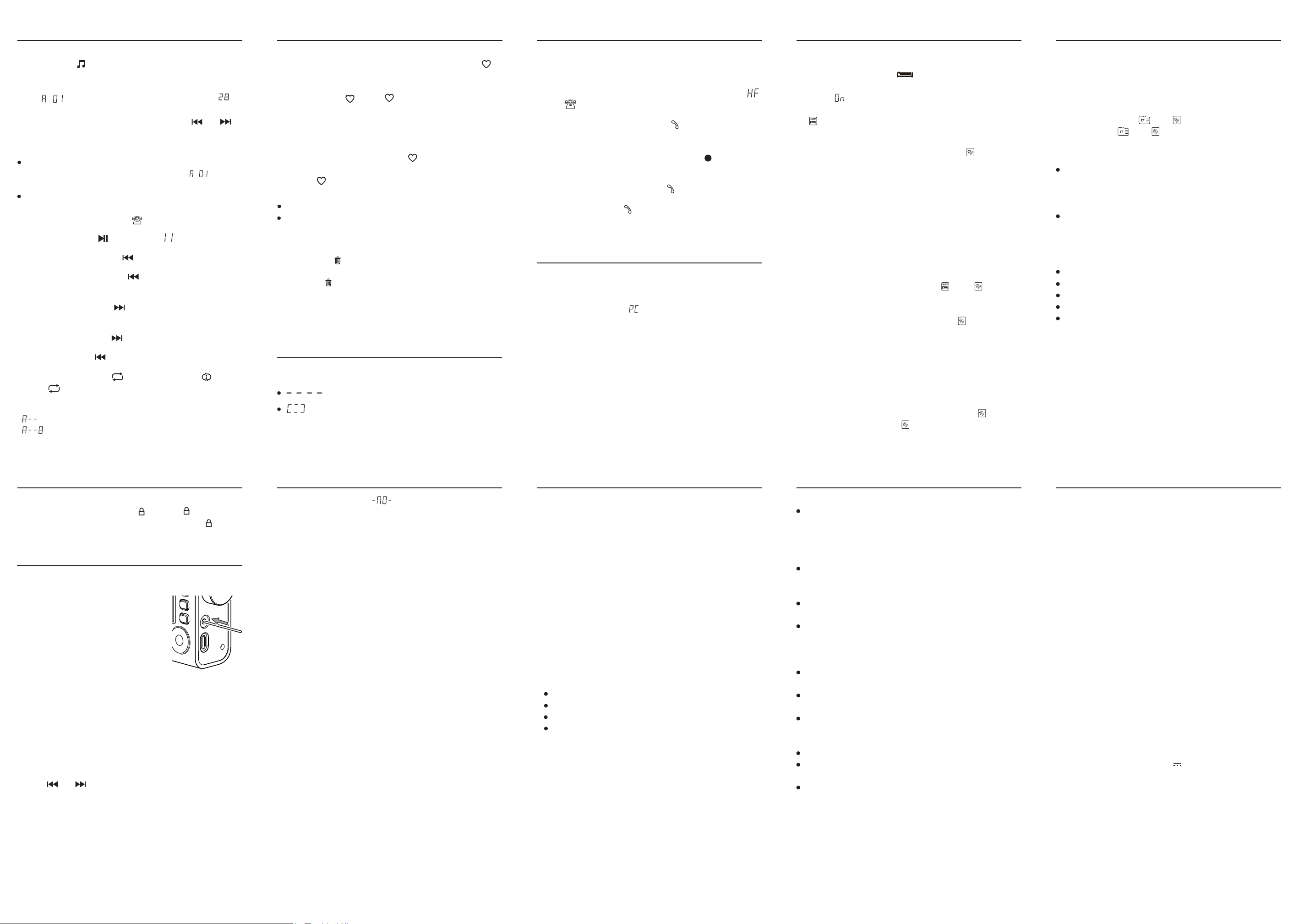
System Reset
This device works on advanced and stable
firmware to enhance users' enjoyment.
In the event that a sudden firmware glitch
does occur (e.g. unresponsive or erratic
behavior of buttons/knob, LCD display
issues) press the [ RESET ] button.
Use an insulated pointy object (e.g. a
toothpick) and press the button located
inside the earphone socket.
Setting the alarm by radio or audio player:
Alarm by radio:
1) Turn on the device and select the FM station you want to use as the alarm.
2) Select a suitable volume level for the alarm.
3) Quick press [ MEM. ], the memory location will flash.
4) While still flashing, quick press [ ALARM ], the alarm icon “ ” flashes.
5) After 2 seconds, the alarm icon “ ” stops flashing and the alarm is set.
Tips:
Once the preset alarm time is reached, the radio or audio player turns on
and stays on for as long as the alarm duration (01 – 60 minutes) was set.
To turn off the device during the alarm playtime, quick press the [ POWER ]
button twice.
Audio files from the recording folder cannot be set selected for the alarm.
Alarm by audio player:
1) Insert a microSD card containing audio files.
2) Select an audio track from the music library that you want to use as the
alarm.
3) Select a suitable volume level for the alarm.
4) Quick press [ MEM. ], the audio track number flashes.
6) Quick press [ ALARM ], “ ” and “ ” are flashing.
After 2 seconds, “ ” and “ ” stop flashing, indicating that the alarm 7)
has been set.
Voice Prompts:
This device can use voice prompts to indicate when a feature is being
selected: “FM mode”, “SD card mode”, “Bluetooth mode”.
Turning on/off voice prompts:
1) Turn on the device.
2) Quick press [ FM ] to enter FM mode.
3) Press and hold the [ TIME ] button until “On” / “OFF” is displayed.
Display mode:
Quick press the [ DISPLAY ] button repeatedly to (briefly) show any of the
following in the top right corner of the display:
FM mode: Memory preset (VM mode), clock time, alarm time, temperature
Audio player mode: Track number, clock time, alarm time, temperature
Bluetooth mode: Clock time, alarm time, temperature
Computer speaker mode: Clock time, alarm time, temperature
Power off mode: Alarm time, temperature
V230523
TECSUN ELECTRONIC IND. LTD.
Address: Unit 11, 13/F, Block A, Hoi Luen Ind. Ctr., 55 Hoi Yuen Road,
Kwun Tong, Kowloon, Hong Kong.
E-mail: [email protected]
Website: www.tecsun.com.cn www.tecsun-audio.com